
LE43G600UG - Teler HAIER - Tasuta kasutusjuhend
Leidke seadme juhend tasuta LE43G600UG HAIER PDF-formaadis.


Kasutajate küsimused teemal LE43G600UG HAIER
0 küsimus selle seadme kohta. Vastake nendele, mida teate, või esitage oma.
Esita uus küsimus selle seadme kohta
Laadige alla juhend oma Teler PDF-formaadis tasuta! Leidke oma juhend LE43G600UG - HAIER ja võtke oma elektrooniline seade uuesti kätte. Sellel lehel on avaldatud kõik teie seadme kasutamiseks vajalikud dokumendid. LE43G600UG kaubamärgi HAIER.
KASUTUSJUHEND LE43G600UG HAIER
Haier
Inspired Living
Skanni QR-kood allalaadimiseks

LED-televiisor
SISUKORD
- OLULISED OHUTUSJUHISED 2
- ETTEVAATUSABINÕUD JA MEELDETULETUSED 3
- KASUTUSJUHISED 4
- VEATÕRJE 15
- E-JÄÄTMETE JUHISED 16
- GARANTII 18
Selles juhendis olevad illustratsioonid on ainult viitamiseks ja võivad erineda tegelikust toote välimusest. Toote disain ja spetsifikatsioonid võivad muutuda ilma ette teatamata.
1) Lugege need juhised läbi. 2) Hoidke need juhised alles. 3) Järgige kõiki hoiatusi. 4) Järgige kõiki juhiseid. 5) Ärge kasutage seda toodet vee läheduses. 6) Puhastage ainult kuiva lapiga. 7) Ärge blokeerige ventilatsiooniavasid. 8) Ärge paigaldage seadet soojusallikate (nt radiaatorite, ahjude või muude soojust tootvate seadmete) lähedusse. 9) Ärge kahjustage polariseeritud pistiku ohutuseesmärki. Kui kaasasolev pistik ei sobi teie pistikupessa, pöörduge elektriku poole, et vahetada välja vananenud pistikupesa. 10) Kaitske toitejuhet, et sellele ei astutaks ega seda ei muljutaks, eriti pistikute, pistikupesade ja kohas, kus see seadmest väljub. 11) Kasutage ainult tootja määratud kinnitusi/tarvikuid. 12) Ühendage seade äikese ajal või pikaajalisel kasutamata olekul vooluvõrgust lahti. 13) Usaldage kogu hooldus kvalifitseeritud hoolduspersonalile. Hooldus on vajalik, kui seade on kahjustatud mis tahes viisil, näiteks toitejuhe või pistik on kahjustatud, vedelikku on valgunud või esemeid on seadmele kukkunud, seade on olnud vihma või niiskuse käes, ei tööta normaalselt või on maha kukkunud. 14) Võrgupistikut kasutatakse lahtiühendamisseadmena, see peab jääma kergesti kättesaadavaks. 15) Ventilatsiooni ei tohi blokeerida mis tahes vahenditega, nagu ajaleht, laudlina, kardinad jne. 16) Lahtist leeki (nt küünlaid) ei tohi seadmele asetada. 17) Tuleb juhtida tähelepanu patareide utiliseerimise keskkonnaaspektidele. (Vaadake E-jäätmete juhendit) 18) Kui seade on paigaldatud alusele, veenduge, et see on horisontaalsel pinnal.


See sümbol näitab, et seadmes on ohtlik pinge, mis võib põhjustada elektrilöögi.

See sümbol näitab, et kasutusjuhendis on olulised kasutus- ja hooldusjuhised.
HOIATUS
Tule- või elektrilöögiohu vähendamiseks ärge jätke seda seadet vihma või niiskuse kätte.
HOIATUS
Patareisid ei tohi jätta liigse kuumuse kätte, näiteks radiaatorite või tule lähedusse.

See sümbol näitab, et see toode sisaldab topeltisolatsiooni ohtliku võrgupinge ja kasutajale kättesaadavate osade vahel. Hoolduse ajal kasutage ainult identseid varuosi.

See märgistus näitab, et seda toodet ei tohi visata koos muude majapidamisjäätmetega (vt e-jäätmete juhiseid). Et vältida võimalikku kahju keskkonnale või inimeste tervisele kontrollimatu jäätmekäitluse tõttu, ringlussevõtke seda vastutustundlikult, et edendada materjalide säästvat taaskasutust. Kasutatud seadme tagastamiseks kasutage tagastus- ja kogumissüsteemi või võtke ühendust jaemüüjaga, kust toode osteti. Nad saavad selle toote keskkonnaohutuks ringlussevõtuks vastu võtta.
Selle teleri töös kasutatakse kõrgeid pingeid. Ärge eemaldage seadme tagakaant. Hoolduseks pöörduge kvalifitseeritud hoolduspersonali poole.
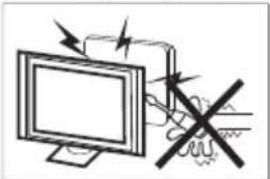
Tule- või elektrilöögiohu vältimiseks ärge jätke telerit vihma või niiskuse kätte.
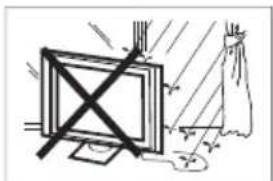
Ärge visake ega lükake esemeid teleri kapi piludesse või avadesse. Ärge kunagi valage telerile vedelikke.
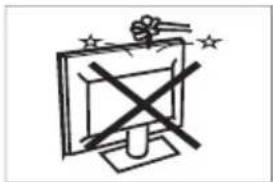
Ärge blokeerige tagakaane ventilatsiooniavasid. Piisav ventilatsioon on hädavajalik elektrikomponentide rikke vältimiseks.
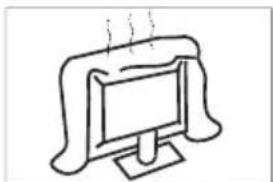
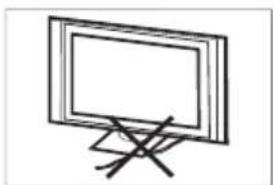
Ärge jätke toitejuhet teleri alla kinni.
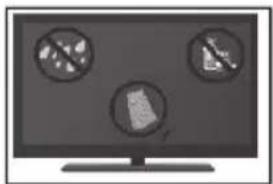
Kui kavatsete toodet puhastada, ühendage teler vooluvõrgust lahti ja kasutage pehmet lappi ilma vee või kemikaalideta.
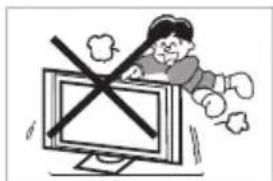
Ärge kunagi seiske teleril, toetuge sellele ega lükake seda järsult. Pöörake erilist tähelepanu lastele. Kui teler kukub, võib see põhjustada tõsiseid vigastusi.
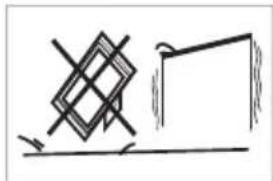
Ärge asetage telerit ebastabiilsele kärule, alusele, riiulile ega lauale. See võib põhjustada tõsiseid vigastusi ja teleri kahjustusi.
Kui telerit ei kasutata pikemat aega, on soovitatav toitejuhe vooluvõrgust lahti ühendada.

Vältige teleri otsest päikesevalgust ja muid soojusallikaid. Ärge asetage telerit otse teiste soojust eraldavate seadmete peale. Ärge asetage telerile lahtist tuld, näiteks küünlaid.
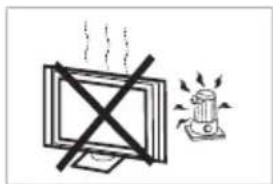
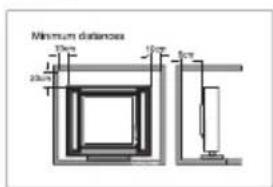
Kui teler paigaldatakse kappi või sarnasesse suletud ruumi, tuleb säilitada minimaalne vahemaa. Soojuse kogunemine võib lühendada teleri eluiga ja olla ohtlik.
Esimest korda teleri sisselülitamisel juhendab seadistamisviisard teid põhiseadete tegemisel. Palun lõpetage esmane seadistamine järgides ekraanil kuvatavaid juhiseid.
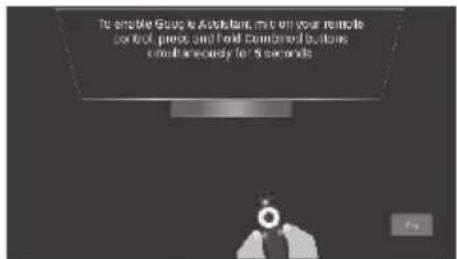
Kõigepealt peate siduma oma BT-puldi teleriga. Järgige ekraanil kuvatavaid juhiseid. Kui sidumine on õnnestunud, saate BT-pulti kasutada teleri juhtimiseks.
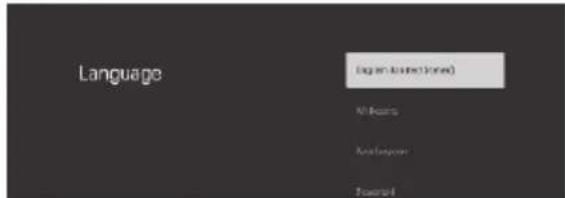
Vajutage ▲/▼, et valida süsteemi keel, ja vajutage OK, et kinnitada soovitud keel.

Vajutage ▲/▼, et valida süsteemi keel, ja vajutage OK, et kinnitada soovitud keel.
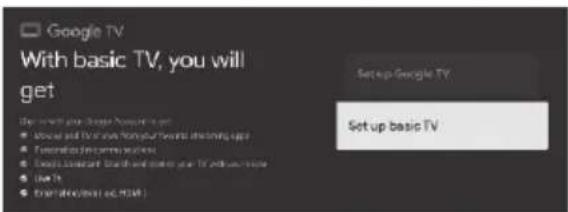
Vajutage ▲▼, et valida "Seadista põhitelevisioon" ja vajutage OK, et seadistamine lõpetada.
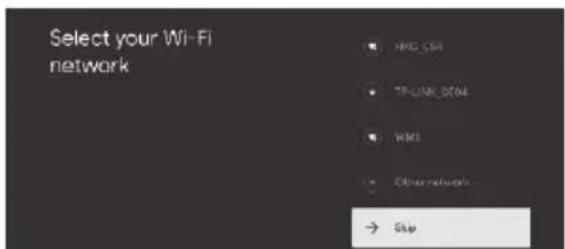
Vajutage ▲▼, et valida saadaolevad WiFi-võrgud, ja vajutage OK, et ühenduda soovitud võrguga. Teil palutakse sisestada WiFi-võrgu parool.
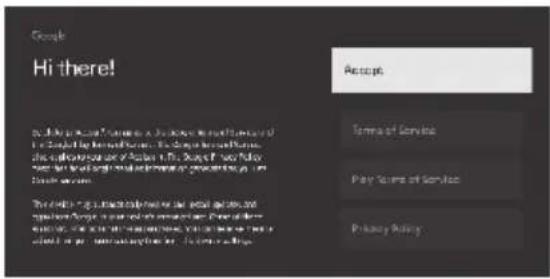
Aktsepteerides "Google'i teenusetingimusi", suunatakse teid järgmisse sammu.

Saate seada seadme parooli turvalisuse ja privaatsuse tagamiseks. Pehme klaviatuuri saab aktiveerida, vajutades parooli sisestusväljal OK.
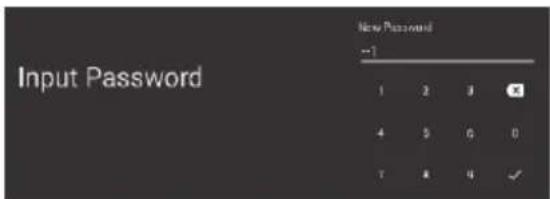
Sisestage klaviatuurilt 4-kohaline parool. Pärast parooli seadistamist suunatakse teid järgmisele ekraanile.
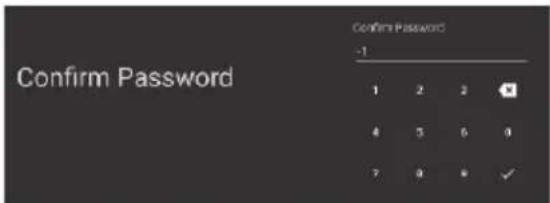
Sellel ekraanil sisestage sama parool kinnitamiseks.
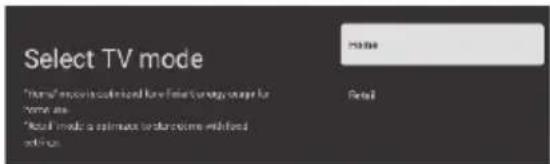
Valige režiim "Kodu" või "Jaemüük", kasutades ▲▼ nooleklahve.
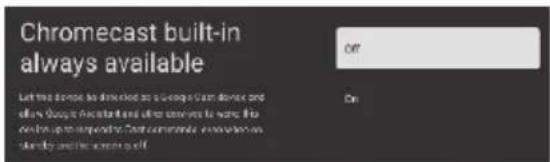
Liikuge ▲▼ nooleklahvidega, et valida Chromecasti funktsiooni jaoks sobiv valik.
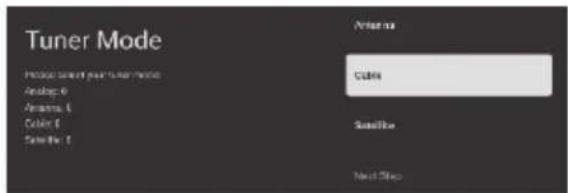
Tuuneri režiimi valimiseks liikuge ▲/▼ nooleklahvidega.
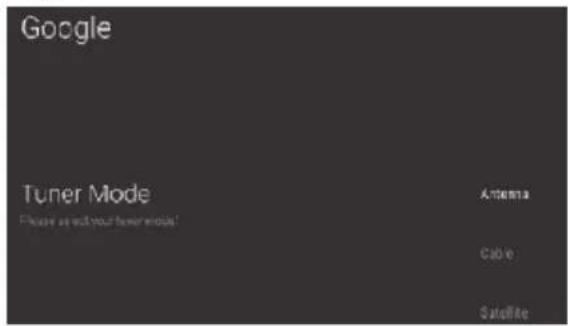
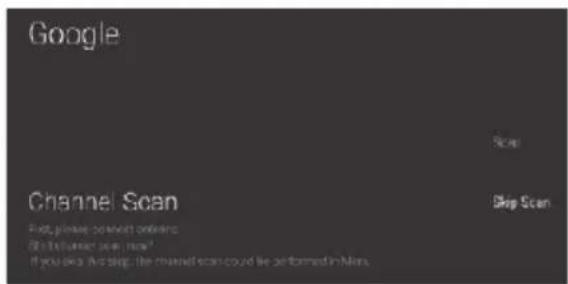
Kui antenn on valitud, suunatakse teid automaatse kanalite otsimise ekraanile. Kasutage navigeerimisklahve ▲/▼, et valida "Skaneeri" või "Jäta vahele".
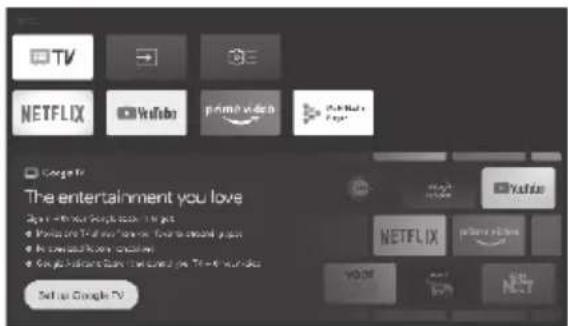
Kui esmane seadistamine on lõpetatud, saate Google TV seadistada avakuvalt, liikudes klahvidega ▲/▼ valikule "Google TV seadistamine". Vajutage "OK", et alustada Google TV seadistamist.
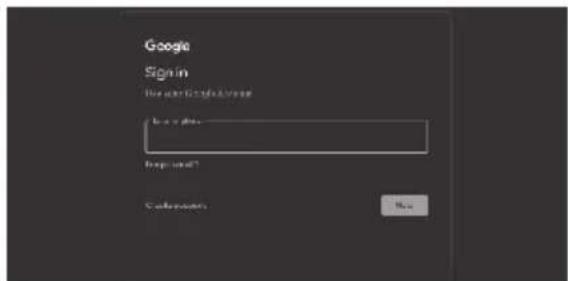
Logige sisse oma Google'i kontoga, et seadistamist jätkata.

Valige "Nõustun", et nõustuda Google'i kohustuslike tingimustega.
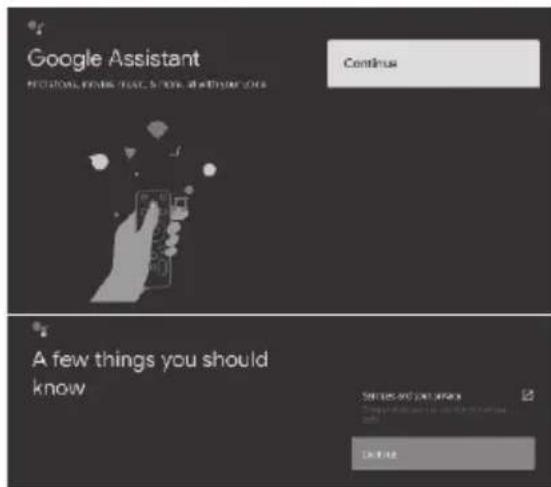
Valige "Jätka", et liikuda järgmisele ekraanile.
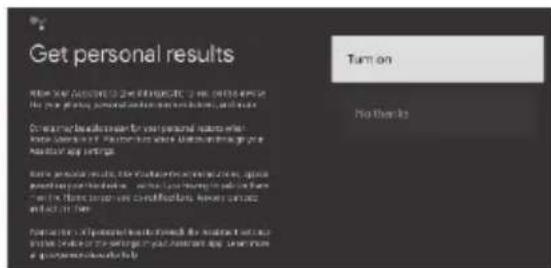
Kasutage klahve ▲/▼, et valida isikupärastatud tulemuste jaoks sobiv valik.
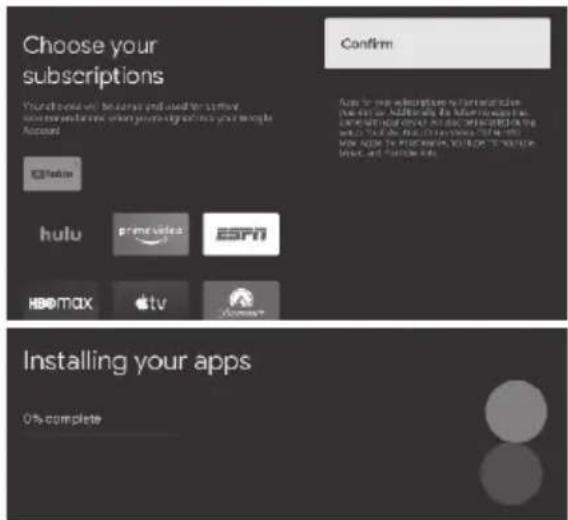
Kasutage klahve ▲/▼, et valida tellimused, ja vajutage "Kinnita", et installida soovitatud rakendused. Teie seade hakkab rakendusi installima.
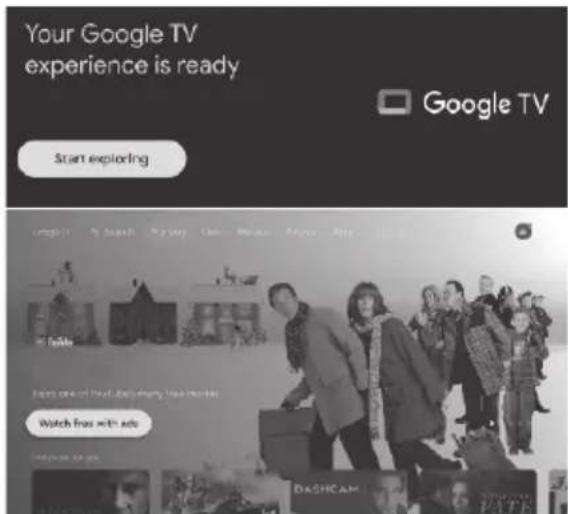
Google TV seadistamine on nüüd lõpetatud. Vajutage "Avasta", et minna avakuvale.
EKRAANIMENÜÜ JA SEADED
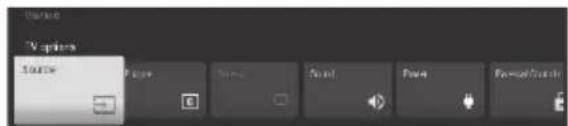
Seadetesse pääsemiseks on kaks võimalust.
- Kaudu "Live TV"
Kasutage klahve ◀▶, et valida "Seaded" ja vajutage "OK".
- Avakuvalt
Kasutage klahve ▲/▼ ◀/▶, et liikuda Google'i profiili ringikujulisele ikoonile ja valige "Seaded", vajutades "OK".
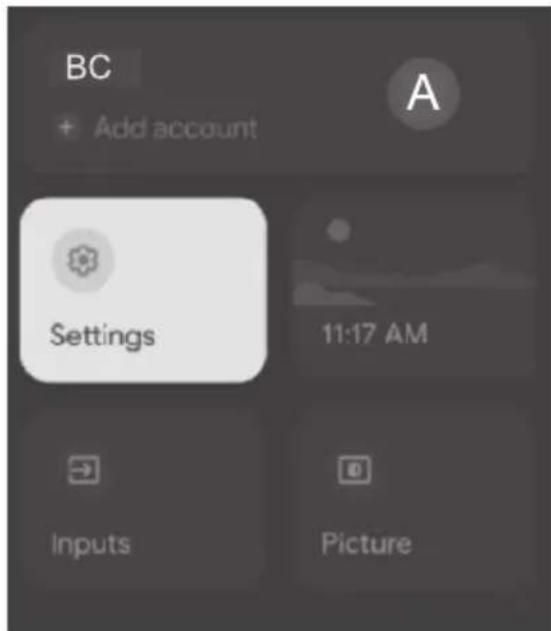
Seadetele pääseb ligi, vajutades valikul "Seaded".
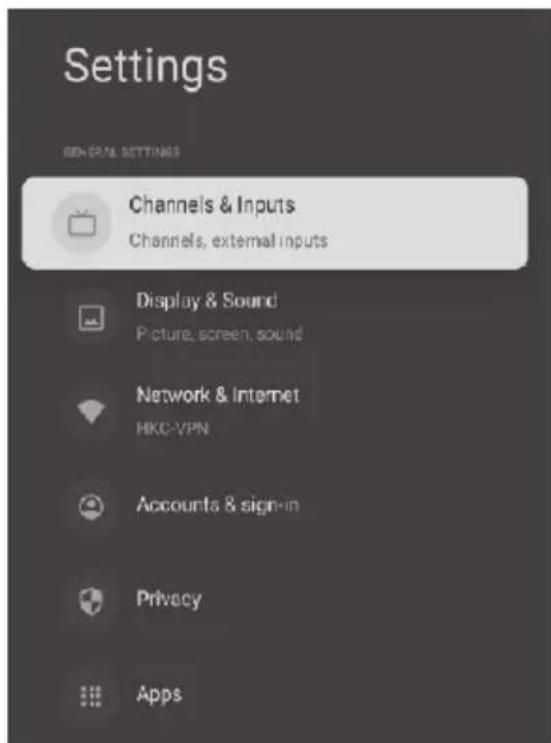
Kasutage soovitud seadetesse sisenemiseks nooleklahve ▲▼.
Eelmisesse menüüsse naasmiseks vajutage tagasi.
KANALID JA SISENDID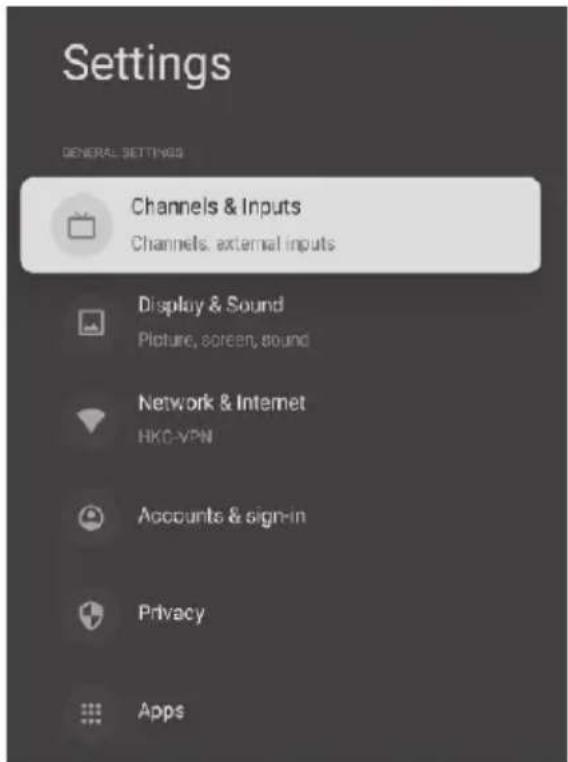
Valige "Seadetes" nooleklahvidega "Kanalid ja sisendid". Vajutage OK, et näha saadaolevaid valikuid.
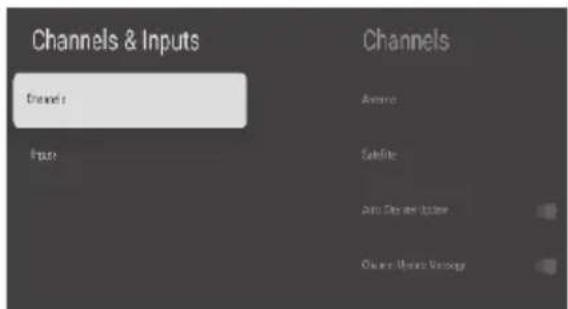
Valige "Kanalid", et siseneda kanalimenüüsse.
KANALIMENÜÜ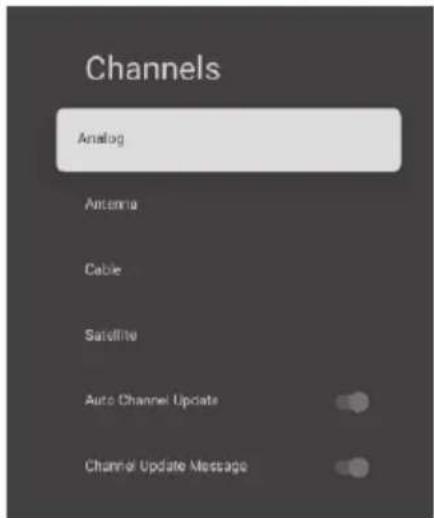
Analoog/Antenn/Kaabel/Satelliit
Kasutage sobiva alammenüü valimiseks nooleklahve ▲/▼ ◀/▶.
Kanalite automaatne uuendamine
Kui see on aktiivne, skannib süsteem automaatselt ja uuendab kanaleid pärast 5-minutilist ooterežiimi.
Kanalite uuendamise teade
Kui see on aktiivne, näitab süsteem teile uuendusteate.
ANTENN (ANALOOG)
Järgige teed alammenüüsse sisenemiseks: Menüü > Seaded > Kanalid ja sisendid > Antenn.
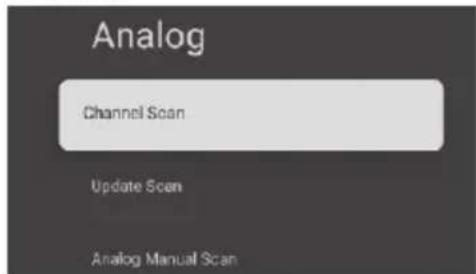
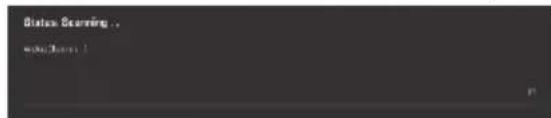
Valige "Kanalite otsing", et otsida automaatselt saadaolevaid ATV kanaleid.
Värskenda otsingut
Selle valiku korral otsib süsteem automaatselt kanaleid väljaspool sageduspunkte.
Analoog käsitsi otsing
Selle valiku abil saate käsitsi sisestada ATV kanali. Kui kanal on leitud, saate kasutada üles-alla valikut sageduse valimiseks.
ANTENN (ANTENN)
Järgige teed alammenüüsse sisenemiseks: Menüü > Seaded > Kanalid ja sisendid > Antenn > Antenn.
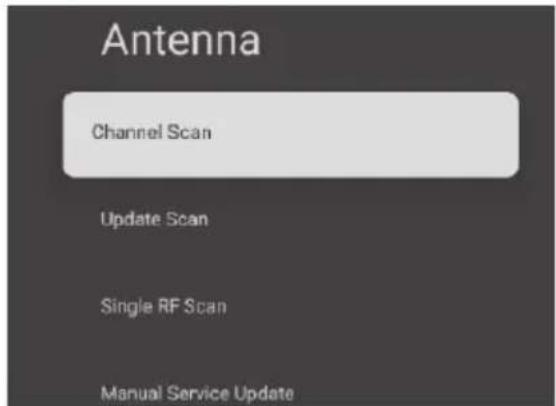
Valige "Kanali otsing", et otsida automaatselt saadaolevaid DTV kanaleid.
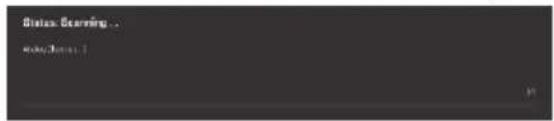
Värskenda otsingut
Selle valiku korral otsib süsteem automaatselt kanaleid väljaspool sageduspunkte.
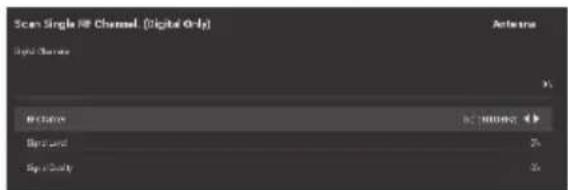
Üksik RF otsing
DTV käsitsi otsing. Valige vasak või parem, et valida saadaolevate sageduste hulgast.
ANTENN (KAABEL)
Järgige teed alammenüüsse sisenemiseks: Menüü > Seaded > Kanalid ja sisendid > Antenn > Kaabel.
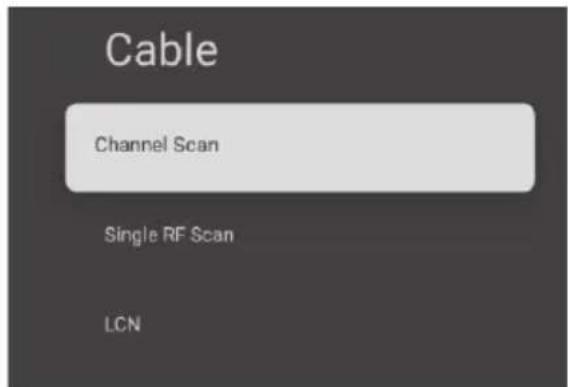
Valige "Kanali otsing", et otsida automaatselt saadaolevaid kaabelkanaleid.
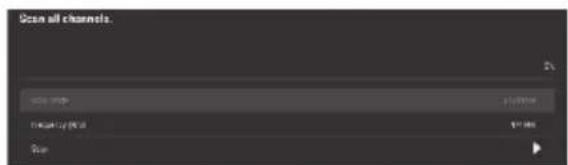
Üksik RF otsing
Valige see kanalite käsitsi otsimiseks.
ANTENN (SATELLIIT)
Järgige teed alammenüüsse sisenemiseks: Menüü > Seaded > Kanalid ja sisendid > Antenn > Satelliit.
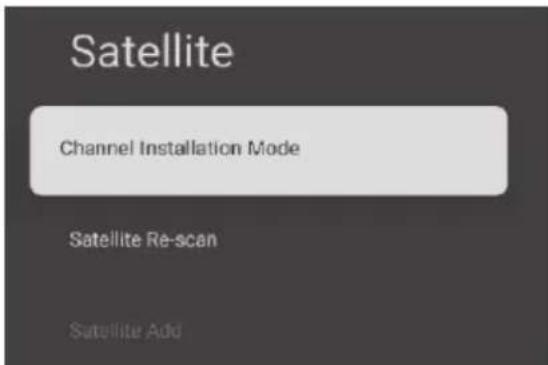
Kanalite installimise režiim
Vajutage ▲/▼ ◀/▶ soovitud valikute valimiseks
Satelliidi uuesti otsimine
Menüü > Seaded > Kanalid ja sisendid > Antenn > Satelliit > Satelliidi uuesti otsimine
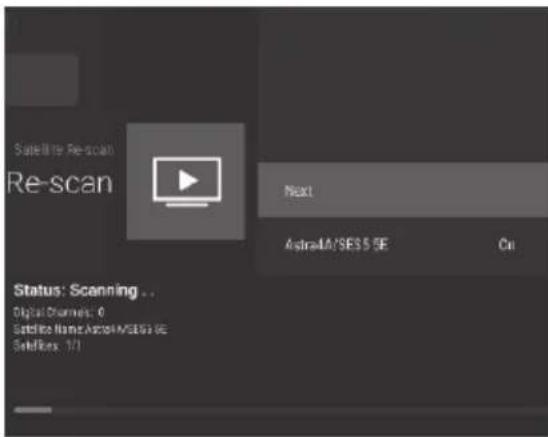
Vajutage "Järgmine", et siseneda satelliidi parameetrite seadetesse, mis hõlmavad LNB TOIDE, LNB sagedus, DiSEqC seadistus, 22K ja muud parameetrid. Seejärel pöörduge tagasi "Satelliidi uuesti otsimine" juurde ja paremklõpsake otsingumenüüsse sisenemiseks. Seejärel otsige satelliidikanaleid.
Satelliidi lisamine
Kasutage seda ringhäälingusignaali käsitsi lisamiseks.
Satelliidi käsitsi häälestamine
Otsige ringhäälingusignaali käsitsi.
SISENDID
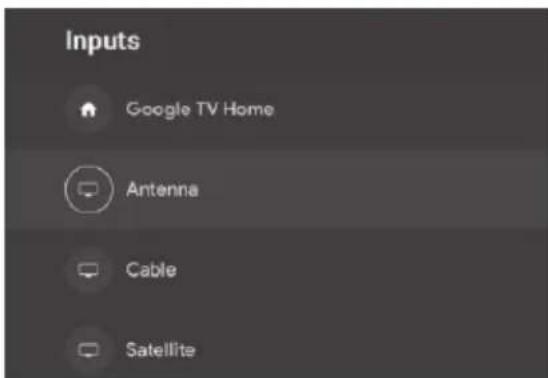
Liikuge ▲/▼ abil sisendite sektsiooni, kus näete saadaolevaid sisendallikaid. Saate valida soovitud sisendallika, vajutades "OK".
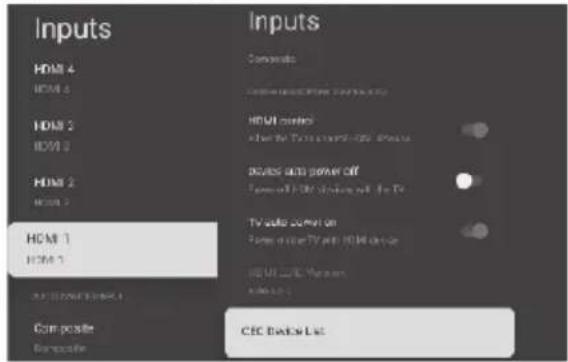
HDMI juhtimine - Liikuge ▲/▼ klahvidega, et lubada või keelata juurdepääs telerile ühendatud HDMI-seadmete juhtimiseks.
Seadme automaatne väljalülitamine – liikuge
▲/▼-klahvidega alammenüüsse. Pärast selle funktsiooni lubamist lülituvad HDMI-seadmed koos teleriga välja.
Teleri automaatne sisselülitamine – liikuge ▲/▼-klahvidega alammenüüsse. Pärast selle funktsiooni lubamist lülitub teler ooterežiimist sisse, kui HDMI-seade seda nõuab.
HDMI EDID versioon – kuvab EDID versiooni.
CEC-seadmete loend – kuvab ühendatud CEC-seadmete loendi.
EKRAAN JA HELI
PILT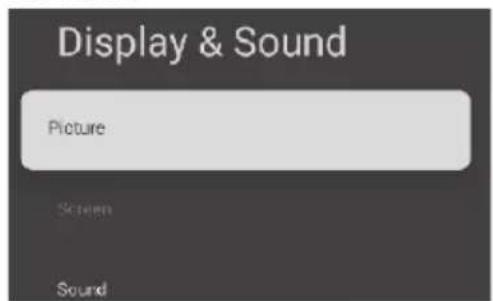
Valige "Seaded" menüüs klahvidega "Kuva ja heli". Vajutage "Pilt", et näha saadaolevaid pildiga seotud seadeid. Kasutage neid seadeid teleri pildikvaliteedi haldamiseks.
Pildirežiim
Liikuge ▲/▼-klahvidega alammenüüsse. Siin saate valida pildirežiimi saadaolevate valikute hulgast: Kasutaja / Standard / Elav / Sport / Film / Mäng ja Energiasääst.
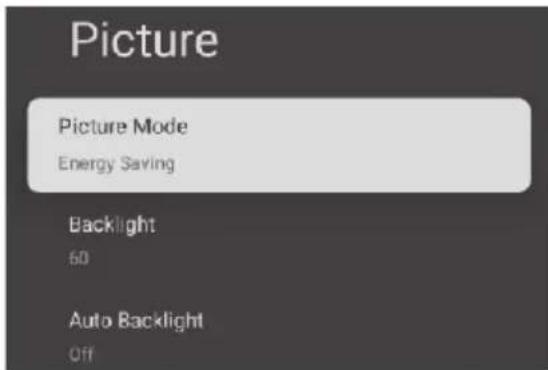
Taustvalgus / Heledus / Kontrast / Küllastus / Toon / Teravus
Liikuge ▲/▼-klahvidega alammenüüsse. Kasutage seda pildiseadete vaatamiseks / reguleerimiseks.
Automaatne taustvalgus
Liikuge ▲/▼-klahvidega alammenüüsse. Kasutage seda süsteemi seadmiseks automaatsele taustvalgusele.
Täpsem video
Kasutage alammenüüsse sisenemiseks nooleklahve ▲/▼.
Lähtesta vaikeseadetele
Kasutage seda valikut pildiseadete vaikeseadetele lähtestamiseks.
HELI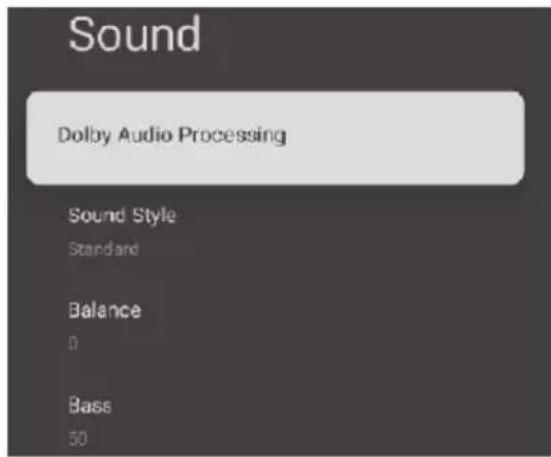
Dolby Audio töötlus (kui on rakendatav)
Kasutage alammenüüsse sisenemiseks nooleklahve ▲/▼. Siin saate selle seadistuse kaudu Dolby Audio töötluse sisse või välja lülitada.
Helistiil
Kasutage alammenüüsse sisenemiseks nooleklahve ▲/▼. Siin saate valida helirežiimi saadaolevate valikute hulgast: Kasutaja/Standard/Elav/Sport/ Film/Muusika/Uudised
Helistiil
Kasutage alammenüüsse sisenemiseks nooleklahve ▲/▼. Siin saate valida helirežiimi saadaolevate valikute hulgast: Kasutaja/Standard/Elav/Sport/ Film/Muusika/Uudised
Tasakaal/Bass/Kõrgemad helid
Kasutage alammenüüsse sisenemiseks nooleklahve ▲/▼. Kasutage seda konkreetse parameetri suurendamiseks või vähendamiseks.
dbx-tv (kui on rakendatav)
Kasutage alammenüüsse sisenemiseks nooleklahve ▲/▼.
Heli ümbritsev heli
Kasutage ümbritseva heli efekti sisse/välja lülitamiseks nooleklahve ▲/▼.
Equalizeri üksikasjad
Alammenüüsse sisenemiseks kasutage nooleklahve ▲/▼. Selle funktsiooni abil saate heli equalizerit vaadata/muuta.
Kõlarid
Alammenüüsse sisenemiseks kasutage nooleklahve ▲/▼. Selle funktsiooni abil näete ühendatud välisseadmete loendit.
Kõlari viivitus
Alammenüüsse sisenemiseks kasutage nooleklahve ▲/▼. Selle abil saate konkreetset parameetrit suurendada või vähendada.
eARC
Alammenüüsse sisenemiseks kasutage nooleklahve ▲/▼. Valige Auto/Off.
Digitaalne väljund
Alammenüüsse sisenemiseks kasutage nooleklahve ▲/▼. Selle funktsiooni abil saate valida digitaalsete väljundite hulgast (Auto/Bypass/PCM/Dolby Digital Plus/Dolby Digital).
Digitaalse väljundi viivitus
Alammenüüsse sisenemiseks kasutage nooleklahve ▲/▼. Selle abil saate hallata heli viivitust väljundis.
Automaatne helitugevuse reguleerimine
Alammenüüsse sisenemiseks kasutage nooleklahve ▲/▼. Lubage see funktsioon ühtlase helitugevuse taseme jaoks.
Downmix-režiim
Liikuge ▲/▼-nuppudega alammenüüsse. Valige valik Stereo või Surround.
Dialoogi võimendaja
Liikuge ▲/▼-nuppudega alammenüüsse. Valige Low, Medium, High või Off.
Lähtesta vaikeseadetele
Lähtestab kõik seaded vaikeseadetele.
Heliväljund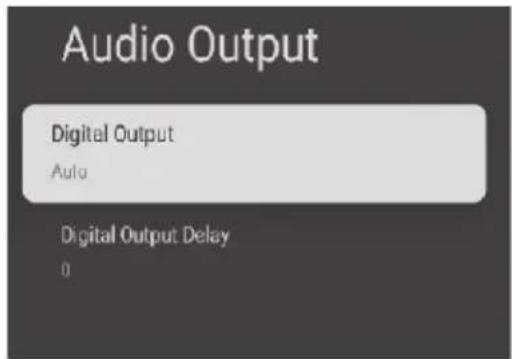
Liikuge ▲/▼-nuppudega alammenüüsse. Kasutage seda funktsiooni heliväljundi seadete vaatamiseks/muutmiseks.
VÕRK JA INTERNET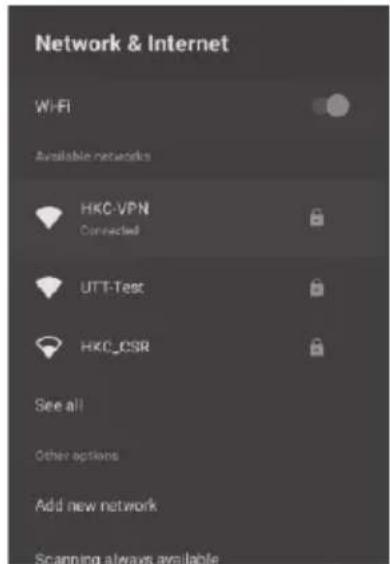
Valige "Seadetes" nuppudega "Võrk ja Internet". Vajutage OK, et näha saadaolevaid võrguvalikuid. Liikuge ▲/▼-nuppudega, valige soovitud võrk ja vajutage OK. (WiFi-võrgu puhul võib olla vajalik parooli sisestamine)
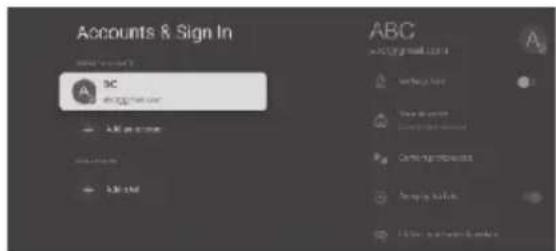
KONTO JA SISSELOGIMINE
Kasutage seda funktsiooni seadme kontode haldamiseks.
PRIVAATSUS
Kasutage seda funktsiooni privaatsusseadete haldamiseks.
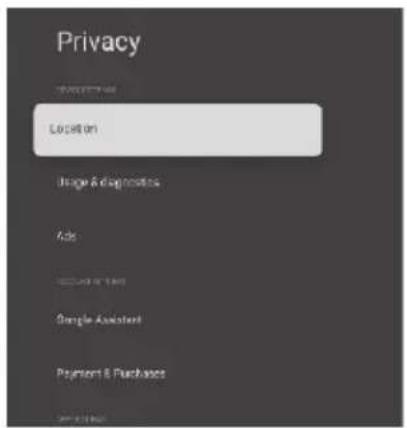
Liikuge ▲/▼-nuppudega sobiva seade valimiseks.
RAKENDUSED
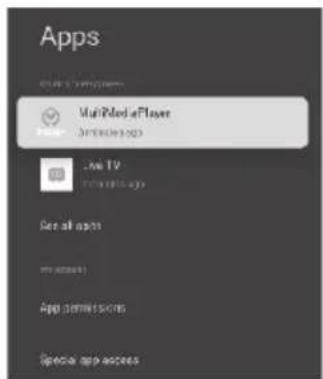
Liikuge ▲/▼ klahvidega, et valida sobiv valik rakenduste ja rakenduste õiguste haldamiseks. eelmine menüü.
SÜSTEEM
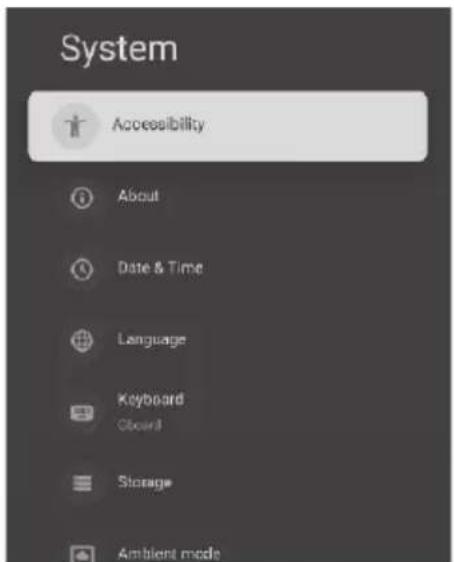
Kasutage neid sätteid süsteemi eelistuste määramiseks.
LIGIPÄÄSETAVUS
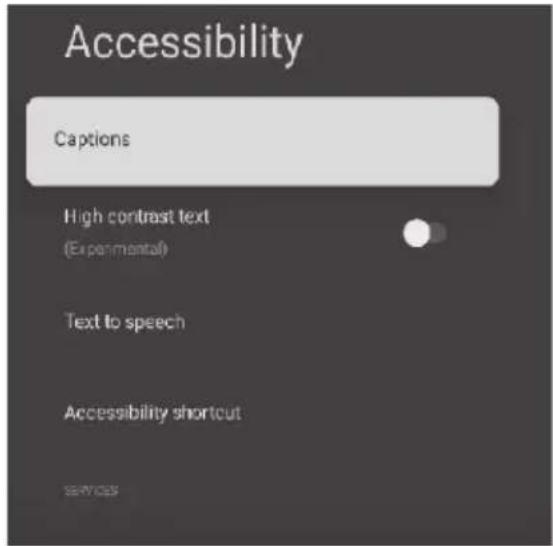
Liikuge ▲/▼ klahvidega, et valida sobiv säte.
Subtiitrid
Liikuge ▲/▼ klahvidega, et valida valik, ja vajutage "OK", et subtiitrid sisse/välja lülitada.
Kõrge kontrastsusega tekst
Liikuge ▲/▼ klahvidega, et valida valik, ja vajutage "OK", et kõrge kontrastsusega tekst sisse/välja lülitada.
Tekst kõneks
Liikuge ▲/▼ klahvidega, et valida valik, ja vajutage "OK", et siseneda alammenüüsse.
Ligipääsetavuse otsetee
Liikuge ▲/▼ klahvidega, et valida valik, ja vajutage "OK", et siseneda alammenüüsse.
Teenused
Navigeerimiseks kasuta ▲/▼ nooleklahve, valiku tegemiseks vajuta "OK", et siseneda alammenüüsse.
TEAVE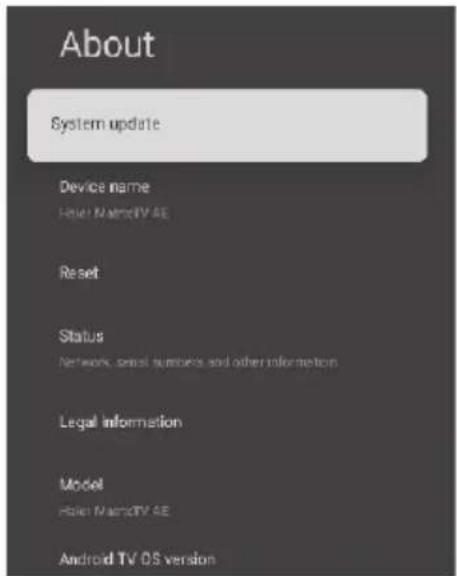
See menüü annab süsteemiteavet ja uuenduskeskuse, kust saad kontrollida süsteemiuuendusi.
KUUPÄEV JA KELLAAEG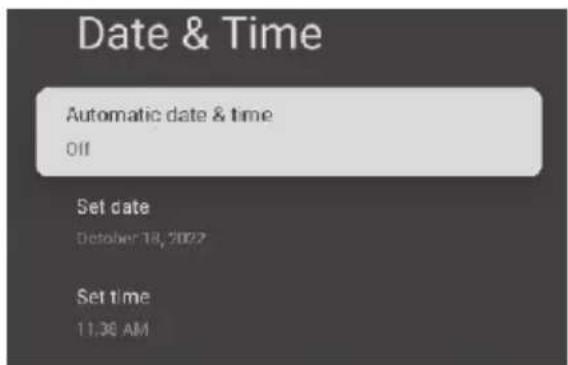
Automaatne kuupäev ja kellaaeg
Sea see eelistus kuupäeva ja kellaaja automaatseks uuendamiseks.
Määra kuupäev
Kasuta seda kuupäeva käsitsi määramiseks.
Määra kellaaeg
Kasuta seda kellaaja käsitsi määramiseks.
Määra ajavöönd
Kasuta seda oma piirkonna ajavööndi määramiseks. (nt Indias on see GMT+5:30)
Kasuta 24-tunnist vormingut
Kasuta seda 24-tunnise vormingu lubamiseks või keelamiseks.
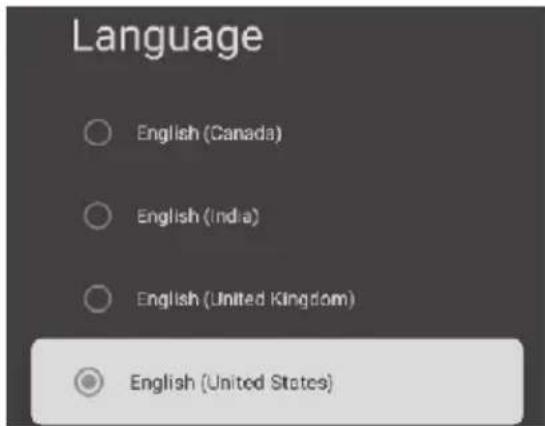
KEEL
Liikuge süsteemi keele valimiseks noolte ▲/▼ abil.
SALVESTUS
Kasutage seda seadet seadme salvestusruumi haldamiseks.
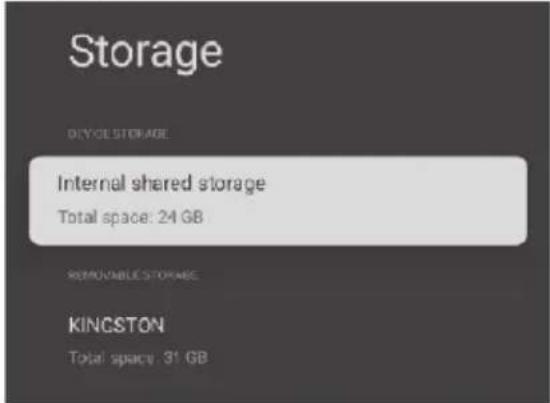
Sisemine ühine salvestusruum - liikuge noolte ▲/▼ abil alammenüüsse. Kasutage seda funktsiooni sisemise salvestusruumi haldamiseks.
Eemaldatav salvestusruum - liikuge noolte ▲/▼ abil alammenüüsse. Kasutage seda funktsiooni välise salvestusruumi haldamiseks.
AMBIENT-REŽIIM
Kasutage seda seadet fotode esitamiseks slaidiseansina, kui ekraan on ooterežiimis.
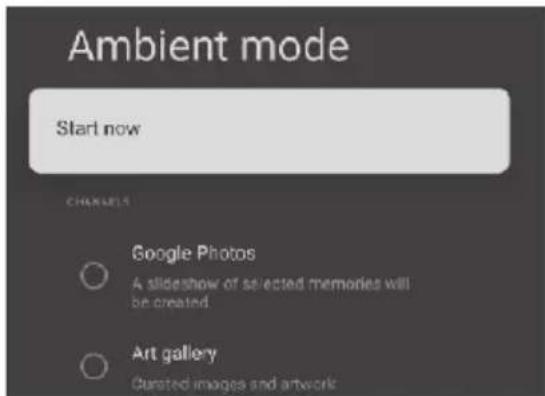
Liikuge noolte ▲/▼ abil sobiva valiku tegemiseks.
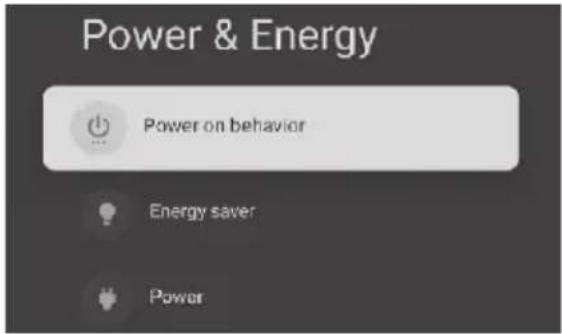
TOIDE JA ENERGEETIKA
Kasutage seda seadet oma seadme toitesätete haldamiseks.
Liikuge noolte ▲/▼ abil sobiva valiku tegemiseks.
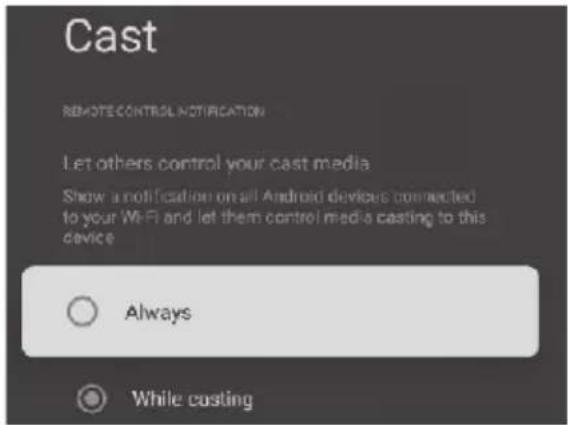
CAST
Liikuge noolte ▲/▼ abil alammenüüsse. Kasutage seda funktsiooni Chrome Casti funktsiooni haldamiseks.
SÜSTEEMIHELID
Liikuge noolte ▲/▼ abil alammenüüsse. Kasutage seda funktsiooni süsteemihelide haldamiseks.

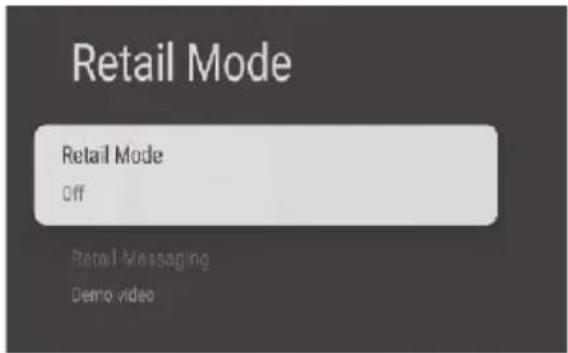
JAEMÜÜK
Kasutage seda seadet jaemüügirežiimi sisse- või väljalülitamiseks.
LÄHTESTAMINE
Kasutage seda seadet süsteemi lähtestamiseks.

PULT JA LISASEADMED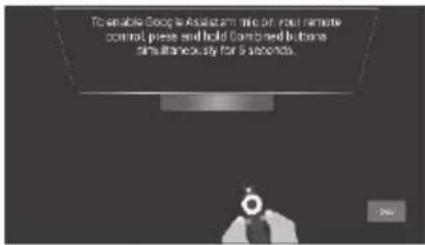
- Vajutage kaugjuhtimispuldi nuppe " " ja " " korraga 5 sekundit.
- Kui LED hakkab vilkuma, vabastage nupud. Pult saadab nüüd sidumisteabe telerile ja kuvab kaugjuhtimispuldi teabe ekraani paremal küljel.
- Sidumise kuvamiseks vajutage nuppu OK. Kui sidumine õnnestub, kuvatakse pult lisatud lisaseadmete hulka.

MULTIMEEDIAESITI LISAMINE JA KASUTAMINE
Avakuva veerus "Rakendused" klõpsake ikoonil "+". Valige üles-alla liikudes saadaolev multimeediaesitaja.
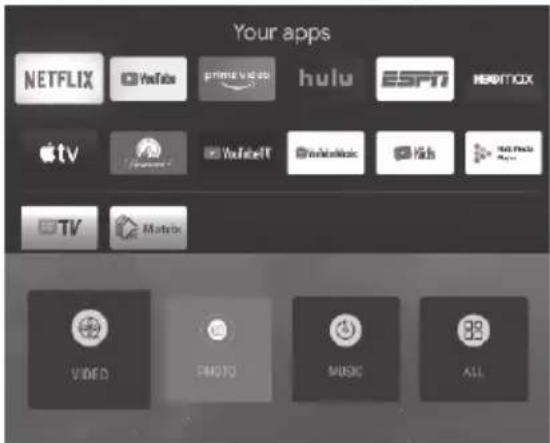
Multimeediaesitajasse sisenemiseks vajutage "OK". Siin näete multimeediaesitaja saadaolevaid valikuid. Saate vaadata vastavaid faile USB-mälupulgal. (FAT32-vorming)
Lugege enne rakenduste ja seadmete kasutamist
(*Tingimused kehtivad)
- Rakenduste poe tooteomaduste ja saadaoleva sisu piirangute tõttu ei pruugi teatud rakendused ja teenused olla saadaval kõigis seadmetes või kõigis piirkondades. Mõned rakenduste funktsioonid võivad nõuda ka täiendavat välisseadet või liikmemaksu. Teenuste ja sisu kättesaadavus võib muutuda ilma ette teatamata. • Tootja ei võta mingit õiguslikku vastutust rakenduste teenuste katkestuste eest, mida teenusepakkuja mis tahes põhjusel põhjustab.
- Ebastabiilne internetiühendus võib põhjustada viivitusi või katkestusi. Lisaks võivad rakendused võrgu keskkonnast olenevalt automaatselt lõppeda. • Rakenduste teenused ja värskendused võivad muutuda kättesaamatuks. • Rakenduste sisu võib teenusepakkuja poolt ette teatamata muutuda. • Konkreetsed teenused võivad erineda telerisse installitud rakenduse versioonist.
- Rakenduse funktsionaalsus võib muutuda rakenduse tulevases versioonis.
- Sõltuvalt kolmanda osapoole teenusepakkuja poliitikatest ei pruugi mõned rakendused toetada mitme ülesande täitmist.
- Vastus kaugkäskudele ja sellest tulenev ekraanikuvamine võib veebilehe laadimise ajal viibida. • Kopeerimine ja kleepimine ei ole toetatud. • Veebisirvimise kiirus erineb võrgu keskkonnast.
- Sõltuvalt toetatud video/audio koodekite tüüpidest ei pruugi teatud video- ja helifailide esitamine sisu mängimise ajal olla võimalik.
- Rakenduste poel on teatud piirangud; see sisaldab palju sisseehitatud rakendusi kasutaja erinevate vajaduste jaoks, kuid kasutajal puudub võimalus lisada muid rakendusi muudest allikatest. • Kui teil tekib rakenduse kasutamisel probleem, võtke ühendust sisuteenuse pakkujaga.
- Bluetoothi heli vastuvõtt kasutab 2,4 GHz sagedust, mida võivad häirida WiFi pääsupunktid, ruuterid või mikrolaineahjud, mis kasutavad 2,4 GHz sagedust. • Kõik Bluetooth-seadmed ei pruugi olla teleriga ühilduvad.
HDMI®
Mõisted HDMI ja HDMI High-Definition Multimedia Interface ning HDMI logo on HDMI Licensing Administrator, Inc. kaubamärgid või registreeritud kaubamärgid Ameerika Ühendriikides ja teistes riikides.
Enne teenindusse helistamist tehke need lihtsad kontrollid. Need näpunäited võivad säästa teie aega ja raha, kuna vastuvõtja paigaldamise ja kliendi juhtnuppude reguleerimise tasud ei kuulu teie garantii alla.
| Symptoms | Items to Check and Actions to Follow |
| "Ghost" or double image | This may be caused by obstruction to the antenna due to high rise buildings or hills. Using highly directional antenna may improve the picture. |
| No power | Check if the Tv's AC power cord is plugged into the outlet.Unplug the TV, wait for 60 seconds. Then reinsert plug into the outlet and turn on the TV again. |
| No picture | Check antenna connections at the rear of the TV to see if it is properly connected to the TV.Possible broadcast station trouble, try another channel.Adjust the contrast and brightness settings.Check the closed captions control. Some text modes could block the screen. |
| Good picture but no sound | Increase the volume level by pressing the VOL+ button on the remote control or on the keys provided on TV.Press the MUTE button on the remote control to ensure MUTE is disabled. |
| Good sound but poor color | Adjust the contrast, color and brightness settings. |
| Poor picture | Poor picture quality may occur when an activated S-VHS camera or camcorder is connected to your TV and other peripherals at the same time. Switch off one of the peripherals. |
| Snowy picture or noise | Check the antenna connection. |
| Horizontal dotted line | This may be caused by electrical interference (e.g. hair dryer, nearby neon lights, etc.) Turn off the equipments. |
| Television not responding to remote control | Check whether the batteries are working. Replace if necessary.Clean the remote control sensor lens on the TV.You can still use the buttons provided on TV. |
| Pixels (dots) that are always dark or always lit | Your TV is precision-manufactured using an extremely high level of technology. However, sometimes pixels may not display correctly. These types of occurrences are inherent to this type of product and do not constitute a defective product. |

See märgistus näitab, et seda toodet ei tohi visata koos muude majapidamisjäätmetega. Et vältida võimalikku kahju keskkonnale või inimeste tervisele kontrollimatu jäätmekäitluse tõttu, ringlussevõtke seda vastutustundlikult, et edendada materjalide säästvat taaskasutust. Kasutatud seadme tagastamiseks kasutage tagastus- ja kogumissüsteemi või võtke ühendust jaemüüjaga, kust toode osteti. Nad saavad selle toote keskkonnaohutuks ringlussevõtuks vastu võtta vastavalt e-jäätmete käitlemise ja käitlemise eeskirjadele, 2011.
Mida teha
- Andke / annetage / loovutage äravisatud elektroonikaseadmed ainult volitatud kogumispunktidesse.
- Visake äravisatud elektroonikaseadmed ainult elektroonikajäätmete jaoks mõeldud prügikastidesse.
- Küsige jaemüüjalt tagasivõtukavade kohta.
- Konsulteerige volitatud teeninduskeskusega, kas elektroonikaseadet saab parandada, enne selle äraviskamist.
- Rääkige oma naabritele ja teistele inimestele ohtudest, mis kaasnevad elektroonikajäätmete vale utiliseerimise, käitlemise või ringlussevõtuga.
- Kui soovimatu elektroonikaseade töötab veel või on parandatav, kaaluge selle annetamist.
- Et minimeerida meie mõju Maale ja kaitsta keskkonda tulevaste põlvede jaoks, tagastage oma kasutuselt kõrvaldatud elektroonikaseadmed ainult volitatud kogumispunktidesse.
Keelatud
- Toodet ei tohi kasutaja ise avada, vaid ainult volitatud hoolduspersonal.
- Toode ei ole mõeldud edasimüügiks volitamata asutustele/vanametalli kokkuostjatele.
- Toodet ei tohi segada olmejäätmete hulka.
- Ärge hoidke toote vahetatud varuosi avatud alal.
- Igale utiliseerimisele volitamata asutuste/isikute kaudu järgneb karistus vastavalt keskkonnakaitse seadusele (1986).
See toode vastab ohtlike ainete nõuetele, mis on sätestatud E-jäätmete (käitlemise ja ohjamise) eeskirjade 2011 reegli 13 (1) ja (2) all.
Lähima kogumispunkti leidmiseks võtke ühendust tasuta numbril 1800-419-9999 / 1800-102-9999. Kõiki kogumispunkte haldavad kolmandad osapooled koostöös Haier Appliances India Pvt. Ltd.-ga, kes on vaid vahendaja.
E-JÄÄTMETE MÜRGISED KOMPONENDID JA NENDE MÕJU INIMESE TERVISELE
| Toxic Materials | Birth Defects | Brain Damage | Heart, Liver, Lung & Spleen Damage | Kidney Damage | Nervous/ Reproductive System Damage | Skeletal System Damage |
| Barium | √ | X | X | √ | √ | √ |
| Cadmium | X | √ | X | X | X | X |
| Lead | X | X | √ | X | X | √ |
| Lithium | X | X | X | X | X | √ |
| Mercury | X | X | X | X | √ | √ |
| Nickel | X | √ | X | X | X | √ |
| Palladium | X | X | X | X | √ | √ |
| Rhodium | √ | √ | X | √ | √ | √ |
| Silver | X | X | X | X | X | √ |
Ilma nõuetekohase ringlussevõtuta satuvad enamik neist mürgistest komponentidest prügilasse, mürgitades pinnast ja vett.
Võtke meiega ühendust -
Haier Appliances (India) Pvt. Ltd.
Hoone nr 1, Okhla tööstuspiirkond, III faas, New Delhi - 110020
Haier

KLIENDITEENINDUS
1800-419-9999 [Tasuta - 24x7 ]
1800-102-9999 [Tasuta - 24x7 ]
Haier
KLIENDI GARANTIIKAART
Kliendi nimi :
Aadress :
Ostu kuupäev :
Mudeli nimi : ____ Seerianumber :
Müüja tempel ja allkiri :
HAIER APPLIANCES (INDIA) PVT. LTD. (edaspidi "ettevõte") pakub käesolevaga järgmist garantiid kodumaisele ostjale alates ostukuupäevast.
| Warranty | ||
| Product | Period | Parts Not Covered |
| LCD/LED TV | 12 Months | Remote, Cabinet |
TINGIMUSED JA KLAUSLID :
1) Ettevõte parandab või asendab tasuta kõik defektsed osad, mis osutuvad defektseks töötluse ja/või materjali tõttu, mis ei ole tingitud ebanormaalsest või ebaõigest kasutusest, oma äranägemise järgi. 2) See garantii lõpeb automaatselt asjakohase garantiiaja möödumisel arve kuupäevast. 3) Kuigi ettevõte teeb kõik endast oleneva, et remonti võimalikult kiiresti teostada, ei vastuta ettevõte teeninduse viivituste eest, mis on tingitud ettevõttest või selle volitatud teeninduskeskustest sõltumatutest põhjustest. 4) Ettevõtte äranägemisel remonditakse/vahetatakse osi kas paigalduskohas või ettevõtte volitatud teeninduskeskuses. 5) Garantii piirdub rangelt garantiis määratletud defektsete osade remondi või asendamisega. 6) Osad asendatakse ainult funktsionaalselt samaväärse materjaliga, mitte uutega, ja need võivad erineda algselt paigaldatust. Eemaldatud osad võetakse ettevõttesse tagasi. 7) See garantii jääb kehtima siin määratud tähtajaks, olenemata sellest, milliseid asendusi selle alusel tehakse, ja selline asendus ei too kaasa uut garantiid. 8) Ettevõte jätab endale õiguse säilitada garantiiaja jooksul oma äranägemisel mis tahes vahetatud osa või komponenti. 9) Garantii ei hõlma mingil juhul rahalise hüvitise maksmist ega toote asendamist või tagastamist. 10) Ettevõte ega selle volitatud teeninduskeskus ei vastuta mingil juhul kaudsete kahjude ega sellest tulenevate kohustuste, kahjude või kaotuste eest, mis tulenevad otseselt või kaudselt seadme defektist. 11) Täiendava / mitteammendava garantii perioodil tasutakse külastustasud vastavalt kehtivale korrale lisaks sõidukuludele. 12) Garantiiperioodi jooksul toimuva asukoha või omaniku muutumise kohta tuleb ettevõttele kirjalikult teatada. 13) Ettevõtte töötajatel, volitatud esindajatel ega edasimüüjatel/teenindusfrantsiisidel ei ole õigust selle garantii tingimusi muuta. 14) Ettevõte ei ole kohustatud pakkuma teenindust kauem kui 5 aastat pärast toote konkreetse mudeli tootmise lõppu, välja arvatud juhul, kui toode on garantiiga hõlmatud. 15) See garantii on sõlmitud New Delhis ja kõik nõuded esitatakse ainult New Delhi jurisdiktsiooniga kohtutele ning ettevõtte vastu ei saa nõudeid esitada väljaspool New Delhit, olenemata sellest, et seade võidi müüa või tarnida mujal. 16) See garantii ei kehti järgmistel juhtudel: a) Kui toodet on paigaldanud/hooldanud/remontinud/avanud või rikkunud volitamata personal; b) Kui toote originaalne seerianumber on eemaldatud või kustutatud; c) Kui defektid tekivad/põhjustatud ebaõigest elektriahelast, suurtest pingekõikumistest, muudatustest, väärkasutusest, hooletusest, originaalkomponentide asendamisest võltsitud/mitteoriginaalsete komponentidega, kodukahjurite/ näriliste rünnakust, tulekahjust, üleujutusest, maavärinast, välgust ja/või muust õnnetusest või vääramatust jõust/loodusõnnetusest.

1800-419-9999 [Tasuta - 24x7] 1800-102-9999 [Tasuta - 24x7]
Haier Appliances (India) Pvt. Ltd. Hoone nr 1, Okhla Industrial Estate, III faas, New Delhi - 110020
Kliendi nimi:
Aadress:
Ostukuupäev:
Seerianumber:
Müüja tempel ja allkiri:
Haier
Haier
Inspireeritud elu
- HAIER
- INSPIRED LIVING
- SISUKORD
- HOIATUS
- EKRAANIMENÜÜ JA SEADED
- ANALOOG/ANTENN/KAABEL/SATELLIIT
- KANALITE AUTOMAATNE UUENDAMINE
- KANALITE UUENDAMISE TEADE
- ANTENN (ANALOOG)
- VÄRSKENDA OTSINGUT
- ANALOOG KÄSITSI OTSING
- ANTENN (ANTENN)
- ÜKSIK RF OTSING
- ANTENN (KAABEL)
- ANTENN (SATELLIIT)
- KANALITE INSTALLIMISE REŽIIM
- SATELLIIDI UUESTI OTSIMINE
- SATELLIIDI LISAMINE
- SATELLIIDI KÄSITSI HÄÄLESTAMINE
- SISENDID
- EKRAAN JA HELI
- PILDIREŽIIM
- TAUSTVALGUS / HELEDUS / KONTRAST / KÜLLASTUS / TOON / TERAVUS
- AUTOMAATNE TAUSTVALGUS
- TÄPSEM VIDEO
- LÄHTESTA VAIKESEADETELE
- DOLBY AUDIO TÖÖTLUS (KUI ON RAKENDATAV)
- HELISTIIL
- TASAKAAL/BASS/KÕRGEMAD HELID
- DBX-TV (KUI ON RAKENDATAV)
- HELI ÜMBRITSEV HELI
- EQUALIZERI ÜKSIKASJAD
- KÕLARID
- KÕLARI VIIVITUS
- EARC
- DIGITAALNE VÄLJUND
- DIGITAALSE VÄLJUNDI VIIVITUS
- AUTOMAATNE HELITUGEVUSE REGULEERIMINE
- DOWNMIX-REŽIIM
- DIALOOGI VÕIMENDAJA
- KONTO JA SISSELOGIMINE
- PRIVAATSUS
- RAKENDUSED
- SÜSTEEM
- LIGIPÄÄSETAVUS
- SUBTIITRID
- KÕRGE KONTRASTSUSEGA TEKST
- TEKST KÕNEKS
- LIGIPÄÄSETAVUSE OTSETEE
- TEENUSED
- AUTOMAATNE KUUPÄEV JA KELLAAEG
- MÄÄRA KUUPÄEV
- MÄÄRA KELLAAEG
- MÄÄRA AJAVÖÖND
- KASUTA 24-TUNNIST VORMINGUT
- KEEL
- SALVESTUS
- AMBIENT-REŽIIM
- TOIDE JA ENERGEETIKA
- CAST
- SÜSTEEMIHELID
- JAEMÜÜK
- LÄHTESTAMINE
- MULTIMEEDIAESITI LISAMINE JA KASUTAMINE
- LUGEGE ENNE RAKENDUSTE JA SEADMETE KASUTAMIST
- MIDA TEHA
- KEELATUD
- KLIENDI GARANTIIKAART
- TINGIMUSED JA KLAUSLID
Kaubamärk : HAIER
Mudel : LE43G600UG
Kategooria : Teler