DV-1012 - Videokaamera AGFA - Tasuta kasutusjuhend
Leidke seadme juhend tasuta DV-1012 AGFA PDF-formaadis.


Kasutajate küsimused teemal DV-1012 AGFA
0 küsimus selle seadme kohta. Vastake nendele, mida teate, või esitage oma.
Esita uus küsimus selle seadme kohta
Laadige alla juhend oma Videokaamera PDF-formaadis tasuta! Leidke oma juhend DV-1012 - AGFA ja võtke oma elektrooniline seade uuesti kätte. Sellel lehel on avaldatud kõik teie seadme kasutamiseks vajalikud dokumendid. DV-1012 kaubamärgi AGFA.
KASUTUSJUHEND DV-1012 AGFA
APDV-1012 Manual
1. Key features of your camcorder
Full HD digital video camcorder - 1920x1080 up to 30fps
HDTV HDMI high definition interface output
3.0" fine grade LTPS color LCD display
Slot for SD Memory card, support up to 32GB SD card capacity
2. Functional parts
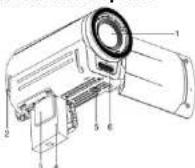
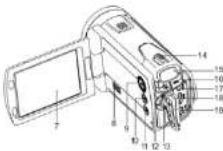
| Item | Part | Function |
| 1 | Lens | Optical lens for Video & Picture taking. |
| 2 | Strap Hook | For fixing hard strap. |
| 3 | SD card slot | For inserting SD Card. |
| 4 | Battery | A 3.7V Li-ion rechargeable battery provided. |
| 5 | Tripod socket | For fixing the DV to tripod. |
| 6 | Flash | Flash strobe activates when indoor or dark environment pictures taken. The best flash distance is within 5 feet (1.5m). |
| 7 | LCD screen | LCD shows Images, video clips, camera Settings and Menu. |
| 8 | Speaker | Speaker for video playback. |
| 9 | Power Button | Pressing and hold the power button to turn the unit on & off. Or press the button once to set LCD display cft, press again to display on. |
| 10 | Playback button | Press to enter the Playback PICTURE mode, press again to Playback VIDEO mode. |
| 11 | Menu | Press to Set PICTURE /VIDEO recording options. |
| 12 | Mode Button | Press this button to select mode: PICTURE taking or VIDEO recording. |
| UP / AF selling | In MENU mode, push the key up for UP selection / In VIDEO or PHOTO mode, push the key UP to enter AF mode selling. | |
| DOWN / White balance | In MENU mode, push the key down for DOWN selection / In VIDEO or PHOTO mode, push the key DOWN to enter White Balance setting. | |
| 13 | LEFT / Flash | In MENU mode, push the key left for LEFT selection / In PHOTO mode, push the key LEFT for flash options selection. |
| RIGHT / EVI | In MENU mode, push the key right for RIGHT selection / In VIDEO or PHOTO mode, push the key RIGHT to enter exposure value selling. | |
| OK button | To confirm changes (OK) in menu mode. | |
| 14 | Zoom / Volume setup button | Zoom IN or OUT during recording mode / Selling the volume in video playback mode. |
| 15 | LED indicator | Red light: The battery is recharging. Blue light:- the unturned on. |
| 16 | REC button | Press this button to take still PICTURE; to Start or Stop recording VIDEO clip. |
| 17 | TV OUT socket | Use supplied TV cable for video and audio connection to standard TV. |
| 18 | HDMI socket | Use supplied HDMI cable for HDTV connection. |
| 19 | USB interface | 1. For transferring images and video files to computer via USB cable. 2. For connecting the AC Charger / charging battery. |
3. Explanation of the status icons
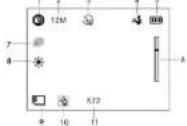
| Item | Function | Description |
| 1 | Recording mode | Photograph mode. Video mode. |
| 2 | Selected resolutlon | Photo-3MP, 5MP Video: Full HD, 1080P30, 720P30, WVGAP80, WVGAP30, VGA, QVGA |
| 3 | Sell timer | On / Off |
| 4 | Flash indicator (PHOTO mode only) | Fill in flash: Flash will be always active regardless of scene brightness Auto Flash: The camera determines when the flash should be activated or not. No Flash : The flash is turned off |
| 5 | Battery indicator | Battery is full Empty battery |
| 6 | Zoom indicator | Shows zoom range |
| 7 | Capture | Capture 1 / Capture 3 |
| 8 | White balance | White balance selection. |
| 9 | SD card indicator | The SD card is inserted and will be used as storage for PHOTO and VIDEO |
| 10 | AF setting mode | Full Normal Macro |
| 11 | Counter indicator | Shows available time for recording VIDEO Shows active recording VIDEO time Shows picture available in PHOTO mode |
4. Details for camera setting
PHOTO setting
| In photo mode, press the MENU button and select PHOTO, then press OK to enter photo setup mode. | ||
| Quality | Super Fine(Default) / Fine /Normal | PHOTO quality setting |
| Size | 5M pixel resolution | 2048 x 1556 pixels |
| 5M pixel resolution | 2592 x 1944 pixels | |
| Soft-timor | On | Soft-timor solctoc, 10 too delay |
| Off | Turn off the soft-timer: disable | |
| Capture | Capture 1 / Capture 3 | Single or 3 continues photo selection |
| VIDEO settingin video mode, press the MENU button and select VIDEO, then press OK to enter photo setup mode. | ||
| Quality | Super Fine(Default) / Finc / Normal | VIDEO quality setting |
| Resolution | Full HD | 1920x1360 up to 30fps |
| 1060P30 | 1440x1080, up to 30fps | |
| 720P30 | 1280x720, up to 30fps | |
| WVGA/60 | 848x480, up to 60fps | |
| WVVA/30 | 848x480, up to 30fps | |
| VGA | 840x480, up to 50fps | |
| QVGA | 320x240, up to 50fps | |
Setup
| In photo/video mode, press the MENU button and select SETUP by pushing the Direction Key to right, then press OK to enter camera basic setup options. | ||
| TV type | NTSG | American and Japanese TV format |
| PAL | European TV format | |
| Off | Auto Power-Off off | |
| Auto power off | 1 min | Auto power off in 1 min if no operation |
| 3 min | Auto power off in 3 min if no operation | |
| 5 min | Auto power off in 5 min if no operation | |
| Time setup | Year / Month / Day / Hour / Minute | Setting the time on the image or video clips. |
| Volume | 00 - 64 | Setting the volume |
| Default Setting | Yes / No | Retrash the default settings |
| Format | Yes / No | Format the SD card |
| Language | English / Deutsch / French Italian/ Spanish / Portuguese / CHS / CHT/ Russian | Select display language |
| Stamp | Off / Date/ Time / Date & Time | In photorvideo playback mode, the Date, Time or the date and time Show on the image or video clips. |
| Deep Sound | Off / High / Low | Setting the beep sound volume. |
| FW Version | See the firmware version | |
| EffectIn photorvideo mode, press the MENU button and select EFFECT by pushing the Direction Key to right, then press OK to enter effect options. | ||
| Flicker | 50 Hz (Default) | Set for European electricity frequency |
| 60Hz | Set for American electricity frequency | |
| Contrast | Standard / Hard / Soft | Scene contrast setting options |
| Sharpness | Standard / Hard / Soft | Sharpness setting |
| ISO | Auto/100/200/400 | Sensitivity select |
| While Balance | Auto | Automatic while balance |
| Sunny | White balance selected for Sunny sky | |
| Cloudy | White balance selected for cloudy sky | |
| Fluorescent | White balance selected for fluorescent indoor light | |
| Incandescent | White balance selected for lungsten indoor lighting | |
| EV Setting | 0, -/-0.3, +/-0.7, -/-1.0, -/-1.3, +/-1.7, +/+2.0 | Level of exposure |
| Motoring | Center / Average / Spot | Motoring setting |
| AF Setting | Full / Normal / Macro | AF setting mode |
Note: The camera will remain in the 5. Using the camera
5.1 Battery installation and charging ( Included )
The battery is not fully charged at shipment and must be fully charged before any operation.
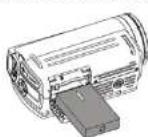
1. Release and open the battery door.
2. install supplied S.7V Li-ion battery into the battery compartment
2. Install supplied 6.1 V E 10% utility into the battery compartment
Allen battery terminal with metal connectors inside compartment
3. Close the battery door.
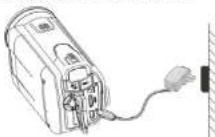
4. Open connectors cover and connect supplied AC charger to camera USB port.
5. Turn the camera OFF and plug charper into wall power outlet.
6. A red LED indicator will light up during charging, it will turn OFF when completed.
5.2 Inserting a memory card (not included)
You must insert SD Card (not supplied) to record and store your VIDEO and PICTURES.
Follow the instruction for inserting a SD Memory card
- Turn OFF the camera.
-
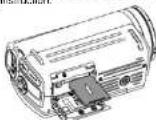
Inner the SD card into the SD card slot, usually covers it green until card is lighted. Make
-
Insert the SD card into the SD card slot, gently press it down until card is taken. sure that the SD card is not in LOCK position (see tiny slider on card's side).
Note: Do not force the card into the slot, forcing may damage camera and the SD memory card.
Align SD card position (as market) and try again.
Note: The SD memory card must be formatted before taking photographs.
See the following instruction.
5.3 Formatting the SD memory card
If your SD card is now, or it was used with other cemoras or devices, you need to FORMAT the card and use simple stores below. If card was previously used, you all posted in order to find first
card, see simple steps below. If card was previously used, save all needed images & video
-
In photovided mode, press the camera basic setup options
-
Select FORMAT by pursuing the Direction Key DOWN and press OK
-
Select FORMAT by pushing the Direction Key DOWN and press ON Select YES by pushing the Direction Key DOWN
Select YES by pushing the Direction Ray DOWN.
- Press OK to confirm fontening the SD card.
Note: During formatting of the SD card, all data, pictures & video (if present) will be crases;
make sure you save your valuable records before formatting the memory. Remember all you see cards will be overdining formal attention.
Remember, all your records will be erased during formatting!
5.4 Setting the resolution
VIDEO recording mode
-
Press the MENU button in video mode, Select VIDEO and press OK to enter options selection.
-
Select RESOLUTION by pushing the Direction Key DOWN, then press OK to enter
resolution selection.
- Select desired resolution by pushing the Direction Key UP or DOWN: Full HD (1920x1080), 1080PS0(1440x1080), 720P30 (1280 x 720), WVGAP60 (645 x 480) WVGAP30 (648 x 480), VGA (640 x 480), QVGA(320 x 240)
then press OK to confirm setting.
PICTURE taking mode
- Press the MENU button in photo mode, Select PHOTO and press OK to enter option
selection.
- Select the SIZE by pushing the Direction Key DOWN, press OK to enter resolution selection
Selection.
- Select desired resolution by pushing the Direction Key OF DOWN, 7M (2018 x 1525), 5M (7592 x 1946).
SM (2040 x 1356), SM (2392 x 1356) then erces OK to confirm setting
then press OK to confirm selling.
5.5 Taking video or pictures
-
Open screen / turn on your camera.
-
Press the MODE button to select PICTURES (10) or VIDEO recording mode(1)
-
Use the LCD screen as a viewfinder composing the scene.
-
Press the REC button for taking a PICTURE, or press this button to start / stop VIDEO
recording
Note: 1. Keep Camera and the object steady when making records to avoid blurry images.
- Max video file size is 4GB. The unit will stop recording automatically.
5.6 Zoom IN and OUT
Your camera can zoom in up to 20 X (5 X optical zoom and 4 X digital zoom).
Push the zoom button LEFT/RIGHT for selecting desired scene / view
Note the zoom bar in screen showing the zooming range.
| Resolution | Digital zoom | |
| Live view | Connected to TV (HDMI) | |
| QVGA 30fps | Support | Support |
| VGA 30fps | Support | Support |
| WVGA 30fps | Support | Support |
| WVGA 60fps | Support | Support |
| 720P 50fps | Support | Net Support |
| 1080P 30fps | Support | Net Support |
| Full HD 50fps | Not Support | Net Support |
5.7 Playback PICTURES and VIDEO clips
-
Press the PLAYBACK button ( ) once to enter PICTURES Playback mode, press it again to enter VIDEO Playback mode (PHOTO / VIDEO Icon will be showed on top of screen).
-
Push the Direction Key UP / DOWN / LEFT / RIGHT to select desired PICTURE / VIDEO.
-
Press OK to confirm selected VIDEO or see full size PICTURE.
-
Those OK to confirm selected VIDEO of 500 fall size: Phone.
-
When viewing a photo, you may push 📄 (with) as 📄 (right) to confirm what or in
-
Press OK again for staying the slide show
-
Press OK again for starting the slide show.
-
When viewing video clips, Press OK to start playing the video and press again to pause.
-
When leaving the vision, push the Direction Key RIGHT LEFT for fast forward or rewind
The VIDEO
5.8 Delete photographs and video clips
- Press the PLAYBACK (▶) button once to enter the PHOTO playback mode, or press
again to enter VIDEO clip playback mode.
Select the photo of video to delete
- Press the MENU button to enter the delete mode.
-
Release Direction Key LEFT RIGHT (on set)
-
Push the Direction Key LEFT or RIGHT for select delete current image of delete all images and press OK to confirm
-
Press the MODE button to exit
6. Connecting the HD DV camera
6.1 Connect to T
When you wish to view on High Definition (HD) TV, please use supplied HDMI cable and connect as shown below:
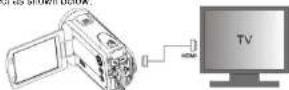
Sel your HDTV to corresponding HDMI INPUT (review TV Manual if needed) and use camera buttons in the same way as you use camera during PLAYBACK mode.
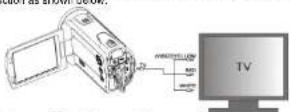
Dollors in the same way as you use camera during PLAYBACK mode. You may also view PICTURES and recorded VIDEO clips on typical standard TV set. Make the connection as shown below:
6.2 Connect to Personal computer
You may also connect your HD camcorder to PC for viewing PICTURES and VIDEOS on your computer.
Upload to YouTube
Please install MEDIA/MPRESSION. This software enables upload to YouTube. This will take you directly to YouTube website for easy upload of videos.
Installing DirectX and ArcSoft MedialImpression
- Please insert provided CD into computer's CD ROM and follow screen prompts to install
DirectX and MediaImpression in your computer
- Use the USB cable to connect HD camcorder to computer
-
Open My Computer, Renewable Disk and aerial images or video file
-
Open My Computer > Removable Disk and select Image of Video Inc
-
Click to open now watch High definiting video ads and apps
-
Click to open and watch high definition mixed players each. You may also install QuickTime (not bundled on supplied CDI or other suitable programs for
You may also make a short video (not suitable on desktop or other suitable programs) to best video playback.
HD Video data is very complex; use Win XP, Vista, Mac9.x and newer computers – older and slower computers may not play your HD Video clips so well.
7. Remote functional parts (Optional)
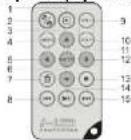
| Item | Part | Function |
| 1 | Playback button | Press this key to enter Playback PICTURE mode, press again switching to Playback VIDEO mode. |
| 2 | Mode Button | Press this key to solicit mode: PICTURE taking or VIDEO recording. |
| 3 | UP / AF setting | In MENU mode, push the key up for UP selection . In VIDEO or PHOTO mode, push the key UP to enter AF mode setting. |
| 4 | MENU | Press to Soft PICTURE / VIDEO recording options. |
| 5 | LEFT / Flash | In MENU mode, push the key left for LEFT selector . In PHOTO mode, push the key LEFT for flash options selection. |
| 6 | DOWN / White balance | In MENU mode, push the key down for DOWN selection . In VIDEO or PHOTO mode, push the key DOWN to enter White Balance setting. |
| 7 | Delete | Press it to delete the photo or video clip in playback mode. |
| 8 | Backward | During video playing, press the button for last backward, press this key again to return normal playback. |
| 9 | VOL+ZOOM IN | Press this key to increase volume during video clip playback. In DC playback, PICTURE taking or video recording mode, press the key to zoom in the picture. |
| 10 | VOL-ZOOM OUT | Press this key to decrease volume during video clip playback. In DC playback, PICTURE taking or video recording mode, press the key to zoom out the picture. |
| 11 | ENTER | Selecting and settle confirm. |
| 12 | RIGHT EVt | In MENU mode, push the key right for RIGHT selection . In VIDEO or PHOTO mode, push the key RIGHT to enter exposure value selling. |
| 13 | Stop | Press the key to stop during playing. |
| 14 | PlayPause | During playing, press the key to pause. Press this key again to play collectively. |
| 15 | Forward | During video playing, press the button for last forward, press this key again to return normal playback. |
8. Specification
Imago Sensor 5.0 Mega pixel CMOS sensor
| Image resolution | VIDEO | Full HD (1920x1063) up to 30fps1060P30 (1440x1080), up to 30fps720P30 (1280x720), up to 30fpsWVGAP60 (548x450), up to 60fpsWVGAP30 (548x490), up to 30fpsVGA (540x480), up to 30fpsCVGA (320x240), up to 30fps |
| PICTURES5.5 Mega pixel (2502x1941)3.5 Mega pixel (2048x1536) | ||
| Lens | F:2.8 x 8.6mm | |
| Focus range | Macro mode: 3cm ~ 1M/Wide 3cm ~ 20cm; Tele, 0.8M ~ 1M;Normal mode: 20cm ~ 4Wide 20cm ~ 6Te, 1M ~ 2);Full mode: 3cm ~ 4Wide 3cm ~ 6Te, 0.8M ~ 2);Zoom Zoom in up to 20 times (3 X Optical Zoom and 4 X digital Zoom) | |
| LCD display | 3.0" fine grade LTPS color LCD display | |
| White balances | Auto / Sunny / Cloudy / Fluorescent / Incandescent | |
| VIDEO format | MOV | |
| External memory card | Support up to 32GB SD memory card ( card is required to store video & pictures, class 4 or above SD card is recommended ) | |
| File format | VIDEO: MOV - PICTURE: JPEG | |
| Soft timer | TU second options | |
| PC interface | USB 2.0 port | |
| Power source | 3.7V 1750mAh LH-on rechargeable battery (supplied) | |
| TV-out | High Definition VIDEO: HDMIStandard TV (NTSC or PAL) output: AV standard port | |
9. PC system min requirement
| Operating System | Windows 7 / Vista / XPMac 10.4.9 or above |
| CPU | Pontium III/ 1GHz (minimum)Pontium 4 / 3.0GHz or above processor (recommended) |
| RAM | At least 256MB (minimum) 1GB (recommended) |
| Interface | USB available port |
| Display Card | nVista.Gastera 7600 or A11 X 1600 or above |
10. Troubleshooting
| Problem | Cause | Solution |
| Cannot turn the camcorder ON | Low battery power. Battery not inserted properly. | Charge the battery Check that battery correctly aligned when installed |
| VIDEO or PICTURES cannot be saved when you are taking them. | 1. SD card has not been installed2. The SD card has not been formatted properly.3. Memory is full. Display shows "MEMORY FULL" | 1. Install SD card2. Format the SD card at SETUP mode of the camera. Please refer to section 5.3.3. Download the pictures and videos from the camera to the computer to create storage space. |
| Computer does not recognize your camcorder when connected (You cannot find removable disk) | Connection failure. | Make sure all cable connections are secured. Restart the computer if necessary. |
| The battery life is very short. | Incorrect or old, used up, battery | Replace with now 3.7V Li-ion rechargeable battery |
| Blurry Images | 1. The HD camera is not held steady during recording2. The ions of HD DV cameras is dirty.3. Incorrect lens focus setting | 1. Hold the HD DV cameras steady when taking pictures, wall to hear the beep sound2. Clean the ions with soft dry cloth.3. Sat the Full Macro / Normal lens focus according to the broader camera to subject distance. Use "Normal" setting as appropriate for typical situations. |

For EU only
AM-V55B5-GB-AGF-R