Comtrend

WR-5930 - Ruuter Comtrend - Tasuta kasutusjuhend

Leidke seadme juhend tasuta WR-5930 Comtrend PDF-formaadis.

📄 2 lehekülge Eesti ET Laadi alla 💬 AI küsimus
Notice Comtrend WR-5930 - page 1
Pick your language and provide your email: we'll send you a specifically translated version.

Kasutajate küsimused teemal WR-5930 Comtrend

0 küsimus selle seadme kohta. Vastake nendele, mida teate, või esitage oma.

Esita uus küsimus selle seadme kohta

E-post jääb privaatsuseks: seda kasutatakse ainult selleks, et teavitada teid, kui keegi vastab teie küsimusele.

Veel pole küsimusi. Olge esimene, kes küsib.

Laadige alla juhend oma Ruuter PDF-formaadis tasuta! Leidke oma juhend WR-5930 - Comtrend ja võtke oma elektrooniline seade uuesti kätte. Sellel lehel on avaldatud kõik teie seadme kasutamiseks vajalikud dokumendid. WR-5930 kaubamärgi Comtrend.

KASUTUSJUHEND WR-5930 Comtrend

Quick Install Guide

WR-5930 | AC750 Wireless LAN Dual Band Concurrent Ethernet Router

1

How to Connect
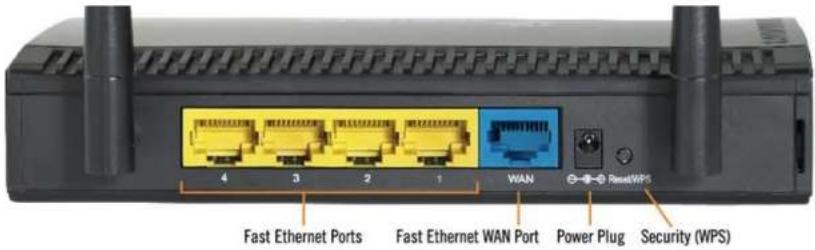
4 3 2 1 WAN Reset/WPS Fast Ethernet Ports Fast Ethernet WAN Port Power Plug Security (WPS)

For initial setup, ensure a browser enabled PC/laptop is connected directly to one of the fast Ethernet ports on the router.

2

Basic Setup
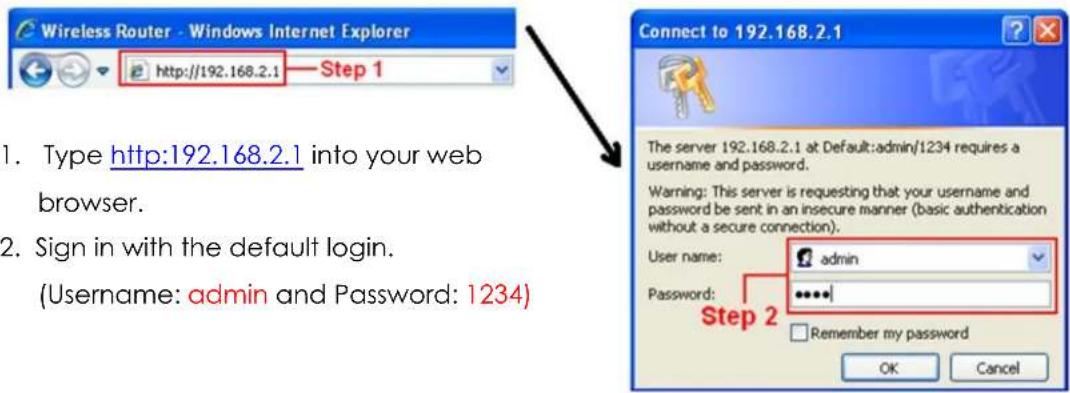
Wireless Router - Windows Internet Explorer http://192.168.2.1 Step 1 1. Type http:192.168.2.1 into your web browser. 2. Sign in with the default login. (Username: admin and Password: 1234) Connect to 192.168.2.1 The server 192.168.2.1 at Default:admin/1234 requires a username and password. Warning: This server is requesting that your username and password be sent in an insecure manner (basic authentication without a secure connection). User name: admin Password: ***** Step 2 Remember my password OK Cancel

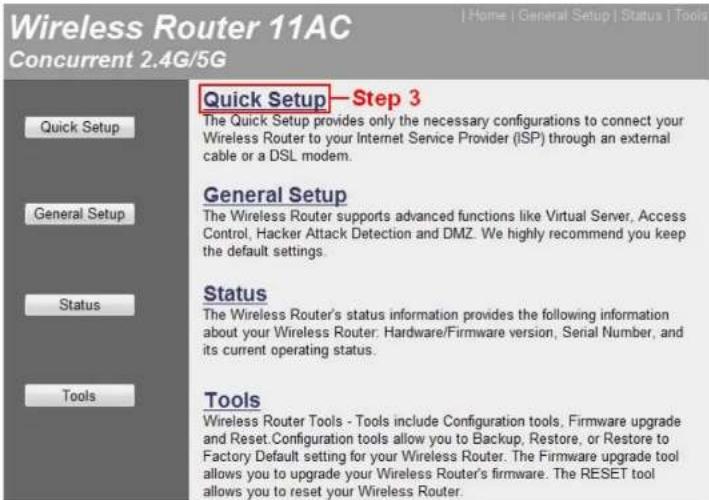
3. Click 'Quick Setup'

Wireless Router 11AC Concurrent 2.4G/5G Quick Setup—Step 3 The Quick Setup provides only the necessary configurations to connect your Wireless Router to your Internet Service Provider (ISP) through an external cable or a DSL modem. General Setup The Wireless Router supports advanced functions like Virtual Server, Access Control, Hacker Attack Detection and DMZ. We highly recommend you keep the default settings. Status The Wireless Router's status information provides the following information about your Wireless Router: Hardware/Firmware version, Serial Number, and its current operating status. Tools Wireless Router Tools - Tools include Configuration tools, Firmware upgrade and Reset. Configuration tools allow you to Backup, Restore, or Restore to Factory Default setting for your Wireless Router. The Firmware upgrade tool allows you to upgrade your Wireless Router's firmware. The RESET tool allows you to reset your Wireless Router.

4. Select the time zone of the area where you live, then click 'NEXT'.

Time Zone 2

Set the time zone of the Wireless Router. This information is used for log entries and firewall settings.

Time Zone : (GMT+00:00)Greenwich Mean Time: Dublin, Edinburgh, Lisbon, London Time Server Address : 59.124.196.83 Daylight Savings : ✓ Enable Time From January 1 To January 1 Step 4 NEXT

  1. Select a broadband type of the Internet connection you're using.
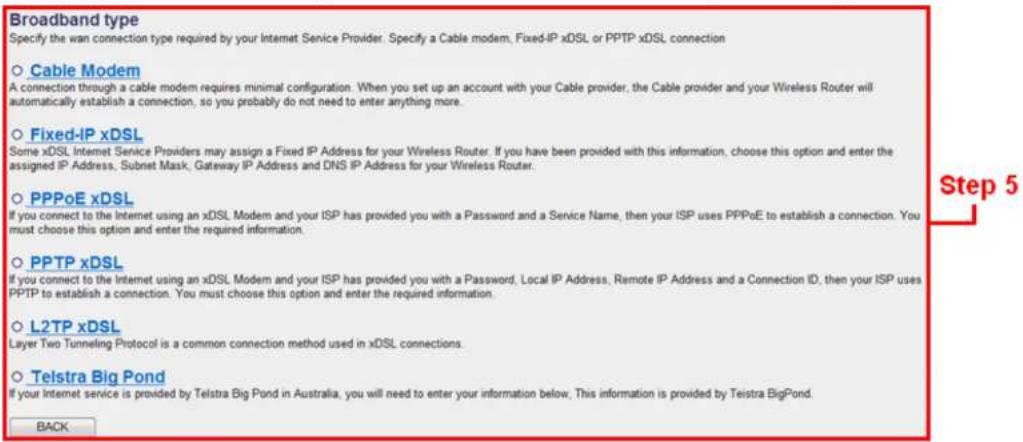
Broadband type Specify the wan connection type required by your Internet Service Provider. Specify a Cable modem, Fixed-IP xDSL or PPTP xDSL connection ○ Cable Modem A connection through a cable modem requires minimal configuration. When you set up an account with your Cable provider, the Cable provider and your Wireless Router will automatically establish a connection, so you probably do not need to enter anything more. ○ Fixed-IP xDSL Some xDSL Internet Service Providers may assign a Fixed IP Address for your Wireless Router. If you have been provided with this information, choose this option and enter the assigned IP Address, Subnet Mask, Gateway IP Address and DNS IP Address for your Wireless Router. ○ PPPoE xDSL If you connect to the Internet using an xDSL Modem and your ISP has provided you with a Password and a Service Name, then your ISP uses PPPoE to establish a connection. You must choose this option and enter the required information. ○ PPTP xDSL If you connect to the Internet using an xDSL Modem and your ISP has provided you with a Password, Local IP Address, Remote IP Address and a Connection ID, then your ISP uses PPTP to establish a connection. You must choose this option and enter the required information. ○ L2TP xDSL Layer Two Tunneling Protocol is a common connection method used in xDSL connections. ○ Telstra Big Pond If your Internet service is provided by Telstra Big Pond in Australia, you will need to enter your information below, This information is provided by Teistra BigPond. BACK

3. IP Address Info v Dynamic IP

Cable Modem

Host Name : MAC Address : 000000000000 Clone MAC Step 6a BACK OK

6a. If you selected Cable Modem (DHCP), just press OK.

3. IP Address Info v PPPoE

Enter the User Name and Password required by your ISP in the appropriate fields. If your ISP has provided you with a "Service Name" enter it in the Service Name field, otherwise, leave it blank.
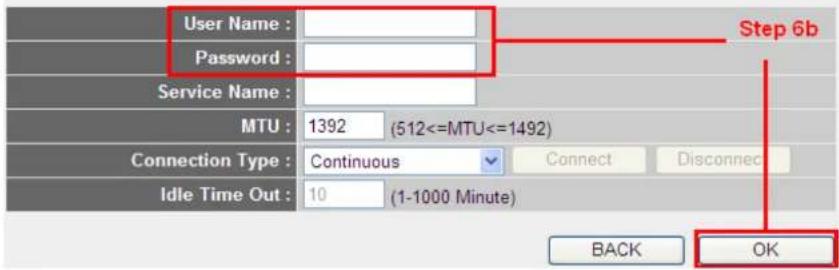
User Name : Password : Service Name : MTU : 1392 (512

6b. If you selected PPPoE, type in the DSL gateway's username and password provided by your service provider, then press OK.

  1. Click 'APPLY'. When you see the System Restarting message, the router will be ready with new settings within 40 seconds. Upon restarting your router will be ready for use.

Save settings successfully!

Please press APPLY button to restart the system to make the changes take effect.

CONTINUE

APPLY

Step 7

Comtrend WR-5930 - Save settings successfully! - 1

System Restarting! Please wait for a while!

OK(40)

Comtrend WR-5930 - Save settings successfully! - 2

Enjoy your WiFi!

NOTE: For instructions on advanced features such as customizing your router name, visit our online User Manual:

http://us.comtrend.com/products/public/product/home-networking/wr-5930.html

Comtrend WR-5930 - Enjoy your WiFi! - 1
QR code

For more information:

Facebook: https://facebook.com/Comtrend

Website: http://us.comtrend.com/

Support: Visit our website or call 1-877-COMTREND (1-877-266-8736)

Juhendi assistent
Toetatud Anthropic
Ootan teie sõnumit
Tooteteave

Kaubamärk : Comtrend

Mudel : WR-5930

Kategooria : Ruuter