
DS-2CD2027G2-LU(2.8MM) - Security Camera Hikvision - Free user manual and instructions
Find the device manual for free DS-2CD2027G2-LU(2.8MM) Hikvision in PDF.


User questions about DS-2CD2027G2-LU(2.8MM) Hikvision
0 question about this device. Answer the ones you know or ask your own.
Ask a new question about this device
Download the instructions for your Security Camera in PDF format for free! Find your manual DS-2CD2027G2-LU(2.8MM) - Hikvision and take your electronic device back in hand. On this page are published all the documents necessary for the use of your device. DS-2CD2027G2-LU(2.8MM) by Hikvision.
USER MANUAL DS-2CD2027G2-LU(2.8MM) Hikvision
© 2020 Hangzhou Hikvision Digital Technology Co., Ltd. All rights reserved.
This Manual is the property of Hangzhou Hikvision Digital Technology Co., Ltd. or its aliases (hereinaer referred to as "Hikvision"), and it cannot be reproduced, changed, translated, or distributed, parally or wholly, by any means, without the prior written permission of Hikvision. Unless otherwise expressly stated herein, Hikvision does not make any warranes, guarantees or representaons, express or implied, regarding to the Manual, any informaon contained herein.
About this Manual
The Manual includes instrucons for using and managing the Product. Pictures, charts, images and all other informaon hereinaer are for descripon and explanaon only.
The informaon contained in the Manual is subject to change, without noce, due to rmware updates or other reasons. Please nd the latest version of this Manual at the Hikvision website (hp://www.hikvision.com/).
Please use this Manual with the guidance and assistance of professionals trained in supporting the Product.
Trademarks Acknowledgement
- HIKVISION and other Hikvision's trademarks and logos are the properes of Hikvision in various jurisdicons.
- Other trademarks and logos menoned are the properes of their respective owners.
- HDMI The terms HDMI and HDMI High-Denion Mulmedia Interface, and the HDMI Logo are trademarks or registered trademarks of HDMI Licensing Administrator, Inc. in the United States and other countries.
LEGAL DISCLAIMER
● TO THE MAXIMUM EXTENT PERMITTED BY APPLICABLE LAW, THIS MANUAL AND
THE PRODUCT DESCRIBED, WITH ITS HARDWARE, SOFTWARE AND FIRMWARE, ARE PROVIDED "AS IS" AND "WITH ALL FAULTS AND ERRORS". HIKVISION MAKES NO WARRANTIES, EXPRESS OR IMPLIED, INCLUDING WITHOUT LIMITATION, MERCHANTABILITY, SATISFACTORY QUALITY, OR FITNESS FOR A PARTICULAR PURPOSE. THE USE OF THE PRODUCT BY YOU IS AT YOUR OWN RISK. IN NO EVENT WILL HIKVISION BE LIABLE TO YOU FOR ANY SPECIAL, CONSEQUENTIAL, INCIDENTAL, OR INDIRECT DAMAGES, INCLUDING, AMONG OTHERS, DAMAGES FOR LOSS OF BUSINESS PROFITS, BUSINESS INTERRUPTION, OR LOSS OF DATA, CORRUPTION OF SYSTEMS, OR LOSS OF DOCUMENTATION, WHETHER BASED ON BREACH OF CONTRACT, TORT (INCLUDING NEGLIGENCE), PRODUCT LIABILITY, OR OTHERWISE, IN CONNECTION WITH THE USE OF THE PRODUCT, EVEN IF HIKVISION HAS BEEN ADVISED OF THE POSSIBILITY OF SUCH DAMAGES OR LOSS.
- YOU ACKNOWLEDGE THAT THE NATURE OF INTERNET PROVIDES FOR INHERENT SECURITY RISKS, AND HIKVISION SHALL NOT TAKE ANY RESPONSIBILITIES FOR ABNORMAL OPERATION, PRIVACY LEAKAGE OR OTHER DAMAGES RESULTING FROM CYBER-ATTACK, HACKER ATTACK, VIRUS INSPECTION, OR OTHER INTERNET SECURITY RISKS; HOWEVER, HIKVISION WILL PROVIDE TIMELY TECHNICAL SUPPORT IF REQUIRED.
YOU AGREE TO USE THIS PRODUCT IN COMPLIANCE WITH ALL APPLICABLE LAWS, AND YOU ARE SOLELY RESPONSIBLE FOR ENSURING THAT YOUR USE CONFORMS TO THE APPLICABLE LAW. ESPECIALLY, YOU ARE RESPONSIBLE, FOR USING THIS PRODUCT IN A MANNER THAT DOES NOT INFRINGE ON THE RIGHTS OF THIRD PARTIES, INCLUDING WITHOUT LIMITATION, RIGHTS OF PUBLICITY, INTELLECTUAL PROPERTY RIGHTS, OR DATA PROTECTION AND OTHER PRIVACY RIGHTS. YOU SHALL NOT USE THIS PRODUCT FOR ANY PROHIBITED END-USES, INCLUDING THE DEVELOPMENT OR PRODUCTION OF WEAPONS OF MASS DESTRUCTION, THE DEVELOPMENT OR PRODUCTION OF CHEMICAL OR BIOLOGICAL WEAPONS, ANY ACTIVITIES IN THE CONTEXT RELATED TO ANY NUCLEAR EXPLOSIVE OR UNSAFE NUCLEAR FUEL-CYCLE, OR IN SUPPORT OF HUMAN RIGHTS ABUSES.
IN THE EVENT OF ANY CONFLICTS BETWEEN THIS MANUAL AND THE APPLICABLE LAW, THE LATER PREVAILS.
Safety Instrucon
These instrucons are intended to ensure that the user can use the product correctly to avoid danger or property loss.
The precauon measure is divided into "Warnings" and "Cauons":
Warnings: Serious injury or death may be caused if any of these warnings are neglected.
Cauons: Injury or equipment damage may be caused if any of these cauons are neglected.
 |  |
| Warnings Follow these safeguards to prevent serious injury or death. | Cauons Follow these precauons to prevent potenal injury or material damage. |

Warnings:
- If camera fails to synchronize local time with that of the network, you need to set up camera me manually. Visit the camera and enter system sengs interface for me seng.
- Please adopt the power adapter which can meet the safety extra low voltage (SELV) standard. And source with 12 VDC or 24 VAC (depending on models) according to the IEC60950-1 and Limited Power Source standard.
- To reduce the risk of fire or electrical shock, do not expose this product to rain or moisture.
-
This installaon should be made by a qualified service person and should conform to all the local codes.
-
Please install blackouts equipment into the power supply circuit for convenient supply interrupon.
- Please make sure that the ceiling can support more than 50(N) Newton gravies if the camera is xed to the ceiling.
- If the product does not work properly, please contact your dealer or the nearest service center. Never aempt to disassemble the camera yourself. (We shall not assume any responsibility for problems caused by unauthorized repair or maintenance.)

Cauons:
● Make sure the power supply voltage is correct before using the camera.
- Do not drop the camera or subject it to physical shock.
- Do not touch sensor modules with ngers. If cleaning is necessary, use a clean cloth with a bit of ethanol and wipe it gently. If the camera will not be used for an extended period of me, put on the lens cap to protect the sensor from dirt.
- Do not aim the camera lens at the strong light such as sun or incandescent lamp. The strong light can cause fatal damage to the camera.
- The sensor may be burned out by a laser beam, so when any laser equipment is being used, make sure that the surface of the sensor not be exposed to the laser beam.
- Do not place the camera in extremely hot, cold temperatures (refer to product specicaon for working temperature), dusty or damp environment, and do not expose it to high electromagnec radiaon.
● To avoid heat accumulaon, ensure there is good venlaon to the device.
- Keep the camera away from water and any liquids.
- While shipping, pack the camera in its original, or equivalent, packing materials. Or packing the same texture.
- Improper use or replacement of the baery may result in hazard of explosion. Please use the manufacturer recommended baery type.
Notes:
For the camera supports IR, you are required to pay aenon to the following precautions to prevent IR reecon:
- Dust or grease on the dome cover will cause IR reecon. Please do not remove the dome cover lm unl the installaon is nished. If there is dust or grease on the dome cover, clean the dome cover with clean so cloth and isopropyl alcohol.
- Make certain the installaon locaon does not have reecve surfaces of objects too close to the camera. The IR light from the camera may react back into the lens causing reecon.
- The foam ring around the lens must be seated ush against the inner surface of the bubble to isolate the lens from the IR LEDS. Fasten the dome cover to camera body so that the foam ring and the dome cover are aached seamlessly.
Table of Contents
Chapter 1 System Requirement .... 10
Chapter 2 Network Connecon ...... 11
2.1 Seng the Network Camera over the LAN 11
2.1.1 Wiring over the LAN....11
2.1.2 Acvating the Camera....12
2.1.3 (Oponal) Seing Security Queson 19
2.2 Seng the Network Camera over the WAN....19
2.2.1 Stac IP Connecon....19
2.2.2 Dynamic IP Connection....20
Chapter 3 Access to the Network Camera....23
3.1 Accessing by Web Browsers 23
3.2 Accessing by Client Soware 24
Chapter 4 Wi-Fi Setngs 26
4.1 Conguring Wi-Fi Connecon in Manage and Ad-hoc Modes 26
4.2 Easy Wi-Fi Connecon with WPS funcon 31
4.3 IP Property Sengs for Wireless Network Connecon....33
Chapter 5 Live View 35
5.1 Live View Page 35
5.2 Live Operaon 36
5.3 Recording and Capturing Pictures Manually 37
5.4 Quick Setup....38
5.5 Operang PTZ Control....38
5.5.1 PTZ Control Panel....38
5.5.2 Setng/Calling a Preset....39
5.5.3 Setng/Calling a Patrol....41
5.6 Install Plug-in ....42
Chapter 6 Network Camera Conguraon.... 43
6.1 Conguring Local Parameters....43
6.2 Congure System Sengs....45
6.2.1 Conguring Basic Informaon 45
6.2.2 Conguring Time Settings 45
6.2.3 Conguring DST Sengs 47
6.2.4 Conguring RS-232 Setngs 48
6.2.5 Conguring RS-485 Sengs 49
6.2.6 Conguring VCA Resource....49
6.2.7 Conguring Metadata Setngs 50
6.2.8 Open Source Soware License 51
6.3 Maintenance....51
6.3.1 Upgrade & Maintenance....51
6.3.2 Log 52
6.3.3 System Service....54
6.3.4 Security Audit Log....54
6.4 Security Setngs 56
6.4.1 Authentication....56
6.4.2 IP Address Filter....57
6.4.3 Security Service 59
6.4.4 Advanced Security 59
6.5 User Management 60
6.5.1 User Management....60
6.5.2 Security Queson 62
6.5.3 Online Users....64
Chapter 7 Network Setngs....65
7.1 Conguring Basic Setngs....65
7.1.1 Conguring TCP/IP Setngs 65
7.1.2 Conguring DDNS Setngs 67
7.1.3 Conguring PPPoE Sengs 68
7.1.4 Conguring Port Sengs....69
7.1.5 Congure NAT (Network Address Translation) Sengs 70
7.1.6 Conguring Multicast....71
7.2 Congure Advanced Setngs 72
7.2.1 Conguring SNMP Sengs....73
7.2.2 Conguring FTP Sengs....75
7.2.3 Conguring Email Setngs....77
7.2.4 Plaorm Access 79
7.2.5 Wireless Dial....80
7.2.6 HTTPS Sengs....81
7.2.7 Conguring QoS Sengs....84
7.2.8 Conguring 802.1X Setngs 85
7.2.9 Integraon Protocol....86
7.2.10 Bandwidth Adaptation 87
7.2.11 Network Service....87
7.2.12 Smooth Streaming 88
7.2.13 Security Control Panel Conguraon 89
Chapter 8 Video/Audio Seings....91
8.1 Conguring Video Setngs....91
8.1.1 Video Setngs....91
8.1.2 Custom Video 94
8.2 Conguring Audio Setngs....96
8.3 Conguring ROI Encoding....96
8.4 Display Info. on Stream....98
8.5 Conguring Target Cropping....98
Chapter 9 Image Setngs....100
9.1 Conguring Display Sengs....100
9.2 Conguring OSD Setngs 104
9.3 Conguring Privacy Mask....105
9.4 Conguring Image Parameters Switch....106
9.5 Conguring Picture Overlay 107
Chapter 10 Event Setngs....108
10.1 Basic Events 108
10.1.1 Conguring Moon Detection....108
10.1.2 Conguring Video Tampering Alarm....114
10.1.3 Conguring Alarm Input.... 115
10.1.4 Conguring Alarm Output 116
10.1.5 Handling Excepon 117
10.1.6 Conguring Flashing Alarm Light Output 117
10.1.7 Conguring Audible Alarm Output 118
10.1.8 Conguring Other Alarm....119
10.2 Smart Events....121
10.2.1 Conguring Scene Change Detecon....122
10.2.2 Conguring Intrusion Detecon 123
10.2.3 Conguring Line Crossing Detection 125
10.2.4 Conguring Region Entrance Detecon 127
10.2.5 Conguring Region Exing Detecon.... 129
10.3 Face Capture 131
Chapter 11 Storage Sengs....136
11.1 Conguring Record Schedule 136
11.2 Congure Capture Schedule....139
11.3 Congure HDD Management 140
11.4 Conguring Net HDD....142
11.5 Memory Card Detection....143
11.6 Conguring Lite Storage....145
11.7 Conguring Cloud Storage....146
Chapter 12 Playback....147
Chapter 13 Picture....149
Appendix 150
Appendix 1 SADP Software Introducon ....150
Appendix 2 Port Mapping....153
Appendix 3 ....155
Chapter 1 System Requirement
Operang System
Microso Windows XP SP1 and above version
CPU
2.0 GHz or higher
RAM
1G or higher
Display
1024×768 resoluon or higher
Web Browser
For camera that supports plug-in free live view
Internet Explorer 8 – 11, Mozilla Firefox 30.0 and above version and Google Chrome 41.0 and above version.
Note:
For Google Chrome 45 and its above version or Mozilla Firefox 52 and its above version that are plug-in free, Picture and Playback funcons are hidden.
To use menoned funcons via web browser, change to their lower version, or change to Internet Explorer 8.0 and above version.
For camera that does NOT support plug-in free live view
Internet Explorer 8 – 11, Mozilla Firefox 30.0 – 51, and Google Chrome 41.0 – 44.
Chapter 2 Network Connecon
Note:
- You shall acknowledge that the use of the product with Internet access might be under network security risks. For avoidance of any network aacks and informaon leakage, please strengthen your own protecon. If the product does not work properly, please contact with your dealer or the nearest service center.
- To ensure the network security of the network camera, we recommend you to have the network camera assessed and maintained termly. You can contact us if you need such service.
Before you start:
- If you want to set the network camera via a LAN (Local Area Network), please refer to 2.1 Setng the Network Camera over the LAN.
- If you want to set the network camera via a WAN (Wide Area Network), please refer to 2.2 Setng the Network Camera over the WAN.
2.1 Seng the Network Camera over the LAN
Purpose:
To view and congregate the camera via a LAN, you need to connect the network camera in the same subnet with your computer, and install the SADP or iVMS-4200 soware to search and change the IP of the network camera.
Note: For the detailed introducon of SADP, please refer to Appendix 1 SADP Soware Introducon.
2.1.1 Wiring over the LAN
The following gures show the two ways of cable conncon of a network camera and a computer:
Purpose:
● To test the network camera, you can directly connect the network camera to the computer with a network cable as shown in Figure 2-1.
● Refer to the Figure 2-2 to set network camera over the LAN via a switch or a router.
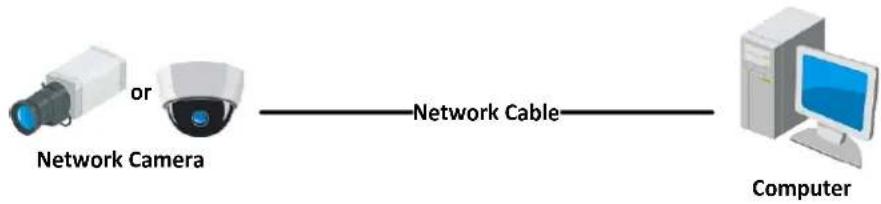
flowchart
graph LR
    A["Network Camera"] -->|or| B["Network Cable"]
    B --> C["Computer"]
Figure 2-1 Connecng Directly

flowchart
graph LR
    A["Camera"] -->|or| B["Cable"]
    B -->|or| C["Router"]
    C -->|Network Cable| D["Computer"]
Figure 2-2 Connecng via a Switch or a Router
2.1.2 Acvang the Camera
You are required to acvate the camera rst by seng a strong password for it before you can use the camera.
Acvaon via Web Browser, Acvaon via SADP, and Acvaon via Client Soware are all supported.
- Power on the camera, and connect the camera to the network.
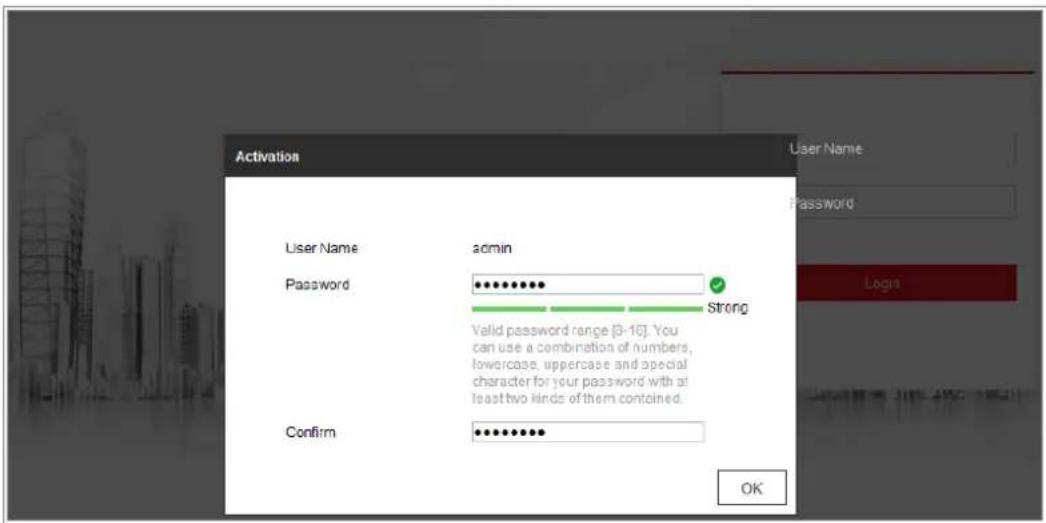
- Input the IP address into the address bar of the web browser, and click Enter to enter the acvaon interface.
Notes:
● The default IP address of the camera is 192.168.1.64.
● The computer and the camera should belong to the same subnet.
- For the camera enables the DHCP by default, you need to use the SADP soware to search the IP address.
text_image
Activation User Name admin Password Strong Valid password range [3-16]. You can use a combination of numbers, lowercase, uppercase and special character for your password with at least two kinds of them contained. Confirm OKFigure 2-3 Acvaon via Web Browser
- Create and input a password into the password eld.
A password with user name in it is not allowed.

STRONG PASSWORD RECOMMENDED—We highly recommend you create a strong password of your own choosing (using a minimum of 8 characters, including at least three of the following categories: upper case leers, lower case leers, numbers, and special characters) in order to increase the security of your product. And we recommend you reset your password regularly, especially in the high security system, reseng the password monthly or weekly can better protect your product.
- Conrm the password.
- Click OK to save the password and enter the live view interface.
Acvaon via SADP Soware
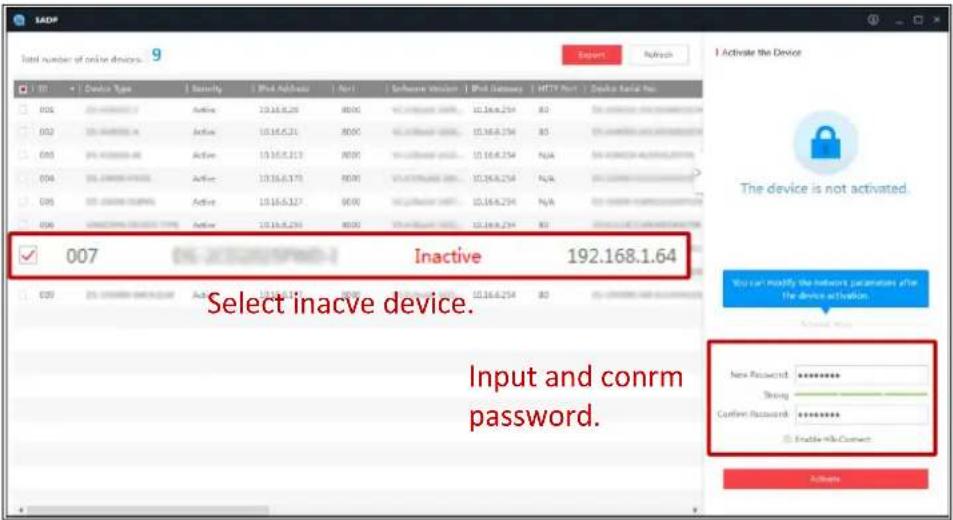
SADP soware is used for detecting the online device, acvang the camera, and reseng the password.
Get the SADP soware from the supplied disk or the ocial website, and install the SADP according to the prompts. Follow the steps to acvate the camera.
Steps:
- Run the SADP soware to search the online devices.
- Check the device status from the device list, and select the inacve device.
text_image
SADP Total number of online devices 9 Export Refresh 1 Activate the Device The device is not activated. 007 Inactive 192.168.1.64 Select inactive device. Input and conrm password.Figure 2-4 SADP Interface
Note:
The SADP soware supports acvang the camera in batch. Refer to the user manual of SADP soware for details.
- Create and input the password in the password eld, and conrm the password.
A password with user name in it is not allowed.

STRONG PASSWORD RECOMMENDED— We highly recommend you create a strong password of your own choosing (using a minimum of 8 characters, including at least three of the following categories: upper case leers, lower case leers, numbers, and special characters) in order to increase the security of your product. And we recommend you reset your password regularly, especially in the high security system, reseng the password monthly or weekly can beer protect your product.
Note:
You can enable the Hik-Connect service for the device during acvaon.
4. Click Acvate to start acvaon.
You can check whether the acvaon is completed on the popup window. If acvaon failed, please make sure that the password meets the requirement and try again.
- Change the device IP address to the same subnet with your computer by either modifying the IP address manually or checking the checkbox of Enable DHCP.

text_image
Modify Network Parameters Enable DHCP Enable Hik Connect Device Serial No.: XX-XXXXXXX-XXXXXXXXXXXXXX IP Address: 192.168.1.64 Port: 8000 Subnet Mask: 255.255.255.0 Gateway: 192.168.1.1 IPv6 Address: :\ IPv6 Gateway: :\ IPv6 Prefix Length: 0 HTTP Port: 80 Security Verification Admin Password: Modify Forgot PasswordFigure 2-5 Modify the IP Address
- Input the admin password and click Modify to acvate your IP address modicaon.
The batch IP address modicaon is supported by the SADP. Refer to the user manual of SADP for details.
◆ Acvaon via Client Soware
The client soware is versale video management soware for mulple kinds of devices.
Get the client soware from the supplied disk or the ocial website, and install the soware according to the prompts. Follow the steps to acvate the camera.
Steps:
- Run the client soware and the control panel of the soware pops up, as shown in the gure below.

text_image
Control Panel Service Management Operation and Control Movie View Viewing the video, controlling PTZ functionality and setting image parameters. Remote Playback Searching the record files and playback. E-map Adding, modifying, deleting, and basic operations of E-map. Maintenance and Management Device Management The management of the devices and groups, adding, deleting and the configuration of the resources. Event Management Configuration of alarm, abnormal parameters and linkage actions of the servers. Record Schedule Configure the recording schedule and related parameters. Account Management Adding, deleting users and designing the permissions. Log Search Search, new and pickup local and remote logo. System Configuration Configure general parameters Data and statistics HeadMap The statistical data to see the heat. PeopleCounting The statistical data to see the people counting. Counting Counting Statistics Motion Detection AlarmFigure 2-6 Control Panel
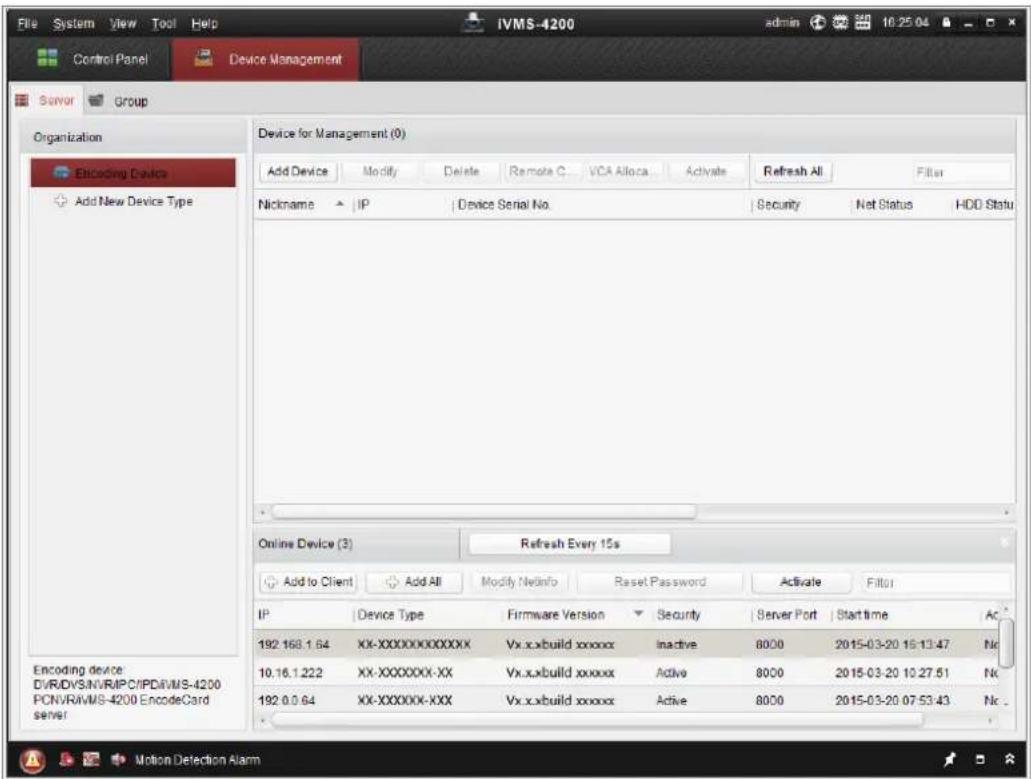
- Click the Device Management icon to enter the Device Management interface, as shown in the gure below.
text_image
File System View Tool Help Control Panel Device Management Server Group Organization Encoding Device Add New Device Type Device for Management (0) Add Device Modify Delete Remote C... VCA Alloca... Activate Refresh All Filter Nickname IP Device Serial No. Security Net Status HDD Status Online Device (3) Refresh Every 15s Add to Client Add All Modify Netinfo Reset Password Activate Filter IP Device Type Firmware Version Security Server Port Start time Ac 192.168.1.64 XX-XXXXXXXXXXXXX Vx.xxbuild xxxxxx Inactive 8000 2015-03-20 16:13:47 Nc 10.16.1.222 XX-XXXXXXXX-XX Vx.xxbuild xxxxxx Active 8000 2015-03-20 10:27:51 Nc 192.0.0.64 XX-XXXXXXXX-XXX Vx.xxbuild xxxxxx Active 8000 2015-03-20 07:53:43 Nc Motion Detection AlarmFigure 2-7 Device Management Interface
- Check the device status from the device list, and select an inacve device.
- Click the Acvate button to pop up the Acvaon interface.
- Create a password and input the password in the password eld, and conrm the password.
A password with user name in it is not allowed.

STRONG PASSWORD RECOMMENDED-We highly recommend you create a strong password of your own choosing (using a minimum of 8 characters, including at least three of the following categories: upper case leers, lower case leers, numbers, and special characters) in order to increase the security of your product. We recommend you reset your password regularly, especially in the high security system, reseng the password monthly or weekly can beer protect your product.

text_image
Activation User Name: admin Password: •••••••••• Strong Valid password range [8-16]. You can use a combination of numbers, lowercase, uppercase and special character for your password with at least two kinds of them contained. Confirm New Password: •••••••••••• Ok CancelFigure 2-8 Acvaon Interface (Client Soware)
- Click OK buon to start acvaon.
- Click the Modify Nenfo buon to pop up the Network Parameter Modicaon interface, as shown in the gure below.

text_image
Modify Network Parameter Device Information: MAC Address: XX-XX-XX-XX-XX Software Version: Vx.x.xbuild xxxxxx Device Serial No.: XX-XXXXXXXXXXXXXXXXXXXXXXXXXXXXX Network Information: DHCP Port: 8000 IPv4(Enable) IP address: 192.168.1.64 Subnet Mask: 255.255.255.0 Gateway: 192.168.1.1 IPv6(Disable) Password: OK CancelFigure 2-9 Modifying the Network Parameters
- Change the device IP address to the same subnet with your computer by either modifying the IP address manually or checking the checkbox of Enable DHCP.
- Input the password to acvate your IP address modicaon.
2.1.3 (Oponal) Setng Security Queson
Security queson is used to reset the admin password when admin user forgets the password.
Admin user can follow the pop-up window to complete security queson sengs during camera acvaon. Or, admin user can go to User Management interface to set up the funcon.
2.2 Seng the Network Camera over the WAN
Purpose:
This secon explains how to connect the network camera to the WAN with a stac IP or a dynamic IP.
2.2.1 Stac IP Connecon
Before you start:
Please apply a stac IP from an ISP (Internet Service Provider). With the stac IP address, you can connect the network camera via a router or connect it to the WAN directly.
- Connecng the network camera via a router
Steps:
- Connect the network camera to the router.
- Assign a LAN IP address, the subnet mask and the gateway. Refer to 2.1.2 Acvang the Camera for detailed IP address conguraon of the network camera.
- Save the stac IP in the router.
- Set port mapping, e.g., 80, 8000, and 554 ports. The steps for port mapping vary according to the dierent routers. Please call the router manufacturer for assistance with port mapping.
Note: Refer to Appendix 2 Port Mapping for detailed informaon about port mapping.
- Visit the network camera through a web browser or the client soware over the internet.

flowchart
graph LR
    A["Camera"] -->|or| B["Network Camera"]
    B -->|Network cable| C["Router with Static IP"]
    C -->|Network cable| D["Internet"]
    D -->|Network cable| E["Computer"]
Figure 2-10 Accessing the Camera through Router with Stac IP
- Connecng the network camera with stac IP directly
You can also save the stac IP in the camera and directly connect it to the internet without using a router. Refer to 2.1.2 Acvang the Camera for detailed IP address conguraon of the network camera.

flowchart
graph LR
    A["Camera"] -->|or| B["Static IP"]
    B -->|-Network cable-| C["Internet"]
    C -->|-Network cable-| D["Computer"]
Figure 2-11 Accessing the Camera with Stac IP Directly
2.2.2 Dynamic IP Connecon
Before you start:
Please apply a dynamic IP from an ISP. With the dynamic IP address, you can connect the network camera to a modem or a router.
- Connecng the network camera via a router
Steps:
- Connect the network camera to the router.
- In the camera, assign a LAN IP address, the subnet mask and the gateway. Refer to 2.1.2 Acvang the Camera for detailed IP address conguration of the network camera.
- In the router, set the PPPoE user name, password and conrm the password.
- Set port mapping. E.g. 80, 8000, and 554 ports. The steps for port mapping vary
depending on dierent routers. Please call the router manufacturer for assistance with port mapping.
Note: Refer to Appendix 2 Port Mapping for detailed informaon about port mapping.
- Apply a domain name from a domain name provider.
- Congure the DDNS sengs in the seng interface of the router.
- Visit the camera via the applied domain name.
- Connecng the network camera via a modem
Purpose:
This camera supports the PPPoE auto dial-up funcon. The camera gets a public IP address by ADSL dial-up aer the camera is connected to a modem. You need to congregate the PPPoE parameters of the network camera. Refer to 7.1.3 Conguring PPPoE Sengs for detailed conguraon.

flowchart
graph LR
    A["or"] --> B["Network Camera"]
    B --> C["Modem"]
    C --> D["Internet"]
    D --> E["Computer"]
    style A fill:#f9f,stroke:#333
    style B fill:#ccf,stroke:#333
    style C fill:#cfc,stroke:#333
    style D fill:#fcc,stroke:#333
    style E fill:#cff,stroke:#333
Figure 2-12 Accessing the Camera with Dynamic IP
Note: The obtained IP address is dynamically assigned via PPPoE, so the IP address always changes aer reboong the camera. To solve the inconvenience of the dynamic IP, you need to get a domain name from the DDNS provider (E.g. DynDns.com). Please follow the steps below for normal domain name resoluon and private domain name resoluon to solve the problem.
♦ Normal Domain Name Resoluon

flowchart
graph LR
    A["Camera"] -->|or| B["Network Camera"]
    B -->|Network cable| C["Port Map"]
    C -->|Network cable| D["Router with Dynamic IP"]
    D --> E["Internet"]
    E -->|Network cable| F["Computer"]
    G["Domain Name Resolution Server"] --> C
Figure 2-13 Normal Domain Name Resoluon
Steps:
- Apply a domain name from a domain name provider.
- Congure the DDNS sengs in the DDNS Setngs interface of the network camera.
Refer to 7.1.2 Conguring DDNS Setngs for detailed configuraon. - Visit the camera via the applied domain name.
Chapter 3 Access to the Network
Camera
3.1 Accessing by Web Browsers
Note:
For certain camera models, HTTPS is enabled by default and the camera creates an unsigned cercate automacally. When you access to the camera the rst me, the web browser prompts a nocaaon about the cercate issue.
To cancel the nocaon, install a signed-cercate to the camera. For detailed operaon, see 7.2.6 HTTPS Settings.
Steps:
- Open the web browser.
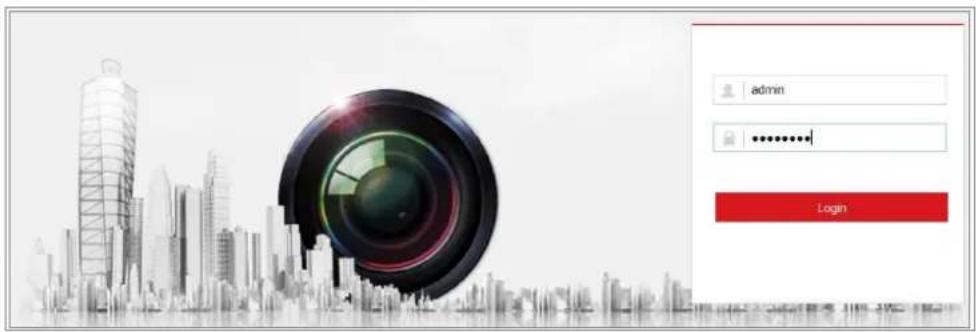
- In the browser address bar, input the IP address of the network camera, and press the Enter key to enter the login interface.
Note:
The default IP address is 192.168.1.64. You are recommended to change the IP address to the same subnet with your computer.
- Input the user name and password and click Login.
The admin user should congregate the device accounts and user/operator permissions properly. Delete the unnecessary accounts and user/operator permissions.
Note:
The IP address is locked if the admin/user/operator performs 7 failed password aempts.
text_image
admin LoginFigure 3-1 Login Interface
4. Click Login.
- (Oponal) Install the plug-in before viewing the live video and operang the camera. Follow the installaon prompts to install the plug-in
Note:
For camera that supports plug-in free live view, if you are using Google Chrome 57 and its above version or Mozilla Firefox 52 and its above version, plug-in installaon is not required. But Picture and Playback funcons are hidden. To use menoned funcon via web browser, change to their lower version, or change to Internet Explorer 8.0 and above version.
3.2 Accessing by Client Soware
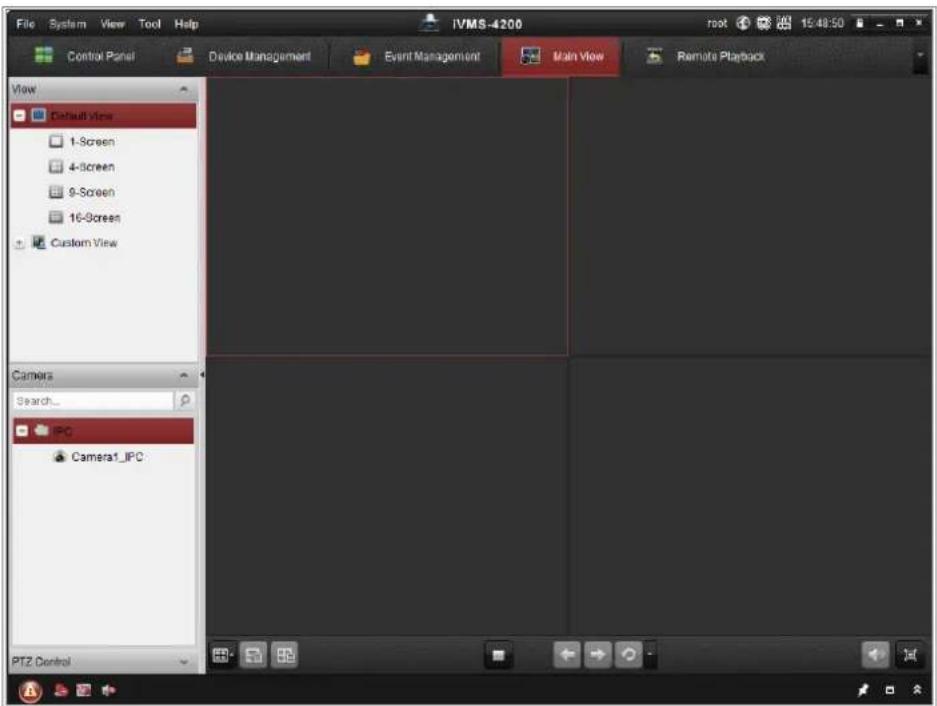
The product CD contains the iVMS-4200 client soware. You can view the live video and manage the camera with the soware.
Follow the installaon prompts to install the soware. The control panel and live view interface of iVMS-4200 client soware are shown as below.

text_image
Control Panel Device Management Operation and Control Main View Viewing live video, controlling PTZ functionality and setting image parameters. Remote Playback Searching the record files and playback. E-map Adding modifying, deleting, and basic operations of E-map. Maintenance and Management Device Management The management of the devices and groups adding: deleting and the configuration of the resources. Event Management Configuration of alarm, abnormal parameters and linkage actions of the sensors. Record Schedule Configure the recording schedule and related parameters. Account Management Adding deleting users and assigning the permissions. Log Search Search, view and backup local and remote logs. System Configuration Configure general parameters. Data and statistics HeadMap The statistical data to see the heat. PeopleCounting The statistical data to see the people counting. Counting Counting Statistics Motion Detection AlarmFigure 3-2 iVMS-4200 Control Panel
text_image
File System View Tool Help Control Panel Device Management Event Management Main View Remote Playback View Default View 1-Screen 4-Screen 9-Screen 16-Screen Custom View Camera Search... IPC Camera1_IPC PTZ ControlFigure 3-3 iVMS-4200 Main View
Chapter 4 Wi-Fi Sengs
Purpose:
By connecng to the wireless network, you do not need to use cable of any kind for network conncon, which is very convenient for the actual surveillance applicaon.
Note: This chapter is only applicable for the cameras with the built-in Wi-Fi module.
4.1 Conguring Wi-Fi Connecon in Manage and Ad-hoc Modes
Purpose:
Two conncon modes are supported. Choose a mode as desired and perform the steps to conjure the Wi-Fi.
Wireless Connecon in Manage Mode
Steps:
- Enter the Wi-Fi conguraon interface.
Conguraon> Network> Advanced Sengs> Wi-Fi
- Click Search to search the online wireless connecons.
| Wireless List | Search | |||||
| No. | SSID | Working Mode | Security Mode | Channel | Signal Strength | Speed(Mbps) |
| 1 | TP-LINK_Software | Manage | disable | 1 | 81 | 150 |
| 2 | C-WEP | Manage | WEP | 11 | 50 | 54 |
| 3 | C-not-encrypted | Manage | disable | 11 | 50 | 54 |
| 4 | C-WPA2-Personal | Manage | WPA2-personal | 11 | 47 | 54 |
| 5 | FINALHAUT | Manage | WPA2-personal | 6 | 46 | 54 |
| 6 | 6688 | Manage | WPA2-personal | 6 | 46 | 54 |
| 7 | C199TH | Manage | WPA2-personal | 6 | 46 | 54 |
| 8 | 6688 | Manage | WPA2-personal | 6 | 44 | 54 |
| 9 | FINALHAUT | Manage | WPA2-personal | 6 | 44 | 54 |
| 10 | maomao | Manage | WPA2-personal | 6 | 43 | 54 |
| 11 | yingkongshi12 | Manage | WPA2-personal | 6 | 43 | 54 |
| 12 | Hik-Guest | Manage | WPA-personal | 1 | 43 | 54 |
| 13 | Hik-Meeting | Manage | WEP | 1 | 43 | 54 |
Figure 4-1 Wi-Fi List
- Click to choose a wireless conncon on the list.

text_image
Wi-Fi SSID C-WPA2-Personal Network Mode Manage Ad-Hoc Security Mode WPA2-personal Encryption Type TekIP Key 1Figure 4-2 Wi-Fi Seng-Manage Mode
- Check the radio buon to select the Network mode as Manage, and the Security mode of the network is automatically shown when you select the wireless network, please do not change it manually.
Note: These parameters are exactly identical with those of the router.
- Enter the key to connect the wireless network. The key should be that of the wireless network conncon you set on the router.
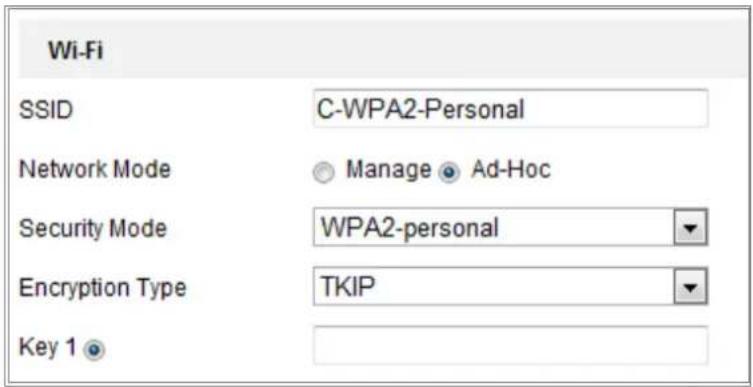
Wireless Connecon in Ad-hoc Mode
If you choose the Ad-hoc mode, you do not need to connect the wireless camera via a router. The scenario is the same as you connect the camera and the PC directly with a network cable.
Steps:
- Choose Ad-hoc mode.
text_image
Wi-Fi SSID C-WPA2-Personal Network Mode Manage Ad-Hoc Security Mode WPA2-personal Encryption Type TekIP Key 1Figure 4-3 Wi-Fi Seng- Ad-hoc
- Customize a SSID for the camera.
- Choose the Security Mode of the wireless conncon.
- Enable the wireless conncon funcon for your PC.
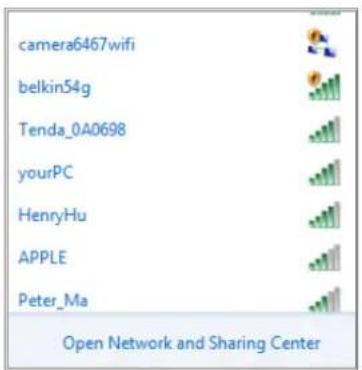
- On the PC side, search the network and you can see the SSID of the camera listed.
text_image
camera6467wifi belkin54g Tenda_0A0698 yourPC HenryHu APPLE Peter_Ma Open Network and Sharing CenterFigure 4-4 Ad-hoc Connecon Point
- Choose the SSID and connect.
Security Mode Descripon:

text_image
WPA2-personal not-encrypted WEP WPA-personal WPA-enterprise WPA2-personal WPA2-enterpriseFigure 4-5 Security Mode
You can choose the Security Mode as not-encrypted, WEP, WPA-personal, WPA-enterprise, WPA2-personal, and WPA2-enterprise.
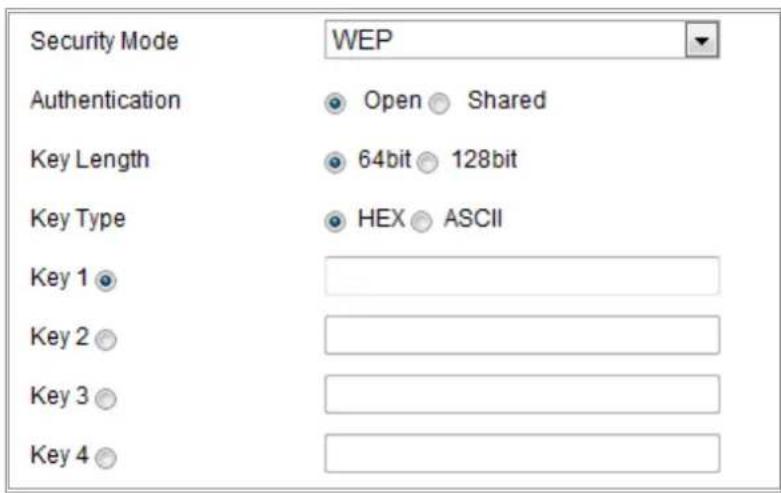
WEP mode:
text_image
Security Mode Authentication Open Shared Key Length 64bit 128bit Key Type HEX ASCII Key 1 Key 2 Key 3 Key 4 WEPFigure 4-6 WEP Mode
- Authencaon - Select Open or Shared Key System Authencaon, depending on the method used by your access point. Not all access points have this opon, in which case they probably use Open System, which is somemes known as SSID Authencaon.
● Key length - This sets the length of the key used for the wireless encrypon, 64 or 128 bit. The encrypon key length can sometimes be shown as 40/64 and 104/128. - Key type - The key types available depend on the access point being used. The following opons are available:
HEX - Allows you to manually enter the hex key.
ASCII - In this method, the string must be exactly 5 characters for 64-bit WEP and 13 characters for 128-bit WEP.
WPA-personal and WPA2-personal Mode:
Enter the required Pre-shared Key for the access point, which can be a hexadecimal number or a passphrase.

text_image
Security Mode WPA-personal Encryption Type TKIP Key 1Figure 4-7 Security Mode- WPA-personal
WPA- enterprise and WPA2-enterprise Mode:
Choose the type of client/server authencaon being used by the access point: EAP-
TLS or EAP-PEAP.
EAP-TLS

text_image
Security Mode WPA-enterprise Authentication EAP-TTLS User Name Password Inner authentication PAP Anonymous identity EAPOL version 1 CA certificate Browse UploadFigure 4-8 EAP-TLS
- Identity - Enter the user ID to present to the network.
- Private key password – Enter the password for your user ID.
● EAPOL version - Select the version used (1 or 2) in your access point. - CA Cercates - Upload a CA certificate to present to the access point for authencaon.
EAP-PEAP:
- User Name - Enter the user name to present to the network
- Password - Enter the password of the network
● PEAP Version - Select the PEAP version used at the access point. - Label - Select the label used by the access point.
- EAPOL version - Select version (1 or 2) depending on the version used at the access point.
- CA Cercates - Upload a CA certificate to present to the access point for authencaon.

- For your privacy and to beer protect your system against security risks, we strongly recommend the use of strong passwords for all funcons and network
devices. The password should be something of your own choosing (using a minimum of 8 characters, including at least three of the following categories: upper case leers, lower case leers, numbers and special characters) in order to increase the security of your product.
- Proper conguraon of all passwords and other security sengs is the responsibility of the installer and/or end-user.
4.2 Easy Wi-Fi Connecon with WPS funcon
Purpose:
The seng of the wireless network conncon is never easy. To avoid the complex seng of the wireless conncon you can enable the WPS funcon.
WPS (Wi-Fi Protected Setup) refers to the easy conguraon of the encrypted conncon between the device and the wireless router. The WPS makes it easy to add new devices to an exisng network without entering long passphrases. There are two modes of the WPS conncon, the PBC mode and the PIN mode.
Note: If you enable the WPS funcon, you do not need to congregate the parameters such as the encrypon type and you do not need to know the key of the wireless conncon.
Steps:
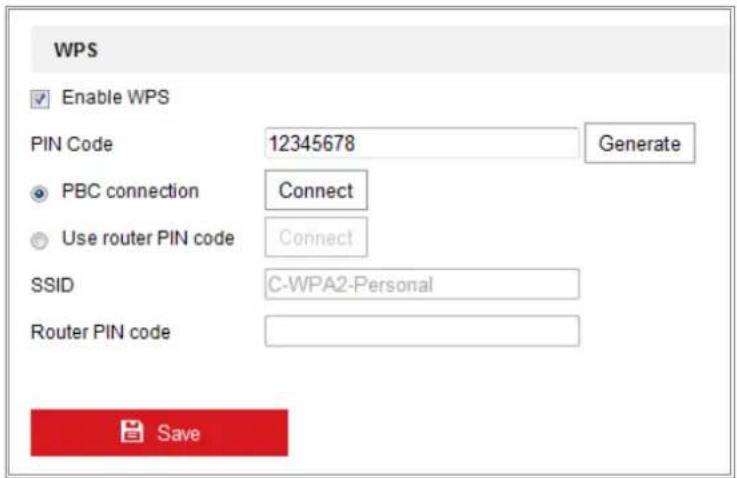
text_image
WPS Enable WPS PIN Code 12345678 Generate PBC connection Connect Use router PIN code Connect SSID C-WPA2-Personal Router PIN code SaveFigure 4-9 Wi-Fi Sengs - WPS
PBC Mode:
PBC refers to the Push-Buon-Conguraon, in which the user simply has to push a
buon, either an actual or virtual one (as the buon on the
conguraon interface of the IE browser), on both the Access Point (and a registrar of the network) and the new wireless client device.
- Check the checkbox of ☑ Enable WPS to enable WPS.
- Choose the conncon mode as PBC.

Note: Support of this mode is mandatory for both the Access Points and the connecng devices.
- Check on the Wi-Fi router to see if there is a WPS buon. If yes, push the buon and you can see the indicator near the buon start ashing, which means the WPS funcon of the router is enabled. For detailed operaon, please see the user guide of the router.
- Push the WPS buon to enable the funcon on the camera.
If there is not a WPS buon on the camera, you can also click the virtual buon to enable the PBC funcon on the web interface.
- Click Connect buon.
When the PBC mode is both enabled in the router and the camera, the camera and the wireless network is connected automatically.
PIN Mode:
The PIN mode requires a Personal Idencaon Number (PIN) to be read from either a scker or the display on the new wireless device. This PIN must then be entered to connect the network, usually the Access Point of the network.
Steps:
- Choose a wireless conncon on the list and the SSID is loaded automacally.
- Choose Use route PIN code.

text_image
WPS Enable WPS PIN Code 12345678 Generate PBC connection Connect Use router PIN code Connect SSID C-WPA2-Personal Router PIN codeFigure 4-10 Use PIN Code
If the PIN code is generated from the router side, you should enter the PIN code you get from the router side in the Router PIN code eld.
3. Click Connect.
Or
You can generate the PIN code on the camera side. And the expired me for the PIN code is 120 seconds.
- Click Generate.

text_image
PIN Code 12345678 Generate- Enter the code to the router, in the example, enter 48167581 to the router.
4.3 IP Property Sengs for Wireless Network Connecon
The default IP address of wireless network interface controller is 192.168.1.64. When you connect to the wireless network, you can change the default IP.
Steps:
- Enter the TCP/IP conguration interface.
Conguraon > Network > Basic Setngs > TCP/IP
- Select the Wlan tab.

text_image
TCP/IP DDNS PPPoE Port NAT Lan Wlan DHCP IPv4 Address 169.254.121.194 Test IPv4 Subnet Mask 255.255.0.0 IPv4 Default Gateway Multicast Address Enable Multicast Discovery DNS Server Preferred DNS Server 8.8.8.8 Alternate DNS Server SaveFigure 4-11 Seng WLAN Parameters
- Customize the IPv4 address, the IPv4 Subnet Mask and the Default Gateway.
The seng procedure is the same with that of LAN.
If you want to be assigned the IP address, you can check the checkbox to enable the DHCP.
Chapter 5 Live View
5.1 Live View Page
Purpose:
The live view page allows you to view the real-me video, capture images, record videos, realize PTZ control, congure display sengs, OSD sengs, video/audio sengs, VCA sengs and set/call presets.
Log in the network camera to enter the live view page, or you can click Live View on the menu bar of the main page to enter the live view page.
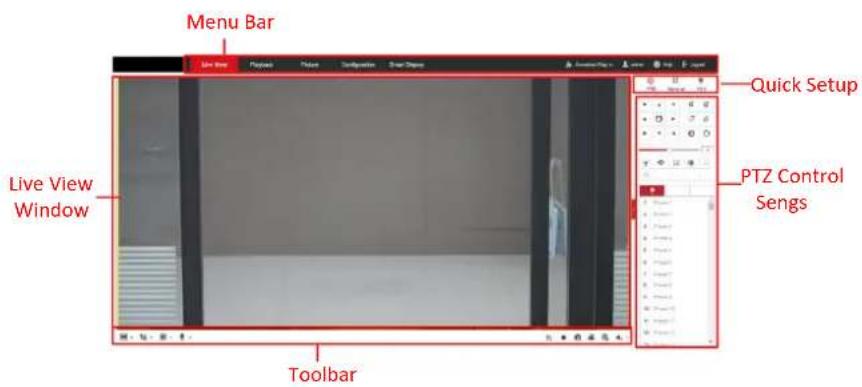
Descripons of the live view page:
text_image
Menu Bar Live View Playbox Picture Configuration Smart Diagrams Quick Setup PTZ Control Sengs Live View Window ToolbarFigure 5-1 Live View Page
- Menu Bar
Click each tab to enter Live View, Playback, Picture, Applicaon, Conguraon and Smart Display page respectively.
● Live View Window
Display the live video.
- Toolbar
Toolbar allows you to adjust the live view window size, the stream type, and the plugins-in. It also allows you to process the operaons on the live view page, e.g., start/stop live view, capture, record, audio on/o, two-way audio, start/stop digital zoom, etc.
For IE (Internet Explorer) users, plugs-in as webcomponents and quick me are
selectable. And for Non-IE users, webcomponents, quick me, VLC or MJPEG are selectable if the web browser supports them.
Note:
For camera that supports plug-in free live view, when Google Chrome 45 and its above version or Mozilla Firefox 52 and its above version are used, plug-in installaon is not required. But Picture and Playback funcons are hidden. To use menoned function via web browser, change to their lower versions, or change to Internet Explorer 8.0 and its above version.
- Quick Setup
It allows quick setup of PTZ control, image, video/audio sengs and VCA sengs on live view page.
● PTZ Control Sengs
Perform panning, Ing and zooming acons of the camera. Control the light and the wiper (only available for cameras supporting PTZ funcon). Set/call/delete the presets or patrols for PTZ cameras.
5.2 Live Operaon
In the live view window as shown in Figure 5-1, click ▶ on the toolbar to start the live view of the camera.


Figure 5-2 Live View Toolbar
Table 5-1 Toolbar Descripon
| Icon | Descripon |
| ▶/ ■ | Start/Stop live view. |
| 4:3 | 4:3 window size. |
| 16:9 | 16:9 window size. |
| 1× | Original widow size. |
| Self-adapve window size. | |
| Original rao window size. | |
L-○, , L-○ , etc. , etc. | Live view with the dierent video streams.Supported video streams vary according to camera models.For the camera models that support 10 streams, go to Video/Audio > Custom to add the streams. |
 | Click to select the third-party plug-in. |
 | Manually capture the picture. |
 / 📋 / 📋 | Manually start/stop recording. |
| [4B0G] / 📋 | Audio on and adjust volume /Mute. |
 / 📋 / 📋 | Turn on/o microphone. |
 / 📋 / 📋 | Start/stop digital zoom funcon. |
 / 📋 / 📋 | Start/stop pixel counter |
| [0AC7] | Click the buon to display pictures captured by camera.Note: The funcon is only available for certain camera models that support face capture. |
Note: The icons vary according to the dierent camera models.
- Pixel Counter:
Steps:
- Click Start Pixel Counter to enable the funcon.
- Drag the mouse on the image to select the desired rectangle area. The width pixel and height pixel is displayed on the boom of the web.
- Click the buon again to stop the function.
Note:
The pixel counter is only supported under the main stream and only one rectangle is supported.
● Full-screen Mode:
You can double-click on the live video to switch the current live view into full-screen or return to normal mode from the full-screen.
5.3 Recording and Capturing Pictures Manually
In the live view interface, click 📷 on the toolbar to capture the live pictures or click

to record the live view. The saving paths of the captured pictures and clips can be
set on the Conguraon > Local page. To congure remote scheduled recording,
please refer to 6.1 Conguring Local Parameters.
Note: The captured image will be saved as JPEG le or BMP le in your computer.
5.4 Quick Setup
It oers the quick access to the display sengs, OSD, and video/audio on live view page.
Steps:
- Click on the right of the live view window to show the quick setup panel. Click

- Set display sengs, OSD, and video/audio.
For PTZ parameters sengs, refer to 5.5 Operang PTZ Control.
For Display sengs, refer to 9.1 Conguring Display Sengs.
For OSD sengs, refer to 9.2 Conguring OSD Sengs.
For Video/Audio sengs, refer to Chapter 8 Video/Audio Sengs.
For VCA resources sengs, refer to 6.2.6 Conguring VCA Resource.
Note: Quick setup funcon varies according to dierent camera model.
5.5 Operang PTZ Control
5.5.1 PTZ Control Panel
Purpose:
You can use the PTZ control buons to realize pan/lt/zoom control of the camera.
Note: To realize PTZ control, the camera connected to the network must support the PTZ funcon or have a pan/lt unit installed to the camera. Please properly set the PTZ parameters on RS-485 sengs page by referring to 6.2.5 Conguring RS-485 Sengs.
Click the direcon buons to control the pan/lt movements.
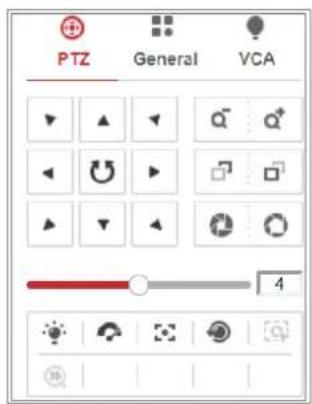
text_image
PTZ General VCAFigure 5-3 PTZ Control Panel
Click the zoom/focus/iris buons to realize lens control.
Notes:
- There are eight direction arrows ( , , , , , , , ) in the control panel. Click the arrows to realize adjustment in the relave posions.
- For the cameras that support lens movements only, the direction buons are invalid.
Table 5-2 Descripons of PTZ Control Panel
| Icon | Descripon |
| Zoom in/out | |
| Focus near/far | |
| Iris +/- | |
| PTZ speed adjustment | |
| Light on/o | |
| Wiper on/o | |
| Auxiliary focus | |
| Inialize lens | |
| Adjust speed of pan/lt movements | |
| Start Manual Tracking | |
| Start 3D Zoom |
5.5.2 Setng/Calling a Preset
- Seng a Preset:
- In the PTZ control panel, select a preset number from the preset list.
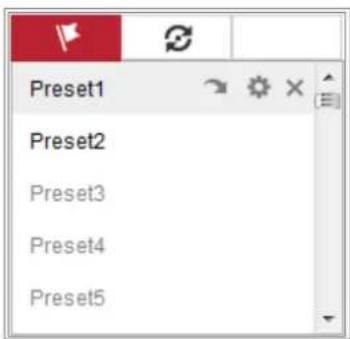
text_image
Preset1 Preset2 Preset3 Preset4 Preset5Figure 5-4 Seng a Preset
-
Use the PTZ control buons to move the lens to the desired posion.
-
Pan the camera to the right or le.
- Tilt the camera up or down.
- Zoom in or out.
-
Refocus the lens.
-
Click to nish the seng of the current preset.
- You can click ✗ to delete the preset.
- Calling a Preset:
This feature enables the camera to point to a specied preset scene manually or automacally when an event takes place.
For the dened preset, you can call it at any me to the desired preset scene.
In the PTZ control panel, select a dened preset from the list and click to call the preset.
Or you can place the mouse on the presets interface, and call the preset by typing the preset No. to call the corresponding presets.
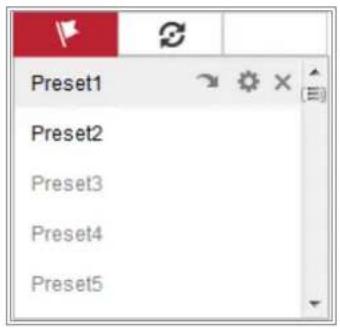
text_image
Preset1 Preset2 Preset3 Preset4 Preset5Figure 5-5 Calling a Preset
5.5.3 Seng/Calling a Patrol
Note:
No less than 2 presets should be congured before you set a patrol.
Steps:
- Click ⚙ to enter the patrol conguraon interface.
- Select a path No., and click + to add the congured presets.
- Select the preset, and input the patrol duraon and patrol speed.
- Click OK to save the rst preset.
- Follow the steps above to add the other presets.
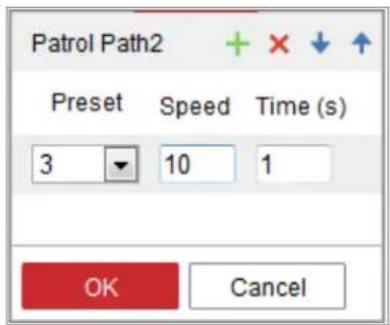
text_image
Patrol Path2 Preset Speed Time (s) 3 10 1 OK CancelFigure 5-6 Add Patrol Path
- Click OK to save a patrol.
- Click to start the patrol, and click to stop it.
- (Oponal) Click to delete a patrol.
5.6 Install Plug-in
Certain operaon system and web browser may restrict the display and operaon of the camera funcon. You should install plug-in or complete certain sengs to ensure normal display and operaon.
| Operaon System | Web Browser | Operaon |
| Windows | Internet Explorer 8+ | Follow pop-up prompts to complete plug-in installaon. |
| ● Google Chrome 57+ ● Mozilla Firefox 52+ | Click to download and install plug-in. | |
| Mac OS | ● Google Chrome 57+ ● Mozilla Firefox 52+ ● Mac Safari 16+ | ● Plug-in installaon is not required. ● Enable WebSocket or WebSockets (Conguraon > Network > Advanced Sengs > Network Service) for normal live view. Display and operaon of certain funcons are restricted. For example, Playback and Picture are not available. For detailed restricted funcon, refer to the actual device. |
Note:
The camera only supports Windows and Mac OS system and does not support Linux system.
Chapter 6 Network Camera
Conguraon
6.1 Conguring Local Parameters
Purpose:
The local conguraon refers to the parameters of the live view, record les and captured pictures. The record les and captured pictures are the ones you record and capture using the web browser and thus the saving paths of them are on the PC running the browser.
Steps:
-
Enter the Local Conguration interface: Conguration > Local.
-
Congure the following sengs:
● Live View Parameters: Set the protocol type and live view performance.
◆ Protocol Type: TCP, UDP, MULTICAST and HTTP are selectable.
TCP: Ensures complete delivery of streaming data and beer video quality, yet the real-me transmission will be aected.
UDP: Provides real-me audio and video streams.
HTTP: Allows the same quality as of TCP without seng specic ports for streaming under some network environments.
MULTICAST: It's recommended to select MCAST type when using the Mulcast funcon. For detailed informaon about Mulcast, refer to 7.1.1 Conguring TCP/IP Sengs.
◆ Play Performance: Set the live view performance to Shortest Delay, Balanced, Fluent or Custom. For Custom, you can set the frame rate for live view.
Rules: It refers to the rules on your local browser, select enable or disable to display or not display the colored marks when the moon detecon, face detecon, or intrusion detecon is triggered. E.g., enabled as the rules are,
and the face detecon is enabled as well, when a face is detected, it will be marked with a green rectangle on the live view.
◆ Display POS Informaon: Enable the funcon, feature informaon of the detected target is dynamically displayed near the target in the live image. The feature informaon of dierent funcons is dierent. For example, ID and waiing me for Queue Management, height for People Counng, etc.
Note:
Display POS Informaon is only available for certain camera models.
◆ Image Format: Choose the image format for picture capture.
| Live View Parameters | ||||
| Protocol | TCP | UDP | MULTICAST | HTTP |
| Play Performance | Shortest Delay | Balanced | Fluent | Custom 20 frame |
| Rules | Enable | Disable | ||
| Display POS Information | Enable | Disable | ||
| Image Format | JPEG | BMP | ||
Figure 6-1 Live View Parameters
- Record File Sengs: Set the saving path of the recorded video les. Valid for the record les you recorded with the web browser.
Record File Size: Select the packed size of the manually recorded and downloaded video les to 256M, 512M or 1G. Aer the selecon, the maximum record le size is the value you selected.
◆ Save record les to: Set the saving path for the manually recorded video les.
- Save downloaded les to: Set the saving path for the downloaded video les in playback mode.
● Picture and Clip Sengs: Set the saving paths of the captured pictures and clipped video les. Valid for the pictures you capture with the web browser.
◆ Save snapshots in live view to: Set the saving path of the manually captured pictures in live view mode.
◆ Save snapshots when playback to: Set the saving path of the captured pictures in playback mode.
◆ Save clips to: Set the saving path of the clipped video les in playback mode.
Note: You can click Browse to change the directory for saving the clips and pictures, and click Open to open the set folder of clips and picture saving.
- Click Save to save the sengs.
6.2 Congure System Sengs
Purpose:
Follow the instrucons below to conjure the system sengs, include System Sengs, Maintenance, Security, and User Management, etc.
6.2.1 Conguring Basic Informaon
Enter the Device Informaon interface: Conguraon > System > System Seings > Basic Informaon.
In the Basic Informaon interface, you can edit the Device Name and Device No.
Other informaon of the network camera, such as Model, Serial No., Firmware Version, Encoding Version, Number of Channels, Number of HDDs, Number of Alarm Input and Number of Alarm Output are displayed. The informaon cannot be changed in this menu. It is the reference for maintenance or modicaon in future.
6.2.2 Conguring Time Sengs
Purpose:
You can follow the instrucons in this secon to conjure the me synchronizaon and DST sengs.
Steps:
- Enter the Time Sengs interface, Conguraon > System > System Sengs > Time Sengs.
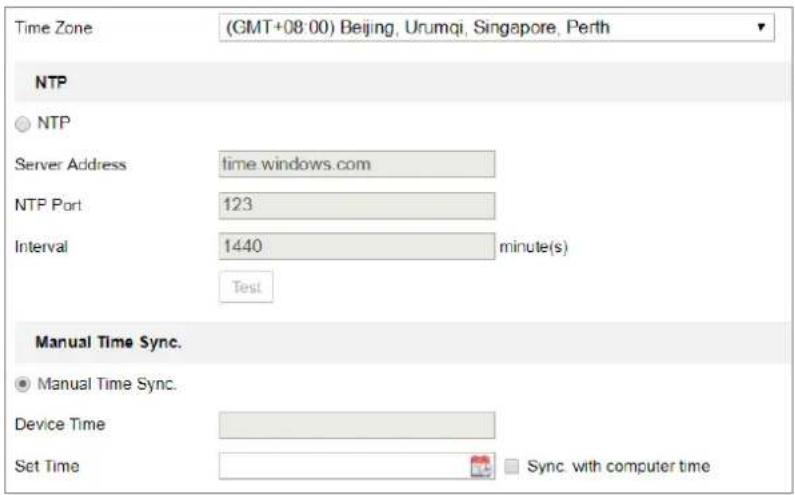
text_image
Time Zone (GMT+08:00) Beijing, Urumqi, Singapore, Perth NTP ○ NTP Server Address time windows.com NTP Port 123 Interval 1440 minute(s) Test Manual Time Sync. ● Manual Time Sync. Device Time Set Time Sync. with computer timeFigure 6-2 Time Sengs
- Select the Time Zone of your locaon from the drop-down menu.
- Congure the NTP sengs.
(1) Click to enable the NTP funcon.
(2) Congure the following sengs:
Server Address: IP address of NTP server.
NTP Port: Port of NTP server.
Interval: The me interval between the two synchronizing acons with NTP server.
(3) (Oponal) You can click the Test buon to test the me synchronizaon funcon via NTP server.
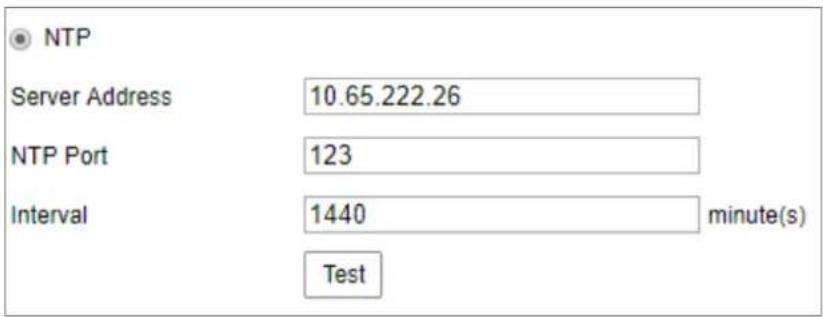
text_image
NTP Server Address 10.65.222.26 NTP Port 123 Interval 1440 minute(s) TestFigure 6-3 Time Sync by NTP Server
Note: If the camera is connected to a public network, you should use a NTP server that has a me synchronizaon funcon, such as the server at the Naonal Time Center (IP Address: 210.72.145.44). If the camera is set in a customized network, NTP soware can be used to establish a NTP server for me synchronizaon.
- Congure the manual me synchronizaon.
(1) Check the Manual Time Sync. to enable the manual me synchronizaon funcon.
(2) Click the icon 📋 to select the date, me from the pop-up calendar.
(3) (Oponal) You can check Sync. with computer me item to synchronize the me of the device with that of the local PC.

text_image
Sun Mon Tue Wed Thu Fri Sat 26 27 28 29 30 1 2 3 4 5 6 7 8 9 10 11 12 13 14 15 16 17 18 19 20 21 22 23 24 25 26 27 28 29 30 31 1 2 3 4 5 6 Time 18 : 57 : 36 OK 2015-05-18T18:57:36Figure 6-4 Time Sync Manually
- Click Save to save the settings.
6.2.3 Conguring DST Sengs
Purpose:
Daylight Saving Time (DST) is a way of making beer use of the natural daylight by seng your clock forward one hour during the summer months, and back again in the fall.
Congure the DST according to your actual demand.
Steps:
- Enter the DST conguraon interface: Conguraon > System > System Setngs > DST.
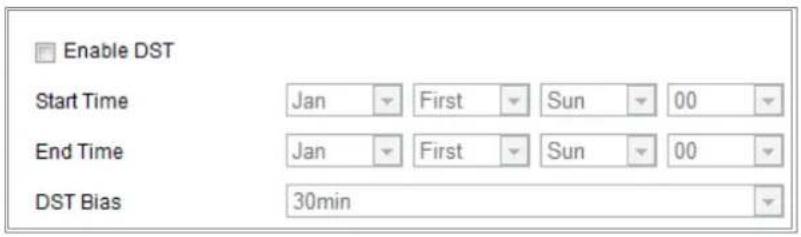
text_image
Enable DST Start Time Jan First Sun 00 End Time Jan First Sun 00 DST Bias 30minFigure 6-5 DST Sengs
- Select the start me and the end me.
- Select the DST Bias.
- Click Save to acvate the sengs.
6.2.4 Conguring RS-232 Sengs
The RS-232 port can be used in two ways:
- Console: Connect a computer to the camera through the serial port. Device parameters can be congured by using soware such as HyperTerminal. The serial port parameters must be the same as the serial port parameters of the camera.
- Transparent Channel: Connect a serial device directly to the camera. The serial device will be controlled remotely by the computer through the network.
Steps:
-
Enter RS-232 Port Seng interface: Conguraon > System > System Seings > RS-232.
-
Congure the Baud Rate, Data Bit, Stop Bit, Parity, Flow Control, and Usage.
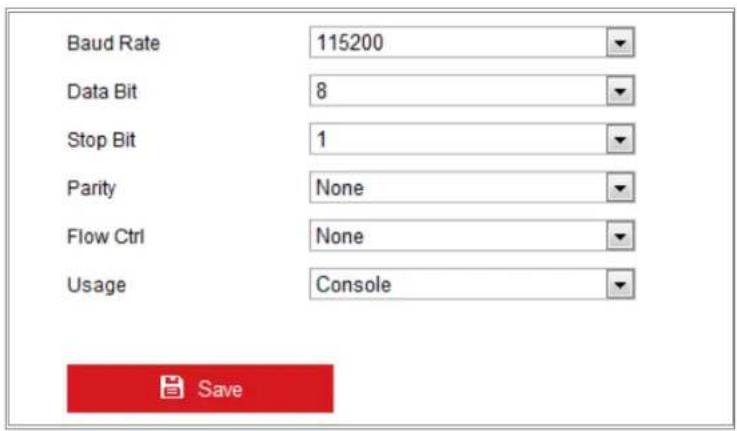
text_image
Baud Rate 115200 Data Bit 8 Stop Bit 1 Parity None Flow Ctrl None Usage Console SaveFigure 6-6 RS-232 Sengs
Note: If you want to connect the camera by the RS-232 port, the parameters of the RS-
232 should be the same with the parameters you congured here.
- Click Save to save the setngs.
6.2.5 Conguring RS-485 Sengs
Purpose:
The RS-485 serial port is used to control the PTZ of the camera. The conguring of the PTZ parameters should be done before you control the PTZ unit.
Note: Only certain camera models support this funcon.
Steps:
- Enter RS-485 Port Seng interface: Conguraon > System > System Setngs > RS-485.
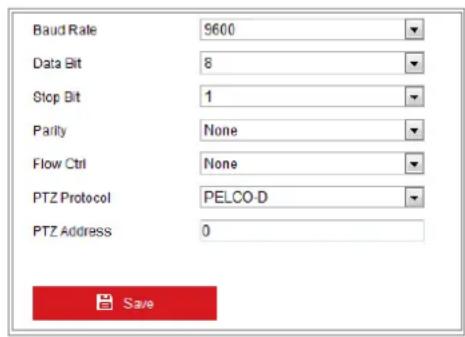
text_image
Baud Rate 9600 Data Bit 8 Stop Bit 1 Parity None Flow Ctrl None PTZ Protocol PELCO-D PTZ Address 0 SaveFigure 6-7 RS-485 Sengs
- Set the RS-485 parameters and click Save to save the sengs.
By default, the Baud Rate is set as 9600 bps, the Data Bit is 8, the stop bit is 1 and the Parity and Flow Control is None.
Note: The Baud Rate, PTZ Protocol and PTZ Address parameters should be exactly the same as the PTZ camera parameters.
6.2.6 Conguring VCA Resource
Purpose:
VCA resource oers you opons to enable certain VCA funcons according to actual need when several VCA funcons are available. It helps allocate more resources to the desired funcons.
Steps:
- Enter VCA Resource conguraon interface:
Conguraon > System > System Sengs > VCA Resource
- Select a desired VCA combinaon. Available VCA combinaon varies according to dierent camera models.
- Click Save to save the sengs. A reboot is required aer seng the VCA Resource.
Notes:
- VCA combinaons are mutually exclusive. When you acvate one combinaon, the others are hidden.
• Only certain camera models support the funcon.
6.2.7 Conguring Metadata Sengs
Purpose:
Metadata is the raw data the camera collects before algorithm processing. Metadata of intrusion detecon, line crossing detecon, region entrance detecon, region exing detecon, unaended baggage detecon, object removal, queue management and face capture can be uploaded. If enabled, the metadata of the corresponding event are available for users to explore the possibility of various data usage.
Steps:
- Enter Metadata sengs interface:
Conguraon > System > System Sengs > metadata Sengs
-
Check the checkbox of the corresponding funcon to enable the metadata funcon.
-
The metadata of the smart event includes the target ID, target coordinate and time informaon.
-
The metadata of face capture includes the rule information, target ID, target coordinate, face grading and me informaon. The camera detects the whole image by default. If the region is congured in the face capture sengs, the camera detects the congured region.
-
Check Enable Stream Rule to overlay the stream rule on the live view image. Make sure you have checked Sub-stream and selected the Sub-stream in the live view.
- Check Overlay Rule Frame and Target Frame on Background Picture to enable the funcon. Make sure you have checked Sub-stream and selected the Sub-stream in the live view.
Note: Only certain camera models support the funcon.
6.2.8 Open Source Soware License
Informaon about the open source soware that applies to the IP camera can be checked if required. Go to Conguraon > System Sengs > About.
6.3 Maintenance
6.3.1 Upgrade & Maintenance
Purpose:
The upgrade & maintenance interface allows you to process the operaons, including reboot, partly restore, restore to default, export/import the conguraon les, and upgrade the device.
Enter the Maintenance interface: Conguraon > System > Maintenance > Upgrade & Maintenance.
● Reboot: Restart the device.
- Restore: Reset all the parameters except the IP parameters and user informaon to the default sengs.
● Default: Restore all the parameters to the factory default.
Notes:
- Aer restoring the default sengs, the IP address is also restored to the default IP address, please be careful for this acon.
- For camera that supports Wi-Fi, wireless dial, or wlan funcon, Restore acon does not restore the related sengs of menoned funcons to default.
- When you restore the device to the factory default, video standard is reserved.
- Informaon Export
Device Parameters: click to export the current conguraon le of the camera.
This operaon requires admin password to proceed.
For the exported file, you also have to create an encrypon password. The encrypon password is required when you import the le to other cameras.
Diagnose Informaon: click to download log and system informaon.
- Import Cong. File
Conguration le is used for the batch conguraon of the cameras.
Steps:
- Click Browse to select the saved conguraon file.
- Click Import and input the encrypon password that you set during exporng.
Note: You need to reboot the camera aer imporng conguraon le.
- Upgrade: Upgrade the device to a certain version.
Steps:
-
Select rmware or rmware directory to locate the upgrade le.
Firmware: Locate the exact path of the upgrade le.
Firmware Directory: Only the directory the upgrade le belongs to is required. -
Click Browse to select the local upgrade le and then click Upgrade to start remote upgrade.
Note: The upgrading process will take 1 to 10 minutes. Please do not disconnect power of the camera during the process, and the camera reboots automatically aer upgrade.
6.3.2 Log
Purpose:
The operaon, alarm, excepon and informaon of the camera can be stored in log les. You can also export the log les on your demand.
Before you start:
Please congure network storage for the camera or insert a SD card in the camera.
Steps:
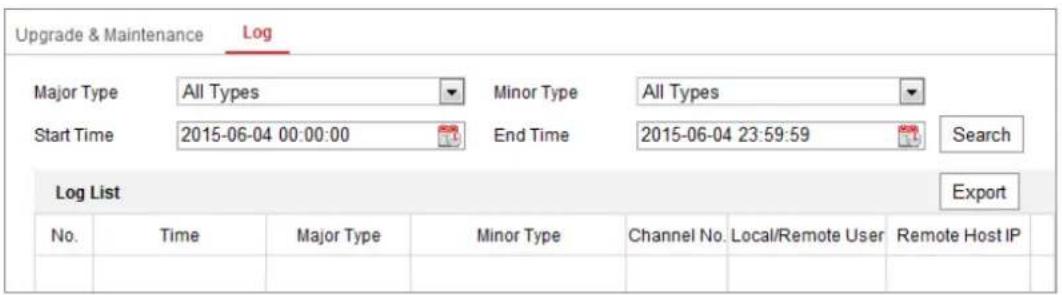
- Enter log searching interface: Conguraon > System > Maintenance > Log.
text_image
Upgrade & Maintenance Log Major Type All Types Minor Type All Types Start Time 2015-06-04 00:00:00 End Time 2015-06-04 23:59:59 Search Log List Export No. Time Major Type Minor Type Channel No. Local/Remote User Remote Host IPFigure 6-8 Log Searching Interface
2. Set the log search conditions to specify the search, including the Major Type, Minor Type, Start Time and End Time.
3. Click Search to search log files. The matched log files will be displayed on the log list interface.
| Log List | ||||||
| No. | Time | Major Type | Minor Type | Channel No. | Local/Remote User | Remote Host IP |
| 1 | 2015-05-25 19:12:34 | Operation | Remote: Get Working Sta... | admin | 10.16.1.107 | |
| 2 | 2015-05-25 19:12:12 | Operation | Remote: Get Working Sta... | admin | 10.16.1.107 | |
| 3 | 2015-05-25 19:12:12 | Operation | Remote: Get Working Sta... | admin | 10.16.1.107 | |
| 4 | 2015-05-25 19:12:12 | Operation | Remote: Get Working Sta... | admin | 10.16.1.107 | |
| 5 | 2015-05-25 19:12:11 | Operation | Remote: Get Working Sta... | admin | 10.16.1.107 | |
| 6 | 2015-05-25 19:12:11 | Operation | Remote: Get Working Sta... | admin | 10.16.1.107 | |
| 7 | 2015-05-25 19:12:11 | Operation | Remote: Get Working Sta... | admin | 10.16.1.107 | |
| 8 | 2015-05-25 19:12:10 | Operation | Remote: Get Working Sta... | admin | 10.16.1.107 | |
| 9 | 2015-05-25 19:09:28 | Operation | Remote: Get Parameters | admin | 10.16.1.107 | |
| 10 | 2015-05-25 19:09:25 | Operation | Remote: Get Parameters | admin | 10.16.1.107 | |
| 11 | 2015-05-25 19:09:25 | Operation | Remote: Get Parameters | admin | 10.16.1.107 | |
| 12 | 2015-05-25 19:09:24 | Operation | Remote: Get Parameters | admin | 10.16.1.107 | |
| Total 614 Items | ||||||
Figure 6-9 Log Searching
- To export the log les, click Export to save the log les.
6.3.3 System Service
Purpose:
System service sengs refer to the hardware service the camera supports. Supported funcons vary according to the dierent cameras. For the cameras support IR Light, ABF (Auto Back Focus), Auto Defog, or Status LED, you can select to enable or disable the corresponding service according to the actual demands.
Note: Only certain device models support this funcon.
ABF: When ABF funcon is enabled, you can click on PTZ control panel to realize auxiliary focus.
Third Stream: For some models, third stream is not enabled by default. Check Enable Third Stream to enable the funcon.
eMMC Protecon: If you enable eMMC protecon, the lifespan of the eMMC is displayed.
Enable Moon Detecon: Check Enable Moon Detecon to enable the funcon.
6.3.4 Security Audit Log
Purpose:
The security audit logs refer to the security operaon logs. You can search and analyze the security log les of the camera so that to nd out the illegal intrusion and troublesomeong the security events. Security audit logs can be saved on device ash. The log will be saved every half hour aer device boong.
Due to limited saving space of the ash, you can also save the logs on a log server.
Congure the server sengs at Advanced Sengs.
Note: Only certain camera models support the funcon.
- Searching Logs
Steps:
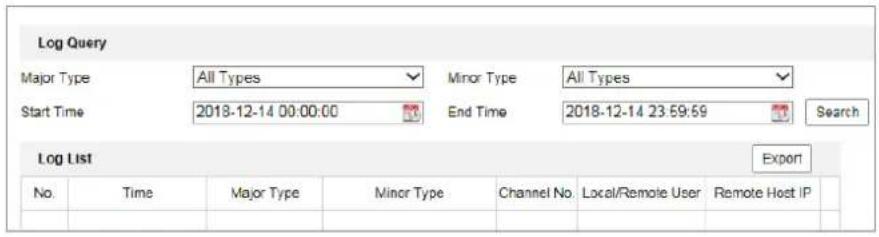
- Enter log searching interface: Conguraon > System > Maintenance > Security Audit Log.
text_image
Log Query Major Type All Types Minor Type All Types Start Time 2018-12-14 00:00:00 End Time 2018-12-14 23:59:59 Search Log List Export No. Time Major Type Minor Type Channel No. Local/Remote User Remote Host IPFigure 6-10 Security Audit Log Searching Interface
- Set the log search conditions to specify the search, including the Major Type, Minor Type, Start Time and End Time.
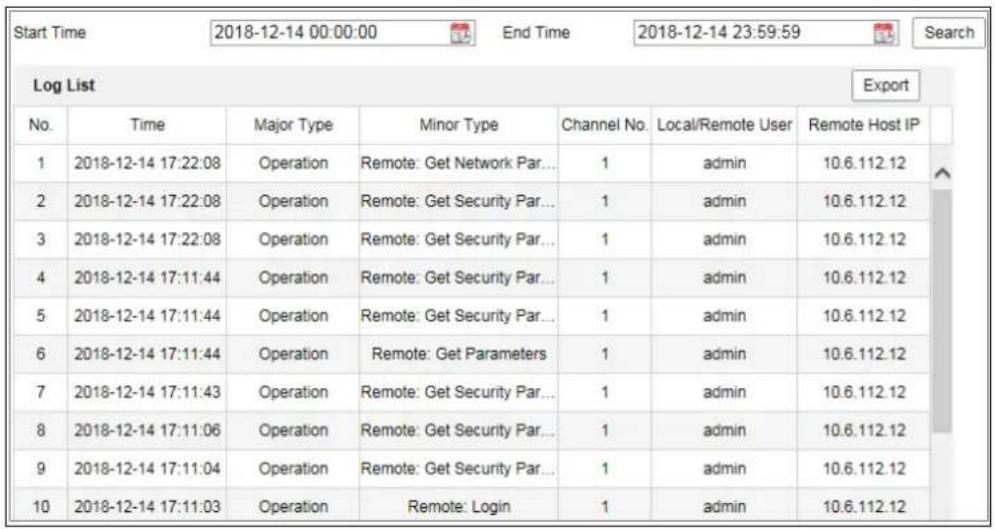
- Click Search to search log les. The matched log les will be displayed on the log list interface.
text_image
Start Time 2018-12-14 00:00:00 End Time 2018-12-14 23:59:59 Search Log List Export No. Time Major Type Minor Type Channel No. Local/Remote User Remote Host IP 1 2018-12-14 17:22:08 Operation Remote: Get Network Par... 1 admin 10.6.112.12 2 2018-12-14 17:22:08 Operation Remote: Get Security Par... 1 admin 10.6.112.12 3 2018-12-14 17:22:08 Operation Remote: Get Security Par... 1 admin 10.6.112.12 4 2018-12-14 17:11:44 Operation Remote: Get Security Par... 1 admin 10.6.112.12 5 2018-12-14 17:11:44 Operation Remote: Get Security Par... 1 admin 10.6.112.12 6 2018-12-14 17:11:44 Operation Remote: Get Parameters 1 admin 10.6.112.12 7 2018-12-14 17:11:43 Operation Remote: Get Security Par... 1 admin 10.6.112.12 8 2018-12-14 17:11:06 Operation Remote: Get Security Par... 1 admin 10.6.112.12 9 2018-12-14 17:11:04 Operation Remote: Get Security Par... 1 admin 10.6.112.12 10 2018-12-14 17:11:03 Operation Remote: Login 1 admin 10.6.112.12Figure 6-11 Log Searching
- To export the log les, click Export to save the log les.
- Seng Log Server
Steps:
- Check Enable Log Upload Server.
- Input Log Server IP and Log Server Port.
- Click Test to test sengs.
- Install cercates. Client certificate and CA cercate are required.
- Client Cercate
(1) Click Create button to create the cercate request. Fill in the required informaon in the popup window.
(2) Click Download to download the cercate request and submit it to the
trusted cercate authority for signature.
(3) Install the signed cercate to the device.
- CA Cercate
Install the CA cercate to the device.
6.4 Security Sengs
Congure the parameters, including Authencaon, IP Address Filter, and Security Service from security interface.
6.4.1 Authencaon
Purpose:
You can specifically secure the stream data of live view.
Steps:
- Enter the Authencaon interface: Conguraon > System > Security >
Authencaon.
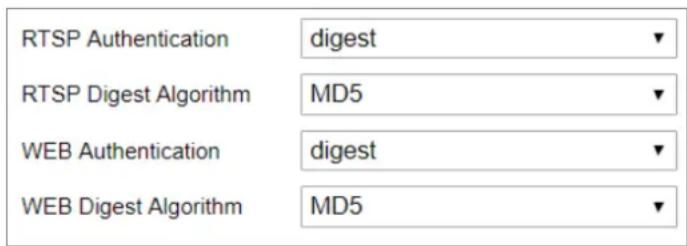
text_image
RTSP Authentication digest RTSP Digest Algorithm MD5 WEB Authentication digest WEB Digest Algorithm MD5Figure 6-12 Authencaon
- Set up authencaon method for RTSP authencaon and WEB authencaon,
RTSP digest algorithm, and WEB digest algorithm.
- RTSP Authencaon
Digest and digest/basic are supported, which means authencaon informaon is needed when RTSP request is sent to the device. If you select digest/basic, it means the device supports digest or basic authencaon. If you select digest, the device only supports digest authencaon.
• RTSP Digest Algorithm
MD5, SHA256 and MD5/SHA256 encrypted algorithm in RTSP authencaon. If
you enable the digest algorithm except for MD5, the third-party plaorm might not be able to log in to the device or enable live view because of compatibility. The encrypted algorithm with high strength is recommended.
- WEB Authencaon
Digest and digest/basic are supported, which means authencaon informaon is needed when WEB request is sent to the device. If you select digest/basic, it means the device supports digest or basic authencaon. If you select digest, the device only supports digest authencaon.
- WEB Digest Algorithm
MD5, SHA256 and MD5/SHA256 encrypted algorithm in WEB authencaon. If you enable the digest algorithm except for MD5, the third-party plaorm might not be able to log in to the device or enable live view because of compatibility. The encrypted algorithm with high strength is recommended.
Note:
Refer to the specific content of protocol to view authencaon requirements.
- Click Save to save the setngs.
6.4.2 IP Address Filter
Purpose:
This funcon makes it possible for access control.
Steps:
- Enter the IP Address Filter interface: Conguraon > System > Security > IP Address Filter
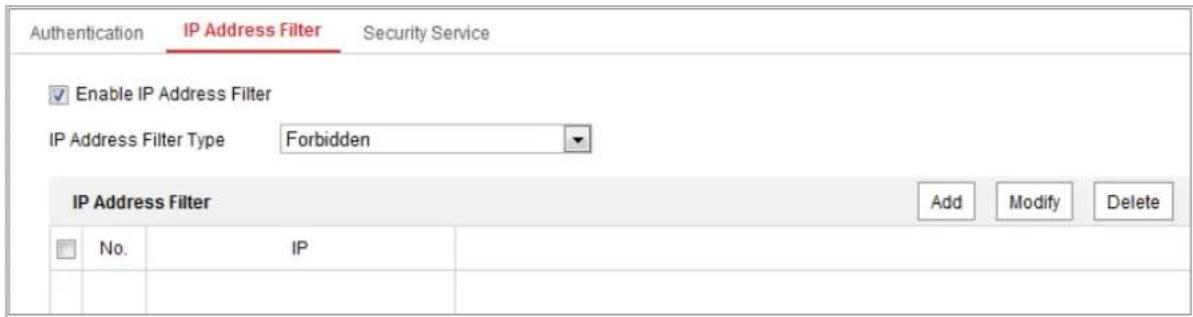
text_image
Authentication IP Address Filter Security Service Enable IP Address Filter IP Address Filter Type Forbidden IP Address Filter Add Modify Delete No. IPFigure 6-13 IP Address Filter Interface
- Check the checkbox of Enable IP Address Filter.
- Select the type of IP Address Filter in the drop-down list, Forbidden and Allowed are selectable.
- Set the IP Address Filter list.
- Add an IP Address
Steps:
(4) Click the Add to add an IP.
(5) Input the IP Adreess.
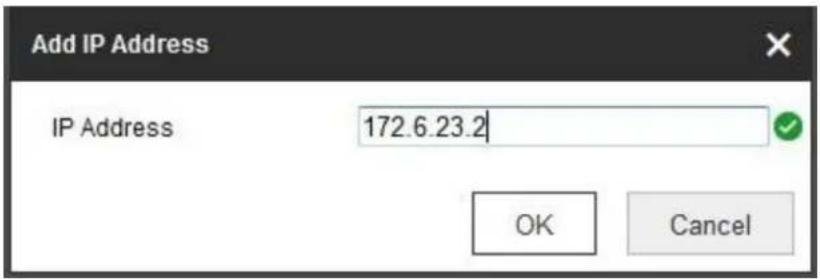
text_image
Add IP Address IP Address 172.6.23.2 OK CancelFigure 6-14 Add an IP
(6) Click the OK to nish adding.
- Modify an IP Address
Steps:
(1) Le-click an IP address from Iter list and click Modify.
(2) Modify the IP address in the text led.
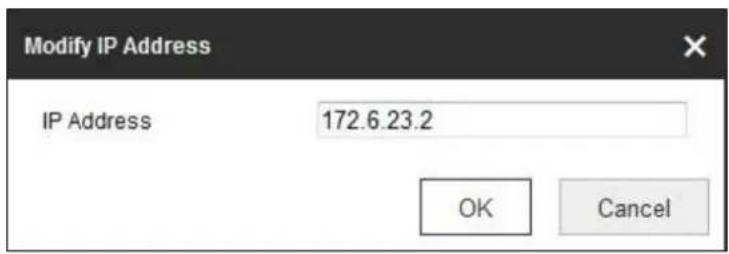
text_image
Modify IP Address IP Address 172.6.23.2 OK CancelFigure 6-15 Modify an IP
(3) Click the OK to nish modifying.
- Delete an IP Address or IP Addresses.
Select the IP address(es) and click Delete.
- Click Save to save the setngs.
6.4.3 Security Service
To enable the remote login, and improve the data communicaon security, the camera provides the security service for beer user experience.
Note: Only certain camera models support the funcon.
Steps:
- Enter the security service conguraon interface: Conguraon > System > Security > Security Service.
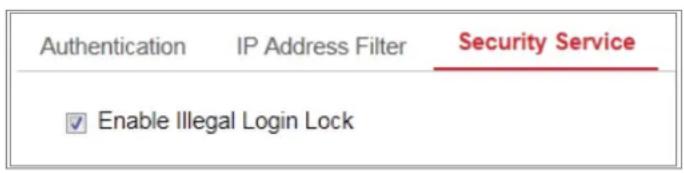
text_image
Authentication IP Address Filter Security Service ✓ Enable Illegal Login LockFigure 6-16 Security Service
- Check the checkbox of Enable Illegal Login Lock.
Illegal Login Lock: it is used to limit the user login aempts. Login aempt from the IP address is rejected if admin user performs 7 failed user name/password aempts (5 mes for the operator/user).
Note: If the IP address is rejected, you can try to login the device aer 30 minutes.
6.4.4 Advanced Security
Purpose:
Advanced security oers opons to manage more network security sengs of the device.
● Security Reinforce
Check the checkbox to enable the funcon. Security reinforce is a soluon to enhance network security. With the funcon enabled, risky funcons, protocols, ports of the device are disabled and more secured alternate funcons, protocols and ports are enabled.
● Control Timeout Sengs
If you enable the funcon and set meout period, you will be logged out when you make no operaon to the device via web browser (Viewing live image and playback are not included.) for the set meout period.
- Algorithm
Displays the currently acve digest algorithm. If Security Reinforce is enabled, MD5 is disabled and SHA256 is enabled instead.
6.5 User Management
6.5.1 User Management
- As Administrator
The admin user can add, delete or modify user accounts, and grant them dierent permissions. We highly recommend you manage the user accounts and permissions properly.
Enter the User Management interface: Conguraon > System > User
Management
Note:
Admin password if required for adding and modifying a user account.
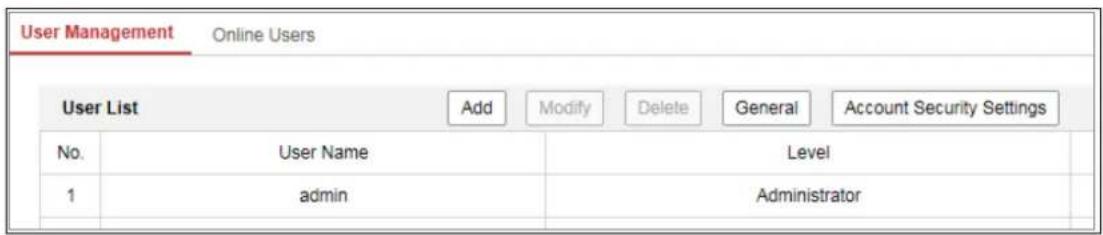
text_image
User Management Online Users User List Add Modify Delete General Account Security Settings No. User Name Level 1 admin AdministratorFigure 6-17 User Management Interface
- Adding a User
The admin user has all permissions by default and can create/modify/delete other accounts.
The admin user cannot be deleted and you can only change the admin password.
Steps:
- Click Add to add a user.
- Input the Admin Password, User Name, select Level and input Password.
Notes:
- Up to 31 user accounts can be created.
- Users of dierent levels own dierent default permissions. Operator and user are selectable.

STRONG PASSWORD RECOMMENDED—We highly recommend you create a strong password of your own choosing (using a minimum of 8 characters, including at least three of the following categories: upper case leers, lower case letters, numbers, and special characters) in order to increase the security of your product. And we recommend you reset your password regularly, especially in the high security system, reseng the password monthly or weekly can beer protect your product.
-
You can check or uncheck the permissions for the new user.
-
Click OK to nish the user addition.
- Modifying a User
Steps:
- Left-click to select the user from the list and click Modify.
- Modify the User Name, Level and Password.

STRONG PASSWORD RECOMMENDED-We highly recommend you create a strong password of your own choosing (using a minimum of 8 characters, including at least three of the following categories: upper case leers, lower case leers, numbers, and special characters) in order to increase the security of your product. And we recommend you reset your password regularly, especially in the high security system, reseng the password monthly or weekly can beer protect your product.
-
You can check or uncheck the permissions.
-
Click OK to nish the user modicaon.
- Deleng a User
Steps:
- Click to select the user you want to delete and click Delete.
- Click OK on the pop-up dialogue box to conrm the deleon.
- Seng Simultaneous Login
Steps:
- Click General.
- Slide the slide bar to set the simultaneous login. If the number of the illegal login aempts exceeds the set threshold, your access will be denied.
- As Operator or User
Operator or user can modify password. Old password is required for this acon.
6.5.2 Security Queson
Purpose:
Security queson is used to recover the admin password when admin user forgets the password. Recovering the password via the security quesons and via the email are available.
Note: Only certain camera models support the funcon.
Set Account Security:
You can set the security quesons during camera acvaon. Or you can set the funcon at user management interface.
Security queson seng is not cleared when you restore the camera (not to default).
Steps:
- Enter seng interface:
Conguraon > System > User Management > User Management
- Click Account Security Seings.
- Select quesons and input answers.
- Enter the E-mail address to receive the vericaon code for password recovery.
- Click OK to save the sengs.
Reset Admin Password:
Before you start:
The PC used to reset password and the camera should belong to the same IP address segment of the same LAN.
Steps:
-
Enter login interface via web browser.
-
Click Forget Password.
-
Select the vericaon mode to E-mail Vericaon.
-
Read the Privacy Policy and click OK.
-
Click Export QR Code and save the code to local.
-
Send the code to pw_recovery@hikvision.com as an aachment. Your email account for password recovery will receive a vericaon code in 5 minutes.
Note:
The vericaon code is valid within 48 hours.
- Input the vericaon code in the text eld below.

text_image
1 2 3 Verify Identification Set New Password Complete Verification Mode E-mail Verification Export QR Code 1. Click Export QR Code and save the code to local 2. Send the code to pw_recovery@hikvision.com as an attachment. Your email account for password recovery will receive a verification code in 5 minutes. 3. Input the verification code in the text field below. Verification Code Next ClearFigure 6-18 Reset Password
-
Click Next.
-
Input the password and conrm.
-
Follow the instrucons to create a new password.
Note:
- User IP address is locked for 30 minutes aer 7 failed attempts of answering security quesons.
● Only certain camera models support the funcon.
6.5.3 Online Users
Purpose:
You can see the current users who are vising the device through this interface. User informaon, such as user name, level, IP address, and operaon me, is displayed in the User List.
Click Refresh to refresh the list.

text_image
User Management Online Users User List Refresh No. User Name Level IP Address User Operation Time 1 admin Administrator 10.16.2.101 2015-11-16 10:57:55Figure 6-19 View the Online Users
Chapter 7 Network Sengs
Purpose:
Follow the instrucons in this chapter to congregate the basic sengs and advanced sengs.
7.1 Conguring Basic Sengs
Purpose:
You can congregate the parameters, including TCP/IP, DDNS, PPPoE, Port, and NAT, etc., by following the instrucons in this secon.
7.1.1 Conguring TCP/IP Sengs
Purpose:
TCP/IP sengs must be properly congured before you operate the camera over network. The camera supports both the IPv4 and IPv6. Both versions can be congured simultaneously without conicng to each other, and at least one IP version should be congured.
Steps:
- Enter TCP/IP Sengs interface: Conguraon > Network > Basic Setngs > TCP/IP

text_image
NIC Type Auto DHCP IPv4 Address 10.11.37.120 Test IPv4 Subnet Mask 255.255.255.0 IPv4 Default Gateway 10.11.37.254 IPv6 Mode Route Advertisement View Route Advertisement IPv6 Address 0 IPv6 Subnet Mask 0 IPv6 Default Gateway Mac Address c0:56:e3:60:27:5d MTU 1500 Multicast Address Enable Multicast Discovery DNS Server Preferred DNS Server 8.8.8.8 Alternate DNS Server SaveFigure 7-1 TCP/IP Sengs
- Congure the basic network sengs, including the NIC Type, IPv4 or IPv6 Address, IPv4 or IPv6 Subnet Mask, IPv4 or IPv6 Default Gateway, MTU sengs and Mulcast Address.
- (Oponal) Check the checkbox of Enable Mulcast Discovery, and then the online network camera can be automatically detected by client soware via private mulcast protocol in the LAN.
- Congure the DNS server. Input the preferred DNS server, and alternate DNS server.
- Click Save to save the above sengs.
Notes:
● The valid value range of MTU is 1280 to 1500.
- The Mulcast sends a stream to the mulcast group address and allows mulple clients to acquire the stream at the same me by requesng a copy from the mulcast group address. Before ulizing this funcon, you have to enable the
Mulcast funcon of your router.
● A reboot is required for the sengs to take eect.
7.1.2 Conguring DDNS Sengs
Purpose:
If your camera is set to use PPPoE as its default network conncon, you can use the Dynamic DNS (DDNS) for network access.
Before you start:
Registraon on the DDNS server is required before conguring the DDNS sengs of the camera.
Steps:
- Enter the DDNS Sengs interface: Conguraon > Network > Basic Sengs > DDNS.
- Check the Enable DDNS checkbox to enable this feature.
- Select DDNS Type. Two DDNS types are selectable: DynDNS and NO-IP.
- DynDNS:
Steps:
(1) Enter Server Address of DynDNS (e.g. members.dyndns.org).
(2) In the Domain text eld, enter the domain name obtained from the DynDNS website.
(3) Enter the User Name and Password registered on the DynDNS website.
(4) Click Save to save the sengs.
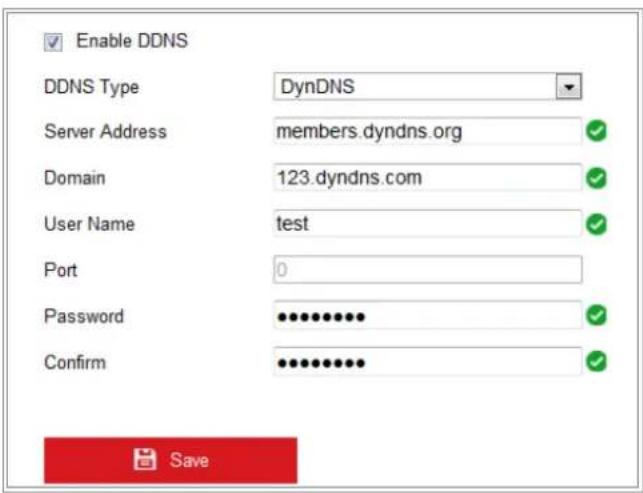
text_image
Enable DDNS DDNS Type DynDNS Server Address members.dyndns.org Domain 123.dyndns.com User Name test Port 0 Password •••••••••• Confirm ••••••••••• SaveFigure 7-2 DynDNS Sengs
- NO-IP:
Steps:
(1) Choose the DDNS Type as NO-IP.
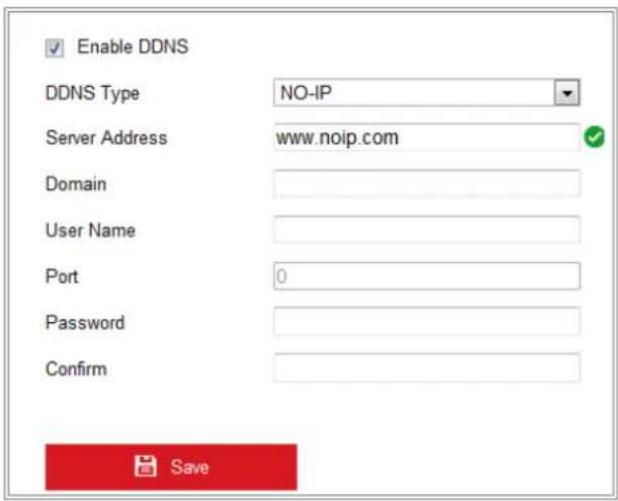
text_image
Enable DDNS DDNS Type NO-IP Server Address www.noip.com Domain User Name Port 0 Password Confirm SaveFigure 7-3 NO-IP DNS Sengs
(2) Enter the Server Address as www.noip.com
(3) Enter the Domain name you registered.
(4) Enter the User Name and Password.
(5) Click Save and then you can view the camera with the domain name.
7.1.3 Conguring PPPoE Sengs
Steps:
1. Enter the PPPoE Sengs interface: Conguraon > Network > Basic Setngs >
PPPoE

text_image
Enable PPPoE Dynamic IP 0.0.0.0 User Name Password Confirm SaveFigure 7-4 PPPoE Sengs
- Check the Enable PPPoE checkbox to enable this feature.
- Enter User Name, Password, and Conrm password for PPPoE access.
Note: The User Name and Password should be assigned by your ISP.

- For your privacy and to beer protect your system against security risks, we strongly recommend the use of strong passwords for all funcons and network devices. The password should be something of your own choosing (using a minimum of 8 characters, including at least three of the following categories: upper case leers, lower case leers, numbers and special characters) in order to increase the security of your product.
- Proper conguraon of all passwords and other security sengs is the responsibility of the installer and/or end-user.
- Click Save to save and exit the interface.
Note: A reboot is required for the setngs to take eect.
7.1.4 Conguring Port Sengs
Purpose:
You can set the port No. of the camera, e.g., HTTP port, RTSP port and HTTPS port.
Steps:
-
Enter the Port Sengs interface, Conguraon > Network > Basic Seings > Port
-
Set the ports of the camera.
HTTP Port: The default port number is 80, and it can be changed to any port No. that is not occupied.
RTSP Port: The default port number is 554 and it can be changed to any port No. ranges from 1 to 65535.
HTTPS Port: The default port number is 443, and it can be changed to any port No. that is not occupied.
Server Port: The default server port number is 8000, and it can be changed to any port No. ranges from 2000 to 65535.
Enhanced SDK Service Port: The default server number is 8443. It refers to the port through which the client adds the device. Cercate vericaon is required to ensure the secure access.
Note:
When you use client soware to visit the camera and you have changed the server port number, you have to input the correct server port number in login interface to access to the camera.
WebSocket Port: The default port number is 7681. It can be changed to any port No. ranges from 1 to 65535.
WebSockets Port: The default server port number is 7682. It can be changed to any port No. ranges from 1 to 65535.
Note:
WebSocket and WebSockets protocol are used for plug-in free live view. For detailed informaon, see 7.2.11.
- Click Save to save the setngs.
7.1.5 Congure NAT (Network Address Translaon) Setngs
Purpose:
NAT interface allows you to congregate the UPnP™ parameters.
Universal Plug and Play (UPnP™) is a networking architecture that provides
compability among networking equipment, soware and other hardware devices. The UPnP protocol allows devices to connect seamlessly and to simplify the implementation of networks in the home and corporate environments.
With the funcon enabled, you do not need to conjure the port mapping for each port, and the camera is connected to the Wide Area Network via the router.
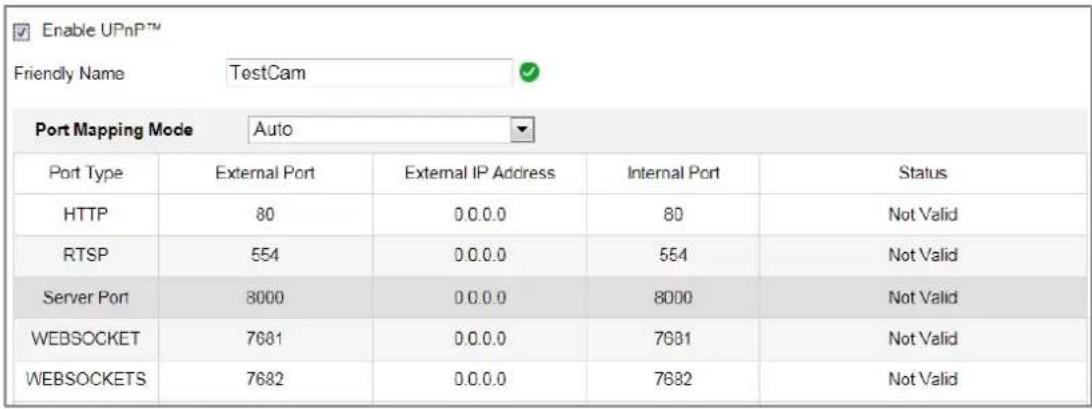
text_image
Enable UPnPTM Friendly Name TestCam Port Mapping Mode Auto Port Type External Port External IP Address Internal Port Status HTTP 80 0.0.0 80 Not Valid RTSP 554 0.0.0 554 Not Valid Server Port 8000 0.0.0 8000 Not Valid WEBSOCKET 7681 0.0.0 7681 Not Valid WEBSOCKETS 7682 0.0.0 7682 Not ValidFigure 7-5 UPnP Sengs
Steps:
- Enter the NAT sengs interface. Conguraon > Network > Basic Setngs > NAT.
- Check the checkbox to enable the UPnP™ function.
Note:
Only when the UPnP™ funcon is enabled, ports of the camera are acve.
- Choose a friendly name for the camera, or you can use the default name.
- Select the port mapping mode. Manual and Auto are selectable.
Note:
If you select Auto, you should enable UPnP™ funcon on the router.
If you select Manual, you can customize the value of the external port and complete port mapping sengs on router manually.
- Click Save to save the settings.
7.1.6 Conguring Mulcast
Purpose:
Mulcast is group communicaon where data transmission is addressed to a group of desnaon devices simultaneously. Aer seng up acve mulcast, you can send the source eciently to mulple devices.
Note: Only certain camera models support this funcon.
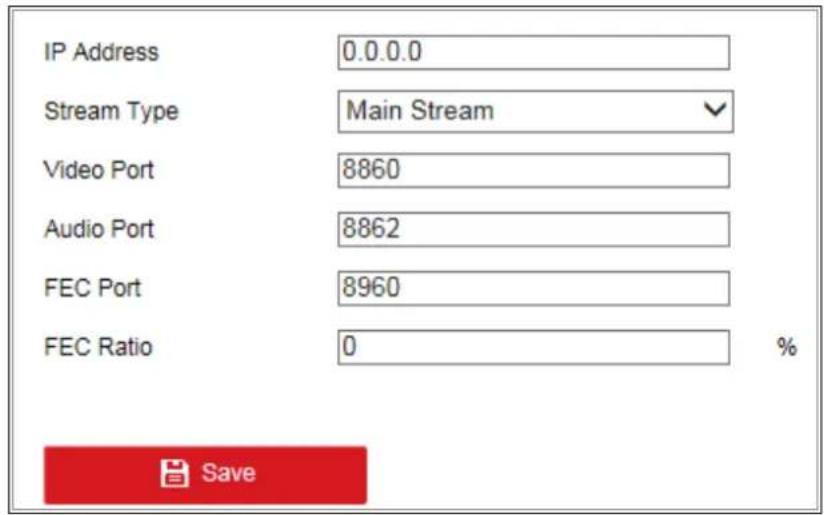
text_image
IP Address 0.0.0.0 Stream Type Main Stream Video Port 8860 Audio Port 8862 FEC Port 8960 FEC Ratio 0 % SaveFigure 7-6 Seng Mulcast
Steps:
- Enter the Mulcast seng interface.
Conguraon > Network > Basic Setngs > Mulcast
- Set IP Address, Stream Type, Video Port, Audio Port, FEC Port and FEC Rao of the camera.
Notes:
• IP Address stands for the address of mulcast.
- Video port and audio port of each video stream of each camera channel can be specied by selecng a stream in Video Stream and inpung port number in Video Port and Audio Port.
- Click Save.
7.2 Congure Advanced Sengs
Purpose:
You can congregate the parameters, including SNMP, FTP, Email, HTTPS, QoS, 802.1x,
etc., by following the instrucons in this secon.
7.2.1 Conguring SNMP Sengs
Purpose:
You can set the SNMP funcon to get camera status, parameters and alarm related informaon, and manage the camera remotely when it is connected to the network.
Before you start:
Before seng the SNMP, please download the SNMP soware and manage to receive the camera informaon via SNMP port. By seng the Trap Address, the camera can send the alarm event and excepon messages to the surveillance center.
Note: The SNMP version you select should be the same as that of the SNMP soware.
And you also need to use the dierent version according to the security level you required. SNMP v1 provides no security and SNMP v2 requires password for access.
And SNMP v3 provides encrypon and if you use the third version, HTTPS protocol must be enabled.

- For your privacy and to beer protect your system against security risks, we strongly recommend the use of strong passwords for all funcons and network devices. The password should be something of your own choosing (using a minimum of 8 characters, including at least three of the following categories: upper case leers, lower case leers, numbers and special characters) in order to increase the security of your product.
- Proper conguraon of all passwords and other security sengs is the responsibility of the installer and/or end-user.
Steps:
- Enter the SNMP Sengs interface: Conguraon > Network > Advanced Sengs > SNMP.
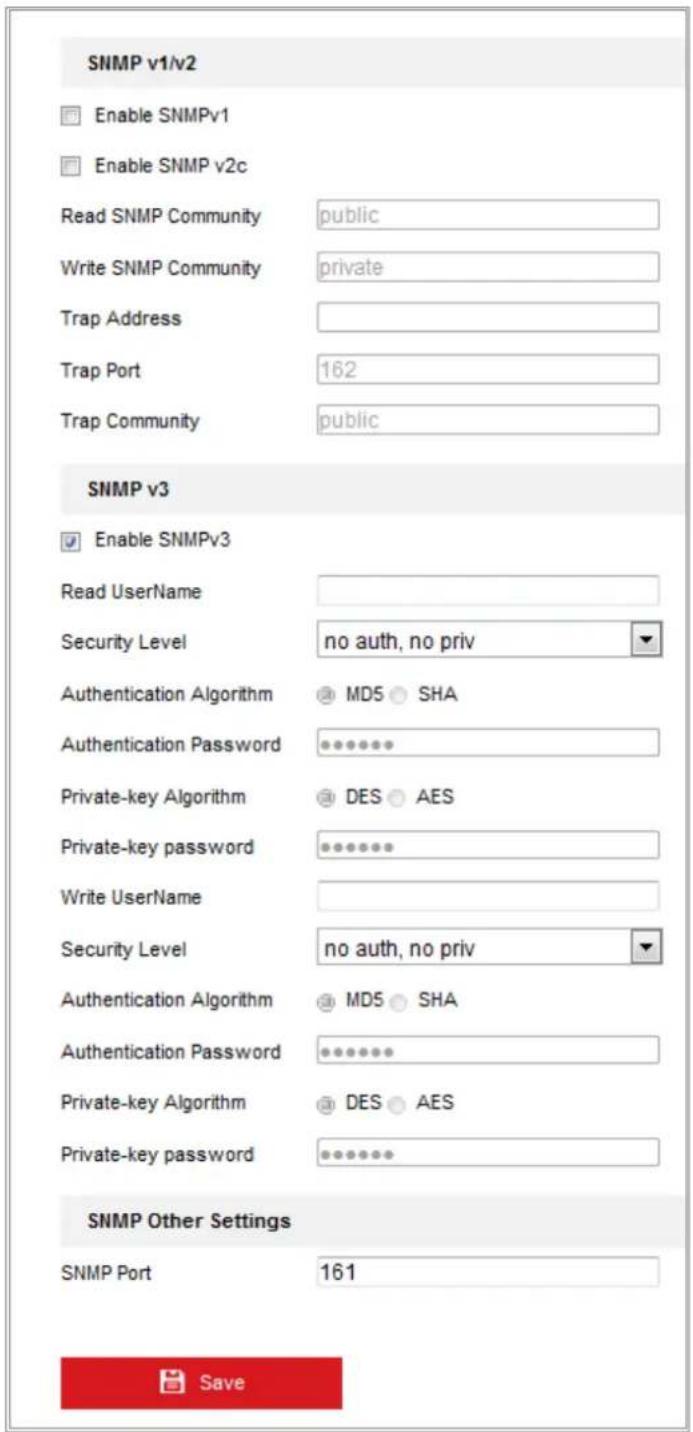
text_image
SNMP v1/v2 Enable SNMPv1 Enable SNMP v2c Read SNMP Community public Write SNMP Community private Trap Address Trap Port 162 Trap Community public SNMP v3 Enable SNMPv3 Read UserName Security Level no auth, no priv Authentication Algorithm MDS ○ SHA Authentication Password ****** Private-key Algorithm DES ○ AES Private-key password ****** Write UserName Security Level no auth, no priv Authentication Algorithm MDS ○ SHA Authentication Password ****** Private-key Algorithm DES ○ AES Private-key password ****** SNMP Other Settings SNMP Port 161 SaveFigure 7-7 SNMP Sengs
- Check Enable SNMPv1, Enable SNMP v2c, Enable SNMPv3 to enable the feature correspondingly.
- Congure the SNMP sengs.
Note: The sengs of the SNMP soware should be the same as the sengs you congure here.
- Click Save to save and finish the sengs.
Note:
To lower the risk of informaon leakage, you are suggested to enable SNMP v3 instead of SNMP v1 or v2.
7.2.2 Conguring FTP Sengs
Purpose:
You can congregate the FTP/SFTP server related informaon to enable the uploading of the captured pictures to the FTP/SFTP server. The captured pictures can be triggered by events or a ming snapshot task.
Steps:
- Enter the FTP Sengs interface: Conguraon > Network > Advanced Setngs > FTP.
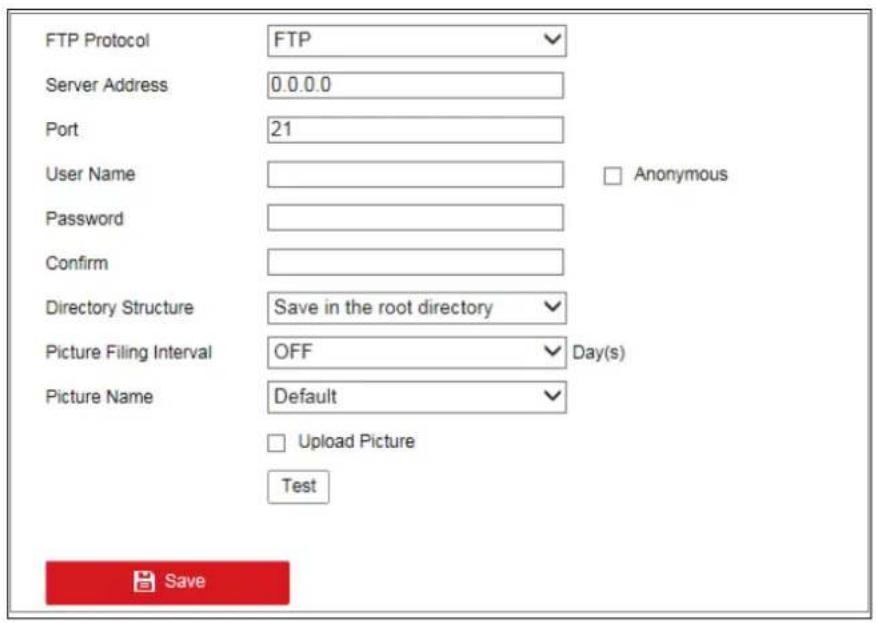
text_image
FTP Protocol FTP Server Address 0.0.0.0 Port 21 User Name Anonymous Password Confirm Directory Structure Save in the root directory Picture Filing Interval OFF Day(s) Picture Name Default Upload Picture Test SaveFigure 7-8 FTP Sengs
- Select the FTP protocol.
- Input the server address and port.
- Congure the FTP/SFTP sengs; and the user name and password are required for the server login.

- For your privacy and to beer protect your system against security risks, we strongly recommend the use of strong passwords for all funcons and network devices. The password should be something of your own choosing (using a minimum of 8 characters, including at least three of the following categories: upper case leers, lower case leers, numbers and special characters) in order to increase the security of your product.
- Proper conguraon of all passwords and other security sengs is the responsibility of the installer and/or end-user.
- Set the directory structure and picture filing interval.
Directory: In the Directory Structure eld, you can select the root directory, parent directory and child directory. When the parent directory is selected, you have the opon to use the Device Name, Device Number or Device IP for the name of the directory; and when the Child Directory is selected, you can use the Camera Name or Camera No. as the name of the directory.
Picture Filing Interval: For beer picture management, you can set the picture ling interval from 1 day to 30 days. Pictures captured in the same me interval will be saved in one folder named aer the beginning date and ending date of the me interval.
Picture Name: Set the naming rule for captured picture les. You can choose Default in the drop-down list to use the default rule, that is,
IP address_channel number_capture me_event type.jpg
(e.g., 10.11.37.189_01_20150917094425492_FACE_DETECTION.jpg).
Or you can customize it by adding a Custom Prex to the default naming rule.
- Check the Upload Picture checkbox to enable the funcon.
Upload Picture: To enable uploading the captured picture to the FTP server.
Anonymous Access to the FTP Server (in which case the user name and password will not be required.): Check the Anonymous checkbox to enable the anonymous access to the FTP server.
Note: The anonymous access funcon must be supported by the FTP server.
- Click Save to save the setngs.
7.2.3 Conguring Email Sengs
Purpose:
The system can be congured to send an Email nocao on to all designated receivers if an alarm event is detected, e.g., moon detecon event, video loss, video tampering, etc.
Before you start:
Please configure the DNS Server sengs under Conguraon > Network > Basic Sengs > TCP/IP before using the Email funcon.
Steps:
- Enter the TCP/IP Setngs (Conguraon > Network > Basic Settings > TCP/IP) to set the IPv4 Address, IPv4 Subnet Mask, IPv4 Default Gateway and the Preferred DNS Server.
Note: Please refer to 7.1.1 Conguring TCP/IP Sengs for detailed informaon.
-
Enter the Email Sengs interface: Conguraon > Network > Advanced Setngs > Email.
-
Congure the following sengs:
Sender: The name of the email sender.
Sender's Address: The email address of the sender.
SMTP Server: IP address or host name (e.g., smtp.263xmail.com) of the SMTP Server.
SMTP Port: The SMTP port. The default TCP/IP port for SMTP is 25 (not secured). And the SSL SMTP port is 465.
Email Encrypon: None, SSL, and TLS are selectable. When you select SSL or TLS and disable STARTTLS, e-mails will be sent aer encrypted by SSL or TLS. The SMTP port should be set as 465 for this encrypon method. When you select SSL or TLS and enable STARTTLS, emails will be sent aer encrypted by STARTTLS,
and the SMTP port should be set as 25.
Note: If you want to use STARTTLS, make sure that your e-mail server supports the protocol. If you check the Enable STARTTLS checkbox when the protocol is not supported by your e-mail sever, your e-mail will not be encrypted.
Aached Image: Check the checkbox of Aached Image if you want to send emails with aached alarm images.
Interval: The interval refers to the me between two acons of sending aached pictures.
Authencaon (oponal): If your email server requires authencaon, check this checkbox to use authencaon to log in to this server and input the login user name and password.

- For your privacy and to beer protect your system against security risks, we strongly recommend the use of strong passwords for all funcons and network devices. The password should be something of your own choosing (using a minimum of 8 characters, including at least three of the following categories: upper case leers, lower case leers, numbers and special characters) in order to increase the security of your product.
- Proper conguraon of all passwords and other security sengs is the responsibility of the installer and/or end-user.
The Receiver table: Select the receiver to which the email is sent. Up to 3 receivers can be congured.
Receiver: The name of the user to be noed.
Receiver's Address: The email address of user to be need.

text_image
Sender test Sender's Address test@gmail.com SMTP Server SMTP Port 25 E-mail Encryption None Attached Image Interval 2 s Authentication User Name Password Confirm Receiver No. Receiver Receiver's Address Test 1 2 3 SaveFigure 7-9 Email Sengs
- Click Save to save the setngs.
7.2.4 Plaorm Access
Purpose:
Plaorm access provides you an opon to manage the devices via plaorm.
Steps:
- Enter the Plaorm Access sengs interface: Conguraon > Network > Advanced Sengs > Plaorm Access
- Check the checkbox of Enable to enable the plaorm access funcon of the device.
- Select the Plaorm Access Mode.
Note: Hik-Connect is an applicaon for mobile devices. With the App, you can view live image of the camera, receive alarm nocaaon and so on.
If you select Plaorm Access Mode as Hik-Connect,
1) Click and read "Terms of Service" and "Privacy Policy" in pop-up window.
2) Create a vericaon code or change the vericaon code for the camera.
Note:
- The vericaon code is required when you add the camera to Hik-Connect app.
- For more informaon about the Hik-Connect app, refer to Hik-Connect Mobile Client User Manual.
3) You can use the default server address. Or you can check the Custom checkbox on the right and input a desired server address.
If you select Plaorm Access Mode as ISUP,
1) Check Enable.
2) Enter the Server Address, Port, Device ID, and Key.
4. Click Save to save the setngs.
7.2.5 Wireless Dial
Purpose:
Data stream of audio, video and image can be transferred via 3G/4G wireless network.
Notes:
• The wireless dial funcon may not be supported by some camera models.
• Camera that supports wireless dial does not support PPPoE.
Steps:
- Click Wireless Dial tab to enter the Wireless Dial conguraon interface:
Conguraon > Network > Advanced Sengs > Wireless Dial
- Check the checkbox to enable the wireless dial sengs.
- Congure the dial parameters.
1) Select the dial mode from the drop-down list. Auto and Manual are selectable. If Auto is selected, you can set the arming schedule for dialing; If Manual is selected, you can set the oine me and manual dialing parameters.
2) Set the access number, user name, password, APN, MTU and vericaon protocol. You can also leave these parameters blank, and the device will adopt
the default sengs for dialing aer other parameters are congured.
3) Select the network mode from the drop-down list. Auto, 3G and 4G are selectable. If Auto is selected, the network selecon priority comes as: 4G > 3G > Wired Network.
4) Input the oine me if Manual is selected as the dial mode.
5) Input the UIM Number (Mobile Phone Number).
6) Click the Edit buon to set the arming schedule if Auto is selected as the dial mode.
7) Click Save to save the setngs.
- View the dial status.
1) Click the Refresh buon to view the dial status including real-me mode, UIM status, signal strength, etc.
2) If Manual is selected as the dial mode, you can also manually connect / disconnect the wireless network.
- Set the white list. The mobile phone number on the white list can receive the alarm message from the device and reboot the device via SMS.
1) Check Enable SMS Alarm.
2) Select the item on the white list, and click Edit.
3) Enter the mobile phone number for the white list, check the checkbox of Reboot via SMS, select the alarm for SMS push, and click OK.
Note: To reboot the device via SMS, send the message "reboot" to the device, and the device will reply a message "reboot success" aer reboong succeeded.
4) (Oponal) You can click Send Test SMS to send a message to the mobile phone for test.
5) Click Save to save the settings.
7.2.6 HTTPS Sengs
Purpose:
HTTPS provides authencaon of the web site and its associated web server, which protects against Man-in-the-middle aacks.
Note:
- For the camera that supports plug-in free live view, when you use HTTPS to visit the camera, you should enable Websockets for live view. Go to Conguraon > Network > Advanced Sengs > Network Service.
- If HTTPS is enabled by default, the camera creates an unsigned certificate automacally. When you visit the camera via HTTPS, the web browser will send a nocaoon about the cercate issue. Install a signed-cercate to the camera to cancel the nocaoon.
Steps:
- Enter the HTTPS sengs interface. Conguraon > Network > Advanced Setngs > HTTPS.
- Check Enable to access the camera via HTTP or HTTPS protocol.
- Check Enable HTTPS Browsing to access the camera only via HTTPS protocol.

text_image
✓ Enable ✓ Enable HTTPS BrowsingFigure 7-10 HTTPS Conguraon Interface
- Create the self-signed cercate or authorized cercate.
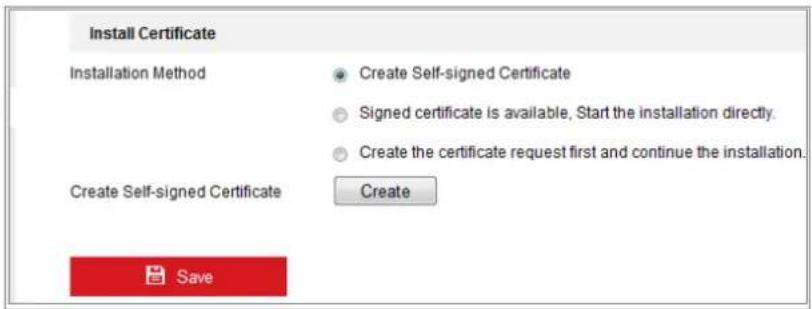
text_image
Install Certificate Installation Method Create Self-signed Certificate Signed certificate is available, Start the installation directly. Create the certificate request first and continue the installation. Create Self-signed Certificate Create SaveFigure 7-11 Create Self-signed Cercate
• Create the self-signed cercate
(1) Select Create Self-signed Cercate as the Installaon Method.
(2) Click Create buon to enter the creaon interface.
(3) Enter the country, host name/IP, validity and other informaon.
(4) Click OK to save the sengs.
Note: If you already had a cercate installed, the Create Self-signed Cercate is grayed out.
● Create the request and import the authorized cercate
(1) Select Create the cercate request rst and connue the installaon as the Installaon Method.
(2) Click Create buon to create the cercate request. Fill in the required informaon in the popup window.
(3) Click Download to download the cercate request and submit it to the trusted cercate authority for signature.
(4) Aer receiving the signed valid cercate, you can import the cercate in two ways:
a) Select Signed cercate is available, Start the installaon directly. Click Browse and Install to import the cercate to the device.
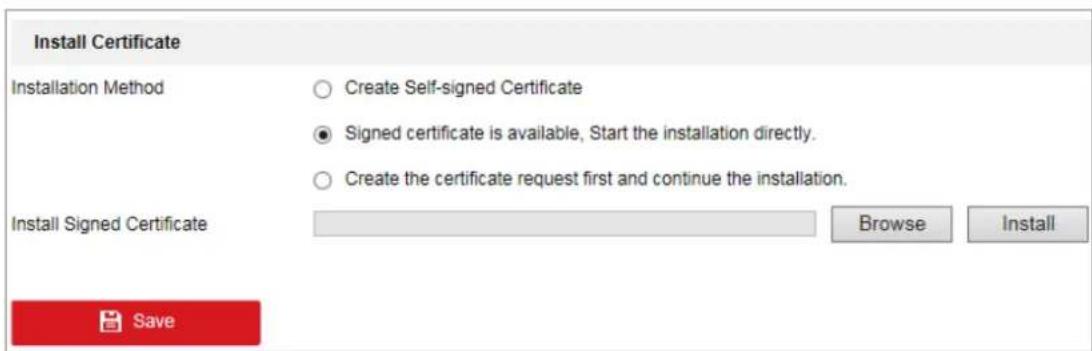
text_image
Install Certificate Installation Method ○ Create Self-signed Certificate ● Signed certificate is available, Start the installation directly. ○ Create the certificate request first and continue the installation. Install Signed Certificate Browse Install SaveFigure 7-12 Import the Cercate (1)
b) Select Create the cercate request rst and connue the installaon.
Click Browse and Install to import the cercate to the device.

text_image
Install Certificate Installation Method Create Self-signed Certificate Signed certificate is available, Start the installation directly. Create the certificate request first and continue the installation. Create Certificate Request Create C=CN, H/IP=10.11.11.111 Download Certificate Request Download Delete Certificate Request Delete Install Generated Certificate Browse InstallFigure 7-13 Import the Cercate (2)
- There will be the cercate informaon aer your successfully creang and installing the cercate.
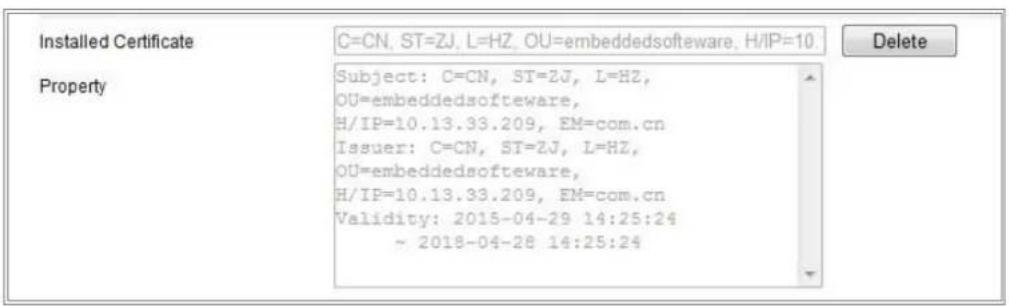
text_image
Installed Certificate Property C=CN, ST=ZJ, L=HZ, OU=embeddedsoftware, H/IP=10. Subject: C=CN, ST=ZJ, L=HZ, OU=embeddedsoftware, H/IP=10.13.33.209, EM=com.cn Issuer: C=CN, ST=ZJ, L=HZ, OU=embeddedsoftware, H/IP=10.13.33.209, EM=com.cn Validity: 2015-04-29 14:25:24 ~ 2018-04-28 14:25:24 DeleteFigure 7-14 Installed Cercate
- Export and save the certificate for verification when adding the device to client soware.
Note:
The exported cercate should be saved in the cercate folder of your client soware before adding the device to your PC client.
- Click the Save button to save the sengs.
7.2.7 Conguring QoS Sengs
Purpose:
QoS (Quality of Service) can help solve the network delay and network congeson by conguring the priority of data sending.
Steps:
- Enter the QoS Setngs interface: Conguraon > Network > Advanced Setngs > QoS

text_image
Video/Audio DSCP 0 Event/Alarm DSCP 0 Management DSCP 0 SaveFigure 7-15 QoS Sengs
- Congure the QoS sengs, including Video/Audio DSCP, Event/Alarm DSCP and Management DSCP.
The valid value range of the DSCP is 0 to 63. The bigger the DSCP value is, the higher the priority is.
Note: DSCP refers to the Dierenated Service Code Point; and the DSCP value is used in the IP header to indicate the priority of the data.
- Click Save to save the setngs.
7.2.8 Conguring 802.1X Sengs
Purpose:
The IEEE 802.1X standard is supported by the network cameras, and when the feature is enabled, the camera data is secured and user authencaon is needed when connecng the camera to the network protected by the IEEE 802.1X.
Before you start:
The authencaon server must be congured. Please apply and register a user name and password for 802.1X in the server.

- For your privacy and to beer protect your system against security risks, we strongly recommend the use of strong passwords for all funcons and network devices. The password should be something of your own choosing (using a minimum of 8 characters, including at least three of the following categories: upper case leers, lower case leers, numbers and special characters) in order to increase the security of your product.
- Proper conguraon of all passwords and other security sengs is the responsibility of the installer and/or end-user.
Steps:
- Enter the 802.1X Sengs interface, Conguraon > Network > Advanced Sengs > 802.1X.

text_image
Enable IEEE 802.1X Protocol EAP-MD5 EAPOL version 1 User Name Password Confirm SaveFigure 7-16 802.1X Sengs
- Check Enable IEEE 802.1X to enable the feature.
- Congure the 802.1X sengs, including Protocol, EAPOL version, User Name, Password and Conrm.
Note: The EAPOL version must be identical with that of the router or the switch.
- Enter the user name and password to access the server.
- Click Save to nish the sengs.
Note: A reboot is required for the sengs to take eect.
7.2.9 Integraon Protocol
Purpose:
If you need to access to the camera through the third party plaorm, you can enable CGI funcon. And if you need to access to the device through ONVIF protocol, you can congregate ONVIF user in this interface. Refer to ONVIF standard for detailed conguraon rules.
Note: Integraon protocol funcon varies according to dierent device model.
CGI
Check the Enable Hikvision_CGI checkbox and then select the authencaon from the drop-down list.
Note: Digest is the recommended authencaon method.
ONVIF
Steps:
-
Check Enable ONVIF to enable the funcon.
-
Add ONVIF users. Up to 32 users are allowed.
Set the user name and password, and conrm the password. You can set the user as media user, operator, and administrator.
Note: ONVIF user account is dierent from the camera user account. You have set ONVIF user account independently.
- Save the sengs.
Note: User sengs of ONVIF are cleared when you restore the camera.
7.2.10 Bandwidth Adaptaon
When you enable the funcon, live view uency is taken as the priority of camera performance. The camera adjusts video-related parameters automacally, and the pre-set video-related conguraon is invalid. A reboot is required for the funcon to take eect.
Note: Bandwidth adaptaon is only available for certain camera models.
7.2.11 Network Service
You can control the ON/OFF status of certain protocol that the camera supports.
Note:
- Keep unused funcon OFF for security concern.
• Only certain camera models support the funcon.
WebSocket and WebSockets
WebSocket or WebSockets protocol should be enabled if you use Google Chrome 45 and its above version or Mozilla Firefox 52 and its above version to visit your camera.
Otherwise, live view, image capture, and digital zoom funcon cannot be used.
If the camera uses HTTP, enable WebSocket.
If the camera uses HTTPS, enable WebSockets.
SDK Service and Enhanced SDK Service
If you want to add the device to the client soware, you should enable SDK Service
or Enhanced SDK Service.
SDK Service: SDK protocol is used.
Enhanced SDK Service: SDK over TLS protocol is used. Communicaton between the device and the client soware is secured by using TLS (Transport Layer Security) protocol.
TLS (Transport Layer Security)
The device oers TLS 1.1 and TLS 1.2. Enable one or more protocol versions according to your need.
7.2.12 Smooth Streaming
Purpose:
When the network is unstable or high quality of video is required, you can enable Smooth Streaming funcon to view the live view smoothly via the client soware or Web Browser.
Note: Only certain camera models support the funcon.
Before you start:
Add the device to your client soware and select NPQ protocol in client soware before conguring the smooth streaming funcon.
Steps:
- Enter the Smooth Streaming Sengs interface, Conguraon > Network > Advanced Sengs > Smooth Streaming.
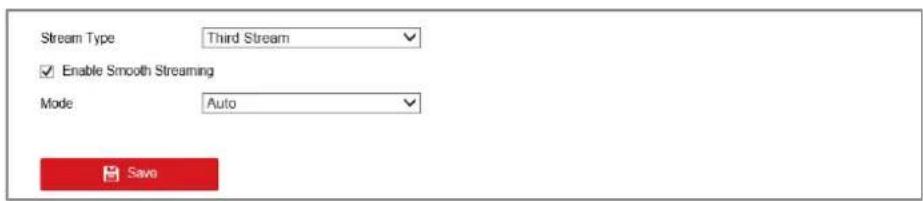
text_image
Stream Type Third Stream ✓ Enable Smooth Streaming Mode Auto SaveFigure 7-17 Smooth Streaming Sengs
- Select Stream Type.
- Check Enable Smooth Streaming.
Note: Be sure the Bitrate Type is selected as Constant and the SVC is selected as OFF before enable this funcon. Go to Conguraon > Video/Audio > Video page
to set the parameters.
- Select the mode of smooth streaming. There are three modes selectable: Auto, Resoluon Priority, and Error Correcon.
Auto: The resoluon and bitrate will be adjusted automacally and resoluon will take the priority, the upper limits of these two parameters will not exceed the values you set on Video page. Go to Conguraon > Video/Audio > Video page, set the Resoluon and Max. Bitrate before you enable smooth streaming funcon. And in this mode, the framerate will be adjusted automacally to max. value.
Resoluon Priority: The resoluon stays the same as the set value in Video page, and the bitrate will be adjusted automacally. Go to Congura on >Video/Audio >Video page, set the Max. Bitrate before you enable smooth streaming funcon. And in this mode the framerate will be adjusted automacally to max. value.
Error Correcon: The resoluon and bitrate stay the same as the set values in Video page. When the bandwidth is sucient, there is packet loss or bit error during transmission and these situations will lead to the video data error or loss. This mode is used to correct the data error during transmission. You can congregate the error correcon proporon within range of 0-100. When the proporon is 0, the data error will be corrected by data retransmission. When the proporon is higher than 0, the error data will be corrected via redundant data that is added to the stream and data retransmission. The higher the value is, the more redundant date will be generated, the more data error will be corrected, and the larger bandwidth is required. When the proporon is 100, the redundant data will be as large as the original data, and the bandwidth is twice required.
Note: Be sure the bandwidth is sucient in Error Correcon mode.
- Click Save to save the setngs.
7.2.13 Security Control Panel Conguraon
Purpose:
The camera can send alarm informaon to the desnaon IP or host name via HTTP, HTTPS, or ISUP protocol. If the network is disconnected, the data can be uploaded to the desnaon IP or host name aer the network conncon is normal.
Before you start:
The desnaon IP or host name should support the HTTP, HTTPS, or ISUP protocol to receive the alarm informaon.
Steps:
- Enter the HTTP Listening interface, Conguration > Network > Advanced Setngs > Security Control Panel Conguraon.
| HTTP Data Transmission Default | ||||
| Destination IP or Host Name | URL | Protocol | Port | Test |
| 0.0.0.0 | / | HTTP | 80 | Test |
| 0.0.0.0 | / | HTTP | 80 | Test |
| 0.0.0.0 | / | HTTP | 80 | Test |
Figure 7-18 HTTP Listening
- Enter the desired desnaon IP or host name, URL and port.
- You can click Test to test whether the entered IP address or host name are valid.
- Or you can click Default to reset the desnaon IP or host name.
Note: Only certain camera models support the funcon.
Chapter 8 Video/Audio Sengs
Purpose:
Follow the instrucons below to conjure the video seng, audio sengs, ROI, Display info. on Stream, etc.
8.1 Conguring Video Sengs
For certain camera models, you can congregate parameters for available video streams, for example, the main stream, the sub-stream, etc. And you can also customize additional video streams for further needs.
• On Video page, set-up available video streams.
• On Custom Video page, add extra video streams
8.1.1 Video Sengs
Steps:
- Enter the Video Sengs interface, Conguraon > Video/Audio > Video
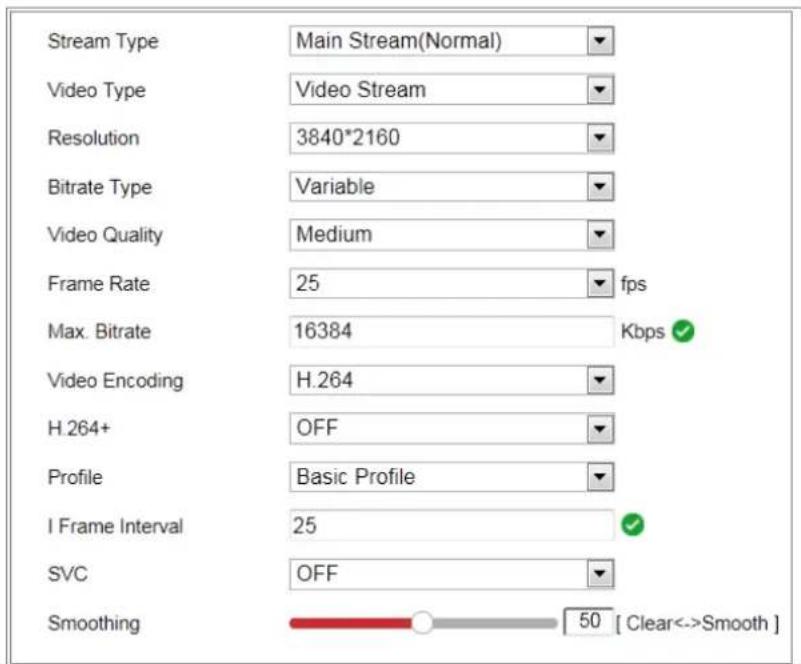
text_image
Stream Type Main Stream(Normal) Video Type Video Stream Resolution 3840*2160 Bitrate Type Variable Video Quality Medium Frame Rate 25 fps Max. Bitrate 16384 Kbps ✓ Video Encoding H.264 H.264+ OFF Profile Basic Profile I Frame Interval 25 ✓ SVC OFF Smoothing 50 [ Clear<->Smooth ]Figure 8-1 Video Sengs
2. Select the Stream Type.
Supported stream types are listed in the drop-down list.
Notes:
- For some models, the Third Stream is not enabled by default. Go to System > Maintenance > System Service> Soware to enable the funcon is required.
- The main stream is usually for recording and live view with good bandwidth, and the sub-stream can be used for live view when the bandwidth is limited.
3. You can customize the following parameters for the selected stream type.
Video Type:
Select the stream type to video stream, or video & audio composite stream. The audio signal will be recorded only when the Video Type is Video & Audio.
Resoluon:
Select the resolution of the video output.
Bitrate Type:
Select the bitrate type to constant or variable.
Video Quality:
When bitrate type is selected as Variable, 6 levels of video quality are selectable.
Frame Rate:
Set the frame rate. The frame rate is to describe the frequency at which the video stream is updated and it is measured by frames per second (fps). A higher frame rate is advantageous when there is movement in the video stream, as it maintains image quality throughout.
Max. Bitrate:
Set the max. bitrate from 32 to 16384 Kbps. The higher value corresponds to the higher video quality, but the beer bandwidth is required.
Note: The maximum limit of the max. bitrate value varies according to dierent camera plaorms. For certain cameras, the maximum limit is 8192 Kbps or 12288 Kbps.
Video Encoding:
The camera supports mulple video encodings types, such as H.264, H.265, MJPEG,
and MPEG4. Supported encoding type for dierent stream types may dier. H.265 is a new encoding technology. Compared with H.264, it reduces the transmission bitrate under the same resolution, frame rate and image quality.
Note: Selectable video encoding types may vary according to dierent camera modes.
H.264+ and H.265+:
- H.264+: If you set the main stream as the stream type, and H.264 as the video encoding, you can see H.264+ available. H.264+ is an improved compression coding technology based on H.264. By enabling H.264+, users can esmate the HDD consumpon by its maximum average bitrate. Compared to H.264, H.264+ reduces storage by up to 50% with the same maximum bitrate in most scenes.
- H.265+: If you set the main stream as the stream type, and H.265 as the video encoding, you can see H.265+ available. H.265+ is an improved compression coding technology based on H.265. By enabling H.265+, users can esmate the HDD consumpon by its maximum average bitrate. Compared to H.265, H.265+ reduces storage by up to 50% with the same maximum bitrate in most scenes.
You need to reboot the camera if you want to turn on or turn o the H.264+/H.265+. If you switch from H.264+ to H.265+ directly, and vice versa, a reboot is not required by the system.
Notes:
- Upgrade your video player to the latest version if live view or playback does not work properly due to compatibility.
- With H.264+/H.265+ enabled, the parameters such as profile, I frame interval, video quality, and SVC are greyed out.
- With H.264+/H.265+ enabled, some funcons are not supported. For those funcons, corresponding interfaces will be hidden.
- H.264+/H.265+ can spontaneously adjust the bitrate distribuon according to the requirements of the actual scene in order to realize the set maximum average
bitrate in the long term. The camera needs at least 24 hours to adapt to a xed monitoring scene.
Max. Average Bitrate:
When you set a maximum bitrate, its corresponding recommended maximum average bitrate will be shown in the Max. Average Bitrate box. You can also set the maximum average bitrate manually from 32 Kbps to the value of the set maximum bitrate.
Prole:
When you select H.264 or H.265 as video encoding, you can set the prole. Selectable proles vary according to camera models.
I Frame Interval:
Set I Frame Interval from 1 to 400.
SVC:
Scalable Video Coding is an extension of the H.264/AVC and H.265 standard. Select OFF/ON to disable/enable the SVC funcon. Select Auto and the device will automatically extract frames from the original video when the network bandwidth is insufficient.
Smoothing:
It refers to the smoothness of the stream. The higher value of the smoothing is, the beer uency of the stream will be, though, the video quality may not be so sasfactory. The lower value of the smoothing is, the higher quality of the stream will be, though it may appear notuent.
4. Click Save to save the setngs.
Note:
The video parameters vary according to dierent camera models. Refer to the actual display page for camera funcons.
8.1.2 Custom Video
You can set up additional video streams if required. For custom video streams, you can
live view them, but cannot record or playback them.
Notes:
- Custom video funcon requires the support of the camera.
• Only certain camera models support this funcon. - Aer a camera restore acon (not restore to default seing), quantity of custom video streams and their names are kept, but the related parameters are restored.

text_image
Stream Type Sixth Stream Seventh Stream Eighth Stream Ninth Stream Tenth Stream Resolution 1280*720P ▼ Frame Rate 25 ▼ fps Max. Bitrate 2048 Kbps Video Encoding H.264 ▼ Description Input description for the stream.Figure 8-2 Custom Video Sengs
Steps:
- Click + to add a stream.
- Change the stream name if needed.
Note: Up to 32 letters and symbols (except &, <, >, ', or '') are allowed for the stream name.
- Customize the stream parameters (resoluon, frame rete, max. bitrate, video encoding). For parameter introducon, see Secon 8.1.1.
- (Oponal) Add stream descripon is needed.
-
(Oponal) If a custom stream is not needed, click ✗ to delete it.
-
Save the sengs.
8.2 Conguring Audio Sengs
Steps:
- Enter the Audio Sengs interface: Conguraon > Video/Audio > Audio.
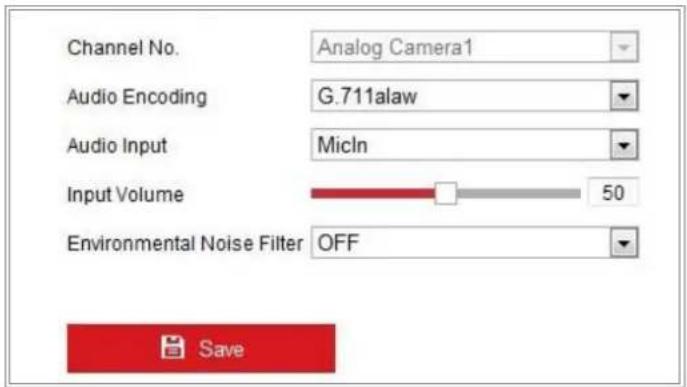
text_image
Channel No. Analog Camera1 Audio Encoding G.711alaw Audio Input MicIn Input Volume 50 Environmental Noise Filter OFF SaveFigure 8-3 Audio Sengs
- Congure the following sengs.
Note: Audio sengs vary according to dierent camera models.
Audio Encoding: G.722.1, G.711 ulaw, G.711alaw, G.726, MP2L2, PCM and MP3 are selectable. For MP2L2, the Sampling Rate and Audio Stream Bitrate are congorable. For PCM, the Sampling Rate can be set.
Audio Input: MicIn and LineIn are selectable for the connected microphone and pickup respectively.
Input Volume: 0-100 adjustable.
Environmental Noise Filter: Set it as OFF or ON. When the funcon is enabled, the noise in the environment can be iterated to some extent.
- Click Save to save the setngs.
8.3 Conguring ROI Encoding
Purpose:
ROI (Region of Interest) encoding helps to discriminate the ROI and background informaon in video compression, which means, the technology assigns more
encoding resource to the region of interest, thus to increase the quality of the ROI whereas the background informaon is less focused.
Note: ROI funcon varies according to dierent camera models.
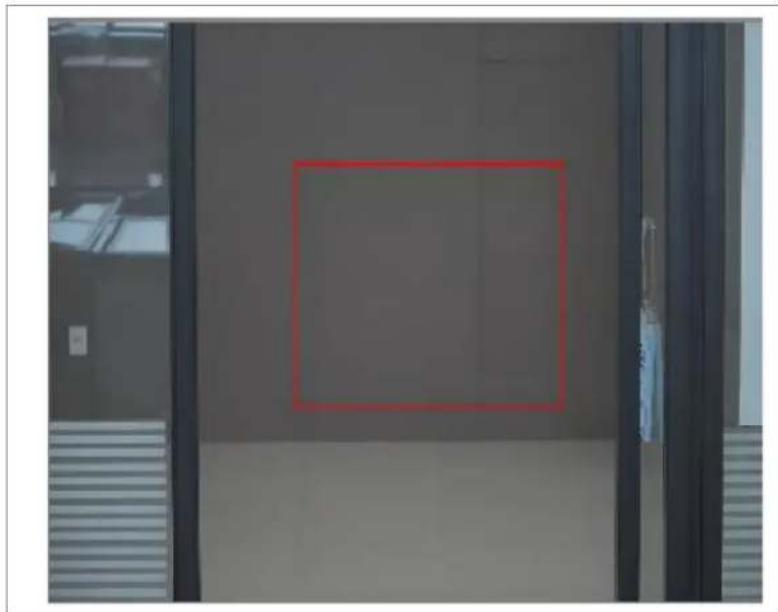
natural_image
Exterior view of a modern office building (no signage)Figure 8-4 Region of Interest Sengs
Steps:
- Enter the ROI sengs interface: Conguraon > Video/Audio > ROI.
- Select the Stream Type for ROI encoding.
- Check the checkbox of Enable under Fixed Region item.
- Set Fixed Region for ROI.
(1) Select the Region No. from the drop-down list.
(2) Check the Enable checkbox to enable ROI funcon for the chosen region.
(3) Click Drawing. Click and drag the mouse on the view screen to draw a red rectangle as the ROI region. You can click Clear to cancel former drawing. Click Stop Drawing when you nish.
(4) Select the ROI level.
(5) Enter a region name for the chosen region.
(6) Click Save to save the settings of ROI sengs for chosen xed region.
(7) Repeat steps (1) to (6) to setup other fixed regions.
5. Set Dynamic Region for ROI.
(1) Check the checkbox to enable Face Tracking.
Note: To enable face tracking funcon, the face detecon funcon should be supported and enabled.
(2) Select the ROI level.
6. Click Save to save the setngs.
Note: ROI level means the image quality enhancing level. The larger the value is, the beer the image quality would be.
8.4 Display Info. on Stream
Check the checkbox of Enable Dual-VCA, and the informaon of the objects (e.g. human, vehicle, etc.) will be marked in the video stream. Then, you can set rules on the connected rear-end device to detect the events including line crossing, intrusion, etc.
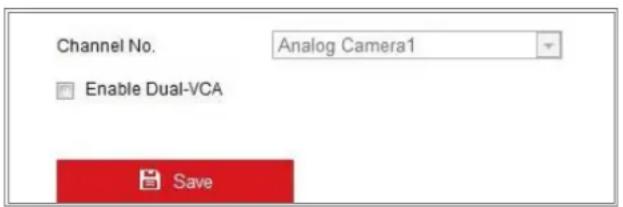
text_image
Channel No. Analog Camera1 Enable Dual-VCA SaveFigure 8-5 Display Info. on Stream
8.5 Conguring Target Cropping
Purpose:
You can specify a target area on the live video, and then the specied video area can be displayed via the third stream in certain resolution, providing more details of the target area if needed.
Note: Target cropping funcon varies according to dierent camera models.
Steps:
-
Enter the Target Cropping sengs interface.
-
Check Enable Target Cropping checkbox to enable the funcon.
- Set Third Stream as the stream type.
- Select the cropping resolution for the video display of target area. A red rectangle is displayed on the live video to mark the target area, and you can click-and-drag the rectangle to locate the target area as desired.
- Click Save to save the setngs.
Chapter 9 Image Sengs
Purpose:
Follow the instrucons in this chapter to conjure the image parameters, including display sengs, OSD sengs, privacy mask, picture overlay and image parameters switch.
9.1 Conguring Display Sengs
Purpose:
Congure the image adjustment, exposure sengs, day/night switch, backlight sengs, white balance, image enhancement, video adjustment, and other parameters in display sengs.
Note: The display parameters vary according to the dierent camera models. Please refer to the actual interface for details.
Steps:
- Enter the Display Setngs interface, Conguraon > Image > Display Setngs.
- Select the desired scene.
- Set the image parameters of the camera.
- Image Adjustment
Brightness describes bright of the image, which ranges from 1 to 100.
Contrast describes the contrast of the image, which ranges from 1 to 100.
Saturaon describes the colorfulness of the image color, which ranges from 1 to 100.
Sharpness describes the edge contrast of the image, which ranges from 1 to 100.
- Exposure Sengs
If the camera is equipped with the xed lens, only Manual is selectable, and the iris mode is not congorable.
If Auto is selected, you can set the auto iris level from 0 to 100.
The Exposure Time refers to the electronic shuer me, which ranges from 1 to
1/100,000s. Adjust it according to the actual luminance condion.
Gain of image can also be manually congured from 0 to 100. The bigger the value is, the brighter would the image be, and the noise would be amplified to a larger extent.
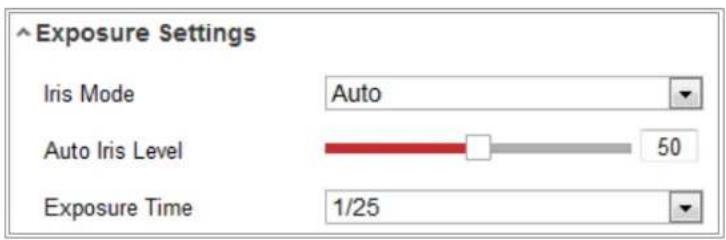
text_image
Exposure Settings Iris Mode Auto Auto Iris Level 50 Exposure Time 1/25Figure 9-1 Exposure Sengs
- Focus
For camera support motor-driven lens, you can set the focus mode as Auto, Manual or Semi-auto.
Auto: Camera focus is adjusted automatically according to the actual monitoring scenario.
Manual: You can control the lens by adjusting the zoom, focus, lens inializaon, and auxiliary focus manually.
Semi-Auto: Camera will focus automacally when you adjust the zoom parameters.
- Day/Night Switch
Select the Day/Night Switch mode according to dierent surveillance demand. Day, Night, Auto, Scheduled-Switch, and Triggered by alarm input are selectable for day/night switch.
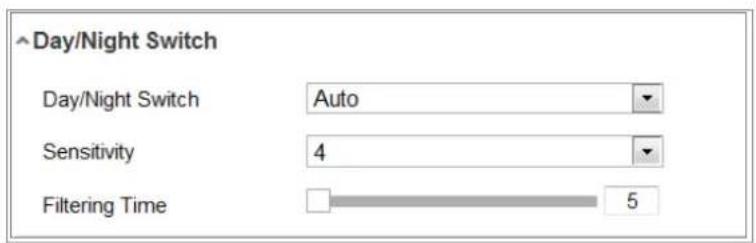
text_image
Day/Night Switch Day/Night Switch Auto Sensitivity 4 Filtering Time 5Figure 9-2 Day/Night Switch
Day: the camera stays at day mode.
Night: the camera stays at night mode.
Auto: the camera switches between the day mode and the night mode according to the illuminaon automacally. The sensitivity ranges from 0 to 7, the higher the value is, the easier the mode switches. The Filtering Time refers to the interval me between the day/night switch. You can set it from 5s to 120s.
Scheduled-Switch: Set the start me and the end me to dene the duraon for day/night mode.
Triggered by alarm input: The switch is triggered by alarm input. You can set the triggered mode to day or night.
Smart Supplement Light: Set the supplement light.
Select Auto, and the supplement light changes according to the actual luminance. E.g., if the current scene is bright enough, then the supplement light adjusts itself to lower power; and if the scene is not bright enough, the light adjusts itself to higher power.
Select Manual, and you can adjust the supplement by adjusting the distance. E.g., if the object is near the camera, the device adjusts the supplement light to lower power, and the light is in higher power if the object is far away.
- Backlight Sengs
BLC Area: If you focus on an object against strong backlight, the object will be too dark to be seen clearly. BLC compensates light to the object in the front to make it clear. OFF, Up, Down, Le, Right, Center, Auto, and Custom are selectable.
Note: If BLC mode is set as Custom, you can draw a red rectangle on the live view image as the BLC area.
WDR: Wide Dynamic Range can be used when there is a high contrast of the bright area and the dark area of the scene.
HLC: High Light Compression funcon can be used when there are strong lights in the scene aecng the image quality.
- White Balance
White balance is the white rendition funcon of the camera used to adjust the
color temperature according to the environment.
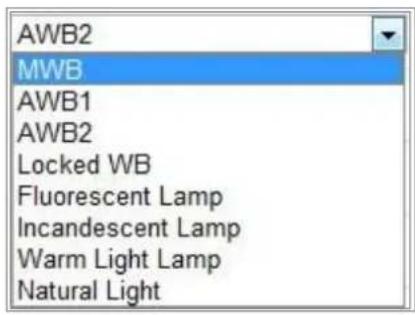
text_image
AWB2 MWB AWB1 AWB2 Locked WB Fluorescent Lamp Incandescent Lamp Warm Light Lamp Natural LightFigure 9-3 White Balance
- Image Enhancement
Digital Noise Reducon: DNR reduces the noise in the video stream. OFF, Normal and Expert are selectable. Set the DNR level from 0 to 100 in Normal Mode. Set the DNR level from both space DNR level [0-100] and me DNR level [0-100] in Expert Mode.
Defog Mode: You can enable the defog funcon when the environment is foggy and the image is misty. It enhances the subtle details so that the image appears clearer.
EIS (Electrical Image Stabilizer): EIS reduces the eects of vibration in a video.
Gray Scale: You can choose the range of the grey scale as [0-255] or [16-235].
- Video Adjustment
Mirror: It mirrors the image so you can see it inversed. Le/Right, Up/Down, Center, and OFF are selectable.
Rotate: To make a complete use of the 16:9 aspect rao, you can enable the rotate funcon when you use the camera in a narrow view scene.
When installing, turn the camera to the 90 degrees or rotate the 3-axis lens to 90 degrees, and set the rotate mode as on, you will get a normal view of the scene with 9:16 aspect rao to ignore the needless informaon such as the wall, and get more meaningful informaon of the scene.
Scene Mode: Choose the scene as indoor or outdoor according to the real environment.
Video Standard: 50 Hz and 60 Hz are selectable. Choose according to the dierent video standards; normally 50 Hz for PAL standard and 60 Hz for NTSC standard.
Lens Distoron Correcon: For cameras equipped with motor-driven lens, image may appear distorted to some extent. Turn on this funcon to correct the distoron.
Note: Video adjustment funcon varies according to dierent device model.
- Others
Some camera models support CVBS, SDI, or HDMI output. Set the local output ON or OFF according to the actual device.
9.2 Conguring OSD Sengs
Purpose:
You can customize OSD informaon on the live view.
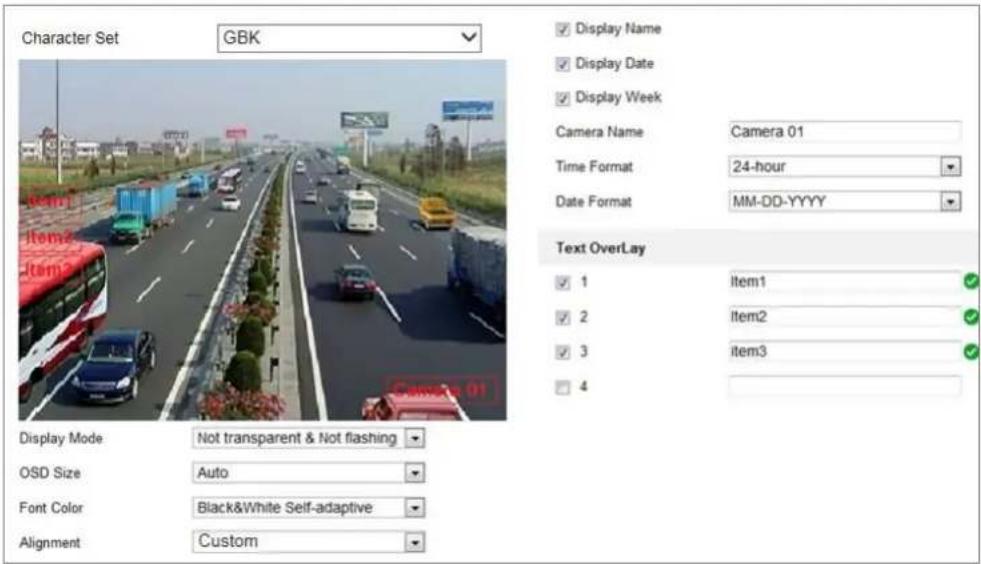
text_image
Character Set GBK Display Name Display Date Display Week Camera Name Camera 01 Time Format 24-hour Date Format MM-DD-YYYY Text OverLay 1 Item1 2 Item2 3 Item3 4 Display Mode Not transparent & Not flashing OSD Size Auto Font Color Black&White Self-adaptive Alignment CustomFigure 9-4 OSD Sengs
Steps:
- Enter the OSD Sengs interface: Conguraon > Image > OSD Seings.
- Select the desired character set.
-
Check the corresponding checkbox to select the display of camera name, date or week if required.
-
Edit the camera name in the text eld of Camera Name.
- Select from the drop-down list to set the me format and date format.
- Select from the drop-down list to set the me format, date format, display mode, OSD size and OSD color.
- Congure the text overlay sengs.
(1) Check the checkbox in front of the textbox to enable the on-screen display.
(2) Input the characters in the textbox.
Note: Up to 4 text overlays are congorable.
- Adjust the OSD posion and alignment.
- Character align right, character align le, all align right, all align le and custom are selectable. If you select character align right, character align le, all align le or all align right, you can set the le and right margins and up and down margins. 1 Character, 2 character and none are available. If you select custom, you can use the mouse to click and drag text frames in the live view window to adjust their posions.
- Click Save to save the sengs.
9.3 Conguring Privacy Mask
Purpose:
Privacy mask enables you to cover certain areas on the live video to prevent certain spots in the surveillance area from being live viewed and recorded.
Steps:
- Enter the Privacy Mask Sengs interface: Conguraon > Image > Privacy Mask.
- Check the checkbox of Enable Privacy Mask to enable this funcon.
- Click Draw Area.
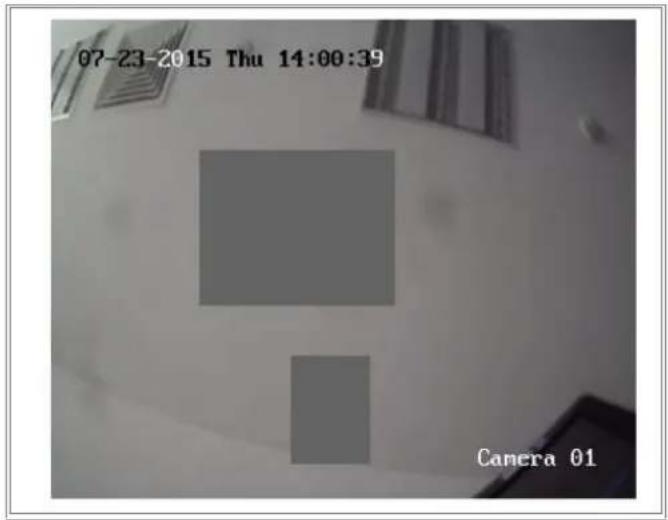
text_image
07-23-2015 Thu 14:00:39 Camera 01Figure 9-5 Privacy Mask Sengs
- Click and drag the mouse in the live video window to draw the mask area.
Note: You are allowed to draw up to 4/8 areas on the same image. The supported number of the areas vary with the camera model.
- Click Stop Drawing to nish drawing or click Clear All to clear all of the areas you set without saving them.
- Click Save to save the settings.
9.4 Conguring Image Parameters Switch
Image parameters scheduled-switch conguraon interface enables you to set the me period and linked scene and it will go to the linked scene in the congured me period when you check the corresponding checkbox.
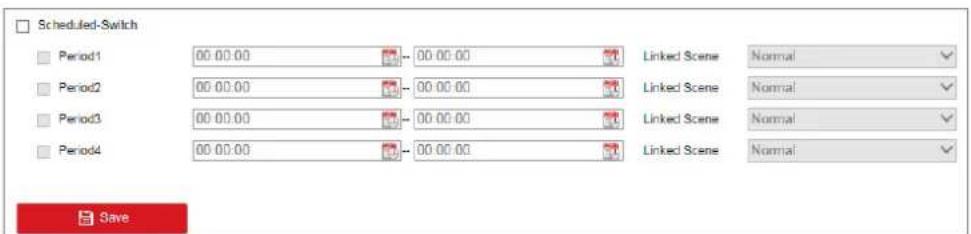
text_image
Scheduled-Switch Period1 00:00:00 -- 00:00:00 Linked Scene Normal Period2 00:00:00 -- 00:00:00 Linked Scene Normal Period3 00:00:00 -- 00:00:00 Linked Scene Normal Period4 00:00:00 -- 00:00:00 Linked Scene Normal SaveFigure 9-6 Scheduled-Switch Conguraon Interface
Steps:
-
Enter Image Parameters Switch interface: Conguraon > Image > Image Parameters Switch.
-
Check Scheduled-Switch.
- Set the me period and the linked scene. Up to four periods can be congured.
- Click Save.
9.5 Conguring Picture Overlay
Purpose:
Picture overlay enables you to overlay a picture on the image. This funcon enables a certain enterprise or users to overlay their logo on the image.
Note: Picture overlay funcon varies according to dierent camera models.
Steps:
- Enter the Picture Overlay Setngs interface, Conguraon > Image > Picture Overlay.
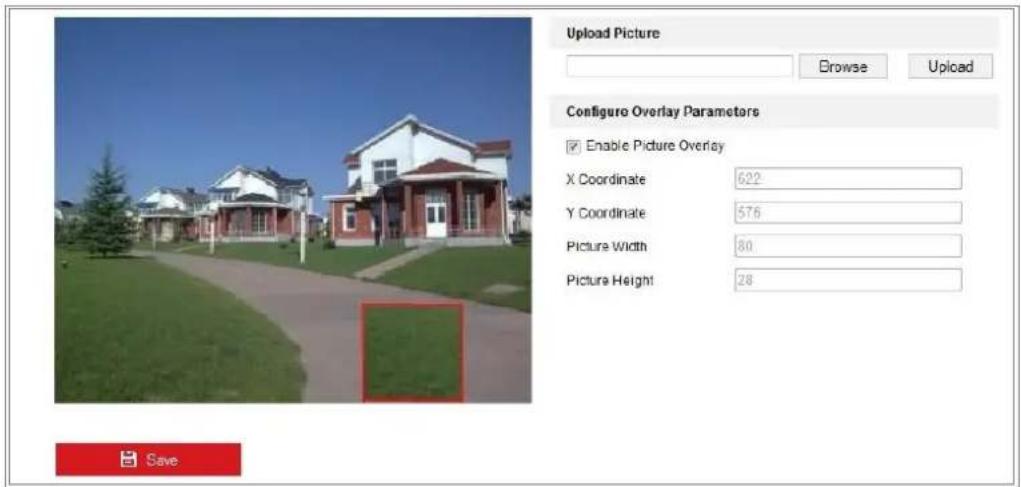
text_image
Upload Picture Browse Upload Configure Overlay Parameters Enable Picture Overlay X Coordinate 622 Y Coordinate 576 Picture Width 80 Picture Height 28 SaveFigure 9-7 Picture Overlay
- Click Browse to select a picture.
- Click Upload to upload it.
- Check Enable Picture Overlay checkbox to enable the funcon.
- Set X Coordinate and Y Coordinate values adjust the picture position on the image. Adjust Picture Width and Picture Height to the desired size.
- Click Save to save setngs.
Note: The picture must be in RGB24 bmp format and the maximum picture size is 128*128.
Chapter 10 Event Sengs
This secon explains how to congregate the network camera to respond to alarm events, including basic event and smart event.
10.1 Basic Events
You can congregate the basic events by following the instrucons in this secon, including moon detecon, video tampering, alarm input, alarm output, and excepon, etc. These events can trigger the linkage methods, such as Nofy Surveillance Center, Send Email, Trigger Alarm Output, etc.
Note: Check the checkbox of Nofy Surveillance Center if you want the alarm informaon to be pushed to PC or mobile client soware as soon as the alarm is triggered.
10.1.1 Conguring Moon Detecon
Purpose:
Moon detecon detects the moving objects in the congured surveillance area, and a series of acons can be taken when the alarm is triggered.
In order to detect the moving objects accurately and reduce the false alarm rate, normal conguraon and expert conguraon are selectable for dierent moon detecon environment.
● Normal Conguraon
Normal conguraon adopts the same set of moon detecon parameters in the dayme and at night.
Tasks 1: Set the Moon Detecon Area
Steps:
-
Enter the moon detecon sengs interface: Conguraon > Event > Basic Event > Moon Detecon.
-
Check the checkbox of Enable Moon Detection.
- Check the checkbox of Enable Dynamic Analysis for Moon if you want to mark the detected objects with green irregular rectangles.
Note: Select Disable for rules if you don't want the detected objected displayed with the green rectangles. Select disable rules from Conguraon > Local Conguraon > Live View Parameters-rules.

text_image
Enable Motion Detection Enable Dynamic Analysis for Motion Area Settings > Arming Schedule Linkage Method Configuration Normal 12-17-2019 Tue 11:18:03 Camera 01 Draw Area Clear All Detection Target ✓ Human ✓ Vehicle Sensitivity 60 SaveFigure 10-1 Enable Moon Detecon
- Click Draw Area. Click and drag the mouse on the live video to draw a moon detecon area.
Note:
The device supports up to four areas.
- (Oponal) Click Clear All to clear all of the areas.
- Select the detecon target. Human and vehicle are available. If the detecon target is not selected, all the detected targets will be reported, including the human and vehicle.
Note:
To enable detecon target, go to System > System Sengs > VCA Resource to select Smart Event rst.
- (Oponal) Move the slider to set the sensitivity of the detecon.
Task 2: Set the Arming Schedule for Moon Detecon
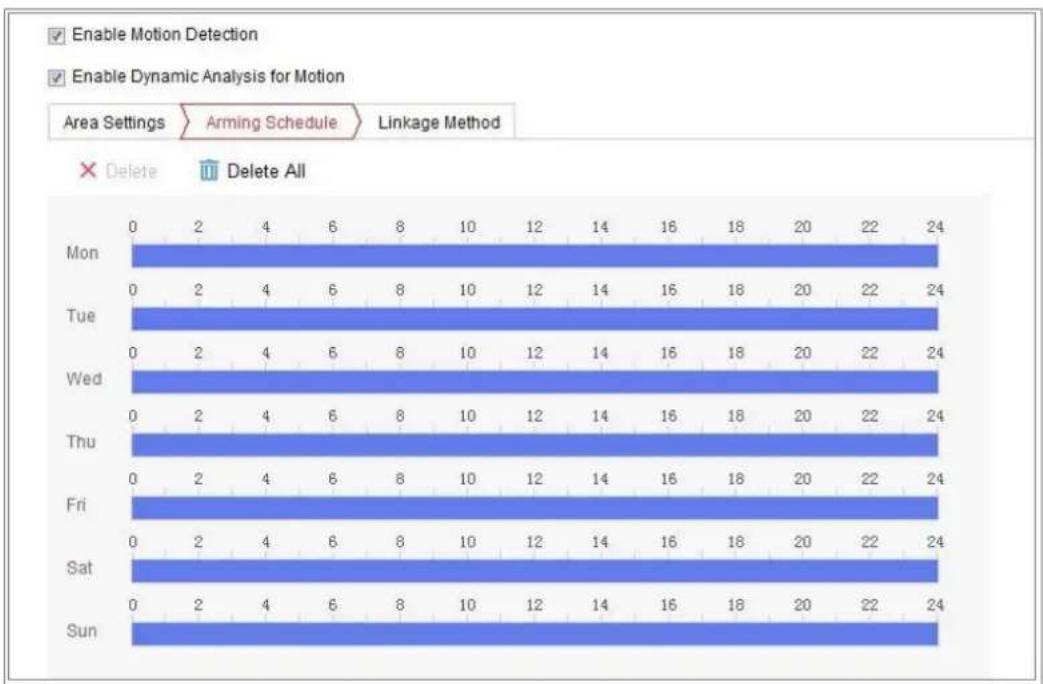
bar
| Day | Arming Schedule | Linkage Method | |---|---|---| | Mon | 0 | 2 | | Tue | 0 | 2 | | Wed | 0 | 2 | | Thu | 0 | 2 | | Fri | 0 | 2 | | Sat | 0 | 2 | | Sun | 0 | 2 | | Mon | 4 | 6 | | Tue | 4 | 6 | | Wed | 4 | 6 | | Thu | 4 | 6 | | Fri | 4 | 6 | | Sat | 4 | 6 | | Sun | 4 | 6 | | Mon | 10 | 12 | | Tue | 10 | 12 | | Wed | 10 | 12 | | Thu | 10 | 12 | | Fri | 10 | 12 | | Sat | 10 | 12 | | Sun | 10 | 12 | | Mon | 14 | 16 | | Tue | 14 | 16 | | Wed | 14 | 16 | | Thu | 14 | 16 | | Fri | 14 | 16 | | Sat | 14 | 16 | | Sun | 14 | 16 | | Mon | 18 | 20 | | Tue | 18 | 20 | | Wed | 18 | 20 | | Thu | 18 | 20 | | Fri | 18 | 20 | | Sat | 18 | 20 | | Sun | 18 | 20 | | Mon | 20 | 22 | | Tue | 20 | 22 | | Wed | 20 | 22 | | Thu | 20 | 22 | | Fri | 20 | 22 | | Sat | 20 | 22 | | Sun | 20 | 22 | | Mon | 24 | - | | Tue | - | - | | Wed | - | - | | Thu | - | - | | Fri | - | - | | Sat | - | - | | Sun | - | - | The values in the table represent the counts for each date and time period. The data is presented in a grid format with rows and columns labeled 'Date' and 'Time' respectively.Figure 10-2 Arming Schedule
Steps:
- Click Arming Schedule to edit the arming schedule.
- Click on the me bar and drag the mouse to select the me period.

other
Area Settings Arming Schedule Linkage Method × Delete Delete All 05 : 40 - 12 : 42 Delete | Save Mon Tue Wed Thu Fri Sat Sun 12 14 16 18 20 22 24 12 14 16 18 20 22 24 12 14 16 18 20 22 24 12 14 16 18 20 22 24Figure 10-3 Arming Schedule
Note: Click on the selected me period, you can adjust the me period to the desired me by either moving the me bar or input the exact me period.
- (Oponal) Click Delete to delete the current arming schedule, or click Save to save the sengs.
- Move the mouse to the end of each day, a copy dialogue box pops up, and you can copy the current sengs to other days.
- Click Save to save the settings.
Note: The time of each period cannot be overlapped. Up to 8 periods can be congured for each day.
Task 3: Set the Linkage Method for Moon Detecon
Check the checkbox to select the linkage method. Audible Warning, Send Email, Nofy Surveillance Center, Upload to FTP/Memory Card/NAS, Trigger Recording and Trigger Alarm Output are selectable. You can specify the linkage method when an event occurs.
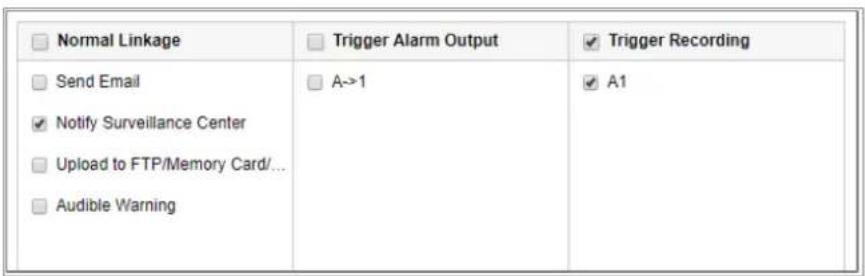
text_image
Normal Linkage Send Email Notify Surveillance Center Upload to FTP/Memory Card/... Audible Warning Trigger Alarm Output A->1 Trigger Recording A1Figure 10-4 Linkage Method
Note: The linkage methods vary according to the dierent camera models.
- Audible Warning
Trigger the audible warning locally. And it only supported by the device that have the audio output.
● Nofy Surveillance Center
Send an excepon or alarm signal to remote management soware when an event occurs.
- Send Email
Send an email with alarm informaon to a user or users when an event occurs.
Note: To send the Email when an event occurs, please refer to 7.2.3 Conguring Email Sengs to complete Email setup in advance.
- Upload to FTP/Memory Card/NAS
Capture the image when an alarm is triggered and upload the picture to a FTP server.
Notes:
- Set the FTP address and the remote FTP server rst. Refer to 7.2.2
Conguring FTP Sengs for detailed informaon. - Go to Conguraon > Storage > Schedule Setngs> Capture > Capture
Parameters page, enable the event-triggered snapshot, and set the capture interval and capture number. - The captured image can also be uploaded to the available SD card or network disk.
- Trigger Recording
The video will be recorded when the moon is detected. You have to set the recording schedule to realize this funcon. Please refer to 11.1 Conguring Record Schedule for detailed informaon.
● Trigger Alarm Output
Trigger one or more external alarm outputs when an event occurs.
Note: To trigger an alarm output when an event occurs, please refer to 10.1.4
Conguring Alarm Output to set the related parameters.
- Expert Conguraon
Expert mode is mainly used to congregate the sensitivity and proportion of object on each area for dierent day/night switch.

text_image
Configuration ExpertFigure 10-5 Expert Mode of Moon Detecon
● Day/Night Switch OFF
Steps:
- Draw the detecon area as in the normal conguraon mode. Up to 8 areas are supported.
- Select OFF for Switch Day and Night Setngs.
- Select the area by clicking the area No.
- Slide the cursor to adjust the sensitivity and properon of object on the area for the selected area.
- Set the arming schedule and linkage method as in the normal conguration mode.
- Click Save to save the settings.
● Day/Night Auto-Switch
Steps:
- Draw the detecon area as in the normal conguraon mode. Up to 8 areas are supported.
- Select Auto-Switch for Switch Day and Night Setngs.
- Select the area by clicking the area No.
- Slide the cursor to adjust the sensitivity and proportion of object on the area for
the selected area in the dayme.
- Slide the cursor to adjust the sensitivity and properon of object on the area for the selected area at night.
- Set the arming schedule and linkage method as in the normal conguraon mode.
- Click Save to save the setngs.
● Day/Night Scheduled-Switch
Steps:
- Draw the detecon area as in the normal conguraon mode. Up to 8 areas are supported.
- Select Scheduled-Switch for Switch Day and Night Setngs.
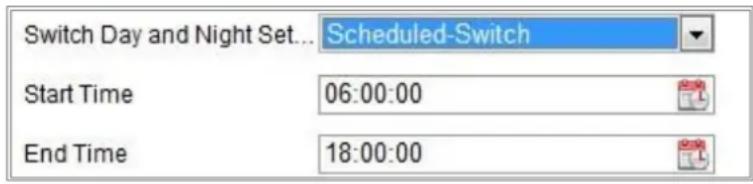
text_image
Switch Day and Night Set... Scheduled-Switch Start Time 06:00:00 End Time 18:00:00Figure 10-6 Day/Night Scheduled-Switch
- Select the start me and the end me for the switch ming.
- Select the area by clicking the area No.
- Slide the cursor to adjust the sensitivity and proportion of object on the area for the selected area in the dayme.
- Slide the cursor to adjust the sensitivity and proportion of object on the area for the selected area at night.
- Set the arming schedule and linkage method as in the normal conguraon mode.
- Click Save to save the setngs.
10.1.2 Conguring Video Tampering Alarm
Purpose:
You can congregate the camera to trigger the alarm when the lens is covered and take
certain alarm response acons.
Detecon area for this alarm is the whole screen.
Steps:
- Enter the video tampering Sengs interface, Conguraon > Event > Basic Event > Video Tampering.
- Check Enable Video Tampering checkbox to enable the video tampering detecon.
- Click Edit to edit the arming schedule for video tampering. The arming schedule conguraon is the same as the seng of the arming schedule for moon detecon. Refer to Task 2: Set the Arming Schedule for Moon Detecon in 10.1.1 Conguring Moon Detecon.
- Check the checkbox to select the linkage method taken for the video tampering. Please refer to Task 3: Set the Linkage Method for Moon Detecon in 10.1.1 Conguring Moon Detecon.
- Click Save to save the settings.
10.1.3 Conguring Alarm Input
Steps:
- Enter the Alarm Input Sengs interface: Conguraon > Event > Basic Event > Alarm Input.
- Choose the alarm input No. and the Alarm Type. The alarm type can be NO (Normally Open) and NC (Normally Closed). Edit the name to set a name for the alarm input (oponal).

bar
| Day | Alarm Input No. | IP Address | Alarm Type | Alarm Name | Delete | Delete All | |---|---|---|---|---|---|---| | Mon | 0 | 2 | IP Address | Local | 0 | 24 | | Tue | 0 | 2 | IP Address | Local | 0 | 24 | | Wed | 0 | 2 | IP Address | Local | 0 | 24 | | Thu | 0 | 2 | IP Address | Local | 0 | 24 | | Fri | 0 | 2 | IP Address | Local | 0 | 24 | | Sat | 0 | 2 | IP Address | Local | 0 | 24 | | Sun | 0 | 2 | IP Address | Local | 0 | 24 |Figure 10-7 Alarm Input Sengs
- Click Arming Schedule to set the arming schedule for the alarm input. Refer to Task 2: Set the Arming Schedule for Moon Detecon in 10.1.1 Conguring Moon Detecon.
- Click Linkage Method and check the checkbox to select the linkage method taken for the alarm input. Refer to Task 3: Set the Linkage Method for Moon Detecon in 10.1.1 Conguring Moon Detecon.
- You can copy your sengs to other alarm inputs.
- Click Save to save the sengs.
Note: Only certain camera models support the funcon.
10.1.4 Conguring Alarm Output

text_image
Alarm Output No. A->1 IP Address Local Delay 5s Alarm Name (cannot copy) Alarm Status OFF (cannot copy)Figure 10-8 Alarm Output Sengs
Steps:
- Enter the Alarm Output Sengs interface: Conguration> Event > Basic Event > Alarm Output.
- Select one alarm output channel in the Alarm Output drop-down list. You can also set a name for the alarm output (oponal).
- Set delay me. The delay me refers to the me duraon that the alarm output remains in eect aer alarm occurs.
- Click Arming Schedule to enter the Edit Schedule Time interface. The me schedule conguraon is the same as the sengs of the arming schedule for moon detecon Refer to Task 2: Set the Arming Schedule for Moon Detecon in 10.1.1 Conguring Moon Detecon.
- You can copy the settings to other alarm outputs.
- Click Save to save the setngs.
Note: Only certain camera models support the funcon.
10.1.5 Handling Excepon
The excepon type can be HDD full, HDD error, network disconnected, IP address conicted and illegal login to the cameras.
Steps:
- Enter the Excepon Setngs interface: Conguraon > Event > Basic Event > Excepon.
- Check the checkbox to set the acons taken for the Excepon alarm. Refer to Task 3: Set the Linkage Method for Moon Detecon in 10.1.1 Conguring Moon Detecon.
- Click Save to save the setngs.
10.1.6 Conguring Flashing Alarm Light Output

text_image
Flashing Duration 15 s Flashing Frequency MediumFigure 10-9 Flashing Alarm Light Output Sengs
Steps:
- Enter the Flashing Alarm Light Output sengs interface: Conguraon > Event > Basic Event > Flashing Alarm Light Output.
● Flashing Duraon: The me period the ashing lasts when one alarm happens.
● Flashing Frequency: The ashing speed of the light. High, Medium, and Low are selectable.
2. Set the ashing duraon and ashing frequency.
3. Edit the arming schedule.
4. Click Save.
Note: Only certain camera models support the funcon.
10.1.7 Conguring Audible Alarm Output

text_image
Sound Type Warning Warning Siren Alarm Times 5 Sound Volume 100 Arming Schedule × Delete Delete All Mon 0 2 4 6 8 10 12 14 15 18 20 22 24 Tue 0 2 4 6 8 10 12 14 15 18 20 22 24 Wed 0 2 4 6 8 10 12 14 15 18 20 22 24 Thu 0 2 4 6 8 10 12 14 15 18 20 22 24 Fri 0 2 4 6 8 10 12 14 15 18 20 22 24 Sat 0 2 4 6 8 10 12 14 15 18 20 22 24 Sun 0 2 4 6 8 10 12 14 15 18 20 22 24Figure 10-10 Audible Alarm Output Sengs
Steps:
- Enter the Audible Alarm Output sengs interface: Conguraon > Event > Basic
Event > Audible Alarm Output.
● Sound Type: Warning and Prompt are selectable.
● Warning: The content of warning
● Alarm Times: The repeang mes of the warning.
-
Select the alarm sound type.
-
Set the alarm mes and sound volume.
-
Edit the arming schedule.
-
Click Save.
Note: Only certain camera models support the funcon.
10.1.8 Conguring Other Alarm
Note: Only certain cameras support Wireless Alarm, PIR (passive infrared sensor) Alarm or Emergency Alarm.
- Wireless Alarm
Purpose:
When wireless alarm signal is sent to the camera from the detector, such as the wireless door contact, the wireless alarm is triggered and a series of response acons can be taken.
Steps:
-
Enter the Wireless Alarm Sengs interface: Conguraon > Advanced Conguraon> Basic Event> Wireless Alarm
-
Select the wireless alarm number. Up to 8 channels of external wireless alarm input are supported.
-
Check the checkbox of Enable Wireless Alarm to acvate the wireless alarm.
-
Input the alarm name in the text eld as desired.
-
Check the checkbox to select the linkage methods taken for the wireless alarm.
-
Click Save to save the sengs.
-
Locate the external wireless device beside the camera, and go to Conguraon > System > System Sengs > Remote Control to arm the camera and study the
wireless alarm.
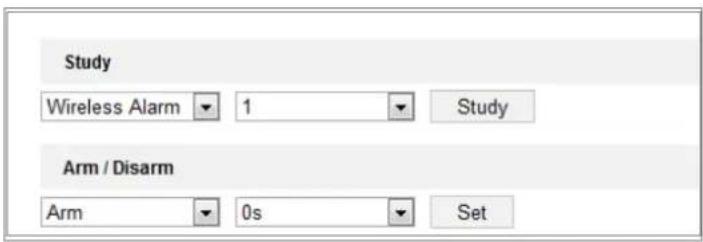
text_image
Study Wireless Alarm 1 Study Arm / Disarm Arm 0s SetFigure 10-11 Conguring Wireless Alarm Sengs
- PIR Alarm
Purpose:
A PIR (Passive Infrared) alarm is triggered when an intruder moves within the detector's eld of view. The heat energy dissipated by a person, or any other warm blooded creature such as dogs, cats, etc., can be detected.
Steps:
- Enter the PIR Alarm Sengs interface:
Conguraon > Advanced Conguraon> Basic Event> PIR Alarm

bar
| Day | Arming Schedule | Linkage Method | |---|---|---| | Mon | 0 | 2 | | Mon | 2 | 4 | | Mon | 4 | 6 | | Mon | 6 | 8 | | Mon | 8 | 10 | | Mon | 10 | 12 | | Mon | 12 | 14 | | Mon | 14 | 16 | | Mon | 16 | 18 | | Mon | 18 | 20 | | Mon | 20 | 22 | | Mon | 22 | 24 | | Tue | 0 | 2 | | Tue | 2 | 4 | | Tue | 4 | 6 | | Tue | 6 | 8 | | Tue | 8 | 10 | | Tue | 10 | 12 | | Tue | 12 | 14 | | Tue | 14 | 16 | | Tue | 16 | 18 | | Tue | 18 | 20 | | Tue | 20 | 22 | | Tue | 22 | 24 | | Wed | 0 | 2 | | Wed | 2 | 4 | | Wed | 4 | 6 | | Wed | 6 | 8 | | Wed | 8 | 10 | | Wed | 10 | 12 | | Wed | 12 | 14 | | Wed | 14 | 16 | | Wed | 16 | 18 | | Wed | 18 | 20 | | Wed | 20 | 22 | | Wed | 22 | 24 | | Thu | 0 | 2 | | Thu | 2 | 4 | | Thu | 4 | 6 | | Thu | 6 | 8 | | Thu | 8 | 10 | | Thu | 10 | 12 | | Thu | 12 | 14 | | Thu | 14 | 16 | | Thu | 16 | 18 | | Thu | 18 | 20 | | Thu | 20 | 22 | | Thu | 22 | 24 | | Fri | 0 | 2 | | Fri | 2 | 4 | | Fri | 4 | 6 | | Fri | 6 | 8 | | Fri | 8 | 10 | | Fri | 10 | 12 | | Fri | 12 | 14 | | Fri | 14 | 16 | | Fri | 16 | 18 | | Fri | 18 | 20 | | Fri | 20 | 22 | | Fri | 22 | 24 | | Sat | 0 | 2 | | Sat | 2 | 4 | | Sat | 4 | 6 | | Sat | 6 | 8 | | Sat | 8 | 10 | | Sat | 10 | 12 | | Sat | 12 | 14 | | Sat | 14 | 16 | | Sat | 16 | 18 | | Sat | 18 | 20 | | Sat | 20 | 22 | | Sat | 22 | 24 | | Sun | 0 | 2 | | Sun | 2 | 4 | | Sun | 4 | 6 | | Sun | 6 | 8 | | Sun | 8 | 10 | | Sun | 10 | 12 | | Sun | 12 | 14 | | Sun | 14 | 16 | | Sun | 16 | 18 | | Sun | 18 | 20 | | Sun | 20 | 22 | | Sun | 22 | 24 | Legend: Enable Alarm Name Arming Schedule Linkage Method Delete Delete AllFigure 10-12 Seng PIR Alarm
- Check the checkbox of Enable to acvate the PIR alarm funcon.
-
Input the alarm name in the text eld as desired.
-
Check the checkbox to select the linkage methods taken for the PIR alarm.
- Click the Edit buon to set the arming schedule.
- Click Save to save the sengs.
- Go to Conguraon > Advanced Conguraon> System> Remote Control to arm the camera.
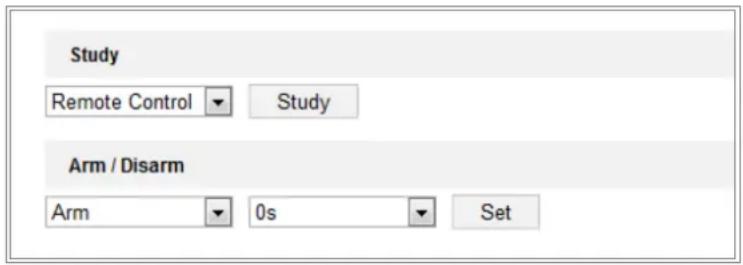
text_image
Study Remote Control ▼ Study Arm / Disarm Arm ▼ 0s ▼ SetFigure 10-13 Arming PIR Alarm
● Emergency Alarm
Purpose:
You can press the Emergency buon on the remote control to trigger the Emergency Alarm in case of an emergency.
Note: The remote control is required for the Emergency Alarm. Go to
Conguraon > System> System Sengs > Remote Control to study the remote control rst.
Steps:
- Enter the Emergency Alarm Sengs interface:
Conguraon > Event > Basic Event> Emergency Alarm
- Check the checkbox to select the linkage methods taken for the Emergency alarm.
- Click Save to save the sengs.
10.2 Smart Events
You can congregate the smart events by following the instrucons in this secon, including audio excepon detecon, defocus detecon, scene change detecon, intrusion detecon, and line crossing detecon, etc. These events can trigger the linkage methods, such as Nofy Surveillance Center, Send Email, Trigger Alarm Output,
etc.
10.2.1 Conguring Scene Change Detecon
Purpose:
Scene change detecon funcon detects the change of surveillance environment aected by the external factors, such as the intenonal rotaon of the camera.
Some certain acons can be taken when the alarm is triggered.
Note: Scene change detecon funcon varies according to dierent camera models.
Steps:
- Enter the Scene Change Detecon sengs interface, Conguraon > Event > Smart Event > Scene Change Detecon.
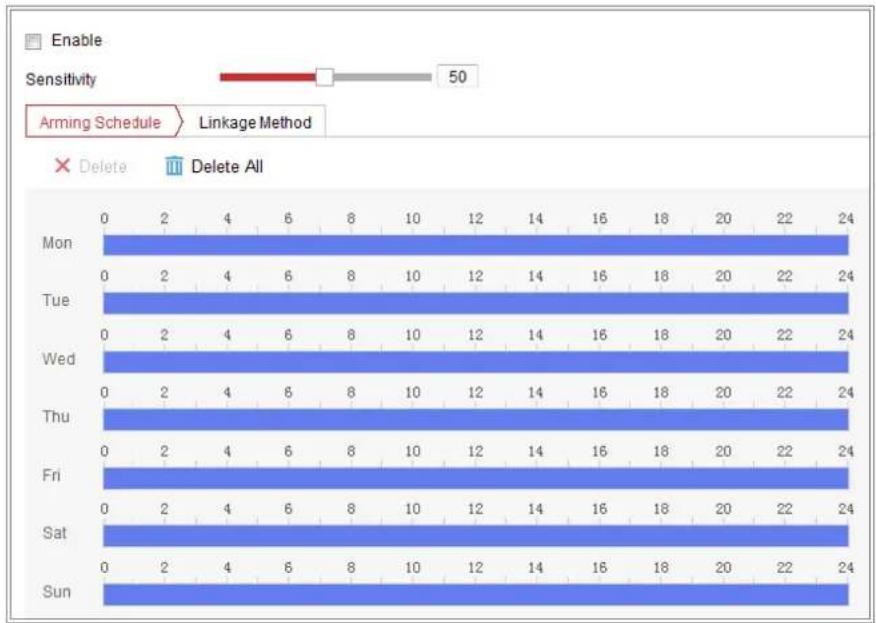
Figure 10-14 Scene Change Detecon
- Check the checkbox of Enable to enable the funcon.
- Click-and-drag the slider to set the detecon sensitivity. The sensitivity value ranges from 1 to 100, and the higher the value is, the more easily the change of scene can trigger the alarm.
- Click Arming Schedule to set the arming schedule. Refer to Task 2 Set the Arming Schedule for Moon Detecon in 10.1.1 Conguring Moon Detecon for
detailed steps.
- Click Linkage Method to select the linkage methods for scene change, including Nofy Surveillance Center, Send Email, Upload to FTP/Memory Card/NAS, Trigger Recording and Trigger Alarm Output.
- Click Save to save the sengs.
10.2.2 Conguring Intrusion Detecon
Purpose:
Intrusion detecon funcon detects people, vehicle or other objects that enter and loiter in a pre-dened virtual region, and some certain acons can be taken when the alarm is triggered.
Note: Intrusion detecon funcon varies according to dierent camera models.
Steps:
- Enter the Intrusion Detecon sengs interface, Conguraon> Event > Smart Event > Intrusion Detecon.
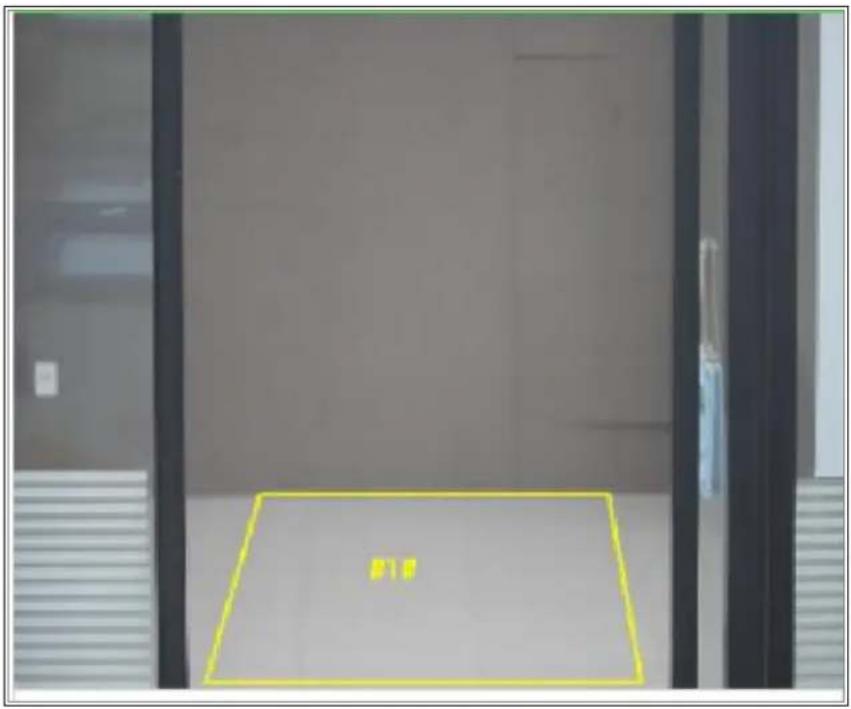
text_image
Photo of a door with a yellow rectangular overlay containing Chinese characters, likely indicating a location or area.Figure 10-15 Intrusion Detecon
-
Check the checkbox of Enable to enable the funcon.
-
Select a region number from the drop-down list of Region.
Region: A pre-dened vertexes area on the live view image. Targets, such as, people, vehicle or other objects, who enter and loiter in the region will be detected and trigger the set alarm.
- Set the Max. Size and Min. Size for valid targets. Targets smaller or larger than the valid target size are not able to trigger detecon. Select a point in the live image as the start to draw a rectangle as the max. size or min. size.
Max. Size: The maximum size of a valid target. Targets with larger sizes would not trigger detecon.
Min. Size: The minimum size of a valid target. Targets with smaller sizes would not trigger detecon.
-
Set the Detecon Area. Click on the live video to specify the four vertexes of the detecon region.
-
Select the detecon target. Human and vehicle are available. If the detecon target is not selected, all the detected targets will be reported, including the human and vehicle.
-
Set the me threshold for intrusion detecon.
Threshold: Range [0s-10s], the threshold for the me of the object loitering in the region. If you set the value as 0, alarm is triggered immediately aer the object entering the region.
- Drag the slider to set the sensitivity value.
Sensitivity: Range [1-100]. Sensitivity stands for the percentage of the body part of an acceptable target that enters the pre-dened region.
Sensitivity = 100 - S 1 /S T *100
S_1 stands for the target body part that goes across the pre-dened region. stands for the complete target body.
Example: if you set the value as 60, the acon can be counted as an intrusion only when 40 percent body part enters the region.
Note: The Sensitivity of the detecon is supported by certain models.
- Repeat the above steps to congregate other regions. Up to 4 regions can be set. You can click the Clear buon to clear all pre-dened regions.
- Click Arming Schedule to set the arming schedule.
- Click Linkage Method to select the linkage methods for intrusion detecon, including Nofy Surveillance Center, Send Email, Upload to FTP/Memory Card/NAS, Trigger Recording, Trigger Alarm Output, Flashing Alarm and Audible Warning.
Note: Only certain models support Trigger Recording, Trigger Alarm Output, Flashing Alarm and Audible Warning.
- Click Save to save the sengs.
10.2.3 Conguring Line Crossing Detecon
Purpose:
Line crossing detecon funcon detects people, vehicle or other objects that cross a pre-dened virtual line, and some certain acons can be taken when the alarm is triggered.
Note: Line crossing detecon funcon varies according to different camera models.
Steps:
- Enter the Line Crossing Detecon sengs interface, Conguraon > Event > Smart Event > Line Crossing Detecon.
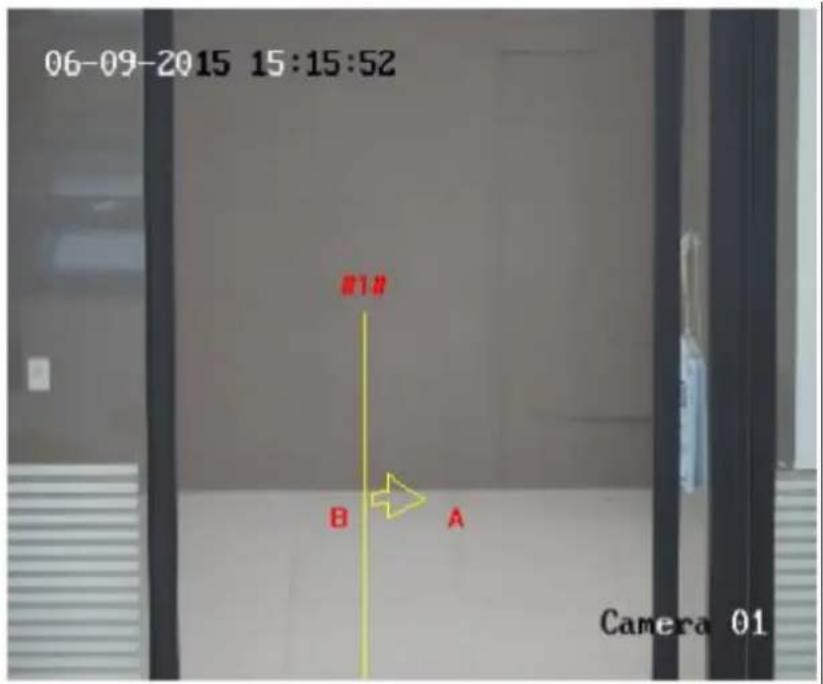
text_image
06-09-2015 15:15:52 #1# B A Camera 01Figure 10-16 Line Crossing Detecon
- Check the checkbox of Enable to enable the funcon.
- Select the line from the drop-down list.
- Set the Max. Size and Min. Size for valid targets. Targets smaller or larger than the valid target size are not able to trigger detecon.
Max. Size: The maximum size of a valid target. Targets with larger sizes would not trigger detecon.
Min. Size: The minimum size of a valid target. Targets with smaller sizes would not trigger detecon.
- Set the detecon area. Drag the line, and you can locate it on the live video as desired.
- Select the detecon target. Human and vehicle are available. If the detection target is not selected, all the detected targets will be reported, including the human and vehicle.
- Select the direcon for line crossing detecon. And you can select the directions as A<->B, A ->B, and B->A.
A<->B: The object going across the plane with both direcons can be detected and alarms are triggered.
A->B: Only the object crossing the congured line from the A side to the B side can be detected.
B->A: Only the object crossing the congured line from the B side to the A side can be detected.
- Drag the slider to set the sensitivity value.
Sensitivity: Range [1-100]. It stands for the percentage of the body part of an acceptable target that goes across the pre-dened line.
Sensitivity = 100 - S 1 /S T *100
S_1 stands for the target body part that goes across the pre-dened line. S_T stands for the complete target body.
Example: if you set the value as 60, the acon can be counted as a line crossing acon only when 40 percent or more body part goes across the line.
Note: Only certain camera models support Sensitivity funcon.
- Repeat the above steps to conjure other lines. Up to 4 lines can be set. You can click the Clear buon to clear all pre-dened lines.
- Click the Arming Schedule to set the arming schedule.
- Click Linkage Method to select the linkage methods for intrusion detecon, including Nofy Surveillance Center, Send Email, Upload to FTP/Memory Card/NAS, Trigger Recording, Trigger Alarm Output, Flashing Alarm and Audible Warning.
Note: Only certain models support Trigger Recording, Trigger Alarm Output, Flashing Alarm and Audible Warning.
- Click Save to save the sengs.
10.2.4 Conguring Region Entrance Detecon
Purpose:
Region entrance detecon funcon detects people, vehicle or other objects that enter a pre-dened virtual region from the outside place, and some certain acons can be taken when the alarm is triggered.
Steps:
- Enter the Region Entrance Detecon sengs interface, Conguration > Event > Smart Event > Region Entrance Detecon.

text_image
07-08-2015 Wed 12:59:09Figure 10-17 Region Entrance Detecon
- Check the Enable checkbox to enable the function.
- Select the Region from the drop-down list for detecon sengs.
- Set the Max. Size and Min. Size for valid targets. Targets smaller or larger than the valid target size are not able to trigger detecon.
Max. Size: The maximum size of a valid target. Targets with larger sizes would not trigger detecon.
Min. Size: The minimum size of a valid target. Targets with smaller sizes would not trigger detecon.
- Set the detecon area. Click on the live video to specify the four vertexes of the detecon region.
- Select the detecon target. Human and vehicle are available. If the detecon target is not selected, all the detected targets will be reported, including the human and vehicle.
- Drag the slider to set the sensitivity value.
Sensitivity: Range [1-100]. Sensitivity stands for the percentage of the body part of an acceptable target that enters the pre-dened region.
Sensitivity = 100 - S 1 /S T *100
S_1 stands for the target body part that enters the pre-dened region S_T stands for the complete target body.
Example: if you set the value as 60, the acon can be counted as a region entrance acon only when 40 percent body part enters the region.
Note: Only certain camera models support Sensitivity funcon.
- Repeat the above steps to configure other regions. Up to 4 regions can be set. You can click the Clear buon to clear all pre-dened regions.
- Click Arming Schedule to set the arming schedule.
- Click Linkage Method to select the linkage methods for intrusion detecon, including Nofy Surveillance Center, Send Email, Upload to FTP/Memory Card/NAS, Trigger Recording, Trigger Alarm Output, Flashing Alarm and Audible Warning.
Note: Only certain models support Trigger Recording, Trigger Alarm Output, Flashing Alarm and Audible Warning.
- Click Save to save the setngs.
10.2.5 Conguring Region Exing Detecon
Purpose:
Region exing detecon funcon detects people, vehicle or other objects that exit from a pre-dened virtual region, and some certain acons can be taken when the alarm is triggered.
Steps:
- Enter the Region Exing Detecon sengs interface, Conguraon > Event > Smart Event > Region Exing Detecon.

text_image
07-08-2015 Wed 12:59:09Figure 10-18 Region Exing Detecon
- Check Enable checkbox to enable the funcon.
- Select the Region from the drop-down list for detecon setngs.
- Set the Max. Size and Min. Size for valid targets. Targets smaller or larger than the valid target size are not able to trigger detecon.
Max. Size: The maximum size of a valid target. Targets with larger sizes would not trigger detecon.
Min. Size: The minimum size of a valid target. Targets with smaller sizes would not trigger detecon.
- Set the detecon area. Click on the live video to specify the four vertexes of the detecon region.
- Select the detecon target. Human and vehicle are available. If the detecon target is not selected, all the detected targets will be reported, including the human and vehicle.
- Drag the slider to set the sensitivity value.
Sensitivity: Range [1-100]. Sensitivity stands for the percentage of the body part of an acceptable target that exits the pre-dened region.
Sensitivity = 100 - S 1 /S T *100
S_1 stands for the target body part that exits the pre-dened region. S_ stands for the complete target body.
Example: if you set the value as 60, the acon can be counted as a region exing acon only when 40 percent body part exits the region.
Note: Only certain camera models support Sensitivity funcon.
- Repeat the above steps to congregate other regions. Up to 4 regions can be set. You can click the Clear buon to clear all pre-dened regions.
- Click Arming Schedule to set the arming schedule.
- Click Linkage Method to select the linkage methods for intrusion detecon, including Nofy Surveillance Center, Send Email, Upload to FTP/Memory Card/NAS, Trigger Recording, Trigger Alarm Output, Flashing Alarm and Audible Warning.
Note: Only certain models support Trigger Recording, Trigger Alarm Output, Flashing Alarm and Audible Warning.
- Click Save to save the setngs.
10.3 Face Capture
The camera can capture the face that appears in the congured area, and the face informaon will be uploaded with the captured picture as well.
Note: Only certain camera models support the funcon.
◆ Overlay & Capture
Display VCA info. on Stream: The red frames will be displayed on the target if in a live view or playback.
Display Target info. on Alarm Picture: There will be a frame on the target on the uploaded alarm picture if the checkbox is checked.
Snapshot Sengs:
- Target Picture Sengs
a. Select the target picture size. Four types are available: Custom, Head Shot, Half-Body Shot and Full-Body Shot. If you select the Custom, you can customize the width, head height and body height as required.
b. Check the Fixed Value to set the picture height.
● Background Picture Sengs
a. Select the Picture Quality and Resoluon from the drop-down list.
b. Check Background Upload to upload the background image.
Note: Background upload is only available for face capture camera.
Camera Informaon:
You can set the Device No. and Camera Info. for the camera, which can be overlaid on captured picture.
Text Overlay Informaon:
You can check desired items and adjust their order to display on captured pictures.
Shield Region
The shield region allows you to set the specific region in which the face capture does not work. Up to 4 shield regions are supported.
Steps:
- Click ☐ to draw shield area by le click end-points in the live view window, and right click to nish the area drawing.
Notes:
- Polygon area (4 to 10 sides) sides is supported.
- Click to delete the drawn areas.
- If the live view is stopped, there is no way to draw the shield regions.

text_image
06-09-2015 15:43:23 1 Camera 01Figure 10-19 Draw Shield Area
- Click Save.
Rule
Steps:
- Check Rule to enable rules of face capture.
-
Click ☐ to draw the minimum pupil distance. The distance of the drawn pupil will be displayed on the box below the live view.
The minimize pupil distance refers to the minimum square size composed by the area between two pupils, and it is the basic standard for a camera to identify a target. -
Click ☐ to draw the maximum pupil distance.
-
Click ☐ to draw the detecon area you want the face capture to take eect. Draw area by le click end-points in the live view window, and right click to nish the area drawing.
Notes:
- Polygon area (4 to 10 sides) sides is supported.
-
If the live view is stopped, there is no way to draw the congured area.
-
Click Save.
-
Click Arming Schedule tab, and set the schedule time for each rule, and click Save to save the sengs.
-
Click Alarm Linkage tab, check the checkbox of corresponding linkage method for each rule, and click Save to save the sengs.
Advanced Conguraon
Face Capture Version: It lists the version of the algorithms library.
Congure the following parameters according to your actual environment.
Note: These funcons vary according to dierent models.

text_image
Detection Parameters Generation Speed 3 Sensitivity 3 Capture Parameters Face Capture Mode ● Best Shot ○ Quick Shot Capture Times 1 Capture Interval 1 frame Capture Threshold 4 □ Face Exposure Reference Brightness 50 Min. Duration 60 minute(s) Face Filtering Time 0 s ● The Filtering Time only works in Best Shot mode. If the Filtering Time is changed, the actual capture times may be less than the set times. □ Invalid Capture Filter Restore ParametersFigure 10-20 Advanced Conguraon
Detecon Parameters:
Generaon Speed [1 to 5]: The speed to identify a target. The higher the value, the faster the target will be recognized. Seng the value quite low, and if there was a face in the congured area from the start, this face will not be captured. It can reduce the misinformaon of the faces in the wall painng or posters. The default value of 3 is recommended.
Sensitivity [1 to 5]: The sensitivity to identify a target. The higher the value is, the easier a face will be recognized, and the higher possibility of misinformaon would be. The default value of 3 is recommended.
Capture Parameters:
Face Capture Mode: Best Shot and Quick Shot are available.
● Best Shot: The best shot aer target leave the detecon area.
Capture Times [1 to 3]: Refers to the capture mes a face will be captured during its stay in the congured area.
Capture Interval: [1 to 255 Frame]: The frame interval to capture a picture. If you set the value as 1, which is the default value, it means the camera captures the face in every frame.
Capture Threshold: It stands for the quality of face to trigger capture and alarm. Higher value means beer quality should be met to trigger capture and alarm.
- Quick Shot: You can dene quick shot threshold and max. capture interval. Quick Shot Threshold: It stands for the quality of face to trigger quick shot. Capture Times: It can be set as limited and unlimited. When it is set as limited, it can be set [0 to 100]. Refers to the capture mes a face will be captured during its stay in the congured area.
Face Exposure: Check the checkbox to enable the face exposure.
Reference Brightness [0 to 100]: The reference brightness of a face in the face exposure mode. If a face is detected, the camera adjusts the face brightness according to the value you set. The higher the value, the brighter the face is.
Minimum Duraon [1 to 60 minute(s)]: The minimum duration of the camera exposures the face.
Note: If the face exposure is enabled, please make sure the WDR funcon is disabled, and the manual iris is selected.
Face Filtering Time: It means the me interval between the camera detectng a face and taking a capture acon. If the detected face stays in the scene for less than the set ltering me, capture will not be triggered. For example, if the face ltering me is set as 5 seconds, the camera will capture the detected face when the face keeps staying in the scene for 5 seconds.
Note: The face ltering me (longer than 0 s) may increase the possibility of the actual capture mes less than the set value above.
Invalid Capture Filter: Check the checkbox to enable invalid capture Iter. The invalid captured face pictures will be Itered if the funcon is enabled.
Restore Default: Click Restore to restore all the sengs in advanced conguraon to the factory default.
Chapter 11 Storage Sengs
Before you start:
To congure record sengs, please make sure that you have the network storage device or local storage device congured.
11.1 Conguring Record Schedule
Purpose:
There are two kinds of recording for the cameras: manual recording and scheduled recording. In this secon, you can follow the instrucons to conjure the scheduled recording. By default, the record les of scheduled recording are stored in the local storage or in the network disk.
Steps:
- Enter the Record Schedule Sengs interface: Conguraon > Storage > Schedule Sengs > Record Schedule.

bar
| Day | Continuous | Motion | Alarm | Motion | Alarm | Motion & Alarm | Event | |-------|------------|--------|-------|--------|-------|----------------|-------| | Mon | 24 | 0 | 0 | 0 | 0 | 0 | 0 | | Tue | 0 | 2 | 0 | 14 | 16 | 0 | 0 | | Wed | 0 | 0 | 0 | 14 | 16 | 0 | 24 | | Thu | 0 | 0 | 0 | 14 | 16 | 24 | 0 | | Fri | 0 | 0 | 0 | 14 | 16 | 24 | 24 | | Sat | 0 | 0 | 24 | 14 | 16 | 24 | 0 | | Sun | 0 | 2 | 0 | 14 | 16 | 24 | 0 |Figure 11-1 Recording Schedule Interface
- Check the checkbox of Enable to enable scheduled recording.
- Click Advanced to set the camera record parameters.
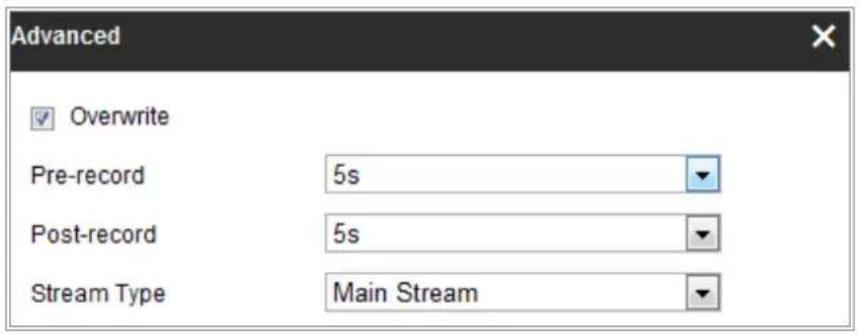
text_image
Advanced Overwrite Pre-record 5s Post-record 5s Stream Type Main StreamFigure 11-2 Record Parameters
- Pre-record: The me you set to start recording before the scheduled time on the event. For example, if an alarm triggers recording at 10:00, and the pre-record me is set as 5 seconds, the camera starts to record at 9:59:55.
The Pre-record me can be congured as No Pre-record, 5s, 10s, 15s, 20s, 25s, 30s or not limited.
- Post-record: The me you set to stop recording aer the scheduled time or the event. For example, if an alarm triggered recording ends at 11:00, and the post-record me is set as 5 seconds, the camera records until 11:00:05.
The Post-record me can be congured as 5s, 10s, 30s, 1 min, 2 min, 5 min or 10 min.
- Stream Type: Select the stream type for recording.
Note: The record parameter conguraons vary depending on the camera model.
- Select a Record Type. The record type can be Connuous, Moon Detecon, Alarm, Moon | Alarm, Moon & Alarm, and Event.
- Connuous
If you select Connuous, the video will be recorded automatically according to the me of the schedule.
● Record Triggered by Moon Detecon
If you select Moon Detecon, the video will be recorded when the moon is detected.
Besides conguring the recording schedule, you have to set the moon detecon area and check the checkbox of Trigger Recording in the Linkage Method of Moon Detecon Sengs interface. For detailed informaon,
please refer to the Task 1: Set the Moon Detecon Area in 10.1.1 Conguring Moon Detecon.
● Record Triggered by Alarm
If you select Alarm, the video will be recorded when the alarm is triggered via the external alarm input channels.
Besides conguring the recording schedule, you have to set the Alarm Type and check the checkbox of Trigger Recording in the Linkage Method of Alarm Input Setngs interface. For detailed informaon, please refer to 10.1.3 Conguring Alarm Input.
● Record Triggered by Moon & Alarm
If you select Moon & Alarm, the video will be recorded when the moon and alarm are triggered at the same me.
Besides conguring the recording schedule, you have to congure the sengs on the Moon Detecon and Alarm Input Sengs interfaces. Please refer to 10.1.1 Conguring Moon Detecon and 10.1.3 Conguring Alarm Input for detailed informaon.
● Record Triggered by Moon | Alarm
If you select Moon | Alarm, the video will be recorded when the external alarm is triggered or the moon is detected.
Besides conguring the recording schedule, you have to congure the sengs on the Moon Detecon and Alarm Input Sengs interfaces. Please refer to 10.1.1 Conguring Moon Detecon and 10.1.3 Conguring Alarm Input for detailed informaon.
● Record Triggered by Events
If you select Event, the video will be recorded if any of the events is triggered. Besides conguring the recording schedule, you have to congregate the event sengs.
- Select the record type, and click-and-drag the mouse on the me bar to set the record schedule.
- Click Save to save the setngs.
11.2 Congure Capture Schedule
Purpose:
You can congregate the scheduled snapshot and event-triggered snapshot. The captured picture can be stored in the local storage or network storage.
Steps:
- Enter the Capture Sengs interface: Conguraon > Storage > Storage Setngs > Capture.
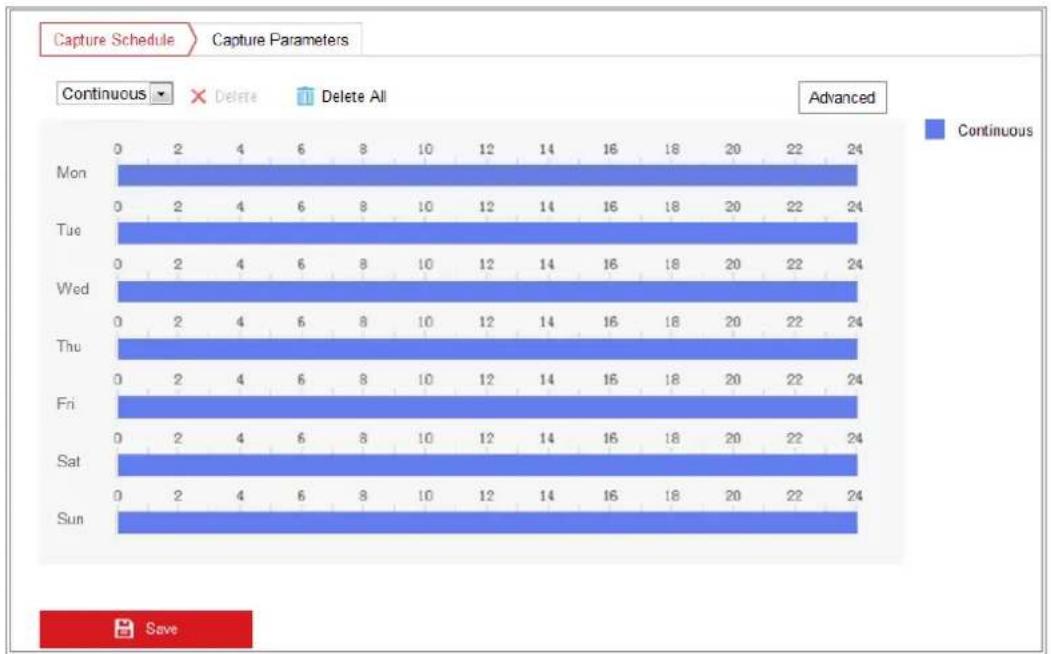
bar
Capture Schedule Capture Parameters | Day | Continuous | Delete | Delete All | |---|---|---|---| | Mon | 24 | 0 | 0 | | Tue | 24 | 2 | 0 | | Wed | 24 | 0 | 0 | | Thu | 24 | 0 | 0 | | Fri | 24 | 0 | 0 | | Sat | 24 | 0 | 0 | | Sun | 24 | 0 | 0 |Figure 11-3 Capture Conguraon
- Go to Capture Schedule tab to conjure the capture schedule by click-and-drag the mouse on the me bar. You can copy the record schedule to other days by clicking the green copy icon on the right of each me bar.
- Click Advanced to select stream type.

text_image
Advanced Stream Type Sub Stream OK CancelFigure 11-4 Advanced Seng of Capture Schedule
-
Click Save to save the setngs.
-
Go to Capture Parameters tab to conjure the capture parameters.
(1) Check the Enable Timing Snapshot checkbox to enable connuous snapshot.
(2) Select the picture format, resoluon, quality and capture interval.
(3) Check the Enable Event-triggered Snapshot checkbox to enable event-triggered snapshot.
(4) Select the picture format, resoluon, quality, capture interval, and capture number.
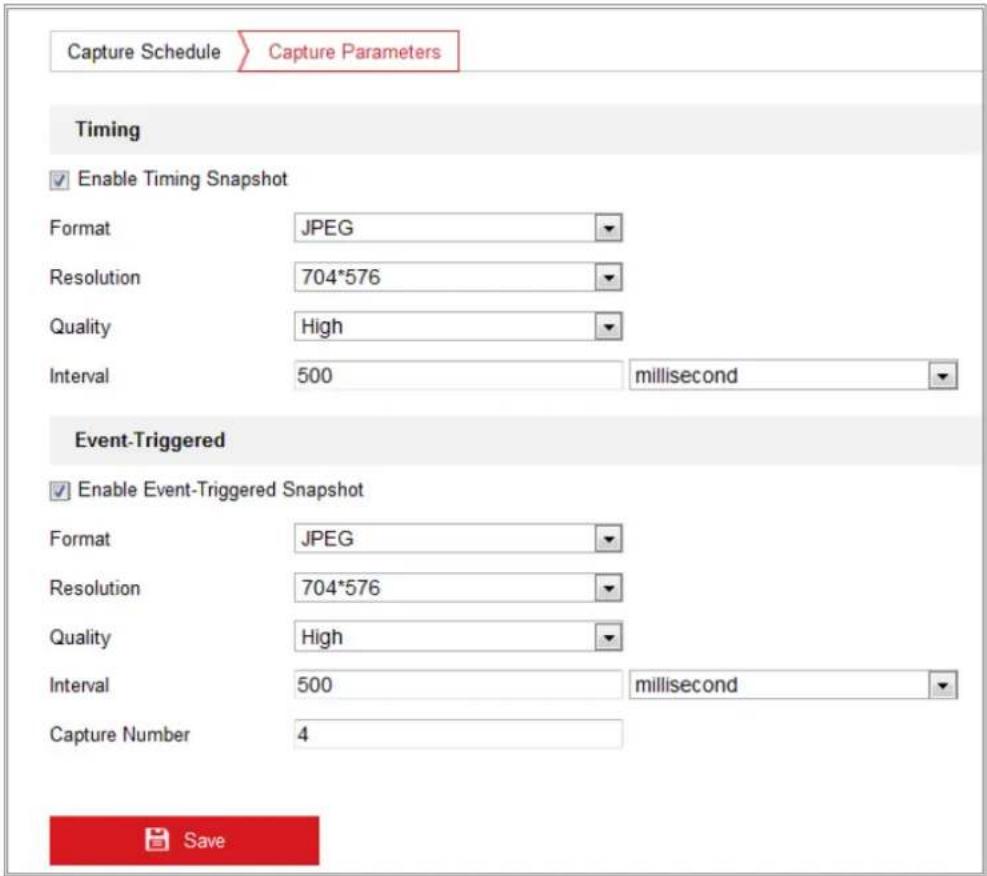
text_image
Capture Schedule Capture Parameters Timing ✓ Enable Timing Snapshot Format JPEG Resolution 704*576 Quality High Interval 500 millisecond Event-Triggered ✓ Enable Event-Triggered Snapshot Format JPEG Resolution 704*576 Quality High Interval 500 millisecond Capture Number 4 SaveFigure 11-5 Set Capture Parameters
- Set the me interval between two snapshots.
- Click Save to save the setngs.
11.3 Congure HDD Management
Purpose:
HDD management allows you to view the HDD capacity, free space, status, encrypon
status, type, formang type, property and progress, etc. You can format, encrypted format or verify the selected HDD as required. And you can assign the quota for dierent le types.
Steps:
- Enter the HDD management interface, Conguraon > Storage > Storage Management > HDD Management.
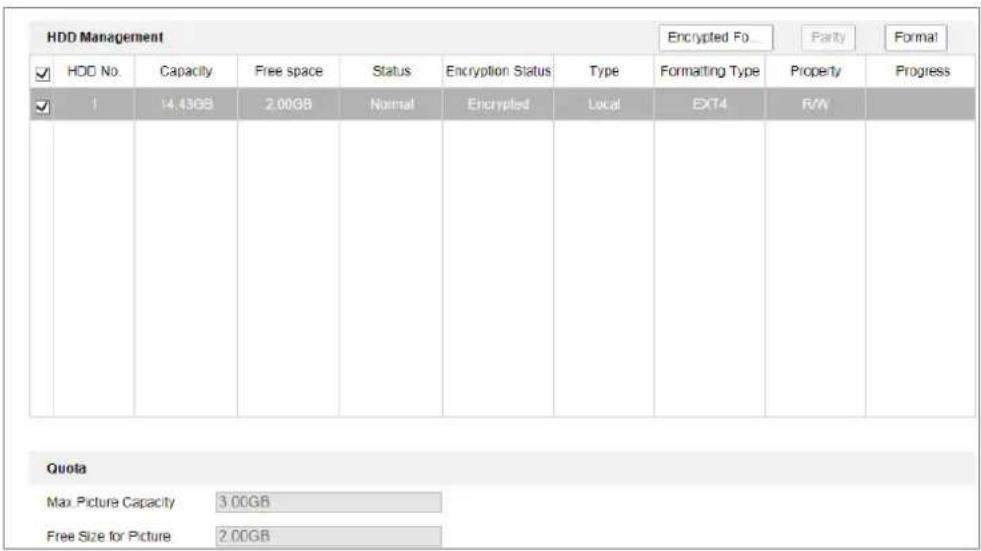
text_image
HDD Management Encrypted Fo Parity Format HDD No. Capacity Free space Status Encryption Status Type Formatting Type Property Progress 1 14.43GB 2.00GB Normal Encrypted Local EXT4 R/W Quota Max Picture Capacity 3.00GB Free Size for Picture 2.00GBFigure 11-6 HDD Management
- Select the desired disk and operate as required.
(1) The status of the disk includes Uninialized and Normal.
- If the status of the disk is Uninialized, you can click Format to initialize the disk. When the inializaon completed, the status of disk will become Normal. Then the disk can be used normally.
(2) The encrypon status of the disk includes Unencrypted, Encrypted and Vericaon Failed.
- If the status of the disk is Unencrypted, you can click Format or Encrypted Format to format it. The encrypon password is required for the encrypon format.
- For the encrypted memory card, its status is displayed: Encrypted or Vericaon Failed. If the status of the disk is Vericaon Failed, you can click Parity, and enter the password for the verificaon. If the vericaon
is succeeded, its status changes to Encrypted.
- (Oponal) Dene the quota for record and pictures.
(1) Input the quota percentage for picture and for record.
(2) Click Save and refresh the browser page to acvate the sengs.
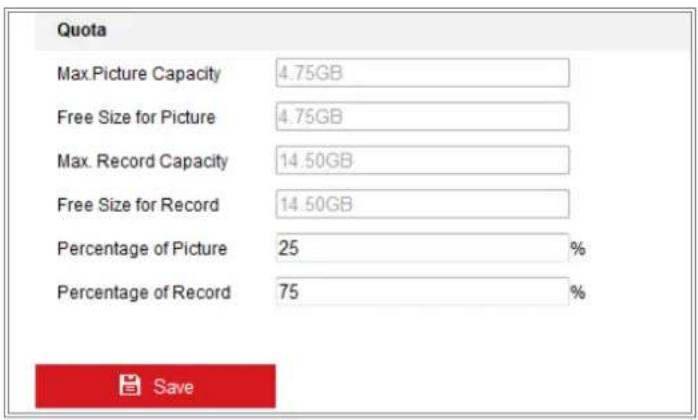
text_image
Quota Max.Picture Capacity 4.75GB Free Size for Picture 4.75GB Max. Record Capacity 14.50GB Free Size for Record 14.50GB Percentage of Picture 25 % Percentage of Record 75 % SaveFigure 11-7 Quota Sengs
11.4 Conguring Net HDD
Before you start:
The network disk should be available within the network and properly congured to store the recorded les, log les, pictures, etc.
Steps:
- Enter the Net HDD sengs interface, Conguraon > Storage > Storage
Management > Net HDD.
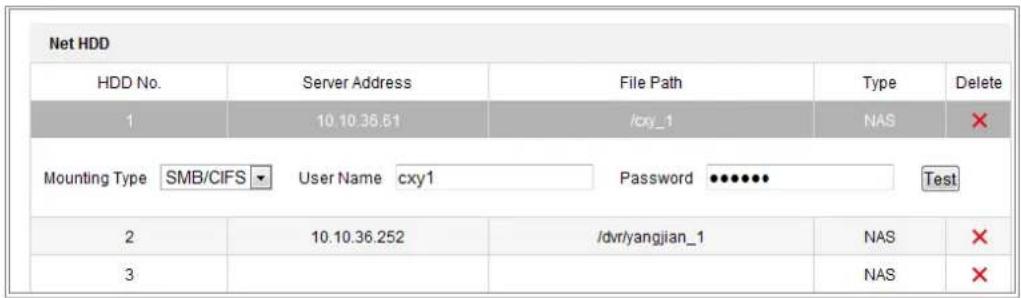
text_image
Net HDD HDD No. Server Address File Path Wayte Delete 1 10.10.36.61 /cxy_1 NAS Mounting Type SMB/CIFS User Name cxy1 Password Test 2 10.10.36.252 /dvr/yangjian_1 NAS 3 NAS XFigure 11-8 Add Network Disk
- Enter the IP address of the network disk, and enter the le path.
- Select the moung type. NFS and SMB/CIFS are selectable. And you can set the
user name and password to guarantee the security if SMB/CIFS is selected.
Note: Please refer to the NAS User Manual for creang the le path.

- For your privacy and to beer protect your system against security risks, we strongly recommend the use of strong passwords for all funcons and network devices. The password should be something of your own choosing (using a minimum of 8 characters, including at least three of the following categories: upper case leers, lower case leers, numbers and special characters) in order to increase the security of your product.
- Proper conguraon of all passwords and other security sengs is the responsibility of the installer and/or end-user.
- Click Test to check whether the network disk is available.
- Click Save.
Note:
Up to 8 NAS disks can be connected to the camera.
11.5 Memory Card Detecon
Purpose:
With memory card detecon, you can view the memory card status, lock your memory card, and receive nocaon when your memory card is detected abnormal.
Note: Only certain camera models support the function. If this tab page doesn't show on your web page, it means either that your camera doesn't support the funcon, or your installed memory card is not supported for this funcon. You can contact the dealer or the retailer for the informaon of memory card that supports the funcon.
Steps:
- Enter Memory Card Detecon conguraon interface:
Conguraon > Storage > Storage Management > Memory Card Detecon
Memory Card Detecon
- View the memory card status on Status Detecon tab.
Remaining Lifespan: It shows the percentage of the remaining lifespan. The lifespan of a memory card may be influenced by factors such as its capacity and the bitrate. You need to change the memory card if the remaining lifespan is not enough.
Health Status: It shows the condition of your memory card. There are three status descripons, good, bad, and damaged. You will receive a nocaon if the health status is anything other than good when the Arming Schedule and Linkage Method are set.
Note: It is recommended that you change the memory card when the health status is not "good".
- Click R/W Lock tab to add a lock to the memory card.
With the R/W lock added, the memory card can only be read and write when it is unlocked.
R/W Lock Seng
- Add a Lock
(1) Select the Lock Switch as ON.
(2) Input the password.
(3) Click Save to save the settings.
- Unlock
(1) If you use the memory card on the camera that locks it, unlocking will be done automatically and no unlocking procedures are required on the part of users.
(2) If you use the memory card (with a lock) on a dierent camera, you can go to HDD Management interface to unlock the memory card manually. Select the memory card, and click the Unlock button shown next to the Format button. Then input the correct password to unlock it.
Notes:
• The memory card can only be read and written in when it is unlocked.
- If the camera, which adds a lock to a memory card, is restored to the factory sengs, you can go to the HDD Management interface to unlock the memory card.
- Remove the Lock
(1) Select the Lock Switch as OFF.
(2) Input the correct password in Password Setngs text eld.
(3) Click Save to save the setngs.
-
Set the Arming Schedule and Linkage Method, if you want to receive a nocaon when the health status of the memory card is anything other than good. Refer to Task 2: Set the Arming Schedule for Motion Detecon and Task 3: Set the Linkage Method for Moon Detecon in 10.1.1 Conguring Moon Detecon.
-
Click Save to save the setngs.
11.6 Conguring Lite Storage
Purpose:
When there is no moving object in the monitoring scenario, the frame rate and bitrate of the video stream can be reduced to lengthen the storage me of the memory card.
Notes:
- Only certain camera models support the funcon.
● The video les recorded in lite storage mode will be played back in full frame
rate (25fps/30fps), and thus the playback process is speeded up to the eye.
- Enter the Lite Storage interface:
Conguraon > Storage > Storage Management > Lite Storage
- Check the Checkbox of Enable to enable the lite storage funcon.
- Input the storage me in the text eld. You can view the available space of the SD card on the page.
- Click Save to save the setngs.
11.7 Conguring Cloud Storage
Purpose:
The captured pictures can be saved on Cloud Storage when the funcon is congured.
Note: Only certain camera models support the funcon.
Steps:
- Check Enable Cloud Storage.
- Select a protocol version.
- Input the IP address and port of the storage server.
- Input the user name, password and conrm password for the authencaon of the storage server if you select the protocol version as Cloud1.0. Input AccessKey and SecretKey if you select the protocol version as Cloud2.0.
- Input picture storage pool ID on the server.
- (Oponal) You can click Test to test the cloud storage sengs.
- Click Save.
Note:
The storage server port ranges from 2000 to 65535 and the picture storage pool ID ranges from 1 to 255.
Chapter 12 Playback
Purpose:
This secon explains how to view the remotely recorded video les stored in the network disks or SD cards.
Steps:
- Click Playback on the menu bar to enter playback interface.
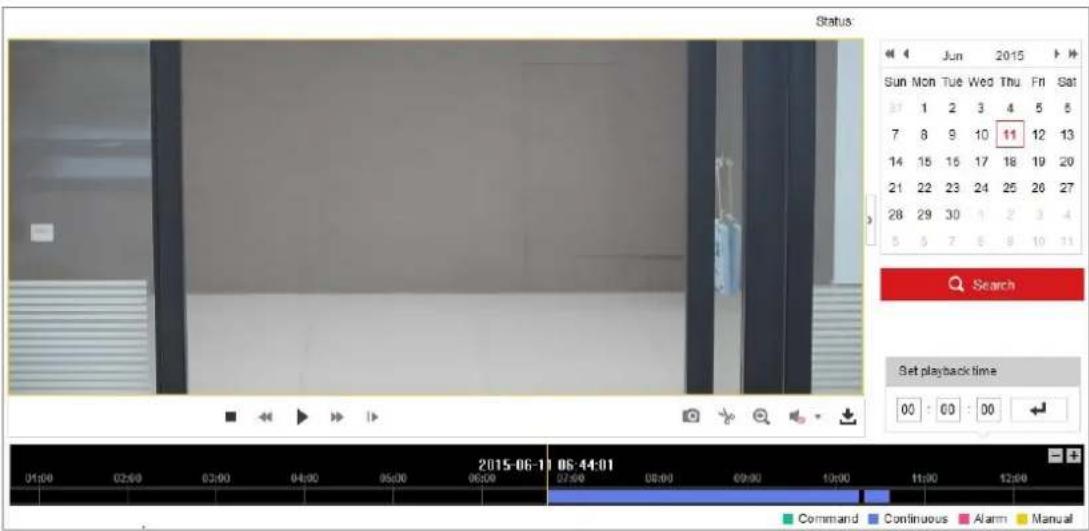
text_image
Status Jun 2015 Sun Mon Tue Wed Thu Fri Sat 37 1 2 3 4 5 6 7 8 9 10 11 12 13 14 15 16 17 18 19 20 21 22 23 24 25 26 27 28 29 30 1 2 3 4 5 5 7 8 9 10 11 Search Set playback time 00 : 00 : 00 Command Continuous Alarm Manual 2015-06-11 06:44:01Figure 12-1 Playback Interface
- Select the date and click Search.
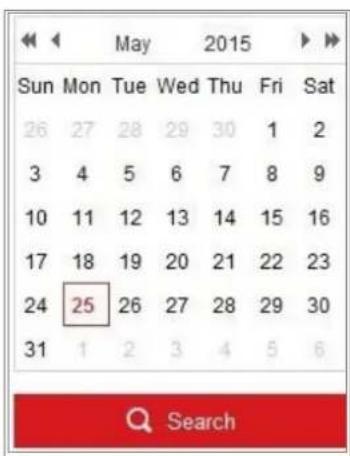
text_image
May 2015 Sun Mon Tue Wed Thu Fri Sat 26 27 28 29 30 1 2 3 4 5 6 7 8 9 10 11 12 13 14 15 16 17 18 19 20 21 22 23 24 25 26 27 28 29 30 31 1 2 3 4 5 6 SearchFigure 12-2 Search Video
- Click ▶ to play the video les found on this date.
The toolbar on the boom of Playback interface can be used to control playing process.

text_image
Screenshot of a media player control bar with playback, pause, and navigation iconsFigure 12-3 Playback Toolbar
Table 12-1 Descripon of the buons
| Buon | Operaon | Buon | Operaon |
| ▶ | Play |  | Capture a picture |
| II | Pause |  | Start/Stop clipping video les |
| ■ | Stop |  [67T2] [67T2] | Audio on and adjust volume/Mute |
| ◀◀ | Speed down |  | Download |
| ▶▶ | Speed up | ▶▶ | Playback by frame |
 | Enable/Disable digital zoom |
Note: You can choose the le paths locally for downloaded playback video les and pictures in Local Conguraon interface.
You can also input the me and click to locate the playback point in the Set playback me eld. You can also click - + to zoom out/in the progress bar.
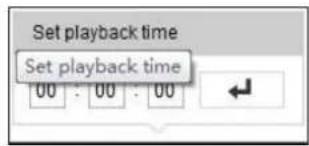
text_image
Set playback time Set playback time 00 : 00 : 00Figure 12-4 Set Playback Time

text_image
2015-06-15 05:34:51 03:00 04:00 05:00 06:00 07:00 08:00 09:00Figure 12-5 Progress Bar
The dierent colors of the video on the progress bar stand for the dierent video types.

Figure 12-6 Video Types
Chapter 13 Picture
Click Picture to enter the picture searching interface. You can search, view, and download the pictures stored in the local storage or network storage.
Notes:
● Make sure HDD, NAS or memory card are properly congured before you process the picture search.
- Make sure the capture schedule is congured. Go to Conguraon > Storage > Schedule Sengs > Capture to set the capture schedule.
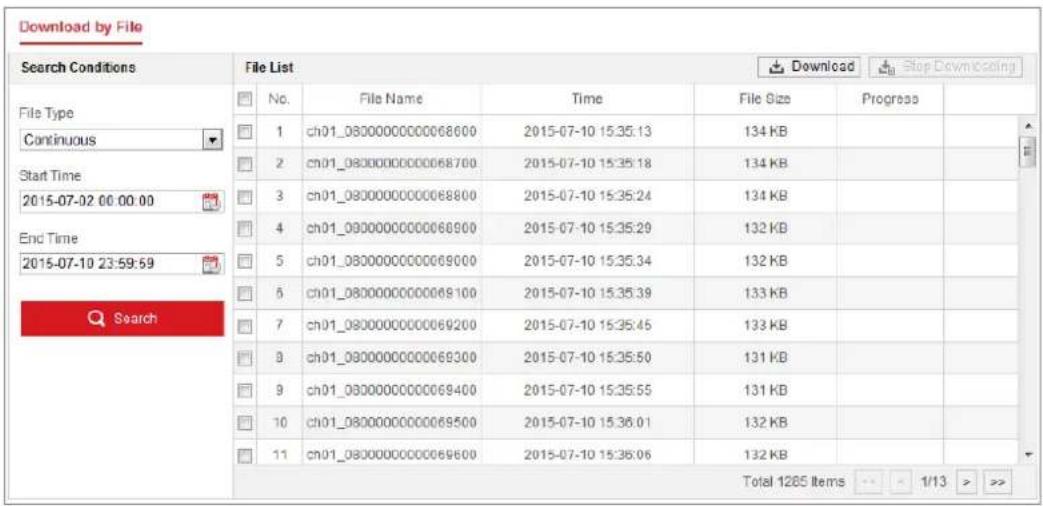
text_image
Download by File Search Conditions File List No. File Name Time File Size Progress 1 ch01_0800000000068600 2015-07-10 15:35:13 134 KB 2 ch01_0800000000068700 2015-07-10 15:35:18 134 KB 3 ch01_0800000000068800 2015-07-10 15:35:24 134 KB 4 ch01_0800000000068900 2015-07-10 15:35:29 132 KB 5 ch01_0800000000069000 2015-07-10 15:35:34 132 KB 6 ch01_0800000000069100 2015-07-10 15:35:39 133 KB 7 ch01_0800000000069200 2015-07-10 15:35:45 133 KB 8 ch01_0800000000069300 2015-07-10 15:35:50 131 KB 9 ch01_0800000000069400 2015-07-10 15:35:55 131 KB 10 ch01_0800000000069500 2015-07-10 15:36:01 132 KB 11 ch01_0800000000069600 2015-07-10 15:36:06 132 KB Total 1285 Items 1/13 > >>Figure 13-1 Picture Search Interface
Steps:
- Select the le type from the dropdown list. Connuous, Moon, Alarm, Moon | Alarm, Moon & Alarm, Line Crossing, Intrusion Detecon, and Scene Change Detecon are selectable.
- Select the start me and end me.
- Click Search to search the matched pictures.
- Check the checkbox of the pictures and then click Download to download the selected pictures.
Note:
Up to 4000 pictures can be displayed at one me.
Appendix
Appendix 1 SADP Soware Introducon
- Descripon of SADP
SADP (Search Acve Devices Protocol) is a kind of user-friendly and installaon-free online device search tool. It searches the acve online devices within your subnet and displays the informaon of the devices. You can also modify the basic network informaon of the devices using this soware.
- Search acve devices online
◆ Search online devices automacally
Aer launch the SADP soware, it automacally searches the online devices every 15 seconds from the subnet where your computer locates. It displays the total number and informaon of the searched devices in the Online Devices interface. Device informaon including the device type, IP address and port number, etc. will be displayed.

text_image
SADP Total number of active devices: 10 Export: Refresh I Activate the Device The device is not activated. You can modify the software parameters after the device activation. New Password: ********** Strong: Confirm Password: ********() ActivateFigure A.1.1 Searching Online Devices
Note:
Device can be searched and displayed in the list in 15 seconds aer it went online; it will be removed from the list in 45 seconds aer it went oine.
◆ Search online devices manually
You can also click to refresh the online device list manually. The newly searched devices will be added to the list.
text_image
NOTE You can click or on each column heading to order the informaon; you can click to expand the device table and hide the network parameter panel on the right side, or click to show the network parameter panel.- Modify network parameters
Steps:
-
Select the device to be modified in the device list and the network parameters of the device will be displayed in the Modify Network Parameters panel on the right side.
-
Edit the modifiable network parameters, e.g. IP address and port number.
-
Enter the password of the admin account of the device in the Admin Password
eld and click Modify to save the changes.

- For your privacy and to beer protect your system against security risks, we strongly recommend the use of strong passwords for all funcons and network devices. The password should be something of your own choosing (using a minimum of 8 characters, including at least three of the following categories: upper case leers, lower case leers, numbers and special characters) in order to increase the security of your product.
- Proper conguraon of all passwords and other security sengs is the responsibility of the installer and/or end-user.

text_image
Modify Network Parameters Enable DHCP Device Serial No.: XX-XXXXXX-XXXXXXXXXXXXXX IP Address: 10.16.5.106 Port: 8003 Subnet Mask: 255.255.255.0 Gateway: 0.0.0.0 IPv6 Address: IPv6 Gateway: IPv6 Prefix Length: HTTP Port: 0 Security Verification Admin Password: •••••••••••••••• Modify Forgot PasswordFigure A.1.2 Modify Network Parameters
Appendix 2 Port Mapping
The following sengs are for TP-LINK router (TL-WR641G). The sengs vary depending on dierent models of routers.
Steps:
- Select the WAN Connecon Type, as shown below:

text_image
108M Wireless Router Model No.: TL-WR641G / TL-WR642G WAN Status Quick Setup --- Basic Settings --- Network LAN WAN MAC Clone WAN Connection Type: PPPoE Dynamic IP Static IP User Name: PPPoE Password: 802.1X + Dynamic IP 802.1X + Static IP BigPond Cable L2TPFigure A.2.1 Select the WAN Connecon Type
- Set the LAN parameters of the router as in the following gure, including IP address and subnet mask sengs.
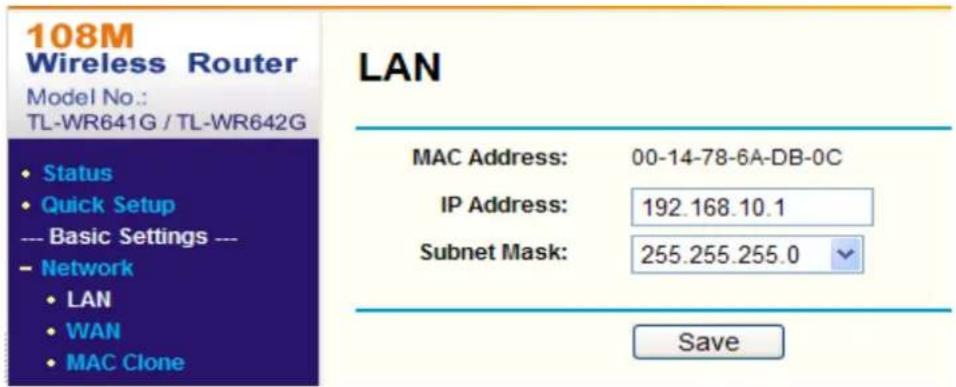
text_image
108M Wireless Router Model No.: TL-WR641G / TL-WR642G • Status • Quick Setup --- Basic Settings --- - Network • LAN • WAN • MAC Clone LAN MAC Address: 00-14-78-6A-DB-0C IP Address: 192.168.10.1 Subnet Mask: 255.255.255.0 SaveFigure A.2.2 Set the LAN parameters
- Set the port mapping in the virtual severs of Forwarding. By default, camera uses port 80, 8000 and 554. You can change these ports value with web browser or client soware.
Example:
When the cameras are connected to the same router, you can congregate the ports of a camera as 80, 8000, and 554 with IP address 192.168.1.23, and the ports of
another camera as 81, 8001, 555, 8201 with IP 192.168.1.24. Refer to the steps as below:
Steps:
- As the sengs menoned above, map the port 80, 8000, 554 and 8200 for the network camera at 192.168.1.23
- Map the port 81, 8001, 555 and 8201 for the network camera at 192.168.1.24.
- Enable ALL or TCP protocols.
- Check the Enable checkbox and click Save to save the sengs.
text_image
Status Quick Setup --- Basic Settings --- Network Wireless --- Advanced Settings --- DHCP Forwarding Virtual Servers Port Triggering DMZ UPnP Security Static Routing Dynamic DNS --- Maintenance --- System ToolsVirtual Servers

text_image
ID Service Port IP Address Protocol Enable 1 80 192.168.10. 23 ALL ✓ ✓ 2 8000 192.168.10. 23 ALL ✓ ✓ 3 554 192.168.10. 23 ALL ✓ ✓ 4 8200 192.168.10. 23 ALL ✓ ✓ 5 81 192.168.10. 24 ALL ✓ ✓ 6 8001 192.168.10. 24 ALL ✓ ✓ 7 555 192.168.10. 24 ALL ✓ ✓ 8 8201 192.168.10. 24 ALL ✓ ✓ Common Service Port: DNS(53) Copy to ID 1 ✓ Previous Next Clear All SaveFigure A.2.3 Port Mapping
Note: The port of the network camera cannot conict with other ports. For example, some web management port of the router is 80. Change the camera port if it is the same as the management port.
Appendix 3
Device Communicaon Matrix
Scan the following QR code to get device communicaon matrix.
Note that the matrix contains all communicaon ports of Hikvision network cameras.

text_image
HEKVISIONDevice Command
Scan the following QR code to get device common serial port commands.
Note that the command list contains the commonly used serial port commands for all Hikvision network cameras.

text_image
MIKVISION
See Far, Go Further