DL-WFH-CAM120 - Webcam Liberty - Free user manual and instructions
Find the device manual for free DL-WFH-CAM120 Liberty in PDF.


| Product Type | Webcam |
| Model | DL-WFH-CAM120 |
| Resolution | Full HD (1920 x 1080 pixels) |
| Frame Rate | 30 fps |
| Field of View | 90 degrees |
| Focus Type | Autofocus |
| Built-in Microphone | Yes, stereo |
| Connectivity | USB 2.0 (cable length 1.5m) |
| Low Light Correction | Yes |
| Privacy Shutter | Yes, physical |
| Mounting | Clip-on or tripod screw |
| Dimensions (W x H x D) | 95 x 55 x 45 mm |
| Weight | 120 g |
| Power Supply | via USB port (5V DC) |
| Compatible Operating Systems | Windows 7/8/10/11, macOS 10.10+, Chrome OS |
| Warranty | 2 years |
| Cleaning Instructions | Use a soft dry cloth; avoid liquids |
Frequently Asked Questions - DL-WFH-CAM120 Liberty
User questions about DL-WFH-CAM120 Liberty
0 question about this device. Answer the ones you know or ask your own.
Ask a new question about this device
Download the instructions for your Webcam in PDF format for free! Find your manual DL-WFH-CAM120 - Liberty and take your electronic device back in hand. On this page are published all the documents necessary for the use of your device. DL-WFH-CAM120 by Liberty.
USER MANUAL DL-WFH-CAM120 Liberty
VALUE-ENGINEERED DIGITAL SOLUTIONS
DL-WFH-CAM120 Quick Install Guide
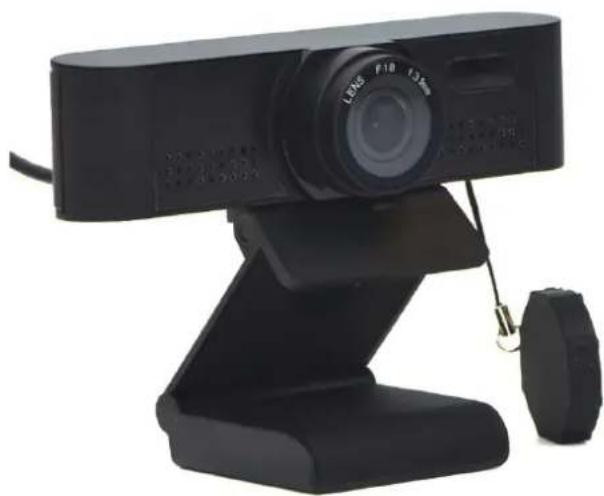
natural_image
Black handheld video camera with adjustable arm and stand (no visible text or symbols)Product Overview
The DigitalLinx webcam DL-WFH-CAM120 is a leading USB 2.0 peripheral intended to capture audio and video for tasks such as video conferencing, streaming, webinars, on-line classes and personal chatting. Being truly plug-and-play, no driver is required when using software platforms such as Zoom, Teams, Youtube, Facetime and other messaging applications. Features include 1080p/30fps image sensor with a 120 degree field of view lens, tripod mount, security cap and built in microphone.
For advanced settings, download software from the Liberty AV website for image adjustments.
Package Contents
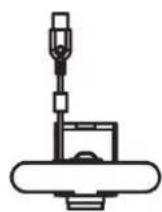
(x1) Camera
(x1) Quick Start Guide
(x1) Quality Card
Product Layout
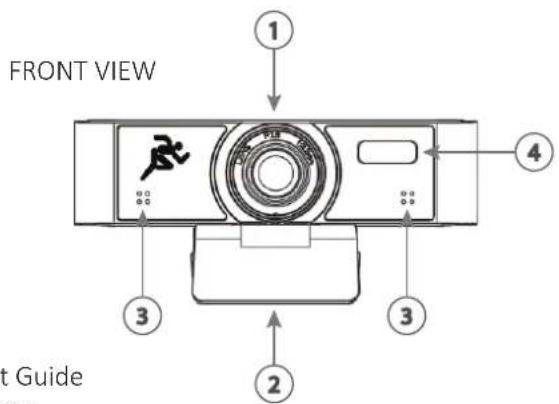
text_image
FRONT VIEW 3 2 3 4 t GuideStart Guide
- Lens
- Flexible Clip-base
- Noise reduction Microphone
- Activity LED
- Tripod Attachment - 1/4" thread for securing camera screw to mount or tripod
- Security cover
- USB cable with USB-A connector
BOTTOM VIEW
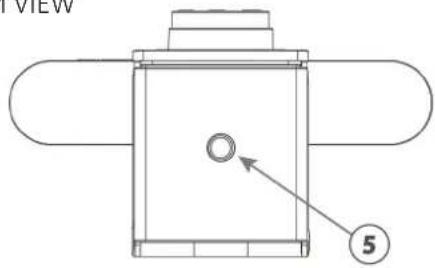
text_image
VIEW ⑤ISOMETRIC VIEW
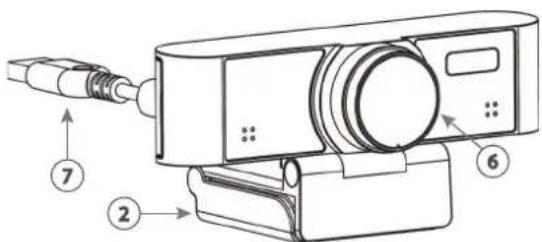
text_image
Technical diagram of a digital camera with numbered components and labeled partsSetting up your webcam
Requirements - A computer with an audio output, preferably a speaker.
Install the video conferencing desktop client such as Zoom, Teams, Google meet onto the computer. verify your preferred video calling application requirements
Note:
Placement - When the monitor thickness is less than or equal to 45mm, the camera can by mounted above the display.
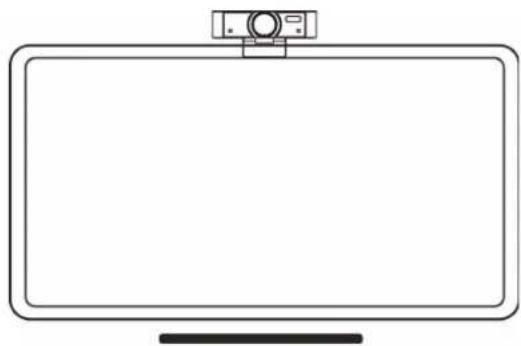
natural_image
Line drawing of a blank flat-screen monitor with a camera on top (no text or symbols)Connectivity - Locate the DL-WFH-CAM120 webcam and plug into the USB port of the computer. If the length of the USB cable is not long enough, use a TYPE A USB 2.0 extension cable or hub.
Navigation- settings>privacy>camera or similar within your PC and turn on 'let apps use my camera'
Close all other applications that may use the DL-WFH-CAM120 webcam.
Run the preferred software to use with the webcam.
Navigate to the "audio & video settings" within the software
Select "LibAV Cam120" in the Microphone drop down menu to receive excellent audio quality.
Select "LibAV Cam120" in the Camera drop down menu to receive excellent video quality
LED lights on the camera will light up to indicate the camera is running.
Maintenance and Troubleshooting
Maintenance
- If the camera is not in long-term use, please disconnect the power switch after use.
- Use soft cloth or cotton paper to remove dust from the camera housing.
- When cleaning the camera lens, please use dry soft cloth to wipe, if dirt is serious, use neutral cleaner gently. Do not use strong or corrosive detergent, lest the lens scratch, affect the image effect.
Avoid
- Pointing the lens to the background of a large bright color, bright areas or reflective objects.
- The camera should not work under unstable lighting conditions, otherwise the image may flash.
- Do not use around facilities that can transmit high-power radio waves, such as television station or radio-transmitting station.
Troubleshooting
- If you find the image to be out of focus, wave your hand in front of the camera, the camera will automatically adjust the focus to the new state
- Computer software doesn't detect the webcam-
Step 1: make sure that any other applications that are using the camera are fully closed
Step 2: within the software of your choice, go into the "audio & video settings"
Select "LibAV Cam120" in the Microphone drop down menu
Select "USB Live Camera" in the Camera drop down menu.
Step 3: make sure the USB drivers on your computer are up to date
- Computer hardware doesn't detect the webcam -
Step 1: reconnect the cameras USB cable to your computer
Step 2: restart your computer
Technical Specifications
| Camera | |
| Sensor 1/2.7", CMOS, Effective | Pixel: 2.07M |
| Scanning Mode Progressive | |
| Lens Mount M12 | |
| Lens Focus: f=3.1mm, FOV: 120° | |
| Minimal Illumination (1) HDMI type A | |
| Shutter 1/30s ~ 1/10000s | |
| White Balance Auto, Indoor, | Outdoor, One Push, Manual, VAR |
| Camera bracket Bracket with | damper |
| Digital Noise Reduction 2D, 3D digital noise reduction | |
| Back-light Compensation Support | |
| Features | |
| Operate System Windows XP | /2003/VISTA/7/8/10, Linux, Mac OS, Android |
| Color / Compression MJPEG | YUY2/H.264 |
| Resolution | MJPEG: 1920x1080 (default), 1600x896, 160x120, 176x144, 320x240, 352x288, 640x480, 720x576, 1280x720, 1024x768, 1024x576, 960x540, 848x480, 800x600, 800x448, 640x360, 480x272, 424x240, 320x180YUY2: 1920x1080 (default), 160x120, 176x144, 320x240, 352x288, 640x480, 1280x720, 960x540, 640x360, 480x272, 424x240, 320x180H.264: 1920x1080 (default), 1600x896, 160x120, 176x144, 320x240, 352x288, 640x480, 720x576, 1280x720, 1024x768, 960x540, 848x480, 800x600, 800x448, 640x360, 480x270, 424x240, 320x180 |
| USB Communication Protocol | UVC 1.0 |
| Input/Output Interface | |
| USB Interface | 1 x USB 2.0: Type A |
| Physical Parameter | |
| Input Voltage | 5V (USB power supply) |
| Current Consumption | 0.27A |
| Operating Temperature | --10°C ~ 40°C |
| Storage Temperature | -40°C ~ 60°C |
| Power Consumption | 1.4W |
| Dimension (W*H*D) 118mm | x 37.2mm x 30.8mm (without bracket) |
| Net Weight | 0.093 Kg (without bracket) |
| MTBF | >30000h |
| Warranty | 2 years |
| Certification | CE, FCC, RoHS |
Thank you for your purchase.
For Technical Support please call our toll free number at 800-530-8998 or email us at supportlibav@libav.com
www.libav.com
Digitalinx is a brand of:

LIBERTY
AV SOLUTIONS
11675 Ridgeline Drive
Colorado Springs, Colorado
80921 USA
Phone: 719-260-0061
Fax: 719-260-0075
Toll-Free: 800-530-8998