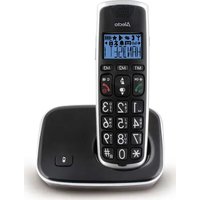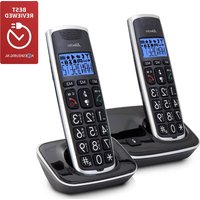
FX-6020 - Phone ALECTO - Free user manual and instructions
Find the device manual for free FX-6020 ALECTO in PDF.


User questions about FX-6020 ALECTO
0 question about this device. Answer the ones you know or ask your own.
Ask a new question about this device
Download the instructions for your Phone in PDF format for free! Find your manual FX-6020 - ALECTO and take your electronic device back in hand. On this page are published all the documents necessary for the use of your device. FX-6020 by ALECTO.
USER MANUAL FX-6020 ALECTO
natural_image
Diagram of a device's internal structure showing battery pack, casing, and housing with an arrow indicating assembly (no text or symbols present)2.3 EXTRA HANDSETS EN OPLADERS:
text_image
-1 :2 :3 :4 :5 :6 :7 :8 :9 0 OKflowchart
graph TD
    A["Group Icon"] --> B["Person Icon"]
    B --> C["OK Button"]
text_image
Y WISSEN Y ALL, WISSwissen:
text_image
DETAILS OPSLAAN WISSEN ALL, WISStext_image
C 1 ABC DE 3 GHI J K L M NO 6 7 T U V 8 W 9 0 Y OPR H5 2 OKdruk op toets C
text_image
C ⊗ ⊖ of 2 sec *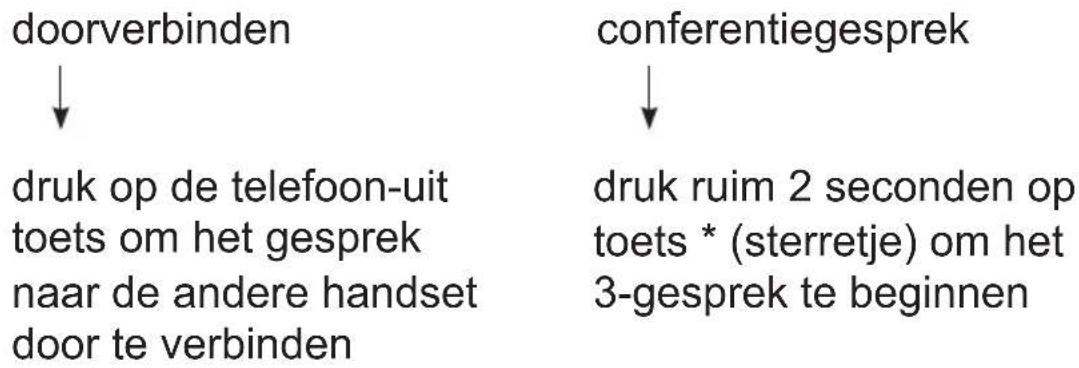
9 KLOK & ALARM (WEK) FUNCTIE
9.1 INTRODUCTIE:
text_image
OK ▲? OK ▲? OK 1 A B C D E F 3 G H I J K L M N O 6 #7 T U V 8 W I Z 9 0 OKdruk op toets ⇔ OK
text_image
Y 20-45 1text_image
8 sec OK 2x OK 1 2 3 4 5 6 7 8 9 0 OKbasis:
Manufacturers name and address : Vtech Telecommunications LTD, 23/F., Tai Ping Industrial Centre, Block 1, 57 Ting Kok Road, Tai Po, Hong Kong.
Model Identifier : VT05EEU06045
Average active efficiency : 74.2 %
Efficiency at low 10% load : -
No load Power consumption : 0.07 W
18 INHOUDSOPGAVE
1 OVERZICHTEN
1.1 HANDSET 2
1.2 DISPLAY 4
1.3 BASIS....5
2 INSTALLATIE
2.1 BASIS....6
2.2 HANDSET 7
2.3 EXTRA HANDSETS EN OPLADERS 7
3 TELEFONEREN
3.1 TELEFONEREN MET DE HOORN OF HANDENVRIJ....8
3.2 OPGEBELD WORDEN 8
3.3 VERBINDING VERBREKEN....8
3.4 NUMMERS KIEZEN....9
3.5 RUGGESPRAAK 11
3.6 ONTVANGSTVOLUME 11
3.7 GESPREKSDUUR 12
3.8 R/FLASH FUNCTIE 12
3.9 HANDSET ZOEKFUNCTIE....12
3.10 UITSCHAKELEN HANDSET....13
4 NUMMERHERHALING
4.1 INTRODUCTIE....14
4.2 OPNIEUW KIEZEN 14
4.3 BEWAREN OF WISSEN 14
5 NUMMERWEERGAVE
5.1 INTRODUCTIE....16
5.2 INDICATIE NIEUWE OPROEP 16
5.3 GEHEUGEN INZIEN EN TERUGBELLEN....16
5.4 DETAILS, BEWAREN OF WISSEN 17
5.5 EXTRA INFORMATIE....18
6 VOICE MAIL INDICATIE
6.1 INTRODUCTIE....19
6.2 INDICATIE NIEUWE VOICEMAIL....19
7 TELEFOONBOEKGEHEUGEN
7.1 INTRODUCTIE....20
7.2 CONTACT OPZOEKEN EN BELLEN 20
8.1 INTRODUCTIE....28
8.2 INTERCOM 28
9 KLOK & ALARM (WEK) FUNCTIE
9.1 INTRODUCTIE....31
9.2 INSTELLEN TIJD EN DATUM....31
9.3 ALARM IN/UITSCHAKELEN EN INSTELLEN ALARMTIJD 32
9.4 WERKING ALARM 33
10 HANDSET VOORKEUREN
10.1 INTRODUCTIE....34
10.2 MENU VOOR DE HANDSET VOORKEUREN 34
11 BASIS VOORKEUREN
11.1 INTRODUCTIE....36
11.2 MENU VOOR DE BASIS VOORKEUREN....36
12 RESET VOORKEUREN
12.1 INTRODUCTIE....38
12.2 MENU VOOR RESET VOORKEUREN....38
12.3 FABRIEKSINSTELLINGEN....39
13 EXTRA HANDSETS
13.1 INTRODUCTIE....40
13.2 AANMELDEN HANDSETS 40
13.3 TIPS BETREFFENDE MULTIHANDSET 41
13.4 AFMELDEN HANDSETS 41
14 TIPS EN WAARSCHUWINGEN
14.1 ALGEMEEN 42
14.2 INSTALLATIE 42
14.3 PLAATSING 42
14.4 BEREIK 43
14.5 VOEDING HANDSET 43
14.6 HOORTOESTELLEN 44
14.7 MEDISCHE APPARATUUR 44
14.8 LICHTNETUITVAL 44
14.9 AFLUISTEREN 44
14.10 ONDERHOUD 45
14.11 MILIEU 45
15 MOGELIJKE PROBLEMEN EN OPLOSSINGEN
15.1 PROBLEMEN MET UITGAANDE OPROEPEN....45
15.2 PROBLEMEN MET INKOMENDE OPROEPEN 46
15.3 PROBLEMEN TIJDENS TELEFONEREN 46
15.4 PROBLEMEN MET NUMMERWEERGAVE 47
15.5 OVERIG 47
16 VERKLARING VAN CONFORMITEIT 48
17 SPECIFICATIES 48
18 INHOUDSOPGAVE....49
19 GARANTIEVOORWAARDEN 52
19 GARANTIEVOORWAARDEN
3button, see the next page
text_image
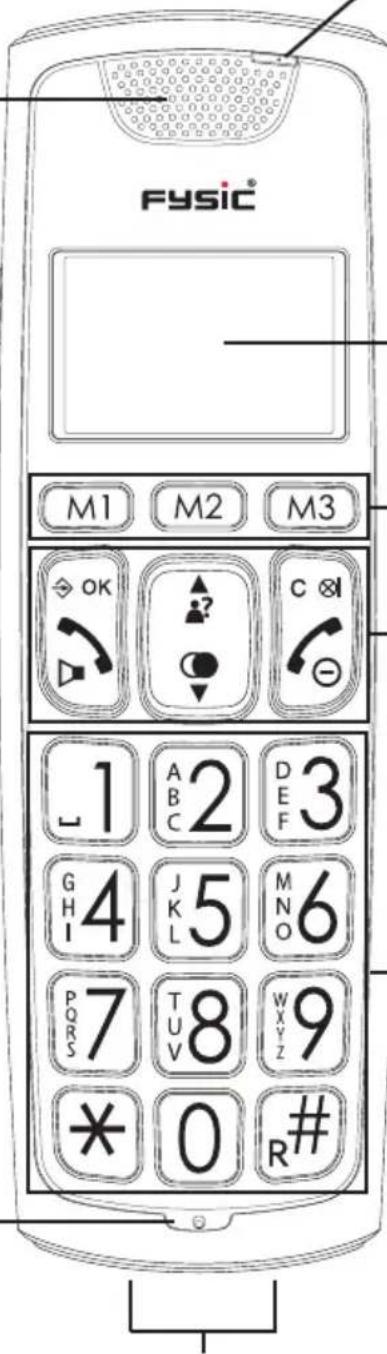
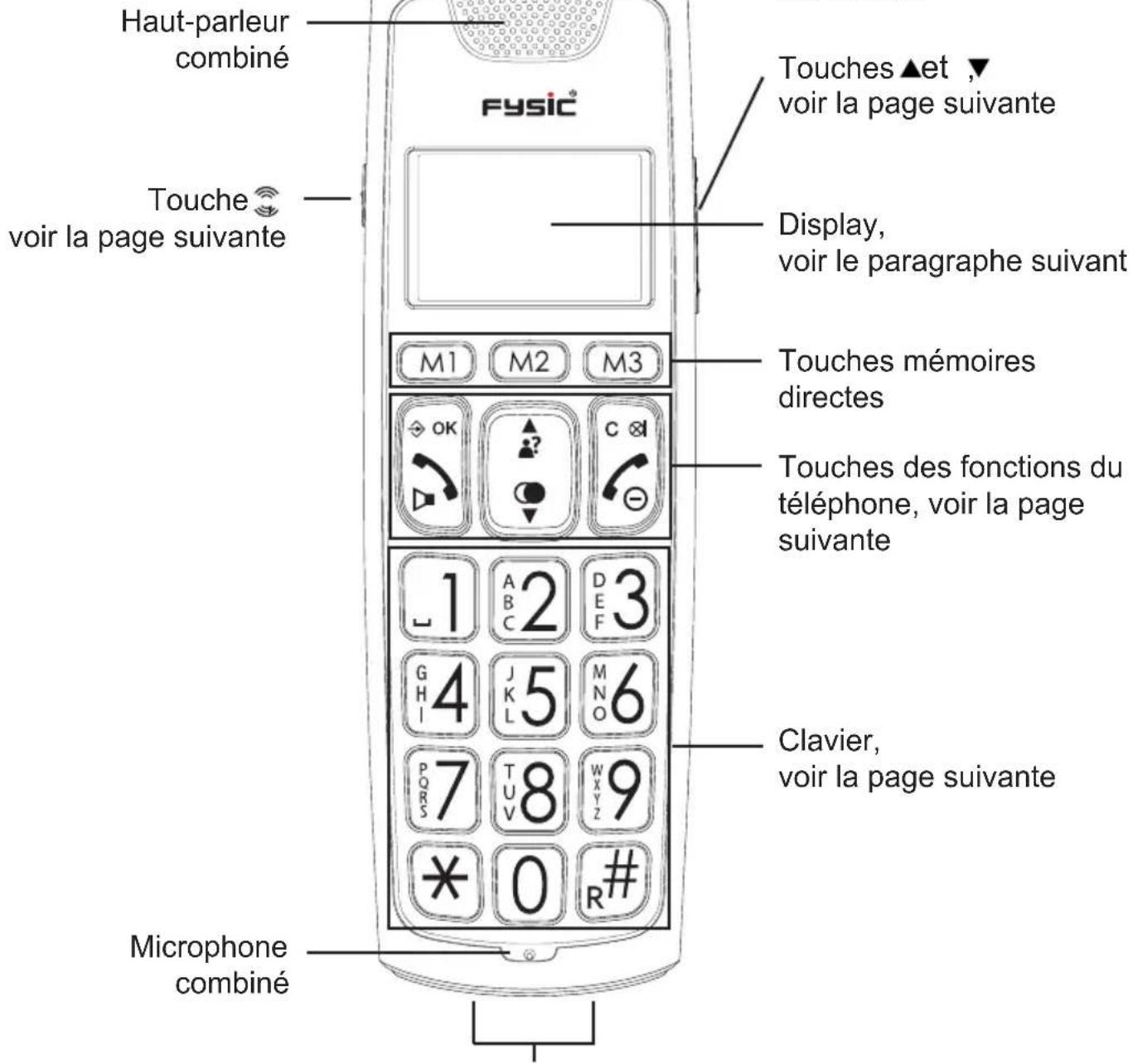
FYSIC® M1 M2 M3 OK C ⊗ 1 A 2 D 3 G H 4 J K 5 M N O 6 P Q R S 7 T U V 8 W X Y Z 9 * 0 R #indicator; flashes when receiving a call, remains lit when the BOOST function is enabled
▲ and ▼buttons, see the next page
display, see the next paragraph
direct memory buttons
telephone function buttons, see the next page
keypad, see the next page
recharge contacts, to recharge the handset battery by placing the handset onto the cradle/charger

BOOST button: during a call, press to enable the extra amplifier
▲ and ▼buttons: during a call, press to increase or decrease the volume
in standby mode, press to open the menu during setup, press to confirm your settings

press to answer an incoming call or to start a phone conversation during a call, press again to enable or disable the speaker function

in standby mode, press to open the Caller-ID memory press to scroll memories or settings during a call, press to increase the volume

in standby mode, press to open the last dialled number memory press to scroll memories or settings during a call, press to decrease the volume

correction button when entering phone numbers or names during a call, press to switch off the microphone in stand-by mode, press to start an intercom call during setup, press to go back one step

press to end a call press and hold (> 5 sec.) to switch off the handset
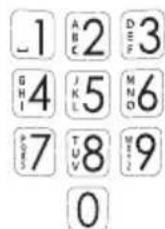
0-9 buttons: to dial phone numbers and to enter memories 0 button: press and hold to insert a dialling space

'asterisk' and 'pound' buttons: used for e.g. telecom banking R button: function button for certain telecom services
1.2 DISPLAY:
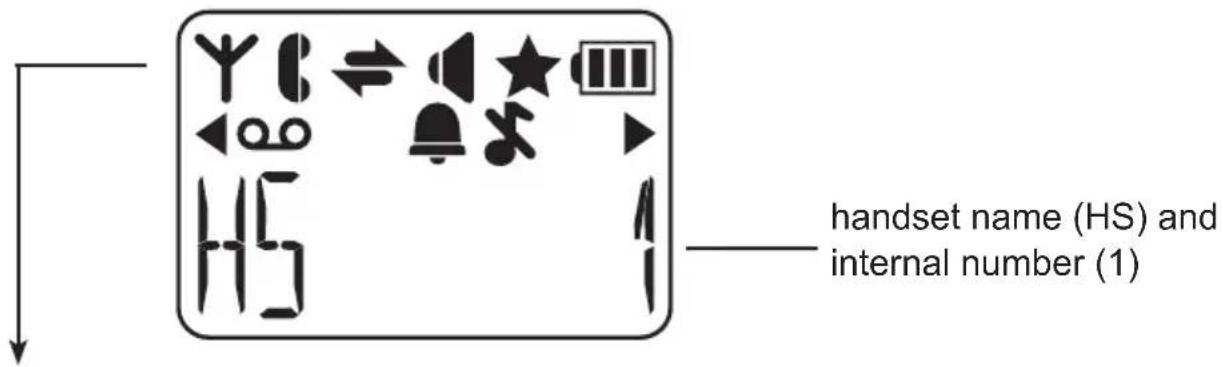
Y flashes when the connection between the handset and base is lost remains lit when the handset is within range of the base
flashes when receiving an external call remains lit during a call
flashes when receiving an internal call remains lit during an intercom call
illuminates when the speaker function is enabled
★ illuminates when checking the Caller-ID memory and having new calls
shows the status of the rechargeable batteries:
= batteries are full
☐ = batteries are 2/3 full
☐ = batteries are 1/3 full, recharge as soon as possible
☐ = batteries are empty, the handset will switch off and you can no longer make calls
the battery symbol will scroll while charging until the batteries are fully charged
illuminates when the number is too long to be shown in the display (press the # button to see the rest of the number)

illuminates when you've receiver a voicemail message (only FSK systems)

illuminates when the alarm (wake-up) function is enabled

illuminates when the ring volume is set to 0 (switched off)
1.3 BASE:
flowchart
graph TD
    A["Input"] --> B["Process Step 1"]
    B --> C["Device Icon"]
    C --> D["Output"]
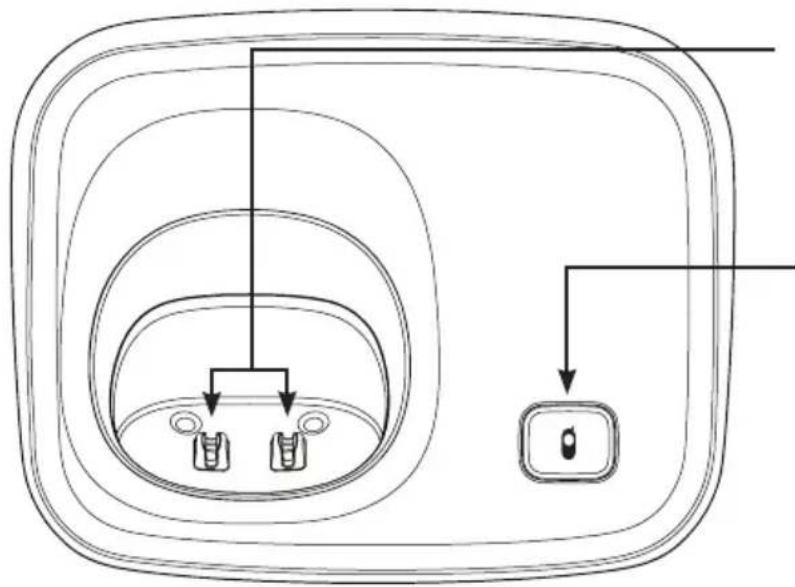
charging contacts: the rechargeable batteries in the handset are charged via these contacts
page button: to page all handsets (handset search button), also used for registering new handsets.
2 INSTALLATION
2.1 BASE STATION:
Telephone connection:
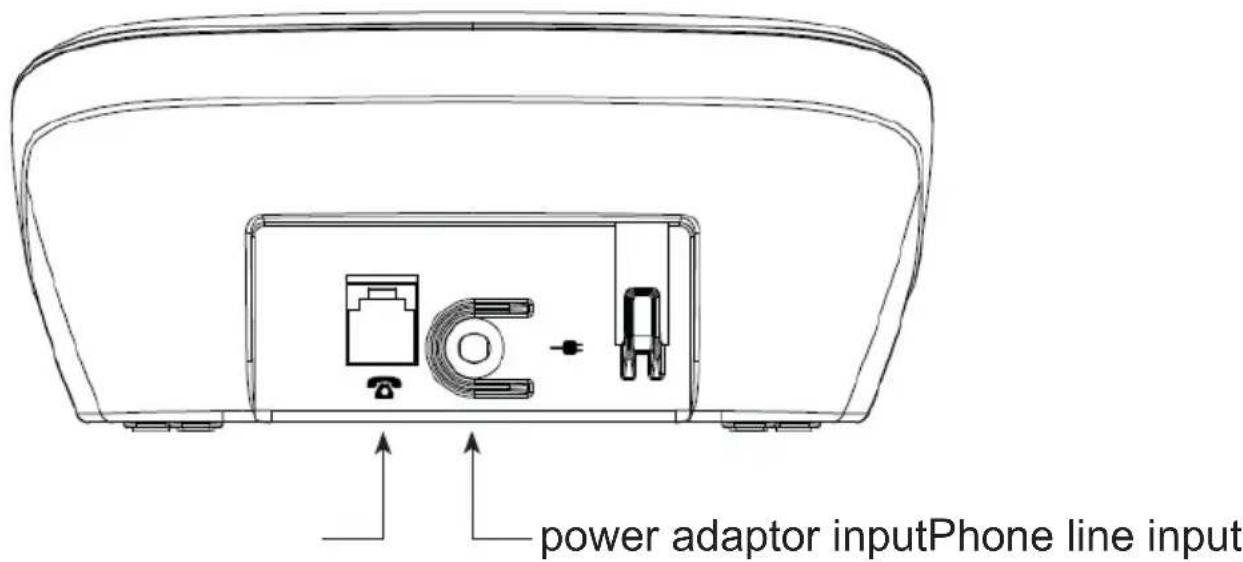
Plug the small connector at the phone cable into the back of the base station ▼press the connector until you hear a click). Plug the phone connector into the phone socket.
Power supply:
Connect the supplied power adaptor to the -put at the rear of the base and insert the adaptor into a 230V wall socket.

ONLY CONNECT THE INCLUDED ADAPTER. CONNECTING OTHER ADAPTERS MAY RESULT IN DANGEROUS SITUAS OR MAY CAUSE DAMAGE TO THE ELECTRONICS OF THE WE.
text_image
power adaptor inputPhone line input2.2 HANDSET:
-
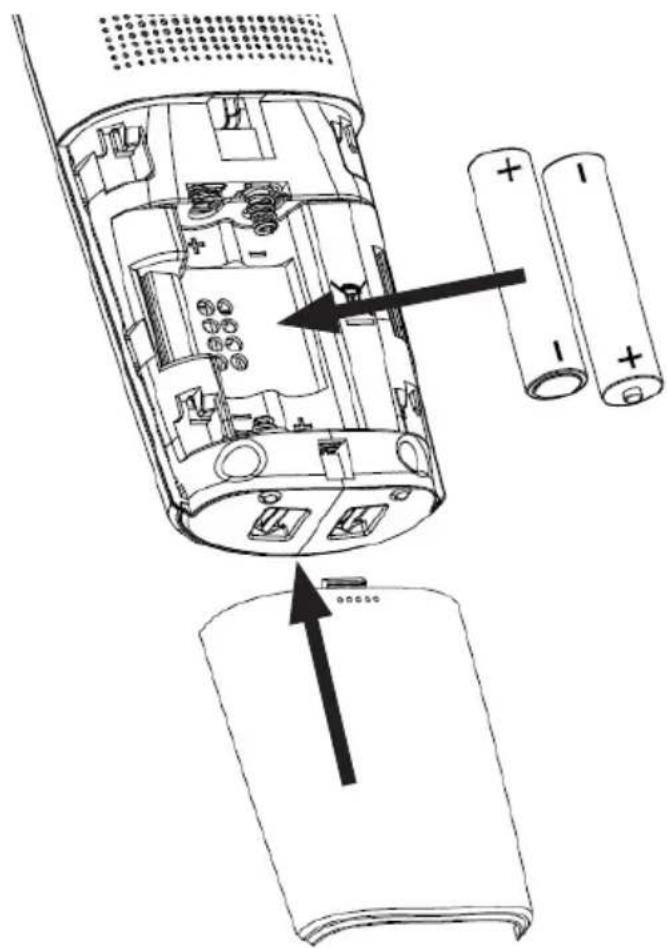
Open the battery compartment of the handset, by sliding the battery cover down.
-
Insert the batteries into the battery compartment; at this, pay attention to the polarity (+ and -).
-
Slide the battery cover back onto the handset and place the handset on the base station.
-
Leave the handset continuously during 15 hours on the base station, to charge the batteries properly.

natural_image
Diagram of a device's internal structure showing battery pack, casing, and housing with an arrow indicating assembly (no text or symbols present)2.3 EXTRA HANDSETS AND CHARGERS:
2 batteries and a charger with adapter will be included for every handset. Plug the adapter of these chargers in a 230 Volt mains socket, insert the batteries into the handset(s) and place the handset(s) on the charger(s) for 15 hours to charge the batteries.
3 CALLING
3.1 CALLING WITH THE PHONE OR USING THE HANDS-FREE FUNCTION:
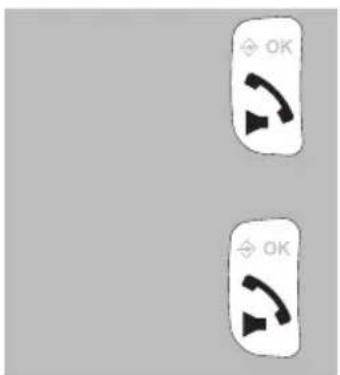
You can make calls holding the handset against your ear or you can use the speaker function allowing other household members to listen in or to keep your hands free for e.g. making notes
text_image
OK OKduring a call, press the Call button again to switch on the speaker function
press the Call button again to switch the speaker function back off
3.2 RECEIVING CALLS:
when you receive a call, the display lighting of the handset will switch on and the indicator at the top of the handset starts flashing

text_image
OKpress the Call button to answer this call
• see paragraph 10.2, item [Auto antw] answering calls by only from the base station
3.3 ENDING CALLS:
text_image
C ⊗ ⊖press the End button to disconnect your call
- you can also place the handset back onto the base or cradle/charger to disconnect a call
3.4 DIALLING NUMBERS:
text_image
-1 :2 :3 :4 :5 :6 :7 :8 :9 0 -1 :2 :3 :4 :5 :6 :7 :8 :9 0 OK 2x OKDirect dialing:
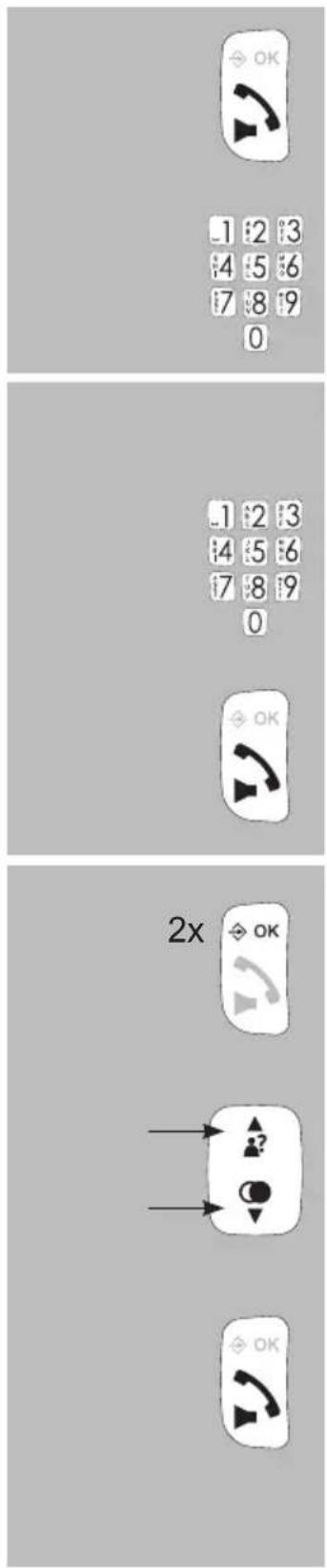
Press the phone-on key and wait for the dial tone.
Enter the phone number through the keyboard; this number will be dialed directly.
pre-dialling:
Enter the phone number through the keyboard.
- press and hold the 0 button for at least once second to insert a dialling pause (the display will show -P-)
- press the C button to delete any incorrect input
press the Call button to dial the number
dialling from the phonebook memory:
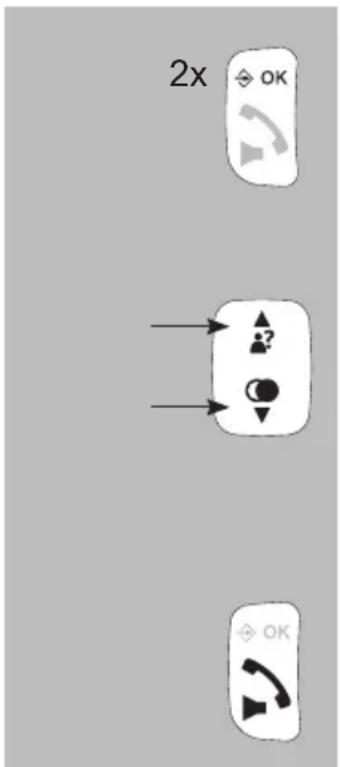
press 2x the button
use the ▲ and ▼ buttons to search for the desired memory
press the Call button to dial the number
• see paragraph 7.3 for programming phonebook memories

text_image
2 sec. M1 M2 M3 1 2 3 4 5 6 7 8 9 0dialling from the Caller-ID memory: press the ▲button and use the ▲and buttons to select the desired call
press the Call button to dial the selected number
dialling from the last dialled number memory: press the button and use the and buttons to select the desired call
press the Call button to dial the selected number
dialling speed-dial contacts press and hold the M1, M2 or M3 button for 2 seconds
the handset will switch on and the number is dialled • see paragraph 10.2, item [ Snelkeuz ] for programming these speed-dial memories
dialling direct memories press and hold one of the 0-9 buttons on the keypad for at least 2 seconds
the handset will switch on and the number is dialled • see paragraph 7.4 for programming the direct memories
3.5 TO MUTE THE MICROPHONE:
During a call, you can switch off the microphone allowing you to consult with other household members without having your call partner listening.
text_image
OK OKduring a call, press the button to switch off the microphone;
press the c ⊗ again to switch the microphone back on
3.6 RECEPTION VOLUME:
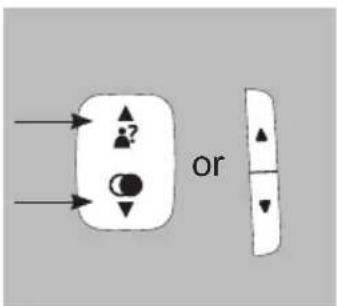
text_image
Diagram showing two labeled buttons with arrows and symbols, one pointing to a question mark and the other pointing to a circle with downward arrow.normal amplification:
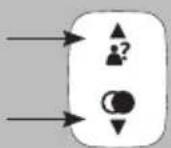
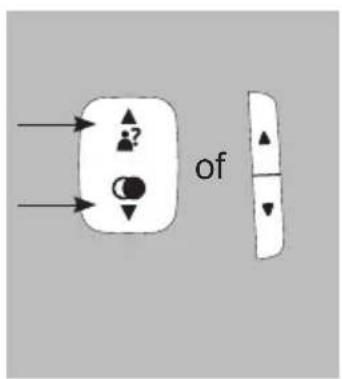
during a call, use the ▲and ▼buttons to adjust the reception volume; for this you may also use the ▲and ▼buttons at the right side of the handset or the ▲and ▼buttons underneath the M2 button
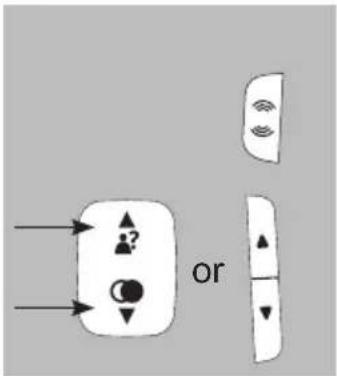
text_image
orboost apmplification:
first press the ⚙button at the left side of the handset; the indicator above the display will switch on
now use the ▲and ▼buttons to set the desired volume level
• the volume level for calling via the handset or hands-free can be set separately
• the selected setting will be kept in the memory
• after disconnecting a call, the boost amplifier will be switched off automatically
• the boost amplifier level is +9dB
3.7 CALL DURATION:
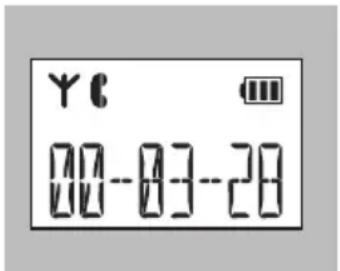
text_image
Y C 00-03-28during a call, the call duration will be shown in the display; the call duration will disappear from the display as soon as you disconnect
3.8 R/FLASH FUNCTION:
R/FLASH means you briefly interrupt the telephone connection. This function allows you to forward calls with certain home or office switchboards or activate telephone services such as 'Call waiting'.

during a call, press and hold the #/R button for at least 2 seconds to emit a FLASH pulse
- Some telephone service providers require you to press a numeric button after giving the FLASH pulse to use e.g. 'Call Waiting'; contact your provider for more information.
- The interruption duration of the FLASH pulse can be adjusted; for this, see paragraph 11.2 [Flash].
3.9 HANDSET SEARCH FUNCTION:

in case you've misplaced the handset, briefly press the button on the base
the handset will then sound a signal for 60 seconds while [PAGING] appears in the display. This signal will stop after 60 seconds or you can press a random button to stop it beforehand.
3.10 TO SWITCH OFF THE HANDSET:
You can fully switch off the handset to save battery power or when you don't want to be disturbed:
5 sec.
5 sec.
press and hold the End button for 5 seconds; the hand-set will now switch itself off completely
press and hold again for 5 seconds to switch the hand-set back on
(or place the handset onto the cradle/charger)
- keep in mind that you cannot call or be called while the handset is switched off
4 RE-DIALLING
4.1 INTRODUCTION:
The handset memorizes the 5 last dialled numbers. You can redial these numbers, save them in the phonebook memories or delete them.
4.2 TO REDIAL:
flowchart
graph TD
    A["Group 1"] --> B["Group 2"]
    C["Group 1"] --> D["Group 2"]
    E["Group 1"] --> F["Group 2"]
    G["Group 1"] --> H["Group 2"]
    I["Group 1"] --> J["Group 2"]
    K["Group 1"] --> L["Group 2"]
    M["Group 1"] --> N["Group 2"]
    O["Group 1"] --> P["Group 2"]
    Q["Group 1"] --> R["Group 2"]
    S["Group 1"] --> T["Group 2"]
    U["Group 1"] --> V["Group 2"]
    W["Group 1"] --> X["Group 2"]
    Y["Group 1"] --> Z["Group 2"]
    AA["Group 1"] --> AB["Group 2"]
    AC["Group 1"] --> AD["Group 2"]
    AE["Group 1"] --> AF["Group 2"]
    AG["Group 1"] --> AH["Group 2"]
    AI["Group 1"] --> AJ["Group 2"]
    AK["Group 1"] --> AL["Group 2"]
    AM["Group 1"] --> AN["Group 2"]
    AO["Group 1"] --> AP["Group 2"]
    AQ["Group 1"] --> AR["Group 2"]
    AS["Group 1"] --> AT["Group 2"]
    AU["Group 1"] --> AV["Group 2"]
    AW["Group 1"] --> AX["Group 2"]
    AY["?"] --> Z
    AZ["?"] --> AF
    BA["?"] --> AG
    BB["?"] --> AC
    BC["?"] --> AD
    BD["?"] --> AF
    BE["?"] --> AG
    BF["?"] --> AC
    BG["?"] --> AF
    BH["?"] --> AG
    BI["?"] --> AC
    BJ["?"] --> AD
    BK["?"] --> AF
    BL["?"] --> AG
    BM["?"] --> AC
    BN["?"] --> AD
    BO["?"] --> AF
    BP["?"] --> AG
    BQ["?"] --> AF
    CA["?"] --> AG
    CB["?"] --> AF
    CC["?"] --> AG
    CD["?"] --> AF
    CE["?"] --> AG
    CF["?"] --> AF
    CG["?"] --> AG
    DH["?"] --> AF
    DI["?"] --> AG
    DJ["?"] --> AF
    DK["?"] --> AG
    DL["?"] --> AF
    DN["?"] --> AG
    DO["?"] --> AF
    DB["?"] --> AG
    DC["?"] --> AF
    DD["?"] --> AG
    DE["?"] --> AF
    DF["?"] --> AG
    DG["?"] --> AF
    DHX["?"] --> AG
    DHY["?"] --> AF
    DHZ["X OK"]
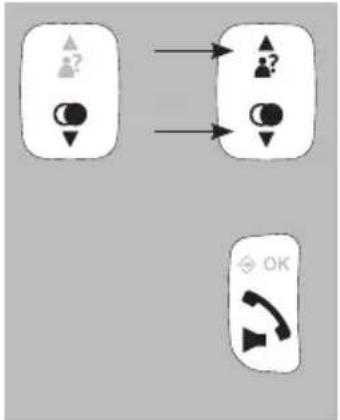
press the 🔊 button and use the and buttons to select the desired last dialled number
press the Call button to dial the selected number
4.3 TO SAVE OR DELETE:
text_image
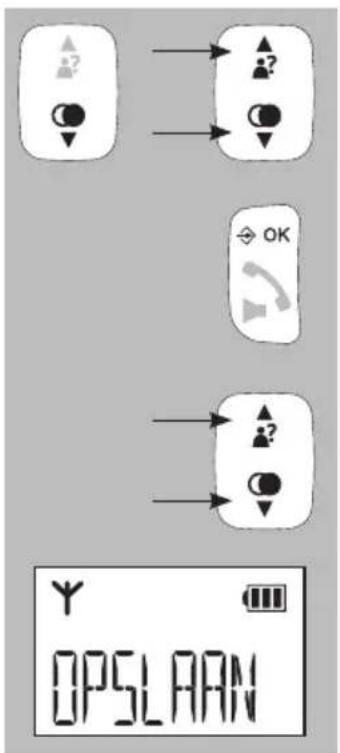
OPSLAANpress the 🔊 button and use the and buttons to select the desired number
press the ✦ OK button
use the ▲ and ▼ buttons to choose one of the following options:
save:
select this option to add the number to the phonebook memory of the telephone (*)
text_image
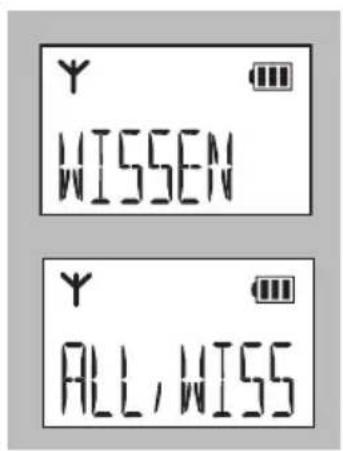
Y WISSEN Y ALL, WISSdelete:
use this option to only delete the selected call from the memory
delete all:
use this option to delete the entire last dialled number memory
*: when saving a number, you may set a ringtone that'll sound when that subscriber calls you; for this function you must be subscribed to the Caller-ID service
5 CALLER IDENTIFICATION
5.1 INTRODUCTION:
If you have the service Caller Identification at your disposal, the number of the calling party is displayed on the display of your handset(s).
You have programmed this number including name and the phone book memory of the handset, the name is also displayed on the display and you can set an individual ringtone for each memory. Each handset has a memory for 10 calls.
5.2 INDICATION NEW CALLS:
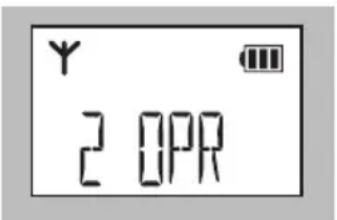
text_image
Y 2 0PRThe display of the handset shows how many new calls you've received since the last time you checked the memory.
5.3 VIEW MEMORY AND CALLBACK:
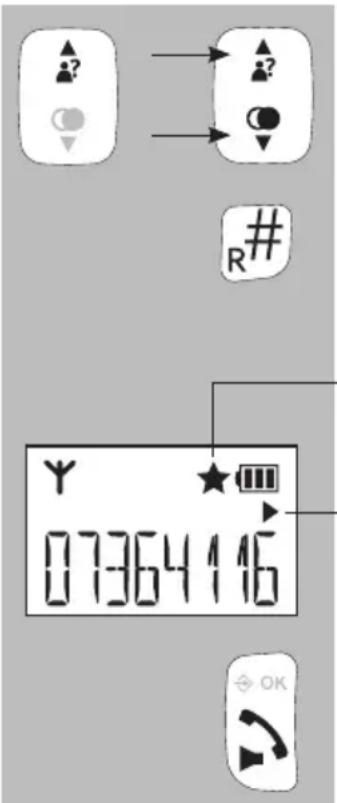
text_image
? # R# Y 07364116 OKpress the ▲ button and use the ▲ and buttons to scroll the memory
if a name is shown, you can press the # button to display the number
new calls are indicated by a star in the display
the triangular arrow pointing to the right indicates that there are additional digits at the right side of the displayed number; press the # button to show these digits
press the Call button to dial the selected number
5.4 DETAILS, SAVE OR DELETE:
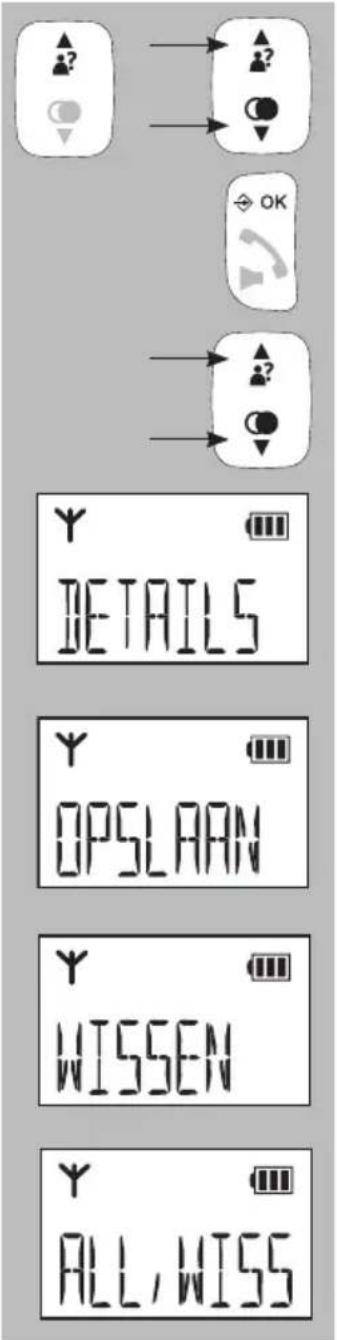
text_image
DETAILS OPSLAAN WISSEN ALL, WISSpress the ▲ button and use the ▲ and buttons to select the desired number
press the ✦ OK button
use the ▲ and ▼ buttons to choose one of the following options:
details:
choose this option to show the date of the call, now press the # button to display the time of this call (*)
save:
select this option to add the number to the phonebook memory of the telephone
delete:
use this option to only delete the selected call from the memory
delete all:
use this option to delete the entire last dialled number memory
5.5 ADDITIONAL INFORMATION:
- The FX-6000 / FX-6020 is suitable for both the DTMF system, offered by the Dutch PTT and for the FSK system, offered by the Belgian PTT and by cable companies in the Netherlands and Belgium for as far as this service is offered.
- The Caller-ID service often requires an additional subscription; please contact your telephone service provider for more information.
- Name display:
- the DTMF system doesn't send any names; the name will only appear in the display when you've programmed it in the phonebook memory of the handset
- the FSK system does send names (ask your telephone service provider for more information)
- If the display shows [ONBEKEND], [PRIVE], [ONDERDRUKT] or [0000000000], the calling subscriber has blocked sending his or her name and number.
- The names/numbers of the calls you've answered are also saved.
- When using multiple handsets: memories must be deleted separately in each handset.
6 VOICEMAIL INDICATION
6.1 INTRODUCTION:
Voicemail is a service offered by the telephone service provider, allowing callers to leave a message. You can listen to this message at a later time. (*)
6.2 NEW VOICEMAIL INDICATION:
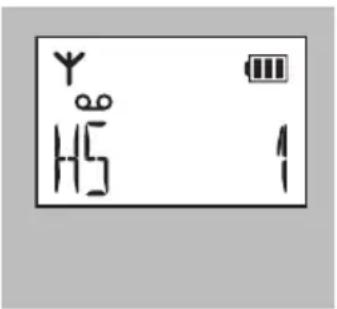
text_image
Y ∞ H5 1If your service provider supports voicemail, based on the FSK system, you may receive a notification when a new message has been left for you. This is indicated by the voicemail symbol (in the display of your handset
this voicemail notification will disappear after you've listened to your message
- You can remove this notification also by resetting the settings, please see paragraph 12.2.
- Underneath button 1 you can save the number of your voicemail, please see paragraph 10.2, item [MAILBOX]
- For any questions about the voicemail function, please contact your telephone service provider.
7 PHONE BOOK MEMORY
7.1 INTRODUCTION:
Every FX-6000 / FX-6020 handset has a phone book memory with a capacity of 50 phone numbers of at most 20 digits. You can program a name of at most 8 characters with each number. The phone book memory in the handset is connected to the function Caller Identification. When you are called by somebody, whose name and number you have programmed in the memory, the name of this person is also displayed beside the number on the display of your handset. (However, for this you need to subscribe to the service Caller Identification.)
7.2 SEARCHING FOR AND CALLING CONTACTS:
text_image
2x OKpress 2x the button to open the phonebook memory, the display will then show the name of the first contact or [LEEG] appears when no contacts are saved
use the ▲and ▼buttons to scroll the memory you can also search using the keypad, for example press 2x the 5 button to search for the first contact starting with the letter K, now continue searching with the ▲and ▼buttons
press the Call button to dial the selected number
7.3 TO ADD, EDIT OR DELETE CONTACTS:
4x




to add:
press 4x the ➕ button
use the keypad to enter the name
- use the C button to correct any incorrect input
- see the next page for all available characters
press the ✦ OK button
use the keypad to enter the phone number
- use the C button to correct any incorrect input
- briefly press and hold the 0 button to insert a dialling pause
press the ⇔ OK button
use the ▲and ↓buttons to select the desired melody that must sound when this subscriber calls you, to use this function you must be subscribed to the Caller-ID service
press the ✦ OK button to save this contact
press the End button to stop programming and return the handset to standby mode
2x






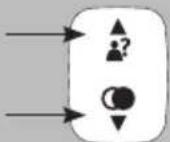
to edit:
press 2x the button
use the ▲and ▼buttons to select the contact you want to edit
press the ➕ button
use the ▲and ▼buttons to select the option [ BEWERKEN ]
press the ➕ button
use the C button to delete the old name and use the keypad to enter the new name
press the ➕ button
use the C button to delete the old number and use the keypad to enter the new name
press the ➕ button
use the ▲and ▼buttons to select a different ringtone that must sound when this subscriber calls you

press the ➕ button to save this memory
press the End button to stop editing and return the handset to standby mode
2x

to delete:
press 2x the button
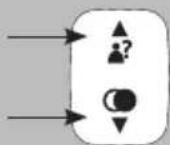
use the ▲and ▼buttons to select the contact you want to delete

press the ✦ OK button
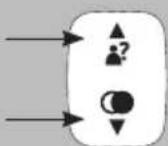
use the ▲and ▼buttons to select the option [ WISSEN ] to only delete the selected contact or select [ ALL. WISS ] to delete all contacts

press the ✦ OK button
when using [ALL. WISS] you must press ✦2×K
press the End button to stop deleting and return the handset to standby mode
7.4 DIRECT MEMORIES:
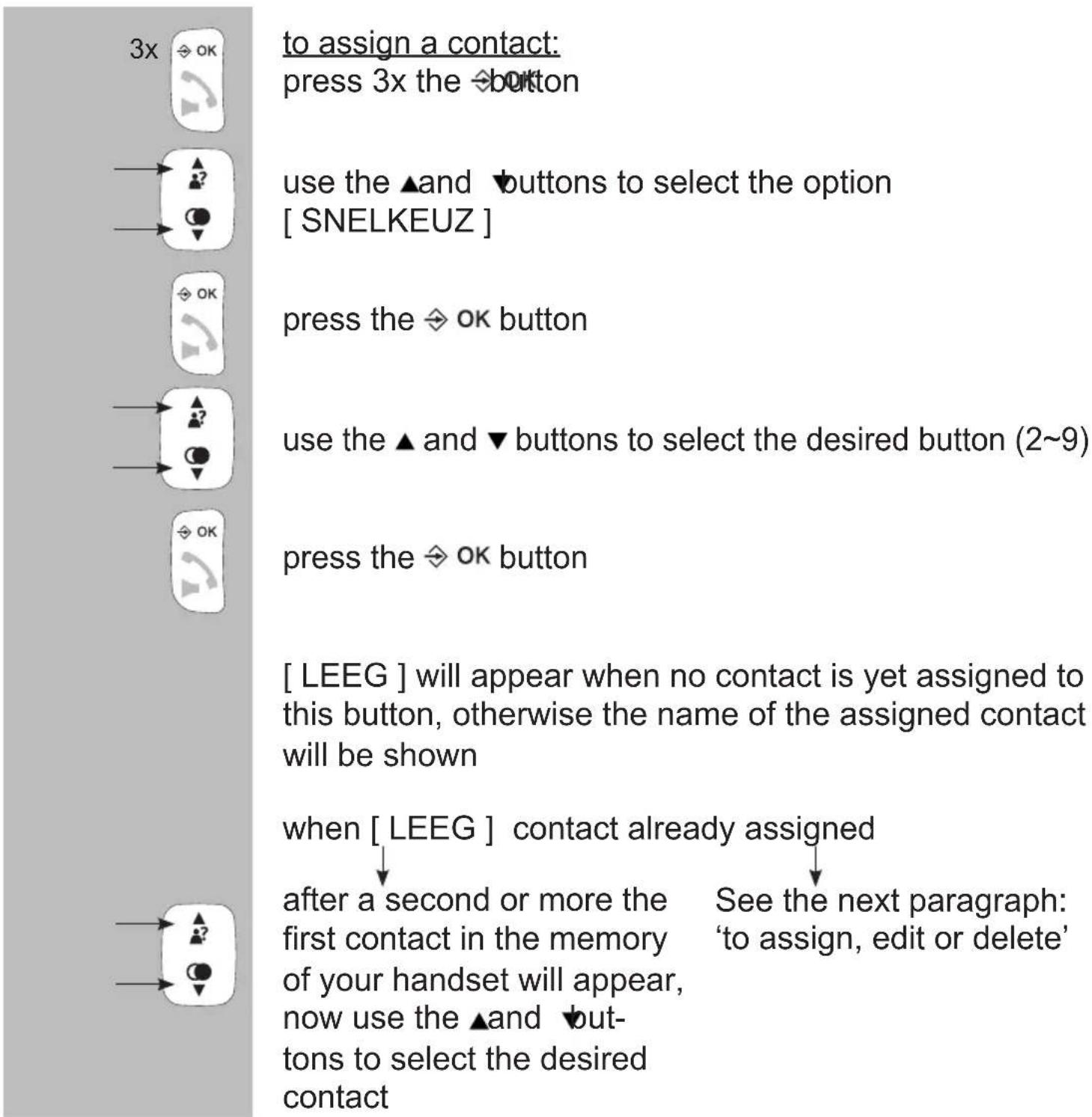
A contact from the memory can be assigned to each of the 2-9 buttons. Whit the handset in standby mode, you can then press and hold that button for at least 2 seconds to automatically dial the assigned number.
text_image
3x to assign a contact: press 3x the button use the ▲and ▼buttons to select the option [ SNELKEUZ ] press the ◇ OK button use the ▲ and ▼ buttons to select the desired button (2~9) press the ◇ OK button [ LEEG ] will appear when no contact is yet assigned to this button, otherwise the name of the assigned contact will be shown when [ LEEG ] contact already assigned after a second or more the first contact in the memory of your handset will appear, now use the ▲and ▼but- tons to select the desired contact See the next paragraph: ‘to assign, edit or delete’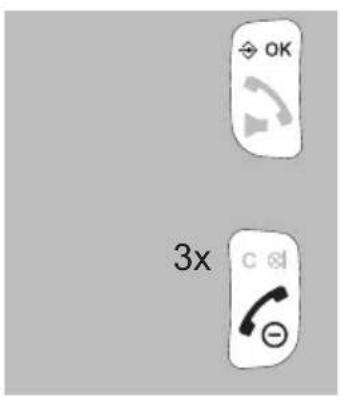
text_image
OK 3xpress the ✦ OK button
press 3x the End button to stop assigning and return the handset to standby mode
See paragraph 10.2, item [ MAILBOX ] for programming a number underneath button 1
flowchart
graph TD
    A["3x"] --> B["OK"]
    B --> C["?"]
    C --> D["OK"]
    D --> E["?"]
    E --> F["OK"]
    F --> G["?"]
    G --> H["OK"]
    H --> I["?"]
    I --> J["OK"]
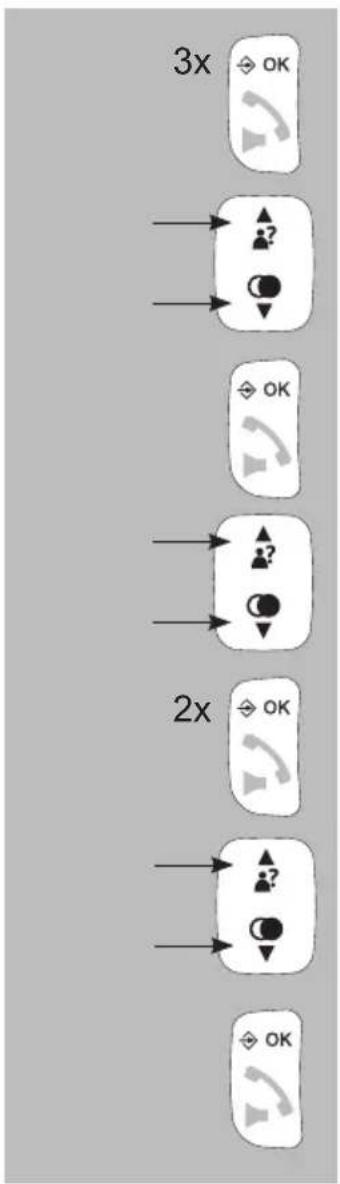
to assign, edit or delete:
press 3x the ➕ button
use the ▲and ▼buttons to select the option [SNELKEUZ]
press the ➕ button
use the ▲and ▼buttons to select the desired button (2\~9)
press 2x the button
use the ▲and ▼buttons to select the option [ WISSEN ] to remove the assigned contact or select [ BEWERKEN ] to assign a different contact to the selected button
press the button to confirm deleting the contact or assigning another contact
7.5 TO VIEW CONTACTS:
You can check the number and the set ringtone for each contact as follows:

flowchart
graph TD
    A["OK"] --> B["?"]
    B --> C["OK"]
    C --> D["?"]
    D --> E["OK"]
    E --> F["?"]
    F --> G["OK"]
    G --> H["OK"]
    H --> I["?"]
    I --> J["OK"]
    J --> K["?"]
    K --> L["C"]
    L --> M["+"]
    M --> N["-"]
press 2x the ➕ button
use the ▲ and ▼ buttons to select the desired contact
press the ➕ button
use the ▲ and ▼ buttons to select the option [ BEKIJKEN ]
press the ➕ button
now use the ▲ and ▼ buttons to view the name, number and set ringtone for the selected contact
press the ➕ button
press the End button to stop viewing and return the handset to standby mode
7.6 MEMORY STATUS:
You can check the memory status of your handset as follows:
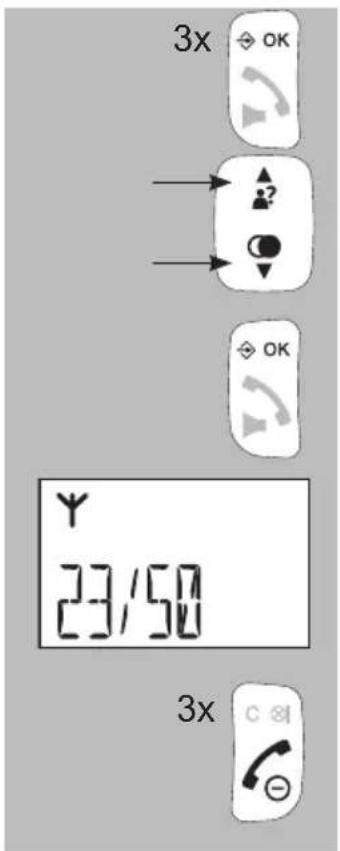
use the ▲and ▼buttons to select the option [GEHEUGEN]
press the ✦ OK button
the display will now show how many of the available 50 memories you're currently using (the example below shows that 23 of the 50 are being used)
press 3x the End button to stop viewing and return the handset to standby mode
7.7 AVAILABLE CHARACTERS:
While programming the names of your contact, you can use the following available characters:
| toets: | .. x indrukken: | |||||
| 1x | 2x | 3x | 4x | 5x | 6x | |
| 1 | sp | - | 1 | (sp = spatie) | ||
| 2 | A | B | C | 2 | ||
| 3 | D | E | F | 3 | ||
| 4 | G | H | I | 4 | ||
| 5 | J | K | L | 5 | ||
| 6 | M | N | O | 6 | ||
| 7 | P | Q | R | S | 7 | |
| 8 | T | U | V | 8 | ||
| 9 | W | X | Y | Z | 9 | |
| 0 | 0 | |||||
| * | * | ? | / | \ | ( | ) |
| # | # | ' | , | - | . | & |
8 INTERCOM, TRANSFER AND CONFERENCE
8.1 INTRODUCTION:
You can register up to 5 handsets on the FX-6000 / FX-6020 base station. When registering multiple handsets, you can make internal calls free of charge and you may transfer calls. If your telephone was supplied with multiple handsets, you can immediately start using these functions. If your telephone was supplied with only one handset, you can purchase additional handsets that must be registered on the base first. See paragraph 13.2 for instructions.
8.2 INTERCOM:
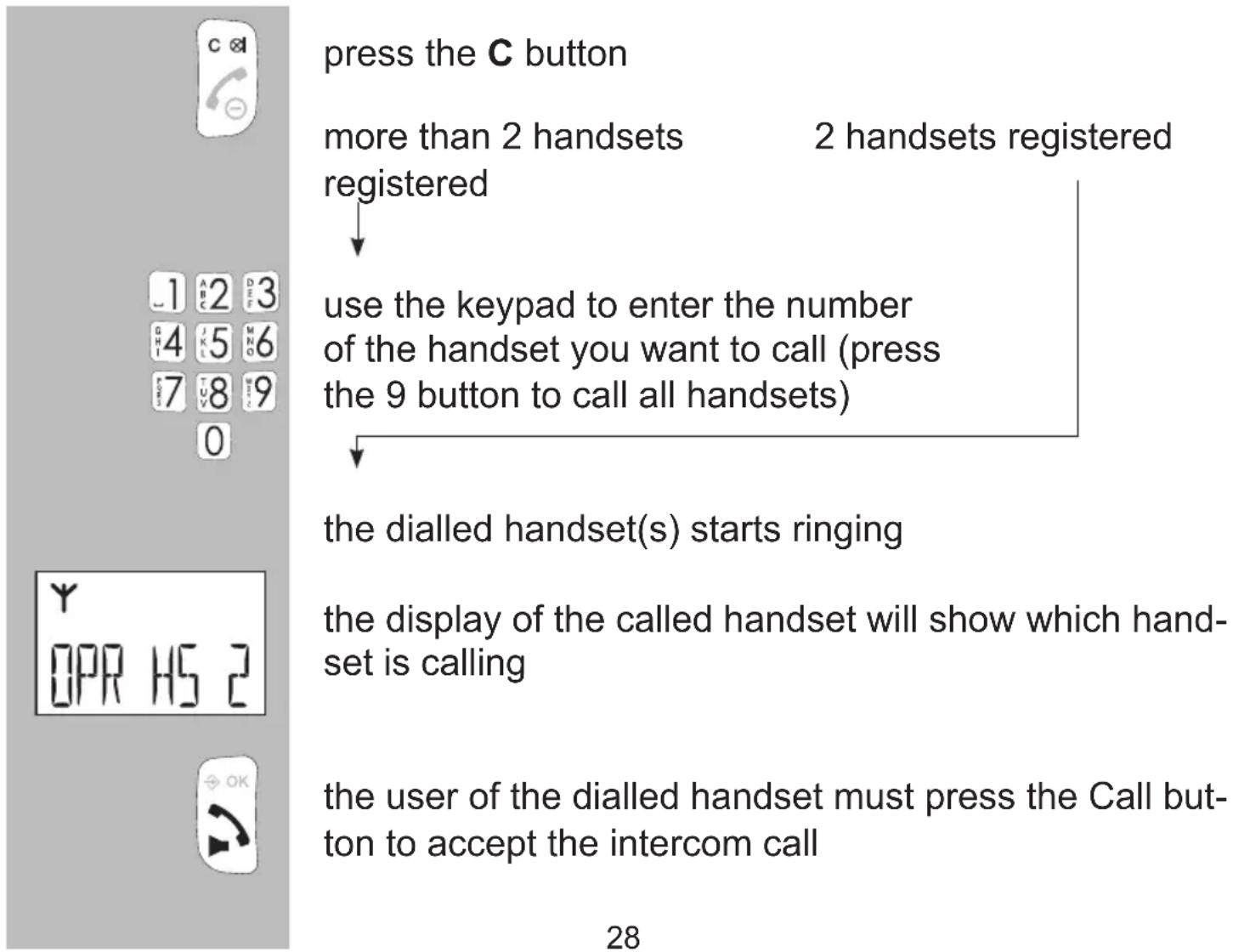
text_image
press the C button more than 2 handsets 2 handsets registered registered use the keypad to enter the number of the handset you want to call (press the 9 button to call all handsets) the dialled handset(s) starts ringing the display of the called handset will show which hand- set is calling the user of the dialled handset must press the Call but- ton to accept the intercom call 28
press the End button to disconnect the intercom call
* When receiving an external call during an intercom call, the handset will emit notification tones. Disconnect your intercom call, wait until the usual ringtone sounds and answer the outside call (when using more than 2 handsets, you can also accept the outside line using any free handset).
8.3 TRANSFER / CONFERENCE CALL:
2x

during a call with the outside line, press 2x the ⇔ OK button
more than 2 handsets registered 2 handsets registered
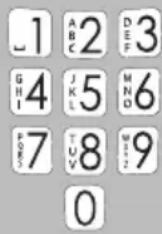
use the keypad to enter the number of the handset you want to transfer the call to or you want to add to the conversation (press the 9 button to dial all handsets)
wait for the dialled handset to pick up. If the dialled handset doesn't answer, briefly press the End button to retrieve the outside line
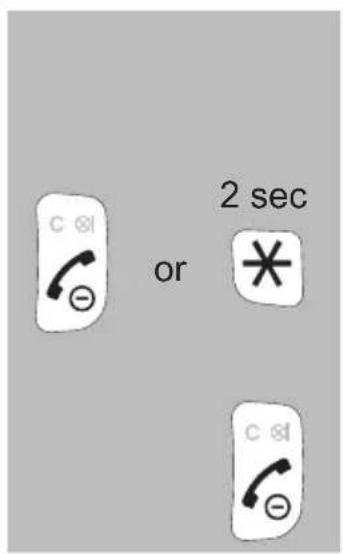
text_image
C ⊗ ⊖ or 2 sec *transfer ↓ press the End button to transfer the call to the other handset
conference call ↓ press and hold the * (asterisk) button for at least 2 seconds to start the 3-way call
press the End button to disconnect the call.
9 CLOCK & ALARM (WAKE-UP) FUNCTION
9.1 INTRODUCTION:
In standby mode, the display of the handset(s) shows the time. Moreover, you can program an alarm or wake-up time (for each handset).
9.2 TIME AND DATE SETUP:
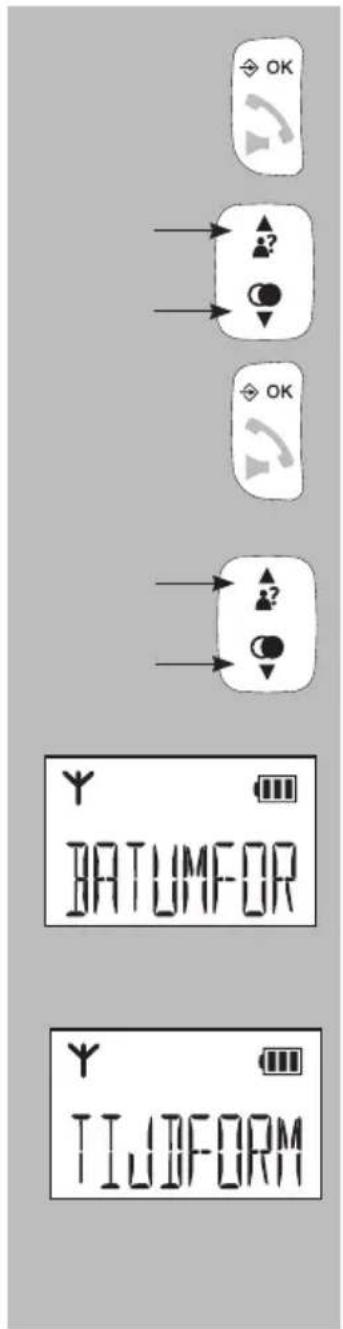
text_image
OK ? ? OK BATUMFOR TIUDFORMpress the ➕ button
use the ▲and ▼buttons to select the option [ DAT/TIJD ]
press the ➕ button
use the ▲ and ▼ buttons to choose one of the following options:
[ DATUMFOR ]
select this option to set the time display format: day-month-year or month-day-year
[ TIJDFORM ]
use this option to switch between the 12-hour or 24-hour clock. For example at quarter past nine in the evening:
12-hour clock: 9:15 PM / 24-hour clock: 21:15
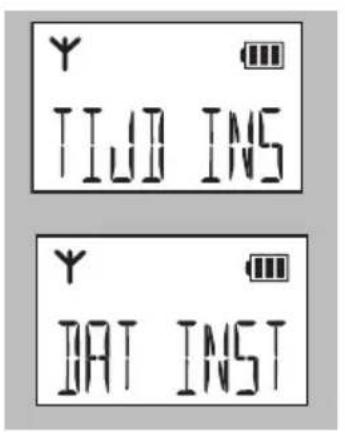
text_image
TIJD INS BAT INST[ TIJD INST ]
here you can set the time
[ DAT INST ]
here you can set the date
9.3 TO ENABLE/DISABLE THE ALARM AND TO SET THE ALARM TIME:
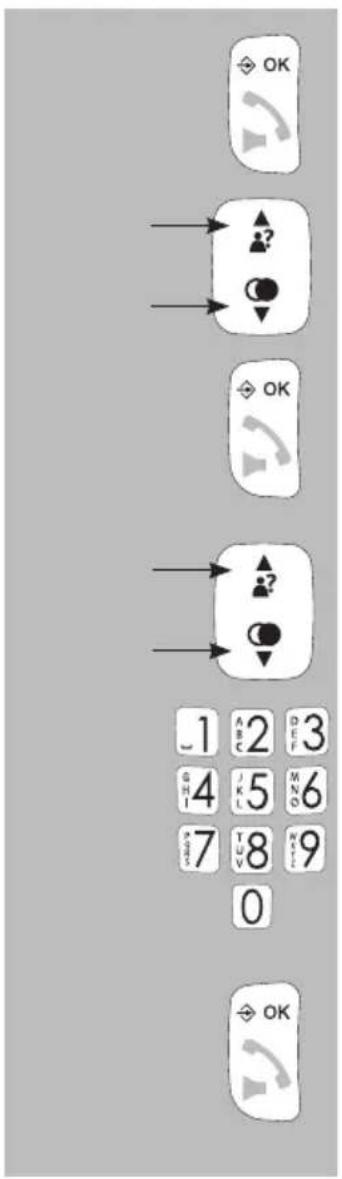
text_image
OK ▲? OK ▲? OK 1 A 2 D 3 G 4 J 5 M 6 S 7 T 8 W 9 0 OKpress the ➕ button
use the ▲and ▼buttons to select the option [ ALARM ]
press the ➕ button
use the ▲ and ▼ buttons to switch the alarm ON or OFF
use the keypad to enter the desired alarm time
press the ➕ button
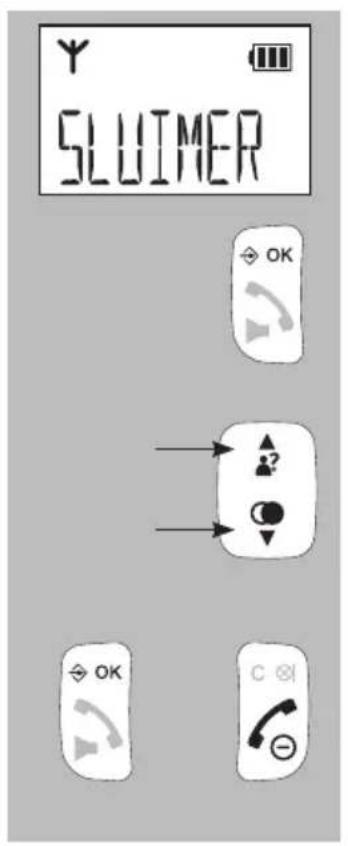
text_image
Y SLUIMER OK + - OK Cthe display will show the word [ SLUIMER ]
press the ➕ button
now use the ▲and ▼buttons to enable or disable the snooze function (see below an explanation of the snooze function)
press the button to save your settings and press the End button to return the handset to standby mode
9.4 ALARM OPERATION:
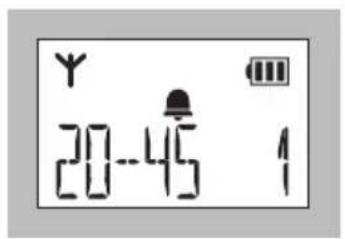
text_image
Y 20-45 1- the 🔔 symbol appears in the display when the wake-up signal is enabled
- at the set time, the alarm will sound for 45 seconds or until you press a random button to stop the alarm signal beforehand
- when the [ sluimer ] function is enabled and you press a random button to stop the alarm signal, the alarm will sound again after 7 minutes; you can disable an enabled snooze function by pressing and holding the End button for at least 5 seconds while the alarm sounds (or by disabling the alarm function according to the instructions in the previous paragraph)
• the alarm is not repeated daily
- the alarm volume is the same as the set ring volume; if the ring volume is set to 0 (off), the alarm signal is set to volume level 1
10 HANDSET PREFERENCES
10.1 INTRODUCTION:
You can use the menu [ HS INST ] to adjust various handset settings to your personal preferences.
10.2 MENU FOR HANDSET PREFERENCES:
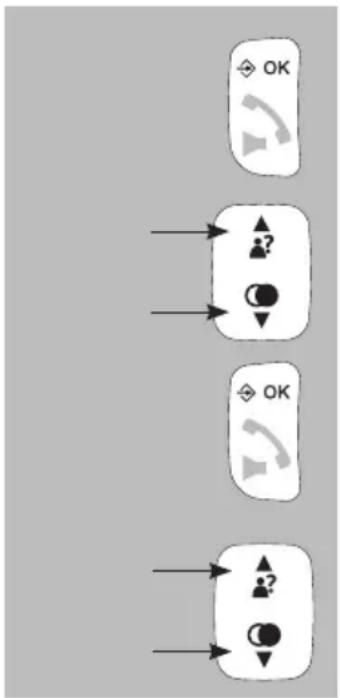
flowchart
graph TD
    A["OK"] --> B["?"]
    B --> C["●"]
    C --> D["OK"]
    D --> E["?"]
    E --> F["●"]
    F --> G["OK"]
press the ➕ button
use the ▲and ▼buttons to select the option [ HS INST ]
press the ➕ button
now use the ▲and ▼buttons to choose from the following options:
[ BEL INST ]
Here you can set the ringtone signals. Keep in mind that you can set different signals for internal calls and for outside calls. You can also choose to turn the ring volume off, in this case the ⚙ symbol will appear in the display
[ TOON INS ]
Here you can enable or disable the following tones:
- Key tone: the tones that are emitted when pressing buttons
- Batt weak: the tones that are emitted when the batteries are nearly empty
- Range: the tones that are emitted when the handset is nearly out of range from the base station
[ EQUALIZER ]
You can use the equalizer to (extra) amplify the treble or bass levels. This tone control is disabled when set to ‘natural’
[ TAAL ]
Here you can set the language in which the various messages are displayed on the display.
You can restore a known language as follows in case you've set an unknown language accidentally:
- press: ✦ OK ▼ ▼ ▼ ✦ OK ▼ ▼ ✦ OK
- now use ▲ and ▼ to select the desired language
- press to confirm
[HS NAAM]
Use this option to assign a personal name to the handset of up to 6 characters. Use the C button to delete the old name.
See paragraph 7.7 for all available characters.
[ DISPLAY ]
Here you can determine whether the handset name or actual time must be shown with the handset in standby mode.
[ AUT.ANTW ]
Here you can determine whether an incoming call can be answered directly by picking up the receiver from the base or charger. With this function disabled, you must always press the Call button to accept incoming calls.
[ SNELKEUZ ]
Here you can enter numbers for the direct memory buttons M1, M2 and M3. By pressing and holding these buttons in standby mode, the assigned number will be dialled directly.
[ MAILBOX ]
The number you can enter here will be saved underneath button 1. By pressing and holding the 1 button for at least 2 seconds in standby mode, this number will be dialled. Usually the phone number for your voicemail is stored underneath the 1 button, but you may store any frequently used number.
11 BASE PREFERENCES
11.1 INTRODUCTION:
Via the menu [ BS voorkeuren ] you can, amongst others, deregister other handsets, adjust the FLASH interruption time and change your PIN code.
11.2 MENU FOR BASIS PREFERENCES:
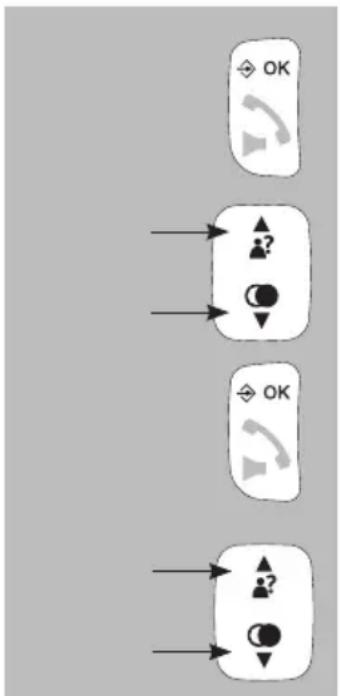
flowchart
graph TD
    A["OK"] --> B["▲"]
    B --> C["●"]
    C --> D["▼"]
    E["OK"] --> F["▲"]
    F --> G["●"]
    G --> H["▼"]
press the ➕ button
use the ▲and ▼buttons to select the option [ BAS INST ]
press the ➕ button
use the ▲ and ▼ buttons to choose from the following options:
[HS AFMEL]
Here you may deregister faulty or lost handset. Keep in mind that you can only deregister other handsets, you cannot deregister your own handset. See also paragraph 13.4.
[FLASH]
Here you can set the interruption duration of the flash pulse (see also paragraph 3.8):
- short setting: 100mS
- average setting: 300mS
- long setting: 600mS
Ask your telephone service provider or the supplier of your home or office switchboard for the most suitable interruption time. The default flash time of 100 mS is used in the Benelux, which is already set upon leaving the factory.
[ PIN WIJZ ]
A PIN code is required for various settings and for registering and deregistering handsets. The stand factory PIN code is 0000, but you can use this menu to change this PIN code into your personal 4-digit PIN code.
- make sure the display shows [ PIN WIJZ ]
- press 2x the OK button
- now first enter the old PIN code
- press 2x the OK button
- enter the new PIN code
- press 2x the OK button
- enter the new PIN code again
- you'll hear a confirmation tone; the new PIN code is now stored
Instructions to restore the default factory PIN code 0000 in case you've forgotten or lost your personal PIN code:
- remove the power adaptor of the base from the wall socket
- on the base, press the button AND KEEP THIS BUTTON DEPRESSED
- now insert the adaptor back into the wall socket (keep the button depressed)
- after 5 seconds, release the button
- the PIN-code is now changed back into 0000
12 RESETTING PREFERENCES
12.1 INTRODUCTION:
Via the menu [ STANDARD ], you can reset your settings to the standard factory settings.
12.2 MENU FOR RESETTING PREFERENCES:
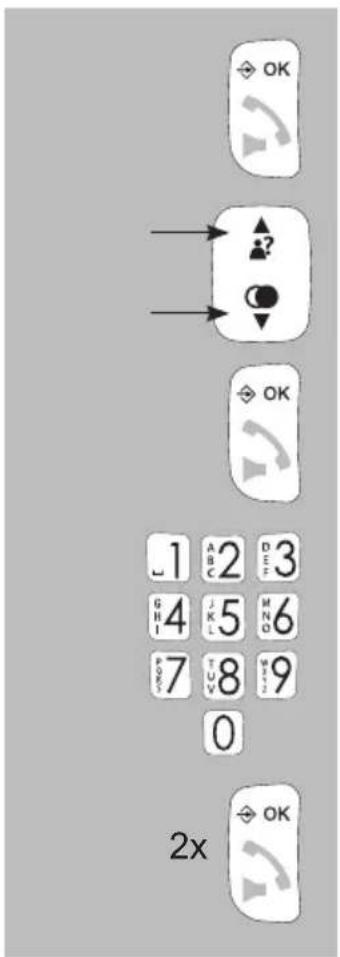
text_image
OK ? OK 1 2 3 G 4 5 6 P 7 8 9 0 2x OKpress the ➕ button
use the ▲ and ▼ buttons to select the option [STANDARD]
press the ➕ button
use the keypad to enter the PIN code
press 2x the ➕ button
12.3 FACTORY SETTINGS:
Name handset handset
Display language Dutch
Internal ringtone Melody 2
External ringtone Melody 6
Ring volume Level 4
Receiver volume Level 3
Hands-free volume Level 3
Battery tone Enabled
Out-of-range tone Enabled
Key tones Enabled
Auto answer Disabled
Clock format 24 HR
Date/time 01-01-11 / 00:00
Flash: 100mS ('short' setting)
Voicemail indication: off
PIN code: 0000
Last dialled memory: empty
Caller-ID memory: empty
Phonebook memory: unchanged
13 ADDITIONAL HANDSETS
13.1 INTRODUCTION:
You can connect 5 handsets with each base station from the FX-6000 / FX-6020 series. This way you can make internal calls free of charge and you can also transfer calls.
13.2 TO REGISTER HANDSETS:
Attention, the handset(s) supplied with the basis is (are) already registered to that base. The following instructions are only valid for registering new handsets or for re-registering handsets in case of a power outage.
8 sec

base:
press and hold the base button for at least 8 seconds

handset:
press 2x the button
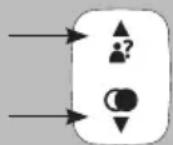
use the ▲ and ▼ buttons to select the option [REGISTR]
2x

press 2x the button
1 ABC2 DEF3
GHI4 JKL5 MNG6
7 TUV 8 M212 9
0

use the keypad to enter the PIN code
press the button, the handset will now start searching for the base station
After several seconds the base and handset will have ‘found’ each other and the display of the handset will show the internal number of that handset (1-5); the handset is now registered
13.3 TIPS FOR MULTIPLE HANDSETS:
- Instructions for dialling and incoming calls are identical for all handsets of the FX-6000 / FX-6020 series.
• Intercom calls are free of charge. - When receiving an external call during an intercom call, the handsets will emit a notification tone. Disconnect the internal call, wait for the regular ringtone to sound and answer the external call. In case you’ve registered more than 2 handsets on the base, you can also answer the outside call using any free handset.
- When an outside call is being received, all handsets will start ringing. The handset that's the first to answer the call will be connected with the outside line.
13.4 DE-REGISTERING HANDSETS:
Defect or lost handsets must be de-registered:
- press the button
- use the ▲ and ▼ buttons to select the [ BAS INST ] option
- press the button
- use the ▲ and ▼ buttons to select the [ HS AFMEL ] option
- press the button
- use the keypad to enter the PIN code
- press the button
- use the ▲ and ▼ buttons to select the handset you want to deregister
- press the button
Keep in mind that you can only deregister other handsets; you cannot deregister your own handset.
14 TIPS AND WARNINGS
14.1 PLACEMENT:
- Preferably, do not place the device on surfaces that have been treated with cellulose; the rubber feet can leave traces on these.
- Do not place the phone in the direct vicinity of other phones or other electronic (medical) devices, TL tubes and other gas discharge lamps; the emitted radio waves of these (and other) wireless phone(s) may disrupt the functioning of the equipment, or the emitted signals of the equipment disrupt the functioning of the phone.
14.2 RANGE:
- The range of the phone is up to 300 meters in the open field and up to 50 meters inside; the range depends on local circumstances. When you get out of reach of the base station, the symbol ⚠ will start flashing and the text [ ZOEKEN ] appears on the display. In this state, you cannot receive or make any calls. In case the power supply adapter of the base station is unplugged from the mains socket, the handset will lose contact with the base station, the display will display [ ZOEKEN ], and the antenna symbol will start flashing. The handset will restore contact with the base station within several minutes after the power supply adapter has been plugged in again.
14.3 POWER SUPPLY HANDSET:
- The display of the handset is provided with a built-in battery capacity meter (☐) When the battery symbol is full, the batteries are charged; when the battery symbol is empty or only half full, the batteries should be recharged.
- For optimal use, we recommend you to place the handset onto the charger every evening. This does not have an adverse effect on the rechargeable batteries.
ATTENTION:
The handset measures how long the battery is charged and calculates how much current is in the battery and how long the handset can work on it. If you now remove a full battery from the handset and replace it, the handset will think that another battery has been inserted and will therefore show an incorrect and lower battery indication in the display. In that case, simply charge the handset again continuously for 24 hours for a correct battery indication.
14.4 HEARING AIDS:
- Users of older generation hearing aids always shall keep into account a possible uncomfortable buzzing tone when using DECT phones.
14.5 MEDICAL EQUIPMENT:
- It is possible that enabled DECT phones interfere with sensitive medical equipment. When the phone is kept in the vicinity of the medical device, interference can occur. Do not place a DECT phone on or near a medical device, not even when it is in standby mode.
14.6 POWER FAILURE:
- This phone obtains its power supply from the mains power. In case of failure of the mains power, this phone cannot be used.
14.7 EAVESDROPPING:
- Eavesdropping on a DECT phone is virtually impossible. Not only shall one be within reach of the DECT phone, one also needs expensive equipment.
15 POSSIBLE PROBLEMS AND SOLUTIONS
15.1 POSSIBLE PROBLEMS AND SOLUTIONS
- No dialling tone.
- The outside line is being used by another unit. Wait until that call has ended and try again.
- Check the connection between the base and you telephone socket (when in doubt, connect a different phone to your telephone socket).
- The power supply is interrupted.
- Check whether the adaptor below at the rear of the base is plugged in and that the power adaptor is connected with a wall socket.
15.2 PROBLEMS WITH INCOMING CALLS:
• No notification of incoming calls:
- The bell is disabled; enable it.
- Check the connection between the phone and your telephone socket (when in doubt, connect a different phone to your telephone socket)
- You are continuously busy:
- Check whether you have a 2nd telephone with the receiver next to it.
- Check whether another handset registered on your telephone is keeping the line busy.
- Connect another phone to your phone connection, and use this to check whether the malfunction originates from your connection or your carrier.
- Handset switches itself off when it starts ringing:
- The batteries cannot supply power for the ringtone. Clean the battery contacts or replace the batteries.
15.3 PROBLEMS DURING CALLING:
- Beep tones during an intercom call:
- You are called from outside during an intercom call; end this call, wait until the phone rings normally and answer the call.
- Beep tones during a call:
- The batteries are nearly empty; disconnect the call and replace the handset onto the base or charger to recharge the batteries
- Noise and other distortions:
- You are getting out of reach of the base station; reduce the distance.
- There are other electrical devices in the vicinity that interfere with the radio waves of your phone; try another location.
15.4 PROBLEMS WITH CALLER IDENTIFICATION:
- You do not receive Name or Caller Identification information on the display:
- Check whether your carrier transmits these signals (you shall subscribe to this service with some telephone companies).
- You do receive the numbers on the display of your phone, but not the name.
- The carrier does not forward names; consult your carrier for this.
- The name has not been programmed in the memory of your phone; program it. (see paragraph 7.3)
15.5 OTHER:
• The display stays blank:
- The batteries are empty, please recharge them
- The handset does not have contact with the base station:
- You are too far from the base station; reduce the distance.
- The base station has been switched off. Check and repair it.
- The handset is not registered with the base station (anymore); register it (again). (see paragraph 13.2)
In case the failure has not been solved with aforementioned solutions:
- Remove the batteries from the handset, and unplug the power supply adapter and the phone connector from their sockets; connect everything again after several minutes.
- You can also contact the Fysic service center; service@fysic.nl
16 SPECIFICATIONS
Protocol: DECT / GAP, 5 handsets
Phone book: 50 names and number
Call history: DTMF & FSK, 10 memories
Last number memory: 5 numbers
Dialling: TONE (DTMF)
FLASH : 100, 300 & 600 ms, adjustable.
Boost amplification: +9dB
Power supply charger: 2x 1.2V NiMH batteries, 500mAh, format AAA
Power supply base station: 6 VDC, 450 mA, - - + adapter model nr.: VT05EEU06045
Range: 50 m indoors, 300 m outdoors
Operational life (with full batteries):
standby: > 100 hours
use: > 10 hours
Connection factor: 12.5 (according to the old method, this
corresponds with a connection factor of 0.5)
Operational temperature: 15^ C to 40^ C
Storage temperature: -20^ to 60^
Frequency Range : 1880-1900 Mhz
Maximum Power : < 24 dBm
Information Power Adapter:
Manufacturers name and address : Vtech Telecommunications LTD, 23/F., Tai Ping Industrial Centre, Block 1, 57 Ting Kok Road, Tai Po, Hong Kong.
Model Identifier : VT05EEU06045
Average active efficiency : 74.2 %
Efficiency at low 10% load : -
No load Power consumption : 0.07 W
17 DECLARATION OF CONFORMITY
Hereby, Commaxx declares that the radio equipment type Fysic FX-6000/6020 is in compliance with directive 2014/53/EU.
The full text of the EU declaration of conformity is available at the following internet address:
http://DOC.hesdo.com/FX-6000-DOC.pdf
http://DOC.hesdo.com/FX-6020-DOC.pdf
18 TABLE OF CONTENTS
1 OVERVIEWS
1.1 HANDSET 2
1.2 DISPLAY 4
1.3 BASE 5
2 INSTALLATION
2.1 BASE STATION....6
2.2 HANDSET 7
2.3 EXTRA HANDSETS AND CHARGERS 7
3 CALLING
3.1 CALLING WITH THE PHONE OR USING THE HANDS-FREE FUNCTION....8
3.2 RECEIVING CALLS 8
3.3 ENDING CALLS 8
3.4 DIALLING NUMBERS....9
3.5 TO MUTE THE MICROPHONE 11
3.6 RECEPTION VOLUME 11
3.7 CALL DURATION....12
3.8 R/FLASH FUNCTION....12
3.9 HANDSET SEARCH FUNCTION....12
3.10 TO SWITCH OFF THE HANDSET 13
4 RE-DIALLING
4.1 INTRODUCTION....14
4.2 TO REDIAL....14
4.3 TO SAVE OR DELETE....14
5 CALLER IDENTIFICATION
5.1 INTRODUCTION....16
5.2 INDICATION NEW CALLS....16
5.3 VIEW MEMORY AND CALLBACK....16
5.4 DETAILS, SAVE OR DELETE 17
5.5 ADDITIONAL INFORMATION 18
6 VOICEMAIL INDICATION
6.1 INTRODUCTION.... 19
6.2 NEW VOICEMAIL INDICATION....19
7 PHONE BOOK MEMORY
7.1 INTRODUCTION....20
7.2 SEARCHING FOR AND CALLING CONTACTS 20
7.3 TO ADD, EDIT OR DELETE CONTACTS 21
7.4 DIRECT MEMORIES 24
7.5 TO VIEW CONTACTS....26
7.6 MEMORY STATUS....27
7.7 AVAILABLE CHARACTERS....27
8 INTERCOM, TRANSFER AND CONFERENCE
8.1 INTRODUCTION....28
8.2 INTERCOM....28
8.3 TRANSFER / CONFERENCE CALL....29
9 CLOCK & ALARM (WAKE-UP) FUNCTION
9.1 INTRODUCTION....31
9.2 TIME AND DATE SETUP 31
9.3 TO ENABLE/DISABLE THE ALARM AND TO SET THE ALARM TIME....32
9.4 ALARM OPERATION....33
10 HANDSET PREFERENCES
10.1 INTRODUCTION....34
10.2 MENU FOR HANDSET PREFERENCES 34
11 BASE PREFERENCES
11.1 INTRODUCTION....36
11.2 MENU FOR BASIS PREFERENCES....36
12 RESETTING PREFERENCES
12.1 INTRODUCTION....38
12.2 MENU FOR RESETTING PREFERENCES....38
12.3 FACTORY SETTINGS....39
13 ADDITIONAL HANDSETS
13.1 INTRODUCTION....40
13.2 TO REGISTER HANDSETS 40
13.3 TIPS FOR MULTIPLE HANDSETS....41
13.4 DE-REGISTERING HANDSETS....41
14 TIPS AND WARNINGS
14.1 PLACEMENT 42
14.2 RANGE....42
14.3 POWER SUPPLY HANDSET 42
14.4 HEARING AIDS 43
14.5 MEDICAL EQUIPMENT 43
14.6 POWER FAILURE....43
14.7 EAVESDROPPING 43
15 POSSIBLE PROBLEMS AND SOLUTIONS
15.1 PROBLEMS DURING CALLING....44
15.2 PROBLEMS WITH INCOMING CALLS 44
15.3 PROBLEMS DURING CALLING....45
15.4 PROBLEMS WITH CALLER IDENTIFICATION....45
15.5 OTHER....45
16 SPECIFICATIONS 46
17 DECLARATION OF CONFORMITY 47
18 TABLE OF CONTENTS......48
text_image
Service HSC WWW.FYSIC.NL SERVICE@FYSIC.NL FYSIC® Commaxx B.V., Wiebachstraat 37 6466 NG Kerkrade, The Netherlands HelpMODE D'EMPLOI

text_image
FYSIC HANOSI 12 M1 M2 M3 OK C 1 ABCDEF 3 GHI 4 JKL6 7 TUV WAVE 9 * 0 R# FYSIC HANOSI 11 M1 M2 M3 OK C 1 ABCDEF 3 GHI 4 JKL6 7 TUV WAVE 9 * 0 R#1 SOMMAIRES
1.1 COMBINE:
CONDUIT A DES SITUATIONS
DANGEREUSES OU UN DAN-
GER D'EXPLOSION
natural_image
Diagram of a device's internal structure showing battery pack, casing, and housing with an arrow indicating assembly (no text or symbols present)2.3 COMBINES ET CHARGEURS SUPPLEMENTAIRES:
text_image
-1 :2 :3 :4 :5 :6 :7 :8 :9 0 -1 :2 :3 :4 :5 :6 :7 :8 :9 0 OK 2x OK3.6 VOLUME DE RECEPTION:
text_image
offlowchart
graph TD
    A["Start"] --> B["Intermediate Setup"]
    B --> C["OK"]
text_image
Y 2 NV APP7.4 MEMOIRES DIRECTES:
7.7 CARACTERES DISPONIBLES:
8 INTERCOM, TRANSFERER ET CONFERENCE
8.1 INTRODUCTION:
8.3 TRANSFERER / CONVERSATION CONFERENCE:
2x

text_image
C ⊗ ⊖ 2 sec of *text_image
OK ▲? OK ▲? OK 1 A B C D E F 3 G H I K L M N O 6 S T U V I W 9 0 OKtext_image
SNOOZE OKIndication voicemail Eteint
Code PIN 0000
text_image
8 sec OK ? 2x OK 1 A 2 D 3 H 4 J K 5 M N 6 O 7 T U 8 W 9 0 OKBase:
15 PROBLEMS ET SOLUTIONS POSSIBLES
15.1 PROBLEMS AVEC DES APPELS SORTANTS:
Loading factor: 12.5
Manufacturers name and address: Vtech Telecommunications LTD, 23/F., Tai
Ping Industrial Centre, Block 1, 57 Ting Kok Road, Tai Po, Hong Kong.
Model Identifier: VT05EEU06045
Input voltage: 100-240VAC
Input AC frequency: 50/60 Hz
Output voltage: 6.0V DC
Output current: 0.45 A
Output Power: 2.7 W
Average active efficiency: 74.2 %
Efficiency at low 10% load: -
No load Power consumption: 0.07 W
18 TABLE DES MATIERES
1 SOMMAIRES
1.1 COMBINE....2
1.2 DISPLAY....4
1.3 BASE....5
2 INSTALLATION
2.1 BASE....6
2.2 COMBINE....7
2.3 COMBINES ET CHARGEURS SUPPLEMENTAIRES....7
3 TELEPHONER
3.1 TELEPHONER AVEC LE CORNET OU MAINS LIBRES......8
3.2 ETRE APPELE 8
3.3 INTERROMPRE LA LIAISON 8
3.4 CHOISIR DES NUMEROS....9
3.5 CONVERSATION PARALELLE....11
3.6 VOLUME DE RECEPTION 11
3.7 DUREE DE L'APPEL....12
3.8 FONCTION R/FLASH 12
3.9 FONCTION RECHERCHE DU COMBINE....12
3.10 DESACTIVER LE COMBINE ....13
4 RAPPEL DU NUMERO
4.1 INTRODUCTION 14
4.2 CHOISIR A NOUVEAU 14
4.3 SAUVEGARDER OU EFFACER....14
5 AFFICHAGE DU NUMERO
5.1 INTRODUCTION....16
5.2 INDICATION NOUVEL APPEL....16
5.3 VOIR LA MÉMOIRE ET RAPPELER 16
5.4 SAUVEGARDER OU EFFACER LES DETAILS 17
5.5 INFORMATION SUPPLEMENTAIRE 18
6 INDICATION VOICE MAIL
6.1 INTRODUCTION....19
6.2 INDICATION NOUVEAU VOICEMAIL....19
7 MÉMOIRE DE L'ANNUAIRE TELEPHONIQUE
7.1 INTRODUCTION....20
7.2 CHERCHER ET APPELER UN CONTACT....20
7.3 AJOUTER, MODIFIER OU EFFACER DES CONTACTS .....21
7.4 MEMOIRES DIRECTES....24
7.5 REGARDER LES CONTACTS....26
7.6 STATUS DE LA MEMOIRE ....27
7.7 CARACTERES DISPONIBLES....27
8 INTERCOM, TRANSFERER ET CONFERENCE
8.1 INTRODUCTION....28
8.2 INTERCOM 28
8.3 TRANSFERER / CONVERSATION CONFERENCE .....29
9 REVEIL & ALARME FONCTION (REVEIL)
9.1 INTRODUCTION....31
9.2 PROGRAMMER L'HEURE ET LA DATE....31
9.3 ACTIVER/DESACTIVER L'ALARME ....32
9.4 FONCTIONNEMENT DE L'ALARME 32
10 PREFERENCES DES COMBINES
10.1 INTRODUCTION....34
10.2 MENU POUR LES PREFERENCES DU COMBINE....34
11 PREFERENCES DE LA BASE
11.1 INTRODUCTION....36
11.2 MENU POUR LES PREFERENCES DE LA BASE....36
12 REMETTRE LES PREFERENCES A ZERO
12.1 INTRODUCTION....38
12.2 MENU POUR REMETTRE LES PREFERENCES A ZERO....38
12.3 PROGRAMMATION D'USINE....39
13 COMBINES SUPPLEMENTAIRES
13.1 INTRODUCTION....40
13.2 ANNONCER DES COMBINES ....40
13.3 CONSEILS CONCERNANT LE MULTICOMBINE ....41
13.4 DESANNONCER LES COMBINES ....41
14 CONSEILS ET AVERTISSEMENTS
14.1 GENERAL 42
14.2 INSTALLATION 42
14.3 PLACEMENT 42
14.4 LA PORTEE 43
14.5 ALIMENTATION DU COMBINE ....43
14.6 APAREILS AUDITIFS 44
14.7 APPAREILLAGE MEDICALE 44
14.8 COUPURE DE COURANT....44
14.9 ECOUTER....44
14.10 ENTRETIEN 44
14.11 ENVIRONNEMENT....44
15 PROBLEMS ET SOLUTIONS POSSIBLES
15.1 PROBLEMS AVEC DES APPELS SORTANTS....45
15.2 PROBLEMES AVEC LES APPELS ENTRANTS....45
15.3 PROBLEMES PENDANT QUE VOUS TELEPHONEZ....46
15.4 PROBLEMES AVEC L'AFFICHAGE DU NUMERO ....46
15.5 AUTRES....47
16 DECLARATION DE COMFORMITE....47
17 SPECIFICATIONS ....48
18 TABLE DES MATIERES....48
19 CONDITION DE GARANTIE ....52
19 CONDITION DE GARANTIE
text_image
FYSiC HANDSET M1 M2 M3 OK C 1 A B C 2 D E F 3 G H I 4 J K L 5 M N O 6 7 T U V 8 W Z V 9 * 0 R # FYSiC HANDSET M1 M2 M3 OK C 1 A B C 2 D E F 3 G H I 4 J K L 5 M N O 6 7 T U V 8 W Z V 9 * 0 R #1 ÜBERSICHT
1.1 HANDSET:
handset- lautsprecher
natural_image
Diagram of a battery internal structure showing casing, battery pack, and battery casing with an arrow indicating assembly direction (no text or symbols present)2.3 EXTRA HANDSETS UND LADESTATIONEN:
text_image
-1 :2 :3 :4 :5 :6 :7 :8 :9 0 -1 :2 :3 :4 :5 :6 :7 :8 :9 0 OK 2x OKflowchart
graph TD
    A["User Icon"] --> B["User Icon"]
    B --> C["OK"]
text_image
1 ABC 2 DEF 3 GHI 4 J K L 5 M NO 6 TWO 7 TUV 8 WHTZ 9 0 Y ANR, MT2 OKtext_image
C ⊗ ⊖ of 2 sec *9 UHR & ALARM (WECK) FUNKTION
9.1 BESCHREIBUNG:
text_image
OK 1 A B D E F 3 G H I 4 J K L M N O 6 J T U V 7 T U V 8 Y I I 9 0 OKtext_image
SNOOZE OKtext_image
Y 20-45 1Manufacturers name and address : Vtech Telecommunications LTD, 23/F., Tai
Ping Industrial Centre, Block 1, 57 Ting Kok Road, Tai Po, Hong Kong.
Model Identifier : VT05EEU06045
Average active efficiency : 74.2 %
Efficiency at low 10% load : -
No load Power consumption : 0.07 W
18 INHALTSANGABE
1 ÜBERSICHT
1.1 HANDSET 2
1.2 DISPLAY....4
1.3 BASIS 5
2 INSTALLATION
2.1 BASIS....6
2.2 HANDSET 7
2.3 EXTRA HANDSETS UND LADESTATIONEN ....7
3 TELEFONIEREN
3.1 TELEFONIEREN MIT DEM HÖRER ODER FREISPRECHEND..8
3.2 ANGERUFEN WERDEN....8