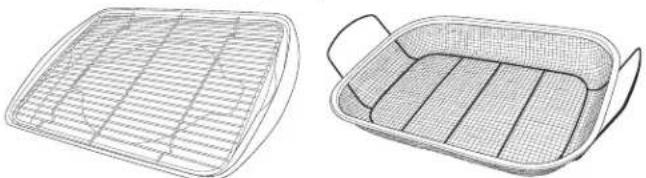
ZHP365ETVSS - Cooker Monogram - Free user manual and instructions
Find the device manual for free ZHP365ETVSS Monogram in PDF.


User questions about ZHP365ETVSS Monogram
0 question about this device. Answer the ones you know or ask your own.
Ask a new question about this device
Download the instructions for your Cooker in PDF format for free! Find your manual ZHP365ETVSS - Monogram and take your electronic device back in hand. On this page are published all the documents necessary for the use of your device. ZHP365ETVSS by Monogram.
USER MANUAL ZHP365ETVSS Monogram
Professional Induction Ranges
ENGLISH/FRANÇAIS/ESPAÑOL
MONOGRAM.COM
TABLE OF CONTENTS
MODEL INFORMATION....2
CONSUMER SUPPORT....3
SAFETY INFORMATION 4
USING THE RANGE....9
Connecting Your Wi-Fi Enabled Range 9
Features of the Range and Cooktop 10
Accent Lighting....10
Cooktop Features....11
Operating The Cooking Elements 12
Turn Burner(s) Off 12
Selecting Cooktop Setting 13
Synchronize Left Elements....13
Power Sharing 14
Cooktop Lockout....14
Kitchen Timer....14
Bluetooth® Connectivity 15
Precision Cooking....16
Hot Light Indicator 17
Pan Detection Removal 17
Cooktop Custom Settings....18
How Induction Cooking Works....19
Cooking Noise 19
Choosing the Correct Cookware to Use. 20
Griddle 22
Features of the Oven 23
Oven Controls. 24
Settings....25
Wi-Fi and Remote Enable 25
Oven Air Vents 26
Aluminum Foil and Oven Liners 26
Oven Racks 27
Oven Modes 28
Temperature Setting 2
Baking 29
Broiling 30
Convection Cooking 31
Warming 34
Proofing 34
Precision Cooking....34
Temperature Probe 35
Oven Cooking Guide 37
Oven Cookware Guidelines 37
Air Fry Cooking Guide 39
CARE AND CLEANING 40
ACCESSORIES 47
TROUBLESHOOTING 48
MONOGRAM™ LIMITED WARRANTY....51
MODEL INFORMATION
MODEL NUMBERS - ZHP304, ZHP365
WRITE DOWN THE MODEL AND SERIAL NUMBERS
You'll find them on a label located below the control panel which is visible when the oven door is opened.
Use these numbers in any correspondence or service calls concerning your appliance.
Please write these numbers here:
Model Number
Serial Number
CONSUMER SUPPORT
Monogram™ WEBSITE
Have a question or need assistance with your appliance? Try the Monogram™ website 24 hours a day, any day of the year! You can also shop for more great Monogram™ products and take advantage of all our online support services designed for your convenience. In the US: monogram.com.
In Canada: monogram.ca
REGISTER YOUR APPLIANCE
Register your new appliance online at your convenience! Timely product registration will allow for enhanced communication and prompt service under the terms of your warranty, should the need arise. You may also mail in the pre-printed registration card included in the packing material. In the US: monogram.com/register.
In Canada: monogram.ca
SCHEDULE SERVICE
Expert Monogram ^™ repair service is only one step away from your door.
To request service in the US, visit our website at monogram.com/contact or call 800.444.1845
In Canada : monogram.ca ou 888.880.3030
REMOTE CONNECTIVITY
For assistance with wireless network connectivity (for models with remote enable), visit our website at monogram.com/connect
PARTS AND ACCESSORIES
Individuals qualified to service their own appliances can have parts or accessories sent directly to their homes (VISA, MasterCard and Discover cards are accepted). Order online today 24 hours every day.
In the US: monogram.com/ownership/parts or call 800.444.1845
In Canada: monogram.ca or 800.661.1616
Instructions contained in this manual cover procedures to be performed by any user. Other servicing generally should be referred to qualified service personnel. Caution must be exercised, since improper servicing may cause unsafe operation.
CONTACT US
If you are not satisfied with the service you receive from Monogram™, contact us on our website with all the details including your phone number at monogram.com/contact.
IMPORTANT SAFETY INFORMATION READ ALL INSTRUCTIONS BEFORE USING THE APPLIANCE
ANTI-TIP DEVICE
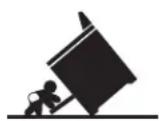
WARNING
Tip-Over Hazard
- A child or adult can tip the range and be killed.
• Install the anti-tip bracket to the wall or floor. - Engage the range to the anti-tip bracket by sliding the range back such that the foot is engaged.
- Re-engage the anti-tip bracket if the range is moved.
- Failure to do so can result in death or serious burns to children or adults.
To reduce the risk of tipping the range, the range must be secured by a properly installed anti-tip bracket. See installation instructions shipped with the bracket for complete details before attempting to install.
For Professional Induction Ranges
To check if the bracket is installed and engaged properly, look underneath the range to see that the rear leveling leg is engaged in the bracket. On some models, the kick panel can be removed for easy inspection. If visual inspection is not possible, slide the range forward, confirm the anti-tip bracket is securely attached to the floor or wall, and slide the range back so the rear leveling leg is under the anti-tip bracket.
If the range is pulled from the wall for any reason, always repeat this procedure to verify the range is properly secured by the anti-tip bracket.
Never completely remove the leveling legs or the range will not be secured to the anti-tip device properly.
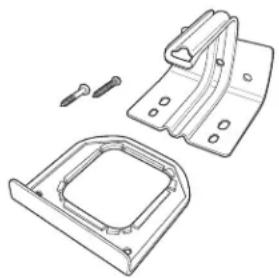
natural_image
Technical line drawing of a mechanical bracket assembly with mounting holes and fasteners (no text or symbols)Anti-Tip Bracket Kit Included
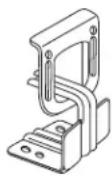
Rear View
READ AND SAVE THESE INSTRUCTIONS
IMPORTANT SAFETY INFORMATION READ ALL INSTRUCTIONS BEFORE USING THE APPLIANCE
WARNING
Read all safety instructions before using the product. Failure to follow these instructions may result in shock, serious injury or death.
WARNING
GENERAL SAFETY INSTRUCTIONS
- Use this appliance for its intended purpose as described in this owner's manual.
■ Have your range installed and properly grounded by a qualified installer in accordance with the provided installation instructions.
If the heating element in the oven develops a glowing spot or shows other signs of damage, do not use that area of the range. A glowing spot indicates the element may fail and present a potential burn, fire, or shock hazard. Turn the heating element off immediately and have it replaced by a qualified service technician.
■ Before performing any service, unplug the range or disconnect the power supply at the household distribution panel by removing the fuse or switching off the circuit breaker.
■ Be sure all packing materials are removed from the range before operating to prevent ignition of these materials.
■ Avoid scratching or impacting glass displays. Doing so may lead to glass breakage. Do not cook on a product with broken glass. Shock, fire, or cuts may occur.
■ Do not leave children alone or unattended in an area where an appliance is in use. They should never be allowed to climb, sit or stand on any part of the appliance.
Do not store items of interest to sets above an oven - children climbing each items could be seriously injured.
CAUTION
■ Never block the vents (air openings) of the range. They provide the air inlets and outlets that are necessary for the range to operate. Air openings are located at the rear of the cooktop, at the top and bottom of the oven door, and at the bottom of the range.
■ Use only dry pot holders—moist or damp pot holders on hot surfaces may result in burns from steam. Do not let pot holders touch surface burners, or oven heating element. Do not use a towel or other bulky cloth in place of pot holders.
- Do not touch the heating elements or the interior surface of the oven. These surfaces may be hot enough to burn even though they are dark in color. During and after use, do not touch, or let clothing or other flammable materials contact any interior area of the oven; allow sufficient time for cooling first. Other surfaces of the appliance may become hot enough to cause burns. Potentially hot surfaces include the burners, oven vent opening, surfaces near the opening, crevices around the oven door, metal trim parts above the door, any backguard, or high shelf surface.
■ Do not heat unopened food containers. Pressure could build up and the container could burst, causing an injury.
■ Cook food thoroughly to help protect against foodborne illness. Minimum safe food temperature recommendations can be found at IsltDoneYet.gov and fsis.usda.gov. Use a food thermometer to take food temperatures and check several locations.
WARNING
GENERAL SAFETY INSTRUCTIONS (cont.)
■ Do not allow anyone to climb, stand or hang on the oven door, drawer or cooktop. They could damage the range or tip it over causing severe injury or death.
■ When using the range in conjunction with a ventilator hood, keep the ventilator hood and grease filters clean to maintain good venting and to avoid grease fires. Turn the ventilator OFF in case of a fire or when intentionally "flaming" liquor or other spirits on the cooktop. The blower, if in operation, could spread the flames.
READ AND SAVE THESE INSTRUCTIONS
IMPORTANT SAFETY INFORMATION READ ALL INSTRUCTIONS BEFORE USING THE APPLIANCE
WARNING
KEEP FLAMMABLE MATERIALS AWAY FROM THE RANGE
Failure to do so may result in fire or personal injury.
- Do not store or use flammable materials in an oven or near the cooktop, including paper, plastic, pot holders, linens, wall coverings, curtains, drapes and gasoline or other flammable vapors and liquids.
■ Never wear loose-fitting or hanging garments while using the appliance. These garments may ignite if they contact hot surfaces causing severe burns.
■ Do not let cooking grease or other flammable materials accumulate in or near the range. Grease in the oven or on the cooktop may ignite.
WARNING
REMOTE OPERATION
This appliance is configurable to allow remote operation at any time. Do not store any flammable materials or temperature sensitive items inside, on top or near surface units of the appliance.
WARNING
IN THE EVENT OF A FIRE, TAKE THE FOLLOWING STEPS TO PREVENT INJURY AND FIRE SPREADING
- Do not use water on grease fires. Never pick up a flaming pan. Turn the controls off. Smother a flaming pan on a surface unit by covering the pan completely with a well-fitting lid, cookie sheet or flat tray. Use a multi-purpose dry chemical or foam-type fire extinguisher.
If there is a fire in the oven during self-clean, turn the oven off and wait for the fire to go out. Do not force the door open. Introduction of fresh air at self-clean temperatures may lead to a burst of flame from the oven. Failure to follow this instruction may result in severe burns.
If there is a fire in the oven during baking, smother the fire by closing the oven door and turning the oven off or by using a multi-purpose dry chemical or foam-type fire extinguisher.
WARNING
SELF-CLEANING OVEN SAFETY INSTRUCTIONS
The self-cleaning feature operates the oven at temperatures high enough to burn away food soils in the oven. Follow these instructions for safe operation.
■ Do not touch oven surfaces during self-clean operation. Keep children away from the oven during self-cleaning. Failure to follow these instructions may cause burns.
■ Before operating the self-clean cycle, remove pans, shiny metal oven racks, and other utensils from the oven. Only porcelain-coated oven racks may be left in the oven.
■ Before operating the self-clean cycle, wipe grease and food soils from the oven. Excessive amount of grease may ignite leading to smoke damage to your home.
If the self-cleaning mode malfunctions, turn the oven off and disconnect the power supply. Have it serviced by a qualified technician.
■ Do not use a protective coating to line the oven and do not use commercial oven cleaner unless certified for use in a self-cleaning oven.
- Do not clean the door gasket. The door gasket is essential for a good seal. Care should be taken not to rub, damage or move the gasket.
■ IMPORTANT: The health of some birds is extremely sensitive to the fumes given off during the self-cleaning cycle of any range. Move birds to another well-ventilated room.
READ AND SAVE THESE INSTRUCTIONS
IMPORTANT SAFETY INFORMATION READ ALL INSTRUCTIONS BEFORE USING THE APPLIANCE
WARNING
COOKTOP SAFETY INSTRUCTIONS
In the event of a fire, do not use water or grease on fires. Never pick up a flaming pan. Turn the controls off. Smother a flaming pan on a surface unit by covering the pan completely with a well-fitted lid, cookie sheet or flat tray. Use a multi-purpose dry chemical or a foam-type fire extinguisher.
■ Never leave the surface units unattended. Boilovers cause smoking and greasy spillovers that may catch on fire.
■ Never leave the surface units unattended. Boilovers cause smoking and greasy spillovers that may catch on fire.
■ Never leave oil unattended while frying. If allowed to heat beyond its smoking point, oil may ignite resulting in fire that may spread to surrounding cabinets. Use
a deep fat thermometer whenever possible to monitor oil temperature.
■ To avoid spillover and fire, use a minimum amount of oil when shallow pan-frying and avoid cooking frozen foods with excessive amounts of ice.
■ Use the proper pan size - select cookware having flat bottoms large enough to cover the surface heating element. The use of undersized cookware will expose a portion of the surface unit to direct contact and may result in ignition of clothing. Proper relationship of cookware to surface unit will also improve efficiency.
■ To minimize the possibility of burns, ignition of flammable materials and spillage, the handle of a container should be turned toward the center of the range without extending over nearby surface units.
WARNING
INDUCTION COOKTOP SAFETY INSTRUCTIONS
■ Use care when touching the cooktop. The glass surface of the cooktop will retain heat after the controls have been turned off.
■ Do not cook on a broken cooktop. If the glass cooktop should break, cleaning solutions and spillovers may penetrate the broken cooktop and create a risk of electric shock. Contact a qualified technician immediately.
■ Avoid scratching the glass cooktop. The cooktop can be scratched with items such as knives, sharp instruments, rings or other jewelry, and rivets on clothing.
- Do not place or store items that can melt or catch fire on the glass cooktop, even when it is not being used. If the cooktop is inadvertently turned on, they may ignite. Heat from the cooktop or oven vent after it is turned off may cause them to ignite also.
- Do not place metallic objects such as knives, forks, spoons, and lids on the cooktop surface as they can get hot.
■ Use ceramic cooktop cleaner and non-scratch cleaning pad to clean the cooktop. Wait until the cooktop cools and the indicator light goes out before cleaning. A wet sponge or cloth on a hot surface can cause steam burns. Some cleaners can produce noxious fumes if applied to a hot surface. Read and follow all instructions and warnings on the cleaning cream label. NOTE: Sugary spills are an exception. They should be scraped off while still hot using an oven mitt and a scraper. See the Cleaning the Glass Cooktop section for detailed instructions.
CAUTION
Persons with a pacemaker or similar
medical device should exercise caution when using or standing near an induction cooktop while it is in operation. The electromagnetic field may affect the working of the pacemaker or similar medical device. It is advisable to consult your doctor or the pacemaker manufacturer about your particular situation.
WARNING
This unit has been tested and found to comply with the limits for a class B digital device, pursuant to Part 18 of the FCC rules. These limits are designed to provide reasonable protection against harmful interference in a residential installation. This unit generates, uses and can radiate radio frequency energy and, if not installed and used in accordance with the instructions, may cause harmful interference to radio communications. However, there is no guarantee that interference will not occur in
a particular installation. If this unit does cause harmful interference to radio or television reception, which can be determined by turning the unit off and on, the user is encouraged to try to correct the interference by one or more of the following measures:
■ Reorient or relocate the receiving antennae.
■ Increase the distance between the unit and receiver.
■ Connect the unit into an outlet or a circuit different from that to which the receiver is connected.
READ AND SAVE THESE INSTRUCTIONS
IMPORTANT SAFETY INFORMATION READ ALL INSTRUCTIONS BEFORE USING THE APPLIANCE
WARNING
OVEN SAFETY INSTRUCTIONS
■ Stand away from the range when opening the oven door. Hot air or steam which escapes can cause burns to hands, face and/or eyes.
■ Never place cooking utensils, pizza or baking stones, or any type of foil or liner on the oven floor. These items can trap heat or melt, resulting in damage to the product and risk of shock, smoke or fire.
- Place oven racks in desired location while oven is cool. If rack must be moved while oven is hot, be careful to avoid touching hot surfaces.
- Do not leave items such as paper, cooking utensils, or food in the oven when not in use. Items stored in an oven can ignite.
- Do not leave items on the cooktop near the oven vent. Items may overheat resulting in a risk of fire or burns.
■ Never broil with door open. Open-door broiling is not permitted due to overheating of control panel including the display.
■ Pull the oven rack to the stop-lock position when loading and unloading food from the oven. This helps prevent burns from touching hot surfaces of the door and oven walls.
PROPER DISPOSAL OF YOUR APPLIANCE
Dispose of or recycle your appliance in accordance with Federal and Local Regulations. Contact your local authorities for the environmentally safe disposal or recycling of your appliance.
How to Remove Protective Shipping Film and Packaging Tape
Carefully grasp a corner of the protective shipping film with your fingers and slowly peel it from the appliance surface. Do not use any sharp items to remove the film. Remove all of the film before using the appliance for the first time.
To assure no damage is done to the finish of the product, the safest way to remove the adhesive from packaging tape
on new appliances is an application of a household liquid dishwashing detergent. Apply with a soft cloth and allow to soak.
NOTE: The adhesive must be removed from all parts. It cannot be removed if it is baked on.
NOTE: Some cooking functions and features are not available until after you Wi-Fi connect your new oven to your local wireless network. Please follow the instructions on the oven control and the Wi-Fi & Remote Enable section of this guide. This provides capability to use SmartHQ™ app functions and ensures that the oven has the latest software.
READ AND SAVE THESE INSTRUCTIONS
USING THE RANGE
On initial setup, this range requires a software update to enable all features. To perform the update, download the SmartHQ™ app and then follow instructions to connect the range to your home Wi-Fi network. Some features are available only via the SmartHQ™ app. For more information on how to get connected, reference the "Wi-Fi & Remote Enable" section of this guide.
CONNECTING YOUR WI-FI ENABLED RANGE
Your range is designed to provide you with two-way communication between your appliance and smart device. By using the SmartHQ™ mobile app, you will be able to control essential range operations such as temperature settings and cooking modes using your smartphone or tablet.*
What you will need
Your range uses your existing home Wi-Fi network to communicate between the appliance and your smart device. In order to set up your range, you will need to gather some information:
- Each range has connected appliance information that includes an Appliance Network Name and Password. These are the two important details that you will need to connect to the appliance. This information is found in the Wi-Fi Settings menu on the unit display.
- Have your smart phone or tablet ready with the ability to access the internet and download apps.
- You will need to know the password of your home Wi-Fi router. Have this password ready while you are setting up your range.
Connecting your Wi-Fi Connect Enabled Range
- Have your smart phone or tablet ready with the ability to access the internet and download apps.
- You will need to know the password of your home Wi-Fi router. Have this password ready while you are setting up your Monogram™ range.
- On your smart phone or tablet, visit monogram.com/connect to learn more about connected appliance features and to download the app to connect to your range.
- Follow the onscreen instructions in the app to connect your Monogram™ range. When connected, your range should show that it is connected to your home Wi-Fi network.
- If there are issues connecting wirelessly to your range, please call 800.220.6899 and ask for assistance regarding range wireless connectivity.
To connect additional smart devices, repeat steps 3 and 4. Note that any changes or modifications to the remote enable device installed on this range that are not expressly approved by the manufacturer could void the user's authority to operate the equipment.
* Compatible Apple or Android devices and home Wi-Fi network required.
REMOTE ENABLE EQUIPMENT
This device complies with part 15 of the FCC Rules. Operation is subject to the following two conditions: (1) This device may not cause harmful interference, and (2) this device must accept any interference received, including interference that may cause undesired operation.
The wireless communication equipment installed on this range has been tested and found to comply with the limits for a Class B digital device, pursuant to part 15 of the FCC Rules. These limits are designed to:
(a) provide reasonable protection against harmful interference in a residential installation. This equipment generates, uses, and can radiate radio frequency energy and, if not installed and used in accordance with the instructions, may cause harmful interference to radio communications. However, there is no guarantee that interference will not occur in a particular installation. If this equipment does cause harmful interference to radio or television reception, which can be determined by turning the equipment off and on, the user is encouraged to try to correct the interference by one or more of the following measures:
- Reorient or relocate the receiving antenna.
- Increase the separation between the equipment and receiver.
- Connect the equipment into an outlet on a circuit different from that to which the receiver is connected.
- Consult the dealer or an experienced radio/TV technician for help.
(b) accept any interference received, including interference that may cause undesired operation of the device.
Note that any changes or modifications to the wireless communication device installed on this range that are not expressly approved by the manufacturer could void the user's authority to operate the equipment.
USING THE RANGE
FEATURES OF THE RANGE AND COOKTOP
(Not all features are on all models. Appearance may vary.)
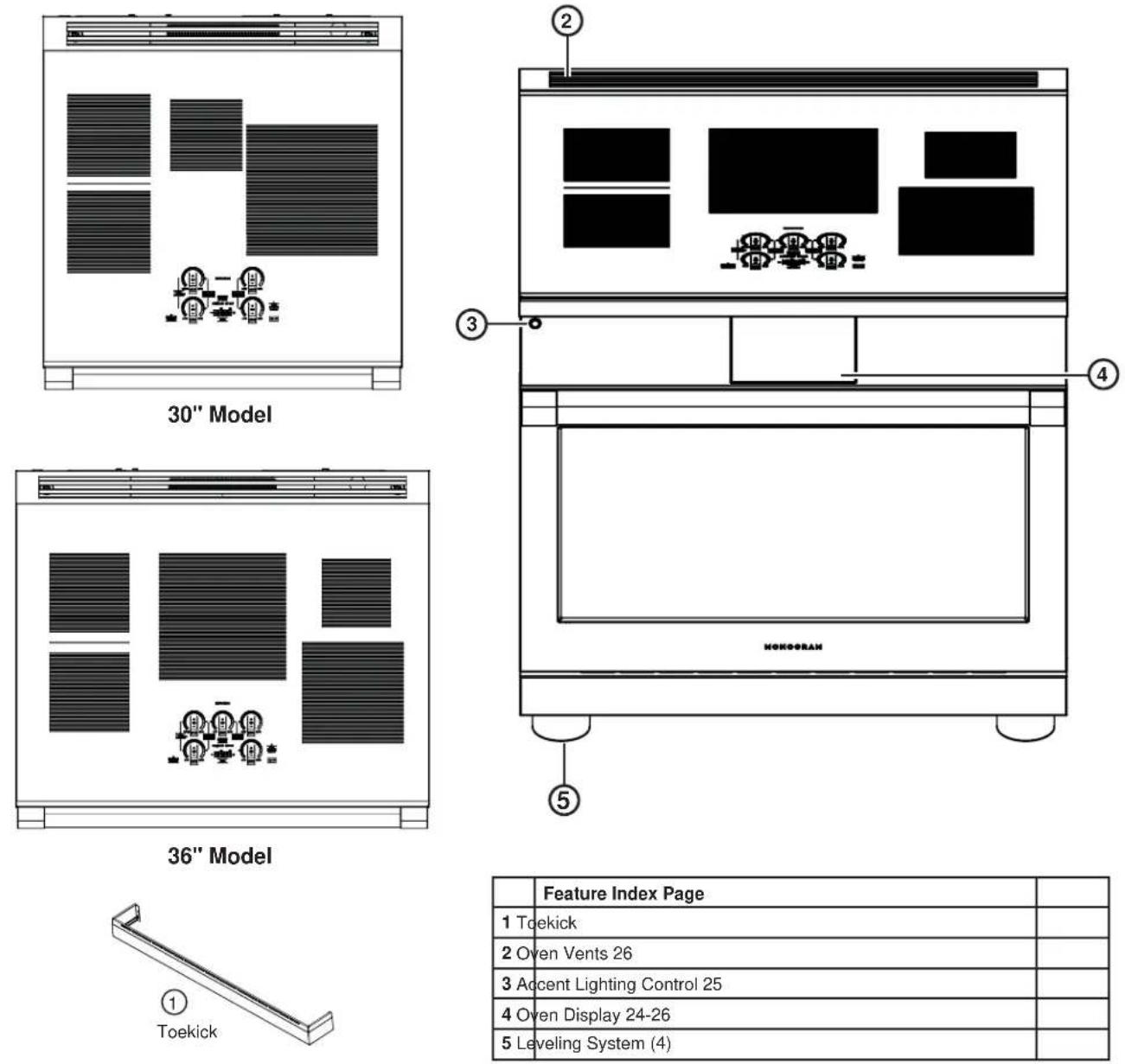
| Feature Index Page | ||
| 1 Toekick | ||
| 2 Oven Vents 26 | ||
| 3 Accent Lighting Control 25 | ||
| 4 Oven Display 24-26 | ||
| 5 Leveling System (4) | ||
ACCENT LIGHTING CONTROL
This button controls the LED accent lighting to the control panel. Customer color options for the task lighting are available in the settings menu and more through the SmartHQ™ app.
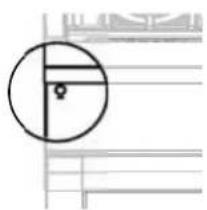
natural_image
Pure geometric diagram with concentric circles and horizontal lines, no text or symbols presentUSING THE RANGE
Throughout this manual, features and appearance may vary from your model.
COOKTOP FEATURES
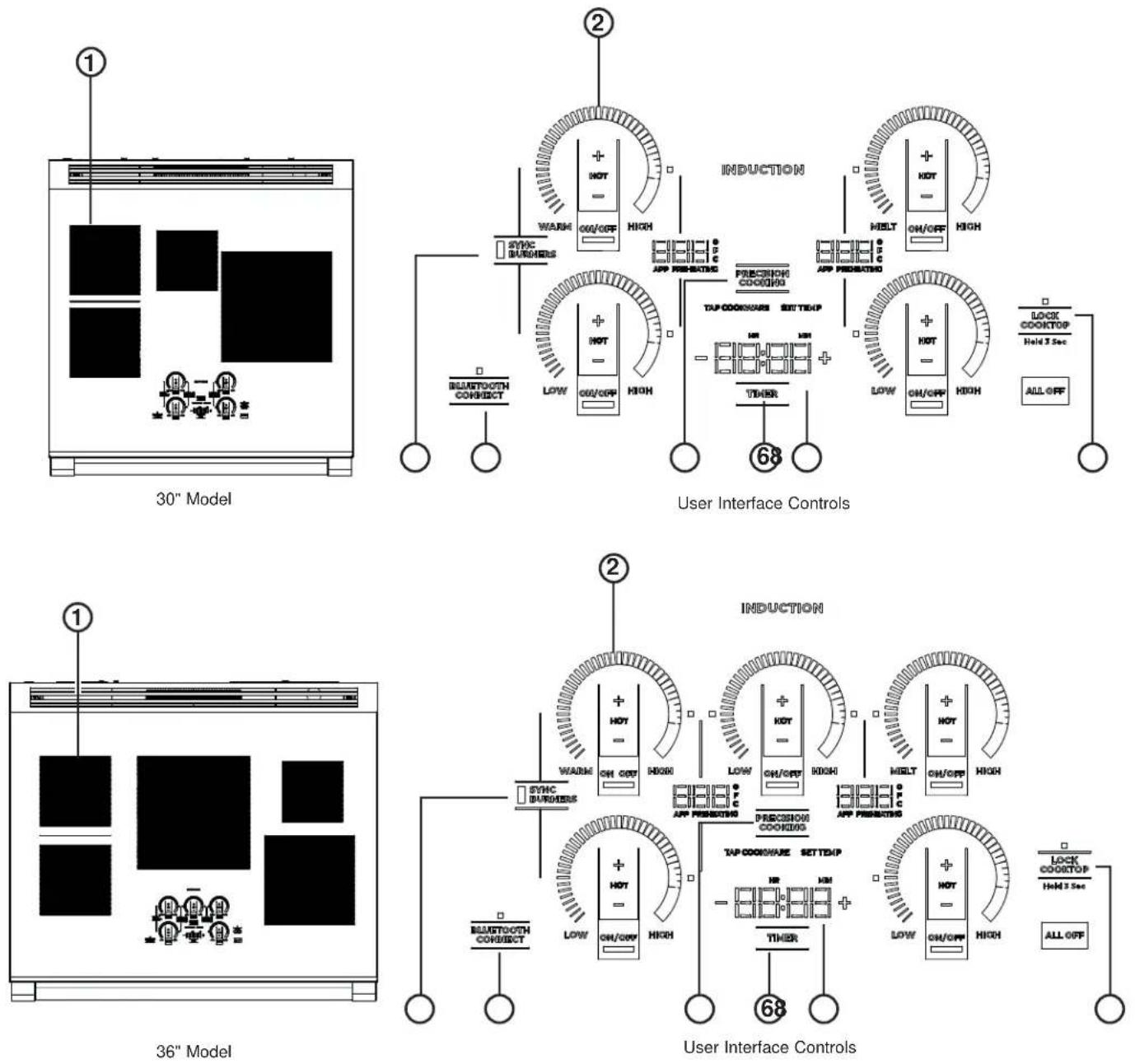
- Cooking Element(s): See page 13.
- Power Level Arc: See page 13.
- Sync Burners: See page 14.
- Precision Cooking: See page 17.
- Lock: See page 15.
- Timer: See page 15.
- Display: See page 15.
- Bluetooth Connect: See page 16.
USING THE RANGE
Turn Burner(s) On: Touch and hold On/Off pad about half a second. A chime can be heard with each touch to any pad.
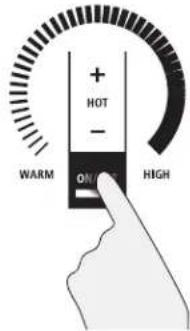
text_image
+ HOT - WARM ON/ HIGHPower level can be selected in any of the following ways:
-
Swipe the power level arc to the desired power level.
-
Touch anywhere along the power level arc, or;
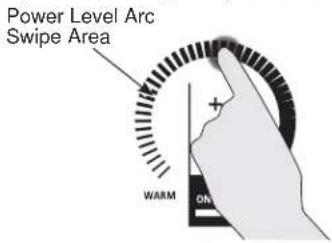
text_image
Power Level Arc Swipe Area WARM ON- Touch + or - pads to adjust power level, or;
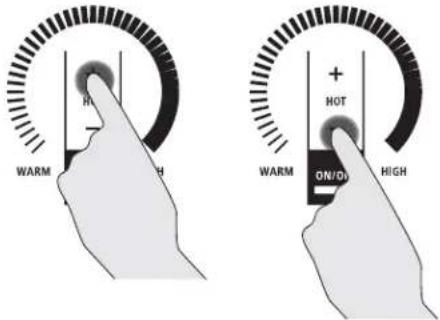
text_image
WARM H + HOT WARM ON/O HIGH-
Shortcut to Hi: Immediately after turning unit on, touch the + pad, or;
-
Shortcut to Low: Immediately after turning unit on, touch the - pad.
TURN BURNER(S) OFF
Touch On/Off pad for an individual burner or touch the All Off pad.
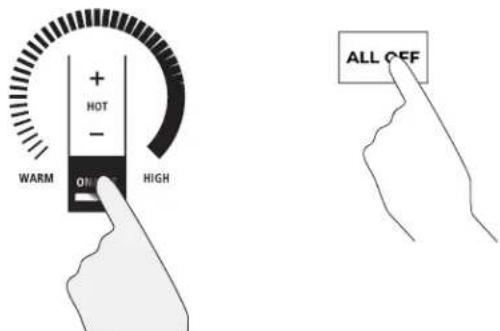
text_image
WARM + HOT - HIGH ON ALL OFFUSING THE RANGE
SELECTING COOKTOP SETTINGS
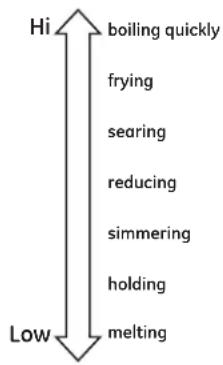
Choose the element/burner that is best fit to the cookware size. Each element/burner on your new cooktop has its own power levels ranging from low to high. Power level settings necessary for cooking will vary depending on the cookware being used, the type and quantity of food, and the desired outcome. In general use lower settings for melting, holding and simmering and use higher settings for heating quickly, searing and frying. When keeping foods warm, confirm selected setting is sufficient to maintain food temperature above 140^ F. Larger elements and elements marked “Keep Warm” are not recommended for melting.
Hi is the highest power level, designed for large quantity rapid cooking and boiling. Hi will operate for a maximum of 10 minutes. Hi may be repeated after the initial 10 minute cycle by either pressing the - pad followed by the + pad OR swiping the power level arc to a lower level and then followed by swiping the power level arc to the highest level.
CAUTION
Do not place any cookware, utensils or leave excess water spills on control key pads. This may result in unresponsive touch pads and turning off the cooktop if present for several seconds.
text_image
Hi boiling quickly frying searing reducing simmering holding melting LowSYNCHRONIZE LEFT ELEMENTS
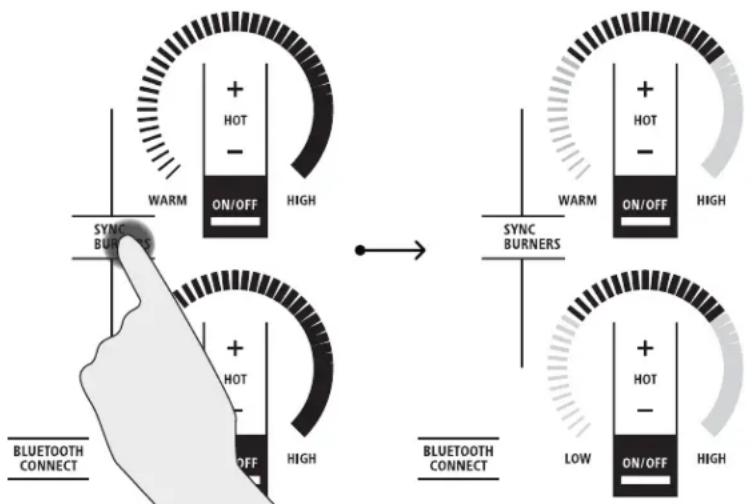
NOTE: Sync Burners is only intended for cookware that spans both burners.
To Turn On
Hold the Sync Burners pad for about half a second to connect the two burners. Operate either element as described on page 12 to adjust power level.
To Turn Off
- Touch the On/Off pad on either burner to turn off the Sync Burners.
or
- Touch the Sync Burners to turn both burners off.
flowchart
graph LR
    A["Start"] --> B["Blue Bluetooth Connect"]
    B --> C["TRANSITION"]
    C --> D["Blue Bluetooth Connect"]
    D --> E["TRANSITION"]
    E --> F["Blue Bluetooth Connect"]
    F --> G["TRANSITION"]
    G --> H["Blue Bluetooth Connect"]
    H --> I["TRANSITION"]
    I --> J["Blue Bluetooth Connect"]
    J --> K["TRANSITION"]
    K --> L["Blue Bluetooth Connect"]
    L --> M["TRANSITION"]
    M --> N["Blue Bluetooth Connect"]
    N --> O["TRANSITION"]
    O --> P["Blue Bluetooth Connect"]
    P --> Q["TRANSITION"]
    Q --> R["Blue Bluetooth Connect"]
    R --> S["TRANSITION"]
    S --> T["Blue Bluetooth Connect"]
    T --> U["TRANSITION"]
    U --> V["Blue Bluetooth Connect"]
    V --> W["TRANSITION"]
    W --> X["Blue Bluetooth Connect"]
    X --> Y["TRANSITION"]
    Y --> Z["Blue Bluetooth Connect"]
USING THE RANGE
POWER SHARING
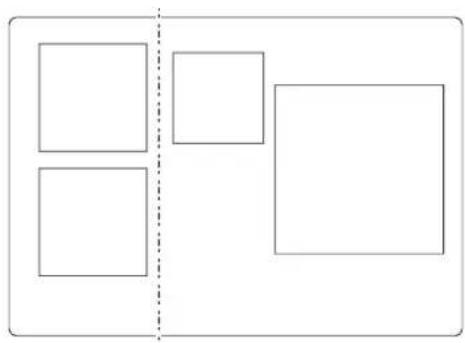
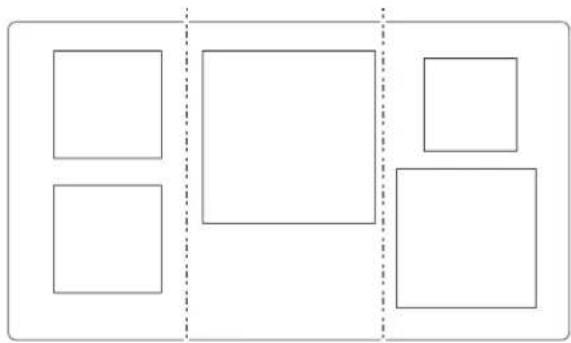
A 30" cooktop has 2 cooking zones, and a 36" cooktop has 3 cooking zones. If two elements in the same zone are in use and at least one element is at the maximum power level (Hi), the Hi setting will operate at a reduced
power level. Note that the display will not change. This is how power is shared between two elements in the same cooking zone.
natural_image
Simple geometric diagram with four empty squares separated by a dashed line (no text or symbols)30" cooktop. 36" cooktop.
natural_image
Simple diagram with five empty squares arranged in a grid, separated by dashed lines (no text or symbols)Left Zone Right'ZoneCenter ZoneLeft Zone Right Zone
COOKTOP LOCKOUT
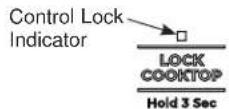
Lock
If the square indicator light is off, touch the LOCK COOKTOP pad for 3 seconds. The square indicator light should then turn on.
Unlock
If the square indicator light is on, touch the LOCK COOKTOP pad for 3 seconds. The square indicator light should then turn off.
See Cooktop Custom Settings section to activate Auto Lock feature.
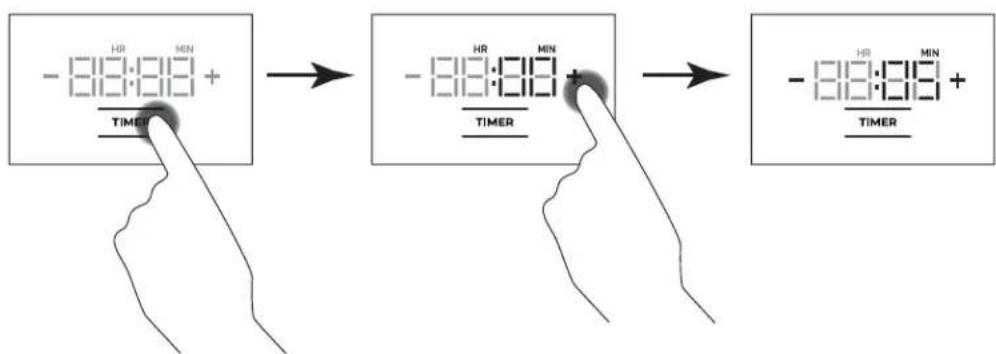
KITCHEN TIMER
To Turn On
Touch the Timer pad. Touch the + or - arrows to choose the desired number of minutes. Timer automatically starts 10 seconds after pad is touched, or if the Timer pad is touched.
To Turn Off
Press and release the Timer pad to cancel timer. Alarm will sound continuously when time is up until user turns timer off.
NOTE: Use the kitchen timer to measure cooking time or as a reminder. The kitchen timer does not control the cooking elements.
flowchart
graph LR
    A["Input: -18:00 + TIME"] --> B["Timer: -18:00"]
    B --> C["Output: -18:00 + TIME"]
USING THE RANGE
BLUETOOTH® CONNECTIVITY
Your smart range is designed to provide you with Bluetooth® connectivity between your appliance and smart device. The following features require a Bluetooth® connection:
- Chef Connect
- OTR Microwave
- Vent Hood
- Kitchen Hub
- Precision Cooking
- Hestan™ Cookware
• Paragon Sous Vide Probe
Your smart range is limited to two active Bluetooth® connections at any given time and up to 5 devices can be paired with the range. Due to this, your range will automatically prioritize the devices that should remain in connection and temporarily disconnect all other connections. If multiple Bluetooth® functions/devices are active and a 3rd device is attempted to be connected, your range will disconnect one of the active devices to open up space for the new device connection. NOTE: Chef Connect devices do not need to be manually reconnected. The range will scan for known devices and re-establish the connection on its own.
Pairing a Bluetooth® Device
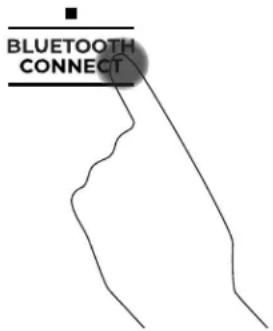
Press the Bluetooth® Connect pad on the cooktop. The cooktop will enter Pair mode. Tap cookware or press Chef Connect button on enabled microwave or hood device. When connected, the cooktop will display "donE".
| Supported Devices How to Initiate Pairing |
| Hestan Cue® fry pan Tap pan handle twice |
| Hestan Cue® pot Tap pot handle twice |
text_image
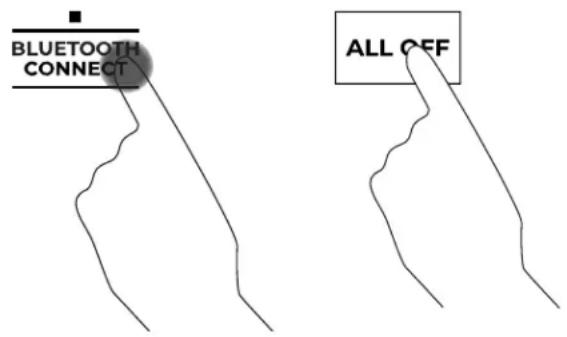
BLUETOOTH CONNECTRemoving Bluetooth® Devices
Tap and hold the Bluetooth® Connect and All Off pads for 3 seconds.
NOTE: Your unit cannot delete a single or specific device. All of your paired devices are cleared. Devices you wish to use must be paired again.
text_image
BLUETOOTH CONNECT ALL OFFUSING THE RANGE
PRECISION COOKING
The Precision Cooking feature allows precise temperature control of certain cooking devices for improved results.
Initiating a Precision Cooking Mode
-
Press the Power On/Off pad on the desired element.
-
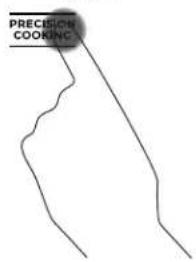
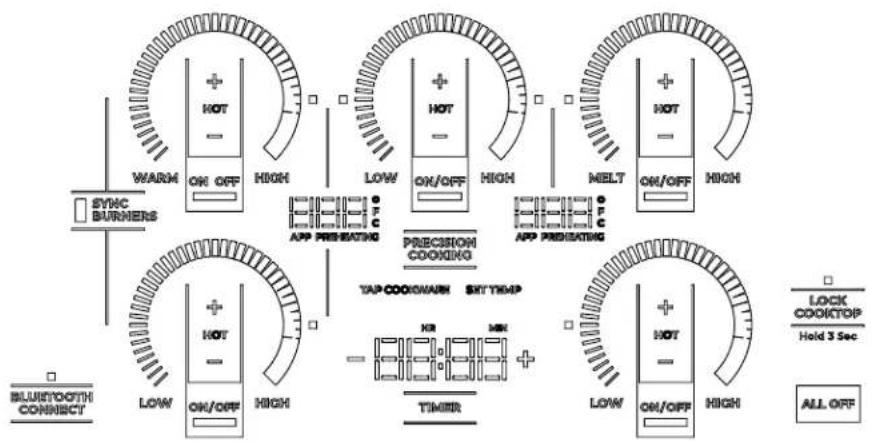
Tap Precision Cooking pad.
text_image
PRECISION COOKING- TAP COOKWARE legend will pulse. Activate cookware and ensure cookware is on desired element.
TAP COOKWARE
-
Precision Cooking Degrees legend will turn on. Use slider or + and - pads to adjust temperature.
-
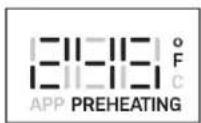
Cooktop will display target temperature and PREHEATING. When PREHEATING legend disappears, target temperature has been reached.
| Supported Devices How | to Activate Control with this App | |
| Hestan Cue®Cookware Tap pan handle | Hestan Cue®(by Hestan Smart Cooking) | |
| Precision Probe Press side button once SmartHQTM App | ||
NOTE: Hestan Cue® cookware can also be controlled through the SmartHQ™ App, but functionality is limited to temperature control only.
flowchart
graph TD
    A["SYNC BURNERS"] --> B["WARM ON/OFF HIGH"]
    B --> C["APP PROBICATING"]
    C --> D["LOW ON/OFF HIGH"]
    D --> E["MELT ON/OFF HIGH"]
    E --> F["APP PROBICATING"]
    F --> G["TAP COOK/WARM SKY TEMP"]
    G --> H["TIMER"]
    H --> I["LOW ON/OFF HIGH"]
    I --> J["LOCK COOKTOP Hold 3 Sec"]
    J --> K["ALL OFF"]
Precision Cooking Control Modes
There are two control modes available:
■ App Control – the user interacts with an application on a smart phone.
■ Local Control – the user interacts with the burner to set a target temperature and no app use is required.
App Control
After activating your device on your selected burner, open the app designed to control the selected device. Depending on the device and application, the set temperature may be shown in the unit display, in the app, or hidden from view.
Local Control
After activating your device on your selected burner, tap on the burner ring to set the approximate temperature. Small adjustments can be made by tapping the + or - pads. The set temperature will be shown in the display.
USING THE RANGE
HOT LIGHT INDICATOR
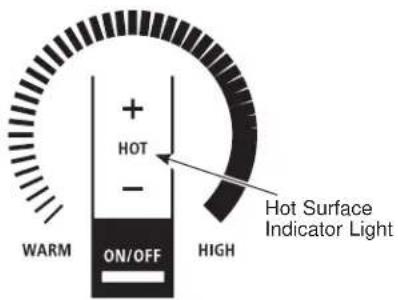
A hot surface indicator light (one for each cooking element) will glow when the glass surface is hot and will remain on until the surface has cooled to a temperature that is safe to touch.
text_image
WARM + HOT - ON/OFF HIGH Hot Surface Indicator LightPAN DETECTION REMOVAL
When a pan is removed from the cooktop surface, the burner power level goes to 0 and the power level arc starts to blink. If a pan is not detected for 25 seconds, the control turns off automatically, lights turn off.
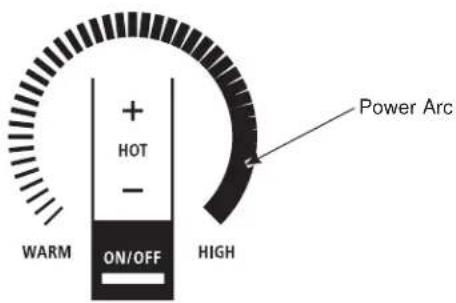
text_image
WARM + HOT - ON/OFF HIGH Power ArcUSING THE RANGE
COOKTOP CUSTOM SETTINGS
- Press and hold All Off and Timer pads together for 3 seconds.
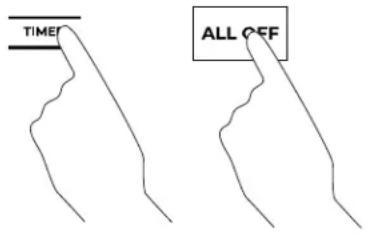
text_image
TIME ALL OFF- To activate a Setting, press the Timer pad.
- To exit Settings Menu, press the All Off pad.
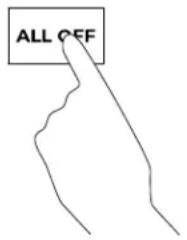
text_image
ALL OFF- To navigate through the Settings Menu, use the + and - buttons on the Display. To select a menu, press the Timer pad.
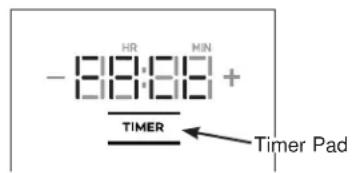
text_image
-8:8:8:8+ TIMER Timer Pad| Feature Menu Default | It Options Description of Options | ||||
| 1 Factory Settings | 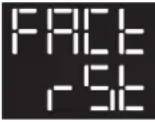 |  | 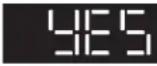 | • "No" : exits out of the Factory reset menu and takes the user back to the main menu.• "YES" : Clears customized settings and restores defaults | |
| 2 Cooktop Lockout |  |  |  | • "USER" : Defined as stated in the Cooktop Lockout section• "Auto" : In addition to the standard lock behavior (see Cooktop Lockout section) the cooktop controls will be locked if no element or timer has been active as well as no keys have been pressed for 10 minutes. | |
| 3 Cooktop LED Brightness |  |  |  | • "Hi" = Cooktop lights at highest brightness level.• "rEG" = Cooktop lights at medium brightness level.• "Lo" = Cooktop lights at lowest brightness level. | |
| 4 Button Volume | 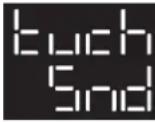 |  |  | • "Hi" : All touch key sounds activated to highest sound level.• "Lo" : All touch key sounds activated to lowest sound level.• "OFF" : All touch key sounds off.• The sound settings shall not affect alarm tone output levels. | |
| 5 Cooktop Kitchen Timer Volume | 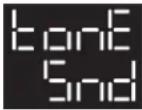 |  |  | • "Hi" : Alarm sound level at the highest volume setting.• "Lo" : Alarm sound level at the lowest volume setting. | |
| 6 Cooktop Kitchen Timer End Tone | 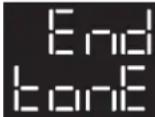 |  |  | • "Cont" : The timer end tone plays continuously until the user acknowledges the timer and tone.• "bEEP" : The timer end tone is played only once. | |
| 7 Temperature Units | 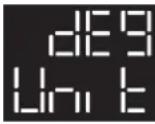 |  |  | • "F" : Temperature units in degrees Fahrenheit.• "C" : Temperature units in degrees Celsius. | |
USING THE RANGE
INDUCTION COOKTOP
How Induction Cooking Works
The magnetic fields induce a small current in the pan. The pan acts as a resistor, which produces heat, much like a radiant coil.
The cooking surface itself does not heat. Heat is produced in the cooking pan, and cannot be generated until a pan is placed on the cooking surface.
When the element is activated, the pan begins to heat immediately and in turn heats the contents of the pan.
Magnetic induction cooking requires the use of cookware made of ferrous metals—metals to which magnets will stick, such as iron or steel.
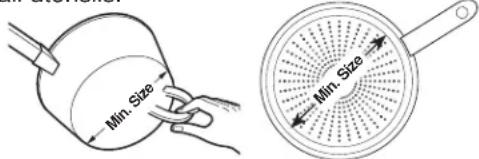
Use pans that fit the element size. The pan must be large enough for the safety sensor to activate an element.
The cooktop will not operate if a very small steel or iron utensil (less than the minimum size across the bottom) is placed on the cooking surface when the unit is turned on—items such as steel spatulas, cooking spoons, knives and other small utensils.
text_image
Min. Size Min. SizeUse the minimum size pan for the element. The pan material is correct if a magnet sticks to the bottom.
Cookware "Noise"
Slight sounds may be produced by different types of cookware. Heavier pans such as enameled cast iron produce less sound than a lighter weight multi-ply stainless steel pan. The size of the pan, and the amount of contents, can also contribute to the sound level.
When using adjacent elements that are set at certain power level settings, magnetic fields may interact and produce a high pitch whistle or intermittent “hum”. These sounds can be reduced or eliminated by lowering or raising the power level settings of one or both of the elements. Pans that completely cover the element ring will produce less sound.
A low "humming" sound is normal particularly on high settings.
Sounds you may hear: You may hear a slight "Buzz" when cooking with Hi mode. This is normal. The sound depends on the type of pot being used. Some pots will "Buzz" louder depending on the material. A "Buzz" sound may be heard if the pan contents are cold. As the pan heats, the sound will decrease. If the power level is reduced, the sound level will go down.
Pans that do not meet the minimum size requirements for the burner can produce louder sounds. They can cause the controller to "search" for the pot and produce a clicking and "zipping" sound. This can happen when one burner is running or only when an adjacent burner is also running. See User Manual for the minimum sized pots for each burner. Only measure the flat, magnetic bottom of the pot.
USING THE RANGE
Choosing The Correct Cookware To Use
Using the Correct Size Cookware
The induction coils require a minimum pan size to function properly. If the pan is removed from the element for more than 25 seconds or is not detected the ON indicator for that element will flash and then turn off.
Cookware larger than the heating element may be used; however, heat will only occur above the element.
For best results, the cookware must make FULL contact with the glass surface.
Do not allow the bottom of the pan or cookware to touch the surrounding metal cooktop trim or to overlap the cooktop controls.
For best performance, match the pan size to the element size. Using a smaller pot on a larger burner will generate less power at any given setting.
Suitable Cookware
Use quality cookware with heavier bottoms for better heat distribution and even cooking results. Choose cookware made of magnetic stainless steel, enamel coated cast iron, enameled steel and combinations of these materials.
Some cookware is specifically identified by the manufacturer for use with induction cooktops. Use a magnet to test if the cookware will work.
Round, flat-bottomed pans give best results. Pans with rims or slight ridges can be used. Pans with warped or curved bottoms will not heat evenly.
For wok cooking, use a flat-bottomed wok. Do not use a wok with a support ring.
text_image
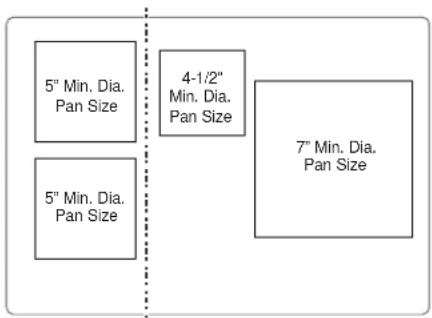
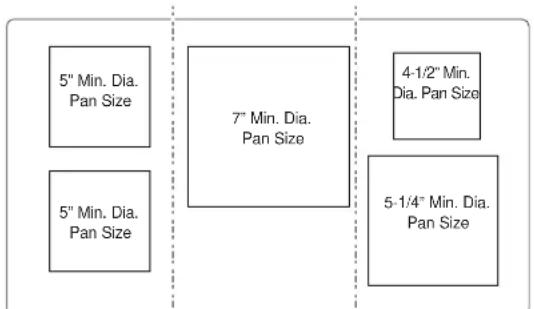
5" Min. Dia. Pan Size 4-1/2" Min. Dia. Pan Size 5" Min. Dia. Pan Size 7" Min. Dia. Pan Size30" cooktop.
Use the minimum recommended size pan shown for each cooking element.
text_image
5" Min. Dia. Pan Size 5" Min. Dia. Pan Size 7" Min. Dia. Pan Size 4-1/2" Min. Dia. Pan Size 5-1/4" Min. Dia. Pan Size36" cooktop.
Use the minimum recommended size pan shown for each cooking element.
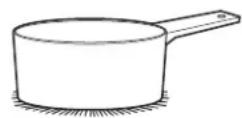
Use flat-bottomed pans.
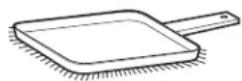
Use a griddle.
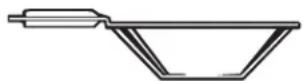
Use a flat-bottomed wok.
USING THE RANGE
Choosing The Correct Cookware To Use (Cont.)
Cookware Recommendations
Cookware must fully contact the surface of the cooking element.
Use flat-bottomed pans sized to fit the cooking element and also to the amount of food being prepared.
Induction interface disks are NOT recommended.
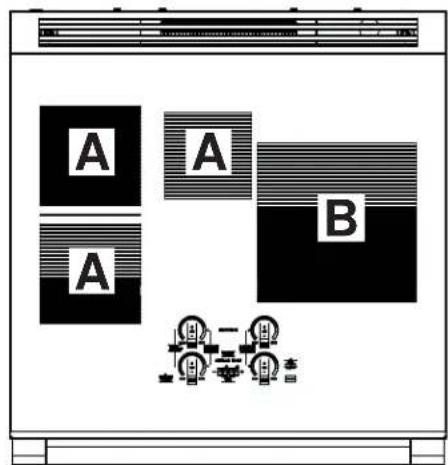
Precision Device Temperature Ranges
text_image
A A B A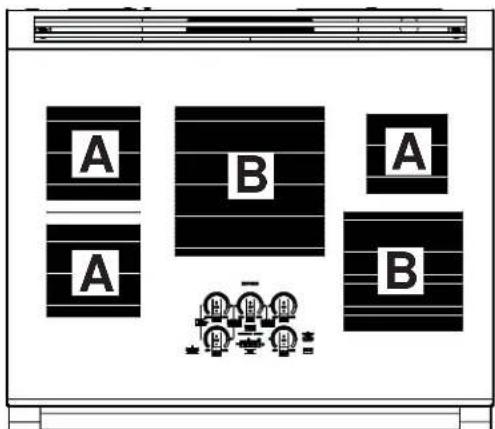
text_image
A B A A BDevice temperature ranges are dependent on burner size:
| Device | Small to Medium Burners (A) Large Burners (B) |
| Hestan Cue® cookware 100°F – 500°F | 150°F – 500°F |
| Precision Probe 100°F – 200°F | 120°F – 200°F |
Using the Precision Probe at Low Temperatures
If you are experiencing trouble maintaining lower set temperatures with a precision probe, try changing your setup by:
■ Removing the lid from the pot
■ Using a larger diameter pot
■ Using a smaller burner with a pot larger than the burner
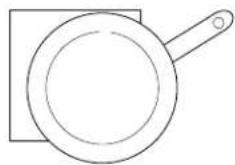
INCORRECT
natural_image
Simple line drawing of a frying pan with a handle, no text or symbols presentCookware is not centered on cooking element surface.
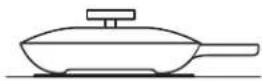
Curved or warped pan bottoms or sides.
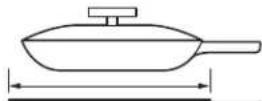
Pan does not meet the recommended minimum size required for the cooking element used.
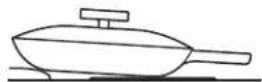
Pan bottom rests on cooktop trim or does not rest completely on the cooktop surface.
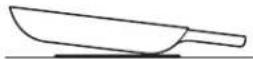
Heavy handle tilts pan.
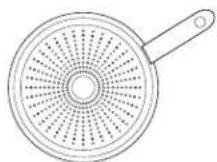
Pan is partially magnetic on the bottom.
CORRECT
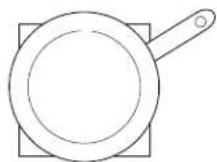
Cookware is centered correctly on cooking element surface.
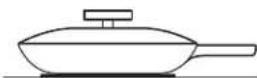
Flat pan bottom.
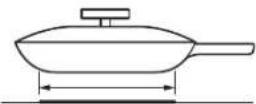
Pan size meets or exceeds the recommended minimum size for the cooking element used.
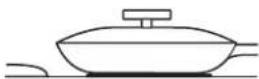
Pan bottom rests completely on the cooktop surface.

Pan is properly balanced.
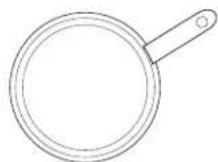
Pan is completely magnetic on the bottom.
USING YOUR COOKTOP
GRIDDLE
Using the Griddle
CAUTION
Burn Hazard
- Griddle surfaces may be hot enough to cause burns during and after use. Place and remove the griddle when it is cool and all surface units are off. Use oven mitts if you will touch the griddle while hot. Failure to do so can result in burns.
■ Place and remove the griddle only when griddle is cool and all surface burners are turned OFF.
Before using this cookware for the first time, wash it to make sure it is clean. Then season it lightly, rubbing cooking oil onto the cooking surface.
How to Place the Griddle
IMPORTANT: Always place and use your griddle at the designated location on the cooktop.
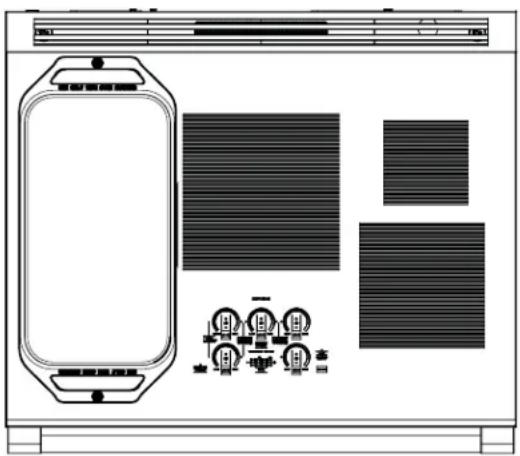
natural_image
Front view of a device panel with front panel, side panels, and control buttons (no text or symbols visible)IMPORTANT NOTES:
■ Clean the griddle with a sponge and mild detergent in warm water. DO NOT use blue or green scrubbing pads or steel wool.
■ Avoid cooking extremely greasy foods and be careful of grease spillover while cooking.
■ Never place or store any items on the griddle, even when it is not in use. The griddle can become heated when using the surrounding surface units.
■ Avoid using metal utensils with sharp points or rough edges, which might damage the griddle. Do not cut foods on the griddle.
■ Do not use cookware as a storage container for food or oil. Permanent staining and/or craze lines could result.
■ Your griddle will discolor over time with use.
■ Do not clean the griddle in a self-cleaning oven.
■ Always allow the cookware to cool before immersing in water.
■ Do not overheat the griddle.
| Type of Food Cook Setting | |
| Warming Tortillas Med-Lo | |
| Pancakes Med-Lo | |
| Hamburgers Med | |
| Fried Eggs | Med-Lo |
| Breakfast Sausage Links Med | |
| Hot Sandwiches(such as Grilled Cheese) | Med-Lo |
Griddle settings are intended to be a guideline and may need to be adjusted based on individual cooking preferences.
Griddle Operation
To turn on the surface units for the entire griddle, use the Sync Burner control feature. Touch the Sync Burner pad and then adjust power level to desired setting as described on page 13.
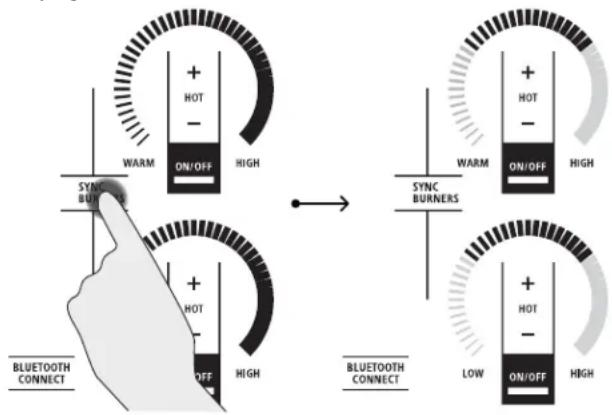
flowchart
graph TD
    A["Blue Bluetooth Connect"] --> B["TRANSITION"]
    B --> C["High/High Temperature"]
    B --> D["Low/High Temperature"]
    style A fill:#f9f,stroke:#333
    style B fill:#ccf,stroke:#333
    style C fill:#cfc,stroke:#333
    style D fill:#fcc,stroke:#333
USING THE RANGE
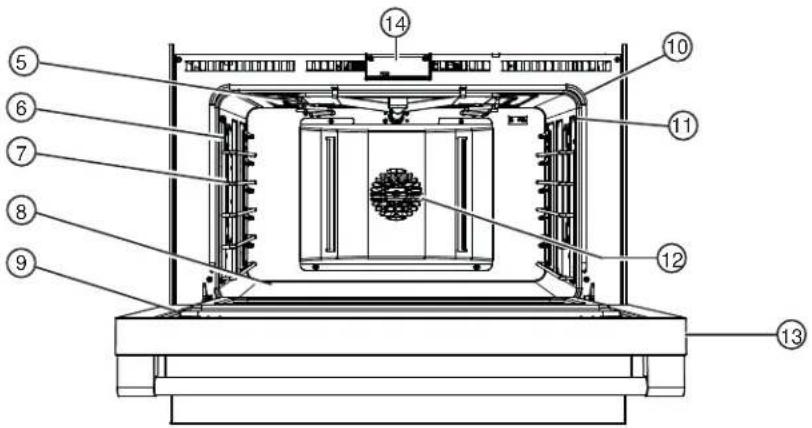
FEATURES OF THE OVEN
NOTE: Not all features are on all models.
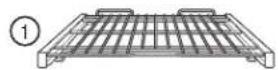
Full Extension Oven Rack
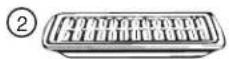
Broiler Pan and Grid
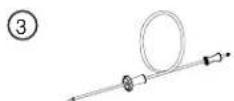
Temperature Probe
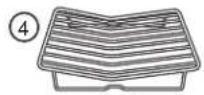
Roasting Rack
text_image
Technical diagram of a device with numbered components, likely a control or assembly layout.| Feature Index Page | ||
| 1 Full Extension Oven Rack(s)— 3 in oven (Right Oven on 48" models)— 2 in left oven | 27, 28, 43, 45 | |
| 2 Broiler Pan and Grid - 1 large in oven (Right oven on 48" models), 1 small in left oven | 30, 32, 33, 40 | |
| 3 Temperature Probe - 1 per oven 29, 30, 31, | 32, 34, 35, 36 | |
| 4 Roasting Rack 32, 40 | ||
| 5 Broil System | ||
| 6 Halogen Oven Columns 45 | ||
| 7 Oven Rack Supports— 5 positions in oven (Right Oven on 48" models)— 4 positions in left oven | 27, 28, 45 | |
| 8 Hidden Bake Element (under oven floor) | ||
| 9 Oven Door Seal 42 | ||
| 10 Oven Frame Seal 42 | ||
| 11 Temperature Probe Outlet— right side in oven (Right Oven on 48" models)— left side in left oven | 36 | |
| 12 Convection Fan 28, 31 | ||
| 13 Soft-Close Oven Door 44 | ||
| 14 Automatic Oven Door Latch | ||
USING THE RANGE
OVEN CONTROLS
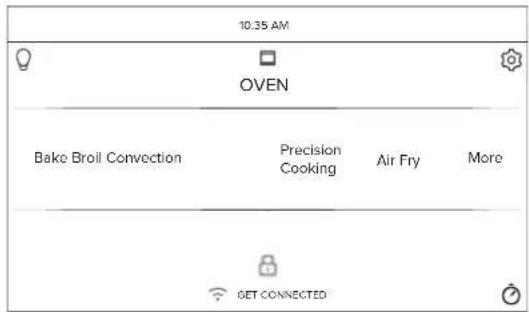
text_image
10.35 AM OVEN Bake Broil Convection Precision Cooking Air Fry More GET CONNECTEDBake
This option allows the user to access traditional the traditional bake mode.
Broil
Broil can be selected to access Broil Low and Broil High. See the Oven Modes section for more information.
Convection
This option allows you to utilize the convection system to cook in a variety of modes. See the Cooking Modes section for more information.
Precision Cooking
Precision Cooking is a suite of customized cooking cycles that have been designed for specific foods. The display will guide you through setting the oven and food appropriately for the cycle selected. Precision cooking cycles vary based on food type; see the Cooking Modes section for more detailed information.
Air Fry
The Air Fry mode is designed to produce foods with a crispier exterior than traditional oven cooking. See the Air Fry Cooking Guide section for more information.
More
Select this option to access the Proof, Warm, Self Clean, and Steam Clean options.
Oven Light 🔒
To turn on or off the oven cavity lights, press the ⚙Both cavity lights will be illuminated if using a double oven.
Settings
Press the ⚙️ to access the Settings. See the Settings section for more information.
Lock Control
Select this option in order to lock the LCD from any undesired screen selections. To unlock the screen, press and press Unlock on the next screen.
Kitchen Timer
This feature works as a countdown timer. Press the ⏻, select the amount of time for the timer to operate, and press Start. The oven will continue to operate once the timer countdown is complete. To turn off the timer, select the ⏻ and press Clear.
Cook Time ☉
This function counts down cooking time and turns off the oven when the cooking time is complete. Press the ⏻ during a cycle, select the amount of cooking time, and press Start.
Delay Time ⏱
This feature delays the start time for an oven cycle. Use this feature to set a time when you want the oven to start. Select a cycle, then press the ☑Select the time of day for the oven to turn on and press Start. A cook time can also be programmed if desired.
Wi-Fi & Remote Enable
Press GET CONNECTED to connect your oven to Wi-Fi. This option allows you to download content to your oven and control it remotely. The oven must be connected to Wi-Fi before Remote Enable can be activated. For instructions on how to connect your oven, see the Wi-Fi Connect/Remote Enable section under Settings in this manual.
USING THE RANGE
SETTINGS
There are numerous settings that are accessed by pressing ⚙ in the top right corner of the main screen.
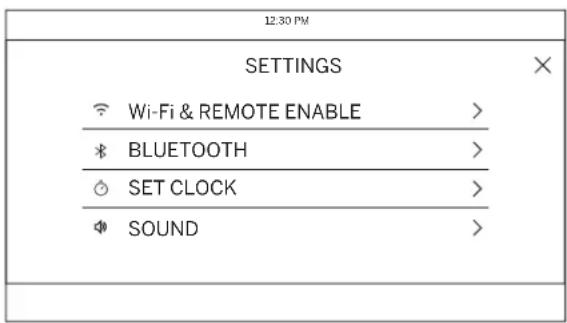
text_image
12:30 PM SETTINGS Wi-Fi & REMOTE ENABLE > BLUETOOTH > SET CLOCK > SOUND >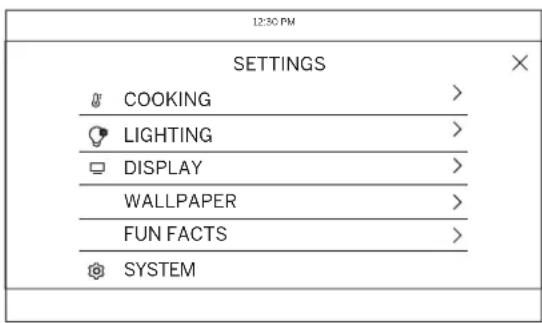
text_image
12:30 PM SETTINGS COOKING > LIGHTING > DISPLAY > WALLPAPER > FUN FACTS > SYSTEMSlide up and down to access all the settings
Wi-Fi & Remote Enable
This appliance is configurable to allow remote operation at any time. Do not store any flammable materials or temperature sensitive items inside or on top of this appliance. By using the Wi-Fi Connect feature, you will be able to control essential oven operations such as temperature settings, timers and cooking modes using your smart device.*
Select the ☑ then Wi-Fi & Remote Enable - follow the instructions on your oven display and smart device app. It is necessary to turn on Wi-Fi before using Remote Enable on your oven.
See the Connecting Your Wi-Fi Enabled Range section, on page 9, for the full process of how to connect the range.
Remote Starting your Oven ☐
To be able to start the oven remotely once connected to Wi-Fi, press Remote Enable on the main menu or access Wi-Fi & Remote Enable in the settings menu and turn Remote Enable on. The oven can now be started remotely using a connected device. The icon must be active to start the oven remotely. To disconnect your smart device from Remote Enable, access the Wi-Fi & Remote Enable settings and turn Remote Enable off.
NOTE: Foods that spoil easily—such as milk, eggs, stuffings, poultry and pork—should not be allowed sit for more than 1 hour before or after cooking. Room temperature promotes the growth of harmful bacteria. Be sure that the oven light is off because heat from the bulb will speed harmful bacteria growth.
Set Clock
This setting allows you to set the clock and specifies how the time of day will be displayed. Options are for a standard 12-hour clock with AM and PM selections or 24-hour military time display.
Sound
This setting allows you to change the volume, select the end of cycle tone, and turn on or off the touch sound for the oven. The cooktop sounds can be changes through the Cooktop Custom Settings.
Cooking
■ The oven is set to Fahrenheit by default, however it can be changed to Celsius here.
■ Auto Recipe Conversion can be turned on in order to automatically reduce the programmed cooking temperature for Convection Bake or Convection Bake Multi. Note that this will only reduce the cooking temperature, not the baking time. When the 12 Hour Shut Off option is turned on, it will automatically shut off the oven after 12 hours of continuous use.
- Adjust Temperature allows the oven temperature to be adjusted up to 35°F hotter or down to 35°F cooler. Use this feature if you believe your oven temperature is too hot or cold and wish to change it. For double ovens, the upper and lower oven temperatures are adjusted separately.
Lighting
This setting controls the brightness of the accent lighting.
USING THE RANGE
SETTINGS (Cont.)
Display
The following settings for the display can be changed:
• The position may be set to AUTO or MANUAL.
For AUTO, the display will rotate out whenever the screen is active and will rotate back when it enters an inactive state.
For MANUAL, the display will only rotate in or out whenever the Lift Panel or Lower Panel button (lower left corner) on the active screen is pressed.
- The display brightness can be set to HIGH, MEDIUM, or LOW.
- The clock style can be set to ANALOG or DIGITAL, or the clock can be turned OFF entirely. The clock will be shown when the display enters an inactive state. While the clock style is set to OFF, the display will not show the clock when it enters an inactive state.
- The energy saver mode can be turned ON or OFF to deactivate the display while the range is inactive. While energy saver is ON, the user may select times for the inactive display to turn off. During these times, the range is still powered on and functional. While the display is off in this mode, a screen touch will turn the display on so that the range may be used.
OVEN AIR VENTS
Never block the vents (air openings) of the range. They provide the air inlet and outlet that are necessary for the range to keep cool and operate properly.
Air openings are located at the rear of the cooktop, at the top and bottom of the oven door, and at the bottom of the range.
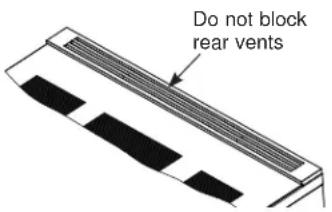
text_image
Do not block rear ventsSystem
This screen allows you to clear your saved user data and shows the current software version.
ALUMINUM FOIL AND OVEN LINERS
CAUTION
Do not use any type of foil or oven liner to
cover the oven bottom. These items can trap heat or melt, resulting in damage to the product and risk of shock, smoke or fire. Damage from improper use of these items is not covered by the product warranty.
Foil may be used to catch spills by placing a sheet on a lower rack, several inches below the food. Do not use more foil than necessary and never entirely cover an oven rack with aluminum foil. Keep foil at least 1-1/2" from oven walls to prevent poor heat circulation.
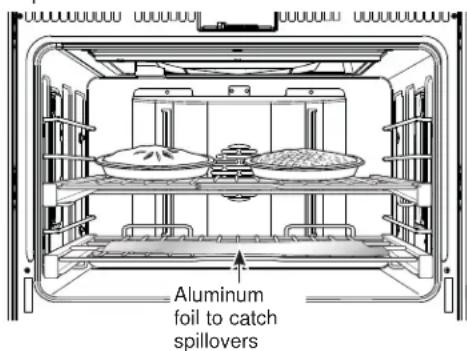
text_image
Aluminum foil to catch spilloversUSING THE RANGE
OVEN RACKS
CAUTION
To avoid possible burns, place the racks in the correct position before turning on the oven.
Recommended rack positions for various types of food are provided in the Cooking Guide. Adjusting rack position is one way to impact cooking results. For example, if you would prefer darker tops on cakes, muffins, or cookies, try moving food one rack position higher. If you find foods are too brown on top try moving them down next time.
When baking with multiple pans and on multiple racks, ensure there is at lease 1 1/2" between pans to allow sufficient space for air to flow.
Your Oven may have extension racks and/or low profile racks.
Refer to the Cooking Guide and Oven Modes sections for rack position recommendations.
Full Extension Oven Racks
The racks have a frame that locks into the rack supports on both sides. Once the frame is locked into place, always pull the rack out, by its upper front rail, to its full extension stop position, when placing or removing cookware.
Remove and Replace Oven Racks
To remove a rack:
- Make sure the rack is pushed all the way into the oven.
- Grasp the rack by both its upper front rail and its lower front rail and lift straight up to unlock the front rack locks from the rack supports.
Lift to unlock front rack locks from the rack support
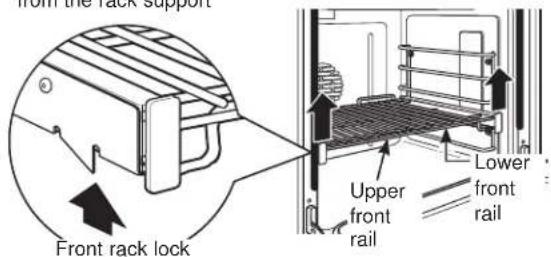
text_image
from the rack support Front rack lock Upper front rail Lower front rail- Firmly holding onto both the upper and lower front rack rails, pull the rack forward and remove it from the oven.
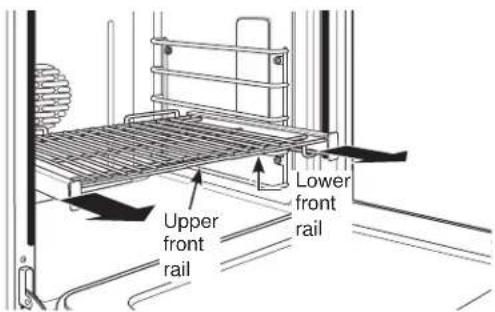
text_image
Upper front rail Lower front railUSING THE RANGE
OVEN RACKS (Cont.)
To replace a rack:
- Place the rear rack locks over and onto the rack supports (five rack positions are available including the top position).
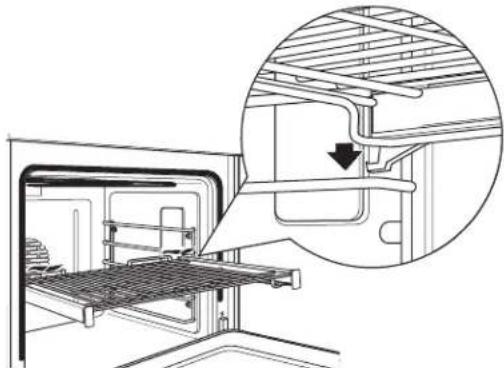
natural_image
Technical line drawing of a mechanical assembly with an inset showing a detail view of a component (no text or symbols present)- Slide the rack all the way in until the rear rack locks are secure on the rear rack supports and press the front rack locks onto the front rack supports.
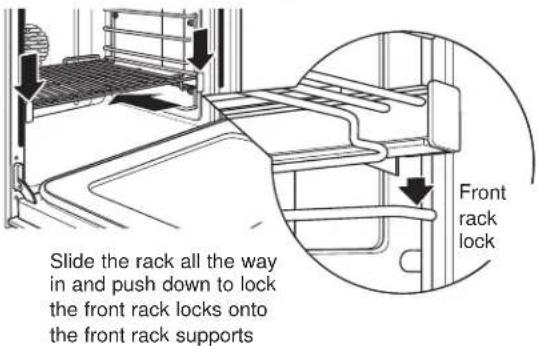
text_image
Slide the rack all the way in and push down to lock the front rack locks onto the front rack supports Front rack lock- Pull the rack all the way out to check that it is properly engaged. If extension racks are difficult to replace or remove, wipe the oven rack supports with cooking oil. Do not wipe oil on the rack slides.
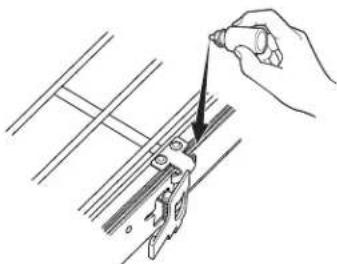
Racks may become difficult to slide, especially after a self-clean cycle. To improve sliding conditions, use a soft cloth or paper towel to rub vegetable oil on the left and right edges of the racks and/or rack supports.
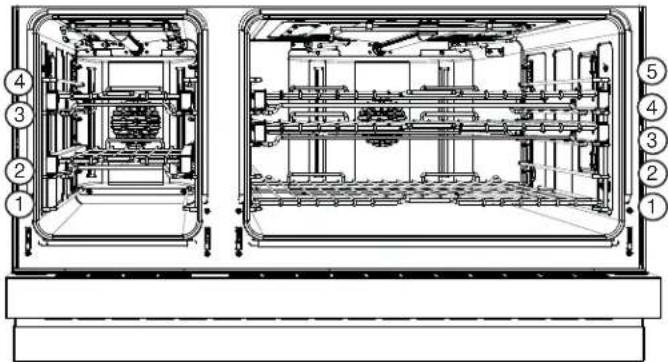
text_image
Technical diagram of a device interior with numbered components for identificationNOTE: Remove unused racks when using the oven for faster preheat, improved efficiency, and optimal cooking performance.
To lubricate the paddle:
Shake lubricant and apply to the moving parts of the paddle mechanisms as shown.
natural_image
Hand holding a tool interacting with a mechanical component (no text or symbols visible)OVEN MODES
Your new oven has a variety of cooking modes to help you get the best results. The modes are described below. Refer to the Cooking Guide section for recommended rack positions and other tips for using these modes. Place racks in the desired position(s) prior to starting the oven.
For some cooking modes, such as Bake, Convection Bake, and Convection Roast, the oven will preheat and a tone will sound when the oven is ready for cooking. Some cooking modes do not require preheating. To reduce preheat times, remove unused racks and avoid opening the oven door until the preheat tone sounds.
While in use, oven heaters and the convection fan will cycle on and off as needed to maintain appropriate cooking conditions. Avoid frequently opening the oven door, as this can impact cooking times and performance.
NOTE: A cooling fan will turn on to cool internal parts. This is normal, and the fan may continue to run even after the oven is turned off.
USING THE RANGE
TEMPERATURE SETTING
When selecting a temperature, the traditional preset temperatures are shown and can be selected by scrolling horizontally and selecting the desired temperature. If you wish to cook at an alternate temperature, press the temperature in the middle of the screen and a number pad will appear so the desired temperature can be input.
BAKING
The Bake mode is intended for single rack cooking. When preparing baked goods such as cakes, cookies and pastries, always preheat the oven first.
How to Set the Oven for Baking
To use this mode press the BAKE option on the main menu and scroll to the desired temperature and press START/OFF to turn the oven on.
The oven will now begin to preheat. The temperature display will begin at 100^ F.
The preheat tune will sound when the oven is preheated and food can now be placed inside the oven.
Press oven display button START/OFF to turn oven OFF when baking is finished.
Use the temperature probe when a precise internal temperature is important. See the Temperature Probe section for more information.
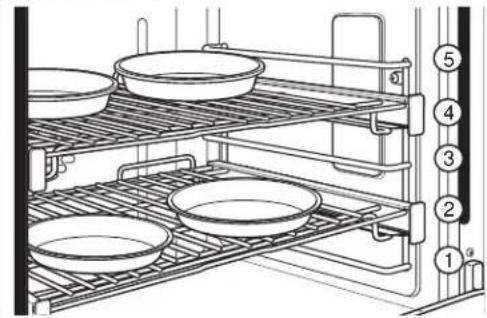
For best results when baking 4 cake layers, place four pans using racks 2 and 4. Stagger the pans so that one pan is not directly above another as shown below.
See the Oven Racks section for how to use, remove and replace the racks.
text_image
Technical diagram of a rack with numbered components for assembly or storage procedureBAKING GUIDE
| TYPE OF FOOD | RECOMMENDED RACK POSITION(S)LEFT OVEN (48" models only) | RECOMMENDED RACK POSITION(S) OVEN or RIGHT OVEN (48" models only) |
| Layer cakes, sheet cakes, bundt cakes, quick breads on a single rack 2 2 or 3 | ||
| Layer cakes on multiple racks - 2 and 4 | ||
| Chiffon cakes (angel food) | 1 | 1 |
| Cookies, biscuits, scones, muffins on a single rack 2 | 2 | 0 |
| Yeast Breads 2 2 or 3 | ||
| Roasts 2 2 or 3 | ||
| Whole Chicken 2 2 or 3 | ||
| Bone-in chicken breasts, legs, thighs 2 2 or 3 | ||
| Boneless chicken breasts 2 | 2 or 3 | |
| Whole turkey | 1 1 or 2 | |
| Turkey breast | 1 or 2 | 2 or 3 |
| Casseroles | 2 or 3 | 2 or 3 |
| Pizza on a single rack | 2 2 or 3 | |
| Potato products, chicken nuggets, appetizers on a single rack | 2 2 or 3 | |
| Vegetables | 2 or 3 | 3 or 4 |
Suggested shelf positions are intended as general guidelines. Experiment with these positions for specific foods and personal preference.
USING THE RANGE
BROILING
The Broil modes are intended for searing and crisping. Always broil with the oven door closed. Monitor food closely while broiling. Use caution when broiling on the upper rack positions as placing food closer to the broil burner increases smoking, spattering and the possibility of fats igniting.
Try broiling foods that you would normally grill. Adjust rack positions to adjust the intensity of the heat to the food. Place foods closer to the broil burner when a seared surface and rare interior is desired. Thicker foods and foods that need to be cooked through should be broiled on a lower rack position or by using a lower broil setting.
Use Broil High for thinner cuts of meat and/or when you would like to have a seared surface and rare interior. Use Broil Low for thicker cuts of meat and/or foods that you would like cooked all the way through. It is not necessary to preheat when using broil modes; however, preheating for 5-10 minutes is recommended for better searing results.
How to Set the Oven for Broiling
Select BROIL on the main menu, then select High or Low depending on the amount of searing and the internal temperature that is preferred and press START/OFF.
NOTE: Always broil with the door closed.
Press oven display button START/OFF to turn oven OFF when broiling is finished.
NOTE: Broil can not be started if the temperature probe is plugged in. Never leave your probe inside the oven during a broil cycle.
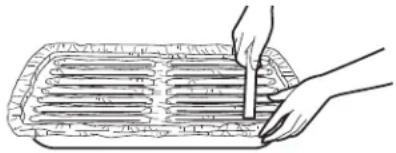
Aluminum Foil
You can use aluminum foil to line the broiler pan and broiler grid. However, you must mold the foil tightly to the grid and cut slits in it just like the grid.
natural_image
Illustration of a hand using a tool to cut or mark a rectangular object with horizontal grooves (no text or symbols)BROILING GUIDE
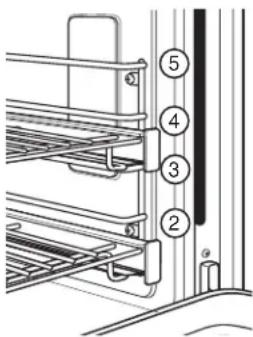
Due to the variety of of meats and cuts available, you may select alternate rack positions based on personal preferences of doneness and external searing. For optimal searing, preheat oven for 5-10 minutes.
The size, weight, thickness, starting temperature and your preference of doneness will affect broiling times. This guide is based on meats at refrigerator temperature.
text_image
Technical diagram showing labeled components of a mechanical or electrical assembly with numbered parts 2 to 5.NOTE: In general, higher rack positions yield darker external searing and lower positions yield more doneness.
| TYPE OF FOOD SETTING | RECOMMENDED RACK POSITION(S)LEFT OVEN (48" models only) | RECOMMENDED RACK POSITION(S)OVEN or RIGHT OVEN (48" models only) | |
| Hamburgers HIGH 3 or 4 | 4 or 5 | ||
| Steaks & Chops HIGH 3 or 4 | 4 or 5 | ||
| Fish LOW 3 or 4 (1/2 inch thick or less) | 2 or 3 (>1/2 inch) | 4 or 5 (1/2 inch thick or less)3 or 4 (>1/2 inch) | |
| Bone-in chicken breasts, legs, thighs | LOW 2 | or 3 | |
| Boneless chicken breasts | LOW 2 | or 3 | |
| Vegetables LOW 2 or 3 | 3 or 4 | ||
The U.S. Department of Agriculture says “Rare beef is popular, but you should know that cooking it to only 140°F means some food poisoning organisms may survive.” (Source: Safe Food Book. Your Kitchen Guide. USDA Rev. June 1985.)
USING THE RANGE
CONVECTION COOKING
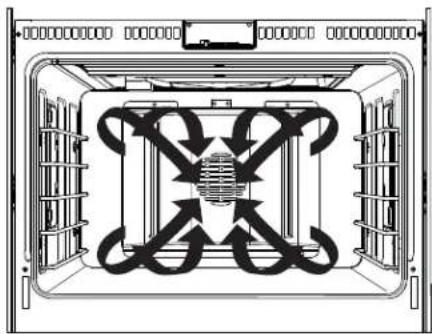
These modes utilize Precise Air to enhance cooking evenness, improve browning and/or reduce cooking times.
NOTE: The convection fan shuts off when the oven door is opened.
natural_image
Technical line drawing of a mechanical or electrical component with symmetrical internal structure and no visible text or symbolsCONVECTION BAKING
The Convection Bake Multi Rack mode is intended for baking on multiple racks at the same time. This mode uses Precise Air to enhance cooking evenness. Your oven is equipped with Auto Recipe Conversion, so it is not necessary to adjust the temperature when using this mode. Always preheat when using this mode. Cooking times may be slightly longer for multiple racks than what would be expected for a single rack.
How to Set the Oven for Multi-Rack Convection Baking
To use this mode press the CONV BAKE option on the main menu and scroll to the desired temperature and press START/OFF to turn the oven on.
The oven will now begin to preheat. The temperature display will begin at 100^ F.
The preheat tune will sound when the oven is preheated and food can be placed inside the oven.
Press oven display button START/OFF to turn oven OFF when convection cooking is finished.
Use the temperature probe when a precise internal temperature is important. See the Temperature Probe section for more information.
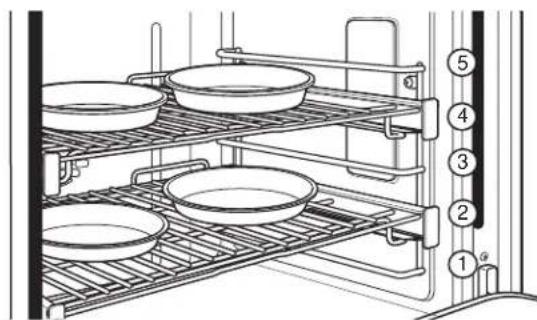
For best results when baking 4 cake layers, place four pans using racks 2 and 4. Cakes should be centered front to back on both racks.
See the oven racks section for how to use, remove and replace the racks.
| FOOD TYPE | RECOMMENDED RACK POSITION(S) LEFT OVEN (48" models only) | RECOMMENDED RACK POSITION(S) OVEN or RIGHT OVEN (48" models only) |
| Layer cakes on multiple racks | - 2 and 4 | |
| Cookies, biscuits, scones, muffins on multiple racks | 2 and 3 | 2 and 41, 3, and 5 |
| Pizza on multiple racks - 2 | and 4 | |
| Potato products, chicken nuggets, appetizers on multiple racks | 2 and 3 2 and 4 |
text_image
Technical diagram of a rack with labeled components, showing multiple bowls and numbered parts for assembly or inspection.Suggested shelf positions are intended as general guidelines. Experiment with these positions for specific foods and personal preference.
USING THE RANGE
CONVECTION ROASTING
The Convection Roast mode is intended for roasting vegetables and whole cuts of meat on a single rack. This mode uses Precise Air to improve browning and reduce cooking time. Check food earlier than the suggested recipe time. It is not necessary to preheat when using this mode.
How to Set the Oven for Convection Roasting
To use this mode press the CONV ROAST option on the main menu and scroll to the desired temperature and press START/OFF to turn the oven on.
The oven will now begin to preheat. The temperature display will begin at 100^ F.
The preheat tune will sound when the oven is preheated and food can be placed inside the oven.
Press oven display button START/OFF to turn oven OFF when convection cooking is finished.
Use the temperature probe when a precise internal temperature is important. See the Temperature Probe section for more information.
See the Oven Racks section for how to use, remove and replace the racks.
| FOOD TYPE | RECOMMENDED RACK POSITION(S) LEFT OVEN (48" models only) | RECOMMENDED RACK POSITION(S) OVEN or RIGHT OVEN (48" models only) |
| Roasts 2 2 or 3 | ||
| Whole Chicken 2 2 or 3 | ||
| Whole turkey - 1 or 2 | ||
| Turkey breast - 2 | ||
| Potato products, chicken nuggets, appetizers on a single rack 2 2 or 3 | ||
| Vegetables 2 or 3 3 |
Suggested shelf positions are intended as general guidelines. Experiment with these positions for specific foods and personal preference.
Convection Roasting Tips
Use the broiler pan, grid and the roasting rack for best results when roasting large cuts of meat. Use the broiler pan when roasting vegetables. Use the broiler pan and grid when roasting small cuts of meats.
To assemble, place the grid on the broiler pan and put the roasting rack over them.
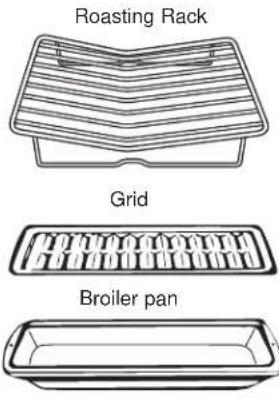
text_image
Roasting Rack Grid Broiler pan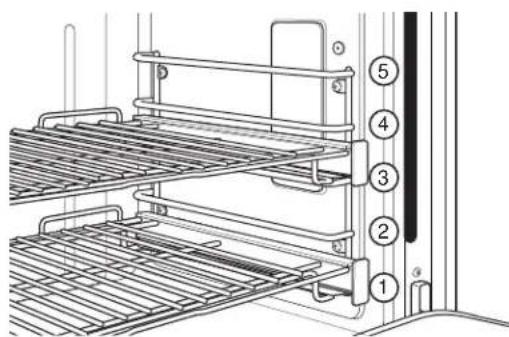
text_image
Technical diagram of a rack-mounted device with numbered components for identificationUSING THE RANGE
CONVECTION BROILING
The Convection Broil modes are intended for searing and crisping. Always broil with the oven door closed. Monitor food closely while broiling. Use caution when broiling on the upper rack positions as placing food closer to the broil burner increases smoking, spattering and the possibility of fats igniting.
Try broiling foods that you would normally grill. Adjust rack positions to adjust the intensity of the heat to the food. Place foods closer to the broil burner when a seared surface and rare interior is desired. Thicker foods and foods that need to be cooked through should be broiled on a lower rack position or by using a lower broil setting.
The Convection Broil modes use the broil heater along with air movement for improved searing and browning. Use Convection Broil High for thinner cuts of meat and/or when you would like to have a seared surface and rare interior. Use the Convection Broil Low for thicker cuts of meat and/or foods that you would liked cooked all the way through. It is not necessary to preheat when using Convection Broil modes; however, preheating for 5-10 minutes is recommended for better searing results.
How to Set the Oven for Convection Broiling
To use this mode press the CONV BROIL option on the main menu and scroll to the desired temperature and press START/OFF to turn the oven on.
The oven will now begin to preheat. The temperature display will begin at 100^ F.
The preheat tune will sound when the oven is preheated and food can be placed inside the oven.
Press oven display button START/OFF to turn oven OFF when convection cooking is finished.
NOTE: Always broil with the door closed.
See the oven racks section for how to use, remove and replace the racks.
NOTE: Broil can not be started if the temperature probe is plugged in. Never leave your probe inside the oven during a broil cycle.
Aluminum Foil
You can use aluminum foil to line the broiler pan and broiler grid. However, you must mold the foil tightly to the grid and cut slits in it just like the grid.
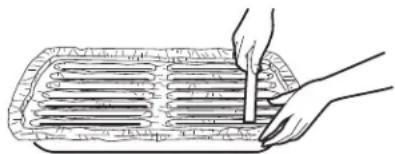
natural_image
Line drawing of a hand holding a tool over a tray with horizontal strips (no text or symbols)CONVECTION BROILING GUIDE
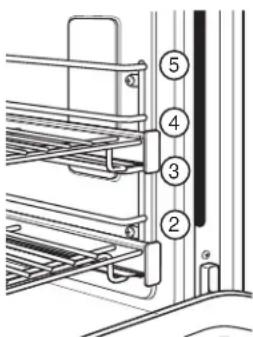
Due to the variety of of meats and cuts available, you may select alternate rack positions based on personal preferences of doneness and external searing. For optimal searing, preheat oven for 5-10 minutes.
The size, weight, thickness, starting temperature and your preference of doneness will affect broiling times. This guide is based on meats at refrigerator temperature.
text_image
Technical diagram showing labeled components of a mechanical or electrical assembly with numbered parts 2 to 5.NOTE: In general, higher rack positions yield darker external searing and lower positions yield more doneness.
| TYPE OF FOOD SETTING | RECOMMENDED RACK POSITION(S)LEFT OVEN (48" models only) | RECOMMENDED RACK POSITION(S)OVEN or RIGHT OVEN (48" models only) | |
| Hamburgers HIGH 3 or 4 | 4 or 5 | ||
| Steaks & Chops HIGH 3 or 4 | 4 or 5 | ||
| Fish LOW 3 or 4 (1/2 inch thick or less) | 2 or 3 (>1/2 inch) | 4 or 5 (1/2 inch thick or less)3 or 4 (>1/2 inch) | |
| Bone-in chicken breasts, legs, thighs | LOW 2 | or 3 | |
| Boneless chicken breasts | LOW 2 | or 3 | |
| Vegetables LOW 2 or 3 | 3 or 4 | ||
The U.S. Department of Agriculture says “Rare beef is popular, but you should know that cooking it to only 140°F means some food poisoning organisms may survive.” (Source: Safe Food Book. Your Kitchen Guide. USDA Rev. June 1985.)
USING THE RANGE
WARMING
The Warm mode is intended to keep hot foods hot. Cover foods that need to remain moist and do not cover foods that should be crisp. Preheating is not required. Do not use this mode to heat cold food other than crisping crackers, chips or dry cereal. It is also recommended that food not be kept warm for more than 2 hours.
How to Set the Oven for Warming
- To use this mode press the WARM option on the main menu and press START/OFF to turn the oven on.
- When warm is finished, press START/OFF to turn the oven off.
PROOFING
Proof mode maintains a warm environment for rising yeast-leavened dough. For best results, cover the dough while proofing and check early to avoid over-proofing.
How to Set the Oven for Proofing
Use rack position 2 or 3 in the oven (right Oven on 48" models). Use rack position 2 in the left oven.
-
To use this mode press the PROOF option on the main menu and press START/OFF to turn the oven on. The display will show "PROOF". PROOF mode will not operate when oven is above 125^ F. The display will scroll "too hot to proof". Allow the oven time to cool.
-
When proofing is finished, press START/OFF to turn the oven off.
CAUTION
Do not use the proofing mode for
warming food or keeping food hot. The proofing oven temperature is not hot enough to hold foods at safe temperatures.
PRECISION COOKING
These modes provide guidance or pre-set cooking algorithms to assist the user in cooking various types of food. The selection you make in the Precision Cooking menu will guide you to input the information required to help cook your food. At the end of estimated cooking time, check the food to see if it is done to your liking. Note that differences in food shape, preparation and preferences for doneness can impact the time required to cook the food.
Some cycles require the food temperature probe supplied with your oven. The target temperature for the probe is automatically set based on selections made for each food. Always check foods using a secondary food thermometer as probe placement can impact the measured temperature. See the Temperature Probe section for more information.
USING THE RANGE
TEMPERATURE PROBE
WARNING
Consuming undercooked food can result in foodborne illness. Use probe according to the following instructions to ensure all portions of the food reach minimum safe cooking temperatures. Recommendations for minimum safe food temperatures can be found at foodsafety.gov or IsItDoneYet.gov.
Proper Probe Placement
After preparing the meat and placing it on the cooking pan follow these instructions for proper probe placement.
■ Insert the probe into the food, so that the tip of the probe will rest in the center of the thickest part of the food. For best performance the probe should be fully inserted into the food. If the probe is not located properly, it may not accurately measure the temperature of the coolest portion of the food. Some foods, particularly small items, are not well suited for cooking with the probe due to their shape or size.
■ The probe should not touch bone, fat or gristle.
■ For whole poultry insert the probe into the thickest part of the breast.
■ For boneless roasts, insert the probe into the center of the roast.
■ For bone-in ham or lamb, insert the probe into the center of the lowest large muscle or joint.
■ For casseroles or dishes such as meatloaf, insert the probe into the center of the dish.
■ For fish, insert the probe from just above the gill into the meatiest area, parallel to the backbone.
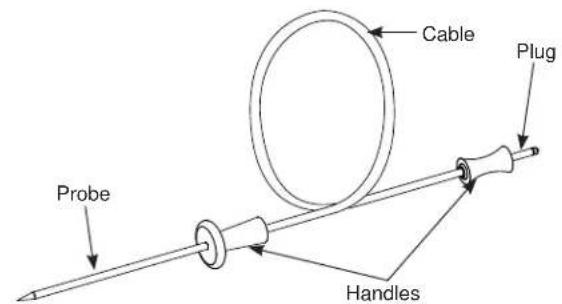
text_image
Probe Cable Plug HandlesThe temperature probe has a skewer-like probe at one end and a plug at the other end that goes into the outlet in the oven.
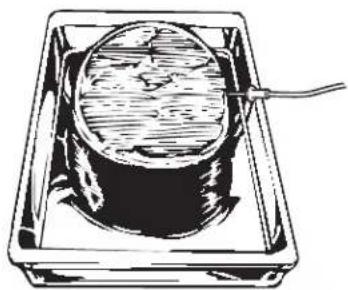
natural_image
Illustration of a cylindrical object inside a rectangular frame with a cable inserted (no text or symbols)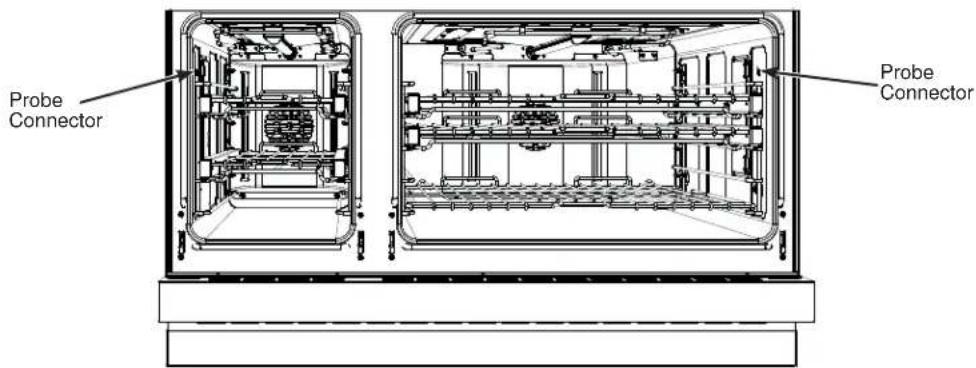
text_image
Probe Connector Probe ConnectorUSING THE RANGE
TEMPERATURE PROBE (Cont.)
Probe Usage
To use the probe without preheating:
- Insert the probe into the food (see Proper Probe Placement).
- Place the food in the oven and connect the probe into the probe outlet in the oven.
- Select the desired cooking mode and temperature. Before pressing start, press the Probe icon at the bottom left of the screen. The probe setting screen will be displayed. Enter the desired internal food temperature and press Start. The probe temperature can be set between 100°F and 200°F.
To use the probe with preheating:
- Press the desired cook mode (Traditional Bake, Convection Bake, or Convection Roast) pad and enter the desired cooking temperature.
- Insert the probe into the food (see Proper Probe Placement).
- Once the oven is preheated, place the food in the oven and connect the probe to the probe outlet, making sure it is fully inserted. Use caution, the oven walls and probe outlet are hot.
- The oven will detect that the probe has been inserted, and the probe setting screen will be displayed. Enter the desired internal food temperature and press Start. The probe temperature can be set between 100°F and 200°F.
Probe Care Guidelines
■ Use of probes other than the one provided with this product may result in damage to the probe input jack.
■ Use the handles of the probe and plug when inserting and removing them from the meat and outlet.
■ To avoid damaging your probe, do not use tongs to pull on the cable when removing it.
■ To avoid breaking the probe, make sure food is completely defrosted before inserting the probe.
■ To prevent possible burns, do not unplug the probe from the outlet until the oven has cooled.
■ Never leave the probe inside the oven during a self or steam clean cycle.
■ Do not store the probe in the oven.
OVEN COOKING GUIDE
Cook food thoroughly to help protect against food borne illness. Minimum safe food temperature recommendations for food safety can be found at IsItDoneYet.gov. Use a food thermometer to measure food temperatures.
OVEN COOKWARE GUIDELINES
The material, finish, and size of cookware affect baking performance.
Dark, coated and dull pans absorb heat more readily than light, shiny pans. Pans that absorb heat more readily can result in a browner, crisper, and thicker crust. If using dark and coated cookware check food earlier than minimum cook time. If undesirable results are obtained with this type of cookware consider reducing oven reducing temperature by 25°F next time.
Shiny pans can produce more evenly cooked baked goods such as cakes and cookies.
Glass and ceramic pans heat slowly but retain heat well. These types of pans work well for dishes such as pies and custards.
Air insulated pans heat slowly and can reduce bottom browning.
Keep cookware clean to promote even heating.
Stoneware heats slowly and retains heat well. It is recommended to preheat this type of cookware if possible. Additional cook time may be required.
Cookware used in broil modes must be broil safe.
| FOOD TYPE | RECOMMENDED MODE(S) | RECOMMENDED RACK POSITION(S) LEFT OVEN (48" models only) | RECOMMENDED RACK POSITION(S) OVEN or RIGHT OVEN (48" models only) ADDITIONAL SUGGESTIONS |
| Baked Goods | |||
| Layer cakes, sheet cakes, bundt cakes, muffins, quick breads on a Single Rack | Bake 2 2 or 3 Use shiny cookware. | ||
| Layer cakes on Multiple Racks* | Bake Convection Bake | - 2 and 4 Ensure adequate airflow (see illustration below). | |
| Chiffon cakes (angel food) Bake 1 1 Use shiny cookware. | |||
| Cookies, biscuits, scones on a Single Rack | Bake 2 2 or 3 Use shiny cookware. | ||
| Cookies, biscuits, scones on Multiple Racks | Convection Bake Multi 2 and 3 | 2 and 4 1, 3, and 5 | Ensure adequate airflow. |
| Yeast Breads | Proof 1 or 2 2 or 3 Cover dough loosely. | ||
| Bake 2 2 or 3 | |||
Continued on next page
*For best results when baking 4 cake layers, place four pans using racks 2 and 4. Stagger the pans so that one pan is not directly above another as shown.
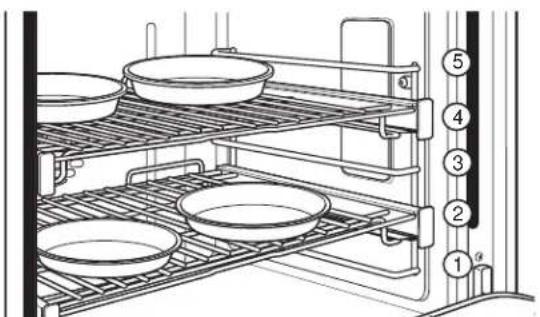
text_image
Technical diagram of a rack with numbered components, likely for assembly or storage instructionsRack positions for baking 4 cake layers at a time
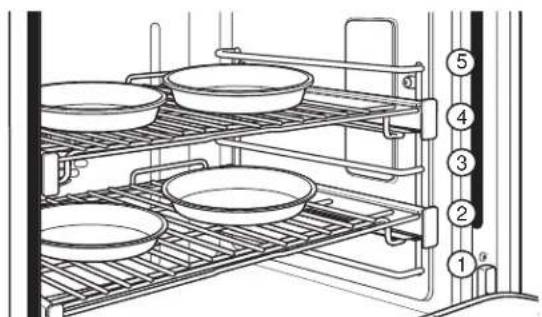
text_image
Technical diagram of a rack with numbered components for assembly or cleaning, showing multiple bowl-like fixtures and a control panel.Rack positions for convection baking 4 cake layers at a time. Center the pans on the racks as shown.
OVEN COOKING GUIDE
| FOOD TYPE | RECOMMENDED MODE(S) | RECOMMENDED RACK POSITION(S) LEFT OVEN (48" models only) | RECOMMENDED RACK POSITION(S) OVEN or RIGHT OVEN (48" models only) ADDITIONAL SUGGESTIONS | |
| Beef & Pork | ||||
| Hamburgers | Broil High Convection Broil High | 3 or 4 4 or 5 | Use a broil pan; move food down for more doneness/less searing. Watch food closely when broiling. For best performance center food below the broil heater. | |
| Steaks & Chops | Broil High Convection Broil High | 3 or 4 4 or 5 | Use a broil pan; move food down for more doneness/less searing. Watch food closely when broiling. For best performance center food below the broil heater. | |
| Roasts | Bake Convection Roast | 2 2 or 3 | Use a low sided pan such as a broil pan. Preheating is not necessary. | |
| Casseroles Bake 2 or 3 2 or 3 | ||||
| Fish | Broil Low Convection Broil Low | 3 or 4 (1/2 inch thick or less) 2 or 3 (>1/2 inch) | 4 or 5 (1/2 inch thick or less) 3 or 4 (>1/2 inch) | Move food down for more doneness/less searing. Watch food closely when broiling. For best performance center food below the broil heater. |
| Frozen Convenience Foods | ||||
| Pizza on a Single Rack Bake | 2 2 or 3 Do not preheat. | |||
| Pizza on Multiple Racks | Convection Bake Multi | - | 2 and 4 | Stagger pizzas left to right, do not place directly over each other. |
| Potato products, chicken nuggets, appetizers on a Single Rack | Bake Convection Roast | 2 | 2 or 3 | Do not preheat. Use dark cookware for more browning/crisping; use shiny cookware for less browning. |
| Potato products, chicken nuggets, appetizers on Multiple Racks | Convection Bake Multi | 2 and 3 | 2 and 4 | Use dark cookware for more browning/crisping; use shiny cookware for less browning. |
| Poultry | ||||
| Whole chicken | Bake Convection Roast | 2 2 or 3 Use a low sided pan such as a broil pan. | ||
| Bone-in chicken breasts, legs, thighs | Broil Low Convection Broil Low Bake | 2 2 or 3 | If breaded or coated in sauce avoid Broil High modes. Broil skin side down first. Watch food closely when broiling. For best performance when broiling, center food below the broil heater. | |
| Boneless chicken breasts | Broil Low Convection Broil Low Bake | 2 2 or 3 | Move food down for more doneness/less searing and up for greater searing/browning when broiling. For best performance when broiling, center food below the broil element or burner. | |
| Whole turkey | Bake Convection Roast | - | 1 or 2 Use a low sided pan such as a broil pan. | |
| Turkey Breast | Bake Convection Roast | - | 2 | Use a low sided pan such as a broil pan. |
| Vegetables | Bake Convection Roast Broil Low Convection Broil Low | 2 or 3 3 | Use dark cookware for more browning/crisping; use shiny cookware for less browning. | |
Cook food thoroughly to help protect against food borne illness. Minimum safe food temperature recommendations for food safety can be found at IsItDoneYet.gov. Make sure to use a food thermometer to take food temperatures.
OVEN COOKING GUIDE
AIR FRY COOKING GUIDE
Air Fry is a special, no-preheat, cooking mode that is designed to produce foods with a crispier exterior than traditional oven cooking. Select Air Fry, then input the desired set temperature and press Start. The temperature can be set between 300°F and 500°F.
Air Fry Cookware Guidelines
- Only use broil safe cookware when using Air Fry mode.
- A dark sheet pan is recommended. A dark pan promotes better browning and crisping.
- Oven baking baskets and baking grids can also be used. A sheet pan should be placed on the rack below the foods to catch any drippings when using a baking basket.
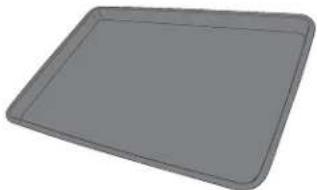
natural_image
3D rendering of a gray rectangular tray or baking tray with rounded edges (no text or symbols)Primary recommended cookware
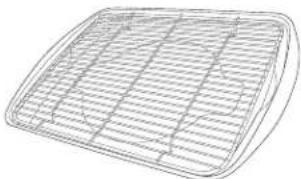
natural_image
Line drawing of a rectangular grid-patterned object with curved edges (no text or symbols)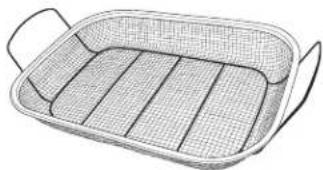
natural_image
Line drawing of a rectangular woven basket with handles (no text or symbols)Alternate cookware options
General Tips for Air Fry Mode
- The Air Fry mode is designed for cooking on a single rack.
- The Air Fry mode is designed to be used without preheating.
- Foods may cook faster than expected if the oven is already hot when food is placed in the oven.
- When air frying foods with sauce, it is recommended to apply the sauce at the end of cooking.
- If foods are browning too quickly, try a lower rack position or lower oven set temperature.
- For packaged foods, use traditional oven cooking instructions for set temperature and expected cook time.
- It is not necessary to flip or stir food during cooking
- Arrange food in a single layer on the pan, do not overload the pan.
- Always check internal food temperature to confirm minimum safe temperatures have been reached. Minimum safe food temperatures can be found on packages and at IsItDoneYet.gov.
| FOOD TYPE | RECOMMENDED RACK POSITION(S) | RECOMMENDED SET TEMPERATURES (F°) | RECOMMENDED COOK TIME (MIN) | NOTES |
| Fresh boneless fish or poultry pieces, breaded such as nuggets, tenders, fillets | 3 for Oven or Right Oven2 for Left Oven (48" Range only) | 375-400 15-30 | User lower set temperatures for larger pieces. Use shiny cookware. | |
| Fresh bone in chicken wings | 3 for Oven or Right Oven2 for Left Oven (48" Range only) | 375-400 25-40 | Salt wings or coat in a dry rub, if using sauce apply after cooking or toward the end of cooking | |
| Fresh bone in chicken drumsticks or thighs | 3 for Oven or Right Oven2 for Left Oven (48" Range only) | 375-400 30-55 User | lower set temperatures for larger pieces. | |
| Fresh French fries, thin (< 1⁄2 inch) | 3 for Oven or Right Oven2 for Left Oven (48" Range only) | 400-425 15-30 | Parchment paper is recommended when preparing fresh French fries. For crispier fries, toss fries in corn starch or rice flour before cooking. | |
| Fresh French fries, thick (> 1⁄2 inch) | 3 for Oven or Right Oven2 for Left Oven (48" Range only) | 375-400 20-35 | Parchment paper is recommended when preparing fresh French fries. For crispier fries, toss fries in corn starch or rice flour before cooking. | |
| Frozen packaged foods | 3 for Oven or Right Oven2 for Left Oven (48" Range only) | Use traditional oven(not Air Fry) cooking instructions as a guideline for set temperature and cook time. Additional cook time beyond recommended package time may be required for some foods. If oven is hot when starting, food may cook faster than the minimum package time. | ||
CARE AND CLEANING
Be sure electrical power is off and all surfaces are cool before cleaning any part of the range
CONTROL PANEL
It's a good idea to wipe the control panel after each use.
Clean with mild soap and water or vinegar and water,
rinse with clean water and polish dry with a soft cloth.
Do not use abrasive cleansers, strong liquid cleansers,
plastic scouring pads or oven cleaners on the control panel
because they will damage the finish.
BROILER PAN, GRID AND ROASTING RACK
CAUTION
Do not clean the broiler pan, grid or roast-
ing rack in a self-cleaning oven.
The broiler pan, grid and roasting rack are all dishwasher safe. However, baked on foods may require washing by
hand with a commercial oven cleaner or abrasive detergent.
Do not store a soiled broiler pan or grid anywhere in the oven. Always properly dispose of excess grease.
Grid
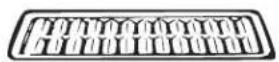
Broiler pan
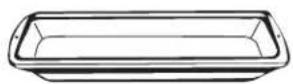
Roasting Rack
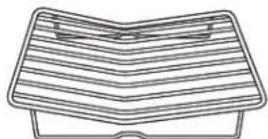
CARE AND CLEANING
OVEN EXTERIOR
Do not use oven cleaners, abrasive cleansers, strong liquid cleansers, steel wool, plastic scouring pads, or cleaning powders on the interior or exterior of the oven. Clean with a mild soap and water or vinegar and water solution. Rinse with clean water and dry with a soft cloth. When cleaning surfaces, make sure that they are at room temperature and not in direct sunlight.
If stain on the door vent trim is persistent, use a mild abrasive cleaner and a sponge-scrubber for best results. Spillage of marinades, fruit juices, tomato sauces and basting liquids containing acids may cause discoloration and should be wiped up immediately. Let hot surfaces cool, then clean and rinse.
Painted Surface
Painted surfaces may include the door and trim around the control panel. Clean these with soap and water or a vinegar and water solution. Do not use commercial oven cleaners, cleaning powders, steel wool or harsh abrasives on any painted surface.
Stainless Steel
Do not use a steel wool pad; it will scratch the surface. To clean the stainless steel surface, use warm sudsy water or a stainless steel cleaner or polish. Always wipe the surface in the direction of the grain. Follow the cleaner instructions for cleaning the stainless steel surface. Cleaners with oxalic acid such as Bar Keepers Friend™ Soft Cleanser will remove surface rust, tarnish and small blemishes. Use only a liquid cleanser free of grit and rub in the direction of the brush lines with a damp, soft sponge. To inquire about purchasing cleaning products including stainless steel appliance cleaner or polish, see the Consumer Support section for further information.
OVEN INTERIOR
The interior of your new oven can be cleaned manually or by using Steam Clean mode. Spillage of marinades, fruit juices, tomato sauces and basting liquids containing acids may cause discoloration and should be wiped up immediately. Let hot surfaces cool, then clean and rinse.
Manual Cleaning
Do not use oven cleaners (unless certified for self-cleaning ovens), strong liquid cleansers, steel wool, or scouring pads on the interior of the oven. Clean with a mild soap and water, or vinegar and water solution. Rinse with clean water and dry with a soft cloth. When cleaning surfaces, make sure that they are at room temperature.
Steam Clean Mode
Steam clean is intended to clean small spills using water and a lower cleaning temperature than Self-Clean.
To use the Steam Clean feature:
- Start with the oven at room temperature.
- Wipe excess grease and soils from the oven.
- Pour one cup of water onto the bottom of the oven.
- Close the door.
Do not open the door during the 30 minute Steam Clean cycle. At the end of the Steam Clean cycle, soak up the remaining water, and wipe the moisture-softened soil from the oven walls and door.
STEAM CLEANING OVEN
How to Set the Oven for Steam Cleaning
- Select CLEAN on the main menu, then select STEAM CLEAN.
The control automatically defaults to the recommended clean cycle time.
- Press oven display button START/OFF to start the STEAM CLEAN cycle.
To interrupt a steam clean cycle, press oven display button START/OFF.
CARE AND CLEANING
SELF-CLEANING OVEN
Safety
The self-clean oven feature is designed to make cleaning the inside of the oven easy by using very high temperatures to burn away food spills.
▲WARNING
Wipe up excess grease and other food spills with a damp cloth. Excessive food soils can ignite leading to smoke and heat damage.
■ Do not clean the oven seals, damage can occur.
■ Remove cookware, broiler pan, grid, probe and any aluminum foil from the oven.
■ Make sure the oven light lens and lens frame are in place.
■ Do not use commercial oven cleaners, abrasives or oven protectors in or near the self-cleaning oven.
■ We recommend venting your kitchen with an open window or using a ventilation fan/hood during the self-clean cycle.
■ Clean soil from around the frame and from around the oven door, outside the oven seals. These areas must be cleaned by hand.
■ The oven racks may be left in the oven during the self-clean cycle.
IMPORTANT: The health of some birds is extremely sensitive to the fumes given off during the self-cleaning cycle of any oven. Move birds to another well-ventilated room.
NOTE: If a surface burner is turned on after the self-clean cycle has begun, it will cancel the oven self-clean cycle.
NOTE: Self-Clean will not work if the temperature probe is plugged in.
How to Set the Oven for Self-Cleaning
- Turn off all surface burners. (The CLEAN cycle will not start until all surface burners have been turned off.)
- Close the door.
- Select the More option, then select Self Clean.
- The control automatically defaults to the recommended clean cycle time of 5 hours. The clean time may be adjusted to any time between 3 and 5 hours. The display will show the actual time remaining.
- Press oven display button START/OFF to start the SELF-CLEAN cycle.
The symbol will flash as the oven door is locked. It will not be possible to open the oven door during the clean cycle.
- After the clean cycle is complete and the oven has cooled, the 📁 will turn off. Press oven display button START/OFF.
To interrupt a self-clean cycle, press oven display button START/OFF. When the oven has cooled to a safe temperature, the symbol will turn off indicating the door may be opened.
An interrupted clean cycle cannot be restarted until after the oven is cool enough for the door to unlock.
After a Self Clean Cycle
You may notice some white ash in the oven. Wipe it up with a damp cloth after the oven cools.
If white spots remain, remove them with warm sudsy water and rinse thoroughly with a vinegar and water mixture.
These deposits are usually a salt residue that cannot be removed by the clean cycle.
If the oven is not clean after one clean cycle, repeat the cycle.
CARE AND CLEANING
OVEN RACKS
NOTE: The racks may remain in the oven during the self-cleaning cycle without being damaged.
Periodically, the oven racks may need to be lubricated using the Graphite Lubrication shipped with your range. To order additional Graphite Lubrication, call our National Parts Center at 800.626.2002 and reference WB02T10303.
-
Remove rack from the oven. See the Full Extension Oven Racks section.
-
Fully extend the rack on a table or countertop. Newspaper may be placed underneath the rack for easy cleanup.
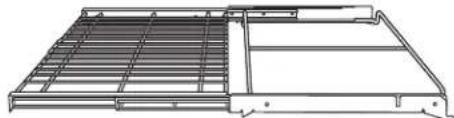
natural_image
Technical line drawing of a structural frame with internal ribs and supports (no text or symbols)- If there is debris in the slide tracks, wipe it away using a paper towel. NOTE: Any graphite lubricant wiped away must be replaced.
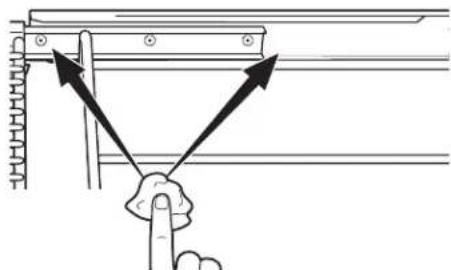
text_image
Diagram showing a hand pressing a button on a wall-mounted structure with directional arrows indicating force or direction.- Shake the graphite lubricant before opening it. Starting with left slide mechanism of the rack, place four (4) small drops of lubricant on the two (2) bottom tracks of the slide close to the bearing carriers.
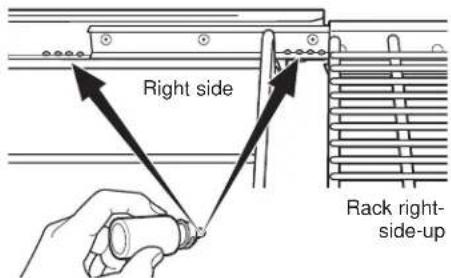
text_image
Right side Rack right- side-up- Repeat for the right slide mechanism of the rack.
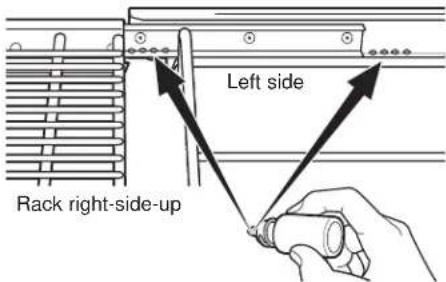
text_image
Left side Rack right-side-up- Open and close the rack several times to distribute the lubricant.
- Replace the cap on the lubricant and shake it again. Turn the rack over and repeat steps 3, 4, 5 and 6.
- Close the rack, turn rack right-side-up and place in the oven. See the Full Extension Oven Racks section.
- Repeat above steps for each rack.
NOTE: Do not use a cooking spray or other lubricant sprays on the slides.
TEMPERATURE PROBE
Allow the temperature probe to cool before cleaning.
The probe should be cleaned with soap and water by hand.
Do not immerse the temperature probe in water.
Do not store the temperature probe in the oven.
Do not clean the temperature probe in the self-cleaning oven.
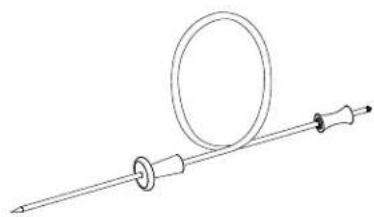
natural_image
Line drawing of a medical or laboratory instrument with a circular component and a rod-like extension (no text or symbols)OVEN BOTTOM
The oven bottom has a porcelain enamel finish. To make cleaning easier, protect the oven bottom from excessive spillovers. A smaller sheet of foil or sheet tray may be used to catch a spillover by placing it on the rack below the rack you are cooking on. This is particularly important when baking a fruit pie or other foods that are highly acidic. Hot fruit fillings or other foods that are highly acidic (such as tomatoes, sauerkraut and sauces with vinegar or lemon juice) may cause pitting and damage to the porcelain enamel surface and should be wiped up immediately.
Never fully cover a rack with aluminum foil. This will disturb the heat circulation and result in poor baking.
To clean up spillovers, use soap and water, an abrasive cleaner or soap-filled scouring pad. Rinse well to remove soap before self-cleaning.
CARE AND CLEANING
LIFT-OFF SOFT-CLOSE OVEN DOOR
The door is very heavy. Be careful when removing and lifting the door. Do not lift the door by the handle.
To remove the door:
-
Fully open the door.
-
Pull the hinge locks down toward the door frame, to the unlocked position. A tool, such as a small flat-blade screwdriver, may be required.
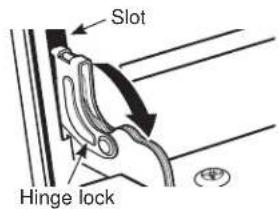
text_image
Slot Hinge lockPull hinge locks down to unlock
-
Firmly grasp both sides of the door at the top.
-
Close door to the door removal position, (approximately 15 degrees from closed) and lift it up and out until the hinge arm is clear of the slot.

text_image
Removal positionTo replace the door:
- Firmly grasp both sides of the door at the top.

text_image
Replacement position- With the door at the same angle as the removal position, seat the indentation of the hinge arm into the bottom edge of the hinge slot. The notch in the hinge arm must be fully seated into the bottom of the slot.
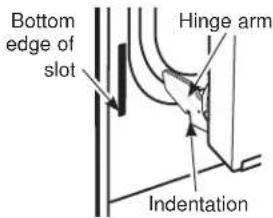
text_image
Bottom edge of slot Hinge arm Indentation- Fully open the door. If the door will not fully open, the indentation is not seated correctly in the bottom edge of the slot.
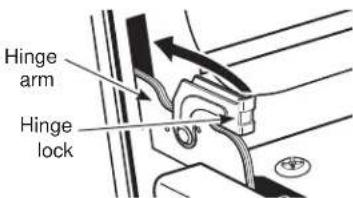
text_image
Hinge arm Hinge lock- Push the hinge locks up against the front frame of the oven cavity, to the
Push hinge locks up to lock
- Close the oven door.
CLEANING THE OVEN DOOR
Cleaning the Door Interior
Do not allow excess water to run into any holes or slots in the door.
Wipe dish soap over any baked-on spatters on the glass. Use a single sided safety razor blade to clean it off. Then wipe over the glass with a soapy cloth to remove any residue and dry off.
The area outside the gasket can be cleaned with a soap-filled plastic scouring pad. Do not rub or clean the door gasket - it has an extremely low resistance to abrasion.
If you notice the gasket becoming worn, frayed or damaged in any way or if it has become displaced on the door, you should have it replaced.
Cleaning the Door Exterior
If a stain on the door vent trim is persistent, use a mild abrasive cleaner and a sponge-scrubber for best results. Do not use this method on any other surface.
Stainless Steel Surfaces (on some models)
Do not use a steel wool pad; it will scratch the surface. To clean the stainless steel surface, use warm sudsy water or a stainless steel cleaner or polish. Always wipe the surface in the direction of the grain. Follow the cleaner instructions for cleaning the stainless steel surface. To inquire about purchasing cleaning products including stainless steel appliance cleaner or polish, see the Consumer Support section for further information.
CARE AND CLEANING
OVEN LIGHTS
WARNING
SHOCK OR BURN HAZARD: Before
replacing oven light bulb, disconnect the electrical power to the range at the main fuse or circuit breaker panel. Failure to do so may result in electric shock or burn.
CAUTION
BURN HAZARD: The glass cover and
bulb should be removed when cool. Touching hot glass with bare hands or a damp cloth can cause burns.
Each oven is equipped with halogen light columns located on the side walls of the oven. The lights come on when the door is opened or when the oven is in a cooking cycle.
Each light assembly consists of a removable light cover with two locking clips and a light compartment with three halogen bulbs.
Be sure to let the light cover and bulb cool completely. For your safety, do not touch a hot bulb with bare hands or a damp cloth.
To remove:
- Remove the racks from the oven. See the Full Extension Oven Racks section.
- Using a 7/16" nutdriver, remove the four nuts holding the rack supports to the oven wall.
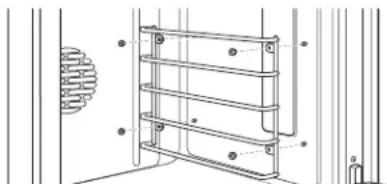
natural_image
Technical line drawing of a metal shelving unit with circular components and mounting holes (no text or symbols)- Remove the glass light cover by pulling its back edge out and rolling it toward you. Do not remove any screws.
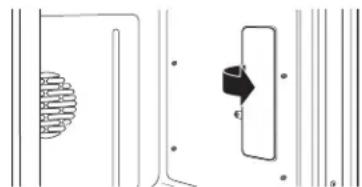
natural_image
Pure electrical circuit lines without any symbols- Using gloves or a dry cloth, remove the burned-out light bulb by pulling it straight out.
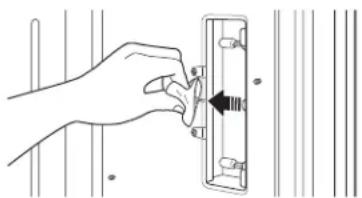
natural_image
Hand inserting a small component into a wall-mounted device (no text or symbols visible)To replace:
Use a new 120-volt Halogen bulb, with G8 pins, not to exceed 40 watts.
Replacement bulbs may be purchased by calling 800.626.2002. Order Part Number WB25X39610.
NOTE: Higher wattage bulbs will damage your oven.
Using gloves or a dry cloth, remove the bulb from its packaging. Do not touch the bulb with bare fingers. Oil from bare fingers may cause hot spots on the glass surface and lead to premature failure of the bulb. If you do touch the glass, clean it with alcohol prior to installation.
- Push the bulb straight into the receptacle all the way.
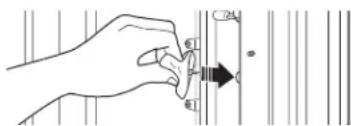
text_image
Diagram showing a hand holding a tool with labeled parts and an arrow indicating direction, possibly illustrating a process or measurement.- Replace the light cover, by placing its front edge under the front two tabs in the light compartment. Roll the back edge into place, making sure that it is firmly seated.
NOTE: If the locking clips fell from the glass lens cover, hold them on the cover, in the correct position, while replacing the cover on the light compartment.
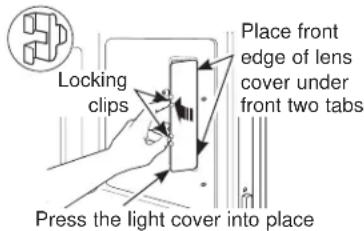
text_image
Locking clips Place front edge of lens cover under front two tabs Press the light cover into placeThe light cover must be in place when using the oven.
- Reinstall the rack support. Be sure to orient the support so that the top tabs for the nuts are closest to the top of the oven. Lightly secure with the four nuts removed earlier, but do not over-tighten or the enamel could be chipped.
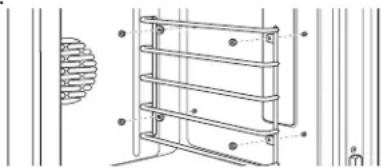
natural_image
Technical line drawing of a mechanical structure with no visible text or symbols- Replace the racks. See the Full Extension Oven Racks section.
- Reconnect electrical power to the oven.
CARE AND CLEANING
CLEANING THE GLASS COOKTOP
To maintain and protect the surface of your glass cooktop, follow these steps:
- Before using the cooktop for the first time, clean it with a ceramic cooktop cleaner. This helps protect the top and makes cleanup easier.
- Regular use of a ceramic cooktop cleaner will help keep the cooktop looking new.
- Shake the bottle of ceramic cooktop cleaner well. Apply a few drops of a ceramic cooktop cleaner directly to the cooktop.
- Use a paper towel or a non-scratch cleaning pad for ceramic cooktops to clean the entire cooktop surface.
- Use a dry cloth or paper towel to remove all cleaning
residue. No need to rinse.
NOTE: It is very important that you DO NOT heat the cooktop until it has been cleaned thoroughly.
Clean your cooktop after each spill. Use a ceramic cooktop cleaner.
BURNED-ON RESIDUE
NOTE: DAMAGE to your glass surface may occur if you use scrub pads other than those recommended.
- Allow the cooktop to cool.
- Spread a few drops of a ceramic cooktop cleaner on the entire burned residue area.
- Using a non-scratch cleaning pad for ceramic cooktops, rub the residue area, applying pressure as needed.
-
If any residue remains, repeat the steps listed above as needed.
-
For additional protection, after all residue has been removed, polish the entire surface with a ceramic cooktop cleaner and a paper towel.
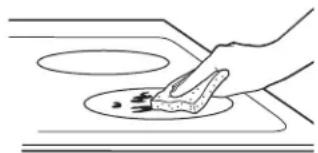
natural_image
Line drawing of a hand using a tool to clean or store food on a kitchen counter (no text or symbols)Use a non-scratch cleaning pad for ceramic cooktops.
HEAVY, BURNED-ON RESIDUE
- Allow the cooktop to cool.
- Use a single-edge razor blade scraper at approximately a 45^ angle against the glass surface and scrape the soil. It will be necessary to apply pressure to the razor scraper in order to remove the residue.
- After scraping with the razor scraper, spread a few drops of a ceramic cooktop cleaner on the entire burned residue area. Use a non-scratch cleaning pad to remove any remaining residue.
- For additional protection, after all residue has been removed, polish the entire surface with a ceramic cooktop cleaner and a paper towel.
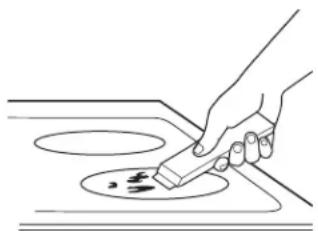
natural_image
Line drawing of a hand using a power tool to clean or store contents on a stove (no text or symbols)The ceramic cooktop scraper and all recommended supplies are available through our Parts Center. See instructions under "Assistance / Accessories" section.
NOTE: Do not use a dull or nicked blade.
CARE AND CLEANING
METAL MARKS AND SCRATCHES
- Be careful not to slide pots and pans across your cooktop. It will leave metal markings on the cooktop surface.
These marks are removable using a ceramic cooktop cleaner with a non-scratch cleaning pad for ceramic cooktops.
- If pots with a thin overlay of aluminum or copper are allowed to boil dry, the overlay may leave black discoloration on the cooktop.
This should be removed immediately before heating again or the discoloration may be permanent.
NOTE: Carefully check the bottom of pans for roughness that would scratch the cooktop.
DAMAGE FROM SUGARY SPILLS AND MELTED PLASTIC
Special care should be taken when removing hot substances to avoid permanent damage of the glass surface. Sugary spillovers (such as jellies, fudge, candy, syrups) or melted plastics can cause pitting of the surface of your cooktop (not covered by the warranty) unless the spill is removed while still hot. Special care should be taken when removing hot substances.
Be sure to use a new, sharp razor scraper.
Do not use a dull or nicked blade.
-
Turn off all surface units. Remove hot pans.
-
Wearing an oven mitt:
a. Use a single-edge razor blade scraper to move the spill to a cool area on the cooktop.
b. Remove the spill with paper towels.
- Any remaining spillover should be left until the surface of the cooktop has cooled.
Don't use the surface units again until all of the residue has been completely removed.
NOTE: If pitting or indentation in the glass surface has already occurred, the cooktop glass will have to be replaced. In this case, service will be necessary.
ACCESSORIES
Looking For Something More?
Monogram™ offers a variety of accessories to improve your cooking and maintenance experiences!
Refer to the Consumer Support page for website information.
The following products and more are available:
Parts
| Sous Vide Kit |
| Stainless Steel Cleaner and Polisher |
TROUBLESHOOTING TIPS
Save time and money! Review the charts on the following pages first and you may not need to call for service.
OVEN AND DISPLAY
| Problem Possible Cause | |
| Oven Will Not Work A fuse in | your home may be blown or the circuit breaker tripped.The oven controls are not properly set.The oven controls are set for cleaning. If necessary, allow the oven to cool; then open the door. |
| Oven Light(S) Do Not Work | The light bulb is defective. Replace the bulb.The oven lights do not come on during self-cleaning.The oven is set for Proof mode. The lights cycle on and off as necessary to maintain Proof temperature. |
| Food Does Not Bake Or Roast Properly | The oven controls are improperly set. See the Baking or Roasting section.Oven not preheated for a long enough time; wait for the oven to signal preheat.Incorrect cookware or cookware of improper size being used. See Baking Tips.Racks in the wrong position. See the Baking or Roasting section.Use a foil tent to slow down browning during roasting.Oven thermostat needs adjustment. See the Oven Thermostat Adjustment section. |
| Food Does Not Broil Properly | This model is designed for closed door broiling only. Close the door. Always broil with the door closed.The oven controls are not set at BROIL. See the Broiling section.The probe is plugged into the outlet in the oven. Remove the probe from the oven.Improper rack position being used.Cookware is not suited for broiling. Use the broiling pan and grid that came with your oven.Aluminum foil used on the broiling pan and grid has not been fitted properly and slit as recommended. |
| Cracking Or Popping Sound | This is normal. This is the sound of the metal heating and cooling during both the cooking and cleaning functions. |
| Oven Temperature Too Hot Or Too Cold | Oven thermostat needs adjustment. See the Oven Thermostat Adjustment section. |
| F- And A Number Flash In The Display | The oven has a function error code. Allow the oven to cool for one hour. Put the oven back into operation.Disconnect all power to the oven for 30 seconds and then reconnect power. If the function error code repeats, call for service. |
| Display Goes Blank The display | Play is blank when the oven or timer is not in use.A fuse in your home may be blown or the circuit breaker tripped. Replace the fuse or reset the circuit breaker. |
| “Probe” Appears In The Display | This is reminding you to enter a probe temperature after plugging in the probe. Enter a probe temperature |
| Steam From The Vent | When using the convection mode, it is normal to see steam coming out of the oven vent. As the number of racks or amount of food being cooked increases, the amount of visible steam will increase. |
| Power Outage If the oven was | in use during a power outage or surge, the oven must be reset. |
| Burning Or Oily Odor Emitting From The Vent | This is normal in a new oven and will disappear in time. |
| Strong Odor | This is temporary. An odor from the insulation around the inside of the oven is normal for the first few times the oven is used. |
| Fan Noise | A cooling fan or a convection fan (depending on the function you are using) may turn on. This is normal. The cooling fan will turn on to cool internal parts. It may run after the oven is turned off. The convection fan may cycle on and off until the function is over or the door is opened. |
| Convection Fan Not On All The Time | The convection fan (depending on the function you are using) may cycle on and off until the function is over or the door is opened for optimized performance. This is normal. In addition, the convection fan may cycle in the clockwise and counter clockwise direction until the function is over or the door is opened. |
| Condensation Or Fogging On The Inner Door Glass | Condensation or fogging on the inside of the oven door glass is normal during the preheating of the oven and will evaporate usually by the end of the preheating cycle. |
TROUBLESHOOTING TIPS
| Problem Possible Cause | |
| Oven Will Not Self Clean | The oven temperature is too high to set a self-clean operation.Allow the oven to cool below the locking temperature and reset the controls.The controls are not properly set. See the Self-Cleaning Oven section. |
| Oven Not Clean After A Clean Cycle | The oven was heavily soiled. Clean up heavy spillovers before starting the clean cycle. Heavily soiled ovens may need to self-clean again.Oven is connected to a 208V electrical supply. Set your cleaning time for 5 hours.The oven controls are not properly set. See the Self-Cleaning Oven section. |
| Oven Racks Are Difficult To Slide | The racks were cleaned in the self-clean cycle and now need periodic lubrication.Do not spray with a cooking spray or other lubricant sprays. See Full Extension Oven Racks in the Care and Cleaning section. |
| Timer Does Not Work The timer cannot be used while the oven is self-cleaning. | |
HESTAN CUE® PAN
| Problem Possible Cause | What To Do | |
| Pan won't pair or activate when tapping handle | Tapping force is too light. Double tap the | pan with firm taps (or knock) on the black plastic endcap. |
| Battery in pan is low or dead. Replace AA battery, installing with positive end out of handle. | ||
| Using different pan hardware. Check that | your pan has a black endcap that unscrews from the end of the handle. Pans with an oval module reading "Hestan Cue®" will not work. | |
| Experiencing performance or minor technical issues including seeing 20°F or 100°F as set temperature | Old unit or pan software. Connect your unit to the SmartHQTM mobile app and update unit software. Connect your unit and pan to the Hestan® Smart Cooking app and update pan software. | |
| The unit cancelled my precision cooking mode | Battery in device is low or dead. Replace AAA battery in pan. | |
| Old unit or pan software. Connect your unit to the SmartHQTM mobile app and update unit software. Connect your unit and pan to the Hestan® Smart Cooking app and update pan software. | ||
| Your precision cooking device has gone out of range. | This could indicate a problem with the device. If the problem persists, please contact the device manufacturer. | |
| Your precision cooking device had a computation malfunction. | ||
| The unit lost communication with your precision cooking device. | This could indicate a problem with the device or the unit. If the problem persists, please contact the device or unit manufacturer. | |
| Unable to reach set temperature in Precision Cooking mode | Boiling water or cooking liquid based foods at high temperatures will result in temperature stalls close to the set temperature. | Use temperature settings for pan frying, sautéing, and searing when using Hestan Cue® cookware. |
| Hestan® Cue cookware battery life does not last as long as expected | Pan is sensing slight vibrations when not in use. | Turn plastic end of handle one half rotation to disconnect power. |
TROUBLESHOOTING TIPS
COOKTOP
| Problem Possible Causes | What To Do | |
| Surface elements will not maintain a rolling boil or cooking is slow | Improper cookware being used. Use pans that are recommended for induction, have flat bottoms and match the size of the surface element. | |
| Surface elements do not work properly | Cooktop controls improperly set. Check to be sure the correct control is set for the surface element you are using. | |
| Power arc ON indicator blinking | Wrong pan type. Use a magnet to check that cookware is induction compatible. | |
| Pan is too small. Blinking “ON” indicator — pan size is below the minimum size for the element. See the Using the correct size cookware section. | ||
| Pan not positioned correctly. Center the pan in the cooking ring. | ||
| +, -, or control lock pads have been touched before an element is turned on. | See the Operating the Cooking Elements section. | |
| Scratches on cooktop glass surface | Incorrect cleaning methods being used. Use recommended cleaning procedures. See the Cleaning the glass cooktop section. | |
| Cookware with rough bottoms being used or coarse particles (salt or sand) were between the cookware and the surface of the cooktop. Cookware has been slid across the cooktop surface. | To avoid scratches, use the recommended cleaning procedures. Make sure bottoms of cookware are clean before use, and use cookware with smooth bottoms. | |
| Areas of discoloration on the cooktop | Food spillovers not cleaned before next use. See the Cleaning the glass cooktop section. | |
| Hot surface on a model with a light-colored glass cooktop. | This is normal. The surface may appear discolored when it is hot. This is temporary and will disappear as the glass cools. | |
| Plastic melted to the surface | Hot cooktop came into contact with plastic placed on the hot cooktop. | See the Glass surface – potential for permanent damage section in the Cleaning the glass cooktop section. |
| Pitting (or indentation) of the cooktop | Hot sugar mixture spilled on the cooktop. Call a qualified technician for replacement. | |
| Pan detection/sizing not working properly | Improper cookware being used. Use a flat induction capable pan that meets the minimum size for the element being used. See the Using The Correct Size Cookware section. | |
| Pan is improperly placed. Make sure the pan is centered on the corresponding surface element. | ||
| Cooktop control improperly set. Check to see that the control is set properly. | ||
| Noise Sounds you may hear: | Buzzing, whistling and humming. | These sounds are normal. See Cooking Noise section. |
| Unresponsive keypad Keypad | is dirty. Clean the keypad. | |
| A fuse in your home may be blown or the circuit breaker tripped. | Replace the fuse or reset the circuit breaker. | |
| Object, such as utensil or debris, is on the control interface. | Remove object from control interface. | |
| Liquid is on the control interface. | Wipe control interface to remove liquid. | |
MONOGRAM™ LIMITED WARRANTY
Monogram.com
All warranty service is provided by our Factory Service Centers, or an authorized Customer Care technician. To schedule service online, visit us at monogram.com/contact. In Canada, visit monogram.ca.
Servicing your appliance may require the use of the onboard data port for diagnostics. This gives a Monogram™ Factory Service technician the ability to quickly diagnose any issues with your appliance and helps Monogram™ improve its products by providing Monogram™ with information on your appliance. If you do not want your appliance data to be sent to Monogram™, please advise your technician NOT to submit the data to Monogram™ at the time of service.
| For the period of MonogramTM Appliances will replace | |
| Limited two-year warranty | For two years from date of original purchase, we will provide, free of charge, parts and service labor in your home to repair or replace any part of the appliance that fails because of a manufacturing defect. |
| Limited lifetime warranty | For the lifetime of the gray porcelain enamel oven racks, we will provide, free of charge, replacement racks if they fail in normal household use. You pay for the service trip to your home and all service labor charges. |
What Monogram™ will not cover:
■ Service trips to your home to teach you how to use the product.
■ Discoloration of the oven racks.
■ Chipping of porcelain enamel grates or oven racks.
■ Replacement of house fuses or resetting of circuit breakers.
■ Incidental or consequential damage caused by possible defects with this appliance.
■ Damage after delivery.
■ Damage to the product caused by accident, fire, floods or acts of God.
■ Product damage or failure of the product if it is abused, misused, used for other than the intended purpose, or used commercially.
■ Improper installation, delivery or maintenance.
If you have an installation problem, contact your dealer or installer. You are responsible for providing adequate electrical, exhausting and other connecting facilities as described in the Installation Instructions provided with the product.
■ Product not accessible to provide required service.
EXCLUSION OF IMPLIED WARRANTIES
Your sole and exclusive remedy is product repair as provided in this Limited Warranty. Any implied warranties, including the implied warranties of merchantability or fitness for a particular purpose, are limited to one year or the shortest period allowed by law.
This limited warranty is extended to the original purchaser and any succeeding owner for products purchased for home use within the USA. If the product is located in an area where service by an Authorized Servicer is not available, you may be responsible for a trip charge or you may be required to bring the product to an Authorized Service location. In Alaska, the limited warranty excludes the cost of shipping or service calls to your home.
Some states do not allow the exclusion or limitation of incidental or consequential damages. This limited warranty gives you specific legal rights, and you may also have other rights which vary from state to state. To know what your legal rights are, consult your local or state consumer affairs office or your state's Attorney General.
Warrantor: GE Appliances, a Haier company
Louisville, KY 40225
Warrantor in Canada: MC Commercial Inc.
Burlington, ON Ontario L7L 6C7
49-2001169 Rev. 0
06-23 GEA
Printed in Mexico

MONOGRAM™
MANUEL
D'UTILISATION
Plaque chauffante 22
natural_image
Technical line drawing of a mechanical bracket assembly with mounting holes and fasteners (no text or symbols)CONSIGNES DE SÉCURITÉ RELATIVES AU FOUR
natural_image
Pure geometric diagram with concentric circles and horizontal lines, no text or symbols presentUTILISATION DE LA CUISINIÈRE
natural_image
Simple geometric diagram with four empty squares separated by a dashed vertical line (no text or symbols)Table de cuisson 30 po Table de cuisson 36 po
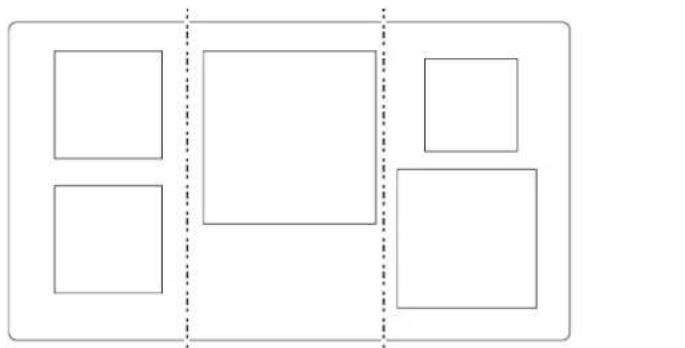
natural_image
Simple diagram with five empty squares arranged in a grid, separated by dashed lines (no text or symbols)text_image
-8:00:00+ TIME → -8:00:00+ TIME → -8:00:00+ TIMEUTILISATION DE LA CUISINIÈRE
CONNECTIVITÉ BLUETOOTH®
text_image
BLUETOOTH CONNECTtext_image
PRECISION COOKINGnatural_image
Simple line drawing of a frying pan with a handle, no text or symbols presentnatural_image
Front view of a device panel with front panel, side panels, and control buttons (no visible text or symbols)REMARQUES IMPORTANTES :
text_image
Technical diagram of a device with numbered components for identificationtext_image
10:35 AM OVEN Bake Broil Convection Precision Cooking Air Fry More GET CONNECTEDtext_image
12:30 PM SETTINGS Wi-Fi & REMOTE ENABLE > BLUETOOTH > SET CLOCK > SOUND >GRILLES DU FOUR (Suite)
natural_image
Technical line drawing of a mechanical assembly with an inset magnified view showing a component detail (no text or symbols)text_image
Technical diagram of a device interior with numbered components for identificationnatural_image
Illustration of a hand using a tool to adjust or install a metal bracket (no text or symbols present)MODES DU FOUR
text_image
Technical diagram of a rack with labeled components, showing multiple bowls and numbered parts for assembly or inspection.GUIDE DE CUISSON
natural_image
Line drawing of a hand using a tool to cut or spread food items on a woven mat (no text or symbols)text_image
Technical diagram showing labeled components of a mechanical or electrical assembly with numbered parts 2 to 5.natural_image
Top-down schematic of a server rack with internal circuit patterns (no text or symbols)CUISSON PAR CONVECTION (CONV BAKE)
text_image
Technical diagram of a rack with labeled components, showing numbered parts for assembly or storage.text_image
Technical diagram of a rack-mounted device with numbered components for identificationUTILISATION DE LA CUISINIÈRE
GRILLAGE PAR CONVECTION
natural_image
Line drawing of hands using a tool to cut or spread a rectangular object with horizontal lines (no text or symbols)text_image
Technical diagram showing labeled components of a mechanical or electrical assembly with numbered parts 2 to 5.FERMENTATION (PROOF)
natural_image
Illustration of a cylindrical object inside a rectangular frame with a cable inserted, no text or symbols present.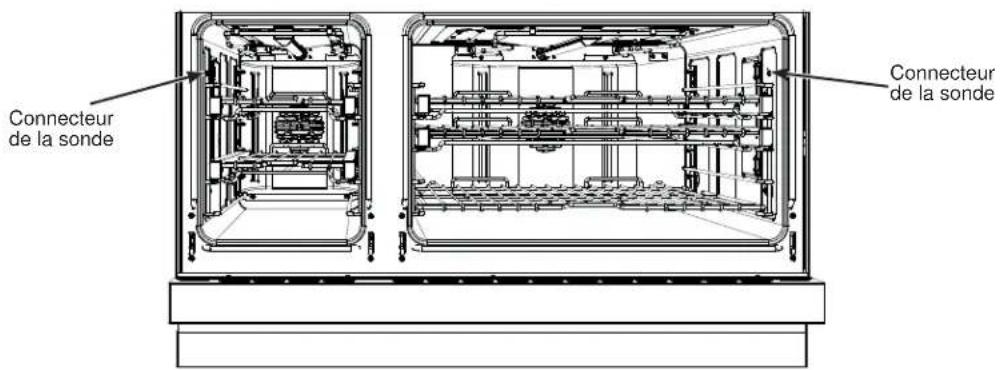
GUIDE DE CUISSON AU FOUR
text_image
Technical diagram of a rack with labeled components, showing a multi-tiered storage or processing system with numbered parts.text_image
Technical diagram of a rack with labeled components, showing multiple bowl-like fixtures and numbered parts.GUIDE DE CUISSON AU FOUR
GUIDE DE CUISSON AU FOUR
GUIDE DE CUISSON POUR LA FRITURE À AIR CHAUD
natural_image
3D rendering of a gray rectangular baking tray (no text or symbols)natural_image
Line drawing of a rectangular metal grate with grid pattern (no text or symbols)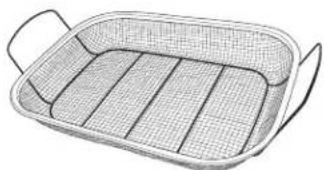
natural_image
Line drawing of a woven basket with handles and side grating (no text or symbols)natural_image
Technical line drawing of a metal frame structure with internal ribs and mounting brackets (no text or symbols)natural_image
Diagram showing two arrows pointing to a vertical structure with a finger pointing at it (no text or symbols present)natural_image
Line drawing of a medical or laboratory probe with a circular component and a rod-like tool (no text or symbols)BAS DU FOUR
natural_image
Mechanical assembly diagram showing a lever mechanism with arrows indicating motion (no text or symbols)natural_image
Technical line drawing of a multi-tiered heating element with mounting holes and a coiled spring (no text or symbols)natural_image
Pure electrical circuit lines without any symbolsnatural_image
Hand inserting a small object into a wall-mounted device (no text or symbols visible)natural_image
Illustration of a hand holding a tool with an arrow pointing to a vertical bar (no text or symbols)text_image
Locking clips Place front edge of lens cover under front two tabs Press the light cover into placenatural_image
Technical line drawing of a coiled metal panel or rack structure with mounting holes (no text or symbols)text_image
Ceramic Cooktop Cleanernatural_image
Simple line drawing of a hand using a tool to clean or store items on a circular surface (no text or symbols)natural_image
Line drawing of a hand using a power tool to clean or store contents on a stove (no text or symbols)Garant : GE Appliances, a Haier company, Louisville, KY 40225
Garant au Canada: MC Commercial Inc., Burlington, ON Ontario L7L 6C7
49-2001169 Rev. 0
06-23 GEA
Imprimé au Mexique

MONOGRAM™
MANUAL DEL
PROPIETARIO
natural_image
Technical line drawing of a mechanical bracket assembly with mounting holes and a separate view (no text or symbols)natural_image
Pure geometric diagram with a circle and horizontal lines, no text or symbols presentUTILIZANDO LA ESTUFA
natural_image
Simple geometric diagram with four empty squares and a vertical dashed line (no text or symbols)natural_image
Simple diagram with five empty squares arranged in a grid, separated by dashed lines (no text or symbols)text_image
BLUETOOTH CONNECTtext_image
PRECISIONAL COOKINGnatural_image
Simple line drawing of a frying pan with a handle, no text or symbols presentnatural_image
Front view of a device panel with front panel, side panels, and control buttons (no text or symbols visible)NOTAS IMPORTANTES:
text_image
Technical diagram of a device with numbered components for identificationtext_image
10:35 AM OVEN Bake Broil Convection Precision Cooking Air Fry More GET CONNECTEDBake (Hornear)
text_image
12:30 PM SETTINGS Wi-Fi & REMOTE ENABLE > BLUETOOTH > SET CLOCK > SOUND >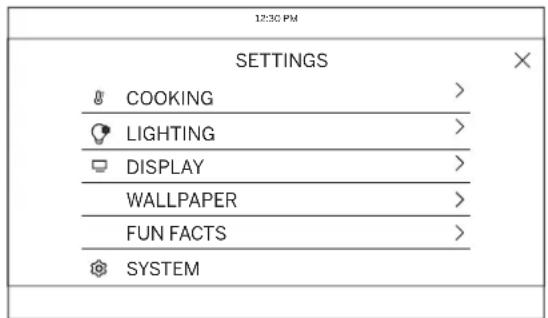
text_image
12:30 PM SETTINGS COOKING > LIGHTING > DISPLAY > WALLPAPER > FUN FACTS > SYSTEMnatural_image
Technical line drawing of a mechanical assembly with an inset showing a close-up of a component (no text or symbols present)text_image
Technical diagram of a device interior with numbered components for identificationnatural_image
Hand using a tool to apply a mechanical component to a grid-patterned surface (no text or symbols visible)text_image
Technical diagram of a rack with labeled components, showing multiple bowls and numbered parts for assembly or inspection.GUÍA PARA HORNEAR
natural_image
Illustration of a hand using a tool to cut through a rectangular tray (no text or symbols)GUÍA DE ASADO
text_image
Technical diagram showing labeled components of a mechanical or electrical assembly with numbered parts 2 to 5.natural_image
Technical line drawing of a mechanical or electrical component with symmetrical internal flow patterns (no text or symbols)text_image
Technical diagram of a rack with numbered components, likely for assembly or cooking instructionstext_image
Technical diagram of a rack-mounted device with numbered components for identificationUTILIZANDO LA ESTUFA
natural_image
Line drawing of a hand using a tool to cut or spread a rectangular object with horizontal lines (no text or symbols)GUÍA DE ASADO
text_image
Technical diagram showing labeled components of a mechanical or electrical assembly with numbered parts 2 to 5.natural_image
Illustration of a cylindrical object inside a rectangular frame with a cable inserted, no text or symbols present.Conector de la Sonda
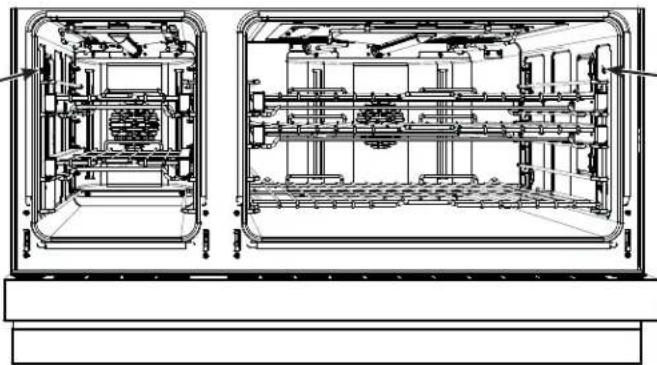
natural_image
Technical line drawing of a dual-chamber industrial or laboratory equipment enclosure (no text or symbols)Conector de la Sonda
UTILIZANDO LA ESTUFA
SONDA DE TEMPERATURA (Cont.)
Uso de la Sonda
text_image
Technical diagram of a kitchen appliance with numbered compartments for cooking or storagetext_image
Technical diagram of a rack with labeled components, showing multiple bowls and a numbered connection line.natural_image
Simple 3D rendering of a gray rectangular tray or baking tray (no text or symbols)Utensilio principal recomendado