Intelligence Radio - Radio Auna - Free user manual and instructions
Find the device manual for free Intelligence Radio Auna in PDF.


User questions about Intelligence Radio Auna
0 question about this device. Answer the ones you know or ask your own.
Ask a new question about this device
Download the instructions for your Radio in PDF format for free! Find your manual Intelligence Radio - Auna and take your electronic device back in hand. On this page are published all the documents necessary for the use of your device. Intelligence Radio by Auna.
USER MANUAL Intelligence Radio Auna
text_image
QR code image containing encoded data, no visible human-readable textINHALT
Technische Daten 4
text_image
DC INNII CCDDtext_image
QR code image containing encoded data, no visible human-readable text
text_image
QR code image containing encoded data, no visible human-readable textYOUR WIRELESS-2.4G YOUR WIRELESS-5G

Auna Intelligence_XXXX
Auna Intelligence_XXXX ⓘ
Auna Intelligence_XXXX
Auna Intelligence_XXXX
Büro
Badezimmer
Bibliothek
Esszimmer
Familienzimmer
Fernsehzimmer
Flur
...
text_image
< AMAZON LOGIN Auna Intelligence We will provide Auna Intelligence: ● Connectivity to Alexa so that you can interact with it using your voice. You also accept All Amazon terms found here Alexa processes and retains audio and other information in the cloud to provide and improve our services, and may exchange information with third party services to fulfill your requests. Learn more. Alexa also allows purchasing by voice using your default payment and shipping settings. You can require a speakable confirmation code, turn purchasing off, and see product and order details in your Alexa App. Learn more. Your music will be saved to the cloud to protect your purchases.text_image
Auna Intelligence_XXXX amazon alexa Alexa is ready Here are some of the many things you can ask Alexa. Alexa, what's the weather? Alexa, play my Flash Briefing. Alexa, what are some top- rated Indian restaurants? Alexa, set a timer for 20 minis. NextAuna Intelligence_XXXX

natural_image
Symbol of a discarded trash bin with crossed lines indicating no waste or plastic (no text or labels)text_image
QR code image containing encoded data, no visible human-readable textuse.berlin/10032299
Dear Customer,
Congratulations on purchasing this equipment. Please read this manual carefully and take care of the following hints to avoid damages. Any failure caused by ignoring the mentioned items and cautions mentioned in the instruction manual are not covered by our warranty and any liability. Scan the QR code to get access to the latest user manual and other information about the product.
text_image
QR code image containing encoded data, no visible human-readable textCONTENTS
Technical Data 28
Safety Instructions 29
Product Overview 32
App Menu 44
Amazon Alexa Voice Control 46
Troubleshooting 48
Disposal Considerations 49
TECHNICAL DATA
Item number
10032299, 10032300
Power supply
220-240 V\~ 50/60 Hz
BT
Working range about 32 Feet in open area
Frequency
2,402 - 2,48 GHz
RF Output power -6 to +4 dBm
Wifi
Operation distance about 96 feet in open area
SAFETY INSTRUCTIONS
Before using the unit, be sure to read all operating instruction carefully, please note that these are general precautions and may not pertain to your unit. For example, this unit may not have the capability to be connected to an outdoor antenna.
- Read these instructions
All the safety and operating instructions should be read before the appliance is operated. - Keep these instructions
The safety and operating instructions should be kept for future reference. - Heed all warnings
All warnings on the appliance and in the operating instructions should be adhered to. - Follow all instructions
All operation and use instructions should be followed. - Do not use this apparatus near water
The appliance should not be used near water; for example, near a bath tub, washbowl, kitchen sink, laundry tub, in a wet basement, or near a swimming pool. - Clean only with dry cloth
The appliance should be cleaned only as recommended by the manufacturer. - Do not block any ventilation openings. Install in accordance with the manufacturer's instructions.
Slots and openings in the cabinet and in the back or bottom are provided for ventilation, to ensure reliable operation of the product and to protect it from overheating. These openings must not be blocked or covered. The openings should never be blocked by placing the product on a bed, sofa, rug, or similar surface. This product should never be placed near or over a radiator or heat source. This product should not be placed in a built-in installation, such as a bookcase or rack unless proper ventilation is provided or the manufacturer's instructions have been adhered to. - Do not install near any heat sources such as radiators, heat registers, stoves, or other apparatus (including amplifiers) that produce heat.
- Do not defeat the safety purpose of the polarized or grounding-type plug.
A polarized plug has two blades with one wider than the other. A grounding type plug has two blades and a third grounding prong. The wide or the third prong are provided for your safety. If the provided plug does not fit into your outlet, consult an electrician for replacement of the obsolete outlet. - Protect the power cord from being walked on or pinched particularly at plugs, convenience receptacles, and the point where they exit from the
apparatus.
- Only use attachments / accessories specified by the manufacturer.
- Unplug this apparatus during lightning storms or when unused for long periods of time. To protect your product from a lightning storm, or when it is left unattended and unused for long periods of time, unplug it from the wall outlet and disconnect the antenna or cable system. This will prevent damage to the product due to lightning and power-line surges.
- Refer all servicing to qualified service personnel. Servicing is required when the apparatus has been damaged in any way, such as power-supply cord or plug is damaged, liquid has been spilled or objects have fallen into the apparatus, the apparatus has been exposed to rain or moisture, does not operate normally, or has been dropped.
- Power source
This product should be operated only from the type of power source indicated on the marking label. If you are not sure of the type of power supply to your home, consult your appliance dealer or local power company. For products intended to operate from battery power, or other source, refer to the operation instructions.
- Power lines
An outside antenna system should not be located in the vicinity of overhead power lines or other electric light or power circuits, or where it can fall into such power lines or circuits. When installing an outside antenna system, extreme care should be taken to keep from touching such power lines or circuits as contact with them might be fatal.
• Overloading
Do not overload wall outlets and extension cords as this can result in a risk of fire or electric shock.
- Object and liquid entry
Never push objects of any kind into the product through openings as they may touch dangerous voltage points or short out parts that could result in fire or electric shock. Never spill or spray any type of liquid on the product.
- Service
Do not attempt to service this product yourself as opening or removing covers may expose you to dangerous voltage or other hazards. Refer all servicing to qualified service personnel.
- Replacement parts
When replacement parts are required, be sure the service technician uses replacement parts specified by the manufacturer or those that have the same characteristics as the original parts. Unauthorized substitutions may result in fire or electric shock or other hazards.
- Safety check
Upon completion of any service or repairs to this product, ask the service technician to perform safety checks to determine that the product is in proper operating condition.
• Wall or ceiling mounting
The product should be mounted to a wall or ceiling only as recommended by the manufacturer.
- Damage requiring service Unplug this product from the wall outlet and refer service to qualified service personnel under the following conditions.
a) When the power- supply cord or plug is damaged
b) If liquid has been spilled or objects have fallen into the product.
c) If the product has been exposed to rain or water.
d) If the product does not operate normally by following the operating instructions. Adjust only those controls that are covered by the operating instructions, as an adjustment of other controls may result in damage and will require extensive work by a qualified technician to restore the product to its normal operation.
e) If the product has been dropped or the cabinet has been damaged.
f) When the product exhibits a distinct change in performance- this indicates a need for service.
PRODUCT OVERVIEW
From top
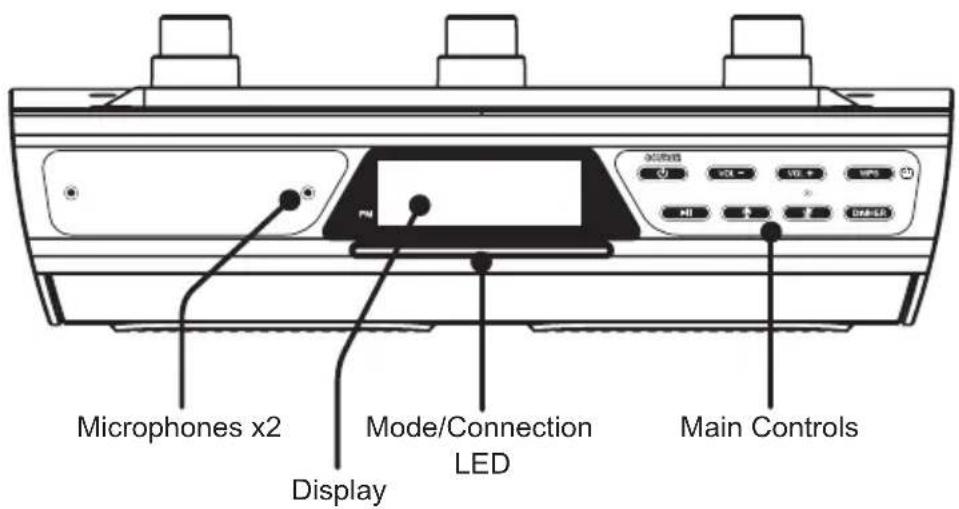
text_image
Microphones x2 Display Mode/Connection LED Main ControlsFrom the bottom
Cord Wrap Points Undercabinet Mounting Points
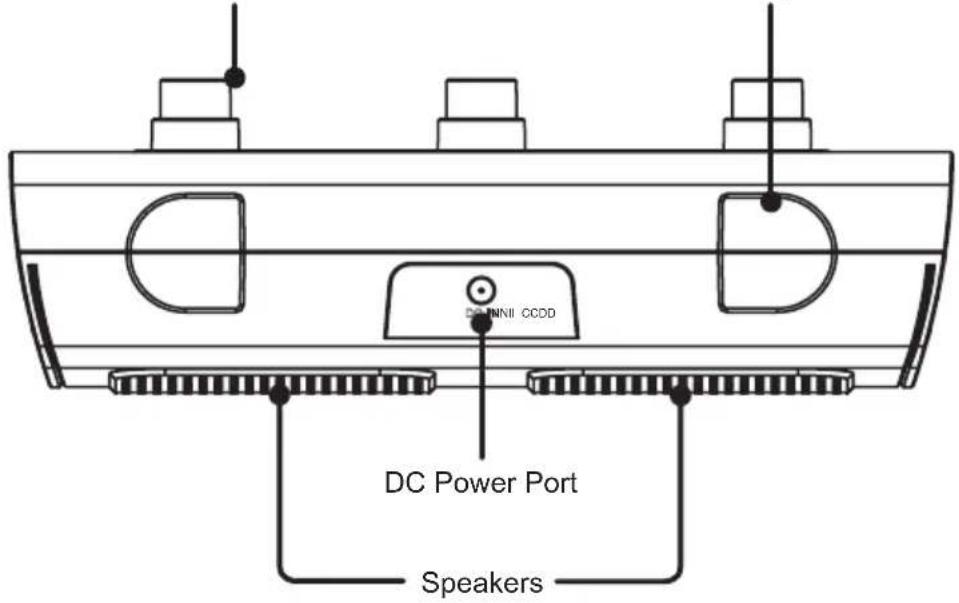
text_image
DC INNII CCDD DC Power Port SpeakersIndicator Lights
| LED-Leiste | |
| White Speaker | ON, Amazon Alexa standing by. |
| Blue Amazon | Alexa listening/responding. |
| Red Amazon | Alexa and microphones muted |
| Mode/Connection LED | |
| Flashing White (slow) Wi-Fi Standby Mode | |
| Flashing White (fast) Connecting to Wi-Fi | |
| Solid White Connected to Wi-Fi | |
| Flashing Blue (slow) BT-Standby mode | |
| Flashing Blue (fast) Pairing BT | |
| Solid Blue Paired to Bluetooth device | |
Control panel functions
| DIMMER | Dimmer: Display has two dimmer settings - low and high. |
 | Alexa ON/OFFPress to activate Amazon Alexa and say a command. You can also just say, "Alexa..", within range of the speaker's microphones. |
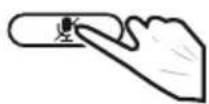
 | Press to mute the microphones and disable Amazon Alexa. Press and hold for 10 seconds to reset the speaker. |
  | VolumePress to adjust the volume up or down. You can also ask Alexa to set the volume level by saying, "Alexa, set volume to ..." |
 | Connect Wi-Fi/Pair BluetoothIn Wi-Fi Mode (white Mode LED), press and hold to begin connecting to a Wi-Fi network.In Bluetooth Mode (blue Mode LED), press and hold to begin pairing to a Bluetooth device. |
 | Play/PauseShort press to play or pause audio playing in the auna app or on a BT connected device. |
 | Power/SourcePress and hold to power the speaker ON or OFF. Press to switch between Wi-Fi, Bluetooth, and Aux modes. |
Initial BT connection
-
Power on the speaker (see note above) and press the Source button to switch to Bluetooth Mode, indicated by a slowly flashing blue light from the Mode/ Connection LED. Bluetooth Mode may also be selected in the iLive app. Press the Connection Mode icon the Main Menu Screen.
-
Press and hold the WPS button on the speaker to begin pairing. The Mode/ Connection LED will begin quickly flashing blue as it searches for a device. When pairing, remain within 3 ft. of your device.
-
On your Bluetooth device, open the Bluetooth Settings and select "Intelligence Radio" from the list of available devices. It may take a moment before your device detects the speaker and is available in the list.
-
When successfully paired, the Mode/Connection LED on the speaker will turn solid blue and a voice will announce "Wi-Fi connected." Audio from the connected device will now be played through the speaker.
-
Use the controls on your device to select and begin playing audio. Use the controls on the device or the speaker to play, pause, and adjust the volume
Download the Amazon Alexa app to your device by scanning the appropriate QR code below or search for the Amazon Alexa app in the Google Play™ Store, or Apple App Store.

text_image
QR code image containing encoded data, no visible human-readable text
text_image
QR code image containing encoded data, no visible human-readable textThe Amazon Alexa app connects your Concierge speaker to Alexa's voice services. It's also where you see an overview of your requests and manage your contacts, lists, news, music and settings. Once downloaded, open the Alexa app and log into your Amazon account. If you do not already have an Amazon account, choose "Create a new Amazon account" and enter the requested info. Once logged in, the app will prompt you for setup. You can add these details now by choosing "Get Started," or skip these steps and complete the process later. You cannot use Alexa Voice Services if you are not logged into an Amazon account.

Auna App
Install Auna app
- Download the Auna Intelligence from Apple App store for iOS devies.
- Or, download from Google Play store for Android devices.
- The App icon will appear as the figure on right after successful installation.
To use the speaker's Wi-Fi features, the speaker and your mobile device must both be connected to a Wi-Fi network. The app will guide you through the process, just follow the on-screen instructions and have your network password ready.
After the initial connection, the speaker will remember the Wi-Fi network and automatically connect to it when it is in Wi-Fi Mode. If the speaker should become disconnected or will not connect normally, repeat the steps below or try the Alternative Connection Method.
Note: The following operation bases on iOS system. The operation of Android is similar.
Connection
- Press and hold the ⏻ MODE button to power on the unit, wait the mode indicator blinks green only, now it is WiFi mode.
- Turn on the WiFi on your iOS and connect it to desired WiFi network
-
hinzuzufügen. Wenn sich ein anderer Lautsprecher im Netzwerk befindet, wird dieser automatisch zur Liste hinzugefügt.
-
Tap the App icon and the following picture will appear. Read the screen instructions and tap the "Wi-Fi Setup Wizard" to continue.

Searching for AUNA Wireless Hi-Fi System.....
Please make sure your device is powered up. Your phone is connected to XXXX, please make sure your device is connected to the same network.
Wi-Fi Setup Wizard
Experiencing any problems? Give us your feedback>>
-
Read the instructions on screen and tap "Next" to continue.
-
Tap the Password column to input the password to make the speaker to connect to Wi-Fi network(router), tap "Next" to continue.
Make sure your phone is connected to 2.4G Wi-Fi, not 5G.
YOUR WIRELESS-2.4G YOUR WIRELESS-5G

Not sure what you're currently using? Refer to your router's user guide for more info.
Next
Make sure your phone is connected to 2.4G Wi-Fi, not 5G.
YOUR WIRELESS-2.4G YOUR WIRELESS-5G

Not sure what you're currently using? Refer to your router's user guide for more info.
Next
-
Press and hold the WPS. Tap "Next" to conintue.
-
There will be voice instructing during the connecting process.
< PRESS TO ENTER SETUP M...
② Press and hold the WPS key on device to put the device into network setup mode. Then click the "Next" button to continue.
WPS
Next
<
PLEASE WAIT

Wait for device to be connected to Wi-Fi...
Do not operate the device during Wi-Fi setup. Please wait for completion of setup patiently. It's usually finished in 60 seconds.
Cancel
If you hear voice prompt for erro message please go back and retry
- When the speaker is connected to the network successfully, the Mode Indicator will stay lit.
Note 1:
If the connection fails, the following page will appear Then tap the "Cancel" Button to reconnect as the on screen instructions.
CONNECTED

Device is connected to XXXX successfully
Current Wi-Fi strength of device:100%
Next
WI-FI SETUP TIMEOUT

UH OH!
Try Next to try an alternate way of connecting.
Next
Cancel Setup
Note 2
If you tap "Next", the following page will appear, then go to your phone to set up.
- After connected, the following screen will appear, tap Custom...to set a new desired location name, or tap one in the name list as the selected location.
Alternate Way to Setup
■ Go to your iPhone's Wi-Fi settings and select the Wi-Fi starting with Auna Intelligence_XXXX to connect.
Auna Intelligence_XXXX ⓘ
Auna Intelligence_XXXX ⓘ
Auna Intelligence_XXXX ⓘ
■ Then, come back to this APP. Settings
Cancel Setup
< NAME DEVICE Next
Custom...
Auna Intelligence_XXXX

Bathroom
Bed Room
Den
Dining Room
Family Room
Foyer
Garage
Garden
-
The following page will appear. If you already have an account, then tap "Sign in with Amazon" Button on the following screen.
-
The following page will appear, input the account and password and tap the "Sign in" Button on the screen to log on.
Auna Intelligence_XXXX

amazon alexa
Your device includes access to Alexa. Connect your Amazon account to access personalized features.
Alexa allows you to use your voice to play music and get news, sports scores, weather and more-all hands-free. All you have to do is ask Alexa.
Sign in with Amazon
Cancel
< AMAZON LOGIN
Sign in to Auna Intelligence using your Amazon account
Sign in
Forgot password?
Email (phone for mobile accounts)
Amazon password
Show password
□ Keep me signed in. Details
Sign in
New to Amazon?
Create a new Amazon account
-
If you do not have an Amazon on screen instructions. account, then tap "Create a new Amazon account" to start registration and create a new Amazon account as the on screen instructions.
-
When the following page appears, tap "I agree" to log in Amazon.
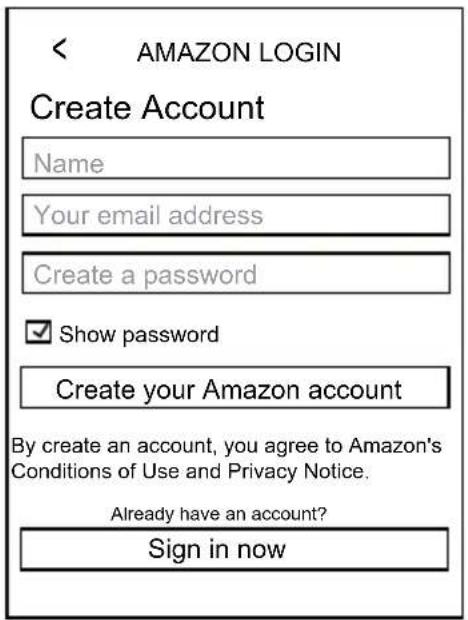
text_image
< AMAZON LOGIN Create Account Name Your email address Create a password ✓ Show password Create your Amazon account By create an account, you agree to Amazon's Conditions of Use and Privacy Notice. Already have an account? Sign in now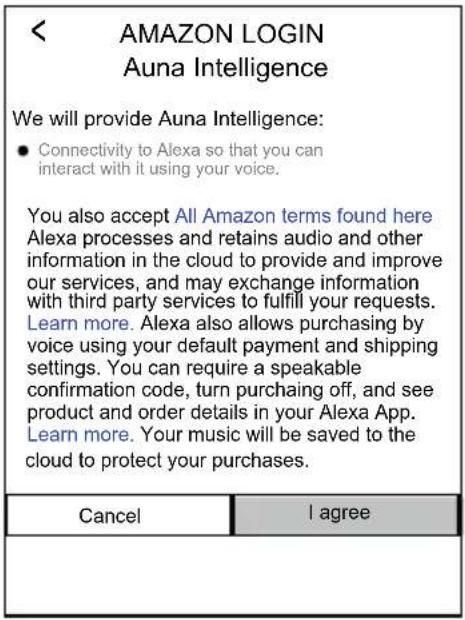
text_image
< AMAZON LOGIN Auna Intelligence We will provide Auna Intelligence: ● Connectivity to Alexa so that you can interact with it using your voice. You also accept All Amazon terms found here Alexa processes and retains audio and other information in the cloud to provide and improve our services, and may exchange information with third party services to fulfill your requests. Learn more. Alexa also allows purchasing by voice using your default payment and shipping settings. You can require a speakable confirmation code, turn purchasing off, and see product and order details in your Alexa App. Learn more. Your music will be saved to the cloud to protect your purchases. Cancel I agree- After log in, the following page will appear, tap the language to set the desired language.
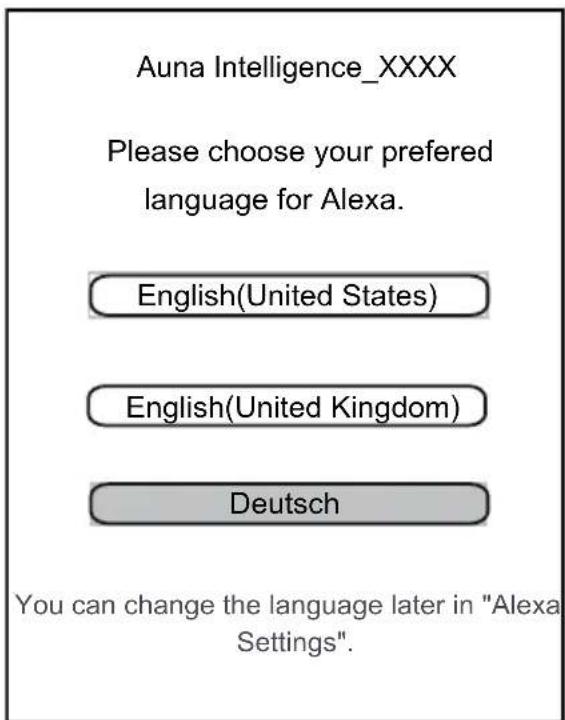
text_image
Auna Intelligence_XXXX Please choose your preferred language for Alexa. English(United States) English(United Kingdom) Deutsch You can change the language later in "Alexa Settings".- The following page will appear, tap the "Next" Button on the screen.

text_image
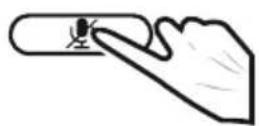
Auna Intelligence_XXXX amazon alexa Alexa is ready Here are some of the many things you can ask Alexa. Alexa, what's the weather? Alexa, play my Flash Briefing. Alexa, what are some top- rated Indian restaurants? Alexa, set a timer for 20 minis. Next- The following page will appear. Then you can mute the microphone function following the on screen instructions or tap the "Next" button to continue.
Auna Intelligence_XXXX

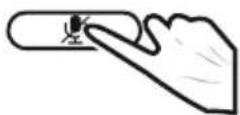
We value your privacy, so you can disable your microphone as shown in the image above.
To learn more and acess additional features, download the Alexa App.
Next
- Then the DEVICE LIST will appear.
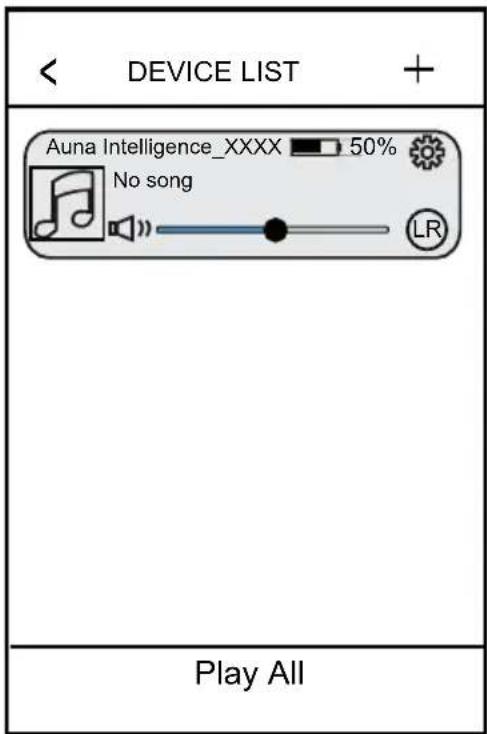
text_image
DEVICE LIST Auna Intelligence_XXXX 50% No song LR Play AllOn DEVICE LIST:
- Tap the "+" to add more units to the network, repeat the procedure above and make connection as the on screen instructions.
- Tap 📋 to rename the unit, check the speaker info or preset content and set or reset the Alexa settings.
- Tap ^® to change the audio mode to L (left channel), R (right channel) and LR (stereo).
-
Drag and slide down from the top screen to update the DEVICE LIST, if there is other speaker on the same network, they will be added into the list.
-
If more than one unit has been added into the DEVICE LIST, you can tap the "How to switch between solo and multi mode?" instruction to learn how to switch solo and multi mode as below: When finished, shut off the unit by pressing and holding the /MODE button on top of the unit.
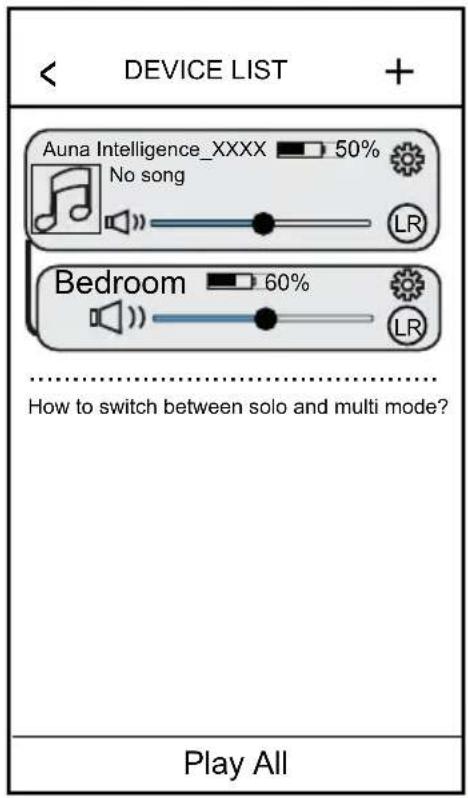
text_image
DEVICE LIST Auna Intelligence_XXXX 50% No song LR Bedroom 60% LR How to switch between solo and multi mode? Play All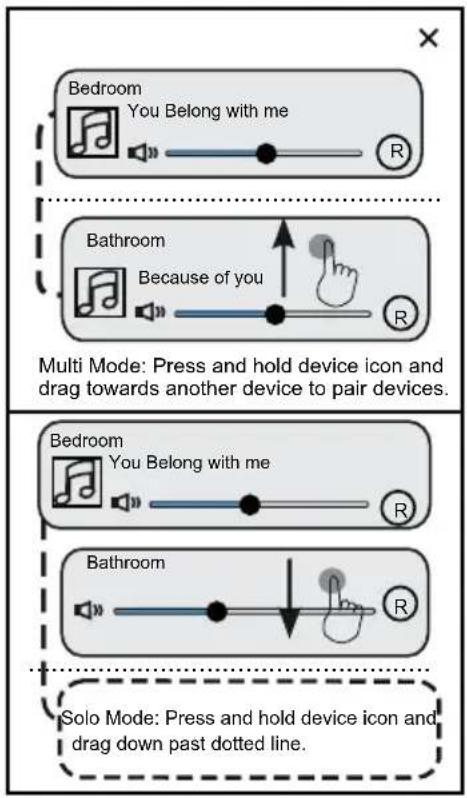
text_image
Bedroom You Belong with me Bathroom Because of you Multi Mode: Press and hold device icon and drag towards another device to pair devices. Bedroom You Belong with me Bathroom Solo Mode: Press and hold device icon and drag down past dotted line.- When finished, shut off the unit by pressing and holding the /MODE button on top of the unit.
APP MENU
Tap the mobile device's screen and slide to right repeatedly until the following screen appears. Tap the corresponding button to enter to the desired function.
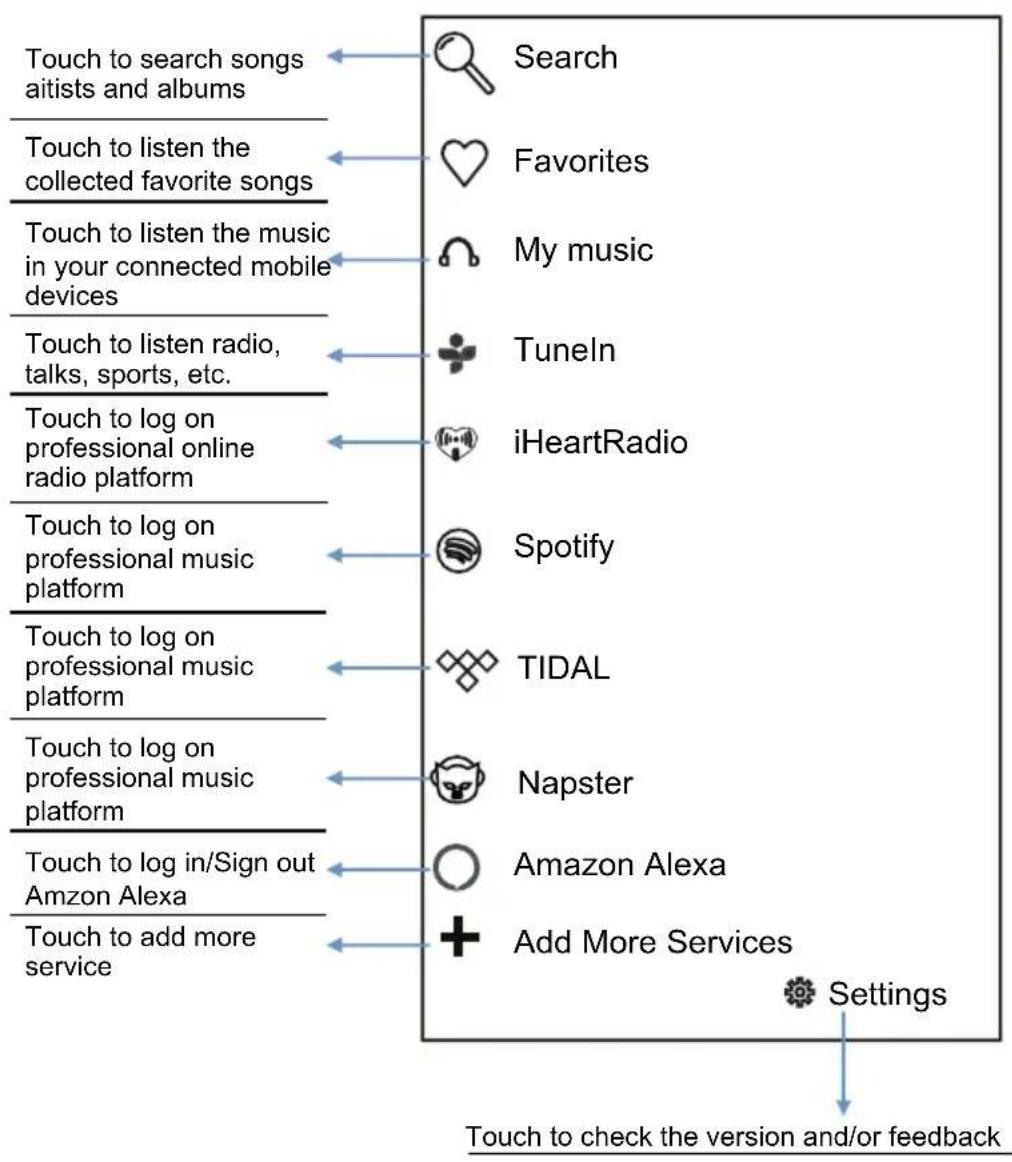
text_image
Touch to search songs aitists and albums Search Touch to listen the collected favorite songs Favorites Touch to listen the music in your connected mobile devices My music Touch to listen radio, talks, sports, etc. Tuneln iHeartRadio Touch to log on professional online radio platform Touch to log on professional music platform Spotify Touch to log on professional music platform TIDAL Touch to log on professional music platform Napster Touch to log in/Sign out Amazon Alexa Touch to add more service Add More Services Settings Touch to check the version and/or feedbackSpotify Operation
Before use, you have to create an spotify premium account for log in.
- Tap "Spotify" on the home screen.
- Input your account and password to log in.
- Open the Spotify on your phone, tablet or PC, and play any song.
- Tap the connect icon 📷.
- Pick your device from the list.
Licenses
The Spotify Software is subject to third party licenses found here: www.spotify.com/connect/third-party-licenses.
Iheartradio Operation
Before use, you have to create an iHeartradio account for log in.
- Tap "iHeartradio" on the home screen.
- Input your account and password to log in.
- Select the desired song and play.
Tidal Operation
Before use, you have to create a TIDAL account for log in.
- Tap "TIDAL" on the home screen.
- Input your account and password to log in.
- Select the desired song and play.
Napster Operation
Before use, you have to create a Napster account for log in.
- Tap "Napster" on the home screen.
- Input your account and password to log in.
- Select the desired song and play.
AMAZON ALEXA VOICE CONTROL
-
Speak "Alexa" to the built-in microphone. The colour of the Decorative Ring will turn to Blue. Then you can ask your question through the built-in microphone. The unit will answer you by audible reply.
-
Or, press the Button on the top of unit, the color of the Decorative Ring will turn to Blue. Then you can ask your question through the built-in microphone. The unit will answer you by audible reply.
The typical question and answer will be:
Q: Alexa --- what's the time now?
A: It's XX (XX=Current time) o'clock now.
Q: Alexa --- what's the weather like?
A: The weather is not so cold.
Q: Alexa --- what day is today?
A: Today is XXXXX (XXXXX=Current day)
Q: What's the news today?
A: Here is the flash briefing.
Q: Alexa --- who is the president in USA?
A: The USA president is XX (XX=Name of USA president).
Q: Alexa --- what's the capital in USA?
A: The United States' capital is Washington D.C.
- During Amazon Alexa operation, you can use the following voice command to control the unit:
Voice command: (Alexa)---play the song
Voice command: (Alexa) --- pause/stop the song!
Action: The song will be paused or stopped.
Voice command: (Alexa) --- continue to play!
Action: The song will continue to play.
Voice command: (Alexa) --- volume up!
Action: The volume will increase.
Voice command: (Alexa) --- volume down!
Action: The volume will decrease.
Voice command: (Alexa) --- fastforward!
Action: The track will be fastwarded.
Voice command: (Alexa) --- rewind!
Action: The track will rewind.
Voice command: (Alexa) --- previous!
Action: The track will skip to previous track.
Voice command: (Alexa) --- next!
Action: The track will skip to next track.
- To turn off the microphone. Press the 🎨 /WPS Button, the color of the Decorative Ring will turn to Red. To turn on again, press the button again. The color of the Decorative Ring will turn to White.
TROUBLESHOOTING
| Symptom Possible Cause | Possible Solution | |
| No sound or sound weak | Volume level in minimum position. | Rise the volume level by press the VOL + Button on the top of unit. |
| Volume level of paired/ connected device is in low level. | Rise the volume level of the paired/connected device. | |
| Sounddistortion | Volume level too high Reduce the volume level by press the VOL - Button on the top of unit | |
| Volume level of the connected/paired device too high | Reduce the volume level of the connected/paired device | |
| BT not functioning | The external BT device had NOT paired to the unit | Pair the external BT device to the unit |
| The external BT device too far from the unit. | Place the external BT device close to the unit. | |
| Wi-Fi not functioning | The unit had NOT add in the Wi-Fi .network. | Add the unit into the Wi-Fi network. |
| The unit not in Wi-Fi mode | Power on the unit and enter to the Wi-Fi mode. | |
| The unit and the mobile device is not in the same 2.4G Wi-Fi network | Set the unit and the mobile device in the same 2.4G Wi-Fi network. | |
| The router was in power off mode. | Power on your Wi-Fi router. | |
| Amazon Alexa not functioning | The unit is not in the Amazon Alexa operation mode | Power on the unit and enter to Amazon Alexa operate mode. |
DISPOSAL CONSIDERATIONS
natural_image
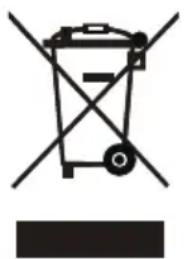
Symbol of a trash bin crossed with a diagonal line, no text or labels presentAccording to the European waste regulation 2012/19/EU this symbol on the product or on its packaging indicates that this product may not be treated as household waste. Instead it should be taken to the appropriate collection point for the recycling of electrical and electronic equipment. By ensuring this product is disposed of correctly, you will help prevent potential negative consequences for the environment and human health, which could otherwise be caused by inappropriate waste handling of this product. For more detailed information about recycling of this product, please contact your local council or your household waste disposal service..
Your product contains batteries covered by the European Directive. 2006/66/EC, which cannot be disposed of with normal household waste. Please check local rules on separate collection of batteries. The correct disposal of batteries helps prevent potentially negative consequences on the environment and human health.
Declaration of Conformity
Producer: Chal-Tec GmbH, Wallstraße 16, 10179 Berlin. Germany

This product is conform to the following European Directives:
2011/65/EU (RoHS)
2014/53/EU (RED)
Find the full declaration of conformity here under the following link.
text_image
QR code image containing encoded data, no visible human-readable textuse.berlin/10032299
Chère cliente, cher client,
text_image
QR code image containing encoded data, no visible human-readable textSOMMAIRE
Fiche technique 51
text_image
DC INNII CCDDtext_image
QR code image containing encoded data, no visible human-readable text
text_image
QR code image containing encoded data, no visible human-readable texttext_image
Searching for AUNA Wireless Hi-Fi System...... Please make sure your device is powered up. Your phone is connected to XXXX, please make sure your device is connected to the same network. Wi-Fi Setup Wizard Experiencing any problems? Give us your feedback>>text_image
Make sure your phone is connected to 2.4G Wi-Fi, not 5G. YOUR WIRELESS-2.4G ✓ YOUR WIRELESS-5G Not sure what you're currently using? Refer to your router's user guide for more info. Next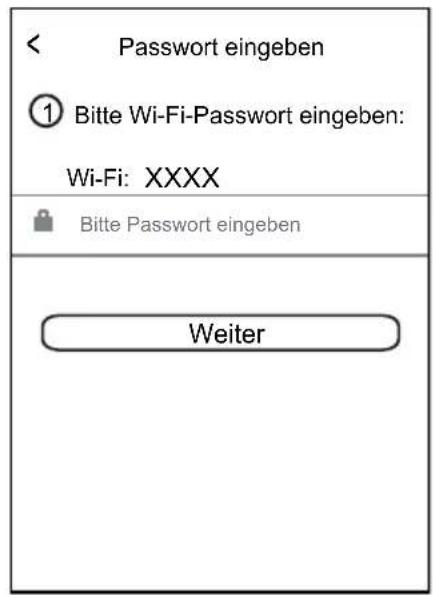
② Press and hold the WPS key on device to put the device into network setup mode. Then click the "Next" button to continue.
WPS
Next
③ Wait for device to be connected to Wi-Fi...
Do not operate the device during Wi-Fi setup. Please wait for completion of setup patiently. It's usually finished in 60 seconds.
Cancel
If you hear voice prompt for erro message, please go back and retry
Device is connected to XXXX successfully
Current Wi-Fi strength of device:100%
Next
WI-FI SETUP TIMEOUT

UH OH!
Try Next to try an alternate way of connecting.
Next
Cancel Setup
Alternate Way to Setup
■ Go to your iPhone's Wi-Fi settings and select the Wi-Fi starting with Auna Intelligence_XXXX to connect.
Auna Intelligence_XXXX
Auna Intelligence_XXXX ⓘ
Auna Intelligence_XXXX
■ Then, come back to this APP. Settings
Cancel Setup
< NAME DEVICE Next
Custom...
Auna Intelligence_XXXX
Bathroom
Bed Room
Den
Dining Room
Family Room
Foyer
Garage
Garden
Auna Intelligence_XXXX

amazon alexa
Your device includes access to Alexa. Connect your Amazon account to access personalized features.
Alexa allows you to use your voice to play music and get news, sports scores, weather and more-all hands-free. All you have to do is ask Alexa.
Sign in with Amazon
Cancel
< AMAZON LOGIN
Sign in to Auna Intelligence using your Amazon account
Sign in
Forgot password?
Email (phone for mobile accounts)
Amazon password
Show password
□ Keep me signed in. Details
Sign in
New to Amazon?
Create a new Amazon account
text_image
AMAZON LOGIN Create Account Name Your email address Create a password ✓ Show password Create your Amazon account By create an account, you agree to Amazon's Conditions of Use and Privacy Notice. Already have an account? Sign in now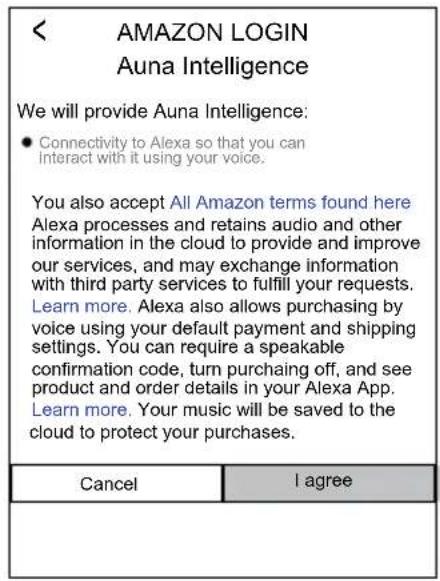
text_image
< AMAZON LOGIN Auna Intelligence We will provide Auna Intelligence: ● Connectivity to Alexa so that you can Interact with it using your voice. You also accept All Amazon terms found here Alexa processes and retains audio and other information in the cloud to provide and improve our services, and may exchange information with third party services to fulfill your requests. Learn more. Alexa also allows purchasing by voice using your default payment and shipping settings. You can require a speakable confirmation code, turn purchasing off, and see product and order details in your Alexa App. Learn more. Your music will be saved to the cloud to protect your purchases. Cancel I agreetext_image
Auna Intelligence_XXXX Please choose your preferred language for Alexa. English(United States) English(United Kingdom) Deutsch You can change the language later in "Alexa Settings".text_image
Auna Intelligence_XXXX amazon alexa Alexa is ready Here are some of the many things you can ask Alexa. Alexa, what's the weather? Alexa, play my Flash Briefing. Alexa, what are some top- rated Indian restaurants? Alexa, set a timer for 20 minis. NextAuna Intelligence_XXXX

We value your privacy, so you can disable your microphone as shown in the image above.
To learn more and acess additional features, download the Alexa App.
Next
text_image
DEVICE LIST Auna Intelligence_XXXX 50% No song LR Play Alltext_image
DEVICE LIST Auna Intelligence_XXXX 50% No song LR Bedroom 60% LR How to switch between solo and multi mode? Play All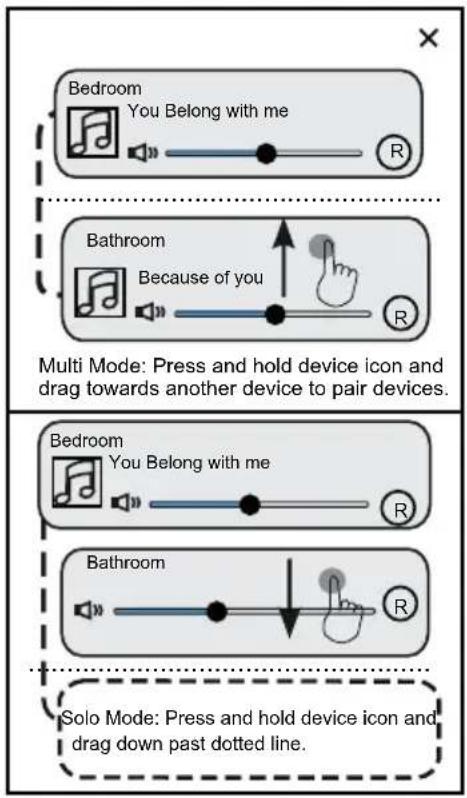
text_image
Bedroom You Belong with me Bathroom Because of you Multi Mode: Press and hold device icon and drag towards another device to pair devices. Bedroom You Belong with me Bathroom Solo Mode: Press and hold device icon and drag down past dotted line.natural_image
Symbol of a discarded trash bin with crossed lines indicating no waste or plastic (no text or labels)text_image
QR code image containing encoded data, no visible human-readable textuse.berlin/10032299
Estimado cliente:
text_image
QR code image containing encoded data, no visible human-readable textÍNDICE
Datos técnicos 75
text_image
DC INNII CCDDtext_image
QR code image containing encoded data, no visible human-readable text
text_image
QR code image containing encoded data, no visible human-readable texttext_image
Searching for AUNA Wireless Hi-Fi System.... Please make sure your device is powered up. Your phone is connected to XXXX, please make sure your device is connected to the same network. Wi-Fi Setup Wizard Experiencing any problems? Give us your feedback>>text_image
Make sure your phone is connected to 2.4G Wi-Fi, not 5G. YOUR WIRELESS-2.4G ✓ YOUR WIRELESS-5G Not sure what you're currently using? Refer to your router's user guide for more info. Next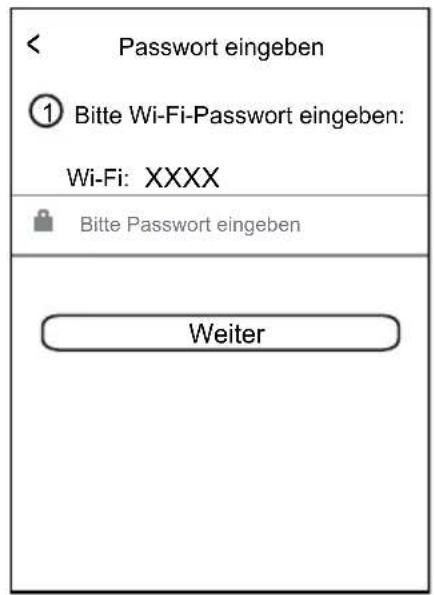
② Press and hold the WPS key on device to put the device into network setup mode. Then click the "Next" button to continue.
WPS
Next
③ Wait for device to be connected to Wi-Fi...
Do not operate the device during Wi-Fi setup. Please wait for completion of setup patiently. It's usually finished in 60 seconds.
Cancel
If you hear voice prompt for erro message, please go back and retry
Indicación 1:
Device is connected to XXXX successfully
Current Wi-Fi strength of device:100%
Next
WI-FI SETUP TIMEOUT

UH OH!
Try Next to try an alternate way of connecting.
Next
Cancel Setup
Indicación 2:
Alternate Way to Setup
■ Go to your iPhone's Wi-Fi settings and select the Wi-Fi starting with Auna Intelligence_XXXX to connect.
Auna Intelligence_XXXX
Auna Intelligence_XXXX ⓘ
Auna Intelligence_XXXX
■ Then, come back to this APP. Settings
Cancel Setup
< NAME DEVICE Next
Custom...
Auna Intelligence_XXXX
Bathroom
Bed Room
Den
Dining Room
Family Room
Foyer
Garage
Garden
Your device includes access to Alexa. Connect your Amazon account to access personalized features.
Alexa allows you to use your voice to play music and get news, sports scores, weather and more-all hands-free. All you have to do is ask Alexa.
Sign in with Amazon
Cancel
< AMAZON LOGIN
Sign in to Auna Intelligence using your Amazon account
Sign in
Forgot password?
Email (phone for mobile accounts)
Amazon password
Show password
□ Keep me signed in. Details
Sign in
New to Amazon?
Create a new Amazon account
text_image
AMAZON LOGIN Create Account Name Your email address Create a password ✓ Show password Create your Amazon account By create an account, you agree to Amazon's Conditions of Use and Privacy Notice. Already have an account? Sign in now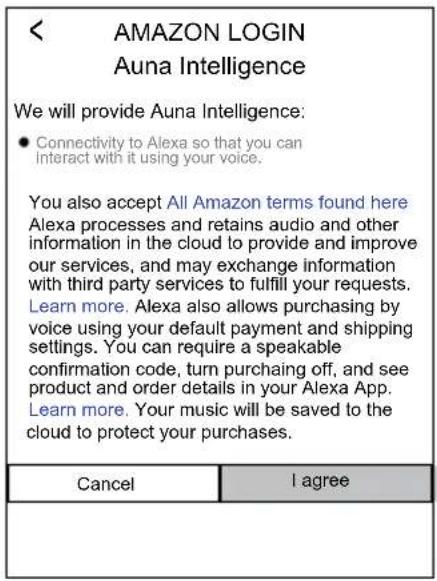
text_image
< AMAZON LOGIN Auna Intelligence We will provide Auna Intelligence: ● Connectivity to Alexa so that you can interact with it using your voice. You also accept All Amazon terms found here Alexa processes and retains audio and other information in the cloud to provide and improve our services, and may exchange information with third party services to fulfill your requests. Learn more. Alexa also allows purchasing by voice using your default payment and shipping settings. You can require a speakable confirmation code, turn purchasing off, and see product and order details in your Alexa App. Learn more. Your music will be saved to the cloud to protect your purchases. Cancel I agreetext_image
Auna Intelligence_XXXX Please choose your preferred language for Alexa. English(United States) English(United Kingdom) Deutsch You can change the language later in "Alexa Settings".text_image
Auna Intelligence_XXXX amazon alexa Alexa is ready Here are some of the many things you can ask Alexa. Alexa, what's the weather? Alexa, play my Flash Briefing. Alexa, what are some top- rated Indian restaurants? Alexa, set a timer for 20 minis. NextAuna Intelligence_XXXX

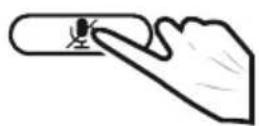
We value your privacy, so you can disable your microphone as shown in the image above.
To learn more and acess additional features, download the Alexa App.
Next
text_image
DEVICE LIST Auna Intelligence_XXXX 50% No song LR Play AllOn DEVICE LIST:
text_image
DEVICE LIST Auna Intelligence_XXXX 50% No song LR Bedroom 60% LR How to switch between solo and multi mode? Play All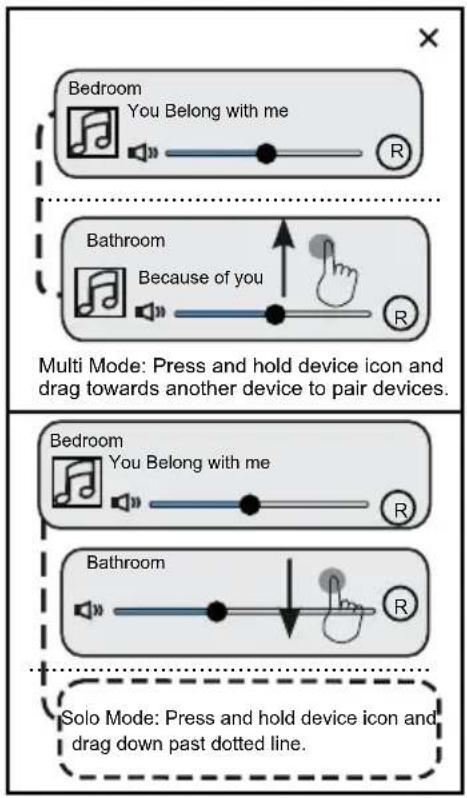
text_image
Bedroom You Belong with me Bathroom Because of you Multi Mode: Press and hold device icon and drag towards another device to pair devices. Bedroom You Belong with me Bathroom Solo Mode: Press and hold device icon and drag down past dotted line.natural_image
Symbol of a waste sorting machine with no text or labelstext_image
QR code image containing encoded data, no visible human-readable textuse.berlin/10032299
Gentile Cliente,
text_image
QR code image containing encoded data, no visible human-readable textINDICE
Dati tecnici 99
text_image
DC INNII CCDDtext_image
QR code image containing encoded data, no visible human-readable text
text_image
QR code image containing encoded data, no visible human-readable texttext_image
Searching for AUNA Wireless Hi-Fi System.... Please make sure your device is powered up. Your phone is connected to XXXX, please make sure your device is connected to the same network. Wi-Fi Setup Wizard Experiencing any problems? Give us your feedback>>text_image
Make sure your phone is connected to 2.4G Wi-Fi, not 5G. YOUR WIRELESS-2.4G ✓ YOUR WIRELESS-5G Not sure what you're currently using? Refer to your router's user guide for more info. Next
② Press and hold the WPS key on device to put the device into network setup mode. Then click the "Next" button to continue.
WPS
Next
③ Wait for device to be connected to Wi-Fi...
Do not operate the device during Wi-Fi setup. Please wait for completion of setup patiently. It's usually finished in 60 seconds.
Cancel
If you hear voice prompt for erro message, please go back and retry
Device is connected to XXXX successfully
Current Wi-Fi strength of device:100%
Next
WI-FI SETUP TIMEOUT

UH OH!
Try Next to try an alternate way of connecting.
Next
Cancel Setup
Alternate Way to Setup
■ Go to your iPhone's Wi-Fi settings and select the Wi-Fi starting with Auna Intelligence_XXXX to connect.
Auna Intelligence_XXXX
Auna Intelligence_XXXX ⓘ
Auna Intelligence_XXXX
■ Then, come back to this APP. Settings
Cancel Setup
< NAME DEVICE Next
Custom...
Auna Intelligence_XXXX
Bathroom
Bed Room
Den
Dining Room
Family Room
Foyer
Garage
Garden
Auna Intelligence_XXXX

amazon alexa
Your device includes access to Alexa. Connect your Amazon account to access personalized features.
Alexa allows you to use your voice to play music and get news, sports scores, weather and more-all hands-free. All you have to do is ask Alexa.
Sign in with Amazon
Cancel
< AMAZON LOGIN
Sign in to Auna Intelligence using your Amazon account
Sign in
Forgot password?
Email (phone for mobile accounts)
Amazon password
Show password
□ Keep me signed in. Details
Sign in
New to Amazon?
Create a new Amazon account
text_image
AMAZON LOGIN Create Account Name Your email address Create a password ✓ Show password Create your Amazon account By create an account, you agree to Amazon's Conditions of Use and Privacy Notice. Already have an account? Sign in now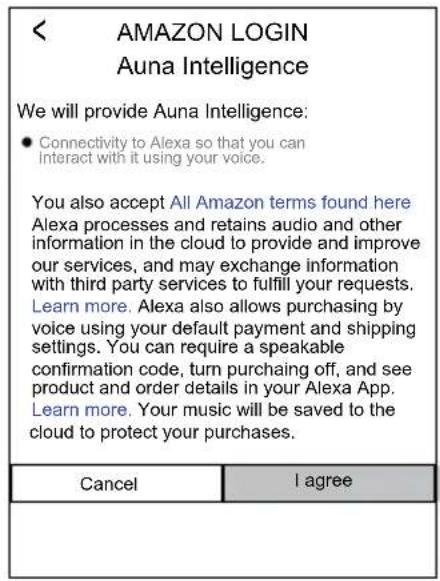
text_image
< AMAZON LOGIN Auna Intelligence We will provide Auna Intelligence: ● Connectivity to Alexa so that you can Interact with it using your voice. You also accept All Amazon terms found here Alexa processes and retains audio and other information in the cloud to provide and improve our services, and may exchange information with third party services to fulfill your requests. Learn more. Alexa also allows purchasing by voice using your default payment and shipping settings. You can require a speakable confirmation code, turn purchasing off, and see product and order details in your Alexa App. Learn more. Your music will be saved to the cloud to protect your purchases. Cancel I agreetext_image
Auna Intelligence_XXXX Please choose your preferred language for Alexa. English(United States) English(United Kingdom) Deutsch You can change the language later in "Alexa Settings".text_image
Auna Intelligence_XXXX amazon alexa Alexa is ready Here are some of the many things you can ask Alexa. Alexa, what's the weather? Alexa, play my Flash Briefing. Alexa, what are some top- rated Indian restaurants? Alexa, set a timer for 20 minis. NextAuna Intelligence_XXXX


We value your privacy, so you can disable your microphone as shown in the image above.
To learn more and acess additional features, download the Alexa App.
Next
text_image
DEVICE LIST Auna Intelligence_XXXX 50% No song LR Play Alltext_image
DEVICE LIST Auna Intelligence_XXXX 50% No song LR Bedroom 60% LR How to switch between solo and multi mode? Play All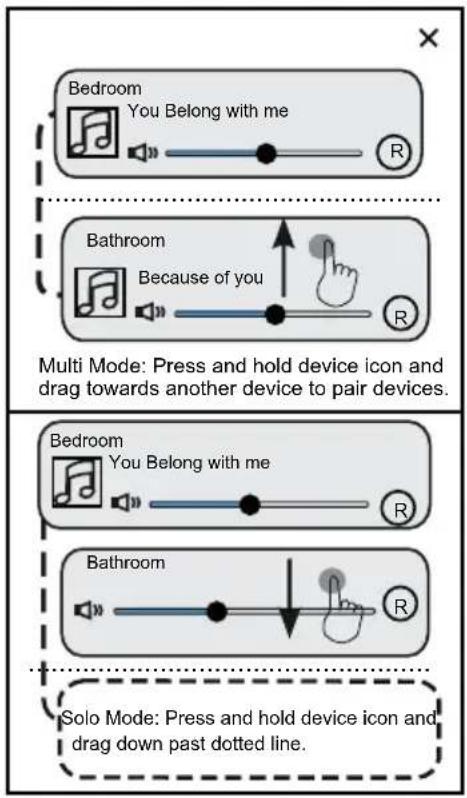
text_image
Bedroom You Belong with me Bathroom Because of you Multi Mode: Press and hold device icon and drag towards another device to pair devices. Bedroom You Belong with me Bathroom Solo Mode: Press and hold device icon and drag down past dotted line.natural_image
Symbol of a trash bin with crossed lines indicating no waste or discharge, and a solid rectangle below (no text or labels)text_image
QR code image containing encoded data, no visible human-readable textuse.berlin/10032299

bar
| Category | Value | |---|---| | Category 1 | 100 | | Category 2 | 100 | | Category 3 | 100 | | Category 4 | 100 | | Category 5 | 100 | | Category 6 | 100 | | Category 7 | 100 | | Category 8 | 100 | | Category 9 | 100 | | Category 10 | 100 | | Category 11 | 100 | | Category 12 | 100 | | Category 13 | 100 | | Category 14 | 100 | | Category 15 | 100 | | Category 16 | 100 | | Category 17 | 100 | | Category 18 | 100 | | Category 19 | 100 | | Category 20 | 100 | | Category 21 | 100 | | Category 22 | 100 | | Category 23 | 100 | | Category 24 | 100 | | Category 25 | 100 | | Category 26 | 100 | | Category 27 | 100 | | Category 28 | 100 | | Category 29 | 100 | | Category 30 | 100 | | Category 31 | 100 | | Category 32 | 100 | | Category 33 | 100 | | Category 34 | 100 | | Category 35 | 100 | | Category 36 | 100 | | Category 37 | 100 | | Category 38 | 100 | | Category 39 | 100 | | Category 40 | 100 | | Category 41 | 100 | | Category 42 | 100 | | Category 43 | 100 | | Category 44 | 100 | | Category 45 | 100 | | Category 46 | 100 | | Category 47 | 100 | | Category 48 | 100 | | Category 49 | 100 | | Category 50 | 100 | | Category 51 | 100 | | Category 52 | 100 | | Category 53 | 100 | | Category 54 | 100 | | Category 55 | 100 | | Category 56 | 100 | | Category 57 | 100 | | Category 58 | 100 | | Category 59 | 100 | | Category 60 | 100 | | Category 61 | 100 | | Category 62 | 100 | | Category 63 | 100 | | Category 64 | 100 | | Category 65 | 100 | | Category 66 | 100 | | Category 67 | 100 | | Category 68 | 100 | | Category 69 | 100 | | Category 70 | 100 | | Category 71 | 100 | | Category 72 | 100 | | Category 73 | 100 | | Category 74 | 100 | | Category 75 | 100 | | Category 76 | 100 | | Category 77 | 100 | | Category 78 | 100 | | Category 79 | 100 | | Category 80 | 100 | | Category 81 | 100 | | Category 82 | 100 | | Category 83 | 100 | | Category 84 | 100 | | Category 85 | 100 | | Category 86 | 100 | | Category 87 | 100 | | Category 88 | 100 | | Category 89 | 100 | | Category 90 | 100 | | Category 91 | 100 | | Category 92 | 100 | | Category 93 | 100 | | Category 94 | 100 | | Category 95 | 100 | | Category 96 | 100 | | Category 97 | 100 | | Category 98 | 100 | | Category 99 | 100 | | Total (Total) |