NDX400 - Mixer NUMARK - Free user manual and instructions
Find the device manual for free NDX400 NUMARK in PDF.


User questions about NDX400 NUMARK
0 question about this device. Answer the ones you know or ask your own.
Ask a new question about this device
Download the instructions for your Mixer in PDF format for free! Find your manual NDX400 - NUMARK and take your electronic device back in hand. On this page are published all the documents necessary for the use of your device. NDX400 by NUMARK.
USER MANUAL NDX400 NUMARK
- NDX400 CD player
Power cable - Stereo RCA cable
- Quickstart Guide
■ Safety & Warranty Information Booklet
REGISTRATION
Please go to http://www.numark.com to register your NDX400. Registering your product ensures that we can keep you up-to-date with any new product developments and provide you with world-class technical support, should you run into any problems.
GROUND RULES
- Make sure all items listed in the BOX CONTENTS section are included in the box.
- READ SAFETY & WARRANTY INFORMATION BOOKLET BEFORE USING THE PRODUCT.
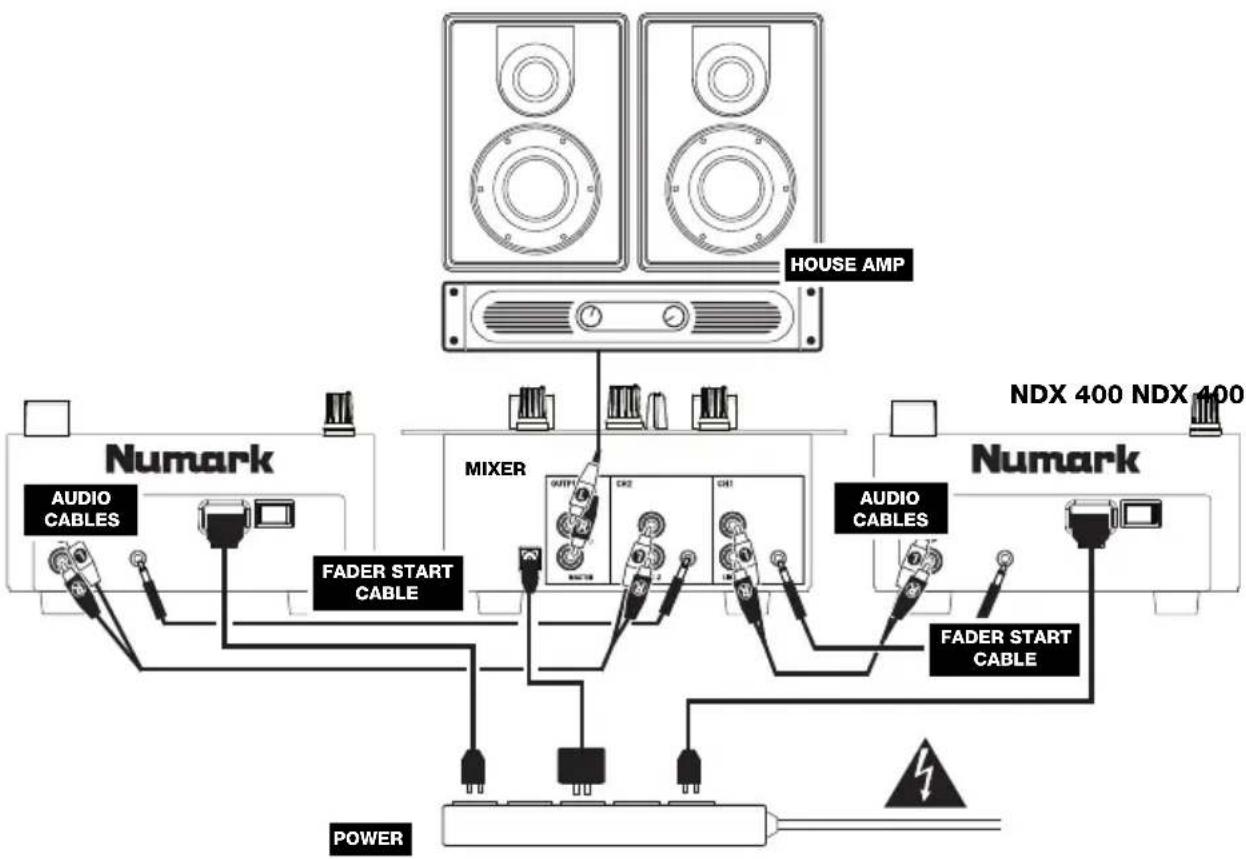
- Study the connection diagram in this guide.
- Place mixer in an appropriate position for operation.
- Make sure all devices are turned off and all faders and gain knobs are set to "zero."
- Connect all stereo input sources as indicated in the diagram.
- Connect the stereo outputs to power amplifier(s), tape decks, and/or other audio sources.
- Plug all devices into AC power.
- Switch everything on in the following order:
• Audio input sources (i.e. turntables, CD players, etc.) - Mixer
-
Last, any amplifiers or output devices
-
When turning off, always reverse this operation by turning off:
- Amplifiers
- Mixer
- Last, any input devices
CONNECTION DIAGRAM
flowchart
graph TD
    A["House AMP"] --> B["Numark"]
    A --> C["MIXER"]
    A --> D["Numark"]
    B --> E["AUDIO CABLES"]
    B --> F["FADER START CABLE"]
    C --> G["OUTPUT"]
    C --> H["CK2"]
    C --> I["CH1"]
    D --> J["AUDIO CABLES"]
    D --> K["FADER START CABLE"]
    L["POWER"] --> M["Ground"]
    N["NDX 400"] --> O["Power Supply"]
    P["NDX 400"] --> Q["Power Supply"]
TOP PANEL FEATURES
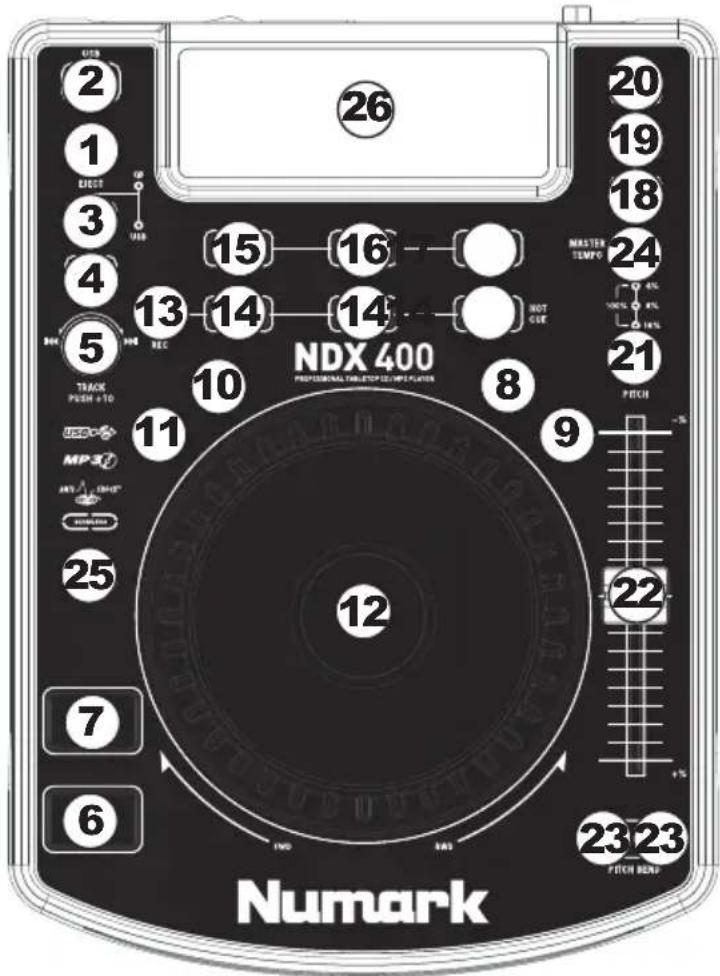
- EJECT – Press this button to eject the CD. If a CD is currently playing, this button will have no effect. This unit is designed to play commercially available CDs, properly burned and finalized CD-Rs, and MP3 CDs. Due to variances on the specification of certain CD burners and CDs, some homemade CDs may not play properly. We recommend burning CDs at the minimum speed possible for the best performance.
- USB - Connect a USB thumb drive (with a FAT16 or FAT32 file system) with MP3s here. To view the contents of the device, press the SOURCE button so "USB" is selected.
- CD / USB - Press this button to select whether the NDX400 will view and play tracks from an inserted CD or a connected USB device. An LED will indicate the currently selected source.
- FOLDER - Press this button to toggle between Folder View and File View. In Folder View, you can use the TRACK KNOB to scroll through all the available folders. When you have selected a folder, press the FOLDER button to enter File View - the first file shown will be the first MP3 available in that folder. To
return to Folder View, press the FOLDER button again.
text_image
26 20 19 18 3 15 16 MASTER TEMP 24 4% 10% 8% 13 14 14 NOT OUT 21 NDX 400 PROFESSIONAL TELESTOP 22 MPX FLOWER TRACK PUSH + 10 11 8 9 -5 MP 3 INT 1/2 25 12 7 6 1NO RAS 23 23 STICK BAND NumarkNote: In both views, you are not restricted to viewing only folders or files on a single "directory level." Each view is simply a list of all available folder or files. This function provides a faster way of navigating your files, allowing you to jump to different groups of files within a folder but without requiring you to enter/exit multiple directory levels.
- TRACK KNOB – Turn this knob to select a track to play. Press and turn this knob to skip through your track listing 10 tracks at a time.
- PLAY / PAUSE – Plays or pauses the track. Pausing the track will create a cue point at that location (which can be adjusted with the JOG WHEEL in Search Mode).
- CUE – During playback, pressing CUE will return to the most recent point where playback was started and will pause the track. Holding down CUE will start playback from this point, and releasing CUE will cause it to return to that point and will pause the track. Also, if the track is paused, you can use the JOG WHEEL to locate a new cue point.
- SCRATCH – Activates or deactivates Scratch Mode. While activated, rotating the JOG WHEEL creates a 'scratch' effect. The button will be red when Scratch Mode is active. (Note: This feature is not optimal for searching through long audio passages. For longer searches, activate the SEARCH function.)
- SEARCH – Pressing this button allows you to use the JOG WHEEL to rapidly scan through the music. The button will be red when Search Mode is active.
- REVERSE – Press this button to reverse playback of the track (the button will be lit). Press it again to return to normal playback.
-
BRAKE – Press this button to activate braking (the button will be lit). When braking is activated, pausing the track will cause playback to slow down before stopping, simulating the effect of stopping the motor of a turntable. Adjust the braking time by holding BRAKE and turning the JOG WHEEL.
-
JOG WHEEL – The jog wheel serves many functions depending on its current mode.
a) If a track is not playing, the JOG WHEEL will search slowly through a track's frames. To set a new cue point, rotate the JOG WHEEL then begin playback when you have determined the proper position. Press CUE to return to that cue point.
b) If a track is playing, the JOG WHEEL will temporarily bend the pitch of the track. Rotating the JOG WHEEL clockwise temporarily speeds it up while rotating it counterclockwise slows it down. This is a useful tool for beat-matching.
c) When the SEARCH button has been activated, rotating the JOG WHEEL will scan rapidly through the track.
d) When the SCRATCH button has been activated, rotating the JOG WHEEL will "scratch" over the audio of the track, like a needle on a record.
Note: When a track is paused, turn the JOG WHEEL clockwise while touching the sides of the JOG WHEEL to activate "stutter cue," allowing you to hear the current frame repeatedly. This is a good aid when trying to cue up a precise point in a track like a downbeat. To stop stutter cue, touch the top of the JOG WHEEL.
-
REC - Press this button then press one of the HOT CUE buttons to record a hot cue point at the current location in the track.
-
HOT CUE – Press REC then one of these button to record a hot cue point at the current location in the track. An LED above the button will light to indicate a hot cue point has been set. You can also overwrite these hot cue points in the same fashion. To return to a hot cue point and continue playback, simply press the corresponding HOT CUE button. (Note: Hot cue points will not be deleted when you load a new track.)
-
LOOP IN – Sets a new cue point or the start point of a loop (a "Loop In" point) during playback.
-
LOOP OUT - Sets the end point of a loop (a "Loop Out" point) and starts playing the loop. While playing a loop, press LOOP OUT to release it from the loop and continue normal playback.
-
RELOOP – Plays the track immediately from the beginning of a loop (and reactivates the loop).
-
PROGRAM – This button helps you create a program – a sequence of tracks to play continuously:
-
To add a song to the program, turn the TRACK KNOB to select it, then press and hold PROG then press REC. A "P-##" will flash on the LCD ("##" indicates what number that track occupies in the program – "P-01," "P-02," etc.). Repeat this process to add more songs to the program. If a program is stored, "PROG" will be shown on the LCD.
- To view your program, press PROG once. The currently selected track in the program will be shown in the LCD, which you can adjust by turning the TRACK KNOB. The total number of tracks in the program will be displayed in the upper-left corner of the LCD (as "P##"). To play the program, turn the TRACK KNOB to select which track in the program you want to play. Press the TRACK KNOB to load the track then press PLAY.
- To exit the program, press and hold PROG then press FOLDER. (If a track is currently playing, it will continue playing.)
-
To delete the program, press and hold PROG then press EJECT. When asked if you want to delete the program, turn the TRACK KNOB to select "YES" or "NO" and press the TRACK KNOB to confirm your choice. (If a track is currently playing, it will continue playing.)
-
SINGLE - Press this button to toggle between Auto-Cue (playback will stop at the end of each track) or Continuous Play (tracks will be played one after another without interruption).
Hold down this button and turn the TRACK KNOB to adjust the remote start settings (as long as the NDX400's REMOTE START CONNECTOR is connected to the appropriate input of a remote start-compatible mixer):
- CUE/PLAY: When the mixer's crossfader is moved towards the player, the loaded track will play from the last cue point. When the mixer's crossfader is moved away from the player, the track will return to the cue point and remain paused.
- TACT: When you connect a momentary switch/pedal to the NDX400's REMOTE START CONNECTOR, you can start or pause playback by pressing it once.
-
LOCK: When you connect a momentary switch/pedal to the NDX400's REMOTE START CONNECTOR, you can pause playback by holding the switch down and resume playback by releasing it.
-
TIME – Switches the time display between elapsed playing time, remaining time on the track, and total remaining time on an entire CD. Hold down this button and turn the TRACK KNOB to scroll through the ID3 tags of a selected file with available ID3 information. You can choose to view the Title, Album, Artist, or no ID3 tags.
-
PITCH – Adjusts the range of the PITCH FADER (±4%, 8%, 16%, and 100%) or deactivates it. (When all three LEDs are lit, the PITCH FADER's range is ±100%.) The current range will be indicated by the LCD and LEDs.
-
PITCH FADER – Moving the PITCH FADER will adjust the overall pitch of the music when one or all of the PITCH LEDs are lit. The pitch will not be changed if the PITCH LEDs are off.
-
PITCH BEND -/+ - You can use these two pitch bend buttons to temporarily adjust the pitch and tempo of the music up to -/+ 4% from the current pitch setting.
-
MASTER TEMPO – Engages the Master Tempo feature, which locks the musical key of the track to the original key (as if it were playing with 0% pitch adjustment). You can then adjust the tempo of the track without affecting its key or pitch.
-
TAP – Tap this button to the beat of the music to enter a BPM manually. To prompt NDX 400 to detect a BPM automatically, hold this button down for 2 seconds.
-
LCD - Indicates all the functions, as they are occurring.
REAR PANEL FEATURES
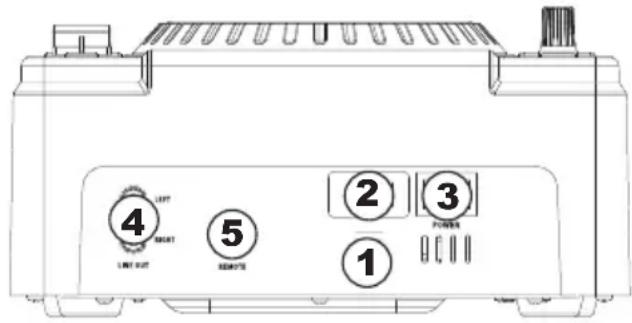
- VOLTAGE SELECTOR – Set this switch to the voltage for your location.
- POWER PLUG CONNECTOR – Plug your supplied power cord in here.
- POWER SWITCH - Turn the machine on and off with this button. The unit should always be shut down with this button first before any external power is removed. Typically it is recommended that the CD player is powered on before amplifiers and powered off after amplifiers.
- RCA AUDIO CONNECTORS – Connect your CD player to your mixer from this line level output.
- REMOTE START CONNECTOR – To use this connector for fader start, connect a fader start cable (not included) to a fader start-compatible mixer. Every time you move the crossfader on the mixer over to the side that the unit is on, it will automatically start playing. When you move the fader away from that side, the unit will stop. Moving the fader back to the unit side will start play again.
text_image
4 LEFT NEXT LINE OUT 5 REMOTE 2 3 POWER 1LCD FEATURES
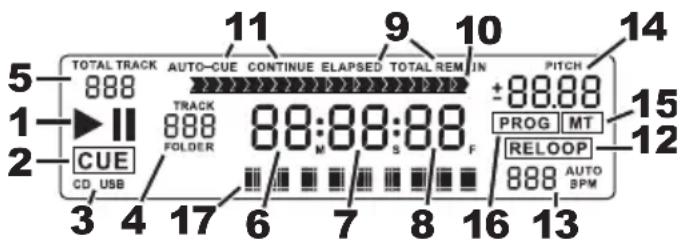
- PLAY / PAUSE – This shows when the unit is playing or paused.
- CUE - Lit continuously when the unit is paused at a cue point.
- CD / USB – Indicates whether you are playing tracks from a loaded CD or a connected USB device.
- TRACK / FOLDER NUMBER - Shows
text_image
5 1 2 CUE CD USB 3 4 17 6 7 8 16 13 11 AUTO-CUE CONTINUE ELAPSED TOTAL REM IN PITCH 888 TRACK 888 FOLDER 88:88:88 M S F +88.88 PROG MT RELOOP 888 AUTO BPMthe current track or folder number. When viewing or playing a program, the number will have a "P" in front of it ("P01," "P02," etc.), indicating the number of that track in the program.
- TOTAL TRACK – Displays the total number of tracks available on the CD or USB device. (When in Folder View, it will display the total number of folders available on the USB device.)
- MINUTES – Shows the minutes elapsed or remaining depending on mode setting.
- SECONDS – Shows the seconds elapsed or remaining depending on mode setting.
- FRAMES – The CD player breaks down a second into 75 frames for accurate cueing. This shows the frames elapsed or remaining depending on mode setting.
- TIME MODE – Indicates whether the time shown on the LCD is the elapsed time for the track, remaining time for the track, or total remaining time for the entire CD.
- TIME BAR – Shows either time remaining or elapsed depending on the setting of the TIME button.
- PLAY MODE – Shows when the unit is set to Auto-Cue Mode (the deck will stop at the end of each track) or Continuous Play Mode (the entire disc will be played without interruption). This function is controlled by the SINGLE button.
- RELOOP – Indicates when a loop is programmed.
- BPM – Displays the tempo in BPM (beats per minute) of the current track. When "AUTO BPM" is displayed, it is a tempo that has been automatically detected.
- PITCH – Shows the percentage change in pitch.
- MT (MASTER TEMPO) – Indicates that the MASTER TEMPO button is engaged.
- PROG – Indicates that a program is playing.
- TEXT DISPLAY – Displays the folder name or file name when navigating MP3s.
CONTENIDO DE LA CAJA
flowchart
graph TD
    A["AMPLIFICATORE SALA"] --> B["MIXER"]
    B --> C["Cavo DI FADER START"]
    B --> D["Cavo DI CONNECTION (RCA)"]
    B --> E["Cavo DI CONNECTION (RCA)"]
    B --> F["Cavo DI CONNECTION (RCA)"]
    B --> G["Cavo DI CONNECTION (RCA)"]
    B --> H["PRESA ELETTRICA"]
    I["Numark"] --> J["Amplification of SALA"]
    J --> B
    K["NDX 400 NDX 400"] --> L["Amplification of SALA"]
    L --> B
    M["Numark"] --> N["Amplification of SALA"]
    N --> B
    O["PRESA ELETTRICA"] --> P["Amplification of SALA"]
    P --> B
    Q["AMplification of SALA"] --> R["Amplification of SALA"]
    R --> B
    S["Numark"] --> T["Amplification of SALA"]
    T --> B
    U["Numark"] --> V["Amplification of SALA"]
    V --> B
    W["Numark"] --> X["Amplification of SALA"]
    X --> B
    Y["Numark"] --> Z["Amplification of SALA"]
    Z --> B
    AA["Numark"] --> AB["Amplification of SALA"]
    AB --> B
    AC["Numark"] --> AD["Amplification of SALA"]
    AD --> B
    AE["Numark"] --> AF["Amplification of SALA"]
    AF --> B
    AG["Numark"] --> AH["Amplification of SALA"]
    AH --> B
    AI["Numark"] --> AJ["Amplification of SALA"]
    AJ --> B
    AK["Numark"] --> AL["Amplification of SALA"]
    AL --> B
    AM["Numark"] --> AN["Amplification of SALA"]
    AN --> B
    AO["Numark"] --> AP["Amplification of SALA"]
    AP --> B
    AQ["Numark"] --> AR["Amplification of SALA"]
    AR --> B
    AS["Numark"] --> AT["Amplification of SALA"]
    AT --> B
    AU["Numark"] --> AV["Amplification of SALA"]
    AV --> B
    AW["Numark"] --> AX["Amplification of SALA"]
    AX --> B
    AY["Numark"] --> AZ["Amplification of SALA"]
    AZ --> B
    BA["Numark"] --> BB["Amplification of SALA"]
    BB --> B
    BC["Numark"] --> BD["Amplification of SALA"]
    BD --> B
    BE["Numark"] --> BF["Amplification of SALA"]
    BF --> B
    BG["Numark"] --> BH["Amplification of SALA"]
    BH --> B
    BI["Numark"] --> BJ["Amplification of SALA"]
    BJ --> B
    BK["Numark"] --> BL["Amplification of SALA"]
    BL --> B
    BM["Numark"] --> BN["Amplification of SALA"]
    BN --> B
    BO["Numark"] --> BP["Amplification of SALA"]
    BP --> B
    BPB["Numark"] --> BP2["Amplification of SALA"]
    BP2 --> B
    BP2B["Numark"] --> BP3["Amplification of SALA"]
    BP3 --> B
    BP3B["Numark"] --> BP4["Amplification of SALA"]
CARATTERISTICHE PANNELLO SUPERIORE
TIME DISPLAY: Track Elapsed, Track Remaining, Total Remaining
FREQ RESPONSE: ± 2 dB (20 Hz - 20 kHz)
THD: < 0.03%
SNR: 80 dB (A-weighted)
OUTPUT LEVEL: 1.9 V ( ± 0.2)
CHANNEL SEPARATION: > 80 dB
CHANNEL DIFFERENCE: < 1 dB
PITCH CONTROL RANGE: ± 4, 8, 16 or 100%
DIMENSIONS (W x D x H): 292 mm x 216 mm x 106 mm
WEIGHT: 3.2 kg
POWER SUPPLY: 115/230 V AC, 60/50 Hz
POWER CONSUMPTION: 20 W
* Specifications are subject to change
www.numark.com