iM1 - Mixer NUMARK - Free user manual and instructions
Find the device manual for free iM1 NUMARK in PDF.


User questions about iM1 NUMARK
0 question about this device. Answer the ones you know or ask your own.
Ask a new question about this device
Download the instructions for your Mixer in PDF format for free! Find your manual iM1 - NUMARK and take your electronic device back in hand. On this page are published all the documents necessary for the use of your device. iM1 by NUMARK.
USER MANUAL iM1 NUMARK
Please go to http://www.numark.com to register your iM1. Registering your product ensures that we can keep you up-to-date with any last-minute product developments and provide you with world-class technical support, should you run into any problems.
GROUND RULES
- Make sure all items listed in the BOX CONTENTS section are included in the box.
- READ SAFETY & WARRANTY INFORMATION BOOKLET BEFORE USING THE PRODUCT.
- Study the connection diagram in this guide.
- Place mixer in an appropriate position for operation.
- Make sure all devices are turned off and all faders and gain knobs are set to "zero."
- Connect all stereo input sources as indicated in the diagram.
- Connect the stereo outputs to power amplifier(s), tape decks, and/or other audio sources.
- Plug all devices into AC power.
- Switch everything on in the following order:
• Audio input sources (i.e. turntables, CD players, etc.)
- Mixer
• Last, any amplifiers or output devices
-
When turning off, always reverse this operation by:
-
Turning off amplifiers
- Mixer
- Last, any input devices
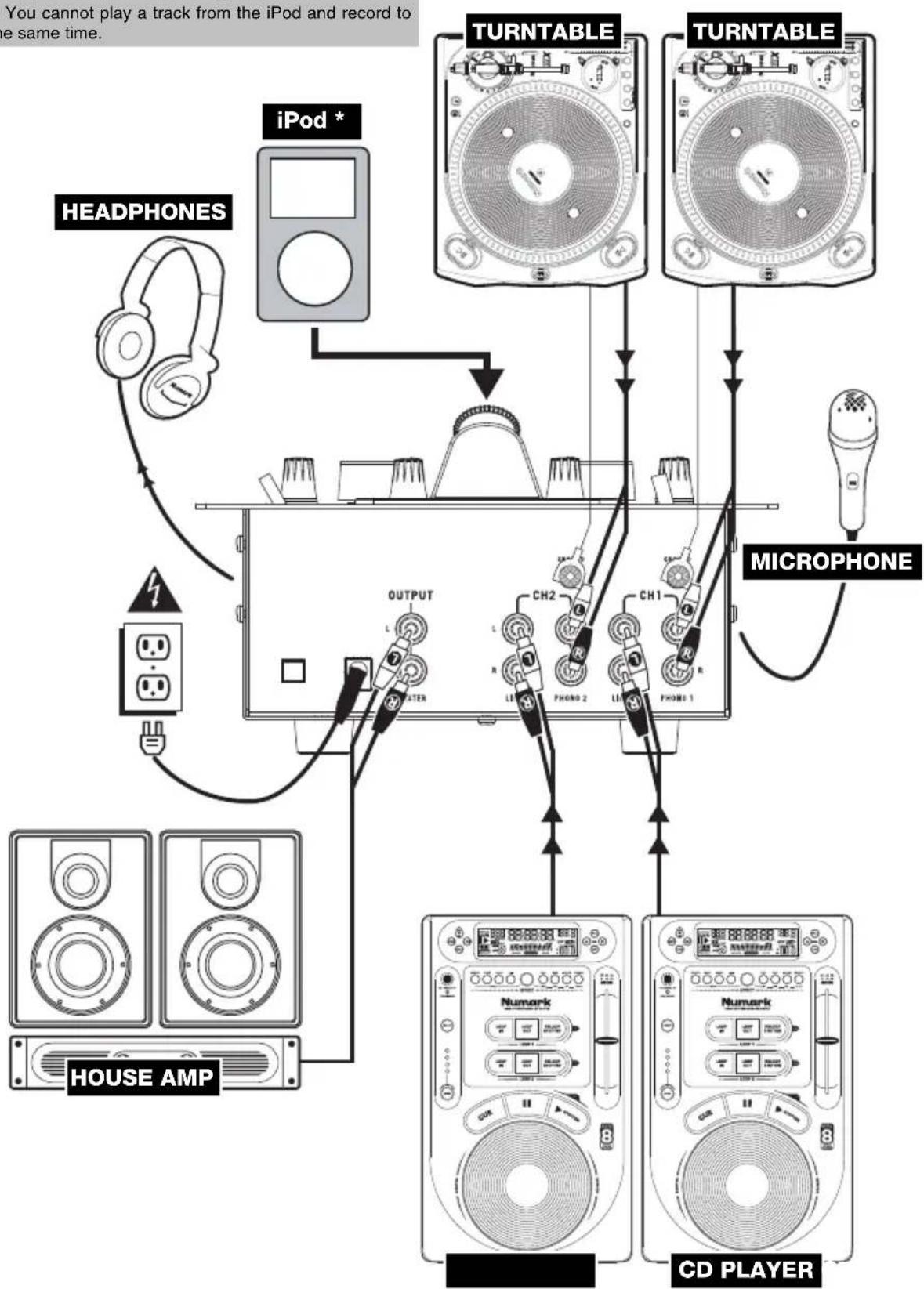
CONNECTION DIAGRAM
\* To record the Program mix to an iPod:
- Connect the iPod to the DOCK.
- In the iPod, go to Extras ▶ Voice Memos and select Record Now.
- When you are finished recording, stop and save it.
Note: You cannot play a track from the iPod and record to it at the same time.
flowchart
graph TD
    A["iPod *"] --> B["Turntable"]
    B --> C["TURNTABLE"]
    C --> D["Microphone"]
    D --> E["CD PLAYER"]
    E --> F["HOUs"]
    A --> G["Headphones"]
    G --> H["House AMP"]
    H --> I["OUTPUT"]
    I --> J["L"]
    J --> K["Character"]
    K --> L["CH2"]
    L --> M["R"]
    M --> N["L"]
    N --> O["Phone 2"]
    O --> P["R"]
    P --> Q["L"]
    Q --> R["Phone 1"]
    R --> S["CH1"]
    S --> T["R"]
    T --> U["L"]
    U --> V["Phone 1"]
    V --> W["CH2"]
    W --> X["R"]
    X --> Y["L"]
    Y --> Z["Phone 2"]
    Z --> AA["R"]
    AA --> AB["L"]
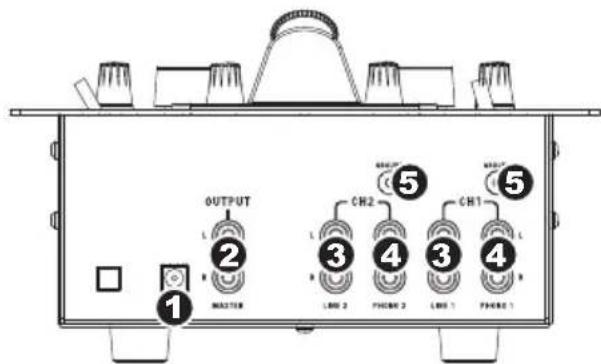
REAR PANEL FEATURES
- AC IN – Use the included power adapter to connect the mixer to a power outlet. While the power is switched off, plug the power supply into the mixer first, then plug the power supply into a power outlet.
Note: The mixer is designed to work with the included power supply only. Using an incompatible power supply could result in damage to the unit. - MASTER OUTPUT (RCA) – Use standard RCA cables to connect this output to a speaker or amplifier system. The level of this output is controlled by the MASTER knob on the top panel.
- LINE INPUTS (RCA) – Connect line-level devices, such as CD players, samplers or audio interfaces, to these inputs.
- PHONO INPUTS (RCA) – Connect phono-level devices, such as turntables, to these inputs.
- GROUNDING TERMINAL – If you are using phono-level turntables with a grounding wire, connect the grounding wire to these terminals. If you experience a low "hum" or "buzz", this could mean that your turntables are not grounded.
Note: Some turntables have a grounding wire built into the RCA connection and, therefore, nothing needs to be connected to the grounding terminal.
text_image
OUTPUT MAXISTER L ② L ③ CH2 LNG 2 PHASE 3 LNG 1 PHASE 1 ⑤ ④ CH1 L ⑤TOP PANEL FEATURES
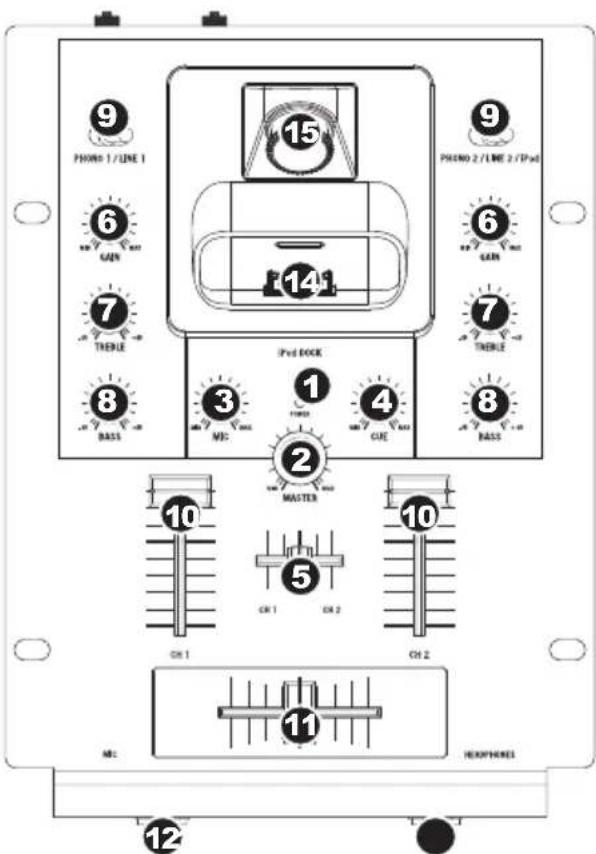
- POWER LED – Illuminates when the mixer is on.
- MASTER – This control adjusts the output volume of the Program mix.
- MIC GAIN – Adjusts the audio level of the microphone signal.
- CUE GAIN – Adjusts the level of the headphone audio.
- CUE SLIDER - Slide this to mix between Channels 1 and 2 in the headphones. When all the way to the left, only Channel 1 will be heard. When all the way right, only Channel 2 will be heard.
- CHANNEL GAIN – Adjusts the corresponding channel's pre-fader and pre-EQ gain level.
- CHANNEL TREBLE - Adjusts the high (treble) frequencies of the audio on the corresponding channel.
- CHANNEL BASS – Adjusts the low (bass) frequencies of the audio on the corresponding channel.
- INPUT SELECTOR - Selects the input source to be routed to the corresponding channel. Input jacks are located on the rear panel.
- CHANNEL FADER – Adjusts the audio level on the corresponding channel.
- CROSSFADER - Blends audio playing between Channels 1 and 2. Sliding this to the left plays channel 1 and sliding to the right plays Channel 2.
Note: The crossfader is user-replaceable if it should ever wear out. Simply remove the facepanel, then remove the screws holding it in position. Replace the fader with a quality authorized replacement from your local Numark retailer only.
- MIC INPUT - Connect 14 " microphones to this input. The microphone controls are located on the top panel.
- HEADPHONES – Connect your 14 " headphones to this output for cueing and mix monitoring.
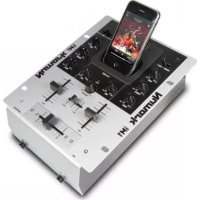
- DOCK * - Connect your iPod here. Gently rock the iPod back and forth over the connector when attaching or removing it.
- DOCK ADJUSTER - Turn this knob accordingly so your docked iPod rests against the support.
text_image
9 PHONE 1/LINE 1 6 CAN 7 THERLE 8 BASS 15 14 PHENO 2/LINE 2/TPaE 6 CAN 7 THERLE 9 Pred DOCK 3 ME: 1 MEO 4 GUE 8 BASS 2 MASTER 10 5 CH 1 CH 2 CH 2 11 ME: HEXPHONES 12\* To record the Program mix to an iPod:
- Connect the iPod to the DOCK.
- In the iPod, go to Extras ▶ Voice Memos and select Record Now.
- When you are finished recording, stop and save it.
Note: You cannot play a track from the iPod and record to it at the same time.