 ManualGo.com
 THINKTPMS T90 - Diagnostic tool Thinkcar - Free user manual and instructions
Find the device manual for free THINKTPMS T90 Thinkcar in PDF.



Download the instructions for your Diagnostic tool in PDF format for free! Find your manual THINKTPMS T90 - Thinkcar and take your electronic device back in hand. On this page are published all the documents necessary for the use of your device. THINKTPMS T90 by Thinkcar.
USER MANUAL THINKTPMS T90 Thinkcar
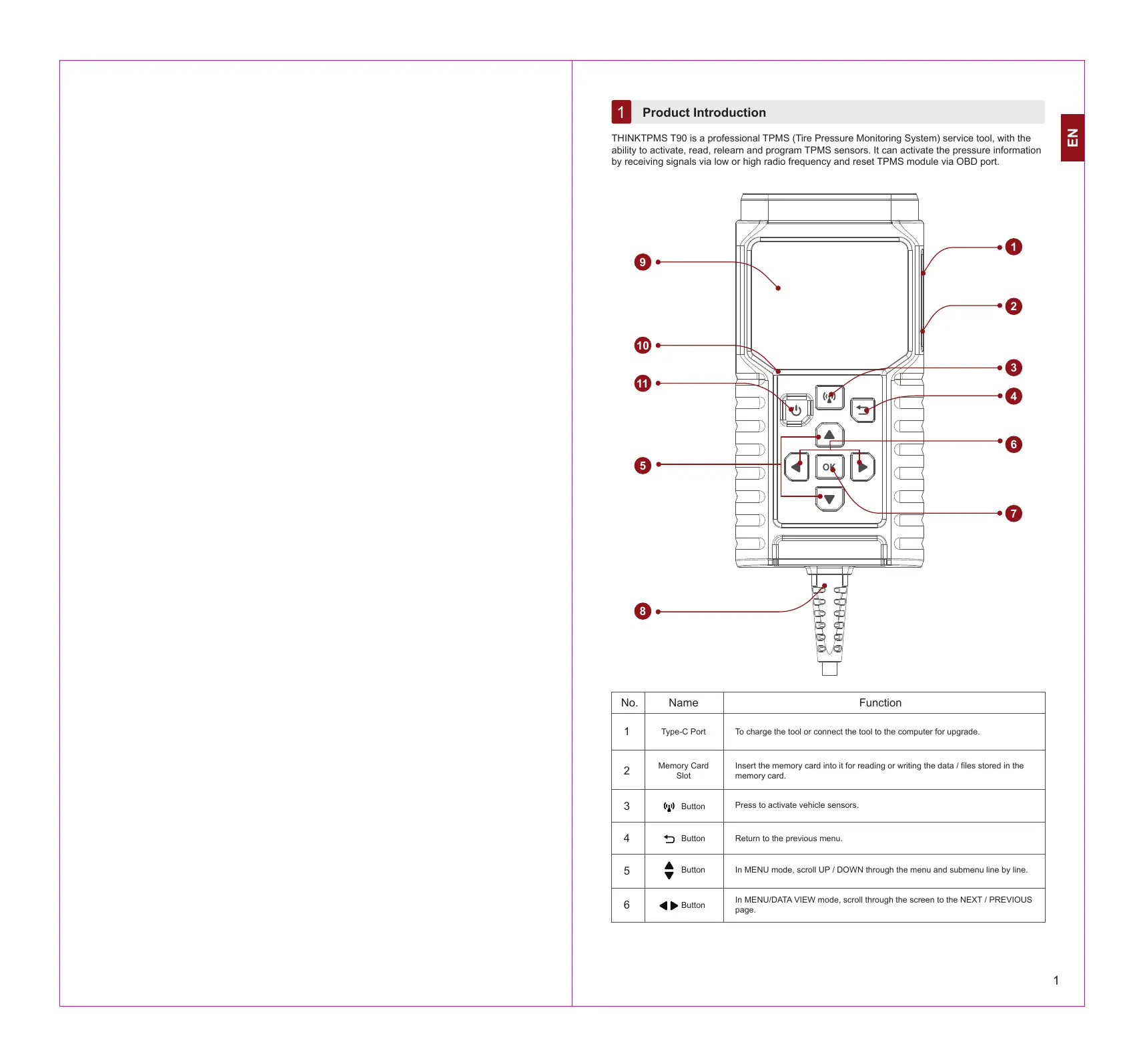
Product Introduction THINKTPMS T90 is a professional TPMS (Tire Pressure Monitoring System) service tool, with the ability to activate, read, relearn and program TPMS sensors. It can activate the pressure information by receiving signals via low or high radio frequency and reset TPMS module via OBD port.
No. Name Function 1 Type-C Port | To charge ihe tool or connect he tool to 1h computer for upgrade. 2 | Memory Gard | | Isertihe memory card int it for reading or wttng he data les storedin te Siot memory card 3 4 Buton | Press to activate vehicle sensors 4 + Button | Retum tothe previous menu: 5 & sun | {In MENU mot, scrol UP {DOWN trough the menu and submenu ne by ie. In MENUIDATA VIEW mode, scroll hrough he screen to 1ne NEXT / PREVIOUS 6 QD Buton page
7 ok Button Confirm a selection (or action) from a MENU list. OBDI (EOBD) 8 Diagnostic Connect the tool to he vehice's Data Link Connector (DLC) Cable 9 LCD Screen | Display testresuits. 10 | ChargingLED | Showthe charging status. Press it and last 3 seconds Lo turn it on. Screen On: Press it once lo enter hibernate mode. = IFthe tool has no power, or after the automatic shutdoun interval, the too! will à) Buton Shut down automatically. 11 Ô + Ifthe device is charging and does not operate within 5 minutes, it will automatcaly enter hibernate mode to conserve battery power. : Screen Off (hibemate): Press it once to wake i up. Press iL and last 3 seconds Lo turn it of. OBDIl (EOBD) Diagnostic Cable
1. Connect the vehicle's DLC port to do the OBD diagnosis function and TPMS learning function.
Note: is 10 connect DLC port when doing the activation or programming function. Attempring 10 charge the tool via OBD diagnostic por will consume vehicle battery power: Lis not recommended 10 charge the tool in this way except for OBD diagnosis operations.
2. Charging (Not recommended)
Ifthe tool is properly connected to the vehicle's DLC(Data Link Connector) port, it will be charged automatically. Check Sensor This function allows users to activate TPMS sensor to view sensor data such as sensor ID, tire pressure, tire frequency, lire temperature and battery condition.
1. For initial use, please follow the steps below to enter the TPMS function menu
[Enter TPMS — Select vehicle manufacturer —> Select vehicle model—»Select vehicle year. | Note: The indireet tire pressure monitoring system only supports the learning function.
2.1 For universal sensors, place the tool alongside the valve stem, point toward the sensor location,
and press the button. Notes. L. For early magner-activated sensors, place the magner over the stem and then place the 100! alongside the valve sten. 2 Ifthe TPMS sensor requires tire deflation (of the order of 10PS), then deflate the tire and place the tool alongside the stem while pressing the button.
2.2 After all sensors are successfully activated, the following interface will appear:
D REA *P: indicates the tre pressure. ue *T: indicates the tire temperature. [= Trigger Mol: indicats he batery power level. Notes. L. Once the sensor is suecessfully activated and decoded, the tool will sound a beep and the screen will display the sensor data with a tick.
2. the sensor fais 10 be triggered, the icon will appear next to the wheel position.
3. the sensor data is abnormal, it will be displayed in red.
Program Sensor This function allows users to program the sensor data to the THINKCAR sensor and replace faulty sensor with low battery life or one that is not functioning. The following options are available for programming THINKCAR sensor. CREATE SENSOR; MANUAL INPUT; COPY ID BY ACTIVATE; CREATE MULTI-SENSOR (1-8). Select PROGRAM SENSOR and press the OK button to enter the following interface. CREATE SENSOR MANUAL INPUT.
CREATE SENSOR: This function is designed to program the THINKCAR sensor by applying random IDs created according to the test vehicle when it is unable to obtain the original sensor ID. Select the wheel which needs Lo be programmed on the tool, place a THINKCAR sensor close lo the TPMS antenna of the tool, and select *CREATE SENSOR' to creale a new random sensor ID. Notes. LIf a random ID is emtered, please perform the TPMS Relearn function afier programming 5 finished. Ifthe original ID is entered, there is no need to perform Relearn function. MANUAL INPUT: This function allows users to manually enter sensor ID. Users can enter the random ID or the original sensor ID, if it is available. Notes. L Ifa random ID is entered, please perform the TPMS Relearn function afier programming is finished. Hfthe original 1D is entered, here is no need to perform Relearn function. 2. fa vehicle does not support relearn function, please select the Manual Input option te enter the original sensor ID manually or trigger the original sensor at the activation interface to get its information, before programming the THINKCAR sensor: COPY ID BY ACTIVATE: This function allows users to write in the retrieved original sensor data to ‘he THINKCAR sensor. Itis used after the original sensor is triggered.
CREATE MULTI-SENSOR (1-8): This function allows users to program multiple sensors simultane- ously. Up to 8 sensors can be programmed at the same time. Relearn Sensor This function allows you to check and view the detailed TPMS sensor relearn procedures. Relearn operation applies only when the newly programmed sensor IDs are different from the original sensor IDs stored in the vehicle's ECU. Relearn is used to write the newly programmed sensor IDs into the vehicle's ECU for sensor recognition. Study type: Automatic/OBD Learning steps: Learn the new sensor ID.
1. Inflate all tres to the nominal value according to the
tire label (the label is usually located on the door frame). [6 | Upgrade This function is for updating some firmware and new car models. You can also locate the guidance on the tool: HELP - Software update guide. Note: Google browser is recommended. Using other browsers may lead to unsuccessful download of the installation package. Step 1: Download the install file on the computer. www.thinkcar.com via Google(recommended) —» Downloads —+ THINKTPMS —> Download for Windows THINK Produet Cowrsge Dpom Dour Author Desier Download Center
SOFTWARE DOWNLOAD INSTRUCTIONS DOWNLOAD
THINKTPMS. THINKTPMS THINITPMS Upgrade File v10 inde 29 ar Lt required Step 2: Install TPMS.exe(The downloaded file). Step 3: Insert the SD CARD of the TPMS through CARD READER which you can find in the package into the computer. Step 4: Running the software, Selecting TF, Choosing he target language, and then click “OK”. Select Device(V1.07.013) x English v connection m Product QU UpdataTool TF
Stpe 5: Once the SD CARD connects to the computer, the software will detect the Serial Number automatically. Click “ Device Upgrade ”. AE) X Welcome Product Serial Number | 974990000040(F:) v Print Manger | Device Upgrade Following the instruction and click “download” at the end. sup san | ] Warranty Life-time technical support and 12 months warranty(including electronic products for damages caused by defects in materials or workmanship) are the most basic. Damages to the equipment or components caused by abusing, unauthorized modification, using for non-designed purposes, operation in a manner not specified in the instructions, etc.are not covered by this warranty, The compensation for dashboard damage caused by the defect of this equipment is limited to repair or replacement. THINKCAR does not bear any indirect and incidental losses. Please contact Online Customers Service via the order interface. Service Line: 1-909-757-1959 Customer Service Email: suppot@mythinkcar.com Products tutorial, videos, FAQ and coverage list are available on THINKCAR official website. Follow us on 6 @thinkcar.official Q @ObdThinkcar
Select Device(V1.07.013) X English v connection mode Product um UpdataTool
Select Device(V1.07.013) X English v connection mode Product um UpdataTool