 ManualGo.com
 EMU-200 - IoT Gateway ADLINK - Free user manual and instructions
Find the device manual for free EMU-200 ADLINK in PDF.


Download the instructions for your IoT Gateway in PDF format for free! Find your manual EMU-200 - ADLINK and take your electronic device back in hand. On this page are published all the documents necessary for the use of your device. EMU-200 by ADLINK.
USER MANUAL EMU-200 ADLINK
Arm-based loT Gateway / Arm XX LoT ATHZE User's Manual
Description of Change(s)
Copyright © 2023 ADLINK Technology Inc.
This document contains proprietary information protected by copy- right. All rights are reserved. No part of this manual may be repro- duced by any mechanical, electronic, or other means in any form without prior written permission of the manufacturer.
The information in this document is subject to change without prior notice in order to improve reliability, design, and function and does not represent a commitment on the part of the manufacturer.
In no event will the manufacturer be liable for direct, indirect, special, incidental, or consequential damages arising out of the use or inability to use the product or documentation, even if advised of the possibility of such damages.
ADLINK is committed to fultill its social responsi-
bility to global environmental preservation
through compliance with the European Union's
Restriction of Hazardous Substances (RoHS)
directive and Waste Electrical and Electronic
Equipment (WEÉEE) directive. Environmental
protection is a top priority for ADLINK. We have
enforced measures to ensure that our products,
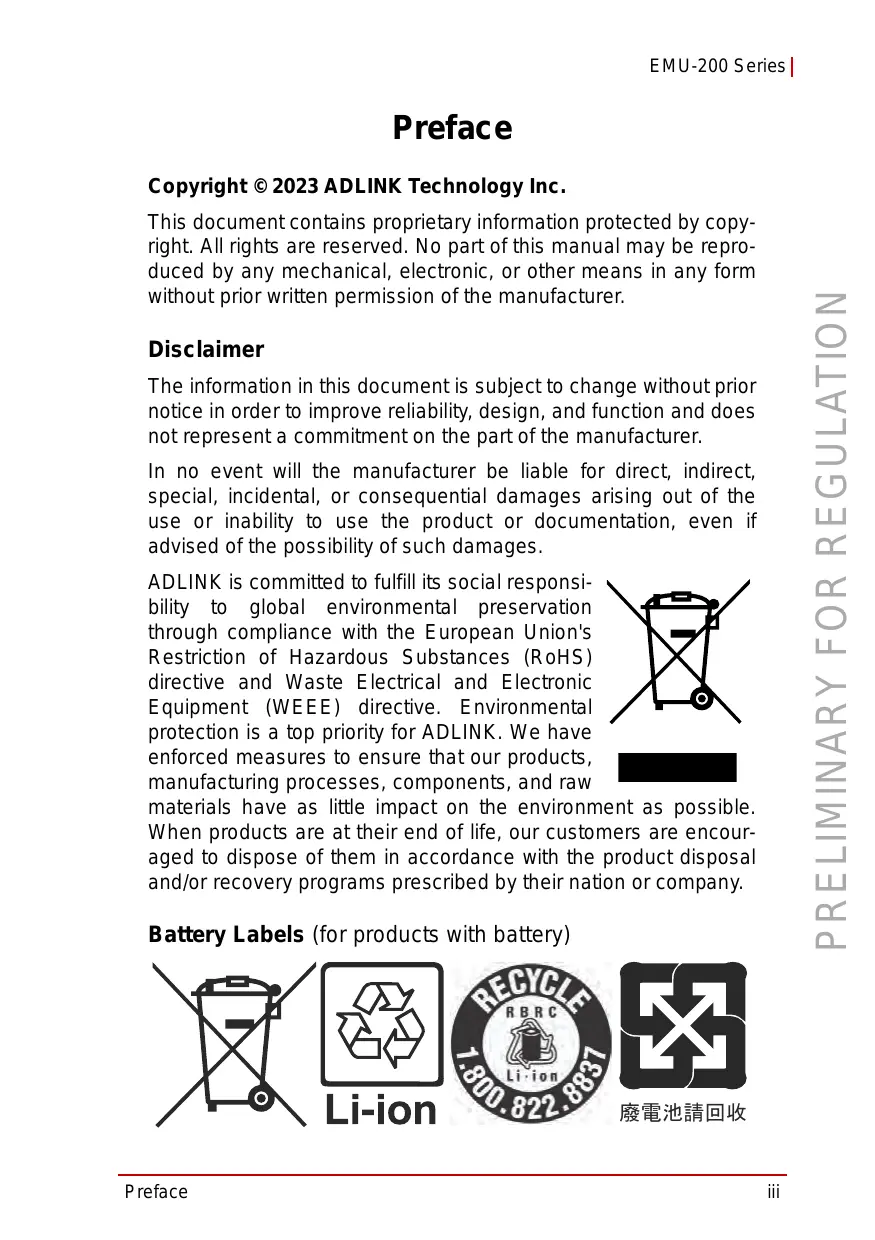
manufacturing processes, components, and raw un materials have as little impact on the environment as possible. When products are at their end of life, our customers are encour- aged to dispose of them in accordance with the product disposal and/or recovery programs prescribed by their nation or company.
Battery Labels (for products with battery)
ADLINIK LEADING EDGE COMPUTING California Proposition 65 Warning
WARNING: This product can expose you to chemicals À including acrylamide, arsenic, benzene, cadmium,
Tris(1,3-dichloro-2-propyl)phosphate (TDCPP), 1,4-Diox- ane, formaldehyde, lead, DEHP, styrene, DINP, BBP, PVC, and vinyl materials, which are known to the State of California to cause cancer, and acrylamide, benzene, cadmium, lead, mercury, phthalates, toluene, DEHP, DIDP, DnHP, DBP, BBP, PVC, and vinyl materials, which are known to the State of California to cause birth defects or other reproductive harm. For more information go to www.P65Warnings.ca.gov.
Product names mentioned herein are used for identification pur- poses only and may be trademarks and/or registered trademarks of their respective companies.
Take note of the following conventions used throughout this manual to make sure that users perform certain tasks and instructions properly.
Additional information, aids, and tips that help users perform tasks.
Information to prevent minor physical injury, component dam- age, data loss, and/or program corruption when trying to com-
CAUTION Information to prevent serious physical injury, component damage, data loss, and/or program corruption when trying to complete a specific task.
Any changes or modifications not expressly approved by the party responsible for compliance could void your authority to operate the equipment.
Note: This equipment has been tested and found to comply with the limits for a Class A digital device, pursuant to part 15 of the FCC Rules. These limits are designed to provide reasonable protection against harmful interference when the equipment is operated in a commercial environment. This equipment generates, uses, and can radiate radio frequency energy and, if not installed and used in accordance with the instruction manual, may cause harmful interference to radio communications. Operation of this equipment in a residential area is likely to cause harmiul interference in which case the user will be required to correct the interference at his own expense.
This device complies with part 15 of the FCC Rules. Operation is subject to the following two conditions: (1) This device may not cause harmiul interference, and (2) this device must accept any
ADLINIK LEADING EDGE COMPUTING
interference received, including interference that may cause undesired operation.
RF exposure statements
1. This Transmitter must not be co-located or operating in conjunction with any other antenna or transmitter.
2. This equipment complies with FCC RF radiation exposure limits set forth for an uncontrolled environment. This equipment should be installed and operated with a minimum distance of 20 centimeters between the radiator and your body or nearby persons.
IC Warning RSS-GEN 8.4 Canadian Compliance Statement
This device complies with Industry Canada license-exempt RSSs. Operation is subject to the following two conditions:
1) This device may not cause interference, and
2) This device must accept any interference, including interference that may cause undesired operation of the device.
Le présent appareil est conforme aux CNR d'Industrie Canada applicables aux appareils radio exempts de licence. L'exploitation est autorisée aux deux conditions suivantes :
1) The device for operation in the band 5150-5250 MHz is only for indoor use to reduce the potential for harmiul interference to co- channel mobile satellite systems;
2) For devices with detachable antenna(s), the maximum antenna gain permitted for devices in the band 5725-5850 MHz shall be such that the equipment still complies with the e.ir.p. limits
specified for point-to-point and non-point-to-point operation as appropriate; and
The high-power radars are allocated as primary users (i.e. priority users) of the bands 5650-5850 MHz and that these radars could cause interference and/or damage to LE-LAN devices.
En outre, les utilisateurs devraient aussi être avisés que les utilisateurs de radars de haute puissance sont désignés utilisateurs principaux (c.-à-d., qu'ils ont la priorité) pour les bandes 5650-5850 MHz et que ces radars pourraient causer du brouillage et/ou des dommages aux dispositifs LAN-EL.
Radiation Exposure Statement:
This equipment complies with IC radiation exposure limits set forth for an uncontrolled environment. This equipment should be installed and operated with minimum distance 20cm between the radiator & your body.
Déclaration d'exposition aux radiations:
Cet équipement est conforme aux limites d'exposition aux rayonnements IC établies pour un environnement non contrôlé. Cet équipement doit être installé et utilisé avec un minimum de 20 cm de distance entre la source de rayonnement et votre corps.
This radio transmitter (identify the device by certification number) has been approved by Industry Canada to operate with the antenna types listed below with the maximum permissible gain indicated. Antenna types not included in this list, having a gain greater than the maximum gain indicated for that type, are strictly prohibited for use with this device.
Taiwan RoHS Declaration
HE RoHS (CNS 15663) Taiwan ROHS (CNS 15663) PRAIRIE Restricted substances and its chemical symbols ETF |" ARE ETS SAN
BtiE23# Other Components CR «EM AU)
sai Components, Rubber Packaging Materials
Label Connector, ire Cord Cable)
(REL HEIN À ECO RON ESNRENERRRE Note 1: “Exceeding0.1wt % and “excecding 001 wt%". indicate that the percentage content ofthe restricted substance
exceeds the reference percent 282. “O7 AIRE MANU ETAT Note 2: “O* indiats that the percentage CPP TEE TT EE ETES TE
ge value of presence condition. CI CCCICC CITE content of the resited substance does ot exceed the percentage of reference value of presence.
Note 3: The “= indicates that the restricted substance correspond to the exemption.
BE RARTÉ EN RONSSE ER Revision: B0 P/N: 50-40376-9000
2 Getting Started …. 2.1 Unpacking the EMU-200 Series 2.2 Connecting to l/O . 2.3 Connecting/Disconnecting P Power... 2.4 Checking Device Status and Connection . 2.5 Usage Scenarios
3 EGiFlow….. 3.1 EGiFlow Login 3.2 EGiFlow Menu
A Appendix: Debian Linux OS... A.1 Connecting and Logging in via SSH A2 User LED Control A3 Serial Port Configuration. A4 Changing the Static IP A.5 : A6 4G LTE Module Configuration ar and Connection (optional). 66 A7 WiFi Configuration and Connection
Figure 1-1: Figure 1-2: Figure 1-3: Figure 1-4: Figure 1-5: Figure 1-6: Figure 1-7: Figure 1-8: Figure 1-9: Figure 3-1: Figure 3-2: Figure 3-3: Figure 3-4: Figure 3-5: Figure 3-6: Figure 3-7: Figure 3-8: Figure 3-9: Figure 3-10: Figure 3-1 Figure 3-12: Figure 3-13: Figure 3-1 Figure 3-15: Figure 3-16: Figure 3-17: Figure 3-18: Figure 3-19: Figure 3-20: Figure 3-21: Figure 3-2: Figure 3-23: Figure 3-24: Figure 3-25: Figure 3-26: Figure 3-27: Figure 3-28: Figure 3-29:
The EMU-200 Series loT Energy Gateway provides communica- tion conversion between different Ethernet or serial-based proto- cols allowing for wider integration of devices into a network with the ability to send data to the cloud. The EMU-200 Series is designed to work under a large variety of applications such as monitoring energy consumption, solar power monitoring, and smart manufacturing.
»> _ Python-enabled programmable open platform for customized applications at the edge
> Supported communication protocols for powered devices including Modus TCP/RTU, MQTT, OPCUA and Restful
»> Supports Azure, AWS cloud connection »> Flexible configuration for different user scenarios with EGiFlow
»> 2x RS-232/422/485 ports for serial communication with Modbus RTU protocol
»> Two 1 Gb Ethernet ports for cascading » WiFi and cellular communication (optional) »> SD card for external storage
Asset energy management
Power consumption monitoring
Solar and wind power generation monitoring ESG Policy for Energy Management System loT for Smart Factory
Mounting DIN rail kit / wall mount kit
DC Input 9 to 30V Environmental
EMU-200-W Certifications
All dimensions are in millimeters unless noted.
Figure 1-2: EMU-200 Series Dimensions
PRELIMINARY FOR REGULATION
À ADLINK PA LERDINGEDGE COMPUTING 1.52 DIN Rail Mounting
The DIN rail mount can be attached to the EMU-200 Series with two M4 x 5mm screws included in the mounting kit.
Figure 1-3: DIN Rail Mount 1
À ADLINK 1.5.3 Wall Mounting
Each wall mount bracket can be attached to the EMU-200 Series two M4 x 5mm screws included in the mounting kit.
Figure 1-6: Wall Mount 2
[IL Figure 1-7: Wall Mount 3
ADLINIK PP, LERDING EDGE COMPUTNE
The EMU-200 Series provides rich peripherals, including: 2 RS-232/422/485 ports (COM1, COM2) 2 Gigabit Ethernet ports
There are two Gigabit Ethernet (GbE) ports on the front panel with two MAC address. Either port can be used for connecting to a host PC
LED1 (Orange) |LED2 (Green) | Link/Activity OFF OFF Link off OFF ON 1000 Link/Activity (Tx, Rx) ON OFF 100 Link/Activity (Tx, Rx) ON ON 10 Link/Activity (Tx, Rx)
Table 1-2: Active/Link/Speed LED Indicators
1.6.2 LED Indicators The EMU-200 Series has nine LEDs located on the front panel.
LED Function Description
PWR Power input OFF: Device is not powered (Green) Steady green: Device is powered SYs OFF: Powered off
(Red/Green) | system status
> > Boot up and > > >
Green LED flashing slowly: Booting up Green LED steady on: Boot up completed without errors
»> Red LED steady on: Boot up with errors indicates hardware issues with the WiFi module or COM ports.
U1 User LED1 User-programmable LED1
COM1TX |COM1TXLED |Data is being transmitted at serial port 1 (Green)
COM1RX |COM1 RX LED | Data is being received at serial port 1 (Red)
COM2TX |COM2TX LED |Data is being transmitted at serial port 2 (Green)
COM2RX |COM2RX LED |Data is being received at serial port 2 (Red)
ADLINIK PP, LERDING EDGE COMPUTNE
The EMU-200 Series provides two USB 2.0 Type-A ports. AI USB ports are compatible with high-speed, full-speed and low-speed USB devices. USB ports can be used to add a USB dongle.
Restore the EMU-200 Series to factory default settings using a paper clip or similar item inserted into the reset pin hole and press- ing the reset button until the device reboots.
1.6.5 Antenna Ports Antenna ports ANT1-5 support the functions listed below.
The EMU-200 Series provides four COM ports through 5-pin con- nectors. The COM1 & COM2 ports support RS-232/422/485 modes. (Default RS-485)
Use an approved power source as certified by IEC or UL. If you need an adaptor, optional accessories or further assistance, con- tact ADLINK for further information.
»> Operating altitude: up to 2000 m, with LPS and SELV (ES1) compliant circuits
Voltage Current DC Power Source 9 to 30V DC 1.68A to O.51A AC-to-DC Adapter 24V DC 0.63A
vided are compatible with the DC input. Improper input voltage
Before providing DC power, ensure the voltage and polarity pro- À and/or polarity can cause system damage.
1.6.8 Micro-SIM Slot
Insert a micro-SIM card into the slot. Make sure it is properly aligned and inserted all the way. Once the card is inserted, the EMU-200 Series can connect to a cellular network and access the Internet.
1.6.9 microSD Slot Insert a microSD card into the slot for additional storage.
Pressing the Function key for eight seconds will cause the system to reboot.
2.1 Unpacking the EMU-200 Series
Ensure that the following items are included in the package. If any items are missing, contact your sales representative for assistance. EMU-200 Series
DIN rail mount kit with 2x flat head screws
Wall mount kit with 4x pan head screws
Optional accessories (if applicable):
AAA Before unpacking, check the shipping carton for any damage. If the shipping carton and/or contents are damaged, inform your dealer immediately. Retain the shipping carton and pack- ing materials for inspection. Obtain authorization from your dealer before returning any product to ADLINK.
2.2 Connecting to l/O0
1 For serial ports, insert the signal wires into the terminal block.
2. Use a CAT 5 type Ethernet cable to connect a host PC to one of the Ethernet ports on the top panel.
2.3 Connecting/Disconnecting Power
1 Before turning on the power source, connect the positive and negative wires from a 9 to 30V DC power source to the terminal block.
2. Turn on the power source. lf the power was connected correctly, the front panel green PWR LED will light up.
If the EMU-200 Series needs to be shut down, turn off the power source.
To remove the power wires, use a flat head screwdriver to push the orange slots on the terminal block and then pull out the wires.
Ensure the power source is turned off before connecting or removing the power wires.
Checking Device Status and Connection
When power is supplied, the PWR LED will initially blink green while the system boots up, then change to a solid green indicating the device has successfully booted up.
Wait for the SYS LED to display solid green after power- ing on to confirm that the operating system kernel is ready.
Connect LAN2 of the EMU-200 Series to the host com- puter.
Set the network domain of the host computer to 192.168.50.xx.
Open a web browser (Google Chrome is recommended) on the host computer and enter http://192.168.50.2 to access EGiFlow (Figure 3-1).
Enter admin as the username and adlink as the pass- word (Figure 3-1).
After logging in, EGiFlow displays. (Figure 3-2).
The EMU-200 Series is designed as a distributed protocol transla- tor for different devices via ethernet/wireless communication and can be used in many kinds of scenarios. Choose the most suitable scenario depending on your system infrastructure. The EMU-200 Series is provided with three kinds of software support:
»> No code. Users can transfer the different protocols to achieve different applications by using the gateway configu- ration wizard. For more information, see “EGiFlow” on page 23.
(Supported models: EMU-200 & EMU-200-W)
»> Users develop applications with iApp Creator through Python. For more information, see “EGiFlow” on page 23. (Supported models: EMU-200 & EMU-200-W)
»> An open platform with Debian Linux for system integrators to develop customized applications. For more information, see “Debian Linux OS” on page 61.
(Supported models: EMU-200L & EMU-200L-W)
This chapter describes how to use the built-in EGiFlow to configure the EMU-200 Series and start different kind of applications.
After the EMU-200 Series has been successfully powered on, access EGiFlow via one of the default following options.
Option 1: With a host PC connected to the EMU-200 series LAN2 port, do the following:
1. Set the host PC's network setting to Static IP mode.
2. Modify the host PC's IP address to be on the same net- work segment as the device (192.168.50.x).
3. Open a web browser (Google Chrome is recommended) on the host PC to access EGiFlow: http://192.168.50.2, or enter the EMU-200 Series hosiname in the address bar (e.g., http://emu200-2361100lba.local/)
Option 2: With a host PC connected to the EMU-200 series LAN1 port, do the following:
1. Set the host PC's network setting to DHCP mode.
2. Open a web browser (Google Chrome is recommended) on the host PC to access EGiFlow by entering the EMU-200 Series hosiname in the address bar (e.g., http://emu200-2361100lba.local/)
Option 3: Connect the LAN port of the EMU-200 series to a network component (switch/router) with DNS functionality:
1. Set the host PC's network setting to DHCP mode and connect to network component (switch/router).
2. Open a web browser (Google Chrome is recommended) on the host PC to access EGiFlow by entering the EMU-200 Series hosiname in the address bar (e.g., http://emu200-2361100lba.local/)
ADLINIK PP, LERDING EDGE COMPUTNE A unique default hostname is generated for each EMU-200 series device and can be found on the label of the box it was shipped in. The hostname can be changed from EGiFlow (default username: admin, default password: adlink).
EGiFlow includes the following items for configuration and protocol translation in different field applications.
> Modbus TCP/RTU to AWS and Azure
EGiFlow iApp provides an intuitive and straightforward configura- tion method, allowing the EMU-200 Series to acquire the required sensor data for measurement through various communication pro- tocols. It then converts and transmits the data to various services, including edge servers, local SCADA, or the cloud, for applications such as energy monitoring in buildings, factories, smart factories, and for energy storage monitoring.
Below are a few commonly used scenarios to illustrate how to cre- ate and use EGiFlow iApp to complete the conversion and data transmission of various communication protocols.
PRELIMINARY FOR REGULATION EMU-200 Series |
Modbus TCP/RTU to AWS and Azure
The overall architecture of the application is shown below, aiming to acquire sensor data from the Modbus interface and send it to cloud services such as Azure and AWS.
À ADLINK LEADING EDGE COMPUTINC To achieve this, you can utilize EGiFlow iApp as a middleware component.
2. Modbus RTU Master: Use EGiFlow iApp's setup to cre- ate and configure the Modbus RTU Master functionality. Determine the serial parameters required for communi- cation, such as baud rate, parity, data bits, and stop bits. EGiFlow iApp provides an interface to define the data registers to be read from the Modbus slave.
PRELIMINARY FOR REGULATION ADLINIK LEADING EDGE COMPUTINC Configure Your Compute a x Python Function Kay" | Compute oct Le] -|
8. Data Conversion by Compute: Upon receiving the sen- sor data from the Modbus server/slave, EGiFlow iApp can perform any required data conversions or formatting as per the specific requirements of Azure and AWS. This may include transforming the data into the appropriate format, applying data preprocessing or aggregation, and ensuring compatibility with the cloud service APls.
Figure 3-9: Create Compute
PRELIMINARY FOR REGULATION EMU-200 Series |
4. Data Transmission to Azure: EGiFlow iApp can utilize Azure loT Hub to securely transmit the converted sensor data. lt establishes a connection with Azure and pub- lishes the data to the desired Azure endpoint.
Figure 3-11: Create Azure
Configure Your Target Azure loT Hub Pub
5. Data Transmission to AWS: Similarly, EGiFlow iApp can leverage AWS loT Core to securely transmit the converted sensor data. lt establishes a connection with AWS and publishes the data to the desired AWS end- point.
Figure 3-13: Create AWS Configure Your Target & AWS loT Core Pub
May | ANSE Be She ire gs m EI TE
6. Run and Deploy: Click Run and wait for the deployment to finish.
Figure 3-15: Run and Deploy
Modbus TCP/RTU to MQTT The overall architecture of the application is in Figure 3-16, with the objective of acquiring sensor data from the Modbus interface and transmitting it via MQTT to an Edge Server or Local SCADA.
Edger Server/Local SCADA MAT subscribe
1. Modbus TCP Client (Master): Use EGiFlow iApp's setup to create and configure the Modbus TCP client (master) functionality. Specify the Modbus servers IP address, port number, and other necessary parameters. EGiFlow iApp provides an interface to define the data registers to be read from the Modbus server. (See Figure 3-5 and Figure 3-6)
2. Modbus RTU Master: Use EGiFlow iApp's setup to cre- ate and configure the Modbus RTU Master functionality. Determine the serial parameters required for communi- cation, such as baud rate, parity, data bits, and stop bits. EGiFlow iApp provides an interface to define the data registers to be read from the Modbus slave. (See Figure 3-7 and Figure 3-8)
3. Data Conversion by Compute: Upon receiving the sen- sor data from the Modbus server/slave, EGiFlow iApp can perform any necessary data conversion or format- ting to ensure compatibility with MQTT. This may involve transforming the data into a suitable format, applying any required preprocessing or aggregation, and ensuring adherence to the MOTT payload structure. (See Figure 3-10)
4. MQTT Communication: EGiFlow iApp integrates MQTT functionality to connect to an MQTT broker. It estab- lishes a connection with the broker and publishes the converted sensor data as MQTT messages. The MQTT broker can be located on the Edge Server or within the Local SCADA environment.
Figure 3-17: Create MQTT Publish
“configure Your Destination “ MGTT Pub
CAE Figure 3-18: Configure MQTT Publish
5. Run and Deploy: Click Run and wait for the deployment to finish. (See Figure 3-15)
PRELIMINARY FOR REGULATION ADLINIK PP, LERDING EDGE COMPUTNE Modbus TCP/RTU to RESTful
The overall architecture of the application is in Figure 3-19, with the objective of acquiring sensor data from the Modbus interface and transmitting it via RESTful API to an Edge Server or Local SCADA.
Figure 3-19: Modbus TCP/RTU to RESTful
To achieve this, you can follow the steps below using EGiFlow iApp:
1. Modbus TCP Client (Master): Use EGiFlow iApp's setup to create and configure the Modbus TCP client (master) functionality. Specify the Modbus servers IP address, port number, and other necessary parameters. EGiFlow iApp provides an interface to define the data registers to be read from the Modbus server. (See Figure 3-5 and Figure 3-6)
2. Modbus RTU Master: Use EGiFlow iApp's setup to cre- ate and configure the Modbus RTU Master functionality. Determine the serial parameters required for communi- cation, such as baud rate, parity, data bits, and stop bits. EGiFlow iApp provides an interface to define the data
registers to be read from the Modbus slave. (See Figure 3-7 and Figure 3-8)
. Data Conversion by Compute: Upon receiving the sen- sor data from the Modbus server/slave, EGiFlow iApp can perform any required data conversion or formatting to prepare it for RESTful API transmission. This may involve transforming the data into a compatible format, applying preprocessing or aggregation, and organizing it according to the RESTul API payload structure. (See Figure 3-9)
. RESTful API Communication: EGiFlow iApp integrates RESTful API functionality to connect to the Edge Server or Local SCADA system. lt establishes an HTTP/HTTPS connection with the designated API endpoint and sends the converted sensor data as RESTful API requests. The API endpoint should be configured to receive and pro- cess the incoming data accordingly.
Figure 3-20: Create RESTful
Figure 3-21: Configure RESTful
5. Run and Deploy: Click Run and wait for the deployment to finish. (See Figure 3-15)
Modbus RTU to Modbus TCP The overall architecture of the application, as shown in Figure 3-22, aims to convert Modbus RTU to Modbus TCP.
1. Modbus RTU Master: Use EGiFlow iApp's setup to cre- ate and configure the Modbus RTU Master functionality. Determine the serial parameters required for communi- cation, such as baud rate, parity, data bits, and stop bits. EGiFlow iApp provides an interface to define the data registers to be read from the Modbus slave. (See Figure 3-7 and Figure 3-8)
2. Modbus TCP Conversion: Modbus RTU requests are recieved from the RTU devices and converted into Mod- bus TCP requests.
PRELIMINARY FOR REGULATION ADLINIK PP, LERDINGEDGE COMPUTINE OPC UA to AWS The overall architecture of the application is in Figure 3-25.
CES Figure 3-29: Develop Customized Data Conversion
PRELIMINARY FOR REGULATION EMU-200 Series |
3. Data Transmission to AWS: Establishes a connection with AWS and publishes data to the desired AWS endpoint.
Figure 3-30: Create AWS Configure Your Target & AWS loT Core Pub
May | ANSE Be She ire gs m EI TE cum amamarongecom Topk as" sde oihon o Cort Pie Key
Figure 3-31: Configure AWS
4. Run and Deploy: Click Run and wait for the deployment to finish. (See Figure 3-15)
This section includes a tutorial on how to create an iApp before deployment. iApps are saved in a repository and can be deployed to devices.
1. Create and Development: Click iApp Creator from the left sidebar and select Python iApp.
2. Select an iApp template and enter a name for it and then click Create. After creation, the a new iApp will be auto- matically loaded into the editor where it can be edited as necessary.
EGirlowiapp | Python lapn
Figure 3-34: The new iApp can be edited
3. Run and Deploy: Click Run and wait for the deployment to finish.
The EMU-200 Series has two Ethernet ports that can be config- ured to support IPv4 and IPv6 network modes.
1. Open the Network Settings page.
Figure 3-36: Network Settings
2. Select a LAN Port to set the wired network information.
Figure 3-39: Select DHCP or Static
4. For DNS settings, The DNS server will be used first.
Similar to the Ethernet port, the WiFi network client mode also supports IPv4 and IPV6 network mode settings.
2. Select to set WiFi network information.
Current SSID: 1Pv4 Address: IVG Address:
Figure 3-44: WiFi Network Information
8. Users need to select the SSID name and security of the WLAN to join the network.
4. Click Apply to complete the configuration.
1. Open the Network Settings page, and select to set Cel- lular network information.
À ALI Network Settings
Figure 3-46: Cellular Network
2. Make sure the system has a 4G LTE module and SIM card installed, and then enable the cellular network.
2. The selection of synchronization with the NTP server allows the device to synchronize with a source, and the address of the source can be a domain name or an IP address.
3. Check serve as a NTP server to enable the device to be a time synchronization source for other devices to syn- chronize their time with this device.
PRELIMINARY FOR REGULATION ADLINIK PP, LERDING EDGE COMPUTNE Serial Settings This page manages serial settings. 1. Double click Serial Settings to enter the configuration page.
2. Select the serial port to configure it.
Account Management This page manages user accounts.
1. Double click Account Management to enter the config- uration page.
2, Account Management
< System Management B Event Log
Figure 3-54: Account Management
2. Create user accounts and access privileges.
Figure 3-55: Create User Accounts
PRELIMINARY FOR REGULATION ADLINIK PP, LERDING EDGE COMPUTNE System Management
This page manages restoring to factory defaults and firmware upgrades.
8. Firmware upgrade: A firmware upgrade file can be uploaded to the EMU-200 through this feature. These files will periodically be provided through the product web page: https://www.adlinktech.com/Products/ Industrial_loT_and_ Cloud solutions/loTGateway/ EMU-200_Series.
Figure 3-57: Factory Default and Firmware Upgrade
This page manages the system log.
1. Double click Event Log to enter the page.
Figure 3-58: Event Log
2. The log information includes Date Time, Level, Module and Message.
@ Event Log Figure 3-60: External Storage
© system Information
Figure 3-62: System Information
2. System information includes device information and soft- ware version.
PRELIMINARY FOR REGULATION EMU-200 Series |
Appendix A Debian Linux OS Debian Linux is used as the EMU-200 Series operating system for system integrators to develop customization applications.This
appendix includes information on the following items.
Connecting and Logging in via SSH User LED Control
Serial Port Configuration
Changing the static IP RTC Function
Mounting/Unmounting a FAT32 USB Drive
4G LTE Module Configuration and Connection (optional) WiFi Configuration and Connection
Connecting and Logging in via SSH
. Wait for the SYS LED to display a solid green light after
powering on to confirm that the OS kernel is ready.
. Set the network domain of the host computer that will be
connected to the EMU-200 Series to 192.168.50.xx.
. Open Putty on the host computer and enter the IP
address of the EMU-200 Series: 192.168.50.2.
4. Log in by username and password B Enter the username: root D Enter the password: adlink
5. You have successfully connected to the EMU-200 Series.
Turn on/Turn off User LED1 with the following commands: $ cd /sys/class/leds/led_user1g
Turn on: $ echo 1 > brightness
Turn off: $ echo © > brightness
Turn on/Turn off User LED2 with the following commands: $ cd /sys/class/leds/led_user2g
Turn on: $ echo 1 > brightness
Turn off: $ echo © > brightness
Turn on/Turn off User LED3 with the following commands: $ cd /sys/class/leds/led_user3g
Turn on: $ echo 1 > brightness
Turn off: $ echo © > brightness
Use the following command to check the current Serial Port Inter- face.
$ cat /etc/com_mode.conf
The first row is COM1, the second row is COM2.
Use the following command to set the Serial Port to RS-422 mode.
$ cd /usr/bin $ ./set_com.sh COM1 422 $ ./set_com.sh COM2 422
Use the following command to set the Serial Port to RS-232 mode.
2. Select Serial port setup.
3. Select Serial Device and configure the parameters for the COM port. (dev/ttyXRUSBO is COM1 and /dev/ ttyXRUSB1 is COM2)
4. Save setup and then exit.
A4 Changing the Static IP Enter the following command.
$ vi /etc/network/interfaces
After entering the screen, press ‘' to enter edit mode and modify the IP address of eth1.
After making the changes, press <Esc>, type :wq and then press <Enter> to save and exit edit mode.
A5 RTC Enter the following command to check the current system time. $ date -R
À ADLINK A.6 4G LTE Module Configuration and Connection (optional)
1. Enter the following command for the 4G network dial-up settings (Module: QUECTEL/EMO5-CE).
Alternatively, enter the following command for the 4G network dial-up settings with a Sierra 4G LTE module.
2. Enter the following command to check if the 4G network interface (ppp0) appears.
3. Enter the following command to execute a 4G Network- ing Functional Test (ping Google DNS).
A.7 WiFi Configuration and Connection
Enter the following EMU-200 search WIFI device com- mand.
. Enter the following command to the following path to
modify WIFI AP and password.
$ vi /etc/wpa_supplicant/wpa_supplicant.conf
After entering the screen, press ‘i' to enter edit mode to make changes. After making the changes, press <Esc>, type :wq and then press <Enter> to save and exit edit mode.
3. Enter the following command to turn on the WiFi and connect to the access point (AP). $ wpa_supplicant -B -i wlanQ -c /etc/ wpa_supplicant/wpa_supplicant.conf
4. Enter the following command to automatically configure the IP address. $ udhcpc -i wlan®
6. Enter the following command to check if wlanO is config- ured with an IP address before connecting to the inter- net.
7. Enter the following command to add a new route (based on the automatically configured IP address, changing the last octet to 1) to set a gateway (gw) for wlanO, as it needs a gateway to establish a connection to the exter- nal network.
$ route add default gw xxx.xxx.xxx.1
8. Enterthe following command to execute a WiFi Network- ing Functional Test (ping Google DNS).
Important Safety Instructions
For user safety, please read and follow all instructions, Warnings, Cautions, and Notes marked in this manual and on the associated device before handling/operating the device, to avoid injury or damage.
Read these safety instructions carefully.
Keep the User's Manual for future reference.
Read the Specifications section of this manual for detailed
information on the recommended operating environment.
The device can be operated at an ambient temperature of
50°C for DC power source and adapter.
Itis recommended that the device be installed in Informa-
tion Technology Rooms that are in accordance with Article
645 of the National Electrical Code and NFPA 75.
When installing/mounting or uninstalling/removing device:
D Turn off power and unplug any power cords/cables.
D Reinstall all chassis covers before restoring power.
To avoid electrical shock and/or damage to device:
> Keep device away from water or liquid sources.
> Keep device away from high heat or humidity.
> Keep device properly ventilated (do not block or cover ventilation openings).
> Always use recommended voltage and power source settings.
> Always install and operate device near an easily acces- sible electrical outlet.
D Secure the power cord (do not place any object on/over the power cord).
D Only install/attach and operate device on stable surfaces and/or recommended mountings.
> This apparatus is powered by adapter or DC source. Please ensure the adapter or DC source has a grounded connection.
Ifthe device will not be used for long periods of time, turn off and unplug it from its power source
Never attempt to repair the device, which should only be ser- viced by qualified technical personnel using suitable tools
Important Safety Instructions 71
ADLINIK PP, LERDING EDGE COMPUTNE
»> A Lithium-type battery may be provided for uninterrupted backup or emergency power.
Risk of explosion if battery is replaced with one of an incorrect type; please dispose of used batteries appropriately.
Risque d'explosion si la pile est remplacée par une autre de type incorrect. Veuillez jeter les piles usagées de façon appro- priée.
»> The device must be serviced by authorized technicians when:
The power cord or plug is damaged.
Liquid has entered the device interior.
The device has been exposed to high humidity and/or moisture.
> The device is not functioning or does not function according to the User's Manual.
The device has been dropped and/or damaged and/or shows obvious signs of breakage.
»> Disconnect the power supply cord before loosening the thumbscrews and always fasten the thumbscrews with a screwdriver before starting the system up.
» Terminal block wires should be fixed tightly by an authorized technician with the recommendation wire range: 16-24, str, sol, wire type: copper.
» _ltis recommended that the device be installed only in a server room or computer room where access is:
B Restricted to qualified service personnel or users familiar with restrictions applied to the location, reasons therefor, and any precautions required.
D Only afforded by the use of a tool or lock and key, or other means of security, and controlled by the authority responsible for the location.
BURN HAZARD Touching this surface could result in bodily injury. To reduce risk, allow the surface to cool before touching.
RISQUE DE BRÛLURES Ne touchez pas cette surface, cela pourrait entraîner des blessures. Pour éviter tout danger, laissez la surface refroidir avant de la toucher.
No. 66, Huaya 1st Road, Guishan District Taoyuan City 333, Taiwan
Tel: +886-3-216-5088
ADLINK Technology, Inc. No. 66, Huaya 1st Road, Guishan District Taoyuan City 333, Taiwan
Ampro ADLINK Technology, Inc. 6450 Via Del Oro, San Jose,
Toll Free: +1-800-966-5200 (USA only) Fax: +1-408-600-1189
Please visit the Contact page at www.adlinktech.com for informa- tion on how to contact the ADLINK regional office nearest you.