 ManualGo.com
 J10L - Smartphone BLU - Free user manual and instructions
Find the device manual for free J10L BLU in PDF.



Download the instructions for your Smartphone in PDF format for free! Find your manual J10L - BLU and take your electronic device back in hand. On this page are published all the documents necessary for the use of your device. J10L by BLU.
USER MANUAL J10L BLU
Transportation Safety. Observe al transportation laws and regulations. PLEASE DRIVE RESPONSIBLY - DO NOT TEXT & DRIVE Hoss Safety Follow hospital rules and limitations and tu off your mobile phone when near medical instruments. Airport Safety Remember t follow all airport and flight safety regulations. Water Hazard Your phone is not waterproof. Keep your phone away from water or liquid to avoid damage. Emergency Calls Make sure your mobile phone is switched on and in a service area. On home screen, ap the phone key and dial the emergency number. Battery Usage For better performance and longer battery life, i is recommended that you charge the battery full before using the mobile phone for the first ime and that you initily complete two to three charge cycles. IMEL Information To check your IMEI, press *#06#
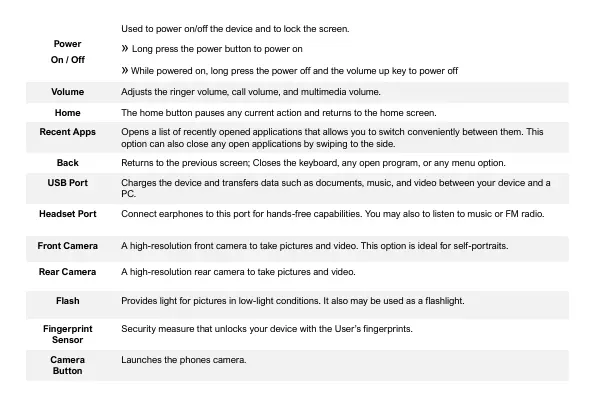
KEY FUNCTIONS Front Camera Volume Camera Poner On 0# Home Back Recent Apps.
{Connect arphanes oi port fr hand ee capables. You may also Lo ten to musk ar FM ri Ahigh-resation front camera take pictures and vide. This opte ideal fr sel portraits. {A high-resotion aa camera 1 take piturs and video. Prades gt for icure in lou-igt conditions. leo may be used as a flash. Security measure at unloks your dc it the User Fngerprits Launches the phones camera.
INTRODUCTION Installation of the SIM Card
Warning: Please keep the SIM card out of the reach of children. The SIM card and its contact are easily
damaged due to scratching or bending. Please use caution when carrying, instaling, or taking out the SIM card. Note: Please contact your cellular phone service provider directly to obtain your SIM car. To insert SIM card: #_ Remove the raar cover. Insert he SIM card. #_ insert the SD card (For adcitional storage capacity) SIM Cara Stot #_ Insert the battery replace the rear cover and power on the phone.
DEVICE CONFIGURATION Wen you iniialy power on your phone, there wil be a series of steps 1o set up basic features. INSERT SIM Insert our SIM card s0 the phone can register t the network. SELECT LANGUAGE Wie on the Welcome screen, please scrol t select your language. In this step, you also have the option to act Vision Settings such as magniication, font, and display size. You have the ablty to place an Emergency Cal. CONNECT TO Wi-FI This step allows the device to connect t the interne. ick on the desred Wi-Fi netork that he device that il be connected. Please note at any unsecured Wi-Fi networks can be connected to without credentials and any secured Wi-Fi networks require a password for credentials prior to connection. is recommended that you connect Lo a Wi-Fi network to check for software updates prior to startup to avoid any data overages.
This step allows you ta select transfer options such as applications, pictures, music and more fram a previous device. You may also setup as new you choose not to from a previous device.
Sign in to your Google" Account in arder to keep accounts streamined with Google services. Your account vil be used for Google programs such as Google Play", Google Drive, and Google Pay. I you do nat have a Gaogle account cick to create a new account the device is nat recognized by your Google account you wil have to complete a security verification.
GOOGLE SERVICES Click to add Google services that include Backup and Restore, Location Services, Install Updates and Apps.
SET FINGERPRINT SECURITY
Setup your fingerprint to unlock your phone and for authorization on certain applications. There will be three options to setup fingerprint security: with PIN, Password or Pattern. n this step, you wi have the abiity to setup a PIN at startup as an extra layer of security. You also have the option of skipping the ingerprint setup and completing i at a later time. FINALIZE SETUP The last step allons you to setup Google Assistant and Google Pay. You may also add another email address, control what information is visible through the phones lock screen, and lets you also review any additional apps. You may skip this step and setup later. (Gosgie, Google Pay Gongie pe, YouTube, Gmai, and thar marks ar trademarks of Google LLC.
SE CONNECTER AU WI-FI
This device complies with Part 15 ofthe FCC Rules. Operation is subject t the following two conditions: {1) This device may not cause harmful interference, and (2) this device must accept any interference received, including interference that may cause undesired operation. ancer and Reproductive Harm - www. P6SWarnings.ca.gov This equipment has been tested and found to comply with the limits for a Ciass B digital device, pursuant to Part 15 of the FCC Rules. | These limis are designed to provide reasonable protection against harmnful interference in a residential instalation. This equipment generates, uses, and can raciate radio frequency energy and, f not installed and used in accordance with the instructions, may cause harmfulinterference to radio communications. However, there is no guarantee that interference wil not oceur in a particular installation. _IFthis equipment does cause harmful interferance to radio or television reception, which can be determined by turning the equipment of and on, the user is encouraged to 1ry to correct the interference by ane of the folowing measures: -Reorient or relocate the receiving antenna. “increase the separation between he equipment and receiver. -Connect the equipment into an outlet on à circuit different from that to which the receiver is connected. -Consu the dealer or an experienced radio/TV technician for el.
FCC Caution: Any changes or modifications not expressly approved by the party responsible for compliance could void the users authority to aperale this equipment. Radiation Exposure Statement: This device mets the government's requirements for exposure to radio waves. ‘This device is designed and manufactured not to exceed the emission limits for exposure to radio frequency (RF) energy set by the Federal Communications Commission of the US. Government. ‘The exposure standard for wireless device employs a unit of measurement known as the Specific Absorption Rate, or SAR, The SAR limit set by the FCC is LW/Kg. For body wrmn operation this Mobile Phone has been tested and meets FCC RF exposure guidelines when used with an accessory that contains no metal and that positions the handset a minimum of 10 mm from the body. Use of other accessories may not ensure compliance svith FCC RE exposure guidelines.