 ManualGo.com
 ZQ521 - Imprimante mobile ZEBRA - Free user manual and instructions
Find the device manual for free ZQ521 ZEBRA in PDF.


Download the instructions for your Imprimante mobile in PDF format for free! Find your manual ZQ521 - ZEBRA and take your electronic device back in hand. On this page are published all the documents necessary for the use of your device. ZQ521 by ZEBRA.
USER MANUAL ZQ521 ZEBRA
P1106523-01EN ZEBRA and the stylized Zebra head are trademarks of Zebra Technologies Corporation, registered in many jurisdictions worldwide. All other trademarks are the property of their respective owners. © 2020 Zebra Technologies Corporation and/or its affiliates. All rights reserved. Information in this document is subject to change without notice. The software described in this document is furnished under a license agreement or nondisclosure agreement. The software may be used or copied only in accordance with the terms of those agreements. For further information regarding legal and proprietary statements, please go to: SOFTWARE: http://www.zebra.com/linkoslegal COPYRIGHTS: http://www.zebra.com/copyright WARRANTY: http://www.zebra.com/warranty END USER LICENSE AGREEMENT: http://www.zebra.com/eula
Terms of Use Proprietary Statement This manual contains proprietary information of Zebra Technologies Corporation and its subsidiaries (“Zebra Technologies”). It is intended solely for the information and use of parties operating and maintaining the equipment described herein. Such proprietary information may not be used, reproduced, or disclosed to any other parties for any other purpose without the express, written permission of Zebra Technologies.
Product Improvements Continuous improvement of products is a policy of Zebra Technologies. All specifications and designs are subject to change without notice.
Liability Disclaimer Zebra Technologies takes steps to ensure that its published Engineering specifications and manuals are correct; however, errors do occur. Zebra Technologies reserves the right to correct any such errors and disclaims liability resulting therefrom.
Limitation of Liability In no event shall Zebra Technologies or anyone else involved in the creation, production, or delivery of the accompanying product (including hardware and software) be liable for any damages whatsoever (including, without limitation, consequential damages including loss of business profits, business interruption, or loss of business information) arising out of the use of, the results of use of, or inability to use such product, even if Zebra Technologies has been advised of the possibility of such damages. Some jurisdictions do not allow the exclusion or limitation of incidental or consequential damages, so the above limitation or exclusion may not apply to you. “Made for iPod”, “Made for iPhone”, and “Made for iPad” mean that an electronic accessory has been designed to connect specifically to iPod, iPhone, or iPad, respectively, and has been certified by the developer to meet Apple performance standards. Apple is not responsible for the operation of this device or its compliance with safety and regulatory standards. Please note that the use of this accessory with iPod, iPhone, or iPad may affect wireless performance. Bluetooth® is a registered trademark of the Bluetooth SIG. © 1996–2009, QNX Software Systems GmbH & Co. KG. All rights reserved. Published under license by QNX Software Systems Co.
Publication Date May 7, 2020
Contents About This Document 8 Introduction 8 Configurations 8 Related Documents and Software 8 Service Information 8 Feedback 9 Printer Overview 10 Unpacking and Inspection 11 Reporting Damage 11 Technology 12 PowerPrecision+ (PP+) Battery 12 Printing Technology 12 Product Information QR Code 13 Made for iPhone (MFi) 13 Near Field Communication (NFC) 13 Thermal Shutdown 13 Radio-Frequency Identification (RFID) 14 Printer Features 15 Using the Printer 17 Preparing the Battery for Use 17 Installing/Removing Battery & Battery Tape Insulator 17 Removing the Battery 17 Removing the Battery Tape Insulator 18 Battery Safety 19 Charging the Battery 21 AC Power Adapter 21 Vehicle Cradle 22 Battery Eliminator/Battery Eliminator Vehicle Cradle 22 4
Contents 4-Bay Power Station 22 1-Slot Battery Charger (with US Type-A Line Cord) 23 Use Case: Home Office/Small Business 23 3-Slot Battery Charger/Dual 3-Slot Battery Charger (w/ US Type-A Line Cord) .... 25 Use Case: Settlement Room 25 Vehicle Adapter 25 Use Case: Vehicle 25 Loading Media 26 Operator Controls 28 Printer Status Icons 29 Buttons 30 Power Up Sequences 30 Run Time Sequences without LED Flashes 30 LEDs 30 Alerts 31 Power Saving Features 31 Sleep Mode 31 Adaptive Print Performance 32 Draft Mode 32 Verify That the Printer is Working 32 Printing a Configuration Report 32 Connecting the Printer 33 Cable Communication 33 Zebra Setup Utilities 34 Zebra Android Printer Setup Utility (for Link-OS Printers) 35 Wireless Communications with Bluetooth 36 Bluetooth Networking Overview 36 Bluetooth (BT) Security Modes 37 Bluetooth Minimum Security Modes 38 WLAN Overview 39 Setting Up the Software 39 Designing Labels 40 Using Pre-Printed Receipt Media 41 Black Mark Dimensions (Receipt Media) 41 Label Areas 41 Label Design Examples 42 Keep-Out Areas 43 Near Field Communication (NFC) 43 NFC Use Cases 44 Passive 44 Wearing the Printer 45 Swivel Belt Clip 45 5
Contents Shoulder Strap Soft Case Exoskeleton Preventive Maintenance Extending Battery Life General Cleaning Instructions
46 46 47 48 48 48 49
Troubleshooting 51 Front Control Panel 51 Printer Status Indicators 51 Troubleshooting Topics 52 No power 52 Media does not feed 53 Poor or faded print 53 Partial or missing print 53 Garbled print 53 No print 53 Reduced battery charge life 53 flashing 53 or flashing 53 Communication error 54 Label binding 54 Blank LCD screen 54 No NFC Connectivity 54 Troubleshooting Tests 54 Printing a Configuration Report 54 Communications Diagnostics 55 Contacting Technical Support 56 Specifications 57 Printing Specifications 57 Memory and Communications Specifications 57 Label Specifications 58 CPCL Font and Bar Code Specifications and Commands 59 ZPL Font and Bar Code Specifications and Commands 60 Communication Port 61 USB 61 Physical, Environmental and Electrical Specifications 61 Accessories 64 6
Contents Miscellaneous 65 Serial Number and PCC Number Locations 65 Cables 66 USB Cables 66 Media Supplies 68 Maintenance Supplies 68 Battery Disposal 69 Product Disposal 69 Alert Messages 70
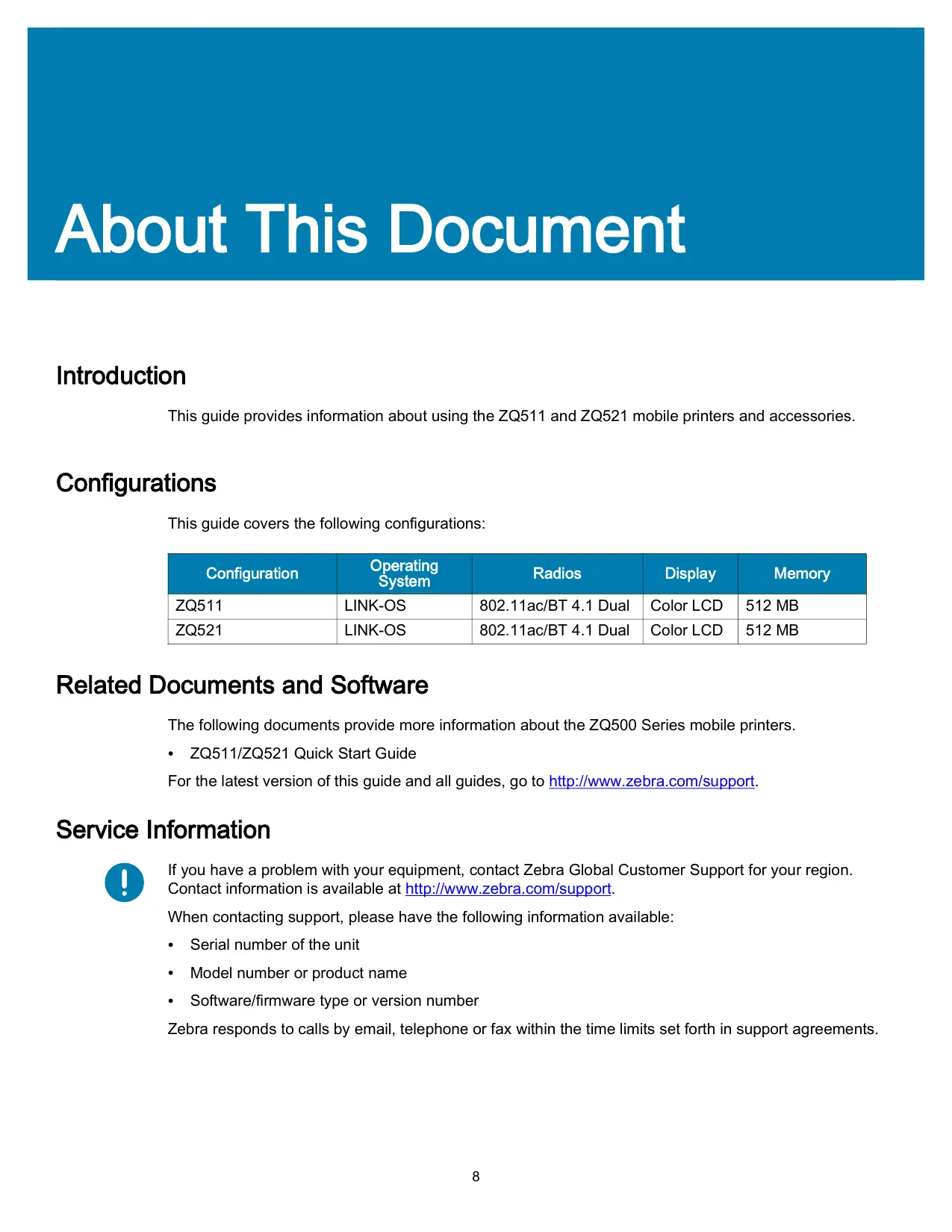
About This Document Introduction This guide provides information about using the ZQ511 and ZQ521 mobile printers and accessories.
Configurations This guide covers the following configurations: Operating System
512 MB Related Documents and Software The following documents provide more information about the ZQ500 Series mobile printers. •
ZQ511/ZQ521 Quick Start Guide
For the latest version of this guide and all guides, go to http://www.zebra.com/support.
Service Information If you have a problem with your equipment, contact Zebra Global Customer Support for your region. Contact information is available at http://www.zebra.com/support. When contacting support, please have the following information available: •
Serial number of the unit
Model number or product name
Software/firmware type or version number
Zebra responds to calls by email, telephone or fax within the time limits set forth in support agreements.
About This Document If your problem cannot be solved by Zebra Customer Support, you may need to return your equipment for servicing and will be given specific directions. Zebra is not responsible for any damages incurred during shipment if the approved shipping container is not used. Shipping the units improperly can possibly void the warranty. If you purchased your Zebra business product from a Zebra business partner, contact that business partner for support.
Printer Overview This user guide provides the information to operate the Zebra ZQ511 and ZQ521 printers. The printers use some of the latest technologies such as an 802.11ac/Bluetooth 4.1 dual radio, a smart battery with PowerPrecision+ functionality, Near Field Communication (NFC), a color LCD display and Made for iPhone (MFi). MFi printers provide Apple co-processor (MFi) support which allows an Apple device such as an iPhone or iPad to authenticate and connect over Bluetooth. ®
These printers use CPCL and ZPL programming languages to configure the printers and print properties, label design, and communications. See the Zebra Programming Guide at www.zebra.com/manuals for more information. Software Resources and Utilities: •
ZebraNet Bridge EnterpriseTM: printer configuration, fleet management
Zebra Setup Utility: single printer configuration, quick setup
Zebra Mobile Setup Utility: Android-based setup tool
ZebraDesigner Pro v2: label design
Zebra Designer Drivers: Windows® driver
OPOS Driver: Windows driver
Printer Profile Manager Enterprise (PPME). These utilities can be found on the Zebra website at www.zebra.com/us/en/support-downloads.
Unpacking and Inspection In case shipping is required, save the carton and all packing material. 1. Open box and make sure it includes the following materials: Printer, Quick Start Guide, Regulatory
Guide, Safety Guide, battery, and belt clip.
2. Check all exterior surfaces of the product components for damage. 3. Open the media cover (refer to Loading Media on page 26) and inspect the media compartment for
Reporting Damage If you discover shipping damage: •
Immediately notify and file a damage report with the shipping company. Zebra Technologies Corporation is not responsible for any damage incurred during shipment of the printer and will not cover the repair of this damage under its warranty policy.
Keep the carton and all packing material for inspection.
Notify your authorized Zebra reseller.
Technology The printers use several technologies made popular in other mobile printer product lines, as well as newer, state-of-the-art technologies.
PowerPrecision+ (PP+) Battery The printers use a 2-cell Li-ion battery pack with integrated intelligence and data storage capability meeting PowerPrecision+ (PP+) functionality. This intelligent battery has the integrated technology required to collect the detailed real-time battery metrics needed to maximize useful battery life and ensure every battery is healthy and able to hold a full charge. In addition, technology inside the batteries tracks and maintains the metrics required to provide real-time visibility into more meaningful battery statistics, such as total cycle usage of the battery, whether the battery is old and should be retired or how long a battery will take to fully charge. Operating Temperature
Charging Temperature
-20°C to +50°C (-4°F to 122°F)
0°C to +40°C (32°F to 104°F)
-25°C to +60°C (-13°F to 140°F)
IMPORTANT: The printers only function properly with genuine Zebra PP+ battery packs. The printers also use an extended 4-cell smart battery with higher capacity and stronger security. The smart battery’s health has three states: Good, Replace, and Poor. The battery health factor determines whether or not the printer can operate and what is communicated to the user via the display. # of Charge Cycles
REPLACE Battery Diminished Consider Replacing a
REPLACE Warning-Battery Is Past Useful Life
POOR Replace Battery Shutting Down b
a. Warning accompanied by one long beep. b. Warning will flash on and off accompanied by beeping at a rate of once per second. After 30 seconds, the printer will shut down.
NOTE: Power down the printer before removing the battery to minimize the risk of corruption.
Printing Technology The printers use the Direct Thermal method to print human readable text, graphics, and barcodes. It incorporates a sophisticated print engine for optimal printing under all operational conditions. Direct thermal printing uses heat to cause a chemical reaction on specially treated media. This reaction creates a dark mark wherever a heated element on the printhead comes in contact with the media. Since the printing elements are arranged very densely at 203 d.p.i. (dots per inch) horizontal and 200 d.p.i. vertical, highly legible characters and graphic elements may be created a row at a time as the media is advanced past the printhead. This technology has the advantage of simplicity, as there is no requirement for consumable supplies such as ink or toner. However, since the media is sensitive to heat, it will gradually lose legibility over long periods of time, especially if exposed to environments with relatively high temperatures or in direct sunlight.
Product Information QR Code The QR barcode includes human readable text URL, for example www.zebra.com/ZQ511-info, which links the user to printer information and videos on topics such as buying supplies, features overview, loading media, printing a configuration report, cleaning instructions, and accessory information. Figure 1
QR Code (ZQ511 Shown)
Made for iPhone (MFi) The printers support communication with Apple devices running iOS 10 or later over a standalone Bluetooth 4.1 radio and the BT4.1 radio included with the 802.11ac (dual) radio.
Near Field Communication (NFC) The printers support a passive NFC tag which complies with the Android Standard Tag format since Android devices are the most common found on the market today. The NFC tag is programmed from the factory and supports Bluetooth pairing to enable a tablet, smartphone or mobile computer to automatically pair with the printer via a Bluetooth connection (within the bounds of the security profile being used). The NFC tag also supports app launching whereby an app developed either by Zebra or a third party will launch on a NFC-enabled smartphone, tablet or mobile computer. Similarly, the NFC tag enables launching to a web support page via a tablet, smartphone or mobile computer.
Thermal Shutdown The printers have a thermal shutdown feature whereby the printer hardware will detect a printhead over-temperature condition at 65°C (149°F). The printer automatically stops printing until the printhead cools down to 60°C (140°F). Printing then recommences without a loss of label data or without any degradation of print quality.
Radio-Frequency Identification (RFID) The printers are equipped with an RFID encoder/reader, which is integrated into the printer’s printhead assembly. The printers encode (write) information on ultra-thin UHF RFID transponders that are embedded in “smart” labels, tickets, and tags. The printers encode the information; verify proper encoding; and print bar codes, graphics, and/or text on the label’s surface. The printers use Zebra’s extensive set of RFID commands running under ZPL programming language. The RFID transponder is sometimes called the RFID tag or an inlay. The transponder is usually made of an antenna that is bonded to an integrated circuit (IC) chip. The IC chip contains the RF circuit, coders, decoders, and memory. If you hold an RFID label up to the light, you can see the transponder’s antenna, and you can feel a bump in the label where the IC chip is located. The printers can encode and verify EPC (Electronic Product Code) Generation 2 Class 1 UHF passive RFID tags, in addition to printing human readable text and conventional 1-D and 2-D barcode information on Zebra supplied RFID thermal transfer media. EPC is a product numbering standard that can be used to identify a variety of items by using RFID technology. EPC Generation 2 tags offer advantages over other tag types. The tag identification (TID) memory in a Generation 2 tag includes the chip manufacturer and model number information, which can be used to identify which optional features are present on the tag. These optional features include those for data content and security. Gen 2 tags typically have a 96-bit EPC identifier, which is different from the 64-bit identifiers common in early EPC tags. The 96-bit EPC code links to an online database, providing a secure way of sharing product-specific information along the supply chain. Gen 2 tags also support much larger data structures. The size of user memory available (if any) varies by the model and manufacturer of the tag. Encoding and printing of an RFID label usually are completed on the first try, but some failures may occur. If you experience consistent encoding failures, it may signal a problem with the RFID tags, your label formats, or with the transponder placement. If an RFID tag cannot be encoded, “VOID” will be printed on the label. The printer then attempts to read/encode “n” labels before the next format is attempted, where “n” is specified by the ZPL programming language “^RS” command. Acceptable values of “n” are 1 to 10 and the default is 3. After printing the defined number of voided RFID labels, the printer default is No Action (Label format causing the error is dropped). While the user doesn’t have control of where on the label the VOID is printed, they can control the length of the image. The start of the VOID image is always at the program position (or F0 if a backward program position). More information on the “^RS” command may be found in the RFID Programming Guide 3 available on www.zebra.com/manuals. RFID is an optional feature and is a factory-installed option only. NOTE: Refer to www.zebra.com/warranty for complete information on product warranties.
Printer Features Figure 2
Overview of Features (ZQ511 Shown).
Tear bar (Not present in Linerless. Scraper present instead.)
Latch release button
NOTE: Scanning the QR code with a mobile device will provide printer-specific information at www.zebra.com/ZQ511-info and www.zebra.com/ZQ521-info. NOTE: Tapping the Zebra Print Touch ™ icon with a Near Field Communication (NFC) enabled mobile device will provide instant access to printer-specific information. For more information about NFC and Zebra products, go to http://www.zebra.com/nfc. Bluetooth pairing applications via NFC is also possible. Please see Zebra Multi-platform SDK for more information.
Printer Overview Figure 3
Printer Front Features
MAC address/Bluetooth ID
Docking contacts cover
Using the Printer Preparing the Battery for Use Installing/Removing Battery and Battery Tape Insulator IMPORTANT: Batteries are shipped in sleep mode to preserve their maximum capacity while in storage prior to initial use. The battery needs an initial charging to wake it up before using for the first time. (See Charging the Battery on page 21.)
Removing the Battery 1. If a belt clip is present on the bottom of the printer, rotate it such that it provides clearance for the
2. Depress the latch on the battery pack (Figure 5).
3. Rotate the battery pack forward and lift it up and out of the battery well (Figure 6).
Removing the Battery Tape Insulator CAUTION: The battery can explode, leak or catch fire if improperly charged or exposed to high temperature. Do not disassemble, crush, puncture, short external contacts or dispose of in fire or water. Charge on a Zebra approved Lithium-Ion charger only. 1. Pull up on the tape insulator tab located on the bottom of the battery pack. 2. Peel back the tape insulator and remove it from the top of the battery pack. Discard upon removal.
Removing Battery Tape Insulator
Battery Safety CAUTION: Avoid accidental short circuiting of any battery. Allowing battery terminals to contact conductive material will create a short circuit which could cause burns and other injuries or could start a fire. IMPORTANT: Always refer to the Important Safety Information data sheet shipped with each printer and the Technical Bulletin shipped with each battery pack. These documents detail procedures to ensure maximum reliability and safety while using this printer. IMPORTANT: Always dispose of used batteries properly. Refer to Product Disposal on page 69 for more battery recycling information. CAUTION: Use of any charger not approved specifically by Zebra for use with its batteries could cause damage to the battery pack or the printer and will void the warranty. CAUTION: Do not incinerate, disassemble, short circuit, or expose to temperatures higher than 65°C (149°F).
Using the Printer Installing the Battery 1. Locate the battery compartment on the bottom of the printer (Figure 8). 2. Swivel the belt clip (if present) to access the battery compartment. Figure 8
3. Insert the battery into the printer as shown. (It is not possible to insert the pack in the incorrect orientation.) Figure 9
4. Rotate the battery into the compartment until it locks in place and is sitting flush in the printer. Figure 10
Charging the Battery CAUTION: Do not place any charger in locations where liquids or metallic objects may be dropped into the charging bays.
AC Power Adapter Figure 11
AC Power Adapter Charging
AC Power Cord (varies with geographic location)
1. Open the protective cover on the printer to expose the DC input charger jack. 2. Connect the appropriate AC power cord for your location to the adapter and then plug the power cord
into an AC receptacle.
3. Plug the barrel plug from the AC adapter into the charger jack on the printer. 4. The printer powers up and begins charging. The printer can be left on or turned off at this point.
Charging continues in either state.
IMPORTANT: While it is possible to charge the battery when using the printer, charge times will increase under this condition.
Vehicle Cradle The Vehicle Cradle provides a means to mount a printer in a vehicle while at the same time providing charging power to the battery. The Vehicle Cradle features USB connectivity to allow the user to connect a laptop or tablet to the cradle. Figure 12
Removing the Printer
Battery Eliminator/Battery Eliminator Vehicle Cradle The Battery Eliminator Vehicle Cradle enables the user to mount a ZQ511 or ZQ521 printer in a vehicle without the use of a battery.
4-Bay Power Station The 4-Bay Power Station allows a total of four printers to be docked and charged. The Power Station provides battery charging power while still maintaining all of the printer’s functionality. NOTE: For detailed information on accessories, refer to the ZQ500 Series VC User Guide, the ZQ500 Series 4-Bay Power Station User Guide, the Battery Eliminator User Guide, and the Battery Eliminator Cradle User Guide at www.zebra.com/manuals. Before docking the printer on either the Vehicle Cradle or the 4-Bay Power Station, you must remove the docking contacts cover located on the bottom of the printer. To remove the cover, first remove the battery, and then use a small screwdriver or coin to detach the cover and expose the docking contacts.
1-Slot Battery Charger Use Case: Home Office/Small Business The 1-Slot Battery Charger provides the user with a single, spare battery charging solution. Similar to the 3-Slot Battery Charger, the single charger charges a 2-cell battery from empty to fully charged in less than four hours and a 4-cell battery from empty to fully charged in less than six hours. Figure 14
1-Slot Battery Charger
Using the Printer Charging Status Indicators Both the 3-slot and 1-slot battery chargers use an LED indicator located next to each slot to indicate the charge state in either green, red, or amber as detailed below. Mode
Charge Done (Healthy)
Charging (Unhealthy)
Charging Done (Unhealthy)
Best Battery (Charging)
Alternates between solid and bright bursts of amber
Best Battery (Charge Done)
Alternates between solid and bright bursts of green
3-Slot Battery Charger/Dual 3-Slot Battery Charger Use Case: Settlement Room The 3-Slot Battery Charger is a charging system for use with the 2-cell lithium-ion batteries used in the printers. The 3-slot charger is capable of charging three 2-cell batteries simultaneously from empty to full in less than four hours and 4-cell batteries from empty to fully charged in less than six hours. It can either be used as a standalone charger or mounted on a 5-slot shared cradle. Figure 15
3-Slot Battery Charger
Vehicle Adapter Use Case: Vehicle The printers, along with accompanying Zebra TC51/TC56 mobile computers, can be charged in the vehicle though the use of a Vehicle Adapter. The Vehicle Adapter uses either an open-ended connection or cigarette lighter adapter, along with a power supply. Figure 16
Vehicle Adapters Open-ended Connector
Power Supply Cigarette Lighter Adapter DC Connector
Loading Media The printers are designed to print either continuous (receipt) media or label stock. 1. Press the media cover button on the side of the printer. The media cover opens automatically.
2. Rotate the media cover back completely, exposing the media compartment and adjustable media
Opening the Media Cover
3. Pull the media supports apart as shown in Figure 19. When you move one support, both supports will
4. Insert the roll of media between the supports in the orientation shown, and let the supports secure the
media in place. The media roll should be able to spin freely on the supports.
5. Close the media cover until it clicks into place and the media advances.
Closing the Media Cover
NOTE: Refer to the Zebra Programming Guide for information about adjusting the media feed length via a Set/Get/Do (SGD) command.
Operator Controls The printers feature a control panel with buttons for the Power On/Off and Media Feed functions, as well as a display for providing information regarding printer functions. The menu displays a single row of icons used to indicate printer status. The LCD also displays acknowledged alerts and unacknowledged alerts. Acknowledged alerts have a single response option which requires the user to press the Select button, whereas unacknowledged alerts do not require a response. Figure 21
Printer Status Icons - Indicates the status of several printer functions.
Select Button - Press to select a menu choice on the LCD.
Power Button - Press to turn unit on. Press again to turn unit off.
Paper Feed Button - Press to advance the media one blank label or a software determined length of journal media.
WiFi Signal Strength
When the printer is in Power Save Mode and is not in a media out condition, the Power Save icon displays. When the printer is in Power Save Mode and also in a media out condition, the blinking Media Out icon displays instead of the Power Save icon. This is because the printer is not running when there is a media out condition. If the printer is in both Power Save Mode and Draft Mode, the Power Save icon displays. When the printer is in Draft Mode due to a user setting, the Draft Mode icon will be displayed. However, when the printer is in Draft Mode and in a media out condition, the blinking Media Out icon will be displayed. For more detailed information on the printer status icons, see Printer Status Indicators on page 51
Buttons The user has the ability to use the three button interface on the printers with the following Power Up and Run Time sequences.
Power Up Sequences Sequence # 1 2
Function Print configuration report
Keys Hold down Feed button while pressing the Power button. Hold down Select button while pressing the Power button. Hold down the Select and Feed buttons while pressing the Power button. Power Button
Print configuration report then network report Initiate forced download
Turn the printer on or off or to enter Sleep Mode
NOTE: A forced download is when the printer is powered up in a mode where it is running only the code that allows for firmware downloads to happen.
Run Time Sequences without LED Flashes Sequence # 1
Function Two-key and ZPL Config
Repeated Feed Events Wake (if in Sleep Mode)
Keys Hold down Feed button and Select button for 3 seconds. Feed button Power button or Select button
LEDs The printers feature a tri-colored LED ring located around the Power button which indicates the state of the battery during charging process. Icon Behavior
State of Battery Power On/Charged Battery Power On/Battery Eliminator Plugged In Battery Charging (Amber LED Ring)
Sleep Mode and Charging (Blinking Amber LED Ring) Sleep Mode (Blinking Green LED Ring) Battery Fault (Red LED Ring)
Alerts The control panel displays various alerts to the user in the form of Acknowledged Alerts, Unacknowledged Alerts, and Error Alerts. An Acknowledged Alert displays over the printer status icons and requires user input to be cleared, i.e. press the Select button to clear such an alert. Figure 22
BATTERY LOW LED indicating battery fault
An Unacknowledged Alert also displays over the printer status icons, but in this case it does not require user input to be cleared. The alert will automatically be cleared after being displayed for five seconds. Error Alerts also appear over the printer status icons and require no user input via the front panel to be cleared, but they do require the user clearing the error condition by other means. The Error Alert will remain on the display until the error condition is cleared.
Power Saving Features The printers have a few key features designed to extend the life of the battery. These features are described below.
Sleep Mode The Sleep Mode feature is a way the printer conserves battery life whereby the printer will automatically go into a “sleep” state after two minutes of inactivity. When the printer is in this state there will be no content displayed on the LCD in addition to no backlight. The printer will indicate Sleep Mode by a slow blinking green LED ring around the Power Button (see LEDs on page 30). •
If the Power Button is pressed for less than three seconds (<3), then the printer will enter Sleep Mode.
If the Power Button is pressed for more than three seconds (>3), then the printer will power down completely.
In order to “wake up” the printer, the user must press the Power or Select <icon> buttons for less than three seconds, or the printer will wake up on its own when communication is initiated via Bluetooth. NOTE: Wake On Bluetooth is only supported in BT 4.1 radio, not in the Dual Radio unit. The printers will also wake from Sleep Mode when communication is initiated via WLAN. If the Power Button is pressed for more than three seconds, the printer will wake up and shut down completely. To enable or disable Sleep Mode, send the power.sleep.enable command to the printer using Zebra Setup Utilities (ZSU) and set it to either "on" or "off". (The default setting is “on”.) To set the time after which the printer will enter Sleep Mode, send the power.sleep.timeout (in seconds) to the printer using the ZSU.
Adaptive Print Performance The printers use PSPT PrintSmart Gen 2 technology which adapts to your print conditions such that print quality is not sacrificed. When the printer sees environmental conditions such as state of charge, battery health, cold temperature extremes, or high density printing, the printer will adjust print performance to preserve battery function and allow printing to continue. This may affect the speed and sound of printing but not the print quality.
Draft Mode The user can configure the printer to print in Draft Mode via SGD command media.draft_mode (default is “off”), which optimizes the printer for text-only printing. While in Draft Mode, print speed increases from the maximum of 4 inches per second (ips) at the printer’s highest speed setting to a maximum of 5 ips with a 22% reduction in optical density. When a printer is in this user setting, a Draft Mode icon will be displayed. If the printer is in both Power Save mode and Draft Mode, the Power Save icon will display. If the printer is in Draft Mode during a media out condition, the blinking Media Out icon will be displayed. NOTE: For an explanation and a list of all SGD commands, please refer to the Zebra Programming Guide at: http://www.zebra.com/us/en/support-downloads.html NOTE: For detailed information on sending SGD commands to the printer using Zebra Setup Utilities, please refer to the Wireless Configuration for 802.11n and Bluetooth Radios for Link-OS Mobile Printers at: http://www.zebra.com/us/en/support-downloads.html NOTE: Draft Mode printing is optimized for printing receipts comprised of text only with no reverse image, black fill or barcodes present. Draft Mode is designed to operate at temperatures between ambient and the maximum thermal range of the printer.
Verify That the Printer is Working Before you connect the printer to your computer or portable data terminal, make sure that the printer is in proper working order. You can do this by printing a configuration report using the “two key” method. If you can’t get this report to print, refer to Troubleshooting Tests on page 54.
Printing a Configuration Report 1. Turn the printer off. Load the media compartment with journal media (media with no black bars or gaps
2. Press and hold the Feed Button. 3. Press and release the Power button and keep the Feed button pressed. When printing starts, release
the Feed button. The unit will print a line of interlocking “x” characters to ensure all elements of the printhead are working, print out the version of software loaded in the printer and then print the report.
The report indicates model, serial number, baud rate, and more detailed information on the printer’s configuration and parameter settings. (See the Troubleshooting Section for sample printouts and a further discussion on how to use the configuration report as a diagnostic tool.)
Connecting the Printer The printer must establish communications with a host terminal which sends the data to be printed. Communications occur in four basic ways: •
The printers can communicate by cable via either RS-232C or USB 2.0 protocols. Windows drivers that support printing via Serial, USB and the network are included in the Zebra Designer Driver which can be downloaded from www.zebra.com/drivers.
By means of a wireless LAN (Local Area Network) per 802.11 specifications. (Optional)
By means of the Ethernet when docked on the Ethernet cradle.
By means of a Bluetooth short range radio frequency link.
WinMobile , Blackberry , and Android devices use standard Bluetooth protocol.
These printers are compatible with iOS devices, therefore printing via Bluetooth to an Apple device is possible.
Cable Communication CAUTION: The printer should be turned off before connecting or disconnecting a communication cable. The standard cable connection for the printers is USB. The USB port provides 500mA to the A/B port when in host mode and can connect a printer to a PC via a Type A plug to Micro B plug. The cable has a plastic twist lock cap that provides strain relief and locks the cable into the printer housing (see below). Visit www.zebra.com/accessories for part numbers. Figure 23
Twist Lock. Rotate in a clockwise direction to lock cable in place.
Twist Lock in a clockwise direction to lock cable in place.
Using the Printer Figure 24
Cable Communication with PC USB Communications
Cable to PC LAN The small 5-pin connector on the USB cable plugs into the printer, and the connectors are keyed to ensure correct alignment. Do not try to force the cable if it does not plug in as this could damage the pins. The other end of the cable plugs into the USB port on a computer as shown in Figure 24. The printers are configured with the USB Open HCI interface allowing them to communicate with Windows based devices. ®
USB drivers are included in the Zebra Designer Driver which can be downloaded from the Zebra website.
Zebra Setup Utilities Before you start to configure your printer for use on a Local Area Network (LAN), you will need some basic information which will enable you to establish the network configuration for your printer. Zebra Setup Utilities (ZSU) provides a quick and easy way to configure your printers for a variety of purposes, including setting them up for wireless communications either on a Local Area Network (LAN) or using the international Bluetooth ™ communications standard. Once ZSU has been downloaded to your computer, attach the USB cable to the printer and computer as shown in Figure 24. Refer to Wireless Configuration Guide to follow the steps necessary for setting up and configuring your printer via ZSU. Go to https://www.zebra.com/us/en/support-downloads.html to download ZSU and the Wireless Configuration Guide.
Zebra Android Printer Setup Utility (for Link-OS Printers) The printers can also be configured using the Zebra Android Printer Setup Utility. This utility can be downloaded from Google Play to an Android device such as a smartphone or the TC51 or TC56 mobile handheld computers. The Android mobile device can be paired with the printer via Bluetooth or a USB cable and users can quickly navigate the app to perform the following tasks. Figure 25
Setup Utility Main Screen
Shows currently connected printer Displays current printer status
= error present Quick access to Wizards, Printer Actions and Files
Wireless Communications with Bluetooth Bluetooth is a worldwide standard for the exchange of data between two devices via radio frequencies. This form of point-to-point communication does not require access points or other infrastructure. Bluetooth radios are relatively low powered to help prevent interference with other devices running at similar radio frequencies. This limits the range of a Bluetooth device to about 10 meters (32 feet). The default for the printers is Class 2, but the range can be set to Class 1 via a SGD (bluetooth.power_class) to increase power. Both the printer and the device it communicates with must follow the Bluetooth standard.
Bluetooth Networking Overview •
Each Bluetooth enabled printer is identified by a unique Bluetooth Device Address (BDADDR). This address resembles a MAC address whereby the first three bytes are vendor, and the last three bytes are device (e.g. 00:22:58:3C:B8:CB).
This address is labeled on the back of the printer via a barcode for ease of pairing. (For the dual radio, the MAC address label only represents WiFi MAC address.) (Figure 26 on page 39.) In order to exchange data, two Bluetooth enabled devices must establish a connection.
Bluetooth software is always running in the background, ready to respond to connection requests. One device (known as the client) must request/initiate a connection with another. The second device (the server) then accepts or rejects the connection.
A Bluetooth enabled printer will normally act as a slave creating a miniature network with the terminal sometimes referred to as a “piconet”. Discovery identifies Bluetooth devices that are available for pairing whereby the master device broadcasts a discovery request and devices respond. If a device is not discoverable, the master cannot pair unless in knows the BDADDR or has previously paired with the device.
If both devices support Bluetooth 2.1 or higher they will use Security Level 4 Secure Simple Pairing (SSP), a mandatory security architecture that features two association models: Numeric Comparison and Just Works (no user confirmation).
Bluetooth (BT) Security Modes Security Mode 1 If a BT device greater than or equal to 2.1 is pairing with a BT device less than or equal to 2.1, it falls back to BT 2.0 compatibility mode and behaves the same as BT 2.0. If both BT devices are greater than or equal to 2.1, Secure Simple Pairing must be used according to the BT spec.
Security Mode 2 If a BT device greater than or equal to 2.1 is pairing with a BT device less than or equal to 2.0, it falls back to BT 2.0 compatibility mode and behaves the same as BT 2.0. If both BT devices are greater than or equal to 2.1, Secure Simple Pairing must be used according to the BT spec.
Security Mode 3 Same as Security Mode 2.
Security Mode 4: Simple Secure Pairing Simple Secure Pairing: •
A new security architecture introduced supported in BT >= 2.1.
Service-level enforced, similar to mode 2.
Mandatory when both devices are BT >= 2.1.
There are four association models currently supported by mode 4.
Security requirements for services must be classified as one of the following: authenticated link key required, unauthenticated link key required, or no security required. SSP improves security through the addition of ECDH public key cryptography for protection against passive eavesdropping and man-in-the-middle (MITM) attacks during pairing. Numeric Comparison
Designed for situation where both devices are capable of displaying a six-digit number and allowing user to enter “yes” or “no” response.
During pairing, user enters “yes” if number displayed on both devices matches to complete pairing. Differs from the use of PINs in legacy (BT<=2.0) pairing because the number displayed for comparison is not used for subsequent link key generation, so even if it is viewed or captured by an attacker, it could not be used to determine the resulting link or encryption key.
Designed for situation where one (or both) of the pairing devices has neither a display nor keyboard for entering digits (e.g. Bluetooth headset). It performs authentication step 1 in the same manner as a numeric comparison, but the user cannot verify that both values match, so MITM (man-in-the-middle) protection is not provided. This is the only model in SSP that does not provide authenticated link keys.
Each mode, except for Just Works, has Man-In-The-Middle (MITM) protection, meaning no third device can view the data being passed between the two devices involved. The SSP mode is usually negotiated automatically based on the capabilities of both the master and slave. Lower security modes can be disabled via the bluetooth.minimum_security_mode SGD. The bluetooth.minimum_security_mode SGD sets the lowest security level at which the printer will establish a Bluetooth connection. The printer will always connect at a higher security level if requested by the master device. To change the security mode and security settings in the printers, use Zebra Setup Utilities.
bluetooth.bluetooth_PIN Not Used
IMPORTANT: bluetooth.minimum_security_mode sets the lowest security level at which the printer will establish a Bluetooth connection. The printer will always connect at a higher security level if requested by the master device. The printers also feature bonding for Bluetooth. The printer caches pairing info so devices stay paired through power cycles and disconnects. This eliminates the need to repair on every connection establishment. The bluetooth.bonding SGD is on by default. NOTE: For detailed information on Bluetooth, please refer to the ZQ500 Series product page at: http://www.zebra.com/us/en/support-downloads.html
All Link-OS firmware versions prior to version 6.0 In all versions of Link-OS firmware prior to version 6.0, if bluetooth.discoverable is set to “on”, the printer enters General Discoverable mode. It responds to discovery requests at any time, and is connectable and pairable. If set to “off”, the printer is not discoverable, but it is still connectable and pairable. The default was “on”. Link-OS firmware version 6.0 If bluetooth.discoverable is set to “on”, the behavior is the same as pre-6.0 firmware. The printer enters General Discoverable mode and is connectable and pairable. If set to “off”, the printer is not discoverable, is still connectable and pairable. The default was changed to “off”. A new feature was added to all printers called “Limited Pairing Mode” that turns on a limited discoverability and pairing window to users who have physical access to the printer. If the user holds the feed key for 5 seconds, the printer enters limited pairing mode for 2 minutes. Link-OS firmware versions 6.1 and later If bluetooth.minimum_security_mode is set to “1”, unconditionally enable pairing, regardless of the bluetooth.discoverable mode setting. If bluetooth.minimum_security_mode is set to a value other than 1, pairing is not allowed if discoverable is set to “off” and the printer is not in limited pairing mode. NOTE: Discoverability does not apply to Bluetooth LE. For Zebra printers that support Bluetooth LE, the bluetooth.discoverable setting affects pairing exact
WLAN Overview The printers are optionally equipped with a Dual Radio that uses the industry standard 802.11ac protocols and Bluetooth 4.1. They will have the FCC ID number on the serial number label on the back of the unit. •
Wireless Network Printers with the Zebra 802.11ac WLAN radio module can be identified by the text “Wireless Network Printer” on the serial number label on the back of the printer.
These printers allow communication as a node within a wireless local area network (WLAN). Methods of establishing communications to the printer will vary with each application.
More information and LAN configuration utilities are included in the ZebraNet Bridge Enterprise™ program (version 2.8 and later). Zebra Setup Utilities (ZSU) and Zebra Mobile Setup Utility can also be used to configure WLAN communications settings. Both ZebraNet Bridge Enterprise and ZSU may be downloaded from the Zebra Web site. Figure 26
BT/WLAN Communications
Setting Up the Software The printers use Zebra’s CPCL and ZPL Programming languages which were designed for mobile printing applications. CPCL and ZPL are fully described in the Zebra Programming Guide, CPCL Programming Guide, and ZPL II Programming Guide available on-line at https://www.zebra.com/us/en/support-downloads.html. You can also use ZebraDesigner Pro v2, Zebra’s Windows based label creation program which uses a graphical interface to create and edit labels in either language. ®
Designing Labels The following examples provide guidelines for designing labels for the printers, specifically for Gap Media, Black Bar Media and Journal Media. The illustrations for each media type define recommended tolerances, keep-out zones and safe printing zones designed to avoid any vertical registration issues during printing. Dimensions are determined based on product registration capabilities and Zebra-recommended media tolerances. Figure 27
“H” 1.25 mm (0.05 in.) Max Label Height = “H” = 2.5 mm
Black Bar Label Media 1.25 mm (0.05 in.)
“H” Max Label Height = “H” = 2.5 mm
Using Pre-Printed Receipt Media For alignment of pre-printed documents to Top of Form (TOF), the use of a black mark is necessary. The black bar can be placed on the back of the documents by following the recommendation below. The black bar can also be placed on the front of the document. The user must change the media.bar_location setting to "front".
Black Mark Dimensions (Receipt Media) The reflective media black marks (or black bar/marks) should extend past the centerline of the roll on the front side of the paper. •
Minimum mark width: 15 mm (0.59 in.) perpendicular to the edge of the media, and centered within the width of the roll.
Mark length: 4.8 - 6.0 mm (0.19 - 0.24 in.) parallel to the edge of the media.
Label Areas The media/black bar sensor detects the dark, pre-printed bar on the media, so a path in the center of the paper must be kept free of dark, pre-printed graphics. NOTE: Dark, pre-printed graphics refer to any symbols, barcodes, text and/or colored areas that have been applied to the receipt paper rolls before they have ever been used in the printer. Figure 30
Keep dark color pre-printed graphics, barcodes, and text out of the path of the bar sensor.
Label Design Examples This section shows examples of labels with and without problems with the black mark located in the front of the document.
Label Design Examples Problem Label Designs
The dark colors, pre-printed text, and graphics are in the path of the black bar at the bottom of the receipt.
NOTE: Complete information on using pre-printed receipt paper can be found in the FORM command in the CPCL Programming Guide at www.zebra.com/manuals.
Keep-Out Areas At times, incomplete printing of text and/or graphics appear because minimum margins are not provided during label design. The recommended minimum margins, or “keep out areas” are shown in Figure 32. Figure 32
* Receipt Paper with Black Bars
Continuous Receipt Paper (without Black Bars)
*Maintain a minimum “keep out area” of 1.59 mm (1/16 in.) from the two outer edges of the paper roll and from the black bars.
*Maintain a minimum “keep out area” of 1.59 mm (1/16 in.) from the two outer edges of the paper roll.
NOTE: The length of each “continuous” receipt is determined by the data sent to the printer.
Near Field Communication (NFC) Much like Bluetooth and Wi-Fi technologies, Near Field Communication (NFC) allows wireless communication and data exchange between digital devices like smartphones. Yet NFC utilizes electromagnetic radio fields while technologies such as Bluetooth and Wi-Fi focus on radio transmissions instead. NFC is a sub-class of Radio Frequency Identification (RFID) technology that is designed for use by devices within close proximity to each other. NFC technology allows devices to establish communication by touching or bringing them into close proximity, usually no more than 7.62 centimeters (3 inches). The printer contains a passive NFC device which contains information that other devices can read but does not read any information itself An active device, such as a smartphone, can read the information on the printer’s NFC tag, but the tag itself does nothing except transmit the info to authorized devices. Active devices can read information and send data. An active NFC device, like a smartphone, would not only be able to collect information from NFC tags, but it would also be able to exchange information with other compatible phones or devices. An active device could even alter the information on the NFC tag if authorized to make such changes. To ensure security, NFC often establishes a secure channel and uses encryption when sending sensitive information.
Bluetooth Pairing – used to cause a tablet, smart phone or terminal to automatically pair with the printer via a Bluetooth connection, within the bounds of the security profile being used. This shall contain the BT address and serial number of the printer.
App launching – used to cause an app, developed either by Zebra or a third party to be executed on a smart phone, tablet or terminal.
Web site launching – used to cause a smart phone, tablet or terminal to display a web site developed by Zebra or a third party developer.
Tapping the Zebra Print Touch ™ icon with a Near Field Communication (NFC) enabled smartphone will provide instant access to printer-specific information. For more information about NFC and Zebra products, go to http://www.zebra.com/nfc. Bluetooth pairing applications via NFC is also possible. Please see Zebra Multi-platform SDK for more information.
Wearing the Printer Swivel Belt Clip The printers have a plastic swivel belt clip included as a standard feature. (It should be noted that printers with extended capacity battery do not come equipped with a belt clip.) To use: hook the clip over your belt, and ensure that the clip is securely attached to the belt. The belt clip will pivot to allow you to move freely while wearing the printer. In order to install or remove the plastic Belt Clip, secure it to the cut-out in the front of the printer (where shown). Figure 34
Printer with Belt Clip Clip Here
Hand Strap The Hand Strap accessory attaches to the front posts of the printer to provide the user with a convenient and secure method of carrying the printer. To attach the Hand Strap to the printer: 1. Attach one swivel snap hook to its corresponding post on the front of the printer. 2. Attach the opposite end of the strap to its corresponding post on the front of the printer where shown.
Shoulder Strap A Shoulder Strap accessory is also offered to provide another option for comfortably carrying the ZQ511 and ZQ521 printers. Similar to the Hand Strap, the shoulder strap attaches to the two strap posts on the front of the printer via rugged swivel snap hooks as shown in Figure 36. The strap is easily adjustable up to 56 inches from end to end. Figure 36
Adjustable Clip Swivel Snap Hooks
Soft Case The printers have an environmental Soft Case option that helps protect the printer, while also allowing the user to carry it from their belt. The paper path is left open to maintain printing capability and the controls are visible and accessible while in the case. D-Ring connectors allow for attachment to the shoulder strap option. Figure 37
Exoskeleton In order to provide extreme ruggedness for the printers, they come with an optional hard case, or “Exoskeleton”. This case features a clam shell design whereby the printer is placed securely inside and the Exoskeleton is clamped shut. The Exoskeleton comes with a shoulder strap for easy portability. All printer ports are inaccessible while the printer is in the hard case, but the printer control buttons can still be used (Figure 38). The user will also be able to mount and charge the printer on the Vehicle Cradle and 4-Bay Power Station while in the hard case. NOTE: Since linerless printers don’t have the reverse tear bar feature which allows media to be torn both upwards and downwards, it is recommended that linerless printers not be used with the Exoskeleton. Linerless media can only be torn down and the Exoskeleton is not resistant to the adhesive of the linerless media. Figure 38
NOTE: For more information on accessories for the ZQ500 printers, see Accessories on page 64.
Never expose the battery to direct sunlight or temperatures over 40°C (104°F) when charging.
Always use a Zebra charger designed specifically for Lithium-Ion batteries. Use of any other kind of charger may damage the battery.
Use the correct media for your printing requirements. An authorized Zebra re-seller can help you determine the optimum media for your application.
If you print the same text or graphic on every label, consider using a pre-printed label.
Choose the correct print darkness, and print speed for your media.
Use software handshaking (XON/XOFF) whenever possible.
Remove the battery if the printer won’t be used for a day or more and you’re not performing a maintenance charge.
Consider purchasing an extra battery.
Remember that any rechargeable battery will lose its ability to maintain a charge over time. It can only be recharged a finite number of times before it must be replaced. Always dispose of batteries properly. See Product Disposal on page 69 for more information on battery disposal.
General Cleaning Instructions CAUTION: Avoid possible personal injury or damage to the printer. Never insert any pointed or sharp objects into the printer. Always turn off the printer before performing any cleaning procedures. Use care when working near the tear bars as the edges are very sharp. CAUTION—HOT SURFACE: The printhead can get very hot after prolonged printing. Allow it to cool off before attempting any cleaning procedures. IMPORTANT: Only use a Zebra cleaning pen (not supplied with the printer) or a cotton swab with 90% medical grade alcohol for cleaning the printhead. CAUTION: Use only cleaning agents specified in the following tables. Zebra Technologies Corporation will not be responsible for damage caused by any other cleaning materials used on this printer.
Use a Zebra cleaning pen to swab the thin gray line on the printhead, cleaning the print elements from the center to the outside edges of the printhead.
After every five rolls of media (or more often, if needed). When using linerless type media, cleaning is required after every roll of media.
Rotate the platen roller and clean it thoroughly with a fiber-free swab, or lint free, clean, damp cloth lightly moistened with medical grade alcohol (90% pure or better). (Figure 39)
After every five rolls of media (or more often, if needed)
Rotate platen roller and clean with a fiber-free swab and 1 part liquid soap (Palmolive or Dawn) and 25 parts water. Use pure water to clean after soap/water mixture. (Figure 40)
Clean platen only if there is an issue during printing, such as media not releasing from the platen. (*See Note below.)
Scraper (Linerless Units Only)
Use adhesive side of media to clean scraper on linerless units. (Figure 40)
After every five rolls of media (or more often, if needed).
Clean thoroughly with 90% medical grade alcohol and a cotton swab. (Figure 39)
Water-dampened cloth or 90% medical grade alcohol wipe.
Gently brush out printer. Ensure the Bar Sensor and Gap Sensor windows are free of dust. (Figure 39)
Interior of units with Linerless Platens
Clean thoroughly with 90% medical grade alcohol and a fiber-free swab. (See Figure 40 for specific target areas for interior cleaning.)
After every five rolls of media (or more often, if needed).
Platen Surface (Linerless)
NOTE: This is an emergency procedure only to remove foreign contaminates (oils, dirt) from the platen that can damage the printhead or other printer components. This procedure will shorten or even exhaust the linerless platen’s useable life. If the linerless media continues to bind after cleaning and feeding 1 to 2 meters (3 to 5 feet) of media, replace the platen.
Using the Printer Figure 39
Cleaning Locations (Linered Printer)
Printhead Elements Gap Sensor Tear Bar
Cleaning Locations (Linerless Printer)
Media Support Printer Frame
Media Support Disk Media Support Printhead Elements
Troubleshooting Front Control Panel If the printer is not functioning properly, refer to the table below to determine the state of the LED indicator ring located around the Power button. LED Indicator
Charged Battery; Battery Eliminator in Use
Printer Status Indicators The printer’s control panel displays multiple icons which indicate the status of various printer functions. Check the indicator status and then refer to the Troubleshooting topic referenced on the following pages to resolve the problem. Icon
Bluetooth link established
Receiving printer data
No WLAN radio detected
Looking for AP Antenna Blinking/1 Parenthesis Solid
WLAN Associated/Attempting Authentication
Antenna and 2 Parentheses Solid
WLAN Associated and Authenticated
802.11 Signal Strength </= 50% but >25%
Bluetooth link established
Data processing in progress
No data being received
Battery Eliminator present (Replaces Battery icons)
On (Media Out icon Off)
Printer in Segmentation Mode
On (Media Out icon Off)
Printer in Draft Mode
DC Troubleshooting Topics No power •
Check that the battery is installed properly.
Recharge or replace the battery as necessary.
If using the battery eliminator to power the printer, ensure that it is connected properly to an active (ON) source.
Troubleshooting CAUTION: Always dispose of batteries properly. Refer to Battery Disposal on page 69 for more information on proper battery disposal.
Media does not feed •
Be sure the media cover is closed and latched.
Check the spindle holding media for any binding.
Ensure that the label sensor is not blocked.
Poor or faded print •
Clean the printhead.
Check the quality of media.
Partial or missing print •
Check the media alignment.
Clean the print head.
Ensure that the media cover is properly closed and latched.
Replace the battery.
Check the cable to the terminal.
Establish RF Link and/or restore LAN association.
Replace the battery.
Check the cable to the terminal.
Establish an RF Link and/or restore LAN association.
Check for an invalid label format or command structure. Place the printer in Communications Diagnostic (Hex Dump) Mode to diagnose the problem.
Reduced battery charge life •
If the battery is more than 1 year old, short charge life may be due to normal aging.
Check the battery health.
Replace the battery.
Data icon flashing •
No action is needed. A flashing Data icon is normal while data is being received.
Check to see if media is loaded and that the media cover is closed and securely latched.
Check the cable to computer or laptop, and if necessary, replace the cable.
Open the head release latch and media cover.
Remove and reinstall the media.
Make sure the printer is turned on.
Check to see if application is loaded or corrupted: If so, reload the program.
Check the LED ring around the Power button to see if it is blinking green indicating the printer is in sleep mode. Press Power or Select buttons to “wake up” the printer.
No NFC Connectivity •
Ensure that your smartphone is positioned 3 inches (7.62 cm) or closer to the Print Touch icon on the side of the printer.
Troubleshooting Tests Printing a Configuration Report To print out a listing of the printer’s current configuration follow these steps: 1. Turn the printer off. Load the media compartment with journal media (media with no black bars printed
2. Press and hold the Feed button. 3. While pressing the Feed button, press and release the Power button. 4. When printing starts, release the Feed button.
Refer to Figure 41 on page 55 for sample configuration reports.
Troubleshooting Figure 41
XXXXXXXXXXXXXXXXXXXXXXXXXXXXXX 48A4930F44C5
Bluetooth: iOS: supported Version: 6.0.1 Date: 12/05/2018 Baud: 115200 Device: Printer Mode: Slave Friendly Name: XXRBJ192300731 Minimum Security Mode: 3 Discoverable: off Bluetooth Spec: 3.0/4.0 Enabled: on Address: 48:A4:93:OF:44:C5
20-FF File Directory: File Size --------------- -------E:TT0003M_.TTF 169188 64360448 Bytes Free Command Language: CCL Key ‘!’[21] ZPL Configuration Information: RewindPrint Mode MarkMedia Type 10.0Darkness +00Tear Off Adjust 2030Label Length 104mmPrint Width 7EhControl Prefix 5EhFormat Prefix 2ChDelimiter 00Top Position No Motion..Media Power Up Feed....Media Head Closed 00Left Margin 832Dots per row End ZPL Configuration Print-head test: OK End of report
Press FEED key to enter DUMP mode Peripherals: LCD: Installed
Communications Diagnostics If there is a problem transferring data between the computer and the printer, try putting the printer in the Communications Diagnostics Mode (also referred to as the “DUMP” mode). The printer will print the ASCII characters and their text representation (or the period ‘.’, if not a printable character) for any data received from the host computer. To enter Communications Diagnostics Mode: 1. Print a configuration report as described above. 2. At the end of the diagnostics report, the printer will print: “Press FEED key to enter DUMP mode”. 3. Press the FEED key. The printer will print: “Entering DUMP mode”.
NOTE: If the FEED key is not pressed within 3 seconds, the printer will print “DUMP mode not entered” and will resume normal operation. At this point, the printer is in DUMP mode and will print the ASCII hex codes of any data sent to it, and their text representation (or “.” if not a printable character). Additionally, a file with a “.dmp” extension containing the ASCII information will be created and stored in the printer’s memory. It can be viewed, “cloned” or deleted using the Net Bridge application. (Refer to the ZebraNet Bridge Enterprise documentation for more information.)
Troubleshooting To terminate the Communications Diagnostics Mode and return the printer to normal operations: 1. Turn the printer OFF. 2. Wait 5 seconds. 3. Turn the printer ON.
Contacting Technical Support If the printer fails to print the configuration report, or you encounter problems not covered in the Troubleshooting Guide, contact Zebra Technical Support. To contact product support in your region, go to: https://www.zebra.com/contact You will need to supply the following information: •
Model number (e.g. ZQ511 and ZQ521)
Unit serial number (Found on the large label on the back of the printer, also found in the configuration report printout.)
Product Configuration Code (PCC) (15 digit number found on the label on the back of the unit)
Specifications NOTE: Printer specifications are subject to change without notice.
Up to 104 mm (4.09 in.)
Up to 72 mm (2.83 in.)
Up to 127 mm (5 in.)/second @ 12% max density
76.2 mm (3 in.)/second @ 16% max density (linerless) Printhead Burn Line to Tear Edge Distance
600K inches of paper feed MTBF of output at 18% density at 20°C when using virgin media.
203 dots/in. or better
Reverse Side (Linered): 6.2 mm (0.24 in.) +/- 0.5 mm (0.02 in.)
Memory and Communications Specifications Parameter
ZQ511 and ZQ521 Printers MBa
Standard Communications
USB (Micro AB on the go)
Wireless Communication Options
1. Standalone Bluetooth Classic and BLE Radio 2. 802.11AC/BT/BLE Combo Radio
a. Memory configuration on your printer may be found by referring to the Printing a Configuration Report on page 54
113 mm (4.45 in.) +1 mm
80 mm (3.15 in.) +1 mm
12.5 mm (0.5) minimum
19 mm (0.75 in.) standard
Minimum mark width: 12,7 mm (0.5 in.) perpendicular to inside edge of media, centered within the width of the roll.
0.635 mm (0.025 in.) Same
(0.05842 to 0.1651 mm)
12.5 mm (0.5 in.) optional*
Mark length: 2.4-11 mm (0.09 to 0.43 in.) parallel to inside edge of media.) NOTE: Customers who want to use the 12.5 mm (0.5 in.) core size will be required to uninstall the media disks and install new media support disks.
CPCL Font and Bar Code Specifications and Commands Item
25 bit-mapped fonts; 1 scalable font (CG Trimvirate Bold Condensed*) *Contains UFST from Agfa Monotype Corporation Downloadable optional bit-mapped and scalable fonts via Net Bridge software.
International Character Sets
Chinese 16 x 16 (traditional) Chinese 16 x 16 (simplified) Chinese 24 x 24 (simplified) Japanese 16 x 16 Japanese 24 x 24
ZPL Font and Bar Code Specifications and Commands Item
15 bit-mapped fonts; 1 scalable font (CG Trimvirate Bold Condensed) Downloadable optional bit-mapped and scalable fonts via Net Bridge software.
International Font Options
Zebra offers font kits covering multiple languages including Simplified and Traditional Chinese, Japanese, Korean, Hebrew/Arabic, and others.
Barcode (CPCL Command)
GND Physical, Environmental and Electrical Specifications Parameter
Operating: -20°C to 55°C (-4°F to 131°F)
Storage: -30°C to 66°C (-22°F to 150.8°F)
Charging: 0°C to 40°C (32°F to 104°F)
Operating/Storage: 10% to 90% non-condensing
IP54 (without soft case)
IP65 (with hard case)
Specifications Figure 41
Specifications Figure 43
Mounting Hole Dimensions
NOTE: Use two M4 x 8.0 mm screws in the indicated positions
Accessories For a complete list of printer accessories, go to www.zebra.com/manuals, search for the Mobile Printer Accessories Guide, and go to the ZQ500 Series product page for a complete list of accessories. Or scan the following QR code with a mobile device to access the guide. Figure 44
Accessories Guide QR Code
Miscellaneous Serial Number and PCC Number Locations Figure 45
IMPORTANT: Due to compliance and customs restraints, an integrator may not be able to ship a printer purchased in one country to another country based on the limitations imposed by regional SKUs. The country code identified in the printer SKU determines the area of the world in which the printer can be used.
Miscellaneous Figure 47
Micro USB-B to USB-A Plug, 1.8m/3.5m
Connector B Connector A Pin 5
NOTE: Visit the Zebra website at: www.zebra.com/accessories for a listing of interface cables and part numbers for all Zebra mobile printers.
Media Supplies To insure maximum printer life and consistent print quality and performance for your individual application, it is recommended that only media produced by Zebra be used. Advantages include: •
Consistent quality and reliability of media products.
Large range of stocked and standard formats.
In-house custom format design service.
Large production capacity which services the needs of many large and small media consumers including major retail chains world wide.
Media products that meet or exceed industry standards.
NOTE: For more information go the Zebra website (www.zebra.com) and select the Products tab.
Maintenance Supplies In addition to using quality media provided by Zebra, it is recommended that the printer be cleaned as prescribed in the maintenance section. The following item is available for this purpose: •
Cleaning Pen (12 pack): p/n 105950-035 Serial and PCC Number Locations for ZQ511 & ZQ521 Printers
The EPA certified RBRC Battery Recycling Seal on the Lithium-Ion (Li-Ion) battery supplied with your printer indicates Zebra Technologies Corporation is voluntarily participating in an industry program to collect and recycle these batteries at the end of their useful life, when taken out of service in the United States or Canada. The RBRC program provides a convenient alternative to placing used Li-Ion batteries into the trash or the municipal waste stream, which may be illegal in your area. ®
IMPORTANT: When the battery is depleted, insulate the terminals with tape before disposal. Please call 1-800-8-BATTERY for information on Li-Ion battery recycling and disposal bans/restrictions in your area. Zebra Technologies Corporation’s involvement in this program is part of our commitment to preserving our environment and conserving our natural resources. Outside North America, please follow local battery recycling guidelines.
The majority of this printer’s components are recyclable. Do not dispose of any printer components in unsorted municipal waste. Please dispose of the battery according to your local regulations, and recycle the other printer components according to your local standards. For more information, please see our web site at: http://www.zebra.com/environment.
Alert Messages The printers display the following alert messages to inform the user of various fault conditions that might occur. Message