 ManualGo.com
 SC-32SC204H - SCHNEIDER - Free user manual and instructions
Find the device manual for free SC-32SC204H SCHNEIDER in PDF.


Download the instructions for your in PDF format for free! Find your manual SC-32SC204H - SCHNEIDER and take your electronic device back in hand. On this page are published all the documents necessary for the use of your device. SC-32SC204H by SCHNEIDER.
USER MANUAL SC-32SC204H SCHNEIDER
AAA*2pcs (Non fournies)
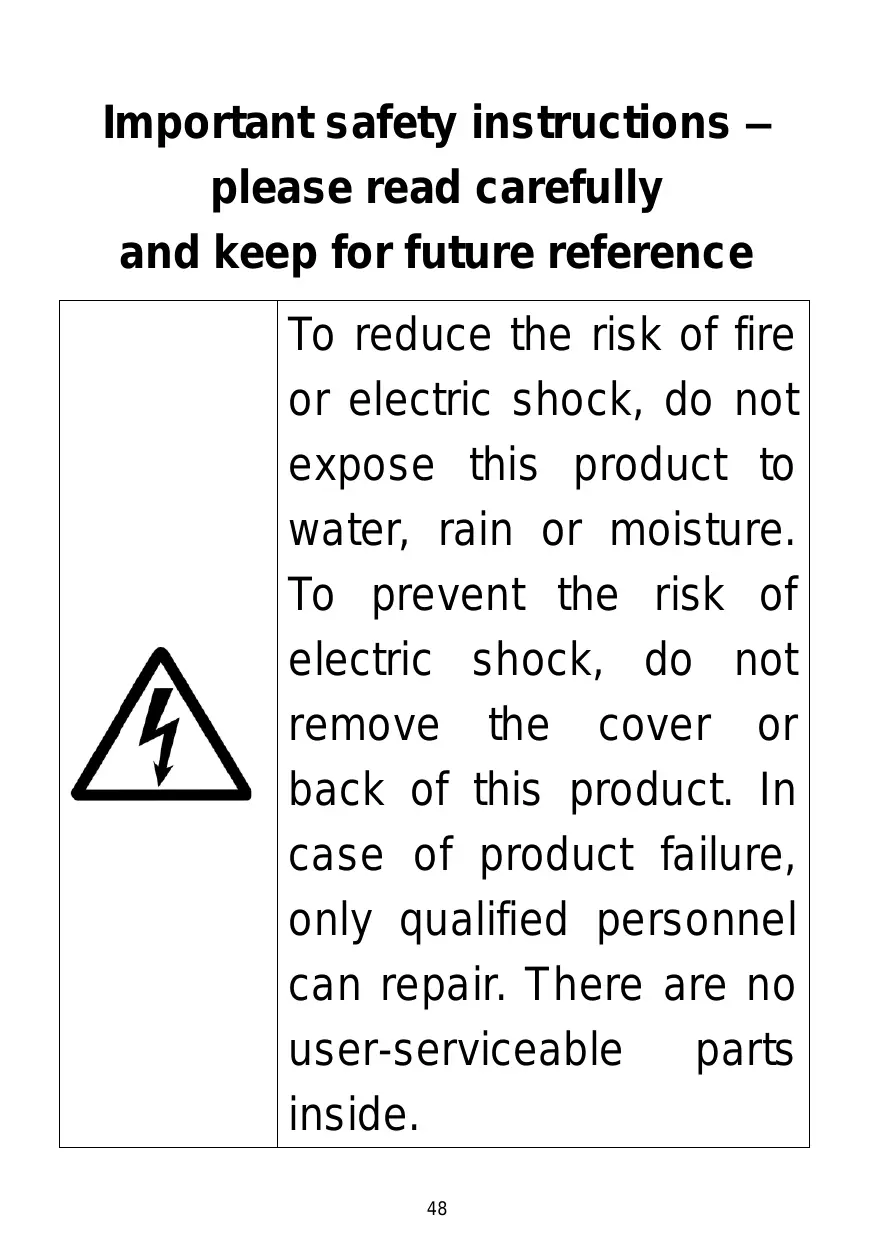
Important safety instructions – please read carefully and keep for future reference To reduce the risk of fire or electric shock, do not expose this product to water, rain or moisture. To prevent the risk of electric shock, do not remove the cover or back of this product. In case of product failure, only qualified personnel can repair. There are no user-serviceable parts inside. 48
CAUTION ! Dangerous tension inside the product ! Do not open. Risk of electric shock ! No parts can be repaired by the end-user. Only qualified personnel can repair and maintain this product. If the electric cord is damaged, it must be replaced by the manufacturer or qualified after-sales personnel in order to avoid any danger. The product must be installed in accordance with local laws. Damaged batteries must be properly disposed. In order to 49
protect the environment, please dispose the batteries properly, in accordance with local laws (information is available at your reseller). Remote control batteries (not included) shall not be exposed to excessive heat (e.g. from sun or fire). Where to install the product - Place the product on a straight, rigid and stable place. Do not place the product on a carpet.
- Do not place the product on top of another that may cause overheating (for example, a receiver or amplifier). - Do not place anything underneath the product (for example, CDs or magazines). Proper ventilation - Place the product in a sufficiently–aerated place to avoid overheating. Allow at least 10cm spacing at the back and top of the product, and 5cm spacing on both sides to prevent overheating.
- Do not place items such as newspapers, tablecloth, curtains, in front of the ventilating openings. Do not expose the product to high temperatures, moisture, water and dust. - The apparatus shall not be exposed to dripping or splashing. No object filled with liquids, such as vases, shall be placed on the apparatus. - Do not place other items close to this product that may damage it (for example, objects containing water or lightened candles). 52
- No naked flame sources, such as lighted candles, should be placed on the apparatus. Electric supply - Please unplug the product in case of prolonged non-use. - If the supply cable is damaged, it must be replaced by the manufacturer or qualified after-sales personnel to avoid any danger. - This product must be connected to an electrical supply 100-240V ~ 50/60Hz.
- The mains plug is used as the disconnect device, so the disconnect device shall remain readily operable - The use of apparatus in moderate climates. - The appliance must be connected to a power socket with ground connection. WARNING Never place a television set in an unstable location. A television set may fall, causing serious personal injury or death. Many injuries, particularly to children, can be 54
avoided by taking simple precautions such as: - Using cabinets or stands recommended by the manufacturer of the television set. - Only using furniture that can safely support the television set. - Ensuring the television set is not overhanging the edge of the supporting furniture. - Not placing the television set on tall furniture (for example, cupboards or bookcases) without anchoring both the furniture and the television set to a suitable support.
- Not placing the television set on cloth or other materials that may be located between the television set and supporting furniture. - Educating children about the dangers of climbing on furniture to reach the television set or its controls. - In case this television set is to be relocated to a different location, please keep in mind and apply the above safety instructions. Technical Specification: Name: Television Product Net Weight: 3.8 Kg Operation Temperature: 0℃~35℃ TV Reception System: DVB-T/T2
EU Declaration of conformity This appliance is Television complies with the essential requirements and other provisions of Directive 2014/35/EU & 2014/30EU and the Radio Equipment Directive (RED) 2014/53/EU that goes into effect on 12 June 2016. The declaration of conformity is available on website: http://www.schneiderconsumer.com
- This logo set on the product means that the recycling of this apparatus comes within the framework of the directive 2012/19/EU of July 4, 2012 concerning the waste on electrical and electronic equipment (WEEE). - The presence of dangerous substances in the electrical and electronic equipments can have potential consequences on the environment and human health in the cycle of reprocessing this product. - Therefore, at the end of its lifetime, this product shall not be disposed with other non-recycled waste. - As the end user, your role is of prime importance in the cycles of re-using, recycling, and other forms of valorization of this electrical and electronic equipment. Local authorities and resellers have set special procedures for the purpose of collecting and recycling this product. - You have the obligation to use the selective waste collection systems put in place by your local authorities.
This symbol indicates DC Voltage (for USB only). This symbol indicates AC Voltage. This symbol indicates “Indoor use only”. Auto Standby In order to save energy, the electricity consumption of this product has been reduced in both operation mode and standby mode. Furthermore, if no operation is carried out for four consecutive hours, the unit will automatically enter standby mode. Simply press the Standby button on the remote control to switch the unit back to operation mode. Product Introduction Congratulations! You have chosen the latest generation high definition television. Endowed with high display quality and light weight, it is power-saving and radiationless with high sensitivity television reception. The new generation television will bring you safe & comfortable brand new visual experience. Thank you for purchasing and using our products! Accessories User manual x1 Remote control x1
Terms and options may change depending on the models.
Connecting Cables Connecting to power source
1.The television is in standby state when no images arise and the red indicating lamp shines. 2. Press the standby button again on the remote control for the television the indicating lamp becomes green. Connecting external antenna to the unit
We recommend you use a 75Ω antenna cable so as to eliminate the disturbance caused by impedance mismatching. The antenna cable shall not be bundled together with the power cord. Directly insert the 75Ω antenna cable plug into the antenna socket when applying cable television. Note: The antenna should be checked periodically. If clear image is not available, shut down the power and then carefully check the antenna. Connecting Cables This TV has digital multimedia performance and can be connected to multiple external devices. The following diagram presents the connections to other video and audio.
1. AC IN 2. EARPHONE OUTPUT 3. HDMI IN High-definition multimedia interface (Note: compatible video signal 480P/576P/720P/1080i/1080P). ARC is in HDMI 1 only. 4. VGA IN Connect with the D-sub 15 pin signal cable to your computer. 5. PC AUDIO IN : PC audio input. 6. RF IN : Connect to external aerial. 7. COAXIAL output : Digital TV sound output. 8. USB IN Access multi-media files stored in the USB device. (Note: compatible format includes: *.dat, *.vob, *.ts, *.mpg , *.avi , *.mkv, and *.mp4 for video, *.jpg for photo, *.mp3 for music. ) 9. AV INPUT Connect to the left/right RCA video out connection of any video resource. 10. CI SLOT : Insert a CI (common interface) card. 11. YPbPr IN : Component input terminal.
Remote Control 1.STANDBY: To turn the TV ON/OFF 2.MUTE: Mute the sound. 3.0~9: Input the number information, such as channel number and so on. 4.RECALL: Recall the last program you watched. 5.CH.LIST : Display a list for available channels. 6.ASPECT : Select available screen mode. SLEEP : Set desired sleep time. AUDIO : Select available sound-track. PIC.MODE : Switch the picture mode. S.MODE : Switch the sound mode. 7.▲/▼/◄/► : Navigation buttons OK : Confirm selection. EXIT : Exit the menu page. MENU : Call out the main menu or return to previous menu. 8.VOL +/- : Increase/decrease the volume level. CH +/- : Play the next/previous program. SOURCE : Select desired input source. TV/RADIO : Switch the unit between TV and Radio.(Digital radio is not available in countries such as France.) DISPLAY :Display the available program information. 9.RED \GREEN \ YELLOW \BLUE: available in
teletext, DVB-T and TV Notes: The remote control shall be applied in effective reception scope of the television. Make the remote control point towards the infrared receiver of the television and ensure that there are no obstacles. Its normal operation distance will be shortened in direct sunlight or lamplight. Be careful to use the remote control. avoid falling off or being trampled or splashed with liquids.
Remote Control 10. REC (for DTV mode only) : Not applicable. TIMESHIFT (for DTV mode only): Not applicable. TIMER (for DTV mode only): Enter the menu of timer recording. REC.LIST : Not applicable. INDEX : Display the Teletext index. REVEAL : Hide or display some characters in Teletext. TEXT : Display available teletext.. SUBTITLE : Enable/disable subtitles in digital mode. HOLD : Hold the Teletext; SIZE : Switch Teletext size; SUBPAGE : Enter Teletext sub-page; : Start playback in USB\Media mode. : Pause playback in USB\Media mode. : Stop playing in USB\Media mode. /
: Play previous\next file in USB\Media mode.
Prepare the remote control
Insert 2 AAA batteries in the remote control following the polarities signs (+/-) as indicated. (Batteries are not provided)
Mounting of the stand
1. Place the machine flat on a desktop (Caution: put a foam cushion under the machine to avoid it from scratching.) 2. Align the screw holes on stand and TV bottom (Figure 2) 3. Fix the stand and the screen with 4pcs provided screws. (Figure 3) 4. The rendering after installed. (Figure 4) •
Disassembly of the stand
1. Loose the screws between the machine and stand (Figure 1). 2. Remove the 2 stands from the machine (Figure 2).
Wall Mounting Instructions ●
Use standard M6*10mm screws (4 pieces, not included) to mount this TV. Using different screws as specified will damage the wall mounting support and will be outside the scope of product guarantee. ● Contact a professional technician for assistance when wall mounting your TV. ● Do not wall mount the TV while TV is turned on. ● Refer to the instruction of your wall mounting bracket.
First Time Installation - Connect to power source and turn on this TV, welcome page will display on the screen. - Press LEFT/RIGHT/UP/DOWN navigation buttons on remote control to select an option. - Press OK button on remote control to confirm selection.
Language: select the on-screen menu language. Country: select your country. Energy Mode: select Home or Store mode. Tuning Setup - If above selections are finished, press OK button to call out Tuning Setup. - Select preferred Tune Type and Digital Type using navigation buttons and press OK button to start auto tuning.
Note: Items following Digital Type are adjustable only when Digital Type is DVB-C / Satellite and these items vary for different digital type.
DTV MODE - Press SOURCE button on the remote control to select DTV input source. 1. CHANNEL
1.1 Antenna - Press OK or RIGHT navigation button to enter it. - Use navigation buttons to select DVB-T or DVB-C. 1.2 Auto Tuning - Press the OK or RIGHT navigation button. - Use the navigation buttons to set the Country, Tune Type and LCN. Note: Scan type and following items are adjustable only when “Antenna” is DVB-C. - Then press OK to start program tuning. 1.3 ATV Manual Tuning - Press the OK or RIGHT navigation button. Current CH: select current channel. Color System: select available color system. Sound System: select available sound system. Fine Tune: fine tune the frequency. AFC: turn on/off Automatic Frequency Control. Search: search available programs.
1.4 DTV Manual Tuning - Press the OK or RIGHT navigation button. - Use the LEFT/RIGHT navigation button to select the channel. Then press the OK button to start searching. Note: Menu and operations here will vary for DVB-T and DVB-C. 1.5 Programme Edit - Press the OK or RIGHT navigation button. - Press the UP/DOWN navigation button to highlight a desired channel. - Press the RED button on the remote control to delete a highlighted channel. - Press the YELLOW button on the remote control to enter MOVE mode. Then use the UP/DOWN navigation button to select a preferred position and press the YELLOW button again to move it. - Press the BLUE button on the remote control to skip a highlighted channel. 1.6 Signal information (works under available TV signals) This item is used to display signal details, for example: channel number and strength. 1.7 CI information (works under available TV signals) When an available CAM (Conditional Access Module) card is connected to the CI slot, users can view related information or manage the CAM card.
2.1 Picture Mode - Press the UP/DOWN/LEFT/RIGHT navigation buttons to select an option. Picture Mode: available options: Standard, Mild, Personal, Dynamic. Contrast / Brightness / Colour / Tint / Sharpness: adjustable value: 0-100. NOTE: Contrast, Brightness, Colour and Sharpness are adjustable only when Picture Mode is “Personal”. Tint is adjustable only for NTSC system. 2.2 Colour Temp This item is used to adjust the optimum color temperature for suitable viewing. Available options: Normal, Warm, Cold. 2.3 Noise Reduction Available options: Off, Low, Medium, High 2.4 SCREEN (for PC/VGA mode only) 2.5 Dynamic CR Turn on/off dynamic contrast ratio.
3.1 Sound Mode - Press the UP/DOWN/LEFT/RIGHT navigation buttons to select an option. Sound Mode: available options: Standard, Music, Movie, Sports, Personal. Treble / Bass: adjustable value: 0-100. NOTE: Treble and Bass are adjustable only when Sound Mode is “Personal”. 3.2 Balance This item is used to adjust the audio output between left and right speaker from -50 to 50. 3.3 Auto Volume This item is used to set Auto Volume ON or OFF. 3.4 Surround Sound This item is used to select desired mode of Surround sound. 3.5 SPDIF Mode Available options: Auto, PCM, Off. 3.6 AD Switch This item is used to set AD Switch ON or OFF. For Visually Impaired users, this function enables a user to know a certain scene or action through the narration, instead of seeing it. NOTE: AD Switch function works only when you are viewing programs that contain related narration information.
4.1 Clock It displays the current system time when an available channel was saved. 4.2 Time Zone This item is used to select a desired time zone. 4.3 Off Time Off Time: available options: Off / Once / Every Day / Mon~Fri / Mon~Sat / Sat~Sun / Sun. Hour / Minute: use navigation buttons to adjust the Hour / Minute when the Off Time is not “Off”. 4.4 On Time On Time: available options: Off / Once / Every Day / Mon~Fri / Mon~Sat / Sat~Sun / Sun. Hour / Minute / Source / Channel / Volume: use navigation buttons to adjust these items when the Off Time is not “Off”. 4.5 Sleep Timer This item is used to set the automatic sleep time. Available options: Off, 10min, 20min, 30min, 60min, 90min, 120min, 180min, 240min 4.6 Auto Standby This item is used to select a desired Auto Sleep (standby) duration when no
operations are done through the remote control. Available options: Off, 3/4/5 hours. 4.7 OSD Timer This item is used to select a desired OSD menu duration. Available options: Off, 5/10/15/20/25/30/35 seconds. 5. LOCK - Press RIGHT navigation button and input the factory default password “0000” using number buttons on remote control. - Press UP/DOWN navigation button to select preferred item. NOTE: If you forget the password, please use the universal password “8899”. 5.1 System Lock This item is used to turn on/off Lock System. 5.2 Set Password - Input the old password using number buttons on remote control and then input your private password twice to finish it. 5.3 Channel Lock - Press OK or RIGHT navigation button to enter it. - Press UP/DOWN navigation button to select the channel which you want to lock. - Press GREEN button repeatedly to lock/unlock the highlighted channel. 5.4 Key Lock This item is used to lock/unlock TV buttons. Available options: On, Off. 5.5 Hotel Model - Press RIGHT navigation button to enter it. - Press UP/DOWN navigation button to move the cursor. - Press LEFT/RIGHT navigation button to select an option. Hotel Mode: turn on/off Hotel Mode. Source Lock: turn on/off the lock of available sources.
Default Source: set the default source. Default Prog: set the default digital program. Default Volume: set the default volume level. Max Volume: set the maximum volume level. Export DataBase: export database to USB device. Import DataBas: import database from USB device. Clear Lock: Clear above settings. 6. SETUP
6.1 Language This item is used to select the default on-screen display language. 6.2 TT Language This item is used to select the default teletext language. 6.3 Audio Language - Press the RIGHT navigation button. - Then you can select the desired primary audio language and secondary audio language. 6.4 Subtitle Language - Press the RIGHT navigation button. - Then you can select the preferred primary subtitle language and secondary subtitle language.
6.5 Hearing Impaired This item is used to turn on/off the Hearing Impaired function. For Hearing Impaired users, this function providescaptions to supplement the audio. NOTE: Hearing Impaired function works only when you are viewing programs that contain related caption information. 6.6 Aspect Ratio This item is used to adjust the video size. Available options: Auto, 4:3, 16:9, Zoom1, Zoom2. NOTE: The available video size may be different for different input sources. 6.7 Blue Screen This item is used to turn on/off Blue Screen. The screen background will turn blue at very weak or no signal condition if Blue Screen is ON. 6.8 First Time Installation This item is used to recall the First Time installation menu. 6.9 Energy Mode This item is used to select Home or Store mode. 6.10 Reset This item is used to recall factory default settings. 6.11 Software Update (USB) This item is used to update software through the USB memory device. 6.12 HDMI CEC - Press the RIGHT navigation button.
To use the HDMI CEC function: - Make sure the HDMI device (Amplifier, etc.) is connected correctly. - Press the SOURCE button on the unit or remote control to select the HDMI input source. HDMI CEC: turn on/off HDMI CEC. HDMI ARC: turn on/off ARC function. Auto Power: turn on/off Auto Power function. Device Menu: display the setup menu of other device connected.
ATV AND OTHER MODES - Press SOURCE button on the remote control to select desired input source. - For other menus, please refer to the operations of DTV mode.
7. Recording With this product, you can easily record your favorite DVB-T programs on your USB stick. This unit has 2 recording modes: immediate recording and scheduled recording (for use in case of absence). Recording a program by using a USB This unit allows you to record your favorite DVB-T programs in a simple and friendly way. You just need a USB key and insert it into the unit. The recording will be made on the key and you can view the recordings later from this unit or any other compatible multimedia devices. Notes: Do not remove your USB stick while playback is in progress, otherwise the content of your USB drive could be damaged. Press the STOP button to stop playback and them remove your USB stick. Preparation for the first recording When using a USB stick with this unit for the first time, you should first format it using this unit. Formatting your USB stick directly on the receiver improves compatibility of the device with the unit. More 76
particularly, FAT file system will be converted into FAT 32. This helps improve recording quality and fluidity. Caution: formatting will deletes all the files on the USB device! You should create a backup of all the files you want to keep beforehand. How to access "Format Disk"? Press the "MENU" button on the remote control to enter the OSD menu, then press navigation button to select the “Setup >> PVR File System >> Format”. Then press OK button on the remote control to format your USB stick. Immediate recording Insert a compatible USB device which has been previously formatted. Wait for about 5 seconds until the device is recognized. Simply press the REC button on the remote control in order to start immediate recording. Please note this function allows recording of DVB-T channels only, other sources such as analog TV will not be recorded. Timer (Scheduled recording) Simply press TIMER button on the remote control to enter. View recorded programs You can simply press REC.LIST button on the remote control to view the recorded programs. Notes on recording and USB functions - If you want to record a film or a long program, use a memory stick of larger capacity (eg. 16GB). If you want to save several films, opt for external hard drives of large capacity. - The loading time of the USB device is too long: When you insert a USB support, the loading time can sometimes be a minute or more. This depends on the size of your support, the number of files on it and,
above all, the complexity of its directories. You can reduce loading time by avoiding the use of multiple sub-directories in your USB disk. Avoid such multiple-subdirectories like “Directory/Subdirectory/ Sub-subdirectory/....” and store files in a single simple directory. -
USB Device Recognition Problems 1) After connecting your USB device to the unit, you may need to turn the device on before it can be detected by the receiver. 2) This unit does not support direct USB connection with computer. It is necessary for you to transfer your data/files on a USB stick or MP3 player. If you are using an external hard drive to be connected via USB, you must connect the hard drive simultaneously with a power source and with the unit. 3) If you are using a portable video player with hard drive, you must make sure that the internal battery is fully charged. Verify that the file system of your USB device is properly formatted in FAT 32. USB media formatted in NTFS is not compatible with this unit. The USB device used may not be fully compatible with USB 2.0. In this case, try a different USB stick in order to identify the problem.
- Recording Quality If your recording is shaky or choppy – The data stream to be recorded is very important. Certain USB sticks, even some new USB 2.0 ones, do not allow sufficient data transfer rate. If this happens, try with a newer USB device or with an external hard drive. With external hard drives, data transfer rate is sufficiently high and this problem should be solved.
Time Shift Function This TV presents a function called “Time Shift” which allows recording of TV program onto a digital storage medium (e.g. USB stick or external hard disc, not supplied). You may then watch the program at a later time that is more convenient to you. Want to put the television on pause? It is now possible with the “Time Shift” function, which records the TV program during your phone call or your coffee break. With “Time Shift”, you will not miss anything anymore! Notes: This function is only available in DVB-T mode. How to use the service Timeshift 1. Insert a USB key into USB port before you activate Timeshift function. 2. Press the button Timeshift once to start recording. The broadcasting TV program is stop and the image is frozen on screen. During this time, the TV program is being recorded and you can take a break. 3. Press the button to exit recording. Note on use of the Timeshift function: 1.Please make sure the Timeshift mode is set ON in record setting menu. 2.The Time Shift function requires a high data transfer rate between the USB device and the unit. Indeed, a recording and a (deferred) playback simultaneously take place on the USB device. Certain USB sticks, even some new USB 2.0 devices, may lead to shaky image or choppy sound. If you encounter this problem, it is necessary to change the USB device. External hard drives, self-powered by mains, provide the highest transfer rates and allow you to use the Time Shift function optimally. In case of recording quality problems or playback problems such as choppy or blocked image, you may also try to format your USB device.
8. Media Player Before operating MEDIA menu, plug in USB device. Press the SOURCE button on remote control to open SOURCE list. Then press UP navigation button to select USB (or Media) and press OK button to enter it.
Press ◄/► / button to highlight your preferred submenu: Photo, Music, Movie and Text, press OK button to confirm. Remote operations when playing multimedia files: - Press button on remote control to start or pause the playback. - Press button on remote control to stop playing. - Press button on remote control to move fast backward. - Press button on remote control to move fast forward. - Press button on remote control to play previous file. - Press button on remote control to play next file.
Troubleshooting No image and voice Possible causes: ● Power cord, antenna or input devices are not connected; ● The TV set is not powered on. Solutions: ● Check Power cord, antenna and input devices; ● Press Power key on the remote control; ● Press Power key on the set to power it off for 5 seconds and then re-power it on. No voice Possible causes: ● The volume is too low; Muted or cancelled; ● Incorrect sound system. Solutions: ● Press Volume key to turn up the volume; ● Press Mute key to cancel Mute mode. ● Well connect connection to the background sound; ● Change the sound system in the menu. Snows and noises Possible causes: ● The cable is damaged or gets loose; ● Incorrect channel preset; ● Improper antenna positioning. Solutions: ● Check whether the connection of the antenna cable, DVD and the cables is correct; ● Reset channels or fine tune the channel; ● Adjust the direction of the antenna.
Achromatic colour Possible causes: ● Incorrect Colour system settings; Low chroma level setting; ● Improper antenna positioning. Solutions: ● Change the colour system into the local system in the menu; ● Increase chroma level; ● Adjust the direction of the antenna. Remote control has no response Possible causes: ● Battery runs up; ● Incorrect battery loading; Solutions: ● Check the battery electricity or replace the battery; ● Check if the poles of the battery are correct. Note: To properly watch CANAL+ using this product, carry out DVB-T channel search when CANAL+ is unscrambled, from 12:30 p.m. to 1:30 p.m. and from 7:00 p.m. to 8:30 p.m. Important Notice The display of this television is made up of a large number of colour Although it has at least 99.999% of effective pixels, some black dots or bright spots (red, green or blue) may appear constantly on the screen. This is a characteristic of the screen (according to industrial standards), and is not a defect. Sometimes, the screen may include an unlit pixel, which will be seen as a blue, red, green or black dot. This does not affect the functioning of the product and should be considered normal.
Cleaning Instruction
● Before cleaning this product, press STANDBY button to turn it to the standby mode and wait for a few minutes to disconnect the power plug. ● Wipe this product with a dry, soft cloth. Do not spray water directly onto the TV, but apply a small amount of water on the corner of the cloth and wipe as gently as possible. Never use cleaning fluids, wax, or chemicals. ● Never use alcohol, benzene, thinner, cleaning fluid or other chemicals. And do not use compressed air to remove dust. ● If the surface is extremely dirty, wipe it with a cloth which has been dipped in a weak soap-water solution and wrung out thoroughly, and then wipe again with a dry cloth. ●Before you plug in the TV back, let the screen dry completely.
Note on Defective Pixels Your product has been manufactured with great care. Nevertheless, it is possible that some pixels remain constantly on or unlit. Please refer to the table below about the tolerance level for defective pixels on this product.
No. of Bright or Dark Sub-Pixels (Color Pixels)
No. of Bright or Dark Pixels (White or Black)
SC-LED32SC204H Manufacturer’s name or trade
W Energy efficiency class (HDR)
N/A A-G On mode power demand in High
N/A W Off mode, power demand
0W W Standby mode power demand
Max. 0.5W W Networked standby mode power demand
N/A W Electronic display category
television/monitor/sig nage/other
standard Dynamic Range (SDR) On mode power demand for Standard Dynamic Range (SDR)
Dynamic Range (HDR) mode
Screen resolution (pixels)
Panel technology used
LED E.g. LCD/LED LCD/QLED LCD/OLED/MicroLED /QDLED/SED/FED/E PD, etc.
Automatic Brightness (ABC) available
Voice recognition available
Room presence sensor available
Image refresh frequency rate
Note: 1. Energy efficiency class: A (most efficient) to G (lease efficient) 2. Annual energy consumption in kWh per 1000 hr, based on the power consumption of the television operating 1000 hours. The actual energy consumption will depend on how the television is used. The above value has been measured in accordance with standards under specified operating conditions. Result may vary according to operation time, contrast, brightness, operating mode….etc.
Product Information sheet according to EU Regulation No. 2019/2013 Energy labelling for Electronic Display & Television can be found be below URL or QR code indicated on Energy label URL: https://eprel.ec.europa.eu/qr/404165
Technical data sheet Trade Mark Reference Model Viewing angle Resolution Display Colour Contrast Ratio Life time
DVB-T TV power supply Consumption Dimensions Weight Socle Operating temperature Remote control power supply USB port power supply Hotel mode Loud speaker