CPX320W - Projector HITACHI - Free user manual and instructions
Find the device manual for free CPX320W HITACHI in PDF.


User questions about CPX320W HITACHI
0 question about this device. Answer the ones you know or ask your own.
Ask a new question about this device
Download the instructions for your Projector in PDF format for free! Find your manual CPX320W - HITACHI and take your electronic device back in hand. On this page are published all the documents necessary for the use of your device. CPX320W by HITACHI.
USER MANUAL CPX320W HITACHI
Thank you for purchasing this liquid crystal projector.

Please read the accompanying manual “SAFETY INSTRUCTIONS” and this “USER'S MANUAL” thoroughly to ensure correct usage through understanding. After reading, store this instruction manual in a safe place for future reference.
NOTE:
• The information in this manual is subject to change without notice.
• The manufacturer assumes no responsibility for any errors that may appear in this manual
- The reproduction, transmission or use of this document or contents is not permitted without express written authority.
TRADEMARK ACKNOWLEDGMENT:
• PS/2, VGA and XGA are registered trademarks of International Business Machines Corporation.
• Apple, Mac and ADB are registered trademarks of Apple Computer, Inc.
• VESA and SVGA are trademarks of the Video Electronics Standard Association.
- Windows is a registered trademark of Microsoft Corporation.
- Carefully observe the trademarks and registered trademarks of all companies, even when not mentioned.
CONTENTS
FEATURES.....P.2
BEFORE USE.....P.2
Contents of Package....P.2
Part Names ......P.3
Loading the Battery.....P.5
Fixing the Handle ......P.5
INSTALLATION.....P.6
Installation of the projector and Screen.....P.6
Angle Adjustment.....P.6
Cabling....P.7
Power Connection.....P.8
Example of System Setup.....P.8
Plug & Play....P.8
OPERATIONS.....P.9
Switching the Power Supply ON/OFF....P.9
Basic Operation....P.10
Setup Menu.....P.12
Input Menu P.13
Image Menu P.14
Options Menu.....P.15
No Signal Menu.....P.16
MAINTENANCE.....P.17
Lamp P.17
Air Filter Maintenance .....P.19
Other Maintenance.....P.19
TROUBLESHOOTING.....P.20
OSD Message.....P.20
Indicators Message....P.21
Symptom....P.22
SPECIFICATIONS ......P.23
WARRANTY AND AFTER-SERVICE...P.24
Tables:
| Table 1. Installation Reference .....P.6 |
| Table 2. Basic Operations.....P.10 |
| Table 3. Setup Menu.....P.12 |
| Table 4. Input Menu .....P.13 |
| Table 5. Image Menu .....P.14 |
| Table 6. Options Menu.....P.15 |
| Table 7. No Signal Menu.....P.16 |
| Table 8. OSD Message.....P.20 |
| Table 9. Indicator Message.....P.21 |
| Table 10. Symptom.....P.22 |
| Table 11. Specifications.....P.23 |
For "TECHNICAL" and "REGULATORY NOTICE", see the end of this manual.
This liquid crystal projector is used to project various computer signals as well as NTSC / PAL / SECAM video signals onto a screen. Little space is required for installation and large images can easily be realized.
• Outstanding brightness
The UHB lamp and high-efficiency optical system assure a high level of brightness.
- Partial magnification function
Interesting parts of images can be magnified for closer viewing.
• Distortion correction function
Distortion-free images are quickly available.
BEFORE USE
Contents of package
Make sure all of the following items are included in the package. If anything is missing, please contact your dealer.
NOTE: Keep the original packing material for future reshipment.

natural_image
Line drawing of a projector device with ventilation slots and control buttons (no text or symbols)Projector
User's Manual (this manual)

Safety Instructions
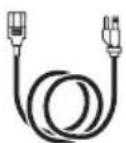
Power Cord US Type
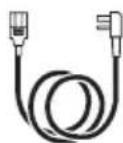
Power Cord
UK Type
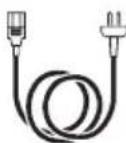
Power Cord
Europe Type
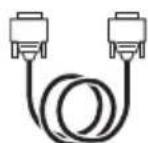
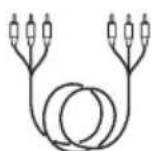
RGB Cable Video/Audio Cable Mouse cable
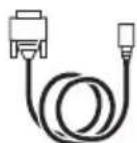
(PS/2)

Handle
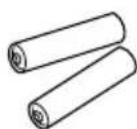
Batteries for Remote Control Transmitter

Remote Control
Transmitter
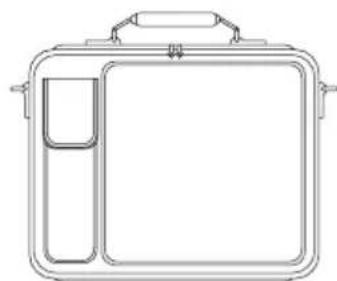
natural_image
Line drawing of a rectangular device with handle and side compartments (no text or symbols)Carrying Bag
Part Names

text_image
Speaker Zoom Knob Focus Ring Remote Control Sensor Handle Hook Power Switch AC Inlet (to the Power Cord) Lens Slide Lens Door Foot Adjuster Ventilation Openings (Intake) FRONT/LEFT VIEW OF THE PROJECTOR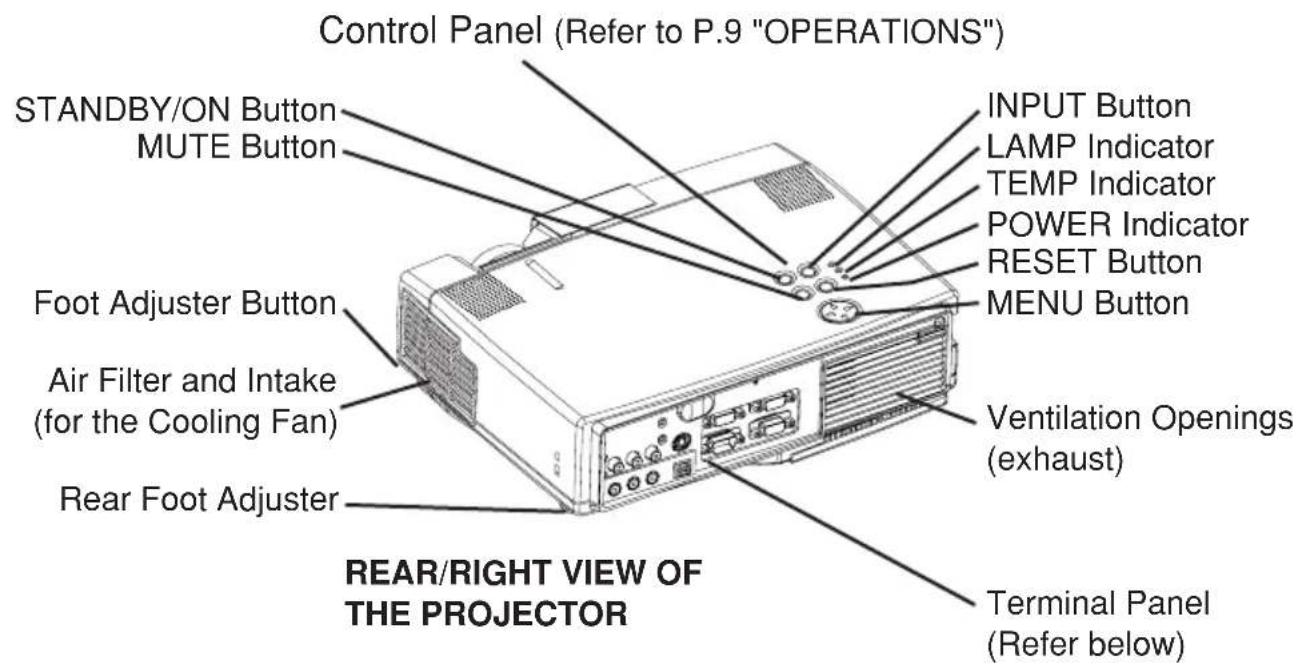
text_image
Control Panel (Refer to P.9 "OPERATIONS") STANDBY/ON Button MUTE Button INPUT Button LAMP Indicator TEMP Indicator POWER Indicator RESET Button MENU Button Foot Adjuster Button Air Filter and Intake (for the Cooling Fan) Ventilation Openings (exhaust) Rear Foot Adjuster Terminal Panel (Refer below) REAR/RIGHT VIEW OF THE PROJECTOR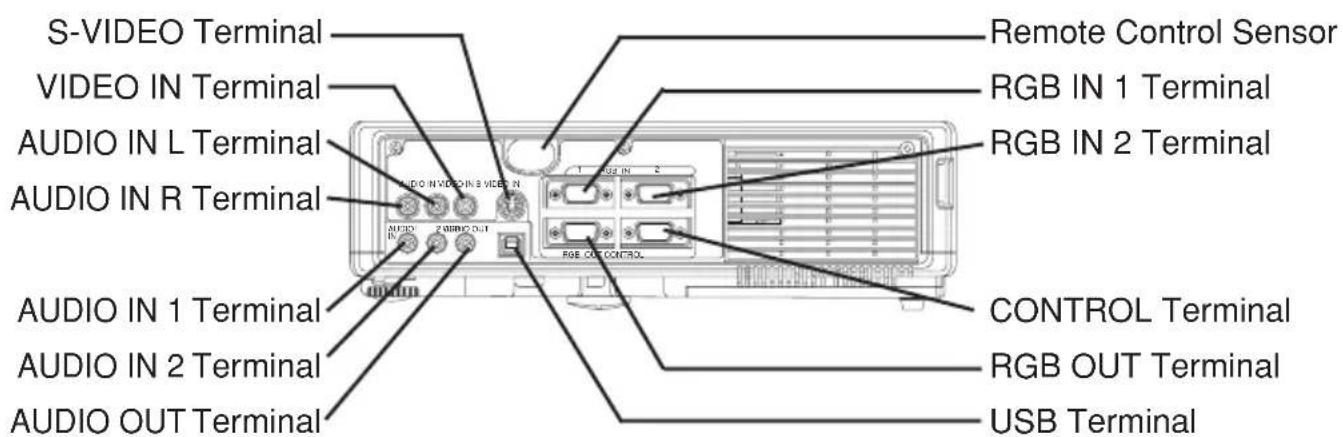
text_image
S-VIDEO Terminal VIDEO IN Terminal AUDIO IN L Terminal AUDIO IN R Terminal AUDIO IN 1 Terminal AUDIO IN 2 Terminal AUDIO OUT Terminal Remote Control Sensor RGB IN 1 Terminal RGB IN 2 Terminal CONTROL Terminal RGB OUT Terminal USB TerminalTERMINAL PANEL
Part Names (continued)
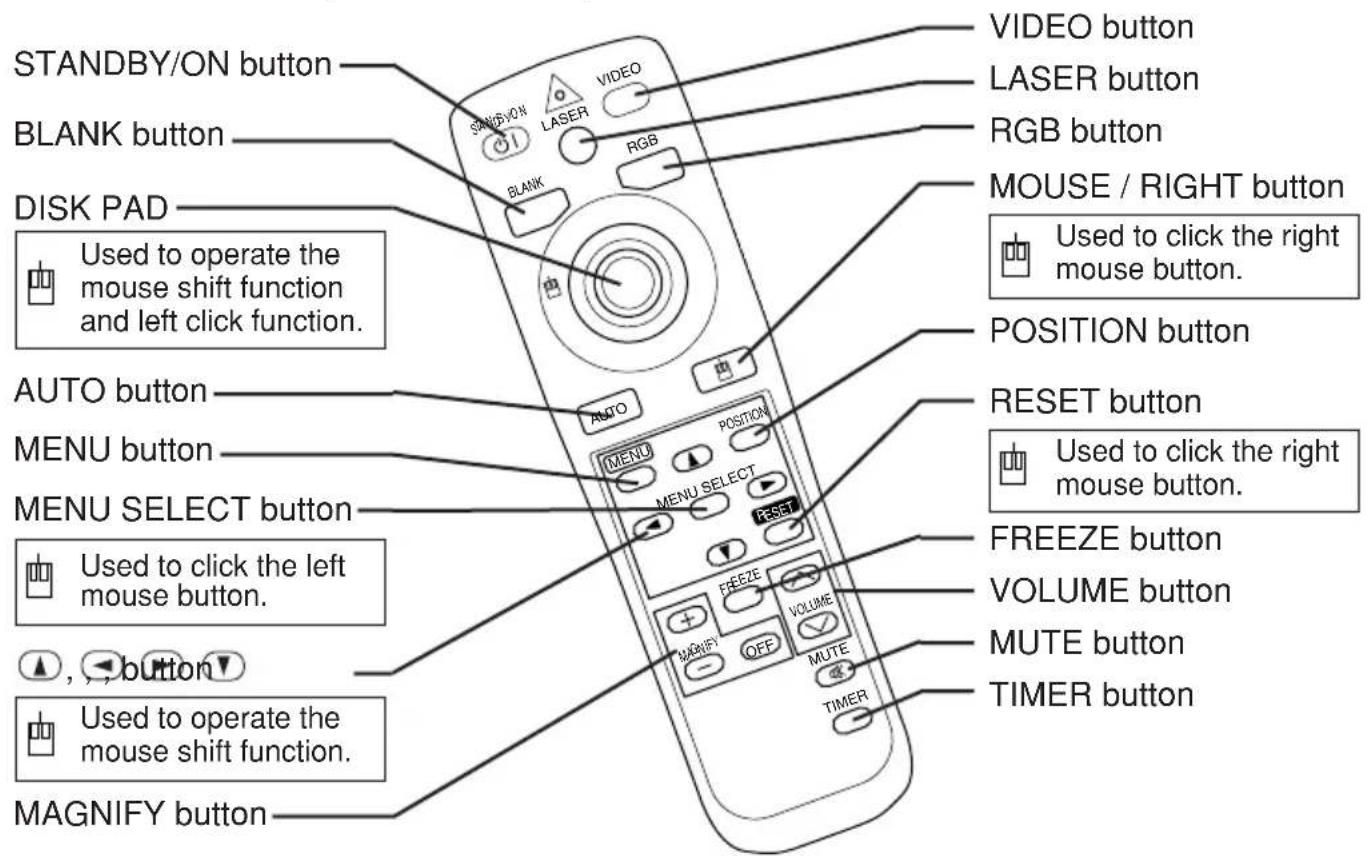
text_image
STANDBY/ON button BLANK button DISK PAD Used to operate the mouse shift function and left click function. AUTO button MENU button MENU SELECT button Used to click the left mouse button. Used to operate the mouse shift function. MAGNIFY button VIDEO button LASER button RGB button MOUSE / RIGHT button Used to click the right mouse button. POSITION button RESET button Used to click the right mouse button. FREEZE button VOLUME button MUTE button TIMER buttonREMOTE CONTROL TRANSMITTER
(Refer to P.9 "OPERATIONS")
☐ : These functions works when the mouse control function is activated. Remember, the POSITION, BLANK ON and MENU ON functions disable the mouse control function.
WARNING
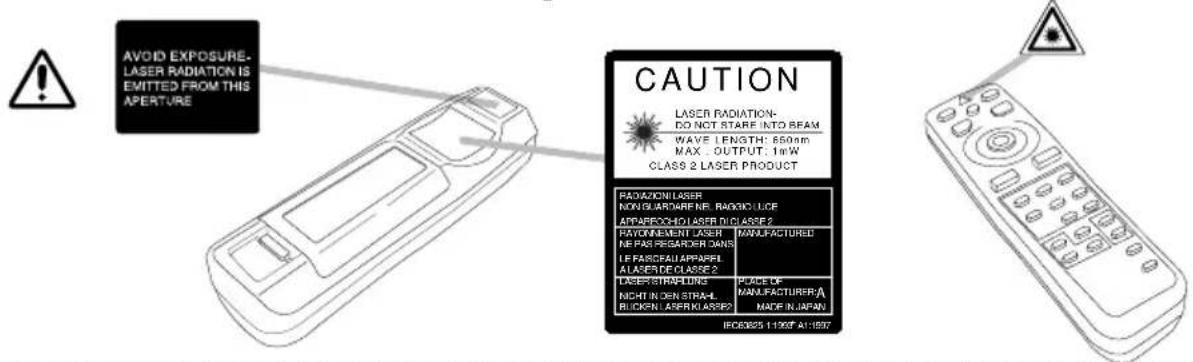
The laser pointer of the remote control transmitter is used in place of a finger or rod. Never look directly into the laser beam outlet or point the laser beam at other people. The laser beam can cause vision problems.
text_image
AVOID EXPOSURE- LASER RADIATION IS EMITTED FROM THIS APERTURE CAUTION LASER RADIATION- DO NOT STARE INTO BEAM WAVE LENGTH: 650mm MAX . OUTPUT: 1mW CLASS 2 LASER PRODUCT RADAZION LASER NON GUARDWARE NE. RADICULCE APPARECHOI LASER DI CLASSE 2 RAYONEMENT LASER NE PAS RESGARER DANS LE FASCADA APPAREL ALACER DE CLASSE 2 DESPRATURANCE NIGHT IN DEN STRAIL BLOCK LASER DI CLASSE 2 MANUFACTURED PLACE OF MANUFACTURER A MADE IN JAPAN ISO3825 11987 AF:1897NOTE: To prevent any malfunction;
- Do not give the remote control transmitter any physical impact. Take care not to drop.
- Do not place the heavy objects on the remote control transmitter.
- Do not wet the remote control transmitter or place it on any wet object.
- Do not place the remote control transmitter close to the cooling fan of the projector.
- Do not disassemble the remote control transmitter in case of malfunction. Please bring it to the service station.
ENGLISH-4
Loading the Battery
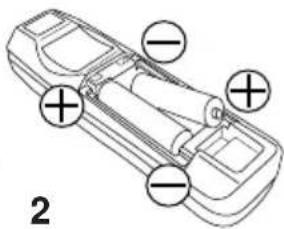
Install the AA batteries into the remote control transmitter.
-
Remove the battery cover. Push the knob while lifting up the battery cover.
-
Load the batteries. Make sure the plus and minus poles are correctly oriented.
-
Close the battery cover.

natural_image
Line drawing of a hand holding a tray with an arrow indicating direction (no text or symbols)1
text_image
2
CAUTION
- Use only the specified batteries with this remote control transmitter. Also, do not mix new and old batteries. This could cause in battery cracking or leakage, which could result in fire or personal injury.
- When loading the batteries, make sure the plus and minus terminals are correctly oriented as indicated in the remote control transmitter. Incorrect orientation could cause battery cracking or leakage, which could result in personal injury or pollution of the surrounding environment.
- When you dispose the battery, you obey the law in the relative area or country.
- Keep the battery away from children and pets.
- When not to be used for an extended period, remove the batteries from the remote control transmitter.
NOTE: Replace the batteries when remote control transmitter operation becomes difficult.
Fixing the Handle
Fix the enclosed handle if you need.
- Raise up the handle hook, and pass one end of the handle through the hole of handle hook.
- Buckle the end of the handle, as the right drawing.
- Fix the other end of the handle to the other handle hook in the same way.

natural_image
Simple line drawing of a belt buckle with an arrow indicating rotation (no text or symbols)
natural_image
Two-step diagram showing a mechanical or electrical component with directional arrows, no text or symbols present.
CAUTION
Make sure the handle is fixed before carrying the projector with the handle. If the projector should be dropped from the handle should be off, it could result in an injury, and continued use could result in fire or electrical shock. Do not flourish the projector with the handle.
Installation of the Projector and Screen
Refer to the drawing and table below for determining of the screen size and projection distance.
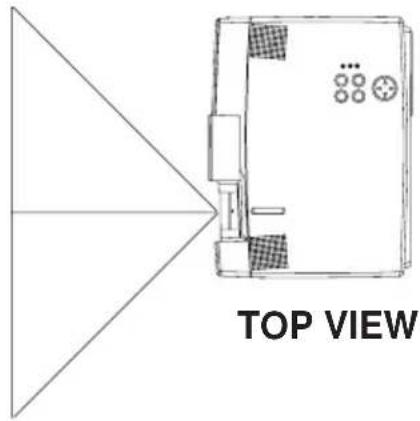
text_image
TOP VIEW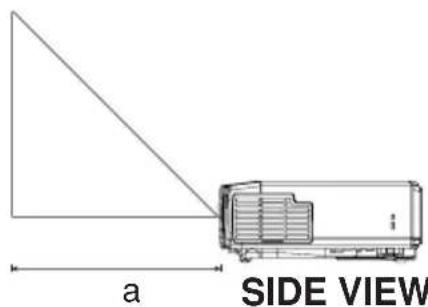
text_image
a SIDE VIEWa: Distance from the LCD projector to the screen. The projection distances shown in the table below are for full size (1024 x 768 dots).
Table 1. Installation Reference
| Screen size(inches) | a (inches) | |
| Min. Max. | ||
| 40 65 78 | ||
| 60 98 117 | ||
| 80 131 157 | ||
| 100 163 196 | ||
| 120 196 236 | ||
| 150 246 295 | ||
| 200 328 394 | ||
CAUTION
- Install the projector in a suitable environment according to instructions of the accompanying manual “SAFETY INSTRUCTIONS” and this manual.
- Please basically use liquid crystal projector at the horizontal position. If you use liquid crystal projector by the lens up position, the lens down position and the side up position, this may cause the heat inside to build up and become the cause of damage. Be especially careful not to install it with ventilation holes blocked.
Angle Adjustment
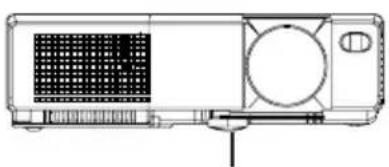
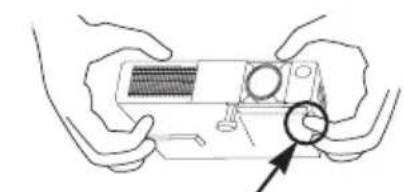
Use the foot adjuster on the bottom of the projector to adjust the projection angle. It is variable within 0^ to 9^ approximately.
natural_image
Technical line drawing of a projector with internal components and a grid-patterned screen (no text or symbols)Foot Adjuster
natural_image
Illustration of two hands holding a device with a circular arrow pointing to the bottom-right corner (no text or symbols)Press the foot adjuster button

text_image
9° aRear Foot Adjuster
- Lift up the front side of the projector, and pressing the foot adjuster button, adjust the projection angle.
- Release the button to lock at the angle to be fixed.
- Turn the rear foot adjuster to adjust the left-right slope.

CAUTION
Do not release the foot adjuster button unless the projector is being held; otherwise, the projector could overturn or the fingers could get caught and cause personal injury.
Cabling
RGB signal input:
Connect the RGB IN 1 or 2 terminal of the projector to the RGB signal output of the computer by the enclosed RGB cable.
For some modes, the optional Mac adapter is necessary. Consult your dealer to connect with the Apple computer.
Some computers may have multiple display screen modes. Use of some of these modes will not be possible with this projector.
Audio signal input (from computer):
Connect the AUDIO IN 1 or 2 terminal of the projector to the audio signal output of the computer by the optional audio cable.
Video signal input:
Connect the VIDEO IN terminal of the projector to the video signal output of the video tape recorder by the enclosed video/audio cable except for S-Video signal.
For S-Video signal, use the S-VIDEO IN terminal of the projector and the optional S-Video cable with Mini DIN 4-pin jack.
Audio signal input (from video tape recorder) :
Connect the AUDIO IN R and L terminals of the projector to the audio output of the video tape recorder by the enclosed video/audio cable with RCA jack.
RGB signal output:
Connect the RGB OUT terminal of the projector to the RGB signal input terminal of the monitor by the optional RGB cable with D-sub 15-pin shrink jack and inch thread screws.
Audio signal output:
Connect the AUDIO OUT terminal of the projector to the audio signal input terminal of the speaker by the optional audio cable with stereo mini jack.
PS/2, ADB, Serial or RS-232C communication:
Connect the CONTROL terminal of the projector to the computer by an appropriate cable.
For PS/2 mouse control (for IBM and compatible) use the enclosed mouse cable. For others, consult your dealer.
USB communication (mouse control only):
Connect the USB jack (B type) of the projector to the USB jack (A type) of the computer by optional USB cable.

CAUTION
- Incorrect connecting could result in fire or electrical shock. Please read this manual and the separate "SAFETY INSTRUCTIONS".
- Before connecting, turn off to all devices to be connected, except for the USB cable.
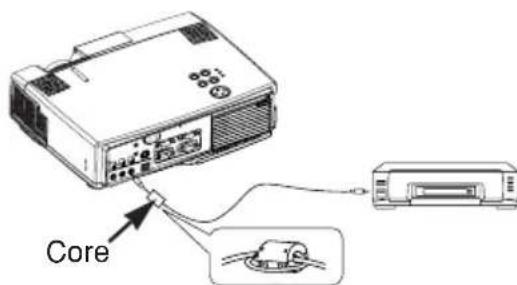
- The cables (Power cord, RGB cable and other cables) may have to be used with the core set to the projector side. Use the cables which are included with the projector or specified.
text_image
CoreNOTE:
- Before connecting, read the instruction manuals of the devices to be connected, and make sure that the projector is compatible with the device.
- Secure the screws on the D-sub connectors and tighten.
- Refer to the TECHNICAL section for the pin assign of connectors and RS-232C communication data.
Power Connection
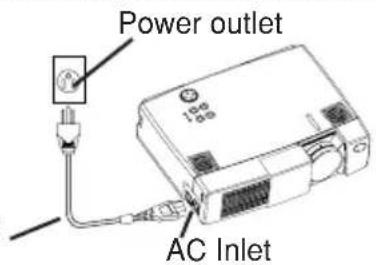
Use the correct one of the enclosed power cords depending on the power outlet to be used.
Connect the AC inlet of the projector to the power outlet firmly by the power cord.
WARNING

- Be carful in handling the power cord according to instructions of the accompanying manual "SAFETY INSTRUCTIONS" and this manual.
- Connect the power cord firmly. Avoid using a loose, unsound outlet or contact failure.
Power Cord
text_image
Power outlet AC InletExample of system setup
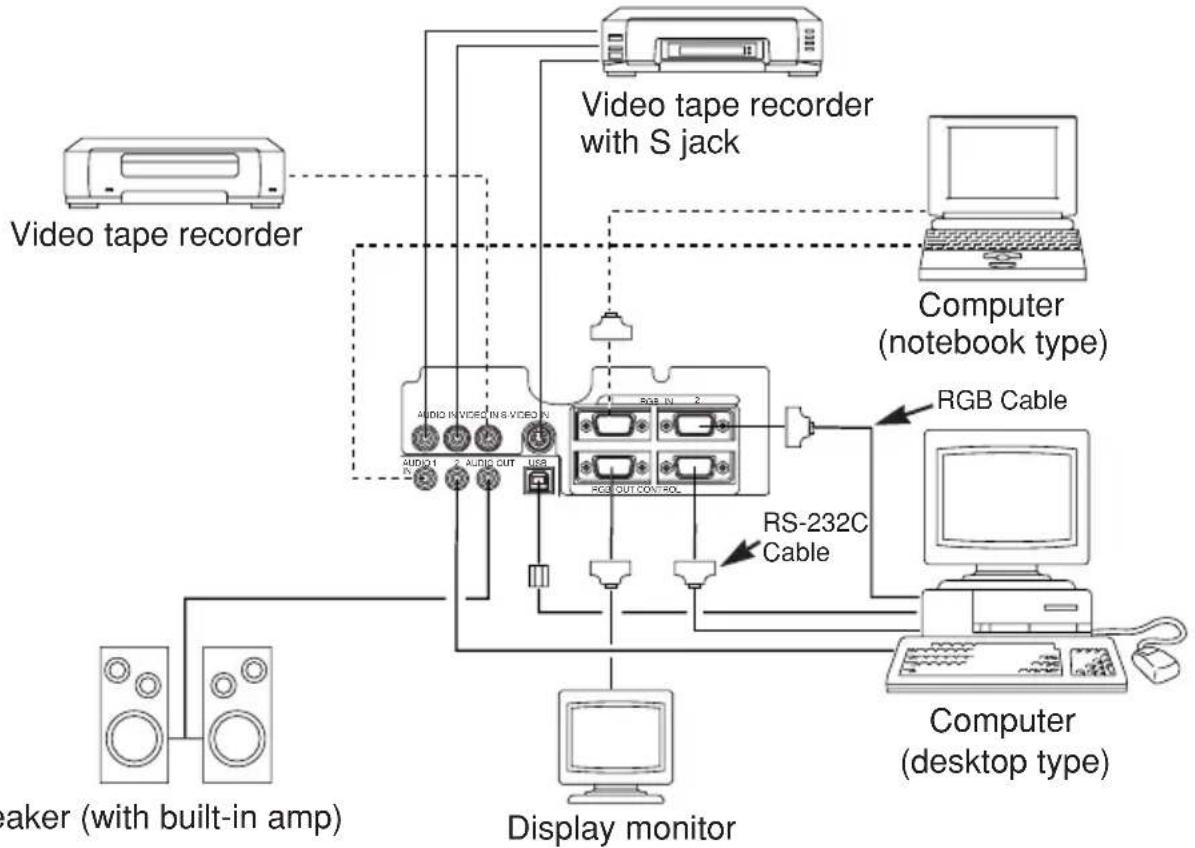
flowchart
graph TD
    A["Video tape recorder"] --> B["Audio in V/Video in S VIDEO N"]
    B --> C["RS-232C Cable"]
    C --> D["RS-232C Cable"]
    D --> E["Computer (notebook type)"]
    E --> F["Computer (desktop type)"]
    F --> G["Display monitor"]
    H["Speaker (with built-in amp)"] --> B
    I["Video tape recorder with S jack"] --> B
    J["RS-232C Cable"] --> C
    K["Computer (notebook type)"] --> E
NOTE:
When connecting with notebook computer, set to valid the RGB external image output (setting CRT display or simultaneous display of LCD and CRT). Please read instruction manual of the notebook for more information.
Plug & Play
This projector is VESA DDC 1/2B compatible. Plug & play is possible by connecting to a computer that is VESA DDC (Display Data Channel) compatible.
(Plug & play is a system configured with peripheral equipment including a computer and display, and an operating system.
NOTE:
- Use the RGB cable included with this projector when using plug & play. With other cables, pins (12), (15) are sometimes not connected.
- Plug & play is available only when the RGB cable is connected to the RGB IN 1 terminal.
ENGLISH-8
Switching the Power Supply ON/OFF Switching Power ON
- Check that the power cord is connected correctly.
- Set the power switch to [ | ]. The standby mode is selected, and the Power indicator is turned to orange.
-
Press the STANDBY/ON button on the control panel or the remote control transmitter. Warm-up begins and the Power indicator blinks in green.
-
The Power indicator ceases blinking and turns to green when power is on. Open the slide lens door.
-
Adjust picture size using the projection lens Zoom Knob.
-
Adjust focus using the projection lens Focus Ring.
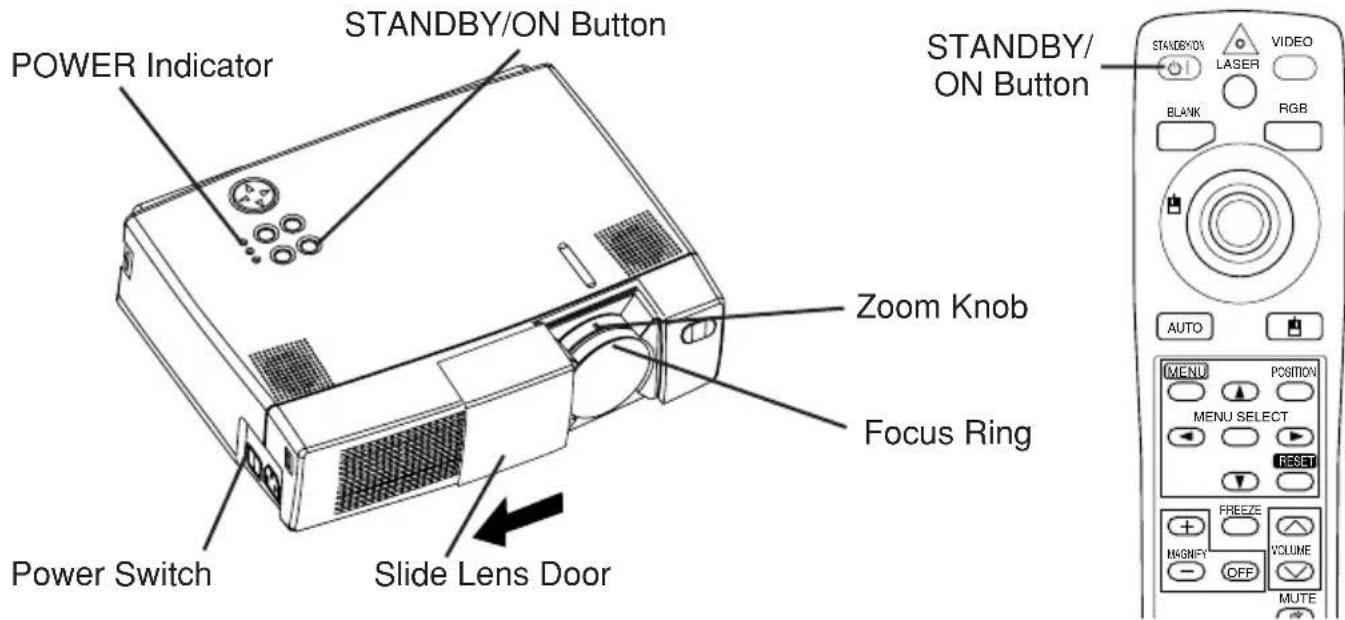
text_image
POWER Indicator STANDBY/ON Button Power Switch Slide Lens Door Zoom Knob Focus Ring STANDBY/ ON Button STANDBY/ON Laser VIDEO BLANK RGB AUTO MENU POSITION MENU SELECT RESET MAGNIFY OFF VOLUME MUTESwitching Power OFF
- Press the STANDBY/ON button on the control panel or the remote control transmitter for approximately two second. The projector lamp is extinguished and lamp cooling begins. The Power indicator blinks orange during lamp cooling. Pressing the STANDBY/ON button has no effect while the Power indicator is blinking.
- The system assumes the Standby mode when cooling is complete, and the Power indicator ceases blinking and changes to orange. Check that the indicator is orange and set the Power switch to [O].
- The Power indicator is extinguished when power is off. Do not forget to close the lens door.

WARNING
Please read this manual, and the separate “SAFETY INSTRUCTIONS” thoroughly before using the equipment. Always ensure that the equipment is used safely.
NOTE:
- Except in emergencies, do not turn off unless the Power indicator is orange as it will reduce the life of the projector lamp.
- To prevent any trouble, turn on/off the projector when the computer or video tape recorder is OFF. Providing a RS-232C cable is connected, turn on the computer before the projector.
Basic Operation
The Basic operations shown in Table 2 is performed from the projector control panel or the supplied remote control transmitter. (items indicated by * may be used from the control panel)
NOTE: Use the remote control transmitter at a distance of approximately 3m from the sensor on the front of the projector, and within a range of 30^ left-right. Strong light and obstacles will interfere with operation of the remote control transmitter.
Table 2. Basic Operation
| Item Description | ||
| INPUT SELECT | Changes in input signal in sequence: Press INPUT ➕ button.*RGB1 → RGB2 → VIDEO → S-VIDEO (→ RGB1)Select RGB input:Press RGB button.VIDEO/S-VIDEO →RGB1/RGB2 RGB2 ↔RGB1Select VIDEO/S-VIDEO input:Press VIDEO button.RGB1/RGB2 →VIDEO/S-VIDEO S-VIDEO ↔VIDEO• The selected signal name is displayed for approximately three seconds when the input signal is changed. | |
| POSITION | Set/Clear position adjustment mode:Press POSITION button.The [icon] icon is displayed in the POSITION mode.Image position adjustment:Press the ,, and buttons in the position adjustment mode. Valid only in the MAGNIFY mode with VIDEO/S-VIDEO input. The [icon] icon is extinguished, and the position adjustment mode cleared automatically, after approximately ten seconds of inactivity, and buttons may operate as the mouse control button.Refer to P.4. | |
| RESET * | Initialise menu items: Select an item and press the RESET ➕ button.Initialise position adjustment:Press the RESET ➕ buttonand the POSITION mode. Valid only when RGB signal is input. Valid except for VOLUME, LANGUAGE and H PHASE. RESET button may operate as the mouse control button. Refer to P.4. | |
| MAGNIFY | Set MAGNIFY mode:Press the MAGNIFY ➕ button.Move magnified area:Run Position Adjustment in MAGNIFY mode.Adjust magnification:Press MAGNIFY ➕ / ➕ in MAGNIFY mode.Clear MAGNIFY mode:Press MAGNIFY ➕ button.MAGNIFY is cleared by running or setting AUTO, ASPECT, INPUT SELECT or VIDEO, or by changing the input signal. | |
| FREEZE | Set/Clear FREEZE mode:Press FREEZE button.The [II] icon is displayed, and the image frozen, in the FREEZE mode.FREEZE is cleared by running or setting POSITION, VOLUME, MUTE, Auto Adjust, BLANK ON/OFF, or MENU ON/OFF, or by changing the input signal.Do not forget to clear frozen static images. | |
| VOLUME | Volume adjustment : Reduce VOLUME ⇌ Increase VOLUME ≈ | |
| MUTE * | Set/Clear Mute mode: Press the MUTE Ⓧ button.No sound is heard in the MUTE mode. | |
| AUTO | Automatic adjustment at RGB input: Press the AUTO button.Horizontal position(H.POSIT), vertical position (V.POSIT),clock phase (H.PHASE), and horizontal size(H.SIZE) are automatically adjusted. Use with the window at maximum size in the application display.Automatic adjustment at VIDEO/S-VIDEO input:Press the AUTO button.A signal type appropriate for the input signal is selected automatically. Valid only when AUTO is set for VIDEO on the menu.This operation requires approximately ten seconds. It may not function correctly with some input signals. | |
| TIMER ON/OFF | Timer start/stop: Press the TIMER button.Count-down and display by the minute from the initial value (1~99) set in TIMER on the Options menu to 0.The timer is not displayed in the BLANK MODE or FREEZE MODE. | |
| BLANK ON/OFF | Set/Clear Blank mode: Press the BLANK button.No image is displayed in the Blank mode. The screen color is as set in BLANK on the Image menu. | |
| MENU ON/OFF * | Menu display start/stop: Press the MENU button.The menu display is terminated automatically after approximately ten seconds of inactivity. | |
| MENU SELECT | Select menu type: Press the MENU SELECT button.Allows the user to select the normal menu or the single menu. Only the selected item is displayed on the single menu, and other items are displayed with the ⭺ and ⭺ buttons as with the normal menu.Valid only when the Setup menu is used. Push the MENU SELECT button after selecting items such as "BRIGHTNESS".MENU SELECT button may operate as the mouse control button.Refer to P.4. | |
Normal menu  | Single menu   | |
Setup Menu
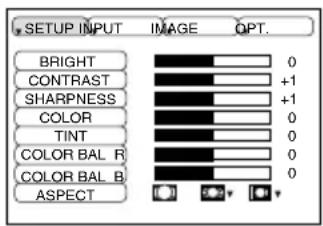
The following adjustments and settings are possible when SETUP is selected at the top of the menu. Part of the Setup menu differs between RGB input and VIDEO/S-VIDEO input. Select an item with the and buttons, and start operation. Use the Single menu to reduce menu size (see Table 2, MENU SELECT).
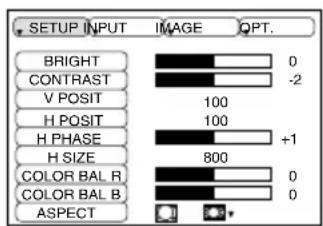
text_image
BRIGHT CONTRAST V POSIT H POSIT H PHASE H SIZE COLOR BAL R COLOR BAL B ASPECT 0 -2 100 100 +1 800 0 0 *RGB
text_image
BRIGHT CONTRAST SHARPNESS COLOR TINT COLOR BAL R COLOR BAL B ASPECT IMAGE OPT. 0 +1 0 0 0 0 0VIDEO/S-VIDEO
Table 3. Setup Menu
| Item | Description | RGB | VIDEO S-VIDEO |
| BRIGHT | Adjustment: Dark ⇌ Light | √ | √ |
| CONTRAST | Adjustment: Weak ⇌ Strong | √ | √ |
| V POSIT | Adjustment: Down ⇌ Up | √ | - |
| H POSIT | Adjustment: Left ⇌ Right | √ | - |
| H PHASE | Adjustment: Left ⇌ Right• Adjust to eliminate flicker. | √ | - |
| H SIZE | Adjustment: Small ⇌ Large• The image may not be displayed correctly if the horizontal size is excessive. In such cases, press the RESETbutton, and initialize the horizontal size. | √ | - |
| SHARPNESS | Adjustment: Soft ⇌ Clear | - | √ |
| COLOR | Adjustment: Light ⇌ Dark | - | √ |
| TINT | Adjustment: Red ⇌ Green• Valid only when NTSC or NTSC 4.43 signal is received. | - | √ |
| COLOR BAL R | Adjustment: Light ⇌ Dark | √ | √ |
| COLOR BAL B | Adjustment: Light ⇌ Dark | √ | √ |
| ASPECT | Select image aspect ratio:4:3[ ] ⇌ 16:9[ ]Select position of image:Press button while 16:9[ ]s selected.Center → Down → Up (→ Center ) | √ | - |
| Select image aspect ratio:4:3[ ] ⇌ 16:9[ ] ⇌ 4:3 small[ ]Select position of image:Press button while 16:9[ ]:3 small[ ]s selected.Center → Down → Up (→ Center )• 4:3 small may not be displayed correctly with some input signals. | - | √ |
Input Menu
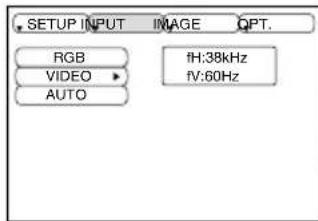
The following functions are available when INPUT is selected on the menu. Select an item with the and buttons, and start or stop operation with the and buttons.
text_image
SETUP INPUT IMAGE QPT. RGB VIDEO AUTO fH:38kHz fV:60HzTable 4. Input Menu
| Item | Description |
| RGB | Displays RGB input frequency: Displays the horizontal and vertical sync signal frequency for RGB input. Valid only at RGB input. |
| VIDEO | Select video signal type: Select the signal type with the ▲ and buttons.Select NTSC, PAL, SECAM, NTSC4.43, M-PAL, or N-PAL as appropriate for the input signal.Auto Adjust is valid at VIDEO/S-VIDEO input when AUTO is selected, and is then used for automatic selection of the signal type.Use this function when the image becomes unstable (eg. the image becomes irregular, or lacks color).Auto Adjust requires approximately ten seconds. It may not function correctly with some input signals. Pressing the AUTO button in this case may correct this problem. |
| AUTO | Automatic adjustment at RGB input: Select EXECUTE with the ▲ button. Horizontal position, vertical position, clock phase, and horizontal size are automatically adjusted when EXECUTE is selected. Use with the window at maximum size in the application display.Automatic adjustment at VIDEO/S-VIDEO input: Select EXECUTE with the ▲ button.A signal type appropriate for the input signal is selected automatically when EXECUTE is selected. Valid only if AUTO is selected in VIDEO (see above).This operation requires approximately ten seconds. It may not function correctly with some input signals. Pressing the AUTO button in this case may correct this problem.This function is the same as for Auto Adjust in Basic operation. |
Image Menu
The following adjustments and settings are available when IMAGE is selected on the menu. Select an item with the and buttons, and start operation.

text_image
SETUP INPUT IMAGE OPT. KEYSTONE BLANK MIRROR START UP +1Table 5. Image Menu
| Item | Description |
| KEYSTONE | Adjustment:Reduce size of bottom of image ⇔ Reduce size of top of image ·When this function is activated, the image may not be displayed correctly with some input signals. |
| BLANK | Select blank screen color: Select color with the and buttons.·The image is cleared when the BLANK mode is set with BLANK ON, or when there is no signal, and the entire screen is displayed in the selected color. |
| MIRROR | Operation start/stop: Press the or button.Select Mirror status: Select mirror status with and buttons. |
| START UP | Operation start/stop: Press the or button.Setup initial screen display: Select TURN ON with the button.Clear initial screen display: Select TURN OFF with the button.·Note that if TURN OFF is selected the blank screen is displayed in blue when there is no signal. |
Options Menu
The following adjustments and settings are available when OPT. is selected on the menu. Select an item with the and buttons, and start operation.

text_image
SETMOR OUTPUT OPT. VOLUME MENU COLOR TIMER LANGUAGE AUTO OFF SYNC ON G 128Table 6. Options Menu
| Item | Description |
| VOLUME | Volume adjustment: Reduce VOLUME ⇌ Increase VOLUME ► |
| MENU COLOR | Select menu background color: Select with the ► and ► buttons. |
| TIMER | Operation start/stop: Press the ► or ► button.Setup initial timer value:Set 1~99 minutes with the ► and ► buttons. |
| LANGUAGE | Operation start/stop: Press the ► or ► button.Select menu display language: Select with the ► and ► buttons. |
| AUTO OFF | Operation start/stop: Press the ► or ► button.Set AUTO OFF: Set 1~99 minutes with the ► and ► buttons.The system automatically enters the standby mode when a signal is not received for the set time.Clear AUTO OFF: Select STOP (0 min.) with the ► button.When STOP is selected the system does not enter the standby mode even if no signal is received. |
| SYNC ON G | Operation start/stop: Press the ► or ► button.SYNC ON G valid: Select TURN ON with the ► button.SYNC ON G invalid: Select TURN OFF with the ► button.May not be displayed correctly with some input signals when SYNC ON G is valid. In such cases, remove the signal connector so that no signal is received, set SYNC ON G to invalid, and reconnect the signal. |
No Signal Menu
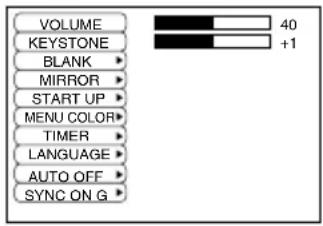
The same adjustments and settings are available as with the Image and Options menus when the MENU button is pressed during display of the “NO INPUT IS DETECTED ON ***” or “SYNC IS OUT OF RANGE ON ***” message while no signal is received.
Table 7. No Signal Menu
text_image
VOLUME KEYSTONE BLANK MIRROR START UP MENU COLOR TIMER LANGUAGE AUTO OFF SYNC ON G 40 +1| Item Description | |
| VOLUME | Volume adjustment: Reduce VOLUME ⇌ Increase VOLUME |
| KEYSTONE | Adjustment:Reduce size of bottom of image ⇌ Reduce size of top of image |
| BLANK | Select blank screen color: Select color with the and buttons.When the blank mode is set with BLANK ON, by absence of a signal, or by input of a non-standard signal, the image is cleared and the complete screen is displayed in the selected colour. |
| MIRROR | Operation start/stop: Press the or button.Select Mirror status: Select mirror status with and buttons. |
| START UP | Operation start/stop: Press the or button.Setup initial screen display: Select TURN ON with the button.Clear initial screen display: Select TURN OFF with the button.Note that if TURN OFF is selected the blank screen is displayed in blue when there is no signal. |
| MENU COLOR | Select menu background color: Select with the and buttons. |
| TIMER | Operation start/stop: Press the or button。( Setup initial timer value: Set 1~99 minutes with the and buttons. |
| LANGUAGE | Operation start/stop: Press the or button.Select menu display language: Select with the and buttons. |
| AUTO OFF | Operation start/stop: Press the or button.Set AUTO OFF: Set 1~99 minutes with the and buttons.The system automatically enters the standby mode when a signal is not received for the set time.Clear AUTO OFF: Select STOP (0 min.) with the button.When STOP is selected the system does not enter the standby mode even if no signal is received. |
| SYNC ON G | Operation start/stop: Press the or button.SYNC ON G valid: Select TURN ON with the button.SYNC ON G invalid: Select TURN OFF with the button.May not be displayed correctly with some input signals when SYNC ON G is valid. In such cases, remove the signal connector so that no signal is received, set SYNC ON G to invalid, and reconnect the signal. |
Lamp



HIGH VOLTAGE HIGH TEMPERATURE HIGH PRESSURE
Contact your dealer before replacing the lamp.
(Option lamp: DT00331)
Before replacing the lamp, switch power OFF, remove the power cord from the power outlet, and wait approximately 45 minutes until the lamp has cooled. The lamp may explode if handled at high temperatures.
WARNING

- For disposal of used lamp, treat according to the instruction of community authorities.
- Since the lamp is made of glass, do not apply shock to it and do not scratch it.
- Also, do not use old lamp. This could also cause explosion of the lamp.
- If it is probable that the lamp has exploded (explosive sound is heard), disconnect the power plug from the power outlet and ask your dealer to replace lamp.
The lamp is covered by front glass, but, in rare cases, the reflector and the inside of the projector may be damaged by scattered broken pieces of glass, and broken pieces could cause injury when being handled.
- Do not use the projector with the lamp cover removed.
Lamp
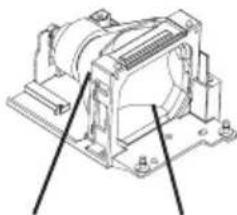
natural_image
Technical line drawing of a mechanical assembly with two arrows pointing to features (no text or symbols)Reflector
Front
glasss
Lamp Life
Projector lamps have a finite life. The image will become darker, and hues will become weaker, after a lamp has been used for a long period of time.
Replace the lamp if the LAMP indicator is red, or the CHANGE THE LAMP message (see P.20 Table 8) appears when the projector is switched ON.
NOTE:
The LAMP indicator is also red when the lamp unit reaches high temperature. Before replacing the lamp, switch power OFF, wait approximately 20 minutes, and switch power ON again. If the LAMP indicator is still red, replace the lamp.
Replacing the Lamp
- Switch the projector OFF, remove the power cord from the power outlet, and wait at least 45 minutes for the unit to cool.
- Prepare a new lamp.
- Check that the projector has cooled sufficiently, and gently turn it upside down.
- Loosen the two screws as shown in the diagram, and remove the lamp cover.
- Loosen the three screws, and gently remove the lamp while holding the grips. Touching the inside of the lamp case may result in uneven coloring.
- Install the new lamp and tighten the three screws firmly. Also steadily push the opposite side of the screwed lamp into the unit.
- Replace the lamp cover in position and tighten the two screws firmly.
- Gently turn the projector right-side up.

CAUTION
- Ensure that screws are tightened properly. Screws not tightened fully may result in injury or accidents.
- Do not use the projector with the lamp cover removed.

natural_image
Three technical line drawings of a computer case with a screwdriver inserted, showing internal components and wiring (no text or symbols)Resetting the Lamp Timer
Reset the lamp timer after replacing the lamp. When the lamp has been replaced after the LAMP indicator is red, or the CHANGE THE LAMP message is displayed, complete the following operation within ten minutes of switching power ON. The power will be turned off automatically in over 10 minutes.
- Switch power ON, and press the TIMER button on the remote control transmitter, or the RESET ☑ button on the control panel, for approximately three seconds. The 'LAMP xxxx hr' message will appear on the lamp timer on the bottom of the screen.
- Press the MENU button on the remote control transmitter, or the RESET button on the control panel, while the lamp timer is displayed. The 'LAMP xxxx □ → 0 ■ CANCEL' message will then appear.
- Press the and select 0, and wait until the timer display is cleared.
NOTE:
Do not reset the lamp timer without replacing the lamp. Reset the lamp timer always when replacing the lamp. The message functions will not operate properly if the lamp timer is not reset correctly.
Air Filter Maintenance
The air filter should be cleaned as described below at intervals of approximately 100 hours.
- Switch the projector power supply OFF, and remove the power cord from the power outlet.
- Clean the air filter with a vacuum cleaner.

CAUTION
- Switch power OFF and remove the power cord from the power outlet before beginning maintenance work. Please read the separate “SAFETY INSTRUCTIONS” thoroughly to ensure that maintenance is performed correctly.
- Replace the air filter if contamination cannot be removed, or if it is damaged. Contact your dealer in such case.(Option Air filter : MU01262)
- Do not use the equipment with the air filter removed.
- When the air filter is clogged with dust etc. the CHECK AIR FLOW message appears on the screen and the power supply is switched OFF automatically to prevent the temperature rising inside the projector.
Other Maintenance
Maintenance Inside the Equipment
For safety reasons, ensure that the equipment is cleaned and checked by the dealer once every two years. Maintaining the equipment by yourself is dangerous.
Cleaning the Lens
Gently wipe the lens with lens cleaning paper. Do not touch the lens with your hands.
Cleaning the Cabinet and Remote control transmitter
Gently wipe with a soft cloth. If dirt and stains etc. are not easily removed, use a soft cloth dampened with water, or water and a neutral detergent, and wipe dry with a soft, dry cloth.

CAUTION
- Switch power OFF and remove the power cord from the power outlet before beginning maintenance work. Please read the separate “SAFETY INSTRUCTIONS” thoroughly to ensure that maintenance is performed correctly.
- Do not use detergents or chemicals other than those noted above (e.g. benzene or thinners).
- Do not use cleaning sprays.
- Do not rub with hard materials, or tap the equipment.
OSD Message
The messages as described below may appear on the screen at power ON. Take the appropriate measures when such a message appears.
Table 8. OSD Messages
| Message Contents | |
| CHANGE THE LAMP AFTER REPLACING LAMP, RESET THE LAMP TIME. *1) | The message shown at left appears after the lamp has been used for more than 1700 hours.The lamp is approaching the end of its life.Power is switched OFF automatically when the lamp reaches the end of its life. Prepare a new lamp for installation.Always reset the lamp timer after replacing the lamp. |
| CHANGE THE LAMP AFTER REPLACING LAMP, RESET THE LAMP TIME. THE POWER WILL TURN OFF AFTER ** hr. *1) | The lamp will reach the end of its life in ** hours.Power will be switched OFF automatically in ** hours.Replace the lamp as shown in P.17 “Lamp”.Always reset the lamp timer after replacing the lamp. |
| CHANGE THE LAMP AFTER REPLACING LAMP, RESET THE LAMP TIME. THE POWER WILL TURN OFF AFTER 0 hr. | The lamp has reached the end of its life. Power will be switched OFF in a few minutes.Switch power OFF immediately and replace the lamp as shown in P.17 “Lamp”.Always reset the lamp timer after replacing the lamp. |
| NO INPUT IS DETECTED ON *** | No input signal found.Check signal input connections and signal sources. |
| SYNC IS OUT OF RANGE ON *** | The horizontal or vertical frequency of the input signal is not within the specified range.Check the specifications of the equipment and the signal source. |
| CHECK THE AIR FLOW | The internal temperature has risen.Switch power OFF, and wait 20 minutes until the equipment cools.Check the following and Switch power ON again.Are the ventilation openings blocked?Is the air filter dirty?Is the ambient temperature in excess of 35°C? |

*1) This message is cleared automatically after approximately three minutes, and appears every time power is switched ON.
Indicators Message
The POWER indicator, LAMP indicator, and TEMP indicator are lit and blank as follows. Take the appropriate measures.
Table 9. Indicators Message
| POWER indicator | LAMP indicator | TEMP indicator | Contents |
| Lights orange | Turns off | Turns off T | The Standby mode has been set. |
| Blinks green | Turns off | Turns off W | Warming up. Please wait. |
| Lights green | Turns off | Turns off ON | N. Normal operation possible. |
| Blinks orange | Turns off | Turns off C | Cooling. Please wait. |
| Lights red | Lights red | Turns off | Lamp is not lit.The interior of the equipment may be too hot. Switch power OFF, wait 20 minutes until the equipment cools, and Switch power ON again. Replace the lamp if the same problem occurs. |
| Lights red | Blinks red | Turns off | Lamp or lamp cover is not found, or hasn't been fitted in correctly.Switch power OFF, and wait for 45 minutes until the equipment cools. Check fitting of the lamp and lamp cover, and switch power ON again. Contact your dealer if the same problem occurs again. |
| Lights red | Turns off | Blinks red | The cooling fan is not operating.Switch power OFF, and wait for 20 minutes until the equipment cools. Check for foreign matters in the fan, and switch power ON again. Contact your dealer if the same problem occurs again. |
| Lights red | Turns off | Lights red | The interior of the equipment is too hot. *1)Switch power OFF, and wait for 20 minutes until the equipment cools. Check whether the ventilation openings are blocked, whether the air filter is dirty, or whether the ambient temperature exceeds 35 °C. Then switch power ON again. Contact your dealer if the same problem occurs again. |

*1) When the internal temperature becomes excessive power is switched OFF automatically for safety reasons, and the indicator is extinguished. Set the power switch to [O] and wait for 20 minutes until the equipment has cooled sufficiently.
Symptom
Before requesting repair, check in accordance with the following chart. If the situation cannot be corrected, then contact your dealer.
Table 10. Symptom
| Symptom Possible cause Remedy | Page | ||
| The power is not turned on. | The main power switch is not turned on. | Turn on the main power switch. | 8,9 |
| The power cord is disconnected. | Plug the power cord into an AC power outlet. | ||
| No video or audio. | The input is not correctly set. | Use the projector or remote control transmitter to set. | 10 |
| No signal input. | Connect correctly. | 7,8 | |
| Video is present but no audio. | The projector is not correctly connected. | Connect correctly. | 7,8 |
| The volume is set to minimum. | Press VOLUME ⚙ on the remote control or display the menu screen and adjust the volume. | 11,15 | |
| Mute is turned on. | Press the MUTE ⏻ button. | 11 | |
| Audio is present but no video. | The projector is not correctly connected. | Connect correctly. | 7,8 |
| The brightness adjustment knob is rotated fully clockwise. | Select BRIGHT with the MENU button and the press the ⚠ button. | 12 | |
| The slide lens door is still closed. | Open the slide lens door. | 9 | |
| Colors are pale and color matching is poor. | Color density and color matching are not correctly adjusted. | Adjust the video. | 12 |
| Images are dark. | Brightness and contrast are not correctly adjusted. | Adjust the video. | 12 |
| The lamp is nearing the end of its service life. | Replace with a new lamp. | 17 | |
| Video is blurred. | Focus or H PHASE is out of adjustment. | Adjust the focus or H PHASE. | 9,12 |
NOTE : This specifications are subject to change without notice.
Table 11. Specifications
| Item Specification | ||
| Product name Liquid crystal projector | ||
| Liquid crystal panel | Panel size 2.3 cm (0.9 type) | |
| Drive system | TFT active matrix | |
| Pixels 786,432 pixels (1024 horizontal x 768 vertical) | ||
| Lens Zoom lens F=1.7 ~ 2.0 f=37.5 ~ 45.1 mm | ||
| Lamp 160 W UHB | ||
| Speaker 1.0 W + 1.0W (Stereo) | ||
| Power supply AC100 ~ 120V, 2.8A / AC220 ~ 240V, 1.2A | ||
| Power consumption 250W | ||
| Temperature range 0 ~ 35°C (Operating) | ||
| Size 298 (W) x 94.6 (H) x 228 (D) mm | ||
| Weight (mass) 3.25 kg | ||
| RGB signal input | RGB IN 1/2 | Video: Analog 0.7Vp-p, 75Ωterminator (positive)H/V. sync.: TTL level (positive/negative)Composite sync.: TTL levelD-sub 15-pin shrink jack |
| AUDIO IN 1/2 | 200mVrms, 50 kΩ(max. 3.0Vp-p)Stereo mini jack | |
| Video signal input | VIDEO IN | 1.0Vp-p, 75ΩterminatorRCA jack |
| S-VIDEO IN | Brightness signal: 1.0Vp-p, 75ΩterminatorColor signal: 0.286Vp-p (burst signal), 75ΩterminatorMini DIN 4-pin jack | |
| AUDIO IN R/L | 200mVrms, 50 kΩ(max. 3.0Vp-p)RCA jack | |
| Signal output | RGB OUT | Video: Analog 0.7Vp-p, 75Ωoutput impedance (positive)H/V. sync.: TTL level (positive/negative)Composite sync.: TTL levelD-sub 15-pin shrink jack |
| AUDIO OUT | 200mVrms, output impedance 1 kΩ(max. 3.0Vp-p)Stereo mini jack | |
| Control functions | CONTROL D | sub 15-pin shrink plug |
| USB | USB jack (B type) | |
If a problem occurs with the equipment, first refer to the P.20 “TROUBLESHOOTING” section and run through the suggested checks. If this does not resolve the problem contact your dealer or service company. If repairs are possible, and desirable, they will be charged.