26EL933 - TV TOSHIBA - Free user manual and instructions
Find the device manual for free 26EL933 TOSHIBA in PDF.


User questions about 26EL933 TOSHIBA
0 question about this device. Answer the ones you know or ask your own.
Ask a new question about this device
Download the instructions for your TV in PDF format for free! Find your manual 26EL933 - TOSHIBA and take your electronic device back in hand. On this page are published all the documents necessary for the use of your device. 26EL933 by TOSHIBA.
USER MANUAL 26EL933 TOSHIBA
Leading Innovation >>>

natural_image
Black-and-white close-up profile of a human face in profile view, showing detailed shading and subtle features (no text or symbols)32AV93*G 32/40LV93*G 26/32EL93*G 32/40HL93*G DIGITAL Series

natural_image
Simple line icon of an open book with a lowercase 'i' inside, no text or symbols present.Contents
Safety Precautions .... 5
Installation and important information....6
Where to install.... 6
When using a Wall Bracket 6
The Remote Control 8
Inserting batteries and effective range of the remote 8
Connecting External Equipment....9
REGZA-LINK Connections ..... 11
Connecting an HDMI or DVI device to the HDMI input ...... 12
To connect an HDMI device 12
To connect a DVI device.... 14
Connecting a Computer ..... 16
To connect a PC to the HDMI terminal.... 16
Acceptable Video signals through HDMI terminals 18
Acceptable PC signals through HDMI terminals....18
Using the Controls .... 19
Switching On 20
Using the Remote Control 20
Using the Side-Key Controls .... 20
Tuning the Television ...... 21
First Time Using 21
Setting the Channels ...... 23
Auto Tuning 23
Manual Tuning 24
Automatic Power Down 26
Reset TV 26
DTV Settings 27
Channels 27
Channel Options.... 28
Subtitle and Audio 29
Password.... 29
Parental....29
Standby Channel Update 29
Common Interface 30
Favorite Control 30
Favorite Program.... 30
Channel Grouping 31
Digital On-Screen Information and Programme Guide ...... 32
Information 32
On-Screen Information Icons 32
Guide....32
General Controls 33
Selecting Channels 33
Stereo and Bilingual Transmissions .... 33
Quick Access Menu 33
Subtitles.... 33
Picture Still 33
Input Selection.... 33
Sound Controls 34
Volume Controls and Mute Sound...... 34
Dual....34
Bass, Treble and Balance 34
Stable Sound 34
Surround Sound 34
Bass Boost 34
Dynamic Range Control 34
Digital Audio Output...... 35
Audio Description 35
Widescreen Viewing 36
Available Picture Size and Position
Control....37
Picture Controls .... 38
Picture Position 38
Picture Mode 38
Picture Preferences 38
Black/White Level 39
Cinema Mode 39
Colour Temperature 39
Static Gamma.... 39
Reset....39
Active Backlight Control 39
3D Colour Management 39
Base Colour Adjustment 40
Digital Noise Reduction 40
MPEG NR – Noise Reduction ...... 40
Enjoy Photos through USB Port 41
View Photo Files 41
Using Slide Show 42
Repeat Settings for Slideshow ...... 42
Set Interval Time 42
Using the Play List.... 42
Background Music 42
Photo Info 43
Enjoy Music through USB Port 44
Play Music Files 44
Repeat Settings 45
Using the Play List.... 45
Music Info 45
Enjoy Videos through USB Port 46
Play Video Files 47
Repeat Settings 48
Set 48
Using the Play List.... 48
Slow Forward 48
Step Forward 48
Video Info 48
Aspect Ratio 48
Picture Mode 48
Goto Time 49
REGZA-LINK Controls .... 50
Equipment Control.... 50
Select REGZA-LINK Device 50
REGZA-LINK Menus 51
One Touch Play 51
System Standby 51
System Audio Control 51
Enable REGZA-LINK.... 51
Auto Power On 52
Auto Standby 52
Amplifier Control....52
Speaker Preference 52
REGZA-LINK Playback Device
Control....53
Preference Controls .... 54
On Timer 54
Sleep Timer 54
EPG....55
Panel Lock.... 56
Auto Format (Widescreen) 56
4:3 Stretch 56
Blue Screen 56
Side Panel 56
DivX Registration.... 57
DivX Deregistration 57
System Information 57
System Upgrade.... 57
Text Services and Text Information....58
Setting the Modes 58
Navigating Pages using Auto 58
Navigating Pages using LIST 58
Control Buttons.... 58
PC Settings 59
Horizontal and Vertical Position...... 59
Horizontal Width 59
Clock Phase 59
Reset....59
Input Selection and AV Connections....60
Lip Sync Mode 60
Input Signal Selection.... 60
Frequently Asked Questions ... 61
Specifications and Accessories 63
License Information 65
Safety Precautions
This equipment has been designed and manufactured to meet international safety standards but, like any electrical equipment, care must be taken to obtain the best results and for safety to be assured.
Please read the points below for your own safety. They are of a general nature, intended to help with all electronic consumer products and some points may not apply to the goods you have just purchased.
The Class I apparatus shall be connected to a mains socket outlet with a protective earthing connection.
Air Circulation
Leave more than 10cm clearance around the television to allow adequate ventilation. This will prevent overheating and possible damage to the television. Dusty places should also be avoided.
Heat Damage
Damage may occur if the television is left in direct sunlight or near a heater. Avoid places subject to extremely high temperatures or humidity. Place in a location where the temperature remains between 5^ C ( 41^ F) min. and 35^ C ( 94^ F) max.
Mains Supply
The mains supply required for this equipment is 220-240v AC 50Hz. Never connect to a DC supply or any other power source. DO ensure that the television is not standing on the mains lead. Use only the supplied lead.
DO NOT cut off the mains plug from this equipment, this incorporates a special Radio Interference Filter, the removal of which will impair its performance. In the UK, the fuse fitted in this plug is approved by ASTA or BSI to BS1362.
It should only be replaced by a correctly rated and approved type and the fuse cover must be refitted.
IF IN DOUBT PLEASE CONSULT A COMPETENT ELECTRICIAN.
Do
DO read the operating instructions before you attempt to use the equipment.
DO ensure that all electrical connections (including the mains plug, extension leads and inter-connections between pieces of equipment) are properly made and in accordance with the manufacturers' instructions. Switch off and withdraw the mains plug before making or changing connections.
DO consult your dealer if you are ever in doubt about the installation, operation or safety of your equipment.
DO be careful with glass panels on equipment.
WARNING: To prevent injury, this apparatus must be securely attached to the floor/wall in accordance with the installation instructions. See page 6.
DO NOT REMOVE ANY FIXED COVERS AS THIS WILL EXPOSE DANGEROUS AND 'LIVE' PARTS. THE MAINS PLUG IS USED AS A DISCON-NECTING DEVICE AND THEREFORE SHOULD BE READILY OPERABLE.
Do Not
DO NOT obstruct the ventilation openings of the equipment with items such as newspapers, tablecloths, curtains, etc. Overheating will cause damage and shorten the life of the equipment.
DO NOT allow electrical equipment to be exposed to dripping or splashing or objects filled with liquids, such as vases, to be placed on the equipment.
DO NOT place hot objects or naked flame sources, such as lighted candles or nightlights on, or close to equipment. High temperatures can melt plastic and lead to fires.

WARNING: To prevent the spread of fire, keep candles or other open flames away from this product at all times.
DO NOT use makeshift stands and NEVER fix legs with wood screws. To ensure complete safety, always fit the manufacturers' approved stand, bracket or legs with the fixings provided according to the instructions.
DO NOT leave equipment switched on when it is unattended, unless it is specifically stated that it is designed for unattended operation or has a standby mode. Switch off by withdrawing the plug, make sure your family know how to do this. Special arrangements may need to be made for people with disabilities.
DO NOT continue to operate the equipment if you are in any doubt about it working normally, or it is damaged in any way – switch off, withdraw the mains plug and consult your dealer.
WARNING – excessive sound pressure from earphones or headphones can cause hearing loss.
ABOVE ALL – NEVER let anyone, especially children, push or hit the screen, push anything into holes, slots or any other openings in the case.
These actions will damage screen or internal parts.
NEVER guess or take chances with electrical equipment of any kind – it is better to be safe than sorry.
Where to install
Locate the television away from direct sunlight and strong lights, soft, indirect lighting is recommended for comfortable viewing. Use curtains or blinds to prevent direct sunlight falling on the screen.
Place the TV set on a stable, level surface that can support the weight of the TV. As an additional safety measure you secure the TV to the level surface or a wall, as shown in the illustration, using sturdy strap.
Otherwise secure the TV on the level surface using the mounting screw.
The LCD display panels are manufactured using an extremely high level of precision technology, however sometimes some parts of the screen may be missing picture elements or have luminous spots. This is not a sign of a malfunction.
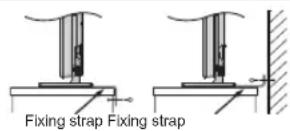
① Panhead Screw: advised
② ③ Roundhead / Ovalhead Screw: a washer is required
④ ⑤ Flathead screw: cannot be used
- The screw type is dependent on the actual mounting surface. The metric thread size is 3.8-4.1mm.
- Place the stand on a stable, level surface and secure the TV set by using a single screw (not supplied) through the fall prevention screw hole.
- Make sure to secure your TV set to a firm and adequately thick surface.

text_image
Sturdy tie (as short as possible) Stand clip Screw (not supplied) 9-10mm L ≥ 20mm metal washer 10mm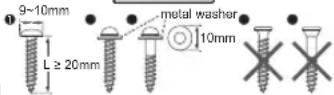
\*Stand style is dependent on model
Make sure the television is located in a position it cannot be pushed or hit by objects, as pressure will break or damage the screen. Also, please be certain that small items cannot be inserted into slots or openings in the case.

Avoid using chemicals (such as air refreshers, cleaning agents, etc.) on or near the TV pedestal. Studies indicate that plastics may weaken and crack over time from the combination effects of chemical agents and mechanical stress (such as weight of TV). Failure to follow these instructions could result in serious injury and/or permanent damaged to TV and TV pedestal.
Cleaning the screen and cabinet...
Turn off the power, and clean the screen and cabinet with a soft, dry cloth. We recommend that you do not use any proprietary polishes or solvents on the screen or cabinet as this may cause damage.
When using a Wall Bracket
Please use a wall bracket appropriate for the size and weight of the LCD TV.
- Two people are required for installation.
-
To install a wall-mount from another manufacturer.
-
Unplug and remove any cables and/or other component connectors from the rear of the TV.
- Carefully lay the front of the unit face down on a flat, cushioned surface such as a quilt or blanket.
- Follow the instructions provided with your wall bracket. Before proceeding, make sure the appropriate bracket(s) are attached to the wall and the back of the TV as described in the instructions provided with the wall bracket.
- Always use the screws supplied or recommended by the wall mount manufacturer.
Removing the Pedestal Stand:
- Carefully lay the front of the unit face down on a flat, cushioned surface with the stand hanging over the edge.
- Remove the screws.
- After the screws are removed, hold the pedestal stand in place, then remove it from the TV by sliding away from the bottom of the TV.
NOTE: Extreme care should always be used when removing the pedestal stand to avoid damage to the LCD panel.
32AV93*G | 32/40LV93*G x 4
26EL93*G x 3
32EL93*G x 4 | 32/40HL93*G x 4

text_image
Diagram showing a computer setup with labeled components and a corresponding diagram of two devices with sensors and wiring connections.
text_image
Diagram showing a computer monitor setup above and a corresponding layout with labeled components, likely illustrating a system or layout concept.
text_image
Diagram showing a room with a ceiling-mounted device and a floor plan with labeled equipment positions.EXCLUSION CLAUSE
| Toshiba shall under no circumstances be liable for loss and/or damage to the product caused by: | |
| i) fire; | |
| ii) earthquake; | |
| iii) accidental damage; | |
| iv) intentional misuse of the product; | |
| v) use of the product in improper conditions; | |
| vi) loss and/or damage caused to the product while in the possession of a third party; | |
| vii) any damage or loss caused as a result of the owner's failure and/or neglect to follow the instructions set out in the owner's manual; | |
| viii) any loss or damage caused directly as a result of misuse or malfunction of the product when used simultaneously with associated equipment; | |
| Furthermore, under no circumstances shall Toshiba be liable for any consequential loss and/or damage including but not limited to the following, loss of profit, interruption of business, the loss of recorded data whether caused during normal operation or misuse of the product. |
- The digital reception function of this television is only effective in the countries listed in the Country section of the SETUP menu. Depending on country/area, some of this television's functions may not be available. Reception of future additional or modified services can not be guaranteed with this television.
- If stationary images generated by 4:3 broadcasts, text services, channel identification logos, computer displays, video games, on-screen menus, etc. are left on the television-screen for any length of time they could become conspicuous, it is always advisable to reduce both the brightness and contrast settings.
- Very long, continuous use of the 4:3 picture on a 16:9 screen may result in some retention of the image at the 4:3 outlines, this is not a defect of the LCD TV and is not covered under the manufacturers warranty. Regular use of other size modes (e.g.: Super Live) will prevent permanent retention.
NOTE: Interactive video games that involve shooting a “gun” type of joystick at an on-screen target may not work with this TV.
| SYMBOL | SYMBOL DEFINITION |
 | DANGEROUS VOLTAGE: The lightening flash with arrowhead symbol within an equilateral triangle is intended to alert the user to the presence of un-insulated “DANGEROUS VOLTAGE” within the product’s enclosure that may be of sufficient magnitude to constitute a risk of electric shock to persons. |
 | INSTRUCTIONS: The exclamation point within on equilateral triangle to alert the user to the presence of important operating and maintenance (servicing) instruction in the literature accompanying the appliance. |
 | WARNING: To prevent the spread of fire, keep candles or other open flames away from this product at all times. |
The Remote Control
Simple at-a-glance reference of your remote control.

text_image
2 3 4 1 2 3 4 5 6 7 8 9 AD 0 ATV/ DTV 8 9 12 + - OK P QUICK GUIDE EXIT 13 15 16 17 18 MENUS RETURN 19 20 TOSHIBA CT-903261 Toggle between TV ON or Standby
2 Toggle between external input sources
3 Still Picture
4 To display the teletext screen
5 TEXT subtitle pages if available
6 Stereo/Bilingual transmissions
7 Number buttons
8 Audio Description
9 Switch between ATV and DTV
10 Change the volume
11 Change the channel
12 In TV mode: Display on-screen information In Text mode: Access the index page
13 Mute the sound
14 Display the QUICK access menu
15 Exit the menu system
16 Display EPG
17 Go to the previous level of the menu
18 Display the on-screen menu
19 Menu navigation: ▲, ▼, ◀, ▶: In Text mode: Change the page
OK Confirm the selection
20 Colour button: Text control buttons
Reveal concealed text
Hold a wanted page
Enlarge text display size
Select a page while viewing a normal picture
Inserting batteries and effective range of the remote

natural_image
Technical line drawing of a mechanical component with two cylindrical parts and a central cylindrical part (no text or symbols)Remove the back cover to reveal the battery compartment and make sure the batteries are inserted the right way round. Suitable battery types for this remote are AAA, 1.5V.
Do not combine a used, old battery with a new one or mix battery types. Remove dead batteries immediately to prevent acid from leaking into the battery compartment. Dispose of them in accordance with instructions on page 66 of this manual. Warning: batteries must not be exposed to excessive heat such as sunlight or fire.
The performance of the remote control will deteriorate beyond a distance of five metres or outside an angle of 30 degrees from the centre of the television. If the operating range becomes reduced the batteries may need replacing.
Connecting External Equipment
Before connecting any external equipment, turn off all main power switches. If there is no switch remove the mains plug from the wall socket.
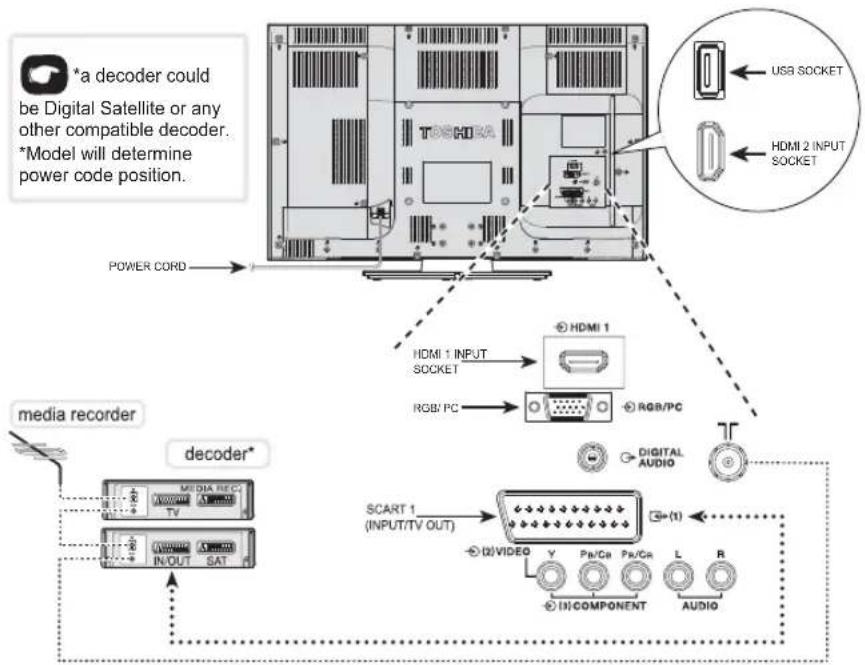
text_image
*a decoder could be Digital Satellite or any other compatible decoder. *Model will determine power code position. POWER CORD HDMI 1 INPUT SOCKET RGB/PC HDMI 1 RGB/PC DIGITAL AUDIO SCART 1 (INPUT/TV OUT) (2)VIDEO Y Pa/Ca Pa/Ca L R (3)COMPONENT AUDIOFor 32AV93*G | 32/40LV93*G
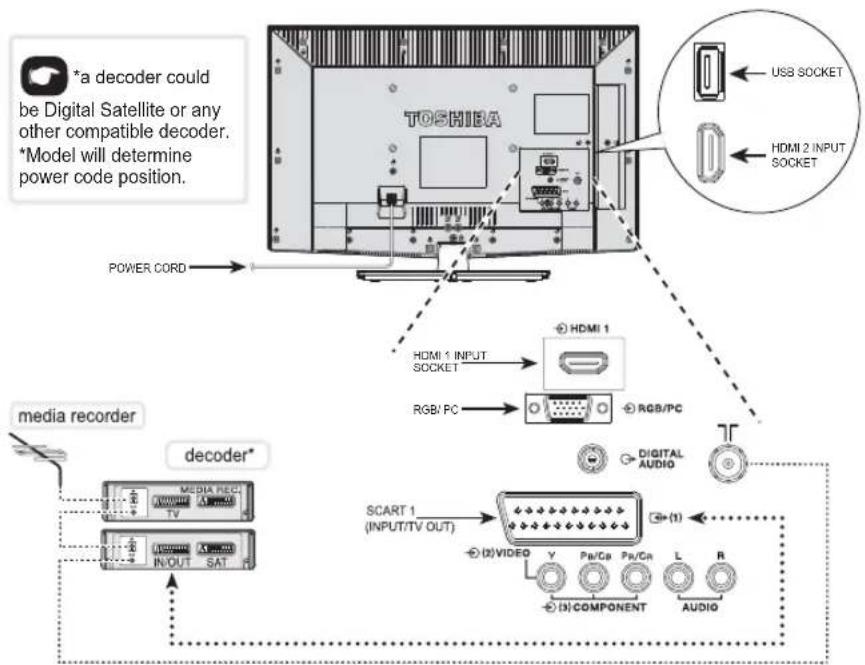
text_image
*a decoder could be Digital Satellite or any other compatible decoder. *Model will determine power code position. TOSHIBA POWER CORD HDMI 1 HDMI 1 INPUT SOCKET RGB/PC RGB/PC DIGITAL AUDIO SCART 1 (INPUT/TV OUT) SENSOR DATA DATA REC DATA DATA DATA DATA DATA DATA DATA DATA DATA DATA DATA DATA DATA DATA DATA DATA DATA DATA DATA DATA DATA DATA DATA DATA DATA DATA DATA DATA DATA DATA DATA DATA DATA DATA DATA DATA DATA DATA DATA DATA DATA DATA DATA DATA DATA DATA DATA DATA DATA DATA Data DATA DATA DATA DATA DATA DATA DATA DATA DATA DATA DATA DATA DATA DATA DATA DATA DATA DATA DATA DATA DATA DATA DATA DATA DATA DATA DATA DATA DATA DATA DATA DATA DATA DATA DATAFor 26/32EL93*G | 32/40HL93*G
Aerial cables:

Connect the aerial to the ANT socket on the rear of the television.
If you use a decoder and/or media recorder, connect through the decoder and/or media recorder to the television.
SCART cables:

Connect the video recorder IN/OUT or decoder TV socket to the television. Connect the media player SAT socket to the decoder MEDIA REC. socket.
Before running Auto Tuning put your decoder and media recorder to Standby.
HDMI® (High-Definition Multimedia Interface) is for use with a DVD, decoder or electrical equipment with digital audio and video output. It is designed for best performance with 1080i high-definition video signals but will also accept and display 480i, 480p, 576i, 576p, 720p and 1080p. HDMI1 also support VGA, SVGA, XGA, WXGA and SXGA.
NOTE: Although this television is able to connect to HDMI equipment it is possible that some equipment may not operate correctly.
A wide variety of external equipment can be connected to the back of the television, therefore the relevant owners manuals for all additional equipment must be referred to.
If the television automatically switches over to monitor external equipment, return to normal television by pressing the desired channel button. To recall external equipment, press ⬤ to select.
REGZA-LINK Connections
The basic functions of connected audio/video equipment can be controlled using the television's remote control if a REGZA-LINK compatible device is connected.
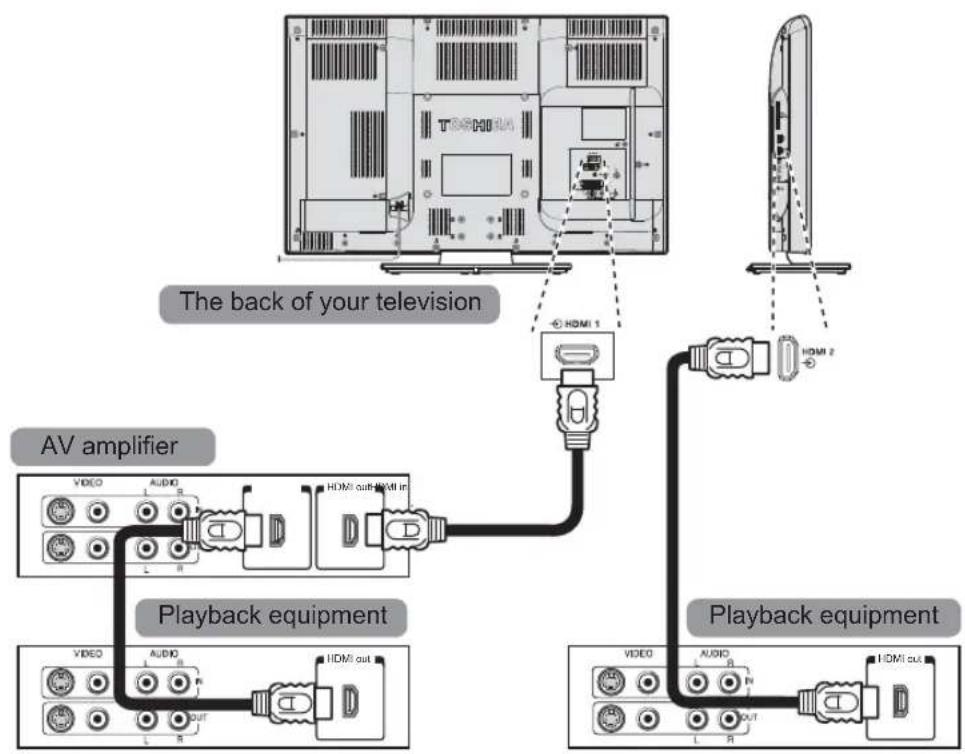
flowchart
graph TD
    A["The back of your television"] --> B["AV amplifier"]
    B --> C["Playback equipment"]
    C --> D["Playback equipment"]
    A --> E["+ HDMI 1"]
    A --> F["+ HDMI 2"]
    C --> G["VIDEO AUDIO HDMI out HDMI in"]
    C --> H["VIDEO AUDIO HDMI out"]
    C --> I["VIDEO AUDIO HDMI out"]
For 32AV93*G | 32/40LV93*G
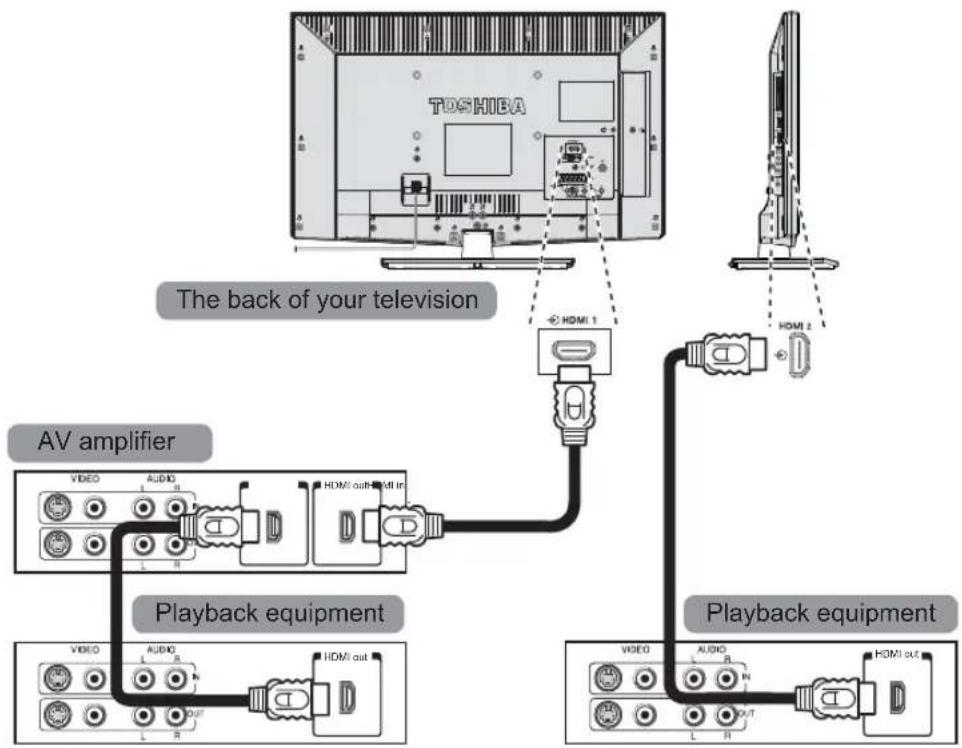
flowchart
graph TD
    A["TOSHIBA"] -->|The back of your television| B["AV amplifier"]
    A --> C["Playback equipment"]
    A --> D["Playback equipment"]
    B --> E["VIDEO audio R"]
    B --> F["VIDEO audio L"]
    B --> G["VIDEO audio R"]
    B --> H["VIDEO audio L"]
    B --> I["VIDEO audio R"]
    B --> J["VIDEO audio L"]
    B --> K["VIDEO audio R"]
    B --> L["VIDEO audio L"]
    B --> M["VIDEO audio R"]
    B --> N["VIDEO audio L"]
    B --> O["VIDEO audio R"]
    B --> P["VIDEO audio L"]
    B --> Q["VIDEO audio R"]
    B --> R["VIDEO audio L"]
    B --> S["VIDEO audio R"]
    B --> T["VIDEO audio L"]
    B --> U["VIDEO audio R"]
    B --> V["VIDEO audio L"]
    B --> W["VIDEO audio R"]
    B --> X["VIDEO audio L"]
    B --> Y["VIDEO audio R"]
    B --> Z["VIDEO audio L"]
For 26/32EL93*G | 32/40HL93*G
Connecting an HDMI or DVI device to the HDMI input
The HDMI input on your television receives digital audio and uncompressed digital video from an HDMI source device or uncompressed digital video from a DVI (Digital Visual Interface) source device.
This input is designed to accept HDCP (High-Bandwidth Digital-Content Protection) programme material in digital form from EIA/CEA-861-D-compliant [1] consumer electronic devices (such as a set-top box or DVD player with HDMI or DVI output). For acceptable video signal formats, see page 18.
NOTE:
- Some early HDMI equipment may not work properly with your latest HDMI TV, due to the adoption of a new standard.
• Supported Audio format: Linear PCM and Dolby Digital, sampling rate 32/44.1/48kHz.
To connect an HDMI device
Connect an HDMI cable (type A connector) from the device to the HDMI terminal.
For proper operation, it is recommended that you use an HDMI cable with the HDMI Logo (HDMI®).
- If your HDMI connection is capable of 1080p and/or your television is capable of refresh rates greater than 50Hz, you will need a Category 2 cable. Conventional HDMI/DVI cable may not work properly with this mode.
- HDMI cable transfers both video and audio. Separate analogue audio cables are not required (see illustration).
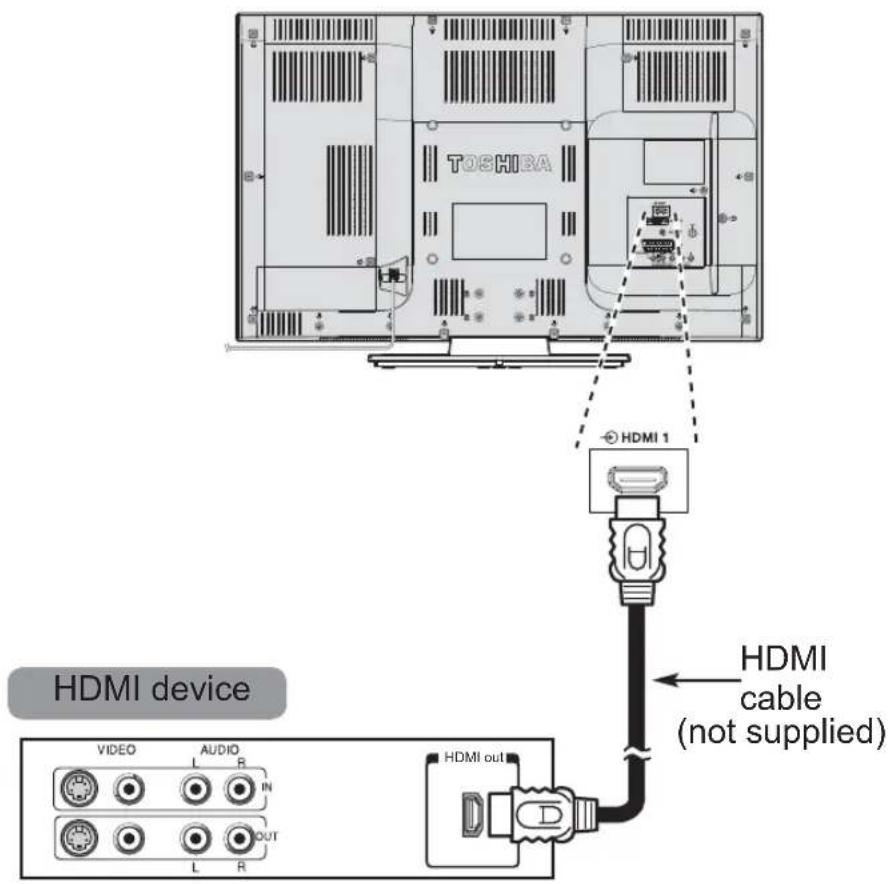
text_image
TOSHIBA HDMI device VIDEO AUDIO L R IN L OUT R HDMI 1 HDMI cable (not supplied) HDMI outFor 32AV93*G | 32/40LV93*G
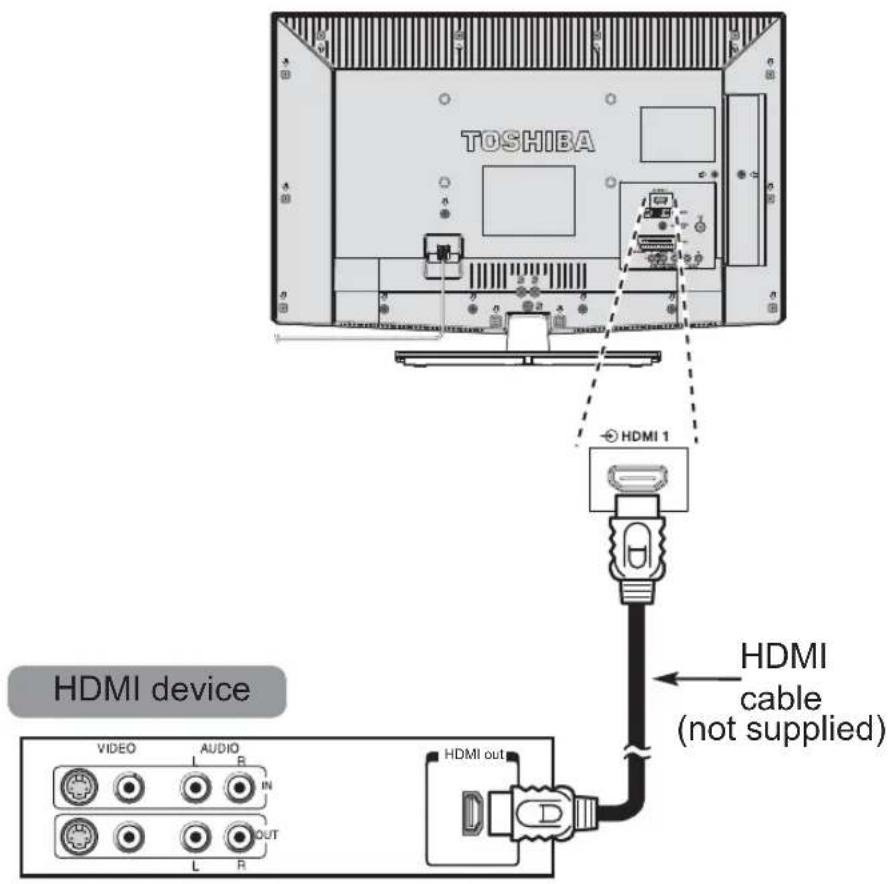
text_image
TOSHIBA HDMI 1 HDMI device VIDEO AUDIO IN L R OUT HDMI out HDMI cable (not supplied)For 26/32EL93*G | 32/40HL93*G
To view the HDMI device video, press the ➕ button to select HDMI 1 or HDMI 2 mode.
To connect a DVI device
Connect an HDMI-to-DVI adapter cable (HDMI type A connector) to the HDMI 1.
- The recommended HDMI-to-DVI adapter cable length is 6.6ft (2m).
- An HDMI-to-DVI adapter cable transfers video only.
- Separate analogue audio connection are not supported for audio receivers.

text_image
TOSHIBA HDMI 1 HDMI-to-DVI adapter cable (not supplied) DVI device DVI / HDCP OUT VIDEO AUDIO L R IN L OUT RFor 32AV93*G | 32/40LV93*G
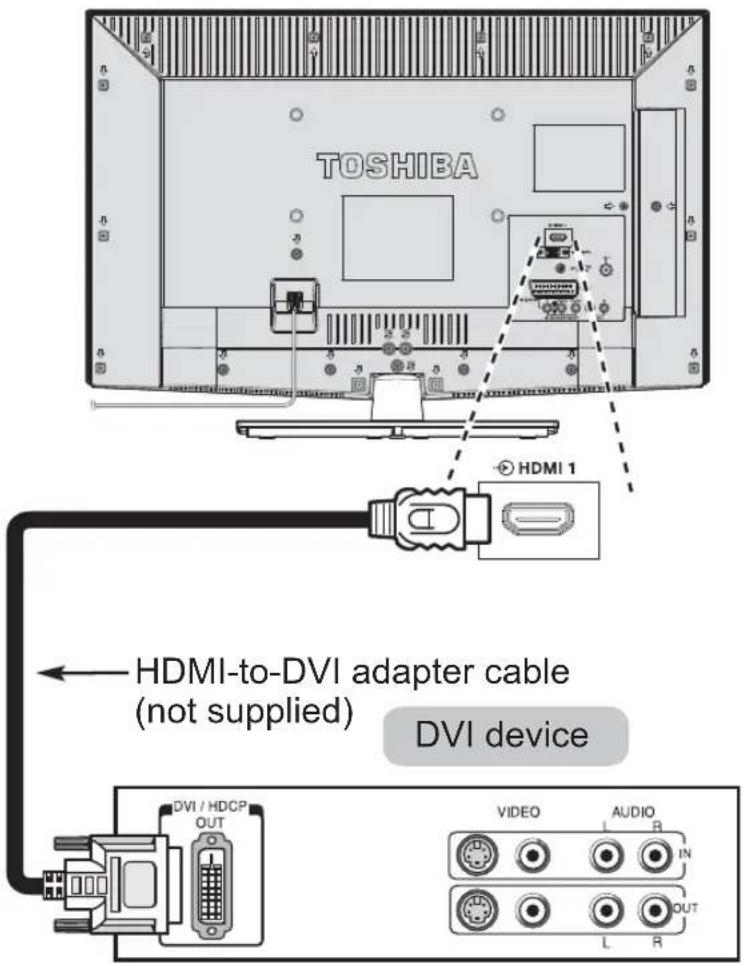
text_image
TOSHIBA HDMI 1 HDMI-to-DVI adapter cable (not supplied) DVI device DVI / HDCP OUT VIDEO AUDIO L R IN L OUT RFor 26/32EL93*G | 32/40HL93*G
To ensure that the HDMI or DVI device is reset properly, it is recommended that you follow these procedures:
- When turning on your electronic components, turn on the television first, and then the HDMI or DVI device.
- When turning off your electronic components, turn off the HDMI or DVI device first, and then the television.
Connecting a Computer
With either an RGB/PC or an HDMI connection, you can watch your computer's display on the television.
To connect a PC to the HDMI terminal
When connecting a PC to the HDMI terminal on the television, use an HDMI-to-DVI adapter cable. If connecting a PC with an HDMI terminal, use an HDMI cable (type A connector). A separate analogue cable is not necessary.

text_image
the back of your television Computer HDMI-to-DVI adapter cable (not supplied)For 32AV93*G | 32/40LV93*G
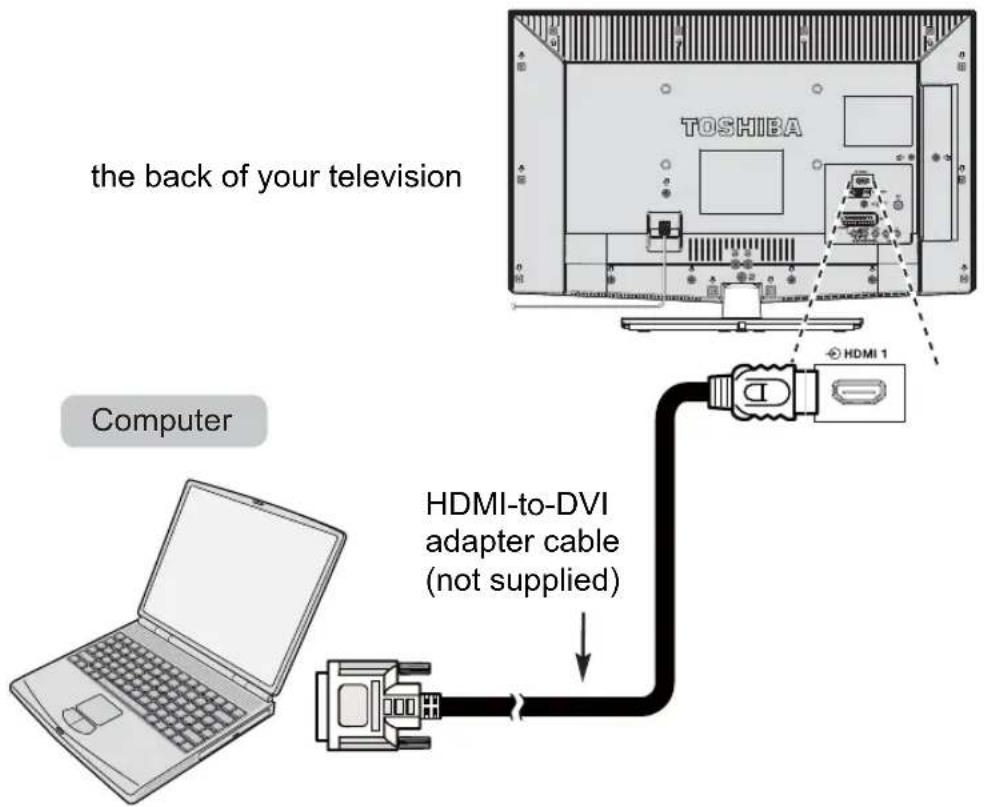
text_image
the back of your television TOSHIBA Computer HDMI-to-DVI adapter cable (not supplied)For 26/32EL93*G | 32/40HL93*G
For acceptable PC and video signal formats, see page 18.
NOTE:
• The edges of the images may be hidden.
- If connecting a certain PC model with a unique PC signal, the PC signal may not be detected correctly.
Acceptable Video signals through HDMI terminals
| Resolution H. Frequency (KHz) V. Frequency (Hz) | ||
| 480i 15.734 60.000 | ||
| 480p 31.500 60.000 | ||
| 576i 15.625 50.000 | ||
| 576p 31.250 50.000 | ||
| 720p 37.500 50.000 | ||
| 720p 45.000 60.000 | ||
| 1080i 28.125 50.000 | ||
| 1080i 33.750 60.000 | ||
| 1080p 27.000 24.000 | ||
| 1080p 28.125 25.000 | ||
| 1080p 33.750 30.000 | ||
| 1080p 56.250 50.000 | ||
| 1080p 67.500 60.000 | ||
Acceptable PC signals through HDMI terminals
| Resolution H | (KHz) V(Hz) | Pixel Clock (MHz) | H-Polarity | V-Polarity | H-Total V-Total | ||
| 640 x 480 | 31.369 | 59.940 | 25.175 | Negative | Negative | 800 | 525 |
| 640 x 480 | 37.861 | 72.809 | 31.500 | Negative | Negative | 832 | 520 |
| 640 x 480 | 37.500 | 75.000 | 31.500 | Negative | Negative | 840 | 500 |
| 800 x 600 | 35.160 | 56.250 | 36.000 | Positive | Positive | 1024 | 625 |
| 800 x 600 | 37.879 | 60.317 | 40.000 | Positive | Positive | 1056 | 628 |
| 800 x 600 | 48.077 | 72.188 | 50.000 | Positive | Positive | 1040 | 666 |
| 800 x 600 | 46.875 | 75.000 | 49.500 | Positive | Positive | 1056 | 625 |
| 1024 x 768 | 48.363 | 60.004 | 65.000 | Negative | Negative | 1344 | 806 |
| 1024 x 768 | 60.023 | 75.029 | 78.750 | Positive | Positive | 1312 | 800 |
| 1280 x 768 | 47.776 | 59.870 | 79.500 | Negative | Positive | 1664 | 798 |
| 1360 x 768 | 47.712 | 60.015 | 85.500 | Positive | Positive | 1792 | 795 |
| 1280 x 1024 | 63.981 | 60.020 | 108.000 | Positive | Positive | 1688 | 1066 |
| 1280 x 1024 | 79.976 | 75.025 | 135.000 | Positive | Positive | 1688 | 1066 |
| 1920 x 1080 | 67.500 | 60.000 | 148.500 | Positive | Positive | 2200 | 1125 |
Using the Controls
While all the necessary adjustments and controls for the television are made using the remote control, the buttons on the television may be used for some functions.

text_image
Common Interface DVI COMMON INTERFACE USB USB HDMI 2 INPUT SOCKET Power Up / down (Volume or channel) Programme / Volume / Source Headphone GREEN LED - On Timer RED LED - Standby GREEN LED - Power on IR SENSORFor 32AV93*G | 32/40LV93*G
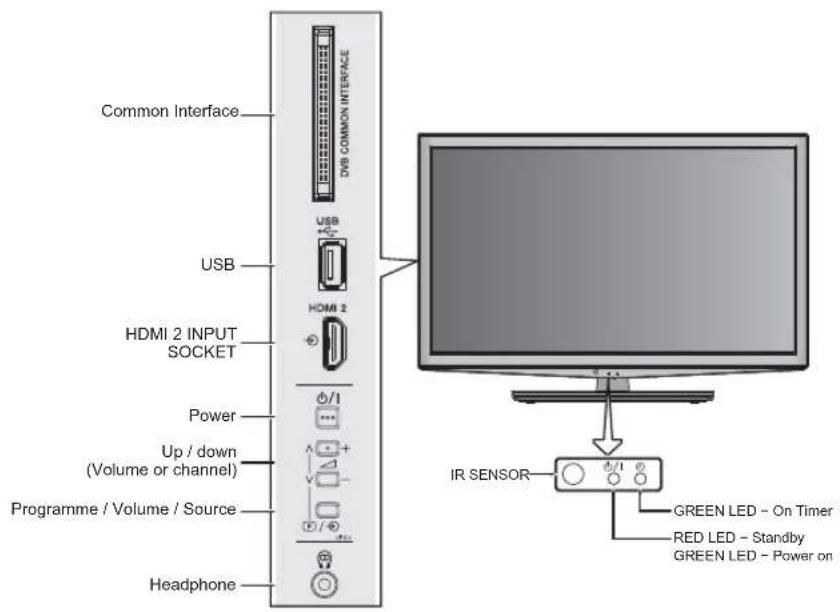
text_image
Common Interface DVB COMMON INTERFACE USB HDMI 2 INPUT SOCKET Power Up / down (Volume or channel) Programme / Volume / Source Headphone IR SENSOR GREEN LED - On Timer RED LED - Standby GREEN LED - Power onFor 26/32EL93*G | 32/40HL93*G
Switching On
If the RED Stand By LED is unlit, check that the plug is connected to the power supply. If the picture does not appear press ⏻ on the remote control, it may take a few moments.
To put the television into Standby press ⏻ on the remote control. To view the television press ⏻ again. The picture may take a few seconds to appear.
For energy saving:
We recommend that you use the television with the factory settings. The factory settings are for energy saving.
Unplugging the mains plug will cut energy use to zero for all televisions. This is recommended when the television is not being used for a long time, e.g. when on holiday.
Reducing the brightness of the screen will reduce energy use. Energy efficiency cuts energy consumption and thus saves money by reducing electricity bills.
NOTE: Putting the television into standby mode will reduce energy consumption, but will still draw some power.
Using the Remote Control
To set up the television you will now need to use the on screen menus. Press MENU on the remote control to see the menus.
The on-screen menu appears as a list of five topics. As each symbol is selected by pressing ◀ or ▶ on the navigation ring on the remote control.
To use the options, press OK to enter the sub menu. Then press ▲ or ▼ on the navigation ring to move up and down through the menu and use OK to select the required choice. Follow the on-screen instructions. The functions of each menu are described in detail throughout this manual.
Using the Side-Key Controls
Press - to adjust volume.
Press P /→ to change programme selection, then press -to adjust programme selection.
Press and hold P / ➤ until Source List is displayed, then press F to scroll through the list until desired input source is located.
Please always refer to the owner's manual of the equipment to be connected for full details.
NOTE: Inserting the headphone plug will mute the sound from all speakers.
Tuning the Television
Before switching on the television put your decoder and media recorder to Standby if they are connected.
To set up the television use the buttons on the remote control as detailed on page 8.
First Time Using
For first time use, plug in the television and press the ⏻ button.
The Language menu will appear.

text_image
Language English Français Deutsch Español Italiano Português Nederlands Svenska Dansk Norsk Suomi Polski slovensčina Magyar Slovensky Český Rусский Română български Srpski Eλληνικά Hrvatski Türkçe Українське Select Enter OKNOTE: This function is accessed in the SETUP → Quick Setup menu.
2 Press ▲, ▼, ◀ or ▶ to select your language (English, Français, Deutsch, Español, Italiano, Português, Nederlands, Svenska, Dansk, Norsk, Suomi, Polski, slovenščina, Magyar, Slovensky, Český, Русский, Română, български, Srpski, Еллнікá, Hrvatski, Türkçe or Українське).
Press OK to enter Quick Setup menu.
3 Press ▲ or ▼ to select Country and then press ◀ or ▶ to select your country (Austria, Belgium, Bulgaria, Croatia, Czech, Denmark, Finland, France, Germany, Greece, Hungary, Ireland, Italy, Luxembourg, Netherlands, Norway, Others, Poland, Portugal, Romania, Russia, Serbia, Slovakia, Slovenia, Spain, Sweden, Switzerland, Turkey, UK or Ukraine).

text_image
Quick Setup Country Germany Digital Subtitle Language German Digital Subtitle Language 2nd Turkish Audio Language German Audio Language 2nd Turkish Select Tune OK mode4 Press ▲ or ▼ to select Digital Subtitle Language and then press ◀ or ▶ to select your preferred language.
5 Press ▲ or ▼ to select Digital Subtitle Language 2nd and then press ◀ or ▶ to select your preferred language.
6 Press ▲ or ▼ to select Audio Language and then press ◀ or ▶ to select your preferred language.
7 Press ▲ or ▼ to select Audio Language 2nd and then press ◀ or ▶ to select your preferred language.
8 Press to select Tuner Mode. NOTE: This option is country specific in the Quick Setup menu.
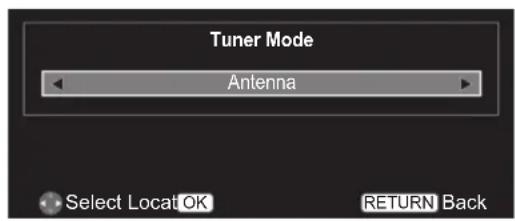
text_image
Tuner Mode Antenna Select Locat OK RETURN BackPress ◀ or ▶ to select Antenna or Cable.
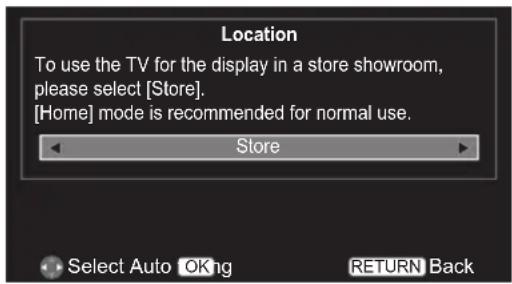
9 Press to select Location.
text_image
Location To use the TV for the display in a store showroom, please select [Store]. [Home] mode is recommended for normal use. Store Select Auto OK ng RETURN BackPress ◀ or ▶ to select Home or Store. For normal home use, select Home.
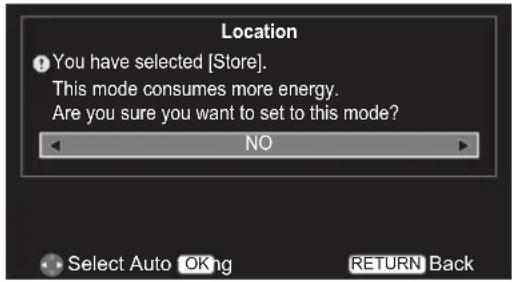
When Store is selected, the confirmation window appears.
text_image
Location You have selected [Store]. This mode consumes more energy. Are you sure you want to set to this mode? NO Select Auto OK ng RETURN BackPress ◀ or ▶ to select YES or NO.
10 Press to enter the Auto tuning menu.
NOTE: Please make sure the aerial is connected to the TV before tuning.

text_image
Auto tuning Tuning Mode ATV and DTV Start Scan OK Edit RETURN BackPress ▲ or ▼ to select Tuning Mode and then press ◀ or ▶ to select ATV, DTV or ATV and DTV.
Press ▲ or ▼ to select Start Scan and press OK.
bar
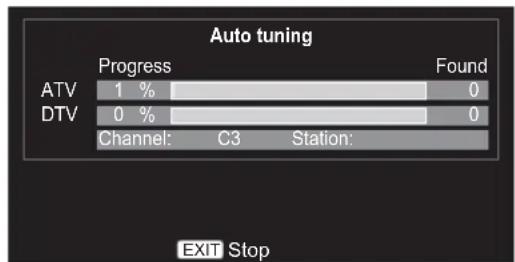
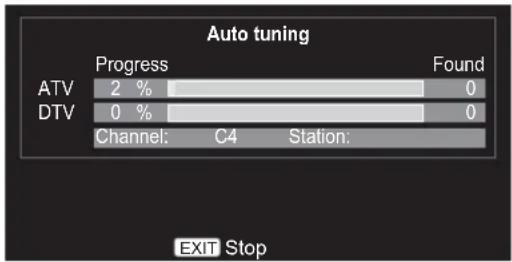
Auto tuning | Channel | Progress (%) | Found | | :--- | :--- | :--- | | ATV | 1 | 0 | | DTV | 0 | 0 | Channel: C3 Station:The search will begin for all available stations. The slide bar will move along the line as the search progresses.
You must allow the television to complete the search.
When the search is complete the television will automatically select channel 1. This may not be a clear picture or the signal may be weak, so the station order can be changed using ATV/DTV Manual Tuning in the SETUP menu.
Setting the Channels
NOTE: When Parental Block is activated, the 4-digit password is needed.
Auto Tuning
The Auto tuning function will completely re-tune the television and can be used to update the channel list.
NOTE: It is recommended that Auto tuning is run periodically to ensure that all new services are added.
NOTE: All the current channels and settings, for example, the locked channels, will be lost.
Tuner Mode - Antenna
1 Press MENU. Press ◀ or ▶ to select SETUP and press OK to enter the submenu.

text_image
PICTURE SOUND SETUP APPLICATIONS PREFERENCES2 Press ▲ or ▼ to select Auto tuning, and press OK to enter the submenu.

text_image
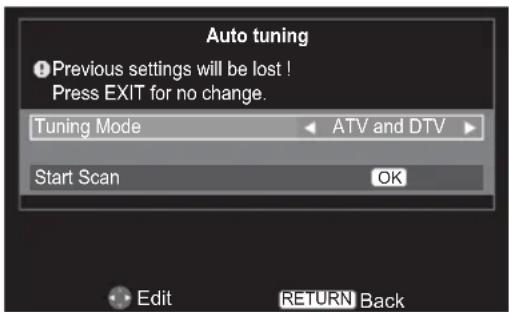
Language Country Tuner Mode Auto tuning ATV Manual Tuning DTV Manual Tuning DTV Settings AV connection Picture Position Quick Setup English Germany Antenna OK OK OK OK OK 1/2SET OK Enter RETURN Back3 Press ▲ or ▼ to select Tuning Mode and press ◀ or ▶ to select ATV, DTV or ATV and DTV.
text_image
Auto tuning Previous settings will be lost ! Press EXIT for no change. Tuning Mode ATV and DTV Start Scan OK Edit RETURN BackPress ▲ or ▼ to select Start Scan and press Ⓞ to start Auto Tuning.
text_image
Auto tuning Progress Found ATV 2 % 0 DTV 0 % 0 Channel: C4 Station: EXIT StopTuner Mode - Cable
Switching between tuner modes will change the features available on your television.
All the current channels and settings, for example, the locked channels, will be lost.
In the SETUP menu, press ▲ or ▼ to select Tuner Mode and press OK.
Press ◀ or ▶ to select YES or NO.

text_image
Tuner Mode This may change the features available on your TV. Continue? NO Edit Enter OK RETURN Back1 Press MENU. Press ◀ or ▶ to select SETUP and press OK to enter the submenu.
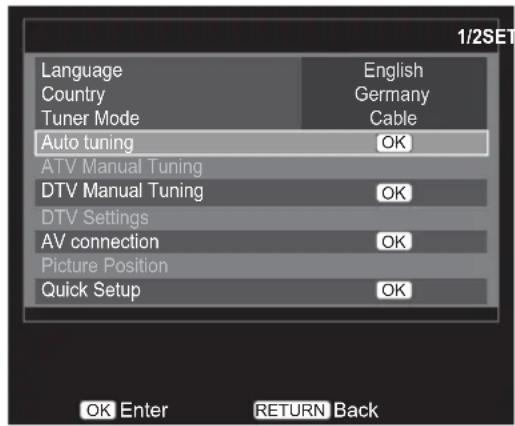
2 Press ▲ or ▼ to select Auto tuning, and press OK to enter the submenu.
text_image
Language Country Tuner Mode English Germany Cable 1/2SET Auto tuning OK ATV Manual Tuning DTV Manual Tuning OK DTV Settings AV connection Picture Position OK Quick Setup OK OK Enter RETURN Back3 Press ▲ or ▼ to select Tuning Mode and press ◀ or ▶ to select ATV, DTV or ATV and DTV.
text_image
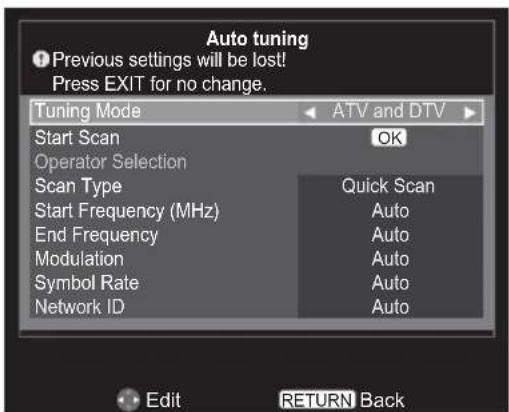
Auto tuning Previous settings will be lost! Press EXIT for no change. Tuning Mode ATV and DTV Start Scan OK Operator Selection Scan Type Quick Scan Start Frequency (MHz) Auto End Frequency Auto Modulation Auto Symbol Rate Auto Network ID Auto Edit RETURN Back4 Press ▲ or ▼ to select Operator Selection, and press ◀ or ▶ to select Others, Ziggo or UPC.
NOTE: Operator Selection can only be adjusted when Country is Netherlands.
5 Press ▲ or ▼ to select Scan Type, and press ◀ or ▶ to select Full Scan or Quick Scan.
NOTE: Channels with a weak signal may be missed by Quick Scan.
6 Press ▲ or ▼ to select Operator Selection, Scan Type, Start Frequency (MHz), End Frequency, Modulation, Symbol Rate or Network ID, and use number key pad on the remote to define the information or select Auto for tuning.
Press ▲ or ▼ to select Start Scan and press OK to start tuning.
NOTE:
• The information should be given by your cable provider.
• Network ID is only available for Quick Scan.
Manual Tuning
There are two TV modes: ATV and DTV that can be tuned-in manually using Manual Tuning.
ATV mode - Antenna/Cable
1 Press MENU. Press ◀ or ▶ to select SETUP and press OK to enter the submenu.
2 Press ▲ or ▼ to select ATV Manual Tuning and press OK to enter the sub-menu.

text_image
Language Country Tuner Mode Auto tuning ATV Manual Tuning DTV Manual Tuning DTV Settings AV connection Picture Position Quick Setup English Germany Antenna OK OK OK OK OK 1/2SET OK Enter RETURN Back3 Press ▲ or ▼ to select the programme position you want to arrange and then press ▶.

text_image
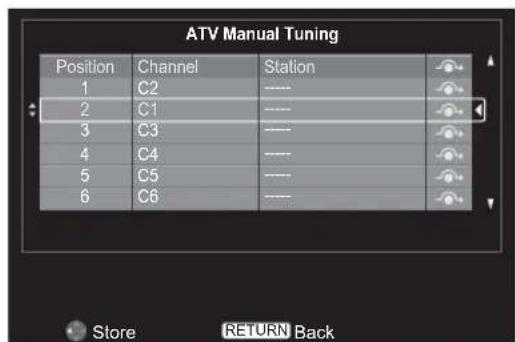
ATV Manual Tuning Position Channel Station 1 C1 ---- 2 C2 ---- 3 C3 ---- 4 C4 ---- 5 C5 ---- 6 C6 ---- Sort Enter OK RETURN Back4 Press ▲ or ▼ to move through the list to your preferred position. As you do so the other stations will move to make room. Press ◀ to store programme position.
text_image
ATV Manual Tuning Position Channel Station 1 C2 ---- 2 C1 ---- 3 C3 ---- 4 C4 ---- 5 C5 ---- 6 C6 ---- Store RETURN Back5 Press to display the breakdown menu. Press ◀ or ▶ to select an item, then press ▲ or ▼ to select the item as shown below.

text_image
ATV Manual Tuning Manual fine tuning 1 BG PC 6 9 Select Change Save OK RETURN Back A B C D E F G H IA Position:
The number to be pressed on the remote control.
B System:
Specific to certain areas.
C Colour system:
Factory set to Auto, should only be changed if problems are experienced, i.e. NTSC input from external source.
D Skip:
means nothing has been stored or the facility to skip the channel is On.
E Signal Class:
The channel classification.
F Channel:
The channel number on which a station is being broadcast.
G Searching:
Search up and down for a signal.
H Manual fine tuning:
Turn on to execute fine tune function. Turn off to execute manual fine tune function.
Station:
Station identification. Use the ▲ or ▼ and ◀ or ▶ buttons to enter up to seven characters.
6 Press to save.
DTV mode - Antenna
1 Press MENU. Press ◀ or ▶ to select SETUP and press OK to enter the submenu.
2 Press ▲ or ▼ to select DTV Manual Tuning and press OK to enter the sub-menu.

text_image
Language Country Tuner Mode Auto tuning ATV Manual Tuning DTV Manual Tuning DTV Settings AV connection Picture Position Quick Setup English Germany Antenna OK OK OK Enter RETURN Back3 Press ▲ or ▼ to select RF Channel and press ◀ or ▶ to select or use number key pad on the remote to enter a channel.

text_image
DTV Manual Tuning Signal Strength Weak Average Strong Quality Poor RF Channel 5 Start Scan OK 0-9 EditInput RETURN Back4 Press ▲ or ▼ to select Start Scan and press OK to start tuning.
DTV mode - Cable
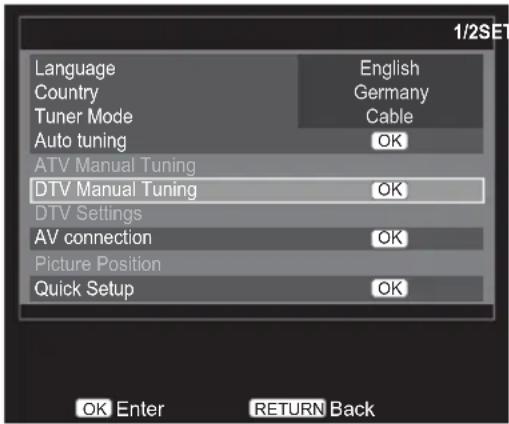
1 Press MENU. Press ◀ or ▶ to select SETUP and press OK to enter the submenu.
2 Press ▲ or ▼ to select DTV Manual Tuning and press OK to enter the sub-menu.
text_image
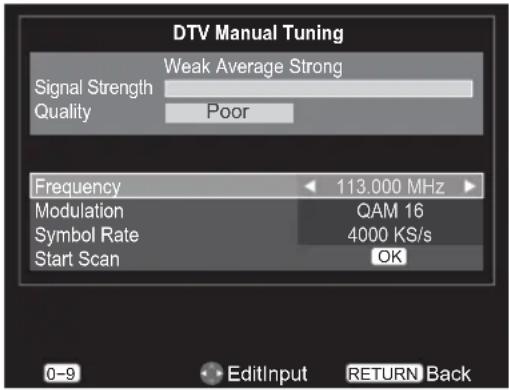
Language Country Tuner Mode Auto tuning ATV Manual Tuning DTV Manual Tuning DTV Settings AV connection Picture Position Quick Setup English Germany Cable OK OK Enter RETURN Back3 Press ▲ or ▼ to select Frequency, Modulation or Symbol Rate, and use number key pad on the remote to define the information or select Auto for tuning.
text_image
DTV Manual Tuning Signal Strength Weak Average Strong Quality Poor Frequency 113.000 MHz Modulation QAM 16 Symbol Rate 4000 KS/s Start Scan OK 0-9 EditInput RETURN BackPress ▲ or ▼ to select Start Scan and press OK to start tuning.
Automatic Power Down
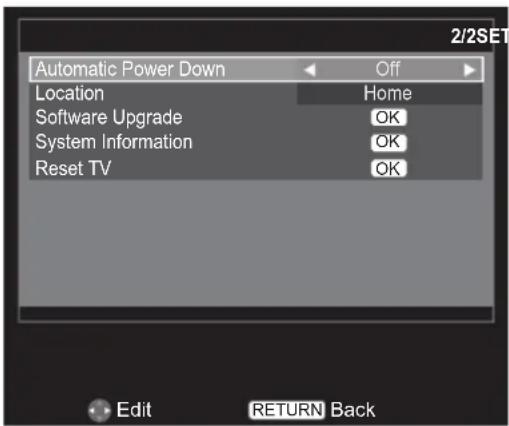
The TV will automatically turn itself off (standby) within 4 hours, if you do not touch the control buttons on the remote control or on the TV control panel. It will also automatically turn off if no input signal is detected after approximately 15 minutes.
In the SETUP menu, press ▲ or ▼ to select Automatic Power Down.
2 Press ◀ or ▶ to select Off, 4h, 6h or 8h.
text_image
Automatic Power Down Location Software Upgrade System Information Reset TV Off Home OK OK OK Edit RETURN BackReset TV
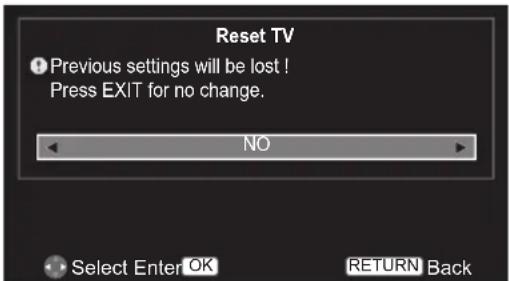
Selecting Reset TV will reset all TV settings to their original factory values.
In the SETUP menu, press ▲ or ▼ to select Reset TV and press OK.
2 Press ◀ or ▶ to select YES to confirm or select NO to exit and press OK.
text_image
Reset TV ● Previous settings will be lost ! Press EXIT for no change. NO Select Enter OK RETURN BackDTV Settings
Channels
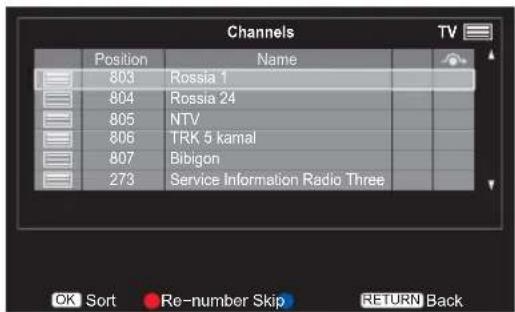
The channel order may be changed to suit your personal preference.
NOTE: This function is only available in DTV mode.
1 Press MENU. Press ◀ or ▶ to select SETUP and press OK to enter the submenu.

text_image
PICTURE SOUND SETUP APPLICATIONS PREFERENCES2 Press ▲ or ▼ to select DTV Settings and press OK to enter the submenu.
3 Press ▲ or ▼ to select Channels and press OK.

text_image
DTV Settings Channels OK Channel Options OK Subtitle and Audio OK Password OK Parental OK Local Time Setting 22:17 Standby Channel Update Off Favorite Control On Favorite Program OK Favorite Network Channel Grouping On Common Interface OK OK Enter RETURN Back4 Press ▲ or ▼ to select Channels.
text_image
Channels Position Name 803 Rossia 1 804 Rossia 24 805 NTV 806 TRK 5 kamal 807 Bibigon 273 Service Information Radio Three OK Sort Re-number Skip RETURN BackRe-number
5 Press the button on the remote to renumber the highlighted channel.
6 Edit the channel number using the number keys on the remote and press OK.

text_image
Channels Position Name 8 | - | Rossia 1 804 Rossia 24 805 NTV 806 TRK 5 kamal 807 Bibigon 273 Service Information Radio Three 0-9 Input OK Enter RETURN BackSkip
7 Press the button on the remote. A icon appears.

text_image
Channels Position Name 803 Rossia 1 804 Rossia 24 805 NTV 806 TRK 5 kamal 807 Bibigon 273 Service Information Radio Three OK Sort Re-number Skip RETURN BackSort
8 Press ▲ or ▼ to select the desired channel and then press OK. A tick icon appears.

text_image
Channels Position Name 803 Rossia 1 ✓ 804 Rossia 24 805 NTV 806 TRK 5 kamal 807 Bibigon 273 Service Information Radio Three OK Store RETURN Back9 Press ▲ or ▼ to select the channel you wish to swap with the one selected in Step 8 and then press OK.
The positions of the two channels are swapped.

text_image
Channels Position Name 804 Rossia 24 803 Rossia 1 ✓ 805 NTV 806 TRK 5 kamal 807 Bibigon 273 Service Information Radio Three OK Store RETURN BackChannel Options
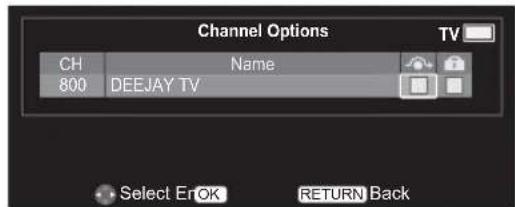
This function is to setup the Skip or Lock for currently watched channel.
Skip Channels
The feature allows you to set channel that will be skipped when P or P are used to tune.
1 In the DTV Settings menu, press ▲ or ▼ to select Channel Options, and press OK to enter the submenu.

text_image
DTV Settings Channels OK Channel Options OK Subtitle and Audio OK Password OK Parental OK Local Time Setting 22:17 Standby Channel Update Off Favorite Control On Favorite Program OK Favorite Network Channel Grouping On Common Interface OK OK Enter RETURN Back2 Press ◀ or ▶ to highlight the skip (→) box.
text_image
Channel Options CH Name 800 DEEJAY TV Select E:\OK RETURN Back3 Press to select. A tick appears in the box.
NOTE: Skipped channels cannot be selected by P or P but still be accessed by direct entry (when tuned a icon will be displayed in the banner to indicate as a skipped channel).
Parental Control
Locking channels stops the viewing of digital channels, and they can only be accessed by entering the password.
1 In the DTV Settings menu, press ▲ or ▼ to select Channel Options, and press OK to enter the submenu.
2 Press ◀ or ▶ to highlight the lock ( 🔍 ) box.
3 Press to select. A tick appears in the box.
If the password has already been set, password entry will be required to set the locked channels.

text_image
Channel Options CH Name 800 DEEJAY TV Select En OK RETURN Back4 From this point on, when any of the channels in the Channel Options list are selected, the password must be entered before they can be accessed.
Subtitle and Audio
You can choose the Subtitle Type or Audio Type from Normal or Hearing Impaired. If the Hearing Impaired is selected, it provides subtitle services to deaf and hard of hearing viewers with additional descriptions.
Subtitle Language or Audio Language allow a programme or film to be viewed with a choice of soundtrack language, provided they are currently being broadcast.
1 In the DTV Settings menu, press ▲ or ▼ to select Subtitle And Audio, and press Ⓞ to enter the submenu.
2 Press ▲ or ▼ to select Subtitle Display and press ◀ or ▶ to select On or Off.
3 Press ▲ or ▼ to select Subtitle Type or Audio Type and press ◀ or ▶ to select Normal or Hearing Impaired.
4 Press ▲ or ▼ to select Digital Subtitle Language, Digital Subtitle Language 2nd, Audio Language or Audio Language 2nd and press ◀ or ▶ to select your preferred language.
Password
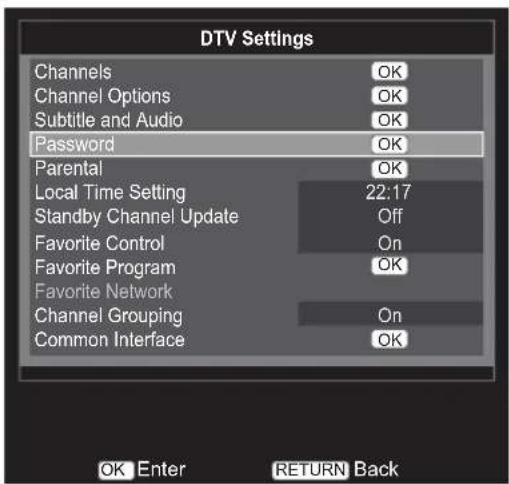
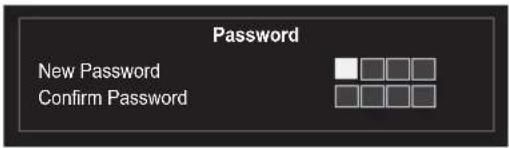
Change the 4-digit parental control password. The factory default password is "0000".
In the DTV Settings menu, press ▲ or ▼ to select Password, and press OK to enter the submenu.
text_image
DTV Settings Channels OK Channel Options OK Subtitle and Audio OK Password OK Parental OK Local Time Setting 22:17 Standby Channel Update Off Favorite Control On Favorite Program OK Favorite Network Channel Grouping On Common Interface OK OK Enter RETURN Back2 Enter a new 4-digit password, and re-enter the new password again to confirm.
text_image
Password New Password Confirm PasswordNOTE: "0000" cannot be used.
Parental
This function blocks channels or programmes that you do not want to or that you do not want your children to watch.
A password is required to access this function. The factory default password is "0000".
NOTE: When Parental Control is activated, you will need to enter the 4-digit password before you enter the DTV Settings submenu under the SETUP menu. After auto tuning, all the channel blocks will be cleared.
1 In the DTV Settings menu, press ▲ or ▼ to select Parental, and press OK to enter the submenu.
2 Enter the 4-digit password.
3 Press ◀ or ▶ to set the age rating from age 4\~18 or select None to turn this function off or Block All.
NOTE: This function is available for programmes with Age Rating information.
Standby Channel Update
If the Standby Channel Update is set to On, when the TV is in standby mode, Digital Tuning is automatically executed and any new channels are saved.
1 In the DTV Settings menu, press ▲ or ▼ to select Standby Channel.
2 Press ◀ or ▶ to select On or Off.
Common Interface
The Common Interface Slot, situated on the side of the television, enables the insertion of a CAM (Conditional Access Module) and card. These are purchased from a service provider and allow additional subscription broadcasts to be viewed. For information, see a service provider.
1 Insert the CAM and card into the Common Interface Slot, following the instructions provided with the CAM. A box will appear on the screen to confirm that the CAM has been inserted.
2 In the DTV Settings menu, press ▲ or ▼ to select Common Interface, and press OK to enter the submenu.
3 Details of the CAM should now be available.
NOTE: The software updating of CI Plus CAM may be automatically executed. At this time, any Recording/Reminder programme timer will be cancelled.
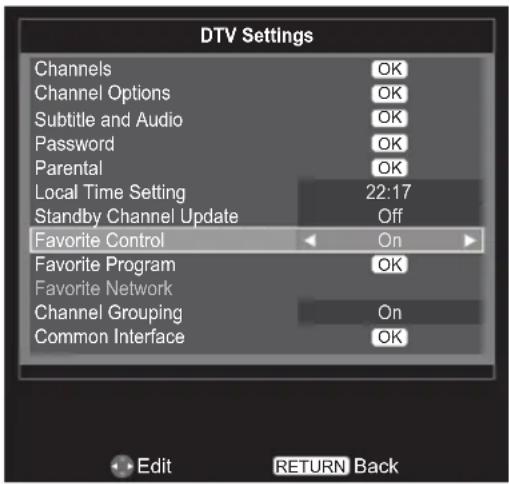
Favorite Control
This function is used to disable or enable the favorite channel list.
1 In the DTV Settings menu, press ▲ or ▼ to select Favorite Control.
2 Press ◀ or ▶ to select On or Off.
text_image
DTV Settings Channels OK Channel Options OK Subtitle and Audio OK Password OK Parental OK Local Time Setting 22:17 Standby Channel Update Off Favorite Control On Favorite Program OK Favorite Network Channel Grouping On Common Interface OK Edit RETURN BackWhen Favorite Control is On, the favorite channel list appears when pressing OK.

text_image
Favorite List 800 Maori TelevisionFavorite Program
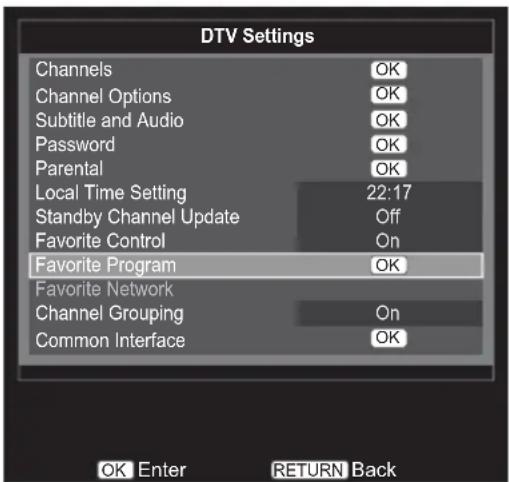
The favorite channel list supports maximum 9 favorite channels.
1 In the DTV Settings menu, press ▲ or ▼ to select Favorite Program, and press OK to enter the submenu.
text_image
DTV Settings Channels OK Channel Options OK Subtitle and Audio OK Password OK Parental OK Local Time Setting 22:17 Standby Channel Update Off Favorite Control On Favorite Program OK Favorite Network Channel Grouping On Common Interface OK OK Enter RETURN BackNOTE: Favorite Network function is only available for Norwegian models.
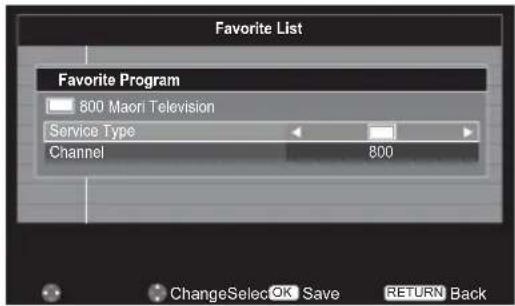
2 Press ▲ or ▼ to select the desired channel and press OK to edit.
NOTE: Press the ■ button on the remote to delete the channel.

text_image
Favorite List 800 Maon Television Delete OK Edit RETURN Back3 Press ▲ or ▼ to select Service Type, and press ◀ or ▶ to select ■ (TV), ■ (Radio) or 📊 (EXT).
text_image
Favorite List Favorite Program 800 Maori Television Service Type Channel 800 ChangeSelect OK Save RETURN Back4 Press ▲ or ▼ to select Channel, and press ◀ or ▶ to select the desired channel.
Press OK to save the settings.
NOTE: The field remains empty once you delete the desired channel.
Channel Grouping
There are Video, Radio and Text services combined in a channel list for DTV services. The function provides the selection of channel change with one service group or among all services by pressing P and P.
1 In the DTV Settings menu, press ▲ or ▼ to select Channel Grouping.
2 Press ◀ or ▶ to select On or Off.

text_image
DTV Settings Channels OK Channel Options OK Subtitle and Audio OK Password OK Parental OK Local Time Setting 22:17 Standby Channel Update Off Favorite Control On Favorite Program OK Favorite Network Channel Grouping On Common Interface OK Edit RETURN Back3 When Channel Grouping is On, the channel change by P and P will be within a single service group, press ATV/DTV on the remote control can be still used for change services among ATV, DTV Video, DTV Radio and DTV Text.
Digital On-Screen Information and Programme Guide
When viewing in digital mode, the on-screen information and programme guide provide access to programme details for all available channels.
Information
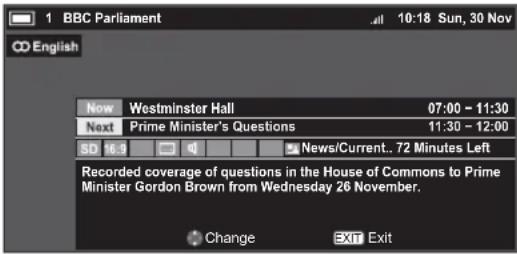
1 Press it and the information screen will appear giving details of the channel and programme currently being viewed.
text_image
1 BBC Parliament 10:18 Sun, 30 Nov English Now Westminster Hall 07:00 - 11:30 Next Prime Minister's Questions 11:30 - 12:00 SD 16.9 News/Current.. 72 Minutes Left Recorded coverage of questions in the House of Commons to Prime Minister Gordon Brown from Wednesday 26 November. Change Exit Exit2 Press ▲ or ▼ to choose from Now or Next information guide.
On-Screen Information Icons
Icons will appear on the Information screen giving details about the programmes being broadcast. Details of these icons are listed below:
| Icon Description | ||
| Service info |  | Service type (TV, Radio, TEXT) |
 | Skip | |
| Audio info |  | Mono |
 | Stereo | |
| [7GDS] | Dual mono | |
 | Multichannel | |
 | Dolby Digital | |
 | Dolby Digital+ | |
| Audio/ Subtitle info |  | Hearing Impaired |
| Event info |  | Video format (HD, SD) |
| 16:9, 4:3 Video Aspect | ||
 | Teletext | |
 | Subtitle (Single, Multi) | |
 | Multi-audio track | |
 | ||
 | ||
 | Encrypted | |
Guide
1 Select the on-screen guide by pressing GUIDE. The guide screen will appear highlighting details of the channel and programme currently being viewed. This may take a few moments to appear.
2 Press ◀ or ▶ for information on other programmes scheduled for the channel selected.
3 For details of other programmes currently available, press ▲ and ▼ to scroll up and down the channel list.
NOTE: In order for the recording operation to work properly, the media recorder must be set to the same time as the TV. Regarding the process for recording, please refer to the owner's manual of the recording equipment.
General Controls
The General Controls will allow you to select channels and information, use the sound controls, personalise the picture style, and select external equipment.
Selecting Channels
To select a channel use the numbered buttons on the remote control.
Channels can also be selected using P and P ∨
Stereo and Bilingual Transmissions
If stereo or dual language broadcasts are transmitted the word Stereo or Dual will appear on the screen each time channels are changed, disappearing after a few seconds. If the broadcast is not in stereo the word Mono will appear.
Stereo: Press ⒶI/Ⅱ to select Stereo or Mono.
Bilingual: If a bilingual programme is offered, the word Dual will display on screen. To change between languages, press ⒶI/Ⅱ to switch between Dual 1 and Dual 2.
Quick Access Menu
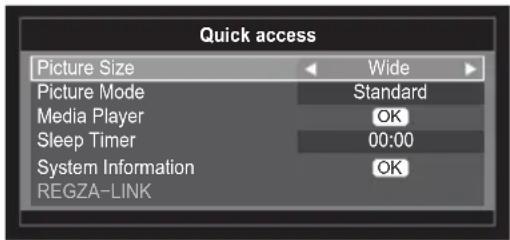
Quick access helps you access some options quickly such as Picture Size, Picture Mode, Media Player, Sleep timer, System Information and REGZA-LINK. Press the QUICK button to display the Quick access menu and use ▲ or ▼ to select the option you would like to change.

text_image
Quick access Picture Size Wide Picture Mode Standard Media Player OK Sleep Timer 00:00 System Information OK REGZA-LINKNOTE: Quick access items are different depending on the current mode.
Subtitles
If Subtitles are available for your current programme, pressing the SUBTITLE button will toggle Subtitles on or off.
Picture Still
This feature is used to hold a still image on the screen. Press ▼ to hold an image on the screen, press ▼ again to cancel.
Input Selection
Use the Input Selection feature if the television does not switch over automatically when using an external device.
Pressing ⬤, a list will appear on-screen showing all external equipment.
Use ▲ or ▼ to highlight and Ⓞ to select.

text_image
Inputs TV 1 2 3C HDMI1 HDMI2 MEDIA PCHDMI ^® displays equipment connected to Input HDMI on the back of the television. It is designed for best performance with 1080i/1080p high definition signals.
Sound Controls
Volume Controls and Mute Sound
Volume
Press or to adjust the volume.
Sound Mute
Press ✕ on the remote once to turn the sound off and again to cancel.
Dual
If a programme or film is being broadcast with a soundtrack in more than one language, the DUAL feature allows selection between them.
1 Press MENU. Press ◀ or ▶ to select SOUND and press OK to enter the submenu.

text_image
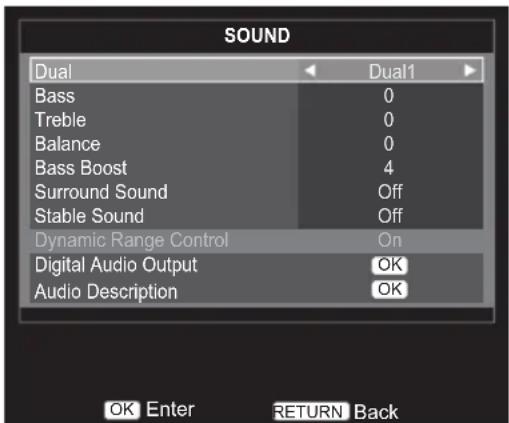
PICTURE SOUND SETUP APPLICATIONS PREFERENCEES2 Press ▲ or ▼ to select Dual, and press ◀ or ▶ to choose between Dual1 or Dual2.
text_image
SOUND Dual Dual1 Bass 0 Treble 0 Balance 0 Bass Boost 4 Surround Sound Off Stable Sound Off Dynamic Range Control On Digital Audio Output OK Audio Description OK OK Enter RETURN BackBass, Treble and Balance
The sound controls are accessible in digital and analogue modes.
1 Press MENU. Press ◀ or ▶ to select SOUND and press OK to enter the submenu.
2 Press ▲ or ▼ to select Bass, Treble or Balance and press ◀ or ▶ to change the setting.
Stable Sound
The Stable Sound feature limits high volume levels in order to prevent the extreme changes in volume that can occur when channels are changed or a programme switches to a commercial.
1 Press MENU. Press ◀ or ▶ to select SOUND and press Ⓞ to enter the submenu.
2 Press ▲ or ▼ to select Stable Sound, and press ◀ or ▶ to select On or Off.
Surround Sound
Surround Sound enhances depth of the sound.
1 Press MENU. Press ◀ or ▶ to select SOUND and press OK to enter the submenu.
2 Press ▲ or ▼ to select Surround Sound, and press ◀ or ▶ to select On or Off.
Bass Boost
Bass Boost enhances depth of the sound.
1 Press MENU. Press ◀ or ▶ to select SOUND and press OK to enter the submenu.
2 Press ▲ or ▼ to select Bass Boost, and press ◀ or ▶ to change the setting.
Dynamic Range Control
This feature allows control of audio compression for some digital TV programmes (MPEG-1 and MPEG-2 audio programmes are not supported).
1 Press MENU. Press ◀ or ▶ to select SOUND and press OK to enter the submenu.
2 Press ▲ or ▼ to select Dynamic Range Control, and press ◀ or ▶ to select On or Off.
Digital Audio Output
1 Press MENU. Press ◀ or ▶ to select SOUND and press OK to enter the submenu.
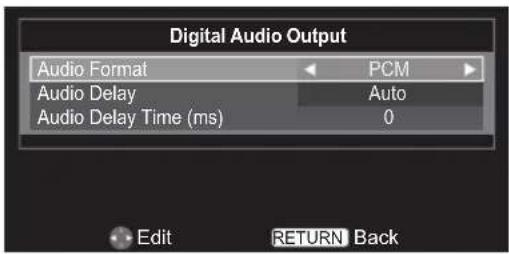
2 Press ▲ or ▼ to select Digital Audio Output and press OK to enter the sub-menu.
3 Press ▲ or ▼ to select Audio Format, and press ◀ or ▶ to select PCM or Auto.
text_image
Digital Audio Output Audio Format PCM Audio Delay Auto Audio Delay Time (ms) 0 Edit RETURN Back4 Press ▲ or ▼ to select Audio Delay, and press ◀ or ▶ to select Auto or Manual.
5 Press ▲ or ▼ to select Audio Delay Time (ms), and press ◀ or ▶ to change the setting.
NOTE: Audio Delay Time (ms) is only available when Audio Delay is Manual.
Audio Description
Audio Description is an additional narration describing on-screen action, body language, expressions and movements for people with visual disabilities while watching the TV. This function enables you to choose the type of narrations.
1 Press MENU. Press ◀ or ▶ to select SOUND and press OK to enter the submenu.
2 Press ▲ or ▼ to select Audio Descrip-tion and press OK to enter the submenu.
3 Press ▲ or ▼ to select Audio Description, and press ◀ or ▶ to select On or Off.

text_image
Audio Description Audio Description On Mixing Level 80 Edit Back RETURN4 Press ▲ or ▼ to select Mixing Level, and press ◀ or ▶ to change the setting.
NOTE: Mixing Level can only be adjusted when Au dio Description is On.
NOTE: Press the AD button on the remote control to switch the Audio Description On or Off.
Widescreen Viewing
Depending on the type of broadcast being transmitted, programmes can be viewed in a number of formats.
| Wide (Expect PC) | Use this setting when watching a widescreen DVD, widescreen video tape or a 16:9 broadcast (when available). Due to the range of widescreen formats (16:9, 14:9, 20:9 etc.) black bars may be visible on the top and bottom of the screen. | 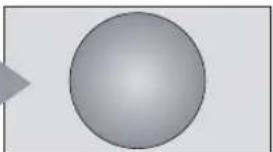 |
| Wide (PC only) | This setting will show the picture without over scan and side panel when watching a PC signal source via HDMI or PC terminal. |  |
| 4:3 | Use this setting to view a true 4:3 broadcast. | 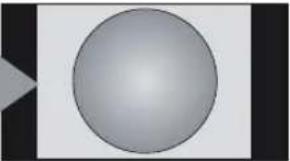 |
| Super Live | This setting will enlarge a 4:3 image to fit the screen by stretching the image horizontally and vertically, holding better proportions at the centre of the image. Some distortion may occur. | 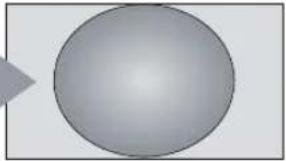 |
| Cinema | When watching letterbox format films/video tapes, this setting will eliminate or reduce the black bars at the top and bottom of the screen by zooming in and selecting the image without distortion. | 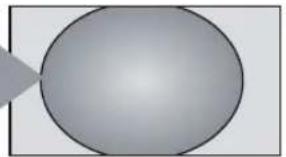 |
| Subtitle | When subtitles are included on a letterbox format broadcast, this setting will raise the picture to ensure that all the text is displayed. | 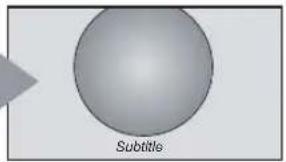 |
| 14:9 | Use this setting when watching a 14:9 broadcast. | 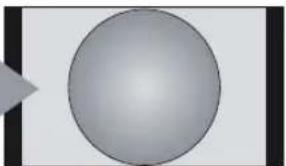 |
| Native | When using a PC connected via HDMI this setting will show the picture without over scan, i.e. WYSIWYG. This option is only available when watching video signal source via HDMI. |  |
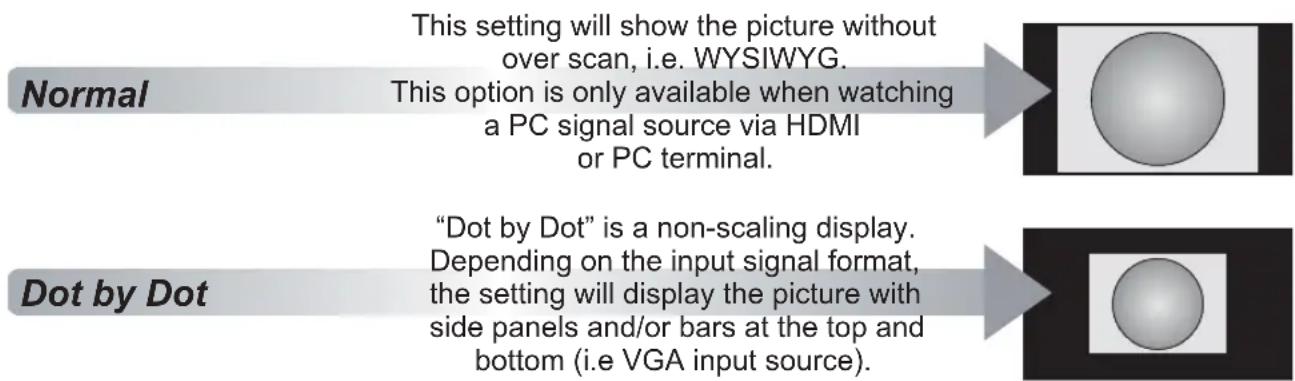
flowchart
graph LR
A["Normal"] --> B["This setting will show the picture without over scan, i.e. WYSIWYG.<br>This option is only available when watching a PC signal source via HDMI or PC terminal."]
C["Dot by Dot"] --> D[""Dot by Dot" is a non-scaling display.<br>Depending on the input signal format,<br>the setting will display the picture with side panels and/or bars at the top and bottom (i.e VGA input source)."]
Press QUICK to display the Quick access menu. Use ▲ or ▼ to select the Picture Size, and press ◀ or ▶ to select the option.
text_image
Quick access Picture Size Wide Picture Mode Standard Media Player OK Sleep Timer 00:00 System Information OK REGZA-LINKYou can choose the picture size from Wide, 4:3, Super Live, Cinema, Subtitle, 14:9, Native, Normal or Dot by Dot.
Using the special functions to change the size of the displayed image (i.e. changing the height/width ratio) for the purposes of public display or commercial gain may infringe on copyright laws.
Available Picture Size and Position Control
| Wide | 4:3 | Super Live | Cinema | Subtitle | 14:9 | Native | Normal | Dot by Dot | ||
| ATV o | o | o | o | o | o | x | x | x | ||
| DTV | SD | o | o | o | o | o | o | x | x | x |
| HD o | o o o x o o | x x | ||||||||
| Scart o | o | o | o | o | o | x | x | x | ||
| CVBS | o | o | o | o | o | o | o | |||
| YPbPr | SD o | o o o o o | x x x | |||||||
| HD o | o o o x x | x x x | ||||||||
| HDMI | SD | o | o | o | o | o | o | o | x | x |
| HD o | o o o x x | o | x | x | ||||||
| D-SUB | o | x | x | x | x | x | x | o | o | |
| DVI | o | x | x | x | x | x | x | o | o | |
Picture Controls
Most of the picture controls and functions are available in both digital and analogue modes.
NOTE: Features not available will be greyed out.
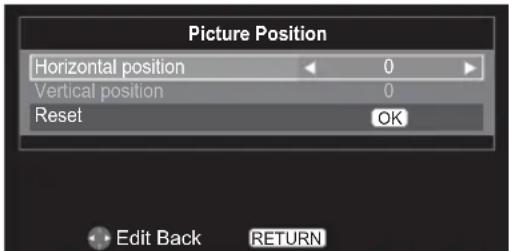
Picture Position
The Picture Position may now be adjusted to suit personal preference.
1 Press MENU. Press ◀ or ▶ to select SETUP and press OK to enter the sub-menu.

text_image
FIGURE SOUND SETUP APPLICATIONS PREFERENCES2 Press ▲ or ▼ to select Picture Position and press OK to enter the submenu.

text_image
Language Country Tuner Mode Auto tuning ATV Manual Tuning DTV Manual Tuning DTV Settings AV connection Picture Position Quick Setup English Germany Antenna OK OK OK OK OK 1/2SET OK Enter RETURN Back3 Press ▲ or ▼ to select an option you want to adjust, and press ◀ or ▶ to adjust the settings as required.
text_image
Picture Position Horizontal position 0 Vertical position 0 Reset OK Edit Back RETURNPicture Mode
You can adjust the picture appearance by selecting the preset value in picture mode based on the programme category.
1 Press MENU. Press ◀ or ▶ to select PICTURE and press OK to enter the submenu.

text_image
PICTURE SOUND SETLIP APPLICATIONS PREFERENCES2 Press ▲ or ▼ to select Picture Settings and press OK to enter the submenu.

text_image
Picture Settings Picture Mode Standard Active Backlight Control High Back Light 70 Contrast 95 Brightness 50 Colour 50 Tint 0 Sharpness 50 Black/White Level Middle Cinema Mode On Colour Temperature Medium Static Gamma 0 Reset OK Edit Back RETURN3 Press ▲ or ▼ to select Picture Mode and press ◀ or ▶ to select Dynamic, Standard, Mild, Movie, Game or User.
NOTE: Game is not available for the TV input mode.
Picture Preferences
You can customise current picture mode settings while selecting User.
1 In the Picture Settings menu, press ▲ or ▼ to select Back Light, Contrast, Brightness, Colour, Tint, Sharpness.
2 Press ◀ or ▶ to suit your preference.
Black/White Level
This function increases the strength of dark areas of the picture, which improves picture definition.
In the Picture Settings menu, press ▲ or ▼ to select Black/White Level.
2 Press ◀ or ▶ to adjust the level from Off, Low, Middle or High. The effect depends on the broadcast and is most noticeable on dark colours.
Cinema Mode
A movie film's picture runs at 24 frames a second, whereas movie software such as DVD, etc., that you enjoy watching on television at home runs at 30 (NTSC) or 25 (PAL) frames a second. To convert this signal to reproduce a smooth motion and picture quality, select the Cinema Mode.
In the Picture Settings menu, press ▲ or ▼ to select Cinema Mode.
2 Press ◀ or ▶ to select On or Off.
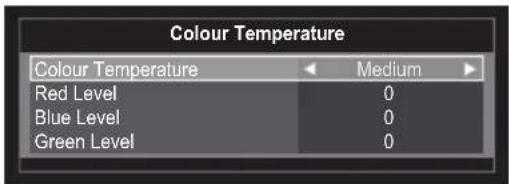
Colour Temperature
Colour Temperature increases the 'warmth' or "coolness" of a picture by increasing the red or blue tint.
1 In the Picture Settings menu, press ▲ or ▼ to select Colour Temperature and press ▶.
2 Press ▲ or ▼ to select Colour Temperature and press ◀ or ▶ to select Medium, Warm or Cool to suit your preference.
text_image
Colour Temperature Colour Temperature Medium Red Level 0 Blue Level 0 Green Level 03 Press ▲ or ▼ to select Red Level, Blue Level or Green Level and press ◀ or ▶ to adjust the settings as required.
Static Gamma
The static gamma feature allows you to adjust the levels of black in the picture.
In the Picture Settings menu, press ▲ or ▼ to select Static Gamma.
2 Press ◀ or ▶ to select the number of Static Gamma (-5\~+5).
Reset
This feature resets all picture settings to the factory settings.
In the Picture Settings menu, press ▲ or ▼ to select Reset and press Ⓞ to reset settings.
NOTE: If any picture settings have not been changed, Reset is not available.
Active Backlight Control
When the Active Backlight Control feature is activated, High mode will control the backlighting levels depending on various scenes such as picture motion, bright scene or dark scene. Low mode will control the backlighting level on dark scene.
1 In the Picture Settings menu, press ▲ or ▼ to select Active Backlight Control.
2 Press ◀ or ▶ to select Off, Low or High.
3D Colour Management
When 3D Colour Management is set to On, it allows the Base Colour Adjustment feature to become available.
You can adjust the picture colour quality by selecting from 6 base colour adjustments : Red, Green, Blue, Yellow, Magenta or Cyan.
1 In the PICTURE menu, press ▲ or ▼ to select 3D Colour Management.
2 Press ◀ or ▶ to select On or Off.
NOTE: When a DVD movie with subtitle is playing back, this mode may not work correctly.
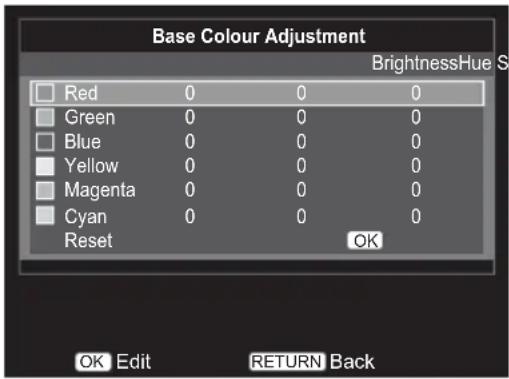
Base Colour Adjustment
The Base Colour Adjustment feature allows the adjustment of individual colours to suit personal preference. This can be useful when using an external source. It only can be adjusted when 3D Colour Management is set to On.
1 In the PICTURE menu, press ▲ or ▼ to select Base Colour Adjustment and press OK to enter the submenu.
2 Press ▲ or ▼ to select an item you want to adjust and press OK.
text_image
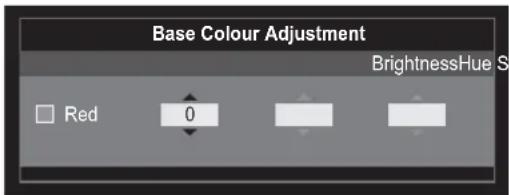
Base Colour Adjustment BrightnessHue S Red 0 0 0 Green 0 0 0 Blue 0 0 0 Yellow 0 0 0 Magenta 0 0 0 Cyan 0 0 0 Reset OK OK Edit RETURN Back3 Press ◀ or ▶ to select Hue, Saturation or Brightness.
text_image
Base Colour Adjustment BrightnessHue S Red 04 Press ▲ or ▼ to adjust the settings as required.
NOTE: In the PC Input mode, this function is not available.
Digital Noise Reduction
DNR (Digital Noise Reduction) enables you to "soften" the screen representation of a weak signal to reduce the noise effect.
1 In the PICTURE menu, press ▲ or ▼ to select DNR.
2 Press ◀ or ▶ to select Off, Low, Middle or High.
NOTE: This function is not available for HDMI input.
MPEG NR – Noise Reduction
When watching a DVD, the compression may cause some words or picture elements to become distorted or pixelated.
Using the MPEG NR feature reduces this effect by smoothing out the edges.
1 In the PICTURE menu, press ▲ or ▼ to select MPEG NR.
2 Press ◀ or ▶ to select Off, Low, Middle or High.
Enjoy Photos through USB Port
The Photo Viewer allows you to playback image files from a USB storage device.
| Image Photo | Resolution (Mstat suggest) | Required DRAM size (Mbytes) | Remark | |
| JPEG | Base-line | 15360x8704(1920x8x1088x8) | 3.96 Depends on RAM size | |
| Progressive 1024x768 6.00 | ||||
| PNG | non-interface 9600x6400 3.66 | |||
| interface 1200x800 3.66 | ||||
| BMP 9600x6400 3.66 | ||||
NOTE:
- Resolution is a reference design, limited only by DRAM (Dynamic Random Access Memory) size and performance
- The larger the resolution, the more memory required
- The smaller the resolution, the less performance required (decrease the time required to display a picture)
- A JPEG decoder is a hardware decoder, with a max resolution of 15360 x 8704
- A PNG/BMP decoder is a software decoder (running on a co-processor), with a max resolution that depends on DRAM size
View Photo Files
1 Insert a USB storage device and press → on the remote.
Use ▲ or ▼ to select MEDIA and press OK.

text_image
Inputs TV 1 2 3C HDMI1 HDMI2 MEDIA PC2 Press ◀ or ▶ to select Photo and press OK to enter the submenu.

text_image
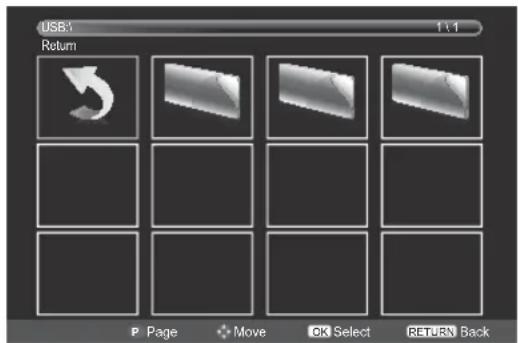
USB 2.0 Photo Music Movie Move Select3 Press ▲, ▼, ◀ or ▶ to select the folder you wish to view and press OK to enter. Press P ∧ or P to page up or down.
text_image
USB1 Return P Page Move OK Select RETURN Back4 Press ▲, ▼, ◀ or ▶ to select the desired photo and press OK to view.
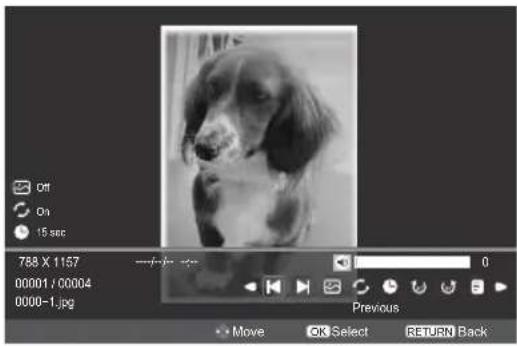
5 Press MENU to change the settings when viewing a photo.
text_image
Ctrl On 15 sec 788 X 1157 00001 / 00004 0000-1.jpg Previous Move OK Select RETURN BackPress ◀ or ▶ to:
• Go to the previous photo
• Go to the next photo
•: Select slide show mode
•: Select repeat mode
•: Select the desired interval time
• 🤘: Clockwise rotation 90°
•: Counterclockwise rotation 90°
• Show play list
•: Set the background music
• i: Photo information
and press OK to confirm the setting.
Using Slide Show
This view allows you to watch a slide show of the photos. In this view mode, the only content that locates on the same directory shall be played.
1 Press MENU to change the settings when viewing a photo.
2 Press ◀ or ▶ to select 📋nd press to turn On or Off. OK
NOTE: Slide show stops at the last photo in the directory.
Repeat Settings for Slideshow
1 Press MENU to change the settings when viewing a photo.
2 Press ◀ or ▶ to select 📊 and press to turn On or Off. OK
Set Interval Time
1 Press MENU to change the settings when viewing a photo.
2 Press ◀ or ▶ to select 📋nd press ⏻ to select the desired interval time (3/5/10/15/30/60/90 Sec).
NOTE: If Repeat is On, slide show starts photo viewing from the first photo in the folder after reaching the final photo.
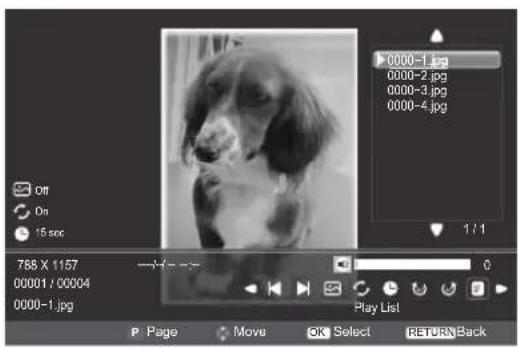
Using the Play List
1 Press MENU to change the settings when viewing a photo.
2 Press ◀ or ▶ to select 📋 and press . OK
3 Press ▲ or ▼ to select a photo and press OK to show the photo.
Press RETURN on the remote to collapse the list.
text_image
0000-1.jpg 0000-2.jpg 0000-3.jpg 0000-4.jpg 1:1 768 X 1157 00001 / 00004 0000-1.jpg Play List P Page Move OK Select RETURN BackBackground Music
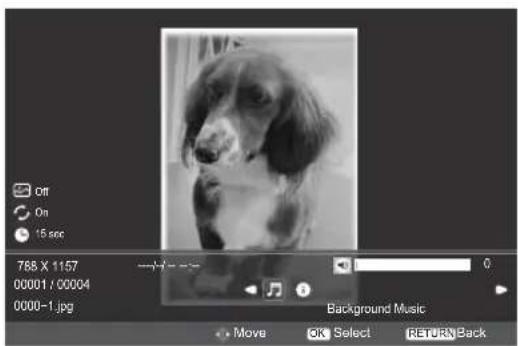
Set the background music when viewing photo.
1 Press MENU to change the settings when viewing a photo.
2 Press ◀ or ▶ to select ⏱ and press . OK
text_image
On On 15 sec 768 X 1157 00001 / 00004 0000-1.jpg Background Music Move OK Select RETURN Back3 Press ◀ or ▶ to select 📋 and press . OK

text_image
Background Music 0 Play List Move OK Select RETURN BackPress ▲ or ▼ to select music and press Ⓞ to play music.
Press RETURN on the remote to collapse the list.

text_image
USB4 Return Music Photo Video P Page Move OK Select RETURN Back4 Press ◀ or ▶ to select 📊 and press to select One or Folder. OK
Photo Info
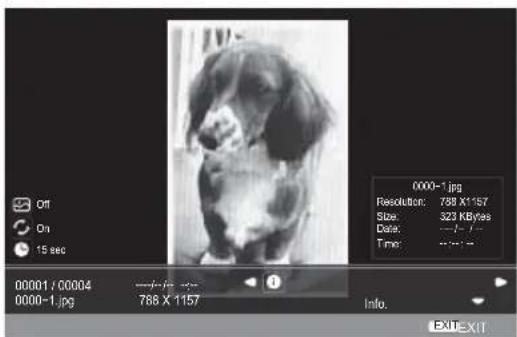
Info displays the file status information (content number, photo title, shooting date and time, resolution etc.).
1 Press MENU to change the settings when viewing a photo.
2 Press ◀ or ▶ to select 📋 and press . OK
text_image
0000-1.jpg Resolution: 788 X1157 Size: 323 KBytes Date: -1 / - Time: +1 / - 00001 / C0004 0000-1.jpg 788 X 1157 Info. EXIT EXIT3 The information will be removed by time-out (about 15 sec) or press OK to exit.
Enjoy Music through USB Port
The MP3 Player allows you to playback music files from a USB storage device.
| Audio Codec File Extension Bit Rate | Remark | |
| MPEG1 Layer2 MP3 | 32Kbps~ 448Kbps(Bit rate)32KHz ~ 48KHz(Sampling rate) | |
| MPEG1 Layer3 MP3 | 32Kbps ~ 320Kbps(Bit rate)32KHz ~ 48KHz(Sampling rate) |
Play Music Files
1 Insert a USB storage device and press → on the remote.
Use ▲ or ▼ to select MEDIA and press OK.

text_image
Inputs TV 1 2 3C HDMI1 HDMI2 MEDIA PC2 Press ◀ or ▶ to select Music and press OK to enter the submenu.
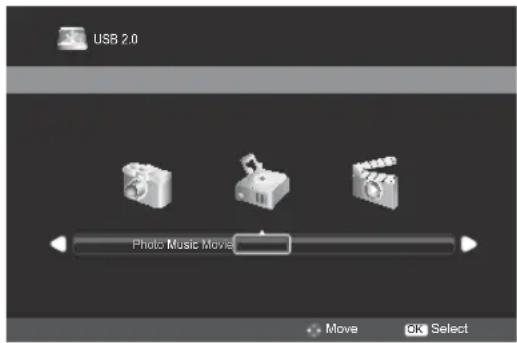
text_image
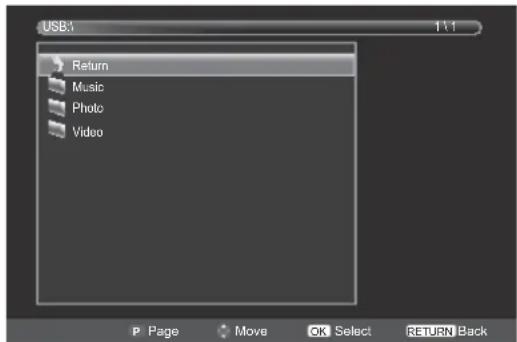
USB 2.0 Photo Music Movie Move OK Select3 Press ▲ or ▼ to select the folder you wish to play and press OK to enter.
Press P ∧ or P to page up or down.
text_image
USB:1 1:1 Return Music Photo Video P Page Move OK Select RETURN Back4 Press ▲ or ▼ to select the desired music and press OK to play.
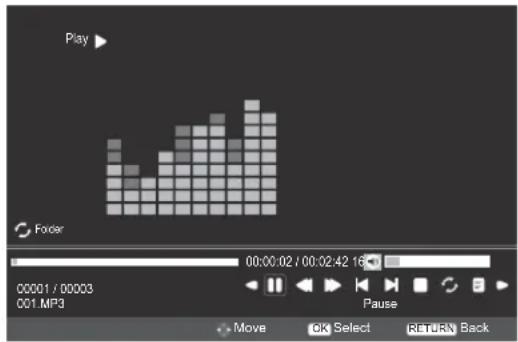
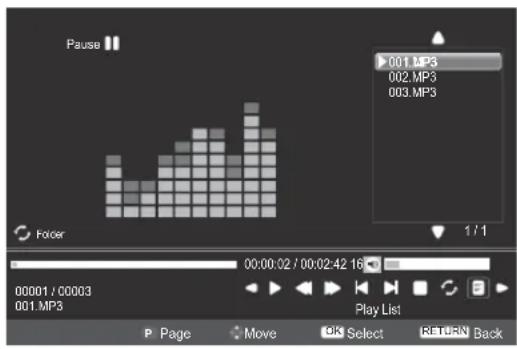
text_image
Play Foster 00:00:02 / 00:02:42 16 00001 / 00003 C01.MP3 Pause Move OK Select RETURN BackWhen listening music, press ◀ or ▶ to:
• ▶/□ play or pause the selected music
• : Rewind the selected music
• Fast forward the selected music
• Go to the previous music
• Go to the next music
- □: Stop play
• Select the desired repeat interval:
- Repeat Off
- Repeat One: Repeat the selected music once
- Repeat Folder: Repeat all music files in the selected folder
• Show play list
• i: Music information
and press OK to confirm the setting.
Repeat Settings
1 Press ◀ or ▶ to select 📊
2 Press to select Off, One or Folder.
Using the Play List
1 Press ◀ or ▶ to select 📋nd press Ⓞ OK.
2 Press ▲ or ▼ to select music and press OK to play music.
Press EXIT on the remote to collapse the list.
text_image
Pause 001.M3 002.MP3 003.MP3 1 / 1 Facer 00:00:02 / 00:02:42 16 00001 / C0003 001.MP3 Play List P Page Move OK Select RETURN BackMusic Info
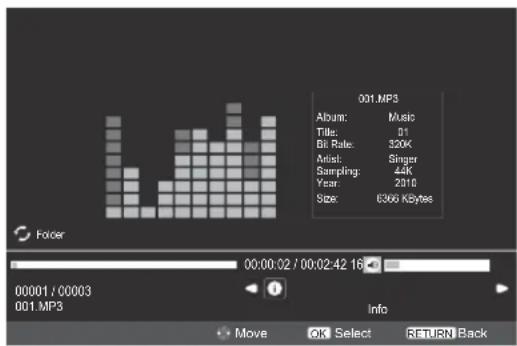
Info display file status information (content number, music title, Bit Rate, Artist, Sampling, Year, and size).
1 Press ◀ or ▶ to select 📋 and press . OK
text_image
001.MPS Album: Music Title: 01 Bit Rate: 320K Artist: Singer Sampling: 44K Year: 2010 Size: 6366 KBytes 00:00:02 / 00:02:42 16 00001 / 00003 001.MPS Info Move OK Select RETURN Back2 The information will be removed by time-out (about 15 sec) or press OK to exit.
Enjoy Videos through USB Port
The Video Viewer allows you to playback video files from a USB storage device.
| File Extension | Container | Video Codec SPEC | Bit Rate (Mbit/sec) | Profile Remark | ||
| dat, mpg, mpeg | MPEG | MPEG1MPEG2 | 1080P@ 30fps 20 | MPEG2: Main Profile@ High Level | MP4: GMC is not supported* Some files may not be played. | |
| ts, trp, tp | MPEG2-TSH.264-TS | H.264MPEG2 | 1080P@ 30fps 20 | H.264: Main Profile and High Profile@Level 4.0MPEG2: Main Profile@ High Level | ||
| vob MPEG2-PS MPEG2 1080P@ 30fps 20 | MPEG2: Main Profile@ High Level | |||||
| mp4, m4v MP4 | H.264MPEG4 | 1080P@ 30fps 20 | H.264: Main Profile and High Profile@Level 4.0MPEG4: Simple Profile and Advanced Simple Profile@Level 5 | |||
| mkv MKV | H.264MPEG1MPEG2MPEG4 | 1080P@ 30fps 20 | H264: Main Profile and High Profile@Level 4.0MPEG2: Main Profile@ High LevelMPEG4: Simple Profile and Advanced Simple Profile@Level 5 | |||
| divx, div | AVI(1.0, 2.0)DMF0,1,2 | DivX 3.11DivX 4.12DivX 5.xDivX 6 | 1080P@ 30fps 20 | MPEG4: Simple Profile and Advanced Simple Profile | ||
| avi | AVI(1.0, 2.0)DMF0,1,2 | H.264MPEG1MPEG2MPEG4DivX 3.11DivX 4.12DivX 5.xDivX 6 | 1080P@ 30fps 20 | H.264: Main Profile and High Profile@Level 4.0MPEG2: Main Profile@ High ProfileMPEG4: Simple Profile and Advanced Simple Profile@Level 5 | ||
| AVI(1.0, 2.0)MJPEG (Motion JPEG) | 640x480@ 30fps | 10 | ||||
| flv flash formats | H.264Sorenson H.263 | 1080P@ 30fps 20 | H.264: Main Profile and High Profile@Level 4.0 | |||
Play Video Files
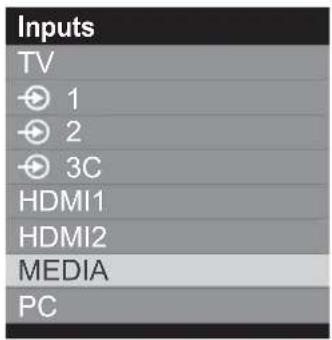
1 Insert a USB storage device and press ⬤ on the remote.
Use ▲ or ▼ to select MEDIA and press OK.
text_image
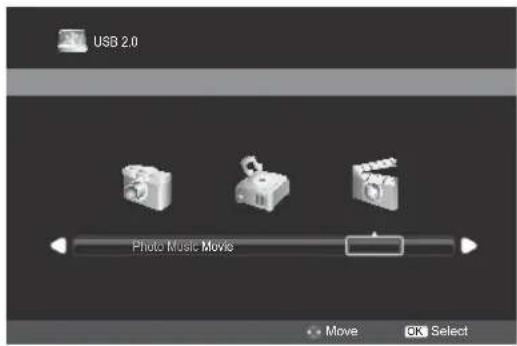
Inputs TV 1 2 3C HDMI1 HDMI2 MEDIA PC2 Press ◀ or ▶ to select Movie and press OK to enter the submenu.
text_image
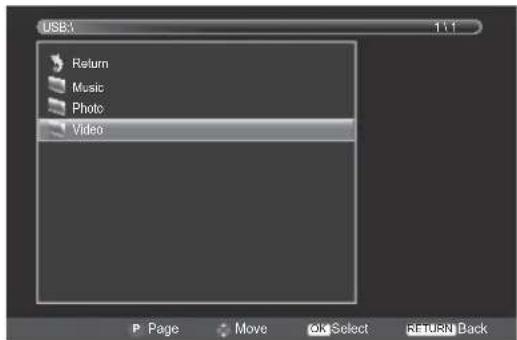
USB 2.0 Photo Music Movie Move OK Select3 Press ▲ or ▼ to select the folder you wish to view and press OK to enter. Press P ∧ or P to page up or down.
text_image
USB1 Return Music Photo Video P Page Move OK Select RETURN Back4 Press ▲ or ▼ to select the desired video and press OK to play.
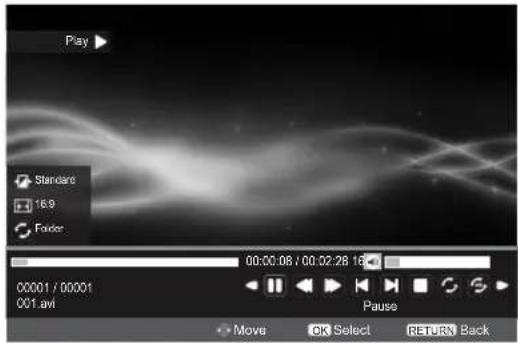
5 Press MENU to change the settings when viewing a video.
text_image
Play Standard 16:9 Folder 00:00:08 / 00:02:28 16 00001 / 00001 001.avi Pause Move OK Select RETURN BackPress ◀ or ▶ to:
• ▶/□ play or pause the selected video
• Fast back the selected video
• Fast forward the selected video
• Go to the previous video
• Go to the next video
- □: Stop play
• Select the desired repeat interval:
- Repeat Off
- Repeat One: Repeat the selected video once
- Repeat Folder: Repeat all video files in the selected folder
- : Repeat from A to B
- Set A: A-Set Repeat and Start
- Set B: B-Set Repeat and repeat from A to B
• Show play list
• i: Video information
• Slow forward the selected video
• Step forward the selected video
- Aspect Ratio
- Picture Mode
- Allows you to input a search time
and press OK to confirm the setting.
Repeat Settings
1 Press MENU to change the settings when viewing a video.
2 Press ◀ or ▶ to select 📊nd press to select Off, One or Folder. OK
Set
1 Press MENU to change the settings when viewing a video.
2 Press ◀ or ▶ to select 📋nd press to select Set A, Set B or None. OK
Using the Play List
1 Press MENU to change the settings when viewing a video.
2 Press ◀ or ▶ to select 📋 and press . OK
3 Press ▲ or ▼ to select a video and press OK to play the video.
Press RETURN on the remote to collapse the list.
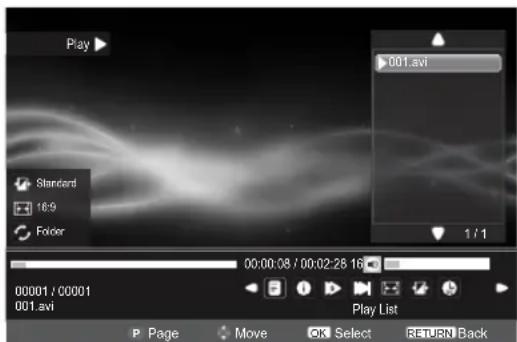
text_image
Play Standard 16:9 Folder 001.avi 1 / 1 00:00.08 / 00:02:28 16 00001 / C0001 001.avi Play List P Page Move OK Select RETURN BackSlow Forward
The feature changes forward speeds.
1 Press MENU to change the settings when viewing a video.
2 Press ◀ or ▶ to select 📋nd press Ⓞ OK to select SF2X, SF4X, SF8X, SF16X or Play.
Step Forward
The feature allows you to view a video one frame at a time.
1 Press MENU to change the settings when viewing a video.
2 Press ◀ or ▶ to select □ and press to play step by step. OK
Info display file status information (content number, video title, audio track, subtitle, program, size, etc.).
1 Press MENU to change the settings when viewing a video.
2 Press ◀ or ▶ to select ⏱ and press . OK
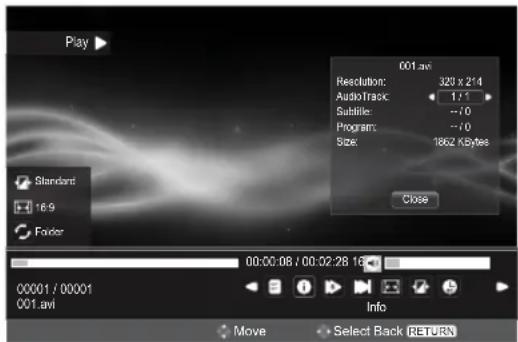
text_image
Play 001.avi Resolution: 320 x 214 AudioTrack: 1.1 Subtile: --/0 Program: --/0 Size: 1862 XBytes Close Standard 16.9 Folder 00:00:06 / 00:02:28 16 00001 / 00001 001.avi Info Move Select Back RETURN3 The information will be removed by time-out (about 15 sec) or press OK to exit.
Aspect Ratio
1 Press MENU to change the settings when viewing a video.
2 Press ◀ or ▶ to select 📋 and press to select Native, 4:3 or 16:9. OK
Picture Mode
1 Press MENU to change the settings when viewing a video.
2 Press ◀ or ▶ to select 📋nd press ⏻ to select Standard, Mild, Movie or Dynamic.
Goto Time
The feature allows you to view a selected time during the video.
1 Press MENU to change the settings when viewing a video.
2 Press ◀ or ▶ to select 📊 and press . OK
3 Use the number key pad on the remote to enter time. Press OK to go to the input time.
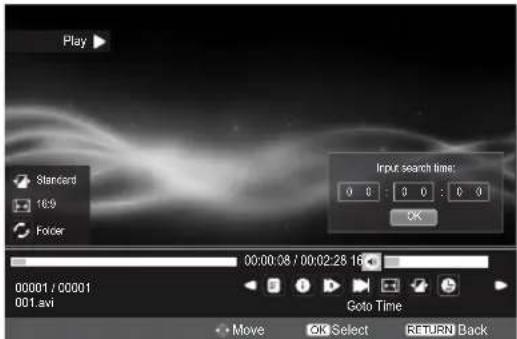
text_image
Play Standard 16:9 Folder Input search time: 0 0 : 0 0 : 0 0 OK 00:00:08 / 00:02:28 16 00001 / 00001 001.avi Goto Time Move OK Select RETURN BackREGZA-LINK Controls
This feature uses CEC (Consumer Electronics Control) technology, and allows the control of Toshiba REGZA-LINK compatible equipment from the television's remote control.
NOTE: Not all Toshiba products currently support REGZA-LINK.
Equipment Control
The REGZA-LINK mode on the television's remote control allows the control of connected REGZA-LINK equipment being watched.
To control the REGZA-LINK input source, first select the equipment with REGZA-LINK input source selection, then switch the mode on the remote control to REGZA-LINK and press any buttons.
The available functions are dependent on the equipment connected. Not all the remote control keys may be available. Please refer to the operation manual for each piece of equipment connected.
NOTE: The television features that can be controlled by the connected equipment are: Standby, Volume and Sound Mute.
Select REGZA-LINK Device
1 Press ⬆A list appears on screen showing modes and all stored external equipment.
2 The REGZA-LINK icon appears automatically after detected with REGZA-LINK compatible equipment. Press ▼ to highlight the input source shown with the REGZA-LINK icon.
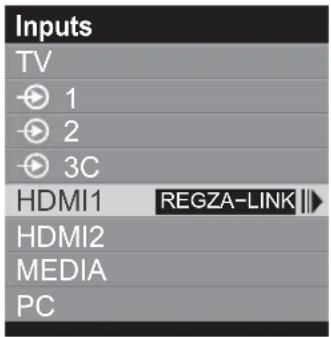
text_image
Inputs TV 1 2 3C HDMI1 REGZA-LINK HDMI2 MEDIA PC3 Press ▶. and the device selection menu appears showing all connected REGZA-LINK equipment.
4 Press ▲ or ▼ to highlight the desired REGZA-LINK equipment, and then press Ⓞ to select.

text_image
Inputs TV 1 2 3C HDMI1 REGZA-LINK HDMI2 MEDIA PC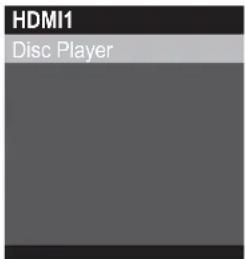
text_image
HDMI1 Disc PlayerREGZA-LINK Menus
By activating the Enable REGZA-LINK feature in the REGZA-LINK Setup menu, individual REGZA-LINK features can then be activated.
One Touch Play
The function of REGZA-LINK will automatically power on the television that was in standby mode and switch the television's input source to the port connected with the audio/video equipment by powering-on or playing from the audio/video equipment.
NOTE: This feature is dependent on the connected equipment and television setting.
System Standby
This feature automatically switches the connected equipment into standby when the television goes into standby and conversely for the television to switch into standby when connected equipment goes into standby. It is selected in the REGZA-LINK Setup menu.
NOTE: This feature is dependent on the connected equipment and television setting.
System Audio Control
Using the Speaker Preference feature allows the television's remote control to adjust the volume or mute the sound of the speakers connected to the television via an AV amplifier.
Ensure that the connected AV amplifier and REGZA-LINK equipment are selected in the input source selection and that the Speaker Preference is set to Audio Receiver in the REGZA-LINK Setup menu.
NOTE: When the AV Amplifier is switched on, its input source changed or the volume adjusted, the sound will be output from the AV Amplifier's speakers even if TV speakers has been selected. Turn the television off then on again to output the sound from the TV's speakers.
The full function may not work and is dependent on the amplifier being used.
Enable REGZA-LINK
When the Enable REGZA-LINK is set to On, it allows the other functions to be enabled.

Press MENU. Press ◀ or ▶ to select PREFERENCES and press OK to enter the submenu.

text_image
PICTURE SOUND SETUP APPLICATIONS PREFERENCES
Press ▲ or ▼ to select REGZA-LINK Setup, and press Ⓞ to enter the sub-menu.

text_image
PREFERENCES REGZA-LINK Setup OK Teletext Auto Panel Lock Off Auto Format On 4:3 Stretch Off Blue Screen On Side Panel 1 DivX Registration OK DivX Deregistration OK Enter RETURN Back
Press ▲ or ▼ to select Enable REGZA-LINK, and press ◀ or ▶ to select On or Off.
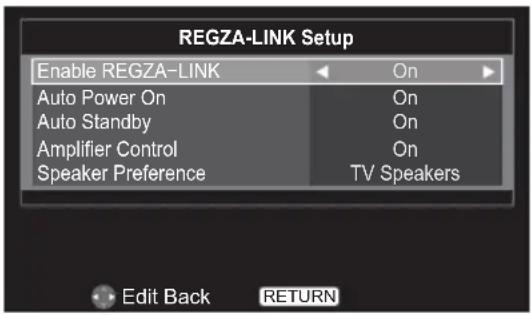
text_image
REGZA-LINK Setup Enable REGZA-LINK Auto Power On Auto Standby Amplifier Control Speaker Preference On On On TV Speakers Edit Back RETURNAuto Power On
The Auto Power On setting allows the television to be automatically switched On or Off if a REGZA-LINK device is turned on or off.
In the REGZA-LINK Setup menu, press ▲ or ▼ to select Auto Power On.
2 Press ◀ or ▶ to select On or Off.
Auto Standby
When the Auto Standby is enabled, switching off the television will automatically switch off all connected REGZA-LINK equipment.
In the REGZA-LINK Setup menu, press ▲ or ▼ to select Auto Standby.
2 Press ◀ or ▶ to select On or Off.
Amplifier Control
When Amplifier Control is set to On, it allows the Speaker Preference feature to become available.
In the REGZA-LINK Setup menu, press ▲ or ▼ to select Amplifier Control.
2 Press ◀ or ▶ to select On or Off.
Speaker Preference
This feature allows the audio output preference to be set to the TV speakers or Amplifier speakers. The Amplifier option lets the television's remote control adjust or mute the volume of the audio.
1 In the REGZA-LINK Setup menu, press ▲ or ▼ to select Speaker Preference when Amplifier Control is On.
2 Press ◀ or ▶ to select TV Speakers or Amplifier.
NOTE: This function is only available when the TV is connected to audio receivers that support CEC function.
REGZA-LINK Playback Device Control
This is a new feature that uses CEC technology and allows you to control REGZA-LINK compatible devices from the TV remote control via HDMI connection.
When there are two or more REGZA-LINK devices connected to the television, the device selection menu appears. Highlight the desired device, and then press OK to select.
Remote Control Pass-Through Control Panel

text_image
GUIDE EXIT OK MENU RETURN 2 3 4 5 6 7 8 9
text_image
GUIDEEXIT MENU RETURN 2 3 4 5 6 7 8 CONTENTSROOTTOPDVD 9NOTE:
- Press ▲ or ▼ to select REGZA-LINK in the Quick access menu, and then press Ⓞk. The Pass-Through Control Panel appears.
- Some functions are only available when the Pass-Through Control Panel is displayed on the screen. Please refer to the following procedure.
- Please refer to the Remote Control image and the following table for the key definitions of the Pass-Through Control Panel.
- MENU and RETURN buttons on the remote control are unavailable when the Pass-Through Control Panel is on.
| No Item Description | ||
| 1 GUIDE Turn off the desired REGZA-LINK device. | ||
| 2 EXIT Close the Pass-Through Control Panel. | ||
| 3 In contents menu: | ||
| ▲, ▼,◀, ▶ | Navigate contents menu. | |
| OK | Enter contents menu, ect. | |
| When viewing the video: | ||
| ▲ | Pause. | |
| ▼ | Stop. | |
| ◀ | Rewind. | |
| ▶ | Forward. | |
| OK | Play. | |
| 4 MENU Skip Reverse. | ||
| 5 RETURN Skip Forward. | ||
| 6 ROOT Root key. | ||
| 7 DVD DVD key. | ||
| 8 CONTENTS | Contents key. | |
| 9 TOP | Top key. | |
NOTE: These functions depend on the devices connected.
Preference Controls
On Timer
This feature allows you to set the television to turn on automatically to a preset channel at a certain time of day or after a certain length of time. When On timer is set to On, the green On Timer indicator on the front of the television is lit.
1 Press MENU. Press ◀ or ▶ to select APPLICATIONS and press OK to enter the submenu.

text_image
FIXTURE SOUND SETUP APPLICATIONS PREFERENCES2 Press ▲ or ▼ to select On timer and press OK to enter the submenu.

text_image
APPLICATIONS EPG On timer OK Sleep Timer 00:00 Demo OK OK Enter RETURN Back3 Press ▲ or ▼ to select Enable On Timer and press ◀ or ▶ to select On or Off.
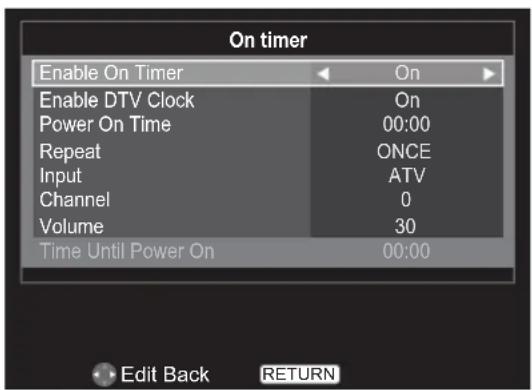
text_image
On timer Enable On Timer On Enable DTV Clock On Power On Time 00:00 Repeat ONCE Input ATV Channel 0 Volume 30 Time Until Power On 00:00 Edit Back RETURNNOTE: The settings are only available when Enable On Timer is On.
4 Press ▲ or ▼ to select Enable DTV Clock and press ◀ or ▶ to select On or Off.
NOTE: Power On Time and Repeat are only available when Enable DTV Clock is On.
5 Press ▲ or ▼ to select Power On Time and press ◀ or ▶ or use the number key pad on the remote to enter the time.
6 Press ▲ or ▼ to select Repeat and press ◀ or ▶ to select ONCE, DAILY, Mon.\~Fri., Mon.\~Sat. or Sat.\~Sun.
7 Press ▲ or ▼ to select Input and press ◀ or ▶ to select ATV, EXT 1, EXT 2, EXT 3, HDMI 1, HDMI 2, PC or DTV.
8 Press ▲ or ▼ to select Channel and press ◀ or ▶ to change the channel number or use the number key pad on the remote to enter the channel number.
NOTE:
- Channel is only available when the Input is ATV or DTV.
- Blank screen will appear if not tuned.
9 Press ▲ or ▼ to select Volume and press ◀ or ▶ to modify the volume, or use the number key pad on the remote to enter the volume.
10 Press ▲ or ▼ to select Time Until Power On and press ◀ or ▶ or use the number key pad on the remote to enter the time for the TV to turn on automatically.
NOTE: Time Until Power On is only available when Enable DTV Clock is Off.
Sleep Timer
The television can be set to turn itself Off after a certain length of time.
1 Press MENU and press ◀ or ▶ to select APPLICATIONS.
2 Press ▲ or ▼ to select Sleep Timer (Turn off the TV).
3 Press ◀ or ▶ to modify the time the TV should turn off, or use the number key pad on the remote to enter the time.
EPG
EPG (Electronic Programme Guide) supports 9 sets of timers. You can set or cancel a timer for a selected programme within the guide. When the TV is on and the timer activates, a dialogue box is shown informing you that the programme is about to start. When the TV is in standby mode and the timer activates, the TV will wake up with backlight off, speaker mute on, and change to the channel selected.
You must set the time correctly before using this function. All set timers are cleared when performing a new channel scan.
1 Press GUIDE on the remote to display the Programme Guide.
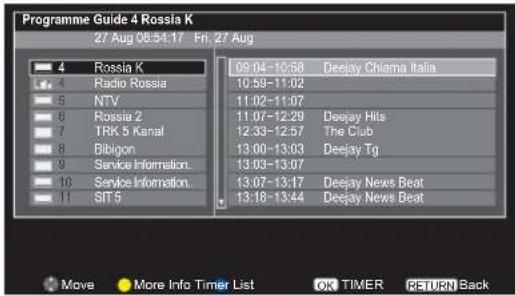
text_image
Programme Guide 4 Rossia K 27 Aug 06:54:17 Fri 27 Aug 4 Rossia K 5 Radio Rossia 6 NTV 7 Rossia 2 8 TRK 5 Kanal 9 Bibigon 10 Service Information. 11 Service Information. 12 SIT 5 09:04-10:58 Deejay Chioma Italia 10:59-11:02 11:02-11:07 11:07-12:29 Deejay Hits 12:33-12:57 The Club 13:00-13:03 Deejay Tg 13:03-13:07 13:07-13:17 Deejay News Beat 13:18-13:44 Deejay News Beat Move More Info Timer List OK TIMER RETURN Back2 Press ▲ or ▼ to select the desired channel and press OK to enter the programme schedule.
3 Press ▲ or ▼ to select the desired programme and press OK to enter the TIMER menu.

text_image
Programme Guide 4 Rossia K 27 Aug 06:54:17 Fri, 27 Aug 4 R Programme Timers 07:42:12 Fri, 27 Aug Italia 4 R 4 Rossia K "Deejay Chiama Italia" 09.04-10:58 27 Aug 2010 Repeat ONCE Subtito Off at SIT 5 13:18-13:44 Deejay News Beat Edit OK Save RETURN BackPress ▲ or ▼ to select Repeat or Subtitle and press ◀ or ▶ to adjust the settings as required.
Press OK to save the settings.
4 Press the button on the remote to enter the Timer List menu.
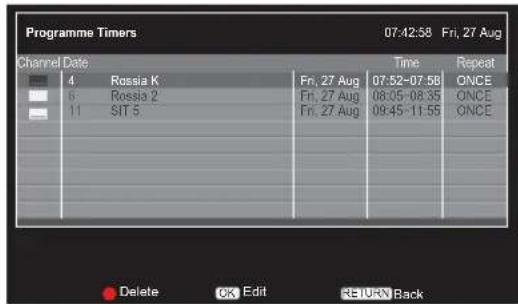
text_image
Programme Timers 07:42:58 Fri, 27 Aug Channel Date Time Repeat 4 Rossia K Fri, 27 Aug 07:52-07:58 ONCE 6 Rossia 2 Fri, 27 Aug 08:05-08:35 ONCE 11 SIT 5 Fri, 27 Aug 09:45-11:55 ONCE Delete OK Edit RETURN Back5 Press ▲ or ▼ to select the desired programme and press Ⓞ to edit.
NOTE: Press the ■ button on the remote to delete the timer.

text_image
Programme Timers 07:35:39 Fri, 27 Aug Channel Date 4 6 11 Programme Timers 801 Rossia K Channel ← 801 Rossia K Date 2010/08/27 Start Time 08:05 End Time 08:35 Repeat ONCE Subtitle Off Edit OK Save RETURN BackPress ▲ or ▼ to select Channel, Date, Start Time, End Time, Repeat or Subtitle and press ◀ or ▶ to adjust the settings as required.
Press OK to save the settings.
NOTE:
- When the timer is set, the Timer LED on the front panel lights on.
• After adjustment, the TV clock may not match the time in the EPG Programme Guide. The EPG Programme Guide time follows the broadcast stream time which can not be adjusted.
Panel Lock
Panel Lock disables the buttons on the television. All buttons on the remote control can still be used.
1 Press MENU. Press ◀ or ▶ to select PREFERENCES and press OK to enter the submenu.

text_image
PICTURE SOUND SETUP APPLICATIONS PREFERENCES2 Press ▲ or ▼ to select Panel Lock and press ◀ or ▶ to select On or Off.

text_image
PREFERENCES REGZA-LINK Setup OK Teletext Auto Panel Lock Off Auto Format On 4:3 Stretch Off Blue Screen On Side Panel 1 DivX Registration OK DivX Deregistration Edit Back RETURNWhen Panel Lock is On, a reminder will appear when the buttons on the television are pressed. If the standby button is pressed the television will switch off and can only be brought out of standby by using the remote control.
Auto Format (Widescreen)
When this television receives a true Widescreen picture and Auto format is On, it will automatically be displayed in Widescreen format, irrespective of the television's previous setting.
1 In the PREFERENCES menu, press ▲ or ▼ to select Auto Format.
2 Press ◀ or ▶ to select On or Off.
4:3 Stretch
When 4:3 Stretch is activated, this function will switch 4:3 format programmes into a full screen picture.
In the PREFERENCES menu, press ▲ or ▼ to select 4:3 Stretch.
2 Press ◀ or ▶ to select On or Off.
NOTE: In HDMI signal format, this function is available.
Blue Screen
When Blue Screen is selected, the screen will turn blue when no signal is received.
1 In the PREFERENCES menu, press ▲ or ▼ to select Blue Screen.
2 Press ◀ or ▶ to select On or Off.
NOTE: This function is not available in DTV mode.
Side Panel
The Side Panel feature lightens or darkens the band each side of the screen when in 4:3 or 14:9 format. This helps prevent image retention of the band and can also make viewing in bright or dark conditions more comfortable.
1 In the PREFERENCES menu, press ▲ or ▼ to select Side Panel.
2 Press ◀ or ▶ to adjust the settings as required.
DivX Registration
View the registration code that is required to play video files that are compatible with the DivX® VOD (Video On Demand) service on the TV. DivX® VOD is a video delivery service that lets you rent or purchase video content recorded in DivX® format. To play video files that are compatible with the DivX® VOD service, the TV needs to be registered as a DivX® player.
In the PREFERENCES menu, press ▲ or ▼ to select DivX Registration and press OK.
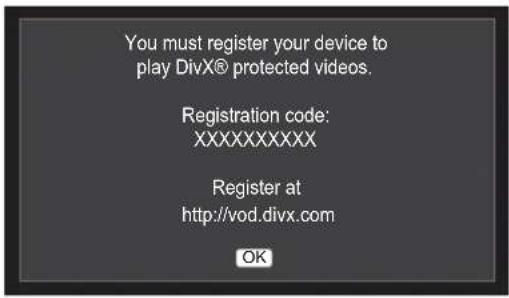
text_image
You must register your device to play DivX® protected videos. Registration code: XXXXXXXXX Register at http://vod.divx.com OKDivX Deregistration
In the PREFERENCES menu, press ▲ or ▼ to select DivX Deregistration and press OK to delete the registration.
Press ◀ or ▶ to select OK to confirm or select Cancel to exit and press OK.
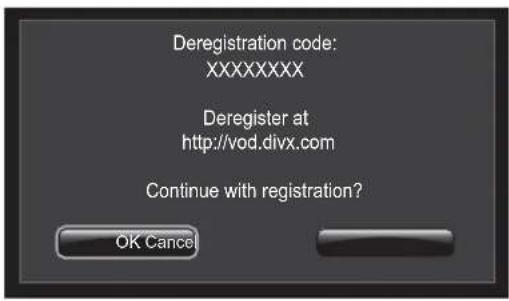
text_image
Deregistration code: XXXXXXXXX Deregister at http://vod.divx.com Continue with registration? OK CancelSystem Information
In the SETUP menu, press ▲ or ▼ to select System Information and press OK to display the model information and firmware version.

text_image
System Information TOSHIBA 2012 Dec 13 2011, 19:52:05, FW: v0.14 (PR) Weak Average Strong 530 MHz Good OK Enter RETURN BackSystem Upgrade
1 Press MENU. Press ◀ or ▶ to select SETUP and press OK to enter the submenu.

text_image
PICTURE SOUND SETUP APPLICATIONS PREFERENCES2 Press ▲ or ▼ to select System Upgrade and press OK to enter the submenu.
3 Press ▲ or ▼ to select Auto Upgrade and press ◀ or ▶ to select On or Off.
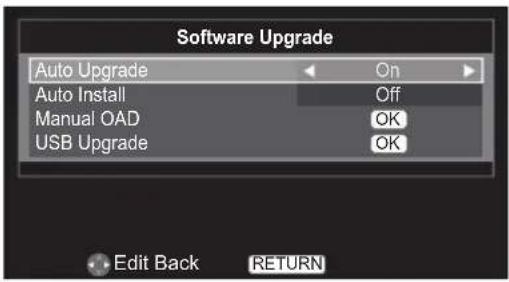
text_image
Software Upgrade Auto Upgrade On Auto Install Off Manual OAD OK USB Upgrade OK Edit Back RETURN4 Insert a USB storage device. Press ▲ or ▼ to select USB Upgrade and press OK to start upgrading the firmware.
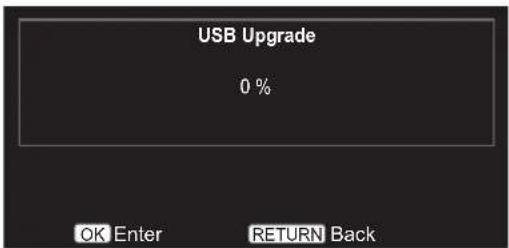
text_image
USB Upgrade 0 %NOTE: Firmware upgrading is suggested to be done by the professional service personnel.
Text Services and Text Information
This television has a multi-page text memory, which takes a few moments to load.
Setting the Modes
1 In the PREFERENCES menu, press ▲ or ▼ to select Teletext.

text_image
PREFERENCES REGZA-LINK Setup OK Teletext Auto Panel Lock Off Auto Format On 4:3 Stretch Off Blue Screen On Side Panel 1 DivX Registration OK DivX Deregistration OK Enter RETURN Back2 Press ◀ or ▶ to select Auto or LIST.
Navigating Pages using Auto
If Fastext is available, four coloured titles will appear at the base of the screen.
To access one of the four given subjects, press the relevant coloured button on the remote control.
For further information on your particular text system(s), see the broadcast text index page or, consult your local Toshiba dealer.
Navigating Pages using LIST
If Fastext is available, four coloured titles with numbers 100, 200, 300 and 400 have been programmed into the television's memory.
To view these pages press the relevant coloured buttons.
To change these stored pages press the relevant coloured button and enter a new 3 digit number. This number will change in the top left of the screen and in the coloured highlight. Press OK to store. The bars at the bottom of the screen will flash white. Whenever OK is pressed all four page numbers showing at the bottom will be stored and the previous ones will be lost.
If OK is not pressed the selection will be forgotten when text is cancelled.
Other pages may be viewed by entering the 3 digit page number – but DO NOT press OK or these pages will be stored.
Control Buttons
Below is a guide to the functions of the remote control text buttons.
Displays the index/initial page:
Press ☑ to access the index/initial page. The page displayed is dependant on the broadcaster.
Reveals concealed text:
To discover the solutions on quiz and joke pages press the 📋 button.
Holds a wanted page:
At times it is convenient to hold a page of text.
Press ☑ and ☑ will appear in the top left of the screen. The page will be held on-screen until the button is pressed again.
Enlarges the text display size:
Press ☐ once to enlarge the top half of the page, press again to enlarge the bottom half of the page. Press again to revert to normal size.
☑/☒ Selects a page while viewing a normal picture:
Enter the page number then press 📄/EX, a normal picture will be displayed. The television will indicate when the page is present by displaying the page number at the top of the screen.
To display news flashes:
Select the news flash page for the chosen text service (see the index page of your text service).
By pressing 📋/EX, news flashes will be displayed as and when they are broadcast. Press 📋/EX again to cancel the display.
How to change the page:
Press ▲ or ▼ to change the page.
Press ◀ or ▶ to change the sub page when a sub page is available.
The news flash page must be cancelled before changing channels.
PC Settings
- Most of the picture controls and functions are available. However features not available will be greyed out.
- In the PC input mode, the Manual Setting is not displayed.
- First press ➕ until the video input mode list appears on the screen, then press ▲ or ▼ and Ⓤ in order to select the PC input mode.
- This function may not be available for some signal or if no signal is received.
- The optimum points of the clock phase and sampling clock adjustments may be incomprehensible according to the input signals.
Horizontal and Vertical Position
Connect the PC (as shown in the “Connecting a Computer” section) and ensure that a picture is showing on the television screen. The picture position may now be adjusted to suit personal preference.
1 Press MENU. Press ◀ or ▶ to select SETUP and press OK to enter the submenu.

text_image
FIXTURE SOUND SETUP APPLICATIONS PREFERENCES2 Press ▲ or ▼ to select PC Setting, and press OK to enter the submenu.
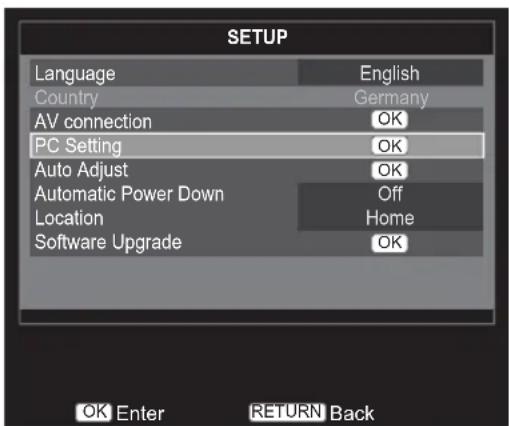
text_image
SETUP Language English Country Germany AV connection OK PC Setting OK Auto Adjust OK Automatic Power Down Off Location Home Software Upgrade OK OK Enter RETURN Back3 Press ▲ or ▼ to select Horizontal Position or Vertical Position and press ◀ or ▶ to adjust the settings as required.

text_image
PC Setting Horizontal position 0 Vertical position 0 Horizontal width 0 Clock phase 0 Reset OK Edit Back RETURNHorizontal Width
1 In the PC Setting menu, press ▲ or ▼ to select Horizontal width.
2 Press ◀ or ▶ to adjust the settings as required.
Clock Phase
The Clock phase matches the PC signal with the LCD display.
Adjusting this can clear horizontal stripes and picture blur.
1 In the PC Setting menu, press ▲ or ▼ to select Clock phase.
2 Press ◀ or ▶ to obtain a clear picture.
Reset
This feature resets all PC settings to the factory settings.
NOTE: If any PC settings have not been changed, Reset is not available.
1 In the PC Setting menu, press ▲ or ▼ to select Reset.
2 Press OK
NOTE:
- When a PC is connected using HDMI none of these functions will be available.
- The screen is disrupted momentarily when adjusting PC setting. This is not a sign of malfunction.
- The default settings and adjustment ranges may vary depending on the input signal format.
Input Selection and AV Connections
Use the Input Selection feature if the television does not switch over automatically when using an external device.
Lip Sync Mode
This option activates an auto audio/video display timing adjustment function that allows HDMI source devices to accurately perform synchronization automatically.
All of the above HDMI settings require a proper HDMI source device.
If HDMI source products do not support these functions, the TV may not work properly when activating these functions.
NOTE:
- In a non-HDMI signal mode, this function is not available.
- In your HDMI connection is capable of 1080p and/or your TV is capable of refresh rates greater than 60Hz or supports Deep Colour, you will need a Category2 cable. Conventional HDMI/DVI cables may not work properly with this mode.
Input Signal Selection
You can select source of AV or S-VIDEO from this function.
1 Press MENU. Press ◀ or ▶ to select SETUP and press OK to enter the submenu.

text_image
PICTURE SOUND SETUP APPLICATIONS PROPERTIES2 Press ▲ or ▼ to select AV connection, and press Ⓞ to enter the submenu.
3 Press ▲ or ▼ to select EXT1 input and press ◀ or ▶ to select AV or S-VIDEO.
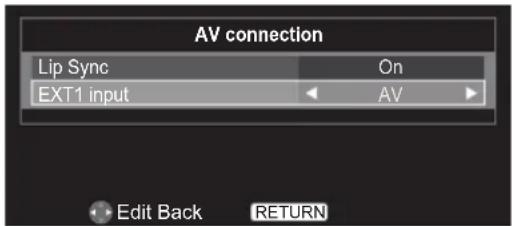
text_image
AV connection Lip Sync On EXT1 input AV Edit Back RETURNFrequently Asked Questions
Q Why is there no sound or picture?
A Check that the television is on and that all connections are made properly.
Q There is a picture, but why is there little or no colour?
The colour is factory set to Auto to automatically display the best colour system.
A When using an external source, if there is little or no colour, improvements may sometimes be achieved.
To manually change the colour system:
1 With the external source playing, select Manual setting in the SETUP menu.
2 Using ▲ or ▼ to choose from Auto, NTSC 4.43, NTSC 3.58, SECAM or PAL.
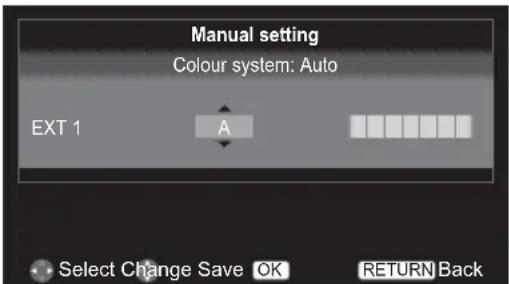
text_image
Manual setting Colour system: Auto EXT 1 A Select Change Save OK RETURN BackQ Why doesn't the video/DVD being played show on-screen?
A Make sure the VCR or DVD player is connected to the television, then select the correct input by pressing ⊙.
Q Why is there a good picture but no sound?
A Check all cable connections and that the volume has not been turned down or that the sound has not been muted.
Q What else can cause a poor picture?
A Interference or a weak signal. Try a different television station. Manual fine tuning may help:
1 Select the ATV Manual Tuning in the SETUP menu.
Highlight the station and press OK, then press ◀ or ▶ to select Manual fine tuning.
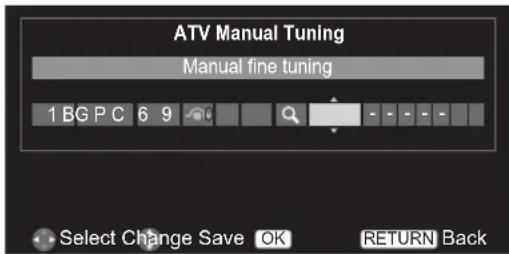
text_image
ATV Manual Tuning Manual fine tuning 1 BG PC 6 9 0 Select Change Save OK RETURN Back2 Using ▲ or ▼ to adjust to get the best picture and sound. Press OK and then RETURN.
Q Why doesn't the remote control work?
A Check that the batteries aren't dead or inserted incorrectly.
Q Why are there problems with text?
Good performance of text depends on a strong broadcast signal. If the text is unreadable or garbled, check the aerial, satellite or cable connection. Go to the main index page of the text service and look for the User Guide. This will explain the basic operation of text in some detail.
Q Why are the four coloured text numbers visible but no text?
Text has been selected while viewing an external source. No text will appear on-screen or a box may appear stating no information is available. Select a broadcasting channel and press ☑ to access.

Why are the colours wrong when an NTSC source is played?

Connect the source via a SCART cable and play. Select Manual setting from the SETUP menu and set the Colour System to Auto.
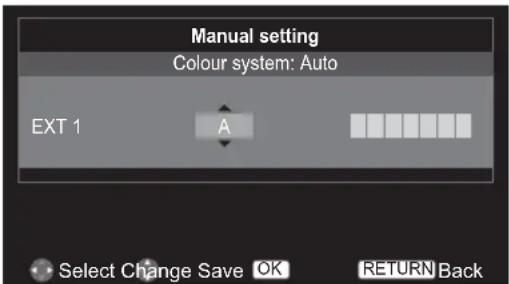
text_image
Manual setting Colour system: Auto EXT 1 A Select Change Save OK RETURN Back
What can be done if the user-defined password has been forgotten?

Use the universal password 1276, then change to a new number of your choice.

Why don't the devices connected via HDMI operate properly?

Make sure to use cables with the HDMI logo (HDMI®). Some early HDMI equipment may not work properly with the latest HDMI TV products, due to adoption of new standards.

Why is the VCR/DVD picture in black and white?

Check the correct input has been chosen: S-VIDEO or AV.

Why did TV turn off by itself?

After roughly 15 minutes without any input video signal at TV mode, the TV will turn off to save power.
Specifications and Accessories
- This television complies with the specification listed below.
| DVB-T Broadcast systems/channels | Broadcast systems/channels | Visible Screen Size (approx.) | 32AV93*G | 80cm |
| 32LV93*G | 80cm | |||
| UK UHF 21-68 PAL-I UHF UK21-UK69 | 40LV93*G | 102cm | ||
| France VHF 05-10(VHF 01-05)UHF 21-69 | PAL-B/G UHF E21-E69VHF E2-E12, S1-S41 | 26EL93*G | 66cm | |
| 32EL93*G | 80cm | |||
| Germany VHF 05-12UHF 21-69 | SECAM-L UHF F21-F69VHF F1-F10, B-Q | 32HL93*G | 80cm | |
| 40HL93*G | 102cm | |||
| Austria VHF 05-12UHF 21-69 | SECAM-D/K UHF R21-R69VHF R1-R12 | On mode power consumption**(approx.) | 32AV93*G | 55.9W |
| 32LV93*G | 54.5W | |||
| Switzerland VHF 05-12UHF 21-69 | 40LV93*G | 87.2W | ||
| Italian VHF 05-12 (D,E,F,G,H,H1,H2)UHF 21-69 | 26EL93*G | 27.0W | ||
| 32EL93*G | 29.6W | |||
| Spain UHF 21-69 | 32HL93*G | 31.5W | ||
| 40HL93*G | 46.8W | |||
| Nederlands VHF 05-12UHF 21-69 | Annual power consumption***(approx.) | 32AV93*G | 81.6KWh/y | |
| Sweden VHF 05-12UHF 21-69 | 32LV93*G | 79.6KWh/y | ||
| 40LV93*G | 127.3KWh/y | |||
| Finland VHF 05-12UHF 21-69 | 26EL93*G | 39.4KWh/y | ||
| Greece VHF 05-12UHF 21-69 | 32EL93*G | 43.3KWh/y | ||
| 32HL93*G | 46.0KWh/y | |||
| Video Input PAL, SECAM, NTSC 3.58/4.43 | 40HL93*G | 68.3KWh/y | ||
External connections
| EXT1 | Input/Output | 21-pin SCART | Auto, Mixed, RGB,Composite, S-Video /TV Out |
| EXT2/EXT3 | Input | RCA jacks | (EXIT2) Video |
| RCA jacks | (EXIT3) Y, P_B/C_B/P_R/C_R | ||
| RGB/PC | Input | D-sub | RGB |
| HDMI 1/2 Input | HDMI ^ | ||
| Audio | |||
| EXT2/EXT3 | RCA jacks | Audio L + R (shared) | |
| Digital Audio | Output(S/PDIF) | Coaxial | |
| USB Port | Interface version: | USB 2.0 | |
| USB Class: | USB Flash Driver | ||
| File system: | FAT32 | ||
| Stereo | Nicam | ||
| 2 Carrier System | |||
| Energy efficiency Class | 32AV93*G | B Class | |
| 32LV93*G B Class | |||
| 40LV93*G B Class | |||
| 26EL93*G | A Class | ||
| 32EL93*G | A+ Class | ||
| 32HL93*G | A+ Class | ||
| 40HL93*G | A+ Class | ||
** Tested in accordance with IEC 62087-BD Ed. 2.0:2008 in default settings.
*** Energy consumption XYZ kWh per year, based on the power consumption of the television operating 4 hours per day for 365 days. The actual energy consumption will depend on how the television is used.
| Standby power consumption (approx.) | 32AV93*G | <0.3W |
| 32LV93*G | <0.3W | |
| 40LV93*G | <0.3W | |
| 26EL93*G | <0.3W | |
| 32EL93*G | <0.3W | |
| 32HL93*G | <0.3W | |
| 40HL93*G | <0.3W | |
| Screen Resolution (pixels) | 32AV93*G | 1366 x 768 |
| 32LV93*G | 1920 x 1080 | |
| 40LV93*G | 1920 x 1080 | |
| 26EL93*G | 1366 x 768 | |
| 32EL93*G | 1366 x 768 | |
| 32HL93*G | 1920 x 1080 | |
| 40HL93*G | 1920 x 1080 | |
| Display | 16:9 | |
| Sound Output (At 10% Distortion) | 32AV93*G | 5W + 5W |
| 32LV93*G | 5W + 5W | |
| 40LV93*G | 7W + 7W | |
| 26EL93*G | 5W + 5W | |
| 32EL93*G | 5W + 5W | |
| 32HL93*G | 5W + 5W | |
| 40HL93*G | 7W + 7W | |
| Power consumption(approx.) | 32AV93*G 130W | |
| 32LV93*G 126W | ||
| 40LV93*G 218W | ||
| 26EL93*G 60W | ||
| 32EL93*G 68W | ||
| 32HL93*G 76W | ||
| 40HL93*G 101W | ||
| Weight(approx.) | TV with stand | 32AV93*G 9.5kg |
| 32LV93*G 9.0kg | ||
| 40LV93*G 14.0kg | ||
| 26EL93*G 6.0kg | ||
| 32EL93*G 9.0kg | ||
| 32HL93*G 9.5kg | ||
| 40HL93*G 14.5kg | ||
| Gross weight | 32AV93*G 12.5kg | |
| 32LV93*G 12.5kg | ||
| 40LV93*G 18.5kg | ||
| 26EL93*G 8.5kg | ||
| 32EL93*G 12.5kg | ||
| 32HL93*G 12.5kg | ||
| 40HL93*G 18.5kg | ||
| TV without stand | 32AV93*G 8.7kg | |
| 32LV93*G 8.2kg | ||
| 40LV93*G 13.0kg | ||
| 26EL93*G 5.5kg | ||
| 32EL93*G 8.5kg | ||
| 32HL93*G 8.9kg | ||
| 40HL93*G 13.7kg | ||
| Dimensions(H x W x D mm) (approx.) | 32AV93*G 785 x 528 x 205 | |
| 32LV93*G 785 x 528 x 205 | ||
| 40LV93*G 980 x 641 x 240 | ||
| 26EL93*G 620 x 426 x 175 | ||
| 32EL93*G 746 x 507 x 205 | ||
| 32HL93*G 736 x 497 x 205 | ||
| 40HL93*G 924 x 604 x 225 | ||
Headphone Socket R3.5mm stereo
Operating Conditions Temperature: 5
°C - 35°C
(41°F - 94°F)
Humidity: 20% - 80%
(non-condensing)
Accessories Remote control
2 batteries
(AAA, IEC R03 1.5V)
User Manual
License Information
• DOLBY. Manufactured under license from Dolby Laboratories. Dolby and the double-D symbol are trademarks of Dolby Laboratories.
• HDMI®
HDMI, the HDMI logo and High-Definition Multimedia Interface are trademarks or registered trademarks of HDMI Licensing LLC in the United States and other countries.
- MPEG Layer-3 audio coding technology licensed from Fraunhofer IIS and Thomson.
- THIS PRODUCT IS LICENSED UNDER THE MPEG-4 VISUAL PATENT PORTFOLIO LICENSE FOR THE PERSONAL AND NONCOMMERCIAL USE OF A CONSUMER FOR (i) ENCODING VIDEO IN COMPLIANCE WITH THE MPEG-4 VISUAL STANDARD ("MPEG-4 VIDEO") AND/OR (ii) DECODING MPEG-4 VIDEO THAT WAS ENCODED BY A CONSUMER ENGAGED IN A PERSONAL AND NON-COMMERCIAL ACTIVITY AND/OR WAS OBTAINED FROM A VIDEO PROVIDER LICENSE BY MPEG LA TO PROVIDE MPEG-4 VIDEO. NO LICENSE IS GRANTED OR SHALL BE IMPLIED FOR ANY OTHER USE. ADDITIONAL INFORMATION INCLUDING THAT RELATING TO PROMOTIONAL, INTERNAL AND COMMERCIAL USES AND LICENSING MAY BE OBTAINED FROM MPEG LA, L.L.C. SEE HTTP://WWW.MPEGLA.COM
- THIS PRODUCT IS LICENSED UNDER THE AVC PATENT PORTFOLIO LICENSE FOR THE PERSONAL AND NON-COMMERCIAL USE OF A CONSUMER TO (i) ENCODE VIDEO IN COMPLIANCE WITH THE AVC STANDARD ("AVC VIDEO) AND/OR (ii) DECODE AVC VIDEO THAT WAS ENCODED BY A CONSUMER ENGAGED IN A PERSONAL AND NON-COMMERCIAL ACTIVITY AND/OR WAS OBTAINED FROM A VIDEO PROVIDER LICENSED TO PROVIDE AVC VIDEO. NO LICENSE IS GRANTED OR SHALL BE IMPLIED FOR ANY OTHER USE ADDITIONAL INFORMATION MAY BE OBTAINED FROM MPEG LLA, L.L.C SEE HTTP://WWW.MPEGLA.COM
• DIVX HD
DivX ^® , DivX Certified ^® and associated logos are trademarks of Rovi Corporation or its subsidiaries and are used under license.
Covered by one or more of the following U.S. patents: 7,295,673; 7,460,668; 7,515,710; 7,519,274
ABOUT DIVX VIDEO: DivX® is a digital video format created by DivX, LLC, a subsidiary of Rovi Corporation. This is an official DivX Certified® device that plays DivX video. Visit divx.com for more information and software tools to convert your files into DivX videos.
ABOUT DIVX VIDEO-ON-DEMAND: This DivX Certified® device must be registered in order to play purchased DivX Video-on-Demand (VOD) movies. To obtain your registration code, locate the DivX VOD section in your device setup menu. Go to vod.divx.com for more information on how to complete your registration.
Cleaning the screen and cabinet...
Turn off the power, clean the screen and cabinet with a soft, dry cloth. We recommend that you do not use any proprietary polishes or solvents on the screen or cabinet as this may cause damage.
Disposal...
The following information is only for EU-member states:
Disposal of products
The crossed out wheeled dust bin symbol indicates that products must be collected and disposed of separately from household waste. Integrated batteries and accumulators can be disposed of with the product. They will be separated at the recycling centres.
The black bar indicates that the product was placed on the market after
August 13, 2005. By participating in separate collection of products and batteries, you will help to assure the proper disposal of products and batteries and thus help to prevent potential negative consequences for the environment and human health.
For more detailed information about the collection and recycling programmes available in your country, please contact your local city office or the shop where you purchased the product.
Disposal of batteries and/or accumulators
The crossed out wheeled dust bin symbol indicates that batteries and/or accumulators must be collected and disposed of separately from household waste.
If the battery or accumulator contains more than the specified values of lead (Pb), mercury (Hg), and/or cadmium (Cd) defined in the Battery Directive (2006/66/EC), then the chemical symbols for lead (Pb), mercury (Hg) and/or cadmium (Cd) will appear below the crossed out wheeled dust bin symbol. By participating in separate collection of batteries, you will help to assure the proper disposal of products and batteries and thus help to prevent potential negative consequences for the environment and human health. For more detailed information about the collection and recycling programmes available in your country, please contact your local city office or the shop where you purchased the product.

In conformity with the EEE Regulation.
EU Conformity Statement

"This product is marked with "CE" and complies therefore with the applicable harmonized European standards listed under the Low Voltage Directive 2006/95/EC and the EMC Directive 2004/108/EC."
Responsible for CE-marking is TOSHIBA EUROPE GMBH Hammfelddamm 8 D41460 Neuss. Germany
DVB is a registered trademark of the DVB Project
© TOSHIBA Television Central Europe Sp. z o.o. 2012
All rights reserved.
Reproduction in whole or part without written permission is strictly prohibited.
TOSHIBA Television Central Europe Sp. z o.o. ul. Pokoju 1, Biskupice Podgórne, 55-040 Kobierzyce, Poland Specification is subject to change without notice.
© TOSHIBA Television Central Europe Sp. z o.o. 2012
All rights reserved.
Reproduction in whole or part without written permission is strictly prohibited.
TOSHIBA Television Central Europe Sp. z o.o.
ul. Pokoju 1, Biskupice Podgóme, 55-040 Kobierzyce, Poland
Specification is subject to change without notice.