TL-SC3130G - Surveillance Camera TP-LINK - Free user manual and instructions
Find the device manual for free TL-SC3130G TP-LINK in PDF.


User questions about TL-SC3130G TP-LINK
0 question about this device. Answer the ones you know or ask your own.
Ask a new question about this device
Download the instructions for your Surveillance Camera in PDF format for free! Find your manual TL-SC3130G - TP-LINK and take your electronic device back in hand. On this page are published all the documents necessary for the use of your device. TL-SC3130G by TP-LINK.
USER MANUAL TL-SC3130G TP-LINK
natural_image
Black TP-LINK 700 camera on a stand with antenna (no visible text or symbols beyond branding)COPYRIGHT & TRADEMARKS
Specifications are subject to change without notice. TP-LINK® is a registered trademark of TP-LINK TECHNOLOGIES CO., LTD. Other brands and product names are trademarks or registered trademarks of their respective holders.
No part of the specifications may be reproduced in any form or by any means or used to make any derivative such as translation, transformation, or adaptation without permission from TP-LINK TECHNOLOGIES CO., LTD. Copyright © 2011 TP-LINK TECHNOLOGIES CO., LTD.
All rights reserved.
http://www.tp-link.com
FCC STATEMENT

This equipment has been tested and found to comply with the limits for a Class B digital device, pursuant to part 15 of the FCC Rules. These limits are designed to pro-vide reasonable protection against harmful interference in a residential installation. This equipment generates, uses and can radiate radio frequency energy and, if not in-stalled and used in accordance with the instructions, may cause harmful interference to radio communications. However, there is no guarantee that interference will not occur in a particular installation. If this equipment does cause harmful interference to radio or television reception, which can be determined by turning the equipment off and on, the user is encouraged to try to correct the interference by one or more of the following measures:
➢ Reorient or relocate the receiving antenna.
Increase the separation between the equipment and receiver.
Connect the equipment into an outlet on a circuit different from that to which the receiver is connected.
Consult the dealer or an experienced radio/ TV technician for help.
This device complies with part 15 of the FCC Rules. Operation is subject to the following two conditions:
1) This device may not cause harmful interference.
2) This device must accept any interference received, including interference that may cause undesired operation.
Any changes or modifications not expressly approved by the party responsible for compliance could void the user's authority to operate the equipment.
Note: The manufacturer is not responsible for any radio or tv interference caused by unauthorized modifications to this equipment. Such modifications could void the user's authority to operate the equipment.
CE Mark Warning

This is a class B product. In a domestic environment, this product may cause radio interference, in which case the user may be required to take adequate measures.
CONTENTS
Package Contents....1
Chapter 1 Minimum System Requirements....2
Chapter 2 Physical Overview ....3
2.1 Front View....3
2.2 Bottom view....3
2.3 Hardware Connection.... 3
Chapter 3 Using IP Camera via Web Browser....5
3.1 Obtain the IP Address....5
3.2 Windows Web Browser 7
3.3 Mac Web Browser 8
Chapter 4 Operating IP Camera via Mobile Phone....11
4.1 Mobile Phone Viewing....11
4.1.1 3G Mobile Phone Streaming Viewing....11
4.1.2 2.5G Mobile Phone WAP Viewing....11
4.1.3 2.5G Mobile Phone Browser Viewing....11
4.2 Using IP Camera via iPhone 12
Chapter 5 Configuration of Main Menu ....13
5.1 Live View 13
5.1.1 Snapshot.... 13
5.1.2 Zoom in / out the image via the monitor window.... 14
5.1.3 Video play buttons.... 14
5.1.4 Audio buttons.... 15
5.2 Setting 15
5.3 Client Setting 16
5.3.1 Mode.... 16
5.3.2 View Size 16
5.3.3 Protocol....17
5.3.4 Video Buffer 17
5.4 Image Setup 17
5.4.1 Brightness.... 18
5.4.2 Contrast....18
5.4.3 Saturation 18
5.4.4 Hue 18
5.4.5 Default 18
Chapter 6 Setting-Basic....19
6.1 System.... 19
6.1.1 Information.... 19
6.1.2 Date / Time 20
6.1.3 Initialize....21
6.2 Camera....22
6.2.1 General 23
6.2.2 MPEG4 24
6.2.3 MJPEG 26
6.3 Network 26
6.3.1 Information....27
6.3.2 PPPoE (Point-to-Point Protocol over Ethernet) 29
6.3.3 DDNS (Dynamic DNS) 31
6.3.4 UPnP (Universal Plug and Play) 35
6.3.5 Bonjour 36
6.3.6 IP Notification....36
6.3.7 Wireless.... 39
6.4 Security....42
6.4.1 Account....42
6.4.2 HTTPS 43
Chapter 7 Setting-Advanced ....45
7.1 FTP Client....45
7.1.1 General 46
7.1.2 Alarm sending....46
7.1.3 Periodical sending 49
7.2 SMTP....50
7.2.1 General....51
7.2.2 Alarm sending....53
7.2.3 Periodical sending 55
7.3 HTTP event....56
7.3.1 General 57
7.3.2 Alarm sending....58
7.4 Schedule....61
7.4.1 Setting....61
7.5 Motion Detection....62
7.5.1 Setting....62
7.6 System Log....63
7.6.1 Setting....63
Appendix 65
FAQ....69
Package Contents
The follow items should be found in your package:
TL-SC3130G Wireless 2-Way Audio Surveillance Camera
Power Adapter
Mounting Bracket with three screws, a Lock Ring, a Brace and a Base Plate
RJ45 Cable
Quick Installation Guide
➢ Resource CD, including:
- This User Guide
- Application Guide
• Other helpful information
Note:
Make sure that the package contains the above items. If any of the listed items is damaged or missing, please contact your distributor.
Chapter 1 Minimum System Requirements
We strongly recommend your computers follow our minimum requirements in order to use this IP-Camera normally. If your computer doesn't meet these requirements below, it might cause some problems.
| Item Requirements | |
| CPU Pentium 4 1600 | MHz (or equivalent AMD) |
| Graphic Card 64 MB | RAM graphic cards(or equivalent on-board graphic cards) |
| RAM | 512 MB |
| Operating System | Windows 98, Windows ME (Please see Note)Windows2000, 2003, XP, Vista, Mac OS X Leopard |
| Web Browser Internet | Explore 6 or above |
Note:
- If you are using Windows 98 or Windows ME, please install IP Installer before using WEB UI to ensure the system runs normally.
- If you can't view the record video file, please install Xvid codec while installing Intelligent IP Installer. (For Windows 98, ME or 2000 server, the codec might not work properly. You'll need to download Xvid codec 1.0 from the Internet.)
- Please always update the latest Windows component. (Net Framework, Windows Media Player, Enhance ActiveX Security)
Chapter 2 Physical Overview
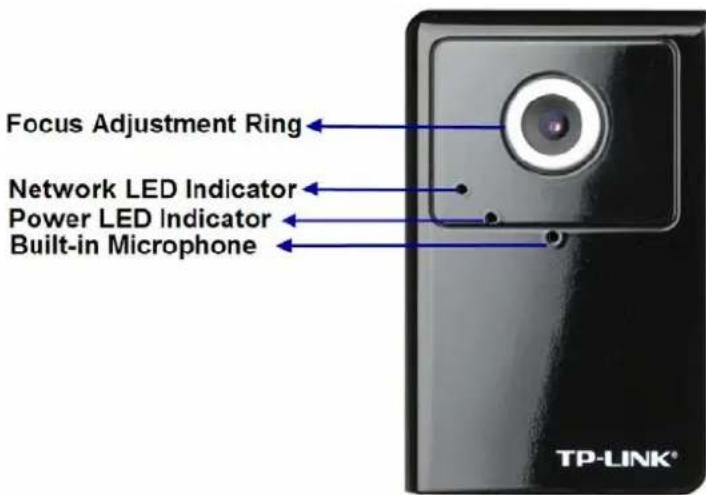
2.1 Front View
text_image
Focus Adjustment Ring Network LED Indicator Power LED Indicator Built-in Microphone TP-LINK®Focus Adjustment Ring: Adjust the focus ring to get a clear image.
Network LED Indicator: It lights up when the IP Camera is well connected to the network. It flashes when there are data being transmitted.
Power LED Indicator: It lights up when the IP Camera is powered on.
Built-in Microphone: The location where the voice from your partner comes out.
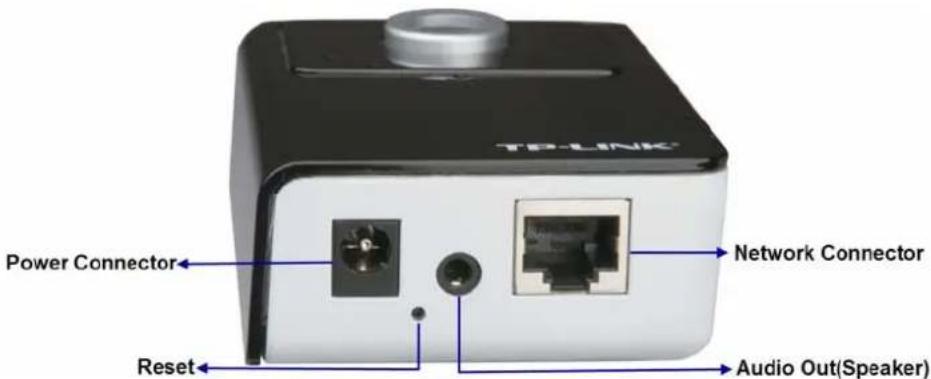
2.2 Bottom view
text_image
TPLINK Power Connector Network Connector Reset Audio Out(Speaker)Power Connector: The power connector is where you connect the power adapter.
Reset: To successfully restore the camera to factory defaults, please keep the device powered on, then press and hold the Reset Button for at least 10 seconds. The CPU of the camera starts to work completely 1 minute after you release the Reset button.
Audio Out (Speaker): The Audio Out (Speaker) port is where the speaker is connected.
LAN (Network Connector): Through this port, you can connect the IP Camera to your computer or the other Ethernet network devices.
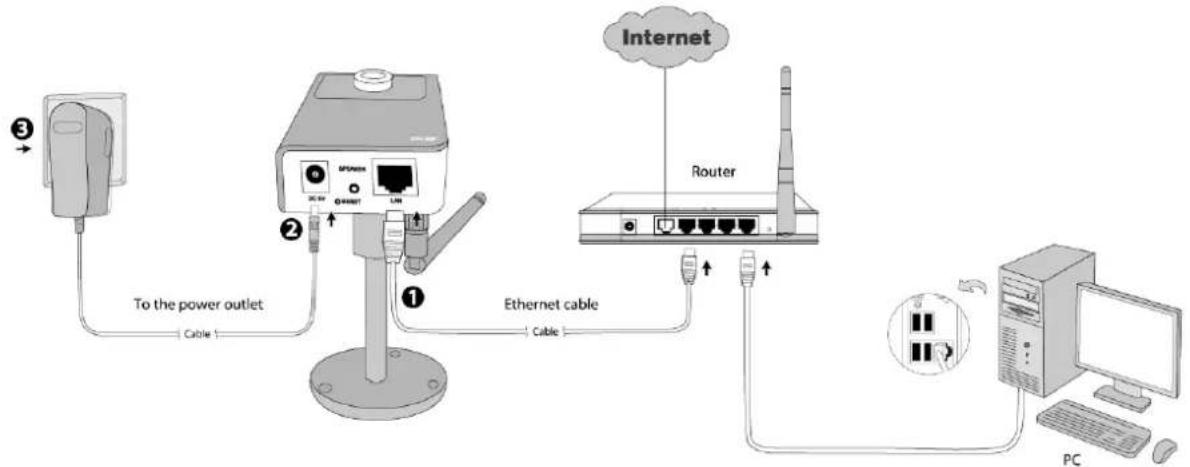
2.3 Hardware Connection
Before proceeding, confirm that your PC is connected to your router and can access the Internet.
Make sure that your router's DHCP feature is enabled. (Most routers have DHCP turned on by default.) If DHCP feature is disabled, please refer to the operating instruction included with your router to enable it.
After that, please connect the camera according to the following steps.
flowchart
graph TD
    A["Power outlet"] -->|③| B["To the power outlet"]
    B --> C["Cable"]
    C --> D["Router"]
    D --> E["PC"]
    D --> F["Ethernet cable"]
    F --> G["Cable"]
    G --> H["Internet"]
    H --> I["Router"]
- Connect the camera to the LAN network (Router or Switch) via Ethernet cable.
- Connect the power adapter cord to the DC In jack.
- Plug the power adapter into the power outlet.
Chapter 3 Using IP Camera via Web Browser
3.1 Obtain the IP Address
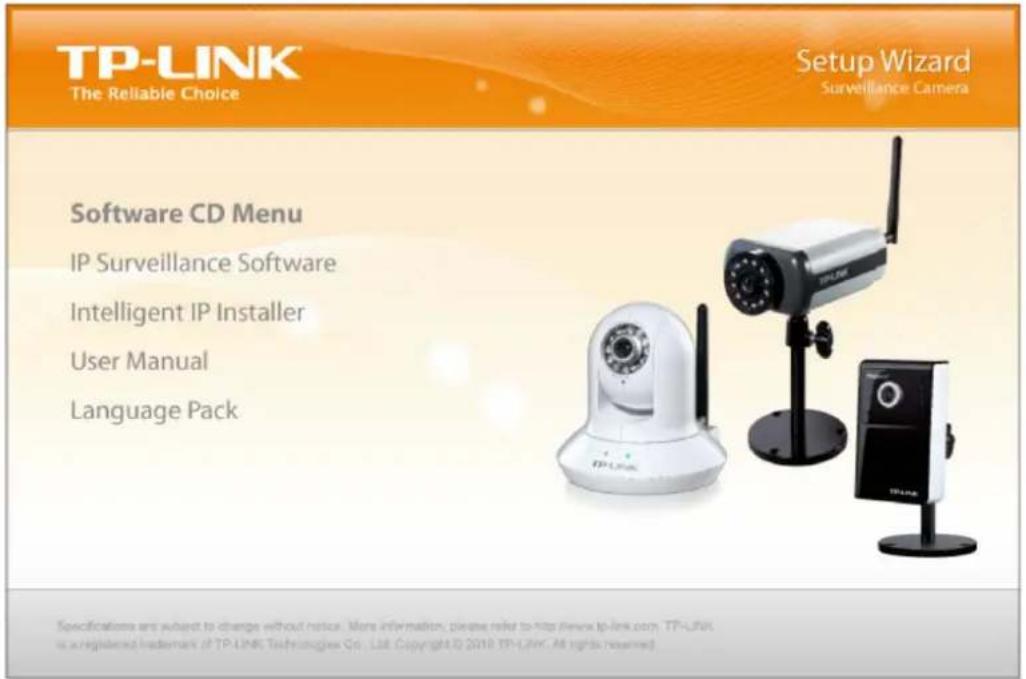
- Insert the provided CD into your CD-ROM driver. The Setup Wizard will automatically pop up on your computer's screen as shown in the figure below.
text_image
TP-LINK The Reliable Choice Setup Wizard Surveillance Camera Software CD Menu IP Surveillance Software Intelligent IP Installer User Manual Language Pack Specifications are subject to change without notice. More information, please refer to http://www.tp-link.com. TP-LINK is a registered trademark of TP-LINK Technologies Co. Ltd. Copyright © 2018 TP-LINK. All rights reserved.- Choose the Intelligent IP Installer, and then the next screen appears. Click on Intelligent IP Installer to begin the installation.
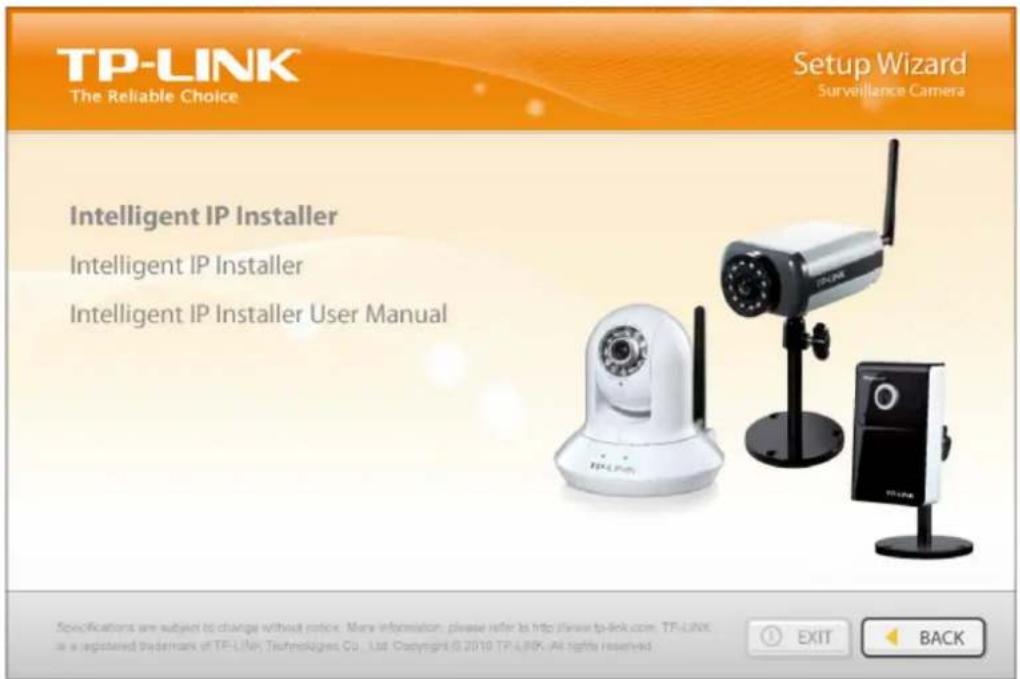
text_image
TP-LINK The Reliable Choice Setup Wizard Surveillance Camera Intelligent IP Installer Intelligent IP Installer Intelligent IP Installer User Manual Specifications are subject to change without notice. More information, please refer to http://www.tp-link.com. TF-LINK as a registered trademark of TF-LINK Technologies Co., Ltd. Copyright © 2010 TP-LINK. All rights reserved. EXIT BACK
- After the installation is finished, click the icon on the desktop or click Start > All Programs > TP-LINK > Intelligent IP Installer > Intelligent IP Installer to start using the program.
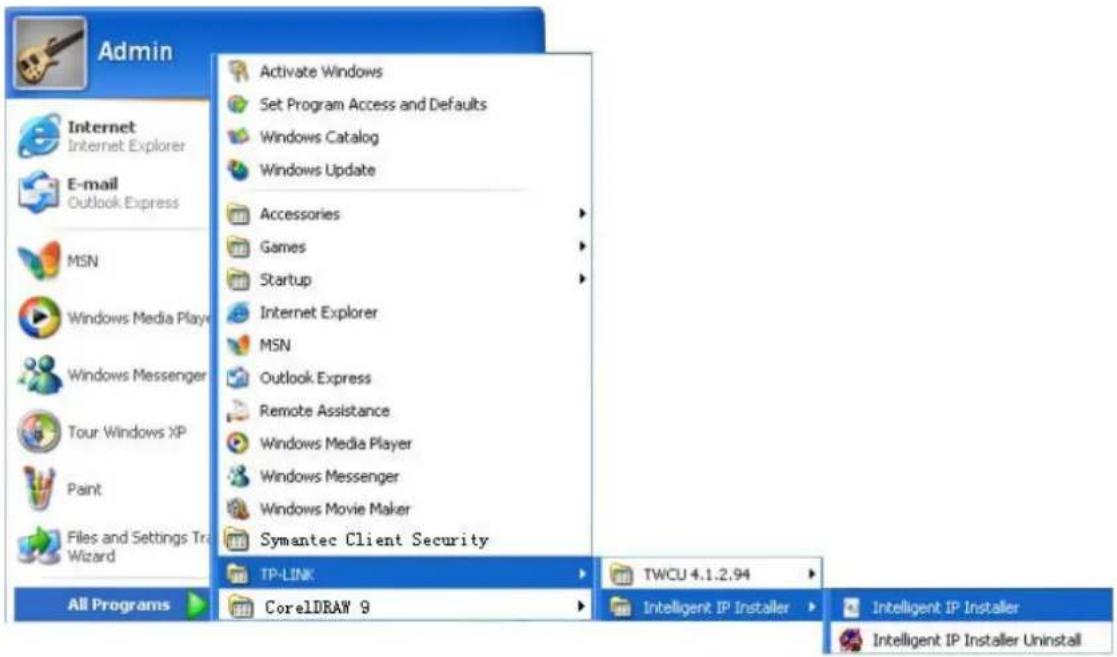
text_image
Admin Internet Internet Explorer E-mail Outlook Express MSN Windows Media Play Windows Messenger Tour Windows XP Paint Files and Settings Tr Wizard All Programs Activate Windows Set Program Access and Defaults Windows Catalog Windows Update Accessories Games Startup Internet Explorer MSN Outlook Express Remote Assistance Windows Media Player Windows Messenger Windows Movie Maker Symantec Client Security TP-LINK CorelDRAW 9 TWCU 4.1.2.94 Intelligent IP Installer Intelligent IP Installer Intelligent IP Installer Uninstall- The following screen will then display. Click the Search button to search Network Cameras in the network; it displays the Network Cameras information including IP Address.

text_image
Intelligent IP Installer Surveillance Tech. Innovator Camera User About. UPnP device list Name IP Address MAC Address Mod. Name Mod. ID Network Camera 192.168.1.100 F4EC388FB35A Wireless 2-Way Audio Surveillance ... TL-SC3130G Setup Upgrade Factory default Reboot Search Link to IE Hint Click on the device list to select a device and click on function buttons to execute. Click on Search to clean up the device list and search all devices within the same subnet again.3.2 Windows Web Browser
- Click Link to IE button or launch your web browser, and enter the IP address (obtain from 3.1 Obtain the IP Address) of the IP camera in the Location / Address field of your browser.

text_image
Address http://192.168.1.100Note:
1) For the first time login with IE, you will need to enable "Download signed ActiveX controls". Please go to Tool→Internet Options...→Security→Custom Level... and find Download signed ActiveX controls to prompt it. For detailed information, please refer to the Quick Installation Guide.
2) If you only want to view the video without setting page, enter "http://
- Enter the default User name "admin" and password "admin" in the login window as shown below.
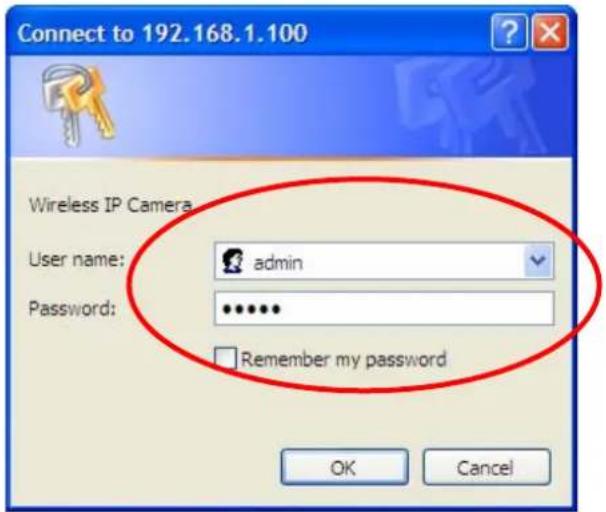
text_image
Connect to 192.168.1.100 Wireless IP Camera User name: admin Password: ******** Remember my password OK CancelNote:
The default User name “admin” and Password “admin” are set at the factory for the administrator. You can change them in the Account Menu. (Please check “SETTING → BASIC → Security → Account”)
- The web-based management page will display on your screen. On the leftmost column of the web-based management page are Setting, Client Setting, and Image Setup. For more details, you can refer to Section 5.2 Setting, Section 5.3 Client Setting and Section 5.4 Image Setup.

text_image
Setting Client setting image setup Live View3.3 Mac Web Browser
- Click the Safari icon on the screen as the figure below shown, and enter the IP address (obtain from 3.1 Obtain the IP Address) of the IP camera in the Location / Address field of your browser.

Note:
If you only want to view the video without setting page, enter "http://
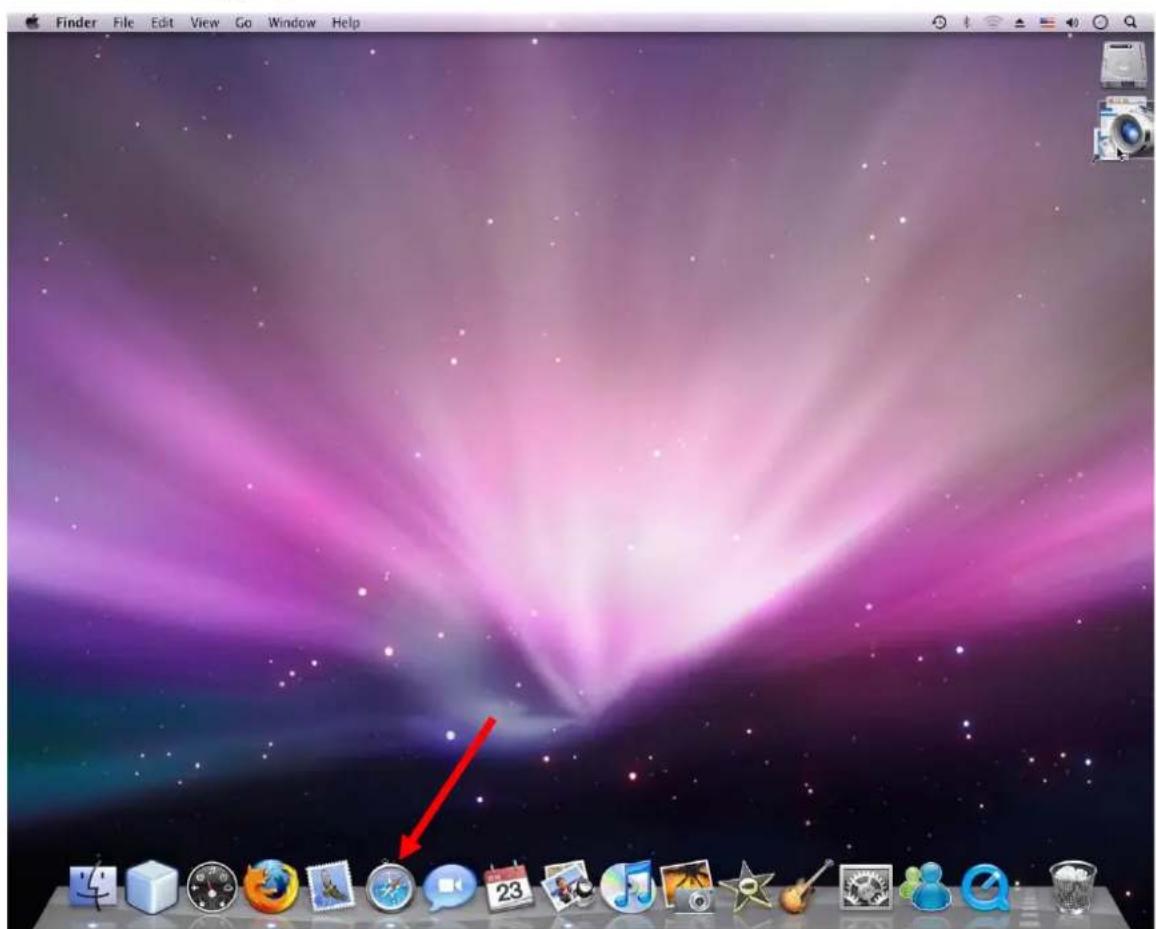
text_image
Finder File Edit View Go Window Help- Enter the default User name "admin" and password "admin" in the dialog box as shown below.

text_image
Make YI your home page To view this page, you need to log in to area "Camera" on 192.168.1.10:80. Your password will be sent in the clear. Name: admin Password: ****** Search: Yahoo! Home My Yahoo YI Taiwan Remember this password in my keychain Is your home insurance policy adequate? Search Apr 23 2008 Page Options Answers Autos Finance Games Groups Hot Jobs Maps Mobile Web Movies | TV Music OMG Personals Real Estate Shine Shopping Sports Travel Yellow Pages More Yahoo! Services Small Business • Get a Web Site • Domain Names • Sell Online • Search Ads Featured Services • Downloads: IEB®™ • Health • Kids • GeoCities • Mail Plus • YI International Features The U.S. Isn't alone in feeling the severe effects of the global recession: • Some flirting with bankruptcy • Global economy wont since 2005 • German accepts U.S. fault in crisis • 60 countries where activities are in touch • Find out which two 'itars' got the best • Singing, shenom, scyle's kissing confounder • More: Featured | Buzz News World Local Finance And it is part of: CSP • U.N.: More than 100,000 civilians flee Sri Lanka's war zone • British High Court demands documents on alleged Gitmo torture • Vote to update marriage laws caps decade-long fight in Conn • FBI probas financee of N.Y. man police say killed family In hotel • Starting Point blog: A scrapped iPhone app, 2 appendectaries • Ita J. Lo raises awareness about adult whooping cough vaccine • Ita Woman hires impersonator to attend her high school reunion • NBA - MLB - NHL - NFL - NASCAR - Golf - Soccer - UFC • HiFi: News Popular: Odd News Market Size: -1.0% Nasdaq: >0.1% Marketplace Bargains on Gadgets Find the best bargains on the coolest electronic gadgets at Yahoo! Shopping. Yahoo! Autos – Get a new car quote from a dealer in your area today. Go to Yahoo! Shopping and compare prices on thousands of phones. Find your new cells phone now. Yahoo! Autoz – Get a new car quote from a dealer in your area today. Go to Yahoo! Shopping and compare prices on thousands of phones. Find your new cells phone now. Cancel Cancel All status Sign In Free mail Sign Up Mail Messenger Puzzles Weather Events Horoscopes Yahoo! Shopping Shop for perfect Mother's Day gifts Cell Phones SSO & Under Digital Cameras Jewelry Fashion Handbags Flowers Beauty Yahoo! Travel: Early Bird Sale Save on Your Next Trip Flam ahead and save up to 40% on your hotel. > Start planning Pulse - What Yahooos Are Into Most Popular Concept Cars - Hyundai Novis - Scion IQ - Mitsubishi Outlander GT - Acura ZDK - Ford Family One - Mercedes E250 BlueTEC > More Yahoo! AutosNote:
The default Name "admin" and Password "admin" are set at the factory for the administrator. You can change them in the Account Menu. (Please check "SETTING → BASIC → Security → Account")
- The web-based management page will be displayed on your screen. In the leftmost column of the web-based management page are Setting, Client Setting, and Image Setup. For more details, you can refer to Section 5.2, Section 5.3 and Section 5.4.
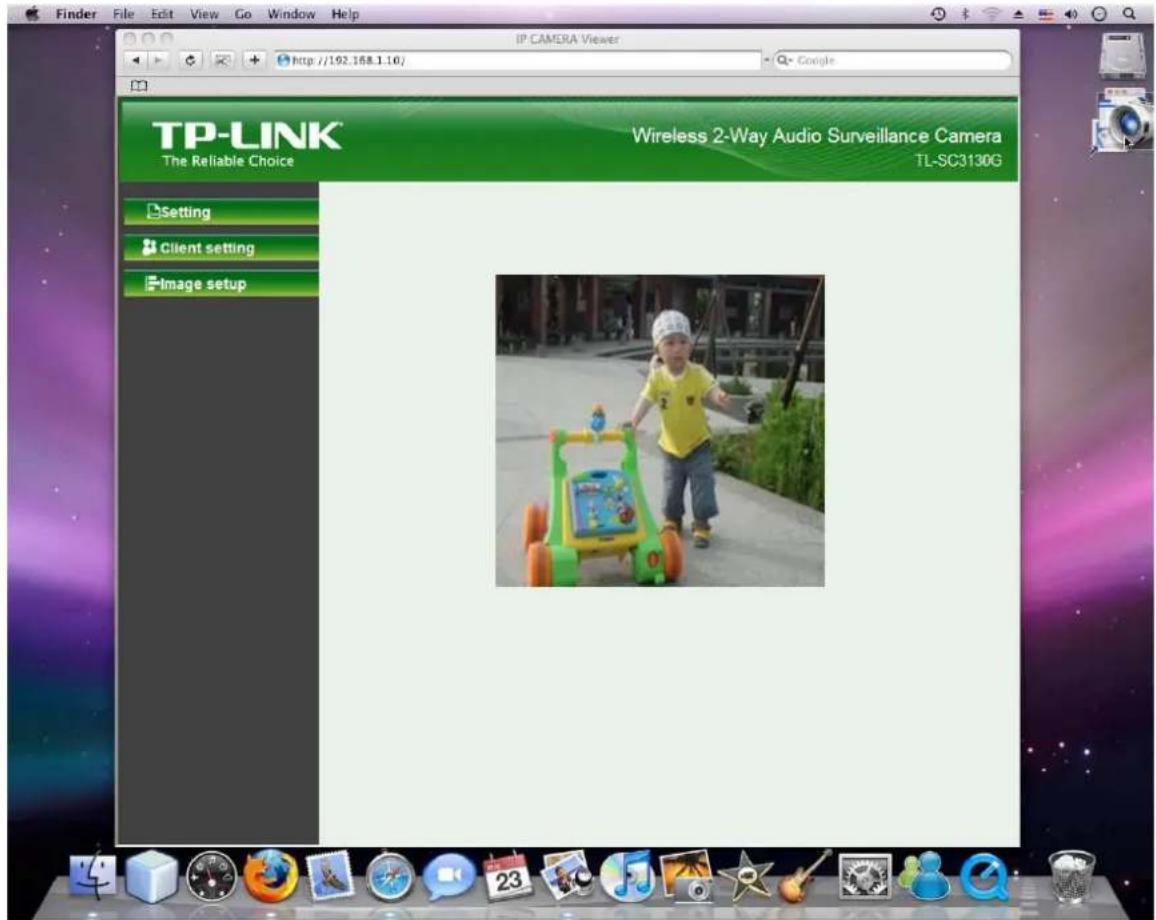
text_image
Finder File Edit View Go Window Help IP CAMERA Viewer http://192.168.1.10/ Google TP-LINK The Reliable Choice Wireless 2-Way Audio Surveillance Camera TL-SC3130G Setting Client setting Image setupChapter 4 Operating IP Camera via Mobile Phone
4.1 Mobile Phone Viewing
4.1.1 3G Mobile Phone Streaming Viewing
For 3G mobile phone viewing, type "rtsp://
Note:
You can also use RTSP clients (RealPlayer, VLC, QuickTime Player...etc.) to view RTSP streaming; just type in "rtsp://
4.1.2 2.5G Mobile Phone WAP Viewing
For 2.5G mobile phone viewing, type "http://
4.1.3 2.5G Mobile Phone Browser Viewing
For 2.5G mobile phone viewing, type "http://
4.2 Using IP Camera via iPhone
You can use TP-LINK Web User Interface via iPhone. Please follow the setting process below. Then you can use TP-LINK Web UI via iPhone.
1. Select Safari function 2. Enter IP address in
your web link.

text_image
W Mobi 10:35 AM SMS Text 19 Calendar Photos Camera YouTube Stocks Maps Weather Clock Calculator Notes Settings iTunes App Store Cydia Installer Phone Mail iPod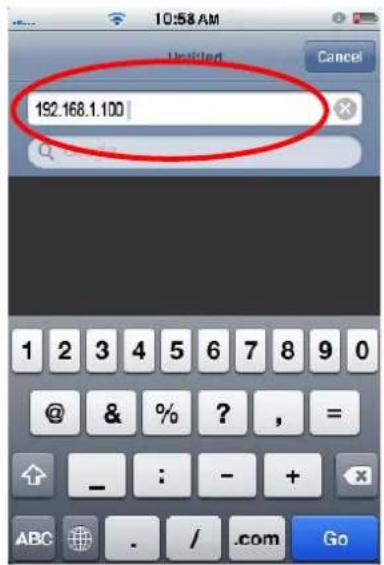
text_image
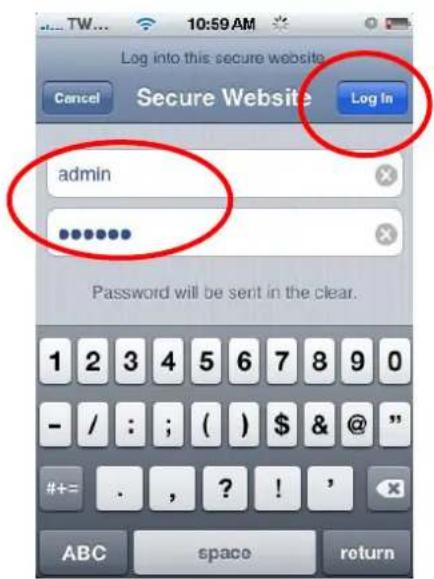
192.168.1.100 1 2 3 4 5 6 7 8 9 0 @ & % ? , = _ : - + ABC . / .com Go3. Enter name and password. Default values are both admin. Then click Log in
4. The TP-LINK User Interface and live image will show up in the middle of the screen.
text_image
Log into this secure website Cancel Secure Website Log In admin ****** Password will be sent in the clear. 1 2 3 4 5 6 7 8 9 0 - / : ; ( ) $ & @ " #+= . , ? ! ' ABC space return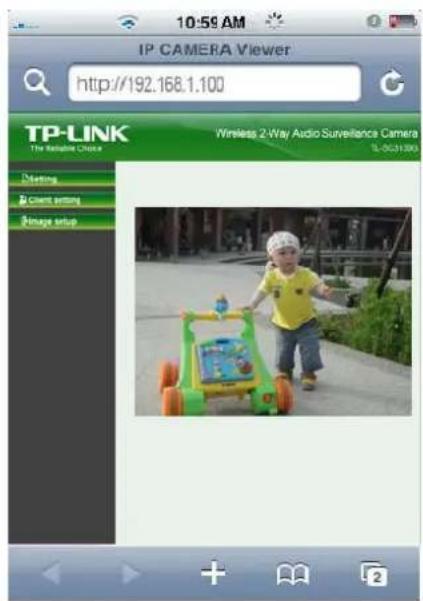
text_image
10:59 AM IP CAMERA Viewer http://192.168.1.100 TP-LINK Wireless 2-Way Audio Surveillance Camera TL-3031000 The Reliable Choice Clustering Couch settings Remote setupNote: It will show continuous snapshots not a real time video streaming. Therefore, the recording feature is disabled.
Chapter 5 Configuration of Main Menu
You would find that the illustrative web pages in this Manual are all orange. Please note that they're from our latest firmware, which can be downloaded from our website. Web pages in our previous firmware are blue.
On the leftmost column of the web-based management page are Client Setting, Image Setup and Setting. For more details, you can refer to Section 5.2 Setting, Section 5.3 Client Setting and Section 5.4 Image Setup.

text_image
Setting Client setting Image setup Live View Snapshot Full screen Video Play Audio button Zoom in/OutOn the right column of the web-based management page, you can use Live View. There are four different functions which are Snapshot, Video Play, Audio and Zoom. You can see more details as follows.
5.1 Live View
5.1.1 Snapshot
You can capture a still image shot by the camera and save it in your computer.
| Symbols | Meaning |
 | Click it, and a snapshot window will appear |
| Save to | save the picture in your computer |
| Close to | return to the view page |
 | full Screen |
5.1.2 Zoom in / out the image via the monitor window

natural_image
Two-panel photo showing an office interior with blue desks and a potted plant, before and after a video editing interface (no text or symbols visible)- Click to display the digital zoom in window.
- Pull the W to adjust the digital zoom range, and it will be shown on the above window.
- You can use the left click of your mouse to move the ☐ to any where on the window to view the desired detail more clearly.
5.1.3 Video play buttons
| Symbols Meaning | |
 | Pause the current video |
 | Play the video |
| [0YY8] | Stop the current video |
| [54Y1] | Record the current video |
5.1.4 Audio buttons
| Symbols | Meaning | Note |
 | Speakers turned on | means the speakers of your computer are turned on to transmit the sounds from the connected IP camera(s) |
| [HHBW] | Speakers turned off | |
 | Microphone turned on | means you can broadcast to the connected IP camera(s) via the Ethernet using your microphone |
| [KYZD] | Microphone turned off | |
 | Volume control bar |
5.2 Setting
Setting
This function is only for the Administrator. Click this button to get into the Basic and Advanced settings menus.

Home
SETTING
+BASIC
+Advanced
TP-LINK®
The Reliable Choice
WELCOME TO CAMERA SETTING PAGE
There are four sub-menus under the BASIC menu, which includes System, Camera, Network, and Security. For more information, you can refer to Section 6.1, Section 6.2, Section 6.3 and Section 6.4.
There are six sub-menus under the Advanced menu, which includes FTP Client, SMTP, HTTP event, Schedule, Motion Detection, and System Log. Fore more information, you can refer to Section 7.1, Section 7.2, Section 7.3, Section 7.4, Section 7.5 and Section 7.6.
5.3 Client Setting

Client setting
This function is only for the client.

text_image
Setting Client setting Mode MPEG4 View size 320x240 Protocol HTTP Video buffer Off Image setup
natural_image
Baby walking on a green toy car outdoors, no visible text or symbolsClick this button to configure the settings of IP Camera, which includes Mode, View Size, Protocol, and Video Buffer.
5.3.1 Mode
Click the drop-down list to choose between MPEG4 and MJPEG video compression mode.

Note:
MJPEG streaming is unavailable if RTSP mode is On (Please check SETTING → BASIC → Camera → General).
5.3.2 View Size
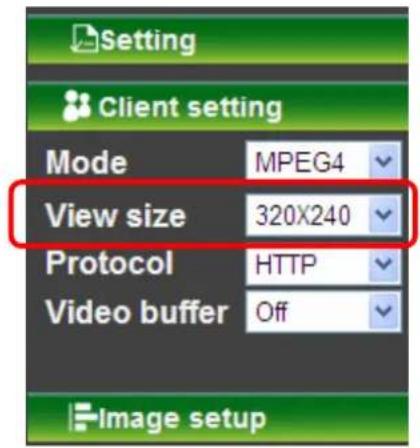
Select the desired display image resolution to 640*480 or 320*240. It is suggested that you go to Client Setting to select a suitable View Size before using the IP camera as shown in the figure below. For the PC whose resolution is less than 1280*1024, View Size of 320*240 is recommended.
text_image
Setting Client setting Mode MPEG4 View size 320x240 Protocol HTTP Video buffer Off Image setup5.3.3 Protocol
Select the transferring protocol from TCP, UDP, HTTP and Multicast.
Note:
This item appears just after RSTP mode is enabled (selecting SETTING → BASIC → Camera → General)
5.3.4 Video Buffer
Turn the Video Buffer function ON / OFF. The Video Buffer function makes the streaming more smoothly in unsteady network environment, but might cause a little delay in live viewing.
5.4 Image Setup

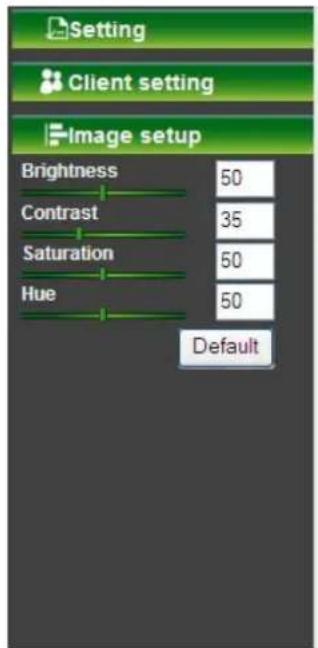
You can use the tool bar to optimize video Brightness, Contrast, Saturation and Hue.
5.4.1 Brightness
text_image
Setting Client setting Image setup Brightness 50 Contrast 35 Saturation 50 Hue 50 Default
natural_image
Child walking with a green toy car outdoors, no visible text or symbols on the vehicle or backgroundThe higher the brightness value is, the brighter the image is.
5.4.2 Contrast
The contrast is a measure of a display system, defined as the ratio of white to black that the system is capable of producing. The higher value the contrast is, the more delicate color you can get.
5.4.3 Saturation
The saturation of a color is determined by a combination of light intensity and how much it is distributed across the spectrum of different wavelengths. The higher value the saturation is, the more colorful the image will be.
5.4.4 Hue
Hue is one of the three main attributes of perceived color, which is affected by different wavelength of color. With higher value of hue, color will be much more vivid.
5.4.5 Default
After the adjustment of all settings, you can still click Default to make the setting back to the factory default settings.
Chapter 6 Setting-Basic
text_image
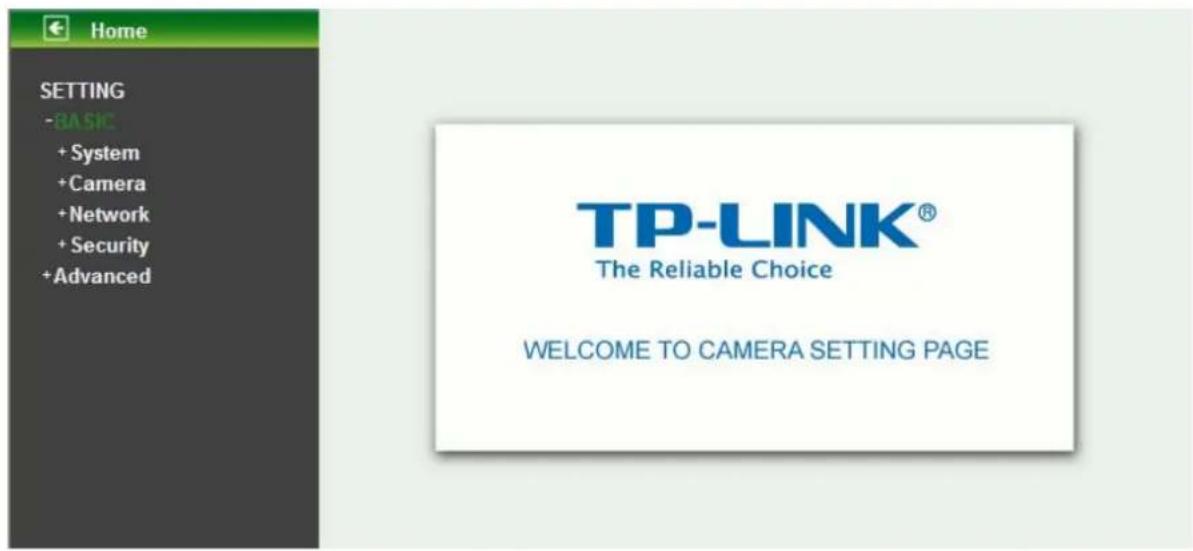
Home SETTING -BASIC + System + Camera + Network + Security + Advanced TP-LINK® The Reliable Choice WELCOME TO CAMERA SETTING PAGEClick BASIC to display the submenus including System, Camera, Network and Security.
6.1 System
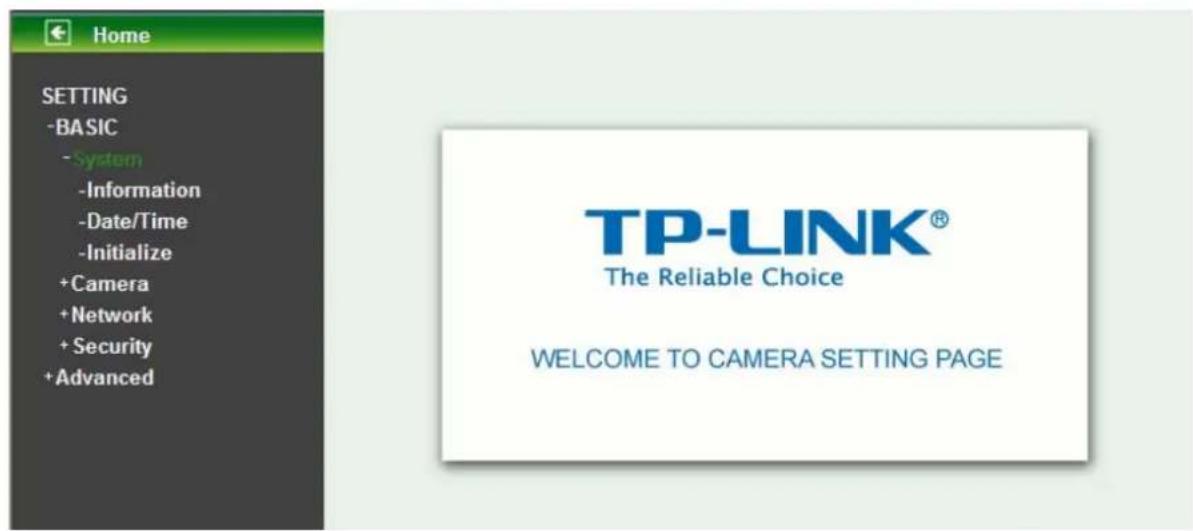
Click System to display the submenus including Information, Date / Time and Initialize.
text_image
Home SETTING -BASIC - System -Information -Date/Time -Initialize +Camera +Network +Security +Advanced TP-LINK® The Reliable Choice WELCOME TO CAMERA SETTING PAGE6.1.1 Information
The Information page provides the basic information of the product which includes Product Name, Firmware Version and Web Version.

text_image
Home SETTING -BASIC -System -Information -Date/Time -Initialize +Camera +Network +Security +Advanced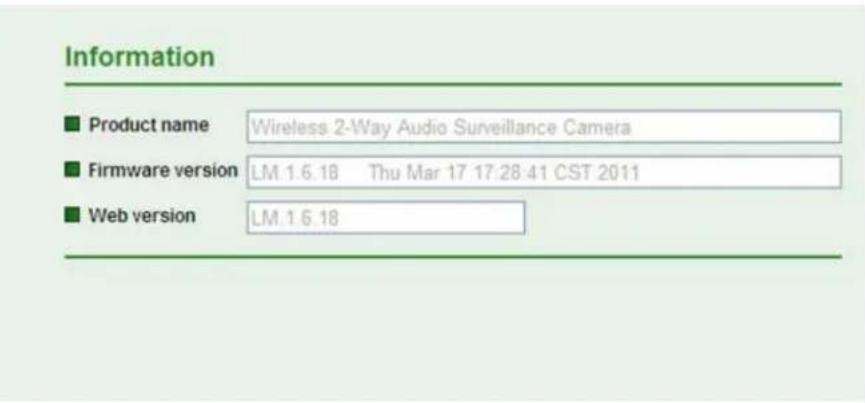
text_image
Information ■ Product name Wireless 2-Way Audio Surveillance Camera ■ Firmware version LM.1.6.18 Thu Mar 17 17:28:41 CST 2011 ■ Web version LM.1.6.186.1.2 Date / Time
The Date/ Time page displays all options of time setting.

text_image
Home SETTING -BASIC -System -Information -Date/Time -Initialize +Camera +Network +Security +Advanced Date/Time ■ Current date/time 70-01-01 01:01:33 ■ PC clock 11-07-05 14:43:08 ■ Date/time format yy-mm-dd hh:mm:ss ■ Adjust ○ Keep current setting ○ Synchronize with PC ○ Manual setting 2011 - 07 - 05 14 : 38 : 52 ● Synchronize with NTP NTP server name pool ntp.org □ Auto Interval 1 hours ■ Time zone (GMT+08.00) Beijing, Chongqing, Hong Kong, Urumqi ■ Daylight Saving Time ○ On □ Off OK CancelCurrent date / time: Displays the current date and time of this IP Camera.
PC clock: Displays the date and time of the monitoring PC clock.
Date / Time format: You can click the drop-down list to select different time display formats.
Adjust: You can select one of those four adjusting modes for your IP Camera.
- Keep current setting: Select this mode to keep the current date and time of this IP Camera.
- Synchronize with PC: Select this mode to keep the date and time of this IP Camera the same with the monitoring PC.
- Manual setting: Select this mode to adjust manually the date and time of this IP Camera.
- Synchronize with NTP: Specify the NTP server name and the Refresh Interval to synchronize the date and time of this IP Camera with those of the time server, known as the NTP server.
Time Zone: You can select the format from Greenwich Mean Time. The time displayed will
be the same as the current date / time option.
Daylight Saving Time: You can select On to enable the Daylight Saving Time function.
- Start time: The time to start the Daylight Saving. Select By date and then select the start time by date; or select By week number and then select the start time by week.
- End time: The time to end the Daylight Saving. Select By date and then select the end time by date; or select By week number and then select the end time by week.

text_image
Daylight Saving Time Start time On Off By date By week number January First Mon 01 00 : 00 End time By date By week number January First Mon 01 00 : 00Note:
The NTP server (Network Time Protocol) is the time server which is an Internet standard protocol built on the top of TCP / IP. This assures accurate synchronization to the millisecond of computer clock time in a network of computers.
6.1.3 Initialize

text_image
Home SETTING -BASIC -System -Information -Date/Time -Initialize +Camera +Network +Security +Advanced Initialize ■ Reboot Reboot ■ Factory default Factory default ■ Backup setting data Save ■ Restore setting Browse... OK ■ Firmware upgrade Browse... OK ■ Upload language pack Browse... OKReboot: Click this button to reboot this IP Camera. A confirmation dialogue will appear and then click OK to process. It takes two minutes to reboot this IP Camera.
➢ Factory Default: Click this button to reset this IP Camera to the factory default settings. A confirmation dialogue will appear and then click OK to process. The network LED indicator on the IP Camera will start to blink. This IP Camera will reboot automatically after the restoring has been finished. Don't turn off this IP Camera during this process.
Backup Setting data: You can save configuration setting data of this IP Camera into a file. Click Save and follow the instructions on the browser to save this setting data file to specified location.
Restore Setting: Download the saved setting data of this IP Camera. Click Browse... and select the saved file. Click OK and this IP Camera is adjusted according to the loaded data and then restarted.
Firmware Upgrade: Upgrade the device software. Click Browse... and select the file for upgrading. A confirmation dialogue will appear. Click OK to start. This IP Camera will reboot after upgrading has been finished.
Note:
Use only upgrade files that are special for this IP Camera. Otherwise problems may occur. Don't turn off the IP Camera power or disconnect the network until the upgrading is completed.
Upload Language Pack: Upgrade the device language pack. Click Browse... and select the file for upgrading. A confirmation dialogue will appear. Click OK to start upgrading. The upgrade is applied immediately. The default language is "English".
6.2 Camera
Click Camera to display the submenus including General, MPEG4 and MJPEG.

text_image
HOME SETTING -BASIC + System -Camera -General + MPEG4 -MJPEG + Network + Security + Advanced
text_image
TP-LINK® The Reliable Choice WELCOME TO CAMERA SETTING PAGE6.2.1 General
text_image
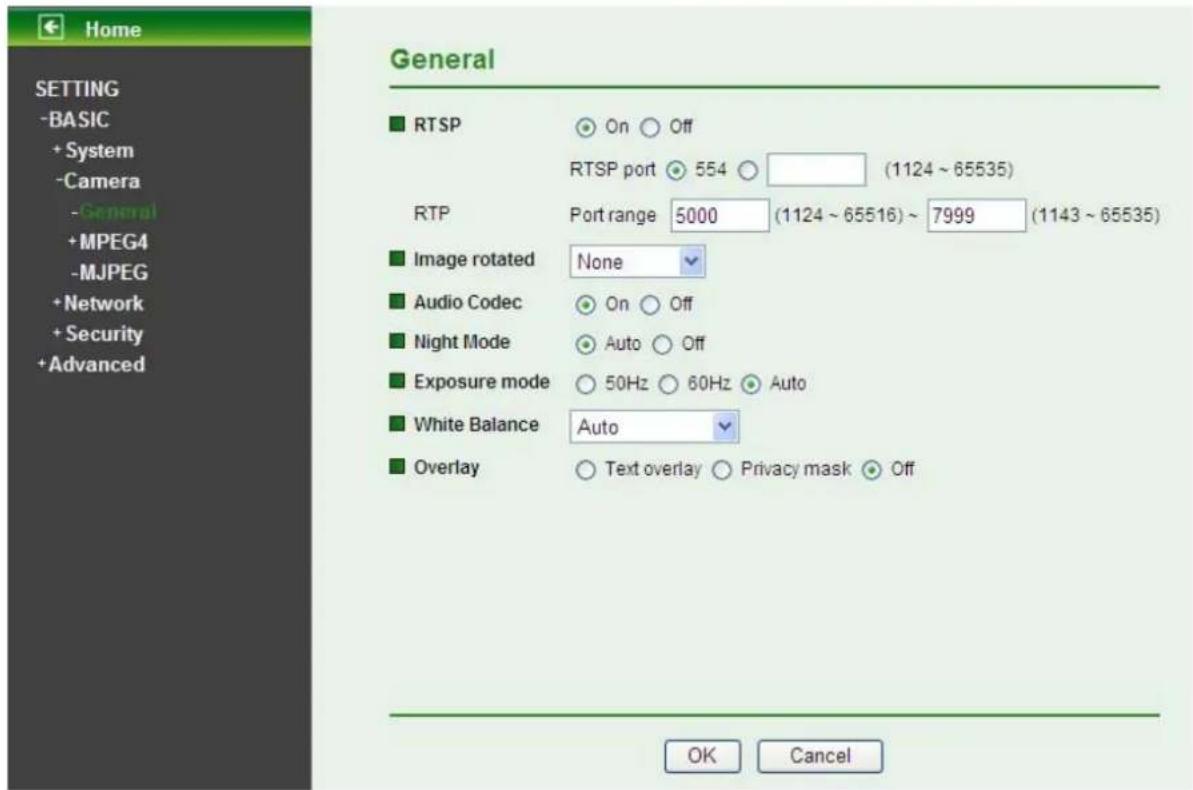
Home SETTING -BASIC + System -Camera - General + MPEG4 -MJPEG + Network + Security + Advanced General ■ RTSP On Off RTSP port 554 (1124 ~ 65535) RTP Port range 5000 (1124 ~ 65516) ~ 7999 (1143 ~ 65535) ■ Image rotated None ■ Audio Codec On Off ■ Night Mode Auto Off ■ Exposure mode 50Hz 60Hz Auto ■ White Balance Auto ■ Overlay Text overlay Privacy mask Off OK CancelRTSP
- RTSP Port: Specify the transmission port number of RTSP streaming. The default value is 554.
RTP
- Port Range: Specify the transmission port range of RTP streaming video. RTP will select a port randomly from this range.
Note:
RTSP (Real Time Streaming Protocol) is a protocol used in streaming media system which allows clients to remotely control a streaming video server. RTSP is supports by most of the media clients such as Real Player, QuickTime and VLC...etc.
Image Rotated: You can mirror or flip the display screen.
➢ Audio Codec: If this option is selected "On", the microphone will start sound reception.
Night Mode: You can choose Auto / Off. If you choose Auto option, the camera will adjust automatically to perform well when the environment is not bright enough.
Exposure mode: You can choose the environment among 50 Hz, 60 Hz and Auto.
White Balance: You can choose the white balance to Auto, Sunny, Cloudy and Black & White.
Overlay:
- Text Overlay: You can see some information on the display screen which includes Date / Time and user-defined text. Also, you can change the background color.
- Privacy Mask: You can cover a specific area of the video image.
6.2.2 MPEG4
A. Computer View
text_image
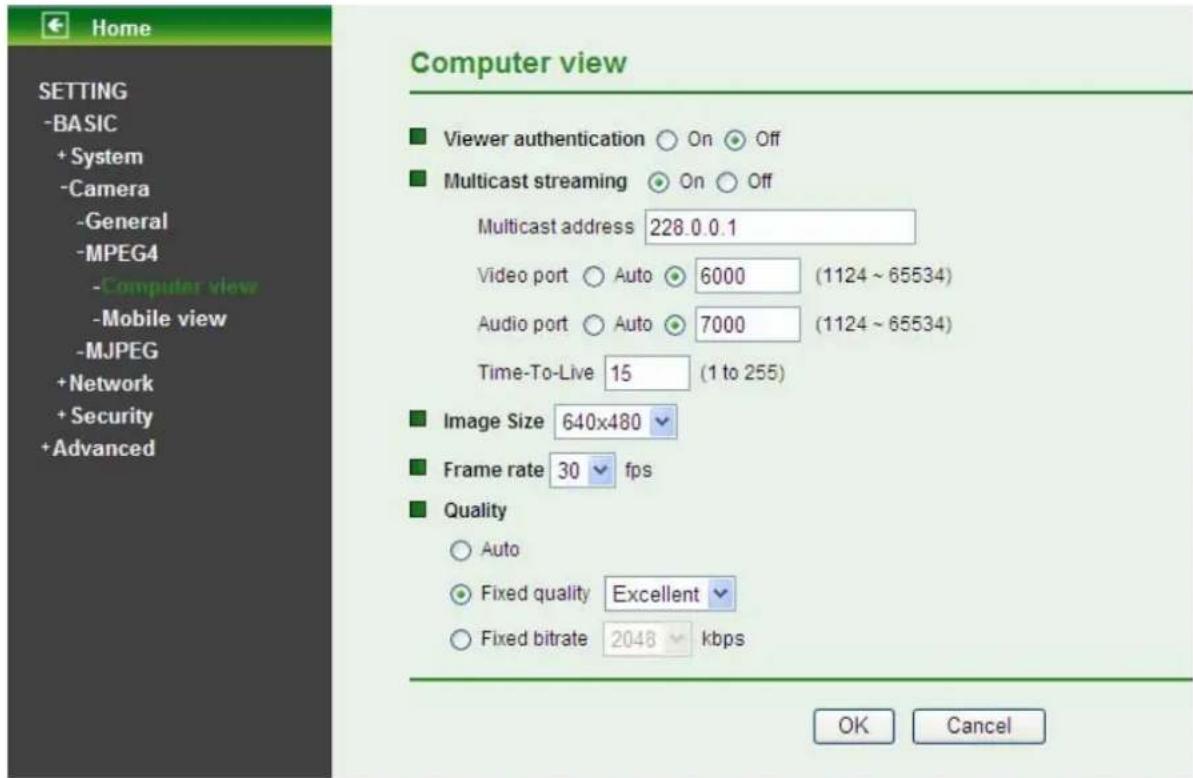
Home SETTING -BASIC + System -Camera -General -MPEG4 -Computer view -Mobile view -MJPEG + Network + Security + Advanced Computer view Viewer authentication ○ On ○ Off Multicast streaming ○ On ○ Off Multicast address 228.0.0.1 Video port ○ Auto ● 6000 (1124 ~ 65534) Audio port ○ Auto ● 7000 (1124 ~ 65534) Time-To-Live 15 (1 to 255) Image Size 640x480 Frame rate 30 fps Quality ○ Auto ● Fixed quality Excellent ○ Fixed bitrate 2048 kbps OK CancelViewer Authentication: If the viewer authentication is On, the users will be requested to type in username and password when viewing through RTSP.
Multicast Streaming (If it is ON)
- Multicast Address: Specify the multicast server address.
- Video / Audio Port: Specify the transmission port number of the video data, which is an even number from 1024 to 65534.
- Time-to-Live: Set the maximum TTL (Transistor-Transistor Logic) that multicast can pass through.
Image Size: Specify the image size when the network camera transmits. You can choose among 640 x 480, 320 x 240 and 160 x 120.
Frame Rate: Set the frame rate of the MPEG4 image. You can choose values from from1, 2, 3, 4, 5, 7, 10, 15, 20, 25, and 30 fps. The unit "fps" stands for "frames per second".
Quality:
- Auto: The quality and bitrate will be adjusted automatically according to the frame rate.
- Fixed Quality: You can select the value of quality among Medium, Standard, Good, Detailed and Excellent.
- Fixed Bitrate: Set the bitrate of MPEG4 image transmission for a line. You can select the values from 64, 128, 256, 384, 512, 768, 1024, 1280, 1536, and 2048 kbps.
B. Mobile View

text_image
Home SETTING -BASIC + System -Camera -General -MPEG4 -Computer view -Mobile view -MJPEG + Network + Security + Advanced Mobile view Viewer authentication ○ On ○ Off Multicast streaming ○ On ○ Off Multicast address 226.0.0.1 Video port ○ Auto ● 10000 (1124 ~ 65534) Audio port ○ Auto ● 11000 (1124 ~ 65534) Time-To-Live 15 (1 to 255) Image Size 160x120 Frame rate 5 fps Quality ○ Auto ○ Fixed quality Excellent ● Fixed bitrate 64 kbps OK CancelViewer Authentication: If the viewer authentication is On, the users will be requested to type in username and password when viewing through RTSP.
Multicast Streaming (If it is ON)
- Multicast Address: Specify the multicast server address.
- Video / Audio Port: Specify the transmission port number of the video data, which is an even number from 1024 to 65534. It is set to 10000 and 11000 by default.
- Time-to-Live: Set the maximum TTL (Transistor-Transistor Logic) that multicast can pass through.
Image Size: Specify the image size when the network camera transmits. You can choose among 320 x 240 and 160 x 120.
Frame Rate: Set the frame rate of the MPEG4 image. You can choose values from 5, 10fps. The unit "fps" stands for "frames sent per second".
Quality:
- Fixed Bitrate: Set the bitrate of MPEG4 image transmission for a line. You can select the value from 256, 128, 64, 48, 32, 16 kbps.
6.2.3 MJPEG

text_image
Home SETTING -BASIC + System -Camera -General -MPEG4 -Computer view -Mobile view -MJPEG + Network + Security + Advanced MJPEG ■ Viewer authentication ○ On ● Off ■ Image Size 640x480 ■ Frame rate 15 fps ■ Quality ○ Auto ● Fixed quality Excellent OK CancelViewer Authentication: If the viewer authentication is On, the users will be requested to type in username and password.
Image Size: Specify the image size when the network camera transmits. You can choose among 640 x 480, 320 x 240, and 160 x 120.
Frame Rate: Set the frame rate of the MJPEG image. You can choose values from 1, 2, 3, 4, 5, 7, 10, 15 fps. The unit "fps" stands for "frames per second".
Quality:
• Auto: The quality will be automatically decided.
- Fixed Quality: You can select the value of quality among Medium, Standard, Good, Detailed and Excellent.
6.3 Network
Click Network to display the submenus including Information, PPPoE, DDNS, UPnP, Bonjour, IP Notification and Wireless.

text_image
Home SETTING -BASIC + System + Camera -Network -Information -PPPoE -DDNS -UPnP -Bonjour -IP Notification -Wireless -Messenger + Security + Advanced TP-LINK® The Reliable Choice WELCOME TO CAMERA SETTING PAGE6.3.1 Information
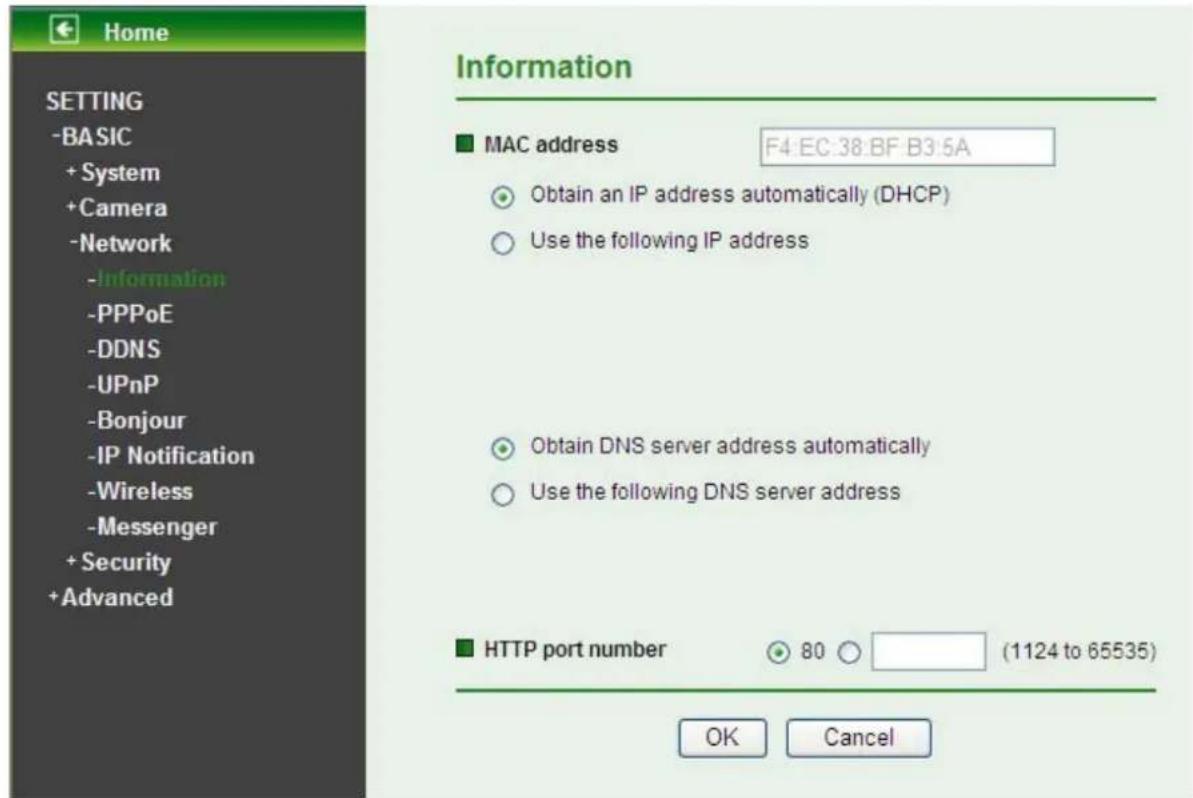
The page of Information displays the MAC address of the device.
text_image
Home SETTING -BASIC + System + Camera -Network -Information -PPPoE -DDNS -UPnP -Bonjour -IP Notification -Wireless -Messenger + Security + Advanced Information ■ MAC address F4:EC:38:BF:B3:5A ○ Obtain an IP address automatically (DHCP) ○ Use the following IP address ○ Obtain DNS server address automatically ○ Use the following DNS server address ■ HTTP port number 80 (1124 to 65535) OK CancelObtain an IP address automatically (DHCP): (If a DHCP server is installed on the network) Select this, the IP will be assigned by the DHCP serve.
Obtain DNS server address automatically: Select this to obtain the address of DNS server automatically.
text_image
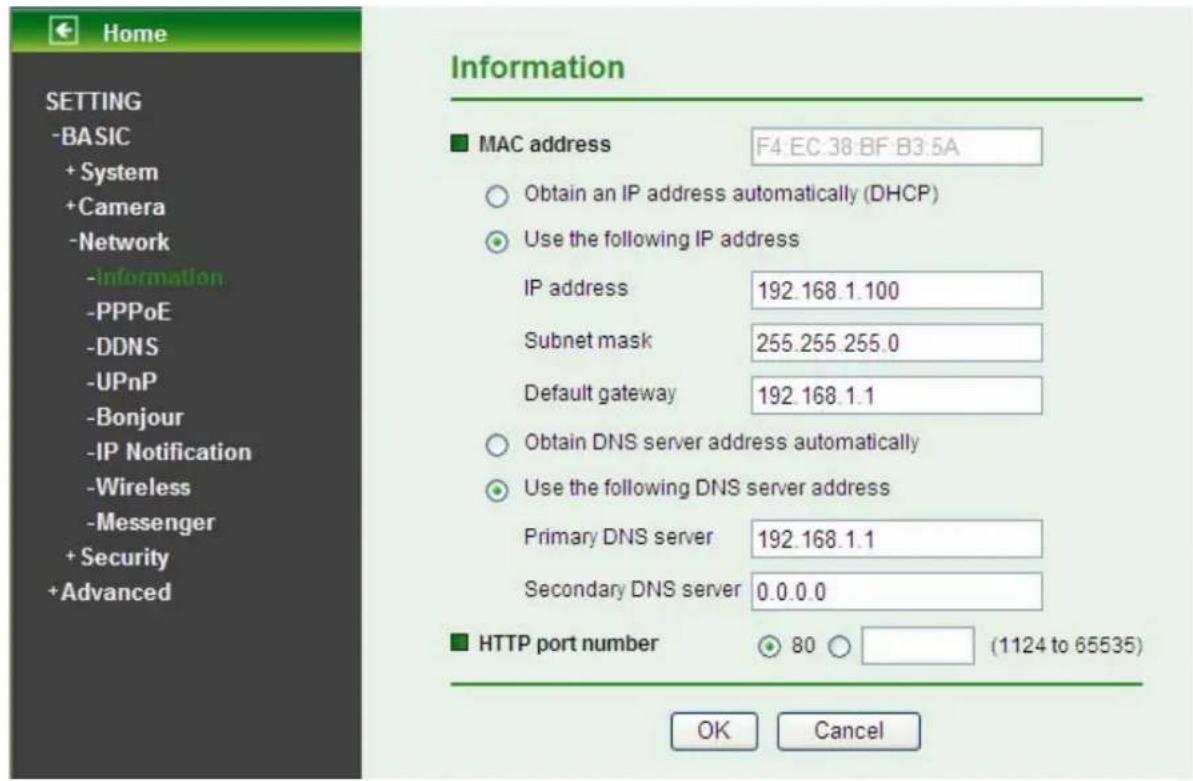
Home SETTING -BASIC + System + Camera -Network -information -PPPoE -DDNS -UPnP -Bonjour -IP Notification -Wireless -Messenger + Security + Advanced Information ■ MAC address F4:EC.38:BF:B3.5A ○ Obtain an IP address automatically (DHCP) ● Use the following IP address IP address 192.168.1.100 Subnet mask 255.255.255.0 Default gateway 192.168.1.1 ○ Obtain DNS server address automatically ● Use the following DNS server address Primary DNS server 192.168.1.1 Secondary DNS server 0.0.0.0 ■ HTTP port number 80 (1124 to 65535) OK CancelUse the following IP address: Select this when the fixed IP address is set.
- IP address: Enter the IP address of the device.
- Subnet mask: Enter the subnet mask.
- Default gateway: Enter the default gateway.
Use the following DNS server address: Select this when you set the fixed IP address as the IP address of DNS server.
- Primary DNS server: Enter the IP address of the primary DNS server.
- Secondary DNS server (optional): Enter the IP address of the secondary DNS server if necessary.
HTTP port number: Select 80 in general situations. If you want to use a port number other than 80, select the text box and enter a port number between 1024 and 65535.
- When you have set the HTTP port number to a number other than 80 on the Network setting page or in the Setup Program, access the device by typing the IP address of the device on the web browser as follows: for example, when HTTP port number is set to 2000, you should type in http://192.168.1.100:2000/ to access the device.
The change of settings will not take effect until the camera is rebooted. Please go to "SETTING→ BASIC → System → Initialize" page and click the Reboot button as shown in the figure below after you make some changes.

text_image
Home SETTING -BASIC -System -Information -Date/Time -Initialize +Camera +Network +Security +Advanced Initialize ■ Reboot Reboot ■ Factory default Factory default ■ Backup setting data Save ■ Restore setting Browse... OK ■ Firmware upgrade Browse... OK ■ Upload language pack Browse... OKNote:
If you connect the IP Camera with your computer directly, the default network domain of camera is 192.168.1.x.
6.3.2 PPPoE (Point-to-Point Protocol over Ethernet)
If your ISP provides Dynamic IP with authentication by username and password, enter all PPPoE information in this part. When you use the PPPoE function, you need to turn on the DDNS or IP Notification function at the same time.
text_image
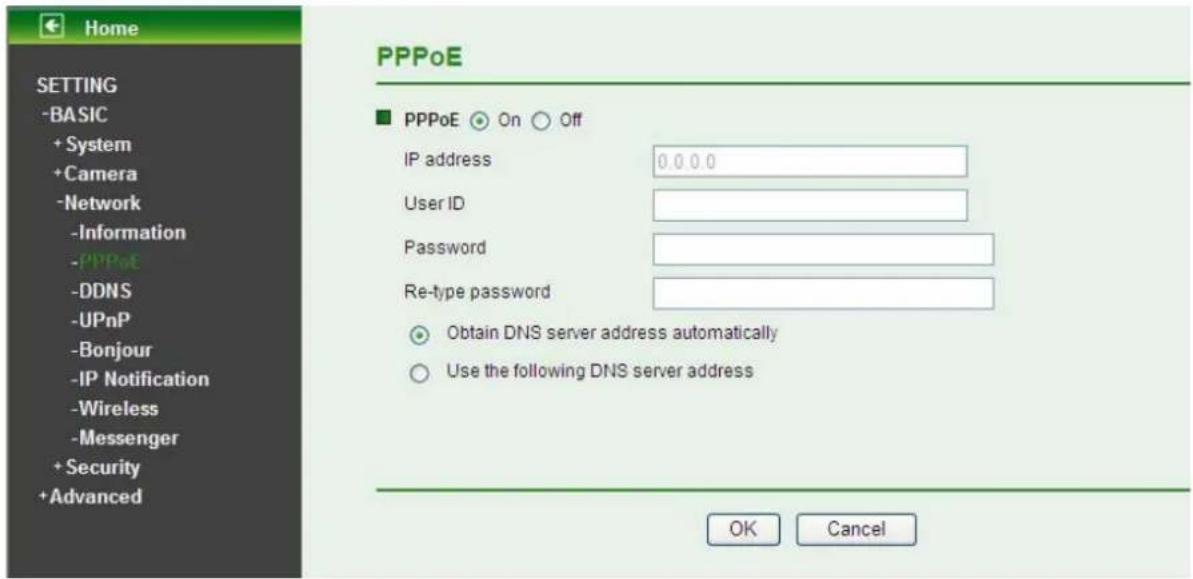
Home SETTING -BASIC + System + Camera -Network -Information -PPPoE -DDNS -UPnP -Bonjour -IP Notification -Wireless -Messenger + Security + Advanced PPPoE ■ PPPoE On Off IP address 0.0.0.0 User ID Password Re-type password Obtain DNS server address automatically Use the following DNS server address OK CancelIP address: The IP address obtained when the IP camera connecting with network at PPPoE.
User ID: Enter the user ID for authentication necessary for PPPoE connections. Type it up to 64 characters.
➢ Password: Enter the password for authentication necessary for PPPoE connections. Type it up to 32 characters.
Re-type password: Re-type the password to confirm.
Obtain DNS server address automatically: Select this to obtain the address of DNS server automatically.
text_image
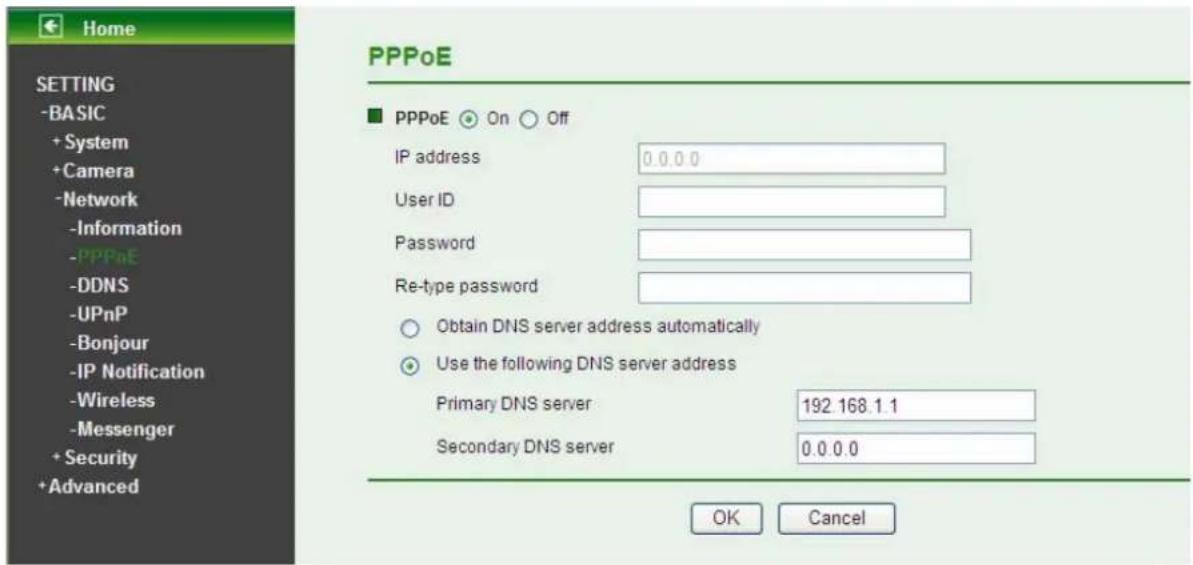
Home SETTING -BASIC + System + Camera -Network -Information -PPPnE -DDNS -UPnP -Bonjour -IP Notification -Wireless -Messenger + Security + Advanced PPPoE ■ PPPoE On Off IP address 0.0.0.0 User ID Password Re-type password Obtain DNS server address automatically Use the following DNS server address Primary DNS server 192.168.1.1 Secondary DNS server 0.0.0.0 OK CancelUse the following DNS server address: Select this when you set the fixed IP address as the IP address of DNS server.
- Primary DNS server: Enter the IP address of the primary DNS server.
- Secondary DNS server: Enter the IP address of the secondary DNS server.
Note:
1) PPPoE (Point-to-Point Protocol over Ethernet): PPPoE is a network protocol for encapsulating Point-to-Point Protocol frames insider Ethernet frames. PPPoE connection is used mainly with ADSL service where individual users connect to the ADSL transceiver (modem) over Ethernet work. It also widely used in XDSL (digital affiliate line such as ADSL, VDSL or SDSL)
2) The IP Camera needs to be rebooted after it finishes changing the network completely. For more details, please refer to Section 6.1.3 Initialize.
3) The IP Camera with Intelligent IP Installer can't be founded after PPPoE is active, but you can get the IP address of the camera by IP Notification function. For more details, please refer to Section 6.3.6 IP Notification.
4) If the IP Notification function is not configured to report the IP address of the camera, you can reset the camera to its factory default settings by pressing the Reset button. Then the camera can be found by Intelligent IP Installer.
The change of settings will not take effect until the camera is rebooted. Please go to "System -> Initialize" page and click the Reboot button as show in the figure below after you make some changes.

text_image
Home SETTING -BASIC -System -Information -Date/Time -Initialize +Camera +Network +Security +Advanced Initialize ■ Reboot Reboot ■ Factory default Factory default ■ Backup setting data Save ■ Restore setting Browse... OK ■ Firmware upgrade Browse... OK ■ Upload language pack Browse... OK6.3.3 DDNS (Dynamic DNS)
Choose menu "Dynamic DNS", and then you can configure the Dynamic DNS function.
The IP Camera offers the DDNS (Dynamic Domain Name System) feature, which allows the hosting of a website, FTP server, or e-mail server with a fixed domain name (named by yourself) and a dynamic IP address, and then your friends can connect to your server by entering your domain name no matter what your IP address is. Before using this feature, you need to sign up for DDNS service providers such as www.dyndns.org, or www.no-ip.org. The Dynamic DNS client service provider will give you a password or key.
text_image
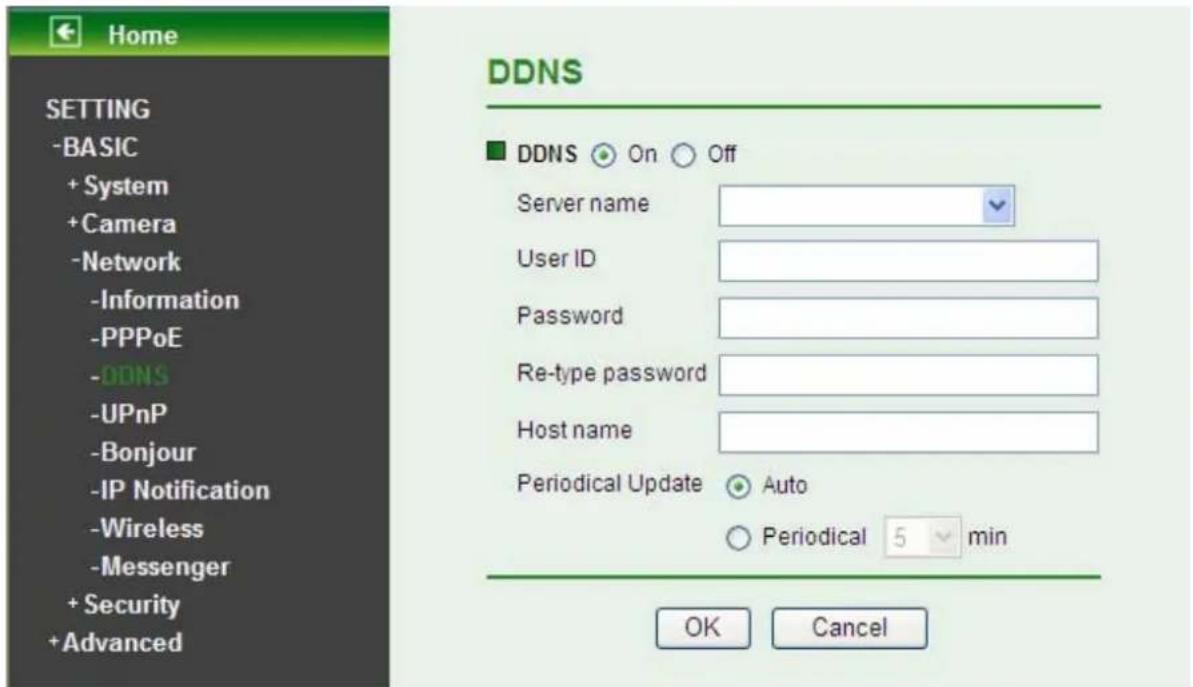
Home SETTING -BASIC + System + Camera -Network -Information -PPPoE -DDNS -UPnP -Bonjour -IP Notification -Wireless -Messenger + Security + Advanced DDNS ■ DDNS On Off Server name User ID Password Re-type password Host name Periodical Update Auto Periodical 5 min OK CancelServer name: Choose the DDNS Server from the list.
User ID: Enter the user ID for authentication necessary for DDNS connections. Type it up to 64 characters.
➢ Password: Enter the password for authentication necessary for DDNS connections. Type it up to 32 characters.
Re-type password: Re-type the password to confirm.
Host name: Enter the host name that is registered to the DDNS server.
Periodical Update: Choose Auto, and the DDNS information will update automatically; choose Periodical and select a time from the pull-down list (take 5 minutes for example), and the DDNS information will update every 5 minutes.
Note:
How to apply DDNS username and Host name?
You can apply DDNS username and Host name by the following steps:
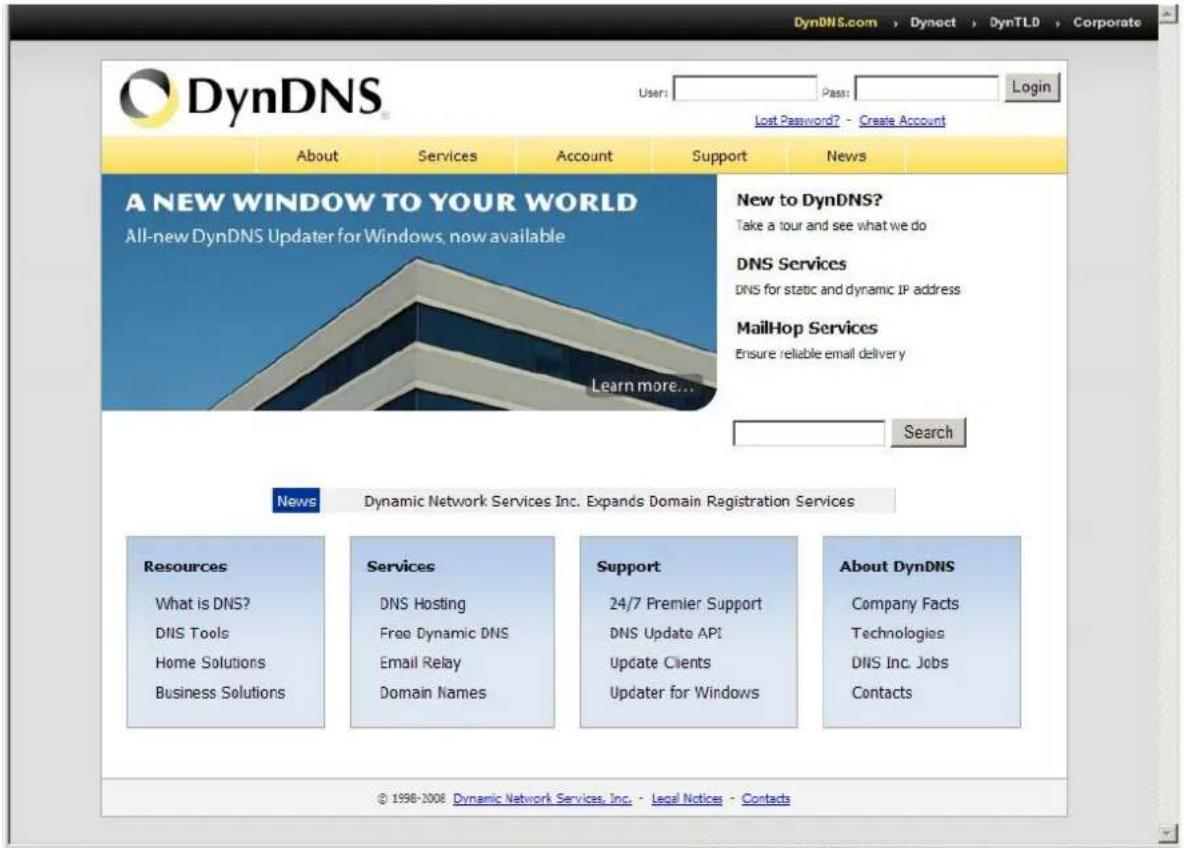
- Log in http://www.dyndns, click the Create Account.
text_image
DynDNS.com Dynect DynTLD Corporate User: Pass: Login Lost Password? - Create Account About Services Account Support News A NEW WINDOW TO YOUR WORLD All-new DynDNS Updater for Windows, now available New to DynDNS? Take a tour and see what we do DNS Services DNS for static and dynamic IP address MailHop Services Ensure reliable email delivery Learn more... Search News Dynamic Network Services Inc. Expands Domain Registration Services Resources What is DNS? DNS Tools Home Solutions Business Solutions Services DNS Hosting Free Dynamic DNS Email Relay Domain Names Support 24/7 Premier Support DNS Update API Update Clients Updater for Windows About DynDNS Company Facts Technologies DNS Inc. Jobs Contacts © 1998-2008 Dynamic Network Services, Inc. - Legal Notices - Contacts- Input all information and follow step by step with DynDNS.

text_image
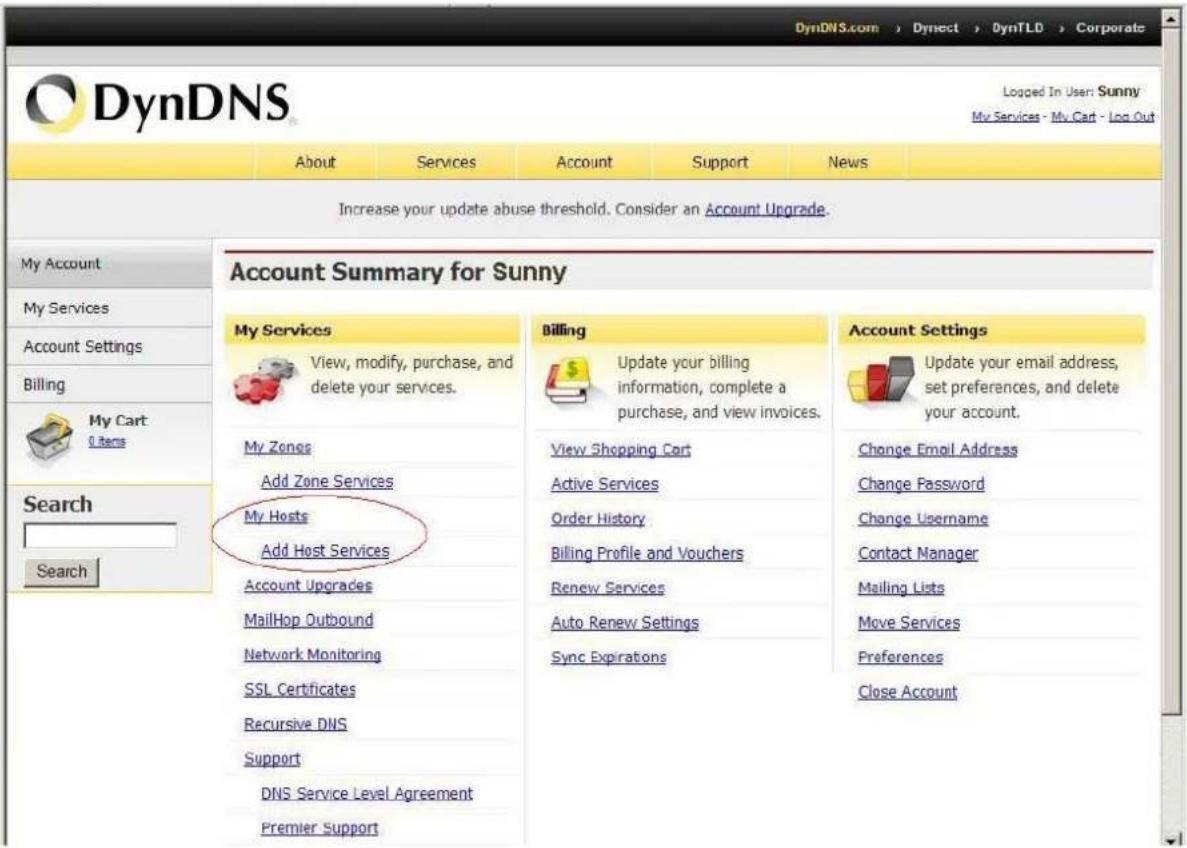
DynDNS.com > Dynect > DynTLD > Corporate User: Pass: Login Lost Password? - Create Account About Services Account Support News My Account Create Account Login Lost Password? Search Search Create Your DynDNS Account Please complete the form to create your free DynDNS Account. User Information Username: Email Address: Confirm Email Address: Password: Confirm Password: Instructions to activate your account will be sent to the email address provided. Your password needs to be more than 5 characters and cannot be the same as your username. Do not choose a password that is a common word, or can otherwise be easily guessed. About You (optional) Providing this information will help us to better understand our customers, and tailor future offerings more accurately to your needs. Thanks for your help How did you hear about us: Details: We do not sell your account information to anyone, including your email address. Terms of Service Please read the acceptable use policy (AUP) and accept it prior to creating your account. Also acknowledge that you may only- Log in with new account and click Account → My Hosts → Add Host Services.
text_image
DynDNS.com Dyndect > DynTLD > Corporate Logged In User: Sunny My Services - My Cart - Log Out About Services Account Support News Increase your update abuse threshold. Consider an Account Upgrade. Account Summary for Sunny My Account My Services Account Settings Billing My Cart 0 items Search Search By My Services By By By By By By By By By By By By By By By By By By By By By By By By By By By By By By By By By By By By By By By By By By By By By By By By By By Bilnging Bilnging Update your billing information, complete a purchase, and view invoices. View Shopping Cart Active Services Order History Billing Profile and Vouchers Renew Services Auto Renew Settings Sync Expirations Account Settings Update your email address, set preferences, and delete your account. Change Email Address Change Password Change Username Contact Manager Mailing Lists Move Services Preferences Close Account- Type domain in the Hostname field and select sub-domain.

text_image
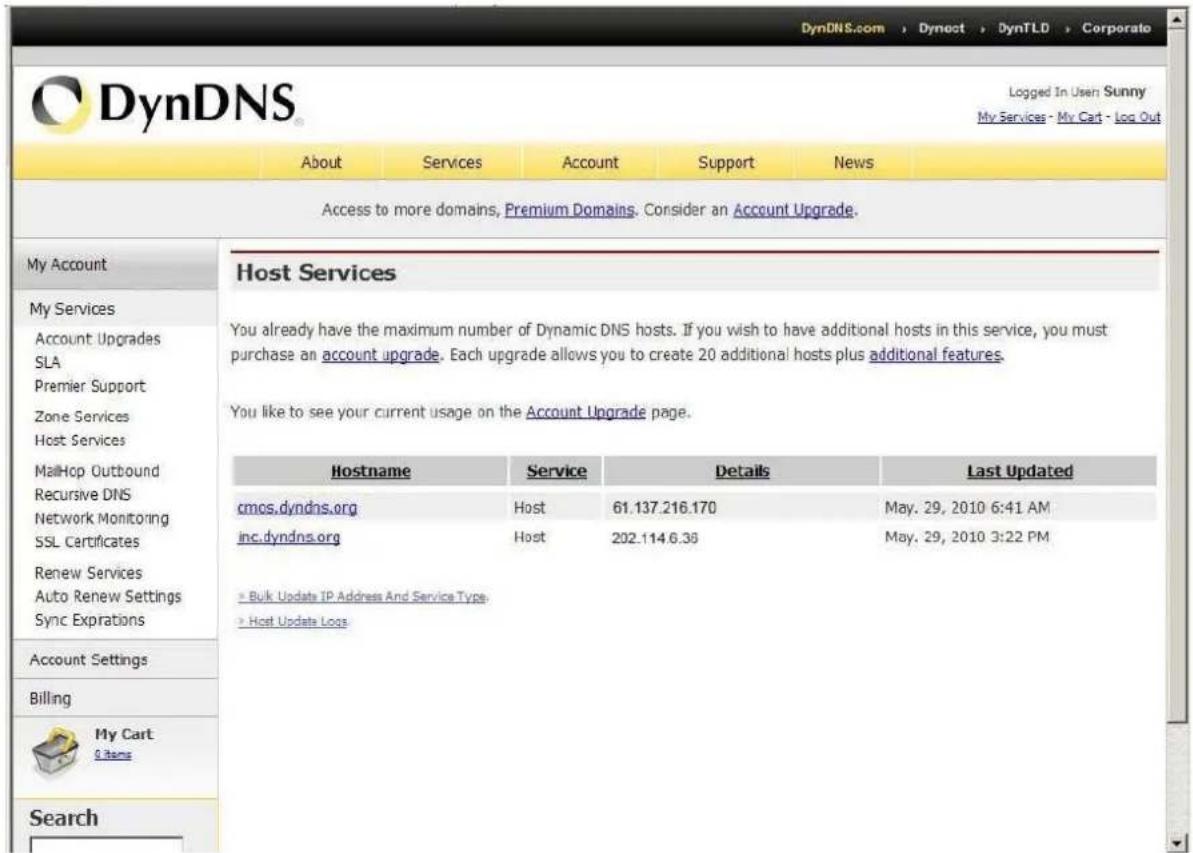
About Services Account Support News Access to more domains, Premium Domains. Consider an Account Upgrade. Add New Hostname ↑ Host Services Note: You currently don't have Account Upgrades in your account. You cannot use some of our Host Service features. Please consider buying Account upgrade that make this form full-functional and will add several other features. Learn More... Hostname: servebbs.org Wildcard: Yes, alias "*.hostname.domain" to same settings. Service Type: Host with IP address WebHop Redirect Offline Hostname IP Address: Use auto detected IP address 202.114.6.36. TTL value is 60 seconds. Edit TTL. Mail Routing: Yes, let me configure Email routing. Search Create Host- After typing in information, check your DDNS service.
text_image
DynDNS.com Logged In User Sunny My Services - My Cart - Log Out About Services Account Support News Access to more domains, Premium Domains. Consider an Account Upgrade. Host Services You already have the maximum number of Dynamic DNS hosts. If you wish to have additional hosts in this service, you must purchase an account upgrade. Each upgrade allows you to create 20 additional hosts plus additional features. You like to see your current usage on the Account Upgrade page. Hostname grain cmcs.dyndns.org Service Details Last Updated inc.dyndns.org Host 61.137.216.170-May. 29, 2010 6:41 AM Host Host 202.114 6.36-May. 29, 2010 3:22 PM ► Bulk Update IP Address And Service Type ► Host Update Logs Account Settings Billing My Cart 0 items Search- Type your DDNS User ID, Password and Host name in Setting → Network → DDNS. After completing setting, reboot IP Camera.

text_image
Home SETTING -BASIC + System + Camera -Network -Information -PPPoE -DDNS -UPnP -Bonjour -IP Notification -Wireless -Messenger + Security + Advanced DDNS Server name http://www.dyndns.org User ID Password Re-type password Host name Periodical Update Auto Periodical 5 min OK Cancel6.3.4 UPnP (Universal Plug and Play)
Choose menu "Network→UPnP", and then you can view the information about UPnP (Universal Plug and Play) in the screen as shown in the following figure. The UPnP feature allows the devices, such as Internet computers, to access the local host resources or devices as needed. UPnP devices can be automatically discovered by the UPnP service application on the LAN.

text_image
Home SETTING -BASIC + System + Camera -Network -Information -PPPoE -DDNS -UPnP -Bonjour -IP Notification -Wireless -Messenger + Security +Advanced UPnP ■ UPnP ○ On ○ Off ✓ Turn On UPnP port forwarding HTTP port 80 (1024 ~ 65535) SSL port 443 (1024 ~ 65535) MPEG4 RTSP port 554 (1024 ~ 65535) OK CancelHTTP port: Enter the HTTP port number and the default HTTP port is 80.
SSL port: Enter the SSL port number and the default SSL port is 443.
MPEG4 RTSP port: Enter the MPEG4 RTSP port, default value is 8050 for computer view, 8030 for mobile view.

Note:
UPnP (Universal Plug and Play): UPnP is a set of computer network protocol. It allows devices to connect seamlessly and simplify the implementation of networks at home and corporate environments. The device supports UPnP which is enabled by default. The device will be automatically detected and a new icon will be added to "My Network Place" if it also enables on your computer. It provides Port Forwarding for opening a port in a router or firewall in a private network in order to let a party from the outside world contact a inside user.
6.3.5 Bonjour
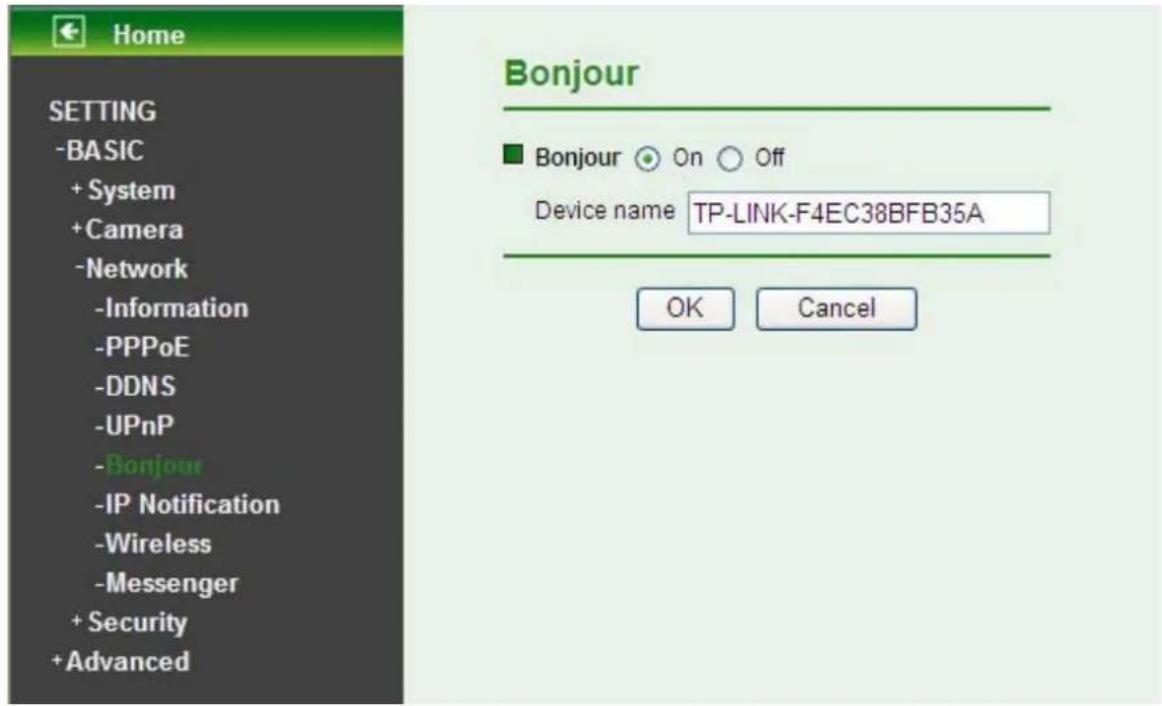
Bonjour, also known as zero-configuration networking, enables automatic discovery of computers, devices, and services on IP networks. Bonjour uses industry standard IP protocols to allow devices to automatically discover each other without the need to enter IP addresses or configure DNS servers.
text_image
Home SETTING -BASIC + System + Camera -Network -Information -PPPoE -DDNS -UPnP -Bonjour -IP Notification -Wireless -Messenger + Security + Advanced Bonjour Bonjour On Off Device name TP-LINK-F4EC38BFB35A OK Cancel
Device Name: Enter Device Name to your needs.

Note:
How to use Bonjour in your Windows Browser UI? Please check the link below: http://www.apple.com/support/downloads/bonjourforwindows.html
6.3.6 IP Notification
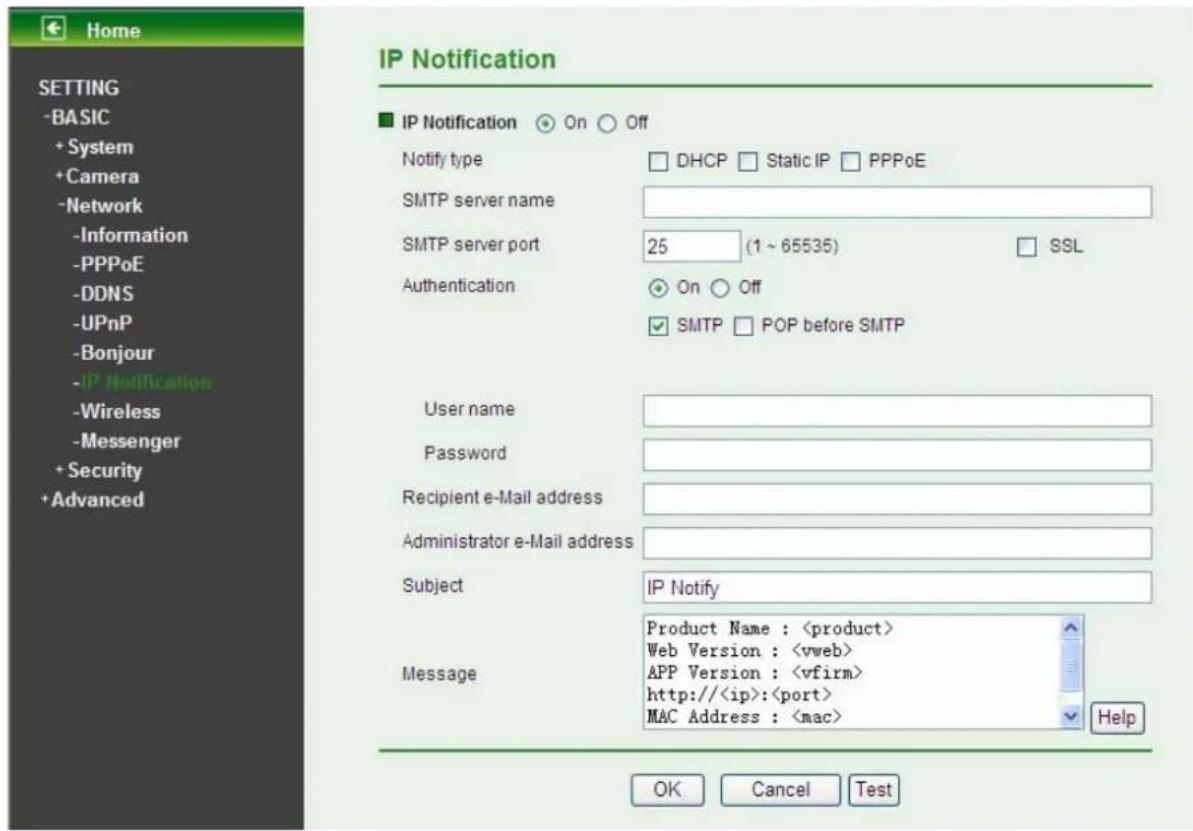
Once IP Notification is set to "On", the camera will automatically send an e-mail notification to tell users its updated network parameters if the network settings about IP address, network connection type, HTTP port or wireless connection is changed or completed. (Some settings will take effect after rebooting.)
text_image
Home SETTING -BASIC + System + Camera -Network -Information -PPPoE -DDNS -UPnP -Bonjour - IP Notification -Wireless -Messenger + Security + Advanced IP Notification ■ IP Notification On Off Notify type DHCP Static IP PPPoE SMTP server name SMTP server port 25 (1 ~ 65535) SSL Authentication On Off ✓ SMTP POP before SMTP User name Password Recipient e-Mail address Administrator e-Mail address Subject IP Notify Message Product Name :Notify Type: You can select the notify type among DHCP, Static IP, and PPPoE. When the network settings related to the chosen notify type are changed, an e-mail notification will be sent to inform you of the updated network information of the camera.
SMTP Server Name: Type the SMTP server name up to 64 characters, or the IP address of the SMTP server.
SMTP Server Port: You can set port number from 1\~65535 according to your mail server. The default value is 25.
- SSL: It is Security setting. Checking SSL box if the mail server you use has security restriction.
Note:
If you use g-mail as your mail server, you should set 587 as your port number and check SSL box.
Authentication: Select the authentication required when you send an email.
- Off: Select this if no authentication is necessary when an email is sent.
- On: If authentication is necessary when an e-mail is sent, there are SMPT, POP before SMPT or both three options.
- SMTP: Select this if SMTP authentication is necessary when an e-mail is sent.
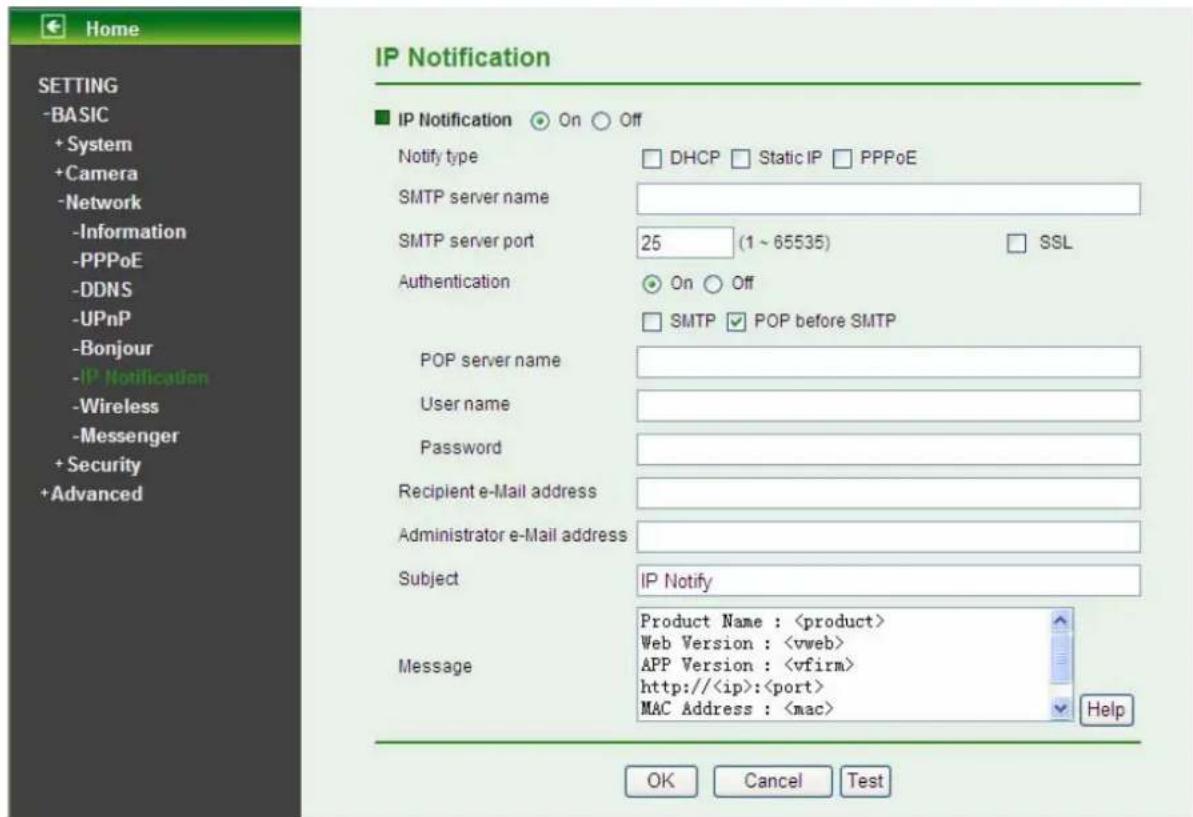
- POP before SMTP: Select this if POP before SMTP authentication is necessary when an e-mail is sent. If this option is selected, the IP Notification page will be different as following figure shown.
text_image
Home SETTING -BASIC + System + Camera -Network -Information -PPPoE -DDNS -UPnP -Bonjour - IP Notification -Wireless -Messenger + Security + Advanced IP Notification ■ IP Notification ○ On ○ Off Notify type □ DHCP □ Static IP □ PPPoE SMTP server name SMTP server port 25 (1 ~ 65535) □ SSL Authentication ○ On ○ Off □ SMTP ▼ POP before SMTP POP server name User name Password Recipient e-Mail address Administrator e-Mail address Subject IP Notify Message Product Name :- POP server name: It is necessary when the POP before SMTP is selected in Authentication. Type the POP (receiving mail) server name up to 64 characters, or type the IP address of the POP server. This setting is necessary when the SMTP server which sends e-mails performs authentication using the POP user account.
- User name, Password: Type the username and password of the user who has the mail account. This setting is necessary when the SMTP server which sends e-mails performs authentication.
➢ Recipient e-mail address: Type the recipient e-Mail address up to 64 characters. You can specify up to three recipient E-mail addresses.
Administrator e-mail address: Type the Administrator e-Mail address up to 64 characters. This address is used for reply mail and sending system messages from the SMTP server.
Subject: Type the subject/title of the e-Mail up to 64 characters. With respect to mail which is sent according to the IP notification.
Message: Type the text of the E-mail up to 384 characters. Default value provides network information including IP, Port, MAC, Model, Firmware Version and Web Version.
6.3.7 Wireless
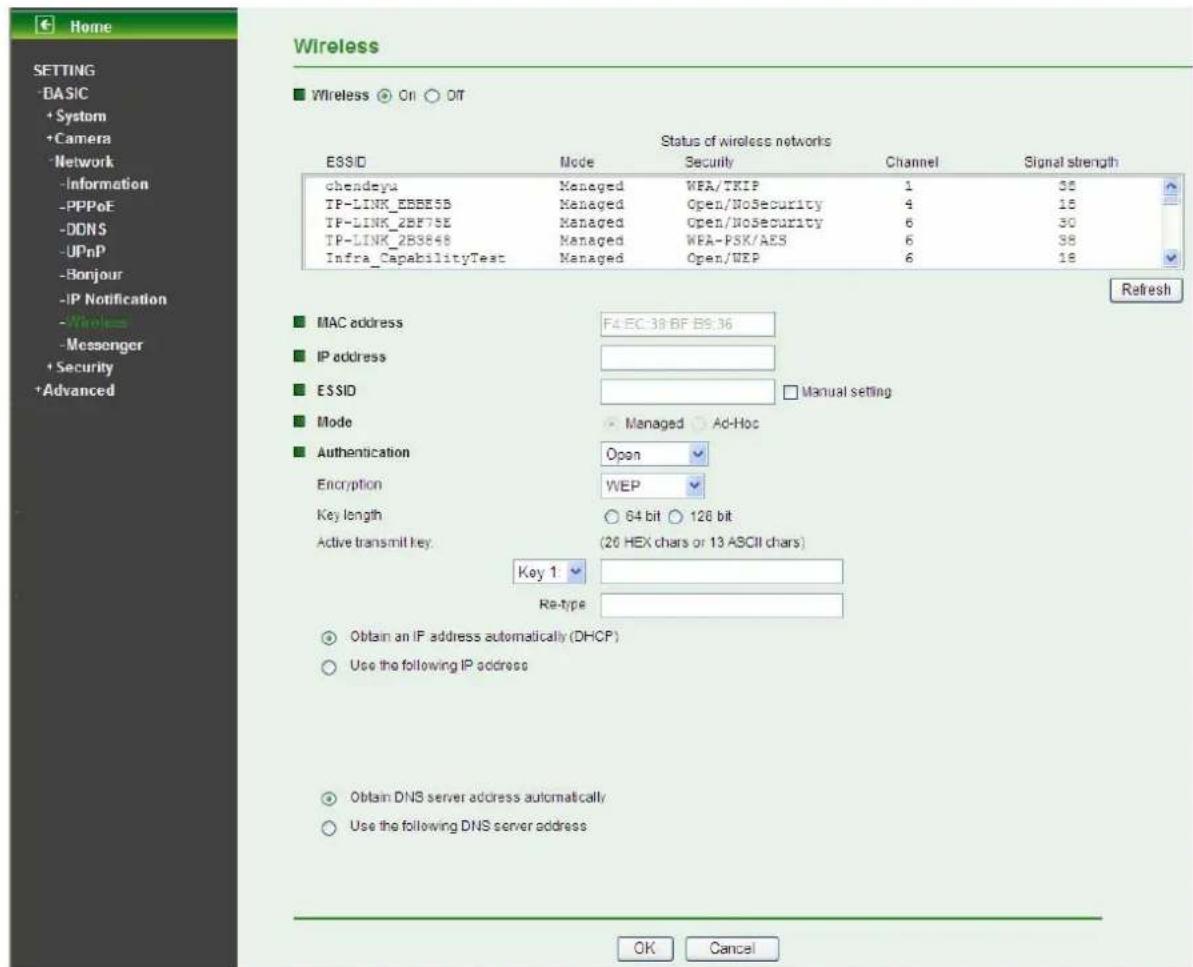
Choose Network → Wireless, and then you can configure the wireless function for the camera in the figure below.
text_image
Home SETTING -BASIC + System + Camera -Network -Information -PPPoE -DDNS -UPnP -Bonjour -IP Notification -Wireless -Messenger + Security + Advanced Wireless ■ Wireless ○ Off ○ Off Status of wireless networks ESSID Mode Security Channel Signal strength chendeya Managed WEA/TKIP 1 38 TP-LINK_EBBB5B Managed Open/NoSecurity 4 18 TP-LINK_2BF75E Managed Open/NoSecurity 6 30 TP-LINK_2B3848 Managed WEA-PSK/AES 6 38 Infra_CapabilityTest Managed Open/DEP 6 18 Refresh ■ MAC address F4 EC-39 BF BS:36 ■ IP address ■ ESSID Manual setting ■ Mode ▶ Managed □ Ad-Hoc ■ Authentication Open Encryption WEP Key length ○ 64 bit ○ 126 bit Active transmit key (20 HEX chars or 13 ASCII chars) Key 1 Re-type ○ Obtain an IP address automatically (DHCP) ○ Use the following IP address ○ Obtain DNS server address automatically/ ○ Use the following DNS server address OK CancelThe wireless network has to be set up by using cable network connection. After setting the camera correctly, the wireless function can work without cable network connection. Please follow the setting process below step by step:
- Connect IP Camera with Ethernet connection.
-
Go to SETTING → BASIC → Network → Wireless, and choose option "On". You will see the wireless setting page.
-
Then click Refresh. All access points (AP) around you will show up.

text_image
Home SETTING -BASIC + System + Camera -Network -Information -PPPoE -DDNS -UPnP -Bonjour -IP Notification -Wireless -Messenger + Security + Advanced Wireless ■ Wireless ○ On ○ OT Status of wireless networks ESSID Mode Security Channel Signal strength chendeyi Managed WEA/TKIP 1 38 TP-LINK_EBBE5B Managed Open/NoSecurity 4 16 TP-LINK_2BF75E Managed Open/NoSecurity 6 30 TP-LINK_2B3848 Managed WEA-FSK/AES 6 38 Infra_CapabilityTest Managed Open/WEP 6 18 Refresh ■ MAC address F4 EC 38 BF ES 36 ■ IP address ■ ESSID □ Manual setting ■ Mode Managed Ad-Hoc ■ Authentication Open Encryption WEP Key length ○ 64 bit ○ 128 bit Active transmit key (26 HEX chars or 13 ASCII chars) Key 1 Re-type ○ Obtain an IP address automatically (DHCP) ○ Use the following IP address-
Select the AP you wish to connect.
-
Enter password in Passphrase field if you need. If you don't know the setting of the wireless AP, please ask your network administrator.

text_image
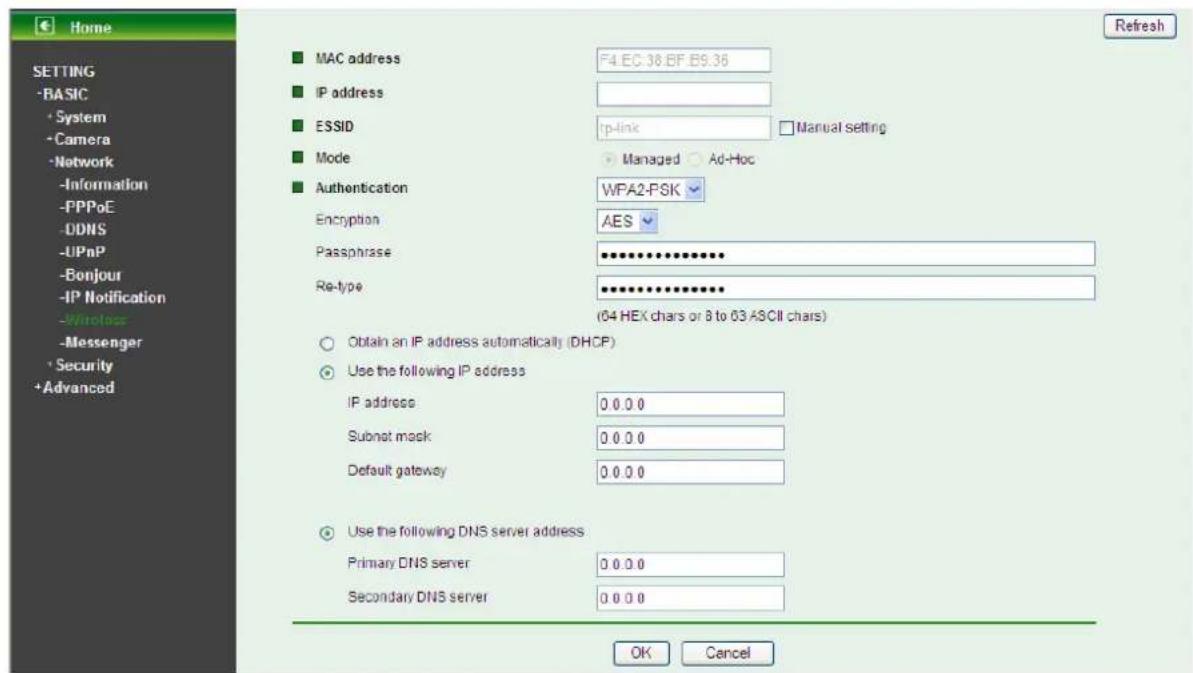
Home SETTING -BASIC - System - Camera -Network -Information -PPPoE -DDNS -UPnP -Bonjour -IP Notification - Wireless -Messenger + Security + Advanced Wireless ■ Wireless ○ On ○ Off Status of wireless networks ESSID Mode Security Channel Signal strength TP-LINK_302010 Managed WPA-PSK/AES 1 18 WDL_TEST_3020 Managed Open/NoSecurity 7 10 Network_CGCP1951 Managed Open/NoSecurity 6 10 tp-link Managed WPA2-PSK/AES 10 10 IP-LINK_3577FA Managed Open/NoSecurity 6 2 Refresh ■ MAC address F4 EC 38 BF B9:36 ■ IP address ■ ESSID tp-lnk Manual setting ■ Mode Managed Ad-Hoc ■ Authentication WPA2-PSK Encryption AFS Passphrase ••••••••••••••••••••••••••••••••••••••••••••••••••••••••••• (64 HEX dials are to 63 ASCII dials) ○ Obtain an IP address automatically (DHCP) ● Use the following IP address IP address 0.0.0.0- Choose the option of Obtain an IP address automatically (DHCP) or Use the following IP address:
text_image
Home SETTING -BASIC -System -Camera -Network -Information -FPPoE -DDNS -UPnP -Bonjour -IP Notification -Wntless -Messenger -Security +Advanced MAC address F4.EC.38.EF.B9.36 IP address ESSID tp-link Manual setting Mode Managed Ad-Hoc Authentication WPA2-FSK Encryption AES Passphrase ***** Re-type ***** (04 HEX chars or 8 to 03 ASCII chars) Obtain an IP address automatically (DHCP) Use the following IP address IP address 0.0.0.0 Subnet mask 0.0.0.0 Default gateway 0.0.0.0 Use the following DNS server address Primary DNS server 0.0.0.0 Secondary DNS server 0.0.0.0 OK Cancel RefreshUse the following IP address: Select this when the fixed IP address is set.
- IP address: Enter the IP address of the device.
- Subnet mask: Enter the subnet mask.
- Default gateway: Enter the default gateway.
Use the following DNS server address: Select this when you set the fixed address as the IP address of DNS server.
- Primary DNS server: Enter the IP address of the primary DNS server.
-
Secondary DNS server: Enter the IP address of the secondary DNS server, if necessary.
-
Please click OK button to finish the wireless setting. Now please have a short rest or work on other business, for the wireless setting will take effect 1 minute after you click OK.
- Please unplug the Ethernet cable connecting the TL-SC3130G and the Router (or the PC), and log into the IP camera with its wireless address.
6.4 Security
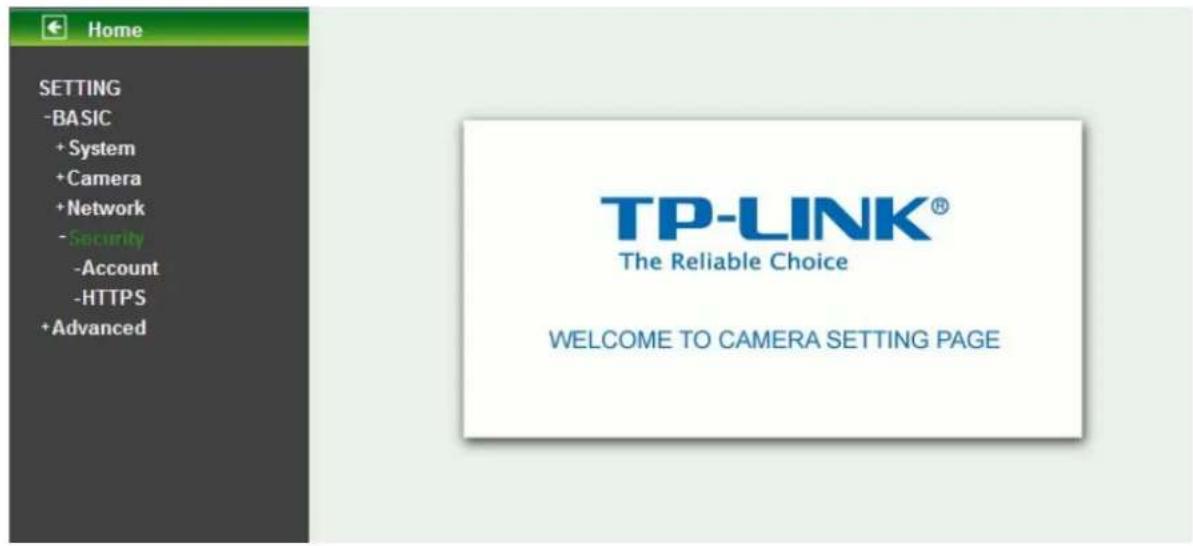
Click Security to display the submenus including Account and HTTPS.
text_image
Home SETTING -BASIC + System + Camera + Network - Security -Account - HTTPS + Advanced TP-LINK® The Reliable Choice WELCOME TO CAMERA SETTING PAGE6.4.1 Account
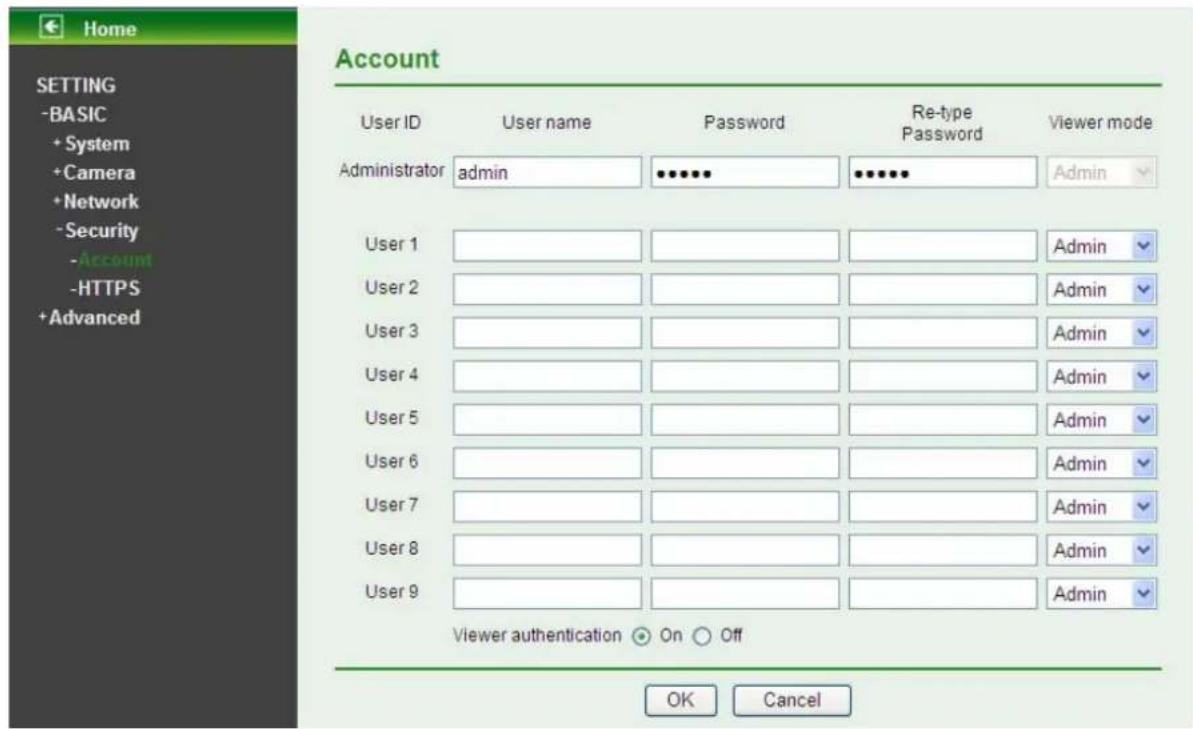
The device default account and password setting is "admin / admin". That means everyone who knows IP address can access the device including all configuration. Therefore, it is necessary to assign a password if the device is intended to be accessed by others.
text_image
Home SETTING -BASIC + System + Camera + Network - Security -Account - HTTPS + Advanced Account User ID User name Password Re-type Viewer mode Administrator admin •••••• •••••• Admin User 1 User 2 User 3 User 4 User 5 User 6 User 7 User 8 User 9 Viewer authentication ○ On ○ Off OK CancelUser name: Set a user name between 4-16 characters.
➢ Password: Set a password between 4-16 characters.
Re-type Password: Re-type the password to confirm.
Viewer Mode: Set the user mode among Admin, Operator, and Viewer. Different viewer mode has different limits of authority.
- The Admin mode has all authority of configuration.
- The Operator mode can not only view the Live View but also control the PTZ (apply in speed dome).
- The Viewer mode only can view the Live View.
Viewer Authentication: Select whether the authentication is needed when users access to live view.
- On: Authentication is required to let different users have different levels of permission to access the camera view.
- Off: Authentication is not required to access the camera. Click Off and select one (among Admin, Operator and Viewer) from the pull-down list as default, then all users can view directly the video with the default permission without entering username and password.
* If you want to have a higher authority than the default, you can key in appropriate username and password in the dialog box that pops up when performing advanced operations that are only allowed by the higher authority.
6.4.2 HTTPS
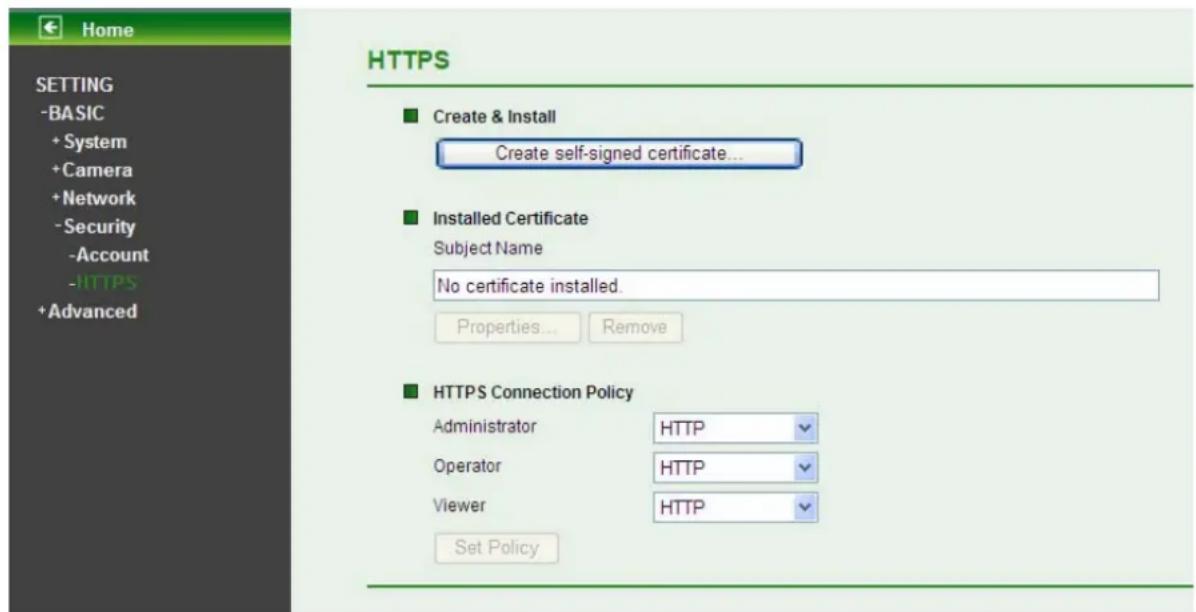
HTTPS is a URL scheme used to indicate a secure HTTP connection. It is syntactically identical to the http:// scheme normally used for accessing resources using HTTP. Using https://URL/ with a different default TCP port (443) and an additional encryption / authentication layer between the HTTP and TCP, you can use the IP camera through HTTPS easily by using "https://" instead of "http://".
text_image
Home SETTING -BASIC + System + Camera + Network - Security - Account - HTTPS + Advanced HTTPS ■ Create & Install Create self-signed certificate... ■ Installed Certificate Subject Name No certificate installed. Properties... Remove ■ HTTPS Connection Policy Administrator HTTP Operator HTTP Viewer HTTP Set Policy➢ Create & Install: Create a self-signed certificate for HTTPS to recognize.
Installed Certificate: Display or remove the properties of the installed certificate.
HTTPS Connection Policy: Set HTTPS connection policy for different level of users.
To use the HTTPS encryption, please set up "Create self-signed certificate" for the first time you use the HTTPS function, and then set up the connection policy for different users.

text_image
Home SETTING -BASIC + System + Camera + Network - Security - Account - HTTPS + Advanced HTTPS ■ Create & Install Create self-signed certificate... ■ Installed Certificate Subject Name No certificate installé Properties... ■ HTTPS Connection Pol Administrator Operator Viewer Set Policy Create self-signed certificate -- Web Page Dialog Create self-signed certificate... ■ Country ■ State or province ■ Locality ■ Organization ■ Organizational Unit ■ Common Name ■ Validity 365 days(1~1000) OK Cancel http://192.168.1.101/create_ssl_certificate.r InternetNote:
When enable HTTPS with RTSP on mode, the IP Camera only protect the setting such as username and password and do not protect video and audio.
When enable HTTPS with RTSP off mode, the IP Camera will protect all setting including video and audio.
Chapter 7 Setting-Advanced
Click Advanced to display the submenus including FTP client, SMTP, HTTP event, Schedule, Motion detection and System Log.

text_image
Home SETTING +BASIC •Advanced +FTP client +SMTP +HTTP event +Schedule +Motion detection +System Log TP-LINK® The Reliable Choice WELCOME TO CAMERA SETTING PAGE7.1 FTP Client
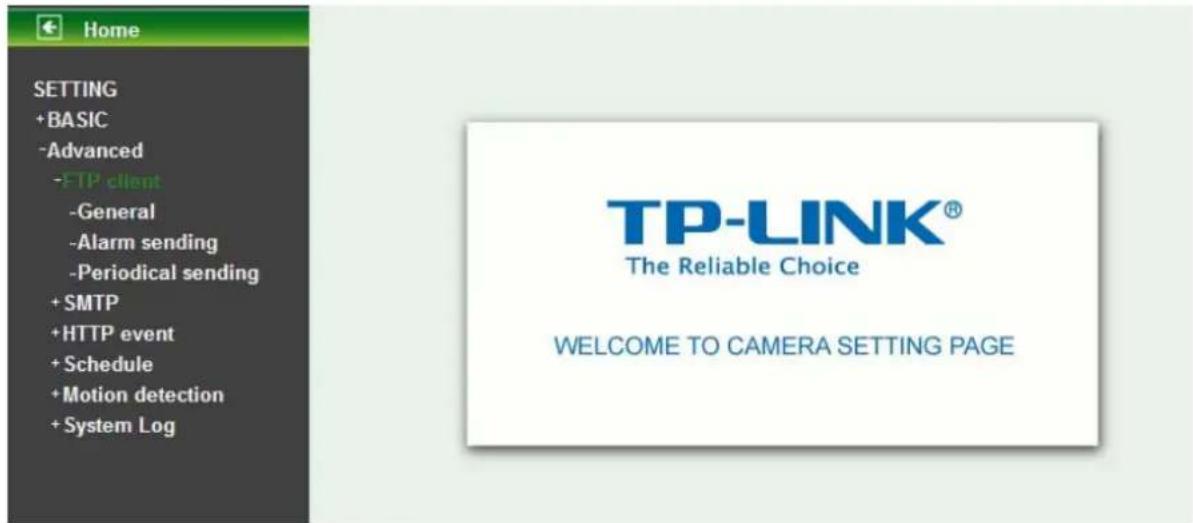
Use this menu to set up for capturing and sending images to an FTP server. By using FTP client function, you can send the image and video file which has been shot and recorded linked with the built-in motion detection function to FTP server. FTP client setting menu is composed of three items, General, Alarm sending and Periodical sending.
text_image
Home SETTING +BASIC -Advanced -FTP client -General -Alarm sending -Periodical sending +SMTP +HTTP event + Schedule + Motion detection + System Log TP-LINK® The Reliable Choice WELCOME TO CAMERA SETTING PAGE7.1.1 General

text_image
Home SETTING +BASIC -Advanced -FTP client -General -Alarm sending -Periodical sending +SMTP +HTTP event +Schedule +Motion detection +System Log General FTP client On Off default Remove Enable On Off Name default FTP server name User name Password Re-type password Passive mode On Off OK Cancel TestSelect On when you use FTP function. The FTP client setting page will appear.
Select Off when you do not wish to use the FTP client function.
Note:
The frame rate and operability on the main viewer may decrease while a file is being transmitted by the FTP client function.
FTP server name: Type the FTP server name to upload still images up to 64 characters, or the IP address of the FTP server.
User name: Type the user name for the FTP server.
➢ Password: Type the password for the FTP server.
Re-type password: To confirm the password, type the same characters as you have typed in the Password box.
Passive mode: Set whether you use the passive mode of FTP server or not when connecting to FTP server. Select On to connect to FTP server using the passive mode.
7.1.2 Alarm sending
Set to forward the image and video file to the specified FTP server linked with the alarm detection by the built-in motion detection function. Select On to send the image file to FTP server linked with the alarm detection.

text_image
Home SETTING +BASIC -Advanced -FTP client -General -Alarm sending -Periodical sending + SMTP + HTTP event + Schedule + Motion detection + System Log Alarm sending On Off Remote path Image file name Suffix Date Time Sequence number Sequence number clear Clear Alarm Motion detection Motion detection Effective Period Always Schedule Schedule OK CancelRemote Path: Type the path to the destination in FTP server up to 64 characters.
Image File Name: Type the file name you want to assign to the images when sending to the FTP server. You can use up to 10 alphanumeric characters, - (hyphen) and _ (underscore) for naming.
Suffix: Select a suffix to add to the file name
- Date & time: The date & time suffix is added to the Image file name. The date/time suffix consists of lower two-digits of year (2 digits), month (2 digits), date (2 digits), hour (2 digits), minute (2 digits), second (2 digits), and consecutive number (2 digits), thus 14-digit number is added to the file name.
- Sequence number: A consecutive number of 10 digits between 0000000001 and 4294967295 and two fixed digits 00 is added to the Image file name.
- Sequence number clear: Click Clear and the suffix of the sequence number returns to 1.
Alarm
- Motion Detection: Click it for using Motion Detection function as a sensor. You can set motion detection function on the motion detection page.
Motion detection
Setting

Motion detection 1
Threshold
Sensitivity


Motion detection 2
Threshold
Sensitivity

Motion detection 3
Threshold
Sensitivity

text_image
Motion Detection 1 2 3OK
Cancel

Note:
You can set motion detection on motion detection page. (Please go to "Setting → Advanced → Motion detection → Setting") For more details, you can check Section 7.5.
Effective period: Set the period when the periodical sending is effective.
• Always: The periodical sending is always effective.
- Schedule: You can specify the period when the periodical sending is effective in the Schedule setting in the other section.

Note:
You can set schedule function on Schedule page. (Please go to "Setting → Advanced → Schedule → Setting") For more details, you can check Section 7.4.
Schedule

text_image
http://192.168.1.101 - Schedule - Microsoft Internet Explorer Setting Schedule selection FTP - Alarm Start time 00 00 End time 24 00 Mon (Empty) Add Delete 0 1 2 3 4 5 6 7 8 9 10 11 12 13 14 15 16 17 18 19 20 21 22 23 Tue (Empty) Add Delete Wed (Empty) Add Delete Thu (Empty) Add Delete Fri (Empty) Add Delete Sat (Empty) Add Delete Sun (Empty) Add Delete Use the same time schedule every day. OK Cancel Done Internet7.1.3 Periodical sending
You can set to send an image file to FTP server periodically by selecting On to send the image file to FTP server linked with setting period.

text_image
Home SETTING +BASIC -Advanced -FTP client -General -Alarm sending -Periodical sending + SMTP +HTTP event + Schedule + Motion detection + System Log Periodical sending On Off Remote path Image file name Suffix None Date Time Sequence number Sequence number clear Clear Interval 00 H 30 M (MIN : 1min. MAX : 24-hour interval) Effective Period Always Schedule Schedule OK CancelRemote Path: Type the path to storage location of FTP server which you have authorized.
Image file name: Type the file name of the image sent by SMTP up to 10 alphanumeric characters, - (hyphen) and _ (under score).
Suffix: Select a suffix to be added to the file name sent by SMTP.
- None: The name of the sent file will be the Image file name.
- Date & time: The date & time suffix is added to the Image file name. The date & time suffix consists of lower two-digits of year (2 digits), month (2 digits), date (2 digits), hour (2 digits), minute (2 digits) and second (2 digits), and consecutive number (2 digits), thus 14-digit number is added to the file name.
- Sequence number: A consecutive number is added to the Image file name.
- Sequence number clear: Click Clear and the suffix of the sequence number returns to 1.
Interval: Set the time interval of the period sending. Min value is 1 min and Max value is 24 hour.
Effective period: Set the period when the periodical sending is effective.
• Always: The periodical sending is always effective.
- Schedule: You can specify the period when the periodical sending is effective in the schedule setting in the other section.
Note:
You can set schedule function on schedule page. (Please go to "Setting → Advanced → Schedule → Setting") For more details, you can check Section 7.4.
Schedule

text_image
http://192.168.1.101 - Schedule - Microsoft Internet Explorer Setting Schedule selection FTP - Periodical Start time 00 : 00 - End time 24 : 00 Mon (Empty) Add Delete 0 1 2 3 4 5 6 7 8 9 10 11 12 13 14 15 16 17 18 19 20 21 22 23 Tue (Empty) Add Delete Wed (Empty) Add Delete Thu (Empty) Add Delete Fri (Empty) Add Delete Sat (Empty) Add Delete Sun (Empty) Add Delete Use the same time schedule every day. OK Cancel Done Internet7.2 SMTP
Set the SMTP menu when you want to send an image via e-mail. By using Mail (SMTP) function, you can send a mail with attached image and video which has been shot linked with the built-in motion detection function. The image file can also be sent periodically. E-Mail (SMTP) setting menu is composed of three items, General, Alarm sending and Periodical sending.
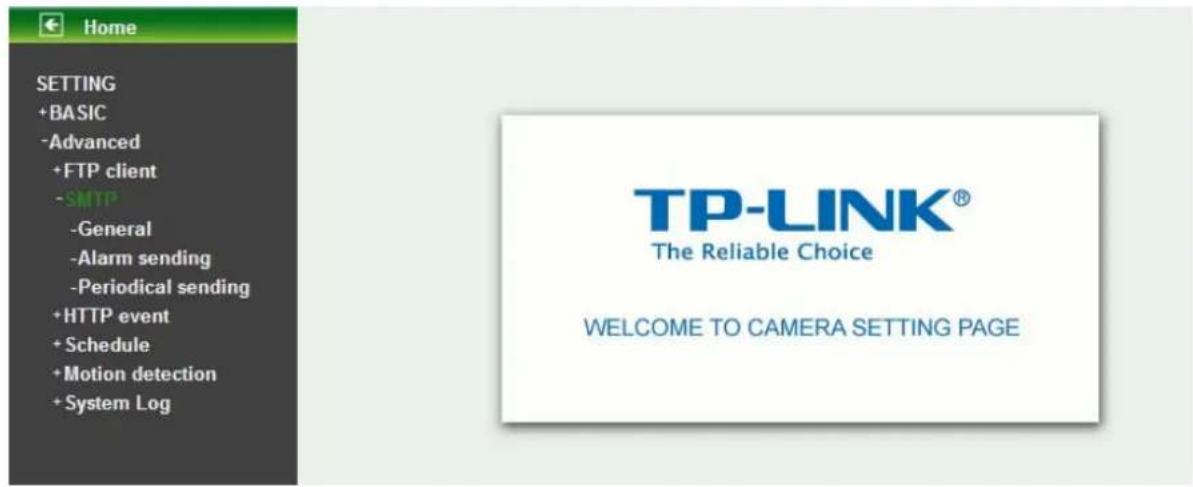
text_image
Home SETTING +BASIC -Advanced +FTP client -SMTP -General -Alarm sending -Periodical sending +HTTP event + Schedule + Motion detection + System Log TP-LINK® The Reliable Choice WELCOME TO CAMERA SETTING PAGE7.2.1 General
Select On when you use the SMTP function. The common setting options are displayed below. Select Off if you do not wish to use the e-Mail (SMTP) function.
Note:
The Setting of General will be the same as the setting of IP Notification (Please check "SETTING → BASIC → Network → IP Notification")
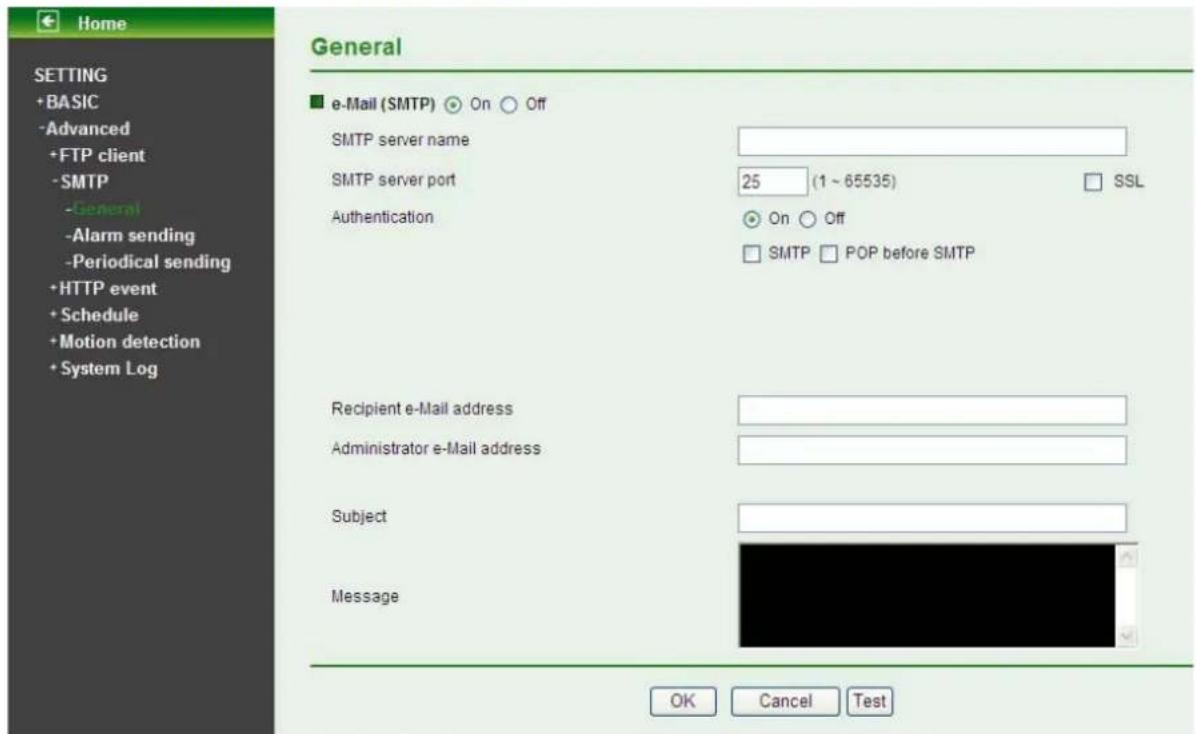
text_image
Home SETTING +BASIC -Advanced +FTP client -SMTP -General -Alarm sending -Periodical sending +HTTP event +Schedule +Motion detection +System Log General ■ e-Mail (SMTP) ○ On ○ Off SMTP server name SMTP server port 25 (1 ~ 65535) SSL Authentication ○ On ○ Off □ SMTP □ POP before SMTP Recipient e-Mail address Administrator e-Mail address Subject Message OK Cancel TestSMTP server name: Type the SMTP server name up to 64 characters, or the IP address of the SMTP server.
SMTP Server Port: You can set port number from 1\~65535 according to your mail server. The default value is 25.
➢ Security setting: Check SSL box if the mail server you use has security restriction.

Note:
If you use g-mail as your mail server, you should set 587 as your port number and check SSL box.
Authentication: Select the authentication required when you send an email.
- Off: Select it if no authentication is necessary when an email is sent.
- On: When authentication is necessary an e-mail is sent, select one of the authentication methods from the followings.

text_image
Home SETTING +BASIC -Advanced +FTP client -SMTP -General -Alarm sending -Periodical sending +HTTP event + Schedule + Motion detection + System Log General e-Mail (SMTP) On Off SMTP server name SMTP server port 25 (1~65535) SSL Authentication On Off SMTP POP before SMTP POP server name User name Password Recipient e-Mail address Administrator e-Mail address Subject Message OK Cancel TestSMTP: Select it if SMTP authentication is necessary when an e-mail is sent.
POP before SMTP: Select if POP before SMTP authentication is necessary when an e-mail is sent.
Note:
When you set to On, be sure to select either or both SMTP or / and POP before SMTP.
- POP server name: When the POP before SMTP is selected in Authentication, type the POP (receiving mail) server name up to 64 characters, or type the IP address of the POP server. This setting is necessary when the SMTP server which sends e-mails performs authentication using the POP user account.
- User name, Password: Type the user name and Password of the user who has the mail account. This setting is necessary when the SMTP server which sends e-mails performs authentication.
➢ Recipient e-mail address: Type the recipient e-Mail address up to 64 characters. You can specify up to three recipient E-mail addresses.
Administrator e-mail address: Type the Administrator e-Mail address up to 64 characters. This address is used for reply mail and sending system messages from the SMTP server.
Subject: Type the subject/title of the e-Mail up to 64 characters. With respect to mail which is
sent according to the alarm detection when Alarm sending of the alarm tab is set to On, the characters standing for the sensor type added to the subject.
Message: Type the text of the E-mail up to 384 characters. (A line break is equivalent to 2 characters.)
7.2.2 Alarm sending
Set to send the mail with connection to the alarm detection by the built-in motion detection function. Select On to send the image and file to SMTP server linked with the alarm detection.
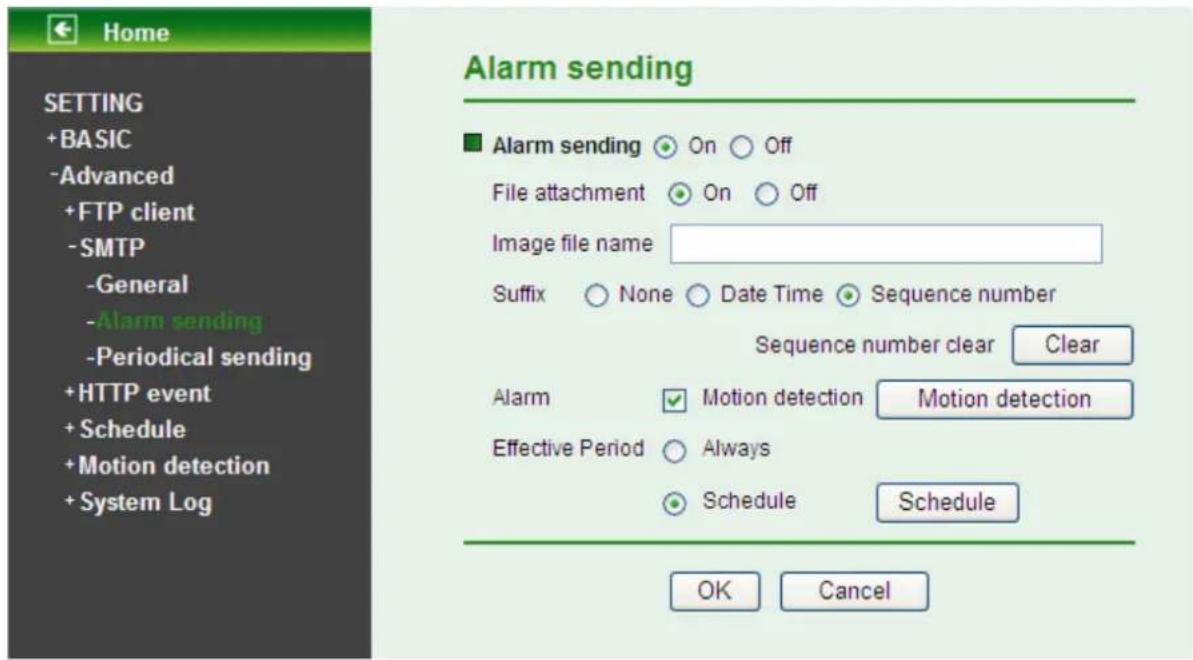
text_image
Home SETTING +BASIC -Advanced +FTP client -SMTP -General -Alarm sending -Periodical sending +HTTP event + Schedule +Motion detection + System Log Alarm sending On Off File attachment On Off Image file name Suffix None Date Time Sequence number Sequence number clear Clear Alarm Motion detection Motion detection Effective Period Always Schedule Schedule OK Cancel➢ Alarm sending: Select On to set to send mail with connection to the alarm detection.
File attachment: Set whether an image file is attached to the mail sent or not. When On is selected, the image file made by the settings below is attached. When Off is selected, only the message is sent.
Image file name: Type the file name you want to assign to the image to attach a mail. You can use up to 10 alphanumeric, - (hyphen) and _ (underscore) for naming.
➢ Suffix: Select a suffix to add to the file name
- Date & time: The date & time suffix is added to the Image file name. The date/time suffix consists of lower two-digits of year (2 digits), month (2 digits), date (2 digits), hour (2 digits), minute (2 digits), second (2 digits), and consecutive number (2 digits), thus 14-digit number is added to the file name.
- Sequence number: A consecutive number of 10 digits between 0000000001 and 4294967295 and two fixed digits 00 are added to the Image file name.
- Sequence number clear: Click Clear and the suffix of the sequence number returns to 1.
> Alarm
- Motion Detection: Click it for using Motion Detection function as a sensor. You can set motion detection function on the motion detection page.
Motion detection
Setting

Threshold
Sensitivity


Threshold
Sensitivity


Threshold
Sensitivity

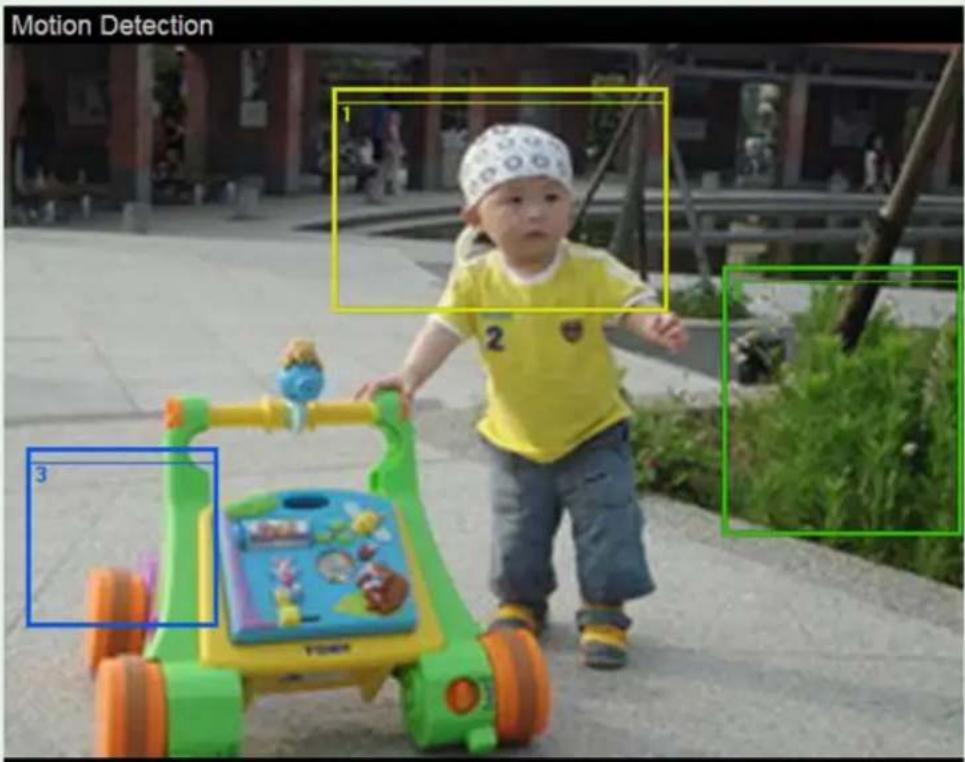
text_image
Motion Detection 1 2 3OK
Cancel

Note:
You can set motion detection on motion detection page. (Please go to "Setting → Advanced → Motion detection → Setting") For more details, you can check Section 7.5.
Effective period: Set the period when the periodical sending is effective.
• Always: The periodical sending is always effective.
- Schedule: You can specify the period when the periodical sending is effective in the Schedule setting in the other section.

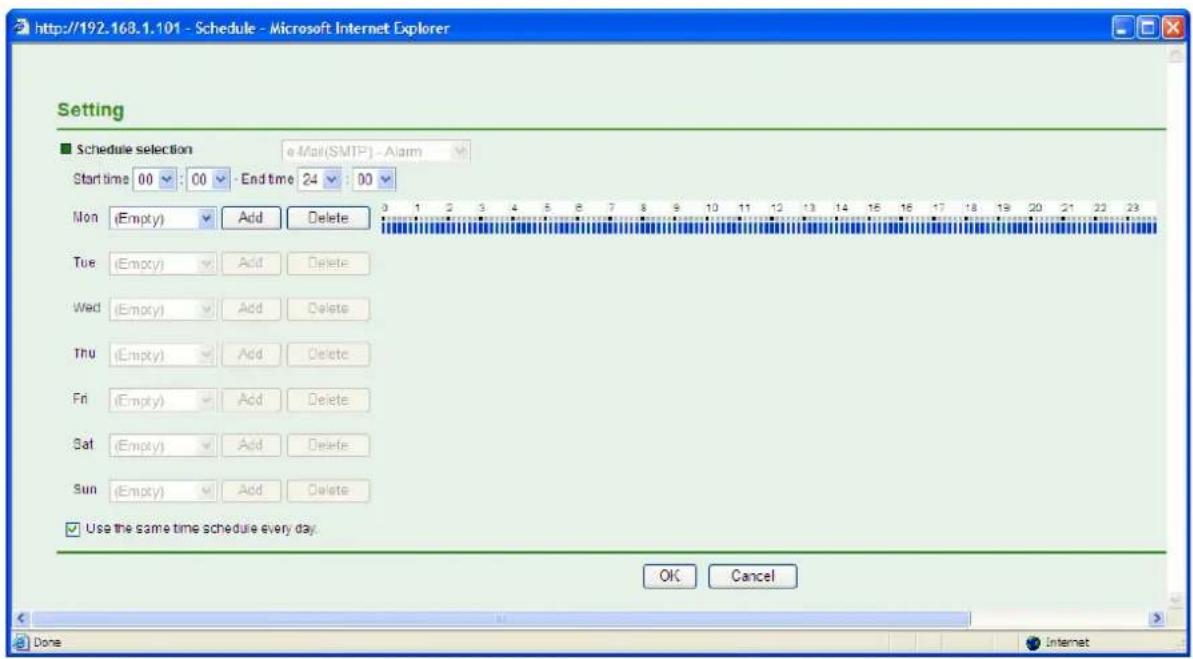
Note:
You can set schedule function on Schedule page. (Please go to "Setting → Advanced → Schedule → Setting") For more details, you can check Section 7.4.
Schedule
text_image
http://192.168.1.101 - Schedule - Microsoft Internet Explorer Setting Schedule selection e-Mail(SMTP) - Alarm Start time 00 : 00 - End time 24 : 00 Mon (Empty) Add Delete Tue (Empty) Add Delete Wed (Empty) Add Delete Thu (Empty) Add Delete Fri (Empty) Add Delete Sat (Empty) Add Delete Sun (Empty) Add Delete Use the same time schedule every day. OK Cancel Done Internet7.2.3 Periodical sending
You can set to send an image file by SMTP server periodically by selecting On to send the image file by SMTP server linked with setting period.

text_image
Home SETTING +BASIC -Advanced +FTP client -SMTP -General -Alarm sending -Periodical sending +HTTP event + Schedule + Motion detection + System Log Periodical sending On Off Image file name Suffix None Date Time Sequence number Sequence number clear Clear Interval 00 H 30 M (MIN : 30min. MAX : 24-hour interval) Effective Period Always Schedule Schedule OK CancelImage file name: Type the file name of the image sent by SMTP up to 10 alphanumeric characters, - (hyphen) and _ (under score).
Suffix: Select a suffix to be added to the file name sent by SMTP.
- None: The name of the sent file will be the Image file name.
- Date time: The date time suffix is added to the Image file name. The date time suffix consists of lower two-digits of year (2 digits), month (2 digits), date (2 digits), hour (2
digits), minute (2 digits) and second (2 digits), and consecutive number (2 digits), thus 14-digit number is added to the file name.
- Sequence number: A consecutive number is added to the Image file name.
- Sequence number clear: Click Clear and the suffix of the sequence number returns to 1.
Interval: Set the time interval of the period sending. Minimum value is 30 min and Maximal value is 24 hour.
Effective period: Set the period when the periodical sending is effective.
• Always: The periodical sending is always effective.
- Schedule: You can specify the period when the periodical sending is effective in the schedule setting in the other section. Please check "SETTING → Advanced → Schedule → Setting".
Note:
You can set schedule function on Schedule page. (Please go to "Setting → Advanced → Schedule → Setting") For more details, you can check Section 7.4.
Schedule
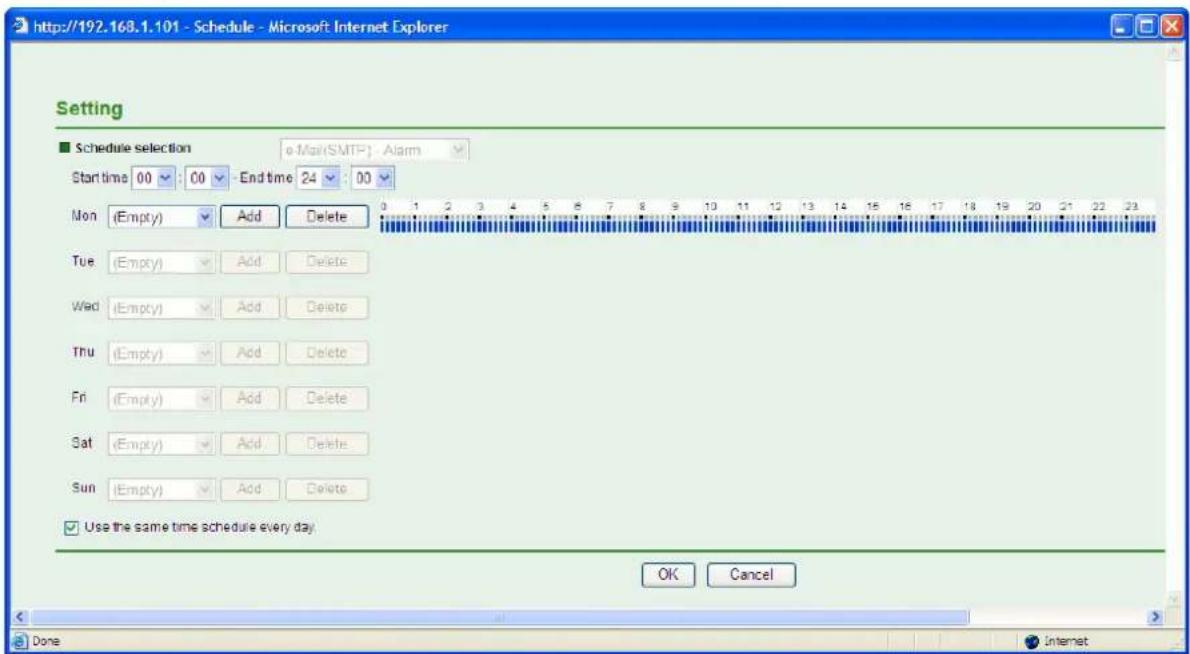
text_image
http://192.168.1.101 - Schedule - Microsoft Internet Explorer Setting Schedule selection e-Mail(SMTP) - Alarm Start time 00 : 00 End time 24 : 00 Mon (Empty) Add Delete Tue (Empty) Add Delete Wed (Empty) Add Delete Thu (Empty) Add Delete Fri (Empty) Add Delete Sat (Empty) Add Delete Sun (Empty) Add Delete Use the same time schedule every day OK Cancel Done Internet7.3 HTTP event
Use this menu to set up for capturing and sending images to an HTTP server. By using HTTP client function, you can send the image file and audio file which has been shot and recorded linked with the built-in motion detection function to HTTP server. HTTP client setting menu is composed of two items, General and Alarm sending.

text_image
Home SETTING +BASIC -Advanced +FTP client +SMTP -HTTP event -General -Alarm sending +Schedule +Motion detection +System Log TP-LINK® The Reliable Choice WELCOME TO CAMERA SETTING PAGE7.3.1 General
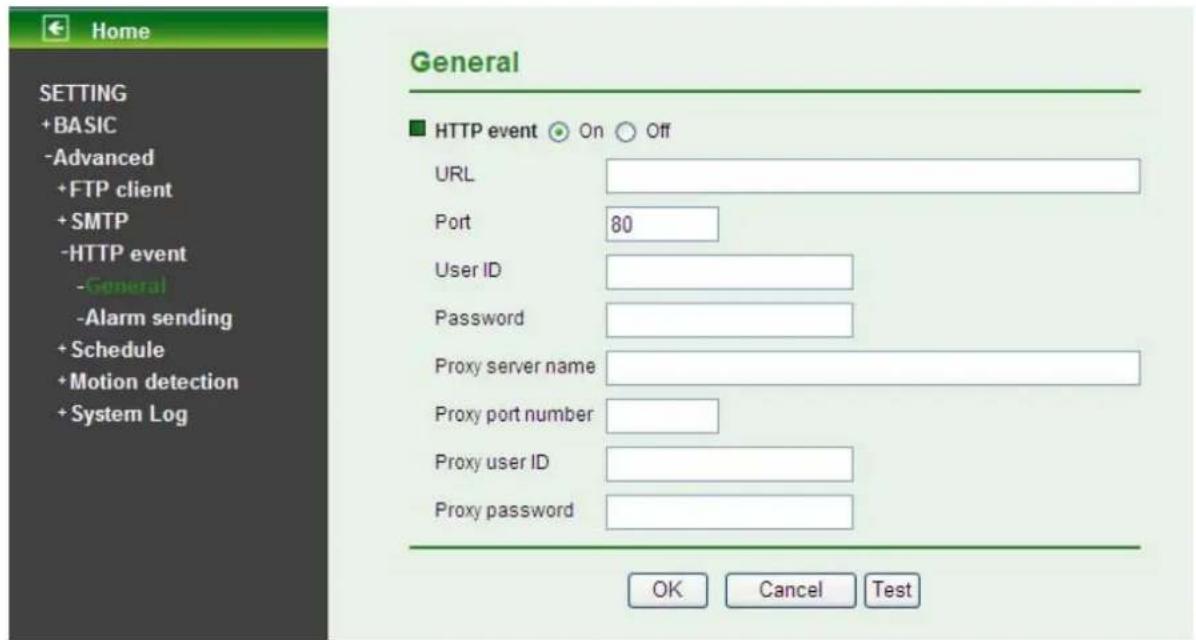
text_image
Home SETTING +BASIC -Advanced +FTP client +SMTP -HTTP event -General -Alarm sending + Schedule + Motion detection + System Log General ■ HTTP event On Off URL Port 80 User ID Password Proxy server name Proxy port number Proxy user ID Proxy password OK Cancel TestHTTP event: Set up the HTTP server URL, port, User ID, Password and Proxy Server settings.
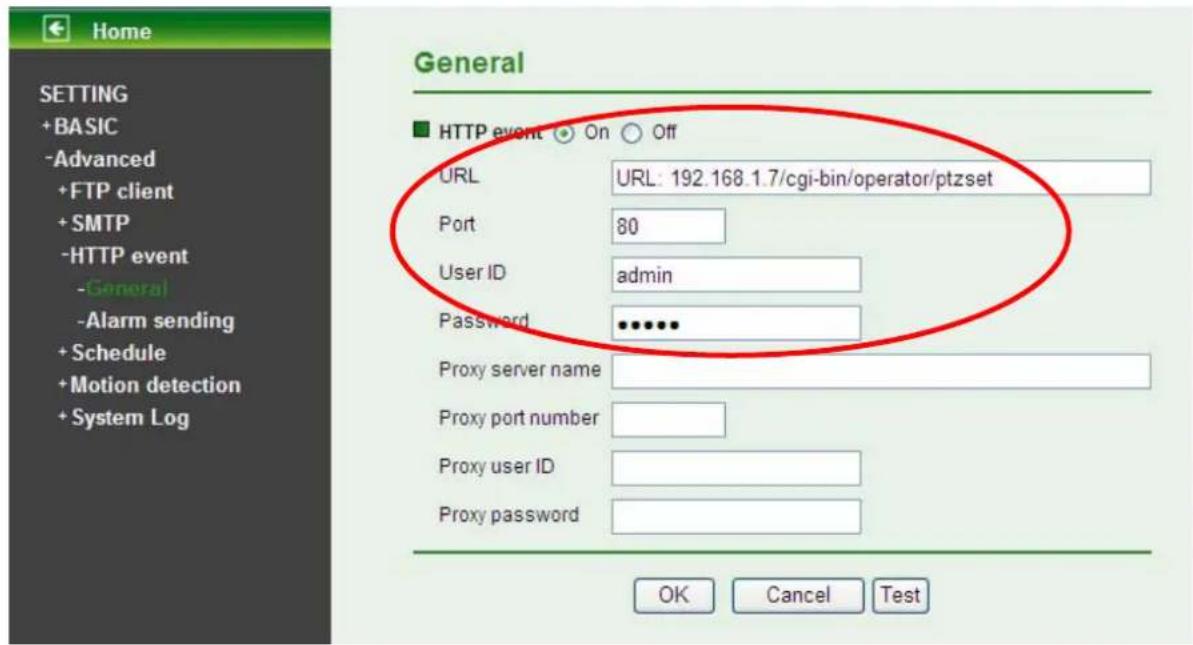
text_image
Home SETTING +BASIC -Advanced +FTP client +SMTP -HTTP event -General -Alarm sending + Schedule + Motion detection + System Log General HTTP event On Off URL URL: 192.168.1.7/cgi-bin/operator/ptzset Port 80 User ID admin Password .......... Proxy server name Proxy port number Proxy user ID Proxy password OK Cancel TestFor example: URL: 192.168.1.7/cgi-bin/operator/ptzset.
Note:
- The setting of URL should be the same as CGI.
- The example above is for reference only. For more details, please refer to SDK in the subdirectory of the IP camera product on our website http://www.tp-link.com.
7.3.2 Alarm sending
Set to send the mail with connection to the alarm detection by the built-in motion detection function. Select On to send the image and audio file to HTTP server linked with the alarm detection.
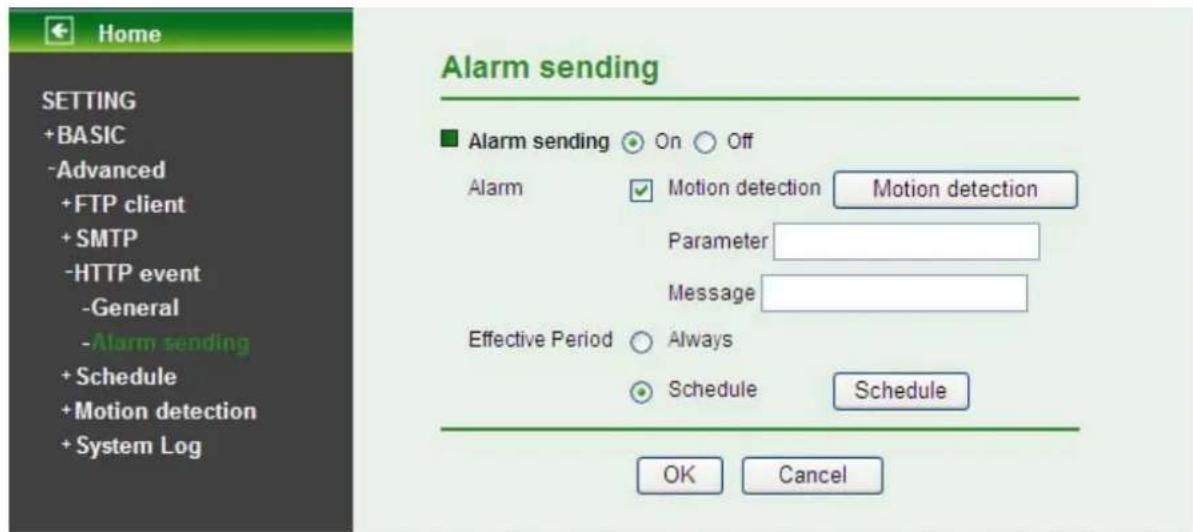
text_image
Home SETTING +BASIC -Advanced +FTP client +SMTP -HTTP event -General -Alarm sending + Schedule + Motion detection + System Log Alarm sending On Off Alarm Motion detection Motion detection Parameter Message Effective Period Always Schedule Schedule OK CancelAlarm sending: Select On to set to send mail with connection to the alarm detection.
> Alarm
- Motion Detection: Click it for using Motion Detection function as a sensor. You can set motion detection function on the motion detection function page.
Motion detection
Setting
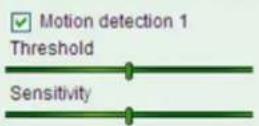
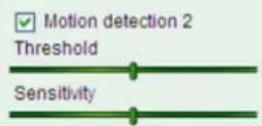
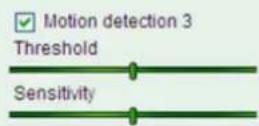
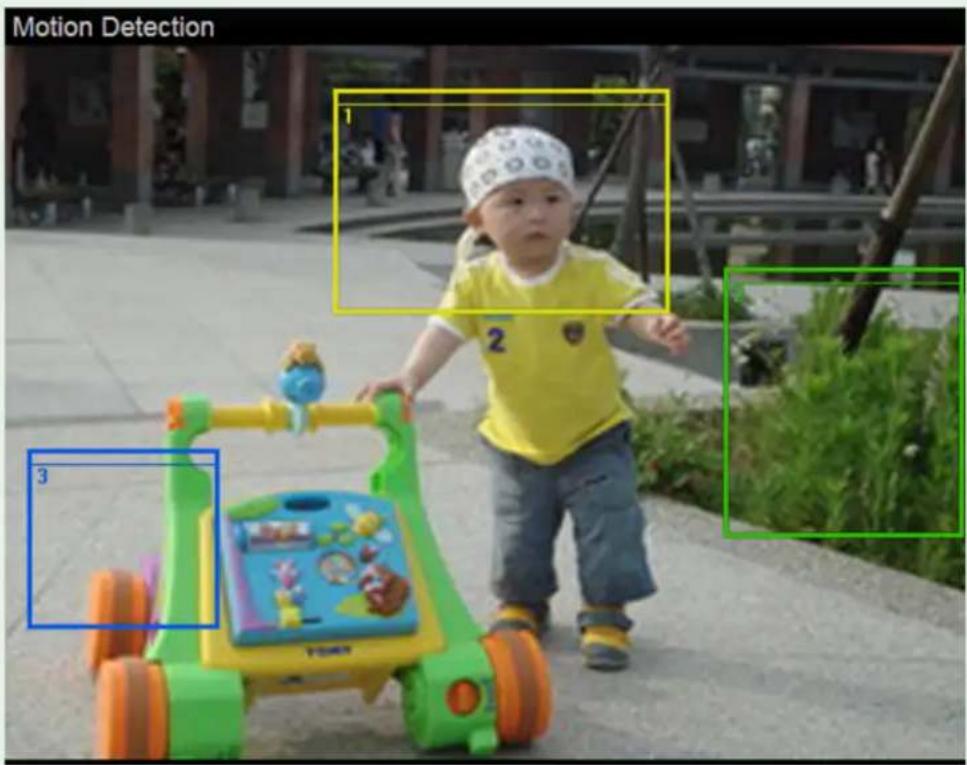
text_image
Motion Detection 1 2 3
Note:
You can set motion detection on motion detection page. (Please go to "Setting → Advanced →Motion detection → Setting") For more details, you can check Section 7.5. Motion Detection works only when the MPEG4 function is On.
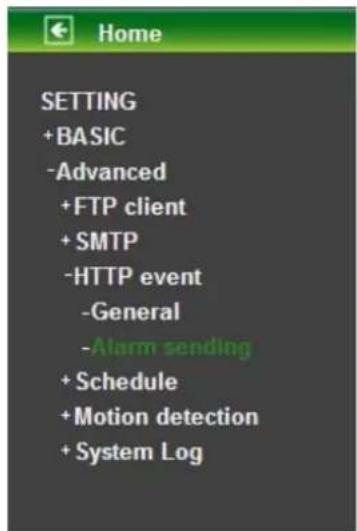
text_image
HOME SETTING + BASIC -Advanced +FTP client +SMTP -HTTP event -General -Alarm sending + Schedule + Motion detection + System Log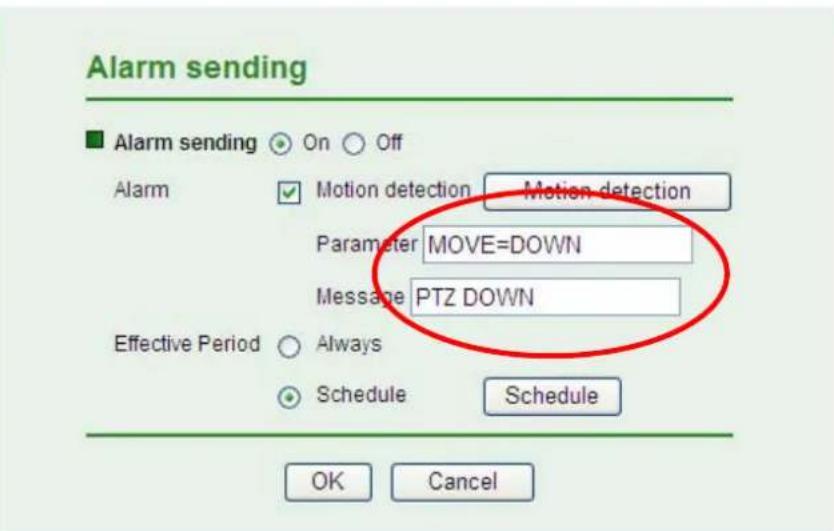
text_image
Alarm sending ■ Alarm sending ○ On ○ Off Alarm ○ Motion detection Motion detection Parameter MOVE=DOWN Message PTZ DOWN Effective Period ○ Always ○ Schedule Schedule OK Cancel- Parameter: the parameter of CGI (defined in Setting → Advanced → HTTP event → General → URL) is from your target device. For example, move=down.
- Message: message will show up in the form of Message = PTZ down. If your target device didn't support the parameter of message, you can't see the message. So you can just take the message as a note. For example: PTZ down.
Effective period: Set the period when the periodical sending is effective.
• Always: The periodical sending is always effective.
- Schedule: You can specify the period when the periodical sending is effective in the Schedule setting in the other section.
Note:
You can set schedule function on Schedule page. (Please go to "Setting → Advanced → Schedule → Setting") For more details, you can check Section 7.4.
Schedule

text_image
http://192.168.1.101 - Schedule - Microsoft Internet Explorer Setting Schedule selection e-Mail(SMTP) - Alarm Start time 00 00 End time 24 00 Mon (Empty) Add Delete 0 1 2 3 4 5 6 7 8 9 10 11 12 13 14 15 16 17 18 19 20 21 22 23 Tue (Empty) Add Delete Wed (Empty) Add Delete Thu (Empty) Add Delete Fri (Empty) Add Delete Sat (Empty) Add Delete Sun (Empty) Add Delete Use the same time schedule every day OK Cancel Done Internet7.4 Schedule
When you click Schedule on the Advanced mode menu, the Schedule setting menu appears. This is the same menu as the setting menu which is displayed when you click Schedule to set Effective period and Schedule in FTP client setting menu, e-Mail (SMTP) setting menu, HTTP Event setting menu and so on.
Example: When setting e-Mail (SMTP) (the alarm sending) in the Schedule setting menu.
text_image
Home SETTING +BASIC -Advanced +FTP client +SMTP +HTTP event - Schedule - Setting +Motion detection + System Log TP-LINK® The Reliable Choice WELCOME TO CAMERA SETTING PAGE7.4.1 Setting

text_image
Setting ■ Schedule selection FTP - Alarm Start time 00 00 End time 24 00 Mon (Empty) Add Delete Tue (Empty) Add Delete Wed (Empty) Add Delete Thu (Empty) Add Delete Fri (Empty) Add Delete Sat (Empty) Add Delete Sun (Empty) Add Delete Use the same time schedule every day. OK CancelSchedule Selection: Select the list box to specify the schedule you want to set.
- FTP -Alarm
- FTP - Periodical
• e-Mail (SMTP) -Alarm
• e-Mail (SMTP) -Periodical - HTTP event -Alarm
Mon (Monday) to Sun (Sunday): The time period on the right of the checked day is the effective period of the schedule.
Start time, End time: Specify the Start time and the End time.
Use the same time schedule every day: When this is checked, the Start time and End time set to Mon (Monday) are applied to all days. In this case, the Start time and End time of the
other days than Mon (Monday) cannot be input.
7.5 Motion Detection
There are three Motion Detection functions as sensors to set for different detecting zones. Each one has Threshold and Sensitivity inputs which you can adjust to specific zone sequentially. Motion Detection function can support FTP, SMTP and HTTP event for capturing and sending images.

text_image
Home SETTING +BASIC -Advanced +FTP client +SMTP +HTTP event +Schedule -Motion detection -Setting +System Log TP-LINK® The Reliable Choice WELCOME TO CAMERA SETTING PAGE7.5.1 Setting
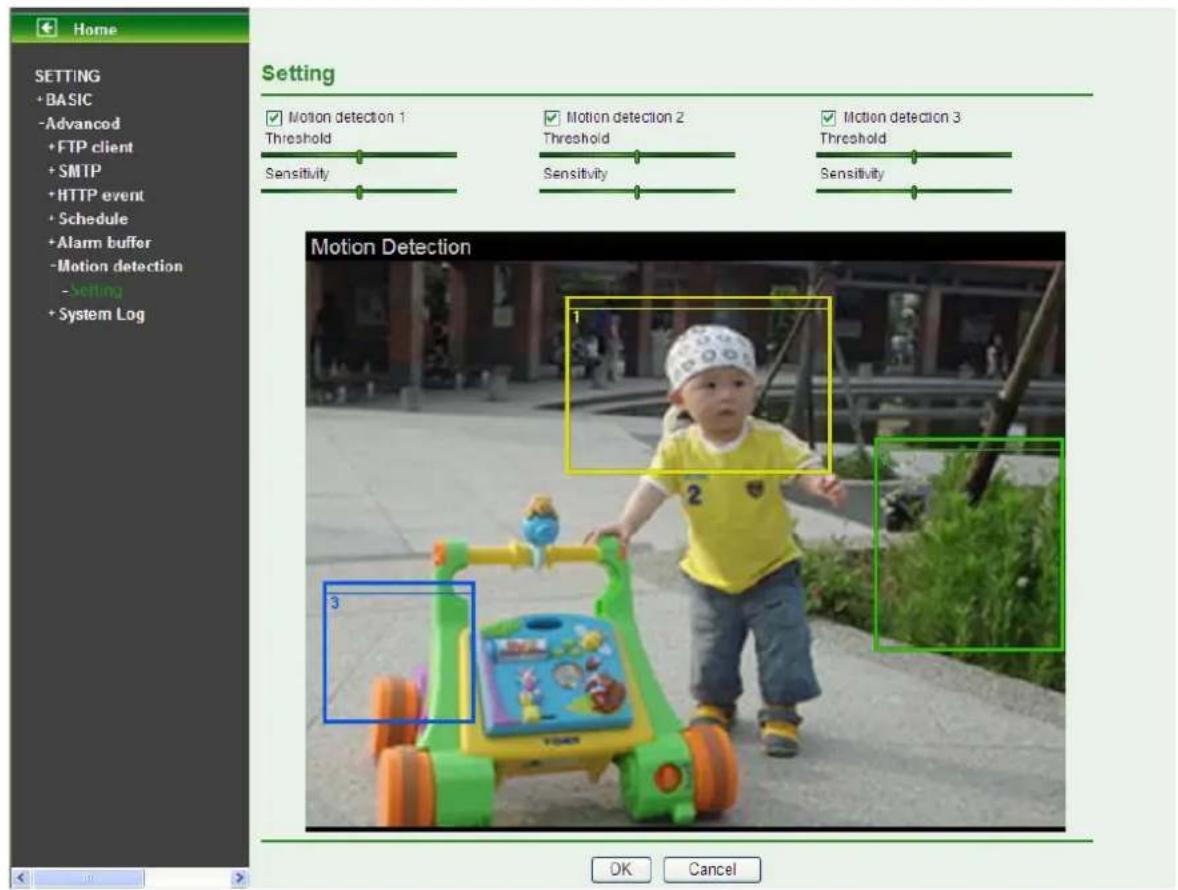
text_image
Home SETTING + BASIC -Advanced + FTP client + SMTP + HTTP event + Schedule + Alarm buffer - Motion detection - Setting + System Log Setting ✓ Motion detection 1 Threshold Sensitivity ✓ Motion detection 2 Threshold Sensitivity ✓ Motion detection 3 Threshold Sensitivity Motion Detection 1 2 3 OK CancelThreshold: It means the extent which the alarm will be triggered. The default value is 50 and the value range is 0\~100. The larger the value, the higher the threshold.
Sensitivity: It means that how often the sensor will scan the image different. The higher sensitivity it is and the more frequently it scans. The default value is 50 and the value range is 0\~100. The larger the value, the higher the sensitivity.
- Motion Detection 1: Click it on for using Motion Detection 1 function as a sensor. You can adjust and move the detecting zone by using mouse.
- Motion Detection 2: Click it on for using Motion Detection 2 function as a sensor. You can adjust and move the detecting zone by using mouse.
- Motion Detection 3: Click it on for using Motion Detection 3 function as a sensor. You can adjust and move the detecting zone by using mouse.
7.6 System Log
The System Log function allows users to review any changes and events happened. The system begins logging automatically after started.
7.6.1 Setting

text_image
Home SETTING +BASIC -Advanced +FTP client +SMTP +HTTP event +Schedule +Motion detection -System Log -Setting Setting ■ Remote Log □ Enable remote log OK Cancel ■ Current Log Jan 1 04:08:24➢ Enable remote log: Enables user to send the log data to a specified log server.
Note:
There is a function called Watchdog which can automatically detect errors and restart the IP camera while mpeg, mjepg, 3gpp, or web cannot work. It will take about 5 minutes from detection to reboot, and it will show up with “connecting” on mainpage during this 5 minutes. If the Watchdog function detects errors, “*** ffmpeg”, “*** mjpeg”, “*** gsm” or “*** boa” will be shown in system log.
In this case, please send the file "backup" to TP-LINK (you can save it from Setting > Basic > System > Initialize > Backup setting data), and also provide the router spec you're using, we will analyze and solve the problem as soon as possible.
E-mail : support@tp-link.com
Appendix
APPENDIX a - FRAME RATE & BIT RATE TABLE
This chapter provides tables that help you to optimize your IP camera with your network environment. Base on your network upload environment to choose the best Image-Quality setting.
For example, if the network environment is ADSL 256Kb(upload) / 2Mb(download), the most fluent Image-Quality needs to set up under 256 Kb situation.
A.1 MPEG4 @ 30fps / kbps
| Quality | 640*480 | 320*240 | 160*120 |
| Excellent 1000 | 300 | 90 | |
| Detailed 400 | 150 | 50 | |
| Good 300 | 100 | 30 | |
| Standard 250 | 70 | 25 | |
| Medium 250 | 55 | 20 |
A.2 MPEG4 / kbps, fps
| Image-Size | Bitrate Setting | Frame-Rate Setting | Current Bitrate | Current Frame-Rate |
| 640*480 | 2048 | 30 | 1800 26 | |
| 640*480 | 2048 | 15 | 2200 16 | |
| 640*480 | 1536 | 30 | 1500 30 | |
| 640*480 | 1536 | 15 | 1700 16 | |
| 640*480 | 1024 | 30 | 1000 30 | |
| 640*480 | 1024 | 15 | 1000 16 | |
| 640*480 | 512 | 30 | 500 30 | |
| 640*480 | 512 | 15 | 600 16 | |
| 320*240 | 1536 | 30 | 1500 30 | |
| 320*240 | 1536 | 15 | 1600 16 | |
| 320*240 | 1024 | 30 | 1000 30 | |
| 320*240 | 1024 | 15 | 1000 16 | |
| 320*240 | 512 | 30 | 550 30 | |
| 320*240 | 512 | 15 | 600 | 16 |
| 160*120 | 1024 | 30 | 950 | 30 |
| 160*120 | 1024 | 15 | 750 | 16 |
| 160*120 | 512 | 30 | 500 | 30 |
| 160*120 | 512 | 15 | 50 | 16 |
| 160*120 | 128 | 30 | 130 | 30 |
| 160*120 | 128 | 15 | 140 | 16 |
A.3 MJPEG @ 15fps / kbps
| Quality | 640*480 | 320*240 | 160*120 |
| Excellent 4000 | 1500 | 600 | |
| Detailed 2400 | 900 | 400 | |
| Good 1600 | 650 | 300 | |
| Standard 1300 | 500 | 240 | |
| Medium 900 | 350 | 170 |
A.4 MJPEG / kbps, fps
| Image-Size | Quality Setting | Frame-Rate Setting | Current Bitrate | Current Frame-Rate |
| 640*480 | Excellent | 15 | 4000 | 13 |
| 640*480 | Excellent | 5 | 1600 | 5 |
| 640*480 | Good | 15 | 1600 | |
| 640*480 | Good | 5 | 650 | |
| 640*480 | Medium | 15 | 900 | |
| 640*480 | Medium | 5 | 360 | |
| 320*240 | Excellent | 15 | 1500 | |
| 320*240 | Excellent | 5 | 550 | |
| 320*240 | Good | 15 | 650 | |
| 320*240 | Good | 5 | 260 |
| 320*240 | Medium | 15 | 350 | 13 | |
| 160*120 | Medium | 5 | 130 | 5 | |
| 160*120 | Excellent | 15 | 600 | 13 | |
| 160*120 | Excellent | 5 | 230 | 5 | |
| 160*120 | Good | 15 | 300 | 13 | |
| 160*120 | Good | 5 | 115 | 5 | |
| 160*120 | Medium | 15 | 170 | 13 | |
| 160*120 | Medium | 5 | 65 | 5 |
APPENDIX b - STORAGE REQUIREMENT TABLE
This chapter provides tables that help you set your recording storage system.
Please refer to the following table to find out the capability for recording into your hard disk.
B.1 MPEG4 Storage Requirement GB / channel / day @ 30fps
| Quality | 640*480 | 320*240 | 160*120 |
| Excellent 10.5 | 3.2 | 0.9 | |
| Detailed 4.2 | 1.6 | 0.5 | |
| Good 3.2 | 1.1 | 0.3 | |
| Standard | 2.6 | 0.7 | 0.3 |
| Medium | 2.6 | 0.6 | 0.2 |
B.2 MPEG4 Storage Requirement GB / channel / day @ 15fps
| Quality | 640*480 | 320*240 | 160*120 |
| Excellent | 5.3 | 1.6 | 0.4 |
| Detailed 2.1 | 0.8 | 0.3 | |
| Good 1.6 | 0.6 | 0.2 | |
| Standard | 1.3 | 0.4 | 0.1 |
| Medium | 1.3 | 0.3 | 0.1 |
B.3 MPEG4 Storage Requirement GB / channel / day
| Image-Size Bitrate Setting Frame-Rate Setting Current Bitrate | |||
| 640*480 | 2048 | 30 | |
| 640*480 | 2048 | 15 | |
| 640*480 | 1536 | 30 | |
| 640*480 | 1536 | 15 | |
| 640*480 | 1024 | 30 | |
| 640*480 | 1024 | 15 | |
| 640*480 | 512 | 30 | |
| 640*480 | 512 | 15 | |
| 320*240 | 1536 | 30 | |
| 320*240 | 1536 | 15 | |
| 320*240 | 1024 | 30 | |
| 320*240 | 1024 | 15 | |
| 320*240 | 512 | 30 | |
| 320*240 | 512 | 15 | |
| 160*120 | 1024 | 30 | |
| 160*120 | 1024 | 15 | |
| 160*120 | 512 | 30 | |
| 160*120 | 512 | 15 | |
| 160*120 | 128 | 30 | |
| 160*120 | 128 | 15 | |
FAQ
Q1. What can I do if I forgot the login name and password?
Press and hold the Reset button on the bottom panel with a pin or paperclip. Please continue holding down the Reset button for approximately 15 seconds. And then IP Camera will reboot. It will require 45 seconds. Both the default username and password are admin.
Q2. Why can't I view the image from the web browser?
First, please make sure that you are using the web browser that supports ActiveX (Internet Explorer) or Java script (Firefox or Safari). If it is, please install the ActiveX and Java script.
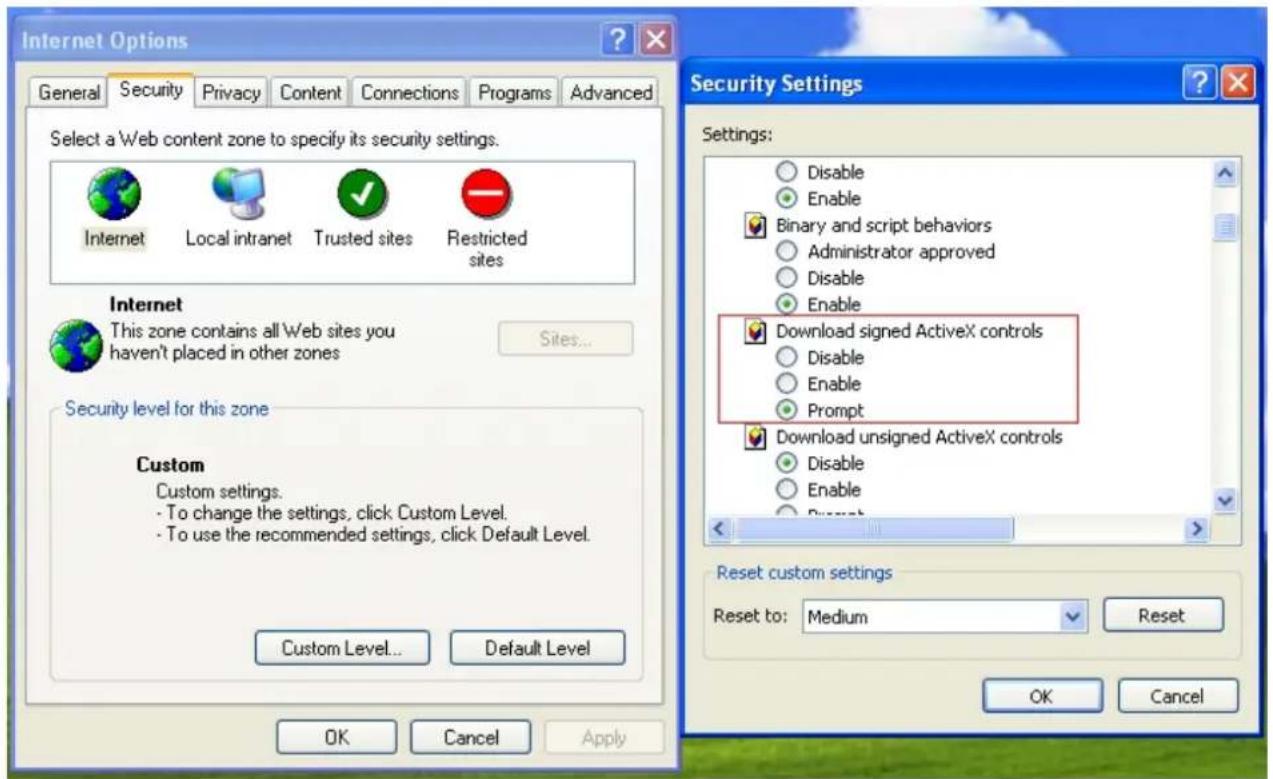
text_image
Internet Options General Security Privacy Content Connections Programs Advanced Select a Web content zone to specify its security settings. Internet Local intranet Trusted sites Restricted sites Internet This zone contains all Web sites you haven't placed in other zones Sites... Security level for this zone Custom Custom settings. - To change the settings, click Custom Level. - To use the recommended settings, click Default Level. Custom Level... Default Level OK Cancel Apply Security Settings Settings: Disable Enable Binary and script behaviors Administrator approved Disable Enable Download signed ActiveX controls Disable Enable Prompt Download unsigned ActiveX controls Disable Enable Reset custom settings Reset to: Medium Reset OK CancelAs to the ActiveX installation, please check your internet option settings to confirm whether you're allowed to install the ActiveX plug-in, which is embedded in the IP camera.
Please click "prompt" in "Download signed ActiveX controls" in the Internet Option → Security Settings.
If you check that box, the ActiveX plug-in program would prompt automatically when you log in the camera's web page, and then please choose to install it.
As to the Java script installation, please visit the official website here:
http://www.java.com/en/download/manual/jsp
Q3.If the image is blurry, what can I do?
Please adjust the IP Camera's focus by rotating the Lens.
Q4. If I forgot the IP address and port of my IP Camera. What should I do?
Please download the Intelligent IP Installer Setup from our web site, or run the CD firstly. This software will search the IP Camera automatically. Double click your IP Camera in this software, and you will view the IP address and port of your IP Camera.
