LaserJet Pro Color CM1415FNW - Printer HP - Free user manual and instructions
Find the device manual for free LaserJet Pro Color CM1415FNW HP in PDF.


User questions about LaserJet Pro Color CM1415FNW HP
0 question about this device. Answer the ones you know or ask your own.
Ask a new question about this device
Download the instructions for your Printer in PDF format for free! Find your manual LaserJet Pro Color CM1415FNW - HP and take your electronic device back in hand. On this page are published all the documents necessary for the use of your device. LaserJet Pro Color CM1415FNW by HP.
USER MANUAL LaserJet Pro Color CM1415FNW HP
natural_image
Illustration of a HP printer with front panel and internal mechanism (no text or symbols visible)
HP LaserJet Pro CM1410 Color MFP Series
User Guide
Copyright and License
© 2010 Copyright Hewlett-Packard Development Company, L.P.
Reproduction, adaptation, or translation without prior written permission is prohibited, except as allowed under the copyright laws.
The information contained herein is subject to change without notice.
The only warranties for HP products and services are set forth in the express warranty statements accompanying such products and services. Nothing herein should be construed as constituting an additional warranty. HP shall not be liable for technical or editorial errors or omissions contained herein.
Edition 1, 9/2010
Part number: CE861-90907
Trademark Credits
Adobe ^® , Acrobat ^® , and PostScript ^® are trademarks of Adobe Systems Incorporated.
Intel® Core™ is a trademark of Intel Corporation in the U.S. and other countries.
Java™ is a US trademark of Sun Microsystems, Inc.
Microsoft®, Windows®, Windows® XP, and Windows Vista® are U.S. registered trademarks of Microsoft Corporation.
UNIX ^® is a registered trademark of The Open Group.
ENERGY STAR and the ENERGY STAR mark are registered U.S. marks.
Conventions used in this guide
TIP: Tips provide helpful hints or shortcuts.
NOTE: Notes provide important information to explain a concept or to complete a task.
△ CAUTION: Cautions indicate procedures that you should follow to avoid losing data or damaging the product.
⚠ WARNING! Warnings alert you to specific procedures that you should follow to avoid personal injury, catastrophic loss of data, or extensive damage to the product.
Table of contents
1 Product basics .... 1
Product comparison 2
Environmental features 3
Accessibility features 4
Product views .... 5
Front view 5
Back view 6
Interface ports 7
Serial number and model number location 8
Control panel layout 9
2 Control panel menus 13
Setup Menu 14
Reports menu 15
Quick Forms menu 16
Fax Setup menu 17
System Setup menu 20
Service menu 23
Network Setup menu 25
Function specific menus 26
Copy Menu 26
Fax Menu 27
Scan Menu 29
USB Flash Drive 29
3 Software for Windows 31
Supported operating systems for Windows 32
Supported printer drivers for Windows 32
Select the correct printer driver for Windows 32
Change print job settings 34
Change printer-driver settings for Windows 35
Change the settings for all print jobs until the software program is closed 35
Change the default settings for all print jobs 35
Change the product configuration settings 35
Remove software for Windows 36
Supported utilities for Windows 37
Other Windows components and utilities 37
Software for other operating systems 37
4 Use the product with Mac 39
Software for Mac 40
Supported operating systems for Mac 40
Supported printer drivers for Mac 40
Install software for Mac operating systems 40
Remove software from Mac operating systems 43
Change printer-driver settings for Mac 43
Software for Mac computers 44
Print with Mac 45
Cancel a print job with Mac 45
Change the paper size and type with Mac 45
Resize documents or print on a custom paper size with Mac 45
Create and use printing presets with Mac 45
Print a cover page with Mac 46
Use watermarks with Mac 46
Print multiple pages on one sheet of paper with Mac 47
Print on both sides of the page (duplex printing) with Mac 47
Set the color options with Mac 47
Use the Services menu with Mac 48
Fax with Mac 49
Scan with Mac 50
5 Connect the product 51
Supported network operating systems 52
Printer sharing disclaimer 52
Connect with USB 53
CD installation 53
Connect to a network 54
Supported network protocols 54
Install the product on a wired network 54
Install the product on a wireless network 55
Configure IP network settings 59
6 Paper and print media 63
Understand paper use 64
Special paper guidelines 64
Change the printer driver to match the paper type and size 66
Supported paper sizes 66
Supported paper types and tray capacity 67
Load the input tray 68
Load the document feeder 71
Configure the tray 72
7 Print tasks 73
Cancel a print job 74
Basic print tasks with Windows 75
Open the printer driver with Windows 75
Get help for any printing option with Windows 75
Change the number of print copies with Windows 76
Save custom print settings for reuse with Windows 76
Improve print quality with Windows 79
Print on both sides (duplex) with Windows 81
Print multiple pages per sheet with Windows 82
Select page orientation with Windows 84
Set color options with Windows 86
Additional print tasks with Windows 87
Print colored text as black (grayscale) with Windows 87
Print on preprinted letterhead or forms with Windows 87
Print on special paper, labels, or transparencies 89
Print the first or last page on different paper with Windows 92
Scale a document to fit page size 94
Add a watermark to a document with Windows 96
Create a booklet with Windows 96
Walk-up USB printing 99
8 Color 101
Adjust color 102
Change the color theme for a print job 102
Change the color options 102
Manual color options 103
Use the HP EasyColor option for Windows 104
Match colors 105
9 Copy 107
Use copy functions 108
One-touch copy 108
Multiple copies 108
Copy a multiple-page original 109
Copy identification cards 110
Cancel a copy job 111
Reduce or enlarge a copy 111
Collate a copy job 112
Make color or black and white copies 113
Copy settings 113
Change copy quality 113
Check the scanner glass for dirt and smudges 114
Adjust the lightness or darkness for copies 115
Define custom copy settings 116
Set the paper size and type for copying on special paper 116
Restore copy default settings 116
Copy photos 117
Copy mixed size originals 118
Copy on both sides manually (duplex) 119
10 Scan 121
Use scan functions 122
Scan methods 122
Cancel a scan 123
Scan settings 124
Scanner resolution and color 124
Scan quality 126
Scan a photo 127
11 Fax 129
Set up fax 130
Install and connect the hardware 130
Configure fax settings 134
Use the HP Fax Setup Wizard 135
Use the phone book 136
Use the control panel to create and edit the fax phone book 136
Import or export Microsoft Outlook contacts into the fax phone book 136
Use phone-book data from other programs 136
Delete phone book entries 136
Use speed dials 137
Manage group-dial entries 138
Set fax settings 139
Send fax settings 139
Receive fax settings 142
Set fax polling 147
Use fax 148
Fax software 148
Cancel a fax 148
Delete faxes from memory 148
Use fax on a DSL, PBX, or ISDN system 149
Use fax on a VoIP service 150
Fax memory 150
Send a fax 150
Receive a fax 156
Solve fax problems 158
Fax troubleshooting checklist 158
Fax error messages 160
Troubleshoot fax codes and trace reports 165
Fax logs and reports 166
Change error correction and fax speed 167
Solve problems sending faxes 168
Solve problems receiving faxes 174
Solve general fax problems 180
Regulatory information and warranties 182
12 Manage and maintain the product 183
Print information pages 184
Use the HP ToolboxFX software 185
View the HP ToolboxFX 185
Status 185
Fax 186
Help 188
System Settings 189
Print Settings 191
Network Settings 191
Use the HP Embedded Web Server 192
Open the HP Embedded Web Server 192
Features 192
Use HP Web Jetadmin software 193
Product security features 193
Assign a system password 193
Economy settings 194
Powersave modes 194
Archive print 194
Manage supplies and accessories 195
Print when a cartridge is at estimated end of life 195
Manage print cartridges 196
Replacement instructions 197
Clean the product 202
Clean the paper path 202
Clean the scanner glass strip and platen 202
Clean the document feeder pickup rollers and separation pad 203
Clean the touch screen 204
Product updates 205
13 Solve problems 207
Self help 208
Problem-solving checklist 209
Step 1: Check that the product power is on .... 209
Step 2: Check the control panel for error messages ...... 209
Step 3: Test print functionality .... 209
Step 4: Test copy functionality .... 210
Step 5: Test the fax sending functionality .... 210
Step 6: Test the fax receiving functionality .... 210
Step 7: Try sending a print job from a computer .... 210
Step 8: Test the walk-up USB printing functionality .... 210
Factors that affect product performance 211
Restore the factory-set defaults 211
Interpret control-panel messages 212
Control panel message types 212
Control panel messages 212
Paper feeds incorrectly or becomes jammed 222
The product does not pick up paper 222
The product picks up multiple sheets of paper 222
Prevent paper jams 222
Clear jams 223
Improve print quality 230
Use the correct paper type setting in the printer driver 230
Adjust color settings in the printer driver 231
Use paper that meets HP specifications 233
Print a cleaning page 233
Calibrate the product to align the colors 233
Check the print cartridges 234
Use the printer driver that best meets your printing needs 236
Improve print quality for copies 237
The product does not print or it prints slowly 238
The product does not print 238
The product prints slowly 239
Solve walk-up USB printing problems 240
The USB Flash Drive menu does not open when you insert the USB accessory ..... 240
The file does not print from the USB storage accessory 240
The file that you want to print is not listed in the USB Flash Drive menu 240
Solve connectivity problems 241
Solve direct-connect problems 241
Solve network problems 241
Solve wireless network problems 243
Wireless connectivity checklist 243
The control panel displays the message: The wireless feature on this product has been turned off .... 244
The product does not print after the wireless configuration completes 244
The product does not print, and the computer has a third-party firewall installed ..... 244
The wireless connection does not work after moving the wireless router or product ..... 244
Cannot connect more computers to the wireless product 245
The wireless product loses communication when connected to a VPN 245
The network does not appear in the wireless networks list 245
The wireless network is not functioning 246
Product software problems 247
Solve common Mac problems 248
The printer driver is not listed in the Print & Fax list 248
The product name does not appear in the product list in the Print & Fax list .... 248
The printer driver does not automatically set up the selected product in the Print & Fax list 248
A print job was not sent to the product that you wanted 248
When connected with a USB cable, the product does not appear in the Print & Fax list after the driver is selected. 249
You are using a generic printer driver when using a USB connection 249
Appendix A Supplies and accessories 251
Order parts, accessories, and supplies 252
Part numbers 252
Print cartridges 252
Cables and interfaces 252
Appendix B Service and support 253
Hewlett-Packard limited warranty statement 254
HP's Premium Protection Warranty: LaserJet print cartridge limited warranty statement 255
Data stored on the print cartridge 256
End User License Agreement 257
OpenSSL 259
Customer support 260
Repack the product 261
Appendix C Product specifications 263
Physical specifications 264
Power consumption, electrical specifications, and acoustic emissions 264
Environmental specifications 264
Appendix D Regulatory information 265
FCC regulations 266
Environmental product stewardship program 266
Protecting the environment 266
Ozone production 266
Power consumption 266
Paper use 267
Plastics 267
HP LaserJet print supplies 267
Return and recycling instructions 267
Paper 268
Material restrictions 268
Disposal of waste equipment by users in private households in the European Union .... 269
Chemical substances 269
Material Safety Data Sheet (MSDS) 269
For more information 269
Declaration of Conformity 270
Declaration of Conformity (wireless models) 272
Safety statements 274
Laser safety 274
Canadian DOC regulations 274
VCCI statement (Japan) 274
Power cord instructions 274
Power cord statement (Japan) 274
EMC statement (Korea) 275
Laser statement for Finland 275
GS statement (Germany) 275
Substances Table (China) 276
Restriction on Hazardous Substances statement (Turkey) 276
Additional statements for telecom (fax) products 277
EU Statement for Telecom Operation 277
New Zealand Telecom Statements 277
Additional FCC statement for telecom products (US) 277
Telephone Consumer Protection Act (US) 278
Industry Canada CS-03 requirements 278
Additional statements for wireless products 280
FCC compliance statement—United States 280
Australia statement 280
Brazil ANATEL statement 280
Canadian statements 280
European Union regulatory notice 280
Notice for use in France 281
Notice for use in Russia 281
Korean statement 281
Taiwan statement 281
1 Product basics
Product comparison
• Environmental features
- Accessibility features
Product views
Product comparison
The product is available in the following configurations.
natural_image
Exterior view of a black and white printer with paper lid (no visible text or symbols)HP LaserJet Pro CM1415fn MFP

natural_image
Exterior view of a black and white printer with paper output (no visible text or symbols)HP LaserJet Pro CM1415fnw MFP
CE861A
• Prints at speeds up to 12 pages per minute (ppm) monochrome and 8 ppm color.
• Supports PCL 6, PCL 5, and HP postscript level 3 emulation printer drivers
- Tray 1 holds up to 150 sheets of paper or up to 10 envelopes.
The output bin holds up to 125 sheets of paper.
• Color touch screen display
• Manual two-sided printing
• Hi-Speed USB 2.0 port
10/100 Base-T network port
USB port for walk-up document printing, viewing and printing photos, and scanning to a USB flash drive
V.34 fax
• Two RJ-11 fax phone line ports
• 128-MB random-access memory (RAM)
35-page document feeder that supports page sizes up to 356 mm (14 in) in length and from 102 to 215 mm (4 to 8.5 in) in width.
- Flatbed scanner supports page sizes up to 297 mm (11.7 in) in length and up to 215 mm (8.5 in) in width.
• Copies in black at up to 12 ppm and in color at up to 8 ppm
• Copy resolution is 300 dots per inch (dpi)
• Scans in color or black with resolution up to 1200 dpi
CE862A
HP LaserJet Pro CM1415fn MFP, plus:
802.11b/g/n embedded wireless networking
Environmental features
| Manual duplex printing Save paper by using the manual duplex printing option. | |
| Print multiple pages per sheet | Save paper by printing two or more pages of a document side-by-side on one sheet of paper.Access this feature through the printer driver. |
| Copies multiple pages per sheet | Save paper by copying two or four pages of an original document side-by-side on one sheet of paper. |
| Recycling Reduce waste by using recycled paper.Recycle print cartridges by using the HP return process. | |
| Energy savings Save energy by initiating PowerSave mode for the product. | |
Accessibility features
The product includes several features that aid users with accessibility issues.
• Online user guide that is compatible with text screen-readers.
- Print cartridges can be installed and removed by using one hand.
- All doors and covers can be opened by using one hand.
Product views
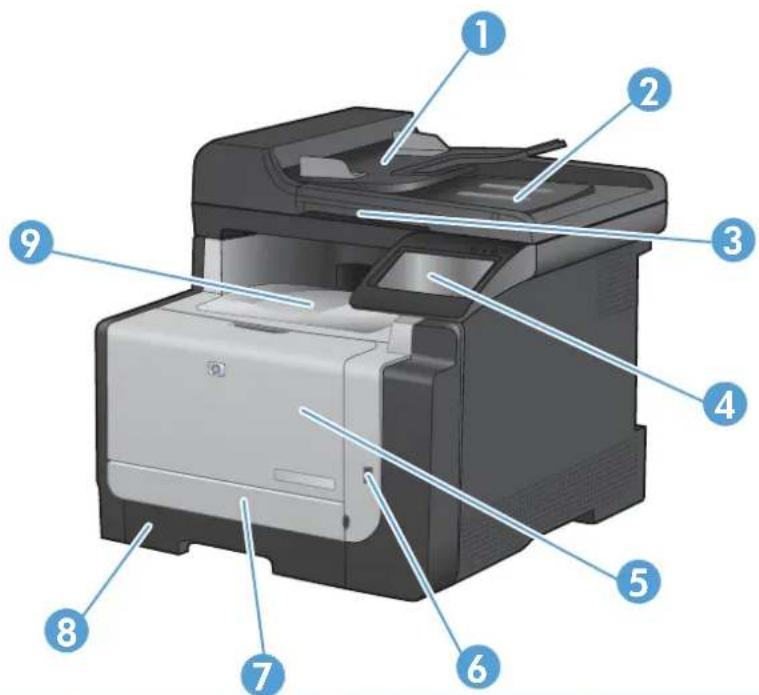
Front view
text_image
Diagram of a HP printer with numbered parts labeled for identification| 1 Document feeder input tray |
| 2 Document feeder output bin |
| 3 Scanner lid |
| 4 Color touch screen control panel |
| 5 Front door (provides access to the print cartridges) |
| 6 USB flash drive port |
| 7 Front jam access door |
| 8 Input tray (Tray 1) |
| 9 Output bin |
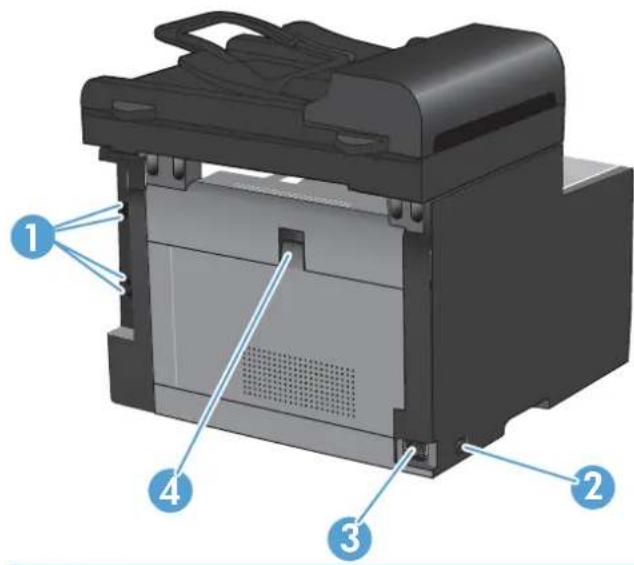
Back view
text_image
Diagram of a printer internal structure with numbered parts labeled 1, 2, 3, and 4| 1 Interface ports |
| 2 On/off switch |
| 3 Power connection |
| 4 Rear jam access door |
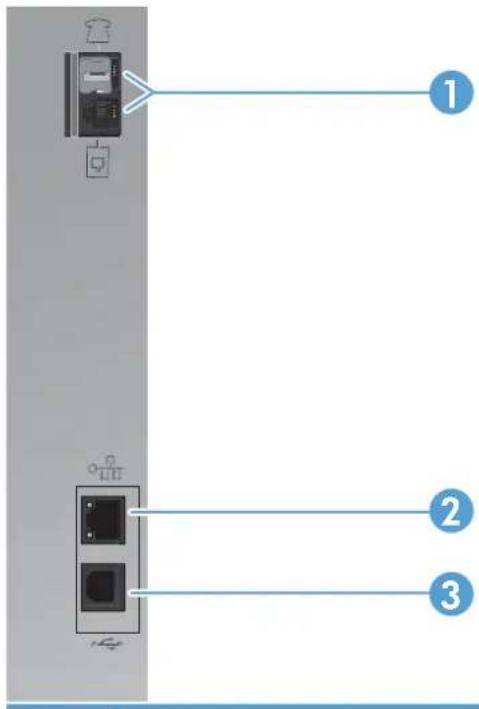
Interface ports
text_image
Diagram showing a device panel with labeled components and three numbered connection points1 Fax ports
2 Network port
3 Hi-Speed USB 2.0 port
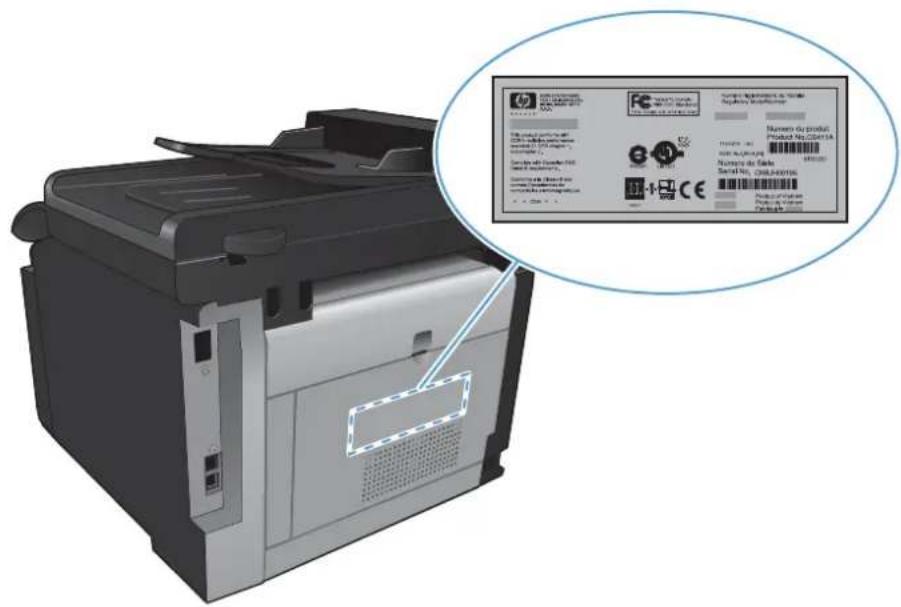
Serial number and model number location
The serial number and product model number label is at the back of the product.
text_image
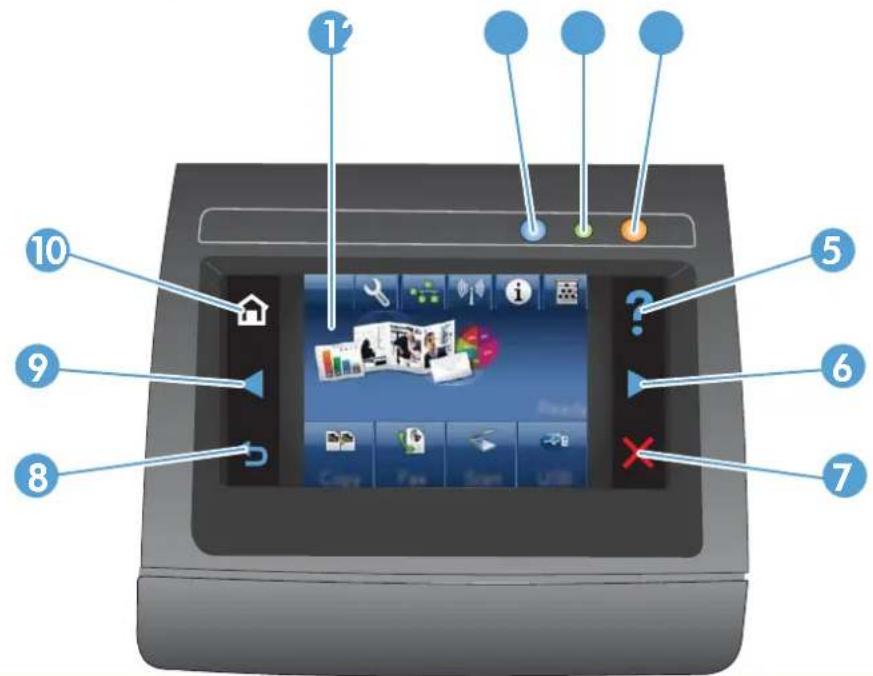
Diagram of a printer with an inset showing a product label and certification marks, including Chinese text and logos.Control panel layout
text_image
Diagram of a retro television device with numbered labels pointing to key components such as home, app icons, and status indicators.| 1 Touch screen display | ||
| 2 | Wireless light: indicates the wireless network is enabled. The light blinks while the product is establishing a connection to the wireless network. When connected, the light stops blinking and stays lit.NOTE: Wireless models only | |
| 3 Ready light: indicates the product is ready | ||
| 4 Attention light: indicates a problem with the product | ||
| 5 Help button and light: provides access to the control panel help system | ||
| 6 |  | Right arrow button and light: moves the cursor to the right or moves the display image to the next screenNOTE: This button illuminates only when the current screen can use this feature. |
| 7 | [28D2] | Cancel button and light: clears settings, cancels the current job or exits the current screen.NOTE: This button illuminates only when the current screen can use this feature. |
8 Back button and light: returns to the previous screen NOTE: This button illuminates only when the current screen can use this feature. NOTE: This button illuminates only when the current screen can use this feature. | ||
| 9 Left arrow button and light: moves the cursor to the left[2K4K]NOTE: This button illuminates only when the current screen can use this feature. | ||
10 Home button and light: provides access to the Home screen | ||
Buttons on the Home screen
The Home screen provides access to the product features, and it indicates the product status.

NOTE: Depending on the product configuration, the features on the Home screen can vary. The layout might also be reversed for some languages.

text_image
Screenshot of a mobile app interface with numbered UI elements and icons for news, communication, and office applications.| 1 Setup button: provides access to the main menus | |
| 2 | Network button: provides access to network settings and information. From the network settings screen, you can print the Network Summary page. |
| 3 | Wireless button: provides access to the Wireless menu and wireless status information.NOTE: Wireless models onlyNOTE: When you are connected to a wireless network, this icon changes to a set of signal strength bars. |
| 4 | Information button: provides product status information. From the status summary screen, you can print the Configuration Report page. |
| 5 | Supplies button: provides information about supplies status. From the supplies summary screen, you can print the Supplies Status page. |
| 6 Product status | |
| 7 | USB button: provides access to the USB flash drive options. |
| 8 Scan button: provides access to the scan feature | |
| 9 Fax button: provides access to the fax feature | |
| 10 Copy button: provides access to the copy feature | |
Control panel help system
The product has a built-in Help system that explains how to use each screen. To open the Help system, touch the Help ? button in the upper-right corner of the screen.
For some screens, the Help opens to a global menu where you can search for specific topics. You can browse through the menu structure by touching the buttons in the menu.
Some Help screens include animations that guide you through procedures, such as clearing jams.
For screens that contain settings for individual jobs, the Help opens to a topic that explains the options for that screen.
If the product alerts you of an error or warning, touch the Help ? button to open a message that describes the problem. The message also contains instructions to help solve the problem.
2 Control panel menus
- Setup Menu
• Function specific menus
Setup Menu
To open this menu, touch the Setup button. The following sub menus are available:
Reports
Quick Forms
Fax Setup
System Setup
Service
Network Setup
Reports menu
Menu item Description
Demo Page Prints a page that demonstrates print quality
Menu Structure Prints a control-panel menu layout map.
Configuration Report Prints a list of the product settings
Supplies Status Prints the print-cartridge status. Includes the following information:
• Estimated percentage of cartridge life remaining
• Approximate pages remaining
• Part numbers for HP print cartridges
• Number of pages printed
• Information about ordering new HP print cartridges and recycling used HP print cartridges
Network Summary Displays status for:
• Network hardware configuration
- Enabled features
TCP/IP and SNMP information
Network statistics
• Wireless network configuration (wireless models only)
Usage Page Displays the number of pages printed, faxed, copied, and scanned by the product
PCL Font List Prints a list of all installed PCL 5 fonts
PS Font List Prints a list of all installed PS fonts
PCL6 Font List Prints a list of all installed PCL 6 fonts
Color Usage Log Prints information about the color supply usage
Service Page Prints the service page
Diagnostics Page Prints diagnostic information about calibration and color quality
Print Quality Page Prints a page that helps solve problems with print quality
Quick Forms menu
| Menu item Sub-menu item Description | ||
| Notebook Paper Narrow Rule | Prints pages that have preprinted lines | |
| Wide Rule | ||
| Child Rule | ||
| Graph Paper 1/8 inch | Prints pages that have preprinted graph lines | |
| 5 mm | ||
| Checklist 1-Column | Prints pages that have preprinted lines with check boxes | |
| 2-Column | ||
| Music Paper Portrait | Prints pages that have preprinted lines for writing music | |
| Landscape | ||
Fax Setup menu
In the following table, items that have an asterisk (*) indicate the factory default setting.
| Menu item | Sub-menu item | Sub-menu item | Description |
| Fax Set-Up Utility | This is a tool for configuring the fax settings. Follow the on-screen prompts and select the appropriate response for each question. | ||
| Basic Setup Time/Date (Settings for time format, current time, date format, and current date.) | Sets the time and date setting for the product. | ||
| Fax Header Enter your fax | number.Enter company name. | Sets the identifying information that is sent to the receiving product. | |
| Answer Mode Automatic* | ManualTAMFax/Tel | Sets the type of answer mode. The following options are available:Automatic:The product automatically answers an incoming call on the configured number of rings.Manual:The user must press the Start Fax button or use an extension phone to make the product answer the incoming call.TAM:A telephone answering machine (TAM) is attached to the Aux phone port of the product. The product will not pick up any incoming call, but only listen for fax tones after the answering machine has picked up the call.Fax/Tel:The product must automatically pick up the call and determine if the call is a voice or fax call. If the call is a fax call, the product handles the call as usual. If the call is a voice call, an audible synthesized ring is generated to alert the user of an incoming voice call. | |
| Rings to Answer | Sets the number of rings that must occur before the fax modem answers. The default setting is 5. | ||
| Distinctive Ring All Rings* | SingleDoubleTripleDouble and Triple | If you have distinctive ring phone service, use this item to configure how the product responds to incoming calls.All Rings:The product answers any calls that come through the telephone line.Single:The product answers any calls that produce a single-ring pattern.Double:The product answers any calls that produce a double-ring pattern.Triple:The product answers any calls that produce a triple-ring pattern.Double and Triple:The product answers any calls that produce a double-ring or triple-ring pattern. | |
| Dial Prefix On | Off* | Specifies a prefix number that must be dialed when sending faxes from the product. If you turn this feature on, the product prompts you to enter the number and then it automatically includes that number every time you send a fax. | |
| Advanced Setup Fax Resolution Standard | Fine* | Sets the resolution for sent documents. Higher resolution images have more dots per inch (dpi), so they show more detail. Lower resolution images have fewer dots per inch and show less detail, but the file size is smaller and the fax takes less time to transmit. | |
| Superfine | |||
| Photo | |||
| Lighter/Darker Sets the darkness of outgoing faxes. | |||
| Fit to Page On* | Off | Shrinks incoming faxes that are larger than the paper size set for the tray. | |
| Glass Size Letter | A4 | Sets the default paper size for documents being scanned from the flatbed scanner. | |
| Dialing Mode Tone* | Pulse | Sets whether the product should use tone or pulse dialing. | |
| Redial if Busy On* | Off | Sets whether the product should attempt to redial if the line is busy. | |
| Redial if No Answer On | Off* | Sets whether the product should attempt to redial if the recipient fax number does not answer. | |
| Redial if Comm. Error | On* | Sets whether the product should attempt to redial the recipient fax number if a communication error occurs. | |
| Off | |||
| Detect Dial Tone On | Off* | Sets whether the product should check for a dial tone before sending a fax. | |
| Billing Codes On | Off* | Enables the use of billing codes when set to On. A prompt appears where you can enter the billing code for an outgoing fax. | |
| Extension Phone | On* | Off | When this feature is enabled, you can press the 1-2-3 buttons on the extension phone to cause the product to answer an incoming fax call. |
| Stamp Faxes | On | Off* | Sets the product to print the date, time, sender's phone number, and page number on each page of incoming faxes. |
| Private Receive On | Off* | Setting Private Receive to On requires you to set a product password. After setting the password, the following options are set:·Private Receive is turned on.·All old faxes are deleted from memory.·Fax forwarding is set to Off and is not allowed to be changed.·All incoming faxes are stored in memory. | |
| Confirm Fax Number | On Off* | Confirm a fax number by entering it a second time. | |
| Allow Fax Reprint On* | Off | Sets whether incoming faxes are stored in memory for reprinting later. | |
| Fax/Tel Ring Time 20 | 30 | Sets the time, in seconds, after which the product should stop sounding the Fax/Tel audible ring to notify the user of an incoming voice call. | |
| 40 | |||
| 70 | |||
| Fax Speed Fast(V.34)* | Medium(V.17) | Sets the allowed fax communication speed. | |
| Slow(V.29) | |||
System Setup menu
In the following table, items that have an asterisk (*) indicate the factory default setting.
| Menu item | Sub-menu item | Sub-menu item | Description |
| Language (List of available control-panel display languages.) | Sets the language in which the control panel displays messages and product reports. | ||
| Paper Setup Default Paper Size Letter | A4Legal | Sets the size for printing internal reports, faxes, or any print job that does not specify a size. | |
| Default Paper Type Lists available | paper types. | Sets the type for printing internal reports, faxes, or any print job that does not specify a type. | |
| Tray 1 Paper Type | Paper Size | Configures the size and type for the tray. | |
| Paper Out Action Wait forever* | CancelOverride | Determines how the product reacts when a print job requires a paper size or type that is unavailable or when the tray is empty.Wait forever: The product waits until you load the correct paper.Override: Print on a different size paper after a specified delay.Cancel: Automatically cancel the print job after a specified delay.If you select either theOverrideor Cancelitem, the control panel prompts you for the number of seconds to delay. | |
| Print Quality Color Calibration Calibrate Now | Power-On Calibration | Performs a full calibration.Calibrate Now: Performs an immediate calibration.Power-On Calibration: Specify the length of time the product should wait after you turn it on before it calibrates. | |
| Volume Settings Alarm Volume | Set the volume levels for the product. The following options are available for each volume setting: | ||
| Ring Volume | Off | ||
| Key-Press Volume | Soft | ||
| Phone Line Volume | Medium* | ||
| Loud | |||
| PowerSave Time Sleep Delay Off | Specifies the amount of idle time before the product enters sleep mode. | ||
| 1 Minute | |||
| 15 Minutes* | |||
| 30 Minutes | |||
| 1 Hour | |||
| 2 Hours | |||
| Time/Date (Settings for time format, current time, date format, and current date.) | Sets the time and date setting for the product. | ||
| Product Security OnOff | Sest the product-security feature. If you select theOnsetting, you must set a password. | ||
| At Very Low Black Cartridge Stop | PromptContinue* | Sets how the product behaves when the black print cartridge reaches the very low threshold.Stop: The product stops printing until you replace the print cartridge.Prompt: The product stops printing and prompts you to replace the print cartridge. You can acknowledge the prompt and continue printing.Continue: The product alerts you that the print cartridge is very low, but it continues printing. | |
| Color Cartridges Stop | PromptContinuePrint Black* | Sets how the product behaves when one of the color print cartridges reaches the very low threshold.Stop: The product stops printing until you replace the print cartridge.Prompt: The product stops printing and prompts you to replace the print cartridge. You can acknowledge the prompt and continue printing.Continue: The product alerts you that the print cartridge is very low, but it continues printing.Print Black: When a color print cartridge becomes very low, the product prints in black only to prevent fax interruptions. To configure the product to print in color and use the remaining toner in the print cartridge past very low, follow these steps:1. On the product control panel, touch the Setup button, and then touch theSystem Setupbutton.2. Touch theAt Very Lowbutton, and then touch theColor Cartridgesbutton. Touch theContinuebutton.When you choose to replace the very low print cartridge, color printing resumes automatically. | |
| User-Defined Low Black | Type the percentage of estimated life remaining at which the product alerts you that the print cartridge is low. | ||
| Cyan | |||
| Magenta | |||
| Yellow | |||
| USB Flash Drive On | Enables or disables the USB flash drive. | ||
| Off | |||
| Color Copy On | Enables or disables color copying. | ||
| Off | |||
| Courier Font Regular | Sets Courier font values. | ||
| Dark | |||
Service menu
In the following table, items that have an asterisk (*) indicate the factory default setting.
| Menu item | Sub-menu item | Sub-menu item | Description |
| Fax Service | Clear Saved Faxes | Clears all faxes in memory. | |
| Run Fax Test | Performs a fax test to verify that | the phone cord is plugged in the correct outlet and that there is a signal on the phone line. A fax test report is printed indicating the results. | |
| Print T.30 Trace Now | Never*If ErrorAt End of Call | Prints or schedules a report that is used to troubleshoot fax transmission issues. | |
| Error Correction On* | Off | The error correction mode allows the sending device to re-transmit data if it detects an error signal. | |
| Fax Service Log | The fax service log prints out | the last 40 entries in the fax log. | |
| Cleaning Page | Cleans the product when | specks or other marks appear on printed output. The cleaning process removes dust and excess toner from the paper path.When selected, the product prompts you to load plain Letter or A4 paper in Tray 1. Touch the OK button to begin the cleaning process. Wait until the process completes. Discard the page that prints. | |
| USB Speed High*Full | Sets the USB speed for the | USB connection to the computer. For the product to actually operate at high speed, it must have high speed enabled and be connected to an EHCI host controller that is also operating at high speed. This menu item also does not reflect the current operating speed of the product. | |
| Less Paper Curl On | When printed pages are | consistently curled, this option sets the product to a mode that reduces curl. | |
| Archive Print On | Off* | When printing pages that will | be stored for a long time, this option sets the product to a mode that reduces toner smearing and dusting. |
| Firmware Datecode | Displays the current firmware | datecode | |
| Restore Defaults | Sets all settings to the factory | default values | |
Network Setup menu
In the following table, items that have an asterisk (*) indicate the factory default setting.
| Menu item Sub-menu item Description | ||
| Wireless Menu | Wireless Setup Wizard | Guides you through the steps to set up the product on a wireless network |
| Wi-Fi Protected Setup | If your wireless router supports this feature, use this method to set up the product on a wireless network. This is the simplest method. | |
| Run Network Test Tests the wireless network and prints a report with the results. | ||
| Turn Wireless On/Off Enables or disables the wireless network feature. | ||
| TCP/IP Config Automatic* | Manual | Automatic: The product automatically configures all the TCP/IP settings via DHCP, BootP or AutoIP.Manual: You can manually configure the IP address, subnet mask, and default gateway. The control panel prompts you to specify values for each address section. As each address is completed, the product prompts for address confirmation before moving to the next one. After all three addresses are set, the network reinitializes. |
| Auto Crossover On* | Off | Enables or disables the use of a standard 10/100 network cable when the product is directly connected to a cocomputer. |
| Network Services IPv4 | IPv6 | Enable or disable the IPv4 and IPv6 protocols. By default, each protocol is enabled. |
| Link Speed Automatic* | Sets the link speed manually if needed. | |
| 10T Full | After setting the link speed, the product automatically restarts. | |
| 10T Half | ||
| 100TX Full | ||
| 100TX Half | ||
| Restore Defaults Resets all network configurations to their factory defaults. | ||
Function specific menus
The product features function-specific menus for copying, faxing, scanning, and using a USB flash drive. To open these menus, touch the button for that function on the control panel.
Copy Menu
To open this menu, touch the Copy button, and then touch the Settings... button.

NOTE: Settings that you change with this menu expire 2 minutes after the last copy completes.
| Menu item | Sub-menu item | Sub-menu item | Description |
| ID Copy | Copies both sides of | ||
| NOTE: This item is available from the main Copy screen. You do not need to touch the Settings... button to access it. | identification cards, or other small-size documents, onto the same side of one sheet of paper. | ||
| Number of Copies | (1–99) | Specifies the number of copies | |
| Reduce/Enlarge Original=100% | Specifies the size of the copy. | ||
| Legal to Letter=78% | |||
| Legal to A4=83% | |||
| A4 to Letter=94% | |||
| Letter to A4=97% | |||
| Full Page=91% | |||
| Fit to Page | |||
| 2 Pages per Sheet | |||
| 4 Pages per Sheet | |||
| Custom: 25 to 400% | |||
| Lighter/Darker Specifies the contrast of the | copy. | ||
| Optimize Describe Original Auto Select | Specifies the type of content in the original document, so the copy is the best match for the original. | ||
| Mixed | |||
| Text | |||
| Picture | |||
| Paper Paper Size | Specifies the paper size and type for copies. | ||
| Paper Type | |||
| Multi-Page Copy Off | When this feature is on, the product prompts you to load another page onto the scanner glass or to indicate that the job is complete. | ||
| On | |||
| Collation On | Specifies whether to collate | copy jobs | |
| Off | |||
| Draft Mode Off | Specifies whether to use | draft-quality printing for copies | |
| On | |||
| Image Adjustment Lightness | Adjusts the image quality | settings for copies | |
| Contrast | |||
| Sharpen | |||
| Background Removal | |||
| Color Balance | |||
| Grayness | |||
| Set as New Defaults | Saves any changes you have | made to this menu as the new defaults | |
| Restore Defaults | Restores | the for this menu | |
Fax Menu
To open this menu, touch the Fax button, and then touch the Fax Menu button.
| Menu item | Sub-menu item | Sub-menu item | Description |
| Fax Reports Fax Confirmation On Every Fax | On Send Fax Only | Sets whether the product prints a confirmation report after a successful fax job. | |
| On Receive Fax Only | |||
| Never* | |||
| Include First Page | On* | Off | Sets whether the product includes a thumbnail image of the first page of the fax on the report. |
| Fax Error Report | On Every Error* | Sets whether the product prints a report after a failed fax job. | |
| On Send Error | |||
| On Receive Error | |||
| Never | |||
| Print Last Call Report | Prints a detailed report of the last fax operation, either sent or received. | ||
| Fax Activity Log Print Log Now | Auto Log Print | Print Log Now: Prints a list of the faxes that have been sent from or received by this product. | |
| Auto Log Print: Automatically prints a report after every fax job. | |||
| Print Phone Book | Prints a list of the speed dials | that have been set up for this product. | |
| Print Junk Fax list | Prints a list of phone numbers | that are blocked from sending faxes to this product. | |
| Print Billing Report | Prints a list of billing codes that have been used for outgoing faxes. This report shows how many sent faxes were billed to each code. This menu item appears only when the billing codes feature is turned on. | ||
| Print All fax Reports | Prints all fax-related reports. | ||
| Send Options | Send Fax Later | Allows a fax to be sent at a later time and date. | |
| Broadcast Fax | Sends a fax to multiple | recipients. | |
| Fax Job Status | Displays pending fax jobs, | and allows you to cancel pending fax jobs. | |
| Fax Resolution Standard | FineSuperfinePhoto | Sets the resolution for sent documents. Higher resolution images have more dots per inch (dpi), so they show more detail. Lower resolution images have fewer dots per inch and show less detail, but the file size is smaller. | |
| Receive Options | Print Private Faxes | Prints stored faxes when the private-receive feature is on. This menu item appears only when the private-receive feature is turned on. The product prompts you for the system password. | |
| Block Junk Faxes | Add Number | Delete NumberDelete All NumbersPrint Junk Fax list | Modifies the junk fax list. The junk fax list can contain up to 30 numbers. When the product receives a call from one of the junk fax numbers, it deletes the incoming fax. It also logs the junk fax in the activity log along with job-accounting information. |
| Reprint Faxes | Prints the received faxes | stored in available memory.This item is available only if you have turned on the Allow Fax Reprint feature in the Fax Setup menu. | |
| Forward Fax On | Off* | Sets product to send all received faxes to another fax machine. | |
| Polling Receive | Allows the product to call | another fax machine that has polling send enabled. | |
| Phone Book Setup | Individual Setup | Edits the fax phone book speed dials and group-dial entries. The product supports up to 120 phone book entries, which can be either individual or group entries. | |
| Group Setup | |||
| Delete Entry | Deletes a specific phone book | entry. | |
| Delete All Entries | Deletes all entries in the | phone book | |
| Print Report Now | Prints a list of all the individual | and group dial entries in the phone book. | |
| Change Defaults | Opens the Fax Setup menu. | ||
Scan Menu
| Menu item | Description |
| Scan to USB Drive | Scans a document and stores it as a .PDF file or .JPEG image on the USB flash drive. |
USB Flash Drive
| Menu item | Description |
| Print Documents | Prints documents stored on the USB drive. Use the arrow buttons to scroll through the documents. Touch the names of documents that you want to print.Touch the summary screen to change settings such as the number of copies, the paper size, or the paper type.Touch the Print button when you are ready to print the documents. |
Menu item Description
| View and Print Photos Previews photos on the USB drive. Use the arrow buttons to scroll through the photos. Touch the preview image for each photo that you want to print. You can adjust the settings, and you can save the changes as the new default settings. When you are ready to print the photos, touch the Print button. | |
| Scan to USB Drive Scans a document and stores it as a .PDF file or .JPEG image on the USB flash drive. |
3 Software for Windows
• Supported operating systems for Windows
• Supported printer drivers for Windows
- Select the correct printer driver for Windows
• Change print job settings
- Change printer-driver settings for Windows
- Remove software for Windows
• Supported utilities for Windows
• Software for other operating systems
Supported operating systems for Windows
The product supports the following Windows operating systems:
Recommended software installation
• Windows XP (32-bit, Service Pack 2)
• Windows Vista (32-bit and 64-bit)
• Windows 7 (32-bit and 64-bit)
Print and scan drivers only
• Windows 2003 Server (32-bit, Service Pack 3)
Windows 2008 Server
Supported printer drivers for Windows
HP PCL 6 (this is the default printer driver)
HP Universal Print Driver for Windows Postscript
HP Universal Print Driver for PCL 5
The printer drivers include online Help that has instructions for common printing tasks and also describes the buttons, checkboxes, and drop-down lists that are in the printer driver.

NOTE: For more information about the UPD, see www.hp.com/go/upd.
Select the correct printer driver for Windows
Printer drivers provide access to the product features and allow the computer to communicate with the product (using a printer language). Check the installation notes and readme files on the product CD for additional software and languages.
HP PCL 6 driver description
• Installs from the Add Printer wizard
• Provided as the default driver
• Recommended for printing in all supported Windows environments
- Provides the overall best speed, print quality, and product-feature support for most users
- Developed to align with the Windows Graphic Device Interface (GDI) for the best speed in Windows environments
- Might not be fully compatible with third-party and custom software programs that are based on PCL 5
HP UPD PS driver description
• Available for download from the Web at www.hp.com/support/CM1410series
- Recommended for printing with Adobe® software programs or with other highly graphics-intensive software programs
- Provides support for printing from postscript emulation needs, or for postscript flash font support
HP UPD PCL 5 driver description
Available for download from the Web at www.hp.com/support/CM1410series
• Compatible with previous PCL versions and older HP LaserJet products
The best choice for printing from third-party or custom software programs
- Designed for use in corporate Windows environments to provide a single driver for use with multiple printer models
• Preferred when printing to multiple printer models from a mobile Windows computer
Change print job settings
| Tool for changing the settings | Method for changing the settings | Duration of changes | Hierarchy of changes |
| Software program settings On the | File menu in the software program, click Page Setup or a similar command. | These settings are in effect for the current print job only. | Settings changed here override settings changed anywhere else. |
| Printer Properties in the software program | The steps vary for each software program. This procedure is most common.1. On the File menu in the software program, click Print.2. Select the product, and then click Properties or Preferences.3. Change the settings on any of the tabs. | These settings are in effect for the current session of the software program. | Settings changed here override default printer driver settings and default product settings. |
| Default printer driver settings | 1. Open the list of printers on your computer, and select this product.NOTE: This step varies for each operating system.2. Click Printer, and then click Printing Preferences.3. Change the settings on any of the tabs. | These settings remain in effect until you change them again.NOTE: This method changes the default settings for the printer driver for all software programs. | You can override these settings by changing settings in the software program. |
| Default product settings Change product settings on the control panel, or in the product management software that came with your product. | These settings remain in effect until you change them again. | You can override these settings by making changes with any other tool. | |
Change printer-driver settings for Windows
Change the settings for all print jobs until the software program is closed
- On the File menu in the software program, click Print.
- Select the driver, and then click Properties or Preferences.
The steps can vary; this procedure is most common.
Change the default settings for all print jobs
- Windows XP, Windows Server 2003, and Windows Server 2008 (using the default Start menu view): Click Start, and then click Printers and Faxes.
Windows XP, Windows Server 2003, and Windows Server 2008 (using the Classic Start menu view): Click Start, click Settings, and then click Printers.
Windows Vista: Click Start, click Control Panel, and then in the category for Hardware and Sound click Printer.
Windows 7: Click Start, and then click Devices and Printers.
- Right-click the driver icon, and then select Printing Preferences.
Change the product configuration settings
- Windows XP, Windows Server 2003, and Windows Server 2008 (using the default Start menu view): Click Start, and then click Printers and Faxes.
Windows XP, Windows Server 2003, and Windows Server 2008 (using the Classic Start menu view): Click Start, click Settings, and then click Printers.
Windows Vista: Click Start, click Control Panel, and then in the category for Hardware and Sound click Printer.
Windows 7: Click Start, and then click Devices and Printers.
-
Right-click the driver icon, and then select Properties or Printer properties.
-
Click the Device Settings tab.
Remove software for Windows
Windows XP
- Click Start, and then click Programs.
- Click HP, and then click the product name.
- Click Uninstall, and then follow the onscreen instructions to remove the software.
Windows Vista and Windows 7
- Click Start, and then click All Programs.
- Click HP, and then click the product name.
- Click Uninstall, and then follow the onscreen instructions to remove the software.
Supported utilities for Windows
HP Web Jetadmin
HP Embedded Web Server
HP ToolboxFX
Other Windows components and utilities
- Software installer — automates the printing system installation
• Online Web registration
HP LaserJet Scan
PC Fax Send
Software for other operating systems
| OS Software | |
| UNIX | For HP-UX and Solaris networks, go towww.hp.com/support/net_printingto download the HP Jetdirect printer installer for UNIX. |
| Linux | For information, go towww.hp.com/go/linuxprinting. |
4 Use the product with Mac
- Software for Mac
- Print with Mac
Fax with Mac - Scan with Mac
Software for Mac
Supported operating systems for Mac
The product supports the following Mac operating systems:
• Mac OS X 10.5, 10.6, and later
NOTE: For Mac OS X 10.5 and later, PPC and Intel® Core™ Processor Macs are supported. For Mac OS X 10.6, Intel Core Processor Macs are supported.
Supported printer drivers for Mac
The HP LaserJet software installer provides PostScript® Printer Description (PPD) files, and Printer Dialog Extensions (PDEs) for use with Mac OS X computers. The HP printer PPD and PDE files, in combination with the built-in Apple PostScript printer drivers, provide full printing functionality and access to specific HP printer features.
Install software for Mac operating systems
Install software for Mac computers connected directly to the product
This product supports a USB 2.0 connection. Use an A-to-B type USB cable. HP recommends using a cable that is no longer than 2 m (6.5 ft).
- Connect the USB cable to the product and the computer.

natural_image
Diagram showing a printer connected to a door via cable, with an attached USB port and a close-up of the device's cable (no text or symbols visible)- Install the software from the CD.
- Click HP Installer icon, and follow the onscreen instructions.
-
On the Congratulations screen, click the OK button.
-
Print a page from any program to make sure that the printing software is correctly installed.
Install software for Mac computers on a wired network
Configure the IP address
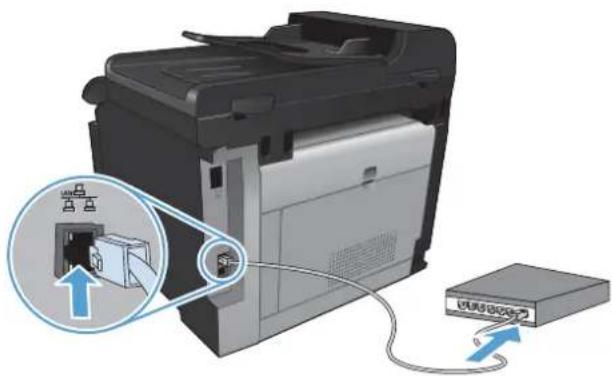
- Connect the network cable to the product and to the network.
natural_image
Illustration of a printer with an attached USB drive and cable, showing internal components (no text or symbols)- Wait for 60 seconds before continuing. During this time, the network recognizes the product and assigns an IP address or host name for the product.
- At the product control panel, press the Setup button.
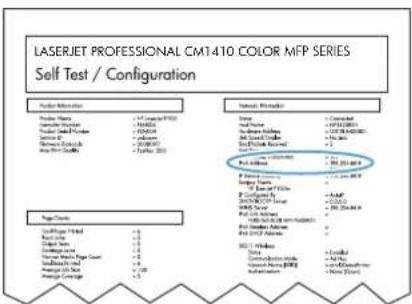
- Touch the Reports menu, and then touch the Configuration Report button to print the configuration report.
- Find the IP address on the configuration report.
text_image
LASERJET PROFESSIONAL CM1410 COLOR MFP SERIES Self Test / Configuration Material Description Material Name: L.P. (Contro) P520 Material Type: 3-PB-620 Material Design Code: R-62004 Material Type: 3-PB-620 Material Quality: 300-800-97 Material Size: 500x 200 Material Location: Source: Cerebellar Material Type: 3-PB-620 Material Type: 3-PB-620 Material Quality: 300-800-97 Material Type: 3-PB-620 Material Quality: 300-800-97 Material Quality: 3-PB-620 Material Quality: 300-800-97 Material Quality: 3-PB-620 Material Quality: 300-800-97 Material Quality: 3-PB-620 Material Quality: 300-800-97 Material Quality: 3-PB-620 Material Quality: 300-1500 Material Quality: 3-PB-620 Material Quality: 300-1500 Material Quality: 3-PB-620 Material Quality: 300-1500 Material Quality: 3-PB-620 Material Quality: 300-1500 Material Quality: 3-PB-620 Material Quality: 300-150 Material Quality: 3-PB-620 Material Quality: 300-150 Material Quality: 3-PB-620 Material Quality: 300-150 Material Quality: 3-PB-620 Material Quality: 300-150 Material Quality: 3-PB-620 Material Quality: 300-150 MaterialQuality: 3-PB-620 MaterialQuality: 3-PB-620 MaterialQuality: 3-PB-620 MaterialQuality: 3-PB-620 MaterialQuality: 3-PB-620 MaterialQuality: 3-PB-620 MaterialQuality: 3-PB-620 MaterialQuality: 3-PB-620 MaterialQuality: 3-PB-620 MaterialQuantity: 3-PB-620 MaterialQuantity: 3-PB-620 MaterialQuantity: 3-PB-620 MaterialQuantity: 3-PB-620 MaterialQuantity: 3-PB-620 MaterialQuantity: 3-PB-620 MaterialQuantity: 3-PB-620 MaterialQuantity: 3-PB-620 MaterialQuantity: 3-MePdSgSgSgSgSgSgSgSgSgSgSgSgSgSgSgSgSgSgSgSgSgSgSgSgSgSgSgSgSgSgSgSgSgSgSgSgSgSgSgSgSgSgSgSgSgSgSgSgSgSgS#sS# MaterialQuality: Material Quality: Material Type: Material Quality: Material Quality: Material Quality: Material Quality: Material Quality: Material Quality: Material Quality: Material Quality: Material Quality: Material Quality: Material Quality: Material Quality: Material Quality: Material Quality: Material Quality: Material Quality: Material Quality: Material Quality: Material Quality: Material Quality: Material Quality: Material Quality: Material Quality: Material Quality: Material Quality: Material Quality: Material Quality: Material Quality: Material Quality: Material Quality: Material Quality: Material Quality: Material Quality: Material Quality:Install the software
- Quit all programs on the computer.
- Install the software from the CD.
- Click the HP Installer icon, and follow the onscreen instructions.
- On the Congratulations screen, click the OK button.
- Print a page from any program to make sure that the printing software is correctly installed.
Install software for Mac computers on a wireless network
Before installing the product software, make sure the product is not connected to the network using a network cable.
If your wireless router does not support Wi-Fi Protected Setup (WPS), obtain the wireless router network settings from your system administrator, or complete the following tasks:
- Obtain the wireless network name or service set identifier (SSID).
• Determine the security password or encryption key for the wireless network.
Connect the product to a wireless network using WPS
If your wireless router supports Wi-Fi Protected Setup (WPS), this is the simplest way to set up the product on a wireless network.
- From the Home screen, touch the Wireless button.
- Touch the Wireless Menu button, and then touch the Wi-Fi Protected Setup button.
-
Use one of these methods to complete the setup:
-
Pushbutton: Select the Pushbutton option and follow the instructions on the control panel. Establishing the wireless connection can take a few minutes.
- PIN: Select the Generate PIN option and follow the instructions on the control panel. The product generates a unique PIN, which you must type into the wireless router's setup screen. Establishing the wireless connection can take a few minutes.

NOTE: If this method is not successful, try using the Wireless Setup Wizard on the product control panel or try using the USB cable connection method.
Connect the product to a wireless network using the Wireless Setup Wizard
If your wireless router does not support WiFi-Protected Setup (WPS), you can use this method to install the product on a wireless network.
- From the Home screen, touch the Wireless button.
- Touch the Wireless Menu button, and then touch the Wireless Setup Wizard button.
- The product scans for available wireless networks and returns a list of network names (SSIDs). Select the SSID for your wireless router from the list if it is available. If the SSID for your wireless router is not in the list, touch the Enter SSID button. When prompted for the type of network security, select the option that your wireless router uses. A keypad opens on the control panel display.
- If your wireless router uses WPA security, type the passphrase on the keypad.
If your wireless router uses WEP security, type the key on the keypad.
- Touch the OK button, and wait while the product establishes a connection with the wireless router. Establishing the wireless connection can take a few minutes.
Connect the product to a wireless network using a USB cable
If your wireless router does not support WiFi-Protected Setup (WPS), use this method to set up the product on a wireless network. Using a USB cable to transfer settings makes setting up a wireless
connection easier. After the setup is complete, you can disconnect the USB cable and use the wireless connection.
- Insert the software CD into the computer CD tray.
- Follow the on-screen instructions. When prompted, select the Connect through a wireless network option. Connect the USB cable to the product when prompted.
△ CAUTION: Do not connect the USB cable until the installation program prompts you.
-
When the installation is complete, print a configuration page to make sure that the product has a SSID name.
-
When installation is complete, disconnect the USB cable.
Remove software from Mac operating systems
You must have administrator rights to remove the software.
- Disconnect the product from the computer.
- Open Applications.
- Select Hewlett Packard.
-
Select HP Uninstaller.
-
Select the product from the list of devices, and then click the Uninstall button.
-
After the software is uninstalled, restart the computer and empty the Trash.
Change printer-driver settings for Mac
| Change the settings for all print jobs until the software program is closed | Change the default settings for all print jobs | Change the product configuration settings |
| 1. On the File menu, click the Print button.2. Change the settings that you want on the various menus. | 1. On the File menu, click the Print button.2. Change the settings that you want on the various menus.3. On the Presets menu, click the Save As... option and type a name for the preset.These settings are saved in the Presets menu. To use the new settings, you must select the saved preset option every time you open a program and print. | Mac OS X 10.5 and 10.61. From the Apple menu 📄, click the System Preferences menu and then click the Print & Fax icon.2. Select the product in the left side of the window.3. Click the Options & Supplies button.4. Click the Driver tab.5. Configure the installed options. |
Software for Mac computers
HP Utility for Mac
Use the HP Utility to set up product features that are not available in the printer driver.
You can use the HP Utility when the product uses a universal serial bus (USB) cable or is connected to a TCP/IP-based network.
Open the HP Utility
From the dock, click HP Utility.
-or-
From Applications, click Hewlett Packard, and then click HP Utility.
HP Utility features
Use the HP Utility software to perform the following tasks:
• Obtain information about supplies status.
- Obtain information about the product, such as the firmware version and the serial number.
• Print a configuration page.
- For products connected to an IP-based network, obtain network information and open the HP Embedded Web Server.
- Configure the paper type and size for the tray.
• Transfer files and fonts from the computer to the product.
- Update the product firmware.
• Display the color usage page.
- Configure basic fax settings.
Supported utilities for Mac
HP Embedded Web Server
The product is equipped with an embedded Web server, which provides access to information about product and network activities.
Print with Mac
Cancel a print job with Mac
- If the print job is currently printing, cancel it by pressing the Cancel ✗ button on the product control panel.

NOTE: Pressing the Cancel ✗ button clears the job that the product is currently processing. If more than one process is running, pressing the Cancel ✗ button clears the process that currently appears on the product control panel.
-
You can also cancel a print job from a software program or a print queue.
-
Software program: Typically, a dialog box appears briefly on the computer screen, allowing you to cancel the print job.
- Mac print queue: Open the print queue by double-clicking the product icon in the dock. Highlight the print job, and then click Delete.
Change the paper size and type with Mac
- On the File menu in the software program, click the Print option.
- In the Copies & Pages menu, click the Page Setup button.
- Select a size from the Paper Size drop-down list, and then click the OK button.
- Open the Finishing menu.
- Select a type from the Media-type drop-down list.
- Click the Print button.
Resize documents or print on a custom paper size with Mac
Mac OS X 10.5 and 10.6
Use one of these methods.
-
On the File menu, click the Print option.
-
Click the Page Setup button.
-
Select the product, and then select the correct settings for the Paper Size and Orientation options.
-
On the File menu, click the Print option.
-
Open the Paper Handling menu.
-
In the Destination Paper Size area, click the Scale to fit paper size box, and then select the size from the drop-down list.
Create and use printing presets with Mac
Use printing presets to save the current printer driver settings for reuse.
Create a printing preset
- On the File menu, click the Print option.
- Select the driver.
- Select the print settings that you want to save for reuse.
- In the Presets menu, click the Save As... option, and type a name for the preset.
- Click the OK button.
Use printing presets
- On the File menu, click the Print option.
- Select the driver.
- In the Presets menu, select the printing preset.
NOTE: To use printer-driver default settings, select the standard option.
Print a cover page with Mac
- On the File menu, click the Print option.
- Select the driver.
- Open the Cover Page menu, and then select where to print the cover page. Click either the Before Document button or the After Document button.
- In the Cover Page Type menu, select the message that you want to print on the cover page.
NOTE: To print a blank cover page, select the standard option from the Cover Page Type menu.
Use watermarks with Mac
- On the File menu, click the Print option.
- Open the Watermarks menu.
- From the Mode menu, select the type of watermark to use. Select the Watermark option to print a semi-transparent message. Select the Overlay option to print a message that is not transparent.
- From the Pages menu, select whether to print the watermark on all pages or on the first page only.
- From the Text menu, select one of the standard messages, or select the Custom option and type a new message in the box.
- Select options for the remaining settings.
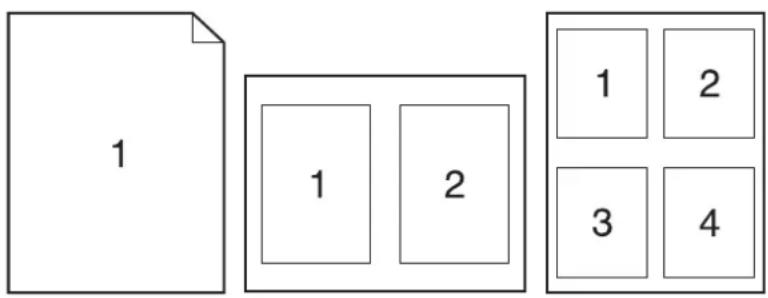
Print multiple pages on one sheet of paper with Mac
text_image
1 1 2 1 2 3 4- On the File menu, click the Print option.
- Select the driver.
- Open the Layout menu.
- From the Pages per Sheet menu, select the number of pages that you want to print on each sheet (1, 2, 4, 6, 9, or 16).
- In the Layout Direction area, select the order and placement of the pages on the sheet.
- From the Borders menu, select the type of border to print around each page on the sheet.
Print on both sides of the page (duplex printing) with Mac
- Insert enough paper into one of the trays to accommodate the print job.
- On the File menu, click the Print option.
- Open the Finishing menu, and click the Manual Duplex tab or open the Manual Duplex menu.
- Click the Manual Duplex box, and select a binding option.
- Click the Print button. Follow the instructions in the pop-up window that appears on the computer screen before replacing the output stack in Tray 1 for printing the second half.
- Go to the product, and remove any blank paper that is in Tray 1.
- Insert the printed stack face down in Tray 1.
- If prompted, touch the appropriate control panel button to continue.
Set the color options with Mac
Use the Color Options menu or the Color/Quality Options menu to control how colors are interpreted and printed from software programs.
- On the File menu, click the Print option.
- Select the driver.
-
Open the Color Options menu or the Color/Quality Options menu.
-
Open the Advanced menu, or select the appropriate tab.
- Adjust the individual settings for text, graphics, and photographs.
Use the Services menu with Mac
If the product is connected to a network, use the Services menu to obtain product and supply-status information.
- On the File menu, click the Print option.
- Open the Services menu.
- To open the embedded Web server and perform a maintenance task, do the following:
a. Select the Device Maintenance tab.
b. Select a task from the drop-down list.
c. Click the Launch button.
- To go to various support Web sites for this product, do the following:
a. Select the Services on the Web tab.
b. Select an option from the menu.
c. Click the Go! button.
Fax with Mac
To send a fax by printing to a fax driver, complete the following steps:
- Open the document that you want to fax.
- Click File and then click Print.
- In the Printer pop-up menu, select the fax print queue that you want to use.
- In the Copies field, adjust the number of copies if necessary.
- In the Paper Size pop-up menu, adjust the paper size if necessary.
- In the Fax Information area, enter the fax number of one or more recipients.
NOTE: If you need to include a dialing prefix, enter it in the Dialing Prefix field.
- Click Fax.
Scan with Mac
Use the HP Scan software to scan images to a Mac computer.
- Load the document onto the scanner glass or into the document feeder.
- Open the Applications folder, and then click Hewlett-Packard. Double-click HP Scan.
- Open the HP Scan menu and click Preferences. From the Scanner pop-up menu, select this product from the list, and click Continue.
- To use the standard preset settings, which produce acceptable results for images and text, click the Scan button.
To use presets optimized for pictures or text documents, select a preset from the Scanning Presets pop-up menu. To adjust the settings, click the Edit button. When you are ready to scan, click the Scan button.
-
To scan more pages, load the next page and click Scan. Click Append to List to add the new pages to the current list. Repeat until you have scanned all the pages.
-
Click the Save button, and then browse to the folder on your computer where you want to save the file.
NOTE: To print the scanned images now, click the Print button.
5 Connect the product
• Supported network operating systems
Connect with USB
- Connect to a network
Supported network operating systems
Windows 7
• Windows Vista (32-bit and 64-bit)
• Windows XP (32-bit, Service Pack 2)
• Windows Server 2003 (Service Pack 3)
• Windows Server 2008 (32-bit and 64-bit)
• Mac OS X v10.5 and v10.6
Printer sharing disclaimer
HP does not support peer-to-peer networking, as the feature is a function of Microsoft operating systems and not of the HP printer drivers. Go to Microsoft at www.microsoft.com.
Connect with USB
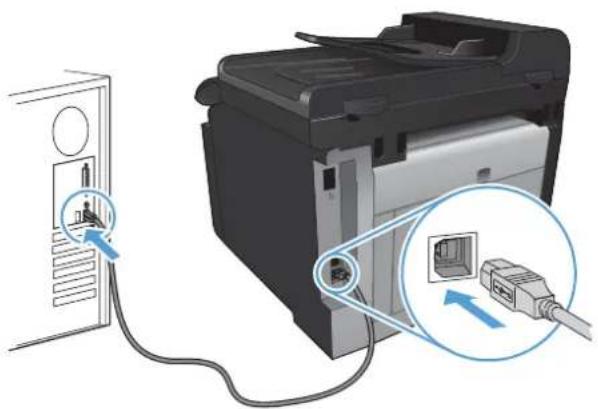
This product supports a USB 2.0 connection. Use an A-to-B type USB cable. HP recommends using a cable that is no longer than 2 m (6.5 ft).
△ CAUTION: Do not connect the USB cable until the installation software prompts you to connect it.
CD installation
- Quit all open programs on the computer.
- Install the software from the CD, and follow the onscreen instructions.
- When prompted, select the Directly connect to this computer using a USB cable option, and then click the Next button.
- When the software prompts you, connect the USB cable to the product and the computer.
natural_image
Diagram showing a printer connected to a paper airplane via cable, with an attached USB port and a close-up of the device (no text or symbols visible)- At the end of the installation, click the Finish button.
- On the More Options screen, you can install more software, or click the Finish button.
- Print a page from any program to make sure that the printing software is correctly installed.
Connect to a network
Supported network protocols
To connect a networking-equipped product to a network, you need a network that uses one or more of the following protocols.
TCP/IP (IPv4 or IPv6)
Port 9100
LPR
DHCP
AutoIP
SNMP
- Bonjour
SLP
WSD
NBNS
LLMNR
Install the product on a wired network
Configure the IP address
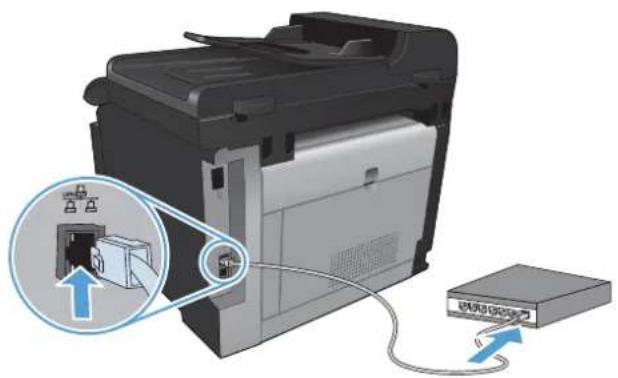
- Connect the network cable to the product and to the network.
text_image
Diagram showing a printer with an open door and connected to a device labeled '请勿关闭' (Please switch) via cable.- Wait for 60 seconds before continuing. During this time, the network recognizes the product and assigns an IP address or host name for the product.
-
At the product control panel, press the Setup button.
-
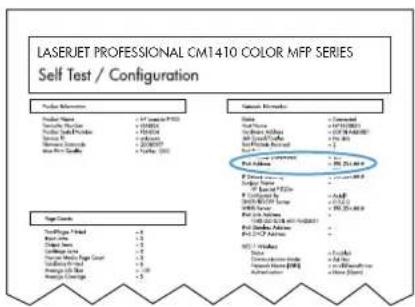
Touch the Reports menu, and then touch the Configuration Report button to print the configuration report.
-
Find the IP address on the configuration report.
text_image
LASERJET PROFESSIONAL CM1410 COLOR MFP SERIES Self Test / Configuration Pulse Reference Pulse Name: 2.57 (gamma-PCB) Pulse Type: 100000 Pulse Shift Profile: 100000 Tension: 30° Thermal Coverage: 200000 Heat Flux Modulus: 200000 Signal Reference Signal Name: 2.57 (gamma-PCB) Signal Type: 100000 Signal Shift Profile: 100000 Tension: 30° Thermal Coverage: 200000 Heat Flux Modulus: 200000 Signal Reference Signal Name: 2.57 (gamma-PCB) Signal Type: 100000 Signal Shift Profile: 100000 Tension: 30° Thermal Coverage: 20,000 Heat Flux Modulus: 20,000 Signal Reference Signal Name: 2.57 (gamma-PCB) Signal Type: 100000 Signal Shift Profile: 100000 Tension: 30° Thermal Coverage: 20,000 Heat Flux Modulus: 2,577 Signal Reference Signal Name: 2.57 (gamma-PCB) Signal Type: 100000 Signal Shift Profile: 1,577 Tension: 30° Thermal Coverage: 2,577 Heat Flux Modulus: 2,577 Signal Reference Signal Name: 2.57 (gamma-PCB) Signal Type: 100000 Signal Shift Profile: 1,577 Tension: 30° Thermal Coverage: 2,577 Heat Flux Modulus: 2,577 Signal Reference Signal Name: 2.57 (gamma-PCB) Signal Type: 100,000 Signal Shift Profile: 1,577 Tension: 30° Thermal Coverage: 2,577 Heat Flux Modulus: 2,577 Signal Reference Signal Name: 2.57 (gamma-PCB) Signal Type: 1,577 Signal Shift Profile: 1,577 Tension: 30° Thermal Coverage: 2,577 Heat Flux Modulus: 2,577 Signal Reference Signal Name: 2.57 (gamma-PCB) Signal Type: 1,577 Signal Shift Profile: 1,577 Tension: 30° Thermal Coverage: 2,577 Signal Reference Signal Name: 2.57 (gamma-PCB) Signal Type: 1,577 Signal Shift Profile: 1,577 Heat Flux Modulus: 2,577 Signal Reference Signal Name: 2.57 (gamma-PCB) Signal Type: 1,577 Signal Shift Profile: 1,577 Heat Flux Modulus: 2,577 Signal Reference Signal Name: 2.57 (gamma-PCB) Signal Type: 1,577 Signal Shift Profile: 1,577 Heat Flux Modulla: 2,577 Signal Reference Signal Name: 2.57 (gamma-PCB) Signal Type: 1,577 Signal Shift Profile: 1,577 Heat Flux Modulla: 2,577 Signal Reference Signal Name: 2.57 (gamma-PCB) Signal Type: 1,577 Signal Shift Profile: 1,577 Heat Flux Modullaration: Heat Modullaration: Heat Modullaration:Install the software
-
Quit all programs on the computer.
-
Install the software from the CD.
-
Follow the onscreen instructions.
-
When prompted, select the Connect through a wired network option, and then click the Next button.
-
From the list of available printers, select the printer that has the correct IP address.
-
Click the Finish button.
-
On the More Options screen, you can install more software, or click the Finish button.
-
Print a page from any program to make sure that the printing software is correctly installed.
Install the product on a wireless network
Before installing the product software, make sure the product is not connected to the network using a network cable.
If your wireless router does not support Wi-Fi Protected Setup (WPS), obtain the wireless router network settings from your system administrator, or complete the following tasks:
• Obtain the wireless network name or service set identifier (SSID).
• Determine the security password or encryption key for the wireless network.
Connect the product to a wireless network using WPS
If your wireless router supports Wi-Fi Protected Setup (WPS), this is the simplest way to set up the product on a wireless network.
- From the Home screen, touch the Wireless
^1 button.
-
Touch the Wireless Menu button, and then touch the Wi-Fi Protected Setup button.
-
Use one of these methods to complete the setup:
-
Pushbutton: Select the Pushbutton option and follow the instructions on the control panel. Establishing the wireless connection can take a few minutes.
- PIN: Select the Generate PIN option and follow the instructions on the control panel. The product generates a unique PIN, which you must type into the wireless router's setup screen. Establishing the wireless connection can take a few minutes.
NOTE: If this method is not successful, try using the Wireless Setup Wizard on the product control panel or try using the USB cable connection method.
Connect the product to a wireless network using the Wireless Setup Wizard
If your wireless router does not support WiFi-Protected Setup (WPS), you can use this method to install the product on a wireless network.
- From the Home screen, touch the Wireless
button.
- Touch the Wireless Menu button, and then touch the Wireless Setup Wizard button.
- The product scans for available wireless networks and returns a list of network names (SSIDs). Select the SSID for your wireless router from the list if it is available. If the SSID for your wireless router is not in the list, touch the Enter SSID button. When prompted for the type of network security, select the option that your wireless router uses. A keypad opens on the control panel display.
- If your wireless router uses WPA security, type the passphrase on the keypad.
If your wireless router uses WEP security, type the key on the keypad.
- Touch the OK button, and wait while the product establishes a connection with the wireless router. Establishing the wireless connection can take a few minutes.
Connect the product to a wireless network using a USB cable
If your wireless router does not support WiFi-Protected Setup (WPS), use this method to set up the product on a wireless network. Using a USB cable to transfer settings makes setting up a wireless connection easier. After the setup is complete, you can disconnect the USB cable and use the wireless connection.
- Insert the software CD into the computer CD tray.
- Follow the on-screen instructions. When prompted, select the Connect through a wireless network option. Connect the USB cable to the product when prompted.
△ CAUTION: Do not connect the USB cable until the installation program prompts you.
- When the installation is complete, print a configuration page to make sure that the product has a SSID name.
- When installation is complete, disconnect the USB cable.
Install the software for a wireless product currently on the network
If the product already has an IP address on a wireless network and you want to install product software on a computer, complete the following steps.
- From the product control panel, print a configuration page to obtain the product IP address.
- Install the software from the CD.
- Follow the on-screen instructions.
- When prompted, select the Connect through a wireless network option, and then click the Next button.
- From the list of available printers, select the printer that has the correct IP address.
Disconnect from the wireless network
If you want to disconnect the product from a wireless network, you can turn off the wireless functionality in the product.
- At the product control panel, touch the Wireless button, and then touch the Wireless Menu button.
- Touch the Turn Wireless On/Off button, and then touch the Off button.
- To confirm that the wireless unit is turned off, print a Network Summary page from the Reports menu, and then verify that it lists the wireless feature as disabled.
Reduce interference on a wireless network
The following tips can reduce interference in a wireless network:
- Keep the wireless devices away from large metal objects, such as filing cabinets, and other electromagnetic devices, such as microwaves and cordless telephones. These objects can disrupt radio signals.
- Keep the wireless devices away from large masonry structures and other building structures. These objects can absorb radio waves and lower signal strength.
- Position the wireless router in a central location in line of sight with the wireless products on the network.
Advanced wireless setup
Wireless communication modes
You can use one of two wireless communication modes: infrastructure or ad-hoc.
Infrastructure wireless network (recommended)
The product communicates with other devices on the network through a wireless router.
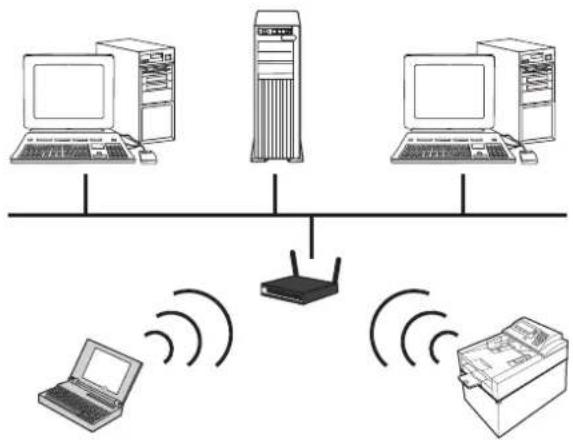
flowchart
graph TD
    A["Computer 1"] -->|Wireless Signal| R["Router"]
    B["Computer 2"] -->|Wireless Signal| R
    C["Computer 3"] -->|Wireless Signal| R
    D["Laptop"] -->|Wireless Signal| R
    E["Printer"] -->|Wireless Signal| R
Ad-hoc wireless network
The product communicates directly with other wireless devices without using a wireless router.

text_image
Diagram showing three connected devices: a laptop, a desktop computer, and a printer with signal waves.All devices on the ad hoc network must have the following:
802.11b/g compatibility
The same SSID
• The same subnet and channel
• The same 802.11b/g security settings
Wireless security
To make your wireless network easy to distinguish from other wireless networks, use a unique network name (SSID) for your wireless router. Your wireless router might have a default network name, which is typically the manufacturer's name. For information on how to change the network name, see the documentation that came with the wireless router.
To prevent other users from accessing your network, turn on WPA or WEP data encryption.
- Wired Equivalent Privacy (WEP): WEP is the original native security mechanism in the 802.11 standard. You create a unique key containing hexadecimal or alphanumeric characters, which other users must provide before they can access your network.
- Wi-Fi Protected Access (WPA): WPA uses the temporal key integrity protocol (TKIP) for encryption and employs 802.1X authentication. It addresses all known weaknesses of WEP. You create a unique passphrase containing a combination of letters and numbers, which other users must provide before they can access your network.
WPA2 provides the advanced encryption standard (AES), and is an improvement over WPA.
Connect the product to an ad-hoc wireless network
You can connect the product wirelessly to a computer through a peer-to-peer (ad-hoc) installation.
- Make sure the product is not connected to the network with an Ethernet cable.
- Turn on the product, and then turn on the wireless functionality.
- Make sure the product is using the factory default network settings.
- Turn on the product the wireless functionality again.
- Print a Network Summary page and find the wireless network name (SSID). Open the Reports menu, and then select the Network Summary option.
- Refresh the list of wireless networks on your computer, and then click the product wireless network name (SSID) and connect to it.
- After several minutes, print a configuration page, and then find the product IP address.
- At the computer, insert the product CD, and follow the on-screen instructions to install the software. When prompted, select the Connect through a wireless network option.
Configure IP network settings
View or change network settings
Use the embedded Web server to view or change IP configuration settings.
- Print a configuration page, and locate the IP address.
- If you are using IPv4, the IP address contains only digits. It has this format:
XXX.XXX.XXX.XXX
- If you are using IPv6, the IP address is a hexadecimal combination of characters and digits. It has a format similar to this:
XXXX::XXXX:XXXX:XXXX:XXXX
-
To open the HP Embedded Web Server, type the IP address (IPv4) into the address line of a Web browser. For IPv6, use the protocol established by the Web browser for entering IPv6 addresses.
-
Click the Networking tab to obtain network information. You can change settings as needed.
Set or change the product password
Use the HP Embedded Web Server to set a password or change an existing password for a product on a network.
- Type the product IP address into the address line of a Web browser. Click the Networking tab, and click the Security link.
NOTE: If a password has previously been set, you are prompted to type the password. Type the password, and then click the Apply button.
- Type the new password in the New Password box and in the Verify password box.
- At the bottom of the window, click the Apply button to save the password.
Manually configure IPv4 TCP/IP parameters from the control panel
Use the control-panel menus to manually set an IPv4 address, subnet mask, and default gateway.
- Touch the Setup 8 button.
- Scroll to and touch the Network Setup menu.
- Touch the TCP/IP Config menu, and then touch the Manual button.
- Use the numeric keypad to enter the IP address, and touch the OK button. Touch the Yes button to confirm.
- Use the numeric keypad to enter the subnet mask, and touch the OK button. Touch the Yes button to confirm.
- Use the numeric keypad to enter the default gateway, and touch the OK button. Touch the Yes button to confirm.
Link speed and duplex settings
NOTE: This information applies only to Ethernet networks. It does not apply to wireless networks.
The link speed and communication mode of the print server must match the network hub. For most situations, leave the product in automatic mode. Incorrect changes to the link speed and duplex settings might prevent the product from communicating with other network devices. If you need to make changes, use the product control panel.
NOTE: The setting must match with the network product to which you are connecting (a network hub, switch, gateway, router, or computer).
NOTE: Making changes to these settings causes the product to turn off and then on. Make changes only when the product is idle.
- Touch the Setup button.
- Scroll to and touch the Network Setup menu.
- Touch the Link Speed menu.
- Select one of the following options.
| Setting Description | |
| Automatic | The print server automatically configures itself for the highest link speed and communication mode allowed on the network. |
| 10T Half 10 megabytes per second (Mbps), half-duplex operation | |
| 10T Full 10 Mbps, full-duplex operation | |
| 100TX Half 100 Mbps, half-duplex operation | |
| 100TX Full 100 Mbps, full-duplex operation | |
- Touch the OK button. The product turns off and then on.
6 Paper and print media
• Understand paper use
• Supported paper sizes
• Supported paper types and tray capacity
- Load the input tray
- Load the document feeder
Configure the tray
- Change the printer driver to match the paper type and size
Understand paper use
This product supports a variety of paper and other print media in accordance with the guidelines in this user guide. Paper or print media that does not meet these guidelines might cause poor print quality, increased jams, and premature wear on the product.
For best results, use only HP-brand paper and print media designed for laser printers or multiuse. Do not use paper or print media made for inkjet printers. Hewlett-Packard Company cannot recommend the use of other brands of media because HP cannot control their quality.
It is possible for paper to meet all of the guidelines in this user guide and still not produce satisfactory results. This might be the result of improper handling, unacceptable temperature and/or humidity levels, or other variables over which Hewlett-Packard has no control.
△ CAUTION: Using paper or print media that does not meet Hewlett-Packard's specifications might cause problems for the product, requiring repair. This repair is not covered by the Hewlett-Packard warranty or service agreements.
Special paper guidelines
This product supports printing on special media. Use the following guidelines to obtain satisfactory results. When using special paper or print media, be sure to set the type and size in the printer driver to obtain the best results.
△ CAUTION: HP LaserJet products use fusers to bond dry toner particles to the paper in very precise dots. HP laser paper is designed to withstand this extreme heat. Using inkjet paper could damage the product.
| Media type Do Do not | ||
| Envelopes | Store envelopes flat.Use envelopes where the seam extends all the way to the corner of the envelope.Use peel-off adhesive strips that are approved for use in laser printers. | Do not use envelopes that are wrinkled, nicked, stuck together, or otherwise damaged.Do not use envelopes that have clasps, snaps, windows, or coated linings.Do not use self-stick adhesives or other synthetic materials. |
| Labels | Use only labels that have no exposed backing between them.Use labels that lie flat.Use only full sheets of labels. | Do not use labels that have wrinkles or bubbles, or are damaged.Do not print partial sheets of labels. |
| Transparencies | Use only transparencies that are approved for use in color laser printers.Place transparencies on a flat surface after removing them from the product. | Do not use transparent print media not approved for laser printers. |
| Letterhead or preprinted forms | Use only letterhead or forms approved for use in laser printers. | Do not use raised or metallic letterhead. |
| Heavy paper | Use only heavy paper that is approved for use in laser printers and meets the weight specifications for this product. | Do not use paper that is heavier than the recommended media specification for this product unless it is HP paper that has been approved for use in this product. |
| Glossy or coated paper | Use only glossy or coated paper that is approved for use in laser printers. | Do not use glossy or coated paper designed for use in inkjet products. |
Change the printer driver to match the paper type and size
NOTE: If you change the page settings in the software program, those settings override any settings in the printer driver.
- On the File menu in the software program, click Print.
- Select the product, and then click the Properties or Preferences button.
- Click the Paper/Quality tab.
- Select a size from the Paper size drop-down list.
- Select a paper type from the Paper type drop-down list.
- Click the OK button.
Supported paper sizes
NOTE: To obtain best print results, select the appropriate paper size and type in the print driver before printing.
Table 6-1 Supported paper sizes
| Size Dimensions | |
| Letter 216 x 279 mm (8.5 x 11 inches) | |
| Legal 216 x 356 mm (8.5 x 14 inches) | |
| A4 210 x 297 mm (8.27 x 11.69 inches) | |
| Executive 184 x 267 mm (7.24 x 10.51 inches) | |
| A5 148 x 210 mm (5.83 x 8.27 inches) | |
| A6 105 x 148 mm (4.13 x 5.83 inches) | |
| B5 (JIS) 182 x 257 mm (7.17 x 10.12 inches) | |
| 16k 197 x 273 mm (7.75 x 10.75 inches) | |
| 16k 195 x 270 mm (7.7 x 10.6 inches) | |
| 16k 184 x 260 mm (7.25 x 10.25 inches) | |
| 8.5 x 13 216 x 330 mm (8.5 x 13 inches) | |
| 4 x 6 ^1 | 107 x 152 mm (4 x 6 inches) |
| 5 x 8 ^1 | 127 x 203 mm (5 x 8 inches) |
| 10 x 15 cm ^1 | 100 x 150 mm (3.9 x 5.9 inches) |
| Custom Minimum—76 x127 mm (3 x 5 inches); Maximum—216 x 356 mm (8.5 x 14 inches) | |
1 These sizes are supported as custom sizes.
Table 6-2 Supported envelopes and postcards
| Size Dimensions | |
| Envelope #10 105 x 241 mm (4.13 x 9.49 inches) | |
| Envelope DL 110 x 220 mm (4.33 x 8.66 inches) | |
| Envelope C5 162 x 229 mm (6.93 x 9.84 inches) | |
| Envelope B5 176 x 250 mm (6.7 x 9.8 inches) | |
| Envelope Monarch 98 x 191 mm (3.9 x 7.5 inches) | |
| Japanese Postcard | 100 x 148 mm (3.94 x 5.83 inches) |
| Postcard (JIS) | |
| Double Japan Postcard Rotated | 148 x 200 mm (5.83 x 7.87 inches) |
| Double Postcard (JIS) | |
Supported paper types and tray capacity
| Paper type Weight Capacity | 1 | Paper orientation | |
| Every day: | < 96 g/m2 (26 lb bond) | Up to 150 sheets Side to be printed on face-up, with the top edge at the back of the tray | |
| Plain | |||
| Light | |||
| Bond | |||
| Recycled | |||
| Presentation: | 96-130 g/m2 (26-35 lb bond) | Up to 15 mm (0.6 inches) stack height | Side to be printed on face-up, with the top edge at the back of the tray |
| Matte paper, mid-weight | |||
| Glossy paper, mid-weight | |||
| Brochure: | 131-175 g/m2 (26-47 lb bond) | Up to 15 mm (0.6 inches) stack height | Side to be printed on face-up, with the top edge at the back of the tray |
| Matte paper | |||
| Glossy paper | |||
| Tri-fold paper | |||
| Photo/cover | 176-220 g/m2 (47-59 lb bond) | Up to 15 mm (0.6 inches) stack height | Side to be printed on face-up, with the top edge at the back of the tray |
| Matte cover paper | |||
| Glossy cover paper | |||
| Matte photo paper | |||
| Glossy photo paper | |||
| Glossy Cards | |||
| Paper type Weight Capacity | 1 | Paper orientation |
| Other: | Up to 50 sheets, or 10 envelopes Side to be printed on face-up, | |
| • Color laser transparency | with the top edge at the back of the tray or the stamp-end at the back of the tray | |
| • Labels | ||
| • Letterhead | ||
| • Envelope | ||
| • Heavy envelope | ||
| • Preprinted | ||
| • Prepunched | ||
| • Colored | ||
| • Rough | ||
| • Tough |
1 Capacity can vary depending on paper weight and thickness, and environmental conditions.
Load the input tray
NOTE: When you add new paper, make sure that you remove all of the paper from the input tray and straighten the stack of new paper. Do not fan the paper. This reduces jams by preventing multiple sheets of paper from feeding through the product at one time.
- Open Tray 1.

natural_image
Illustration of a printer with an open lid and internal structure, showing no text or symbols.-
Slide open the paper guides.
-
If you are loading Legal size paper, squeeze the blue lever and slide open the front paper guide all the way.
NOTE: When it is loaded with Legal-size paper, the tray extends from the front of the product approximately 51 mm (2 in).
- Load the paper face-up, with the top edge at the back of the tray.

natural_image
3D diagram of a mechanical assembly with directional arrows indicating flow or movement (no text or symbols)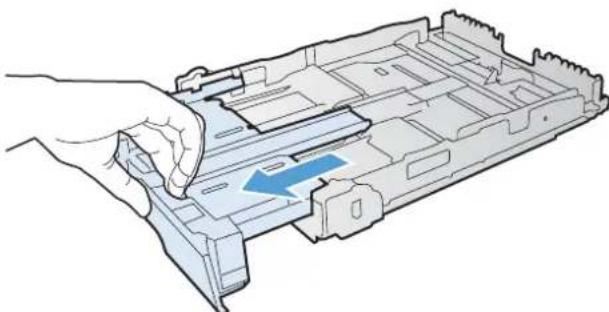
natural_image
Illustration of a hand inserting a plastic into a multi-chamber device (no text or symbols visible)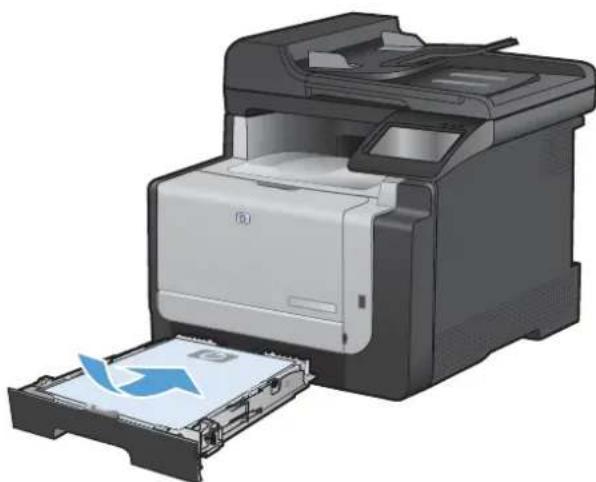
natural_image
Illustration of a HP printer with a paper feed into the output (no text or symbols visible)- Adjust the guides until they are snug against the paper.
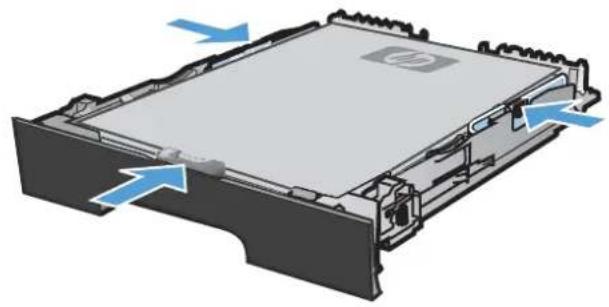
natural_image
3D diagram of a computer chassis with blue directional arrows indicating movement or force (no text or symbols)- Close Tray 1.
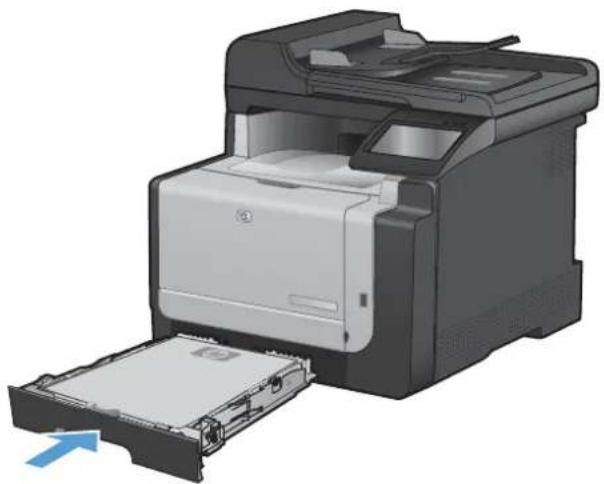
natural_image
Illustration of a HP printer with an open drawer and paper feed, showing internal components (no text or symbols)Load the document feeder
The document feeder holds up to 35 sheets of 60-90 g/m ^2 (16 to 20 lb bond) paper.

NOTE: When you add new paper, make sure that you remove all of the paper from the input tray and straighten the stack of new paper. Do not fan the paper. This reduces jams by preventing multiple sheets of paper from feeding through the product at one time.

CAUTION: To prevent damage to the product, do not load an original document that contains correction tape, correction fluid, paper clips, or staples. Also, do not load photographs, small originals, or fragile originals into the document feeder.
- Insert the originals into the document feeder face-up.

natural_image
Illustration of a HP printer with paper feed and paper sheet (no text or symbols visible)- Adjust the guides until they are snug against the paper.
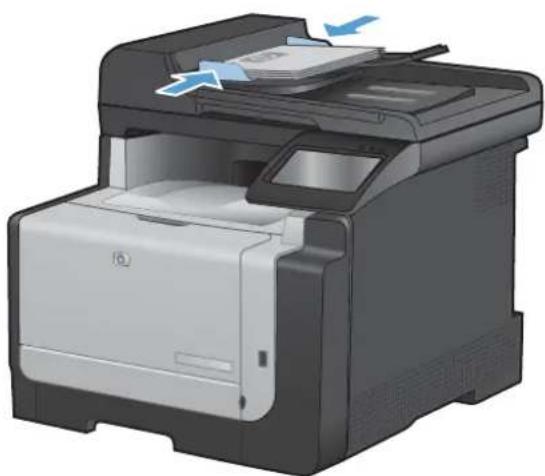
natural_image
Illustration of a HP printer with paper being inserted (no text or symbols visible)Configure the tray
Configuring the tray on this product changes the heat and speed settings to obtain the best print quality for the type of paper that you are using. If you are using special paper for all or most print jobs on the product, change this default setting on the product.
The following table lists possible ways you can use the tray settings to meet your printing needs.
| Paper use Configure the product Print | ||
| Occasionally use special paper, such as heavy paper or letterhead, from a tray that usually contains plain paper. | Load special paper in Tray 1. | From the software program print dialog, choose the paper type that matches the special paper loaded in the tray before sending the print job. |
| Frequently use special paper, such as heavy paper or letterhead, from one tray. | Load special paper in Tray 1, and configure the tray for the paper type. | From the software program print dialog, choose the paper type that matches the special paper loaded in the tray before sending the print job. |
Configure the tray
- Make sure the product is turned on.
-
Perform one of the following tasks:
-
Control panel: Open the System Setup menu, and open the Paper Setup menu. Select the tray that you want to configure.
-
Embedded Web server: Click the Settings tab, and then click Paper Handling in the left panel.
-
Change the desired tray setting, and then touch the OK button or click the Apply button.
7 Print tasks
- Cancel a print job
• Basic print tasks with Windows
• Additional print tasks with Windows
Walk-up USB printing
Cancel a print job
- If the print job is currently printing, cancel it by pressing the Cancel ✗ button on the product control panel.

NOTE: Pressing the Cancel ✗ button clears the job that the product is currently processing. If more than one process is running, pressing the Cancel ✗ button clears the process that currently appears on the product control panel.
-
You can also cancel a print job from a software program or a print queue.
-
Software program: Typically, a dialog box appears briefly on the computer screen, allowing you to cancel the print job.
- Windows print queue: If a print job is waiting in a print queue (computer memory) or print spooler, delete the job there.
Windows XP, Server 2003, or Server 2008: Click Start, click Settings, and then click Printers and Faxes. Double-click the product icon to open the window, right-click the print job that you want to cancel, and then click Cancel.
Windows Vista: Click Start, click Control Panel, and then, under Hardware and Sound, click Printer. Double-click the product icon to open the window, right-click the print job that you want to cancel, and then click Cancel.
Windows 7: Click Start, and then click Devices and Printers. Double-click the product icon to open the window, right-click the print job that you want to cancel, and then click Cancel.
Basic print tasks with Windows
The methods to open the print dialog from software programs can vary. The procedures that follow include a typical method. Some software programs do not have a File menu. See the documentation for your software program to learn how to open the print dialog.
Open the printer driver with Windows
-
On the File menu in the software program, click Print.
-
Select the product, and then click the Properties or Preferences button.
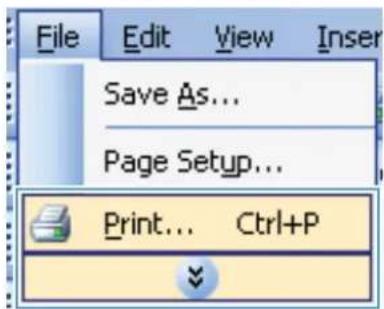
text_image
File Edit View Insert Save As... Page Setup... Print... Ctrl+P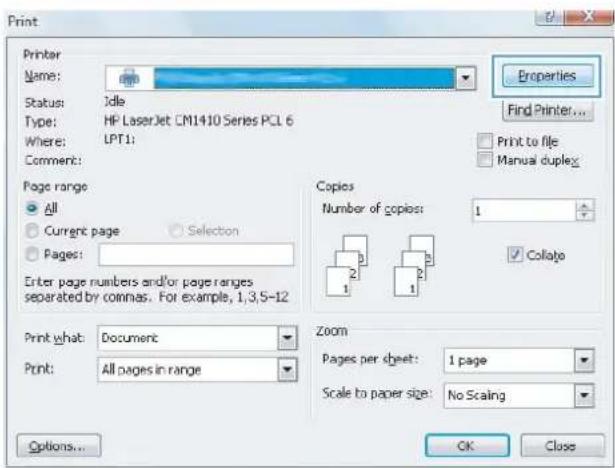
text_image
Print Printer Name: Status: Idle Type: HP LaserJet CM1410 Series PCL 6 Where: LPT1: Comment: Page range All Current page Selection Pages: Enter page numbers and/or page ranges separated by commas. For example, 1,3,5-12 Print what: Document Print: All pages in range Properties Find Printer... Print to file Manual duplex: Copies Number of copies: 1 Collage Zoom Pages per sheet: 1 page Scale to paper size: No Scaling Options... OK CloseGet help for any printing option with Windows
- Click the Help button to open the online Help.

text_image
Advanced Printing Shortcuts Paper/Quality Effects Finishing Color Services A printing shortcut is a collection of saved print settings that you can select with a single click. Printing shortcuts General Features Printing Ecoprint (Two selected Printing) Factory Defaults Envelopes Cardlock/Heavy Bloway/Presentation Save As Delete Reset Paper sizes: 85 x 11 inches Letter Paper source: Automatically Select Print on both sides: No Paper type: Unspecified About Help OK Cancel ApplyChange the number of print copies with Windows
- On the File menu in the software program, click Print.
- Select the product, and then select the number of copies.
Save custom print settings for reuse with Windows
Use a printing shortcut with Windows
-
On the File menu in the software program, click Print.
-
Select the product, and then click the Properties or Preferences button.

text_image
File Edit View Insert Save As... Page Setup... Print... Ctrl+P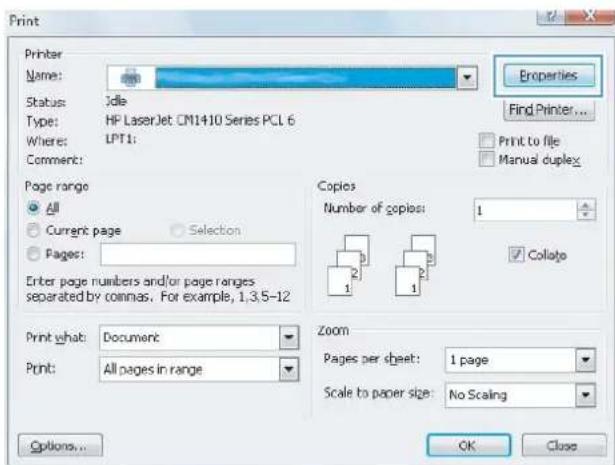
text_image
Print Printer Name: Status: Idle Type: HP LaserJet CM1410 Series PCL 6 Where: LPT1: Comment: Page range All Current page Selection Pages: Enter page numbers and/or page ranges separated by commas. For example, 1,3,5-12 Print what: Document Print: All pages in range Properties Find Printer... Print to file Manual duplex Copies Number of copies: 1 Collate Zoom Pages per sheet: 1 page Scale to paper size: No Scaling Options... OK Close- Click the Printing Shortcuts tab.

text_image
Advance Printing Shortcuts Paper/Quality Effects Fulfilling Color Services A printing shortcut is a collection of saved print settings that you can select with a single click. Printing shortcuts General Electric Printing Ecoprint (Two-sided Printing) Factory Defaults Envelopes Cardstock/Heavy Glowsy/Presentation Save As... Delete Print Paper size: 8.5 x 11 inches Letter Paper source: Automatically Select Print on both sides: No Paper type: Unspecified About... Help OK Cancel Apply- Select one of the shortcuts, and then click the OK button.
NOTE: When you select a shortcut, the corresponding settings change on the other tabs in the printer driver.

text_image
Advanced Printing Shortcuts Paper/Quality Effects Finishing Color Services A printing shortout is a collection of saved print settings that you can select with a single click. Printing shortouts General Everyday Printing Low print / Download Printing! Factory Defaults Envelopes Cardstock Heavy Glossy/Presentation Save As... Delete Reset Paper size: 8.5 x 11 inches Letter Paper source: Automatically Select Print on both sides: Yes/No cover Paper type: Unspecified About Help OK Cancel Apply HP ImportCreate printing shortcuts
- On the File menu in the software program, click Print.
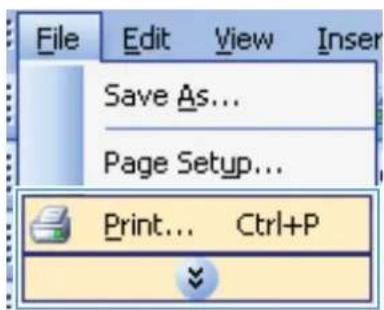
text_image
File Edit View Insert Save As... Page Setup... Print... Ctrl+P- Select the product, and then click the Properties or Preferences button.

text_image
Print Printer Name: Status: Idle Type: HP LaserJet CM1410 Series PCL 6 Where: UPT1: Comment: Properties Find Printer... Print to file Manual duplex Page range All Current page Selection Pages: Enter page numbers and/or page ranges separated by commas. For example, 1,3,5-12 Copies Number of copies: 1 Collate Print what: Document Print: All pages in range Zoom Pages per sheet: 1 page Scale to paper size: No Scaling Options... OK Close- Click the Printing Shortcuts tab.
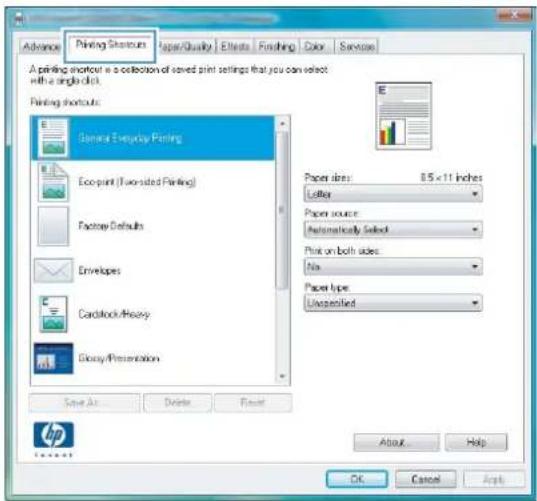
text_image
Advance Printing Settings Paper/Quality Effects Funching Color Services A printing shortcut is a collection of saved print settings that you can select with a single click. Printing shortcuts General Everyday Printing Ecoprint (Two-sided Printing) Factory Defaults Envelopes Cardiobox/Proxy Glucosy/Presentation Save As Delete Finish Paper sizes: 8.5 x 11 inches Letter Paper source: Automatically selected Print on both sides: No Paper type: Unspecified About Help OK Cancel Apply- Select an existing shortcut as a base.
NOTE: Always select a shortcut before adjusting any of the settings on the right side of the screen. If you adjust the settings and then select a shortcut, or if you select a different shortcut, all your adjustments are lost.
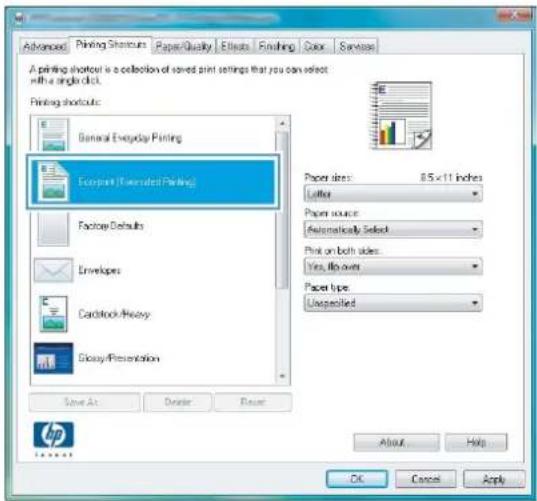
text_image
Advanced Printing Shortcuts Paper/Quality Effects Fishing Color Services A printing shortout is a collection of saved print settings that you can select with a single click. Printing shortcuts General Everyday Printing Eco-print (Unselected Printing) Factory Defaults Envelopes Cardstock/Proxy Exosy/Presentation Save As Delete Reset Paper sizes: 8.5 x 11 inches Letter Paper source: Automatically Selected Print on both sides: Yes, flip over Paper type: Unspecified About Help OK Cancel Apply HP Access- Select the print options for the new shortcut.
NOTE: You can select the print options on this tab or on any other tab in the printer driver. After selecting options on other tabs, return to the Printing Shortcuts tab before continuing with the next step.
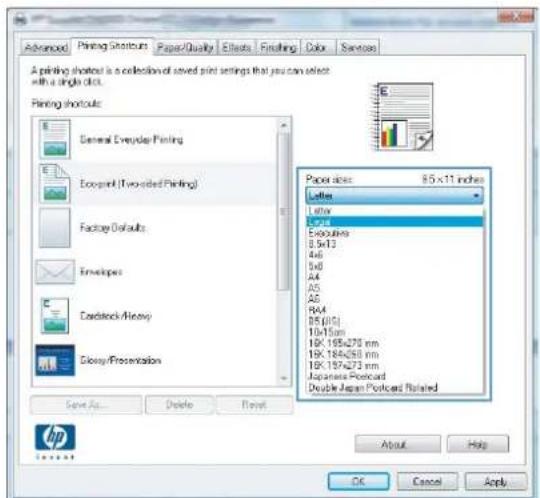
text_image
Advanced Printing Shortcuts Paper/Quality Effects Finishing Color Services A printing should be a collection of saved print settings that you can select with a single click. Printing shortcuts General Everyday Printing Eco-print (Two-sided Printing) Factory Defaults Envelopes Cardboard/Inventory Discovery/Presentation Save As... Delete Reset Paper sizes: 85 x 11 inches Letters Lithix 2.0x10 Exocubbs 8.5x13 4x6 5x8 A4 A5 A6 RA4 85 [1x10] 10x15mm 10K 195x270 mm 10K 194x250 mm 10K 197x273 mm Japanese Pencard Double Japan Pencard Rotated About Help OK Cancel Apply- Click the Save As button.
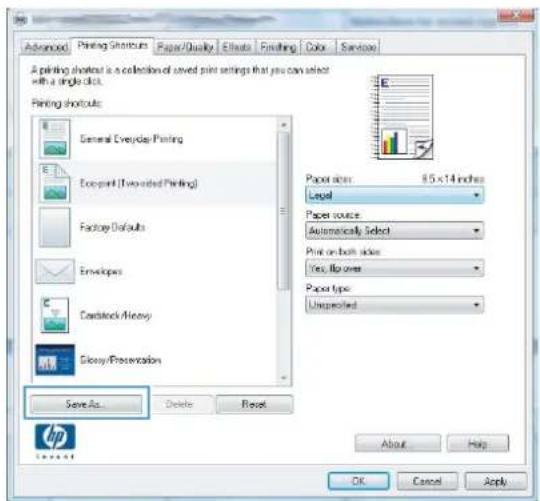
text_image
Advanced Printing Shortcuts Paper/Quality Effects Finishing Color Services A printing shortout is a collection of saved print settings that you can select with a single click. Printing shortcuts General Everyday Printing Compact (Unselected Printing) Factory Defaults Envelopers Cardstock Heavy Glucosy/Presentation Save As... Delete Reset Paper size: 8.5 x 14 inches Legal Paper source: Automatically Select Print on both sides Yes, flip over Paper type: Unspecified About Help OK Cancel Apply- Type a name for the shortcut, and click the OK button.
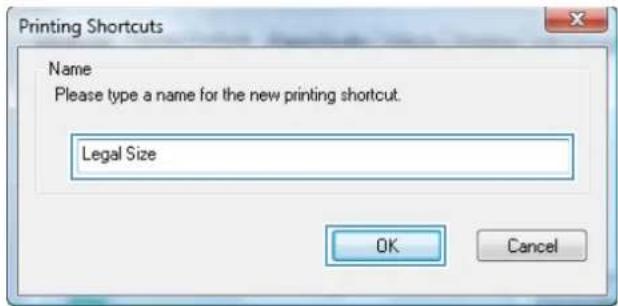
text_image
Printing Shortcuts Name Please type a name for the new printing shortcut. Legal Size OK CancelImprove print quality with Windows
Select the page size with Windows
- On the File menu in the software program, click Print.
-
Select the product, and then click the Properties or Preferences button.
-
Click the Paper/Quality tab.
- Select a size from the Paper size drop-down list.
Select a custom page size with Windows
- On the File menu in the software program, click Print.
- Select the product, and then click the Properties or Preferences button.
- Click the Paper/Quality tab.
-
Click the Custom button.
-
Type a name for the custom size and specify the dimensions.
• The width is the short edge of the paper.
• The length is the long edge of the paper.
NOTE: Always load paper into the trays short edge first.
- Click the OK button, and then click the OK button on the Paper/Quality tab. The custom page size will appear in the list of paper sizes the next time you open the printer driver.
Select the paper type with Windows
- On the File menu in the software program, click Print.
- Select the product, and then click the Properties or Preferences button.
- Click the Paper/Quality tab.
- From the Paper type drop-down list, click the More... option.
- Expand the list of Type is: options.
- Expand the category of paper types that best describes your paper, and then click the paper type that you are using.
Select the paper tray with Windows
- On the File menu in the software program, click Print.
- Select the product, and then click the Properties or Preferences button.
- Click the Paper/Quality tab.
- Select a tray from the Paper source drop-down list.
Print on both sides (duplex) with Windows
-
On the File menu in the software program, click Print.
-
Select the product, and then click the Properties or Preferences button.
-
Click the Finishing tab.
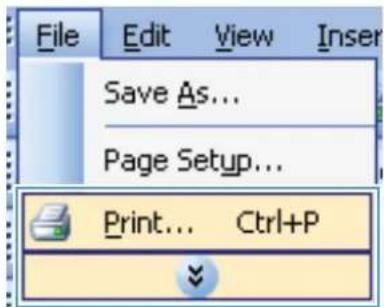
text_image
File Edit View Insert Save As... Page Setup... Print... Ctrl+P
text_image
Print Printer Name: Status: Idle Type: HP LaserJet CM1410 Series PCL 6 Where: LPT1: Comment: Page range: All Current page Selection Pages: Enter page numbers and/or page ranges separated by coinhas. For example, 1,3,5-12 Print what: Document Print: All pages in range Properties Find Printer... Print to file Manual duplex Copies Number of copies: 1 Collage Zoom Pages per sheet: 1 page Scale to paper size: No Scaling Options... OK Close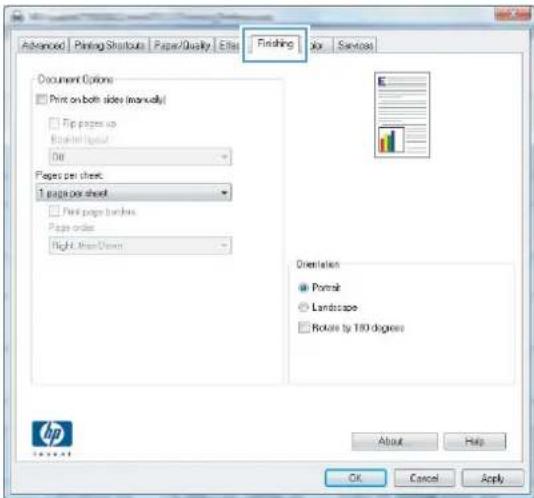
text_image
Advanced Printing Shortouts Paper/Quality Effects Finishing for Services Document Options Print on both sides (manually) Tip pages up Energetic liquid Off Pages per sheet 1 page per sheet Print pages borders Pages order Right, Mean/Down Dorientation Portrait Landscape Rotate by 100 degrees About Help OK Cancel Apply HP Tenset- Select the Print on both sides (manually) check box. Click the OK button to print the first side of the job.
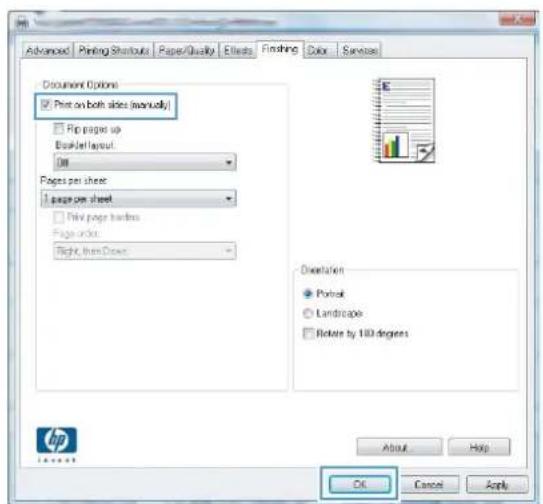
text_image
Advanced Printing Shutouts Paper/Quality Effects Finishing Color Services Document Options ☑ Page on both sides (manually) ☐ Flip pages up Breaker layout: Off Pages per sheet: 1 page per sheet ☐ New page threads Pages order: Right, then Close Orientation ● Portfolio ○ Landscape □ Rotate by 100 degrees About Help OK Cancel Apply- Retrieve the printed stack from the output bin, and maintaining the same orientation, place it with the printed-side facing down in Tray 1.

natural_image
Illustration of a printer being inserted into a plastic sheet, with a blue arrow indicating the process (no text or symbols present)- On the control panel, touch the OK button to print the second side of the job.
Print multiple pages per sheet with Windows
- On the File menu in the software program, click Print.
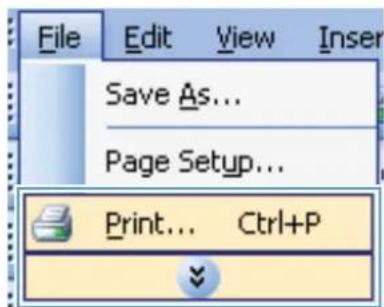
text_image
File Edit View Insert Save As... Page Setup... Print... Ctrl+P- Select the product, and then click the Properties or Preferences button.
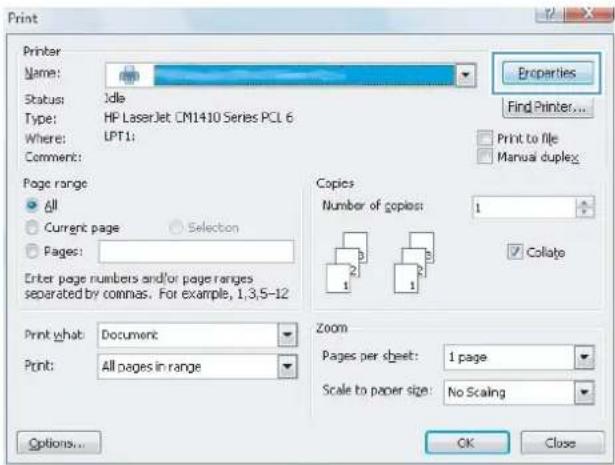
text_image
Print Printer Name: Status: Idle Type: HP LaserJet CM1410 Series PCL 6 Where: LPT1: Comment: Page range All Current page Selection Pages: Enter page numbers and/or page ranges separated by commas. For example, 1,3,5-12 Print what: Document Print: All pages in range Properties Find Printer... Print to file Manual duplex Copies Number of copies: 1 Collate Zoom Pages per sheet: 1 page Scale to paper size: No Scaling Options... OK Close- Click the Finishing tab.

text_image
Advanced Printing Shutouts Paper/Quality Edit Flushing File Services Document Options Print on both sides (manually) Print pages up Booklet Layout Off Pages per sheet 1 page per sheet Print pages border Pages order Right, Main Down Orientation Portrait Landscape Rotate by 180 degrees About Help OK Cancel Apply- Select the number of pages per sheet from the Pages per sheet drop-down list.

text_image
Advanced Printing Shutouts Paper/Quality Effects Finishing Color Survise Document Options ☑ Print on both sides (manually) ☐ Flip pages up Booklet layout: Out Pages per sheet: 1 pages per sheet 2 pages per sheet 3 pages per sheet 4 pages per sheet 5 pages per sheet 6 pages per sheet Orientation ● Portrait ○ Landscape □ Rotate by 100 degrees About Help OK Cancel Apply- Select the correct Print page borders, Page order, and Orientation options.

text_image
Document Options Print on both sides (manually) Rip pages up Breaker layout. 08 Pages per sheet: Excess per sheet Print page hardness Page order: Right, then Down Orientation Portfolio Landscape Rotate by 100 degrees About Help OK Cancel ApplySelect page orientation with Windows
- On the File menu in the software program, click Print.
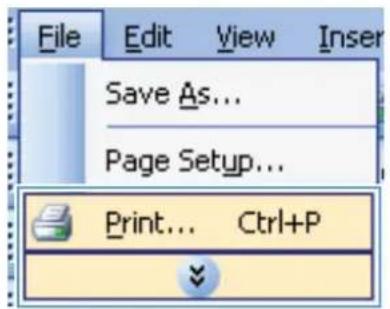
text_image
File Edit View Insert Save As... Page Setup... Print... Ctrl+P- Select the product, and then click the Properties or Preferences button.
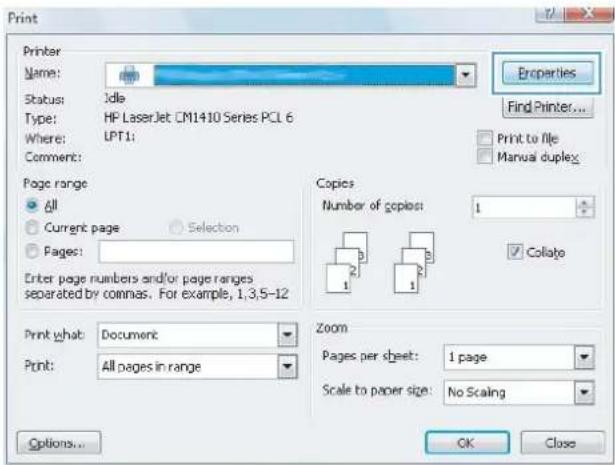
text_image
Print Printer Name: Status: Idle Type: HP LaserJet CM1410 Series PCL 6 Where: LPT1: Comment: Properties Find Printer... Print to file Manual duplex Page range All Current page Selection Pages: Enter page numbers and/or page ranges separated by commas. For example, 1,3,5-12 Copies Number of copies: 1 Collate Print what: Document Print: All pages in range Zoom Pages per sheet: 1 page Scale to paper size: No Scaling Options... OK Close- Click the Finishing tab.
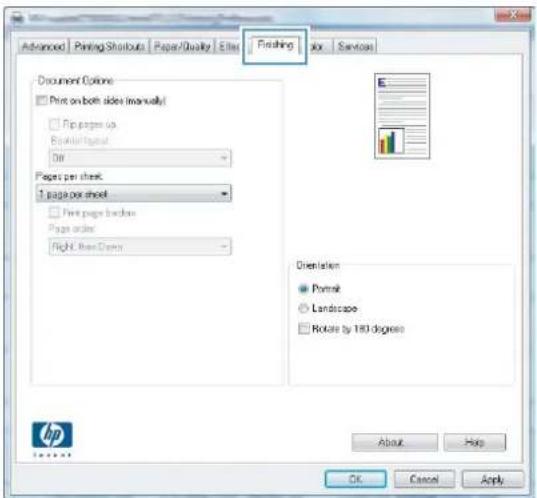
text_image
Advanced Printing Shutouts Paper/Quality Edit Finishing fix Services Document Options Print on both sides (manually) Print pages up Booklet image Off Pages per sheet: 1 page per sheet Print pages border Pages order: Right, then Draw Orientation Portrait Landscape Rotate by 180 degrees About Help OK Cancel Apply- In the Orientation area, select the Portrait or Landscape option.
To print the page image upside down, select the Rotate by 180 degrees option.
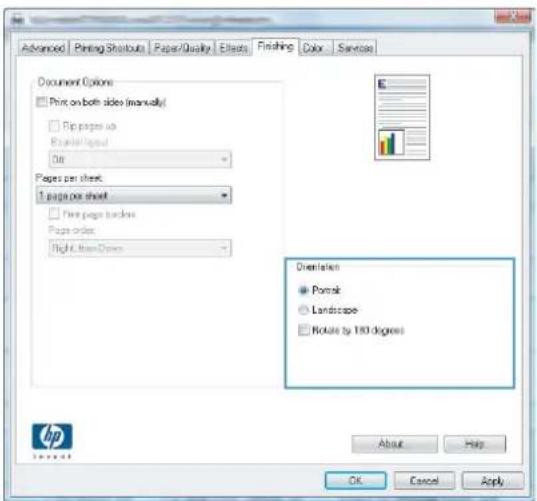
text_image
Advanced | Printing Shutoff | Paper/Quality | Effects | Finishing | Color | Service Document Options: Print on both sides (manually) Print pages up Spread/Layout On Pages per sheet: 1 page per sheet Print pages loose Pages order: Right, from Drive Diversities Portrait Landscape Rotate by 100 degrees About Help OK Cancel ApplySet color options with Windows
- On the File menu in the software program, click Print.
- Select the product, and then click the Properties or Preferences button.
- Click the Color tab.
- Click the HP EasyColor check box to clear it.
- In the Color Options area, click the Manual option, and then click the Settings button.
- Adjust the general settings for Edge Control, and settings for text, graphics, and photographs.
Additional print tasks with Windows
Print colored text as black (grayscale) with Windows
- On the File menu in the software program, click Print.
- Select the product, and then click the Properties or Preferences button.
- Click the Advanced tab.
- Expand the Document Options section.
- Expand the Printer Features section.
- In the Print All Text as Black drop-down list, select the Enabled option.
Print on preprinted letterhead or forms with Windows
-
On the File menu in the software program, click Print.
-
Select the product, and then click the Properties or Preferences button.
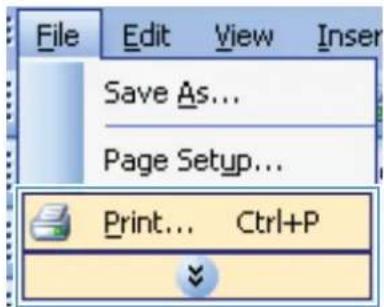
text_image
File Edit View Insert Save As... Page Setup... Print... Ctrl+P
text_image
Print Printer Name: Status: Idle Type: HF LaserJet CM1410 Series PCL 6 Where: LPT1: Comment: Page range All Current page Selection Pages: Enter page numbers and/or page ranges separated by commas. For example, 1,3,5-12 Print what: Document Print: All pages in range Properties Find Printer... Print to file Manual duplex Copies Number of copies 1 Collate Zoom Pages per sheet: 1 page Scale to paper size: No Scaling Options... OK Close- Click the Paper/Quality tab.
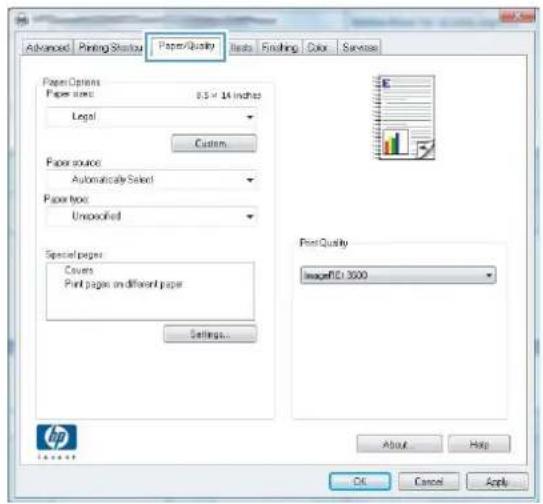
text_image
Advanced Printing Status Paper/Quality Files Finishing Color Services Paper Options Paper sizes: 8.5 x 14 inches Legal Custom Paper source Automatically Select Paper type: Unspecified Special paper Covers Print pages on different paper Settings... Print Quality ImageFDI 3000 About Help OK Cancel Apply- From the Paper type drop-down list, click the More... option.

text_image
Advanced Printing Shortouts Paper Quality Effects Finding Color Service Paper Options Paper size: 0.5 x 14 inches Legal Custom Paper source: Automatically Select Paper type: Unspecified Mary Page number Layers Print pages on different paper Settings... Print Quality Image101 3000 About Help OK Cancel Apply- Expand the list of Type is: options.
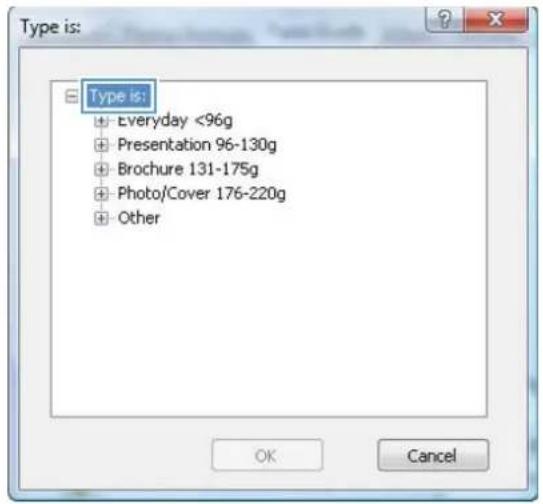
text_image
Type is: + Everyday <96g + Presentation 96-130g + Brochure 131-175g + Photo/Cover 176-220g + Other OK Cancel- Expand the list of Other options.

text_image
Type is: ■ Type is: + Everyday <96g + Presentation 96-130g + Brochure 131-175g + PhotnlCover 176-220g ■ Other - Color Laser Transparency - Labels - Letterhead - Envelope - Preprinted - Prepunched - Colored - Rough OK Cancel- Select the option for the type of paper you are using, and click the OK button.

text_image
Type is: ● Everyday <96g ● Presentation 96-130g ● Brochure 131-175g ● Photo/Cover 176-220g ● Other Color Laser Transparency Labels Letterhead Envelope Preprinted Prepunched Colored Rough OK CancelPrint on special paper, labels, or transparencies
- On the File menu in the software program, click Print.

text_image
File Edit View Insert Save As... Page Setup... Print... Ctrl+P- Select the product, and then click the Properties or Preferences button.
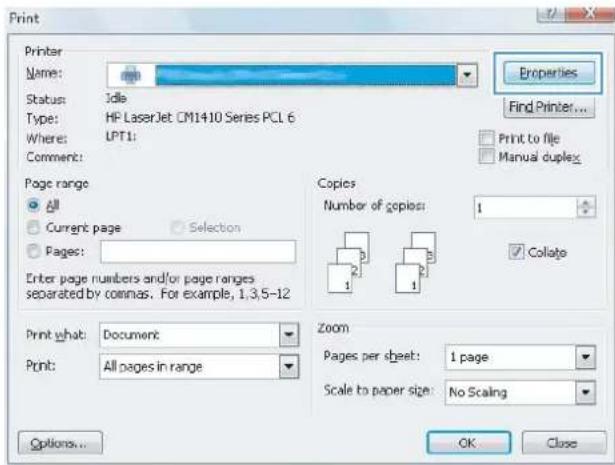
text_image
Print Printer Name: Status: Idle Type: HF LaserJet CM1410 Series PCL 6 Where: UPT1: Comment: Properties Find Printer... Print to file Manual duplex Page range All Current page Selection Pages: Enter page numbers and/or page ranges separated by commas. For example, 1,3,5-12 Copies Number of copies: 1 Collate Print what: Document Print: All pages in range Zoom Pages per sheet: 1 page Scale to paper size: No Scaling Options... OK Close- Click the Paper/Quality tab.
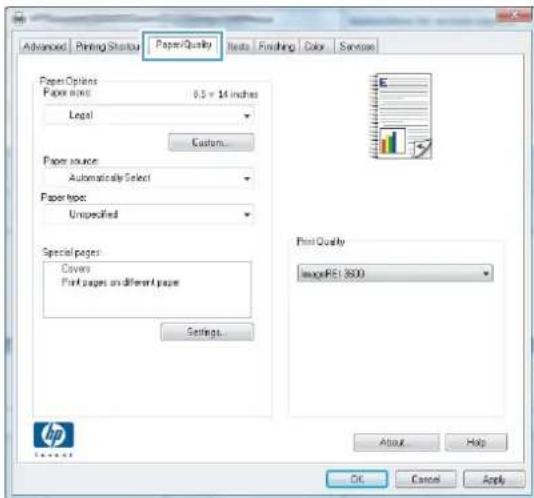
text_image
Advanced Printing Status PaperQuality Items Fulling Color Save Paper Options Paper size: 0.5 = 14 inches Legal Custom... Paper source: Automatically Select Paper type: Unspecified Special pages: Covers Print pages on different pages Settings... Print Quality ImagePE: 8000 About Help OK Cancel Apply- From the Paper type drop-down list, click the More... option.
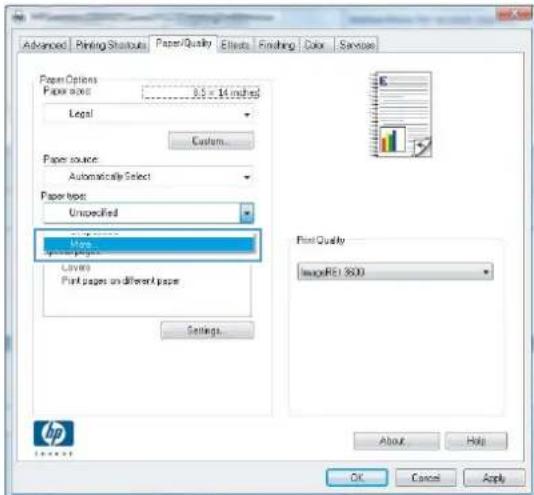
text_image
Advanced Printing Shortouts Paper/Quality Effects Finishing Color Services Paper Options Paper type: 8.5 x 14 threads Legal Custom... Paper source: Automaticcale Select Paper type: Unspecified Image... Paper pages Layers Print pages un different paper Settings... Print Quality ImageRC1.SOD About... Help OK Cancel Apply HP-
Expand the list of Type is: options.
-
Expand the category of paper types that best describes your paper.
NOTE: Labels and transparencies are in the list of Other options.
- Select the option for the type of paper you are using, and click the OK button.
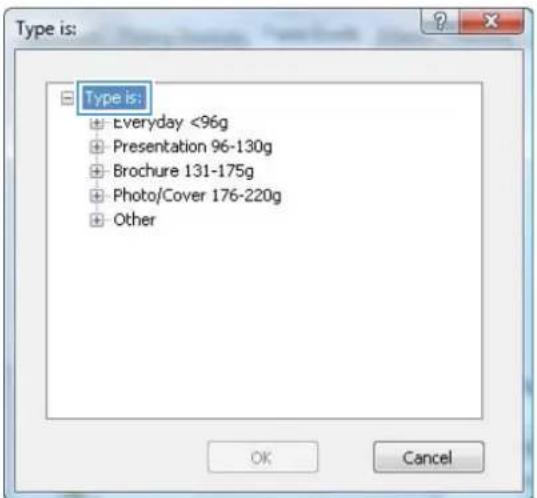
text_image
Type is: + Everyday <96g + Presentation 96-130g + Brochure 131-175g + Photo/Cover 176-220g + Other OK Cancel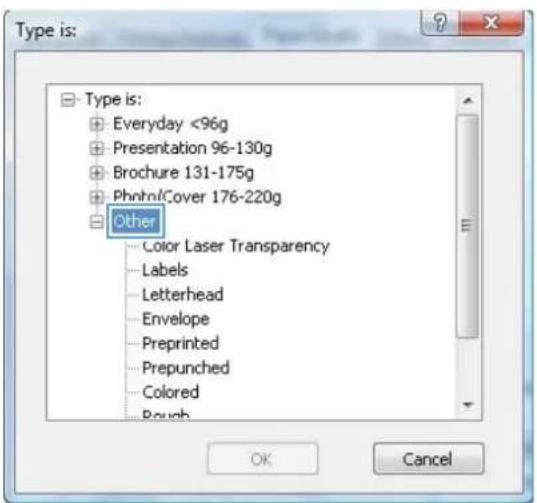
text_image
Type is: Everyday <96g Presentation 96-130g Brochure 131-175g Photol/Cover 176-220g Other Color Laser Transparency Labels Letterhead Envelope Preprinted Prepunched Colored Rough OK Cancel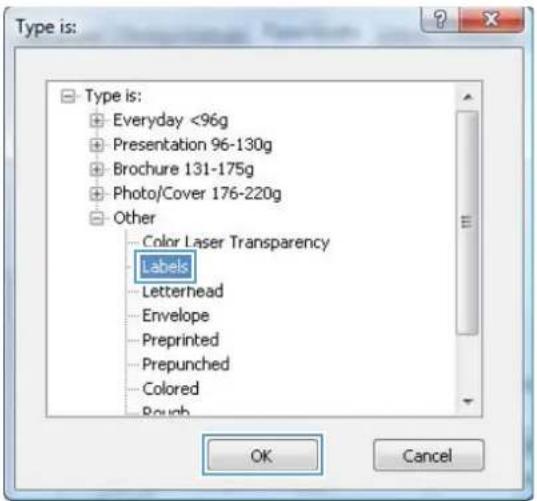
text_image
Type is: ● Everyday <96g ● Presentation 96-130g ● Brochure 131-175g ● Photo/Cover 176-220g ● Other Color Laser Transparency Labels Letterhead Envelope Preprinted Prepunched Colored Rough OK CancelPrint the first or last page on different paper with Windows
-
On the File menu in the software program, click Print.
-
Select the product, and then click the Properties or Preferences button.
-
Click the Paper/Quality tab.
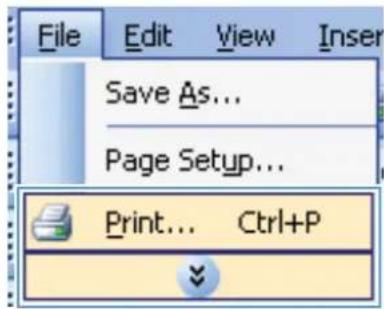
text_image
File Edit View Insert Save As... Page Setup... Print... Ctrl+P
text_image
Print Printer Name: Status: Idle Type: HP LaserJet CM1410 Series PCL 6 Where: UPT1: Comment: Properties Find Printer... Print to file Manual duplex Page range All Current page Selection Pages: Enter page numbers and/or page ranges separated by commas. For example, 1,3,5-12 Copies Number of copies: 1 Collage Print what: Document Print: All pages in range Zoom Pages per sheet: 1 page Scale to paper size: No Scaling Options... OK Close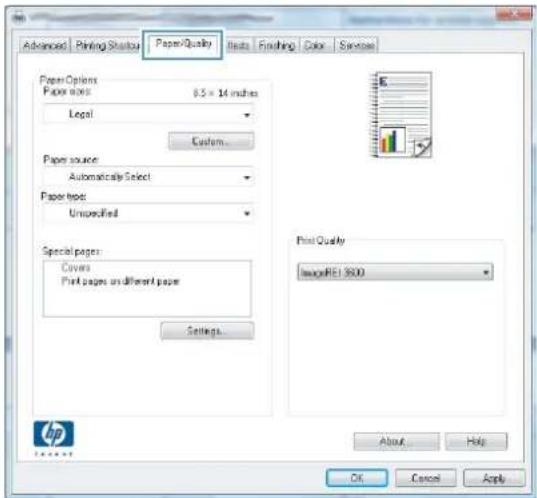
text_image
Advanced Printing Status PaperQuality Items Finishing Color Services Paper Options Paper sizes: 8.5 x 14 inches Legal Custom... Paper source: Automatically Select Paper type: Unspecified Special pages: Covers Print pages on different pages Settings... Print Quality ImageREV 9000 About... Help OK Cancel Apply- In the Special pages area, click the Print pages on different paper option, and then click the Settings button.
- In the Pages in document area, select either the First or Last option.
- Select the correct options from the Paper source and Paper type drop-down lists. Click the Add button.

text_image
Advanced Printing Shortcuts Paper/Quality Effects Finishing Color Services Paper Options Paper size: 8.5 x 14 inches Legal Custom Paper source Automatically Select Paper Note: Unspecified Special pages: Print pages in shortleaf page Settings... Print Quality ImageRGB 5000 About Help OK Cancel Apply...
text_image
Special Pages Special Pages Covers First pages or different pages Pages in document: ■ First NOTE All pages not listed on that table are set to Paper source: Automatically Select Paper type: Unspecified Print on both sides: On Paper source: Automatically Select Paper type: Unspecified Add Update time Special pages defined for the print sub Page Type Pages Paper Source Paper Type Additional attributes Delete Delete All OK Cancel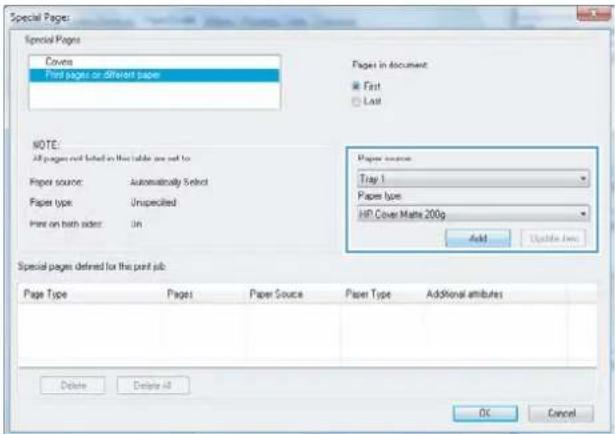
text_image
Special Pages Special Pages Covers Print pages or different papers Pages in document First Last NOTE: All pages not listed on the table are not to Paper source: Automatically Select Paper type: Unspecified Print on both sides: Un Paper source: Tray 1 Paper type: HP Cover Matte 200g Add Update New Special pages defined for the print sub: Page Type Pages Paper Source Paper Type Additional attributes Delete Delete All OK Cancel-
If you are printing both the first and last pages on different paper, repeat steps 5 and 6, selecting the options for the other page.
-
Click the OK button.
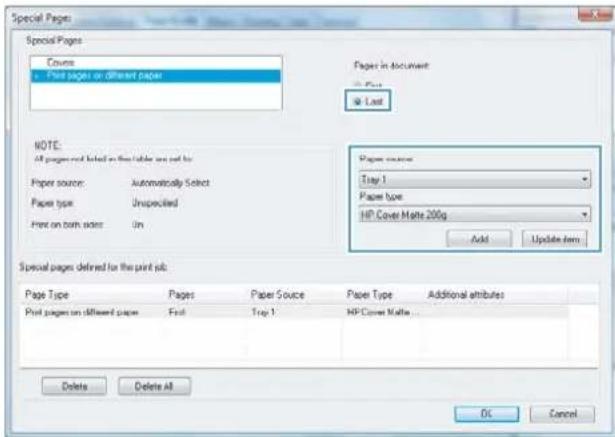
text_image
Special Pages Special Pages Pages in document Page Type: Print pages on different paper @ Last NOTE: All pages not listed on this table are set by: Paper source: Automatically Select Paper type: Unspecified Print on print notes: 0m Paper source: Tray 1 Paper type: HP Cover Matte 200g Add Update Item Special pages defined for the print sub: Page Type Pages Paper Source Paper Type Additional attributes Print pages on different pages First Tray 1 HP Cover Matte Delete Delete All OK Cancel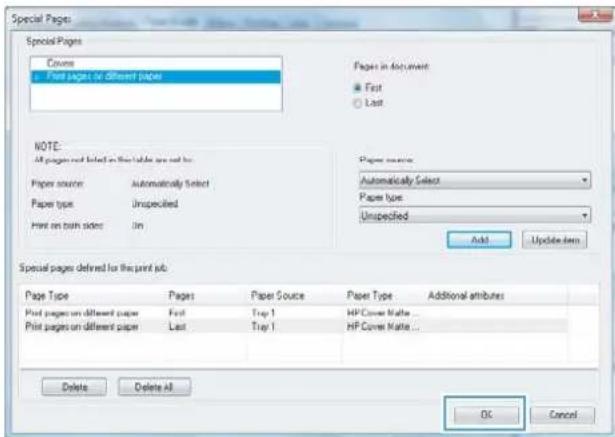
text_image
Special Pages Special Pages Covers First pages or different pages Pages in Document First Last NOTE: All pages are listed on this table are not to: Paper source Automatically Select Paper type Unspecified Print on turn sides In Paper source Automatically Select Paper type Unspecified Add Update item Special pages defined for the print sub: Page Type Pages Paper Source Paper Type Additional attributes Print pages on different paper First Top 1 HP Cover Matte... Print pages on different paper Last Top 1 HP Cover Matte... Delete Delete All OK CancelScale a document to fit page size
- On the File menu in the software program, click Print.
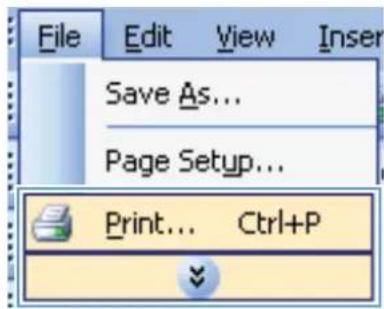
text_image
File Edit View Insert Save As... Page Setup... Print... Ctrl+P- Select the product, and then click the Properties or Preferences button.

text_image
Print Printer Name: Status: Idle Type: HP LaserJet CM1410 Series PCL 6 Where: LPT1: Comment: Properties Find Printer... Print to file Manual duplex Page range All Current page Selection Pages: Enter page numbers and/or page ranges separated by commas. For example, 1,3,5-12 Copies Number of copies: 1 Collate Print what: Document Print: All pages in range Zoom Pages per sheet: 1 page Scale to paper size: No Scaling Options... OK Close- Click the Effects tab.

text_image
Advanced | Printing Shutouts | Paper/Quail | Effects | rating | Color | Services Printing Options ● Actual size ○ Print document on Local □ Scale tools ● % of actual size 100 Watermarks [none] □ First page only Edit... About Help OK Cancel Apply HP- Select the Print document on option, and then select a size from the drop-down list.

text_image
Advanced | Printing Shutouts | Paper/Quality | Effects | Finishing | Color | Service Printing Options Actual size Print document on Legal % of actual size 100 Watermarks [none] First page only Edit... About Help OK Cancel Apply HPAdd a watermark to a document with Windows
- On the File menu in the software program, click Print.
- Select the product, and then click the Properties or Preferences button.
- Click the Effects tab.
- Select a watermark from the Watermarks drop-down list.
Or, to add a new watermark to the list, click the Edit button. Specify the settings for the watermark, and then click the OK button.
- To print the watermark on the first page only, select the First page only check box. Otherwise, the watermark is printed on each page.
Create a booklet with Windows
- On the File menu in the software program, click Print.

text_image
File Edit View Insert Save As... Page Setup... Print... Ctrl+P- Select the product, and then click the Properties or Preferences button.
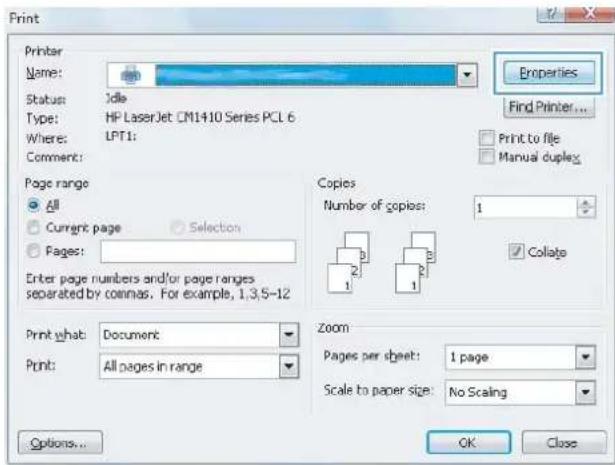
text_image
Print Printer Name: Status: Idle Type: HP LaserJet CM1410 Series PCL 6 Where: LPT1: Comment: Properties Find Printer... Print to file Manual duplex Page range All Current page Selection Pages: Enter page numbers and/or page ranges separated by commas. For example, 1,3,5-12 Copies Number of copies: 1 Collate Print what: Document Print: All pages in range Zoom Pages per sheet: 1 page Scale to paper size: No Scaling Options... OK Close- Click the Finishing tab.
- Select the Print on both sides check box.
- In the Booklet layout drop-down list, click the Left binding or Right binding option. The Pages per sheet option automatically changes to 2 pages per sheet.

text_image
Advanced Printing Startouts Paper/Quality 效益 Finishing for Services Document Options Print on both sides (manually) Print paper up Builder layout Off Pages per sheet: 1 page per sheet Print page folders Page order: Right, from Draw Orientation ● Portrait ○ Landscape □ Rotate by 100 degrees About Help OK Cancel Apply HP TOMATO
text_image
Advanced | Printing Shutouts | Paper/Quality | Effects | Finishing | Color | Service Document Options ✓ Print on both sides (manually) ✓ Flip pages up Booklet layout. Diff Pages per sheet: 1 page per sheet ✓ Print pages hardets Page order: Right, then Down. Orientation ● Portrait ○ Landscape □ Rotate by 100 degrees About Help OK Cancel Apply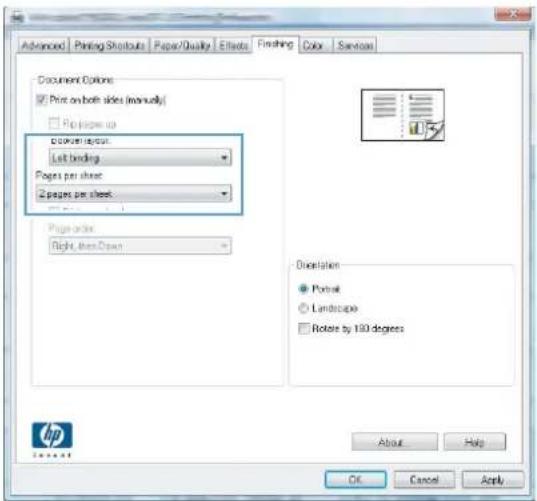
text_image
Document Colors: Print on both sides (manually) Pages up cover page Last binding Pages per sheet 2 pages per sheet Pages order Right, then Down Orientation Portrait Landscape Rotate by 100 degrees About Help OK Cancel Apply- Retrieve the printed stack from the output bin, and maintaining the same orientation, place it with the printed-side facing down in Tray 1.
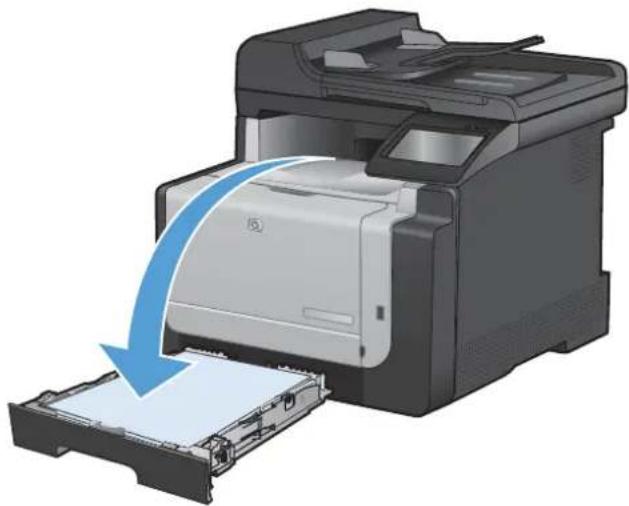
natural_image
Illustration of a printer being inserted into a plastic sheet, with a blue arrow indicating the process (no text or symbols present)- On the control panel, touch the OK button to print the second side of the job.
Walk-up USB printing
This product features printing from a USB flash drive, so you can quickly print files without sending them from a computer. The product accepts standard USB storage accessories in the USB port on the front of the product. You can print the following types of files:
.PDF
.JPEG
- Insert the USB drive into the USB port on the front of the product.
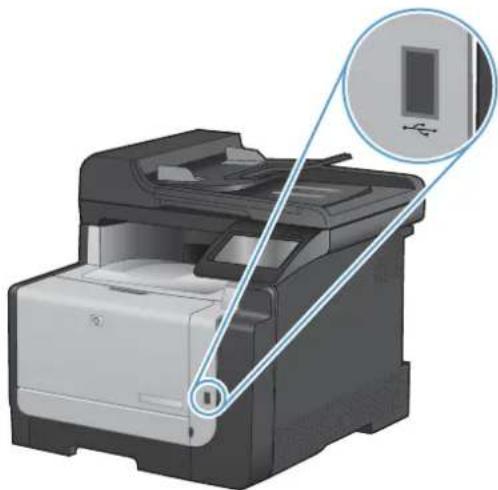
natural_image
Illustration of a printer with a close-up inset showing a small rectangular object (no text or symbols present)-
The USB Flash Drive menu opens. Touch the arrow buttons to scroll through the options.
-
Print Documents
• View and Print Photos -
Scan to USB Drive
-
To print a document, touch the Print Documents screen, and then touch the name of the folder on the USB drive where the document is stored. When the summary screen opens, you can touch it to adjust the settings. Touch the Print button to print the document.
-
To print photos, touch the View and Print Photos screen, and then touch the preview image for each photo that you want to print. Touch the Done button. When the summary screen opens, you can touch it to adjust the settings. Touch the Print button to print the photos.
- Retrieve the printed job from the output bin, and remove the USB drive.
8 Color
- Adjust color
• Use the HP EasyColor option for Windows - Match colors
Adjust color
Manage color by changing the settings on the Color tab in the printer driver.
Change the color theme for a print job
- On the File menu in the software program, click Print.
- Click Properties or Preferences.
- Click the Color tab.
-
Select a color theme from the Color Themes drop-down list.
-
Default (sRGB): This theme sets the product to print RGB data in raw device mode. When using this theme, manage color in the software program or in the operating system for correct rendering.
- Vivid: The product increases the color saturation in the midtones. Use this theme when printing business graphics.
- Photo: The product interprets RGB color as if it were printed as a photograph using a digital mini lab. The product renders deeper, more saturated colors differently than with the Default (sRBG) theme. Use this theme when printing photos.
- Photo (Adobe RGB 1998): Use this theme with printing digital photos that use the AdobeRGB color space rather than sRGB. Turn off color management in the software program when using this theme.
• None: No color theme is used.
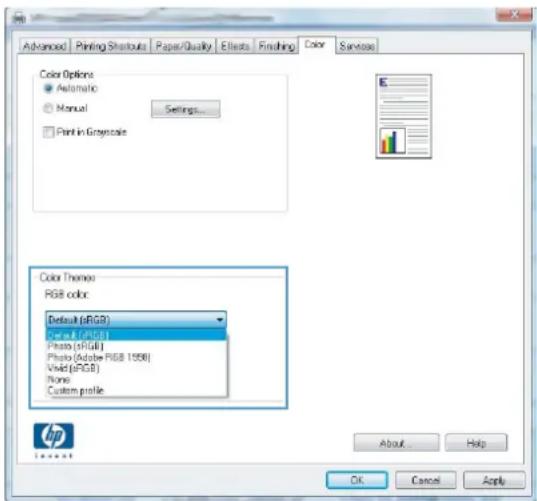
text_image
Advanced Printing Shutouts Paper/Quality Effects Finishing Color Services Color Options Automatic Manual Settings... Print in Grayscale Color Theme RGB color Default (RGB) Class A (RGB) Photo (RGB) Photo (Adobe RGB 1556) Valid (RGB) None Custom profile About Help OK Cancel ApplyChange the color options
Change the color options settings for the current print job from the color tab of the printer driver.
- On the File menu in the software program, click Print.
- Click Properties or Preferences.
- Click the Color tab.
- Click the Automatic or Manual setting.
• Automatic setting: Select this setting for most color print jobs
- Manual setting: Select this setting to adjust the color settings independent from other settings.

NOTE: Changing color settings manually can impact output. HP recommends that only color graphics experts change these settings.

text_image
Advanced Printing Shutouts Paper Quality Effects Finishing Color Services Color Options: Automatic Manual Settings... Print in Gray-scale Color Themes: RGB color Default (RGB) About... Help OK Cancel Apply HP Tencent-
Click the Print in Grayscale option to print a color document in black and shades of gray. Use this option to print color documents for photocopying or faxing. You can also use this option to print draft copies or to save color toner.
-
Click the OK button.
Manual color options
Use manual color options to adjust the Neutral Grays, Halftone, and Edge Control options for text, graphics, and photographs.
Table 8-1 Manual color options
| Setting description Setting options | |
| Edge Control | Off turns off both trapping and adaptive halftoning. |
| The Edge Control setting determines the rendering of edges. Edge control has two components: adaptive halftoning and trapping. Adaptive halftoning increases edge sharpness. Trapping reduces the effect of color-plane misregistration by overlapping the edges of adjacent objects slightly. | Light sets trapping at a minimal level. Adaptive halftoning is on.Normal sets trapping at a medium level. Adaptive halftoning is on.Maximum is the most aggressive trapping setting. Adaptive halftoning is on. |
| Halftone | Smooth provides better results for large, solid-filled print areas and enhances photographs by smoothing color gradations. Select this option when uniform and smooth area fills are important. |
| Halftone options affect color output clarity and resolution. | Detail is useful for text and graphics that require sharp distinctions among lines or colors, or images that contain a pattern or a high level of detail. Select this option when sharp edges and small details are important. |
| Neutral Grays | Black Only generates neutral colors (grays and black) by using only black toner. This guarantees neutral colors without a color cast. This setting is best for documents and grayscale viewgraphs. |
| The Neutral Grays setting determines the method for creating gray colors used in text, graphics, and photographs. | 4-Color generates neutral colors (grays and black) by combining all four toner colors. This method produces smoother gradients and transitions to other colors, and it produces the darkest black. |
Use the HP EasyColor option for Windows
If you are using the HP PCL 6 printer driver for Windows, the HP EasyColor technology automatically improves mixed-content documents that are printed from Microsoft Office programs. This technology scans documents and automatically adjusts photographic images in .JPEG or .PNG format. HP EasyColor technology enhances the entire image at one time, rather than dividing it into several pieces, which results in improved color consistency, sharper details, and faster printing.
In the following example, the images on the left were created without using the HP EasyColor option. The images on the right show the enhancements that result from using the HP EasyColor option.

text_image
Bring your photos to LIFE powered by hp EasyColor and the UPD
text_image
Bring your photos to LIFE powered by hp EasyColor and the UPDThe HP EasyColor option is enabled by default in the HP PCL 6 printer driver, so you do not need to make manual color adjustments. To disable the option so you can manually adjust the color settings, open the Color tab, and click the HP EasyColor check box to clear it.
Match colors
For most users, the best method for matching colors is to print sRGB colors.
The process of matching printer output color to your computer screen is complex, because printers and computer monitors use different methods of producing color. Monitors display colors by using light pixels that use an RGB (red, green, blue) color process, but printers print colors by using a CMYK (cyan, magenta, yellow, and black) process.
Several factors can influence your ability to match printed colors to those on your monitor:
Print media
• Printer colorants (inks or toners, for example)
- Printing process (inkjet, press, or laser technology, for example)
Overhead lighting
• Personal differences in perception of color
- Software programs
Printer drivers
• Computer operating systems
Monitors
• Video cards and drivers
• Operating environment (humidity, for example)
Keep these factors in mind when colors on your screen do not perfectly match your printed colors.
9 C o p y
• Use copy functions
- Copy settings
- Copy photos
• Copy mixed size originals
• Copy on both sides manually (duplex)
Use copy functions
One-touch copy
- Load the document onto the scanner glass or into the document feeder.
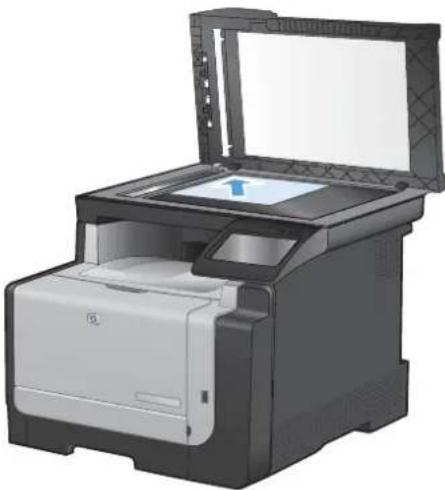
natural_image
Exterior view of a HP printer with open lid and paper feed (no visible text or symbols)-
From the Home screen, touch the Copy button.
-
Touch the Black or Color button to start copying.
Multiple copies
- Load the document onto the scanner glass or into the document feeder.
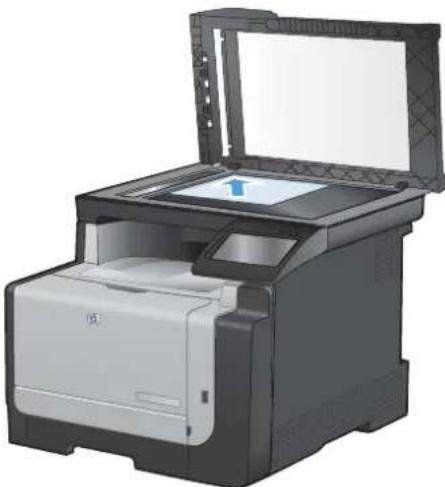
natural_image
Illustration of a printer with open lid and paper feed, showing internal structure (no text or symbols)-
From the Home screen, touch the Copy button.
-
Touch the arrows to change the number of copies, or touch the existing number and type the number of copies.
-
Touch the Black or Color button to start copying.
Copy a multiple-page original
- Insert the originals into the document feeder face-up.

natural_image
Illustration of a HP printer with paper feed and paper sheet (no text or symbols visible)- Adjust the guides until they are snug against the paper.

natural_image
Illustration of a HP printer with paper being inserted (no text or symbols visible)-
From the Home screen, touch the Copy button.
-
Touch the Black or Color button to start copying.
Copy identification cards
Use the ID Copy feature to copy both sides of identification cards, or other small-size documents, onto the same side of one sheet of paper. The product prompts you to copy the first side and then to place the second side on a different area of the scanner glass and copy again. The product prints both images at the same time.
- Load the document onto the scanner glass.
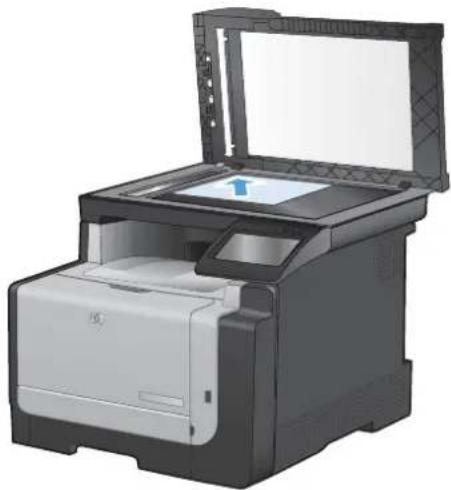
natural_image
Illustration of a printer with open lid and paper feed, showing internal components (no text or symbols visible)-
From the Home screen, touch the Copy button.
-
Touch the ID Copy button.
-
Touch the Black or Color button to start copying.
-
The product prompts you to place the next page on a different section of the scanner glass.
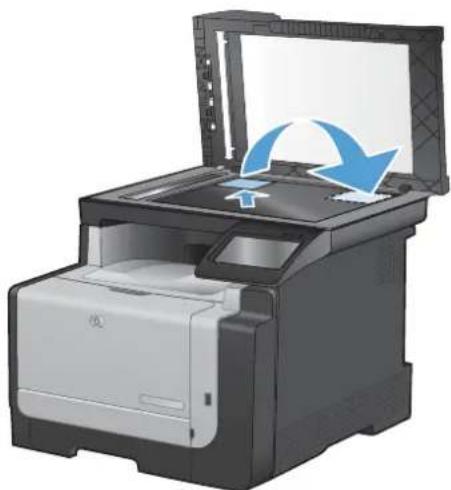
natural_image
Illustration of a printer with an open lid and a blue circular arrow indicating refresh or reuse (no text or symbols present)-
Touch the OK button if you have more pages to copy, or touch the Done button if this is the last page.
-
The product copies all pages onto one side of a sheet of paper.
Cancel a copy job
- Touch the Cancel ✗ button on the product control panel.
NOTE: If more than one process is running, touching the Cancel ✗ button clears the current process and all pending processes.
- Remove the remaining pages from the document feeder.
Reduce or enlarge a copy
- Load the document onto the scanner glass or into the document feeder.
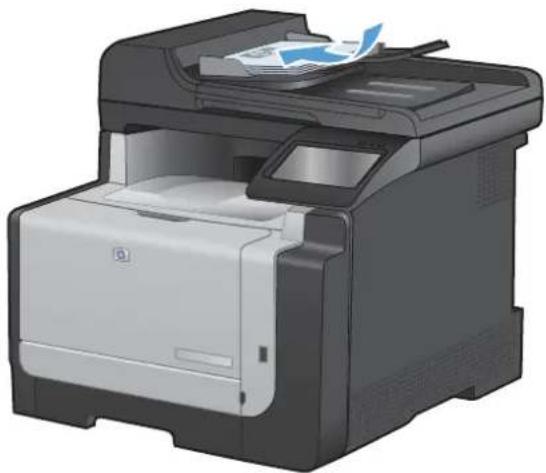
natural_image
Illustration of a HP printer with paper feeding into the cover (no text or symbols visible)- From the Home screen, touch the Copy button.
- Touch the Settings... button, and then touch the Reduce/Enlarge button. Touch the arrow buttons to scroll through the options, and then touch an option to select it.
- Touch the Black or Color button to start copying.
Collate a copy job
- Load the document onto the scanner glass or into the document feeder.
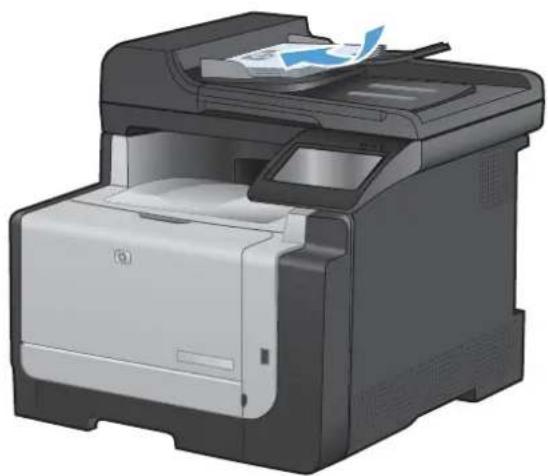
natural_image
Illustration of a HP printer with paper feed and paper clip (no text or symbols visible)-
From the Home screen, touch the Copy button.
-
Touch the Settings... button, and then scroll to and touch the Collation button. Touch the arrow buttons to scroll through the options, and then touch an option to select it.
-
Touch the Black or Color button to start copying.
Make color or black and white copies
- Load the document onto the scanner glass or into the document feeder.

natural_image
Illustration of a HP printer with paper feed and paper sheet (no text or symbols visible)-
From the Home screen, touch the Copy button.
-
Touch the Black or Color button to start copying.
Copy settings
Change copy quality
The following copy-quality settings are available:
-
Auto Select: Use this setting when you are not concerned about the quality of the copy. This is the default setting.
• Mixed: Use this setting for documents that contain a mixture of text and graphics.
• Text: Use this setting for documents that contain mostly text.
• Picture: Use this setting for documents that contain mostly graphics. -
Load the document onto the scanner glass or into the document feeder.
natural_image
Illustration of a HP printer with paper feed and paper clip (no text or symbols visible)- From the Home screen, touch the Copy button.
- Touch the Settings... button, and then scroll to and touch the Optimize button. Touch the arrow buttons to scroll through the options, and then touch an option to select it.
- Touch the Black or Color button to start copying.
Check the scanner glass for dirt and smudges
Over time, specks of debris might collect on the scanner glass and white plastic backing, which can affect performance. Use the following procedure to clean the scanner glass and white plastic backing.
- Use the power switch to turn off the product, and then unplug the power cord from the electrical socket.
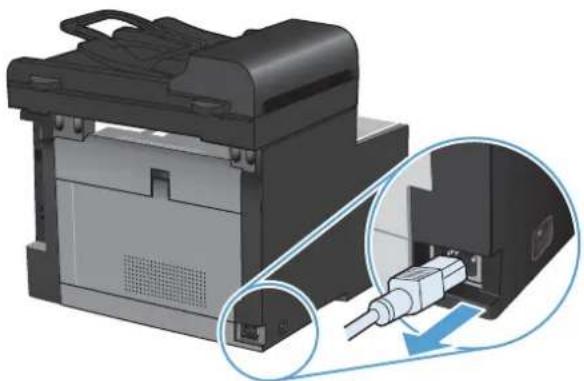
natural_image
Illustration of a printer with a magnified inset showing internal components (no text or symbols)-
Open the scanner lid.
-
Clean the scanner glass and the white plastic backing with a soft cloth or sponge that has been moistened with nonabrasive glass cleaner.
CAUTION: Do not use abrasives, acetone, benzene, ammonia, ethyl alcohol, or carbon tetrachloride on any part of the product; these can damage the product. Do not place liquids directly on the glass or platen. They might seep and damage the product.

natural_image
3D rendering of a HP printer with open lid and paper feed (no visible text or symbols)- Dry the glass and white plastic with a chamois or a cellulose sponge to prevent spotting.
- Plug in the product, and then use the power switch to turn on the product.
Adjust the lightness or darkness for copies
- Load the document onto the scanner glass or into the document feeder.
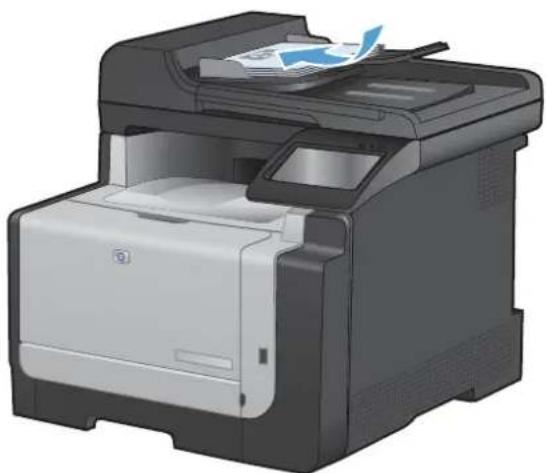
natural_image
Illustration of a HP printer with paper feed and paper sheet (no text or symbols visible)- From the Home screen, touch the Copy button.
- Touch the Settings... button, and then scroll to and touch the Lighter/Darker button. On the summary screen, touch the arrow buttons to adjust the setting.
- Touch the Black or Color button to start copying.
Define custom copy settings
When you change the copy settings at the control panel, the custom settings remain in effect for approximately 2 minutes after the job completes, and then the product returns to the default settings. To immediately return to the defaults, press the Cancel ✗ button from the Home screen.
Print or copy edge-to-edge
The product cannot print fully edge-to-edge. The maximum printing area is 203.2 × 347 ~mm (8 x 13.7 in), leaving a 4 mm unprintable border around the page.
Considerations for printing or scanning documents with cropped edges:
- When the original is smaller than the output size, move the original 4 mm (1/6 inch) away from the corner indicated by the icon on the scanner. Recopy or scan in this position.
- When the original is the size of the desired output, use the Reduce/Enlarge feature to reduce the image so the copy is not cropped.
Set the paper size and type for copying on special paper
- From the Home screen, touch the Copy button.
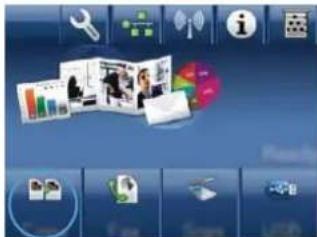
text_image
Screenshot of a software interface with icons for tools, documents, and media, showing a photo collage and menu bar.- Touch the Settings... button, and then scroll to and touch the Paper button.
- From the list of paper sizes, touch the name of the paper size that is in Tray 1.
- From the list of paper types, touch the name of the paper type that is in Tray 1.
- Touch the Black or Color button to start copying.
Restore copy default settings
- From the Home screen, touch the Copy button.

text_image
Screenshot of a desktop application interface with icons for tools, documents, and media, showing a collage of photo thumbnails.- Touch the Settings... button, and then scroll to and touch the Restore Defaults button.
Copy photos

NOTE: Copy photos from the scanner glass, not from the document feeder.
- Place the photo on the scanner glass, picture-side down at the upper left corner of the glass, and close the scanner lid.

natural_image
Exterior view of a HP printer with open lid and paper feed (no visible text or symbols)- From the Home screen, touch the Copy button.
- Touch the Settings... button, and then touch the Optimize button.
- Touch the Picture button.
- Touch the Black or Color button to start copying.
Copy mixed size originals
Use the scanner glass to make copies of mixed size originals.

NOTE: You can use the document feeder to copy mixed size originals only if the pages share a common dimension. For example, you can combine Letter and Legal size pages because they have the same width. Stack the pages so the top edges are even with each other and so the pages have the same width but varying lengths.
- In Tray 1, load paper that is large enough for the largest page in the original document.
- Place one page of the original document face down in the upper left corner of the scanner glass.
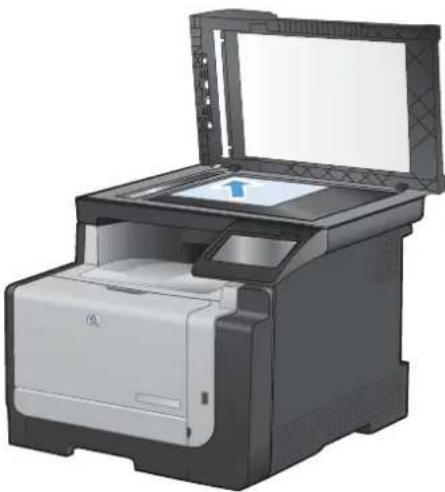
natural_image
Exterior view of a printer with open lid and paper feed (no visible text or symbols)- From the Home screen, touch the Copy button.
- Touch the Settings... button, and then scroll to and touch the Paper button.
- From the list of paper sizes, touch the name of the paper size that is loaded in Tray 1.
- From the list of paper types, touch the name of the paper type that is loaded in Tray 1.
- Touch the Black or Color button to start copying.
- Repeat these steps for each page.
Copy on both sides manually (duplex)
- Load the first page of the document onto the scanner glass or into the document feeder.
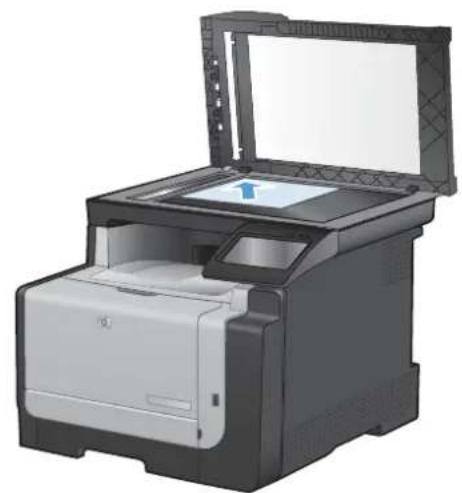
natural_image
Illustration of a HP printer with open lid and paper feed (no text or symbols visible)-
From the Home screen, touch the Copy button.
-
Touch the Black or Color button to start copying.
-
Remove the printed copy from the output bin, and maintaining the same orientation, load the page with the printed side down into Tray 1.
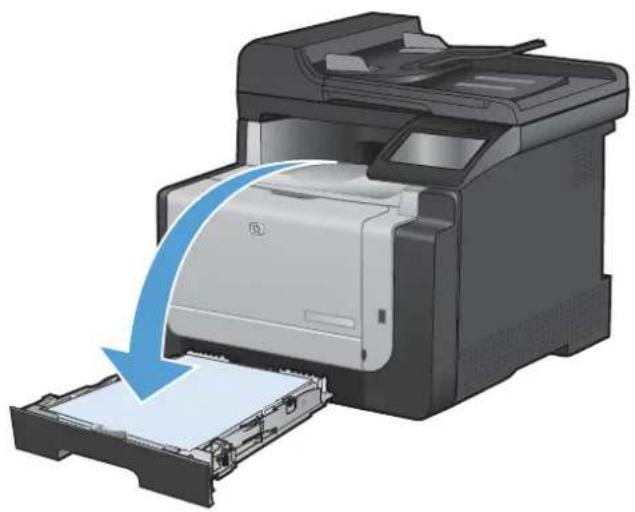
natural_image
Illustration of a HP printer being inserted into a paper holder, with a blue arrow indicating the process (no text or symbols present)- Load the next page of the document onto the scanner glass or into the document feeder.
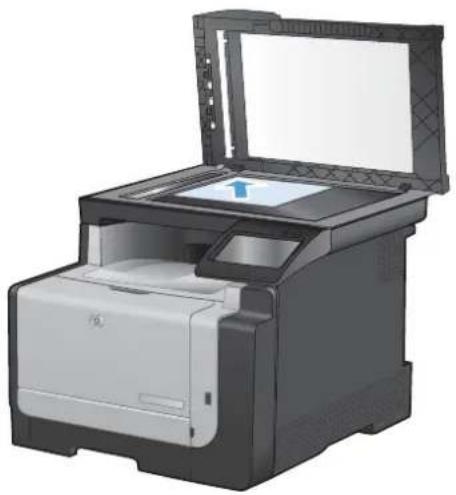
natural_image
Exterior view of a printer with open lid and paper feed (no visible text or symbols)- From the Home screen, touch the Copy button.
- Touch the Black or Color button to start copying.
- Repeat these steps until the copy is complete.
10 Scan
• Use scan functions
- Scan settings
- Scan a photo
Use scan functions
Scan methods
Perform scan jobs in the following ways.
- Scan to a USB flash drive from the product control panel.
- Scan from the computer by using HP Scan software
- Scan from TWAIN-compliant or Windows Imaging Application (WIA)-compliant software
NOTE: To learn about and use text-recognition software, install the Readiris program from the software CD. Text-recognition software is also known as optical character recognition (OCR) software.
Scan to a USB flash drive
- Load the document onto the scanner glass or into the document feeder.
- Insert a USB flash drive into the port on the front of the product.
- From the Home screen, touch the Scan button.
- Touch the Scan to USB Drive screen.
- Touch the Scan button to scan and save the file. The product creates a folder named HP on the USB drive, and it saves the file in .PDF or .JPG format using an automatically generated file name.
NOTE: When the summary screen opens, you can touch it to adjust settings.
Scan by using HP Scan software (Windows)
- Double-click the HP Scan icon on the computer desktop.
- Select a scanning shortcut, and adjust the settings if necessary.
- Click Scan.
NOTE: Click Advanced Settings to gain access to more options.
Click Create New Shortcut to create a customized set of settings and save it in the list of shortcuts.
Scan by using other software
The product is TWAIN-compliant and Windows Imaging Application (WIA)-compliant. The product works with Windows-based programs that support TWAIN-compliant or WIA-compliant scanning devices and with Macintosh-based programs that support TWAIN-compliant scanning devices.
While you are in a TWAIN-compliant or WIA-compliant program, you can gain access to the scanning feature and scan an image directly into the open program. For more information, see the Help file or the documentation that came with your TWAIN-compliant or WIA-compliant software program.
Scan from a TWAIN-compliant program
Generally, a software program is TWAIN-compliant if it has a command such as Acquire, File Acquire, Scan, Import New Object, Insert from, or Scanner. If you are unsure whether the program is compliant or you do not know what the command is called, see the software program Help or documentation.
When scanning from a TWAIN-compliant program, the HP Scan software program might start automatically. If the HP Scan program starts, you can make changes while previewing the image. If the program does not start automatically, the image goes to the TWAIN-compliant program immediately.
Start the scan from within the TWAIN-compliant program. See the software program Help or documentation for information about the commands and steps to use.
Scan from a WIA-compliant program
WIA is another way to scan an image directly into a software program. WIA uses Microsoft software to scan, instead of the HP Scan software.
Generally, a software program is WIA-compliant if it has a command such as Picture/From Scanner or Camera in the Insert or File menu. If you are unsure whether the program is WIA-compliant, see the software program Help or documentation.
Start the scan from within the WIA-compliant program. See the software program Help or documentation for information about the commands and steps to use.
-Or-
From the Windows control panel, in the Cameras and Scanner folder (located inside the Hardware and Sound folder for Windows Vista and Windows 7), double-click the product icon. This opens the standard Microsoft WIA Wizard, which enables you to scan to a file.
Scan by using optical character recognition (OCR) software
To import scanned text into your preferred word-processing program for editing, open the HP Scan software and select the shortcut named Save as Editable Text (OCR).
You can also use third-party OCR software. The Readiris OCR program is included on a separate CD that shipped with the product. To use the Readiris program, install it from the appropriate software CD, and then follow the instructions in the online Help.
Cancel a scan
To cancel a scan job, use one of the following procedures.
- On the product control panel, touch the Cancel ✗ button.
- Click the Cancel button in the on-screen dialog box.
Scan settings
Scanner resolution and color
If you are printing a scanned image, and the quality is not what you expected, you might have selected a resolution or color setting in the scanner software that does not match your needs. Resolution and color affect the following features of scanned images:
• Image clarity
• Texture of gradations (smooth or rough)
- Scan time
File size
Scanning resolution is measured in pixels per inch (ppi).
NOTE: Scanning ppi levels are not interchangeable with printing dpi (dots per inch) levels.
Color, grayscale, and black and white define the number of colors possible. You can adjust the scanner hardware resolution to up to 1200 ppi.
The resolution and color guidelines table lists simple tips that you can follow to meet your scanning needs.
NOTE: Setting the resolution and color to a high value can create large files that take up disk space and slow the scanning process. Before setting the resolution and color, determine how you are going to use the scanned image.
Resolution and color guidelines
The following table describes the recommended resolution and color settings for different types of scan jobs.

NOTE: The default resolution is 200 ppi.
Intended use Recommended resolution Recommended color settings
| Fax 150 ppi | Black and White |
| E-mail 150 ppi | Black and White, if the image does not require smooth gradationGrayscale, if the image requires smooth gradationColor, if the image is in color |
| Edit text 300 ppi | Black and White |
| Print (graphics or text) 600 ppi for complex graphics, or if you want to significantly enlarge the document300 ppi for normal graphics and text150 ppi for photos | Black and White for text and line artGrayscale for shaded or colored graphics and photosColor, if the image is in color |
| Display on screen 75 ppi | Black and White for textGrayscale for graphics and photosColor, if the image is in color |
Color
You can set the color values to the following settings when scanning.
| Setting Recommended use | |
| Color | Use this setting for high-quality color photos or documents in which the color is important. |
| Black and White Use this setting for text documents. | |
| Grayscale Use this setting when file size is an issue or when you want to scan a document or photograph quickly. | |
Scan quality
Over time, specks of debris might collect on the scanner glass and white plastic backing, which can affect performance. Use the following procedure to clean the scanner glass and white plastic backing.
- Use the power switch to turn off the product, and then unplug the power cord from the electrical socket.

natural_image
3D rendering of a printer with an attached cable and a magnified inset showing the cable being inserted (no text or symbols visible)-
Open the scanner lid.
-
Clean the scanner glass and the white plastic backing with a soft cloth or sponge that has been moistened with nonabrasive glass cleaner.
CAUTION: Do not use abrasives, acetone, benzene, ammonia, ethyl alcohol, or carbon tetrachloride on any part of the product; these can damage the product. Do not place liquids directly on the glass or platen. They might seep and damage the product.
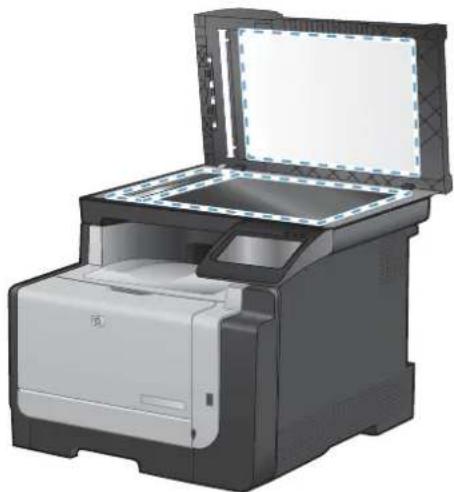
natural_image
Exterior view of a HP printer with open lid and paper tray (no visible text or symbols)-
Dry the glass and white plastic with a chamois or a cellulose sponge to prevent spotting.
-
Plug in the product, and then use the power switch to turn on the product.
Scan a photo
- Place the photo on the scanner glass, picture-side down at the upper left corner of the glass, and close the scanner lid.
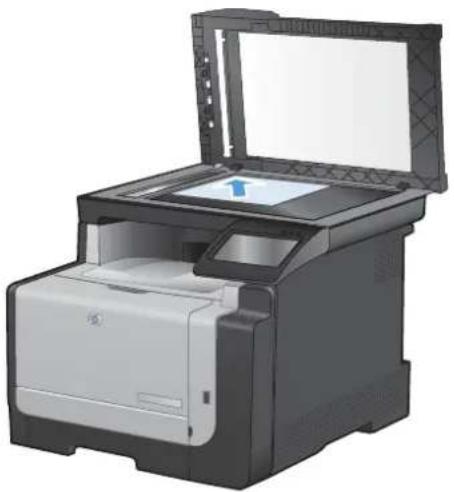
natural_image
Illustration of a HP printer with open lid and paper feed (no text or symbols visible)- Insert a USB flash drive into the port on the front of the product.
- From the Home screen, touch the Scan button.
- Touch the Scan to USB Drive button. The control panel shows a summary of scan settings. Touch this screen to adjust any settings.
- Touch the Scan button to scan the document and save it in a folder on the USB flash drive.
11 Fax
- Set up fax
• Use the phone book - Set fax settings
Use fax - Solve fax problems
• Regulatory information and warranties
Set up fax
Install and connect the hardware
Connect fax to a telephone line
Connect the telephone cable to the line port -☑ on the product and to the telephone jack on the wall.
The product is an analog device. HP recommends using the product on a dedicated analog telephone line.
NOTE: Some countries/regions might require an adapter to the phone cord that came with the product.
Connect additional devices
The product includes two fax ports:
The "line" port -▽, which connects the product to the wall telephone jack.
The "telephone" port ☐, which connects additional devices to the product.
Telephones used in conjunction with the product can be employed in two ways:
An extension phone is a phone plugged into the same phone line at another location.
- A downstream phone is one that is plugged into the product or a device that is plugged into the product.
Connect additional devices in the order that is described in the following steps. The output port for each device is connected to the input port of the next, forming a "chain". If you do not want to connect a specific device, skip the step that explains it and continue to the next device.
NOTE: Do not connect more than three devices to the telephone line.
NOTE: Voicemail is not supported with this product.
- Unplug the power cords for all of the devices that you want to connect.
-
If the product is not yet connected to a telephone line, see the product installation guide before proceeding. The product should already be connected to a telephone jack.
-
Remove the plastic insert from the "telephone" port (the port that is marked with the telephone icon).
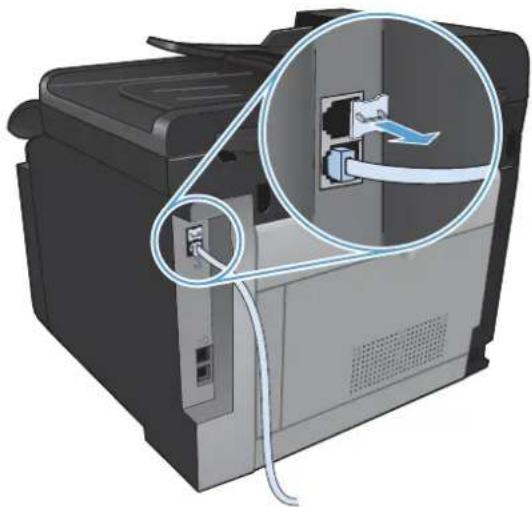
natural_image
Diagram of a printer with attached cable and internal socket, showing internal wiring and port connections (no text or symbols)- To connect an internal or external modem on a computer, plug one end of a telephone cord into the product "telephone" port ☐. Plug the other end of the telephone cord into the modem "line" port.
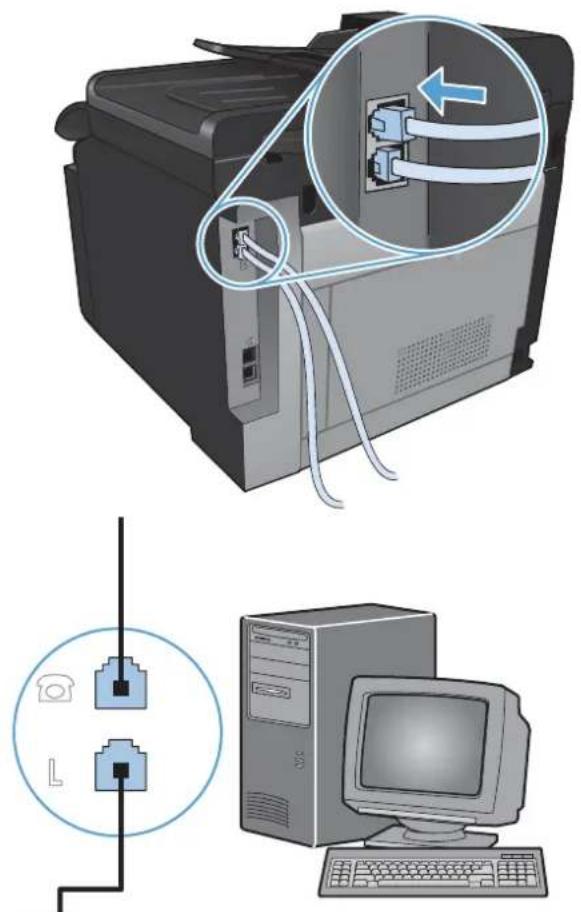
text_image
Diagram illustrating computer setup with labeled components including printer, socket, keyboard, and monitor connected to a device.NOTE: Some modems have a second "line" port to connect to a dedicated voice line. If you have two "line" ports, see your modem documentation to make sure that you connect to the correct "line" port.
- To connect a caller-ID box, plug a telephone cord into the previous device's "telephone" port. Plug the other end of the telephone cord into the caller-ID box "line" port.
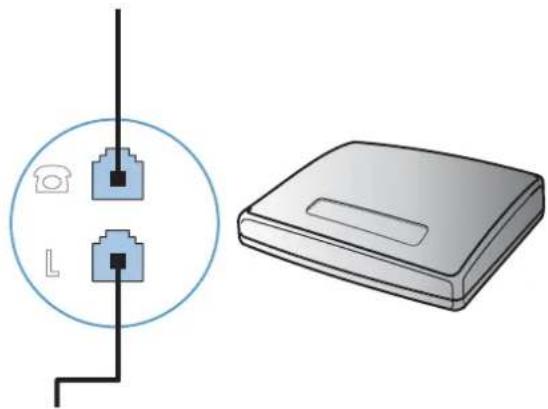
natural_image
Illustration of a device with two connected switches and a flat case (no text or symbols)- To connect an answering machine, plug a telephone cord into the previous device's "telephone" port. Plug the other end of the telephone cord into the answering machine "line" port.

natural_image
Illustration of a telephone handset and a portable electronic device (no text or symbols)- To connect a telephone, plug a telephone cord into the previous device's "telephone" port. Plug the other end of the telephone cord into the telephone "line" port.

natural_image
Line drawing of a classic telephone handset with keypad and scroll (no text or symbols)- After you have finished connecting additional devices, plug all of the devices into their power sources.
Set up fax with a telephone answering machine
- Set the product rings-to-answer setting for at least one ring more than the number of rings for which the answering machine is set.
If an answering machine is connected to the same telephone line but on a different jack (in another room, for example), it might interfere with the product's ability to receive faxes.
Set up fax with an extension phone
With this setting turned on, you can alert the product to pick up the incoming fax call by pressing 1-2-3 sequentially on the telephone keypad. The default setting is On. Turn this setting off only if you use pulse dialing or if you have a service from your telephone company that also uses the 1-2-3 sequence. The telephone company service does not work if it conflicts with the product.
-
On the control panel, touch the Setup button.
-
Scroll to and touch the Fax Setup menu.
-
Scroll to and touch the Advanced Setup button.
-
Scroll to and touch the Extension Phone button, and touch the On button.
Setup for stand-alone fax
- Unpack and set up the product.
- From the Home screen, touch the Setup button.
- Touch the Fax Setup menu.
- Touch the Fax Set-Up Utility button.
- Follow the on-screen prompts and select the appropriate response for each question.
NOTE: The maximum number of characters for the fax number is 20.
NOTE: The maximum number of characters for the fax header is 25.
Configure fax settings
You can configure the product fax settings from the control panel or from the HP ToolboxFX software.
In the United States and many other countries/regions, setting the time, date, and other fax header information is a legal requirement.
Use the control panel to set the fax time, date, and header
To use the control panel to set the date, time, and header, complete the following steps:
- From the Home screen, touch the Setup button.
- Touch the Fax Setup menu.
- Touch the Basic Setup menu.
- Scroll to and touch the Time/Date button.
- Select the 12-hour clock or 24-hour clock.
- Use the keypad to enter the current time, and then touch the OK button.
- Select the date format.
- Use the keypad to enter the current date, and then touch the OK button.
- Touch the Fax Header menu.
- Use the keypad to enter your fax number, and then touch the OK button.
NOTE: The maximum number of characters for the fax number is 20.
- Use the keypad to enter your company name or header, and then touch the OK button.
NOTE: The maximum number of characters for the fax header is 25.
Use of common localized letters in fax headers
When using the control panel to enter your name in the header or to enter a name for a one-touch key, speed-dial entry, or group-dial entry, touch the 123 button to open a keypad that contains special characters.
Use the HP Fax Setup Wizard
If you did not complete the fax setup process at the time you installed the software, you can complete it at any time by using the HP Fax Setup Wizard.
- Click Start, and then click Programs.
- Click HP, click the name of the product, and then click HP Fax Setup Wizard.
- Follow the onscreen instructions in the HP Fax Setup Wizard to configure the fax settings.
Use the phone book
You can store frequently dialed fax numbers (up to 120 entries) either as individual fax numbers or as groups of fax numbers.
Use the control panel to create and edit the fax phone book
- From the Home screen, touch the Fax button.
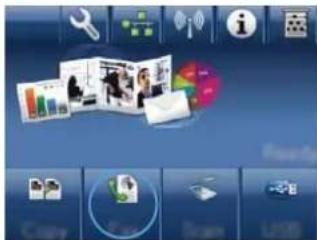
text_image
Screenshot of a desktop application interface with icons for tools, documents, and photo editing elements- Touch the Fax Menu button.
- Touch the Phone Book Setup button.
- Touch the Individual Setup button to create a speed dial entry.
- Touch an unassigned number from the list.
- Use the keypad to enter a name for the entry, and then touch the OK button.
- Use the keypad to enter the fax number for the entry, and then touch the OK button.
Import or export Microsoft Outlook contacts into the fax phone book
- Open HP ToolboxFX.
- Click Fax, and then click Fax Phone Book.
- Browse to the program phone book, and then click Import/Export Phone Book.
Use phone-book data from other programs
NOTE: Before a phone book from another program can be imported, you must use the export feature in that other program.
HP ToolboxFX can import contact information from the following software program phone books.
• Microsoft Outlook
Lotus Notes
• Microsoft Outlook Express
A phone book previously exported from another HP product's ToolboxFX software.
Delete phone book entries
You can delete all phone book entries that are programmed in the product.
△ CAUTION: After phone book entries are deleted, they cannot be recovered.
- From the Home screen, touch the Fax button.
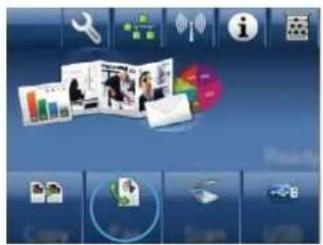
text_image
Screenshot of a desktop interface with icons for photo editing, navigation, and device status- Touch the Fax Menu button.
- Touch the Phone Book Setup button.
- Touch the Delete Entry button. Or, to delete all the entries, touch the Delete All Entries button.
- Touch the entry that you want to delete.
Use speed dials
Create and edit speed-dial entries
- From the Home screen, touch the Fax button.
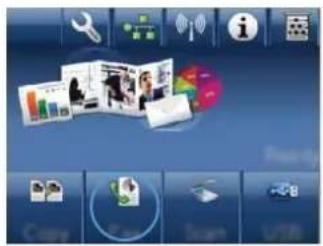
text_image
Screenshot of a desktop interface with icons for tools, documents, and media, showing a collage of photo thumbnails.- Touch the Fax Menu button.
- Touch the Phone Book Setup button.
- Touch the Individual Setup button.
- Touch an unassigned number from the list.
- Use the keypad to enter a name for the entry, and then touch the OK button.
- Use the keypad to enter the fax number for the entry, and then touch the OK button.
Delete speed-dial entries
- From the Home screen, touch the Fax button.
- Touch the Fax Menu button.
- Touch the Phone Book Setup button.
- Touch the Delete Entry button. Or, to delete all the entries, touch the Delete All Entries button.
- Touch the entry that you want to delete.
Manage group-dial entries
Create and edit group-dial entries
- Create an individual entry for each fax number that you want in the group.
a. From the Home screen, touch the Fax button.
b. Touch the Fax Menu button.
c. Touch the Phone Book Setup button.
d. Touch the Individual Setup button.
e. Touch an unassigned number from the list.
f. Use the keypad to enter a name for the entry, and then touch the OK button.
g. Use the keypad to enter the fax number for the entry, and then touch the OK button.
- From the Phone Book Setup menu, touch the Group Setup button.
- Touch an unassigned number from the list.
- Use the keypad to enter a name for the group, and then touch the OK button.
- Touch the name of each individual entry that you want to include in the group. When you are finished, touch the Done Selecting button.
Delete group-dial entries
- From the Home screen, touch the Fax button.
- Touch the Fax Menu button.
- Touch the Phone Book Setup button.
- Touch the Delete Entry button. Or, to delete all the entries, touch the Delete All Entries button.
- Touch the entry that you want to delete.
Set fax settings
Send fax settings
Set special dialing symbols and options
You can insert pauses into a fax number that you are dialing. Pauses are often needed when dialing internationally or connecting to an outside line.
| Special symbol Button Description | ||
Dialing pause The Redial/Pause button is available on the control panel keypad for  entering a fax number. You can also touch the comma button to insert a dialing pause. entering a fax number. You can also touch the comma button to insert a dialing pause. | ||
| Pause for dial tone |  | The W button is available only when you are entering the fax number for a phone book entry. This character causes the product to wait for a dial tone before dialing the remainder of the telephone number. |
| Hook flash |  | The R button is available only when you are entering the fax number for a phone book entry. This character causes the product to insert a hook flash. |
Set a dialing prefix
A dial prefix is a number or group of numbers that are automatically added to the beginning of every fax number you enter at the control panel or from the software. The maximum number of characters for a dial prefix is 50.
The default setting is Off. You might want to turn this setting on and enter a prefix if, for example, you have to dial a number such as 9 to get a telephone line outside of your company telephone system. While this setting is active, you can dial a fax number without the dial prefix by using manual dial.
- From the Home screen, touch the Setup button.
- Touch the Fax Setup menu.
- Touch the Basic Setup menu.
- Scroll to and touch the Dial Prefix button, and then touch the On button.
- Use the keypad to enter the prefix, and then touch the OK button. You can use numbers, pauses, and dialing symbols.
Set the dial-tone detection
Normally, the product begins dialing a fax number immediately. If you are using the product on the same line as your telephone, turn on the detect-dial-tone setting. This prevents the product from sending a fax while someone is on the telephone.
The factory-set default for detect dial tone is On for France and Hungary, and Off for all other countries/regions.
- From the Home screen, touch the Setup button.
-
Touch the Fax Setup menu.
-
Touch the Advanced Setup menu.
- Scroll to and touch the Detect Dial Tone button, and then touch the On button.
Set tone-dialing or pulse-dialing
Use this procedure to set the product to tone-dialing or pulse-dialing mode. The factory-set default is Tone. Do not change this setting unless you know that the telephone line cannot use tone dialing.
NOTE: The pulse-dialing option is not available in all countries/regions.
- From the Home screen, touch the Setup button.
- Touch the Fax Setup menu.
- Touch the Advanced Setup menu.
- Scroll to and touch the Dialing Mode button, and then touch the Tone or Pulse button.
Set autoredial and the time between redials
If the product was unable to send a fax because the receiving fax machine did not answer or was busy, the product attempts to redial based on the redial-on-busy, redial-on-no-answer, and redial-on-communication-error options.
Set the redial-on-busy option
If this option is on, the product redials automatically if it receives a busy signal. The factory-set default for the redial-on-busy option is On.
- From the Home screen, touch the Setup button.
- Touch the Fax Setup menu.
-
Touch the Advanced Setup menu.
-
Scroll to and touch the Redial if Busy button, and then touch the On button.
Set the redial-on-no-answer option
If this option is on, the product redials automatically if the receiving machine does not answer. The factory-set default for the redial-on-no-answer option is Off.
- From the Home screen, touch the Setup button.
- Touch the Fax Setup menu.
-
Touch the Advanced Setup menu.
-
Scroll to and touch the Redial if No Answer button, and then touch the On button.
Set the redial-on-communication-error option
If this option is on, the product redials automatically if some sort of communication error occurs. The factory-set default for the redial-on-communication-error option is On.
- From the Home screen, touch the Setup button.
-
Touch the Fax Setup menu.
-
Touch the Advanced Setup menu.
- Scroll to and touch the Redial if Comm. Error button, and then touch the On button.
Set light/dark and resolution
Set the default light/dark (contrast) setting
The contrast affects the lightness and darkness of an outgoing fax as it is being sent.
The default light/dark setting is the contrast that is normally applied to items that are being faxed. The slider is set to the middle as the default setting.
- From the Home screen, touch the Setup button.
- Touch the Fax Setup menu.
- Touch the Advanced Setup menu.
- Touch the Lighter/Darker button, and then touch one of the arrows to adjust the slider.
Set resolution settings
NOTE: Increasing the resolution increases the fax size. Larger faxes increase the send time and could exceed the available memory in the product.
Use this procedure to change the default resolution for all fax jobs to one of the following settings:
• Standard: This setting provides the lowest quality and the fastest transmission time.
- Fine: This setting provides a higher resolution quality than Standard that is usually appropriate for text documents.
- Superfine: This setting is best used for documents that mix text and images. The transmission time is slower than the Fine setting but faster than the Photo setting.
• Photo: This setting produces the best images, but greatly increases the transmission time.
The factory-set default resolution setting is Fine.
Set the default resolution setting
- From the Home screen, touch the Setup button.
- Touch the Fax Setup menu.
-
Touch the Advanced Setup menu.
-
Touch the Fax Resolution button, and then touch one of the options.
Cover-page templates
Several business and personal fax cover-page templates are available in the PC Fax Send software program.
NOTE: You cannot alter cover-sheet templates, but you can edit the fields within the templates.
Set billing codes
If the billing codes feature is on, the product prompts you to enter a billing code for each fax. The product increases the billing code count for each sent fax page. This includes all types of faxes except for poll-received, fax-forwarded, or computer-downloaded faxes. For an undefined group or a group-dial fax, the product increases the billing code count for each successful fax that is sent to each destination.
The factory-set default for the billing-code setting is Off. The billing code can be any number from 1 through 250.
Set the billing-code setting
- From the Home screen, touch the Setup button.
- Touch the Fax Setup menu.
- Touch the Advanced Setup menu.
- Scroll to and touch the Billing Codes button, and then touch the On button.
Use billing codes
- Load the document in the document feeder or on the scanner glass.
- From the Home screen, touch the Fax button.
- Enter the fax number, or select a speed-dial or group-dial entry.
- Touch the Start Fax button.
- Enter the billing code, and then touch the OK button.
Print the billing-code report
The billing-code report is a printed list of all the fax billing codes and the total number of faxes billed to each code.
NOTE: After the product prints this report, it deletes all billing data.
- From the Home screen, touch the Fax button.
- Touch the Fax Menu button.
- Touch the Fax Reports button.
- Scroll to and touch the Print Billing Report button.
Receive fax settings
Set fax forwarding
You can set your product to forward incoming faxes to another fax number. When the fax arrives at your product, it is stored in the memory. The product then dials the fax number that you have specified and sends the fax. If the product cannot forward a fax because of an error (for example, the number is busy) and repeated redial attempts are unsuccessful, your product prints the fax.
If the product runs out of memory while receiving a fax, it terminates the incoming fax and only forwards the pages and partial pages that have been stored in the memory.
When it is using the fax-forwarding feature, the product (rather than the computer) must be receiving the faxes, and the answer mode must be set to Automatic.
- From the Home screen, touch the Fax button.
- Touch the Fax Menu button.
- Touch the Receive Options button.
- Touch the Forward Fax button, and touch the On button.
- Use the keypad to enter the fax-forwarding number, and then touch the OK button.
Set the answer mode
Depending on the situation, set the product answer mode to Automatic, TAM, Fax/Tel, or Manual. The factory-set default is Automatic.
- Automatic: The product answers incoming calls after a specified number of rings or upon recognition of special fax tones.
- TAM: The product does not automatically answer the call. Instead, it waits until it detects the fax tone.
- Fax/Tel: The product answers incoming calls immediately. If it detects the fax tone, it processes the call as a fax. If it does not detect the fax tone, it creates an audible ring to alert you to answer the incoming voice call.
- Manual: The product never answers calls. You must start the fax-receiving process yourself, either by touching the Start Fax button on the control panel or by picking up a telephone that is connected to that line and dialing 1-2-3.
To set or change the answer mode, complete the following steps:
- From the Home screen, touch the Setup button.
- Touch the Fax Setup menu.
-
Touch the Basic Setup menu.
-
Scroll to and touch the Answer Mode button, and then touch the name of the option that you want to use.
Block or unblock fax numbers
If you do not want to receive faxes from specific people or businesses, you can block as many as 30 fax numbers by using the control panel. When you block a fax number and someone from that number sends you a fax, the control-panel display indicates that the number is blocked, the fax does not print, and the fax is not saved in memory. Faxes from blocked fax numbers appear in the fax activity log with a “discarded” designation. You can unblock blocked fax numbers individually or all at one time.
NOTE: The sender of a blocked fax is not notified that the fax failed.
- From the Home screen, touch the Fax button.
- Touch the Fax Menu button.
-
Touch the Receive Options button.
-
Touch the Block Junk Faxes button.
- Touch the Add Number button.
- Use the keypad to enter the fax number that you want to block, and then touch the OK button.
Set the number of rings-to-answer
When the answer mode is set to Automatic, the product rings-to-answer setting determines the number of times the telephone rings before the product answers an incoming call.
If the product is connected to a line that receives both fax and voice calls (a shared line) and that also uses an answering machine, you might need to adjust the rings-to-answer setting. The number of rings-to-answer for the product must be greater than the rings-to-answer on the answering machine. This allows the answering machine to answer the incoming call and record a message if it is a voice call. When the answering machine answers the call, the product listens to the call and automatically answers it if it detects fax tones.
The default setting for rings-to-answer is five for the U.S. and Canada, and two for other countries/regions.
Use the following table to determine the number of rings-to-answer to use.
| Type of telephone line Recommended rings-to-answer setting | |
| Dedicated fax line (receiving only fax calls) | Set to a number of rings within the range shown on the control-panel display. (The minimum and maximum number of rings allowed varies by country/region.) |
| One line with two separate numbers and a ring-pattern service | One or two rings. (If you have an answering machine or computer voicemail for the other telephone number, make sure that the product is set to a greater number of rings than the answering system. Also, use the distinctive-ring feature to differentiate between voice and fax calls.) |
| Shared line (receiving both fax and voice calls) with only an attached telephone | Five rings or more. |
| Shared line (receiving both fax and voice calls) with an attached answering machine or computer voicemail | Two rings more than the answering machine or computer voicemail. |
To set or change the number of rings-to-answer, use the following steps:
- From the Home screen, touch the Setup button.
- Touch the Fax Setup menu.
- Touch the Basic Setup menu.
- Touch the Rings to Answer button.
- Use the keypad to enter the number of rings, and then touch the OK button.
Set distinctive ring
Ring-pattern or distinctive-ring service is available through some local telephone companies. The service allows you to have more than one telephone number on a single line. Each telephone number has a unique ring pattern, so that you can answer voice calls and the product can answer fax calls.
If you subscribe to a ring-pattern service with a telephone company, you must set the product to answer the correct ring pattern. Not all countries/regions support unique ring patterns. Contact the telephone company to determine if this service is available in your country/region.

NOTE: If you do not have ring-pattern service and you change the ring-pattern settings to something other than the default, All Rings, the product might not be able to receive faxes.
The settings are as follows:
• All Rings: The product answers any calls that come through the telephone line.
• Single: The product answers any calls that produce a single-ring pattern.
• Double: The product answers any calls that produce a double-ring pattern.
- Triple: The product answers any calls that produce a triple-ring pattern.
• Double and Triple: The product answers any calls that produce a double-ring or triple-ring pattern.
To change ring patterns for call answering, complete the following steps:
- From the Home screen, touch the Setup button.
- Touch the Fax Setup menu.
- Touch the Basic Setup menu.
- Touch the Distinctive Ring button, and then touch the name of an option.
Use autoreduction for incoming faxes
If the fit-to-page option is turned on, the product automatically reduces long faxes up to 75% to fit the information on the default paper size (for example, the fax is reduced from legal to letter size).
If the fit-to-page option is turned off, long faxes print at full size on multiple pages. The factory-set default for incoming fax autoreduction is On.
If you have the Stamp Faxes option turned on, you might also want to turn on autoreduction. This reduces the size of the incoming faxes slightly, and prevents the page-stamp from forcing a fax onto two pages.

NOTE: Make sure that the default paper size setting matches the size of the paper in the tray.
- From the Home screen, touch the Setup button.
- Touch the Fax Setup menu.
- Touch the Advanced Setup menu.
- Touch the Fit to Page button, and then touch the On button.
Set fax reprint settings
- From the Home screen, touch the Setup button.
- Touch the Fax Setup menu.
- Touch the Advanced Setup menu.
- Scroll to and touch the Allow Fax Reprint button, and then touch the On button.
Set the fax sounds volume
Control the volume of the fax sounds from the control panel. You can make changes to the following sounds:
- Alarm Volume
Ring Volume
• Phone Line Volume
Set the alarm volume, phone-line volume, and ring volume
- From the Home screen, touch the Setup button.
- Touch the System Setup menu.
-
Touch the Volume Settings menu.
-
Touch the name of the volume setting that you want to adjust, and then touch one of the options. Repeat this step for each volume setting.
Set stamp-received faxes
The product prints the sender identification information at the top of each received fax. You can also stamp the incoming fax with your own header information to confirm the date and time that the fax was received. The factory-set default for stamp-received faxes is Off.
NOTE: Turning on the stamp-received setting might increase the page size and cause the product to print a second page.
NOTE: This option applies only to received faxes that the product prints.
- From the Home screen, touch the Setup button.
- Touch the Fax Setup menu.
- Touch the Advanced Setup menu.
- Scroll to and touch the Stamp Faxes button, and then touch the On button.
Set the private receive feature
When the private-receive feature is active, received faxes are stored in memory. A password is required to print the stored faxes.
- From the Home screen, touch the Setup button.
- Touch the Fax Setup menu.
-
Touch the Advanced Setup menu.
-
Scroll to and touch the Private Receive button, and then touch the On button.
-
If you have not already set a system password, the product prompts you to create one.
NOTE: The system password is case-sensitive.
a. Touch the OK button, and then use the keypad to enter the system password.
b. Touch the OK button, confirm the password by entering it a second time, and then touch the OK button to save the password.
Set fax polling
If someone else has set up a fax to be polled, you can request that the fax be sent to your product. (This is known as polling another machine).
- From the Home screen, touch the Fax button.
- Touch the Fax Menu button.
- Touch the Receive Options button.
- Touch the Polling Receive button.
- Use the keypad to enter the number of the fax machine that you want to poll, and then touch the OK button.
The product dials the other fax machine and requests the fax.
Use fax
Fax software
Supported fax programs
The PC fax program that came with the product is the only PC fax program that works with the product. To continue to use a PC fax program previously installed on the computer, use the modem that is already connected to the computer; it will not function through the product modem.
Cancel a fax
Use these instructions to cancel a single fax that is currently dialing or a fax that is being transmitted or received.
Cancel the current fax
Press the Cancel ✗ button on the control panel. Any pages that have not been transmitted are canceled. Pressing the Cancel ✗ button also stops group-dial jobs.
Cancel a pending fax job
Use this procedure to cancel a fax job in the following situations:
- The product is waiting to redial after encountering a busy signal, an unanswered call, or a communication error.
The fax is scheduled to be sent at a future time.
Use the following steps to cancel a fax job by using the Fax Job Status menu:
- From the Home screen, touch the Fax button.
- Touch the Fax Menu button.
- Touch the Send Options button.
- Touch the Fax Job Status button.
- Touch the fax number for the job that you want to cancel.
Delete faxes from memory
Use this procedure only if you are concerned that someone else has access to your product and might try to reprint faxes from the memory.
△ CAUTION: In addition to clearing the reprint memory, this procedure clears any fax that is currently being sent, unsent faxes that are pending redial, faxes that are scheduled to be sent at a future time, and faxes that are not printed or forwarded.
- From the Home screen, touch the Setup button.

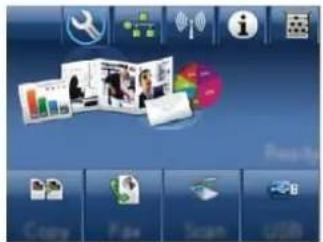
text_image
Screenshot of a macOS desktop with application icons and a photo collage on the left- Touch the Service menu.
- Touch the Fax Service menu.
- Touch the Clear Saved Faxes button.
Use fax on a DSL, PBX, or ISDN system
HP products are designed specifically for use with traditional analog phone services. They are not designed to work on DSL, PBX, ISDN lines, or VoIP services, but they work with the proper setup and equipment.

NOTE: HP recommends discussing DSL, PBX, ISDN, and VoIP setup options with the service provider.
The HP LaserJet product is an analog device that is not compatible with all digital phone environments (unless a digital-to-analog converter is used). HP does not guarantee that the product will be compatible with digital environments or digital-to-analog converters.
DSL
A digital subscriber line (DSL) uses digital technology over standard copper telephone wires. This product is not directly compatible with those digital signals. However, if the configuration is specified during DSL setup, the signal can be separated so that some of the bandwidth is used to transmit an analog signal (for voice and fax) while the remaining bandwidth is used to transmit digital data.

NOTE: Not all faxes are compatible with DSL services. HP does not guarantee that the product will be compatible with all DSL service lines or providers.
A typical DSL modem employs a filter to separate the higher frequency DSL modem communication from lower frequency analog phone and fax modem communication. It is often necessary to use a filter with analog phones and analog fax products that are connected to a telephone line used by a DSL modem. The DSL service provider usually provides this filter. Contact the DSL provider for more information or for assistance.
PBX
The product is an analog device that is not compatible in all digital phone environments. Digital-to-analog filters or converters may be needed for faxing functionality. If faxing issues occur in a PBX environment, it might be necessary to contact the PBX provider for assistance. HP does not guarantee that the product will be compatible with digital environments or digital-to-analog converters.
Contact the PBX provider for more information and for assistance.
ISDN
The product is an analog device that is not compatible in all digital phone environments. Digital-to-analog filters or converters may be needed for faxing functionality. If faxing issues occur in an ISDN environment, it might be necessary to contact the ISDN provider for assistance. HP does not guarantee that the product will be compatible with ISDN digital environments or digital-to-analog converters.
Use fax on a VoIP service
Voice over internet protocol (VoIP) services are often not compatible with fax machines unless the provider explicitly states that it supports fax over IP services.
If the product experiences problems getting a fax to work on a VoIP network, verify that all cables and settings are correct. Decreasing the fax-speed setting might allow the product to send a fax over a VoIP network.
If the VoIP provider offers a "Pass through" mode for the connection, that will offer better fax performance on VoIP. Also if the provider has "comfort noise" added to the line, fax performance can be enhanced if this feature is not enabled.
If faxing problems continue, contact the VoIP provider.
Fax memory
Fax memory contents are retained when there is a loss of power
The flash memory protects against data loss when a power failure occurs. Other fax devices store fax pages in either normal RAM or short-term RAM. Normal RAM immediately loses data when power is lost, while short-term RAM loses data about 60 minutes after a power failure occurs. Flash memory can maintain its data for years without power applied.
Send a fax
Fax from the flatbed scanner
- Place the document face-down on the scanner glass.
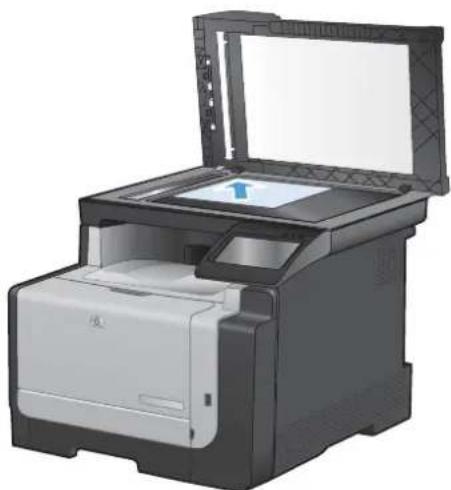
natural_image
Illustration of a printer with open lid and paper feed (no text or symbols visible)-
From the Home screen, touch the Fax button.
-
Use the keypad to type the fax number.
-
Touch the Start Fax button.
- The product prompts you to confirm that you are sending from the scanner glass. Touch the Yes button.
- The product prompts you to load the first page. Touch the OK button.
- The product scans the first page and then prompts you to load another page. If the document has multiple pages, touch the Yes button. Continue this process until you have scanned all the pages.
- When you have scanned the last page, touch the No button at the prompt. The product sends the fax.
Fax from the document feeder
- Insert the originals into the document feeder face-up.
NOTE: The document feeder capacity is up to 35 sheets of 75g / m^2 or 20 lb media.
CAUTION: To prevent damage to the product, do not use an original that contains correction tape, correction fluid, paper clips, or staples. Also, do not load photographs, small originals, or fragile originals into the document feeder.
- Adjust the paper guides until they are snug against the paper.
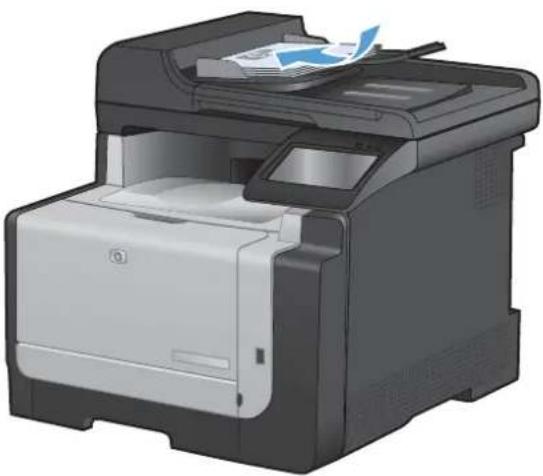
natural_image
Illustration of a HP printer with paper feed and paper sheet (no text or symbols visible)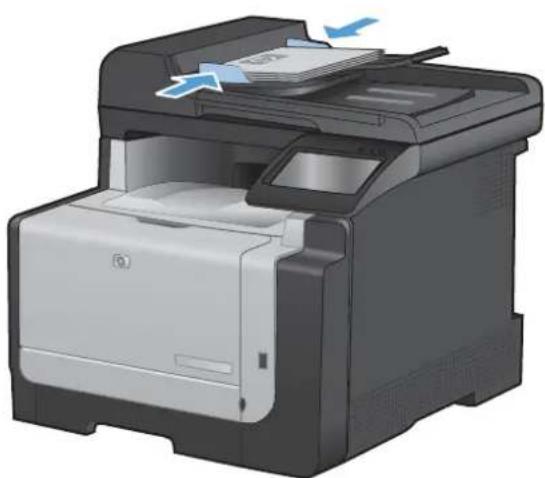
natural_image
Illustration of a HP printer with paper being inserted (no text or symbols visible)-
From the Home screen, touch the Fax button.
-
Use the keypad to type the fax number.
- Touch the Start Fax button.
Use speed dials and group-dial entries
- Load the document into the document feeder or onto the scanner glass.
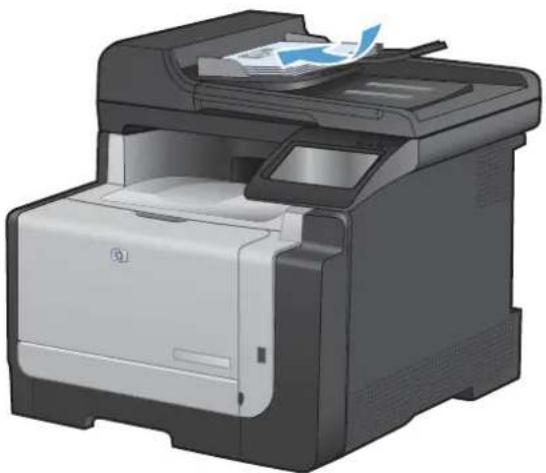
natural_image
Illustration of a HP printer with paper feeding into the print (no text or symbols visible)- From the Home screen, touch the Fax button.
- On the keypad, touch the fax phone book icon.

text_image
Enter the fan number. 1 2 3 4 5 6 7 8 9 * 0 # Fax Many Start Fee- Touch the name of the individual or group entry that you want to use.
- Touch the Start Fax button.
Send a fax from the software
The following information provides basic instructions for sending faxes by using the software that came with the product. All other software-related topics are covered in the software Help, which can be opened from the software-program Help menu.
You can fax electronic documents from a computer if you meet the following requirements:
- The product is connected directly to the computer or to a network to which the computer is connected.
• The product software is installed on the computer.
The computer operating system is one that this product supports.
Send a fax from the software
The procedure to send a fax varies according to your specifications. The most typical steps follow.
- Click Start, click Programs (or All Programs in Windows XP), and then click HP.
- Click the product name, and then click Send fax. The fax software opens.
- Enter the fax number of one or more recipients.
- Load the document in the document feeder.
- Click Send Now.
Send a fax from a third-party software program, such as Microsoft Word
- Open a document in a third-party program.
- Click the File menu, and then click Print.
- Select the fax print driver from the printer driver drop-down list. The fax software opens.
- Enter the fax number of one or more recipients.
- Include any pages loaded at the product. This step is optional.
- Click Send Now.
Send a fax by dialing from a telephone connected to the fax line
Occasionally, you might want to dial a fax number from a telephone that is connected to the same line as the product. For example, if you are sending a fax to a person whose device is in the manual receive mode, you can precede the fax with a voice call to let that person know that the fax is coming.

NOTE: The telephone must be connected to the product "telephone" port ☐.
- Load the document into the document feeder.
- From the Home screen, touch the Fax button.
- Pick up the handset of a telephone that is connected to the same line as the product. Dial the fax number by using the telephone keypad.
- When the recipient answers, instruct the person to start the fax machine.
- When you hear the fax tones, touch the Start Fax button on the control panel, wait until Connecting appears on the control panel display, and then hang up the telephone.
Send a fax with confirmation
You can set the product so that it prompts you to enter the fax number a second time to confirm that you are sending the fax to the correct number.
- From the Home screen, touch the Setup button.
- Touch the Fax Setup menu.
- Touch the Advanced Setup menu.
-
Send the fax.
-
Scroll to and touch the Confirm Fax Number button, and touch the On button.
Schedule a fax to be sent later
Use the product control panel to schedule a fax to be sent automatically at a future time to one or more people. When this procedure is completed, the product scans the document into memory and then returns to the Ready state.

NOTE: If the product cannot transmit the fax at the scheduled time, that information is indicated on the fax error report (if that option is turned on) or recorded in the fax activity log. The transmittal might not be initiated because the fax-sending call is not answered, or because a busy signal stops the redial attempts.
If a fax has been scheduled to be sent at a future time but it requires updating, send the additional information as another job. All faxes that are scheduled to go to the same fax number at the same time are delivered as individual faxes.
- Load the document into the document feeder.
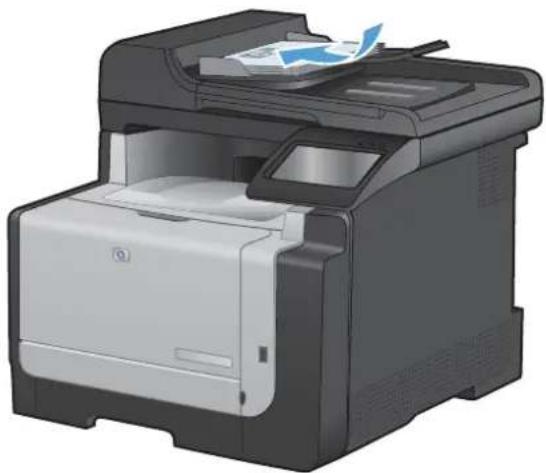
natural_image
Illustration of a HP printer with paper feed and paper clip (no text or symbols visible)- From the Home screen, touch the Fax button.
- Touch the Fax Menu button.
- Touch the Send Options button.
- Touch the Send Fax Later button.
- Use the keypad to enter the time of day to send the fax. Touch the OK button.
- Use the keypad to enter the date to send the fax. Touch the OK button.
- Use the keypad to type the fax number. Touch the OK button. The product scans the document and saves the file in memory until the designated time.
Use access codes, credit cards, or calling cards
To use access codes, credit cards, or calling cards, dial manually to allow for pauses and dialing codes.
Send faxes internationally
To send a fax to an international destination, dial manually to allow for pauses and international dialing codes.
Receive a fax
Print a fax
When the product receives a fax transmission, it prints the fax (unless the private-receive feature is enabled) and also stores it automatically to flash memory.
When a color print cartridge becomes very low, the product prints in black only to prevent fax interruptions. To configure the product to print in color and use the remaining toner in the print cartridge past very low, follow these steps:
- On the product control panel, touch the Setup button, and then touch the System Setup button.
- Touch the At Very Low button, and then touch the Color Cartridges button.
- Touch the Continue button.
When you choose to replace the very low print cartridge, color printing resumes automatically.
Print a stored fax when the private receive feature is on
To print stored faxes, you must provide the product security password. After the product prints the stored faxes, the faxes are deleted from memory.
- From the Home screen, touch the Fax button.
- Touch the Fax Menu button.
- Touch the Receive Options button.
-
Touch the Print Private Faxes button.
-
Use the keypad to enter the product security password, and then touch the OK button.
Reprint a fax
When the Allow Fax Reprint feature is on, the product stores received faxes in memory. The product has about 3.2 MB of storage space, which holds about 250 pages.
These faxes are stored continuously. Reprinting them does not clear them from the memory.
Turn on the Allow Fax Reprint feature
- From the Home screen, touch the Setup button.
- Touch the Fax Setup menu.
- Touch the Advanced Setup menu.
- Scroll to and touch the Allow Fax Reprint button, and touch the On button.
Reprint faxes
- From the Home screen, touch the Fax button.
- Touch the Fax Menu button.
-
Touch the Receive Options button.
-
Touch the Reprint Faxes button.
- Touch the entry for the fax that you want to reprint.
Receive faxes when fax tones are audible on the phone line
If you have a telephone line that receives both fax and telephone calls, and you hear fax tones when you answer the telephone, you can start the receiving process in one of two ways:
- If you are close to the product, press the Start Fax button on the control panel.
- If not, press 1-2-3 in sequence on the telephone keypad, listen for fax transmission sounds, and then hang up.

NOTE: In order for the second method to work, the Extension Phone setting must be set to Yes.
Solve fax problems
Fax troubleshooting checklist
- Several possible fixes are available. After each recommended action, retry faxing to see if the problem is resolved.
-
For best results during fax problem solving, make sure the line from the product is plugged directly into the wall phone port. Disconnect all other devices that are connected to the product.
-
Verify that the telephone cord is plugged into the correct port on the back of the product.
-
Check the phone line by using the fax test:
a. On the control panel, open the Setup menu, and then open the Service menu.
b. Select the Fax Service option.
c. Select the Run Fax Test option. The product prints a fax test report.
The report contains the following possible results:
• Pass: The report contains all of the current fax settings for review.
- Fail: The cord is in the wrong port. The report contains suggestions for how to resolve the issue.
- Fail : The phone line is not active. The report contains suggestions for how to resolve the issue.
- Verify that the product firmware is current:
a. Print a configuration page from the control panel Reports menu to obtain the current firmware date code.
b. Go to www.hp.com.
- Click the Support & Drivers link.
- Click the Download drivers and software (and firmware) link option.
- In the For product box, type the product model number, and then click the Go button.
-
Click the link for your operating system.
-
Scroll to the Firmware section of the table.
If the listed version matches the version on the configuration page, you have the most current version.
If the versions are different, download the firmware upgrade and update the firmware on the product following the instructions onscreen.
NOTE: The product must be connected to a computer with internet access to upgrade firmware.
。 Resend the fax.
- Verify that the fax was set up when the product software was installed.
From the computer, in the HP program folder, run the Fax Setup Utility.
-
Verify that the telephone service supports analog fax.
-
If using ISDN or digital PBX, contact your service provider for information about configuring to an analog fax line.
- If using a VoIP service, change the Fax Speed setting to Slow(V.29) or disable Fast(V.34) from the control panel. Ask if your service provider supports fax and for the recommended fax modem speed. Some companies might require an adapter.
-
If using a DSL service, ensure that a filter is included on the phone line connection to the product. Contact the DSL service provider or purchase a DSL filter if you do not have one. If a DSL filter is installed, try another since these filters can be defective.
-
If the error persists, find more detailed problem-solving solutions in the sections that follow this one.
Fax error messages
Alert and warning messages appear temporarily and might require you to acknowledge the message by touching the OK button to resume or by touching the Cancel ✗ button to cancel the job. With certain warnings, the job might not complete or the print quality might be affected. If the alert or warning message is related to printing and the auto-continue feature is on, the product will attempt to resume printing the job after the warning has appeared for 10 seconds without acknowledgement.
Control panel message Description Recommended action
| Communication error. A fax communication error occurred between the product and the sender or receiver. | Allow the product to retry sending the fax. Unplug the product telephone cord from the wall, plug in a telephone, and try making a call. Plug the product phone cord into a jack for another phone line.Try a different phone cord.Set the Fax Speed option to the Slow(V.29) setting or disable the Fast(V.34) setting.Turn off the Error Correction feature to prevent automatic error correction.NOTE: Turning off the Error Correction feature can reduce image quality.Print the Fax Activity Log report from the control panel to determine if the error occurs with a specific fax number.If the error persists, contact HP. See www.hp.com/support/CM1410series or the support flyer that came in the product box. | |
| Document feeder door is open.Canceled fax. | The cover at the top of the document feeder is open, and the product cannot send the fax. | Close the cover, and send the fax again. |
| Fax is busy.Canceled send. | The fax line to which you were sending a fax was busy. The product has canceled sending the fax. | Call the recipient to ensure that the fax machine is on and ready.Check that you are dialing the correct fax number.Check that the Redial if Busy option is enabled.Open the Service menu, and touch the Fax Service button. Touch the Run Fax Test button. This test verifies that the phone cord is connected to the correct port and that the phone line has a signal. The product prints a report with the results.If the error persists, contact HP. See www.hp.com/support/CM1410series or the support flyer that came in the product box. |
| Control panel message Description Recommended action | ||
| Fax is busy. | The fax line to which you were sending a fax was busy. The product automatically redials the busy number. | Allow the product to retry sending the fax. |
| Redial pending. | Call the recipient to ensure that the fax machine is on and ready. | |
| Check that you are dialing the correct fax number. | ||
| Open the Service menu, and touch the Fax Service button. Touch the Run Fax Test button. This test verifies that the phone cord is connected to the correct port and that the phone line has a signal. The product prints a report with the results. | ||
| If the error persists, contact HP. See www.hp.com/support/CM1410series or the support flyer that came in the product box. | ||
| Fax receive error. | An error occurred while trying to receive a fax. | Ask the sender to resend the fax. |
| Try faxing back to the sender or another fax machine. | ||
| Check for a dial tone on the phone line by touching the Start Fax button. | ||
| Check that the telephone cord is securely connected by unplugging and replugging the cord. | ||
| Make sure that you are using the telephone cord that came with the product. | ||
| Open the Service menu, and touch the Fax Service button. Touch the Run Fax Test button. This test verifies that the phone cord is connected to the correct port and that the phone line has a signal. The product prints a report with the results. | ||
| Decrease the fax speed. Ask the sender to resend the fax. | ||
| Turn off error-correction mode. Ask the sender to resend the fax. | ||
| NOTE: Turning off error-correction mode can reduce the quality of the fax image. | ||
| Connect the product to a different phone line. | ||
| If the error persists, contact HP. See www.hp.com/support/CM1410series or the support flyer that came in the product box. | ||
Control panel message Description Recommended action
| Fax Send error. | An error occurred while trying to send a fax. | Try resending the fax.Try faxing to another fax number.Check for a dial tone on the phone line by touching the Start Fax button.Check that the telephone cord is securely connected by unplugging and replugging the cord.Make sure that you are using the telephone cord that came with the product.Make sure that the phone is working by disconnecting the product, plugging in a telephone to the phone line, and making a voice call.Connect the product to a different phone line.Set the fax resolution to Standard instead of the default of Fine.If the error persists, contact HP. See www.hp.com/support/CM1410series or the support flyer that came in the product box. |
| Fax storage is full.Canceling the fax receive. | During the fax transmission, the product ran out of memory. Only the pages that fit into memory will be printed. | Print all of the faxes, and then have the sender resend the fax. Have the sender divide the fax job into multiple jobs before resending. Cancel all fax jobs or clear the faxes from memory. |
| Fax storage is full.Canceling the fax receive. | The amount of available memory for storing faxes is insufficient to store an incoming fax. | If you are using the Private Receive feature, print all received faxes to regain some memory.If you still need more memory, clear faxes from memory. Open the Service menu. In the Fax Service menu, select the Clear Saved Faxes option. |
| Fax storage is full.Canceling the fax send. | During the fax job, the memory filled. All pages of the fax have to be in memory for a fax job to work correctly. Only the pages that fit into memory were sent. | Cancel the current job. Turn the product off, and then turn it on again. Try sending the job again.If the error reoccurs, cancel the job and turn the product off and then on a second time. The product might not have enough memory for some jobs. |
| Control panel message Description Recommended action | ||
| No dial tone. | The product could not detect a dial tone. | Check for a dial tone on the phone line by touching the Start Fax button.Unplug the telephone cord from both the product and the wall and replug the cord.Make sure that you are using the telephone cord that came with the product.Unplug the product telephone cord from the wall, plug in a telephone, and try making a voice call.Make sure that the phone cord from the wall telephone jack is plugged into the line port.Plug the product phone cord into a jack for another phone line.Check the phone line by using the Run Fax Test option from the Service menu on the control panel.If the error persists, contact HP. See www.hp.com/support/CM1410series or the support flyer that came in the product box. |
| No fax answer.Canceled send. | Attempts to redial a fax number failed, or the Redial if No Answer option was turned off. | Call the recipient to ensure that the fax machine is on and ready.Check that you are dialing the correct fax number.Check that the redial option is enabled.Unplug the telephone cord from both the product and the wall and replug the cord.Unplug the product telephone cord from the wall, plug in a telephone, and try making a voice call.Make sure that the phone cord from the wall telephone jack is plugged into the line port.Plug the product phone cord into a jack for another phone line.If the error persists, contact HP. See www.hp.com/support/CM1410series or the support flyer that came in the product box. |
Control panel message Description Recommended action
| No fax answer. | The receiving fax line did not answer. The product attempts to redial after a few minutes. | Allow the product to retry sending the fax. |
| Redial pending. | Call the recipient to ensure that the fax machine is on and ready.Check that you are dialing the correct fax number.If the product continues to redial, unplug the product telephone cord from the wall, plug in a telephone, and try making a voice call.Make sure that the phone cord from the wall telephone jack is plugged into the lineport.Plug the product phone cord into a jack for another phone line.Try a different phone cord.If the error persists, contact HP. Seewww.hp.com/support/CM1410seriesor the support flyer that came in the product box. | |
| No fax detected. | The product answered the incoming call butdid not detect that a fax machine was calling. | Allow the product to retry receiving the fax.Try a different phone cord.Plug the product phone cord into a jack for another phone line.If the error persists, contact HP. Seewww.hp.com/support/CM1410seriesor the support flyer that came in the product box. |
Troubleshoot fax codes and trace reports
View and interpret fax error codes
Use fax error codes from the fax activity log to solve problems with the product fax features.
| Code number Description | |
| 232 Possible causes include the following: | |
| A communication failure has occurred between the two machines.The user at the remote machine may have pressed the Stop button.The power at the remote machine has been interrupted, or deliberately turned off causing the fax session to be interrupted.To solve the issue, try the following steps:1. Resend the fax at a different time when telephone line conditions have improved.2. If the error persists, and error correction is in use for the fax session, disable the Error Correction setting. | |
| 282 | The product has not received any data at the start of a page during reception in error correction mode, but the modem has not detected a remote disconnect. The remote machine is probably transmitting sync frames instead of data and has either jammed or broken.The remote machine is probably transmitting sync frames instead of data and has either jammed or broken.Have the sender resend the fax after first requesting that the sender verify that the sending machine is working correctly. |
| 321 | There was a communication error with the receiving fax machine due to poor telephone line conditions.Resend the fax at a different time when telephone line conditions have improved. |
| 344-348 Possible causes include the following: | |
| The remote machine has failed to respond to a fax command from the local machine due to the connection being interrupted.The user at the remote machine may have pressed the Stop button.In rare instances, incompatibility between the two machines can cause the remote machine to simply terminate the call.To solve the issue, try the following steps:1. Resend the fax at a different time when telephone line conditions have improved.2. If the error persists, and error correction is in use for the fax session, disable the Error Correction setting. | |
| 381 Possible causes include the following: | |
| The remote machine has failed to respond to a fax command from the local machine due to the connection being interrupted.The user at the remote machine may have pressed the Stop button.To solve the issue, try the following steps:1. Resend the fax at a different time when telephone line conditions have improved.2. If the error persists, and error correction is in use for the fax session, disable the Error Correction setting. | |
Fax trace report
A fax T.30 trace report has information that can help resolve fax transmission problems. If you call HP for help in resolving these problems, print a T.30 trace report before you call.
- From the Home screen, touch the Setup button.
- Touch the Service menu.
- Touch the Fax Service menu.
- Touch the Print T.30 Trace button, and then touch the Now button.
Fax logs and reports
Use the following instructions to print fax logs and reports:
Print all fax reports
Use this procedure to print all of the following reports at one time:
Last Call Report
Fax Activity Log
• Phone Book Report
Junk Fax List
• Billing Report (when Billing Codes are turned on)
- Configuration Report
Usage Page
- From the Home screen, touch the Fax button.
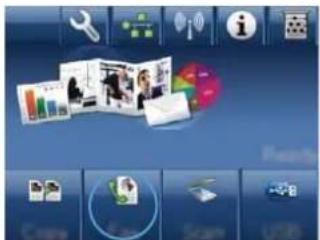
text_image
Screenshot of a macOS desktop with app icons and a photo collage on the left- Touch the Fax Menu button.
- Touch the Fax Reports button.
- Touch the Print All fax Reports button.
Print individual fax reports
- From the Home screen, touch the Fax button.
-
Touch the Fax Menu button.
-
Touch the Fax Reports button.
- Touch the name of the report that you want to print.
Set the fax error report
A fax error report is a brief report that indicates the product experienced a fax job error. You can set it to print after the following events:
• Every fax error (the factory-set default)
Send fax error
Receive fax error
Never
NOTE: With this option, you will have no indication that a fax failed to be transmitted unless you print a fax activity log.
- From the Home screen, touch the Fax button.
- Touch the Fax Menu button.
- Touch the Fax Reports button.
- Touch the Fax Error Report button, and then touch the printing option that you want to use.
Change error correction and fax speed
Set the fax-error-correction mode
Usually, the product monitors the signals on the telephone line while it is sending or receiving a fax. If the product detects an error during the transmission and the error-correction setting is On, the product can request that the portion of the fax be resent. The factory-set default for error correction is On.
You should turn off error correction only if you are having trouble sending or receiving a fax, and you are willing to accept the errors in the transmission. Turning off the setting might be useful when you are trying to send a fax overseas or receive one from overseas, or if you are using a satellite telephone connection.
- From the Home screen, touch the Setup 8 button.
- Touch the Service menu.
- Touch the Fax Service menu.
- Touch the Error Correction button, and then touch the On button.
Change the fax speed
The fax-speed setting is the modem protocol that the product uses to send faxes. It is the worldwide standard for full-duplex modems that send and receive data across telephone lines at up to 33,600 bits per second (bps). The factory-set default for the fax-speed setting is Fast(V.34).
You should change the setting only if you are having trouble sending a fax to or receiving a fax from a particular device. Decreasing the fax speed might be useful when you are trying to send a fax overseas, or receive one from overseas, or if you are using a satellite telephone connection.
- From the Home screen, touch the Setup
button. - Touch the Fax Setup menu.
- Touch the Advanced Setup menu.
- Scroll to and touch the Fax Speed button, and then touch the speed setting that you want to use.
Solve problems sending faxes
• An error message displays on the control panel
• The control panel displays a Ready message with no attempt to send the fax
- The control panel displays the message "Storing page 1" and does not progress beyond that message
• Faxes can be received, but not sent
- Unable to use fax functions from the control panel
- Unable to use speed dials
- Unable to use group dials
- Receive a recorded error message from the phone company when trying to send a fax
- Unable to send a fax when a phone is connected to the product
An error message displays on the control panel
The Communication error. message appears
- Allow the product to retry sending the fax. Re-sending temporarily reduces the fax speed.
- Unplug the product telephone cord from the wall, plug in a telephone, and try making a call. Plug the product phone cord into a jack for another phone line.
• Try a different phone cord. - From the control panel, change the Fax Speed option to the Medium(V.17) setting or Slow(V.29) setting.
a. From the Home screen, touch the Setup button.
b. Open the Fax Setup menu.
c. Open the Advanced Setup menu.
d. Open the Fax Speed menu.
e. Select the correct setting.
• Turn off the Error Correction option.
a. From the Home screen, touch the Setup
button.
b. Open the Service menu.
c. Open the Fax Service menu.
d. Open the Error Correction menu.
e. Select the Off setting.
NOTE: Turning off the Error Correction option can reduce image quality.
- If the error persists, contact HP. See www.hp.com/support/CM1410series or the support flyer that came in the product box.
No dial tone.
• Make sure that the telephone cord is plugged into the correct port on the product.
• Make sure that the telephone cord from the product is plugged directly into the wall telephone jack.
- Check for a dial tone on the phone line by using the Start Fax button.
• Unplug the product telephone cord from the wall, plug in a telephone, and try making a voice call.
• Unplug the telephone cord from both the product and the wall and replug the cord.
• Make sure that you are using the telephone cord that came with the product.
- Plug the product phone cord into a jack for another phone line.
- Check the phone line by using the Run Fax Test option from the Service menu on the control panel.
a. From the Home screen, touch the Setup
button.
b. Open the Service menu.
c. Open the Fax Service menu.
d. Select the Run Fax Test item.
The Fax is busy. message appears
• Try sending the fax again.
- Call the recipient to ensure that the fax machine is on and ready.
- Check that you are dialing the correct fax number.
- Check for a dial tone on the phone line by using the Start Fax button.
- Make sure that the phone is working by disconnecting the product, plugging in a telephone to the phone line, and making a voice call.
Plug the product phone cord into a jack for another phone line, and try sending the fax again.
• Try a different phone cord.
- Send the fax at a later time.
- If the error persists, contact HP. See www.hp.com/support/CM1410series or the support flyer that came in the product box.
The No fax answer. message appears
• Try to resend the fax.
- Call the recipient to ensure that the fax machine is on and ready.
- Check that you are dialing the correct fax number.
• Unplug the product telephone cord from the wall, plug in a telephone, and try making a voice call.
- Plug the product phone cord into a jack for another phone line.
• Try a different phone cord.
Make sure that the phone cord from the wall telephone jack is plugged into the line - port.
- Check the phone line by using the Run Fax Test option from the Service menu on the control panel.
a. From the Home screen, touch the Setup button.
b. Open the Service menu.
c. Open the Fax Service menu.
d. Select the Run Fax Test item.
- If the error persists, contact HP. See www.hp.com/support/CM1410series or the support flyer that came in the product box.
Document feeder paper jam
- Verify that the paper meets product size requirements. The product does not support pages longer than 381 mm (15 in) for faxing.
• Copy or print the original to letter, A4, or legal size paper, and then resend the fax.
The Fax storage is full. message appears
• Turn the product off then on.
• Print stored faxes that have not been printed.
a. Touch the Fax button, and then touch the Fax Menu button.
b. Open the Receive Options menu.
c. Select the Print Private Faxes item.
d. Provide the password when the product prompts you.
- Delete stored faxes from memory.
a. From the Home screen, touch the Setup button.
b. Open the Service menu.
c. Open the Fax Service menu.
d. Select the Clear Saved Faxes item.
- Divide the large fax job into smaller sections, and then fax them individually.
Scanner error
- Verify that the paper meets product size requirements. The product does not support pages longer than 381 mm (15 in) for faxing.
• Copy or print the original onto letter, A4, or legal size paper and then resend the fax.
The control panel displays a Ready message with no attempt to send the fax
- Check the fax activity log for errors.
a. Touch the Fax button, and then touch the Fax Menu button.
b. Open the Fax Reports menu.
c. Open the Fax Activity Log menu.
d. Select the Print Log Now option.
If a phone is connected to the product, make sure that the phone is hung up.
- Disconnect all other lines between the fax and the product.
- Connect the product directly into the wall telephone jack and resend the fax.
The control panel displays the message "Storing page 1" and does not progress beyond that message
- Delete stored faxes from memory.
a. From the Home screen, touch the Setup button.
b. Open the Service menu.
c. Open the Fax Service menu.
d. Select the Clear Saved Faxes item.
Faxes can be received, but not sent
Send fax and nothing happens.
- Check for a dial tone on the phone line by using the Start Fax button.
- Turn the product off then on.
- Use the control panel or the HP Fax Setup Wizard to configure the fax time, date, and fax header information.
a. From the Home screen, touch the Setup button.
b. Open the Fax Setup menu.
c. Open the Basic Setup menu.
d. Open the Fax Header menu.
e. Enter the correct settings.
-
Verify that any extension phones on the line are hung up.
-
If using a DSL service, make sure that the phone line connection to the product includes a high-pass filter.
Unable to use fax functions from the control panel
- The product might be password protected. Use the HP Embedded Web Server, HP Toolbox software, or the control panel to set a password.
• If you do not know the password for the product, contact your system administrator. - Verify with the system administrator that the fax functionality has not been disabled.
Unable to use speed dials
• Make sure that the fax number is valid.
- If an outside line requires a prefix, turn on the Dial Prefix option or include the prefix in the speed dial number.
a. From the Home screen, touch the Setup button.
b. Open the Fax Setup menu.
c. Open the Basic Setup menu.
d. Open the Dial Prefix menu.
e. Select the On setting.
Unable to use group dials
• Make sure that the fax number is valid.
- If an outside line requires a prefix, turn on the Dial Prefix option or include the prefix in the speed dial number.
a. From the Home screen, touch the Setup button.
b. Open the Fax Setup menu.
c. Open the Basic Setup menu.
d. Open the Dial Prefix menu.
e. Select the On setting.
- Set up all entries in the group with speed dial entries.
a. Open an unused speed dial entry.
b. Enter the fax number for the speed dial.
c. Touch the OK button to save the speed dial.
Receive a recorded error message from the phone company when trying to send a fax
- Make sure you dial the fax number correctly, and make sure that the phone service is not blocked. For example, some phone services might prevent long distance calling.
- If an outside line requires a prefix, turn on the Dial Prefix option or include the prefix in the speed dial number.
a. From the Home screen, touch the Setup button.
b. Open the Fax Setup menu.
c. Open the Basic Setup menu.
d. Open the Dial Prefix menu.
e. Select the On setting.
NOTE: To send a fax without a prefix, when the Dial Prefix option is turned on, send the fax manually.
- Send a fax to an international number
a. If a prefix is required, manually dial the telephone number with the prefix.
b. Enter the country/region code before dialing the phone number.
c. Wait for pauses as you hear the tones on the phone.
d. Send the fax manually from the control panel.
Unable to send a fax when a phone is connected to the product
• Make sure that the telephone is hung up.
• Make sure that the telephone is not being used for a voice call when faxing.
• Unplug the phone from the line, and then try sending the fax.
Solve problems receiving faxes
• The fax does not respond
• An error message displays on the control panel
• A fax is received but does not print
- Sender receives a busy signal
No dial tone
- Cannot send or receive a fax on a PBX line
The fax does not respond
The fax has a dedicated phone line
- Set the Answer Mode option to the Automatic setting from the control panel.
a. From the Home screen, touch the Setup button.
b. Open the Fax Setup menu.
c. Open the Basic Setup menu.
d. Open the Answer Mode menu.
e. Select the Automatic setting.
An answering machine is connected to the product
- Set the Answer Mode option to the TAM setting and plug the answering machine into the "telephone" port.
a. From the Home screen, touch the Setup button.
b. Open the Fax Setup menu.
c. Open the Basic Setup menu.
d. Open the Answer Mode menu.
e. Select the TAM setting.
If the TAM setting is unavailable, set the Answer Mode option to the Automatic setting.
- Set the Rings to Answer setting to at least one ring more than the number of rings for which the answering machine is set.
a. From the Home screen, touch the Setup button.
b. Open the Fax Setup menu.
c. Open the Basic Setup menu.
d. Open the Rings to Answer menu.
e. Select the correct setting.
- Plug the answering machine into the "telephone" port.
- If the product has a telephone handset connected, set the Answer Mode option to the Fax/Tel setting to route calls to the correct device. When detecting a voice call, the product generates a ring tone that alerts you to pick up the telephone handset.
a. From the Home screen, touch the Setup button.
b. Open the Fax Setup menu.
c. Open the Basic Setup menu.
d. Open the Answer Mode menu.
e. Select the Fax/Tel setting.
A telephone handset is connected to the product
Set the Answer Mode option to the Automatic setting.
- From the Home screen, touch the Setup button.
- Open the Fax Setup menu.
- Open the Basic Setup menu.
- Open the Answer Mode menu.
- Select the Automatic setting.
The Answer Mode setting is set to the Manual setting
- Touch the Start Fax button on the control panel.
Voice mail is available on the fax line
- Add a distinctive ring service to your telephone line and change the Distinctive Ring setting on the product to match the ring pattern supplied by the telephone company. Contact your telephone company for information.
a. Verify that the answer mode is set to the Automatic setting.
b. From the Home screen, touch the Setup button.
c. Open the Fax Setup menu.
d. Open the Basic Setup menu.
e. Open the Distinctive Ring menu.
f. Select the correct setting.
• Buy a dedicated line for faxing.
- Set the Answer Mode option to the Manual setting.
a. From the Home screen, touch the Setup button.
b. Open the Fax Setup menu.
c. Open the Basic Setup menu.
d. Open the Answer Mode menu.
e. Select the Manual setting.

NOTE: You must be present to receive faxes.
The product is connected to a DSL phone service
- Check the installation and features. A DSL modem requires a high-pass filter on the phone line connection to the product. Contact your DSL service provider for a filter or buy a filter.
• Verify that the filter is plugged in. - Replace the existing filter to make sure that it is not defective.
The product uses a fax over IP or VoIP phone service
- Set the Fax Speed option to the Slow(V.29) or Medium(V.17) setting, or disable the Fast(V.34) setting.
a. From the Home screen, touch the Setup button.
b. Open the Fax Setup menu.
c. Open the Advanced Setup menu.
d. Open the Fax Speed menu.
e. Select the correct setting.
- Contact your service provider to make sure that fax is supported and for a recommended fax speed settings. Some companies might require an adapter.
An error message displays on the control panel
The No fax detected. message appears

NOTE: This error does not always refer to a missed fax. If a voice call is made to a fax number by mistake and the caller hangs up, the No fax detected. message appears on the control panel.
- Ask the sender to resend the fax.
• Make sure that the telephone cord from the product is plugged into the wall telephone jack.
• Try a different phone cord. - Plug the product phone cord into a jack for another phone line.
- Make sure the telephone line and phone wall jack are active by plugging in a telephone and checking for a dial tone.
Make sure that the telephone cord is plugged into the "line" port on the product. - Check the phone line by running a fax test from the control panel.
- If the error persists, contact HP. See www.hp.com/support/CM1410series or the support flyer that came in the product box.
The Communication error. message appears
- Ask the sender to send the fax again or send at a later time when line conditions have improved.
- Unplug the product telephone cord from the wall, plug in a telephone, and try making a call. Plug the product phone cord into a jack for another phone line.
• Try a different phone cord. - Set the Fax Speed option to the Slow(V.29) or Medium(V.17) setting, or disable the Fast(V.34) setting.
a. From the Home screen, touch the Setup button.
b. Open the Fax Setup menu.
c. Open the Advanced Setup menu.
d. Open the Fax Speed menu.
e. Select the correct setting.
- Turn off the Error Correction feature to prevent automatic error correction.
NOTE: Turning off the Error Correction feature can reduce image quality.
a. From the Home screen, touch the Setup button.
b. Open the Service menu.
c. Open the Fax Service menu.
d. Open the Error Correction menu.
e. Select the Off setting.
- Print the Fax Activity Log report from the control panel to determine if the error occurs with a specific fax number.
a. Touch the Fax button, and then touch the Fax Menu button.
b. Open the Fax Reports menu.
c. Open the Fax Activity Log menu.
d. Select the Print Log Now option.
- If the error persists, contact HP. See www.hp.com/support/CM1410series or the support flyer that came in the product box.
The Fax storage is full. message appears
• Turn the product off then on.
• Print all of the faxes, and then have the sender resend the fax.
- Ask the sender to divide a large fax job into smaller sections, and then fax them individually.
- Make sure that the resolution of the sending fax machine is not set to the Photo setting or the Superfine setting.
a. From the Home screen, touch the Setup button.
b. Open the Fax Setup menu.
c. Open the Advanced Setup menu.
d. Open the Fax Resolution menu.
e. Select the correct setting.
- Cancel all fax jobs or clear the faxes from memory.
The Fax is busy. message appears
- The product cannot receive a fax while attempting to send one. Cancel the fax send and try sending at a later time.
- Allow the product to try sending the fax again.
A fax is received but does not print
The Private Receive feature is on
- When the Private Receive feature is activated, received faxes are stored in memory. A password is required to print the stored faxes.
- Enter the password to print the fax. If you do not know the password, contact the product administrator.
NOTE: Memory errors might occur if the faxes are not printed. The product will not answer if the memory is full.
Sender receives a busy signal
A handset is connected to the product
• Make sure the phone is hung up.
- Change the Answer Mode option to match the product setup.
a. From the Home screen, touch the Setup button.
b. Open the Fax Setup menu.
c. Open the Basic Setup menu.
d. Open the Answer Mode menu.
e. Select the setting that matches the product setup.
Set the Answer Mode option to the Fax/Tel setting to automatically receive faxes. The Fax/Tel setting automatically detects whether the incoming transmission is a fax or a voice call and routes the call to the appropriate device.
A phone line splitter is being used
- If you are using a phone line splitter, remove the splitter and set up the phone as a downstream phone.
• Make sure the phone is hung up.
• Make sure the phone is not being used for a voice call when faxing.
No dial tone
- If using a phone line splitter, remove the phone line splitter and set up the phone as a downstream phone.
Cannot send or receive a fax on a PBX line
- If you are using a PBX phone line, contact your PBX administrator to configure an analog fax line for your product.
Solve general fax problems
• Faxes are sending slowly
- Fax quality is poor
• Fax cuts off or prints on two pages
Faxes are sending slowly
The product is experiencing poor phone line quality.
- Retry sending the fax when the line conditions have improved.
- Check with the phone service provider that the line supports fax.
• Turn off the Error Correction setting.
a. Open the Setup menu.
b. Open the Service menu.
c. Open the Fax Service menu.
d. Open the Error Correction menu.
e. Select the Off setting.
NOTE: This can reduce image quality.
• Use white paper for the original. Do not use colors such as gray, yellow, or pink.
• Increase the Fax Speed setting.
a. Open the Setup menu.
b. Open the Fax Setup menu.
c. Open the Advanced Setup menu.
d. Open the Fax Speed menu.
e. Select the correct setting.
- Divide large fax jobs into smaller sections, and then fax them individually.
- Change the fax settings on the control panel to a lower resolution.
a. Open the Setup menu.
b. Open the Fax Setup menu.
c. Open the Advanced Setup menu.
d. Open the Fax Resolution menu.
e. Select the correct setting.
Fax quality is poor
Fax is blurry or light.
- Increase fax resolution when sending faxes. Resolution does not affect received faxes.
a. Open the Setup menu.
b. Open the Fax Setup menu.
c. Open the Advanced Setup menu.
d. Open the Fax Resolution menu.
e. Select the correct setting.
NOTE: Increasing resolution slows transmission speed.
- Turn on the Error Correction setting from the control panel.
a. Open the Setup menu.
b. Open the Service menu.
c. Open the Fax Service menu.
d. Open the Error Correction menu.
e. Select the On setting.
- Check the print cartridges and replace if necessary.
- Ask the sender to darken the contrast setting on the sending fax machine, and then resend the fax.
Fax cuts off or prints on two pages
- Set the Default Paper Size setting. Faxes print on a single size of paper based on the Default Paper Size settings.
a. Open the Setup menu.
b. Open the System Setup menu.
c. Open the Paper Setup menu.
d. Open the Default Paper Size menu.
e. Select the correct setting.
- Set the paper type and size for the tray used for faxes.
- Turn on the Fit to Page setting to print longer length faxes on letter or A4 size paper.
a. Open the Setup menu.
b. Open the Fax Setup menu.
c. Open the Advanced Setup menu.
d. Open the Fit to Page menu.
e. Select the On setting.
NOTE: If the Fit to Page setting is off and the Default Paper Size setting is set to letter, a legal size original prints on two pages.
Regulatory information and warranties
For regulatory and warranty information, see Additional statements for telecom (fax) products on page 277.
12 Manage and maintain the product
• Print information pages
• Use the HP ToolboxFX software
• Use the HP Embedded Web Server
• Use HP Web Jetadmin software
• Product security features
• Economy settings
- Manage supplies and accessories
Clean the product
Product updates
Print information pages
Information pages reside within the product memory. These pages help diagnose and solve problems with the product.

NOTE: If the product language was not correctly set during installation, you can set the language manually so the information pages print in one of the supported languages. Change the language by using the System Setup menu on the control panel or the HP Embedded Web Server.
| Menu Item Description | |
| Demo Page Prints a page that demonstrates print quality | |
| Menu Structure Prints a control-panel menu layout map. | |
| Configuration Report Prints a list of the product settings | |
| Supplies Status Prints the print-cartridge status. Includes the following information: | |
| Estimated percentage of cartridge life remaining | |
| Approximate pages remaining | |
| Part numbers for HP print cartridges | |
| Number of pages printed | |
| Information about ordering new HP print cartridges and recycling used HP print cartridges | |
| Network Summary Displays status for: | |
| Network hardware configuration | |
| Enabled features | |
| TCP/IP and SNMP information | |
| Network statistics | |
| Wireless network configuration (wireless models only) | |
| Usage Page Displays the number of pages printed, faxed, copied, and scanned by the product | |
| PCL Font List Prints a list of all installed PCL 5 fonts | |
| PS Font List Prints a list of all installed PS fonts | |
| PCL6 Font List Prints a list of all installed PCL 6 fonts | |
| Color Usage Log Prints information about the color supply usage | |
| Service Page Prints the service page | |
| Diagnostics Page Prints diagnostic information about calibration and color quality | |
| Print Quality Page | Prints a page that helps solve problems with print quality |
- From the Home screen, touch the Setup ⚙ button.
- Touch the Reports button.
- Touch the name of the report that you want to print.
Use the HP ToolboxFX software
HP ToolboxFX is a program that you can use to complete the following tasks:
- Check the product status.
- Configure the product settings.
• View troubleshooting information.
You can view HP ToolboxFX when the product is directly connected to your computer or is connected to the network. You must perform a recommended software installation to use HP ToolboxFX.

NOTE: HP ToolboxFX is not supported for Windows 2000, Windows Server 2003, Windows XP (64-bit), or Macintosh operating systems. To use HP ToolboxFX, you must have TCP/IP protocol installed on your computer.
You do not have to have Internet access to open and use HP ToolboxFX.
View the HP ToolboxFX
Open HP ToolboxFX in one of these ways:
In the Windows system tray, double-click the HP ToolboxFX icon (☐).
- On the Windows Start menu, click Programs (or All Programs in Windows XP and Vista), click HP, click the name of this product, and then click HP ToolboxFX.
Status
The Status folder contains links to the following main pages:
- Device status. This page indicates product conditions such as a jam or an empty tray. After you correct a problem, click Refresh status to update the product status.
- Supplies status. View details such as the estimated percent of life remaining in the print cartridge and the number of pages that have been printed with the current print cartridge. This page also has links for ordering supplies and for finding recycling information.
- Device configuration. View a detailed description of the current product configuration, including the amount of memory installed and whether optional trays are installed.
- Network summary. View a detailed description of the current network configuration, including the IP address and network status.
Reports. Print the Configuration report and other information pages.
• Color usage job log. View color usage information for the product.
Event log. View a history of product errors. The most recent error is listed first.
Event log
The event log is a table where the product events are logged for your reference. The log contains codes that correspond to the error messages that appear on the product control panel display. The number in the Page Count column specifies the total number of pages that the product had printed when the error occurred.
Fax
Use the HP ToolboxFX Fax tab to perform fax tasks from your computer. The Fax tab contains links to the following main pages:
• Fax Receive. Set the fax receive mode.
Fax Phone Book. Add, edit, or delete entries in the product phone book.
• Fax Send Log. View all of the recent faxes that have been sent from the product.
• Fax Receive Log. View all of the recent faxes that have been received by the product.
• Block Faxes. Add, delete, or view fax numbers that are blocked.
Fax Receive
The following options are available when receiving a fax:
- Print the fax. You can also select an option to have a message appear on your computer to notifying you when the fax was printed.
• Forward the fax to another fax machine.

NOTE: You must click Apply before the changes take effect.
Fax phone book
Use the HP ToolboxFX fax phone book to add and remove individuals or groups on your speed-dial list, import phone books from a variety of sources, and update and maintain the contact list.
- To add an individual contact to the speed-dial list, select the row of the speed dial number that you want to specify. Type the contact name in the Contact name window. Type the fax number in the Fax number window. Click Add.
- To add a group of contacts to the speed-dial list, select the row of the speed-dial number that you want to specify. Click Add Group. Double-click a contact name from the list on the left to move it to the group list on the right, or select a name on the left and then click the appropriate arrow to move it to the group list on the right. You can also use those two methods to move names from right to left. When you have created a group, type a name in the Group name window, and then click OK.
- To edit an existing individual speed-dial entry, click anywhere on the row containing the contact name to select it, and then click Update. Type changes in the appropriate windows, and then click OK.
- To edit an existing group-speed-dial entry, click anywhere on the row containing the group name to select it, and then click Update Group. Make any required changes, and then click OK.
• To delete an entry from the speed-dial list, select the item, and then click Delete. - To move speed dial entries, select the entry and then click Move, or select Move and then specify the entry in the dialog box. Either select Next empty row or specify the number of the row where you want to move the entry.

NOTE: If you specify a row that is occupied, the new entry will overwrite the existing entry.
- To import contacts from a phone book that exists in Lotus Notes, Outlook, or Outlook Express, click Import/Export Phone Book. Select the Import option, and then click Next. Select the appropriate software program, navigate to the appropriate file, and then click Finish. To export contacts from a phone book, click Import/Export Phone Book. Select the Export option, and then click Next. Enter the file name or browse to the file to which you want to export contacts, and then click Finish. You can also select individual entries from the phone book instead of importing the entire phone book.
• To delete all entries, click Delete All, and then click Yes.
In addition to numerical digits, the following are valid characters for fax numbers:
( )
+ -
* #
R
W .
,
,<space>

NOTE: You must click Apply before the changes take effect.
Fax send log
The HP ToolboxFX fax send log lists all recently sent faxes and information about them, including the date and time sent, job number, fax number, page count, and the results.
Click any column heading in the fax send log to re-sort the information in that column in ascending or descending order.
The Results column provides the fax status. If the fax attempt was unsuccessful, this column provides a description of why the fax was not sent.
Fax receive log
The HP ToolboxFX fax receive log provides a list of all recently received faxes and information about them including the date and time received, job number, fax number, page count, results, and an abbreviated fax image.
The fax receive log can be used to block future faxes. Check the Block Fax box next to a received fax listed on the log.
Click on any column heading in the fax receive log to re-sort the information in that column in ascending or descending order.
The Results column provides the fax status. If the fax attempt was unsuccessful, this column provides a description of why the fax was not received.

NOTE: You must click Apply before the changes take effect.
Block Faxes
Block Faxes provides a list of all numbers that are blocked. Add, modify, or delete blocked fax numbers on this tab.
Help
The Help folder contains links to the following main pages:
- Color Printing Tools. Open Microsoft Office Basic Colors or the full palette of color with associated RGB values. Use the HP Basic Color Match to adjust spot colors in your printed output.
System Settings
The HP ToolboxFX System Settings tab contains links to the following main pages:
- Device Information. View information about the product, such as the product description and a contact person.
- Paper Setup. Change the product paper-handling settings, such as default paper size and default paper type.
• Print Quality. Change the product print-quality settings. - Print Density. Change the print-density settings, such as contrast, highlights, midtones, and shadows.
- Paper Types. Change the mode settings for each media type, such as letterhead, prepunched, or glossy paper.
- System Setup. Change the system settings, such as jam recovery and auto-continue. Change the Cartridge low threshold setting, which sets the toner level that causes a Low toner pop-up alert.
- Device Polling. Change the product polling settings, which determine how often HP ToolboxFX collects data from the product.
- Save/Restore Settings. Save the current settings for the product to a file on the computer. Use this file to load the same settings onto another product or to restore these settings to this product at a later time.
Product Security. Set, change, or clear the product security password.
Device Information
The Device Information page stores data about your product for future reference. The information that you type in the fields on this page appears on the Configuration page. You can type any character in each of these fields.

NOTE: You must click Apply before your changes take effect.
Paper Setup
Use these options to configure your default settings.
The following options are available for handling print jobs when the product is out of paper:
- Select Wait for paper to be loaded.
- Select Cancel from the Paper out action drop-down list to cancel the print job.
The Paper out time field specifies how long the product waits before acting on your selections. You can specify from 0 to 3600 seconds.

NOTE: You must click Apply before your changes take effect.
Print Quality
Use these options to improve the appearance of your print jobs.
Color Calibration
Power On Calibration. Specify whether the product should calibrate when you turn it on.
- Calibration Timing. Specify how frequently the product should calibrate.
• Calibrate Now. Set the product to calibrate immediately.

NOTE: You must click Apply before your changes take effect.
Print Density
Use these settings to make fine adjustments in the amount of each color of toner that is used for your printed documents.
- Contrasts. Contrast is the range of difference between light (highlight) and dark (shadow) colors. To increase the overall range between light and dark colors, increase the Contrasts setting.
- Highlights. Highlights are colors that are nearly white. To darken highlight colors, increase the Highlights setting. This adjustment does not affect midtone or shadow colors.
Midtones. Midtones are colors that are halfway between white and solid density. To darken midtone colors, increase the Midtones setting. This adjustment does not affect highlight or shadow colors. - Shadows. Shadows are colors that are nearly solid density. To darken shadow colors, increase the Shadows setting. This adjustment does not affect highlight or midtone colors.
Paper Types
Use these options to configure print modes that correspond to the various media types. To reset all modes to factory default settings, select Restore modes.

NOTE: You must click Apply before your changes take effect.
System setup
Use the HP ToolboxFX system settings options to configure global settings for copy, fax, scan, and print, such as jam recovery and auto-continue.
NOTE: You must click Apply before the changes take effect.
Device polling
You can turn off HP ToolboxFX device polling to reduce network traffic.
NOTE: You must click Apply before the changes take effect.
Print Settings
The HP ToolboxFX Print Settings tab contains links to the following main pages:
- Printing. Change the default product print settings, such as number of copies and paper orientation.
PCL5. View and change the PCL5 settings.
• PostScript. View and change the PS settings.
Printing
Use these options to configure the settings for all print functions. These are the same options that are available on the control panel.
NOTE: You must click Apply before your changes take effect.
PCL5
Use these options to configure the settings when you are using the PCL print personality.
NOTE: You must click Apply before your changes take effect.
PostScript
Use this option when you are using the PostScript print personality. When the Print PostScript error option is turned on, the PostScript error page automatically prints when PostScript errors occur.
NOTE: You must click Apply before your changes take effect.
Network Settings
The network administrator can use this tab to control the network-related settings for the product when it is connected to an IP-based network.
NOTE: You cannot configure wireless network settings by using the HP ToolboxFX software.
Use the HP Embedded Web Server
This product is equipped with an embedded Web server (EWS), which provides access to information about product and network activities. A Web server provides an environment in which web programs may run, much in the same way that an operating system, such as Windows, provides an environment for programs to run on a computer. The output from these programs can then be displayed by a Web browser, such as Microsoft Internet Explorer, Safari, or Netscape Navigator.
An “embedded” Web server resides on a hardware device (such as an HP LaserJet product) or in firmware, rather than as software that is loaded on a network server.
The advantage of an EWS is that it provides an interface to the product that anyone with a network-connected product and computer can use. There is no special software to install or configure, but you must have a supported Web browser on the computer. To gain access to the EWS, type the IP address for the product in the address line of the browser. To find the IP address, print a configuration page.
NOTE: For Macintosh operating systems, you can use the EWS over a USB connection after installing the Macintosh software included with the product.
Open the HP Embedded Web Server
To open the HP Embedded Web Server, type the IP address or host name of the product in the address field of a supported Web browser. To find the IP address or host name, print a configuration page.
NOTE: If an error occurs while opening the HP Embedded Web Server, confirm that the proxy settings are correct for your network.
TIP: After you open the URL, bookmark it so that you can return to it quickly in the future.
Features
The EWS allows you to view product and network status and manage printing functions from a computer. With the EWS, you can complete the following tasks:
• View product status information
• Determine the remaining life on all supplies and order new ones
• View and change part of the product configuration
• View and print some internal pages
- Select the language in which to display the EWS pages and control panel messages
• View and change network configuration
- Set, change, or clear the product security password.
NOTE: Changing network settings in the EWS might disable some of product software or features.
Use HP Web Jetadmin software
HP Web Jetadmin is a Web-based software solution for remotely installing, monitoring, and troubleshooting network-connected peripherals. Management is proactive, allowing network administrators the ability to resolve issues before users are affected. Download this free, enhanced-management software at www.hp.com/go/webjetadmin.
Device plug-ins can be installed into HP Web Jetadmin to provide support for specific product features. The HP Web Jetadmin software can automatically notify you when new plug-ins are available. On the Product Update page, follow the directions to automatically connect to the HP Web site and install the latest device plug-ins for your product.

NOTE: Browsers must be Java™-enabled. Browsing from a Mac OS is not supported.
Product security features
The product includes a password feature that restricts access to setup features while allowing basic functions to continue. The password can be set from the EWS or the control panel.
Private receive can be used to store faxes on the product until you are at the product to print them.
Assign a system password
Assign a password for the product so that unauthorized users cannot change the product settings.
- Open the HP Embedded Web Server by entering the product IP address into the address line of a Web browser.
- Click the Settings tab.
- On the left side of the window, click the Security menu.
- In the Device Security Settings area, click the Configure . . . button.
- In the Device Password area, type the password in the New Password box, and type it again in the Verify password box.
- Click the Apply button. Make note of the password and store it in a safe place.
Economy settings
Powersave modes
The adjustable sleep mode feature reduces power consumption when the product has been inactive for an extended period. You can set the length of time before the product enters sleep mode.

NOTE: This mode does not affect product warm-up time.
Set sleep mode
- From the Home screen, touch the Setup button.
- Touch the System Setup button.
-
Touch the Sleep Delay button.
-
Scroll to and touch the PowerSave Time button, and then touch the setting that you want to use.
Archive print
Archive print produces output that is less susceptible to toner smearing and dusting. Use archive print to create documents that you want to preserve or archive.
- From the Home screen, touch the Setup button.
- Touch the Service menu.
- Touch the Archive Print button, and then touch the On button.
Manage supplies and accessories
Print when a cartridge is at estimated end of life
Supplies messages
Supply-related notifications are communicated on the product control panel and on computers that have the full product software installed. If the full product software is not installed, you might not receive all supply-related notifications in a prominent manner. To install the full product software, insert the CD that came with the product and follow the steps for the full install.
A
- A
Print-quality problems can occur when using a cartridge that is at its estimated end of life. The supply does not need to be replaced at this point in time unless the print quality is no longer acceptable.

NOTE: Using the Continue setting allows printing beyond Very Low without customer interaction and can result in unsatisfactory print quality.
When a color print cartridge becomes very low, the product prints in black only to prevent fax interruptions. To configure the product to print in color and use the remaining toner in the print cartridge past very low, follow these steps:
- From the Home screen on the control panel, touch the Setup button.
- Touch the System Setup button.
- Touch the At Very Low button.
- Touch the Color Cartridges button, and then touch the Continue button.
When you choose to replace the very low print cartridge, color printing resumes automatically.
Enable or disable the At Very Low settings from the control panel
You can enable or disable the default settings at any time, and you do not have to re-enable them when you install a new print cartridge.
- From the Home screen on the control panel, touch the Setup button.
- Touch the System Setup button.
- Touch the At Very Low button.
- Touch the Black Cartridge or the Color Cartridges button.
-
Select one of the following options:
-
Select the Continue option to set the product to alert you that the print cartridge is very low, but to continue printing.
-
Select the Stop option to set the product to stop printing (including printing faxes) until you replace the print cartridge.
-
Select the Prompt option to set the product to stop printing (including printing faxes) and prompt you to replace the print cartridge. You can acknowledge the prompt and continue printing.
- On the Color Cartridges menu only, select Print Black (the default option) to alert you when the print cartridge is very low, but to continue printing in black only.
When the product is set to the Stop option, there is some risk that faxes will not print after the new cartridge is installed if your product has received more faxes than the memory can hold while stopped.
When the product is set to the Prompt option, there is some risk that faxes will not print after the new cartridge is installed if your product has received more faxes than the memory can hold while the product is waiting for the prompt to be acknowledged.
Once an HP supply has reached very low, HP's premium Protection Warranty on that supply has ended. All print defects or cartridge failures incurred when an HP supply is used in Continue at very low mode will not be considered to be defects in materials or workmanship in the supply under the HP Print Cartridge Warranty Statement.
Manage print cartridges
Print-cartridge storage
Do not remove the print cartridge from its package until you are ready to use it.
△ CAUTION: To prevent damage to the print cartridge, do not expose it to light for more than a few minutes.
HP policy on non-HP print cartridges
Hewlett-Packard Company cannot recommend the use of non-HP print cartridges, either new or remanufactured.
NOTE: Any damage caused by a non-HP print cartridge is not covered under the HP warranty and service agreements.
HP fraud hotline and Web site
Call the HP fraud hotline (1-877-219-3183, toll-free in North America) or go to www.hp.com/go/anticounterfeit when you install an HP print cartridge and the control-panel message says the cartridge is non-HP or used. HP will help determine if the cartridge is genuine and take steps to resolve the problem.
Your print cartridge might not be a genuine HP print cartridge if you notice the following:
The supplies status page indicates that a non-HP or used supply is installed.
• You are experiencing a high number of problems with the print cartridge.
- The cartridge does not look like it usually does (for example, the packaging differs from HP packaging).
Recycle supplies
To recycle a genuine HP print cartridge, place the used cartridge in the box in which the new cartridge arrived. Use the enclosed return label to send the used supply to HP for recycling. For complete information, see the recycling guide that is included with each new HP supply item.
Print cartridge layout

natural_image
Cross-sectional diagram of a mechanical device showing internal components (no text or symbols)
natural_image
Technical line drawing of a mechanical component with no visible text or symbols
natural_image
Technical line drawing of a rectangular electronic component with internal structure (no text or symbols)| 1 Cartridge memory chip | |
| 2 Plastic shield | |
| 3 | Imaging Drum. Do not touch the imaging drum on the bottom of the print cartridge. Fingerprints on the imaging drum can cause print-quality problems. |
Replacement instructions
Replace the print cartridges
The product uses four colors and has a different print cartridge for each color: black (K), magenta (M), cyan (C), and yellow (Y).
△ CAUTION: If toner gets on any clothing, wipe it off with a dry cloth and wash the clothing in cold water. Hot water sets toner into the fabric.
- Open the front door.
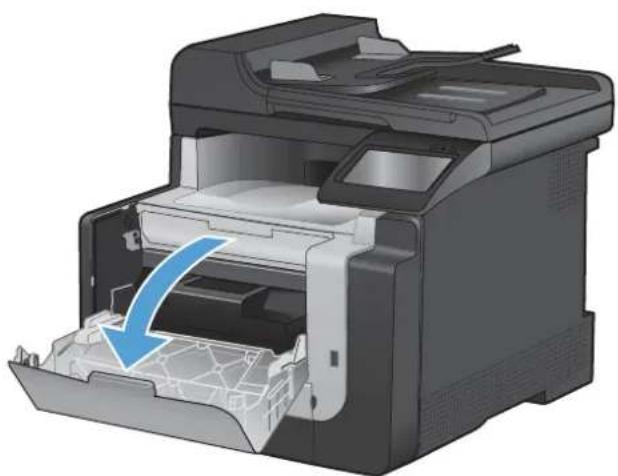
natural_image
Illustration of a printer with a blue arrow indicating the process, showing internal structure and casing (no text or symbols)- Pull out the print-cartridge drawer.
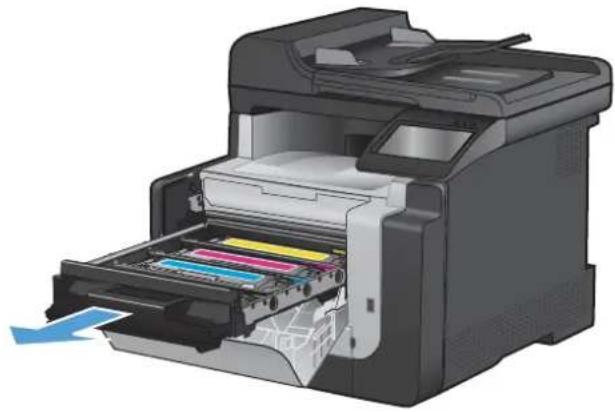
natural_image
3D rendering of a printer with color-coded internal components and paper feed (no text or symbols visible)- Grasp the handle on the old print cartridge and then pull the cartridge straight up to remove it.

natural_image
Diagram of a printer with paper filter and color scheme being inserted (no text or symbols visible)- Remove the new print cartridge from the packaging.
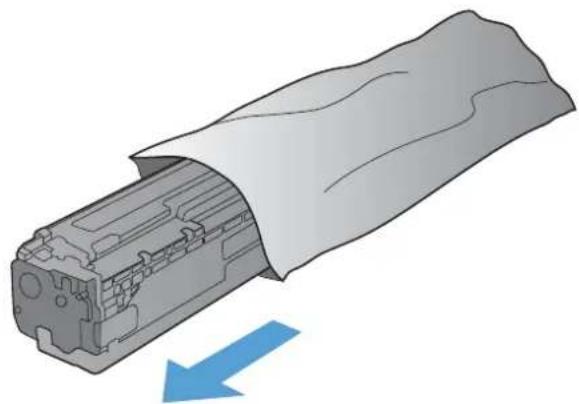
natural_image
Diagram of a mechanical component with a blue arrow indicating direction, showing internal structure without any text or symbols.-
Gently rock the print cartridge from front to back to distribute the toner evenly inside the cartridge.
-
Remove the orange, plastic shield from the bottom of the new print cartridge.
-
Do not touch the imaging drum on the bottom of the print cartridge. Fingerprints on the imaging drum can cause print-quality problems.

natural_image
Diagram of a cylindrical mechanical component with blue arrows indicating rotation or flow, no text or symbols present.
natural_image
3D illustration of a green cylindrical component being inserted into an orange plastic housing, with a blue arrow indicating the process (no text or symbols present)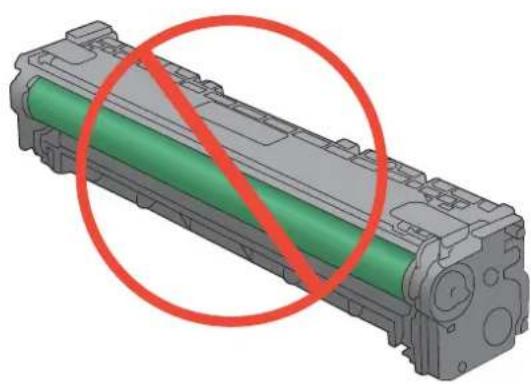
natural_image
3D rendering of a cylindrical electronic component with green internal structure and red prohibition symbol (no text or labels)-
Insert the new print cartridge into the product.
-
Pull the tab on the left side of the print cartridge straight up to completely remove the sealing tape. Discard the sealing tape.
-
Close the print-cartridge drawer.

natural_image
Diagram of an HP printer with internal color scheme and paper feed, showing paper being inserted (no text or symbols)
natural_image
Illustration of a printer being inserted into a paper airplane, showing internal components and a close-up of the printer's handle (no text or symbols present)
natural_image
Illustration of a printer with colored paper strips inside, showing internal structure and outlet (no text or symbols)- Close the front door.

natural_image
Diagram of a printer with paper feed being inserted, showing internal structure and paper layout (no text or symbols)- Place the old print cartridge and the orange plastic shield in the box for the new print cartridge. Follow the recycling instructions that are included in the box.
Clean the product
Clean the paper path
During the printing process, paper, toner, and dust particles can accumulate inside the product. Over time, this buildup can cause print-quality problems such as toner specks or smearing. This product has a cleaning mode that can correct and prevent these types of problems.
Clean the paper path from the product control panel
- From the Home screen, touch the Setup button.

text_image
Screenshot of a desktop computer interface with icons for file operations, image thumbnails, and system tools-
Touch the Service menu.
-
Touch the Cleaning Page button.
-
Load plain letter or A4 paper when you are prompted.
-
Touch the OK button to begin the cleaning process.
A page feeds through the product slowly. Discard the page when the process is completed.
Clean the scanner glass strip and platen
Over time, specks of debris might collect on the scanner glass and white plastic backing, which can affect performance. Use the following procedure to clean the scanner glass and white plastic backing.
-
Use the power switch to turn off the product, and then unplug the power cord from the electrical socket.
-
Open the scanner lid.
-
Clean the scanner glass and the white plastic backing with a soft cloth or sponge that has been moistened with nonabrasive glass cleaner.
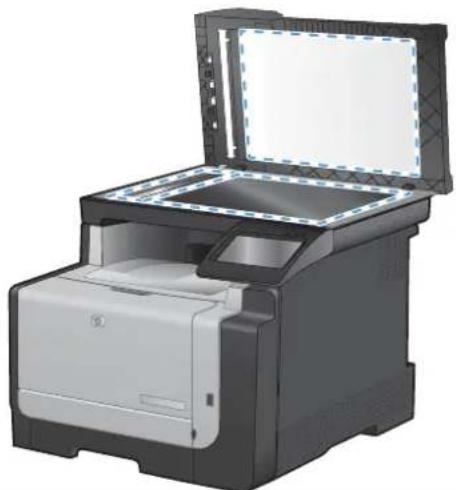
natural_image
Illustration of a HP printer with open lid and paper feed (no text or symbols visible)△ CAUTION: Do not use abrasives, acetone, benzene, ammonia, ethyl alcohol, or carbon tetrachloride on any part of the product; these can damage the product. Do not place liquids directly on the glass or platen. They might seep and damage the product.
-
Dry the glass and white plastic backing with a chamois or a cellulose sponge to prevent spotting.
-
Plug in the product, and then use the power switch to turn on the product.
Clean the document feeder pickup rollers and separation pad
If the product document feeder experiences paper-handling problems, such as jams or multiple-page feeds, clean the document feeder rollers and separation pad.
- Open the document feeder cover.
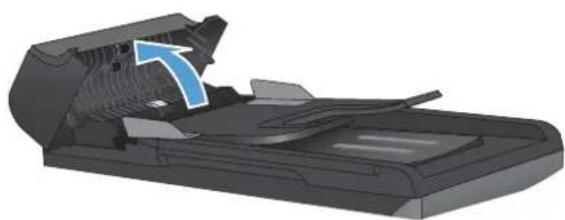
natural_image
3D rendering of a mechanical device with internal components and a blue arrow indicating direction (no text or symbols)- Use a moist, lint-free cloth to wipe both pickup rollers and the separation pad to remove dirt.
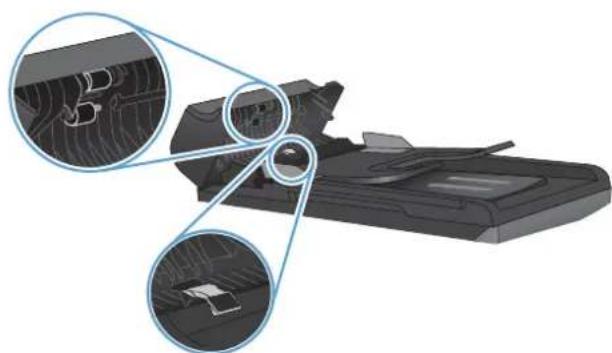
natural_image
Technical illustration of a mechanical assembly with three circular insets showing internal components (no text or symbols)- Close the document feeder cover.
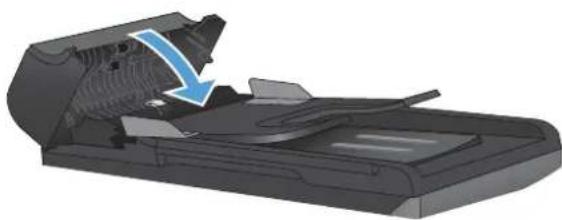
natural_image
3D illustration of a mechanical device with a blue arrow indicating a process or operation (no text or symbols present)Clean the touch screen
Clean the touch screen whenever it is necessary to remove fingerprints or dust. Wipe the touch screen gently with a clean, water-dampened, lint-free cloth.
△ CAUTION: Use water only. Solvents or cleaners can damage the touch screen. Do not pour or spray water directly onto the touch screen.
Product updates
Software and firmware updates and installation instructions for this product are available at www.hp.com/support/CM1410series. Click Downloads and drivers, click the operating system, and then select the download for the product.
13 Solve problems
Self help
• Problem-solving checklist
• Factors that affect product performance
- Restore the factory-set defaults
• Interpret control-panel messages
• Paper feeds incorrectly or becomes jammed
- Improve print quality
• The product does not print or it prints slowly
- Solve walk-up USB printing problems
- Solve connectivity problems
- Solve wireless network problems
• Product software problems
- Solve common Mac problems
Self help
In addition to the information in this guide, other sources are available that provide helpful information.
| HP Help and Learn Center | The HP Help and Learn Center and other documentation are on the CD that came with the product or in the HP Program folder on your computer. The HP Help and Learn Center is a product help tool that provides easy access to product information, HP product Web support, troubleshooting, and regulatory and safety information. |
| Quick Reference Topics | Several Quick Reference Topics for this product are available at this Web site:www.hp.com/support/CM1410seriesYou can print these topics and keep them near the product. They are a handy reference for procedures that you perform frequently. |
| Quick Reference Guide | This guide contains procedures for the most commonly used product functions. The guide is available from this Web site:www.hp.com/support/CM1410seriesYou can print this guide and keep it near the product. |
| Control panel help The control panel has built-in help that guides you through several tasks, such as replacing print cartridges and clearing jams. | |
Problem-solving checklist
Follow these steps when trying to solve a problem with the product.
- Step 1: Check that the product power is on
- Step 2: Check the control panel for error messages
• Step 3: Test print functionality
• Step 4: Test copy functionality
• Step 5: Test the fax sending functionality
• Step 6: Test the fax receiving functionality - Step 7: Try sending a print job from a computer
• Step 8: Test the walk-up USB printing functionality
Step 1: Check that the product power is on
- Make sure the product is plugged in and turned on.
- Make sure the power cable is connected to the product and the outlet.
- Check the power source by connecting the power cable to a different outlet.
- If the product motors do not rotate, make sure the print cartridges are installed and that the doors are all closed. The control panel displays messages to indicate these problems.
- If the document feeder motor does not rotate, open the document feeder cover and remove any packing material or shipping tape.
- If the scanner bulb does not light during copying, scanning, or faxing, contact HP support.
Step 2: Check the control panel for error messages
The control panel should indicate ready status. If an error message appears, resolve the error.
Step 3: Test print functionality
- From the control panel Home screen, touch the Setup 🔊 button.
- Open the Reports menu, and select the Configuration Report item to print the report.
- If the report does not print, make sure paper is loaded in the tray, and check to control panel to see if paper is jammed inside the product.
NOTE: Make sure the paper in the tray meets specifications for this product.

Step 4: Test copy functionality
- Place the configuration page into the document feeder and make a copy. If paper does not feed smoothly through the document feeder, you might need to clean the document feeder rollers and separation pad. Make sure the paper meets specifications for this product.
- Place the configuration page onto the scanner glass and make a copy.
- If the print quality on the copied pages is not acceptable, clean the scanner glass and the small glass strip.
Step 5: Test the fax sending functionality
- From the control panel Home screen, touch the Setup 🔒 button.
- Open the Service menu, and then open the Fax Service menu. Touch the Run Fax Test button to test the fax functionality.
- Touch the Fax button on the product control panel, and then touch the Start Fax button.
Step 6: Test the fax receiving functionality
- From the control panel Home screen, touch the Setup 🔒 button.
- Open the Service menu, and then open the Fax Service menu. Touch the Run Fax Test button to test the fax functionality.
- Use another fax machine to send a fax to the product.
- If the product does not receive the fax, make sure that you do not have too many telephone devices connected to the product, and that all telephone devices are connected in the correct order.
- Review and reset the product fax settings.
- Turn off the Private Receive feature.
Step 7: Try sending a print job from a computer
- Use a word-processing program to send a print job to the product.
- If the job does not print, make sure you selected the correct printer driver.
- Uninstall and then reinstall the product software.
Step 8: Test the walk-up USB printing functionality
- Load a .PDF document or .JPEG photo onto a USB flash drive, and insert it in the slot on the front of the product.
- On the control panel, touch the USB Flash Drive button, and try printing the document or photo.
- If no documents are listed, try a different type of USB flash drive.
Factors that affect product performance
Several factors affect the time it takes to print a job:
The software program that you are using and its settings
The use of special paper (such as transparencies, heavy paper, and custom-size paper)
• Product processing and download time
• The complexity and size of graphics
The speed of the computer you are using
• The USB or network connection
• Whether the product is printing in color or in monochrome
The type of USB flash drive, if you are using one
Restore the factory-set defaults
△ CAUTION: Restoring the factory-set defaults returns all of the product and network settings to the factory defaults, and it also clears the fax header name, phone number, and any stored faxes in the product memory. This procedure also clears the fax phone book, and deletes any pages that are stored in the memory. The procedure then automatically restarts the product.
- On the product control panel, touch the Setup button.
- Scroll to and touch the Service menu.
- Scroll to and touch the Restore Defaults button, and then touch the OK button.
The product automatically restarts.
Interpret control-panel messages
Control panel message types
Alert and warning messages appear temporarily and might require you to acknowledge the message by touching the OK button to resume or by touching the Cancel ✗ button to cancel the job. With certain warnings, the job might not complete or the print quality might be affected. If the alert or warning message is related to printing and the auto-continue feature is on, the product will attempt to resume the printing job after the warning has appeared for 10 seconds without acknowledgement.
Critical error messages can indicate some kind of failure. Turning off and then turning on the power might fix the problem. If a critical error persists, the product might require service.
Control panel messages
Table 13-1 Control-panel messages
| Control panel message Description Recommended action | ||
| 10.100X Supply Memory Error A specific print cartridge has a faulty or missing memory chip."X" indicates the cartridge: 0=black, 1=cyan, 2=magenta, 3=yellow. | Check the memory chip. If it is broken or damaged, replace the cartridge.Verify that the cartridge is installed in the correct location.Reinstall the print cartridge.Turn off and then turn on the product.If the error is with a color cartridge, try swapping it with a different color cartridge in the tray. If the same message appears, then there is an engine problem. If a different 10.100X message appears, replace the cartridge.If the problem is not solved, replace the cartridge. | |
| 49 Error, Turn off then on The product has experienced an internal embedded software error. Under most conditions, the product automatically restarts. | Turn off the power by using the power switch, wait at least 30 seconds, and then turn on the power and wait for the product to initialize.If the error persists, contact HP. See www.hp.com/support/CM1410series or the support flyer that came in the product box. | |
| 50.x Fuser Error The product has experienced an internal hardware error. | 1. Turn off the power by using the power switch, and then wait at least 30 seconds.2. If a surge protector is being used, remove it. Plug the product directly into the wall socket.3. Turn on the power and wait for the product to initialize.If the error persists, contact HP. See www.hp.com/support/CM1410series or the support flyer that came in the product box. | |
| 52 Scanner Error The product has experienced an internalhardware error. | Turn off the power by using the power switch, wait at least 30 seconds, and then turn on the power and wait for the product to initialize.If a surge protector is being used, remove it.Plug the product directly into the wall socket.Use the power switch to turn the product on.If the error persists, contact HP.Seewww.hp.com/support/CM1410seriesor the support flyer that came in the product box. | |
| 57 Fan Error, Turn off then on The product has experienced a problem with its internal fan. | Turn off the power by using the power switch, wait at least 30 seconds, and then turn on the power and wait for the product to initialize.If the error persists, contact HP.Seewww.hp.com/support/CM1410seriesor the support flyer that came in the product box. | |
| 79 Error Turn off then on The product has experienced an internal firmware error. Under most conditions, the product automatically restarts. | Turn off the power by using the power switch, wait at least 30 seconds, and then turn on the power and wait for the product to initialize.If a surge protector is being used, remove it.Plug the product directly into the wall socket.Use the power switch to turn the product on.If the error persists, contact HP.Seewww.hp.com/support/CM1410seriesor the support flyer that came in the product box. | |
| Black Cartridge Low The print cartridge is nearing the end of its useful life. | Printing can continue, but consider having a replacement supply on hand. | |
| Black in wrong position The print cartridge is installed in the incorrect slot. | Make sure that each print cartridge is installed in the correct slot. From front to back, the print cartridges are installed in this order: black, cyan, magenta, and yellow. | |
| Black Very Low The print cartridge is at the end of its useful life, and the At Very Low menu item in the System Setup menu is set to Continue. | To ensure optimal print quality, HP recommends replacing the print cartridge at this point. You can continue printing until you notice a decrease in print quality. Actual cartridge life may vary.Once an HP supply has reached “very low”, HP's premium Protection Warranty on that supply has ended. All print defects or cartridge failures incurred when an HP supply is used in continue at very low mode will not be considered to be defects in materials or workmanship in the supply under the HP Print Cartridge Warranty Statement. | |
| Canceled scan. Clear document | You touched the Cancel ✗ button while scanning, faxing, or copying to cancel the current job while pages were feeding from the document feeder. The cancel process does not automatically clear the document feeder. | Remove the jammed item. Then, clear the items in the document feeder tray and start over. |
| Canceled send. Clear document | You touched the Cancel × button while faxing to cancel the current job while pages were feeding from the document feeder. The cancel process does not automatically clear the document feeder. | Remove the jammed item. Then, clear the items in the document feeder tray and start over. |
| Communication error. A fax communication error occurred between the product and the sender or receiver. | Allow the product to retry sending the fax. Unplug the product telephone cord from the wall, plug in a telephone, and try making a call. Plug the product phone cord into a jack for another phone line.Try a different phone cord.Set the Fax Speed option to the Slow(V.29) setting or disable the Fast(V.34) setting.Turn off the Error Correction feature to prevent automatic error correction.NOTE: Turning off the Error Correction feature can reduce image quality.Print the Fax Activity Log report from the control panel to determine if the error occurs with a specific fax number.If the error persists, contact HP. See www.hp.com/support/CM1410series or the support flyer that came in the product box. | |
| Cyan Cartridge Low The print cartridge is nearing the end of its useful life. | Printing can continue, but consider having a replacement supply on hand. | |
| Cyan in wrong position The print cartridge is installed in the incorrect slot. | Make sure that each print cartridge is installed in the correct slot. From front to back, the print cartridges are installed in this order: black, cyan, magenta, and yellow. | |
| Cyan Very Low The print cartridge is at the end of its useful life, and the At Very Low menu item in the System Setup menu is set to Continue. | To ensure optimal print quality, HP recommends replacing the print cartridge at this point. You can continue printing until you notice a decrease in print quality. Actual cartridge life may vary.Once an HP supply has reached “very low”, HP’s premium Protection Warranty on that supply has ended. All print defects or cartridge failures incurred when an HP supply is used in continue at very low mode will not be considered to be defects in materials or workmanship in the supply under the HP Print Cartridge Warranty Statement. | |
| Device error, press OK | Generic engine error. | This is a warning message only. Job output might be affected. |
| Device is busy. Try again later | The product is currently in use. | Wait for the product to finish the current job, or to finish initializing. |
| Document feeder door is open. The document feeder cover is open, or a sensor is malfunctioning. | Make sure that the document feeder cover is closed.If the message persists, turn off the power by using the power switch, wait at least 30 seconds, and then turn on the power and wait for the product to initialize.If the error persists, contact HP. See www.hp.com/support/CM1410series or the support flyer that came in the product box. | |
| Document feeder jam. A piece of paper is jammed in the document feeder tray. | Clear the jam. | |
| Document feeder jam. Clear and reload. A piece of paper is jammed in the document feeder tray. | Clear the jam.If the error persists, contact HP. See www.hp.com/support/CM1410series or the support flyer that came in the product box. | |
| Document feeder mispick. Reload The product did not pick up the paper in the document feeder. | Remove the paper from the document feeder tray, and then reload it.If the error persists, contact HP. See www.hp.com/support/CM1410series or the support flyer that came in the product box. | |
| Door open | The print cartridge door is open. | Close the print cartridge door. |
| Engine Communication Error The product has experienced an engine communication timeout error. | Turn off the power by using the power switch, wait at least 30 seconds, and then turn on the power and wait for the product to initialize.If a surge protector is being used, remove it. Plug the product directly into the wall socket. Use the power switch to turn the product on.If the error persists, contact HP. See www.hp.com/support/CM1410series or the support flyer that came in the product box. | |
| Engine error. Press OK to continue. | The product experienced a print engine error. | This is a warning message only. Job output might be affected. |
| Fax is busy.Canceled send. | The fax line to which you were sending a fax was busy. The product has canceled sending the fax. | Call the recipient to ensure that the fax machine is on and ready.Check that you are dialing the correct fax number.Check that the Redial if Busy option is enabled.Open the Service menu, and touch the Fax Service button. Touch the Run Fax Test button. This test verifies that the phone cord is connected to the correct port and that the phone line has a signal. The product prints a report with the results.If the error persists, contact HP. See www.hp.com/support/CM1410series or the support flyer that came in the product box. |
| Fax is busy. | The fax line to which you were sending a fax was busy. The product automatically redials the busy number. | Allow the product to retry sending the fax. |
| Redial pending. | Call the recipient to ensure that the fax machine is on and ready. | |
| Check that you are dialing the correct fax number. | ||
| Open the Service menu, and touch the Fax Service button. Touch the Run Fax Test button. This test verifies that the phone cord is connected to the correct port and that the phone line has a signal. The product prints a report with the results. | ||
| If the error persists, contact HP. See www.hp.com/support/CM1410series or the support flyer that came in the product box. | ||
| Fax receive error. | An error occurred while trying to receive a fax. | Ask the sender to resend the fax. |
| Try faxing back to the sender or another fax machine. | ||
| Check that the telephone cord is securely connected by unplugging and replugging the cord. | ||
| Make sure that you are using the telephone cord that came with the product. | ||
| Open the Service menu, and touch the Fax Service button. Touch the Run Fax Test button. This test verifies that the phone cord is connected to the correct port and that the phone line has a signal. The product prints a report with the results. | ||
| Decrease the fax speed. Ask the sender to resend the fax. | ||
| Turn off error-correction mode. Ask the sender to resend the fax. | ||
| NOTE: Turning off error-correction mode can reduce the quality of the fax image. | ||
| Connect the product to a different phone line. | ||
| If the error persists, contact HP. See www.hp.com/support/CM1410series or the support flyer that came in the product box. | ||
| Fax Send error. | An error occurred while trying to send a fax. | Try resending the fax.Try faxing to another fax number.Check that the telephone cord is securely connected by unplugging and replugging the cord.Make sure that you are using the telephone cord that came with the product.Open the Service menu, and touch the Fax Service button. Touch the Run Fax Test button. This test verifies that the phone cord is connected to the correct port and that the phone line has a signal. The product prints a report with the results.Connect the product to a different phone line.Set the fax resolution to Standard instead of the default of Fine.If the error persists, contact HP. See www.hp.com/support/CM1410series or the support flyer that came in the product box. |
| Fax storage is full.Canceling the fax receive. | The amount of available memory for storing faxes is insufficient to store an incoming fax. | If you are using the Private Receive feature, print all received faxes to regain some memory.If you still need more memory, clear faxes from memory. Open the Service menu. In the Fax Service menu, select the Clear Saved Faxes option. |
| Fax storage is full.Canceling the fax send. | During the fax job, the memory filled. All pages of the fax have to be in memory for a fax job to work correctly. Only the pages that fit into memory were sent. | Cancel the current job. Turn the product off, and then turn it on again. Try sending the job again.If the error reoccurs, cancel the job and turn the product off and then on a second time. The product might not have enough memory for some jobs. |
| Fit to Page on flatbed only The copy reduce/enlarge feature (called "Fit to Page") applies only to copies made from the flatbed scanner. | Use the flatbed or select another reduction/enlargement setting. | |
| Install [color] cartridge One of the color cartridges is not installed with the door closed. | Install the indicated color cartridge. | |
| Invalid driver Press OK | You are using the incorrect printer driver. | Select the printer driver that is appropriate for your product. |
| Invalid entry | Invalid data or response. | Correct the entry. |
| Jam in (area), Open door and clear jam There is a paper jam in the print paper path or output bin. | Clear the jam from the area indicated on the product control panel, and then follow the control panel instructions. | |
| Jam in Tray 1, Clear jam and then press OK | The product has detected a jam in Tray 1. Clear the jam, and then follow the control panel instructions. | |
| Load paper The tray is empty. Load paper in the tray. | ||
| Load Tray 1, Press OK to use available media | Device is processing a job, but no trays match. | Load paper in the correct orientation.Touch theOKbutton to use existing tray settings. |
| Load Tray 1,/ Cleaning mode, OK to start | Cleaning mode paper prompt. Load a clean sheet of paper in the correct orientation, then touch theOKbutton to begin the cleaning procedures. | |
| Magenta Cartridge Low The print cartridge is nearing the end of its useful life. | Printing can continue, but consider having a replacement supply on hand. | |
| Magenta in wrong position The print cartridge is installed in the incorrect slot. | Make sure that each print cartridge is installed in the correct slot. From front to back, the print cartridges are installed in this order: black, cyan, magenta, and yellow. | |
| Magenta Very Low The print cartridge is at the end of its useful life, and theAt Very Lowmenu item in the System Setup menu is set toContinue. | To ensure optimal print quality, HP recommends replacing the print cartridge at this point. You can continue printing until you notice a decrease in print quality. Actual cartridge life may vary.Once an HP supply has reached “very low”, HP’s premium Protection Warranty on that supply has ended. All print defects or cartridge failures incurred when an HP supply is used in continue at very low mode will not be considered to be defects in materials or workmanship in the supply under the HP Print Cartridge Warranty Statement. | |
| Manual Duplex Load Tray 1, Press OK | Manual duplex mode. | Load paper in the correct orientation. |
| Manual feed, Press OK to use available media | Print Manual Feed mode. Load paper into Tray 1. | |
| Memory is low Try again later The product does not have enough memory to start a new job. | Wait until the current job is finished before starting a new job.Turn the product off and then on to clear the memory. | |
| Memory is low. Press OK. The product memory has been almost completely filled. | Touch theOKbutton to cancel the job.Break the job into smaller jobs that contain fewer pages.Turn the product off and then on to clear the memory. | |
| Memory low Only 1 copy made. Press OK to continue. | The product does not have enough memory to complete the collated copy job. | Break the job into smaller jobs that contain fewer pages.Turn the product off and then on to clear the memory. |
| Misprint, Press OK Feed delay misprint. Verify that paper is loaded in the input tray. | Reload paper. | |
| No dial tone. | The product could not detect a dial tone. | Check for a dial tone on the phone line by touching the Start Fax button.Unplug the telephone cord from both the product and the wall and replug the cord.Make sure that you are using the telephone cord that came with the product.Open the Service menu, and touch the Fax Service button. Touch the Run Fax Test button. This test verifies that the phone cord is connected to the correct port and that the phone line has a signal. The product prints a report with the results.If the error persists, contact HP. See www.hp.com/support/CM1410series or the support flyer that came in the product box. |
| No fax answer.Canceled send. | Attempts to redial a fax number failed, or the Redial if No Answer option was turned off. | Call the recipient to ensure that the fax machine is on and ready.Check that you are dialing the correct fax number.Check that the redial option is enabled.Unplug the telephone cord from both the product and the wall and replug the cord.Open the Service menu, and touch the Fax Service button. Touch the Run Fax Test button. This test verifies that the phone cord is connected to the correct port and that the phone line has a signal. The product prints a report with the results.If the error persists, contact HP. See www.hp.com/support/CM1410series or the support flyer that came in the product box. |
| No fax answer.Redial pending. | The receiving fax line did not answer. The product attempts to redial after a few minutes. | Allow the product to retry sending the fax.Call the recipient to ensure that the fax machine is on and ready.Check that you are dialing the correct fax number.If the product continues to redial, unplug the product telephone cord from the wall, plug in a telephone, and try making a voice call.Open the Service menu, and touch the Fax Service button. Touch the Run Fax Test button. This test verifies that the phone cord is connected to the correct port and that the phone line has a signal. The product prints a report with the results.If the error persists, contact HP. See www.hp.com/support/CM1410series or the support flyer that came in the product box. |
| No fax detected. The product answered the incoming call but did not detect that a fax machine was calling. | Allow the product to retry receiving the fax.Open the Service menu, and touch the Fax Service button. Touch the Run Fax Test button. This test verifies that the phone cord is connected to the correct port and that the phone line has a signal. The product prints a report with the results.If the error persists, contact HP. See www.hp.com/support/CM1410series or the support flyer that came in the product box. | |
| Print failure, press OK. If error repeats, turn off then on. | The product could not print the current page because of its complexity. | Touch the OK button to clear the message. |
| Replace [color] The print cartridge is at the end of its useful life, and the At Very Low menu item in the System Setup menu is set to Stop. | To ensure optimal print quality, HP recommends replacing the print cartridge at this point. You can continue printing until you notice a decrease in print quality. Actual cartridge life may vary.Once an HP supply has reached "very low", HP's premium Protection Warranty on that supply has ended. All print defects or cartridge failures incurred when an HP supply is used in continue at very low mode will not be considered to be defects in materials or workmanship in the supply under the HP Print Cartridge Warranty Statement. | |
| Scanner error #, Turn off then on The product has experienced an error in the scanner sub-assembly area. | Turn off the power by using the power switch, wait at least 30 seconds, and then turn on the power and wait for the product to initialize.Do not open the scanner lid until the initialization process is complete.If a surge protector is being used, remove it. Plug the product directly into the wall socket. Use the power switch to turn the product on.If the error persists, contact HP. See www.hp.com/support/CM1410series or the support flyer that came in the product box. | |
| Scanner reserved for PC scan A computer is using the product to create a scan. | Wait until the computer scan has finished, or cancel the scan from the computer software, or touch the Cancel ✗ button. | |
| Scanning error Cannot connect The product cannot transmit scan information to a computer. | Verify that the connection cable is not loose or damaged. Replace the cable if necessary, and try the scan again. | |
| Settings cleared | The product has cleared job settings. | Re-enter any appropriate job settings. |
| Used [color] installed, to accept press OK A used color printer cartridge has been installed or moved. | Touch the OK button to return to the Ready state. | |
| Yellow Cartridge Low The print cartridge is nearing the end of its useful life. | Printing can continue, but consider having a replacement supply on hand. | |
| Yellow in wrong position The print cartridge is installed in the incorrect slot. | Make sure that each print cartridge is installed in the correct slot. From front to back, the print cartridges are installed in this order: black, cyan, magenta, and yellow. | |
| Yellow Very Low The print cartridge is at the end of its useful life, and the At Very Low menu item in the System Setup menu is set to Continue. | To ensure optimal print quality, HP recommends replacing the print cartridge at this point. You can continue printing until you notice a decrease in print quality. Actual cartridge life may vary.Once an HP supply has reached “very low”, HP's premium Protection Warranty on that supply has ended. All print defects or cartridge failures incurred when an HP supply is used in continue at very low mode will not be considered to be defects in materials or workmanship in the supply under the HP Print Cartridge Warranty Statement. | |
Paper feeds incorrectly or becomes jammed
• The product does not pick up paper
• The product picks up multiple sheets of paper
• Prevent paper jams
Clear jams
The product does not pick up paper
If the product does not pick up paper from the tray, try these solutions.
- Open the product and remove any jammed sheets of paper.
- Load the tray with the correct size of paper for your job.
- Make sure the paper guides in the tray are adjusted correctly for the size of paper. Adjust the guides so they are touching the paper stack without bending it.
- Check the product control panel to see if the product is waiting for you to acknowledge a prompt to feed the paper manually. Load paper, and continue.
The product picks up multiple sheets of paper
If the product picks up multiple sheets of paper from the tray, try these solutions.
- Remove the stack of paper from the tray and flex it, rotate it 180 degrees, and flip it over. Do not fan the paper. Return the stack of paper to the tray.
- Use only paper that meets HP specifications for this product.
- Use paper that is not wrinkled, folded, or damaged. If necessary, use paper from a different package.
- Make sure the tray is not overfilled. If it is, remove the entire stack of paper from the tray, straighten the stack, and then return some of the paper to the tray.
- Make sure the paper guides in the tray are adjusted correctly for the size of paper. Adjust the guides so they are touching the paper stack without bending it.
Prevent paper jams
To reduce the number of paper jams, try these solutions.
- Use only paper that meets HP specifications for this product.
- Use paper that is not wrinkled, folded, or damaged. If necessary, use paper from a different package.
- Use paper that has not previously been printed or copied on.
- Make sure the tray is not overfilled. If it is, remove the entire stack of paper from the tray, straighten the stack, and then return some of the paper to the tray.
-
Make sure the paper guides in the tray are adjusted correctly for the size of paper. Adjust the guides so they are touching the paper stack without bending it.
-
Make sure that the tray is fully inserted in the product.
-
If you are printing on heavy, embossed, or perforated paper, use the manual feed feature and feed sheets one at a time.
Clear jams
Jam locations
Jams can occur in these locations:
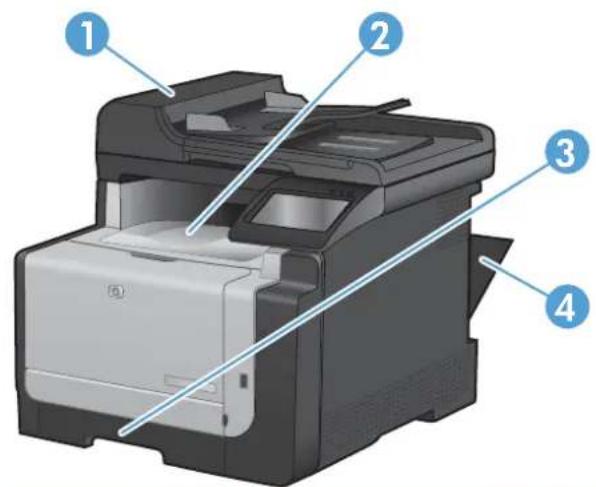
text_image
Diagram of a printer with numbered parts labeled 1 to 4 for identification| 1 Document feeder |
| 2 Output bin |
| 3 Tray 1 |
| 4 Rear door |
Loose toner might remain in the product after a jam. This problem typically resolves itself after a few sheets have been printed.
Clear jams from the document feeder
- Turn the product off.
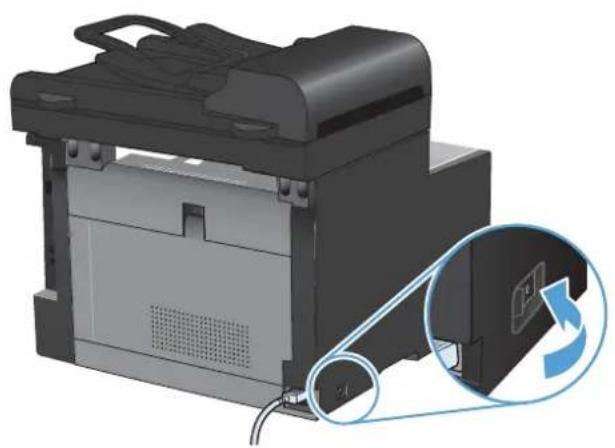
natural_image
3D rendering of a printer with a magnified inset showing a close-up of its internal components (no text or symbols visible)- Open the document feeder cover.
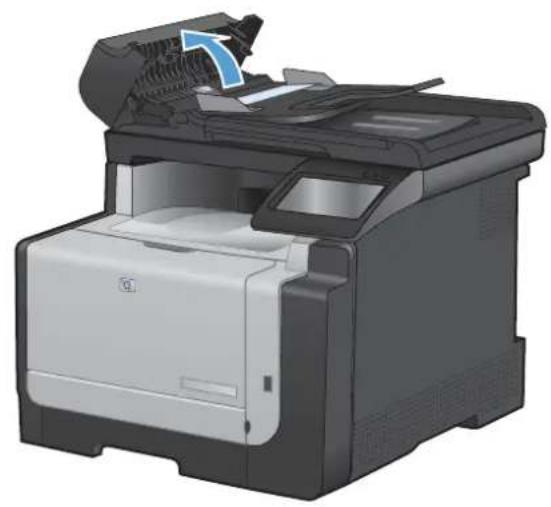
natural_image
Illustration of a HP printer with paper feed and paper roll, showing internal structure without any text or symbols.- Lift the document feeder mechanism, and gently pull the jammed paper out.
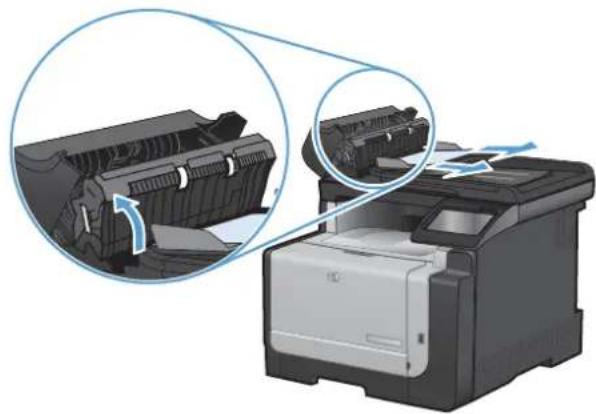
natural_image
Illustration of a HP printer with a close-up view of its internal structure, showing no text or symbols.- Close the document feeder cover.

natural_image
Illustration of a HP printer with paper feed being inserted (no text or symbols visible)Clear jams from the input tray
△ CAUTION: Do not use sharp objects, such as tweezers or needle-nose pliers, to remove jams. Damage caused by sharp objects is not covered by the warranty.
When removing jammed paper, pull it straight out from the product. Pulling jammed paper out of the product at an angle can damage the product.
NOTE: Depending on where the jam is located, some of the following steps might not be necessary.
-
Remove Tray 1, and lift the jam access door above the tray.
-
With both hands, grasp the paper, and carefully pull it free from the product.
-
Open the rear door.
CAUTION: The fuser, located in the back of the product, is hot. Wait for the fuser to cool before continuing.
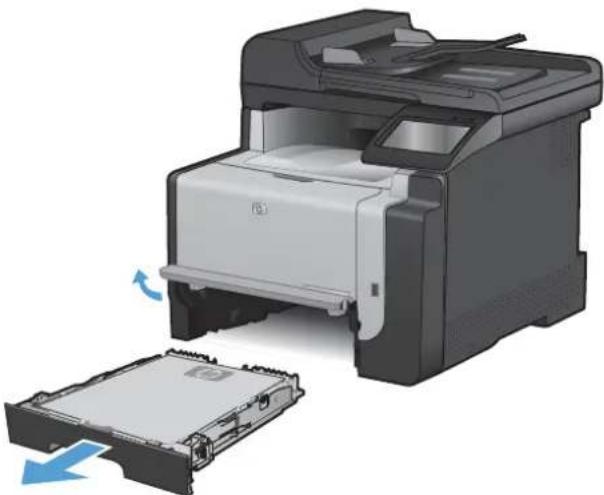
natural_image
Illustration of a printer with a partially open lid and a blue arrow indicating rotation (no text or symbols)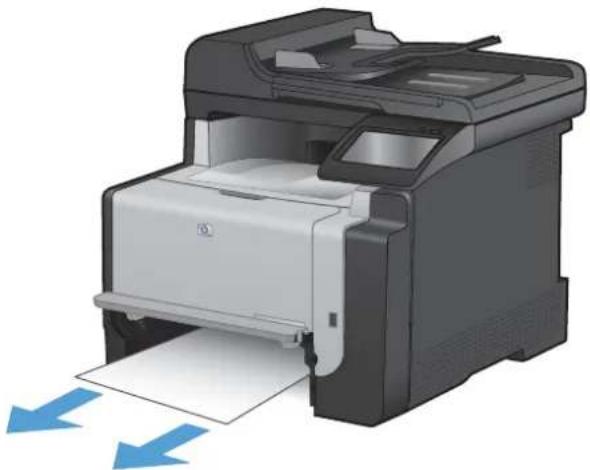
natural_image
Illustration of a HP printer with paper feed and blue directional arrows indicating print process (no text or symbols)
natural_image
Illustration of a printer with a blue arrow indicating the process, showing internal components and a grid base (no text or symbols)- With both hands, grasp the paper, and carefully pull it free from the product.
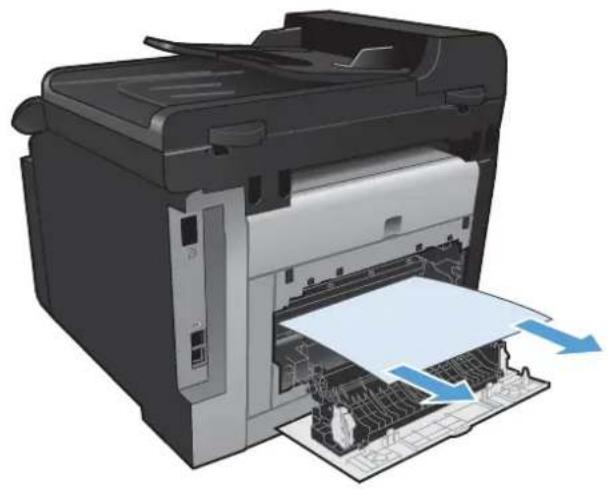
natural_image
3D illustration of a printer with paper feed and paper roll, showing internal structure and page layout (no text or symbols)- Reinsert the tray.
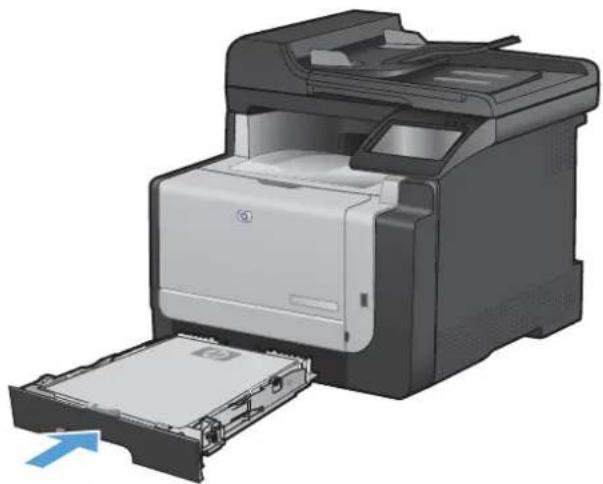
natural_image
Illustration of a HP printer with an open drawer and paper feed, showing internal components (no text or symbols)- Close the rear output door.

natural_image
3D illustration of a printer with an open lid and internal structure, showing no text or symbols.- Print a cleaning page, which removes excess toner from the paper path.
a. From the Home screen, touch the Setup button.
b. Touch the Service menu.
c. Touch the Cleaning Page button.
d. Load plain letter or A4 paper when you are prompted.
e. Touch the OK button to begin the cleaning process.
A page feeds through the product slowly. Discard the page when the process is completed.
Clear jams from the output bin
△ CAUTION: Do not use sharp objects, such as tweezers or needle-nose pliers, to remove jams. Damage caused by sharp objects will not be covered by the warranty.
- With both hands, grasp the paper, and carefully pull it free from the product.

natural_image
Illustration of a HP printer with paper feed and blue scroll arrows indicating print direction (no text or symbols)Improve print quality
You can prevent most print-quality problems by following these guidelines.
• Use the correct paper type setting in the printer driver
- Adjust color settings in the printer driver
• Use paper that meets HP specifications
• Print a cleaning page
• Calibrate the product to align the colors
- Check the print cartridges
• Use the printer driver that best meets your printing needs
- Improve print quality for copies
Use the correct paper type setting in the printer driver
Check the paper type setting if you are having any of the following problems:
- Toner is smearing on the printed pages.
• Repeated marks occur on the printed pages.
• Printed pages are curled. - Toner flakes off the printed pages.
• Printed pages have small unprinted areas.
Change the paper type setting for Windows
- On the File menu in the software program, click Print.
- Select the product, and then click the Properties or Preferences button.
- Click the Paper/Quality tab.
- From the Paper type drop-down list, click the More... option.
- Expand the list of Type is: options.
- Expand each category of paper types until you find the paper type that you are using.
- Select the option for the type of paper you are using, and click the OK button.
Change the paper type setting for Mac
- On the File menu in the software program, click the Print option.
- In the Copies & Pages menu, click the Page Setup button.
- Select a size from the Paper Size drop-down list, and then click the OK button.
-
Open the Finishing menu.
-
Select a type from the Media-type drop-down list.
- Click the Print button.
Adjust color settings in the printer driver
Change the color theme for a print job
- On the File menu in the software program, click Print.
- Click Properties or Preferences.
- Click the Color tab.
- Select a color theme from the Color Themes drop-down list.

text_image
Advanced Printing Shutouts Paper/Quality Effects Finishing Color Services Color Options Automatic Manual Settings... Print in Grayscale Color Themes RGB color Default (pRGB) Cancel (pRGB) Photo (pRGB) Photo (Adobe PGB 1998) Void (pRGB) None Custom profile About Help OK Cancel Apply- Default (sRGB): This theme sets the product to print RGB data in raw device mode. When using this theme, manage color in the software program or in the operating system for correct rendering.
- Vivid: The product increases the color saturation in the midtones. Use this theme when printing business graphics.
- Photo: The product interprets RGB color as if it were printed as a photograph using a digital mini lab. The product renders deeper, more saturated colors differently than with the Default (sRBG) theme. Use this theme when printing photos.
- Photo (Adobe RGB 1998): Use this theme with printing digital photos that use the AdobeRGB color space rather than sRGB. Turn off color management in the software program when using this theme.
- None
Change the color options
Change the color options settings for the current print job from the color tab of the printer driver.
- On the File menu in the software program, click Print.
-
Click Properties or Preferences.
-
Click the Color tab.
- Click the Automatic or Manual setting.
• Automatic setting: Select this setting for most color print jobs
- Manual setting: Select this setting to adjust the color settings independent from other settings.

NOTE: Changing color settings manually can impact output. HP recommends that only color graphics experts change these settings.

text_image
Advanced | Printing Shortcuts | Paper/Quality | Effects | Finishing | Color | Services Color Options Automatic Manual Settings... Print in Grayscale Color Themes RGB color Default (RGB) About... Help OK Cancel Apply HP Search- Click the Print in Grayscale option to print a color document in black and white. Use this option to print color documents for photocopying or faxing.
- Click the OK button.
Use paper that meets HP specifications
Use different paper if you are having any of the following problems:
The printing is too light or seems faded in areas.
Specks of toner are on the printed pages.
- Toner is smearing on the printed pages.
• Printed characters seem misformed.
• Printed pages are curled.
Always use a paper type and weight that this product supports. In addition, follow these guidelines when selecting paper:
- Use paper that is of good quality and free of cuts, nicks, tears, spots, loose particles, dust, wrinkles, voids, staples, and curled or bent edges.
• Use paper that has not been previously printed on. - Use paper that is designed for use in laser printers. Do not use paper that is designed only for use in Inkjet printers.
• Use paper that is not too rough. Using smoother paper generally results in better print quality.
Print a cleaning page
Print a cleaning page to remove dust and excess toner from the paper path if you are having any of the following problems:
Specks of toner are on the printed pages.
- Toner is smearing on the printed pages.
• Repeated marks occur on the printed pages.
Use the following procedure to print a cleaning page.
- From the Home screen, touch the Setup button.
- Touch the Service menu.
- Touch the Cleaning Page button.
- Load plain letter or A4 paper when you are prompted.
- Touch the OK button to begin the cleaning process.
A page feeds through the product slowly. Discard the page when the process is completed.
Calibrate the product to align the colors
If the printed output has colored shadows, blurry graphics, or areas that have poor color, you might need to calibrate the product to align the colors. Print the Diagnostics Page from the Reports menu on the
control panel to check the color alignment. If the blocks of color on that page are not aligned with each other, you need to calibrate the product.
- On the product control panel, open the System Setup menu.
- Open the Print Quality menu, and select the Color Calibration item.
- Select the Calibrate Now option.
Check the print cartridges
Check each print cartridge, and replace it if necessary, if you are having any of the following problems:
The printing is too light or seems faded in areas.
• Printed pages have small unprinted areas.
• Printed pages have streaks or bands.
NOTE: If you are using a draft print setting, the printing might appear light.
If you determine that you need to replace a print cartridge, print the Supplies Status Page to find the part number for the correct genuine HP print cartridge.
| Type of print cartridge Steps to resolve the problem | |
| Refilled or remanufactured print cartridge | Hewlett Packard Company cannot recommend the use of non-HP supplies, either new or remanufactured. Because they are not HP products, HP cannot influence their design or control their quality. If you are using a refilled or remanufactured print cartridge and are not satisfied with the print quality, replace the cartridge with a genuine HP cartridge that has the words “HP” or “Hewlett-Packard” on it, or has the HP logo on it. |
| Genuine HP print cartridge | 1. The product control panel or the Supplies Status page indicates Very Low status when the cartridge has reached the end of its estimated life. Replace the print cartridge if print quality is no longer acceptable.2. Print a Print Quality Page from the Reports menu on the control panel. If streaks or marks are in one color on the page, you might have a defect in that color cartridge. See the instructions in this document for interpreting the page. Replace the print cartridge if necessary.3. Visually inspect the print cartridge for damage. See the instructions that follow. Replace the print cartridge if necessary.4. If printed pages have marks that repeat several times at the same distance apart, print a cleaning page. If this does not solve the problem, use the repetitive defects ruler in this document to identify the cause of the problem. |
Print the Supplies Status page
The Supplies Status page indicates the estimated life remaining in print cartridges. It also lists the part number for the correct genuine HP print cartridge for your product so you can order a replacement print cartridge, as well as other useful information.
- On the product control panel, open the Reports menu.
- Select the Supplies Status page to print it.
Interpret the Print Quality Page
- On the product control panel, open the Reports menu.
- Select the Print Quality Page item to print it.
This page contains five bands of color, which are divided into four groups as indicated in the following illustration. By examining each group, you can isolate the problem to a particular print cartridge.

1

2

3

4
| Section Print-cartridge | |
| 1 Yellow | |
| 2 Cyan | |
| 3 Black | |
| 4 Magenta | |
- If dots or streaks appear in only one of the groups, replace the print cartridge that correlates with that group.
- If dots appear in more than one group, print a cleaning page. If this does not solve the problem, determine if the dots are always the same color; for example, if magenta dots appear in all five color bands. If the dots are all the same color, replace that print cartridge.
- If streaks appear in multiple color bands, contact HP. A component other than the print cartridge is probably causing the problem.
Inspect the print cartridge for damage
- Remove the print cartridge from the product, and verify that the sealing tape has been removed.
-
Check the memory chip for damage.
-
Examine the surface of the green imaging drum on the bottom of the print cartridge.
△ CAUTION: Do not touch the green roller (imaging drum) on the bottom of the cartridge. Fingerprints on the imaging drum can cause print-quality problems.

natural_image
3D rendering of a cylindrical electronic component with green internal structure and red prohibition symbol (no text or labels)-
If you see any scratches, fingerprints, or other damage on the imaging drum, replace the print cartridge.
-
If the imaging drum does not appear to be damaged, rock the print cartridge gently several times and reinstall it. Print a few pages to see if the problem has resolved.
Repeating defects
If defects repeat at any of the following intervals on the page, a print cartridge might be damaged.
22 mm
27 mm
29 mm
76 mm
Use the printer driver that best meets your printing needs
You might need to use a different printer driver if the printed page has unexpected lines in graphics, missing text, missing graphics, incorrect formatting, or substituted fonts.
| HP PCL 6 driver | Provided as the default driver. This driver is automatically installed unless you select a different one. |
| Recommended for all Windows environments | |
| Provides the overall best speed, print quality, and product-feature support for most users | |
| Developed to align with the Windows Graphic Device Interface (GDI) for the best speed in Windows environments | |
| Might not be fully compatible with third-party and custom software programs that are based on PCL 5 | |
| HP UPD PS driver | Recommended for printing with Adobe® software programs or with other highly graphics-intensive software programsProvides support for printing from postscript emulation needs, or for postscript flash font support |
| HP UPD PCL 5 | Recommended for general office printing in Windows environmentsCompatible with previous PCL versions and older HP LaserJet productsThe best choice for printing from third-party or custom software programsThe best choice when operating with mixed environments, which require the product to be set to PCL 5 (UNIX, Linux, mainframe)Designed for use in corporate Windows environments to provide a single driver for use with multiple printer modelsPreferred when printing to multiple printer models from a mobile Windows computer |
Download additional printer drivers from this Web site: www.hp.com/support/CM1410series.
Improve print quality for copies
If you encounter print quality problems in copied documents, review the solutions for printed documents listed previously in this document. However, some print-quality problems occur only in copied documents.
- If streaks appear on copies made by using the document feeder, clean the small glass strip on the left side of the scanner assembly.
- If dots or other defects appear on copies made by using the scanner glass, clean the scanner glass and the white plastic backing.
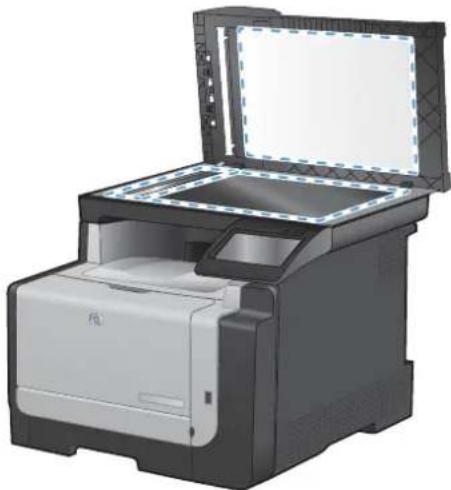
natural_image
Illustration of a HP printer with open lid and paper feed (no text or symbols visible)- Use the power switch to turn off the product, and then unplug the power cord from the electrical socket.
- Open the scanner lid.
- Clean the scanner glass and the white plastic backing with a soft cloth or sponge that has been moistened with nonabrasive glass cleaner.
△ CAUTION: Do not use abrasives, acetone, benzene, ammonia, ethyl alcohol, or carbon tetrachloride on any part of the product; these can damage the product. Do not place liquids directly on the glass or platen. They might seep and damage the product.
- Dry the glass and white plastic backing with a chamois or a cellulose sponge to prevent spotting.
- Plug in the product, and then use the power switch to turn on the product.
The product does not print or it prints slowly
The product does not print
If the product does not print at all, try the following solutions.
- Make sure the product is turned on and that the control panel indicates it is ready.
If the control panel does not indicate the product is ready, turn the product off and then on again.
If the control panel indicates the product is ready, try sending the job again.
- If the control panel indicates the product has an error, resolve the error and then try sending the job again.
- Make sure the cables are all connected correctly. If the product is connected to a network, check the following items:
Check the light next to the network connection on the product. If the network is active, the light is green.
Make sure that you are using a network cable and not a phone cord to connect to the network.
Make sure the network router, hub, or switch is turned on and that it is working correctly.
- Install the HP software from the CD that came with the product. Using generic printer drivers can cause delays clearing jobs from the print queue.
- From the list of printers on your computer, right-click the name of this product, click Properties, and open the Ports tab.
If you are using a network cable to connect to the network, make sure the printer name listed on the Ports tab matches the product name on the product configuration page.
If you are using a USB cable and are connecting to a wireless network, make sure the box is checked next to Virtual printer port for USB.
- If you are using a personal firewall system on the computer, it might be blocking communication with the product. Try temporarily disabling the firewall to see if it is the source of the problem.
- If your computer or the product is connected to a wireless network, low signal quality or interference might be delaying print jobs.
The product prints slowly
If the product prints, but it seems slow, try the following solutions.
-
Make sure the computer meets the minimum specifications for this product. For a list of specifications, go to this Web site: www.hp.com/support/CM1410series.
-
When you configure the product to print on some paper types, such as heavy paper, the product prints more slowly so it can correctly fuse the toner to the paper. If the paper type setting is not correct for the type of paper you are using, change the setting to the correct paper type.
-
If your computer or the product is connected to a wireless network, low signal quality or interference might be delaying print jobs.
Solve walk-up USB printing problems
- The USB Flash Drive menu does not open when you insert the USB accessory
• The file does not print from the USB storage accessory
The file that you want to print is not listed in the USB Flash Drive menu
The USB Flash Drive menu does not open when you insert the USB accessory
- You might be using a USB storage accessory or a file system that this product does not support. Save the files on a standard USB storage accessory that uses File Allocation Table (FAT) file systems. The product supports FAT12, FAT16, and FAT32 USB storage accessories.
- If another menu is already open, close that menu and then reinsert the USB storage accessory.
- The USB storage accessory might have multiple partitions. (Some USB storage accessory manufacturers install software on the accessory that creates partitions, similar to a CD.) Reformat the USB storage accessory to remove the partitions, or use a different USB storage accessory.
- The USB storage accessory might require more power than the product can provide.
a. Remove the USB storage accessory.
b. Turn the product off and then on.
c. Use a USB storage accessory that has its own power supply or that requires less power.
- The USB storage accessory might not be functioning correctly.
a. Remove the USB storage accessory.
b. Turn the product off and then on.
c. Try printing from another USB storage accessory.
The file does not print from the USB storage accessory
- Make sure paper is in the tray.
- Check the control panel for messages. If paper is jammed in the product, clear the jam.
The file that you want to print is not listed in the USB Flash Drive menu
- You might be trying to print a file type that the USB printing feature does not support. The product supports .PDF and .JPEG file types.
- You might have too many files in a single folder on the USB storage accessory. Reduce the number of files in the folder by moving them to subfolders.
- You might be using a character set for the file name that the product does not support. In this case, the product replaces the file names with characters from a different character set. Rename the files using ASCII characters.
Solve connectivity problems
Solve direct-connect problems
If you have connected the product directly to a computer, check the cable.
- Verify that the cable is connected to the computer and to the product.
- Verify that the cable is not longer than 5 m (16.4 ft). Try using a shorter cable.
- Verify that the cable is working correctly by connecting it to another product. Replace the cable if necessary.
Solve network problems
Check the following items to verify that the product is communicating with the network. Before beginning, print a configuration page from the product control panel and locate the product IP address that is listed on this page.
• Poor physical connection
The computer is using the incorrect IP address for the product
• The computer is unable to communicate with the product
The product is using incorrect link and duplex settings for the network
• New software programs might be causing compatibility problems
• The computer or workstation might be set up incorrectly
• The product is disabled, or other network settings are incorrect
Poor physical connection
- Verify that the product is attached to the correct network port using a cable of the correct length.
- Verify that cable connections are secure.
- Look at the network port connection on the back of the product, and verify that the amber activity light and the green link-status light are lit.
- If the problem continues, try a different cable or port on the hub.
The computer is using the incorrect IP address for the product
- Open the printer properties and click the Ports tab. Verify that the current IP address for the product is selected. The product IP address is listed on the product configuration page.
- If you installed the product using the HP standard TCP/IP port, select the box labeled Always print to this printer, even if its IP address changes.
- If you installed the product using a Microsoft standard TCP/IP port, use the hostname instead of the IP address.
- If the IP address is correct, delete the product and then add it again.
The computer is unable to communicate with the product
- Test network communication by pinging the network.
a. Open a command-line prompt on your computer. For Windows, click Start, click Run, and then type cmd.
b. Type ping followed by the IP address for your product.
c. If the window displays round-trip times, the network is working.
- If the ping command failed, verify that the network hubs are on, and then verify that the network settings, the product, and the computer are all configured for the same network.
The product is using incorrect link and duplex settings for the network
Hewlett-Packard recommends leaving this setting in automatic mode (the default setting). If you change these settings, you must also change them for your network.
New software programs might be causing compatibility problems
Verify that any new software programs are correctly installed and that they use the correct printer driver.
The computer or workstation might be set up incorrectly
- Check the network drivers, printer drivers, and the network redirection.
- Verify that the operating system is configured correctly.
The product is disabled, or other network settings are incorrect
- Review the configuration page to check the status of the network protocol. Enable it if necessary.
- Reconfigure the network settings if necessary.
Solve wireless network problems
• Wireless connectivity checklist
The control panel displays the message: The wireless feature on this product has been turned off
• The product does not print after the wireless configuration completes
The product does not print, and the computer has a third-party firewall installed
- The wireless connection does not work after moving the wireless router or product
- Cannot connect more computers to the wireless product
The wireless product loses communication when connected to a VPN
• The network does not appear in the wireless networks list
• The wireless network is not functioning
Wireless connectivity checklist
- The product and the wireless router are turned on and have power. Also make sure the wireless radio in the product is turned on.
- The service set identifier (SSID) is correct. Print a configuration page to determine the SSID. If you are not sure the SSID is correct, run the wireless setup again.
- With secured networks, make sure the security information is correct. If the security information is incorrect, run the wireless setup again.
- If the wireless network is working correctly, try accessing other computers on the wireless network. If the network has Internet access, try connecting to the Internet over a wireless connection.
- The encryption method (AES or TKIP) is the same for the product as it is for the wireless access point (on networks using WPA security).
- The product is within the range of the wireless network. For most networks, the product must be within 30 m (100 ft) of the wireless access point (wireless router).
- Obstacles do not block the wireless signal. Remove any large metal objects between the access point and the product. Make sure poles, walls, or support columns containing metal or concrete do not separate the product and wireless access point.
- The product is located away from electronic devices that might interfere with the wireless signal. Many devices can interfere with the wireless signal including motors, cordless phones, security system cameras, other wireless networks, and some Bluetooth devices.
The printer driver is installed on the computer.
• You have selected the correct printer port.
The computer and product connect to the same wireless network.
The control panel displays the message: The wireless feature on this product has been turned off
- Touch the Wireless Menu button.
- Touch the Turn Wireless On/Off button, and then touch the On button.
The product does not print after the wireless configuration completes
- Make sure the product is turned on and in the ready state.
- Make sure you are connecting to the correct wireless network.
- Make sure that the wireless network is working correctly.
a. Open the Network Setup menu, and then open the Wireless Menu item.
b. Select the Run Network Test item to test the wireless network. The product prints a report with the results.
- Make sure that the correct port or product is selected.
a. From the list of printers on your computer, right-click the name of this product, click Properties, and then open the Ports tab.
b. Make sure the box is checked next to Virtual printer port for USB.
- Make sure that your computer is working correctly. If necessary, restart your computer.
The product does not print, and the computer has a third-party firewall installed
- Update the firewall with the most recent update available from the manufacturer.
- If programs request firewall access when you install the product or try to print, make sure you allow the programs to run.
- Temporarily turn off the firewall, and then install the wireless product on the computer. Enable the firewall when you have completed the wireless installation.
The wireless connection does not work after moving the wireless router or product
Make sure that the router or product connects to the same network that your computer connects to.
- Open the Reports menu, and select the Configuration Report item to print the report.
- Compare the service set identifier (SSID) on the configuration report to the SSID in the printer configuration for your computer.
- If the SSIDs are not the same, the devices are not connecting to the same network. Reconfigure the wireless setup for your product.
Cannot connect more computers to the wireless product
- Make sure that the other computers are within the wireless range and that no obstacles block the signal. For most networks, the wireless range is within 30 m (100 ft) of the wireless access point.
- Make sure the product is turned on and in the ready state.
- Turn off any third-party firewalls on your computer.
- Make sure that the wireless network is working correctly.
a. On the product control panel, open the Network Setup menu, and then open the Wireless Menu item.
b. Select the Run Network Test item to test the wireless network. The product prints a report with the results.
- Make sure that the correct port or product is selected.
a. From the list of printers on your computer, right-click the name of this product, click Properties, and then open the Ports tab.
b. Click the Configure Port button to verify that the IP address matches the IP address listed on the Run Network Test report.
- Make sure that your computer is working correctly. If necessary, restart your computer.
The wireless product loses communication when connected to a VPN
• Typically, you cannot connect to a VPN and other networks at the same time.
The network does not appear in the wireless networks list
• Make sure the wireless router is turned on and has power.
The network might be hidden. However, you can still connect to a hidden network.
The wireless network is not functioning
- To verify if the network has lost communication, try connecting other devices to the network.
- Test network communication by pinging the network.
a. Open a command-line prompt on your computer. For Windows, click Start, click Run, and then type cmd.
b. Type ping followed by the service set identifier (SSID) for your network.
c. If the window displays round-trip times, the network is working.
- Make sure that the router or product connects to the same network that your computer connects to.
a. Open the Reports menu, and select the Configuration Report item to print the report.
b. Compare the service set identifier (SSID) on the configuration report to the SSID in the printer configuration for your computer.
c. If the SSIDs are not the same, the devices are not connecting to the same network. Reconfigure the wireless setup for your product.
Product software problems
| Problem Solution | |
| A printer driver for the product is not visible in the Printer folder | Restart the computer to restart the spooler process. If the spooler has crashed, no printer drivers will appear in the Printers folder.Reinstall the product software.NOTE:Close any applications that are running. To close an application that has an icon in the system tray, right-click the icon, and select Close or Disable.Try plugging the USB cable into a different USB port on the computer. |
| An error message was displayed during the software installation | Reinstall the product software.NOTE:Close any applications that are running. To close an application that has an icon in the task bar, right-click the icon, and select Close or Disable.Check the amount of free space on the drive where you are installing the product software. If necessary, free up as much space as you can, and reinstall the product software.If necessary, run the Disk Defragmenter, and reinstall the product software. |
| The product is in Ready mode, but nothing prints | Print a Configuration page, and verify the product functionality.Verify that all of the cables are correctly seated and within specifications. This includes the USB and power cables. Try a new cable. |
Solve common Mac problems
The printer driver is not listed in the Print & Fax list
• The product name does not appear in the product list in the Print & Fax list
The printer driver does not automatically set up the selected product in the Print & Fax list
• A print job was not sent to the product that you wanted
- When connected with a USB cable, the product does not appear in the Print & Fax list after the driver is selected.
• You are using a generic printer driver when using a USB connection
The printer driver is not listed in the Print & Fax list
- Make sure that the product .GZ file is in the following hard-drive folder: Library/Printers/PPDs/Contents/Resources. If necessary, reinstall the software.
- If the GZ file is in the folder, the PPD file might be corrupt. Delete the file and then reinstall the software.
The product name does not appear in the product list in the Print & Fax list
- Make sure that the cables are connected correctly and the product is on.
- Print a configuration page to check the product name. Verify that the name on the configuration page matches the product name in the Print & Fax list.
- Replace the USB or network cable with a high-quality cable.
The printer driver does not automatically set up the selected product in the Print & Fax list
- Make sure that the cables are connected correctly and the product is on.
- Make sure that the product .GZ file is in the following hard-drive folder: Library/Printers/PPDs/Contents/Resources. If necessary, reinstall the software.
- If the GZ file is in the folder, the PPD file might be corrupt. Delete the file and then reinstall the software.
- Replace the USB or network cable with a high-quality cable.
A print job was not sent to the product that you wanted
- Open the print queue and restart the print job.
- Another product with the same or similar name might have received your print job. Print a configuration page to check the product name. Verify that the name on the configuration page matches the product name in the Print & Fax list.
When connected with a USB cable, the product does not appear in the Print & Fax list after the driver is selected.
Software troubleshooting
Make sure that your Mac operating system is Mac OS X 10.5 or later.
Hardware troubleshooting
- Make sure that the product is turned on.
- Make sure that the USB cable is connected correctly.
- Make sure that you are using the appropriate high-speed USB cable.
- Make sure that you do not have too many USB devices drawing power from the chain. Disconnect all of the devices from the chain, and connect the cable directly to the USB port on the computer
- Check to see if more than two non-powered USB hubs are connected in a row on the chain. Disconnect all of the devices from the chain, and then connect the cable directly to the USB port on the computer.
NOTE: The iMac keyboard is a non-powered USB hub.
You are using a generic printer driver when using a USB connection
If you connected the USB cable before you installed the software, you might be using a generic printer driver instead of the driver for this product.
- Delete the generic printer driver.
- Reinstall the software from the product CD. Do not connect the USB cable until the software installation program prompts you.
- If multiple printers are installed, make sure that you have selected the correct printer in the Format For drop-down menu in the Print dialog box.
A Supplies and accessories
• Order parts, accessories, and supplies
Part numbers
Order parts, accessories, and supplies
| Order supplies and paper www.hp.com/go/suresupply | |
| Order genuine HP parts or accessories www.hp.com/buy/parts | |
| Order through service or support providers | Contact an HP-authorized service or support provider. |
Part numbers
The following list of accessories was current at the time of printing. Ordering information and availability of the accessories might change during the life of the product.
Print cartridges
| Item Description Part number | |
| HP LaserJet print cartridges Black CE320A | |
| Cyan CE321A | |
| Yellow CE322A | |
| Magenta CE323A | |
NOTE: For information about the yield for the cartridges, see www.hp.com/go/pageyield. Actual yield depends on specific use.
Cables and interfaces
| Item Description Part number |
| USB cable 2-meter A-to-B cable 8121-0868 |
B Service and support
Hewlett-Packard limited warranty statement
HP's Premium Protection Warranty: LaserJet print cartridge limited warranty statement
• Data stored on the print cartridge
• End User License Agreement
- OpenSSL
- Customer support
- Repack the product
HP PRODUCT DURATION OF LIMITED WARRANTY
HP LaserJet Pro CM1410 Color MFP Series One year from date of purchase
HP warrants to you, the end-user customer, that HP hardware and accessories will be free from defects in materials and workmanship after the date of purchase, for the period specified above. If HP receives notice of such defects during the warranty period, HP will, at its option, either repair or replace products which prove to be defective. Replacement products may be either new or equivalent in performance to new.
HP warrants to you that HP software will not fail to execute its programming instructions after the date of purchase, for the period specified above, due to defects in material and workmanship when properly installed and used. If HP receives notice of such defects during the warranty period, HP will replace software which does not execute its programming instructions due to such defects.
HP does not warrant that the operation of HP products will be uninterrupted or error free. If HP is unable, within a reasonable time, to repair or replace any product to a condition as warranted, you will be entitled to a refund of the purchase price upon prompt return of the product.
HP products may contain remanufactured parts equivalent to new in performance or may have been subject to incidental use.
Warranty does not apply to defects resulting from (a) improper or inadequate maintenance or calibration, (b) software, interfacing, parts or supplies not supplied by HP, (c) unauthorized modification or misuse, (d) operation outside of the published environmental specifications for the product, or (e) improper site preparation or maintenance.
TO THE EXTENT ALLOWED BY LOCAL LAW, THE ABOVE WARRANTIES ARE EXCLUSIVE AND NO OTHER WARRANTY OR CONDITION, WHETHER WRITTEN OR ORAL, IS EXPRESSED OR IMPLIED AND HP SPECIFICALLY DISCLAIMS ANY IMPLIED WARRANTIES OR CONDITIONS OF MERCHANTABILITY, SATISFACTORY QUALITY, AND FITNESS FOR A PARTICULAR PURPOSE. Some countries/regions, states or provinces do not allow limitations on the duration of an implied warranty, so the above limitation or exclusion might not apply to you. This warranty gives you specific legal rights and you might also have other rights that vary from country/region to country/region, state to state, or province to province.
HP's limited warranty is valid in any country/region or locality where HP has a support presence for this product and where HP has marketed this product. The level of warranty service you receive may vary according to local standards. HP will not alter form, fit or function of the product to make it operate in a country/region for which it was never intended to function for legal or regulatory reasons.
TO THE EXTENT ALLOWED BY LOCAL LAW, THE REMEDIES IN THIS WARRANTY STATEMENT ARE YOUR SOLE AND EXCLUSIVE REMEDIES. EXCEPT AS INDICATED ABOVE, IN NO EVENT WILL HP OR ITS SUPPLIERS BE LIABLE FOR LOSS OF DATA OR FOR DIRECT, SPECIAL, INCIDENTAL, CONSEQUENTIAL (INCLUDING LOST PROFIT OR DATA), OR OTHER DAMAGE, WHETHER BASED IN CONTRACT, TORT, OR OTHERWISE. Some countries/regions, states or provinces do not allow the exclusion or limitation of incidental or consequential damages, so the above limitation or exclusion may not apply to you.
THE WARRANTY TERMS CONTAINED IN THIS STATEMENT, EXCEPT TO THE EXTENT LAWFULLY PERMITTED, DO NOT EXCLUDE, RESTRICT OR MODIFY AND ARE IN ADDITION TO THE MANDATORY STATUTORY RIGHTS APPLICABLE TO THE SALE OF THIS PRODUCT TO YOU.
HP's Premium Protection Warranty: LaserJet print cartridge limited warranty statement
This HP product is warranted to be free from defects in materials and workmanship.
This warranty does not apply to products that (a) have been refilled, refurbished, remanufactured or tampered with in any way, (b) experience problems resulting from misuse, improper storage, or operation outside of the published environmental specifications for the printer product or (c) exhibit wear from ordinary use.
To obtain warranty service, please return the product to place of purchase (with a written description of the problem and print samples) or contact HP customer support. At HP's option, HP will either replace products that prove to be defective or refund your purchase price.
TO THE EXTENT ALLOWED BY LOCAL LAW, THE ABOVE WARRANTY IS EXCLUSIVE AND NO OTHER WARRANTY OR CONDITION, WHETHER WRITTEN OR ORAL, IS EXPRESSED OR IMPLIED AND HP SPECIFICALLY DISCLAIMS ANY IMPLIED WARRANTIES OR CONDITIONS OF MERCHANTABILITY, SATISFACTORY QUALITY, AND FITNESS FOR A PARTICULAR PURPOSE.
TO THE EXTENT ALLOWED BY LOCAL LAW, IN NO EVENT WILL HP OR ITS SUPPLIERS BE LIABLE FOR DIRECT, SPECIAL, INCIDENTAL, CONSEQUENTIAL (INCLUDING LOST PROFIT OR DATA), OR OTHER DAMAGE, WHETHER BASED IN CONTRACT, TORT, OR OTHERWISE.
THE WARRANTY TERMS CONTAINED IN THIS STATEMENT, EXCEPT TO THE EXTENT LAWFULLY PERMITTED, DO NOT EXCLUDE, RESTRICT OR MODIFY AND ARE IN ADDITION TO THE MANDATORY STATUTORY RIGHTS APPLICABLE TO THE SALE OF THIS PRODUCT TO YOU.
Data stored on the print cartridge
The HP print cartridges used with this product contain a memory chip that assists in the operation of the product.
In addition, this memory chip collects a limited set of information about the usage of the product, which might include the following: the date when the print cartridge was first installed, the date when the print cartridge was last used, the number of pages printed using the print cartridge, the page coverage, the printing modes used, any printing errors that might have occurred, and the product model. This information helps HP design future products to meet our customers' printing needs.
The data collected from the print cartridge memory chip does not contain information that can be used to identify a customer or user of the print cartridge or their product.
HP collects a sampling of the memory chips from print cartridges returned to HP's free return and recycling program (HP Planet Partners: www.hp.com/recycle). The memory chips from this sampling are read and studied in order to improve future HP products. HP partners who assist in recycling this print cartridge might have access to this data, as well.
Any third party possessing the print cartridge might have access to the anonymous information on the memory chip. If you prefer to not allow access to this information, you can render the chip inoperable. However, after you render the memory chip inoperable, the memory chip cannot be used in an HP product.
End User License Agreement
PLEASE READ CAREFULLY BEFORE USING THIS SOFTWARE PRODUCT: This End-User License Agreement ("EULA") is a contract between (a) you (either an individual or the entity you represent) and (b) Hewlett-Packard Company ("HP") that governs your use of the software product ("Software"). This EULA does not apply if there is a separate license agreement between you and HP or its suppliers for the Software, including a license agreement in online documentation. The term "Software" may include (i) associated media, (ii) a user guide and other printed materials, and (iii) "online" or electronic documentation (collectively "User Documentation").
RIGHTS IN THE SOFTWARE ARE OFFERED ONLY ON THE CONDITION THAT YOU AGREE TO ALL TERMS AND CONDITIONS OF THIS EULA. BY INSTALLING, COPYING, DOWNLOADING, OR OTHERWISE USING THE SOFTWARE, YOU AGREE TO BE BOUND BY THIS EULA. IF YOU DO NOT ACCEPT THIS EULA, DO NOT INSTALL, DOWNLOAD, OR OTHERWISE USE THE SOFTWARE. IF YOU PURCHASED THE SOFTWARE BUT DO NOT AGREE TO THIS EULA, PLEASE RETURN THE SOFTWARE TO YOUR PLACE OF PURCHASE WITHIN FOURTEEN DAYS FOR A REFUND OF THE PURCHASE PRICE; IF THE SOFTWARE IS INSTALLED ON OR MADE AVAILABLE WITH ANOTHER HP PRODUCT, YOU MAY RETURN THE ENTIRE UNUSED PRODUCT.
-
THIRD PARTY SOFTWARE. The Software may include, in addition to HP proprietary software ("HP Software"), software under licenses from third parties ("Third Party Software" and "Third Party License"). Any Third Party Software is licensed to you subject to the terms and conditions of the corresponding Third Party License. Generally, the Third Party License is located in a file such as license.txt; you should contact HP support if you cannot find any Third Party License. If the Third Party Licenses include licenses that provide for the availability of source code (such as the GNU General Public License) and the corresponding source code is not included with the Software, then check the product support pages of HP's website (hp.com) to learn how to obtain such source code.
-
LICENSE RIGHTS. You will have the following rights provided you comply with all terms and conditions of this EULA:
a. Use. HP grants you a license to Use one copy of the HP Software. "Use" means installing, copying, storing, loading, executing, displaying, or otherwise using the HP Software. You may not modify the HP Software or disable any licensing or control feature of the HP Software. If this Software is provided by HP for Use with an imaging or printing product (for example, if the Software is a printer driver, firmware, or add-on), the HP Software may only be used with such product ("HP Product"). Additional restrictions on Use may appear in the User Documentation. You may not separate component parts of the HP Software for Use. You do not have the right to distribute the HP Software.
b. Copying. Your right to copy means you may make archival or back-up copies of the HP Software, provided each copy contains all the original HP Software's proprietary notices and is used only for back-up purposes.
-
UPGRADES. To Use HP Software provided by HP as an upgrade, update, or supplement (collectively "Upgrade"), you must first be licensed for the original HP Software identified by HP as eligible for the Upgrade. To the extent the Upgrade supersedes the original HP Software, you may no longer use such HP Software. This EULA applies to each Upgrade unless HP provides other terms with the Upgrade. In case of a conflict between this EULA and such other terms, the other terms will prevail.
-
TRANSFER.
a. Third Party Transfer. The initial end user of the HP Software may make a one-time transfer of the HP Software to another end user. Any transfer will include all component parts, media, User Documentation, this EULA, and if applicable, the Certificate of Authenticity. The transfer may not be an indirect transfer, such as a consignment. Prior to the transfer, the end user receiving the transferred
Software will agree to this EULA. Upon transfer of the HP Software, your license is automatically terminated.
b. Restrictions. You may not rent, lease or lend the HP Software or Use the HP Software for commercial timesharing or bureau use. You may not sublicense, assign or otherwise transfer the HP Software except as expressly provided in this EULA.
-
PROPRIETARY RIGHTS. All intellectual property rights in the Software and User Documentation are owned by HP or its suppliers and are protected by law, including applicable copyright, trade secret, patent, and trademark laws. You will not remove any product identification, copyright notice, or proprietary restriction from the Software.
-
LIMITATION ON REVERSE ENGINEERING. You may not reverse engineer, decompile, or disassemble the HP Software, except and only to the extent that the right to do so is allowed under applicable law.
-
CONSENT TO USE OF DATA. HP and its affiliates may collect and use technical information you provide in relation to (i) your Use of the Software or the HP Product, or (ii) the provision of support services related to the Software or the HP Product. All such information will be subject to HP's privacy policy. HP will not use such information in a form that personally identifies you except to the extent necessary to enhance your Use or provide support services.
-
LIMITATION OF LIABILITY. Notwithstanding any damages that you might incur, the entire liability of HP and its suppliers under this EULA and your exclusive remedy under this EULA will be limited to the greater of the amount actually paid by you for the Product or U.S. \$5.00. TO THE MAXIMUM EXTENT PERMITTED BY APPLICABLE LAW, IN NO EVENT WILL HP OR ITS SUPPLIERS BE LIABLE FOR ANY SPECIAL, INCIDENTAL, INDIRECT, OR CONSEQUENTIAL DAMAGES (INCLUDING DAMAGES FOR LOST PROFITS, LOST DATA, BUSINESS INTERRUPTION, PERSONAL INJURY, OR LOSS OF PRIVACY) RELATED IN ANY WAY TO THE USE OF OR INABILITY TO USE THE SOFTWARE, EVEN IF HP OR ANY SUPPLIER HAS BEEN ADVISED OF THE POSSIBILITY OF SUCH DAMAGES AND EVEN IF THE ABOVE REMEDY FAILS OF ITS ESSENTIAL PURPOSE. Some states or other jurisdictions do not allow the exclusion or limitation of incidental or consequential damages, so the above limitation or exclusion may not apply to you.
-
U.S. GOVERNMENT CUSTOMERS. If you are a U.S. Government entity, then consistent with FAR 12.211 and FAR 12.212, Commercial Computer Software, Computer Software Documentation, and Technical Data for Commercial Items are licensed under the applicable HP commercial license agreement.
-
COMPLIANCE WITH EXPORT LAWS. You will comply with all laws, rules, and regulations (i) applicable to the export or import of the Software, or (ii) restricting the Use of the Software, including any restrictions on nuclear, chemical, or biological weapons proliferation.
-
RESERVATION OF RIGHTS. HP and its suppliers reserve all rights not expressly granted to you in this EULA.
(c) 2007 Hewlett-Packard Development Company, L.P.
Rev. 11/06
OpenSSL
This product includes software developed by the OpenSSL Project for use in the OpenSSL Toolkit (http://www.openssl.org/)
THIS SOFTWARE IS PROVIDED BY THE OpenSSL PROJECT "AS IS" AND ANY EXPRESSED OR IMPLIED WARRANTIES, INCLUDING, BUT NOT LIMITED TO, THE IMPLIED WARRANTIES OF MERCHANTABILITY AND FITNESS FOR A PARTICULAR PURPOSE ARE DISCLAIMED. IN NO EVENT SHALL THE OpenSSL PROJECT OR ITS CONTRIBUTORS BE LIABLE FOR ANY DIRECT, INDIRECT, INCIDENTAL, SPECIAL, EXEMPLARY, OR CONSEQUENTIAL DAMAGES (INCLUDING, BUT NOT LIMITED TO, PROCUREMENT OF SUBSTITUTE GOODS OR SERVICES;
LOSS OF USE, DATA, OR PROFITS; OR BUSINESS INTERRUPTION) HOWEVER CAUSED AND ON ANY THEORY OF LIABILITY, WHETHER IN CONTRACT, STRICT LIABILITY, OR TORT (INCLUDING NEGLIGENCE OR OTHERWISE) ARISING IN ANY WAY OUT OF THE USE OF THIS SOFTWARE, EVEN IF ADVISED OF THE POSSIBILITY OF SUCH DAMAGE.
This product includes cryptographic software written by Eric Young (eay@cryptsoft.com). This product includes software written by Tim Hudson (tjh@cryptsoft.com).
Customer support
| Get telephone support for your country/regionHave the product name, serial number, date of purchase, and problem description ready. | Country/region phone numbers are on the flyer that was in the box with your product or atwww.hp.com/support/. |
| Get 24-hour Internet supportwww.hp.com/support/CM1410series | |
| Get support for products used with a Macintosh computer | www.hp.com/go/macosx |
| Download software utilities, drivers, and electronic information | www.hp.com/support/CM1410series |
| Order additional HP service or maintenance agreements | www.hp.com/go/carepack |
| Register your productwww.register.hp.com | |
Repack the product
If HP Customer Care determines that your product needs to be returned to HP for repair, follow these steps to repack the product before shipping it.
△ CAUTION: Shipping damage as a result of inadequate packing is the customer's responsibility.
- Remove and retain the print cartridges.
△ CAUTION: It is extremely important to remove the print cartridges before shipping the product. A print cartridge that remains in the product during shipping can leak and cover the product engine and other parts with toner.
To prevent damage to the print cartridges, avoid touching the rollers on them, and store the print cartridges so that they are not exposed to light.
- Remove and retain the power cable, interface cable, and any optional accessories.
- If possible, include print samples and 50 to 100 sheets of paper that did not print correctly.
- In the U.S., call HP Customer Care to request new packing material. In other areas, use the original packing material, if possible.
C Product specifications
• Physical specifications
• Power consumption, electrical specifications, and acoustic emissions
• Environmental specifications
Physical specifications
Table C-1 Physical specifications
| Product Height Depth Width Weight | |
| HP LaserJet Pro CM1415 | 413 mm (16.3 inches) 472 mm (18.6 inches) 442 mm (17.4 inches) 22.6 kg (49.8 lb) |
Power consumption, electrical specifications, and acoustic emissions
See www.hp.com/support/CM1410series for current information.
△ CAUTION: Power requirements are based on the country/region where the product is sold. Do not convert operating voltages. This will damage the product and void the product warranty.
Environmental specifications
Table C-2 Environmental specifications ^1
| Recommended Operating Storage | |||
| Temperature 15° to 32.5°C | 15° to 32.5°C | -20° to 40°C | |
| (59° to 90.5°F) | (59° to 90.5°F) | (-4° to 104°F) | |
| Relative humidity | 20 to 70% | 10 to 80% | 95% or less |
| Altitude 0 to 3048 m (0 to 10,000 ft) | |||
^1 Values are subject to change.
D Regulatory information
FCC regulations
• Environmental product stewardship program
• Declaration of Conformity
• Declaration of Conformity (wireless models)
Safety statements
• Additional statements for telecom (fax) products
• Additional statements for wireless products
FCC regulations
This equipment has been tested and found to comply with the limits for a Class B digital device, pursuant to Part 15 of the FCC rules. These limits are designed to provide reasonable protection against harmful interference in a residential installation. This equipment generates, uses, and can radiate radio frequency energy. If this equipment is not installed and used in accordance with the instructions, it may cause harmful interference to radio communications. However, there is no guarantee that interference will not occur in a particular installation. If this equipment does cause harmful interference to radio or television reception, which can be determined by turning the equipment off and on, the user is encouraged to try to correct the interference by one or more of the following measures:
• Reorient or relocate the receiving antenna.
- Increase separation between equipment and receiver.
- Connect equipment to an outlet on a circuit different from that to which the receiver is located.
- Consult your dealer or an experienced radio/TV technician.
NOTE: Any changes or modifications to the printer that are not expressly approved by HP could void the user's authority to operate this equipment.
Use of a shielded interface cable is required to comply with the Class B limits of Part 15 of FCC rules.
Environmental product stewardship program
Protecting the environment
Hewlett-Packard Company is committed to providing quality products in an environmentally sound manner. This product has been designed with several attributes to minimize impacts on our environment.
Ozone production
This product generates no appreciable ozone gas ( O_3 ).
Power consumption
Power usage drops significantly while in Ready or Sleep mode, which saves natural resources and saves money without affecting the high performance of this product. Hewlett-Packard printing and imaging equipment marked with the ENERGY STAR® logo is qualified to the U.S. Environmental Protection Agency's ENERGY STAR specifications for imaging equipment. The following mark will appear on ENERGY STAR qualified imaging products:

Additional ENERGY STAR qualified imaging product model information is listed at:
www.hp.com/go/energystar
Paper use
This product's manual duplex feature (two-sided printing) and N-up printing (multiple pages printed on one page) capability can reduce paper usage and the resulting demands on natural resources.
Plastics
Plastic parts over 25 grams are marked according to international standards that enhance the ability to identify plastics for recycling purposes at the end of the product's life.
HP LaserJet print supplies
It's easy to return and recycle your HP LaserJet print cartridges after use—free of charge—with HP Planet Partners. Multilingual program information and instructions are included in every new HP LaserJet print cartridge and supplies package. You help reduce the toll on the environment further when you return multiple cartridges together rather than separately.
HP is committed to providing inventive, high-quality products and services that are environmentally sound, from product design and manufacturing to distribution, customer use and recycling. When you participate in the HP Planet Partners program, we ensure your HP LaserJet print cartridges are recycled properly, processing them to recover plastics and metals for new products and diverting millions of tons of waste from landfills. Since this cartridge is being recycled and used in new materials, it will not be returned to you. Thank you for being environmentally responsible!
NOTE: Use the return label to return original HP LaserJet print cartridges only. Please do not use this label for HP inkjet cartridges, non-HP cartridges, refilled or remanufactured cartridges or warranty returns. For information about recycling your HP inkjet cartridges please go to http://www.hp.com/recycle.
Return and recycling instructions
United States and Puerto Rico
The enclosed label in the HP LaserJet toner cartridge box is for the return and recycling of one or more HP LaserJet print cartridges after use. Please follow the applicable instructions below.
Multiple returns (more than one cartridge)
- Package each HP LaserJet print cartridge in its original box and bag.
- Tape the boxes together using strapping or packaging tape. The package can weigh up to 31 kg (70 lb).
- Use a single pre-paid shipping label.
OR
- Use your own suitable box, or request a free bulk collection box from www.hp.com/recycle or 1-800-340-2445 (holds up to 31 kg (70 lb) of HP LaserJet print cartridges).
- Use a single pre-paid shipping label.
Single returns
- Package the HP LaserJet print cartridge in its original bag and box.
- Place the shipping label on the front of the box.
Shipping
For all HP LaserJet print cartridge recycling returns, give the package to UPS during your next delivery or pickup, or take it to an authorized UPS drop-off center. For the location of your local UPS drop-off center, call 1-800-PICKUPS or visit www.ups.com. If you are returning via USPS label, give the package to a U.S. Postal Service carrier or drop off at a U.S. Postal Service Office. For more information, or to order additional labels or boxes for bulk returns, visit www.hp.com/recycle or call 1-800-340-2445. Requested UPS pickup will be charged normal pickup rates. Information subject to change without notice.
Residents of Alaska and Hawaii
Do not use the UPS label. Call 1-800-340-2445 for information and instructions. The U.S. Postal Service provides no-cost cartridge return transportation services under an arrangement with HP for Alaska and Hawaii.
Non-U.S. returns
To participate in HP Planet Partners return and recycling program, just follow the simple directions in the recycling guide (found inside the packaging of your new product supply item) or visit www.hp.com/recycle. Select your country/region for information on how to return your HP LaserJet printing supplies.
Paper
This product is capable of using recycled papers when the paper meets the guidelines outlined in the HP LaserJet Printer Family Print Media Guide. This product is suitable for the use of recycled paper according to EN12281:2002.
Material restrictions
This HP product does not contain added mercury.
This HP product contains a battery that might require special handling at end-of-life. The batteries contained in or supplied by Hewlett-Packard for this product include the following:
| HP LaserJet Pro CM1410 Color MFP Series | |
| Type Carbon monofluoride lithium | |
| Weight 0.8 g | |
| Location On formatter board | |
| User-removable No | |

廢電池請回收
For recycling information, you can go to www.hp.com/recycle, or contact your local authorities or the Electronics Industries Alliance: www.eiae.org.
Disposal of waste equipment by users in private households in the European Union

This symbol on the product or on its packaging indicates that this product must not be disposed of with your other household waste. Instead, it is your responsibility to dispose of your waste equipment by handing it over to a designated collection point for the recycling of waste electrical and electronic equipment. The separate collection and recycling of your waste equipment at the time of disposal will help to conserve natural resources and ensure that it is recycled in a manner that protects human health and the environment. For more information about where you can drop off your waste equipment for recycling, please contact your local city office, your household waste disposal service or the shop where you purchased the product.

Chemical substances
HP is committed to providing our customers with information about the chemical substances in our products as needed to comply with legal requirements such as REACH (Regulation EC No 1907/2006 of the European Parliament and the Council). A chemical information report for this product can be found at: www.hp.com/go/reach.
Material Safety Data Sheet (MSDS)
Material Safety Data Sheets (MSDS) for supplies containing chemical substances (for example, toner) can be obtained by accessing the HP Web site at www.hp.com/go/msds or www.hp.com/hpinfo/community/environment/productinfo/safety.
For more information
To obtain information about these environmental topics:
• Product environmental profile sheet for this and many related HP products
HP's commitment to the environment
HP's environmental management system
HP's end-of-life product return and recycling program
• Material Safety Data Sheets
Visit www.hp.com/go/environment or www.hp.com/hpinfo/globalcitizenship/environment.
Declaration of Conformity
Declaration of Conformity
according to ISO/IEC 17050-1 and EN 17050-1
Manufacturer's Name: Hewlett-Packard Company DoC#: BOISB-0603-05-rel.1.0
Manufacturer's Address: 11311 Chinden Boulevard
Boise, Idaho 83714-1021, USA
declares, that the product
Product Name: HP LaserJet Professional CM1415fn
Regulatory Model Number ^2) BOISB-0603-05
BOISB-0903-00 – (US-Fax Module LIU)
BOISB-0903-01 – (EURO-Fax Module LIU)
Product Options: ALL
Print Cartridges: CE320A, CE321A, CE322A, CE323A
conforms to the following Product Specifications:
SAFETY: IEC 60950-1:2005 / EN60950-1: 2006
IEC 60825-1:2007 / EN 60825-1:2007 Class 1 Laser/LED Product)
IEC 62311:2007 / EN 62311:2008
GB4943-2001
EMC: CISPR22:2005 +A1 / EN55022:2006 +A1 - Class B ^1)
EN 61000-3-2:2006
EN 61000-3-3:1995 +A1 +A2
EN 55024:1998 +A1 +A2
FCC Title 47 CFR, Part 15 Class B ^1) /ICES-003, Issue 4
GB9254-2008, GB17625.1-2003
TELECOM: ES 203 021; FCC Title 47 CFR, Part 68 ^3)
ENERGY USE: Regulation (EC) No. 1275/2008
Supplementary Information:
The product herewith complies with the requirements of the EMC Directive 2004/108/EC and the Low Voltage Directive 2006/95/EC, the R&TTE Directive 1999/5/EC (Annex II), the EuP Directive 2005/32/EC and carries the CE-Marking CE accordingly.
This Device complies with Part 15 of the FCC Rules. Operation is subject to the following two Conditions: (1) this device may not cause harmful interference, and (2) this device must accept any interference received, including interference that may cause undesired operation.
- The product was tested in a typical configuration with Hewlett-Packard Personal Computer Systems.
- For regulatory purposes, this product is assigned a Regulatory model number. This number should not be confused with the product name or the product number(s).
- Telecom approvals and standards appropriate for the target countries/regions have been applied to this product, in addition to those listed above.
- This product uses an analog fax accessory module which Regulatory Model numbers are: BOISB-0903-00 (US-LIU) or BOISB-0903-01 (EURO LIU), as needed to meet technical regulatory requirements for the countries/regions this product will be sold.
Boise, Idaho USA
September 2010
For regulatory topics only:
European Contact: Your Local Hewlett-Packard Sales and Service Office or Hewlett-Packard GmbH, Department HQ-TRE / Standards Europe, Herrenberger Strasse 140, D-71034, Böblingen (FAX: +49-7031-14-3143) www.hp.com/go/certificates
USA Contact: Product Regulations Manager, Hewlett-Packard Company, PO Box 15, Mail Stop 160, Boise, Idaho 83707-0015 (Phone: 208-396-6000)
Declaration of Conformity (wireless models)
Declaration of Conformity
according to ISO/IEC 17050-1 and EN 17050-1
Manufacturer's Name: Hewlett-Packard Company DoC#: BOISB-0603-06-rel.1.0
Manufacturer's Address: 11311 Chinden Boulevard
Boise, Idaho 83714-1021, USA
declares, that the product
Product Name: HP LaserJet Professional CM1415fnw
Regulatory Model Number ^2) BOISB-0603-06
BOISB-0903-00 – (US-Fax Module LIU)
BOISB-0903-01 – (EURO-Fax Module LIU)
SDGOB - 0892 - (Radio Module)
Product Options: ALL
Print Cartridges: CE320A, CE321A, CE322A, CE323A
conforms to the following Product Specifications:
SAFETY: IEC 60950-1:2005 / EN60950-1: 2006
IEC 60825-1:2007 / EN 60825-1:2007 Class 1 Laser/LED Product)
IEC 62311:2007 / EN 62311:2008
GB4943-2001
EMC: CISPR22:2005 +A1 / EN55022:2006 +A1 - Class B ^1)
EN 61000-3-2:2006
EN 61000-3-3:1995 +A1 +A2
EN 55024:1998 +A1 +A2
FCC Title 47 CFR, Part 15 Class B ^1) / ICES-003, Issue 4
GB9254-2008, GB17625.1-2003
TELECOM: ES 203 021; FCC Title 47 CFR, Part 68 ^3)
Radio ^5) EN 301 489-1:V1.8.1 / EN 301 489-17:V1.3.2
EN 300 328: V1.7.1
FCC Title 47 CFR, Part 15 Subpart C (Section 15.247) / IC: RSS-210
ENERGY USE: Regulation (EC) No. 1275/2008
Supplementary Information:
The product herewith complies with the requirements of the R&TTE; Directive 1999/5/EC Annex II and Annex IV, EMC Directive 2004/108/
EC, the Low Voltage Directive 2006/95/EC, the EuP Directive 2005/32/EC and carries the CE-Marking C€¦ accordingly.
This Device complies with Part 15 of the FCC Rules. Operation is subject to the following two Conditions: (1) this device may not cause harmful interference, and (2) this device must accept any interference received, including interference that may cause undesired operation.
- The product was tested in a typical configuration with Hewlett-Packard Personal Computer Systems.
- For regulatory purposes, this product is assigned a Regulatory model number. This number should not be confused with the product name or the product number(s).
- Telecom approvals and standards appropriate for the target countries/regions have been applied to this product, in addition to those listed above.
- This product uses an analog fax accessory module which Regulatory Model numbers are: BOISB-0903-00 (US-LIU) or BOISB-0903-01 (EURO LIU), as needed to meet technical regulatory requirements for the countries/regions this product will be sold.
- This product uses a radio module device which Regulatory Model number is SDGOB-0892 as needed to meet technical regulatory requirements for the countries/regions this product will be sold.
Boise, Idaho USA
September 2010
For regulatory topics only:
European Contact: Your Local Hewlett-Packard Sales and Service Office or Hewlett-Packard GmbH, Department HQ-TRE / Standards Europe, Herrenberger Strasse 140, D-71034, Böblingen (FAX: +49-7031-14-3143) www.hp.com/go/certificates
USA Contact: Product Regulations Manager, Hewlett-Packard Company, PO Box 15, Mail Stop 160, Boise, Idaho 83707-0015 (Phone: 208-396-6000)
Safety statements
Laser safety
The Center for Devices and Radiological Health (CDRH) of the U.S. Food and Drug Administration has implemented regulations for laser products manufactured since August 1, 1976. Compliance is mandatory for products marketed in the United States. The device is certified as a “Class 1” laser product under the U.S. Department of Health and Human Services (DHHS) Radiation Performance Standard according to the Radiation Control for Health and Safety Act of 1968. Since radiation emitted inside the device is completely confined within protective housings and external covers, the laser beam cannot escape during any phase of normal user operation.
⚠ WARNING! Using controls, making adjustments, or performing procedures other than those specified in this user guide may result in exposure to hazardous radiation.
Canadian DOC regulations
Complies with Canadian EMC Class B requirements.
VCCI statement (Japan)
Power cord instructions
Make sure your power source is adequate for the product voltage rating. The voltage rating is on the product label. The product uses either 100-127 Vac or 220-240 Vac and 50/60 Hz.
Connect the power cord between the product and a grounded AC outlet.
△ CAUTION: To prevent damage to the product, use only the power cord that is provided with the product.
Power cord statement (Japan)
EMC statement (Korea)
Laser statement for Finland
Luokan 1 laserlaite
Klass 1 Laser Apparat
GS statement (Germany)
Substances Table (China)
有毒有害物质表
Restriction on Hazardous Substances statement (Turkey)
Additional statements for telecom (fax) products
EU Statement for Telecom Operation
This product is intended to be connected to the analog Public Switched Telecommunication Networks (PSTN) of European Economic Area (EEA) countries/regions.
It meets requirements of EU R&TTE Directive 1999/5/EC (Annex II) and carries appropriate CE conformity marking.
For more details see Declaration of Conformity issued by the manufacturer in another section of this manual.
However due to differences between individual national PSTNs the product may not guarantee unconditional assurance of successful operation on every PSTN termination point. Network compatibility depends on the correct setting being selected by the customer in preparation of its connection to the PSTN. Please follow the instructions provided in the user manual.
If you experience network compatibility issues, please contact your equipment supplier or Hewlett-Packard help desk in the country/region of operation.
Connecting to a PSTN termination point may be the subject of additional requirements set out by the local PSTN operator.
New Zealand Telecom Statements
The grant of a Telepermit for any item of terminal equipment indicates only that Telecom has accepted that the item complies with minimum conditions for connection to its network. It indicates no endorsement of the product by Telecom, nor does it provide any sort of warranty. Above all, it provides no assurance that any item will work correctly in all respects with another item of Telepermitted equipment of a different make or model, nor does it imply that any product is compatible with all of Telecom's network services.
This equipment may not provide for the effective hand-over of a call to another device connected to the same line.
This equipment shall not be set up to make automatic calls to the Telecom "111" Emergency Service.
This product has not been tested to ensure compatibility with the FaxAbility distinctive ring service for
which is Part 68 compliant. This equipment cannot be used on telephone company-provided coin service. Connection to Party Line Service is subject to state tariffs.
If this equipment causes harm to the telephone network, the telephone company will notify you in advance that temporary discontinuance of service may be required. If advance notice is not practical, the telephone company will notify the customer as soon as possible. Also, you will be advised of your right to file a complaint with the FCC if you believe it is necessary.
The telephone company may make changes in its facilities, equipment, operations, or procedures that could affect the operation of the equipment. If this happens, the telephone company will provide advance notice in order for you to make the necessary modifications in order to maintain uninterrupted service.
If trouble is experienced with this equipment, please see the numbers in this manual for repair and (or) warranty information. If the trouble is causing harm to the telephone network, the telephone company may request you remove the equipment from the network until the problem is resolved.
The customer can do the following repairs: Replace any original equipment that came with the device. This includes the print cartridge, the supports for trays and bins, the power cord, and the telephone cord. It is recommended that the customer install an AC surge arrestor in the AC outlet to which this device is connected. This is to avoid damage to the equipment caused by local lightning strikes and other electrical surges.
Telephone Consumer Protection Act (US)
The Telephone Consumer Protection Act of 1991 makes it unlawful for any person to use a computer or other electronic device, including fax machines, to send any message unless such message clearly contains, in a margin at the top or bottom of each transmitted page or on the first page of the transmission, the date and time it is sent and an identification of the business, other entity, or individual sending the message and the telephone number of the sending machine or such business, or other entity, or individual. (The telephone number provided cannot be a 900 number or any other number for which charges exceed local or long distance transmission charges).
Industry Canada CS-03 requirements
Notice: The Industry Canada label identifies certified equipment. This certification means the equipment meets certain telecommunications network protective, operational, and safety requirements as prescribed in the appropriate Terminal Equipment Technical Requirement document(s). The Department does not guarantee the equipment will operate to the user's satisfaction. Before installing this equipment, users should ensure that it is permissible for the equipment to be connected to the facilities of the local telecommunications company. The equipment must also be installed using an acceptable method of connection. The customer should be aware that compliance with the above conditions may not prevent degradation of service in some situations. Repairs to certified equipment should be coordinated by a representative designated by the supplier. Any repairs or alterations made by the user to this equipment, or equipment malfunctions, may give the telecommunications company cause to request the user to disconnect the equipment. Users should ensure for their own protection that the electrical ground connections of the power utility, telephone lines, and internal metallic water pipe system, if present, are connected together. This precaution can be particularly important in rural areas.
△ CAUTION: Users should not attempt to make such connections themselves, but should contact the appropriate electric inspection authority, or electrician, as appropriate. The Ringer Equivalence Number (REN) of this device is 0.0.
Notice: The Ringer Equivalence Number (REN) assigned to each terminal device provides an indication of the maximum number of terminals allowed to be connected to a telephone interface. The termination on an interface may consist of any combination of devices subject only to the requirement that the sum
of the Ringer Equivalence Number of all the devices does not exceed five (5.0). The standard connecting arrangement code (telephone jack type) for equipment with direct connections to the telephone network is CA11A.
Additional statements for wireless products
FCC compliance statement—United States
Exposure to radio frequency radiation
△ CAUTION: The radiated output power of this device is far below the FCC radio frequency exposure limits. Nevertheless, the device shall be used in such a manner that the potential for human contact during normal operation is minimized.
In order to avoid the possibility of exceeding the FCC radio frequency exposure limits, human proximity to the antenna shall not be less than 20 cm ( (8 in)) during normal operation.
This device complies with Part 15 of FCC Rules. Operation is subject to the following two conditions: (1) this device may not cause interference, and (2) this device must accept any interference, including interference that may cause undesired operation of the device.
△ CAUTION: Based on Section 15.21 of the FCC rules, changes of modifications to the operation of this product without the express approval by Hewlett-Packard Company may invalidate its authorized use.
Australia statement
This device incorporates a radio-transmitting (wireless) device. For protection against radio transmission exposure, it is recommended that this device be operated no less than 20 cm from the head, neck, or body.
Brazil ANATEL statement
For Indoor Use. This digital apparatus does not exceed the Class B limits for radio noise emissions from digital apparatus as set out in the radio interference regulations of the Canadian Department of Communications. The internal wireless radio complies with RSS 210 of Industry Canada.
European Union regulatory notice
The telecommunications functionality of this product may be used in the following EU and EFTA countries/regions:
Austria, Belgium, Bulgaria, Cyprus, Czech Republic, Denmark, Estonia, Finland, France, Germany, Greece, Hungary, Iceland, Ireland, Italy, Latvia, Liechtenstein, Lithuania, Luxembourg, Malta, Netherlands, Norway, Poland, Portugal, Romania, Slovak Republic, Slovenia, Spain, Sweden, Switzerland, and United Kingdom.
Notice for use in France
For 2.4 GHz Wireless LAN operation of this product certain restrictions apply: This equipment may be used indoor for the entire 2400-2483.5 MHz frequency band (channels 1-13). For outdoor use, only 2400-2454 MHz frequency band (channels 1-9) may be used. For the latest requirements, see www.arcep.fr.
Notice for use in Russia
ad-hoc wireless network
configuring 59
description 58
advanced setup
fax 18
alerts, setting up 185
answer mode, setting 143
answering machines, connecting fax settings 144
anticounterfeit supplies 196
autoreduction settings, fax 145
B
batteries included 268
billing codes, fax using 142
bin, output locating 5
bins, output jams, clearing 229
black and white scanning 125
blocking faxes 143
booklets creating (Windows) 96
busy signals, redialing options 140
C
calibrating color 190
caller-ID boxes, connecting 132
Canadian DOC regulations 274
canceling copy jobs 111 faxes 148
print job 45, 74
scan jobs 123
cartridges
non-HP 196
part numbers 252
recycling 196, 267
replacing 197
status, viewing with HP Toolbox FX 185
storage 196
warranty 255
cartridges, print
Macintosh status 48
cautions iii
change
print cartridge 197
checklist
fax troubleshooting 158
checklists, printing 16
clean
touch screen 204
cleaning
glass 114, 126, 202
paper path 202, 233
collating copies 112
color
adjusting 102
calibrating 190
Edge Control 103
halftone options 103
manage 101
matching 105
Neutral Grays 103
printed vs. monitor 105
printing in grayscale
(Windows) 87
using 101
color alignment, calibrating 233
color options
HP EasyColor (Windows) 104 setting (Windows) 86
color settings adjusting 2
Color tab settings 47
color, scanning settings 124, 125
comparison, product models 1
configuring
IP address 41, 54
connecting to a wireless network 55
connectivity
solving problems 241 USB 53
contrast
print density 190
contrast settings copy 115 fax 141
control panel
buttons and lights 9
clean touch screen 204
cleaning page, printing 202
help 11
Home screen 10
HP ToolboxFX system settings 190
menus 14
message types 212
messages, troubleshooting 212
conventions, document iii
copies
changing number of (Windows) 76
copy menu 26
copying
canceling 111
collation 112
contrast, adjusting 115
double-sided 119
edge-to-edge 116
enlarging 111
light/dark settings 115
multiple copies 108
one-touch 108
paper settings 116
photos 117
quality, adjusting 113, 237
reducing 111
restore default settings 116
counterfeit supplies 196
cover pages
printing (Mac) 46
printing on different paper (Windows) 92
custom print settings
(Windows) 76
custom-size copies 111
custom-size paper settings
Macintosh 45
customer support
online 260
repacking product 261
D
darkness, contrast settings
copy 115
fax 141
default gateway, setting 60
defaults, restoring 211
defects, repeating 236
delaying fax sending 154
deleting faxes from memory 148
density settings 190
device polling 191
device status
Macintosh Services tab 48
dial-tone detection settings 139
dialing
from a telephone 154
pauses, inserting 139
prefixes, inserting 139
redialing automatically, settings 140
tone or pulse settings 140
dimensions 264
disposal, end-of-life 268
distinctive-ring settings 144
document conventions iii
document feeder
jams 224
loading 71
locating 5
door release, locating 5
dots per inch (dpi)
fax 141
dpi (dots per inch)
fax 141
faxing 18
scanning 124
drivers
changing paper types and sizes 66
changing settings (Mac) 43
changing settings
(Windows) 35
presets (Mac) 45
settings (Mac) 45
settings (Windows) 75
supported (Windows) 32
DSL
faxing 149
duplex printing (double-sided)
settings (Windows) 81
duplex settings, changing 61
E
e-mail alerts, setting up 185
e-mail, scanning to
resolution settings 125
economy settings 194
Edge Control 103
edge-to-edge printing 116
electrical specifications 264
electronic faxes
sending 153
Embedded Web Server (EWS)
assigning passwords 193
embedded Web server (EWS)
features 192
end-of-life disposal 268
enlarging documents
copying 111
environmental features 3
environmental specifications 264
environmental stewardship program 266
error messages
control panel 212
error messages, fax 160, 168, 174
error report, fax
printing 167
error-correction setting, fax 167
errors
software 247
European Union, waste
disposal 269
event log 185
extension phones
receiving faxes from 133
sending faxes from 154
F
factory-set defaults, restoring 211
fax
answer mode 17, 143
autoreduction 145
billing codes 142
blocking 143
canceling 148
confirming number 154
contrast setting 141
delaying sending 154
deleting from memory 148
detect-dial-tone settings 139
dial prefixes 139
dialing, tone or pulse 140
error report, printing 167
error-correction 167
extension phone
receiving 133
factory-set defaults,
restoring 211
forwarding 142
pauses, inserting 139
polling 147
printing 156
printing private faxes 156
private receive 146
receive log 188
receiving when you hear fax tones 157
redial settings 140
reports 27
reports, printing all 166
reprinting faxes 145
reprinting from memory 156
resolution 141
ring patterns 144
ring type 17
rings-to-answer 144
security, private receive 146
send log 188
sending from a telephone 154
sending from software 153
solve general problems 180
speed dials 152
stamp-received 146
unable to receive 174
unable to send 168
using DSL, PBX, or ISDN 149
using VoIP 150
V.34 setting 167
volume settings 146
fax date, setup
use control panel 134
use HP Fax Setup
Wizard 135
fax header, setup
use control panel 134
use HP Fax Setup
Wizard 135
fax menu 27
fax ports, locating 6, 7
fax reports, printing 27
Fax tab, HP ToolboxFX 186
fax time, setup
use control panel 134
use HP Fax Setup
Wizard 135
fax troubleshooting
checklist 158
faxing
from a computer (Mac) 49, 153
from a computer
(Windows) 153
Finnish laser safety
statement 275
firewall 55
first page
printing on different paper (Windows) 92
use different paper 46
Fit to Page setting, fax 145
forms
printing (Windows) 87
forwarding faxes 142
fraud hotline 196
fuser
error 212
G
gateway, setting default 60
glass, cleaning 114, 126, 202
graph paper, printing 16
grayscale
printing (Windows) 87
grayscale scanning 125
group-dial entries
creating 138
deleting 138
editing 138
H
help
printing options (Windows) 75
Help tab, HP ToolboxFX 188
help, control panel 11
Home screen, control panel 10
HP Customer Care 260
HP Easy Color
disabling 104
using 104
HP Embedded Web Server 37
HP fraud hotline 196
HP Scan (Windows) 122
HP Toolbox FX
Status tab 185
HP ToolboxFX
about 185
density settings 190
Fax tab 186
Help tab 188
Network Settings tab 191
Print Settings tab 191
System Settings tab 189
HP Utility 44
HP Utility, Mac 44
HP Web Jetadmin 193
HP-UX software 37
humidity specifications
environment 264
|
identification cards
copying 110
image quality
HP ToolboxFX settings 190
infrastructure wireless network description 58
input tray
loading 68
locating 5
installing
product on wired networks 54
software, USB connections 53
software, wired networks 41, 55
interface ports
locating 6, 7
IP address
configuring 41, 54
IPv4 address 60
ISDN
faxing 149
J
jams
causes of 222
document feeder,
clearing 224
locating 223
output bin, clearing 229
trays, clearing 225
Japanese VCCI statement 274
Jetadmin, HP Web 193
K
Korean EMC statement 275
L
labels
printing (Windows) 89
landscape orientation
selecting, Windows 84
laser safety statements 274, 275
last page
printing on different paper
(Windows) 92
letterhead
printing (Windows) 87
license, software 257
lightness
copy contrast 115
fax contrast 141
link speed settings 61
Linux 37
Linux software 37
loading media
input tray 68
logs, fax
error 167
printing all 166
M
Mac
changing paper types and sizes 45
driver settings 43, 45
faxing 49
HP Utility 44
installing software 40
problems,
troubleshooting 248
removing software 43
scanning from TWAIN- compliant software 122
supported operating systems 40
Macintosh
resize documents 45 support 260
Macintosh driver settings
custom-size paper 45
Services tab 48
watermarks 46
managing network 59
matching colors 105
material restrictions 268
Material Safety Data Sheet (MSDS) 269
media
custom-size, Macintosh settings 45
first page 46
pages per sheet 47
supported sizes 66
memory
deleting faxes 148
error messages 218
reprinting faxes 156
memory chip, print cartridge description 256
menu
control panel, access 14
copy 26
fax 27
Fax setup 17
Network config 25
Quick Forms 16
Reports 15
Service 23
System setup 20
USB 29
mercury-free product 268
messages
control panel 212
Microsoft Word, faxing from 153
model
comparison 1
number, locating 8
modems, connecting 132
multiple pages per sheet printing (Windows) 82
music paper, printing 16
N
n-up printing
selecting (Windows) 82
network
configuring 25
device polling 191
disabling wireless 57
operating systems supported 52
password, changing 60
password, setting 60
settings, changing 59
settings, viewing 59
Network config menu 25
network port
locating 6, 7
Network Settings tab, HP
ToolboxFX 191
networks
default gateway 60
HP Web Jetadmin 193
IPv4 address 60
subnet mask 60
networks, wired
installing product 54
Neutral Grays 103
non-HP supplies 196
notebook paper, printing 16
notes iii
number of copies, changing 108
O
OCR software 123
online help, control panel 11
online support 260
opening printer drivers (Windows) 75
operating environment, specifications 264
operating systems supported 32, 40
operating systems, networks 52
optical character recognition software 123
ordering
part numbers for 252
supplies and accessories 252
ordering supplies
Web sites 251
orientation
selecting, Windows 84
output bin
locating 5
output quality
HP ToolboxFX settings 190
outside lines
dial prefixes 139
pauses, inserting 139
P
packaging product 261
page sizes
scaling documents to fit (Windows) 94
pages per sheet
selecting (Windows) 82
paper
copy settings 116
covers, using different paper 92
custom-size, Macintosh settings 45
default settings 190
default size for tray 72
fax autoreduction settings 145
first and last pages, using different paper 92
first page 46
HP ToolboxFX settings 190
jams 222
pages per sheet 47
printing on preprinted letterhead or forms (Windows) 87
selecting 233
supported sizes 66
paper pickup problems
solving 222
paper size
changing 66
paper sizes
selecting 79
selecting custom 80
paper type
changing 230
paper types
changing 66
selecting 80
paper, ordering 252
paper, special
printing (Windows) 89
part numbers
print cartridges 252
pauses, inserting 139
PBX
faxing 149
PCL drivers 32
PCL settings, HP ToolboxFX 191
phone book, fax
adding entries 152
deleting all entries 136
HP ToolboxFX tab 186
importing 136
phones
receiving faxes from 133, 157
phones, connecting extra 133
phones, downstream
sending faxes from 154
photos
copying 117
scanning 127
physical specifications 264
pixels per inch (ppi), scanning
resolution 124
polling faxes 147
polling, device 191
portrait orientation selecting, Windows 84
ports locating 6, 7
PostScript settings, HP
ToolboxFX 191
power consumption 264
ppi (pixels per inch), scanning resolution 124
prefixes, dial 139
preprinted paper printing (Windows) 87
presets (Mac) 45
print cartridges checking for damage 235
door release, locating 5
Macintosh status 48
memory chips 256
non-HP 196
part numbers 252
recycling 196, 267
replacing 197
status, viewing with HP Toolbox FX 185
storage 196
warranty 255
print density settings 190
print job canceling 45, 74 changing settings 34
print media
supported 66
print quality HP ToolboxFX settings 190
improving 230
improving (Windows) 79
print quality page interpreting 235 printing 235
Print Settings tab, HP ToolboxFX 191
print-cartridges replacing 197
printer driver configuring wireless network 57
printer drivers choosing 236
printer drivers (Mac) changing settings 43 settings 45
printer drivers (Windows) changing settings 34, 35
settings 75
supported 32
printing
edge-to-edge 116
from USB storage accessories 99
Macintosh 45
settings (Mac) 45
settings (Windows) 75
printing on both sides settings (Windows) 81
private receive 146
problem-solving control-panel messages 212 no response 238 slow response 239
product model comparison 1 serial number, locating 8
protocol settings, fax 167 PS Emulation drivers 32 pulse-dialing 140
Q
quality copy settings 113 HP ToolboxFX settings 190 print settings (Macintosh) 45
R
Readiris OCR software 123
receiving faxes answer mode, setting 143 autoreduction settings 145 blocking 143
error report, printing 167
from extension phone 133
log, HP ToolboxFX 188 polling 147
reprinting 156
reprinting faxes 145
ring patterns, settings 144
rings-to-answer settings 144 stamp-received setting 146
when you hear fax tones 157
recycling
HP printing supplies returns and environmental program 267
recycling supplies 196
redialing
automatically, settings 140
reducing documents
copying 111
removing Mac software 43
repacking product 261
repeating defects,
troubleshooting 236
repetetive defects,
troubleshooting 236
replacing print cartridges 197
reports
configuration page 15, 184
demo page 15, 184
diagnostics page 15, 184
fax 27
menu map 15, 184
network report 15, 184
PCL 6 font list 15, 184
PCL font list 15, 184
print quality page 15, 184
PS font list 15, 184
service page 15, 184
supplies status page 15, 184
usage page 15, 184
reports, fax
error 167
printing all 166
reprinting faxes 145, 156
resize documents
Macintosh 45
Windows 94
resizing documents
copying 111
resolution
fax 141
scanning 124
restoring factory-set defaults 211
ring patterns 144
ring tones
distinctive 144
rings-to-answer setting 144
S
safety statements 274, 275
scale documents
Macintosh 45
Windows 94
scaling documents
copying 111
scanner
glass cleaning 114, 126,
202, 237
scanning
black and white 125
canceling 123
color 124
from HP Scan (Windows) 122
from Mac software 50
grayscale 125
methods 122
OCR software 123
photos 127
resolution 124
TWAIN-compliant
software 122
WIA-compliant software 122
sending faxes
billing codes 142
canceling 148
confirmation 154
delaying 154
error report, printing 167
forwarding 142
from downstream
telephone 154
from software 153
log, HP ToolboxFX 188
serial number, locating 8
service
repacking product 261
Service menu 23
Services tab
Macintosh 48
settings
driver presets (Mac) 45
drivers 35
drivers (Mac) 43
factory-set defaults,
restoring 211
HP ToolboxFX 189
shipping product 261
shortcuts (Windows)
creating 77
using 76
size 264
size, copy
reducing or enlarging 111
sizes, media
Fit to Page setting, faxing 145
sleep delay
disabling 194
enabling 194
small documents
copying 110
software
embedded Web server 37
HP ToolboxFX 37
HP Utility 44
installing, USB
connections 53
installing, wired networks 41, 55
Linux 37
problems 247
Readiris OCR 123
scanning from TWAIN or WIA 122
sending faxes 153
software license
agreement 257
Solaris 37
supported operating
systems 32, 40
uninstalling for Windows 36
uninstalling Mac 43
UNIX 37
Windows 37
Windows components 31
Solaris software 37
solve
fax problems 168
solve problems
fax 180
solving
direct-connect problems 241
network problems 241
walk-up USB printing
problems 240
special media
guidelines 64
special paper
guidelines 64
printing (Windows) 89
specifications
electrical and acoustic 264
environmental 264
physical 264
speed dials
programming 152
speed-dial entries
creating 137
editing 137
status
alerts, HP Toolbox FX 185
Home screen, control panel 10
HP Utility, Mac 44
Macintosh services tab 48
viewing with HP Toolbox FX 185
Status tab, HP Toolbox FX 185
storing
environmental
specifications 264
print cartridges 196
subnet mask 60
supplies
counterfeit 196
non-HP 196
ordering 251, 252
part numbers 252
recycling 196, 267
replacing print cartridges 197
status, viewing with HP Toolbox FX 185
status, viewing with HP Utility 44
supplies status page
printing 234
supply-status, Services tab Macintosh 48
support
online 260
repacking product 261
supported media 66
System Settings tab, 189
System setup menu 20
T
TCP/IP
manually configuring IPv4 parameters 60
operating systems supported 52
technical support
online 260
repacking product 261
telephones
receiving faxes from 133, 157
telephones, connecting extra 133
telephones, downstream
sending faxes from 154
temperature specifications environment 264
tips iii
tone-dialing 140
toner cartridges. See print cartridges
touch screen, clean 204
transparencies
printing (Windows) 89
trapping 103
tray
default paper size 72
trays
jams, clearing 225
locating 5
selecting (Windows) 80
settings 190
troubleshooting
checklist 209
control panel messages 212
direct-connect problems 241
fax error-correction setting 167
faxes 158
jams 222
Mac problems 248
network problems 241
paper feed problems 222
receive fax 174
repeating defects 236
send fax 168
walk-up USB printing problems 240
TWAIN-compliant software, scanning from 122
two-sided printing
settings (Windows) 81
types, media
HP ToolboxFX settings 190
U
unblocking fax numbers 143
uninstalling Mac software 43
uninstalling Windows software 36
UNIX 37
UNIX software 37
USB
configuring wireless network 42, 56
USB cable, part number 252
USB configuration 53
USB menu 29
USB port locating 6, 7
USB storage accessories printing from 99
V
V.34 setting 167
VoIP
faxing 150
volume
settings 20
volume, adjusting 146
W
walk-up USB printing 99
warnings iii
warranty
license 257
print cartridges 255
product 254
watermarks
adding (Windows) 96
Web sites
customer support 260
fraud reports 196
HP Web Jetadmin, downloading 193
Macintosh customer support 260
Material Safety Data Sheet (MSDS) 269
ordering supplies 251
weight 264
WIA-compliant software, scanning from 122
Windows
driver settings 35
drivers supported 32
faxing from 153
scanning from TWAIN or WIA software 122
software components 31, 37
software for 185
supported operating systems 32
wireless
configuring 25
disabling 57
wireless network ad-hoc 58
communication modes 58
configuring ad-hoc 59
configuring with the setup wizard 42, 56
configuring with USB 42, 56
configuring with WPS 42, 56
infrastructure 58
installing the driver 57
security 58
wireless network connection 55
wireless network interference 57
Wireless Setup Wizard
configuring wireless network 42, 56
Word, faxing from 153
WPS
configuring wireless network 42, 56
© 2010 Hewlett-Packard Development Company, L.P.
www.hp.com