CC 9048 - Built-in kit Bury - Free user manual and instructions
Find the device manual for free CC 9048 Bury in PDF.


User questions about CC 9048 Bury
0 question about this device. Answer the ones you know or ask your own.
Ask a new question about this device
Download the instructions for your Built-in kit in PDF format for free! Find your manual CC 9048 - Bury and take your electronic device back in hand. On this page are published all the documents necessary for the use of your device. CC 9048 by Bury.
USER MANUAL CC 9048 Bury
- General 2
- Security guidelines 2
Installation of the hands-free car kit 4
- Scope of supply 4
- Positioning and installation 6
- Connections at electronic box 7
Operating guidelines 12
- Language selection 12
- Establishing a Bluetooth connection 12
- Illuminated remote control 14
- Playing music 15
- VoiceTag feature 16
Further Information 18
- Service 18
- Appropriate use of this system 19
- Approvals and declaration of conformity 19
1. General
Dear customer,
Congratulations on purchasing a BURY hands-free car kit. You have chosen a high quality product that is extremely easy to use. Please read the operating manual carefully so that you can fully enjoy your BURY hands-free car kit. If you have any further questions concerning installation or operation of your car kit, please contact your dealer. He will be happy to give you reliable advice.
You can also contact our hotline. Our phone and fax numbers are listed in the chapter Service at the end of the operating instructions.
Have a good trip!
2. Security guidelines
Installation – who and where
The installation of this system can be carried out by yourself but please observe the installation requirements of the automotive manufacturer (VAS 1978). During the installation, park the car at a place where the road traffic is not impaired. We recommend to let a specialised workshop perform the installation.

Power supply
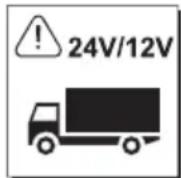
This system has been designed for the use in vehicles with an on-board supply system of 12 volts (passenger car). If you intend to install the device in a vehicle with an on-board supply system of 24 volts (lorry), please use a voltage converter. If you have queries regarding this subject, please contact our hotline.
Position, volume
Install the components of the device in the vehicle so that your field of vision is not impaired and the components are not mounted in the impact zone of the passenger compartment or in the airbag inflation zones. The removal of coverings (with and without airbags) or components of the dashboard requires – in some cases – special tools and special knowledge.

Intended use
We shall not be liable for damages or malfunctions due to improper use of the navigation system. Therefore, do not expose the device to moisture, extreme temperatures or shocks and carefully follow the procedure described in the installation and operating guidelines.

text_image
Weather and prohibition symbols: one umbrella with raindrops, another without crossed-out linesUse while driving
Operate the system only when the situation allows it and when you do not endanger, harm, constrain, or annoy other road users. The volume of the device has to be set in a way that exterior noise is still audible.
Faults
Do not commission the device if you detect or assume a defect. In this case, contact a Bury specialised dealer or our hotline. Improper repair efforts can be dangerous for you. Therefore, only skilled personnel may perform inspections.
Important:
The driver is ultimately responsible for the safe operation ▶ and control of their vehicle at all times. You should never use a hand held phone, including sending or reading text or picture messages, while driving.
Research indicates that there is a risk to safety when the driver of a motor vehicle is distracted and using a mobile phone while driving can be a distinction.
The manufacturer strongly recommends that you use a hands-free solution for making telephone calls while driving.
3. Scope of supply
1
natural_image
Line drawing of a BURV-X network device with ports and connectors (no text or symbols)2

natural_image
Line drawing of a cable with a connector and indicator lights, no text or symbols present3
natural_image
Illustration of a cord with a bulb and connector, no text or symbols present4

natural_image
Coiled electrical connectors with connectors and connectors (no text or symbols visible)5

natural_image
Line drawing of a cord with connectors and connectors, no text or symbols present6

natural_image
Coiled cable with two connectors and a terminal connector (no text or symbols visible)
natural_image
Pure electrical circuit lines without any symbols8

natural_image
Diagram of multiple cable connectors with connectors and connectors, no text or symbols present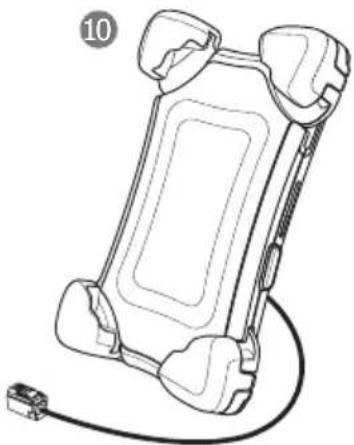
natural_image
Line drawing of a rectangular electronic device with attached cables and connectors (no text or symbols)The hands-free car kit (HFCK) is supplied with different combinations of components, depending on the sales regions (countries). The operating manual refers to all versions.
Description of the components:
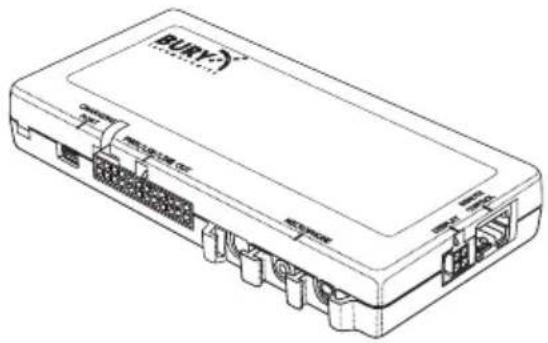
1) Electronics box
2) Illuminated remote control
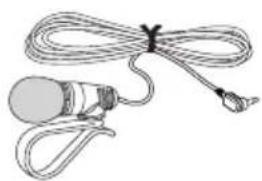
3) Microphone
4) ISO-cable tree
5) Extension cord
6) AUX-In cable
7) Micro USB charging cable
8) Quick user guide
Accessories - available separately / including, if applicable:
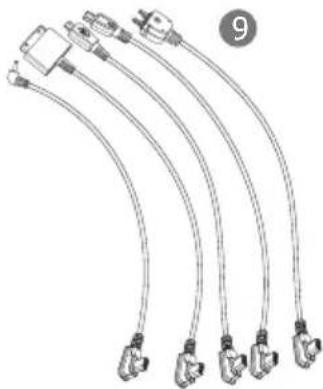
9) Mobile phone and Smartphone-specific charging cable
10) BURY ChargingCradle Universal
Note:
▶If certain components are added or omitted you will receive the corresponding information on a separate enclosure.
4. Positioning and installation
Step 1:
First of all, choose the most suitable location for the illuminated remote control by positioning it or holding it at different locations in the vehicle yourself. Once you have found a suitable position for the illuminated remote control, you can attach it / mount it appropriately. Please use the cleaning cloth provided to remove any grease or dirt from the surfaces. Please remember that in the event of strong temperature variations, depending on the structure and quality, the colours of the surfaces may fade during subsequent use.
Important:
The remote control can only be stuck down once. Damage ▶ to its adhesive surface may occur when it is removed.
Step 2:
Depending on the vehicle type and its equipment (e.g. airbags), it is reasonable to install the microphone either at the A-pillar, at the sun shield or at the roof interior. For details about the equipment features please refer to the vehicle documents.
Step 3:
Please lay the cables in a way that they do not lie/hang unsecured in the vehicle and that they may not influence the conducting of the vehicle. When laying a cable, please take care that it is not under traction stress but that it has some tolerance. Avoid crushing the cable as damages of the insulation can be caused by friction/rubbing.
Step 4:
Install the electronics box at a convenient place in the vehicle. This can e.g. be behind the radio, in the glove box, or in the centre console. Please mind that you can access the connections of the box without difficulty. Before connecting the components to the electronics box you should branch off the battery for safety reasons. In doing so, take into account that there might be a radio coding (confer radio manual).
Important:
Please install the electronics box behind a cover or somewhere you can only reach by opening or unfastening a protective cover / a cover. The terminal box must not hang loosely in the vehicle.

text_image
opt. 35 cm min. 80 cm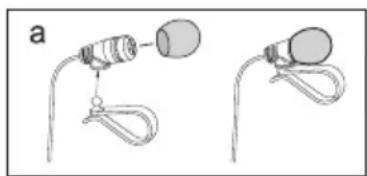
natural_image
Two diagrams showing a device with a bulb and attached tubing, no text or symbols present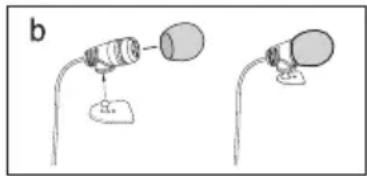
natural_image
Two simple diagrams showing a device with a bulb and a base, connected by wires (no text or symbols)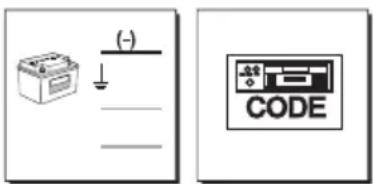
text_image
(-) CODE5. Connections at electronic box
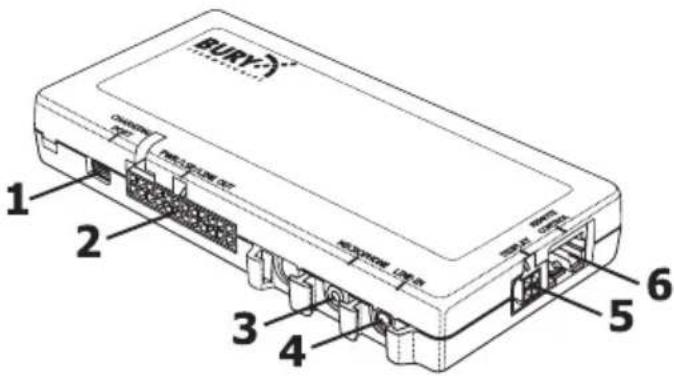
The other components of the hands-free car kit are connected to the electronic box. You can find the following connections:
text_image
BURY 1 2 3 4 5 6Connection possibilities:
1 CHARGING PORT: Micro USB socket to connect the extension cable - the charging cable or an optional update cable can be connected therec
2 PWR/LSP/LINE OUT: 24-pin socket for the connection of the molex jack from the ISO cable harness, used as power supply of the hands-free car kit outputs music and voice (telephone)
3 MICROPHONE: Connection for external microphone
4 LINE IN: Connection for AUX-IN cable for inputting of music
5 DISPLAY: Connection for display (if present)
6 REMOTE CONTROL: Connection for remote control with 3 buttons display (if present)
1 - CHARGING PORT
An extension cable is connected to connection no. 1 (micro USB socket). You can connect a charger or your mobile phone to the other end of the cable. Connection of the BURY ChargingCradle Universal isoptional.
2 - PWR/LSP/LINE OUT
The hands-free car kit in the vehicle is connected to the car radio with the ISO cable harness. If the radio has ISO socket at its backside, the installation can be done without additional installation material. If not, certain adapters, e.g. ISO2CAR or AUDIO2CAR, can be ordered from an authorised dealer for the respective radio or vehicle make.
Using the ISO cable harness, you can input music and voice signals (telephone) of different types into the radio or play them back via the radio. If the present radio has a LINE-IN or AUX-IN input at the front side or backside, the four open LINE cables of the ISO cable harness can be connected to them using appropriate adapters (e.g. 3.5 mm stereo jacks or cinch connectors). The radio amplifier is used for music playback in that case. Please observe the notes in the instruction manual of the radio concerning "AUX input". Generally, voice signals are only output in the two front loudspeakers while music is played back on all four loudspeakers (front and rear). Different installation options can be selected with the hands-free car kit for that purpose.
Toggling between the installation options 1 and 2 is done with the buttons "+" and "-" . In order to toggle the installation options, you must keep these buttons pressed simultaneously for 4 seconds.
Option 1 is the standard setting upon delivery of the hands-free car kit. Music and voice are output via the loudspeakers using the ISO jacks. The amplifiers of the hands-free car kit are used for playback.
Option 2 feeds music to the radio via the four LINE cables, and voice signals are fed to the loudspeakers via the ISO jacks.
| Output of voice (telephone) via Output of music via | ||||
| ISO LINE ISO LINE | ||||
| Option 1 √ √ | √ √ | |||
| Option 2 √ √ | - √ | |||
Installation of the hands-free car kit
Step 1:
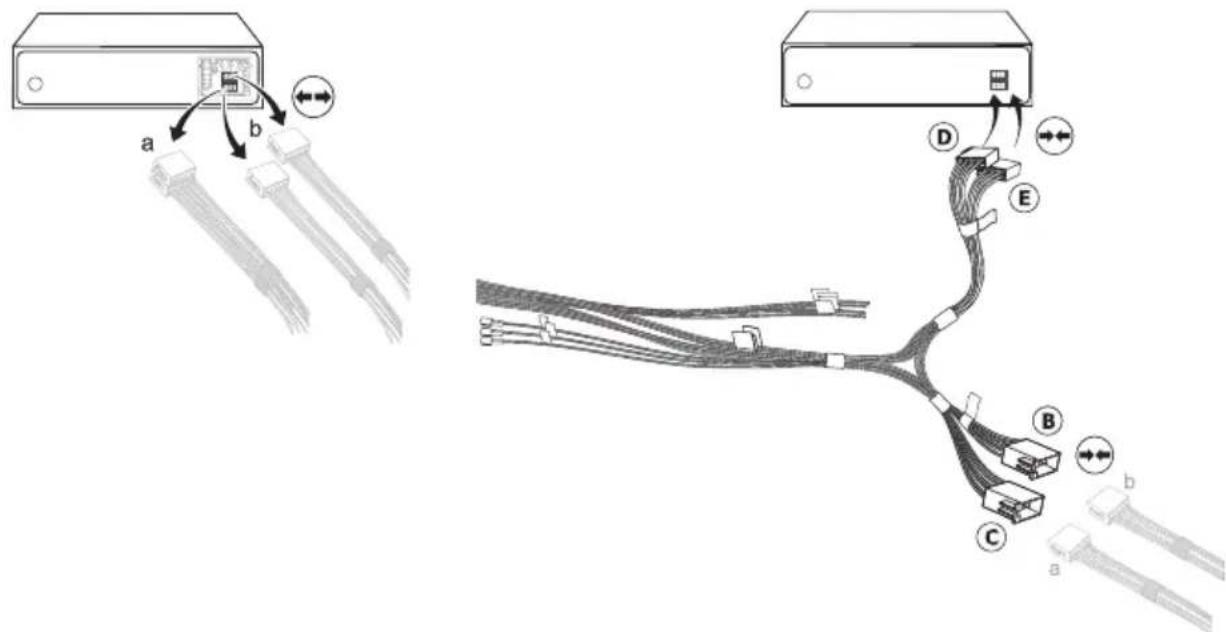
Pull the ISO jacks at the back of the radio off and replace them with the jacks at the ISO cable harness. Connect the now free ISO jacks with both sockets from the ISO cable harness (see picture).
text_image
Diagram showing cable connections between a device and a network, with labeled components (a, b, c, d, e) and directional arrows indicating connection points.If you want music or voice signals to be fed via the four LINE cables, you must adjust them accordingly to the respective type of radio and its connections (PHONE-IN or AUX-IN). Appropriate adapters are available from specialists shops.
Step 2:
The hands-free car kit supports the radio mute function, if this function is also supported by the radio. The mute signal is then fed to the radio via the yellow cable of the ISO cable harness. The cable is labelled with "mute" and must be connected to one of the three sockets (mute1, mute2, mute3). Please observe the notes on this topic in the instruction manual of the radio concerning "Pin allocation for mute / radio mute". Then, connect the mute cable to the corresponding socket.

text_image
Mute Mute 3 Mute 2 Mute 1Step 3:
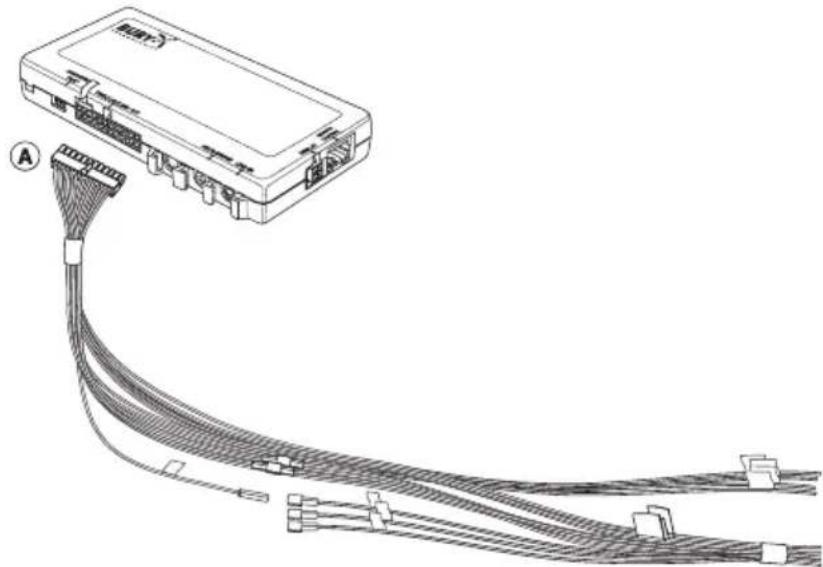
Insert the 24-pole molex jack (A) into the connection of the electronic box (see picture).
natural_image
Line drawing of a network device with multiple Ethernet cables and connectors (no text or symbols)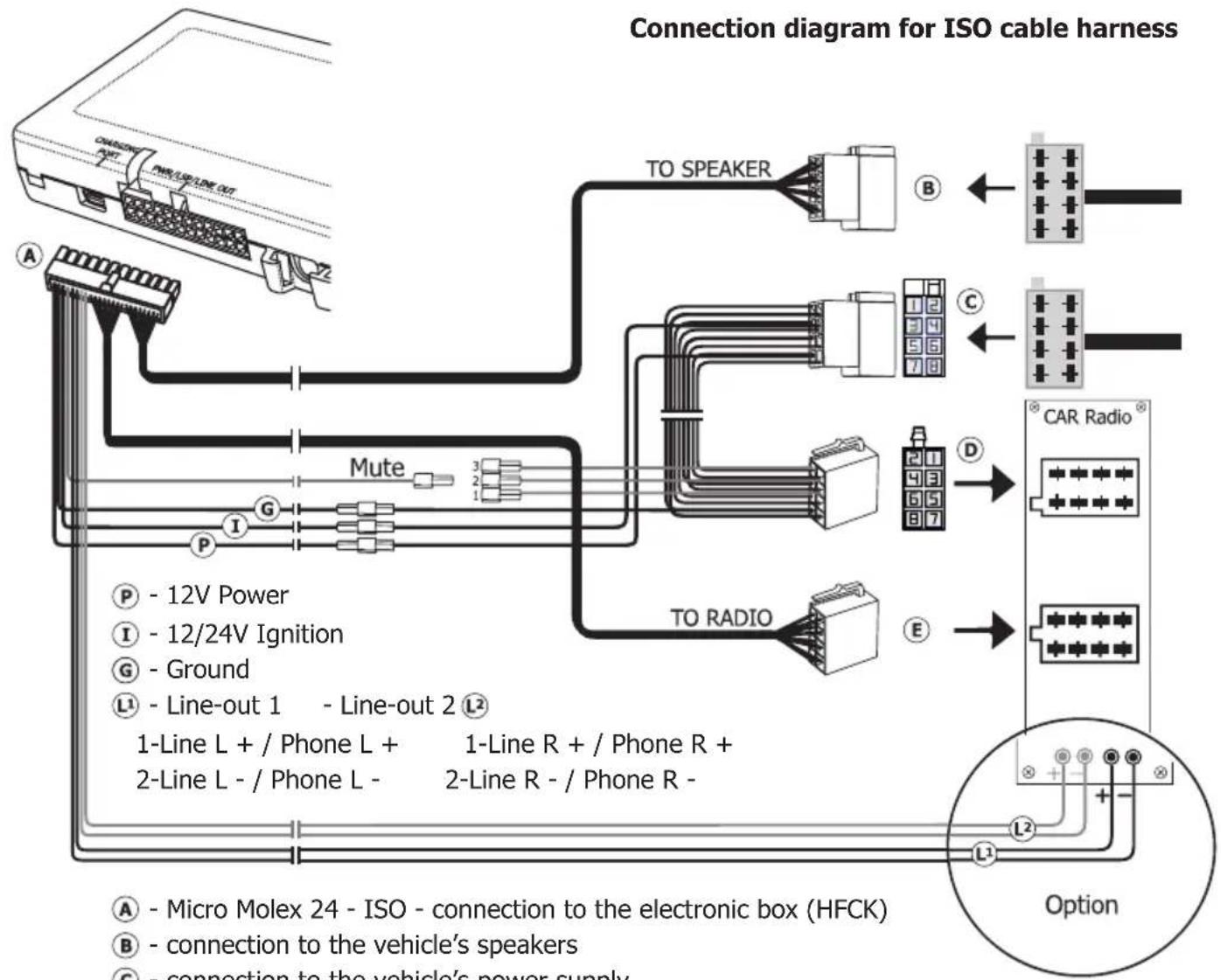
flowchart
graph TD
    A["Device"] -->|A - Micro Molex 24 - ISO - connection to the electronic box (HFCK)| B["To Speaker"]
    A -->|B - connection to the vehicle's speakers| C["To Radio"]
    A -->|C - connection to the vehicle's power supply| D["TO Radio"]
    A -->|D - connection to the vehicle's power supply| E["TO Radio"]
    A -->|E - connection to the vehicle's power supply| F["TO Radio"]
    G["Mute"] --> H["1-Line L + / Phone L +"]
    G --> I["2-Line L - / Phone L -"]
    G --> J["3-Line R + / Phone R +"]
    G --> K["4-Line R - / Phone R -"]
    G --> L["5-Line R + / Phone R +"]
    G --> M["6-Line R + / Phone R +"]
    G --> N["7-Line R + / Phone R +"]
    G --> O["8-Line R + / Phone R +"]
    G --> P["9-Line R + / Phone R +"]
    G --> Q["10-Line R + / Phone R +"]
    G --> R["11-Line R + / Phone R +"]
    G --> S["12-Line R + / Phone R +"]
    G --> T["13-Line R + / Phone R +"]
    G --> U["14-Line R + / Phone R +"]
    G --> V["15-Line R + / Phone R +"]
    G --> W["16-Line R + / Phone R +"]
    G --> X["17-Line R + / Phone R +"]
    G --> Y["18-Line R + / Phone R +"]
    G --> Z["19-Line R + / Phone R +"]
    G --> AA["20-Line R + / Phone R +"]
Ⓐ - Micro Molex 24 - ISO - connection to the electronic box (HFCK)
B - connection to the vehicle's speakers
© - connection to the vehicle's power supply
(D) - connection to the car radio
E - connection to the car radio
A
text_image
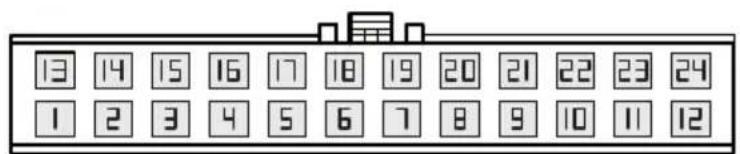
13 14 15 16 17 18 19 20 21 22 23 24 1 2 3 4 5 6 7 8 9 10 11 121 - C RR- 13 - C RR+
2 - C RF- 14 - C RF+
3 - C LF- 15 - C LF+
4 - C LR- 16 - C LR+
5 - R LR- 17 - R LR+
6 - R LF- 18 - R LF+
7 - R RF- 19 - R RF+
8 - R RR- 20 - R RR+
9 - LINE R+ 21 - LINE R-
10 - LINE L+ 22 - LINE L-
11 - R-Mute 23 - Ignition
12 - Ground 24 - Power
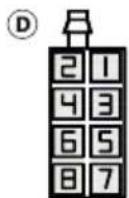
1 - Mute 3
2 - Mute 2
3 - Mute 1
4 - Ignition
5 - Antenna
6 - Illumination
7 - Power
8 - Ground
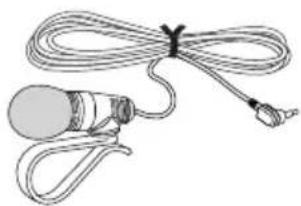
3 - MICROPHONE
This is where you plug in the microphone jack. This ensures that neither of the jacks is able to loosen as a result of vibrations.
4 - LINE-IN
To connect external music players.
5 - DISPLAY
Multifunction display for possible system expansions (not for CC 9048).
6 - RJ45 - Input for the illuminated remote control.
Please connect the illuminated remote control plug to this socket.
natural_image
Illustration of a cable with a connector and attached cable (no text or symbols)
natural_image
Line drawing of a handheld electronic device with coiled cable and indicator lights (no text or symbols)6. Language selection
After properly connecting the HFCK to the power supply, the device will start with the launch of the car ignition. To use voice prompts, activate them by pressing and holding the Plus button for 10 seconds. Then select the language for voice prompts after the device informs about it by emitting "select language". Available languages will be read out (English, German, French, Spanish, Russian, Polish, Czech and Dutch), a single press of the middle button during wanted language presentation confirms the choice. The list of available languages will be read three times, in the absence of selection, English will be loaded automatically.
To change the language selection, restore the factory settings by holding the Minus button for 10 seconds. The device will reset, then the voice prompts have to be activated and the system will repeat the procedure of language selection from the beginning.
To turn off the voice prompts just press and hold the Plus button for 10 seconds.
7. Establishing a Bluetooth connection
If you wish to establish a Bluetooth connection for the first time, you have to activate the Bluetooth function of your mobile phone and search for Bluetooth devices. In this case, search for a device labelled "CC 9048...". If several devices were identified, please select the HFCK and enter the PIN number "1234". The Bluetooth connection (pairing) will then be established between your mobile phone and the HFCK. It is possible that you will also have to click on 'connect' or 'allow data transfer' on your mobile phone if you want to be able to make a connection.
Please note:
Searching for Bluetooth devices and establishing a Bluetooth connection may take 2-3 minutes.
If it is not possible to establish a connection, please check and update the software release (firmware) of your mobile phone or of the HFCK. You will find an overview dealing with this subject on the Internet at www.bury.com.
Note:
In the internet you can find an overview with a large number of mobile telephones which have been tested with this hands-free car kit. Please note, however, the use of firmware which deviates from the list and is installed on a listed mobile telephone can lead to the fact that certain displays and functions are no longer possible or only possible to a limited extent.
In addition it is possible that you must delete all devices connected to your mobile phone first in order to enable a correct identification of the HFCK and the establishment of a connection. If you have queries regarding the menu navigation, functions and operation of your mobile phone, please refer to the operating guidelines of your mobile phone. Depending on the manufacturer and type, this can differ considerably between phones.
Note:
▶ If the rechargeable battery of the mobile phone is low, it is sometimes not possible to establish a Bluetooth connection.
The HFCK has a memory for the storage of the identification of up to 8 mobile phones. In case a ninth mobile phone is connected, the oldest entry in the HFCK memory will be cancelled.
If you wish to cancel a Bluetooth connection, you can either disconnect it conveniently at the HFCK or at your mobile phone. In addition, the connection is disconnected, if you move too far away from the vehicle while taking your mobile phone with you and thus leave the reception radius of the HFCK.
Please note that the capacity of your mobile phone's storage battery can quickly decrease when the Bluetooth function is active. If you do not want to use the Bluetooth function anymore, e.g. if you leave the vehicle for a longer period, it is recommended to deactivate this function.
Thanks to the Multipoint Function you are able to connect two mobile phones at the same time with the HFCK via Bluetooth. You operate this function with the middle button. First, activate the Multipoint function (see operating table) in STAND-BY mode (no coupled telephones). Then, connect and disconnect the first mobile phone, and then connect and disconnect the second phone. Now, press the function button and the system connects both telephones. The mobile phone connected most recently is given priority which means all of the functions described in the table (on page 13 of this guide) refer to this telephone.
Despite the huge number of tested mobile phones, we can not guarantee that all configurations will be compatible with each other while using multipoint function.
After switching the HFCK on the system will connected with the smartphone that was most recently connected. The condition for this is that this phone is in the vehicle, the Bluetooth function is activated and the interfacing identification to the remote control has not been deleted.
In the case of there being incoming calls on each phone at the same time, then the incoming call on the second phone can only be received after the first call has been declined. It is also possible to end the first call and to then decline the second call (both steps are completed by pressing in the minus button), or to end the first call and to then immediately answer the second call (by pressing in the plus button). Putting the first phone call on hold is not possible, however, because the same phone number is not being called.
Note:
▶ Please comply with the country-specific laws concerning in-car telephone calls.
▶ In order to be able to use the voice dialling functions (Voice-Tags) of your mobile phone with the HFCK, the phone numbers must have been marked previously on your mobile phone in a corresponding way.
8. Illuminated remote control
| CC 9048 | |||||||||||
| Status | Status description | +Press Plus key once | -Press Minus key once | -Press Middle key once | -Hold Middle key for 2 seconds | -Press Middle key twice | +-Hold Plus and Minus key for 4 seconds | +Hold Plus key for 10 seconds | -Hold Minus key for 10 seconds | +~Hold Plus and Middle key for 4 seconds | +~Hold Plus and Middle key for 4 seconds |
| Stand-by | When HFCK is not connected with phone | Volume up | Volume down | Auto connect on/off | Multipoint on/off (1 beep is off, 2 beeps is on) | - | Audio option (1 beep, 2 beeps, 3 beeps) | Voice Prompts on/off (1 beep is off, 2 beeps is on) | Factory reset | AUX-In on/off (1 beep is off, 2 beeps is on) | Mobile audio on/off (1 beep is off, 2 beeps is on) |
| Language selection | After factory reset | - | - | Choose current language | - - - - - - | - | |||||
| Connected | When HFCK is connected with phone (or two phones) | Volume up | Volume down | Calls phone voice tags | Disconnect HFCK and phone (phones) | Redial | Turn on/off DSP* in the phone (1 beep is off, 2 beeps is on) | - | - | AUX-In on/off (1 beep is off, 2 beeps is on) | Mobile audio on/off (1 beep is off, 2 beeps is on) |
| Incoming call | Volume up | Volume down | Accept call Rejects call - - - - - - | ||||||||
| Incoming call | When HFCK is connected with phones and call is active (Multipoint) | Volume up | Volume down | End first call and make incoming call active on device | Reject second call | - - - - - - | |||||
| Active call | Volume up | Volume down | Quit call | Change car kit mode to privat mode or privat mode to car kit mode | Mute micro-phone of HFCK (function is active if DSP in the HFCK is active) | Turn on/off DSP in the HFCK (1 beep is off, 2 beeps is on) | - - - - | ||||
| * depending on mobile phone | |||||||||||
9. Playing music
There are two ways of playing music in case of the CC 9048 hands-free car kit.
Through A2DP (Bluetooth)
After the phone is connected to the hands-free car kit via Bluetooth, music can be played through A2DP. Music player in the phone has to be turned on. Handling music playback is done with the phone (play, stop, pause, forward, backward). Volume adjustment can be controlled with the hands-free car kit.
Through aux-in (cable)
Second option is music playback through AUX-In cable, used to connect phone to the hands-free car kit. It is activated by holding right (plus) and middle (functional) key for 4 seconds. After starting this option the device will read a statement on its status. Playing music mutes the car radio. Handling music playback is controlled with the external music player (phone, mp3, tablet). To turn off AUX-In option hold right (plus) and middle (functional) key for 4 seconds.
Note:
▶If the call comes during the music, the music is muted and the call enters the foreground. After the call ends, the music plays on.
▶ After switching off the device during playing music, the music is paused, and after the device is turned on again and the pause is turned off, the music plays again.
The inclusion of navigational application in your phone mutes the radio to broadcast navigation instructions through the speakers. However the conversation has the highest priority, so that while an incoming call only conversation will be heard through the speakers.
10. VoiceTag feature
VoiceTag feature enables the voice control of the phone. The device (CC 9048) has a button activating it on the phone (middle one). Activation is done by briefly pressing the button. When it's activated:
Making calls
Press the call button. The device says: Enter voicetag. Give your voicetag loud and clearly.
Your CC 9048 offers you three ways of using voicetags:
Option 1: Creating and using voicetags
To make a phone call you must set voicetags on your mobile phone. You can only set voicetags on your mobile phone for contacts already saved in your address book (not on your SIM card!).
Please note:
Copy your contacts from your SIM card into your telephone address book. Then only use contacts from your address book.
When you call up a contact from your address book, choose under Options „Add call name“. The menu item depends on the manufacturer and may have another name. In this menu you can set, change or delete the voicetag for a contact. You can find further information in the operating instructions for your mobile phone.
In your address book you can see which contacts you have already saved a voicetag for. A symbol is shown behind the name. This varies depending on your mobile phone but is usually a Pacman.
Option 2: Reading out the phonetics
For some mobile phones, you can open up the mobile phone directory by pressing down the CC 9048 call button. The device says: Enter voicetag. The voicetag you enter (contact name) is compared with the contacts saved in the mobile phone directory using phonetic technology and selected if there is a match.
Option 3: Using your smartphone's voice dialling function
Most smartphones have a voice dialling function which you can activate using CC 9048. You can then use your smartphone's voice dialling function via CC 9048.
Please make sure that you repeat the smartphone's precise voicetag which you can find in the your smartphone's operating instructions. Using the voicetag, in addition to making calls you can also play music via CC 9048.
Tip:
You can only stop the music play back via your smartphone.
In the event of incoming and outgoing calls, the music play back will be automatically ▶ interrupted.
Ensure that your mobile only transfers music files to the hands-free car kit via A2DP. ▶ Optimum playback quality can only be guaranteed if this is the case.
If you press the call button on the CC 9048, the device says: Enter voicetag. Some smartphones may then release a signal sound after one to three seconds. Only then can you enter the voicetag.
Outgoing call
Briefly press down on the call button to activate the voicetag function. The device says: Enter voice-tag. Begin the call with a voicetag. If the number dialled is busy, you can begin to redial. To do so, hold down the call button (for two seconds). The device says: Redial.
If you announce a non-saved voicetag then the device says: Voicetag is not available. CC 9048 returns to standby mode.
Briefly press down on the end call button to end the voicetag function, the active call or the redialling. If you make a call and briefly press down on the call button, the private mode is then started. The call is then forwarded to the mobile phone.
Incoming call
The backlight to the sensor keys is activated. In addition to this, a ring tone sounds which alerts to an incoming call. If the mobile phone transfers its own ring tone to the hands-free car kit (depending on the mobile phone), then this will sound. If the caller has hidden their number, then the device says:
Unknown caller.
Briefly press down on the end call button to refuse the call. The device returns to standby mode. Briefly press down on the call button to accept the incoming call.
11. Service
In case of general or technical queries, suggestions and comments, please do not hesitate to contact our team at any time. Suggestions and feedback are always welcomed:
Administration: Producer:
the costs of international telephone calls which are made from abroad can vary.
E-Mail: hotline@bury.com
Warranty / Service desk:
The duration of the warranty for the components of this product totals two years subsequent to the date of sale to the end customer. Any warranty claims you may have as an end customer are to be asserted towards your contractual partner. If the corresponding contractual partner is not able to rectify a corresponding fault, please exercise your rights of purchase. If subsequent to agreement with your contractual partner the product is to be sent directly to the manufacturer, then please send it, along with a detailed description of the fault in the German or English language and a copy of the proof of purchase, directly to our service team:
BURY GmbH & Co. KG
Specific explanations regarding the assertion of claims based on defects of the product (warranty / guarantee / service) for certain countries can be found at the end of these instructions.
Information on the disposal of electrical goods in the EU
The crossed out wheelie bin symbol means that electrical and electronic products, batteries and accumulators must be disposed of separately in the European Union. Please do not dispose of any such products in your normal household waste. As the owner of a product of this sort you are legally obliged to dispose of it at your local dumping site or recycling centre, where you are able to leave your waste electrical goods free of charge.
12. Appropriate use of this system
This hands-free car kit is only intended for use with Bluetooth mobile telephones in motor vehicles. When using this system, please comply with the regulations and laws specific to the country in which you are driving and the instructions provided in the guidebook for the mobile telephone that you are using.
13. Approvals and declaration of conformity
At BURY, purchase, production, as well as distribution and service, follow environmentally friendly processes according to the ISO 14001 Standard and Quality Management Requirements, according to the ISO/TS 16949 Standard. The telematic unit has

the CE approval pursuant to the R&TTE 1999/5/EC regulation
e-mark type approval pursuant to the 2009/19/EC regulation 'Electromagnetic compatibility in vehicles'
You can request a conformity declaration from the manufacturer of this product by post under the manufacturer's address which is stated above, or by writing to the following email address:
ce_conformance@bury.com
Please provide your email request in either English or German.
Version: 01/2013
25.1484.0-04-250113
Subject to change. Errors and omissions excepted.
The Bluetooth ^® word brand and the Bluetooth ^® logos are owned by Bluetooth SIG, Inc.
All use of these brands by BURY Technologies takes place within the scope of the corresponding licence. All of the other stated brands are owned by their corresponding owner.
© 2013 by BURY. All rights reserved.
EXPRESS WARRANTY AGAINST DEFECTS – AUSTRALIA EFFECTIVE 1 ^st JANUARY, 2012
This product if imported by Point to Point Technology Pty Ltd is warranted in Australia to be free from any defect in material and workmanship, subject to the following terms and conditions.
Who provides this warranty: POINT TO POINT TECHNOLOGY PTY LTD
2/2 KEYSBOROUGH CLOSE, KEYSBOROUGH VIC 3173
TOLL FREE: 1300 550 720
EMAIL: service@ptp.net.au
Geographical Region: PRODUCTS PURCHASED IN AUSTRALIA imported by
Point to Point Technology Pty Ltd
Warranty Period: 2 YEARS FROM DATE OF PURCHASE (please retain your receipt as your
proof of purchase will be required to valid warranty claim)
WARRANTY CLAIM PROCESS
In the unfortunate event of a failure of your product, please contact Point to Point Technology Pty Ltd (PTP) on our Toll Free number: 1300 550 720.
PTP will ask you to provide evidence of your purchase receipt to establish the warranty claim is within the 2 year warranty period. Failure to provide your purchase receipt will result in PTP rejecting your warranty claim.
PTP offers an advance replacement of your faulty product. Please note our advance replacement units are a like-for-like product and may be refurbished units that are of the exact same model and version.
Goods presented for repair may be replaced by refurbished goods of the same type rather than being repaired. Refurbished parts may be used to repair the goods.
Upon validation of your warranty claim, PTP will send your replacement unit freight-paid and include a pre-paid return bag for the return of the faulty product. If you choose do not wish to proceed with the warranty claim, you must return the replacement unit to us using the pre-paid return bag. Failure by the customer to return either unit within 14 days may incur a charge for the cost of the replacement unit.
WARRANTY EXCLUSIONS
Failure to provide a proof of purchase will result in your warranty claim being rejected.
Product failure due to customer misuse, abuse or abnormal use.
Failure by the customer to take reasonable care.
Failure due to not using the product in accordance with instructions stated in the manufactures user guide.
Product failure due to recommended installation procedures not being followed as stated in the manufacturer's user guide.
YOUR RIGHTS UNDER THE AUSTRALIAN CONSUMER LAW
Our goods come with guarantees that cannot be excluded under the Australian Consumer Law.
You are entitled to a replacement or refund for a major failure and for compensation for any other reasonably foreseeable loss or damage. You are entitled to have goods repaired or replaced if the goods fail to be of acceptable quality and the failure does not amount to a major failure.