SIP-T20p - Phone Yealink - Free user manual and instructions
Find the device manual for free SIP-T20p Yealink in PDF.


User questions about SIP-T20p Yealink
0 question about this device. Answer the ones you know or ask your own.
Ask a new question about this device
Download the instructions for your Phone in PDF format for free! Find your manual SIP-T20p - Yealink and take your electronic device back in hand. On this page are published all the documents necessary for the use of your device. SIP-T20p by Yealink.
USER MANUAL SIP-T20p Yealink
natural_image
Two business scenes: top shows three women in business attire smiling and talking on a phone; bottom shows a person using a telephone on a desk (no visible text or symbols)
natural_image
Woman smiling while talking on a phone, no visible text or symbols
natural_image
Two-panel image: top shows a black telephone handset with a digital display; bottom shows business meeting scene with people gathered around a table (no visible text or symbols)HD
SIP-T20P
SIP-T20
Enterprise IP Phone
User Guide
Copyright
Copyright © 2014 YEALINK NETWORK TECHNOLOGY
Copyright © 2014 Yealink Network Technology CO., LTD. All rights reserved. No parts of this publication may be reproduced or transmitted in any form or by any means, electronic or mechanical, photocopying, recording, or otherwise, for any purpose, without the express written permission of Yealink Network Technology CO., LTD. Under the law, reproducing includes translating into another language or format.
When this publication is made available on media, Yealink Network Technology CO., LTD. gives its consent to downloading and printing copies of the content provided in this file only for private use but not for redistribution. No parts of this publication may be subject to alteration, modification or commercial use. Yealink Network Technology CO., LTD. will not be liable for any damages arising from use of an illegally modified or altered publication.
Warranty
THE SPECIFICATIONS AND INFORMATION REGARDING THE PRODUCTS IN THIS GUIDE ARE SUBJECT TO CHANGE WITHOUT NOTICE. ALL STATEMENTS, INFORMATION, AND RECOMMENDATIONS IN THIS GUIDE ARE BELIEVED TO BE ACCURATE AND PRESENTED WITHOUT WARRANTY OF ANY KIND, EXPRESS OR IMPLIED. USERS MUST TAKE FULL RESPONSIBILITY FOR THEIR APPLICATION OF PRODUCTS.
YEALINK NETWORK TECHNOLOGY CO., LTD. MAKES NO WARRANTY OF ANY KIND WITH REGARD TO THIS GUIDE, INCLUDING, BUT NOT LIMITED TO, THE IMPLIED WARRANTIES OF MERCHANTABILITY AND FITNESS FOR A PARTICULAR PURPOSE. Yealink Network Technology CO., LTD. shall not be liable for errors contained herein nor for incidental or consequential damages in connection with the furnishing, performance, or use of this guide.
Declaration of Conformity
C E F C
Hereby, Yealink Network Technology CO., LTD. declares that this phone is in conformity with the essential requirements and other relevant provisions of the CE, FCC.
CE Mark Warning
This device is marked with the CE mark in compliance with EC Directives 2006/95/EC and 2004/108/EC.
Part 15 FCC Rules
This device is compliant with Part 15 of the FCC Rules. Operation is subject to the following two conditions:
- This device may not cause harmful interference.
- This device must accept any interference received, including interference that may cause undesired operation.
Class B Digital Device or Peripheral
Note: This equipment has been tested and found to comply with the limits for a Class B digital device, pursuant to part 15 of the FCC Rules. These limits are designed to provide reasonable protection against harmful interference in a residential installation. This equipment generates, uses and can radiate radio frequency energy and, if not installed and used in accordance with the instructions, may cause harmful interference to radio communications. However, there is no guarantee that interference will not occur in a particular installation. If this equipment does cause harmful interference to radio or television reception, which can be determined by turning the equipment off and on, the user is encouraged to try to correct the interference by one or more of the following measures:
- Reorient or relocate the receiving antenna.
- Increase the separation between the equipment and receiver.
- Connect the equipment into an outlet on a circuit different from that to which the receiver is connected.
- Consult the dealer or an experienced radio/TV technician for help.
WEEE Warning

To avoid the potential effects on the environment and human health as a result of the presence of hazardous substances in electrical and electronic equipment, end users of electrical and electronic equipment should understand the meaning of the crossed-out wheeled bin symbol. Do not dispose of WEEE as unsorted municipal waste and have to collect such WEEE separately.
Customer Feedback
We are striving to improve our documentation quality and we appreciate your feedback. Email your opinions and comments to DocsFeedback@yealink.com.
GNU GPL INFORMATION
Yealink SIP-T20P/SIP-T20 firmware contains third-party software under the GNU General Public License (GPL). Yealink uses software under the specific terms of the GPL. Please refer to the GPL for the exact terms and conditions of the license.
The original GPL license, source code of components licensed under GPL and used in Yealink products can be downloaded online:
http://www.yealink.com/GPLOpenSource.aspx?BaseInfoCateld=293&NewsCateld=293&Cateld=293.
About This Guide
Thank you for choosing the SIP-T20P/SIP-T20 IP phone, exquisitely designed to provide business telephony features, such as Call Hold, Call Transfer, Busy Lamp Field, Multicast Paging and Conference over an IP network. The difference between the SIP-T20P and SIP-T20 IP phone is that the former supports PoE, while the latter does not.
This guide provides everything you need to quickly use your new phone. First, verify with your system administrator that the IP network is ready for phone configuration. Also be sure to read the Packaging Contents and Regulatory Notices sections in this guide before you set up and use the SIP-T20P/SIP-T20 IP phone.
Note
Shared Line, Network Directory and Network Call Log features are hidden for IP phones in neutral firmware version, which are designed for the BroadWorks environment. Please contact your system administrator for more information.
In This Guide
Topics provided in this guide include:
• Chapter 1 Overview
• Chapter 2 Getting Started
• Chapter 3 Customizing Your Phone
• Chapter 4 Basic Call Features
• Chapter 5 Advanced Phone Features
Summary of Changes
This section describes the changes to this guide for each release and guide version.
Changes for Release 73, Guide Version 73.40
The following section is new:
• Optional Accessor on page 10
Major updates have occurred to the following sections:
The following sections are new:
• BLF List on page 82
Major updates have occurred to the following sections:
• LED Instructions on page 4
• Ring Tones on page 26
• Anonymous Call Rejection on page 78
• Multicast Paging on page 90
• Troubleshooting on page 101
• Appendix A - Time Zoneson page 115
Changes for Release 72, Guide Version 72.25
Major updates have occurred to the following sections:
• Documentations on page 7
• Packaging Contents on page 9
• Phone Status on page 13
Changes for Release 72, Guide Version 72.1
Documentations of the SIP-T20 IP phone have also been added.
Major updates have occurred to the following sections:
• LED Instructions on page 4
• Anonymous Call on page 77
Changes for Release 71, Guide Version 71.165
Major updates have occurred to the following sections:
• Appendix A - Time Zoneson page 115
Changes for Release 71, Guide Version 71.140
Major updates have occurred to the following sections:
• LED Instructions on page 4
• Ring Tones on page 26
• Anonymous Call on page 77
• Troubleshooting on page 101
Changes for Release 71, Guide Version 71.125
Major updates have occurred to the following sections:
• Appendix A - Time Zoneson page 115
Changes for Release 71, Guide Version 71.110
Major updates have occurred to the following sections:
• Basic Network Settings on page 15
• Phone Lock on page 23
• Contact Management on page 27
• DSS Keys on page 39
Changes for Release 70, Guide Version 70
Major updates have occurred to the following sections:
• Phone Lock on page 23
• Volume on page 25
• Ring Tones on page 26
• Call Completion on page 61
• DSS Keys on page 39
• Do Not Disturb (DND) on page 63
• Call Forward on page 66
• Busy Lamp Field (BLF) on page 81
Table of Contents
About This Guide....v
In This Guide ...... v
Summary of Changes......v
Changes for Release 73, Guide Version 73.40....v
Changes for Release 73, Guide Version 73.16 ...... vi
Changes for Release 72, Guide Version 72.25 ...... vi
Changes for Release 72, Guide Version 72.1 ...... vi
Changes for Release 71, Guide Version 71.165 ......vi
Changes for Release 71, Guide Version 71.140 ......vi
Changes for Release 71, Guide Version 71.125 ...... vii
Changes for Release 71, Guide Version 71.110 ...... vii
Changes for Release 70, Guide Version 70 ...... vii
Table of Contents ix
Overview....1
Hardware Component Instructions....1
Icon Instructions ....3
LED Instructions 4
User Interfaces....4
Phone User Interface 5
Web User Interface....5
Documentations....7
Getting Started....9
Packaging Contents....9
Optional Accessories....10
Phone Installation....11
Phone Initialization....13
Phone Status....13
Basic Network Settings....15
Registration 17
Idle Screen....17
Customizing Your Phone 19
General Settings....19
Language....19
Time & Date....20
Administrator Password 22
Key as Send 22
Phone Lock 23
Audio Settings....25
Volume....25
Ring Tones 26
Contact Management....27
Local Directory....28
Blacklist....34
Call History Management....35
System Customizations....36
Logo Customization 36
Headset Use 37
DSS Keys 39
Account Management 45
Dial Plan 46
Emergency Number....52
Live Dialpad....53
Hotline....54
Basic Call Features.... 55
Placing Calls....55
Answering Calls 57
Ending Calls 58
Redialing Numbers 59
Auto Answer....59
Auto Redial....60
Call Completion....61
Recall 62
Call Mute....62
Call Hold/Resume 62
Do Not Disturb (DND) 63
Call Forward....66
Call Transfer 71
Call Waiting....72
Conference....72
Local Conference....72
Network Conference 73
Call Park 75
Call Pickup....76
Anonymous Call....77
Anonymous Call Rejection....78
Advanced Phone Features....81
Busy Lamp Field (BLF)....81
BLF List 82
Call Recording....84
Hot Desking....86
Intercom 87
Outgoing Intercom Calls 88
Incoming Intercom Calls....88
Multicast Paging 90
Sending RTP Stream 90
Receiving RTP Stream....93
Music on Hold....94
Message 95
Voice Mail....95
Message Waiting Indicator (MWI) 97
Troubleshooting ....101
Regulatory Notices ....111
Service Agreements 111
Limitations of Liability 111
Safety Instructions....111
Appendix A - Time Zones....115
Index....119
Overview
This chapter provides the overview of the SIP-T20P/SIP-T20 IP phone. Topics include:
• Hardware Component Instructions
- Icon Instructions
- LED Instructions
- User Interfaces
- Documentations
If you require additional information or assistance with your new phone, contact your system administrator.
Hardware Component Instructions
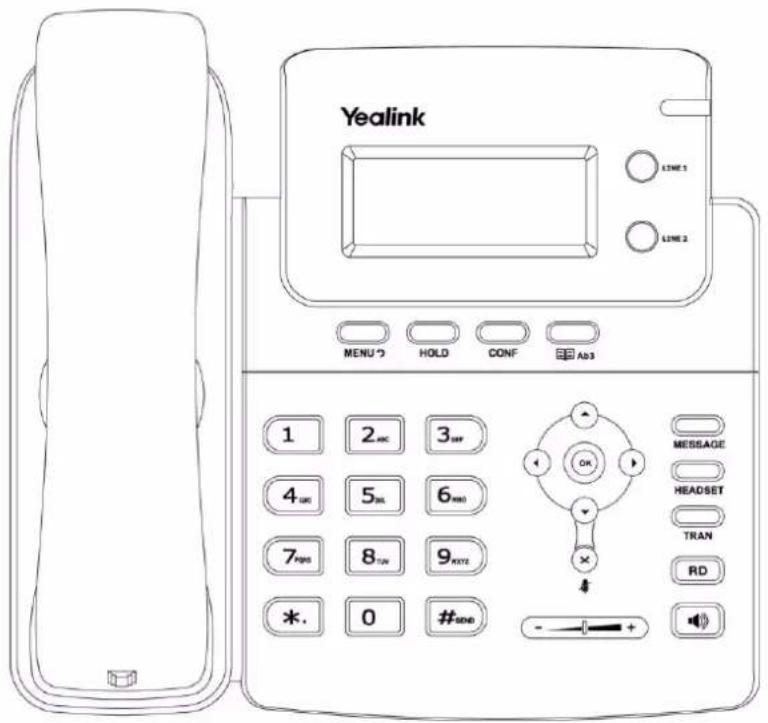
The main hardware components of the SIP-T20P/SIP-T20 IP phone are the LCD screen and the keypad.

text_image
15 14 12 11 10 9 Yealink MENU 3 CINE 3 MENU 2 MENU 1 MENU 0 MENU 7 HOLD COMP Auto MENU 3 MENU 2 MENU 1 MENU 0 MENU 7 MENU 3 MENU 2 MENU 1 MENU 0 MENU 7 MENU 3 MENU 2 MENU 1 MENU 0 MENU 7 MENU 3 MENU 2 MENU 1 MENU 0 MENU 7 MENU 3 MENU 2 MENU 1 MENU 0 MENU 7 MENU 3 MENU 2 MENU 1 MENU 0 MENU 6 MENU 3 MENU 2 MENU 1 MENU 0 MENU 7 MENU 3 MENU 2 MENU 1 MENU 0 MENU 7 MENU 3 MENU 2 MENU 1 MENU 0 MENU 7 MENU 3 MENU 2 MENU 1 MENU 0 MENU 7 MENU 3 MENU 2 MENU 1 MENU 0 MENU 8 MENU 3 MENU 2 MENU 1 MENU 0 MENU 7 MENU 3 MENU 2 MENU 1 MENU 0 MENU 7 MENU 3 UNIXHardware component instructions of the SIP-T20P/SIP-T20 IP phone are:
| Item | Description | |
| 1 | LCD Screen | Shows information about calls, messages, time, date and other relevant data.· Call information — Caller ID, call duration· Icons (for example,DND)· Missed call text or second incoming caller information· Prompt text (for example, “New Voice Mail”)· Time and date |
| 2 | Power Indicator LED | Indicates phone power status and phone status. |
| 3 | Line Keys | Use these keys to activate up to two accounts and assign various features. |
| 4 | MESSAGE Key | Indicates and accesses voice mails. |
| 5 | HEADSET Key | Toggles the headset mode. |
| 6 | TRAN Key | Transfers a call to another party. |
| 7 | RD Key | Redials a previously dialed number. |
| 8 | Speakerphone Key | Toggles the hands-free speakerphone mode. |
| 9 | Volume Key | Adjusts the volume of the handset, headset, speaker, and ringer. |
| 10 | Keypad | Provides the digits, letters and special characters in context-sensitive applications. |
| 11 | Scroll through the displayed information. | |
| Confirms actions or answers an incoming call. | ||
| Cancels actions, rejects incoming calls, mutes or un-mutes calls. | ||
| 12 | MENU Key | Enters the main menu of phone or returns to the previous interface. |
| HOLD Key | Places a call on hold or resumes a held call. | |
| CONF Key | Conducts a conference call with multiple other parties. | |
| Directory Key | Enters the directory screen or switches the input mode. | |
| 13 | Speaker | Provides ringer and hands-free (speakerphone) audio output. |
| 14 | Hookswitch Tab | Secures the handset in the handset cradle when the IP phone is mounted vertically. |
| 15 | Hookswitch | Picking up the handset from the handset cradle, the hookswitch bounces and the phone connects to the line, laying the handset down on the handset cradle, the phone disconnects from the line. |
Icon Instructions
Icons appearing on the LCD screen are described in the following table:
| Icon | Description |
 | Network is unavailable |
 | Hands-free speakerphone mode |
 | Handset mode |
 | Headset mode |
 | Numeric input mode |
 | Multi-lingual lowercase letters input mode |
 | Multi-lingual uppercase letters input mode |
 | Alphanumeric input mode |
 | Voice Mail |
 | Auto Answer |
 | Do Not Disturb |
 | Call Forward/Forwarded Calls |
 | Call Mute |
 | Phone Lock |
 | Received Calls |
 | Placed Calls |
 | Missed Calls |
LED Instructions
Power Indicator LED
| LED Status | Description |
| Solid green | The phone is initializing.The phone is busy.The phone is idle.The call is placed on hold or is held.The phone receives a voice mail. |
| Fast flashing green (300ms) | The phone is ringing.The call is muted. |
| Off | The phone is powered off. |
Line key LED
| LED Status | Description |
| Solid green | The line is in conversation.The line is seized. |
| Fast flashing green | The line receives an incoming call. |
| Slow flashing green | The call is placed on hold. |
| Off | The line is inactive. |
Line key LED (configured as a BLF key)
| LED Status | Description |
| Solid green | The monitored user is idle. |
| Fast flashing green (200ms) | The monitored user receives an incoming call. |
| Slow flashing green (500ms) | The monitored user is dialing.The monitored user is talking.The monitored user's conversation is placed on hold (This status requires server support). |
| Slow flashing green (1s) | The call is parked against the monitored user's phone number. |
| Off | The monitored user does not exist. |
Note
The above introduces the default LED status. The statuses of the power indicator LED and BLF key are configurable via web user interface. For more information, refer to Yealink_SIP-T2xP_IP_Phones_Administrator_Guide.
User Interfaces
Two ways to customize configurations of your SIP-T20P/SIP-T20 IP phone:
- The user Interface on the IP phone.
- The user Interface in a web browser on your PC.
The hardware components keypad and LCD screen constitute the phone user interface, which allows the user to execute all call operation tasks and basic configuration changes directly on the phone. In addition, each phone has a web user interface to access all configuration settings. In many cases, either the phone user interface and/or the web user interface interchangeably. However, in some cases, it is only possible to use one or the other interface to operate the phone and change settings.
Phone User Interface
You can customize your phone by pressing the MENU key to access the phone user interface. The Advanced option is only accessible to the administrator, and the default administrator password is "admin" (case-sensitive). For more information on customizing your phone with the available options from the phone user interface, refer to Customizing Your Phone on page 19.
Web User Interface
In addition to the phone user interface, you can also customize your phone via web user interface. In order to access the web user interface, you need to know the IP address of your new phone. To obtain the IP address, press the OK key on the phone when the phone is idle. Enter the IP address (e.g., http://192.168.0.10 or 192.168.0.10) in the address bar of a web browser on your PC. The default administrator user name and password are both "admin" (case-sensitive).
The options you can use to customize the IP phone via phone user interface and/or via web user interface are listed in the following table:
| Options | Phone User Interface | Web User Interface |
| Status | √ | √ |
| --IP Address | ||
| --MAC | ||
| --Firmware | ||
| --Network | ||
| --Phone | ||
| --Accounts | ||
| Basic Phone Settings | √ | |
| --Language | √ | |
| --Time & Date | √ | |
| --Administrator Password | √ | |
| --Key as Send | √ | |
| --Phone Lock | √ | |
| --Ring Tones | √ | |
| --Contact Management | x | |
| --Local Directory | √ | |
| --Blacklist | √ | |
| --Call History Management | √ | |
| --Logo Customization | ||
| --DSS Keys | √ | |
| --Account Registration | √ | |
| --Dial Plan | ||
| --Emergency Number | x | |
| --Live Dialpad | x | |
| --Hotline | √ | |
| Basic Call Features | √ | |
| --Auto Answer | √ | |
| --Auto Redial | √ | |
| --Call Completion | √ | |
| -- Recall | √ | |
| -- Do Not Disturb (DND) | √ | |
| --Call Forward | √ | |
| --Call Transfer | √ | |
| --Call Waiting | √ | |
| --Conference | x | |
| --Call Park | √ | |
| --Call Pickup | √ | |
| --Anonymous Call | √ | |
| --Anonymous Call Rejection | √ | |
| Advanced Phone Features | √ | |
| -- Busy Lamp Field (BLF) | √ | |
| --BLF List | x | |
| --Call Recording | √ | |
| --Hot Desking | √ | |
| --Intercom | √ | |
| --Multicast Paging | x | |
| --Music on Hold | x | |
| --Messages | √ | |
| SIP Account | √ | |
| --User Options | x | |
| --Activation | √ | |
| --Label | √ | |
| --Display Name | √ | |
| --Register Name | √ | |
| --User Name | √ | |
| --Password | √ | |
| --SIP Server1/2 | √ | |
| --Server Option | × | |
| --Registrar Port | × | |
| --Outbound Status | √ | |
| --Outbound Proxy | √ | |
| --NAT Traversal | ||
| --STUN Status | √ | |
| --STUN Server | √ |
Note
The table above lists most of the feature options. Please refer to the relevant sections for more information.
Documentations
The following table shows documentations available for the SIP-T20P/SIP-T20 IP phone.
| Name | Contents | Where found | Language |
| Quick Start Guide | Basic call features and phone customization | In the package | English |
| User Guide | Phone or web user interface settingsBasic call features and advanced phone features | On the website | English |
Note
You can also download the latest documentations online: http://www.yealink.com/SupportDownloadfiles_detail.aspx?Cateld=187&flag=142.
Getting Started
This chapter provides basic installation instructions and information for obtaining the best performance with the SIP-T20P/SIP-T20 IP phone. Topics include:
- Packaging Contents
- Phone Installation
• Phone Initialization - Phone Status
- Basic Network Settings
- Registration
- Idle Screen
If you require additional information or assistance with your new phone, contact your system administrator.
Packaging Contents
The following components are included in your SIP-T20P/SIP-T20 IP phone package:
- SIP-T20P/SIP-T20 IP phone
text_image
Yealink LINE 1 LINE 2 MENU 3 HOLD CONF Ab3 1 2 acc 3 off 4 on 5 in 6 in 7 in 8 in 9 in 0 MESSAGE HEADSET TRAN RD #RND - +- Phone Stand

• Handset & Handset Cord

natural_image
Line drawing of a remote control device and a coiled cable (no text or symbols)- Ethernet Cable

- Quick Start Guide

Check this list before installation. If you find anything missing, contact your system administrator.
Optional Accessories
The following items are optional accessories for your SIP-T20P/SIP-T20 IP phone. You need to purchase them separately if required.
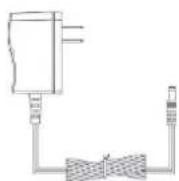
• Power Adapter
- Headset

Phone Installation
If your phone is already installed, proceed to Phone Initialization on page 13.
This section introduces how to install the phone:
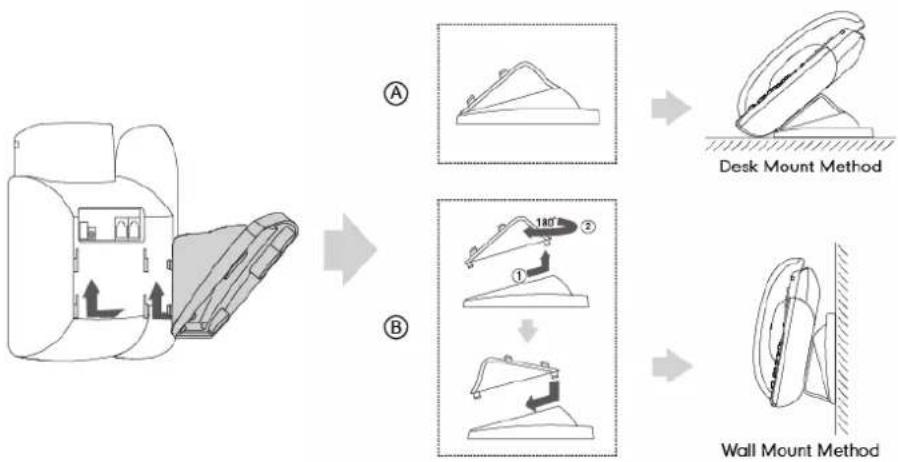
1) Attach the stand
2) Connect the handset and optional headset
3) Connect the network and power
1) Attach the Stand
2) Connect the Handset and optional Headset

natural_image
Line drawing of a 3D printer or printer with internal components and a separate paper clip (no text or symbols)

text_image
Diagram showing connections between two plug-in socket and plug-in cable with ear headphones, labeled in English.Note
A headset is not included in the packaging contents. Contact your system administrator for more information.
3) Connect the Network and Power
You have two options for power and network connections. Your system administrator will advise you which one to use.
- AC power
• Power over Ethernet (PoE)
AC Power
To connect the AC power:
- Connect the DC plug on the power adapter to the DC5V port on the phone and connect the other end of the power adapter into an electrical power outlet.
- Connect the included or a standard Ethernet cable between the Internet port on the phone and the one on the wall or switch/hub device port.

flowchart
graph TD
    A["Printer"] -->|AC Power Option| B["Power Adapter (DC 5V)"]
    B --> C["PC Connection (Optional)"]
    B --> D["Internet"]
    B --> E["PC"]
    B --> F["DC5V"]
Power over Ethernet
With the included or a regular Ethernet cable, the SIP-T20P IP phone can be powered from a PoE-compliant switch or hub. PoE is not applicable to the SIP-T20 IP phone.
To connect the PoE for the SIP-T20P IP phone:
- Connect the Ethernet cable between the Internet port on the phone and an available port on the in-line power switch/hub.

text_image
PoE ( Power over Ethernet ) Option DC5V Internet PC IEEE 802.3af compliant PoE Hub/Switch PC Connection (Optional)Note
If in-line power is provided, you don't need to connect the phone to the power adapter. Make sure the switch/hub is PoE-compliant.
The phone can also share the network with another network device such as a PC (personal computer). This is an optional connection.
Important! Do not remove power to the phone while it is updating firmware and configurations.
Phone Initialization
After your phone is powered on, the system boots up and performs the following steps:
Automatic Phone Initialization
The phone finishes the initialization by loading the saved configuration. The LCD screen displays "Initializing, Please wait" during this process.
DHCP (Dynamic Host Configuration Protocol)
The phone attempts to contact a DHCP server in your network to obtain valid network settings (e.g., IP address, subnet mask, default gateway address and DNS address) by default.
Note
If your network does not use DHCP, proceed to Basic Network Settings on page 15.
Phone Status
You can view phone status via phone user interface or web user interface.
Available information of phone status includes:
• Network status (e.g., IPv4 status, IP mode and MAC address).
- Phone status (e.g., device model, hardware version, firmware version, product ID, MAC address and device certificate status).
- Account status (e.g., the register status of SIP accounts).
Note
You can view device certificate status via phone user interface only.
To view the phone status via phone user interface:
- Press OK or press MENU and then select Status.
-
Press ⬆ or ⬇ to scroll through the list and view the specific information.
-
IP Address:
10.3.6.219
To view the phone status via web user interface:
- Open a web browser on your computer.
- Enter the IP address in the browser's address bar, and then press Enter.
- Enter the user name (admin) and password (admin) in the login page.

text_image
Login Enterprise IP phone SIP-T20P Username admin Password •••••• Confirm Cancel- Click Confirm to login.
Getting Started
The phone status is displayed on the first page of the web user interface.

text_image
Yealink | casp Status Account Network DOSOry Features Settings Directory Security Balance Service Primary Version 9.73.0.48 Maintenance Version 7.0.1.82 Network Internet Port 25x4 SPX4 Multi-Host Type DOP Internet IP Address 16.3.20.9 Satellite Host 255.205.205.8 Grienees 16.3.25.254 Primary GPE 285.248.1.20 Webinars GPE 190.248.1.26* Network Common MAC Address 3035048a0d8 Link Status Corrected Device Type BHPa Account Status Account1 C:\Users\13\HP - Registered Account2 Deated NOTE Version: 8 shows the version of Windows. Networks: 2 shows the information of WLS.com. You can think here to get more graphics.Basic Network Settings
If your phone cannot contact a DHCP server for any reason, you need to configure network settings manually. The IP phone can support either or both IPv4 and IPv6 addresses.
To configure the IP address mode via phone user interface:
1.
Press

- Press ⬇ to select Static IP and press Ⓞ.
-
Enter the desired values in the IP Address, Subnet Mask, Default Gateway, IPv4 Pri.DNS and IPv4 Sec.DNS fields respectively.
-
IP Address: 192.168.0.3
123
- Press OK to accept the change.
To configure a static IPv6 address via phone user interface:
-
Press MENUう.
-
Select Settings->Advanced Settings (default password: admin) ->Network->WAN Port.
Make sure that the IP address mode is configured as IPv6 or IPv4 & IPv6
- Press ⬇ to select IPv6 and press Ⓞ.
- Press ⬇ to select Static IPv6 and press Ⓞ.
-
Enter the desired values in the IPv6, IPv6 Prefix, IPv6 Gateway, IPv6 Pri.DNS and IPv6 Sec.DNS fields respectively.
-
IPv6: 2005:1:1:1::12
2aB
- Press OK to accept the change.
If you are using an xDSL modem for IPv4 network connection, you can connect your phone to the Internet via PPPoE mode. Set the WAN port as a PPPoE port. The PPPoE port will perform a PPP negotiation to obtain the IP address. Contact your system administrator for the PPPoE user name and password.
To configure PPPoE via phone user interface:
- Press MENU 7.
- Select Settings->Advanced Settings (default password: admin) ->Network->WAN Port.
- Press ⬇ to select IPv4 and press Ⓞ.
-
Press ⬇ to select PPPoE and press Ⓞ.
-
PPPoE User:
2aB
- Enter the user name and password in the corresponding fields.
- Press OK to accept the change.
Note
Wrong network settings may result in inaccessibility of your phone and may also have an impact on your network performance. For more information on these parameters, contact your system administrator.
Registration
Generally, your phone will be deployed with multiple other phones. In this case, your system administrator will configure the phone parameters beforehand, so that after you start up your phone, the phone will be registered and ready for use. The SIP-T20P/SIP-T20 IP phone supports up to 2 accounts. If your phone is not registered, you may have to register it. For more information on how to register your phone, refer to Account Management on page 45.
Idle Screen
If the phone has successfully started up, the idle screen will be displayed as below:
1008
Dec 17 09:20
The idle screen displays the label of current account, time and date.
Customizing Your Phone
You can customize your SIP-T20P/SIP-T20 IP phone by personally configuring certain settings, for example, language, time & date and ring tones. You can also personalize different ring tones for different callers.
This chapter provides basic operating instructions for customizing your phone. Topics include:
- General Settings
- Audio Settings
- Contact Management
• Call History Management
• System Customizations
If you require additional information or assistance with your new phone, contact your system administrator.
General Settings
Language
The default language of the phone user interface is English. If the language of your web browser is not supported by the phone, the web user interface will use English. You can change the language for the phone user interface and the web user interface respectively.
To change the language for the phone user interface:
- Press MENU つ
- Select Settings->Basic Settings->Language.
- Press ⬆ or ⬇ to select the desired language.
*1. English(English)
-
Français(French)
-
Press OK to accept the change.
Text displayed on the LCD screen will change to the selected language.
User Guide for the SIP-T20P/SIPT20 IP Phone
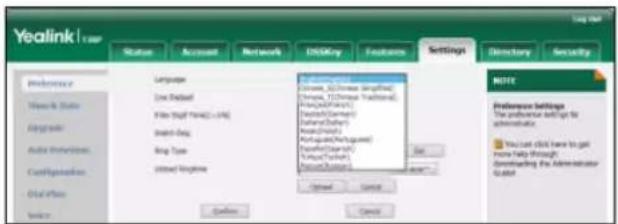
To change the language for web user interface:
- Click on Settings->Preference.
- Select the desired language from the pull-down list of Language.
text_image
Screenshot of Yealink User interface showing settings for language, email, and email client with a dropdown menu open.- Click Confirm to accept the change.
Text displayed on the web user interface will change to the selected language.
Time & Date
The time and date are displayed on the LCD screen when the phone is idle. If the phone cannot obtain the time and date from the Simple Network Time Protocol (SNTP) server, you need to configure the time and date manually. For more information on the SNTP server, contact your system administrator.
To configure the SNTP settings via phone user interface:
-
Press
-
Colour Cattions - Route Cattions - Time & Data - CMTD
To configure the time and date manually via phone user interface:
- Press
- Select Settings->Basic Settings->Time & Date->Manual.
- Enter the specific date in the Date field.
-
Enter the specific time in the Time field.
-
Date (Y-M-D):
14-05-18
- Press to accept the change.
The date and time displayed on the LCD screen will change accordingly.
To configure the time format via phone user interface:
- Press
-
Select Settings->Basic Settings->Time & Date->Time & Date.
-
Time Format:
*24 Hour
- Press or to select the desired time format from the Time Format field.
- Press or to select the desired date format from the Date Format field.
- Press to accept the change.
There are 3 available date formats. For example, for the date format "MM/DD/YY", "MM" represents the first three letters of the month, "DD" represents a two-digit day, and "YY" represents a two-digit year which is not displayed on the LCD screen of the SIP-T20P/SIP-T20 IP phone.
The date formats available:
| Date Format | Example (2014-11-15) |
| MM/DD/YY | Nov 15 |
| DD/MM/YY | 15 Nov |
| YY/MM/DD | 15 Nov |
Time and date is configurable via web user interface at the path Settings->Time & Date.
The Advanced Settings option is only accessible to the administrator. The default administrator password is "admin". For security reasons, you should change the default administrator password as soon as possible.
To change the administrator password via phone user interface:
- Press
- Select Settings->Advanced Settings (default password: admin) ->Set Password.
1. Current PWD:
abc
- Enter the old password in the Current PWD field.
- Enter the new password in the New PWD field.
- Re-enter the new password in the Confirm PWD field.
- Press to accept the change.
Administrator password is configurable via web user interface at the path Security->Password.
You can set the “#” or “*” to act as the send key while dialing.
To configure key as send via phone user interface:
- Press
- Select Features->Key as Send.
Key as Send:
* #
- Press or to select # or * from the Key as Send field, or select Disabled from the Key as Send field to disable this feature.
- Press to accept the change.
Key as send is configurable via web user interface at the path Features->General Information.
You can lock your phone temporarily when you are not using it. This feature helps you to protect your phone from unauthorized use.
Phone lock consists of the following:
Menu Key: The MENU key and MESSAGE key are locked. You cannot access the menu of the phone until unlocked.
Function Keys: The function keys are locked. You cannot use the MESSAGE, CONF, HOLD, MENU, TRAN, RD, Directory, OK, X, line keys and navigation keys until unlocked.
All Keys: All keys are locked except the Volume key. You are only allowed to dial emergency numbers, reject incoming calls by pressing the X key, answer incoming calls by lifting the handset, pressing the Speakerphone key, the HEADSET key or the OK key, mute an active call by pressing the X key, place an active call on hold by pressing the HOLD key, resume the held call by pressing the HOLD key, and end the call by hanging up the handset or pressing the Speakerphone key.
Note
The emergency number setting, if desired, must be made before lock activation. For more information, refer to Emergency Number on page 52.
To activate the phone lock via phone user interface:
- Press
- Select Settings->Advanced Settings (default password: admin) ->Phone Lock.
-
Press or to select desired type from the Phone Lock field.
-
Phone Lock:
◀ Menu Key ▶
-
Press to accept the change.
-
Long press to lock the phone immediately when the phone is idle.
The LCD screen prompts "Phone locked!" and displays the icon.
Phone
locked!
You can specify the interval (in seconds) to automatically lock the phone instead of long
pressing # _200 .
To configure the interval of automatic phone lock via web user interface:
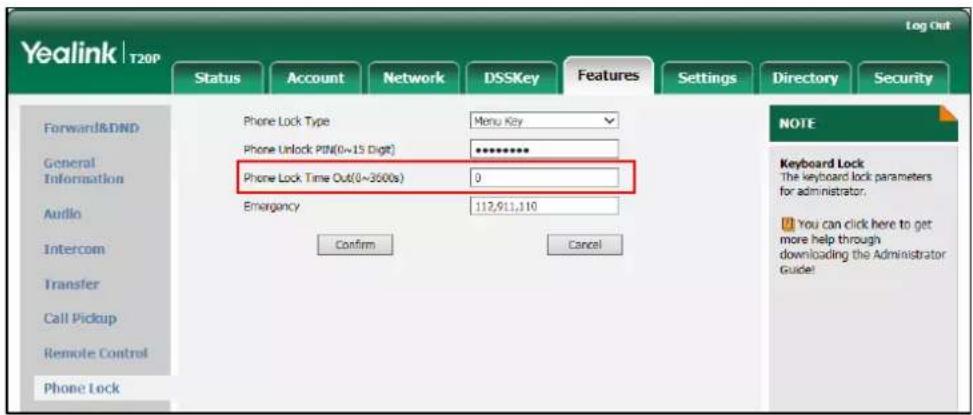
- Click on Features->Phone Lock.
- Enter the desired interval in the Phone Lock Time Out (0\~3600s) field.
text_image
Yealink | T20P Log Out Status Account Network DSSKey Features Settings Directory Security Forward&DND General Information Audio Intercom Transfer Call Pickup Remote Control Phone Lock Phone Lock Type Menu Key Phone Unlock PIN(0~15 Digit) ********** Phone Lock Time Out(0~3600s) 0 Emergency 112,911,110 Confirm Cancel NOTE Keyboard Lock The keyboard lock parameters for administrator. You can click here to get more help through downloading the Administrator Guide!- Click Confirm to accept the change.
Note
The default interval is 0 second, that is, you need to long press #use to lock the phone. The interval of automatic phone lock is configurable via web user interface only.
To unlock the phone, you must know the phone unlock PIN of the phone. The default phone unlock PIN is "123".
To change the phone unlock PIN via phone user interface:
- Press MENU
- Select Settings->Basic Settings->Phone Unlock.
-
Enter the old PIN in the Current PIN field.
-
Current PIN: 123
-
Enter the new PIN in the New PIN field.
- Re-enter the new password in the Confirm PIN field.
- Press OK to accept the change.
Note
The unlock PIN length must be within 15 digits.
To unlock the phone via phone user interface:
- Press any locked key.
- Enter the PIN in the Phone Unlock PIN field.
- Press to unlock the phone.
The icon disappears from the LCD screen.
You can long press or wait for a period of time (if configured) to lock the phone again.
Note
You can also unlock the phone by administrator password. When you enter the administrator password to unlock the phone, the phone will turn to the Reset Phone PIN screen.
To deactivate the phone lock via phone user interface:
- Press
- Select Settings->Advanced Settings (default password: admin) ->Phone Lock.
-
Press or to select Disabled from the Phone Lock field.
-
Phone Lock:
◀ Disabled ▶
- Press to accept the change.
Phone lock is configurable via web user interface at the path Features->Phone Lock.
You can press the Volume key to adjust the ringer volume when the phone is idle. You can also press the Volume key to adjust the receiver volume of currently engaged audio devices (handset, speakerphone or headset) when the phone is in use.
To adjust the volume when the phone is idle:
- Press to adjust the ringer volume.
To adjust the volume when the phone is during a call:
- Press ☐ to adjust the volume of currently engaged audio device (handset, speakerphone or headset).

text_image
1008Ring Tones
Ring tones are used to indicate incoming calls. You can select different ring tones to distinguish different accounts registered on your phone, or to distinguish your phone from your neighbor's.
To select a ring tone for the phone via phone user interface:
-
Press MENU
-
Select Settings->Basic Settings ->Sound->Ring Tones->Common.
-
Press ⬆ or ⬇ to select the desired ring tone.
*1. Ring1.wav
-
Ring2.wav
-
Press OK to accept the change.
A ring tone for the phone is configurable via web user interface at the path Settings->Preference->Ring Type.
To select a ring tone for the account via phone user interface:
-
Press MENU
-
Press Settings->Basic Settings ->Sound->Ring Tones.
-
Press ⬆ or ⬇ to select the desired account and then press the Enter soft key.
-
Press ⬆ or ⬇ to select the desired ring tone.
If Common is selected, this account will use the ring tone selected for the phone.
*1. Common
-
Ring1.wav
-
Press the Save soft key to accept the change or the Back soft key to cancel.
A ring tone for the account is configurable via web user interface at the path Account->Basic->Ring Type.
Note
The ring tone for an incoming call on the phone may be different. For example, when the phone receives an incoming call from a contact stored in the local directory, it will play the ring tone assigned to the contact in the contact directory (refer to Adding Contacts). If no ring tone is assigned to the contact, the phone will play the ring tone assigned to the associated group (refer to Adding Groups). Otherwise, the phone will play the ring tone assigned to the account. If no ring tone is assigned to the contact, the associated group or account, the phone will play the ring tone assigned to the phone.
To upload a custom ring tone for your phone via web user interface:
- Click on Settings->Preference.
- Click Browse to locate a ring tone file (the file format must be *.wav) from your local system.
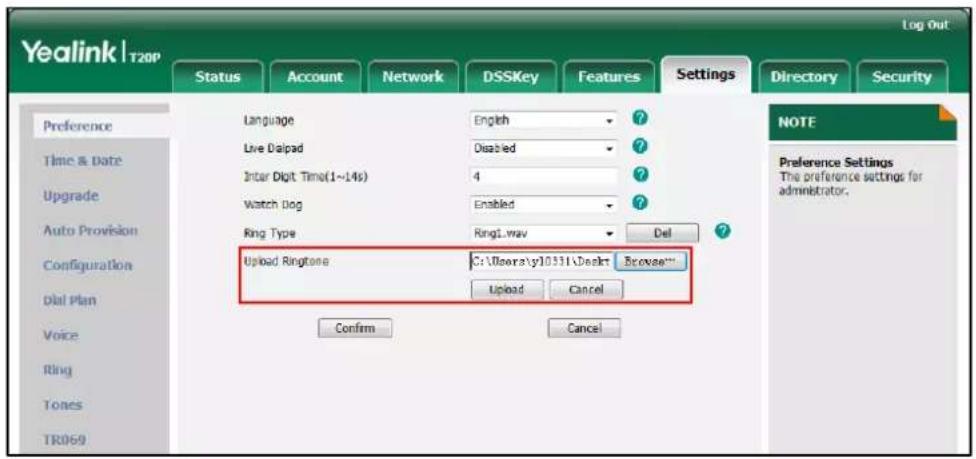
text_image
Yealink | T20P Log Out Status Account Network DSSKey Features Settings Directory Security Language English Live Dalpad Disabled Inter Digit Time(1~14s) 4 Watch Dog Enabled Ring Type Ring1.wav Del Upload Ringtone C:\Door3\y10331\Desktop Browse... Upload Cancel Confirm Cancel Preference Settings The preference settings for administrator. NOTE Preference Settings The preference settings for administrator. TR069- Click Upload to upload the file.
Note
All custom ring tone files must be no greater than 100KB. Custom ring tones for your phone can be uploaded via web user interface only.
Contact Management
This section provides the operating instructions for managing contacts. Topics include:
- Local Directory
- Blacklist
Local Directory
The built-in phone directory can store the names and phone numbers of your contacts. You can store up to 1000 contacts and 5 groups in your phone's local directory. You can add new groups and contacts, edit, delete or search for a contact, or simply dial a contact number from the local directory.
Adding Groups
To add a group to the local directory:
-
Press ☐ Ab3.
-
Select Local Directory.
-
Press ◀ or ▶ to select Add Group and then press OK.
-
Press ☐ to switch the input mode.
-
Enter the group name in the Name field.
Name: Test
abc
-
Press ⏻ or ⏻ to select the desired group ring tone from the Ring Tones field. If Auto is selected, this group will use the ring tone specified for the contact. If no ring tone is specified for the contact, it will then play the ring tone specified for the account. For more information on ring tone for the account, refer to Ring Tones on page 26.
-
Press OK to accept the change.
Editing Groups
To edit a group in the local directory:
-
Press Ab3
-
Select Local Directory.
-
Press ⬇ or ⬇ to select the desired group (e.g., Test).
-
Press ◀ or ▶ to select Edit and then press OK.
-
Press ☐ to switch the input mode.
Name: Test
abc
-
Press ⬆ or ⬇ to select the contact information and then edit.
-
Press OK to accept the change.
Deleting Groups
To delete a group from the local directory:
-
Press
-
Select Local Directory.
-
Press ⬆ or ⬇ to select the desired group (e.g., Test).
-
Press ◀ or ▶ to select Delete and then press OK. The LCD screen prompts "Delete selected group?".
Delete selected group?
- Press OK to accept the change.
Adding Contacts
You can add contacts to your local directory in one of the following ways:
- Manually
- From call history
Adding Contacts Manually
To add a contact to the local directory manually:
-
Press Ab3
-
Select Local Directory.
-
Press ◀ or ▶ to select Enter and then press OK.
If the groups have been added to the local directory, select the desired group, then press ◀ or ▶ to select Enter and then press OK.
-
Press ⬆ or ⬇ to scroll to New Item.
-
Press OK to add a new contact.
-
Press ☐ to switch the input mode.
Name:
abc
-
Enter the name and the office, mobile or other numbers in the corresponding fields
-
Press ⬆ or ⬇ to select the desired account from the Account field.
If Auto is selected, the phone will use the first available account when placing calls to the contact from the local directory.
- Press ⏻ or ⏱ to select the desired ring tone from the Ring Tones field.
If Auto is selected, this contact will use the ring tone assigned to the group.
- Press OK to accept the change.
Note
If the contact already exists in the directory, the LCD screen prompts "Contact Name existed!".
Adding Contacts from Call History
To add a contact to the local directory from call history:
-
Press ⬆.
-
Press ⬆ or ⬇ to select the desired entry.
-
Press ☐ Ab3
-
Press ☐ to switch the input mode, and enter the contact name in the Name field.
Name:
abc
- Press OK to accept the change.
The entry is successfully saved to the local directory.
Editing Contacts
To edit a contact in the local directory:
-
Press Ab3 .
-
Select Local Directory.
-
Press ◀ or ▶ to select Enter and then press OK.
If the groups have been added to the local directory, select the desired group, then press ◀ or ▶ to select Enter and then press OK.
- Select the desired contact and press ◀ or ▶ to select Edit.
Name: john
abc
-
Press ⬆ or ⬇ to select the contact information and then edit.
-
Press OK to accept the change.
Deleting Contacts
To delete a contact from the local directory:
-
Press
-
Select Local Directory.
-
Press ◀ or ▶ to select Enter and then press OK.
If the groups have been added to the local directory, select the desired group, then press ◀ or ▶ to select Enter and then press Ⓞ.
-
Press ⬇ or ⬇ to select the desired contact.
-
Press ◆ or ▶ to select Delete and then press OK.
The LCD screen prompts "Delete selected item?".
- Press ☐ to confirm the deletion.
Placing Calls to Contacts
To place a call to a contact in the local directory:
-
Press ☐ and
-
Select Local Directory.
-
Press ◀ or ▶ to select Enter and then press OK.
If the groups have been added to the local directory, select the desired group, then press ◀ or ▶ to select Enter and then press OK.
-
Press ⬆ or ⬇ to select the desired contact.
-
Press ◀ or ▶ to select Send.
-
Do one of the following:
- If only one number for the contact is stored in the local directory, press OK to dial out the number.
- If multiple numbers for the contact are stored in the local directory, press to display a list of numbers.
Press ⬆ or ⬇ to select the desired number.
Press OK to dial out the number.
Searching for Contacts
To search for a contact in the local directory:
- Press Ab3
- Select Local Directory.
- Press ◀ or ▶ to select Enter and then press Ⓞ.
If the groups have been added to the local directory, select the desired group, then press ◀ or ▶ to select Enter and then press OK.
- Enter a few continuous characters of the contact name or continuous numbers of the contact number (office, mobile or other number) using the keypad.
Searchtom
2aB
- Press OK.
The contacts whose name or phone number matches the characters you entered will appear on the LCD screen. You can dial from the query result.
Importing/Exporting Contact Lists
You can manage your phone's local directory via phone or web user interface. But you can only import or export the contact list via web user interface.
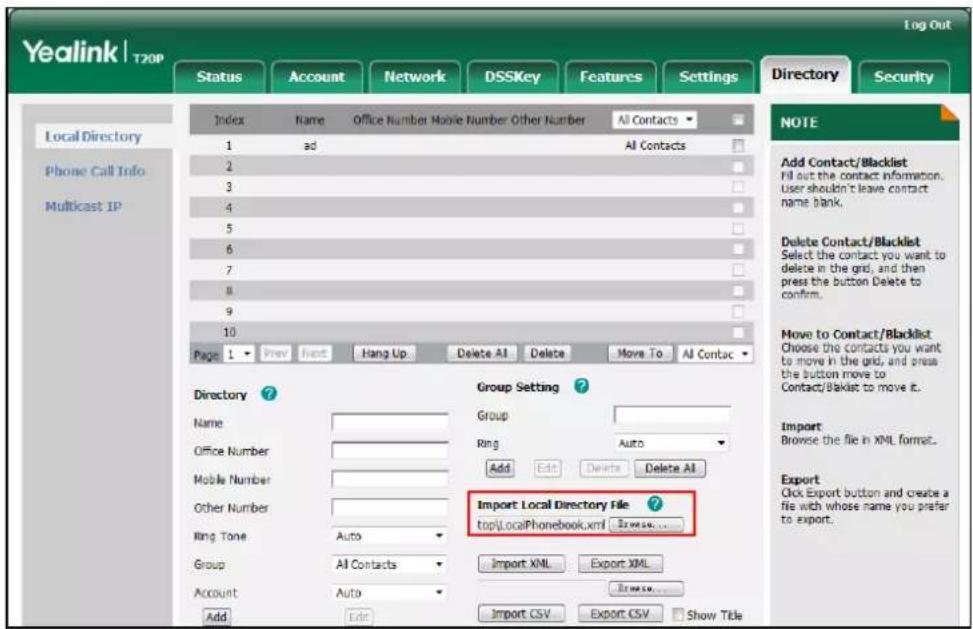
To import an XML contact list file via web user interface:
-
Click on Directory->Local Directory.
-
Click Browse to locate a contact list file (the file format must be *.xml) from your local system.
text_image
Yealink | T20P Log Out Index Name Office Number Mobile Number Other Number All Contacts 1 ad All Contacts 2 3 4 5 6 7 8 9 10 Page 1 Prev Next Hang Up Delete All Delete Move To All Contac Directory ? Name Office Number Mobile Number Other Number Ring Tone Auto Group All Contacts Account Auto Add Edit Group Setting ? Group Ring Auto Add Edit Delete Delete All Import Local Directory File ? top\LocalPhonebook.xml Browse... Import XML Export XML Browse... Import CSV Export CSV Show Title NOTE Add Contact/Blacklist Fill out the contact information. User shouldn't leave contact name blank. Delete Contact/Blacklist Select the contact you want to delete in the grid, and then press the button Delete to confirm. Move to Contact/Blacklist Choose the contacts you want to move in the grid, and press the button move to Contact/Blacklist to move it. Import Browse the file in XML format. Export Click Export button and create a file with whose name you prefer to export.- Click Import XML to import the contact list.
The web user interface prompts "The original contact will be covered, Continue?".
- Click OK to complete importing the contact list.
To import a CSV contact list file via web user interface:
- Click on Directory->Local Directory.
- Click Browse to locate a contact list file (the file format must be *.csv) from your local system.
- (Optional.) Check the Show Title checkbox.
It will prevent importing the title of the contact information which is located in the first line of the CSV file. - Click Import CSV to import the contact list.
- (Optional.) Mark the On radio box in the Delete Old Contacts field.
It will delete all existing contacts while importing the contact list. - (Optional.) Select the contact information you want to import into the local directory from the pull down list of Index.
At least one item should be selected to be imported into the local directory.

text_image
Yealink | T20P Log Out Status Account Network DSSKey Features Settings Directory Security Delete Old Contacts ● On ○ Off Preview Index Display Name Office Number Mobile Number Other Number Line 1 Bob 1234 2235 2214 0 2 Joy 3369 2489 1478 0 3 Lda 8743 9563 0 Kewo NOTE contacts-preview note You can click here to get more help through downloading the Administrator Guide!- Click Import to complete importing the contact list.
To export contact list via web user interface:
- Click on Directory->Local Directory.
- Click Export XML (or Export CSV).
- Click Save to save the contact list to your local system.
Note
Contact lists can be imported/exported via web user interface only.
Blacklist
The built-in phone directory can store names and phone numbers for a blacklist. You can store up to 30 contacts, add, edit, delete or search for a contact in the blacklist directory, and even call a contact from the blacklist directory. Incoming calls from blacklist directory contacts will be rejected automatically.
To add a contact to the blacklist manually:
-
Press
-
Select Blacklist.
-
Press ⬆ or ⬇ to scroll to New Item.
-
Press OK to add a new contact.
-
Press ☐ to switch the input mode.
-
Enter the name and the office, mobile or other numbers in the corresponding fields.
Name: Test
abc
- Press ◀ or ▶ to select the desired account from the Account field.
If Auto is selected, the phone will use the first available account when placing calls to the contact from the blacklist.
- Press OK to accept the change.
For operating instructions on adding, editing, deleting, placing calls to and/or searching for contacts in the blacklist, refer to the operating instructions of Local Directory on page 28.
Call History Management
The SIP-T20P/SIPT20 IP phone maintains call history lists of Placed Calls, Received Calls, Missed Calls and Forwarded Calls. Call history lists support up to 100 entries. You can view call history, place a call, add a contact or delete an entry from the call history list. History record feature is enabled by default. If you don't want to save the call history, you can disable the feature.
To disable history record via phone user interface:
- Press
- Select Features->History Setting
- Press ⊙ or ⊙ to select Disabled from the History Record field.

- Press ⬆ to accept the change.
To view call history:
- Press
The LCD screen displays the last cell history.
To add a contact to the local directory from the call history list:
- Press ⬆.
The LCD screen displays the call list.
-
Press ◀ or ▶ to switch between placed calls, received calls, missed calls and forwarded calls.
-
Press ⬆ or ⬇ to select the desired entry.
-
Press Ab1.
-
Enter the desired values in the corresponding fields.
-
Press OK.
For more information, refer to Contact Management on page 27.
To delete an entry from the call history list:
- Press ⬆.
The LCD screen displays the call list.
-
Press ◀ or ▶ to switch between placed calls, received calls, missed calls and forwarded calls.
-
Press ⬆ or ⬇ to select the desired entry.
-
Press ✗ to delete the entry.
System Customizations
Logo Customization
You can customize text logo which would be displayed on the idle screen.
To customize a text logo via web user interface:
-
Click on Features->General Information.
-
Select Enabled from the pull-down list of Use Logo.
3. Enter the desired text in the Text Logo field.

text_image
Yealink | T20P Log Out Status Account Network DSSKey Features Settings Directory Security Forward&DND General Information General Information Audio Intercom Transfer Call Pickup Remote Control Phone Lock ACD Action URL Power LED Notification Popups General Information Call Waiting Enabled Auto Radial Disabled Auto Radial Interval (1~300s) 10 Auto Radial Times (1~300) 10 Key As Send # Reserve # in User Name Enabled ... Use Logo Enabled Text Logo Yealink Voice Mail Tone Enabled DHCP Hostname SIP-T20P Reboot In Talking Disabled Hide Feature Access Codes Disabled Display Method on Dialing User Name Auto Linekeys Disabled Confirm Cancel NOTE Call Waiting This call feature allows your phone to accept other incoming calls during the conversation. Key As Send Select " or # as the send key." Hotline Number When you pick up the phone, it will dial out the hotline number automatically. Confirm Cancel4. Click Confirm to accept the change.
Note
The maximum length of text logo is 15 characters.
A text logo is configurable via web user interface only.
Headset Use
Physically connect your headset and activate the headset mode for use. For more information on physically connecting a headset, refer to Phone Installation on page 11.
Headset Mode Activation/Deactivation
To activate the headset:
- Press HEADSET on the phone.
The 🔒 icon on the LCD screen indicates that the headset mode is activated. Press the line key to answer a call. The call will connect to your headset automatically. Enter the desired number and press OK, the phone will then place a call using the headset automatically. For more information on using the headset to place a call, refer to Placing Calls on page 55.
To deactivate the headset:
- Press HEADSET again on the phone.
The headset icon disappears when the headset mode is deactivated.
Headset Prior
You can use headset in priority when headset prior feature is enabled. This feature is especially useful for permanent or full-time headset users.
To enable Headset Prior via web user interface:
- Click on Features->General Information.
- Select Enabled from the pull-down list of Headset Prior.

text_image
Yealink T20P Log Out Status Account Network DSSKey Features Settings Directory Security Forward&DND General Information General Information Audio Intercom Transfer Call Pickup Remote Control Phone Lock ACD Action URL Power LED Notification Popups General Information Call Waiting Enabled Auto Redial Disabled Auto Redial Interval (1~300s) 10 Auto Redial Times (1~300) 10 Key As Send Reserve # in User Name Enabled Hotline Number Hotline Delay(0~10s) 4 Headset Prior Enabled DTMF Replace Tran Disabled Time-Out for Dial-Now Rule 1 Voice Mail Tone Enabled Hide Feature Access Codes Disabled Display Method on Dialing Label Confirm Cancel NOTE Call Waiting This call feature allows your phone to accept other incoming calls during the conversation. Key As Send Select # or # as the send key. Hotline Number When you pick up the phone, it will dial out the hotline number automatically. CONF- Click Confirm to accept the change.
To use headset prior, you should activate the headset mode in advance:
- Physically connect the headset.
- Press HEADSET to activate the headset mode.
Note
If headset prior is enabled, the headset mode will not be deactivated until you press the HEADSET key again.
If headset prior is disabled, the headset mode can be deactivated by pressing the speakerphone key or the HEADSET key.
Headset prior is configurable via web user interface only.
Dual Headset
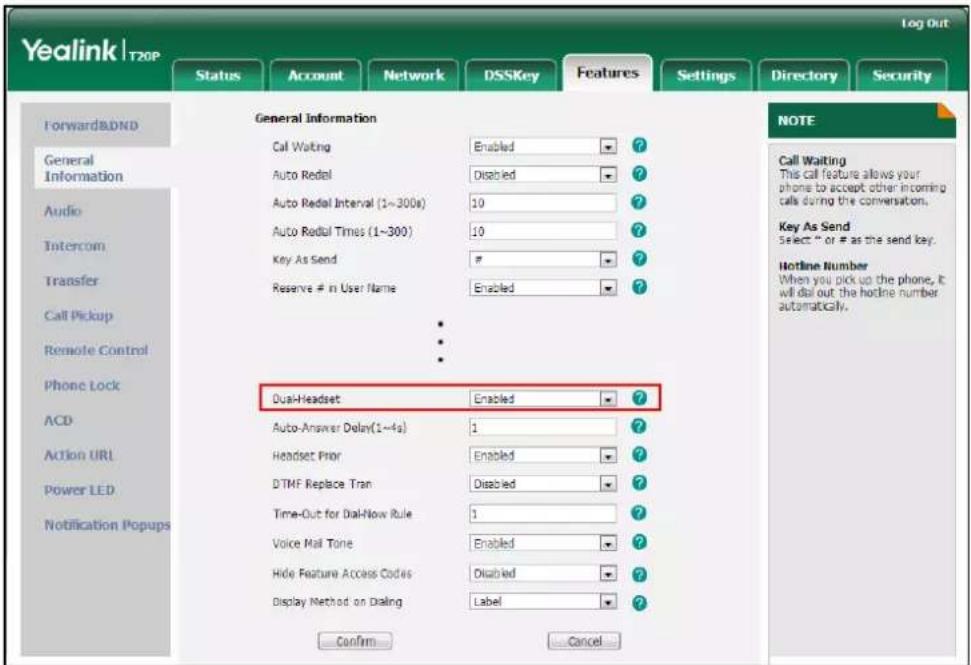
You can use two headsets when dual headset feature is enabled. To use this feature, you must physically connect headsets to the headset jack and handset jack respectively.
Once the phone connects to a call, the headset connected to the headset jack will have full-duplex capabilities, while the one connected to the handset jack will only be able to listen.
To enable Dual Headset via web user interface:
- Click on Features->General Information.
- Select Enabled from the pull-down list of Dual-Headset.
text_image
Yealink | T20P Log Out Status Account Network DSSKey Features Settings Directory Security Forward&DND General Information Audio Intercom Transfer Call Pickup Remote Control Phone Lock ACD Action URL Power LED Notification Popups General Information Call Waiting Enabled Auto Redial Disabled Auto Redial Interval (1~300s) 10 Auto Redial Times (1~300) 10 Key As Send # Reserve # in User Name Enabled Dual-Headset Enabled Auto-Answer Delay(1~4s) 1 Headset Prior Enabled DTMF Replace Tran Disabled Time-Out for Dial-Now Rule 1 Voice Mail Tone Enabled Hide Feature Access Codes Disabled Display Method on Dialing Label Confirm... Cancel NOTE Call Waiting This call feature allows your phone to accept other incoming calls during the conversation. Key As Send Select " or # as the send key. Hotline Number When you pick up the phone, it will dial out the hotline number automatically. Confirm... Cancel- Click Confirm to accept the change.
Note
Dual headset is configurable via web user interface only.
DSS Keys
There are two types of DSS keys: Line Keys and Programmable Keys. The details will be introduced in the following. SIP-T20P/SIP-T20 IP phone supports 2 line keys.
Line Keys
You can assign predefined functionalities to the line keys located on the right of the phone. Line keys allow you to have quick access to features such as recall or voice mail. The line key LEDs will indicate status when the keys are assigned with particular features, such as BLF. The default key type of each line key is Line.
To configure a line key via phone user interface:
-
Press MENU 7.
-
Select Features->DSS Keys.
- Select the desired DSS key, and then press OK.
- Select the desired type from the Type field.
- (Optional.) Select the desired key event from the Key Type field.
- (Optional.) Select the desired account from the Account ID field.
- (Optional.) Enter the corresponding value in the Extension field.
- Press OK to accept the change.
Line key is configurable via web user interface at the path DSSKey->Line Key.
Note
When the phone is idle, you can also long press the line key to configure it directly on the phone.
Common used line key features are explained in the following subchapters in detail:
- Speed Dial
- Voice Mail
• DTMF - Prefix
- Local Group
- Conference
- Forward
- Transfer
- Hold
• DND - Zero Touch
- PhoneLock
- Group Listening
For the features not listed above, refer to Basic Call Features on page 55 and Advanced Phone Features on page 81. For more information, contact your system administrator.
Speed Dial
You can use this key feature to speed up dialing the numbers frequently used or hard to remember.
Dependencies: Type (Speed Dial)
Account ID (the account this feature will be applied to)
Value (the number you want to dial out)
Usage: Press the DSS key to dial out the number specified in the Value field, using the account selected from the Account ID field.
Voice Mail
You can use this key feature to quickly connect voice mail. For more information, refer to Voice Mail on page 95.
Dependencies: Type (Key Event)
Key Type (Voice Mail)
Account ID (the account this feature will be applied to)
Value (the voice mail access code)
Usage: Press the DSS key to dial out the voice mail access code. Then follow the voice prompt to listen to voice mails.
DTMF
You can use this key feature to send the specification of arbitrary key sequences via DTMF.
Dependencies: Type (Key Event)
Key Type (DTMF)
Value (DTMF sequence)
Note
DTMF sequence only contains "0-9", "*", "#" and "A-D".
Usage: Press the DSS key during an active call to send the key sequence specified in the Value field.
Prefix
You can use this key feature to add a specified prefix number before the dialed number.
Dependencies: Type (Key Event)
Key Type (Prefix)
Value (the prefix number)
Usage: Press the DSS key when the phone is idle, the phone will then enter the pre-dialing screen and display the prefix number that you specified in the Value field. You can enter the remaining digits and then dial out.
Local Group
You can use this key feature to quickly access a contact group in the local directory. For more information, refer to Local Directory on page 28.
Dependencies: Type (Key Event)
Key Type (Local Group)
Local Group (the contact group you want to access)
Usage: Press the DSS key to access the contact group specified in the Local Group field.
Conference
You can use this key feature to set up a conference call. For more information, refer to
Conference on Page 72.
Dependencies: Type (Key Event)
Key Type (Conference)
Value (the number you want to add to the conference)
Usage: Press the DSS key during an active call to set up a conference with the number specified in the Value field.
Note
If the Value field is left blank, the DSS key performs the same function as the CONF key during a call.
Forward
You can use this key feature to forward an incoming call to someone else. For more information, refer to Call Forward on page 66.
Dependencies: Type (Key Event)
Key Type (Forward)
Value (the number you want to forward to)
Usage: Press the DSS key to forward an incoming call to the number specified in the Value field.
Note
If the Value field is left blank, the DSS key performs the same function as the TRAN key when receiving an incoming call.
Transfer
When there is an active call on the phone, you can use this key feature to handle the call differently depending on the transfer mode assigned to the DSS key.
Dependencies: Type (Key Event)
Key Type (Tran)
Value (the number you want to transfer to)
Usage:
- When the transfer mode on DSS key is Blind Transfer, press the DSS key to complete the blind transfer to the number specified in the Value field.
- When the transfer mode on DSS key is Attended Transfer, press the DSS key to dial out the number specified in the Value field, and then you can perform the attended or semi-attended transfer.
- When the transfer mode on DSS key is New Call, press the DSS key to place a new call to the number specified in the Value field.
Note
Transfer mode on DSS key is configurable via web user interface at the path Features->Transfer->Transfer Mode Via Dsskey.
If the Value field blank is left blank, the DSS key performs the same function as the TRAN key during a call. For more information, refer to Call Transfer on page 71.
Hold
You can use this key feature to hold an active call or retrieve a held call.
Dependencies: Type (Key Event)
Key Type (Hold)
Usage:
- Press the DSS key during an active call to place the call on hold.
- Press the DSS key again to retrieve the held call.
DND
You can use this key feature to activate or deactivate DND. You can also use this key feature to access the custom DND screen. For more information, refer to Do Not Disturb (DND) on page 63.
Dependencies: Type (Key Event)
Key Type (DND)
Usage:
When the phone is in phone mode:
- Press the DSS key to activate DND.
- Press the DSS key again to deactivate DND.
When the phone is in custom mode:
- Press the DSS key to access the custom DND screen.
- Activate or deactivate DND for an account.
Note
When DND is activated, the incoming calls will be rejected automatically.
Group Listening
You can use this key feature to activate the Speakerphone and Handset/Headset mode at the same time. It is suitable for the group conversations which have more than one person present at one end. You are able to speak and listen through the handset/headset, while the others nearby can only listen through the speaker.
Dependencies: Type (Key Event)
Key Type (Group Listening)
Usage:
- During a call, press the DSS key to activate the group listening mode.
You can then speak and listen through the handset/ headset, while other people at your side can only listen through the speaker at the same time. - Press the DSS key again to deactivate the group listening mode.
Zero Touch
You can use this key feature to quickly configure the network parameters.
Dependencies: Type (Key Event)
Key Type (Zero Touch)
Usage:
- Press the DSS key to access the zero touch screen.
- Press OK within a few seconds.
- Configure the network parameters in the corresponding fields.
- Press OK.
- Configure the auto provision parameters in the corresponding fields.
- Press OK.
The phone will reboot to update configurations.
Phone Lock
You can use this key feature to immediately lock your phone instead of long pressing. For more information, refer to Phone Lock on page 23.
Dependencies: Type (Phone Lock)
Usage: Press the DSS key to immediately lock your phone instead of long pressing #.
Programmable Keys
You can customize the navigation keys, HOLD, CONF, TRAN keys on the keypad.
To customize programmable keys via web user interface:
- Click on DSSKey->Programmable Key.
- Customize specific features for these keys.

text_image
Yealink | T20P Log Out Status Account Network DSSKey Features Settings Directory Security Line Key Programable Key Key Type Line Value Label Extension Up History Local History Down Directory N/A Left Switch Account N/A Right Switch Account N/A OK Status N/A Cancel N/A CONF N/A Hold N/A TRAN Forward N/A Confirm Cancel Reset to default NOTE Key Type The free function key "Types" Speed Dial, Key Event, Intercom. Key Event Key events are predefined shortcuts to phone and call functions. Intercom Enable the 'Intercom' mode and It is useful in an office environment as a quick access to connect to the operator or the secretary. You can click here to get more help through downloading the Administrator Guide!- Click Confirm to accept the change.
You can click Reset to default to reset custom settings to defaults.
Then you can press the keys on the phone to perform the features you configured.
For example:
Switch Account
You can press this key to switch default account.
Dependencies: Type (Switch Account)
Usage: Press the programmable key to scroll down the account list to select the desired default account.
Note
Programmable keys are configurable via web user interface only.
You can register two accounts at most on the SIP-T20P/SIP-T20 IP phone. You can also configure each line key to associate with an account or configure two line keys to associate with an account.
To register an account via phone user interface:
- Press
- Select Settings->Advanced Settings->Accounts.
- Select the desired account.
- Select Enabled from the Activation field.
1. Activation:
◀ Enabled ▶
- Enter the desired values in the Label, Display Name, Register Name, User Name, Password and SIP Server1/2 fields respectively. Contact your system administrator for more information.
- Press to accept the change.
You can repeat steps 3 to 5 to register more accounts.
To disable an account via phone user interface:
- Press
- Select Settings->Advanced Settings ->Accounts.
- Select the desired account.
- Select Disabled from the Activation field.
- Press to accept the change.
Account registration is configurable via web user interface at the path Account->Register.
Multiple Line Keys per Account
You can configure two line keys to associate with an account. This enhances call visualization and simplifies call handling.
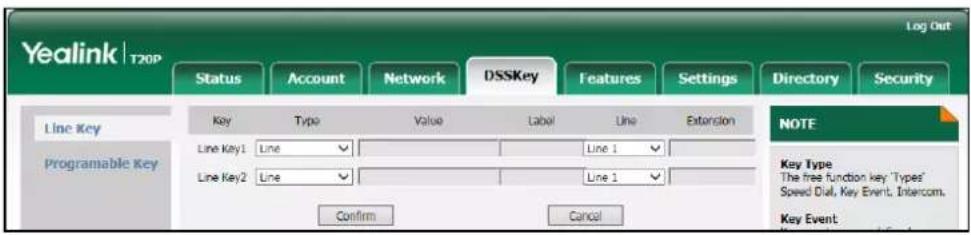
text_image
Yealink | T20P Log Out Status Account Network DSSKey Features Settings Directory Security Line Key Programable Key Key Type Value Label Line Extension Line Key1 Line Line 1 Line Key2 Line Line 1 Confirm Cancel NOTE Key Type The free function key 'Types' Speed Dial, Key Event, Intercom. Key EventIncoming calls to this account will be distributed evenly among the available line keys. Outgoing calls will be distributed similarly.
Your phone can be configured to have a combination of accounts with a line key and accounts with two line keys.
Dial Plan
Dial plan is a string of characters that governs the way your SIP-T20P/SIP-T20 IP phone processes the inputs received from your phone keypad. The SIP-T20P/SIP-T20 IP phone supports the following dial plan features:
- Replace Rule
- Dial-now
- Area Code
- Block Out
The basic expression syntax you need to know:
| . | The dot "." can be used as a placeholder or multiple placeholders for any character. Example: "12." would match "123", "1234", "12345", etc. |
| x | An "x" can be used as a placeholder for any character. Example: "12x" would match "121", "122", "123", etc. |
| [] | The square brackets "[]" can be used as a placeholder for a single character which matches any of a set of characters. Example: "91[5-7]1234" would match "9151234", "9161234", "9171234". |
| () | The parentheses "( ) "can be used to group together patterns, for instance, to logically combine two or more patterns. Example: "91([5-7])1(x)" would match "91511", "91618", "91715". |
| The "" should be followed by the sequence number of a parenthesis. The "" plus the sequence number means the whole character or characters placed in the parenthesis. The number directs to the right parenthesis when there are more than one. Example:A replace rule configuration, Prefix: "001(xxx)45(xx)", Replace: "90011452". When you dial out "0012354599" on your phone, the IP phone will replace the number with "90012354599". "1" means 3 digits in the first parenthesis, that is, "235". "$2" means 2 digits in the second parenthesis, that is, "99". |
Replace Rule
You can configure one or more replace rules (up to 100) to remove the specified string and replace it with another string. You can configure a pattern with wildcards (refer to the expression syntax in the table above), so that any string that matches the pattern will be replaced. This feature is convenient for you to dial out a long number. For example, a replace rule is configured as "Prefix: 1" and "Replace: 1234", when you try to dial out the number "1234", you just need to enter "1" on the phone and then press the Send soft key.
To add a replace rule via web user interface:
- Click on Settings->Dial Plan->Replace Rule.
- Enter the string (e.g., 1) in the Prefix field.
- Enter the string (e.g., 1234) in the Replace field.
- Enter the desired line ID in the Account field or leave it blank.
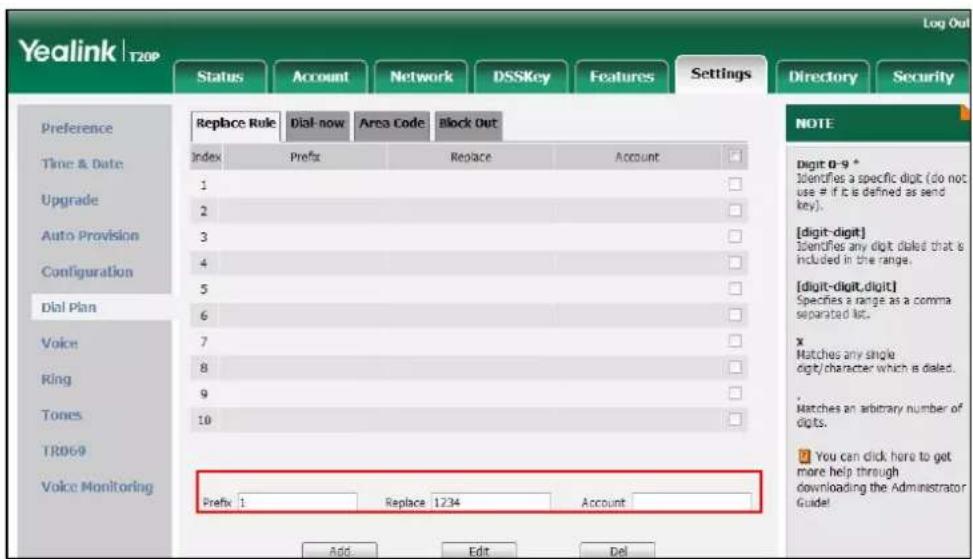
text_image
Yealink T20P Log Out Status Account Network DSSKey Features Settings Directory Security Preference Replace Rule Dial-now Area Code Block Out Time & Date Index Prefix Replace Account 1 2 3 4 5 6 7 8 9 10 Voice Ring Tones TR06-9 Voice Monitoring Prefix 1 Replace 1234 Account Add Edit Del NOTE Digit 0-9 * Identifies a specific digit (do not use # if it is defined as send key). [digit-digit] Identifies any digit dated that is included in the range. [digit-digit,digit] Specifies a range as a comma separated list. x Matches any single digit/character which is dated. ... Matches an arbitrary number of digits. You can click here to get more help through downloading the Administrator Guide!- Click Add to add the replace rule.
When you enter the number "1" using the keypad and then press the OK key, the phone will dial out "1234" instead.
Note
The valid values for the Account field can be one or more digits between 1 and 2. Each digit must be separated by a comma. For example, when you enter the value "1, 2" in the Account field, this replace rule will apply to account1 and account2.
If you leave the Account field blank or enter 0, the replace rule will apply to all accounts.
To edit a replace rule via web user interface:
- Click on Settings->Dial Plan->Replace Rule.
- Select the desired replace rule by checking the check box.
- Edit the values in the Prefix and Replace fields.
- Enter the desired line ID in the Account field or leave it blank.
- Click Edit to accept the change.
To delete one or more replace rules via web user interface:
- Click on Settings->Dial Plan->Replace Rule.
- Select one or more replace rules by checking the check box(es).
- Click Del to delete the replace rule(s).
Note
Replace rule is configurable via web user interface only.
Dial-now
You can configure one or more dial-now rules (up to 100) on your phone. When the dialed out number matches the dial-now string, the number will be dialed out automatically. For example, a dial-now rule is configured as "2xx", any entered three-digit string beginning with 2 will then be dialed out automatically on the phone.
To add dial-now rule via web user interface:
- Click on Settings->Dial Plan->Dial now.
- Enter the desired value (e.g., 2xx) in the Rule field.
- Enter the desired line ID in the Account field or leave it blank.
For more information on the valid values for the Account field, refer to Replace Rule on page 47.
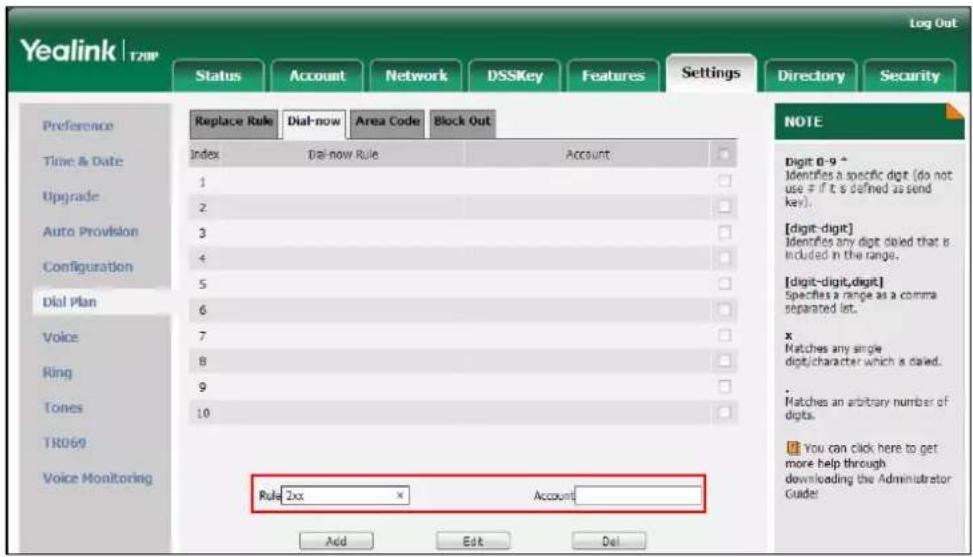
text_image
Yealink T20P Log Out Status Account Network DSSKey Features Settings Directory Security Preference Replace Rule Dial-now Area Code Block Out Time & Date Index Dial-now Rule Account 1 2 3 4 5 6 7 8 9 10 Voice Ring Tones TR069 Voice Monitoring Rule 2xx Account Add Edit Del NOTE Digit 0-9 * Identifies a specific digit (do not use # if it is defined as send key). [digit-digit] Identifies any digit dated that is included in the range. [digit-digit,digit] Specifies a range as a comma separated let. x Matches any single digit/character which is dated. • Matches an arbitrary number of digits.You can click here to get more help through downloading the Administrator Guide
- Click Add to add the dial-now rule.
When you enter the number "234" using the keypad, the phone will dial out "234" automatically without the pressing of any key.
Note
You can also edit or delete the dial-now rule, refer to Replace Rule on page 47 for more information.
Dial-now rule is configurable via web user interface only.
Delay Time for Dial-now Rule
You can configure the delay time for dial-now rules. That is, you can configure your phone to automatically dial out the phone number which matches a dial-now rule, after the designated delay time.
To configure the delay time for dial-now rule via web user interface:
-
Click on Features->General Information.
-
Enter the time between 1 and 14 (seconds) in the Time-Out for Dial-Now Rule field.
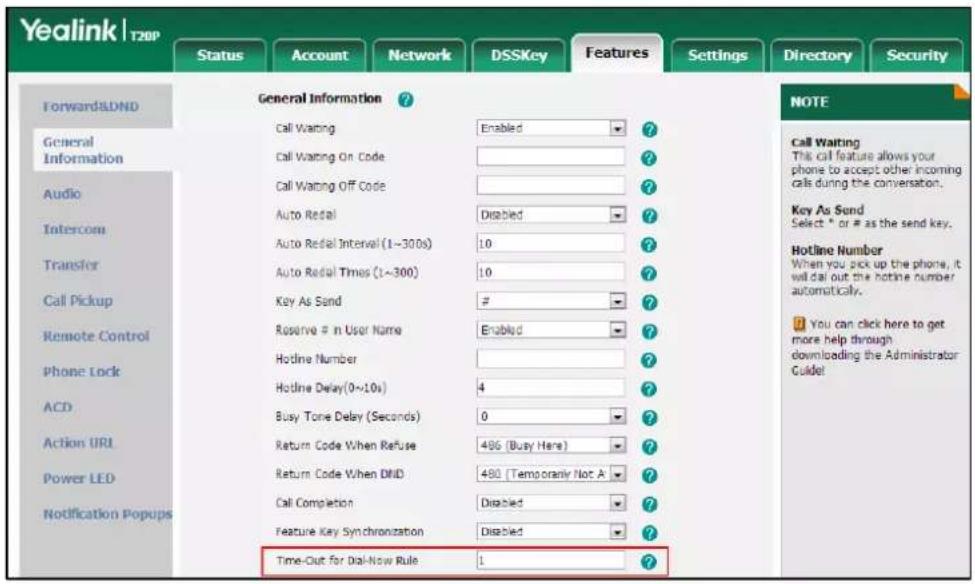
text_image
Yealink | T20P Status Account Network DSSKey Features Settings Directory Security Forward&ND General Information ? General Information Call Waiting Enabled ? Call Waiting On Code ? Call Waiting Off Code ? Auto Retail Disabled ? Auto Retail Interval (1~300s) 10 ? Auto Retail Times (1~300) 10 ? Key As Send # Reserve # in User Name Enabled ? Hotline Number ? Hotline Delay(0~10s) 4 ? Busy Tone Delay (Seconds) 0 ? Return Code When Refuse 486 (Busy Here) ? Return Code When DND 480 Temporarily Not A ? Call Completion Disabled ? Feature Key Synchronization Disabled ? Time-Out for Dial-Now Rule 1 ? NOTE Call Waiting This call feature allows your phone to accept other incoming calls during the conversation. Key As Send Select * or # as the send key. Hotline Number When you pick up the phone, it will dial out the hotline number automatically. You can click here to get more help through downloading the Administrator Guide!- Click Confirm to accept the change.
Note
Delay time for dial-now rule is configurable via web user interface only.
Area Code
Area codes are also known as Numbering Plan Areas (NPAs). They usually indicate geographical areas in a country. This feature is necessary when dialing a phone number outside the code area. For example, an area code is configured as "Code: 0592, Min Length: 1, Max Length: 15". When you dial out the number "56789" (the length of the number is between 1 and 15), the phone will add the area code and dial out the number "059256789". You can only configure one area code rule on your phone.
To configure the area code via web user interface:
- Click on Settings->Dial Plan->Area Code.
- Enter the desired values in the Code, Min Length (1-15) and Max Length (1-15) fields.
3. Enter the desired line ID in the Account field or leave it blank.
For more information on the valid values for the Account field, refer to Replace Rule on page 47.

text_image
Yealink | T20P Log Out Status Account Network DSSKey Features Settings Directory Security Preference Replace Rule Dial-now Area Code Block Out Time & Date Upgrade Auto Provision Configuration Dial Plan Voice King Tones TR069 Voice Monitoring Code 0592 Min Length (1-15) 1 Max Length (1-15) 15 Account 1 Confirm Cancel NOTE Digit 0-9 * Identifies a specific digit (do not use if it is defined as send key). [digit-digit] Identifies any digit dated that is included in the range. [digit-digit,digit] Specifies a range at a comma separated list. x Matches any single digit/character which is dated. • Matches an arbitrary number of digits. □ You can click here to get more help through downloading the Administrator Guide!4. Click Confirm to accept the change.
Note
The default values of minimum and maximum lengths are 1 and 15 respectively.
Area code is configurable via web user interface only.
Block Out
You can block specific numbers from being dialed on your phone. When you dial a block out number on your phone, the dialing will fail and the LCD screen will prompt "Forbidden Number". You can add 10 block out rules at most on your phone.
To add a block out number via web user interface:
- Click on Settings->Dial Plan->Block Out.
- Enter the desired value in the BlockOut Number field.
- Enter the desired line ID in the Account field or leave it blank.
For more information on the valid values for the Account field, refer to Replace Rule on page 47.

text_image
Yealink | T20P Log Out Status Account Network DSSKey Features Settings Directory Security Preference Replace Rule Dial now Area Code Block Out Time & Date BlockOut Number1 4321 Account 2 Upgrade BlockOut Number2 Account Auto Provision BlockOut Number3 Account Configuration BlockOut Number4 Account Dial Plan BlockOut Number5 Account Voice BlockOut Number6 Account Ring BlockOut Number7 Account Tones BlockOut Number8 Account TR069 BlockOut Number9 Account Voice Monitoring BlockOut Number10 Account NOTE Digit 0-9 * Identifies a specific digit (do not use # if it is defined as send key). [digit-digit] Identifies any digit duled that is included in the range. [digit-digit,digit] Specifies a range as a comma separated list. x Matches any single digit/character which is dated. . Matches an arbitrary number of digits. You can click here to get more help through downloading the Administrator Guide!- Click Confirm to add the block out number.
Note
Block out number is configurable via web user interface only.
Emergency Number
Public telephone networks in countries around the world have a single emergency telephone number (emergency services number), that allows a caller to contact local emergency services for assistance when necessary. The emergency telephone number may differ from country to country. It is typically a three-digit number so that it can be easily remembered and dialed quickly. Some countries have a different emergency number for each of the different emergency services.
You can specify the emergency telephone numbers on the IP phone for contacting the emergency services in an emergency situation.
Note
Contact your local phone service provider for available emergency numbers in your area.
To specify emergency numbers via web user interface:
- Click on Features->Phone Lock.
- Enter the emergency number in the Emergency field.
For multiple numbers, enter a comma between every two emergency numbers. The default emergency numbers are 112, 911 and 110.
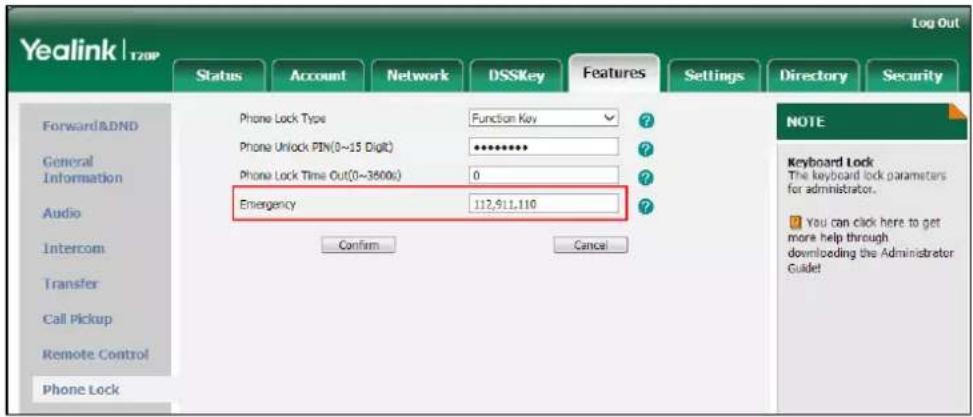
text_image
Yealink | T20P Log Out Status Account Network DSSKey Features Settings Directory Security Forward&DND General Information Audio Intercom Transfer Call Pickup Remote Control Phone Lock Phone Lock Type Function Key Phone Unlock PIN(0~15 Digit) ********** Phone Lock Time Out(0~3600s) 0 Emergency 112,911,110 Confirm Cancel NOTE Keyboard Lock The keyboard lock parameters for administrator. ? You can click here to get more help through downloading the Administrator Guide! Note- Click Confirm to accept the change.
Note
Emergency number is configurable via web user interface only.
Live Dialpad
You can enable live dialpad on the SIP-T20P/SIP-T20 IP phone, which enables the IP phone to automatically dial out a phone number without the pressing of the send key. You can also configure a delay, where the phone will dial out the phone number automatically after the designated period of time.
To enable live dialpad via web user interface:
- Click on Settings->Preference.
- Select Enabled from the pull-down list of Live Dialpad.
- Enter the desired delay time in the Inter Digit Time (1\~14s) field.
The default delay time is 4s.
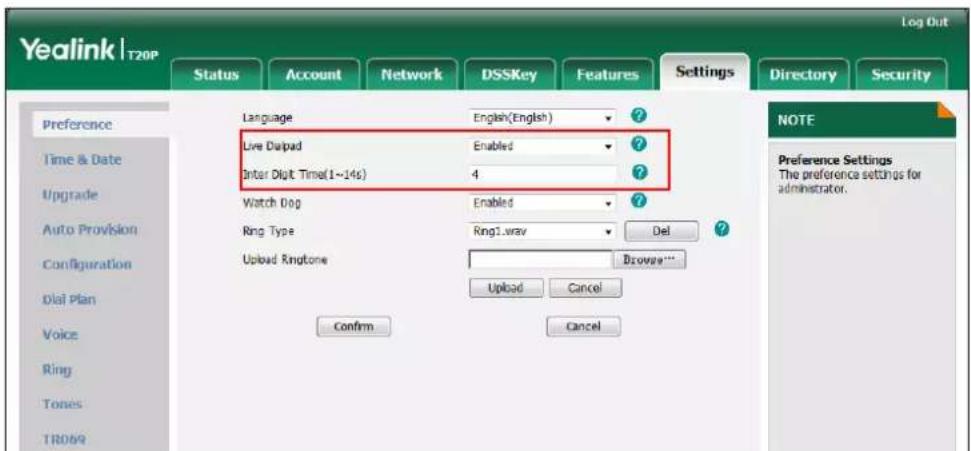
text_image
Yealink | T20P Log Out Status Account Network DSSKey Features Settings Directory Security Language English(English) ? Live Delipad Enabled ? Enter Digit Time(1~14s) 4 ? Watch Dog Enabled ? Ring Type Ring1.wav Del ? Upload Ringtone Browse ... Upload Cancel Confirm Cancel Preference Time & Date Upgrade Auto Provision Configuration Dial Plan Voice Ring Tones TR069 NOTE Preference Settings The preference settings for administrator. LOG OUT- Click Confirm to accept the change.
Note
Live dialpad is configurable via web user interface only.
Hotline
You can dial a hotline number immediately upon lifting the handset, pressing the Speakerphone key or the line key. You can also configure a delay, where the phone will dial out the hotline number automatically after the designated period of time.
To configure hotline number via phone user interface:
- Press MENU 7.
- Select Features->Hotline.
- Enter the desired numbers in the Number field.
-
Enter the delay time (in seconds) in the Hotline Delay field.
The valid values range from 0 to 10. -
Number:
123
- Press OK to accept the change.
Hotline is configurable via web user interface at the path Features->General Information.
Basic Call Features
The SIP-T20P/SIP-T20 IP phone is designed to be easily used like a regular phone on a public switched telephone network (PSTN). You can place calls, answer calls, transfer a call to someone else, or conduct a conference call.
This chapter provides basic operating instructions for the SIP-T20P/SIP-T20 IP phone. Topics include:
- Placing Calls
- Answering Calls
• Ending Calls
• Redialing Numbers - Auto Answer
- Auto Redial
- Call Completion
- Recall
- Call Mute
- Call Hold/Resume
- Do Not Disturb (DND)
- Call Forward
- Call Transfer
- Call Waiting
- Conference
- Call Park
- Call Pickup
- Anonymous Call
• Anonymous Call Rejection
If you require additional information or assistance with your new phone, contact your system administrator.
Placing Calls
You can place a call in one of three ways using your SIP-T20P/SIP-T20 IP phone:
• Using the handset
• Using the speakerphone
- Using the headset
You can also dial the number first, and then choose the way you want to speak to the other party.
You can also search and dial a contact from call history or local directory. For more information, refer to Contact Management on page 27 and Call History Management on page 35.
During a call, you can alternate between Speakerphone, Headset, and Handset modes by pressing the Speakerphone key, the HEADSET key, or by picking up the handset.
The call duration of the active call is visible on the LCD screen. In the figure below, the call to John has lasted 1 minute and 6 seconds.

text_image
John 01:06To place a call using the handset:
- Pick up the handset.
- Enter the desired number using the keypad.
- Press OK or #sind.
The # key is configured as a send key by default. You can also set the * key as the send key, or set neither. For more information, refer to Key as Send on page 22.
Note
You can also dial using the SIP URI or IP address. To obtain the IP address of the phone, press the OK key when the phone is idle. The maximum SIP URI or IP address length is 32 characters. For example, SIP URI: 2210@sip.com, IP: 192.168.1.15.
Your phone may not support direct IP dialing. Contact your system administrator for more information.
To place a call using the hands-free speakerphone mode:
Do one of the following:
- With the handset on-hook, press 📄 or the line key to obtain a dial tone.
Enter the desired number using the keypad.
Press OK or #SMD.
- With the handset on-hook, enter the desired number using the keypad.
Press 📄, OK or #
To place a call using the headset:
Do one of the following:
- With the optional headset connected, press 📄 to activate headset mode.
Press the line key to obtain a dial tone.
Enter the desired number using the keypad.
Press OK or #100.
- With the optional headset connected, press ⏻ to activate headset mode.
Enter the desired number using the keypad.
Press OK or #_SND .
Note
To permanently activate the headset mode, refer to Headset Prior on page 38.
The SIP-T20P IP phone can handle multiple calls at a time. However, only one active call (the call that has audio associated with it) can be in progress at any given time. The SIP-T20P IP phone can handle a maximum of 6 calls at one time.
To place multiple calls:
You can have more than one call on your SIP-T20P/SIP-T20 IP phone.
- Press the line key.
The active call is placed on hold.
-
Enter the desired number using the keypad.
-
Press OK, or #
You can press ⬆ or ⬇ to switch between the calls, and then press 📄 again to resume the desired call.
Answering Calls
When you are not in another call, you can answer a call in one of three ways:
- Using the handset
• Using the speakerphone
- Using the headset
Note
You can reject incoming calls by pressing the X key. You can also activate Do Not Disturb mode to reject all incoming calls without ringing on your phone. For more information, refer to Do Not Disturb (DND) on page 63.
You can forward incoming calls to someone else by pressing the TRAN key. For more information, refer to Call Forward on page 66.
Answering When Not in Another Call
Call duration and destination will always appear on the LCD screen for the active call.
To answer a call using the handset:
- Pick up the handset.
To answer a call using the hands-free speakerphone mode:
Do one of the following:
- Press
- With the handset on-hook and headset mode deactivated, press OK.
- With the handset on-hook and headset mode deactivated, press the line key (the line LED flashes green).
To answer a call using the headset:
Do one of the following:
- Press HEADSET.
- With the headset mode activated, press OK
- With the headset mode activated, press the line key (the line LED flashes green).
Answering When in Another Call
If you have an active call, and an incoming call arrives on the phone, do one of the following:
- Press OK.
The incoming call is answered and the original call is placed on hold.
- Press ⬇ to access the new call.
Press OK.
The incoming call is answered and the original call is placed on hold.
Ending Calls
To end a call:
Do one of the following:
- If you are using the handset, hangs up the handset or press MENU.
- If you are using the headset, press

- If you are using the speakerphone, press 📷 or 📞.
Note
To end a call placed on hold, you should press the HOLD key to resume the call firstly before ending it.
To redial the last dialed number from your phone:
- Press twice.
A call to your last dialed number is attempted.
To redial a previously dialed number from your phone:
- Press when the phone is idle.
- Press or to select the desired entry from the placed calls list, and then
press or .
You can use auto answer to automatically answer an incoming call on a line. Auto answer is configurable on a per-line basis.
To configure auto answer via phone user interface:
- Press
- Select Settings->Advanced Settings (default password: admin) ->Accounts.
- Select the desired account and then press
-
Press or to select Enabled from the Auto Answer field.
-
Auto Answer:
Enabled
- Press to accept the change.
The icon appears on the LCD screen.
1234
14 Jun 03:16
You can also configure auto answer via web user interface at the path Account->Basic.
Note
Auto answer is only applicable when there is no other call in progress on the phone.
Auto Redial
You can enable auto redial to automatically redial a phone number when the called party is busy. You can also configure the number of auto redial attempts and the time to wait between redial attempts.
To configure auto redial via phone user interface:
-
Press
-
Select Features->Auto Radial.
-
Press ⊙ or ⊙ to select Enabled from the Auto Radial field.
-
Auto Redial:
Enabled
- Enter the desired time in the Interval field.
The default time interval is 10 seconds.
- Enter the desired number of redial attempts in the Times field.
The default times are 10.
- Press ☑ to accept the change.
Auto redial is configurable via web user interface at the path Features->General Information.
To use auto redial:
When the called party is busy, the following prompt will appear on the LCD screen of the phone:
Auto Redial?
- Press ⬆ to activate auto redial. The following prompt will appear on the LCD screen of the phone:
Redialing
111 10s
- Wait for the designated period of time or press Ⓞ to redial the phone number.
The phone will retry as many times as configured until the called party is idle.
You can use call completion to notify the caller who failed to reach a desired party when the party becomes available to receive a call.
To configure call completion via phone user interface:
- Press
-
Select Features->Call Completion.
-
Call Completion:
◀ Enabled ▶
- Press or to select Enabled from the Call Completion field.
- Press to accept the change.
Call completion is configurable via web user interface at the path Features->General Information.
To use call completion:
When the called party is busy, the following prompt will appear on the LCD screen of the phone:
Call Completion
Wait for 112?
- Press . The phone returns to the idle screen and call completion is activated. When the called party becomes idle, the following prompt appears on the LCD screen of the phone:
Call Completion
Dial 112 ?
- Press to redial the number.
Note
Call completion is not available on all servers. For more information, contact your system administrator.
Recall
You can press a recall key to place a call back to the last incoming call.
To configure a recall key via phone user interface:
- Press
- Select Features->DSS Keys
- Select a desired DSS key.
- Press ⬆ or ⬆ to select Key Event from the Type field.
-
Press ⊙ or ⊙ to select ReCall from the Key Type field.
-
Key Type:
- ReCall
- Press ≡ to accept the change.
Recall key is configurable via web user interface at the path DSSKey->Line Key.
Call Mute
You can mute the microphone of the active audio device during an active call so that the other party cannot hear you. Call mute applies to all modes (Handset, Headset and Speakerphone).
To mute a call:
To place a call on hold:
- Press HOLD during a call.
The LCD screen indicates that the call is on hold and the line LED flashes green.
| 1234Hold | 01:20 |
Note
The phone will beep softly every 30 seconds to remind you that you still have a call on hold.
To resume a held call:
- Press HOLD again.
Multiple Calls on Hold:
If multiple calls are placed on hold, do one of the following:
- Press ⬇ or ⬇ to switch between the calls, and then press ⏚ to retrieve the desired call.
- Press the corresponding line key to retrieve the desired call.
A numbered prompt appears on the LCD screen, for example "1/3", indicating that this is the first call out of three calls.
Do Not Disturb (DND)
You can use DND to reject incoming calls automatically on the phone. The prompt message "n New Missed Call(s)" ("n" indicates the number of missed calls) will appear on the LCD screen, and callers can hear a busy signal or a message depending on your server. All calls you receive while DND is enabled are logged to your missed calls list.
Note
The prompt message will display only if Missed Call Log for the line is enabled. Missed Call Log is configurable via web user interface at the path Account->Basic.
Do Not Disturb is local to the phone, and may be overridden by the server settings. For more information, contact your system administrator.
You can enable/disable DND for the phone system, or you can customize DND for each account. Two DND modes:
• Phone (default): DND is effective for the phone system.
- Custom: DND can be configured for each account.
User Guide for the SIP-T20P/SIP-T20 IP Phone
You can receive incoming calls from authorized numbers when DND is enabled.
To configure the DND mode via web user interface:
- Click on Features->Forward & DND.
- In the DND block, mark the desired radio box in the Mode field.
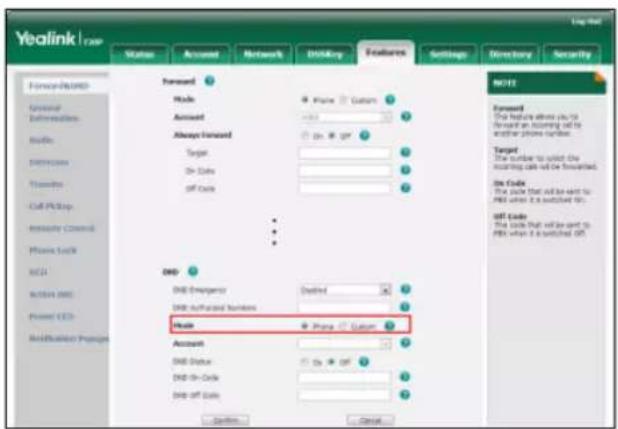
text_image
Yealink CAP Status Account Network DISKey Features Settings Directory Security Forward Mode: Phone Custom Account Always Forward Target: On-Date: Off-Date OK OK OK OK OK OK OK OK OK OK OK OK OK OK OK OK OK OK OK OK OK OK OK OK OK OK OK OK OK OK OK OK OK OK OK OK OK OK OK OK OK OK OK OK OK OK OK OK OK OK ON ON ON ON ON ON ON ON ON ON ON ON ON ON ON ON ON ON ON ON ON ON ON ON ON ON ON ON ON ON ON ON ON ON ON ON ON ON ON ON ON ON ON ON ON ON ON ON ON ON OK- Click Confirm to accept the change.
Note
DND mode is configurable via web user interface only.
Incoming calls will be rejected automatically and "n New Missed Call" ("n" indicates the number of missed calls) will appear on the LCD screen.

Note
When DND and busy forward are enabled in phone mode, calls will be sent to the configured destination number. For more information on busy forward, refer to Call Forward on page 46.
To activate DND in custom mode:
- Press
- Select Features->DND
- Press ⊙ or ⊙ to select the desired account.
- Press Enter soft key.
- Select Enabled from the DND Enable field.
- (Optional.) Enter the DND on code and off code respectively in the On Code and Off Code field.
- Press = to accept the change.
To configure the DND authorized numbers via web user interface:
- Click on Features->Forward & DND.
- Select Enabled from the pull-down list of DND Emergency.
- Enter the numbers in the DND Authorized Numbers field.
For multiple numbers, enter a comma between every two numbers.
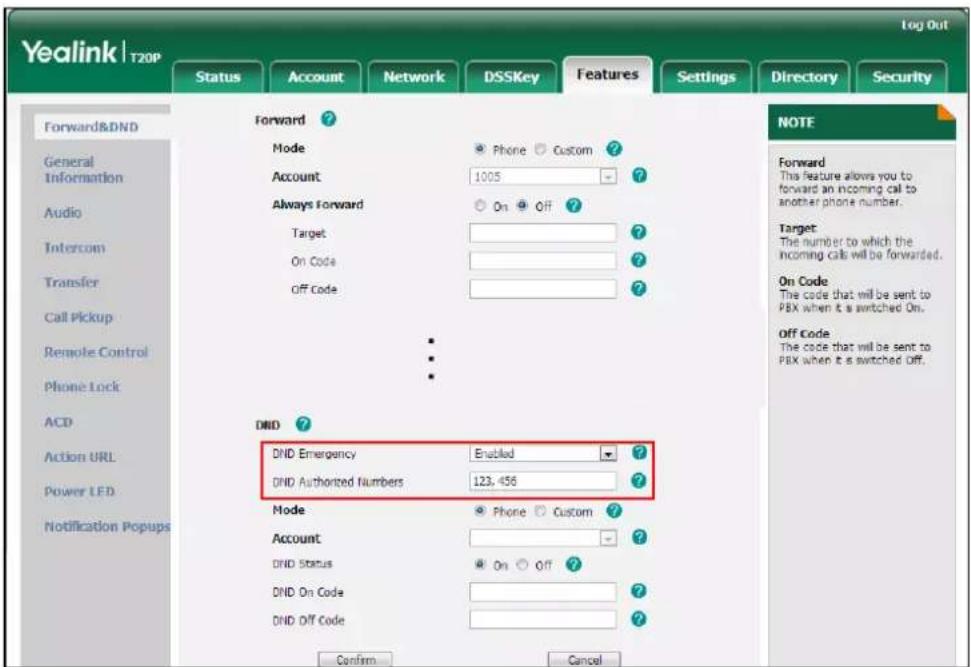
text_image
Yealink | T20P Log Out Status Account Network DSSKey Features Settings Directory Security Forward ? Mode Phone Custom ? Account 1005 ? Always Forward On Off ? Target ? ? On Code ? ? Off Code ? NOTE Forward This feature allows you to forward an incoming call to another phone number. Target: The number to which the incoming calls will be forwarded. On Code The code that will be sent to PBX when it is switched On. Off Code The code that will be sent to PBX when it is switched Off. DND Emergency Enabled ? DND Authorized Numbers 123, 456 ? Mode Phone Custom ? Account ? ? DND Status On Off ? DND On Code ? ? DND Off Code ? Confirm Cancel General Information Audio Intercom Transfer Call Pickup Remote Control Phone Lock ACD Action URL Power LED Notification Popups NOTE- Click Confirm to accept the change.
When DND is enabled on the phone, the phone can still receive incoming calls from the numbers specified in the DND Authorized Numbers field.
Note
DND authorized number is configurable via web user interface only.
When the phone receives a voice mail, the voice mail prompt window will pop up by default, if you want to disable the feature, contact your system administrator for more information.
Call Forward
You can configure your phone to forward incoming calls to another party through static forwarding. You can also forward calls while your phone is ringing; refer to dynamic forwarding.
Static Forwarding
Three types of static forwarding:
• Always Forward: Incoming calls are immediately forwarded.
- Busy Forward: Incoming calls are immediately forwarded if the phone is busy.
- No Answer Forward: Incoming calls are forwarded if not answered after a period of time.
You can enable/disable call forward for the phone system, or you can customize call forward for each or all accounts. Two call forward modes:
• Phone (default): Call forward is effective for the phone system.
- Custom: Call forward can be configured for each account.
To configure the call forward mode via web user interface:
- Click on Features->Forward & DND.
- In the Forward block, mark the desired radio box in the Mode field.

text_image
Yealink | T20P Log Out Status Account Network DSSKey Features Settings Directory Security Forward & General Information Audio Intercom Transfer Call Pickup Remote Control Phone Lock ACD Action URL Power LED Notification Popups Forward ? Mode Phone Custom ? Account 1005 ? Always Forward On Off ? Target ? On Code ? Off Code ? DND ? DND Emergency Disabled ? DND Authorized Numbers ? Mode Phone Custom ? Account ? ? DND Status On Off ? DND On Code ? DND Off Code ? Confirm Cancel NOTE Forward This feature allows you to forward an incoming call to another phone number. Target The number to which the incoming calls will be forwarded. On Code The code that will be sent to PBX when it is switched On. Off Code The code that will be sent to PBX when it is switched Off. NOTE- Click Confirm to accept the change.
Note
Call forward mode is configurable via web user interface only.
To enable call forward in phone mode:
- Press MENU
- Select Features->Call Forward.
- Press ▲ or ▼ to select the forwarding type, and then press OK.
- Depending on your selection:
a.) If you select Always Forward:
1) Press ◀ or ▶ to select Enabled from the Always Forward field.
2) Enter the destination number you want to forward all incoming calls to in the Forward to field.
3) (Optional.) Enter the always forward on code and off code respectively in the On Code and Off Code field.
- Always Forward:
- Enabled
b.) If you select Busy Forward
1) Press ⊕ or ⊕ to select Enabled from the Busy Forward field.
2) Enter the destination number you want to forward incoming calls to when the phone is busy in the Forward to field.
3) (Optional.) Enter the busy forward on code and off code respectively in the On Code and Off Code field.
- Busy Forward:
- Enabled
c.) If you select No Answer Forward:
1) Press ⊕ or ⊕ to select Enabled from the No Answer Forward field.
2) Enter the destination number you want to forward all unanswered incoming calls to in the Forward to field.
- Press ⚙ or ⚙ to select the desired account, and then press ⚙.
- Press ⚙ or ⚙ to select the forwarding type, and then press ⚙.
- Depending on your selection:
a.) If you select Always Forward:
1) Press ⊙ or ⊙ to select Enabled from the Always Forward field.
2) Enter the destination number you want to forward all incoming calls to in the Forward to field.
3) (Optional.) Enter the always forward on code and off code respectively in the On Code and Off Code field.
- Always Forward:
- Enabled
b.) If you selected Busy Forward:
1) Press ☐ or ☐ to select Enabled from the Busy Forward field.
2) Enter the destination number you want to forward all incoming calls to when the phone is busy in the Forward to field.
3) (Optional.) Enter the busy forward on code and busy off code respectively in the On Code and Off Code field.
- Busy Forward:
- Enabled
If you activate call forward for the default account, the icon appears on the LCD screen and the prompt "FWD:" appears in front of the associate account.
FWD: 1003
24 Jul 10:39
Call forward is configurable via web user interface at the path Features->Forward & DND.
Note
You can also enter the SIP URI or IP address in the Forward to field. For more information on using the SIP URI or IP address, refer to Placing Calls on page 55.
Call forward is local to the phone, and may be overridden by the server settings. Call forward on code or off code may be different between servers. For more information, contact your system administrator.
To disable call forward in phone mode:
Do one of the following:
- Press when the phone is idle.
- Press , select Features->Call Forward.
Press or to select the forwarding type, then press
Press or to select Disabled to disable the call forward.
Press to accept the change.
To disable call forward in custom mode for a specific account:
Do one of the following:
- Press , select Features->Call Forward or press when the phone is idle.
- Press or to select the desired account, then press
- Press or to select the desired forwarding type, then press
- Press or to select Disabled to disable the call forward.
- Press to accept the change.
Dynamic Forwarding
To forward an incoming call to another party:
- When the phone is ringing, press
- Enter the number you want to forward the incoming call to.
FWD: 1234
- Press OK or #_100 .
The LCD screen prompts a call forwarded message.
Forward to 1234
12 Sep 10:53
Note
When the phone forwards a call, the forward call prompt window will pop up by default, if you want to disable the feature, contact your system administrator for more information.
Call Transfer
You can transfer a call to another party in one of three ways:
- Blind Transfer: Transfer a call directly to another party without consulting.
- Semi-Attended Transfer: Transfer a call when the target phone is ringing.
- Attended Transfer: Transfer a call with prior consulting.
To perform a blind transfer:
-
Press ☐ during a call.
-
Enter the number you want to transfer the call to.
Tran: 1234
123
- Press ☐ again to complete the transfer.
Then the call is connected to the number to which you are transferring.
To perform a semi-attended transfer:
-
Press ☐ during a call.
-
Enter the number you want to transfer the call to.
-
Press OK or #_to dial out.
-
Press ☐ to complete the transfer when receiving ringback.
To perform an attended transfer:
-
Press ☐ during a call.
-
Enter the number you want to transfer the call to.
-
Press OK or # to dial out.
-
After the party answers the call, press ☐ to complete the transfer.
User Guide for the SIP-T20P/SIPT20 IP Phone
If you are using a handset, the transfer can be completed by hanging up the handset.
You can cancel the transfer before the call is connected by pressing

Call Waiting
You can enable or disable call waiting on the phone. If call waiting is enabled, you can receive another call while there is already an active call on the phone. Otherwise, another incoming call is automatically rejected by the phone with a busy message when there is an active call on the phone. You can also enable or disable the phone to play a warning tone when receiving another call.
To configure call waiting via phone user interface:
- Press

- Select
Features->Call Waiting
-
Call Waiting: • *Enabled •
-
Press

to select Enabled from the Call Waiting field.
- Press

to select Enabled from the Play Tone field.
- (Opti
onal.)Enter the call waiting on code and off code respectively in the On Code Off Code field.
- Press
to accept the change.
Call waiting is configurable via web user interface at the path Features->General
To set up a local conference call:
- Place a call to the first party.
- When the first party answers the call, press CONF to place a new call. The active call is placed on hold.
- Enter the number of second party and press OK or #
Send: 1234
123
- When the second party answers the call, you can consult with him or her before adding to the conference.
- Press CONF again to join all parties in the conference.
To join two calls in a conference:
- Place two calls using two different accounts on the phone (for example, place the first call using account 1, and then place the second call using account 2).
- Press ⬇ or ⬇ to select the call for conference and ensure that the call is active (for example, select the call on account 1).
- Press CONF to join the two calls in the conference on the selected account.
You can press ⏚ to place the conference on hold. You can press ⏚ to split the conference call into two individual calls on hold. To drop the conference call, press ⏚.
Network Conference
You can use network conference on the SIP-T20P/SIP-T20 IP phone to conduct a conference with multiple participants.
This feature allows you to perform the following:
- Join two calls together into a conference call.
- Invite another party into an active conference call.
To use this feature, contact your system administrator for the network conference URI in advance.
To configure network conference via web user interface:
- Click on Account.
- Select the desired account from the pull-down list of Account.
- Click on Advanced.
-
Select Network Conference from the pull-down list of Conference Type.
-
Enter the conference URI (e.g., conference@example.com) in the Conference URI field.
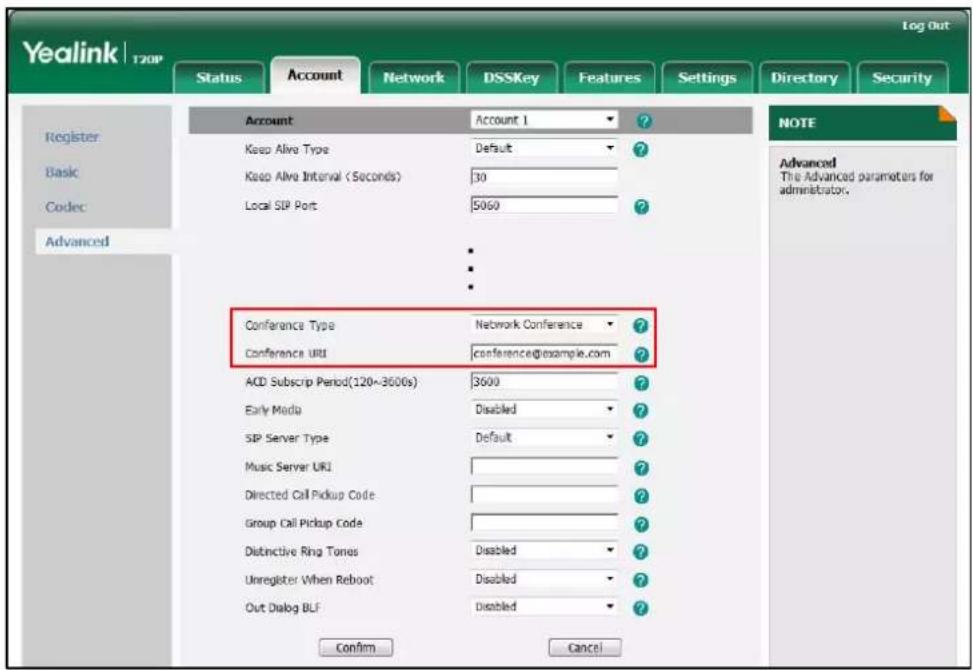
- Click Confirm to accept the change.
Note
Network conference is configurable via web user interface only.
To set up a network conference call:
-
Place a call to the first party.
-
Press CONF to place a new call.
The active call is placed on hold.
-
Enter the second party's number and press OK or #_
-
When the second party answers the call, press CONF to add the second party to the conference.
-
Press ☐ to place a new call.
The conference is placed on hold.
-
Enter the number of the new party and then press OK or #one.
-
When the new party answers the call, press CONF to add the new party to the conference.
-
Repeat steps 5 to 7 until you have added all intended parties.
The procedures to set up a network conference call for specific servers may be different from that introduced above. Contact your system administrator for more information.
Call Park
You can use call park to place a call on hold, and then retrieve the call from another phone in the system (for example, a phone in another office or conference room). You can park the active call by pressing the call park key on the phone. If the call is parked successfully, the response is either a voice prompt confirming that the call was parked, or a visible prompt on the LCD screen.
Note
Call park is not available on all servers. Contact your system administrator for more information.
To configure a call park key via phone user interface:
- Press
- Select Features->DSS Keys
- Select the desired DSS key.
- Press ⬆ or ⬆ to select Key Event from the Type field.
- Press ⊙ or ⊙ to select Call Park from the Key Type field.
- Press ⏻ or ⏻ to select the desired account from the Account ID field.
- Enter the call park code in the Value field.
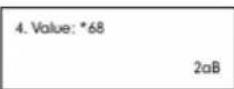
Call Pickup
You can use call pickup to answer someone else's incoming call on your phone. The SIRT20P/SIRT20 IP phone supports directed call pickup and group call pickup. Directed call pickup is used for picking up a call that is ringing at a target phone number. Group call pickup is used for picking up a call that is ringing at any phone number in a certain group. The pickup group should be predefined, contact your system administrator for more information.
Note
If there are many incoming calls at the same time, pressing the group pickup key on the phone will pick up the call that rings first.
Directed Call Pickup
To configure a directed pickup key via phone user interface:
- Press □
- Select Features->DSS Keys.
- Select the desired DSS key.
- Press ⏻ or ⏻ to select Key Event from the Type field.
- Press ◦ or ▶ to select DPickup from the Key Type field.
- Press ⬆ or ⬆ to select the desired account from the Account ID field.
-
Enter the directed pickup code followed by the specific phone number you want to pick up in the Value field.
-
Select Features->DSS Keys
- Select the desired DSS key.
- Press + or + to select Key Event from the Type field.
- Press ◦ or ▶ to select Group Pickup from the Key Type field.
- Press ⬆ or ⬇ to select the desired account from the Account ID field.
-
Enter the group pickup feature code in the Value field.
-
Value: *98 2aB
-
Press ☐ to accept the change.
Group pickup key is configurable via web user interface at the path DSSKey->Line Key.
To pick up a call in the group:
- Press the group pickup key on your phone when a phone number in the group receives an incoming call. The incoming call is answered on your phone.
Anonymous Call
You can use anonymous call to block your identify and phone number from appearing to the called party when you call someone. For example, you want to call to consult some of the services, but don't want to be harassed. Anonymous call is configurable on a non-line basis. You can also confirm the phone to send anonymous call on bill code
User Guide for the SIP-T20P/SIPT20 IP Phone
- (Optional.) Press ⏻ or ⏻ to select the desired value from the Send Anony Code field.
- (Optional.) Enter the anonymous call on code and off code respectively in the On Code and Off Code field.
The phone will send the configured on code or off code depending on your selection when you enable or disable anonymous call feature on the phone.
- Press ≈ to accept the change.
Anonymous call is configurable via web user interface at the path Account->Basic
To place an anonymous call:
- Using the specific line on the phone to place a call to phone B. The LCD screen of phone B prompts an incoming call from anonymity.
-4) Anonymous anonymous
Anonymous Call Rejection
You can use anonymous call rejection to reject incoming calls from anonymous callers. Anonymous call rejection automatically rejects incoming calls from callers who deliberately block their identities and numbers from being displayed. Anonymous call rejection is configurable on a per-line basis. You can also configure the phone to send anonymous call rejection on/off code to the server to activate/deactivate anonymous
selection when you enable or disable local anonymous rejection feature on the phone.
- Press OK to accept the change.
Anonymous call rejection is configurable via web user interface at the path Account->Basic.
Advanced Phone Features
This chapter provides operating instructions for the advanced features of the SIPT20P/SIPT20 IP phone. Topics include:
• Busy Lamp Field (BLF)
BLF List
- Call Recording
• Hot Desking
- Intercom
- Multicast Paging
- Music on Hold
Message
If you require additional information or assistance with your new phone, contact your system administrator.
Busy Lamp Field (BLF)
You can use BLF to monitor a specific line for status changes on the phone. For example, you can configure a BLF key (line key) on the phone to monitor the status of a friend's line (busy or idle). The BLF key LED flashes green when the friend's line is in use. For
- (Optional.) Enter the pickup code in the Extension field.
- Press OK to accept the change.
BLF key is configurable via web user interface at the path DSSKey->Line Key.
You can enable audio alert feature for BLF pickup on the phone. This allows the monitoring phone to play a warning tone when the monitored line receives an incoming call.
To enable an audio alert feature via web user interface:
- Click on Features->Call Pickup.
- Select Enabled from the pull-down list of Audio Alert for BLF Pickup.
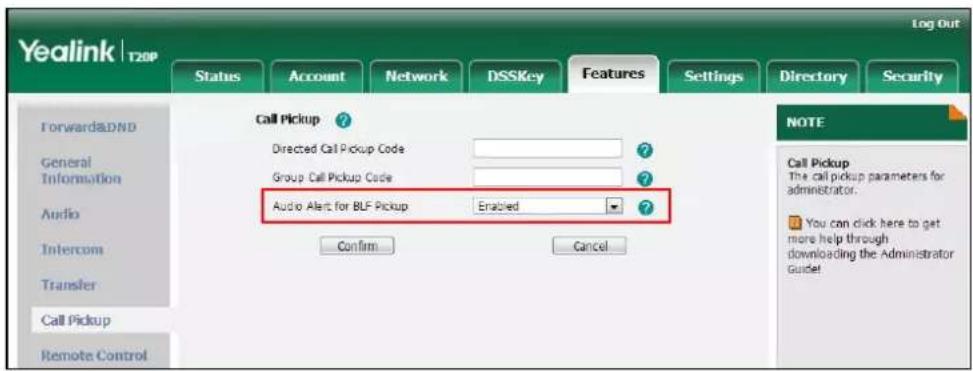
text_image
Yealink T20P Log Out Status Account Network DSSKey Features Settings Directory Security Forward,DND General Information Audio Intercom Transfer Call Pickup Remote Control Call Pickup ? Directed Call Pickup Code ? Group Call Pickup Code ? Audio Alert for BLF Pickup Enabled ? Confirm Cancel NOTE Call Pickup The call pickup parameters for administrator. You can click here to get more help through downloading the Administrator Guide!- Click Confirm to accept the change.
Note
Audio alert is configurable via web user interface only.
When the monitored line receives an incoming call, the following occurs on your phone:
• The phone plays a warning tone (if enabled).
• The BLF key LED flashes.
When there is an active call on the IP phone, you can transfer the active call to the monitored phone number directly by pressing the BLF key. The phone handles the active call differently depending on the transfer mode on DSS key. For more information on the transfer mode on DSS key, refer to transfer in the DSS Keys section on page 39.
BLF List
You can use the BLF List feature to monitor a list of users defined by your system administrator. For example, your system administrator enables BLF List, and creates a BLF List URI (e.g., BLFList@example.com) including a list of user1, user2 on the server. The BLF List keys on the IP phone can present the status of user1 and user2. The key LEDs illuminate either flashing or solid depending on the status of those users. For more BLF List key LED indications, refer to LED Instructions on page 4.
You can use the BLF List keys in the following ways:
- When the monitored user is idle, press the BLF list key to dial out the phone number.
- When there is already an active call on the IP phone, you can transfer the active call to the monitored user by pressing the BLF List key. The phone handles the active call differently depending on the transfer mode on DSS key. For more information on the transfer mode on DSS key, refer to Transfer on page 42.
- When the monitored user receives an incoming call, press the BLF list key to pick up the call directly. Before picking up an incoming call, ensure that the directed pickup code has been configured in advance. If the directed pickup code is not configured, the phone will place a call to the monitored user instead of picking up the incoming call of the monitored user when you press the BLF List key.
- When there is a conversation on the monitored user, press the BLF list key to barge in and set up a conference call. Before barging in an active call, ensure that the barge-in code has been configured in advance. If the BLF list barge in code is not configured, the phone will place a call to the monitored user instead of barging in an active call of the monitored user when you press the BLF List key.
- When a call is being parked against the monitored phone, press the BLF List key to retrieve the parked call from the monitored user. Before retrieving the parked call, ensure that the BLF List Retrieve call parked Code has been configured in advance. If the code is not configured, the phone will place a call to the monitored user instead of retrieving the parked call when you press the BLF List key.
To configure BLF List settings via web user interface:
- Click on Account->Advanced.
- Select the desired account from the pull-down list of Account.
- Enter the BLF List URI in the BLF List URI field.
- (Optional.) Enter the directed pickup code in the BLF List code field.
-
(Optional.) Enter the barge-in code in the BLF List Barge In Code field.
-
(Optional.) Enter the call park retrieve code in the BLF List Retrieve call parked Code field.
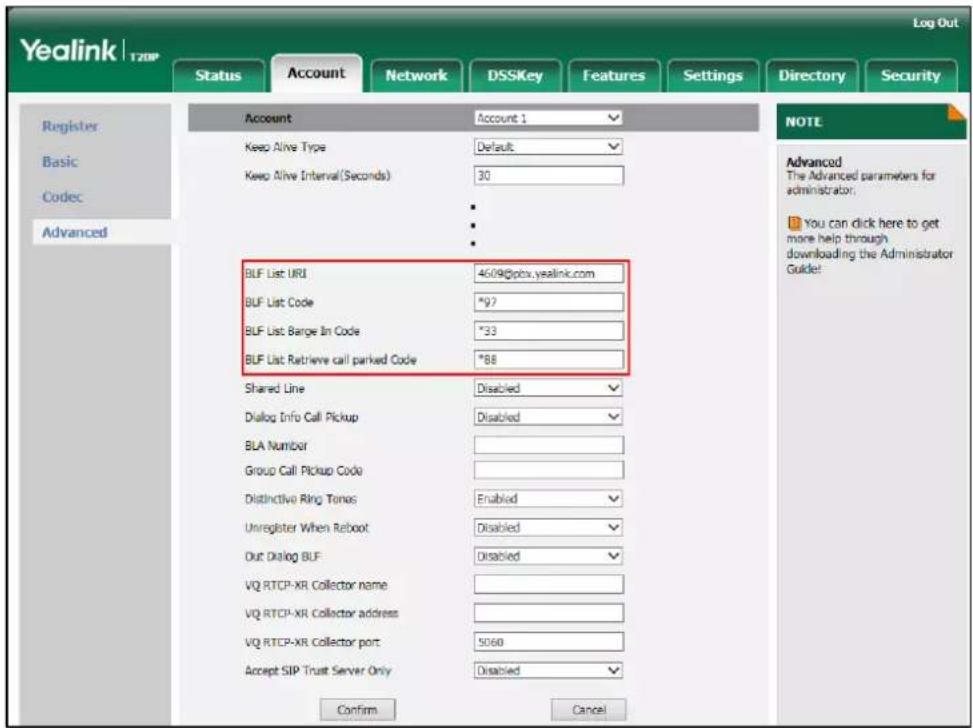
text_image
Yealink T20P Log Out Status Account Network DSSKey Features Settings Directory Security Register Basic Codec Advanced Account Account 1 Keep Alive Type Default Keep Alive Interval(Seconds) 30 BLF List URI 4609@pbx.yealink.com BLF List Code *97 BLF List Bange In Code *33 BLF List Retrieve call parked Code *88 Shared Line Disabled Dialog Info Call Pickup Disabled BLA Number Group Call Pickup Code Distinctive Ring Tomos Enabled Unregister When Reboot Disabled Out Dialog BLF Disabled VQ RTCP-XR Collector name VQ RTCP-XR Collector address VQ RTCP-XR Collector port 5060 Accept SIP Trust Server Only Disabled Confirm Cancel NOTE Advanced The Advanced parameters for administrator; You can click here to get more help through downloading the Administrator Guide! Log Out- Click Confirm to accept the change.
Note
For more information on BLF List URI/BLF List Code/BLF List Barge In Code/BLF List Retrieve Call Parked Code, contact your system administrator.
According to the response message from the server, the IP phone will automatically configure the BLF List keys beginning from the first unused line key. Once any line key is seized, the IP phone will skip to configure the next line key.
You can receive a visual or/and an audio alert (if enabled) on your phone when the monitored user receives an incoming call. For more information, refer to Busy Lamp Field (BLF)section on page 81.
Note
The pickup code is used in the following order of preference: BLF List Code (Account->Advanced) > Directed Call Pickup Code (Account->Advanced) > Directed Call Pickup Code (Features->Call Pickup). If all of them are not configured, pressing the BLF List key will directly call the monitored user when he/she receives an incoming call. For more information about pickup Code, refer to Call Pickup on page 76.
Call Recording
You can record calls by pressing a record key on the phone. The SIP-T20P/SIP-T20 IP phone supports record and URL record.
Two ways of call recording:
- Record: the phone sends SIP INFO message containing a specific header "Record: on/off" to trigger a recording.
- URL Record: the phone sends HTTP URL request to trigger a recording. Contact your system administrator for the predefined URL.
Note
Call record is not available on all servers. Contact your system administrator for more information.
To configure a record key via phone user interface:
- Press
- Select Features->DSS Keys.
- Select the desired DSS key.
- Press ⬆ or ⬆ to select Key Event from the Type field.
-
Press ⏻ or ⏻ to select Record from the Key Type field.
-
Key Type:
Record
- Press ≈ to accept the change.
To configure a URL record key via phone user interface:
- Press □
- Select Features->DSS Keys
• During a conference call
- When the phone prompts you to answer an incoming call
The record and URL record key is not available when:
• There are no connected calls on your phone
- You place a new call
To record a call:
- Press the record key or URL record key during a call.
If the recording starts successfully, the record or URL record key LED will flash green. - Press the record key or URL record key again to stop recording.
The record or URL record key LED goes out.
You can listen to the recordings which stored on your server system. For example, you can dial an access code.
Note
The way in which you listen to the recordings may be different depending on the server. Contact your system administrator for more information.
Hot Desking
Hot desking originates from the definition of being the temporary physical occupant of a work station or surface by a particular employee. A primary motivation for hot desking is cost reduction. This feature is regularly used in places where not all the employees are in the office at the same time, or not in the office for very long, which means that actual personal offices would be often vacant, consuming valuable space and resources.
You can use hot desking on the SIP-T20P/SIP-T20 IP phone to log out of existing accounts and then log into a new account, that is, many users can share the phone resource at different times. To use this feature, you need to configure a hot desking key in advance.
Note
Hot desking is not available on all servers. Contact your system administrator for more information.
To configure a hot desking key via phone user interface:
- Press MENU 7.
- Select Features->DSS Keys.
- Select the desired DSS key.
-
Press ◀ or ▶ to select Key Event from the Type field.
-
Press ☐ or ☐ to select Hot Desking from the Key Type field.
-
Key Type:
Hot Desking
- Press ≈ to accept the change.
Hot desking key is configurable via web user interface at the path DSSKey->Line Key.
To use hot desiding:
- Press the hot desking key when the phone is idle.
The LCD screen prompts "Clear all account config?".
Warning
Clear all account config?
- Press ⬆, registration configurations of all accounts will be cleared immediately.
The login wizard will be displayed as below:
- Register Name:
123
- Enter the desired values in the Register Name, User Name, Password, SIP Server1/2
Outgoing Intercom Calls
To configure an intercom key via phone user interface:
- Press □
- Select Features->DSS Keys
- Select the desired DSS key.
-
Press ⬆ or ⬆ to select Intercom from the Type field.
-
Type:
- Intercom
- Select the desired account from the Account ID field.
- Enter the remote extension number in the Value field.
- Press ☐ to accept the change.
Intercom key is configurable via web user interface at the path DSSKey->Line Key
To place an intercom call:
- Press the intercom key when the phone is idle.
The phone is automatically connected to the extension specified in the Value field. - Press the intercom key again or ☐ to end the intercom call.
Incoming Intercom Calls
Intercom Feature
Description
answer an incoming intercom call while there is already an active call on the phone.
To configure intercom features via phone user interface:
- Press
- Select Features->Intercom.
-
Make the desired changes.
-
Acpt Intercom:
*Enabled
- Press to accept the change.
These specific parameters are configurable via web user interface at the path Features->Intercom.
Accept Intercom
You can enable or disable the phone to automatically answer an incoming intercom call. If Accept Intercom is enabled, the phone will automatically answer an incoming intercom call. If Accept Intercom is disabled, the phone will reject incoming intercom calls and sends a busy message to the caller. Accept Intercom is enabled by default.
Note
Your administrator can set a delay time before the phone automatically answers intercom calls. Contact your system administrator for more information.
Intercom Mute
You can mute or un-mute the phone's microphone for intercom calls automatically. If Intercom Mute is enabled, the microphone will be muted for intercom calls. If Intercom Mute is disabled, the microphone will work for intercom calls. Intercom Mute is disabled by default.
Intercom Tone
You can enable or disable the phone to play a warning tone when receiving an intercom call. If Intercom Tone is enabled, the phone will play a warning tone before answering the intercom call. If Intercom Tone is disabled, the phone will automatically answer the intercom call without warning. Intercom Tone is enabled by default.
Intercom Barge
You can enable or disable the phone to automatically answer an incoming intercom call while there is already an active call on the phone. If Intercom Barge is enabled, the phone will automatically answer the intercom call and place the active call on hold. If
User Guide for the SIP-T20P/SIPT20 IP Phone
Intercom Barge is disabled, the phone will handle an incoming intercom call like a waiting call. Intercom Barge is disabled by default.
Multicast Paging
You can use multicast paging to quickly and easily forward out time sensitive announcements to people within the multicast group. You can configure a multicast paging key or a paging list key on the phone, which allows you to send a RealTime Transport Protocol (RTP) stream to the pre-configured multicast address(es) without involving SIP signaling. You can configure the phone to receive an RTP stream from pre-configured multicast listening address(es) without involving SIP signaling. You can specify up to 10 multicast listening addresses.
Sending RTP Stream
To configure a multicast paging key via phone user interface:
- Press
- Select Features->DSS Keys
- Select the desired DSS key.
- Press ⬆ or ⬇ to select Key Event from the Type field.
-
Press ☐ or ☐ to select Multi-Paging from the Key Type field.
-
Key Type: • Multi-Paging •
-
Press ⬆ or ⬆ to select Paging List from the Key Type field.
-
Key Type:
- Paging List
- Press ⓝ to accept the change.
Paging list key is configurable via web user interface at the path DSSKey->Line Key.
To configure paging list via web user interface:
- Click on Directory.
- Click on Multicast IP.
- Enter the multicast IP address and port number (e.g., 224.5.6.20:10008) in the Paging Address field.
The valid multicast IP addresses range from 224.0.0.0 to 239.255.255.255.
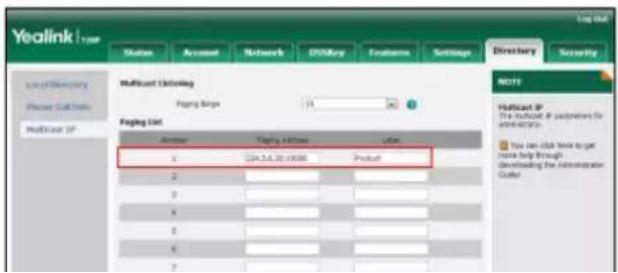
text_image
Yealink Import Status Account Network DISRUAY Features Settings Directory Security Multifinal Ordering Faying Steps 15 24 Faying List Number Faying Address Label 1 DA-3A-3B-0000 Product 2 3 4 5 6 7 NOTE Multifinal IP The instructions for passengers for administration. You can click here to get more help through developing the administrator code.User Guide for the SIP-T20P/SIP-T20 IP Phone
The default codec is G722.
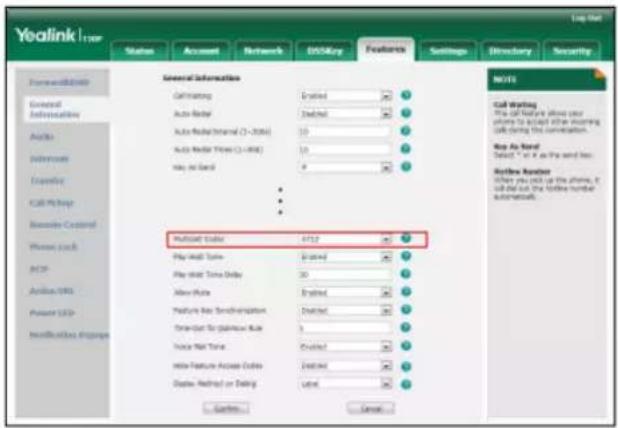
text_image
Yealink User Status Account Network DOS key Features Settings Directory Security Forward/Down General Informational Audio Interconnects Frequency Call/Zip/Reg Baseband Control Phone Lock ACIP Audio/Video Power UDP Modifications Settings Several Information Call/Reg Auto-Render Auto-Render Internal (1 - 2006) Auto-Render Time (1 - 2006) Play As Band - - - - - - - - - - - - - - - - - - - - - - - - - - - - - - - - - - - - - - - - - - - - - - - - - - - - - - - - - - - - - - - - - - - - - - - - - - - - - - - - - - - - - - - - - - - - - - - - - - - - + - + - + - + - + - + - + - + - + - + - + - + - + - + - + - + - + - + - + - + - + - + - + - + - + - + - + - + - + - + - + - + - + - + - + - + - + - + - + - + - + - + - + - + - + - + - + - + - + - + - +/-/ + / / / / / / / / / / / / / / / / / / / / / / / / / / / / / / / / / / / / / / / / / / / / / / / / / / / / / / / / / / / / / / / / / / / / / / / / / / / / / / / / / / / / / / / / / / / / / / / / / / / / % Play Wall Tone Play Wall Tone Delay Play Wall Tone Delay Play Wall Tone Delay Play Wall Tone Delay Play Wall Tone Delay Play Wall Tone Delay Play Wall Tone Delay Play Wall Tone Delay Play Wall Tone Delay Play Wall Tone Delay Play Wall Tone Delay Play Wall Tone Delay Play Wall Tone Delay Play Wall Tone Delay Play Wall Tone Delay Play Wall Tone Delay Play Wall Tone Delay Play Wall Tone Delay Play Wall Tone Delay Play Wall Tone Delay Play Wall ToneDelay Play Wall Tone Delay Play Wall Tone Delay Play Wall Tone Delay Play Wall Tone Delay Play Wall Tone Delay Play Wall Tone Delay Play Wall Tone Delay Play Wall Tone Delay Play Wall Tone Delay Play Wall Tone Delay Play Wall Tone Delay Play Wall Tone Delay Play Wall Tone Delay Play Wall Tone Delay Play Wall Tone Delay Play Wall Tone Delay Play Wall Tone Delay Play Wall Tone Delay Play Wall Tone Delay Play Wall Tonedelay Play Wall Tonedelay Play Wall Tonedelay Play Wall Tonedelay Play Wall Tonedelay Play Wall Tonedelay Play Wall Tonedelay Play Wall Tonedelay Play Wall Tonedelay Play Wall Tonedelay Play Wall Tonedelay Play Wall Tonedelay Play Wall Tonedelay Play Wall Tonedelay Play Wall Tonedelay Play Wall Tonedelay Play Wall Tonedelay Play Wall Tonedelay Play Wall Tonedelay Play Wall Tonedelay Play Wall Toneelay Play Wall Toneelay Play Wall Toneelay Play Wall Toneelay Play Wall Toneelay Play Wall Toneelay Play Wall Toneelay Play Wall Toneelay Play Wall Toneelay Play Wall Toneelay Play Wall Toneelay Play Wall Toneelay Play Wall Toneelay Play Wall Toneelay Play Wall Toneelay Play Wall Toneelay Play Wall Toneelay Play Wall Toneelay Play Wall Toneelay Play Wall Toneelay Play Wall Tonedelay Play Wall Tonedelay Play Wall Tonedelay Play Wall Tonedelay Play Wall Tonedelay Play Wall Tonedelay Play Wall Tonedelay Play Wall Tonedelay Play Wall Tonedelay Play Wall Tonedelay Play Wall Tonedelay Play Wall Tonedelay Play Wall Tonedelay Play Wall Tonedelay Play Wall Tonedelay Play Wall Tonedelay Play Wall Tonedelay Play Wall Tonedelay Play Wall Tonedelay Play Wall Tone Delay- Click Confirm to accept the change.
Note
If G722 codec is used for multicast paging, the LCD screen prompts "HD" to indicate that it is providing high definition voice.
Default codec for multicast paging is configurable via web user interface only.
To send RTP stream via a multicast paging key:
To send RTP stream via a paging key list:
- Press the paging list key when the phone is idle.
- Press ⬆ or ⬇ to select the desired group.
1.Product
- Press OK to send RTP.
- Press the Hold soft key to place the current multicast RTP session on hold.
- Press ☐ to cancel the multicast RTP session.
Receiving RTP Stream
You can configure the phone to receive a Real Time Transport Protocol (RTP) stream from the pre-configured multicast address(es) without involving SIP signaling. You can specify up to 10 multicast addresses that the phone listens to on the network.
How the phone handles incoming multicast paging calls depends on Paging Barge and Paging Priority Active parameters configured via web user interface.
Paging Barge
The paging barge parameter defines the priority of the voice call in progress. If the priority of an incoming multicast paging call is lower than that of the active call, it will be ignored automatically. If Disabled is selected from the pull-down list of Paging Barge, the voice call in progress will take precedence over all incoming multicast paging calls. Valid values in the Paging Barge field:
• 1 to 10: Define the priority of an active call, 1 is the highest priority, 10 is the lowest.
- Disabled: The voice call in progress will take precedence over all incoming paging calls.
Paging Priority Active
The paging priority active parameter decides how the phone handles the incoming multicast paging calls when there is already a multicast paging call on the phone. If enabled, the phone will ignore incoming multicast paging calls with lower priorities, otherwise, the phone will answer incoming multicast paging calls automatically and place the previous multicast paging call on hold. If disabled, the phone will automatically ignore all incoming multicast paging calls.
To configure multicast listening addresses via web user interface:
- Click on Directory->Multicast IP.
-
Select the desired value from the pull-down list of Paging Barge.
-
Select the desired value from the pull-down list of Paging Priority Active.
Enter the multicast IP address(es) and port number(e.g., 224.5.6.20:10008) which the phone listens to for incoming RTP multicast in the Listening Address field.
The valid multicast IP addresses range from 224.0.0.0 to 239.255.255.255.
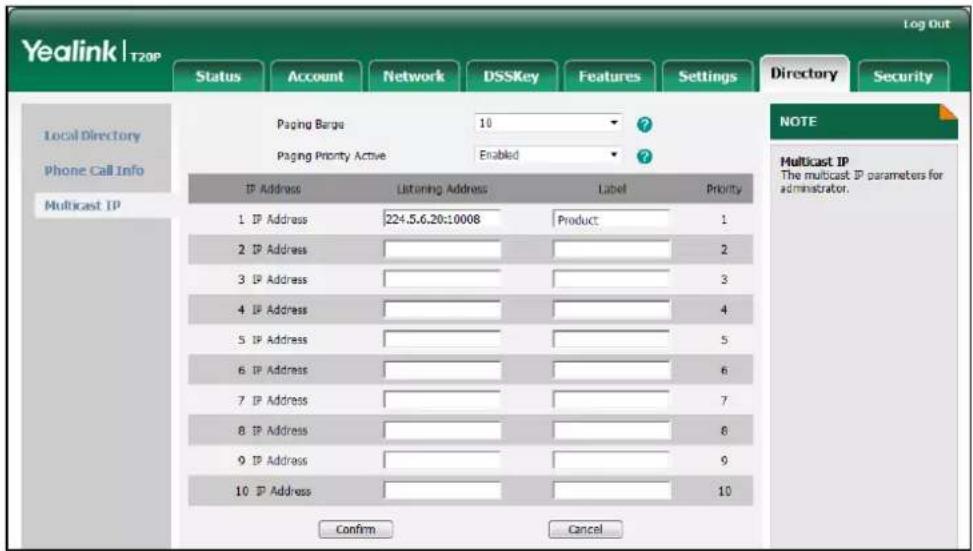
text_image
Yealink | T20P Log Out Status Account Network DSSKey Features Settings Directory Security Local Directory Phone Call Info Multicast IP Paging Barge 10 ? Paging Priority Active Enabled ? IP Address Listening Address Label Priority 1 IP Address 224.5.6.20:10008 Product 1 2 IP Address 3 IP Address 4 IP Address 5 IP Address 6 IP Address 7 IP Address 8 IP Address 9 IP Address 10 IP Address NOTE Multicast IP The multicast IP parameters for administrator. Confirm Cancel- Enter the label in the Label field.
Label will appear on the LCD screen when receiving the RTP multicast.
- Click Confirm to accept the change.
Note
The priorities of listening addresses are predefined: 1 with the highest priority, 10 with the lowest.
Both the multicast paging sender and receiver's phones play a warning tone when establishing a multicast paging call.
Multicast listening addresses is configurable via web user interface only.
Music on Hold
Music on hold (MoH) is the business practice of playing recorded music to fill the silence that would be heard by the party placed on hold. To use this feature, you should specify a SIP URI pointing to a Music on Hold Server account. When a call is placed on hold, the phone will send a SIP INVITE message to the Music on Hold Server account. The Music on Hold Server account automatically answers the SIP INVITE messages and immediately plays audio from some source located anywhere (LAN, Internet) to the held party. Contact your system administrator for the SIP URI.
To configure music on hold server via web user interface:
-
Click on Account.
-
Select the desired account from the pull-down list of Account.
-
Click on Advanced.
- Enter the SIP URI (e.g., sip:moh@sip.com) in the Music Server URI field.

- Click Confirm to accept the change.
When you placed a call on hold, the held party can hear the music.
Note
For this feature to function, all involved parties cannot use encrypted RTP.
Music on hold server is configurable via the web user interface only.
Message
Voice Mail
You can leave voice mails for someone else using the SIP-T20P/SIP-T20 IP phone. You can also listen to voice mails that are stored in a voice mailbox. When receiving a new voice mail, the phone will play a warning tone and the MESSAGE key LED will illuminate. The LCD screen will prompt that the phone receives a new message and display a flashing icon.
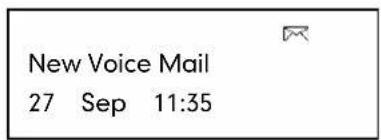
text_image
New Voice Mail 27 Sep 11:35If the voice mail pop-up message box disappears, it won't pop up again unless the user receives a new voice mail or the user re-registers the account that has unread voice mail(s).
Note
The voice mail feature is not available on all servers.
You can configure the phone not to display the pop-up prompt, contact your system administrator for more information.
To leave a voice mail:
You can leave a voice mail for someone else when he/she is busy or inconvenient to answer the call. Follow the voice prompt from the system server to leave a voice mail, and then hang up.
To configure voice mail access codes via phone user interface:
- Press

-
Select Messages->Set Voice Mail.
-
Account 1 No.:
*88
123
-
Press ⬆ or ⬇ to select the account you want to set.
-
Press ☐ to select the proper input mode and then enter the voice mail access code (e.g., *88).
-
Press OK to accept the change.
Note
Voice mail access codes must be predefined on the system server. Contact your system administrator for the more information.
To listen to voice mails:
- When the LCD screen prompts that the phone receives a new voice mail, press

or OK to dial out the voice mail access code.
- Follow the voice prompt to listen to your voice mails.
Note
Before listening to the voice mails, make sure the voice mail access code has been configured.
When all new voice mails are retrieved, the MESSAGE key LED will go out.
To view voice mails via phone user interface:
- Press

2. Select Messages->View Voice Mail.
The LCD screen displays the amount of new and old voice mails.
- 1234
2 new 1 old Mail
- Select an account and then press OK to listen to voice mails.
Message Waiting Indicator (MWI)
The SIP-T20P/SIP-T20 IP phone supports MWI when receiving a new voice message. If someone leaves you a voice mail, you will receive a message waiting indicator. MWI will be indicated in three ways: a warning tone, an prompt message (including a voice mail icon) on the LCD screen, and the MESSAGE key LED illuminates solid green. This will be cleared when you retrieve all voice mails or delete them.
The MWI service is unsolicited for some servers, so the SIP-T20P/SIP-T20 IP phone only handles the MWI messages sent from the server. But for other servers, the MWI service is solicited, so the SIP-T20P/SIP-T20 IP phone must enable subscription for MWI.
Note
MWI service is not available on all servers. Contact your system administrator for more information.
The MWI Subscription parameters you need to know:
| Option | Description |
| Subscribe for MWI | Enable or disable a subscription for MWI service. |
| MWI Subscription Period | Period of MWI subscription. The IP phone sends a refresh SUBSCRIBE request before initial SUBSCRIBE expiration. |
| Subscribe MWI to Voice Mail | Enable or disable a subscription to the voice mail number for MWI service. To use this feature, you should configure subscribe for MWI and the voice mail number in advance. |
Note
The phone will send SUBSCRIBE messages for the MWI service to the account or the voice number MWI service depending on the server. Contact your system administrator for more information.
To enable MWI subscription via web user interface:
-
Click on Account.
-
Select the desired account from the pull-down list of Account.
-
Click on Advanced.
- Select Enabled from the pull-down list of Subscribe for MWI.
- Enter the period time in the MWI Subscription Period (Seconds) field.
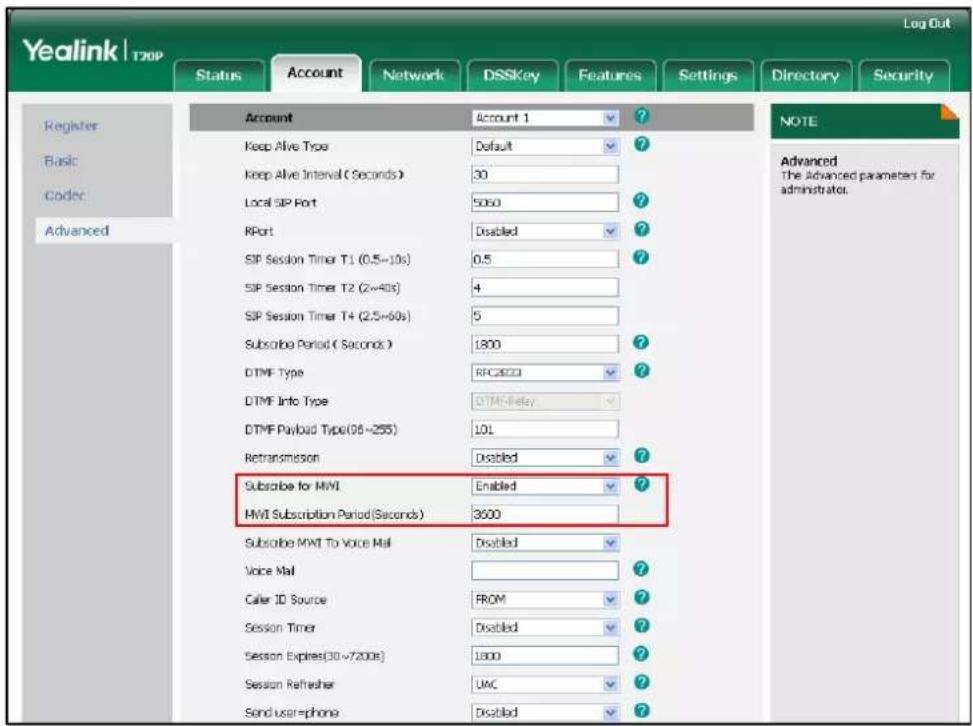
text_image
Yealink | T20P Log Out Status Account Network DSSKey Features Settings Directory Security Register Basic Codec Advanced Account Account 1 ? ? ? ? ? ? ? ?? ?? ?? ?? ?? ?? ?? ?? ?? ?? ?? ?? ?? ?? ?? NOTE Advanced The Advanced parameters for administrator. Account Default 30 Local SIP Port 5060 RPort Disabled SIP Session Timer T1 (0.5~10s) 0.5 SIP Session Timer T2 (2~40s) 4 SIP Session Timer T4 (2.5~60s) 5 Subscribe Period (Seconds) 1800 DTMF Type RFC2000 DTMF Info Type DTMF Relay DTMF Payload Type(96~255) 10L Retransmission Disabled ?? ?? ?? ?? ?? ?? ?? ?? ?? ?? ?? ?? ?? ?? ?? ?? ?? ?? ?? ?? ?? ?? ?? ?? ?? ?? ?? ?? ?? ?? ?? ?? ?? ?? ?? ?? ?? ?? ?? ?? ?? ?? ?? ?? ?? ?? ?? ?? ?? ?? ?! Subscribe for MWI Enabled 3600 Subscribe MWI To Voice Mail Disabled Voice Mail FROM ?? Caller ID Source Session Timer Disabled Session Expires(30+7200s) 1800 Session Refresher UAC ?? Send user=phone Disabled- Click Confirm to accept the change.
To enable Subscribe MWI to Voice Mail via web user interface:
- Click on Account.
- Select the desired account from the pull-down list of Account.
- Click on Advanced.
- Select Enabled from the pull-down list of Subscribe MWI To Voice Mail.
6. Enter the desired voice mail number in the Voice Mail field.
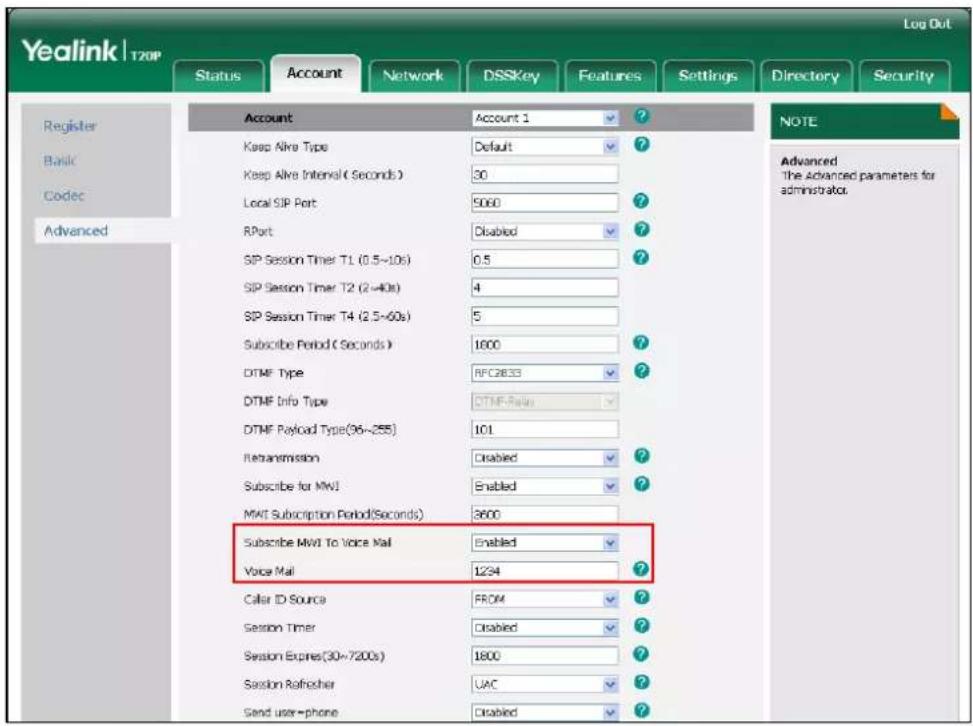
7. Click Confirm to accept the change.
The IP phone will subscribe to the voice mail number for MWI service using Subscribe MWI to Voice Mail.
Note
MWI subscription is configurable via web user interface only.
Troubleshooting
This chapter provides general troubleshooting information to help to solve the problems you might encounter when using your SIP-T20P/SIP-T20 IP phone.
If you require additional information or assistance with your new phone, contact your system administrator.
Why is the LCD screen blank?
- Ensure that the phone is properly plugged into a functional AC outlet.
- Ensure that the phone is plugged into a socket controlled by a switch that is on.
- If the phone is plugged into a power strip, try plugging it directly into a wall outlet instead.
- If your SIP-T20P IP phone is powered from PoE, ensure that you use a PoE-compliant switch or hub.
Why does the phone display "Network Unavailable"?
- Ensure that the Ethernet cable is plugged into the Internet port on the phone and the Ethernet cable is not loose.
- Ensure that the switch or hub in your network is operational.
Why does the phone display "No Service"?
The LCD screen prompts "No Service" message when no SIP account registers successfully.
Why doesn't the phone display time and date correctly?
Check if you have configured the phone to obtain the time and date from the SNTP server automatically. If the phone fails to connect to the SNTP server, you need to configure the time and date manually.
How do I find the basic information of the phone?
Press the OK key when the phone is idle to check the basic information of the phone, such as the IP address and firmware version. For more the basic information, refer to Phone Status on page 13.
How to obtain the MAC address of a phone when the phone is not powered on?
Three ways to obtain the MAC address of a phone:
- You can ask your supplier for the shipping information sheet which includes MAC addresses according to the corresponding PO (Purchase Order).
- You can find the MAC address on the label of the carton box.
- You can also find the MAC address from the phone's bar code on the back of the phone.
Why can't I get a dial tone?
- Check for any loose connections and that the phone has been installed properly. For the installation instructions, refer to Phone Installation on page 11.
- Switch between the Handset, Headset (if present) or Hands-Free Speakerphone to check whether the dial tone is present for one of the audio modes.
If the dial tone exists on another audio mode, connect a different handset or headset to isolate the problem.
Why doesn't the phone ring?
Check that the ringer volume on the phone. To adjust the ringer volume setting, press the Volume key when the phone is idle. For more information, refer to Volume on page 25.
Why can't I receive calls?
- Check that the SIP registration with your system administrator.
- Check that the DND (Do Not Disturb) mode is deactivated on the phone. Refer to Do Not Disturb (DND) on page 63.
- Check that call forward is disabled on the phone. Refer to Call Forward on page 66.
- Check whether the caller number is stored in the blacklist directory. Refer to Blacklist on page 34.
Why is my handset not working?
Check that the handset cord is fully connected to both the handset jack on the phone and handset. Refer to Phone Installation on page 11.
Why is my headset not working?
- Check that the headset cord is fully connected to the headset jack on the phone. Refer to Phone Installation on page 11.
- Check that the headset mode is activated. Refer to Headset Mode
Activation/Deactivation on page 37.
- Check that the headset volume is adjusted to an appropriate level. Refer to Volume on page 25.
What will happen if I connect both PoE cable and power adapter? Which has the priority?
The phones manufactured before February 2010 use the power adapter preferentially, otherwise the phones use PoE preferentially.
What is the difference between user name, register name and display name?
Both user name and register name are defined by the server. A user name is used to identify the account while a register name matched with a password is used for authentication if the server requires. Display name is the caller ID that will be displayed on the callee's LCD screen. Server configurations may override local configurations.
Why does the phone play a tone when there is a call on hold? How to disable it?
When there is a call on hold, the phone will play a hold tone every 30 seconds. Play hold tone is enabled by default. Play hold tone and the interval of playing a hold tone are configurable via web user interface only.
To configure play hold tone and play hold tone delay via web user interface:
- Click on Features->General Information.
- Select the Enabled or Disabled from the pull-down list of Play Hold Tone.
- Enter the desired time (in seconds) in the Play Hold Tone Delay field.
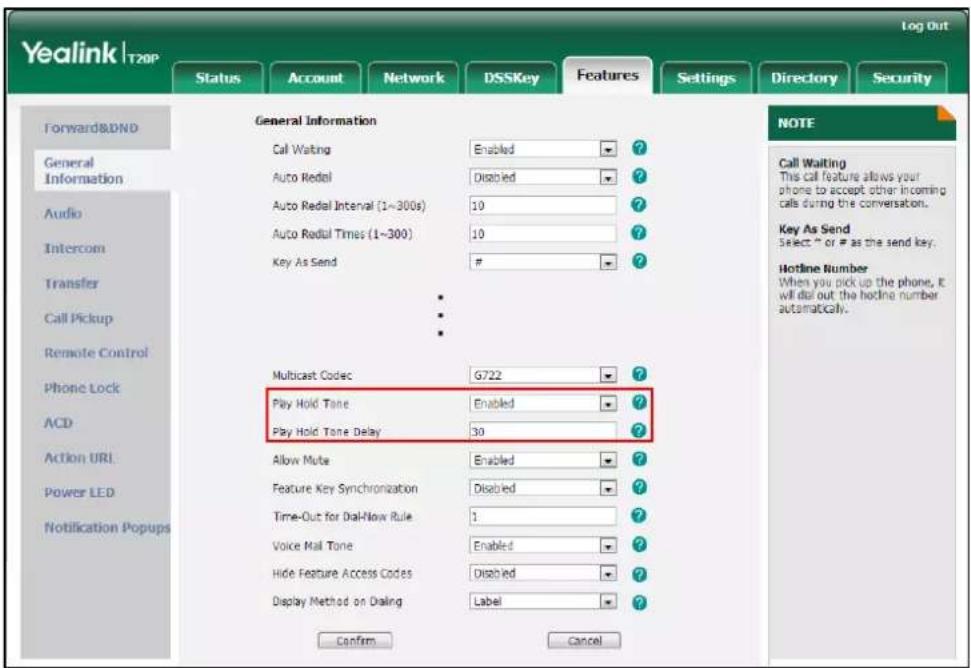
text_image
Yealink | T20P Log Out Status Account Network DSSKey Features Settings Directory Security Forward&DND General Information General Information Audio Intercom Transfer Call Pickup Remote Control Phone Lock ACD Action URL Power LED Notification Popups General Information Call Waiting Enabled ? Auto Redial Disabled ? Auto Redial Interval (1~300s) 10 ? Auto Redial Times (1~300) 10 ? Key As Send # Multicast Codec G722 ? Play Hold Tone Enabled ? Play Hold Tone Delay 30 ? Allow Mute Enabled ? Feature Key Synchronization Disabled ? Time-Out for Dial-Now Rule 1 ? Voice Mail Tone Enabled ? Hide Feature Access Codes Disabled ? Display Method on Dialing Label ? Confirm Cancel NOTE Call Waiting This call feature allows your phone to accept other incoming calls during the conversation. Key As Send Select " or # as the send key. Hotline Number When you pick up the phone, it will dial out the hotline number automatically.- Click Confirm to accept the change.
How to change the user password?
To change the user password via web user interface:
- Click on Security->Password.
- Select User from the pull-down list of User Type.
- Enter the new user password in the New Password and Confirm Password fields.
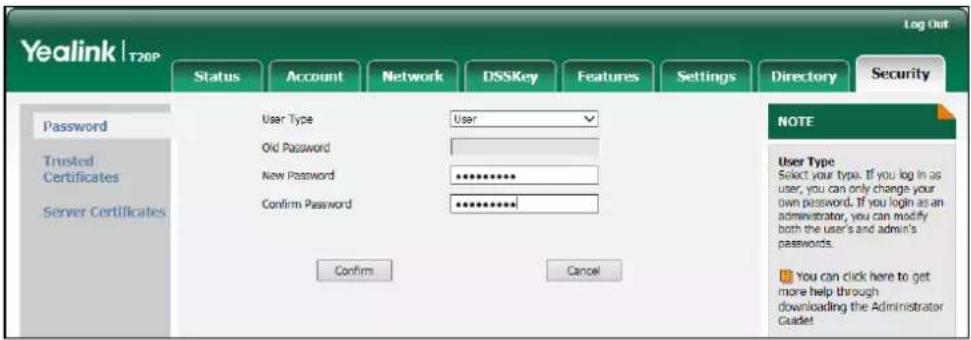
text_image
Yealink | T20P Log Out Status Account Network DSSKey Features Settings Directory Security Password User Type User Trusted Certificates Old Password Server Certificates New Password ********** Confirm Password ********** Confirm Cancel NOTE User Type Select your type. If you log in as user, you can only change your own password. If you login as an administrator, you can modify both the user's and admin's passwords. You can click here to get more help through downloading the Administrator Guide!- Click Confirm to accept the change.
Note
If you are logging into the web user interface of the phone with user credentials, you need to enter the current user password in the Old Password field.
User password is configurable via the web user interface only.
How to make a call using SRTP?
You can enable SRTP to encrypt the audio stream(s) of phone calls. The parties participating in the call should enable SRTP. You can enable SRTP on a per-line basis.
To enable SRTP via web user interface:
- Click on Account.
- Select the desired account from the pull-down list of Account.
-
Click on Advanced.
-
Select the desired value from the pull-down list of RTP Encryption (SRTP).

text_image
Yealink T20P Log Out Status Account Network DSSKey Features Settings Directory Security Register Basic Codec: Advanced Account Account 1 ? Keep Alive Type Default ? Keep Alive Interval (Seconds) 30 Local SIP Port 5060 ? RPort Disabled ? SIP Session Timer T1 (0.5~10s) 0.5 ? SIP Session Timer T2 (2~40s) 4 SIP Session Timer T4 (2.5~60s) 5 Subscribe Period (Seconds) 1800 ? DTMF Type RFC2833 ? ■ ■ ■ RIP Encryption(SRTP) Compulsory ? PTime(ms) 20 ? Shared Line Disabled ? Group Call Pickup Code ? Distinctive Ring Tones Disabled ? Unregister When Reboot Disabled ? Out Dialog BLF Disabled ? Confirm Cancel NOTE Advanced The Advanced parameters for administrator.- Click Confirm to accept the change.
Note
SRTP is not available on all servers. Contact your system administrator for more information.
SRTP is configurable via web user interface only.
How to reboot the phone?
To reboot the phone via web user interface:
- Click on Settings->Upgrade.
- Click Reboot to reboot the phone.

text_image
Yealink | T20P Log Out Status Account Network DSSKey Features Settings Directory Security Preference Time & Date Upgrade Auto Provision Configuration Dial Plan Voice Version Firmware Version 9.73.0.40 Hardware Version 7.0.1.61 Reset to Factory Setting Reset to Factory Setting Reboot Reboot Select and Upgrade Firmware Browse... Upgrade NOTE Reset to Factory Setting Reset all the settings of the phone to default configurations. Select and Upgrade Firmware Select and upgrade the file from the hard disk or network. You can click here to get more help through downloading the Administrator GuidetNote
Any reboot of your phone may take a few minutes.
How to export PCAP trace?
We may need you to provide a PCAP trace to help analyze your problem.
To export a PCAP trace via web user interface:
- Click on Settings->Configuration.
- Click Start to begin recording signal traffic.
-
Recreate the error to be documented in the trace.
-
Click Stop to end recording.
-
Click Export to open file download window, and then save the file to your local system.
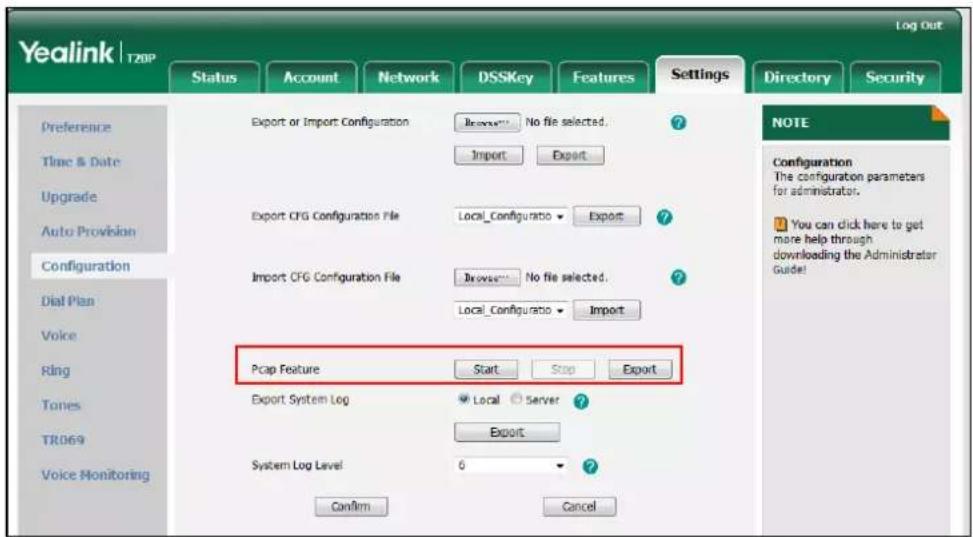
text_image
Yealink | T20P Log Out Status Account Network DSSKey Features Settings Directory Security Preference Time & Date Upgrade Auto Provision Configuration Dial Plan Voice Ring Tones TR069 Voice Monitoring Export or Import Configuration Browse... No file selected. Import Export Export CFG Configuration File Local_Configuratio Export ? Import CFG Configuration File Browser... No file selected. Local_Configuratio Import PCap Feature Start Stop Export Export System Log Local Server ? Export System Log Level 0 ? Confirm Cancel NOTE Configuration The configuration parameters for administrator. You can click here to get more help through downloading the Administrator Guide!How to export system log?
We may need you to provide a system log to help analyze your problem.
To export the system log to a local PC via web user interface:
- Click on Settings->Configuration.
- Select 6 from the pull-down list of System Log Level.
- Click Confirm to accept the change.
-
Mark the Local radio box in the Export System Log field.
-
Click Export to open file download window, and then save the file to your local system.
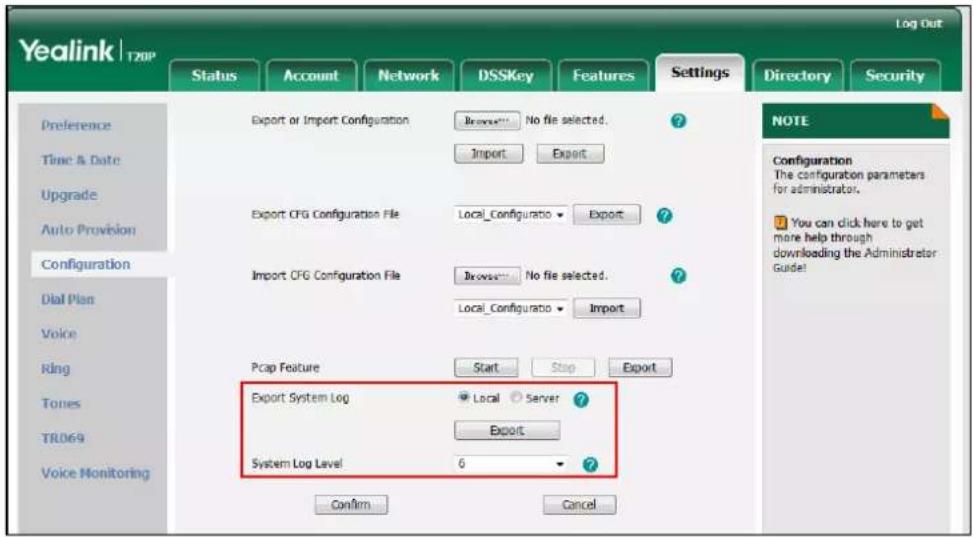
text_image
Yealink | T20P Log Out Status Account Network DSSKey Features Settings Directory Security Preference Time & Date Upgrade Auto Provision Configuration Dial Plan Voice Ring Tones TR069 Voice Monitoring Export or Import Configuration Browse... No file selected. Import Export Export CFG Configuration File Local_Configuratio Export Import CFG Configuration File Browse... No file selected. Local_Configuratio Import Pcap Feature Start Stop Export Export System Log Local Server Export System Log Level 6 Confirm Cancel NOTE Configuration The configuration parameters for administrator. You can click here to get more help through downloading the Administrator Guide!You can also export the system log to a syslog server. Contact your system administrator for more information.
Note
It is recommended you reset the system log level to 3 after you have the syslog file provided.
How to export/ import phone configurations?
We may need you to provide the phone configurations to help analyze your problem. In some instance, you may need to import configurations to the phone.
To export the phone configurations via web user interface:
-
Click on Settings->Configuration.
-
In the Export or Import Configuration block, click Export to open file download window, and then save the file to your local system.

text_image
Yealink T20P Log Out Status Account Network DSSKey Features Settings Directory Security Preference Time & Date Upgrade Auto Provision Configuration Dial Plan Voice Ring Tones TR069 Voice Monitoring Export or Import Configuration No file selected. Import Export Export CFG Configuration File Local_Configuratio Export Import CFG Configuration File Browser No file selected. Local_Configuratio Import Pcap Feature Start Stop Export Export System Log Local Server Export System Log Level 6 ? Confirm Cancel NOTE Configuration The configuration parameters for administrator. You can click here to get more help through downloading the Administrator Guide!To import the phone configurations via web user interface:
- Click on Settings->Configuration.
- In the Export or Import Configuration block, click Brower to locate a configuration file from your local system.
- Click Import to import the configuration file.
Note
The file format of configuration file must be *.bin.
How to upgrade firmware?
To upgrade firmware via web user interface:
- Click on Settings->Upgrade.
- Click Browse to locate the required firmware from your local system.
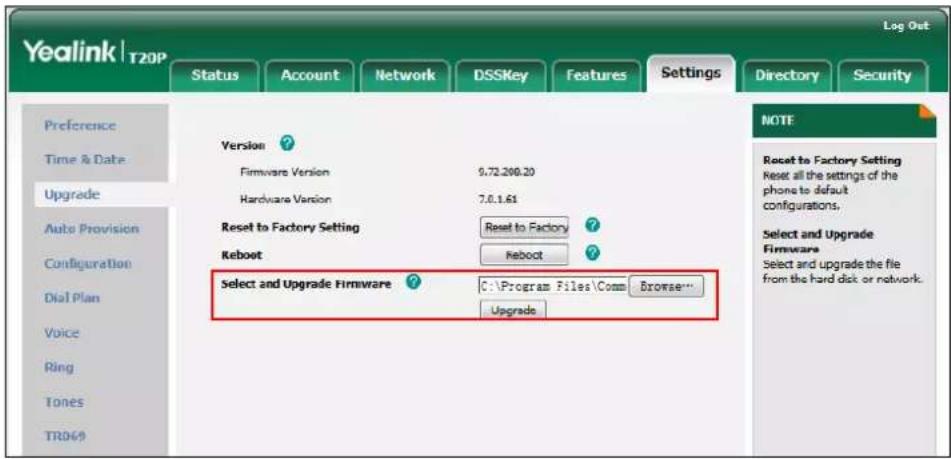
text_image
Yealink | T20P Log Out Status Account Network DSSKey Features Settings Directory Security Preference Time & Date Upgrade Auto Provision Configuration Dial Plan Voice Ring Tones TR069 Version ? Firmware Version 9.72.200.20 Hardware Version 7.0.1.61 Reset to Factory Setting Reset to Factory ? Reboot Reboot ? Select and Upgrade Firmware C:\Program Files\Comm Browse... Upgrade NOTE Reset to Factory Setting Reset all the settings of the phone to default configurations. Select and Upgrade Firmware Select and upgrade the file from the hard disk or network.- Click Upgrade to upgrade the firmware.
The web user interface prompts "Firmware of the SIP Phone will be updated. It will take 5 minutes to complete. Please don't power off!".
- Click OK to confirm upgrading.
How to reset the phone?
Reset the phone to factory configurations after you have tried all troubleshooting suggestions but do not solve the problem. You need to note that all custom settings will be overwritten after resetting. We recommend asking your system administrator for advice before resetting the phone.
To reset the phone via phone user interface:
- Press

-
Select Settings->Advanced Settings (default password: admin).
-
Press ⬆ or ⬇ to scroll to Reset to Factory, and then press Ⓞ.
The LCD screen prompts "Reset to factory settings?".
Reset to factory settings?
- Press OK to confirm.
The LCD screen prompts "Please Wait Reset...".
Please Wait
Reset...
The LCD screen prompts "Initializing Please wait".
Initializing
Please wait
The phone will be reset to factory settings successfully after startup.
Note
Reset of your phone may take a few minutes. Do not power off until the phone has started up successfully.
Regulatory Notices
Service Agreements
Contact your Yealink Authorized Reseller for information about service agreements applicable to your product.
Limitations of Liability
TO THE FULL EXTENT ALLOWED BY LAW, YEALINK EXCLUDES FOR ITSELF AND ITS SUPPLIERS ANY LIABILITY, WHETHER BASED IN CONTRACT OR TORT (INCLUDING NEGLIGENCE), FOR INCIDENTAL, CONSEQUENTIAL, INDIRECT, SPECIAL, OR PUNITIVE DAMAGES OF ANY KIND, OR FOR LOSS OF REVENUE OR PROFITS, LOSS OF BUSINESS, LOSS OF INFORMATION OR DATA, OR OTHER FINANCIAL LOSS ARISING OUT OF OR IN CONNECTION WITH THE SALE, INSTALLATION, MAINTENANCE, USE, PERFORMANCE, FAILURE, OR INTERRUPTION OF ITS PRODUCTS, EVEN IF YEALINK OR ITS AUTHORIZED RESELLER HAS BEEN ADVISED OF THE POSSIBILITY OF SUCH DAMAGES, AND LIMITS ITS LIABILITY TO REPAIR, REPLACEMENT, OR REFUND OF THE PURCHASE RICE PAID, AT YEALINK'S OPTION. THIS DISCLAIMER OF LIABILITY FOR DAMAGES WILL NOT BE AFFECTED IF ANY REMEDY PROVIDED HEREIN SHALL FAIL OF ITS ESSENTIAL PURPOSE.
Safety Instructions
Save these instructions. Read these safety instructions before use!
The following basic safety precautions should always be followed to reduce the risk of fire, electrical shock, and other personal injury.

General Requirements
- Before you install and use the device, read the safety instructions carefully and observe the situation during operation.
- During the process of storage, transportation, and operation, please always keep the device dry and clean.
- During the process of storage, transportation, and operation, please avoid collision and crash of the device.
- Please do not attempt to dismantle the device by yourself. In case of any discrepancy, please contact the appointed maintenance center for repair.
- Without prior written consent, no organization or individual is permitted to make any change to the structure or the safety design of the device. Yealink is under no circumstances liable to consequences or legal issues caused by such changes.
- Please refer to the relevant laws and statutes while using the device. Legal rights of others should also be respected as well.

Environmental Requirements
- Place the device at a well-ventilated place. Do not expose the device under direct sunlight.
- Keep the device dry and free of dust.
- Place the device on a stable and level platform.
- Please do not place heavy objects on the device in case of damage and deformation caused by the heavy load.
- Keep at least 10 cm between the device and the closest object for heat dissipation.
- Do not place the device on or near any inflammable or fire-vulnerable object, such as rubber-made materials.
- Keep the device away from any heat source or bare fire, such as a candle or an electric heater.
- Keep the device away from any household appliance with a strong magnetic field or electromagnetic field, such as a microwave oven or a refrigerator.

Operating Requirements
- Do not let a child operate the device without guidance.
- Do not let a child play with the device or any accessory in case of accidental swallowing.
- Please only use the accessories provided or authorized by the manufacturer.
- The power supply of the device must meet the requirements of the input voltage of the device. Please use the provided surge protection power socket only.
- Before plugging or unplugging any cable, make sure that your hands are completely dry.
- Do not spill liquid of any kind on the product or use the equipment near water, for example, near a bathtub, washbowl, kitchen sink, wet basement or near a swimming pool.
- Do not tread on, pull, or over-bend any cable in case of malfunction of the device.
- During a thunderstorm, stop using the device and disconnect it from the power supply. Unplug the power plug and the Asymmetric Digital Subscriber Line (ADSL) twisted pair (the radio frequency cable) to avoid lightning strike.
- If the device is left unused for a rather long time, disconnect it from the power supply and unplug the power plug.
- When there is smoke emitted from the device, or some abnormal noise or smell, disconnect the device from the power supply, and unplug the power plug immediately. Contact the specified maintenance center for repair.
- Do not insert any object into equipment slots that is not part of the product or auxiliary product.
- Before connecting a cable, connect the grounding cable of the device first. Do not disconnect the grounding cable until you have disconnected all other cables.

Cleaning Requirements
- Before cleaning the device, stop using it and disconnect it from the power supply.
• Use a piece of soft, dry and anti-static cloth to clean the device. - Keep the power plug clean and dry. Using a dirty or wet power plug may lead to electric shock or other perils.
Appendix A - Time Zones
| Time Zone | Time Zone Name |
| -11:00 | Samoa |
| -10:00 | United States-Hawaii-Aleutian |
| -09:30 | French Polynesia |
| -09:00 | United States-Alaska Time |
| -08:00 | Canada(Vancouver, Whitehorse) |
| -08:00 | Mexico(Tijuana, Mexicali) |
| -08:00 | United States-Pacific Time |
| -07:00 | Canada(Edmonton, Calgary) |
| -07:00 | Mexico(Mazatlan, Chihuahua) |
| -07:00 | United States-Mountain Time |
| -07:00 | United States-MST no DST |
| -06:00 | Canada-Manitoba(Winnipeg) |
| -06:00 | Chile(Easter Islands) |
| -06:00 | Mexico(Mexico City, Acapulco) |
| -06:00 | United States-Central Time |
| -05:00 | Bahamas(Nassau) |
| -05:00 | Canada(Montreal, Ottawa, Quebec) |
| -05:00 | Cuba(Havana) |
| -05:00 | United States-Eastern Time |
| -04:30 | Venezuela(Caracas) |
| -04:00 | Canada(Halifax, Saint John) |
| -04:00 | Chile(Santiago) |
| -04:00 | Paraguay(Asuncion) |
| -04:00 | United Kingdom-Bermuda(Bermuda) |
| -04:00 | United Kingdom(Falkland Islands) |
| -04:00 | Trinidad&Tobago |
| -03:30 | Canada-New Foundland(St.Johns) |
| -03:00 | Denmark-Greenland(Nuuk) |
| -03:00 | Argentina(Buenos Aires) |
| -03:00 | Brazil(no DST) |
| -03:00 | Brazil(DST) |
| -02:30 | Newfoundland and Labrador |
| -02:00 | Brazil(no DST) |
| -01:00 | Portugal(Azores) |
| 0 | GMT |
| 0 | Greenland |
| 0 | Denmark-Faroe Islands(Torshavn) |
| 0 | Ireland(Dublin) |
| 0 | Portugal(Lisboa, Porto, Funchal) |
| 0 | Spain-Canary Islands(Las Palmas) |
| 0 | United Kingdom(London) |
| 0 | Morocco |
| +01:00 | Albania(Tirane) |
| +01:00 | Austria(Vienna) |
| +01:00 | Belgium(Brussels) |
| +01:00 | Caicos |
| +01:00 | Chad |
| +01:00 | Spain(Madrid) |
| +01:00 | Croatia(Zagreb) |
| +01:00 | Czech Republic(Prague) |
| +01:00 | Denmark(Kopenhagen) |
| +01:00 | France(Paris) |
| +01:00 | Germany(Berlin) |
| +01:00 | Hungary(Budapest) |
| +01:00 | Italy(Rome) |
| +01:00 | Luxembourg(Luxembourg) |
| +01:00 | Macedonia(Skopje) |
| +01:00 | Netherlands(Amsterdam) |
| +01:00 | Namibia(Windhoek) |
| +02:00 | Estonia(Tallinn) |
| +02:00 | Finland(Helsinki) |
| +02:00 | Gaza Strip(Gaza) |
| +02:00 | Greece(Athens) |
| +02:00 | Israel(Tel Aviv) |
| +02:00 | Jordan(Amman) |
| +02:00 | Latvia(Riga) |
| +02:00 | Lebanon(Beirut) |
| +02:00 | Moldova(Kishinev) |
| +02:00 | Russia(Kaliningrad) |
| +02:00 | Romania(Bucharest) |
| +02:00 | Syria(Damascus) |
| +02:00 | Turkey(Ankara) |
| +02:00 | Ukraine(Kyiv, Odessa) |
| +03:00 | East Africa Time |
| +03:00 | Iraq(Baghdad) |
| +03:00 | Russia(Moscow) |
| +03:30 | Iran(Teheran) |
| +04:00 | Armenia(Yerevan) |
| +04:00 | Azerbaijan(Baku) |
| +04:00 | Georgia(Tbilisi) |
| +04:00 | Kazakhstan(Aktau) |
| +04:00 | Russia(Samara) |
| +04:30 | Afghanistan(Kabul) |
| +05:00 | Kazakhstan(Aqtobe) |
| +05:00 | Kyrgyzstan(Bishkek) |
| +05:00 | Pakistan(Islamabad) |
| +05:00 | Russia(Chelyabinsk) |
| +05:30 | India(Calcutta) |
| +05:45 | Nepal(Katmandu) |
| +06:00 | Kazakhstan(Astana, Almaty) |
| +06:00 | Russia(Novosibirsk, Omsk) |
| +06:30 | Myanmar(Naypyitaw) |
| +07:00 | Russia(Krasnoyarsk) |
| +07:00 | Thailand(Bangkok) |
| +08:00 | China(Beijing) |
| +08:00 | Singapore(Singapore) |
| +08:00 | Australia(Perth) |
| +08:00 | Russia(Irkutsk, Ulan-Ude) |
| +08:45 | Eucla |
| +09:00 | Korea(Seoul) |
| +09:00 | Japan(Tokyo) |
| +09:00 | Russia(Yakutsk, Chita) |
| +09:30 | Australia(Adelaide) |
| +09:30 | Australia(Darwin) |
| +10:00 | Australia(Sydney, Melbourne, Canberra) |
| +10:00 | Australia(Brisbane) |
| +10:00 | Australia(Hobart) |
| +10:00 | Russia(Vladivostok) |
| +10:30 | Australia(Lord Howe Islands) |
| +11:00 | New Caledonia(Noumea) |
| +11:00 | Russia(Srednekolymsk Time) |
| +11:30 | Norfolk Island |
| +12:00 | New Zealand(Wellington, Auckland) |
| +12:00 | Russia(Kamchatka Time) |
| +12:45 | New Zealand(Chatham Islands) |
| +13:00 | Tonga(Nukualofa) |
| +13:30 | Chatham Islands |
| +14:00 | Kiribati |
Index
A
About This Guide v
Account Management 45
Account Registration 45
Adding Contacts 29
Adding Groups 28
Administrator password 22
Always Forward 66
Anonymous Call 77
Anonymous Call Rejection 78
Answering Calls 57
Area Code 50
Attaching Stand 11
Attended Transfer 71
Audio Settings 25
B
Basic Network Settings 15
Blacklist 34
Blind Transfer 71
Block Out 51
Busy Forward 66
Busy Lamp Field (BLF) 81
BLF List 82
C
Call Completion 61
Call Forward 66
Call History Management 35
Call Hold/Resume 62
Call Mute 62
Call Park 75
Call Pickup 76
Call Recording 82
Call Transfer 71
Call Waiting 72
CE Mark Warning ii
Conference 72
Contact Management 27
Copyright
Customizing Your Phone 19
D
Declaration of Conformity ii
Deleting Contacts 31
Deleting Groups 29
Dial-now 48
Dial Plan 46
Do Not Disturb (DND) 63
Documentations 7
DSS Keys 39
Dual Headset 38
Dynamic Forwarding 65
E
Editing Contacts 30
Editing Groups 28
Emergency Number 52
Ending Calls 58
G
General Settings 19
Getting Started 9
H
Hardware Components Instruction 1
Headset Mode Activation/Deactivation 37
Headset Prior 38
Hotline 54
Hot Desking 86
|
Icon Instructions 3
Idle Screen 17
Importing/Exporting Contact lists 32
Incoming Intercom Calls 88
Intercom 87
K
Key as Send 22
L
Language 19
LED Instructions 4
Limitation of Liability 111
Line Keys 39
Live Dialpad 53
Local Conference 72
Local Directory 28
Logo Customization 36
M
Message Waiting Indicator 97
Multicast Paging 90
Music on Hold 94
N
Network Conference 73
Network Connection 11
No answer Forward 66
O
Outgoing Intercom Call 88
Overview 1
Optional Accessories 10
P
Packaging Contents 9
Phone Installation 11
Phone Initialization 13
Phone Status 13
Phone Lock 23
Phone User Interface 5
Placing Calls 55
Placing Calls to Contacts 31
Programmable Keys 44
R
Recall 62
Receiving RTP Stream 93
Redialing Numbers 59
Replace Rule 47
Ring Tones 26
S
Safety Instructions 111
Searching for Contacts 32
Semi-attended Transfer 71
Sending RTP Stream 90
Service Agreement 111
T
Time and Date 20
Time Zone 115
Troubleshooting 97
V
Voice Mail 95
Volume 25
W
Warranty ii
Web User Interface 5
WEEE Warning ii