GV-QSD5730-Indoor - Security Camera Geovision - Free user manual and instructions
Find the device manual for free GV-QSD5730-Indoor Geovision in PDF.


User questions about GV-QSD5730-Indoor Geovision
0 question about this device. Answer the ones you know or ask your own.
Ask a new question about this device
Download the instructions for your Security Camera in PDF format for free! Find your manual GV-QSD5730-Indoor - Geovision and take your electronic device back in hand. On this page are published all the documents necessary for the use of your device. GV-QSD5730-Indoor by Geovision.
USER MANUAL GV-QSD5730-Indoor Geovision
natural_image
Three GeoUvision security cameras with black and white lenses against a blue background (no text or symbols visible on the devices themselves)• GV-QSD5730-Indoor
• GV-QSD5730-Outdoor
• GV-QSD5731-IR
© 2023 GeoVision, Inc. All rights reserved.
Under the copyright laws, this manual may not be copied, in whole or in part, without the written consent of GeoVision.
Every effort has been made to ensure that the information in this manual is accurate. GeoVision, Inc. makes no expressed or implied warranty of any kind and assumes no responsibility for errors or omissions. No liability is assumed for incidental or consequential damages arising from the use of the information or products contained herein. Features and specifications are subject to change without notice.
GeoVision, Inc.
9F, No. 246, Sec. 1, Neihu Rd.,
Neihu District, Taipei, Taiwan
Trademarks used in this manual: GeoVision, the GeoVision logo and GV series products are trademarks of GeoVision, Inc. Windows is the registered trademark of Microsoft Corporation.
February 2023
Scan the following QR codes for product warranty and technical support policy:

text_image
QR code image containing encoded data, no visible human-readable text
text_image
QR code image containing encoded data, no visible human-readable text[Warranty] [Technical Support Policy]
Preface
Welcome to the GV-IP Speed Dome User's Manual.
There are two types of GV-IP Speed Dome, Indoor and Outdoor, distinguished by model:
| Application | Model |
| Indoor | GV-QSD5730-Indoor |
| Outdoor | GV-QSD5730-OutdoorGV-QSD5731-IR |
This Manual provides an overview of GV-IP Speed Dome and its accessories. The instructions herein will guide you through the installation and use of GV-IP Speed Dome.
Table of Contents
Table of Contents....2
Regulatory Notices....4
Note for Connecting to GV-VMS / DVR / NVR....5
Note for Recording 5
Optional Devices 6
1. Overview....7
2. Main Tabs....8
2.1 Home Page 9
2.2 System.... 13
2.2.1 System....13
2.2.2 Security 15
2.2.3 Network....24
2.2.4 DDNS 31
2.2.5 Mail....31
2.2.6 FTP 32
2.2.7 HTTP 32
2.2.8 Events (Alarm Settings) 33
2.2.9 Auto Tracking 57
2.2.10 Storage Management 60
2.2.11 Recording....65
2.2.12 Schedule....66
2.2.13 File Location (Snapshots and Web Recording)....67
2.2.14 View Information....68
2.2.15 Factory Default....69
2.2.16 Software Version (Firmware Version) 69
2.2.17 Software Upgrade (Firmware Upgrade)....70
2.2.18 Maintenance....71
2.3 Streaming 72
2.3.1 Video Configuration (Video Format & Resolution)....73
2.3.2 Video Rotation....75
2.3.3 Video Text Overlay 76
2.3.4 Video OCX Protocol....78
2.3.5 Audio (Audio Mode and Bit Rate Settings)....78
2.4 Image 80
2.4.1 Exposure 81
2.4.2 White Balance 82
2.4.3 Picture Adjustment 84
2.4.4 IR Function 85
2.4.5 Noise Reduction 87
2.4.6 WDR Function 88
2.4.7 Image Stabilizer 88
2.4.8 Digital Zoom 89
2.4.9 Backlight 89
2.4.10 Profile 89
2.4.11 TV System....90
2.5 PTZ 91
2.5.1 Preset....91
2.5.2 Cruise....92
2.5.3 Auto Pan 93
2.5.4 Sequence 94
2.5.5 Home Function....95
2.5.6 Tilt Range 96
2.5.7 Privacy Mask....96
2.5.8 PTZ Setting....98
2.5.9 RS485....100
2.6 Logout....100
Appendix A: Install UPnP Components 101
Appendix B: IP Addresses from Decimal to Binary 102
Regulatory Notices

FCC Notice
This equipment has been tested and found to comply with the limits of a Class A digital device, pursuant to part 15 of the FCC Rules. These limits are designed to provide reasonable protection against harmful interference when the equipment is operated in a commercial environment.
Class A
This equipment generates, uses, and can radiate radio frequency energy and, if not installed and used in accordance with the instruction manual, may cause harmful interference to radio communications. Operation of this equipment in a residential area is likely to cause harmful interference in which case the users will be required to correct the interference at their own expense.
CE CE Notice
This is a Class A product. In a domestic environment, this product may cause radio interference in which case the users may be required to take adequate measures.

RoHS Compliance
The Restriction of Hazardous Substances (RoHS) Directive is to forbid the use of hazardous materials for production. To meet the RoHS Directive requirements, this product is made to be RoHS compliant.
ompliance
This product is subject to the Waste Electrical and Electronic Equipment (WEEE) Directive and made compliant with the WEEE requirements.
Note for Connecting to GV-VMS / DVR / NVR
The GV-IP Speed Dome is designed to work with and record on GV-VMS / DVR / NVR, a video management system.
Once the camera is connected to the GV-VMS / DVR / NVR, the resolution set on the GV-VMS / DVR / NVR will override the resolution set on the camera's Web interface. You can only change the resolution settings through the Web interface when the connection to the GV-VMS / DVR / NVR is interrupted.
Note for Recording
-
By default, the images are recorded to the memory card inserted in the GV-IP Seed Dome.
-
Mind the following when using a memory card for recording:
-
Recorded data on the memory card can be damaged or lost if the data are accessed while the camera is under physical shock, power interruption, memory card detachment or when the memory card reaches the end of its lifespan. No guarantee is provided for such causes.
- The stored data can be lost if the memory card is not accessed for a long period of time. Back up your data periodically if you seldom access the memory card.
- Memory cards are expendable and their durability varies according to the conditions of the installed site and how they are used. Back up your data regularly and replace the memory card annually.
- To avoid power outage, it is highly recommended to apply a battery backup (UPS).
- For better performance, it is highly recommended to use Micro-SD card or SD card of MLC NAND flash, Class 10.
-
Replace the memory card when its read/write speed is lower than 6 MB/s or when the memory card is frequently undetected by the camera.
-
To ensure smooth network usage, do not access the live view from more than 20 connections.
Optional Devices
Optional devices can expand the capabilities and versatility of your GV-IP Speed Dome. Contact your dealer for more information.
| Device | Description |
| GV-Mount Accessories | The GV-Mount Accessories provide a comprehensive lineup of accessories for installing the GV-QSD5730-Outdoor or GV-QSD5731-IR on ceiling, wall corner and pole. For details, refer to GV-Mount Accessories Installation Guide. |
| GV-PoE Power Adapter | GV-PoE Adapter is designed to provide power to the IP device through a single Ethernet cable. Adopting the PoE adapter enables you to mount an IP device anywhere in a building where power outlets are not available.Note: GV-PA902BT Gigabit PoE Adapter is required to power GV-QSD5731-IR. |
| GV-PoE Switch | The GV-POE Switch is designed to provide power along with network connection for IP devices. The GV-POE Switch is available in various models with different types and numbers of ports. |
| Power Adapter | Contact our sales representatives for the countries and areas supported. |
1. Overview
GV-IP Speed Dome (GV-QSD5730-Indoor / GV-QSD5730-Outdoor / GV-QSD5731-IR) offers 33x optical zoom and 10x digital zoom, capable of showing smooth live view with great details. Both models can simultaneously deliver four video streams in resolutions up to 2592 x 1944 at 30 fps and support H.265 video codec to achieve better compression ratio while maintaining high quality pictures at reduced network bandwidths.
GV-IP Speed Dome (GV-QSD5730-Indoor / GV-QSD5730-Outdoor / GV-QSD5731-IR) also features Servo Feedback technology and Electronic Image Stabilizer (EIS) technology. The Servo Feedback technology ensures the camera view returns to the preset position when encountering external force (e.g. human interference) or environmental vibration. EIS technology can effectively produce stable images by actively sensing directional movement of the images and compensating accordingly; this is particularly useful for cameras installed at places where environmental movement (e.g. strong wind, the passing-by heavy vehicles) is constant, and when high optical zoom is executed.
2. Main Tabs
There are six setting tabs, including
Home
Users can monitor the live video of the targeted area.
System Setting
The administrator can set system time, root password, network related settings, etc. Further details will be interpreted in chapter System.
Streaming Setting
The administrator can configure video format, video compression, video OCX protocol, video frame rate and audio compression in this page.
Image Setting
This setting page is only available for the administrator and user accounts that have been granted the privilege of camera control. The administrator and users can adjust various camera parameters including Exposure, White Balance, Picture Adjustment, IR Function, Digital Zoom, WDR, etc.
PTZ Setting
This setting page is only available for the administrator and user accounts that have been granted the privilege of camera control. The administrator and users can program Preset Point(s), Cruise Line(s), Auto Pan Path(s) and Sequence Line(s) via PTZ controls.
Logout
Click the tab to re-login the camera with another username and password.
2.1 Home Page
Click the tab
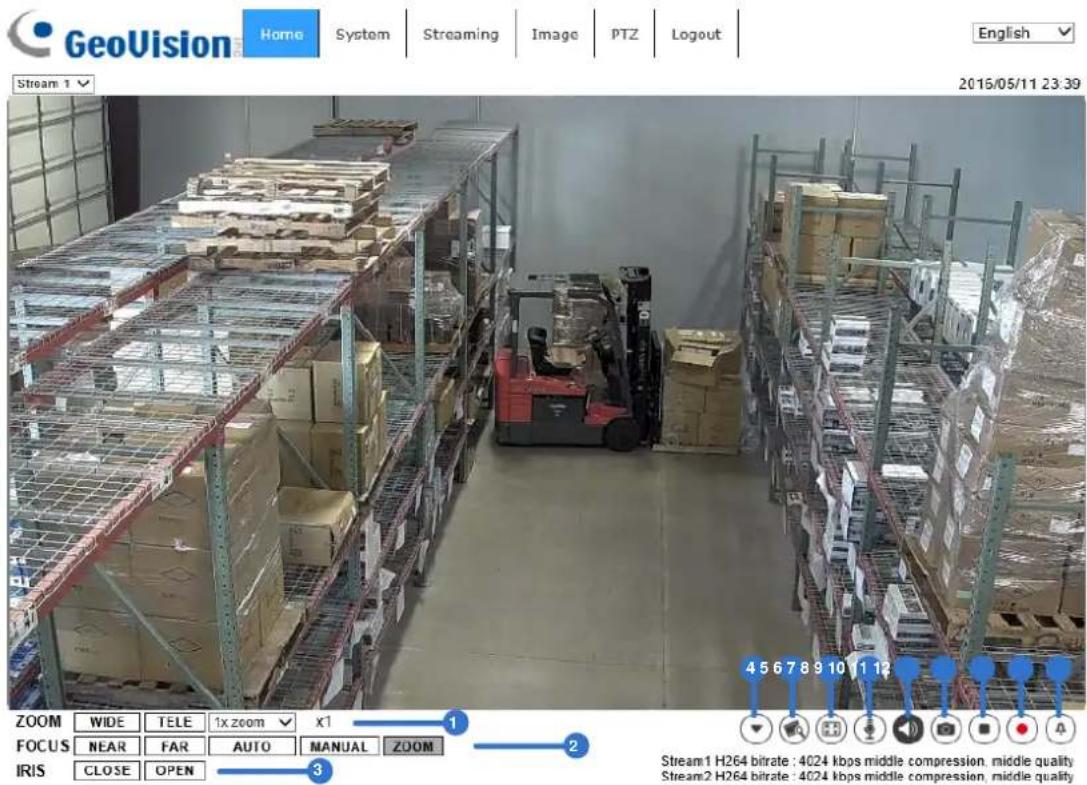
text_image
GeoVision Home System Streaming Image PTZ Logout English Stream 1 2015/05/11 23:39 4 5 6 7 8 9 10 11 12 ZOOM WIDE TELE 1x zoom x1 FOCUS NEAR FAR AUTO MANUAL ZOOM IRIS CLOSE OPEN Stream1 H264 bitrate : 4024 kbps middle compression, middle quality Stream2 H264 bitrate : 4024 kbps middle compression, middle qualityMultiple Languages Support
Multiple languages are supported, including Czech, English, French, German, Hungarian, Italian, Japanese, Portuguese, Russian, Spanish, Traditional Chinese, and Simplified Chinese for the viewer window interface.
Display Stream Selection
According to the streaming setting, users can choose the one stream to display from the drop-down list.
Camera Info
Double click the live view pane, and the camera info window will pop up. Users can instantaneously check the basic information of the camera, such as IP address, network status, video format, etc.
Zoom Adjustment

Click
Focus Adjustment
- Near / Far NEAR FAR
Click <MANSLand users can adjust focus manually via
• Auto Focus (Continuous AF) AUTO
Click < > to enable AF mode. In this mode, the camera will keep in focus automatically and continuously regardless of zoom changes or any view changes.
- Manual MANUAL
Click < >ManidA users can adjust focus manually via NEAR / FAR buttons.
- Zoom (Zoom Triggered AF) ZOOM
Click <>, andMAF will be activated every time when zoom is adjusted.
Iris Adjustment CLOSE OPEN
Click
Control Panel (Close / Open)
Click the
Click <▼>, and the control panel will be as shown below.
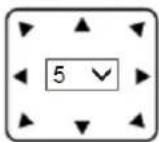

• Pan & Tilt Direction and Speed Control

The
- Run Preset / Cruise / Sequence
Go to
Video Quality

Click to show/hide bitrate and compression of each stream.
Full Screen

Image display size can be adjusted to full screen. Alternatively, right click the Live Video Pane and select
To exit full screen mode, users can (1) tap
Talk

(On / Off)
Talk function allows the local site talks to the remote site. Click the button to switch it to On / Off. Users must select the suitable transmission mode under this path: Streaming> Audio to enable this function.

NOTE: This function is only available for user accounts that have been granted this privilege by the administrator. Please refer to Security: Add user> Talk/Listen for further details.
Listen

(On / Off)
Click the

NOTE: This function is only available for user accounts that have been granted this privilege by the administrator. Please refer to Security: Add user> Talk/Listen for further details.
Snapshot

Click the button and the JPEG snapshots will automatically be saved in the appointed place: C:\ProgramData\Geovision. To change the storage location, please refer to section File Location of the next chapter for further details.

NOTE: With Windows 7 operating system or above, to implement the Snapshot function, users must run IE as administrator. To run IE as administrator, right click the IE browser icon and select "Run As Administrator" to launch IE.
Live View Pause / Restart (Pause / Restart)
Click <■> to disable video streaming, the live video will be displayed as black. Press <▶> to show the live video.
Record

n / Off)
Click the

NOTE: With Windows 7 operating system or above, to implement the Web Recording function, users must run IE as administrator. To run IE as administrator, right click the IE browser icon and select "Run As Administrator" to launch IE.
Manual Trigger
Click the
Pan/Tilt Control
Users can implement pan/tilt control by moving the cursor to the live video pane, then left click and drag the pointer in any direction.
Optical Zoom Control
In Full Screen display mode, users can implement zoom in / out by scrolling up/down the mouse wheel.
Set Center Mode
Right click the Live Video Pane and select
2.2 System
Under the tab

text_image
GeoVision Home System Streaming Image PTZ Logout English System Security Network DDNS Mail FTP HTTP Events Autotracking Storage Management Recording Schedule File Location View Information Factory Default Software Version Software Upgrade Maintenance System Time zone: GMT+08:00 China, Hong Kong, Australia Western, Singapore, Taiwan, Russia(Krasnoyersk) ▼ Enable daylight saving time Time offset: 01:00:00 Start date: Jan 1st Sun Start time: 00:00:00 End date: Jan 1st Sun End time: 00:00:00 Time format: yyyy/mm/dd ▼ Sync with computer time PC date: 2020/06/15 [yyyy/mm/dd] PC time: 14:34:37 [hh:mm:ss] Manual Date: 2016/04/01 [yyyy/mm/dd] Time: 00:00:00 [hh:mm:ss] Sync with NTP server NTP server: 0.0.0 [host name or IP address] Update interval: Every hour ▼ Save
NOTE: The
2.2.1 System
The System setting can be found under the path: System> System.
Time Zone
Select the time zone from the drop-down menu according to the location of the camera.
Enable Daylight Saving Time
To enable DST, please check the item and then specify the time offset and the DST duration. The format for time offset is [hh:mm:ss]; for instance, if the amount of time offset is one hour, please enter "01:00:00" into the field.
Time format
Choose a time format (yyyy/mm/dd or dd/mm/yyyy) from the drop-down menu. The format of the date and time displayed above the live video window will be changed according to the selected format.
Sync with Computer Time
Select the item, and video date and time display will synchronize with the PC's.

NOTE: Users MUST click the
Manual
The administrator can set video date and time manually. Entry format should be identical with the examples shown next to the enter fields.
Sync with NTP Server
Network Time Protocol (NTP) is an alternate way to synchronize the camera's clock with a NTP server. Please specify the server that is wished to synchronize in the entry field. Then select an update interval from the drop-down menu. For further information about NTP, please see the web site: www.ntp.org.

NOTE: The synchronization will be done every time the camera boots up.
Click the
2.2.2 Security
The Security setting can be found under this path: System> Security.
Click the
2.2.2.1 User
The User setting can be found under this path: System> Security> User.
Admin Password
This item is for the administrator to reset password. Enter the new password in

NOTE: The following characters are valid: A-Z, a-z, 0-9, !#\$%&'-.@^\~.
Add User
This item is for the administrator to add new users. Enter the new user's name in
- I/O access
This item supports fundamental functions that enable users to view the live video when accessing to the camera.
- Camera control
This item allows the appointed user to change camera parameters on the
- Talk/Listen
This item allows the appointed user in the local site (PC site) to communicate with, for instance, the administrator in the remote site.
Manage User
- Delete user
Pull down the
- Edit user
Pull down the
HTTP Authentication Setting
This setting allows secured connections between the IP camera and web browser by enforcing access controls to web resources. When users approach to the web browser, it'll ask for username and password, which protects the camera settings or live streaming information from snooping. There are two security models available: Basic and Digest. Refer to the descriptions below for more details.
- Basic
This mode can only provide basic protection for the connection security. There will still be risks for the password being intercepted.
- Digest
Digest mode is a safer option for protection. The password is sent in an encrypted format to prevent it from being stolen.

NOTE:
- Users MUST click the
button to apply the setting. - Set the HTTP Authentication type to Basic to ensure the following functions:
A. Auto Pan function on GV-VMS
B. Video settings (resolution, FPS, GOP, codec, bitrate) on GV-VMS
C. Firmware upgrade and codec settings on GV-IP Device Utility
Streaming Authentication Setting
This setting provides security against unauthorized users from getting streaming via Real Time Streaming Protocol (RTSP). If the setting is enabled, users will be requested to enter user name and password before viewing the live streams. There are three security modes available: Disable, Basic and Digest. Refer to the descriptions below for more details.
- Disable
If disable mode is selected, there will be no security provided to against unauthorized access. Users will not be asked to input user name and password for authentication.
- Basic
This mode can only provide basic protection for the live streams. There will still be risks for the password being intercepted.
- Digest
Digest mode is a safer option for protection. The password is sent in an encrypted format to prevent it from being stolen.

NOTE: Users MUST click the
Auto Log Off Setting
- Enable log off timer
Select and specify the idle time before an automatic log off.
- Enable log off by changing/closing website
Select to enable an automatic log off when changing to another website or when the website is closed.
Enable Account Lockout Function
This setting provides extra security against unauthorized users who intend to log in by guessing the username or password. If the setting is enabled, login will not be allowed for the set duration once the maximum login failure is reached.
- Threshold
Set the maximum number of login failure.
- Duration
Set the duration for account lockout.
Send Alert Upon User Login
- E-Mail address
Select and specify the desired E-mail address from the drop-down menu for the system to send the login alert to. To set up the two E-mail addresses, go to System > Mail.

NOTE: Users MUST click the
2.2.2.2 HTTPS
The HTTPS setting can be found under this path: System> Security> HTTPS.
To use HTTPS on the camera, an HTTPS certificate must be installed. The HTTPS certificate can be obtained by either creating and sending a certificate request to a Certificate Authority (CA) or creating a self-signed HTTPS certificate, as described below.
Create Self-signed Certificate
Before a CA-issued certificate is obtained, users can create and install a self-signed certificate first.
Click the
Please refer to the last part of this section Provide the Certificate Information for more details.

NOTE: The self-signed certificate does not provide the same high level of security as when using a CA-issued certificate.
Install Signed Certificate
Click the
Provide the request information in the create dialog. Please refer to the following section Provide the Certificate Information for more details.
When the request is complete, the subject of the Created Request will be shown in the field. Click the
When the signed certificate is returned, install it by uploading the signed certificate.
Provide the Certificate Information
To create a Self-signed HTTPS Certificate or a Certificate Request to CA, please enter the information as requested.
| Create Self Signed Certificate | Create Certificate Request | |
| Country | V | V |
| State or Province | V | V |
| Locality | V | V |
| Organization | V | V |
| Organizational Unit | V | V |
| Common Name | V | V |
| Valid Days | V | - |
- Country
Enter a two-letter combination code to indicate the country the certificate will be used in. For instance, type in "US" to indicate United States.
• State or province
Enter the local administrative region.
- Locality
Enter other geographical information.
- Organization
Enter the name of the organization to which the entity identified in "Common Name" belongs.
- Organization Unit
Enter the name of the organizational unit to which the entity identified in "Common Name" belongs.
- Common Name
Indicate the name of the person or other entity that the certificate identifies (often used to identify the website).
- Valid days
Enter the period in days (1 to 9999) to indicate the valid period of certificate.
Click the
2.2.2.3 IP Filter
The IP Filter setting can be found under this path: System> Security> IP Filter.
With IP Filter, users can allow or deny specific IP addresses from accessing the camera.
- Enable IP Filter
Check the box to enable the IP Filter function. Once enabled, the listed IP addresses (IPv4) in the
Select
- Add IP Address
Input IP address at the blank space below the
In addition, to filter a group of IP addresses, enter an address at the blank space followed with a slash and a number ranging from 1 to 31, e.g. 192.168.2.81/30. The number after the slash can define how many IP addresses will be filtered. For details, please refer to the following example.
Example: Filtering a group of consecutive IP addresses The steps below show what will be filtered when 192.168.2.81/30 is entered.
Step 1: Convert 192.168.2.81 to binary numbers. The binary numbers are 11000000.10101000.00000010.01010001. Users can refer to Appendix B: IP Addresses from Decimal to Binary for converting the IP addresses to binary numbers. The number “30” after the slash is referring to the first 30 digits of the binary numbers.
Step 2: Convert a few IP addresses before and after 192.168.2.81 to binary numbers. Then compare their first 30 digits with the binary numbers of 192.168.2.81.
a. Convert 192.168.2.80 to binary numbers. The binary numbers are 11000000.10101000.00000010.01010000. The first 30 digits are the same with the binary numbers of 192.168.2.81, thus 192.168.2.80 will be filtered.
b. Convert 192.168.2.79 to binary numbers. The binary numbers are 11000000.10101000.00000010.01001111. The first 30 digits are different with the binary numbers of 192.168.2.81, thus 192.168.2.79 will not be filtered. This also means the IP addresses before 192.168.2.79 will not be filtered. Therefore, users can stop converting the IP addresses before 192.168.2.79 to binary numbers.
c. Repeat the same procedure in "a" with the IP addresses after 192.168.2.81. Stop when the situation occurs in "b" happened. Namely, the 30th digit of the binary numbers of IP address 192.168.2.84 is different, and will not be filtered.
As a result, the IP addresses 192.168.2.80 to 192.168.2.83 will be filtered when entering 192.168.2.81/30. The following table clearly shows the 30^th digit of the binary numbers of IP addresses 192.168.79 and 192.168.84 are different from the others. Therefore, these two IP addresses will not be filtered.
| IP Addresses | Binary Numbers |
| 192.168.2.79 | 11000000.10101000.00000010.0100111 |
| 192.168.2.80 | 11000000.10101000.00000010.01010000 |
| 192.168.2.81 | 11000000.10101000.00000010.01010001 |
| 192.168.2.82 | 11000000.10101000.00000010.01010010 |
| 192.168.2.83 | 11000000.10101000.00000010.01010011 |
| 192.168.2.84 | 11000000.10101000.00000010.01010100 |
- Delete IP Address
To remove an IP address from the
2 Main Tabs
2.2.2.4 IEEE 802.1X
The IEEE 802.1X setting can be found under this path: System> Security> IEEE 802.1X.
The camera is allowed to access a network protected by 802.1X/EAPOL (Extensible Authentication Protocol over LAN).
Users need to contact with the network administrator for gaining certificates, user IDs and passwords.
CA Certificate
The CA certificate is created by the Certification Authority for the purpose of validating itself. Upload the certificate for checking the server's identity.
Client Certificate / Private Key
Upload the Client Certificate and Private Key for authenticating the camera itself.
Settings
- Identity
Enter the user identity associated with the certificate. Up to 16 characters can be used.
- Private Key Password
Enter the password (maximum 16 characters) for user identity.
Enable IEEE 802.1X
Check the box to enable IEEE 802.1X.
Click the
2.2.3 Network
The Network setting can be found under this path: System> Network.
Click the
2.2.3.1 Basic
The Basic setting can be found under this path: System> Network> Basic.
This setting page is for setting a new IP address for the camera, configuring other network-related parameters and activating IPv6 address (if the network supports it).
General
This setting menu is for configuring a new IP address for the camera. To setup an IP address, please find out the network type first. Contact the network provider for it. Then refer to the network type and follow the instructions to setup the IP address.

NOTE: If the network type is Point-to-Point Protocol over Ethernet (PPPoE), please obtain the PPPoE username and password from the network provider.
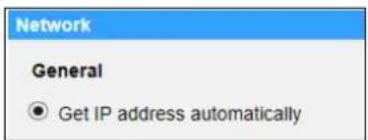
- Get IP address automatically
Select Get IP address automatically and click the
text_image
Network General ● Get IP address automaticallyA note for camera system restart will appear. Click the
- Use fixed IP address
Select the item and insert the new IP address, e.g. 192.168.7.123. Note that the inserted IP address should be in the same LAN as the PC's IP address. Then go to the Default gateway (explained later) blank and change the setting, e.g. 192.168.7.254. Click the
IP address
This is necessary for network identification.
Subnet mask
It is used to determine if the destination is in the same subnet. The default value is "255.255.255.0".
➢ Default gateway
This is the gateway used to forward frames to destinations in different subnet. Invalid gateway setting will fail the transmission to destinations in different subnet.
Primary DNS
Primary DNS is the primary domain name server that translates hostnames into IP addresses.
▶ Secondary DNS
Secondary DNS is a secondary domain name server that backs up the primary DNS.
- Use PPPoE
For the PPPoE users, enter the PPPoE username and password into the enter fields, and click the
Advanced
The following introduces the camera's Web Server port, RTSP port, and HTTPS port.
- Web Server port
The default web server port is 80. With the default web server port '80', users can simply input the IP address of the camera in the URL bar of a web browser to connect the camera. When the web server port is changed to any number other than 80, users have to enter the camera's IP address followed by a colon and the port number. For instance, a camera whose IP address as 192.168.0.100 and web server port as 8080 can be connected by entering "http://192.168.0.100:8080" in the URL bar.
- RTSP port
The default setting of RTSP Port is 554; the RTSP Port should be set as 554 or from the range 1024 to 65535.
- HTTPS port
The default setting of HTTPS Port is 443; the HTTPS Port should be set as 443 or from the range 1024 to 65535.

NOTE: Please make sure the port numbers set above are not the same with each other; otherwise, network conflict may occur.
IPv6 Address Configuration
If the network supports IPv6, users can check the box beside
2.2.3.2 QoS
The QoS (Quality of Service) setting can be found under this path: System> Network> QoS.
QoS allows providing differentiated service levels for different types of traffic packets, which guarantees delivery of priority services especially when network congestion occurs. Adapting the Differentiated Services (DiffServ) model, traffic flows are classified and marked with DSCP (DiffServ Codepoint) values, and thus receive the corresponding forwarding treatment from DiffServ capable routers.
DSCP Settings
The DSCP value range is from 0 to 63. The default DSCP value is 0, which means DSCP is disabled. The camera uses the following QoS Classes: Video, Audio and Management.
- Video DSCP
The class consists of applications such as RTP/RTSP and RTSP/HTTP.
- Audio DSCP
This setting is only available for the cameras that support audio.
- Management DSCP
The class consists of HTTP traffic: Web browsing.

NOTE: To enable this function, please make sure the switches / routers in the network support QoS.
2.2.3.3 SNMP
The SNMP (Simple Network Management Protocol) setting can be found under this path: System> Network> SNMP.
With Simple Network Management Protocol (SNMP) support, the camera can be monitored and managed remotely by the network management system.
SNMP v1 / v2
- Enable SNMP v1 / v2 Select the version of SNMP to use by checking the box.
- Read Community Specify the community name that has read-only access to all supported SNMP objects. The default value is “public”.
- Write Community Specify the community name that has read / write access to all supported SNMP objects (except read-only objects). The default value is "private".
SNMP v3
SNMP v3 supports an enhanced security system that provides protection against unauthorized users and ensures the privacy of the messages. Users will be requested to enter security name, authentication password and encryption password while setting the camera connections in the network management system. With SNMP v3, the messages sent between the cameras and the network management system will be encrypted to ensure privacy.
- Enable SNMP v3 Enable SNMP v3 by checking the box.
- Security Name The maximum length of the security name is 32 characters.

NOTE: The valid characters are A-Z, a-z, 0-9 and !#\$%&'-.@^\~.
- Authentication Type
There are two authentication types available: MD5 and SHA. Select
- Authentication Password
The authentication password must be 8 characters or more. The input characters / numbers will be displayed as dots for security purposes.

NOTE: The valid characters are A-Z, a-z, 0-9 and !#\$%&'-.@^\~.
- Encryption Type
There are two encryption types available: DES and AES. Select
- Encryption Password
The minimum length of the encryption password is 8 characters and the maximum length is 512 characters. The input characters / numbers will be displayed as dots for security purposes. The encryption password can also be left blank. However, the messages will not be encrypted to protect privacy.

NOTE: The valid characters are A-Z, a-z, 0-9 and !#\$%&'-.@^\~.
Traps for SNMP v1 / v2 / v3
Traps are used by the camera to send massages to a management system for important events or status changes.
- Enable Traps
Check the box to activate trap reporting.
- Trap address
Enter the IP address of the management server.
- Trap community
Enter the community to use when sending a trap message to the management system.
Trap Option
- Warm Start
A Warm Start SNMP trap signifies that the SNMP device, i.e. IP camera, performs software reload.
Click the
2.2.3.4 UPnP
The UPnP setting can be found under this path: System> Network> UPnP.
UPnP Setting
- Enable UPnP
When the UPnP is enabled, whenever the camera is presented to the LAN, the icon of the connected cameras will appear in My Network Places to allow for direct access.

NOTE: To enable this function, please make sure UPnP component is installed on the computer. Please refer to Appendix A: Install UPnP Components for UPnP component installation procedure.
- Enable UPnP port forwarding
When the UPnP port forwarding is enabled, the camera is allowed to open the web server port on the router automatically.

NOTE: To enable this function, please make sure that the router supports UPnP and it is activated.
- Friendly name
Set a name for the camera for identity.
Click the
2.2.4 DDNS
The DDNS setting can be found under this path: System> DDNS.
Dynamic Domain Name System (DDNS) allows a host name to be constantly synchronized with a dynamic IP address. In other words, it allows those using a dynamic IP address to be associated to a static domain name so others can connect to it by name.
Enable DDNS
Check the item to enable DDNS.
Provider
Select one DDNS host from the provider list.
Host name
Enter the registered domain name in the field.
Username/E-Mail
Enter the username or E-mail required by the DDNS provider for authentication.
Password/Key
Enter the password or key required by the DDNS provider for authentication.
2.2.5 Mail
The Mail setting can be found under this path: System> Mail.
The administrator can send an E-mail via Simple Mail Transfer Protocol (SMTP) when an alarm is triggered. SMTP is a protocol for sending E-mail messages between servers. SMTP is a relatively simple, text-based protocol, where one or more recipients of a message are specified and the message text is transferred.
Two sets of SMTP can be configured. Each set includes SMTP Server, Account Name, Password and E-mail Address settings. For SMTP server, contact the network service provider for more specific information.
2.2.6 FTP
The FTP setting can be found under this path: System> FTP.
The administrator can set the camera to send the alarm messages to a specific File Transfer Protocol (FTP) site when an alarm is triggered. Users can assign alarm message to up to two FTP sites. Enter the FTP details, which include server, server port, username, password and remote folder, in the fields.
Click the
2.2.7 HTTP
The HTTP setting can be found under this path: System> HTTP.
An HTTP Notification server can listen for the notification messages from the cameras by triggered events. Enter the HTTP details, which include server name (for instance, http://192.168.0.1/admin.php), username, and password in the fields.
Click the

Please refer to Events> Application> Send HTTP notification for HTTP Notification settings.
2.2.8 Events (Alarm Settings)
The Events setting can be found under this path: System> Events.
Click the
2.2.8.1 Application
The Application setting can be found under this path: System> Events> Application.
The camera equips four alarm inputs and two relay outputs for cooperating with the alarm system to catch events' images. Please refer to the GV-IP Speed Dome Quick Start Guide for I/O pin definitions to connect the alarm devices.
Alarm Switch
Select an alarm pin which is to be configured from the drop-down menu. The default setting for the Alarm Switch function is
Alarm Type
Select an alarm type,
Triggered Action (Multi-option)
The administrator can specify alarm actions that will take at an alarm occurrence. All options are listed as follows.
- Enable Alarm Output 1/2
Select these items to enable alarm relay outputs.
- Send Message by FTP/E-Mail
The administrator can select whether to send an alarm message by FTP and/or E-mail when an alarm is triggered.
- Upload Image by FTP
Select this item and the administrator can assign an FTP site and configure various parameters. When the alarm is triggered, event images will be uploaded to the appointed FTP site. Note that to implement this function, one of the streaming MUST be set as MJPEG; otherwise, this function will be grayed out and cannot be accessed.

NOTE:
Check the box

NOTE: Make sure the FTP configuration has been completed. Refer to section FTP for further details.
- Upload Image by E-Mail
Select this item and the administrator can assign an E-mail address and configure various parameters. When the alarm is triggered, event images will be sent to the appointed E-mail address. Note that to implement this function, one of the streaming MUST be set as MJPEG; otherwise, this function will be grayed out and cannot be accessed.

NOTE:
Check the box

NOTE: Make sure SMTP configuration has been completed. Please refer to section Mail for further details.
- Send HTTP Notification
Check this item, select the destination HTTP address, and specify the parameters for event notifications by
For instance, if the custom parameter is set as "action=1&group=2", and the HTTP server name is "http://192.168.0.1/admin.php", the notification will be sent to HTTP server as "http://192.168.0.1/admin.php?action=1&group=2" when alarm is triggered.
- Record Video Clip
Check this item and select a video recording storage type,
Pre-trigger buffer recording function allows users to check what happened to cause the trigger. The pre-trigger buffer time range is from 1 sec. to 3 sec. Select

NOTE: Please make sure the local recording (with SD card) or the remote recording (with NAS) is activated so that this function can be implemented. Refer to section Recording for further details.
- PTZ Function
Assign a camera function: Preset, Sequence, Autopan or Cruise, and specify a Function Line for the camera to perform when an alarm is triggered.

NOTE: Please refer to the sections Preset, Cruise, Autopan, and Sequence for details of Preset Point / Cruise Line / Autopan Path / Sequence Line setups.
If the selected function is

NOTE: The dwell time is only adjustable when
File Name
Enter a file name in the File name field, e.g. image.jpg. The uploaded image's file name format can be set in this section. Please select the one that meets the requirements.
- Add date/time suffix
File name: imageYYMMDD_HHNNSS_XX.jpg
Y: Year, M: Month, D: Day
H: Hour, N: Minute, S: Second
X: Sequence Number
- Add sequence number suffix (no maximum value)
File name: imageXXXXXXXX.jpg
X: Sequence Number
- Add sequence number suffix up to # and then start over
File Name: imageXX.jpg
X: Sequence Number
The file name suffix will end at the number being set. For example, if the setting is up to "10", the file name will start from 00, end at 10, and then start all over again.
- Overwrite
The original image in the FTP site will be overwritten by the new uploaded file with a static filename.
Save
Click the
2.2.8.2 Motion Detection
The Motion Detection setting can be found under this path: System> Events> Motion Detection.
Motion Detection function allows the camera to detect suspicious motion and trigger alarms by comparing sampling pixels in the detection area of two consecutive live images. When motion volume in the detected area reaches / exceeds the determined sensitivity threshold value, the alarm will be triggered.
The function supports up to 4 sets of Motion Detection Settings. Settings can be chosen from the Motion Detection drop-down menu.
Motion Detection
By default, Motion Detection function for each Motion Detection Setting is
Motion Region Setup (Motion Region Paint)
The camera divides the detection area into 1200 (40x30) detection grids; users can draw the motion detection region using the paintbrush.
Check the box

natural_image
Interior view of a modern train station with a red canopy and multiple buses, no visible text or signageMotion Detection Setting
Users could adjust various parameters of Motion Detection in this section.
• Sampling pixel interval [1-10]:
This item is used to examine the differences between two frames. Users can configure the interval of sampling pixel. The default value is 1. For instance, if users set the interval as 3, IP camera system will take one sampling pixel from every 3 pixels of each row and each column in detection area (refer to the figure below). The alarm will be triggered when differences are detected.
![Geovision GV-QSD5730-Indoor - • Sampling pixel interval [1-10]: - 1](/content/2026/06/1230031/images/1260fabfba4640d3fd92d9ad24a38cb5d923ce51fbfe9cb2dfc666d17cf806e2.jpg)
natural_image
Checkerboard pattern with alternating red and white squares (no text or symbols)• Detection level [1-100]:
Users can configure detection level for each sampling pixel. Detection level is how much the camera can accept the differences between two sampling pixels. The smaller the value is, the more minor motions it detects. The default level is 10.
• Sensitivity level [1-100]:
The default level is 80, which means if 20% or more sampling pixels are detected differently, system will detect motion. The bigger the value, the more sensitive it is. Meanwhile, when the value is bigger, the red horizontal line in the motion indication window will be lower accordingly.
• Time interval (sec) [0-7200]:
The value is the interval between each detected motion. The default interval is 10.
Motion Indication Bar
When Motion Detection function is activated and the motion is detected, the signals will be displayed on the motion indication bar. The motion indication bar will go green or red when there is any motion occurrence in the detection region.
Green suggests the occurring motion is detected and does not exceed the threshold of detection level and sensitivity level. No alarms will be triggered.

text_image
Motion Indication BarRed suggests the ongoing motion exceeds the threshold of detection level and sensitivity level. The alarm will be triggered.

text_image
Motion Indication BarTriggered Action (Multi-option)
The administrator can specify alarm actions that will take when motion is detected. All options are listed as follows.
- Enable Alarm Output 1/2 (high/low)
Check the item and select the predefined type of alarm output to enable alarm relay output when motion is detected.
- Send Alarm Message by FTP/E-Mail
The administrator can select whether to send an alarm message by FTP and/or E-mail when motion is detected.
- Upload Image by FTP
Select this item and the administrator can assign an FTP site and configure various parameters. When motion is detected, event images will be uploaded to the appointed FTP site. Note that to implement this function, one of the streaming MUST be set as MJPEG; otherwise, this function will be grayed out and cannot be accessed.

NOTE:
Check the box

NOTE: Make sure FTP configuration has been completed. Refer to section FTP for further details.
- Upload Image by E-Mail
Select this item and the administrator can assign an E-mail address and configure various parameters. When motion is detected, event images will be sent to the appointed E-mail address. Note that to implement this function, one of the streaming MUST be set as MJPEG; otherwise, this function will be grayed out and cannot be accessed.

NOTE:
Check the box
as the upload frame rate. The setting range is from 1 to 15 frames per second.

NOTE: Make sure SMTP configuration has been completed. Refer to section Mail for further details.
- Send HTTP Notification
Check this item, select the destination HTTP address, and specify the parameters for event notifications by
For instance, if the custom parameter is set as "action=1&group=2", and the HTTP server name is "http://192.168.0.1/admin.php", the notification will be sent to HTTP server as "http://192.168.0.1/admin.php?action=1&group=2" when alarm is triggered.
- Record Video Clip
Check this item and select a video recording storage type,
Pre-trigger buffer recording function allows users to check what happened to cause the trigger. The pre-trigger buffer time range is from 1 sec. to 3 sec. Select

NOTE: Please make sure the local recording (with SD card) or the remote recording (with NAS) is activated so that this function can be implemented. Refer to section Recording for further details.
File Name
Enter a file name in the blank, e.g. image.jpg. The uploaded image's file name format can be set in this section. Please select the one that meets the requirements.
- Add date/time suffix
File name: imageYYMMDD_HHNNSS_XX.jpg
Y: Year, M: Month, D: Day
H: Hour, N: Minute, S: Second
X: Sequence Number
- Add sequence number suffix (no maximum value)
File name: imageXXXXXXXX.jpg
X: Sequence Number
- Add sequence number suffix up to # and then start over
File Name: imageXX.jpg
X: Sequence Number
The file name suffix will end at the number being set. For example, if the setting is up to "10", the file name will start from 00, end at 10, and then start all over again.
- Overwrite
The original image in the FTPsite will be overwritten by the new uploaded file with a static filename.
Save
Click the
2.2.8.3 Network Failure Detection
The Network Failure Detection setting can be found under this path: System>Events>Network Failure Detection.
Network Failure Detection allows the camera to ping another IP device (e.g. NVR, VSS, Video Server, etc.) within the network periodically and generates some actions in case of network failure occurs, for instance, a Video Server is somehow disconnected.
Being capable of implementing local recording (through SD card) or remote recording (via NAS) when network failure happens, the camera can be a backup recording device for the surveillance system.
Detection Switch
The default setting for the Detection Switch function is
Detection Type
Input the IP device address and the period of ping time to ping. The camera will ping the IP device every N minute(s). If it fails up to three times, the alarm will be triggered automatically. The ping time setting range is from 1 to 99 minutes.
Triggered Action (Multi-option)
The administrator can specify alarm actions that will take when network failure is detected. All options are listed as follows.
- Enable Alarm Output 1 /2
Select the item to enable alarm relay output.
- Send Alarm Message by FTP/E-Mail
The administrator can select whether to send an alarm message by FTP and/or E-mail when an alarm is triggered.
- Record Video Clip
Check the item and select a video recording storage type,
Pre-trigger buffer recording function allows users to check what happened to cause the trigger. The pre-trigger buffer time range is from 1 sec. to 3 sec. Select

NOTE: Please make sure the local recording (with SD card) or the remote recording (with NAS) is activated so that this function can be implemented. Refer to section Recording for further details.
Save
Click the
2.2.8.4 Periodical Event
The Periodical Event setting can be found under this path: System> Events> Periodical Event.
With Periodical Event setting, users can set the camera to upload images periodically to an FTP site or an E-mail address. For example, if the time interval is set to 60 seconds, the camera will upload images to the FTP site or the E-mail address every 60 seconds. The images to be uploaded are the images before and after the triggered moment. Users can define how many images to be uploaded in the
Periodical Event
The default setting for the Periodical Event function is
Time Interval
The default value of the time interval is 60 seconds. The setting range of the time interval is from 60 to 3600 seconds.
Triggered Action
- Upload Image by FTP
Select this item and the administrator can assign an FTP site and configure various parameters. Images will be uploaded to the appointed FTP site periodically. Note that to implement this function, one of the streaming MUST be set as MJPEG; otherwise, this function will be grayed out and cannot be accessed.
The

NOTE:

NOTE: Make sure FTP configuration has been completed. Refer to section FTP of this chapter for further details.
- Upload Image by E-Mail
Select this item and the administrator can assign an E-mail address and configure various parameters. Images will be uploaded to the appointed E-mail address periodically. Note that to implement this function, one of the streaming MUST be set as MJPEG; otherwise, this function will be grayed out and cannot be accessed.
The

NOTE:

NOTE: Make sure SMTP configuration has been completed. Refer to section Mail of this chapter for further details.
File Name
Enter a file name in the blank, e.g. image.jpg. The uploaded image's file name format can be set in this section. Please select the one that meets the requirements.
- Add date/time suffix
File name: imageYYMMDD_HHNNSS_XX.jpg
Y: Year, M: Month, D: Day
H: Hour, N: Minute, S: Second
X: Sequence Number
- Add sequence number suffix (no maximum value)
File name: imageXXXXXXXX.jpg
X: Sequence Number
- Add sequence number suffix up to # and then start over
File Name: imageXX.jpg
X: Sequence Number
The file name suffix will end at the number being set. For example, if the setting is up to "10", the file name will start from 00, end at 10, and then start all over again.
- Overwrite
The original image in the FTP site will be overwritten by the new uploaded file with a static filename.
Save
Click the
2.2.8.5 Manual Trigger
The Manual Trigger setting can be found under this path: System> Events> Manual Trigger.
With Manual Trigger setting, the current image(s) or video can be uploaded to the appointed destination, such as an FTP site or an E-mail address. The administrator can specify the triggered actions that will take when the users switch the Manual Trigger button to ON. All options are listed as follows.
Manual Trigger
The default setting for the Manual Trigger function is
Triggered Action (Multi-option)
The administrator can specify alarm actions that will take at an alarm occurrence. All options are listed as follows.
- Enable Alarm Output 1/2
Select these items to enable alarm relay outputs.
- Send Message by FTP/E-Mail
The administrator can select whether to send an alarm message by FTP and/or E-mail when an alarm is triggered.
- Upload Image by FTP
Select this item and the administrator can assign an FTP site and configure various parameters. When the alarm is triggered, event images will be uploaded to the appointed FTP site. Note that to implement this function, one of the streaming MUST be set as MJPEG; otherwise, this function will be grayed out and cannot be accessed.

NOTE:
Check the box

NOTE: Make sure the FTP configuration has been completed. Refer to section FTP for further details.
- Upload Image by E-Mail
Select this item and the administrator can assign an E-mail address and configure various parameters. When the alarm is triggered, event images will be sent to the appointed E-mail address. Note that to implement this function, one of the streaming MUST be set as MJPEG; otherwise, this function will be grayed out and cannot be accessed.

NOTE:
Check the box

NOTE: Make sure SMTP configuration has been completed. Please refer to section Mail for further details.
- PTZ Function
Assign a camera function: Preset, Sequence, Autopan or Cruise, and specify a Preset Point / Sequence Line / Autopan Path / Cruise Line for the camera to perform at an alarm occurrence.

NOTE: Please refer to the sections through Preset Programming to Sequence Line Programming for details of Preset Point / Cruise Line / Autopan Path / Sequence Line setups.
If the selected function is

NOTE: The dwell time is only adjustable when
- Send HTTP notification
Check this item, select the destination HTTP address, and specify the parameters for event notifications by
For instance, if the custom parameter is set as “action=1&group=2”, and the HTTP server name is “http://192.168.0.1/admin.php”, the notification will be sent to HTTP server as “http://192.168.0.1/admin.php?
action=1&group=2" when alarm is triggered.
- Record Video Clip
Check the item and select a video recording storage type,
Pre-trigger buffer recording function allows users to check what happened to cause the trigger. The pre-trigger buffer time range is from 1 sec. to 3 sec. Select

NOTE: Please make sure the local recording (with SD / SDHC card) or the remote recording (with NAS) is activated so that this function can be implemented. Refer to section Recording for further details.
File Name
Enter a file name in the File name field, e.g. image.jpg. The uploaded image's file name format can be set in this section. Please select the one that meets the requirements.
- Add date/time suffix
File name: imageYYMMDD_HHNNSS_XX.jpg Y:
Year, M: Month, D: Day
H: Hour, N: Minute, S: Second X:
Sequence Number
- Add sequence number suffix (no maximum value)
File name: imageXXXXXXXX.jpg X:
Sequence Number
- Add sequence number suffix up to # and then start over
File Name: imageXX.jpg X:
Sequence Number
The file name suffix will end at the number being set. For example, if the setting is up to “10”, the file name will start from 00, end at 10, and then start all over again.
- Overwrite
The original image in the FTP site will be overwritten by the new uploaded file with a static filename.
Save
Click the
2.2.8.6 Audio Detection
The Audio Detection setting can be found under this path: System> Events> Audio Detection.
Audio Detection function allows the camera to detect audio and trigger alarms when audio volume in the detected area reaches / exceeds the determined sensitivity threshold value.

NOTE: Audio Detection function is only available for models equipped with Audio I/O function.
Audio Detection
In Audio Detection Setting, the default setting for the Audio Detection function is
Audio Detection Setting
Users could adjust various parameters of Audio Detection in this section.
• Detection level [1-100]:
The item is to set detection level for each sampling volume; the smaller the value, the more sensitive it is. The default level is 10.
• Time interval (sec) [0-7200]:
The value is the interval between each detected audio. The default interval is 10.
Triggered Action (Multi-option)
The administrator can specify alarm actions that will take when audio is detected. All options are listed as follows.
- Enable Alarm Output 1/2
Select these items to enable alarm relay outputs.
- Send Alarm Message by FTP/E-Mail
The administrator can select whether to send an alarm message by FTP and/or E-mail when audio is detected.
- Upload Image by FTP
Select this item and the administrator can assign an FTP site and configure various parameters. When audio is detected, event images will be uploaded to the appointed FTP site. Note that to implement this function, one of the streaming MUST be set as MJPEG; otherwise, this function will be grayed out and cannot be accessed.

NOTE:
Check the box

NOTE: Make sure FTP configuration has been completed. Refer to section FTP for further details.
- Upload Image by E-Mail
Select this item and the administrator can assign an E-mail address and configure various parameters. When audio is detected, event images will be sent to the appointed E-mail address. Note that to implement this function, one of the streaming MUST be set as MJPEG; otherwise, this function will be grayed out and cannot be accessed.

NOTE:
Check the box

NOTE: Make sure SMTP configuration has been completed. Refer to section Mail for further details.
- Send HTTP Notification
Check this item, select the destination HTTP address, and specify the parameters for event notifications by
For instance, if the custom parameter is set as "action=1&group=2", and the HTTP server name is "http://192.168.0.1/admin.php", the notification will be sent to HTTP server as "http://192.168.0.1/admin.php?action=1&group=2" when alarm is triggered.
- Record Video Clip
Check this item and select a video recording storage type,
Pre-trigger buffer recording function allows users to check what happened to cause the trigger. The pre-trigger buffer time range is from 1 sec. to 3 sec. Select

NOTE: Please make sure the local recording (with SD card) or the remote recording (with NAS) is activated so that this function can be implemented. Refer to section Recording for further details.
File Name
Enter a file name in the blank, e.g. image.jpg. The uploaded image's file name format can be set in this section. Please select the one that meets the requirements.
- Add date/time suffix
File name: imageYYMMDD_HHNNSS_XX.jpg
Y: Year, M: Month, D: Day
H: Hour, N: Minute, S: Second
X: Sequence Number
- Add sequence number suffix (no maximum value)
File name: imageXXXXXXXX.jpg
X: Sequence Number
- Add sequence number suffix up to # and then start over
File Name: imageXX.jpg
X: Sequence Number
The file name suffix will end at the number being set. For example, if the setting is up to "10", the file name will start from 00, end at 10, and then start all over again.
- Overwrite
The original image in the FTP site will be overwritten by the new uploaded file with a static filename.
Save
Please click the
2.2.9 Auto Tracking
The Auto Tracking function will automatically detect a moving object in the preset area and follow it according to the defined settings. Find the function setting under this path: System> Autotracking.
Autotracking
The default setting of the Auto Tracking function is

NOTE: Setting items will be available after
MAX Limit Setting
The setting menu allows users to define a tracking area for the detection and tracking movement of the camera.
- Turn off
To avoid the setting process being disturbed by the camera's tracking movement, please click on the

NOTE: The Auto Tracking function needs to be reactivated to take effect after saving all the necessary settings. Please follow the steps below.
- Select
under at the top. - Click the
button for confirmation. - Select
under at the top. - Click the
button to confirm the settings.
- Enable tilt limit
Select the box to enable tilt limit.
- Get U Tilt / D Tilt
Click and drag the PTZ pointer in the view window to the desired up or down tilt position. Then click on the
- Enable pan limit
Select the box to enable pan limit.
- Get L Pan / R Pan
Click and drag the PTZ pointer in the view window to the desired left or right pan position. Then click on the
Detection Range
Detection range can be set to detect motions around the center of the view window. Please choose a value to define the detection area (in percentage) around the center point. The available options are
Preset Setting
In this setting menu, the Auto Tracking function and its related functions can be activated for the first 10 preset points of each sequence line.

NOTE: When
- Off / On
The default setting of the Preset Setting is
- Sequence line
Select a desired sequence line from the drop-down menu to set its Auto Tracking function.
- Preset
Select a desired preset point from the drop-down menu to set its Auto Tracking function. Please use the
- Ratio
Zoom ratio can be set for the camera to automatically zoom in / out when it is tracking a moving object. Please type in the ratio number in the blank space.
- Guard Time
Guard time is for defining the maximum tracking time of the camera for each chosen preset point. Please enter the time in seconds (range from 0 to 999) in the blank space. Click the

NOTE: Repeat the steps from
Home Setting
This function allows users to set the main monitoring area as the home position for the camera. In addition, maximum time can also be set for defining the time for the camera to keep watching a stopped tracking object. The camera will return to the home position according to the defined time setting.

NOTE:
- Off / On
The default setting of Home Setting is
- Home Position
To set the home position, please click and drag the PTZ pointer in the view window to the desired position. Click on
- Time
Please type in the time that the camera should keep watching a stopped tracking object. The camera will return to the home position after the defined time period.
• Go
Click on
Guard Timer Setting
This function allows users to set the main monitoring area as the guard position, and set the duration of time for the camera to track an object.

NOTE:
- Off / On
The default setting of the Guard Timer Setting is
- Guard Position
To set the guard position, please click and drag the PTZ pointer in the view window to the desired position. Click on
• Time
Please type in the duration of time that the camera should track a moving object.
- Go
Click on
Save
Click on
2.2.10 Storage Management
The Storage Management setting can be found under this path: System>Storage Management.
Click the
2.2.10.1 SD Card
The SD Card setting can be found under this path: System> Storage Management> SD Card.
Users can implement local recording to the SD card up to 128GB. This page shows the capacity information of the SD card and a recording list with all the recording files saved on the memory card. Users can also format the SD card and implement automatic recording cleanup through the setting page.
To implement SD card recording, please go to the

NOTE: Please format the SD card when using it for the first time. Formatting will also be required when a memory card is being used on one camera and later transferred to another camera with different software platform.

NOTE: It is not recommended to record with the SD card for 24/7 continuously, as it may not be able to support long term continuous data read/write. Please contact the manufacturer of the SD card for information regarding the reliability and the life expectancy.
Device Information
When users insert the SD card, the card information such as the memory capacity and status will be shown at the
Recording Source
Select a video stream to set as the recording source. The default format of the video stream is
Device Setting
Click the
Disk Cleanup Setting
Check
Recording List
Each video file on the SD card will be listed in the Recording list. The maximum file size is 60 MB/per file.
When the recording mode is set as
- Remove
To remove a file, select the file first, and then click the
- Sort
Click the
The capital letter A / M / N / R / V / U in the very beginning of name denotes the sort of the recording as below.
| Initial | Recording Type | Initial | Recording Type |
| A | Alarm | R | Regular Recording |
| M | Motion | V | Manual Trigger |
| N | Network Failure | U | Audio Detection |
- Download
To open / download a video clip, select the file first, and then click the
2.2.10.2 Network Share (NAS)
The Network Share setting can be found under this path: System> Storage Management> Network Share.
Users can store the recording videos to a network share folder, or NAS (Network-Attached Storage). A NAS device is used for data storage and data sharing via network. This page displays the capacity information of the network device and a recording list with all the recording files saved on the network device. Users can also format the NAS and implement automatic recording cleanup through the setting page.
Device information
When a NAS is successfully installed, the device information such as the memory capacity and status will be shown at the
Storage setting
The administrator can set the camera to send the alarm messages to a specific NAS site when an alarm is triggered. Enter the network device details, which include host (the IP of the NAS), share (the folder name of the NAS), user name, and password, in the fields.
Click the
Storage Tools
Click the
Recording Source
Select a video stream to set as the recording source. The default format of the video stream is
Disk cleanup setting
Check
Recording List
Each video file on the Network Share will be listed in the Recording list. The maximum file size is 60 MB/per file.
When the recording mode is set as
- Remove
To remove a file, select the file first, and then click the
- Sort
Click the
The capital letter A / M / N / R / V / U in the very beginning of name denotes the sort of the recording as below.
| Initial | Recording Type | Initial | Recording Type |
| A | Alarm | R | Regular Recording |
| M | Motion | V | Manual Trigger |
| N | Network Failure | U | Audio Detection |
- Download
To open / download a video clip, select the file first, and then click the
2.2.11 Recording
The Recording setting can be found under this path: System> Recording.
In the

text_image
Recording Recording Storage SD Card Network Share Recording Schedule Disable RTC Only during time frame Weekday Start time Duration 1 2 3 4 5 6 7 8 9 10 Sun Mon Tue Wed Thu Fri Sat Start time : 00:00 Duration : 00:00 Save DeleteRecording Storage
Select a recording storage type,
Enable Recording Schedule
Two types of schedule mode are offered:
To delete a schedule, select one from the list, and click the
Disable Recording Schedule
Select
Click the
2.2.12 Schedule
The Schedule setting can be found under this path: System> Schedule.
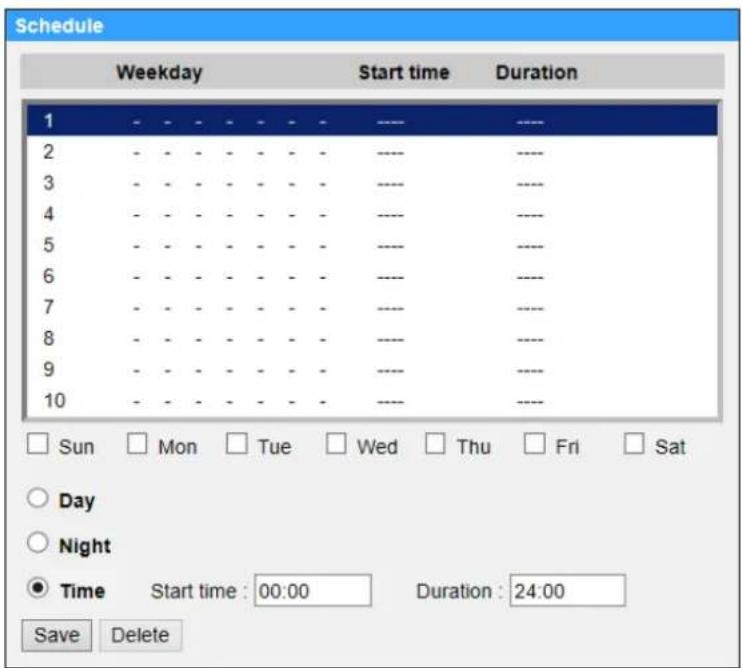
This function allows users to setup schedules for features including:
text_image
Schedule Weekday Start time Duration 1 2 3 4 5 6 7 8 9 10 Sun Mon Tue Wed Thu Fri Sat Day Night Time Start time : 00:00 Duration : 24:00 Save DeleteSetting Schedules
Step 1. Select a time frame from the time frame list.
Step 2. Check the weekday boxes below to choose the specific weekdays.
Step 3. Select a time mode, Day, Night or Time. Under Time mode, specify the start time (hour:minute) and the time duration (hour:minute) to activate the schedule triggered features. The setting range for the time duration is from 00:00 to 168:59.
Step 4. Click the
Time Mode
Day
The camera profile will be loaded when IR cut filter is on.
- Night
The camera profile will be loaded when IR cut filter is off.
- Time
This indicates the start time and the time duration for the schedule.

NOTE: Users MUST select
2.2.13 File Location (Snapshots and Web Recording)
The File Location setting can be found under this path: System> File Location.
Users can specify a storage location on the PC or in the hard drive for the snapshots and the live video recordings. The default setting is:
C:\ProgramData\Geovision. Once the setting is confirmed, click the

NOTE: Make sure the selected file path contains valid characters such as letters and numbers.

NOTE: With Windows 7 operating system or above, to implement the Snapshot and Web Recording functions, users must run IE as administrator. To run IE as administrator, right click the IE browser icon and select "Run As Administrator" to launch IE.
2.2.14 View Information
The View Information function can be found under this path: System> View Information.
Click the category:
2.2.14.1 Log File
The Log File function can be found under this path: System> View Information> Log File.
Click the tab to view the system log file. The camera keeps a record of the system's behavior and information related to the camera. These log data can be exported for future use. Click the

NOTE: "Save File As" dialog window may not show up immediately for the camera needs some time to process the log data.
2.2.14.2 User Information
The User Information function can be found under this path: System> View Information> User Information.
The administrator can view the login information and privileges of each added user (refer to section Security).
User: 1:1:0:1
1:1:0:1= I/O access: Camera control: Talk: Listen (refer to section Security)
“1” denotes this user is allowed to access the function; whereas “0” suggest no access for this user is allowed.
2.2.14.3 Parameters
The Parameters function can be found under this path: System> View Information> Parameter.
Click this item to view the parameter settings of the entire system, such as Camera Settings, Mask Information and Network Information.
2.2.14.4 Open Source Software Licenses
The Open Source Software Licenses function can be found under this path: System> View Information> Open Source Software Licenses.
2.2.15 Factory Default
The Factory Default setting can be found under this path: System> Factory Default.
Users can follow the instructions on this page to reset the camera to factory default settings if needed.
Full Restore
Click the
Partial Restore
Click the

NOTE: The IP address will not be restored to default.
Reboot
Click the
2.2.16 Software Version (Firmware Version)
The Software Version can be found under this path: System> Software Version.
The software version page displays the current software version, and the pan/tilt/zoom mcu version.
2.2.17 Software Upgrade (Firmware Upgrade)
The Software Upgrade setting can be found under this path: System> Software Upgrade.

NOTE: Make sure the upgrade software file is available before carrying out software upgrade.
The procedure of software upgrade is as below.
Step 1. Click the

NOTE: Do not change the name of the upgrade file, or the system will fail to find the file.
Step 2. Pick a file type from the drop-down list. In this case, select "ulmage+userland.img".
Step 3. Click the
If the prompt to reinstall the GV-CameraViewer appears, follow the steps below.
Step 1. Click the
Step 2. Open a new web browser and re-login the camera. Users will be prompted to download the Camera Viewer. Once the Camera Viewer is downloaded and installed, the live video will be available.
2.2.18 Maintenance
The Maintenance setting can be found under this path: System> Maintenance.
Users can export configuration files to a specified location and retrieve data by uploading the configuration file to the camera.
Export Files
Users can save the system settings by exporting a configuration file (.bin) to a specified location for future use. Click the
Upload Files
To upload a configuration file to the camera, click the
2.3 Streaming
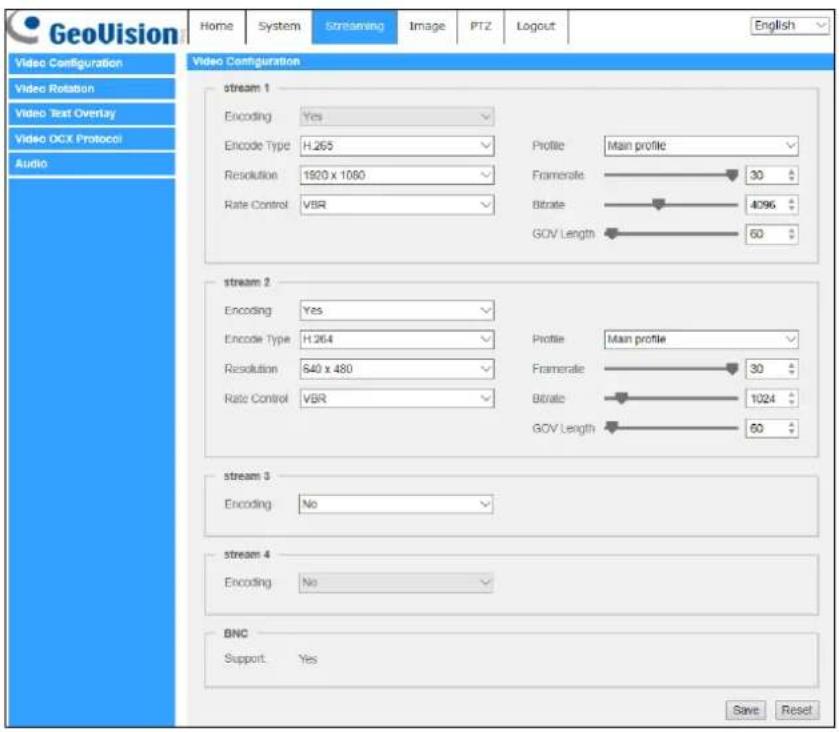
Under the tab
text_image
GeoVision Home System Streaming Image PTZ Logout English Video Configuration Video Rotation Video Text Overlay Video OCX Protocol Audio Video Configuration stream 1 Encoding Yes Encode Type H.265 Resolution 1920 x 1060 Rate Control VBR Profile Main profile Framerate 30 Bitrate 4096 GOV Length 60 stream 2 Encoding Yes Encode Type H.264 Resolution 640 x 480 Rate Control VBR Profile Main profile Framerate 30 Bitrate 1024 GOV Length 60 stream 3 Encoding No stream 4 Encoding No BNC Support Yes Save ResetIn the Streaming submenu, the administrator can configure specific video resolution, video compression mode, video protocol, audio transmission mode, etc. Further details of these settings will be specified in the following sections.

NOTE: Only administrator can access the
2.3.1 Video Configuration (Video Format & Resolution)
The Video Configuration setting can be found under this path: Streaming>Video Configuration.
Encoding
Select
Encode Type
The available video resolution formats include H.265, H.264 and MJPEG. Users can select the preferred encode type from the drop-down menu.
Resolution
Video format and resolution combination will vary by user's configuration.
Rate Control
There are three kinds of H.265/H.264 bitrate modes provided: CBR (Constant Bit Rate), VBR (Variable Bit Rate) and LBR (Low Bit Rate).
• CBR
The sent-out video bitrate will be fixed and consistent to maintain the bandwidth.
• VBR
Video bitrate varies according to the activity of the monitoring environment to achieve better image quality.
• LBR
LBR keeps low bitrate and ensures superior image quality. To implement LBR control, setup the compression level and dynamic GOV for each streaming accordingly beforehand.
- Compression
Based on the current application area and streaming bitrate, select the most suitable compression level, high/mid/low.
Set
Set
- Dynamic GOV
According to the amount of motion in the application area, the GOV length of the video will be adjusted dynamically to reduce more bitrate, especially for scenes with minor changes. The length of Dynamic GOV is from
Select
If there is small or zero activity in the scene, set
If there are constant dynamic changes in the scene, it is suggested just adjust
Click the
Profile
Users can set H.265/H.264 Profile to

E: Please make sure the higher compression ratio is supported by the m before setup.
Framerate
Video framerate is for setting the frames per second (fps) if necessary. The default setting of Stream 1 is 30 fps (NTSC) or 25 fps (PAL). The maximum framerate range of each stream will change according to the selected video resolution.

NOTE: Low framerate will decrease video smoothness.
Bitrate
The default H.265/H.264 bitrate for Stream 1 is 4096 kbit/s; for Stream 2 is 1024 kbit/s; for Stream 3/Stream 4 is 2048 kbit/s. The setting range is from 64 to 10240 kbps, and the total bit rate should not exceed 26624 kbps.
GOV Length
Users can set the GOV length to determine the frame structure (I-frames and P-frames) in a video stream to save bandwidth. Less bandwidth is needed if the GOV length is set to a high value. However, the shorter the GOV length, the better the video quality is. The default setting for Stream 1/2/3/4 is 60. The setting range of the GOV length is from 1 to 4094.
Q (Quality) Factor (MJPEG Only)
The default setting of MJPEG Q factor is 35; the setting range is from 1 to 70.
Click the
2.3.2 Video Rotation
Rotate Function
Users can change video display type if necessary. Selectable video rotate types include Mirror video and 90/180/270 degree clockwise rotate. Refer to the following descriptions for the different video rotate type.
- Mirror
Select
- Rotate Type
Users can choose 0, 90, 180, or 270 degree from the drop-down menu to rotate the image.
Click the
2.3.3 Video Text Overlay
Users can select the items to display data, including date / time / text string / subtitle / image on the live video pane.
Overlay Type
Users can select at most three items out of four options including date & time / text string / subtitle / image to display on the live video pane.
- Include date & time
Check the box to enable date & time display on the Live Video Pane. Users can choose to display date, time, or date & time from the dropdown menu, and decide the string align position (left / right).
- Include text string
Check the box to enable text string display on the Live Video Pane. Type the text to display in the entry field and decide the string align position (left / right). The maximum length of the text string is 25 alphanumeric characters.
- Include subtitle
Check the box to enable subtitle display on the Live Video Pane. Type the text to display in the entry field and decide the string align position (left / right). Users can set at most 5 subtitles, and the maximum length of each subtitle is 16 alphanumeric characters.
- Include Image
Check the box to enable image display on the Live Video Pane. Select an alignment position (left /right) for the image from the drop-down list. (To upload an image for display, see Image Overlay Setting below
- Include azimuth
Check the box to enable azimuth display on the Live Video Pane and set the azimuth alignment position. Azimuth shows the pan/tilt degree and the shooting position of the camera, such as NE 050/00 ("NE": the shooting position of the camera; "050": pan degree, "00": tilt degree.)
- Include Zoom Ratio
Check the box to enable zoom ratio display on the Live Video Pane. Select an alignment position (left/right) for the ratio display from the drop-down list.
2 Main Tabs
When any Overlay Type item is selected, a Video Text Overlay Window will show up. Move the mouse cursor to the center of the window, click and drag the window to change the display position. When it is done, click the
Text Overlay Setting
Users can choose the Text Overlay Color (black, white, yellow, red, green, blue, cyan, or magenta) and Text Overlay Size (small, medium, or large) of the display date & time / text string / subtitle.
Click the
Image Overlay Setting
Users can upload an image and set its transparency to display on the live video pane. The setting range of image transparency is from 0 to 255; the lower the value, the more transparent it is. Users must save the image as an 8-bit BMP file; the length should be the multiple of 32, and the width should be the multiple of 4. The maximum resolution of the image should not exceed 32768 pixels.
Click the
2.3.4 Video OCX Protocol
The Video OCX Protocol setting can be found under this path: Streaming>Video OCX Protocol.
In the
Video OCX protocol setting options include:
• RTP over UDP / RTP over RTSP(TCP) / RTSP over HTTP
- Multicast Mode
Enter all required data, including
Click the
2.3.5 Audio (Audio Mode and Bit Rate Settings)
The Audio Mode setting can be found under this path: Streaming>Audio.
In this page, the administrator can adjust the sound transmission mode, the audio gain levels and the audio bit rate. Setting for enabling sound recording to the SD card is also available.
Transmission Mode
• Full-duplex (Talk and Listen simultaneously)
In the Full-duplex mode, the local and remote sites can communicate with each other simultaneously, i.e. both sites can speak and listen to the other side at the same time.
• Half-duplex (Talk or Listen, not at the same time)
In the Half-duplex mode, the local / remote site can only talk or listen to the other site at a time.
- Simplex (Talk only)
In the Talk only Simplex mode, the local / remote site can only talk to the other site.
- Simplex (Listen only)
In the Listen only Simplex mode, the local / remote site can only listen to the other site.
- Disable
Select the item to turn off the audio transmission function.
Server Gain Setting
Set the audio input / output gain levels for the sound amplification. The audio input gain value is adjustable from 1 to 10. The audio output gain value is adjustable from 1 to 6. To turn off the sound, set the audio gain to "Mute".
Bit Rate
Be default, the Bit Rate is uLAW (64 kbps). Click the
Recording to Storage
Select

NOTE: If the chosen bit rate is not compatible with the player, there will only be noise instead of audio during playback.
Click the
2.4 Image
Under the tab
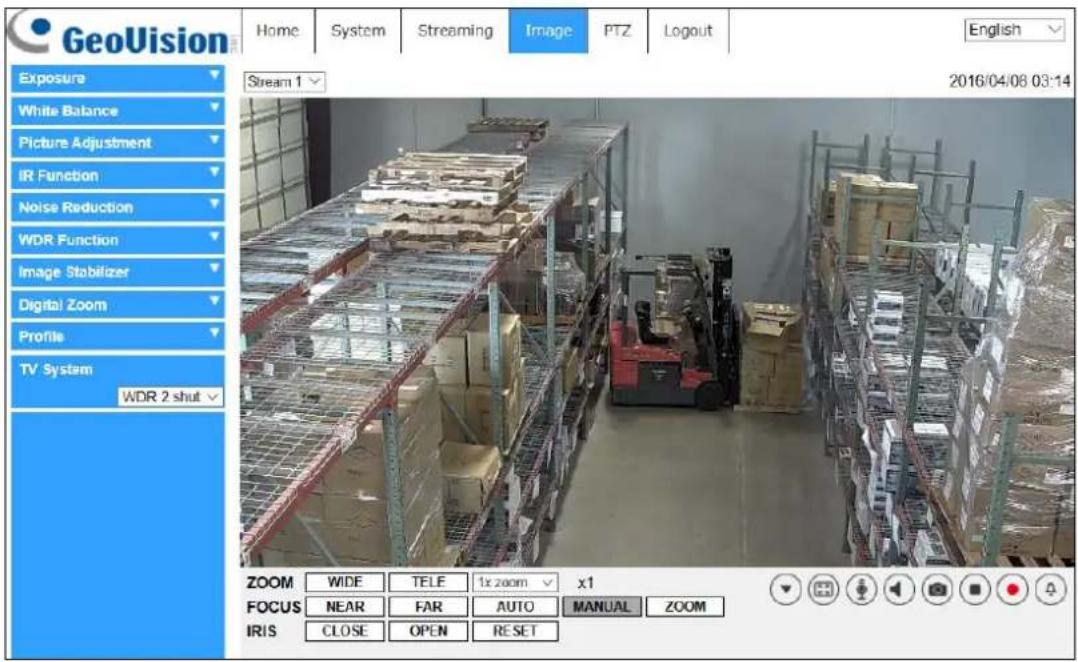
text_image
GeoVision Home System Streaming(Image PTZ Logout English Exposure Stream 1 2016/04/08 03:14 White Balance Picture Adjustment IR Function Noise Reduction WDR Function Image Stabilizer Digital Zoom Profile TV System WDR 2 shut ZOOM WIDE TELE 1x zoom x1 FOCUS NEAR FAR AUTO MANUAL ZOOM IRIS CLOSE OPEN RESET2.4.1 Exposure
The Exposure setting can be found under this path: Image> Exposure.
In the
Auto Mode
- Max Gain
This item is for users to set the maximum limit of gain. The Max Gain ranges from 1 to 3, or select

NOTE: Higher max gain may cause more image noises.
- Auto Iris
In this mode, the camera will automatically adjust the iris to suit the environment illumination.
The minimum shutter speed can be set from 1/30 to 1 sec. (NTSC) or 1/25 to 1/1.5 sec. (PAL). AGC (Auto Gain Control) will function automatically according to the light conditions of the subject.
• P-Iris Priority Mode
- Iris Size Setting
When users select
- Minimum Shutter Speed
The minimum shutter speed can be set from 1/30 to 1 sec. (NTSC) or 1/25 to 1/1.5 sec. (PAL).
- Iris Priority Mode
In this mode, it is the iris that has the premier priority in control of the exposure. The value of iris is adjustable from 0 to 10 (Full Open=10). The minimum shutter speed range is configurable from 1/30 to 1 sec. (NTSC) or 1/25 to 1/1.5 sec.(PAL).
- Auto Shutter Mode
In this mode, the camera will automatically adjust the shutter speed and the iris size according to the light intensity. The minimum shutter speed can be set from 1/500 to 1 sec. (NTSC) or 1/425 to 1/1.5 sec. (PAL).
- Shutter Priority Mode
In this mode, it is the shutter speed that takes the main control of the exposure. The range of the shutter speed is from 1/500 sec. to 1/30 sec. (NTSC) or 1/425 sec. to 1/25 sec. (PAL).
Manual Mode
In this mode, users can change the Shutter Speed, Iris Size, and Gain manually. The shutter speed range is from 1/10000 sec. to 1 sec. (NTSC) or from 1/10000 sec. to 1/1.5 sec. (PAL). The range of the iris size is from 0 to 10 (Full Open=10). The gain value range is from 1dB to 9dB, or users can select
2.4.2 White Balance
The White Balance setting can be found under this path: Image> White Balance.
A camera needs to find reference color temperature, which is a way of measuring the quality of a light source, for calculating all the other colors. The unit for measuring this ratio is in degree Kelvin (K). Users can select one of the White Balance Control modes according to the operating environment. The following table shows the color temperature of some light sources for reference.
| Light Sources | Color Temperature in K |
| Cloudy Sky | 6,000 to 8,000 |
| Noon Sun and Clear Sky | 6,500 |
| Household Lighting | 2,500 to 3,000 |
| 75-watt Bulb | 2,820 |
| Candle Flame | 1,200 to 1,500 |
Auto Mode
The Auto Balance White mode is suitable for environment with light source having color temperature in the range roughly from 2700K to 7500K.
ATW Mode (Auto Tracing White Balance)
With Auto Tracking White Balance function, the white balance in a scene will be automatically adjusted while temperature color is changing. The ATW Mode is suitable for environments with light source having color temperature in the range roughly from 2500K to 10000K.
One Push
With One Push function, white balance is adjusted and fixed according to the scene the camera sees at the moment. This function is suitable for light sources with any kind of color temperature and situations with minimal scene changes and continuous lighting. Follow the steps below to set the white balance.
Point the camera to the monitoring area.
Select
Click the

NOTE: In this mode, the value of white balance will not change as the scene or the light source varies. Users might have to re-adjust the white balance by clicking the
Manual Mode
In this mode, users can change the White Balance value manually via specifying R gain and B gain; the range of R/B gain is from 0 to 127.
The following image displays the general color shifts of the scene when different Rgain / Bgain combinations are applied.

heatmap
| Category | B-Gain (%) | R-Gain (%) | |---|---|---| | Coca-Cola (Green) | 10 | 5 | | Coca-Cola (Blue) | 8 | 4 | | Coca-Cola (Red) | 9 | 6 | | Coca-Cola (Purple) | 7 | 3 | | Coca-Cola (Pink) | 6 | 2 | | Coca-Cola (Orange) | 5 | 1 | | Coca-Cola (Yellow) | 4 | 0 | | Coca-Cola (Green) (Light Green) | 10 | 5 | | Coca-Cola (Blue) (Light Blue) | 8 | 4 | | Coca-Cola (Red) (Light Red) | 9 | 6 | | Coca-Cola (Purple) (Light Purple) | 7 | 3 | | Coca-Cola (Pink) (Light Pink) | 6 | 2 | | Coca-Cola (Orange) (Light Orange) | 5 | 1 | | Coca-Cola (Green) (Dark Green) | 10 | 5 | | Coca-Cola (Blue) (Dark Blue) | 8 | 4 | | Coca-Cola (Red) (Dark Red) | 9 | 6 | | Coca-Cola (Purple) (Dark Purple) | 7 | 3 | | Coca-Cola (Pink) (Pink) | 6 | 2 | | Coca-Cola (Orange) (Dark Orange) | 5 | 1 | | Coca-Cola (Green) (Light Grey Green) | 10 | 5 | | Coca-Cola (Blue) (Light Grey Green) | 8 | 4 | | Coca-Cola (Red) (Light Red) | 9 | 6 | | Coca-Cola (Purple) (Light Purple) | 7 | 3 | | Coca-Cola (Pink) (Light Pink) | 6 | 2 | | Coca-Cola (Orange) (Dark Pink) | 5 | 1 | | Coca-Cola (Green) (Dark Green) | 10 | 5 | | Coca-Cola (Blue) (Dark Blue) | 8 | 4 | | Coca-Cola (Red) (Dark Red) | 9 | 6 | | Coca-Cola (Purple) (Dark Purple) | 7 | 3 | | Coca-Cola (Pink) (Pink) | 6 | 2 | | Coca-Cola (Orange) ((Dark Grey Grey Grey Grey Grey Grey Grey Grey Grey Grey Grey Grey Grey Grey Grey Grey Grey Grey Grey Grey Grey Grey Grey Grey Grey Grey Grey Grey Grey Grey Grey Grey Grey Grey Grey Grey Grey Grey Grey Grey Grey Grey Grey Grey Grey Grey Grey Grey Grey Grey Grey Grey Grey Grey Grey Grey Grey Grey Grey Grey Grey Grey Grey Grey Grey Grey Grey Grey Grey Grey Grey Grey Grey Grey Grey Grey Grey Grey Grey Grey Grey Grey Grey Grey Grey Grey Grey Grey Grey Grey Grey Grey Grey Grey Grey Grey Grey Grey Grey Grey Gray |Click to confirm the setting.
2.4.3 Picture Adjustment
The Picture Adjustment setting can be found under this path: Image> Picture Adjustment.
Brightness
The brightness level of the images is adjustable from -12 to +13.
Sharpness
The sharpness level of the images is adjustable from +0 to +15. The edge of the objects is enhanced as the sharpness level increases.
Contrast
The contrast level of the images is adjustable from -6 to +19.
Saturation
The saturation level of the images is adjustable from -6 to +19.
Hue
The hue level of the images is adjustable from -12 to +13.
2.4.4 IR Function
The IR Function setting can be found under this path: Image> IR Function.
Day/Night Function
This item is for users to define the action of the IR cut filter and IR LED lights. Refer to the descriptions of each option below to select a suitable mode.
- Auto Mode
With this mode, the camera will decide the occasion to remove the IR cut filter.
- Night Mode
Use this mode when the environment light level is low. The IR cut filter will be removed to allow the camera to deliver clear images in black and white.
- Day Mode
Select this mode to turn on the IR cut filter. The IR cut filter can filter out the IR light and allows the camera to deliver high quality images in color.
• Light Sensor Mode
IR LED lights will be turned on / off depending on the light sensor.
- Light On Mode
In this mode, IR LED lights will always be on.
- Light Off Mode
In this mode, IR LED lights will always be off.
- Smart Mode
With Smart mode, the camera will decide the occasion to remove the IR cut filter. The Smart mode mechanism can judge whether the main light source is from IR illumination. If the main light source is from IR illumination, the IR cut filter will be kept opened (i.e. monochrome/night mode).
Day/Night Threshold
This item is for users to set when the camera should switch from day mode to night mode or vice versa. The camera will sense the surrounding brightness, and the threshold value stands for the level of the light. Once the camera detects the light level reaches the set threshold, the camera will automatically switch to Day/Night Mode. The range of the level is from 0 to 10, (darker = 0; brighter = 10).
• Night Mode to Day Mode

The lower the value, the earlier the camera switches to Day mode. The default value is 7.
• Day Mode to Night Mode

The higher the value, the earlier the camera switches to Night mode. The default value is 3.

NOTE: This function can only be applied under "Auto Mode".
IR Light Compensation
With the IR Light Compensation function, the camera can prevent the center object close to the camera from being too bright when IR LED lights are turned on.
IR Heating
With the IR Heating function, the camera can automatically turn on the heater when the camera temperature is between -10^ 5^ ( 14^ 41^ ).
2.4.5 Noise Reduction
The Noise Reduction setting can be found under this path: Image> Noise Reduction.
The camera provides multiple
3DNR
With the 3D Noise Reduction function, the processor analyzes the differences between successive frames to adjust pixels and improve image quality. 3DNR generates better de-noising effects than 2DNR, but might create motion blur on moving objects in the field of view.
Different levels of 3DNR are provided, including Low, Mid and High. Higher level of 3DNR generates relatively enhanced noise reduction.
2DNR
With the 2D Noise Reduction function, the processor analyzes individual frames of video to eliminate environmental noise signal so that the highest quality image can be produced even in low light conditions
Select
ColorNR
In a dark or insufficient light environment and the camera is under color mode, ColorNR (Color Noise Reduction) can eliminate color noise.
Three levels of ColorNR, including Low, Mid and High, are provided. The higher level of ColorNR generates relatively enhanced noise reduction.
2.4.6 WDR Function
The WDR setting can be found under this path: Image> WDR Function.
The Wide Dynamic Range (WDR) function is for solving high contrast or changing light issues so that enhances better video display.
WDR function is designed to solve contrast or changing light issues and to enhance the video display quality. Different level options for WDR function include Low, Mid and Hi. The higher the level, the wider the dynamic range is. Thus, the camera can catch a greater scale of brightness.
2.4.7 Image Stabilizer
The Image Stabilizer setting can be found under this path: Image> Image Stabilizer. Image Stabilizer is only available when video format is set as "WDR 2 Shutter" under TV System.
With the Image Stabilizer function, the camera can keep the image steady and suppress vibrating effects on images caused by external vibration. Follow the instructions below to activate the function.
Step 1. Select
Step 2. Select
Step 3. Alternately, users can click the
To turn off the function, select

NOTE: Do NOT use PTZ functions when activating manual calibration.

NOTE: The Digital Zoom function and the Privacy Mask-Zoom Factor function will be disabled when the Image Stabilizer function is activated.
2.4.8 Digital Zoom
The Digital Zoom setting can be found under this path: Image> Digital Zoom.
Select
2.4.9 Backlight
The Backlight setting can be found under this path: Image> Backlight.
Select On to enable Backlight. This function is used to adjust the color intensity of scenes with strong light at the background.
2.4.10 Profile
The Profile setting can be found under this path: Image> Profile.
Camera Profile allows users to setup the desired image parameters for specific environments with different time schedules. Users can setup at most 10 sets of camera parameter configuration under the Camera tab. To enable this function, users must setup the schedules in advance. Refer to section Schedule for further details. Then, follow the steps below to setup a camera profile.
Camera Profile Setup
Step 1. In the “Camera” tab, setup the camera parameters, such as Exposure, White Balance, etc., excluding TV System.
Step 2. Click Profile and its setting menu will be displayed. Select a number from the Num drop-down list.
Step 3. Input a name for the profile in the Name field.
Step 4. Click the
Step 5. Select a saved camera profile from the Num drop-down list.
Step 6. Tick the By schedule box. Check the desired schedule(s) from the Schedule drop-down list. Multiple schedules can be applied to one profile.
Step 7. Click the
Step 8. Follow the steps above to set the rest of the profiles.
Now, the camera will automatically switch profiles according to the schedule.
Alternatively, manually select a number from the Num drop-down list. Click the

NOTE: If users wish to set the camera parameters to factory default setting, select
2.4.11 TV System
Select the video format that matches the present TV system.
The following table shows the available video formats of the GV-IP Speed Dome Camera.
| Video Format | |
| NTSC | 30 fpsWDR 2 Shutter |
| PAL | 25 fpsWDR 2 Shutter |
2.5 PTZ
Under the tab
2.5.1 Preset
The camera supports up to 256 Preset Points. Please refer to the instructions below to set a Preset Point.
Preset Setting
Follow the steps to setup a Preset Point
Step 1. Move the cursor to the live view pane.
Step 2. Left click and drag the red pointer with the PTZ controls to a desired position and adjust the fine zoom / focus ratio.
Step 3. Assign a number for the current position from the drop-down Number List (click
Step 4. Click the
Preset Go
To have the camera move to a specified preset position, please select the Preset Point from the drop-down Preset list (click
2.5.2 Cruise
The Cruise Programming can be found under this path: PTZ> Cruise.
The camera supports up to 8 Cruise Paths. Please follow the instructions below for Cruise Path setup.
Cruise Setting
Refer to the steps below to setup a Cruise Path.
Step 1. Select a path number from the drop-down list.
Step 2. Move the cursor to the live view pane, and move the camera to a desired view (PTZ controls) as the start point of a Cruise Path.
Step 3. Click the
Step 4. When finishing programming, click the
Cruise Run
Select the specified Cruise Path from the drop-down list, click the
To view the camera touring in full screen mode, please move the cursor onto the live view pane, right-click and left-click to select "Fullscreen". Then users can view the camera navigation in full screen.
To stop running a Cruise Path, simply move the cursor to the live view pane and move the camera in any direction.
2.5.3 Auto Pan
The Auto Pan Programming can be found under this path: PTZ> Auto Pan.
The camera supports 4 Auto Pan Paths. Please refer to the instructions below to set an Auto Pan Path.
Auto Pan Setting
Follow the steps to setup an Auto Pan Path.
Step 1. Select a path number from the drop-down list.
Step 2. Select the speed ratio from the
Step 3. Choose to run the Auto Pan Path in right / left direction from the
Step 4. Move the cursor to the live view pane, and move the camera to a desired view as the Start Point of an Auto Pan Path.
Step 5. Click the
Step 6. Move the camera to another desired position as the end point of the Auto Pan Path.
Step 7. Click the

NOTE: The zoom ratio of an Auto Pan's Start Point remains the same throughout the path.
Auto Pan Run
Select the specified Auto Pan Path from the drop-down list, click the
To view the camera panning in full screen mode, please move the cursor onto the live view pane, right-click and left-click to select "Fullscreen". Then users can view the camera navigation in full screen.
To stop running an Auto Pan Path, simply move the cursor to the live view pane and move the camera in any direction.
2.5.4 Sequence
The Sequence Line Programming can be found under this path: PTZ>Sequence.
The camera supports a total of 8 Sequence Lines; each Sequence Line consists of up to 64 Preset Points. Please refer to the instructions below to program a Sequence Line.

NOTE: Before setting this function, users must pre-define at least two Preset Points.
Sequence Setting
Click the
- Sequence Line
Select the number of Sequence Line to be set from the drop-down list in the top of the Sequence setting menu.
- Sequential Preset Points Setting
Setup each Preset Point of the programmed Sequence Line in order. Select a Preset Point from the
When finishing the sequential Preset Points setting, click the
Sequence Run
Select the specified Sequence Line from the drop-down list, click the
To view the camera executing a Sequence Line in full screen mode, please move the cursor onto the live view pane, right-click and left-click to select "Fullscreen". Then users can view the camera navigation in full screen.
To stop running the Sequence Line, simply move the cursor to the live view pane and move the camera in any direction.
2.5.5 Home Function
The Home Function can be found under this path: PTZ> Home Function.
Users are able to set an operation mode to ensure constant monitoring. If the camera idles for a period of time, the selected function will be activated automatically; this is the HOME function. The Home function allows constant and accurate monitoring to avoid the camera idling or missing events.
Home Setting
- Switch
Select
• Time
The time here represents the duration of camera idle time previous to running a Preset Point / Cruise Line / Auto Pan Path / Sequence Line. When the Home function is activated, the camera will start to count down when it idles, and then execute the predefined action as time expires. The time period ranges from 1 min. to 128 min.; specify it in the field. Click the
- Type & Line
Select a Home action type (Preset Point / Cruise Line / Auto Pan Path / Sequence Line) and specify the number of Preset Point / Cruise Line / Auto Pan Path / Sequence Line from the drop-down
2.5.6 Tilt Range
The Tilt Range setting can be found under this path: PTZ> Tilt Range.
The camera's tilt angle is adjustable from minimum -20^ to maximum +100^ . Please enter the desired minimum and maximum tilt angle into the corresponding fields respectively. Click the
2.5.7 Privacy Mask
The Privacy Mask can be found under this path: PTZ> Privacy Mask.
The Privacy Mask function aims to avoid any intrusive monitoring. When setting a mask, it is suggested to set it at least twice bigger (height and width) than the masked object. The camera will assume the center of the selected view as the starting point. Therefore, please keep the target object / region nearly positioned in the center of the scene.
Mask Setting
- Switch
Select
- Color
Select a color from the
- Mask Number (1\~20)
Specify the number of the programmed Privacy Mask in the entry field.
- Zoom Factor
Normally, a privacy mask goes repositioned and resized to cover the masked area whenever the camera is panned/tilted/zoomed. Zoom Factor allows users to hide the mask when zoom ratio is set lower than the original ratio.
For example, when the privacy mask is set at a certain zoom ratio (e.g. 5x), the privacy mask will be resized when the camera is zoomed in (e.g. from 5x to 20x); however, when the camera zooms out (e.g. from 5x to 2x), the privacy mask will be hidden.
Select
2
Main Tabs
Follow the steps below to setup a privacy mask.

text_image
Privacy Mask Mask Setting 1 Switch: On 2 Color: Blue 3 Mask(1~20): 17 Zoom Factor: Off Edit Add Mask Clearing Mask: masklist: Clear ZOOM WIDE TELE 1x zoom x1 FOCUS NEAR FAR AUTO MANUAL ZOOM IRIS CLOSE OPEN RESETStep 1. Set Switch to
Step 2. Select a color for the mask from the
Step 3. Specify the mask a number, e.g. 17. If Zoom Factor is needed, select
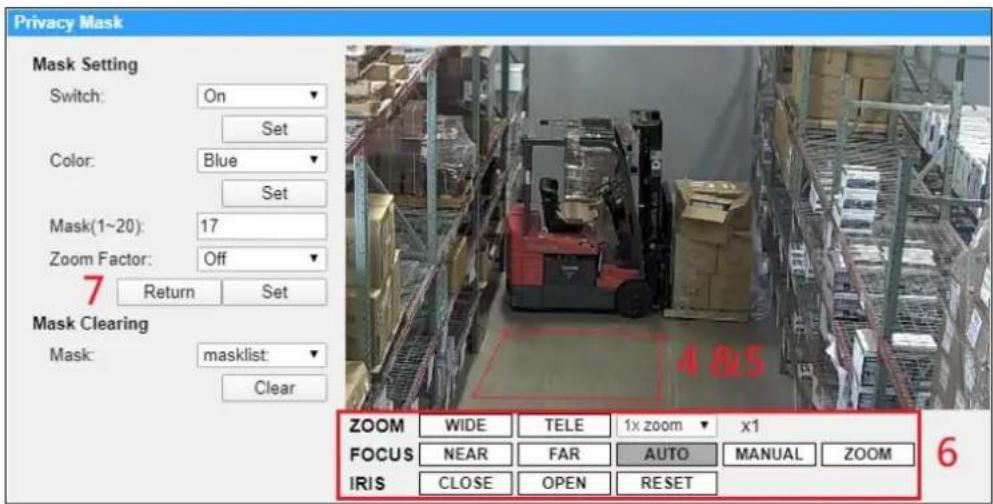
text_image
Privacy Mask Mask Setting Switch: On Set Color: Blue Set Mask(1~20): 17 Zoom Factor: Off 7 Return Set Mask Clearing Mask: masklist: Clear ZOOM WIDE TELE 1x zoom x1 FOCUS NEAR FAR AUTO MANUAL ZOOM IRIS CLOSE OPEN RESET 6Step 4. To shift the mask to the intended location, move the mouse cursor to the center of the mask and click and drag.
Step 5. To change the shape and the size of the mask, click any edge of the mask and draw it outward/inward.
Step 6. If needed, set up Zoom/Focus/Iris.
Step 7. Click the
If users wish to edit the previously-set mask, input the Mask number in Mask (1\~20) entry field and click the
Mask Clearing
In this section, users can delete an existing Privacy Mask. Please select the Privacy Mask to be removed from the drop-down list, and click the
2.5.8 PTZ Setting
The PTZ Setting can be found under this path: PTZ> PTZ Setting.
Flip
Users can track an object continuously when it passes under the camera with setting Flip to Mechanical (M.E.) mode.

NOTE: The Flip setting is manual-controlled only. If a Preset Position or a point for other function (e.g. Sequence) is set in the position that can only be reached through FLIP motion, when the Flip function is turned off, the position cannot be reached anymore.

NOTE: To make the camera tilt between a specific range, such as -20^ to +100^ , please go to the
M.E. Mode
M.E. is a standard mechanical operation. As the camera tilts to the maximum angle, it will pan 180^ , and then continue tilting to keep tracking objects.
Speed by Zoom
This function allows the camera to adjust the pan/tilt speed automatically by the internal algorithm when the zoom ratio is changed. The rotating speed will become slower as the zoom ratio gets larger. Click the
Auto Calibration (Servo Feedback)
Integrating Servo Feedback technology, the camera would calibrate and precisely return to the previous position without stalling when the deviation of dome pivot is detected. Select
Set Pan Zero
Click the
2.5.9 RS485
The RS485 setting can be found under this path: PTZ> RS485.
This page is for users to activate the pan/tilt function and select the RS-485 protocol which the Joystick/Keyboard uses.
RS-485 Protocol Type
With the correct RS-485 protocol selected, users can remotely control the PTZ function of the camera using Joystick/Keyboard. Check the RS-485 protocol type of the Joystick/Keyboard. Then select the RS-485 protocol which the Joystick/Keyboard uses from the drop-down list. The available types are DSCP / PelcoD / PelcoP. Please refer to the following descriptions. After the protocol type is selected, users can adjust the parameters from the drop-down lists on the right. Click the
2.6 Logout
Click the tab
Appendix
Appendix A: Install UPnP Components
Please follow the instructions below to install UPnP components on Windows Vista / Windows XP / Windows 7.
Step 1: In Windows, go to
Step 2: Click
Step 3: Select
Step 4: Select
Step 5: Click
Step 6: Click
Appendix B: IP Addresses from Decimal to Binary
Follow the example below to convert the IP addresses to binary numbers. Use the calculator on the computer for conversion. The calculator can be found under this path: Start> All Programs> Accessories> Calculator. For Windows XP and Windows Vista, click
The example below shows how to convert 192.168.2.81 to binary numbers.
Step 1: On the left of the calculator, select
| Decimal Numbers | Binary Numbers |
| 192 | 11000000 |
| 168 | 10101000 |
| 2 | 10 |
| 81 | 1010001 |
Step 2: Each binary number should have eight digits. If a binary number does not have eight digits, please add 0 in front of it until it does. The binary number of each decimal number should be as follow.
| Decimal Numbers | Binary Numbers |
| 192 | 11000000 |
| 168 | 10101000 |
| 2 | 00000010 |
| 81 | 01010001 |
Step 3: Therefore, the binary numbers of IP address 192.168.2.81 is 11000000.10101000.00000010.01010001.