DELV-WFORM-7SDI - Surveillance Delvcam - Free user manual and instructions
Find the device manual for free DELV-WFORM-7SDI Delvcam in PDF.


User questions about DELV-WFORM-7SDI Delvcam
0 question about this device. Answer the ones you know or ask your own.
Ask a new question about this device
Download the instructions for your Surveillance in PDF format for free! Find your manual DELV-WFORM-7SDI - Delvcam and take your electronic device back in hand. On this page are published all the documents necessary for the use of your device. DELV-WFORM-7SDI by Delvcam.
USER MANUAL DELV-WFORM-7SDI Delvcam
LCD PRODUCTION MONITOR MANUFACTURER
Delvcam DELV-WFORM-7SDI User Guide
natural_image
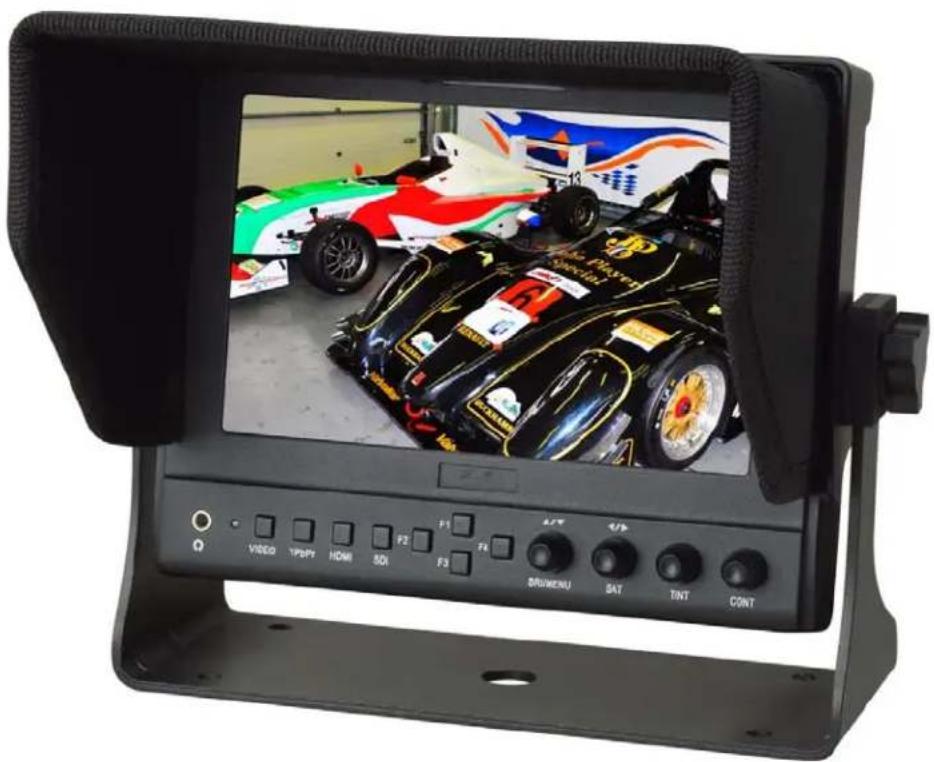
Black-and-white photo of a racing monitor displaying a race car on a track, with no visible text or symbols on the device itself.IMPORTANT SAFETY INSTRUCTIONS:
- Please read manual before using this product.
- Please keep manual for future reference.
- Please read the cautions to prevent possible danger and loss of property.
- Please enjoy the benefits of convenience, safety, and space-saving from this TFT LCD monitor in different ways.
FEATURES:
▶ Metal housing;
▶ Wide viewing angles;
▶ Wide voltage: DC 7-24V;
➢ High brightness: 400cd/m²;
➢ High contrast: 800:1;
➢ TALLY interface with indicating light;
➢ Faster response time;
➢ Firm & portable design;
➢ Long F1\~F4 keep press to POP-UP shortcut menu.
CAUTIONS:
- Please do not place the display screen towards the ground.
- Please avoid heavy impact or drop onto the ground.
- Please do NOT use chemical solutions to clean this product. Please wipe with a clean soft cloth to maintain the brightness of the surface.
- Please do not block any vent hole.
- Please follow the instructions and trouble-shootings to adjust the product. Other improper adjustment may result in damage. Any further adjustment must be performed or conducted by a qualified technician.
- Please unplug the power and remove the battery if long-term no-use, or thunder weather.
YP-01140217
Contents
PRODUCT DESCRIPTION ----3
INSTALLATION OF SUNSHADE COVER
AND BATTERY PLATE----5
DV BATTERY MOUNTPLATE----6
WIRING INSTRUCTIONS----7
SETTING MENU 8
ACCESSORIES 11
PARAMETER 12
TROUBLESHOOTING ----12
PRODUCT DESCRIPTION
text_image
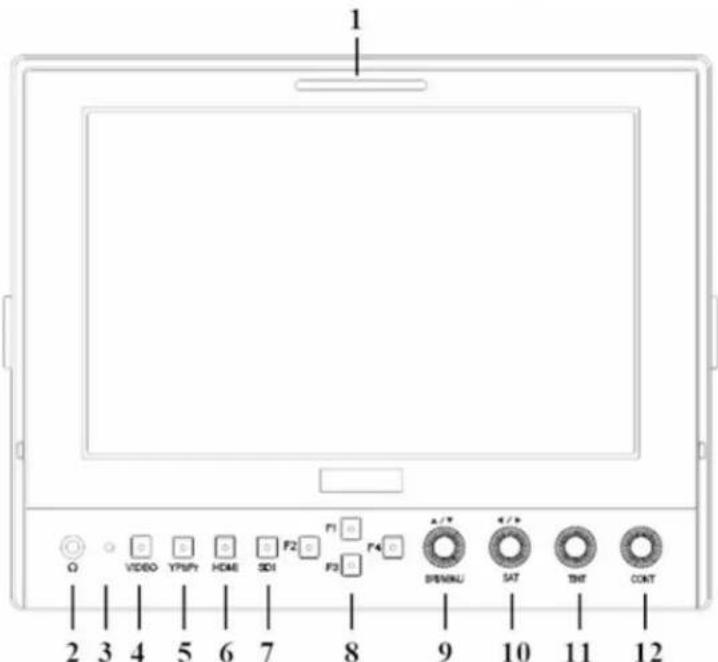
1 Ω VIDEO YPMPY HOME SDI F2 F3 F4 A/V SPINNU SAT TNT CONT 2 3 4 5 6 7 8 9 10 11 12-
TALLY (indicator light).
-
Earphone jack.
-
Power indicator light: ON/OFF (Light turns to red when power on).
-
VIDEO: Indicator lights up when signal switch to video state.
-
YPbPr: Indicator lights up when signal switch to YPbPr state.
-
HDMI: Indicator lights up when signal switch to HDMI state.
-
SDI: Indicator lights up when signal switch to SDI state (optional).
-
F1、F2、F3、F4:User-definable buttons.
Default functions: (function customized to meet your needs)
| Button | Items | Options(Loop switch) |
| F1 | Screen Marker OFF, | 95%,93%,90%,88%,85%, 80% |
| F2 | Check Field OFF, MONO, Red, Green and Blue | |
| F3 | Freeze | OFF, ON |
| F4 | Image Flip H / V / H&V | |
| *F1 | Peaking | OFF, Color, Mono |
| *F2 | Waveform/Vector | Y, Vector, R, G, B, Cb, Cr, OFF |
| *F3 | Level Meter | OFF, ON |
| *F4 | Histogram Y, | Color, RGB, OFF |
- Knob BRI/MENU: Press the knob to access the menu function, pressing the knob in the menu to return to the previous page or exit the menu. Rotate knob to select an option.
Default as Brightness function.
- Knob SAT: Press the knob to select main MENU options; rotate knob to confirm the selection and adjust parameter values.
Default as Saturation function.
- Knob TINT: Default as Tint function.
- Knob CONT: Default as Contrast function.
text_image
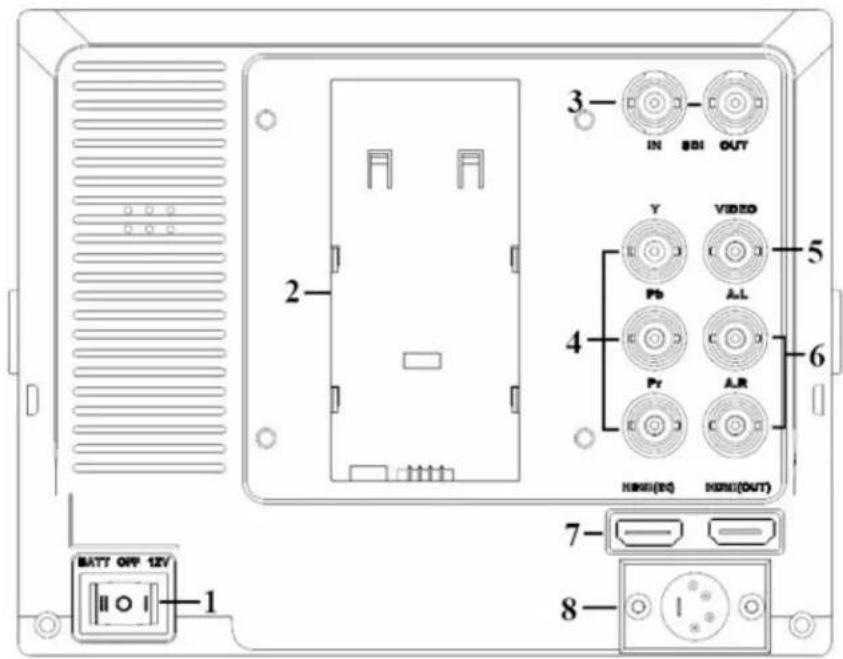
3 IN 801 OUT Y VIDEO 5 Pb A-L 4 Pr AR 6 HDMI(RD) HDMI(OUT) 7- BATT OFF 12V 1 8- Battery power on/off switch: “|” is battery power; “O” is power off; “|” is DC power.
- Battery pinch slots.
- SDI signal input / output interface (optional).
- YPbPr signal input interface.
- Audio signal input.
- Audio (L/R) input.
- HDMI (High Definition Multimedia Interface) signal input / output.
- 4-pin XLR DC power input.
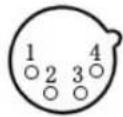 | Pin number | Signal |
| 1 | GND | |
| 2 | Red Light | |
| 3 | Green Light | |
| 4 | +12V |
INSTALLATION OF SUNSHADE COVER AND BATTERY PLATE
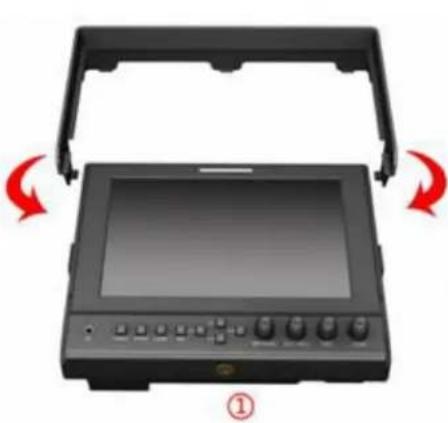
Installation of sunshade cover:
① As shown, buckle the sunshade cover on the device.
② As shown, cover buttoned into the appropriate slot, and fastened in accordance with the order of the both sides.
natural_image
Device with open lid and control panel, showing red directional arrows indicating rotation (no text or symbols)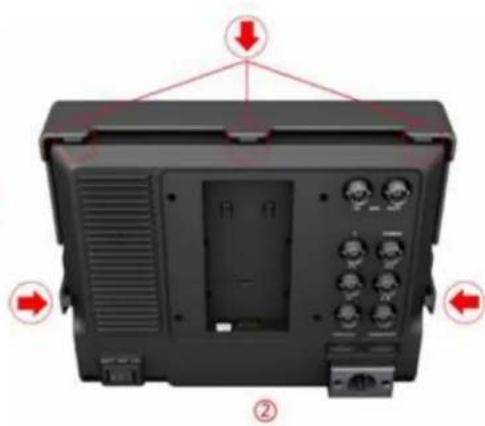
text_image
Diagram of a device front panel with labeled ports and directional arrows indicating orientation or movement.③ As shown, bend sunshade panel to meet and paste with sunshade cover interlocking.
④ Installation completed.

natural_image
Exterior view of a black open electronic device with control buttons and a display panel (no text or symbols visible)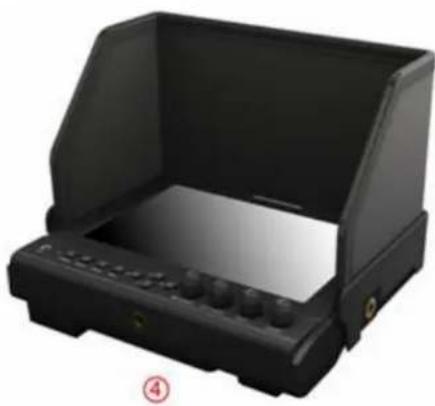
natural_image
Black rectangular electronic device with a transparent lid and control panel, labeled with number 4 (no visible text or symbols on the device itself)DV BATTERY MOUNT PLATE:
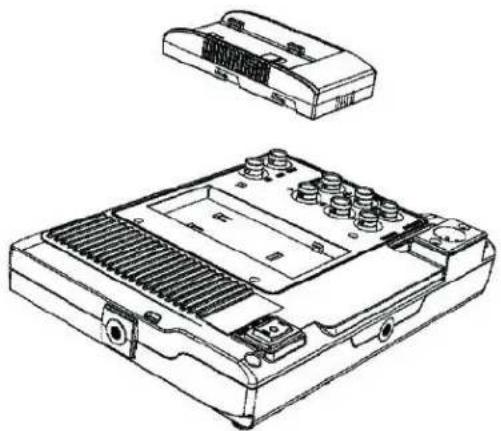
Standard mounts process
natural_image
Technical line drawing of a battery pack with internal components and housing (no text or symbols)Following three types of battery plates are suitable for this device, model F970, QM91D, DU21 & LP-E6 (choose 2 out of 4).
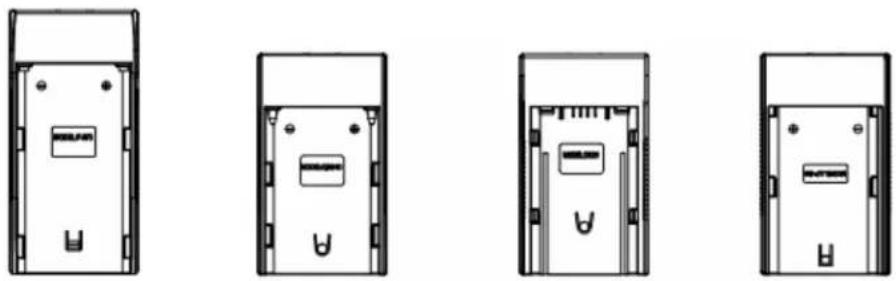
MODEL: F-970 MODEL: QM91D MODEL: DU21 MODEL: LP-E6
DV Battery Mount Plate:
DV Battery Mount Plate Specification:
Model DU21 for battery of Panasonic DV:
NV-GS/PV-GS/DZ-MV/GS/H28/H258/H288GK series, comply with
Panasonic battery DU06/VBD140/SANYO DZhs301sw/Hitachi
DZ-HS303SW/BZ-BP14S/DZ3200/BP07W.
Model QM91D for battery of SONY DV:
DSCR1/F/S/MVCCD/E/HC15E/HC1E/AE1u/DCRTRV828/E/CCD-TRV116/
DCR-DVD/PS105K/300K/10P/1E series.
Model F970 for battery of SONY DV:
DCR-TRV series, DCR-TRV E series, VX2100E PD P series, GV-A700,
GV-D800 FD/CCD-SC/TR3/FX1E/HVR-AIC, HDR-FX1000E, HVR-Z1C,
HVR-V1C, FX7E F330.
Model LP-E6 for battery of Canon DSLR:
5D Mark II/EOS7D/EOS60D;
* Advanced functions are only available for product model with "/P2"&"/S2".
V-mount battery plate (optional): Please refer to GP-L130AB type battery specifications.
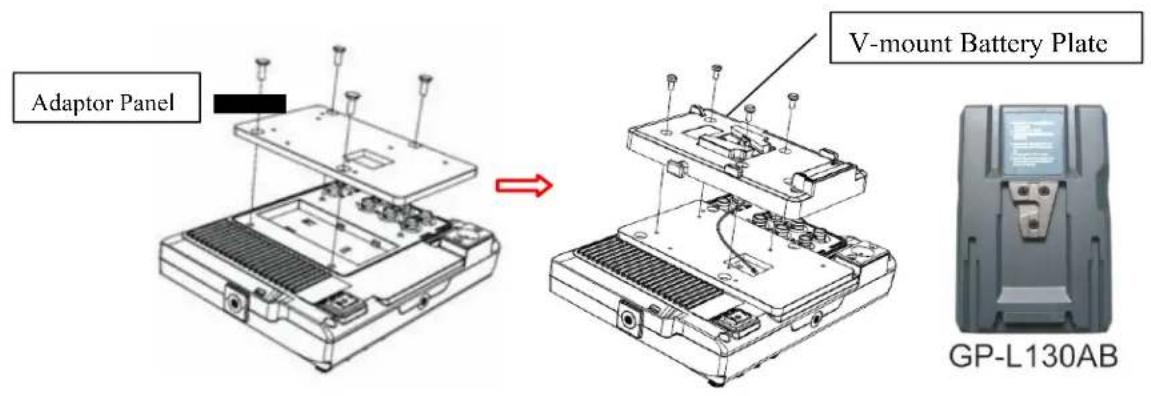
text_image
Adaptor Panel V-mount Battery Plate GP-L130ABAnton Bauer mount battery plate (optional): Please refer to
GP-L130B type battery specifications.
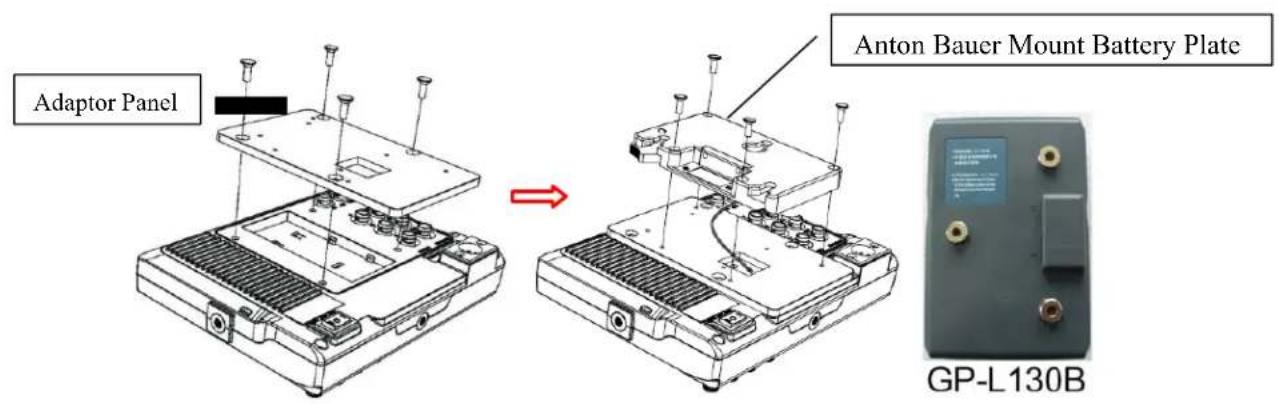
text_image
Adaptor Panel Anton Bauer Mount Battery Plate GP-L130BWIRING INSTRUCTIONS
Power & TALLY cable
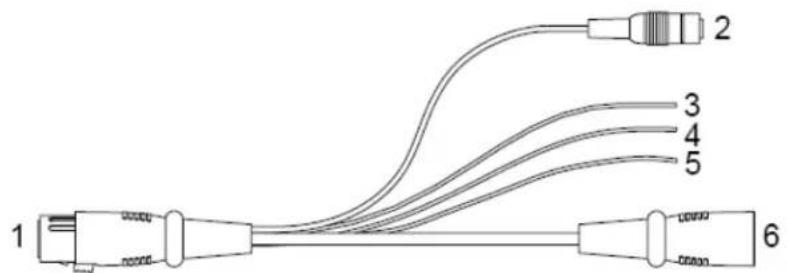
text_image
1 2 3 4 5 6- XLR (M) connector: to connect the XLR connector on device.
- DC Power adapter connector.
- Red: for TALLY red light connector.
- Green: for TALLY green light connector.
- Black: for grounding.
- XLR (F) connector: for the XLR adapter.
SETTING MENU
Before setting the functions, please make sure the device is connected correctly.
When power on, press BRI/MENU knob on the device, function menus will pop-up on the screen. After confirm the option value, then press BRI/MENU knob to return to the previous, and press the BRI/MENU knob again to exit the menu settings.
BRI / MENU knob: to select an option.
SAT knob to select the main menu, adjusting option values and confirm the selection.

text_image
Color Temp Check Field OFF Aspect Ratio Full Screen Pixel-to-Pixel OFF Camera 480P H/V delay OFF| ITEMS | OPTIONS | ||
| Color Temp 6500 | K/7500 K/9300 K/User | ||
| R Gain 0-255 | Note: Only availa | ble under “User” mode to meet the color value you need. | |
| G Gain 0-255 | |||
| B Gain 0-255 | |||
| R Offset 0-511 | |||
| G Offset 0-511 | |||
| B Offset 0-511 | |||
| Check Field OFF,MONO, Red, Green and Blue | |||
| Aspect Ratio Full Screen, 4:3 and 16:9 | |||
| Pixel-to-Pixel | ON/OFF | ||
| Camera | 480P (5DII Mode) / 1080I (5DIII Mode) | ||
| H/V delay OFF, | H&V Delay, V Delay and H Delay | ||
| Underscan | ON/OFF | ||
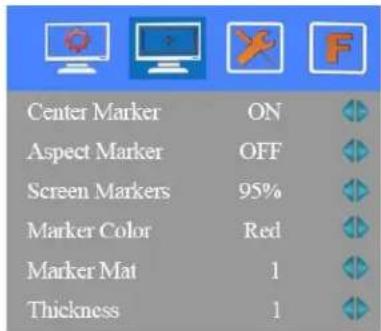
text_image
Center Marker ON Aspect Marker OFF Screen Markers 95% Marker Color Red Marker Mat 1 Thickness 1| ITEMS | OPTIONS |
| Center Marker ON/OFF | |
| Aspect Marker OFF, 16:9, 4:3, 14:9, 13:9,15:9,1.85:1, 2.35:1 | |
| Screen Markers OFF, 95%,93%,90%,88%,85%, 80% | |
| Marker Color Red, Green, Blue, White, Black | |
| Marker Mat OFF, 1-6 | |
| Thickness | 1-7 |

text_image
Language English PIP SDI OFF Input Format OSD 5s LOGO ON Freeze Input OFF| ITEMS | OPTIONS |
| Language | English /Chinese |
| PIP Small, Medium, Large | Large, PBP, POPIn small, medium and large interface can adjust the source, position, and swap;In PBP and POP interface can adjust the source and swap. |
| SDI | ON/ OFF |
| Input Format OSD 5s, | 10s, 15s |
| LOGO | ON/ OFF |
| Freeze Input ON/ OFF | |
| Image Flip H / V / H&V | |
| *Wave/Vector | Y / Vector / R / G / B / Cb / Cr / OFF |
| * Waveform Trans | ON/ OFF |
| * Waveform Size | Small / Large |
| * Level Meter | Manual/Auto |
| Manufacturer Default | OK/Cancel(Reverse the SAT / ADJ knob to select "OK") |
| ISP | For program upgrades (Please reboot your computer if press accidentally!) |
text_image
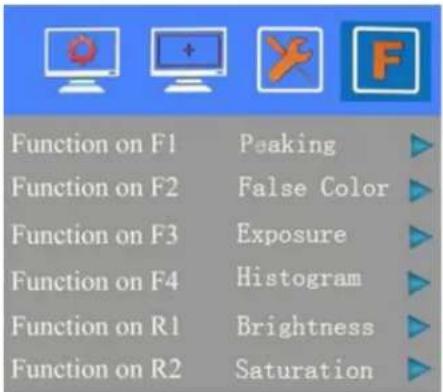
Function on F1 Peaking Function on F2 False Color Function on F3 Exposure Function on F4 Histogram Function on R1 Brightness Function on R2 Saturation
text_image
F2 F1 F3 F4 R1 R2 R3 R4 BRI / M / SEL SAT / ADJ TINT CONTFunction of buttons and knobs can be customized by users' needs.
Functions of F1-F4 buttons can also be customized: Center Marker, Screen Marker, Check Field, Color Bar, Camera, PIP, Image Flip, Zoom, Pixel-to-Pixel, Freeze Input, Underscan, H/V delay
* Peaking, False Color, Exposure, Histogram, Level Meter and Wave/Vector.
Functions of R1-R4 buttons can also be customized: Contrast, Brightness, Saturation, Tint, Volume, Sharpness and Back Light.
F1-F4 or R1-R4 shortcut key steps:
- Press BRI/MENU knob to pop up the menu;
- Rotating SAT knob, select the F option;
- Rotating BRI / MENU knob, select option needs to set for the F1-F4 or R1 - R4;
- Right rotating the SAT knob to the next menu options;
- Rotating BRI / MENU knob to select the option to be set, then turn the SAT knob right to confirm the option as default;
- Finally, press the BRI / MENU knob to exit the menu.
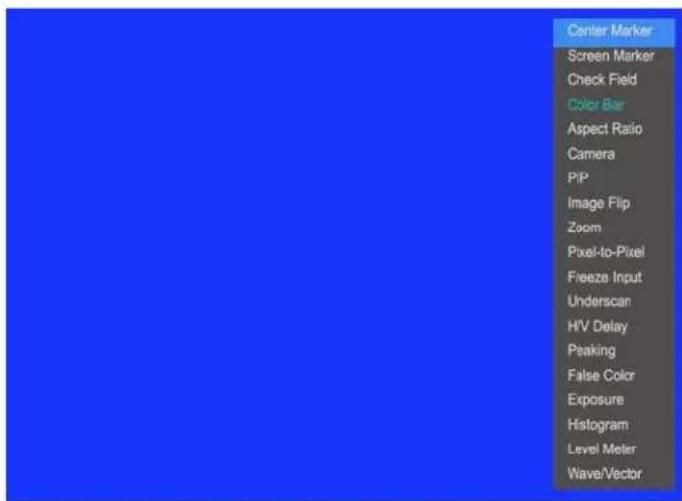
Long keep press any F1-F4 button to pop-up shortcut menu when screen without a menu. As follows (item selected default as blue font):
Option can be selected by rotating BRI / MENU knob.
Finally, right turn the SAT knob to set the option as default.
text_image
Center Marker Screen Marker Check Field Color Bar Aspect Ratio Camera PIP Image Flip Zoom Pixel-to-Pixel Freeze Input Underscan HIV Delay Peaking False Color Exposure Histogram Level Meter Wave/VectorACCESSORIES:
Standard Accessories:

natural_image
3D rendered image of a gray plastic enclosure or bracket (no text or symbols)1

2
3

4
5

6
7

8
9
10
- Sun Shade Cover 1 Piece
- Gimbal bracket 1 Piece
- Battery Plate (F-970/QM91D/DU21/LP-E6)
- HDMI A/C cable 1 Piece
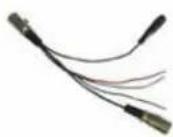
- Power & TALLY cable 1 Piece
- Shoe Mount (for camera only) 1 Piece
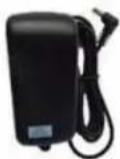
- 12V DC adapter 1 Piece
- Suitcase 1 Piece
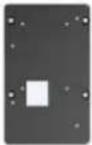
- Adaptor Panel 1 Piece
- Manual 1 Copy
2 Pieces (Choose 2 out of 4)
Optional Accessories
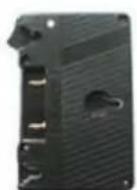
1

2

3
- Anton Bauer Mount Battery Plate 1Piece
- V-mount Battery Plate 1Piece
- Li-ion Battery 1Piece
PARAMETERS:
| Panel Size 7” LED backlit | |
| Resolution | 1280×800 |
| Brightness | 400cd/m2 |
| Contrast | 800:1 |
| Viewing Angle 178 | 91789(H/V) |
| Input Voltage DC12V (XLR DC Connection) | |
| Input Signal | HDMI, YPbPr, AV and 3G-SDI(optional), |
| Current | 900mA |
| Power Consumption ≤1 | 1W |
| Size:(LWD) | 191.5×152×31mm/141mm (with cover) |
| Weight 760g / 938g (with cover) / 2160g (with suitcase) | |
TROUBLE SHOOTING
1. Only black-and-white display:
Check whether the color saturation is properly setup.
2. Power on but no pictures:
Check whether the cables of Video, HDMI, YPbPr and SDI are correctly connected. Please use the standard power adapter coming with the product package. Improper power input may cause the device.
3. Wrong or abnormal colors:
Check whether the cables are correctly and properly connected. Broken or loose pins of the cables may cause a bad connection.
4. When on the picture shows size error:
Press “BRI/MENU→Underscan” to zoom in/out pictures automatically. When receiving HDMI signals.
5. Other problems:
Please press “BRI/MENU” button and choose “→Manufacturer Default →OK”
6. According to the ISP, the machine can not function properly:
ISP for program upgrades, non-professionals do not use. Please reboot your computer if press accidentally!
* It is normal to see some bright lines appear on the screen when turn off the device.
Note: due to constant effort to improve products and product features, specifications may change without notice.