65WF35M - Television HISENSE - Free user manual and instructions
Find the device manual for free 65WF35M HISENSE in PDF.


User questions about 65WF35M HISENSE
0 question about this device. Answer the ones you know or ask your own.
Ask a new question about this device
Download the instructions for your Television in PDF format for free! Find your manual 65WF35M - HISENSE and take your electronic device back in hand. On this page are published all the documents necessary for the use of your device. 65WF35M by HISENSE.
USER MANUAL 65WF35M HISENSE
Read the manual carefully and ensure you have fully understood its contents before operating this device for the first time.
TABLE OF CONTENTS
User Guide 01
Browser 02
File Management 03
GPlayer(Media Player) 04
GTest (Self Test) 06
Live TV 07
Setting 08
Network & Internet 08
App Management 12
Device Preferences ....13
Status 14
Date & Time ....15
Language 16
Keyboard Setting 17
CEC Setting 18
Picture Setting 19
Picture Rotation Setting 20
System Advanced Setting 21
Multiple Displays Setting 25
Backlight Auto Adjust 30
Volume setting 32
Storage Information 33
Location setting 34
Security & restrictions setting 35
Reset 36
Remotes & Accessories ....37
OTA 38
Software Upgrade Guide 39
User Guide
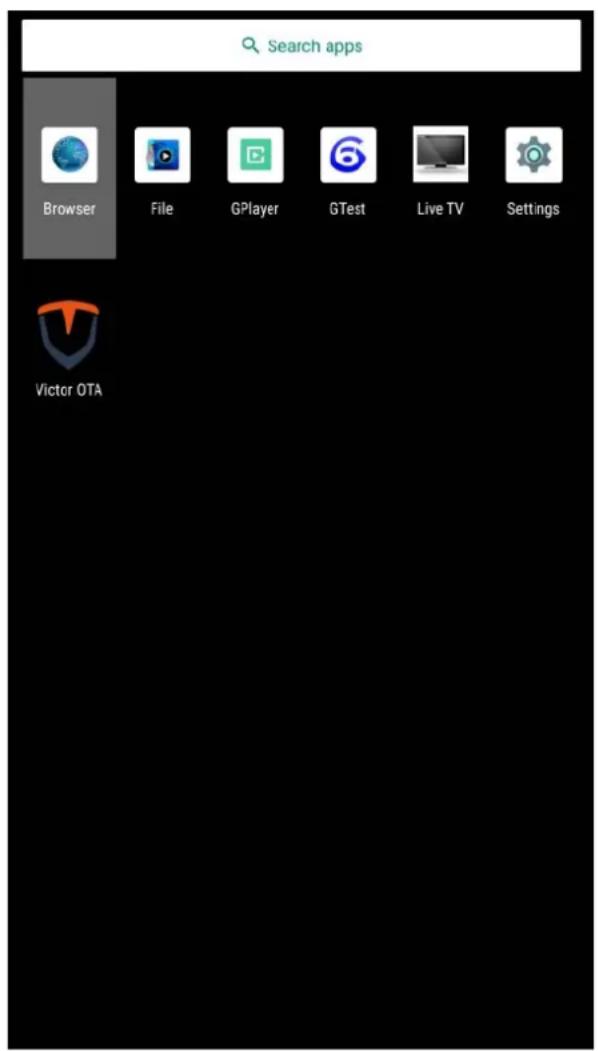
After the device is turned on, press the key OK on the remote control to enter the main page of the system(see next page).

natural_image
Pure black background with a small white circular icon at the bottom (no text or symbols)
text_image
Search apps Browser File GPlayer GTest Live TV Settings Victor OTABrowser
> Browser
Use an external mouse to select the URL bar, and then use the input keyboard to enter the URL to open the web page.

text_image
Hisense Global... https://global.hisense.com Hisense Hisense Laser TV 100L9G TRICHROMA LASER TV ExploreFile Management
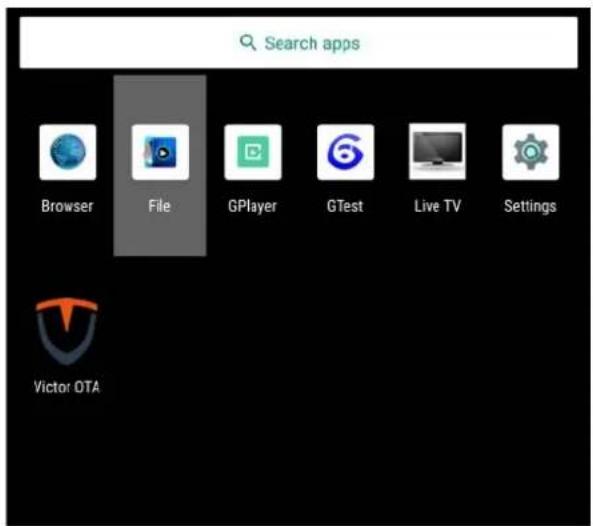
> File
Use the key ▲ ▶ on the remote
control to select a local file on the
right, press OK to play, or select
under the corresponding
image/music/video file;
text_image
Search apps Browser File GPlayer GTest Live TV Settings Victor OTA
text_image
local disk device picture song video local disk device→

text_image
Your Us8 Drive Faker /storage/C6B6-810A>GPlayer
-Create a folder named Hplayer in the root directory of the U disk and copy media contents into this folder;
-Play video:
Put one or more videos into the Hplayer folder, open Gplayer, insert a USB flash drive, and the device will automatically copy the files. After the copy is completed, the files will be automatically sorted and played in a loop according to the file name.
-Play pictures:
Put one or more pictures into the Hplayer folder, open Gplayer, insert a USB flash drive, and the device will automatically copy the files. After the copy is completed, the files will be automatically sorted and played in a loop according to the file name. Press Menu on the remote control to adjust the display time of each picture.
-Play videos and pictures:
Put one or more videos and pictures into the Hplayer folder, open Gplayer, and insert a USB flash drive, the device will automatically copy the files, and automatically play them in a loop according to the file names after copying. Videos will be played first and then the pictures. Press Menu on the remote control to adjust the display time of each picture.
-The device will start automatically playing, please remove the U disk at this time.
> GPlayer
Operating Instructions
1
Create a folder named Hplayer in the root directory of the U disk and copy media contents into this folder
2
PLAY VIDEO
Put one or more videos into the Hplayer folder, open Gplayer, insert a USB flash drive, and the device will automatically copy the files. After the copy is completed, the files will be automatically sorted and played in a loop according to the file name.
3
PLAY PICTURES
Put one or more pictures into the Hplayer folder, open Gplayer, insert a USB flash drive, and the device will automatically copy the files. After the copy is completed, the files will be automatically sorted and played in a loop according to the file name. Press Menu on the remote control to adjust the display time of each picture.
4
PLAY VIDEOS AND PICTURES
Put one or more videos and pictures into the Hplayer folder, open Gplayer, and insert a USB flash drive, the device will automatically copy the files, and automatically play them in a loop according to the file names after copying. Videos will be played first and then the pictures. Press Menu on the remote control to adjust the display time of each picture.
5
The device will start automatically playing, please remove the U disk at this time.
* Supports Mp4, M4V, 3GP, 3GPP, 3G2, 3GPP2, MOV, MKV, AVI, TS, WMV Video formats
GTest
> GTest
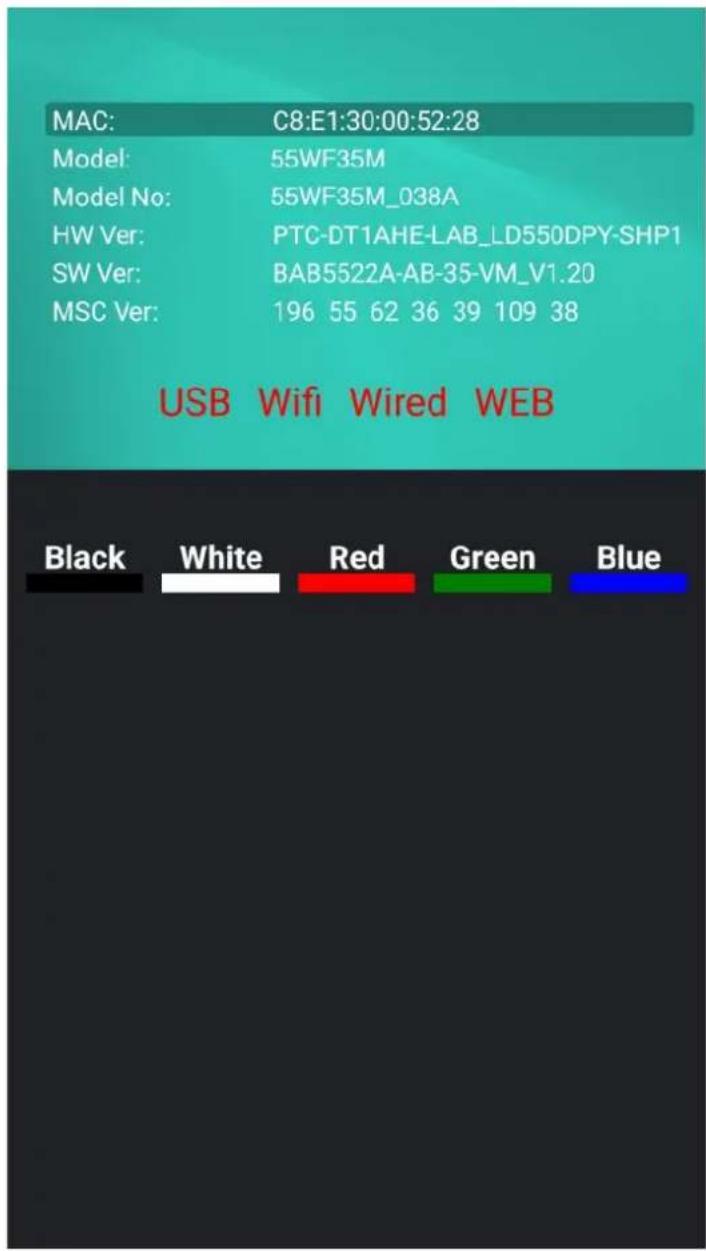
Here you could check the device version information and perform device test, mainboard test, LD test.
text_image
MAC: C8:E1:30:00:52:28 Model: 55WF35M Model No: 55WF35M_038A HW Ver: PTC-DT1AHE-LAB_LD550DPY-SHP1 SW Ver: BAB5522A-AB-35-VM_V1.20 MSC Ver: 196 55 62 36 39 109 38 USB Wifi Wired WEB Black White Red Green BlueLive TV
> Live TV
Play the content of the HDMI input, if there is no HDMI input signal, it will return to the main page of the system.

text_image
Search apps Browser File GPlayer GTest Live TV Settings Victor OTASetting
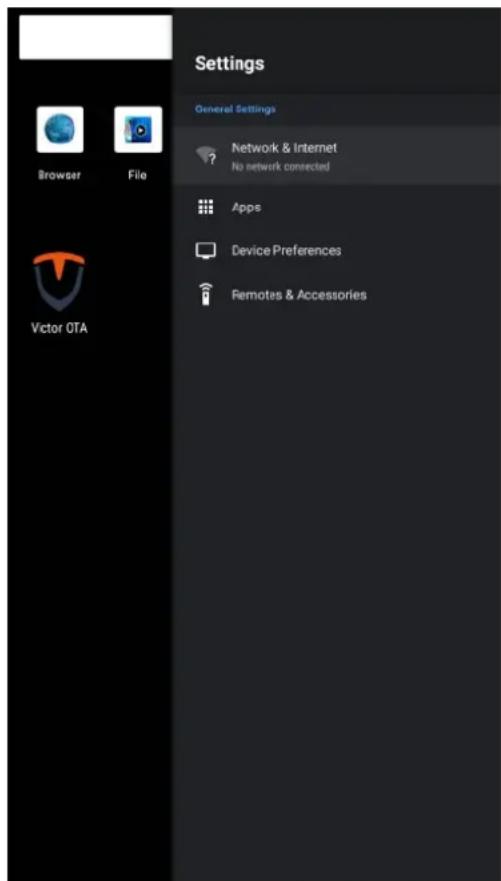
Network& Internet
Setting > Network & Internet Network & Internet
Setting > Apps Apps Management
Setting > Device Preferences Device Preferences
Setting > Remotes & Accessories Remotes & Accessories
text_image
Settings General Settings Network & Internet No network connected Apps Device Preferences Remotes & Accessories Browser File Victor OTA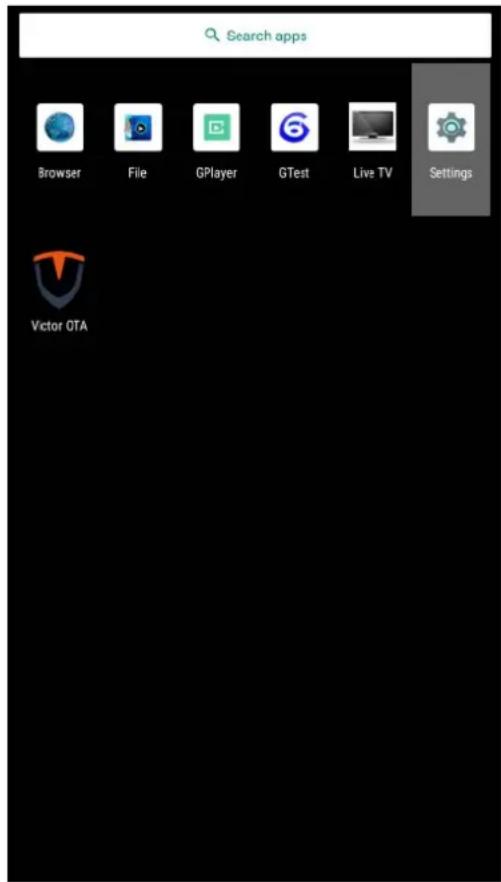
text_image
Search apps Browser File GPlayer GTest Live TV Settings Victor GTASetting
Network& Internet
Setting > Network & Internet
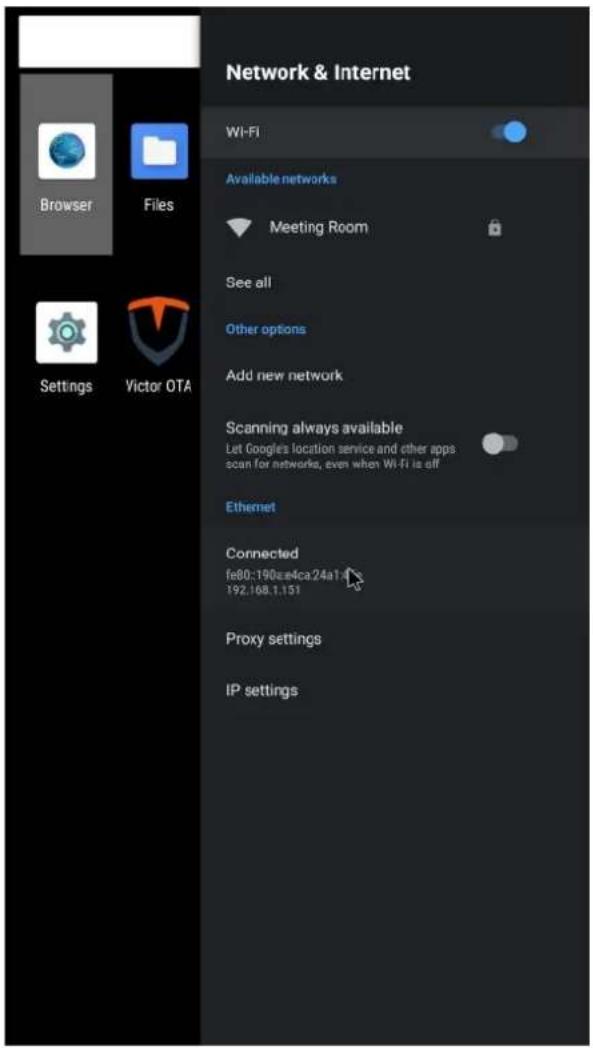
Network & Internet
- Wi-Fi
Wifi On/Off
- Add new network
Add new network
- Scanning always available
Let google Location service and other apps scan for networks, even when wifi is off
- Ethernet
Display whether the wired network is connected, if connected, it will display the IP.
- Proxy setting
Proxy server settings.
- IP setting
Device IP settings.
text_image
Network & Internet Wi-Fi Available networks Meeting Room See all Other options Add new network Scanning always available Let Google's location service and other apps scan for networks, even when Wi-Fi is off Ethernet Connected fe80:190ea4ca24a1 192.168.1.151 Proxy settings IP settingsSetting
Network & Internet
Setting > Network & Internet Network & Internet
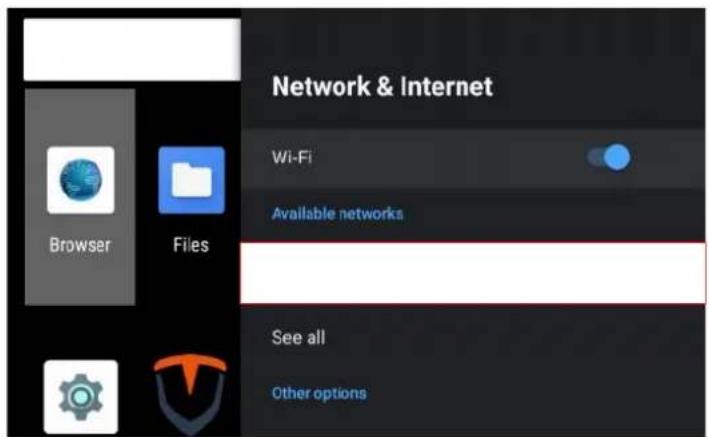
\* Network Connecting
WiFi network:
Select your WiFi and enter the password.
text_image
Network & Internet Wi-Fi Available networks See all Other optionsClick < Next > to connect

text_image
Enter password for Meeting Room Hide password q w e r l y u l O p a s d f g h j k l z x c v b n m En CN/EN ?123 • NextConnecting to Meeting Room
Setting
Network & Internet
Setting >
\* Network Connecting
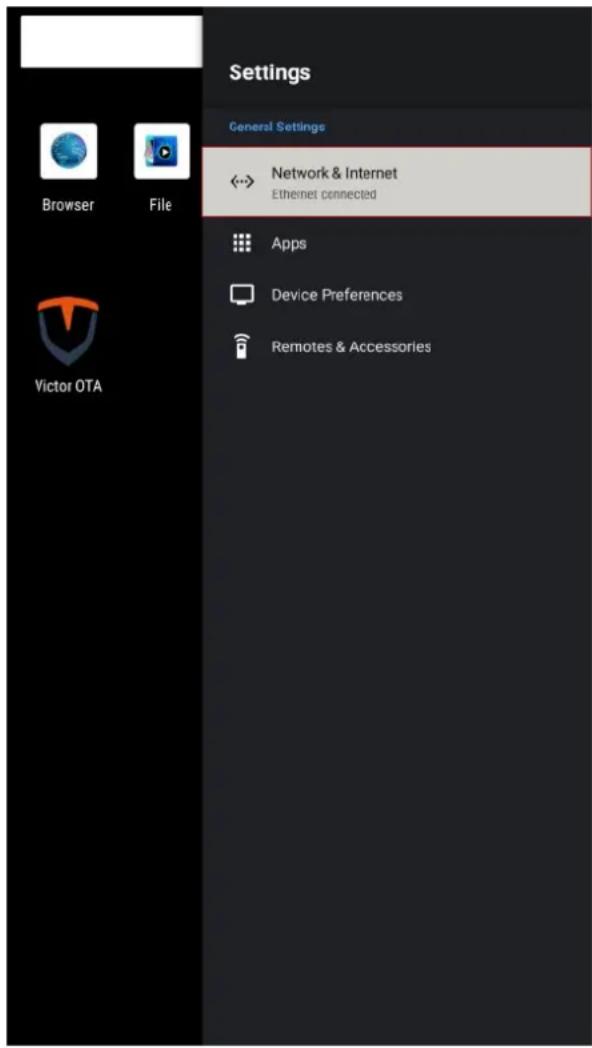
Wired network:
Plug in the network cable, it will be automatically connected.
Click < settings > icon to check whether it is connected.
text_image
Settings General Settings Browser File Victor OTA Network & Internet Ethernet connected Apps Device Preferences Remotes & AccessoriesSetting
Apps
Setting > APP
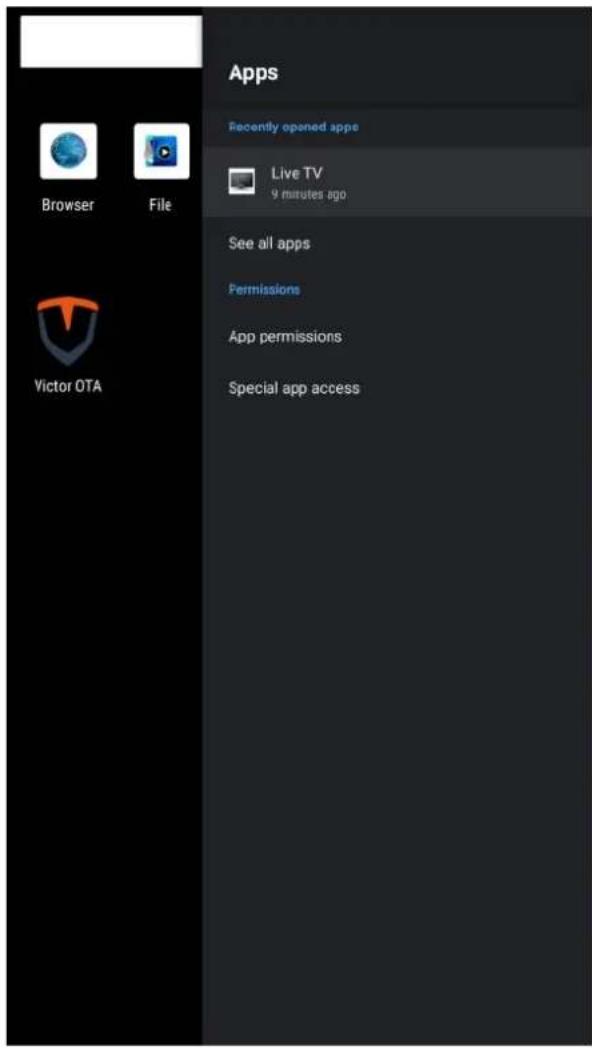
Apps Management
- Recently opened apps Show recently opened apps
- See all apps Show all apps
- App Permissions APP permission management
- Special app access Special app access management
text_image
Browser File Victor OTA Apps Recently opened apps Live TV 9 minutes ago See all apps Permissions App permissions Special app accessSetting
Device Preferences
Setting > Device Preferences
Device preferences setting

text_image
Device Preferences About Date & time Language Keyboard Google input method Inputs Picture Rotate Advanced Sound Storage Location Security & restrictions ResetSetting
Device Preferences
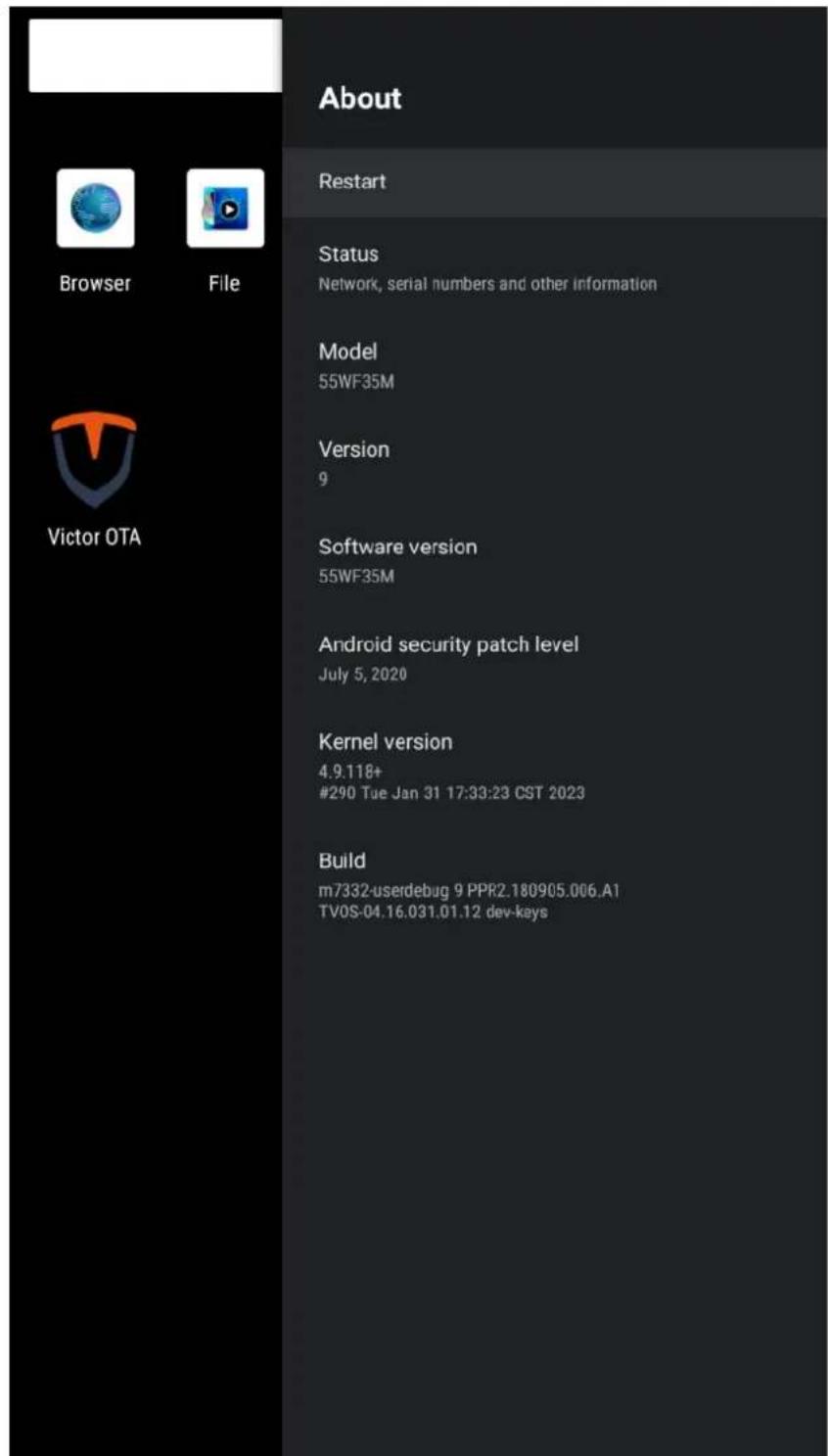
Setting > Device Preferences > About System status, model and software version information (including restart switch).
text_image
About Restart Status Network, serial numbers and other information Model 55WF35M Version 9 Software version 55WF35M Android security patch level July 5, 2020 Kernel version 4.9.118+ #290 Tue Jan 31 17:33:23 CST 2023 Build m7332-userdebug 9 PPR2.180905.006.A1 TVOS-04.16.031.01.12 dev-keysSetting
Device Preferences
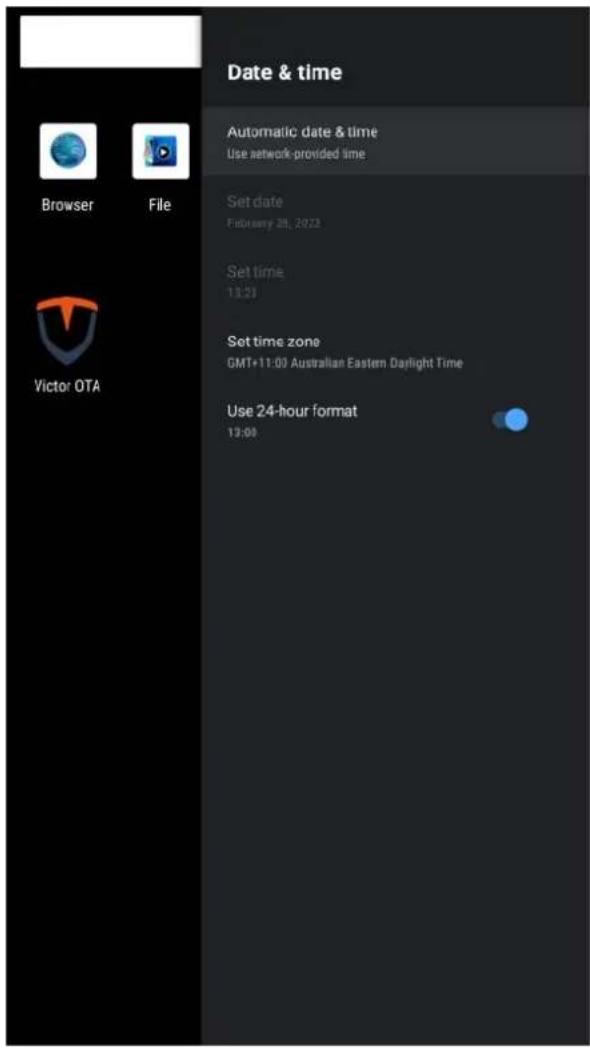
Setting > Device Preferences > Date & time Date & Time setting.
- Automatics date & time Use network-provided time
- Set time zone Set time zone
- Use 24-hour format
text_image
Date & time Automatic date & time Use network provided time Set date February 28, 2022 Set time 13:23 Set time zone GMT+11:00 Australian Eastern Daylight Time Use 24-hour format 13:00 Browser File Victor OTASetting
Device Preferences
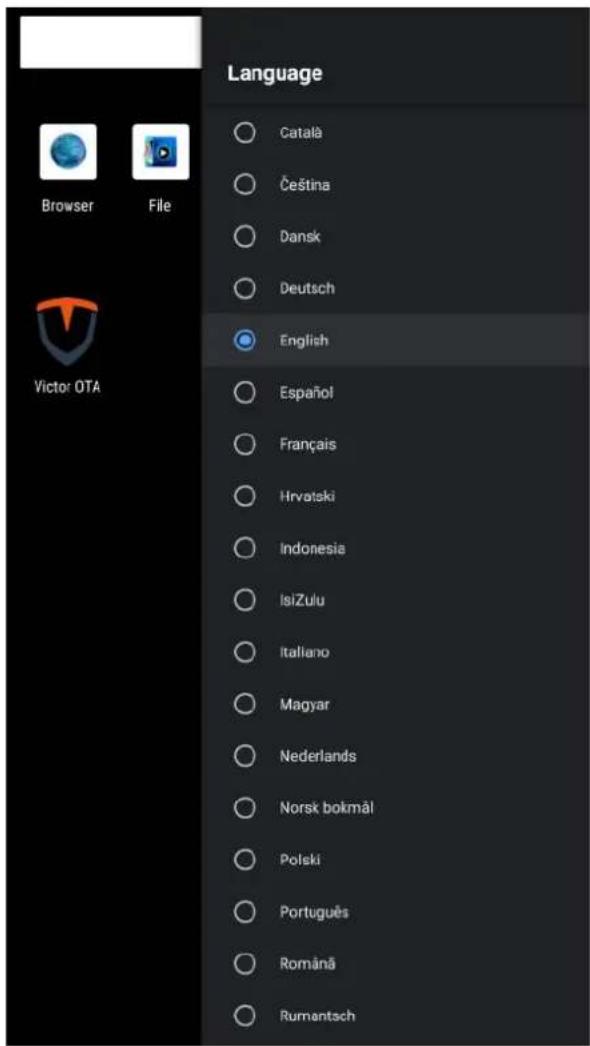
Setting > Device Preferences > Language
Language setting
Select one of the languages on the menu displayed on the screen.
text_image
Language Browser File Victor OTA Catalä Čeština Dansk Deutsch English Español Français Hrvatski Indonesia IsiZulu Italiano Magyar Nederlands Norsk bokmål Polski Português Română RumantschSetting
Device Preferences
Setting > Device Preferences > Keyboard Keyboard setting

text_image
Keyboard Current keyboard Google input method Google input method Settings Manage keyboards Browser File Victor OTASetting
Device Preferences
Setting > Device Preferences > inputs
Consumer Electronic Control(CEC)s setting
- HDMI Control
Allow the TV to control HDMI Devices
- Device auto power off
Power off HDMI devices with the TV
- TV auto power on
Power on the TV with HDMI devices
- CEC Device List
Consumer Electronic Control(CEC) device list

text_image
Inputs Consumer Electronic Control (CEC) HDMI control Allow the TV to control HDMI devices Device auto power off Power off HDMI devices with the TV TV auto power on Power on the TV with HDMI device CEC Device ListSetting
Device Preferences
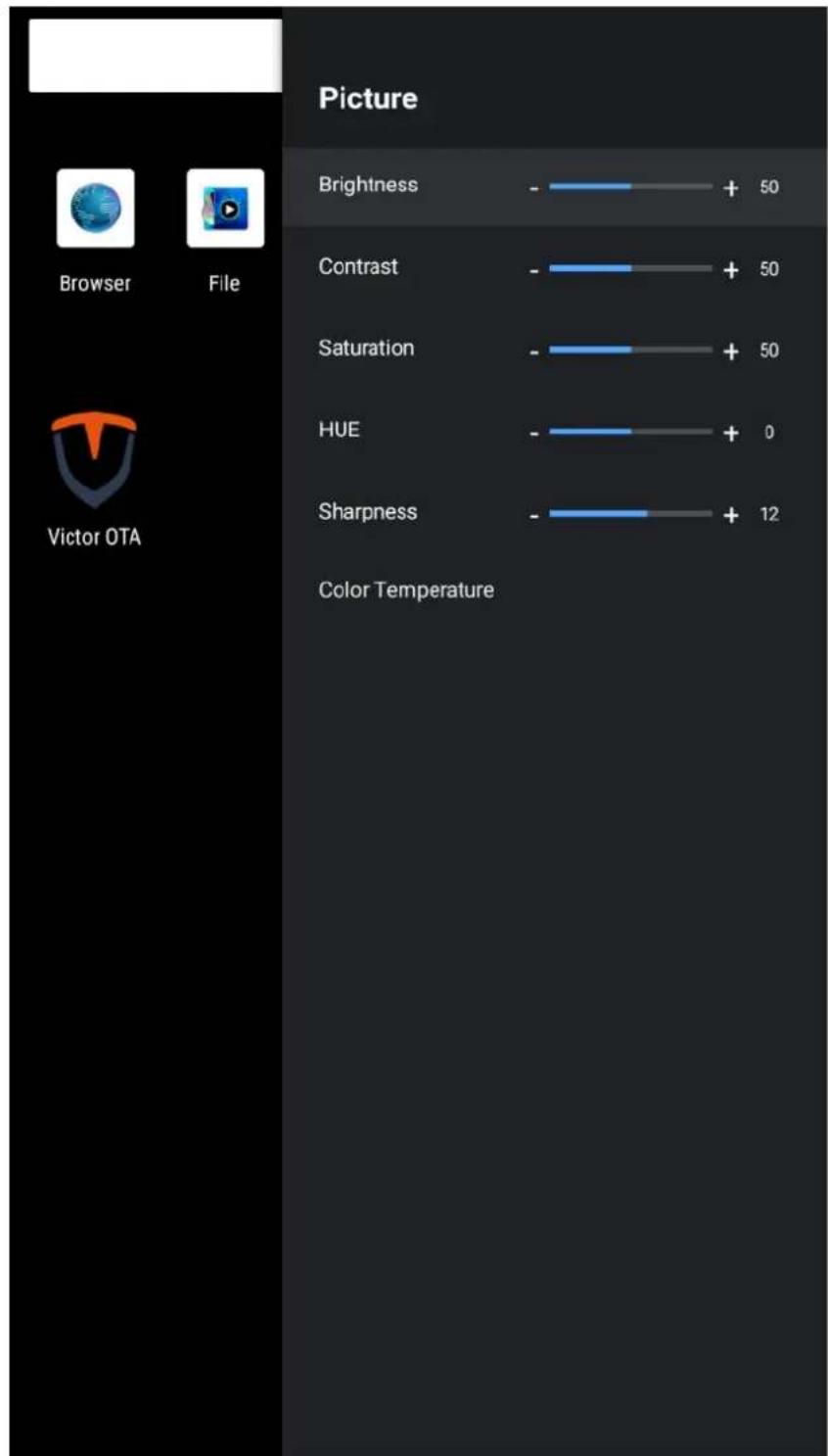
Setting > Device Preferences > Picture
Picture setting
bar
| Category | Value | |---|---| | Brightness | - | | Contrast | - | | Saturation | - | | HUE | - | | Sharpness | - | | Color Temperature | + 50 | | Color Temperature | + 50 | | Color Temperature | + 50 | | Color Temperature | + 0 | | Color Temperature | + 12 |Setting
Device Preferences
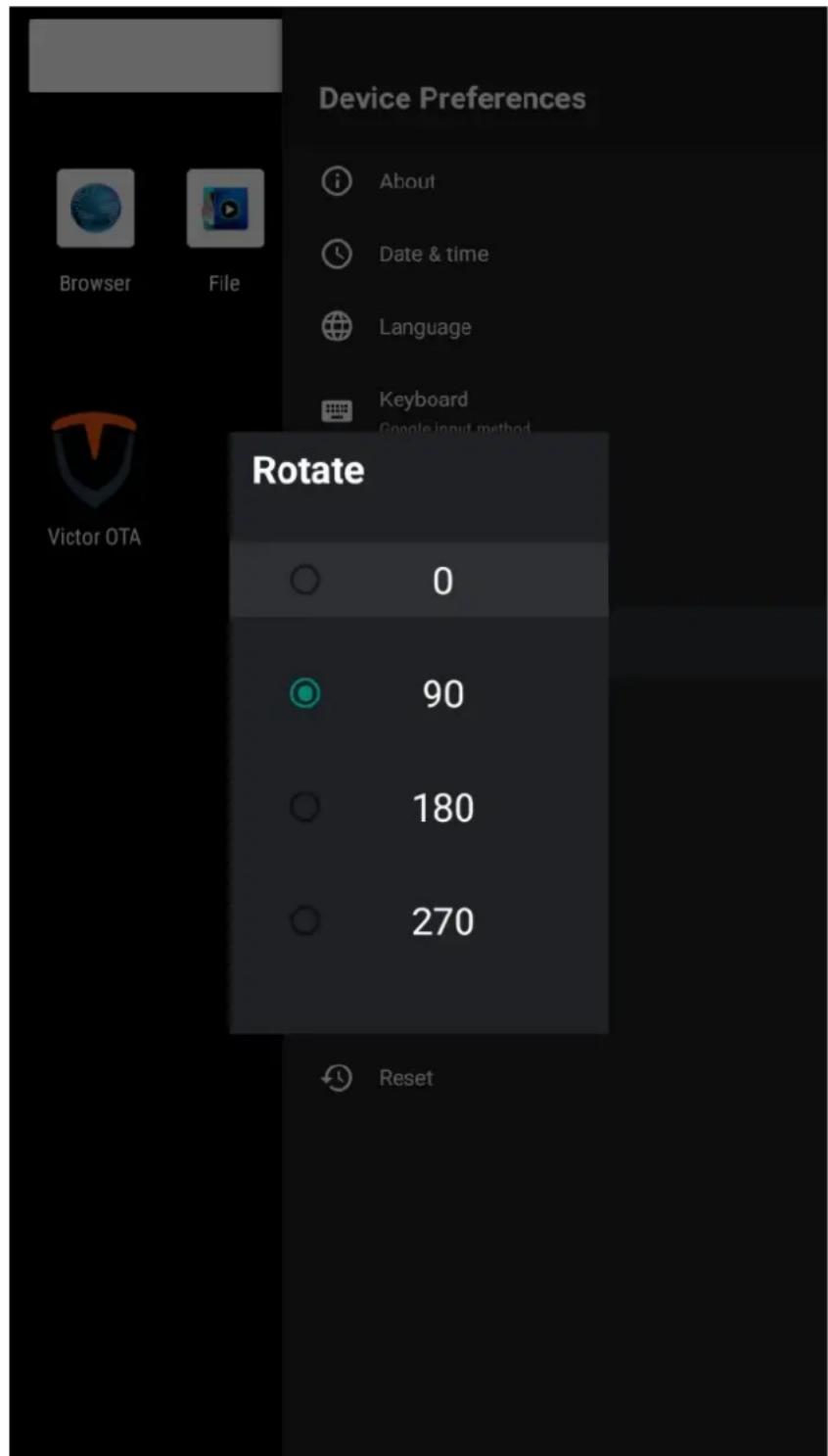
Setting > Device Preferences > Rotate
Picture rotation setting
text_image
Device Preferences Browser File About Date & time Language Keyboard Google input method Victor OTA Rotate 0 90 180 270 ResetSetting
Device Preferences
Setting > Device Preferences > Advances
System advanced setting
- MAC
Display the MAC address of the device
- Screen ID
The external 232 device distinguishes the control device by ID. For example, the current ID of the device is 01. The ID in the control command of the external 232 device is 01, and the current device receives and processes related commands.
- Failover
ON: Automatically switch to HDMI1 when HDMI1 has a signal, automatically switch to HDMI2 when HDMI1 has no signal and HDMI2 has a signal, and automatically switch to the Android main interface when both HDMI1 and 2 have no signal. HDMI1>HDMI2>Android Home.
OFF: Do not switch, keep user operation status.
- Split Screen Mode
Support Split-screen splicing mode, enter the corresponding split-screen splicing code.
| Advanced | |
| MAC | C8:E1:30:FF:FF:F0 |
| Screen ID | 00 |
| Failover | OFF |
| Split Screen Mode | 000 |
| OTA | ON |
| Video Rotate | 180 |
| OSD Rotate | 90 |
| Boot Source | Android |
| Boottime | 0:03 |
| MSC Ver | 222 116 55 |
| Monitoring Ver | 55 |
| System Ver | |
| Current Backlight | 5 |
| Environment Brightness | 236 |
| Backlight Control Mode | Auto |
| Backlight_Auto_L Environment Brightness | 2000 |
| Backlight_Auto_H Environment | 30000 |
-OTA
ON: OTA upgrade takes effect, OFF: OTA upgrade is disabled.
- Video Rotate
Video playback display angle adjustment (0,90,180,270)
- OSD Rotate:
Menu display angle adjustment (0,90,180,270)
Setting
Device Preferences
Setting > Device Preferences > Advances
System advanced setting
- Boot Source
When Failover is off, the device will automatically enter the selected APP after booting.
- Boot time
How long the device has been booted this time.
- MSC Ver
Display the version number of MSC messaging system.
- Moniting Ver
Display the monitoring system version number.
- System Ver
Display system version number.
- Current Backlight
The brightness value set by the current device.
- Environment Brightness
Current external environment brightness.
- Backlight Control Mode
Device brightness control mode,
Auto: automatically adjust according to ambient light brightness,
Manual: adjust according to Backlight Adjust setting value.
| Advanced | |
| MAC | C8:E1:30:FF:FF:F0 |
| Screen ID | 00 |
| Failover | OFF |
| Split Screen Mode | 000 |
| OTA | ON |
| Video Rotate | 180 |
| OSD Rotate | 90 |
| Boot Source | Android |
| Boottime | 0:03 |
| MSC Ver | 222 116 55 |
| Monitoring Ver | 55 |
| System Ver | |
| Current Backlight | 5 |
| Environment Brightness | 236 |
| Backlight Control Mode | Auto |
| Backlight_Auto_L Environment Brightness | 2000 |
| Backlight_Auto_H Environment | 30000 |
- Backlight\_Auto\_L Environment Brightness
Automatic brightness control, the lower limit of the external environment, such as setting the value to 2000: when the external environment brightness is 0-2000, the brightness of the device is automatically adjusted from 0% to 40%.
Setting
Device Preferences
Setting > Device Preferences > Advances
System advanced setting.
- Backlight\_Auto\_H Environment Brightness
Automatic brightness control, the upper limit of the external environment, such as setting the value to 60000: when the external environment brightness is 2000-60000, the brightness of the device is automatically adjusted by 40%-100%.
- Backlight Adjust
When the brightness control is manual, the brightness control value.
- Current Volume
The current volume of the device.
- Volume Adjust
Adjust the volume of the device.
- Reboot Time
The daily scheduled restart time of the device.
- Power On Time Set
The daily power-on time of the device.
- Power Off Time Set
The daily shutdown time of the device.
- Monitoring Connection Status
Display the monitoring system connection status.
- Alert Temperature
Temperature alarm upper limit value, when the temperature exceeds the set value, the device will force the machine brightness to drop to 50%, when the temperature drops below the upper limit value by 10^ , the original brightness control will be restored.
| Backlight_Auto_H Environment Brightness | 60000 |
| Backlight Adjust | 50 |
| Current Volume | 30 |
| Volume Adjust | 30 |
| Reboot Time | -- |
| Power On Time Set | -- |
| Power Off Time Set | -- |
| Moniting Connection Status | Connect |
| Temperature | |
| Alert Temperature | 45°C |
| GPTE-01 | 25.1°C |
| Fan Speed | |
| FAN-D0-1 | 0 |
| FAN-D0-2 | 0 |
| Alert Fan | 20% |
| Auto Fan Tem | 45 |
| Fan Control Mode | Auto |
| Fan Manual Control | 100% |
Setting
Device Preferences
Setting > Device Preferences > Advances
System advanced setting.
- Alert Fan
The fan alarm threshold is 20%. If the current fan rated speed is 1000 rpm, when the speed is >12000 rpm or <800 rpm, the fan speed rate will turn red as warning.
- Auto Fan Tem
Fan start temperature value, when the temperature > set value, the fan will automatically turn on.
- Fan Control Mode
Fan adjustment mode :
Auto: automatically adjusts the speed according to the temperature;
Manual: the constant fan speed is the value set by Fan Manual Control.
- Fan Manual Control
Fan speed percentage manual control (0-100).
| Backlight_Auto_H Environment Brightness | 60000 |
| Backlight Adjust | 50 |
| Current Volume | 30 |
| Volume Adjust | 30 |
| Reboot Time | -- |
| Power On Time Set | -- |
| Power Off Time Set | -- |
| Moniting Connection Status | Connect |
| Temperature | |
| Alert Temperature | 45°C |
| GPTE-01 | 25.1°C |
| Fan Speed | |
| FAN-D0-1 | 0 |
| FAN-D0-2 | 0 |
| Alert Fan | 20% |
| Auto Fan Tem | 45 |
| Fan Control Mode | Auto |
| Fan Manual Control | 100% |
Setting
Device Preferences
Setting > Device Preferences > Advances
System advanced setting.
\* Daisy chain multiple displays setting
Daisy chain has the following two connection methods
- Network port connection (RJ45):
When the device has 2 RJ45 ports, the device supports wired network ring string, so as to achieve the network daisy chain (customer needs to develop own software).

text_image
HDMI IN 2 HDMI IN 1 HDMI OUT HDMI IN HDMI OUT RJ45 RJ45 ETHERNETConnection method

flowchart
graph TD
    A["Signal Source"] --> B["Display 1 Display 2"]
    B --> C["RJ45 RJ45 RJ45 RJ45"]
    D["Display 3 Display 4"] --> E["RJ45 RJ45 RJ45 RJ45"]
    E --> F["RJ45 RJ45 RJ45 RJ45"]
    G["Signal Source"] --> H["Display 1 Display 2"]
    H --> I["RJ45 RJ45 RJ45 RJ45"]
    J["Display 3 Display 4"] --> K["RJ45 RJ45 RJ45 RJ45"]
    K --> L["RJ45 RJ45 RJ45 RJ45"]
Setting
Device Preferences
Setting > Device Preferences > Advances
System advanced setting
\* Daisy chain multiple displays setting
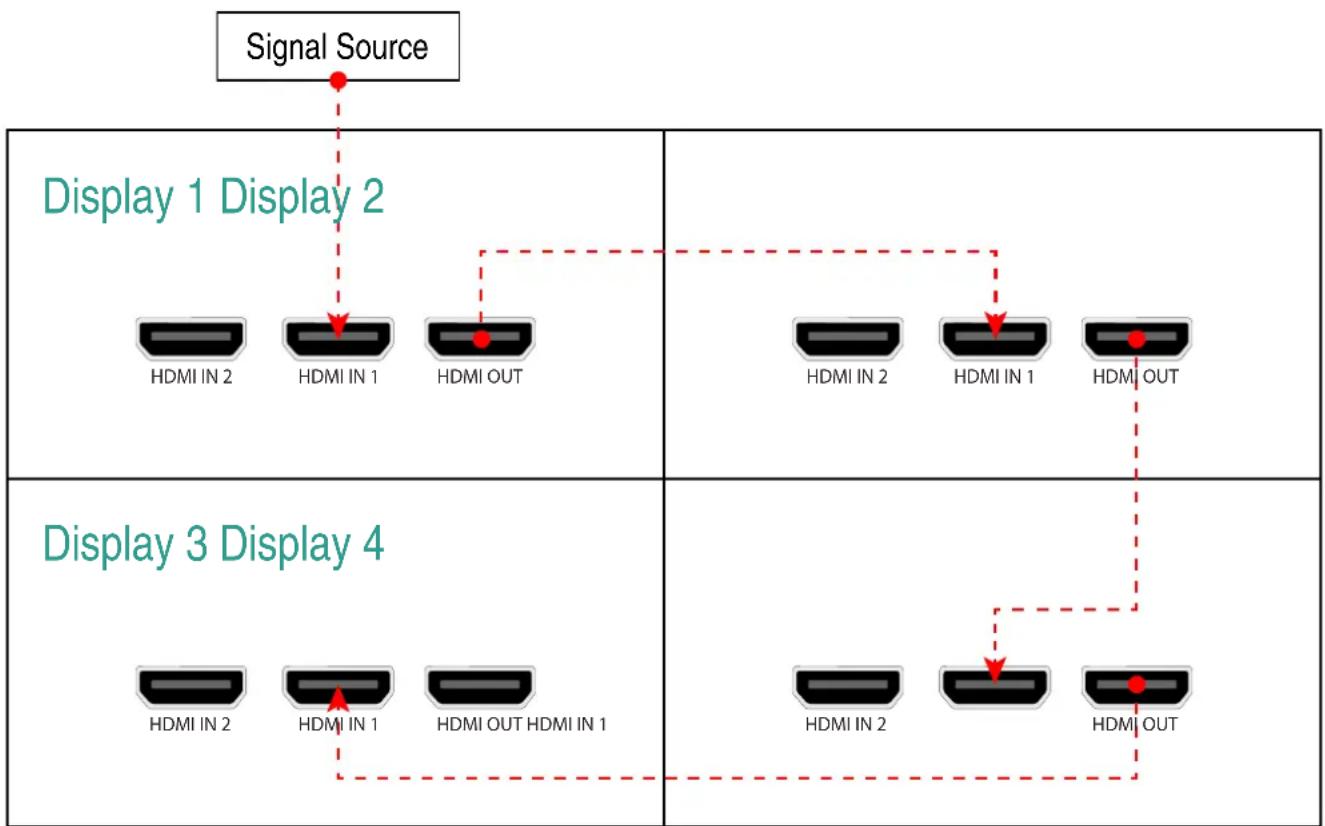
HDMI connection:
When there is a Split Screen Mode option in the Advanced option of the device, the device supports Daisy Chain splicing function, The wiring method is as follows:
flowchart
graph TD
    A["Signal Source"] --> B["Display 1 Display 2"]
    B --> C1["HDMI IN 2"]
    B --> C2["HDMI IN 1"]
    B --> C3["HDMI OUT"]
    C1 --> D1["HDMI IN 2"]
    C2 --> D2["HDMI IN 1"]
    C3 --> D3["HDMI OUT"]
    D1 --> E1["HDMI IN 2"]
    D2 --> E2["HDMI IN 1"]
    D3 --> E3["HDMI OUT"]
    E1 --> F1["HDMI IN 2"]
    E2 --> F2["HDMI IN 1"]
    E3 --> F3["HDMI OUT"]
    F1 --> G1["HDMI IN 2"]
    F2 --> G2["HDMI IN 1"]
    F3 --> G3["HDMI OUT"]
Setting
Device Preferences
Setting > Device Preferences > Advances
System advanced setting
\* Daisy chain multiple displays setting
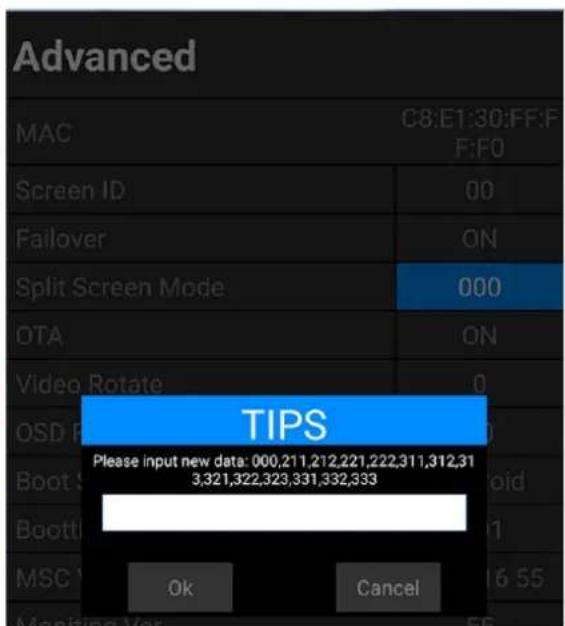
The Daisy chain splicing supports 2x2 and 3x3 splicing modes. Please enter the Split screen code of the device according to the corresponding splicing position in the figure below. When full-screen signal display is required, please set the Mode to: 000.
Note: Video Rotate needs to be set to 0 when setting the daisy chain splicing mode.
| Advanced | |
| MAC | C8:E1:30:FF:FF:F0 |
| Screen ID | 00 |
| Failover | ON |
| Split Screen Mode | 000 |
| OTA | ON |
| Video Rotate | 0 |
| OSD Rotate | 90 |
text_image
Advanced MAC C8:E1:30:FF:F F:F0 Screen ID 00 Failover ON Split Screen Mode 000 OTA ON Video Rotate 0 TIPS Please input new data: 000,211,212,221,222,311,312,31 3,321,322,323,331,332,333 Ok CancelSetting
Device Preferences
Setting > Device Preferences > Advances
System advanced setting
* Daisy chain multiple displays setting
Split Screen Code
2x2 mode 1
| Display 1Split Screen Code:211 | Display 2Split Screen Code:212 |
| Display 3Split Screen Code:221 | Display 4Split Screen Code:222 |
2x2 mode 2
| Display 1Split Screen Code:212 | Display 2Split Screen Code:222 |
| Display 3Split Screen Code:211 | Display 4Split Screen Code:221 |
Setting
Device Preferences
Setting > Device Preferences > Advances
System advanced setting
* Daisy chain multiple displays setting
Split Screen Code
3x3 mode 1
| Display 1Split Screen Code:311 | Display 2Split Screen Code:312 | Display 3Split Screen Code:313 |
| Display 4Split Screen Code:321 | Display 5Split Screen Code:322 | Display 6Split Screen Code:323 |
| Display 7Split Screen Code:331 | Display 8Split Screen Code:332 | Display 9Split Screen Code:333 |
3x3 mode 2
| Display 1Split Screen Code:313 | Display 2Split Screen Code:323 | Display 3Split Screen Code:333 |
| Display 4Split Screen Code:312 | Display 5Split Screen Code:322 | Display 6Split Screen Code:323 |
| Display 7Split Screen Code:311 | Display 8Split Screen Code:321 | Display 9Split Screen Code:331 |
Setting
Device Preferences
Setting > Device Preferences > Advances
System advanced setting
Backlight auto adjust
| Current Backlight | 2 |
| Environment Brightness | 97 |
| Backlight Control Mode | Auto |
| Backlight_Auto_L Environment Brightness | 2000 |
| Backlight_Auto_H Environment Brightness | 30000 |
| Backlight Adjust | 50 |
Current Backlight: current device screen brightness
Environment Brightness: ambient brightness
Backlight Control Mode: Device brightness control mode (automatic, manual)
Backlight_Auto_L Environment Brightness: The lower limit value of the environment brightness when automatically adjusting the brightness. For example, if the setting value is 2000, when the environment brightness is between 0-2000, the device brightness will be automatically adjusted between 0% - 40% .
Setting
Device Preferences
Setting > Device Preferences > Advances
System advanced setting
Backlight_Auto_H Environment Brightness: The upper limit value of the environment brightness when automatically adjusting the brightness. For example, when the setting value is 30000, when the environment brightness is between 2000-30000, the device brightness will be automatically adjusted between 40%-100%.
When the external environment is greater than 30000, the brightness of the device is 100%.
Backlight Adjust: When the device brightness control is manual, the device brightness adjustment value.
Alert Temperature Adjust

text_image
Temperature Alert Temperature 45°C GPTE-01 31.6°CWhen the internal temperature of the device exceeds the value set by Alert Temperature: the brightness of the device is forcibly reduced to 50%. When the temperature drops by 10^ C, the original brightness control will be restored.
Setting
Device Preferences
Setting > Device Preferences > Sound
Volume setting

text_image
Sound Volume 30 Browser File Victor OTASetting
Device Preferences
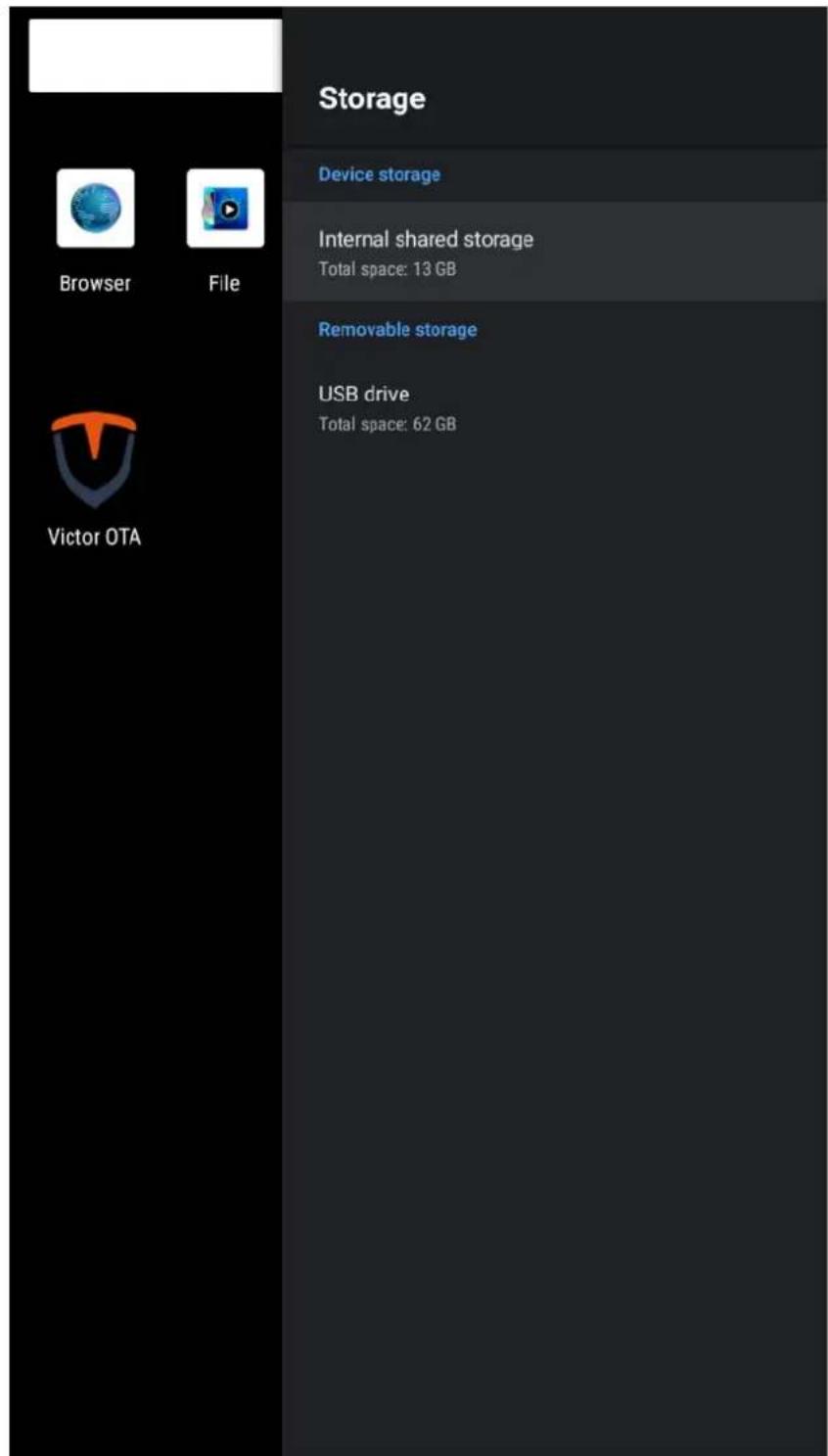
Setting > Device Preferences > Storage
Storage information
text_image
Storage Device storage Internal shared storage Total space: 13 GB Removable storage USB drive Total space: 62 GBSetting
Device Preferences
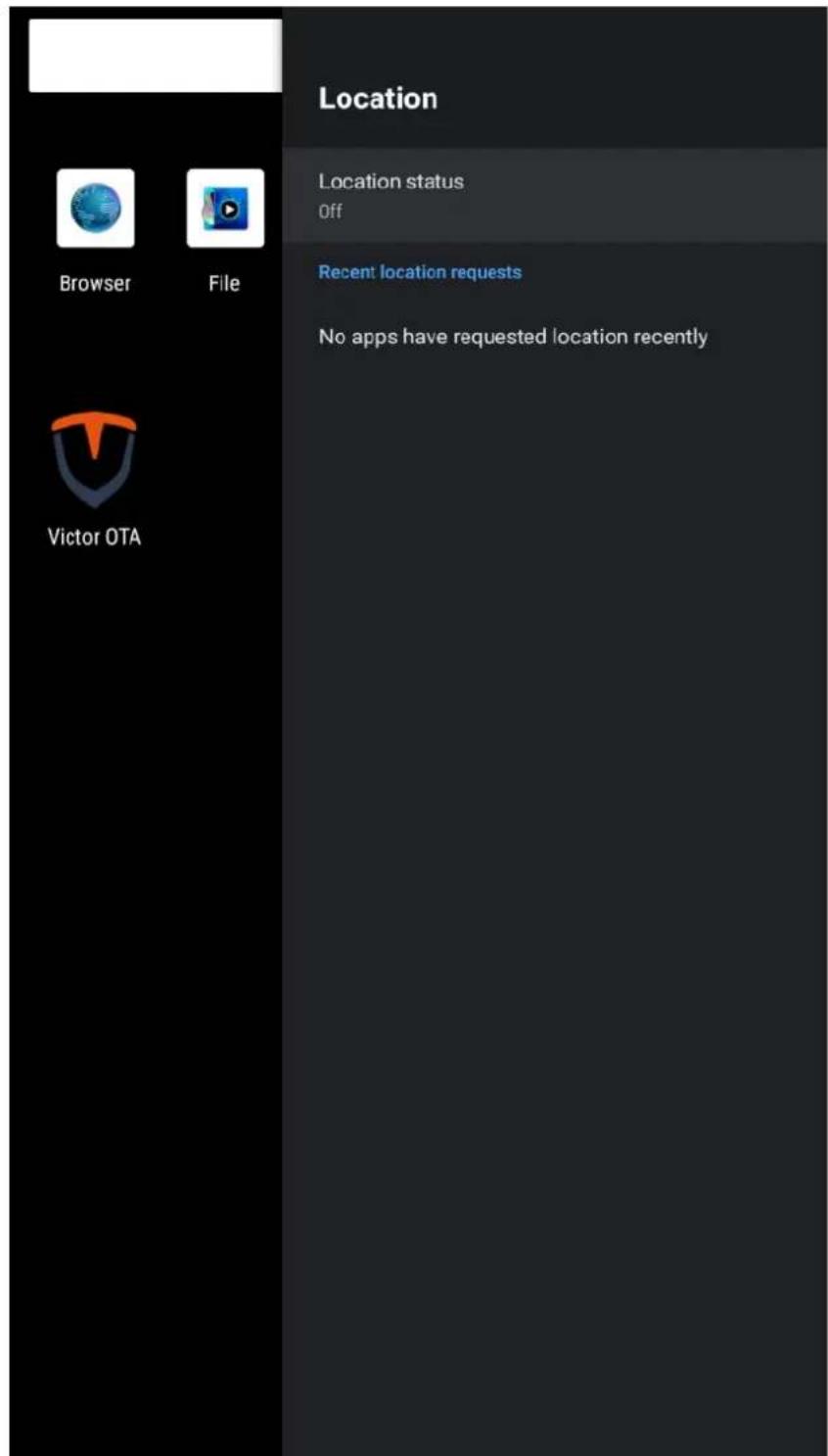
Setting > Device Preferences > Location
Location setting
text_image
Location Location status Off Recent: location requests No apps have requested location recently Browser File Victor OTASetting
Device Preferences
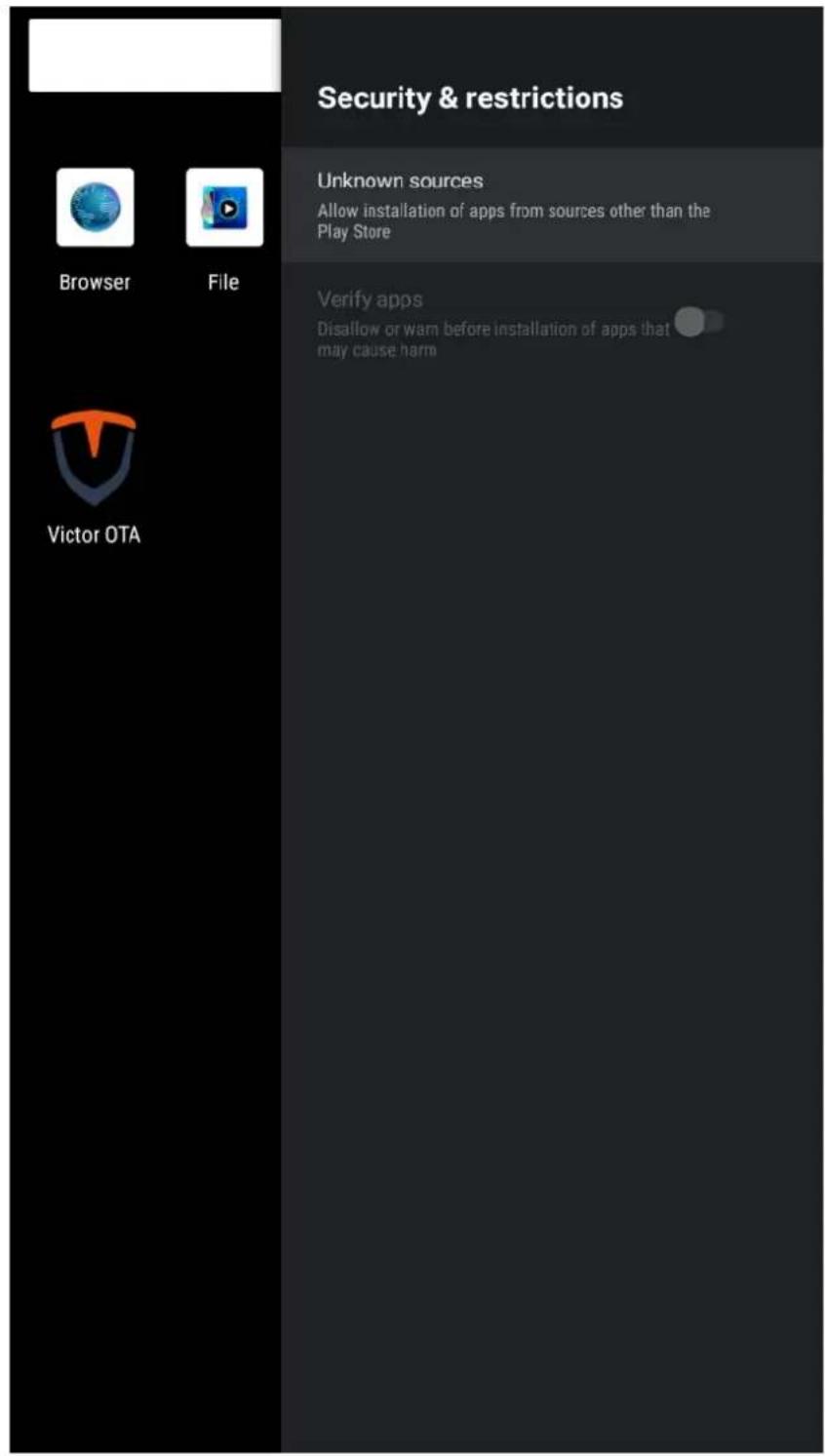
Setting > Device Preferences > Security & restrictions
Security & restrictions setting
text_image
Security & restrictions Unknown sources Allow installation of apps from sources other than the Play Store Verify apps Disallow or warn before installation of apps that may cause harmSetting
Device Preferences
Setting > Device Preferences > Reset
Reset to factory settings

text_image
Reset This will erase all data from your device's internal ... Cancel ResetRemotes & Accessories
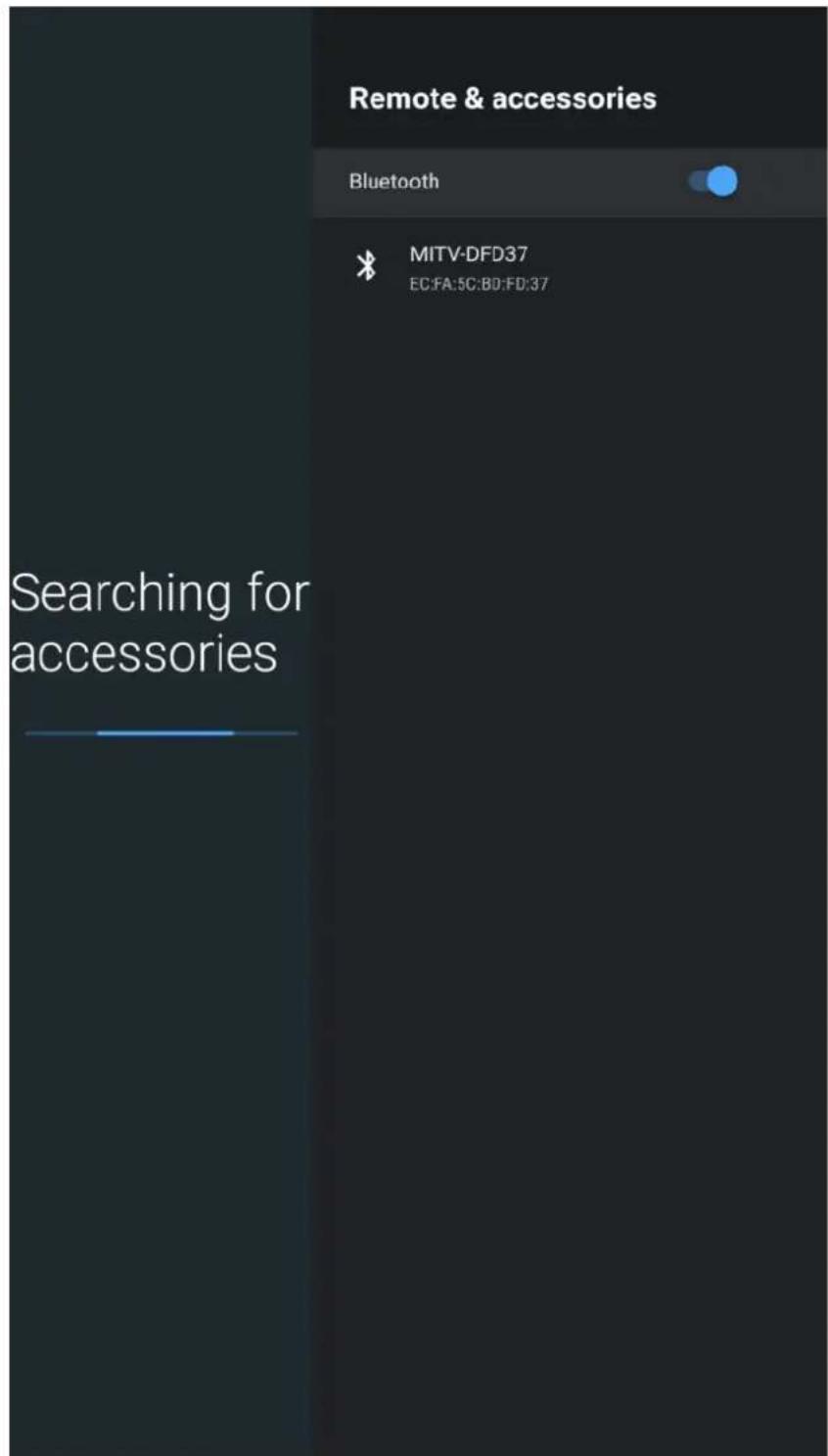
Setting > Remotes & Accessories
Remotes & Accessories(Bluetooth switch)
text_image
Remote & accessories Bluetooth MITV-DFD37 EC:FA:5C:BD:FD:37 Searching for accessoriesVictor OTA
> Victor OTA
Online update software

text_image
Search apps Browser File GPlayer GTest Live TV Settings Victor OTA VictorOTA CHECK DOWNLOAD UPDATESoftware Upgrade Guide
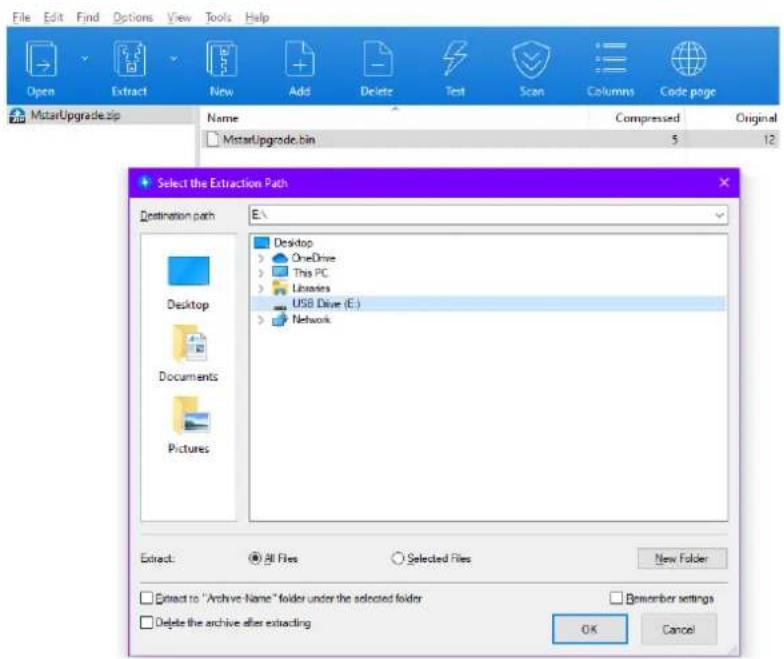
STEP1
Unzip the upgrade file (mstarupgrade. Bin) and copy it to the root directory of the USB drive.
text_image
File Edit Find Options View Tools Help Open Extract New Add Delete Test Scan Columns Code page MutarUpgrade.zip Name Compressed Original MutarUpgrade.bin 5 12 Select the Extraction Path Destination path E:\ Desktop OneDrive This PC Libraries USB Drive (E:) Network Desktop Documents Pictures Extract: All Files Selected Files New Folder Extract to "Archive Name" folder under the selected folder Remember settings Delete the archive after extracting OK CancelSTEP2
Insert the USB drive into the USB port of the machine.

natural_image
Close-up of electrical connectors and cables with a red circle highlighting a component (no visible text or symbols)STEP3
Power on the machine to upgrade and reboot automatically, pull out the USB drive after the upgrade.