QIP-HDMI - Audio/Video Accessories Contemporary Research - Free user manual and instructions
Find the device manual for free QIP-HDMI Contemporary Research in PDF.


User questions about QIP-HDMI Contemporary Research
0 question about this device. Answer the ones you know or ask your own.
Ask a new question about this device
Download the instructions for your Audio/Video Accessories in PDF format for free! Find your manual QIP-HDMI - Contemporary Research and take your electronic device back in hand. On this page are published all the documents necessary for the use of your device. QIP-HDMI by Contemporary Research.
USER MANUAL QIP-HDMI Contemporary Research
Contemporary Research
4355 Excel Pkwy, Suite 600, Addison, TX, 75001
Phone: 972-931-2728 • Toll-Free: 888-972-2728 • Fax: 972-931-2765
E-Mail: Support@crwww.com Website: http://www.contemporaryresearch.com
Table of Contents
Table of Contents....2
Overview 3
Video and Audio Assignment 4
Installation Overview .... 5
First Things....5
Inputs....5
PC and Other Source Scaling....5
Advanced Setup 5
IPTV 5
EAS Emergency Alert Service.... 5
Reset Options (Just a short press on designated buttons) 5
Installation - Settings......6
Front Panel Menus....6
Program A and Program B....7
Common 8
Advanced 9
Web Pages....10
Firmware Updates....10
Using VLC Media Player to Test Streaming....11
QIP Setup 11
VLC Setup....11
Specifications....12
RKU Universal Rack Mount Kit....13
The software included in this product contains copyrighted software that is licensed under the GPL. You may obtain the complete Corresponding Source code from us. Request license and version info by contacting Contemporary Research, contemporaryresearch.com/contact/contact-us/.
text_image
QIPH02 9 Drainless Forward QIPH02 9 QIPH02 9 QIPH02 9 QIPH02 9 QIPH02 9 QIPH02 9 QIPH02 9 QIPH02 9 QIPH02 9 QIPH02 9 QIPH02 9 QIPH02 9 QIPH02 9 QIPN1 QIPN1 QIPN1 QIPN1 QIPN1 QIPN1 QIPN1 QIPN1 QIPN1 QIPN1 QIPN1 QIPN1 QIPN1 QIPN1 QIPN1 QIPN1 QIPN1 QIPN1 QIPN1 QIPN1 QIPN2 QIPN2 QIPN2 QIPN2 QIPN2 QIPN2 QIPN2 QIPN2 QIPN2 QIPN2 QIPN2 QIPN2 QIPN2 QIPN2 QIPN2 QIPN2 QIPN2 QIPN2 QIPN2 QIPN2 QIPN3 QIPN3 QIPN3 QIPN3 QIPN3 QIPN3 QIPN3 QIPN3 QIPN3 QIPN3 QIPN3 QIPN3 QIPN3 QIPN3 QIPN3 QIPN3 QIPN3 QIPN3 QIPN3 QIPN3 QIPN4 QIPN4 QIPN4 QIPN4 QIPN4 QIPN4 QIPN4 QIPN4 QIPN4 QIPN4 QIPN4 QIPN4 QIPN4 QIPN4 QIPN4 QIPN4 QIPN4 QIPN4 QIPN4 QIPN4 QIPN5 QIPN5 QIPN5 QIPN5 QIPN5 QIPN5 QIPN5 QIPN5 QIPN5 QIPN5 QIPN5 QIPN5 QIPN5 QIPN5 QIPN5 QIPN5 QIPN5 QIPN5 QIPN5 QIPN6 QIPN6 QIPN6 QIPN6 QIPN6 QIPN6 QIPN6 QIPN6 QIPN6 QIPN6 QIPN6 QIPN6 QIPN6 QIPN6 QIPN6 QIPN6 QIPN6QIP-HDMI 2
text_image
QIP-SCH 8 Channel 1: 201 13601 Control Power Control Power Control Power Control Power Control Power Control Power Control Power Control Power Control Power Control Power Control Power Control Power Control Power Control Power Control Power Control Power Control Power Control Power Control Power Control Power Control Power Control Power Control Power Control Power Control Power Control Control Power Control Power Control Power Control Power Control Power Control Power Control Power Control Power Control Power Control Power Control Power Control Power Control Power Control Power Control Power Control Power Control Power Control Power Control Power Control Power Control Power Control Power Control Power Control Power Control powerQIP-SDI 2

text_image
QPSO HDMI Digital Audio QPSO Digital Audio QPSO Digital Audio QPSO Digital Audio QPSO Digital Audio QPSO Digital Audio QPSO Digital Audio QPSO Digital Audio QPSO Digital Audio QPSO Digital Audio QPSO Digital Audio QPSO Digital Audio QPSO Digital Audio QPSO Digital Audio QPSO Digital Audio QPSO QPSO Digital Audio QPSO QPSO Digital Audio QPSO QPSO Digital Audio QPSO QPSO Digital Audio QPSO QPSO Digital Audio QPSO QPSO Digital Audio QPSO QPSO Digital Audio QPSO QPSO Digital Audio QPSO QPSO Digital Audio QPSOQIP-SDI HDMI

text_image
OP-YPB3 100 MHz 100 MHz 100 MHz USB: 41.1 VPG 128.5 100.0 USB: 41.1 VPG 128.5 100.0 USB: 41.1 VPG 128.5 USB: 41.1 VPG 128.5 USB: 41.1 VPG 128.5 USB: 41.1 VPG 128.5 USB: 41.1 VPG 128.5 USB: 41.1 VPG 128.5 USB: 41.1 VPG 128.5 USB: -100 MHz USB: -100 MHz USB: -100 MHz USB: -100 MHz USB: -100 MHz USB: -100 MHz USB: -100 MHz USB: -100 MHz USB: -100 MHz USB: -100 MHz USB: -100 MHz USB: -100 MHz USB: -100 MHz USB: 41.1 VPG USB: 41.1 VPG USB: 41.1 VPG USB: 41.1 VPG USB: 41.1 VPG USB: 41.1 VPG USB: 41.1 VPG USB: 41.1 VPG USB: 41.1 VPG USB: 41.1 VPG USB: 41.1 VSG USB: 41.1 VSG USB: 41.1 VSG USB: 41.1 VSG USB: 41.1 VSG USB: 41.1 VSG USB: 41.1 VSG USB: 41.1 VSG USB: 41.1 VSG USB: 41.1 VSG USB: 41.1 VSPG USB: 41.1 VSPG USB: 41.1 VSPG USB: 41.1 VSPG USB: 41.1 VSPG USB: 41.1 VSPG USB: 41.1 VSPG USB: 41.1 VSPG USB: 41.1 VSPG USB: 41.1 VSPGQIP-YPB2
The new QIP series of IPTV encoders offer a totally new technology for H.264 IPTV encoding and distribution. All models feature dual encoders to achieve a lower cost per IP stream. Dual hardware scalers offer total control over video resolution, widescreen formatting and bitrate. Conversion of VGA and PAL video is fully supported as well.
Both SPST streams can be encoded as MPEG4 H.264 or MPEG2 and sent as UDP or RTP Unicast or Multicast streams.
Models are available with HDMI or SDI inputs, as well as Composite for video or captioning data.
Captioning is also encoded from embedded SDI 708/608 data. Audio options include embedded audio, digital SPDIF, and analog stereo – and SAP second audio language programs can be defined as well. Closure and voltage inputs are available to trigger an EAS broadcast. Both streams will switch to a defined input, and will revert to current inputs when the event ends. QIP IPTV Encoders can be set up and monitored via onboard Web pages, and updates can be performed over IP or USB.
There are three QIP models that support a mix of HDMI, SDI, Component and Composite inputs – allowing a wide choice of sources using one or two QIP encoders in one rack space.
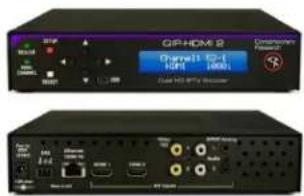
QIP-HDMI 2 - Two HDMI inputs (unencrypted)
QIP-YPB 2 - Two Component YPbPr inputs
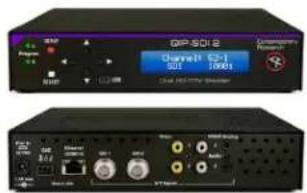
QIP-SDI 2 - Two SDI inputs, up to 3G (8 SDI audio pairs)
QIP-SDI HDMI - One SDI (up to 3G, 8 SDI audio pairs) and one HDMI input (unencrypted)
Shared Features
- Two Composite/CC video inputs for encoding, or captioning,
- Two analog mini Stereo and two RCA SPDIF coax audio inputs
- Creates up to two high-definition SPTS UDP or RTP Unicast or Multicast IPTV streams, encoded as H.264 or MPEG2, two programs can be carried in one MPTS stream if required
- Converts stereo and PCM to stereo AAC or MP12, passes through AC-3 audio
• Can create SAP dual-language audio for each program - Accepts 608/708 embedded captioning, decodes Line 21 captioning from composite video inputs
- Dual hardware scalers accept up to 1080p 3G video, including 60/30 Hz, 1080psf24 and PAL formats, and can deliver programs at a fixed or native resolution
- Contact and voltage inputs can trigger EAS broadcasts
- Setup and monitor with front-panel menus or Ethernet/USB Web pages
- Updates over Ethernet or front-panel USB, one app updates all models
• May be rack-mounted two-across, delivering up to 4 IPTV streams in one rack space, with a mix of inputs
Video and Audio Assignment
Each QIP model has a set of rules regarding how video and audio is selected for Program A and B, with limits primarily for SDI inputs and audio. The X/Y table for each shows valid input combinations for Programs A and B. For example, reading across Program A for the QIP-SDI 2, you can select SDI 1, SDI 2, or Video 2. Reading down for Program B, you can select SDI 1, SDI 2, or Video 1.
QIP-SDI 2
| Program B | ||||
| Program A | SDI 1 | SDI 2 | Video 1 | Video 2 |
| SDI 1 | √ | √ | X | √ |
| SDI 2 | √ | √ | √ | X |
| Video 1 | X | √ | √ | √ |
| Video 2 | √ | X | √ | √ |
Audio Restrictions - You cannot select:
- SDI 1 pairs if Video 1 is selected as a video input.
• SDI 2 pairs if Video 2 is selected as a video input.
• More than two SDI 1 or SDI 2 pairs (of 8 pairs) - Both SPDIF inputs and more than one SDI pair from the same SDI input
- The same audio pair for Programs A and B If one SDI input is patched to both encoders
Captions - You cannot select:
• SDI 1 closed captions if Video 1 is selected
• SDI 2 closed captions if Video 2 is selected
QIP-HDMI RGB
| Program B | |||||
| Program A | HDMI | YPbPr | RGBHV | Video 1 | Video 2 |
| HDMI | √ | √ | √ | √ | X |
| YPbPr | √ | √ | X | X | √ |
| RGBHV | √ | X | √ | X | √ |
| Video 1 | √ | X | X | √ | √ |
| Video 2 | X | √ | √ | √ | √ |
No audio or caption restrictions
QIP-SDI HDMI
| Program B | ||||
| Program A | SDI | HDMI | Video 1 | Video 2 |
| SDI | √ | √ | X | √ |
| HDMI | √ | √ | √ | X |
| Video 1 | X | √ | √ | √ |
| Video 2 | √ | X | √ | √ |
Audio Restrictions - You cannot select:
• SDI pairs if Video 1 is selected
• More than 2 SDI pairs
• Both SPDIF inputs and more than 1 SDI pair
Captions: You cannot select:
• SDI closed captions if Video 1 is selected
QIP-YPB 2
| Program B | ||||
| Program A | YPbPr 1 | YPbPr 2 | Video 1 | Video 2 |
| YPbPr 1 | √ | √ | X | √ |
| YPbPr 2 | √ | √ | √ | X |
| Video 1 | X | √ | √ | √ |
| Video 2 | √ | X | √ | √ |
No audio or caption restrictions
First Things
Always start by defining video and audio inputs by selecting the QUICK menu. Press SETUP, move left or right and press SELECT. Use Up - Down and Right – Left, then SELECT to save your choices. You can test streams offline via a PC and VLC software (see page 15).
Inputs
Just a few things to know:
- HDMI – the input can't pass encrypted HDCP content, accepts up to 1080p (output as 1080p with Auto Resolution on) and can work with 60/30 Hz, VGA standard, and PAL video. For more information, view our Support Blog on Using HDMI Sources.
- SDI – Accepts up to 1080p video, as well as 30/60 and PAL refresh rates. Captioning can be embedded or from the CC port, audio is embedded or from a separate audio input
• Video – Accepts NTSC or PAL video, check the previous page for rules - None – Choose None for the Program B, to make the encoder a single-program unit
PC and Other Source Scaling
In general, PC video via HDMI 1080p will be very close edge-to-edge, as the data from HDMI provides the information needed to exactly scale the image. Some TVs vary in how they present the scaled image, the best for LG will be the Just Scan mode, Normal for Visio, or similar for other brands. In Auto Resolution mode, 1080p will be output as 1080p.
Advanced Setup
Once you get to the more advanced options, such as setting up MPEG2/H.264, Unicast and Multicast operation—you can still use the front-panel menus, but the Web pages will be quicker. See page 9 to learn how to use the front-panel USB port to view the Web pages. Once you set the feature, you can plug and play with all QIP Encoders.
IPTV
There can be up to 2 SPTS (Single Program Transport Stream) streams, one from each encoder, set to MPEG4 H.264 or MPEG2, at a fixed or variable bitrate, set for each Program. Ethernet format can be UDP or RTP. Unicast, where the stream is pointed at one specific player, works on all networks, bandwidth permitting. Multicast will only work of all of the site's routers and switches support Multicast IGMP operation. In the rare case that the site wants two programs in one stream (MPTS Multiple Program Transport Stream), that option can be set in the Advanced menu.
EAS Emergency Alert Service
You can select any video and audio input as the EAS source. A latching contact closure (NO – SW and GND) or 5-24 VDC voltage will trigger the event (GND and V+), and restore to the previous inputs when released.
Reset Options (Just a short press on designated buttons)
- Pressing the Left and Right arrows does a soft encoder reboot (some components like HDMI aren't reset)
- Resetting power will reset all system components without changing settings
- Pressing Left and Right arrows during power-up resets to custom AV settings (see Advanced menu page).
- Pressing Up and Down during power-up clears everything, resets to factory settings – use with caution
The following menus are the same for all QIP IPTV Encoders. We will base the examples on the QIP-HDMI 2, the unique video and audio input selections are noted on Page 4.
- Front Panel. Press the SETUP button use the Up/Down buttons to move through menus, Left/Right to change settings, then press SELECT to store the changes at each step.
- Select a menu group (Quick, A, B, Common, Advanced), then SELECT to view that group's menus
- Press SETUP to move back to other menu groups
o Pressing the left and right buttons together will reboot the unit
- Ethernet. Access the onboard Web pages. Helpful for remote access when system is fully integrated with site Ethernet.
- USB-Web. Access Web pages from front-panel USB port, simplest solution for full setup, requires no IP setup or connection, connect from the front of the equipment rack.
Front Panel Menus
There are five groups of menus you can choose from:
- Quick Setup supplies just the few settings for video and audio inputs.
• Program A goes deeper in to all the options for the first source
• Program B does the same for the second program
• Common menus set the core values for the entire QIP, such LCD brightness, unit name and other options - Advanced menus set special options for Program A and B, Common settings
Quick (selections for QMOD-HMDI 2 shown below)
| Video A Inpt | Selects the video input for Program AHDMI 1| HDMI 2 | Video 1| Video 2 |
| Audio A Inpt | Selects the audio input for Program ANone | HDMI 1| HDMI 2 | SPDIF 1 | SPDIF 2 | Analog 1| Analog 2 |
| Video B Inpt | Selects the video input for Program BNone | HDMI 1| HDMI 2 | Video 1| Video 2 |
| Audio B Inpt | Selects the audio input for Program BNone | HDMI 1| HDMI 2 | SPDIF 1 | SPDIF 2 | Analog 1| Analog 2 |
Program A and Program B
There are two separate menus for Program A and B (examples below for the QIP-HDMI 2)
| Encoder Settings | Sets video and audio properties for the program |
| Video Input | Select the video input (Program B adds the option to select NONE)HDMI 1| HDMI 2 | Video 1| Video 2 |
| Input Res | Displays resolution of current source |
| Output Res | Set the Program output resolution, auto resolution will override this setting1080i | 720p | 480p | 480i | 576i |
| Auto Out Res | When set to On, the QIP will automatically output the program as the same resolution as the source, including 1080p. Default is On. On | Off |
| Vid Bitrate | Bitrate is adjustable in half steps from 9-20 Mbps for MPEG2, 5-10 for H.264 HD, less for SD. Default rate will be 18 or 9 Mbps, set to 18 or below for dual-channel operation. |
| Video Format | Select MPEG2 or H.264 |
| Aspect Ratio | Menu visible when there is a 480i source. Sets the video to display the 480i video as 4:3 or 16:9.4:3 | 16:9 |
| Aud 1 Input | Sets audio for the currently selected source. If you plan on switching sources in your application, select each video input, then select the associated audio. The audio will then automatically follow the selected video input.None | HDMI 1 | HDMI 2 | SPDIF 1 | SPDIF 2 | Analog 1 | Analog 2 (SDI can now select pairs 1-8) |
| Aud 1 Format | Selects audio format for stereo PCM or analog audio. AAC | MP12 |
| Aud 1 Lang | Displays metatext for audio channel language.English | Spanish | Portuguese | French | German |
| Aud 2 Input | Sets the source for the second SAP audio track for the selected video input. Audio will be in MPEG 1 Layer 2 formatNone | HDMI 1 | HDMI 2 | SPDIF 1 | SPDIF 2 | Analog 1 | Analog 2 (SDI can now select pairs 1-8) |
| Aud 2 Lang | Displays metatext for SAP audio channel language.English | Spanish | Portuguese | French | German |
| Chan Name | Enters channel (Program) short name, up to 7 characters. QIP A or QIP B is default text. Press right or left arrow to start editing, use Up and Down arrows to select character. |
| No Vid Color | Sets background color displayed when no video is presentOrange | Purple (default) | Green |
| Sync TrigLev | May help how fine details are displayed for component input 1-4. Only on Web page. |
| Clock Phase | RGB/Component input, can improve sharpness for some videos or signage 1-6 |
| CC Source | Selects source for captioning, Line 21 from NTSC, 708/608 from SDI (ex: QIP-SDI2) None | Video 1 | Video 2 | SDI 1 | SDI 2 |
| Horiz Freq | Shows horizontal frequency of source |
| Vert Freq | Shows vertical frequency of source |
| Horiz Adjust | At the Horizontal menu, press the SELECT button to start the process – you will see a white bar in the middle of the QIP display.- Up zooms the video horizontally, while Down scales the video down- Left moves the video left, Right moves the image right- The solution is automatically saved for that resolution. Repeat for other resolutions, if needed |
| Vert Adjust | Same as above, Up/Down positions video, L/R zoom and shrink |
| IP Settings | Defines streaming properties |
| Eth Protocol | Selects UDP or RTP Ethernet protocol |
| UDP Mode | Selects UDP mode, sub menus change depending on modeUnicast | Multicast |
| Dest Uni Addr | Enter destination IP address for unicast |
| DstMultiAddr | Enter IP address for multicast |
| Dest IP Port | Enter UDP port for unicast or multicast |
Common
This series of menus sets global values for QIP operation. Gray sections cannot be changed on Web pages.
| LCD Contrast | Contrast 1-15 |
| LCD Bright | Display brightness 1-16 (if you set too low, you can change via Web page) |
| Clear PWD | Press Select to clear password – accessible only in the front-panel menu |
| IP Mode | Static or DHCP |
| IP Address | 192.168.001.231Left/Right steps through each group, click Up or Down arrow to step one at a time, hold down to move faster. Address also appears on LCD when QIP restarts. |
| Gateway | 192.168.001.010Quad address – Left/Right steps through each group, click Up or Down arrow to step one at a time, hold down to move faster. |
| Subnet Mask | 255.255.255.000Subnet has a limited range of combinations, so this function is simplifiedLeft/Right steps through each group, click Up or Down arrow for options |
| Mac/SN | Displays Mac address - the last 3 pairs identify the serial number |
| Unit Name | Create unique name for the QIP |
| QMOD* Version | Starts with current version, use left and right arrows for versions of all software modules |
*At present, a few settings use QMOD as both encoders share similar menus.
Advanced
This series of menus sets global values for QIP operation.
| A-Pgm Number | Sets a specific Program number 1-65535, default is 1 for A, 2 for B. |
| A-Source ID | Sets Source ID 1-65535 |
| A-Bitrate Mode | Only visible when QIP outputs on Ethernet only. Selects Constant or Variable rate |
| A-QMODIPPort* | Sets Source IP port for streaming (2728 default) |
| A-Mcast TTL | This Time To Live function assures that multicast streams don't loop forever when they're not being used. 0-255 - Typical settings:0- restricted to the same host, will not be forwarded by any interface1-restricted to the same subnet, won't be forwarded by router32-(default) restricted to the same site64- restricted to the same region128- restricted to the same continent |
| A-AVDropped | Counts the number of frames dropped for testing, press right arrow to clear |
| A-MPEG2DcDly | Sets encoding MEPG2 delay from 200 to 500 ms. Note that internal buffer operation adds 150 ms. |
| A-MPEG4DcdDly | Sets encoding MPEG4 delay from 300-500 ms. See above. |
| B-Pgm Number | Sets a specific Program number 1-65535, default is 1 for A, 2 for B. |
| B-Source ID | Sets Source ID 1-65535 |
| B-Bitrate Mode | Selects Constant or Variable rate |
| B-QMODIPPort* | Sets Source IP port for streaming (2729 default) |
| B-Mcast TTL | This Time To Live function assures that multicast streams don't loop forever when they're not being used. 0-255 |
| B-AVDropped | Counts the number of frames dropped for testing, press right arrow to clear |
| B-MPEG2DcDly | Sets encoding MPEG2 delay from 200 to 500 ms. Note that internal buffer operation adds 150 ms. |
| B-MPEG4DcdDly | Sets encoding MPEG4 delay from 300-500 ms. See above. |
| Fan Speed | Fan speed in percent, operation is automatic |
| Temperature | Processor temperature, tends to hover around 139 degrees |
| EAS Video | Selects video input to use when an Emergency Alert has been triggered, may be any input |
| EAS Audio | Selects audio input to use when an Emergency Alert has been triggered, may be any input |
| IP TS Mode | Sets SPTS or MPTS for IPTV streaming. When set to MPTS, the A and B IP Ports will have the same address, using the last defined address. |
| CVCT | Activates inclusion of virtual channel ID and short Name in the video stream.On (default) | Off |
| Telnet Port | 23 (default)IP port for Telnet communication – Click or hold Up or Down to set. |
| Setup Lockout | On or Off On locks out Setup buttonPressing Setup and the Right key will unlock Setup until the QIP is reset. |
| Save Data | Custom Reset – saves current settings to use for Reset |
| Reset | Select Factory Default or Custom settings |
| IP Speed | Auto | 100 Mbps |
| Reboot | Left or Right arrow cycles between Reboot, AV Dropped, FIFO Full counts, reset from Web page |
Web Pages

text_image
QIP-SDI HDMI Quick Setup | Program A | Program B | Common | Advanced Video Audio 1 Input Audio 2 Input Audio 3 Input Audio 4 Input Audio 5 Input Audio 6 Input Audio 7 Input Audio 8 Input Audio 9 Input Audio 10 Input Audio 11 Input Audio 12 Input Audio 13 Input Audio 14 Input Audio 15 Input Audio 16 Input Audio 17 Input Audio 18 Input Audio 19 Input Audio 20 Input Audio 21 Input Audio 22 Input Audio 23 Input Audio 24 Input Audio 25 Input Audio 26 Input Audio 27 Input Audio 28 Input Audio 29 Input Audio 30 Input Audio 31 Input Audio 32 Input Audio 33 Input Audio 34 Input Audio 35 Input Audio 36 Input Audio 37 Input Audio 38 Input Audio 39 Input Audio 40 Input Audio 41 Input Audio 42 Input Audio 43 Input Audio 44 Input Audio 45 Input Audio 46 Input Audio 47 Input Audio 48 Input Audio 49 Input Audio 50 Input Audio 51 Input Audio 52 Input Audio 53 Input Audio 54 Input Audio 55 Input Audio 56 Input Audio 57 Input Audio 58 Input Audio 59 Input Audio 60 Input Audio 61 Input Audio 62 Input Audio 63 Input Audio 64 Input Audio 65 Input Audio 66 Input Audio 67 Input Audio 68 Input Audio 69 Input Audio 70 Input Audio 71 Input Audio 72 Input Audio 73 Input Audio 74 Input Audio 75 Input Audio 76 Input Audio 77 Input Audio 78 Input Audio 79 Input Audio 80 Input Audio 81 Input Audio 82 Input Audio 83 Input Audio 84 Input Audio 85 Input Audio 86 Input Audio 87 Input Audio 88 Input Audio 89 Input Audio 90 Input Audio 91 Input Audio 92 Input Audio 93 Input Audio 94 Input Audio 95 Input Audio 96 Input Audio 97 Input Audio 98 Input Audio 99 Input Audio 100 OutputYou can also access all the settings via the onboard Web pages. Access by pointing your browser to the unit's IP address.
Or use the front-panel USB port this way:
- Go to Windows Control Panel /Network and Sharing Center/Change Adapter Settings
- Right-click on the USB Ethernet/RNDIS Gadget, and right-click Properties
- Select Internet Protocol Version 4, select Properties and enter
○ IP Address: 192.168.227.228 - Subnet mask: 255.255.255.0
- Enter 192.168.227.227 in your browser to see the QIP web pages
- Once this is set, the same settings apply to all QIP units
Firmware Updates
CR Toolbox

text_image
CR TOOL BOXCR Toolbox is a universal application designed for Contemporary Research products. CR Toolbox is Windows based, compatible with versions XP SP3 through Windows 10.
When launched, it will automatically search and connect Contemporary Research devices over IP or USB. For QMOD and QIP encoders, CR Toolbox will present a list of found units. A user can click on a name and view the unit's Web page or select one or more units for a firmware upgrade.
CR Toolbox will automatically search for new firmware for download, as well as new manuals and technical information.
Download CR Toolbox from our website at www.contemporaryresearch.com.
Using VLC Media Player to Test Streaming
The simplest way to test IPTV operation is to use a PC with VLC Media Player onboard. For a streaming test, use your PC and QIP off-line from a network. Use an IP cable between the PC and QIP (it will auto-sense and make it a crossover cable). Set the QIP's quad address to the same as your PC (usually 192.168.0.xxx or 192.168.1.xxx), set the last number on the QIP to be different than your laptop. With this setup, you can test Unicast and Multicast streaming. If you stream over your network, Unicast usually works, but you'll shut down the network if it's not set up for Multicast and IGMP. Get approval from your IT staff before doing a streaming test on an Ethernet network.
QIP Setup
Using the onboard Web Common page or front panel menus:
- Select the UDP Mode to Unicast
- Enter the IP Quad address of your PC for the Unicast Address
• For Multicast, use the default multicast address
• The default Destination IP Port is 1234, you can change if needed - Click Make Changes
If your PC and the QIP are on the same network, the video is now streaming to your PC. I'm using Unicast as most networks aren't set up for Multicast as yet. Unicast will easily work in your home or integrator shop. If you're at a customer's site, you'll want to get approval by the IT department before streaming any content.
VLC Setup

text_image
Volvo V234 - VLC media player Media Playback Audio Video Sub parties Tools View Help Contemporary Research Home Desk Headquarters Community Center Fox News Keensland Race Track Celebrating 20 Years 1994-2014 United States Senate Wells Fargo Center Prestomwoo Baptist Chun 00:00 00:00 00:00 12/08 12/08Launch VLC on your PC. If you need to download the software, make sure that your download the app from VideoLAN only – there are many phishing sites that include malware with the VLC download.
- Click the Media menu and select the Open Network Stream option
- Enter udp://@:1234 or the port you defined above
- Click Play to watch the video
- For multicast, include multicast group address as well, such as udp://@239.0.27.34:1234
Unicast
This form of Video over Ethernet creates a link from the QIP to a specific IP receiver. The pros are that this stream will operate over most current networks and routers. The takeback is that you can only stream to one receiver at a time, and you need to set up the link within the QIP.
Multicast
Multicasting is a more intelligent solution, as you can broadcast the stream with a multicast address, and the routers and switches do the work of sending and copying the stream to receivers that request it.
The usual catch for integration is that not all routers can handle multicasting. All of the site's routers and switches must have multicasting and IGMP enabled, which may require either software updates or new equipment. IGMP protocol restricts the routing of streams to only the receivers that request the media.
Multicast IP addresses range from 224.0.0.1 through 239.255.255.255, which are set aside for multicast streams. However, there are "reserved" combinations in that range that won't work efficiently, so you'll want to use addresses assigned by the IT department. Typical "non-reserved" addresses include:
239.0.0.5
239.0.100.99
239.3.0.1
Specifications
| Physical | 8.5" [216mm] wide x 1.73" [62mm] height (1RU) x 6.0" [153mm] deep1.5 lbs [0.68kg]+32° to 122° F operating temperature, convection cooledRack mounting for one or two units side-by-side optional (RK1, RK2EZ) |
| Front Panel | Select and directional buttons for menu setupMenu LCD, Blue with 2 lines of 20 white characters each |
| Scaling | Dual hardware scalersAccepts 1080p - 480i , HD, DS and VGA resolutions, 29.97 - 60 Hz US and PAL refresh ratesEdge to edge presentation with zoom, shrink and X/Y axis positioningAuto-resolution or scaled to fixed output resolution, 1080p is output as 1080p in Auto mode |
| Encoding | MPEG2/H.264 Profile:MP@HL for HD, MP@ML for SD, 1080p, 1080i, 720p, 480p, and 480i/576i output resolutionMPEG2 Video Encoding bitrate 10-25 Mbps, HD, 5-6 Mps 480i, or variable bitrateH.264 Video Encoding bitrate 5-10 Mbps, HD, 2-4 Mbps 480i, or variable bitrateConverts PCM or MPEG1, Layer 2 audio to stereo AC-3, AAC or MP12, pass-through AC-3SAP Dual-language capability, second audio track is MPEG1, layer 2Dual encoders can stream can output individual SPTS MPEG2 or H.264 streams, with an option to send one MPTS stream if required |
| Power | 2.1mm coaxial jack (inside center conductor positive)1.1A maximum, 11.5 to 13.5 VDC |
| Rear Panel | |
| EAS | 3 GPI Pins for latching control, SW, NO for closure, V+ 5-12 VDC, Ground |
| Video Inputs | 1080p at 60/59.94Hz, 1080psf24/23.97, 1080i/720p at 59.94/60Hz, or 489p/480i at 29.97Hz, and PAL1080p scaled to 1080i, others output at fixed or native resolutionMost VGA resolutions, Widescreen option for 480iAccepts HDMI/SDI embedded Stereo/AAC/Dolby Digital 48KHz audio (AC-3/AAC pass-through) |
| HDMI | HDMI 1.4a female, does not accept HDCP protected content |
| SDI | BNC FemaleSD-SDI @ 270Mb/s, HD-SDI @ 1.485Gb/s, 3G SDI Level A @ 2.970Gb/sCoax cable auto-equalizer for SD up to 460m, HD up to 230m (RG6) |
| Component | Three RCA Female |
| Composite | NTSC/PAL Video: RCA female (480i/576i), 29.97 Hz, supplies line 21 Captioning |
| Audio Inputs | Digital SPDIF: Two Coax, PCM 44/48K sample rateAnalog L and R: 2 3.5MM stereo jacksHDMI Embedded, 48K sample rateSDI Embedded, 44.1/48K sample rate, select from 8 SDI pairs |
| Includes | RKU Universal Rack KitPS12-2 Switching power supply, 2A 12 VDC, standard cable for AC power stripsPS12-8Y 8A power supply with Y cable to drive 2-4 QIPs (free at time of order) |
| Options | RK1 Single Rack Kit , RK2EZ Dual Rack Kit |
The ICC2-ATSC 4S will now include a Universal Rack Mounting Kit (RKU). The RKU will allow for mounting of a single unit or two units side-by-side in a 19" rack. One Universal Rack Mounting Kit will be included with the purchase of each product and will include the following parts:
- Two (2) Short Rack Ears
• One (1) Long Rack Ear
• One (1) Center Mount Tie-bar
• Six (6) 8-32 x 1/4" Screws - Two (2) 4-40 x 3/16" Screws
2-Across Mounting

natural_image
Technical line drawing of a mechanical assembly with two rectangular components connected by a cable and a connector (no text or symbols)When mounting two components in one RU rack space, use the two short rack ears and the tie bar assembly. Note that the QDA4-45 and QCA9-33 have solid side panels and should not be mounted next to components with the ventilation holes, as that will block airflow.
- Check that your enclosures have the tie bar slot.
- Slide the included tie bar into the side of one unit and attach with one included 4-40 x 3/16" screw, but do not tighten.
- Slide the other unit into the tie bar, attach with the second 4-40 x 3/16" screw, and tighten both screws.
- Add the rack mounts to the sides using the six 8-32 x 1/4" screws.
Single Unit Rack Mounting
natural_image
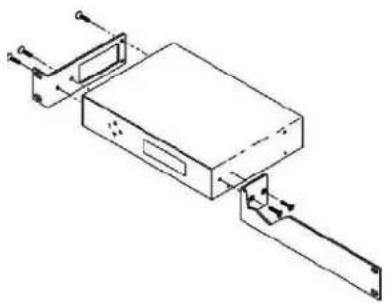
Technical line drawing of a mechanical assembly with no visible text or symbolsAttach a long and short rack ear to each side at the front of the unit, using five of the 8-32 x 1/4" screws.
Warranty and Return Policy
Warranty: Three (3) year limited warranty on all parts and labor for Contemporary Research manufactured products. Contemporary Research warrants its manufactured products against defects in materials and workmanship for a period of three years from the day of purchase by authorized dealer. If Contemporary Research receives notice of such defects during the warranty period; Contemporary Research, at its option, will repair or replace products that prove to be defective.
Exclusions: The above warranty shall not apply to defects resulting from improper or inadequate maintenance by the customer, customers applied software or interfacing, unauthorized modifications or misuse, mishandling, operation outside the normal environmental specifications for the product, use of the incorrect, modified or extended power supply, acts of God, weather, or improper site operation and maintenance. Please note Contemporary Research SSV-DX Display Express PC product carries a six month limited warranty.
Product Service: Contemporary Research will test, repair, or replace the product or products without charge if the unit is under warranty. If the product is out of warranty, Contemporary Research will test, and then repair the product or products. The parts and labor charge will be estimated by a technician and confirmed by the customer prior to repair. All components must be returned for testing as a complete unit. Contemporary Research will not accept responsibility for shipment after it has left the premises.
Technical Support: Contemporary Research technicians will determine and discuss with the customer the criteria for repair and/or replacement. Contemporary Research Technical Support can be contacted through one of the following resources: e-mail support at support@crwww.com or phone at: 972-931-2728
Return Material Authorization (RMA) Number: Before returning a product for repair or replacement, request an RMA from Contemporary Research's technical support. Provide tech support with a return phone number, e-mail address, shipping address, product serial numbers and original purchase order number. Describe the reason for repairs or returns as well as the date of purchase. See the General RMA Terms and Procedures section for more information. RMA's are valid for 30 days and will be issued to authorized Contemporary Research dealers only. End users must return products through authorized Contemporary Research dealers. Include the assigned RMA number in all correspondence with Contemporary Research. Write the assigned RMA number clearly on the shipping label of the box when returning the product. All products returned for credit are subject to a restocking charge without exception.
Voided Warranty: The warranty does not apply if the original serial number has been removed or if the product has been disassembled or damaged through misuse, accident, acts of God, weather, modifications, use of incorrect, modified or extended power supply, or unauthorized repair.
Shipping and Handling: Contemporary Research will not pay for inbound shipping transportation or insurance charges or accept any responsibility for laws and ordinances from inbound transit. Contemporary Research will pay for outbound shipping, transportation, and insurance charges for all items under warranty, but will not assume responsibility for loss and/or damage by the outbound freight carrier. If the return shipment appears damaged, retain the original boxes and packing material for inspection by the carrier. Contact your carrier immediately.
Products not under Warranty: Payment arrangements are required before outbound shipment for all out of warranty products.
General RMA Terms and Procedures: RMA's are valid for 30 days and will be issued only to authorized active Contemporary Research dealers only.
- End users must return products through authorized Contemporary Research dealers. End users may be eligible for a RMA at the discretion of CR Technical Support.
- Before a defective product can be authorized to send in for repair, it must first go through the troubleshooting process with a member of the Contemporary Research Technical Support team.
• Products authorized for repair must have a valid RMA (Return Material Authorization) number.
• Contemporary Research Technical Support will approve the issue of an RMA number.
• An RMA number is to be included in all correspondence with Contemporary Research.
• The RMA number must appear clearly on the shipping label when the product is returned.
• A packing slip must be included on the inside of the box with the RMA number listed and reason for RMA return. - Products received at Contemporary Research that do not have a valid RMA number clearly marked on the outside of the shipping container may be refused and returned to sender.
- Boxes showing external damage will be refused and sent back to the sender regardless of the clearly marked RMA number and will remain the responsibility of the sender.
Advanced Replacement Policies:
For Contemporary Research manufactured products, advance replacement will be provided for "out-of-the-box" failures up to thirty (30) days after the initial shipment of products
Shipments of equipment that are refused upon attempted delivery, for any reason, are subject to restocking charges.