SuperBlade SBI-421E-5T3N - Server Supermicro - Free user manual and instructions
Find the device manual for free SuperBlade SBI-421E-5T3N Supermicro in PDF.


User questions about SuperBlade SBI-421E-5T3N Supermicro
0 question about this device. Answer the ones you know or ask your own.
Ask a new question about this device
Download the instructions for your Server in PDF format for free! Find your manual SuperBlade SBI-421E-5T3N - Supermicro and take your electronic device back in hand. On this page are published all the documents necessary for the use of your device. SuperBlade SBI-421E-5T3N by Supermicro.
USER MANUAL SuperBlade SBI-421E-5T3N Supermicro
natural_image
Front view of a gray server drive with multiple ports and connectors (no visible text or labels)
natural_image
Front view of a silver server drive with hexagonal top panel and drive slots (no visible text or labels)USER'S MANUAL
Revision 1.0a
The information in this User's Manual has been carefully reviewed and is believed to be accurate. The vendor assumes no responsibility for any inaccuracies that may be contained in this document, and makes no commitment to update or to keep current the information in this manual, or to notify any person or organization of the updates. Please Note: For the most up-to-date version of this manual, please see our website at www.supermicro.com.
Super Micro Computer, Inc. ("Supermicro") reserves the right to make changes to the product described in this manual at any time and without notice. This product, including software and documentation, is the property of Supermicro and/or its licensors, and is supplied only under a license. Any use or reproduction of this product is not allowed, except as expressly permitted by the terms of said license.
IN NO EVENT WILL Super Micro Computer, Inc. BE LIABLE FOR DIRECT, INDIRECT, SPECIAL, INCIDENTAL, SPECULATIVE OR CONSEQUENTIAL DAMAGES ARISING FROM THE USE OR INABILITY TO USE THIS PRODUCT OR DOCUMENTATION, EVEN IF ADVISED OF THE POSSIBILITY OF SUCH DAMAGES. IN PARTICULAR, SUPER MICRO COMPUTER, INC. SHALL NOT HAVE LIABILITY FOR ANY HARDWARE, SOFTWARE, OR DATA STORED OR USED WITH THE PRODUCT, INCLUDING THE COSTS OF REPAIRING, REPLACING, INTEGRATING, INSTALLING OR RECOVERING SUCH HARDWARE, SOFTWARE, OR DATA.
Any disputes arising between manufacturer and customer shall be governed by the laws of Santa Clara County in the State of California, USA. The State of California, County of Santa Clara shall be the exclusive venue for the resolution of any such disputes. Supermicro's total liability for all claims will not exceed the price paid for the hardware product.
FCC Statement: This equipment has been tested and found to comply with the limits for a Class A or Class B digital device pursuant to Part 15 of the FCC Rules. These limits are designed to provide reasonable protection against harmful interference when the equipment is operated in industrial environment for Class A device or in residential environment for Class B device. This equipment generates, uses, and can radiate radio frequency energy and, if not installed and used in accordance with the manufacturer's instruction manual, may cause harmful interference with radio communications. Operation of this equipment in a residential area is likely to cause harmful interference, in which case you will be required to correct the interference at your own expense.
California Best Management Practices Regulations for Perchlorate Materials: This Perchlorate warning applies only to products containing CR (Manganese Dioxide) Lithium coin cells. "Perchlorate Material-special handling may apply. See www.dtsc.ca.gov/hazardouswaste/perchlorate".

WARNING: This product can expose you to chemicals including lead, known to the State of California to cause cancer and birth defects or other reproductive harm. For more information, go to www.P65Warnings.ca.gov.
The products sold by Supermicro are not intended for and will not be used in life support systems, medical equipment, nuclear facilities or systems, aircraft, aircraft devices, aircraft/emergency communication devices or other critical systems whose failure to perform be reasonably expected to result in significant injury or loss of life or catastrophic property damage. Accordingly, Supermicro disclaims any and all liability, and should buyer use or sell such products for use in such ultra-hazardous applications, it does so entirely at its own risk. Furthermore, buyer agrees to fully indemnify, defend and hold Supermicro harmless for and against any and all claims, demands, actions, litigation, and proceedings of any kind arising out of or related to such ultra-hazardous use or sale.
Manual Revision 1.0a
Release Date: May 25, 2023 mk
Unless you request and receive written permission from Super Micro Computer, Inc., you may not copy any part of this document. Information in this document is subject to change without notice. Other products and companies referred to herein are trademarks or registered trademarks of their respective companies or mark holders.
Copyright © 2023 by Super Micro Computer, Inc.
All rights reserved.
Printed in the United States of America
Preface
About this Manual
This manual is written for professional system integrators and technicians. It provides information for the installation and use of the blade server. Installation and maintenance should be performed by experienced technicians only.
Please refer to the SBI-421E-xT3N server specifications page on our website for updates on supported memory, processors and operating systems.
Notes
For your system to work properly, please follow the links below to download all necessary drivers/utilities and the user's manual for your server.
• Supermicro product manuals: https://www.supermicro.com/support/manuals/
- Product drivers and utilities: https://www.supermicro.com/wdl
- Product safety info: https://www.supermicro.com/about/policies/safety_information.cfm
If you have any questions, please contact our support team at: support@supermicro.com
This manual may be periodically updated without notice. Please check the Supermicro website for possible updates to the manual revision level.
Secure Data Deletion
A secure data deletion tool designed to fully erase all data from storage devices can be found on our website: https://www.supermicro.com/about/policies/disclaimer.cfm?url=/wdl/utility/Lot9_Secure_Data_Deletion_Utility/
Warnings
Special attention should be given to the following symbols used in this manual.

Warning! Indicates important information given to prevent equipment/property damage or personal injury.

Warning! Indicates high voltage may be encountered when performing a procedure.
Contents
Chapter 1 Introduction
1.1 Overview....8 Eligible Enclosures....8
1.2 System Features....9 Front View....9 Drive Carrier Indicators....10 Control Panel....11 Top view....12
1.3 Motherboard Layout ....14 Quick Reference ....15 Motherboard Block Diagram ....16
Chapter 2 Installation and Setup
2.1 Unpacking the System 17
2.2 Powering On or Off 18
2.3 Accessing the System....19
Installing or Removing a Blade Unit....19
Removing the Blade Top Cover....20
2.4 Processor and Heatsink....21 Processor Overview....21 Installation Overview....22 Installation Procedure Overview....22
Create the Processor Carrier Assembly ....23 Assemble the Processor Heatsink Module ....27 Remove the Socket Cover....29 Install the PHM....30
Removing the PHM....33 Removing the Carrier Assembly from the Heatsink....35 Removing the Processor from the Carrier Assembly....36
2.5 Memory....37 Memory Support....37 Memory Population Guidelines....39 Guidelines Regarding Mixing DIMMs....39
DIMM Construction....39
Installing Memory....40
2.6 Motherboard Battery....41
2.7 Storage Drives....42
Installing Drives....42
M.2 Solid State Drives 45
Hot-Swap for NVMe Drives....47
2.8 System Cooling 48
Checking the Server Air Flow 48
Overheating....48
Checking the Temperature of an NVMe Drive....48
2.9 AIOM 49
2.10 Next Steps....50
Installing the Operating System....50
Configuring RAID 50
Installing Drivers....50
Chapter 3 Motherboard Connections
3.1 Headers and Connectors ....51
Control Panel 53
3.2 Jumpers....54
3.3 LED Indicators....55
Chapter 4 Software
4.1 Installing the Operating System....56
4.2 Driver Installation....57
4.3 SuperDoctor ^® 5....58
4.4 BMC....59
BMC ADMIN User Password ....59
Chapter 5 Optional Components
5.1 Add-on Card Options ....60
5.2 TPM Security Module....60
Chapter 6 Troubleshooting and Support
6.1 Information Resources....61
Website 61
Direct Links for the SBI-421E-xT3N System....61
Direct Links for General Support and Information ....61
6.2 BMC Interface 62
6.3 Troubleshooting Procedures ......63
General Technique....63
No Power 63
No Video....63
System Boot Failure 63
Memory Errors 64
Losing the System Setup Configuration 64
When the System Becomes Unstable....64
6.4 Crash Dump Using the BMC Dashboard....66
6.5 UEFI BIOS Recovery ....67
Overview 67
Recovering the UEFI BIOS Image....67
Recovering the Main BIOS Block with a USB Device....67
6.6 CMOS Clear....72
6.7 BMC Reset....72
6.8 Where to Get Replacement Components....73
6.9 Reporting an Issue....73
Technical Support Procedures....73
Returning Merchandise for Service....73
Vendor Support Filing System ....74
6.10 Feedback ....74
6.11 Contacting Supermicro....75
Appendix A BIOS POST Codes
Appendix B Standardized Warning Statements for AC Systems
Appendix C Specifications and Compliance
Contacting Supermicro
Headquarters
Address: Super Micro Computer, Inc.
980 Rock Ave.
San Jose, CA 95131 U.S.A.
Tel: +1 (408) 503-8000
Fax: +1 (408) 503-8008
Email: marketing@supermicro.com (General Information)
Sales-USA@supermicro.com (Sales Inquiries)
Government_Sales-USA@supermicro.com (Gov. Sales Inquiries)
support@supermicro.com (Technical Support)
RMA@supermicro.com (RMA Support)
Webmaster@supermicro.com (Webmaster)
Website: www.supermicro.com
Europe
Address: Super Micro Computer B.V.
's-Hertogenbosch, The Netherlands
Tel: +31 (0) 73-6400390
Fax: +31 (0) 73-6416525
Email: Sales_Europe@supermicro.com (Sales Inquiries)
Support_Europe@supermicro.com (Technical Support)
RMA_Europe@supermicro.com (RMA Support)
Website: www.supermicro.nl
Asia-Pacific
Address: Super Micro Computer, Inc.
3F, No. 150, Jian 1st Rd.
Zhonghe Dist., New Taipei City 235
Taiwan (R.O.C)
Tel: +886-(2) 8226-3990
Fax: +886-(2) 8226-3992
Email: Sales-Asia@supermicro.com.tw (Sales Inquiries)
Support@supermicro.com.tw (Technical Support)
RMA@supermicro.com.tw (RMA Support)
Website: www.supermicro.com.tw
Chapter 1
Introduction
1.1 Overview
The SBI-421E-xT3N blade is a compact self-contained server that connects into a pre-cabled enclosure that provides power, cooling, management and networking functions. One 8U enclosure can hold up to twenty blades for SBI-421E-1T3N or ten blades for SBI-421E-5T3N. Each blade contains one computing node.
In this manual, “blade” or “blade unit” refers to a single blade, and “blade enclosure” is the chassis that houses the blades, power supplies, and other modules. “Blade system” refers to the enclosure, blades units, and various management and networking modules.
| Models | ||
| System Feature | Storage Types | |
| SBI-421E-1T3N | Single width, supports higher density computing node in 8U enclosure | SATA/NVMe drives |
| SBI-421E-5T3N | Double wide,supports higher TDP CPUs. SATA/NVMe drives | |
| System Overview | |
| Motherboard | B13DET |
| Chassis | MCP-680-41008-0N |
| Processor | Dual 4th Generation Intel Xeon Scalable processor in socket E1 (LGA4677) with three UPIs (16GT/s max.) |
| Memory | Supports up to 4TB 3DS RDIMM/RDIMM DDR5 (288-pin) ECC memory with speeds up to 4800MT/s in 16 DIMM slots |
| Storage Drives | Three 2.5" bays: two hot-swap U.2 NVMe/SATA3 and one hot-swap SATA3One M.2 SSD NVMe, (With add-on card, four additional M.2 SATA/NVMe drives) |
| LAN | One onboard 2-port 25GbE NICOne mezzanine card for extensionOne AIOM slot (OCP 3.0 compliance) w/ PCIe Gen5 x16 support |
| System Cooling | Two sets of air shrouds, two CPU heatsinks |
| Form Factor | SBI-421E-1T3N: 4U height; 6.5" x 1.75" x 23.5" (HxWxD) (16.5 x 4.4 x 59.7 cm)SBI-421E-5T3N: 4U height; 6.5" x 3.5" x 23.5" (HxWxD) (16.5 x 8.8x 59.7 cm) |
Eligible Enclosures
- SBE-820H-822/622
• SBE-820H2-830/630/430
• SBE-820C-822/622/422
• SBE-820J-822/622/422
• SBE-820L-822/622/422
• SBE-820J2-830/630
1.2 System Features
Front View
text_image
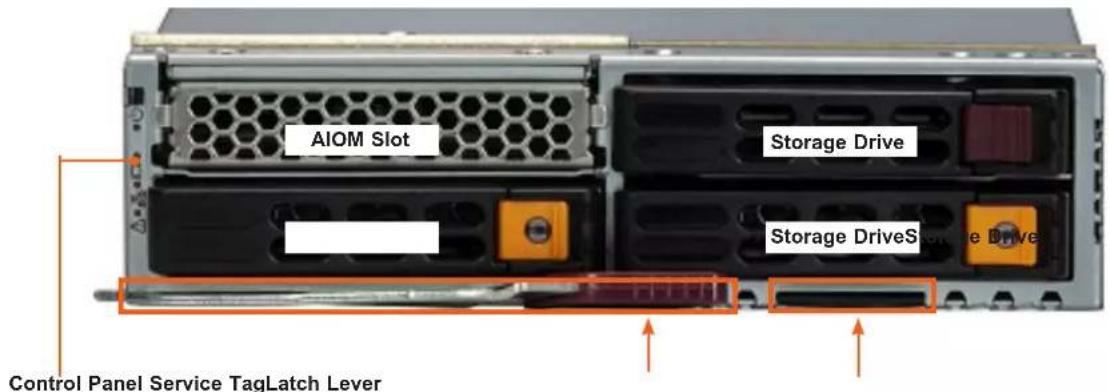
AIOM Slot Storage Drive Storage DriveS Control Panel Service TagLatch LeverFigure 1-1. Front View, SBI-421E-1T3N

text_image
AIOM Slot Storage Drive Storage DriveS Storage Drive Control Panel Service TagLatch LeverFigure 1-2. Front View, SBI-421E-5T3N
| Chassis Front Features | |
| Features Descriptons | |
| Control Panel Power button and status indicators | |
| Storage Drives Three hot-swap 2.5" drive bays; top bay supports SATA only; lower bays support SATA, NVMe | |
| AIOM Slot PCIe Gen5 x16 AIOM (OCP3.0) | |
| Latch Lever Secures the blade in the enclosure | |
| Service/Asset Tag | Pull-out identifier (with BMC ADMIN default password sticker) |
Drive Carrier Indicators
Each drive carrier has two LED indicators: an activity indicator and a status indicator. For RAID configurations using a controller, the meaning of the status indicator is described in the table below. For OS RAID or non-RAID configurations, some LED indications are not supported, such as hot spare.
| Drive Carrier LED Indicators | ||
| Color Blinking Pattern Behavior for Device | ||
| Activity LED | Blue Solid On Idle SAS/NVMe drive installed | |
| Blue Blinking I/O activity | ||
| Off Idle SATA drive | ||
| Status LED | Red Solid On Failure of drive with RSTe support | |
| Red Blinking at 1 Hz Rebuild drive with RSTe support | ||
| Red Blinking with two blinks and one stop at 1 Hz | Hot spare for drive with RSTe support | |
| Red On for five seconds, then off | Power on for drive with RSTe support | |
| Red Blinking at 4 Hz Identify drive with RSTe support | ||
Control Panel

text_image
KVM/UID LEDSystem Fail LED Power Power LEDNIC LEDFigure 1-2. Control Panel
| Control Panel Features | ||
| Feature State Description | ||
| Power button | The main power switch applies or removes primary power from the power supply to the server but maintains standby power. | |
| Power LED | Green Power on | |
| Amber, solid Power off | ||
| Amber, blinking Before the BMC is ready, blinks until every node is ready | ||
| KVM/UID LED | Blue, solid Indicates that KVM has been initialized | |
| Blue, blinking | Unit Identifier indicator (The UID function is activated with a management program.) | |
| NIC LED | Green, blinking | Indicates traffic (Tx and RX data) on the LAN connection to this blade module |
| Amber, blinking Indicates traffic over the network (when present in the system) | ||
| System Fail LED | Red | Indicates a fatal error. This may be a memory error, a VGA error or any other fatal error that prevents the operating system from booting. |
Top view
text_image
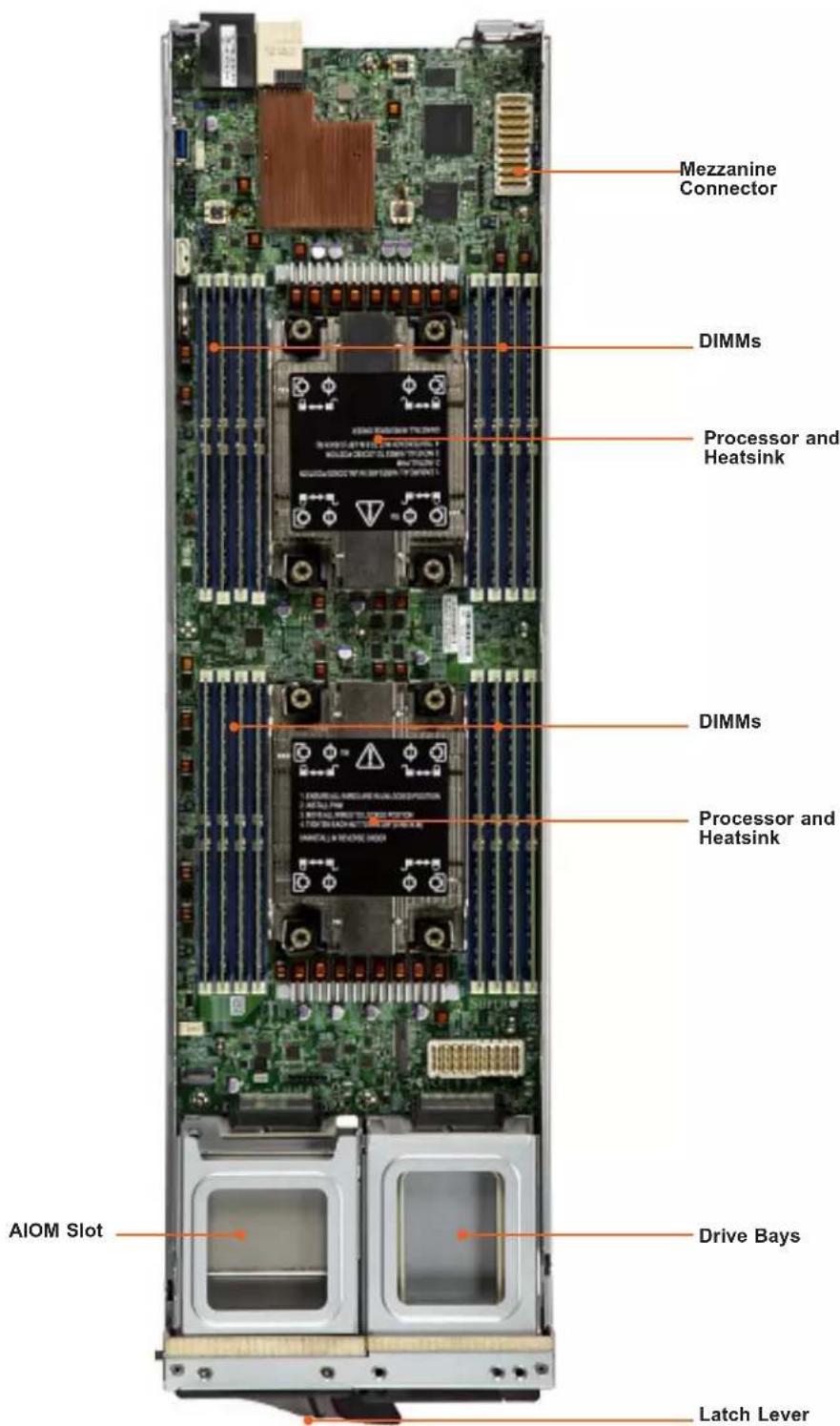
Mezzanine Connector DIMMs Processor and Heatsink DIMMs Processor and Heatsink AIOM Slot Drive Bays Latch LeverFigure 1-3. Components Labeled (SBI-421E-1T3N model shown)
| Blade Components | |
| Feature Description | |
| Drive Bays Three 2.5" storage drive bays | |
| AIOM Slot Position for the optional AIOM | |
| Processors and Heatsinks | Dual 4th Generation Intel Xeon Scalable processors with heatsinks (SNK-P1046VM (front) and SNK-P1046V (rear)) |
| DIMMs Eight DDR5 memory slots | |
| Mezzanine Conn. Connector for the optional network mezzanine card or add-on card | |
| Latch Lever Lever for the latch that secures the blade in the enclosure | |
1.3 Motherboard Layout
Below is a layout of the B13DET motherboard with jumper, connector and LED locations shown. See the table on the following page for descriptions. For detailed descriptions, pinout information and jumper settings, refer to Chapter 3 or the Motherboard Manual.

text_image
MB Power (PWR2) 25G Midplane (MP1) LEDM1 MB PWR MCPLA LAN CTRL S-DM6 BMC FW LEDM1 BMC Mezzanine Card Slot1 CPLD1 CPLD Firmware Mezzanine Slot1 (MEZZ1) PCH TPM/PORT80 (JTPM1) BIOS JBT1 JPME1 I-SATA1 Battery (BT1) P1-DIMMA1 P1-DIMMB1 P1-DIMMC1 P1-DIMMD1 P1-DIMMA1 P1-DIMMB1 P1-DIMMC1 P1-DIMMD1 P1-DIMMA1 P1-DIMMB1 P1-DIMMC1 P1-DIMMD1 P1-DIMMA1 P1-DIMMB1 P1-DIMMC1 P1-DIMMD1 P2-DIMME1 P2-DIMMF1 P2-DIMMG1 P2-DIMMH1 P2-DIMME1 P2-DIMMF1 P2-DIMMG1 P2-DIMMH1 P2-DIMME1 P2-DIMMF1 P2-DIMMG1 P2-DIMMH1 P2-DIMME1 P2-DIMMF1 P2-DIMMG1 P2-DIMMH1 P2-DIMME1 P2-DIMMF1Quick Reference
Jumper Description Default Setting
| JBT1 CMOS Clear Open (Normal) | |
| JPME1 ME Recovery | Pins 1/2: Normal, Pins 2/3: ME Recovery |
Connector Description
| Battery (BT1) Onboard battery | |
| HDD0/HDD1 Connectors for storage devices (1/2) | |
| HDD2_PWR | Power Connector for the storage devices installed on the AOM-SB1-SATA31 riser card |
| HDD2 LED Header (JLED) | 3-pin HDD2 SATA 3.0 (3rd SATA Drive) Activity LED header connected to the SATA 3.0 devices on the AOM-SB1-SATA31 riser card to indicate SATA 3.0 (HDD2) activity status |
| I-SATA1 | SATA connector with support for Intel PCH SATA 3.0 (RAID 0, RAID 1, RAID 5, and RAID 10 supported) |
| JFP1 Front Control Panel header used for power button and status LEDs | |
| JM2-1 M.2 slot for NVMe only (with support for M-Key 2280) | |
| JTPM1 Trusted Platform Module/Port 80 connector | |
| MEZZ1 | Mezzanine PCIe 5.0 x16 expansion slot (Slot1) used for a Mezzanine daughter card |
| MEZZ2 | Mezzanine PCIe 5.0 x16 expansion slot (Slot2) used for a Mezzanine daughter card |
| MH-SRW1 Mounting Hole for M.2 Slot Standoff | |
| JTPM1 | Trusted Platform Module (TPM)/Port 80 Connector |
| PWR2 Main Power Connector | |
| LED | Description | State: Status |
| DA4 | HDD0 Heartbeat LED | On: storage device installed on HDD0 On |
| DA5 | HDD1 Heartbeat LED | On: storage device installed on HDD1 On |
| DA6 | HDD0 Activity LED | Blinking Green: storage device installed on HDD0: Active |
| DA7 | HDD1 Activity LED | Blinking Green: storage device installed on HDD1: Active |
| LED1 | M.2 Activity LED | Green: M.2 device Active |
| LEDM1 | BMC Heartbeat LED | Blinking Green (working as a BMC LED): BMC Normal (Active) Solid Green: During a BMC Reset or a Cold Reboot |
Motherboard Block Diagram
flowchart
graph TD
    subgraph Central Components
        CPU1["CPU 1"] -->|P0-P3| DCH["DXI3"]
        CPU2["CPU 2"] -->|P0-P3| DCH
        CPU1 -->|U46 FLASH| PCH["PCH"]
        CPU2 -->|U46 FLASH| PCH
        PCH -->|DATA 40-1 (PIA 423-22)| SATA["DATA Or NVMe"]
        PCH -->|DATA 42 (PIA 421)| SATA["SATA"]
        PCH -->|DATA 42 (PIA 427)| SATA
        SATA -->|USB 3.0| TPM["TPM HEADER Debug Card"]
        SATA -->|USB 3.0| TPM
        TPM -->|USB3.0 Type A (*for debug only)| JUSBO["JUSBO"]
        TPM -->|USB3.0 Type A (*for debug only)| USB30["USB3.0 Type A (*for debug only)"]
        TPM -->|USB3.0 Type A (*for debug only)| JUSBO
        TPM -->|USB3.0 Type A (*for debug only)| JUSBO
        TPM -->|USB3.0 Type A (*for debug only)| JUSBO
        TPM -->|USB3.0 Type A (*for debug only)| JUSBO
        TPM -->|USB3.0 Type A (*for debug only)| JUSBO
        TPM -->|USB3.0 Type A (*for debug only)| JUSBO

    subgraph Control Components
        CPU1 -->|P0-P3| VCR14["VR14 8 PHASE 350W"]
        CPU2 -->|P0-P3| VCR2["VR14 8 PHASE 350W"]
        VCR14 -->|L2 SFR: 1/ST EWR: 2062| DDR5["DDR5 4800/5600"]
        VCR2 -->|L2 SFR: 1/ST EWR: 2062| DDR5
        VCR14 -->|L2 SFR: 1/ST EWR: 2062| DDR5
        VCR14 -->|L2 SFR: 1/ST EWR: 2062| DDR5
        VCR14 -->|L2 SFR: 1/ST EWR: 2062| DDR5
        VCR14 -->|L2 SFR: 1/ST EWR: 9999999999999999999999999999999999999999999999999999999999999999999999999999999999999999999999999999
    end

    subgraph Control Components
        CPU1 -->|P0-P3| VCR14
        CPU2 -->|P0-P3| VCR2
        VCR14 -->|L2 SFR: 1/ST EWR: 2062| DDR5
        VCR14 -->|L2 SFR: 1/ST EWR: 2062| DDR5
        VCR14 -->|L2 SFR: 1/ST EWR: 6666666666666666666666666666666666666666666666666666666666666666666666666666666666666666666666666666
    end

    subgraph Control Components
        CPU1 -->|P0-P3| VCR14
        CPU2 -->|P0-P3| VCR2
        VCR14 -->|L2 SFR: 1/ST EWR: 2062| DDR5
        VCR14 -->|L2 SFR: 1/ST EWR: 2062| DDR5
        VCR1<ecel><ecel><ecel><ecel><ecel><ecel><ecel><ecel><ecel><ecel><ecel><ecel><ecel><ecel><ecel><ecel><ecel><ecel><ecel><ecel><ecel><ecel><ecel><ecel><ecel><ecel><ecel><ecel><ecel><ecel><ecel><ecel><ecel><ecel><ecel><ecel><ecel><ecel><ecel><ecel><ecel><ecel><ecel><ecel><ecel><ecel><ecel><ecel><ecel><ecel><ecel><ecel><ecel><ecel><ecel><ecel><ecel><ecel><ecel><ecel><ecel><ecel><ecel><ecel><ecel><ecel><ecel><ecel><ecel><ecel><ecel><ecel><nl>
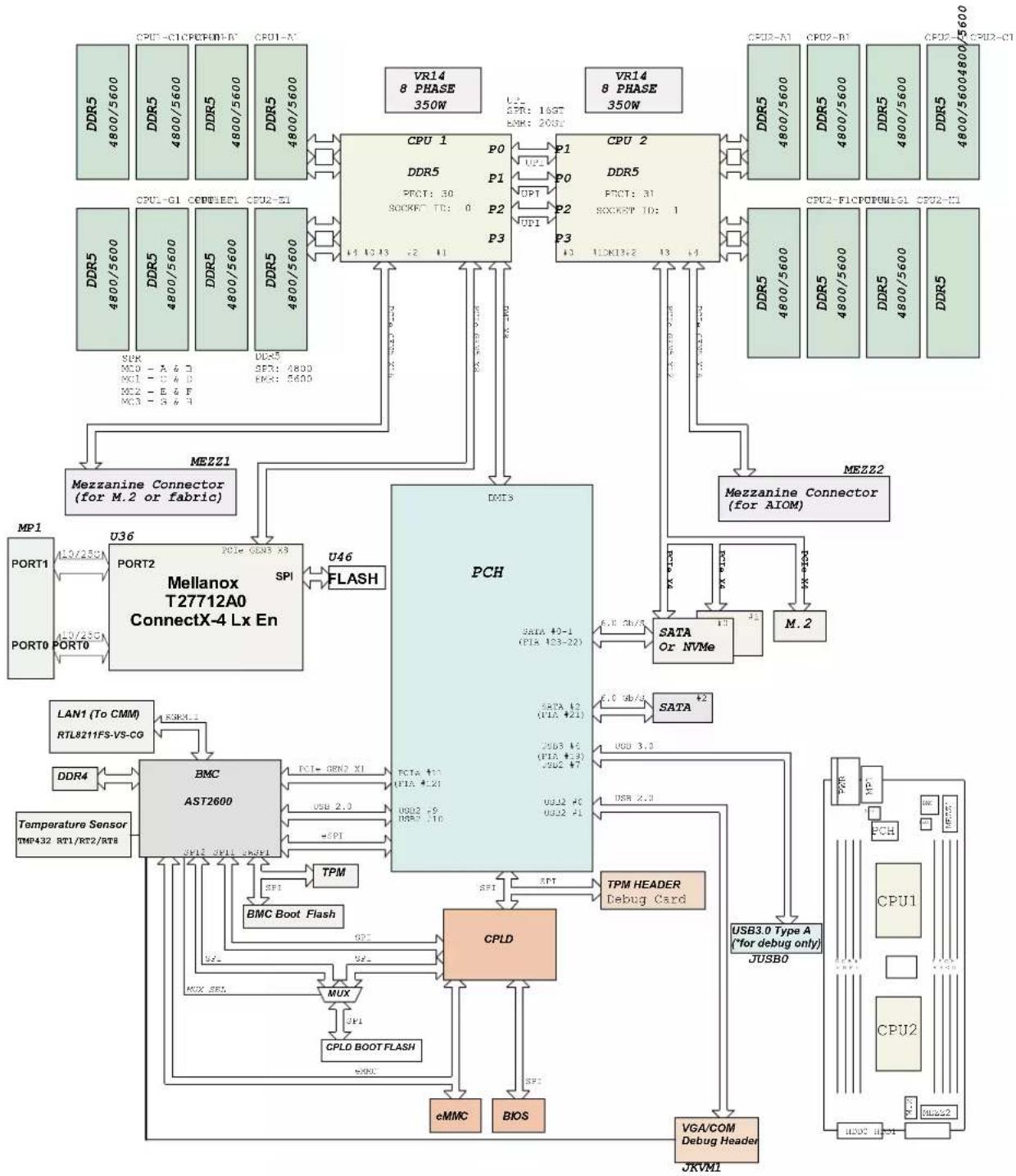
Figure 1-6. Motherboard Block Diagram
Chapter 2
Installation and Setup
This chapter provides instructions on installing and replacing main system components. To prevent compatibility issues, only use components that match the specifications or part numbers.
Up to twenty blade modules may be installed into a blade enclosure, depending upon your enclosure and blade. Blade modules with Windows and Linux operating systems may be mixed together in the same blade enclosure.
2.1 Unpacking the System
Inspect the box the system was shipped in and note if it was damaged in any way. If any equipment appears damaged, please file a damage claim with the carrier who delivered it.
Decide on a suitable location for the rack unit that will hold the enclosure. It should be situated in a clean, dust-free area that is well ventilated. Avoid areas where heat, electrical noise and electromagnetic fields are generated. It will also require a grounded AC power outlet nearby. Be sure to read the precautions and considerations noted in Appendix B.
2.2 Powering On or Off
Each blade unit may be powered on and off independently from the rest of the blades in the enclosure.
A blade unit may be powered down or up in any of the following ways:
- Press the power button on the blade unit.
- Use IPMIView or the browser based management utility to power down; requires Operator or Admin privileges on the CMM.
- Use SMCIPMltool when connected to the CMM to power down; requires Operator or Admin privileges on the CMM.
- Use IPMIview or a browser connected to the onboard BMC chip to power down.
- Use SMCIPMItool to use a Command Line Interface to the onboard BMC chip; requires Operator or Admin privileges.
2.3 Accessing the System
Installing or Removing a Blade Unit
Installing a Blade Unit into the Enclosure
- Pull the locking lever out and push the blade into its bay. Caution: Insert the blade carefully so the rear connectors are not damaged.
- As the blade is seated in the enclosure, push the lever into its locked position.

text_image
Locking LeverFigure 2-1. Blade Locking Lever
Removing a Blade Unit from the Enclosure
A blade can be removed from the enclosure while other blades continue to operate.
Note: When a blade is removed, please ensure the slot is covered with a dummy blade to ensure the neighboring blade does not overheat.
Removing a Blade Unit from the Enclosure
- Power down the blade unit.
- Pull the locking lever out.
- Use the locking lever to pull the blade from the enclosure.
Removing the Blade Top Cover
- Remove the screw on the side of the cover and lift the cover off.

natural_image
Close-up of a metallic electronic device casing with a red circle highlighting a central component (no text or symbols visible)Figure 2-2. Blade Cover Screws
2.4 Processor and Heatsink
Processor Overview
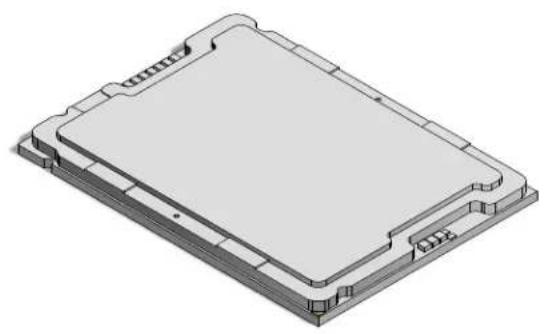
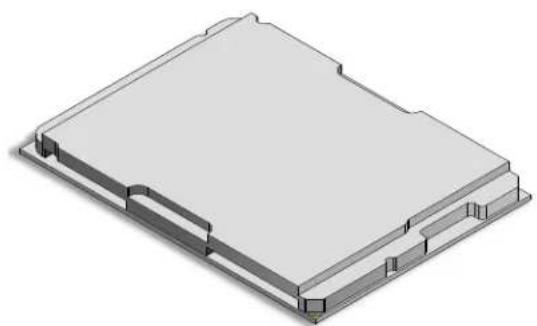
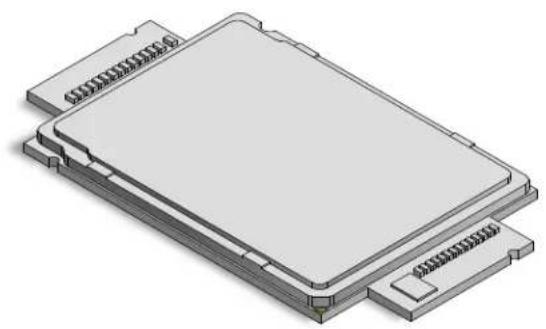
The motherboard supports three versions of the 4th Generation Intel Xeon Scalable processors. They differ in the number of cores, and each requires a different CPU carrier. The CPU carriers differ by the presence or absence of shims and levers.
natural_image
Isometric technical drawing of a rectangular electronic component with mounting holes and internal structure (no text or symbols)SP XCC
natural_image
Isometric technical drawing of a layered electronic component or housing structure (no text or symbols)SP MCC
natural_image
Isometric illustration of a multi-layered electronic device with no visible text or symbolsMax Series
| CPU and Carrier Type | |||||
| CPU Type | Cores | Carrier Type Lever | Shim Carrier Part Number | ||
| XCC | 60 E1A | Yes No | SKT-1333L-0000-FXC(alt: SKT-1333L-0001-LTS) | ||
| MCC | 32 E1B | Yes Yes | SKT-1424L-001B-FXC(alt: SKT-1424L-001B-LTS) | ||
| Max (HBM) | 56 E1C | No | No | SKT-1425H-001C-FXC(alt: SKT-1425H-001C-LTS) | |
Installation Overview
The processor (CPU) and processor carrier should be assembled together first to form the processor carrier assembly. This will be attached to the heatsink to form the processor heatsink module (PHM) before being installed onto the CPU socket.
Notes:
- Use ESD protection.
- The sytem power cords must be removed from all power supplies.
- Check that the plastic protective cover is on the CPU socket and none of the socket pins are bent. If they are, contact your retailer.
- When handling the processor, avoid touching or placing direct pressure on the LGA lands (gold contacts). Improper installation or socket misalignment can cause serious damage to the processor or socket, which may require manufacturer repairs.
• Refer to the Supermicro website for updates on processor support.
Installation Procedure Overview
After preparing the system and following ESD precautions, there are four steps to installing the processor and heatsink onto the motherboard.
- Attach the processor to a plastic carrier to create the processor carrier assembly.
- Attach the processor carrier assembly to the heatsink to create the processor heatsink module (PHM).
- Remove the socket cover.
- Install the PHM.
Create the Processor Carrier Assembly
Assembling the Process Carrier Assembly
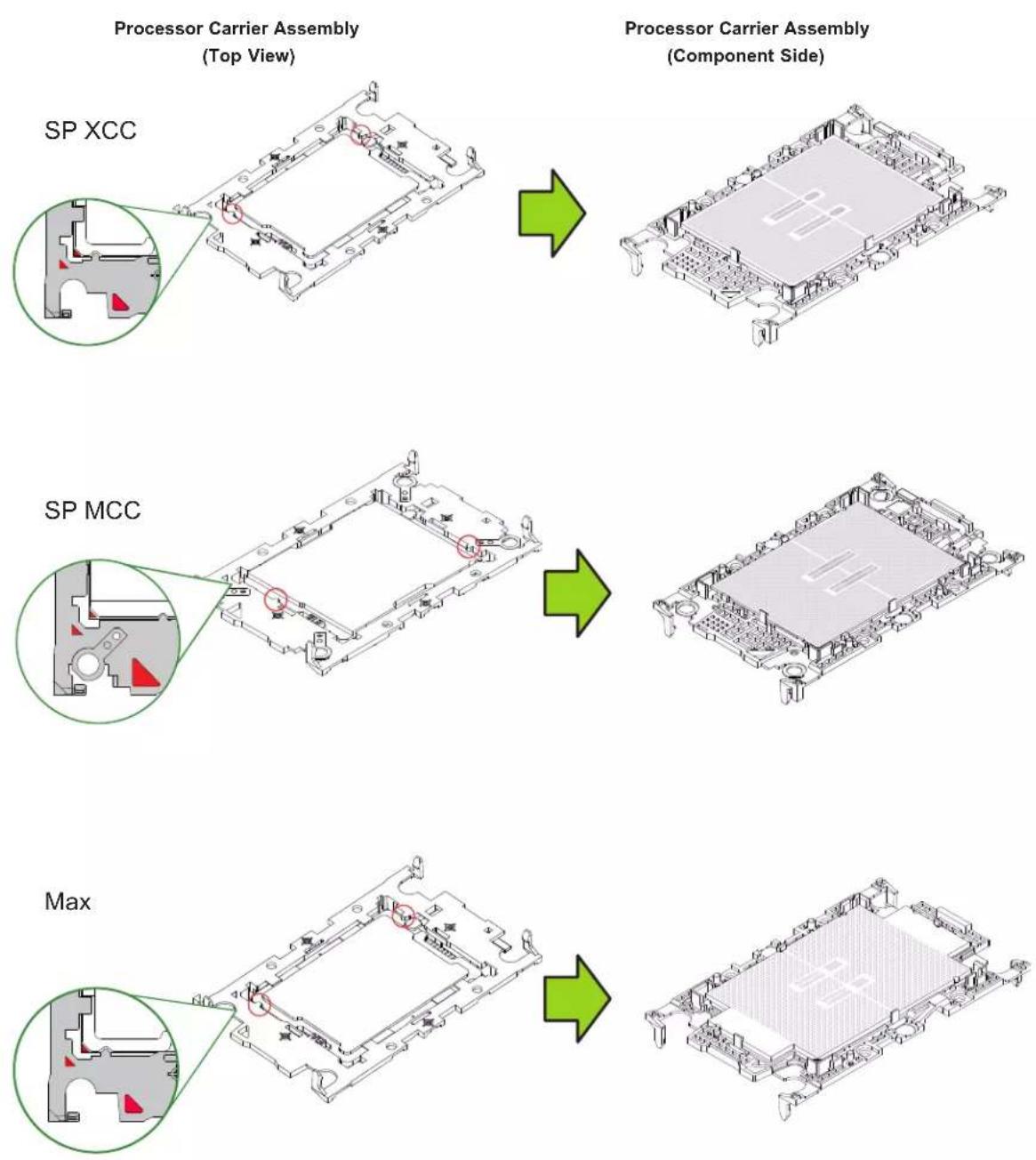
- Hold the processor with the gold pins (LGA lands) facing down. Locate the gold triangle at the corner of the processor and the corresponding hollowed triangle on the processor carrier as shown below. These triangles indicate the location of pin 1.
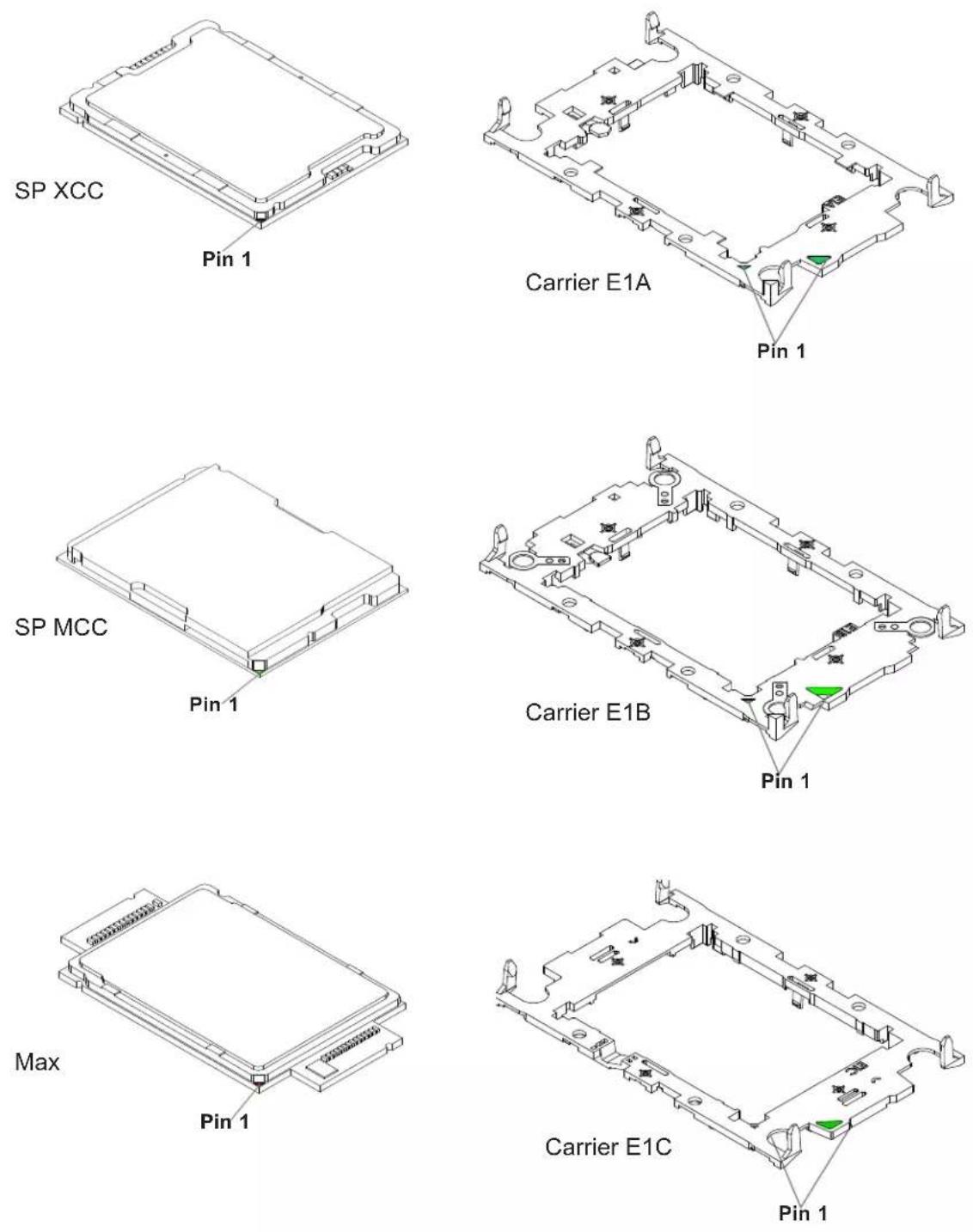
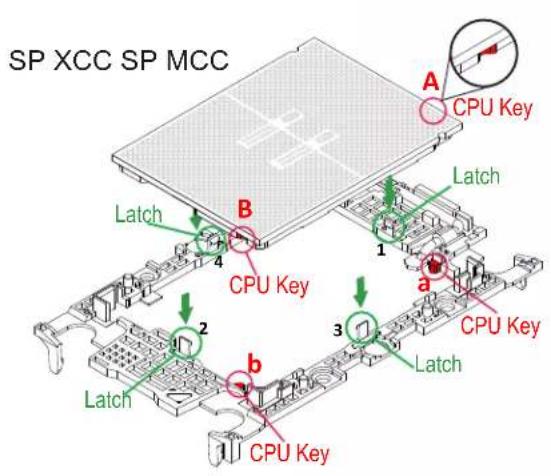
- Turn the processor over (with the gold pins up). Locate the CPU keys on the processor and the four latches on the carrier.

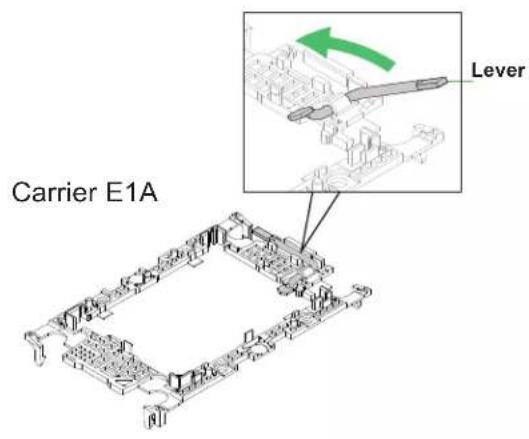
- Locate the lever on the processor carrier and press it down (E1A and E1B only).
text_image
Carrier E1A Lever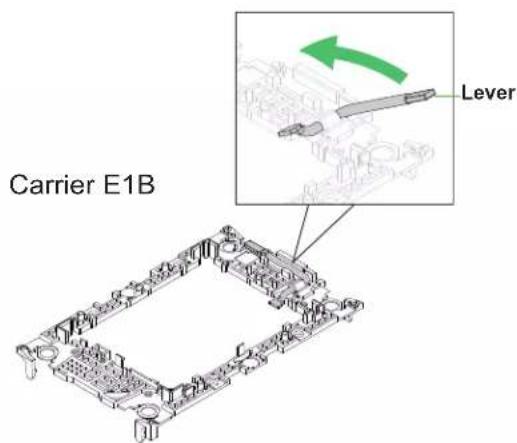
text_image
Carrier E1B Lever- Using pin 1 as a guide, carefully align the CPU keys on the processor (A & B) with those on the carrier (a & b).
text_image
SP XCC SP MCC A CPU Key B Latch 1 a CPU Key b Latch 3 Latch 4 1 2 3 1 CPU Key
text_image
CPU Key A CPU Key B Latch a 1 2 b 3 Latch Latch CPU Key
text_image
Max A CPU Key B Latch 4 1 Latch a CPU Key 2 3 b Latch Latch CPU Key- Once aligned, carefully insert the CPU into the carrier, making sure that the CPU is secured by latches 1, 2, 3, and 4.
Assemble the Processor Heatsink Module
Thermal grease is pre-applied on a new heatsink. No additional thermal grease is needed. If this is a re-installation, apply the proper amount of thermal grease to the underside of the heatsink.
Assembling the Processor Heatsink Module (PHM)
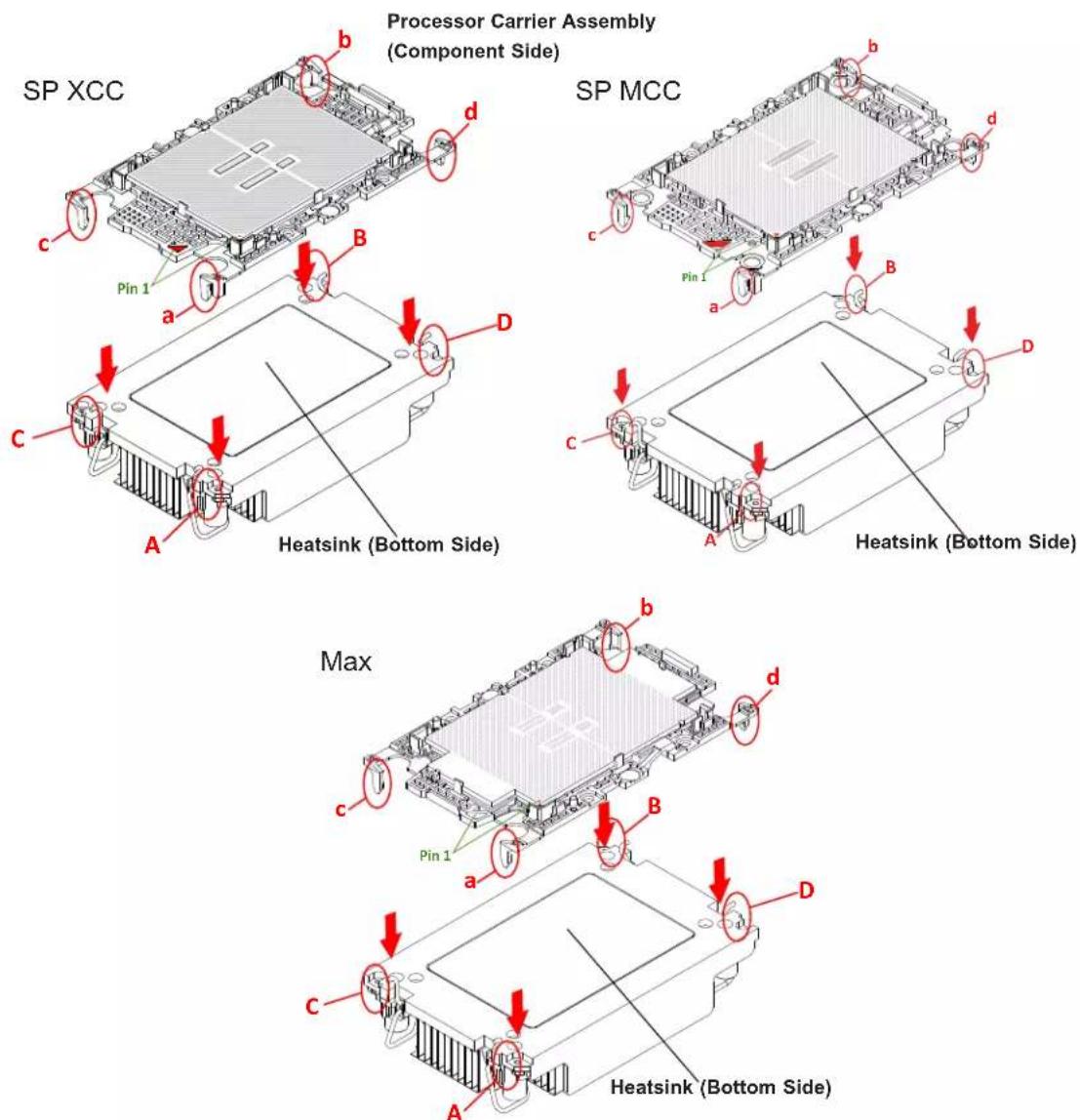
- Turn the heatsink over with the thermal grease facing up. Locate the two triangle cutouts (A, B) at the diagonal corners of the heatsink as shown in the drawing below.
- Hold the processor carrier assembly component side up to locate the triangles on the processor and the carrier, which indicate pin 1.
- Turn the processor carrier assembly over so that the gold pins are facing up, noting the two pin 1 locations ("A" on the processor and "a" on the processor carrier assembly).
text_image
SP XCC b d Pin 1 B C D A Heatsink (Bottom Side) SP MCC b d c Pin 1 B a D C A Heatsink (Bottom Side) Max b d c Pin 1 B a D C A Heatsink (Bottom Side)- Align "a" on the processor carrier assembly with the triangular cutout "A" on the heatsink along with "b", "c", "d" on the processor assembly with "B", "C", "D" on the heatsink.
- Once properly aligned, place the heatsink on the processor carrier assembly with all corners matched up, making sure that the four clips are properly securing the heatsink.

text_image
Assembled PHMNote: The figure is for illustrative purposes. Your components may differ slightly from the components shown.
Remove the Socket Cover
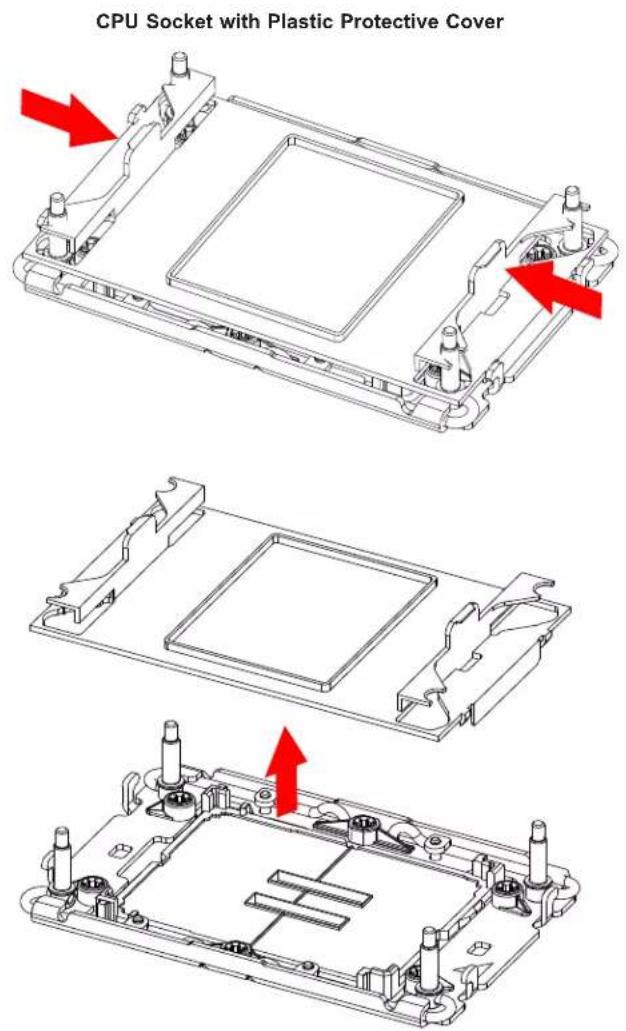
Remove the plastic protective cover from the socket by gently squeezing the grip tabs and pulling the cover off.
Install the PHM
To install the PHM into the CPU socket, follow these steps.
- Locate four threaded fasteners (a, b, c, d) and Pin 1 on the CPU socket.
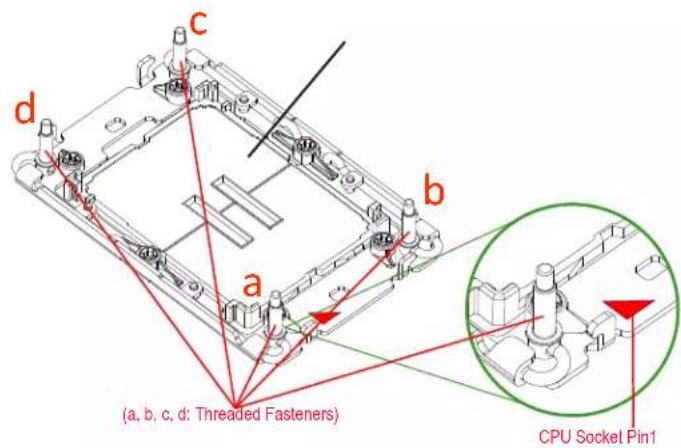
text_image
(a, b, c, d: Threaded Fasteners) CPU Socket Pin1- Locate four PEEK nuts (A, B, C, D) and four rotating wires (1, 2, 3, 4) on the heatsink.
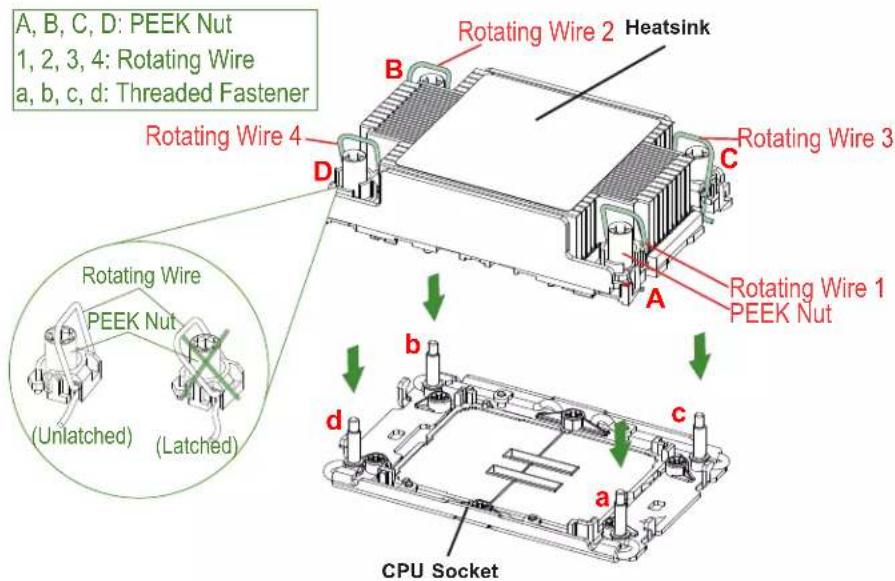
text_image
A, B, C, D: PEEK Nut 1, 2, 3, 4: Rotating Wire a, b, c, d: Threaded Fastener Rotating Wire 4 Heatsink Rotating Wire 2 Rotating Wire 3 Rotating Wire 1 PEEK Nut Rotating Wire PEEK Nut (Unlatched) (Latched) CPU Socket- Check the rotating wires (1, 2, 3, 4) to make sure that they are in the unlatched position.

text_image
Unlatched State Rotating Wire 1 Side View Top View Peek Nut-
Align PEEK nut "A" (next to the triangular pin 1 on the heatsink) with threaded fastener "a" on the CPU socket. Then align PEEK nuts "B", "C", "D" on the heatsink with threaded fasteners "b", "c", "d" on the CPU socket.
-
Once aligned, gently place the PHM on the CPU socket, making sure that each PEEK nut is properly attached to its corresponding threaded fastener.
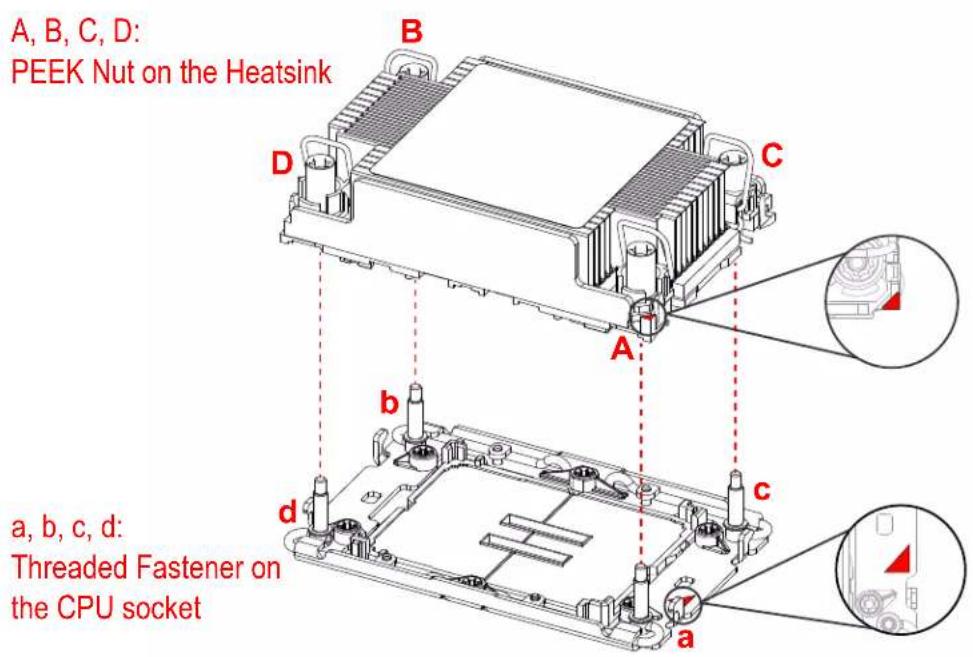
text_image
A, B, C, D: PEEK Nut on the Heatsink B D C A b c a, b, c, d: Threaded Fastener on the CPU socket d a- Press all four rotating wires outward and make sure that the heatsink is securely latched into the CPU socket.
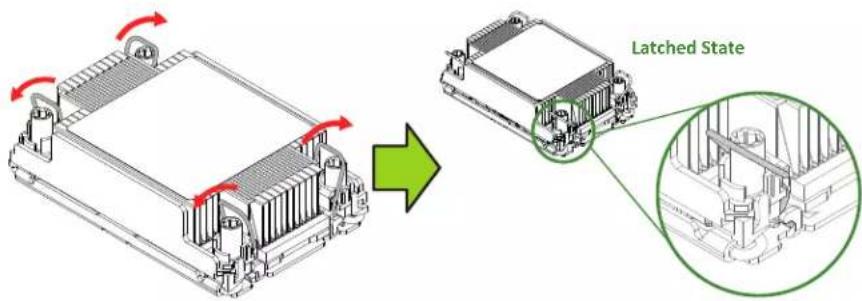
text_image
Latched State-
With a t30-bit screwdriver, tighten all PEEK nuts in the sequence of "A", "B", "C", and "D" with even pressure. Note the torque specifications written on the heatsink, and do not exceed them when tightening the screws.
-
Examine all corners of the heatsink to ensure that the PHM is firmly attached to the CPU socket.
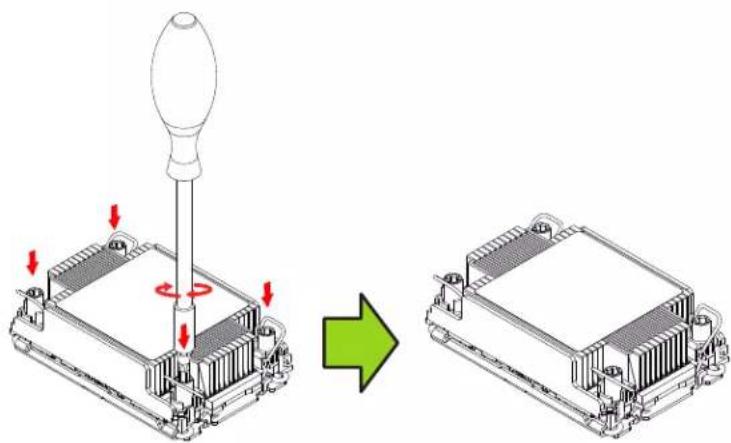
natural_image
Diagram showing a screwdriver inserted into a CPU socket, before and after assembly (no text or symbols present)Removing the PHM
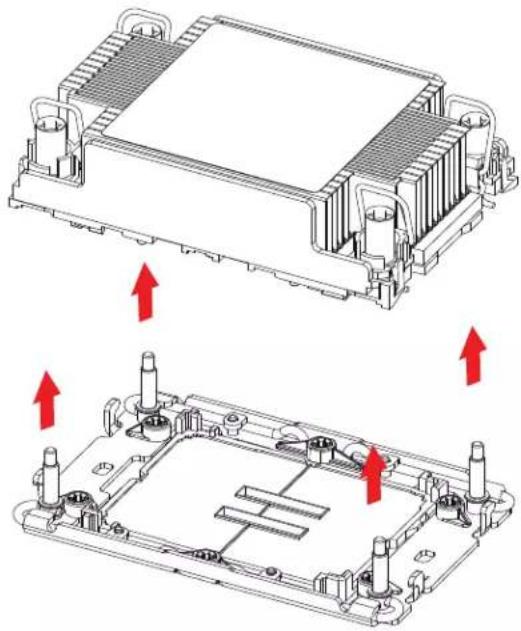
To remove the processor heatsink module (PHM) from the motherboard, follow these steps.
- Shut down the system and unplug the AC power cord from all power supplies.
- Use a T30-bit screwdriver to loosen the four PEEK nuts on the heatsink in the sequence of A, B, C, and D.
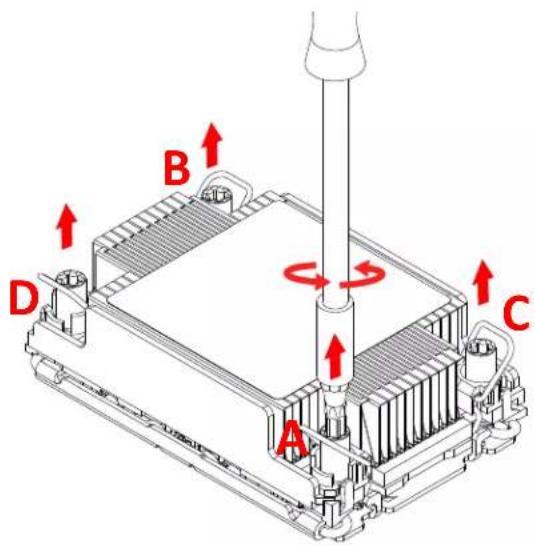
text_image
A B C D- Press the rotating wires inward to unlatch the PHM from the socket as shown below.
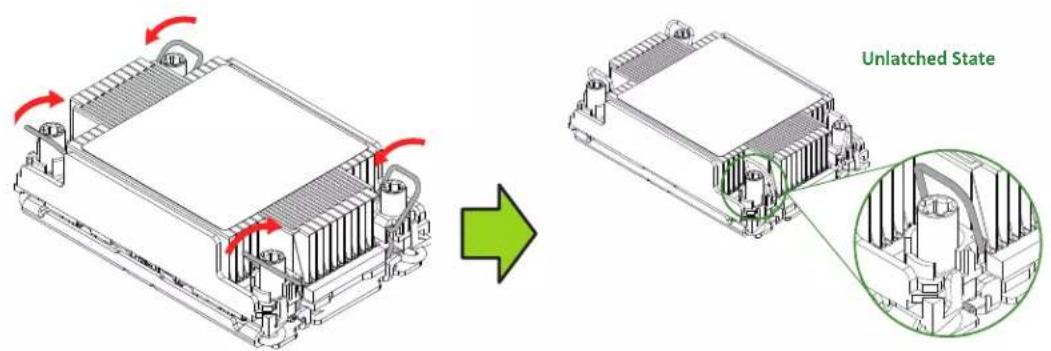
text_image
Unlatched State- Gently lift the PHM upward to remove it from the CPU socket.
natural_image
Technical illustration of a heat exchanger housing with red arrows indicating assembly or movement (no text or symbols present)Removing the Carrier Assembly from the Heatsink
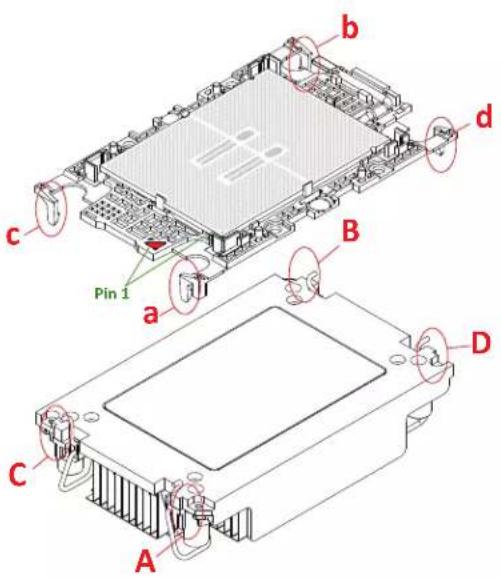
To remove the processor carrier assembly from the PHM, follow these steps:
- Detach the four plastic clips (marked a, b, c, d) on the processor carrier assembly from the four corners of the heatsink (marked A, B, C, D) as shown below.
text_image
b c d Pin 1 a B C D A- When all plastic clips have been detached from the heatsink, remove the processor carrier assembly from the heatsink
Removing the Processor from the Carrier Assembly
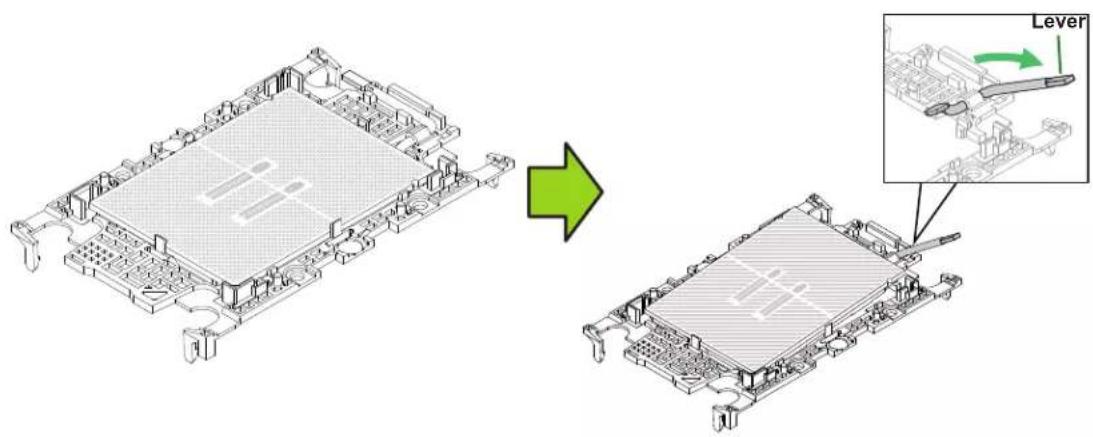
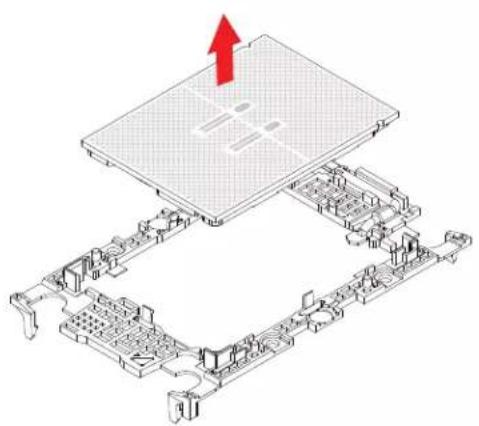
To remove the processor from the processor carrier, follow these steps.
- Unlock the lever from its locked position and push it upwards to disengage the processor from the processor carrier as shown below right.
text_image
Diagram illustrating the process of a computer processor's internal structure before and after, with an inset showing the lever mechanism.- Once the processor has been loosened from the carrier, carefully remove the processor from the carrier.
Note: Handle the processor with care.
natural_image
Isometric diagram of a computer motherboard with an upward arrow indicating growth (no text or symbols present)2.5 Memory
Memory Support
The system supports up to supports up to 4TB 3DS RDIMM/RDIMM DDR5 (288-pin) ECC memory with speeds up to 4800MT/s in 16 DIMM slots. It does not support LRDIMM/LRDIMM-3DS.
For validated memory, use our Product Resources page or the Supermicro product webpage.
| DDR5 Memory Support for the 4th Generation Intel Xeon Scalable Processors-SP | |||||
| Type | Ranks Per DIMM and Data Width (Stack) | DIMM Capacity (GB) | Speed (MT/s) | ||
| One DIMM per Channel1 | Two DIMMs per Channel | ||||
| 16 Gb Chip Density | 24Gb2Chip Density | 1.1 Volts | |||
| RDIMM | SRx8 (RC D) 16GB | 24GB | 4800* 4400* | ||
| SRx4 (RC C) 32GB | 48GB | ||||
| SRx4 (RC F) 9x4 32GB | 2GB NA | ||||
| DRx8 (RC E) 32GB | 48GB | ||||
| DRx4 (RC A) 64GB | 96GB | ||||
| DRx4 (RC B) 9x4 64GB | NA | ||||
| RDIMM 3DS (4R/8R) x4 (RC A) | 2H-128 GB4H-256 GB | ||||
*Memory speed and capacity support depends on the processors used in the system.
Note 1: 1DPC applies to 1SPC or 2SPC implementations (SPC - sockets per channel).
Note 2: 24Gb XCC only with limited configs: 1DPC all DIMM types, 2DPC 96GB only. Only 8 and 16 DIMM configs, no failbacks.
Use the DIMM slots listed below for memory modules. This memory population table is based on guidelines provided by Intel to support Supermicro motherboards.
| Memory Population, 16 DIMM Slots (X13) | |
| CPUs/DIMMs Slots | |
| 1 CPU & 1 DIMM | A1 or B1 or E1 or F1 |
| 1 CPU & 2 DIMMs | A1, G1 or C1, E1 |
| 1 CPU & 4 DIMMs | A1, C1, E1, G1 |
| 1 CPU & 6 DIMM | A1, C1, D1, E1, F1, G1 or A1, B1, C1, E1, G1, H1 orB1, C1, D1, E1, F1, H1 or A1, B1, D1, F1, G1, H1 |
| 1 CPU & 8 DIMMs | A1, B1, C1, D1, E1, F1, G1, H1 |
| 2 CPUs & 2 DIMMs | CPU1 & CPU2: A1 or B1 or E1 or F1 |
| 2 CPUs & 4 DIMMs | CPU1 & CPU2: A1, G1 orCPU1 & CPU2: C1, E1 |
| 2 CPUs & 8 DIMMs | CPU1: A1, C1, E1, G1CPU2: A1, C1, E1, G1 |
| 2 CPUs & 12 DIMMs | CPU1 & CPU2: A1, C1, D1. E1, F1, G1 orCPU1 & CPU2: A1, B1, C1. E1, G1, H1 orCPU1 & CPU2: B1, C1. D1, E1, F1, H1 orCPU1 & CPU2: A1, B1, D1. F1, G1, H1 |
| 2 CPUs & 16 DIMMs | CPU1: A1, B1, C1. D1, E1, F1, G1, H1CPU2: A1, B1, C1. D1, E1, F1, G1, H1 |
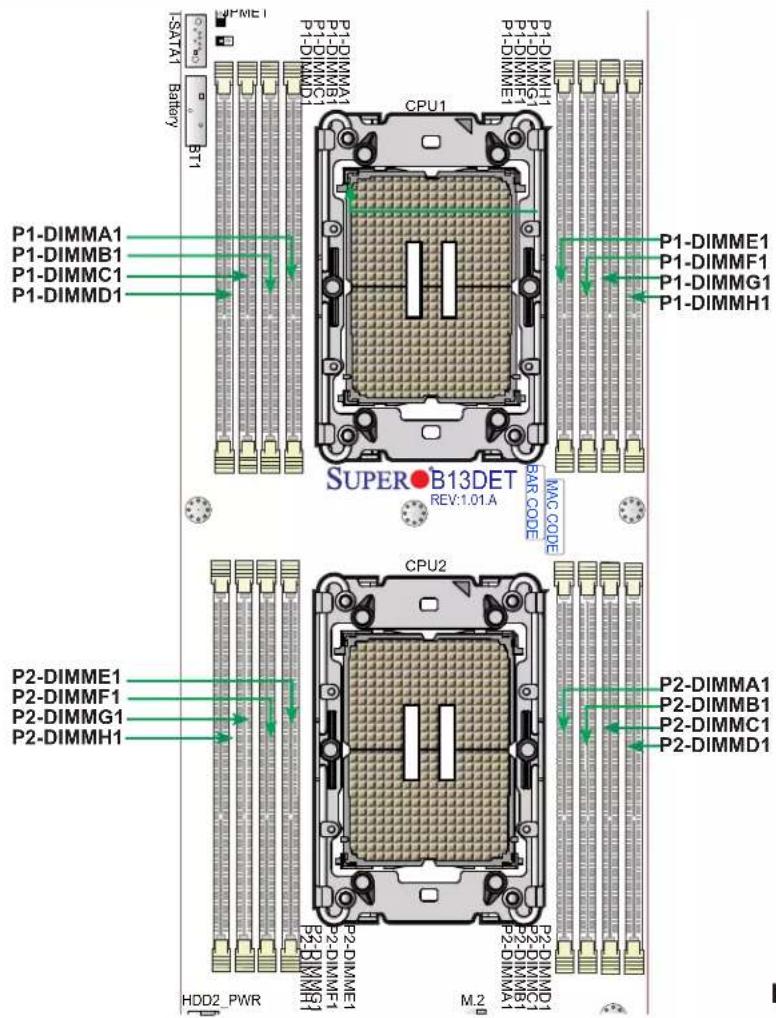
text_image
P1-DIMMA1 P1-DIMMB1 P1-DIMMC1 P1-DIMMD1 P1-DIMME1 P1-DIMMGI P1-DIMMGI P1-DIMMGI P1-DIMMGI P1-DIMMGI P1-DIMMGI P1-DIMMGI P1-DIMMGI P1-DIMMGI P1-DIMMGI P1-DIMMGI P1-DIMMGI P1-DIMMGI P1-DIMMGI P1-DIMMGI SUFEROB13DET REV:1.01.A BAR CODE MAC CODE CPU2 P2-DIMME1 P2-DIMMF1 P2-DIMMG1 P2-DIMMH1 P2-DIMME1 P2-DIMMF1 P2-DIMMG1 P2-DIMMH1 P2-DIMME1 P2-DIMMF1 P2-DIMMG1 P2-DIMMH1 P2-DIMME1 P2-DIMMF1 P2-DIMMG1 P2-DIMMH1 HDD2_PWR M.2 P2-DIMMD1 P2-DIMMGI P2-DIMMGIFigure 2-3. Memory Slots
Memory Population Guidelines
• All DIMMs must be DDR5.
- Balance memory. Using unbalanced memory topology, such as populating two DIMMs in one channel while populating one DIMM in another channel, reduces performance. It is not recommended for Supermicro systems.
- In single-CPU configurations, memory must be installed in the DIMM slots associated with the installed CPU.
- For MM, NM/FM ratio is between 1:4 and 1:16. The capacity not used for FM can be used for AD. (NM = Near Memory; FM = Far Memory).
Guidelines Regarding Mixing DIMMs
- Populating slots with a pair of DIMM modules of the same type and size results in interleaved memory, which improves memory performance.
- Use memory modules of the same type and speed, as mixing is not allowed.
DIMM Construction
- RDIMM (non-3DS) Raw Cards: A/B (2Rx4), C (1Rx4), D (1Rx8), E (2Rx8)
• 3DS RDIMM Raw Cards: A/B (4Rx4)
Installing Memory
ESD Precautions
Electrostatic Discharge (ESD) can damage electronic components including memory modules. To avoid damaging DIMM modules, it is important to handle them carefully. The following measures are generally sufficient.
- Use a grounded wrist strap designed to prevent static discharge.
- Handle the memory module by its edges only.
- Put the memory modules into the antistatic bags when not in use.
Installing Memory
Begin by removing power from the system as described in Section 3.1. Follow the memory population sequence in the table above.
- Push the release tabs outwards on both ends of the DIMM slot to unlock it.
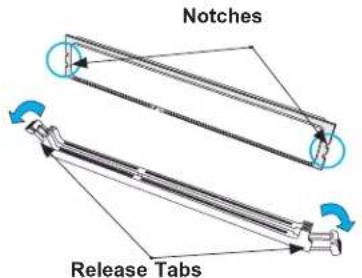
text_image
Notches Release Tabs- Align the key of the DIMM with the receptive point on the memory slot and with your thumbs on both ends of the module, press it straight down into the slot until the module snaps into place.

text_image
Key- Ensure the release tabs are in the locked position to secure the DIMM module into the slot.
Caution: Exercise extreme caution when installing or removing memory modules to prevent damage to the DIMMs or slots.
Removing Memory
To remove a DIMM, unlock the release tabs then pull the DIMM from the memory slot.
2.6 Motherboard Battery
The motherboard uses non-volatile memory to retain system information when system power is removed. This memory is powered by a lithium battery residing on the motherboard.
Replacing the Battery
Begin by removing power from the system.
- Push aside the small clamp that covers the edge of the battery. When the battery is released, lift it out of the holder.
- To insert a new battery, slide one edge under the lip of the holder with the positive (+) side facing up. Then push the other side down until the clamp snaps over it.
Note: Handle used batteries carefully. Do not damage the battery in any way; a damaged battery may release hazardous materials into the environment. Do not discard a used battery in the garbage or a public landfill. Please comply with the regulations set up by your local hazardous waste management agency to dispose of your used battery properly.
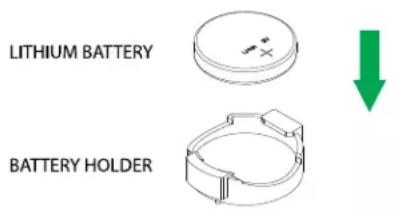
text_image
LITHIUM BATTERY BATTERY HOLDERFigure 2-4. Installing the Onboard Battery

Warning: There is a danger of explosion if the onboard battery is installed upside down (which reverses its polarities). This battery must be replaced only with the same or an equivalent type recommended by the manufacturer (BR2032).
2.7 Storage Drives
The blade has three 2.5" hot-swap storage drive bays. The drives are mounted in tool-less drive carriers that simplify their removal from the chassis. These carriers also help promote proper airflow. Carriers without drives must remain in the chassis for proper airflow.
Note: Enterprise level storage drives are recommended for use in Supermicro systems. For information on recommended drives, visit the Supermicro website.
The motherboard provides a slot for one M.2 NVMe SSD. With an add-on card, four additional M.2 SATA/NVMe drives can be installed.
Installing Drives
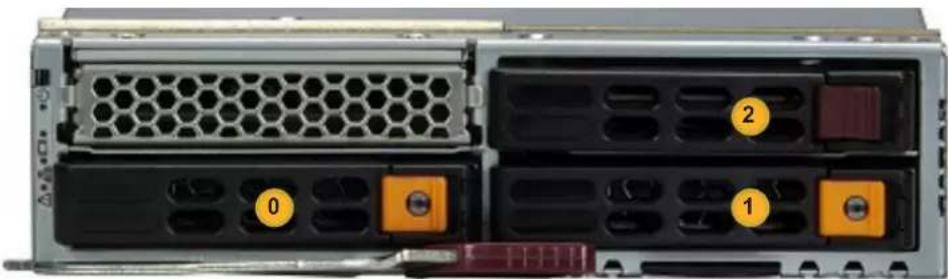
natural_image
Front view of a server rack with labeled ports (0, 1, 2) and connectors, no readable text or symbols beyond labelsFigure 2-5. Logical Drive Numbers
Removing a Hot-Swap Drive Carrier from the Chassis
- Press the release button on the drive carrier, which will extend the drive carrier handle.
- Use the drive carrier handle to pull the drive out of the chassis.

text_image
Technical diagram showing assembly steps of a server rack with labeled components and directional arrows indicating movement.Figure 2-6. Removing a Drive Carrier
Installing a Drive
- Remove the dummy drive, which comes pre-installed in the drive carrier. Pull out the two locking clasps and lift out the dummy drive.

text_image
Post Align Both Mounting Tools Post Locking ClaspsFigure 2-7. Removing the Dummy Drive from a Carrier
- Position the drive into the carrier with the PCB side facing down and the connector end toward the rear of the carrier.
- Tilt the drive to insert it onto the two posts on the right inside of the carrier.
- Pull out the two spring locking clasps to allow the drive to sit fully in the carrier, then push in the two locking clasps to secure the drive.
- Insert the drive carrier into its bay, keeping the release button on the bottom. When the carrier reaches the rear of the bay, the release handle will retract.
- Push the handle in until it clicks into its locked position
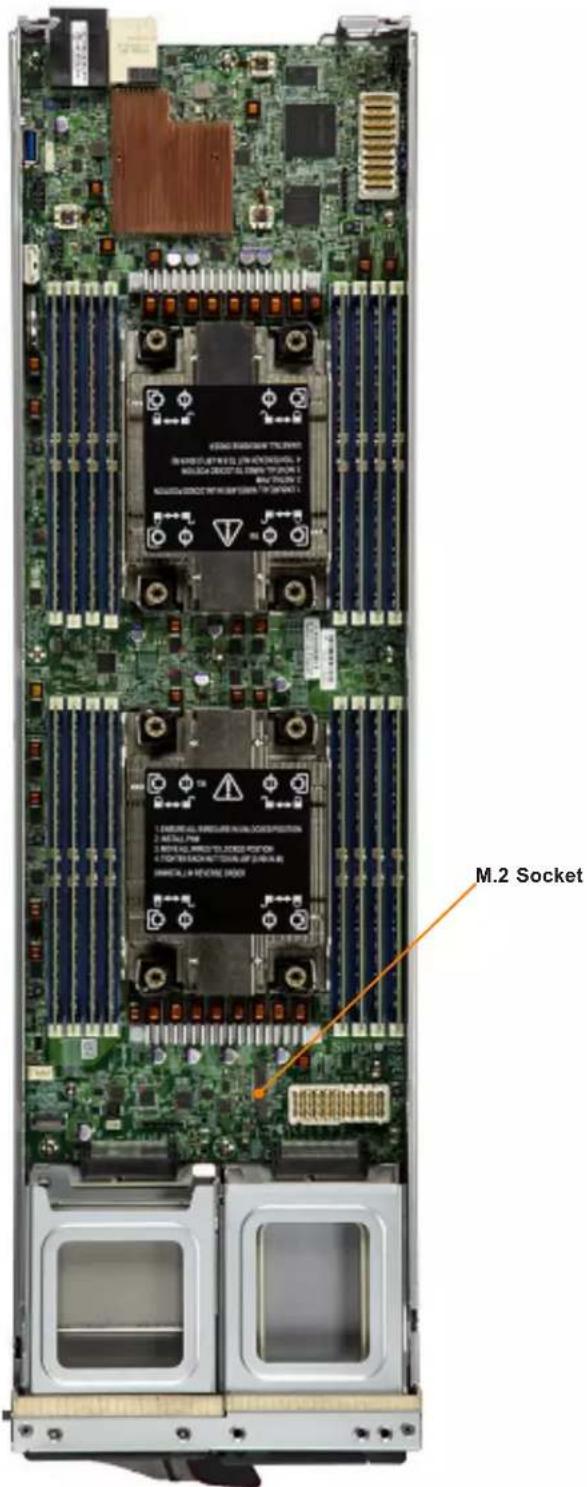
M.2 Solid State Drives
The motherboard supports one M.2 NVMe solid state drive (SSD) with a length of 80mm.
There is a hole in the mounting platform for a plastic clasp to secure the M.2 SSD.
text_image
M.2 SocketFigure 2-8. M.2 SSD (SBI-421E-5T3N model shown)
Installing an M.2 SSD
Caution: Use industry-standard anti-static equipment, such as gloves or a wrist strap, and follow precautions to avoid damage caused by ESD.
- Insert the SSD into the socket on the motherboard or bridge board. Then push it flat against the standoff.
- Secure the SSD by firmly inserting the plastic plug into the standoff.
Hot-Swap for NVMe Drives
Supermicro servers support NVMe surprise hot-swap. For even better data security, NVMe orderly hot-swap is recommended. NVMe drives can be ejected and replaced remotely using the BMC Dashboard.
Ejecting a Drive
- BMC Dashboard > Server Health > NVMe SSD
- Select Device, Group and Slot, and click Eject. After ejecting, the drive Status LED indicator turns green.
- Remove the drive.
Note that Device and Group are categorized by the CPLD design architecture.
Slot is the slot number on which the NVMe drives are mounted.

text_image
Overview Physical View Logical View Controller Physical View Blank Unblink Eject Insert Stool LED Status Supported Actions Disk Infot Capacity Link Speed Connected Logical Drive Connected Controller 0.0 SAMSUNG MOTQLWISCHBUF-00003 N/A 8.0 GTIb-N/A N/A Middle Device0 0.1 SAMSUNG MOTQLWISCHBUF-00003 N/A 8.0 GTIb-N/A N/A Middle Device0Figure 2-9. BMC Dashboard Screenshot
Replacing the Drive
- Insert the replacement drive.
- BMC Dashboard > Server Health > NVMe SSD
- Select Device, Group and slot and click Insert. The drive Status LED indicator flashes red, then turns off. The Activity LED turns blue.
2.8 System Cooling
Checking the Server Air Flow
- Make sure there are no objects to obstruct airflow in and out of the server.
- Do not operate the server without drive carriers in the drive bays.
- Use only recommended server parts.
- Make sure no wires or foreign objects obstruct air flow through the chassis. Pull all excess cabling out of the airflow path or use shorter cables.
The control panel LEDs display system heat status. See “Control Panel” in Chapter 1 for details.
Overheating
There are several possible responses if the system overheats.
- Use the LEDs to determine the nature of the overheating condition.
• Make sure all fans are present and operating normally. - Check the routing of the cables.
- Verify that the heatsinks are installed properly.
Checking the Temperature of an NVMe Drive
There are two ways to check using the BMC Dashboard.
Checking a Drive
- BMC Dashboard > Server Health > NVMe SSD – Shows the temperatures of all NVMe drives.
- BMC Dashboard > Server Health > Sensor Reading > NVME_SSD – Shows the single highest temperature among all the NVMe drives.
2.9 AIOM
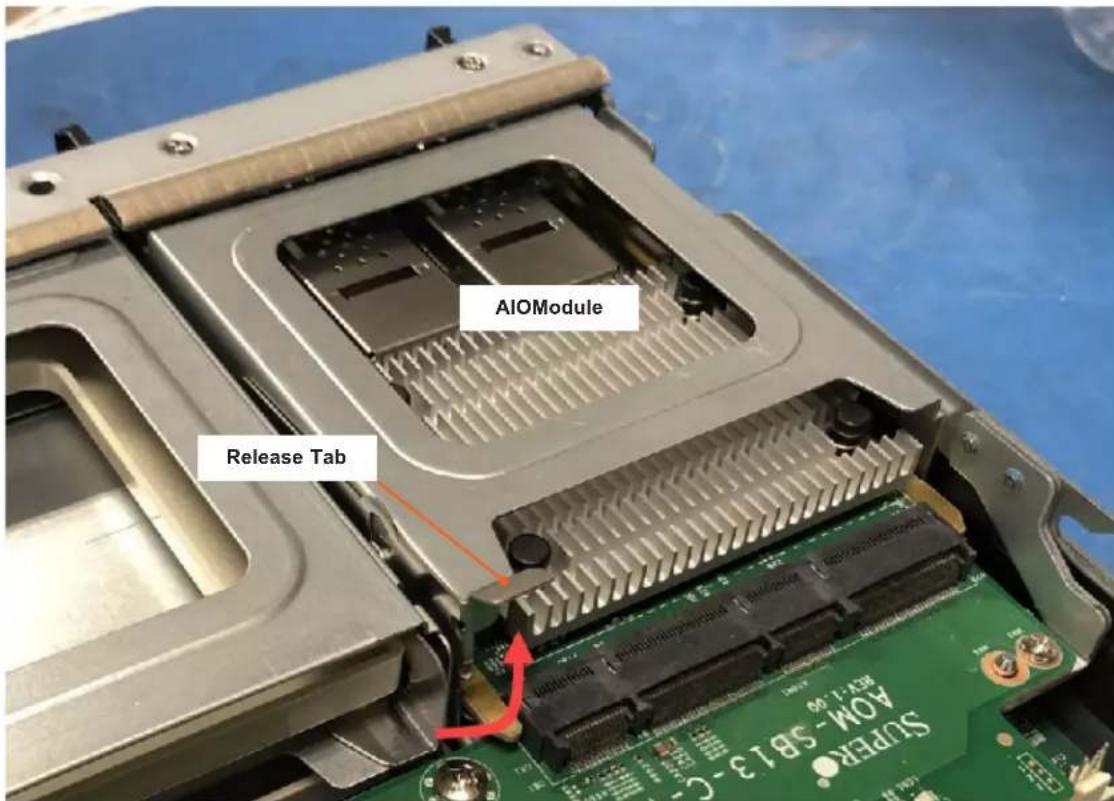
The Advanced Input/Output Module (AIOM) can be removed for replacement.
- Power down the blade server, remove it from the enclosure and remove the top cover.
- Lift the release tab as shown below.
- Pull out the AIOM out of the housing bracket..
text_image
AIOModule Release Tab AOM-5B13-CFigure 2-10. Removing the AIOM
- To replace the AIOM, push it into place until the latch clicks.
2.10 Next Steps
Installing the Operating System
See Section 4.1 for details.
Configuring RAID
For RAID setup, see http://www.supermicro.com/support/manuals/ under RAID Installation Guides.
Installing Drivers
See Section 4.2 for details.
Chapter 3
Motherboard Connections
This chapter describes the connections on the motherboard and provides pinout definitions. Note that depending on how the system is configured, not all connections are required. The LEDs on the motherboard are also described here. A motherboard layout indicating component locations may be found in Chapter 1. More detail can be found in the Motherboard Manual. Please review the Safety Precautions in Appendix B before installing or removing components.
3.1 Headers and Connectors
Power Connector
The PWR2 connector provides power to the motherboard through the chassis backplane.
Storage Drive Power Connector
The HDD2 PWR connector provides power to your system and the storage drives on the AOM-SB1-SATA31 riser card.
Storage Drive Connector
Two connectors, HDD0 and HDD1, provide SATA 6G and NVMe connections (with SC2 for Mezzanine daughter card support).
Mezzanine Card Connectors
The mezzanine card connectors, located at MEZZ1 and MEZZ2, support two PCIe Gen 5 x16 riser cards. Install the riser cards to support mezzanine card.
LAN Connector
A 25G midplane is located at MP1 on the rear side of the system.
I-SATA Connector
A SATA 3.0 header, located at I-SATA1, is supported by Intel PCH SATA 3.0. It requires the proper SATA cable for use.
M.2 Slot and Standoff
The motherboard has one M.2 slot at JM2-1. It supports PCIe 5.0 x4 M.2 NVMe SSDs in the 2280 form factor. Mounting the M.2 SSD uses the standoff mounting hole, MH-SRW1.
TPM Header
The JTPM1 header is used to connect a Trusted Platform Module (TPM)/Port 80, which is available from Supermicro. A TPM/Port 80 connector is a security device that supports encryption and authentication in storage drives. It allows the motherboard to deny access if the TPM associated with the storage drive is not installed in the system. for more information on the TPM: https://www.supermicro.com/manuals/other/TPM.pdf.
| Trusted Platform Module/Port 80 Header Pin Definitions | ||
| Pin# Definition Pin# Definition | ||
| 1 P3V3 2 SPI_TPM_CS_N | ||
| 3 PCI-E_RESET_N# 4 SPI_PCH_MISO | ||
| 5 SPI_PCH_CLK# 6 Ground | ||
| 7 SPI_PCH_MOSI 8 N/A | ||
| 9 JTPM1_P3V3A 10 IRQ_TPM_SPIN_N | ||
HDD2 SATA Activity LED Connector
JLED is a 3-pin connector used to indicate the status of HDD2 SATA Activity. Connect JLED to the AOM-SB1-SATA31 add-on module to show HDD2 SATA activity.
Control Panel
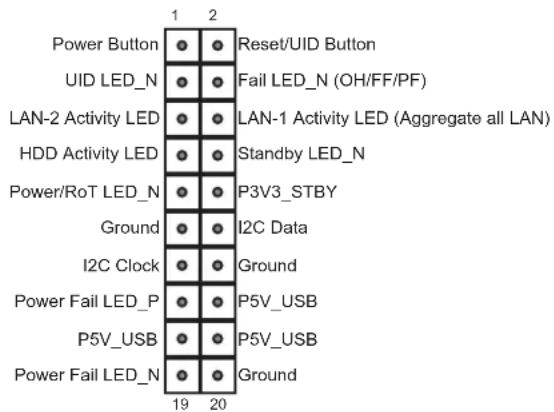
JFP1 contains header pins for the front control panel connections. All JFP1 wires have been bundled into a single cable to simplify this connection. Make sure the red wire plugs into pin 1 as marked on the motherboard. The other end connects to the control panel PCB board.
text_image
Power Button UID LED_N LAN-2 Activity LED HDD Activity LED Power/RoT LED_N Ground I2C Clock Power Fail LED_P P5V_USB Power Fail LED_N Reset/UID Button Fail LED_N (OH/FF/PF) LAN-1 Activity LED (Aggregate all LAN) Standby LED_N P3V3_STBY I2C Data Ground P5V_USB P5V_USB Ground 19 20Figure 4-1. JFP1 Control Panel Pins
Power Button and BMC/BIOS Status LED Button
The Power On and BMC/BIOS Status LED button is connected to pin 1 of the header JFP1. Momentarily contacting pin 1 of JFP1 will power on/off the system, or display the BMC/BIOS status.
Reset Button/Front UID Switch
The Reset button/Front UID switch toggles the UID LED. The button is connected to pin 2 of JFP1.
UID LED
The unit identifier LED connection is located on pin 3 of JFP1.
Fail LED (Information LED)
The Fail LED connection is pin 4 of JFP1. It provides stimulus to the Information LED that indicates overheating, fan failure, and power failure.
LAN1/LAN2 (NIC1/NIC2)
The NIC (Network Interface Controller) LED connection for LAN Port 1 is pin 6 of JFP1, and for LAN Port 2 is pin 5. When this LED is blinking green, it indicates LAN activity.
HDD Activity LED
The HDD activity LED connection is pin 7 of JFP1. When this LED is blinking green, it indicates storage drive activity.
Standby Power LED
The LED indicator for standby power is pin 8 of JFP1. If this LED is on, standby power is on.
RoT (Root of Trust) Power LED
The Power LED for RoT (Root of Trust) connection is I pin 9 of JFP1. If this LED is on, power for the RoT chip is on.
Standby Power
A Standby Power (I2C) connection is pins 10 through pin 14 of JFP1 to provide power to the system when it is in standby mode.
Power Fail LED Indicators
Power Failure LED Indicators are pin 15 and pin 19 of JFP1.
FP USB Power
Front Panel USB power connections are pins 16 through 18 of JFP1 to provide power to front USB devices.
3.2 Jumpers
Explanation of Jumpers
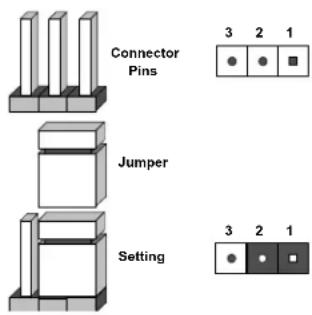
To modify the operation of the motherboard, jumpers are used to choose between optional settings. Jumpers create shorts between two pins to change the function associated with it. Pin 1 is identified with a square solder pad on the printed circuit board. See the motherboard layout page for jumper locations.
Note: On a two-pin jumper, "Closed" means the jumper is on both pins and "Open" indicates the jumper is either on only one pin or has been completely removed.
text_image
Connector Pins Jumper Setting 3 2 1 3 2 1CMOS Clear Contacts
JBT1 is used to clear CMOS. Instead of pins, this jumper consists of contact pads. See the CMOS Clear section for more information.

JBT1 contact pads
Management Engine (ME) Recovery
Use jumper JPME1 to select ME Firmware Recovery mode, which will limit resource allocation for essential system operation only in order to maintain normal power operation and management. In the single operation mode, an online upgrade will be available using Recovery mode.
| ME Recovery ModeJumper Settings | |
| Jumper Setting Definition | |
| Pins 1-2 Normal | |
| Pins 2-3 ME Recovery | |
3.3 LED Indicators
BMC Heartbeat Indicator
LEDM1 is a BMC Heartbeat indicator. It blinks green when the BMC is working properly and is solid green during a BMC reset or cold system reboot.
Storage Drive Heartbeat Indicators
Two drive heartbeat LEDs indicate whether it is safe to remove the drives. DA4 is used for HDD0, and DA5 is for HDD1.
| HDD0 (DA4)/HDD1(DA5) HeartbeatLED Indicators | |
| LED Color Definition | |
| Green: Solid On Safe to remove storage devices | |
| Green: Blinking Not ready for storage device removal |
Storage Drive Activity Indicators
Two LEDs blink blue to indicate drive activity. DA6 is used for HDD0, and DA7, for HDD1.
JLED is a 3-pin connector used to indicate the status of HDD2 SATA Activity. Connect JLED to the AOM-SB1-SATA31 add-on module to show HDD2 SATA activity when the LED is on.
Chapter 4
Software
After the hardware has been installed, you can install the Operating System (OS), configure RAID settings and install the drivers.
4.1 Installing the Operating System
An operating system (OS) must be installed on each blade module. Blades with Microsoft Windows OS and blades with Linux OS can operate within the same blade enclosure. Refer to the Supermicro web site for a list of supported operating systems.
Installing by using PXE Boot
Preboot Execution Environment (PXE) is used to boot a computer over a network. To install the OS using PXE, the following conditions must be met:
- The PXE BOOT option in BIOS must be enabled.
- A PXE server has been configured; this can be another blade in the system.
- The PXE server must be connected over a network to the blade to be booted.
- The blade has only non-partitioned/unformatted hard drives installed and no bootable devices attached to it.
Once these conditions are met, make sure the PXE server is running. Then turn on the blade on which you wish to install the OS. The BIOS in the blade will look at all bootable devices and finding none, will connect to the PXE server to begin the boot/install.
Installing by using Virtual Media (Drive Redirection)
You can install the OS via Virtual Media through either the IPMIview (Java-based client utility), SuperBladeTool or the Web-based Management Utility. With this method, the OS is installed from an ISO image that resides on another system.
Refer to the manuals on the Supermicro web site for further details on the Virtual Media (CD-ROM or Drive Redirection) sections of these two utility programs.
4.2 Driver Installation
The Supermicro website contains drivers and utilities for your system at https://www.supermicro.com/wdl/driver. Some of these must be installed, such as the chipset driver.
After accessing the website, go into the CDR_Images (in the parent directory of the above link) and locate the ISO file for your motherboard. Download this file to a USB flash or media drive. (You may also use a utility to extract the ISO file if preferred.)
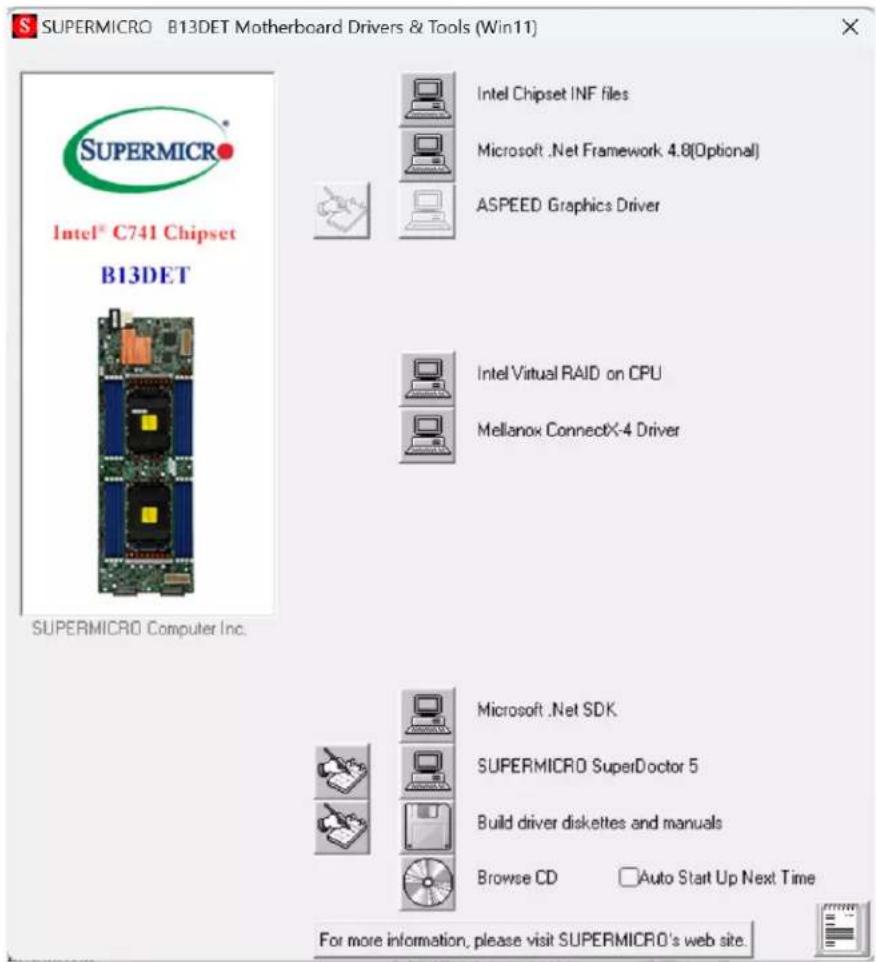
Another option is to go to the Supermicro website at http://www.supermicro.com/products/. Find the product page for your motherboard, and "Download the Latest Drivers and Utilities". Insert the flash drive or disk and the screenshot shown below should appear.
text_image
SUPERMICRO B13DET Motherboard Drivers & Tools (Win11) Intel® C741 Chipset B13DET SUPERMICRO Computer Inc. Intel Chipset INF files Microsoft .Net Framework 4.8(Optional) ASPEED Graphics Driver Intel Virtual RAID on CPU Mellanox ConnectX-4 Driver Microsoft .Net SDK SUPERMICRO SuperDoctor 5 Build driver diskettes and manuals Browse CD Auto Start Up Next Time For more information, please visit SUPERMICRO's web site.Figure 4-3. Driver & Tool Installation Screen
Note: Click the icons showing a hand writing on paper to view the readme files for each item. Click the computer icons to the right of these items to install each item (from top to the bottom) one at a time. After installing each item, you must re-boot the system before moving on to the next item on the list. The bottom icon with a CD on it allows you to view the entire contents.
4.3 SuperDoctor® 5
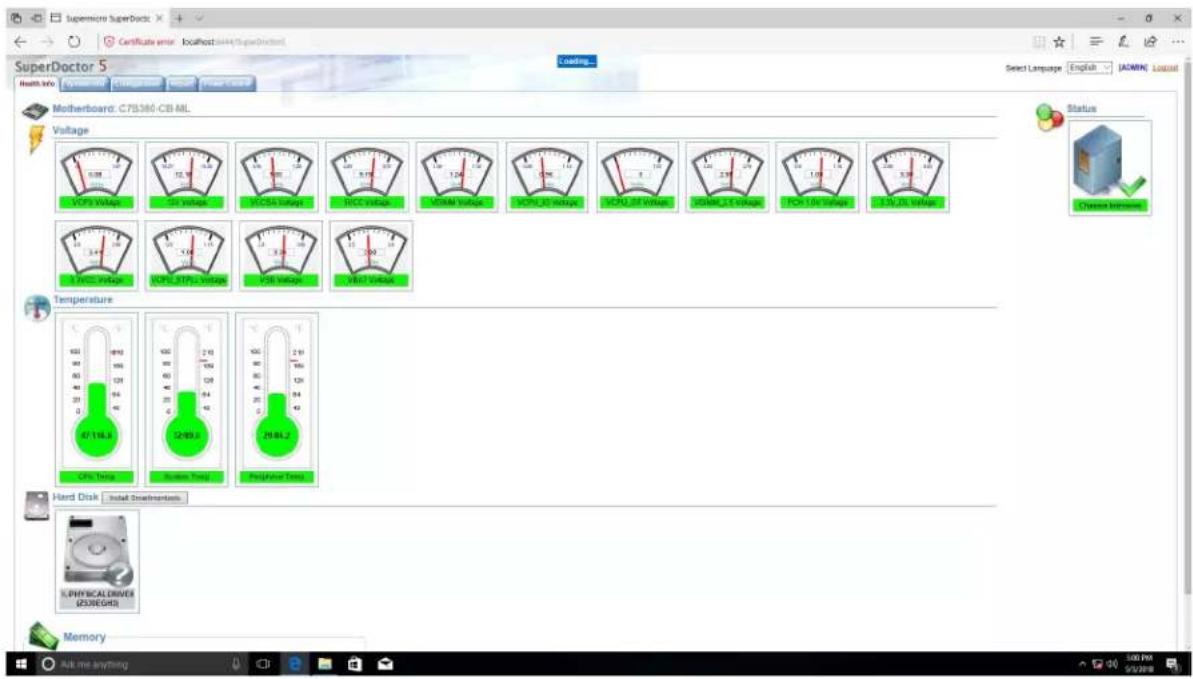
The Supermicro SuperDoctor 5 is a program that functions in a command-line or web-based interface for Windows and Linux operating systems. The program monitors such system health information as CPU temperature, system voltages, system power consumption, fan speed, and provides alerts via email or Simple Network Management Protocol (SNMP).
SuperDoctor 5 comes in local and remote management versions and can be used with Nagios to maximize your system monitoring needs. With SuperDoctor 5 Management Server (SSM Server), you can remotely control power on/off and reset chassis intrusion for multiple systems with SuperDoctor 5 or the BMC. SuperDoctor 5 Management Server monitors HTTP, FTP, and SMTP services to optimize the efficiency of your operation.
SuperDoctor® Manual and Resources
text_image
SuperDoctor 5 Health info: www.motherboard.com Certificate error: localhost:1644/Supersheeted Coding... Mothemboard: C7S380-CB ML Voltage CP3 Voltage CC1 Voltage VCC1A Voltage VCC2 Voltage VCCAM Voltage VCCPL2V2 Voltage VCCU2V1 Voltage VCCML2V1 Voltage VCC-1.2V2 Voltage VCC-2.2V2 Voltage Status Current Interface Temperature 47/116.3 CPU, Tires 2.10 100 100 2.90 100 2.90 100 2.90 100 2.90 100 2.90 100 2.90 100 2.90 100 2.90 100 2.90 100 2.90 100 2.90 100 2.95 100 2.95 100 2.95 100 2.95 100 2.95 100 2.95 100 2.95 100 2.95 100 2.95 100 2.95 100 2.95 100 2.95Figure 4-4. SuperDoctor 5 Interface Display Screen (Health Information)
4.4 BMC
The motherboard provides remote access, monitoring and management through the baseboard management controller (BMC) and other management controllers distributed among different system modules. There are several BIOS settings that are related to BMC. For general documentation and information on BMC, visit our website at:
www.supermicro.com/en/solutions/management-software/bmc-resources
BMC ADMIN User Password
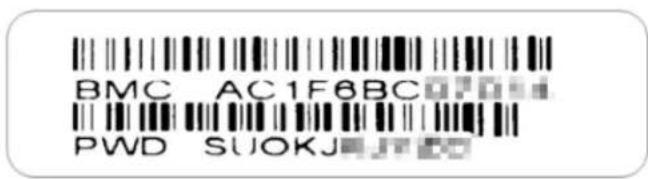
For security, each system is assigned a unique default BMC password for the ADMIN user. This can be found on a sticker on the chassis and a sticker on the motherboard. The sticker also displays the BMC MAC address. If necessary, the password can be reset using the Supermicro IPMICFG tool.
text_image
BMC AC1F6BC PWD SUOKJFigure 4-5. BMC Password Label
The sticker can be found on the pull-out service tag at the front of the chassis. See Chapter 1 for the location.
Chapter 5
Optional Components
This chapter describes optional system components and installation procedures.
5.1 Add-on Card Options
| Add-on Card Options | |
| Part Number Description | |
| AOC-B25G-X4D-B 2-port 25GbE Mezzanine Card | |
| AOC-IBH-X4ES-B Mezzanine Card | for InfiniBand EDR Single Port with mounting bracket |
| AOC-IBH-X6HS-B Mezzanine card | for InfiniBand HDR one port with mounting bracket |
| AOM-B-4M 4x M.2 mezzanine card | |
| AIOM See Supermicro web page | ____ |
5.2 TPM Security Module
SPI capable TPM 2.0 (or 1.2) with Infineon 9670 controller, horizontal form factor
The JTPM1 header is used to connect a Trusted Platform Module (TPM). A TPM is a security device that supports encryption and authentication in hard drives. It enables the motherboard to deny access if the TPM associated with the storage drive is not installed in the system.
Details and installation procedures are at:
https://www.supermicro.com/manuals/other/TPM.pdf.
Chapter 6
Troubleshooting and Support
6.1 Information Resources
Website
A great deal of information is available on the Supermicro website, supermicro.com.

text_image
SUPERMICRO Products Solutions Company News Support High Performance AI Building Blocks Award-Winning System Portfolio Optimized for AI to Supercharge Your Discovery and InnovationFigure 6-1. Supermicro Website
- Specifications for servers and other hardware are available by clicking the Products option.
- The Support option offers downloads (manuals, BIOS/BMC, drivers, etc.), FAQs, RMA, warranty, and other service extensions.
Direct Links for the SBI-421E-xT3N System
Web SBI-421E-1T3N specifications page
Web SBI-421E-5T3N specifications page
B13DET motherboard page for links to the Quick Reference Guide, User Manual, validated storage drives, etc.
Direct Links for General Support and Information
Frequently Asked Questions
TPM User Guide
General Memory Configuration Guide
BMC User Guide
SuperDoctor5 Large Deployment Guide
Direct Links (continued)
For validated memory, use our Product Resources page
Product Matrices page for links to tables summarizing specs for systems, motherboards, power supplies, riser cards, add-on cards, etc.
Security Center for recent security notices
Supermicro Phone and Addresses
6.2 BMC Interface
The system supports a Baseboard Management Controller (BMC) interface. It provides remote access, monitoring and management. There are several BIOS settings related to the BMC.
For general documentation and information on the BMC, please visit our website at: https://www.supermicro.com/manuals/other/BMC_Users_Guide_X13.pdf.

text_image
Dashboard System Component info Health Event Log Configuration + Remote Control Maintenance + Advanced Settings Filter x Sensor-specific x Threshold x Genetc x OEM x Unspecified Health Event Log Clear Health Event Log Export to Excel Severity Data/Time Sensor Type Categories Description Event Type 2020-10-15 18:57:06 ACPowerOn [OEM] FullAC Power on - Assertion Sensor-specific 2020-10-15 18:56:03 System NIC [OEM] Dedicated LAN Link Up - Assertion Sensor-specific 2020-10-15 17:41:37 ACPowerOn [OEM] FullAC Power on - Assertion Sensor-specific 2020-10-15 17:41:17 System NIC [OEM] Dedicated LAN Link Up - Assertion Sensor-specific 2020-10-15 17:41:14 System NIC [OEM] Dedicated LAN Link Down - Assertion Sensor-specific 2020-10-15 17:41:12 System NIC [OEM] Dedicated LAN Link Up - Assertion Sensor-specific x < 1 / 1 > x 1-6/6Figure 6-2. BMC Dashboard Sample
6.3 Troubleshooting Procedures
Use the following procedures to troubleshoot your system. If you have followed all of the procedures below and still need assistance, refer to the Technical Support Procedures or Returning Merchandise for Service sections in this chapter. Power down the system before changing any non hot-swap hardware components.
General Technique
If you experience unstable operation or get no boot response, try:
- With power off, remove all but one DIMM and other added components, such as add-on cards, from the motherboard. Make sure the motherboard is not shorted to the chassis.
- Set all jumpers to their default positions.
- Power up. If the system boots, check for memory errors and add-on card problems.
No Power
- Check that the power LED on the motherboard is on.
- Make sure that the power connector is connected to the power supply.
- Check that the motherboard battery still supplies approximately 3VDC. If it does not, replace it.
- Check that the system input voltage is 100-120v or 180-240v.
- Turn the power switch on and off to test the system
No Video
If the power is on but you have no video, remove all add-on cards and cables.
System Boot Failure
If the system does not display Power-On-Self-Test (POST) or does not respond after the power is turned on, try the following:
- Turn on the system with only one DIMM module installed. If the system boots, check for bad DIMM modules or slots by following the Memory Errors Troubleshooting procedure below.
Memory Errors
- Make sure that the DIMM modules are properly and fully installed.
- Confirm that you are using the correct memory. Also, it is recommended that you use the same memory type and speed for all DIMMs in the system. See Section 3.3 for memory details.
- Check for bad DIMM modules or slots by swapping modules between slots and noting the results.
Losing the System Setup Configuration
- Always replace power supplies with the exact same model that came with the system. A poor quality power supply may cause the system to lose the CMOS setup configuration.
- Check that the motherboard battery still supplies approximately 3VDC. If it does not, replace it.
If the above steps do not fix the setup configuration problem, contact your vendor for repairs.
When the System Becomes Unstable
If the system becomes unstable during or after OS installation, check the following:
- CPU/BIOS support: Make sure that your CPU is supported and that you have the latest BIOS installed in your system.
- Memory: Make sure that the memory modules are supported. Refer to the product page on our website at www.supermicro.com. Test the modules using memtest86 or a similar utility.
- Storage drives: Make sure that all drives work properly. Replace if necessary.
- System cooling: Check that all heatsink fans and system fans work properly. Check the hardware monitoring settings in the BMC to make sure that the CPU and system temperatures are within the normal range. Also check the Control panel Overheat LED.
- Adequate power supply: Make sure that the power supply provides adequate power to the system. Make sure that all power connectors are connected. Refer to the Supermicro website for the minimum power requirements.
- Proper software support: Make sure that the correct drivers are used.
If the system becomes unstable before or during OS installation, check the following:
- Source of installation: Make sure that the devices used for installation are working properly, including boot devices.
- Cable connection: Check to make sure that all cables are connected and working properly.
- Use the minimum configuration for troubleshooting: Remove all unnecessary components (starting with add-on cards first), and use the minimum configuration (but with a CPU and a memory module installed) to identify the trouble areas.
-
Identify a bad component by isolating it. Check and change one component at a time.
-
Remove a component in question from the chassis, and test it in isolation. Replace it if necessary.
- Or swap in a new component for the suspect one.
- Or install the possibly defective component into a known good system. If the new system works, the component is likely not the cause or the problem.
6.4 Crash Dump Using the BMC Dashboard
In the event of a processor internal error (IERR) that crashes your system, you may want to provide information to support staff. You can download a crash dump of status information using the BMC Dashboard. The BMC manual is available at https://www.supermicro.com/manuals/other/BMC_Users_Guide_X13.pdf.
Check Error Log
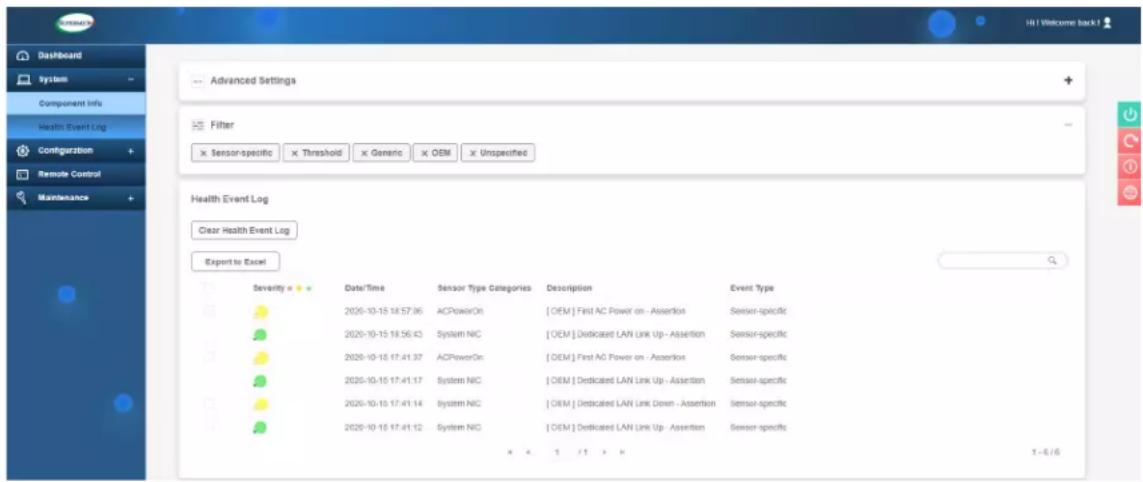
- Access the BMC web interface.
- Click the Server Health tab, then Event Log to verify an IERR error.
text_image
Dashboard System Component Info Health Event Log Configuration + Remote Control Maintenance + Advanced Settings Filter x Sensor-specific x Threshold x Generic x OEM x Unspecified Health Event Log Clear Health Event Log Expert to Excel Severity Date/Time Sensor Type Categories Description Event Type 2026-10-15 18:57:36 ACPowerOn [OEM] First AC Power on - Assertion Session-specific 2026-10-15 18:56:43 System NIC [OEM] Dedicated LAN Link Up - Assertion Session-specific 2026-10-15 17:41:37 ACPowerOn [OEM] First AC Power on - Assertion Session-specific 2026-10-15 17:41:17 System NIC [OEM] Dedicated LAN Link Up - Assertion Session-specific 2026-10-15 17:41:14 System NIC [OEM] Dedicated LAN Link Down - Assertion Session-specific 2026-10-15 17:41:12 System NIC [OEM] Dedicated LAN Link Up - Assertion Session-specific x < 1 / 1 > H 1 - 6 / 6Figure 6-3. BMC Event Log
In the event of an IERR, the BMC executes a crash dump. You must download the crash dump and save it.
6.5 UEFI BIOS Recovery
Warning: Do not upgrade the BIOS unless your system has a BIOS-related issue. Flashing the wrong BIOS can cause irreparable damage to the system. In no event shall Supermicro be liable for direct, indirect, special, incidental, or consequential damages arising from a BIOS update. If you do update the BIOS, do not shut down or reset the system while the BIOS is updating to avoid possible boot failure.
Overview
The Unified Extensible Firmware Interface (UEFI) provides a software-based interface between the operating system and the platform firmware in the pre-boot environment. The UEFI specification supports an architecture-independent mechanism that will allow the UEFI OS loader stored in an add-on card to boot the system. The UEFI offers clean, hands-off management to a computer during system boot.
Recovering the UEFI BIOS Image
A UEFI BIOS flash chip consists of a recovery BIOS block and a main BIOS block (a main BIOS image). The recovery block contains critical BIOS codes, including memory detection and recovery codes for the user to flash a healthy BIOS image if the original main BIOS image is corrupted. When the system power is turned on, the recovery block codes execute first. Once this process is complete, the main BIOS code will continue with system initialization and the remaining POST (Power-On Self-Test) routines.
Note 1: Follow the BIOS recovery instructions below for BIOS recovery when the main BIOS block crashes.
Note 2: When the BIOS recovery block crashes, you will need to follow the procedures to make a Returned Merchandise Authorization (RMA) request. Also, you may use the Supermicro Update Manager (SUM) Out-of-Band (https://www.supermicro.com.tw/products/nfo/SMS_SUM.cfm) to reflash the BIOS.
Recovering the Main BIOS Block with a USB Device
This feature allows the user to recover the main BIOS image using a USB-attached device without additional utilities used. A USB flash or media drive can be used for this purpose. However, a USB hard disk drive cannot be used for BIOS recovery at this time.
The file system supported by the recovery block is FAT (including FAT12, FAT16, and FAT32) which is installed on a bootable or non-bootable USB-attached device. However, the BIOS might need several minutes to locate the SUPER.ROM file if the media size becomes too large due to the huge volumes of folders and files stored in the device.
To perform UEFI BIOS recovery using a USB-attached device, follow the instructions below.
- Using a different machine, copy the "Super.ROM" binary image file into the Root "\" directory of a USB flash or media drive.
Note 1: If you cannot locate the "Super.ROM" file in your drive disk, visit our website at www.supermicro.com to download the BIOS package. Extract the BIOS binary image into a USB flash device and rename it "Super.ROM" for the BIOS recovery use.
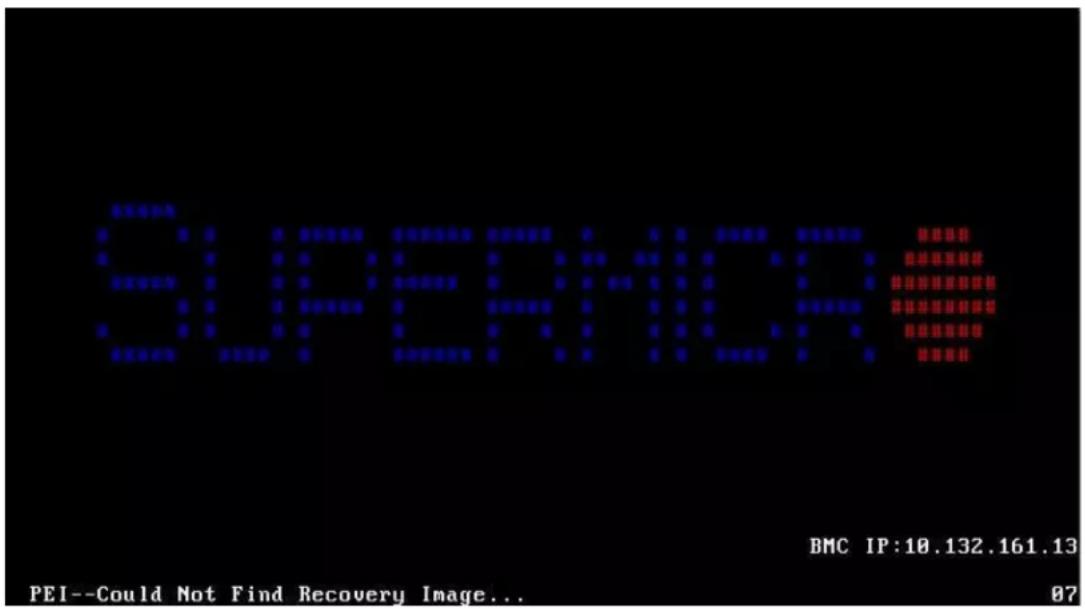
Note 2: Before recovering the main BIOS image, confirm that the "Super.ROM" binary image file you download is the same version or a close version meant for your motherboard. - Insert the USB device that contains the new BIOS image ("Super.ROM") into your USB drive and reset the system when the following screen appears.
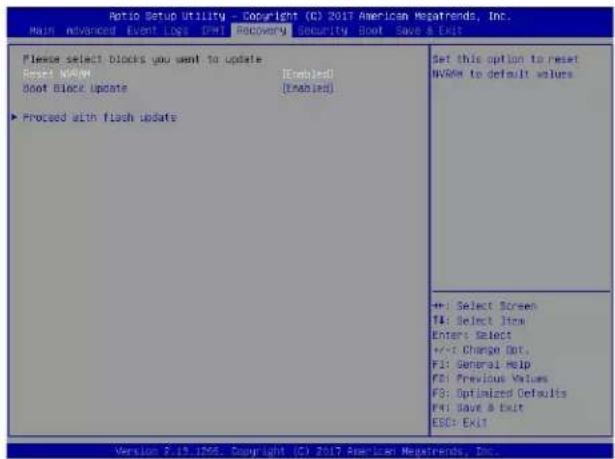
- After locating the healthy BIOS binary image, the system will enter the BIOS Recovery menu as shown below.
text_image
SUPERIOR BMC IP:10.132.161.13 PEI--Could Mot Find Recovery Image... 87Note: At this point, you may decide if you want to start the BIOS recovery. If you decide to proceed with BIOS recovery, follow the procedures below.
text_image
Ratio Setup Utility - Copyright (C) 2017 American Megatrends, Inc. Main Advanced Event Logs Email Recovery Security Boot Save a Exit Please select blocks you want to update Reset: N/A Boot Block Update [Enabled] [Enabled] ► Proceed with flash update Set this option to reset N/A/6M to default values +: Select Screen T4: Select Item Enter: Select +/-: Change Out. F1: General Help F2: Previous Values F3: Optimized Defaults F4: Save & Exit ESC: Exit Version 2.19.1706. Copyright (C) 2017 American Megatrends, Inc.- When the screen as shown above displays, use the arrow keys to select the item "Proceed with flash update" and press the
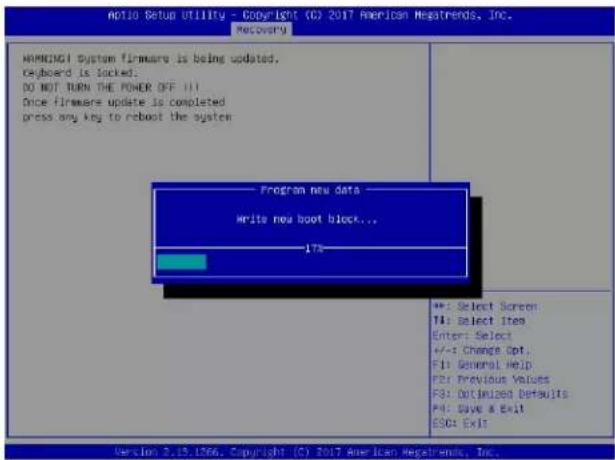
key. You will see the BIOS recovery progress as shown in the screen below.
Note: Do not interrupt the BIOS flashing process until it has completed.
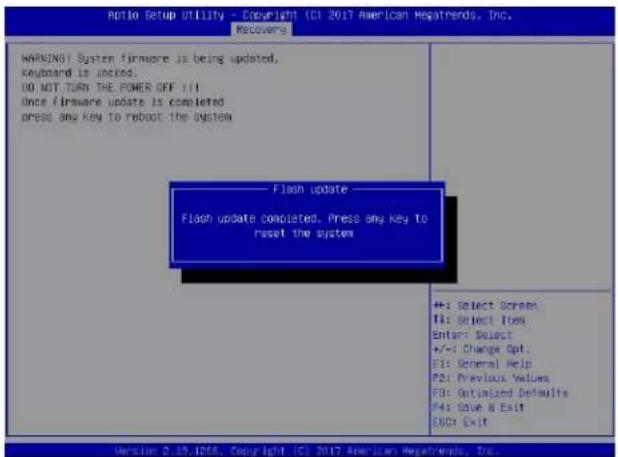
- After the BIOS recovery process is complete, press any key to reboot the system.
- Using a different system, extract the BIOS package into a USB flash drive.
text_image
Auto Setup Utility - Copyright (C) 2017 American Regatrends, Inc. Recovery WARNING System firmware is being updated. Keyboard is locked. DO NOT TURN THE POWER OFF!!. Once firmware update is completed press any key to reboot the system Program new data Write new boot block... 17% +: Select Screen T4: Select Items Enter: Select +/-: Change Opt. F1: General Help F2: Previous Values F3: Optimized Defaults F4: Save & Exit ESC: Exit Version 2.15.1266, Copyright (C) 2017 American Regatrends, Inc.- Press
continuously during system boot to enter the BIOS Setup utility. From the top of the tool bar, select Boot to enter the submenu. From the submenu list, select Boot
text_image
Ratio Setup Utility - Copyright (C) 2017 American HegaTrends, Inc. Recoverers WARNING: System firmware is being updated, Keyboard is locked. DO NOT TURN THE POWER OFF !!! Once firmware update is completed Press any key to reboot the system Flash update Flash update completed. Press any key to reset the system +: Select Screen F1: Select Item Enter: Select +/-: Change Opt. F3: General Help F5: Previous Values F8: Optimized Defaults F4: Save & Exit E8D: Exit Version 2.19, IDF6, Copyright (C) 2017 American HegaTrends, Inc.Option #1 as shown below. Then, set Boot Option #1 to [UEFI AP:UEFI: Built-in EFI Shell]. Press
- When the UEFI Shell prompt appears, type fs# to change the device directory path. Go to the directory that contains the BIOS package you extracted earlier from Step 6. Enter flash.nsh BIOSname.### at the prompt to start the BIOS update process.
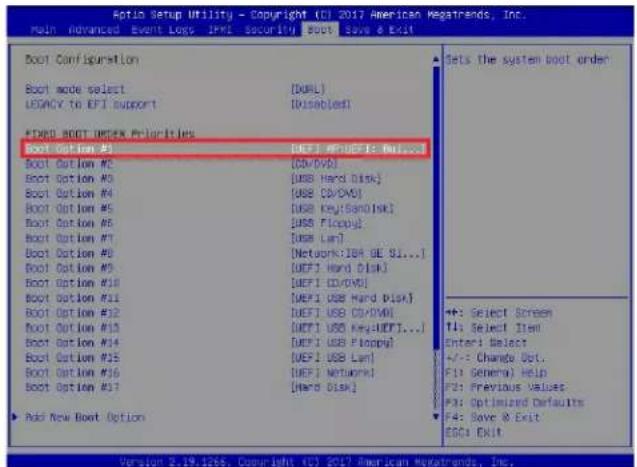
text_image
Auto Setup Utility - Copyright (CI) 2017 American Megatrends, Inc. Main Advanced Event Logs JPMS Security SCOTs Save & Exit Boot Configuration Boot mode select [DOXL] LEGACY to EPI Support [Disabled] EXP# BOOT INDEX Priorities Boot Option #3 [DEFI MP/DEFI: Max...] Boot Option #2 [DD/VVD] Boot Option #3 [USB Hard Disk] Boot Option #4 [USB CD/DVI] Boot Option #5 [USB Key[ScanDisk]] Boot Option #6 [USB Floppy] Boot Option #7 [USB Lan] Boot Option #8 [Network:JBA GE SI...] Boot Option #9 [DEFI Hard Disk] Boot Option #10 [DEFI CD/DVD] Boot Option #11 [DEFI USB Hard Disk] Boot Option #12 [DEFI USB CD/DVI] Boot Option #13 [DEFI USB Key:UEFI...] Boot Option #14 [DEFI USB Floppy] Boot Option #15 [DEFI USB Lan] Boot Option #16 [DEFI Network] Boot Option #17 [Halo Disk] Add New Boot Option Sets the system boot order +: Select Screen TI: Select Item Enter: Select +/-: Change Opt. F1: General) Help F2: Previous Values F3: Optimized Defaults F4: Save & Exit ESC: Exit Version 2.19.1266. Copyright (CI) 2017 American Megatrends, Inc.Note: Do not interrupt this process until the BIOS flashing is complete.
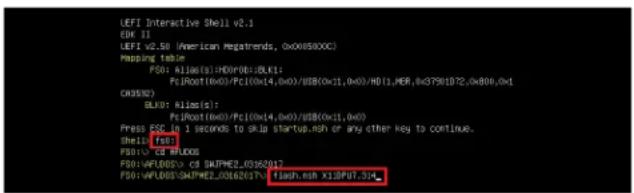
text_image
UEFI Interactive Shell v2.1 EDI: II UEFI v2.50 (American Regtrends, 0x00890XX) Mapping table: FS0: A106(0):H0D(0):BLK1; Ps:Root(0x0)/Pc(0x14,0x0)/USB(0x11,0x0)/M0II,MER,xG79B1P2,0x800,0x1 CRASSO BLK0: Rldo(s): Ps:Root(0x0)/Pc(0x14,0x0)/USB(0x11,0x0) Press FSS to 1 seconds to skills startup.moh or any other key to continue. Shell: fss FS0: CS FLOODS FS0:WPLOOS> CS SHAPHE2_03162012 FS0:WPLOOS\SHAPHE2_03162017\ flash.nsh X13F07.34_- The screen above indicates that the BIOS update process is complete. When you see the screen above, unplug the AC power cable from the power supply, clear CMOS, and plug
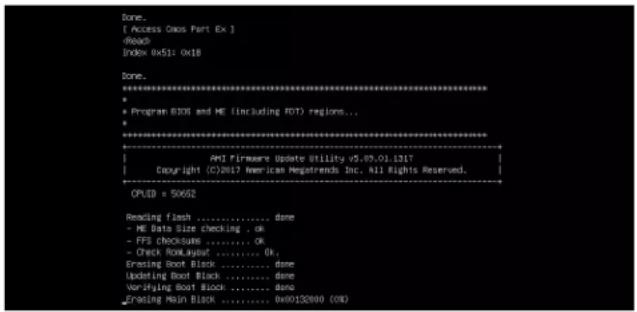
text_image
Done. [ Access Oxxs Part Ex ]text_image
Verifying NCBI Block ....... done - Update success for FOR - Update success for IS. - Successful Update Recovery Loader to QPRx!! - Successful Update MFSB11- - Successful Update FFMII- - Successful Update WNS, TINT and TIME!! - Successful Update FIOO and USBK1 - ME Entire [image update success !!] MAYRIME : System must power-off to have the changes take effect!! Moving FS0v:\AFU005\SWPME2_03162017\afuflx4.efi -> FS0v:\AFU005\SWPME2_03162017\f dt.smc - [o] Moving FS0v:\AFU005\SWPME2_03162017\afuflx4.efi -> FS0v:\AFU005\SWPME2_03162017 Trafufi.smc - [o] ********************************************************************** * - * - * - * - * - * - * - * - * - * - * - * - * - * - * - * - * - * - * - * - * - * - * - * - * - * - * - * - * - * - * - * - * - * - * +
* - mming message due to it does not impact flashing process. * - mming message due to it does not impact flashing process. * - mming message due to it does not impact flashing process. * - mming message due to it does not impact flashing process. * - mming message due to it does not impact flashing process. * - mming message due to it does not impact flashing process. * - mming message due to it does not impact flashing process. * - mming message due to it do not impact flashing process. * - mming message due to it does not impact flashing process. * - mming message due to it does not impact flashing process. * - mming message due to it does not impact flashing process. * - mming message due to it does not impact flashing process. * - mming message due to it does not impact flashing process. * - mming message due to it does not impact flashing process. * - mning message due to it does not impact flashing process. * - mning message due to it does not impact flashing process. * - mning message due to it does not impact flashing process. * - mning message due to it does not impact flashing process. * - mning message due to it does not impact flashing process. * - mning message due to it does not impact flashing process. * - mning message due to it does not impact flashing process.
6.6 CMOS Clear
JBT1 is used to clear CMOS, which will also clear any passwords. Instead of pins, this jumper consists of contact pads to prevent accidentally clearing the contents of CMOS.To Clear CMOS
1. First power down the system completely. 2. Remove the blade from the enclosure to access the motherboard. 3. Remove the onboard battery from the motherboard. 4. Short the CMOS pads with a metal object such as a small screwdriver for at least four seconds.  JBT1 contact pads 5. Remove the screwdriver or shorting device. 6. Replace the cover, reconnect the power cords and power on the system. Notes: Clearing CMOS will also clear all passwords. Do not use the PW\_ON connector to clear CMOS.6.7 BMC Reset
The BMC can be reset using the UID button. - Reset – Press and hold the button. After six seconds, the LED blinks at 2Hz. The BMC resets and the reset duration is approximately 250 ms. Then the BMC starts to boot. - Restore factory default configuration – Hold the button for twelve seconds. The LED blinks at 4Hz while defaults are configured. Note: All BMC settings including username and password will be removed except the FRU and network settings. Firmware update – When the BMC firmware is being updated, the UID LED blinks at 10Hz.| BMC Reset Options | ||
| Event UID LED | BMC Heartbeat LED | |
| Reset Blue, Blinks at 2Hz Green, solid | ||
| Restore Defaults | Blue, Blinks at 4Hz Off | |
| Update Blue, Blinks at 10Hz | ||
6.8 Where to Get Replacement Components
If you need replacement parts for your system, to ensure the highest level of professional service and technical support, purchase exclusively from our Supermicro Authorized Distributors/System Integrators/Resellers. A list can be found at: http://www.supermicro.com. Click the "Where to Buy" tab.6.9 Reporting an Issue
Technical Support Procedures
Before contacting Technical Support, please take the following steps. If your system was purchased through a distributor or reseller, please contact them for troubleshooting services. They have the best knowledge of your specific system configuration. 1. Please review the Troubleshooting Procedures in this manual and Frequently Asked Questions on our website before contacting Technical Support. 2. BIOS upgrades can be downloaded from our website. Note: Not all BIOS can be flashed depending on the modifications to the boot block code. 3. If you still cannot resolve the problem, include the following information when contacting us for technical support: - System, motherboard, and chassis model numbers and PCB revision number - BIOS release date/version (this can be seen on the initial display when your system first boots up) - System configuration An example of a Technical Support form is posted on our website. Distributors: For immediate assistance, please have your account number ready when contacting our technical support department by email.Returning Merchandise for Service
A receipt or copy of your invoice marked with the date of purchase is required before any warranty service will be rendered. You can obtain service by calling your vendor for a Returned Merchandise Authorization (RMA) number. When returning to the manufacturer, the RMA number should be prominently displayed on the outside of the shipping carton, and mailed prepaid or hand-carried. Shipping and handling charges will be applied for all orders that must be mailed when service is complete. For faster service, RMA authorizations may be requested online (http://www.supermicro.com/support/rma/). Whenever possible, repack the chassis in the original Supermicro carton, using the original packaging material. If these are no longer available, be sure to pack the chassis securely, using packaging material to surround the chassis so that it does not shift within the carton and become damaged during shipping. This warranty only covers normal consumer use and does not cover damages incurred in shipping or from failure due to the alteration, misuse, abuse or improper maintenance of products. During the warranty period, contact your distributor first for any product problems.Vendor Support Filing System
For issues related to Intel, use the Intel IPS filing system: https://www.intel.com/content/www/us/en/design/support/ips/training/welcome.html For issues related to Red Hat Enterprise Linux, since it is a subscription based OS, contact your account representative.6.10 Feedback
Supermicro values your feedback as we strive to improve our customer experience in all facets of our business. To provide feedback on our manuals, please email us at techwriterteam@supermicro.com.6.11 Contacting Supermicro
Headquarters
Address: Super Micro Computer, Inc. 980 Rock Ave. San Jose, CA 95131 U.S.A. Tel: +1 (408) 503-8000 Fax: +1 (408) 503-8008 Email: marketing@supermicro.com (General Information) Sales-USA@supermicro.com (Sales Inquiries) Government\_Sales-USA@supermicro.com (Gov. Sales Inquiries) support@supermicro.com (Technical Support) RMA@supermicro.com (RMA Support) Webmaster@supermicro.com (Webmaster) Website: www.supermicro.comEurope
Address: Super Micro Computer B.V. Het Sterrenbeeld 28, 5215 ML 's-Hertogenbosch, The Netherlands Tel: +31 (0) 73-6400390 Fax: +31 (0) 73-6416525 Email: Sales\_Europe@supermicro.com (Sales Inquiries) Support\_Europe@supermicro.com (Technical Support) RMA\_Europe@supermicro.com (RMA Support) Website: www.supermicro.nlAsia-Pacific
Address: Super Micro Computer, Inc. 3F, No. 150, Jian 1st Rd. Zhonghe Dist., New Taipei City 235 Taiwan (R.O.C) Tel: +886-(2) 8226-3990 Fax: +886-(2) 8226-3992 Email: Sales-Asia@supermicro.com.tw (Sales Inquiries) Support@supermicro.com.tw (Technical Support) RMA@supermicro.com.tw (RMA Support) Website: www.supermicro.com.twAppendix A
BIOS POST Codes
A.1 BIOS POST Messages
During the Power-On Self-Test (POST), the BIOS will check for problems. If a problem is found, the BIOS will activate an alarm or display a message. The following is a list of such BIOS messages.| BIOS POST Messages | |
| BIOS Message Description | |
| Failure Fixed Disk | Fixed disk is not working or not configured properly. Check to see if fixed disk is attached properly. Run Setup. Find out if the fixed-disk type is correctly identified. |
| Stuck key Stuck key on keyboard. | |
| Keyboard error Keyboard not working. | |
| Keyboard Controller Failed Keyboard controller failed test. May require replacing keyboard controller. | |
| Keyboard locked - Unlock key switch | Unlock the system to proceed. |
| Monitor type does not match CMOS - Run SETUP | Monitor type not correctly identified in Setup |
| Shadow Ram Failed at offset: nnnn | Shadow RAM failed at offset nnnn of the 64k block at which the error was detected. |
| System RAM Failed at offset: nnnn | System RAM failed at offset nnnn of in the 64k block at which the error was detected. |
| Extended RAM Failed at offset: nnnn | Extended memory not working or not configured properly at offset nnnn. |
| System battery is dead - Replace and run SETUP | The CMOS clock battery indicator shows the battery is dead. Replace the battery and run Setup to reconfigure the system. |
| System CMOS checksum bad - Default configuration used | System CMOS has been corrupted or modified incorrectly, perhaps by an application program that changes data stored in CMOS. The BIOS installed Default Setup Values. If you do not want these values, enter Setup and enter your own values. If the error persists, check the system battery or contact your dealer. |
| System timer error The timer test | failed. Requires repair of system board. |
| Real time clock error Real-Time Clock fails BIOS hardware test. May require board repair. | |
| Check date and time settings | BIOS found date or time out of range and reset the Real-Time Clock. May require setting legal date (1991-2099). |
| Previous boot incomplete - Default configuration used | Previous POST did not complete successfully. POST loads default values and offers to run Setup. If the failure was caused by incorrect values and they are not corrected, the next boot will likely fail. On systems with control of wait states, improper Setup settings can also terminate POST and cause this error on the next boot. Run Setup and verify that the waitstate configuration is correct. This error is cleared the next time the system is booted. |
| Memory Size found by POST differed from CMOS | Memory size found by POST differed from CMOS. |
| Diskette drive A error | |
| Diskette drive B error | Drive A: or B: is present but fails the BIOS POST diskette tests. Check to see that the drive is defined with the proper diskette type in Setup and that the diskette drive is attached correctly. |
| Incorrect Drive A type - run SETUP | Type of floppy drive A: not correctly identified in Setup. |
| Incorrect Drive B type - run SETUP | Type of floppy drive B: not correctly identified in Setup. |
| System cache error - Cache disabled | RAM cache failed and BIOS disabled the cache. On older boards, check the cache jumpers. You may have to replace the cache. See your dealer. A disabled cache slows system performance considerably. |
| CPU ID: CPU socket number for | Multi-Processor error. |
| EISA CMOS not writeable Server | BIOS2 test error: Cannot write to EISA CMOS. |
| DMA Test Failed | ServerBIOS2 test error: Cannot write to extended DMA (Direct Memory Access) registers. |
| Software NMI Failed | ServerBIOS2 test error: Cannot generate software NMI (Non-Maskable Interrupt). |
| Fail-Safe Timer NMI Failed Server | BIOS2 test error: Fail-Safe Timer takes too long. |
| device Address Conflict Address | conflict for specified device. |
| Allocation Error for: device | Run ISA or EISA Configuration Utility to resolve resource conflict for the specified device. |
| CD ROM Drive CD ROM Drive identified. | |
| Entering SETUP... Starting Setup program | |
| Failing Bits: nnnn | The hex number nnnn is a map of the bits at the RAM address which failed the memory test. Each 1 (one) in the map indicates a failed bit. See errors 230, 231, or 232 above for offset address of the failure in System, Extended, or Shadow memory. |
| Fixed Disk n Fixed disk n (0-3) identified. | |
| Invalid System Configuration Data | Problem with NVRAM (CMOS) data. |
| I/O device IRQ conflict I/O device | IRQ conflict error. |
| PS/2 Mouse Boot Summary Screen: | PS/2 Mouse installed. |
| nnnn kB Extended RAM Passed | Where nnnn is the amount of RAM in kilobytes successfully tested. |
| nnnn Cache SRAM Passed Where nnnn is the amount of system cache in kilobytes successfully tested. | |
| nnnn kB Shadow RAM Passed Where nnnn is the amount of shadow RAM in kilobytes successfully tested. | |
| nnnn kB System RAM Passed Where nnnn is the amount of system RAM in kilobytes successfully tested. | |
| One or more I2O Block Storage Devices were excluded from the Setup Boot Menu | There was not enough room in the IPL table to display all installed I2O block-storage devices. |
| Operating system not found | Operating system cannot be located on either drive A: or drive C:. Enter Setup and see if fixed disk and drive A: are properly identified. |
| Parity Check 1 nnnn | Parity error found in the system bus. BIOS attempts to locate the address and display it on the screen. If it cannot locate the address, it displays ???? . Parity is a method for checking errors in binary data. A parity error indicates that some data has been corrupted. |
| Parity Check 2 nnnn | Parity error found in the I/O bus. BIOS attempts to locate the address and display it on the screen. If it cannot locate the address, it displays ???? . |
| Pressto resume,to Setup,for previous | Displayed after any recoverable error message. Pressto start the boot process orter Setup and change the settings. Pressto display the previous screen (usually an initialization error of an Option ROM, i.e., an add-on card). Write down and follow the information shown on the screen. |
| Pressto enter Setup Optional message displayed during POST. Can be turned off in Setup. | |
| PS/2 Mouse: PS/2 mouse identified. | |
| Run the I2O Configuration Utility | One or more unclaimed block storage devices have the Configuration Request bit set in the LCT. Run an I2O Configuration Utility (e.g. the SAC utility). |
| System BIOS shadowed System BIOS copied to shadow RAM. | |
| UMB upper limit segment address: nnnn | Displays the address nnnn of the upper limit of Upper Memory Blocks, indicating released segments of the BIOS which can be reclaimed by a virtual memory manager. |
| Video BIOS shadowed Video BIOS successfully copied to shadow RAM. | |
A.2 BIOS POST Codes
This section lists the POST (Power-On Self-Test) codes for the AMI BIOS. POST codes are divided into two categories: recoverable and terminal.Recoverable POST Errors
When a recoverable type of error occurs during POST, the BIOS will display an POST code that describes the problem. BIOS may also issue one of the following beep codes: One long and two short beeps – video configuration error One repetitive long beep – no memory detectedTerminal POST Errors
If a terminal type of error occurs, BIOS will shut down the system. Before doing so, BIOS will write the error to port 80h, attempt to initialize video and write the error in the top left corner of the screen. The following is a list of codes that may be written to port 80h.| Terminal POST Errors | |
| Code Description | |
| 02h Verify Real Mode | |
| 03h Disable Non-Maskable Interrupt (NMI) | |
| 04h Get CPU type | |
| 06h Initialize system hardware | |
| 07h Disable shadow and execute code from the ROM. | |
| 08h Initialize chipset with initial POST values | |
| 09h Set IN POST flag | |
| 0Ah Initialize CPU registers | |
| 0Bh Enable CPU cache | |
| 0Ch Initialize caches to initial POST values | |
| 0Eh Initialize I/O component | |
| 0Fh Initialize the local bus IDE | |
| 10h Initialize Power Management | |
| 11h Load alternate registers with initial POST values | |
| 12h Restore CPU control word during warm boot | |
| 13h Initialize PCI Bus Mastering devices | |
| 14h Initialize keyboard controller | |
| 16h 1-2-2-3 BIOS ROM checksum | |
| 17h Initialize cache before memory Auto size | |
| 18h 8254 timer initialization | |
| 1Ah 8237 DMA controller initialization | |
| 1Ch Reset Programmable Interrupt Controller | |
| 20h 1-3-1-1 | Test DRAM refresh |
| 22h 1-3-1-3 | Test 8742 Keyboard Controller |
| 28h Auto size DRAM | |
| 29h Initialize POST Memory Manager | |
| 2Ah Clear 512 kB base RAM | |
| 2Ch 1-3-4-1 | RAM failure on address line xxxx* |
| 2Eh 1-3-4-3 | RAM failure on data bits xxxx* of low byte of memory bus |
| 2Fh Enable cache before system BIOS shadow | |
| 32h Test CPU bus-clock frequency | |
| 33h Initialize Phoenix Dispatch Manager | |
| 36h Warm start shut down | |
| 38h Shadow system BIOS ROM | |
| 3Ah Auto size cache | |
| 3Ch Advanced configuration of chipset registers | |
| 3Dh Load alternate registers with CMOS values | |
| 41h Initialize extended memory for RomPilot | |
| 42h Initialize interrupt vectors | |
| 45h POST device initialization | |
| 46h 2-1-2-3 | Check ROM copyright notice |
| 47h Initialize I20 support | |
| 48h Check video configuration against CMOS | |
| 49h Initialize PCI bus and devices | |
| 4Ah Initialize all video adapters in system | |
| 4Bh QuietBoot start (optional) | |
| 4Ch Shadow video BIOS ROM | |
| 4Eh Display BIOS copyright notice | |
| 4Fh Initialize MultiBoot | |
| 50h Display CPU type and speed | |
| 51h Initialize EISA board | |
| 52h Test keyboard | |
| 54h Set key click if enabled | |
| 55h Enable USB devices | |
| 58h 2-2-3-1 Test for unexpected interrupts | |
| 59h Initialize POST display service | |
| 5Ah Display prompt “Press F2 to enter SETUP” | |
| 5Bh Disable CPU cache | |
| 5Ch Test RAM between 512 and 640 kB | |
| 60h Test extended memory | |
| 62h Test extended memory address lines | |
| 64h Jump to UserPatch1 | |
| 66h Configure advanced cache registers | |
| 67h Initialize Multi Processor APIC | |
| 68h Enable external and CPU caches | |
| 69h Setup System Management Mode (SMM) area | |
| 6Ah Display external L2 cache size | |
| 6Bh Load custom defaults (optional) | |
| 6Ch Display shadow-area message | |
| 6Eh Display possible high address for UMB recovery | |
| 70h Display error messages | |
| 72h Check for configuration errors | |
| 76h Check for keyboard errors | |
| 7Ch Set up hardware interrupt vectors | |
| 7Dh Initialize Intelligent System Monitoring | |
| 7Eh Initialize coprocessor if present | |
| 80h Disable onboard Super I/O ports and IRQs | |
| 81h Late POST device initialization | |
| 82h Detect and install external RS232 ports | |
| 83h Configure non-MCD IDE controllers | |
| 84h Detect and install external parallel ports | |
| 85h Initialize PC-compatible PnP ISA devices | |
| 86h Re-initialize onboard I/O ports. | |
| 87h Configure Motherboard Configurable Devices (optional) | |
| 88h Initialize BIOS Data Area | |
| 89h Enable Non-Maskable Interrupts (NMIs) | |
| 8Ah Initialize Extended BIOS Data Area | |
| 8Bh Test and initialize PS/2 mouse | |
| 8Ch Initialize floppy controller | |
| 8Fh Determine number of ATA drives (optional) | |
| 90h Initialize hard-disk controllers | |
| 91h Initialize local-bus hard-disk controllers | |
| 92h Jump to UserPatch2 | |
| 93h Build MPTABLE for multi-processor boards | |
| 95h Install CD ROM for boot | |
| 96h Clear huge ES segment register | |
| 98h 1-2 Search for option ROMs. One long, two short beeps on check-sum failure | |
| 99h Check for SMART Drive (optional) | |
| 9Ah Shadow option ROMs | |
| 9Ch Set up Power Management | |
| 9Dh Initialize security engine (optional) | |
| 9Eh Enable hardware interrupts | |
| 9Fh Determine number of ATA and SCSI drives | |
| A0h Set time of day | |
| A2h Check key lock | |
| A4h Initialize typematic rate | |
| A8h Erase F2 prompt | |
| AAh Scan for F2 key stroke | |
| ACh Enter SETUP | |
| AEh Clear Boot flag | |
| B0h Check for errors | |
| B1h Inform RomPilot about the end of POST. | |
| B2h POST done - prepare to boot operating system | |
| B4h 1 One short beep before boot | |
| B5h Terminate QuietBoot (optional) | |
| B6h Check password (optional) | |
| B7h Initialize ACPI BIOS | |
| B9h Prepare Boot | |
| BAh Initialize SMBIOS | |
| BBh Initialize PnP Option ROMs | |
| BCh Clear parity checkers | |
| BDh Display MultiBoot menu | |
| BEh Clear screen (optional) | |
| BFh Check virus and backup reminders | |
| C0h Try to boot with INT 19 | |
| C1h Initialize POST Error Manager (PEM) | |
| C2h Initialize error logging | |
| C3h Initialize error display function | |
| C4h Initialize system error handler | |
| C5h PnPnd dual CMOS (optional) | |
| C6h Initialize note dock (optional) | |
| C7h Initialize note dock late | |
| C8h Force check (optional) | |
| C9h Extended checksum (optional) | |
| CAh Redirect Int 15h to enable remote keyboard | |
| CBh Redirect Int 13h to Memory Technologies Devices such as ROM, RAM, PCMCIA, and serial disk | |
| CCh Redirect Int 10h to enable remote serial video | |
| CDh Re-map I/O and memory for PCMCIA | |
| CEh Initialize digitizer and display message | |
| D2h Unknown interrupt | |
| Boot Block Flash ROM Terminal POST Errors | |
| Code Description | |
| E0h Initialize the chipset | |
| E1h Initialize the bridge | |
| E2h Initialize the CPU | |
| E3h Initialize system timer | |
| E4h Initialize system I/O | |
| E5h Check force recovery boot | |
| E6h Checksum BIOS ROM | |
| E7h Go to BIOS | |
| E8h Set Huge Segment | |
| E9h Initialize Multi Processor | |
| EAh Initialize OEM special code | |
| EBh Initialize PIC and DMA | |
| ECH Initialize Memory type | |
| EDh Initialize Memory size | |
| EEh Shadow Boot Block | |
| EFh System memory test | |
| F0h Initialize interrupt vectors | |
| F1h Initialize Run Time Clock | |
| F2h Initialize video | |
| F3h Initialize System Management Manager | |
| F4h Output one beep | |
| F5h Clear Huge Segment | |
| F6h Boot to Mini DOS | |
| F7h Boot to Full DOS |