RT-44NB11RB - Fridge LG - Free user manual and instructions
Find the device manual for free RT-44NB11RB LG in PDF.


User questions about RT-44NB11RB LG
0 question about this device. Answer the ones you know or ask your own.
Ask a new question about this device
Download the instructions for your Fridge in PDF format for free! Find your manual RT-44NB11RB - LG and take your electronic device back in hand. On this page are published all the documents necessary for the use of your device. RT-44NB11RB by LG.
USER MANUAL RT-44NB11RB LG
Colour Television OWNER'S MANUAL
Please read this manual carefully before operating your set.
Retain it for future reference.
Record model number and serial number of the set.
See the label attached on the back cover and quote this information to your dealer when you require service.
Model number :
Serial number :
Contents
Installation 3
Location and function of controls 4
Remote control handset Battery installation / Front panel
Basic operation 7
On and off / Programme selection Volume adjustment / Quick view Mute function / Auto Demonstration On screen language selection (option)
On screen menus 8
Menu selection
Setting up TV stations 9
Auto programme tuning Manual programme tuning Fine tuning / Programme edit Favourite programme Calling the programme table
Picture adjustment 14
PSM (Picture Status Memory) / XD VM (Velocity Modulation) Picture adjustment / Auto convergence (option) Convergence (option) / Picture format Turbo picture selection (option) / Eye (option)
Sound adjustment 19
SSM (Sound Status Memory) Sound adjustment / X-WAVE Turbo sound selection (option) Sound output selection / Stereo/Dual reception NICAM reception (option)
Time setting 22
Clock / On/Off time Auto sleep
Other functions 23
TV and AV modes / VGA mode (option) Auto AV switching (option) Child lock / Sleep timer
PIP operation (option) 25
On and off / input mode selection for sub picture (option) Swapping between main and sub pictures Programme selection for sub picture Sub picture size / Sub picture freeze Sub picture position change / Programme scan
FM Radio setting 26
On and off / Volume adjustment Auto tuning / Manual tuning
Teletext (option) 28
Switch on/off SIMPLE text / TOP text (option) FASTEXT / Special teletext functions
Connection of external equipment 31
Aerial socket / Euro scart sockets (option) Audio/Video in/out sockets (option) S-Video/Audio in sockets (S-AV) (option) Component in sockets Variable Audio out sockets (AUDIO OUT) Monitor out sockets PC Input/Audio in sockets (option)
Troubleshooting check list 35
Installation
Power
This set operates on an AC mains supply, the voltage is as indicated on the label on the back cover. Never apply DC power to the set. In the event of thunderstorms or powercuts, please pull out the aerial and mains plugs.
Warning
To prevent fire or shock hazard, do not expose the set to rain or moisture.
Service
Never remove the back cover of the set as this can expose you to very high voltage and other hazards. If the set does not operate properly, unplug it and call your dealer.
Aerial
Connect the aerial cable to the socket marked 175 Ω on the back cover. For the best reception an outdoor aerial should be used.
Location
Position your set so that no bright light or sunlight falls directly onto the screen. Care should be taken not to expose the set to any unnecessary vibration, moisture, dust or heat. Also ensure that the set is placed in a position to allow a free flow of air. Do not cover the ventilation openings on the back cover.
Do not place the set on a sloping or unstable area as the casters on the bottom of the set may cause it to move and to be damaged.
When displaying still pictures such as videogames, 16:9 or 4:3 picture format, PIP display, and station label for a long time, the image may be persisted on the screen.
Manufactured under license from Dolby Laboratories. "Dolby" and the double-D symbol are trademarks of Dolby Laboratories. (option)
Location and function of controls
text_image
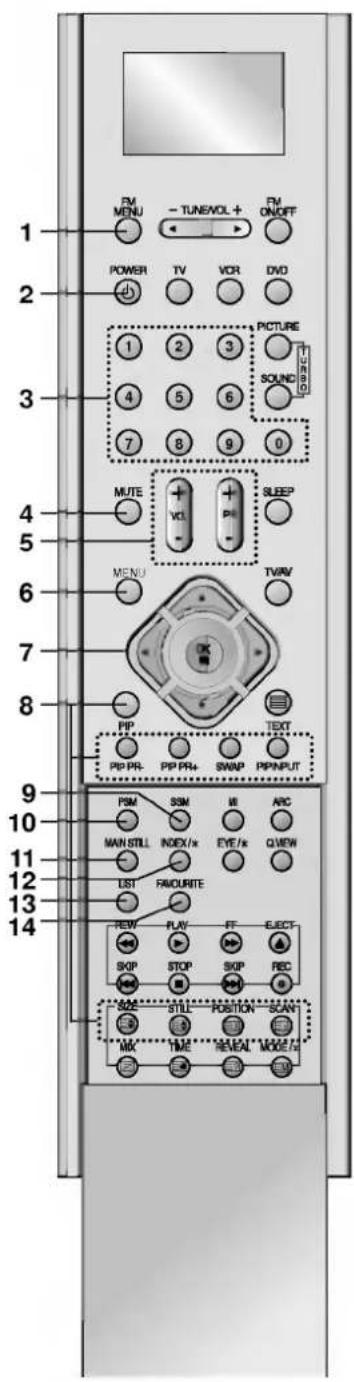
1 2 3 4 5 6 7 8 9 10 11 12 13 14 PV MENU -TUN/EVOL + PV ON/OFF POWER TV VOR DVD 1 2 3 picture 1 2 3 SOUND 4 5 6 7 8 9 0 MUTE + VCL + PIR SLEEP - MENU TV/AV - OK PIP TEXT PIP PR+ PIP PR+ SWAP PP/NPUT 9 PSM SSM W ARC MAIN STILL INDEX/x EYE/x QVIEW LIST FAVOURITE REW PLAY FF ELECT SKIP STOP SKIP REC 5 SM STILL POSITION SCAN 3 MX TIME REVEAL MODE/sAll the functions can be controlled with the remote control handset. Some functions can also be adjusted with the buttons on the front panel of the set.
Remote control handset
Before you use it, please select TV, VCR or DVD function by pressing the TV, VCR or DVD buttons.
- FM MENU selects a CH, TUNE, P.SET or VOL on FM mode.
- POWER switches the set on from standby or off to standby.
- NUMBER BUTTONS switch the set on from standby or directly select a number.
- MUTE switches the sound on or off.
- VOL +/- (Volume Up/Down) Increases/decreases sound level. PR +/- (Programme Up/Down) selects a programme.
- MENU selects a menu.
- OK accepts your selection or displays the current mode. ▲ / ▼ or ◀ / ▶ Adjusts menu settings. Selects menu item.
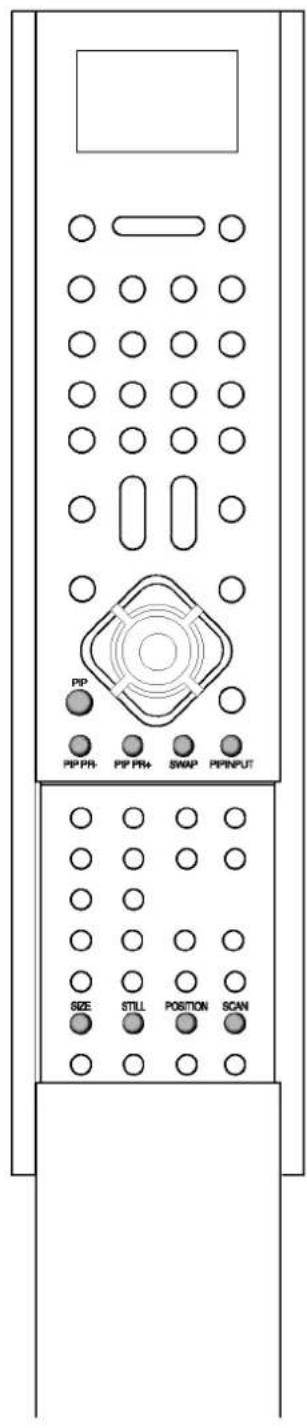
- PIP BUTTONS (option)
PIP
switches the sub picture on or off.
PIP PR +/-
selects a programme for the sub picture.
SWAP
alternates between main and sub picture.
PIP INPUT (option)
selects the input mode for the sub picture.
SIZE
adjusts the sub picture size.
STILL freezes motion of the sub picture. POSITION
relocates the sub picture in clockwise direction. SCAN switches on or off the programme scan mode through 12 sub pictures. - SSM (Sound Status Memory) recalls your preferred sound setting.
- PSM (Picture Status Memory) recalls your preferred picture setting.
- MAIN STILL freezes motion of the picture.
- INDEX (option) switches LED DISPLAY on or off.
- LIST displays the programme table.
- FAVOURITE selects a favourite programme.
Location and function of controls
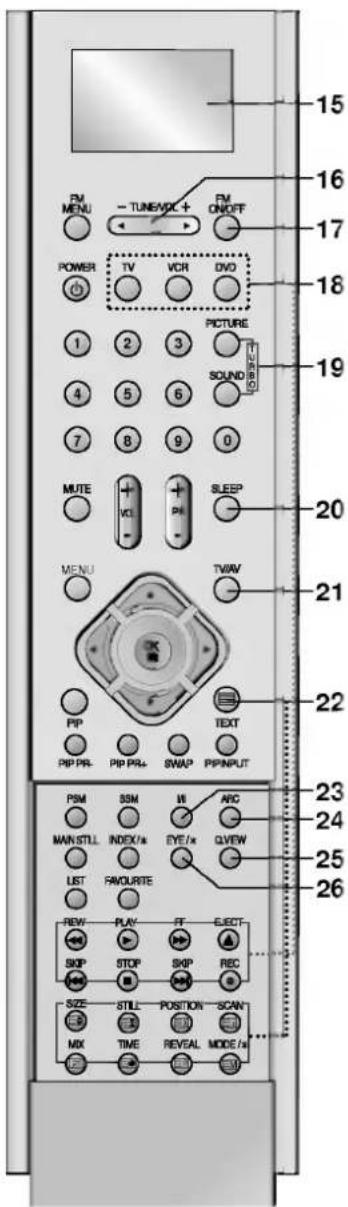
- LCD (Liquid Crystal Diode) DISPLAY
- TUNE/VOL
adjusts FM radio menu item. adjusts FM radio volume.
- FM ON/OFF
switches the FM radio on or off.
selects Turbo picture. TURBO SOUND BUTTON selects Turbo sound.
- SLEEP
sets the sleep timer.
- TV/AV
selects TV or AV mode. switches the set on from standby.
- TELETEXT BUTTONS (option)
These buttons are used for teletext. For further details, see the 'Teletext' section.
- I/II
selects the language during dual language broadcast. selects the sound output (option).
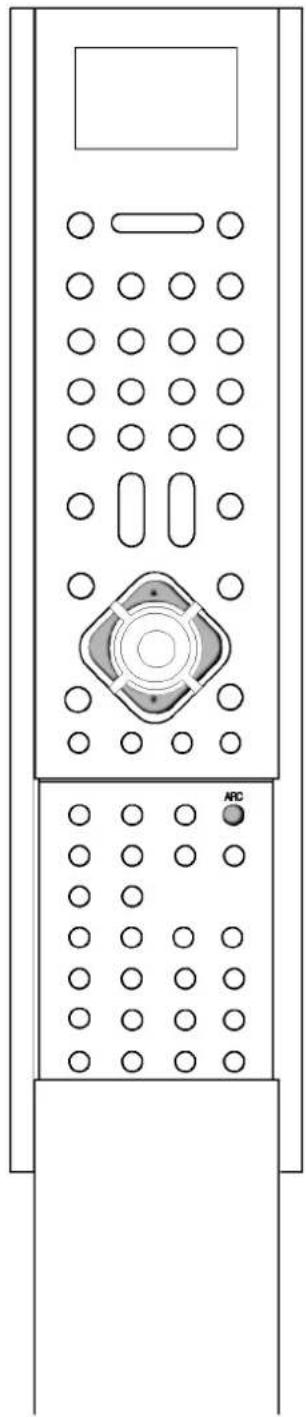
- ARC (Aspect Ratio Control)
changes the picture format.
- Q.VIEW
returns to the previously viewed programme.
- EYE/* (option)
switches the eye function on or off.
- EARPHONE SOCKET / EARPHONE
connects the earphone (supplied) to this socket to listen the FM sound. If you connect the headphone to it, the FM sound may be unstable.
Note : In teletext mode, the PIP PR +/-, SWAP and PIP INPUT buttons are used for teletext function.
Battery installation
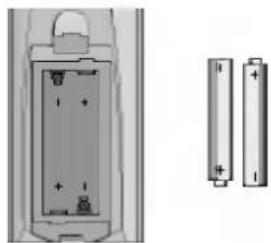
The remote control handset is powered by two AA/Alkaline type batteries. To load the batteries, turn the remote control handset over and open the battery compartment. Install two batteries as indicated by the polarity symbols (⊕ and ⊖) marked inside the compartment.
natural_image
Diagram of a battery pack and two cylindrical batteries (no text or symbols)Note : To avoid damage from possible battery leakage, remove the batteries if you do not plan to use the remote control handset for an extended period of time.
text_image
15 16 17 18 19 20 21 22 23 24 25 26 PM MENU -TUNE/VDK + PM ON/OFF POWER TV VCR DVD PICTURE SOUND 1 2 3 4 5 6 7 8 9 0 MUTE + - VCI + - Pb SLEEP MENU OK TV/W PIP TEXT PIP PR- PIP PR+ SWAP PIP INPUT PSM SSM WI ARC MAIN STILL INDEX/s EYE/s QLVIEW LIST FAVOURTE REW PLAY FT ELECT SKIP STOP SKIP REC SIZE STILL POSITION SCAN/ MX TIME REVSAL MODE/s
natural_image
Medical illustration of a medical device with a coiled cable and labeled part (27), no text or symbols present.Location and function of controls
Front panel
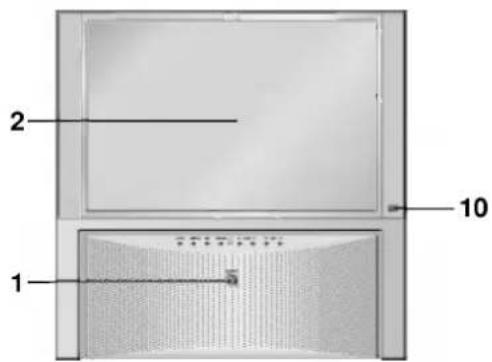
• RT-44NB11 series
text_image
1 2 10 1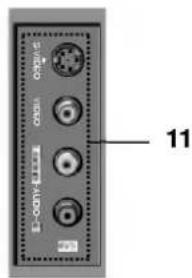
text_image
11(Side panel)

text_image
TV/AV MENU OK MUTE VOL PR 3 4 5 6 7 8 9- MAIN POWER
switches the set on or off.
-
REMOTE CONTROL SENSOR
-
TV/AV (option)
selects TV or AV mode. switches the set on from standby.
- MENU
selects a menu.
- OK
accepts your selection or displays the current mode.
- MUTE
switches the sound on or off.
- POWER/STANDBY INDICATOR
illuminates brightly when the set is in standby mode. dims when the set is switched on.
- ◀ / ▶ (Volume Up/Down)
adjusts the volume. adjusts menu settings.
- ▲ / ▼ (Programme Up/Down)
selects a programme or a menu item. switches the set on from standby.
- EYE (option)
adjusts picture according to the surrounding conditions.
- AUDIO/VIDEO IN SOCKETS (AV3)
Connect the audio/video out sockets of external equipment to these sockets.
S-VIDEO/AUDIO IN SOCKETS (S-AV)
Connect the video out socket of an S-VIDEO VCR to the S-VIDEO socket.
Connect the audio out sockets of the S-VIDEO VCR to the audio sockets as in AV3.
* CASTERS (on the bottom) (option)
turn and move the set easily.
Basic operation
On and off
- Press the main power button to switch the set on.
- If the set is in standby mode, press the POWER, PR +/-, TV/AV, or NUMBER buttons on the remote control handset to switch it on fully.
- Press the POWER button on the remote control handset. The set reverts to standby mode.
- Press the main power button again to switch the set off.
Note : If, while the set is switched on, the mains plug is disconnected the set will switch to standby or power on when the mains plug is replaced in the mains power socket.
Programme selection
You can select a programme number with the PR +/- or NUMBER buttons.
Volume adjustment
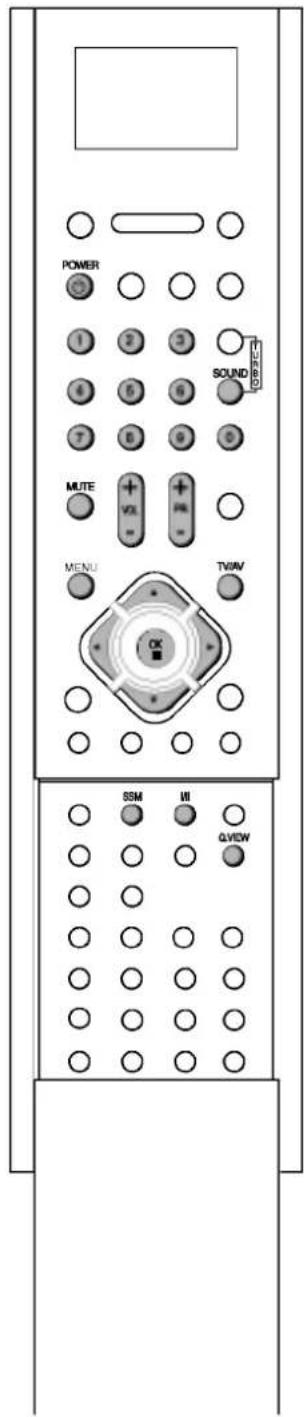
Press the VOL +/- button to adjust the volume.
Note : When the TV (speaker) is On, it's available.
Quick view
Press the Q.VIEW button to view the previous programme you were watching.
Mute function
Press the MUTE button. The sound is switched off and the display appears. You can cancel it by pressing the MUTE, VOL +/-, SSM, I/II, TURBO SOUND button.
Auto Demonstration
To review all the menus programmed in the set, press the OK button of the front panel control for about 10 seconds. To stop auto demonstration, press any button of the front panel control or POWER button of the remote control.
On screen language selection (option)
The menu can be displayed on the screen in your desired language. First select your language.
- Press the MENU button and then ▲ / ▼ button to select the Special menu.
- Press the ▶ button and then ▲ / ▼ button to select Language.
- Press the ▶ button and then ▲ / ▼ button to select your desired language. All the on screen displays will appear in the selected language. Press the OK or ◀ button to select the Special menu.
- Repeatedly press the MENU button to return to normal TV viewing.
text_image
POWER 1 2 3 4 5 6 7 8 9 0 MUTE + + VOL - MENU TVWV OK SSM WI QLVIEWOn screen menus
The dialogue between you and your set takes place on screen with an operator menu. The buttons required for the operating steps are also displayed.
Menu selection
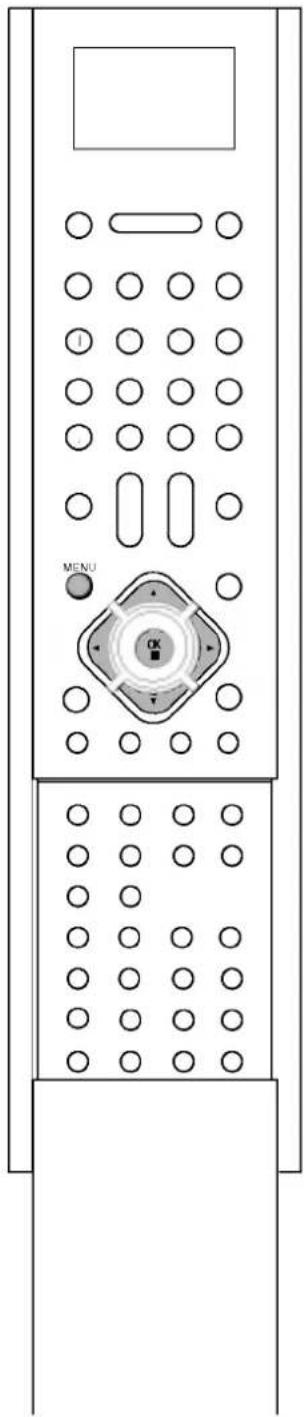
- Press the MENU button and then ▲ / ▼ button to display each menu.
- Press the ▶ button and then ▲ / ▼ button to select a menu item.
- Press the ▶ button to display the sub menu or the pull-down menu.
- Change the setting of an item in the sub or pull-down menu with
You can move to the higher level menu by pressing the ◀ button and to move to the lower level menu by pressing the ▶ button.

Note :
a. In the teletext mode, menus are not displayed.
b. In some models, the Normal/Turbo search will not display, only the Start will display in the Auto programme menu.
c. In some models, the Language will not display.
d. In some models, the Auto convergence will not display, only the Convergence will display in the Picture menu.
natural_image
Front view of a remote control panel with circular buttons and a central rotary knob (no text or symbols)
flowchart
graph TD
    A["Station"] --> B["Auto programme"]
    A --> C["Picture"]
    A --> D["Sound"]
    A --> E["Time"]
    A --> F["Special"]
    B --> G["Auto programme"]
    C --> H["Manual programme"]
    D --> I["Programme edit"]
    E --> J["Special menu"]
    F --> K["TV programme"]
    style A fill:#f9f,stroke:#333
    style B fill:#ccf,stroke:#333
    style C fill:#cfc,stroke:#333
    style D fill:#fcc,stroke:#333
    style E fill:#cff,stroke:#333
    style F fill:#ffc,stroke:#333
Setting up TV stations
Up to 100 TV stations can be stored by programme numbers (0 to 99). Once you have preset the stations, you will be able to use the ▲ / ▼ or NUMBER buttons to scan the stations you have programmed. Stations can be tuned using automatic or manual modes.
Note : In some models up to 200 TV stations can be stored.
Auto programme tuning
All stations that can be received are stored by this method. It is recommended that you use auto programme during installation of this set.
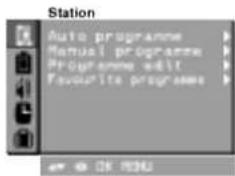
- Press the MENU button and then ▲ / ▼ button to select the Station menu.
- Press the ▶ button and then ▲ / ▼ button to select Auto programme.
- Press the ▶ button to display the Auto programme menu.

text_image
Auto programme System Storage from Normal search Turbo search ✓/82 1 OK OK OK- Press the ▶ button. Select a TV system with the ▲ / ▼ button on the System pull-down menu;
BG : (Asia/New Zealand/M.East/Africa/Australia)
I : (Hong Kong/South Africa)
DK : (East Europe/China/Africa/CIS)
M : (USA/Korea/Philippines) (option)
- Press the OK or ◀ button.
- Press the ▲ / ▼ button to select Storage from.
- Press the ▶ button. Select the beginning programme number with the ◀ / ▶ button or NUMBER buttons on the Storage from pull-down menu. Any number under 10 is entered with a numeric '0' (or '00') in front of it, i.e. '05' (or '005') for 5.
- Press the OK button.
- Press the ▲ / ▼ button to select Normal or Turbo search. Option: In some models, you can only select Start.
Note :
a. Turbo search is further faster than Normal search and in some models, these searches will automatically store all receivable stations.
b. If the programmed station has poor quality sound, select the system again in the Manual programme menu.
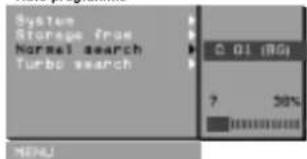
10. Press the ▶ button to begin auto programming. All receivable stations are stored.
Auto programme
text_image
System Storage from Normal search Turbo search C 01 (BG) 7 50% MENU(Normal search)
Auto programme

text_image
System Storage from Nurreal search Turbo search C 01 (50) 7 30% MENU(Turbo search)
To stop auto programming, press the MENU button. When auto programming is completed, the Programme edit menu appears on the screen. See the 'Programme edit' section to edit the stored programme.
- Repeatedly press the MENU button to return to normal TV viewing.
text_image
Station Auto programme Manual programme Programme edit Favorite programme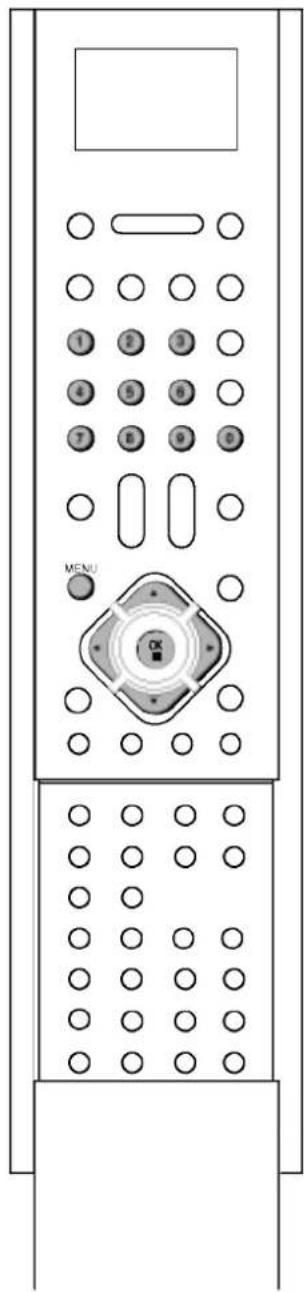
text_image
1 2 3 4 5 6 7 8 9 MENU OKSetting up TV stations
text_image
Station Auto programme Manual programme Programme edit Favourite programme
text_image
1 2 3 4 5 6 7 8 9 0 MENU OKManual programme tuning
Manual programme lets you manually tune and arrange the stations in whatever order you desire. Also you can assign a station name with five characters to each programme number.
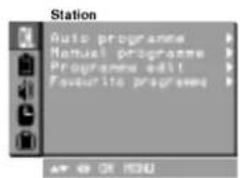
- Press the MENU button and then ▲ / ▼ button to select the Station menu.
- Press the ▶ button and then ▲ / ▼ button to select Manual programme.
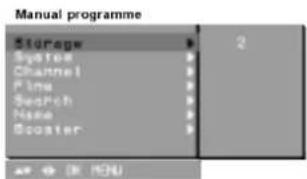
- Press the ▶ button to display the Manual programme menu.
text_image
Manual programme Storage System Channel Flow Search Name Booster 2- Press the ▲ / ▼ button to select Storage.
- Press the ▶ button to select the programme number. Select the desired programme number with the ◀ / ▶ button or NUMBER buttons on the Storage pull-down menu. Any number under 10 is entered with a numeric '0' (or '00') in front of it, i.e. '05' (or '005') for 5.
- Press the OK button.
- Press the ▲ / ▼ button to select System.
- Press the ▶ button. Select a TV system with the ▲ / ▼ button on the System pull-down menu;
BG : (Asia/New Zealand/M.East/Africa/Australia)
I : (Hong Kong/South Africa)
DK : (East Europe/China/Africa/CIS)
M : (USA/Korea/Philippines) (option)
- Press the OK or ◀ button.
- Press the ▲ / ▼ button to select Channel.
- Press the ▶ button. Press the ▲ / ▼ button to select V/UHF or Cable on the Channel pull-down menu. If possible, select the channel number directly with the number buttons. Any number under 10 is entered with a numeric '0' (or '00') in front of it, i.e. '05' (or '005') for 5.
- Press the OK or ◀ button.
- Press the ▲ / ▼ button to select Search.
- Press the ▶ button. Press the ◀ / ▶ button to commence searching on the Search pull-down menu. If a station is found the search will stop.
- Press the OK button to store it. The display Stored will appear.
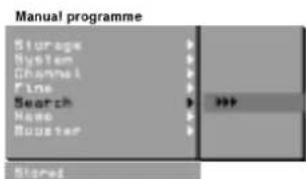
text_image
Manual programme Storage System Channel Line Search Name Cluster Store- To store another station, repeat steps 4 to 15.
- Repeatedly press the MENU button to return to normal TV viewing.
Setting up TV stations
Assigning a station name
- Repeat the 'Manual programme tuning' steps 1 to 3.
- Press the ▲ / ▼ button to select Name.
- Press the ▶ button on the Name pull-down menu.
- Press the ▲ button. You can use a blank, +, -, the numeric 0 to 9 and the alphabet A to Z.
With the ▼ button you can select in the opposite direction. - Select the position by pressing the ◀ / ▶ button and then make your choice of the second character, and so on.
- Press the OK button.
- Repeatedly press the MENU button to return to normal TV viewing.
Booster (option)
In some models, Booster is an optional function. Only a set with Booster can perform this function.
If the reception is poor at the fringe area of TV signal, select Booster to On. When the picture condition is good, do not select Booster to On.
- Repeat the 'Manual programme tuning' steps 1 to 3.
- Press the ▲ / ▼ button to select Booster.
- Press the ▶ button.
- Press the ▲ / ▼ button to select On or Off on the Booster pull-down menu.
- Press the OK button.
- Repeatedly press the MENU button to return to normal TV viewing.
Fine tuning
Normally fine tuning is only necessary if reception is poor.
- Repeat the 'Manual programme tuning' steps 1 to 3.
- Press the ▲ / ▼ button to select Fine.
- Press the ▶ button.
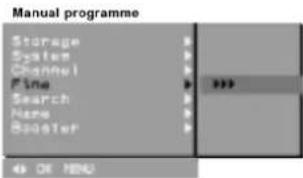
text_image
Manual programme Storage System Channel Fine Search Name Booster 48 OK NONE- Press the ◀ / ▶ button to fine tune for the best picture and sound on the Fine pull-down menu.
- Press the OK button.
- Repeatedly press the MENU button to return to normal TV viewing.
The finely tuned programme will be indicated by a yellow number during programme selection.
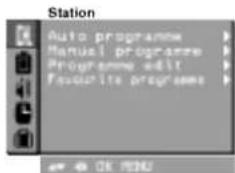
text_image
Station Auto programme Manual programme Programme edit Favorite programme
natural_image
Front view of a remote control panel with circular buttons and a central rotary knob (no text or symbols)Setting up TV stations

text_image
Station Auto programme Manual programme Programme edit Favorites programmes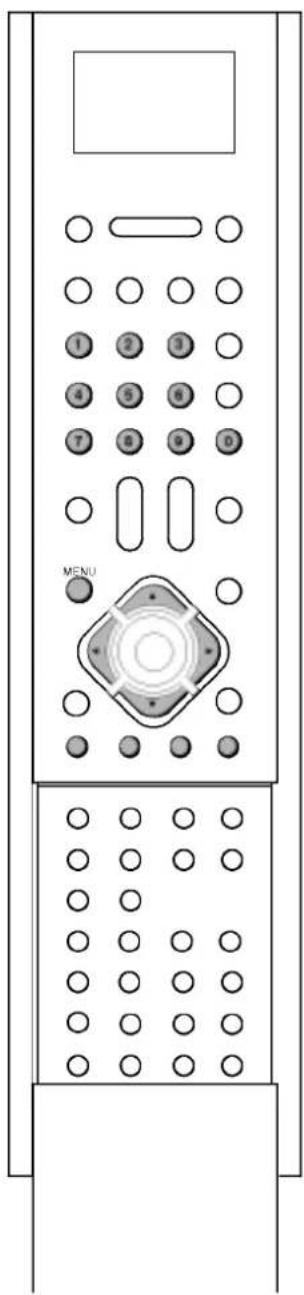
natural_image
Front view of a remote control panel with keypad and buttons (no text or symbols)Programme edit
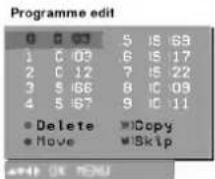
This function enables you to delete or skip the stored programmes. Also you can move some stations to other programme numbers or insert a blank station data into the selected programme number.
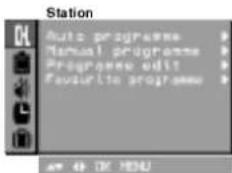
- Press the MENU button and then ▲ / ▼ button to select the Station menu.
- Press the ▶ button and then ▲ / ▼ button to select Programme edit.
- Press the ▶ button to display the Programme edit menu.
text_image
Programme edit 0 0 03 5 IS 69 1 C 03 6 IS 17 2 C 12 7 IS 22 3 S 66 8 IC 09 4 S 67 9 IC 11 Delete Copy Move Skip +4 OK MENUDeleting a programme
- Select a programme to be deleted with the ▲ / ▼ or ◀ / ▶ button.
- Press the RED button twice.
The selected programme is deleted, all the following programmes are shifted up one position.
Copying a programme
- Select a programme to be copied with the ▲ / ▼ or ◀ / ▶ button.
- Press the GREEN button.
All the following programmes are shifted down one position.
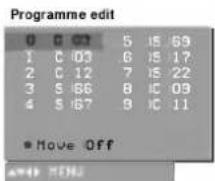
Moving a programme
- Select a programme to be moved with the ▲ / ▼ or ◀ / ▶ button.
- Press the YELLOW button.
- Move the programme to the desired programme number with the ▲ / ▼ or ◀ / ▶ button.
- Press the YELLOW button again to release this function.
text_image
Programme edit 0 0 03 5 IS 69 1 C 03 6 IS 17 2 C 12 7 IS 22 3 S 66 8 IC 09 4 S 67 9 IC 11 ■ Move OffSkipping a programme number
- Select a programme number to be skipped with the ▲ / ▼ or ◀ / ▶ button.
- Press the BLUE button. The skipped programme turns to blue.
- Press the BLUE button again to release the skipped programme. When a programme number is skipped it means that you will be unable to select it using the ▲ / ▼ button during normal TV viewing. If you want to select the skipped programme, directly enter the programme number with the NUMBER buttons or select it in the programme edit or table menu.
Repeatedly press the MENU button to return to normal TV viewing.
Setting up TV stations
Favourite programme
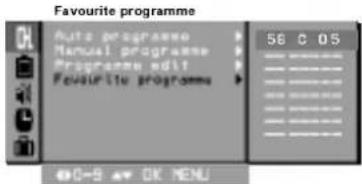
This function lets you select your favourite programmes directly.
- Press the MENU button and then ▲ / ▼ button to select the Station menu.
- Press the ▶ button and then ▲ / ▼ button to select Favourite programme.
- Press the ▶ button.
text_image
Favourite programme Auto programme Manual programme Programme edit Favourite programme 56 C 05 0-8 OK MENU- Press the ▲ / ▼ button to select -- ----.
- Select a desired programme with the ◀ / ▶ button or NUMBER buttons. Any number under 10 is entered with a numeric '0' (or '00') in front of it, i.e. '05' (or '005') for 5.
- To store another programme, repeat steps 4 to 5. You can store up to 8 programmes.
- Press the OK button.
- Repeatedly press the MENU button to return to normal TV viewing.
Repeatedly press the FAVOURITE button to select stored favourite programmes.
Calling the programme table
You can check the programmes stored in the memory by displaying the programme table.
Displaying programme table
Press the LIST button to display the Programme table menu.
The programme table appears on the screen. One programme table contains ten programmes as below.

text_image
Station 0 0 03 5 S 69 1 C 03 6 S 17 2 C 12 7 S 22 3 S 68 8 C 09 4 S 67 9 C 11Note :
a. You may find some blue programmes. They have been set up to be skipped by auto programming or in the programme edit mode.
b. Some programmes with the channel number shown in the programme table indicate there is no station name assigned.
Selecting a programme in the programme table
Select a programme with the ▲ / ▼ or ◀ / ▶ button.
Then press the OK button.
The set switches to the chosen programme number.
Paging through a programme table
There are 10 (or 20) programme table pages which contain 100 (or 200) programmes.
Pressing the ▲ / ▼ or ◀ / ▶ button repeatedly turns the pages.
Repeatedly press the MENU button to return to normal TV viewing.
text_image
Station Auto programme > Manual programme > Programme edit > Favorite programme >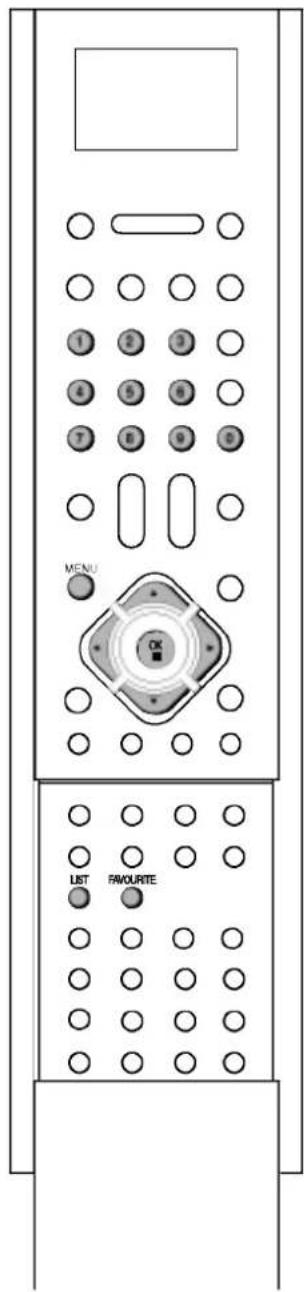
text_image
MENU OK LIST FAMOURTEPicture adjustment
text_image
Picture PDM KD UN Contrast Brightness Colour Sharpness Currivergence OK MENU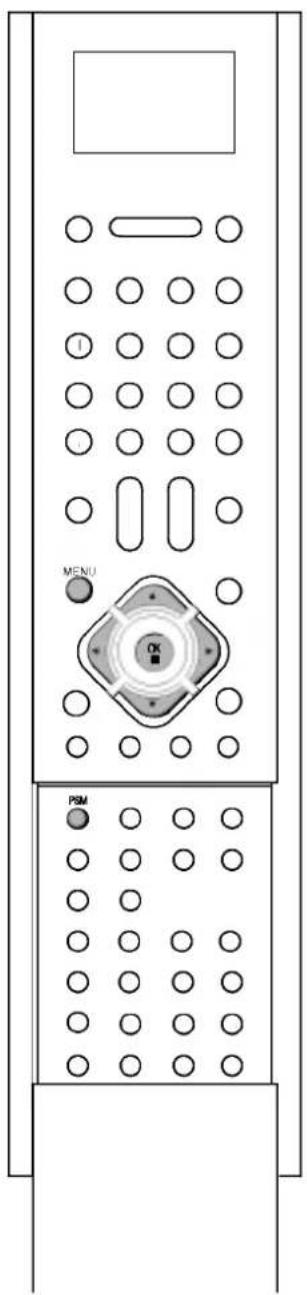
natural_image
Front view of a remote control panel with labeled buttons (MENU, PSM) and circular indicators (no text or symbols beyond labels)PSM (Picture Status Memory)
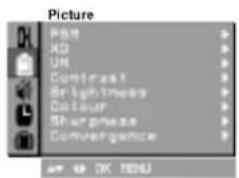
- Press the MENU button and then ▲ / ▼ button to select the Picture menu.
- Press the ▶ button and then ▲ / ▼ button to select PSM.
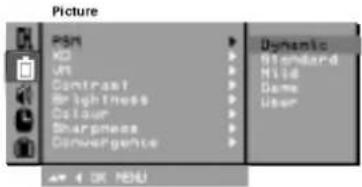
- Press the ▶ button and then ▲ / ▼ button to select a picture setting on the PSM pull-down menu.
text_image
Picture PSM KO UF Contrast Brightness Colour Sharpness Convergents Dynamic Standard Hild Dama User OK MENU- Press the OK or ◀ button.
- Repeatedly press the MENU button to return to normal TV viewing.
You can also recall a desired picture (Dynamic, Standard, Mild, Game or User) with PSM button on the remote control. The picture Dynamic, Standard, Mild and Game are programmed for optimum picture reproduction at the factory and cannot be changed.
XD
You can enjoy the vivid and hi-definition picture with LG's excellent Digital Reality processor technology.
- Press the MENU button and then ▲ / ▼ button to select the Picture menu.
- Press the ▶ button and then ▲ / ▼ button to select XD.
- Press the ▶ button and then ▲ / ▼ button to select On or Off on the XD pull-down menu.
- Press the OK or ◀ button.
- Repeatedly press the MENU button to return to normal TV viewing.
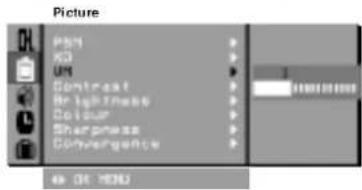
VM (Velocity Modulation)
This is the function to enhance the sharpness of image edge.
- Press the MENU button and then ▲ / ▼ button to select the Picture menu.
- Press the ▶ button and then ▲ / ▼ button to select VM.
- Press the ▶ button and then ◀ / ▶ button to adjust the vm.
text_image
Picture Pan WD UN Contrast Brightness Colour Sharpness Convergence 45 OK HOU- Press the OK button.
- Repeatedly press the MENU button to return to normal TV viewing.
Picture adjustment
Picture adjustment
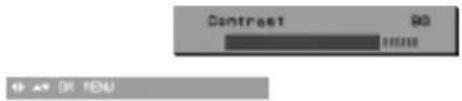
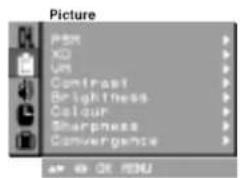
You can adjust picture contrast, brightness, colour intensity, sharpness and tint (NTSC AV only) to the levels you prefer.
- Press the MENU button and then ▲ / ▼ button to select the Picture menu.
- Press the ▶ button and then ▲ / ▼ button to select Contrast, Brightness, Colour or Sharpness.

text_image
Picture PSM XO Dim Contrast 50 Brightness Colour Sharpness Convergence OK (OK)- Press the ▶ button and then ◀ / ▶ button to make appropriate adjustments on the each sub menu.
text_image
Contrast 90 OK OK MENU-
Press the OK button to store it for the picture user.
-
Repeatedly press the MENU button to return to normal TV viewing.
Auto convergence (option)
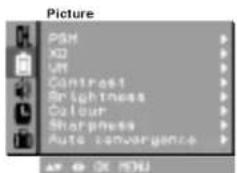
This function enables you to adjust the colour convergence of screen automatically during receiving the signals. When the set is first installed or it is relocated, the picture may be unstable with three colour ghosts (red, green, blue). This problem can be solved by adjusting the colour convergence.
- Press the MENU button and then ▲ / ▼ button to select the Picture menu.
text_image
Picture PGM XD UV Contrast Brightness Colour Sharpness Auto convergence AV OR OK MENU-
Press the ▶ button and then ▲ / ▼ button to select Auto convergence.
-
Press the ▶ button to adjust the colour convergence automatically.
Note :
a. The operating point colour will change in the order of 'blue-green-red'.
b. Please make sure the surrounding illumination where the TV is situated remains dark otherwise the screen will become unstable or the message "Ensure lights are dimmed sufficiently" will be displayed on screen after Auto convergence is completed. Auto convergence will then have to be operated again.

text_image
Picture OK PSN KO UT Contrast Brightness Colour Sharpness Convergence OK OK MENU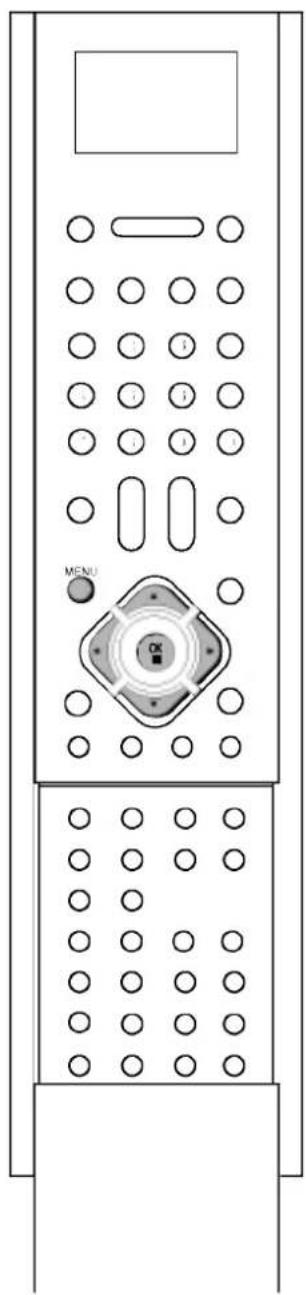
natural_image
Front view of a remote control panel with circular buttons and a central rotary knob (no text or symbols)Picture adjustment
text_image
Picture PSK KO US Contrast Brightness Colour Sharpness Convergence OK MENU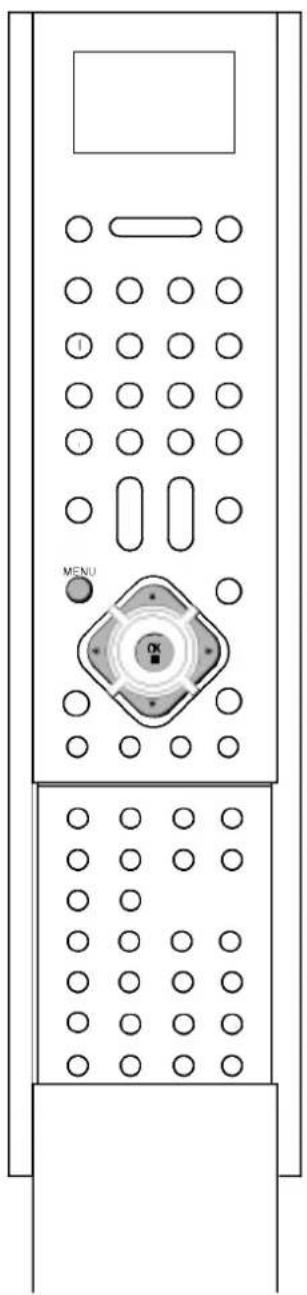
natural_image
Front view of a remote control panel with circular buttons and a central rotary knob (no text or symbols)Convergence (option)
This function enables you to adjust the colour convergence of screen all area or 9 points during receiving the signals. When the set is first installed or it is relocated, the picture may be unstable with three colour ghosts (red, green, blue). This problem can be solved by adjusting the colour convergence.
- Press the MENU button and then ▲ / ▼ button to select the Picture menu.
- Press the ▶ button and then ▲ / ▼ button to select Convergence.
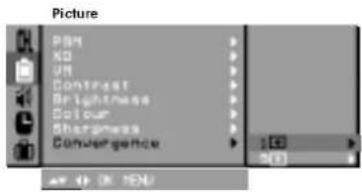
- Press the ▶ button and then ▲ / ▼ button to select 1 (+) (All point convergence) or 9 (+) (9 point convergence).
text_image
Picture PDM KO UH Contrast Brightness Colour Sharpness Convergence 1:03 2:03- Press the ▶ button. The display ▲▼ ◀ ▶ is selected in red.
If the display + are unstable with three colour ghosts, the colour convergence needs to be adjusted.

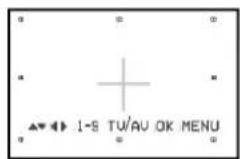
If the display + is white, colour convergence adjustment is not necessary.
- Press the TV/AV button to select the display ▲▼ ◀▶ in blue.
- Only selection 9: Press the number (1 to 9) button to select the position you want to adjust the convergence.
- Press the ▲ / ▼ / ◀ / ▶ button to superimpose the display + (red or blue) with the green one. The display + is moved to the left, right, up or down by pressing the ▲ / ▼ / ◀ / ▶ button.
- If the red and blue display + are superimposed with the green one, the display + will be changed to yellow or cyan.
- Press the OK button to store it for the convergence.
- Repeatedly press the MENU button to return to normal TV viewing.
Note :
a. Press the MENU button to cancel the adjustment before saving.
b. If the picture needs to be adjusted more after 1+ (All point convergence) adjustment, you can adjust the 9+ (9 point convergence) for the position you want to adjust.
c. Adjust the convergence according to a broadcasting system (50Hz or 60Hz) each.
Picture adjustment
Picture format
You can watch TV in various picture formats; 16:9, 14:9, Zoom, Auto and 4:3.
In some models, you can watch TV in various picture formats; 4:3 and 16:9.
Repeatedly press the ARC button to select your desired picture format.
4:3
This picture format is 4 to 3 of general TV.
16:9
You can enjoy the cinema (the picture format of 16:9) or general TV programme through the 16:9 mode.
14:9 (option)
The screen 14:9 is viewed just like that but the screen 4:3 is magnified to the upper / lower and left / right so that the screen 14:9 is full.
You can move the screen up or down with ▲ / ▼ button.
Zoom (option)
You can enjoy the cinema in a vast screen through the Zoom mode. The screen 4:3 is magnified to the upper/lower and left/right sides so that the screen 16:9 is full. The bottom and top of the picture may be lost.
You can move the screen up or down with ▲ / ▼ button.
Auto (option)
When your TV receives the wide screen signal, it will be automatically changed to the picture format to be sent.
Note : In the double window, scan mode and Component 1080i, ARC function isn't available.
natural_image
Front view of a dual-panel remote control panel with circular buttons and a central rotary knob (no text or symbols)Picture adjustment
Turbo picture selection (option)
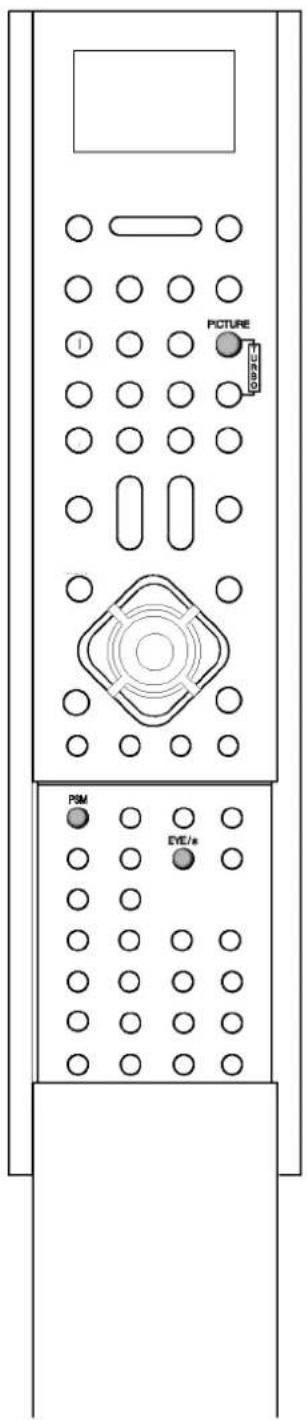
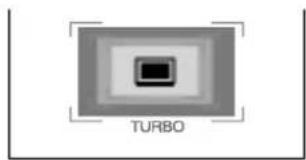
When this function is on, the picture will be more brilliant and distinct than normal. Repeatedly press the TURBO PICTURE button to switch on or off.
text_image
PICTURE PSM EYE/s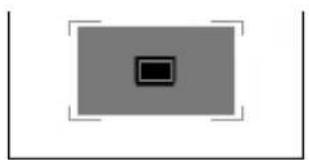
natural_image
Simple geometric diagram with a central square and surrounding rectangles (no text or symbols)(Turbo Picture off)
natural_image
Diagram of a Turbo component with a central square and surrounding concentric rings (no text or symbols)(Turbo Picture on)
Note : If you press the PSM button with the Turbo picture function, the Turbo picture function is automatically switched off.
Eye (option)
Eye is an optional function. Only a set with eye option can perform this function.
In some models, the set will automatically adjust the picture according to the surrounding conditions. This will enable you to enjoy the most suitable picture according to the surroundings.
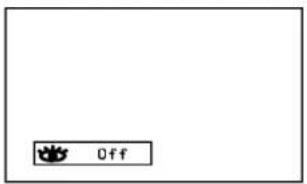
Press the EYE/* button to switch the eye function on or off.
text_image
Off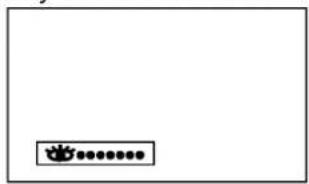
natural_image
Blank white image with a small decorative icon in the bottom-right corner (no text or symbols)When the eye function is on, the most suitable picture is automatically adjusted according to the surrounding conditions.
At this time the display ⋯⋯⋯ in green does not appear continuously but the display ⋯⋯⋯ in yellow appears each time the picture condition changes.
Note : If you press the PSM or TURBO PICTURE button with the eye function, the eye function is automatically switched off.
Sound adjustment
SSM (Sound Status Memory)
You can select your preferred sound setting; Dolby Virtual (option), Flat, Music, Movie or Speech and you can also adjust the sound frequency of the equalizer.
- Press the MENU button and then ▲ / ▼ button to select the Sound menu.
- Press the ▶ button and then ▲ / ▼ button to select SSM.
- Press the ▶ button and then ▲ / ▼ button to select a sound setting on the SSM pull-down menu.

text_image
Sound SSM Alt DBS TUR Balance K-SAVE Galloy Virtual Flat Music Route Speech User OK MENUDolby Virtual (option)
Dolby Virtual lets you experience panoramic effects of sound.
Sound Frequency Adjustment
a. Press the ▶ button in User to display the User sub menu.

text_image
Scanned interface screenshot showing a control panel with sliders and data visualizations, plus a 'OK' button labeled 'OK HIND'b. Select a sound band by pressing the ◀ / ▶ button.
c. Select appropriate sound level with the ▲ / ▼ button.
d. Press the OK button to store it for the sound User.
Repeatedly press the MENU button to return to normal TV viewing.
You can also recall a desired sound (Dolby Virtual (option), Flat, Music, Movie, Speech or User) with SSM button on the remote control. The sound Dolby Virtual (option), Flat, Music, Movie and Speech are programmed for optimum sound reproduction at the factory and cannot be changed.
Note : If you press the SSM button after making appropriate adjustment on the User sub menu, the display User automatically appears even though you have already set a factory preset setting; Dolby Virtual (option), Flat, Music, Movie or Speech.
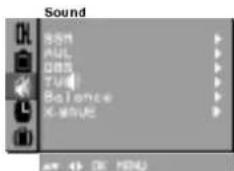
You can adjust AVL (Auto Volume Leveler), DBS, TV Speaker or balance. AVL automatically keeps on the equal volume level even if you change programmes. If you switch DBS to on, the set creates a dynamic bass sound. The Turbo sound creates an all around sound as in a concert hall.
- Repeatedly press the MENU button to select the Sound menu.
- Press the ▶ button and then ▲ / ▼ button to select the desired sound item ; AVL, DBS, TV (Speaker) or Balance.

In the AVL, DBS and TV (Speaker) on the Sound menu, press the ▲ / ▼ button to select On or Off.
In the Balance on the Sound menu, make desired adjustment with the ◀ / ▶ button on the Balance pull-down menu.
- Repeatedly press the MENU button to return to normal TV viewing.
X-WAVE
You can listen to the FM sound through the remote control handset with the earphone.
- Insert the earphone to the earphone socket of the remote control handset.
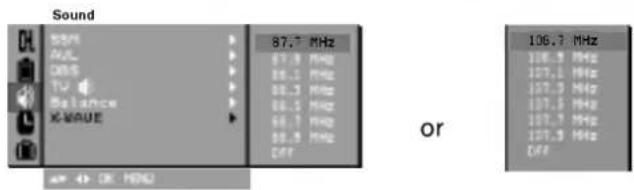
- To listen the FM sound from the earphone, tune in a frequency on the X-WAVE pull-down menu.
text_image
Sound 87.7 MHz AVL AVL DOS TV Balance X-MAUE or 106.7 MHz 106.3 MHz 107.1 MHz 107.5 MHz 107.3 MHz 107.3 MHz 107.3 MHz OFF- Press the FM ON/OFF button for a while.
- Repeatedly press the FM MENU button to select the TUNE menu of the remote control handset.

- Press the TUNE/VOL button to match the TV's frequency and the remote control handset's.
To adjust the earphone volume, press the TUNE/VOL button on the VOL menu of the remote control handset.
Sound adjustment
Turbo sound selection (option)
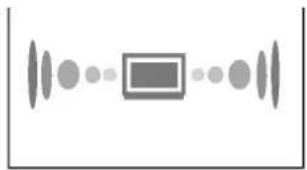
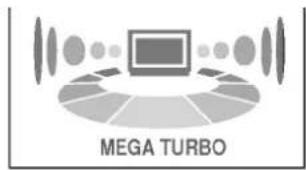
When this function is on, the sound will be more emphasized and amplified than normal.
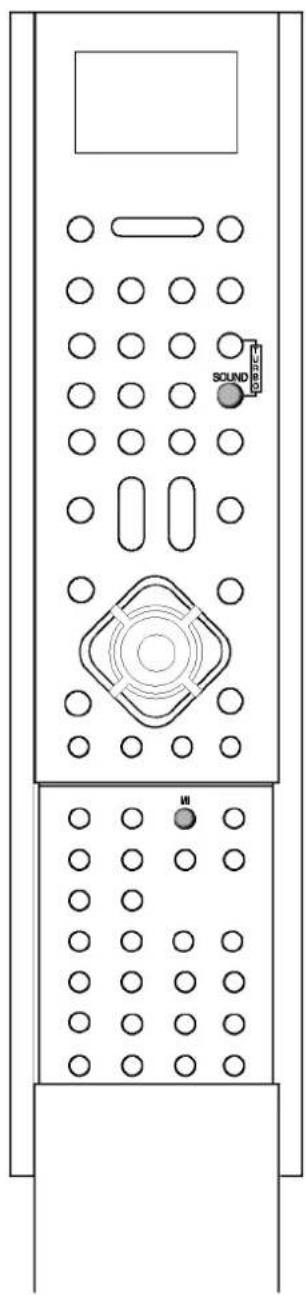
Repeatedly press the TURBO SOUND button to switch on or off.
natural_image
Simple diagram with a central rectangle and surrounding circular elements, no text or symbols present.(Turbo Sound off)
text_image
MEGA TURBO(Turbo Sound on)
Sound output selection
In AV mode, you can select output sound for the left and right loud-speakers.
Repeatedly press the I/II button to select the sound output.
L+R : Audio signal from audio L input is sent to left loud-speaker and audio signal from audio R input is sent to right loud-speaker.
L+L : Audio signal from audio L input is sent to left and right loud-speakers.
R+R : Audio signal from audio R input is sent to left and right loud-speakers.
natural_image
Front view of a double door with circular panel and indicator lights (no text or symbols)Sound adjustment
Stereo/Dual reception
When a programme is selected, the sound information for the station appears after the programme number and station name disappear.
| Broadcast | On Screen Display |
| Mono | MONO |
| Stereo | STEREO |
| Dual | DUAL I |

natural_image
Front view of a vertical-mounted remote control panel with circular buttons and a central rotary knob (no text or symbols)Mono sound selection
In stereo reception if the stereo signal is weak, you can switch to mono by pressing the I/II button twice. In mono reception the depth of sound is improved. To switch back to stereo, press the I/II button twice again.
Language selection for dual language broadcast
If a programme is received in two languages (dual language), you can switch to DUAL I, DUAL II or DUAL I+II by pressing the I/II button repeatedly.
DUAL I sends the primary broadcast language to the loudspeakers. DUAL II sends the secondary broadcast language to the loudspeakers.
DUAL I+II sends a separate language to each loudspeaker.
NICAM reception (option)
If your set is equipped with the receiver for NICAM reception, the high quality NICAM (Near Instantaneous Commanding Audio Multiplex) digital sound can be received.
Sound output can be selected according to the type of received broadcast as follows by pressing the I/II button repeatedly.
- When NICAM mono is received, you can select NICAM MONO or FM MONO.
- When NICAM stereo is received, you can select NICAM STEREO or FM MONO. If the stereo signal is weak, switch to FM mono.
- When NICAM dual is received, you can select NICAM DUAL I, NICAM DUAL II or NICAM DUAL I+II or MONO. When FM mono is selected the display MONO appears on the screen.
Time setting
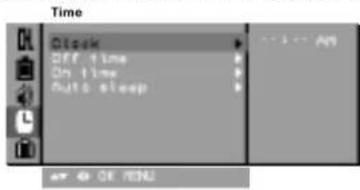
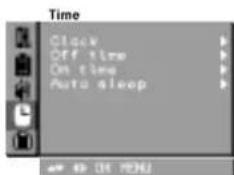
Clock
- Press the MENU button and then ▲ / ▼ button to select the Time menu.
- Press the ▶ button and then ▲ / ▼ button to select Clock.
- Press the ▶ button and then ▲ / ▼ button to adjust the hour.
text_image
Time Disk Off time On time Auto sleep - 3 - 4 Am OK OK MENU- Press the ▶ button and then ▲ / ▼ button to adjust the minute.
- Press the OK button.
- Repeatedly press the MENU button to return to normal TV viewing.
On/Off time
By using this function, the set automatically switches on or off at a preset time. You must set the time correctly before using on/off time function.
- Press the MENU button and then ▲ / ▼ button to select the Time menu.
- Press the ▶ button and then ▲ / ▼ button to select Off time/On time.
- Press the ▶ button and then ▲ / ▼ button to adjust the hour.

text_image
Time Clock Off time On Time Auto Sleep Am Pr WOL 3D Off- Press the ▶ button and then ▲ / ▼ button to adjust the minute.
- Only On time function; Press the ▶ button and then ▲ / ▼ button to adjust programme number and volume level.
- Press the OK button.
- Repeatedly press the MENU button to return to normal TV viewing.
Note :
a. On time function works only in standby mode.
b. To view the remaining on/off time, select the Time menu.
c. When you switch the main power off, the Clock is reset.
d. Two hours after the set is switched on by the on time function it will automatically switch back to standby mode unless a button has been pressed.
e. Once the on or off time is set, these functions operate daily at the preset time.
Auto sleep
If you select On on the Auto sleep pull-down menu, the set will automatically switch itself to standby mode approximately ten minutes after a TV station stops broadcasting.
- Press the MENU button and then ▲ / ▼ button to select the Time menu.
- Press the ▶ button and then ▲ / ▼ button to select Auto sleep.
- Press the ▶ button and then ▲ / ▼ button to select On or Off on the Auto sleep pull-down menu.
- Press the OK or ◀ button.
- Repeatedly press the MENU button to return to normal TV viewing.
text_image
Time Clock Off time On time Auto sleep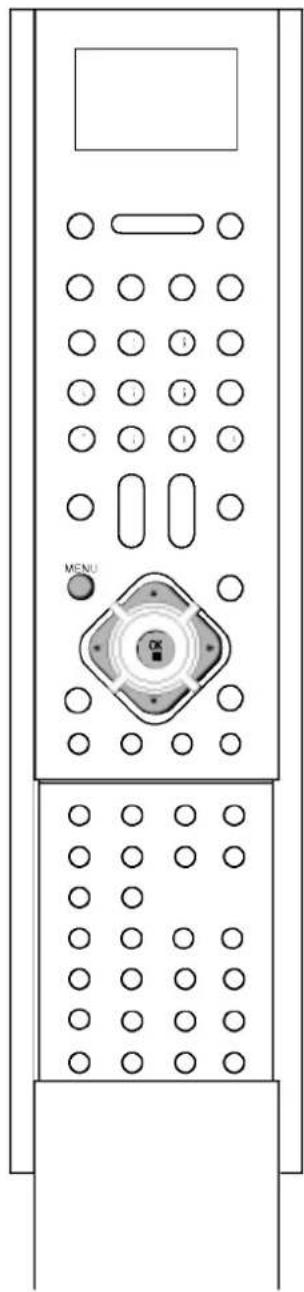
natural_image
Front view of a remote control panel with circular buttons and a central rotary knob (no text or symbols)Other functions

text_image
Special Language Input Input (L) Child lock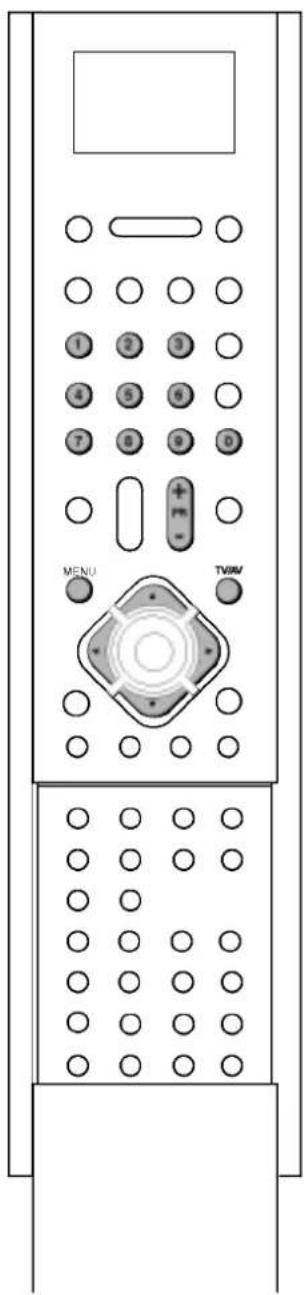
text_image
MENU TV/AMTV and AV modes
Inputs can be set for TV or AV mode. AV mode is used when a video cassette recorder (VCR), or other equipment is connected to the set.
Note : When a VCR is connected via the aerial socket the set is used in TV mode. See the 'Connection of external equipment' section.
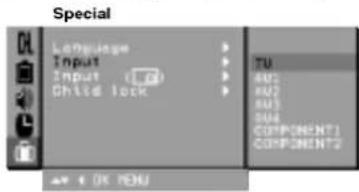
- Press the MENU button and then ▲ / ▼ button to select the Special menu.
- Press the ▶ button and then ▲ / ▼ button to select Input.
- Press the ▶ button and then ▲ / ▼ button to select TV, AV1, AV2, AV3, AV4 (option), S-VIDEO4 (option), COMPONENT 1, COMPONENT 2 or VGA (option) on the Input pull-down menu.
text_image
Special Language Input Input (0) Child lock TU MU MU2 MU3 SUA COMPONENT1 COMPONENT2 OK MENUAV1 : VCR connected to the AV1 sockets on the set
AV2 : VCR connected to the AV2 sockets on the set
AV3 : VCR connected to the AV3 sockets on the set
AV4 : VCR connected to the Euro scart socket on the set (option)
S-VIDÉO4 : S-VIDEO VCR connected to the Euro scart socket on the set (option)
COMPONENT1/2 : COMPONENT connected to the COMPONENT1/2 sockets on the set
VGA : PC connected to the PC (VGA) sockets on the set (option)
- Repeatedly press the MENU button to return to normal TV viewing.
Alternatively you can select the TV or AV mode by pressing the TV/AV button.
In AV mode, to return to TV mode, press the PR +/- or NUMBER buttons.
Note : Yon can select AV1, AV2, AV3, AV4 (option), S-VIDEO4 (option), COMPONENT 1, COMPONENT 2 or VGA (option) after connecting the external equipment.
VGA mode (option)
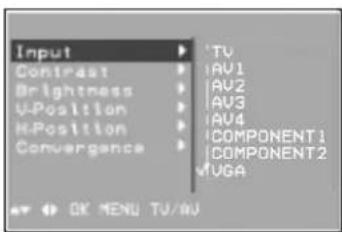
You can adjust picture contrast, brightness, convergence.
- Press the MENU button and then ▲ / ▼ button to select the Special menu.
- Press the ▶ button and then ▲ / ▼ button to select Input.
- Press the ▶ button and then ▲ / ▼ button to select VGA on the Input pull-down menu.
text_image
Input Contrast Brightness U-Position H-Position Convergence TV AV1 AV2 AV3 AV4 COMPONENT1 COMPONENT2 UGA OK MENU TV/AU- Press the MENU button.
- Press the ▲ / ▼ button to select Contrast, Brightness, V-Position, H-Position or Convergence on the VGA mode menu.
Other functions
Contrast
This function is to adjust the display to the contrast desired.
Brightness
This function is to adjust the display to the brightness desired.
Horizontal Position / Vertical Position
This function is to adjust picture to left/right and up/down as you prefer.
Convergence
This function enables you to adjust the colour convergence of screen during receiving the signals.
Note : The convergence isn't suitable to use in case of no PC cable signal.
Auto AV switching (option)
If your VCR outputs switching voltage when connected to the Euro scart socket, the set will switch to AV4 mode automatically. But if you want to keep on watching TV mode, press the PR +/- or NUM-BER buttons.
Press the TV/AV button to return to AV modes.
Child lock
The TV can be set so that the remote control handset is needed to control it. This feature can be used to prevent unauthorized viewing.
- Press the MENU button and then ▲ / ▼ button to select the Special menu.
- Press the ▶ button and then ▲ / ▼ button to select Child lock.
- Press the ▶ button and then ▲ / ▼ button to select On or Off on the Child lock pull-down menu.
- Press the OK or ◀ button.
- Repeatedly press the MENU button to return to normal TV viewing.
With the lock on, the display Child lock on appears on the screen if any button on the front panel is pressed while viewing the TV.
Note : The display Child lock on will not appear on the screen if any button on the front panel is pressed while displaying the menus.
Sleep timer
You don't have to remember to switch the set off before you go to bed. The sleep timer automatically switches the set to standby after the preset time elapses.
Press the SLEEP button to select the number of minutes. The display ⏻ --- will appear on the screen, followed by 10, 20, 30, 60, 90, 120, 180 and 240. The timer begins to count down from the number of minutes selected.
Note :
a. To view the remaining sleep time, press the SLEEP button once.
b. To cancel the sleep time, repeatedly press the SLEEP button until the display ⏻--- appears.
c. When you switch the set off, the set releases the preset sleep time.

text_image
Special Language Input Input Child music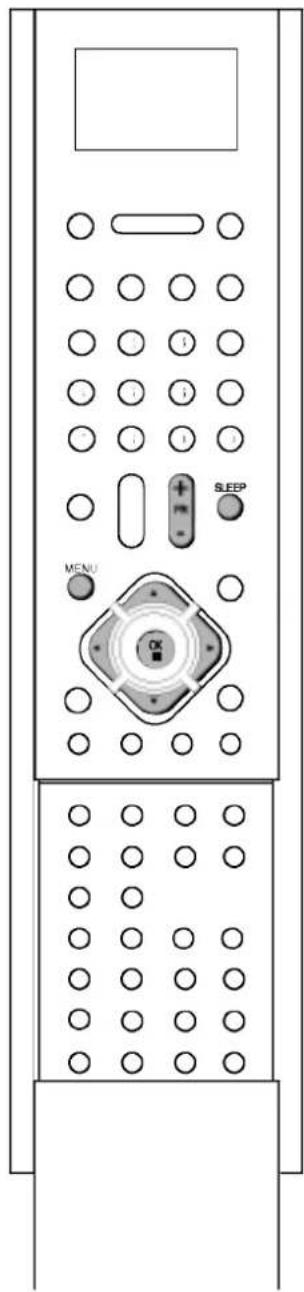
text_image
SLEEP MENU OKPIP operation (option)
Option :
PIP is an optional function, so that only the set with PIP function can operate.
PIP (Picture in Picture) displays a picture within a picture.
On and off
Press the PIP button to switch on the sub picture. press this button again to switch it off.
Note : In Component 1080i mode, PIP function isn't available.
Input mode selection for sub picture (option)
Press the PIP INPUT button to select the input mode for the sub picture.
Each time this button is pressed, each input mode for the sub picture is displayed as shown below.

flowchart
graph LR
    A["Programme number"] --> B["AV1"]
    B --> C["AV2"]
    C --> D["AV3"]
    D --> E["AV4 (option)"]
    E --> A
Note :
a. You can also adjust it in the Special menu.
b. Yon can select the input mode for the sub picture, after connecting the external equipment.
Swapping between main and sub pictures
Press the SWAP button to exchange the main and sub pictures.
Programme selection for sub picture
Press the PIP PR +/- buttons to select a programme for the sub picture. The selected programme number is displayed just below the programme number of main picture.
Sub picture size
Repeatedly press the SIZE button to select the desired sub picture size. The sub picture appears as below.

text_image
1/16 size of the main picture → 1/9 size → 1/2 sizeNote : If broadcasting system of the main picture for PIP is differ from sub picture's for PIP, the sub picture not be natural. (ex: In case that main picture/sub picture is PAL/NTSC system)
Sub picture freeze
Press the STILL button to freeze motion of the sub picture. Press this button again to restore motion.
Sub picture position change
Press the POSITION button repeatedly until desired position is achieved. The sub pictures move clockwise.
Programme scan
This function enables you to search all the stored stations on 12 sub pictures and see your favorite station by exchanging the main and sub pictures.
Press the SCAN button to select 12 sub pictures.
The selected sub pictures search all the stored stations.
Press the SCAN button again to switch off sub pictures.
text_image
PP PP PR+ PP PR+ SWAP PP INPUT SIZE STILL POSITION SCANFM Radio setting
You can listen to FM radio by using the remote control handset.
On and off
Insert the earphone to the earphone socket of the remote control handset.
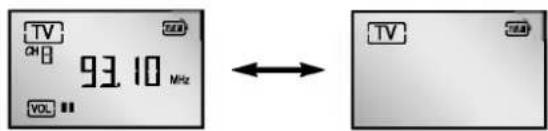
To switch the FM radio on, press the FM ON/OFF button for a while.
text_image
TV OH 93.10 MHz VOLPress this button again to switch it off.
Volume adjustment
Repeatedly press the FM MENU button to select VOL menu.

Adjust the FM sound volume with the TUNE/VOL button of the remote control handset.
Auto tuning
Repeatedly press the FM MENU button to select P.SET (Pre-set) menu.
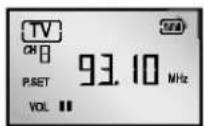
If you press the TUNE/VOL button for a while, auto tuning mode start.
If you press the FM MENU button during auto tuning, this function will stop.
Manual tuning
Repeatedly press the FM MENU button to select P.SET menu.
Use the the TUNE/VOL button to tune the radio channel. When pressing the TUNE/VOL button one time, it will tune with 100KHz.
Press the FM MENU button to stored it.
Note:
a. When the battery display of the remote control handset is one bar (☐), this function may not be worked.
b. One hour after FM Radio will automatically switch back to TV mode unless a button has been pressed.

text_image
FM MENU TUNEVOL FM ON/OFFTeletext (option)
Teletext (or TOP text) is an optional function, therefore only a set with the teletext system can receive the teletext broadcast.
Teletext is a free service broadcast by most TV stations which gives up-to-the-minute information on news, weather, television programmes, share prices and many other topics.
The teletext decoder of this TV can support the SIMPLE, TOP and FASTEXT systems. SIMPLE (standard teletext) consists of a number of pages which are selected by directly entering the corresponding page number. TOP and FASTEXT are more modern methods allowing quick and easy selection of teletext information.
Switch on/off
Press the TEXT button to switch to teletext. The initial page or last page appears on the screen.
Two page numbers, TV station name, date and time are displayed on the screen headline. The first page number indicates your selection, while the second shows the current page displayed.
Press the TEXT button to switch off teletext. The previous mode reappears.
SIMPLE text
Page selection
-
Enter the desired page number as a three digit number with the NUMBER buttons. If during selection you press a wrong number, you must complete the three digit number and then re-enter the correct page number.
-
The ▲ / ▼ button can be used to select the preceding or following page.
Programming a colour button in LIST mode
If the TV is in SIMPLE text, TOP text or FASTEXT mode, press the MODE/ button to switch to LIST mode.
Four teletext page numbers of your choice can be colour coded and easily selected by pressing the corresponding coloured button on the remote control handset.
- Press a coloured button.
- Using the NUMBER buttons, select the page you wish to programme.
- Press the OK button. Then the selected page is stored as the selected page number by blinking once. From now on, you can select this page with the same coloured button.
- The three other coloured buttons are programmed in the same way.

text_image
1 2 3 4 5 6 7 8 9 0 OK TEXT MODE/xxTeletext (option)
TOP text (option)
The user guide displays four fields-red, green, yellow and blue at the bottom of the screen. The yellow field denotes the next group and the blue field indicates the next block.
Block / group / page selection
- With the blue button you can progress from block to block.
- Use the yellow button to proceed to the next group with automatic overflow to the next block.
- With the green button you can proceed to the next existing page with automatic overflow to the next group. Alternatively the ▲ button can be used.
- The red button permits to return to previous selection. Alternatively the ▼ button can be used.
Direct page selection
Corresponding to the SIMPLE teletext mode, you can select a page by entering it as a three digit number using the NUMBER buttons in TOP mode.
FASTEXT
The teletext pages are colour coded along the bottom of the screen and are selected by pressing the corresponding coloured button.
Page selection
- Press the ☐ button to select the index page.
- You can select the pages which are colour coded along the bottom line with the same coloured buttons.
- Corresponding to the SIMPLE teletext mode, you can select a page by entering its three digit page number with the NUMBER buttons in FASTEXT mode.
- The ▲ / ▼ button can be used to select the preceding or following page.

natural_image
Front view of a mobile phone control panel with keypad and buttons (no text or symbols visible)Teletext (option)
Special teletext functions
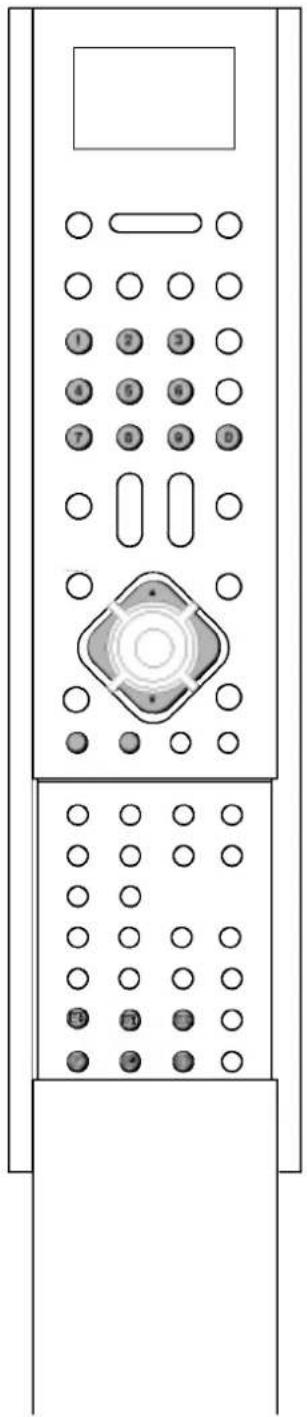
natural_image
Front view of a remote control panel with circular buttons and a central rotary knob (no text or symbols)
REVEAL
Press this button to display concealed information, such as solutions of riddles or puzzles.
Press this button again to remove the information from the display.

SIZE
Selects double height text.
Press this button to enlarge the top half of the page.
Press this button again to enlarge the bottom half of the page.
Press this button again to return to the normal display.

UPDATE
Displays the TV picture on the screen while waiting for the new teletext page. The display ⒽX will appear at the top left hand corner of the screen. When the updated page is available then display ⒽX will change to the page number.
Press this button to view the updated teletext page.

HOLD
Stops the automatic page change which will occur if a tele-text page consists of 2 or more sub pages. The number of sub pages and the sub page displayed is, usually, shown on the screen below the time. When this button is pressed the stop symbol is displayed at the top left-hand corner of the screen and the automatic page change is inhibited.
To continue press this button again.

MIX
Displays the teletext pages superimposed on the TV picture.
To switch the TV picture off press this button again.

TIME
When viewing a TV programme, press this button to display the time at the top right hand corner of the screen. Press this button again to remove the display. In the teletext mode, press this button to select a sub page number. The sub page number is displayed at the bottom of the screen. To hold or change the sub page, press the RED / GREEN, ▲ / ▼ or NUMBER buttons.
Press this button again to exit this function.
Connection of external equipment
You can connect additional equipment, such as VCRs, camcorders etc. to your set.
Here shown may be somewhat different from your set.
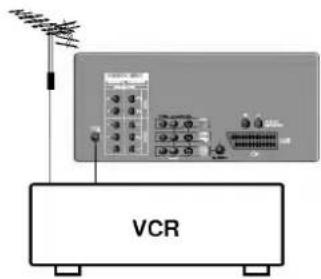
Aerial socket
- Connect the RF out socket of the VCR to the aerial socket on the back of the set.
- Connect the aerial cable to the RF aerial in socket of the VCR.
- Store the VCR channel on a desired programme number using the 'Manual programme tuning' section.
- Select the programme number where the VCR channel is stored.
- Press the PLAY button on the VCR.
Euro scart socket (option)
- Connect the Euro scart socket of the VCR to the Euro scart socket of the set.
- Press the PLAY button on the VCR.
If your VCR outputs a switching voltage connect to Euro scart socket, the set will switch to AV 4 mode automatically. But if you want to keep on watching TV mode, press the PR +/- or NUM-BER buttons.
Otherwise press the TV/AV button on the remote control handset to select AV 4. The VCR playback picture appears on the screen.
You can also record programmes received by the TV on video tape.
Note :
a. Signal type RGB, i.e. the signals red, green and blue can only be selected for the Euro scart can be received. These signals are transmitted, for example, by a pay TV decoder, game machine or photo CD unit, etc.
b. If Euro scart 4 socket has been connected to the VCRs simultaneously, only the AV 4 can be received.
c. If the set has been disconnected to the external equipment, only can be selected AV 4.
Audio/Video in/out sockets (option)
- Connect the audio/video out sockets of the VCR to audio/video in sockets of the set and in sockets of the VCR to out sockets of the set.
- Press the TV/AV button to select AV 1, AV 2 or AV 3.
- Press the PLAY button on the VCR.
The VCR playback picture appears on the screen.
You can also record programmes received by the TV on video tape via audio/video out sockets.
Note :
a. If you have a mono VCR, connect the audio cable from the VCR to the AUDIO L/MONO socket of the set.
b. When the set has been connected to the external equipment, you can select AV or COMPONENT modes with the remote control handset.
text_image
VCR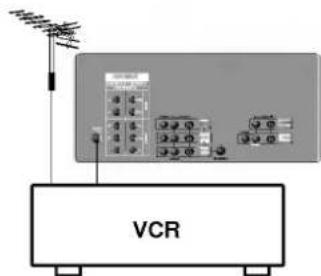
text_image
VCR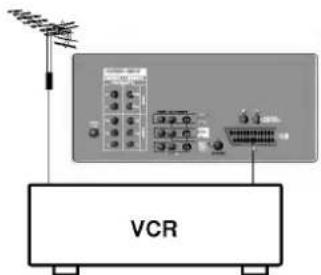
text_image
VCR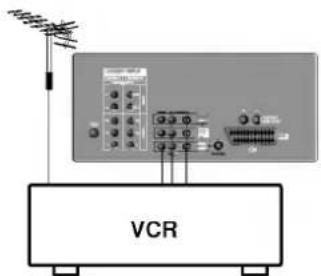
text_image
VCR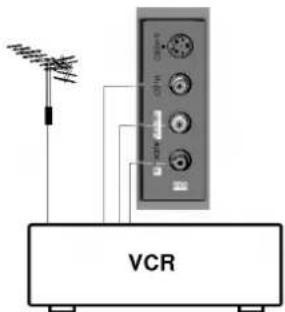
text_image
VCRConnection of external equipment
S-Video / Audio in sockets (S-AV) (option)

text_image
VCRWhen connecting an VCR to the S-VIDEO socket, the picture quality will be further improved.
- Connect the S-video socket of the VCR to the S-VIDEO socket of the set.
- Connect the audio cable from the VCR to the AUDIO sockets of the set.
- Select AV1 or AV3 by pressing the TV/AV button repeatedly.
- Press the PLAY button on the VCR. The VCR playback picture appears on the screen.

text_image
S-VIDEO VCRNote : If both S-VIDEO and VIDEO sockets have been connected to the VCR simultaneously, only the S-VIDEO can be received.
Component in sockets
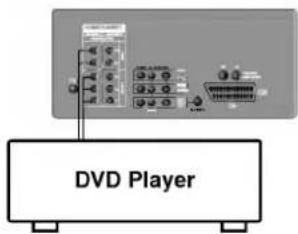
- Connect the COMPONENT VIDEO output sockets (Y Cb Cr, Y Pb Pr, Y B-Y R-Y or Y P\_B\ P\_R\) of the DVD player to the DVD INPUT VIDEO sockets (Y P\_B\ P\_R\) of the set.
- Connect the audio cable from the DVD player to DVD INPUT AUDIO sockets of the set.
- Press the TV/AV button to select COMPONENT1 or COMPONENT2.
- Press the PLAY button on the DVD player. The DVD playback picture appears on the screen.
text_image
DVD PlayerNote : DVD audio input can be output, but DVD video input cannot be output.
text_image
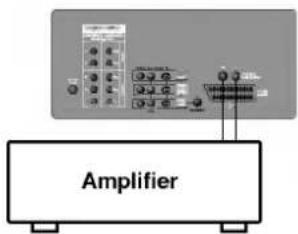
AmplifierVariable Audio out sockets (AUDIO OUT)
The phono sockets for a Hi-Fi amplifier system are on the back of the set; L=left sound channel, R=right sound channel.
If you connect an amplifier system, you can also play the TV sound through the stereo amplifier system. TV speaker and external speakers muted when pressing the MUTE button.
Connection of external equipment
Monitor out sockets
Connect the audio/video in sockets of the other TV or monitor to MONITOR OUTPUT sockets of the set.
PC Input/Audio in sockets (option)
- Connect the PC cable from the monitor output socket of the PC to the PC INPUT sockets of the set.
- Connect the audio cable from the PC to the AUDIO sockets of the set.
- Switch on the PC, and the PC screen appears on the set. The set can be operated as the PC monitor.
Note :
a. The cables are not supplied, such as the PC cable, audio cable etc.
b. Set the resolution of PC to VGA 640x480 (60 Hz) video mode to use this set as PC monitor.
Displayable Monitor Specification (only)
| MODE | Resolution | Horizontal Frequency(KHz) | Vertical Frequency(Hz) |
| VGA | 640x480 | 31.5KHz | 60Hz |
(Synchronization input form : separate)

text_image
Second TV
text_image
PERSONAL COMPUTERNOTE
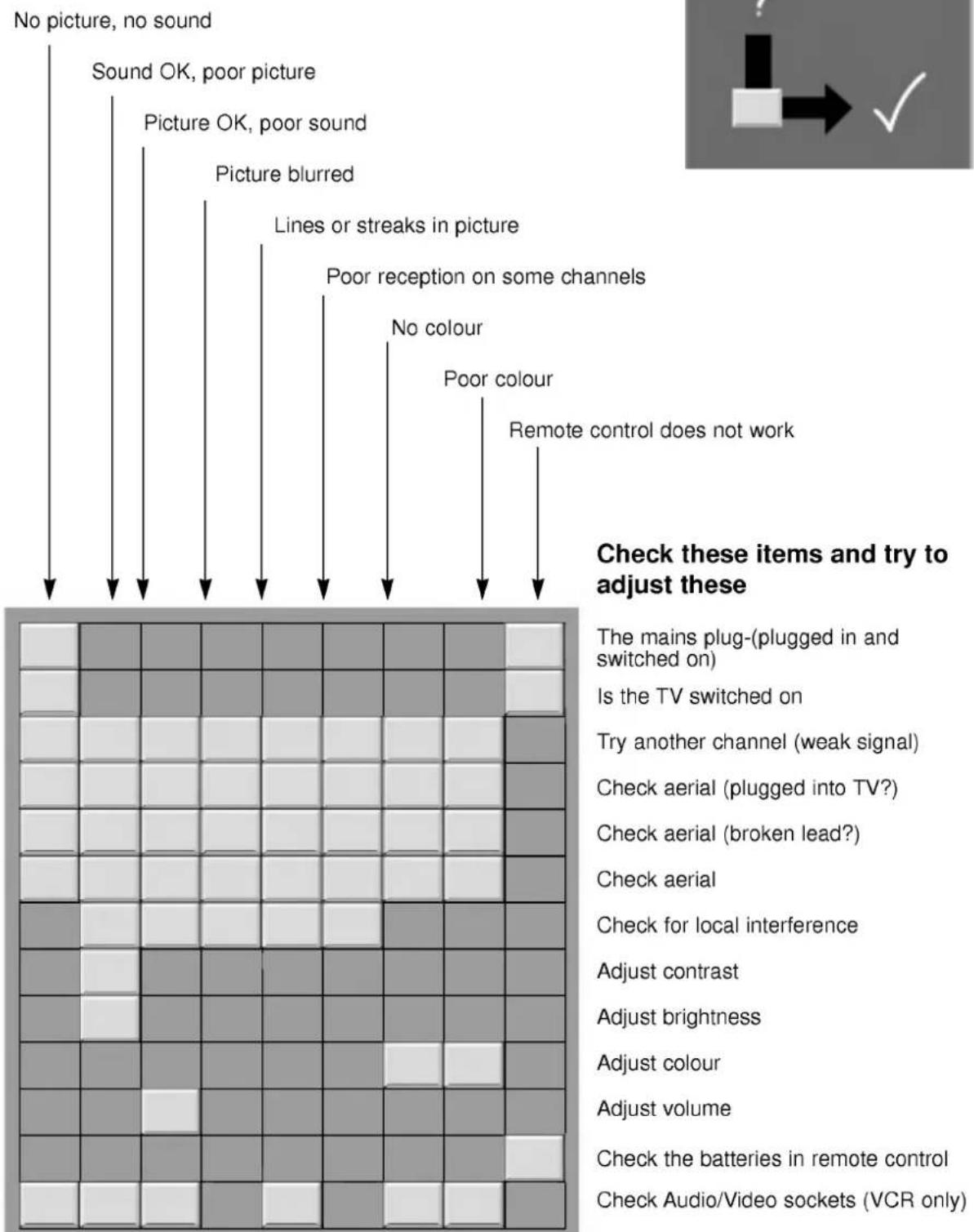
Troubleshooting check list
Symptoms
text_image
No picture, no sound Sound OK, poor picture Picture OK, poor sound Picture blurred Lines or streaks in picture Poor reception on some channels No colour Poor colour Remote control does not work Check these items and try to adjust these The mains plug-(plugged in and switched on) Is the TV switched on Try another channel (weak signal) Check aerial (plugged into TV?) Check aerial (broken lead?) Check aerial Check for local interference Adjust contrast Adjust brightness Adjust colour Adjust volume Check the batteries in remote control Check Audio/Video sockets (VCR only)
text_image
? ↓ → ✓Check these items and try to adjust these
The mains plug-(plugged in and switched on)
Is the TV switched on
Try another channel (weak signal)
Check aerial (plugged into TV?)
Check aerial (broken lead?)
Check aerial
Check for local interference
Adjust contrast
Adjust brightness
Adjust colour
Adjust volume
Check the batteries in remote control
Check Audio/Video sockets (VCR only)