SuperStorage SSG-136R-NEL32JBF - NAS Supermicro - Free user manual and instructions
Find the device manual for free SuperStorage SSG-136R-NEL32JBF Supermicro in PDF.


User questions about SuperStorage SSG-136R-NEL32JBF Supermicro
0 question about this device. Answer the ones you know or ask your own.
Ask a new question about this device
Download the instructions for your NAS in PDF format for free! Find your manual SuperStorage SSG-136R-NEL32JBF - Supermicro and take your electronic device back in hand. On this page are published all the documents necessary for the use of your device. SuperStorage SSG-136R-NEL32JBF by Supermicro.
USER MANUAL SuperStorage SSG-136R-NEL32JBF Supermicro
natural_image
Front view of a rack-mounted server rack with multiple drive bays and indicator lights (no visible text or labels)USER'S MANUAL
Revision 1.0
The information in this User's Manual has been carefully reviewed and is believed to be accurate. The vendor assumes no responsibility for any inaccuracies that may be contained in this document, and makes no commitment to update or to keep current the information in this manual, or to notify any person or organization of the updates. Please Note: For the most up-to-date version of this manual, please see our website at www.supermicro.com.
Super Micro Computer, Inc. ("Supermicro") reserves the right to make changes to the product described in this manual at any time and without notice. This product, including software and documentation, is the property of Supermicro and/or its licensors, and is supplied only under a license. Any use or reproduction of this product is not allowed, except as expressly permitted by the terms of said license.
IN NO EVENT WILL Super Micro Computer, Inc. BE LIABLE FOR DIRECT, INDIRECT, SPECIAL, INCIDENTAL, SPECULATIVE OR CONSEQUENTIAL DAMAGES ARISING FROM THE USE OR INABILITY TO USE THIS PRODUCT OR DOCUMENTATION, EVEN IF ADVISED OF THE POSSIBILITY OF SUCH DAMAGES. IN PARTICULAR, SUPER MICRO COMPUTER, INC. SHALL NOT HAVE LIABILITY FOR ANY HARDWARE, SOFTWARE, OR DATA STORED OR USED WITH THE PRODUCT, INCLUDING THE COSTS OF REPAIRING, REPLACING, INTEGRATING, INSTALLING OR RECOVERING SUCH HARDWARE, SOFTWARE, OR DATA.
Any disputes arising between manufacturer and customer shall be governed by the laws of Santa Clara County in the State of California, USA. The State of California, County of Santa Clara shall be the exclusive venue for the resolution of any such disputes. Supermicro's total liability for all claims will not exceed the price paid for the hardware product.
FCC Statement: This equipment has been tested and found to comply with the limits for a Class A digital device pursuant to Part 15 of the FCC Rules. These limits are designed to provide reasonable protection against harmful interference when the equipment is operated in a commercial environment. This equipment generates, uses, and can radiate radio frequency energy and, if not installed and used in accordance with the manufacturer's instruction manual, may cause harmful interference with radio communications. Operation of this equipment in a residential area is likely to cause harmful interference, in which case you will be required to correct the interference at your own expense.
California Best Management Practices Regulations for Perchlorate Materials: This Perchlorate warning applies only to products containing CR (Manganese Dioxide) Lithium coin cells. "Perchlorate Material-special handling may apply. See www.dtsc.ca.gov/hazardouswaste/perchlorate".

WARNING: This product can expose you to chemicals including lead, known to the State of California to cause cancer and birth defects or other reproductive harm. For more information, go to www.P65Warnings.ca.gov.
The products sold by Supermicro are not intended for and will not be used in life support systems, medical equipment, nuclear facilities or systems, aircraft, aircraft devices, aircraft/emergency communication devices or other critical systems whose failure to perform be reasonably expected to result in significant injury or loss of life or catastrophic property damage. Accordingly, Supermicro disclaims any and all liability, and should buyer use or sell such products for use in such ultra-hazardous applications, it does so entirely at its own risk. Furthermore, buyer agrees to fully indemnify, defend and hold Supermicro harmless for and against any and all claims, demands, actions, litigation, and proceedings of any kind arising out of or related to such ultra-hazardous use or sale.
Manual Revision 1.0
Release Date: December 26, 2019
Unless you request and receive written permission from Super Micro Computer, Inc., you may not copy any part of this document. Information in this document is subject to change without notice. Other products and companies referred to herein are trademarks or registered trademarks of their respective companies or mark holders.
Copyright © 2019 by Super Micro Computer, Inc.
All rights reserved.
Printed in the United States of America
Preface
About this Manual
This manual is written for professional system integrators and PC technicians. It provides information for the installation and use of the SuperStorage SSG-136R-NEL32JBF. Installation and maintenance should be performed by experienced technicians only.
Please refer to the SSG-136R-NEL32JBF system specifications page on our website for updates on supported memory, processors and operating systems (http://www.supermicro.com).
Notes
For your system to work properly, please follow the links below to download all necessary drivers/utilities and the user's manual for your system.
• Supermicro product manuals: http://www.supermicro.com/support/manuals/
- Product drivers and utilities: https://www.supermicro.com/wftp/driver
- Product safety info: http://www.supermicro.com/about/policies/safety_information.cfm
If you have any questions, please contact our support team at:
support@supermicro.com
This manual may be periodically updated without notice. Please check the Supermicro website for possible updates to the manual revision level.
Warnings
Special attention should be given to the following symbols used in this manual.

Warning! Indicates important information given to prevent equipment/property damage or personal injury.

Warning! Indicates high voltage may be encountered when performing a procedure.
Contents
Chapter 1 Introduction
1.1 Overview....7
1.2 Unpacking the System 7
1.3 System Features 8
1.4 System Chassis Features 9
Control Panels....9
Front Features....10
Rear Features ....11
EDSFF Long (E1.L) SSD Features....12
1.5 Controller Board Layout ....13
Quick Reference Table....13
1.6 Ports ....14
Unit Identifier Button....14
External PCI-E Ports ....14
Chapter 2 System Installation
2.1 Overview....15
2.2 Preparing for Setup....15
Choosing a Setup Location....15
Rack Precautions....15
System Precautions ....16
Rack Mounting Considerations....16
Ambient Operating Temperature....16
Airflow 16
Mechanical Loading....16
Circuit Overloading....17
Reliable Ground....17
2.3 Installing the System into a Rack....18
Identifying the Sections of the Rack Rails....18
Releasing the Inner Rails....19
Installing the Inner Rails on the Chassis....20
Installing the Outer Rails on the Rack....21
Installing the Chassis onto the Rack 23
2.4 Powering On the System 24
2.5 Assigning Drives to Host Servers ....24
Chapter 3 Maintenance and Component Installation
3.1 Removing Power....25
3.2 Accessing the System....25
3.3 Chassis Components....27
EDSFF Drives 27
Safely Remove an E1.L Drive....27
Linux Environment....27
Windows Environment....31
E1.L Drive Installation and Removal ....37
System Cooling....38
Power Supply 39
Power Supply Failure ....39
PCI-E Cables 40
PCI-E Expansion Cards....44
Appendix A Standardized Warning Statements for AC Systems
Appendix B System Specifications
Appendix C Drive Assignment
Appendix D Firmware Updates
Contacting Supermicro
Headquarters
Address: Super Micro Computer, Inc.
980 Rock Ave.
San Jose, CA 95131 U.S.A.
Tel: +1 (408) 503-8000
Fax: +1 (408) 503-8008
Email: marketing@supermicro.com (General Information)
support@supermicro.com (Technical Support)
Website: www.supermicro.com
Europe
Address: Super Micro Computer B.V.
's-Hertogenbosch, The Netherlands
Tel: +31 (0) 73-6400390
Fax: +31 (0) 73-6416525
Email: sales@supermicro.nl (General Information)
support@supermicro.nl (Technical Support)
rma@supermicro.nl (Customer Support)
Website: www.supermicro.nl
Asia-Pacific
Address: Super Micro Computer, Inc.
3F, No. 150, Jian 1st Rd.
Zhonghe Dist., New Taipei City 235
Taiwan (R.O.C)
Tel: +886-(2) 8226-3990
Fax: +886-(2) 8226-3992
Email: support@supermicro.com.tw
Website: www.supermicro.com.tw
Chapter 1
Introduction
1.1 Overview
This chapter provides a brief outline of the functions and features of the SSG-136R-NEL32JBF. The SSG-136R-NEL32JBF is a JBOF system based on the 136TS-R1K04JP-E2 chassis and the BPN-NVME3-136PL-J controller board. The chassis features two front mounted sleds and space for 32 EDSFF Long (E1.L) 9.5-mm drives.
In addition to the controller board and chassis, several important parts that are included with the system are listed below.
| Main Parts List | ||
| Description Part Number Quantity | ||
| Controller Board BPN-NVME3-136PL-J 1 | ||
| EDSFF NVMe Backplane BPN-EDS3-136P1-1 2 | ||
| System Fans FAN-0188L4 8 | ||
| Rack Rail Mounting Kit MCP-290-11809-0N 1 | ||
| Optional Riser Card | RSC-X-6-JBOF | 2 |
1.2 Unpacking the System
Inspect the box the SuperStorage SSG-136R-NEL32JBF was shipped in and note if it was damaged in any way. If any equipment appears damaged, please file a damage claim with the carrier who delivered it.
Decide on a suitable location for the rack unit that will hold the system. It should be situated in a clean, dust-free area that is well ventilated. Avoid areas where heat, electrical noise and electromagnetic fields are generated. A grounded AC power outlet is also required. Read the precautions and considerations noted in Appendix A.
1.3 System Features
The following table provides you with an overview of the main features of the SSG-136R-NEL32JBF. Refer to Appendix B for additional specifications.
| System Features |
| Chassis |
| CSE-136TS-R1K04JP-E2 |
| Expansion Slots |
| Two PCI-E 3.0 x16 SlotsFour external PCI-E 3.0 ports |
| I/O |
| Two IPMI portsOne UID buttonOne Reset button |
| Drives |
| 32 hot-swappable 9.5-mm EDSFF Long (E1.L) NVMe SSDs |
| Power |
| Dual (redundant) 1000W power supply modules (p/n PWS-1K04A-1R) |
| Controller Board |
| BPN-NVME3-136PL-J |
| Backplane |
| BPN-EDS3-136P1-1 |
| Cooling |
| Eight 4-cm high-speed hot-swappable fans |
| Form Factor |
| 1U rackmount |
| Dimensions |
| (WxHxD) 17.26 x 1.71 x 31.95 in. (438.4 x 43.6 x 811.7 mm) |
1.4 System Chassis Features
Control Panels
The switches and LEDs located on the control panel are described below. When facing the chassis front, the control panel is on the right side.

text_image
1 2 RESET 3 4 UID 5Figure 1-1. Control Panel View
| Control Panel Features | ||
| Item Feature Description | ||
| 1 Power Button | The main power button is used to apply or remove power from the power supply to the system. Turning off system power with this button removes the main power but maintains standby power. To perform any type of maintenance task which involves hardware inspection and/or hardware replacement, you must also unplug system before servicing.Note: Before applying power to the system, refer to Section 2.4, "Powering On the System." | |
| 2 Reset Button The reset button is used to reset the system. | ||
| 3 LAN LED Indicates activity from the LAN ports. | ||
| 4 UID LED | Illuminates when the UID button is activated. Use this to easily identify the system in a rack environment. | |
| 5 | Power Fail LED/Info LED | Indicates a power supply module has failed when solid red. The second power supply module will take the load and keep the system running but the failed module will need to be replaced. Refer to Chapter 3 for details on replacing the power supply. This LED should be off when the system is operating normally.After the server powers on, this LED will blink at 4Hz until initialization is complete, upon which time it will turn off and become the Power Fail LED. |
Front Features
The 136TS-R1K04JP-E2 is a 1U chassis. See the illustration below for the features included on the front of the chassis.

text_image
Technical diagram of a server rack with numbered components and labeled sectionsFigure 1-2. Chassis Front View
| Front Chassis Features | ||
| Item Feature | Description | |
| 1 Control Panel | Front control panel with | LEDs and buttons (see preceding page) |
| 2 Drive Bays | Hot-swappable E1.L SSDs | (Drive IDs: 0 to 7) |
| 3 Drive Bays | Hot-swappable E1.L SSDs | (Drive IDs: 8 to 15) |
| 4 Drive Bays | Hot-swappable E1.L SSDs | (Drive IDs: 16 to 23) |
| 5 Drive Bays | Hot-swappable E1.L SSDs | (Drive IDs: 24 to 31) |
| 6 | Latch | Latch for releasing and extending the chassis from the rack |
| EDSFF Long (E1.L) Drive LEDs | |
| LED Description | |
| Activity LED | This upper (away from latch) Green LED indicates the combined power and activity of the SSD. |
| Fault LED | This lower (close to the latch) Amber LED indicates a Fault or Error if there is a drive failure. |
Rear Features
The illustration below shows the features included on the rear of the chassis.

text_image
Technical diagram of a server rack with labeled components including ports, connectors, and memory slotsFigure 1-3. Chassis Rear View
| Rear Chassis Features | ||
| Item Feature Description | ||
| 1 Power Supply | 1000W power supply module with LED. Two modules for power redundancy. (See Power Supply LED table.) | |
| 2 UID Button | Press this button to activate the UID LED, which allows you to quickly identify the system in a rack. | |
| 3 Expansion | Card Slots Slots for expansion cards | |
| 4 External PCI-E | Ports External PCI-E x16 | ports (see Section 1.6) |
| 5 IPMI LAN | Ports Rear IPMI LAN ports (see Section 1.6) | |
| Power Supply LED | |
| Status Description | |
| Solid green Power supply is providing power to the system. | |
| Solid amber | Power supply is plugged in and deactivated, or the system is powered off but in an abnormal state. |
| Blinking amber | Power supply temperature has reached 63 °C. The system automatically powers off if the temperature rises to 70 °C, and automatically resets when the temperature falls below 60 °C. |
EDSFF Long (E1.L) SSD Features
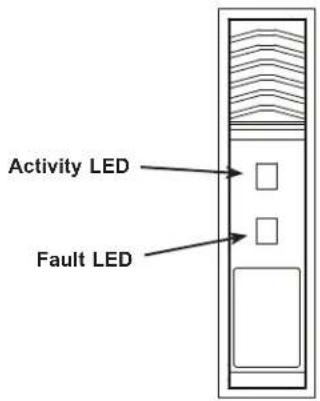
The system contains 32 E1.L NVMe SSDs. The drives extend from the front of the chassis for simplified access and replacement. Refer to Chapter 3 for instructions on removing the drives from the chassis.
text_image
Activity LED Fault LEDFigure 1-4. E1.L SSD LEDs
| Drive Status LED | |||
| LED Color Status Description | |||
| Activity Green | Blinking Indicates E1.L SSD activitySolid No E1.L SSD access | ||
| Fault | Amber Blinking E1.L SSD Fault or Off - No E1.L SSD status or E1.L | Error.SSD status OK | |
1.5 Controller Board Layout
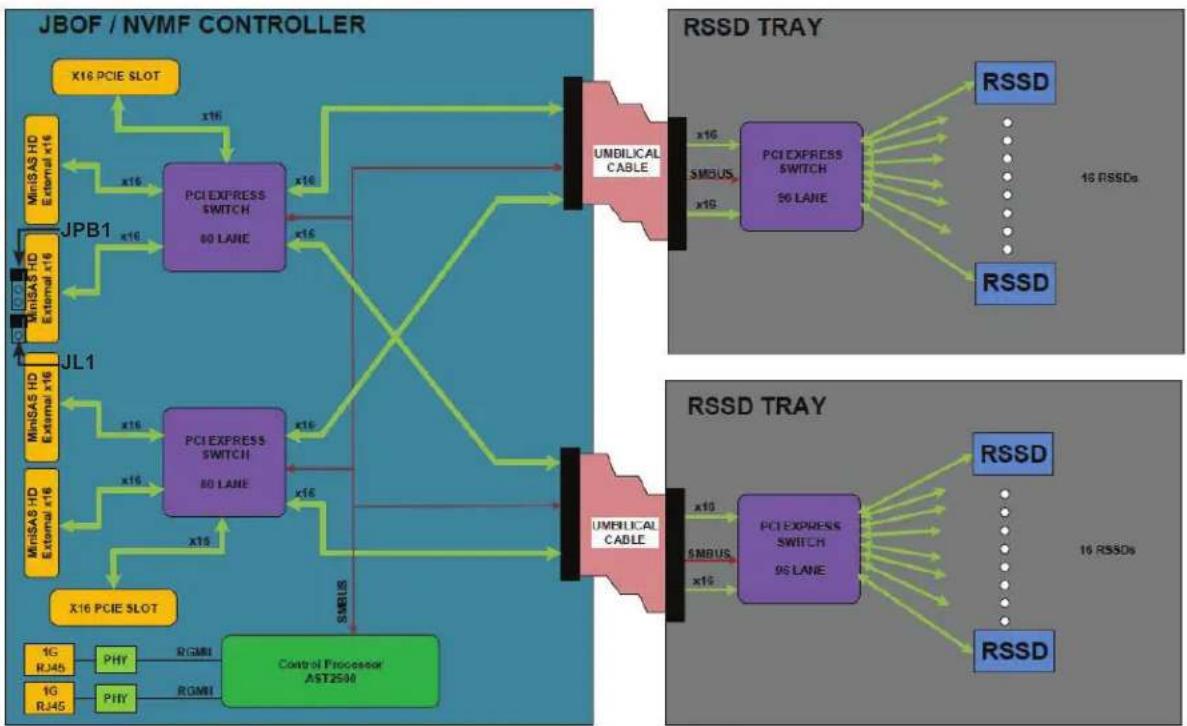
Below is a layout of the BPN-NVME3-136PL-J. See the following table for jumper descriptions.
flowchart
graph TD
    subgraph JBOF / NVMF CONTROLLER
        A["X16 PCIE SLOT"] --> B["PCI EXPRESS SWITCH 80 LANE"]
        C["MinSAS HD External x16"] --> B
        D["JPB1"] --> B
        E["MinSAS HD External x16"] --> B
        F["JL1"] --> G["PCI EXPRESS SWITCH 80 LANE"]
        H["MinSAS HD External x16"] --> G
        I["X16 PCIE SLOT"] --> J["Control Processor AST2598"]
        K["1G RJ45"] --> L["PHY"] --> M["PGMI"] --> N["PGMI"]
        O["1G RJ45"] --> P["PHY"] --> Q["PGMI"] --> R["PGMI"]
    end

    subgraph RSSD TRAY
        S["PCI EXPRESS SWITCH 80 LANE"] --> T["UNDILICAL CABLE"]
        U["RSSD"] --> V["RSSD"]
        W["SMBUS"] --> X["RSSD"]
        Y["x16"] --> Z["PCI EXPRESS SWITCH 80 LANE"]
        AA["x19"] --> AB["RSSD"]
        AC["x16"] --> AD["RSSD"]
        AE["x19"] --> AF["RSSD"]
    end

    B -->|x16| G
    G -->|x16| J
    J -->|x16| S
    S -->|x16| AB
    AB -->|x16| V
    V -->|x16| AC
    AC -->|x16| AB
    AB -->|x16| V
    S -->|x16| AB
    AB -->|x16| V
    T -->|x16| V
    V -->|x16| AB
    AB -->|x16| V
    style JBOF / NVMF CONTROLLER fill:#f9f,stroke:#333
    style RSSD TRAY fill:#bbf,stroke:#333
Figure 1-5. Controller Board Layout
Quick Reference Table
Jumper Description Default Setting
JPB1 BMC Enable Pins 1-2 (Enabled)
JL1 Chassis Intrusion Open
Note: The BMC must always be enabled. Do not disable the BMC.
1.6 Ports

text_image
4 A ① B 3 3 A B PM1 2 1 PM1 3 A B 3 A (4) BFigure 1-6. Rear I/O Panel
| Rear I/O Ports | |
| Item Description | |
| 1 IPMI LAN Port 1 | |
| 2 IPMI LAN Port 2 | |
| 3 PCI-E x16 External Port (Gen 3) | |
| 4 UID Button | |
IPMI LAN Ports
Two 1Gb IPMI LAN ports (LAN1/2) are located on the I/O back panel. If both ports are plugged in, LAN1 is the active port and LAN2 is redundant. If only one LAN port is used, LAN2 is preferred. LAN1 is the left port and LAN2 is the right port.
Refer to the LED Indicator section for LAN LED information.
Unit Identifier Button
A Unit Identifier (UID) button and a rear LED Indicator (UID-LED) are located on the I/O back panel. When the user presses the UID button, the UID LED indicator will be turned on. Press the UID button again to turn off the UID LED. The UID indicator provides easy identification of a system unit that may be in need of service.
Note: UID can also be triggered via IPMI on the controller board. For more information on IPMI, please refer to the IPMI User's Guide posted on our website at http://www.supermicro.com.
External PCI-E Ports
Four external PCI-E x16 ports are located on the I/O back panel. These ports can be split into eight x8 ports to support eight hosts.
Chapter 2
System Installation
2.1 Overview
This chapter provides recommendations and instructions for mounting your system in a server rack. If your system is not already fully integrated with drives, fans etc., refer to Chapter 3 for details on installing those specific components.
Caution: Electrostatic Discharge (ESD) can damage electronic components. To prevent such damage to PCBs (printed circuit boards), it is important to use a grounded wrist strap, handle all PCBs by their edges and keep them in anti-static bags when not in use.
2.2 Preparing for Setup
The box in which the system was shipped should include the rackmount hardware needed to install it into the rack. Please read this section in its entirety before you begin the installation.
Choosing a Setup Location
- The system should be situated in a clean, dust-free area that is well-ventilated. Avoid areas where heat, electrical noise, and electromagnetic fields are generated.
- Leave at least 25 inches of clearance in front of the rack so that you can open the front door completely. Leave approximately 30 inches of clearance behind the rack to allow sufficient space for airflow and access when servicing.
- This product should be installed only in a Restricted Access Location (dedicated equipment rooms, service closets, etc.).
- This product is not suitable for use with visual display workplace devices according to §2 of the German Ordinance for Work with Visual Display Units.
Rack Precautions
- Verify that the leveling jacks on the bottom of the rack are extended to the floor so that the full weight of the rack rests on them.
- In single rack installations, stabilizers should be attached to the rack. In multiple rack installations, the racks should be coupled together.
- Always verify that the rack is stable before extending a server or other component from the rack.
- You should extend only one server or component at a time. Extending two or more simultaneously might cause the rack to become unstable.
System Precautions
- Review the electrical and general safety precautions in Appendix A.
- Determine the placement of each component in the rack before you install the rails.
- Install the heaviest components at the bottom of the rack first. Subsequent components should be installed in decreasing order of weight.
- Use a regulating uninterruptible power supply (UPS) to protect the system from power surges and voltage spikes and to keep your system operating in case of a power failure.
- Allow any drives and power supply modules to cool before touching them.
- When not servicing, always keep the front door of the rack and all covers and panels closed to maintain proper cooling.
Rack Mounting Considerations
Ambient Operating Temperature
If installed in a closed or multi-unit rack assembly, the ambient operating temperature of the rack environment may be greater than the room's ambient temperature. Therefore, consideration should be given to installing the equipment in an environment compatible with the manufacturer's maximum rated ambient temperature (TMRA).
Airflow
Equipment should be mounted into a rack so that the amount of airflow required for safe operation is not compromised.
Mechanical Loading
Equipment should be mounted into a rack so that a hazardous condition does not arise due to uneven mechanical loading.
Circuit Overloading
Consideration should be given to the connection of the equipment to the power supply circuitry and the effect that any possible overloading of circuits might have on overcurrent protection and power supply wiring. Appropriate consideration of equipment nameplate ratings should be used when addressing this concern.
Reliable Ground
A reliable ground must be maintained at all times. To ensure this, the rack itself should be grounded. Particular attention should be given to power supply connections other than the direct connections to the branch circuit (i.e. the use of power strips, etc.).

To prevent bodily injury when mounting or servicing this unit in a rack, you must take special precautions to ensure that the system remains stable. The following guidelines are provided to ensure your safety:
- This unit should be mounted at the bottom of the rack if it is the only unit in the rack.
- When mounting this unit in a partially filled rack, load the rack from the bottom to the top with the heaviest component at the bottom of the rack.
- If the rack is provided with stabilizing devices, install the stabilizers before mounting or servicing the unit in the rack.

Slide rail mounted equipment is not to be used as a shelf or a work space.

Warning: Do not pick up the system with the front handles. They are designed to pull the system from a rack only.
2.3 Installing the System into a Rack
This section provides information on installing the 136TS-R1K04JP-E2 chassis into a rack unit with the rails provided. Due to the variety of rack units on the market, the assembly procedure might differ slightly. You should also refer to the installation instructions that came with the rack unit you are using.
Identifying the Sections of the Rack Rails
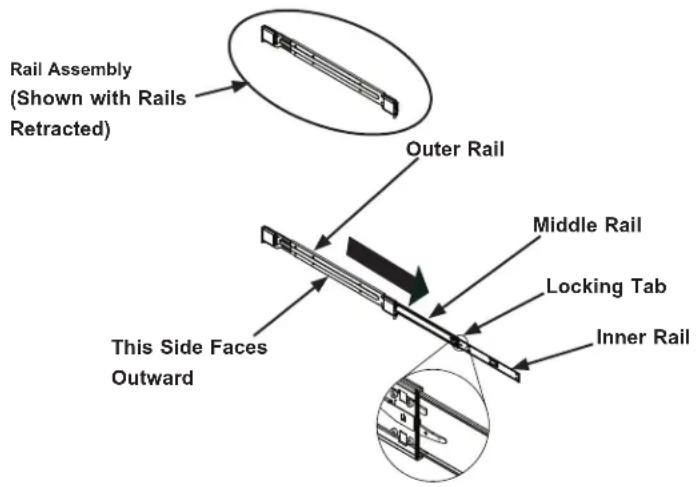
The SSG-136R-NEL32JBF includes two rack rail assemblies in the rack mounting kit. Each assembly consists of three sections: An inner chassis rail which secures directly to the chassis, an outer rail that secures to the rack, and a middle rail which extends from the outer rail. These assemblies are specifically designed for the left and right side of the chassis.
text_image
Rail Assembly (Shown with Rails Retracted) Outer Rail Middle Rail Locking Tab Inner Rail This Side Faces OutwardFigure 2-1. Identifying the Rail Sections
Note: The rails have a locking tab, which serves two functions. First, it locks the system into place when installed and pushed fully into the rack (its normal operating position). In addition, these tabs lock the system in place when fully extended from the rack. This prevents the system from coming completely out of the rack when pulled out for servicing.
Releasing the Inner Rails
Releasing the Inner Rails from the Outer Rails
- Pull the inner rail out of the outer rail until it is fully extended as illustrated below.
- Press the locking tab down to release the inner rail.
- Fully release the inner rail.
- Repeat steps 1-3 for the second outer rail.

text_image
Diagram illustrating three-step assembly or installation process with labeled arrows and a circular inset showing a mechanical component.Figure 2-2. Extending and Releasing the Inner Rails

Warning: Stability hazard. The rack stabilizing mechanism must be in place, or the rack must be bolted to the floor before you slide the unit out for servicing. Failure to stabilize the rack can cause the rack to tip over.
Installing the Inner Rails on the Chassis
Installing the Inner Rails
- Place the inner rail firmly against the side of the chassis, aligning the hooks on the side of the chassis with the holes in the inner rail.
- Slide the inner rail toward the back of the chassis until the rail clicks into the locked position, which secures the inner rail to the chassis.
- Secure the inner rail to the chassis with the screws provided.
- Repeat steps 1-3 for the second inner rail.
Note: Chassis pictured may vary slightly from the SSG-136R-NEL32JBF system chassis.

natural_image
Technical line drawing of a server rack unit with mounting hardware (no text or symbols)Figure 2-3. Inner Rails Installed

Warning: In any instance of pulling the system from the rack, always use a rack lift and follow all associated safety precautions.

Warning: When initially installing the system to a rack, test that the rail locking tabs engage to prevent the system from being overextended. Have a rack lift in place as a precaution in case the test fails.
Installing the Outer Rails on the Rack
Installing the Outer Rails
- If your rack has round mounting holes, adjust the fittings on the outer rails. Press the latch at the end of the rail to change from square fittings to round fittings.
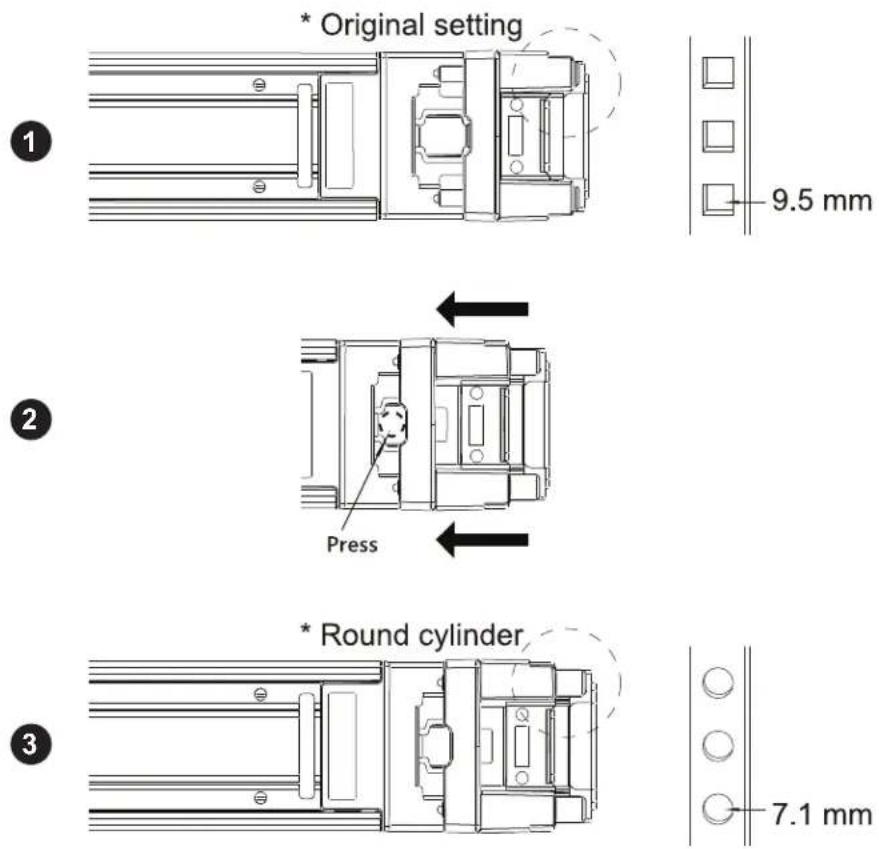
Figure 2-4. Adjusting Outer Rail Fittings
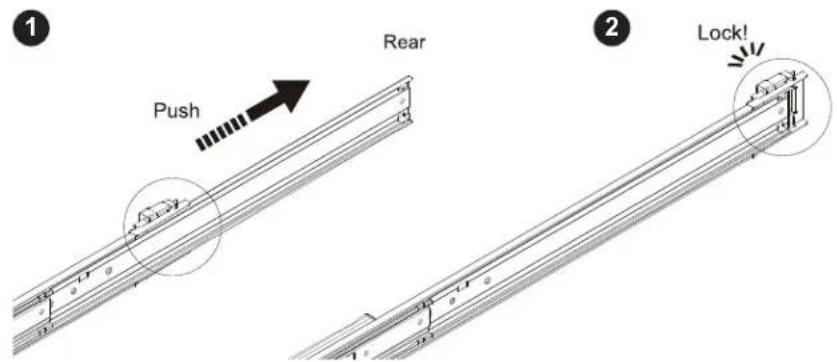
- Push the middle rail back into the outer rail. An audible click indicates that the rail is fully inserted.
text_image
1 Push Rear 2 Lock!Figure 2-5. Adjusting the Middle Rail
- Insert the pegs on the rear of the outer rail into the rear rack holes. An audible click indicates that the rail is locked into place.
- Press upward on the locking tab near the rear end of the middle rail, and extend the outer rail until the length fits within the posts of the rack.
- On the front end of the outer rail, turn the latch to the open position and push the pegs into the front rack holes.
- Turn the latch to the locked position.
- Repeat steps 1-6 for the remaining outer rail.

text_image
3 Rear CLICK!! Front
text_image
Technical diagram showing a mechanical assembly with an inset highlighting a specific component with dimension annotations and directional arrows.
text_image
5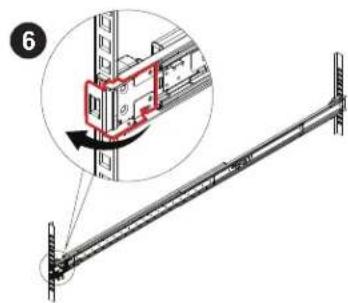
text_image
Technical diagram showing a mechanical assembly with an inset close-up of a bracket component and directional arrow indicating motion.Figure 2-6. Installing Outer Rails to a Rack
Installing the Chassis onto the Rack
Installing the Chassis onto the Rack
-
Fully extend the middle rails as illustrated in Figure 2-7.
-
Align the inner rails of the chassis with the middle rails on the rack.
-
Slide the inner rails into the middle rails, keeping pressure even on both sides. Hold down the locking lever on the inner rail to push the chassis fully onto the rack. An audible click indicates that the chassis is secured into the rails.

Warning: Mounting the system into the rack requires at least two people to support the chassis during installation. Follow safety recommendations printed on the rails.

text_image
Push Hold down Make sure the auto-lock latch is locked.Figure 2-7. Installing the System into a Rack
2.4 Powering On the System
Any time you power on the SSG-136R-NEL32JBF system, first perform the following precautions:
- Check that all hosts connected to the SSG-136R-NEL32JBF are powered off.
- Connect PCI-E cabling from the hosts to the SSG-136R-NEL32JBF.
- Connect a power cord from a grounded AC outlet to the SSG-136R-NEL32JBF. Do not power on the system.
- Wait two minutes for the BMC service to power on.
- Press the power button on the SSG-136R-NEL32JBF, or power on the system using the IPMI command interface.
- Wait three minutes, then power on the hosts that are connected to the system.
2.5 Assigning Drives to Host Servers
When you boot up the system for the first time, you must assign the NVMe drives to attached hosts. You can view and modify drive assignment using the Web GUI or the command line. Refer to your preferred procedure in Appendix C.
Chapter 3
Maintenance and Component Installation
This chapter provides instructions on installing and replacing main system components. To prevent compatibility issues, only use components that match the specifications and part numbers given.
Installation or replacement of most components require that power first be removed from the system. Please follow the procedures given in each section.
3.1 Removing Power
Use the following procedure to ensure power has been removed from the system.
- Use either the power button on the control panel or IPMI to power down the system.
- After the system has completely shut down, disconnect the AC power cords from the power strip or outlet.
- Disconnect the power cords from the power supply modules.
3.2 Accessing the System
The 136TS-R1K04JP-E2 chassis features a removable top cover, which allows easy access to the inside of the chassis.
Removing the Top Cover
- Remove power from the system as described in Section 3.1.
- Remove the screws securing the middle panel to the chassis.
- Lift the middle panel up and off the chassis.
- Remove the screws securing the second panel to the chassis.
- Slide the second panel toward the rear of the chassis and lift it off.
Warning: Except for short periods of time, do not operate the system without the cover in place. The chassis cover must be in place to allow for proper airflow and to prevent overheating.
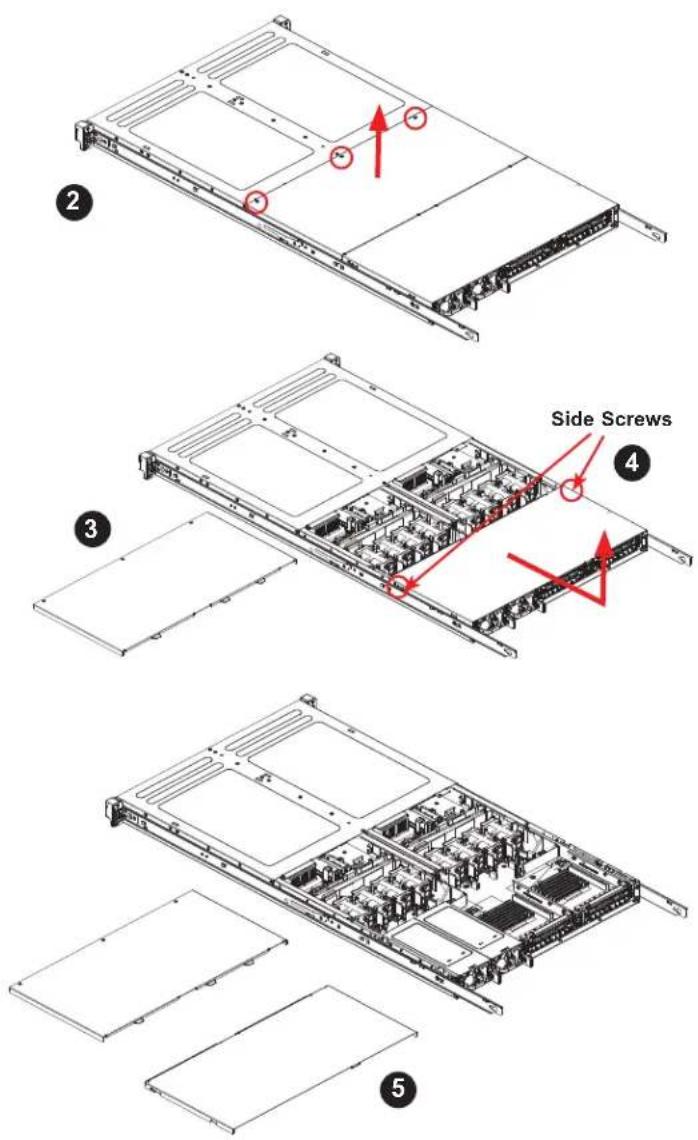
Figure 3-1. Removing the Chassis Cover
3.3 Chassis Components
EDSFF Drives
The SSG-136R-NEL32JBF supports 32 hot-swappable EDSFF Long (E1.L) drives.
Note: Although the SSG-136R-NEL32JBF E1.L drives may be removed from the JBOF without removal from the operating system, it is highly recommended to remove the drive from the operating system prior to removal from the JBOF.
Safely Remove an E1.L Drive
Linux Environment
The examples below were executed on RHEL 7.4. Some command outputs have been abbreviated for easier reading. Additional notes are added with the marking “←”.
- Retrieve the storage device information.
<h1 id="lsblk">lsblk</h1>
NAME MAJ:MIN RM SIZE RO TYPE MOUNTPOINT
sda 8:0 0 59.6G 0 disk
├-sda1 8:1 0 1G 0 part /boot
└-sda2 8:2 0 58.6G 0 part
├-rhel-root 253:0 0 50G 0 lvm /
└-rhel-swap 253:1 0 6G 0 lvm [SWAP]
nvme10n1 259:10 0 3.7T 0 disk
nvme11n1 259:12 0 3.7T 0 disk
nvme12n1 259:11 0 3.7T 0 disk
nvme13n1 259:19 0 3.7T 0 disk
nvme14n1 259:18 0 3.7T 0 disk
nvme15n1 259:14 0 3.7T 0 disk
nvme16n1 259:13 0 3.7T 0 disk
nvme17n1 259:15 0 3.7T 0 disk
nvme18n1 259:17 0 3.7T 0 disk
nvme19n1 259:20 0 3.7T 0 disk
nvme20n1 259:16 0 3.7T 0 disk
nvme21n1 259:24 0 3.7T 0 disk
- Find the PCIe Bus/Device/Function number of the storage device. The example shown below is for /dev/nvme17n1.
<h1 id="ls-l-sysblocknvme17n1">ls -l /sys/block/nvme17n1</h1>
lrwxrwxrwx 1 root root 0 Jul 16 14:02 /sys/block/nvme17n1 -> ../devices/pci0000:2d/0000:2d:00.0/0000:2e:00.0/0000:2f:04.0/0000:30:00.0/0000:31:01.0/0000:44:00.0/0000:45:01.0/0000:47:00.0/nvme/nvme17/nvme17n1 ← Bus:Device.Function
- Probe /dev/nvme17n1 for more detailed information about this storage device including the vendor name and serial number.
<h1 id="udevadm-info-n-devnvme17n1-a">udevadm info -n /dev/nvme17n1 -a</h1>
looking at parent device '/devices/pci0000:2d/0000:2d:00.0/0000:2e:00.0/0000:2f:04.0/0000:30:00.0/0000:31:01.0/0000:44:00.0/0000:45:01.0/0000:47:00.0/nvme/nvme17':
KERNELS=="nvmel7"
SUBSYSTEMS=="nvme"
DRIVERS==""
ATTRS{transport}=="pcie"
ATTRS{model}=="INTEL SSDPE2KX040T7" ← vendor & model
ATTRS{cntlid}=="0"
ATTRS{serial}=="PHLF720500QQ4P0IGN" ← S/N
ATTRS{firmware_rev}=="QDV10190"
- Find the physical slot of the storage device using its PCIe Bus/Device/Function number.
<h1 id="lspci-vvvs-47000">lspci -vvvs 47:00.0</h1>
47:00.0 Non-Volatile memory controller: Intel Corporation Device 0a54 (prog-if 02 [NVM Express])
Subsystem: Intel Corporation Device 4702
Physical Slot: 17-1 ← physical slot info
Control: I/O- Mem+ BusMaster+ SpecCycle- MemWINV- VGASnoop- ParErr+ Stepping- SERR+ FastB2B- DisINTx+
Note: The slot number of a storage device depends on the kernel enumeration process and may not be consistent with its physical slot number in the JBOF.
| System | Server Health | Configuration | Remote Control | Maintenance | Miscellaneous | Help | |||||
| Zone | Start ID* | Temp. (°C) | Cap. GB | Model | Manufacture | Part Number | Serial Number | Asset Tag | Locate | ||
| Server Health | Zone 1 | 0 | 29 | 3720 | PH500 | INTEL | INTL SSDPE2KX8+0T7 | RHLF7264012HPDQN | |||
| Sensor Readings | Zone 1 | 1 | 42 | 3726 | PH500 | INTEL | INTL SSDPE2KX8+0T7 | RHLF72640DFHPDQN | |||
| Event Log | Zone 1 | 2 | 40 | 3726 | PH500 | INTEL | INTL SSDPE2KX8+0T7 | RHLF726000DAHPDQN | |||
| Zone 1 | 3 | 41 | 3726 | PH500 | INTEL | INTL SSDPE2KX8+0T7 | RHLF72650QYAPDQN | ||||
| Power Consumption | Zone 1 | 4 | 57 | 3726 | PH500 | INTEL | INTL SSDPE2KX8+0T7 | RHLF72650SCPHPDQN | |||
| Zone 1 | 5 | 37 | 3726 | PH500 | INTEL | INTL SSDPE2KX8+0T7 | RHLF726400DTHPDQN | ||||
| Power Source | Zone 1 | 6 | 55 | 3726 | PH500 | INTEL | INTL SSDPE2KX8+0T7 | RHLF726400BHPDQN | |||
| Zone 1 | 7 | 33 | 3726 | PH500 | INTEL | INTL SSDPE2KX8+0T7 | RHLF72640DPHPDQN | ||||
| Zone 1 | 8 | 52 | 3726 | PH500 | INTEL | INTL SSDPE2KX8+0T7 | RHLF72640DNPDPQN | ||||
| Zone 1 | 9 | 33 | 3726 | PH500 | INTEL | INTL SSDPE2KX8+0T7 | RHLF72640DPHPDQN | ||||
| Zone 1 | 10 | 39 | 3726 | PH500 | INTEL | INTL SSDPE2KX8+0T7 | RHLF72650D4HPDQN | ||||
| Zone 1 | 11 | 36 | 3726 | PH500 | INTEL | INTL SSDPE2KX8+0T7 | RHLF72650DRHPDQN | ||||
| Zone 1 | 12 | 41 | 3726 | PH500 | INTEL | INTL SSDPE2KX8+0T7 | RHLF72640DRHPDQN | ||||
| Zone 1 | 13 | 41 | 3726 | PH500 | INTEL | INTL SSDPE2KX8+0T7 | RHLF7260012HPDQN | ||||
| Zone 1 | 14 | 44 | 3726 | PH500 | INTEL | INTL SSDPE2KX8+0T7 | RHLF72650DLHPDQN | ||||
| Zone 1 | 15 | 42 | 3726 | PH500 | INTEL | INTL SSDPE2KX8+0T7 | RHLF72650DAHPDQN | ||||
| Zone 1 | 16 | 42 | 3726 | PH500 | INTEL | INTL SSDPE2KX8+0T7 | RHLF72640DCPHPDQN | ||||
| Zone 1 | 17 | 43 | 3726 | PH500 | INTEL | INTL SSDPE2KX8+0T7 | RHLF72640DMBHPDQN | ||||
| Zone 1 | 18 | 46 | 3726 | PH500 | INTEL | INTL SSDPE2KX8+0T7 | RHLF72650DNPHPDQN | ||||
Figure 3-2. JBOF Pooled NVMe Storage View
- Cross check the physical slot number from probing the storage device and from the BMC GUI. The probed physical slot from Step 4 is 17. The BMC GUI in Figure 3-2 also shows the drive is in slot 17.
- The E1.L drive can be located by the slot number labels on the enclosure. It can also be located by flashing an LED. Click the Locate button on the BMC GUI (see Figure 3-2) to flash the Fault LED. The Fault LED will blink AMBER at 4Hz.
- Get the E1.L drive ready for hot removal as follows:
<h1 id="echo-0-sysbuspcislots17-1power">echo 0 > /sys/bus/pci/slots/17-1/power</h1>
-
Confirm that the target E1.L drive has been removed from the operating system.
-
Execute #lsblk and check that the /dev entry has been removed.
- Execute #dmesg and check the related messages.
-
Both LEDs on the E1.L drive should be OFF.
-
Remove the E1.L drive from the JBOF.
-
To hot insert a replacement E1.L drive, first execute the following command:
<h1 id="echo-1-sysbuspcislots17-1power">echo 1 > /sys/bus/pci/slots/17-1/power</h1>
- Hot insert a replacement E1.L drive. Once the operating system has discovered the drive, it will be ready for configuration and access.
Windows Environment
The examples below were executed under Windows Server 2016. Some command outputs have been abbreviated for easier reading. Additional notes are added with the marking “←”.
Windows generally reports NVMe SSD events associated with a disk or hard disk number. In the procedure below, we will locate the E1.L drive and remove it from the operating system.
- From the Windows event report, get the disk number or hard disk number.
- Use the isdct command to show Intel SSD information.
#isdct show -intelssd
- Intel SSD DC P4500 Series PHLF720400A54P0IGN - ← Serial number
Bootloader : 0133
DevicePath : \\\\.\\PHYSICALDRIVE25 ← Disk / Harddisk #
DeviceStatus : Healthy
Firmware : QDV101B0
FirmwareUpdateAvailable : The selected Intel SSD contains current firmware as of this tool release.
Index : 18
ModelNumber : INTEL SSDPE2KX040T7 ← Vendor / Model
ProductFamily : Intel SSD DC P4500 Series
SerialNumber : PHLF720400A54P0IGN ← Serial number
- Find the disk number from the Windows event report in the isdct output. In the example above, the disk number is 25.
-
Using the serial number from the isdct output, identify the E1.L drive in the BMC GUI.
-
In the BMC GUI, select the check box for the E1.L drive in the Locate column. Click the Locate button to flash the E1.L drive's LED. See Figure 3-3. The LED will blink AMBER at 4Hz.
| System | Server Health | Configuration | Remote Control | Maintenance | Miscellaneous | Help | |||||
| Zone | Unit ID* | Temp. (℃) | Cap. Oil | Model | Manufacture | Port Number | Serial Number | Asset Tag | Locate | ||
| ✓ Server Health | Zone 1 | 0 | 39 | 3720 | P4500 | INTEL | INTEL SSDPE2X0X8+0T7 | PHL7264012V+POION | ☐ | ||
| Zone 1 | 1 | 42 | 8726 | P4500 | INTEL | INTEL SSDPE2X0X8+0T7 | PHL7264012V+POION | ☐ | |||
| Zone 1 | 2 | 40 | 3720 | P4500 | INTEL | INTEL SSDPE2X0X8+0T7 | PHL726400W7+POION | ☐ | |||
| Zone 1 | 3 | 41 | 8726 | P4500 | INTEL | INTEL SSDPE2X0X8+0T7 | PHL726500Y4+POION | ☐ | |||
| Zone 1 | 4 | 57 | 3720 | P4500 | INTEL | INTEL SSDPE2X0X8+0T7 | PHL726500QF+POION | ☐ | |||
| Zone 1 | 5 | 57 | 8726 | P4500 | INTEL | INTEL SSDPE2X0X8+0T7 | PHL726400S4+POION | ☐ | |||
| Zone 1 | 6 | 55 | 3720 | P4500 | INTEL | INTEL SSDPE2X0X8+0T7 | PHL726400S1+POION | ☐ | |||
| Zone 1 | 7 | 88 | 8726 | P4500 | INTEL | INTEL SSDPE2X0X8+0T7 | PHL72640D7F470CJ | ☐ | |||
| Zone 1 | 8 | 52 | 3720 | P4500 | INTEL | INTEL SSDPE2X0X8+0T7 | PHL72640N8+POION | ☐ | |||
| Zone 1 | 9 | 88 | 8726 | P4500 | INTEL | INTEL SSDPE2X0X8+0T7 | PHL72640D7F470CJ | ☐ | |||
| Zone 1 | 10 | 58 | 3720 | P4500 | INTEL | INTEL SSDPE2X0X8+0T7 | PHL72650D4+POION | ☐ | |||
| Zone 1 | 11 | 88 | 8726 | P4500 | INTEL | INTEL SSDPE2X0X8+0T7 | PHL72650D4+POION | ☐ | |||
| Zone 1 | 12 | 41 | 3720 | P4500 | INTEL | INTEL SSDPE2X0X8+0T7 | PHL72640D3K+POION | ☐ | |||
| Zone 1 | 13 | 41 | 3720 | P4500 | INTEL | INTEL SSDPE2X0X8+0T7 | PHL7269D12A+POION | ☐ | |||
| Zone 1 | 14 | 44 | 3720 | P4500 | INTEL | INTEL SSDPE2X0X8+0T7 | PHL7269D1C4+POION | ☐ | |||
| Zone 1 | 15 | 42 | 3720 | P4500 | INTEL | INTEL SSDPE2X0X8+0T7 | PHL7269DQA+POION | ☐ | |||
| Zone 1 | 16 | 42 | 3720 | P4500 | INTEL | INTEL SSDPE2X0X8+0T7 | PHL7269DQW+POION | ||||
Figure 3-3. Locating the E1.L Drive
- Before removing the E1.L drive from the Control Panel, we need to correlate the disk number (from the Windows event report) with one of the icons in the Control Panel.
- The Physical Device Object name will link the disk number to one of the icons in the Control Panel.
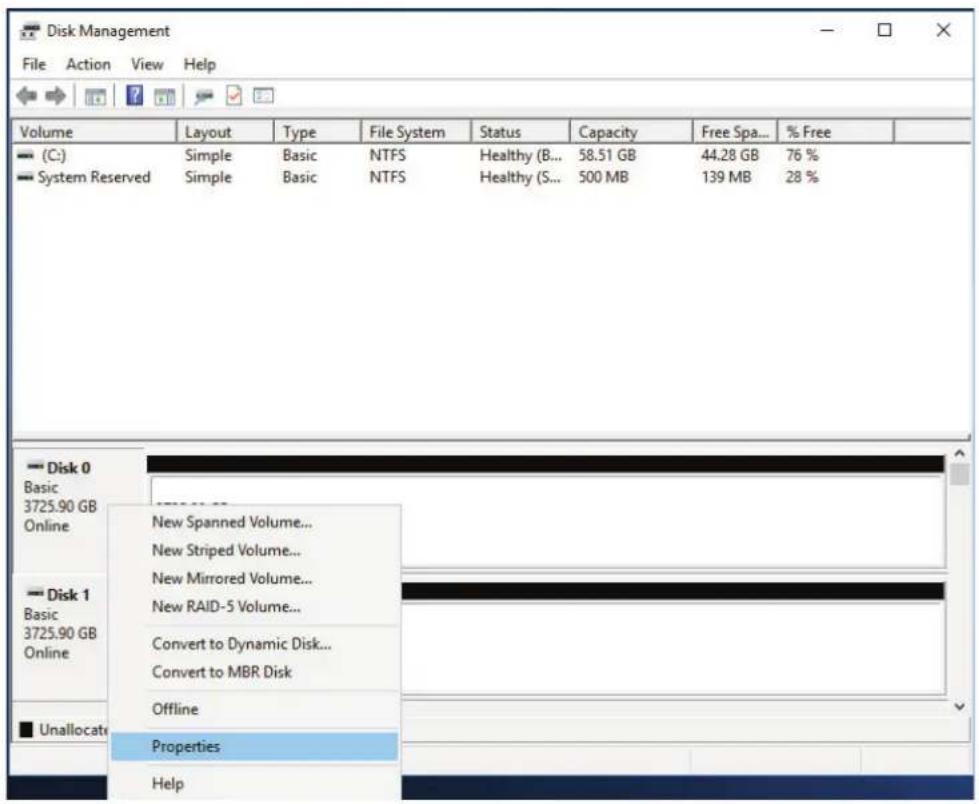
- Right click on the Start Menu. Select Disk Management. Right click on the disk number's information panel. Select Properties.
text_image
Disk Management File Action View Help Volume Layout Type File System Status Capacity Free Spa... % Free (C:) Simple Basic NTFS Healthy (B... 58.51 GB 44.28 GB 76 % System Reserved Simple Basic NTFS Healthy (S... 500 MB 139 MB 28 % Disk 0 Basic 3725.90 GB Online New Spanned Volume... New Striped Volume... New Mirrored Volume... New RAID-5 Volume... Convert to Dynamic Disk... Convert to MBR Disk Offline Properties HelpFigure 3-4. Viewing Properties in Disk Management
- Select the Details tab. Select Physical Device Object name from the Property pull-down menu. Note the Physical Device Object name. The device name in the example below is \Device\0000007d.
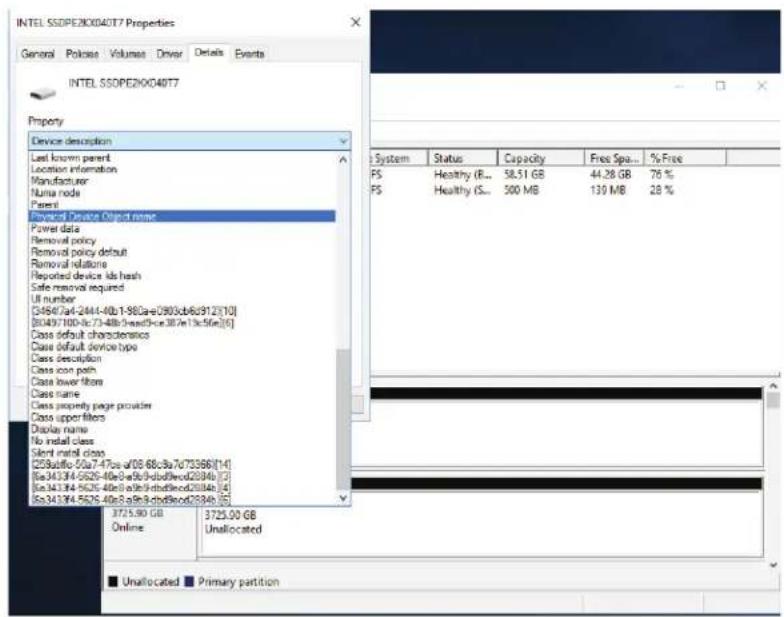
text_image
INTEL SSDPE2004077 Properties General Policies Volumes Driver Details Events INTEL SSDPE2004077 Property Device description Last known parent Location information Manufacturer Numa node Parent Physical Device Object name Power data Removal policy Removal policy default Removal relations Reported device ids hash Safe removal required UI number [3456/7af-2441-40b-1-362a-e0903cb6c912e10] B0487/100-bf-73-48b3neef5ce38fe13c56e[6] Class default characteristics Class default device type Class description Class con path Class lower links Class name Class property page provider Class upper filters Display name No install class Silent install class 225Btuftio-5527-475a af09.65c3a7d73366[14] 5a34334-5625-40e8ab9-dbd9vec2034b [2] 5a34334-5625-40e8ab9-dbd9vec2034b [4] 5a34334-5625-40e8ab9-dbd9vec2034b [5] 3725.90 GB 3725.90 GB Online Unallocated ■ Unallocated ■ Primary partition
text_image
INTEL SSDPE2X04017 Properties General Policies Volumes Driver Details Events INTEL SSDPE2X04017 Property Physical Device Object name Value Device:0000007& System Status Capacity Free Spa... % Free FS Healthy (B... 58.51 GB 44.28 GB 76 % FS Healthy (S... 500 MB 139 MB 28 % OK Cancel 3725.90 GB 3725.90 GB Online Unallocated Disk 1 Basic 3725.90 GB Online 3725.90 GB Unallocated Unallocated Primary partitionFigure 3-5. Physical Device Object Name in Disk Management
- Open the Control Panel by right clicking on the Start Menu. Select Control Panel\Hardware\Devices and Printers.
- Select an icon in the Control Panel. Right click and select Properties. Click the Properties button at the bottom in the Device Function Summary. Note the Physical Device Object name.
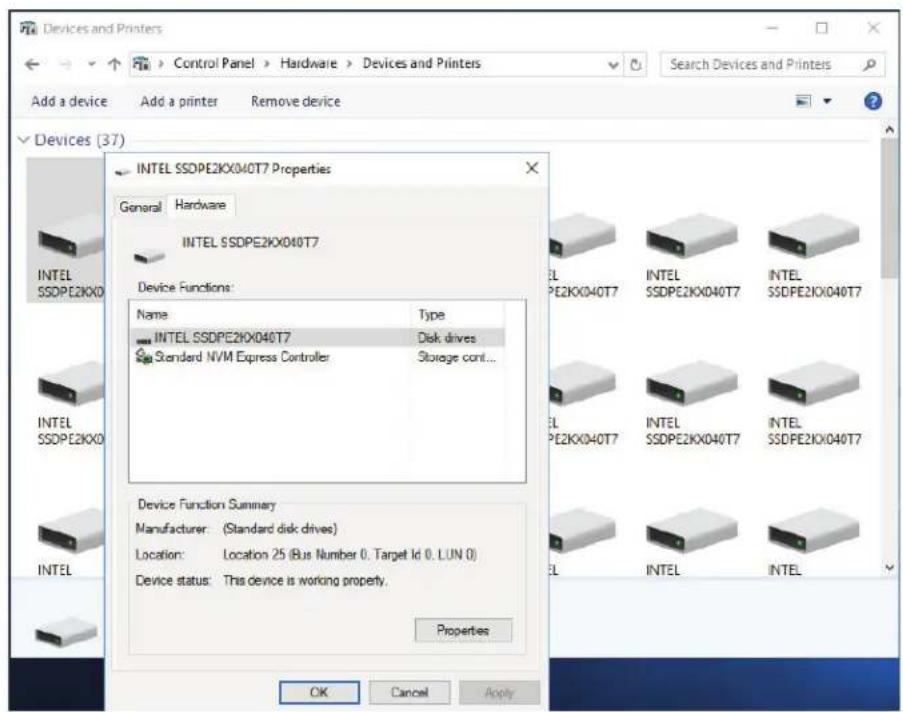
text_image
Devices and Printers Control Panel > Hardware > Devices and Printers Add a device Add a printer Remove device Devices (37) INTEL SSDPE2KX040T7 Properties General Hardware INTEL SSDPE2KX040T7 Device Functions: Name Type INTEL SSDPE2KX040T7 Disk drives Standard NVM Express Controller Storage cont... Device Function Summary Manufacturer: (Standard disk drives) Location: Location 25 (Bus Number 0, Target Id 0, LUN 0) Device status: This device is working property. Properties OK Cancel Apply
text_image
Devices and Printers Control Panel > Hardware > Devices and Printers Add a device Add a printer Devices (8) INTEL SS0PEWNV153T8 Properties General Hardware INTEL SS0PEWNV153T8 Properties General Policies Volumes Driver Details Events InTEL SS0PEWNV153T8 Property Physical Device Object name Value \Device\00000042 Microsoft Print to PDF Microsoft Documen Unspecified (4) 14 items OK CancelFigure 3-6. Physical Device Object Name in Control Panel
- Repeat Step 11 until the Physical Device Object name matches the name found in Disk Management.
- On the icon with the matching name, right click and select Remove device.

text_image
Devices and Printers Control Panel > Hardware > Devices and Printers Search Devices and Printers Add a device Add a printer Remove device Devices (37) INTEL SSDPE2KX040T7 INTEL SSDPE2KX040T7 INTEL SSDPE2KX040T7 INTEL SSDPE2KX040T7 INTEL SSDPE2KX040T7 INTEL SSDPE2KX040T7 INTEL SSDPE2KX040T7 INTEL SSDPE2KXO40T7 INTEL SSDPE2KX040T7 INTEL SSDPE2KX040T7 INTEL SSDPE2KX040T7 INTEL SSDPE2KX040T7 INTEL SSDPE2KX040T7 INTEL SSDPE2KX040T7 INTEL SSDE2KX040T7 INTEL SSDPE2KX040T7 INTEL SSDPE2KX040T7 INTEL SSDPE2KX040T7 INTEL SSDPE2KX040T7 INTEL SSDPE2KX040T7 INTEL SSDPE2KX040T7 InTEL SSDPE2KX040T7 Model: INTEL SSDPE2KX040T7 Category: Storage deviceFigure 3-7. Removing the Device
-
Confirm the E1.L drive has been removed from the operating system.
-
The E1.L icon is removed from the Devices panel of Devices and Printers.
- The E1.L disk number and information is removed from Disk Management.
-
Both LEDs on the E1.L drive are OFF.
-
Remove the E1.L drive from the JBOF.
- Hot insert a replacement E1.L drive. After Windows discovers the drive, it will be ready for configuration and access.
E1.L Drive Installation and Removal
Use the button and the handle at the front of the drive to install or remove the drive from the chassis.
Install the E1.L Drive
- Insert the E1.L drive into the chassis.
- Continue to push the drive back until it clicks to a stop and the handle retracts.
Remove the E1.L Drive
- Push the button at the top of the E1.L drive to pop out the handle.
- Grasp the handle and carefully pull the E1.L drive out of the chassis.
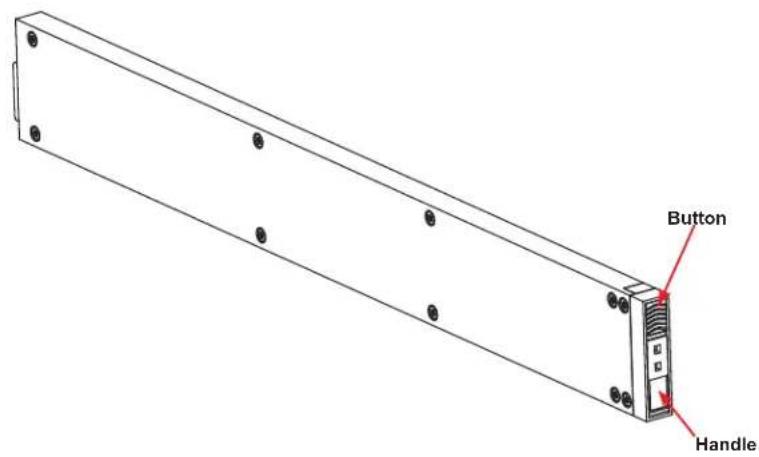
text_image
Button HandleFigure 3-8. Extending the Handle

natural_image
Technical line drawing of a server rack with internal components and an arrow indicating motion (no text or symbols)Figure 3-9. Removing the E1.L Drive
System Cooling
Eight 4-cm hot-swap fans provide cooling for the system. It is very important the chassis top cover is properly installed and forms a seal in order for the cooling air to circulate properly through the chassis and cool the components.
Replacing a Fan
-
If necessary, open the chassis while the power is running to determine which fan requires changing. (Never run the system for an extended period of time with the chassis open.)
-
Open the chassis cover.
-
Remove the failed fan from the chassis.
-
Place the new fan into the vacant space in the housing while making sure the arrows on the top of the fan (indicating air direction) point in the same direction as the arrows on the other fans.

natural_image
Technical line drawing of a server rack with internal components and a downward arrow indicating a component (no text or symbols present)Figure 3-10. Installing a System Fan
Power Supply
The SSG-136R-NEL32JBF has a 1000W redundant, hot-plug power supply consisting of two power modules. Each power supply module has an auto-switching capability, which enables it to automatically sense and operate at a 100V - 240V input voltage.
Power Supply Failure
If either of the two power supply modules fail, the other will take the full load and allow the system to continue operation without interruption. The Power Fail LED illuminates until the failed module has been replaced. Replacement parts can be ordered directly from Supermicro (see contact information in the Preface). The power supply modules have a hot-swap capability, so you can replace the failed module without powering down the system.
Removing/Replacing the Power Supply
- Unplug the power cord from the failed power supply module.
- Push the release tab on the back of the power supply.
- Pull the power supply out using the handle provided.
- Replace the failed power module with another of the same model.
- Push the new power supply module into the power bay until it clicks into the locked position.
- Plug the AC power cord back into the module.
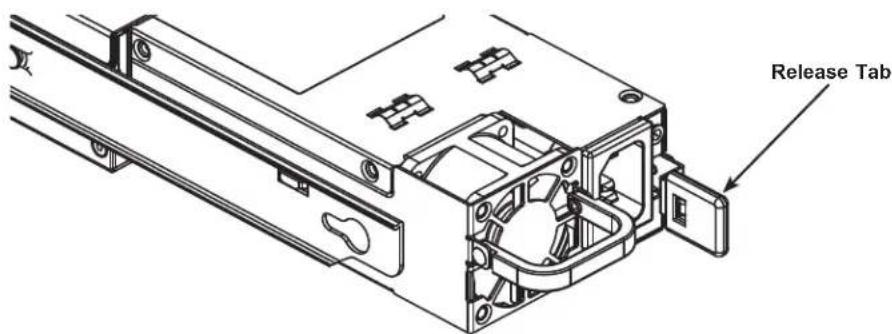
text_image
Release TabFigure 3-11. Removing/Replacing a Power Supply
PCI-E Cables
PCI-E cabling is required to connect the SSG-136R-NEL32JBF to the server node's host interface card(s). The chassis has four external PCI-E x16 ports, which can be split into eight x8 ports to support up to eight hosts.
Connect the PCI-E cable from the server node's host interface card (P/N AOC-SLG3-4X4P) to the first set of ports (see Figure 3-12 and Figure 3-13 to Figure 3-15).
*The AOC-SLG3-4X4P User's Guide is available on the Supermicro website:
https://www.supermicro.com/manuals/other/AOC-SLG3-4X4P.pdf.
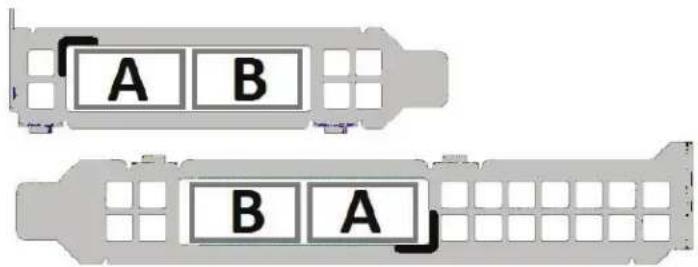
text_image
A B B AFigure 3-12. Add-on Card Ports
For each host, the top cable from the interface card (port A) must be plugged into port A on the system, and the bottom cable from the interface card (port B) must be plugged into port B on the system. To support additional hosts, connect PCI-E cables to the subsequent ports. If using only two hosts, connect each host to a different PCI-E switch for improved performance.
The following diagrams show three potential configurations for the SSG-136R-NEL32JBF: A single server with multiple interface cards and dual PCI-E x8 cables, four servers with dual PCI-E x8 cables, and eight servers with single PCI-E x8 cables.

text_image
Server with two or more Host Interface Cards External PCI-E Cables AOC-SLG3-4X4P A B AOC-SLG3-4X4P A BFigure 3-13. Single Server with Multiple Interface Cards (Dual PCI-E x8 Cables)
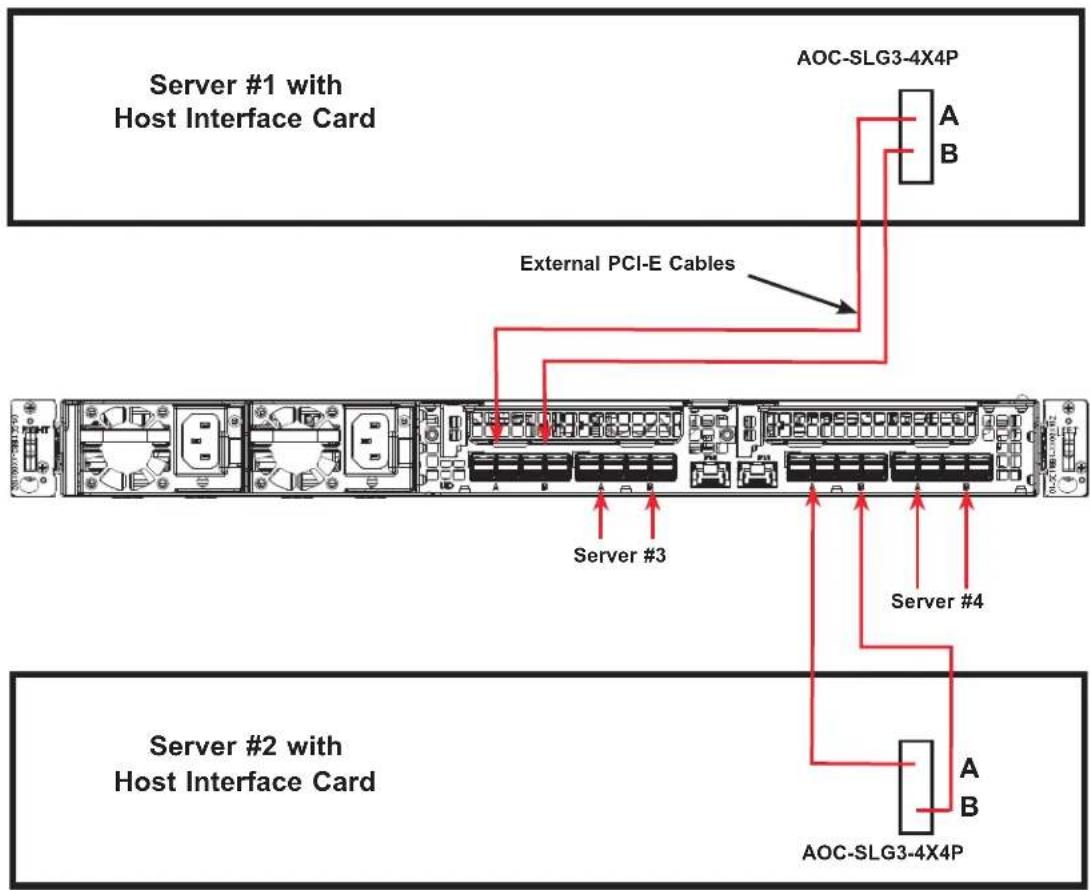
text_image
Server #1 with Host Interface Card External PCI-E Cables Server #3 Server #4 Server #2 with Host Interface Card AOC-SLG3-4X4P AOC-SLG3-4X4P A BFigure 3-14. Four Servers (Dual PCI-E x8 Cables)

flowchart
graph TD
    Server1["Server #1"] -->|AOC-SLG3-4X4P| Server2["Server #2"]
    Server2 -->|AOC-SLG3-4X4P| Server3["Server #3"]
    Server3 -->|AOC-SLG3-4X4P| Server4["Server #4"]
    Server4 -->|AOC-SLG3-4X4P| Server5["Server #5"]
    Server5 -->|AOC-SLG3-4X4P| Server6["Server #6"]
    Server6 -->|AOC-SLG3-4X4P| Server7["Server #7"]
    Server7 -->|AOC-SLG3-4X4P| Server8["Server #8"]
    Server8 -->|AOC-SLG3-4X4P| Server1
    Server1 -->|External PCI-E Cables| Server2
    Server2 -->|External PCI-E Cables| Server3
    Server3 -->|External PCI-E Cables| Server4
    Server5 --> Server6
    Server6 --> Server7
    Server7 --> Server8
Figure 3-15. Eight Servers (Single PCI-E x8 Cables)
PCI-E Expansion Cards
The SSG-136R-NEL32JBF can accommodate up to two full-height PCI-E expansion cards in the rear slots. These are only used for NVMeoF configurations.
Installing an Add-on Card
Begin by removing power from the system as described in Section 3.1 and removing the cover as described in Section 3.2.
- Remove the shield for the PCI-E slot that you wish to populate. Verify the card you are installing is supported by the slot and verify each unused slot is covered by a shield.
- Seat the card firmly into the slot by pushing down with your thumbs evenly on both sides of the card.
- Use a screw to secure the top of the card shield to the chassis. The PCI-E slot shields protect the motherboard and its components from EMI and aid in proper ventilation. Verify each each unused slot is covered by a shield.
Appendix A
Standardized Warning Statements for AC Systems
A.1 About Standardized Warning Statements
The following statements are industry standard warnings, provided to warn the user of situations which have the potential for bodily injury. Should you have questions or experience difficulty, contact Supermicro's Technical Support department for assistance. Only certified technicians should attempt to install or configure components.
Read this appendix in its entirety before installing or configuring components in the Supermicro chassis.
These warnings may also be found on our website at http://www.supermicro.com/about/policies/safety_information.cfm.
Warning Definition

Warning! This warning symbol means danger. You are in a situation that could cause bodily injury. Before you work on any equipment, be aware of the hazards involved with electrical circuitry and be familiar with standard practices for preventing accidents.
警告の定義
この警告サインは危険を意味します。
Installation Instructions

Warning! Read the installation instructions before connecting the system to the power source.
設置手順書
Warning! This product relies on the building's installation for short-circuit (overcurrent) protection. Ensure that the protective device is rated not greater than: 250 V, 20 A.
サーキット・ブレーカー
Power Disconnection Warning

Warning! The system must be disconnected from all sources of power and the power cord removed from the power supply module(s) before accessing the chassis interior to install or remove system components.
電源切断の警告
Equipment Installation

Warning! Only trained and qualified personnel should be allowed to install, replace, or service this equipment.
機器の設置
Warning! This unit is intended for installation in restricted access areas. A restricted access area can be accessed only through the use of a special tool, lock and key, or other means of security. (This warning does not apply to workstations).
アクセス制限区域
Warning! There is the danger of explosion if the battery is replaced incorrectly. Replace the battery only with the same or equivalent type recommended by the manufacturer. Dispose of used batteries according to the manufacturer's instructions
電池の取り扱い
Redundant Power Supplies

Warning! This unit might have more than one power supply connection. All connections must be removed to de-energize the unit.
冗長電源装置
Warning! Hazardous voltage or energy is present on the backplane when the system is operating. Use caution when servicing.
バックプレーンの電圧
Comply with Local and National Electrical Codes

Warning! Installation of the equipment must comply with local and national electrical codes.
地方および国の電気規格に準拠
Warning! Ultimate disposal of this product should be handled according to all national laws and regulations.
製品の廃棄
Warning! Hazardous moving parts. Keep away from moving fan blades. The fans might still be turning when you remove the fan assembly from the chassis. Keep fingers, screwdrivers, and other objects away from the openings in the fan assembly's housing.
ファン・ホットスワップの警告
Power Cable and AC Adapter

Warning! When installing the product, use the provided or designated connection cables, power cables and AC adaptors. Using any other cables and adaptors could cause a malfunction or a fire. Electrical Appliance and Material Safety Law prohibits the use of UL or CSA-certified cables (that have UL/CSA shown on the code) for any other electrical devices than products designated by Supermicro only.
電源コードとACアダプター
System Specifications
Drive Bays
32 EDSFF (E1.L) SSDs
PCI Expansion Slots
Two PCI Express 3.0 x16 Slots
Four External PCI Express 3.0 x16 Ports
Controller Board
BPN-NVME3-136PL-J
Chassis
136TS-R1K04JP-E2; 1U Rackmount, (WxHxD) 17.26 x 1.71 x 31.95 in. (438.4 x 43.6 x 811.7 mm)
System Cooling
Eight 4-cm fans
Backplane
BPN-EDS3-136P1-1
Power Supply
Model: PWS-1K04A-1R
AC Input Voltages: 100-240 Vac
Rated Input Current: 15-12A (100-127Vac) / 825-7A (200-240Vac)
Rated Input Frequency: 50-60 Hz
Rated Output Power: 1000W
Rated Output Voltages: +12V (83A at 100-127Vac, 100A at 200-240Vac), +5Vsb (4A)
Operating Environment
Operating Temperature: 10° to 35° C (50° to 95° F)
Non-operating Temperature: -40^ to 60^ C ( -40^ to 140^ F)
Operating Relative Humidity: 8% to 90% (non-condensing)
Non-operating Relative Humidity: 5% to 95% (non-condensing)
Regulatory Compliance
Electromagnetic Emissions: FCC Class A, EN 55032 Class A, EN 61000-3-2/3-3, CISPR 32 Class A
Electromagnetic Immunity: EN 55024/CISPR 24, (EN 61000-4-2, EN 61000-4-3, EN 61000-4-4, EN 61000-4-5, EN 61000-4-6, EN 61000-4-8, EN 61000-4-11)
Safety: CSA/EN/IEC/UL 60950-1 Compliant, UL or CSA Listed (USA and Canada), CE Marking (Europe)
Other: VCCI-CISPR 32 and AS/NZS CISPR 32
Environmental: Directive 2011/65/EU and Delegated Directive (EU) 2015/863 and Directive 2012/19/EU
Perchlorate Warning
California Best Management Practices Regulations for Perchlorate Materials: This Perchlorate warning applies only to products containing CR (Manganese Dioxide) Lithium coin cells. "Perchlorate Material-special handling may apply. See www.dtsc.ca.gov/hazardouswaste/perchlorate"
Appendix C
Drive Assignment
C.1 Overview
After installing the SSG-136R-NEL32JBF system, you must assign drives to the hosts. This appendix provides information about drive mappings and procedures for reassigning drives to different hosts. Refer to the Web GUI or command line interface sections in this appendix for your preferred procedure.
Physical hosts are represented by "zones" and physical drives are represented by "endpoints." Familiarity with zones and endpoints is necessary to properly assign drives to the hosts. Refer to the following diagrams for zone-to-host labeling, and refer to Section C.2 for information about endpoints.
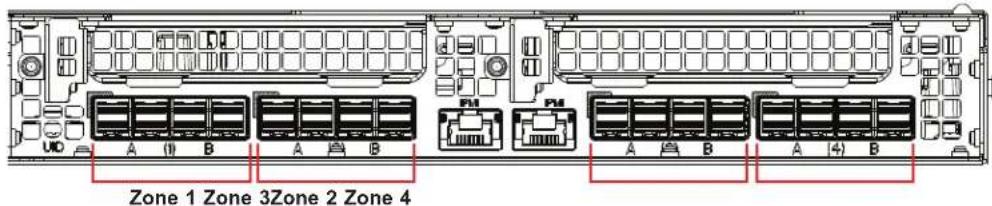
text_image
Zone 1 Zone 3Zone 2 Zone 4Figure C-1. Zone Labeling (Four Hosts)

text_image
Zone 1 Zone 2 Zone 3 Zone 4 Zone 5 Zone 6 Zone 7 Zone 8Figure C-2. Zone Labeling (Eight Hosts)
You can assign a drive to a new host by mapping the drive's endpoint to a different zone. You can do this from the Web GUI or the command line interface. Refer to your preferred procedure in Section C.3 or Section C.4.
C.2 Drive Slots Endpoint Mapping
Each physical drive is assigned an "endpoint" number that is different from the physical slot number. The following tables provide an overview of endpoint mapping for drive slots in a four-host and eight-host configuration.
Optimize drive performance by assigning the drives used by each host across the PCI-E switches (EDSFF trays) and across the bays within each tray (see figure on page 10).
The "Slot #" column refers to the physical slot number of an NVMe SSD. The "Endpoint" column refers to the endpoint number assigned to the drive.
| Drive Slots to Endpoint Mapping (Four Hosts) | |||||
| Tray 1 Tray 2 | |||||
| Slot # | Endpoint | Load Order | Slot # | Endpoint | Load Order |
| 0 | 29 | 1 | 16 | 13 | 2 |
| 1 | 30 | 3 | 17 | 14 | 4 |
| 2 | 31 | 5 | 18 | 15 | 6 |
| 3 | 32 | 7 | 19 | 16 | 8 |
| 4 | 33 | 9 | 20 | 17 | 10 |
| 5 34 11 | 21 18 12 | ||||
| 6 35 13 | 22 19 14 | ||||
| 7 36 15 | 23 20 16 | ||||
| 8 | 21 | 17 | 24 | 5 | 18 |
| 9 | 22 | 19 | 25 | 6 | 20 |
| 10 23 21 | 26 7 22 | ||||
| 11 24 23 | 27 8 24 | ||||
| 12 25 25 | 28 9 26 | ||||
| 13 26 27 | 29 10 28 | ||||
| 14 27 29 | 30 11 30 | ||||
| 15 28 31 | 31 12 32 | ||||
| Drive Slots to Endpoint Mapping (Eight Hosts) | |||||
| Tray 1 Tray 2 | |||||
| Slot # | Endpoint | Load Order | Slot # | Endpoint | Load Order |
| 0 | 33 | 1 | 16 | 17 | 2 |
| 1 | 34 | 3 | 17 | 18 | 4 |
| 2 | 35 | 5 | 18 | 19 | 6 |
| 3 | 36 | 7 | 19 | 20 | 8 |
| 4 | 37 | 9 | 20 | 21 | 10 |
| 5 38 11 | 21 22 12 | ||||
| 6 39 13 | 22 23 14 | ||||
| 7 40 15 | 23 24 16 | ||||
| 8 | 25 | 17 | 24 | 9 | 18 |
| 9 26 19 | 25 10 20 | ||||
| 10 27 21 | 26 11 22 | ||||
| 11 28 23 | 27 12 24 | ||||
| 12 29 25 | 28 13 26 | ||||
| 13 30 27 | 29 14 28 | ||||
| 14 31 29 | 30 15 30 | ||||
| 15 32 31 | 31 16 32 | ||||
C.3 Assigning a Drive from the GUI
Drive assignment from the Web GUI requires a computer with access to the network that contains the SSG-136R-NEL32JBF system.
Optimize drive performance by assigning the drives used by each host across the PCI-E switches (EDSFF trays) and across the bays within each tray (see figure on page 10).
Assigning a Drive
- Access the Web GUI by opening a Web browser and directing it to the IP address of the SSG-136R-NEL32JBF system. To get the IP address of your system, refer to Section C.5.
- Log in and click on the Pooled NVMe Storage tab.
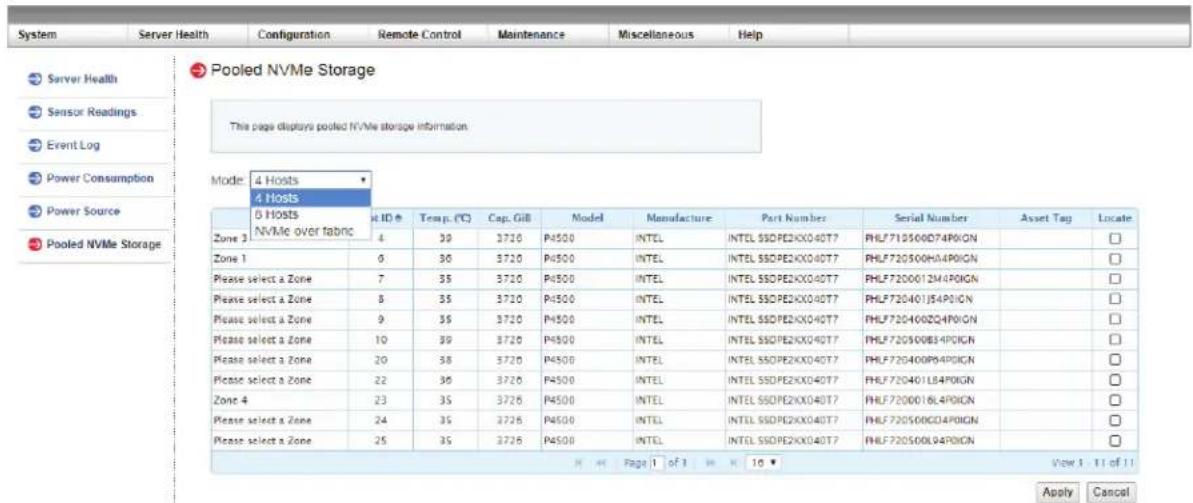
text_image
System Server Health Configuration Remote Control Maintenance Miscellaneous Help Server Health Sensor Readings Event Log Power Consumption Power Source Pooled NVMe Storage This page displays pooled NVMe storage information. Mode: 4 Hosts 4 Hosts 6 Hosts NVMe over fabric at ID # Temp. (°C) Cap. Gill Model Manufacture Part Number Serial Number Asset Tag Locate Zone 3 4 39 3720 P4500 INTEL INTEL SSDPE2XX040T7 PHLF712060D74P0IGN □ Zone 1 6 38 3720 P4500 INTEL INTEL SSDPE2XX040T7 PHLF720500H4P0IGN □ Please select a Zone 7 35 3720 P4500 INTEL INTEL SSDPE2XX040T7 PHLF7200012M4P0IGN □ Please select a Zone 8 35 3720 P4500 INTEL INTEL SSDPE2XX040T7 PHLF720401J54P0IGN □ Please select a Zone 9 35 3720 P4500 INTEL INTEL SSDPE2XX040T7 PHLF720400ZQ4P0IGN □ Please select a Zone 10 39 3720 P4500 INTEL INTEL SSDPE2XX040T7 PHLF720500B34P0IGN □ Please select a Zone 20 38 3720 P4500 INTEL INTEL SSDPE2XX040T7 PHLF720400P54P0IGN □ Please select a Zone 22 36 3720 P4500 INTEL INTEL SSDPE2XX040T7 PHLF720401LB4P0IGN □ Zone 4 23 35 3726 P4500 INTEL INTEL SSDPE2XX040T7 PHLF720001BL4P0IGN □ Please select a Zone 24 35 3726 P4500 INTEL INTEL SSDPE2XX040T7 PHLF720500CD4P0IGN □ Please select a Zone 25 35 3726 P4500 INTEL INTEL SSDPE2XX040T7 PHLF720500L94P0IGN □- In the Mode field, click the drop-down bar and select "4 Hosts" or "8 Hosts" depending on your configuration.
- On the displayed table, find a specified drive by looking at the Slot ID column.

text_image
Pooled NVMe Storage This page displays pooled NVMe storage information: Mode: 4 Hosts Zone Slot ID # Temp. (°C) Cap. GB Model Manufacture Part Number Serial Number Asset Tag Locate Zone 3 4 30 3726 P4500 INTEL INTEL SSDPE2KX040T7 PHLF710500D74PIGN □ Zone 1 0 30 3726 P4500 INTEL INTEL SSDPE2KX040T7 PHLF720500HA4PIGN □ Please select a Zone▼ 7 35 3726 P4500 INTEL INTEL SSDPE2KX040T7 PHLF7200012M4PIGN □ Please select a Zone 8 35 3726 P4500 INTEL INTEL SSDPE2KX040T7 PHLF720401J54PIGN □ Zone 1 9 35 3726 P4500 INTEL INTEL SSDPE2KX040T7 PHLF720400ZQ4PIGN □ Zone 2 10 39 3726 P4500 INTEL INTEL SSDPE2KX040T7 PHLF720500B54PIGN □ Zone 3 Zone 4 20 38 3726 P4500 INTEL INTEL SSDPE2KX040T7 PHLF720400P54PIGN □ Please select a Zone 21 36 3726 P4500 INTEL INTEL SSDPE2KX040T7 PHLF720401LB4PIGN □ Zone 4 22 35 3726 P4500 INTEL INTEL SSDPE2KX040T7 PHLF7200016L4PIGN □ Please select a Zone 23 35 3726 P4500 INTEL INTEL SSDPE2KX040T7 PHLF720500GD4PIGN □ Please select a Zone 24 35 3726 P4500 INTEL INTEL SSDPE2KX040T7 PHLF720500LQ4PIGN □ Page 1 of 1 16 View 1-11 of 11 Apply Cancel- Click the drop-down bar in the Zone column to select the zone to which you want to assign this drive.
- Perform step 5 for all drives you want to assign/reassign.
- When finished, click Apply to apply all changes.
- To revert, click Cancel.
Note: An EDSFF needs to be plugged in for Pooled NVMe Storage to display any information.
C.4 Assigning a Drive from the CLI
Drive assignment from the CLI requires Curl and Python with the json.tools module installed in a Linux environment. (Recommended versions: Curl 7.35.0 or later, Python 2.7.6 or later).
Optimize drive performance by assigning the drives used by each host across the PCI-E switches (EDSFF trays) and across the bays within each tray (see figure on page 10).
Getting Drive Information
- Access a command line interface connected to the SSG-136R-NEL32JBF system.
- To get drive information for a given zone, run the following command:
$ curl -k --user ADMIN:ADMIN -X GET https://<IP Address>/redfish/v1/Fabrics/1/Zones/1 | python -m json.tool
For
In the output (see next page for example), the first item listed under "Endpoints" is the zone number, and subsequent items are drive endpoint numbers.
In the following example of a 4-host configuration, endpoint 19 (Slot 22) represents the only Slot assigned to Zone 1:
{
    "@odata.context": "/redfish/v1/$metadata#Zone.Zone",
    "@odata.id": "/redfish/v1/Fabrics/1/Zones/1",
    "@odata.type": "#Zone.Zone",
    "Description": "PCIe Zone 1",
    "Id": "1",
    "Links": {
    "Endpoints": [
    {
    "@odata.id": "/redfish/v1/Fabrics/1/Endpoints/1"
    },
    {
    "@odata.id": "/redfish/v1/Fabrics/1/Endpoints/19"
    }
    ],
    "InvolvedSwitches": [
    {
    "@odata.id": "/redfish/v1/Fabrics/1/Switches/1"
    }
    ]
},
"Name": "Zone",
"Oem": {},
"Status": {
    "Health": "OK",
    "State": "Disabled"
}
For information about which endpoints correspond to physical drives, refer to Section C.2.
Reassigning a Drive
- To change drive assignment, you must first create a .txt file that includes your changes in JSON format. For example:
{
    "Endpoints": [
    {
    "@odata.id": "/redfish/v1/Fabrics/1/Endpoints/1"
    },
    {
    "@odata.id": "/redfish/v1/Fabrics/1/Endpoints/7"
    },
    {
    "@odata.id": "/redfish/v1/Fabrics/1/Endpoints/5"
    }
    ]
}
In the above example of a 4-host configuration, endpoint 19 (Slot 22) was removed from Zone 1, and endpoints 7 and 5 (Slot 26 and 24) were added to Zone 1.
- In the command line interface, run the following command:
$ curl -k --http1.0 --user ADMIN:ADMIN -X PATCH -d @<text.txt>
https://<IP Address>/redfish/v1/Fabrics/1/Zones/1
For
The following output indicates success:
{"Success": {"code":"Base.1.0.0.Success","Message":"Successfully Completed Request."}}
- To verify your changes, perform the "Getting Drive Information" procedure.
C.5 Obtaining the System IP Address
Drive reassignment requires the IP address of the SSG-136R-NEL32JBF system. Perform the following procedure to obtain the system IP address.
If DHCP is detected, a dynamic IP address is assigned to the system. If DHCP is not detected, the default IP address is 192.168.1.99.
Obtaining System IP Address
- Get the MAC address of the SSG-136R-NEL32JBF. The MAC address is printed on the service tags on the front end of the chassis under the control panels.
- Consult your network administrator to determine IP address from a MAC address. This IP address is required to access the Web GUI and to run CLI commands.
Appendix D
Firmware Updates
D.1 Updating Switch Configuration
Use IPMI to update the configuration of the JBOF switches.
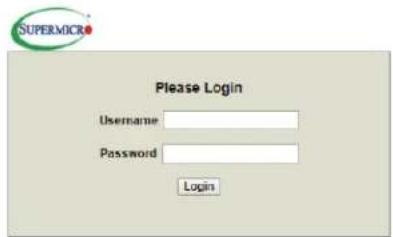
- Log into the IPMI.

text_image
SUPERMICRO Please Login Username Password LoginThe default Username and Password are ADMIN / ADMIN.
- Under the Maintenance tab, select JBOF FW Update.
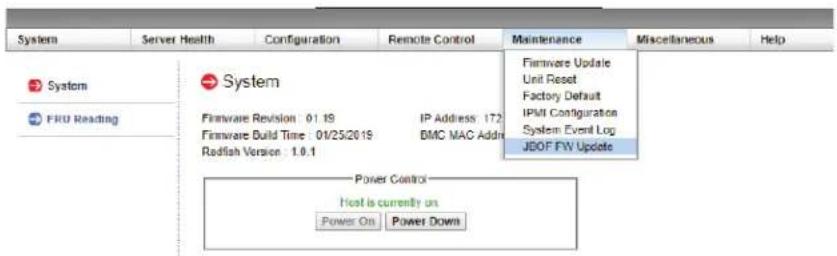
text_image
System Server Health Configuration Remote Control Maintenance Miscellaneous Help System FRU Reading System Firmware Revision 01.19 IP Address: 172 Firmware Build Time: 01/25/2019 DMC MAC Addra Redfish Version: 1.0.1 Firmware Update Unit Reset Factory Default IPMI Configuration System Event Log JBOF FIV Update Power Control Host is currently on Power On Power Down- Select the targeted switch and click the Update button.

text_image
System Server Health Configuration Remote Control Maintenance Miscellaneous Help Maintenance JBOF FW update Update firmware for JBOF Current Firmware Version: 1080058 Ctrl Switch 1 Ctrl Switch 1 Ctrl Switch 2 L Tray Switch R Tray Switch file chosen Update- Click Choose File to select configuration file, and click the Update button.

text_image
System Server Health Configuration Remote Control Maintenance Miscellaneous Help Maintenance Firmware Update Unit Reset Factory Default FMB Configuration System Focus Log JBOF FW Update JBOF FW update Update Forward for uBOF Current Framework Version: 1800 L Trap Switch Choose File No file chosen Update Open This PC Desktop Insg > 0204 update Search update Organize New folder This PC 3D Objects Desktop Documents Downloads Music Pictures Videos Local Disk It's Name Date modified Type BPN-VMME3-136FL_0U52_PMB536_00262018.pms 9/26/2018 2.55 PMA PHC File SMT_JBOF_119.exe 1/25/2019 2.55 PMA BDN File File name: BPN-NVME3-136PL_0U52_PMB536_00262018.pms All Files Open Cancel- Click OK to confirm.
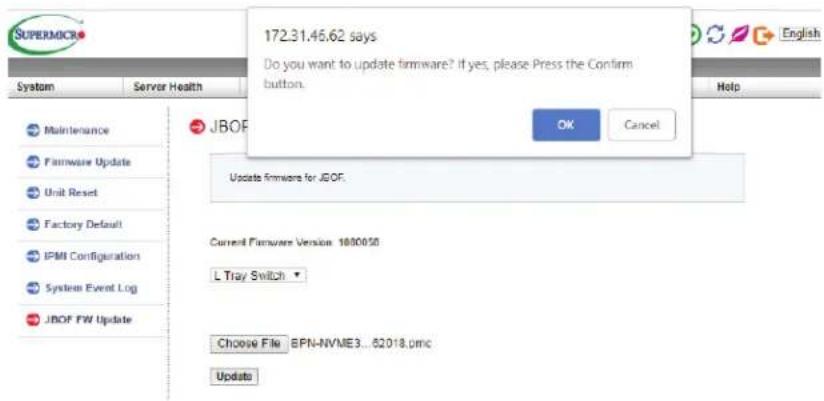
text_image
172.31.46.62 says Do you want to update firmware? if yes, please Press the Confirm button. JBOF OK Cancel Update firmware for JBOF. Current Firmware Version 1800050 L Tray Switch Choose File BPN-NVME3...62018.pmc Update- Click OK to finish.
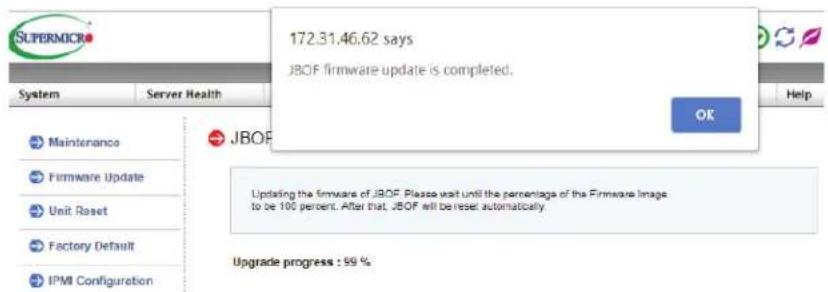
text_image
172.31.46.62 says JBOF firmware update is completed. OK Updating the firmware of JBOF Please wait until the percentage of the Firmware Image to be 100 percent. After that, JBOF will be reset automatically. Upgrade progress : 99 %- After all intended switches have been updated, please reset the system to complete the update.
D.2 Updating the BMC Firmware
Use IPMI to update the BMC firmware.
- Log into the IPMI.
text_image
SUPERMICRO Please Login Username Password LoginBy default, both Username and Password are ADMIN
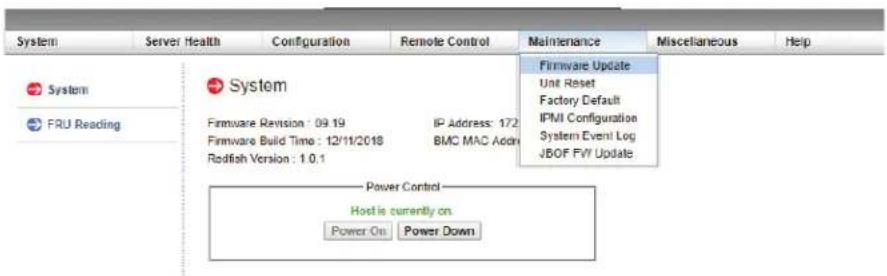
- Under the Maintenance tab, select Firmware Update.
text_image
System Server Health Configuration Remote Control Maintenance Miscellaneous Help System FRU Reading System Firmware Revision : 09.19 IP Address: 172 Firmware Build Time : 12/11/2018 BMC MAC Address Rodfish Version : 1.0.1 Firmware Update Unit Reset Factory Default IPMI Configuration System Event Log JBOF FVI Update Power Control Host is currently on. Power On Power Down- Click the Enter Update Mode button.

text_image
System Server Health Configuration Remote Control Maintenance Miscellaneous Help Maintenance Firmware Update Unit Reset Factory Default IPMI Configuration System Event Log JBOF FW Update Firmware Update This page allows you to do firmware update. Press [Enter Update Mode] to put the device in a special mode that allows for a firmware update. Please note that once you enter the update mode the device will reset if the update process is canceled. Enter Update ModeRead the caution message and click OK.
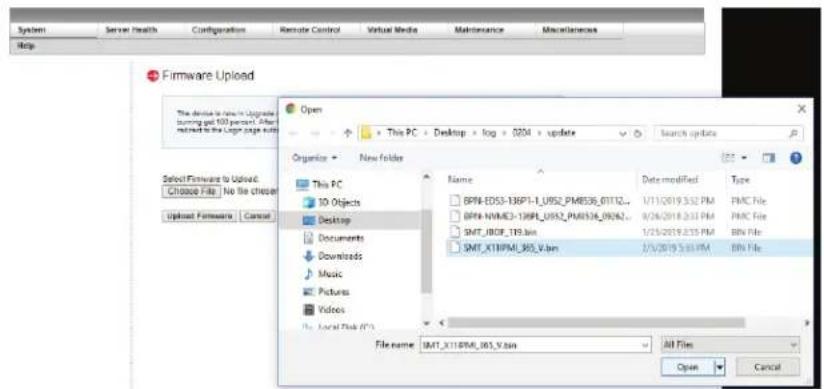
- Click Choose File, select the configuration file, then click the Upload Firmware button.
text_image
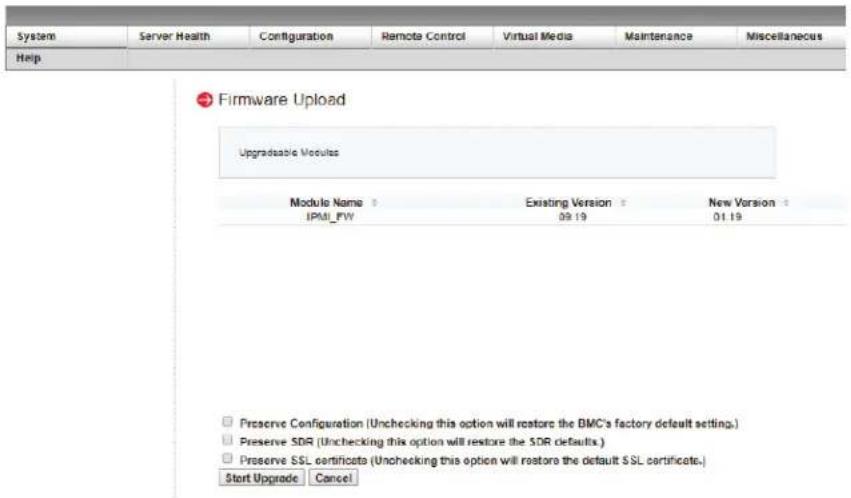
System Server Health Configuration Remote Control Virtual Media Maintenance Miscellaneous Help Firmware Upload This device is now in Upgrade sturning got 100 percent. After <|vision_start|> <|vision_start|> the Log on page audio Open This PC Desktop Documents Downloads Music Pictures Videos New folder Organize Select Firmware to Upload: Choose File: No file cheaper Upload Fmercware Close Name Date modified Type BPM-EDS3-136P1-1_0952_PMB536_01112... BPM-NVME3-136P1_0952_PMB536_09262... SMT_JBOF_195.htm SMT_X18PMI_983_V.htm 1/11/2019 3:32 PM 8/24/2018 2:33 PM 1/23/2019 2:35 PM 2/3/2019 5:33 PM FMIC File FMIC File BM File BM File File name: IMT_X18PMI_983_V.htm All Files Open Cancel- Clear all check box options and click the Start Upgrade button.
text_image
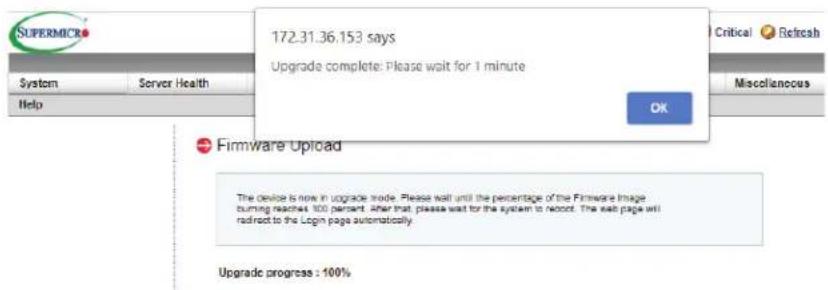
System Server Health Configuration Remote Control Virtual Media Maintenance Miscellaneous Help Firmware Upload Upgrades Module Module Name Existing Version New Version IPMI_PW 09.19 01.19 Preserve Configuration (Unchecking this option will restore the BMC's factory default setting.) Preserve SDR (Unchecking this option will restore the SDR defaults.) Preserve SSL certificate (Unchecking this option will restore the default SSL certificate.) Start Upgrade Cancel- Click OK to confirm and wait.
text_image
172-31.36.153 says Upgrade complete: Please wait for 1 minute OK Firmware Upload The device is now in upgrade mode. Please wait until the percentage of the Firmware Image burning reaches 100 percent, after that, please wait for the system to recover. The next page will redirect to the Login page automatically. Upgrade progress : 100%The JBOF system reboots to complete the update.