MicroBlade MBI-6418A-T7H - Server Supermicro - Free user manual and instructions
Find the device manual for free MicroBlade MBI-6418A-T7H Supermicro in PDF.


User questions about MicroBlade MBI-6418A-T7H Supermicro
0 question about this device. Answer the ones you know or ask your own.
Ask a new question about this device
Download the instructions for your Server in PDF format for free! Find your manual MicroBlade MBI-6418A-T7H - Supermicro and take your electronic device back in hand. On this page are published all the documents necessary for the use of your device. MicroBlade MBI-6418A-T7H by Supermicro.
USER MANUAL MicroBlade MBI-6418A-T7H Supermicro
natural_image
Internal view of a computer drive chassis showing multiple hard drives and RAM modules (no visible text or labels)User's Manual
Revision 1.0d
The information in this User's Manual has been carefully reviewed and is believed to be accurate. The vendor assumes no responsibility for any inaccuracies that may be contained in this document, and makes no commitment to update or to keep current the information in this manual, or to notify any person or organization of the updates. Please Note: For the most up-to-date version of this manual, please see our website at www.supermicro.com.
Super Micro Computer, Inc. ("Supermicro") reserves the right to make changes to the product described in this manual at any time and without notice. This product, including software and documentation, is the property of Supermicro and/or its licensors, and is supplied only under a license. Any use or reproduction of this product is not allowed, except as expressly permitted by the terms of said license.
IN NO EVENT WILL Super Micro Computer, Inc. BE LIABLE FOR DIRECT, INDIRECT, SPECIAL, INCIDENTAL, SPECULATIVE OR CONSEQUENTIAL DAMAGES ARISING FROM THE USE OR INABILITY TO USE THIS PRODUCT OR DOCUMENTATION, EVEN IF ADVISED OF THE POSSIBILITY OF SUCH DAMAGES. IN PARTICULAR, SUPER MICRO COMPUTER, INC. SHALL NOT HAVE LIABILITY FOR ANY HARDWARE, SOFTWARE, OR DATA STORED OR USED WITH THE PRODUCT, INCLUDING THE COSTS OF REPAIRING, REPLACING, INTEGRATING, INSTALLING OR RECOVERING SUCH HARDWARE, SOFTWARE, OR DATA.
Any disputes arising between manufacturer and customer shall be governed by the laws of Santa Clara County in the State of California, USA. The State of California, County of Santa Clara shall be the exclusive venue for the resolution of any such disputes. Supermicro's total liability for all claims will not exceed the price paid for the hardware product.
FCC Statement: This equipment has been tested and found to comply with the limits for a Class A digital device pursuant to Part 15 of the FCC Rules. These limits are designed to provide reasonable protection against harmful interference when the equipment is operated in industrial environment. This equipment generates, uses, and can radiate radio frequency energy and, if not installed and used in accordance with the manufacturer's instruction manual, may cause harmful interference with radio communications. Operation of this equipment in a residential area is likely to cause harmful interference, in which case you will be required to correct the interference at your own expense.
California Best Management Practices Regulations for Perchlorate Materials: This Perchlorate warning applies only to products containing CR (Manganese Dioxide) Lithium coin cells. "Perchlorate Material-special handling may apply. See www.dtsc.ca.gov/hazardouswaste/perchlorate".

WARNING: This product can expose you to chemicals including lead, known to the State of California to cause cancer and birth defects or other reproductive harm. For more information, go to www.P65Warnings.ca.gov.
Manual Revision 1.0d
Release Date: March 20, 2024
Unless you request and receive written permission from Super Micro Computer, Inc., you may not copy any part of this document. Information in this document is subject to change without notice. Other products and companies referred to herein are trademarks or registered trademarks of their respective companies or mark holders.
Copyright © 2020 by Super Micro Computer, Inc.
All rights reserved.
Printed in the United States of America
Preface
About this Manual
This manual is written for professional system integrators, Information Technology professionals, service personnel and technicians. It provides information for the installation and use of the Supermicro MBI-6418A-T5H/T7H MicroBlade module. Installation and maintenance should be performed by experienced professionals only.
Manual Organization
Chapter 1: Introduction
The first chapter provides a checklist of the main components included with MBI-6418A-T5H/T7H MicroBlade module and describes their main features.
Chapter 2: System Safety
You should familiarize yourself with this chapter for a general overview of safety precautions that should be followed when installing and servicing MBI-6418A-T5H/T7H MicroBlade module.
Chapter 3: Setup and Installation
Refer to this chapter for details on installing the MBI-6418A-T5H/T7H MicroBlade module into the MicroBlade chassis. Other sections cover the installation and placement of memory modules and the installation of hard disk drives into the blade module.
Chapter 4: Blade Module Features
This chapter coves features and component information about MBI-6418A-T5H/T7H MicroBlade module. Included here are descriptions and information for mainboard components, connectors, LEDs and other features of the blade module.
Chapter 5: BIOS
BIOS setup is covered in this chapter for MBI-6418A-T5H/T7H MicroBlade module.
Appendix A: BIOS POST Codes
BIOS POST Codes for MBI-6418A-T5H/T7H MicroBlade module are explained in this appendix.
Secure Data Deletion
A secure data deletion tool designed to fully erase all data from storage devices can be found on our website: https://www.supermicro.com/about/policies/disclaimer.cfm?url=/wftp/utility/Log9_Secure_Data_Deletion_Utility/
Table of Contents
Chapter 1 Introduction....1-1
1-1 Overview....1-1
1-2 Blade Module Features.... 1-2
Processors 1-2
Memory 1-2
Storage 1-3
RAID 1-3
Density....1-3
BMC Password 1-3
1-3 Contacting Supermicro 1-4
Chapter 2 Standardized Warning Statements....2-1
2-1 About Standardized Warning Statements ......2-1
Warning Definition....2-1
Installation Instructions 2-3
Circuit Breaker 2-4
Power Disconnection Warning 2-5
Equipment Installation....2-6
Restricted Area 2-7
Battery Handling 2-9
Redundant Power Supplies 2-10
Backplane Voltage 2-11
Comply with Local and National Electrical Codes....2-12
Product Disposal....2-13
Hot Swap Fan Warning 2-14
Power Cable and AC Adapter 2-15
Chapter 3 Setup and Installation....3-1
3-1 Overview....3-1
3-2 Installing MicroBlade Modules 3-1
Powering Up a MicroBlade Module Unit ....3-1
Powering Down a MicroBlade Module Unit....3-1
Removing a MicroBlade Module Unit from the Enclosure 3-2
Installing a Blade Unit into the Enclosure 3-2
3-3 Onboard Battery Installation....3-3
3-4 Memory Installation....3-4
Populating Memory Slots 3-4
Memory Support 3-4
DIMM Installation 3-6
3-5 Hard Disk Drive Installation 3-7
3-6 Installing the Operating System....3-7
Installing with a SATA-DOM Module 3-7
Installing via PXE Boot....3-8
Installing via Virtual Media (Drive Redirection) 3-8
Chapter 4 MicroBlade Module Features ....4-1
4-1 Control Panel 4-2
Power Button 4-3
LED Indicators 4-3
4-2 Serverboard 4-4
Jumpers 4-6
CMOS Clear....4-7
4-3 Blade Unit Components 4-8
Memory Support 4-8
Hard Disk Drives 4-9
Chapter 5 BIOS....5-1
5-1 Introduction....5-1
System BIOS 5-1
How To Change the Configuration Data 5-1
Starting the Setup Utility 5-1
5-2 BIOS Updates....5-2
Flashing BIOS....5-2
5-3 Running Setup....5-3
5-4 Main BIOS Setup....5-4
5-5 Advanced Setup 5-5
5-6 IPMI Setup....5-20
5-7 Event Logs Setup....5-20
5-8 Boot 5-22
5-9 Security 5-22
5-10 Save & Exit....5-25
Appendix A AMI UEFI BIOS POST Codes......A-1
A-1 Checkpoint Ranges....A-1
A-2 Standard Checkpoints....A-2
A-3 OEM-Reserved Checkpoint Ranges ......A-9
Chapter 1 Introduction
1-1 Overview
This user's manual covers the MBI-6418A-T5H/T7H MicroBlade module. This MicroBlade module is a compact self-contained server that connects into a pre-cabled enclosure that provides power, cooling, management and networking functions. One enclosure for the MBI-6418A-T5H/T7H MicroBlade module can hold twenty-eight blade units. The only difference between the MBI-6418A-T5H and the MBI-6418A-T7H is the processor. The MBI-6418A-T5H uses the Atom™ C2550 processor, while the MBI-6418A-T7H uses the Atom C2750 processor instead.
In this manual, “blade system” refers to the entire system (including the enclosure and blades units), “blade”, “MicroBlade” or “blade unit” refers to a single MicroBlade module and “blade enclosure” is the chassis that the MicroBlades, power supplies and MicroBlade modules are housed within.
Please refer to our web site for information on operating systems that have been certified for use with the MicroBlade (http://www.supermicro.com/products/nfo/microblade.cfm).
Note: For your system to work properly, please follow the links below to download all necessary drivers/utilities and the user's manual for your server.
- Supermicro product manuals: http://www.MicroBlade.com/support/manuals/
- Product drivers and utilities: ftp://ftp.supermicro.com
- Product safety information: http://super-dev/about/policies/safety_information.cfm
- If you have any questions, please contact our support team at: support@supermicor.com
Note: A complete list of safety warnings is provided on the Supermicro web site at http://www.supermicro.com/about/policies/safety_information.cfm.
1-2 Blade Module Features
Table 1-1 lists the main features of the MBI-6418A-T5H/T7H MicroBlade module. See the proceeding section for components typically included in a blade system and other optional components. Specific details for the MBI-6418A-T5H/T7H MicroBlade module are found in Chapter 4: "MicroBlade Module Features" on page 4-1.
Table 1-1. MBI-6418A-T5H/T7H MicroBlade Module Specification Features
| Serverboard B1SA4-2750F (proprietary form factor) | |
| Enclosures MBE-628L-416/8 | 16 |
| Chassis Specifications | Chassis Dimensions (HxWxD): 1.2" x 4.94" x 23.2" (30.48-mm x 125.476-mm x 589.28-mm), Gross Weight: 7.5 lbs (3.4 kg) |
| Processors | One Intel ATOM C2750/C2550 per node (four nodes total) embedded in BGA1283 sockets on the serverboard |
| BIOS 32 MB SPI Flash EEPROM with AMI® BIOS | |
| Memory Capacity | Supports up to 32 GB of DDR3 1600/1333 MHz speed and 16GB, 8GB, 4GB, 2GB and 1GB size SODIMM memory in two (2) 204-pin DIMM sockets |
| Hard Drive Bays Each node | (4 total) supports one 2.5" SATA3 HDD/SSD disk drive |
Processors
Each node of the MBI-6418A-T5H/T7H MicroBlade module supports a single BGA1283 Intel ATOM C2750/C2550 series processors in a BGA1283 socket embedded in the motherboard.
Refer to the Supermicro web site for a complete listing of supported processors (http://www.supermicro.com/products/microblade). Please note that you will need to check the detailed specifications of a particular blade module for a list of the CPUs it supports.
Details on installation of the processor into the MBI-6418A-T5H/T7H MicroBlade module are found in Chapter 3: " Setup and Installation" on page 3-1.
Memory
Each of the MBI-6418A-T5H/T7H MicroBlade module's nodes has two (2) 204-pin DIMM sockets that can support up to 32 GB of DDR3 1600/1333 MHz speed, 16GB, 8GB, 4GB, 2GB and 1GB size SODIMM memory. Memory is interleaved, which requires both modules to be of the same size and speed.
Please refer to the Supermicro web site for a list of supported memory http://www.supermicro.com/products/microblade The detailed specifications for a blade module will contain a link to a list of recommended memory sizes and manufacturers.
Details on installation of memory modules into the MBI-6418A-T5H/T7H MicroBlade module are found in Chapter 3: " Setup and Installation" on page 3-1.
Storage
Each node in the MBI-6418A-T5H/T7H MicroBlade module has one 2.5" SATA3 HDD/SSD internally mounted and one SATA-DOM drive that it can also use for storage or for installation of the node's operating system. See Chapter 3: " Setup and Installation" on page 3-1 for storage installation details.
RAID
The MBI-6418A-T5H/T7H MicroBlade module has only one hard drive assigned per node, so no RAID array is possible.
Density
A maximum of twenty-eight blade modules may be installed into a single blade enclosure. Each blade enclosure is a 6U form factor, so a standard 42U rack may accommodate up to seven enclosures with 196 blade modules, each with four nodes or the equivalent of 784 1U servers. With the inclusion of up to fourteen CMM modules and up to twenty-eight Gigabit Ethernet switches this would occupy up to 826U space in a conventional 1U server configuration.
BMC Password
For security, each blade unit is assigned a unique default BMC password for the ADMIN user. It can be found on a sticker on the blade service tab, and a sticker on the motherboard. The sticker also displays the BMC MAC address. For more information, refer to our website at https://www.supermicro.com/en/support/BMC_Unique_Password. The service tab and an example sticker are illustrated below.

text_image
Service TabPassword Sticker

text_image
BMC AC1F6BC PWD SUOKJ1-3 Contacting Supermicro
Headquarters
Address: Super Micro Computer, Inc.
980 Rock Ave.
San Jose, CA 95131 U.S.A.
Tel: +1 (408) 503-8000
Fax: +1 (408) 503-8008
marketing@supermicro.com (General Information)
Email: support@supermicro.com (Technical Support)
Web Site: www.supermicro.com
Europe
Address: Super Micro Computer B.V.
's-Hertogenbosch, The Netherlands
Tel: +31 (0) 73-6400390
Fax: +31 (0) 73-6416525
sales@supermicro.nl (General Information)
Email: support@supermicro.nl (Technical Support)
rma@supermicro.nl (Customer Support)
Asia-Pacific
Address: Super Micro Computer, Inc.
3F, No. 150, Jian 1st Rd.
Zhonghe Dist., New Taipei City 23511
Taiwan (R.O.C)
Tel: +886-(2) 8226-3990
Fax: +886-(2) 8226-3992
Web Site: www.supermicro.com.tw
Technical Support:
Email: support@supermicro.com.tw
Tel: +886-(2)-8226-3990
Chapter 2 Standardized Warning Statements
2-1 About Standardized Warning Statements
The following statements are industry standard warnings, provided to warn the user of situations which have the potential for bodily injury. Should you have questions or experience difficulty, contact Supermicro's Technical Support department for assistance. Only certified technicians should attempt to install or configure components.
Read this appendix in its entirety before installing or configuring components in the Supermicro chassis
These warnings may also be found on our website at http://www.supermicro.com/about/policies/safety_information.cfm.
Warning Definition

Warning!
This warning symbol means danger. You are in a situation that could cause bodily injury. Before you work on any equipment, be aware of the hazards involved with electrical circuitry and be familiar with standard practices for preventing accidents.
警告の定義
この警告サインは危険を意味します。
Installation Instructions

Warning!
Read the installation instructions before connecting the system to the power source.
設置手順書
This product relies on the building's installation for short-circuit (overcurrent) protection. Ensure that the protective device is rated not greater than: 250 V,
20 A.
サーキット・ブレーカー
Power Disconnection Warning

Warning!
The system must be disconnected from all sources of power and the power cord removed from the power supply module(s) before accessing the chassis interior to install or remove system components.
電源切断の警告
Equipment Installation

Warning!
Only trained and qualified personnel should be allowed to install, replace, or service this equipment.
機器の設置
This unit is intended for installation in restricted access areas. A restricted access area can be accessed only through the use of a special tool, lock and key, or other means of security. (This warning does not apply to workstations).
アクセス制限区域
قالfundfundfund Fund Fund Fund Fund Fund Fund Fund Fund Fund Fund Fund Fund Fund Fund Fund Fund Fund Fund Fund Fund Fund Fund Fund Fund Fund Fund Fund Fund Fund Fund Fund Fund Fund Fund Fund Fund Fund Fund Fund Fund Fund Fund Fund Fund Fund Fund Fund Fund Fund Fund Fund Fund Fund Fund Fund Fund Fund Fund Fund Fund Fund Fund Fund Fund Fund Fund Fund Fund Fund Fund Fund Fund Fund Fund Fund Fund Fund Fund Fund Fund Fund Fund Fund Fund Fund Fund Fund Fund Fund Fund Fund Fund Fund Fund Fund Fund Fund Fund Fund Fund
경고!
There is the danger of explosion if the battery is replaced incorrectly. Replace the battery only with the same or equivalent type recommended by the manufacturer. Dispose of used batteries according to the manufacturer's instructions.
電池の取り扱い
Redundant Power Supplies

Warning!
This unit might have more than one power supply connection. All connections must be removed to de-energize the unit.
冗長電源裝置
Hazardous voltage or energy is present on the backplane when the system is operating. Use caution when servicing.
バックプレーンの電圧
Comply with Local and National Electrical Codes

Warning!
Installation of the equipment must comply with local and national electrical codes.
地方および国の電気規格に準拠
Ultimate disposal of this product should be handled according to all national laws and regulations.
製品の廃棄
The fans might still be turning when you remove the fan assembly from the chassis. Keep fingers, screwdrivers, and other objects away from the openings in the fan assembly's housing.
ファン・ホットスワップの警告
Power Cable and AC Adapter

Warning!
When installing the product, use the provided or designated connection cables, power cables and AC adaptors. Using any other cables and adaptors could cause a malfunction or a fire. Electrical Appliance and Material Safety Law prohibits the use of UL or CSA-certified cables (that have UL/CSA shown on the code) for any other electrical devices than products designated by Supermicro only.
電源コードと AC アダプター
Chapter 3 Setup and Installation
3-1 Overview
This chapter covers the setup and installation of the MicroBlade module and its components.
3-2 Installing MicroBlade Modules
Up to twenty-eight MBI-6418A-T5H/T7H MicroBlade module may be installed into a single MBE-628L-416/816 MicroBlade module enclosure. MicroBlade modules with Windows and Linux operating systems may be mixed together in the same blade enclosure.
Powering Up a MicroBlade Module Unit
Each MicroBlade module unit may be powered on and off independently from the rest of the MicroBlade modules installed in the same enclosure. A MicroBlade module unit may be powered up in two ways:
- Press the power button on the MicroBlade module unit.
- Use IPMIView or the web-browser based management utility to apply power using the CMM MicroBlade module.
Powering Down a MicroBlade Module Unit
A MicroBlade module unit may be powered down in either of the following ways:
- Press the power button on the MicroBlade module unit.
- Use IPMIView or the web-browser based management utility to power down (if you have Operator or Admin privileges on the CMM).
- Use IPMItool when connected to the CMM to power down (if you have Operator or Admin privileges on the CMM).
Removing a MicroBlade Module Unit from the Enclosure
Although the MicroBlade module system may continue to run, individual MicroBlade modules should always be powered down before removing them from the enclosure.
Removing a MicroBlade Module Unit from the Enclosure
- Power down the MicroBlade module unit (see "Powering Down a MicroBlade Module Unit" above).
- Squeeze both handles to depress the red sections then pull out both handles completely and use them to pull the MicroBlade module unit from the enclosure.
Note: MicroBlade modules can be hot-plugged from the enclosure.
Installing a Blade Unit into the Enclosure
Use the procedure below to install a blade unit into an enclosure.
Installing a MicroBlade Module Unit into the Enclosure
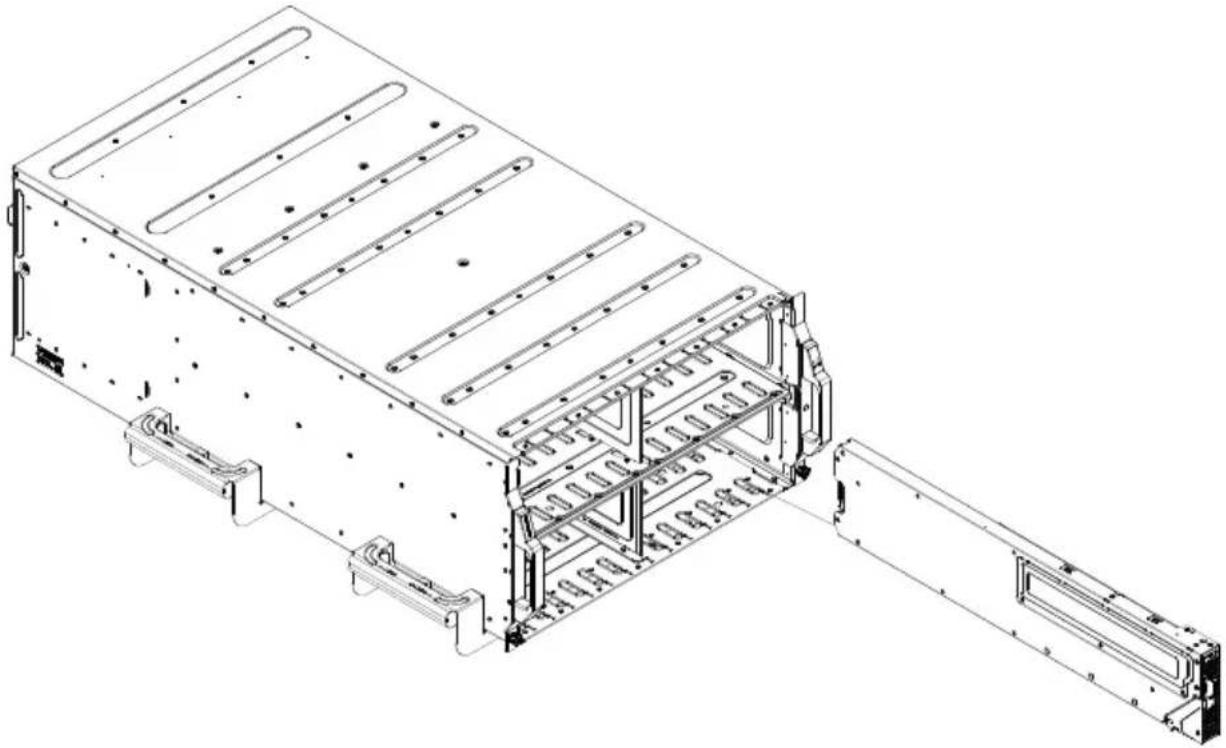
- Slowly push the MicroBlade module unit into its bay with the handles fully pulled out (see Figure 3-1).
- When the MicroBlade module stops, push the handles back in to their locked position, making sure the notches in both handles catch the lip of the enclosure.
Note: MicroBlade modules can be Hot-Plugged into the enclosure.
Caution: Use extreme caution when inserting a MicroBlade module into the enclosure. If the MicroBlade module's power connector becomes damaged, it can damage pins on other MicroBlade module bays that it is inserted into.
Figure 3-1. Inserting a MicroBlade Module into the Enclosure
natural_image
Technical line drawing of a modular electronic device with internal structural components and mounting brackets (no text or symbols)3-3 Onboard Battery Installation
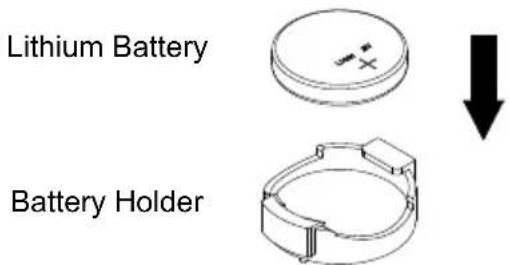
A battery is included on the serverboard to supply certain volatile memory components with power when power has been removed from the MicroBlade module. If this battery dies, it must be replaced with an equivalent CR2032 Lithium 3V battery. Dispose of used batteries according to the manufacturer's instructions. See Figure 3-2 for a diagram of installing a new onboard battery.
Caution: There is a danger of explosion if the onboard battery is installed upside down, which reverses its polarities.
Figure 3-2. Installing the Onboard Battery
text_image
Lithium Battery Battery Holder3-4 Memory Installation
The serverboard of each MicroBlade module unit must be populated with DIMMs (Dual In-line Memory Modules) to provide system memory. The DIMMs should all be of the same size and speed and from the same Super Micro authorized manufacturer due to compatibility issues. See details below on supported memory and our web site (www.superblade.com/products/microblade for recommended memory.
Populating Memory Slots
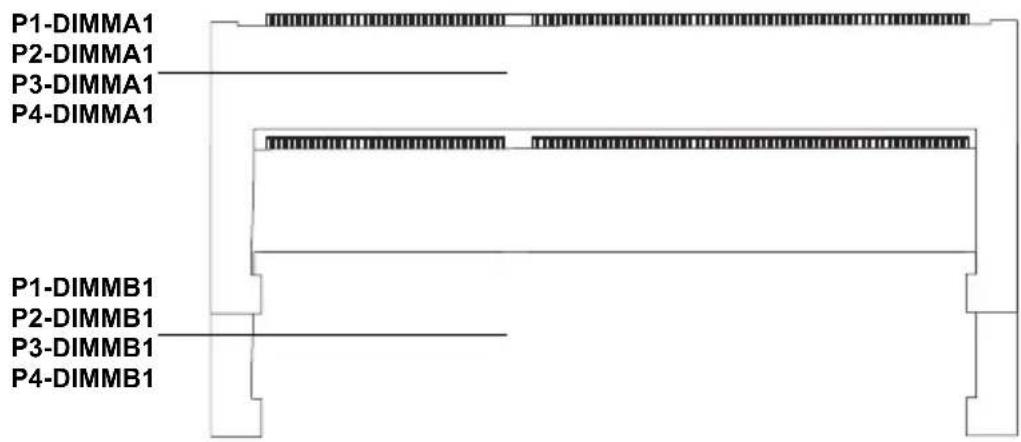
The mainboard of a MBI-6418A-T5H/T7H MicroBlade module has two (2) memory slots for each processor of a node, four nodes total for a total of 8 memory slots per MicroBlade module. Both interleaved and non-interleaved memory are supported, so you may populate any number of DIMM slots.
Each of the four nodes has its own memory bank. Populate Channel A first, the Channel B. In this example, Channel A of Node 1 is designated as P1-DIMMA1 and Channel B is P1-DIMMB1. Be sure to populate the sockets with SODIMM memory with the same speed.
For an interleaved configuration, memory modules of the same size and speed must be installed in pairs. You should not mix DIMMs of different sizes and speeds.
Note: Check the Supermicro website for a list of memory modules that have been validated with the B1SA4-2750F/B1SA4-2550F motherboard.
Note: Though multiple DIMM memory module types and speeds may be supported, you need to use DIMM memory modules of the same speed and type.
Note: For an optimized memory bandwidth, it is recommended that you populate the memory modules in a set of two (2) DIMMs for the CPU.
Memory Support
Each node on the B1SA4-2750F/B1SA4-2550F motherboard supports up to 32GB and up to 1600MHz of ECC DDR3 SODIMM memory in two SODIMM slots (see Figure 3-3).
Figure 3-3. SO DIMM Sideways View
text_image
P1-DIMMA1 P2-DIMMA1 P3-DIMMA1 P4-DIMMA1 P1-DIMMB1 P2-DIMMB1 P3-DIMMB1 P4-DIMMB1Table 3-1. Memory Population Guidelines
| P1/P2/P3/P4-DIMMA1 P1/P2/P3/P4-DIMMB1 Total System Memory | ||
| 2GB 2GB | ||
| 2GB 2GB 4GB | ||
| 4GB 4GB | ||
| 4GB 4GB 8GB | ||
| 8GB 8GB | ||
| 8GB 8GB 16GB | ||
| 16GB 16GB | ||
| 16GB 16GB 32GB | ||
DIMM Installation
Caution: Exercise extreme care when installing or removing SODIMM modules to prevent any possible damage.
Installing/Removing SODIMM Memory Modules
- Power down the MicroBlade module (see "Powering Down a MicroBlade Module Unit" on page 3-1).
- Remove the MicroBlade module from the enclosure.
- Position the SODIMM module's bottom key so it aligns with the receptive point on the slot (Figure 3-4).
Figure 3-4. Aligning the SO DIMM

text_image
Align- Insert the SODIMM module vertically at about a 45 degree angle (Figure 3-5).
Figure 3-5. Inserting the SO DIMM

text_image
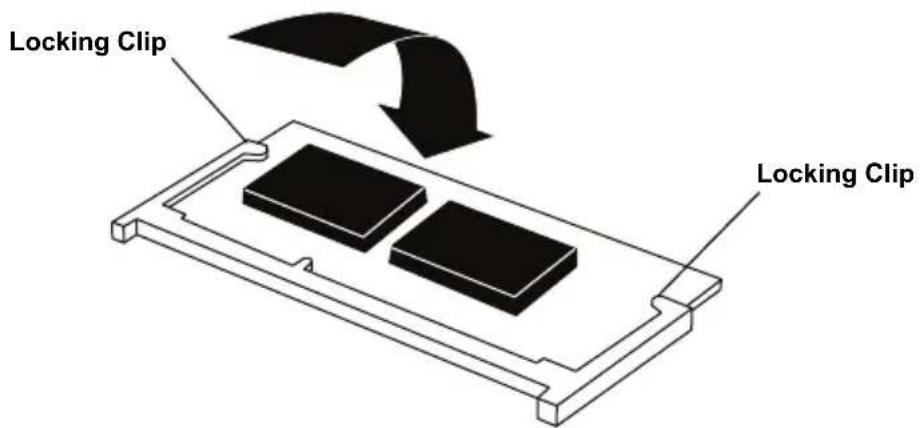
Insert this end first Press down until the module locks into place.- Press down until the module locks into place. The side clips will automatically secure the SODIMM module, locking it into place (Figure 3-6).
Figure 3-6. Securing the SO DIMM in Place
text_image
Locking Clip Locking Clip-
Power up the blade unit (see "Powering Up a MicroBlade Module Unit" on page 3-1).
-
To Remove: Use your thumbs to gently push the side clips near both ends away from the module. This should release it from the slot. Pull the SODIMM module upwards.
3-5 Hard Disk Drive Installation
A single SATA3 HDD/SSD can be installed in the MicroBlade module for each node (four nodes/drives total) and cannot be removed or replaced without powering down the blade unit they reside in. A blade module needs a hard disk drive with an operating system installed to operate.
3-6 Installing the Operating System
An operating system (OS) must be installed on each MicroBlade module. Blades with Microsoft Windows OS and blades with Linux OS can both occupy and operate within the same blade enclosure. Refer to the SuperMicro web site for a complete list of supported operating systems.
There are several methods of installing an OS to the blade modules.
Installing with a SATA-DOM Module
The MBI-6418A-T5H/T7H MicroBlade module contains a SATA-DOM socket for each node on the serverboard. The operating system can be installed separately onto the SATA-DOM module, which when plugged into the SATA-DOM socket of a node of the MBI-6418A-T5H/T7H MicroBlade module, can be used as the system's operating system just as if it was a hard disk drive of the system.
Installing via PXE Boot
PXE (Preboot Execution Environment) is used to boot a computer over a network. To install the OS via PXE, the following conditions must be met:
- The PXE B 00T option in BIOS must be enabled.
- A PXE server has been configured (this can be another blade in the system).
- The PXE server must be connected over a network to the blade to be booted.
- The blade has only non-partitioned/unformatted hard drives installed and no bootable devices attached to it.
Once these conditions are met, make sure the PXE server is running. Then turn on the blade on which you wish to boot and/or install the OS. The BIOS in the blade will look at all bootable devices and finding none will connect to the PXE server to begin the boot/install.
Installing via Virtual Media (Drive Redirection)
You can install the OS via Virtual Media through either the IPMIview (Java based client utility), IPMItool or the Web-based Management Utility. With this method, the OS is installed from an ISO image that resides on another system/blade.
Chapter 4 MicroBlade Module Features
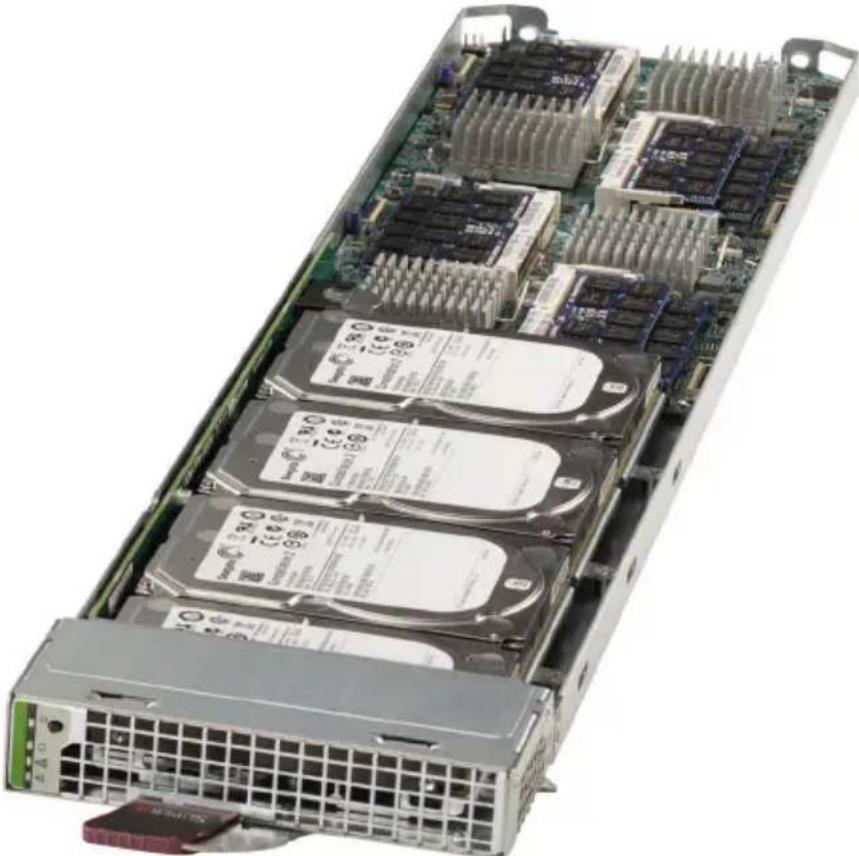
Figure 4-1. MBI-6418A-T5H/T7H Blade Unit Front View
natural_image
Internal view of a server rack with multiple drive bays and cooling units (no visible text or labels)This chapter describes the MBI-6418A-T5H/T7H MicroBlade module unit. Installation and maintenance should be performed by experienced technicians only.
See Figure 4-1 for a front view of the blade unit and Table 4-1 for its features.
Table 4-1. MBI-6418A-T5H/T7H Blade Unit Features
| Feature Description | |
| Processors | Supports single Intel ATOM C2750/C2550 processors embedded in a BGA1283 socket on the serverboard |
| Memory | Supports up to 32 GB of DDR3 1600/1333 MHz speed and 16GB, 8GB, 4GB, 2GB and 1GB size SODIMM memory in two (2) 204-pin SODIMM sockets per node |
| Storage | Each node (4 total) supports one 2.5" SATA3 HDD/SSD disk drive and one SATA DOM |
| BIOS 32 MB SPI Flash EEPROM with AMI® BIOS | |
| Ports One SATA3 HDD/SSD | and one SATA3 DOM port per node (four nodes) |
4-1 Control Panel
Each MicroBlade module has a similar control panel (Figure 4-2) with power on/off button, reset button and LEDs on the front left side of the module. The numbers mentioned in Figure 4-2 are described in Table 4-2.
Figure 4-2. Blade Control Panel

text_image
1 2 3 4 5Table 4-2. Blade Control Panel
| Item | Function State | Description | |
| 1 Power Button N/A Turns | MicroBlade module on and off | ||
| 2 Power LED | Green Indicates power status “On” | ||
| Amber | Before the BMC is ready, the Amber LED will blink until the last node out of the four is ready. | ||
| Red Power Failure | |||
| 3 | KVM/UID LED (Blue) | Steady On Indicates that KVM has been initialized on this blade module | |
| Flashing | Serves as a UID indicator (the UID function is activated with a management program) | ||
| 4 | Network LED (Green) | Flashing Green | Flashes on and off to indicate traffic (Tx and RX data) on the LAN connection to this blade module. |
| Network LED (Orange) | Flashing Orange | Flashes on and off to indicate traffic over the InfiniBand module (when present in the system) | |
| 5 | System Fault LED (Red) | Steady On | This LED illuminates red when a fatal error occurs. This may be the result of a memory error, a VGA error or any other fatal error that prevents the operating system from booting up. |
Power Button
Each MicroBlade module has its own power button so that individual blade units within the enclosure may be turned on or off independently of the others. Press the power button (#1) to turn on the blade server. The power LED (#3) will turn green. To turn off, press and hold the power button for >4 seconds and the power LED will turn orange.
LED Indicators
Blade module LEDs are described below in Table 4-3.
Table 4-3. Blade Module LED Indicators
| LED State Description | ||
| Power LED | Green Power OnAmber StandbyRed Power Failure | a |
| System Fault LED (Red) | Steady On | This LED illuminates red when a fatal error occurs. This may be the result of a memory error, a VGA error or any other fatal error that prevents the operating system from booting up. |
a. In the event of a power failure, the N+1 Redundant Power Supply (if included in your system's configuration) automatically turns on and picks up the system load to provide uninterrupted operation. The failed power supply should be replaced with a new one as soon as possible.
4-2 Serverboard
The serverboard of the MBI-6418A-T5H/T7H MicroBlade module unit is a proprietary design, which is based on the Intel Intel ATOM C2750/C2550 processor. See Figure 4-4 for a block diagram of this chipset, Figure 4-3 for a view of the B1SA4-2750F serverboard and Figure 4-5 for an exploded view diagram of the MicroBlade module unit.
Figure 4-3. B1SA4-2750F Serverboad

text_image
1 2 3 1 6 1 3 2 2 3 1 5 1 3 2 4 4 Seagate Constellation 2Table 4-4. B1SA4-2750F Mainboard Layout
| Item Description | |
| 1 | One Intel ATOM C2750/C2550 processor embedded in a BGA1283 socket for each node (4 total) |
| 2 One SATA | A3 SATA-DOM connector for each node (4 total) |
| 3 Two SODIMM slots for each node (8 total) for SODIMM memory modules | |
| 4 One 2.5" | SATA3 HDD/SSD for each node (two not shown, 4 total) |
| 5 Onboard | Battery |
| 6 CMOS C | ear |
Figure 4-4. Intel B1SA4-2750F Block Diagram

flowchart
graph TD
    subgraph Avoton CPU1
        A["AVoton CPU1"] --> B["DDR3 (CHA)"]
        A --> C["DDR3 (CHB)"]
        A --> D["DDR3 (CHD)"]
        A --> E["DDR3 (CHD)"]
        A --> F["DDR3 (CHD)"]
        A --> G["DDR3 (CHD)"]
        A --> H["DDR3 (CHD)"]
        A --> I["DDR3 (CHD)"]
        A --> J["DDR3 (CHD)"]
        A --> K["DDR3 (CHD)"]
        A --> L["DDR3 (CHD)"]
        A --> M["DDR3 (CHD)"]
        A --> N["DDR3 (CHD)"]
        A --> O["DDR3 (CHD)"]
        A --> P["DDR3 (CHD)"]
        A --> Q["DDR3 (CHD)"]
        A --> R["DDR3 (CHD)"]
        A --> S["DDR3 (CHD)"]
        A --> T["DDR3 (CHD)"]
        A --> U["DDR3 (CHD)"]
        A --> V["DDR3 (CHD)"]
        A --> W["DDR3 (CHD)"]
        A --> X["DDR3 (CHD)"]
        A --> Y["DDR3 (CHD)"]
        A --> Z["DDR3 (CHD)"]
        A --> AA["DDR3 (CHD)"]
        A --> AB["DDR3 (CHD)"]
        A --> AC["DDR3 (CHD)"]
        A --> AD["DDR3 (CHD)"]
        A --> AE["DDR3 (CHD)"]
        A --> AF["DDR3 (CHD)"]
        A --> AG["DDR3 (CHD)"]
        A --> AH["DDR3 (CHD)"]
        A --> AI["DDR3 (CHD)"]
        A --> AJ["DDR3 (CHD)"]
        A --> AK["DDR3 (CHD)"]
        A --> AL["DDR3 (CHD)"]
        A --> AM["DDR3 (CHD)"]
        A --> AN["DDR3 (CHD)"]
        A --> AO["DDR3 (CHD)"]
        A --> AP["DDR3 (CHD)"]
        A --> AQ["DDR3 (CHD)"]
        A --> AR["DDR3 (CHD)"]
        A --> AS["DDR3 (CHD)"]
        A --> AT["DDR3 (CHD)"]
        A --> AU["DDR3 (CHD)"]
        A --> AV["DDR3 (CHD)"]
        A --> AW["DDR3 (CHD)"]
        A --> AX["DDR3 (CHD)"]
        A --> AY["DDR3 (CHD)"]
        A --> AZ["DDR3 (CHD)"]
        A --> BA["DDR3 (CHD)"]
        A --> BB["DDR3 (CHD)"]
        A --> BC["DDR3 (CHD)"]
        A --> BD["DDR3 (CHD)"]
        A --> BE["DDR3 (CHD)"]
        A --> BF["DDR3 (CHD)"]
        A --> BG["DDR3 (CHD)"]
        A --> BH["DDR3 (CHD)"]
        A --> BI["DDR3 (CHD)"]
        A --> BJ["DDR3 (CHD)"]
        A --> BK["DDR3 (CHD)"]
        A --> BL["DDR3 (CHD)"]
        A --> BM["DDR3 (CHD)"]
        A --> BN["DDR3 (CHD)"]
        A --> BO["DDR3 (CHD)"]
        A --> BP["DDR3 (CHD)"]
        A --> BQ["DDR3 (CHD)"]
        A --> BR["DDR3 (CHD)"]
        A --> BS["DDR3 (CHD)"]
        A --> BT["DDR3 (CHD)"]
        A --> BU["DDR3 (CHD)"]
        A --> BV["DDR3 (CHD)"]
        A --> BW["DDR3 (CHD)"]
        A --> BX["DDR3 (CHD)"]
        A --> BY["DDR3 (CHD)"]
        A --> BZ["DDR3 (CHD)"]
        A --> CA["DDR3 (CHD)"]
        A --> CB["DDR3 (CHD)"]
        A --> CC["DDR3 (CHD)"]
        A --> CD["DDR3 (CHD)"]
        A --> CE["DDR3 (CHD)"]
        A --> CF["DDR3 (CHD)"]
        A --> CG["DDR3 (CHD)"]
        A --> CH["DDR3 (CHD)"]
        A --> CI["DDR3 (CHD)"]
        A --> CJ["DDR3 (CHD)"]
        A --> CK["DDR3 (CHD)"]
        A --> CL["DDR3 (CHD)"]
        A --> CM["DDR3 (CHD)"]
        A --> CN["DDR3 (CHD)"]
        A --> CO["DDR3 (CHD)"]
        A --> CP["DDR3 (CHD)"]
        A --> CQ["DDR3 (CHD)"]
        A --> CR["DDR3 (CHD)"]
        A --> CS["DDR3 (CHD)"]
        A --> CT["DDR3 (CHD)"]
        A --> CU["DDR3 (CHD)"]
        A --> CV["DDR3 (CHD)"]
        A --> CW["DDR3 (CHD)"]
        A --> CX["DDR3 (CHD)"]
        A --> CY["DDR3 (CHD)"]
        A --> CZ["DDR3 (CHD)"]
    end

    subgraph Avoton CPU2
        D["DOR3 (CHA)"] --> E["DIMMA1"]
        D --> F["DOR3 (CHB)"] --> G["DIMMB1"]
    end

    subgraph Avoton CPU2
        H["DOR3 (CHA)"] --> I["DIMMA1"]
        H --> J["DOR3 (CHB)"] --> K["DIMMB1"]
    end

    subgraph Avoton CPU2
        L["DOR3 (CHA)"] --> M["DIMMA1"]
        L --> N["DOR3 (CHB)"] --> O["DIMMB1"]
    end

    subgraph Avoton CPU2
        P["DOR3 (CHA)"] --> Q["DIMMA1"]
        P --> R["DOR3 (CHB)"] --> S["DIMMB1"]
    end

    subgraph Avoton CPU2
        T["DOR3 (CHA)"] --> U["DIMMA1"]
        T --> V["DOR3 (CHB)"] --> W["DIMMB1"]
    end

    subgraph Avoton CPU2
        X["DOR3 (CHA)"] --> Y["DIMMA1"]
        X --> Z["DOR3 (CHB)"] --> AA["DIMMB1"]
    end

    subgraph Avoton CPU2
        AB["DOR3 (CHA)"] --> AC["DIMMA1"]
        AB --> AD["DOR3 (CHB)"] --> AE["DIMMB1"]
    end

    subgraph Avoton CPU2
        AF["DOR3 (CHA)"] --> AG["DIMMA1"]
        AF --> AH["DOR3 (CHB)"] --> AI["DIMMB1"]
    end

    subgraph Avoton CPU2
        AJ["DOR3 (CHA)"] --> AK["DIMMA1"]
        AJ --> AL["DOR3 (CHB)"] --> AM["DIMMB1"]
    end

    subgraph Avoton CPU2
        AN["DOR3 (CHA)"] --> AO["DIMMA1"]
        AN --> AP["DOR3 (CHB)"] --> AQ["DIMMB1"]
    end

    subgraph Avoton CPU2
        AR["DOR3 (CHA)"] --> AS["DIMMA1"]
        AR --> AT["DOR3 (CHB)"] --> AU["DIMMB1"]
    end

    subgraph Avoton CPU2
        AV["DOR3 (CHA)"] --> AW["DIMMA1"]
        AV --> AX["DOR3 (CHB)"] --> AY["DIMMB1"]
    end

    subgraph Avoton CPU2
        AZ["DOR3 (CHA)"] --> BA["DIMMA1"]
        AZ --> BB["DOR3 (CHB)"] --> BC["DIMMB1"]
    end

    subgraph Avoton CPU2
        BD["DOR3 (CHA)"] --> BE["DIMMA1"]
        BD --> BF["DOR3 (CHB)"] --> BG["DIMMB1"]
    end

    subgraph Avoton CPU2
        BH["DOR3 (CHA)"] --> BI["DIMMA1"]
        BH --> BJ["DOR3 (CHB)"] --> BK["DIMMB1"]
    end

    subgraph Avoton CPU2
        BL["DOR3 (CHA)"] --> BM["DIMMA1"]
        BL --> BN["DOR3 (CHB)"] --> BO["DIMMB1"]
    end

    subgraph Avoton CPU2
        BO["DOR3 (CHA)"] <--> BP["KVM Connector"] <--> BQ["KVM Connector"] <--> CQ["KVM Connector"] <--> AD["KVM Connector"] <--> AE["KVM Connector"] <--> AF["KVM Connector"] <--> AG["KVM Connector"] <--> AH["KVM Connector"] <--> AI["KVM Connector"] <--> AJ["KVM Connector"] <--> AK["KVM Connector"] <--> AL["KVM Connector"] <--> AM["KVM Connector"] <--> AN["KVM Connector"] <--> AO["KVM Connector"] <--> AP["KVM Connector"] <--> AQ["KVM Connector"] <--> AR["KVM Connector"] <--> AS["KVM Connector"] <--> AT["KVM Connector"] <--> AU["KVM Connector"] <--> AV["KVM Connector"] <--> AW["KVM Connector"] <--> AX["KVM Connector"] <--> AZK["KVM Connector"] <--> BAK["KVM Connector"] <--> BBK["KVM Connector"] <--> BCK["KVM Connector"] <--> DA["KVM Connector"] <--> AEK["KVM Connector"] <--> AFK["KVM Connector"] <--> AGK["KVM Connector"] <--> AHK["KVM Connector"] <--> AIK["KVM Connector"] <--> AJK["KVM Connector"] <--> AKK["KVM Connector"] <--> ALK["KVM Connector"] <--> AMK["KVM Connector"] <--> ANK["KVM Connector"] <--> AOK["KVM Connector"] <--> APK["KVM Connector"] <--> AQK["KVM Connector"] <--> ARK["KVM Connector"] <--> ASK["KVM Connector"] <--> ATK["KVM Connector"] <--> AUK["KVM Connector"] <--> AVK["KVM Connector"] <--> AWK["KVM Connector"] <--> AXK["KVM Connector"] <--> AZK["KVM Connector"] <--> BAK["KVM Connector"] <--> BBK["KVM Connector"] <--> ACK["KVM Connector"] <--> ADK["KVM Connector"] <--> AEK["KVM Connector"] <--> AFK["KVM Connector"] <--> AGK["KVM Connector"] <--> AHK["KVM Connector"] <--> AIK["KVM Connector"] <--> AJK["KVM Connector"] <--> AKK["KVM Connector"] <--> ALK["KVM Connector"] <--> AMK["KVM Connector"] <--> ANK["KVM Connector"] <--> AOK["KVM Connector"] <--> APK["KVM Connector"]
    end

    subgraph BackPlane
    B[MIDI RDAMOS/SDAS/SDAS/SDAS/SDAS/SDAS/SDAS/SDAS/SDAS/SDAS/SDAS/SDAS/SDAS/SDAS/SDAS/SDAS/SDAS/SDAS/SDAS/SDAS/SDAS/SDAS/SDAS/SDAS/SDAS/SDAS/SDAS/SDAS/SDAS/SDAS/SDAS/SDAS/SDAS/SDAS/SDAS/
    BMDI RDAMOS/RGMI RDAMOS/RGMI RDAMOS/RGMI RDAMOS/RGMI RDAMOS/RGMI RDAMOS/RGMI RDAMOS/RGMI RDAMOS/RGMI RDAMOS/RGMI RDAMOS/RGMI RDAMOS/RGMI RDAMOS/RGMI RDAMOS/RGMI RDAMOS/RGMI RDAMOS/RGMI RDAMOS/RGMI RDAMOS/RGMI RDAMOS-RGMI RDAMOS/RGMI RDAMOS/RGMI RDAMOS/RGMI RDAMOS/RGMI RDAMOS/RGMI RDAMOS/RGMI RDAMOS/RGMI RDAMOS/RGMI RDAMOS/RGMI RDAMOS/RGMI RDAMOS/RGMI RDAMOS/RGMI RDAMOS/RGMI RDAMOS/RGMI RDAMOS/RGMI RDAMOS/RGMI RDAmRDS/RGMI RDAMOS/RGMI RDAMOS/RGMI RDAMOS/RGMI RDAMOS/RGMI RDAMOS/RGMI RDAMOS/RGMI RDAMOS/RGMI RDAMOS/RGMI RDAMOS/RGMI RDAMOS/RGMI RDAMOS/RGMI RDAMOS/RGMI RDAMOS/RGMI RDAMOS/RGMI RDAMOS/RGMI RDAMOS/RGMI DRAMOS/RGMI RDAMOS/RGMI RDAMOS/RGMI RDAMOS/RGMI RDAMOS/RGMI RDAMOS/RGMI RDAMOS/RGMI RDAMOS/RGMI RDAMOS/RGMI RDAMOS/RGMI RDAMOS/RGMI RDAMOS/RGMI RDAMOS/RGMI RDAMOS/RGMI RDAMOS/RGMI RDAMOS/RGMI RDAMOS/RCRAA
    end

    note right of BackPlane
    note left of BackPlane
    note right of BackPlane
    note right of BackPlane
    note right of BackPlane
Jumpers
Any jumpers present on the mainboard are used by the manufacturer only; there are no jumpers used to configure the operation of the mainboard.
CMOS Clear
JBT1 is used to clear CMOS and will also clear any passwords. JBT1 consists of two contact pads located near the BIOS chip.
Clearing CMOS
- First power down the blade and remove it from the enclosure.
- Short the CMOS pads with a metal object such as a small screwdriver.
- Install the blade back into the enclosure and power it on.
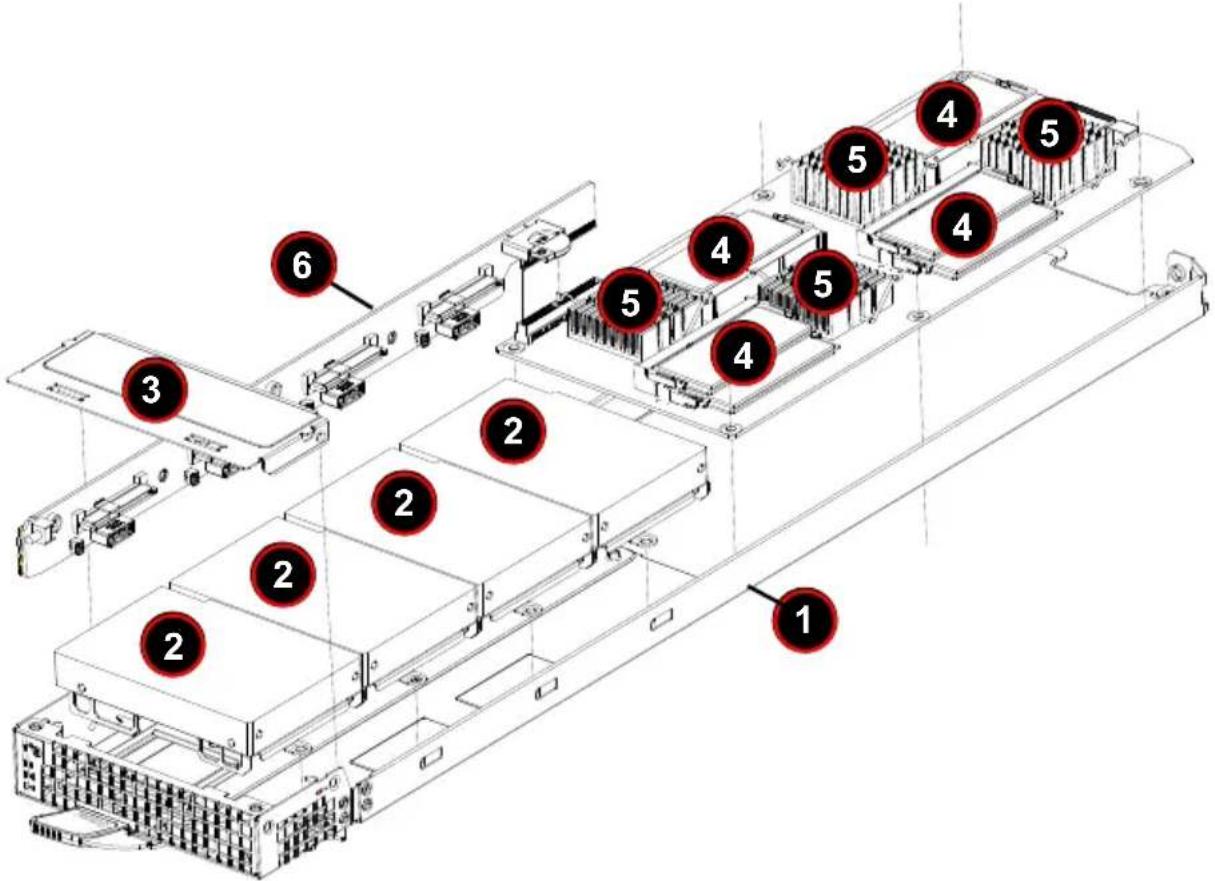
4-3 Blade Unit Components
Figure 4-5. Exploded View of a MBI-6418A-T5H/T7H Blade Module
text_image
Technical diagram of a server rack with numbered components, highlighting internal structure and mounting points.Table 4-5. Main Components of a MBI-6418A-T5H/T7H Blade Module
| Item Description |
| 1 Blade Unit/Module |
| 2 2.5" Hard Drives (4) |
| 3 Front Top Cover |
| 4 DIMM slots (8) |
| 5 CPU/Heatsinks (4) |
| 6 Hard Drive Backplane |
Memory Support
The MBI-6418A-T5H/T7H MicroBlade module supports up to 32 GB of DDR3 1600/1333 MHz speed, 16GB, 8GB, 4GB, 2GB and 1GB size SODIMM memory in two (2) 204-pin SODIMM sockets. See Section 3-4: Memory Installation on page 3-4 for further details on serverboard memory installation.
Hard Disk Drives
The MBI-6418A-T5H/T7H MicroBlade module accommodates one 2.5" SATA3 HDD/SSD drives. The drives cannot be removed or replaced without powering down the blade unit they reside in. See Chapter 1 for information on RAID Setup.
WARNING: Enterprise level hard disk drives are recommended for use in Supermicro chassis and servers. For information on recommended HDDs, visit the Supermicro Web site at http://www.supermicro.com/products/nfo/storage.cfm
Chapter 5 BIOS
5-1 Introduction
This chapter describes the BIOS for the MBI-6418A-T5H/T7H MicroBlade module. This MicroBlade module uses a 32 MB SPI Flash EEPROM with AMI® BIOS™ that is stored in a flash chip. This BIOS can be easily upgraded using a floppy disk-based program.
Note: Due to periodic changes to the BIOS, some settings may have been added or deleted and might not yet be recorded in this manual. Please refer to the http://www.supermicro.com/products/microblade/module/web site for further details on BIOS setup and the BIOS menus for your MicroBlade module.
System BIOS
BIOS stands for Basic Input Output System. The 32 MB SPI Flash EEPROM with AMI® BIOS BIOS flash chip stores the system parameters, types of disk drives, video displays, in the CMOS. The CMOS memory requires very little electrical power. When the blade unit is turned off, a backup battery provides power to the BIOS flash chip, enabling it to retain system parameters. Each time the blade is powered on it is configured with the values stored in the BIOS ROM by the system BIOS, which gains control at boot up.
How To Change the Configuration Data
The CMOS information that determines the system parameters may be changed by entering the BIOS Setup utility. This Setup utility can be accessed by pressing the
Starting the Setup Utility
Normally, the only visible POST (Power-On Self-Test) routine is the memory test. As the memory is being tested, press the
Caution: To prevent possible boot failure, do not shut down or reset the system while updating the BIOS.
5-2 BIOS Updates
It may be necessary to update the BIOS used in the blade modules on occasion. However, it is recommended that you not update BIOS if you are not experiencing problems with a blade module.
Updated BIOS files are located on our web site (http://www.supermicro.com/products/microblade). Please check the current BIOS revision and make sure it is newer than your current BIOS before downloading.
There are several methods you may use to upgrade (flash) your BIOS. After downloading the appropriate BIOS file (in a zip file format), follow one of the methods described below to flash the new BIOS.
Flashing BIOS
Use the procedures below to "Flash" your BIOS with a new update using the USB ports on the CMM module or by use of a Floppy Image file.
Flashing a BIOS using the USB Ports on the CMM:
- Copy the contents of the zip file to a bootable USB pen drive.
- Connect your bootable USB pen drive to one of the two USB slots on the CMM (located on the back side of the enclosure).
- Boot to the USB pen drive and go to the directory where you saved the contents of the zip file.
- Type flash filename.rom (replace filename.rom by the actual ROM file name).
Flashing a BIOS using a Floppy Image File
This method must be performed remotely.
- Copy the image file from the zip file to your desktop.
- Use the web browser or IPMIView to access your CMM remotely using its IP Address.
- Go to the V IRTUAL MEDIA menu and select FLOPPY IMAGE UPLOAD.
- BROWSE or OPEN to locate the *.img file on your desktop and select it.
- Press the UPLOAD button and wait a few seconds for the image to upload to the CMM.
- Once the upload finishes, turn on the blade module and press
to enter the BIOS setup utility. - In the B OOT MENU, bring USB LS120: PEPPCMM VIRTUAL DISC 1 to the top of the boot priority list.
- Exit while saving the changes. The blade module will boot to the virtual media (floppy image) A:|>.
- Type flash filename.rom.
Note: Replace filename.rom by the actual ROM file name (such as B8DTE142.rom for example) in the command.
5-3 Running Setup
Note: Default settings are in bold text unless otherwise noted.
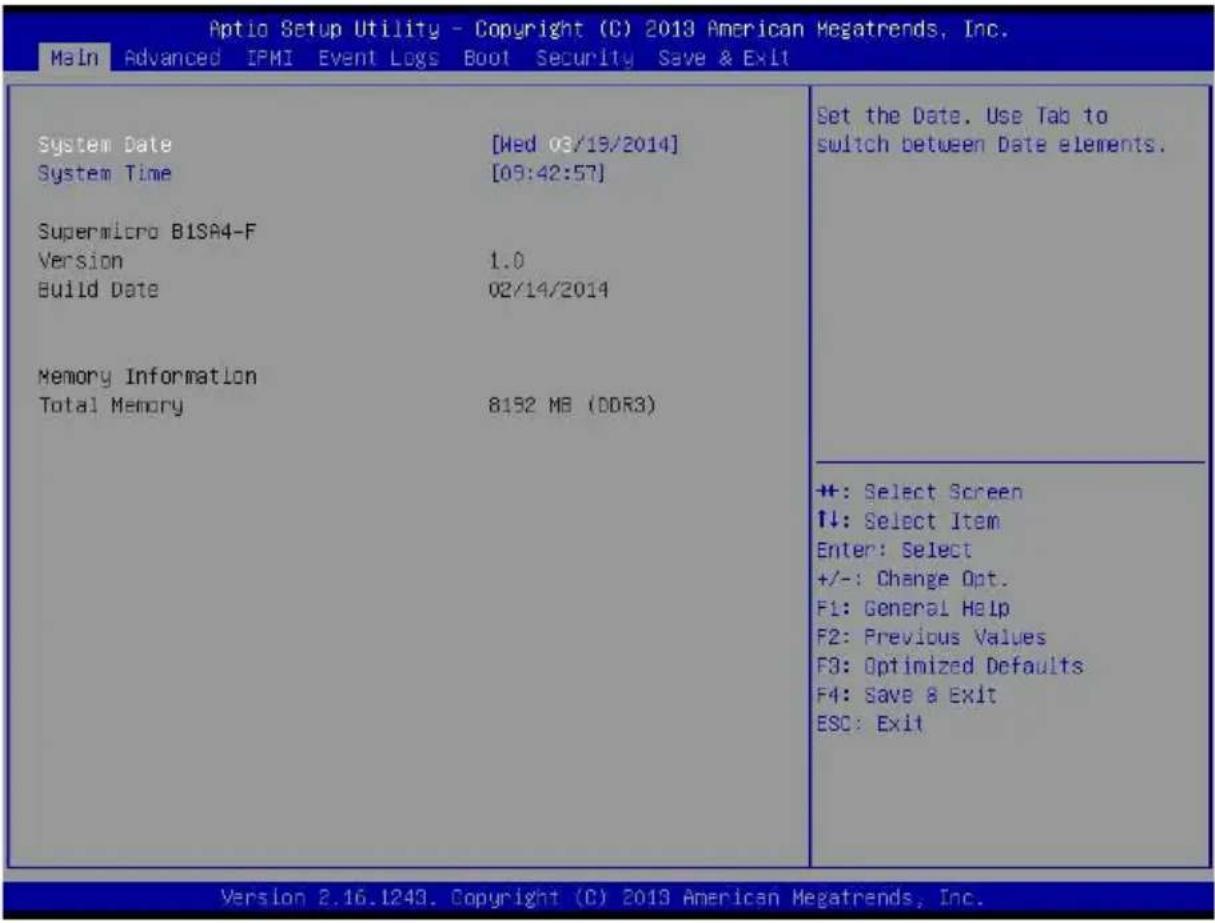
The BIOS setup options described in this section are selected by choosing the appropriate text from the MAIN BIOS SETUP screen. All displayed text is described in this section, although the screen display is often all you need to understand how to set the options.
When you first power on the computer, the BIOS is immediately activated.
While the BIOS is in control, the Setup program can be activated in one of two ways:
- By pressing
immediately after turning the system on, or - When the message Press the
key to enter Setup appears briefly at the bottom of the screen during the POST, press the key to activate the main SETUP menu:
5-4 Main BIOS Setup
Figure 5-1. BIOS Setup Screen
text_image
Aptio Setup Utility - Copyright (C) 2013 American Megatrends, Inc. Main Advanced IPMI Event Logs Boot Security Save & Exit System Date [Wed 03/19/2014] System Time [09:42:57] Supermicro BISA4-F Version 1.0 Build Date 02/14/2014 Memory Information Total Memory 8152 MB (DDR3) Set the Date. Use Tab to switch between Date elements. ++: Select Screen ↑↓: Select Item Enter: Select +/-: Change Opt. F1: General Help F2: Previous Values F3: Optimized Defaults F4: Save & Exit ESC: Exit Version 2.16.1243. Copyright (C) 2013 American Megatrends, Inc.All Main Setup options are described in this section. Use the UP/DOWN arrow keys to move among the different settings in each menu. Use the LEFT/RIGHT arrow keys to change the options for each setting. Press the
Menu options found in the MAIN BIOS SETUP menu are described in Table 5-1.
Table 5-1. Main BIOS Setup Menu Options
| Menu Option Description | |
| System Date | Using the arrow keys, highlight the month, day and year fields, and enter the correct data for the system date. Press thekey to save the data. |
| System Time | To set the system date and time, key in the correct information in the appropriate fields. Then press thekey to save the data. |
| BIOS Information | BIOS static display information including the serverboardserverboard number, SMC version, SMC Build Date and Total Memory is also shown on the screen. |
5-5 Advanced Setup
Choose Advanced from the BIOS Setup Utility main menu with the arrow keys to display the ADVANCED SETUP menu. The items with a triangle beside them are sub-menus that can be accessed by highlighting the item and pressing
Table 5-2 describes all sub-menus found in the ADVANCED SETUP menu.
Table 5-2. Advanced Setup Menu Options
| Sub-menu Description | |
| ►Boot Feature | See Table 5-3 for a description of BIOS setup menu options in this sub-menu. |
| ►CPU Configuration | See Table 5-4 for a description of BIOS setup menu options in this sub-menu. |
| ►ChipsetConfiguration | See Table 5-5 for a description of BIOS setup menu options in this sub-menu. |
| ►SATA Configuration | See Table 5-6 for a description of BIOS setup menu options in this sub-menu. |
| ►PCIe/PCI/PnPConfiguration | See Table 5-7 for a description of BIOS setup menu options in this sub-menu. |
| ►ACPI Settings | See Table 5-8 for a description of BIOS setup menu options in this sub-menu. |
| ►Super IOConfiguration | See Table 5-9 for a description of BIOS setup menu options in this sub-menu. |
| ►Serial Port ConsoleRedirection | See Table 5-10 for a description of BIOS setup menu options in this sub-menu. |
Table 5-3. Boot Feature Submenu
| Menu Option Description | |
| Quiet Boot | Use this feature to select the screen display between the POST messages and the OEM logo upon bootup. Select Disabled to display the POST messages. Select Enabled to display the OEM logo instead of the normal POST messages. The options areEnabledand Disabled. |
| CSM Support | This setting enables or disables CSM support. Options includeEnabledor Disabled. |
| AddOn ROM Display Mode | Use this feature to set the display mode for the Option ROM. Select Keep Current to display the current AddOn ROM setting. Select Force BIOS to use the Option ROM display set by the system BIOS. The options areForce BIOSand Keep Current. |
| Bootup NUM-Lock | Use this feature to set the Power-on state for thekey. The options are Off andOn. |
| Wait for 'F1' If Error | Use this feature to force the system to wait until the 'F1' key is pressed if an error occurs. The options are Disabled andEnabled. |
| Interrupt 19 Capture | Interrupt 19 is the software interrupt that handles the boot disk function. When this item is set to Enabled, the ROM BIOS of the host adaptors will "capture" Interrupt 19 at bootup and allow the drives that are attached to these host adaptors to function as bootable disks. If this item is set to Disabled, the ROM BIOS of the host adaptors will not capture Interrupt 19, and the drives attached to these adaptors will not function as bootable devices. The options are Immediately and Postponed. |
| Watch Dog Function | If enabled, the Watch Dog Timer will allow the system to reboot when it is inactive for more than 5 minutes. The options are Enabled and Disabled. |
| Power Button Function | This feature controls how the system shuts down when the power button is pressed. Select 4_Seconds_Override for the user to power off the system after pressing and holding the power button for 4 seconds or longer. Select Instant Off to instantly power off the system as soon as the user presses the power button. The options are 4 Seconds Override and Instant Off. |
| Restore on AC Power Loss | Use this feature to set the power state after a power outage. Select Stay-Off for the system power to remain off after a power loss. Select Power-On for the system power to be turned on after a power loss. Select Last State to allow the system to resume its last power state before a power loss. The options are Power-On, Stay-Off and Last State. |
| WOL Support | Select Enabled to enable WOL support which will allow the system to "wake-up" when a device connected to a LAN port receives a signal. The options are Disabled and Enabled. |
Table 5-4. CPU Configuration Submenu
| Menu Option Description | |
| Processor Information | Static processor information is displayed at the top of the menu for Processor ID, Processor Frequency, Microcode Revision, L1 Cache RAM, L2 Cache RAM and Processor Version. |
| Clock Spread Spectrum | If this feature is set to Enabled, the BIOS utility will monitor the level of Electromagnetic Interference caused by the components and will attempt to reduce the interference whenever needed. The options are Enabled and Disabled. |
| EIST (GV3) | EIST (Enhanced Intel SpeedStep Technology) GV3 allows the system to automatically adjust processor voltage and core frequency in an effort to reduce power consumption and heat dissipation. Select Auto to enable 80 CPU stepping support automatically and disabled other functions. The options are Disabled, Enabled, and Auto.Please refer to Intel's web site for detailed information. |
| P-state Coordination | This feature selects the type of coordination for the P-State of the processor. P-State is a processor operational state that reduces the processor's voltage and frequency to enhance CPU energy efficiency. The options are Hardware, Package, and Module. |
| TM1 | This setting is only available when supported by the CPU. Select Enable to activate TM1 support for system thermal monitoring. TM1 allows the CPU to regulate its power consumption based upon the modulation of the CPU Internal clock when the CPU temperature reaches a pre-defined overheating threshold. The options are Disabled and Enabled. |
| TM2 Mode | This setting is only available when supported by the CPU. Use this feature to select the throttling mode for TM2. The options are LEM Throttling and Adaptive Throttling. |
| CPU C State | C-States architecture, a processor power management platform developed by Intel, can further reduce power consumption from the basic C1 (Halt State) state that blocks clock cycles to the CPU. Select Enabled for CPU C-Sates support. The options are Enabled and Disabled. |
| Enhanced Halt State (C1E) | Select Enabled to support Enhanced C1 Power State to boost system performance. Please reboot the system for the new setting to take effect. The options are Disabled and Enabled. |
| ACPI C2 | Select Enabled for ACPI C2 support to determine how the processor will report the CPU-C state to the operating system. The options are Disabled, C6 NS, and C6 FS. |
| Monitor/Mwait | Select Enabled to implement the Mwait instruction along with the Monitor instruction to allow the processor to specify the location for the BIOS to monitor activities and to issue the instruction to put the operation on hold (Mwait). |
| L1 Prefetcher | If enabled, the hardware prefetcher will prefetch streams of data and instructions from the main memory to the L1 cache to improve CPU performance. The options are Disabled and Enabled. |
| L2 Prefetcher | If enabled, the hardware prefetcher will prefetch streams of data and instructions from the main memory to the L2 cache to improve CPU performance. The options are Disabled and Enabled. |
| ACPI 3.0 T-States | Select Enabled to support ACPI (Advanced Configuration and Power Interface) 3.0 T-States to determine how the processor will report to the operating system during CPU-Throttling states. The options are Enabled and Disabled. |
| Fast String | Select Enabled to enable Fast String support for REP MOVS/STOS, which will carry out Repeat-String Operation instructions to move a string of commands to another location (MOVS) or to add a string of commands to an existing instruction code (STOS). The options are Disabled and Enabled. |
| Machine Check | Select Enabled to use Intel's machine check mechanism to detect and report hardware (machine) errors. The options are Disabled and Enabled. |
| Max CPUID Value Limit | Use this feature to set the maximum CPU ID value. Enable this feature to boot the legacy operating systems that cannot support processors with extended CPUID functions. The options are Enabled and Disabled (for the Windows OS.) |
| Execute Disable Bit | Set to Enabled to enable the Execute Disable Bit which will allow the processor to designate areas in the system memory where an application code can execute and where it cannot, thus preventing a worm or a virus from flooding illegal codes to overwhelm the processor and damage the system during an attack. The default is Enabled. (Refer to Intel and Microsoft Web Sites for more information.) |
| VMX | Select Enabled to enable Intel Vanderpool Technology support which will allow one platform to run multiple operating systems and applications in independent partitions, creating multiple "virtual" systems in one physical computer. The options are Enabled and Disabled. |
| BIST Selection | Select Enabled to set a BIST (Built-In-Self-Test) point selection to enhance system performance. The options are Disabled and Enabled. |
| MTRR Default As Unccacheable | If this feature is set to Enabled, the default setting will be set to "Uncacheable" in the Memory-Type-Range Table to protect the data stored in the MTRR table from being cached. The options are Disabled and Enabled. |
| Extended APIC | Select Enabled to enable Extended APIC (Advanced Programmable Interrupt Control) support to enhance power management. The options are Enabled and Disabled. |
| AES-NI | Select Enabled to use the Advanced Encryption Standard in the processor. The options are Enabled and Disabled. |
| PECI Enable | Select Enabled to enable PECI (Platform Environment Control Interface) support, which will enhance CPU thermal management to achieve power efficiency. The options are Disabled and Enabled. |
| PECI Trusted | Select Enabled to support Trusted Platform Environment Control Interface to improve CPU thermal management. The options are Disabled and Enabled. |
| PECI SMBus Speed | Use this feature to set the speed for the physical bus to operate. The options are Standard (80 kHz), Standard (100 kHz), Fast Mode (400 kHz), and Fast Mode Plus (1 MHz). |
| Turbo | This feature allows processor cores to run faster than marked frequency in specific conditions. The options are Disabled and Enabled. |
| RAPL This is a static setting that is enabled in the system. | |
| MSR 606 PKG_POWER_SKU_UNIT | Use the keyboard to enter the number of the computer units that are SKU-specific in terms of power, energy, and time are concerned. |
| MSR 610 PKG_TURBO_PWR_LIM | Use this feature to specify the processor power consumption limits during short and long duration. |
| MSR 670 PKG_TURBO_CFG1 | This setting specifies various parameters used for Turbo, Min Energy (28:16), SoC TDP Policy (11:9), ICCMax Control (4:3), Turbo Mode (2:0) and others. |
| MSR 672 TURBO_WKLD_CFG2 | This setting specifies ICCMax Throttle Ratio for C6 exits when PKG_TURBO_CFG1 (4:3). |
| Active Processor Cores | This setting selects the number of cores to enable in the SoC package. Options include All, 4 and 2. |
| CPU Flex Ratio Override | Select Enabled to support CPU Flex Ratio Programming. The options are Disabled, and Enabled. |
| CPU Core Ratio | This is a static setting that is set to 24 in the system. |
Table 5-5. Chipset Configuration Sub-menu
| Menu Option Description | |
| ►North Bridge Configuration | This sub-menu configures North Bridge features and shows configuration information. |
| Memory Information | Memory information for MRC Version, Total Memory and Memory Frequency is static displayed at the top of the screen. |
| ►Pass Gate Setup | This sub-menu provides pass gate feature configuration settings. |
| Pass Gate Feature Enable | Select Enabled to support Pass Gate features. The options are Enabled and Disabled. |
| 2x Refresh Rate | Select Enabled to force the BIOS setup utility to use the x2 refresh rate in Pass-Gate operation regardless the temperatures of the processor and the motherboard. Refresh Rate is the total number of rows needed to refresh the entire DRAM array. x2 Refresh Rate will take 2000 rows of memory to refresh the entire DRAM array. The options are Disabled and Enabled. |
| Pass Gate Test | Select Enabled to use the Pass Gate test. The options are Disabled and Enabled. |
| Pass Gate Refresh | This setting will enable a refresh period during the pass gate test, however the test will become non-deterministic. Options include Disabled and Enabled. |
| Pass Gate Test Direction | This feature specifies how the BIOS setup utility should perform the Pass Gate test (from the lowest memory to the highest or from the highest memory to the lowest.) The options are Lowest to Highest and Highest to Lowest. |
| Pass Gate Test Repetition | This sets the pass gate test repetition count range over the same row (1000x). Pressing the “-” key on your keyboard decreases the count while pressing the “+” key increases. Default is “900”. |
| Pass Gate Test Iterations | This sets the pass gate test iterations on the row (repeats the pass gate test repetition). Pressing the “-” key on your keyboard decreases the count while pressing the “+” key increases. Default is “1”. |
| Pass Gate Swizzle | Select Enabled to use the Pass Gate Test Swizzle mode to support Samsung products. Select Auto for the system to automatically switch to the Pass Gate Test Swizzle mode when a Samsung device is detected. The options are Auto and Enabled. |
| Pass Gate Pattern | This setting selects between Pattern 1’s or 0’s agressor. Options include 0’s or 1’s. |
| Pass Gate Target Pattern | This selects between Pattern 1’s or 0’s for the target pattern. Options include 0’s or 1’s. |
| Pass Gate Speed | This setting, when selecting the Auto option, will select 4x speed available according to the pass gate counter, otherwise it will run at 1x speed. Selecting the 1x Only option will run it at 1x speed only. |
| Channel 0/1 Rank 0~3 | These settings allow Channel 0 or 1 Rank 0~3 to each be tested. Options include Enabled and Disabled. |
| Pass Gate MonteCarlo | This setting enables or disables the search algorithm in order to find the PG Max. Options include Disabled and Enabled. |
| Pass Gate Information | Static displayed information for Pass Gate Max Failures, Pass Gate Max Repetition and Pass Gate Min Repetition is displayed at the bottom of the screen. |
| Fast Boot | This setting enables or disables fast boot, which skips memory training and attempts to boot using the last know good configuration. Options include Enabled and Disabled. |
| SMM Size (MB) | This setting specifies the size of the SMM/TSEG region 1 MB aligned. Options include 2, 4, 8 or 16. |
| Force Memory Map Ax | Select Enabled to force the BIOS setup utility to specify the total number of Kb (or an error) of memory errors detected by the BIOS upon OS initialization. The options are Enabled and Auto. |
| Memory Frequency | This setting selects the DDR3 memory frequency. Options include Auto, DDR3-1333 and DDR3-1600. |
| Memory Channels | This setting enables the DDR3 memory channels. Options include Auto and Single Channel. |
| MRC Debug Messages | This setting enables the system to display the volume of debug output into the Maximal Ratio Combining (MRC). Options include Disabled, Minimum, Medium and Maximum. |
| DDR Voltage | This setting selects the desired DDR voltage. Options include Auto, 1.25V, 1.35V and 1.50V. |
| Mmio High | This selects between -100 to 100 mV in steps of 5mV. Pressing the “-” key on your keyboard decreases the count by 5 while pressing the “+” key increases it by 5. Default is “100”. |
| CKE Power Down | Select Enabled to enable CKE Power Down support which controls the low power mode for RAM in the active power standby mode. The options are Enabled, and Disabled. |
| ECC Support | This selects whether to enable or disable ECC support. Options include Enabled and Disabled. |
| Faulty Part Tracking | This setting allows you to enable or disable faulty part tracking. Options include Enabled and Disabled. |
| On Correctable Faulty Part | Unless the Faulty Part Tracking setting is enabled, this setting is static with the Halt option selected. This sets whether upon detecting a correctable Faulty DIMM issue (single bit) the system will Halt or Continue. |
| Patrol Scrub Enable | Patrol Scrubbing is a process that allows the CPU to correct correctable memory errors detected on a memory module and send the correction to the requestor (the original source). When this item is set to Enabled, North Bridge will read and write back one cache line every 16K cycles, if there is no delay caused by internal processing. By using this method, roughly 64 GB of memory behind North Bridge will be scrubbed every day. The options are Disabled and Enabled. |
| Patrol Scrub Period | Use this item to specify how often Patrol Scrubbing should be performed. Select 24 hours to allow Patrol Scrubbing to be performed every 24 hours. The options are 24 hours, 10 hours, 4 hours, and 1 hour. |
| Demand Scrub Enable | Demand Scrubbing is a process that allows the CPU to correct correctable memory errors found on a memory module. When the CPU or I/O issues a demand-read command, and the read data from memory turns out to be a correctable error, the error will be corrected and sent to the requestor (the original source). Memory will be updated at the same time. Select Enabled to use Demand Scrubbing for ECC memory correction. The options are Enabled and Disabled. |
| AB Segments in DRAM | This setting allows you to configure AB segments in DRAM. When this bit is set it reads and writes the targeting A or B segments that are routed to DRAM. Options include Disabled and Enabled. |
| E Segment in DRAM | This setting allows you to configure the E segment in DRAM. When this bit is set it reads and writes the targeting E segment that are routed to DRAM. Options include Enabled and Disabled. |
| F Segment in DRAM | This setting allows you to configure the F segment in DRAM. When this bit is set it reads and writes the targeting F segment that are routed to DRAM. Options include Enabled and Disabled. |
| ZQ Calibration | When this feature is set to Enabled, commands to calibrate DRAM output drivers will be issued so that ZQ Calibration will be performed during a system boot or system reset. The options are Enabled and Disabled. |
| Propagate Errors to Cores (BMCMODE) | This setting allows you to configure the Bunit machine check mode to propagate errors to cores. Options include Disabled and Enabled. |
| CMD Rate | Use this feature to set the CMD rate, which is the number of clock cycles needed for the memory to send data. The options are Auto, 1N, 2N and 3N. |
| Out of Order Memory Processing | Select Enabled to support Out-of-Order Memory Processing, which is a process used by a computer to retrieve instructions from its memory to improve CPU performance. The options are Enabled and Disabled. |
| Out of Order Aging Threshold | In a multi-core architecture, the DRAM system in a computer processes multiple threads or streams of requests from the In_Order (FIFO: First_In_First_Out) queue and the Out_of_Order queue in the interleaved/interconnect mode. This feature allows the user to specify the maximum number of requests to be processed for the same order before the system moves on and process the next thread of requests in the "Out_Of_Order" queue while in the "Out_of_Order" cycle. Once the "Out_of_Order" cycle expires, the system will move to the "In_Order" cycle and starts to process the requests in the "In-Order" queue. Pressing the "-" key on your keyboard decreases the count by 1 while pressing the "+" key increases it by 1. Default is "31", which is the maximum number for this field. |
| New Request Bypass | This setting enables new memory requests to be processed immediately, skipping the In-Progress queue if the queue is empty. Options include Enabled and Disabled. |
| Dynamic Self Refresh | This setting enables or disables dynamic self refresh in the memory controller. Options include Enabled and Disabled. |
| PMOP Value for PCO | This sets the power mode Opcode for PCO. Pressing the "-" key on your keyboard decreases the count by 1 while pressing the "+" key increases it by 1. Default is "4", which is the maximum number for this field. |
| PMOP Value for PCX | This sets power mode Opcode for PCX. Pressing the “-” key on your keyboard decreases the count by 1 while pressing the “+” key increases it by 1. Default is “7”, which is the maximum number for this field. |
| Per-Bit Margins | This setting enables the system to show per-bit margins in MRC training. Options includeDisabledand Enabled. |
| Open Page Policy Timer | Use the feature to set the Page_Closure timer, which will specify how long a DRAM memory page should remain open. The options are Disabled, Immediate, 30-60 ns, 60-120 ns, 120-240 ns, 240-480 ns, 480-960 ns, and 1-2 us. |
| Memory Thermal | This setting enables or disables memory thermal management mode in your system. Options includeDisabledand Enabled. |
| Scrambler | This setting enables or disables the scrambler. Options includeEnabledand Disabled. |
| Slow Power Down Exit | This setting enables or disables slow power down exit form pre-charge. Options includeEnabledand Disabled. |
| VREF Override Enable | This setting enables or disables VREF override enable. Options includeDisabledand Enabled. |
| ►Timing Configuration | This sub-menu is used for configuring timing for the memory. |
| tCL | Sets tCL toAuto, 5, 6, 7, 8, 9, 10, 11, 12 or 13 DRAM clocks. |
| tRCD | Sets tRCD toAuto, 5, 6, 7, 8, 9, 10, 11, 12 or 13 DRAM clocks. |
| tRp | Sets tRp toAuto, 5, 6, 7, 8, 9, 10, 11, 12 or 13 DRAM clocks. |
| tRAS Sets tRAS | toAuto, 14 ~ 34 DRAM clocks. |
| tRTP | Sets tRTP toAuto, 4, 5, 6 or 7 DRAM clocks. |
| tRRD Sets tRRD | toAuto, 4, 5, 6 or 7 DRAM clocks. |
| tFAW | Sets tFAW toAuto, 16 ~ 36 DRAM clocks. |
| tCCD Sets tCCD | toAuto, 4, 12 or 18 DRAM clocks. |
| tWTP | Sets tWTP toAuto, 15 ~ 30 DRAM clocks. |
| tWCL Sets tWCL | toAuto, 5, 6, 7, 8 or 9 DRAM clocks. |
| ►South Bridge Configuration | This sub-menu static displays PCH Information (chipset Name, Stepping and USB Devices), and allows you to configure other South Bridge features. |
| ►USB Configuration | This sub-menu sets USB configuration parameters. |
| USB Configuration Information | This static display shows information regarding the USB Version and the system's USB Devices. |
| Legacy USB Support | This setting allows you to enable the use of Legacy USB devices. If this option is set to Auto, legacy USB support will be automatically disabled if no USB device is connected. The Disable option will keep USB devices available only for EFI applications. Options include Auto, Disabled andEnabled. |
| USB3.0Support | This setting enables or disables USB 3.0 (XHCI) controller support. Options include Enabled or Disabled. |
| XHCI Hand-off | This item is a work-around solution for operating systems that do not support XHCI (Extensible Host Controller Interface) hand-off. The XHCI ownership change should be claimed by the XHCI driver. The options are Enabled and Disabled. |
| EHCI Hand-off | This item is for the Operating Systems that do not support Enhanced Host Controller Interface (EHCI) hand-off. When this item is enabled, EHCI ownership change will be claimed by the EHCI driver. The settings are Enabled and Disabled. |
| USB Mass Storage Driver Support | This setting enables or disables USB mass storage driver support. Options include Enabled or Disabled. |
| Port 60/64 Emulation | This feature enables or disables I/O port 60h/64h emulation support. This feature should be enabled for complete USB keyboard legacy support for operating systems that cannot detect the presence of USB devices. Options include Enabled or Disabled. |
| USB Transfer Time-out | This sets the time-out value for Control, Bulk and Interrupt transfers. Pressing the “-” key on your keyboard decreases the count by increments while pressing the “+” key increases it. Default is “20”, which is the maximum number for this field. Other available values you can increase or decrease to are 1, 5 and 10 only. |
| Device Reset Time-out | This sets the USB mass storage device start unit command time-out. Pressing the “-” key on your keyboard decreases the count by increments while pressing the “+” key increases it. Default is “20”, while other available values you can increase or decrease to are 10, 30 and 40 only. |
| Device Power-up Delay | This is the maximum time the device will take before it properly reports itself to the host controller. Auto use the default value (for Root port it is 100 ms and for Hub port the delay is taken from the Hub descriptor). If you select Manual for this setting, then the setting “Device power-up delay in seconds” appears for you to configure. |
| Device power-up delay in seconds | This setting is only available if you select the Manual option from the Device Power-up Delay setting above. Pressing the “-” key on your keyboard decreases the count by increments while pressing the “+” key increases it. Default is “5”. |
Table 5-6. SATA Configuration Sub-menu
| Menu Option Description | |
| SATA 3 Controller This | feature allows the user to configure the settings of SATA 3.0 devices. |
| SATA 3 Controller | Select Enabled to enable the onboard SATA 3.0 controller. The options areEnabledand Disabled. |
| SATA Mode | This item sets SATA device mode. The options are IDE andAHCI. |
| LPM (Link Power Management) | Select Enabled to support Link Power Management to improve system power management. The options are Disabled, andEnabled. |
| ALPM(Aggressive Link Power Management) | Select Enabled to support Aggressive Link Power Management to enhance system power performance. The options are Disabled, and Enabled. |
| Overwrite SIR Values | Select Enabled to overwrite SIR values. The options are Enabled, and Disabled. |
| SATA Port 0/SATA Port 1 | The submenu below allows the user to configure the following settings for SATA Port 0 or SATA Port 1. |
| Spin Up | On an edge detect from 0 to 1, use this feature to set a COMRESET initialization sequence for a device. The options are Enabled and Disabled. |
| Hot Plug | This feature designates this port for hot plugging. Set this item to Enabled for hot-plugging support, which will allow the user to replace a SATA drive without shutting down the system. The options are Enabled and Disabled. |
| External Device | Select Enabled for external SATA device support. The options are Enabled and Disabled. |
| Mechanical Switch | Select Enabled for mechanical switch support. The options are Disabled and Enabled. |
Table 5-7. PCIe/PCI/PnP Configuration Sub-menu
| Menu Option Description | |
| PCI Latency Timer | Use this feature to set the latency Timer of each PCI device installed on a PCI bus. Select 32 to set the PCI latency to 32 PCI clock cycles. The options are 32 PCI Bus Clocks, 64 PCI Bus Clocks, 96 PCI Bus Clocks, 128 PCI Bus Clocks, 160 PCI Bus Clocks, 192 PCI Bus Clocks, 224 PCI Bus Clocks and 248 PCI Bus Clocks. |
| VGA Palette Snoop | Select Enabled to support VGA palette register snooping which will allow the PCI cards that do not contain their own VGA color palettes to examine the video cards palette to mimic it for proper color display. The options are Disabled and Enabled. |
| PERR# Generation | Select Enabled to allow a PCI device to generate a PERR number for a PCI Bus Signal Error Event. The options are Disabled and Enabled. |
| SERR# Generation | Select Enabled to allow a PCI device to generate an SERR number for a PCI Bus Signal Error Event. The options are Enabled and Disabled. |
| System Error Logging | If this item is set to enabled, an error log will be created when a system error occurs. The options are Enabled and Disabled. |
| Maximum Payload | Select Auto to allow the system BIOS to automatically set the maximum payload value for a PCI-E device to enhance system performance. The options are Auto, 128 Bytes, 256 Bytes, 512 Bytes, 1024 Bytes, 2048 Bytes, and 4096 Bytes. |
| Maximum Read Request | Select Auto to allow the system BIOS to automatically set the maximum Read Request size for a PCI-E device to enhance system performance. The options are Auto, 128 Bytes, 256 Bytes, 512 Bytes, 1024 Bytes, 2048 Bytes, and 4096 Bytes. |
| ASPM Support | This feature allows the user to set the Active State Power Management (ASPM) level for a PCI-E device. Select Force L0 to force all PCI-E links to operate at L0 state. Select Auto to allow the system BIOS to automatically set the ASPM level for the system. Select Disabled to disable ASPM support. The options areDisabled, Force L0, and Auto.Enabling ASPM support may cause some PCI-E devices to fail! |
| Above 4G Decoding(Available if the system supports 64-bit PCI decoding) | Select Enabled to decode a 64-bit PCI device in the space above 4G Address.The options are Enabled andDisabled. |
| Launch StorageOPROM Policy | This feature controls how the system executes UEFI (Unified Extensible Firmware Interface), and legacy storage OPROM. Select Legacy Only to boot the system 4-20 B1SA4-2750F/B1SA4-2550FMotherboard User's Manualusing a legacy storage device. The options are Do Not Use, UEFI OnlyLegacy Only, Legacy First, UEFI First. |
| PCIe Slot 1 OPROM | Select Enabled to enable Option ROM support to boot the computer using a network interface device install in the slot specified above. The options areEnabled and Disabled. |
| Launch VideoOPROM Policy | This feature controls how the system executes UEFI (Unified Extensible Firmware Interface) and video device OPROM. Select Legacy Only to boot the system using a legacy device installed in a video port. The options are Do Not Use, UEFI OnlyLegacy Only, Legacy First, UEFI First. |
| VGA Priority | This feature allows the user to select the graphics adapter to be used as the primary boot device. The options areOnboard, and Offboard. |
| Launch NetworkOPROM Policy | This feature controls how the system executes UEFI (Unified Extensible Firmware Interface) and LAN device OPROM. Select Legacy Only to boot the system using a legacy device installed in a LAN port. The options are Do Not Use, UEFI OnlyLegacy Only, Legacy First, UEFI First. |
| Onboard LAN OptionROM Select | Select iSCSI to use the iSCSI Option ROM to boot the computer using a network device. Select PXE (Preboot Execution Environment) to use an PXE Option ROM to boot the computer using a network device. The options are iSCSI and PXE. |
| Load Onboard LAN1OPROM / LoadOnboard LAN2OPROM | Select Enabled to enable the onboard LAN1 Option ROM~LAN4 Option ROM.This is to boot the computer using a network device. The default setting for LAN1Option ROM isEnabled, and the default settings for LAN2 Option ROM/LAN3Option ROM/LAN4 Option ROM areDisabled. |
Table 5-8. ACPI Settings Sub-menu
| Menu Option Description | |
| High Precision Event Timer | Select Enabled to activate the High Performance Event Timer (HPET) that produces periodic interrupts at a much higher frequency than a Real-time Clock (RTC) does in synchronizing multimedia streams, providing smooth playback and reducing the dependency on other timestamp calculation devices, such as an x86 RDTSC Instruction embedded in the CPU. The High Performance Event Timer is used to replace the 8254 Programmable Interval Timer. The options areEnabledand Disabled. |
| WHEA Support | This feature Enables the Windows Hardware Error Architecture (WHEA) support for the Windows 2008 (or a later vision) operating system. The options areEnabledand Disabled. |
Table 5-9. SuperIO Device Configuration Sub-menu
| Menu Option Description | |
| Super IO Chip | This static display shows the name of the Super IO chip installed for your system. |
| ▶Serial Port 0/1 Configuration | This submenu allows the user the configure settings of Serial Port 1 or Serial Port 2. |
| Serial Port | Select Enabled to enable the a selected onboard serial port. The options areEnabledand Disabled. |
| Device Settings | This item displays the status of a serial part specified by the user. |
| Change Settings | This feature specifies the base I/O port address and the Interrupt Request address of a serial port specified by the user. Select Auto to allow the BIOS to automatically assign the base I/O and IRQ address.The options for Serial Port 1 areAuto,(IO=3F8h; IRQ=4), (IO=3F8h; IRQ=3, 4, 5, 6, 7, 9, 10, 11, 12), (IO=2F8h; IRQ=3, 4, 5, 6, 7, 9, 10, 11, 12), (IO=3E8h; IRQ=3, 4, 5, 6, 7, 9, 10, 11, 12) and (IO=2E8h; IRQ=3, 4, 5, 6, 7, 9, 10, 11, 12).The options for Serial Port 2 areAuto,(IO=2F8h; IRQ=3), (IO=3F8h; IRQ=3, 4, 5, 6, 7, 9, 10, 11, 12), (IO=2F8h; IRQ=3, 4, 5, 6, 7, 9, 10, 11, 12), (IO=3E8h; IRQ=3, 4, 5, 6-7, 9, 10, 11, 12) and (IO=2E8h; IRQ=3, 4, 5, 6, 7, 9, 10, 11, 12). |
| Device Mode | Use this feature to set the optimal setting for a super I/O device. The options are 24MHz/13and 24MHz. |
| Serial Port 2 Attribute(Available for Serial Port 1 only) | This feature specifies the attribute of Serial Port 1. The options areSOLand COM. |
| ▶Serial Port 2 Configuration submenu | This submenu allows you to configure Serial Port 2. |
| Serial Port | This setting allows you toEnableor Disable the Serial Port. |
| Device Settings | This static display shows device settings for serial port 2 configuration. |
| Change Settings | Use this setting to select an optimal setting for the Super IO device to use for the Serial Port. Options includeAuto, IO=3F8h/IRQ=4, IO=3F8h/IRQ=3~12, IO=2F8h/IRQ=3~12, IO=3E8h/IRQ=3~12 and IO=2E8h/IRQ=3~12 |
| Serial Port Mode | This setting allows you to set the Serial Port Mode to eitherNormalor High Speed. |
Table 5-10. Serial Port Console Redirection Sub-menu
| Menu Option Description | |
| COM1 Console Redirection, COM2/SOL Console Redirection | |
| Console Redirection | Select Enabled to enable console redirection support for a serial port specified by the user. The options are Enabled and Disabled. |
| ►Console Redirection Settings | This feature allows the user to specify how the host computer will exchange data with the client computer, which is the remote computer used by the user. |
| Terminal Type | This feature allows the user to select the target terminal emulation type for Console Redirection. Select VT100 to use the ASCII Character set. Select VT100+ to add color and function key support. Select ANSI to use the Extended ASCII Character Set. Select VT-UTF8 to use UTF8 encoding to map Unicode characters into one or more bytes. The options are ANSI, VT100, VT100+, and VT-UTF8. |
| Bits Per second | Use this feature to set the transmission speed for a serial port used in Console Redirection. Make sure that the same speed is used in the host computer and the client computer. A lower transmission speed may be required for long and busy lines. The options are 9600, 19200, 38400, 57600 and 115200 (bits per second). |
| Data Bits | Use this feature to set the data transmission size for Console Redirection. The options are 7 Bits and 8 Bits. |
| Parity | A parity bit can be sent along with regular data bits to detect data transmission errors. Select Even if the parity bit is set to 0, and the number of 1's in data bits is even. Select Odd if the parity bit is set to 0, and the number of 1's in data bits is odd. Select None if you do not want to send a parity bit with your data bits in transmission. Select Mark to add a mark as a parity bit to be sent along with the data bits. Select Space to add a Space as a parity bit to be sent with your data bits. The options are None, Even, Odd, Mark and Space. |
| Stop Bits | A stop bit indicates the end of a serial data packet. Select 1 Stop Bit for standard serial data communication. Select 2 Stop Bits if slower devices are used. The options are 1 and 2. |
| Flow Control | Use this feature to set the flow control for Console Redirection to prevent data loss caused by buffer overflow. Send a "Stop" signal to stop sending data when the receiving buffer is full. Send a "Start" signal to start sending data when the receiving buffer is empty. The options are None and Hardware RTS/CTS. |
| VT-UTF8 Combo Key Support | Select Enabled to enable VT-UTF8 Combination Key support for ANSI/VT100 terminals. The options are Enabled and Disabled. |
| Recorder Mode | Select Enabled to capture the data displayed on a terminal and send it as text messages to a remote server. The options areDisabledand Enabled. |
| Resolution100x31 | Select Enabled for extended-terminal resolution support. The options are Disabled andEnabled. |
| Legacy OSRedirectionResolution | Use this feature to select the number of rows and columns used in Console Redirection for legacy OS support. The options are 80x24 and80x25. |
| Putty KeyPad | This feature selects the settings for Function Keys and KeyPad used for Putty, which is a terminal emulator designed for the Windows OS. The options areVT100,LINUX,XTERMR6,SC0,ESCN,and VT400. |
| Redirection After BIOS Post | Use this feature to enable or disable legacy console redirection after BIOS POST. When set to Bootloader, legacy console redirection is disabled before booting the OS. When set to Always Enable, legacy console redirection remains enabled when booting the OS. The options areAlways Enableand Bootloader. |
| Serial Port for Out-of-Band Management/Windows Emergency Management Services (EMS) | The submenu allows the user to configure Console Redirection settings to support Out-of-Band Serial Port management. |
| Console Redirection (for EMS) | Select Enabled to use a COM Port selected by the user for Console Redirection. The options are Enabled andDisabled. |
| ►Console Redirection Settings (for EMS) | This feature allows the user to specify how the host computer will exchange data with the client computer, which is the remote computer used by the user. |
| Out-of-Band Management Port | The feature selects a serial port used by the Microsoft Windows Emergency Management Services (EMS) to communicate with a remote server. The options areCOM1 Console Redirectionand COM2/SOL Console Redirection. |
| Terminal Type | This feature allows the user to select the target terminal emulation type for Console Redirection. Select VT100 to use the ASCII character set. Select VT100+ to add color and function key support. Select ANSI to use the extended ASCII character set. Select VT-UTF8 to use UTF8 encoding to map Unicode characters into one or more bytes. The options are ANSI, VT100, VT100+, andVT-UTF8. |
| Bits Per Second | This item sets the transmission speed for a serial port used in Console Redirection. Make sure that the same speed is used in the host computer and the client computer. A lower transmission speed may be required for long and busy lines. The options are 9600, 19200, 57600, and115200(bits per second). |
| Flow Control | This feature allows the user to set the flow control for Console Redirection to prevent data loss caused by buffer overflow. Send a "Stop" signal to stop sending data when the receiving buffer is full. Send a "Start" signal to start sending data when the receiving buffer is empty. The options are None, Hardware RTS/CTS, and Software Xon/Xoff. |
| Data Bits, Parity, Stop Bits | The status of each item above is displayed. |
5-6 IPMI Setup
Table 5-11. IPMI Menu
| Menu Option Description | |
| IPMI Information This item indicates the IPMI firmware revision used in your system. | |
| Status BMC(Baseboard Management Cont | This item indicates the status of the IPMI firmware installed in your system. |
| ►BMC Network Configuration | Use this submenu to configure BMC network parameters. |
| Update IPMI LAN Configuration | This setting updates the IPMI LAN Configuration. BIOS will be set to the other settings specified and changed in this screen to the IPMI on the next boot. Options include No or Yes. |
| Configuration Address Source | This feature allows the user to select the source of the IP address for this computer. If Static is selected, you will need to know the IP address of this computer and enter it to the system manually in the field. If DHCP is selected, the BIOS will search for a DHCP (Dynamic Host Configuration Protocol) server in the network that is attached to and request the next available IP address for this computer. Options include Static or DHCP. The following items are assigned IP addresses automatically if DHCP is selected. |
| Station IP Address | This item displays the Station IP address for this computer. This should be in decimal and in dotted quad form (i.e., 192.168.10.253). |
| Subnet Mask | This item displays the sub-network that this computer belongs to. The value of each three-digit number separated by dots should not exceed 255. |
| Station MAC Address | This item displays the Station MAC address for this computer. Mac addresses are 6 two-digit hexadecimal numbers. |
| Router IP Address | This item displays the Router IP address for this computer. This should be in decimal and in dotted quad form (i.e., 192.168.10.253). |
| Router MAC Address | This item displays the Router MAC address for this computer. Mac addresses are 6 two-digit hexadecimal numbers. |
5-7 Event Logs Setup
Table 5-12. Event Logs Menu
| Menu Option Description | |
| ▶Change SMBIOS Event Log Settings | This submenu allows you to change the SMBIOS Event Log configuration settings. |
| SMBIOS Event Log | Change this item to enable or disable all features of the SMBIOS Event Logging during system boot. The options are Enabled and Disabled. |
| Erase Event Log | If No is selected, data stored in the event log will not be erased. Select Yes, Next Reset, data in the event log will be erased upon next system reboot. Select Yes, Every Reset, data in the event log will be erased upon every system reboot. The options are No, Yes, Next reset, and Yes, Every reset. |
| When Log is Full | Select Erase Immediately for all messages to be automatically erased from the event log when the event log memory is full. The options are Do Nothing and Erase Immediately. |
| Log System Boot Event | This option toggles the System Boot Event logging to enabled or disabled. The options are Disabled and Enabled. |
| MECI | The Multiple Event Count Increment (MECI) counter counts the number of occurrences that a duplicate event must happen before the MECI counter is incremented. This is a numeric value. The default value is 1. |
| METW | The Multiple Event Time Window (METW) defines number of minutes must pass between duplicate log events before MECI is incremented. This is in minutes, from 0 to 99. The default value is 60. |
| Log OEM Codes | Select Enabled to log the status of OEM EFI codes. The options are Enabled and Disabled. |
| Convert OEM Codes | Select Enabled to convert the OEM Status codes to the standard SMBIOS codes. The options are Enabled and Disabled. |
| ►View SMBIOS Event Log | This section displays the contents of the SMBIOS Event Log. |
5-8 Boot
Choose Boot from the 32 MB SPI Flash EEPROM with AMI® BIOS BIOS Setup Utility main menu with the arrow keys to bring up the BOOT SETUP menu. Security setting options are displayed by highlighting the setting using the arrow keys and pressing
Table 5-13. Boot Setup Menu Options
| Menu Option Description | |
| Boot PriorityOption 1/2/3 | This feature allows you to specify the sequence of priority for the boot device (such as hard disk drives, USB devices, CD-ROM drives, Network drives and so on). The menu options are for 1st Boot Device, 2nd Boot Device and 3rd Boot device. Each numbered boot device can be set to a specific device installed in your system or to Disabled.NOTE: A device enclosed in parenthesis has been disabled in the corresponding type menu. |
| ►Hard Drive BBS Priorities | This submenu allows you to set the order of the legacy devices in this group for setting the boot order. |
| ►Network Device BBS Priorities | This submenu allows you to set the order of the legacy devices in this group for setting the boot order. |
| ►Delete Boot Option | This submenu allows you to remove an EFI boot option form the boot order. |
| ►Delete Driver Option | This submenu allows you to remove an EFI driver option form the boot order. |
5-9 Security
Choose Security from the BIOS Setup main menu with the arrow keys to bring up the SECURITY SETUP menu. Security setting options are displayed by highlighting the setting using the arrow keys and pressing
Table 5-14. Security Menu Options
| Menu Option Description | |
| Administrator Password | This allows you to create an administrator password for the system. |
| User Password | Use this feature to set a User Password which is required to log into the system and to enter the BIOS setup utility. The length of the password should be from 3 characters to 20 characters long. |
| ▶Secure Boot Menu | This section displays the contents of the following secure boot features: |
| Secure Boot Mode | Use this item to select the secure boot mode. The options are Standard and Custom. |
| Secure Boot Mode | This is a Secure Boot Mode selector. Custom mode enables you to change the image execution policy and manage secure boot keys. |
| ▶Key Management | This submenu allows the user to configure the following Key Management settings. |
| Default Key Provision | Select Enabled to install the default Secure-Boot keys set by the manufacturer. The options areDisabledand Enabled. |
| ►Delete All Secure Boot Variables | Selecting this option forces the system to Setup mode and clear all secure boot variables (PK, KEK, db, Dbx and dbt). This change takes effect after the reboot. |
| ►Save All Secure Boot Variables | This feature allows you to decide if all secure boot variables should be saved. |
| Platform Key (PK) | This feature allows the user to configure the settings of the Platform Keys. |
| ►Delete PK (Platform Keys) | This feature allows you to delete the variable from NVRAM. Removing PK will reset the system to Setup mode. Select Yes to delete. The options areYesand No. |
| ►Set New PK | Select Yes to load new platform keys or set them from the manufacturer's defaults. Select No to load the platform keys from a file. The options areYesand No. |
| Key Exchange Key (KEK) | This feature allows the user to configure the settings of the Key Exchange Keys. |
| ►Delete KEK | This feature deletes the variable from NVRAM. Removing PK will reset the system to Setup Mode.Select Yes to delete. The options areYesand No. |
| ►Set New KEK | Select Yes to load new platform keys or set them from the manufacturer's defaults. Select No to load the platform keys from a file. The options areYesand No. |
| ►Append KEK | Select Yes to add the KEK from the manufacturer's defaults list to the existing KEK. Select No to load the KEK from a file. The options areYesand No. |
| Authorized Signatures | This feature allows the user to configure the Authorized Signatures settings. |
| ►Delete DB | This feature deletes the variable from NVRAM. Removing PK will reset the system to Setup Mode.Select Yes to delete. The options areYesand No. |
| ►Set New DB | Select Yes to load new platform keys or set them from the manufacturer's defaults. Select No to load the platform keys from a file. The options areYesand No. |
| ►Append DB | Select Yes to add the KEK from the manufacturer's defaults list to the existing KEK. Select No to load the KEK from a file. The options areYesand No. |
| Authorized Timestamps | |
| ►Delete DBT | This feature deletes the variable from NVRAM. Removing PK will reset the system to Setup Mode.Select Yes to delete. The options areYesand No. |
| ►Set New DBT | Select Yes to load new platform keys or set them from the manufacturer's defaults. Select No to load the platform keys from a file. The options areYesand No. |
| ▶Append DBT | Select Yes to add the KEK from the manufacturer's defaults list to the existing KEK. Select No to load the KEK from a file. The options areYesand No. |
| Forbidden Signatures | This feature allows the user to configure the Forbidden Signatures settings. |
| ▶Delete DBX | This feature deletes the variable from NVRAM. Removing PK will reset the system to Setup Mode.Select Yes to delete. The options areYesand No. |
| ▶Set New DBX | Select Yes to load new platform keys or set them from the manufacturer's defaults. Select No to load the platform keys from a file. The options areYesand No. |
| ▶Append DBX | Select Yes to add the KEK from the manufacturer's defaults list to the existing KEK. Select No to load the KEK from a file. The options areYesand No. |
5-10 Save & Exit
Choose SAVE & EXIT from the 32 MB SPI Flash EEPROM with AMI® BIOS BIOS Setup Utility main menu with the arrow keys to display the SAVE & EXIT SETUP menu. All Exit BIOS settings are described in Table 5-15 below.
Table 5-15. Exit Menu Options
| Menu Option Description | |
| Discard Changes and Exit | Highlight this item and hitto exit the BIOS Setup utility without saving any changes you may have made. Any changes you have made to the BIOS Setup will not take effect upon system bootup. |
| Save Changes and Reset | Highlight this item and hitto save any changes you made and to exit the BIOS Setup utility. The system will reboot and implement the changes you have made to the BIOS Setup. |
| Save Changes | Highlight this item and hitto save changes done so far to any of the setup options. |
| Discard Changes | Highlight this item and hitto discard (cancel) any changes you made. You will remain in the Setup utility. |
| Restore Defaults | Highlight this item and hitto load the default settings for all items in the BIOS Setup. These are the safest settings to use and are designed for maximum system performance, but may not work best for all computer applications. |
| Save as Users Defaults | Highlight this item and hitto save changes done so far as user defaults. |
| Restore User Defaults | Highlight this item and hitto restore the user defaults to all the setup options. |
| Boot Override | For each boot device you have the option of saving the configuration for it and exiting. |
Appendix A AMI UEFI BIOS POST Codes
A status code is a data value used to indicate progress during the boot phase. A subset of these status codes, known commonly as checkpoints, indicate common phases of the BIOS boot process.
Checkpoints are typically output to I/O port 80h, but Aptio 4.x core can be configured to send status codes to a variety of sources. Aptio 4.x core outputs checkpoints throughout the boot process to indicate the task the system is currently executing. Checkpoints are very useful in aiding software developers or technicians in debugging problems that occur during the pre-boot process.
A-1 Checkpoint Ranges
Table A-1. Checkpoint Ranges
| Status Code Range Description | |
| 0x01 – 0x0B SEC execution | |
| 0x0C – 0x0F SEC errors | |
| 0x10 – 0x2F PEI execution up to and including memory detection | |
| 0x30 – 0x4F PEI execution after memory detection | |
| 0x50 – 0x5F PEI errors | |
| 0x60 – 0x8F DXE execution up to BDS | |
| 0x90 – 0xFC BDS execution | |
| 0xD0 – 0xDF DXE errors | |
| 0xE0 – 0xE8 S3 Resume (PEI) | |
| 0xE9 – 0xEF S3 Resume errors (PEI) | |
| 0xF0 – 0xF8 Recovery (PEI) | |
| 0xF9 – 0xFF Recovery errors (PEI) | |
A-2 Standard Checkpoints
Table A-2. SEC Phase
| Codes Description | |
| Status Code | |
| 0x00 Not Used | |
| Progress Codes | |
| 0x01 Power on. Reset type detection (soft/hard). | |
| 0x02 AP initialization before microcode loading | |
| 0x03 North Bridge initialization before microcode loading | |
| 0x04 South Bridge initialization before microcode loading | |
| 0x05 OEM initialization before microcode loading | |
| 0x06 Microcode loading | |
| 0x07 AP initialization after microcode loading | |
| 0x08 North Bridge initialization after microcode loading | |
| 0x09 South Bridge initialization after microcode loading | |
| 0x0A OEM initialization after microcode loading | |
| 0x0B | Cache initialization |
| 0x0C – 0x0D Reserved for future AMI SEC error codes | |
| 0x0E Microcode not found | |
| 0x0F Microcode not loaded | |
Table A-3. PEI Phase
| Status Codes Description | |
| Progress Codes | |
| 0x10 PEI Core is started | |
| 0x11 Pre-memory CPU initialization is started | |
| 0x12 Pre-memory CPU initialization (CPU module specific) | |
| 0x13 Pre-memory CPU initialization (CPU module specific) | |
| 0x14 Pre-memory CPU initialization (CPU module specific) | |
| 0x15 Pre-memory North Bridge initialization is started | |
| 0x16 Pre-Memory North Bridge initialization (North Bridge module specific) | |
| 0x17 | Pre-Memory North Bridge initialization (North Bridge module specific) |
| 0x18 Pre-Memory North Bridge initialization (North Bridge module specific) | |
Table A-3. PEI Phase
| Status Codes Description | |
| 0x19 Pre-memory South Bridge initialization is started | |
| 0x1A Pre-memory South Bridge initialization (South Bridge module specific) | |
| 0x1B Pre-memory South Bridge initialization (South Bridge module specific) | |
| 0x1C Pre-memory South Bridge initialization (South Bridge module specific) | |
| 0x1D - 0x2A OEM pre-memory initialization codes | |
| 0x2B Memory initialization. Serial Presence Detect (SPD) data reading | |
| 0x2C Memory initialization. Memory presence detection | |
| 0x2D Memory initialization. Programming memory timing information | |
| 0x2E Memory initialization. Configuring memory | |
| 0x2F | Memory initialization (other). |
| 0x30 Reserved for ASL (see ASL Status Codes section below) | |
| 0x31 | Memory Installed |
| 0x32 CPU post-memory initialization is started | |
| 0x33 CPU post-memory initialization. Cache initialization | |
| 0x34 | CPU post-memory initialization. Application Processor(s) (AP) initialization |
| 0x35 CPU post-memory initialization. Boot Strap Processor (BSP) selection | |
| 0x36 | CPU post-memory initialization. System Management Mode (SMM) initialization |
| 0x37 Post-Memory North Bridge initialization is started | |
| 0x38 | Post-Memory North Bridge initialization (North Bridge module specific) |
| 0x39 Post-Memory North Bridge initialization (North Bridge module specific) | |
| 0x3A | Post-Memory North Bridge initialization (North Bridge module specific) |
| 0x3B Post-Memory South Bridge initialization is started | |
| 0x3C | Post-Memory South Bridge initialization (South Bridge module specific) |
| 0x3D Post-Memory South Bridge initialization (South Bridge module specific) | |
| 0x3E | Post-Memory South Bridge initialization (South Bridge module specific) |
| 0x3F-0x4E OEM post memory initialization codes | |
| 0x4F DXE IPL is started | |
| PEI Error Codes | |
| 0x50 | Memory initialization error. Invalid memory type or incompatible memory speed |
| 0x51 Memory initialization error. SPD reading has failed | |
| 0x52 | Memory initialization error. Invalid memory size or memory modules do not match. |
Table A-3. PEI Phase
| Status Codes Description | |
| 0x53 Memory initialization error. No usable memory detected | |
| 0x54 Unspecified memory initialization error. | |
| 0x55 Memory not installed | |
| 0x56 Invalid CPU type or Speed | |
| 0x57 | CPU mismatch |
| 0x58 CPU self test failed or possible CPU cache error | |
| 0x59 CPU micro-code is not found or micro-code update is failed | |
| 0x5A Internal CPU error | |
| 0x5B reset PPI is not available | |
| 0x5C-0x5F Reserved for future AMI error codes | |
| S3 Resume Progress Codes | |
| 0xE0 S3 Resume is stared (S3 Resume PPI is called by the DXE IPL) | |
| 0xE1 S3 Boot Script execution | |
| 0xE2 Video repost | |
| 0xE3 OS S3 wake vector call | |
| 0xE4-0xE7 Reserved for future AMI progress codes | |
| S3 Resume Error Codes | |
| 0xE8 S3 Resume Failed | |
| 0xE9 S3 Resume PPI not Found | |
| 0xEA S3 Resume Boot Script Error | |
| 0xEB S3 OS Wake Error | |
| 0xEC-0xEF Reserved for future AMI error codes | |
| Recovery Progress Codes | |
| 0xF0 Recovery condition triggered by firmware (Auto recovery) | |
| 0xF1 Recovery condition triggered by user (Forced recovery) | |
| 0xF2 Recovery process started | |
| 0xF3 Recovery firmware image is found | |
| 0xF4 Recovery firmware image is loaded | |
| 0xF5-0xF7 Reserved for future AMI progress codes | |
| Recovery Error Codes | |
| 0xF8 Recovery PPI is not available | |
| 0xF9 Recovery capsule is not found | |
Table A-3. PEI Phase
| Status Codes Description | |
| 0xFA Invalid recovery capsule | |
| 0xFB – 0xFF Reserved for future AMI error codes |
Table A-4. PEI Beep Codes
| # of Beeps Description | |
| 1 Memory not Installed | |
| 1 | Memory was installed twice (InstallPeiMemory routine in PEI Core called twice) |
| 2 Recovery started | |
| 3 DXEIPL was not found | |
| 3 DXE Core Firmware Volume | was not found |
| 4 | Recovery failed |
| 4 S3 Resume failed | |
| 7 Reset PPI is not available |
Table A-5. DXE Phase
| Status Codes Description | |
| 0x60 DXE Core is started | |
| 0x61 | NVRAM initialization |
| 0x62 Installation of the South Bridge Runtime Services | |
| 0x63 CPU DXE initialization is started | |
| 0x64 CPU DXE initialization (CPU module specific) | |
| 0x65 CPU DXE initialization (CPU module specific) | |
| 0x66 CPU DXE initialization (CPU module specific) | |
| 0x67 CPU DXE initialization (CPU module specific) | |
| 0x68 PCI host bridge initialization | |
| 0x69 North Bridge DXE initialization is started | |
| 0x6A North Bridge DXE SMM initialization is started | |
| 0x6B North Bridge DXE initialization (North Bridge module specific) | |
| 0x6C | North Bridge DXE initialization (North Bridge module specific) |
| 0x6D North Bridge DXE initialization (North Bridge module specific) | |
| 0x6E | North Bridge DXE initialization (North Bridge module specific) |
| 0x6F North Bridge DXE initialization (North Bridge module specific) | |
Table A-5. DXE Phase
| Status Codes Description | |
| 0x70 South Bridge DXE initialization is started | |
| 0x71 South Bridge DXE SMM initialization is started | |
| 0x72 South Bridge devices initialization | |
| 0x73 South Bridge DXE Initialization (South Bridge module specific) | |
| 0x74 South Bridge DXE Initialization (South Bridge module specific) | |
| 0x75 South Bridge DXE Initialization (South Bridge module specific) | |
| 0x76 South Bridge DXE Initialization (South Bridge module specific) | |
| 0x77 South Bridge DXE Initialization (South Bridge module specific) | |
| 0x78 ACPI module initialization | |
| 0x79 CSM initialization | |
| 0x7A - 0x7F Reserved for future AMI DXE codes | |
| 0x80 - 0x8F OEM DXE initialization codes | |
| 0x90 Boot Device Selection (BDS) phase is started | |
| 0x91 Driver connecting is started | |
| 0x92 PCI Bus initialization is started | |
| 0x93 PCI Bus Hot Plug Controller Initialization | |
| 0x94 PCI Bus Enumeration | |
| 0x95 PCI Bus Request Resources | |
| 0x96 PCI Bus Assign Resources | |
| 0x97 Console Output devices connect | |
| 0x98 Console input devices connect | |
| 0x99 Super IO Initialization | |
| 0x9A USB initialization is started | |
| 0x9B USB Reset | |
| 0x9C USB Detect | |
| 0x9D USB Enable | |
| 0x9E - 0x9F Reserved for future AMI codes | |
| 0xA0 IDE initialization is started | |
| 0xA1 IDE Reset | |
| 0xA2 IDE Detect | |
| 0xA3 IDE Enable | |
| 0xA4 SCSI initialization is started |
Table A-5. DXE Phase
| Status Codes Description | |
| 0xA5 SCSI Reset | |
| 0xA6 | SCSI Detect |
| 0xA7 SCSI Enable | |
| 0xA8 Setup Verifying Password | |
| 0xA9 Start of Setup | |
| 0xAA Reserved for ASL (see ASL Status Codes section below) | |
| 0xAB Setup Input Wait | |
| 0xAC Reserved for ASL (see ASL Status Codes section below) | |
| 0xAD Ready To Boot event | |
| 0xAE Legacy Boot event | |
| 0xAF Exit Boot Services event | |
| 0xB0 Runtime Set Virtual Address MAP Begin | |
| 0xB1 Runtime Set Virtual Address MAP End | |
| 0xB2 Legacy Option ROM Initialization | |
| 0xB3 System Reset | |
| 0xB4 USB hot plug | |
| 0xB5 PCI bus hot plug | |
| 0xB6 | Clean-up of NVRAM |
| 0xB7 Configuration Reset (reset of NVRAM settings) | |
| 0xB8 - 0xBF Reserved for future AMI codes | |
| 0xC0 - 0xCF OEM BDS initialization codes | |
| DXE Error Codes | |
| 0xD0 CPU initialization error | |
| 0xD1 North Bridge initialization error | |
| 0xD2 South Bridge initialization error | |
| 0xD3 Some of the Architectural Protocols are not available | |
| 0xD4 PCI resource allocation error. Out of Resources | |
| 0xD5 No Space for Legacy Option ROM | |
| 0xD6 No Console Output Devices are found | |
| 0xD7 No Console Input Devices are found | |
| 0xD8 Invalid password | |
| 0xD9 Error loading Boot Option (LoadImage returned error) | |
Table A-5. DXE Phase
| Status Codes Description | |
| 0xDA Boot Option is failed (StartImage returned error) | |
| 0xDB Flash update is failed | |
| 0xDC Reset protocol is not available |
Table A-6. DXE Beep Codes
| # of Beeps Description | |
| 1 Invalid password | |
| 4 Some of the Architectural | Protocols are not available |
| 5 No Console Output Devices are found | |
| 5 No Console Input Devices are found | |
| 6 Flash update is failed | |
| 7 Reset protocol is not available | |
| 8 Platform PCI resource requirements cannot be met |
Table A-7. ACPI/ASL Checkpoints
| Status Codes Description | |
| 0x01 System is entering S1 | sleep state |
| 0x02 System is entering S2 | sleep state |
| 0x03 System is entering S3 | sleep state |
| 0x04 System is entering S4 | sleep state |
| 0x05 System is entering S5 | sleep state |
| 0x10 System is waking up from the S1 sleep state | |
| 0x20 System is waking up from the S2 sleep state | |
| 0x30 System is waking up from the S3 sleep state | |
| 0x40 System is waking up from the S4 sleep state | |
| 0xAC | System has transitioned into ACPI mode. Interrupt controller is in PIC mode. |
| 0xAA | System has transitioned into ACPI mode. Interrupt controller is in APIC mode. |
A-3 OEM-Reserved Checkpoint Ranges
Table A-8. OEM-Reserved Checkpoint Ranges
| Status Codes Description | |
| 0x05 OEM SEC initialization | before microcode loading |
| 0x0A OEM SEC initialization | after microcode loading |
| 0x1D – 0x2A OEM pre-memory initialization codes | |
| 0x3F – 0x4E OEM PEI post memory initialization codes | |
| 0x80 – 0x8F OEM DXE initialization codes | |
| 0xC0 – 0xCF OEM BDS initialization codes | |
Disclaimer
The products sold by Supermicro are not intended for and will not be used in life support systems, medical equipment, nuclear facilities or systems, aircraft, aircraft devices, aircraft/emergency communication devices or other critical systems whose failure to perform be reasonably expected to result in significant injury or loss of life or catastrophic property damage. Accordingly, Supermicro disclaims any and all liability, and should buyer use or sell such products for use in such ultra-hazardous applications, it does so entirely at its own risk. Furthermore, buyer agrees to fully indemnify, defend and hold Supermicro harmless for and against any and all claims, demands, actions, litigation, and proceedings of any kind arising out of or related to such ultra-hazardous use or sale.
Appendix B
Specifications and Compliance
Operating Environment
Operating Temperature: 10° to 35° C (50° to 95° F)
Non-operating Temperature: -40^ to 70^ C ( -40^ to 158^ F)
Operating Relative Humidity: 8% to 90% (non-condensing)
Non-operating Relative Humidity: 5% to 95% (non-condensing)
Regulatory Compliance
FCC, ICES, CE, VCCI, RCM, NRTL, CB
Applied Directives, Standards
EMC/EMI: 2014/30/EU (EMC Directive)
FCC Part 15
ICES-003
VCCI 32-1
AS/NZS CISPR 32
EN55032
EN55035
CISPR 24
EN 61000-3-2
EN 61000-3-3
EN 61000-4-2
EN 61000-4-3
EN 61000-4-4
EN 61000-4-5
EN 61000-4-6
EN 61000-4-8
EN 61000-4-11
Green Environment:
2011/65/EU (RoHS Directive)
EC 1907/2006 (REACH)
2012/19/EU (WEEE Directive)
Product Safety: 2014/35/EU (LVD Directive)
UL/CSA 60950-1, 62368-1 (USA and Canada)
IEC/EN 60950-1, 62368-1
Perchlorate Warnings
California Best Management Practices Regulations for Perchlorate Materials: This Perchlorate warning applies only to products containing CR (Manganese Dioxide) Lithium coin cells. "Perchlorate Material-special handling may apply. See www.dtsc.ca.gov/hazardouswaste/perchlorate"
General Data Center Environmental Specifications
Particulate contamination specifications
Air filtration: Data centers must be kept clean to Class 8 of ISO 14644-1 (ISO 2015). The air entering the data center should be filtered with a MERV 11 filter or better. The air within the data center should be continuously filtered with a MERV 8 filter or better.
Conductive dust: Air should be free fo conductive dust, zinc whiskers, or other conductive particles.
Corrosive dust: Air should be free of corrosive dust.
Gaseous\* contamination specifications
Copper coupon corrosion rate: <300 Å/month per class G1 as defined by ANSI. ISA71.04-2013, reference by ASHRAE TC 9.9
Silver coupon corrosion rate: <200 Å/month per class G1 as defined by ANSI. ISA71.04-2013, reference by ASHRAE TC 9.9
*If testing with silver or copper coupons results in values less than 200 Å/month or 300 Å/month, respectively, then operating up to 70% relative humidity (RH) is acceptable. If the testing shows corrosion levels exceed these limits, then catalyst-type pollutants are probably present and RH should be driven to 50% or lower.