IdeaPad 730S-13IWL - Laptop LENOVO - Free user manual and instructions
Find the device manual for free IdeaPad 730S-13IWL LENOVO in PDF.


User questions about IdeaPad 730S-13IWL LENOVO
0 question about this device. Answer the ones you know or ask your own.
Ask a new question about this device
Download the instructions for your Laptop in PDF format for free! Find your manual IdeaPad 730S-13IWL - LENOVO and take your electronic device back in hand. On this page are published all the documents necessary for the use of your device. IdeaPad 730S-13IWL by LENOVO.
USER MANUAL IdeaPad 730S-13IWL LENOVO
Lenovo ideapad 730S-13IWL User Guide
Notes
- Before using the product, be sure to read Lenovo Safety and General Information Guide first.
- The la Safety and Warranty Guide, Setup Guide, and Regulatory Notice are available on the Lenovo Support Web site at: https://support.lenovo.com.
- The latest electronic compliance information and environmental declarations are available from the Lenovo compliance information Web sites.
- To view compliance information, go to: https://www.lenovo.com/compliance.
- To download environmental information, go to: https://www.lenovo.com/ecodeclaration.
- Some instructions in this guide may assume that you are using Windows® 10. If you are using another Windows operating system, some operations may be slightly different. If you are using other operating systems, some operations may not apply to you.
- The features described in this guide are common to most models. Some features may not be available on your computer or your computer may include features that are not described in this user guide.
- Micros® makes periodic feature changes to the Windows operating system through Windows Update. As a result, some information in this guide may become outdated. Refer to Microsoft resources for the latest information.
- The illustrations in this manual may differ from the actual product. Please refer to the actual product.
First Edition (July 2018)
© Copyright Lenovo 2018.
LIMITED AND RESTRICTED RIGHTS NOTICE: If data or software is delivered pursuant to a General Services Administration “GSA” contract, use, reproduction, or disclosure is subject to restrictions set forth in Contract No. GS-35F-05925.
Contents
Chapter 1. Getting to know your computer ....1
Top view 1
Left-side view 3
Right-side view 4
Bottom view 5
Status indicators 6
Chapter 2. Starting to use your computer ....8
Microsoft resources for Windows 8
Windows 10 desktop components 9
Putting the computer to sleep or shutting it down 11
Connecting to a wireless network 12
Using the keyboard 13
Chapter 3. Recovering or restoring Windows ...... 16
Restoring from a system restore point 17
Resetting your computer 18
Using a recovery drive to restore or recover Windows 19
Chapter 4. Troubleshooting ...... 20
Display problems 20
Sleep problems 21
Battery pack problems 22
Sound problems 22
Other problems 22
Trademarks 24
Chapter 1. Getting to know your computer
Top view
text_image
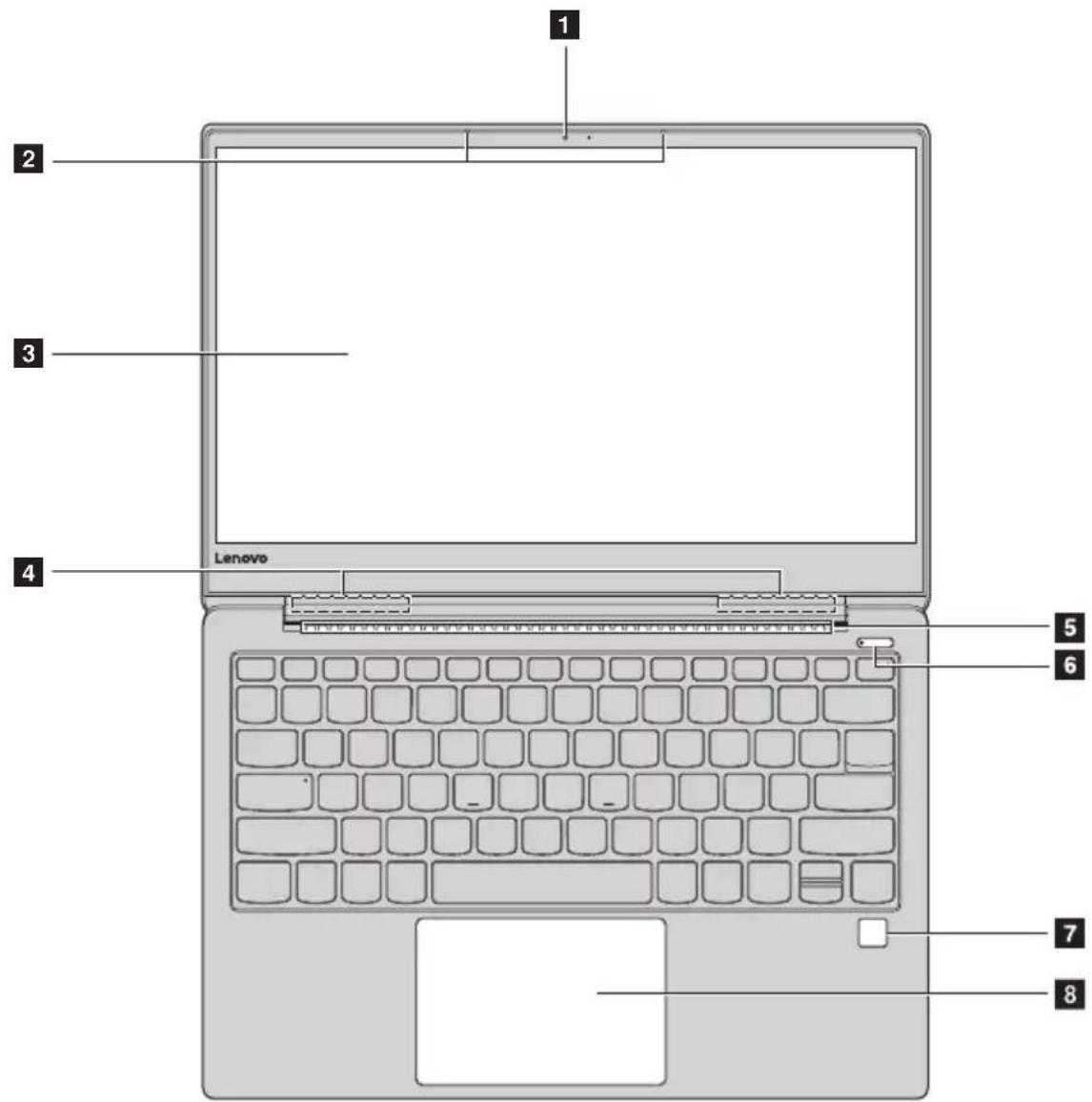
1 2 3 4 Lenovo 5 6 7 8Figure 1. Top view - Lenovo ideapad 730S-13IWL
Note: The dashed areas indicate parts that are not visible externally.
- Attention:
- Do not open the display panel beyond 180 degrees. When closing the display panel, be careful not to leave pens or any other objects between the display panel and the keyboard. Otherwise, the display panel may be damaged.
Chapter 1. Getting to know your computer
| 1 Integrated camera | The integrated camera can be used for video conferencing. |
| 2 Built-in microphone | Capture sound for video conferencing, voice narration, or audio recording. |
| 3 Computer display | The LCD display with LED backlight provides brilliant visual output. |
| 4 Wireless LAN antennas | The wireless antennas are connected with the built-in wireless adapter to send and receive wireless radio signals. |
| 5 Ventilation slots | Dissipate internal heat. |
| 6 Power button | Press this button to turn on the computer.When Windows is running, press the Power button to put the computer into sleep mode. |
| 7 Fingerprint reader | Registers fingerprints that can be used as passwords to secure your computer. |
| 8 Touch pad and click buttons | The touch pad functions as a conventional mouse.Touch pad: To move the pointer on the screen, slide your fingertip over the pad in the direction in which you want the pointer to move.Click buttons: The functions of the Click buttons correspond to those of the left and right mouse buttons on a computer mouse. |
Note: You can enable/disable the touch pad by pressing F6 (☐).
Left-side view

text_image
Diagram of a computer monitor rear panel with labeled buttons and portsFigure 2. Left-side view - Lenovo ideapad 730S-13IWL
1 ac power adapter jack/Type-C port
This jack can be used as both ac power adapter jack and Type-C port, supporting USB 3.1.
2 Combo audio jack
Connects to headsets.
Notes:
- The combo audio jack does not support conventional microphones.
- The recording function may not be supported if third-party headphones or headsets are connected, due to different industry standards.
Chapter 1. Getting to know your computer
Right-side view

text_image
Diagram of a remote control panel with labeled buttons and portsFigure 3. Right-side view - Lenovo ideapad 730S-13IWL
1 Novo button
When the computer is off, press this button to start the System Recovery or the BIOS setup utility, or to enter the boot menu.
2 USB (Type-C)
The USB (Type-C) connectors support both the USB Type-C ^TM standard and Thunderbolt ^TM 3 technology. With a
/ port
compatible USB-C cable, you can use this connector to transfer data, charge your device, or connect your computer to external displays. Both connectors are also compatible with DisplayPort® standard: this means you can connect a high-performance monitor, or other devices that use a DisplayPort connector.
3
Note: Port 2 has the "Always On USB" feature, which allows you to charge your external devices even when your computer is turned off.
Bottom view

text_image
Technical diagram of a laptop back panel with labeled components and a mesh screen insetFigure 4. Bottom view - Lenovo ideapad 730S-13IWL
1 Ventilation slots
Dissipate internal heat.
Note: Make sure that none of the ventilation slots are blocked, or else overheating of the computer may occur.
2Speakers
Provide audio output.
Chapter 1. Getting to know your computer
Status indicators
This section helps you locate and identify the various status indicators on your computer.
text_image
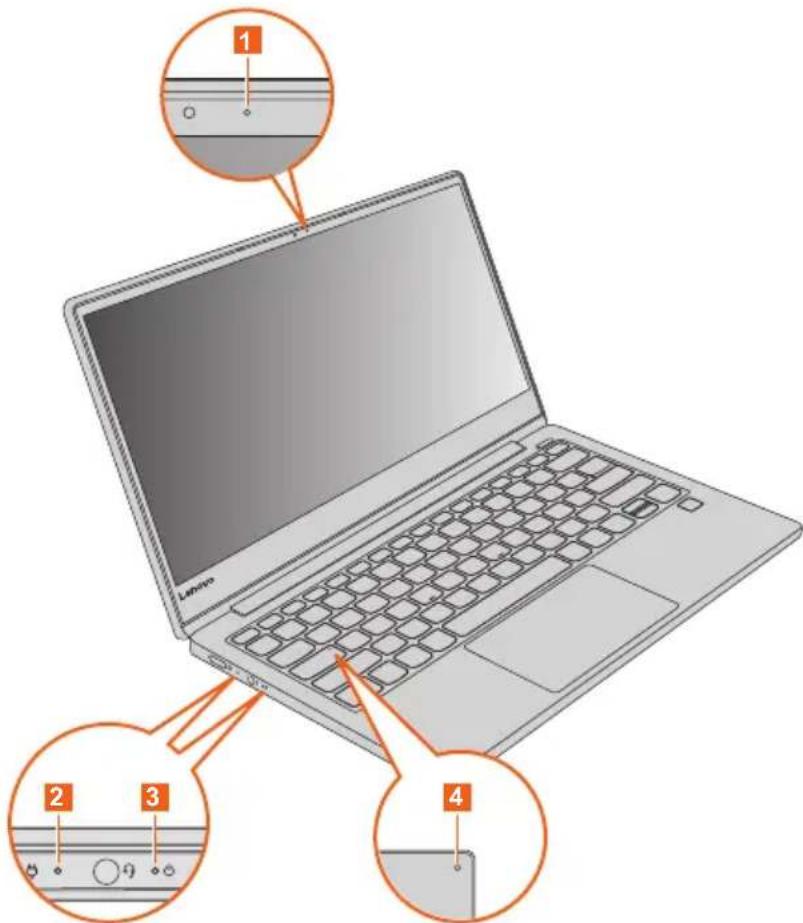
1 2 3 4Figure 5. Indicators - Lenovo ideapad 730S-13IWL
1 Camera status indicator
When this indicator is on, the camera is in use.
Chapter 1. Getting to know your computer
2 Battery/Charging status indicator
| ac power adapter status | Indicator status Meaning | |
| Disconnected | Off The battery is not charging. | |
| Connected | Solid amber The battery has between 1% and 90% charge and is still charging. | |
| Solid white The battery has more than 90% charge, charging will continue until the battery is fully charged. | ||
3 Power status indicator
| Indicator Indicator status Meaning | ||
| Power status indicator | On (solid white) The computer is powered on and the battery has between 21% and 100% charge. | |
| On (solid amber) The computer is powered on and the battery has between 1% and 20% charge. | ||
| Slow blinking amber The computer is in sleep mode and the battery has between 1% and 20% charge. | ||
| Slow blinking white The computer is in sleep mode and the battery has between 21% and 100% charge. | ||
| Off The computer is powered off. | ||
4 Caps Lock indicator
When this indicator is on, you can type uppercase letters directly.
Chapter 2. Starting to use your computer
■ Microsoft resources for Windows
Microsoft provides a comprehensive set of information about Windows.
- The preinstalled Tips app provides new features and tips for Windows. You can start the Tips app by typing "Tips" in the search box of your Windows desktop and selecting the matching results.
- The preinstalled Get Help app provides support and assistance for using Windows. You can start the Get Help app by typing “Get Help” in the search box of your Windows desktop and selecting the matching result. You must be connected to the Internet to use the Get Help app.
- The Microsoft support Web site https://support.microsoft.com/ provides comprehensive helpful information about Windows.
Windows 10 desktop components
text_image
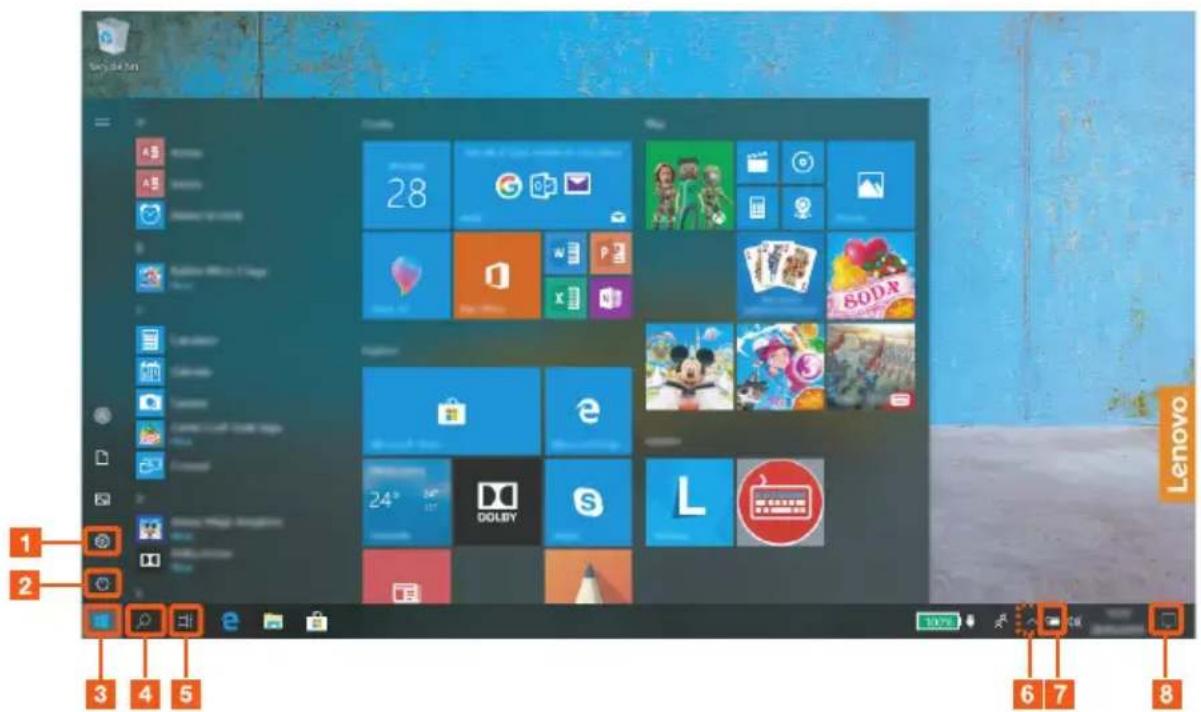
1 2 3 4 5 6 7 8 LenovoFigure 6. Windows 10 desktop
1 Settings button

2 Power button

3 Start button

4 Search box

5 Task view button

6 Wireless status icon


7 Battery status icon

8 Action center

Settings button
Settings lets you perform basic tasks. You can also search for more settings using the settings search box.
Battery status icon
You can move your pointer to this icon to check the battery status. The battery status icon displays the percentage of battery power remaining and how long you can use your computer before you must charge the battery.
Chapter 2. Starting to use your computer
Wireless status icon
This icon shows the status of your computer's wireless connection.
- * Your computer is not connected to any wireless network.
- Your computer is connected to a wireless network.
• Airplane mode is on.
Action center
Here you can find important notifications from Windows and your apps. You can also change common settings quickly.
- Putting the computer to sleep or shutting it down
When you have finished working with your computer, you can put it to sleep or shut it down.
- Putting your computer to sleep
When the computer is in sleep mode, you can quickly wake it to resume use, bypassing the startup process.
To put the computer to sleep, do one of the following:
- Close the display lid.
- Press and hold the power button for 1 second.
- Move the cursor to the lower-left corner, and then select the Start button.
Select Power ⏻ → Sleep.
Note: Put your computer to sleep before you move it. Moving your computer while the hard disk drive is spinning can damage the hard disk, causing loss of data.
To wake up the computer, do one of the following:
- Press any key on the keyboard.
- Press the power button.
■ Shutting down the computer
If you are not going to use your computer for a long time, shut it down.
To shut down your computer, do one of the following:
- Move the cursor to the lower-left corner, and then select the Start button.
Select Power ⏻ → Shut down.
- Right-click the Start button in the lower-left corner and select Shut down or sign out → Shut down.
Connecting to a wireless network
Wireless connection is the transfer of data using radio waves instead of cables.
■ Connecting to a Wi-Fi network
Your computer comes with a built-in Wi-Fi network card to help you establish wireless connections and monitor connection status.
①Click the wireless icon in the notification area.
Note: If the wireless icon is not displayed, airplane mode may be turned on.
② Select the network name you want to connect to and click Connect.
③Enter the security key when prompted and click Next.
■ Turning on/off airplane mode
- Press F7 on the keyboard.
- Clickaft Settings Network & Internet Airplane mode. Slide the toggle for Airplane mode to turn it on or off.
- In action center, click the Airplane mode button to turn it on or off.
Using the keyboard
Hotkeys
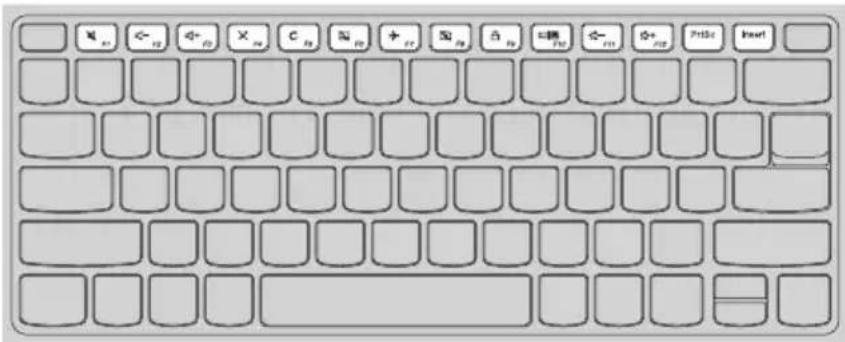
Some keys on the keyboard are printed with symbols. These keys are called hotkeys and can be pressed alone to change certain settings quickly.
Note: Some hotkeys share keys with function keys (F1 to F12). If Hotkey mode is set as disabled in the BIOS setup utility, you need to press the Fn key with these hotkeys to access certain settings.
text_image
Enter Insert Paste Paste Insert Paste Paste Insert Paste Paste Insert Paste Paste Insert Paste Paste Paste Paste Paste Paste Paste Paste Paste Paste Paste Paste Paste Paste Paste Paste Paste Paste Paste Paste Paste Paste Paste Paste Paste Paste Paste Paste Paste Paste Paste Paste Paste Paste Paste Paste Paste Paste Paste Paste Paste Paste Paste Paste Paste Paste Paste Paste Paste Paste PasteFigure 7. Hotkeys - Lenovo ideapad 730S-13IWL
Hotkey Function
| Mutes/unmutes the sound. | |
| Decreases/increases the volume level. | |
| Enables/disables built-in microphones. | |
| Refreshes page. | |
| Enables/disables the touch pad. | |
| Turns on/off airplane mode. | |
| Enables/disables the integrated camera. | |
| Locks/unlocks the LCD screen. | |
| Switches display devices. |
Chapter 2. Starting to use your computer
Hotkey Function

Decreases/increases display brightness.
PrtSc
Enables the print screen function.
Insert
Enables the insert function.
Fn + Space: Adjusts the keyboard backlight.
Setting hotkey mode
The Hotkey Mode setting in the BIOS setup utility determines whether hotkeys takes precedence over function keys.
①Shu t down the computer.
②Pre ss the Novo button and then select BIOS Setup.
③In the BIOS setup utility, open the Configuration menu, and change the setting of Hotkey Mode to Enabled or Disabled.
④ Open the Exit menu, and select Exit Saving Changes.
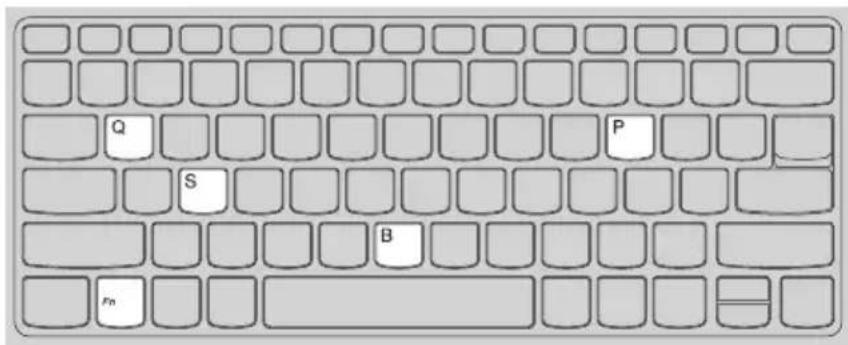
Hidden keys
Some character keys on your keyboard can be used with the Fn key to enable certain settings. These keys are called hidden keys.
text_image
Q S B FmFigure 8. Hidden keys - Lenovo ideapad 730S-13IWL
Fn + B: Activates the break function.
Fn + P: Activates the pause function.
Fn + S: Activates the system request.
Fn + Q: Activates the Quiet Mode.
Chapter 3. Recovering or restoring Windows
This chapter provides information about the recovery options for Windows 10.
You may need to recover or restore Windows if you encounter the following situations:
- Your computer cannot start properly.
- Your computer does not work well after installing apps, drivers, or updates.
Windows 10 provides several options for you to recover or restore Windows. The following table helps you decide which option to use if you're having problems with your computer.
| Problem Available options | |
| Your computer isn’t working well after installing apps, drivers, or updates. | Restore from a system restore point. |
| Your computer isn’t working well and you don’t know what is causing the problem. | Reset your computer. |
| Windows cannot start properly. Use a recovery drive to recover or restore your computer. | |
| You want to recycle or donate your computer. | Reset your computer. |
■ Restoring from a system restore point
①In the search box of your Windows desktop, search for Recovery and then select it.
②Select Open System Restore → Next.
③Select a res tore point and then select Next → Finish.
Note: You may select Scan for affected programs to check which program and driver installation is associated with a particular restore point.
Windows System Restore
System Restore is a tool included in Windows. It monitors changes to Windows system files and saves system state as a restore point. If your computer does not work properly after installing apps, drivers, or updates, you can revert your system to a previous restore point.
Note: Reverting your system to a previous restore point does not affect your personal data.
System Restore creates restore points in three cases:
• automatically when it detects changes to Windows system files
- at regular intervals (if set up by the user)
- at any time by the user
■ Creating a system restore point manually
You can use Windows System Restore to create a restore point at any time.
① In the search box of your Windows desktop, search for Create a restore point and then select it.
②Select the System Protection tab and then select Create.
- Resetting your computer
If your computer isn't working well and you're not sure why, you can reset your computer.
①To reset your computer:
- When the computer is off, press the Novo button to open the Novo Menu; select System Recovery → Troubleshoot → Reset this PC.
- In Windows, go to Settings → Update & security → Recovery; under Reset this PC, select Get Started.
② Choose an option.
- If you want to keep your personal files, select Keep my files.
- Otherwise, select Remove everything.
Note: If you're planning to donate, recycle, or sell your PC, use this option and choose to fully clean the drive. This might take an hour or two, but it makes it harder for other people to recover files you've removed.
Using a recovery drive to restore or recover Windows
If Windows cannot start properly, you can use a recovery drive (created in advance) to restore or recover Windows.
①Connect the recovery drive to your computer; restart your computer and set it up to start from the recovery drive.
② On the Choose an option screen, select Troubleshoot.
③ Choose a recovery option.
- Select Advanced Options → System Restore to restore your computer to a system restore point.
- Select Recover from a drive.
Note: If you did not select the Back up system files to the recovery drive option when creating the recovery drive, Recover from a drive is not available.
- Attention:
- All personal files created on your computer will be deleted after recovering from the drive.
■ Creating a recovery drive
Use a USB drive (not included) to create a recovery drive. You can use it to fix problems with your computer in cases when Windows cannot start properly.
①In the search box of your Windows 10, search for Create a recovery drive and then select it.
② Make sure Back up system files to the recovery drive is selected and then select Next.
③ Connect a USB drive to your computer, select it and then select Next → Create.
- Attention:
- If there are personal files on the USB drive, back up all personal files before using it to create a recovery drive.
Important:
- When your recovery drive is created, you might see a Delete the recovery partition from your PC option. If you want to free up drive space on your computer, select it and then select Delete. Otherwise, select Finish.
Chapter 4. Troubleshooting
Display problems
■ When I turn on the computer, nothing appears on the screen.
Make sure that:
- The ac power adapter is connected to the computer and plugged into a working electrical outlet.
- The computer power is on. (Press the power button again for confirmation.)
- The brightness level of the screen is appropriately set.
If these items are correctly set, yet the screen remains blank, have the computer serviced.
- When I turn on the computer, only a white cursor appears on a blank screen.
- Turn off the computer, and then turn it on again.
- If the problem persists, restore backed-up files to your Windows environment or the entire contents of your hard disk to its original factory contents using the Windows recovery system. If you still see only the cursor on the screen, have the computer serviced.
■ The screen goes blank while the computer is on.
Your screen saver or power management may be enabled. Do one of the following to resume from sleep mode:
- Press any key on the keyboard.
- Press the power button.
The screen is blank.
Do the following:
- If you are using the ac power adapter or the battery pack, and the battery status indicator shows that the battery is not depleted, press F12 to make the screen brighter.
- If the system status indicator is blinking, press the power button to resume from sleep mode.
- If the problem persists, follow the solution in the next problem “The screen is unreadable or distorted.”
■ The screen is unreadable or distorted.
Make sure that:
- The screen resolution and color quality are correctly set.
- The monitor type is correct.
■ Incorrect characters appear on the screen.
Are the operating system or programs installed correctly? If they are installed and configured correctly, have the computer serviced.
Sleep problems
The critical low-battery error message appears, and the computer immediately turns off.
The battery power is getting low. Connect the ac power adapter to the computer.
■ The computer enters sleep mode immediately after Power-on self-test (POST).
Make sure that:
• The battery pack is charged.
- The operating temperature is within the acceptable range. See “Chapter 2. Use and care Information” in the Lenovo Safety and General Information Guide.
Note: If the battery pack is charged and the temperature is within range, have the computer serviced.
The computer does not resume from sleep mode, and the computer does not work.
- If your computer is in sleep mode, connect the ac power adapter to the computer and then press the power button.
- If the system still does not resume from sleep mode, stops responding, or cannot be turned off, reset the computer. Unsaved data may be lost. To reset the computer, press and hold the power button for eight seconds or more. If the computer is still not reset, remove the ac power adapter.
Battery pack problems
■ Battery status icon shows status incorrectly.
Your computer shuts down before the battery status icon shows empty, or your computer continues operating after the battery status icon shows empty.
- Recharge the battery.
Sound problems
No sound can be heard from the speakers even when the volume is turned up.
Make sure that:
• The Mute function is off.
- The combo audio connector is not being used.
- The speakers are selected as the playback device.
Other problems
- Your computer does not respond.
- To turn off your computer, press and hold the Power button for eight seconds or more. If the computer still does not respond, remove the ac power adapter.
- Your computer might lock when it enters sleep mode during a communication operation. Disable the sleep timer when you are working on the network.
- To disable the sleep timer, click Start → Settings → System → Power & sleep; under Sleep, select Never in the pull down menu.
A connected external device does not work.
- Do not connect or disconnect any external device cables other than USB while the computer power is on. Otherwise, you might damage your computer.
- When using high power consumption external devices such as an external USB optical disk drive, use an external device power adapter. Otherwise, the device may not be recognized, and the system may shut down as a result.
Trademarks
LENOVO, LENOVO logo, ideapad and the ideapad logo are trademarks of Lenovo. Microsoft, Windows and Cortana are trademarks of the Microsoft group of companies. USB Type-C and USB-C are trademarks of USB Implementers Forum. Thunderbolt is a trademark of Intel Corporation or its subsidiaries in the U.S. and/or other countries. DisplayPort is a trademark of the Video Electronics Standards Association. Wi-Fi is a registered trademark of Wi-Fi Alliance. All other trademarks are the property of their respective owners. © 2018 Lenovo.