DT-IPTV-QAM-ASI-2H - Radio Data-Tronix - Free user manual and instructions
Find the device manual for free DT-IPTV-QAM-ASI-2H Data-Tronix in PDF.


User questions about DT-IPTV-QAM-ASI-2H Data-Tronix
0 question about this device. Answer the ones you know or ask your own.
Ask a new question about this device
Download the instructions for your Radio in PDF format for free! Find your manual DT-IPTV-QAM-ASI-2H - Data-Tronix and take your electronic device back in hand. On this page are published all the documents necessary for the use of your device. DT-IPTV-QAM-ASI-2H by Data-Tronix.
USER MANUAL DT-IPTV-QAM-ASI-2H Data-Tronix
USER GUIDE AND MANUAL
Dual Input HD Digital
Encoder-Modulator with ASI
MODEL: DT-IPTV-QAM-ASI-2H
Version 1.0
Last Update: 01-15-2019
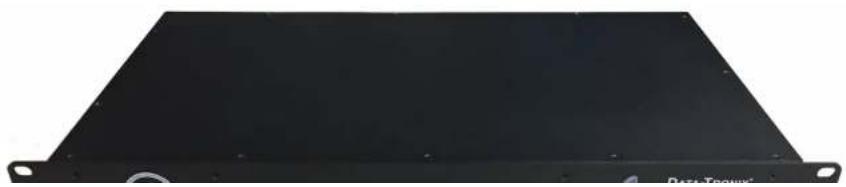
natural_image
Black rectangular electronic device with mounting holes and a label 'Data Track' at the bottom right (no other text or symbols visible)
natural_image
Close-up of network cables and switches with a NB logo (no readable text or symbols on main subject)
NACE Brands is the leading brand of satellite downlink products, cable headend systems, fiber optics, wire, cable, and related connectivity products with integrators. With a global presence in cable and satellite infrastructure products and multimedia technology systems, NACE Brands is the brand of choice for the cable and satellite distribution industry.
Having been in business for over 25 years, NACE brands has become the partner of choice for many integrators. Integrators choose NACE Brands because of our exceptional live technical
Table of Contents
Safety Precautions....4
Package Contents....5
Product Description....6
Specifications....7
Installation....8
Unpacking and Inspection....8
Hardware Installations and Connections....8
DEVICE Programming and Setup....9
Encoder Programming and Setup via GUI Interface: 9
Overview Page of DATA-TRONIX Encoder....10
Login Password:....10
Common Setup....11
RF Setup....12
Encoder Setup ....13
IP Streaming Setup....15
Network Configuration ....16
Administration 17
Saving your configuration files....18
Front Panel LCD Encoder Menu Map....19
Modulator Configuration via Front Panel LCD
20
Safety Precautions
The presence of this symbol: is to alert the installer and user to the presence of uninsulated dangerous voltages within the product's enclosure that may be of sufficient magnitude to produce a risk of electric shock.
TO REDUCE THE RISK OF FIRE OR ELECTRIC SHOCK, DO NOT EXPOSE THIS DEVICE TO RAIN OR MOISTURE. DO NOT OPEN THE UNIT. REFER SERVICING TO QUALIFIED PERSONNEL ONLY.
➢ DO NOT apply power to the unit until all connections have been made, all components have been installed and all wiring has been properly terminated.
DO NOT terminate, change or uninstall any wiring without first disconnecting the unit's power adapter from the device.
This device is supplied with the appropriately rated power supply. The use of any other power supply could cause damage and invalidate the manufacturer's warranty.
➢ DO NOT connect the power cord to the device if the power cord is damaged.
➢ DO NOT cut the power cord.
➢ DO NOT plug the power cord into an AC outlet until all cables and connections to the device have been properly connected.
The device should be installed in an environment consistent with its operating temperature specifications. Placement next to heating devices and ducts is to be avoided as doing so may cause damage. The device should not be placed in areas of high humidity.
➢ DO NOT cover any of the device's ventilation openings.
DO NOT cover or obstruct the device's fan or fan openings.
If the device has been in a cold environment allow it to warm to room temperature for at least 2 hours before connecting to an AC outlet.

Package Contents
This package contains:
One DT-IPTV-QAM-AS1-2H HD Digital Encoder-Modulator
One power cable
➢ User Guide and Manual
Inspect the package before starting installation to ensure there is no damage and all supplied contents are present. Contact your distributor or dealer should the device be damaged or package contents are incomplete.
Product Description
DATA-TRONIX's DT-IPTV-QAM-ASI-2H Encoder/Modulators simultaneously provide a QAM, ASI, and IP output stream making it ideal for any Commercial RF or IP Networks. The high quality HD design allows for watching action packed movies and sports channels on any HDTV. The space saving design delivers 2 High Quality HD QAM/IP/ASI channels in a single 1RU space.
□ Front panel LCD Display for easy installation
High Resolution 1080i/1080p
||VCN Mode for Virtual Channel Mapping
□ Composite, Component, and HDMI (unencrypted) inputs
□ MPEG2 or MPEG4 (AVC) Video Output
□ Selectable Constellation
□ Closed Captioning Support
□ +40dBmV Output
□ Newly Added EAS Functionality
□ Rack mountable 1RU height
Images of Front and Rear Panels
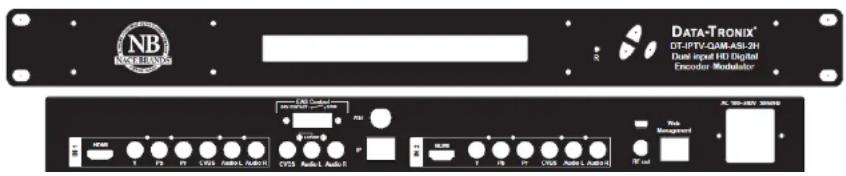
text_image
NB NEUTRONIX DATA-TRONIX® DT-IPTV-QAM-ASL-2H Dual input HD Digital Encoder Modulator LAB Control DC 100-200V 360000 USB T 17 17 17.5 (Max: 100Hz) CPS Audio Audio USB T 78 78 78.5 (Max: 100Hz) Data Management DC 100-200V 360000Specifications
| INPUTS (VIDEO By Priority) | |
| HDMI | 1.4v |
| Component | YPrPb (RCA) |
| Composite | CVBS (RCA) |
| AUDIO Inputs | |
| Audio Input | L/R (RCA) |
| VIDEO Encoder | |
| Mode | MPEG-2, MPEG-4(AVC) Selectable, AVC only (4/1 Models) |
| Video Resolutions | 1080p(AVC Only), 1080i, 720p, 576p, 576i, 480p, 480i |
| AUDIO Encoder | |
| Audio Compression | MPEG-1 Layer II, AAC, Supports Dolby® Digital AC-3, AC-3 Pass Through |
| RF QAM SUPPORT | |
| Frequency | 54-864 MHz (CH 2-CH 135) |
| RF Channel Output | 1/1 (Single Input), 2/1 (Dual Input), 4/2 (Quad Input), 4/1 (Quad Input AVC Only) |
| QAM | J.83 Annex B |
| Constellation | QAM 256/64, QAM256 (Dual/Quad) |
| Bandwidth | 6 MHz |
| RF Level Output | +45dBmV Typical |
| MER | >40dB Typical |
| Interleaver | Supported on DVB-C Annex B |
| Channel Type | STD, HRC, IRC |
| VCN | Virtual Channel Mapping (1-16383) |
| Attenuation | 1-20dB (1 db Steps) |
| RF Output | "F"- Female 75° |
| Closed Captioning Control | Per Output Control (Use of CVBS Input) |
| EAS Support (Optional) | |
| Connection | Dry Contact |
| Video Input | CVBS (RCA) |
| Audio Input | L/R (RCA) |
| ASI Output Support (Optional) | |
| Connection | BNC 75° |
| Output | TS Multiplexed |
Installation
System Installer must adhere to Article 820-40 of the NEC that provides guidelines for proper grounding and specifies that the cable ground shall be connected to the grounding system of the building, as close to the point of cable entry as possible.
Unpacking and Inspection
Each unit is shipped factory tested. Ensure all items are removed from the container prior to discarding any packing material.
Thoroughly inspect the unit for shipping damage with particular attention to connectors and controls. If there is any sign of damage to the unit or damaged or loose connectors contact your distributor immediately. Do not put the equipment into service if there is any indication of defect or damage.
Hardware Installations and Connections
It is highly recommended that quality cables and connectors be used for all video and audio source connections.
- The unit is designed to be rack mounted in a standard EIA 19" rack.
- The unit comes standard with HDMI, Component, and Composite video inputs. The encoder / modulator are intelligently designed to detect the video input from the video source. HDMI Connection: Connect the HDMI cable(s) from the video source(s) into the HDMI input(s). If using a Component Video Cable, connect the Y (Green), Pb (Blue), and Pr (Red) video source cable to the unit's Component input ports. If using a Composite Video source, use a 75Ω coaxial cable with RCA connectors to connect the video source (e.g., CATV, DVD, VCR, Camera) to the unit's CVBS port (IN1, IN2).
Repeat this step for each video source connection.
- Component / Composite Audio inputs: Connect A/V audio input (Left / Right Audio) use RCA cables to connect the audio source to the red / white AUDIO L and AUDIO R INPUT jacks (IN1, IN2). Repeat this step for each audio source connection.
DEVICE Programming and Setup
To setup and program the Encoder you can use the GUI interface or the LCD Front Panel
Connecting to the GUI Interface:
- Connect an Ethernet cable directly (no Cross Over cable required) to the Web Management Port on the rear panel of the encoder or connect the Ethernet cable to an Ethernet switch. Connect an Ethernet Cable to your PC.
- Using a Windows-based PC Select Windows Icon
- Go to My Computer
- Select Network
- Allow UPnP to locate and list the device(s) in the right panel (Windows XP or prior)
- Right Click and Select "View device Webpage".
Note: To setup the encoder using the Front Panel LCD see "Modulator Configuration via Front Panel LCD".
Encoder Programming and Setup via GUI Interface:
After connecting the device to the "Web Management" port located on the rear of the device and locating the device via the 'Network' tool in 'My Computer'
Step 1: Right Click and Select "View device Webpage"
Overview Page of DATA-TRONIX Encoder
DATA-TRONIX®
DataTronix HD encoder /modulator
Overview
Common Setup
RF Setup
Encoder Setup
IP Streaming
Setup
Web Management Setup
Administration
Welcome!
Device Name: DT-001
Model Number: DT-IPTV-QAM-ASI-2H
Device Address:
System: DVB-C J.83B
Net Version: 20181220

RF Output 1
Channel 2 (57.0000 MHz)
Constellation 256QAM
Output Bitrate
Input 1 Input 2
Channel Name 991 992
Video Source Auto Auto
Video Output MPEG2 MPEG2
Audio Output AAC AAC
Input Bitrate
Copyright © 2018 ZyCast Technology Inc.
Welcome page showing overview status of the Encoder when fully functioning.
Sten 2: Login
Step 3: Common Setup Tab
Common Setup
DATA-TRONIX®
DataTronix HD encoder/modulator
Overview
Common Setup
RF Setup
Encoder Setup
IP Streaming Setup
Web Management Setup
Administration
Common Setup
This page allows the user to setup common configurations. Here you may save the changed values into browser's session storage. After you review all your updates for common, RF, and encoders' setup, you can use the upload and reboot function to store the new parameters for the device.
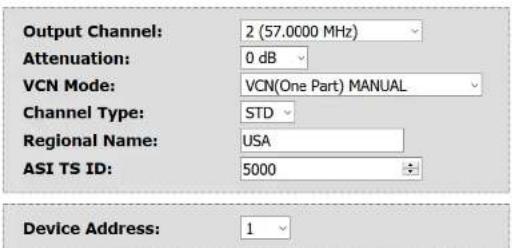
text_image
Output Channel: 2 (57.0000 MHz) Attenuation: 0 dB VCN Mode: VCN(One Part) MANUAL Channel Type: STD Regional Name: USA ASI TS ID: 5000 Device Address: 1Local Save Upload and Reboot Reset local changes
Copyright © 2018 ZyCast Technology Inc.
Use the Common Satin Para to eat the Output channel Attenuation Enable VCM Mode and Daviva
Step 5: RF Setup
RF Setup
DATA-TRONIX®
DataTronix HD encoder/modulator
Overview
Common Setup
RF Setup
Encoder Setup
IP Streaming Setup
Web Management Setup
Administration
RF Setup
This page allows the user to configure RF parameters for the encoder. Here you may save the changed values into browser's session storage. After you review all your updates for common, RF, and encoders' setup, you can use the upload and reboot function to store the new parameters for the device.
RF Output 1
Constellation:
Interleaver:
RF Output:
RF TS ID:
Enable:
256QAM
I=128, J=1
Normal
1111
E
Local Save
Upload and Reboot
Reset local changes
Copyright © 2018 ZyCast Technology Inc.
Use the RF Setup Page to setup each RF Output.
Select and set the required parameters you require for your installation.
Step 7: Encoder Setup
Encoder Setup
DATA-TRONIX®
DataTronix HD encoder/modulator
Overview
Common Setup
RF Setup
Encoder Setup
IP Streaming Setup
Web Management Setup
Administration
Encoder Setup
This page allows the user to configure the encoder's settings. Here you may save the changed values into browser's session storage. After you review all your updates for common, RF, and encoders' setup, you can use the upload and reboot function to store the new parameters for the device.
Encoder 1
Encoder 2
VIDEO SETUP
Video Input:
Video Output:
MPEG2 HD Bitrate:
MPEG2 SD Bitrate:
Aspect Ratio:
HDCP(test mode):
Closed Caption:
Auto detect
MPEG2 CBR
15.7 Mbps
8.0 Mbps
4:3
□
√
AUDIO SETUP
Audio Input:
Auto detect
COLOR SETUP
| Brightness: | 180 |
| Contrast: | 180 |
| Saturation: | 180 |
| Hue: | 180 |
PID SETUP (IP only)
| IP TS ID: | 551 |
| PMT PID: | 552 |
| Video PID: | 553 |
| Audio PID: | 554 |
| PCR PID: | 555 |
PSIP SETUP
| VCN: | 16383 |
| Program Number: | 1 |
| Short Name: | 991 |
| Long Channel Name: | 881 |
| Source ID: | 57 |
Local Save Upload and Reboot Reset local changes
Step 9: IP Streaming
IP Streaming Setup
DATA-TRONIX®
DataTronix HD encoder/modulator
Overview
Common Setup
RF Setup
Encoder Setup
IP Streaming Setup
Web Management Setup
Administration
IP Streaming
This page allows the user to setup the IP Streaming settings. Here you may save the changed values into browser's session storage. After you review all your updates for common, RF, encoders' setup, and IP Streaming, you can use the upload and reboot function to store the new parameters for the device.
Network Setup
| □ Enable DHCP | |
| IP Address: | 192.168.1.10 |
| Subnet Mask: | 255.255.255.0 |
| Gateway: | 0.0.0.0 |
Streaming 1 Streaming 2
| Stream Method: | RTP Multicast |
| Destination IP: | 224 1.1.20 |
| Destination Port: | 10000 |
| TTL: | 4 |
| Enable: |
Local Save Upload and Reset Reset local changes
Copyright © 2018 2yCast Technology Inc.
** Your device may not be IP Streaming capable- if not move to the next step.
Use the IP Streaming setup page to set your device's IP streaming IP Address, and select your streaming
Step 11: Upload and Reboot
Once all the encoder's settings are changed and a Local Save performed for each Setup tab Select "Upload and Reboot" on the IP Streaming page. This function will upload and save all parameters set in the Common, RF, Encoder, IP Streaming sections of the device. Your device will quickly reboot.
Reminder: If changing only a setting on a specific setup page- remember to perform a Local Save and Upload and Reboot.
We highly recommend you save your encoder configuration files. See Administration tab for how to backup your settings.
Step 12: Network Configuration Tab
Network Configuration
DATA-TRONIX®
DataTronix HD encoder/modulator
Overview
Common Setup
RF Setup
Encoder Setup
IP Streaming Setup
Web Management Setup
Administration
Network Configuration
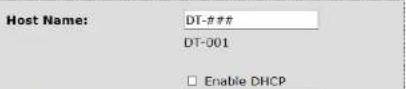
This page allows user to configure the encoder's network settings.
CAUTION: Incorrect settings may cause the encoder to lose network connectivity. Recovery options will be provided on the next page.
Enter the new settings for the encoder below:
Step 14: Administration
Administration
DATA-TRONIX®
DataTronix HD encoder/modulator
| Overview |
| Common Setup |
| RF Setup |
| Encoder Setup |
| IP Streaming Setup |
| Web Management Setup |
| Administration |
Administration
Reboot
Reboot the device. All unsaved settings will be lost.
Reset to Default
Reset configuration to factory default.
Backup
Backup and download current configuration settings to a local file.
Upload the pre-saved configuration settings to device.
CAUTION: The new password must contain:
- 6\~8 characters
Administration Page Functions
Actions
| Reboot | Reboot device. All unsaved settings will be lost. |
| Reset to Default | Reset all settings back to original factory settings |
| Backup | Download all settings of device |
| Upload | Upload a saved config file |
| New Password | Create and save new password for GUI |
****Caution****
Selecting "Reset to Default" will automatically reset all saved settings back to factory default settings. All saved settings will be lost.
****Caution****
Step 15: If required-change GUI Password and Submit.
Note: When setting a new password you must use the Submit button.
This password is for access to the GUI only. The LCD front Panel Password will not be changed and is set to prevent unauthorized users access to your device.
Saving your configuration files
We highly recommend you save your encoder configuration files. Simply Click the "Backup" button and the configuration files will be saved to your computer.
To upload a configuration file simply click "Choose File" then locate the file you want to upload. Click "Upload" to install the configuration files. This function is helpful to the installer when installing a large number of encoders in a single system.
Setup Using Front Panel LCD
Front Panel LCD Encoder Menu Map
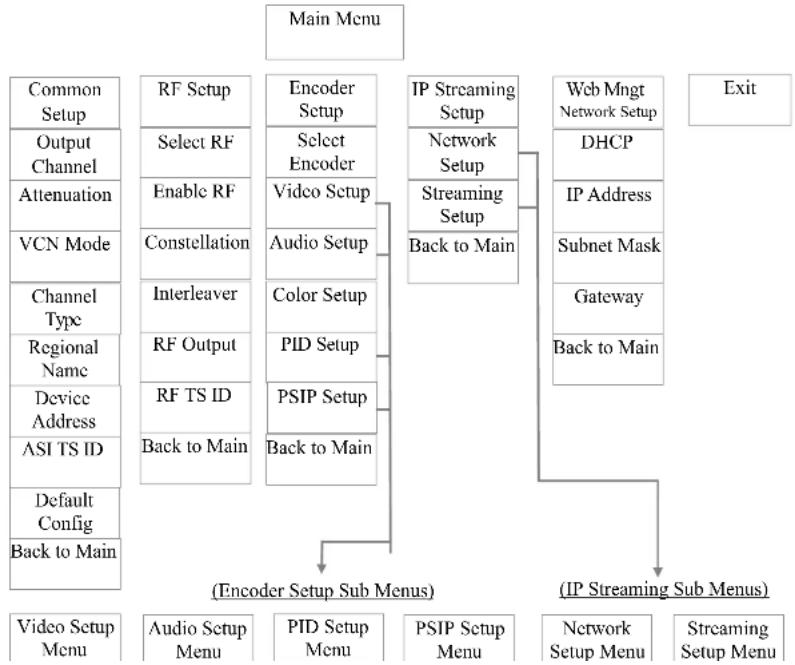
flowchart
graph TD
    A["Main Menu"] --> B["Common Setup"]
    A --> C["Output Channel"]
    A --> D["Attenuation"]
    A --> E["VCN Mode"]
    A --> F["Channel Type"]
    A --> G["Regional Name"]
    A --> H["Device Address"]
    A --> I["ASI TS ID"]
    A --> J["Default Config"]
    A --> K["Back to Main"]

    B --> L["RF Setup"]
    B --> M["Select RF"]
    B --> N["Enable RF"]
    B --> O["Constellation"]
    B --> P["Interleaver"]
    B --> Q["RF Output"]
    B --> R["RF TS ID"]
    B --> S["Back to Main"]

    C --> T["Encoder Setup"]
    C --> U["Select Encoder"]
    C --> V["Video Setup"]
    C --> W["Audio Setup"]
    C --> X["Color Setup"]
    C --> Y["PID Setup"]
    C --> Z["PSIP Setup"]
    C --> AA["Back to Main"]

    E --> AB["IP Streaming Setup"]
    E --> AC["Network Setup"]
    E --> AD["Streaming Setup"]
    E --> AE["Back to Main"]

    AF["Web Mngt Network Setup"] --> AG["DHCP"]
    AF --> AH["IP Address"]
    AF --> AI["Subnet Mask"]
    AF --> AJ["Gateway"]
    AF --> AK["Back to Main"]

    AL["(Encoder Setup Sub Menus)"] --> AM["(IP Streaming Sub Menus)"]
    AM --> AN["Video Setup Menu"]
    AM --> AO["Audio Setup Menu"]
    AM --> AP["PID Setup Menu"]
    AM --> AQ["PSIP Setup Menu"]

    AL --> AR["(IP Streaming Sub Menus)"]
    AR --> AS["Network Setup Menu"]
    AR --> AT["Streaming Setup Menu"]
Modulator Configuration via Front Panel LCD
Once the encoder is powered up it will go through its initial booting process. Once the unit has completed its initial "Booting" up process the LCD will display IN-1..., Bit Rate information, MY-DTV1..., and other information in the LCD Display Window. When visible the unit is ready for programming or operation.
The LCD will display data as it cycles through the available information.
Screen Views:
1: Inputs, Mbps, Channel Names, Video Output Type, Audio Output type
2: Use the Scroll Up/Down button to display RF-1 data, Physical Output Channel, Constellation, and Interleaver.
3: Use the Scroll Up/Down button to display IP address
Common Setup Menu
Output Channel – Use the Scroll Up/Down button to change the output channel. Use the Common Setup MenuScroll Up/Down buttons to select the desired Output Channel. Once the desired output channel is selected press the OK button to set the channel.
The LCD Display will show both the channel number and the frequency number of the output channel (example: 102 663.0000MHz)
- Attenuation – Use the Scroll Up/Down button to select Attenuation. Press the OK button to enter the Attenuation menu. Use the Scroll/Up down button to select the desired attenuation in 1dB increments from 0 to minus 20 dB. Once the desired attenuation level is found press the OK button to set.
☐ VCN Mode - To enable Virtual Channel Number / Mapping Scroll to VCN Menu. Press OK to enter the VCN menu. Select the desired VCN Mode, VCN(Major & Minor) Auto, VCN(Major & Minor) Manual, or VCN(One Part) Manual. Press OK button to set. - Channel Type - Use the Scroll Up/Down button to select Channel Type. Press the OK button to enter the Channel Type menu. Menu options are STD, HRC and IRC. Factory default: STD. Use the Scroll Up/Down button to select the desired Channel Type and press the OK button to set.
☐ Regional Name - Note: Do not Change. Skip this function. Default: USA.
Device Address - Use the Scroll Up/Down button to select Device Address. Press the OK button to enter the Device Address menu. Use the Scroll Up/Down to select the Desired Address ranging from 1 to 255 then press OK to set. A unique device address is required if setting up more than 1 encoder per site. This allows the user to distinguish each device.
ASI TS ID - Use the Scroll Up/Down button to select ASI TS ID. Press the OK button to enter the ASI TS ID menu. Use the Scroll Up/Down to select the Desired ID ranging from 1 to 65535 then press OK to set. Factory Default: 5000.
Default Configuration – To reset the Encoder/Modulator back to the factory default select the Default Configuration Menu. Press OK to enter the Default Configuration Menu
Interleaver- Use the Scroll Up/Down button to select the appropriate Interleaver selection. Press the OK button to enter the Interleaver menu. Use the Scroll Up/Down button to select the desired Interleaver value and press the OK button to set. Factory default: I=128, J=1.
☐RF Output – Use the Scroll Up/Down button to select RF Output. Press the OK button to enter the RF Output menu. Options are Normal, Inverted, or C.W. Factory default: Normal. Use the Scroll Up/Down button to select the desired RF Output and press the OK button to set.
- RF TS ID - Use the Scroll Up/Down button to select RF TS ID. Press the OK button to enter the RF TS ID menu. Use the Scroll Up/Down button to select the desired ID ranging from 1 to 65535 then press the OK button to set.
□□Back to Main- Select Back to Main to escape the RF Setup Menu.
Encoder Setup Menu
□□Select Encoder- Use the OK button to enter the Select Encoder Menu. Using the Scroll Up/Down buttons select the encoder you wish to program. Use the OK button to set the Encoder. Select Encoder 1 or 2, then press OK button to set.
Once Selected the Display will indicate which Encoder you are programming while in the setup function
☐ Video Setup- Use the Scroll Up/Down button to select Video Setup Menu. Press the OK button to enter the Video Setup menu. Set the Video Setup using the Scroll Up/Down buttons to set Video Input, Video Output, HD Video Output Bitrate, SD Video Output
☐ HD Video Output Bitrate- Use the Scroll Up/Down button to select Video Output Bitrate Menu. Press the OK button to enter the Video Output Bitrate Menu. Use the Scroll Up/Down to select the Desired HD Video Output Bitrate, ranging from 2000 to 10000. Factory Default: 8000.
☐ SD Video Output Bitrate- Use the Scroll Up/Down button to select Video Output Bitrate Menu. Press the OK button to enter the Video Output Bitrate Menu. Use the Scroll Up/Down to select the Desired SD Video Output Bitrate, ranging from 1000 to 4000. Factory Default: 4000.
☐ Aspect Ratio – Use the Scroll Up/Down button to select Aspect Ratio. Press the OK button to enter the Aspect Ratio menu. Use the Scroll Up/Down button to select the desired Aspect Ratio option of 4:3 or 16:9 then press the OK button to set. Factory default: 16:9.
☐HDCP- Use the Scroll Up/Down button to select the HDCP menu- Use the Scroll Up/Down button to select the HDCP menu. Press the OK button to enter the HDCP menu. Select Enable / Disable. Each Encoder will require you to Enable the HDCP option.
NOTE: It is the installers / property owner / integrator's responsibility to contract with the service provider regarding content authorization and the use of HDCP.
Closed Caption- Use the Scroll Up/Down button to select the Closed Caption Menu. Press the OK button to enter the Closed Caption menu. Enable / Disable Closed Caption control. Each Encoder will require you to enable the Closed Caption option if you require Closed Captioning Support on a particular video output.
NOTE: WHEN USING CLOSED CAPTIONING- USER MUST CONNECT FROM THE CONTENT SOURCE THE COMPOSITE OUTPUT OR CC OUTPUT SOURCE TO THE ENCODER'S CVBS INPUT CONNECTOR.
Back to Encoder- Select Back to Encoder to escape the Video Setup Menu.
☐ Audio Setup- Use the Scroll Up/Down button to select Audio Setup Menu. Press the OK button to enter the Audio Setup menu. Set the Audio Setup using the Scroll Up/Down buttons to set Audio Input, Audio Output.
- Brightness – Use the Scroll Up/Down button to select Brightness. Press the OK button to enter the Brightness menu. Use the Scroll Up/Down button to select the desired Brightness value (0 to 255) and press the OK button to set. Factory default: 128.
- Contrast – Use the Scroll Up/Down button to select Contrast. Press the OK button to enter the Contrast menu. Use the Scroll Up/Down button to select the desired Contrast value (0 to 255) and press the OK button to set. Factory default: 128.
☐ Saturation – Use the Scroll Up/Down button to select Saturation. Press the OK button to enter the Saturation menu. Use the Scroll Up/Down button to select the desired Saturation value (0 to 255) and press the OK button to set. Factory default: 128. - Hue - Use the Scroll Up/Down button to select Hue. Press the OK button to enter the Hue menu. Use the Scroll Up/Down button to select the desired Hue value (0 to 255) and press the OK button to set. Factory default: 128.
Back to Encoder- Select Back to Encoder to escape the Color Setup Menu.
☐ PID Setup- Use the Scroll Up/Down button to select PID Setup Menu. Press the OK button to enter the PID Setup menu. Set the PID Setup using the Scroll Up/Down buttons to set IP TS ID, PMT PID, VIDEO PID, AUDIO PID, and PCR PID.
☐ IP TS ID - Use the Scroll Up/Down button to set IP TS ID. Press the OK button to enter the IP TS ID setup menu. Use the Scroll Up/Down to select the desired IP TS ID ranging from 32 to 8186 then press OK to set. Factory Default: 1000.
☐ PMT PID - Use the Scroll Up/Down button to set PMT PID. Press the OK button to enter the PMT PID setup menu. Use the Scroll Up/Down to select the desired PMT PID ranging from 32 to 8186 then press OK to set. Factory Default: 4178.
☐□VIDEO PID - Use the Scroll Up/Down button to set VIDEO PID. Press the OK button to enter the VIOE PID setup menu. Use the Scroll Up/Down to select the desired VIDEO PID ranging from 32 to 8186 then press OK to set. Factory Default: 4176.
□AUDIO PID - Use the Scroll Up/Down button to set AUDIO PID. Press the OK button to enter the AUDIO PID setup menu. Use the Scroll Up/Down to select the desired AUDIO PID running from 32 to \$186 than press OK to set Factory Default: 4177
☐ VCN(MINOR CH NO) - Use the Scroll Up/Down button to set VCN(MINOR CH NO). Press the OK button to enter the VCN(MINOR CII NO) setup menu. Use the Scroll Up/Down to select the desired VCN(MINOR CII NO) ranging from 1 to 999 then press OK to set. Factory Default: 1.
☐ VCN(ONE PART) - Use the Scroll Up/Down button to set VCN(ONE PART). Press the OK button to enter the VCN(ONE PART) setup menu. Use the Scroll Up/Down to select the desired VCN(ONE PART) ranging from 1 to 999 then press OK to set. Factory Default: 101.
☐PROGRAM NO - Use the Scroll Up/Down button to set PROGRAM NO. Press the OK button to enter the PROGRAM NO setup menu. Use the Scroll Up/Down to select the Program Num ranging from 1 to 999 then press OK to set. Factory Default: 1.
☐ Short Channel Name – Use the Scroll Up/Down button to select Short Channel Name. Press the OK button to enter the Short Channel Name menu. Use the Scroll Up/Down menu to select the first character of the desired Short Channel Name then press the OK button to set. Repeat the process until the Short Channel Name is completed. If the modulator has more than one video input scroll through the Advanced Menu for additional Short channel name menus.
The Short Name can be 7 characters long. Factory Default: MY-DVT1/MY-DVT2.
- Long Channel Name – Use the Scroll Up/Down button to select Long Channel Name. Press the OK button to enter the Long Channel Name menu. Use the Scroll Up/Down menu to select the first character of the desired Long Channel Name then press the OK button to set. Repeat the process until the Long Channel Name is completed. If the modulator has more than one video input scroll through the Advanced Menu for additional Long channel name menus. Factory Default: ATSC-Digital-TV1/ATSC-DIGITAL-TV2. The Long Channel Name can be 16 characters long.
Source ID - Use the Scroll Up/Down button to set Source ID. Press the OK button to enter the Source ID menu. Use the Scroll Up/Down to set the Source ID. Range: 1 to 65535. Press OK to set. Factory Default: 101.
□□Back to Encoder- Select Back to Encoder to escape the PSIP Setup Menu.
(3) 192.168.0.0 \~ 192.168.255.255
☐ Subnet Mask – Use the Scroll Up/Down button to select Subnet Mask. Press the OK button to enter the Subnet Mask menu. Use the Scroll Up/Down button to enter the Subnet Mask. Use the Scroll Up/Down menu to select the first number of the desired Subnet Mask then press the OK button to set. Repeat the process until the Subnet Mask is completed. Press the OK button to set.
- Gateway Address – Use the Scroll Up/Down button to select Gateway Address. Press the OK button to enter the Gateway Address menu. Use the Scroll Up/Down button to enter the Gateway Address... Use the Scroll Up/Down menu to select the first number of the desired Gateway Address then press the OK button to set. Repeat the process until the Gateway Address is completed. Press the OK button to set.
□□Back to IP Streaming Setup - Select Back to IP Streaming Setup to escape the Network - IP Streaming Sub Menu.
Streaming Setup
☐ Select IP Output – Use the Scroll Up/Down button to select Select IP Output. Press the OK button to enter the Select IP Output menu. Use the Scroll Up/Down button to select the desired IP Output, 1 or 2. Press the OK button to set.
Enable Streaming – Use the Scroll UP/Down button to select Enable Streaming. Press the OK button to enter the Enable Streaming Menu. Select Enable or Disable then press the OK button to set. Factory Default: Enable.
☐ Streaming Method – Use the Scroll Up/Down button to select Streaming Method. Press the OK button to enter the Streaming Method menu. Use the Scroll Up/Down button to select the Streaming Method required. Select: RTP UNICAST, UDP UNICAST, RPT MULTICAST, or UDP MULTICAST. Press the OK button to set. Factory Default: RTP Multicast.
Destination IP - Use the Scroll Up/Down button to select Destination IP (Address). Press the OK button to enter the Destination IP Address menu. Use the Scroll Up/Down button to set the Destination IP Address. Note: By selecting Unicast in the Streaming Method Menu the default address barings at 192 168 1 20. Use the Scroll Up/Down button to eat the
ASI Output
☐ DHCP – Use the Scroll Up/Down button to select DHCP. Press the OK button to enter the DHCP menu. Use the Scroll Up/Down button to Enable/Disable. Press the OK button to set.
IP Address – Use the Scroll Up/Down button to select IP Address. Press the OK button to enter the IP Address menu. Use the Scroll Up/Down button to enter the IP Address. Use the Scroll Up/Down menu to select the desired IP Address then press the OK button to set. Repeat the process until the IP Address is completed. Press the OK button to set. Note: If DHCP is enabled you will not be able to set an IP address. Select DHCP disabled if Static IP Address required.
☐ Subnet Mask – Use the Scroll Up/Down button to select Subnet Mask. Press the OK button to enter the Subnet Mask menu. Use the Scroll Up/Down button to enter the Subnet Mask. Use the Scroll Up/Down menu to select the first number of the desired Subnet Mask then press the OK button to set. Repeat the process until the Subnet Mask is completed. Press the OK button to set.
- Gateway Address – Use the Scroll Up/Down button to select Gateway Address. Press the OK button to enter the Gateway Address menu. Use the Scroll Up/Down button to enter the Gateway Address. Use the Scroll Up/Down menu to select the first number of the desired Gateway Address then press the OK button to set. Repeat the process until the Gateway Address is completed. Press the OK button to set.
□□Back to Main- Select Back to Main to escape the Web Management Network Setup Menu.
ASI Output
This device may come equipped with an ASI combined output. Connect a BNC cable to the ASI output connector (75 ) and to your Broadcast capable device.
EAS
Note: It is the responsibility of the Installer/User to properly perform the required EAS tests as required by the FCC or your specific Government Agency.
If the EAS functions on this device fail for any reason it is the responsibility of the Installer/User to replace this device as required by the FCC or your specific Government Agency.
Product Notes:
Warranty
DATATRONIX 1-Year Limited Warranty
DATATRONIX. (the "Company") warrants to the Original Purchaser that the item purchased is free from defects in workmanship or material under normal use. This warranty starts on the date of shipment of the hardware to the Original Purchaser.
During the warranty period, the Company agrees to repair or replace, at its sole option, without charge to Original Purchaser, any defective component. To obtain service, the Original Purchaser must return the item to the Company properly packaged for shipping. All defective products must be returned to the Company within thirty (30) days of failure. Products must be returned with a description of the failure and Return Merchandise Authorization (RMA) number supplied by the Company. To receive a RMA number and a return shipping address on where to deliver the hardware, call 610-429-1821. The shipping, and insurance charges incurred in shipping to the Company will be paid by Original Purchaser, and all risk for the hardware shall remain with the Original Purchaser until such time as Company takes receipt of the hardware. Upon receipt, the Company will promptly repair or replace the defective unit, and then return said unit to Original Purchaser, shipping prepaid. The Company may use reconditioned or like-new parts or units, at its sole option, when repairing any hardware. Repaired products shall carry the same amount of outstanding warranty as from original purchase. Any claim under the warranty must include dated proof of purchase or invoice. In any event, the Company's liability for defective hardware is limited to repairing or replacing the hardware.
This warranty is contingent upon proper use of the hardware by Original Purchaser and does not cover: if damage is due to Acts of God (including fire, flood, earthquake, storm, hurricane or other natural disaster), accident, unusual physical, electrical, or electromechanical stress, modifications, neglect, misuse, operation with media not approved by the Company, tampering with or altering of the hardware, riot, war, invasion, act of foreign enemies, hostilities (regardless of whether war is declared), civil war, rebellion, revolution, insurrection, military or usurped power or confiscation, terrorist activities, nationalization, government sanction, blockage, embargo, labor dispute, strike, lockout or interruption or failure of electricity, air conditioning, or humidity control, internet, network, or telephone service
The warranties given herein, together with any implied warranties covering the hardware, including any warranties of merchantability or fitness for a particular purpose, are limited in duration to one year from the date of shipment to the Original Purchaser. Jurisdictions vary with regard to the enforceability of warranty limitations, and you should check the laws of your local jurisdiction to find out whether the above limitation applies to you.
| Item | Value |
| Password | |
| Serial Number | |
| Installation Date | |
| Purchase Date | |
| Video Input 1 | |
| Video Input 2 | |