HMC5100X-H-708C2-W10A-BW - Surveillance Camera Dahua Technology - Free user manual and instructions
Find the device manual for free HMC5100X-H-708C2-W10A-BW Dahua Technology in PDF.


| Product Type | Surveillance Camera |
| Model | HMC5100X-H-708C2-W10A-BW |
| Brand | Dahua Technology |
| Image Sensor | 1/2.8-inch Progressive Scan CMOS |
| Maximum Resolution | 1920 x 1080 (2MP) |
| Lens Type | Motorized varifocal, 2.7-12mm |
| Night Vision | Up to 30m (IR LED) |
| Power Supply | PoE (802.3af) or 12V DC |
| Power Consumption | < 8W |
| Dimensions | 200mm x 70mm x 70mm |
| Weight | 0.6 kg (1.32 lbs) |
| Weatherproof Rating | IP67 |
| Video Compression | H.265+/H.265/H.264+/H.264 |
| Audio Support | Two-way audio (built-in mic & speaker) |
| Motion Detection | Yes, with intelligent analysis |
| Storage | MicroSD slot (up to 256GB), NVR support |
| Network Interface | 1x RJ-45 10/100Mbps |
| Maintenance | Clean lens with soft dry cloth; check connections periodically |
| Safety | Use certified power adapter; avoid exposure to extreme temperatures |
| Spare Parts | Contact Dahua authorized service centers for replacement parts |
| Repairability | Professional repair recommended; do not disassemble |
| General Info | Ceiling or wall mountable; operating temperature -30°C to 60°C |
Frequently Asked Questions - HMC5100X-H-708C2-W10A-BW Dahua Technology
User questions about HMC5100X-H-708C2-W10A-BW Dahua Technology
0 question about this device. Answer the ones you know or ask your own.
Ask a new question about this device
Download the instructions for your Surveillance Camera in PDF format for free! Find your manual HMC5100X-H-708C2-W10A-BW - Dahua Technology and take your electronic device back in hand. On this page are published all the documents necessary for the use of your device. HMC5100X-H-708C2-W10A-BW by Dahua Technology.
USER MANUAL HMC5100X-H-708C2-W10A-BW Dahua Technology
High-Performance Module Computer
User's Manual

natural_image
Abstract geometric shape with gray and blue color blocks (no text or symbols)Foreword
General
This manual introduces the installation, functions and operations of the high-performance module computer (hereinafter referred to as "the OPS module"). Read carefully before using the OPS module, and keep the manual safe for future reference.
Safety Instruction
The following signal words might appear in the manual.
| Signal Words Meaning | ||
 | WARNING | Indicates a high potential hazard which, if not avoided, will result in death or serious injury. |
 | WARNING | Indicates a medium or low potential hazard which, if not avoided, could result in slight or moderate injury. |
 | CAUTION | Indicates a potential risk which, if not avoided, could result in property damage, data loss, reductions in performance, or unpredictable results. |
 | TIPS Provides methods to help you solve a problem or save time. | |
 | NOTE | Provides additional information as a supplement to the text. |
Revision History
| Version | Revision Content | Release Time |
| V1.0.2 | Added power management. | August 2022 |
the electronic version and the paper version.
- All designs and software are subject to change without prior written notice. Product updates might result in some differences appearing between the actual product and the manual. Please contact customer service for the latest program and supplementary documentation.
- There might be errors in the print or deviations in the description of the functions, operations and technical data. If there is any doubt or dispute, we reserve the right of final explanation.
- Upgrade the reader software or try other mainstream reader software if the manual (in PDF format) cannot be opened.
- All trademarks, registered trademarks and company names in the manual are properties of their respective owners.
- Please visit our website, contact the supplier or customer service if any problems occur while using the device.
- If there is any uncertainty or controversy, we reserve the right of final explanation.
Important Safeguards and Warnings
This section introduces content covering the proper handling of the OPS module, hazard prevention, and prevention of property damage. Read carefully before using the OPS module, and comply with the guidelines when using it.
Transportation Requirements

Transport the OPS module under allowed humidity and temperature conditions.
Storage Requirements

Store the OPS module under allowed humidity and temperature conditions.
Operation Requirements

- Check whether the power supply is correct before use.
- Do not unplug the power cord on the side of the OPS module while the adapter is powered on.
- Operate the OPS module within the rated range of power input and output.
- Use the OPS module under allowed humidity and temperature conditions.
- Do not drip or splash liquid onto the OPS module, make sure that there is no object filled with liquid on the OPS module to prevent liquid from flowing into it.
- Do not disassemble the OPS module.
- Your configurations will be lost after performing a factory reset. Please be advised.
-
Do not restart, shut down or disconnect the power to the OPS module during an update.
-
Do not expose the battery to environments with extremely low air pressure, or extremely high or low temperatures. Also, it is strictly prohibited to throw the battery into a fire or furnace, and to cut or put mechanical pressure on the battery. This is to avoid the risk of fire and explosion.
- Use the standard power adapter or cabinet power supply. We will assume no responsibility for any injuries or damages caused by the use of a nonstandard power adapter.

- Do not place the OPS module in a place exposed to sunlight or near heat sources.
- Keep the OPS module away from dampness, dust, and soot.
• Install the OPS module in a well-ventilated place, and do not block its ventilation.
• Install the OPS module on a stable surface to prevent it from falling. - The power supply must conform to the requirements of ES1 in IEC 62368-1 standard and be no higher than PS2. Note that the power supply requirements are subject to the device label.
- The OPS module is a class I electrical appliance. Make sure that the power supply of the OPS module is connected to a power socket with protective earthing.
- Use power cords that conform to your local requirements and rated specifications.
- Before connecting the power supply, make sure the input voltage matches the server power requirement.
• Install the OPS module near a power socket for emergency disconnect.
- It is prohibited for non-professionals and unauthorized personnel to open the device casing.
Maintenance Requirements

WARNING
- Make sure to use the same model when replacing the battery to avoid fire or explosion. Dispose the battery strictly according to the instructions on it.
- Power off the OPS module before maintenance.

The series of the ONS module is mainly for protection. Use a consensus to learn the sequence
Table of Contents
Foreword
Important Safeguards and Warnings....III
1 Overview....1
1.1 Introduction ...... 1
1.2 Technical Specifications....1
2 Appearance 2
3 Connection....3
4 System Installation 4
5 Power Management 7
6 FAQ....8
Appendix 1 Cybersecurity Recommendations 9
1 Overview
1.1 Introduction
The high-performance module computer is an OPS module based on 10/11th Gen Intel Core processors. The OPS modules uses Insyde BIOS and comes with Windows 10. Developed in accordance with the OPS-C standard, it is ideal for use with large displays that support Open Pluggable Specification (OPS).
1.2 Technical Specifications

The specifications are for reference only, and might differ from the actual product.
Table 1-1 Technical specifications
| Parameter Specification | |
| Processor | Intel Comet Lake/Rocket LakeLGA1200Max. TDP 65 W |
| Chip group Intel H510 | |
| Memory | 2 × SO-DIMM DDR4Max. RAM: 2 × 16 GB |
| Storage | 1 × M.2 2280 NVMe SSD1 × SATA 2.5" SSD/HDD (height≤ 7.5 mm) |
2 Appearance
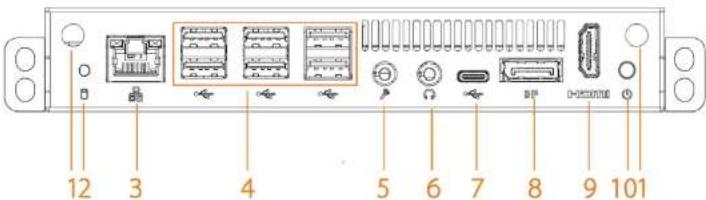
Figure 2-1 Front panel
text_image
12 3 4 5 6 7 8 9 101Table 2-1 Front panel description
| No. Name | Description | |
| 1 | Wi-Fi antenna port | Connect external Wi-Fi antennas. |
| 2 HDD indicator light | The light flashes green when the hard drive is reading or writing data.The light is off when the hard drive is reading or writing data, or when the OPS module is shut down. | |
| 3 | Network port | Gigabit Ethernet port. |
| 4 USB port | Connect external devices such as USB storage device, keyboard and mouse. | |
| 5 MIC IN Inputs audio signals. | ||
| 6 | LINE OUT | Outputs audio signals. |
| 7 | Type C port | Connects Type C storage devices. |
| 8 | DP port | Outputs high definition audio and video signals. |
3 Connection
Connect the OPS module with a mouse, keyboard, network, and power supply before turning on the OPS module for more operations.
Prerequisites
- Check whether the components and accessories are complete after you unpack the OPS module.
- Check whether all the component and accessories especially the power adapter are intact without damage.
Procedure
Step 1 Connect a mouse and keyboard with the USB ports of the OPS module.
Step 2 Connect a network cable to the network port on the front panel of the OPS module.
Step 3 Connect the OPS module to a monitor through DP or HDMI cable.
Step 4 Connect the power cords of the monitor and the OPS module.
4 System Installation
This section introduces how to install Windows system on the OPS module. The figures are for reference only, and might differ from the actual interface.
Prerequisites
Make sure that the OPS module is turned off and connected to a mouse, a keyboard, a monitor and network.
Procedure
Step 1 Insert a USB flash drive that contains the Windows installation files into the USB port of the OPS module.
Step 2 Power on the OPS module and the monitor. When the OPS module starts, press the F11 key to enter setup.
Step 3 Press the arrow keys to select the USB flash drive and then press Enter.
Step 4 When the Windows Setup window appears, select a language and then click Next.
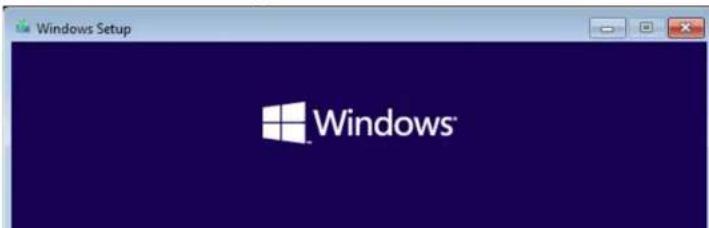
Step 5 Click Install Now.
Figure 4-1 Install now
text_image
Windows Setup Windows®Figure 4-2 Type of installation

text_image
Which type of installation do you want? Upgrade: Install Windows and keep files, settings, and applications The files, settings, and applications are moved to Windows with this option. This option is only available when a supported version of Windows is already running on the computer. Custom: Install Windows only (advanced) The files, settings, and applications aren't moved to Windows with this option. If you want to make changes to partitions and drives, start the computer using the installation disc. We recommend backing up your files before you continue.Figure 4-3 Select installation drive

text_image
Where do you want to install Windows? Name Total size Free space Type Drive 0 Unallocated Space 32.0 GB 32.0 GBFigure 4-4 Region
Let's start with region. Is this correct?
Tuvalu
U.S. Minor Outlying Islands
U.S. Virgin Islands
Uganda
Ukraine
United Arab Emirates
United Kingdom
Yes
Step 11 Select the keyboard layout, and then click Yes.
You can add a second keyboard layout if needed.
Step 12 Connect the network and then log in to your Microsoft account.
Step 13 Set the username, password, and security questions, and then click Connect now.
Step 14 Select your privacy settings, and then click Accept.
Figure 4-5 Privacy settings
Choose privacy settings for your device
5 Power Management
- Press the power button to turn on or turn off the OPS module.
- By default, when plugged in, the OPS module turns off the screen after 15 minutes of inactivity and the OPS module goes to sleep after 30 minutes of inactivity. You can change the power and sleep settings.

This section uses Windows 10 as an example and the operations are for reference only.
- Click ☐ at the lower-left corner of your screen, and then click ⚙️.
- Select System > Power & sleep.
- Adjust the power and sleep settings.
Under Screen, select how long you want your OPS module to wait before turning the screen off when you are not using the OPS module.
Under Sleep, select how long you want your OPS module to wait before going to sleep when you are not using it.
- Press any key or click any position on the screen to wake up the screen or the OPS module.
6 FAQ
Table 6-1 FAQ
| Issue Solution | |
| The system cannot work normally | 1. Check whether the power cord is correctly connected between the power port of the OPS module and the power socket and whether the power socket is connected to the power supply.2. Check whether the newly replaced or added firmware is correctly installed and connected. |
| The monitor cannot work normally | 1. Check whether the power cord is correctly connected between the power port of the monitor and the power socket and whether the power socket is connected to the power supply.2. Check whether the monitor and the OPS module are connected using the correct ports and cables. |
Appendix 1 Cybersecurity Recommendations
Mandatory actions to be taken for basic device network security:
- Use Strong Passwords
Please refer to the following suggestions to set passwords:
- The length should not be less than 8 characters.
- Include at least two types of characters; character types include upper and lower case letters, numbers and symbols.
- Do not contain the account name or the account name in reverse order.
- Do not use continuous characters, such as 123, abc, etc.
- Do not use overlapped characters, such as 111, aaa, etc.
-
Update Firmware and Client Software in Time
-
According to the standard procedure in Tech-industry, we recommend to keep your device (such as NVR, DVR, IP camera, etc.) firmware up-to-date to ensure the system is equipped with the latest security patches and fixes. When the device is connected to the public network, it is recommended to enable the "auto-check for updates" function to obtain timely information of firmware updates released by the manufacturer.
• We suggest that you download and use the latest version of client software.
"Nice to have" recommendations to improve your device network security:
- Physical Protection
We suggest that you perform physical protection to device, especially storage devices. For example, place the device in a special computer room and cabinet, and implement well-done access control permission and key management to prevent unauthorized personnel from carrying out physical contacts such as damaging hardware, unauthorized connection of removable device (such as USB flash disk, serial port), etc.
- Change Passwords Regularly
the risk of ARP spoofing.
8. Assign Accounts and Privileges Reasonably
According to business and management requirements, reasonably add users and assign a minimum set of permissions to them.
9. Disable Unnecessary Services and Choose Secure Modes
If not needed, it is recommended to turn off some services such as SNMP, SMTP, UPnP, etc., to reduce risks.
If necessary, it is highly recommended that you use safe modes, including but not limited to the following services:
- SNMP: Choose SNMP v3, and set up strong encryption passwords and authentication passwords.
- SMTP: Choose TLS to access mailbox server.
- FTP: Choose SFTP, and set up strong passwords.
- AP hotspot: Choose WPA2-PSK encryption mode, and set up strong passwords.
10. Audio and Video Encrypted Transmission
If your audio and video data contents are very important or sensitive, we recommend that you use encrypted transmission function, to reduce the risk of audio and video data being stolen during transmission.
Reminder: encrypted transmission will cause some loss in transmission efficiency.
11. Secure Auditing
- Check online users: we suggest that you check online users regularly to see if the device is logged in without authorization.
- Check device log: By viewing the logs, you can know the IP addresses that were used to log in to your devices and their key operations.
12. Network Log
Due to the limited storage capacity of the device, the stored log is limited. If you need to save the log for a long time, it is recommended that you enable the network log function to ensure that the critical logs are synchronized to the network log server for tracing.