MegaPix DWC-MV74Wi6 - Surveillance Camera Digital Watchdog - Free user manual and instructions
Find the device manual for free MegaPix DWC-MV74Wi6 Digital Watchdog in PDF.


User questions about MegaPix DWC-MV74Wi6 Digital Watchdog
0 question about this device. Answer the ones you know or ask your own.
Ask a new question about this device
Download the instructions for your Surveillance Camera in PDF format for free! Find your manual MegaPix DWC-MV74Wi6 - Digital Watchdog and take your electronic device back in hand. On this page are published all the documents necessary for the use of your device. MegaPix DWC-MV74Wi6 by Digital Watchdog.
USER MANUAL MegaPix DWC-MV74Wi6 Digital Watchdog
DW DIGITAL WATCHDOG Complete Surveillance Solutions
MEGApix® 4MP Indoor/Outdoor Vandal Dome IP Camera
DWC-MV74Wi28
DWC-MV74Wi4
DWC-MV74Wi6
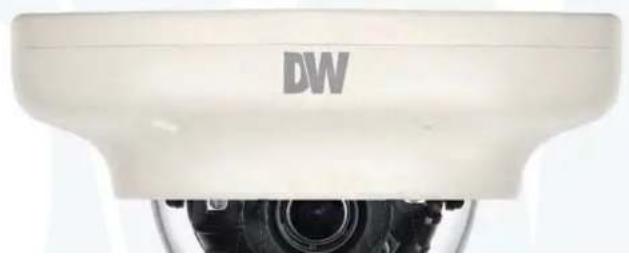
natural_image
Close-up of a white camera lens with 'DW' branding on the top (no additional text or symbols visible)Index
INTRODUCTION
03 Important Safety Information
06 Features
07 Part Name
08 Dimensions
09 Product & Accessories
INSTALLION
10 Disassemble the Camera
11 Installation
12 Installation using Mount Bolt & Nut
14 Cabling
15 Inserting/Removing an SD Memory Card
NETWORK SETUP
16 IP Installer
17 Quick Start of Network Connection DDNS
18 Registration
19 Guide to Network Environment Setup Case (A\~D)
22 Port Forwarding
23 Starting IP Camera
WEB VIEWER SCREEN
24 Basic Screen
SETUP
25 Video & Audio Setup

text_image
Safety Information
CAUTION
RISK OF ELECTRIC SHOCK. DO NOT OPEN.

CAUTION:
TO REDUCE THE RISK OF ELECTRIC SHOCK, DO NOT REMOVE COVER (OR BACK) NO USER SERVICEABLE PARTS INSIDE. REFER SERVICING TO QUALIFIED SERVICE PERSONNEL.

Warning Precaution
This symbol indicates that dangerous voltage consisting a risk of electric shock is present within this unit.

This exclamation point symbol is intended to alert the user to the presence of important operating and maintenance (servicing) instructions in the literature accompanying the appliance.
WARNING
To prevent damage which may result in fire or electric shock hazard, do not expose this appliance to rain or moisture.
WARNING
- Be sure to use only the standard adapter that is specified in the specification sheet. Using any other adapter could cause fire, electrical shock, or damage to the product.
- Incorrectly connecting the power supply or replacing battery may cause explosion, fire, electric shock, or damage to the product.
- Do not connect multiple cameras to a single adapter. Exceeding the capacity may cause excessive heat generation or fire.
Precaution
Operating
• Before using, make sure power supply and all other parts are properly connected.
- While operating, if any abnormal condition or malfunction is observed, stop using the camera immediately and contact your dealer.
Handling
- Do not disassemble or tamper with parts inside the camera.
- Do not drop the camera or subject it to shock or vibration as this can damage the camera.
- Clean the clear dome cover with extra care. Scratches and dust can ruin the quality of the camera image.
Installation and Storage
Do not install the cameras in areas of extreme temperature
Important Safety Instructions
- Read these Instructions. - All these safety and operating instructions should be read before the product is installed or operated.
- Keep these instructions. - The safety, operating and use instructions should be retained for future reference.
- Heed all warnings. - All warnings on the product and in the operating instructions should be adhered to.
- Follow all instructions. - All operating and use instructions should be followed.
- Do not use this device near water. - For example: near a bath tub, wash bowl, kitchen sink, laundry tub, in a wet basement; near a swimming pool; etc.
- Clean only with dry cloth. - Unplug this product from the wall outlet before cleaning. Do not use liquid cleaners.
- Do not block any ventilation openings. Install in accordance with the manufacturer's Instructions. - Slots and openings in the cabinet are provided for ventilation, to ensure reliable operation of the product, and to protect it from over-heating. The openings should never be blocked by placing the product on bed, sofa, rug or other similar surface. This product should not be placed in a built-in installation such as a bookcase or rack unless proper ventilation is provided and the manufacturer's instructions have been adhere to.
- Do not install near any heat sources such as radiators, heat registers, or other apparatus (including amplifiers) that produce heat.
- Do not defeat the safety purpose of the polarized or grounding-type plug. A polarized plug has two blades with one wider than the other. A grounding type plug has two blades and a third grounding prong. The wide blade or the third prong are provided for your safety. If the provided plug does not fit into your outlet, consult an electrician for replacement of the obsolete outlet.
-
Protect the power cord from being walked on or pinched particularly at plugs, convenience receptacles, and the point where they exit from the apparatus.
-
Only use attachments/accessories specified by the manufacturer.
-
Use only with cart, stand, tripod, bracket, or table specified by the manufacturer, or sold with the apparatus. When a cart is used, use caution when moving the cart/apparatus combination to avoid Inlury from tlp-over.

Introduction-
Features
■ 4MP 1/3" CMOS Sensor at Real-Time 30fps
■ 2.8mm, 4.0mm and 6.0mm Fixed Lens Options
■ True Wide Dynamic Range (WDR)
■ Dual Codecs (H.264, MJPEG) with Simultaneous Streaming
■ 50' Smart IR™ with Intelligent Camera Sync
■ Smart DNR™ 3D Digital Noise Reduction
■ True Day/Night with Mechanical IR Cut Filter
■ Programmable Privacy Zones
■ Dynamic Range Compression (DRC)
■ Auto Gain Control (AGC)
■ Backlight Compensation (BLC)
■ Auto White Balance (AWB)
■ Motion Detection
■ Micro SD/SDHC/SDXC Class 10 Card Slot for Event and Continuous Recording(Card Not Included)
■ Web Server Built-in
■ PoE Class 3 / DC12V
■ ONVIF Conformant, Profile S
■ IP66 Weather and Tampering Resistant
■ IK10-Rated Impact-Resistant
5 Year Warranty
Introduction - Product & Accessories
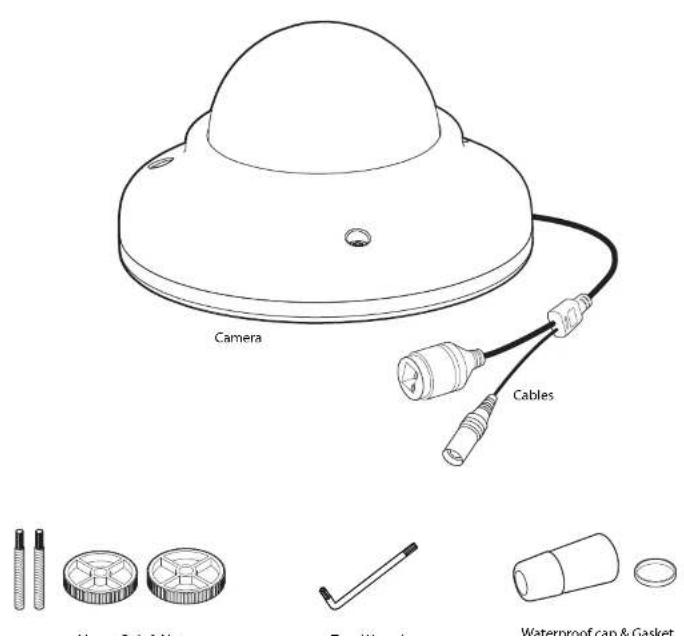
text_image
Camera Cables Waterproof can & GadgetSpecifications -
Dimension
Unit: Inch (mm)
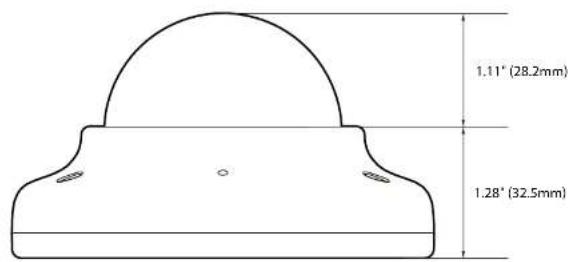
text_image
1.11" (28.2mm) 1.28" (32.5mm)
natural_image
Simple curved line diagram with concentric arcs and a small circle at the center (no text or symbols)Introduction -
Part Name
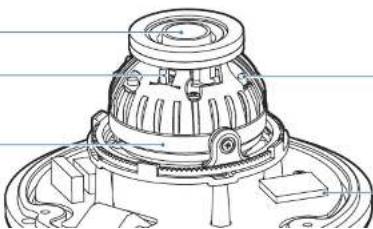
Dome Cover
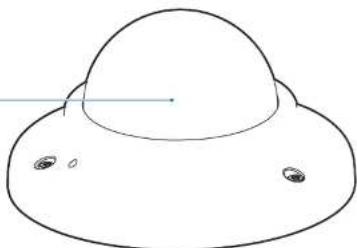
natural_image
Simple line drawing of a flying saucer with two small circular elements on the side (no text or symbols)Lens
IR Switch
IR LED
Gimbal
Reset Button
natural_image
Technical line drawing of a mechanical assembly with gears and housing (no text or symbols)SD Card Slot
Installation - Disassemble the camera
Before installing your camera, you have to read the following cautions.
- You have to check whether the location can bear five times of the weight of your camera.
- Don't let the cable to be caught in improper place or the electric line cover to be damaged. Otherwise it may cause a breakdown or fire.
- When installing your camera, don't allow any person to approach the installation site. If you have any valuable things under the place, move them away.
text_image
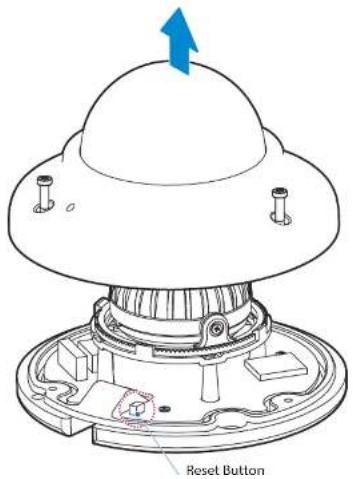
Reset Button1 Detach the dome cover by torx wrench provided from bottom case before installation the camera.
Match the one screw hole on the dome cover and camera bottom specially.

Reset to the Factory Default
Press the reset button for 5 seconds to return the setup to the factory default.
Warning: If you press the 'Reset' button. you will lose all setting
Installation - Installation
text_image
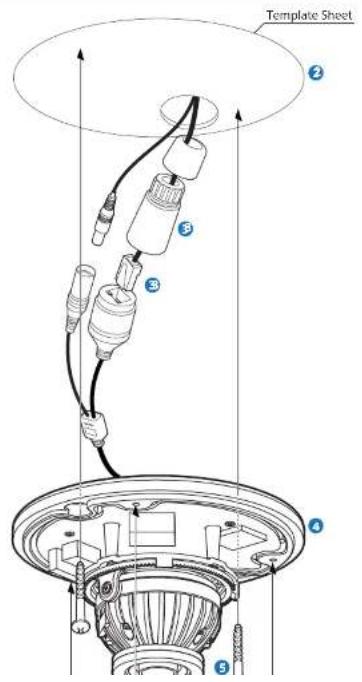
Template Sheet ② ⑤ ③ ④ ⑤1 Disassemble the camera. See the section 'Installation - Disassemble the camera' for details.
2 Using the template sheet, make the cabling hole on the wall/ceiling.
Connect the network cable and power cable respectively. See the section 'Installation - Cabling' for details.
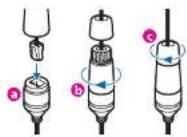
Put the Lan cable into (a), then (b) will be assembled to (a) tightly. As a final step, (c) need to be assembled to (b) without making any space.
4 Once removing the rubber stopper, fix the bottom case on the ceiling.
5 To achieve desired view direction and orientation, rotate 3-axis gimbal. To fix the setting, tighten the tilt stopper screw.

natural_image
Cross-sectional diagram of a mechanical assembly with layered components (no text or symbols)Installation - Installation Using Mount Bolt & Nut
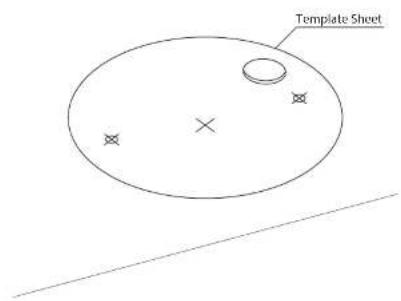
text_image
Template Sheet1 Disassemble the camera. See the section 'Installation - Disassemble the camera' for details.
2 Using the template sheet, make the cabling holes on the ceiling panel.

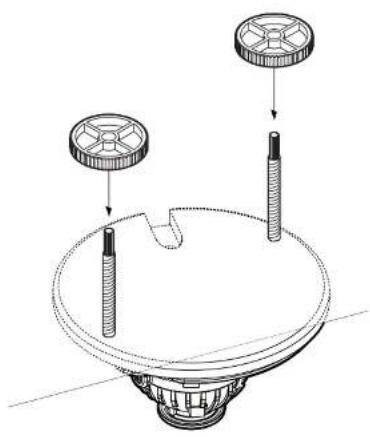
natural_image
Diagram of two cylindrical objects with textured surfaces and a curved base, no text or symbols present3 Insert the 2 mount bolts into bottom case of camera.
Installation - Installation Using Mount Bolt & Nut
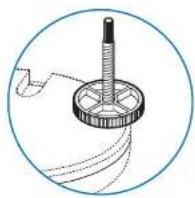
natural_image
Diagram of a mechanical component with two cylindrical parts and a base, showing assembly or assembly steps (no text or symbols)4 Insert the mount bolts into template holes after connecting the cable.
5 Fix the bottom case by tightening mount nuts to mount bolts on the ceiling panel.
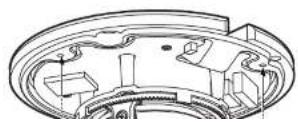
6 To achieve desired view direction and orientation, rotate 3-axis gimbal. To fix the setting, tighten the tilt stopper screw.
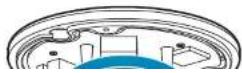
Installation - Cabling
Two Options
Use a PoE-enabled switch to connect data and power through a single cable and begin viewing and recording images instantly. A non-PoE switch will require an adaptor for power transmission.
1. Using a PoE-Enabled Switch
The Camera is PoE compliant, allowing transmission of power and data via a single Ethernet cable. PoE eliminates the need for the different cables used to power, record, or control the camera. Follow the illustration below to connect the camera to a PoE-enabled switch using an Ethernet cable.
2. Using a Non-PoE Switch
If a PoE-enabled switch is not used, use a power adaptor for power transmission and non-PoE switch for data transmission. Follow the illustrations below to connect the camera without a PoE-enabled Switch.

natural_image
Pure electrical connector diagram without any text, numbers, or symbols
text_image
Ethernet cable Ethernet cable PowerInstallation - Inserting/Removing a SD Memory Card
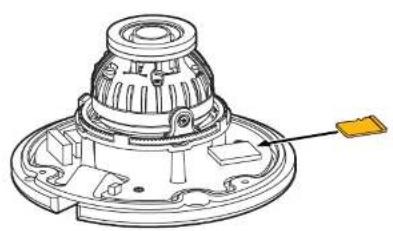
natural_image
Technical diagram of a mechanical assembly with no visible text or symbolsThe memory card is an external data storage device that has been developed to offer an entirely new way to record and share video, audio, and text data using digital devices.
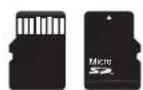
Recommended SD Card Specification (Not Included) - Type: Micro SD (SD/SDHC/SDXC) - Manufacturer: Transcend, Kingston, Toshiba, SanDisk - Capacity: 4GB\~128GB - Class: UHS-IU3 Class 10
1 Insert the SD card in the arrow direction. - Don't insert the SD memory card while it's upside down by force. Otherwise, it may damage the SD memory card. - Use the tweezers when inserting or picking out the SD card.
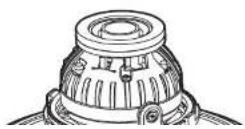
Removing a SD Memory Card Gently press down on the exposed end of the memory card as shown in the diagram to eject the memory card from the slot. Pressing too hard on the SD memory card can cause the card to shoot out uncontrollably from the slot when released.
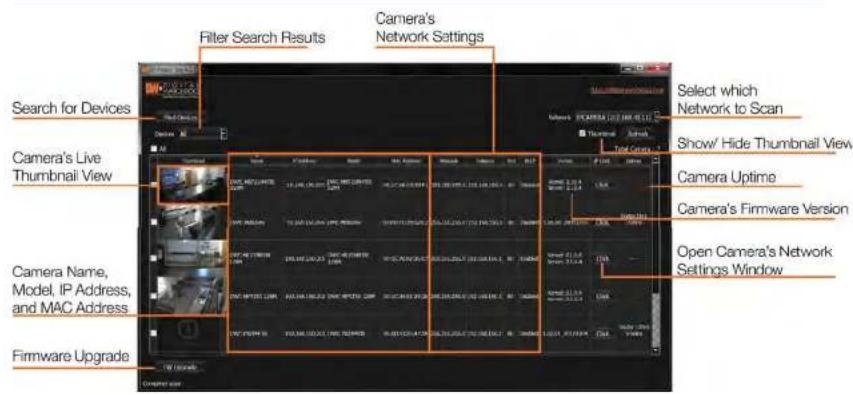
Network Setup - DW IP Finder™
text_image
Filter Search Results Camera's Network Settings Search for Devices Select which Network to Scan Camera's Live Thumbnail View Show/ Hide Thumbnail View Camera Uptime Camera's Firmware Version Open Camera's Network Settings Window Camera Name, Model, IP Address, and MAC Address Firmware UpgradeGo to: http://www.digital-watchdog.com
② Search for 'IP Finder' on the quick search bar at the top of the page.
The latest DW IP Finder™ software will appear in the search results. Click on the link to download the file to your computer.
4 The software will scan your network for all supported cameras and display the results in the table. Allow up to 5 seconds for the DW IP Finder™ to find the camera on the
text_image
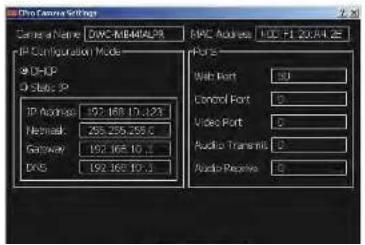
DWC Configuration Settings General Name: DWC-MB40A2P IP Configuration Mode: @ DHCIP @ Subs. IP IP Address: 192.168.10.323 Network: 255.255.255.6 Network: 192.168.10.3 DNS: 192.168.10.3 MAC Address: 100 F1 20047 SE Port Web Port: 50 Control Port: 0 Video Port: 0 Audio Transmits: 0 Audio Receive: 0Network Setup - Quick Start of Network Connection
Please follow the steps below to complete the initial setup of the network function.
Please do not power on the IP Camera until instructed.
① Temporarily disable any proxy servers configured in internet Explorer.
If connecting the IP Camera directly to a modem, power down and reset the modem. Leave the modem powered down until configurations are finalized with the IP Camera and the IP Camera has been correctly connected to the modem.
- Connect the IP Camera and PC to the configured network.
- Open the IP Installer on a PC, then search for the IP camera.
If you have a DHCP server, it will automatically set the Camera IP.
If you do not have a DHCP server, Camera IP is set to 192.168.1.80 after one minute. In this case, PC IP must be changed to the IP to be able to access the 192.168.1.80. - If multiple numbers of camera are connected it should be distinguished by the mac address of the Camera.
- Click the Camera IP, and connect to the WEB PAGE.
- Default ID/Password to access IP Camera are both the word: admin.
Familiarize yourself with the Viewer Interface Screen.6.
please install VLC to display live video.7.
- The IP setting can be set to 'STATIC' at IP Installer or web viewer followed by Setup -> Network -> Network Settings
-
If the IP Camera is connected to a network which utilizes a router you must have Post Forwarding configured on your
-
Access your IP Camera via the Internet :
If you use a static IP address assigned by your ISP
1) Open Internet Explorer.
2) Type the IP of the IP Camera.
3) If you use a router, type the routers' static IP and the web port
number of the IP Camera.
If you have a dynamic address provided by your ISP
1) Open Internet Explorer and visit the DDNS website.
2) Register the IP Camera.
3) Reboot the IP Camera.
4) Give the DDNS server 10 minutes to locate your IP Camera's
IP information.
5) Click the refresh button in the Internet Explore.
6) After your camera is connected, select your camera.
Network Setup - DDNS Registration
If you have DYNAMIC IP service from your Internet Service Provider (ISP), you can't tell the current IP address of the IP Camera. To solve this problem, you have to register to our DDNS service.
At first, you have to check if you are using dynamic addressing. If so, register your IP Video Server on our DDNS website before you configure, setup, or install the IP Camera.
Even though your IP is not dynamic, you will get benefit if you register to DDNS. In this case, just remember 'hostname.dyndns.com/gate1' instead of complicated series of numbers like http://201.23.4.76:8078.
For more details, contact our Support Center.
To use a public DDNS called 'dyndns' or 'no-ip', refer to the detail information on how to use the service. (Visit the web site: http://www.dyndns.com or http://www.no-ip.com)
Network Setup - Guide to Network Environment
Please configure the IP Camera at the installation site. You must determine your network scenario in order to configure the IP Camera with the proper TCP/IP settings. This tutorial will guide you through the process. Before actually configuring the IP Camera, determine settings to be applied. Record those settings to be used to configure your IP Camera for reference.
When configuring your IP Camera, treat the IP Camera as another PC on your network. You will assign it several addresses and other TCP/IP properties to match your current network.
This step-by-step tutorial will teach what IP addresses and network configurations should be assigned based on the network scenario.
- The following descriptions are several basic network scenarios. Determine which scenario describes your network. If your network does not match one of the scenarios below and you are unsure how to setup your IP Camera, contact your network administrator and then call our Support Center.
You cannot control the rectangular gray areas and only the ISP has access to the devices.
- Before you begin, locate any information and settings received from your Internet Service Provider (ISP). You may need to refer to these IP addresses at a later time during the configuration.
| Current TCP/IP Settings | |
| IP Address | |
| Subnet Mask | |
| Default Gateway | |
| Primary DNS Server | |
| Secondary DNS Server (Option) | |
Secondary DNS Server (Option)
Network Setup - Setup Case A, B
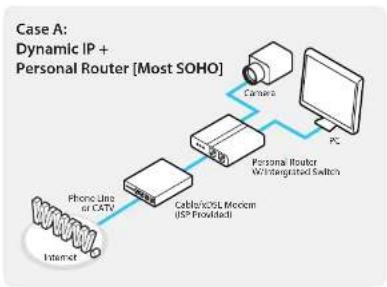
flowchart
graph LR
    A["Internet"] --> B["Phone Line of CATV"]
    B --> C["Cable/ICSL Medium (ISP-Provider)"]
    C --> D["Personal Router Mid-Integrated Switch"]
    D --> E["PC"]
    E --> F["Camera"]
    F --> G["SOHO"]

flowchart
graph TD
    A["Internet"] --> B["Public LING"]
    B --> C["Gateway or Router at IP"]
    C --> D["Personal Router with Integrated Switch"]
    D --> E["Camera"]
    E --> F["PC"]
    style A fill:#f9f,stroke:#333
    style F fill:#ccf,stroke:#333
Configure your IP Camera's TCP/IP properties as follows :
Network Type: BTATIC (even though you have Dynamic IP from your ISP, use STATIC on the IP Camera)
Internet Address : 29 private IP address such as 192.168.0.200 (Example)
You need to assign an IP address to the IP Camera just as you do with PC.
The IP address you assign must be unique to your network and match your network as well. For information on how to choose a unique IP and match your network, read the FAQ.
The IP address you assign must be a private IP. For information on how to choose a private IP please, read the FAQ.
Subnet Mask:3255.255.255.0 (Example)
You must use the same subnet mask as the one you noted under 'Current TCP/IP Settings'.
Default Gateway:492.168.0.1 (Example)
This IP address must be the IP address of your router. (private or LAN side)
Use the same Default Gateway you noted under 'Current TCP/IP Settings'.
Preferred DNS Server :\$ise the 1st DNS Server from 'Assigned IP Address from My ISP'.
If you did not receive any IP addresses from your ISP, contact the ISP and acquire the IP address of their DNS server.
DDNS Server: Use the DDNS server.
This is the same site you will register later to accommodate
Network Setup - Setup Case C, D
text_image
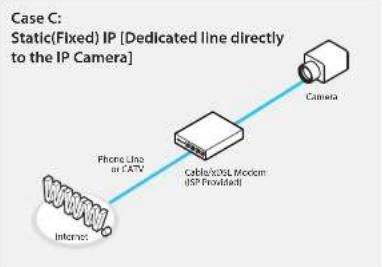
Case C: Static(Fixed) IP [Dedicated line directly to the IP Camera] Phone Line or CCTV Cable/OSL Modem (ISP Provided) Camera InternetConfigure your IP Camera's TCP/IP properties as follows :
STATICNetwork Type:1. Internet Address:2M static IP address received from your ISP such as 24.107.88.125 (Example)
You need to assign an IP address to the IP Camera just as you do with PC.
Subnet Mask : Subnet mask assigned from your ISP, such as 255.255.255.240 (Example)
Default Gateway:424.107.88.113 (Example)
Use the assigned default gateway from your ISP
Preferred DNS Server: Use the 1st DNS Server from 'Assigned IP Address from My ISP'
① If you have not received any IP addresses from your ISP, contact
Case D: Dynamic IP + DSL/Cable Modem [Connected directly to the IP Camera]

flowchart
graph LR
    A["Internet"] --> B["Public Line"]
    B --> C["Gateway or Router at ISP"]
    C --> D["Camera"]
To connect the IP Camera directly to a modem, power down and reset the modem. Leave the modem powered down until configurations are finalized with the IP Camera and the IP Camera has been connected correctly to the modem. Then power on the modem, followed by the IP Camera.
Configure your IP Camera's TCP/IP properties as follows :
DYNAMICNetwork Type:1.
Use the DDNS serverDDNS Server :2.
This is the same site you will register later to accommodate dynamic IP from your ISP.
80Web Port:3.
You may select any number between 1025 -- 60000.
Network Setup - Port Forwarding
After entering the correct TCP/IP settings, you are ready for 'Port Forwarding'(Cases A, B).
- Please record the TCP/IP settings of your IP Camera for future reference. You may need this information to access your IP Camera and to configure 'Port Forwarding'.
| IP Camera TCP/IP Settings | |
| IP Address | |
| Subnet Mask | |
| Default Gateway | |
| Preferred DNS Server | |
| DDNS Server | |
| Web Port | |
-
After clicking 'Apply', the system will prompt for a reboot. Please allow the system 50 seconds to reboot and accept the changes. After 50 seconds, close the configuration screen. The view will display 'Trying to Reconnect'. If the ACTIVE light on the IP Camera has gone off and is now back on again flashing, the IP Camera has rebooted. After the system reboots completely, remove the power supply from the unit and close Internet Explorer.
-
Return your PC/Laptop TCP/IP properties to their original settings.
-
Before installing the IP Camera, you must use 'Port Forwarding' on your personal router (Cases A, B).
You will need to forward 1 ports:
- Web Port
All the ports will be forwarded to the IP address you assigned to the IP Camera.
In the example above, you would forward:
·8888→192.168.0.200
Network Setup - Starting IP Camera
After forwarding correctly the Web Port, through your router (if applicable), install the IP Camera in a proper location.
-
Locate the serial number located on the label attached to the bottom of the IP Camera, you will need this for DDNS registration.
-
Connect the IP Camera to your router or cable/DSL modem (per your network scenario) via a Cat5/5e UTP Ethernet network cable.
-
Supply power to the IP Camera.
-
After 1 minute, verify the IP Camera Indicators:
- LINK : Flickering/Solid
- After configuring Port Forwarding on your computer (if necessary), access your IP Camera on your local network by opening Internet Explorer and specifying the IP address and Web Port assigned to the IP Camera.
① Examples: http://192.168.0.200:8888 or http://24.106.88.123
If you left your Web Port set to 80, do not need to specify the port in the Address Bar to access the IP Camera.
Access your IP Camera via the Internet :6.
If you use Case B, C
1) Open Internet Explorer.
2) Type the IP of the IP Camera.
If you use Case A, D
1) Open Internet Explorer.
2) Visit the DDNS website.
3) Register the IP Camera.
4) Give the DDNS server 10 minutes (MAX) to locate your IP Camera's IP Information. You may reboot the server to send an immediate request to our DDNS server.
Web Viewer Screen - Basic Screen

text_image
DIGITAI WATCHDOG Digital Watchtower System 1 2 3 4 5 SETUP LIVE BUTTERING 800 cm CHANNELS SELECT VIEW: FREE SCREEN SIZE CONTROL ZOOM 300 POLE UVEY Digital Watchtower @ Right/Right WINNT PICKERS 50 ALAWA OUTPUT RELAY 2017 POSITION Camera Time 2020-01-02 00:00:00Web viewer is optimized with explorer10 or above version and Firefox.
If VLC is not installed or VLC plugin is not supported (Chrome), Live buffering and Channel select menu on 3, 4 will be changed to Live Viewer menu, and then if HTML5(MJPEG) is selected on Live Viewer menu, then you can check the video.
Below "Menu" is supported in accordance with models.
PTZ Control
This camera model does not supports the zoom and focus.
Preset
Does not support.
Setup - Video & Audio Setup
Video Configuration
text_image
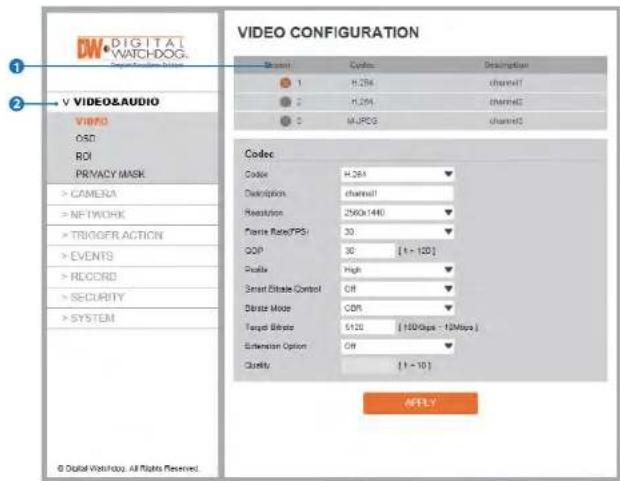
DV DIGITAL WATCHDOG VIDEO &AUDIO V VIDEO OSO ROI PRIVACY MASK >CAMERA >NFTWORK >TRIGGER ACTION >EVENTS >RECORD >SECURITY >SYSTEM VIDEO CONFIGURATION Measure Codes Description 1 H.264 channel7 2 H.264 channel8 3 H.264 MJROG channel9 Codes code: H.264 description: channel1 resolution: 250x1440 Traffic Rate/PSI: 30 GDP: 30 [1~120] Enable: High Smart State Control: OR Delete Mode: CDR Target Delete: 5120 (150/6px - 12Mbps) Extension Option: OR Quality: [1~10] © Digital Watchdog, All Rights Reserved. AFTLY1 Detail Page
When you selects an item from the menu, you can set the details for the selected item.
2 Setup Constitution
Video&Audio
Setup - Video & Audio Setup
Video Configuration

text_image
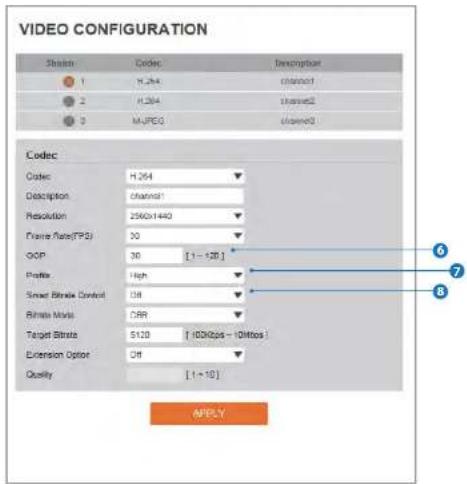
VIDEO CONFIGURATION Stream Codes Description 1 H264 channel 2 H264 channel 3 MJPEG channel Codec Code H264 Description channel1 Resolution 2560x1440 Frame Rate(FPS) 36 GOP 35 [1 - 120] Profile High Smart Bitrate Control Off Bitrate Mask CRR Target Bitrate 5120 [100Mbps - 10Mbps] Extension Option Off Quality [1 - 10] APPLY1 Live Video Channel Setup
The video can be configured to variety settings with a combination of codec and resolution.
The camera performance has to be considered when setting multiple channels. This effects on the performance of the camera.
4 Resolution
Select the video resolution.
Available resolution can be depends on the codec setup between the channels.
| NTSC | PAL | |
| ### | 7560 v 1440 | 7560 v 1440 |
Setup - Video & Audio Setup
Video Configuration
text_image
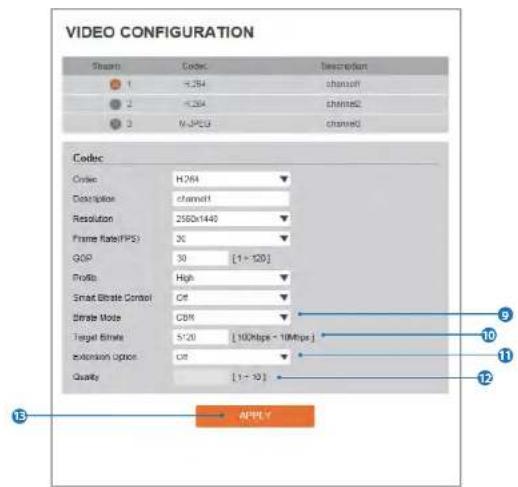
VIDEO CONFIGURATION Strain Codec Description 1 H.264 0.00001 2 H.264 0.00002 3 MJREG 0.00003 Codec Cotsc H.264 Description 0.00001 Resolution 2560x1440 Frame Rate(TPS) 30 GDP 30 [1-128] Profile High Smart Stroke Control DB Binary Mode CRR Target Stroke 5120 [10kHzps - 1MHzps] Extension Option DB Quality [1-10] APPLY6 GOP(Group of Pictures) Size
Set up the number of frames (P-frame) which contain only changed information based on basic frame (I-frame). Regarding videos with lots of movement, if you set GOP size bigger, only the number of P-frames is bigger. As a result, video resolution will be low but 'File size' and 'Bit rate can
8 Smart Bitrate Control
Off
Does not use the Smart Bitrate Control.
CVBR (Framerate priority)
Setup - Video & Audio Setup
Video Configuration
text_image
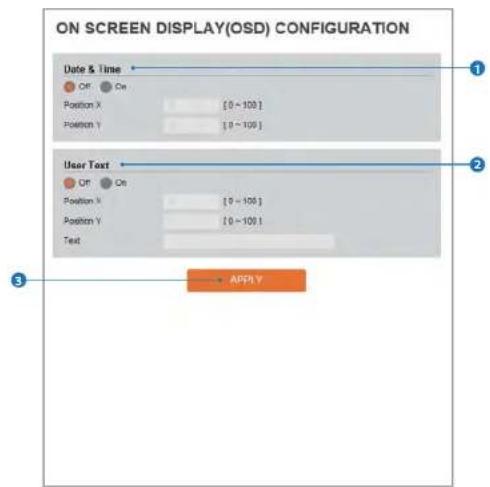
VIDEO CONFIGURATION Share Code Description 1 <.364 channel 2 <.364 channels 3 M-JPEG channel Codec Order: HJ84 Description: channel Resolution: 2500x1440 Frame Rate(TPS): 30 GSD: 30 [1×120] Profile: High Smart Elicate Control: Off Elicate Mode: GBN Target Elicate: 5/20 [100Mbps - 10Mbps] Extension option: Off Quality: [1×10] APPLE9 Bitrate Mode
Select the bit rate control scheme of video compression from CBR (Constant Bit Rate) or VBR (Variable Bit Rate).
CBR
To guarantee the designated constant bit rate, the quality of video are controlled in this mode. Therefore, the quality
11 Extension Option
OFF
Does not use the extension option.
SVC-T On
Scalable video coding is a type of video encoding algorithm
Setup - Video & Audio Setup
OSD Configuration
text_image
ON SCREEN DISPLAY(OSD) CONFIGURATION Date & Time Off On Position X [0 ~ 100] Position Y [0 ~ 100] User Text Off On Position X [0 ~ 100] Position Y [0 ~ 100] Text APPLY1 Date/Time
Display the current time.
2 User Text
Output the TEXT entered by the user.
Support a maximum of 30 characters.
Setup - Video & Audio Setup
Region of Interest Configuration

text_image
REGION OF INTEREST CONFIGURATION Stream: Channel Activation: Enable Quality: 50% SAVE CANCELRegion of interest function gives much more efficiency picture quality for indicated area to improve picture qualities of movement scene at the same bandwidth.
1 Stream
Select the Stream.
Setup - Video & Audio Setup Privacy Mask Configuration

text_image
PRIVACY MASK CONFIGURATION Automation On Off Area Asset 1 2 3 CLEAR AREA SAVE CANCELUse this function to mask areas that you want to hide on screen to protect privacy.
1 Activation The Privacy mask function can be enable or disable.
Setup - Camera Setup
Camera Image Adjustment
text_image
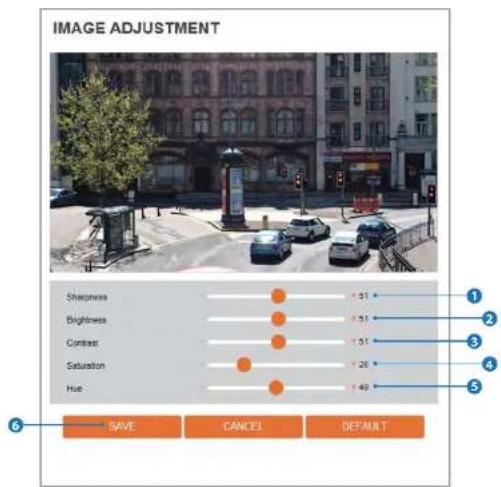
IMAGE ADJUSTMENT Sharpness 31 Brightness 51 Contrast 51 Saturation 26 Hue 49 SAVE CANCEL DEFAULT1 Sharpness
Using this control, sharpness of image can be adjusted to meet your preference.
2 Brightness
Using this control, brightness of image can be adjusted
4 Saturation
Using this control, Saturation of image can be adjusted to meet your preference.
5 Hue
Using this control, Hue of image can be adjusted
Setup - Camera Setup
Camera Exposure Settings
text_image
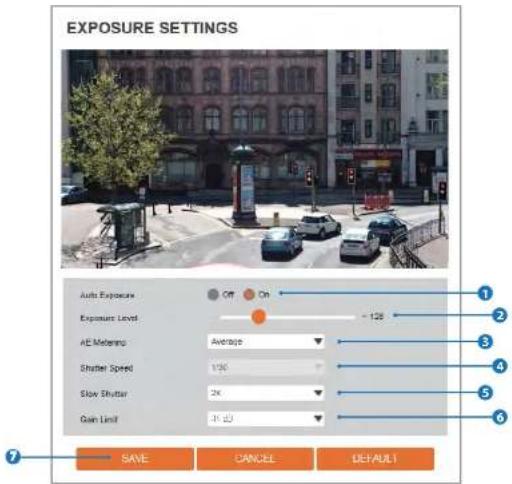
EXPOSURE SETTINGS Auto Exposure Off On Exposure Level -128 AE Meters Average Shutter Speed 10K Slow Shutter 2K Gain Limit 3K 2D SAVE CANCEL DEFAULT1 Auto Exposure
Automatic exposure(AE) automatically sets the aperture or shutter speed, based on the external lighting conditions for the photo.
2 Exposure Level
5 Slow Shutter
Slow shutter Level lets you adjust the amount of light striking the sensor, and essentially determines when the video sensor sends out its batch of data for processing.
6 Gain Limit
Setup - Camera Setup
Camera Day & Night Settings

text_image
DAY&NIGHT SETTINGS Day & Night Auto Day Night Schedule Color Level 5 SW Level 5 Transition Time Middle Day -> Night Time 10 00 Night -> Day Time 5 00 SAVE CANCEL DEFAULT1 Day & Night
Auto: In this mode, the IR cut filter is removed automatically depending on the light condition around.
Day: In this mode, the IR cut filter is applied to the image
sensor all the time. Thus, the sensitivity will be reduced in the dark light condition but the better color reproduction
4 Transition Time
If it is set to Auto, to determine the rate at which Day / Night is converted.
5 If it is set to schedule mode, Set the time that Day / Night is converted.
Setup - Camera Setup
Camera Backlight Settings
text_image
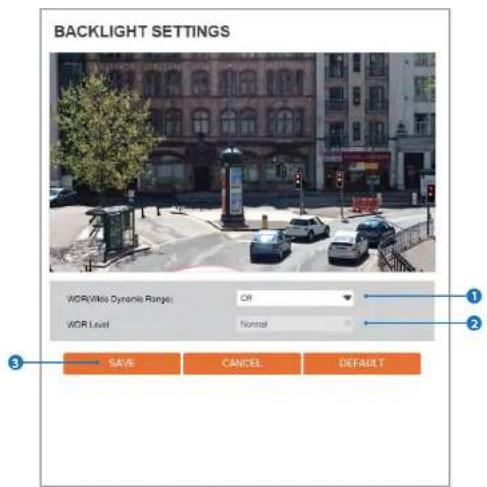
BACKLIGHT SETTINGS WOR(Wide Dynamic Range) Off WOR Level Normal SAVE CANCEL DEFAULTThis is a feature used for problematic light conditions where the contrast from light to dark areas is very high.
1 WDR (Wide Dynamic Range)
The WDR function can be enable or disable.
Setup - Camera Setup Camera White Balance

text_image
WHITE BALANCE Activation Off On White Balance Mode Auto R Gain 1560 G Gain 1024 B Gain 1400 SAVE CANCEL DEFAULT1 Activation
White Balance can be enable or disable.
3 RGB Gain
The R/G/B gain can be set only when the White Balance Mode is set to Manual.
2 White Balance Mode
Select White Balance depending on the lighting conditions.
4 Click 'Save' to save the current settings.
Click 'Cancel' to return to the previous setting.
Setup - Camera Setup
Camera Image Enhancement

text_image
IMAGE ENHANCEMENT 3D Noise Reduction Mirror Flip OFF On Off On SAVE CANCEL DEFAULT1 3D Noise Reduction
3DNR function enables to suppress noise and retain good video quality in low light conditions.
2 Mirror
Reverse the video from side to side.
Setup - Camera Setup
Video Enhancement
text_image
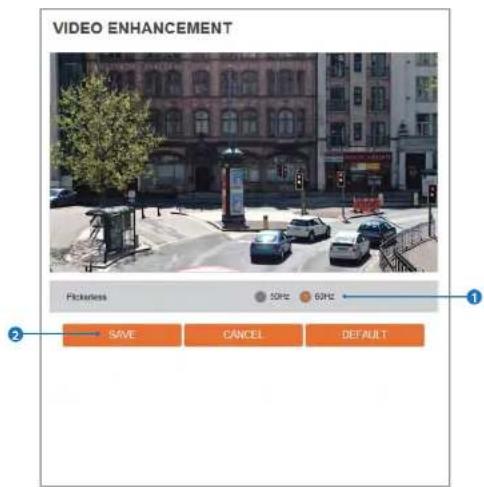
VIDEO ENHANCEMENT Pickiness 50Hz 60Hz SAVE CANCEL DEFAULT① Flicker
This function Enable to enhance the flicker situation.
2 Click 'Save' to save the current settings.
Click 'Cancel' to return to the previous setting.
Click 'Default' to settings to the factory defaults.
Setup - Network Setup
Network Status
NETWORK STATUS
| MAC Address | 84.76.57.CE.00.43 |
| IP Address | 192.168.133 |
| Subset Mask | 256.265.00 |
| Default Gateway | 192.168.1.1 |
| Preferred DNS Server | 203.248.250.2 |
| Alternate DNS Server | 164.124.101.2 |
| HTTP Port | 60 |
| RTSP Port | 554 |
This menu will show you all the information of Network setting in the camera. However, you cannot change those here.
Setup - Network Setup
Network Settings

text_image
NETWORK SETTINGS Network Type Static Dynamic IP setup IP Address 192.168.1.13 Subset Mask 255.255.255.0 Default Gateway 192.168.1.1 Preferred DNS Server 168.126.63.1 Alternate DNS Server 168.126.63.2 Port Setup HTTP Port 90 [Default: 80, 1026 - 60000] HTTPS Port 443 [Default: 443, 026 - 60000] RTSP Port 524 [Default: 524, 026 - 60000]APPLY
1 Network Type
Define network IP address type from the Static Mode for the fixed IP or the Dynamic Mode by the dynamic IP address. If you select the Static Mode, you must fill out IP Address, Subnet Mask, Gateway, DNS Server and all ports. If you select the Dynamic Mode, the IP address will be
5 Preferred DNS Server
Define the DNS server IP address. Format is same as the IP address.
6 Alternate DNS Server
Define the Secondary DNS server IP address. Format is
Setup - Network Setup
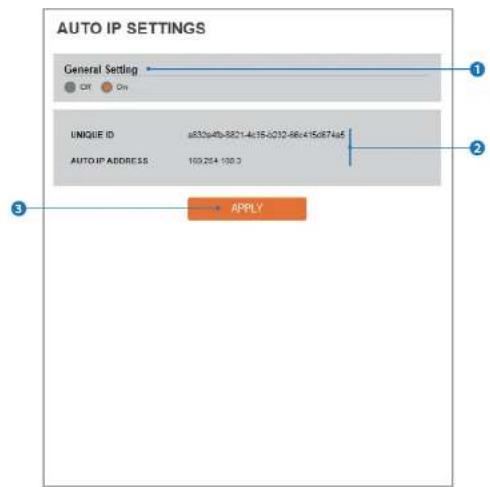
Auto IP Settings
text_image
AUTO IP SETTINGS General Setting ① C# C# UNIQUE ID a832p4b-5821-4c15-0212-66e415c87a6 AUTO IP ADDRESS 109.26+ 100.3 ② APPLY ③1 General Setting
Auto IP Settings function can be enable or disable.
2 Auto IP Settings Information
It displays the unique id or Auto IP address.
Setup - Network Setup
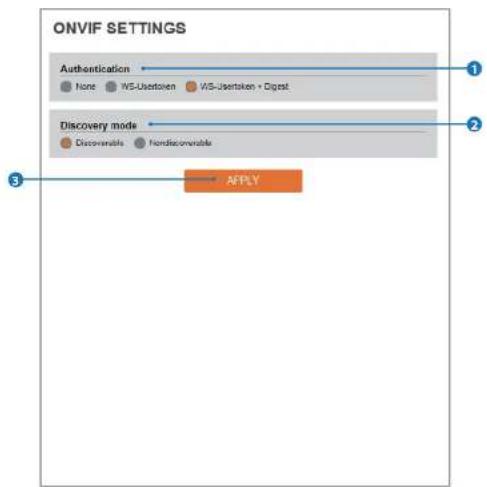
ONVIF Settings
text_image
ONVIF SETTINGS Authentication None WS-Usertaken WS-Usertaken + Digest Discovery mode Discoverable Hand-operable AFPLY1 Authentication
None: Allows to access without ONVIF authentication.
WS - Usertoken: Allows to access with WS-User
Token of ONVIF authentication.
WS - Usertoken + Digest: Allows to access with WS-User
Token and Digest of ONVIF authentication.
Setup - Network Setup
UPNP Settings

text_image
UPNP SETTINGS General Setting Off On Device Information FisidlyName APPLY1 General Setting
UPNP function can be enable or disable.
2 Friendly Name
Define the friendly name.
Setup - Network Setup
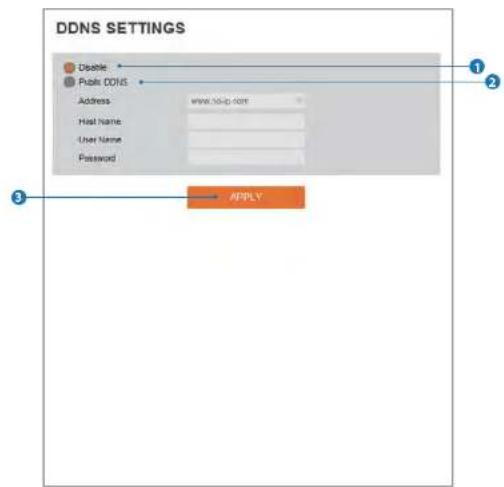
DDNS Settings
text_image
DDNS SETTINGS Disable Public DDNS Address: WWW.DND-0287 Host Name: User Name: Password: 1 2 3 APPLY1 DDNS Disable
If it is selected, DDNS service does not work.
2 Public DDNS
To use public DDNS service, select a site address listed in the list. After filling out the Host Name of the site, the setup is
Setup - Network Setup
FTP Settings

text_image
FTP SETTINGS General Setting Off On Server information FTP Server Address FTP Upload Path FTP Port User ID Password APPLYTo transfer / save the image to the relevant sites through FTP, then FTP needs to be setup.
6 Password Define Password to access to the FTP Server. Fill out the correct Password registered in the FTP Server.
1 General Setting
FTP function can be enable or disable.
7 Click 'Apply' to make above setting effective. Refer the above screen image for the example.
Setup - Network Setup
SMTP Settings

text_image
SMTP SETTINGS General Setting OFF On Account information Mode PLAN SS/TL5 SMTP Server Address POST User ID Password E-Mail Sender E-Mail Receiver Mail Contents Title Message APPLYTo send / save the image to the relevant sites by Email, SMTP needs to be setup.
6 Password Define the Password to access to SMTP Server. Fill out the correct Password registered in the SMTP Server.
1 General Setting
SMTP function can be enable or disable.
7 E-Mail Sender
Define the e-mail address of E-Mail Sender. It will be
Setup - Network Setup
SNMP Settings

text_image
SNMP SETTINGS SNMP v1/v2c SNMP v1 Off Ce SNMP v2 Off Ce Read Community Write Community SmpTrp Off Ce TripAddress TripCommunity SNMP v3 Mode Read Activation Off Ce Read Name Security Level no units, no gite Authentication Algorithm MDS Authentication Password Private-Key Algorithm OLS Private-Key Password APPLY1 SNMPv1/SNMPv2
Select the SNMPv1/SNMPv2 option and type the names of Read community and Write community.
SNMP trap can be used to check periodically for operational thresholds or failures that are defined in the MIB.
⑦ Authentication Algorithm
Select MD5 or SHA as the authentication method.
8 Authentication Password
The Authentication Password is an encryption for authentication and they are at least 8 digits and up
Setup - Network Setup
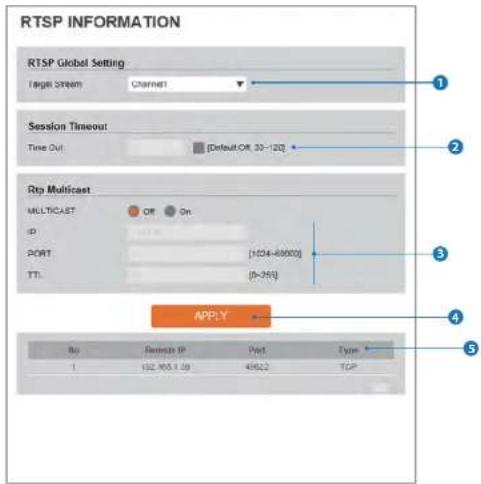
RTSP Information
text_image
RTSP INFORMATION RTSP Global Setting Target Stream Channel Session Timeout Time Out [Default:Off 30-120] Rto Multicast MULTICAST Off On IP PORT [1204-88000] TTL [0-250] APPLY No Remote IP Port Type 1 192.165.1.39 4462.2 TCP① Target Stream
Select the channel you want to set.
2 Time out
Set the RTSP time out.
The session is disconnected after the specified time out.
Setup - Trigger Action Setup Action Rules Configuration

text_image
ACTION RULES CONFIGURATION Action Rules Name Reserve Action Action NewAction 3 / 5 RECORD.FTP.SMTP ADD MODIFY DELETE1 Action rules List
It indicates the custom action rule information added to Action rules list.
2 Click 'Add' to add custom action rules.
Click 'Modify' to modify selected item from the action rules list.
Setup - Trigger Action Setup Action Rules Add / Modify
text_image
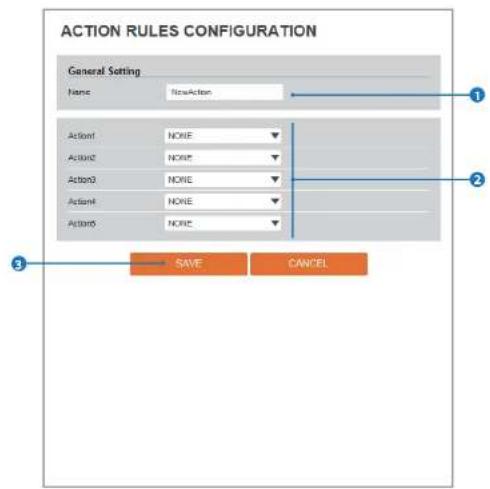
ACTION RULES CONFIGURATION General Setting Name: NewAction Action1 NONE Action2 NONE Action3 NONE Action4 NONE Action5 NONE SAVE CANCEL1 Name Define name of action rules.
2 Action1 \~ Aciton5 Select the action to take if the event occurs.
Setup - Trigger Action Setup Image Transfer Configuration
text_image
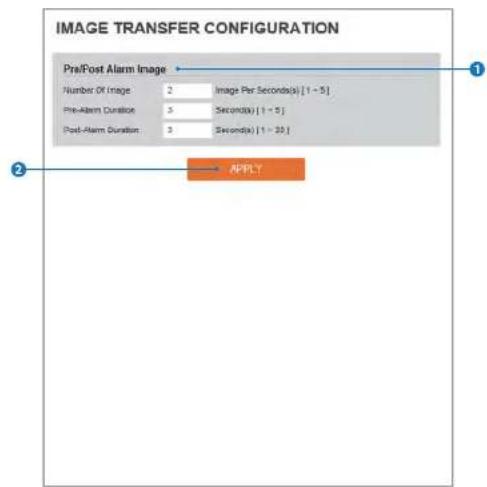
IMAGE TRANSFER CONFIGURATION Pre/Post Alarm Image Number Of Image: 2 Image Per Second(s) [1 - 5] Pre-Alarm Duration: 3 Second(s) [1 - 5] Post-Alarm Duration: 3 Second(s) [1 - 20] APPLY① Pre / Post Alarm Image
Image Transfer due to event is configured by setting Image transfer rate and Pre / Post alarm duration.
| Descriptions | |
| Number of Image | Define Number of Image transferred per second. |
Setup - Events Setup Event Rules Configuration
text_image
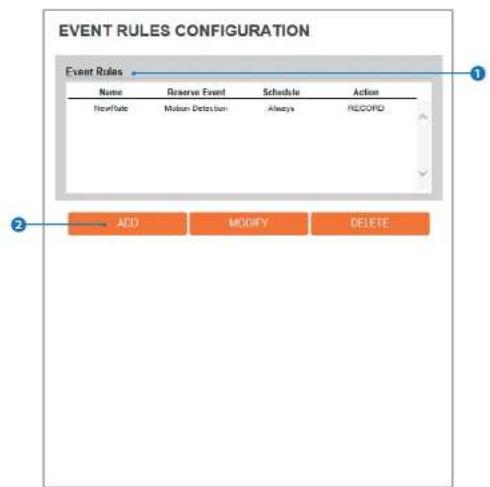
EVENT RULES CONFIGURATION Event Rules Name Reserve Event Schedule Action NewRule Motion Detection Always RECOVID ADD MODIFY DELETE1 Event Rules List
It indicates the custom Event Rule information added to Event Rules list.
2 Click 'Add' to add custom event rules.
Click 'Modify' to modify selected item from the event rules list.
Setup - Events Setup
Event Rules Configuration

text_image
EVENT RULES CONFIGURATION General Name: NewRule Event Condition Event: NONE Action Rules: NONE SAVE CANCEL1 Name
Define the Event rule name.
Event
Select the event among motion detection,
Network Disconnected, Temperature Critical.
Setup - Event Setup
Motion Detection Configuration

text_image
MOTION DETECTION CONFIGURATION Motion Detection Area Motion Area1 Activation Disable Sensitivity 50% SAVE CANCEL1 Motion Detection
It shows the Motion event status.
Event Alert icon( ) appears if 'Motion Detection' is activated.
2 Area
Set the motion detected area,
4 Sensitivity
Define the sensitivity of motion detection. If High value is selected, it will detect very small motion while it becomes relatively insensitive when Low value is selected.
5 Click 'Save' to save the current settings.
Setup - Events Setup
Temperature
text_image
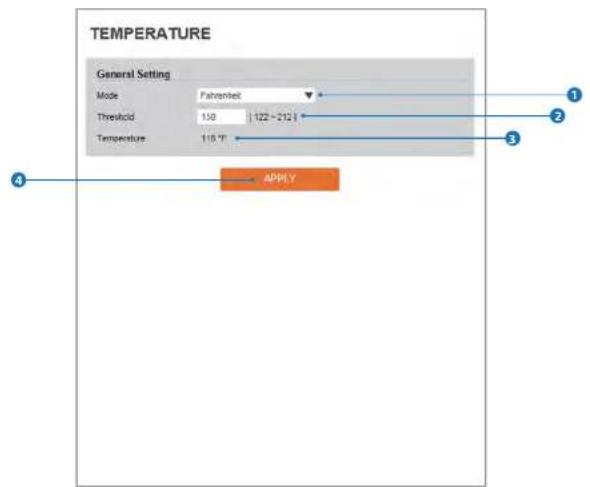
TEMPERATURE General Setting Mode Palantel Threshold 130 122~212 Temperature 118.7° APPLY1 Mode
Select the either Fahrenheit and Celsius.
2 Threshold
Define the temperature at which the event trigger is occurred.
Setup - Record Setup Record Configuration
text_image
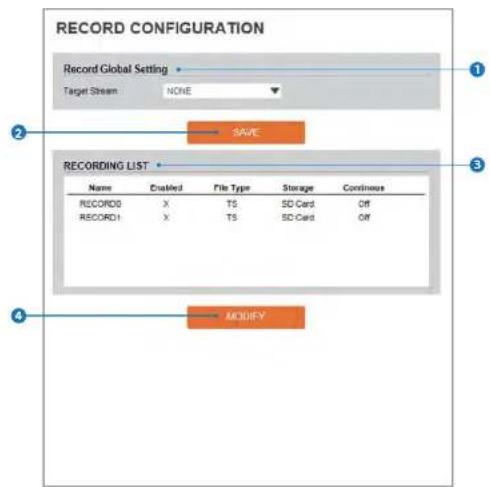
RECORD CONFIGURATION Record Global Setting Target Stream NONE SAVE RECORDING LIST Name Enabled File Type Storage Continuous RECORD0 X TS SD Card Off RECORD1 X TS SD Card Off MODIFY1 Target Stream
Select the channel you want to record video.
2 Click 'Save' to save the current settings.
3 Recording List
Setup - Record Setup Record Configuration
text_image
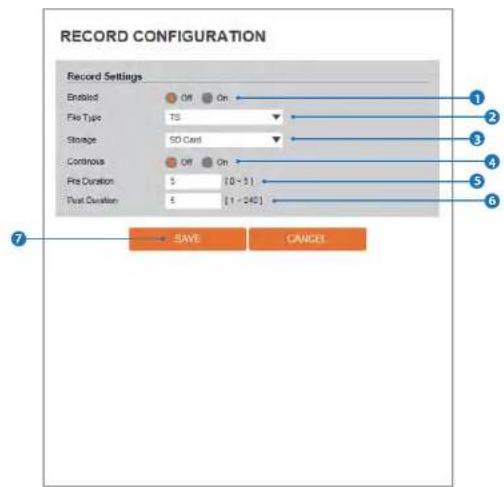
RECORD CONFIGURATION Record Settings Enabled File Type Storage Continuous Pre Duration Post Duration Off On TS SD Card Off On $ [0 - 5] $ [1 - 240] SAVE Cancel1 Enabled
The Recording function can be enable or disable.
2 File Type
Select the recording file type.
Currently only supports Ts Type.
Setup - Record Setup Recording List
text_image
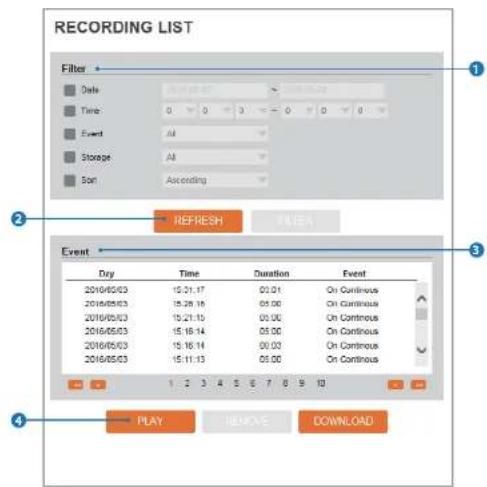
RECORDING LIST Filter Date Time Event Storage Son REFRESH Event Dry Time Duration Event 2016/05/03 15:31:17 00:01 On Continuous 2016/05/03 15:28:18 05:00 On Continuous 2016/05/03 15:21:15 05:00 On Continuous 2016/05/03 15:16:14 05:00 On Continuous 2016/05/03 15:16:14 00:03 On Continuous 2016/05/03 15:11:13 05:00 On Continuous 1 2 3 4 5 6 7 8 9 10 PLAY REMOVE DOWNLOAD1 Filter
Select the date / time, event, sort or storage format to filter the recorded video.
2 Click the 'Refresh' button to refresh the records list. Click 'Filter' to view the filtered recorded video.
Setup - Record Setup Recording Video

text_image
RECORDING VIDEO Recording Video Token 00190/05728456 Status Completed Start Time 20160503 1531.17 End Time 20160503 1534.18 Recording Time 03:01 REPLAY BACK1 Recording Video Viewer Play the recorded video.
2 Recording Video Information
Display the information about the recorded video.
Setup - Record Setup Storage Configuration
text_image
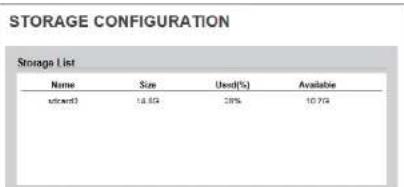
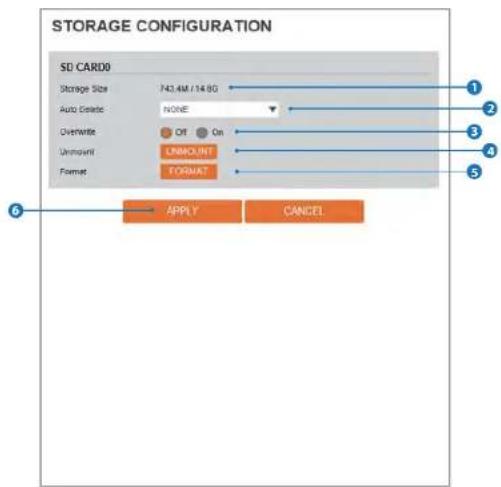
STORAGE CONFIGURATION Storags List Name Size Used[%] Available standard 16.85% 28% 10.74%Display the SD card information mounted from device.
When you select the item in Storage list, You can set the functions related to the 5D card.
Setup - Record Setup Storage Configuration
text_image
STORAGE CONFIGURATION SD CARD0 Storage Size 743.4M / 14.8G Auto Else: NONE Overwrite ON Unmount UNMOUNT Format FORMAT APPLY CANCEL① Storage Size
Total capacity of SD card and the remainder of it are displayed:
2 Auto Delete
Select the period for Auto delete. The image data stored
4 Unmount
remove the SD card from the device.
5 Format
Delete the all contents that stored in SD card.
Setup - Security Setup
IP Address Filter Configuration
text_image
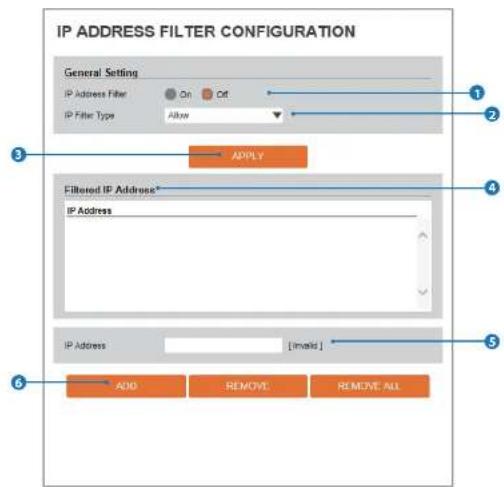
IP ADDRESS FILTER CONFIGURATION General Setting IP Address Filter On Off IP Filter Type Allow 1 2 3 ADDPLY Filtered IP Address* IP Address 4 5 6 IP Address [tmald] ADD REMOVE REMOVE ALL1 IP Address Filter
IP filter function can be enable or disable.
2 IP Filter Type
Select the recording IP filter type.
Setup - Security Setup
RTSP Authentication Configuration
text_image
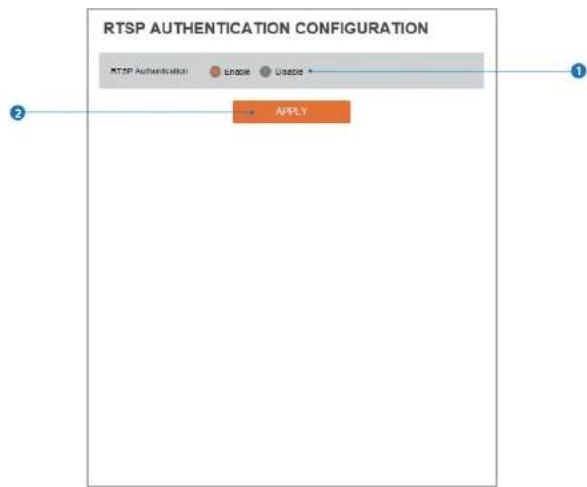
RTSP AUTHENTICATION CONFIGURATION RTSP AUTHENTICATION Unsure Unsure + APPLY1 RTSP Authentication
RTSP Authentication can be enable or disable.
2 Click 'Apply' to make above setting effective.
Setup - Security Setup
IEEE 802.1X Configuration

text_image
IEEE 802.1X CONFIGURATION General Setting IEEE 802.1x On Off Protocol MOS EAPOL Version 1 ID Password Verim CA Certificate NONE Certificate NONE 1 2 3 4 5 6 7 8 9 APPLYThe feature is needed when connecting the camera to the network protected by the IEEE 802.1X.
1 IEEE 802.1x
The IEEE 802.1x feature can be enable or disable.
5 Password
Type the Password to identify the client in the IEEE 802.1X authentication server.
6 Verify
Verify Password.
Setup - Security Setup
HTTPS Configuration
text_image
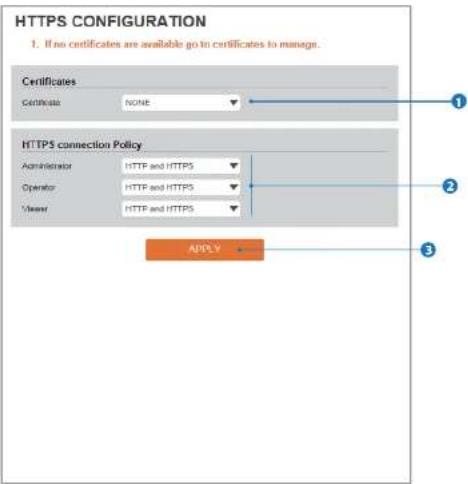
HTTPS CONFIGURATION 1. If no certificates are available go to certificates to manage. Certificates Certificate NONE HTTPS connection Policy Administrator HTTP and HTTPS Operator HTTP and HTTPS Viewer HTTP and HTTPS ADDLYHTTPS encrypts session data over SSL or TLS protocols instead of using plain text in socket communications.
1 Certificate
Select an installed certificate.
If you can not select a certificate, please install the certificate
Setup - Security Setup
Certificates Configuration

text_image
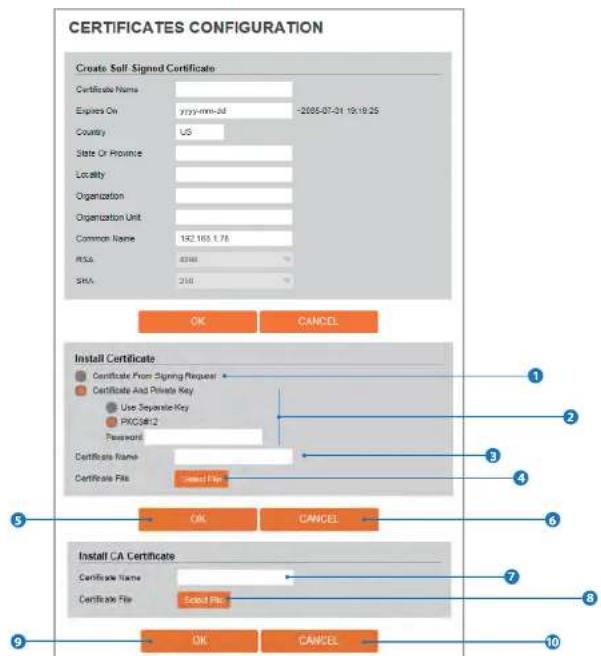
CERTIFICATES CONFIGURATION Server/Client Certificates Certificate Name Issued On Expires On CREATE SELF-SIGNED CERTIFICATE PROPERTIES DELETE CREATE CERTIFICATE SIGNING REQUEST INSTALL CERTIFICATE CA Certificate Certificate Name Issued On Expires On DigCarBaseNetDForCA 2008-11-10 2021-11-10 DigCarGlobalFootCA 2008-11-10 2021-11-10 DigCarHighAssuranceVRoutCA 2008-11-10 2021-11-10 GeoTrust_Globec_CA 2003-05-21 2022-05-21 GeoTrust_Globec_CA2 2004-03-04 2019-03-04 GeoTrust_Primary_CA 2005-11-27 2036-07-17 INSTALL CERTIFICATE PROPERTIES DELETE1 Server/Client Certificates
It show the installed certificates.
6 Install Certificate
Install Certification
2 Create Self-Signed Certificate
A self-signed SSL certificate is an identity certificate signed by its own creator, but they are considered to be less trust
7 CA Certificate
It show the installed CA certificates.
Setup - Security Setup
Certificates Configuration
text_image
CERTIFICATES CONFIGURATION Create Self-Signed Certificate Certificate Name Expires On yyyy-mm-dd -2005-07-21 19:19:25 Country US State Or Province Locality Organization Organization Unit Common Name 182.165.1.78 RSA 83488 SHA 216 OK CANCEL Install Certificate Certificate From Signing Request Certificate And Private Key Use Separate Key PICKS#12 Password Certificate Name Certificate File Saved File Install CA Certificate Certificate Name Certificate File Saved File OK CANCEL 1 2 3 4 5 6 7 8 9 10Setup - Security Setup Service Configuration
flowchart
graph LR
    A["Enable"] --> B["APPLY"]
    C["Disable"] --> B
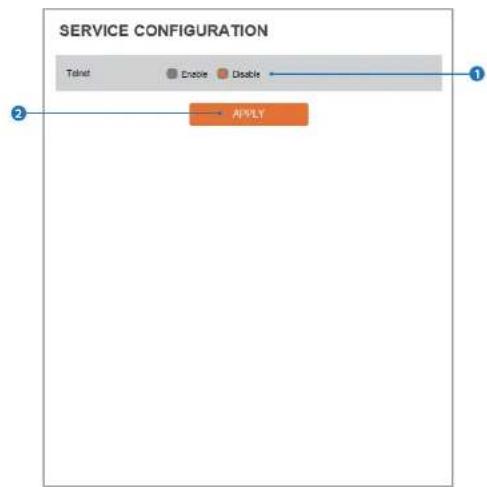
① Telnet
The Telnet function can be enable or disable.
2 Click 'Apply' to make above setting effective.
Setup - System Setup
System Information
text_image
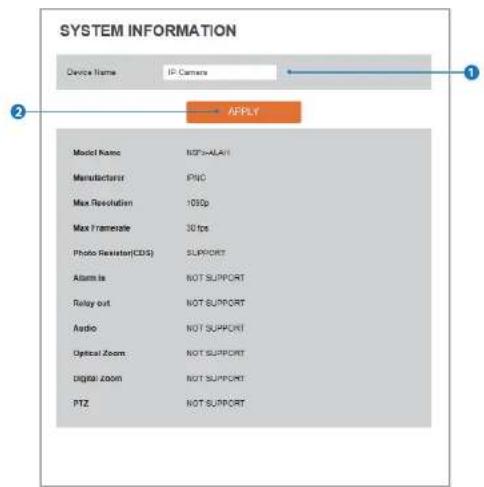
SYSTEM INFORMATION Device Name IP Camera AFPLY Model Name NCPS-ALAW Manufacturer PNC Max Resolution 1090p Max Framesize 30 fps Photo Resistor(CDS) SUPPORT Alarm Is NOT SUPPORT Relay out NOT SUPPORT Audio NOT SUPPORT Optical Zoom NOT SUPPORT Digital Zoom NOT SUPPORT PTZ NOT SUPPORTSystem Capability information.
1 Device Name
You can define the device name.
6 Click 'Apply' to make above setting effective.
Setup - System Setup Firmware Update
text_image
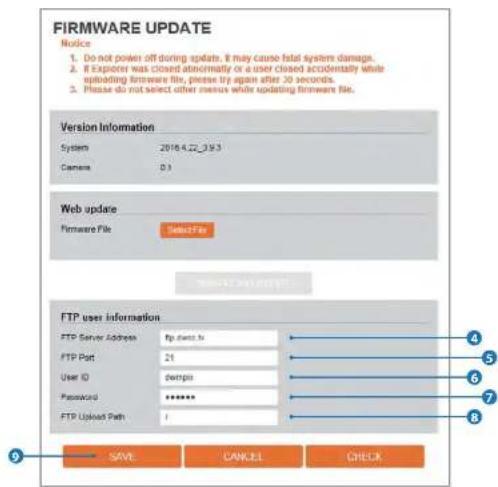
FIRMWARE UPDATE Notice 1. Do not power off during updates. It may cause fatal system damage. 2. E Explorer was closed accidentally or a user closed accidentally while uploading firmware file, please try again after 30 seconds. 3. Please do not select other menus while updating firmware file. Version Information System 2018.4.22.3.9.3 Camera D:\ Web update Firmware File SelectFit FTP Server Address FTP server.hx FTP Port 21 User ID Default Password ****** FTP Upload Path / SAVE CANCEL CHECK1 Version Information
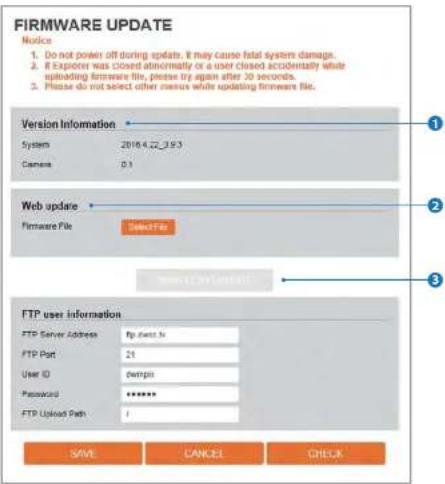
It shows the current Firmware Version in the system.
2 Web Update
Select the Firmwar file in your computer by clicking [Select file] button.
Warning:
-
Do not turn off the power of camera during the Firmware update. Otherwise, the system can be stuck to be unstable. If updating is finished, the system will be rebooted automatically.
-
Please make sure to check the 'Notice' shown on screen.
Setup - System Setup Firmware Update
text_image
FIRMWARE UPDATE Notice 1. Do not power off during updates. It may cause fatal system damage. 2. If Explorer was closed abnormally or a user closed accidentally while uploading firmware file, please try again after 30 seconds. 3. Please do not select other menus while updating firmware file. Version Information System 2016.4.22_09.3 Camera D:1 Web update Firmware File Select Fox FTP user information FTP Server Address Fg guest.hv FTP Port 21 User ID gcnppa Password ***** FTP Upload Path 1 SAVE CANCEL CHECK4 FTP Server Address
Define FTP Server IP Address. If IP Address form is incorrect, a Message box will be shown to try again.
5 FTP Port
Define the FTP Server Port. If Port is not appropriate, it is
7 Password
Define Password to access to the FTP Server. Fill out the correct Password registered in the FTP Server.
8 FTP Upload Path
Define a path in FTP server to store video. For the path name,
Setup - System Setup
Date & Time Settings
text_image
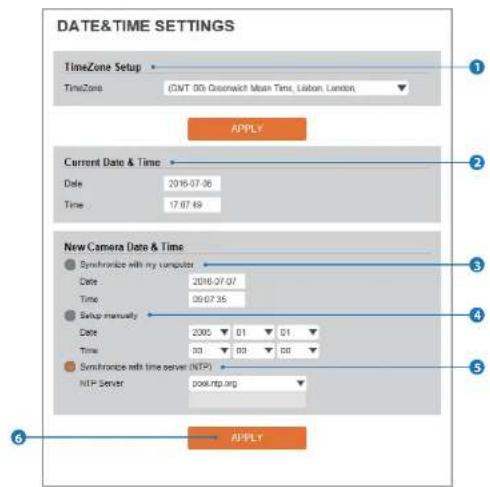
DATE&TIME SETTINGS TimeZone Setup TimeZone (CNT 00 Greenwich Mean Time, Lisbon, London) APPLY Current Date & Time Date 2016-07-06 Time 17:07:49 New Camera Date & Time ● Synchronize with my computer Date 2016-07-07 Time 09:07:35 ● Setup manually Date 2005 ▼ 01 ▼ 01 ▼ Time 00 ▼ 00 ▼ 00 ▼ ● Synchronize with time server (NTP) NTP Server pox.rtp.org APPLY1 TimeZone Setup
Choose TimeZone for camera. It will be activated after clicking 'Apply' button.
Prior to setting below 'New Camera Date & Time', set correct Timezone first.
A
5 Synchronize with time sever Time Zone (NTP)
Choose time server available to connect to current camera. Date & Time will be updated automatically every hour when connected.
6 Click 'Apply' to make above setting effective.
Setup - System Setup
DST Settings

text_image
DST SETTINGS General Setting CR On Date&Time Settings Start Time Jan First Start 0 d'clock End Time Jan First Start 0 d'clock APPLYDaylight Saving Time (DST) is the practice of setting the clocks forward one hour from standard time during the summer months, and back again in the fall, in order to make better use of natural daylight.
1 General Setting
Setup - System Setup
Users Management

text_image
USER MANAGEMENT ID Authority SUPPORT ADJUSTMENT ADD 25 MODIFY DELETE1 Users
List all the user accounts for authentication.
3 Modify
Modify the information of the user accounts registered. For admin account, only Password function can be modified.
2 Add
Register a new user
4 Delete
Setup - System Setup
System Log
text_image
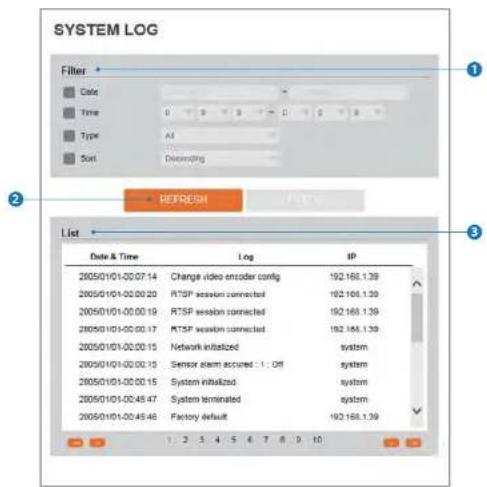
SYSTEM LOG Filter Date Time Type Sort Decoding 1 2 3 4 5 6 7 8 9 10 REFRESH List Date & Time Log IP 2005/01/01-02:07.14 Change video encoder config 192.168.1.39 2005/01/01-02:00.20 RTSP session connected 192.168.1.39 2005/01/01-02:00.19 RTSP session connected 192.168.1.39 2005/01/01-02:00.17 RTSP session connected 192.168.1.39 2005/01/01-02:00.15 Network initialized system 2005/01/01-02:00.15 Senior alarm accoured : 1 : Off system 2005/01/01-02:00.15 System initialized system 2005/01/01-02:45.47 System terminated system 2005/01/01-02:45.46 Factory default 192.168.1.39① Filter
Select a date, sort or type of log to filter the log.
2 Click the 'Refresh' button to refresh the log list.
■ Click 'Filter' to view the filtered log.
Setup - System Setup
Factory Reset

flowchart
graph TD
    A["1"] --> B["ALL"]
    C["2"] --> D["EXCEPT NETWORK SETTING"]
    D --> E["→ APPLY"]
1 Reset to the factory defaults
Return the setup to the factory default.
All
Reset all Settings to the factory defaults.
Except Network Settings
Setup - System Setup
Restart
text_image
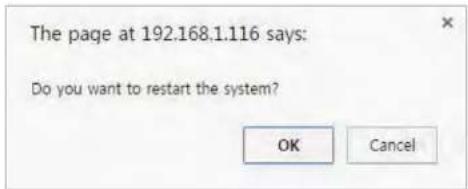
The page at 192.168.1.116 says: Do you want to restart the system? OK CancelIf you click the 'RESTART' menu, a message box will be shown to confirm. Click the 'Ok' button to restart.
Appendix
A : Current TCP/IP Settings
① If your IP settings are obtained automatically, you could use the MS-DOS prompt (or Command Prompt) to determine your IP address. For information on how to do this, please read the FAQ.

flowchart
graph TD
    A["Start"] --> B["Control Panel"]
    B --> C["Network and sharing center"]
    C --> D["Manage network connections"]
    D --> E["Properties"]
    E --> F["Select either Internet Protocol Ver.4 (TCP/IPv4) or Internet Protocol Ver.6 (TCP/IPv4)"]

    G["Start"] --> H["Settings"]
    H --> I["Network & Internet"]
    I --> J["Click on Change adapter options in Ethernet"]
    J --> K["Select the Ethernet, Right click and choose Properties"]
    K --> L["Select either Internet Protocol Ver.4 (TCP/IPv4) or Internet Protocol Ver.6 (TCP/IPv4)"]

    M["2. Windows 10 Users1."] --> N["Start"]
    N --> O["Settings"]
    O --> P["Network & Internet"]
    P --> Q["Click on Change adapter options in Ethernet"]
    Q --> R["Select the Ethernet, Right click and choose Properties"]
    R --> S["Select either Internet Protocol Ver.4 (TCP/IPv4) or Internet Protocol Ver.6 (TCP/IPv4)"]
Appendix -
B: Changing IP address and subnet mask

flowchart
graph TD
    A["Start"] --> B["Control Panel"]
    B --> C["Network and sharing center"]
    C --> D["Manage network connections"]
    D --> E["Properties"]
    E --> F["Select either Internet Protocol Ver.4 (TCP/IPv4) or Internet Protocol Ver.6 (TCP/IPv4)"]
    F --> G["Click Properties"]

    H["Start"] --> I["Settings"]
    I --> J["Network & Internet"]
    J --> K["Click on Change adapter options in Ethernet"]
    K --> L["Select the Ethernet, Right click and choose Properties"]
    L --> M["Select either Internet Protocol Ver.4 (TCP/IPv4) or Internet Protocol Ver.6 (TCP/IPv4)"]
    M --> N["Next Step"]
Specifications
| CAMERA | |
| Image Sensor | 1/3" 4.0M CMOS |
| Total Pixels | 2688(H) X 1520(V) |
| Focal Length | 2.8mm, F1.8 / 4mm, 6mm, F2.0 |
| Angle | D: 104°, H: 90°, V: 55° (2.8mm)D: 101°, H: 81°, V: 43° (4mm)D: 59°, H: 51°, V: 29° (6mm) |
| Shutter Speed | Auto / Manual (1/15 ~ 1/32000), Anti-Flicker, Slow Shutter(off, 2X, 3X, 5X, 6X,7.5X, 10X) |
| MIN. Illumination | 2.8mm : 0.33Lux, 0Lux with IR (F1.8)4mm : 0.41Lux, 0Lux with IR (F2.0)6mm : 0.41Lux, 0Lux with IR (F2.0) |
| IR | H2IR, 50ft |
| WDR | WDR(2x, 3x) |
| Day & Night | TDN |
| DNR | 3D-DNR |
| Privacy Zone | 16 Programmable Zone |
| AGC | Auto |
| Other Image Processing | Configurable Exposure, WhiteBalance, Sharpness |
| SECURITY & NETWORK | |
| Network Protocol | IPv4ONVIF, TCP/IP, UDP, RTP(UDP/TCP),RTSP, NTP, HTTP, HTTPS, SSL,DNS, DDNS, DHCP, FTP, SMTP, ICMP,SNMPv1/v2/c/v3(MIB-7) |
| Security | HTTPS(SSL), IP filtering, 802.1x,Digest Authentication(ID/PW) |
| Plug in | CGI API, ONVIF |
| GENERAL | |
| Support Languages | English |
| Power | (Adaptor is not Included)DC12V: Max 5.6WPOE IEEE 802.3af Class3:Max 7.4W |
| Temperature | -4°F~122°F (-20°C~50°C) |
| Material | Aluminum Die-casting |
| Dimensions(DXH) | 4.13 x 2.38 in (105 x 60.7mm) |
| Weight | 0.95lbs (350g) |
| Certification FCC, CE, ROHS, IP66, IK-10 | |
Appendix - FAQ
1. My POWER light is not on?
Power is not being supplied to the unit. Please use the power supply shipped with the unit and verify that a power source is active from the attached power outlet used to connect the adapter. You can test this by plugging in any other electrical device and verify its operation. After using the power supply shipped with the product, checking the power source, and reinserting the power connector into the IP Camera, please call our Support Center. The power supply may be defective.
2. My ACTIVE light is not flashing?
Verify the power supply to the unit. Powers will and back on again, wait 1 minute, if the ACTIVE light still does not begin to flash, you will have to set the unit to its factory default (THIS WILL DELETE ANY CONFIGURATION AND SET THE UNIT TO THE FACTORY DEFAULTS). Power on the unit and insert the end of a paper clip into the small recessed opening on the back of the unit. Use the clip to press the button located within that opening.
3. My LINK light is not flashing or solid?
Verify the cable connection. 99% of the time the cable's connection to the unit is causing this problem. Try using a different network cable or crossover cable (for PC connection only). Try reinserting the cable, if this still doesn't solve the problem call our Support Center.
4. I can access the video server on my LAN, but not from the Internet.
Verify that your router (if applicable) has port forwarding properly configured. If accessing from our DDNS service, verify correct serial number. Firewall issues may prevent user access.
5. How do I open an MS-DOS or Command Prompt?
Start > (All) Programs > Accessories > Command Prompt
8. How do I "PING" an IP address?
1) Open an MS-DOS (or Command) prompt
2) At the prompt type - "ping xxx.xxx.xxx.xxx" (without the quotes and replace the "x"s with an IP address)
3) Press Enter
9. I'm accessing my video server remotely over the Internet and the video stream is choppy, is this normal?
Yes. The frames per second received remotely are determined by your bandwidth capabilities both at your site where the IP Camera is installed and your remote location. The lower of the two sites will determine how fast your video stream is received. It is recommended to have at least a 256Kb/sec upstream connection from the site where the IP Camera is installed. Lower speeds will operate properly, but provide poor remote performance. The Faster the Internet connection at both ends, the faster the video stream.
10. How do I enable or check VLC on my browser
Internet Explorer
Open Internet Explorer > Tools on the menu bar > Internet Options > Security Tab > Custom Level > Scroll down and verify that you are prompted or have enabled plug-ins to be downloaded and executed. > click OK > restart browser.
Chrome
Open Chrome > Chrome menu settings > Advanced settings > Individual information - content settings > Run automatically
11. How do I reset the unit to factory defaults?
Refer to the previous functions page and find the reset button. Power ON the unit and use a paper clip to push the reset button.
Warranty Information
Digital Watchdog (referred to as "the Warrantor") warrants the Camera against defects in materials or workmanships as follows:
Labor: For the initial five (5) years from the date of original purchase if the camera is determined to be defective, the Warrantor will repair or replace the unit with new or refurbished product at its option, at no charge.
Parts: In addition, the Warrantor will supply replacement parts for the initial five (5) years.
To obtain warranty or out of warranty service, please contact a technical support representative at 1+ (866) 446-3595, Monday through Friday from 9:00AM to 8:00PM EST.
A purchase receipt or other proof of the date of the original purchase is required before warranty service is rendered. This warranty only covers failures due to defects in materials and workmanship which arise during normal use. This warranty does not cover damages which occurs in shipment or failures which are caused by products not supplied by the Warrantor or failures which result from accident, misuse, abuse, neglect, mishandling, misapplication, alteration, modification, faulty installation, set-up adjustments, improper antenna, inadequate signal pickup, maladjustments of consumer controls, improper operation, power line surge, improper voltage supply, lightning damage, rental use of the product or service by anyone other than an authorized repair facility or damage that is attributable to acts of God.
Limits & Exclusions
There are no express warranties except as listed above. The Warrantor will not be liable for incidental or consequential damages (including, without limitation, damage to recording media) resulting from the use of these products, or arising out of any breach of the warranty. All express and implied warranties, including the warranties of merchantability and fitness for particular purpose, are limited to the applicable warranty period set forth above.
Some states do not allow the exclusion or limitation of incidental or consequential damages or limitations on how long an implied warranty lasts, so the above exclusions or limitations may not apply to you. This warranty gives you specific legal rights, and you may also have other rights from vary from state to state.
If the problem is not handled to your satisfaction, then write to the following address:
Digital Watchdog, Inc. ATTN: RMA Department 5436 W Crenshaw St Tampa, FL 33634
Service calls which do not involve defective materials or workmanship as determined by the Warrantor, in its sole discretion, are not covered. Cost of such service calls are the responsibility of the purchaser.
DW DIGITAL WATCHDOG™
Complete Surveillance Solutions
East Coast Headquarters Office: 5436 W Crenshaw St, Tampa, FL 33634
West Coast Headquarters Office: 16220 Bloomfield Ave., Cerritos, CA 90703
PH: 866-446-35951 FAX: 813-888-9262
www.Digital-Watchdog.com Technical Support:
USA & Canada 1+ (866) 446-3595
International 1+ (813) 888-9555
French Canadian 1+ (514) 360-1309
Support Hours: Monday-Friday 9:00am to 8:00pm EST