Concert Performer CP117 - Piano KAWAI - Free user manual and instructions
Find the device manual for free Concert Performer CP117 KAWAI in PDF.


User questions about Concert Performer CP117 KAWAI
0 question about this device. Answer the ones you know or ask your own.
Ask a new question about this device
Download the instructions for your Piano in PDF format for free! Find your manual Concert Performer CP117 - KAWAI and take your electronic device back in hand. On this page are published all the documents necessary for the use of your device. Concert Performer CP117 by KAWAI.
USER MANUAL Concert Performer CP117 KAWAI
Concert Performer Series Digital Piano
Owner's Manual
Model: CP117
All descriptions and specifications in this manual are subject to change without notice.
Important Safety Instructions
SAVE THESE INSTRUCTIONS
INSTRUCTIONS PERTAINING TO A RISK OF FIRE, ELECTRIC SHOCK, OR INJURY TO PERSONS

CAUTION
RISK OF ELECTRIC SHOCK DO NOT OPEN

AVIS : RISQUE DE CHOC ELECTRIQUE - NE PAS OUVRIR.
TO REDUCE THE RISK OF ELECTRIC SHOCK, DO NOT REMOVE COVER (OR BACK). NO USER-SERVICEABLE PARTS INSIDE. REFER SERVICING TO QUALIFIED SERVICE PERSONNEL.

The lighting flash with arrowhead symbol, within an equilateral triangle, is intended to alert the user to the presence of uninsulated "dangerous voltage" within the product's enclosure that may be of sufficient magnitude to constitute a risk of electric shock to persons.

WARNING
TO REDUCE THE RISK OF FIRE OR ELECTRIC SHOCK, DO NOT EXPOSE THIS PRODUCT TO RAIN OR MOISTURE.
The exclamation point within an equilateral triangle is intended to alert the user to the presence of important operating and maintenance (servicing) instructions in the literature accompanying the product.
Examples of Picture Symbols

denotes that care should be taken. The example instructs the user to take care not to allow fingers to be trapped.

denotes a prohibited operation. The example instructs that disassembly of the product is prohibited.

denotes an operation that should be carried out. The example instructs the user to remove the power cord plug from the AC outlet.
Read all the instructions before using the product.
WARNING - When using electric products, basic precautions should always be followed, including the following.

WARNING
Indicates a potential hazard that could result in death or serious injury if the product is handled incorrectly.
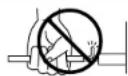
Do not use this product near water - for example, near a bathtub, washbowl, kitchen sink, in a wet basement, or near a swimming pool, or the like.
Do not touch the power plug with wet hands. There is a risk of electrical shock. Treat the power cord with care as well. Stepping on or tripping over it can break or short-circuit the wire inside.
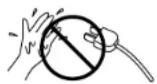
Pulling the AC power cord itself may damage the cord, causing a fire, electric shock or short-circuit.
When disconnecting the AC power cord's plug, always hold the plug and pull it to remove it.

The product should be connected to a power supply only of the type described in the operating instructions or as marked on the product.
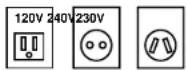
Do not attempt to service the product beyond that described in the user-maintenance instructions. All other servicing should be referred to qualified service personnel.

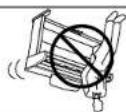
Do not lean against the keyboard. Doing so may cause the product to fall over, resulting in injury.
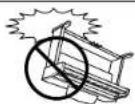
Take care not to drop the product. Please note that the product is heavy and must be carried by more than one person. Droping the product may result in breakdown.
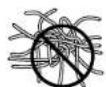
When connecting the AC power cord and other cords, take care not to get them tangled. Failure to do so may damage them, resulting in fire, electric shock or short-circuit.
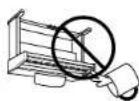
Care should be taken so that objects do not fall and liquids are not spilled into the enclosure through openings. The product shall not be exposed to dripping or spreading. No objects filled with liquids, such as vases, shall be placed on the product.

Keep the instrument away from electrical motors, neon signs, fluorescent light fixture, and other sources of electrical noises.
The product should be located so that its location or position does not interfere with its proper ventilation.
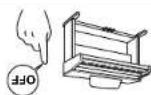
Before connecting cords, make sure that the power to this product and other devices is turned OFF. Failure to do so may cause breakdown of this product and other devices.
If is a good practice to have the instrument near the AC outlet and the power cord plug in a position so that it can readily be disconnected in an emergency.

Always turn the power off when the instrument is not in use. The product is not completely disconducted from the power supply even when the power switch is turned off. The power supply cord of the product should be undiugged from the outlet when left unused for a long period of time.
breakdown.
Using the product in such areas may result in product
● Areas where a large amount of sand or dust is present ● Areas where the product is exposed to excessive vibrations
● Extremely humd agrees ● Extremely cold agrees, such as outside ● radiation, heat registers, or other products that produce heat. ● Extremely hot agrees, or close to heat sources such as ● Extremely such as those near windows, where the product is ● Areas, such as those near windows, where the product is
Do not use the product in the following areas.
Indicates a potential hazard that could result in injury or damage to the product or other property if the product is handled incorrectly.
CAUTION


This product may be equipped with a pleasure of the plug (one blade wider than the other). If you are unable to inspect the plug into the outlet, contact an electrician to replace your outside outlet. Do not defeat the safety purpose of the plug.
This product in combination with amplifier and headphones or speakers, may be capable of producing sound level could cause permanent hearing loss. Do not operate for a long period of time at a high volume level of air a level that is uncontrollable. If you experience any hearing loss or fingering in the ear, you should consult an audologist.
Do not stand on the product or exert excessive force. Doing so may cause the product to become deformed or fall over, resulting in breakdown or injury.
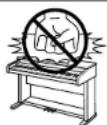
Do not wipe the product with benzene or thinner. Doing so may result in discoloration or deformation of the product. When cleaning the product, put a soft cloth in lukewarm water, squeeze it well, then wipe the product.

To reduce the risk of injury, close supervision is necessary when a product is used near children.
This product should be used only with the stand that is provided by the manufacturer.
CAUTION:
To prevent electric shock, match wide blade of plug to wide slot, fully insert.
ATTENTION:
The product should be serviced by qualified service personnel when:
● The power supply cord or the plug has been damaged.
- Objects have fallen, or liquid has been spilled into the product.
● The product has been exposed to rain.
● The product does not appear to operate normally or exhibits a marked change in performance.
● The product has been dropped, or the enclosure damaged.
Should an abnormality occur in the product, immediately turn the power OFF, disconnect the power cord plug, and then contact the shop from which the product was purchased.
FCC Information
This equipment has been tested and found to comply with the limits for a Class B digital device, pursuant to Part 15 of the FCC Rules. These limits are designed to provide reasonable protection against harmful interference in a residential installation. This equipment generates, uses and can radiate radio frequency energy and, if not installed and used in accordance with the instructions, may cause harmful interference to radio communications. If this equipment does cause harmful interference to radio or television reception, which can be determined by turning the equipment off and on, the user is encouraged to try to correct the interference by one or more of the following measures:
- Reorient or relocate the receiving antenna.
- Increase the separation between the equipment and receiver.
- Connect the equipment into an outlet on a different electrical circuit from the receiver.
- Consult the dealer or an experienced radio/TV technician for help.
Canadian Radio Interference Regulations
This instrument complies with the limits for a class B digital apparatus, pursuant to the Radio Interference Regulations, C.R.C., c. 1374.
| Recording a. Song | 42 |
| Flash Recording | 43 |
| Sasting the song | 45 |
| Erasing the song | 45 |
| Advanced Recording | 47 |
| Real-time Recording | 48 |
| Mixer | 49 |
| Track Setings | 51 |
| Loop Setings | 52 |
| Style Paste | 53 |
| Listing a Style | Selecting and Plating a Style | 36 |
| Put-in and Variation | 28 | 28 |
| Auto Accompartment System | 28 | 28 |
| Pass Inversion | 29 | 30 |
| 1.2 Plan | 30 | |
| Registration | 31 | |
| Registration Groups | 31 | |
| Single Lock | 35 | |
| Song Siglust | 36 | |
| Harmony | 40 |
| Basic Controls | |
| Selecting a Port to Play | 9 |
| Splitting the keffecoid | 10 |
| Selecting Sounds | 11 |
| Mixer | 13 |
| Effect types | 15 |
| Effect Points | 19 |
| Effect Points Guidelines | 20 |
| Transpose and Occare Shelf | 22 |
| Metrorone | 24 |
| Piano Only | 25 |
| Overview | LID Screen | Select Buttons | Die |
| Parts and Names | 9 |
Concert Performer.
We hope you enjoy every moment that you spend with your
instrument.
The Concert Performer offers tremendous opportunities for anyone who is interested in learning, playing, and listening to music. Please read this manual thoroughly and keep it handy as a reference so that you can get the most out of this enclosed a reference so that you can get the most out of this enclosed a reference so that you can get the most out of this enclosed a reference so that you can get the most out of this enclosed a reference so that you can get the most out of this enclosed a reference so that you can get the most out of this enclosed a reference so that you can get the most out of this enclosed a reference so that you can get the most out of this enclosed a reference so that you can get the more
any key on the keyboard.
The Concert Performer incorporates many professional features, such as 16-track Recorder and a 3.5-inch Floppy Disk Drive. For the non-player, Hawars unlike Concert Magic feature creaves the hill of being a performing musician simply by tappling
With over 600 different instument and drum sounds at your disposal, you will have the flexibility to perform any kind of music ranging from traditional to contemporary. The Auto-Accountament Styles provide the enjoyment of playing rich, highly orchestral music in hundreds of musical genres. Thanks to the Song Stylist feature, you will never have to worry about finding the best sounds and style to perform a particular song.
digital music technologies.
The CP Series piano has been designed to provide you with the ultimate musical experience, no matter your skill level. Featuring superbly realistic instrument lones and the most finely graded keyboard in its class, the CP is a unique musical instrument resulting from the combination of Kawals seventy-plus years experience in making acoustic planes, along with culturing-edge
(CP) Series Ensemble Digital Piano.
Thank you for purchasing the Kawai Concert Performer
Punch-In Recording 54
Song Edit 57
Bar Editing 58
Event Edit 71
Creating Your Own Styles
Conductor 74
Making a Style with Get Phrase from Recorder . 77
Auto-accompaniment System 81
Making a Style with Phrase Combination ..... 83
Editing Sounds
Editing the Preset Effect Settings 86
Playing Songs from a Floppy Disk
About songs on Floppy Disk 88
Selecting a Song from Disk 89
Controlling Playback of a Song 91
Playing with Concert Magic
Selecting a Concert Magic Song 94
Performing a Concert Magic Song ..... 95
Concert Magic Song Arrangements ..... 99
Creating a Concert Magic Song .... 100
System Menu 102
Tuning 104
Touch Curve 102
Virtual Voicing 106
Resonance 107
Concert Magic Sound 108
Pedal Assign 109
Fill-in Mode 112
Effect for Sound 118
Temperament 114
MIDI Menu 118
Power Up Settings 123
Soft Reset 124
Software Version 125
Screen Hold 126
Floppy Disk Operations
Disk Menu 128
Saving Data to a Floppy Disk 129
Loading Data from a Floppy Disk .... 132
Erasing Data from a Floppy Disk 135
Formatting a Floppy Disk 136
Getting Assistance: Using Help and Demo
Using the Help 138
Using the Demonstrations ..... 140
Appendices
Preset Sounds 142
Preset Styles 147
Song Stylists 149
Concert Magic Songs 154
Table of Chord Types 158
Example of Connection 160
USB 162
Program Change Numbers 164
Drum/SFX Kit Mapping 170
MIDI Implementation Chart 172
Specifications 173
stoppings.
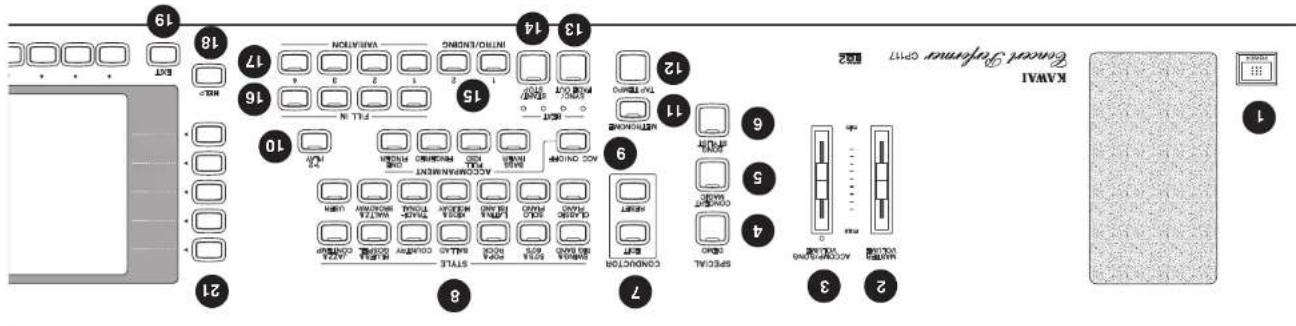
These button are used to play an info section that leads into the style. If you press this button while the style is playing an ending section will be played before
- Intro/Ending (page 27)
This button is used to start and stop the accountment style.
- Start/Stop (page 27)
Style.
When active, the accompaniment style will start as soon as you play a note or chord on the keyboard. Press this button while a Style is playing to fade in or out of the
- Sync/Fade out (page 27)
This button is used to tap in the desired tempo for a song or Style.
- Tap (page 24, 26)
This button is used to turn the Melronome on/off.
- Metronome (page 24)
selected style.
This button is used to automatically choose an appropriate sound and setup for the
10.1-2 Play (page 30)
the Auto-Accompaniment mode.
These buttons are used to turn the Auto-Accompaniment function on/off, and select
- Accompaniment (page 26)
These buttons are used to select an Accompaniment Style to play along with.
- Style (page 26)
These buttons are used to modify or create your own Accompaniment Styles.
This button is used to select the Song Stylist Registrations.
- SongSYllist (page 36)
This button is used to select the built-in Concert Magic songs.
- Concert Magic (page 94)
This button is used to select the built-in demo songs.
- Demo (page 140)
This slider is used to adjust the volume level of the Auto Accompaniment Styles. Also used to adjust the volume level of a song played from the CP Recorder or directly from a Happy disk. This slider does not affect the Master Volume Slider setting.
- Accomp/Song Volume Slider
This slider is used to adjust the overall volume level of the instruction.
- Master Volume Slider
Turns the piano on/off.
- Power
text_image
KAWAL Electric Refrigerator Opti7 1 2 3 4 5 6 7 8 9 10 11 12 13 14 15 16 17 18 19 20 21 22 23 24 25 26 27 28 29 30 31 32 33 34 35 36 37 38 39 40 41 42 43 44 45 46 47 48 49 50 51 52 53 54 55 56 57 58 59 60 61 62 63 64 65 66 67 68 69 70 71 72 73 74 75 76 77 78 79 80 81 82Parts and Names
text_image
20 21 22 23 24 25 26 27 28 29 30 31 32 33 34 35 36 37 38 39 40 CONTRAST TEMPORVALUE TRANSPOSE OCTIVE SHIFT FANO DRAWAR ORGAN STRAND WOOD-SPRING BRASS VOCALL RED REVERB CHECKUS EFFECT HARMONY RECORDER SYSTEM DISK REORDER PLAY/STEP RWD RWD 14 9 7 6 4 3 2 1 0 0 0 0 0 0 0 0 0 0 0 0 0 0 0 0 0 0 0 0 0 0 0 0 0 0 0 0 0 0 0 0 0 0 0 0 0 0 0 0 0 0 0 0 0 0 0 0 0 0 14 9 7 6 4 3 2 1 0 0 0 0 0 0 0 0 0 0 0 0 0 0 0 0 0 0 0 0 0 0 0 0 0 0 0 016. Fill-in (page 28)
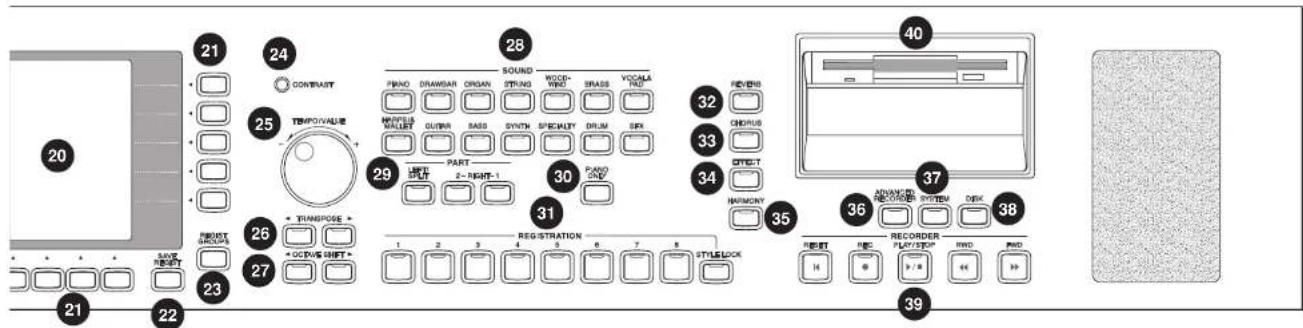
These buttons are used to select one of the four short fill-in sections that embellish the style and lead into the different variation sections of the Style.
17. Variation (page 28)
These buttons are used to select one of the four variation sections within the chosen Style.
18. Help (page 138)
These buttons are used to access Help menus which contain explanations of the CP piano's features.
19. Exit
This button is used to back up to the next higher screen level. Repeatedly pressing the Exit button from any screen on the CP will bring you back to the CP's main play screen.
20. LCD Screen
Displays information about the CP's current sound selections, settings, options, etc.
21. Select Buttons
These buttons are used to select items displayed on the LCD screen.
22. Save Regist
This button is used to save up to 80 of your own favorite panel settings.
23. Regist Groups (page 31)
This button is used to select one of the 10 groups of panel settings.
24 Contrast
Adjusts the contrast of the LCD screen for easier viewing.
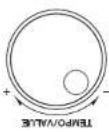
25. Tempo/Value Dial (page 8)
This dial is used to adjust tempo, scroll through different selections, and adjust data values for items on the LCD screen.
26. Transpose (page 22)
This button is used to change the overall pitch of the CP in half-note steps.
27. Octave Shift (page 22)
These buttons are used to change the overall pitch of the CP in octave steps.
28. Sound Selection (page 11)
These buttons are used to select the desired sound category. Use the SELECT buttons or the DIAL to select a sound within the category.
29. Part (page 9)
Selects which of the three parts (Left/Split, Right 1, Right 2) are active and ready to be played with the sounds assigned to them.
Koula: Convert [super Series Digital]
P4
Depressing this pedal after plugging the keyboard and before relaising the keys sustains the sound of only the keys just played. This pedal can also be assigned to control other functions. (See page 109)
- Sostenito Pedal
Depressing this pedal soffers the sound and reduces its volume. This pedal can also be assigned to control other functions. (See Page 109)
- Soft Pedal
Reads and writes data to a standard 3.5" floppy disk.
- Disk Drive
Used to record and play back a songs.
- Recorder (page 42)
This button is used to access the Floppy Disk functions.
- Disk (page 88, 128)
This button is used to access the system settings menu.
- System (page 102)
This button is used to access the Advanced Recorder Function.
- Advanced Recorder (page 47)
button to select the Harmony sellings menu.
This button turns on/off the Harmony for the instrument sounds. Press and hold the
- Harmony (page 40)
settings menu.
This button turns on/off the Effects. Press and hold the button to select the Effect
- Effects (page 18)
settings menn.
This button turns on/off the (chorus). Press and hold the button to select the (hours
- Chorus (page 16)
settings menu.
This button turns on/off the Reverb. Press and hold the button to select the Reverb
- Reverb (page 15)
currently selected Registration Group.
These buttons are used to recall one of the eight panel sellings available in the
- Registrations (page 31)
part.
This button is used to automatically assign the Concert Grand sound to the Right 1
- Piano Only (page 25)

natural_image
Pure electrical circuit lines without any symbolsBottom Viewedals
natural_image
Diagram showing three identical curved shapes with three black circles above them, no text or symbols present.Rear Terminals
text_image
KAWAI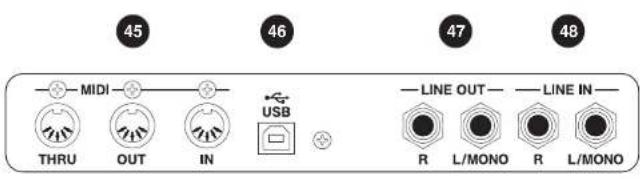
text_image
45 MIDI 46 THRU OUT IN USB 47 LINE OUT R L/MONO R L/MONO 4843. Sustain Pedal
Sustains the sound after lifting your hands from the keyboard.
44. Headphone Jacks
There are two jacks for headphones provided at the left end on the bottom of the piano. These jacks are used to connect up to two headphones to the CP piano.
45. MIDI Jacks
These jacks are used to connect external MIDI devices to the CP. Enabled only when the MIDI is selected in the System menu. (See page 119)
46. USB Jack
This jack is used to connect a personal computer to the CP. Enabled only when the USB is selected in the System menu. (See page 119)
47. Line Out Jacks
These jacks are used to provide stereo output of the CP's sound to amplifiers, tape recorders or similar equipment. The audio signal coming through the LINE IN jacks is also routed to these jacks.
48. Line In Jacks
These jacks are used to connect stereo outputs from other audio equipment or electronic instruments to the CP's speakers. The audio signal coming through these jacks bypasses the CP's volume control.
There are 17 SELECT buttons surrounding the LCD screen that do not have labels printed next to them because they do not have predetermined functions. Instead, they are used to select whatever items are currently displayed next to them on the LCD screen. For example, a SELECT button might be used to select an instrument sound on one screen, while on another screen the same SELECT button might serve to activate a failure related to Floppy Disk.
Most of the buttons on the front panel are used to directly select a function on the CP that you would like to work with. In most cases, the specific function name is printed on the front panel directly above the button. For example, there are buttons labeled 1-2. P/LAY, FILL-IN, and so on. In these buttons have an LED Indicator (serial light) on them. This indicator will be turned ON when a function is in use so that you can quickly see if that function is active.
Select Buttons
words but graphics to be shown as well.
The LCD Screen is the window through which the Concert Performer communicates with you. The large display size allows many items to be clearly displayed at the same time, allowing for not only
LCD Screen
features that it is simply unprecedented to have a dedicated button for every single one. As a result, many features and functions are selected by choosing them from lists, of "means", that are presented in item from a menu access another screen. Often times selecting an everything logical and straightforward and becoming familiar with very interesting logical and straightforward and becoming familiar with how to make your way through them is very easy.
The Concert Performer has been designed to have an easy and intuitive user interest. However, the instrument has so many
instruments design.
This manual provides you with all the information you will need in order to take full advantage of the Concert Performers' potential. Before you begin learning how to use the specific features, it is important to understand some of the basic ideas behind the
Overview
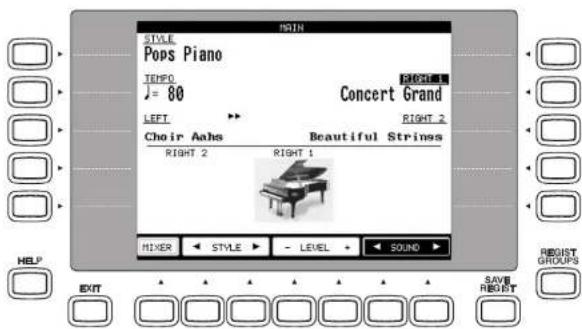
To keep things simple, this manual will refer to the five SELECT buttons along the left side of the LCD screen as L1-L5. Likewise, the five SELECT buttons along the right side of the screen will be referred to as R1-R5. The seven SELECT buttons along the bottom of the screen, which are also known as function buttons, will be referred to as F1-F7.
In some cases when you see an item displayed on the screen and press the L or R button next to it, that item on the screen will become highlighted (shown in reverse color) to indicate you have selected that item. Sometimes a submenu screen relating to that item will be displayed and present you with further options.
When you press one of the F buttons, the corresponding function on the LCD screen will be highlighted to indicate that it has been selected.
L1 Selects Style. Use the F2,F3 buttons, Style buttons, or the Dial to change the active Style.
L2 Selects Tempo. Use the Dial or the TAP TEMPO button to change the Tempo
L3 Selects the LEFT Part. Use the F6, F7 buttons, Sound buttons, or the Dial to change the Sound.
No functions are assigned to the L4 and L5 buttons on this screen.
text_image
STYLE Pops Piano TEHPO ♩ = 80 Concert Grand LEFT RIGHT 2 Choir Aabs Beautiful Strines RIGHT 2 RIGHT 1 MIXER STYLE LEVEL SOUND HELP EXIT SAVE RESET REGIST GROUPSR2 Selects the RIGHT1 Part. Use the F6, F7 buttons, Sound buttons, or the Dial to change the Sound.
R3 Selects the RIGHT2 Part. Use the F6, F7 buttons, Sound buttons, or the Dial to change the Sound.
No functions are assigned to the R1, R4 and R5 buttons on this screen.
"RIGHT 1" is highlighted to indicate that this Part is now selected.
F1 Takes you to the MIXER settings screen.
F2, F3 Selects a Style.
F4, F5 Adjusts the volume level for the Part currently selected.
F6, F7 Selects a sound for the selected Part. "Sound" is highlighted to indicate this graphic button is active.
Koula: Convert [super Series Digital]
or value on the LCD screen.
When you turn the Dial, you will notice that whatever them on the L2J screen is currently selected (infigühled) will be affected. Or in some cases when the screen presents you with a list of choices, turning the Dial will allow you to quickly scroll through the list until you arrive at your choice. Let him can also be used instead of the L,R, and buttons as another way of selecting or charging an item
scree.
The Dial is used to change data values and scroll through options that are displayed on the LCD
Dial
Basic Controls
This chapter discusses the basic operations that are used to play the Concert Performer, such as sound selection, Part configuration and effect settings.
Selecting a Part to Play
When the CP's main play screen is displayed (For example, when the CP is first turned on), you are presented with three sound Parts that can be played from the keyboard. These three Parts are named LEFT/SPLIT, RIGHT 1 and RIGHT 2, and each one has an instrument sound assigned to it. You can selectively turn on/off any combination of these three Parts, allowing you to have up to three different sounds at the same time across the keyboard.
Sounds assigned to Parts RIGHT 1 and RIGHT 2 will be layered on top of each other when both Parts are active at the same time. Activating the LEFT/SPLIT Part automatically splits the keyboard so that only the sound that is assigned to the LEFT/SPLIT Part is heard when you play in the lower octave keys. Each Part has a dedicated button on the front panel that selects and turns on/off that Part. You can also select a Part by pressing the appropriate L or R button.
Selecting a Part is easy:
1) Press the PART button for the Part you wish to activate. The PART button LED will light.
2) Press the PART button again to turn that Part off.
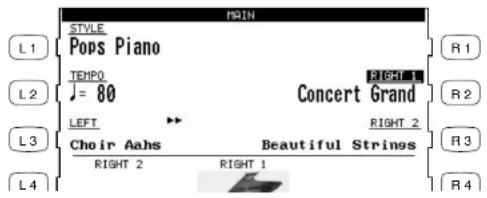
- If the LCD screen is currently showing the main play screen, you can tell which Parts are active by looking at the name of the sound assigned to it. If the name of a sound is in large typeface, then the Part it is assigned to is active. If the sound name is displayed in small typeface, then the Part is not active.
text_image
MAIN STYLE Pops Piano TEMP0 J = 80 Concert Grand LEFT RIGHT 2 R1 L1 L2 L3 L4 Choir Aahs Beautiful Strings RIGHT 2 RIGHT 1This example indicates:
RIGHT1 is currently active
RIGHT2, LEFT are inactive.
- Moving the split point completely to the LEFT and of the keyboard will allow the LEFT/Split part to function as a layer with the two right hand parts. In this manner you can create a thrice
Ra Raises the split point.
text_image
F1 2 F3 4 5 F6 7 F1 2 F3 4 5 F6 7 R5 R4 R3 R2 R1 PIANO POPS 1 TENO 80 Concert: Grand FIRST 2 Raft 2 Beautiful Strirings Choir: Ahs RST MAIN MAYHLA4 Lovers the spin point.
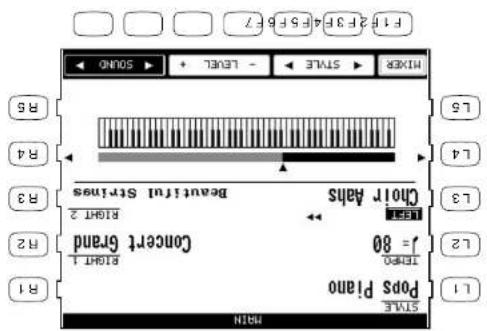
1) Press the LEFT/SPLIT button to activate the LEFT/SPLIT Part. The LEFT/SPLIT button LED will light and the LCD screen will display a diagram of the CP's 88 note keyboard. 2) Press the LEFT/SPLIT button with the left screen will display a diagram of the CP's 88 note keyboard. that you want to serve as the left point. The key press will become the lowest note the right hand parts will play (RIGHT and RIGHT2). The LEFT/SPLIT sound will be heard when keys below the split point are played. You may also use the L4 and R4 buttons to move the split point. On the LCD screen the split point marker will move across the 88 note keyboard diagram as you press these buttons.
To change the split point:
split point to any key on the keyboard.
When the LEFT/SPLIT Part is activated, the CP internationally pulls the keyboard and only the sound assigned to the LEFT/SPLIT Part will be heard when you play below a specified key (split point) on the keyboard. The default split point is between F2 and F# but you can rapidly change the
Splitting the keyboard.
Selecting Sounds
The Concert Performer has over 600 instrument and drum sounds available from the front panel. You can freely assign any of these sounds to the three Parts. Remember that there is always a sound assigned to each of the Parts, even if some of the Parts are not currently active.
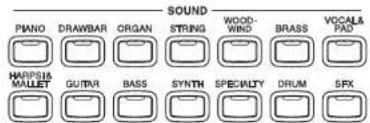
The sounds span a tremendous variety of instruments, ranging from traditional acoustic sounds to modern electronic tones. To help you quickly find the sound that you want, the sounds have been organized into 14 categories. Each category has a dedicated Sound Selection button on the front panel.
To select a Sound:
1) In the main play screen, select the Part to which you wish to assign a new sound using the L3, or R2-R3 buttons. The selected Part will become highlighted.
text_image
Piano DRAWBAR ORGAN SOUND WOOD-WIND BRASS VOCALS & PAD HARPSIA Mallet GUTAR BASS SYNTH SPECIALTY DRUM SFX2) Press the SOUND button for the sound category that you are interested in. The first page of sounds in that category will be displayed. There are at least three pages of sounds in each category. Use the F1-5 buttons to view the other pages in a category.
3) Select a sound by pressing the L or R button that is next to the displayed name.
4) Press the F1-F5 buttons to show the Sounds on the other pages for the same category.
5) You can also use the Dial to scroll through all of the categories and sounds one by one.
Kouva Concert Perform Series Digital Ratio
on page 86.
F? Takes you to the Sound Edit menu. (See Editing Sounds)
FI-F4 Selects the different pages of Sounds within a category.
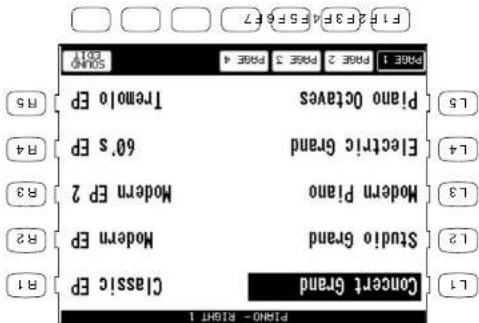
text_image
Piano - Right 1 L1 L2 L3 L4 L5 L6 L7 L8 L9 L10 L11 L12 L13 Electric Group Modern Piano Studio Grand Classic EP Tremolo EP 6.0's EP Modern EP 2 R2 R4 R5 PAGE 1 Page 2 Page 3 Page 4 STAINO page 1 FIF 2F3F 4F5F6F7 FIF 2F3F 4F5F6F7 STAINOUse the L or R buttons to select your desired Sound.
Mixer
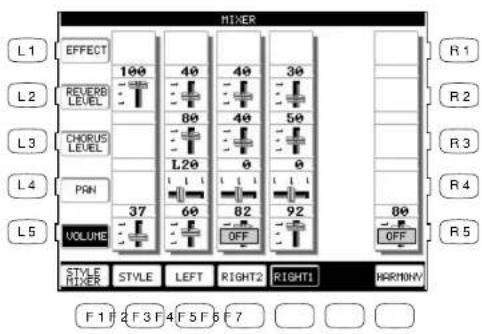
This Mixer screen allows you to change the volume, panning, reverb and chorus levels, as well as turn the effect on/off for each Part.
To use the Mixer:
1) Press the MIXER button (F1) while on the main play screen.
2) Use the F2–F5 and F7 buttons to select which Part you wish to adjust.
3) Use the L and R buttons to select a setting to change.
4) Use the Dial to change the value.
L1 Selects the Effect On and Off.
L2 Selects reverb level.
L3 Selects chorus level.
L4 Selects Panning.
L5 Selects volume level.
After you make your desired selection, use the Dial to change the value.
text_image
MIXER L1 EFFECT 100 40 40 30 L2 REUERB LEVEL 80 40 50 L3 CHORUS LEVEL L20 0 0 L4 PRN 37 60 82 92 80 L5 VOLUME OFF R1 R2 R3 R4 R5 STYLE STYLE LEFT RIGHT2 RIGHT1 HARMONY F1 F2 F3 F4 F5 F6 F7F1 Takes you to the next page of the Mixer.
F2–F5 Selects the part to change. F7 Adjusts the volume level for the Harmony.
• Volume level can be also adjusted from the main play screen, using the VOLUME buttons (F4, F5).
Koula: Convert [super Series Digital]
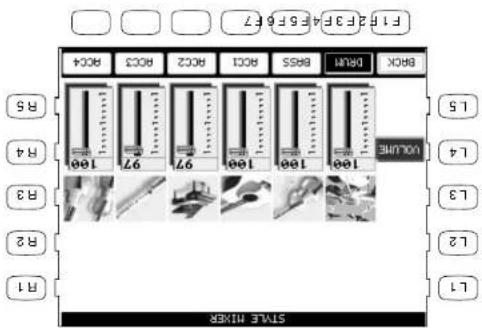
F1 Takes you to the previous Mixer screen. F2-F7 Selects the Section that you wish to change.
text_image
F1 2 F3 4 5 6 7 BRCK DRAM BASS ROCI ROCC ROCK 100 100 100 97 97 100 100 100 97 100 100 100 97 100 100 100 97 100 100 100 97 100 100 100 97 100 100 100 97 100 100 100 97 100 100 100 97 100 100 100 97 100 100 100 97 100 100 100 97 100 100 100 97 100 100 10O 15 L4 R4 R3 R2 R1 STATE MIER1) On the Mixer screen, press the STYLE MIXER button (F1). The Style Mixer screen will be selected. 2) Use the F2-F7 buttons to choose a section, then use the Deal to change the volume. 3) Press the BACK button (F1) to go back the previous Mixer screen, or press the EXIT button to go back to the main play screen.
To adjust the individual Section level:
The Mixer not only lets you set the overall volume level for the Style, but set individual volume levels for the 6 sections within a Style.

Effects
You might have noticed that when you select some of the sounds, the LED indicator for the REVERB, CHORUS, or EFFECTS button is turned on. The reason for this is some of the sounds are set up with one or more of these effects on as part of their initial setting.
Adding an effect to the sound enhances tonal quality and improves acoustical realism. The CP piano is provided with three separate groups of effects. The first is REVERB, the second is CHORUS, and third group EFFECTS contains other useful effects such as Delay, Phaser, Rotary Speaker etc. There is a dedicated button on the front panel for each Effects group and each of the three Effect groups can be turned on/off separately or used in combination for each part. The Concert Performer has a selection of 27 different Reverb, Chorus, and Effect types that can be used to enhance or even dramatically alter the instrument sounds. Each of the over 600 instrument and drum sounds has already been assigned a REVERB and CHORUS setting and an additional EFFECT that suits that particular type of instrument. For example, a moderate Delay effect is used on the Church Organ to recreate the sense of being in a large church, and a Rotary speaker effect is used on the Drawbar organ to give it an authentic, vintage feel.
If you wish, you can change any of these effect settings to suit your tastes separately for each sound save them as the new Preset effect settings for that Sound (See Sound Edit on page 86). In addition, by setting the Effect For Sound function in the System to "Panel" the CP will ignore the preset effect settings for each Sound (see Effect For Sound on page 113).
(The CP piano can also remember your Effect settings as part of a Registration. See Registration on page 31.)
To add Reverb:
1) Press the REVERB button. The REVERB button LED will light.
2) If you wish to edit the settings, hold down the REVERB button for a moment until the Reverb Settings screen is displayed.
3) Use the F3-F6 buttons to select the Part you want to edit.
4) Use the L2-L4 buttons to select the specific setting that you wish to change.
5) Use the Dial to change the value.
6) Press the EXIT button to leave the Reverb Settings menu.
7) If you wish to turn the reverb effect off, press the REVERB button again.
4) Use the L2-L4 buttons to select the specific setting that you wish to change.
3) Use the F3-F5 buttons to select the Part you want to edit
screen is displaced.
2) If you wish to edit the settings, hold down the CHORUS button for a moment until the Chorus Settings
1) Press the CHORUS button. The CHORUS button LED will light.
To add chlorus:
in this chapter for an explanation of Effect Priority.
Part except AGC (regardless of each part's Effect Priority). See "Effect Priority Guidelines" later
• The LED indicator on the REVEERB button will be hit whenever Reverb is turned on for the any
Place Simulates the sound of a metallic plate reverb.
Room 1, Room 2 Simulates the ambiance of a living room or small rehearsal room.
Stage 1, Stage 2 Simulates the ambulance of a small hall or live house.
Hall 1, Hall 2 Simulates the ambiance of a concert hall or theater.
Type of Reverb
that Part.
the appropriate button also turns the Reverd on/off for
F3-F6 Selects the Part you want to change. Repeatedly passing

text_image
F1F2F3F4F5F6F7 R5 R4 R3 R2 R1 RC0 LEFT RIGHT RIGHT 100 40 40 30 On On On On Reusing Depth L6 L4 L3 HALL2 REUSING TYPE 131358L4 Selects Reverb depth. Use the DiaI to change the Reverb depth for the selected Part.
13 Selects Reverb on/off. Use the Dial to turn the Reverb on/off for the selected Part.
12 Selects the Raverb type. Use the Dail to choose one of the 7 Raverb types.
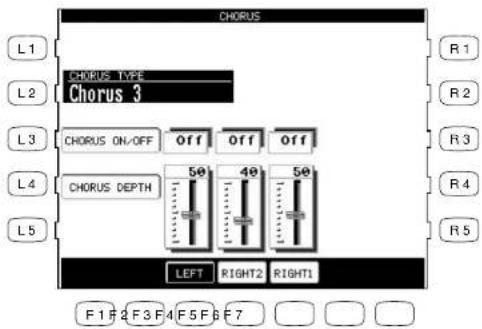
L2 Selects the Chorus type. Use the Dial to choose one of the 4 Chorus types.
L3 Selects Chorus on/off. Use the Dial to turn the Chorus on/off for the selected Part.
L4 Selects Chorus depth. Use the Dial to change the Chorus depth for the selected Part.
5) Turn the Dial to change the value.
6) Press the EXIT button to leave the Chorus Settings menu.
7) If you wish to turn the chorus off, press the CHORUS button again.
text_image
CHORUS L1 L2 L3 L4 L5 CHORUS TYPE Chorus 3 CHORUS ON/OFF OFF Off Off 50 40 50 CHORUS DEPTH LEFT RIGHT2 RIGHT1 F1 F2 F3 F4 F5 F6 F7 R1 R2 R3 R4 R5F3–F5 Selects the Part you want to change. Repeatedly pressing the appropriate button also turns the Chorus on/off for that Part.
- The Indicator light on the CHORUS button will be lit only when Chorus is turned on for the active "Priority Part". See "Effect Priority Guidelines" later in this chapter for an explanation of this.
- You can select from four chorus types when in the Chorus Settings menu. There is a fifth chorus type which is assigned as an Effect from the Effect Settings menu. In this way, you can actually have two chorus effects active if so desired.
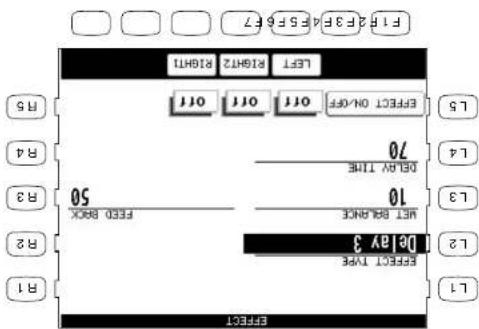
F3-F5 Turns the Effect on/off for each Pan.
R3 Selects a different editable setting for each Effect type. Use the Dial to change the value.
text_image
EF123F4E5F67 EF123F4E5F67 LEFTRIGHT RIGHT LEFTRIGHT RIGHT OFF OFF OFF OFF L5 L5 EFFECT ON/OFF OFF OFF OFF 70 0.01 R/Y TIME L4 L3 10 MFT BAYANCE FEED BOX 50 L2 DEHY 3 R2 R1 R5 R4 R3 R2 L1 EFFECT TYPEL4 Selects a different estimable setting for each Effect type. Use the Dail to change the value.
L3 Selects Wet Balance. Use the Dial to change the value.
L2 Selects Effect type. Use the Dial to choose one of the 16 Effect types.
7) If you wish to turn the Effect off, push the EFFECTS button again.
(6) Press the EXIT button to leave the Effect Settings screen.
5) Turn the Deal to change the value.
4) Use the L2-L5, R3 buttons to select the specific setting that you wish to change.
3) use the F3-F5 button to turn ON/OFF the Effect for each part.
displaced
(2) If you wish to edit the settings, hold down the button for a moment until the Effect Settings screen is
1) Press the EFFECT button. The EFFECT button LED will light.
To add an Effect:
Effect Types
Chorus Simulates the rich character of a vocal choir or string ensemble, by layering a slightly detuned version of the sound over the original to enrich it.
Flanger Creates a shifting comb-filter, which adds motion and a “hollow” tone to the sound.
Celeste A three-phase chorus without modulation.
Ensemble A three-phase chorus with a slight modulation to each phase.
Delay 1-3 Adds echoes to the sound. The three types differ in the length of time between the echoes.
Auto Pan Moves the sound left and right across the stereo field at a variable rate.
Tremolo Modulates the volume of the sound. This is a vibrato type effect.
Tremulant A combination of Tremolo and Vibrato. It simulates the tremulant pipes of a church organ.
Phaser Creates a phase change, adding motion to the sound.
Rotary 1-2 This effect simulates the sound of the Rotary Speaker cabinet commonly used with electric organs. Rotary 2 adds distortion. The soft pedal is used to change the speed of the rotor between SLOW and FAST.
Auto Wah Sweeps a tone filter up and down at the beginning of a note, recreating the popular vintage wah wah pedal sound.
Enhancer Emphasizes high frequencies to make a sound more easily discernible in a mix.
Distortion Adds frequencies that were not present in the original sound, resulting in a "fuzzy" or warmer tone.
disply for that Part.
- When the Effect settings change for the Priority Part, the Effects will be automatically turned off - You can, however, turn the effect on for any Part by adjusting the Effect On/OFF option in the Electric (Extrar that you've just assigned to the RIGHTL Part) by the Distortion setings of the Electric (Extrar that you've just assigned to the RIGHTL Part) - When the Effect settings change for the Priority Part, the Effects will be automatically turned off
punos
- Unless you change them, the Effect setings will only change in response to a change in the Priority Part being activated/deactivated, or a new sound is assisted to an active Priority Part. In the latter case, the new Effect setings will reflect the Presset effect setings for the new
- Priority is given to the Parts in the following order: RIGHTI, RIGHTI2=LEFT. This means that anytime the RIGHTI Part is active, its Effect setings will be used, not only for its sound but for any sound in any other Part, that you want to add effects to. Likewise, the only time an active LEFT Part's setings will be applied is if the other 2 Parts are inactive.
Here are some guidelines for Effect Priority:
This “Priority Part” depends on the current situation. If you only have one Part active, regardless of which Part is, the most effect settings for that sound will be used. If you have two or more parts active, then the CP will trust one of them as the Priority Part, and ignore the settings of the other(s).
If the Effect For Sound is set to “Pancel” in the System then the Pratest effect settings for each Sound will be ignored and the Part Priority will be ignored. (See Effect For Sound on Page 1.3).
have their Effects automatically turned off.
In these cases, the C^p 's Effects section can only use the Effect selings for one of the Parts. The EFFECT section chooses which Effect selings to use based upon a predetermined priority order for each of the Parts. The Priority order is RIGHT 1 > RIGHT 2 > LEFT/SIL.17 . The preset effect setings for the Priority part will be used and the other Parts will either share these setings or may
Reverb and chlorus are global effects. In other words, all of the Parts and the Accompaniment Style must share the same Reverb and chlorus type. However each of these Parts can have a different amount of outflow for each part. However, since the C^3s EFFECT section can only have one effect from one outflow for each part. However, since the C^3s EFFECT section can only have one effect from one outflow for each part. However, since the C^3s EFFECT section can only have one effect from one outflow for each part. However, since the C^3s EFFECT section can only have one effect from one outflow for each part. However, since the C^3S EFFECT section can only have one effect from one outflow for each part. However, since the C^3S EFFECT section can only have one effect from one outflow for each part. However, since the C^3S EFFECT section can only have one effect from one outflow for each part. However, since the C^3S EFFECT section can only have one effect from one outflow for every part. However, since the C^3S EFFECT section can only have one effect from one outflow for each part. However, since the C^3S EFFECT section can only have one effect from one outflow for each part. However, since the C^3S EFFECT section can only have one effect from one outflow for each part. However, since the C^3S Effect section can only have one effect from one outflow for each part. However, since the C^3S Effect section can only have one effect from one outflow for each part. However, since the C^3S Effect section can only have one effect from one outflow for each part. However, since the C^3S Effect section can only have one effect from one outflow for each part. However,
Effect Priority Guidelines
- The LED Indicator on the EFFECT and CHORUS buttons will be on only when the active Priority Part has these effects turned on.
Example
Assume that your CP is set up according to the following chart:
RIGHT1 RIGHT 2 LEFT INDICATOR
Part Inactive Active Active
Effect On On On On
If you then select a different sound for RIGHT2, the Effect setting for the RIGHT1, LEFT will be turned off automatically. This is because RIGHT2 is the Priority Part (note that the RIGHT1 Part is NOT the Priority Part because it was inactive).
The chart would now look like this:
RIGHT1 RIGHT 2 LEFT INDICATOR
Part Inactive Active Active
Effect Off On Off On
Even if you now assign a new sound to the RIGHIT1 Part, the Effect settings for the other Parts won't change, because RIGHIT1 is still inactive, so therefore would not have priority.
Once you make the RIGHT1 Part active, however, it would now be considered the Priority Part. The Effect settings for the other Parts will again be turned off. The Indicator light on the EFFECT button will now reflect the Effect status for the sound assigned to RIGHT1.
RIGHT1 RIGHT 2 LEFT INDICATOR
Part Active Active Active
Effect Off Off Off Off
At this point, if the Effect that has been called up along with the RIGHT1 sound is one that you'd like to use for the other Parts, simply select Effect On in the LCD display for those Parts.
1) Select the Part that you would like to apply the shift to. 2) Press either the ▲ or ▲ OCTAVE SHIFT buttons. The number of shifted buttons (up or down bits) will be displayed with an "▲" in the LCD screen. 3) To cancel the octave shift, press both the ▲ and ▲ buttons at the same time. The symbols will disappear from the screen, indicating that the selected Part is back to its normal octave range.
To use the octave shift:
1) Presses either the ▶ or ▶ TRANSPOSE buttons. The LCD screen shows you a number telling you how many half steps up or down you have transposed the piano. 5, for example, represents a transposition that is 5 half steps lower. 2) To cancel the Transpose setting, press both the ▶ and ▶ buttons at the same time. The transpose amount will disappear from the LCD screen, indicating that the CP is now back to its original setting.
To Transpose:
RIGHT and RIGHT 2.
Octave shift can be very useful when you are playing multiple sounds across the keyboard. You must want to use the octave shift to adjust a bass sound assistant for the Little/SPLT part to play in the project pitch range, or to set one sound in a layer to play in a different octave so that imixes well with other sounds in the layer. Octave shift is only available for the three ranks: Left/SPLT,
available in the CP.
Transpose can be especially useful when you have learned a song in one key and have to play it in another key. The transpose feature allows you to play the song in the original key, but heart it in another key. You can transpose the Concert Magic songs, the Accompaniment Styles, any songs played back by the Easy/Advanced Recorder and any of the over 600 instrument and drum sounds
in octave increments.
Transpose raises or lowers the C_P^s pitch in half-step increments. Optave Shift does the same but
Transpose and Octave Shift

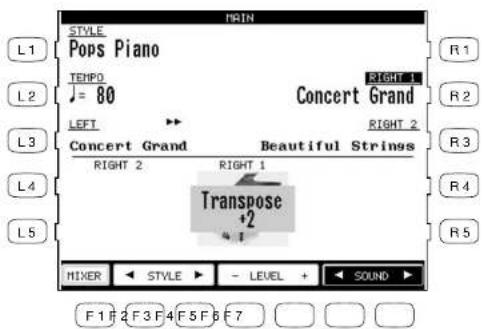
L3 Selects the LEFT Part to be Transposed or Octave Shifted.
text_image
MAIN STYLE Pops Piano L1 L2 L3 L4 L5 R1 R2 R3 R4 R5 THPO = 80 Concert Grand LEFT CONCERT GRAND BEAUTIFUL STRINGS RIGHT 2 RIGHT 1 Transpose +2 - MIXER STYLE - LEVEL SOUND F 1 F 2 F 3 F 4 F 5 F 6 F 7R2 Selects the RIGHT1 Part to be Transposed or Octave Shifted.
R3 Selects the RIGHT2 Part to be Transposed or Octave Shifted.
The number of octaves shifted is represented by the number of triangles shown above the sound name for each Part.
Transpose amount is shown at the bottom of the screen.
- The Octave Shift has a range of four octaves in each direction. However, some on board sounds may have a limited range in which they play properly. If you shift too far out of this range, the instrument may sound strange or may not play at all. This has no affect on the CP's proper function though, and you should feel encouraged to use this feature as a means of getting interesting tonal variations out of the preset Sounds.
Kaval Concert Frontier Series Digital Form
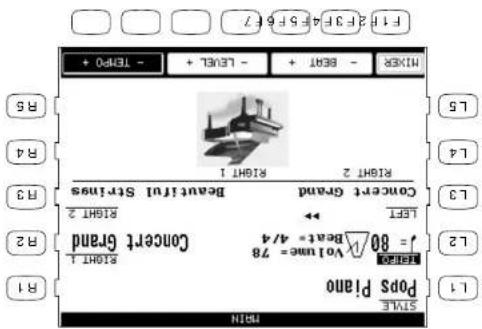
F6. F7 Adjuits the tempo.
F4. F5 Adjusts the volume level.
6/8, 7/8, 9/8 and 12/8 time signatures.
F2. F3 Changes the Beat. Choose from 1/4, 2/4, 3/4, 4/4, 5/4.
FT Takes you to the Mixer menu.
text_image
1.1 POP5 P1a0o 12 J = 80/1 Beat4.4/4 13 LEET 2 R1 R2 R3 R4 R5 L4 L5 MIXER - BRT + - LEVEL + - TEP0 + IF 2F3F4 F5F67 Concept Grand Beaut fluI Strtmas RIGHT 2 RIGHT 1 RIGHT 2 Concept Grand Beaut fluI Strtmas RIGHT 2 RIGHT 2 NEXT 1 NEXT 2 NEXT 2 NEXT 2 NEXT 2 NEXT 2 NEXT 2 NEXT 2 NEXT 2 NEXT 2 NEXT 2 NEXT 2 NEXT 2 NEXT 2 NEXT 2 NEXT 2 NEXT 2 NEXT 2 NEXT 2 NEXT 2 NEXT 2 NEXT 2 NEXT 2 NEXT 2 NEXT 2 NEXT 2 NEXT 3 NEXT 3 NEXT 3 NEXT 3 NEXT 3 NEXT 3 NEXT 3 NEXT 3 NEXT 3 NEXT 3 NEXT 3 NEXT 3 NEXT 3 NEXT 3 NEXT 3 NEXT 3 NEXT 3 NEXT 3 NEXT 3 NEXT 3 NEXT 3 NEXT 3 NEXT 3 NEXT 3 NEXT 3 NEXT 4 NEXT 4 NEXT 4 NEXT 4 NEXT 4 NEXT 4 NEXT 4 NEXT 4 NEXT 4 NEXT 4 NEXT 4 NEXT 4 NEXT 4 NEXT 4 NEXT 4 NEXT 4 NEXT 4 NEXT 4 NEXT 4 NEXT 4 NEXT 4 NEXT 4 NEXT 4 NEXT 4 NEXT 4 NEXT 5 NEXT 5 NEXT 5 NEXT 5 NEXT 5 NEXT 5 NEXT 5 NEXT 5 NEXT 5 NEXT 5 NEXT 5 NEXT 5 NEXT 5 NEXT 5 NEXT 5 NEXT 5 NEXT 5 NEXT 5 NEXT 5 NEXT 5 NEXT 5 NEXT 5 NEXT 5into a tempo value on the screen; 4) To stop the metronome, press the METRONOME button again.
You can also adjust the tempo by tarping on the TAP TEMPO button. Simply tap on the button with your finger three or more times at the desired tempo, and the CP will automatically translate that
(1) Press the METRONOME button. The CP piano will start counting with an audible steady heel. You will see volume level, beat (time signature), as well as the Metronome Icon appear in the LCD screen next to the Tempo value. (2) use the BEAT, VOLUME, or TEMO buttons (F2-F7) to select the setting you wish to change. (3) use the F buttons (F2-F7) or the Deal to change the values.
To use the Metronome:
Blythun is one of the most important elements when learning music. It is important to practice placing the piano at the correct teno and with a steady rhythn. The CP piano's movement is a tool that helps you to achieve this by providing a steady beat for you playing with.
Metronome
Piano Only
The Piano Only button provides a way to quickly set the Concert Performer up to play the Concert Grand piano sound. Pressing the Piano Only button immediately turns off all Parts except the Right 1 part and sets the Right 1 sound to Concert Grand.

The Piano Only button also turns off all auto-accompaniment functions and stops the Easy/Advanced Recorder. Additionally, pressing the Piano Only button will cause the CP to exit any function or editing screen (except for Concert Magic) and immediately return to the Main Screen.
When you are using Concert Magic, pressing the Piano Only button will change the Concert Magic song's preset sounds to Concert Grand piano.
- You can also use the Piano Only button as a “panic button” to immediately stop any unintended accompaniment style or recording, or to quickly exit any confusing situation and return to a familiar piano sound.
To use Piano Only:
Press the PIANO ONLY button. The Main Screen is displayed and the Concert Grand sound is assigned to RIGHT1.
You can also press the SYNC/FADE OUT button and have the Style fade out gradually.
or the INTR0/EDING button to stop with an ending pattern,
the START/STOP button to stop the Style immediately,
6) To stop the Style, press either,
and the CP will automatically translate your taps into an on-screen Tempo value.
You can also use the TAP TEMPO button. Tap the button three or more times at the desired tempo,
Tempo.
5) To adjust the tempo of the Style, select Tempo on the main play screen and use the Dial to change the
chord on the keyboard.
buttons. When the SYNC/FADE OUT button is pressed, the Style will not start until you play a note or
You can also press the SYNC/FADE OUT button before starting a Style or pressing the INTRO/ENDING
or the INTR0/ENDING button to start the Style with an Intra pattern.
the START/STOP button to start the Style playing immediately,
4) If you wish play the selected Style, press either
to jump to another category, or turn the Dial to scroll through all the Styles one by one.
displayed page, you can use the F1-F2 buttons to select the other page. Press another STYLE button
3) Each Style category has two pages of styles. If you don't see your desired Style on the current
2) Press the L or R button next to the on-screen name of the Style you wish to select.
Selection page for that category.
1) Press the STYLE button for the category of your choice. The LCD screen will display the first Style
To select a Style:
front panel.
The Styles are organized into 13 categories, each with a dedicated STYLE SELECT button on the
Selecting and Playing a Style
the section of this manual "Creating Your Own Styles", page 74.
create your own custom Styles. These features are explained in
features such as Style Maker and Conductor to help you edit or
If you have creative ideas of your own, the CP contacts other
accompartment. If the on board variety of styles is not enough, or
Solo Piano Styles if you just want to play along with a piano
and other accompanying instruments, there are Infinite Styles with
which provide a full musical arrangement including Drums, Bass,
in a fully orchestrated arrangement. In addition to the Full Styles
choose from a sample claim or percussion agreement or add
along with, covering a wide variety of musical genres. You can
The Concert Performer contains 182 built-in Styles for you to play
Using a Style

text_image
COUNTRY Country Shuffle Bluegrass L1 L2 Country Stomp Texas Swing L3 Boot Scootin Redneck Rock L4 Train Beat Country Rock L5 Modern Train Beat Country Rock 2 PAGE 1 PAGE 2 F1 F2 F3 F4 F5 F6 F7Use the L or R buttons to select your desired Style.
F1, F2 Select the different pages within a Style category.

When this button is pressed before starting a Style or before pressing the INTRO/ENDING button, the Style will not start until you play a note or chord on the keyboard. When this button is pressed while the Style is running the Style will gradually fade out. When this button is pressed during a fade out the Style will gradually fade back in and you may resume playing the Style. You can press the SYNC/FADE OUT button at any time while any of the patterns (Intro, Variation, Ending) in the Style are running to fade in or out of the Style.

Starts or stops the Style immediately.
When one of these buttons is pressed to start a Style the selected Intro pattern will be played before the selected Variation pattern plays. There are both major and minor versions for each Intro. The Auto-accompaniment System will decide which Intro to use based upon the first Chord you play (major or minor). The LCD screen will display a countdown in bars to show how many bars you have until the variation begins playing. When one of these buttons is pressed while the Style is running the selected Ending pattern will be played before the Style stops. There are major and minor versions for each Ending.
- When you are in the main play screen, you can select a Style by just using the Dial. Press the L1 button or F2-F3 (STYLE) and "Style" will become highlighted. Use the Dial or press the F2-F3 button to select another Style.
The Auto-announcement System (ACC) is a powerful feature that determines how the Styles will interest with you as you play. The ACC System analyzes your placing and adjusts the notes the Style plays to follow the chords that you play on the keyboard. The CP recognizes 6 chord types as well as most of their insertions (see page 128 for a card table). There are three modes of key recognition—One Finger, Fingered, and Full Keyboard. Your choice of which mode to use depends on your skull level and the selected musical style.
Auto Accompaniment System

112
- You can set the CP to automatically play a fill-in anytime you press a VALIDATION button as you switch from one variation to another. Select your preferred option in the fill-in mode. (See page
To select a variation, press one of the four VARIATION buttons to select the desired variation. The selected VARIATION button LED will light.
Fll-lns can also be used as a short into. First press the SYNC/FADE OUT button then presses one of the Fll-ln buttons to select a desired Fll-ln. Press any key on the keyboard to start the style. After the Fll-ln plays, the selected variation will play.
Fill-ins are short patterns that temporarily embellish the Style. Fill-ins can add excitement and rhythmic change to the Style and be used as a musical lead in between the variations. To use a fill-in, just press one of the FILL IN buttons. You will hear the fill-in begin playing immediately from a musically appropriate spot.

Each Style is made of four Variation patterns and four Fill-in patterns.
Fill-in and variation
beginning of the next measure before it begins to play.
- When you switch from one Style to another while it is running, the new Style will wait until the
chosen in the same category.
• The CP remembers the last Style selection that you made within each category while the power is on. When you press a STYLE button, the CP will automatically select the Style previously
| Fingered | The player must play at least three notes of a chord below the split point (LEFT/SPLIT Part) before the ACC System will recognize the chord type. (See page 158 for chord table.) |
| One Finger | Uses a simplified chord method that allows beginners to specify a chord type by playing only one or two notes below the split point. The types of chords that can be recognized in this manner are limited to Major, Minor, 7th and Major 7th. While the player can trigger basic chords with as little as one finger, the ACC System will recognize more complex chord types if you play them, even you are in the One Finger mode. |
| Full Keyboard | The player must play at least three notes of a chord anywhere across the 88 keys before the ACC System will recognize the chord type. This mode is similar to Fingered however, Full Keyboard recognizes chord types from three or more notes played anywhere across the 88 keys not just below the split point. |
Bass Inversion
When Bass Inversion is on, the Bass Section of the Style will follow the lowest note of the chord voicing played on the keyboard. With Bass Inversion on it is possible to specify a chord over a certain bass note by the chord voicing you play. For example, a C chord over a G bass, or a Bb7 chord over a C Bass. Bass Inversion will work with all three key recognition modes but when in One Finger mode, you play at least two notes of a chord for Bass Inversion to function.
To turn Auto-accompaniment (ACC) on:
1) Select a Style that you would like to play.
2) Press one of the ACCOMPANIMENT buttons to select the Key Recognition mode. The selected Key recognition mode will be displayed at the bottom of the LCD screen if you're on the main play screen.
3) Press the BASS INVERSION button if you would like to turn it on.
4) Press the ACC ON/OFF button to activate the Auto-accompaniment System (ACC).
5) Press the START/STOP button to start the Style, and play some chords in the LEFT/SPLIT Part. You will hear the Style start and also change keys and chord types as you play different chords.
6) If you want to cancel or stop the Auto-accompaniment, press the ACC ON/OFF button again. If you turn the ACC off without stopping the Style the drum rhythms will continue to play.
1) Select the Style you would like to play. (2) Press the 1-2 PLAY button. The 1-2 Play indicator will become hit, and the words "1-2 Play" are displayed in the Main Screen. The SYNC/FADE OUT button is excited as well. (3) Activate one of the INFO/EDONING buttons if you want the Style to begin with an introduction. Start the Style by playing a key on the left side of the keyboard, or by pressing the START/STOP button. (4) Press the 1-2 PLAY button again to turn it off.
To use 1-2 play:
If you want to play using an accompagnement Style, but have no idea to what sounds you should use for the right and left-hand parts, try using the 1-2 Play feature. This feature gives you a pre-programmed panel setup with appropriate sounds and settings for the Style you have chosen.
1-2 Play
You can also start a Style without the ACC on. In this way you can have just drums and percussion accompany you.
- You can use the Audio-accompaniment (ACC) System without the Style Running. In this way you can make use of the chord recognition without having the pre-programmed rhythms or patterns playing. Just turn the ACC on play without standing the Style. You will hear the bass and chord parts only. This may be useful when you play a musical piece that is not played with drives. The accopament sounds are pre programmed to best suit the different Styles, and you cannot after them. When plaining in One Finger mode, however, you can replace the chord sound with the sound chosen for the LEFT/Splift Part. Assign your preferred sound and make the LEFT/Splift Part active.
In most cases, these are just duplicate notes being played using different sounds. In some causes however, you may differ different notes of an unexpected third inversion. If the overall musical effect is undesirable, try turning the L&FT/S/PTLT Part off and let the accompaniment play alone.
- When you play along with the Auto-accordament using the Registered or Full Keyboard modes, you may hear two sounds playing the chords: one is selected by the front panel and the other is Style are independent of the left and Right Part sound feelings. Therefore, you will hear the instrument sounds played by your hand as well as those generated by the accompagnment.

- Among the settings contained in the 1-2 Play setting are the Sounds assigned to the keyboard Parts (Right 1/2, Left), Tempo, and Mixer settings.
Registration
A Registration is a setup that remembers the panel settings along with many other performance functions so that you can recall them at the touch of a button. This lets you begin to play quickly instead of spending a lot of time programming all the settings and values manually.
There are 8 Registration buttons on the panel of the Concert Performer. Each button contains a different registration. Pressing any of the Registration buttons activates the setup stored there. Pressing another Registration button changes to the registration stored in that button. Pressing the active Registration button again deactivates the registration and returns you to the original panel setup.
Registration Groups
There are 10 Registration Groups in the Concert Performer. Each group contains settings for the 8 Registration buttons on the panel. Each group represents a “family” of settings for the CP. The sound and performance capability of the Concert Performer is remarkable, and each registration group is designed to take full advantage of certain types of sounds available in the instrument. Switching from one Registration Group to another instantly changes the Registration buttons from Pipe Organ settings to Orchestra settings, for example.
- The default Registration Group is “American Pop”, a family of registrations designed to play popular music from the 1940’s through today.
With 8 Registration buttons and 10 Registration Groups, you have a total of 80 preprogrammed Registrations available. Plus, you can overwrite any registration with your own unique setups.
To use a Registration:

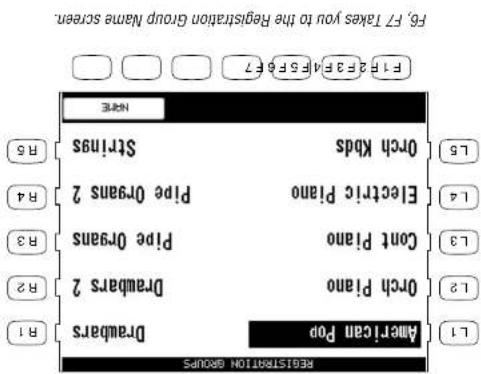
1) Press the REGIST GROUPS button. Ten Registration Groups will be displayed.
2) Highlight any Group from the list by using the L and R buttons.
3) Press one of the eight REGISTRATION buttons to activate a Registration from your selected Registration Group.
4) To return to the Main Screen, press the EXIT button.
- You cannot use the I-2 Play function and Registrations at the same time. Choosing one always cancels the other.
• It is not necessary to always begin with the REGIST GROU PS button when selecting a Registration. If the group you want to use is already selected, pressing one of the REGISTRATION buttons will activate a setup from that group. The CP will remember the Registration Group last chosen as long as the power remains on. •
• The (CI) remembers how the front panel was setup before you choose a registration so that after exiting the registration, the prior settings will be restored.
text_image
F6. FT Takes you to the Registration Group Name screen. F1 F2 F3 F4 F5 F6 F7 F1 F2 F3 F4 F5 F6 F7 F6. FT Takes you to the Registration Group Name screen. L5 Orch Kbds Sirtings R5 Electric Piano Pipe Organs 2 R4 L4 Orch Piano Pipe Organs R3 L3 Cont Piano Pipe Organs R2 L2 Orch Piano Dreadbars 2 R1 America Top Dreadbars R1 REGISTRATION GROUPSUse the L and R buttons to select the Group. Then press one of eight REBITRATION buttons to call the desired setup.
To create your own Registration:
1) Set up the panel and functions in the way that you'd like to save them.
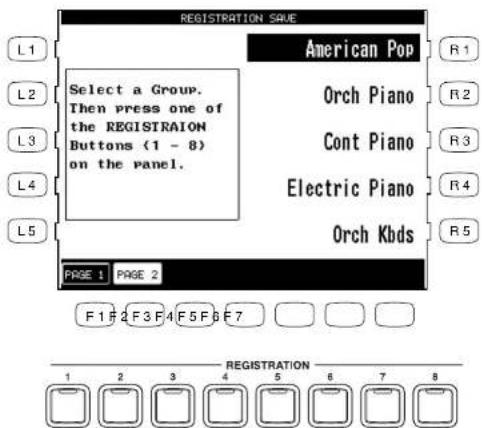
2) Press the SAVE REGIST button. Use the R1 - R5 buttons to select the Registration Group in which to save your setup. Use the F1 - F2 buttons to view the 10 Registration Groups in sets of five.
3) Press one of the 8 REGISTRATION buttons to specify which location you'd like to save your Registration to.
text_image
REGISTRATION SAVE L1 American Pop R1 L2 Select a Group. Then press one of the REGISTRAION Buttons (1 - 8) on the panel. Orch Piano R2 L3 Cont Piano R3 L4 Electric Piano R4 L5 Orch Kbd's R5 PAGE 1 PAGE 2 F 1 F 2 F 3 F 4 F 5 F 6 F 7 REGISTRATION 1 2 3 4 5 6 7 8R1-R5 Selects the Registration Group to save in.
Press the F1-F2 buttons to display the Registration Groups on the other pages.
Press the specific REGISTRATION button where you'd like to save to.
- The following settings can be stored in a Registration:
Sounds (Right1, Right2, Left), Split Point, Style and Variation, Fill-in mode, Tempo, Accompaniment settings, Mixer settings, Chorus settings, Effect settings, Harmony settings, Voicing, Detune, Resonance and Left Pedal functions. - You can save your Registrations on a floppy disk and load them into the CP later. (See page 128)
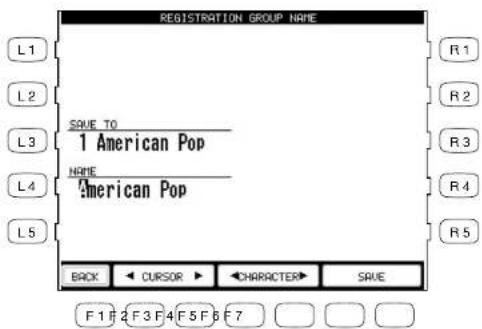
4) in the Registration Group Name screen, use the CURSOR (F2, F3) buttons and the CHARACTER (F4, F5) buttons to change the name. You can also use the Dial to change the characters. 5) Press the SAVE (F6, F7) button to confirm the name.
Use the L and R buttons to select the Group to rename.
text_image
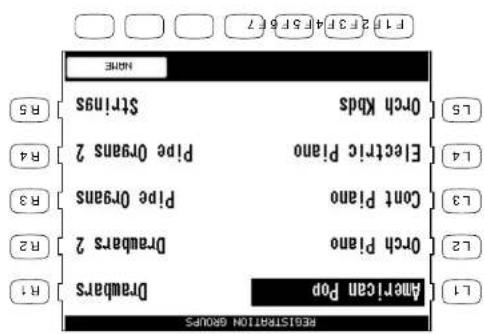
REGISTRATION GROUPS 11 American Pop 22 Orch Piano 13 Cont Piano 14 Electric Piano 15 Orch Kads 16 Strings 17 None 18 R5 19 R4 20 R3 21 R2 22 R1 TITLE 233455677 TITLE 233455677 TITLE 233455677 TITLE 233455677 TITLE 233455677 TITLE 233455677 TITLE 233455677 TITLE 233455677 TITLE 233455677 TITLE 1 NUMBER NAME1) Press the REGIST GROUPS button. 2) Use the L and R buttons to select the Group to rename. 3) Press the NAME (F6, F7) button.
To rename the Registration Group:
text_image
REGISTRATION GROUP NAME L1 L2 L3 L4 L5 SWE TO 1 American Pop NAME American Pop BACK ← CURSOR ➤ CHARACTER ➤ SAVE R1 R2 R3 R4 R5 F1 F2 F3 F4 F5 F6 F7F1 Takes you to the previous menu.
F2. F3 Moves the cursor over the characters in the name.
F4, F5 Selects a character.
F6, F7 Saves the name

Style Lock
Pressing the STYLE LOCK button keeps the current Style, even if another Registration is selected. This allows you to change Sounds and settings by the Registration button while keeping the Style as-is. As long as the STYLE LOCK button is on, changing registrations will not change the style. However, you can always manually change the style, even if the Style Lock is on.
Press the STYLE LOCK button again to turn it off.
within that musical category appears.
When you have found the category you want, use the L and R buttons to select it. A list of songs
3) use the SEARCH BY CATEGORY buttons (F1, F2) to display the category choices on the other page.
genres for the SONG STYLIST.
2) Press the SEARCH BY CATEGORY button. The Category list appears, showing the different musical
SONG STYLIST. Use the L and R buttons to search for the title in alphabetical order.
1) Press the SONG STYLIST button. The Name Menu list appears, showing alphabet to search for the
To use the Song Stylist:
must play the actual music yourself.
• The Song Stylist contains no precede of music, only the setup to play the chosen song. You
The Song Stylist contains a list of 54 popular songs keys. In the Song Stylist, there is an appropriate setup for each of those songs. You may search for your favorite little either absolutely by song name, or by category of musical genre. Once you've found the songs you want to play, simply press one button and the CP is immediately set up for that song and ready for you to begin.
Concern Performer sets up everything for you.
WITH over 600 Sounds and 182 Styles, it can sometimes be difficult to decide the best settings with which to play a song. Even if you are very familiar with the Concert Perform, you may want a quick way to change the CP's setup to play another song. The Song Stylist feature was created to handle this situation for you. You simply pick the name of the song you want to play and the
Song Stylist


text_image
NAME MENU L1 AB MNO R1 L2 CD PQR R2 L3 EFG S R3 L4 HI TUV R4 L5 JKL WXYZ R5 SEARCH BY CATEGORY DISK F 1 F 2 F 3 F 4 F 5 F 6 F 7F1.F2 Jumps to the Song Stylist Category menu.
F6 Search for a title from a floppy disk.
Use the L, R buttons to search for a title listed in alphabetical order.

text_image
CATEGORY MENU L1 50's Dance R1 L2 60's Gospel R2 L3 Ballad Jazz R3 L4 Christmas Latin R4 L5 Country Motoun R5 SEARCH BY SEARCH BY DISK CATEGORY NAME F1F2F3F4F5F6F7F1, F2 Shows the other categories.
F3, F4 Shows the song list in alphabetical order.
F6 Searches for a title from a floppy disk.
Use the L, R buttons to select your desired category.

text_image
F1. F2 Searches for a title on the other pages. F4 Starts the Chain Play. F5 Searches for a title from the internal present. F7 Selects the song.
text_image
FIF23F4 456 567 - PRICE + ONION PRESIT SELECT LSSelecting a song from a floppy disk.

text_image
F1, F2 Searches for a title on the other pages. F3 Lumps to the Song Stylist Category menu. F4 Searches for a title in alphabetical order. F5 Selects the Song. F6 Searches for a title in alphabetical order. F7 Selects the Song. F8 23F 45F 67 F9 23F 45F 67 F10 23F 45F 67 - PRICE + GROUP PRICE DISK SELECT Blndge Over Water Chances Are Brist Of My Love Careless UsIspers Best Of My Love Can't Smile Beauty & The Beast Can't Smile Arthur's Themed Candle In The Wind Always A Woman Can You Feel Love R1 R2 R3 R4 R5 L5 L4 L3 L2 L1 BRLA0Use the L or R buttons to select your desired song.
or press the EXIT button.
4) Use the PAGE buttons (F1, F2) to display the Song Titles on the other pages in the same category. (5) Use the L and R buttons to select one of five ten songs disappeared in the screen. The CP automatically returns to the Screen ready with all of the setings for that song. (6) You may start and play the song in your usual manner. You can operate the CP normally and make any changes to the Song Stylist set up that you wish. (7) To play another song, press the Songlist (F7) button. To exit, press the SONG STYLST button again
L1 Highlights the Style.
L2 Adjusts the Tempo.
L3 Highlights the LEFT Part.
L4 Changes the split point.

text_image
MAIN STYLE 50's Rockabilly L1 L2 L3 L4 L5 TIME TEMP0 J=160 C LEFT Brass Section RIGHT 1 Voice Oohs RIGHT 2 Tenor Sax R1 R2 R3 R4 R5 All Shook Up - VOLUME + SONG LIST F 1 F 2 F 3 F 4 F 5 F 6 F 7F1, F2 Turns on the Auto Chord Progression (if available). F3, F4 Turns on the Melody part (if available). F5, F6 Adjusts the volume level for the sound. F7 Takes you back to the Song Stylist menu.
R2 Highlights the RIGHT 1 Part.
R3 Highlights the RIGHT 2 Part.
R4 Changes the split point.
- You may use different Sounds, Styles, Tempo and other settings to customize to your taste.
- When choosing a Song Stylist created by you (or someone else) and saved to floppy disk, there may be a recorded melody and chord track available. The chord track, called the Auto Chord Progression, will provide you with the chord changes to the song.
You may also find a song title by searching the list alphabetically.
To search the Song Stylist by Song Title:
1) Press the SONG LIST (F7) button. The Category list appears, showing the different musical genres for the SONG STYLIST.
2) Press the SEARCH BY NAME (F3, F4) buttons. In the Name Menu, press the L or R buttons to take you to the first letter of the name of the song. For example, if your song title starts with "G", press the L3 button.
3) Use the PAGE (F1, F2) to search for the name of your song. When you find the song, press the corresponding L or R button. The CP automatically returns to the Main Screen ready with all of the settings for that song.
the chord.
Vocal 2 Adds three notes based on the chord. The lowest note will always be the root of
Vocal I Adds a single note above the top note of the right hand based on the chord.
Octave Duet Adds an Octave note and a Duet note.
Octave Takes the highest note played in the right hand and doubles it an octave down.
chord.
Duet Adds a note according to the lowest note played in the right hand and based on the
one octave below the lowest note played in the right hand.
Dynamic Adds three or four notes based on the chord. Harmony notes are played within
part.
Rockin, Adds a note at a fifth (or fourth) interest to the lowest note played in the RIGLIT
Jazz Adds three or four notes based on the chord.
ocslave below the lowest right-hand note.
Open Adds three of four notes based on the chord. Harmony notes may extend over one
Block Adds three or four notes based on the chord.
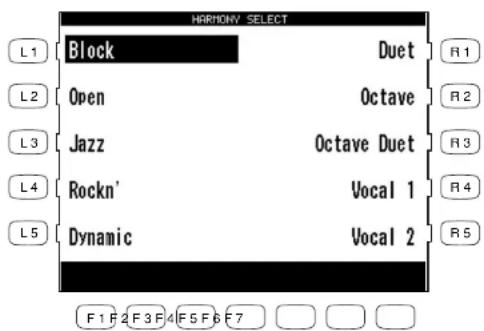
There are 10 types of Harmony.
If you are only playing single notes in the left and right hands).
When the Auto-occomplement is on, you can use Harmony function. The Harmony function when the Auto-occomplement is on, you can use Harmony function. The Harmony function acoustically acoustically acoustically acoustically acoustically acoustically acoustically acoustically acoustically acoustically acoustically acoustically acoustically acoustically acoustically acoustically acoustically acoustically acoustically acoustically acoustically acoustically acoustically acoustically acoustically acoustically acoustically acoustically acoustically acoustically acoustically acoustically acoustically acoustically
Harmony

To use Harmony:
1) Press the HARMONY button. The button will be lit to show that it is active. The Harmony symbol will also appear in the Main Screen.
2) To change the Harmony type, hold down the Harmony button for a moment until the Harmony Select menu is displayed.
3) Choose the Harmony type using the L and R buttons.
4) Press the EXIT button to leave the Harmony Select menu.
5) To turn off the Harmony, press the HARMONY button again.
text_image
HARMONY SELECT Block Duet Open Octave Jazz Octave Duet Rockn' Vocal 1 Dynamic Vocal 2 F1 F2 F3 F4 F5 F6 F7Use the L or R buttons to select your desired Harmony type.
- The additional notes created by Harmony are added to the RIGHT 1 Part, if that part is on. If the RIGHT 1 Part is off, the additional notes are added to the RIGHT 2 Part. If both parts are off, there will be no Harmony even though the HARMONY button is lit. The Harmony notes are played with the same sound as the part they are added to.
- You can volume mix the Harmony separately in the MIXER screen.
- If the Accompaniment in not on, you will not be able to activate Harmony.
1) Press the REC button. The REC button LED will blink and the LCD screen will show Rec Ready. If you want to, you can still change sounds or panel settings before proceeding. 2) Start recording in one of the following ways: A. Play the keys and the CP will automatically start recording with the first note you play. B. If you are recording with a style, press the START/STOP button to start the recorder with the Style. C. You can also press the SYNC button to begin recording the Style and your own playing together. D. Press the PLAY/STOP button to start with a 2-bar countdown to help you get ready. 3) When you are finished recording, presses the PLAY/STOP button. You may resume recording from the point where you stopped by repeating these steps from step 2.

To record:
panel settings you would like to record.
The Easy Recorder will record all of your plaings as well as any settings you have made on the front panel or in the mixer screen at the touch of a button. Simply press the RKC button and the CP will be seen recording with the first note you play. You can also record a Style along with your plaading if you like. Before you begin recording its a good idea to select your desired sounds(s) and make any
Easy Recording
Song data created on other instruments in the Standard MIDI File normal (SWE) can also be loaded into the CPS recorder to be played or edited. The CPS recorder can read both Type I and 0 SMP files. Please read the following sections carefully to learn more about the capabilities of the Easy and Advanced recorder.
independent tasks separately. In addition, with Advanced Reorder you can edit your recordered data one measure or even one note at a time.
Advanced Recorder gives you the ability to record on up to 16. Advanced Recorder is useful for creating more complex recordings.
Easy Recorder records your playing much like a tape recorder and is just as easy to use. The CP will record all of your playing as well as any changes you make to the front panel settings during the recording.
The CP has built-in recording capabilities that allow you to record your performances and play back your performances. Since the CP records your performances as digital data, not audio data, you can easily edit your performances after recording them. There are two ways to use the CP's recording feature:
Recording a Song
The current bar number is displayed.
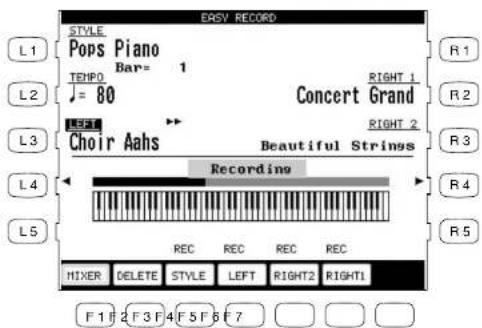
text_image
EASY RECORD STYLE Pops Piano TEHPO Bar= 1 ♩ = 80 Concert Grand LEFT Choir Aahs Beautiful Strings Recording REC REC REC REC MIXER DELETE STYLE LEFT RIGHT2 RIGHT1 F 1 F 2 F 3 F 4 F 5 F 6 F 7You can make changes to the panel settings before and during recording using the L and R buttons.
F1 Takes you to the Mixer menu. F2 Deletes the recorded song data F3-F6 Changes the part status.
- You may resume recording from the bar where you stopped by repeating these steps. You can also change sounds, tempo, and make other changes to the panel settings before you continue recording.
- To Re-record or make other changes to a previously recorded section of a song, please read the section titled "Re-recording or adding another Part" on page 44.
To play back the recorded song:
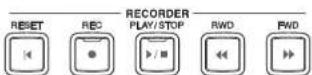
1) Press the RESET button in the RECORDER section of the front panel to return to the first bar of the song.
2) Press the PLAY/STOP button to play back the song.
3) Press the PLAY/STOP button again to stop at any time.
4) Pressing the PLAY/STOP button again resumes the playback from the bar where you stopped.
5) Use the RWD or FWD buttons to rewind or fast-forward through the recording.
settings as desired.
1) Make sure the Part(s) you wish to Re-record are active, then select any sounds or change panel
To Re-record or add a Part:
that Part automatically.
After you have recorded a song you can he-record a part or add (overdub) other parts if you like with the following procedure. He recording a part completely erases the previous performance for
Re-recording or adding another Part
heard.
When you press the PLAY/STOP button to listen to your songs any Parts set to PLAY status will be
to - to show they have not been recorded yet.
You can record all RIGH/LJELT Parts as well as the Style simultaneously or only certain Parts by those. When you first record a song all Parts and the Style will be authematically set to REC you choose. When you first record a song all Parts and the Style will be authematically set to REC for any active Parts and the Style will authematically change from REC to PLA. After recording, the status for any RIGH/LJELT Parts that were not active during recording will be authematically changed for any active Parts and the Style will authematically change from REC to PLA. After recording, the status for any active Parts and the Style will be recorded. When you finished recording the status but only active Parts and the Style will be recorded.
button.
After you have receded a song you can change the status for a part by pressing the appropriate F until P&G below the LCD screen. Pressing the F buttons during playback will select P&AY or MUTE, R&C can only be selected after you press the REC button but before you begin recording. During recording you can however set any Part to PLAY or MUTE by pressing the appropriate F.
-- - This part has not been recorded.
MUTE This Part has been recorded but will be silent both on playback and while recording.
PLAY This Part has been recorded and will be heard both on playback and while recording.
been pressed.
REC This Part is ready to be recorded. This message is only displayed after the REC button has
The LCD screen will show the following Part status messages at the bottom of the screen:
helpful to know the status for each of these parts.
The playback and record status for the RIGH/LEFT Parts and the Style are displayed at the bottom of the LCD screen. Whether you are in the process of recording or playing back your songs it is
Part Status
2) Press the REC button.
3) Press the appropriate F button(s) below the LCD screen to set the desired Part(s) to REC.
4) Begin recording by following step 2 in the "To Record" section on page 42.
Remember Re-Recording a Part completely erases the previously recorded performance for that Part. You can Re-record or add any of the RIGHT/LEFT Parts as many times as you like but, you can only have one performance/sound for each RIGHT/LEFT Part.
Saving the song
Once you finish recording a song you should save it to disk before you turn the power OFF. Once the power is turned OFF your song data will be lost.
See the section titled "Saving Data to a Floppy Disk" on page 129.
- If you press the EXIT button to get out of the Easy Recorder, the CP will automatically prompt you to save your work.
Erasing the song
Whenever a Part is selected for recording, the new performance is written right over any existing one that may be there for that Part. In this sense, the Easy Recorder is just like a tape machine. A new song will simply erase the old song during the recording process.
However, if you wish to simply erase all the Parts and the Style in a song at once you can use the Delete function.
To delete a song:
1) Press the DELETE button (F2) while the Recorder is not recording or currently ready to record. The CP will ask if you are sure.
2) Use either the YES (F7) button to proceed or NO (F1) to cancel.
Kouva Concert Perform Series Digital Ratio
- DELTEF erases all of the performance data for all Parts and the Style in the songs. The panel setup, such as Style, Tenpo, and Sound settings are not erased by the DELTEF function.
F7 Proceeds with erasing the song. F1 Cancels erasing the song.
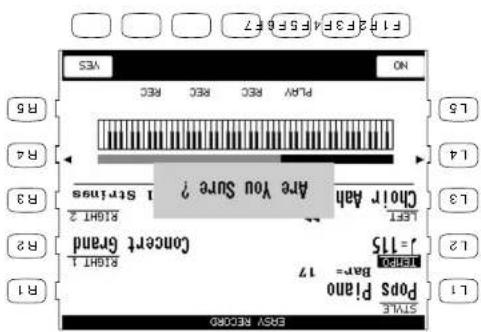
text_image
PI 243P 45P 6E 7 F1 P2 3P 4A 5P 6E 7 NO YES PSY REC00 L1 R1 LIST4 POP 'Piano' J = 115 Bar= 17 SIGHT 1 Ra2 B3 B4 R5 L5 Choir Bach Are You Sure ? SIGHT 2 Ra4 R6 No PLAY REC REC Play REC REC Play REC REC Play REC REC Play REC REC Play REC REC Play REC REC Play REC REC Play REC REC Play REC REC Play REC REC Play REC REC Play REC REC Play REC REC Play REC REC Play REC REC Play REC REC Play REC REC Play REC REC Play REC REC Play REC REC Play REC REC Play REC REC Play REC REC Play REC REC Play REC REC May 2 May 2 May 2 May 2 May 2 May 2 May 2 May 2 May 2 May 2 May 2 May 2 May 2 May 2 May 2 May 2 May 2 May 2 May 2 May 2 May 2 May 2 May 2 May 2 May 2 May 3 May 3 May 3 May 3 May 3 May 3 May 3 May 3 May 3 May 3 May 3 May 3 May 3 May 3 May 3 May 3 May 3 May 3 May 3 May 3 May 3
Advanced Recording
The Advanced Recorder is a full featured sixteen track MIDI recorder that includes many of the same professional features found on dedicated MIDI sequencing (recording) devices. In addition to sixteen MIDI tracks the CP Advanced recorder provides a separate Style, chord, and tempo track for even more flexibility.
Even though you can create recordings of great musical complexity using the Advanced recorder you will find that it is still very straightforward and easy to use.
Using the Advanced Recorder allows you much greater control over the recording and compositional process than that offered by the Easy Recorder. However, songs created using the Easy Recorder can also be edited using the Advanced Recorder by simply pressing the ADVANCED RECORDER button.
To go to the Advanced Recorder Menu:
Press the ADVANCED RECORDER button. The recording options will be displayed on the screen.
L1 Change the Reverb, Effect, Panning, Volume level and Chorus for each of the 16 tracks.
L2 Prepares the track for real-time recording.
L3 Re-record specific measures within your song.
L4 Select the sound to be assigned to each of the 16 tracks, and change the track's recording and play back status.
L5 Edit loop settings for the song.

text_image
ADVANCED RECORDER L1 Mixer Songs Edit R1 L2 Real Time Rec Bar Edit R2 L3 Punch In/Out Event Edit R3 L4 Track Settings Style Maker R4 L5 Loop Settings STYLE PASTLE F 1 F 2 F 3 F 4 F 5 F 6 F 7R1 Edit the general settings for the song.
R2 Edit the song by bars.
R3 Edit the song by MIDI events.
R4 Create your own new user Style.
F1 Converts recorded Style data into MIDI note data that can then be edited in the Advanced Recorder. Style Paste will only be displayed if the current song was recorded using a Style.
F6 Turns the Loop feature on/off
F4, F5 Takes you to the Track Settings menu.
F2 Takes you to the Mixer menu.
Recorder menu.
F1 Cancels the real-time recording setup and returns you to the Advanced
RA Selects the ending bar for the Loop feature. This function is available only when Loop is turned on.
83 Selects the recording mode. REPLACE erases the previous data and records the new data in its place. OVERDUB maxes the R3 motion switches between the REPLACE and OVERDUB.
R1 Changes the time signature.

text_image
F1 F2 F3 F4 F5 F6 F7 MENU MICRO TAGCK SETT1LNS 100P OF R5 MENU MICRO TAGCK SETT1LNS 100P OF R4 Sitar BBG 1 door END R3 1 - 1 REPLACE R2 BBG 1 door END R1 Concert Brand 1 = 80 R2 REC SOUND TIME0 R1 REC TRACK 4/4 B/1 REG. The REC L1 L2 L3 L4 L5NO
L4 Selects the starting bar for the Loop feature. This function is a available only when Loop is turned
13 Shows the current bar and beat number.
record with.
12 Selects the sound or Style that you want to
and 1 Style track.
L1 Selects the tack on which you want to record. There are 16 instrument tacks, 1 Tempo tack.
buttons.
screen. 2) Use the F, L and R buttons to select a function to edit. Use the Dial to change the values. 3) If necessary, you can go to the Mixer and Track Settings screens by pressing the appropriate F
1) From the Advanced Recorder menu, press the 2L button to select "Real Time REC", or simply presses the REC button. The REC button LED will blink and the LCD screen will display the "Real Time REC"
To use Real-time recording:
Real-time recording functions.
With Real-time record, the CFP records your performance as you are playing it, in real-time. You can select any of the sixteen instments keys or the Style and tempo tags to record, but you can only record on one back at a time. Since the Advanced Recorder only records on record, but you can only record on one back at a time. Only the RIGHT 1 Part is active in the Advanced Recorder. Any other active Pairs are multaneously limited OFP when the ADVANCED RECORDER button is pressed. In addition to selecting the desired back to record, the Real-time recording screen provides many other useful
Real-time Recording
4) Start recording by pressing the PLAY/STOP button while the REC button LED is blinking. There is an automatic two bar count in before the CP begins recording. If you are recording on the Style track you must press the START/STOP or INTRO buttons instead of the PLAY/STOP button. When recording a Style there is no two bar count in, recording begins immediately. You can cancel recording at anytime by pressing the REC button again or by pressing the F1 button to return to the Advanced Recorder menu.
- When you select a Style to record the default tempo for that Style is ignored. The Style will use the current tempo setting for the song instead. You can set the desired tempo on the Real-time record screen before recording or change the tempo after you have recorded in Song Edit or on the tempo track in Event Edit.
- When you are recording on the Style track only the Style will be recorded. The style track will record any chords (to the chord track) you play but the actual notes you are playing will not be recorded.
- When the recording is done, the Mixer screen will automatically be displayed.
To play back the recorded song:
1) Press the RESET button in the RECORDER section of the front panel to return to the first bar of the song.
2) Press the PLAY/STOP button to play back the song.
3) Press the PLAY/STOP button again to stop at any time.
4) Pressing the PLAY/STOP button again resumes the playback from the bar where you stopped.
5) Use the RWD or FWD buttons to rewind or fast-forward through the recording.
Mixer
On the Mixer screen, you can change the following settings for each of the 16 tracks: Reverb level, Chorus level, Effect on/off, Panning, Track mute, Volume level.
To use the Mixer:
1) Use the TRACK buttons (F2, F3) to select which of the 16 tracks you wish to make changes to.
2) Use the L1 and L5 buttons to choose the track setting that you want to change.
3) Use the Dial to change the value.
FT Saves the Mixer settings as part of the song.
66 Turns Loop ON/OFF
F4. F5 Takes you to the Track Settings menu.
F2. F3 Selects the task that you wish to edit.
F1 Returns you to the Advanced Recorder menu.

text_image
F1 F2 3F 4F 5F 6 F7 BACK ▲ TRACK ▲ TBOX SETTLOS OFP SAVE 1 2 3 4 5 6 7 8 9 10 11 12 13 14 15 16 R5 Level ▲ R4 Level ▲ R3 R2 R1 LE5 ▲ LE4 LE3 LE2 LE1 REUSEB IEURS = 78.8BA= - 1 - 1.8/Hz = 4 / 4 R1 IEURS = 78.8BA= - 1 - 1.8/Hz = 4 / 4 R1 IEURS = 78.8BA= - 1 - 1.8/Hz = 4 / 4 R1Lt, Lt5 used to select the track setting you want to change. Use the dial to change the value.
See the section filled "Saving Data to a Floppy Disk" on page 129.
changes you have made will be lost.
“Saving” here only means any changes you made on the Mixer screen were saved as part of the songs. Once you finish recording a song or after you make any important changes you should save it to disk before you turn the power OFF. Once the power is turned OFF your songs data and any
Note
- You can save any changes you have made to the sellings on the Mixer screen at any bar or beat in your songs. Simply play back the songs or press the FWD/RWD buttons until you reach the exact bar and beat where you want to make changes to the Mixer settings and stop the songs. Make any changes on the Mixer screen, then press the SAVE button (F7). You can do this as many times and in as many places within your songs as you wish.
Real-time Rec screen.
- You can make changes on the Mixer screen at any time except while the CP is busy recording. The Mixer screen is accessible from the Advanced Recorder menu, Track Segaths screen and
4) At this point, you can start recording or go to another menu to continue setting up.
Track Settings
The Track Settings screen shows you the Play, Record, and Mute status for each track. In addition it shows you what sound is assigned for the sixteen instrument tracks. You can change the track status or select a different sound for each track.
The Track Status screen will show the following Status messages.
Rec This track is ready to be recorded.
Play This track has been recorded and will be heard both on playback and while recording.
MIDI Rec MIDI Rec enables the CP to record incoming MIDI data from an external MIDI instrument connected to the MIDI jacks. You can set more than one track to MIDI Rec, enabling the CP to record on several tracks simultaneously over MIDI.
Mute This track has been recorded but will be silent both on playback and while recording. Empty This track has not been recorded.
After you have recorded a song you can change the status for a track by pressing the STATUS button (F3) below the LCD screen. Pressing the STATUS button during playback will select Play or Mute. Pressing the STATUS button after entering Real-time record but before recording begins, will select Play, MIDI Rec, or Mute. Rec can only be selected from the Real-time Record screen. The Track settings screen cannot be accessed during recording.
To use the Track Settings screen:
1) Press the TRACK SETTINGS button (L4) on the Advanced Recorder menu.
2) Press the L3 and L4 buttons to select the track that you wish to edit. If you wish to select tracks 10-16, the Style, or Tempo tracks, press the L5 button to jump to these tracks. Press the L2 button to return to tracks 1-9.
3) Press the STATUS button (F3) to change the status to PLAY, MUTE or MIDI REC.
4) If you wish to change the sound assigned to the track, press the SOUND buttons (F5, F6). You can also select sounds by pressing any of the SOUND buttons.
5) When you are finished, press the MENU button (F1) to return to the Advanced Recorder menu or press the MIXER button (F2) to go to the Mixer menu.
4) Press the 13 button to specify the bar where you want the Loop to start.
3) Press the L2 button to turn the Loop ON/OFF.
2) Use the L2-L4 buttons to select the different settings, then use the Dial to change the values.
1) Go to the Loop Settings screen by pressing the L5 button in the Advanced Recorder menu.
To set the Loop:
each track.
The Loop function lets you specily certain bars or your entire song to repeal over and over. Loos is a global function and all ranks will be looped equally. You cannot have different loop settings for
Loop Settings
1 records MIDI channel I and so on.
an external MIDI insturment connected to the MIDI jacks. You can set more than one back to MIDI REC, enabling the CP to record on several tasks simultaneously over MIDI. Each MIDI record will record on the inclosing MIDI channel that corresponds to its task number. Tack
• As discussed in the above section, MIDI Rec enables the CP to record incoming MIDI data from
F7 Saves the Track settings as part of the song.
F5, F6 Selects a different sound for the rack.
F3 Changes the task's status.
F2 Takes you to the Mixer.
FT Returns you to the Advanced Recorder menu.

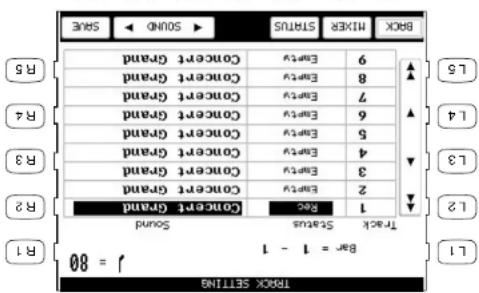
text_image
BAR = 1 - 1 J = 80 Track Status Sound 1 2 3 4 5 6 7 8 9 10 11 12 13 14 15 16 Sound Concert Grand Concert Grand Concert Grand Concert Grand Concert Grand Concert Grand Concert Grand Concert Grand Concert Grand Concert Grand Concert Grand Concert Grand Concert Grand Concert Grand Concert Grand Concert Grand Concert Grand Concert Grand Concert Grand Concert Grand Concert Grand Concert Grand Concert Grand Concert Grand Concert Grand Concert Great Concert Great Concert Great Concert Great Concert Great Concert Great Concert Great Concert Great Concert Great Concert Great Concert Great Concert Great Concert Great Concert Great Concert Great Concert Great Concert Great Concert Great Concert Great Concert Great Concert Great Concert Great Concert Great Concert Great Concert Great Concert Grand Concert Grand Concert Grand Concert Grand Concert Grand Concert Grand Concert Grand Concert Grand Concert Grand Concert Grand Concert Grand Concert Grand Concert Grand Concert Grand Concert Grand Concert Grand Concert Grand Concert Grand Concert Grand Concert Grand Concert Grand Concert Grand Concert Grand Concert Grand ConcertGrand ConcertGrand ConcertGrand ConcertGrand ConcertGrand ConcertGrand ConcertGrand ConcertGrand ConcertGrand ConcertGrand ConcertGrand ConcertGrand ConcertGrand ConcertGrand ConcertGrand ConcertGrand ConcertGrand ConcertGrand ConcertGrand ConcertGrand ConcertGrand ConcertGrand ConcertGrand ConcertGrand ConcertGrand ConcertGrande55 jumps to tracks 10-16, Tempo, and Style.
L3, L4 Selects the tracks one at a time.
L2 jumps to tracks 1-9.
Rt Changes the tempo. Use the Day to change the value.
L2 Turns the Loop ON/OFF.
L3 Specifies the starting bar.
L4 Specifies the ending bar.
5) Press the L4 button to specify the bar where you want the Loop to end.
6) Press the MENU button (F1) to return to the Advanced Recorder menu when you are finished.

text_image
LOOP SETTING L1 LOOP On START BAR 1 END BAR 1 L3 L4 L5 MENU F 1 F 2 F 3 F 4 F 5 F 6 F 7 R1 R2 R3 R4 R5F1 Takes you back to the Advanced Recorder menu.
- You can turn looping on and off in the Mixer menu. However, you still have to set the Start and End Bar from the Loop Settings menu.
- You can set up looping for recording in the Real-time REC menu as well. In the Real-time REC menu, when you turn on the looping, the Start Bar and End Bar information will be automatically copied from the Loop Settings menu.
Style Paste
When you record a Style as part of your song, the Style data is automatically recorded on the Style track. This data is unique to the CP, and cannot be used with any other musical instruments. Additionally the instrument tracks that are part of the Style cannot be edited individually.
Style Paste converts any Style data recorded on the Style track into MIDI note and event data and places it on separate tracks (Trks 9-16). Once the Style data is converted into actual note data, you can view and edit the individual Style tracks as if you had recorded the data yourself. Also your song including the Style can now be played back by any other MIDI instrument that reads Standard MIDI File (SMF) format song data.
pods
Punching in means being able to automatically start recording right in the middle of a task that is playing back, continue recording new data on that lack for a specified number of measures, and then automatically stop recording at a specific measure and hear the rest of the task play to the end. This tool is very valuable if you wish to record over some misplaced marks in the middle of a task, but would like to preserve the music in the measures leading up to, and following, the trouble
Punch-in Recording
FT Proceeds with Side Paste.
FI Cancels the Style Paste.
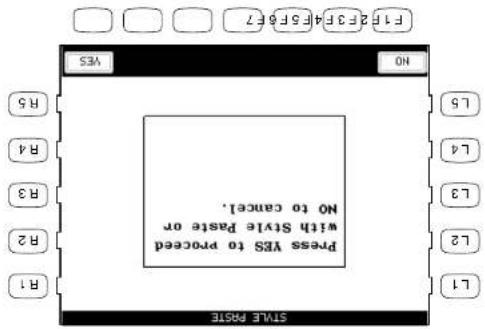
text_image
F1F23F34F5F6F7 F1F23F34F5F6F7 YES No R5 R4 R3 R2 R1 L5 L4 L3 L2 L1 PRSS YES TO PROCEED WITH STYLE PASTE OR NO TO CANCEL.1) Press the STYLE PASTE button (F1) while you are in the Advanced Recorder menu. The LCD screen will prompt you for confirmation. 2) If you would like to proceed, press the YES button (F7), or press the NO button (F1) to cancel.
To use Style Paste:
will replace any existing data.
Before you use Style Paste, you need to make sure Tracks 9-16 are empty or don't contain important data. When the Style is pasted, the data from the Style back will be pasted into these tracks and
To use Punch-in recording:
1) Select Punch In/Out in the Advanced Recorder menu.
2) Use the L and R buttons to select the options and change their values using the Dial. Select AUTO with the R5 button to have the CP automatically handle the punching in/out while you play.
3) Press the REHEARSAL button (F4, F5) to listen to the song for rehearsal. If you need to adjust mixing or if you would like to loop the song, use the MIXER (F2) or LOOP ON/OFF (F6) button.
4) When you are ready to record, press the REC button and then the PLAY button. The music will start immediately from the Start Bar that you have chosen. Once the song reaches the Punch In Bar, any notes that you play on the keyboard will be recorded.
Recording will stop when the song reaches the Punch-Out Bar, but the CP will keep playing back the song to the end unless you press the STOP button.
You can repeat the punch-in/out section by turning the looping on with the F6 button.
5) Listen to what you have recorded and re-record if necessary.
L1 Selects the track to Punch in on.
L3 Selects the measure in the song from where you want the CP to start playing.
L4 Selects the measure where the CP will punch-in and start recording.
L5 Selects the measure where the CP will punch-out and stop recording.

text_image
PUNCH IN/OUT (AUTO) REC TRACK L1 1 BAR 4/4 TEMP0 J = 80 START BAR REC MODE 1 REPLACE L3 PUNCH IN BAR 1 PUNCH OUT BAR AUTO/PEDAL 1 AUTO L4 R1 R2 R3 R4 R5 MENU MIXER REHEARSAL LOOP OFF F1 F2 F3 F4 F5 F6 F7F1 Takes you to the Advanced Recorder menu.
F2 Takes you to the Mixer Settings menu.
F4, F5 Plays the song for rehearsal.
F6 Turns Loop on/off.
R1 Changes the time signature.
R3 Selects the recording mode. REPLACE erases the previous data and records the new data in its place. OVERDUB mixes the new data with the previous data so that both are heard together. Repeatedly pressing the R3 button switches between the REPLACE and OVERDUB.
R5 Selects the Punch-in method, Auto or Pedal. Repeatedly pressing the R5 button switches between the Auto and Pedal.
R5 Selects Auto or Pedal as the Punch-in method. Repeatedly passing the R5 button switches between the Auto and Pedal.
R3 Selects the recording mode. REPLACE eases the previous data and records the new data in its place. OVERFUB mixes the new data with another. Reparately pressing the R3 without switches between the REPLACE and OVERFUB.
R2 Changes the tempo. R1 Changes the time signature.
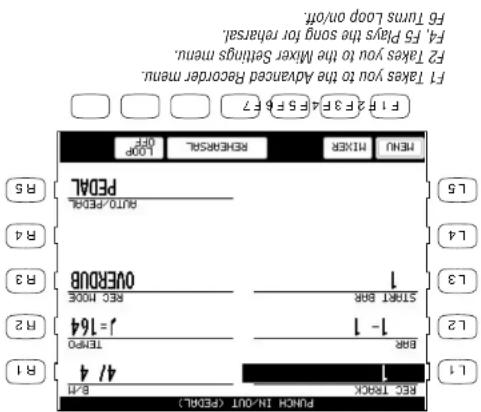
text_image
F1 Takes you to the Advanced Recorder menu. F2 Takes you to the Mixer Setting menu. F3 Plays the song for rehearsal. F4 Play the song for rehearsal. F5 Turns loop on/off. F6 F7 2 F9 3 F1 4 F5 E6 7 F8 F9 MENU MIXER RESEARCH 1 LOOP RECHN PEDAL R5 R4 R3 R2 L5 L4 L3 L2 L1 1 2 3 4 5 6 7 8 9 10 11 12 13 14 15 16 17 18 19 20 21 22 23 24 25 26 27 28 29 30 31 32 33 34 35 36 37 38 39 40 41 42 43 44 45 46 47 48 49 50 51 52 53 54 55 56 57 58 59 60 61 62 63 64 65 66 67 68 69 70 71 72 73 74 75 76 77 78 79 80 81 82 83 84 85 86 87 88 89 90 91 92 93 94 95 96 97 98 99 100L3 Selects the measure in the song from where you want the CP to start playing.
LT Selects the task to punch in.
1) Use the R5 button to select pedal in the Punch In/Out menu. 2) Use the L and R buttons to set up other recording options. 3) Press the REC button to start. The song will start playing. 4) When the song reaches the bar where you wish to punch in, press the center pedal and play the keyboard. 5) When you reach the bar where you wish to punch out, press the pedal again to stop recording. Notice that the song keeps playing to the end (it's just no longer recording) or until you press STOP.
To use the pedal to Punch-in/Out:
- You can punch in and out with peadal one time for each pass over the track that you make.
Punch-in recording using the pedal instead of specifically setting an automatic punch-in and Punch-Out Bar, you can use the center pedal to manually Punch-In and Out.
- If you set the CIP to Punch-in at the very first measure of the songs, the metronome will ordinarily play a two-measure into to assist you with the thinking. These "ticks" will not be recorded as part of the task.
Song Edit
Song Edit lets you name, transpose, and change initial tempo settings for your song.
To edit the song:
1) Select Song Edit from the Advanced Recorder menu. The Song Edit screen is displayed.
2) Use the L and R buttons to select the setting that you wish to change, then use the Dial to change the value.
3) To name to the song, use the F2 and F3 buttons to move the cursor over the characters in the name, then use the Dial to select characters.
4) Press the L3 button to set the transpose amount. You can transpose your song +/- 24 in half step increments.
5) Press L4 to change the initial tempo setting of the song.
6) When you are finished, press the MENU button (F1) to return to the Advanced Recorder menu.
L2 Names the song.
L3 Adjusts transposition.
L4 Sets the initial tempo of the song.
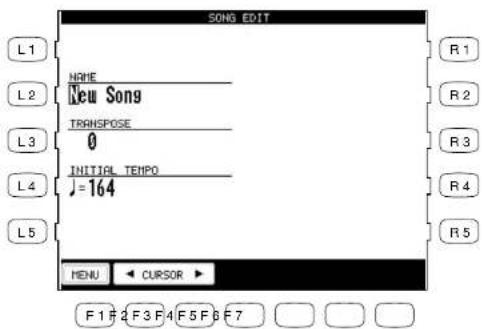
text_image
SONG EDIT L1 L2 L3 L4 L5 NAME New Song TRANSPOSE 0 INITIAL TEMPO J=164 MENU CURSOR F 1 F 2 F 3 F 4 F 5 F 6 F 7 R 1 R 2 R 3 R 4 R 5F1 Takes you to the Advanced Recorder menu.
F2, F3 Moves the cursor over the characters when naming the song.
FI Takes you to the Advanced Recorder menu.
Use the L and R buttons to select the desired edit function.
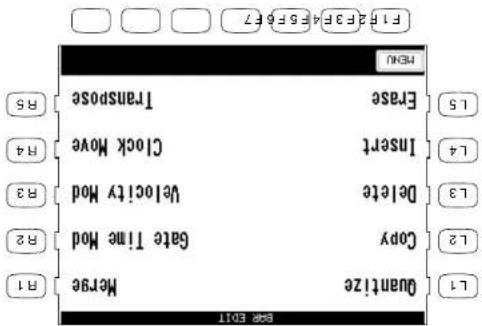
text_image
F1 2F3F4 F5F6F7 F1 2F3F4 F5F6F7 Menu Transpose Transpose Erase Locks Move Insert Clock Insert Delete Velocity Mod R4 R3 R2 Copy Gate Time Mod L1 Quantize Merge L2 L3 L4 L5 B11) In the Advanced Recorder menu select Bar Edit (R2). The Bar Edit screen will be displayed. 2) Use the L and R buttons to select the desired editing function. The editing screen for that function will be displayed.
To use Bar Edit:
barts at a time.
Bar Edit contains many useful editing functions. You can edit your songs one bar or any number of
Bar Editing
Quantize
Quantize automatically shifts the timing of a note. This can be used to correct imperfect timing in a performance by shifting notes that were played either too early or too late so they will fall exactly on the correct beat. For example, you can accurately align any out of time notes to the nearest 8th-or 16th-note beat depending on the type of song you are quantizing. Sometimes quantizing all of your notes to exactly the same beat can make your playing sound too stiff. The Advanced Recorder quantize function allows you to set a quantize "Range" so only the notes that were very early or late are quantized. Notes that were almost perfect are not quantized thus keeping more of the original feeling in your music.
L1 Selects the track that you wish to quantize.
L2, L3 Selects the bar range that you want to quantize. Use the Dial to set the bar numbers.
L4 Selects the lowest note that you want to quantize. Use the Dial to change the note value.
L5 Selects the highest note that you want to quantize. Use the Dial to change the note value.

text_image
QUANTIZE TRACK L1 START BAR 1 RESOLUTION 96J R1 L2 END BAR 1 RANGE LOW 0 R2 L3 NOTE LOW C -2 RANGE HIGH 0 R3 L4 NOTE HIGH G 8 R4 R5 BACK EXEC F 1 F 2 F 3 F 4 F 5 F 6 F 7F1 Returns you to the Advanced Recorder menu.
F2 Undoes the quantization which was just applied. This option is not always available.
F7 Applies the quantization to your recording.
R2 Selects the note Resolution for quantization. Use the Dial to change the value.
R3. R4 Sets the Low and High Range for quantization. Use the Dial to change the value.
- Resolution determines the timing value the quantize function will use to shift the notes you want to quantize. For example, setting a quarter note resolution will shift all of the quantized notes to the nearest quarter beat. Setting an eighth note resolution will shift all of the quantized notes to the nearest eighth beat and so on. In the Advanced Recorder, quantize values are expressed in note values and as a number that indicates how many clock beats each note value contains. The Advanced Recorder divides each beat in a bar into 96 smaller clock beats. A Quarter note is 96 clock beats, an eighth note is 48 clock beats, and a sixteenth note is 24 clock beats and so on. The quantize resolution range is from quarter notes (96 clocks), to 64th note triplets (4 clocks).
By experimenting with resolution and range settings, you can correct the timing of the notes in your recording while still allowing for a natural, human feel.
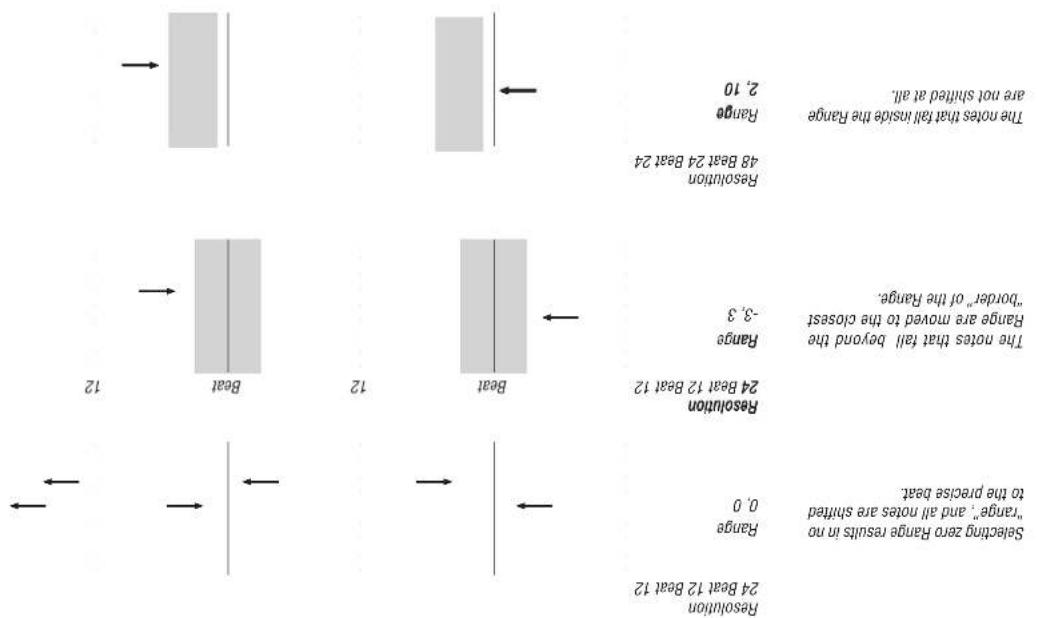
flowchart
graph TD
    A["Selecting zero Range results in no "range", and all notes are shielded to the precise beat"] --> B["Range 0.0"]
    B --> C["24 Bear 12 Bear 12"]
    C --> D["Resolution 24 Bear 12 Bear 12"]
    D --> E["Resolution 24 Bear 12 Bear 12"]
    E --> F["The notes that fall beyond the Range -3.3"]
    F --> G["Resolution 48 Bear 24 Bear 24"]
    G --> H["The notes that fall inside the Range -2.10"]
    H --> I["Resolution 48 Bear 24 Bear 24"]
- Range sets up thinking "borders" around the resolution value you specily. Notes within these booders will not be guaranteed and notes outside the booders will be moved to the nearest each specided by the resolution value (quarter note, Eighith note, etc.). The negative value represents the placement of the "border" before the beat, and the positive value represents the placement of the "border" after the beat. Together, these two "borders" form a timing "range" around the specified beat.
Copy
The Copy function allows you to copy a section or all of the data on a track to another location. The destination may be on the same track, or it can be on another track.
• The destination of the copied data must either be:
1) A location that already has data in it.
2) The first blank bar after the end of a track (Bar 1 if the destination track is empty).
For example, if a track only has 10 bars in it, you cannot copy data onto bar 20. You can, however, copy data to bars 1 through 11.
- Copied data replaces any current data that may be at the destination.
L2 Selects the track to be copied. Use the Dial to select the track numbers 1-16, Tempo, or Chord.
L3 Selects the bar where the data that you are copying starts. Use the Dial to change the bar number.
L4 Selects the bar where the data that you are copying ends. Use the Dial to change the bar number.
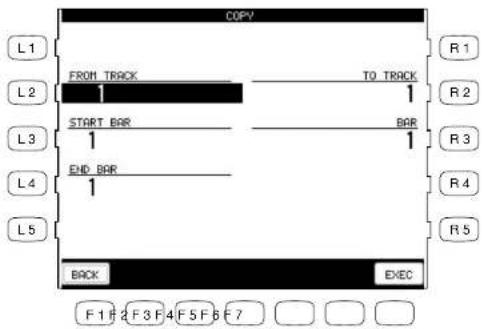
flowchart
graph TD
    A["FROM TRACK"] --> B["START BAR"]
    B --> C["END BAR"]
    C --> D["BACK"]
    D --> E["E/EC"]
    style A fill:#f9f,stroke:#333
    style B fill:#ccf,stroke:#333
    style C fill:#cfc,stroke:#333
    style D fill:#fcc,stroke:#333
    linkStyle 0 stroke:#000,stroke-width:2px
    linkStyle 1 stroke:#000,stroke-width:2px
    linkStyle 2 stroke:#000,stroke-width:2px
    linkStyle 3 stroke:#000,stroke-width:2px
    linkStyle 4 stroke:#000,stroke-width:2px
    linkStyle 5 stroke:#000,stroke-width:2px
    linkStyle 6 stroke:#000,stroke-width:2px
    linkStyle 7 stroke:#000,stroke-width:2px
    linkStyle 8 stroke:#000,stroke-width:2px
    linkStyle 9 stroke:#000,stroke-width:2px
    linkStyle 10 stroke:#000,stroke-width:2px
    linkStyle 11 stroke:#000,stroke-width:2px
    linkStyle 12 stroke:#000,stroke-width:2px
    linkStyle 13 stroke:#000,stroke-width:2px
    linkStyle 14 stroke:#000,stroke-width:2px
    linkStyle 15 stroke:#000,stroke-width:2px
    linkStyle 16 stroke:#000,stroke-width:2px
    linkStyle 17 stroke:#000,stroke-width:2px
    linkStyle 18 stroke:#000,stroke-width:2px
    linkStyle 19 stroke:#000,stroke-width:2px
    linkStyle 20 stroke:#000,stroke-width:2px
    linkStyle 21 stroke:#000,stroke-width:2px
    linkStyle 22 stroke:#000,stroke-width:2px
    linkStyle 23 stroke:#000,stroke-width:2px
    linkStyle 24 stroke:#000,stroke-width:2px
    linkStyle 25 stroke:#000,stroke-width:2px
    linkStyle 26 stroke:#000,stroke-width:2px
    linkStyle 27 stroke:#000,stroke-width:2px
    linkStyle 28 stroke:#000,stroke-width:2px
    linkStyle 29 stroke:#000,stroke-width:2px
    linkStyle 30 stroke:#000,stroke-width:2px
    linkStyle 31 stroke:#000,stroke-width:2px
    linkStyle 32 stroke:#000,stroke-width:2px
    linkStyle 33 stroke:#000,stroke-width:2px
    linkStyle 34 stroke:#000,stroke-width:2px
    linkStyle 35 stroke:#000,stroke-width:2px
    linkStyle 36 stroke:#000,stroke-width:2px
    linkStyle 37 stroke:#000,stroke-width:2px
    linkStyle 38 stroke:#000,stroke-width:2px
    linkStyle 39 stroke:#000,stroke-width:2px
    linkStyle 40 stroke:#f9f,stroke-width:2px
    linkStyle 41 stroke:#f9f,stroke-width:2px
    linkStyle 42 stroke:#f9f,stroke-width:2px
    linkStyle 43 stroke:#f9f,stroke-width:2px
    linkStyle 44 stroke:#f9f,stroke-width:2px
    linkStyle 45 stroke:#f9f,stroke-width:2px
    linkStyle 46 stroke:#f9f,stroke-width:2px
    linkStyle 47 stroke:#f9f,stroke-width:2px
    linkStyle 48 stroke:#f9f,stroke-width:2px
    linkStyle 49 stroke:#f9f,stroke-width:2px
    linkStyle 50 stroke:#f9f,stroke-width:2px
F1 Returns you to the Advanced Recorder menu.
F2 Undoes the copying. This option is not always available.
F7 Proceed with copying.
R2 Selects the destination track. Use the Dial to select the track number 1-16, Tempo, or Chord.
R3 Selects the bar in the destination track where the copied data will be placed.
Kouva Concert Perform Series Digital ^1 ratio
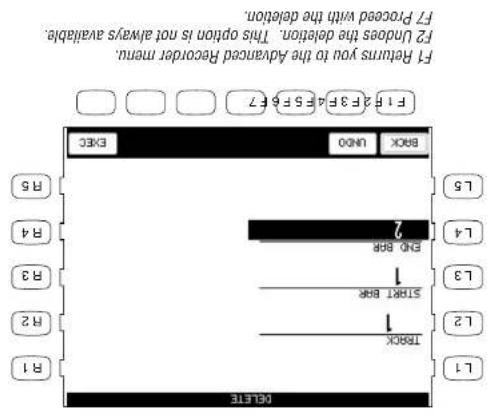
text_image
F1 Returns you to the Advanced Recorder menu. F2 Undoes the deletion. This option is not always available. F3 Processed with the deletion. F4 F5 F6 F7 F5 F6 F7 F6 F7 F7 F8 F9 F10 F11 F12 F13 F14 F15 F16 F17 F18 F19 F20 F21 F22 F23 F24 F25 F26 F27 F28 F29 F30 F31 F32 F33 F34 F35 F36 F37 F38 F39 F40 F41 F42 F43 F44 F45 F46 F47 F48 F49 F50 F51 F52 F53 F54 F55 F56 F57 F58 F59 F60 F61 F62 F63 F64 F65 F66 F67 F68 F69 F70 F71 F72 F73 F74 F75 F76 F77 F78 F79 F80 F81 F82 F83 F84 F85 F86 F87 F88 F89 F90 F91 F92 F93 F94 F95 G00 G01 G02 G03 G04 G05 G06 G07 G08 G09 G10 G11 G12 G13 G14 G15 G16 G17 G18 G19 G20 G21 G22 G23 G24 G25 G26 G27 G28 G29 G30 G31 G32 G33 G34 G35 G36 G37 G38 G39 G40 G41 G42 G43 G44 G45 G46 G47 G48 G49 G50 G51 G52 G53 G54 G55 G56 G57 G58 G59 G60 G61 G62 G63 G64 G65 G66 G67 G68 G69 G70 G71 G72 G73 G74 G75 G76 G77 G78 G79 G80 G81 G82 G83 G84 G85 G86 G87 G88 G89 G90 G91 G92 G93 G94 G95 G96 G97 G98 G99 SELECTL2 Selects the task to be deleted. Use the Dail to choose 7-16. Tampo, Chord or All L3 Selects the first bar that has the data you want to delete. Use the Dail to change bars. L4 Selects the last bar that contains the data that you want to delete. Use the Dail to change bars.
Delete completely erases and removes the bars that you specify.
Insert
The Insert function duplicates data from specified bars and copies it to a certain location. However, the current data at the destination is not erased, but instead is pushed back to make room for the copied data.
L2 Selects the track that contains the data you wish to duplicate. Choose from 1-16, Tempo, Chord or All.
L3 Selects the first bar that has the data you want to duplicate.
L4 Selects the last bar that has the data you want to duplicate.
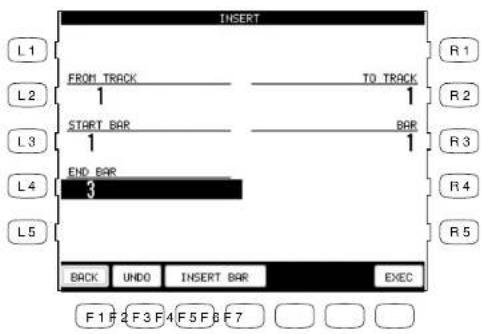
flowchart
graph TD
    A["INSERT"] --> B["L1"]
    A --> C["R1"]
    A --> D["L2"]
    A --> E["R2"]
    A --> F["L3"]
    A --> G["R3"]
    A --> H["L4"]
    A --> I["R4"]
    A --> J["R5"]
    A --> K["BACK"]
    A --> L["UNDO"]
    A --> M["INSERT BAR"]
    A --> N["EXEC"]
    style A fill:#f9f,stroke:#333
    style B fill:#ccf,stroke:#333
    style C fill:#ccf,stroke:#333
    style D fill:#ccf,stroke:#333
    style E fill:#ccf,stroke:#333
    style F fill:#ccf,stroke:#333
    style G fill:#ccf,stroke:#333
    style H fill:#ccf,stroke:#333
    style I fill:#ccf,stroke:#333
    style J fill:#ccf,stroke:#333
    style K fill:#ccf,stroke:#333
    style L fill:#ccf,stroke:#333
    style M fill:#ccf,stroke:#333
    style N fill:#ccf,stroke:#333
F1 Takes you to the Advanced Recorder menu.
F2 Undoes the Insert. This option is not always available.
F3. F4 Takes you to the Insert Bar menu.
F7 Proceeds with the Insert.
R2 Selects the destination track where you want this data inserted. Choose from 1-16, Tempo, Chord or All.
R3 Selects the bar in the destination track where you want this data inserted.
- If you just wish to insert empty bars into a track, select INSERT BAR (F3 or F4), and a sub-menu will be displayed. You can insert empty bars into a track between bars that have data, or at the first blank bar at the end of the track.
Koula: Convert [super Series Digital]
R3 Selects the location in the destination track where you want the empty bars inserted. Use the Dial to choose the location.
B2 Selects the rack where the empty bars are going to be interested. Choose 1-16, Tempo. Chord or All.
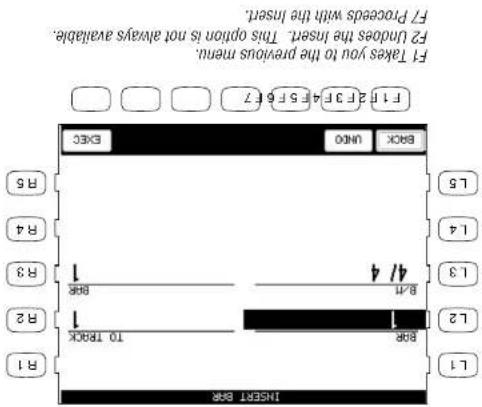
text_image
F1 Takes you to the previous menu. F2 Undoes the insert. This option is not always available. F3 Proceeds with the insert. BCK INFO EXIT 8/5 B4 L4 L5 L3 4/4 B4/1 B3 L2 1 10 TRACK B2 R1 IMPORT BB613 Selects the time signature for the bars that are going to be interested. Use the Deal to change the value.
L2 Selects the number of empty bars you wish to insert. Use the Deal to change the value.
Erase
Erases data in the bars that you specify, and leaves them as empty bars.
L2 Selects the track that has the bars you want to erase. Choose 1-16, Tempo or Chord.
L3 Selects the first bar to be erased. Use the Dial to change the bar.
L4 Selects the last bar to be erased. Use the Dial to change the bar.

flowchart
graph TD
    A["ERROR"] --> B["L1"]
    A --> C["L2"]
    A --> D["L3"]
    A --> E["L4"]
    A --> F["L5"]
    B --> G["TRACK"]
    C --> H["START BAR"]
    D --> I["END BAR"]
    E --> J["3"]
    F --> K["BACK UNDO EXEC"]
    style A fill:#f9f,stroke:#333
    style B fill:#ccf,stroke:#333
    style C fill:#ccf,stroke:#333
    style D fill:#ccf,stroke:#333
    style E fill:#ccf,stroke:#333
    style F fill:#ccf,stroke:#333
F1 Takes you to the Advanced Recorder menu.
F2 Undoes the Erase. This option is not always available.
F7 Proceeds with the Erase.
FY Proceed with the Merge.
F2 undoes the Marge. This option is not always available.
F1 Takes you to the Advanced Recorder menu.
R2 Select the track where you want this data merged to. Choose 1-16.
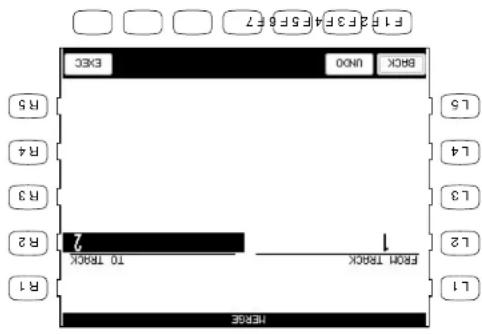
text_image
F1 F2 F3 F4 F5 F6 E7 EKC 8000 R5 L5 R4 L4 R3 L3 R2 7 FROM TRACK 10 TRACK R1 REFERENCEdata. Choose t-16.
L2 Selects the Track from where you want to copy/
- Merge does not automatically erase the track from where you copied the data.
Free up extra tracks for more recordings.
Myge combines data from two tasks. You can make complex immiscal phrases using several tasks, then combine them together on one task. Remember that they can only be one investment sound when combined each together on one task. Moreover that they can only be one investment sound which will play all the combined data using one assignment to each task, so the resulting merged task will play all the combined data using three different insturment sounds. Myge can be useful for making rhythmic patterns by first recording different drive percussion parts using the same duration of several tasks for easy editing of each insturment, or recording the right and left hand parts of a piano piece and combining them later on one task to record during the right and left hand parts of a piano piece and combining them later on one task to record during the right and left hand parts of a piano piece and combining them later on one task to record during the right and left hand parts of a piano piece and combining them later on one task to record during the right and left hand parts of a piano piece and combining them later on one task to record during the right and left hand parts of a piano piece and combining them later on one task to recordduring the right and left hand parts of a piano piece and combining them later on one task to record during the right and left hand parts of a piano piece and combining them later on one task to record during the right and left hand parts of a piano piece and combining them later on one task to record during the right and left hand parts of a piano piece and combining them later on one task to record during the right and left hand parts of a piano piece and combining them later on one task to record During percussion parts using the same duration of several tasks for easy editing of each insturment, or recording the right and left hand parts of a piano piece and combining them later on one task to record during the right and left hand parts of a piano piece and combining them later on one task to record during the right and left hand parts of a piano piece and combining them later on one task to record during the right and left hand parts of a piano piece and combining them later on one task to record During percussion parts using the same duration of several tasks for easy editing of each insturment, or record during the right and left hand parts of a piano piece and combining them later on one task to record during the right and left hand parts of a piano piece and combining them later on one task to record during the right and left hand parts of a piano piece and combining them later on one task to record during the right and left hand parts of a piano piece and combining them later on one task to record during the right and left hand parts of a piano piece and combining them later on one taskto Record during the right and left hand parts of a piano piece and combining them later on one task to record during the right and left hand parts of a piano piece and combining them later on one task to record during the right and left hand parts of a piano piece and combining them later on one task to record during the right and left hand parts of a piano piece and combining them later on one task to record during the right and left hand parts of a piano piece and combining them later on one task torecord during the right and left hand parts of a piano piece and combining them later on one task to record during the right and left hand parts of a piano piece and combining them later on one task to record during the right and left hand parts of a piano piece and combining them later on one task to record during the right and left hand parts of a piano piece and combining them later on one task to record during the right and left hand parts of a piano piece and combining them later on one task to Record During the Right and Left Hand Parts of a Piano Piece and combining them later on one task to record During the Right and Left Hand Parts of a Piano Piece and combining them later on one task to record During the Right and Left Hand Parts of a Piano Piece and combining them later on one task to record During the Right and Left Hand Parts of a Piano Piece and combining them later on one task to record During the Right and Left Hand Parts of a Piano Piece and combining them later on one task to record During the Right and Left Hand Parts of a Piano Piece and combining them later on one task to Record During the Right and Left Hand Parts of a Piano Piece and combining them later on one task to record During the Right and Left Hand Parts of a Piano Piece and combining them later on one task to record During the Right and Left Hand Parts of a Piano Piece and combining them later on one task to record During the Right and Left Hand Parts of a Piano Piece and combining them later on one task to record During the Right and Left Hand Parts of a PianoPiece and combining them after using several tasks, you can make complex immiscal phrases using several tasks,
Merge
Gate Time Modify
Gate time refers to the length of a note as a percentage. Whatever the length of a note is when it is first recorded, this value is considered as its Gate time of 100%. By editing the length of the note, you can shorten it to 10% or lengthen it to 300% of the original value.
L2 Selects the track in which you want to modify Gate times. Use the Dial to choose the track.
L3 Selects the first bar of the data that you want to modify Gate times for. Use the Dial to change bars.
L4 Selects the last bar of the data that you want to modify Gate times for. Use the Dial to change bars.

text_image
GATE TIME MODIFY L1 TRACK 100 % L2 START BAR 1 END BAR 3 R1 R2 R3 R4 R5 BACK UNDO EXEC F 1 F 2 F 3 F 4 F 5 F 6 F 7R2 Adjusts the Gate time in 10% increments. Use the Dial to select a value from 10%-300%.
F1 Takes you to the Advanced Recorder menu. F2 Undoes the Gate time adjustment. This option is not always available. F7 Proceeds with applying the Gate time adjustment.
FT Proceeds with adjusting the Velocity values.
evalue.
F2 Undoes the Velocity adjustment. This option is not always
FT Takes you to the Advanced Recorder menu.
current values.
R2 Adjusts Velocity from -100 to +100 of their
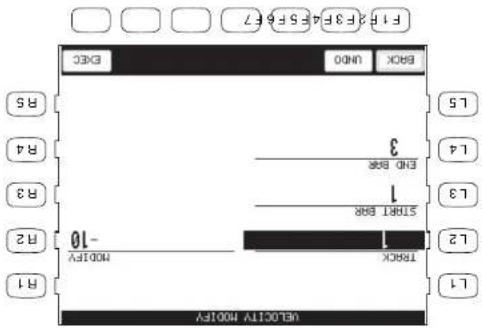
text_image
F1 23F3F4 5E6E7 BOX: 1000 B5 B4 B3 B2 B1 10 -10000 B10000 M00FY 3 END B88 STAPB B88 TROCK L1 L2 L3 L4 L5ends
LA Selects the bar where the data you want to adjust
starts.
L3 Selects the bar where the data you want to adjust
Velocity.
12 Selects the track in which you want to adjust
You can change them within a +/-100 range of their original values.
A note's Velocity is a numerical value from 1-127. When editing the note Velocities in your recording,
produced sound is.
Velocity refers to how hard a key is structure, which translates into the dynamics of how loud the
Velocity Modity
Clock Move
In the Resolution section of this manual we learned that the CP Advanced recorder divides each beat in a bar into 96 clock beats, also expressed as a quarter note. Therefore there are 48 clocks per eighth note, and 24 clocks per sixteenth note and so on. This relationship holds true regardless of the song's tempo.
On the CP, you can shift the timing of all notes in a track by shifting the entire track ahead (negative values) or behind (positive values) the beat by a certain clock value. Clock move is useful for adjusting the overall timing of a track. For example, if a certain sound you recorded responds slowly and sounds behind the beat, you could shift the timing of the notes ahead of the beat to compensate for the sounds slow response and make its timing feel more natural.
L2 Selects the track that you wish to move. Choose from 1-16.

text_image
CLOCK HOUSE L1 L2 L3 L4 L5 TRACK 1 CLOCK +5 R1 R2 R3 R4 R5 BACK UNDO EXEC F 1 F 2 F 3 F 4 F 5 F 6 F 7R2 Sets how many clocks you wish to move the track. Choose from -999 to +999.
F1 Takes you to the Advanced Recorder menu.
F2 Undoes the clock move. This option is not always available.
F7 Proceeds with applying the clock move.
Kouva Concert Perform Series Digital ^1 ratio
FY Proceeds with applying the transition.
F2 Under the transition. This option is not always available.
FI Takes you to the Advanced Recorder menu.
R2 Adjuits transition amount in half-step incerments from -24 to 24.
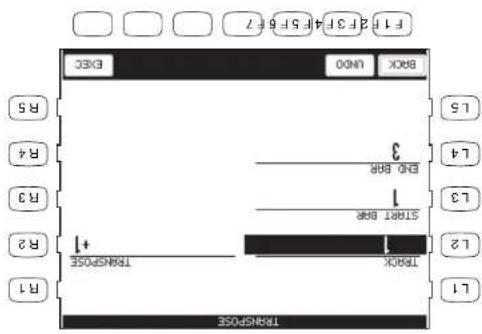
text_image
F1 F2 F3 F4 F5 F6 F7 BACK UNDO EXC R5 L5 R4 B4 B3 L4 B0 BBG 3 1 Start BBE 1 B2 12 L1 TRANSPOSE R1 TRANSPOSEtransposed.
LA Selects the bar where the notes you want to
transpose start.
13 Selects the bar where the notes you want to
transpose. Choose from 1-16.
L2 Selects the task that has the notes you want to
This will transpose the notes within a specified bar(s) up or down in half-step increments.
Transpose
Event Edit
Event Edit enables you to examine and edit your performance note by note.
To use Event Edit:
1) Select Event Edit in the Advanced Recorder menu. The Event Edit screen will be displayed.
2) Choose the track that you want to edit using the TRACK buttons (F3, F4). Note that Style, Chord, and Tempo track can be edited as well.
3) Use the L buttons to scroll up or down the event list until you find the specific event that you want to edit. You can also use the Dial to scroll through the event list. You will hear the individual events being played as you scroll over them.
4) Use the CURSOR buttons (F5, F6) buttons to determine how you want to scroll through the event list. Selecting Bar scrolls through the event list bar by bar, selecting Beat scrolls through the event list beat by beat and so on. The selection will become highlighted.
L2 Moves the cursor to the previous bar.
L3 Moves the cursor up the event list.
L4 Moves the cursor down the event list.
L5 Moves the cursor to the next bar.
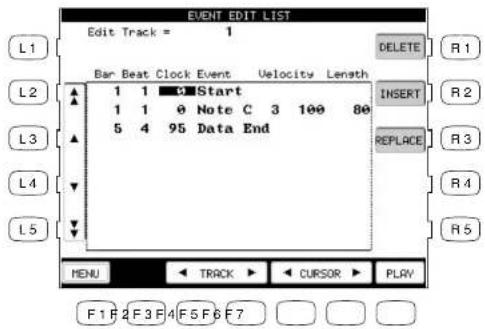
text_image
EVENT EDIT LIST Edit Track = 1 Bar Beat Clock Event Velocity Length L1 L2 L3 L4 L5 1 1 0 Start 1 1 0 Note C 3 100 80 5 4 95 Data End DELETE R1 INSERT REPLACE R2 R3 R4 R5 MENU TRACK CURSOR PLAY F1 F2 F3 F4 F5 F6 F7F1 Takes you to the Advanced Recorder menu.
F3, F4 Selects the track to work with.
F5, F6 Moves the cursor across the columns in the event list.
F7 Starts playing the Track.
R1 Removes the selected event.
R2 Creates a new event.
R3 Modifies the existing event.
Kouva Concert Perform Series Digital ^1 ratio
F5, F6 Moves the cursor across the columns in the event list.
F2 Cancel the digit.
FI Takes you to the Advanced Recorder Manual.

text_image
EORT 001 LIST BAR BIAS CIOOK EUNIC SELECT FEACH = 1 EB 3 1 1 0 Note 100 80 REPLACE INSERT Data end 1 0 Note C 3 100 80 INSERT 1 2 L5 L4 L3 L2 R1 R2 R3 R4 R5 F1 F2 F3 F4 F5 F6 F7 NEXT ONEW C#NCELE C#SOSB EXCK ENGL5) Select the function that you would like to apply to this event. You can select DELTE (R1) to remove the event, INSERT (R2) to create a new event at any specified location, or REPLACE (R3) to change the event, INSERT (R2) to create a new event at any specified location, or REPLACE (R3) to change the event, INSERT (R2) to create a new event at any specified location, or REPLACE (R3) to change the event, INSERT (R2) to create a new event at any specified location, or REPLACE (R3) to change the event, INSERT (R2) to create an event at any specified location, or REPLACE (R3) to change the event, INSERT (R2) to create a new event at any specified location, or REPLACE (R3) to change the event, INSERT (R2) to create a new event at any specified location, or REPLACE (R3) to change the event, INSERT (R2) to create an event at any specified location, or REPLACE (R3)
When you play a Style, each of these sections plays a musical Phrase composed for that type of instumen. Each section can play one of your different musical phrases, one for each of the four variations within a Style. Easy Diet lets you assign which of these four phrases will be played by each section for each of the four variations within the Style. This means you can unique arrangements. Once you are satisfied with your edits, you can save your Happy Style edits to the PRESEIT STYLE.
or Bass tracks.
This is an easy way to call the Style data. The CP built-in styles are comprised in the different types, Full, Ultimate, and Solo Piano Styles. A Full Style consists of six instrument tracks called Sections. These are the Drums, based on four accounts' tracks. The intimate Styles have four sections, Dinn, Bass, And Two Accountment tracks, The Solo Piano styles have two Accountment Tracks (Big and Left hand) and no Drum
Easy Style Edit
The Conductor is used to edit Press data.
Conducor
an Existing Style, and Phrase Combination.
The Style Maker allows you to create Styles of your own. There are three ways of using this feature: Make a New Style, Edit
to your taste.
The Conductor allows you to edit the Style data and personalize it
are the Conductor and the Style Maker.
The Concert Performer contains 182 built-in Styles covering a wide variety of musical gardens. There are two powerful features that allow you to eat any of these Styles to better suit your musical ranks, or even create your own Style entry from scratch. These
Creating Your Own Styles
To use Easy Edit:
1) Select the Style and the Variation (1-4) that you would like to edit.
2) Press the EDIT button. The LCD screen will display the Easy Style Edit screen.
3) Use the F2-F7 buttons to select a Section to edit.
4) Use the L buttons to select the desired Phrase (1-4) for each Section. You can edit while the Style is running to hear your changes.
5) To mute a Section, press the corresponding F button. Pressing the F button again will un-mute the section.
6) If you would like to save your edits, press the SAVE TO PRESET (R1) button. The saved contents will be written to the PRESET STYLE. If you don't save your edits, they will be lost when you turn the power OFF.
7) Press the EXIT button to leave the Easy Style Edit screen.
L2-L5 Selects a Phrase for the Section.
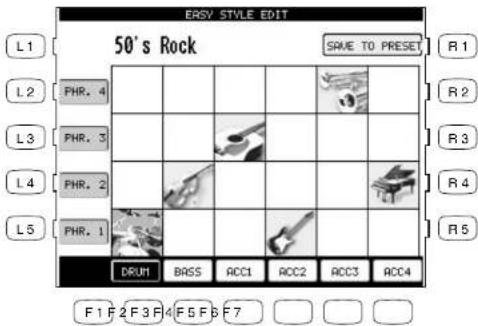
text_image
ERSY STYLE EDIT 50's Rock SAVE TO PRESET L1 R1 L2 PHR. 4 R2 L3 PHR. 3 R3 L4 PHR. 2 R4 L5 PHR. 1 R5 DRU1 BASS ACC1 ACC2 ACC3 ACC4 F1 F2 F3 F4 F5 F6 F7R1 Saves the changes to the Preset Style.
F2–F7 Selects which Section is being changed. Pressing again will mute the Section.
Easy Edit doesn't allow you to edit the Info, Finding and Fill-ins. However, making a Section in the Style will result in automatic muting of the same Section in the Info, Finding and Fill-ins. If you make a certain Section, you need to consider what effect it will have on the overall Style.
Note:
Reset on page 124.
- If you would like to revert all Styles back to their original factory settings, after you have pressed the SAVE button, use reset conductor on the soft Reset screen. See the section titled "Soft
The CP always remembers the original Pratest Style settings. If you wish to restore those factory settings before saving your edits, simply press the REST button in the Conductor.
Resetting the Style
- For Solo Piano Styles the Drum, Bass, and ACC 3/4 Sections are not used and cannot be edited.
• For Intimate Styles the ACC 3/4 Sections are not used and cannot be edited.
- Pressing the SAVE button will save all Styles at one time. You cannot save individually.
Making a Style with Get Phrase from Recorder
This is the most flexible way to create a new Style.
You can take music that you have recorded using the CP's own Recorder and convert it into Style data. Or, you can use an external MIDI device or a personal computer to create the musical phrases, then load the data into the CP's Recorder and convert those.
Configuration of a Style
A complete Style consists of the following patterns:
Basic pattern 4 patterns (Variation 1–4) Max 16 measures
Fill-in 4 patterns (Fill-In 1–4) 1 or 2 measures
Intro Major 2 pattern Max 16 measures
Intro Minor 2 pattern Max 16 measures
Ending Major 2 pattern Max 16 measures
Ending Minor 2 pattern Max 16 measures
- Each of these are made of six Sections—Drum, Bass, ACC1, ACC2, ACC3 and ACC4. However you don't necessarily have to have all of them to create a Style. For example, you may not need to use some Variations or Sections to accomplish your musical idea. These unused sections may be left blank, or filled with Section data copied from the initial source Style that you were asked to choose at the beginning of the Style Maker process.
- The different Sections can be of varying bar lengths as long as they stay within the limit. Having them all the same length may make the Style easier to use in a song, but you may find that having uneven bar lengths among the Sections can create interesting musical results.
- Before you can generate a Style from these phrases, you have to have them loaded into the Recorder, keeping in mind which tracks in the Recorder are going hold data for which Sections in the new Style.
- The source recording in the CP's Recorder can be in any key. However, you need to know what key that is, because you will have to specify that as part of generating a new Style. For simplicity's sake it is advisable to record in C if you are planing on using the recording with the Style Maker.
Rs Selects the Initial Style.
R3 Selects the Style you want to edit.
FY Enters the selected Style Maker menu. FY 50 to the Advanced Recorder menu.
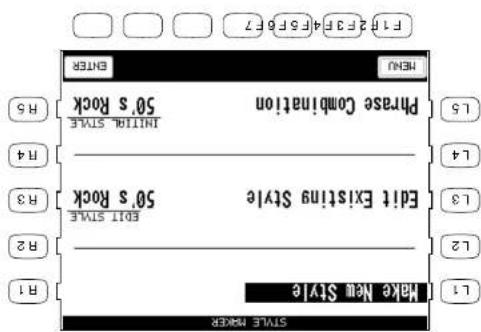
text_image
F1 F2 F3 F4 F5 F6 F7 F1 F2 F3 F4 F5 F6 F7 MENU ENTER Phrase Combination 50's Rock Initiation State H5 Edit Existing Style 50's Rock H3 EOT State H2 Make New Style R1 L1 L2 L3 L4 H4 H515 Selects Phrase Combination.
L3 Selects Edit Existing Style.
L1 Selects Make New Style.
1) Press the ADVANCED RECORDER button. The LCD screen will display the Advanced Recorder menu. 2) In the Advanced Recorder menu, press the Style Maker button (Ra). The LCD screen will display the first Style Maker screen. 3) To make a completely new Style, press the Make New Style button (Lt). To edit an existing style, press the Edit Existing Style button (Lt3) and use the Deal to select the style you want to edit. 4) Press the ENTER button (F7). The Style Maker Get Perase screen will be displayed.
To create a Style:
5) Use the F2–F7 buttons to select which track from the Recorder has the data that you want used for each Section of the Style. You can switch off a Section by pressing its F button twice, and the Section will not be created in your Style.
6) Use the L and R buttons to set up the options and select the proper data from the Recorder. You may have different options for each track.
7) Press the MORE button (F1) for advanced settings.
8) Press the R4 button to generate the Style. You can listen to it by pressing the START/STOP button.
L1 Selects which pattern you are currently creating.
L2 Selects the first bar of the phrase in the recording that you want to convert.
L3 Selects the bar length of the phrase in the recording that you want to convert.
L4 Enter the key that the phrase was in.
L5 Selects the track where the phrase was recorded.
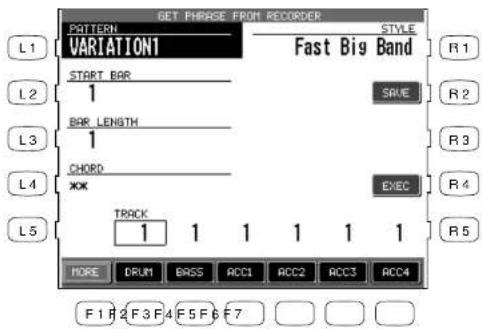
text_image
GET PHRAGE FROM RECORDER PATTERN VARIATION1 START BAR 1 BAR LENGTH 1 CHORD JXK TRACK 1 1 1 1 1 1 R1 R2 R3 R4 R5 R6 R7 F1 F2 F3 F4 F5 F6 F7R2 Saves the new Style.
R4 Generates the new Style from your settings.
F1 Takes you to the next menu for more options. F2-F7 Selects which Section(s) you are working with. Pressing twice deactivates the Section so that it will not be incorporated into the new Style.
F? Saves the style to user Style.
F4. F5 Selects the characters.
F2. F3 Moves the cursor.
FT Takes you to the previous menu.

text_image
F1 2 F3 F4 F5 F6 7 File Edit View Insert Save Back Create ClickBox ClickPoint Save User Style Name Size 10 1 = 164 RSSST 1890 R1 R2 R3 R4 R59) If you would like to save it, press SAVE (R2). 10) Press the PRESET TEMPO button (11) and use the dial to set the default tempo for the style. 11) Press the SAVE button (13) and use the dial to select the location to save your new Style. 12) Press the NAME button (L4), use the F2 and F3 buttons to move the cursor and use the F4 and F5 buttons or the dial to select the characters to name the style. 13) Press the SAVE button (F7).
Auto-accompaniment System
The Concert Performer Auto-Accompaniment System (ACC) analyzes your playing and adjusts the note data recorded in the different Phrases in a pattern to match the root key and chord type you are playing. The ACC System also shifts the octave for each phrase to keep each section playing within its musically useful range. To get the most out of this System, any new Style you create can benefit from some fine tuning of these settings.
When you press the MORE button (F1) on the Style Maker Get Phrase screen, the Style Maker Detail Settings screen will be displayed.
Accompaniment Type (ACC Type)
This setting determines how Phrases being played by a particular section in a pattern will be analyzed by the Auto-accompaniment (ACC) System. There are Two Accompaniment Types: Chordal and Scalic (melodic). Chordal Phrases usually consist of block chords or arpegiated chords. You should set this kind Phrase to Chordal. Scalic Phrases usually play melodic phrases that serve to add interest to the style as well as provide counter melodies and riffs. Melodic Phrases or Phrases that contain chromatic passages should be set to Scalic. Scalic Phrases can also contain chords but they will be analyzed differently than chords in a Chordal Phrase. The Bass section is automatically set to Scalic since it will rarely if ever play chords.
The terms Open and Close apply to Chordal Phrases, and refer to how the CP will regulate the voicing of a Chordal Phrase. Setting a Section to Open will allow for open-voiced chords, which might be good for guitar and string sounds. Setting a Section to Close maintains closed voiced chords, which are better suited to piano parts and other chording or comping instruments.
Range
This determines the chord inversions that a Chordal Phrase will play.
The term “range” here has nothing to do with the span of actual chord notes. It selects which note in the chord will serve as the basis of the chord inversion.
HI is the initial setting and is recommended as a starting point. MID plays an inversion based on the next lower note in relation to HI, while LO plays an inversion based two-notes lower.
Crossover
This determines the point where a Scalic Phrase will be transposed to keep the notes in a musically useful range. When notes in a Scalic Phrase fall below the Crossover point you select they will be transposed up one octave by the Accompaniment System. For example if you set the Crossover
F3-F7 Selects the Section.
F2 Plays the style.
F1 Takes you to the previous menu.
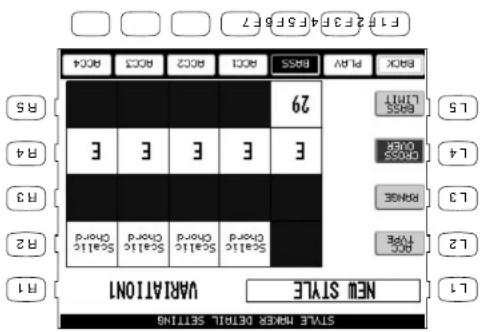
text_image
NEW STYLE VARIATION101 STATE WORK ©TRIL SETTLE R1 L1 L2 L3 L4 L5 B13 B14 B15 B2 B2 B3 B4 B5 B6 B7 B8 B9 B10 B11 B12 B13 B14 B15 B16 B17 B18 B19 B20 B21 B22 B23 B24 B25 B26 B27 B28 B29 B30 B31 B32 B33 B34 B35 B36 B37 B38 B39 B40 B41 B42 B43 B44 B45 B46 B47 F1F 2F3F 4F5F 6F7 F1F 2F3F 4F5F 6F715 Changes BASS LIMIT.
LA4 Changes CROSS OVER.
13 Changes Range.
L2 Changes ACC Type.
4) When done, press the BACK button (FT) to go back the previous menu. Then save the Style if necessary.
3) Use the Dial to select or change a value.
2) Use the F3-F7 buttons to select the Section.
1) Use the L2-L4 buttons to select the setting you wish to change.
To adjust the auto-accompaniment system:
This is an option for the Bass section and sets the limit for the lowest note the Bass will play. If a note in a Bass Phase fails below the limit, it will automatically be transposed up an octave.
Bass Limit
Phrases.
Experiment with the different Chordal and Scale settings to find the one that works best with each
an E as the root.
point to E, the Please would begin to be transposed up one octave whenever you play a chord with
Making a Style with Phrase Combination
Phrase Combination is similar to Easy Style Edit in the Conductor. Phrase Combination however, lets you not only combine Phrases from within the selected Style but you can also combine Phrases from any of the Styles in the CP to create a new Style. Additionally you can edit Fill-ins and basic patterns (Variations).
- You cannot change the Intro and Ending Phrases. These will remain the same as in your selected Style.
To use Phrase Combination:
1) In the Advanced Recorder menu, press the Style Maker button (R4). The LCD screen will display the first Style Maker screen.
2) Press the Phrase Combination button (L5) and use the dial to select the initial style.
3) Press the ENTER button (F7) to proceed to the next screen.
4) Use the L2 and R2 buttons to select which of the four Fill-ins and Variations you would like to change.
5) Use the L3 and L5 buttons to select the Section to change.
6) Use the F4 and F5 buttons to move the cursor between the Style and Phrase column.
7) Use the Dial to change the current Style or Phrase. You can jump to the desired Style category by pressing the Style select buttons directly.
8) Press the PLAY button (F2) to listen to the new Style.
9) Press the SAVE button (F7) to save the new Style.
10 Press the PRESET TEMPO button (L1) and use the dial to set the default tempo for the style. 11 Press the SAVE TO button (L3) and use the dial to select the location to be saved. 12 Press the NAME (L4). Use the F2 and F3 buttons to move the cursor and use the F4 and F5 buttons of the Dail to select the characters to name the style. 13 Press the SAVE button (F7). 14 Press the Dail to select the characters to name the style.
R2 Selects the pattern to change. Choose variation 1-4 or FILL-in 1-4.
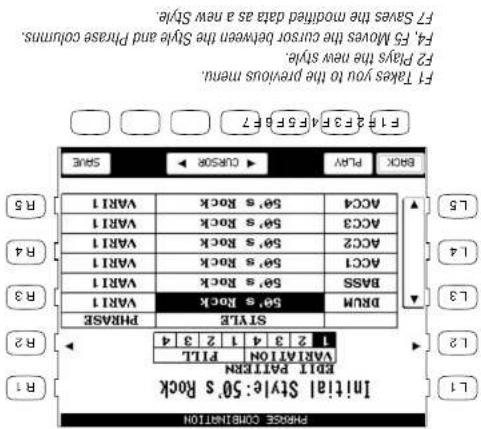
text_image
F1 #2 F3 P4 F5 P6 7 F1 Takes you to the previous menu. F4. R5 Alaves the cursor between the Style and Phrase columns. F7 Saves the modified data as a new Style. F2 Plays this new Style. Back Play > Cursor > Gate ACC4 50's Rock VAR11 ACC3 50's Rock VAR11 ACC2 50's Rock VAR11 ACC1 50's Rock VAR11 BASS 50's Rock VAR11 BRM 50's Rock VAR11 SIZE PHASE Initial Style: 50's Rock VARIATION PITT 1 2 3 4 1 2 3 4 R2 R3 R4 R5 L5 L4 L3 L2 L1 PHASE CONNECTIONL3. L5 Selects the Section to be modified.
1-4 or Fill-in 1-4. 12 Selects the pattern to change. Choose Variation
L1 Sets the default tempo for the style.
L3 Selects the location to be saved.
L4 Names the style.
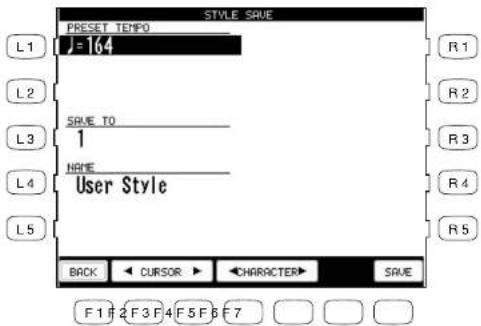
text_image
STYLE SAVE PRESET TEMPO J=164 SAVE TO 1 NAME User Style L1 R1 L2 R2 L3 R3 L4 R4 L5 BACK CURSOR CHARACTER SAVE F1 F2 F3 F4 F5 F6 F7F1 Takes you to the Style Maker Record screen.
F2, F3 Moves the cursor.
F4, F5 Selects the characters.
F7 Saves the style to User Style.
1) Select the sound you want to edit and press the SOUND EDIT button (F7). The Presset Sound Settings screen will be displayed. 2) Presses the LT button and then turn the Deal to select which presset sounds you wish to modify. 3) Uses the L and R butons to select the different effect settings and use the Deal to change their value. 4) When you are finished, press the SAVE button (F7) to save your settings.
To adjust the settings:
for that Sound.
You can change these settings to suit your tastes and save them so they become the simplest settings
whenever that sound is selected.
Each of the CP instument Sounds has pressed Chorus and Effect settings that are applied automatically.
Editing the Preset Effect Settings
certained sellings for individual sounds.
Even though the Concert Performer has over 600 high quality instrument and drum sounds built-in, there may be times when you would like to change some of the qualities of a sound to recall yet. The Tongal character that you have in mind. The CP allows you edit the Tongal character that you have in mind. The CP allows you edit
Editing Sounds
L1 Selects the preset sound to edit.
L2 Turns the Chorus on/off.
L3 Turns the Effect on/off.
L4 Selects an effect type.
L5 Adjusts the effect setting.
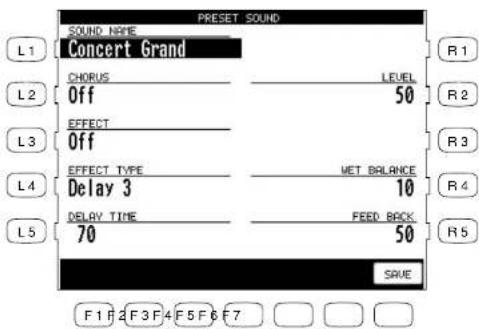
text_image
PRESET SOUND SOUND NAME L1 Concert Grand CHORUS LEVEL L2 Off 50 EFFECT L3 Off EFFECT TYPE WET BALANCE L4 Delay 3 10 L5 DELAY TIME FEED BACK 70 50 SAVE F1 F2 F3 F4 F5 F6 F7F1 Takes you to the previous menu.
F7 Saves the settings.
R2 Adjusts the chorus level.
R4, R5 Adjusts the effect setting.
- Pressing the SAVE (F7) button will save all changes made in the Preset Effect Settings menu. If you exit the Preset Effect Settings menu without saving your changes, the settings will remain unchanged.
- Songs that have been composed with the General MUDI (GM) standard will sound fine without any additional work, because data in the files will inform the CP as to what sounds to use when playing the song. If the song was not composed to the GM standard, you may find it necessarily to edit the song to assign the correct sounds to the various tracks. Fortunately, almost all commercially available MUDI files adhere to the General MUDI standard.
• The CIP recognizes songs files written in the Standard MIDI FILE format as long as they have DOS file names ending with "MIDI". There are two types of Standard MIDI File formats, Format 0 and I. The CIP can read the songs data of both formats, however it will only display the Jinks of a song written as format 0.
• The CP reads only DOS formatted disks, either double-sided double-density (720KB) or high density (L4MB). These are the most commonly used disk formats in both computers and instrumental.
If you will use a blank disk to store and play your own compositions made on the Concert Performance, I see I rent much to worry about. The CP can form the disk (if it isn't already formatted), and the CP's internal song format remembers everything about your songs, including which sounds to use the recorded tracks. However, if you wish to purchase a disk of songs from your music store with the recorded tracks, I however, if you wish to purchase a disk of songs from your music store or publisher, play a disk given to you by someone else, or play songs downloaded from the Internet, you will need to remember a few simple points:
About songs on Floppy Disk
If you wish to play a song without any intentions to make permanent changes of additional recordings, you can use the CP's Disk Song disk drive in this way makes the Concert Performer an enjoyable source of entertainment for parties and other social events, as well as a great tool for the professional musician or music educator.
The Concert Performers dropy disk duality provides a convenient way to block break songs recorded in the CP's Internal Format or standard MDI FILE (SINF) format. Songs in the CP's Internal Format or typically are ones that you have recorded on your instrument. There are many sources of SFK songs, including disks for sale from professional musicians and publishers, songs shared among musicians and hobbyists, and Internet sites that feature SFK songs available for download.
Playing Songs from a Floppy Disk
- The CP can also recognize most songs formatted for the PianoDisc player piano system and songs formatted for Yamaha's Disk Orchestra Collection. (Please check with your Kawai dealer or distributor for further information).
Selecting a Song from Disk
A single floppy disk can store dozens of song files at one time, depending on the length of the songs.
To select a song:

1) Put the disk in the Floppy Disk Drive and press the DISK button. In the Disk menu, select Song Play (R3). After the CP searches the disk it will display the first ten available songs. If there are more than ten songs on the disk, use the SEARCH buttons (F2, F3) to list the additional songs.
2) Use the L and R buttons to select the song you want to hear. You can also select a song by using the Dial.
3) Once your desired song is highlighted, press PLAY/STOP to have the CP load the song and automatically start playing. You may also press SELECT (F7) to have the CP load the data and wait for you to start it manually.
4) Press the SONG CHAIN (F4, F5) buttons to have the CP automatically play all songs, one after another.
5) When your selected song is ready to play, the Disk Song Play screen is displayed. Use the Recorder control buttons on the left side of the panel to control the playback of the song.
Kouva Concert Perform Series Digital ^1 ratio
FY Selects the song and takes you to the Disk Song Play screen.
- F5 Starts the Chain Play.
F2. F3 lists the next or previous ten titles.
FI Takes you to the Disk menu.

text_image
IIF2F3F4F5F6F7 F1F2F3F4F5F6F7 MENU - PAGE + ALL SOARS COLUMN SELECT YOU A LITTLE LOVE LIVE AND LET DIE B5 PUT A LITTLE LOVE LIVE AND LET DIE B4 WHEN THE SAINTS GO PHYSICAL B3 SUSPICIOUS MINDS WALK ON THE WILD S B2 I LEFT MY HEART IN JIA-DA B1 IUDY THING (IF THERE WAS) ANY L1 LEShear
The L and R buttons select the song you want to
Controlling Playback of a Song
As the song plays, you can adjust the tempo, play or sing along with on the keyboard, and even turn on/off the different instrument parts (tracks) in the song.
The status of the song parts is displayed at the bottom of the LCD screen. You will see the parts referred to as the CP's three Parts + Style if the song was created on the CP, or as Channels (ch 1-16) if the song is a MIDI file. Displayed above each part is its current status:
PLAY The part will be heard when you play the song.
MUTE The part has data, but it won't be heard when you play the song.
- - - - The part has no data to play.
- Transpose and Octave Shift are available when a song is playing. Octave Shift affects only the notes you play "live" on the keyboard, not the music playing from the song file. Transpose can be applied separately to the keyboard sound and the song sounds. This lets you play the keyboard in your preferred key along with a song recorded in a different (or more difficult) key.
Use the front panel's dedicated TRANSPOSE buttons to affect the keyboard sound. Use the Song Transpose option (R4 and R5) in the Disk Song Play menu to affect the song data.
- The Song Transpose option is available only for the song data in Standard MIDI file.
To make adjustments to the song:
1) In the Disk Song Play screen, use the R1, R2, R3, and L3 buttons to highlight and assign sounds to the CP's four keyboard Parts. These will be the sounds that you can play live from the keyboard as the song is playing. Once a Part is highlighted, press any of the Sound category buttons to select a new sound.
2) Use the F buttons to play and mute any of the song's instrument parts.
3) Press the L4 button to use the Mixer to make adjustments to the song's instrument parts. (See page 49 for the Mixer function.)
4) Use the R4 and R5 buttons to transpose the song data.
5) Use the panel TRANSPOSE and OCTAVE SHIFT buttons to adjust the CP's keyboard Parts.
6) Press the PLAY/STOP button to start the song.
7) To adjust the tempo, press the L2 button and use the Dial to change values.
8) Press the PLAY/STOP button again to stop the song.
Kouva Concert Perform Series Digital ^1 ratio
RA, R5 Transposes the song (but not the keyboard).
B3 Highlights the RIGHT2 Part.
R2 Highlights the RIGHT Part.
Chg-12.Ch 13-16.
F6. F7 Displays the status of the next set of 4 song parts. (Ch 5-8.
F2-F5 Turns the song part on/off.
FI Takes you to the Disk Song Select menu.
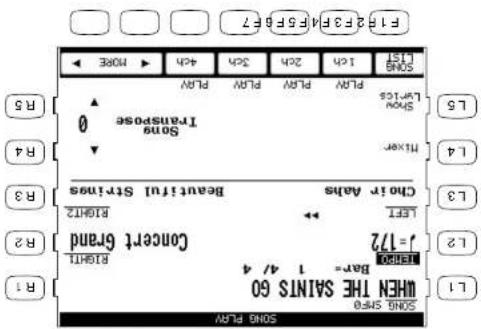
text_image
F1 2 F3 4 F5 F6 F7 F1 2 F3 4 F5 F6 F7 SONS FT1 1ch 2ch 3ch 4ch PUN PUN PUN PUN SONS Transpose 0 Tixer Sound L5 L4 R4 R3 L3 Chor Ads Bautiful Strings LEFT RIGHT2 LENT 1 / 172 BAR = 1 4/4 Concert Brand 12 R2 R1 SONS Sina When The SainTS 60 R1L5 Displays the song's lyrics (if available in the data).
L4 Takes you to the Mixer screen.
L3 Highlights the LEFT Part.
L2 Adjusts the song's tempo.
If the song you are playing has lyrics included in the data, the Show Lyrics (L5) button will appear on the Song Play screen. If you press the Show Lyrics button, the song's lyrics will then appear inside a box. You can follow a ball moving over the lyrics as the song plays. Press the Full Screen (R5) button to expand the lyrics display to the full screen. Press the Normal Screen (F1) button to return to the normal lyrics screen.
In the normal lyrics screen, press the F1 button to return to the Song Play screen.
L2 Adjusts tempo.
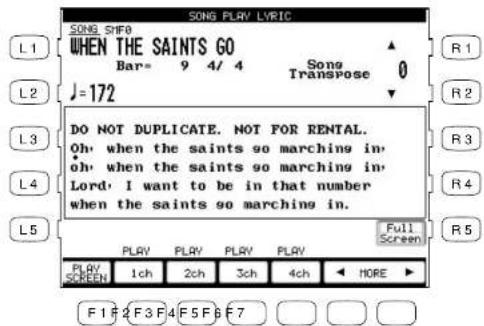
text_image
SONG PLAY LYRIC SONG SINFO WHEN THE SAINTS GO Bar= 9 4/ 4 J=172 Song Transpose 0 DO NOT DUPLICATE. NOT FOR RENTAL. Oh, when the saints so marching in, oh, when the saints so marching in, Lord, I want to be in that number when the saints so marching in. Full Screen PLAY PLAY PLAY PLAY PLAY PLAY 1ch 2ch 3ch 4ch MORE ► PLAY SCREEN F1 F2 F3 F4 F5 F6 F7R1, R2 Transposes the song.
R5 Displays the lyrics on the full screen.
F1 Returns to the Song Play screen.
F2-F5 Turns the song parts on/off.
F6, F7 Displays the status of the next set of 4 song parts (Ch 5–8, Ch9–12, Ch 13–16).
- You cannot record or permanently edit the song while using the Disk Song Play function. If you would like to record your live performance along with the song from the disk, or if you want to make detailed and permanent edits to the song, you will need to load the song's data into the Recorder using the Disk Load function. See the chapter "Recording a Song" (page 42) for details on how to record a song, and "Floppy Disk Operations" (page 130) for an explanation of how to load a song into the Recorder.
3) When you have found the song that you want to play, use the L or R buttons to move the box over the title. Press the SELECT button (F7) to choose it. The Note Navigator screen will be displayed, and you are ready to perform!
on disk.
- If you wish to play a CM song from floppy disk, press the DISK button (F6) to see the list of songs
after another.
1) Press the CONCEPT MAGIC button. The song selection menu will be displayed. (2) Ten songs little from the children's Songs category will be displayed. The category name is displayed at the very top of the screen. If you want to go to another song category, press SEARCH BY CATEGORY (F1, F2). You can also search for a specialist file by using SEARCH BY NAME (F3, F4), which will exist all 176 song titles in alphabetical order. You may also use the Dial to scroll through all the titles one all 176 song titles in alphabetical order. You may also use the Dial to scroll through all the titles one all 176 song titles in alphabetical order. You may also use the Dial to scroll through all the titles one all 176 song titles in alphabetical order. You may also use the Dial to scroll through all the titles one all 176 song titles in alphabetical order. You may also use the Dial to scroll through all the titles one all 150 song titles in alphabetical order. You may also use the Dial to scroll through all the titles one all 150 song titles in alphabetical order. You may also use the Dial to scroll through all the titles one all 150 song titles in alphabetical order. You may also use the Dial to scroll through all the titles one all 150 song titles in alphabetical order. You may also use the Dial to scroll through all the titles one all 150 song titles in abbreviated order. You may also use the Dial to scroll through all the titles one all 150 song titles in abbreviated order. You may also use the Dial to scroll through all the titles one all 150 song titles in abbreviated order. You may also use the Dial to scroll through all the titles one all 150 song titles in abbreviated order. You may also use the Dial to scroll through all the titles one all 150 song titles in abbreviated order. You might use the Dial to scroll through all the titles one all 150 song titles in abbreviated order. You may also use the Dial to scroll through all the titles one all 150 song titles in abbreviated order. You may also use the Dial to scroll through all the titles one all 150 song titles in abbreviated order. You may also use the Dial to scroll through all the titles one all 150 song titles in abbreviated order. You may also use the Dial:

To select a song:
• In addition, you can create and play your own Concert Magic songs using the floppy disk drive.
and International songs.
The 176 onboard Concert Magic songs are divided into eight groups by song category: Children's
Selecting a Concert Magic Song
listen to groups of CM songs.
The Concert Performer can also automatically play any of the Concert Magic songs. Listening to the song first can make it easier to play. There is also a (than) Play mode, giving you options to
Many of the CM songs have lrics that can be displayed as the songs is being performed. As the songs is played, a Bouncing Ball makes it was over the lrics, following the player's performance and encouraging everyone around the instment to sing alone.
As you play a CJK song, a handy Note Navigator display helps you keep task of where you are in the music, as well as suggesting how the rhythm of the songs should be tapped out on the keys. Concert Magic allows you to play a song by simply lapping any key on the Keypoint. Regardless of what keys you play, the noes that are head will be the correct ones for the song. However, what makes this result exciting is that you control the timing of the noes, as well as their dynamics. This lets you add a level of expressiveness and individually to the song that makes it real musical performance.
Thanks to Kayars' innovative CONCEPT MAGIC (CM) feature, absolutely anyone can sit at the Concert Performer and experience of joy of being a real performing musician... even if they have never touched a musical instrument in their life!
Playing with Concert Magic
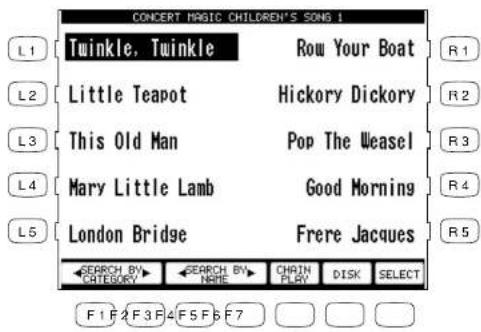
text_image
CONCERT MAGIC CHILDREN'S SONG 1 L1 Twinkle, Twinkle Row Your Boat R1 L2 Little Teapot Hickory Dickory R2 L3 This Old Man Pop The Weasel R3 L4 Mary Little Lamb Good Morning R4 L5 London Bridge Frere Jacques R5 SEARCH BY SEARCH BY CHAIN SELECT CATEGORY NAME PLAY DISK F1 F2 F3 F4 F5 F6 F7The L and R buttons select the desired song.
F1, F2 Searches by song category.
F3, F4 Searches by song name.
F5 Enters the Chain Play mode of the Concert Magic.
F6 Searches for a song on floppy disk.
F7 Can also select the song.
Performing a Concert Magic Song
Playing the Concert Magic song you've selected is very easy. Just begin tapping any key on the keyboard and the song will play. Concert Magic plays the correct notes of the song, but you must provide the rhythm. Being familiar with how a particular song sounds does make it easier, but watching the Note Navigator screen can help you play a song that you've never heard before.
The Note Navigator provides an outline of the song's rhythm that looks a lot like the real music. The dots (•) in the display are the notes that you play. The spacing of the notes gives a clue to the timing (rhythm) of the notes. Notes that are closer together are played faster; notes that are farther apart are played longer. Notes that are evenly spaced are played evenly, and so on.
Up to four lines of music are displayed. After you've played past a note in the song, the dot becomes a cross (+) to help you keep track of where you now are. When you get to the bottom of the screen, the top lines change to show the next lines of music, as if you had turned the page. When you get to the end of the song you will see a double line, and then the song will reset to the beginning.
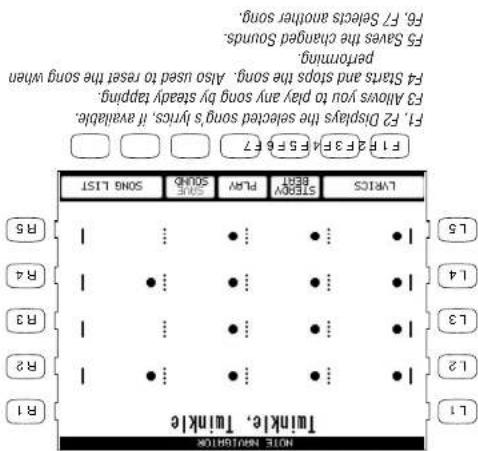
text_image
TWINKLE, TWINKLE L1 L2 L3 L4 L5 L6 L7 L8 L9 L10 L11 L12 L13 L14 L15 L16 L17 L18 L19 L20 L21 L22 L23 L24 L25 L26 L27 L28 L29 L30 L31 L32 L33 L34 L35 L36 L37 L38 L39 L40 L41 L42 L43 L44 L45 L46 L47 L48 L49 L50 L51 L52 L53 L54 L55 L56 L57 L58 L59 L60 L61 L62 L63 L64 L65 L66 L67 L68 L69 L70 F1 F2 F3 F4 F5 F6 F7 F8 F9 F10 F11 F12 F13 F14 F15 F16 F17 F18 F19 F20 F21 F22 F23 F24 F25 F26 F27 F28 F29 F30 F31 F32 F33 F34 F35 F36 F37 F38 F39 F40 F41 F42 F43 F44 F45 F46 F47 F48 F49 F50 F51 F52 F53 F54 F55 F56 F57 F58 F59 F60 F61 F62 F63 F64 F65 F66 F67 F68 F69 F70 F71 F72 F73 F74 F75 F76 F77 F78 F79 F80 F81 F82 F83 F84 F85 F86 F87 F88 F89 F90 F91 F92 F93 F94 F95 F96 F97 F98 F99 G P S E T A S C D E F G H I J K L M N O P Q R S T U V W X Y Z A B C D E F G H I J K L M N O P Q R S T U V W X Y Z A B C D E F G H I J K L M N O P Q R S T U V W X Y Z A B C D E F G H I J K L M N O P Q R S T U V W X Y Z A B C D E F G H I J K L M N O P Q R S T U V W Y Z A B C D E F G H I J K L M N O P Q R S T U V W X Y Z A B C D E F G H I J K L M N O P Q R S T U V W Xthe STEDAY BEAT button (F3). 7) To exit Concert Magic, simplify press the CONCEPT MAGIC button aagain.
the song will play. 3) Press the RESET (F4) button at any time to start at the beginning of the song again. 4) To play another song, press the SONG LIST buttons (F6, F7) to display the list. 5) If you have selected a song that has lrks, you may view them by pressing the LVRICS button (F1, F2) 6) If you would like to play any song by steady tapping (instead of following the original rhythm), press
(1) In the Note Navigator screen press START (F4) if you want to first listen to the song. The CP will play the song. Press the STOP (F4) button to stop. Notice how the Note Navigator displays the rhythm as
To play a selected CM song:
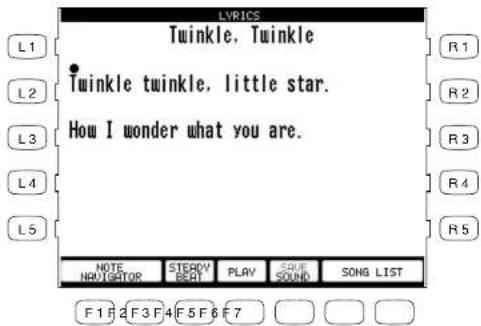
text_image
LYRICS Twinkle, Twinkle Twinkle twinkle, little star. How I wonder what you are. NOTE NAVIGATOR STRAWY BEAT PLAY SQUE SOUND SONG LIST F1 F2 F3 F4 F5 F6 F7F1, F2 Returns to the Note Navigator screen.
F3 Allows you to play any song by steady beat tapping.
F4 Starts and stops the song. Also used to reset the song when performing.
F5 Saves the changed Sounds.
F6, F7 Selects another song.
- When you reach the end of the song, press any key one more time. This will not produce sound, but instead resets the song to the beginning for another performance.
- The Bouncing Ball only works with song files that are specifically designed for Concert Magic to take advantage of this feature.
- A Concert Magic song is made of two parts - a melody part and accompaniment part. Many of the songs have different instrument sounds assigned each part to make the music more interesting. You can select different sounds for each part separately. The RIGHT1 Part plays the melody. To change its sound, press any Sound category button and select a new sound. The LEFT Part handles the accompaniment. To change its sound, first turn off the RIGHT1 Part and then press any Sound category button to select a new sound. Don't forget to turn the RIGHT1 Part back on before you begin to play.
- You can use the PIANO ONLY button to quickly change the sound for both parts to the Concert Grand piano.
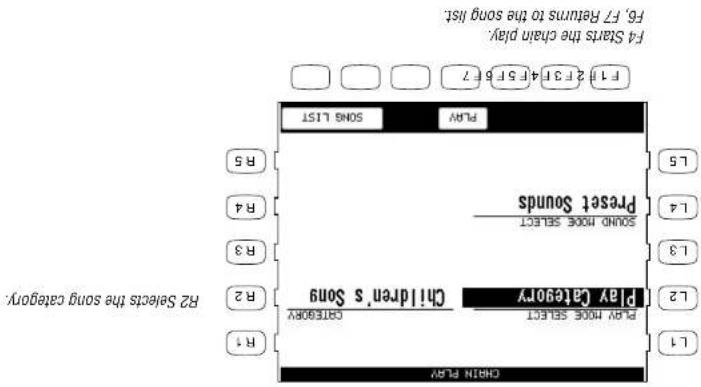
text_image
F4 Starts the chain play. F6. F7 Returns to the song list. Play Preset Sounds Sound Mode Select Pray Songs List Play Songs List Play Songs List Play Songs List Play Songs List Play Songs List Play Songs List Play Songs List Play Songs List Play Songs List Play Songs List Play Songs List Play Songs List Play Songs List Play Songs List Play Songs List Play Songs List Play Songs List Play Songs List Play Songs List Play Songs List R1 R2 Selects the song category. R3 R4 R5 L1 L2 L3 L4 L5 sound mode selectL4 Selects Sound mode.
L2 Selects Play mode.
4) Press the PLAY button (F4) to start playing the songs. 5) To exit Concert Magic, press the CONCEPT MAGIC button again.
1 Press the CONCERT MAGIC button. The song selection mean will be displayed. (2) Press the CHAIN PLAY button (F4). The Chain Play mean will be displayed. (3) Use the L and R buttons to highlight a setting, then turn the Deal to change that setting. You can choose to play songs from any one category, or to play all 176 CM songs. You can also choose to use each song's preset sounds, or to play the songs using the Concert Grand piano sound only.
To enter the Chain Play mode of the Concert Magic:

- You can transpose the songs by pressing the TRANSPOSE buttons.
- You can save your new sound signals by pressing the SAVE button (F4). The Soil Reset function will be required to return the sounds to their original signals (see page 125).
- You can also activate the RIGHIT2 Part to use as a layer (additional sound) for the melody. You can also select any new sound for the RIGHIT2 Part. Then off all Parts except the one you wish to change, and then select the new sound. Don't forget to turn all necessary Parts back on before you begin to play.
Concert Magic Song Arrangements
Concert Magic songs are specially arranged so that they will work well with your key tapping. Each of the 176 CM songs falls into one of three categories of musical arrangements of varying difficulty.
EASY BEAT
These are the easiest songs to play. To perform them, simply tap any key with a constant beat. You can easily see which songs are Easy Beat songs when you look at the Note Navigator. The dots will line up at a constant interval in the screen, indicating a constant beat.
MELODY PLAY
These songs are also quite easy to play, especially if you are familiar with them. To perform them, tap the keys to the rhythm of the melody (as if you were singing).
SKILLFUL
These songs are more challenging. To perform them, carefully follow the rhythm as shown in the Note Navigator. It may require some practice to successfully play these songs. Even skilled players will enjoy the challenge that these songs offer.
Steady Beat Play
After you choose a song, you can press the STEADY BEAT button (F3) to play the song by steady tapping instead of the original rhythm. You can play any song from any arrangement category by tapping steady beats.
- Of course, these are merely suggestions. There are no standard rules for how to compose your GM songs. In fact, very rewarding musical experiences may come out of simple trial and error.
accompartment on channel 4. (6) For best results, you should quantity your parts.
between melody notes. (This creates a skillful arrangement.) 5) If you are recording your song using an external sequencer, record the melody on channel 2 and the
4) If you want to be a little more adventurous, insert a few carefully placed accommodation notes in Melody Play arrangement.)
3) Arrange the accompaniment so that its notes fall on the same beats as the melody. (This creates a Recorder).
2) Then record the accompaniment using the LEFT part in the Easy Recorder (or Track 4 in the Advanced Recorder).
1) Record the melody first using the RIGHT 1 Part in the Easy Recorder (or Track 2 in the Advanced
a Concert Magic songs;
As you might imagine, getting your songs to sound exactly the way you want it to in Concert Magic may require a few adjustments to the original arrangement. The most important consideration is to keep the musical arrangement as simple as possible. Concert Magic "pauses" songs after many noe as it waits for you to lay the next key. Here are complex rhythm patterns that have many notes per back, the songs may become overly difficult to play. Here are some suggestions for creating
It to a floppy disk as a Standard MIDI file.
- You can also record a song for Concert Magic by using an external sequencer. Remember to save
Concert Magnetic song selection screen.
You can also use Concert Magic to play a song that isn't one of the 176 built-in titles. You can record a new song using the Concert Performers Recorder and then save on a bappy disk as a standard MIDI FILE (SWE). The songs can now be selected by pressing the DISK button when you are in the
Creating a Concert Magic Song
- For further details on resetting data, see page 124.
- If you would like to have the CP remember your settings and have them immediately applied every time you turn the instrument on, select Power UP Setting (Page 2-II) from the System menu, and choose "Save Current Settings" (12).
1) Press the SYSTEM button. The SYSTEM button LED will light and the System menu is displayed. 2) Uses the FT and F2 buttons to access the System Menu pages. 3) Use the L, R and F buttons to select the function you wish to change. A sub-menu with further options for that function will be displayed. 4) Uses the L, R and F buttons to choose a setting from the sub-menu and use the Deal to change its value.

To use the System menu:
The System Menu contains all of the functions that affect the overall performance of the CP piano. This includes functions such as the System setings, tuning, and MIDI Setup. By adjusting these setings you can tailor the CP's performance to your taste.
System Menu
L1 Selects the overall tuning of the CP.
L2 Selects the Touch Curve (Key velocity sensitivity).
L3 Selects the Voicing settings.
L4 Selects the Resonance effect for the sustain pedal.
L5 Selects the Concert Magic Sound mode.

text_image
SYSTEM MENU L1 Tuning Pedal Assign R1 L2 Touch Curve Fill In Mode R2 L3 Voicing Effect For Sound R3 L4 Resonance Temperament R4 L5 ConcertMagic Sound MIDI R5 PAGE1 PAGE2 F1 F2 F3 F4 F5 F6 F7R1 Selects the Pedal functions.
R2 Selects the Fill-in mode for the Accompaniment Styles.
R3 Selects the Effect priority settings.
R4 Selects the Temperament settings.
R5 Selects the MIDI settings.
F1, F2 Selects the different System Menu pages.
L1 Selects the Power up mode settings.
L2 Restores the initial factory settings.
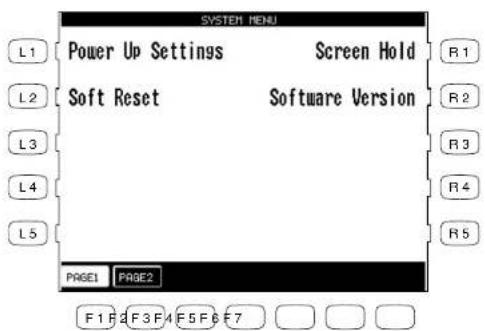
text_image
SYSTEM MENU Power Up Settings Screen Hold Soft Reset Software Version PAGE1 PAGE2 F 1 F 2 F 3 F 4 F 5 F 6 F 7R1 Selects the Screen Hold settings
R2 Displays the software version.
F1, F2 Selects the different System Menu pages.
FI Takes you to the System menu.
R4 Selects the pitch for the RIGHT2 pan.
R3 Selects the pitch for the RIGHT Part
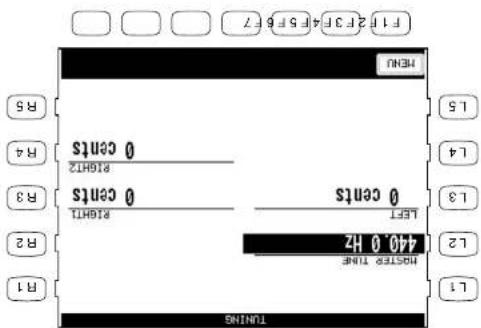
text_image
11 2F 3F 4F 5F 6F 7 F1 F2 F3 F4 F5 F6 F7 MENU R5 R4 R3 R2 R1 TUNING RIGHT 0 cents RIGHT2 0 cents RIGHT1 0 cents LEFT 0 cents RIGHT 420.0 Hz LIST HOSTED THIS 12 13 14 15L3 Selects the pitch for the LEFT Pant.
L2 Selects the master pitch.
- You can also adjust the tuning for each Part separately. This can be used to simulate a chorus-like effect by lowering the same sound in R [GHz] and R [GHz]2 and slightly decaying them. Each part can be raised or lowered by up to 50 cents. (50 cents = 1/4 tone).
The master pitch is displayed in Heritz. The range of adjustment is from 427.0 to 453.0 Hz. The factor perse value is set to the modern standard A = 440.0 Hz.
Turning allows you to adjust the CP's pitch. You may need to adjust the turning when you play with other instruments.
Tuning
Touch Curve
When playing a piano, the volume of the sound produced increases in direct relation to how hard a key is struck. The CP's Normal Touch curve offers the standard feel of an acoustic piano for practicing music. The CP offers five other touch curves ranging from light to heavy.
Normal This is the standard touch of an acoustic piano.
Light 1, 2 For those still developing finger strength, such as a child, a louder sound is produced even when the piano is played with a soft touch. Light 2 is lighter than Light 1.
Heavy 1, 2 Perfect for those with strong fingers. Requires a heavier touch to produce a loud volume. Heavy 2 is heavier than Heavy 1.
Off A constant volume is produced regardless of how hard the keys are struck. This setting is suitable for sounds that have a fixed dynamic range such as Organ or Harpsichord.
- LIGHT and HEAVY do not represent the physical weight of the keys. These are settings that affect the sensitivity of the keys, which determines the volume level in response to the key movement.
L1 Selects the normal setting.
L2 Selects a moderately light touch.
L3 Selects a light touch.
L4 Selects a moderately heavy touch.
L5 Selects a heavy touch.

text_image
TOUCH Normal Off L1 L2 L3 L4 L5 Light 1 Light 2 Heavy 1 Heavy 2 MENU F1 F2 F3 F4 F5 F6 F7F1 Takes you to the System menu.
R1 Turns off the Touch sensitivity entirely.
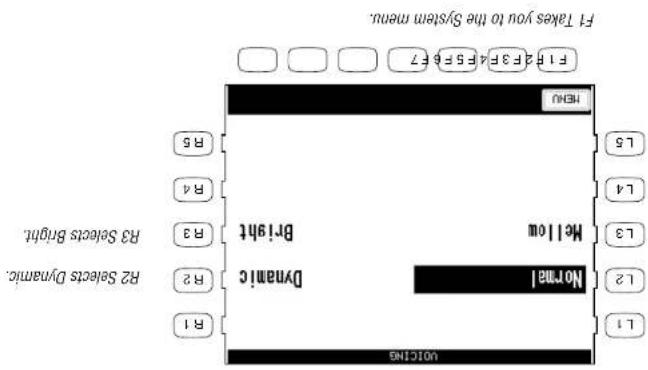
text_image
F1 Takes you to the System menu. F1 F2 2 F3 F4 3 F5 F6 F7 RENO L5 L4 L3 Mellow Bri-ight R3 Selects Bright. R2 Selects Dynamic. Dynamic R1 UOICING L1 L2 L1 R1 Selects Dynamic.L3 Selects Mellev.
L2 Selects Normal.
- While voicing is a technique used for optimizing the tone of an acoustic piano, this function can be used on all the sounds on the CP piano.
• The current volume selection is global for all the instrument sounds. You can not have an individual setting for each sound.
Normal Produces the normal limbure of an acoustic piano throughout the entire dynamic range. This is the celestial settling. Bright Produces a brighter lone throughout the entire dynamic range. Mellow Produces a mellower lone throughout the entire dynamic range. Dynamic The lone will change dramatically from mellow to bright according to your playing.
Yancing function lets you change the CFP plane's tone quality by choosing one of four types of colors. Toxicing is a technique used by plane technicians to mold the character of a plane's sound. The
Virtuál Voicing
Resonance
When the sustain pedal is depressed on an acoustic piano, all the dampers are lifted up allowing the strings to vibrate freely. In this condition, when you play a note not only will the strings for the note you played vibrate but other strings will vibrate due to sympathetic resonance. The Resonance function simulates this phenomenon. You can select from three levels of Resonance.
Off No resonance.
Normal Simulates the natural resonance characteristics of an acoustic piano.
Deep Produces a more intense resonance.
L2 Selects normal resonance.
L3 Selects deep resonance.

text_image
RESONANCE L1 L2 L3 L4 L5 Normal Off Deep MENU F1 F2 F3 F4 F5 F6 F7 R1 R2 R3 R4 R5R2 Turns off the resonance.
F1 Takes you to the System menu.
Kouva Concert Perform Series Digital ^1 ratio
P 108
FI Takes you to the System menu.

text_image
F1 23 34 45 56 67 MENU R5 R4 R3 Piano L5 L4 L3 L2 Preset R2 R1 CONCERT Magic Solano13 Selects Piano sound.
L2 Selects Resort sounds.
Preset Plays all the Concert Magic songs with the Preset Sounds assigned to each songs. Piano Plays all the Concert Magic songs with the Concert Grand piano.
This function determines which sounds the Concert Magic songs will be played with. Concert Magic Sound
Pedal Assign
The Soft and Sostenuto pedals on the Concert Performer function as much more than just traditional piano pedals. These pedals can be assigned to control various other functions on the CP piano.
Damper Pedal (Right)
Sustain only Can be activated or deactivated separately for each Part.
Pedal assignment options for Soft Pedal (Left) and Sostenuto Pedal (Center)
Soft Softens the sound and reduces its volume.
Sostenuto Sustains only notes that were held when pedal was depressed.
Start/Stop Controls start/stop for Styles and Songs.
Harmony on/off Turns the instrument Harmony function on/off.
Registration Switches from one Registration to another. You may choose the order, 1 to 8 or 8 to 1.
Style Variation Switches from one Style Variation to another. You may choose the order, 1 to 4 or 4 to 1.
Intro/Ending Plays the Intro or Ending.
Fill In Plays the Fill-in currently selected.
Break Interrupts the whole Style.
Drums Only Interrupts the Style except Drum part.
Sync/Fade Out Controls the SYNC/FADE OUT button.
Glide Bends the pitch up and down as programmed by you.
Modulation Applies programmable vibrato to the sound.
Rotary Fast/Slow Controls the speed of rotary speaker effect. This function will be automatically assigned to the Soft Pedal (Left) when a sound that has the rotary effect turned on is selected as the Priority Part.
Left Hand Hold Holds the notes played in the LEFT/SPLIT Part as long as the pedal is depressed.
Panel Lock Locks all buttons on the panel to prevent them from being tampered with or pressed accidentally while you are playing. Press the assigned pedal once to lock the panel buttons. Press the assigned pedal again to unlock the panel buttons.
F1 Takes you to the System menu.
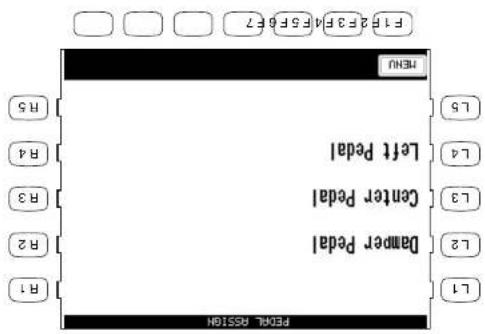
text_image
F1 2 F3 4 F5 F6 F7 F1 2 F3 4 F5 F6 F7 MENU Left Pedal Center Pedal Dampers Pedal R2 R3 R4 R5 R6 R7 R8 R9 R10 R11 R12 R13 R14 R15L4 Selects the Lett pedal (Soft).
L3 Selects the Center pedal (Sostenho).
L2 Selects the Right pedal (Dampel).
1) Select the Pedal Assign (R1) option in the System menu (page 1). The LCD screen will display the Pedal Assign screen. Use the L buttons to select which pedal you want to make assignments for.
• The pedal assignments made to the Left pedal will be saved as part of a Registration. The pedal assignments made to the Center pedal are global and are not saved as part of a Registration.
2) Use the L and R buttons to select the setting and use the Dial to change its value.
L2 Selects a function to assign to the pedal.
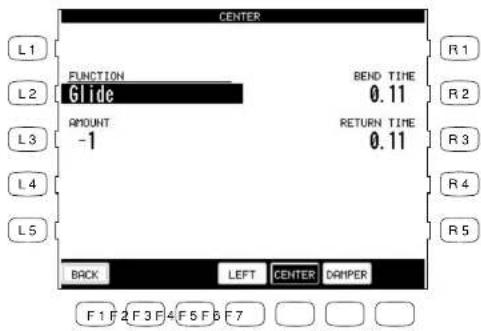
text_image
CENTER FUNCTION Glide BEND TIME 0.11 AMOUNT -1 RETURN TIME 0.11 R1 R2 R3 R4 R5 BACK LEFT CENTER DRIPER F 1 F 2 F 3 F 4 F 5 F 6 F 7F1 Back to the Pedal Assign menu. F4-F6 Selects the different pedals.
Use the other L and R buttons to adjust parameters.

text_image
F1 Takes you to the System menu. F1 F2 F3 F4 F5 F6 F7 F5 F6 F7 No manual File IN MODE Auto R1 R2 R3 R4 R5 L5 L4 L3 L2 L1L3 Selects Auto mode.
L2 Selects Normal mode.
Fill-in for Variation I will be played.
For example, if variation 1 is currently active, and you select variation 2, the
that is played will be the one that accompares the Variation that you are leaving.
Auto A Fill-in will be played each time a VALIDATION button is pressed. The Fill-in
Processed. Fill ins will only be played if a FILL button is pressed.
Normal A Fill-in will not be automatically played each time a VARIATION button is
There are two options.
is pressed.
This determines whether or not a Fll-in will be automatically played each time a VARIATION button
Fill-in Mode
Effect for Sound
This function determines whether or not the Preet Effects settings assigned to each Sound will be used or not.
Preset The Preset Effect settings for each Sound will be used. This is the default setting.
Panel The preset Effect settings for each Sound will not be used. In other words,
changing the Sounds will not change the Effect types and other settings for the Effects. This allows you to set each Effect section (REVERB, CHORUS, and EFFECTS) to your own taste and use your Effect settings for all sounds. The panel setting is very useful if you only want to use certain Effects at all times or if you want to prevent the Effects from constantly changing each time you select a new Sound.

text_image
EFFECT PANEL/PRESET L1 L2 L3 L4 L5 Preset Panel MENU F 1 F 2 F 3 F 4 F 5 F 6 F 7 R1 R2 R3 R4 R5F1 Takes you to the System menu.
F? Takes you to the User Temperature screen.
F5. F6 Selects the Stretch tuning type On/Off/Piano.
F2. F3 Selects the Temperature Key.
FI Takes you to the System menu.
R5 Selects User
Ra Selects Arabic 2.
R3 Selects Arabic 1.
R2 Selects Kirnberger.
R1 Selects Verkmeister.
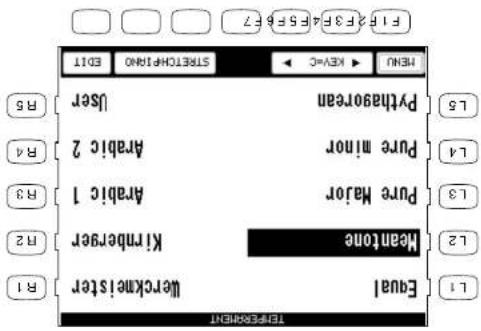
text_image
F1 F2 F3 F4 F5 F6 F7 F1 F2 F3 F4 F5 F6 F7 MENU ▶ KEY=C ▶ SRETECHNO EDIT User Pythagorean Pure Minor Arabic 2 R4 Pure Major Arabic 1 R3 Meantone Klumberger R2 Equal Werkimeister R1 L1 L2 L3 L4 L5L5 Selects Pythagorean.
LA Selects Pure mirror.
13 Selects Pure Major.
L2 Selects Meantone.
LT Selects Equal.
1) Select Temperature from the System Menu. The LCD screen will display the Temperature screen. 2) Select your desired Temperature with the L and R buttons. 3) Set the Temperature Key with the F2 and F3 buttons. 4) If you select equal temperature, use the F5 and F6 buttons to set Stretch Turning to On, Off, or Piano Only. (For an explanation of Equal and Equal Stretched tuning see page 115). Stretched=On: Applies the Stretched Turning to all instrument sounds. Stretched=Off: Stretched Turning Is turned Off for all the instrument Sounds Off. Stretch=Piano (only): Applies the Stretched Turning only to the Piano Sound. The turning for any other active sounds layered with a piano sound will be stretched to match the piano. If no piano sound is active the turning for any active sounds will not be stretched.
You can also create your own User tuning Temperature as well.
temperiments popular during the Renalssance and Bayoue periods.
The CP offers not only equal temperature (the modern standard) but also immediate access to
Temperature
Brief explanation of temperaments
Temperament Keys
Limitless modulation of the key became available only after the invention of Equal temperament. When you use a temperament other than Equal temperament, you must carefully choose the key to play in. For example, if the song you are going to play is written in D major, choose "D" to set the temperament key.
Equal Temperament (Flat)
This is an “unstretched” equal temperament that divides the scale into twelve equal semitones. This produces the same chordal intervals in all twelve keys, and has the advantage of limitless modulation of the key. However the tonality of each key becomes less characteristic and no chord is in pure consonance.
Equal Temperament (Stretched)
This is the most popular piano temperament and is the initial setting. The hearing ability of a human is uneven and is not as accurate with high frequency and low frequency as it is with the middle range. This temperament's tuning is stretched to compensate for this so the sound will be heard naturally to the ears. This "Stretched" equal temperament is a practical variation of the "unstretched" equal temperament which was invented on a mathematical basis.
Pure Temperament
This temperament, which eliminates dissonances for thirds and fifths is still popular for choral music because of its perfect harmony.
You need to be aware what key you are playing in with this temperament. Any key modulation will result in dissonances. When you play music in a particular key, you need to match the key of the temperament as well.
Pythagorean Temperament
This temperament, which uses mathematical ratios to eliminate dissonance for fifths, is very limited for use with chords, but it produces very characteristic melodic lines.
Meantone Temperament
This temperament, which uses a mean between a major and minor whole tone to eliminate dissonance for thirds, was devised to eliminate the lack of consonance's experienced with certain fifths for the Pure temperament. It produces chords that are more beautiful than those with the equal temperament.
4) Press the SAVE button (F7) to save the User Temperature.
or below equal temperature and ranges from -50 to +50.
3) Use the Dial or TUNE buttons (F5, F6) to change the value. The value is represented in cents above
2) Use the KEY buttons (F3, F4) to select the note to edit.
displayed.
1) On the Temperature screen, press the EDIT button (F7). The User Temperature screen will be
To create a User Temperature:
The CP Piano provides two of the most popular Arabic scales, although you can create more variations with the User Temperature function. With Arabic I, the notes B and E are a guarantee lower than the Occidental Scale, while the notes A and E are lower with Arabic 2.
Some oriental scales, including the Arabic, are characterized for "quartetone" which is half of a half-tone (30 cents). This makes the intrinsic sound very different from traditional western music.
Arabic
These two temperatures are placed in between Meantone and Pythagorean. For music with few accurate, this temperament produces the characteristic melodies of the Pythagorean temperament increase, the temperature produces the characteristic melodies of the original characteristics. It is used primarily for classical music written in the Baltimore era to revise the original characteristics.
Werkmeister III, Kirnberger III Temperature
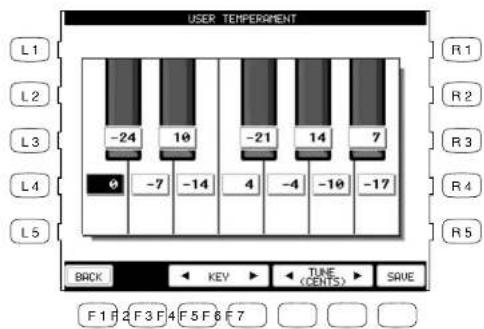
text_image
USER TEMPERATURE L1 L2 L3 L4 L5 -24 10 -21 14 7 0 -7 -14 4 -4 -10 -17 R1 R2 R3 R4 R5 BACK KEV TUNE (CENTS) SAVE F1 F2 F3 F4 F5 F6 F7F1 Takes you to the Temperament menu.
F3, F4 Selects the note to edit.
F7 Saves the User Temperament.
- The User Temperament alters the tuning for each octave equally. In other words, you cannot alter the tuning of different sections of the CP's keyboard range separately.
This determines whether the C P^2 sounds will be played from the piano's keyboard ( ^oO N^2 ) or only from an external MDI instrument ( ^oO P^2 ). Even with local control, off the C P^2 keyboard will still transmit to an external MDI instrument or personal computer.
Chord Defect Channel When the MIDI channel is selected MIDI by controls remotely on this MIDI channel by an external MIDI controller. You can select MIDI channels 1-16, OFF, Ali, or MIDI configuration. When set to ALL the accounts system will respond to any chord data it receives on ANY MIDI channel.
Left Transmit Channel Sets the MIDI Transmit Channel for the LEFT/Split Part. You can select MIDI Channels 1-16.
Right Transmit Channel Sears the MDI Transmit Channel for the RIGHT hand Parts. You can select MDI Channels 1-16.
On page one of the MIDI settings menu you can configure the following settings.
- In this manual we will only discuss the basic MIDI functions that persist directly to the CP. For detailed literature on MIDI, please visit the music department of your local bookstore.
The letters MIDI stand for Musical Instruments Digital Interface, an international standard for connecting MIDI equipped synthesize, dnum maculines, and other electronic instruments so that they exchange data. Personal computers can also be equipped for MIDI communication. Electronic instruments equipped with MIDI can transmit and receive performance data such as, notes, what sound to play, pedal information, volume, etc. through the MIDI IV/ou/Thir Jacks. This data can be recorded with a device like a sequencer or a computer.
MIDI Menu
Clock
Clock is a data code that a MIDI instrument uses as the reference for its Tempo settings as well as Style Start/Stop commands. When it is set to INTERNAL, the CP uses its own built-in clock to control tempo settings. When set to EXTERNAL, the CP reads the clock data that it receives via MIDI and uses this data to control the Tempo.
To configure the MIDI Settings:
1) On page 1 in the System menu, press the MIDI (R5) button. The LCD screen will display the first MIDI page.
2) Use the L and R buttons to select the setting and use the Dial to change the values.
L2 Selects Transmit channel for the RIGHT Part. Choose 1–16.
L3 Selects Transmit channel for the LEFT Part. Choose 1–16.
L4 Selects the chord detect Receive channel. Choose 1–16. OFF, All, or MIDI Accordion.
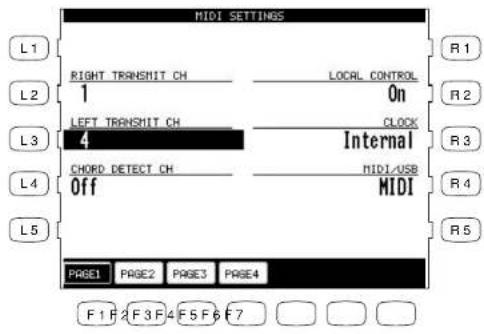
text_image
MIDI SETTINGS RIGHT TRANSMIT CH 1 LEFT TRANSMIT CH 4 CHORD DETECT CH Off LOCAL CONTROL On CLOCK Internal MIDI/USB MIDI PAGE1 PAGE2 PAGE3 PAGE4 F 1 F 2 F 3 F 4 F 5 F 6 F 7 R 1 R 2 R 3 R 4 R 5R2 Turns Local Control on/off.
R3 Selects the Clock source.
R4 Selects MIDI or USB
F1-F4 Selects the other MIDI Settings pages.
F1-F4 Selects the other MIDI Settings pages.
R4 Selects whether Auto-accountment data is transmitted. R3 Selects whether Clock data is transmitted.
R2 Selects whether System Exclusive data is transmitted.
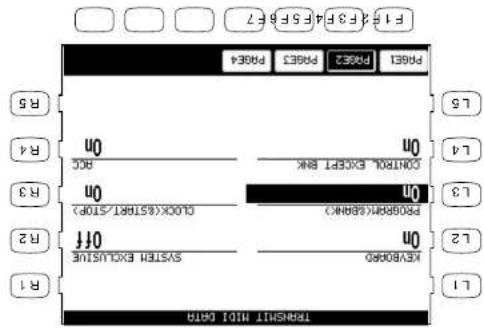
text_image
TRANSMT MIO DATA R1 REV00P0 0m SYSTEM EXCLUSIVE OFF R2 13 L2 15 L4 0m CONTROAL ACCESS R4 R5 F1-F2 F3-F4 F5-F6 F7 Project Project Page3 Project Page4 0m 0m 0c 0k 0n 0n 0n 0n 0n 0n 0n 0n 0n 0n 0n 0n 0n 0n 0n 0n 0n 0n 0n 0n 0n 0nL4 Selects whether Controller data is transmitted.
12 Selects whether note data is transmitted.
L3 Selects whether Bank and Program Change data is transmitted.
transmitted.
On page two of the MDI Setting mean you can determine what MDI data will be transmitted from the C.F.
„Keyboard = On/Off" Determines whether or not note data that is generated by the keys being "Program = On/Off" Determines whether or not the C.P. plan will transmit program change "Information when a sound is selected on the C.P." "Control = On/Off" Determines whether or not changes in controllers (such as the pedals being depressed) will be transmitted.
“System Exclusive = On/Off" Determines whether or not all of the C.P's setings will be transmitted.
in a special format that is understood by another C.P."
„Click = On/Off" Determines whether or not the data from the Auto Accompanhent System will be ACC = On/Off" Determines whether or not the data from the Auto Accompanhent System will be
Transmit MIDI data
On page three of the MIDI Settings menu, you can determine which MIDI channels the CP will receive MIDI data on. The CP can receive MIDI data on all 16 MIDI channels at once or only certain MIDI channels.
Channel Receive On/Off
Each of the 16 MIDI channels can be set separately to On or Off.

text_image
CHANNEL RECEIVE ON/OFF L1 L2 L3 L4 L5 1 2 3 4 5 6 7 8 On On On On On On On On 9 10 11 12 13 14 15 16 On On On On On On On PAGE1 PAGE2 PAGE3 PAGE4 R1 R2 R3 R4 R5 F1 F2 F3 F4 F5 F6 F7Use the L2, R2, L4 and R4 buttons to select the channel and use the Dial to change the setting. On and Off.
F1-F4 Selects the other MIDI Settings pages.
Kouva Concert Perform Series Digital ^1 ratio
P.122
F1-F4 Selects the other MIDI Settings pages.
R3 Selects receive channel for the Bass (Right) part Choose 1-16.
(Rightly) part. Choose 1-16. R2 Selects receive channel for the Melody
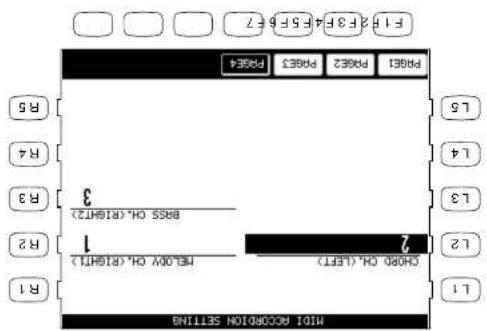
text_image
M101 ACCOMOION SETTLING CHINA OH. (LEFT) BAS5 OH. (R1@HT2) 700 OH. (LEFT) 1 3 R3 R4 R5 L5 L4 L3 L2 R1L2 Selects receive channel for the Chord (Left) part. Choose 1-16.
MDI Accordion On page four of the MDI Settings Menu you can congregate the CP to be played from a MDI Accordion.
Power Up Settings
This determines whether the CP stores your preferred panel and system settings as the default settings and applies them automatically when the instrument is turned on.
Select Save Current Settings (L2) in the Power Up Setting menu to save the current panel settings automatically as the default settings when the CP is turned on.
Select Restore Factory Settings (L3) to return the CP to the factory default settings. The original factory settings will now be used by the CP when it is turned on.
- The CP never automatically stores Panel and System settings. If you make any new changes that you want to save, you must use the Save Current Settings (L2) command.
L2 Saves the current settings.
L3 Restores the initial factory settings.

text_image
POWER UP SETTINGS L1 Save Current Settings R1 L2 Restore Factory Settings R2 L3 R3 L4 R4 L5 MENU EXEC F 1 F 2 F 3 F 4 F 5 F 6 F 7F1 Takes you to the System menu.
F7 Applies the selected settings.

text_image
F1 Takes you to the System menu without resetting data FY Processed with the Reset F1 F2 F3 F4 F5 F6 F7 RENO ALL R5 Selects ALL. System Settings L5 Concert Magic L4 Sound Settings L3 L2 Conductor R2 R1 Selects User Styles. R1 Selects User Styles R2 Selects User Styles User Styles R1 Selects User Styles Soft Reset1) Press SOFT RESET button (L2) on Page two in the System menu. The Soft Reset screen will be displayed. 2) Use the L and R buttons to choose type of data you want to reset. 3) Press EXEC button (F7). 4) Press YES (F7) to proceed, or NO (F1) to back out.
To perform a Soft Reset:
The Soft Reset Function allows you to return all of the User Settings back to the Original Factory Settings. You can instantly reset all of the user settings or only the ones you want to reset at the touch of a button.
Soft Reset
L5 Selects System Settings.
La Selects Concert Magic.
L3 Selects Sound Settings.
L2 Selects Conductor.
LT Selects Regist Groups.
Software Version
This function is used to show what system software version is currently installed in the CP.
To show the software version:
1) Press the Software Version button (R2) on page two in the System menu.
2) The software version will appear in the LCD screen.
text_image
SOFTWARE VERSION L1 R1 L2 R2 L3 R3 L4 R4 L5 R5 Version 0.01 MENU F1 F2 F3 F4 F5 F6 F7F1 Takes you to the System menu.

text_image
F1 #3 F3 F4 F5 F6 F7 MENU 20 OFY TIME 20 OFY TIME 20 OFY TIME 20 OFY TIME 20 OFY TIME 20 OFY TIME 20 OFY TIME 20 OFY TIME 20 OFY TIME 20 OFY TIME 20 OFY TIME 20 OFY TIME 20 OFY TIME 20 OFY TIME 20 OFY TIME 1.5 R5 R4 R3 R2 R1 L1 SCREEN HOLD SCREEN HOLD- Adjuits the time that passes before the screen switches (5 to 20 seconds). This is available only when the Screen Hold is off.
12 Turns Screen Hold on/off. Selling Screen Hold on makes all screens display without automatically switching
• Harmony Settings menu called up by holding down the HARMOY button.
- Chorus Sellings menu called up by holding down the CHORUS button.
• Effect Sellings menu called up holding down the EFFECT button.
- Reverb Settings menu called up by holding down the REVEERB button.
• Style Select menu
• Sound Select menu
This adjustable time function is effective with the following menus:
or even choose to have them hold without switching.
Most of the on-screen menus that you work with on the Concert Performer will remain displayed and you select something or press a particular button. However, some screens may be displayed with temporarily, switching back to a main screen if you allow the CP to sit idle without passing any buttons. You can adjust a lime setting for how long dishes screen stays displayed before switching.
Screen Hold
1) Press the Disk button. The Disk menu will be displayed. 2) Use the L and R buttons to select the preferred function.

To work with a disk:
you can choose from.
The Disk menu is where you can work with various disk operations. There are five functions that
Disk Menu
disk so the student may play alone. This can greatly assist the learning process. Finally, there are numerous stines on the world wide web dedicated to the sharing and selling of MIDI music that is an installment. For instructions on how to use one of these Song Dikes on your CP, see "Playing Songs from a Floppy Disk" on page 90.
There are many companies who specialize in just making MILD songs of popular and traditional times that can be purchase on floppy disks of popular and traditional times that can be purchased on floppy publishers of piano lesson books now provide the music on floppy
The Concert Performer has a built-in 3.5" Hoppy disk drive that (1.A.MB) disks. These are the exact same disks that are used with your personal computer. You can use Hoppy disks to quickly and easily build up an extensive library of Concert Performer data that can be shared with other CP owners.
Floppy Disk Operations
L2 Loads data from a floppy disk.
L3 Saves data onto a floppy disk.
L4 Erases data from a floppy disk.
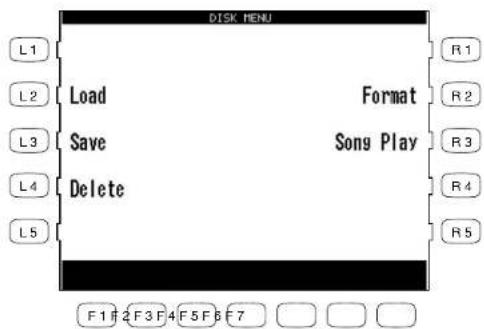
text_image
DISK MENU L1 L2 L3 L4 L5 Load Save Delete Format Song Play R1 R2 R3 R4 R5 F1 F2 F3 F4 F5 F6 F7R2 Formats a floppy disk.
R3 Plays the song data from a floppy disk. (See page 88.)
Saving Data to a Floppy Disk
This important function stores your custom data to disk so that you can retrieve it at a later time. You can save the following data:
Song Song data currently in the Recorder. You can save it as the CP's own unique format (Internal) or as Standard MIDI File format (SMF) or Stylist format (Internal format plus Registration setting).
User Style Each User Style or all 20 User Styles at once.
Regist Group Each Registration Group, containing 8 Registrations, or all 10 Registration Groups at once.
Temperament One User Temperament setting.
All Settings This allows you to save the current settings of the above data types except for Song data and User Touch data at once, as a single file.
the selected data to the disk.
4) Make sure that a formatted floppy disk is in the drive. Then press the SAVE button (F6, F7) to save
This will erase any existing data on tracks 9-16.
- When you select SMF format, data in the style stack will be automatically pasted to tracks 9-16.
• The data saved in Stylist format can be called up only in Song Stylist mode.
When saying a Song, use the 13 button and the Dial to select whether the song data file will be in the INTERNAL (CPS's unique) format, or SMF (Standard MIDI FILE) format or Stylist format.
data file a name.
3) Use the appropriate L button, CURSOR buttons (F2, F3) and CHARACTER buttons (F4, F5) to give the
F1 Takes you to the Disk menu.
Use the L and R buttons to select the type of data to save.

text_image
F1 F2 F3 F4 F5 F6 F7 MENU R5 L5 L4 L3 L2 L1 SONG Regist Group R1 All Settings User Style User Temperature R2 R3type will be displayed.
1) In the Disk menu, select SAVE (L3). The Disk Save menu will be displayed. 2) Use the L and R buttons to select the type of data to save. Then the particular sub-menu for that data
To save your data:
Example: Saving a Style
L3 Selects which file you would like to save, or if all files are to be save as a single "all" file.
L4 Names the data file.

text_image
DISK SAVE (STYLE) L1 L2 L3 L4 L5 SAVE TO USER STYLE 1 User Style NAME User Style BACK CURSOR CHARACTER SAVE F 1 F 2 F 3 F 4 F 5 F 6 F 7F1 Takes you to the previous menu.
F2, F3 Moves the cursor over the characters in the name.
F4, F5 Selects a character to use in the name.
F7 Saves the data file to floppy disk.
Example: Saving a Song
L2 Names the data file.
L3 Selects which format the data should be saved as.
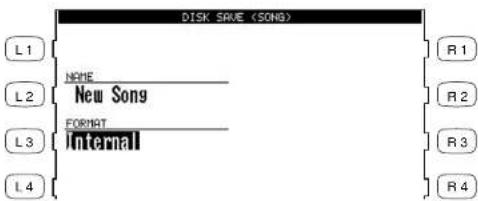
text_image
DISK SAVE (SONB) L1 L2 L3 L4 NEME New Song FORMAT Internal R1 R2 R3 R4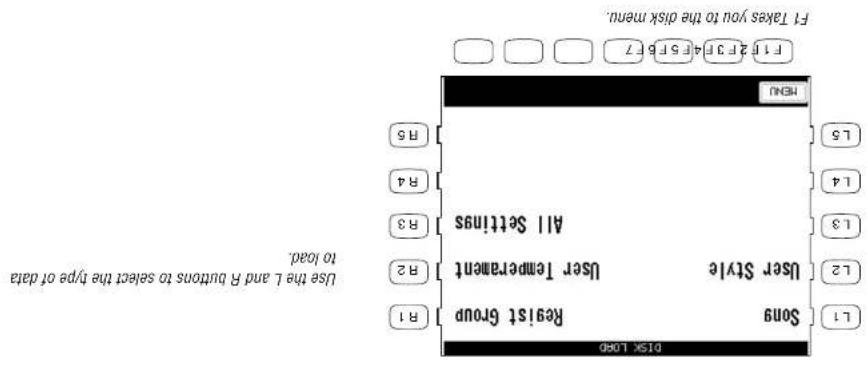
text_image
F1 Takes you to the disk menu. File: 23734567 F1:23734567 F1:23734567 F1:23734567 F1:23734567 F1:23734567 F1:23734567 F1:23734567 F1:23734567 F1:23780 F1:23780 F1:23780 F1:23780 F1:23780 F1:23780 F1:23780 F1:23780 F1:23780 F1:23780 F1:23780 F1:237801) In the Disk menu, press LOAD (L2). The Disk Load menu will be displayed. 2) Insent your floppy disk into the drive. 3) Use the L and R buttons to select the type of data to load. Then a sub-mean will be displayed that lists all available files of that type.
To load the data from a disk:
Song One Song can be loaded into the Recorder from disk. This number varies depending on the User Style Size of the data contained in the Styles. Regist Group Top 10 (Groups, Consulting & Registrations each, can be loaded from disk. Temperature One Lower Temperature can be loaded from disk. All Settings Loads the "All Settings" file on disk.
This function allows you to retrieve the stored data from disk.
Loading Data from a Floppy Disk
4) When loading User Style or Registration data, you can choose whether to load data that was stored individually or to load all the data that was saved as an "All" file. Press ALL (F4) to load data that was saved as an "All" file. Press EACH (F5) if data files were saved individually.
5) Use the L and R buttons to select the data to load. Use the PAGE (F1, F2) buttons to display more data, if available.
6) Press the EXEC (F7) button to proceed. The screen will display the destination where the data will be loaded.
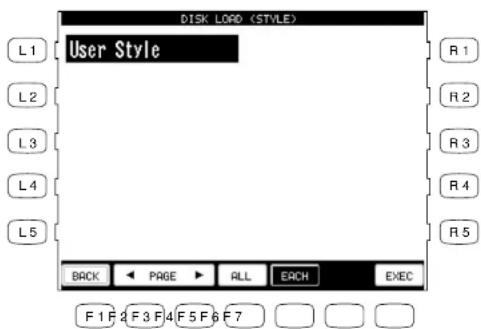
text_image
DISK LOAD (STYLE) User Style L1 R1 L2 R2 L3 R3 L4 R4 L5 R5 BACK ← PAGE ➤ ALL EACH EXEC F 1 F 2 F 3 F 4 F 5 F 6 F 7Use the L and R buttons to select the data to load.
F1 Takes you to the previous menu.
F2, F3 Displays more selections.
F4 Selects the "All" file type if that is how the files were saved.
F5 Displays data files that were saved individually.
F7 Proceeds to the next screen.
Kawal Conven Performer Series Digital Piano
P134
F/ loads the data.
FI Takes you to the previous menu.
text_image
F1 23 F3 45 F5 6 7 BOX EXCD user Style NAME 1 Entity 10 R5 R4 R3 R2 R1 L5 L4 L3 L2 L1 DISX LOGO (STYLE)L3 Selects the destination to load individually a Style. Conductor, Sound or Registration.
7) When loading an individual data file, use the 13 button and the Dail to select the preferred destination. 8) Then press the EXE button to load the selected data into the CP. Press Back (F1) to cancel loading.
Erasing Data from a Floppy Disk
This lets you erase unnecessary data from the floppy disk.
You can erase Song, User Style, Registrations, User Temperament and ALL.
To erase the data from a disk:
1) In the Disk menu press DELETE (L4). The Disk Delete menu will be displayed.
2) Insert the floppy disk into the drive.
3) Use the L and R buttons to select the type of data to erase. A sub-menu of file names will be displayed.
4) When you erase User Style or Registration, determine whether you are going to erase individual data files by pressing EACH (F5) or the "All" data file by pressing ALL (F4).
5) Press EXEC (F7) to erase the selected data from the disk. Or press BACK (F1) to cancel erasing and go back to the previous menu.
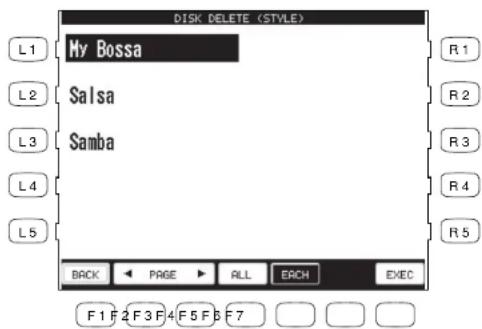
text_image
DISK DELETE (STYLE) L1 My Bossa L2 Salsa L3 Samba L4 R1 R2 R3 R4 R5 BACK PAGE ALL EACH EXEC F1 F2 F3 F4 F5 F6 F7Use the L and R buttons to select the data.
F1 Takes you to the previous menu.
F2, F3 Displays more selections.
F4 Displays the "All" data file if present.
F5 Displays individual files.
F7 Proceeds to the next screen.
returns to the Disk menu automatically.
- It takes about a minute to format a floppy disk. Once the formatting is complete, the LCD screen
previous menu.
5) Press YES (F7) again to start formatting. Or press NO (F1) to cancel formatting and go back to the
4) Press EXEC (F7) to proceed. The screen prompts you for confirmation.
3) Use the L2 or L3 buttons to select the size of disk you are using, 2HD or 2DD.
2) Insert the floppy disk into the drive.
1) In the Disk menu, press FORMAT (R2). The Disk Format menu will be displayed.
To format a disk:
intereavnt data files let on it otherwise.
erase a disk that might have been used previously on a computer, since there may be all sorts of
disk, all data that is currently on it will be erased. He-formathing is a good way to completely
- You can always re-form a disk at any time. Keep in mind, though, that every time you format a
Both can be used in the exact same fashion with the Concert Performer.
market, 2DD (which can hold 720KB of data) or 2HD (which can hold 1,440KB or 1,440KB of data). Formulated floppy disks from any computer or office supply store. floppy disks may also be formatted on a PC computer, or the CP can format them itself. There are two types of 3.5 floppy disk in the The Concert Performer can read and write to MS-DO5 formatted disks. You can purchase pre-
Simply means that the disk must be "prepared" to hold data.
Before a floppy disk can be used to save data for the first time, it will need to be formatted. This
Formating a Floppy Disk
L2 Formats a 2HD disk.
L3 Formats a 2DD disk.

text_image
DISK FORMAT L1 L2 L3 L4 L5 2HD 2DD Formatting will erase any data on the disk. Press YES to proceed or press NO to cancel. KAWAI MENU F1F2F3F4F5F6F7 R1 R2 R3 R4 R5F1 Cancels formatting and takes you to the Disk menu. F7 Starts formatting the disk.
5) To leave Help, press the EXIT button.
4) Use the F3 or F4 button to change the language. English, German, French, and Spanish are available.
3) Use the appropriate L or R button to select the topic, and the text will be displayed.
F1 and F2 buttons to list more topics on the other pages.
2) If the text is not what you are looking for, press the INDEX (FI) button to list the HELP topics. Use the
1) Press the HELP button. The Help text will be displayed in the LCD screen.

To use the Help:
To get Help, simply press the HELP button to the left of the display. The display will show an explanation on the function or feature that you are presently working on. Help is available at any time, except when the CP is busy recording your performance or accessing a floppy disk.
Using the Help
and will undoubtedly impress and inspire you.
There are also many built-in Demostation songs that really show of the musical potential of the Concert Performer. These songs were proposed by some of the top musicians in the music industry,
of the features found in the CP.
There are phones when you might not have the Owners's Manual at your side, and you need an explanation of a button or feature. ForTurnately, there are built-in Help guides to give you a hand. The Help function provides a basic introduction and overview of most
The first time you sit at the Concert Performer, you may feel overwhelmed by the wealth of features and options that it offers. You will find, though that if you keep this Owners's Manual Handy overwhelmed by the wealth of features and options that it offers. For musical expression and fun no matter your skill level. You can learn to use the different functions as you need them, at your own pace, where is certainly nothing wrong with only using a new basic features, and thoroughly enjoying them. After the Concert Performer is first and foremost a musical instrument, and its whole purpose is to provide you with the looks all, the Concert Performer is first and foremost a musical instrument, and its whole purpose is to provide you with the looks for musical expression and fun no matter your skill level.
Getting Assistance: Using Help and Demo
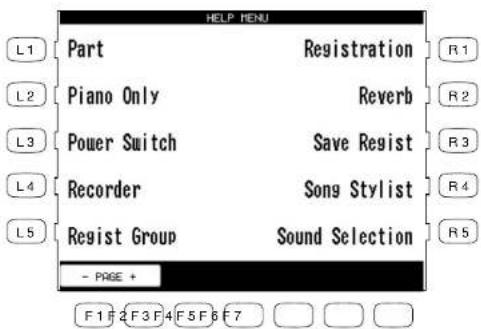
text_image
HELP MENU L1 Part Registration R1 L2 Piano Only Reverb R2 L3 Power Switch Save Regist R3 L4 Recorder Song Stylist R4 L5 Regist Group Sound Selection R5 - PAGE + F1 F2 F3 F4 F5 F6 F7Use the L and R buttons to select a Help topic.
F1, F2 Searches for more Help topics on the other pages.
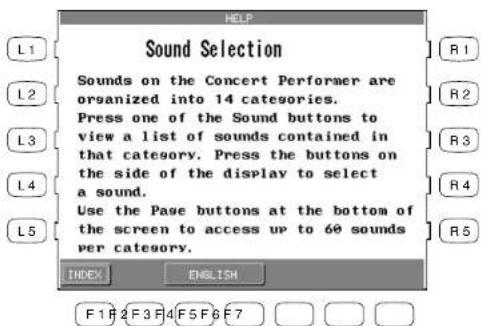
text_image
HELP Sound Selection Sounds on the Concert Performer are organized into 14 categories. Press one of the Sound buttons to view a list of sounds contained in that category. Press the buttons on the side of the display to select a sound. Use the Page buttons at the bottom of the screen to access up to 60 sounds per category. INDEX ENGLISH F1 F2 F3 F4 F5 F6 F7F1 Takes you to the Help menu. F3, F4 Selects the language.
Kuala Concert Performance Series Digital [31ano
P.140
1) Press the DEMO button. 2) Select your preferred demo piece by either. Pressing any of the SOUND category buttons to select a Sound Demo. or pressing any of the STYLE category buttons to select a Style Demo. or Style categories may have more than one demo songs played in sequence. Press the Sound or Style button repeatedly to ski to the next demo song. 3) To exit, press the EXIT, PLAY/STOP or the DEMO button.
To listen to a Sound/Style Demo:
Style Category Demos Each Style category has a song, or songs, that demonstrate how the Auto-Accompartment Styles can be used.
Sound Category Demos Each Sound category has a song, or songs, that demonstrate the sound choices and capabilities found in the category.
There are two types of Demonstrations programmed in the CP piano.
Using the Demonstrations

text_image
DENO CONCERT PERFORMER Sound Demonstration L1 L2 L3 L4 L5 PIANO R1 R2 R3 R4 R5 F1 F2 F3 F4 F5 F6 F7
text_image
Piano DRAWBAR ORGAN SOUND WOOD-WIND BRASS VOCAL& PAD HARPSI& MALLET GUITAR BASS SYNTH SPECIALTY DRUM SFXThe SOUND category buttons are used to select the demo for that sound category.

text_image
SWING & BIG BAND 50'S & 60'S POP & ROCK STYLE BALLAD COUNTRY BLUES & GOSPEL JAZZA & CONTEMP CLASSIC PIANO SOLO PIANO LATIN & ISLAND KIDS & HOLIDAY TRADI- TIONAL WALTZA BROADWAY USERThe STYLE category buttons are used to select the demo for that Style category.
- When a selected Demo song ends, another song of the same type will be randomly chosen from another category and played. You can select another demo song at any time by pressing the appropriate button.
Kuala Concert Performance Series Digital [31ano
| PAGE 1 PAGE 2 PAGE 3 PAGE 4 | |||
| ORGAN | |||
| PAGE 1 PAGE 2 PAGE 3 PAGE 4 | |||
| DRAWBAR | |||
| PAGE 1 PAGE 2 PAGE 3 PAGE 4 | |||
| BE 3 | Be More | Dawbar Bass | Jazz Organ |
| Jazzer | Be Nice | 16. Dawbar | Jazz Organ 2 |
| H-Lo | Odd Man | 8. Dawbar Rock Organ | |
| Melow | Hollow | 4. Dawbar | |
| Dawbar | Dawbar 2 | 2.2/3.1.Dawbar | |
| Dawbar | Dawbar 3 | 1.3/5.1.Dawbar | |
| 4. percussion | Soil Solo | 1.1/3.1.Dawbar | |
| Church Organ Pull Organ | Church Organ 3 | 8. Plune Child | Principal Chair |
| 8. Ceese | 2.2/3. Plute Child | 8. Plune Child | Stopped Pipe |
| Small Ensemble | 8. Diapason | 8. Plune Celiste | 8. & 4. Diapason |
| Full Pipes | Baroque Mix | 8. Reed | Small Ensemble 2 |
| Church Organ 2 | Electronic Organ 2 | 8. Flute | Principal Pipe |
| Mixer | Reed Organ | 4. & 2. Flute | Thirty Thba |
| Theater Organ | Theater Organ 3 | 2.2/3. Flute | Theater Organ 2 |
| Theater Organ 4 | Theater Organ 4 | 1.3/5. Flute | Reeds |
| Church Organ 2 | 8. Diapason 2 & 8. Diapason 3 | ||
Modern Piano Honky Tong Piano & Guitar New Age Piano 3
Studio Grand Rock Grand Crystal EP New Age Piano 2
Concert Grand Mellow Grand Jazz Grand New Age Piano
PAGE 1 PAGE 2 PAGE 3 PAGE 4
PIANO
Preset Sounds
Appendices
STRING
PAGE 1 PAGE 2 PAGE 3 PAGE 4
Beautiful Strings String Quartet Violin Ensemble Octave Strings
String Ensemble Strings & Brass Cello Ensemble String Sustaining
String Ensemble 2 Warm Strings String Bass Ens Synth String Orch
Synth Strings Synth Strings 3 Mono Strings String Sforzando
Synth Strings 2 60's Strings Strings & Bell
Violin Slow Violin
Strings & Piano
Viola
Tremolo Strings
Strings & Piano 2
Cello
Pizzicato
Slow Cello
Contrabass Orchestra Hit
Harp
String & Harp
WOODWIND
PAGE 1 PAGE 2 PAGE 3 PAGE 4
Alto Sax
Tenor Sax
Baritone Sax
Soprano Sax
Big Band Winds
Flute
Clarinet Jazz Clarinet
Pan Flute
Oboe
Orchestral Winds
Soft Alto Sax
Soft Tenor Sax
Breathy Tenor Sax
Sax Section
Piccolo
Jazz Flute
Orchestral Winds 2
Recorder
English Horn
Bassoon
Flute & Mute Tpt
Flute & Strings
Octave Saxes
Big Band Winds 2
Orchestral Flute
Orch Clarinet
Oboe & Bassoon
Pan Flute 2
Piccolo 2
Slow Pan Flute
Recorder 2
BRASS
PAGE 1 PAGE 2 PAGE 3
Solo Trumpet
Muted Trumpet
Cup Mute Trumpet
Trumpet
Trombone
French Horns
Tuba
Brass Section
Synth Brass
Synth Brass 2
PAGE 4
Flugel Horn
Muted Trumpet 2
Cup Mute Trombone
Bright Trombone
Trombone 2
Warm French Horn
Jump Brass
Brass Section 2 French Horn & Strg
Synth Brass 3
Synth Brass 4
Bright Solo Tpt
Trumpet Ensemble
Trumpet & Alto
Trombone & Tenor
Brass & Sax
Brass Pad
Mute Brass Ens
Dixieland Trumpet
Sentimental Bone
Brass & Synth
Brass & Synth 2
| Harpson & Mallet | Analogue Voice | |
| Harpsond | Harpsichord Occave | |
| Clavi | Synth Clavi | |
| Gliccenspiel | Wide Martinba | |
| Gliccenspiel | Wide Viterpahone | |
| Claudella | Swirl Clavi | |
| Claudella | Swirln Chalvi | |
| Claudella | Swirln Stcel Drum | |
| Claudella | Swirln Stcel Drum | |
| Claudella | Swirln Stcel Drum | |
| Claudella | Swirln Stcel Drum | |
| Claudella | Swirln Stcel Drum | |
| Claudella | Swirln Stcel Drum | |
| Claudella | Swirln Stcel Drum | |
| Claudella | Swirln Stcel Drum | |
| Claudella | Swrln Chalvi | |
| Claudella | Swirln Chalvi | |
| Claudella | Swirln Chalvi | |
| Claudella | Swirln Chalvi | |
| Claudella | Swirln Chalvi | |
| Claudella | Swirln Chalvi | |
| Claudella | Swirln Chalvi | |
| Claudella | Swirln Chalvi | |
| Claudella | Swirln Chalvi | |
| Claustella | Swirln Chalvi | |
| Claustella | Swirln Chalvi | |
| Claustella | Swirln Chalvi | |
| Claustella | Swirln Chalvi | |
| Claustella | Swirln Chalvi | |
| Claustella | Swirln Chalvi | |
| Claustella | Swirln Chalvi | |
| Claustella | Swirln Chalvi |
Warm Pad Sime Pad Choir & String New Age
Hlopia Choir Ooh New Age 3
Voice Oohs Humming Breathy Choir Brightness 2
Choir Alafs Choir Alafs 2 Slow Choir Halo 2
PAGE1 PAGE 2 PAGE 3 PAGE 4
VOCAL 8 PAD
BASS
PAGE 1 PAGE 2 PAGE 3
Acoustic Bass Acoustic Bass 2 Octave Fretless
Electric Bass Finger Slap Bass Poly Synth Bass
Finger Bass Warm Synth Bass Clavi Bass 2
Pick Bass Clavi Bass Ac Bass & Piano
Fretless Bass Hammer Bass Elec Bass & Piano
Ac Bass & Ride Elec Bass & Ride Acoustic Bass 3
Slap Bass
Slap Bass 2
Acoustic Bass 4
Synth Bass
Synth Bass 3
Synth Bass 2
Synth Bass 4
Attack Bass
Rubber Bass
SYNTH
PAGE1
Classic Synth
Classic Synth 2
Square
Sine
Chiff
Bass & Lead
Wire Lead
Crystal
Rain Pad
PAGE 2
Classic Synth 3
Fifth
Square 2
Sequenced Analog
Charang
Lead
Soft Wire Lead
Echo Bell Square Lead
Caliope
Analog Brass Analolog Brass 2
PAGE 3
Multi Sweep
Warm Sweep
Bowed 2
Saw Pad
Big Saw
Octave Saw
Clean Square
PAGE 4
Analog Brass 3
Square Comp
Square Pad
Goblin
SPECIALTY
PAGE 1
Strumming Ac Gtr
Strumming Ac Gtr 2
Picking Ac Gtr
Picking Ac Gtr 2
Mandolin
Banjo
Picking Banjo Wah Harmonica
Harmonica
Whistle
Strumming Elec Gtr
PAGE 2
Picking Elec Gtr
Pick/Strum Gtr
Pick/Strum Gtr 2
Strumming Mandolin
Strumming Banjo
Blues Harmonica
Dulcimer
Wah Harmonica 2
Fiddle
Slow Fiddle
PAGE 3
Accordion
French Accordion
Tango Accordion
French Accordion 2
Accordion 2
Celtic Harp
Shamisen
Mellow Mandolin Sitar 2
Whistlers
PAGE4
Shakuhachi
Sitar
Blown Bottle
Koto
Kalimba
Ocarina
Shanai
PAGE5
Taisho Koto
Bag Pipe
Euro Hit
Bass Hit Plus
| Power Kit Concert Bass Drum Snare Roll | Tambourine | PAGE 3 | PAGE4 | |
| Analog Kit | Woodlock | Melodic Tinm 2 | Hand Clap | Bass Drum |
| Dance Kit | Asggo | Synth Drum | Crash Cymbal | |
| Electric Kit | Tinke Bell | Rhythm Box Tinm | Crash Cymbal | |
| Ordestra Kit | Castnet | Elcetic Drum | ||
| Standard Kit 2 | Reverse Cymbal | Snare Roll 2 | ||
| SFX | ||||
| SFX Kit Telephone | Wind Chime | Slarslip | ||
| Appiause | Helicopter | Car Passing | Punch | |
| Seeshoe | Gushot | Car Stopping | Heerbeal | |
| Stream | Expllosion | Breath Noise | Laser Gun | |
| Rain | Machine Gun | Ilorse Gallop | Scratch | |
| Thunder | Siren | Door Crack Trolicky Bell | Whistle Down | |
| Wind | Foot Step | Car Enginc | ||
| Bird Sweet | Door Slam | Car Crash Whistle Lip | ||
| Laughing | Dog Barking Train | Bubble | ||
| Scanning | Telephone 2 | Jet Plane | ||
| Standard Kit Tempaul Steigh Beels Soft Tempaul |
| Jazz Kit Rolling Tempaul Triangle Soft Tempaul Roll |
| Brush Kit Talo Drums Repleasing Castaneet Orch Cymbal & BD |
| Room Kit Melode Toms Cym & Bass Drum Finger Snap |
PAGE 1 PAGE 2 PAGE 3 PAGE 4
DRUM
Preset Styles
Fast Big Band 50's Rock 50's Rock 3 70's R&B 70's Country Rock
Fast Big Band 2 50's Rock 2 60's Rock 70's R&B 2 70's Pop Rock
Medium Big Band 50's Rockabilly 60's Rock 2 Disco Folk Rock
Slow Big Band 50's Folk 60's Folk Rock Disco 2 Rock Shuffle
Night Club Rock Rhumba 60's R&B Disco 3 Pop Shuffle
Medium Swing
Surf Rock
60's R&B 2
Latin Rock
80's Dance
Medium Swing 2
60's Pop
80's Rock Pop / Funk
Nice and Easy
60's Pop 2
Pop / Rock
Slow Swing
Motown
Classic Rock
Slow Swing 2
Motown 2
Slow Rock
BALLAD
PAGE 1 PAGE 2 PAGE1 PAGE2 PAGE1
Modern Ballad
Modern Ballad 2
COUNTRY
Country Shuffle
Country Pop 2 Beat
BLUES & GOSPEL
Pop Ballad
Modern Ballad 3
Country Stomp
Road Trip
6/8 Ballad
R&B Ballad
70's Pop Ballad
R&B Ballad 2
Pop Ballad 2
Folk Rock Ballad
Mod Country Ballad
Country Ballad
Country Pop Ballad
70's Rock Ballad
50's Ballad
Rock Ballad
50's Orch Ballad
Rock Ballad 2
50's Ballad 2
Soft Rock Ballad
JAZZ & CONTEMP
PAGE 1 PAGE 1 PAGE 1 PAGE 2
Smooth Jazz
Showman
Swing
Fast Show
Jazz / pop
Pops Piano Two Beat
Swing Standard
Latin Jazz
Table for Two
Two Beat Shuffle
Standard Ballad
Jazz R&B Ragtime
Bossa
Latin Jazz 2
Country Piano
Boogie
Jazz Waltz
Cont 16 Beat
Rock Legend
Pop
Country Ballad
Cont 16 Beat 2
Toons
Pop Ballad
Country waltz
Jammin Organ
Boogie
3/4 Standard
New Age 2
Cont 8 Beat
[Non-Text]
Dixieland
New Age 3
Cont 8 Beat 2
New Age 6/8 Pop/Rock
Kavalà Concert Performer Services Digital L2ano
| Salsa | Kids 2 Beat | Hollowy Shuntie | Polarka | Torchlight |
| Sanbara | Kid 2 Beat Shuttle | Hollowy Rock | Cha Cha | |
| Beagle | Kids 3/4 | Hollowy Waltz | Twol Beat | |
| Hawalian | Kids Foik 2 Beat | Hollowy Waltz 2 | Twol Beat | |
| Kregge | 3/4 Lallyaby | Hollowy Waltz 3 | Bathroom | |
| Carypso 4/4 Lullyay | Hollowy Waltz 4 | Tanago | March | |
| Manbo | March | |||
| Rhubma | March 2 | |||
| WALT & BROADWAY | ||||
| PAGE1 PAGE2 | ||||
| Standard Waltz | County Waltz | French Waltz | ||
| Classic Waltz | Jazz Waltz | European Waltz | ||
| Traditional Waltz | European Waltz | 1/2/8 Slow | ||
| Median Show Backt | 1/2/8 Slow | Fast Show Backt | ||
| Fast Show Backt | Slow Show | Dixie Show | ||
| East Show Backt | Slow Show | Dixie Show | ||
| Medium Show Swing | 3/4 Show | Medium Show Swing | ||
| Medium Show Backt 2 | 6/8 Snow | |||
| Medium Show Backt 2 | 6/8 Snow | |||
Bossa Nova 2 Kids 6/8 March Holiday Two Beat Soft Shoe Polka 2
Bossa Nova Kids March Holiday 4/4 Foxtrot Cha Cha 2
PAGE 1 PAGE 1 PAGE2 PAGE1 PAGE2
LATIN & ISLAND KID & HOLIDAY TRADITIONAL
Song Stylists
A
Achy Breaky Heart
Ain't Misbehavin
Ain't No Woman
Ain't Too Proud
All I Wanna Do
All Of Me
All Shook Up
Alley Cat
Aloha Oe
Always A Woman
Always On My Mind
Amazing Grace
America
American Pie
Annie's Song
Anniversary Waltz
Anything Goes
Arthur's Theme
As Time Goes By
At The Hop
Auld Lang Syne
Aura Lee
Autumn Leaves
B
Baby Face
Bad Leroy Brown
Beauty & The Beast
Beer Barrel Polka
Begin The Beguine
Behind Closed Door
Benny And The Jets
Best Of My Love
Bewitched
Bill Bailey
Billie Jean
Birthday Song
Blue Bayou
Blue Bossa
Blue Moon
Blue Suede Shoes
Blue Velvet
Blueberry Hill
Body And Soul
Boogie Bugle Boy
Boot Scootin
Boy From NY City
Brick House
Bridge Over Water
Brown Eyed Girl
By The Time I Get
Bye Bye Love
C
Cabaret
California Dreamin
California Girls
Can You Feel Love
Canadian Sunset
Candle In The Wind
Can't Get Started
Can't Help Falling
Can't Hurry Love
Can't Smile
Can't Stop Loving
Careless Whisper
Celebration
Chain Of Fools
Chances Are
Change The World
Chantilly Lace
Chapel Of Love
Chatt. Choo Choo
Chattahoochee
Cherish
Cherry Pink&Apple
Chicago
Christmas Song
Climb Ev'ry Mtn
Close To You
Colors Of The Wind
Come Rain Or Shine
Comin Up Roses
Copacabana
Corcovado
Could I Have Dance
Could It Be I'm
Could It Be Magic
Coward Of County
Crazy
Crazy Little Thing
Cruisin Down River
Crusin
D
Dance To The Music
Dancin' In Street
Daniel
Days Of Wine Roses
Deep Purple
Deja Vu
Desafinado
Desperado
Didn't We Almost
Dock Of The Bay
Don't Be Cruel
Don't Cry For Me
Don't Fall In Love
Don't Fence Me In
Don't Get Around
Don't Give Up On
Don't It Make My
Don't Worry B Hapy
Downtown
Dream
Dueling Banjos
E
Earth Angel
Ebony & Ivory
Edelweiss
Elvira
End Of The Road
Endless Love
Evergreen
Every Breath You
Everybody Plays
Everything I Do
Everything Is Beau
Evil Ways
Eyes Of Love
F
Falling In Love
Fascination
Feelings
Feels So Good
Feels So Right
Ferry Cross Mersey
Fever
Fields Of Gold
Fire & Rain
Flashdance
Fly Me To The Moon
Folsom Prison
For All We Know
For He's A Jolly
Forever And Ever
Free Ride
Freeway Of Love
Friends Low Places
Friends See Me Now
From A Distance
Lyn Eyes
Lucille
Luchenbach Texas
Love's Theme
Loves Me Like Rock
Love Me Tender
Love Is Blue
Love Is A Many
Love First Degree
Love Boat, The
look off love
Long Winning Road
dodhipo7
Loco-Motion, The
Light My Fire
Let's Stay Together
Lets Get it on
Let it Snow!
Let it Be
Leaving Jet Plane
Layla
Lay Down Sally
Laughter in Rain
Last Date
Last Dance
Lady
La Bamba

Kum Ba Yah
Kokomo
King Of The Road
Kansas City

Just May You Are
Just The Two Of Us
Just Once
Just My Imaginatn
Just As 1 Am
Just A Gigolo
Just A Closer Walk
dwnr
Luke Box Sat. Nitte
Joy To The Word
Johnny B. Goode
Jingle Bells
Jingle Bell Rock
Jambalava
Jallhouse Rock

It's Too late
It's Now Or Never
It's Not For Me
It's My Party
It's A Small Word
It's A Grand Night
It Had To Be You
Isn't She lovely
lsn't It Romantic
Islands in Steam
In The Mood
I'm A Country Boy
I'm A Believer
1.11 FY Away
I'll Be There
I'll Be Home Xmas
If You Don't Know
If I Had A Hammer
If Ever I lose My
I Write The Songs
I Will Survive
I Will Always Love
1 Walk The Line
1 Shot The Sheriff
I Saw Mommy Kiss
1 Only Have Eyes
1 Need Your Loan
I Just Called To
1 Got Rhythm
1 Got A Name
1 Get Around
1 Fall To Pieces
I Don't Know How
I Could Write Book
1 Believe

Hustle, The
Hursts So Good
How Sweet It Is
How insensitive
How Great Thou Art
How Deep is Love
How Am I Supposed
Round Dog
Hony Tong Woman
Honey Tong Man
Honesty
Holly Jolly Xmas
Hold Your Hand
Hey Jude
Here's Rainy Day
Here Comes Santa
Help Me Make it
Help
Hello Mary Lou
Hello Daily
Heaven
Hea wave
Heart is On
Heartbreak Hotel
Heart Will Go On
Heard It Grapevine
Hawaiian Wedding
Harlem Nocturne
Hard Days Night
Happy Trails
Happy Together
Happy Birthday
Handy Man

Gutters, Cadilacs
Groovin
Green Onions
Green Green grass
Greatest Love, The
Great Balls O Fire
Good Golly Moslily
Gain Out Of My Head
Glow Worm
Glory Of Love, The
Give My Regards To
Girl From Panama
Gimme Some Love
Get Me To Church
Get Down Tonight
Georgy Sirn
Georgia On My Mind
G. Blue Yellow Brick
Gambler, The

Fun, Fun, Fun
Frosty The Snowman
M
Macho Man
Mack The Knife
Mammas Don't Let
Mandy
Maniac
Margaritaville
Marianne
Me And Bobby McGee
Memory
Mercy Mercy Me
Merry Little Xmas
Michael Row Boat
Midnight Hour
Midnight Train 2GA
Misty
Monday Monday
Moon River
Moonlight In VT
More
Morning Dance
Mr. Bojangles
Mrs. Robinson
Music Box Dancer
Music Music Music
My Cherie Amore
My Favorite Things
My Funny Valentine
My Girl
My Life
My Wild Irish Rose
N
Nadia's Theme
New Kid In Town
New York, New York
Night And Day
Night Fever
Norwegian Wood
0
Ode To Joy
Oh What A Beautif!
Oklahoma
Old Cape Cod
Old Rugged Cross
Old Time R & R
Old Time Religion
On Street Where U
On The Road Again
On Top Ole Smoky
One (Chorus Line)
Only You
Ooh Baby Baby
Open Arms
Orange Blossom
Our Day Will Come
Over The Rainbow
P
Party's Over, The
Peace In Valley
Peaceful Easy Feel
Peanuts' Theme
Penn. 6-5000
People
Phantom
Physical
Piano Man
Pink Panther
Please Mr. Postman
Please Release Me
Precious Memories
Pretty Woman
Proud Mary
Puff Magic Dragon
Q
Quando, Quando
Que Sera, Sera
R
Rainbow Connection
Ramblin Rose
Red Red Wine
Red Roses
Rescue Me
Respect
Reunited
Rhinestone Cowboy
Rock Around Clock
Rock This Town
Rocket Man
Rockin' Xmas Tree
Rocky Mtn High
Rocky Top
Rose Garden
Rose, The
Rudolph
S
San Francisco
Satin Doll
Satisfaction
Save Best For Last
Send In The Clowns
Sentimental Reason
September
Seventy-six Bones
Shadow Your Smile
Shake Your Booty
Shake, Rattle, Roll
Sh-Boom
She Believes In Me
She Loves You
She's In Love
Shop Around
Signed Sealed Del
Silent Night
Singing In Rain
Sixteen Tons
Sleigh Ride
Smoke Gets in Eyes
Smooth Operator
Snow Bird
Some Day My Prince
Some Enchanted Eve
Something
Something To Talk
Somewhere Out Ther
Song Sung Blue
Soul Man
Sound of Music
Spanish Eyes
Spanish Harlem
St. Elmo's Fire
St. Thomas
Stand By Me
Stand By Your Man
Stompin' Savoy
Stormy Weather
Strangers In Night
String Of Pearls
Summer Breeze
Summer Place, A
Summer Samba
Summertime
Summertime Blues
Sunny
Sunrise, Sunset
Surfin USA
Surrey With Fringe
Sweet Caroline
Sweet Home Alabama
Swingin On A Star
You've lost That
You've Got Friend
you're So Vain
you're 16
Your Song
Your Chestin Heart
you Send Me
You Needed Me
You Make Me Feel
You Light Up Little
YMC4
Yesterday
Yakety Sax

Woman
With OR Without U
With A Little Help
Mipe Out
Winter Wonderland
Wind Benefit Wings
Why Do Foods Fall
Whole New World, A
White Christmas
Where Did Love 60
When U Wish Upon
When The Saints Go
When Sunny Gets
When Irish Eyes
When I'm 64
When I Fall n Love
When Can I See You
When A Man loves A
What would U think
What Wonderful Mind
What I Did 4 Love
What A Friend
We've Only begun
We've Got Tonight
We're in This Love
We Are The Word
We Are Family
May You Do, The
May We Were, The
Watch What Happens
Wasted Days And
Walkin, Midnight
Walk on By
Wake Me UP
Wake Little Susie

Ventura Highway

Up Where We Being
Unforgetable
Under Boardwalk
Unchained Melody

Twist, The
Twist & Shout
Tuxedo Junction
Tutu Fruit
Turn Turn Turn
Try To Remember
TRUBLUE
Top Of The World
Tonight
Tomorrow
To All The Girls
Tiny Bubbles
Time in A Bottle
Through The Years
Three Times A Lady
Three Coins in A
This Masquerade
Think
There's No Bizness
Then Game You
That's What Friend
That's The Way
That's Life
That's Amore
That'll Be The Day
That kind of girl
Thanks For Memory
Tequila Sunrise
Tequila
Tennessee Waltz
Temped
Tears in Heaven
Tea For Two
Tammy
Taken Care Bizness
Take This Job And
Take The A Train
Take Me Out To The
Take it Easy

Hail To The Chief. MP ↗
Yankee Doodle. MP
America The Beautiful. MP
Battle Hymn Of The Republic. MP
MY County. Tis of Tree . . . . . . . . . . . . . . . . . . . . . . . . . . . . . . . . . . . . . . . . . . . . . . . . . . . . . . . . . . . . . . . M.P
Patriotic Songs
Ave Maria....SK
0 Little Town Of Bethlehem. . . . . . . . . . . . . . . . . . . . . . . . . . . . . . . . . . . . . . . . . . . . . . . . . . . . . . . . . . . . . . . . M.P
We Three Kings of Orient Are. MP
The Twelve Days of Christmas (12 Days of Christmas).... MP
O Tanenbaum (0 Christmas Tree) . . . . . . . . . . . . . . . . . . . . . . . . . . . . . . . . . . . . . . . . . . . . . . . . . . . . . . . . . . . . . . . . . . . . M.P
0 Holy Night EB
Away in A Manager. MP √
It Came Upon A Midnight Clear. MP
Angels We Have Heard On High. MP
What Child Is This? MP
We Wish You A Merry Christmas. MP
Silent Night. MP
The First Goal. MP
Joy To The World. MP
O Come All Ye Faithful. MP
Deck The Halls . . . . . . . . . . . . . . . . . . . . . . . . . . . . . . . . . . . . . . . . . . . . . . . . . . . . . . . . . . . . . . . . . . . M.P.
Jingle Bells. MP
Hark The Herald Angels Sing . . . . . . . . . . . . . . . . . . . . . . . . . . . . . . . . . . . . . . . . . . . . . . . . . . . . . . . . . . . . . . . . . . . . . . . . . M.P.
Christmas Songs
SICK
Song Title Type Lyrics
Poly Wolly Doorie . . . . . . . . . . . . . . . . . . . . . . . . . . . . . . . . . . . . . . . . . . . . . . . . . . . . . . . . . . . . . . . . . . . . . . . . . . . . . . . . . . . . . M.P
Whistler And His Dog . . . . . . . . . . . . . . . . . . . . . . . . . . . . . . . . . . . . . . . . . . . . . . . . . . . . . . . . . . . . . . . . . . . . .
She'll Be Comin' Around The Mountain. . . . . . . . . . . . . . . . . . . . . . . . . . . . . . . . . . . . . . . . . . . . . . . . . . . . . . . .
MPP Little Brown Jug
Here We Go Round The Mulberry Bush. . . . . . . . . . . . . . . . . . . . . . . . . . . . . . . . . . . . . . . . . . . . . . . . . . . . . . . . M.P √
Rock A Bye Baby . . . . . . . . . . . . . . . . . . . . . . . . . . . . . . . . . . . . . . . . . . . . . . . . . . . . . . . . . . . . . . . . . . . . . . . . . . . M.P.
Bramm's Lullaby.... SIK
Ten Little Indians. MP
Did you Ever See A lassie? . . . . . . . . . . . . . . . . . . . . . . . . . . . . . . . . . . . . . . . . . . . . . . . . . . . . . . . . . . . . . . . . M.P
Old MacDonald Had A Farm. . . . . . . . . . . . . . . . . . . . . . . . . . . . . . . . . . . . . . . . . . . . . . . . . . . . . . . . . . . . . . . . . . . . . . . . . . . . . . . . . . .
Three Blind Mice. MP
The Muffin Man. MP
Where, O Where Has My Little Dog Gone? . . . . . . . . . . . . . . . . . . . . . . . . . . . . . . . . . . . . . . . . . . . . . . . . . . . . . . . . . .
MIP
lisy, Bitty Spider
MPPingo
The Farmer in The Dell. MP
Fire Jacques . . . . . . . . . . . . . . . . . . . . . . . . . . . . . . . . . . . . . . . . . . . . . . . . . . . . . . . . . . . . . . . . . . . . . . . . . . . . . . . . . . . . . . . . M.P
Good Morning To You. . . . . . . . . . . . . . . . . . . . . . . . . . . . . . . . . . . . . . . . . . . . . . . . . . . . . . . . . . . . . . . . . . . . . . . . . .
MPPop Goes The Weasel.
Hickory Deskory Dock. MP √
ROW, ROW, ROW YOUR BOAT. . . . . . . . . . . . . . . . . . . . . . . . . . . . . . . . . . . . . . . . . . . . . . . . . . . . . . . . . . . . . . . . . . . . . . . . . . . . . M.P
Landon Bridge. MP
Mary Had A Little Lamb. MP
This Old Man. MP
^1 m A Little Teapot. MP
Twinkle, Twinkle, Little Star. . . . . . . . . . . . . . . . . . . . . . . . . . . . . . . . . . . . . . . . . . . . . . . . . . . . . . . . . . . . . . . . . . . . . . . .
Children's Songs
Song Title Type Lyrics
The words in bold type are the title displayed in the LCD screen.
Concert Magic Songs
Song Title Type Lyrics Song Title Type Lyrics
Washington Post March.... SK
You're A Grand Old Flag .... EB √
Stars And Stripes Forever.... SK
Anchors Aweigh SK √
Under The Double Eagle SK
Star Spangled Banner, The MP
American Classics
Danny Boy .... EB √
Down In The Valley EB √
Let Me Call You Sweetheart .... EB √
Home Sweet Home EB √
My Bonnie Lies Over The Ocean MP √
In The Good Old Summertime.... EB √
For He's A Jolly Good Fellow. MP √
Bill Bailey Won't You Please Come Home.... EB √
Give My Regards To Broadway.... SK √
Clementine MP √
Fascination SK
Home On The Range MP √
Take Me Out To The Ballgame.... EB √
Auld Lang Syne MP √
Michael Row The Boat Ashore . . . . . . . . . . . . . . . . . . . . . . . . . . . . . . . . . . . . . . . . . MP √
Oh, Susanna SK √
On Top Of Old Smokey.... EB √
Bicycle Built For Two.... EB √
The Camptown Races MP √
The Band Played On .... EB √
When Johnny Comes Marching Home.... MP √
When The Saints Go Marching In . . . . . . . . . . . . . . . . . . . . . . . . . . . . . . . . . . . . . . . . . . . . . . . . . . . . . . . . . . . . . . . EB √
Beautiful Dreamer.... EB √
Ta Ra Ra Boom De Ay MP √
Turkey In The Straw.... SK
Blue Bells Of Scotland MP √
Down By The Riverside SK √
By The Light Of The Silvery Moon .... SK √
Shine On Harvest Moon.... SK √
American Patrol March.... MP
Dixie SK √
Yellow Rose Of Texas SK √
Arkansas Traveler MP √
Old Kentucky Home SK √
Red River Valley EB √
The Entertainer .... SK
Old Folks At Home SK √
Maple Leaf Rag SK
After The Ball Is Over.... SK √
After You've Gone .... EB √
Thunder And Blazes.... SK
Annie Laurie MP √
Wabash Cannonball SK √
I've Been Working On The Railroad.... EB √
Grandfather's Clock.... EB √
Aloha Oe MP
(continue)
EB: Easy Beat, MP: Melody Play, SK: Skilfull
Largo from Symphony No. 9 by Doverak....SK
Gypsy Chorus from "Carmen" by Bizet. . . . . . . . . . . . . . . . . . . . . . . . . . . . . . . . . . . . . . . . . . . . . . . . . . . . . . . . .
SK
Gymnopedie by Sait.
Grand March from "Aida" by Verdi. . . . . . . . . . . . . . . . . . . . . . . . . . . . . . . . . . . . . . . . . . . . . . . . . . . . . . . . . . . . . . . . . . . . . . . . .
March Military by Chopin....SIX
Sik Emperor Waltz.
SK
William Tell Overture. . . . . . . . . . . . . . . . . . . . . . . . . . . . . . . . . . . . . . . . . . . . . . . . . . . . . . . . . . . . . .
Noregian Dance by Gring . . . . . . . . . . . . . . . . . . . . . . . . . . . . . . . . . . . . . . . . . . . . . . . . . . . . . . . . . . . . . . .
„Fledermans“ by J. Strauss. EB
Toreador Song from „Carmen“ by Bizet. . . . . . . . . . . . . . . . . . . . . . . . . . . . . . . . . . . . . . . . . . . . . . . . . . . . . . . . . . . . . . .
Waltz Of The Flowers.... SIK
Gavote by Gossec. . . . . . . . . . . . . . . . . . . . . . . . . . . . . . . . . . . . . . . . . . . . . . . . . . . . . . . . . . . . . . . . . SK
Sleeping Beauty Waltz. . . . . . . . . . . . . . . . . . . . . . . . . . . . . . . . . . . . . . . . . . . . . . . . . . . . . . . . .
Blue Danube Waltz . . . . . . . . . . . . . . . . . . . . . . . . . . . . . . . . . . . . . . . . . . . . . . . . . . . . . . . . . . . . . . . . . . . . . . .
Romeo And Juliet . . . . . . . . . . . . . . . . . . . . . . . . . . . . . . . . . . . . . . . . . . . . . . . . . . . . . . . . . . . . . . . . . .
Minuet in G by J.S. Bach. . . . . . . . . . . . . . . . . . . . . . . . . . . . . . . . . . . . . . . . . . . . . . . . . . . . . . . . . . . . . . . . . . . . . . .
Peter And The Wolf. SK
Skater's Waltz.
Clear De Lune by Debussy. . . . . . . . . . . . . . . . . . . . . . . . . . . . . . . . . . . . . . . . . . . . . . . . . . . . . . . . . . . . . . . . . . . SIK
An Die Freude (Ode To Joy)....MP
Fur Ellise by Beeethoven....EB
Ardante from Symphony No. 94 by Haven . . . . . . . . . . . . . . . . . . . . . . . . . . . . . . . . . . . . . . . . . . . . . . . . . . . . . . . . . . . . . . . . . . . .
Classical Selections
Jesu, Joy of Man's Desiring . . . . . . . . . . . . . . . . . . . . . . . . . . . . . . . . . . . . . . . . . . . . . . . . . . . . . . . . . . . . . .
Hallelujah Chorus. SK
To God Be The Glory . . . . . . . . . . . . . . . . . . . . . . . . . . . . . . . . . . . . . . . . . . . . . . . . . . . . . . . . . . . . . . . . . . . . . . . . . M.P
All Hail The Power Of Jesus Name . . . . . . . . . . . . . . . . . . . . . . . . . . . . . . . . . . . . . . . . . . . . . . . . . . . . . . . . . . . . . . . M.P √
Onward Christian Soldiers. MP
Stand Up, Stand Up For Jesus. MP
Savior Like A September Lead Us . . . . . . . . . . . . . . . . . . . . . . . . . . . . . . . . . . . . . . . . . . . . . . . . . . . . . . . . . . M.P
I Need Three Every Hour. . . . . . . . . . . . . . . . . . . . . . . . . . . . . . . . . . . . . . . . . . . . . . . . . . . . . . . . . . . . . . . . . . . . . . . . . . M.P
Standing On The Promises . . . . . . . . . . . . . . . . . . . . . . . . . . . . . . . . . . . . . . . . . . . . . . . . . . . . . . . . . . . . . . . . . . . . . . .
The Solid Rock . . . . . . . . . . . . . . . . . . . . . . . . . . . . . . . . . . . . . . . . . . . . . . . . . . . . . . . . . . . . . . . . . . . . . M.P
Gloria Path. MP
The Church's One Foundation. . . . . . . . . . . . . . . . . . . . . . . . . . . . . . . . . . . . . . . . . . . . . . . . . . . . . . . . . . . . . . . . . M.P
My Jesus, I love There. . . . . . . . . . . . . . . . . . . . . . . . . . . . . . . . . . . . . . . . . . . . . . . . . . . . . . . . . . . . . . . . M.P
Come Thou Almighty King. . . . . . . . . . . . . . . . . . . . . . . . . . . . . . . . . . . . . . . . . . . . . . . . . . . . . . . . . . . . . . . . . . M.P
Blast Be The Tie That Binds. MP
Crown Him With Many Groups . . . . . . . . . . . . . . . . . . . . . . . . . . . . . . . . . . . . . . . . . . . . . . . . . . . . . . . . . . . . . . . . M.P
It is well with My Soul (When Peace like) . . . . . . . . . . . . . . . . . . . . . . . . . . . . . . . . . . . . . . . . . . . . . . . . . . . . . . . . . . . . . . . . . . . . . .
Christ The Lord Is Risen Today. . . . . . . . . . . . . . . . . . . . . . . . . . . . . . . . . . . . . . . . . . . . . . . . . . . . . . . . . . . . . . . . . . . . . . M.P
A Mighty Fortress . . . . . . . . . . . . . . . . . . . . . . . . . . . . . . . . . . . . . . . . . . . . . . . . . . . . . . . . . . . . . . M.P
Jesus loves The Little Children . . . . . . . . . . . . . . . . . . . . . . . . . . . . . . . . . . . . . . . . . . . . . . . . . . . . . . . . . . . . . . . . . . . . . . . M.P.
Just As I Am. MP
Sweet Hour of Prayer . . . . . . . . . . . . . . . . . . . . . . . . . . . . . . . . . . . . . . . . . . . . . . . . . . . . . . . . . . . . . . . . . M.P
Trust And Obey. MP
Rock Of Ages. MP
What A Friend We Have In Jesus. . . . . . . . . . . . . . . . . . . . . . . . . . . . . . . . . . . . . . . . . . . . . . . . . . . . . . . . . . . . . . . . . . . . . . . .
HOLY, HOLY, HOLY. MP
The Old Rugged Cross. MP
O Worship The King. MP
For The Beauty Of The Earth. MP √
MPOX
Amazing Grace . . . . . . . . . . . . . . . . . . . . . . . . . . . . . . . . . . . . . . . . . . . . . . . . . . . . . . . . . . . . . . . . . . . . M.P
Fairest Lord Jesus. MP
Favorite Hymns
Song Title Type Lyrics Song Title Type Lyrics
Song Title Type Lyrics
Prelude In A by Chopin .... MP
Pizzicato Polka SK
Rondeau by Mouret SK
Voice Of Spring EB
Allegro Moderato from Symphony Nr. 8 by Schubert ..... SK
Special Occasions
Bridal Chorus from "Lohengrin" by Wagner. MP √
Wedding March from "Midsummer Night's Dream".....
by Mendelssoh SK
Pomp And Circumstance.... SK
Mazel Tov.... EB
International Songs
When Irish Eyes Are Smiling EB √
Hatikvah MP √
My Wild Irish Rose MP √
Chiapenacas SK
Funiculi Funicula.... SK √
La Marseillaise .... MP √
La Paloma SK √
Santa Lucia SK √
Habanera SK
'O Sole Mio SK
EB: Easy Beat, MP: Melody Play, SK: Skilfull
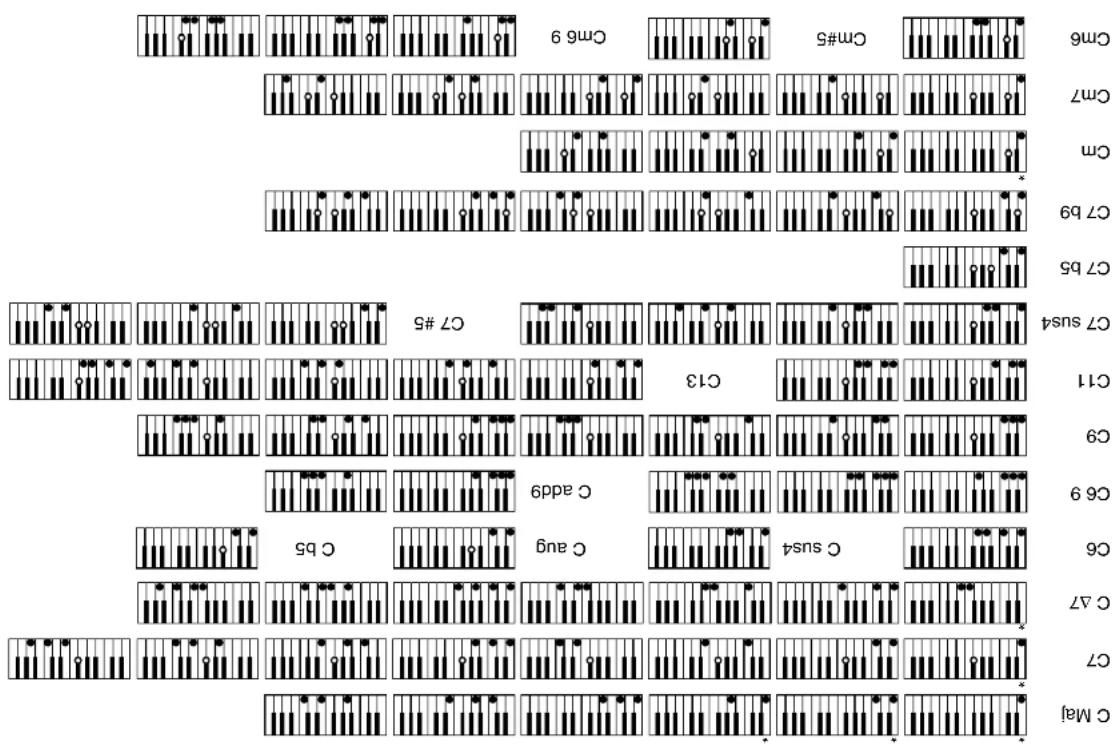
text_image
C Mal C7 C 47 C 6 C 89 C 9 C 11 C7 #5 C7 #s4 C7 b5 C7 b9 Cm Cm Cm7 Cm6 Cm#5 Cm6 9Finger mode.
Entries on the chart with an asterisk (*) are easy fingers that can be recognized in the (One-
chords to other keys apply.
recognizers. All these are represented here in the key of C, but of course any transposition of these
This table describes the fingerings of 61 types of chords, including inversions, that the CP piano
Table of Chord Types

text_image
Cm9 Cm add9 C7 #9 C7 b9 11 C9 13 C7 b9 11 13 C7 #9 b13 Cm7 b5 Cm7 b5 11 C Δ7 #5 C Δ7 b5 C Δ9 C Δ7 13 Cm9 C dim C dim 9 C dim 11 C m7 11 C m7 11 b13 C m7 b5 9 C m7 b5 11 C m7 b5 13 C m7 b5 13 C m7 b5 13 C m7 b5 13 C m7 b5 13 C m7 b5 13 C m7 b5 13 C m7 b5 13 C m7 b5 13 C m7 b5 13 C m7 b5 13 C m7 b5 13Koula Concert [♦]former Series Digital ^[210]
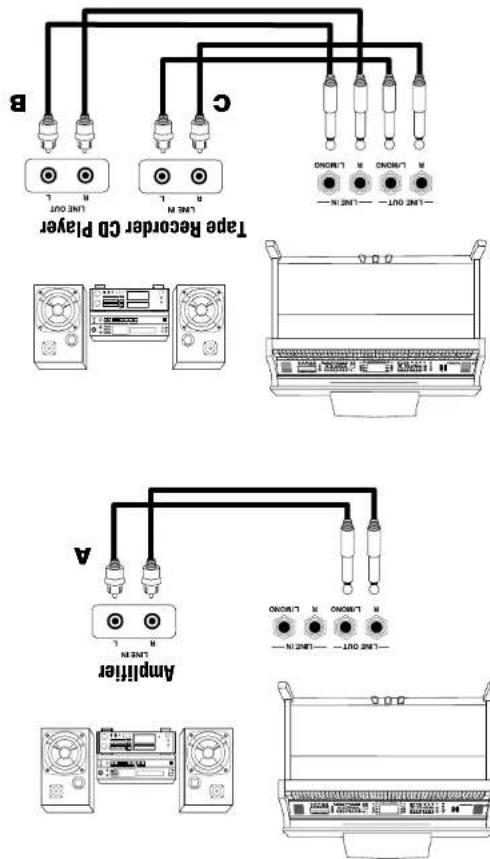
text_image
B C LME OUT LME M LME N LME OUT LME N LME OUT LME N LME OUT LME N LME OUT LME N LME OUT LME N LME OUT LME N LME OUT LME N LME OUT LME N LME OUT LME N LME OUT LME N LME OUT LME N LME OUT LME N LME OUT LME IN LME OUT LME IN LME OUT LME IN LME OUT LME IN LME OUT LME IN LME OUT LME IN LME OUT LME IN LME OUT LME IN LME OUT LME IN LME OUT LME IN LME OUT LME IN LME OUT LME IN LME OUT LME IN LME IN LME IN LME IN LME IN LME IN LME IN LME IN LME IN LME IN LME IN LME IN LME IN LME IN LME IN LME IN LME IN LME IN LME IN LME IN LME INEven though the CP17 do not have a CD-R Drive you can still make a recording from your CP using the line out Jacks. Simply connect an external CD-R computer etc.) to the CP's Line Out Jacks. Everything that you hear coming out of the CP's built-in speaker system is also sent out through the Line Out Jacks and can be recorded. You can also record anything that is connected to the Line in Jacks along with anything being played by the CP.
C. Recording Your Performance with Your Tape Recorder
You can connect audio cables from your stereo system or another source to the CP's line in jacks. The sound of your stereo playing a tape, CD, or even radio will be heard through the CP's speaker system and mixed in what any sounds from the CP itself, enabling you to play along with your favorite songs! (connect the CP with your (D) player or other device as illustrated.)
B. Using the Concert Performer with Your Home Audio System
The Concert Performer has amplifier and built-in speakers and together, they produce a powerful sound. However, for larger venues or outdoor performers, you may need to use additional amplification and speaker systems. Standard I/4-inch audio cables can be placed into the CP's stereo line Out jacks for this purpose. The CP's Master Volume will affect the signals levels output from the line Out Jacks.
A. Using External Speakers
Example of Connection
D. Using the Concert Performer with an External MIDI Instrument
MIDI lets you expand the creative possibilities of the CP by connecting it to an external MIDI device or personal computer.
Use a MIDI cable to connect the CP's MIDI Out jack to the other device's MIDI In. Likewise, connect the MIDI Out jack of the other device to the CP's MIDI In.
E. Using The Concert Performer with Your Personal Computer
Your personal computer can be used as a MIDI device as well. In order to connect your computer to the CP you will need a MIDI interface. Check with your local music store or computer dealer for more information about particular models of these interface devices. Once you have your computer connected to your Concert Performer, you can think of it as a powerful extension of the CP's own music processing abilities. There are hundreds of software programs available that you can use to do everything from learn the basics of piano playing, to creating film scores for your home movies, to composing the next great digital symphony.
If you don't wish to purchase a MIDI interface device for your computer, the Concert Performer has a special type of interface built in to it that may make the connection easier. The CP can be connected directly to the back of your computer via a USB cable.
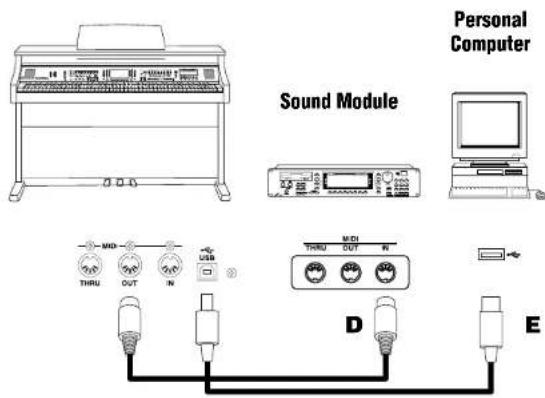
text_image
Sound Module Personal Computer D EIn order for the CP and your computer to properly communicate over this USB cable, you first need to set the MIDI-USB switch located next to the MIDI jacks to USB. Also your computer must have a USB driver installed. Please read the instruction on the next page for the details about the USB driver.
* Maclithost is registered trademark of Apple Computer, Inc.
* Windows is registered trademark of Microsoft Corporation.
* If you have any problem with USB communication, consult the instruction manual of your computer and check your computer set up.
while the computer is in energy saver mode
while communicating with the computer
while MUDI application is working
while booting up the computer
while installing USB driver
communication.
Tuning the power of the Concert Performer on/off or disconnecting the USB cable while the following actions may cause unstable
When USB communication is unstable with connection via hub, connect the USB cable directly to the USB port of the computer.
It may take some time to state communication when the Concert Performer is connected to the computer via USB.
When connecting USB cable to the Concert Performer, first connect the USB cable and then turn the power of the Concert Performer on.
When both MIDI jacks and USB jack are connected, USB has priority.
NOTE:
concenting the Concert Performer to a Maclitosh computer.
Currently we don't have a USB driver available for macOS computers. Please use an appropriate MIDI interface and MIDI cables when
[For Maclitosh users]
download the program.
You need to install the designated driver in your computer. Visit the KAWAL web site at http://www.kawal.co.jp/english/Download.html and
[For Windows 2000/98SE users]
A standard USB driver is already installed in your computer. You don't need to install a new driver.
[For Windows XP/ME users]
installed in your computer.
The Concert Performer can be connected with a personal computer with a USB cable for exchanging MIDI data. You need a USB driver
usb
| Category Sound Name | Prog MSB LSB | Category Sound Name | Category Sound Name | Prog MSB LSB | Category Sound Name | Prog MSB LSB |
| Piano Concert Grand 1 121 0 | 658 4 | DRAWBAR Be 3 | 17 95 1 | ORGAN Full Pipes | 20 95 9 | |
| 658 4 | Zimmer | 18 95 1 | Small Ensemble | 20 95 8 | ||
| 658 3 | Mellow | 17 95 3 | Church Organ 2 | 20 121 0 | ||
| 658 2 | Flll Organ | 18 95 4 | Church Organ | 20 121 0 | ||
| 658 2 | Flll Organ | 18 95 5 | Church Organ 2 | 20 95 5 | ||
| 658 2 | Flll Organ | 18 95 6 | Church Organ | 20 95 6 | ||
| 658 2 | Flll Organ | 18 95 7 | Church Organ | 20 95 7 | ||
| 658 2 | Flll Organ | 18 95 8 | Church Organ | 20 95 8 | ||
| 658 2 | Flll Organ | 18 95 9 | Church Organ | 20 95 9 | ||
| 658 2 | Flll Organ | 18 95 10 | Church Organ | 20 95 10 | ||
| 658 2 | Flll Organ | 18 95 11 | Church Organ | 20 95 11 | ||
| 658 2 | Flll Organ | 18 95 12 | Church Organ | 20 95 12 | ||
| 658 2 | Flll Organ | 18 95 13 | Church Organ | 20 95 13 | ||
| 658 2 | Flll Organ | 18 95 14 | Church Organ | 20 95 14 | ||
| 658 2 | Flll Organ | 18 95 15 | Church Organ | 20 95 15 | ||
| 658 2 | Flll Organ | 18 95 16 | Church Organ | 20 95 16 | ||
| 658 2 | Flll Organ | 18 95 17 | Church Organ | 20 95 17 | ||
| 658 2 | Flll Organ | 18 95 18 | Church Organ | 20 95 18 | ||
| 658 2 | Flll Organ | 18 95 19 | Church Organ | 20 95 19 | ||
| 658 2 | Flll Organ | 18 95 20 | Church Organ | 20 95 20 | ||
| 658 2 | Flll Organ | 18 95 21 | Church Organ | 20 95 21 | ||
| 658 2 | Flll Organ | 18 95 22 | Church Organ | 20 95 22 | ||
| 658 2 | Flll Organ | 18 95 23 | Church Organ | 20 95 23 | ||
| 658 2 | Flll Organ | 18 95 24 | Church Organ | 20 95 24 | ||
| 658 2 | Flll Organ | 18 95 25 | Church Organ | 20 95 25 | ||
| 658 2 | Flll Organ | 18 95 26 | Church Organ | 20 95 26 | ||
| 658 2 | Flll Organ | 18 95 27 | Church Organ | 20 95 27 | ||
| 658 2 | Flll Organ | 18 95 28 | Church Organ | 20 95 28 | ||
| 658 2 | Flll Organ | 18 95 29 | Church Organ | 20 95 29 | ||
| 658 2 | Flll Organ | 18 95 30 | Church Organ | 20 95 30 | ||
| 658 2 | Flll Organ | 18 95 31 | Church Organ | 20 95 31 | ||
| 658 2 | Flll Organ | 18 95 32 | Church Organ | 20 95 32 | ||
| 658 2 | Flll Organ | 18 95 33 | Church Organ | 20 95 33 | ||
| 658 2 | Flll Organ | 18 95 34 | Church Organ | 20 95 34 | ||
| 658 2 | Flll Organ | 18 95 35 | Church Organ | 20 95 35 | ||
| 658 2 | Flll Organ | 18 95 36 | Church Organ | 20 95 36 | ||
| 658 2 | Flll Organ | 18 95 37 | Church Organ | 20 95 37 | ||
| 658 2 | Flll Organ | 18 95 38 | Church Organ | 20 95 38 | ||
| 658 2 | Flll Organ | 18 95 39 | Church Organ | 20 95 39 | ||
| 658 2 | Flll Organ | 18 95 40 | Church Organ | 20 95 40 | ||
| 658 2 | Flll Organ | 18 95 41 | Church Organ | 20 95 41 | ||
| 658 2 | Flll Organ | 18 95 42 | Church Organ | 20 95 42 | ||
| 658 2 | Flll Organ | 18 95 43 | Church Organ | 20 95 43 | ||
| 658 2 | Flll Organ | 18 95 44 | Church Organ | 20 95 44 | ||
| 658 2 | Flll Organ | 18 95 45 | Church Organ | 20 95 45 | ||
| 658 2 | Flll Organ | 18 95 46 | Church Organ | 20 95 46 | ||
| 658 2 | Flll Organ | 18 95 47 | Church Organ | 20 95 47 | ||
| 658 2 | Flll Organ | 18 95 48 | Church Organ | 20 95 48 | ||
| 658 2 | Flll Organ | 18 95 49 | Church Organ | 20 95 49 | ||
| 658 2 | Flll Organ | 18 95 50 | Church Organ | 20 95 50 | ||
| 658 2 | Flll Organ | 18 95 51 | Church Organ | 20 95 51 | ||
| 658 2 | Flll Organ | 18 95 52 | Church Organ | 20 95 52 | ||
| 658 2 | Flll Organ | 18 95 53 | Church Organ | 20 95 53 | ||
| 658 2 | Flll Organ | 18 95 54 | Church Organ | 20 95 54 | ||
| 658 2 | Flll Organ | 18 95 55 | Church Organ | 20 95 55 | ||
| 658 2 | Flll Organ | 18 95 56 | Church Organ | 20 95 56 | ||
| 658 2 | Flll Organ | 18 95 57 | Church Organ | 20 95 57 | ||
| 658 2 | Flll Organ | 18 95 58 | Church Organ | 20 95 58 | ||
| 658 2 | Flll Organ | 18 95 59 | Church Organ | 20 95 59 | ||
| 658 2 | Flll Organ | 18 95 60 | Church Organ | 20 95 60 | ||
| 658 2 | Flll Organ | 18 95 61 | Church Organ | 20 95 61 | ||
| 658 2 | Flll Organ | 18 95 62 | Church Organ | 20 95 62 | ||
| 658 2 | Flll Organ | 18 95 63 | Church Organ | 20 95 63 | ||
| 658 2 | Flll Organ | 18 95 64 | Church Organ | 20 95 64 | ||
| 658 2 | Flll Organ | 18 95 65 | Church Organ | 20 95 65 | ||
| 658 2 | Flll Organ | 18 95 66 | Church Organ | 20 95 66 | ||
| 658 2 | Flll Organ | 18 95 67 | Church Organ | 20 95 67 | ||
| 658 2 | Flll Organ | 18 95 68 | Church Organ | 20 95 68 | ||
| 658 2 | Flll Organ | 18 95 69 | Church Organ | 20 95 69 | ||
| 658 2 | Flll Organ | 18 95 70 | Church Organ | 20 95 70 | ||
| 658 2 | Flll Organ | 18 95 71 | Church Organ | 20 95 71 | ||
| 658 2 | Flll Organ | 18 95 72 | Church Organ | 20 95 72 | ||
| 658 2 | Flll Organ | 18 95 73 | Church Organ | 20 95 73 | ||
| 658 2 | Flll Organ | 18 95 74 | Church Organ | 20 95 74 | ||
| 658 2 | Flll Organ | 18 95 75 | Church Organ | 20 95 75 | ||
| 658 2 | Flll Organ | 18 95 76 | Church Organ | 20 95 76 | ||
| 658 2 | Flll Organ | 18 95 77 | Church Organ | 20 95 77 | ||
| 658 2 | Flll Organ | 18 95 78 | Church Organ | 20 95 78 | ||
| 658 2 | Flll Organ | 18 95 79 | Church Organ | 20 95 79 | ||
| 658 2 | Flll Organ | 18 95 80 | Church Organ | 20 95 80 | ||
| 658 2 | Flll Organ | 18 95 81 | Church Organ | 20 95 81 | ||
| 658 2 | Flll Organ | 18 95 82 | Church Organ | 20 95 82 | ||
| 658 2 | Flll Organ | 18 95 83 | Church Organ | 20 95 83 | ||
| 658 2 | Flll Organ | 18 95 84 | Church Organ | 20 95 84 | ||
| 658 2 | Flll Organ | 18 95 85 | Church Organ | 20 95 85 | ||
| 658 2 | Flll Organ | 18 95 86 | Church Organ | 20 95 86 | ||
| 658 2 | Flll Organ | 18 95 87 | Church Organ | 20 95 87 | ||
| 658 2 | Flll Organ | 18 95 88 | Church Organ | 20 95 88 | ||
| 658 2 | Flll Organ | 18 95 89 | Church Organ | 20 95 89 | ||
| 658 2 | Flll Organ | 18 95 90 | Church Organ | 20 95 90 | ||
| 658 2 | Flll Organ | 18 95 91 | Church Organ | 20 95 91 | ||
| 658 2 | Flll Organ | 18 95 92 | Church Organ | 20 95 92 | ||
| 658 2 | Flll Organ | 18 95 93 | Church Organ | 20 95 93 | ||
| 658 2 | Flll Organ | 18 95 94 | Church Organ | 20 95 94 | ||
| 658 2 | Flll Organ | 18 95 95 | Church Organ | 20 95 95 | ||
| 658 2 | Flll Organ | 18 95 96 | Church Organ | 20 95 96 | ||
| 658 2 | Flll Organ | 18 95 97 | Church Organ | 20 95 97 | ||
| 658 2 | Flll Organ | 18 95 98 | Church Organ | 20 95 98 | ||
| 658 2 | Flll Organ | 18 95 99 | Church Organ | 20 95 99 | ||
| 658 2 | Flll Organ | 18 95 100 | Church Organ | 20 95 100 | ||
| 658 2 | Flll Organ | 18 95 101 | Church Organ | 20 95 101 | ||
| 658 2 | Flll Organ | 18 95 102 | Church Organ | 20 95 102 | ||
| 658 2 | Flll Organ | 18 95 103 | Church Organ | 20 95 103 | ||
| 658 2 | Flll Organ | 18 95 104 | Church Organ | 20 95 104 | ||
| 658 2 | Flll Organ | 18 95 105 | Church Organ | 20 95 105 | ||
| 658 2 | Flll Organ | 18 95 106 | Church Organ | 20 95 106 | ||
| 658 2 | Flll Organ | 18 95 107 | Church Organ | 20 95 107 | ||
| 658 2 | Flll Organ | 18 95 108 | Church Organ | 20 95 108 | ||
| 658 2 | Flll Organ | 18 95 109 | Church Organ | 20 95 109 | ||
| 658 2 | Flll Organ | 18 95 110 | Church Organ | 20 95 110 | ||
| 658 2 | Flll Organ | 18 95 111 | Church Organ | 20 95 111 | ||
| 658 2 | Flll Organ | 18 95 112 | Church Organ | 20 95 112 | ||
| 658 2 | Flll Organ | 18 95 113 | Church Organ | 20 95 113 | ||
| 658 2 | Flll Organ | 18 95 114 | Church Organ | 20 95 114 | ||
| 658 2 | Flll Organ | 18 95 115 | Church Organ | 20 95 115 | ||
| 658 2 | Flll Organ | 18 95 116 | Church Organ | 20 95 116 | ||
| 658 2 | Flll Organ | 18 95 117 | Church Organ | 20 95 117 | ||
| 658 2 | Flll Organ | 18 95 118 | Church Organ | 20 95 118 | ||
| 658 2 | Flll Organ | 18 95 119 | Church Organ | 20 95 119 | ||
| 658 2 | Flll Organ | 18 95 120 | Church Organ | 20 95 120 | ||
| 658 2 | Flll Organ | 18 95 121 | Church Organ | 20 95 121 | ||
| 658 2 | Flll Organ | 18 95 122 | Church Organ | 20 95 122 | ||
| 658 2 | Flll Organ | 18 95 123 | Church Organ | 20 95 123 | ||
| 658 2 | Flll Organ | 18 95 124 | Church Organ | 20 95 124 | ||
| 658 2 | Flll Organ | 18 95 125 | Church Organ | 20 95 125 | ||
| 658 2 | Flll Organ | 18 95 126 | Church Organ | 20 95 126 | ||
| 658 2 | Flll Organ | 18 95 127 | Church Organ | 20 95 127 | ||
| 658 2 | Flll Organ | 18 95 128 | Church Organ | 20 95 128 | ||
| 658 2 | Flll Organ | 18 95 129 | Church Organ | 20 95 129 | ||
| 658 2 | Flll Organ | 18 95 130 | Church Organ | 20 95 130 | ||
| 658 2 | Flll Organ | 18 95 131 | Church Organ | 20 95 131 | ||
| 658 2 | Flll Organ | 18 95 132 | Church Organ | 20 95 132 | ||
| 658 2 | Flll Organ | 18 95 133 | Church Organ | 20 95 133 | ||
| 658 2 | Flll Organ | 18 95 134 | Church Organ | 20 95 134 | ||
| 658 2 | Flll Organ | 18 95 135 | Church Organ | 20 95 135 | ||
| 658 2 | Flll Organ | 18 95 136 | Church Organ | 20 95 136 | ||
| 658 2 | Flll Organ | 18 95 137 | Church Organ | 20 95 137 | ||
| 658 2 | Flll Organ | 18 95 138 | Church Organ | 20 95 138 | ||
| 658 2 | Flll Organ | 18 95 139 | Church Organ | 20 95 139 | ||
| 658 2 | Flll Organ | 18 95 140 | Church Organ | 20 95 140 | ||
| 658 2 | Flll Organ | 18 95 141 | Church Organ | 20 95 141 | ||
| 658 2 | Flll Organ | 18 95 142 | Church Organ | 20 95 142 | ||
| 658 2 | Flll Organ | 18 95 143 | Church Organ | 20 95 143 | ||
| 658 2 | Flll Organ | 18 95 144 | Church Organ | 20 95 144 | ||
| 658 2 | Flll Organ | 18 95 145 | Church Organ | 20 95 145 | ||
| 658 2 | Flll Organ | 18 95 146 | Church Organ | 20 95 146 | ||
| 658 2 | Flll Organ | 18 95 147 | Church Organ | 20 95 147 | ||
| 658 2 | Flll Organ | 18 95 148 | Church Organ | 20 95 148 | ||
| 658 2 | Flll Organ | 18 95 149 | Church Organ | 20 95 149 | ||
| 658 2 | Flll Organ | 18 95 150 | Church Organ | 20 95 150 | ||
| 658 2 | Flll Organ | 18 95 151 | Church Organ | 20 95 151 | ||
| 658 2 | Flll Organ | 18 95 152 | Church Organ | 20 95 152 | ||
| 658 2 | Flll Organ | 18 95 153 | Church Organ | 20 95 153 | ||
| 658 2 | Flll Organ | 18 95 154 | Church Organ | 20 95 154 | ||
| 658 2 | Flll Organ | 18 95 155 | Church Organ | 20 95 155 | ||
| 658 2 | Flll Organ | 18 95 156 | Church Organ | 20 95 156 | ||
| 658 2 | Flll Organ | 18 95 157 | Church Organ | 20 95 157 | ||
| 658 2 | Flll Organ | 18 95 158 | Church Organ | 20 95 158 | ||
| 658 2 | Flll Organ | 18 95 159 | Church Organ | 20 95 159 | ||
| 658 2 | Flll Organ | 18 95 160 | Church Organ | 20 95 160 | ||
| 658 2 | Flll Organ | 18 95 161 | Church Organ | 20 95 161 | ||
| 658 2 | Flll Organ | 18 95 162 | Church Organ | 20 95 162 | ||
| 658 2 | Flll Organ | 18 95 163 | Church Organ | 20 95 163 | ||
| 658 2 | Flll Organ | 18 95 164 | Church Organ | 20 95 164 | ||
| 658 2 | Flll Organ | 18 95 165 | Church Organ | 20 95 165 | ||
| 658 2 | Flll Organ | 18 95 166 | Church Organ | 20 95 166 | ||
| 658 2 | Flll Organ | 18 95 167 | Church Organ | 20 95 167 | ||
| 658 2 | Flll Organ | 18 95 168 | Church Organ | 20 95 168 | ||
| 658 2 | Flll Organ | 18 95 169 | Church Organ | 20 95 169 | ||
| 658 2 | Flll Organ | 18 95 170 | Church Organ | 20 95 170 | ||
| 658 2 | Flll Organ | 18 95 171 | Church Organ | 20 95 171 | ||
| 658 2 | Flll Organ | 18 95 172 | Church Organ | 20 95 172 | ||
| 658 2 | Flll Organ | 18 95 173 | Church Organ | 20 95 173 | ||
| 658 2 | Flll Organ | 18 95 174 | Church Organ | 20 95 174 | ||
| 658 2 | Flll Organ | 18 95 175 | Church Organ | 20 95 175 | ||
| 658 2 | Flll Organ | 18 95 176 | Church Organ | 20 95 176 | ||
| 658 2 | Flll Organ | 18 95 177 | Church Organ | 20 95 177 | ||
| 658 2 | Flll Organ | 18 95 178 | Church Organ | 20 95 178 | ||
| 658 2 | Flll Organ | 18 95 179 | Church Organ | 20 95 179 | ||
| 658 2 | Flll Organ | 18 95 180 | Church Organ | 20 95 180 | ||
| 658 2 | Flll Organ | 18 95 181 | Church Organ | 20 95 181 | ||
| 658 2 | Flll Organ | 18 95 182 | Church Organ | 20 95 182 | ||
| 658 2 | Flll Organ | 18 95 183 | Church Organ | 20 95 183 | ||
| 658 2 | Flll Organ | 18 95 184 | Church Organ | 20 95 184 | ||
| 658 2 | Flll Organ | 18 95 185 | Church Organ | 20 95 185 | ||
| 658 2 | Flll Organ | 18 95 186 | Church Organ | 20 95 186 | ||
| 658 2 | Flll Organ | 18 95 187 | Church Organ | 20 95 187 | ||
| 658 2 | Flll Organ | 18 95 188 | Church Organ | 20 95 188 | ||
| 658 2 | Flll Organ | 18 95 189 | Church Organ | 20 95 189 | ||
| 658 2 | Flll Organ | 18 95 190 | Church Organ | 20 95 190 | ||
| 658 2 | Flll Organ | 18 95 191 | Church Organ | 20 95 191 |
| Category Sound Name Prog MSB LSB | Bank | Category Sound Name Prog MSB LSB | Bank | Category Sound Name Prog MSB LSB | Bank | |||||
| STRING Beautiful Strings 45 95 1 | WOODWIND | Alto Sax | 66 121 0 | BRASS Solo Trumpet 57 121 1 | ||||||
| String Ensemble 49 121 0 | Tenor Sax | 67 121 0 | Muted Trumpet | 60 121 | 0 | |||||
| String Ensemble 2 50 121 0 | Baritone Sax | 68 121 0 | Cup Mute Trumpet | 60 95 1 | ||||||
| Synth Strings 51 121 0 | Soprano Sax | 65 121 0 | Trumpet | 57 | 121 | 0 | ||||
| Synth Strings 2 52 121 0 | Big Band Winds | 74 95 2 | Trombone | 58 | 121 | 0 | ||||
| Violin 41 121 0 | Flute 74 121 0 | French Horns | 61 121 0 | |||||||
| Viola 42 121 0 | Clarinet | 72 121 0 | Tuba | 59 | 121 | 0 | ||||
| Cello 43 121 0 | Pan Flute | 76 121 0 | Brass Section | 62 121 0 | ||||||
| Contrabass 44 121 0 | Oboe 69 121 0 | Synth Brass | 63 121 0 | |||||||
| Harp | 47 121 0 | Orchestral Winds | 74 95 3 | Synth Brass 2 | 64 121 0 | |||||
| String Quartet | 49 95 2 | Soft Alto Sax | 66 95 1 | Flugel Horn | 57 95 1 | |||||
| Strings & Brass | 49 121 1 | Soft Tenor Sax | 67 95 2 | Muled Trumpet 2 | 60 | 121 | 1 | |||
| Warm Strings | 49 95 1 | Breathy Tenor Sax 67 | 95 1 | Cup Mute Trombone | 60 | 95 | 2 | |||
| Synth Strings 3 51 121 1 | Sax Section | 62 95 1 | Bright Trombone | 58 121 | 2 | |||||
| 60's Strings | 49 121 2 | Piccolo | 73 121 0 | Trombone 2 | 58 121 | 1 | ||||
| Slow Violin | 41 121 1 | Jazz Flute | 74 95 1 | Warm French Horn | 61 121 1 | |||||
| Tremolo Strings | 45 121 0 | Jazz Clarinet | 72 95 1 | Jump Brass | 63 121 3 | |||||
| Pizzicato | 46 121 0 | Recorder | 75 121 0 | Brass Section 2 | 62 121 1 | |||||
| Orchestra Hit | 56 121 0 | English Horn | 70 121 0 | Synth Brass 3 | 63 121 1 | |||||
| String & Harp | 49 95 6 | Bassoon | 71 121 0 | Synth Brass 4 | 64 121 1 | |||||
| Violin Ensemble | 41 95 1 | Flute & Mute Tpt | 74 95 6 | Bright Solo Tpt | 57 | 95 3 | ||||
| Cello Ensemble | 43 95 2 | Flute & Strings | 74 95 8 | Trumpet Ensemble 57 95 2 | ||||||
| String Bass Ens | 44 95 1 | Octave Saxes | 67 95 3 | Trumpet & Alto | 57 | 95 4 | ||||
| Mono Strings | 49 95 3 | Big Band Winds 2 | 74 95 4 | Trombone & Tenor | 58 | 95 | 1 | |||
| Strings & Bell | 49 95 5 | Orchestral Flute | 74 95 7 | Brass & Sax | 62 95 5 | |||||
| Strings & Piano | 1 95 4 | Orch Clarinet | 72 95 2 | Brass Pad | 62 95 2 | |||||
| Strings & Piano 2 | 1 95 5 | Orchestral Winds 2 | 74 95 5 | Muto Brass Ens | 60 95 3 | |||||
| Slow Cello | 43 95 1 | Oboe & Bassoon | 69 95 4 | French Horn & Strg | 61 95 1 | |||||
| Octave Strings | 49 95 4 | Pan Flute 2 76 95 2 | Dixieland Trumpet | 57 | 95 10 | |||||
| String Sustaining | 49 95 10 | Piccolo 2 | 73 95 1 | Sentimental Bone | 58 95 7 | |||||
| Synth String Orch | 51 95 1 | Slow Pan Flute | 76 95 1 | Brass & Synth 62 95 3 | ||||||
| String Sforzando | 49 95 9 | Recorder 2 | 75 95 1 | Brass & Synth 2 | 62 95 4 | |||||
| Category | Sound Name | Category | Sound Name | Prog MSP LSB | Category | Sound Name | Prog MSP LSB | Category | Sound Name | Prog MSP LSB |
| Bank | ||||||||||
| VOCAL & PAD | Chor Ahs | 53 | 121 | 0 | HARPSI A | Harpstead | 7 121 0 | GUTTAR Finger NYON CR 25 95 4 | ||
| Voice Cohs | 54 | 121 0 | MALTET | CAVI | 8 121 0 | 15 95 1 | JAZZ Guitar 27 121 0 | |||
| Iodia | 92 | 121 1 | 0 | Cledesa | 9 121 0 | Electric Quarta 28 121 0 | ||||
| Warm Pad | 90 | 121 1 | 0 | Handbeils | 15 95 1 | Electric Quarta 28 121 0 | ||||
| Binghines | 101 | 121 0 | 0 | Christ Belis 15 121 1 | Church Beils 15 121 1 | JAZZ Guitar 27 121 0 | ||||
| New Age | 89 | 121 0 | 0 | Hydrapone | 12 121 0 | Count Lead 29 121 3 | ||||
| Sweep | 96 | 121 0 | 0 | Marinba | 13 121 0 | Mudal Electric 29 121 0 | ||||
| Poysynthi | 91 | 121 0 | 0 | Xylpropane | 14 121 0 | Community 29 121 0 | ||||
| Yoice | 86 | 121 0 | 0 | Music Box | 11 121 0 | Decision 31 121 0 | ||||
| Chor | 92 | 121 0 | 0 | Synchiciel | 10 121 0 | Steel Sting 26 121 3 | ||||
| Shire Pad | 90 | 121 1 | 0 | Carlton | 15 121 2 | Electric Guitar 28 121 1 | ||||
| Haito | 95 | 121 0 | 0 | Thuiera Beils 15 121 0 | 121 0 | Electric Guitar 32 121 0 | ||||
| Symth Vocal | 55 | 121 0 | 0 | Rothing Steel Drum 115 | 121 0 | Hydrog Vees 121 0 | ||||
| Bowd | 93 | 121 0 | 0 | Roiling Vees 121 0 | 121 0 | Ukrule | 25 121 1 | |||
| Metallic | 94 | 121 0 | 0 | Synth Maillet | 99 121 1 | Large Marimba | 29 121 1 | |||
| Soundtrack | 98 | 121 0 | 0 | Roiling Marimba | 13 121 0 | Wide Marimba | 25 121 3 | |||
| Ooh | 54 | 95 1 | 0 | Wide Hyperphene | 12 121 1 | Nylon Electric | 28 95 1 | |||
| Brachy Chor | 53 | 95 1 | 0 | Wide Marimba | 13 121 1 | Jazz Guitar 2 | 27 95 2 | |||
| Ooth | 54 | 95 1 | 0 | Wide Hyperphene | 12 121 1 | Nylon Electric | 28 95 1 | |||
| Chor & Stinging | 53 | 95 3 | 0 | Harpeston 2 | 7 121 3 | Guilar Bradack | 26 95 3 | |||
| Bright Warm Pad | 90 | 95 1 | 0 | Wide Herpstedict | 7 121 2 | Muad Handbells | 32 121 1 | |||
| Magalic Pad 2 | 94 | 95 1 | 0 | Wide Handbells | 15 95 2 | Murial Handbells | 30 121 1 | |||
| Poysynthi 2 | 91 | 95 1 | 0 | Wide & Guarfer | 12 95 1 | Dynamic Oerdvirue | 30 121 1 | |||
| Poysynthi 2 | 91 | 95 1 | 0 | Steel Drums 2 1 15 95 1 | 12 95 2 | Dist Rhythm | 31 121 2 | |||
| New Age 2 | 95 | 95 1 | 0 | Ocean Webs | 12 95 2 | Dist Feedback | 31 121 1 | |||
| New Age 2 | 89 | 95 1 | 0 | Harpest & Pipes | 7 95 4 | Harpest & Pipes 2 | 29 95 1 | |||
| New Age 4 | 89 | 95 3 | 0 | Harpest & Pipes 2 | 7 95 2 | Harpest & Pipes 2 | 27 95 5 | |||
| Binghines 2 101 95 1 | 89 | 95 3 | 0 | Harpest & Pipes 2 | 7 95 4 | Harpest & Pipes 2 | 26 95 1 | |||
| Bathies | 89 | 95 2 | 0 | Harpest & Pipes 2 | 7 95 2 | Harpest & Pipes 2 | 29 95 1 | |||
| New Age 3 | 89 | 95 2 | 0 | Harpest & Pipes | 7 95 3 | Harpest & Pipes 2 | 28 95 4 | |||
| New Age 4 | 89 | 95 3 | 0 | Harpest & Pipes | 7 95 1 | Harpest & Pipes 2 | 27 95 3 | |||
| New Age 2 | 95 | 95 1 | 0 | Steel Drums 2 1 15 95 1 | 7 95 1 | Gut Cutting Noise 121 121 0 | ||||
| Category Sound Name Prog MSB LSB | Bank | Category Sound Name Prog MSB LSB | Bank | Category | Sound Name Prog MSB LSB | Bank | ||||
| BASS Acoustic Bass 33 95 2 | SYNTH | Classic Synth 82 121 0 | SPECIALTY | Strumming Ac Gtr | 26 121 | 0 | ||||
| Electric Bass 34 95 1 | Classic Synth 2 | 82 121 1 | Strumming Ac Gtr 2 | 25 121 0 | ||||||
| Finger Bass 34 121 0 | Square | 81 121 0 | Picking Ac Gtr | 25 121 0 | ||||||
| Pick Bass 35 121 0 | Sine | 81 121 2 | Picking Ac Gtr 2 | 26 121 0 | ||||||
| Fretless Bass 36 121 0 | Chiff | 84 121 0 | Mandolin | 26 121 2 | ||||||
| Ac Bass & Ride 33 95 1 | Bass & Lead | 88 121 0 | Banjo | 106 121 0 | ||||||
| Slap Bass 37 121 0 | Wire Lead | 85 121 1 | Picking Banjo | 106 121 0 | ||||||
| Synth Bass 39 121 0 | Crystal | 99 121 0 | Harmonica | 23 121 0 | ||||||
| Synth Bass 2 | 40 121 0 | Rain Pad | 97 121 0 | Whistle | 79 121 0 | |||||
| Attack Bass | 40 121 3 | Analog Brass | 63 121 2 | Strumming Elec Gtr | 28 121 2 | |||||
| Acoustic Bass 2 | 33 121 0 | Classic Synth 3 | 82 121 3 | Picking Elec Gtr | 27 121 0 | |||||
| Finger Slap Bass | 34 121 1 | Fifth | 87 121 0 | Pick/Strum Gtr | 26 121 1 | |||||
| Warm Synth Bass | 39 121 1 | Square 2 | 81 121 1 | Pick/Strum Gtr 2 | 26 121 0 | |||||
| Clavi Bass | 39 121 3 | Sequenced Analog | 82 121 4 | Strumming Mandolin | 26 121 2 | |||||
| Hammer Bass 39 121 4 | Charang | 85 121 0 | Strumming Banjo | 106 121 0 | ||||||
| Elec Bass & Ride 34 95 2 | Lead | 82 121 2 | Blues Harmonica | 23 95 2 | ||||||
| Slap Bass 2 38 121 0 | Soft Wire Lead | 88 121 1 | Wah Harmonica | 23 95 1 | ||||||
| Synth Bass 3 | 39 121 2 | Echo Bell 103 121 1 | Wah Harmonica 2 | 23 95 3 | ||||||
| Synth Bass 4 | 40 121 1 | Caliope | 83 121 0 | Fiddle | 111 121 | 0 | ||||
| Rubber Bass 40 121 2 | Analog Brass 2 | 64 121 2 | Slow Fiddle | 111 95 | 1 | |||||
| Octave Fretless | 36 95 1 | Multi Sweep | 96 95 1 | Accordion | 22 121 1 | |||||
| Poly Synth Bass | 39 95 1 | Warm Sweep | 96 95 2 | French Accordion | 22 121 0 | |||||
| Clavi Bass 2 | 39 95 2 | Bowed 2 | 93 95 1 | Tango Accordion 24 121 0 | ||||||
| Ac Bass & Piano | 33 95 3 | Saw Pad | 82 95 3 | French Accordion 2 | 22 95 1 | |||||
| Elec Bass & Piano | 34 95 3 | Big Saw | 82 95 1 | Accordion 2 | 22 95 2 | |||||
| Acoustic Bass 3 | 33 95 4 | Octave Saw | 82 95 2 | Celtic Harp | 47 121 1 | |||||
| Acoustic Bass 4 | 33 95 5 | Clean Square | 81 95 1 | Dulclmer | 16 121 0 | |||||
| Square Lead | 81 95 3 | Mellow Mandolin 26 95 | 4 | |||||||
| Analog Brass 3 | 64 95 1 | Whistlers | 79 95 1 | |||||||
| Square Comp | 89 95 5 | Shakuhachi | 78 121 0 | |||||||
| Square Pad | 81 95 2 | Sitar | 105 121 0 | |||||||
| Goblin | 102 121 0 | Blown Bottle | 77 121 0 | |||||||
after Program Change.
, For Drum Kils, send Exclusive Message (FO 40 7F 33 99 mm 10 ON 7F 6K F7)
| SFX | SFX Kit | 57 120 0 | ||
| Applesse | 127 | 121 | 0 | |
| Seashore | 123 | 121 | 0 | |
| Thunder | 123 | 121 | 1 | |
| Falm | 123 | 121 | 2 | |
| Swearn | 123 | 121 | 4 | |
| Wood | 123 | 121 | 1 | |
| Lundt | 123 | 121 | 2 | |
| Wind | 123 | 121 | 3 | |
| Bathing | 127 | 121 | 2 | |
| Scraming | 127 | 121 | 1 | |
| Laughing | 127 | 121 | 1 | |
| Laughing | 124 | 121 | 0 | |
| Redd Tweet | 124 | 121 | 0 | |
| Lungting | 124 | 121 | 0 | |
| Telephore 125 | 121 0 | |||
| Helicopter | 126 | 121 | 0 | |
| Gunshot | 128 | 121 | 0 | |
| Expedition | 128 | 121 | 3 | |
| Machine Gun | 128 | 121 | 1 | |
| Foot Step | 127 | 121 | 5 | |
| Stern | 126 | 121 | 5 | |
| Food | 127 | 121 | 5 | |
| Door Slam | 125 | 121 | 3 | |
| Dog Brading | 124 | 121 | 1 | |
| Telephone 2 | 125 | 121 | 1 | |
| Wind Divine | 125 | 121 | 5 | |
| Car Passing | 126 | 121 | 3 | |
| Car Propising | 126 | 121 | 2 | |
| Car Shopping | 126 | 121 | 2 | |
| Breed Nose 122 | 121 0 | |||
| Horse Gallop | 124 | 121 | 2 | |
| Door Creak 125 | 121 2 | |||
| Car Engine | 126 | 121 | 1 | |
| Car Crash | 126 | 121 | 4 | |
| Tain | 126 | 121 | 6 | |
| Jet Plane | 126 | 121 | 7 | |
| Starship | 126 | 121 | 8 | |
| Punch | 127 | 121 | 3 | |
| Heathbeat 127 | 121 4 | |||
| Laser Gun | 128 | 121 | 2 | |
| Scratch | 125 | 121 | 4 | |
| Torley Bell | 99 95 | 1 | ||
| Wrista Dome | 126 95 | 6 | ||
| White Up 126 95 | 7 | |||
| Bubbie | 123 | 121 | 5 | |
| DRAU Standard Kft 1 120 0 1 | |||
| Jazz Kit 35 120 0 33 | Raon Kft 9 120 0 9 | Briski Kit 41 120 0 41 | Analog Kit 26 120 0 26 |
| Power Kit 17 120 0 17 | Torran Kit 48 121 0 | Timpian Kit 2 2 120 0 2 | |
| Standard Kit 2 | Orchialer Kit 49 120 0 49 | Foiling Tipmental 48 121 0 | |
| Trampan 48 121 0 | Takio Drums 117 121 0 | Metalod Forms 118 121 0 | |
| Metalod Forms 117 121 0 | Woodlock 116 121 0 | Aqayo 114 121 0 | |
| Aqayo 116 121 0 | Castanet 116 121 0 | Castanet 113 121 0 | |
| Castanet 113 121 0 | Greene Cymbal 120 121 0 | Silight Beils 113 95 1 | |
| Silight Beils 113 95 1 | Tanigle 113 95 2 | Feparing Castanet 116 121 0 | |
| Feylim Box Tom 119 121 0 | Spira Roll 117 95 2 | Metalod Tom 118 121 0 | |
| Spira Roll 117 95 2 | Metalod Tom 2 118 121 0 | Sandrum 119 121 0 | |
| Sandrum 119 121 0 | Spirith Turn 117 95 3 | Soft Timpian 48 95 1 | |
| Soft Timpian 117 95 3 | Soft Timpian Roll 48 95 2 | Orth Cymbal & BD 117 95 8 | |
| Orth Cymbal & BD 117 95 8 | Finger Snap 116 95 4 | Finger Snap 114 95 1 | |
| Finger Snap 117 95 7 | Barbouantine 114 95 1 | Tarmonthine 117 95 1 | |
| Barbouantine 117 95 7 | Hann Crap 117 95 3 | Crash Cymbal Mule 120 95 7 | |
Category Sound Name Prog MSP LSB k=KIT No
Bank Executive
Category Sound Name Prrg MSB LSB k=KIT No
Bank Executive
Koula: Concert l'efformer Series Digital [ ^2 ano
| City C 24 | Standard GI | Standard GI 2 | Room GI | Power GI | Electric GI | Analog GI | Diode GI | Jazz GI | Bout GI | Christie GI |
| A | 35 | S1D HO2 | → | → | → | → | → | → | → | → |
| B | 36 | S1D HO2 | → | → | → | → | → | → | → | → |
| C | 37 | S1D HO2 | → | → | → | → | → | → | → | → |
| D | 38 | Hend City | → | → | → | → | → | → | → | → |
| E | 41 | S1D HO2 | → | → | → | → | → | → | → | → |
| F | 42 | S1D HO2 | → | → | → | → | → | → | → | → |
| G | 43 | S1D HO2 | → | → | → | → | → | → | → | → |
| H | 45 | S1D HO2 | → | → | → | → | → | → | → | → |
| I | 46 | S1D HO2 | → | → | → | → | → | → | → | → |
| J | 47 | S1D HO2 | → | → | → | → | → | → | → | → |
| K | 48 | S1D HO2 | → | → | → | → | → | → | → | → |
| L | 49 | S1D HO2 | → | → | → | → | → | → | → | → |
| M | 50 | S1D HO2 | → | → | → | → | → | → | → | → |
| N | 51 | S1D HO2 | → | → | → | → | → | → | → | → |
| O | 52 | S1D HO2 | → | → | → | → | → | → | → | → |
| P | 53 | S1D HO2 | → | → | → | → | → | → | → | → |
| Q | 54 | S1D HO2 | → | → | → | → | → | → | → | → |
| R | 55 | S1D HO2 | → | → | → | → | → | → | → | → |
| S | 56 | S1D HO2 | → | → | → | → | → | → | → | → |
| T | 57 | S1D HO2 | → | → | → | → | → | → | → | → |
| U | 58 | S1D HO2 | → | → | → | → | → | → | → | → |
| V | 59 | S1D HO2 | → | → | → | → | → | → | → | → |
| W | 60 | S1D HO2 | → | → | → | → | → | → | → | → |
| X | 61 | S1D HO2 | → | → | → | → | → | → | → | → |
| Y | 62 | S1D HO2 | → | → | → | → | → | → | → | → |
| Z | 63 | S1D HO2 | → | → | → | → | → | → | → | → |
| A | 64 | S1D HO2 | → | → | → | → | → | → | → | → |
| B | 65 | S1D HO2 | → | → | → | → | → | → | → | → |
| C | 66 | S1D HO2 | → | → | → | → | → | → | → | → |
| D | 67 | S1D HO2 | → | → | → | → | → | → | → | → |
| E | 68 | S1D HO2 | → | → | → | → | → | → | → | → |
| F | 69 | S1D HO2 | → | → | → | → | → | → | → | → |
| G | 70 | S1D HO2 | → | → | → | → | → | → | → | → |
| H | 71 | S1D HO2 | → | → | → | → | → | → | → | → |
| I | 72 | S1D HO2 | → | → | → | → | → | → | → | → |
| J | 73 | S1D HO2 | → | → | → | → | → | → | → | → |
| K | 74 | S1D HO2 | → | → | → | → | → | → | → | → |
| L | 75 | S1D HO2 | → | → | → | → | → | → | → | → |
| M | 76 | S1D HO2 | → | → | → | → | → | → | → | → |
| N | 77 | S1D HO2 | → | → | → | → | → | → | → | → |
| O | 78 | S1D HO2 | → | → | → | → | → | → | → | → |
| P | 79 | S1D HO2 | → | → | → | → | → | → | → | → |
| Q | 80 | S1D HO2 | → | → | → | → | → | → | → | → |
| R | 81 | S1D HO2 | → | → | → | → | → | → | → | → |
| S | 82 | S1D HO2 | → | → | → | → | → | → | → | → |
| T | 83 | S1D HO2 | → | → | → | → | → | → | → | → |
— : Same as Standard Kit
Drum/SFX Kit Mapping
| SEX-PR | SEX-KR2 | Name | Transportation | War Games | Actful Farm | Mystery Frame | Game Show | Counting | Trip to Japan | ||
| A | 2 | 1 M x | = 6 1 | = | |||||||
| AB | 2 | ||||||||||
| B | 2 | 3 Horse | Stop Ram | ||||||||
| C1 C | 24 | ||||||||||
| C2 | 5 Screening | ||||||||||
| D | 30 | ||||||||||
| E | 2 | 3 Explore | |||||||||
| F | 2 | 3 Horse | Thankay Thanks | ||||||||
| G | 3 | 1 Page | |||||||||
| H | 2 | ||||||||||
| A | 33 | ||||||||||
| AP | 35 | Soushine | Foot Shop | Pig | Winc | Jet home | |||||
| C2 C | 18 | ||||||||||
| C3 T | 19 | ||||||||||
| D | 35 | ||||||||||
| E | 20 | High C | |||||||||
| F | 40 | Step | Soushine | ||||||||
| G | 42 | Scratch Push | Push | Shawn | Whip Snap | Funce | Cns | Applesee | Applesee | View | |
| G | 43 | Slings | Non-Virus | Tampie Black | |||||||
| G | 44 | Spare Cars | Truck | ||||||||
| A | 45 | McLanone Stick | Non-Virus 2 | House Dogging | |||||||
| AA | 46 | Salinamara Stick | Salinamara High | Shims Lake | |||||||
| B | 47 | Carer Head Socks | Non-Virus 3 | Iain | Standard | Dal | Screening | Locking | Unit* | ||
| C2 | 48 | Sir C. fit Nissette | Non-Virus 4 | ||||||||
| C3 | 49 | Car C. fit Nissette | Cang | Home Parking | Truckm | ||||||
| D | 50 | Sitting Slip of Bars | Low Tip | ||||||||
| D | 51 | Low Drop | Cng | ||||||||
| E | 52 | Lighting | High Tap | To Limit High | |||||||
| F | 53 | Beetam | Yone | Thunder | Car Engine | Machine Sun | Dog Barking | Burshot | Screening | Free* | |
| G | 54 | Pitch | Pitch Slot | ||||||||
| G | 55 | Roof Bus | Toor* | No Voice | |||||||
| G | 56 | Balance 1 | Toor* | ||||||||
| A | 57 | FoodBox 2 | Thine | Car Folding | |||||||
| AA | 58 | Applause | Acil* | No Voice 2 | |||||||
| B | 59 | Door Crouking | Foot | Rms & Theses | Laser Sun | Cns | Sun | Game Show Ghost | Acil* | ||
| C4 | 60 | Door | Roof/ | ||||||||
| C5 | 61 | Scotch | Typewriter | Car Parking | No Voice 3 | ||||||
| D | 62 | Wind Chins, Flps* | |||||||||
| D | 63 | Car Engine | Typewable | No Voice 4 | |||||||
| E | 64 | Car Box | Cns | ||||||||
| F | 65 | Car Puts | Plug or Symbol | Mind | Car Crash | Explosion | Crics Pops | Footstop | Game Show Wrong | "Three" | |
| FA | 66 | Car Coat | Carry Show Wrong | ||||||||
| G | 67 | Steen | Carry Show Correct | Foot Hole | |||||||
| GA | 68 | Truck | |||||||||
| A | 69 | Hotpotra | Potpotra | Candle | |||||||
| A | 70 | Hotpotra Plate | Candle | ||||||||
| B | 71 | Shrimpstick | Trolley Bad | Ward Cheras | Burst Axe | Chicken | Door Stem | Cling | Foot* | ||
| C5 C | 72 | Car Shot | Cat | Aerospace | |||||||
| C6 | 73 | Margarine Scar Pig | Cascoo | ||||||||
| U | 74 | Latargin a | Low | Sustrogen | |||||||
| D4 | 75 | Exclusion | Home/Wireway | ||||||||
| E | 76 | Ring | Riceline | ||||||||
| F | 77 | Horse-Collars | Cotton | Bird Travel | Sines | Sines | Woodster | Door Creek | Cling 2 | Neary* | |
| F8 F | 80 | Chicken Pie | |||||||||
| G 8 | 81 | Cock | |||||||||
| GA 8 | 11 | Hotel | Cock | ||||||||
| A | 81 | Air | Seafood | Tricycle #l | |||||||
| A | 82 | Seagulls | Spaper | Band Twir 2 | Helicopter | Cut-Box | Dog Barking | Long Huts | Play* | ||
| B | 83 | Shroom | Chickets 2 | ||||||||
| C5 C | 84 | Bottos | Truck | ||||||||
| C6 | 85 | Kobo | |||||||||
| D | 86 | ||||||||||
| S 87 | |||||||||||
| E | 88 | ||||||||||
| F | 89 | Cockgo | Helicopter | Pane | Big Fleet | Hearted | Hearted | Handels | |||
| G | 90 | ||||||||||
| G 91 | |||||||||||
| G 92 | |||||||||||
| A | 93 | Plains | Negative factor | ||||||||
| A | 94 | Jal Plan | Ant-save 2 | Pitch | inger Crystal | inger Rope | |||||
| U | 95 | ||||||||||
| C7 C | 96 | Negative factor | |||||||||
| D | 97 | Jal Plan | |||||||||
| D 98 | |||||||||||
| E 99 | First Ratio | ||||||||||
| F | 101 | Sawship | Candle | Telephone | |||||||
| H | 102 | ||||||||||
| G 103 | Negative Factor | ||||||||||
| G8 104 | |||||||||||
| A 105 | |||||||||||
| A 106 | |||||||||||
| B 107 | Enclose 2 | Telephone 2 | Japan QuickFile | ||||||||
| C5 C | 108 |
| 0.32 | O | O | Bank Select | |
| Basic Default 1-1-6 | 1 | O.3 | O | Maculation |
| Node Default 3 Mode 3 | 5 | O | O | Data Entry |
| Message X Mode 3,4 | X | X | X | Volume |
| After Keys | X | X | X | PVLine |
| Control Chs. | X | X | X | Bank Select |
| Pitch Bond | O.2 | O | O | |
| Change | 70 | O | Resonance | Release Time |
| 10 | 1 | O | O | Attack Time |
| Control | 5 | O | O | Modulation |
| Change | 6,38 | O | O | Hoid 2 |
| Change | 69 | O.4 | O | Hold 2 |
| 71 X | 70 | O | Resonance | Release Time |
| 72 | 73 | O | O | Attack Time |
| 73 | 74 | O | O | Count |
| 75 | 75 | O | O | Decay Time |
| 76 X | 76 X | O | O | Vibralo Speed |
| 77 | 77 | O | O | NRP LSB, MSB |
| 78 X | 78 X | O | Vibralo Delay | Vibralo Depth |
| 84 | 84 | O | O | Potamento Control |
| 91 | 91 | O | O | Forward Sand Level |
| Chorus Sand Level | 93 | O | O | Chorus Sand Level |
| General Controller | 98,99 X | O | O | General Controller |
| 100,101 | 100,101 | O | O | S Program Number |
| Change True # | Change True # | O | O | S Programm Number |
| System Exclusive | Song pos | X | X | Tune |
| Common : Tong sel | Song pos | X | X | X |
| Read Time : Commons | All Sound OFF | X | X | O (121) |
| Aux Messages : All Note OFF | Reset All Controller | X | O | O (123) |
| 1 NOT sequecer mode 2 Glide Pedal 3 Modulation Pedal 4 Let Hand Hold Pedal 5 Possible to Select (default = 16) | ||||
| Notes | 1, NOT sequecer mode 2 Glide Pedal 3 Modulation Pedal 4 Let Hand Hold Pedal 5 Possible to Select (default = 16) | |||
MIDI Implementation Chart
MODEL: Kawai Digital Piano CP177
DATE: JUNE 2006
VERSION 1.0
Specifications
| CP117 | |
| Keyboard 88 Weighted Keys, Advanced Hammer Action IV | |
| Polyphony Maximum 96 | |
| Preset Sounds Over 600 including Drum kits | |
| Styles 182 Styles (4 Variations per Style)Maximum 20 User Styles | |
| Style Controls Start/Stop, Intro/Ending (2 per Style), Fill-in (4 per Style), Fade Out, Sync Start, Tap Tempo | |
| Metronome = 10-300, 1/4, 2/4, 3/4, 4/4, 5/4, 6/8, 7/8, 9/8, 12/8 | |
| Auto-Accompaniment Fingered, One Finger, Full Keyboard, Bass Inversion, Harmony (10 types) | |
| Song Stylist 514 Songs | |
| Conductor Easy Conductor | |
| Effects Chorus (5), Flanger, | Ensemble, Celeste, Delay (3), Auto Pan, Tremolo,Tremulant, Phaser, Rotary Speaker (2), Auto Wah, Enhancer, Distortion,Reverb (Room1/2, Stage1/2, Hall1/2, Plate ) |
| Temperaments 9 Types and one User Temperament | |
| Other Features One-Two Play, 80 Registrations, Concert Magic (176 Preset Songs ),Help, 3 Parts (Right 1/2, Left), Split (Selectable Split Point),Mixer, Master Volume, Accompaniment Volume, Transpose, Octave Shift,Tune, Sympathetic Resonance, Virtual Voicing, MetronomeMIDI (16 Part Multi-Timbral Capability) | |
| Recorder 16 Tracks and separate Style, Chord and Tempo tracks,Punch-In Recording, Editing capability,The total memory capacity of the recorder is approximately 50,000 notes.Disk Song Play (Reads/Writes Standard MIDI file format, Lyrics) | |
| PedalsJacks | Sustain , Sostenuto, Soft, (15 Functions can be assigned.)Headphones (2), LINE IN (L/MONO, R), LINE OUT (L/MONO, R),MIDI (IN, OUT, THRU), USB for the Personal Computer |
| Data Media | 3.5" floppy Disk Drive (2HD/2DD, DOS format) |
| Output Power | 80 W |
| Speakers | 6" x 2 |
| Power Consumption | 90 W |
| Finish | Rosewood |
| Dimensions (W x D x II) | 4' 8" x 1' 10" x 3' 1", 141 x 56 x 92 cm |
| Weight (without bench) | 150 lbs, 68 kg |
Printed in Indiana
0W992E-C0606
Concert Performer Series Digital Piano
KAWAI