Guardian G1400 - Traceur enfant UNIDEN - Free user manual and instructions
Find the device manual for free Guardian G1400 UNIDEN in PDF.


User questions about Guardian G1400 UNIDEN
0 question about this device. Answer the ones you know or ask your own.
Ask a new question about this device
Download the instructions for your Traceur enfant in PDF format for free! Find your manual Guardian G1400 - UNIDEN and take your electronic device back in hand. On this page are published all the documents necessary for the use of your device. Guardian G1400 by UNIDEN.
USER MANUAL Guardian G1400 UNIDEN
For more exciting new products please visit our website:
Australia: www.uniden.com.au
OWNER'S MANUAL
IMPORTANT SAFETY INSTRUCTIONS
This manual contains important information about this product's operation. If you are installing this product for others, you must leave this manual or a copy with the end user.
When using your equipment, always follow basic safety precautions to reduce the risk of fire, electric shock and injury to persons, including the following:
- This equipment is NOT waterproof. DO NOT expose it to rain or moisture (for the weatherproof video camera: DO NOT expose it to excessive water or moisture).
- DO NOT immerse any part of the product in water. Do not use this product near water, e.g., near a bathtub, wash bowl, kitchen sink or laundry tub, in a wet basement or near a swimming pool.
- To avoid any risk of electric shock from lightning, avoid handling any electronic devices (except battery powered ones) during an electrical storm.
- Use only the power cord and/or batteries indicated in this manual. Never dispose of any batteries in a fire: they may explode. Check with local codes for possible special disposal instructions.
- Never tug or pull on any power cord: be sure to leave some slack in the cord when placing your equipment, and always use the plug to unplug cord from the wall outlet.
- Never leave power cords where they can become crushed, cut, or frayed; when running power cords, avoid letting them rub against any sharp edges or lie across any high traffic areas where people might trip over them.
- Do not use the device if the adaptor cords or plugs have been damaged, the unit has been exposed to liquids, or the unit has been dropped or is damaged.
Warning to Parents and Other Users
Failure to follow these warnings and the assembly instructions could result in serious injury or death. This product is not designed or intended for use as a medical monitor, nor should this product be used as a substitution for medical or parental supervision. Always be sure that both the transmitter and receiver are working properly, and are within range of each other.
STRANGULATION HAZARD. Keep the adapter cords out of the reach of children.
WARNING: KEEP OUT OF THE REACH OF CHILDREN.
Allow for proper ventilation when units are in use. Do not cover the camera or receiver with any object such as a blanket. Do not place it in a drawer or in any location which would muffle the sound or interfere with the normal flow of air.
SAVE THESE INSTRUCTIONS!
For best results
To avoid damage to your equipment, follow these simple precautions:
- Do not drop, puncture or disassemble any part of the equipment. There are no user-serviceable parts inside.
- Do not expose the equipment to high temperatures, and avoid leaving the equipment in direct sunlight for more than a few minutes. Heat can damage the case or electrical parts.
- Do not place heavy items on top of the equipment or expose the equipment to heavy pressure.
- Remove the power adaptor during long periods between usages.
- Clean only with a dry cloth.
Failure to follow the instructions in this operating manual will void the warranty. Uniden assumes no liability for damages to property or injury to persons caused by improper handling or failure to comply with these safety instructions.
CONTENTS
WHAT'S IN THE BOX? 5
INSTALLATION 6
General Placement Considerations 6
Installing the Monitor ....7
Installing the Camera 7
Viewing Recorded Video 25
Deleting Recorded Files 26
Using the Intercom 26
Pairing Accessory Cameras 26
TROUBLESHOOTING ....27
SPECIFICATION 28
ONE-YEAR LIMITED WARRANTY 30
WHAT'S IN THE BOX?

natural_image
Line drawing of two identical mechanical devices with circular components and stand (no text or symbols)Digital Wireless Cameras*
natural_image
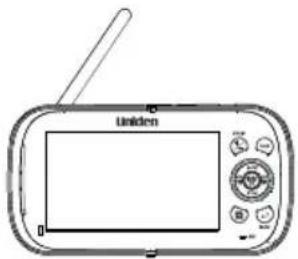
Line drawing of a portable television device with a screen and antenna (no text or symbols)Digital Wireless Monitor

natural_image
Two identical illustrations of a device with cables, no text or symbols visibleCamera Power Adaptors*

Monitor Power Adaptor*

natural_image
Simple line drawing of a bowl-like container with two side handles (no text or symbols)Monitor Charging Cradle

User Manual
Screws and anchors
4GB microSD Card
* Refer to the table below.
| Model Name 4.3” Monitor Outdoor Camera | Adaptors | ||
| G1410 1 1 1 x | Camera Power Adaptors | 1 x Monitor Power Adaptors | |
| G1420 1 2 2 x | Camera Power Adaptors | 1 x Monitor Power Adaptors | |
- If any item is missing or damaged, contact your place of purchase immediately. Never use damaged products!
- Need help? Get answers at our website: www.uniden.com.au for Australian model
INSTALLATION
General Placement Considerations
- The cameras included with your monitor are weatherproof and have an IP65 weather rating. Water can be sprayed on them and they will still work; however, the cameras cannot be submerged underwater.
- Although the cameras can be exposed directly to the rain, it is recommended that, if they are used outdoors, they be mounted under some type of cover like a patio overhang or eave. As rainwater drops start to dry on the camera glass, it can create spots that will reflect the light from the infrared LEDs used for night vision, thus causing lower quality video.
- Also, as dust, grime, and cobwebs accumulate on the camera glass, they can reflect light from the infrared LED and might lower video quality. Periodically, clean the lens glass with a soft cloth.
Consider the following when placing the camera:
- Clear line of sight video transmission distance is up to 150ms.
- Walls, especially brick and concrete, shorten the transmission distance.
- Placement next to windows allows better transmission.
- Avoid having a direct light source in view of the camera. This includes street lights, ceiling or floor lamps, spotlights in the driveway, etc.
- The cameras are equipped with built-in infra-red LEDs so you can use night vision for 24-hour surveillance. The LEDs automatically activate at night and the picture viewed turns to black and white. The night viewing range is up to 12ms. Avoid pointing the camera lens directly at clear glass; the night vision LEDs will cause a blurred image.
- Optimized motion detection range is up to 12ms. The farther away an object is, the less accurate the motion detection.
- Avoid pointing the camera directly at any bushes, tree branches, or moving objects that might naturally move due to winds. Otherwise, the motion detection feature may record unnecessarily.
- Out of Range displays when the monitor and camera are too far apart. Reposition the equipment.
- A Low Battery icon displays when you need to recharge the battery.
Installing the Monitor
Out of the box, your monitor has enough power to be used when you place and install the cameras. You can check the camera placement and angle before you physically screw the camera stands into place.
After you have installed the cameras and set up the monitor, plug the DC 5V AC adaptor power output cable into the 5V POWER input of the cradle or monitor. Plug the power plug into a wall outlet or surge protector.
If you are powering the monitor through the cradle, insert the monitor into the cradle at this point. Press firmly to ensure a good connection. The LED on the side panel turns red to indicate charging is in progress. The 📄️ display.
Installing the Camera
You can mount the camera with the stand on the bottom (for a flat surface such as a tabletop), on the side (for a wall), or on the top (for the ceiling). When you are positioning the camera, you might want to bring the monitor along; it's much easier to get the camera into the right position when you have the monitor handy.
Mount the Camera Base
The following tools are required:
- Electric Drill
- 5mm Drill Bit
• No. 2 Phillips Screwdriver
natural_image
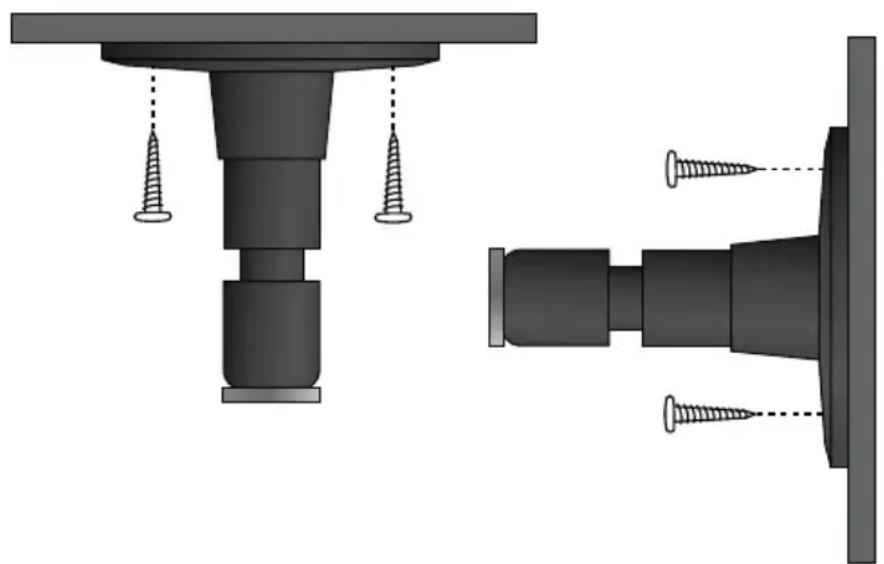
Technical illustration of a mechanical assembly with two views showing bolted components and fasteners (no text or symbols)- Hold the base of the camera stand where you want to mount it and mark the location of the screw holes.
- Drill holes using the 5mm drill bit.
- Insert anchors.
- Use the included screws to attach the base to the wall or ceiling. You can also screw the base into a flat surface such as a tabletop if needed.
Before attaching the camera, tug gently on the stand to make sure it is securely in place.
Attach the Camera

flowchart
graph TD
    A["1: Attach the camera to the mounting screw and turn it to the desired direction."] --> B["2: Tighten the brace against the camera to secure it in place."]
    B --> C["3: Loosen the wingnut to unlock the mounting post."]
    C --> D["4: Adjust the post to the correct angle, then tighten the wingnut to lock the post into place."]
- For each camera, attach the camera bracket to the mounting screw. You can attach the stand to the top or the bottom of the camera as needed. Tighten it a few turns, then turn the camera to face the direction you want.
- Tighten the camera brace up against the camera to secure it into place.
- Unlock the mounting post by turning the wingnut a few turns to the left.
- Set the mounting post to the correct angle, then tighten the wingnut until the post is locked into place.
- Attach the antenna to the rear of the camera.
Power Up the Monitor
- Press and hold the POWER button on the left side of the monitor for 1 - 2 seconds to turn it on.
- The monitor displays the Uniden title screen and then displays the live view, if the paired camera has been powered on. Otherwise Out of Range message displays.
Power Up the Camera
-
Connect one end of a DC 9V AC adaptor to the camera's power pigtail and plug the other end into a 240 volt AC (standard indoor) power outlet.
-
Cameras provided in the kit are already paired to the monitor. Once they are powered up, the monitor displays images from that camera.
Adjust the camera viewing position, if needed.
| If... Try... | |
| there is no camera picture Verify that the power supply adaptor for the camera(s) is plugged in. | |
| the picture quality is poor Clean the camera lens. | |
| a white image appears at night The camera's infra-red LED shines due to the invisible light that reflects off surfaces such as glass, causing white light. Place the camera on the other side of windows with the lens side flush against the surface to improve the night vision, or place the camera in a well-lit area. | |
Night Vision
This camera has built-in IR LEDs, which provides the camera with the ability to view images in no/low light conditions. It is important to use the provided power adaptor (and not the batteries) when using the camera for prolonged periods in low light conditions.
BASIC OPERATION
Monitor

text_image
12 11 10 13 14 15 9 2 3 4 Uniden VOM TALK 5 6 7 8 MIC 16 17| No | Keys/Indicators Function | |
| 1 | Antenna Receives video and | audio signals from the camera. |
| 2 | LCD Screen Displays video from the cameras | |
| 3 | Zoom (+/-) | Set the image to double size. In Zoom mode, use the navigation buttons to see the parts of the image not displayed on the LCD screen.Return it to original size by selecting Zoom again. |
| 4 | Talk Press and hold while in | Live view mode to talk to the camera side. |
5 Navigation Controls Use the controls in Live view, Menu mode,Playback mode and Zoom mode.▼Vol, ▲VolMove up or down in Menu mode.Increase or decrease the volume in Live view.Play and Pause in Playback mode (▲Vol).Stop in Playback mode (▼Vol). Move left in Menu mode.Press this button to change viewing camera channel in Live view.Fast backward in Playback mode. Move left in Menu mode.Press this button to change viewing camera channel in Live view.Fast backward in Playback mode. Move right in Menu mode.Press this button to change viewing camera channel in Live view.Fast forward in Playback mode. Move right in Menu mode.Press this button to change viewing camera channel in Live view.Fast forward in Playback mode. Press to access the G14 Series menu.Confirm selections in Menu mode. Press to access the G14 Series menu.Confirm selections in Menu mode. | |
| 6 Back Press this button to return to the previous screen. | |
| 7 Video Playback | During live video, press to go to the Recorded File screen. |
| 8 Microphone For two-way audio to camera. | |
| 9 Power On LED On: Battery capacity is goodFlashing: Low battery | |
| 10 Monitor Stand | Built-in stand for monitor, when not in cradle |
| 11 Speaker | Output sound received from camera |
| 12 Reset Button | Insert a blunt thin object (such as an unbent paper clip) into the reset button hole on the back of the monitor. |
| 13 | Manual Rec | Press this button to start Manual Recording mode. Press again to stop recording. |
| 14 | Power Button | Turns monitor on and off. (Press and hold a few seconds longer to turn monitor off.) |
| 15 | microSD microSD card slot. | |
| 16 | LED(Charging Indication) | • Green: Battery is fully charged.• Orange: Battery is almost charged.• Red: Battery is charging. |
| 17 | Power input(DC 5V) | Connect the included 5V DC power adaptor to power the monitor and/or charge the monitor battery (when the monitor is not in the cradle). |
Camera
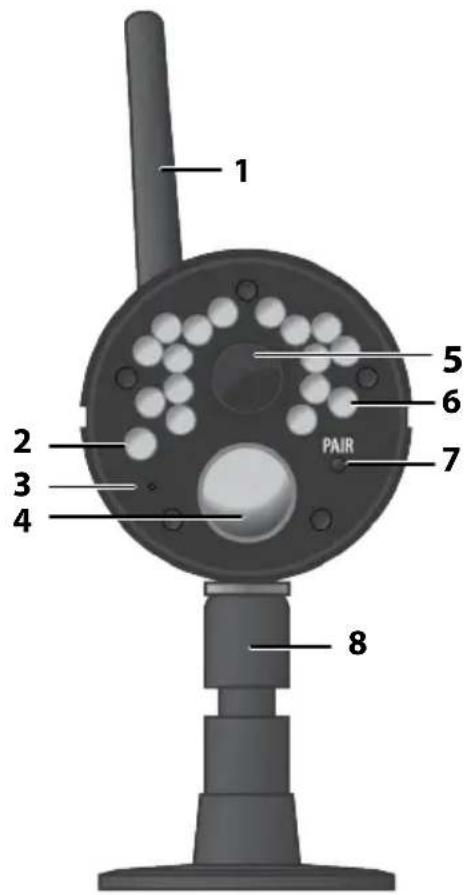
text_image
1 2 3 4 5 6 7 PAIR 8FRONT

text_image
10 9BACK
| No | Keys/Indicators Function | |
| 1 | Camera Antenna Sends | signals to the monitor. |
| 2 | Light sensor Measures light | light intensity to activate IR LEDs for night vision. |
| 3 | Microphone Receives sounds | from the area near the camera |
| 4 | PIR sensor | Detects motion within camera's line of sight. |
| 5 | Camera Lens Mechanism | through which the cameras view surroundings and record images. |
| 6 | Infrared LED | Infrared LEDs provide viewing in no/low light conditions. |
| 7 | Pair Press this button to pair the camera to the monitor. | |
| 8 | Camera stand Connects | to the camera to allow multiple mounting positions. |
| 9 | Speaker Transmits sound | from the monitor (intercom). |
| 10 | Power Input (9V DC) | Connect to power adaptor. |
LCD Display
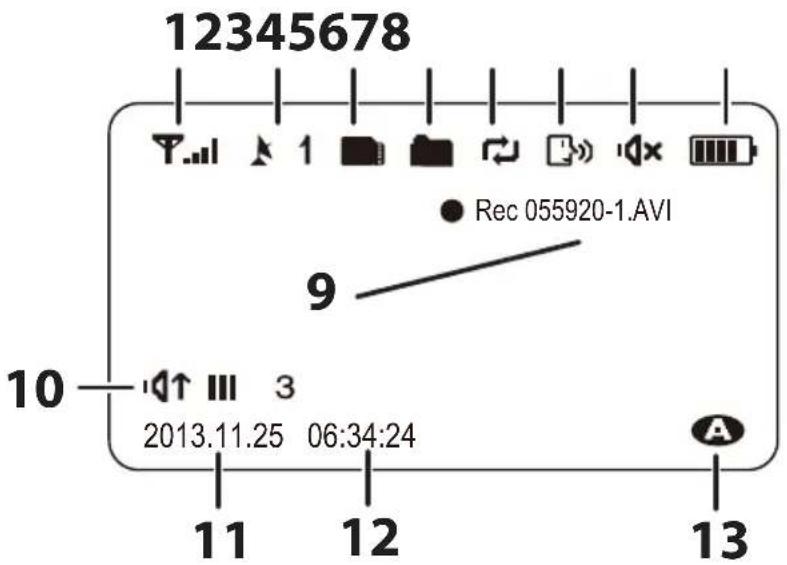
text_image
12345678 Rec 055920-1.AVI 9 10 11 12 13 2013.11.25 06:34:24| No | Keys/Indicators Function | |||
| 1 | Signal Indicator Shows the camera's signal strength. | |||
| 2 | Channel indicator | Displays the current channel number. Press to switch between available cameras. [ZYS3] or  | ||
| 3 | MicroSD Card indicator | Displays if there is a microSD card in the slot. A white icon indicates a microSD card has been inserted. A red icon indicates microSD card memory is full. | ||
| 4 | New Record indicator | Displays and flashes when a new recorded file is available. | ||
| 5 | Overwrite indicator | This indicates that micro SD card will be overwritten once it is full. | ||
| 6 | Talk Back | Displays when TALK is pressed | ||
| 7 | Mute | Displays when volume is turned off | ||
| 8 Battery Indicates the amount of power remaining in the batteries. The icon displays when the battery is charging. The icon flickers when charging is nearly complete. | |
| 9 Current Recording Status | Displays when the monitor is recording video. The file name displays in hour/minute/second/ recording camera format (055920-1). |
| 10 Volume indicator | This icon displays when you press ▲Vol or ▼Vol. An arrow indicates the last volume adjustment direction and status bars indicate the volume level. |
| 11 Current Date Displays the date in YYYY.MM.DD format. | |
| 12 Current Time Display the time in HH:MM:SS format | |
| 13 Auto Recording Indicator | Icon appears when the camera's motion detection function has been triggered. The camera records for 15, 30, or 60 seconds, depending on how it is set on the Trigger Recording Time screen. You can also select OFF to disable the function. |
USING THE G14 SERIES
Viewing Modes
In Live view, video displays live images from the camera in the following modes:
- Quad mode: Monitor displays video from all cameras on a single screen in 4 quadrants.
- Single mode: Monitor displays video from one camera at a time.
- Scan mode: Monitor displays video from one camera at a time, but cycles through all cameras one by one.
| To... Do... | |
| Change between quad view, single view, and scan for Live view | From Quad view, pressCHto cycle the screens in the following order:Scan - CH1 - CH2 - CH3 - CH4 - Quad |
| Manually start recording | PressMANUAL RECon top of the monitor (see page 25). |
| Set up to record automatically Refer to Schedule Recording from the Record menu (see page 24). | |
| Manually stop/cancel recording in Manual, Motion, or Schedule Record mode | PressMANUAL RECon top of the monitor (see page 25). |
| Manually cancel a Scheduled Record | Select Record/Schedule Record.Select the specific day whose recording schedule you want to cancel.When that day's schedule displays, useCHorCHbuttons to turn that day's schedule to Off (see page 24). |
| Play back a recording on the G14 Series monitor | Press. The Play File screen displays. See page 25 for details. |
| Cancel watching a recorded video | Press |
| Set the date and time See System/Date&Time, page 18. | |
| Remote viewing on smartphones and tablets | Please purchase the Optional App Dock and download free Uniden G14 Live App to view remotely. |
| Adjust G14 Series volume Press ▲Vol (increase volume) or ▼Vol (decrease volume) when viewing a camera.The icon displays, then turns off after 5 seconds of inactivity. | |
SYSTEM MENUS
Press MENU/OK button on the monitor to access the system menu options.
Use the navigating buttons to navigate up/down/left/right in the menu, and press MENU/OK to confirm a setting.
The Main menu options are:
- Alert
- Power Save
- System
- Camera
-
Record
-
Press or to change options. The icon for the selected option enlarges.
- Press MENU/OK to select that option.
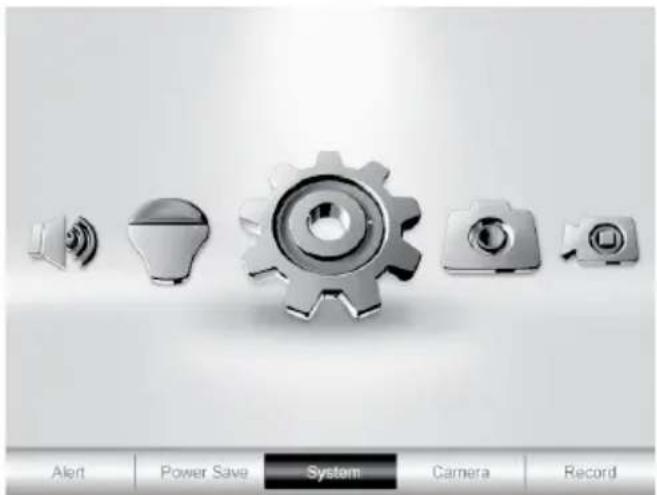
text_image
Alert Power Save System Camera RecordALERT MENU
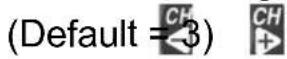
This option allows you to set the alert volume for the unit. There are 6 levels plus off. [Default = Off (mute)].
The system alerts the user each time the camera detects any motion.
Press CH or CH to increase or decrease the alert volume.

text_image
AlertPOWER SAVE MENU
This option allows you to enable/disable the Power Save function. Enable this function to turn off the LCD backlight after 2 minutes of inactivity. The monitor “wakes up” if it detects motion or if you press any key.
(Default = Off)
SYSTEM MENU
These system setup options allow you to configure your system according to your personal preferences. Use the navigation keys to select one of the six options:
- Date&Time
- Brightness
- Language
- Format
- Default
Date & Time
The Month option is automatically selected when you select Date & Time.
-
Press ▼Vol, ▲Vol to scroll through the options for that selection.
-
Press or to switch to another section of the date or time. Press ▼Vol, ▲Vol to scroll through the options as before.
-
Press MENU/OK to save the current setting and return to the System screen.
Time displays in “Military” time (i.e., 00-24 hours). For example, 14:30 would be 2:30 PM.

text_image
Power Save Turn off LCD after 2 minutes of inactivity On Off
text_image
System 15 Date&Time Brightness Default Language Format
text_image
Date&Time YEAR MONTH DAY HOUR MINUTE 2013 -11 -30 10 : 30Brightness
This option allows you to change the LCD brightness.
There are 6 brightness levels.
- Press or to increase/decrease the brightness level (0 - 6).
- Press MENU/OK to save and return to the System screen.

text_image
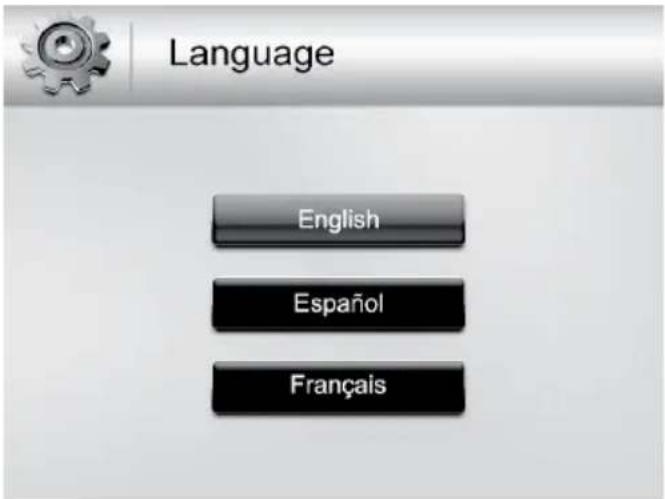
Brightness - +Language
This option allows you to select the display language for the system. (Default = English)
- Press ▲Vol or ▼Vol to select a language.
- Press MENU/OK after you make your selection. The System screen displays.
text_image
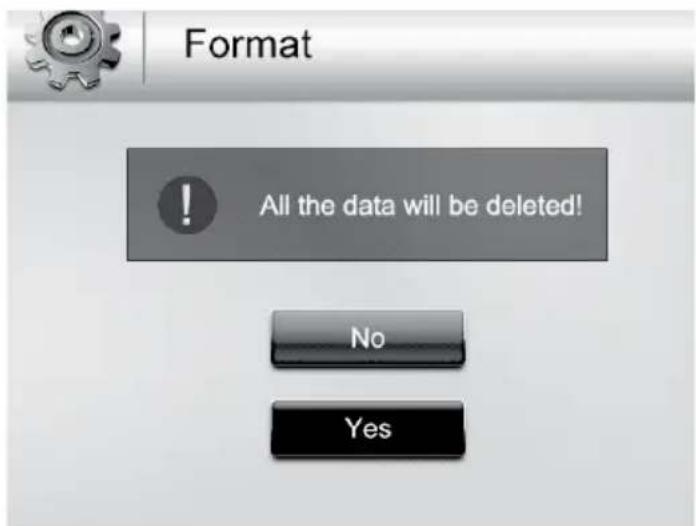
Language English Español FrançaisFormat
This option allows you to format the external storage (microSD) card, deleting all files on that card. (Default = No) Be careful when using this feature. All files on the microSD card will be erased.
- Insert a microSD card into the monitor.
- Select Yes, then press MENU/OK. FORMAT displays; once formatting is complete, the System screen displays.
text_image
Format ! All the data will be deleted! No YesIf you try to format the microSD card but no microSD card is inserted, NO SD CARD displays.
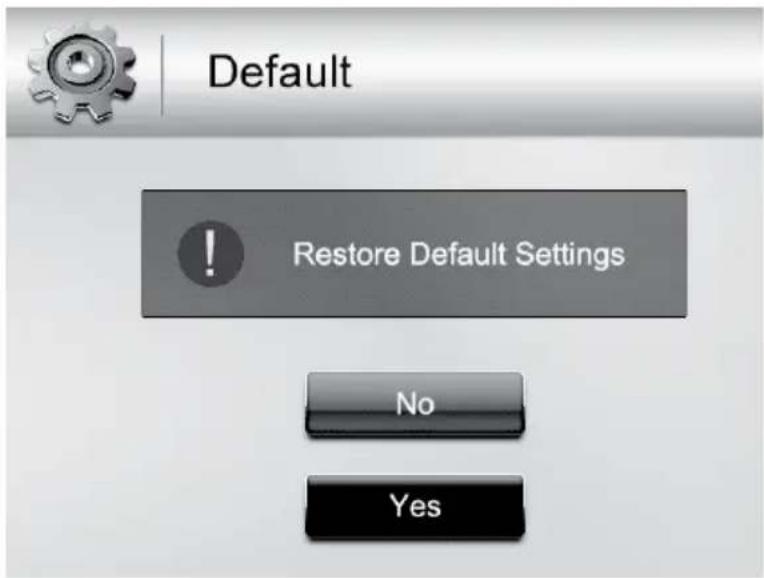
Default
This option allows you to restore the G14 Series to factory settings. (Default = No) Camera pairings and date/time settings are not affected by a reset.
-
Press ▲Vol or ▼Vol to select either No or Yes for this option.
-
Press MENU/OK after you make your selection. The System screen displays.
text_image
Default Restore Default Settings No YesCAMERA MENU
This options allows you to pair the monitor with up to 4 cameras or turn on/off individual channels (cameras).
Press ▲Vol or ▼Vol to select Pair or On/Off for this option.
The two cameras that come with your system are paired to the monitor at the factory.

text_image
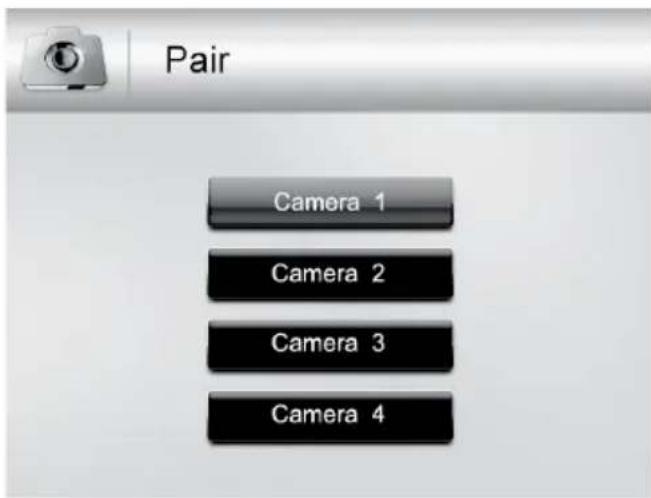
Camera Pair On/OffPair
Select this option if you are pairing accessory cameras or changing a camera's channel assignment.
- Press ▲Vol or ▼Vol to select the camera you want to pair to the monitor.
- Press MENU/OK.
An information message displays, indicating that you have 30 seconds to press the pairing button on the camera.
The video displays on the monitor when that camera has been paired.
text_image
Pair Camera 1 Camera 2 Camera 3 Camera 4On/Off
This option allows you to turn on or off an individual channel. The camera will remain powered on but the monitor will no longer receive video and audio.
- Press ▲Vol or ▼Vol to select the channel whose status you want to change.
- Press or to change the setting (On or Off).
- Press MENU/OK to confirm the setting. The main Camera screen displays.

text_image
On/Off Camera 1 On Camera 2 Off Camera 3 Off Camera 4 OffRECORD MENU
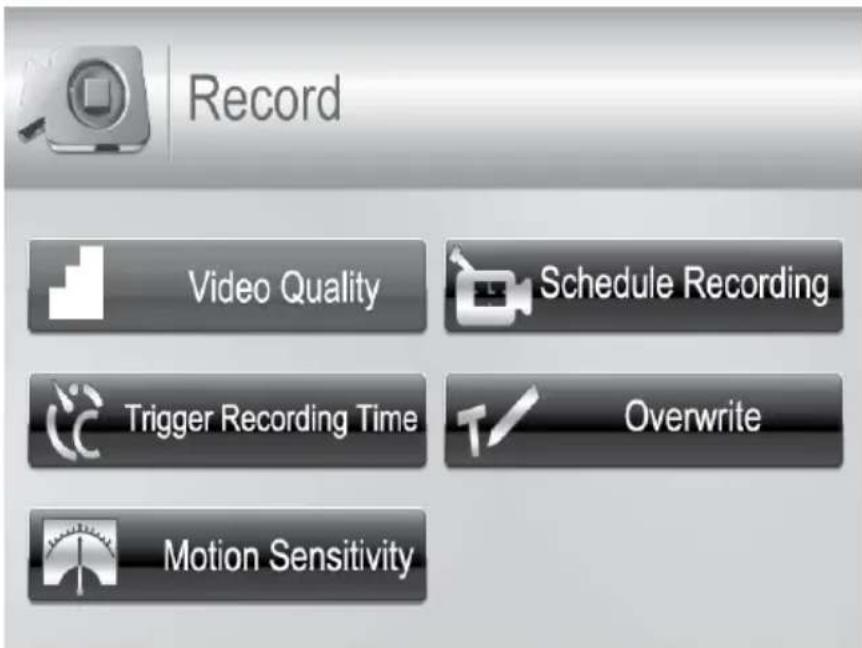
The Record screen contains 5 sub-screens that help you establish the quality level of your recordings and a repeatable one week recording schedule.
- Video Quality
- Trigger Recording Time
- Motion Sensitivity
- Schedule Recording
- Overwrite
text_image
Record Video Quality Schedule Recording Trigger Recording Time Overwrite Motion SensitivityVideo Quality
This option allows you to preset the output video quality for the unit.
(Default = Low 320 × 240)
- Press ▲Vol or ▼Vol to choose between higher quality (High 640x480) and lower quality (Low 320x240) video output.
- Press MENU/OK. The Record screen displays.

text_image
Video Quality High 640x480 Low 320x240Trigger Recording Time
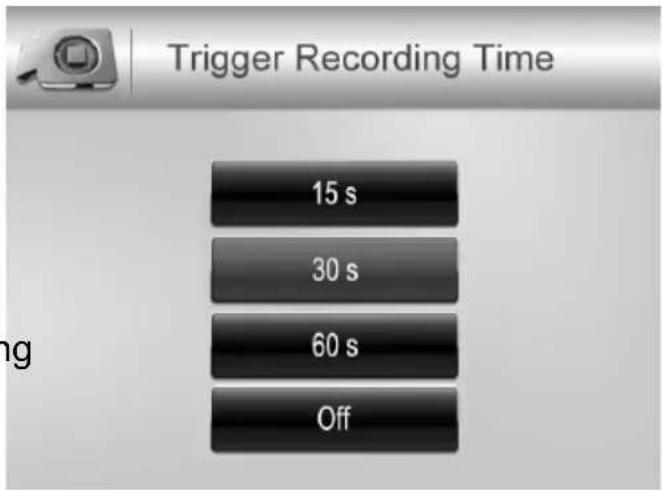
Various things can alert the system to start recording. These triggers range from the wind blowing a tree branch into tan outside camera's line of sight to someone walking into a room. This option lets you set the duration the system will record once it has been triggered. (Default = 30 s)
- Press ▲Vol or ▼Vol to select the recording time.
- Press MENU/OK.
If you select Off, the system won't record,
even if a trigger occurs and the motion sensitivity is set to High. If you select a recording duration (15, 30, or 60 seconds), displays during recording.
3. The Record screen displays.
splays during recording.
text_image
Trigger Recording Time 15 s 30 s 60 s Off
Motion Detection recording - The unit will record from the particular camera which has been triggered by a movement. However, if any movement is triggered on the second camera, at the same time, the system will continue recording from the first camera. The system will not record from the second or any other camera, while still recording from the first camera for motion detection.
Motion Sensitivity
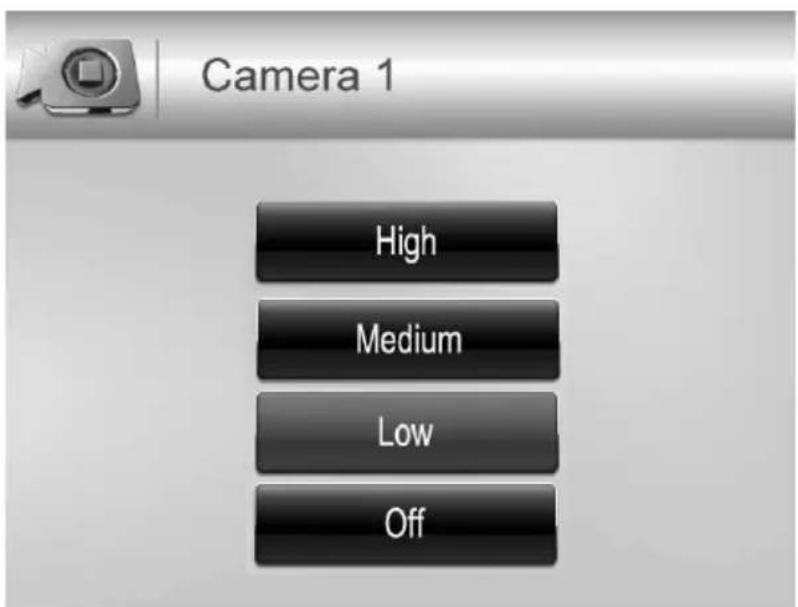
This option allows you to set the motion sensitivity for each channel individually. For example, if Camera 1 is an outside camera, you could set the sensitivity lower. This could stop the cameras from detecting small movements, such as the wind moving a tree branch. (Default = Low)
- Press ▲Vol or ▼Vol to select the channel whose sensitivity you want to adjust and press MENU/OK.

text_image
Motion Sensitivity Camera 1 Camera 2 Camera 3 Camera 4- The camera's sensitivity levels display on the next screen. Select the sensitivity level and press MENU/OK.
text_image
Camera 1 High Medium Low OffThe Motion Sensitivity screen displays again.
Schedule Recording
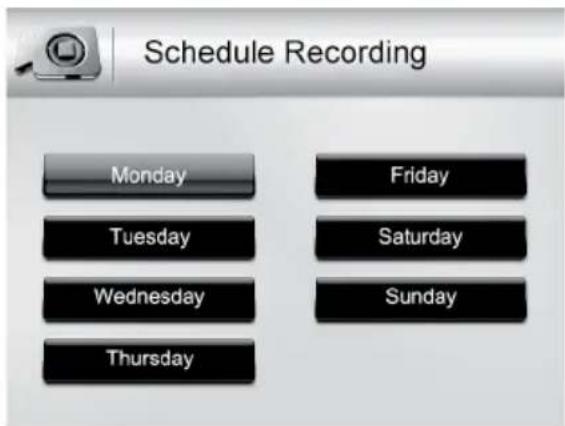
This option allows you to create a weekly recording schedule. This weekly schedule repeats until you change it. You can set each day separately, and you can also set that day's schedule to turn on or off. For example, if you have camera 1 set to record your backyard every evening from 20:00 hours (8:00 PM) until 23:00 hours (11:00 PM) but you will be having a party in the backyard that evening, you can turn off that day's scheduled recording. (Default = Monday / Start Recording Time:00:00 / End Recording Time: 00:00 /Off)
- From the Record screen, select Schedule Recording and press MENU/OK. The Schedule Recording screen displays. Select a day and press MENU/OK. The start and end time setting screen for that day displays.
text_image
Schedule Recording Monday Tuesday Wednesday Thursday Friday Saturday Sunday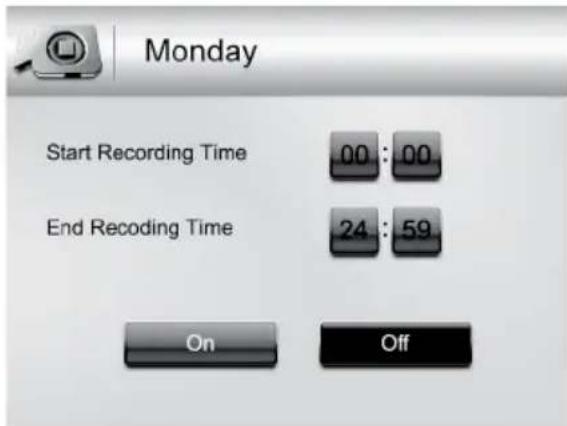
text_image
Monday Start Recording Time 00 : 00 End Recoding Time 24 : 59 On Off- Using ▲Vol or ▼Vol, scroll to set the recording start and end times. Press ▶ after each selection to move to the next. For example, set Start Recording Time - Hours, then press ▶ to move to Start Record Time - Minutes.
- Set the End Recording Time in the same way and then press < or > to select On or Off.
- Press MENU/OK to set your selection. The Schedule Recording screen displays.
Overwrite
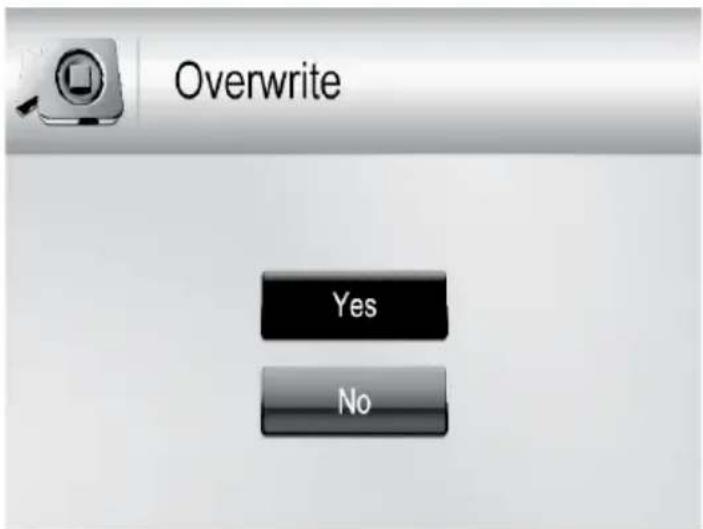
When the microSD card is full, the new video recording overwrites the oldest video recording. Select Yes to enable this function. (Default = No)
text_image
Overwrite Yes NoUSING YOUR SYSTEM
RECORDING VIDEO
Video records on the 4GB microSD card included in your package (the G14 Series will support up to a 32GB microSD card). When the receiver records (motion, schedule, manual, etc) all the buttons are disabled except MANUAL REC. The system responds normally after the recording has ended.
You can set up schedule recording (page 24), record when motion is detected (page 22) or manually record by pressing the MANUAL REC button.
To stop recording and continue with normal operations, press MANUAL REC.
Manual Recording
Be sure a microSD card is inserted into the microSD card slot.
- Press MANUAL REC on the top of the monitor. The monitor records in 10 minute blocks.
- Press MANUAL REC again to cancel manual recording.
- In Recording mode, only the TALK button and sound are active.
- When there is new recorded file, (yellow) flashes on the LCD screen. When the microSD card is full, (red) flashes.
Viewing Recorded Video
- Press to enter the Play File screen.
- Select the Video folder and press MENU/OK.
The Video folder contains other folders sorted by date (Format = YYYYMMDD).
For example: 20131212 means the videos in this folder were recorded on 12th December, 2013. Press ▲Vol or ▼Vol to select a folder you want to view and press MENU/OK to open that folder and browse the files inside.
Inside that folder are record files, sorted by time.
For example: 123030_1 means the video is recorded at 12:30:30 and from camera 1.
- Select the video you want to view and press MENU/OK. The video plays on the LCD screen.
- Use the navigation buttons to manage the video:
▲ Vol - Pause, play video
▼ Vol - Stop
• Forward (up to x16 speed)
- Backward (up to x16 speed)
- Exit the video
• After you exit the video, exits Playback function
Deleting Recorded Files
You can delete a specific recorded video file or an entire folder of files. A red "X" displays to the right of the folders and recorded video files on the Play File screen.
- Press CH to highlight the red "X" beside the folder or file you want to delete and then press MENU/OK.
- A confirmation screen displays. Use CH or CH to select Yes or No, and then press MENU/OK to confirm the selection.
Using the Intercom
The Intercom feature lets you talk to whomever is within camera range.
- Make the camera you want to establish an intercom link with the full screen live view camera.
- Press and hold 📂 on the monitor.
- Speak clearly into the microphone.
- Release 📂 to listen to the response.
Pairing Accessory Cameras
The two cameras that come with your G14 Series are paired to your monitor at the factory. If you add cameras, install them and then pair the camera to the monitor.
- Press MENU/OK to bring up the System Menu screen.
- Select the Camera option.
- Select Pair and then press MENU/OK. The Pair screen displays. The pairing function assigns each camera to a different channel on the wireless monitor (up to 4 cameras), and is necessary for configuring additional cameras.
- Select the channel you want to pair the camera to and press MENU/OK. The Press Pair Key message screen displays.
- Within 30 seconds, press the Pair button located on the camera. Once the camera pairs to the monitor, you can view the camera transmissions on the monitor.
TROUBLESHOOTING
| Problem Solution | |
| No picture • Check all camera connections. | • Verify that the AC adaptor is plugged in.• Make sure the monitor is ON.• Make sure the camera is in range. |
| The picture keeps dropping • Move the camera closer to the monitor. | • Reposition the camera, monitor, or both to improve reception. |
| No sound • Increase the volume. | • Make sure there is sound within range of the camera's microphones. |
| Loud, screeching noises (Audio feedback) | Move the camera and the monitor farther apart. |
| The picture is choppy • Move the camera and monitor closer to each other. | • Remove any obstructions between the camera and monitor. |
| The pictures appears grainy • View files on a smaller screen | |
| Recording problems • Make sure the microSD card is inserted correctly. | • Check that the microSD card memory is not full.• Verify that the microSD card is compatible with the G14 Series. It can support up to 32GB microSD card. |
| The monitor picture has frozen | Interference or a low battery may have caused the picture to freeze. Use a blunt object like an unbent paper clip to press RESET to reset the monitor. This will also turn off the monitor. Press the POWER button to turn it on. |
SPECIFICATION
MONITOR
| Operating frequency range 2.400 ~ 2.4835GHz | |
| RX sensitivity – 81dBm | |
| Spread spectrum FHSS | |
| Modulation type GFSK | |
| Data Rate 2 Mbps | |
| Communication range 150ms Line of Sight | |
| Display size/type 4.3” TFT LCD | |
| Resolution H: 480; V: 272 | |
| Power requirement 5.0V DC ± 5% | |
| Power consumption 350mA (Normal) 900mA (Charging) | |
| Operating temperature range – 10 ~ 40°C | |
| Operating humidity range Within | 85% Relative Humidity |
| RoHS Compliance | Yes |
| Battery life | 4.5 hours |
| Private ID for connection | Yes |
| Recording storage | 4GB microSD card (included). Supports up to 32GB |
| Housing material Plastic | |
CAMERA
| Operating frequency range 2.400 ~ 2.4835GHz | |
| TX power 15dBm (typical) | |
| Spread spectrum FHSS | |
| Modulation type GFSK | |
| Data Rate 2 Mbps | |
| Communication range 150ms Line of Sight | |
| Image sensor type(Manufacturer/Model #) | 1/4" color CMOS image sensor |
| Effective pixel H: 640; V: 480 | |
| Image processing MJPEG | |
| Image resolution 640x480 @ 10fps | 320x240 @ 20fps |
| Lens 3.6mm F2.0 | |
| Exposure Auto | |
| White balance Auto | |
| Power requirement 9.0Vdc ± 5% | |
| Power consumption 160mA (IR LED Off) | 350mA (IR LED On) |
| Operating temp range | -10 ~ 50°C |
| Weatherproof | IP65 |
| RoHS Compliance | Yes |
| Camera Housing Material | Plastic |
ONE-YEAR LIMITED WARRANTY
G14 Series
IMPORTANT Satisfactory evidence of the original purchase is required for warranty service. Please refer to our Uniden website for any details or warranty durations offered in addition to those contained below.
Warrantor
The warrantor is Uniden Australia Pty Limited ABN 58 001 865 498 ("Uniden Aust").
Terms of Warranty
Uniden Aust warrants to the original retail purchaser only that the G14 Series (“the Product”), will be free from defects in materials and craftsmanship for the duration of the warranty period, subject to the limitations and exclusions set out below.
Warranty Period
This warranty to the original retail purchaser is only valid in the original country of purchase for a Product first purchased either in Australia or New Zealand and will expire one (1) year from the date of the original retail sale.
If a warranty claim is made, this warranty will not apply if the Product is found by Uniden to be:
(A) Damaged or not maintained in a reasonable manner or as recommended in the relevant Uniden Owner's Manual;
(B) Modified, altered or used as part of any conversion kits, subassemblies or any configurations not sold by Uniden Aust;
(C) Improperly installed contrary to instructions contained in the relevant Owner's Manual
(D) Repaired by someone other than an authorized Uniden Repair Agent in relation to a defect or malfunction covered by this warranty; or
(E) Used in conjunction with any equipment, parts or a system not manufactured by Uniden.
Parts Covered
This warranty covers the Product and included accessories.
User-generated Data
This warranty does not cover any claimed loss of or damage to user-generated data (including but without limitation phone numbers, addresses and images) that may be stored on your Product.
Statement of Remedy
If the Product is found not to conform to this warranty as stated above, the Warrantor, at its discretion, will either repair the defect or replace the Product without any charge for parts or service. This warranty does not include any reimbursement or payment of any consequential damages claimed to arise from a Product's failure to comply with the warranty.
Our goods come with guarantees that cannot be excluded under the Australian Consumer Law. You are entitled to a replacement or refund for a major failure and for compensation for any other reasonably foreseeable loss or damage. You are also entitled to have the goods repaired or replaced if the goods fail to be of acceptable quality and the failure does not amount to a major failure.
This warranty is in addition to and sits alongside your rights under either the COMPETITION AND CONSUMER ACT 2010 (Australia) or the CONSUMER GUARANTEES ACT (New Zealand) as the case may be, none of which can be excluded.
Procedure for Obtaining Warranty Service
Depending on the country in which the Product was first purchased, if you believe that your Product does not conform with this warranty, you should deliver the Product, together with satisfactory evidence of your original purchase (such as a legible copy of the sales docket) to Uniden. Please refer to the Uniden website for address details. You should contact Uniden regarding any compensation that may be payable for your expenses incurred in making a warranty claim. Prior to delivery, we recommend that you make a backup copy of any phone numbers, images or other data stored on your Product, in case it is lost or damaged during warranty service.
UNIDEN AUSTRALIA PTY LTD
Phone number: 1300 366 895
Email address: custservice@uniden.com.au
Uniden®
©2016 Uniden Australia Pty Ltd
Printed in PRC
Uniden G14XX series App dOcK
reMOTe VieWinG ViA App
You can use the Uniden G14 Live app to remotely view the system.
- Connect the monitor AC adaptor to the power port on the App Dock and the power outlet.
- Connect the App Dock to the router using an ethernet cable (not included).
- Place the monitor on the App Dock.
- Download the Uniden G14 Live app from the AppStore or Google Play Store.
The Uniden G14 app supports:
iPhone®: iOS v.6.0 and above.
Android™ Phone: Android™ v.2.2 and above.
Attention! App may not be responsive if used with an iPad or Android Tablet.
- Tap the app to launch it. You will get the following screen.

text_image
G14 Live Uniden®
text_image
Device List Edit q Device Add Device Info- Tap on the option, Add Device.
You have the option to either add the device manually or you can scan the QR code.

text_image
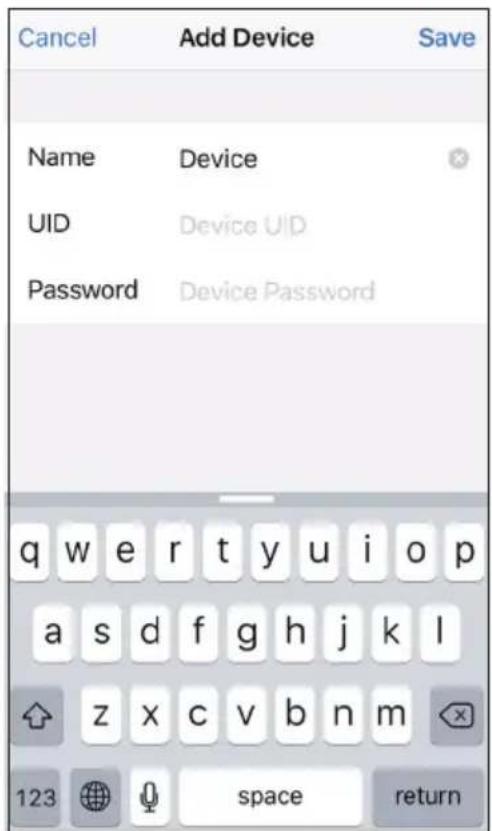
Add Device Add QRCode Device Found (0) Device Add Device Info- If you want to manually add the device tap on the option, Add, to get the screen shown below.
text_image
Cancel Add Device Save Name Device UID Device UID Password Device Password q w e r t y u i o p a s d f g h j k l z x c v b n m 123 space return-
Tap on the Name field, and enter a name for your system.
-
Tap on the UID field and enter the UID code found on the cradle.
-
Enter the default password '000000', and then tap Save.
-
You could opt to scan the QR Code too, in that case, tap the option QR Code or Scan on the Add Device screen.
-
The screen shown above, displays. Position the QR Code (found on the side of the App Dock) within the viewfinder rectangle to scan.

text_image
Place a barcode inside the viewfinder rectangle to scan it. Cancel Light- The Add Device screen displays with the UID code in the field. Enter the default password, 000000, and tap Save or OK. The Device List screen displays. Tap on the image to get Live View.
The following will NOT work, when the G14xx system is being viewed remotely:
- Auto-Scan
- Quad view
- Recording
- All buttons on the monitor (except Vol up and Vol down, which is used to change camera channel)
- Audio in Live View (except Alert beep).
Live View
From the Device List screen, tap on the snapshot view to display the Live View.

text_image
Device - CH1 Back Live View Channel Online / P2P 320x240 / FPS: 3 / BPS: 180 Kbps Online Nm: 1 / Frame ratio: 1 / 33In Live View, swipe across the screen to pan and tilt the camera.
| Icon/Option Function | |
 | Tap on this icon to view the saved snapshots. |
 | Tap to take a snapshot in Live View. |
 | Tap to turn off audio. |
 | Tap to turn on audio. |
| Channel Tap to view from a different camera/channel. | |
| Back Tap to go to the previous screen. | |
Advanced Settings
Password
Uniden strongly recommends changing the default password to a more personalised one.
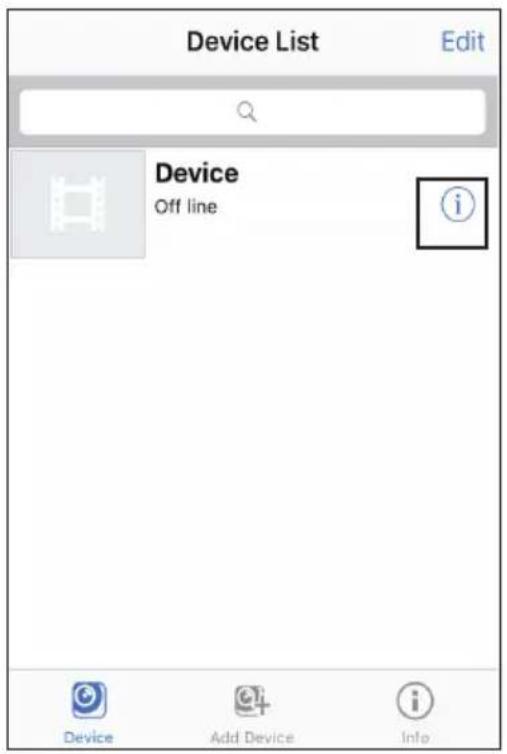
After your device displays on your Device List screen, tap on the ⓘ icon to access the Edit Device screen.
text_image
Device List Edit Device Off line i Device Add Device Info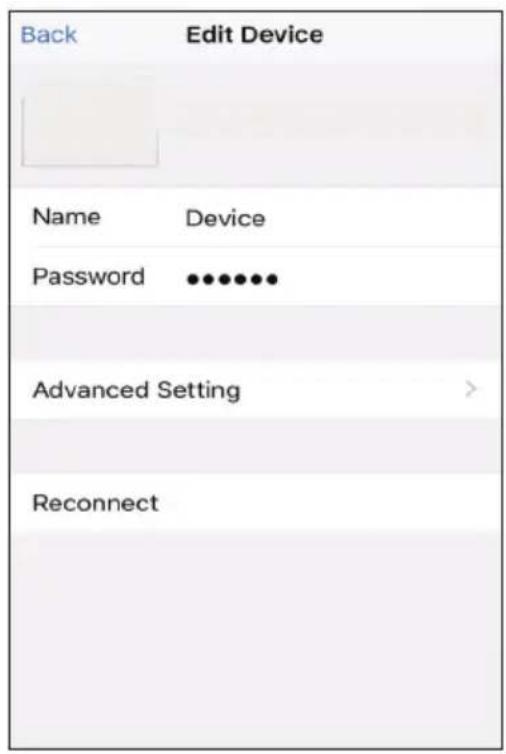
text_image
Back Edit Device Name Device Password •••••••• Advanced Setting > ReconnectIf you forgotten the password, please press and hold the reset button at the back of the App Dock for 5 seconds.
Tap on the Advanced Setting option to display the Advanced Setting screen below.
Tap on the Change Password option to key in and confirm the new password.
| Back | Advanced Setting |
| Change Password | > |
| Video Quality | Max > |
| About Device | > |
| Cancel | Change Password | OK |
| Old | Old Password | |
| New | New Password | |
| Confirm | Confirm Password | |
Video Quality
On the Advanced Setting screen, tap the option, Video Quality, to select the resolution of the video. The option available are: Max, High, Medium, Low, Min.
| Back Advanced Setting | Back Video Quality |
| Change Password > | Max √ |
| High | |
| Video Quality Max > | Medium |
| Low | |
| Min |
About Device
On the Advanced Setting screen, tap the option, About Device, to view the model name and firmware version.
WArrAnTy
G14 App Dock
Important:
Satisfactory evidence of the original purchase is required for warranty service. Please refer to our Uniden website for any details or warranty durations offered in addition to those contained below.
Warrantor:
The warrantor is Uniden Australia Pty Limited ABN 58 001 865 498 ("Uniden Aust").
Terms of Warranty: Uniden Aust warrants to the original retail purchaser only that the G14 App Dock (“the Product”), will be free from defects in materials and craftsmanship for the duration of the warranty period, subject to the limitations and exclusions set out below.
Warranty Period: This warranty to the original retail purchaser is only valid in the original country of purchase for a Product first purchased either in Australia or New Zealand and will expire, as indicated below, from the date of original retail sale.
Accessories 90 Days
If a warranty claim is made, this warranty will not apply if the Product is found by Uniden to be:
A. Damaged or not maintained in a reasonable manner or as recommended in the relevant Owner's Manual;
B. Modified, altered or used as part of any conversion kits, subassemblies or any configurations not sold by Uniden Aust;
C. Improperly installed contrary to instructions contained in the relevant Owner's Manual
D. Repaired by someone other than an authorized Uniden Repair Agent in relation to a defect or malfunction covered by this warranty; or
E. Used in conjunction with any equipment, parts or a system not manufactured by Uniden.
Parts Covered: This warranty covers the Product and included accessories.
User-generated Data: This warranty does not cover any claimed loss of or damage to user-generated data (including but without limitation phone numbers, addresses and images) that may be stored on your Product.
Statement of Remedy: If the Product is found not to conform to this warranty as stated above, the Warrantor, at its discretion, will either repair the defect or replace the Product without any charge for parts or service. This warranty does not include any reimbursement or payment of any consequential damages claimed to arise from a Product's failure to comply with the warranty.
Our goods come with guarantees that cannot be excluded under the Australian Consumer Law. You are entitled to a replacement or refund for a major failure and for compensation for any other reasonably foreseeable loss or damage. You are also entitled to have the goods repaired or replaced if the goods fail to be of acceptable quality and the failure does not amount to a major failure.
This warranty is in addition to and sits alongside your rights under either the COMPETITION AND CONSUMER ACT 2010 (Australia) or the CONSUMER GUARANTEES ACT (New Zealand) as the case may be, none of which can be excluded.
Procedure for Obtaining Warranty Service: Depending on the country in which the Product was first purchased, if you believe that your Product does not conform with this warranty, you should deliver the Product, together with satisfactory evidence of your original purchase (such as a legible copy of the sales docket) to Uniden. Please refer to the Uniden website for address details. You should contact Uniden regarding any compensation that may be payable for your expenses incurred in making a warranty claim. Prior to delivery, we recommend that you make a backup copy of any phone numbers, images or other data stored on your Product, in case it is lost or damaged during warranty service.