ConteraCMR AV-CN800 - Security Camera Arecont Vision - Free user manual and instructions
Find the device manual for free ConteraCMR AV-CN800 Arecont Vision in PDF.


User questions about ConteraCMR AV-CN800 Arecont Vision
0 question about this device. Answer the ones you know or ask your own.
Ask a new question about this device
Download the instructions for your Security Camera in PDF format for free! Find your manual ConteraCMR AV-CN800 - Arecont Vision and take your electronic device back in hand. On this page are published all the documents necessary for the use of your device. ConteraCMR AV-CN800 by Arecont Vision.
USER MANUAL ConteraCMR AV-CN800 Arecont Vision
ConteraCMR® Cloud Managed Recorder Series
natural_image
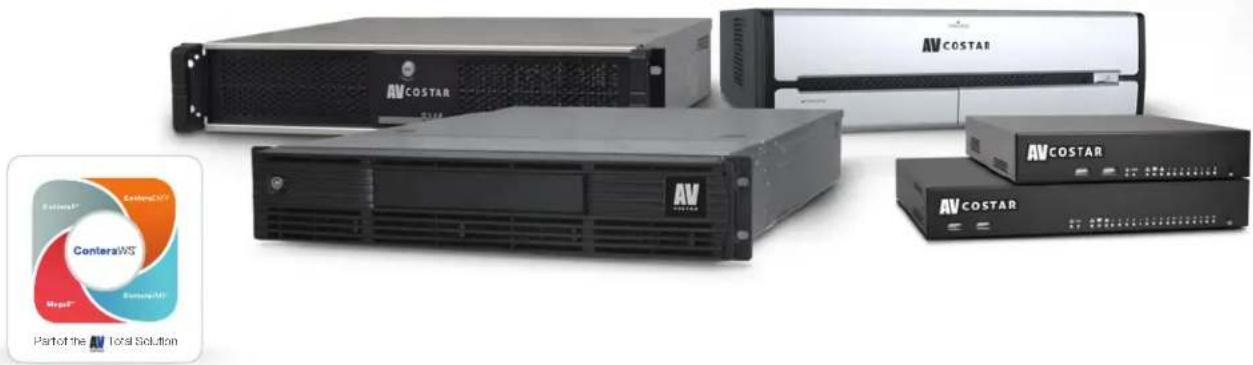
Product lineup of AV COSTAR networking equipment including server racks and a highlighted 'Part of the Total Solution' logo (no readable text beyond branding)Quick Installation Guide
This guide will assist you with the initial setup of your ConteraCMR ^® cloud managed appliance and recording software. This guide includes hardware setup, software setup, network configuration, and connecting your appliance to the ConteraWS Web Services Portal.
1 Plug the supplied power cord into the recorder. Do not connect the plug to a power source at this time.
2 Connect the network cable intended for remote connections to the Client NIC.
3 Connect the supplied keyboard and mouse using the USB ports.
4 Connect a monitor using the HDMI or DVI-I ports.
Note: The Camera NIC is intended for use with a dedicated camera network.
Note: For models with PoE ports, use the Camera NIC to connect a camera network. The Camera NIC is equipped with a DHCP server. Connecting to a network with another DHCP server will cause significant network issues.
5 Connect the cameras to PoE ports, or the external camera network.
6 Connect the power cord to a power source, and then turn the recorder ON.
Network Information
7 Windows® Only - Sign in with default log in credentials: User Accounts: NVRAdmin, NVRUser Password: Recorder Serial Number
Note: The serial number can be found on the side of the Recorder.
Note: It is strongly recommended the password is changed during initial setup.
8 Windows Only - Open the Contera Server login on the desktop.
9 Log in to the Contera® Server Recorder using the default credentials:
Username: admin Password: 1234
10 Follow the Setup Wizard to complete basic setup of your system.
text_image
Diagram showing a device transitioning from a rectangular component to a security camera, with Chinese text labels.Remote Communication Port 80 (8888 used if 80 is blocked)
Client NIC IP Address DHCP
Camera NIC (External Switch) 192.168.51.1 / 255.255.255.0 (Gateway and DNS blank)
Camera NIC/Internal PoE (NVR Appliance Models)
192.168.51.1 / 255.255.255.0 (Gateway and DNS blank)
Camera Management
Contera Server software makes it easy to add and configure IP cameras.
Contera recorders will detect cameras connected to the Camera NIC Note: Third party cameras may need to be configured using a third party program before being added to the Server. Cameras that don't support ONVIF can be configured to record via RTSP streaming.
Adding Auto-Detected Cameras:
Contera Server software automatically detects ONVIF Profile S compliant cameras set to DHCP. Cameras not meeting these requirements must be configured manually.
-
Click Setup 🔒, and then click Cameras.
-
Click Add Cameras
-
For automatically detected cameras, select the camera(s) using the check boxes, and then type the appropriate Username and Password.
-
Click Add.
Note: The recorder will automatically detect and add most cameras connected to the on-board PoE switch as long as the cameras are set to DHCP.
Adding Cameras Manually:
- Click Setup 🔊, and then click Cameras.
- Click Add Cameras
- For cameras not automatically detected, click Add Cameras Manually.
- Select the ONVIF or the RTSP protocol, and then type the appropriate
Title, IP Address, Username, and Password.
Note: When using RTSP, specify the individual URL streams for your cameras. For instructions regarding these streams, consult the camera manual.
- Click Add Cameras
Configuring Recording Settings:
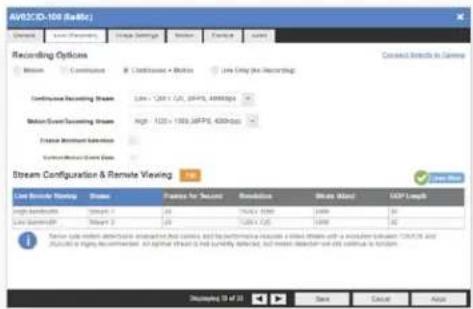
For optimal motion detection, cameras should be configured with a secondary stream of 720x576 or lower. Contera will still detect motion using a higher resolution stream if a 720x576 or lower stream is not available, but this will consume more system resources.
- Click Setup 🔊, and then click Cameras.
- Select the desired camera, and then click the Live/Recording tab.
- Configure the settings as desired.
Note: Continuous + Motion recording is the default setting for all cameras upon connection to your recorder.
text_image
AV32CD-108 (Radio) Recording Options Motion Continuence Coordinate + Motion Line Using the Recording Continuous Recording Stream Low - 1200 x 1200, 469bps Motion Event Recording Stream High 1200 x 1500, 469bps, 400bps Frame Discount Settings Continuous Stream Data Stream Configuration & Remote Viewing Live Audio Viewing Stream Format for Sound Resolution Window Mode Mode: GSP Length High Audio/Off: Sound 1.00x 1000 2000 30 Low Audio/Off: Sound 2.00x 1200 x 1500 2000 30 Current side motion annotations are based on their current records and the performance includes a fixed stream with a minimum between TCP/CS and out of high speed recommendations. An option should be found solely displayed, and interest reduction will continue to be done. Blending To Use OK Cancel ApplyAdvanced Camera Management
Cameras set to static IP addresses, third party cameras, and cameras not supported by ONVIF may not be detected automatically. To configure cameras not automatically detected by Contera Server software, follow the steps below.
Configuring AV Costar™ Cameras with a Static IP Address (Linux® models only):
- Click Setup 🔊, and then click Support Tools.
- Click Launch Support Tools
- Click AV IP Utility™
-
Note the discovered IP address for the desired camera.
-
Click Exit to return to Contera Server software.
- Follow the steps in the Adding Cameras Manually section, typing the
Static IP Address
Note: Network Camera Manager can be launched from the Windows desktop icon.
Configuring AV Costar Cameras with DHCP (Linux models only):
- Click Setup 🔍, and then click Support Tools.
- Click Launch Support Tools.
- Click AV IP Utility.
- Select your desired cameras, and DHCP, and then click Apply.
- Click Exit to return to Contera Server software.
- Follow the steps in the Adding Auto-Detected Cameras section to add the camera.
Note: AV Costar cameras on Windows can be configured with DHCP by launching Network Camera Manager from the Windows desktop icon.
Adding Third Party Cameras:
Third party cameras may require installing a manufacturer camera discovery tool on a separate PC. Once the camera discovery tool is installed, follow the steps for adding a camera with a static IP address or using DHCP as outlined above.
Adding Cameras Not Supported by ONVIF:
You must add cameras that are not ONVIF-compliant using the RTSP stream of the camera. Consult the manufacturer's camera manual for more detailed information regarding RTSP streams. When you know the URL for the RTSP stream of your camera, follow the steps in the Adding Cameras Manually section, selecting RTSP protocol.
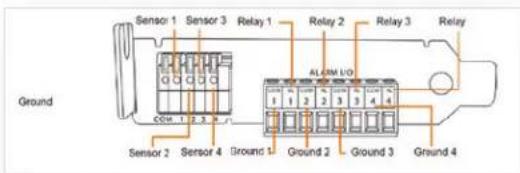
Sensor/Relay Card
Contera Server version 1.2 or higher is required for use of the Sensor/Relay Card. See page 36 of the Contera Server Software Manual for instructions on setting up the Sensor/Relay Card on the software.
text_image
Sensor 1 Sensor 3 Relay 1 Relay 2 Relay 3 Relay Ground ALUM L/O Sensor 2 Sensor 4 Ground 1 Ground 2 Ground 3 Ground 4Note: Do not remove the Alarm I/O adapter. It is permanently attached to ensure full integrity of the connections. A small fine-tip screwdriver might be needed to access the lock screws on the adapter.
Advanced Network Setup
In some cases, advanced network settings may be applied to set up an optimal local or remote connection. The following steps are optional. Please contact an AV Costar support technician if you are unsure of your video network.
Direct Connection:
With direct connection, network traffic bypasses the ConteraWS cloud relay service, allowing for optimal connection speeds. This configuration requires additional steps, including router configuration, to forward traffic to the appropriate Contera recorder.
Note: Visit http://portforward.com/English/routers/port_forwarding/ for instructions on router configuration for direct connection.
-
Access the router used for Internet communication and forward TCP port 80 to the internal address of the Contera Server recorder.
-
Use a web browser to log in to your ConteraWS account. Click My Recorders, and then click Edit in the row of your desired recorder.
- Click Remote Network Settings, and then type the static IP or DDNS entry for the router in the IP Address or Domain field, and 80 in the Port field.
- Click Save.
LAN Smart Forwarding:
To optimize local connections, ConteraWS uses a feature called LAN Smart Forward (LSF). This feature allows ConteraWS to detect if the machine using the remote client software is on the same local network. ConteraWS then automatically switches from a cloud relay connection to a direct connection. This ensures the fastest connection between client and recorder.
The following conditions are required for LAN Smart Forwarding:
- You must already have an ConteraWS account, and the appliance must be connected to ConteraWS with LAN Smart Forwarding configured (see the ConteraWS Web Services section for more information).
- Both client and recorder use the same external IP address, or IP addresses within an acceptable range.
- The Client NIC port must be used for the Internet connection.
To enable LAN Smart Forwarding:
- Use a web browser to log in to your ConteraWS account, and then click on your desired Company Account.
- Click My Recorders, and then click Edit in the row of the desired recorder.
- Click the Remote Network Settings tab.
- Set LAN Smart Forwarding to On.
Note: If your recorder and client machines have different external IP addresses, enter the IP range in which the client and recorder reside.

text_image
LAN Smart Forwarding When the recorder and client are both on the same LAN, Web Services attempts to send the video directly from the recorder to the client. This feature is ON by default because it can improve video playback performance in many circumstances. ON LAN Smart Forwarding External IP Ranges (optional) Start Range End Range + Press + to add another external IP range.ConteraWS Web Services (ArecontVision-WS.com)
- On your Recorder, click Setup, and then navigate to the Remote Services tab.
- Click Web Services.
- Type your Registration Code.
Note: If you do not have your Recorder Registration Code, you may enter your ConteraWS Email and Password instead. It is recommended to use a Recorder Registration Code if available though.
- Click Connect.
ConteraWS Web Services Connection
ConteraWS Web Services is a cloud-based management solution which allows you to administer all your users, recorders, and VMS installations from one central location. To get the most out of your new web-managed recorder, we strongly recommend connecting it to the Web Services portal.
Please note that all following instructions are executed at a Channel Partner level. For more detailed instructions on how to operate at an End User level, please consult the ConteraWS Software Manual, available at www.avcostar.com.
To begin using ConteraWS, you will need a Channel Partner ConteraWS account. If you do not have one already, please contact AV Costar at www.avcostar.com.
Connecting a Recorder to ConteraWS:
If you entered your Recorder Registration Code in the previous section, your recorder will be automatically added to your ConteraWS Company Account.
Users associated with your Company Account and with the appropriate permissions will now be able to remotely access the Server recorder.
Creating a Customer Account:
A Customer Account is an ConteraWS End User account created under a Channel Partner account and managed by the Channel Partner. Customer Accounts can only be created by the Channel Partner. Once created, the Channel Partner can assign recorders to Customer Accounts and create End User accounts.
- Log in to your ConteraWS account from a web browser using your registered Username and Password.
- On the Management Portal, click Add New Account.
- Enter an Account Name.
- (Optional) Enter an Account ID, City, State/Province, and Time Zone.
- Click Add Company Account.
Creating a Customer Account:
- Log in to your ConteraWS account from a web browser using your registered Username and Password.
- Click Settings 🔒, and then click Users.
- Click Add New User, and then enter the appropriate user information.
- Click Add New User
Note: This method creates users at the Channel Partner level. To create users at an End User level, complete step 1, then click Connect next to the Company Account you wish to add users to, then complete steps 2-4.
Managing User Permissions:
User permissions are managed via assignment of individual users to User Groups. User Groups are classifications which grant users permissions to access various aspects of a Channel Partner or Customer Account. User and User Group Management should always be performed through ConteraWS.
Three default permission levels are available:
- User – Basic Live View, Search, and Clip Share functionality.
- Super User – Live View, Search, Clip Sharing, Editing, Deleting, and Recorder Management.
- Admin – All permissions, including full administrative access and the ability to manage Users and User Groups.
Note: Default user group permissions cannot be edited. Creating a new user group will allow customization of available permissions.
Adding a User to a Group:
- Log in to your ConteraWS account using a web browser using your registered Username and Password.
- Click Settings 📋, then click User Groups.
- In the row of your desired User Group, click Edit.
- Click Users, and then click Add User.
- Select the user you want to add to the User Group, and then click Save. Note: Automatically include all users in the User Group by checking the box so labeled at the top of the list.
Adding a Group to a User:
- Log in to your ConteraWS account using a web browser using your registered Username and Password.
- Click Settings 📋, then click Users.
- Click Edit next to the desired user.
- Click Group Membership, and then click Add User to User Group.
- Select the User Groups you want to include the user in, and then click Save.
Removing a User from a Group:
- Click Settings 🎨, and then click User Groups.
- In the row of your desired User Group, click Edit.
- On the Users tab, click the X next to the user to be removed.
Adding a New User Group:
- Log in to your ConteraWS account using a web browser using your registered Username and Password.
- Click Settings 📋, and then click User Groups.
- Click Add New User Group.
- Type a Name and Description for the User Group, and then click Create.
Modifying Group Level Permissions:
- Log in to your ConteraWS account using a web browser using your registered Username and Password.
- Click Settings 🎨, and then click User Groups.
- Click Edit next to the desired User Group.
-
Click one of the following and edit the desired permission:
-
ConteraWS Permissions – These permissions pertain to Video Clips, User Management, Recorders, Alerts, and Reports from the ConteraWS website.
- Recorder Permissions – All Live View, Web Services, and Setup functions are available through the ConteraVMS Thin Client, ConteraMobile® App, and ConteraVMS (Thick Client) application.
- AV IP Utility Permissions – View and Manage Shared Camera layouts for ConteraVMS.
Modifying Device Access:
- Log in to your ConteraWS account using a web browser using your registered Username and Password.
- Click Settings 📋, and then click User Groups.
- Click Edit in the row of the desired User Group.
- Click the Recorders/Cameras tab.
- To add device access, click Add Recorder or Add Camera, select the appropriate device groups or devices, and then click Add. Note: To remove a device group or device, click the dropdown arrow next to a device, then click Remove Recorder.
Note: Users who are also assigned to another group with permission to access the recorder removed from this group will still be able to access the recorder.
Creating a Health Alert:
- Log in to your ConteraWS account using a web browser using your registered Username and Password.
- Select Rules from the Alerts dropdown menu on the main navigation bar.
-
Click Add New Rule.
-
Name your alert rule and give it a Description as desired.
- Click Add.
- Define the parameters of the alert rule.
- Add Recorders, Cameras and Users to the alert rule as needed.
- Click Save when finished. Note: For more information about creating Alerts, please refer to the ConteraWS Software Manual available at www.avcostar.com.
Creating a Report:
- Log in to your ConteraWS account using a web browser using your registered Username and Password.
- Click Reports on the main navigation bar.
- Click Add New Report, then select the Report Type you'd like to use and click Next.
- Enter a Report Name and Report Description
- Click Create.
- Add Recorders and Users to your report.
- Click Save when finished. Note: For more information about creating Reports, please refer to the ConteraWS Software Manual available at www.avcostar.com.
Viewing and Exporting Alert History:
- Log in to your ConteraWS account using a web browser using your registered Username and Password.
- Select History from the Alerts dropdown menu on the main navigation bar.
- Click Show Filters.
- Use the fields to specify which alerts to view.
- Click Apply when finished.
- Click Export.
- Click Export again.
text_image
ConteraWS® Cloud Managed Web ServicesGo to: ArecontVision-WS.com

COSTAR™
+1.818.937.0700 | www.avcostar.com | avsales@arecontvision.com
© 2020 Arecont Vision Costar, LLC. All rights reserved, Arecont Vision, Contera, ConteraGMR, and ConteraWS are registered trademarks of the company. AV Costar, and the AV Costar logo are business use trademarks of the company.

Made in the USA*
Rev 001.008
* Except Contera NVR Appliance