Phantom KD-HD1X4PROK - Hi-Fi System Key Digital - Free user manual and instructions
Find the device manual for free Phantom KD-HD1X4PROK Key Digital in PDF.


User questions about Phantom KD-HD1X4PROK Key Digital
0 question about this device. Answer the ones you know or ask your own.
Ask a new question about this device
Download the instructions for your Hi-Fi System in PDF format for free! Find your manual Phantom KD-HD1X4PROK - Key Digital and take your electronic device back in hand. On this page are published all the documents necessary for the use of your device. Phantom KD-HD1X4PROK by Key Digital.
USER MANUAL Phantom KD-HD1X4PROK Key Digital
natural_image
Portrait of a man with glasses and mustache, looking upward (no text or symbols visible)Key Digital ^® , led by digital video pioneer Mike Tsinberg, develops and manufactures high quality, cutting-edge technology solutions for virtually all applications where high quality video imaging is important. Key Digital ^® is at the forefront of the video industry for Home Theater Retailers, Custom Installers, System Integrators, Broadcasters, Manufacturers, and Consumers.
Phantom Series™
HDMI Distribution Amplifiers, Audio De-embedders of Coaxial Digital Audio & Analog L/R, support Ultra HD/4K
Operating Instructions
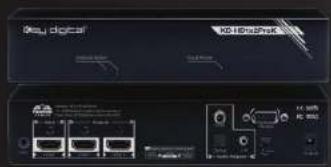
text_image
Ko-18boxPeak Ko-18box300KD-HD1x2ProK

text_image
Digital ED-16 DC-16 DC-16 DC-16 DC-16 DC-16 DC-16 DC-16 DC-16 DC-16 DC-16 DC-16 DC-16 DC-16 DC-16 DC-16 DC-16 DC-16 DC-16 DC-16 DC-16 DTC DC-16 DC-16 DC-16 DC-16 DC-16 DC-16 DC-16 DC-16 DC-16 DC-16 DC-16 DC-16 DC-16 DC-16 DC-16 DC-16 DC-16 DC-16 DC-16 DC-15 DC-15 DC-15 DC-15 DC-15 DC-15 DC-15 DC-15 DC-15 DC-15 DC-15 DC-15 DC-15 DC-15 DC-15 DC-15 DC-15 DC-15 DC-15 DC-15 DC-14 DC-14 DC-14 DC-14 DC-14 DC-14 DC-14 DC-14 DC-14 DC-14 DC-14 DC-14 DC-14 DC-14 DC-14 DC-14 DC-14 DC-14 DC-14 DC-14 DC-13 DC-13 DC-13 DC-13 DC-13 DC-13 DC-13 DC-13 DC-13 DC-13 DC-13 DC-13 DC-13 DC-13 DC-13 DC-12 DC-12 DC-12 DC-12 DC-12 DC-12 DC-12 DC-12 DC-12 DC-12 DC-12 DC-12 DC-12 DC-12 DC-12KD-HD1x4ProK
Key digital®
Key Digital® Systems :: 521 East 3rd Street :: Mount Vernon, NY 10553
Phone: 914.667.9700 Fax: 914.668.8666 Web: www.keydigital.com
Key digital®
The Experts in Digital Video Technology and Solutions*

Table of Contents
Introduction 1
Quick Setup Guide 2
Installation and Operation 3
DVI Applications 3
Settings 4
RS-232 Commands and Protocol 6
Specifications....7
Important Product Warnings & Safety Instructions: 8
How to Contact Key Digital ^® 9
Warranty Information 9
Always follow the instructions provided in this Operating Manual.
© 2015 Key Digital, Inc. All rights reserved.
Introduction
Key Digital ^® Phantom Series ^™ HDMI Distribution Amps are designed and engineered to offer best quality in class, performance, and reliability. Phantom Series ^™ Distribution Amps support all HD and SD video standards, including Ultra HD/4K, 3D and 1080p/60.
KD-HD1x2ProK / KD-HD1x4ProK units feature status-monitoring LEDs, and are capable of de-embedding HDMI audio for external distribution. The Phantom Series ^™ distribution amplifiers support multiple unit expandability, and are individually addressable.
Key Features
HDMI Distribution: HDMI source to 2/4 HDMI outputs
Resolution Support: SD, HD, and VESA up to UHD/4K (4096x2160/60/30/24 or 3840x2160/60/30/24)
Ultra HD/4K: Supports Ultra HD/4K Signal transmission
3D Read@capability to pass 3D stereoscopic signal formats
Audio De-Embedde can de-embed audio from the HDMI input and send it to external digital or analog audio outputs
Hot Plug Detection Contrainables integrator to choose if active signal voltage is forced to connected input device
Full Buffer SystemManages TMDS re-clocking / signal re-generation, HDCP authentication to source & display, and EDID Control handshake
EDIDinternal library with 16 default EDID configurations for input, in addition to native EDID data for any Output/Display
Cascading Unit&lp to 64 outputs or displays
Lossless Compressed Digital Audio® Dolby® TrueHD, Dolby® Digital Plus and DTS-HD Master Audio™
Deep Color Support to 12 bits/color
I2C CommunicatioEDID and HDCP authentication to Source
Licensingfully licensed and compatible with all HDMI and HDCP technologies Control front status LEDs and RS-232 control
Major Control System Support Compass Control®, AMX®, Control4®, Crestron®, Extron, Leviton®, RTI®, Savant, URC®, etc.
Signal ratesp to 3.4 Gb per second
Firmware upgradable
Rack mountable
Accessories
External power supply: 5V 2A
HDMI Lacing Clips
Rack Ears
Operating Instructions
Warranty Card
3D Ultra HD/4K

Quick Setup Guide
Step 1: Find a safe and convenient location to mount or place your KD-HD ProK unit
Step 2: Begin with the KD-HD ProK unit and all input/output devices turned off with power cables removed
Step 3: Connect your HDMI or DVI-D source to the input port of your KD-HD ProK unit
Step 4: Connect your HDMI or DVI-D displays and audio devices to the output port of your KD-HD ProK unit
Step 5: Connect the desired RS-232 control inputs to your KD-HD ProK unit
Step 6: Be sure the Operation Mode Switch is set to the "Normal" position
Step 7: Connect power to the KD-HD ProK unit
Step 8: Power on input/output devices

flowchart
graph TD
    A["4K Media Server"] -->|HDMI| B["KD-HD1x4ProK"]
    B --> C["HD1x4ProK"]
    C --> D["KD-X400Prok Rx"]
    D --> E["Display 1 4K"]
    C --> F["KD-X400Prok T2 CAT8x9"]
    F --> G["Display 2 4K"]
    C --> H["HDMI"]
    H --> I["Display 3 4K"]
    C --> J["HDMI"]
    J --> K["Display 4 4K"]
    C --> L["Audio Revr."]
    L --> M["Audio"]
    L --> N["Audio"]
    L --> O["Audio"]
    L --> P["Audio"]
    style A fill:#f9f,stroke:#333
    style B fill:#ccf,stroke:#333
    style C fill:#cfc,stroke:#333
    style D fill:#fcc,stroke:#333
    style E fill:#cff,stroke:#333
    style F fill:#ffc,stroke:#333
    style G fill:#fcf,stroke:#333
    style H fill:#cff,stroke:#333
    style I fill:#ffc,stroke:#333
    style J fill:#cff,stroke:#333
    style K fill:#ffc,stroke:#333
    style L fill:#cfc,stroke:#333
    style M fill:#fcc,stroke:#333
    style N fill:#ffc,stroke:#333
    style O fill:#fcc,stroke:#333
Note: No resolution processing is done on the KD-HD1x2ProK; KD-HD1x4ProK.
Installation and Operation
Before permanently securing the unit for final installation, test for proper operation of the unit and cables in your system. It is recommended that you leave enough ventilation space to provide sufficient airflow and cooling. An optional HDMI cable clip (included) allows for a secure HDMI cable connection to be made to the rear of the unit and helps defeat intermittent or complete signal loss due to poor connection.

text_image
Optional HDMI Cable clip (included)Active Input / Output LED Indicators
The front LEDs indicate that a valid HDMI / DVI-D connection (voltage + data link) is made between the KD-HD ProK unit and each Input / Output.

text_image
Key digital KD-HD1x4ProK Outputs Active Input Active 1 2 3 4DVI Applications
KD-HD1x2ProK / KD-HD1x4ProK units can also be used with DVI-D and DVI-I sources and displays. For these applications, use DVI to HDMI adapters. Note that while HDMI supports both video and audio over an HDMI cable, DVI-D and DVI-I supports only video. Additionally, color spacing adjustments may be required.

flowchart
graph TD
    A["Device 1"] -->|USB User| B["KD-X400ProK"]
    A -->|USB User| C["KD-X400ProK"]
    B --> D["Display 1"]
    B --> E["Display 2"]
    B --> F["Display 3"]
    B --> G["Display 4"]
    C --> H["Display 5"]
    C --> I["Display 6"]
    J["Desktop PC"] --> K["USB User"]
    K --> A
    style A fill:#f9f,stroke:#333
    style B fill:#ccf,stroke:#333
    style C fill:#cfc,stroke:#333
    style D fill:#fcc,stroke:#333
    style E fill:#fcc,stroke:#333
    style F fill:#fcc,stroke:#333
    style G fill:#fcc,stroke:#333
    style H fill:#fcc,stroke:#333
    style I fill:#fcc,stroke:#333
Settings
EDID Control
EDID authentication is provided from the KD-HD ProK unit to the connected input / source device. The EDID file (AKA "handshake") is selected using the EDID Control rotary on the rear of the unit and provides a list of compatible video and audio formats as well as digital data, informing the source device what it should output. Most sources will comply with a new EDID file without a power-cycle, but each source may behave differently. Adjustments may be necessary to help achieve desired video and audio formatting and my speed up sync time.
Default position is setting 4, 1080p with 2ch audio.
| 0 | Copy EDID from CAT5e/6 Output | A | 4Kx2K@60, 2CH AUDIO |
| 1 | 1080i, 2CH AUDIO | B | 4Kx2K@60, DOLBY/DTS 5.1 |
| 2 | 1080i, DOLBY/DTS 5.1 | C | 4Kx2K@60, HD AUDIO |
| 3 | 1080i, HD AUDIO | D | 1280x720p@60 DVI (no audio) |
| 4 | 1080p, 2CH AUDIO | E | 1920x1080p@60 DVI (no audio) |
| 5 | 1080p, DOLBY/DTS 5.1 | F | 3840x2160p@30 DVI (no audio) |
| 6 | 1080p, HD AUDIO |  Rotary EDIDSwitch: Rotary EDIDSwitch: | |
| 7 | 4Kx2K@30, 2CH AUDIO | ||
| 8 | 4Kx2K@30, DOLBY/DTS 5.1 | ||
| 9 | 4Kx2K@30, HD AUDIO | ||
IMPORTANT! Please apply light pressure to the EDID rotary when making your selection.
Force Hot Plug Detection (HPD)
Hot Plug Detection (HPD) may be forced on the KD-HD ProK unit in order to provide connected devices with necessary voltage to inform the source device that a partner (display) is connected and active.
HPD settings are manipulated only via RS-232 from a computer/control system.
By default, the KD-HD ProK is set to HPD bypass/off; the source device only receives a HPD signal when a connected output devices provides that voltage.
In cases of many layers of connectivity, HPD may be lost leading to no signal at the display. In those cases, set the HPD to on via RS-232. Please refer to the RS-232 Commands and Protocol section.
LED Indicator Lights
> Outputs Active
»Color: Blue
Solid illumination during active HPD (voltage) link with connected HDMI output device
» Sequential flicker from left to right, during power boot up of unit
- Respective flicker on single output indicator LED, when respective output has been turned off
»LEDs off during unit power off
> Input Active
»Color: Blue
Solid illumination during active link (voltage + data) with connected HDMI source
* Steady Flicker, during unit power on without active link from connected HDMI source
*LED off during unit power off
External Audio Outputs
Analog audio output via 3.5mm stereo phone jack
2 channel analog audio output from the HDMI input source
*Converts only 2 ch. PCM audio from the HDMI input to 2 channel analog audio output
Only supports 2 ch. PCM audio, not multi-channel PCM, Dolby, DTS, HD audio
Digital audio output via Coax/RCA
»Digital audio output from the HDMI input source
»Uses SPDIF format
Supports 2 ch. PCM, Dolby, DTS; does not support multi-channel PCM or HD audio
Digital audio output via Optical
»Digital optical audio output from the HDMI input
»Uses SPDIF format
» Supports 2 ch. PCM, Dolby, DTS; does not support multi-channel PCM or HD audio
There are no volume or tone control features, only muting control of the external audio outputs via RS232.
There are no DSP features. Ie, in order to achieve 2ch analog audio output, the selected HDMI input source audio format must be 2ch.
| Audio InputSignal Format | Analog L/ROutput | Digital Audio Output(Coax & Optical) |
| 2CH PCM Pass-through Pass-through | ||
| Multi-Channel PCM MUTE MUTE | ||
| DOLBY/DTS MUTE Pass-through | ||
| HD Audio MUTE MUTE | ||
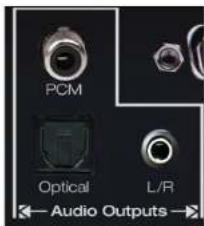
text_image
PCM Optical L/R Audio Outputs*FDID (Extended display identification data) is a data structure provided by a display to describe its capabilities to a source device.
Operation Mode Switch
The Operation Mode switch is a small toggle switch on the rear of the KD-HD ProK unit. Normal Mode is the default setting. It is used for common operation Program Mode is for firmware upgrades only. Setting the Operation mode switch to Program Mode may cause damage to the product if not able to immediately load firmware.
To return the unit to normal mode, please disconnect power from the KD-HD ProK unit first, then toggle the Operation Mode switch to Normal setting, and lastly, reconnect power to the KD-HD ProK unit.
Addressing Mode
Units may be addressed when used in a cascaded configuration. Address settings of the KD-HD ProK unit are manipulated only via RS-232 from a computer/control system. If an address is applied, then RS-232 commands sent to the addressed unit will begin with the Axx prefix. Please see the RS-232 Commands and Protocols document for additional information.
RS-232 Commands and Protocol
The KD-HD ProK unit provides access to all functions when used with an RS-232 control system or Computer.
| RS-232 Protocol: |
| »Baud Rate = 57600 bits per second |
| »Data Bits = 8 |
| »Stop Bits = 1 |
| »Parity = None |
| »Flow Control = None |
| »Carriage Return: Required |
| »Line Feed: Required |
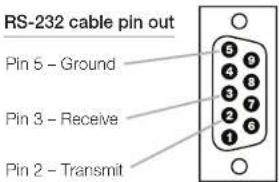
text_image
RS-232 cable pin out Pin 5 - Ground Pin 3 - Receive Pin 2 - TransmitCommands are not case-sensitive. Spaces shown below may be excluded.
Carriage return and line feed is required at the end of each string.
Response from Help command (list and description of all available RS-232 commands):
KD-HD1x4ProK> H
| Key Digital Systems HELP | ||
| KD-HD1x4PROK | System Address = 01 | F/W Version : 1.00 |
| Azz | All Commands may have Prefix System Address zz=[01-99] | |
| H | Help | |
| PF | Power Off | |
| PN | Power ON | |
| STA | Show Global System Status | |
| Video Output Setup Commands: xx=[01-04,A], A=All | ||
| SPO xx ON/OFF | Set Output xx ON/OFF | |
| SPO xx DBG ON/OFF | Set Output xx Debug Mode ON/OFF | |
| Audio Output Setup Commands: [E=Enable, D=Disable] | |
| SPO AA E/D : Enable/Disable External Analog Audio Output | |
| SPO DA E/D : Enable/Disable External Digital Audio Output | |
| System Address Setup Command: xx = [00-99], 00 = Single | |
| SPC Axx : Set System Address to xx | |
| System Control Setup Commands: | |
| SPC FMPD ON/OFF : Set Forced HPD ON/OFF | |
| SPC RSB z : Set RS232 Baud Rate to z bps, z=[0-4] | |
| [0:57600, 1:38400, 2:19200, 3:9600, 4:4800] | |
| SPC DF : Reset to Factory Defaults |
Response from Status command (current settings and/or status of unit), with Output 2 disconnected:
KD-HD1x4ProK> STA
| Key Digital Systems STATUS | ||
| KD-HD1x4ProK | System Address = 00 | F/W Version : 1.00 |
| Power : ON | ||
| Forced HPD : ON | ||
| RS232 : Baud Rate=7600bps, Data=8bit, Parity=None, Stop=1bit | ||
| Video Input : EDID = DEFAULT 04, LINK = ON | ||
| Video Output 01 : Output = ON , LINK = ON , DBG = OFF | ||
| Video Output 02 : Output = ON , LINK = OFF, DBG = OFF | ||
| Video Output 03 : Output = ON , LINK = ON , DBG = OFF | ||
| Video Output 04 : Output = ON , LINK = ON , DBG = OFF | ||
| Audio Output : Analog = Enabled, digital = Enabled | ||
Specifications
Technical:
Input: HDMI Connector, Type A, 19 Pin Female
Output (Each): HDMI Connector, Type A, 19 Pin Female
Bandwidth: TMDS bandwidth 3.4 Gb/s
- Link: Single Link - 4K/3D/1080p/60, 12 bit color depth
DDC Signal (Data): Input DDC Signal - 5 Volts p-p (TTL)
HDMI Video/Audio Signal: Input Video Signal - 1.2 Volts p-p
Power: 5 Volt DC @ 2 Amp, 100-240 VAC, 50-60 Hz
General:
»Regulation: CE, RoHS, WEEE
*Enclosure: Black Metal
Product Dimensions: 8.2" x 1.67" x 3.9", Weight: 2 lbs
8 Shipping Dimensions: 11.6" x 6.9" x 4.9", Weight: 5 lbs

Important Product Warnings:
- Connect all cables before providing power to the unit.
- Test for proper operation before securing unit behind walls or in hard to access spaces.
- If installing the unit into wall or mounting bracket into sheet-rock, provide proper screw support with bolts or sheet-rock anchors.

Safety Instructions:
Please be sure to follow these instructions for safe operation of your unit.
- Read and follow all instructions.
- Heed all warnings.
- Do not use this device near water.
- Clean only with dry cloth.
- Install in accordance with the manufacturer's instructions.
- Do not install near any heat sources such as radiators, heat registers, stoves, or other apparatus (including amplifiers) that produce heat.
- Only use attachments/accessories specified by the manufacturer.
- Refer all servicing to qualified service personnel. Servicing is required when the device has been damaged in any way including:
»Damage to the power supply or power plug
»Exposure to rain or moisture

Power Supply Use:
You MUST use the Power Supply provided with your unit or you VOID the Key Digital® Warranty and risk damage to your unit and associated equipment.
How to Contact Key Digital®
Technical Support
For technical questions about using Key Digital® products, please contact us at:
Phone: 914-667-9700
E-mail: tech@keydigital.com
Repairs and Warranty Service
Should your product require warranty service or repair, please obtain a Key Digital® Return Material Authorization (RMA) number by contacting us at:
Phone: 914-667-9700
E-mail: rma@keydigital.com
Feedback
Please email any comments/questions about the manual to:
E-mail: customersupport@keydigital.com

Warranty Information
All Key Digital® products are built to high manufacturing standards and should provide years of trouble-free operation. They are backed by a Key Digital Limited Lifetime Product Warranty Policy.
» http://www.keydigital.com/warranty.htm