Component Video Hub - Équipement audio-vidéo MuxLab - Free user manual and instructions
Find the device manual for free Component Video Hub MuxLab in PDF.


User questions about Component Video Hub MuxLab
0 question about this device. Answer the ones you know or ask your own.
Ask a new question about this device
Download the instructions for your Équipement audio-vidéo in PDF format for free! Find your manual Component Video Hub - MuxLab and take your electronic device back in hand. On this page are published all the documents necessary for the use of your device. Component Video Hub by MuxLab.
USER MANUAL Component Video Hub MuxLab
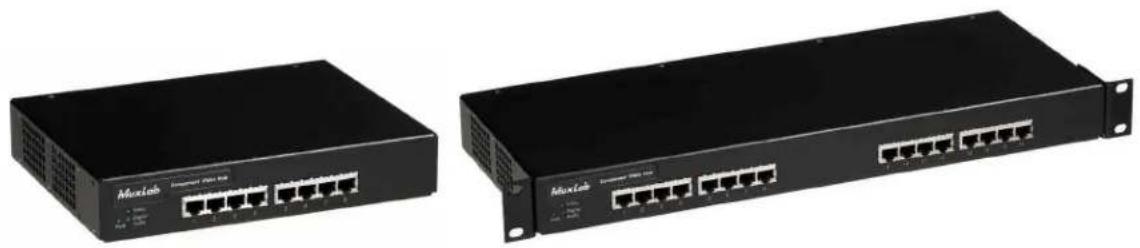
VideoEase™ Component Video Hub (500250, 500251, 500252, 500253)
natural_image
Two black MaxLab network switches with Ethernet ports, shown from different sizes (no text or labels visible)Installation Guide
P/N: 94-000382-B, SE-000581-B
Copyright Notice :
Copyright © 2006-2007 MuxLab Inc. All rights reserved.
Printed in Canada. No part of this publication may be reproduced, stored in a retrieval system, or transmitted in any form or by any means, electronic, mechanical, photocopying, recording, or otherwise without prior written permission of the author.
Trademarks :
MuxLab and VideoEase are registered trademarks of MuxLab Inc.
Table of Contents
1. Overview....4
1.1. Description....4
1.2. Features....4
2. Technical Specifications ....5
3. Installation Procedure ....7
3.1. Parts List....7
3.2. Product Overview 7
3.3. Pre-Installation Checklist....8
3.4. Physical Installation....8
3.5. Installation Procedure 9
3.6. Cascading....13
4. Troubleshooting....15
5. Product Warranty Policy ....17
1. Overview
1.1. Description
The VideoEase Component Video Hub allows one (1) full component video (YPbPr/RGB) source and one (1) digital or analog audio video source to be distributed up to eight (8) or sixteen (16) destinations depending on the model for more cost-efficient cabling. The 500250 supports up to eight (8) ports. The 500252 supports up to sixteen (16) ports. Applications include; Digital signage, Boardroom systems, Multi-room systems, Classroom training, Retail systems.
1.2. Features
• Modular RJ45 on input and output
- Cascadable up to two (2) levels with other hubs
• Supports 480i/p up to 1,000 ft (305m) via Cat5
• Supports 720p/1080i/p up to 500 ft (152m) via Cat5
• Supports digital or analog audio on fourth twisted pair
- Configuration switch to support digital audio or analog audio
• Ground loop isolation on every port
• Integrates seamlessly with MuxLab component video baluns
2.
Technical Specifications
| Environment | Component baseband video (YPbPr/RGB) and Digital Audio | |
| Devices | DVD players, DVR, AV matrix switchers, DLP projectors, plasmas, monitors, home theatre. | |
| Transmission | Transparent to the user. | |
| 3 dB Bandwidth | Video: DC to 77 MHz. Digital Audio: DC to 52MHz Analog Audio: 20 to 20kHz | |
| Insertion Loss (differential) | Video: -0.8 dB @ 4 MHzDigital Audio: -1.26 dB @ 4 MHz.Analog Audio: 1 dB @ 4 MHz. | |
| Video Return Loss | -23dB @ 4 MHz. | |
| Common Mode RejectionInput: balanced. Output: balanced | Video: Greater than 40 dB over the frequency range.Digital Audio: Greater than 31.5 dB over the frequency rangeAnalog Audio: Greater than 60 dB @ 1 KHz; Greater than 40 dB over the frequency range. | |
| Crosstalk Immunity | -60 dB @ 4 MHz | |
| Total Harmonic Distortion | Analog Audio: Less than 0.007% @ 1KHz. | |
| Max. Distance viaCat 5 Twisted Pair (UTP)* | Component Video (YPbPr):480i/p: 1,000 ft (305m) *720p and 1080i: 500 ft (152m) *Digital Audio: 600 ft (182m) *Analog Audio: 3.250 ft (990m) **Measured between Source (ie;DVD) and Destination (ie;Monitor) with Hub placed anywhere between the source and destination | |
| Compatible Baluns | 500000, 500002, 500009, 500020, 5000021, 500050, 500051, 500052, 500053 | |
| Cascadability | Up to two (2) levels. | |
| Ground Loop Isolation | Ground loop isolation on every port. | |
| Cable – UTP | 24 gauge or lower solid copper twisted pair wire impedance: 100 ohms at 1 MHz. Cat 3 or better. | |
| Connectors | Source Input: One (1) RJ45S on rear panel | |
| Looping Output: One (1) RJ45S on rear panel | ||
| Distribution Outputs: Eight (8) or sixteen (16) RJ45S on front panel | ||
| RJ45 Pin Configuration | Red (Pr) : Pins 7 [R] & 8 [T] | |
| Reverse Polarity Sensitive | Green (Y) : Pins 3 [R] & 6 [T] | |
| Blue (Pb) : Pins 1 [R] & 2 [T] | ||
| Audio : Pins 4 [R] & 5 [T] | ||
| Configuration Switch | Sets hub to support digital or analog audio on fourth twisted pair. Factory default: analog audio. | |
| LED Diagnostics | Power (green), Video Sync (green), Digital Audio Sync (green): | |
| Power Supply | External AC: 110V and 220/240VDC: 12VDC, 1.25A (8-port model) or 2.5A (16-port model). | |
| Temperature | Operating: 0^ to 40^ C. Storage:- 20^ to 85^ C. Humidity: up to 95% non-condensing. | |
| Dimensions | 500250/500251: 9.125" x 6.75" x 1.75" (23.18 cm x 17.15 cm x 4.45 cm) |
| 500252/500253: 19" x 6.75" x 1.75" (48.26 cm x 17.15 cm x 4.45 cm) | |
| Weight | 500250/500251: 3.3 lbs (1.5 kgs) |
| 500252/500253: 5.5 lbs (2.5 kgs) | |
| Compliance | FCC, CE-EMC Directive 89/336/EEC, RoHS, WEEE |
| Warranty | 2 years |
| Order Information | 500250 Component Video Hub, 8 Ports, 110V |
| 500251 Component Video Hub, 8 Ports, 220/240V | |
| 500252 Component Video Hub, 16 Ports, 110V | |
| 500253 Component Video Hub, 16 Ports, 220/240V |
3. Installation Procedure
3.1. Parts List
The Component Video Hub comes with the following parts. Please verify that all pieces are present before proceeding.
- Base Unit
- External Power Supply 12VDC/1.25A (500250, 500251) or 12VDC/2.5A (500252, 500253)
• Rubber stand-offs (500250, 500251 only) - Installation Guide
3.2. Product Overview
The external connections and diagnostics of Component Video Hub are detailed in the following diagrams. Please familiarize yourself with them before installing the unit.

text_image
Muscleb Component Video Hub Video Digital Audio 1 2 3 4 5 6 7 8Figure 1: Component Video Hub 8 Ports (500250, 500251) Front panel

text_image
Model Component Value Hub ○ 200V ○ 100V Pin 4 1 2 3 4 5 6 7 8 9 10 11 12 13 14 15 16Figure 2: Component Video Hub 16 Ports (500252, 500253) Front panel

text_image
Power 12VDC 1.25A Analog Digital Audio Audio Input RAS Pin Configuration Green (Y) Blue (Fb) Red (R) Audio 3 (F) & 6 (T) 1 (F) & 2 (T) 7 (F) & 8 (T) 4 (F) & 5 (T) Cascade OutputFigure 3: Component Video Hub Rear panel (all models)
3.3. Pre-Installation Checklist
The Component Video Hub provides a centralized component video distribution center via copper twisted pair cabling.
- The Component Video Hub is typically installed in a remote telecom room and is connected to the component video source and display devices via Cat5 twisted pair. MuxLab component video baluns are installed at each component video devices to support the connection to the hub via Cat5 cable.
- For optimum performance and to support HDTV (720p, 1080i/p) resolution, the Component Video Hub is used in conjunction with MuxLab's passive Component Video Baluns (p/ns 500050, 500051, 500052, 500053).
- The Component Video Hub will also work with third party vendor baluns, providing the pin configuration and signal polarity are compatible. However, performance specifications may be affected.
3.4. Physical Installation
The Component Video Hub has two models; 8-port desktop (500250, 500251) and 16-port rack-mount (500252, 500253).
- If the 8-port hub is being installed on a desk, select the final destination for the product and install the unit on a desk or shelf as shown below.

natural_image
Exterior view of a black wireless router device (no visible text or labels on the device body)Figure 5: 8-port desktop installation
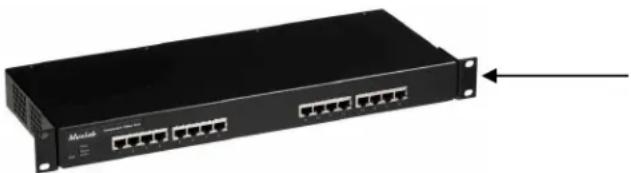
- If the 16-port hub is being installed, select the final destination for the product and install the unit using standard rack-mount screws.
natural_image
Front view of a black network switch device with multiple Ethernet ports and ventilation slots (no visible text or labels)Figure 6: 16-port rack-mount installation
3.5. Installation Procedure
The Component Video Hub is available in 8-port (500250, 500251) and 16-port (500252, 500253) versions. In order to install the product, please follow the steps below:
-
Install the Component Video Hub in its final location by performing steps 1 or 2 listed in the previous section.
-
Ensure that the power is turned off on the component video source and displays.
-
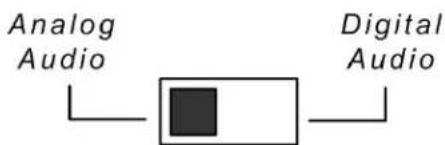
If audio will be transmitted along with video, set the hub to digital or analog audio by sliding the switch on the rear panel to the appropriate position as shown in the diagram below. The factory default setting is "analog audio".
text_image
Analog Audio Digital Audio-
In order to distribute component video (YPbPr/RGB) and audio (optional), one (1) Component Video Balun must be connected at the component video source and at each component video display. To install the baluns, perform the following steps (5, 6 and 7):
-
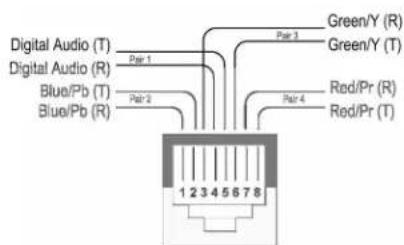
Identify the pin configuration of the baluns. Three (3) twisted pairs are required for video and one (1) twisted pair is required for optional digital audio. The pin configuration follows the EIA/TIA 568A/B standard. The Component Video Baluns are reverse polarity sensitive. Please ensure that wiring is straight-through (Ring to Ring, Tip to Tip).
text_image
Digital Audio (T) Digital Audio (R) Blue/Pb (T) Blue/Pb (R) Par 1 Par 2 Par 3 Green/Y (R) Green/Y (T) Red/Pr (R) Rod/Pr (T) 1 2 3 4 5 6 7 8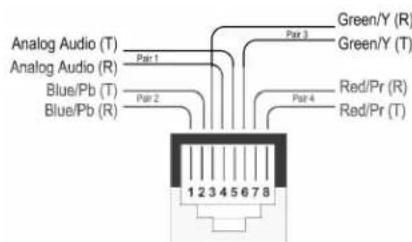
text_image
Analog Audio (T) Analog Audio (R) Blue/Pb (T) Blue/Pb (R) Par 1 Par 2 Par 3 Green/Y (R) Green/Y (T) Red/Pr (R) Red/Pr (T) 1 2 3 4 5 6 7 8- Plug one (1) Component Video/Digital Audio Balun (500050, 500051) or Component Video/Analog Audio Balun (500052, 500053) into the
component video coaxial cable output of the video source according to the color code of the RCA cable leads.

text_image
Red (Pr) Green (Y) Blue (Pb) Digital Audio MucLab Red (Pr) Green (Y) Blue (Pb) Analog Audio-
Connect a Component Video/Digital Audio Balun (500050, 500051) or Component Video/Analog Audio Balun (500052, 500053) to each component video display.
-
Complete the connection between the component video source and the Component Video Hub using standard straight-thru Cat5 twisted pair cable and connecting hardware, terminated on RJ45 plugs at both ends. Ensure that there are no split pairs or taps.
-
Complete the connection between the hub and each component video display using standard straight-thru Cat5 twisted pair cable and connecting hardware, terminated on RJ45 plugs at both ends. Ensure that there are no split pairs or taps.
-
If audio is to be connected (optional), connect an RCA lead between each Component Video Balun and the audio equipment at both ends.
-
Connect the external 12VDC power supply to the hub and plug the power supply into an AC power outlet. If power is present, then the green power LED will be ON.
-
Power-on the component video equipment. Check the image quality and refer to the troubleshooting table below if the image quality is unsatisfactory.
-
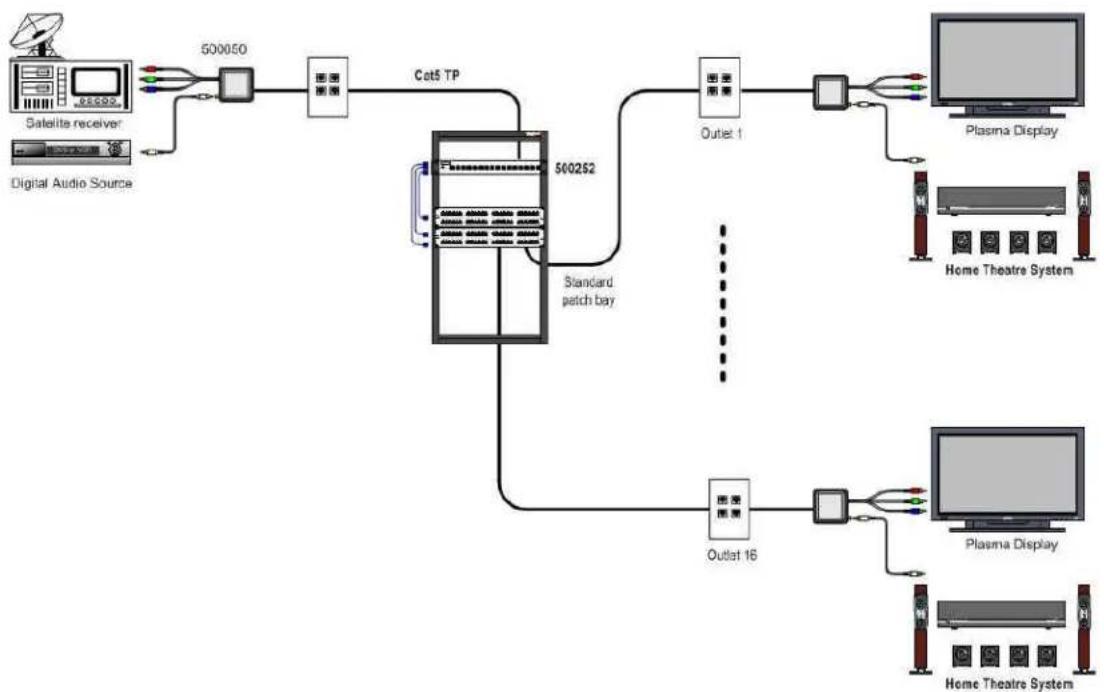
The following diagrams show a couple of typical configurations.

flowchart
graph TD
    A["DVD player"] --> B["500050"]
    B --> C["Component Video Hub (500252)"]
    C --> D["Plasma"]
    C --> E["Digital Audio Decoder/Amplifier"]
    C --> F["AV monitor"]
    C --> G["DLP projector"]
    C --> H["Cat5"]
Figure 4: Typical Configuration – Component Video and Digital Audio
flowchart
graph TD
    A["Satellite receiver"] -->|500050| B["Cat5 TP"]
    B --> C["500252"]
    C --> D["Standard patch bay"]
    D --> E["Media Stream"]
    E --> F["Plasma Display"]
    C --> G["Outlet 1"]
    G --> H["Home Theatre System"]
    C --> I["Outlet 16"]
    I --> J["Plasma Display"]
    C --> K["Home Theatre System"]
Figure 5: Typical Configuration – Component Video and Digital Audio

flowchart
graph TD
    A[" DVD player "] -->|500052| B[" Component Video Hub (500252)"]
    B --> C[" 500052 "]
    B --> D[" Plasma "]
    B --> E[" PC1 "]
    B --> F[" PC2 "]
    B --> G[" PC3 "]
    B --> H[" PC4 "]
    B --> I[" PC5 "]
    B --> J[" PC6 "]
    style A fill:#f9f,stroke:#333
    style B fill:#ccf,stroke:#333
    style C fill:#cfc,stroke:#333
    style D fill:#fcc,stroke:#333
    style E fill:#cff,stroke:#333
    style F fill:#ffc,stroke:#333
    style G fill:#cfc,stroke:#333
    style H fill:#fcc,stroke:#333
    style I fill:#ffc,stroke:#333
    style J fill:#fcc,stroke:#333
Figure 6: Typical Configuration – Component Video and Analog Audio
3.6. Cascading
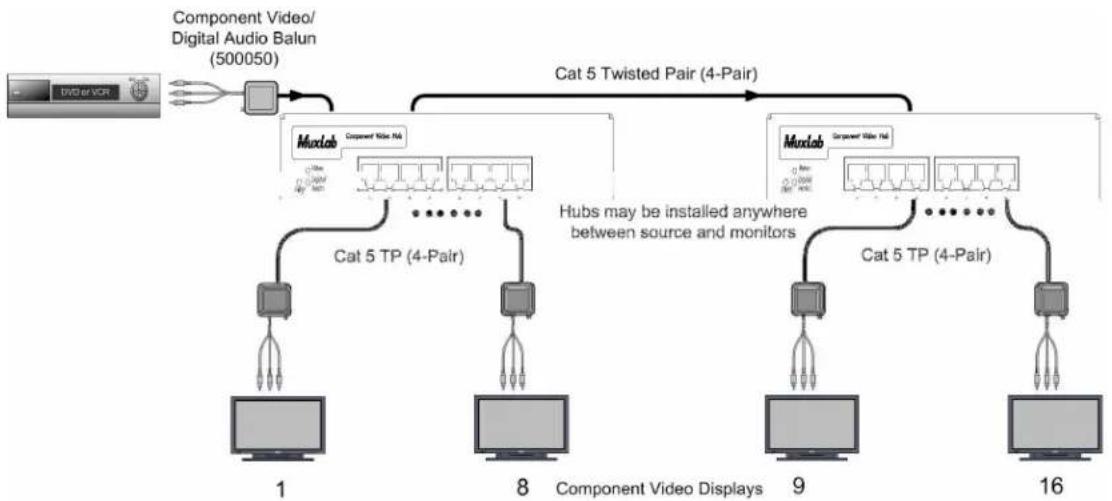
In order to drive more displays, the Component Video Hub may be cascaded with another hub. In order to optimize the image quality, it is recommended to cascade up to two (2) levels only as shown in the following diagrams.
flowchart
graph TD
    A["Component Video/ Digital Audio Balun (500050)"] --> B["Component Video Displays"]
    B --> C["1"]
    B --> D["8"]
    B --> E["9"]
    B --> F["16"]
    C --> G["Muxlab Component Video N4"]
    D --> H["Muxlab Component Video N4"]
    E --> I["Muxlab Component Video N4"]
    F --> J["Muxlab Component Video N4"]
    G --> K["Cat 5 TP (4-Pair)"]
    H --> L["Hubs may be installed anywhere between source and monitors"]
    I --> M["Cat 5 TP (4-Pair)"]
    J --> N["Cat 5 TP (4-Pair)"]
    style A fill:#f9f,stroke:#333
    style B fill:#ccf,stroke:#333
    style C fill:#cfc,stroke:#333
    style D fill:#cfc,stroke:#333
    style E fill:#cfc,stroke:#333
    style F fill:#cfc,stroke:#333
Figure 6: Cascading one hub

flowchart
graph TD
    A["Component Video/ Digital Audio Balun (500050)"] --> B["Muxlab Component Video (4-Pair)"]
    B --> C["Cat 5 TP (4-Pair)"]
    B --> D["Hubs may be installed anywhere between source and monitors"]
    C --> E["1: Computer"]
    C --> F["8: Component Video Displays"]
    C --> G["57: Computer"]
    C --> H["64: Computer"]
    D --> I["1: Computer"]
    D --> J["8: Component Video Displays"]
    D --> K["57: Computer"]
    D --> L["64: Computer"]
Figure 7: Cascading Multiple Hubs
In order to cascade two hubs together, connect a Cat5 straight-through cable between the Output Port (regular or cascade) of the source hub to the Input Port of the second hub as shown in the following diagram.

text_image
Power 12VDC 1.254 Analog Digital Audio Input Green (R) Blue (R) Red (R) Audio B45 Re Configuration 3 [R & 6 T] 1 [R & 2 T] 7 [R & 6 T] 4 [R & 5 T] Cascade Output Power 12VDC 1.254 Analog Digital Audio Input Green (R) Blue (R) Red (R) Audio B45 Re Configuration 3 [R & 6 T] 1 [R & 2 T] 7 [R & 6 T] 4 [R & 5 T] Cascade OutputCat5 4-pair straight-through cable (EIA568)
Figure 8: Cascade Hub Cabling
4.
Troubleshooting
The following tables describe some of the symptoms, probable causes and possible solutions in respect to the installation of the Component Video Hub. If you still cannot diagnose the problem, please call MuxLab Customer Technical Support at 877-689-5228 (toll-free in North America) or (+1) 514-905-0588 (International).
| Video Power | LED | Video LED | Probable Causes Possible Solutions | |
| No image | OFF | OFF | Power off. | Check power supplies of Component Video equipment. |
| No image | ON | ON | Wrong pin configuration. | Check pin configuration and verify straight-thru wiring. |
| No image | ON | OFF | No continuity in video link. | Verify cable continuity between pairs of baluns. |
| No image | ON | ON | Improper connection. Swapped pairs. | Check that baluns are connected to correct video inputs and outputs. |
| Picture distorted | ON ON | EMI interference. Split pair. | Split pair. | Check that wiring is not too close to transformers and lighting ballasts. Check if the UTP pairs are not split. |
| Wrong colors | ON | ON | Reversed polarity. | Check wiring and ensure straight-through polarity. |
| Loss of brightness | ON | ON | Exceeded distance/bandwidth specifications. | Check DC loop resistance and verify if distance spec is exceeded. |
| Loss of color | Lower grade UTP cable is introducing high losses. | Reduce cable length or eliminate high-loss components. | ||
| Smearing | Replace cable by higher grade. | |||
| Horizontal upward moving bands | ON | ON | Ground loop problem between one or more devices. | Consecutively turn off other video sources to determine which video source is the cause of interference. Install RGB ground loop blockers at the source or displays. |
| Digital Audio | Digital Audio LED | Probable Causes | Possible Solutions |
| No audio | OFF | Power off. | Check power supplies of the audio equipment. |
| No audio | ON | Wrong pin configuration. | Check pin configuration and verify straight-thru wiring. |
| No audio | ON | No continuity in video link. | Verify cable continuity between pairs of baluns. |
| No audio | ON | Improper connection Swapped pairs. | Check that baluns are connected to correct video inputs and outputs. |
| Missing channels | ON Cabling problem between the decoder/amp and the audio speakers. | Check audio speaker cabling. | |
| Noise, static | ON | EMI interference. | Check that wiring is not too close to transformers and ballasts. |
| Noise, static | ON | Distance exceeded or unusual cable attenuation. | Check cable distance and cable grade. |
When contacting your nearest MuxLab dealer or MuxLab Technical Support please have the following information ready:
- Unit model number.
- List of tests performed.
- Cabling lay-out. Include model of component video source and receiver, cable length and type.
• Description of problem.
5. Product Warranty Policy
Items under warranty - Company Policy
MuxLab guarantees its products to be free of defects in manufacturing and workmanship for the warranty period from the date of purchase. If this product fails to give satisfactory performance during this warranty period, MuxLab will either repair or replace this product at no additional charge, except as set forth below. Repair and replacement parts will be furnished on an exchange basis and will be either reconditioned or new. All replaced parts and products become the property of MuxLab. This limited warranty does not include repair services for damage to the product resulting from accident, disaster, misuse, abuse, or unauthorized modifications or normal decay of battery driven devices. Batteries if included with the product are not covered under this warranty.
Limited warranty service can be obtained by delivering the product during the warranty period to the authorized MuxLab dealer from whom you purchased the product, or by sending it to MuxLab. MuxLab will not accept any such product for repair without a Return Material Authorization number (RMA#) issued by its Customer Service Department and a proof of purchase date. If this product is delivered to MuxLab by mail, you agree to assume risk of loss or damage in transit, to prepay shipping charges to the warranty service location, and to use the original shipping container or equivalent.
THE ABOVE LIMITED WARRANTY IS THE ONLY WARRANTY COVERING YOUR MUXLAB PRODUCT. THERE ARE NO OTHER WARRANTIES, EXPRESSED OR IMPLIED, INCLUDING WARRANTIES OF MERCHANTABILITY OR FITNESS FOR A PARTICULAR PURPOSE. SOME STATES DO NOT ALLOW LIMITATIONS ON IMPLIED WARRANTIES, SO THE ABOVE LIMITATION MAY NOT APPLY TO YOU.
IF THIS PRODUCT IS NOT IN GOOD WORKING ORDER, YOUR SOLE REMEDY SHALL BE REPAIR OR REPLACEMENT AS PROVIDED FOR ABOVE. IN NO EVENT SHALL MuxLab BE LIABLE TO YOU FOR ANY DAMAGES, INCLUDING ANY LOSS OF PROFITS, LOST SAVINGS, OR OTHER INCIDENTAL OR CONSEQUENTIAL DAMAGES ARISING OUT OF THE USE OF OR INABILITY TO USE THIS PRODUCT, EVEN IF MUXLAB OR AN AUTHORISED MuxLab DEALER HAS BEEN ADVISED OF THE POSSIBILITY OF SUCH DAMAGES; NOR WILL MUXLAB BE LIABLE FOR ANY CLAIM BY ANY OTHER PARTY. SOME STATES DO NOT ALLOW THE EXCLUSION OR LIMITATION OF INCIDENTAL OR CONSEQUENTIAL DAMAGES FOR CONSUMER PRODUCTS, SO THE ABOVE LIMITATIONS OR EXCLUSIONS MAY NOT APPLY TO YOU. THIS WARRANTY GIVES YOU SPECIFIC LEGAL RIGHTS. YOU MAY ALSO HAVE OTHER RIGHTS WHICH MAY VARY FROM STATE TO STATE.
Warranty Periods
Any product found to be defective within three (3) months of invoice, including one (1) month shelf life, may be returned for replacement by a new unit or a satisfactory repair within one (1) month of receiving any returned product. The customer must provide MuxLab with the serial number and proof of purchase of the defective unit being returned. All R.M.A.'s issued are subject to inspection by MuxLab, and will be returned to customer if not properly package – units must be returned in original container or equivalent. MuxLab will not accept any such product for repair without an authorization for its Technical Support department and without a return authorization number issued by MuxLab Customer Service department. For credit & replace R.M.A., customer will be liable to pay replacement invoice if defective products are not returned. Product more than six months old, including shelf life.
The defective unit must be returned prepaid to MuxLab and then the unit will be repaired or if repair is not possible, replaced by an equivalent unit and returned to the customer within one (1) month of receiving any returned product. There is no charge for repair (parts and labor) during the full warranty period.
Items Defective and not under Warranty
For products which are no longer under warranty the policy is repair and return. An amount of 25% of the products published list price at the time of purchase will be charged. Customer must issue a purchase order to cover the cost of repair. Each unit will be returned to the customer within one (1) month from receipt of the unit by MuxLab. The defective unit must be returned prepaid to MuxLab. The repaired unit will be returned to the customer FOB MuxLab. The repaired unit has a 90 day warranty.
MuxLab Inc.
8114 Trans Canada Hwy, St. Laurent,
Quebec, Canada, H4S 1M5
Tel.: +1 (514) 905-0588 Fax: +1 (514) 905-0589
Toll Free (North America): 877 689-5228
URL: www.muxlab.com
E-mail: videoease@muxlab.com