MegaVideo D4F-AV2115-3312 - Security Camera Arecont Vision - Free user manual and instructions
Find the device manual for free MegaVideo D4F-AV2115-3312 Arecont Vision in PDF.


User questions about MegaVideo D4F-AV2115-3312 Arecont Vision
0 question about this device. Answer the ones you know or ask your own.
Ask a new question about this device
Download the instructions for your Security Camera in PDF format for free! Find your manual MegaVideo D4F-AV2115-3312 - Arecont Vision and take your electronic device back in hand. On this page are published all the documents necessary for the use of your device. MegaVideo D4F-AV2115-3312 by Arecont Vision.
USER MANUAL MegaVideo D4F-AV2115-3312 Arecont Vision
natural_image
Close-up of two Arécon Vision security cameras with reflective lenses, mounted on a curved surface (no text or symbols visible)D4S/D4F Series
Installation Manual

Arecont Vision
megapixel technology... beyond imagination
D4S/D4F Indoor Dome Installation Manual
Inside the box:
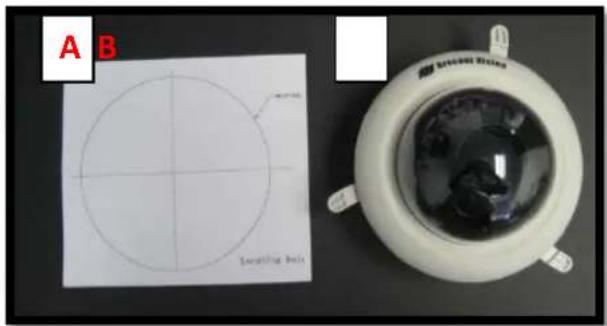
A. Mounting template
B. Arecont Vision D4S (Image 1-1) or D4F (Image 1-2)
C. Pack of three (3) wood screws and three (3) dry wall anchors (D4S only)
Not included but needed:
• #0 Phillips head screwdriver
• #1 Phillips head screwdriver

text_image
A B C Immitting holoImage 1-1 D4S Indoor Dome
text_image
A B Locating Bolt Benedo SticaImage 1-2 D4F Indoor Dome
Mounting the Camera:
- Remove camera and hardware from the box.
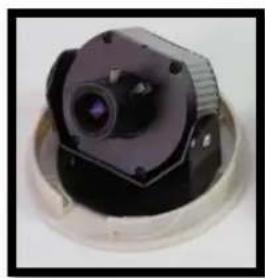
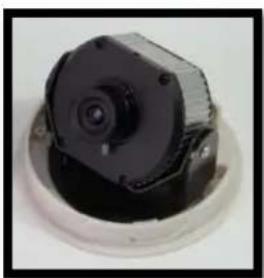
NOTE : D4S and D4F has two kinds of lens options, 3.3-12mm and 4mm, as shown in image 2.
D4S/D4F-AVxxxx-3312 integrated with 3.3-12mm lens; D4S/D4F-AVxxxx-04 integrated with 4.0mm lens
natural_image
Close-up of a camera lens mounted on a circular base (no visible text or symbols)D4S-AVxxxx-3312
natural_image
Close-up of a black mechanical component with a circular base and mounting holes (no visible text or symbols)D4S-AVxxxx-04
Image 2-1

natural_image
Close-up of a mechanical component with a central black component and surrounding circular features (no visible text or symbols)D4F-AVxxxx-3312

natural_image
Close-up of a black circular object with a transparent ring, possibly a lens or aperture (no visible text or symbols)D4F-AVxxxx-04
Image 2-2
- Use the Mounting template, prepare the mounting provisions for camera installation.
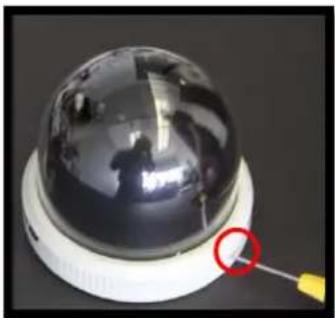
- Use #0 Philips head screwdriver to loosen the set screw to release the dome cover (Image 3-1 and 3-2). NOTE: Do not remove screw from the dome cover.
natural_image
Close-up of a spherical security camera with reflective surface and a yellow cable inserted, no visible text or symbolsImage 3-1 D4S
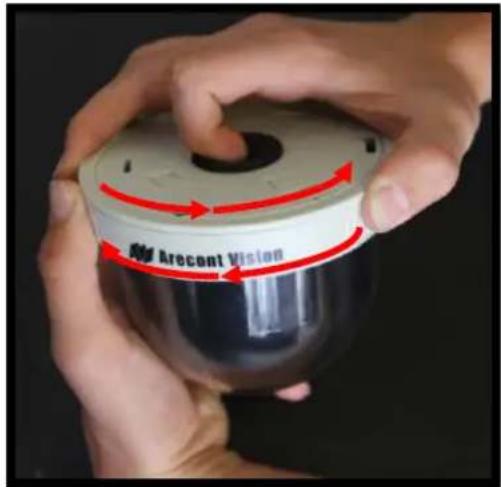
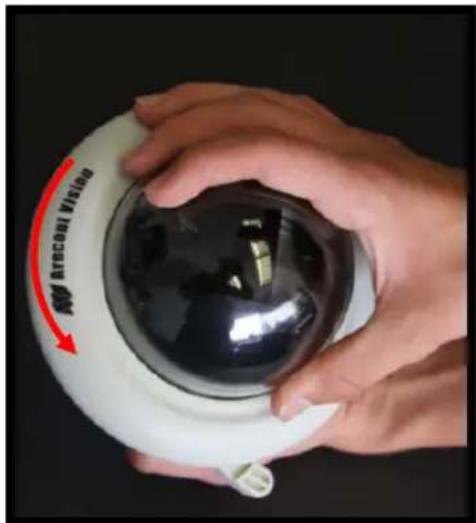
- Remove D4S or D4F dome cover by rotating counterclockwise as show in Image 4-1 and 4-2.
text_image
Arecont VisionImage 4-1 D4S

natural_image
Close-up of a white spherical device with a reflective surface and a red circle highlighting a small yellow object (no text or symbols visible)Image 3-2 D4F
natural_image
Close-up of hands holding a black spherical object with red arrow and label 'ARCOAL VINDA' on the lid (no other text or symbols visible)Image 4-2 D4F
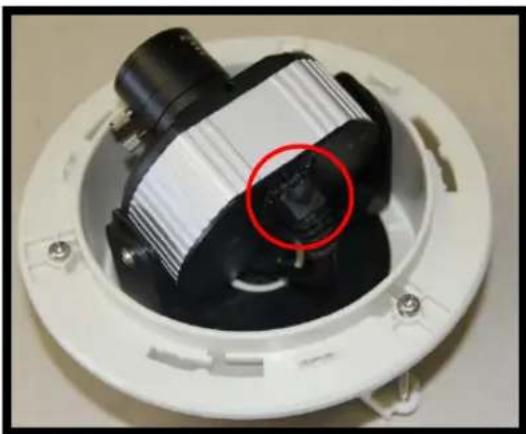
- Run Ethernet cable through the hole on the bottom of D4S or D4F and plug it into the RJ45 port on AV's H.264 compact MegaVideo® camera. (Image 5-1 and 5-2)

natural_image
Close-up of a black plastic component with a white band and a red circle highlighting a circular feature, placed on a white base (no text or symbols visible)Image 5-1 D4S
natural_image
Close-up of a mechanical component with a red circle highlighting a specific part, no visible text or symbols.Image 5-2 D4F
6.1 For D4S models, align the mounting holes in the dome with the prepared holes on the mounting surface. Attach D4S to the mounting surface with the wood screws or any optional hardware suitable for the mounting surface. (Image 6)

natural_image
Top-down view of a mechanical component with red-circled features, showing internal structure and mounting points (no text or symbols visible)Image 6
6.2 For D4F models, insert D4F into the prepared hole in the ceiling or wall then tighten the three "lever screws" by rotating clockwise until the D4F is firmly installed, as shown in Image 7. The "Support Arm" will ride down the screw to compress to the mounting surface. NOTE: Do not over-torque the lever screws.
Support Arm
Lever screw

natural_image
Close-up of a white mechanical device with red circular annotations pointing to specific parts (no readable text or symbols)Image 7
Adjusting the Tilt and Pan:
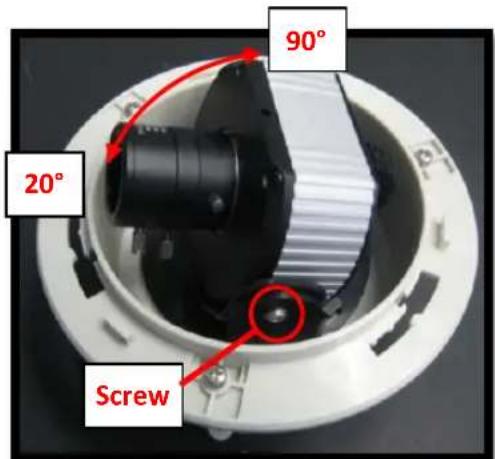
- To adjust the tilt, use a #1 Phillips screwdriver to loosen the screw on the sides of the metal U bracket 1/4 turn (Image 8-1 and 8-2). CAUTION: Do not remove the screws!

text_image
90° 0° ScrewImage 8-1 D4S
text_image
90° 20° ScrewImage 8-2 D4F
- Adjust lens tilt as required and tighten the screw.
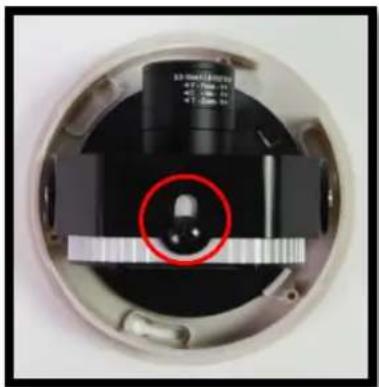
CAUTION: When using D4S/D4FAVxxxx-3312, please push camera to the end of U bracket slot to avoid interference between bubble and lens. (Image 9-1)
natural_image
Close-up of a circular electronic device with a red circle highlighting a component, no visible text or symbols.Image 9-1
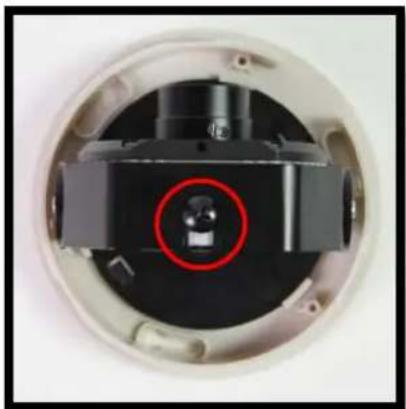
CAUTION: When using D4S/D4FAVxxxx-04, please push camera to the front of the U bracket slot to avoid vignette issue resulting from the black liner blocking the optical path of the lens.. (Image 9-2)
natural_image
Close-up of a mechanical component with a red circle highlighting a small feature, no visible text or symbols.Image 9-2
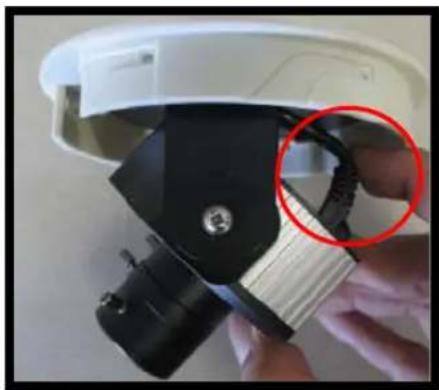
NOTE: Adjust cable to make camera tilt easier, if cable pushes against plastic housing. (Image 10-1 and 10-2)
natural_image
Close-up of a white smartwatch with black lenses and a red circle highlighting the lens (no text or symbols visible)Image 10-1 D4S

natural_image
Close-up of a hand holding a white electronic device with a black lens and a red circle highlighting a component (no visible text or symbols)Image 10-2 D4F
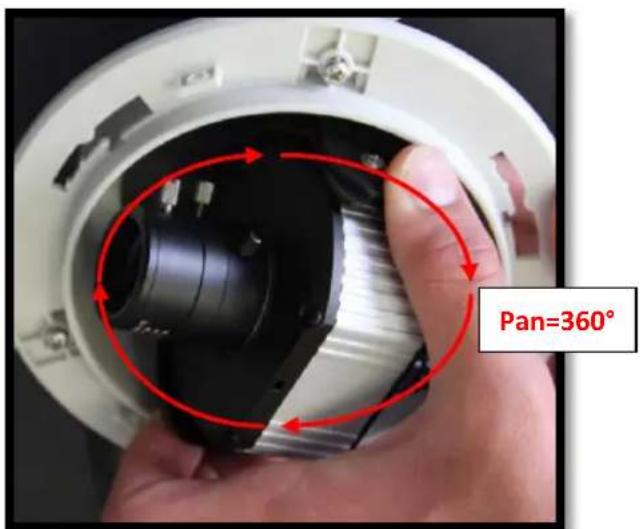
- To adjust the pan, hold and turn the U bracket as shown in Image 11.
text_image
Pan=360°Image 11
Adjusting the Focus:
10.1 For D4S/FAVxxxx-3312 version, to focus the lens, loosen the three set screws as shown in Image 12-1 and adjust each as needed. A adjusts the zoom, B adjusts the iris, C adjusts the focus.
Note: Adjust zoom first then focus!
10.2 For D4S/FAVxxxx-04 version, to focus the lens, loosen the set screws as shown in Image 12-2 and adjust focus as needed.
Note: For more information on proper focusing technique, please watch the "Focusing Arecont Vision Megapixel Cameras" Best Practices Training Video at www.youtube.com/ArecontVision.
-
Secure the dome cover to the camera.
-
Tighten the set screw on the dome cover using #0 Philips head screwdriver.
-
Rotate bubble to align camera with slot in camera shield (Liner).
-
Remove the protective film from the camera dome. NOTE: be cautious not to scratch the vandal dome cover.

text_image
A B CImage 12-1

natural_image
Close-up of a mechanical component with a red circle highlighting a circular feature, no visible text or symbols.Image 12-2
How to install camera properly?
Note: D4 Series ships with the image rotated for ceiling installation.
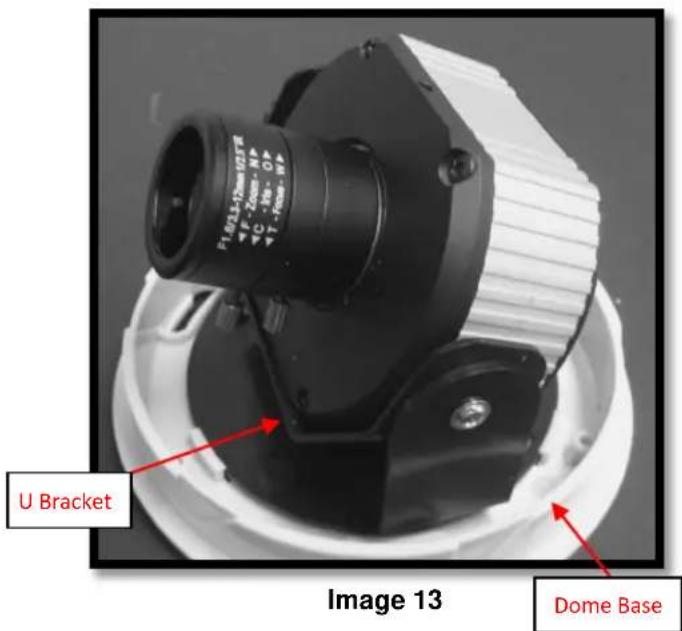
To properly install camera, the U bracket needs to be installed between the dome base and camera shown in Image 13.
If the U bracket is between the camera and dome bubble, the image will be upside down and possibly damage the bubble.
text_image
F1-613-12mm 02T/R +4" -Zoom- NP +4°C - In: OP +4"T - Redo- MP U Bracket Image 13 Dome BaseHow to flip upside down image?
Note: Resetting the camera to factory default will result in the image flipping upside down. Please follow below steps to flip images in Camera Web Page or AV's setup software and save to on-camera flash memory.
Note: If using AV's setup software, please refer to user manual.
Camera Web Page:
Step 1: Go to the "Image" menu and check "Flip" on camera web page to rotate image 180^ .

Step 2: Go to "Administration Menu" and click "Save all settings to flash" to save all the settings to on-camera flash memory.

text_image
Save and restore settings Save all settings to flash Restore to factory defaultPendant Mount (D4S-CMT) Installation Instructions
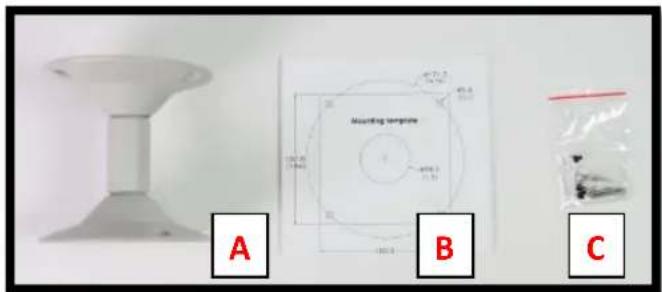
Inside the box:
A. Pendant Mount (Fit with 34 " NPT)
B. Mounting template
C. Pack of three (3) machine screws, three (3) wood screws and three (3) dry wall anchors
Not included but needed:
D. #2 Phillips head screw driver
text_image
Mounting template A B CImage 14
- Remove Pendant Mount and hardware from the box.
- Using the Mounting template, prepare the mounting provisions for camera installation.
- Attach Dome to Pendant as shown in Image 15 and Image 16 using three machine screws provided.

natural_image
Close-up of a mechanical component with three red-circled features, no visible text or symbolsImage 15

natural_image
Close-up of a white stand with black mechanical components and a metallic clip (no visible text or symbols)Image 16
- Run Ethernet Cable through the Pendant, if necessary.
- Attach Pendant to the ceiling using the three wood screws provided or any optional hardware suitable for the mounting surface.
- For installation of the camera, please reference "Mounting the Camera".
Wall Mount (MD-WMT) Installation Instructions
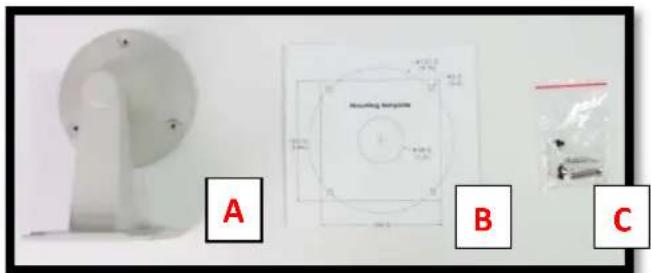
Inside the box:
A. Wall mount (Fit 3/4" NPT Standard)
B. Mounting template
C. Pack of three (3) machine screws, four (4) wood screws and four (4) dry wall anchors
Not included but needed:
• #2 Phillips head screw driver
natural_image
Three-panel image showing a white plastic component, a circular diagram labeled 'Mounting insulator', and a small packaged item (no readable text or symbols)Image 17
-
Remove Wall Mount and hardware from the box.
-
Using the Mounting template, prepare the mounting provisions for camera installation.
-
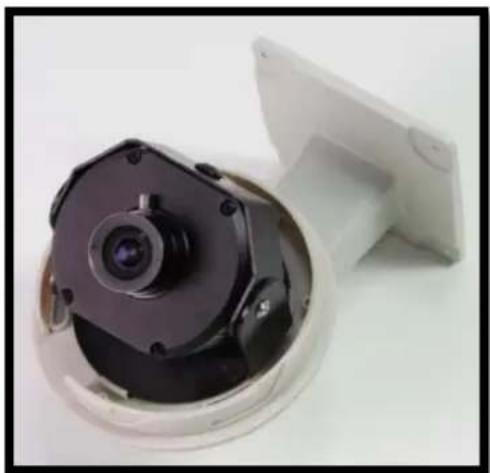
Attach Dome to wall mount as shown in Image 18 using three machine screws provided.
-
Run Ethernet Cable through the Pendant, if necessary.
natural_image
Close-up of a mechanical device with a central lens and a white housing (no visible text or symbols)Image 18
-
Attach Wall Mount to the wall using drywall screws or any optional hardware suitable for the mounting surface.
-
For installation of the camera, please reference "Mounting the Camera".
Leading
the way in
Megapixel
video
Arecont Vision
425 E. Colorado Street, 7th Floor
Glendale, CA 91205
support@arecontvision.com
www.arecontvision.com
+1.818.937.0700
877.CAMERA.8

Arecont Vision
megapixel technology...
beyond imagination