Power Over the NET PN5320 - KVM Switch ATEN - Free user manual and instructions
Find the device manual for free Power Over the NET PN5320 ATEN in PDF.


User questions about Power Over the NET PN5320 ATEN
0 question about this device. Answer the ones you know or ask your own.
Ask a new question about this device
Download the instructions for your KVM Switch in PDF format for free! Find your manual Power Over the NET PN5320 - ATEN and take your electronic device back in hand. On this page are published all the documents necessary for the use of your device. Power Over the NET PN5320 by ATEN.
USER MANUAL Power Over the NET PN5320 ATEN
Power Distribution Unit
User Manual

natural_image
Two black rectangular electronic components with labeled pins, shown against a white background (no text or symbols visible)FCC, CE Information
FEDERAL COMMUNICATIONS COMMISSION INTERFERENCE
STATEMENT: This equipment has been tested and found to comply with the limits for a Class A digital device, pursuant to Part 15 of the FCC Rules. These limits are designed to provide reasonable protection against harmful interference when the equipment is operated in a commercial environment.
This equipment generates, uses, and can radiate radio frequency energy and, if not installed and used in accordance with the instruction manual, may cause harmful interference to radio communications. Operation of this equipment in a residential area is likely to cause harmful interference in which case the user will be required to correct the interference at his own expense.
FCC Caution: Any changes or modifications not expressly approved by the party responsible for compliance could void the user's authority to operate this equipment.
CE Warning: This is a class A product. In a domestic environment this product may cause radio interference in which case the user may be required to take adequate measures.
RoHS
This product is RoHS compliant.
SJ/T 11364-2006
The following contains information that relates to China.
Be sure to register your product at our online support center:
| International http://eservice.aten.com |
Telephone Support
For telephone support, call this number:
| International 886-2-86 | 92-6959 |
| China 86-10-5255-0110 | |
| Japan 81-3-5615-5811 | |
| Korea 82-2-467-6789 | |
| North America 1-888-999-ATEN ext 4988 | |
| United Kingdom 44-8-4481-58923 | |
User Notice
All information, documentation, and specifications contained in this manual are subject to change without prior notification by the manufacturer. The manufacturer makes no representations or warranties, either expressed or implied, with respect to the contents hereof and specifically disclaims any warranties as to merchantability or fitness for any particular purpose. Any of the manufacturer's software described in this manual is sold or licensed as is. Should the programs prove defective following their purchase, the buyer (and not the manufacturer, its distributor, or its dealer), assumes the entire cost of all necessary servicing, repair and any incidental or consequential damages resulting from any defect in the software.
The manufacturer of this system is not responsible for any radio and/or TV interference caused by unauthorized modifications to this device. It is the responsibility of the user to correct such interference. The manufacturer is not responsible for any damage incurred in the operation of this system if the correct operational voltage setting was not selected prior to operation. PLEASE VERIFY THAT THE VOLTAGE SETTING IS CORRECT BEFORE USE.
PN Device Safety Notice

- Set the maximum permissible breaker protection in the building circuitry to the current rating specified on the rating plate. Observe all national regulations and safety codes as well as deviations for breakers.
- Only connect the PN Device to a grounded power outlet or a grounded system!
Make sure that the total current input of the connected systems does not exceed the current rating specified on the rating plate of the PN Device.
There is a risk of explosion if the battery is replaced with an incorrect type. Dispose of used batteries according to the relevant instructions. - If the power source is unstable, the PN Device’s measurements will not be accurate.
The PN5212 / PN5320 package consists of:
1 PN5212 or PN5320 Power Distribution Unit
3 Serial Adapters:
1 SA0149 (RJ45F to DB9F)
1 SA0150 (RJ45F to DB9M)
1 SA0151 (RJ45F to DB9F)
2 Mounting Kit
1 User Instructions*
1 Software CD
Check to make sure that all of the components are present and in good order. If anything is missing, or was damaged in shipping, contact your dealer.
Read this manual thoroughly and follow the installation and operation procedures carefully to prevent any damage to the switch or to any other devices on the PN5212 / PN5320 installation.
* Features may have been added to the PN5212 / PN5320 since this manual was published. Please visit our website to download the most up-to-date version of the manual.
Copyright © 2010–2013 ATEN® International Co., Ltd.
Manual Part No. PAPE-0321-AX2G
Printing Date: 2013-12-23
Altusen and the Altusen logo are registered trademarks of ATEN International Co., Ltd. All rights reserved. All other brand names and trademarks are the registered property of their respective owners.
Contents
FCC, CE Information .... ii
RoHS ii
SJ/T 11364-2006 . . . . . . . . . . . . . . . . . . . . . . . . . . . . . . . . . . . . . . . . . . . . . . . . . . . . . . . . . . . . . . . . . . . . .
User Information ....iii
Online Registration .....iii
Telephone Support ....iii
User Notice .... iii
PN Device Safety Notice ....iv
Conventions ..... xii
Product Information ....xiii
Chapter 1.
Introduction
Overview....1
Features 2
Power Distribution 2
Remote Access 2
Operation 2
Management 3
Security 4
Requirements 4
Components 5
Front View 5
Port and Led Panel 7
Chapter 2.
Hardware Setup
Before You Begin 9
Rack Mounting 9
Single Stage Installation 11
Daisy Chaining 13
PN5212 / PN5320 to PN5212 / PN5320 13
PN5212 / PN5320 to PN0108 14
Chapter 3.
Super Administrator Setup
First Time Setup 15
Network Configuration 16
Changing the Administrator Login 17
Moving On 18
Chapter 4.
Browser Login
Logging In....19
The PN5212 / PN5320 Main Page .....20
Page Components 21
Chapter 5.
Outlet Access
Overview 23
The Outlet Selection Sidebar 24
Manual Power Management 25
Connections 27
Station Level 27
Outlets 27
General 28
Groups 29
Outlet Level 30
General 30
Configuration 31
Server Diagnosis ....31
Scheduling 32
Outlet Group Level 33
General 33
Schedule 33
User Preferences ....34
Sessions 35
Access....35
Station Level 35
Outlet Level 36
Configuration 37
Station Level Configuration 37
General 38
Groups 39
Outlet Level Configuration 41
Configuration 41
Schedule 43
Chapter 6.
User Management
Overview 45
Users....46
Adding Users 46
Modifying User Accounts 49
Deleting User Accounts 49
Moving On 49
Groups 50
Creating Groups 50
Modifying Groups 52
Deleting Groups 52
Users and Groups 53
Assigning Users to a Group From the Accounts Page ..... 53
Removing Users From a Group From the Accounts Page ..... 54
Assigning Users to a Group From the Groups Page ..... 55
Removing Users From a Group From the Groups Page ..... 56
Device Assignment 57
Assigning Device Permissions From the Accounts Menu. 57
Assigning Device Permissions From the Groups Page 58
Chapter 7.
Device Management
Overview....59
Device Information 59
Network 61
Service Ports. 61
Settings 62
IP Installer 62
IPv4 Configuration 63
IPv6 Configuration 64
ANMS 65
Event Notification 65
SMTP Settings 65
Log Server....66
SNMP Trap Receivers 67
Syslog Server 68
Finishing Up 68
Authentication & Authorization 69
Disable Local Authentication 69
RADIUS Settings....69
LDAP/AD Settings 70
TACACS+ 72
Finishing Up 72
CC Management 73
SNMP Agent 74
OOBC 75
Console Port Settings 75
Security 76
Login String....77
IP and MAC Filtering 77
Adding Filters 78
IP Filter / MAC Filter Conflict 79
Modifying Filters 79
Deleting Filters 79
Account Policy 79
Private Certificate 80
Generating a Self-Signed Certificate 80
Obtaining a CA Signed SSL Server Certificate 80
Importing the Private Certificate 80
Customization 81
Login Failures 81
Working Mode 81
Date/Time 82
Time Zone 82
Manual Input 83
Network Time 83
Finishing Up 83
Chapter 8.
Log
Overview 85
System Log 85
The Log Event List 86
Search 87
Save 88
Notification Settings 89
Chapter 9.
Maintenance and Download
Overview 91
Maintenance 91
Firmware Upgrade .91
The Main Panel....92
Upgrading the Firmware .92
Firmware Upgrade Recovery 93
Backup/Restore 93
Backup 94
Restore 94
Download 95
Chapter 10.
The Log Server
Installation....97
Starting Up 98
The Menu Bar 99
Configure 99
Events 100
Search: 100
Maintenance: 101
Options 102
Help 102
The Log Server Main Screen 103
Overview 103
The List Panel 104
The Event Panel 104
Chapter 11.
Out of Band Operation
Overview....105
Console Terminal Session 105
Logging In 108
Chapter 12.
Remote Terminal Operation
Overview....109
Telnet 109
Logging In 109
SSH 111
Terminal Session (Linux): 111
Third Party Utility (Windows): 112
Appendix
Safety Instructions 113
General 113
The eco PDU's Main Power Cord 118
Securing the Power Cables 118
Technical Support 121
International 121
North America 121
IP Address Determination 122
Method 1: 122
Method 2: 123
Trusted Certificates 124
Overview 124
Installing the Certificate 125
Certificate Trusted 126
Mismatch Considerations 127
Self-Signed Private Certificates 128
Examples 128
Importing the Files 128
Troubleshooting 129
Administrator Login Failure 133
Specifications 134
Limited Warranty 135
About This Manual
This User Manual is provided to help you get the most from your PN5212 / PN5320 system. It covers all aspects of installation, configuration and operation. An overview of the information found in the manual is provided below. Chapters 1, 4, and 5 are for all users. The remaining chapters are for administrators and users with administrator privileges.
Chapter 1, Introduction, introduces you to the PN5212 / PN5320 system. Its purpose, features and benefits are presented, and its front and back panel components are described.
Chapter 2, Hardware Setup, provides step-by-step instructions for setting up your installation.
Chapter 3, Super Administrator Setup, explains the procedures that the super administrator employs to set up the PN5212 / PN5320 network environment, and change the default username and password.
Chapter 4, Browser Login, describes how to log in to the PN5212 / PN5320 with an internet browser, and explains the layout and components of the PN5212 / PN5320's user interface.
Chapter 5, Outlet Access, describes the Outlet Access page; how to configure the options it provides regarding outlet operation; and how to access and operate the PN5212 / PN5320's outlets.
Chapter 6, User Management, shows administrators how to create, modify, and delete users and groups, and authorize outlet access for them.
Chapter 7, Device Management, shows administrators, and users with device management permission how to configure and control overall Power Over the NET ^™ device operations.
Chapter 8, Log, explains how to use the PN5212 / PN5320's log feature to view the events that take place on the Power Over the NET™ installation.
Chapter 9, Maintenance and Download, describes the procedures for upgrading the PN5212 / PN5320's firmware; backing up and restoring the device's configuration settings; and downloading a stand-alone Java Client AP program to access the PN5212 / PN5320.
Chapter 10, The Log Server, explains how to install and configure the Log Server.
Chapter 11, Out of Band Operation, explains an alternative method to access the PN5212 / PN5320 in case the LAN that it resides on goes down, or it cannot be accessed with the usual browser based method for some reason.
Chapter 12, Remote Terminal Operation, describes how the PN5212 / PN5320 can be accessed via remote terminal sessions such as Telnet, SSH, and PuTTY.
An Appendix, provides specifications and other technical information regarding the PN5212 / PN5320.
Conventions
This manual uses the following conventions:
Monospaced Indicates text that you should key in.
[] Indicates keys you should press. For example, [Enter] means to press the Enter key. If keys need to be chorded, they appear together in the same bracket with a plus sign between them: [Ctrl+Alt].
- Numbered lists represent procedures with sequential steps.
◆ Bullet lists provide information, but do not involve sequential steps.
→ Indicates selecting the option (on a menu or dialog box, for example), that comes next. For example, Start → Run means to open the Start menu, and then select Run.

Indicates critical information.
Product Information
For information about all ALTUSEN products and how they can help you connect without limits, visit ALTUSEN on the Web or contact an ALTUSEN Authorized Reseller. Visit ALTUSEN on the Web for a list of locations and telephone numbers
- International – http://www.aten.com
- North America – http://www.aten-usa.com
Overview
The PN5212 and PN5320 are power distribution units (PDUs) that contain 12 and 20 AC outlets, respectively, and are available in IEC or NEMA socket configurations. They provide secure, centralized, intelligent, power management (power on, off, cycle) of remote data center equipment (servers, KVM switches, network devices, serial data devices, etc.), as well as the ability to monitor the center's health environment. By daisy chaining up to 15 additional PN5212 or PN5320 units, as many as 320 outlets can be managed from a single interface.
The characteristics of each model are shown in the following table:
| Model Amps | Outlets | |
| PN5212 16/20 | 12 | |
| PN5320 32/30 | 20 |
The power status of each outlet can be set individually, allowing users to establish on/off schedules for each device. Outlets can also be aggregated into groups, allowing groups of devices to be power managed at the same time, while On/Off sequencing enables users to set the power on sequence and delay time for each port to allow equipment to be turned on in the proper order.
Installation and operation is fast and easy: plugging cables into their appropriate ports and user-friendly browser-based configuration and management is all that is entailed. Serial access via modem, Telnet and SSH is also supported to ensure system availability.
Since the PN5212 / PN5320 firmware is upgradeable over the Net, you can stay current with the latest functionality improvements simply by downloading updates from our website as they become available.
With its advanced security features and ease of operation, the PN5212 / PN5320 is the most convenient, most reliable, and most cost effective way to remotely manage power access for multiple computer installations.
Features
Power Distribution
- Maximum Amps/Outlet: 20A / 12 outlets (PN5212); 30A / 20 outlets PN5320)
♦ Space saving 0U rack mount design
IEC or NEMA outlet models - Daisy chain up to 15 additional stations for up to 192 (PN5212) or 320 (PN5320) outlets
◆ 2 x 7 segment front panel LED shows Station ID and Current / Voltage / Active Power
◆ Overcurrent protection and recovery (PN5320 only)
◆ Remote users can monitor outlet status via web pages on their browsers
◆ Safe shutdown support
Separate power for the unit's own power and its power outlets. The user interface is still accessible even when an overload condition trips the devices' circuit breaker (PN5320 only)
Remote Access
◆ Remote power control via TCP/IP and a built in 10/100 Ethernet port
◆ Network Interfaces: TCP/IP, PPP, UDP, HTTP, HTTPS, SSL, SMTP, DHCP, ARP, NTP, DNS, Telnet, 10Base-T/100Base-TX, auto sense, Ping
IPv6 support
Operation
- Local and Remote power outlet control (On, Off, Power Cycle) by individual outlets and outlet groups
- Outlet group support at the PDU and Daisy-chain levels – the same action can be performed on a specified group of outlets at the same time
- Supports redundant power management via daisy chaining and outlet groups
- On/Off scheduling for individual outlets and outlet groups. Power management tasks can be scheduled to perform everything on a daily, weekly, monthly, or user-specified times basis
- Supports multiple power on/off control methods – Wake on LAN, System After AC Back, Kill the Power
Power-on sequencing - users can set the power on sequence and delay time for each port to allow equipment to be turned on in the proper order
◆ Auto-Ping function to determine device status
◆ Easy setup and operation via a browser-based user interface
- Multibrowser support (IE, Mozilla, Firefox, Chrome, Safari, Opera, Netscape)
- Telnet and SSH access for text menu configuration and outlet level switching / monitoring
- Local console access support
- Java GUI AP program provided for non-browser connectivity
- RTC support to keep the timer running during times of no power.
◆ Up to 64 user accounts - up to 32 concurrent logins
Management
◆ Power status measurement at the PDU level
◆ LED indicators for current, voltage and active power at the PDU level
Real-time current, voltage, active power, and power dissipation displayed in a browsed-based UI for monitoring at the PDU and daisy-chained PDU levels
- Current, voltage, active power, and power dissipation threshold setting
- Alert notification for selected events (On, Off, Recycle, Failure, exceeding threshold settings, etc.), via audio alarm and blinking LEDs (locally), SMTP, SNMP trap notification, and digital output
◆ Supports Management Information Files (MIB) for SNMP
◆ Supports SNMP Manager V3
♦ Naming support for outlets and outlet groups
◆ User outlet access assignment on an outlet-by-outlet basis.
- Windows-based Log Server; event logging, KVM logging, and syslog support
◆ Integration with ALTUSEN CC2000 Management software
◆ API for 3rd party software centralized control integration
- Upgradeable firmware – daisy chained stations receive the upgrade via the daisy chain bus
- Multilanguage support: English, German, Traditional Chinese, Simplified Chinese, Japanese, Korean, Russian
Security
- Three-level password security
IP/MAC filtering - Strong security features include strong password protection and advanced encryption technologies – 128 bit SSL
◆ Remote authentication support: RADIUS, TACACS+, LDAP, LDAPS and Active Directory
Requirements
- Browsers accessing the PN5212 / PN5320 must support SSL 128 bit encryption.
- For cold booting of attached computers, the computer's BIOS must support Wake on LAN or System after AC Back.
-
For Safe Shutdown:
-
The computer must be running Windows (Windows 2000 or higher) or Linux.
- The Safe Shutdown program (available by download from our website or on the software CD included), must be installed and running on the computer.
Components
Front View

text_image
PN5320 - NEMA PN5320 - IEC| No. Item Description | |
| 1 Power Sockets NEMA | 5-15R-or -IEC320 C13 |
| 2 Power Sockets NEMA | 5-20R-or -IEC320 C19 |
| 3 Port and LED Panel | Details of this section are provided on the following page. |
| 4 Circuit Breakers PN53 | 20 only. As a safety measure, if there is an overcurrent situation regarding the device's power, the circuit breakers will trip. Press the button to recover normal operation.Note:Circuit breakers are not provided on the PN5212. Therefore, it is not recommended to plug the unit directly into any unprotected power source, such as a wall outlet. |
| 5 Grounding Terminal | The wire used to ground the unit connects here.Note:The grounding terminal does not appear in the diagram. It is hidden by the power cord. |
| 6 Power Cord Plug the | cord into your AC source. |
Note: The Front View diagram depicts a PN5320. The PN5212 is basically the same, except there are only 12 AC power sockets (6 on each side of the Port and LED panel), and all the sockets are NEMA 5-15R or IEC320 C13. There are no NEMA 5-20R or IEC320 C19 sockets. The PN5212 does not feature circuit breakers.
Port and Led Panel

text_image
12 ID STATION CURRENT [A] VOLTAGE [V] POWER [kW] READOUT POWER LINK 10/100 Mbps ONLINE RESET LAN PON OUT PON IN/ CONSOLE HR-232 RS-465| No. | Item Description | |
| 1 | Station Selection | ◆ Press the Left or Right button to move to the previous or next Station.◆ The Station number appears in the display window. |
| 2 | Readout Section | ◆ The readouts for Current, Voltage, and Active Power appear in the display window.◆ The LEDs above the items indicate which one the readout relates to.◆ Press the button above the display window to cycle the selection among the items. |
| 3 | S t a LEDs and Reset Switch | Power:Lights when the PN5212 / PN5320 is powered up and ready to operate.Link: Lights GREEN to indicate that a connection via the PN5212 / PN5320's RJ-45 Ethernet port has been established. Flashes to indicate data is being transmitted.10/100 Mbps: Lights ORANGE to indicate 10 Mbps data transmission speed. The LED lights GREEN to indicate 100 Mbps data transmission speed.On Line: Lights to indicate that a connection to a KVM switch or a parent PDU has been established. Flashes to indicate that data is being transmitted.Reset Switch: ◆This switch is recessed and must be pushed with a thin object, such as the end of a paper clip.◆ Press and release to reboot the device.◆ Press and hold for more that three seconds to reset the PN5212 / PN5320 to its factory default settings (except for user account settings – they are not removed). |
| 4 | LAN Port The cable that connects the PN5212 / PN5320 to the Internet, LAN, or WAN plugs in here. | |
| 5 | PON Out Port | When daisy chaining PDUs, the cable that connects to the child device plugs in here.If the child device is a PN0108, you must use an SA0150 adapter to plug into the PN0108's PON In port (seePN5212 / PN5320 to PN0108, page 14, for details). |
| 6 | RS-232/RS-485Switch | Selects which protocol the PON In / Console port uses.For PON In use, select RS-232 (for PN0108) or RS-485For Console use, select RS-232For KVM switches, select either RS-232 (can be used for shorter distances), or RS-485 (for longer distances).When daisy chaining PN5212 / PN5320 devices, set the switch to RS-232 on all child devices. |
| 7 | PON In / Console Port | This is a multifunction port:PON In:When used as a PON In port, it can: 1) Daisy chain the device to a parent PDU; or 2) Connect the device to a KVM switch.If the parent PDU is a PN0108, you must use an SA0149 adapter to plug into the PN0108's PON Out port (see, page 14, for details).Console:When used as a Console port, it can establish a serial terminal connection to a computer. An SA0151 (DTE) adapter is required for this connection (see Single Stage Installation, page 11, for details). |
Before You Begin

- Important safety information regarding the placement of this device is provided on page 113. Please review it before proceeding.
- The PN5212 requires a dedicated circuit. See Package Contents, page v, for important information about this matter.
- Make sure that power to all the devices you will be connecting have been turned off. You must unplug the power cords of any computers that have the Keyboard Power On function.

The PN5212 / PN5320 can be installed in a 0U configuration on the side of a rack. To rack mount the device, use the rack mounting brackets that came with your device. The brackets can be mounted either near the top and bottom of the back panel, or the top and bottom ends of the device (see page 10), as shown in the diagrams below:

natural_image
Technical line drawings of a vertical electrical cabinet with internal components and mounting hardware (no text or symbols)(Continued from previous page.)
The PN5212 / PN5320 comes supplied with top and bottom screws already inserted, as shown below:
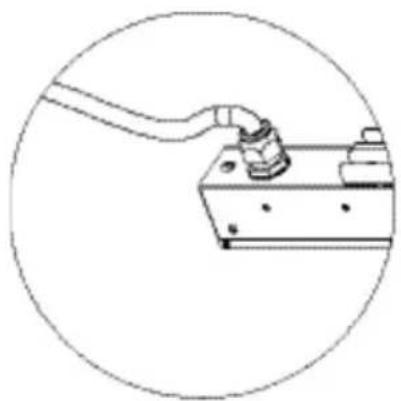
natural_image
Simple line drawing of a pipe connecting a component to a base, enclosed in a circle (no text or symbols)
natural_image
Simple line drawing of a rectangular object with internal dots, enclosed in a circle (no text or symbols)If you want to mount to brackets at the top and bottom ends of the device, you must first remove the screws from each end of the unit before attaching the mounting brackets:

natural_image
Diagram of a hand pouring liquid into a container with arrows indicating flow (no text or symbols)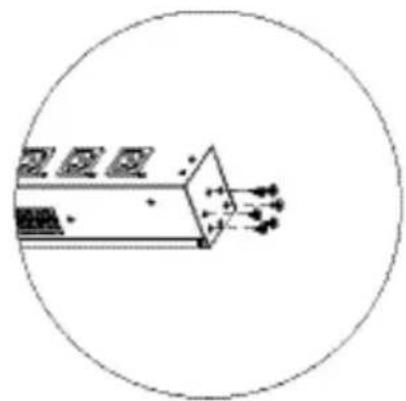
natural_image
Diagram of a device with internal components and directional arrows, enclosed in a circle (no text or symbols)Single Stage Installation
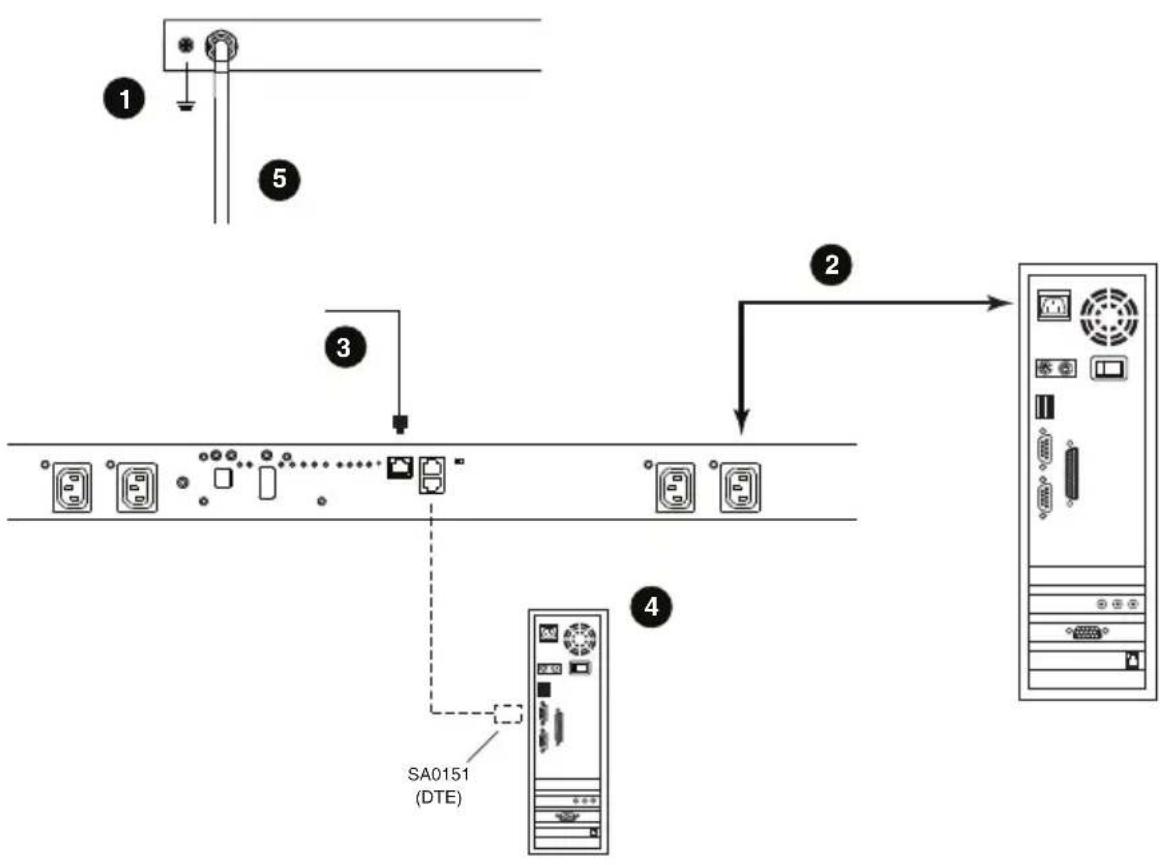
In a single stage installation, there are no additional PN5212 / PN5320 stations daisy chained down from the first unit. To set up a single stage installation, refer to the installation diagram on the next page (the numbers in the diagram correspond to the numbered steps), and do the following:
- Use a grounding wire to ground the PN5212 / PN5320 by connecting one end of the wire to its grounding terminal, and the other end of the wire to a suitable grounded object.
Note: Do not omit this step. Proper grounding helps to prevent damage to the unit from surges or static electricity.
- For each device you want to connect, use its power cable to connect from the device's AC socket to any available outlet on the PN5212 / PN5320.
- Plug the cable that connects the PN5212 / PN5320 to the LAN into the PN5212 / PN5320's LAN port.
- (Optional) If you wish to use a console terminal connection, use Cat 5e cable to connect the PN5212 / PN5320's PON IN/Console port to the SA0151 (DTE) adapter supplied with your package. Connect the adapter's serial connector to the COM port of the computer you will use for the console terminal.
- Connect the PN5212 / PN5320's power cord to an AC power source.
Note: 1. We strongly advise that you do not plug the PN5212 / PN5320 into a multi socket extension cord, since it may not receive enough amperage to operate correctly.
- Circuit breakers are not provided on the PN5212. Therefore, it is not recommended to plug the unit directly into any unprotected power source, such as a wall outlet. See Package Contents, page v.
Once you have finished these installation steps, you can turn on the PN5212 / PN5320 and the connected devices.
Note: We strongly recommend using cable ties and cable bars to safely and securely route the cables attached to the back of the unit.
flowchart
graph TD
    A["1"] --> B["2"]
    B --> C["3"]
    C --> D["4"]
    D --> E["SA0151 (DTE)"]
    style A fill:#f9f,stroke:#333
    style B fill:#ccf,stroke:#333
    style C fill:#cfc,stroke:#333
    style D fill:#fcc,stroke:#333
    style E fill:#cff,stroke:#333
Daisy Chaining
To manage even more outlets from the same single session as a standalone PN5212 / PN5320, additional Power Over the NET ^™ devices can be daisy chained, as described in the following three configurations.
Note: The maximum distance between any two Power Over the NET ^™ devices must not exceed 15 m; the total distance from the first station to the last must not exceed 100 m.
PN5212 / PN5320 to PN5212 / PN5320
Up to 15 additional PN5212 / PN5320 stations can be daisy chained down from the top level (master) device – allowing up to 320 outlets to be managed on a complete installation. To daisy chain a PN5212 / PN5320, do the following:
- Set the RS-232/RS-485 switch (see page 8), of the child device to the RS-232 setting.
- Use Cat 5e cable to connect the PON OUT port of the parent device to the PON IN port of the child device.
- Repeat the procedure for any additional devices you wish to connect.

flowchart
graph TD
    A["Server Rack"] --> B["Central Hub"]
    B --> C["Terminal"]
    style A fill:#f9f,stroke:#333
    style B fill:#ccf,stroke:#333
    style C fill:#cfc,stroke:#333
PN5212 / PN5320 to PN0108
To daisy chain a child PN0108 from a parent PN5212 / PN5320, do the following:
- Use Cat 5e cable to connect the PN5212 / PN5320's PON OUT port to the SA0150 Adapter supplied with your package.
- Connect the SA0150 to the PN0108's PON IN port.

text_image
SA0150 ① ②Note: In this configuration, the PN0108 would be connected to a KVM switch that supports Power Over the NET™ devices (such as the KN4140v), through its PON IN port, and the PON devices would be managed through the KVM switch's interface.
Chapter 3
Super Administrator Setup
First Time Setup
Once the PN5212 / PN5320 installation has been cabled up, the next tasks the Administrator needs to perform involve configuring the network parameters, changing the default Super Administrator login settings, and adding users.
The easiest way to accomplish this is to log in over the Net with a browser (see Logging In, page 19).
Note: 1. Since this is the first time you are logging in, use the default Username: administrator; and the default Password: password. For security purposes we recommend changing them to something unique (see Changing the Administrator Login, page 17).
- For remote methods of getting logged in to the network, see IP Address Determination, page 122.
After you successfully log in the PN5212 / PN5320 Main Page appears:

text_image
Outlet Access User Management Device Management Log Maintenance Download Connections Use Preferences Sessions Access Configuration AltusCN™ Integrated ATM building by AT30 Hi administrator, welcome to the PHS326 Outlets General Groups Device Status Device Name Voltage Current Power Power Dissipation PHS326 0 V 0.00 A 0 W 0.00 kWh Bank Status Bank Bank Name Voltage Current Power Power Dissipation Bank 1 Bank1 114 V 0.00 A 0 W 0.00 kWh Bank 2 Bank2 114 V 0.00 A 0 W 0.00 kWh Outlet Status Outlet Outlet Name Outlet Status [01] On Reboot [02] Off Reboot [03] Off Reboot [04] Off Reboot [05] Off Reboot [06] OffNetwork Configuration
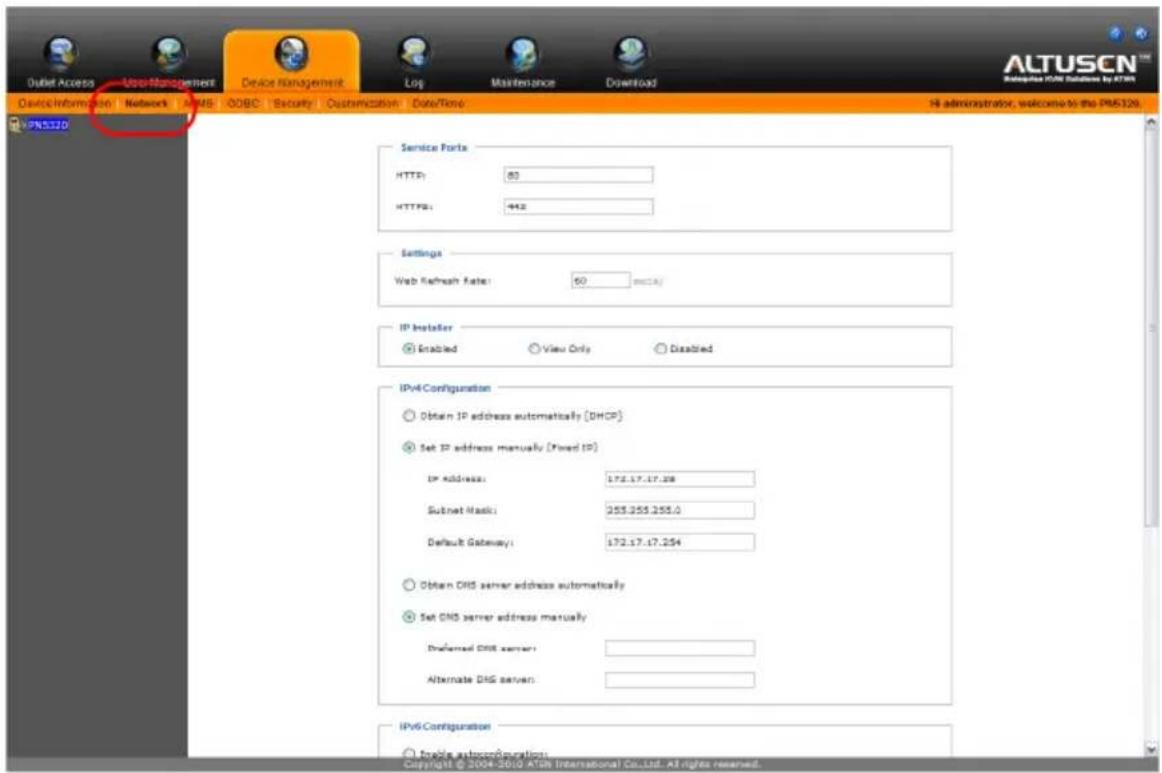
To set up the network, do the following:
- Click the Device Management tab.
- Select Network on the menu bar. A screen similar to the one below appears:
text_image
Device Information Network ADMS ODBC Security Customization Date/Time Service Ports HTTP: 80 HTTPS: 442 Settings Web Refresh Rate: 60 IP Installer Enabled View Only Disabled IPv4 Configuration Obtain IP address automatically [DHCP] Set IP address manually [Fixed IP] IP Address: 172.17.17.258 Subnet Mask: 355.255.255.0 Default Gateway: 172.17.17.254 Obtain DNS server address automatically Set DNS server address manually Preferred DNS server: Alternate DNS server: IPv6 Configuration Enable bootconsuration Copyright © 2004-2010 ATDR International Co.,Ltd. All rights reserved.- Fill in the fields according to the information provided under Network, page 61.
Changing the Administrator Login
To change the default Super Administrator username and password, do the following:
1. Click the User Management tab.
The User Management page has a list of Users and Groups in the Sidebar at the left, and a more detailed list of users – with more information about them – in the large central panel. Since this is the first time the page is being accessed, only the Super Administrator appears:

text_image
Outlet Access User Management Device Management Log Maintenance Download ALTUSCN Insgesee FCM Solutions to ATEU Accounts Groups Hi administrator, welcome to the PNS326. Users administrator User List Select Name Type Account Status Administrator Super Administrator Active Add Modify Delete Copyright © 2004-2010 ATEN International Co., Ltd. All rights reserved.2. Click administrator in the Sidebar
-or-
Select administrator in the central panel, then click Modify (at the bottom of the page.)
(Continues on next page.)
(Continued from previous page.)
The User General page appears:

text_image
User Groups Devices General User Name: administrator Password: ********** Confirm Password: ********** User Type Super Admis Admin User Permissions User Management Device Management Log Maintenance Java Client Select All Status Disable Account Account never expires Account expires on 2010-01-01 User must change password at next logen User cannot change password Password never expires Password Expires after 0 days Save- Change the Username and Password to something unique.
- Re-enter the password to confirm it is correct.
- Click Save.
- When the dialog box informing you that the change completed successfully appears, Click OK.
Moving On
After setting up the network and changing the default Administrator username and password, you can proceed to other administration activities – including adding users. Administration is discussed in detail in Chapter 4.
Logging In
The PN5212 / PN5320 can be accessed via a supported Internet browser from any platform.
Note: Browsers must support SSL 128 bit encryption.
To access the PN5212 / PN5320 do the following:
- Open your browser and specify the IP address of the PN5212 / PN5320 you want to access in the browser's URL location bar.
Note: 1. Get the IP address from the PN5212 / PN5320 administrator
-
If you are the administrator, and are logging in for the first time, see First Time Setup, page 15.
-
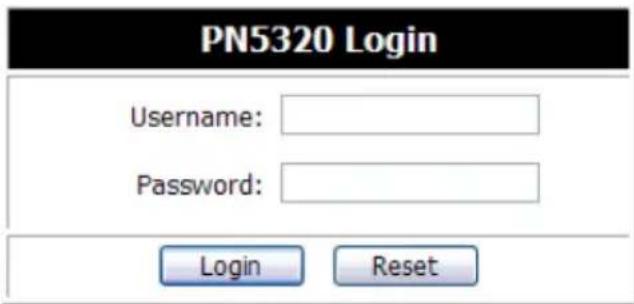
If a Security Alert dialog box appears, accept the certificate – it can be trusted. (See Trusted Certificates, page 124, for details.) The Login page appears:
text_image
PN5320 Login Username: Password: Login Reset- Provide a valid Username and Password (set by the PN5212 / PN5320 administrator), then Click Login to bring up the browser Main Page.
The PN5212 / PN5320 Main Page
After you have successfully logged in, the PN5212 / PN5320 Main Page comes up with the Outlet Access Connections page displayed:

text_image
ALTUSCN Enterprise ATM Management to ADO 1 2 3 4 5 6 7 Outlet Status User Preferences Device Management Lag Maintenance Download Connectors User Preferences Services Actions Configuration MI-administrator, and Active to Buy PMS300 Outlets General Groups Device Status Device Name: Voltage Current Power Power Disipation PMS300 0 V 0.00 A 0 W 0.00 KWH Bank Status Bank 1 Bank-1.1 Bank-2 Bank-2.2 Bank 14 V 14 V 14 V 14 V 14 V 14 V 14 V 14 V 14 V 14 V 14 V 14 V 14 V 14 V 14 V 14 V 14 V 14 V 14 V 14 V 14 V 14 V 14 V 14 V 14 V 14 VNote: 1. The screen depicts a Super Administrator's page. Depending on a user's type and permissions, not all of these elements appear.
- Clicking the Altusen logo (at the top-right of the page), takes you to the ATEN website.
Page Components
The web page screen components are described in the table, below:
| No. | Item Description | |
| 1 | Tab Bar The tab bar contains | the Power Over the NETTM's main operation categories. The items that appear in the tab bar are determined by the user's type, and the authorization options that were selected when the user's account was created. |
| 2 | Menu Bar The menu bar contains | ains operational sub-categories that pertain to the item selected in the tab bar. The items that appear in the menu bar are determined by the user's type, and the authorization options that were selected when the user's account was created. |
| 3 | Sidebar The Sidebar provides | a tree view listing of stations and outlets that relate to the various tab bar and menu bar selections. Clicking a node in the Sidebar brings up a page with the details that are relevant to it. |
| 4 | About/Help About provides information | formation regarding the switch's current firmware version. Help provides on-line help for the device's configuration and operation. |
| 5 | Logout Click this button to log | out of your Power Over the NETTM session. |
| 6 | Welcome Message | If this function is enabled (see User Preferences, page 34), a welcome message displays here. |
| 7 | Interactive Display Panel This | is your main work area. The screens that appear reflect your menu choices and Sidebar node selection. |
This Page Intentionally Left Blank
Chapter 5
Outlet Access
Overview
When you log in to the PN5212 / PN5320, the UI opens with its default selection of the Outlet Access tab; the Connections menu; and the Outlets submenu. The contents of the Outlets submenu are displayed in the main panel.

text_image
Outlet Access User Management Device Management Log Maintenance Download ALTUSCN™ Integrates ATM System by ATEN Connections User Preferences Sessions access Configuration Hi administrator, welcome to the PHS32E. Outlets General Groups Device Status Device Name Voltage Current Power Power Dissipation PHS320 U V 0.00 A D W 0.00 kWh Bank Status Bank Bank Name Voltage Current Power Power Dissipation Bank 1 Bank1 114 V 0.00 A D W 0.00 kWh Bank 2 Bank2 114 V 0.00 A D W 0.00 kWh Outlet Status Outlet Outlet Name Outlet Status [01] - - - - - - - - - - - - - - - - - - - - - - - - - - - - - - - - - - - - - - - - - - - - - - - - - - - - - - - - - - - - - - - - - - - - - - - - - - - - - - - - - - - - - - - - - - - - - - - - - - - - - - - - - - - - - - - - - - - - - - - - - - - - - - - - - - - - - - - - - - - - - - - - - - - - - - - Copyright © 2004-2019 ATEN International Co., Ltd. All rights reserved.The main panel Outlets display provides a listing of each outlet a user is permitted to access, as well as a means of accessing the outlets. All the outlets that a user is permitted to access are also listed in the Sidebar at the left of the page.
The Outlet Selection Sidebar
All stations and their outlets – including cascaded stations and their outlets – are listed in a tree structure in the Sidebar at the left of the screen. Outlet groups are listed at the bottom of the tree:

text_image
Outlet Access User M Connections | User Preferences PN5320 [C01] PN5320 [0-1] [02] [03] [04] [05] [06] [07] [08] [09] [10] [11] [12] TechdocA TechdocB- Users are only allowed to see the stations and outlets that they have access permission for.
- Outlets and child stations may be nested under their parent stations. Click the + in front of a station to expand the tree and see the nested outlets. Click the - to collapse the tree and hide the nested outlets.
- An outlet's ID number is displayed in brackets next to the outlet icon. For convenience the outlets can be named (See Configuration, page 37 for details). If an outlet has been named, its name appears next to the outlet ID.
◆ Outlet groups are identified by a double socket icon.
- The outlet's icon color indicates its status as explained in the table, below:
| Icon Status | |
| Steady Amber Power to the | outlet is On. |
| Flashing Amber A change in | the outlet's power status is pending.(See Shutdown Method, page 42) |
| Steady Gray Power to the outlet is Off. | |
| Flashing Gray Power to the outlet is Off, but Wake On LAN has been specified as the remote power option. (See Shutdown Method, page 42.) | |
| Flashing Lightbulb Indicates | an outlet status error. A firmware upgrade may resolve the problem. |
- Clicking a Station icon opens its General, and Groups pages.
- Clicking an Outlet icon opens its Configuration and Schedule pages.
- Clicking a Group icon opens its General and Schedule pages.
Manual Power Management
In addition to automated power management (see To configure the schedule, select Configuration at the far right of the menu bar. See Schedule, page 43 for details, page 32), an Outlet or a Group's power can be managed manually. Clicking the outlet or group's icon in the Sidebar brings up its General page:
Outlet General Page

text_image
Status Outlet Name: Outlet01 Outlet Status: ON Kill the Power RebootGroup General Page
Status:
Group Name:
TechdocA
Group Member:
[C01-01] [C01-02] [C01-03]
Group ON/OFF:


With the exception of the power outlet icon, the pages are view only and provide power status and usage information. To configure the settings, select Configuration at the far right of the menu bar. See Configuration, page 37 for details.
The color of the power outlet icon indicates its status (as explained in the table on page 25). The power status of the outlet can be changed by clicking the icon.
Note: 1. The Outlet page's Reboot checkbox is only enabled when the shutdown method is either Wake on Lan or System after AC Back, and the outlet status is On. If the box is enabled and checked, clicking the power outlet icon causes the connected device to reboot, rather than shut down. See Shutdown Method, page 42, for further information.
2. When you click the icon to change the outlet's power status, the icon flashes to indicate the change, but the icon doesn't change to the new color at this time. You must leave the page and come back to it in order to see the changed color.
3. When you click the icon to change the outlet's power status, the color of the outlet's icon in the Sidebar doesn't immediately change to the new color. You must leave the Connections page and come back to it in order to see the changed color.
4. For Outlet Groups, all of the outlets in the group turn On or Off together.
Connections
The Connections pages provide status and settings information for stations, outlets, and outlet groups. The pages that come up in the main panel differ depending on which item is selected in the Sidebar.
Station Level
When a station is selected in the Sidebar, the main panel page has three tabs: Outlets, General, and Groups:

text_image
Outlets General GroupsOutlets
The station's Outlets page displays status information for that device, each bank, and each of its power outlets:

text_image
Outlets General GroupsDevice Status
| Device Name | Voltage | Current | Power | Power Dissipation |
| PRS320 | 112 V | 0.00 A | 0 W | 37.85 kWh |
Bank Status
| Bank | Bank Name | Voltage | Current | Power | Power Dissipation |
| Bank 1 | Bank1 | 113 V | 0.00 A | 0 W | 17.03 kWh |
| Bank 2 | Bank2 | 113 V | 0.00 A | 0 W | 20.82 kWh |
Outlet Status
| Outlet | Outlet Name | Outlet Status |
| [01] | EN □Reboot | |
| [02] | EN □Reboot | |
| [03] | EN □Reboot | |
| [04] | EN □Reboot | |
| TI |
Note: You can manually manage the outlet's power status by clicking the power outlet icon. See Manual Power Management, page 25 for details.
General
The station's General page shows the station's settings configuration:
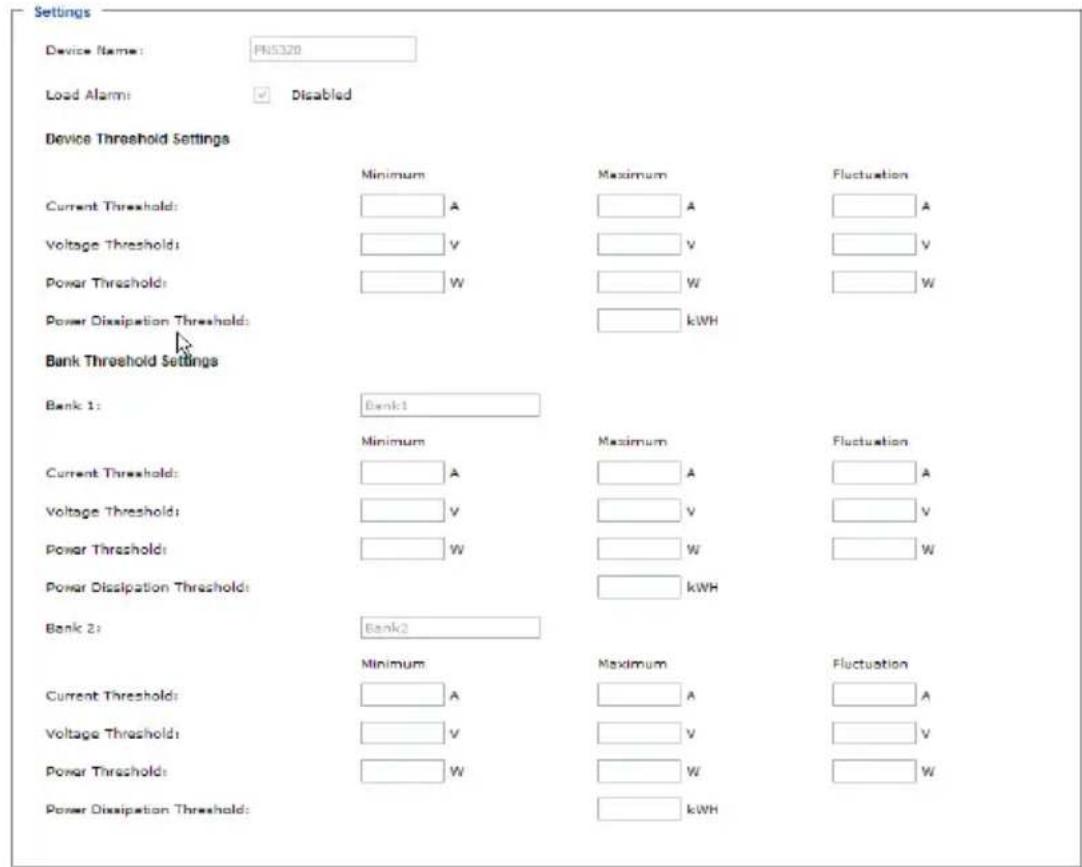
text_image
Settings Device Name: PNS320 Load Alarm: Disabled Device Threshold Settings Minimum Maximum Fluctuation Current Threshold: A A A Voltage Threshold: V V V Power Threshold: W W W Power Dissipation Threshold: kWH Bank Threshold Settings Bank 1: Bank1 Minimum Maximum Fluctuation Current Threshold: A A A Voltage Threshold: V V V Power Threshold: W W W Power Dissipation Threshold: kWH Bank 2: Bank2 Minimum Maximum Fluctuation Current Threshold: A A A Voltage Threshold: V V V Power Threshold: W W W Power Dissipation Threshold: kWHThis page only displays information. Settings changes cannot be made here. To configure the settings, select Configuration at the far right of the menu bar. See Configuration, page 37 for details.
Groups
The station's Groups page lists the names of the outlet groups that have been created with its outlets in the left column. The outlets that make up the group are in the right column:
| Group | Outlets |
| TechdocA | [C01-01] [C01-05] [C01-13] [C01-15] |
| TechdocB | [C01-01] [C01-06] [C01-11] [C01-16] [C01-20] |
The outlets are displayed as [Station ID-Outlet Number]. For example, [C01-05] refers to outlet number 5 belonging to station number 1.
This page only displays information. Settings changes cannot be made here. To configure Outlet Groups, select Configuration at the far right of the menu bar. See Groups, page 39 for outlet group management details.
Outlet Level
When an outlet is selected in the Sidebar, the main panel tabs change to: General, Configuration, and Scheduling:

text_image
General Configuration SchedulingEach of the tabs is described below.
General
The outlet's General page provides information regarding the outlet's name and power status:
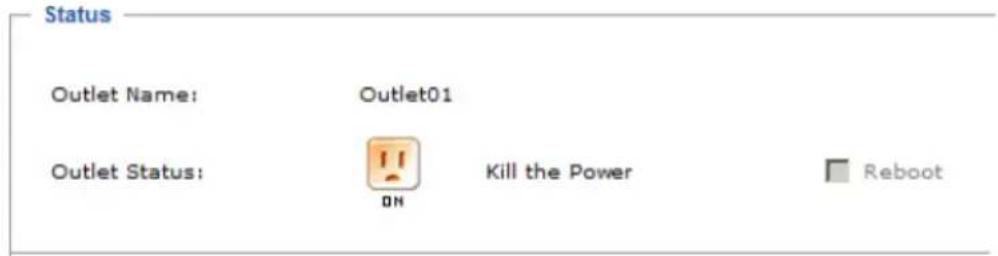
text_image
Status Outlet Name: Outlet01 Outlet Status: ON Kill the Power RebootYou can manually turn the outlet On and Off from this page by clicking the power outlet icon (see Manual Power Management, page 25 for details).
Configuration
The outlet's Configuration page summarizes the various configuration settings that have been made for the outlet:
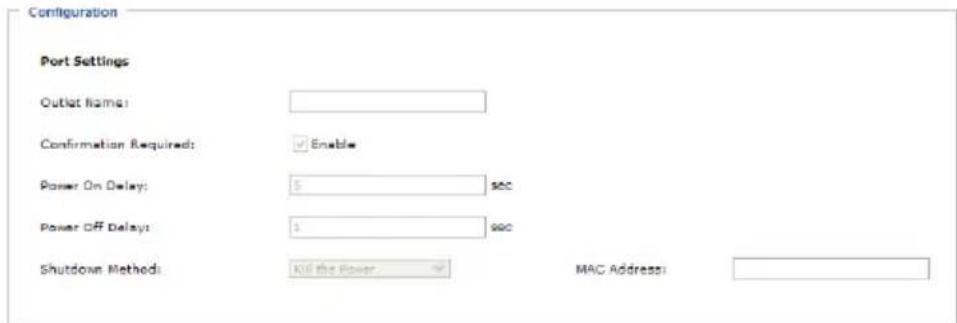
text_image
Configuration Port Settings Outlet Name: Confirmation Required: Enable Power On Delay: 5 900 Power Off Delay: 1 900 Shutdown Method: 100 the Power MAC Address: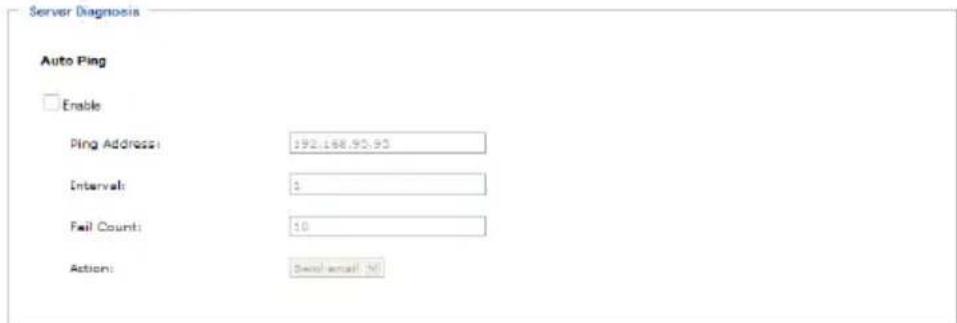
text_image
Server Diagnosis Auto Ping Enable Ping Address: 192.168.90.90 Interval: 1 Fail Count: 10 Action: (mail email: 9)The Configuration section only displays information. Setting changes cannot be made here. To configure the settings, select Configuration at the far right of the menu bar. See Configuration, page 37 for details.
Server Diagnosis
The Server Diagnosis section allows you to use an ICMP ping command to check if the outlet is functioning properly. This function is detailed in the following table:
| Enable Put a | check in the checkbox to enable this function. |
| Ping Address | Enter the IP address of the outlet to be pinged in this field. |
| Interval This fi | field sets how often the specified outlet is pinged, in second intervals. Enter a value between 1 and 255. |
| Fail Count Th | is field sets how many times the outlet is allowed to fail to respond to the ping before an action is taken (see below). Enter a value between 1 and 99. |
| Action This fi | ld sets what action is taken if the outlet fails to respond to a specified number of pings. Select one of the following actions from the drop-down menu:Send email:This sends an email using the SMTP server setting. For this function to work, you must also enable reports from the SMTP server. See SMTP Settings, page 65 for details.No action:Select this option to do nothing if the specified device fails to respond. |
Scheduling
The outlet's Scheduling page shows the date and time schedule settings for automatic power control of the outlet:
Status
| Routine Type | Start Date | End Date | Day | Shutdown Time(HH:MM) | Restart Time(HH:MM) |
To configure the schedule, select Configuration at the far right of the menu bar. See Schedule, page 43 for details
Outlet Group Level
When an outlet group is selected in the Sidebar, the main panel tabs change to General, and Schedule.

text_image
General SchedulingEach of the tabs is described below.
General
The outlet group's General page provides information regarding the group's name, the outlets that belong to the group, and the power status of the outlets:
Status:
Group Name:
TechdocA
Group Member:
[C01-01] [C01-02] [C01-03]
Group ON/OFF:


You can manually turn the outlets On and Off from this page by clicking the power outlet icon (see Manual Power Management, page 25 for details).
Note: All of the outlets in the group turn On or Off together.
Schedule
The outlet group's Schedule page shows the date and time schedule settings for automatic power control of the outlet group. This page is similar to the Outlet Schedule page discussed in the previous section.
User Preferences
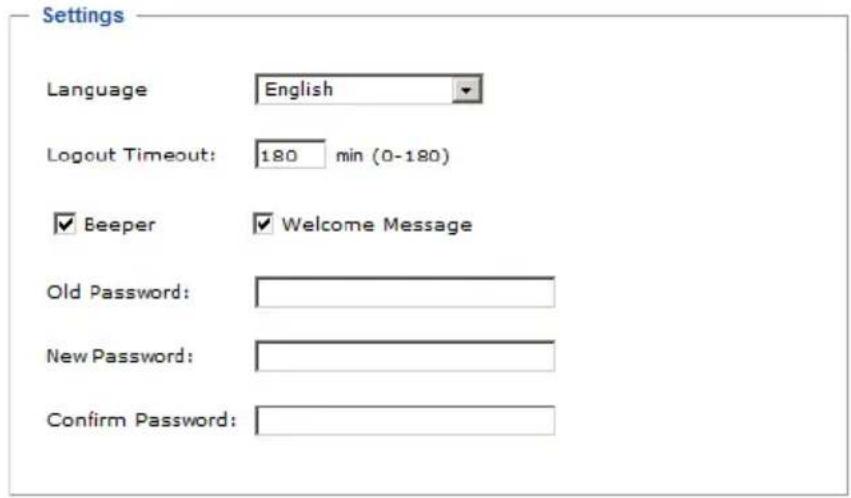
The User Preferences page allows users to set up their own, individual, working environments. The PN5212 / PN5320 stores a separate configuration record for each user profile, and sets up the working configuration according to the Username that was keyed into the Login dialog box.
text_image
Settings Language English Logout Timeout: 180 min (0-180) ✓ Beeper ✓ Welcome Message Old Password: New Password: Confirm Password:Save
Make your settings changes according to the information given in the following table:
| Setting Function | |
| Language Selects | the language that the interface displays in. Drop down the list of available languages to choose the one you want. |
| Logout Timeout If | there is no user input for the amount of time set with this function, the user is automatically logged out. A login is necessary before the PN5212 / PN5320 can be accessed again. Key in a value from 0–180 minutes.Note:A setting of 0 (zero) disables this function, in which case users are never automatically logged out, no matter how much time passes. |
| Beeper If this is enabled (there is a check in the checkbox), the beepersounds whenever any of the following conditions occur: the PN5212 / PN5320 is powered On; whenever an environment alarm is triggered; whenever a device level alarm is triggered; whenever an outlet level alarm is triggered.Note:This is the master alarm setting. If it is not enabled, no alarms will sound – even if they are enabled on the Station Level configuration pages. (See page 41.) | |
| Welcome Message | If this is enabled, a welcome message appears at the right side of the menu bar. |
| Password Fields | To change the user password, first key the old password into the Old Password input box, then key the new password into the New Password and Confirm Password input boxes. |
Sessions
The Session page shows all of the users currently logged into the PN5212 / PN5320, and provides information about each of their sessions.
| Select | User Name | IP | Login Time | Client | User Type |
| ◎ | administrator | 10.0.13.229 | 2010/06/05 01:10:48 | HTTPS | Super Administrator |
| ○ | njf111 | 10.0.13.229 | 2010/06/05 04:13:10 | HTTPS | Administrator |
| ○ | frosty | 10.0.13.228 | 2010/06/05 04:19:34 | HTTPS | User |
End Session
- The information under the IP heading indicates the IP address that the user is logged in from.
- The information under the Client heading indicates whether the user has logged in via a browser connection (HTTPS), or from a local console.
- Administrator have the option of forcing user logouts by selecting the user and clicking End Session.
Access
The Access page provides a way to assign permissions to users and groups at both the station level and individual power outlet levels. The items available differ depending on whether a station or an outlet is selected in the Sidebar.
Station Level
When a station is selected in the Sidebar, a page similar to the one below, displays in the main panel, with users and user groups listed in the left column.:
| Name | User Management | Device Management | Log | Maintenance | Java Client |
| administrator | |||||
| nj111 | |||||
| frosty |
- A check mark indicates the user or user group is authorized to perform the task indicated in the column head.
- The permissions are the same ones assigned under user accounts. See Permissions, page 47 for details.
When you have made your settings on this page, click Save.
Outlet Level
When an outlet is selected in the Sidebar, a page similar to the one below, comes up in the main panel:
Access Information
| Name | Access | Outlet Configuration |
| administrator | ||
| RD1 |
Save
Users and groups are listed alphabetically in the left column.
- A check mark under the Access column, indicates the user or group is authorized to access and power control the selected outlet.
- A check mark under the Outlet Configuration column, indicates the user or group is authorized to configure the selected outlet's settings (see Configuration, page 37).
When you have made your settings on this page, click Save.
Configuration
The Configuration page is used to configure the operation of the PN5212 / PN5320 at both the station level and the individual power outlet level. The items available differ depending on whether a station or an outlet is selected in the Sidebar.
Station Level Configuration
When a station is selected in the Sidebar, a page similar to the one below, displays in the main panel.

text_image
Settings Device Name: PNS320 Load Alarm: ✓ Disabled Device Threshold Settings Minimum Maximum Fluctuation Current Threshold: A A A A Voltage Threshold: V V V Power Threshold: W W W Power Dissipation Threshold: kWH Bank Threshold Settings Bank 1: Bank1 Minimum Maximum Fluctuation Current Threshold: A A A A Voltage Threshold: V V V Power Threshold: W W W Power Dissipation Threshold: kWH Bank 2: Bank2 Minimum Maximum Fluctuation Current Threshold: A A A A Voltage Threshold: V V V V Power Threshold: W W W W Power Dissipation Threshold: kWHThe station level Configuration page has two tabs: General, and Groups, as described in the sections that follow.
General
When the Configuration page opens, the station's General page is selected. This page allows you to set up a power management configuration for the device as a whole. The meanings of the field headings are given in the following table:
| Heading Meaning | |
| Device Name To make things | more convenient on a multi-station installation, each station can be given a distinctive name. To name a station key in the name of your choice - up to 32 letters and numbers. |
| Load Alarm A checkmark in | the check box disables an alarm from being triggered when the device's current load falls outside of its specified range. |
| Device Threshold Settings | These fields are used to set the maximum, minimum, and fluctuation threshold settings. If a range falls below the minimum setting, or exceeds the maximum setting an alarm is triggered.In order to keep alarms from being constantly triggered due to slight fluctuations at the threshold points, you can set a fluctuation range that must be exceeded when a threshold is crossed in order for the alarm to be triggered.For example, if there is a temperature threshold of 32^ and you set a fluctuation range of 2^ , there won't be an alarm triggered if the temperature fluctuates back and forth between 31 and 32^ . |
| Temperature Unit Click a radio | button to choose the temperature unit for the temperature sensor. |
| Bank Threshold Settings | these fields are used to set the maximum, minimum, and fluctuation threshold settings for the Banks. These operate the same way as the Device Threshold Settings, above. |
Groups
Outlet groups enable power configuration and control actions to be carried out on a selected group of outlets at the same time, rather than repeatedly performing the same action on each individual one. The Groups page lists the outlet groups that have already been configured, and shows which outlets are included in the group.

text_image
Settings Outlet Groups Select Group Outlets G TechDOC [C01-01] [C01-02] [C01-03] Add Modify DeleteNote: In the Outlet column the outlets are displayed as [Station ID-Outlet Number]. For example, [C01-05] refers to outlet number 5 belonging to PN5212 / PN5320 station number 01.
This page is also used to create new outlet groups, as well as to modify or delete existing ones.
- To Create an outlet group, do the following:
-
Click Add.
-
In the page that comes up, first key in a name that will help you identify the group, then click the plus sign (+) in front of the device name to show the list of outlets.

text_image
Settings Outlet Group Name: TechdocB Power Outlet Selection [CO1] PH5320 [01] [02] [03] [04] [05] [06] [07] [08] [09] [10] [11] [12] [13] [14] [15] [16] [17] [18] [19] [20]Save
- Click to put a checkmark in the checkbox of the outlets you want to add to the group, then click Save.
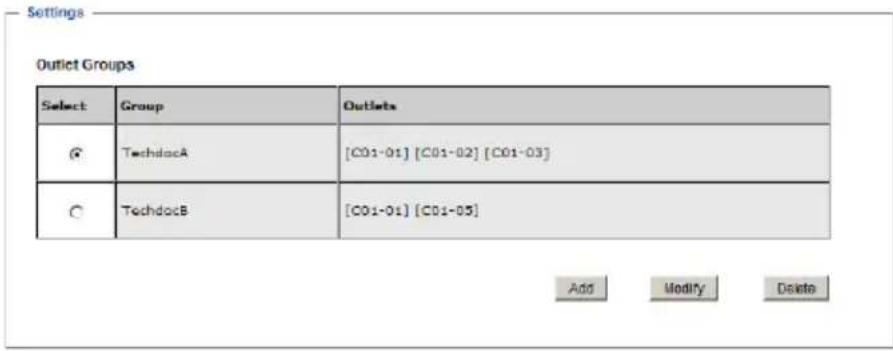
When you return to the Group page, your new group is included in the list:
text_image
Settings Outlet Groups Select Group Outlets G TechdocA [C01-01] [C01-02] [C01-03] C TechdocB [C01-01] [C01-05] Add Modify DeleteNote: The group also shows up as a device in the Sidebar, and this page can be accessed by clicking on its icon in the Sidebar.
- To Modify an outlet group, select it in the list, then click Modify. The screen that comes up is the same one that appears when you click Add. You can rename the group as well as add and remove outlets. When you are done modifying the group click Save.
- To Delete an outlet group, select it in the list, then click Delete.
Outlet Level Configuration
The configuration settings for a PN5212 / PN5320 can be specified on an outlet by outlet basis. When an outlet is selected in the Configuration page Sidebar, the main panel displays a page with two tabs: Configuration, and Schedule, as described in the sections that follow.
Configuration
The Configuration tab page, similar to the one below, is the default that appears in the main panel.

text_image
Configuration Port Settings Outlet Name: Outlet01 Confirmation Required: Enable Power Off Delay: 5 sec Power OFF Delay: 1 sec Shutdown Methods: Kill the Power MAC Address: SaveThis page lets you set up the power management configuration for the selected outlet. The meanings of the field headings are given in the table on the following two pages:
| Heading Meaning | |
| Outlet Name Each outlet | can be given a distinctive name. The maximum number of characters is 15. |
| Confirmation Required | If this option is enabled (there is a check in the checkbox), a dialog box comes up asking you to confirm a power operation before it is performed. If it is disabled (there is no check in the checkbox), the operation is performed without confirmation. |
| Power On Delay Sets the | the amount of time the PN5212 / PN5320 waits after the Power Button is clicked (see Manual Power Management, page 25), before it turns on the computer attached to the corresponding outlet.Note:The default delay time is 0 seconds; the maximum is 999 seconds. When a series of outlets are scheduled to be powered up, they turn on in sequence with a default delay of 10 milliseconds between each outlet. |
| Power Off Delay Sets the | the amount of time the PN5212 / PN5320 waits after the Power Button is clicked (see Manual Power Management, page 25), before it turns off the computer attached to the corresponding outlet.For the System after AC Back option (see below), after the delay time expires, the PN5212 / PN5320 waits another fifteen seconds, then shuts the computer down.The default delay time is 15 seconds. The maximum delay time is 999 seconds. |
| Shutdown Method There | are three choices for the Shutdown method. Drop down the list to select a choice. The meaning of each choice is described, below:Wake on LAN: This is a Safe Shutdown and Restart option. If this is selected, when an Outlet is turned Off, the PN5212 / PN5320 first sends a message to the computer telling it to prepare for a shutdown; it then waits for the amount time set in the Power Off Delay field to give the OS time to close down before the computer is powered down to standby mode.Likewise, when the Outlet is turned On, the PN5212 / PN5320 waits for the amount time set in the Power On Delay field, then sends an Ethernet message to the computer connected to the Outlet telling the computer to turn itself On.Note: For Safe Shutdown and Restart, the computer must be running Windows (Windows 98 or higher), and the Safe Shutdown program (available by download from our website), must be installed and running on the computer.System after AC Back: This is a Safe Shutdown and Restart option. If this is selected, when an Outlet is turned Off, the PN5212 / PN5320 first sends a message to the computer telling it to prepare for a shutdown; it then waits for the amount time set in the Power Off Delay field to give the OS time to close down before the computer is powered down.When the Outlet is turned On, the PN5212 / PN5320 waits for the amount time set in the Power On Delay field, then sends power to the server. When the server receives the power, it turns itself on.Note: For Safe Shutdown and Reboot, the computer must be running Windows (Windows 98 or higher), and the Safe Shutdown program (available by download from our website), must be installed and running on the computer.Kill the Power: If this option is selected, the PN5212 / PN5320 waits for the amount time set in the Power Off Delay field, and then turns the Outlet's power Off. Turning the power off performs a cold (non-safe) shutdown. |
| MAC Address In order to use either of the Safe Shutdown and Restart methods the MAC address of the computer connected to the outlet must be filled in here. | |
| Server Diagnosis These | fields are used to set up an ICMP ping command to check if the outlet is functioning properly. See Server Diagnosis, page 31 for a further explanation. |
When you have finished making your configuration settings, click Save.
Schedule
Clicking the Schedule tab brings up a page that lets you set up a scheduled power On/Off configuration for the selected outlet:

text_image
Status Routine Type: Once Week Day: Sunday Date: 1 Start Date: (YYYY-MM-DD) End Date: (YYYY-MM-DD) Shutdown Time: (HH:MM) Disable Restart Time: (HH:MM) Disable Every: day(s) Add Select Routine Type Start Date End Date Day Shutdown Time(HH:MM) Restart Time(HH:MM) DeleteThe meanings of the field headings are given in the table, below:
| Heading Meaning | |
| Routine Type Drop down | wn the list to select whether the scheduled power configuration should take place just Once, or on a Daily, Weekly, or Monthly basis. |
| Week Day | This field only becomes active if you choose Weekly as the routine type. If you choose Weekly, drop down the list to choose which day of the week you want the power management routine to take place on. |
| Date | This field only becomes active if you choose Monthly as the routine type. If you choose Monthly, drop down the list to choose which day of the month you want the power management routine to take place on. |
| Start Date If you want to | limit the power management routine to a particular time period, either click the calendar icon to select the date that the routine will start at, or key in a start date using the YYYY-MM-DD format |
| End Date If you want to | limit the power management routine to a particular time period, either click the calendar icon to select the date that the routine will end at, or key in an end date using the YYYY-MM-DD format |
| Shutdown Time Key in | the time of day you want the shutdown to take place using the HH:MM format.If you want to temporarily suspend this function without deleting the entry, click to put a check in the Disable checkbox at the right of this field. You can reinstate the function by unchecking the checkbox. |
| Restart Time Key in the time of day you want the restart to take place using the HH:MM format.If you want to temporarily suspend this function without deleting the entry, click to put a check in the Disable checkbox at the right of this field. You can reinstate the function by unchecking the checkbox. | |
| Every For added flexibility, you can use this field to refine the Daily, Weekly, and Monthly routines. For example, if you chose Daily as your routine type, you could have the routine take place every 3 days (instead of every day), by keying a 3 in this field. | |
After you have made your schedule settings, click Add. The schedule is summarized in the list at the bottom of the panel.
To remove the outlet's schedule, select it in the list and click Delete.
Chapter 6
User Management
Overview
When you select the User Management tab the screen comes up with Accounts selected in the Menu bar, and the User List displayed in the main panel:

text_image
User List Select Name Type Account Status @ administrator Super Administrator Active ○ marechang Administrator Active ○ davidin Administrator Active ○ christan Administrator Active ○ rickchen Administrator Active ○ karthyk Administrator Active ○ jeterhuang Administrator Inactive ○ if111 Administrator Active ○ chesseng Normal User Active ○ albert Administrator Active ○ frosty Normal User Active ○ jonman Normal User Active Add Modify DeleteThe Accounts page has two menu items: Accounts, for managing individual users; and Groups, for managing user groups.
Note: There is a pre-installed super administrator account. It can be used to set up the device and to begin creating users and groups. The Username for this account is administrator; the password is password. For security purposes, we strongly recommend changing these to something unique. See Modifying User Accounts, page 49 for details.
Users
Adding Users
To add a user, do the following:
- Select Users in the Sidebar.
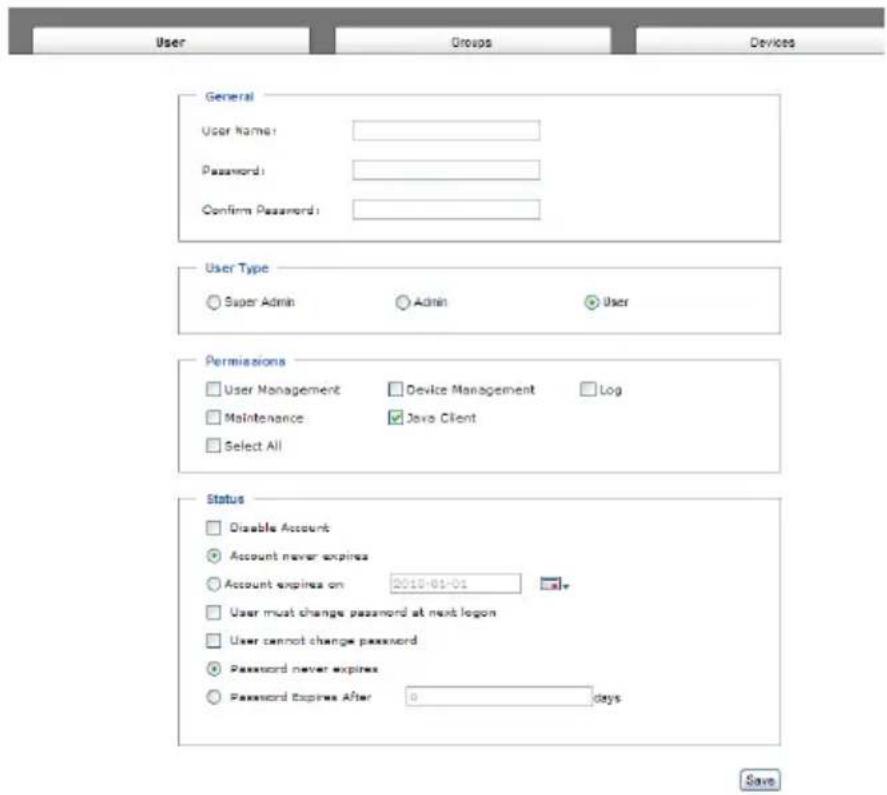
- Click Add at the bottom of the User List in the main panel. The page opens with three tabs at the top: User, Groups, and Devices. The User tab is selected by default:
text_image
User Groups Devices General User Name: Password: Confirm Password: User Type Super Admin Admin User Permissions User Management Device Management Log Maintenance Java Client Select All Status Disable Account Account never expires Account expires on 2018-01-01 User must change password at next logon User cannot change password Password never expires Password expires after 0 days Save- Enter the required information in the appropriate fields. A description of each of the fields is given in the table below:
| Field Description | |
| Username From 1 to 16 characters are allowed depending on the Account Policy settings. See Account Policy, page 79. | |
| Password From 1 to 16 characters are allowed depending on the Account Policy settings. See Account Policy, page 79. | |
| Confirm Password To be sure there is no mistake in the password, you are asked to enter it again. The two entries must match. | |
| User Type There are three categories: Super Administrator, Administrator and User. There is no limitation on the number of accounts that can be created in each category.◆ The super administrator is responsible for the overall installation configuration and maintenance; user management; and device and outlet assignments.◆ Administrators have User Management, Device Management, and Maintenance privileges, as well as being able to access specified devices and outlets.◆ Users can access the devices and outlets assigned to them by the super administrator or administrator.Additional privileges can be assigned to them by the super administrator or administrator (see Permissions, below). | |
| Permissions | ◆ Super administrators automatically have all permissions.◆ Administrators automatically have User Management, Device Management, Java Client, and Maintenance permissions. They can be given additional permissions by checking the appropriate boxes.◆ Ordinary users Java Client automatic privileges only. Their permissions are set individually by checking the appropriate boxes.◆ Checking User Management, Device Management, Log, and/or Maintenance gives the user access to the respective tabs (on the tab bar), allowing the user to set and change the configuration parameters for the checked items.◆ Java Client allows a user to access the Power Over the NETTM device with Java Client software in addition to (or instead of) the browser access method.◆ Modem allows a user to access the Power Over the NETTM device using a modem connection. |
| Status Status allows | you to control the user's account and access to the installation, as follows:Disable Account lets you suspend a user's account without actually deleting it, so that it can be easily reinstated in the future.If you don't want to limit the time scope of the account, select Account never expires; if you want to limit the amount of time that the account remains in effect, select Account expires on, and key in the expiration date.To require a user to change his password at the next logon, select User must change password at next logon. This can be used by the administrator to give the user a temporary password to log in for the first time, and then let the user set the password of his choice for future logins.To make a password permanent, so that the user cannot change it to something else, select User cannot change password.For security purposes, administrators may want users to change their passwords from time to time.If not, select Password never expires. This allows users to keep their current passwords for as long as they like.If so, select Password expires after, and key in the number of days allowed before the password expires. Once the time is up, a new password must be set. |
- When your selections have been made click Save.
- When the Operation Succeeded message appears, click OK.
You return to the main screen. The new user appears in the Sidebar Users tree and in the User List of the main panel.
The large main panel shows the user's name; the description that was given when the account was created; and whether the account is currently active or has been disabled.
Modifying User Accounts
To modify a user account, do the following:
- In the Sidebar User tree, click the user's name
- or -
In the main panel, select the user's name, then click Modify.
- In the User page that comes up is the same as the one for adding users (see page 46). Make your changes, then click Save.
Deleting User Accounts
To delete a user account do the following:
-
In the main panel, select the user's name, then click Delete.
-
Click OK.
Moving On
From here, we move on to the Groups menu entry. The Groups tab page that is part of the Accounts menu is discussed under Users and Groups, page 53. The Devices tab page is discussed under Device Assignment, page 57.
Groups
Groups allow administrators to easily and efficiently manage users and devices. Since device access rights apply to anyone who is a member of the group, administrators need only set them once for the group, instead of having to set them for each user individually. Multiple groups can be defined to allow some users access to specific devices, while restricting other users from accessing them.
Note: This section refers to the Groups menu. The Groups tab that appears when the Accounts menu item is selected, is discussed on page 53.
Creating Groups
To create a group, do the following:
- Select Groups on the menu bar.
- Select User Groups in the Sidebar.
- Click Add at the bottom of the Group List in the main panel. The page opens with three tabs at the top: Groups, Members, and Devices. The Groups tab is selected by default:

text_image
Groups Members Devices General Group Name: Permissions User Management Device Management Log Maintenance Java Client Modern Select All Status Disable Group Group never expires Group express on 2010-01-01 Save- Enter the required information in the appropriate fields. A description of each of the fields is given in the table below:
| Field Description | |
| Group Name A maximum of | 16 characters is allowed. |
| Permissions Group permissions | • Checking User Management, Device Management, Log, and/or Maintenance gives all group members access to the respective tabs (on the tab bar), allowing the user to set and change the configuration parameters for the checked items. • Java Client allows a user to access the Power Over the NETTM device with Java Client software in addition to (or instead of) the browser access method. • Modem allows a user to access the Power Over the NETTM device using a modem connection. |
| Status | • Checking Disable Group allows the administrator to suspend a group's authorization without having to delete the group. This way, the group can be easily reinstated without having to create it all over again - simply by unchecking the box. • If administrators only want the group to exist for a certain period of time, they can click the Group expires on radio button and then specify and expiration date (YYYY-MM-DD). The default setting is Group never expires. |
- When your selections have been made click Save.
- When the Operation Succeeded message appears, click OK.
You return to the main screen. The new group appears in the Sidebar User Groups list and in the Group List of the main panel.
Modifying Groups
To modify a group, do the following:
- In the Sidebar Group tree, click the group's name
- or -
In the main panel, select the group's name, then click Modify.
- The Groups page that comes up is the same as the one for adding groups (see page 50). Make your changes, then click Save.
Deleting Groups
To delete a group do the following:
-
In the main panel, select the group's name, then click Delete.
-
Click OK.
Users and Groups
There are two ways to assign users to – and remove users from – groups: from the Accounts menu; and from the Groups menu.
Note: 1. Before you can assign users to groups, you must first create them. See Adding Users, page 46 for details.
- If a user has permissions in addition to the ones assigned to the group, the user keeps those permissions in addition to the group ones.
Assigning Users to a Group From the Accounts Page
To assign a user to a group from the Accounts page, do the following:
- In the Sidebar Users tree, click the user's name
-or-
In the main panel, select the user's name, then click Modify.
- In the page that comes up, select the Groups tab. A page similar to the one below appears:
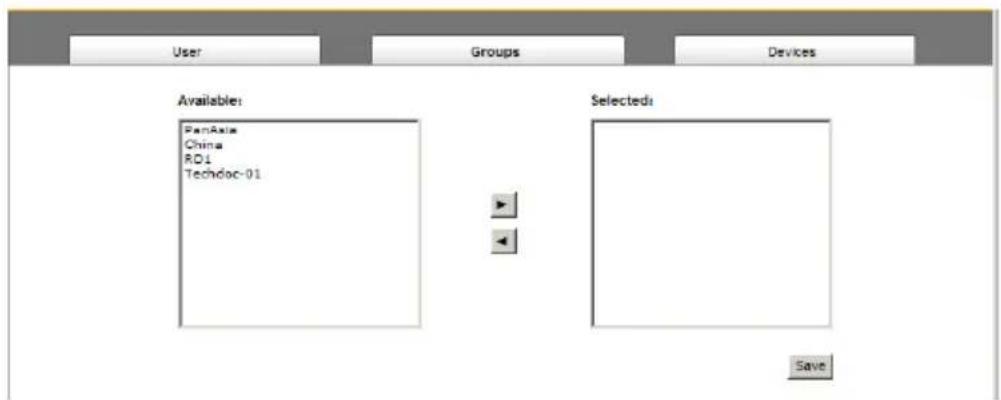
text_image
User Groups Devices Available: PanAsia China RD1 Techdoc-01 Selected: Save-
In the Available column, select the group that you want the user to be in.
-
Click the Right Arrow to put the group's name into the Selected column.
-
Repeat the above for any other groups that you want the user to be in.
-
Click Save when you are done.
Removing Users From a Group From the Accounts Page
To remove a user from a group from the Accounts page, do the following:
- In the Sidebar Users tree, click the user's name
- or -
In the main panel, select the user's name, then click Modify.
- In the page that comes up, select the Groups tab. A screen, similar to the one below, appears:

text_image
User Groups Devices Available: PanAsia China RD1 Selected: Techdoc-01 Save- In the Selected column, select the group that you want to remove the user from.
- Click the Left Arrow to remove the group's name from the Selected column. (It goes back into the Available column.)
- Repeat the above for any other groups that you want to remove the user from.
- Click Save when you are done.
Assigning Users to a Group From the Groups Page
To assign a user to a group from the Groups page, do the following:
- In the Sidebar User Groups tree, click the group's name
-or-
In the main panel, select the group's name, then click Modify.
- In the page that comes up, select the Members tab. A screen, similar to the one below, appears:

text_image
Groups Members Devices Available: administrator marschang davidin christian rickchen karthik jeterhuang nj111 cheaseng albert frosty jonman Selected: Save-
In the Available column, select the user that you want to be a member of the group.
-
Click the Right Arrow to put the user's name into the Selected column.
-
Repeat the above for any other users that you want to be members of the group.
-
Click Save when you are done.
Removing Users From a Group From the Groups Page
To remove a user from a group from the Groups page, do the following:
- In the Sidebar User Groups tree, click the group's name
- or -
In the main panel, select the group's name, then click Modify.
- In the page that comes up, select the Members tab. A screen, similar to the one below, appears:
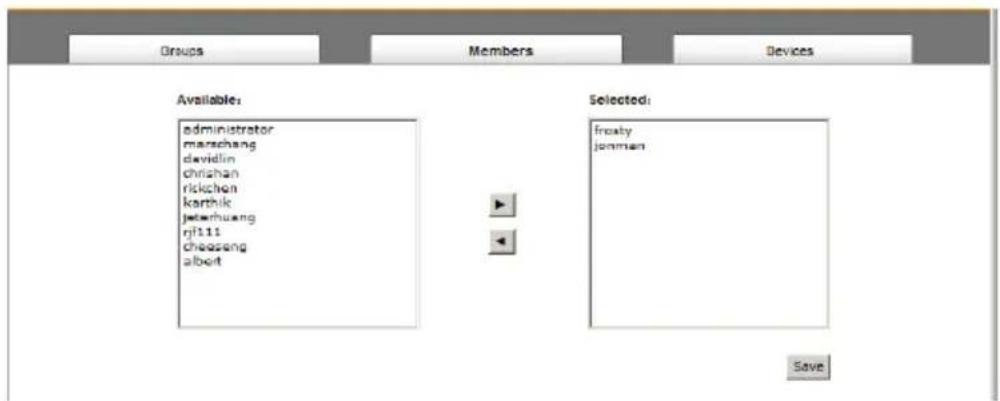
text_image
Groups Members Devices Available: administrator marschang davidlin christian rickchen karthik jetarhuang rjl111 cheezeng albert Selected: froaty jonman Save- In the Selected column, select the user that you want to remove from the group.
- Click the Left Arrow to remove the user's name from the Selected column. (It goes back into the Available column.)
- Repeat the above for any other users that you want to remove from the group.
- Click Save when you are done.
Device Assignment
When a user logs in to the Power Over the NET™ device, the interface comes up with the Outlet Access page displayed. All the outlets that the user is permitted to access are listed in the Sidebar at the left of the page. Access permissions for those outlets can be assigned on an outlet-by-outlet basis from the Accounts menu for individual users, or the Groups menu for user groups.
Assigning Device Permissions From the Accounts Menu
To assign device permissions to a user from the Accounts menu, do the following:
- In the Sidebar Users tree, click the user's name
-or-
In the main panel, select the user's name, then click Modify.
- In the that comes up, select the Devices tab. A screen, similar to the one below, appears:

text_image
User Groups Devices Outlets Access Configuration [C01] PNS320 [01] Outlet01 ✓ ✓ [02] Outlet02 ✓ ✓ [03] ✓ ✓ [04] ✓ ✓ [05] ✓ ✓ [06] ✓ ✓ [07] ✓ ✓ [08] ✓ ✓ [09] ✓ ✓ [10] ✓ ✓ [11] ✓ ✓ [12] ✓ ✓ SaveNote: The page comes up with the outlets nested under the devices. Click the plus sign in front of a device's name to show the outlets.
- Outlets are listed in the left hand column. Permissions can be set on an outlet-by-outlet basis.
- The Access column is where device access rights are set.
-
The Configuration column enables/disables a user from making configuration changes to the outlet settings.
-
Under the Access column, click to permit or restrict the user's access to an outlet. A check mark (√) indicates that the user has permission to access the outlet; a blank checkbox means that the user is denied permission to access the outlet.
- Under the Configuration column, click to permit or restrict the user's ability to change the outlet's configuration settings. A check mark (√) indicates that the user has permission to make changes to the outlet's configuration settings (see Chapter 7, Device Management); a blank checkbox means that the user is denied permission to make changes to the outlet's configuration settings.
- In the confirmation popup that appears, click OK.
Assigning Device Permissions From the Groups Page
To assign device permissions to a Group of users, do the following:
- In the Sidebar User Groups tree, click the group's name
- or -
In the main panel, select the group's name, then click Modify.
- In the page that comes up, select the Devices tab.
- The screen that comes up is the same one that appears when assigning permissions from the Accounts page. Make your device assignments according to the information described under Assigning Device Permissions From the Accounts Menu, page 57.
The only difference is that whatever settings you make apply to all members of the group instead of just one individual member.
Chapter 7
Device Management
Overview
The Device Management page allows super administrators, administrators, and users with device management permission to configure and control overall Power Over the NET ^™ device operations.
Device Information
When you click the Device Management tab, the display opens with the Device Information menu page displayed:
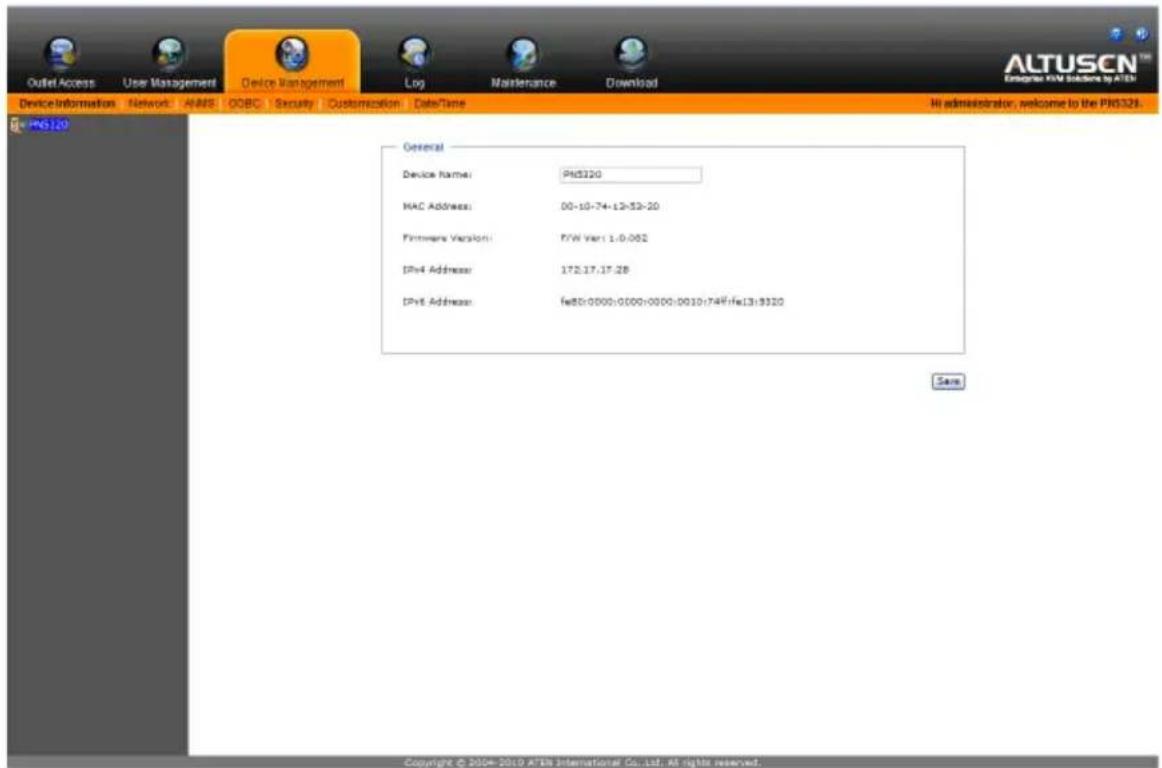
text_image
Device Information Network ANSS OOBC Security Customization Date/Time General Device Name: Pfd320 MAC Address: 00-10-74+13+52-20 Firmware Version: F/W Ver: 1.0.002 IPs4 Address: 172.17.17.28 IPs6 Address: fe85:0000:0000:0000:0010:749:fe13:$320 AltusCN™ EraGroup HVM Solutions by ATEV Hi administrator, welcome to the Pfd320. Save Copyright © 2004-2019 AT&T International Co., Ltd. All rights reserved.The page presents information about the selected device, as described in the following table.
| Item Meaning | |
| Device Name This | field lets you give the device a unique name. This can be convenient when you need to differentiate among several devices in multi station installations. Simply delete whatever is in the text box and key in the name of your choice. Click Save to save the new name. |
| MAC Address This | item displays the Power Over the NETTM device's MAC address. |
| Firmware Version | This item displays the current firmware version number. You can reference it to see if there are newer versions available on the ALTUSEN website. |
| IPv4 Address This | item displays the IP address of the device's network interface in the traditional format. |
| IPv6 Address This | item displays the IP address of the device's network interface in the new format. |
Network
The Network page is used to specify the Power Over the NET™ device's network environment. The main section is divided into 5 panels. Select the device you want to configure in the Sidebar, then fill in the information in the panels according to the information given in the sections that follow.
When you have finished making all of your configuration settings, click Save (at the bottom of the page).
Service Ports
As a security measure, if a firewall is being used, the Administrator can specify the port numbers that the firewall will allow. If a port other than the default is used, users must specify the port number as part of the IP address when they log in. If an invalid port number (or no port number) is specified, the Power Over the NET ^™ device will not be found.

text_image
Service Ports HTTP: 80 HTTPS: 443An explanation of the fields is given in the table below:
| Field Explanation | |
| HTTP The port number for a browser login. The default is 80. | |
| HTTPS The port number for a secure browser login. The default is 443. |
Note: 1. Valid entries for all of the Service Ports are from 1–65535.
-
The service ports cannot have the same value. You must set a different value for each one.
-
If there is no firewall (on an Intranet, for example), it doesn't matter what these numbers are set to, since they have no effect.
Settings
This field specifies the time interval for the browser page to automatically refresh and display the latest power information.

text_image
Settings Web Refresh Rate: 60 sec(s)IP Installer
The IP Installer is an external Windows-based utility for assigning IP addresses to the Power Over the NET ^TM device.

text_image
IP Installer ● Enabled ○ View Only ○ DisabledClick one of the radio buttons to select Enable, View Only, or Disable for the IP Installer utility. See Method 1:, page 122, for IP Installer details.
Note: 1. If you select View Only, you will be able to see the Power Over the NET™ device in the IP Installer's Device List, but you will not be able to change the IP address.
- For security, we strongly recommend that you set this to View Only or Disable after use.
IPv4 Configuration
The device's IPv4 IP and DNS addresses (the traditional method of specifying IP addresses) can either be assigned dynamically (DHCP), or a fixed IP address can be specified.
IPv4 Configuration
Obtain IP address automatically [DHCP]
Set IP address manually [Fixed IP]
IP Address:
172.17.17.5
Subnet Mask:
255,255,255.0
Default Gateway:
172.17.17.254
Obtain DNS server address automatically
Set DNS server address manually
Preferred DNS server
The Ground Truth image displays a single, solid horizontal line. According to Rule 2 (UNDERSCORE & LINE RULES), if the GT contains lines used for stylistic emphasis or as background elements (like ruled paper), the OCR result must ignore them. The provided OCR content is "____", which consists of four underscores. This is incorrect because underscores are not equivalent to a solid line and are not permitted under the “Stylistic/Background Lines (Ignore)” rule. Outputting underscores for a stylistic line violates the rule and constitutes an error. Therefore, the OCR result is inconsistent with the Ground Truth.
Alternate DNS server:
The Ground Truth image displays a single, solid horizontal line. According to Rule 2 (UNDERSCORE & LINE RULES), if the GT contains lines used for stylistic emphasis or as background elements (like ruled paper), the OCR result must ignore them. The provided OCR content is "____", which consists of four underscores. This is incorrect because underscores are not equivalent to a solid line and are not permitted under the “Stylistic/Background Lines (Ignore)” rule. Outputting underscores for a stylistic line violates the rule and constitutes an error. Therefore, the OCR result is inconsistent with the Ground Truth.
- For dynamic IP address assignment, select the Obtain IP address automatically radio button. (This is the default setting.)
- To specify a fixed IP address, select the Set IP address manually radio button and fill in the IP address with values appropriate for your network.
- For automatic DNS Server address assignment, select the Obtain DNS Server address automatically radio button.
- To specify the DNS Server address manually, select the Set DNS server address manually radio button, and fill in the addresses for the Preferred and Alternate DNS servers with values appropriate for your network.
Note: 1. If you choose Obtain IP address automatically, when the device starts up it waits to get its IP address from the DHCP server. If it hasn't obtained the address after one minute, it automatically reverts to its factory default IP address (192.168.0.60.)
-
If the device is on a network that uses DHCP to assign network addresses, and you need to ascertain its IP address, see IP Address Determination, page 122, for information.
-
Specifying the Alternate DNS Server address is optional.
IPv6 Configuration
The device's IPv6 IP and DNS addresses (the new method of specifying IP addresses) can either be assigned dynamically, or a fixed IP address can be specified.
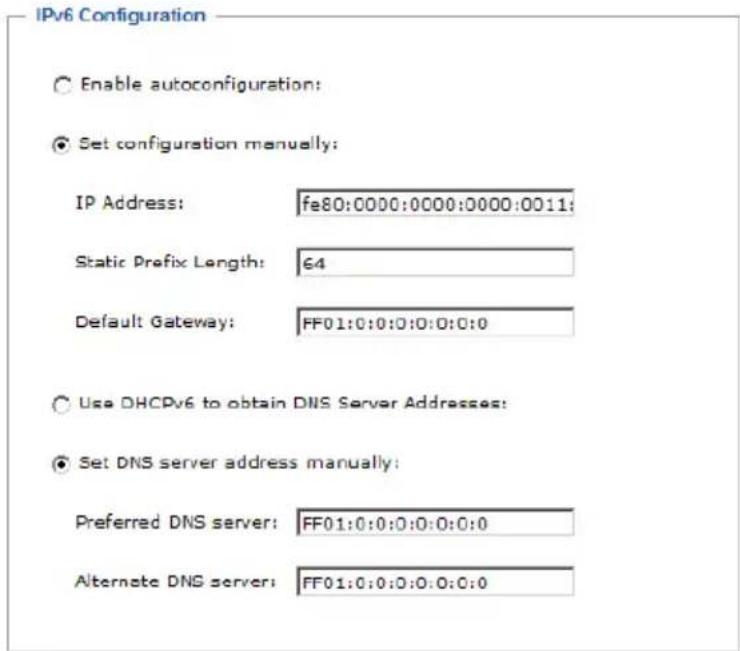
text_image
IPv6 Configuration Enable autoconfiguration: Set configuration manually: IP Address: fe80:0000:0000:0000:0011; Static Prefix Length: €4 Default Gateway: FF01:0:0:0:0:0:0:0 Use DHCPv6 to obtain DNS Server Addresses: Set DNS server address manually: Preferred DNS server: FF01:0:0:0:0:0:0:0 Alternate DNS server: FF01:0:0:0:0:0:0:0- For dynamic IP address assignment, select the Enable Autoconfiguration radio button. (This is the default setting.)
- To specify a fixed IP address, select the Set configuration manually radio button and fill in the IP address, Static Prefix Length, and Default Gateway fields with values appropriate for your network.
- For automatic DNS Server address assignment, select the Use DHCPv6 to obtain DNS Server Addresses radio button.
- To specify the DNS Server address manually, select the Set DNS server address manually radio button, and fill in the addresses for the Preferred and Alternate DNS servers with values appropriate for your network.
Note: Specifying the Alternate DNS Server address is optional.
ANMS
The ANMS (Advanced Network Management Settings) page is used to set up event notifications, login authentication and authorization management from external sources, and CC Management. It is organized in three tabbed pages: Event Notification; Authentication & Authorization; and CC Management. These pages are explained in the sections that follow
Event Notification
When you select ANMS on the menu bar, the GUI displays the Event Notification tab's page. The page is divided into 4 sections: SMTP Settings; Log Server; SNMP Trap Receivers; and Syslog Server. Each section is described below.
SMTP Settings
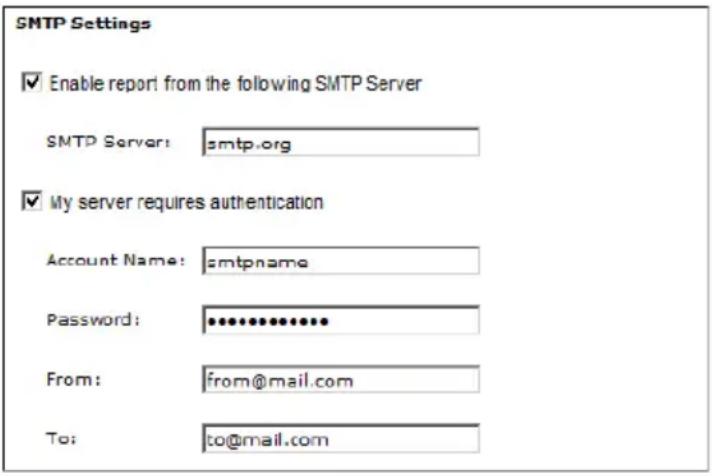
text_image
SMTP Settings ✓ Enable report from the following SMTP Server SMTP Server: smtp.org ✓ My server requires authentication Account Name: smtpname Password: ************ From: from@mail.com To: to@mail.comTo have the Power Over the NET ^™ device email reports from the SMTP server to you, do the following:
- Enable the Enable report from the following SMTP server, and key in the IP address of your SMTP server.
- If your server requires authentication, put a check in the My server requires authentication checkbox.
- Key in the appropriate account information in the Account Name, Password, and From field.
Note: Only one email address is allowed in the From field, and it cannot exceed 64 Bytes. (1 Byte = 1 English alphanumeric character.)
- Key in the email address (addresses) of where you want the event reports sent to in the To field.
Note: If you are sending the report to more than one email address, separate the addresses with a semicolon. The total cannot exceed 256 Bytes.
Log Server

text_image
Log Server ✓ Enable report from the following Log Server MAC Address: 001122334455 Service Port: 9001Important transactions that occur on the Power Over the NET ^™ device, such as logins and internal status messages, are automatically generated and kept by an ATEN Log Server program. Specify the MAC address of the computer that the Log Server resides on, and the service port number used. The valid port range is 1-65535. The default port number is 9001.
Note: 1. Make sure that the port number you specify here matches the one you specify in the Log Server's configuration settings (see Configure, page 99).
2. The port number must different than the one used for the Program port (see Service Ports, page 61).
Installation and operation of the Log Server is discussed in Chapter 10. The Log File is discussed on page 85.
SNMP Trap Receivers

text_image
SNMP Trap Receiver ✓ Enable SNMP Trap Receiver 1 IP: 162.168.73.99 Service Port 1: 192 Community 1: SNMP TrapUp to four SNMP management stations can be specified. If you want to use SNMP trap notifications, do the following:
-
Check Enable SNMP Trap.
-
Key in the IP address(es) and the service port number(s) of the computer(s) to be notified of SNMP trap events. The valid port range is 1–65535. The default port number is 192.
Note: Make sure that the port number you specify here matches the port number used by the SNMP receiver computer.
- Key in the Community name(s) that correspond to each of the stations.
Syslog Server
Syslog Server
Enable
Server IP: 192.168.1.2
Service Port: 2468
To record all the events that take place on Power Over the NET ^™ devices and write them to the PN5212 / PN5320 Syslog server, do the following:
- Check Enable.
- Key in the IP address and the port number of the Syslog server. The valid port range is 1-65535. The default port number is 514.
Finishing Up
When you have finished making your settings on this page, click Save.
Authentication & Authorization
The Authentication & Authorization page is used to set up login authentication and authorization management from external sources.
Disable Local Authentication
Selecting this option will disable login authentication locally on the Power Over the NET ^™ device. The device can only be accessed using LDAP, LDAPS, MS Active Directory, RADIUS, TACACS+, or CC Management authentication.
RADIUS Settings

text_image
RADIUS Settings Enable Preferred RADIUS Server IP: 192.168.0.100 Preferred RADIUS Service Port: 1645 Alternate RADIUS Server IP: 192.168.0.101 Alternate RADIUS Service Port: 1812 Timeout: 3 sec Retries: 3 Shared Secret (at least 6 characters): SecretTo allow authentication and authorization for the Power Over the NET ^™ device through a RADIUS server, do the following:
- Check Enable.
- Fill in the IP addresses and service port numbers for the Preferred and Alternate RADIUS servers. The default port number for the Preferred server is 1812; the default port number for the Alternate server is 1645.
Note: Make sure that the port numbers you specify here match the port numbers used by the RADIUS servers.
-
In the Timeout field, set the time in seconds that the Power Over the NET ^TM device waits for a RADIUS server reply before it times out.
-
In the Retries field, set the number of allowed retries for attempting to connect to the RADIUS server.
-
In the Shared Secret field, key in the character string that you want to use for authentication between the Power Over the NET ^TM device and the RADIUS Server.
-
On the RADIUS server, set the entry for each user as follows:
su/xxxx
Where xxxx represents the Username given to the user when the account was created on the Power Over the NET ^TM device. The user's access rights are the ones assigned for the Power Over the NET ^TM device, as well. (See Adding Users, page 46.)
LDAP/AD Settings
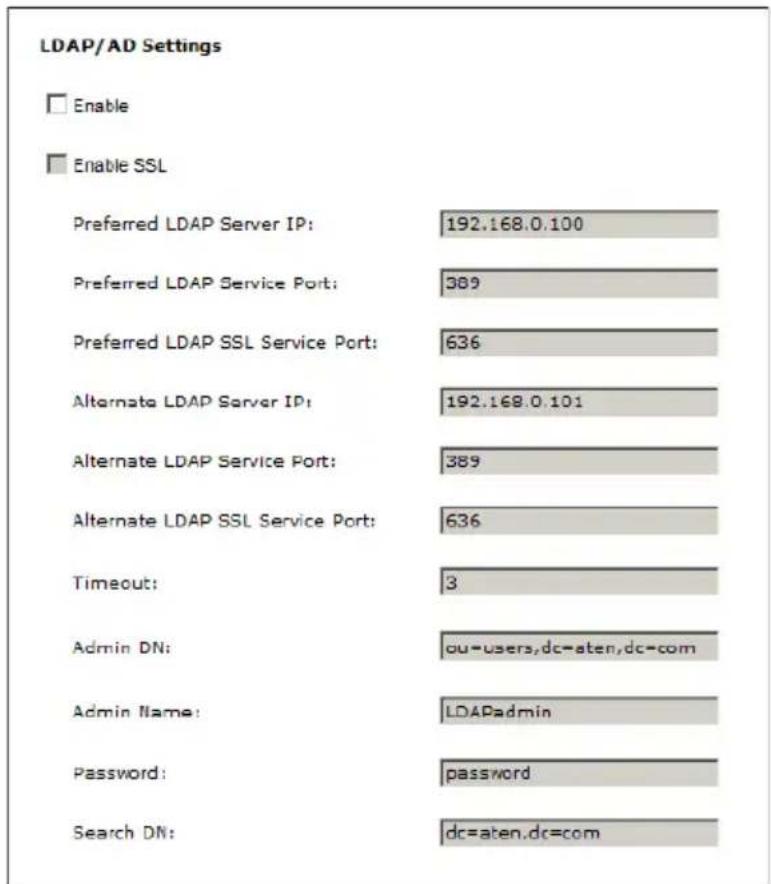
text_image
LDAP/AD Settings Enable Enable SSL Preferred LDAP Server IP: 192.168.0.100 Preferred LDAP Service Port: 389 Preferred LDAP SSL Service Port: 636 Alternate LDAP Server IP: 192.168.0.101 Alternate LDAP Service Port: 389 Alternate LDAP SSL Service Port: 636 Timeout: 3 Admin DN: ou-users,dc-aten,dc=com Admin Name: LDAPadmin Password: password Search DN: dc=aten.dc=comTo allow authentication and authorization for the Power Over the NET ^™ device through an LDAP/AD server, refer to the information in the table, below:
| Item Action | |
| Enable Put a check in the | Enable checkbox to allow LDAP authentication and authorization. |
| Enable SSL | Put a check in the Enable SSL checkbox to specify an SSL connection. |
| Preferred/Alternate LDAP Server IP | Fill in the IP address for the preferred/alternate LDAP server. The default port number is 389; for LDAPS, the default port number is 636. |
| Preferred/Alternate LDAP Service Port | Fill in the port number for the preferred/alternate LDAP server. The default port number is 389. |
| Preferred/Alternate LDAP SSL Service Port | Fill in the SSL port number for the preferred/alternate LDAP server. The default port number is 636. |
| Timeout | Set the time in seconds that the Power Over the NETTM device waits for an LDAP server reply before it times out. |
| Admin DN Consult the | LDAP / LDAPS administrator to ascertain the appropriate entry for this field. For example, the entry might look like this:ou=kn4132,dc=aten,dc=com |
| Admin Name Key in the | LDAP administrator's username. |
| Password Key in the | LDAP administrator's password. |
| Search DN Set the disting | guished name of the search base. This is the domain name where the search starts for user names. |
Note: If LDAP is enabled, the LDAP schema for MS Active Directory must be extended. For detailed LDAP configuration instructions please download the LDAP Help File from the right column of the PN5212 / PN5320's product page on our website. www.aten.com
TACACS+
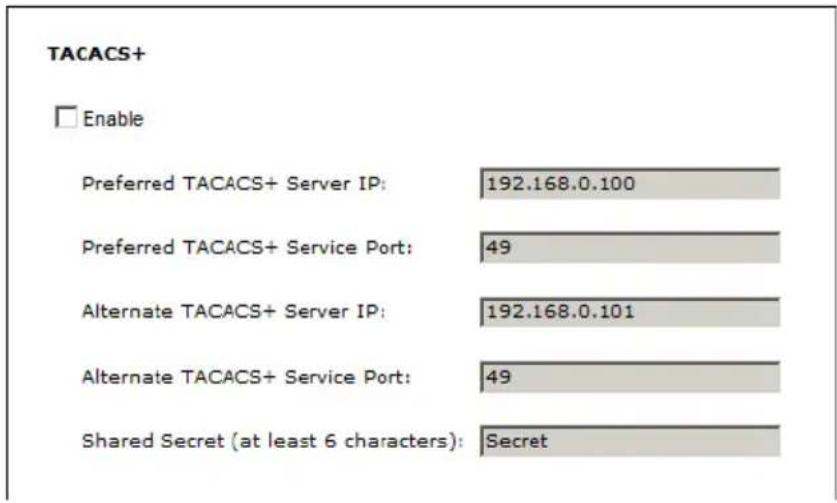
text_image
TACACS+ □ Enable Preferred TACACS+ Server IP: 192.168.0.100 Preferred TACACS+ Service Port: 49 Alternate TACACS+ Server IP: 192.168.0.101 Alternate TACACS+ Service Port: 49 Shared Secret (at least 6 characters): SecretTo allow authentication and authorization for the Power Over the NET ^™ device through a TACACS+ server, do the following:
- Check Enable.
- Fill in the IP addresses and port numbers for the Preferred and Alternate TACACS+ servers. The default port number is 49.
Note: Make sure that the port numbers you specify here match the port numbers used by the TACACS+ servers.
- In the Shared Secret field, key in the character string that you want to use for authentication between the Power Over the NET ^TM device and the TACACS+ Server.
Finishing Up
When you have finished making your settings on this page, click Save.
CC Management
This page allows you to manage authentication and authorization for the Power Over the NET ^™ device through a CC (Control Center) server. If this is enabled, users will be able to access the device via their CC session.

text_image
CC Management Enable CC Server IP CC Service Port 0To allow authentication and authorization for the Power Over the NET ^™ device through a CC (Control Center) server, check Enable and fill in the CC Server’s IP address and the port that it listens on in the appropriate fields.
When you have finished making your settings on this page, click Save.
SNMP Agent
If you want to use SNMP to help with your installation management:
- Check Enable.
- Once SNMP Agent has been enabled, the SNMP Agent Service Port field becomes active. Enter the port number here.
-
Key in passwords for the Community Name fields. We recommend replacing the defaults (public, private) with an alphanumeric string of at least 8 characters.
-
When you have finished making all your entries, click Save, to save them.
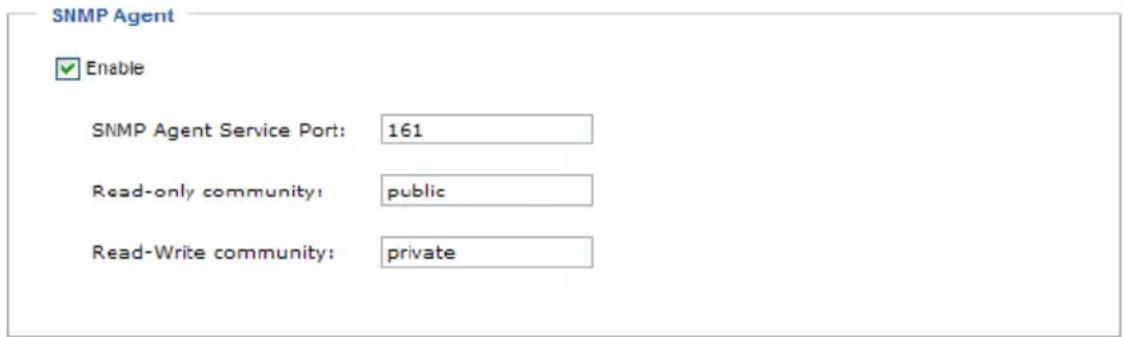
text_image
SNMP Agent Enable SNMP Agent Service Port: 161 Read-only community: public Read-Write community: privateSave
Note: MIB definitions for the PN5212 / PN5320 are provided on the CD that came with the package, or can be downloaded from the ATEN website.
OOBC
In case the LAN that the Power Over the NET ^™ device resides on goes down, or the it cannot be accessed with the usual browser based method for some other reason, the device can be accessed via an Out of Band method utilizing its Console.
The OOBC page is used to set up the serial configuration parameters for serial terminal Out of Band access to the Power Over the NET ^™ device, as described in the section that follows.
- To operate the PN5212 / PN5320 from a local computer's console terminal (HyperTerminal, GTKTerminal, etc.), connect the PN5212 / PN5320's Console port to the COM port of a local computer (see Single Stage Installation, page 11, and Console Terminal Session, page 105).
Console Port Settings
For serial terminal operation, this section sets the serial parameters of the Power Over the NET™ device's Console port.
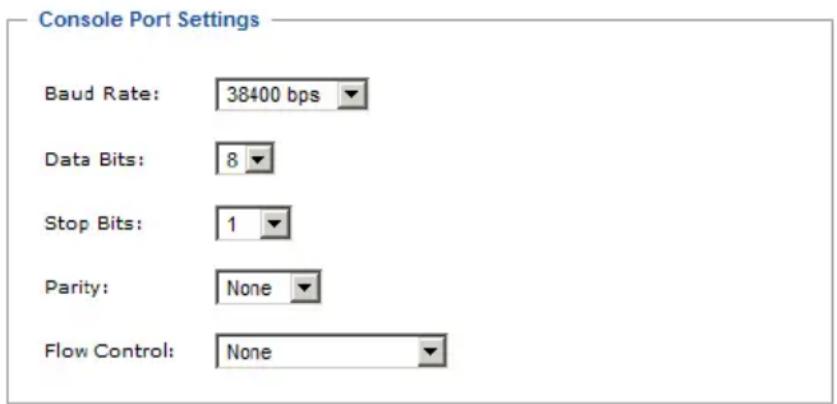
text_image
Console Port Settings Baud Rate: 38400 bps Data Bits: 8 Stop Bits: 1 Parity: None Flow Control: NoneNote: The Console port's serial parameters and the parameters of the device it connects to must both be the same.
Security
The Security page controls access to the Power Over the NET ^™ device.

text_image
Security Login String: IP Filter Enable: Include Exclude Add Modify Delete MAC Filter Enable: Include Exclude Add Modify Delete
text_image
Account Policy Minimum Username Length: 6 Minimum Password Length: 6 Password Must Contain At Least: □ One Upper Case □ One Lower Case □ One Number □ Disable Duplicate Login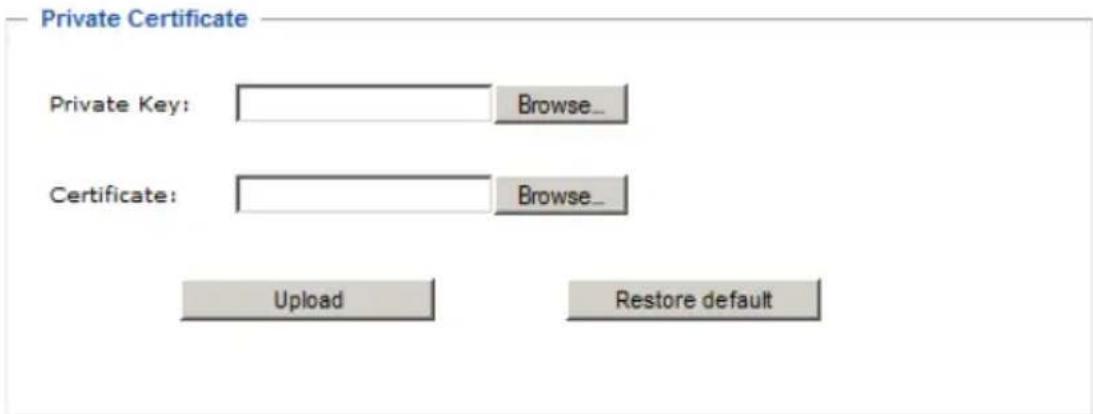
text_image
Private Certificate Private Key: Browse_ Certificate: Browse_ Upload Restore defaultLogin String
The Login String entry field is used to specify a login string (in addition to the IP address) that users must include when accessing the Power Over the NET ^™ device with a browser. For example:
192.168.0.126/abcdefg
◆ The following characters are allowed:
$$ 0 - 9 \text { a - z A - Z } \sim ! @ ^ {\wedge} \& * () _ {-} + ^ {\prime} - = [ ] {}; ^ {\prime} < >,. | $$
◆ The following characters are not allowed:
♦ % ”: / ? # \ [Space]
♦ Compound characters (É Ç ñ ... etc.)
Note: 1. There must be a forward slash between the IP address and the string.
- If no login string is specified here, anyone will be able to access the Power Over the NET ^TM device login page using the IP address alone. This makes your installation less secure.
For security purposes, we recommend that you change this string occasionally.
IP and MAC Filtering
If any filters have been configured, they appear in the IP Filter and/or MAC Filter list boxes.
IP and MAC Filters control access to the Power Over the NET ^™ device based on the IP and/or MAC addresses of the client computers attempting to connect. A maximum of 100 IP filters and 100 MAC filters are allowed.
To enable IP and/or MAC filtering, click to put a check mark in the IP Filter Enable and/or MAC Filter Enable checkbox.
- If the include button is checked, all the addresses within the filter range are allowed access; all other addresses are denied access.
- If the exclude button is checked, all the addresses within the filter range are denied access; all other addresses are allowed access.
Adding Filters
To add an IP filter, do the following:
- Click Add. A dialog box similar to the one below appears:

text_image
The page at https://172.17.17.6 says: Enter the start IP address (for example, 192.168.0.1): OK Cancel- Specify the filter address in the dialog box (for example, 192.168.0.200), then click OK.
A second dialog box, similar to the one below, appears:
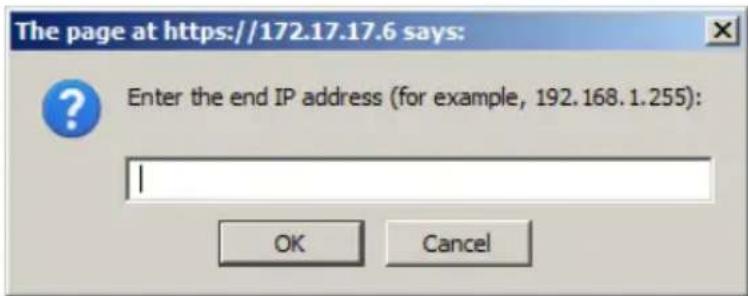
text_image
The page at https://172.17.17.6 says: Enter the end IP address (for example, 192.168.1.255): OK Cancel-
To filter a single IP address, key in the same address as the start IP. To filter a continuous range of addresses, key in the end number of the range (for example, 192.168.0.225).
-
After filling in the address, click OK.
Repeat these steps for any additional IP addresses you want to filter.
To add a MAC filter, do the following:
- Click Add. A dialog box similar to the one below appears:
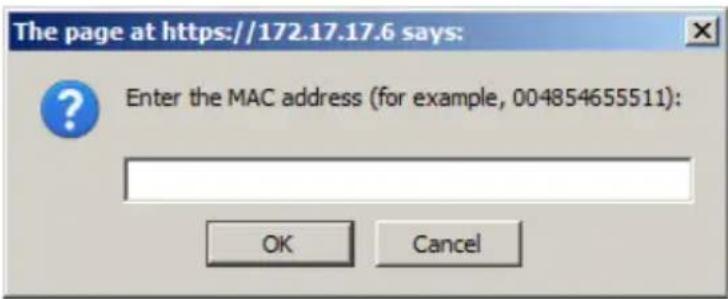
text_image
The page at https://172.17.17.6 says: Enter the MAC address (for example, 004854655511): OK Cancel- Specify the MAC address in the dialog box (for example, 001074670000), then click OK.
Repeat these steps for any additional MAC addresses you want to filter.
IP Filter / MAC Filter Conflict
If there is a conflict between an IP filter and a MAC filter – for example, where a computer's IP address is allowed by the IP filter but it's MAC address is excluded by the MAC filter – then that computer's access is blocked.
In other words, if either filter blocks a computer, then the computer is blocked, no matter what the other filter is set to.
Modifying Filters
To modify a filter, select it in the IP Filter or MAC Filter list box and click Modify. The Modify dialog box is similar to the Add dialog box. When it comes up, simply delete the old address(es) and replace it with the new one(s).
Deleting Filters
To delete a filter, select it in the IP Filter or MAC Filter list box and click Delete.
Account Policy
The Account Policy section governs policies in regard to usernames and passwords. Check a policy and enter the required information in the appropriate fields.
| Item Description | |
| Minimum Username Length Sets | the minimum number of characters required for a username. Acceptable values are from 1–16. |
| Minimum Password Length Sets | the minimum number of characters required for a password. Acceptable values are from 1–16. |
| Password Must Contain At Least | Checking any of these items requires users to include at least one of the specified items in their password.Note: This policy does not affect existing user accounts. Only new user accounts created after this policy has been enabled, and users required to change their passwords are affected. |
| Disable Duplicate Login Check this | is to prevent users from logging in with the same account at the same time. |
Private Certificate
When logging in over a secure (SSL) connection, a signed certificate is used to verify that the user is logging in to the intended site. For enhanced security, the Private Certificate section allows you to use your own private encryption key and signed certificate, rather than the default ATEN certificate.
There are two methods for establishing your private certificate: generating a self-signed certificate; and importing a third-party certificate authority (CA) signed certificate.
Generating a Self-Signed Certificate
If you wish to create your own self-signed certificate, a free utility – openssl.exe – is available for download over the web. See Self-Signed Private Certificates, page 128 for details about using OpenSSL to generate your own private key and SSL certificate.
Obtaining a CA Signed SSL Server Certificate
For the greatest security, we recommend using a third party certificate authority (CA) signed certificate. To obtain a third party signed certificate, go to a CA (Certificate Authority) website to apply for an SSL certificate. After the CA sends you the certificate and private encryption key, save them to a convenient location on your computer.
Importing the Private Certificate
To import the private certificate, do the following:
- Click Browse to the right of Private Key; browse to where your private encryption key file is located; and select it.
- Click Browse to the right of Certificate; browse to where your certificate file is located; and select it.
- Click Upload to complete the procedure.
Note: 1. Clicking Restore Default returns the device to using the default ATEN certificate.
- Both the private encryption key and the signed certificate must be imported at the same time.
When you have finished making your settings on this page, click Save.
Customization
The Customization page is used to set Login Failure and Working Mode parameters.
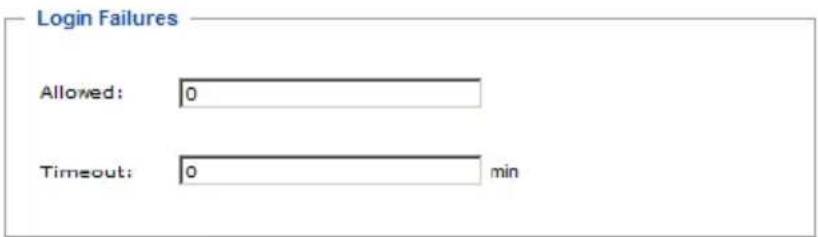
text_image
Login Failures Allowed: 0 Timeout: 0 min
text_image
Working Mode ✓ Enable ICMP ✓ Enable Browser ✓ Enable Multiuser OperationLogin Failures
- Allowed sets the number of consecutive failed login attempts that are permitted from a remote user.
- Timeout sets the amount of time a remote user must wait before attempting to login again after exceeding the number of allowed failures.
Working Mode
- If ICMP is enabled, the Power Over the NET™ device can be pinged. If it is not enabled, the device cannot be pinged. The default is Enabled.
- To permit browser access to the Power Over the NET™ device, click to put a check mark in the Enable Browser checkbox. If browser access is not enabled, users must use the Java Client AP program to access the switch. The default is Enabled.
- Enabling Multiuser operation permits up to 32 users to log in at the same time to share the remote bus. If not enabled, only one user can log in at a time. The default is Enabled.
When you have finished making your settings on this page, click Save.
Date/Time
The Date/Time dialog page sets the Power Over the NET ^TM device time parameters:
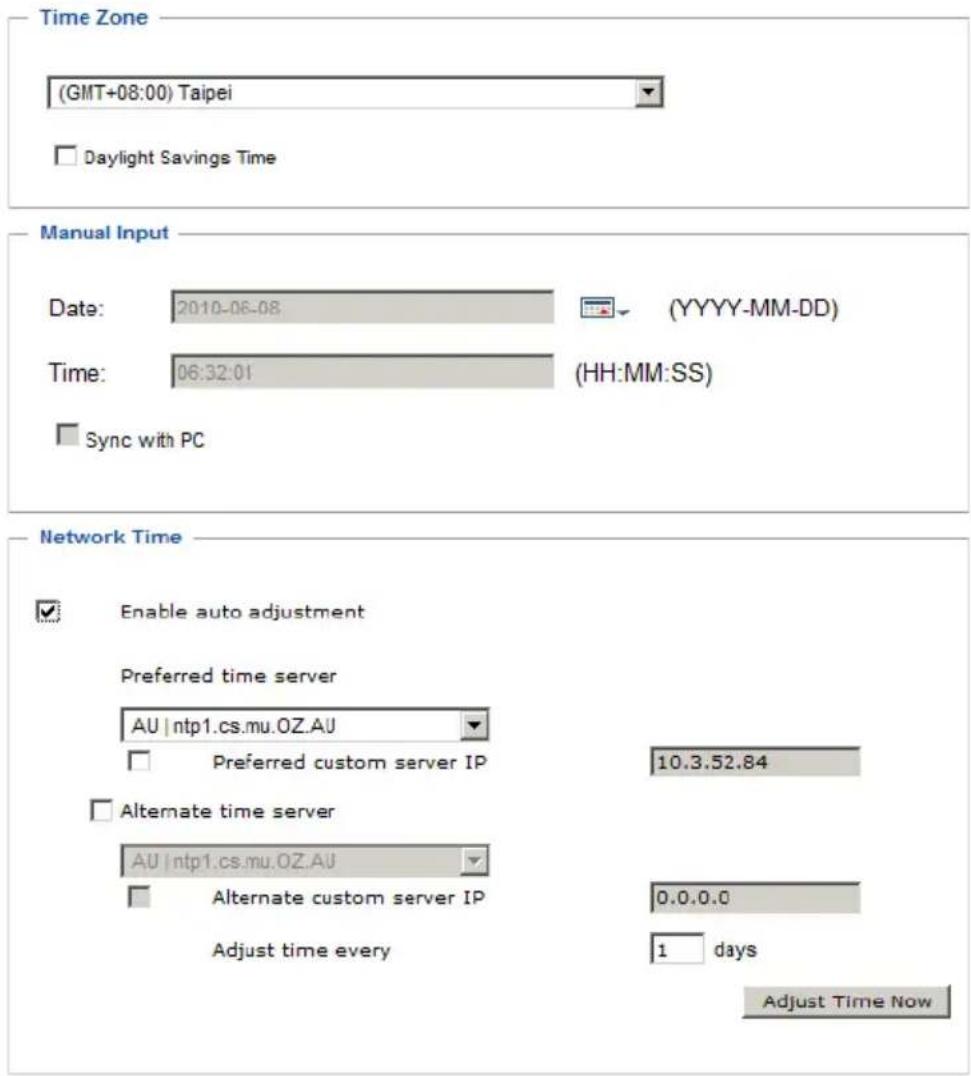
text_image
Time Zone (GMT+08:00) Taipei Daylight Savings Time Manual Input Date: 2010-06-08 (YYYY-MM-DD) Time: 06:32:01 (HH:MM:SS) Sync with PC Network Time Enable auto adjustment Preferred time server AU | ntp1.cs.mu.OZ.AU Preferred custom server IP 10.3.52.84 Alternate time server AU | ntp1.cs.mu.OZ.AU Alternate custom server IP 0.0.0.0 Adjust time every 1 days Adjust Time NowSet the parameters according to the information below.
Time Zone
- To establish the time zone that the Power Over the NET ^TM device is located in, drop down the Time Zone list and choose the city that most closely corresponds to where it is at.
If your country or region employs Daylight Saving Time (Summer Time), check the corresponding checkbox.
Manual Input
Use this section to specify the Power Over the NET™ device's date and time manually.
- Click the calendar icon and click the calendar entry for the date.
- Key the time into the Time field, using the HH:MM:SS (hours, minutes, seconds) format.
Note: This section is only enabled when auto adjustment (in the Network Time section) is disabled (the checkbox is unchecked).
As an alternative to specifying the date and time by entering them into the date and time fields, you can click to put a check in the Sync with PC checkbox, in which case the Power Over the NET ^TM device will take its date and time settings from the locally connected PC.
Network Time
To have the time automatically synchronized to a network time server, do the following:
- Check the Enable auto adjustment checkbox.
- Drop down the time server list to select your preferred time server
-Or-
Check the Preferred custom server IP checkbox, and key in the IP address of the time server of your choice. - If you want to configure an alternate time server, check the Alternate time server checkbox, and repeat step 2 for the alternate time server entries.
- Key in your choice for the number of days between synchronization procedures.
Finishing Up
When you have finished making your settings on this page, click Save.
After you have saved your changes, if you want to synchronize immediately, click Adjust Time Now.
This Page Intentionally Left Blank
Chapter 8 Log
Overview
The PN5212 / PN5320 keeps an extensive record of all the transactions that take place on its installation. The Log page provides a powerful array of filters and functions that allow you to view and export the log file data, as well as be informed by email of specified events as they occur.
System Log
When you click the Log tab, the display opens with the System Log menu page, which looks similar to the one below:
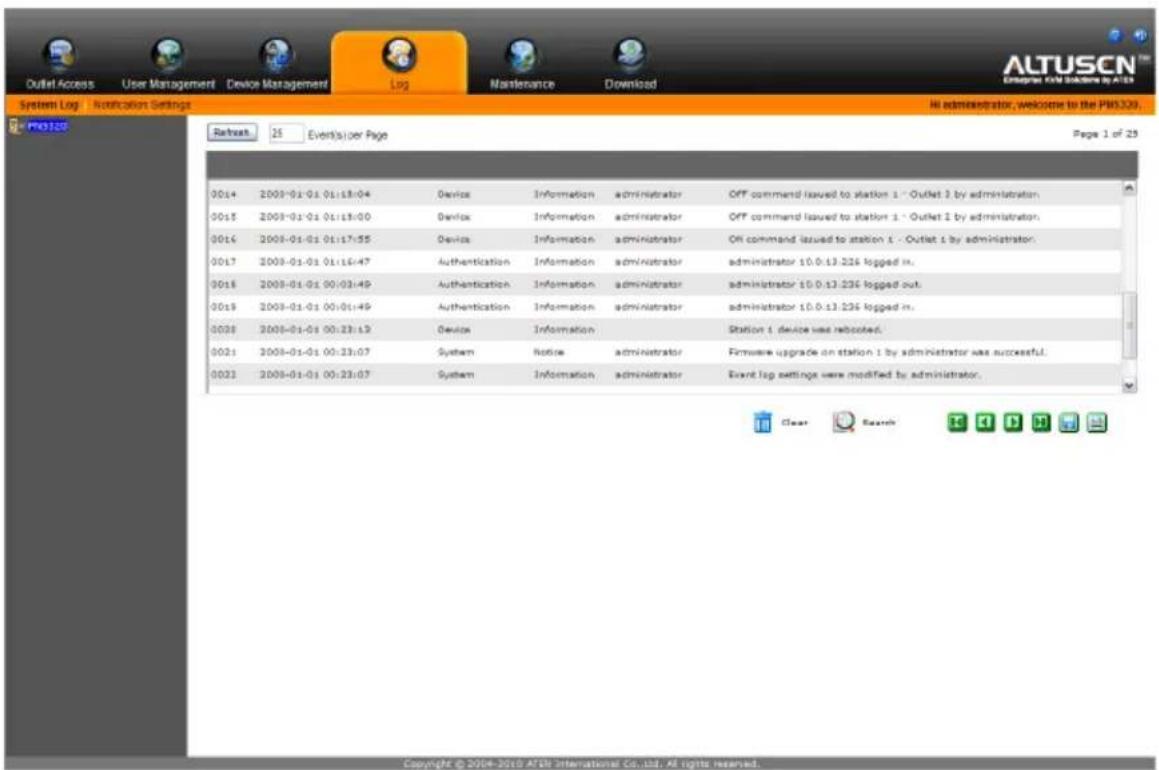
text_image
System Log | Notification Settings AltusCN™ Energrat: ATM Systems by ATEN Hi administrator, welcome to the PR320. Refresh 25 Event(s) per Page Page 1 of 23 0014 2009-01-01 01:13:04 Device Information administrator Off command issued to station 1 - Outlet 1 by administration 0015 2009-01-01 01:13:00 Device Information administrator Off command issued to station 1 - Outlet 2 by administration 0016 2008-01-01 01:17:55 Device Information administrator On command issued to station 1 - Outlet 1 by administrator 0017 2008-01-01 01:15:47 Authentication Information administrator administrator administrator 10.0.13.236 logged in. 0018 2008-01-01 00:03:49 Authentication Information administrator administrator administrator 10.0.13.236 logged out. 0019 2008-01-01 00:01:49 Authentication Information administrator administrator administrator 10.0.13.236 logged in. 0020 2008-01-01 00:23:15 Device Information Station 1 device was rebooted. 0021 2008-01-01 00:23:07 System Notice administrator Firmware upgrade on station 1 by administrator was successful. 0022 2008-01-01 00:23:07 System Information administrator Event log settings were modified by administrator. Clear Search Copyright © 2004-2019 ATEN International Co.,Ltd. All rights reserved.The Log Event List
- Clicking on a device in the Sidebar displays its log events in the main panel’s log event list.
- Clicking the Refresh button brings the log list up to date with the latest events.
- The entry box to the right of the Refresh button lets you set the number of events to display per page. Simply key in the number of your choice.
- The top right of the main panel shows the total number of pages in the log file, and what page you are currently viewing.
- The icons in the row just below the log event list are explained in the table, below:
| Icon Function | |
 | Clear: Click to erase the contents of the log event list. |
 | Search: Click to bring up a dialog box with search parameters that let you refine the display to items that fall within the parameters you choose. See Search, page 87 for details. |
 | Click to go to the first page of the log event list. |
 | Click to move to the previous page of the log event list. |
 | Click to move to the next page of the log event list. |
 | Click to move to the last page of the log event list. |
 | Click to save the contents of the log event list to file. See Save, page 88 for details. |
 | Click to print the contents of the log event list. |

Search
Search allows you to search for events according to selected criteria, such as: specific words, users, date, time, severity, and category. You can also search on any combination of criteria to refine the search even further. When you click the Search icon, a Search panel, similar to the one below, appears:
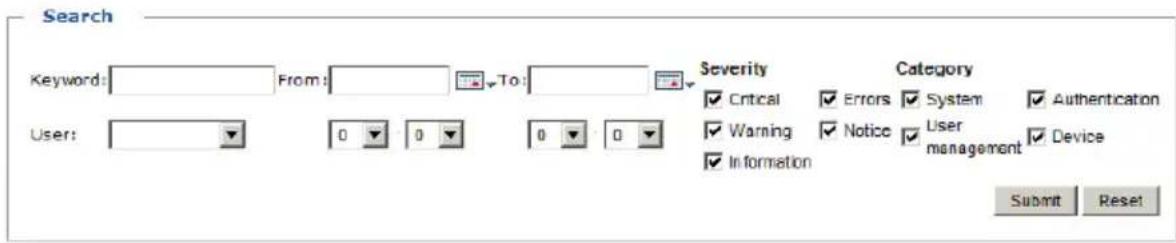
text_image
Search Keyword: From: To: Severity Category User: Critical Errors System Authentication Warning Notice User management Device Information Submit Reset- To search on a keyword, key it into the Keyword text box.
- To search for a user, click the arrow at the right of the User entry box and make your selection from the drop down list.
- To search by date, click on the calendar icons to the right of the From and To fields and click on the appropriate dates. To search on a single day, pick the same day for both fields.
- To search by time drop down the lists for hours and seconds in the From and To fields and click on the appropriate figures.
- By default, all the Severity and Category items are checked and will be included in the search criteria. To deselect an item, click on its checkbox.
- To return the panel to its default settings (all entry fields blank or zero; all Server and Category items checked) click Reset.
◆ To begin the search, click Submit. - To dismiss this panel, click the Search icon again.

Save
Save allows you to save the contents of the event log list (or the results of a Search), to a file. When you click the Save icon, similar to the one below appears:
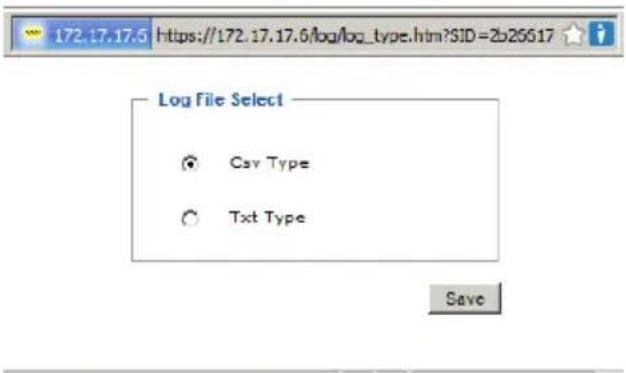
text_image
172.17.17.6 https://172.17.17.6/log/log_type.htm?SID=2b26617 Log File Select ○ Csv Type ○ Txt Type SaveTo save specified logged events to a file, do the following:
-
Click one of the radio buttons to specify the file format you want to save the file in (csv files can be read by a spreadsheet program).
-
Click Save.
After a moment, a dialog box similar to the one below, comes up:

text_image
Opening Systemlog.txt You have chosen to open Systemlog.txt which is 0: Text Document from: https://172.17.17.6 What should Firefox do with this file? Open with: Notepad (default) Save File Do this automatically for flies like this from now on. OK Cancel- Select Save File, then click OK.
Notification Settings
The Notification Settings page is used to specify which of the PN5212 / PN5320's components will receive notification of a log event. When you click the Notification Settings menu item, a page similar to the one below appears:
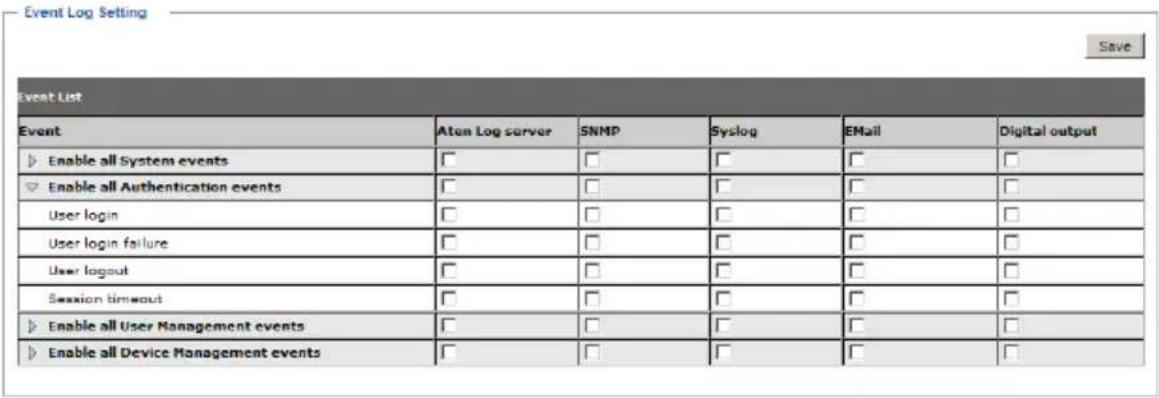
text_image
Event Log Setting Save Event List Event Aten Log server SNMP Syslog EMail Digital output Enable all System events Enable all Authentication events User login User login failure User logout Session timeout Enable all User Management events Enable all Device Management events◆ The event categories are listed in the left column.
When you first open the page, only the main category items appear. (Main category item rows have a gray background.)
Sub-category items are nested under the main category headings. Click the arrow in front of the main category headings to display the sub-category items. (Sub-category item rows have a white background.)
- Click the checkboxes under the column headings to select which component(s) will receive notification of the log events.
- Clicking on a main category heading's row automatically selects all the sub-category items nested below it.
If you only want to set notification for some of the sub-category events, don't put a check in the main category row. Instead, drop down the sub-category list, and only check the sub-category events you want.
- When you have finished making your setting choices, click Save. When a specified log event occurs, notification of that event will be sent to the selected component.
- Reset Digital Output: If an event has been triggered that changes the digital output sensor from Low to High, click this button to return the sensor to the Low state.
This Page Intentionally Left Blank
Chapter 9
Maintenance and Download
Overview
The Maintenance function is used to upgrade the PN5212 / PN5320's firmware, and to backup and restore the device's configuration settings. Download is used to download a stand-alone Java Client AP program to access the PN5212 / PN5320.
Maintenance
Firmware Upgrade
When you click the Maintenance tab, the display opens with the Firmware Upgrade menu page, which looks similar to the one below:
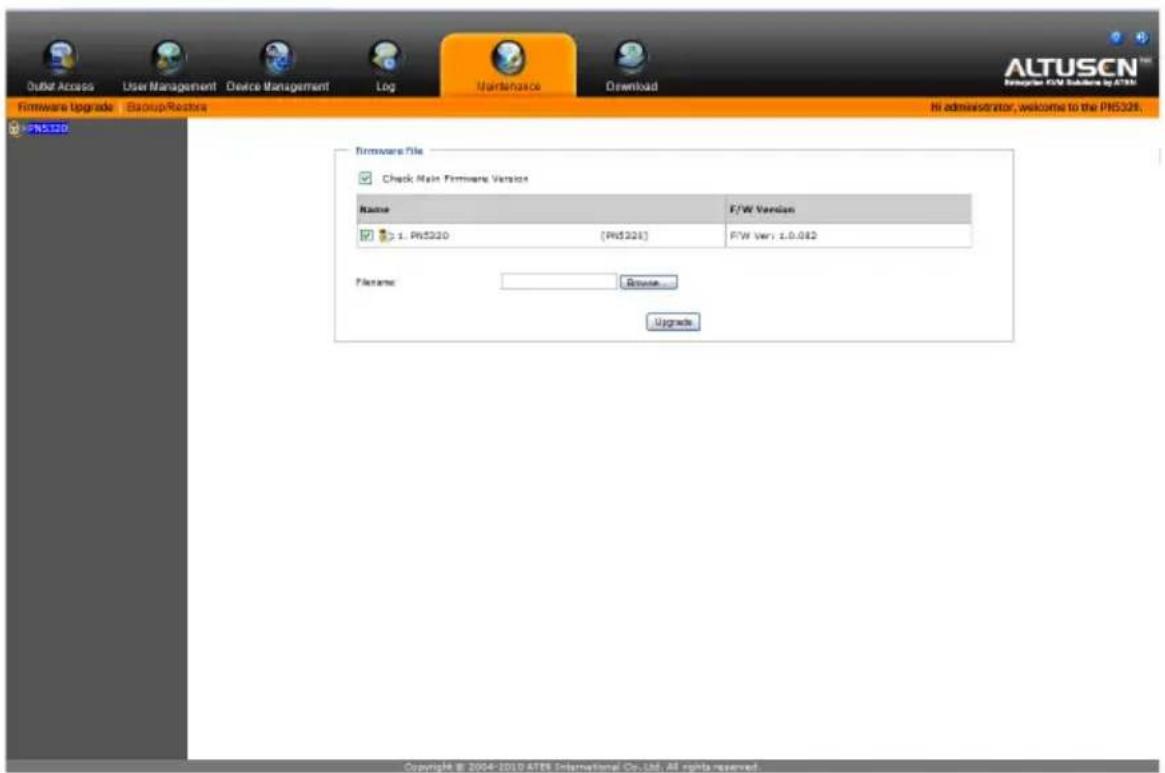
text_image
Outlet Access User Management Device Management Log Maintenance Download Firmware Upgrade Backup/Restore AltusCN Newport FGV Builders by ATSI Hi administrator, welcome to the PHS328. FMS328 Firmware File Check Main Firmware Version Name F/W Version $1. PhS320 [PhS328] F/W ver: £0.082 Filename: Browse... Upgrade Copyright © 2004-2010 ATES International Co., Ltd. All rights reserved.The Main Panel
A description of the items shown in this panel are given in the table, below:
| Item Description | |
| Check Main Firmware Version | If you enable Check Main Firmware Version, the PN5212 / PN5320's current firmware level is compared with that of the upgrade file. If the current version is equal to or higher than the upgrade version, a popup message appears, to inform you of the situation and stops the upgrade procedure. |
| Name | Lists all of the PN5212 / PN5320 devices. Click to put a check in the checkbox of the device's whose firmware you want to upgrade. |
| F/W Version Displays | the PN5212 / PN5320's current firmware version. |
| Filename As new versions | versions of the firmware become available, they are posted on our website and can be downloaded to a convenient location on your computer. Click the Browse button to select the downloaded upgrade file. |
| Upgrade Click this | button to upgrade the firmware of the selected devices. |
Upgrading the Firmware
To upgrade the firmware refer to the screenshot on the preceding page, and do the following:
- Go to our website and download the new firmware file to a convenient location on your computer.
- Click the Browse button; navigate to where the firmware file is located and select it.
-
Click Upgrade to start the upgrade procedure.
-
If you enabled Check Main Firmware Version the current firmware level is compared with that of the upgrade file. If the current version is equal to or higher than the upgrade version, a popup message appears, to inform you of the situation and stops the upgrade procedure.
- If you didn't enable Check Main Firmware Version, the upgrade file is installed without checking what its level is.
-
Once the upgrade completes successfully, the switch resets itself.
-
Log in again, and check the firmware version to be sure it is the new one.
Firmware Upgrade Recovery
Should the PN5212 / PN5320's firmware upgrade procedure fail, and the device becomes unusable, the following firmware upgrade recovery procedure will resolve the problem:
- Power off the device.
- Press and hold the Reset Switch in (see page 7).
- While holding the Reset Switch in, power the switch back on.
This causes the switch to use the original factory installed main firmware version. Once the switch is operational, you can try upgrading the main firmware again.
Backup/Restore
Selecting Backup/Restore on the menu bar gives you the ability to back up the switch's configuration and user profile information:
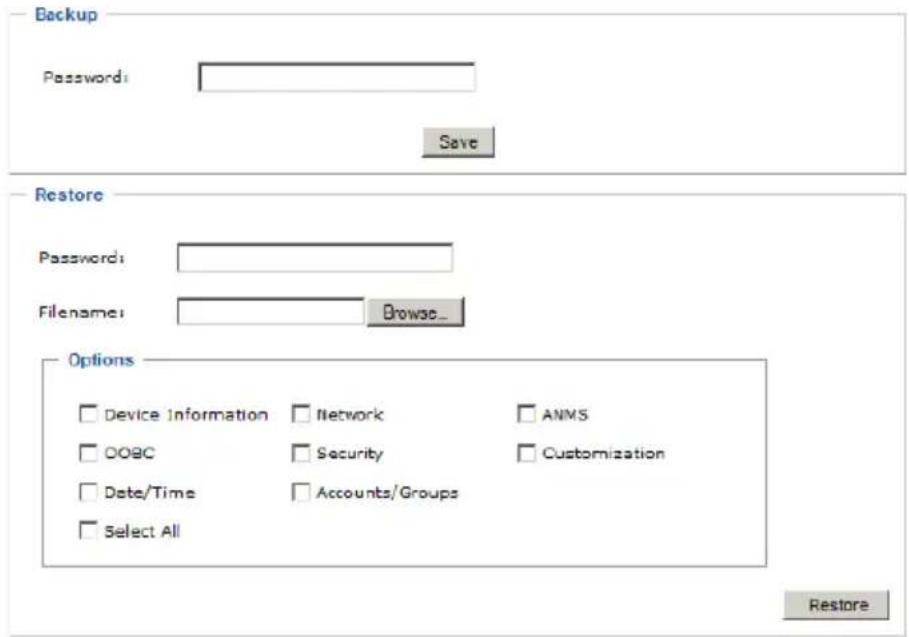
text_image
Backup Password: Save Restore Password: Filename: Browse... Options Device Information Network ANMS DOBC Security Customization Date/Time Accounts/Groups Select All RestoreBackup
To backup the device's settings do the following:
- In the Password field, key in a password for the file.
Note: Entering a password is optional. If you do enter a password, make a note of it, since you will need it to be able to restore the file.
-
Click Save.
-
When the browser asks what you want to do with the file, select Save to disk; then save it in a convenient location.
Restore
To restore a previous backup, do the following:
- Click Browse; navigate to the file and select it.
Note: If you renamed the file, you can leave the new name. There is no need to return it to its original name.
- In the Password field, key in the same password that you used to save the file.
Note: If you did not set a password when you created the backup file, you can omit this step.
-
Select as many of the options that are presented as you wish to restore.
-
Click Restore.
After the file is restored, a message appears to inform you that the procedure succeeded.
Download
Download is used to download a stand-alone Java Client AP version of the PN5212 / PN5320 software. When you click the Download tab, the browser brings up a dialog box asking what you want to do with the program file:
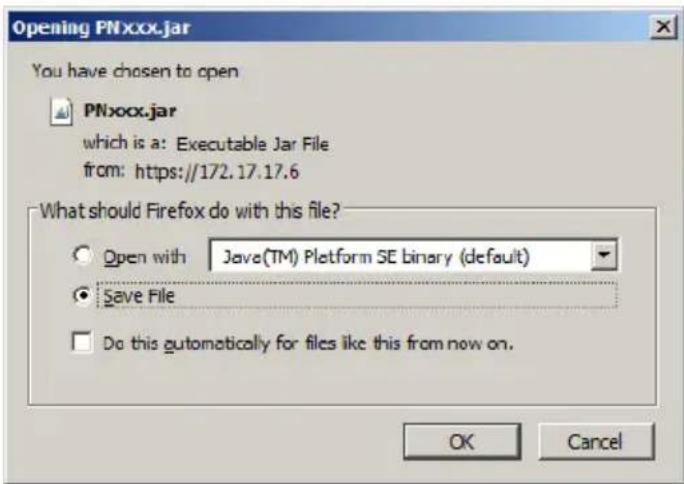
text_image
Opening PNxxx.jar You have chosen to open PNxxx.jar which is a: Executable Jar File from: https://172.17.17.6 What should Firefox do with this file? Open with Java(TM) Platform SE binary (default) Save File Do this automatically for files like this from now on. OK CancelThe Java Client AP can be run via a console terminal connection from your computer's COM port to the PN5212 / PN5320's Console Port.
This Page Intentionally Left Blank
Chapter 10
The Log Server
The Windows-based Log Server is an administrative utility that records all the events that take place on selected Power Over the NET ^™ devices and writes them to a searchable database. This chapter describes how to install and configure the Log Server.
Installation
The Log Server AP Installer is provided on the CD that came with your Power Over the NET ^TM device. To install the Log Server, do the following:
- On the computer you want to use as the Log Server, put the CD into its CD (DVD) drive.
- Navigate to the Log Server AP Installer folder on the CD.
- Click the Log Server icon to start the installation. A screen, similar to the one below, appears:

text_image
Setup Welcome to the LogServer Setup This program will install the LogServer on your computer. We strongly recommend that you exit all Windows programs before running this program. Next Cancel- Click Next. Then follow the on-screen instructions to complete the installation and have the Log Server program icon placed on your desktop.
Starting Up
To start the Log Server, either double click the program icon, or key in the full path to the program on the command line. The first time your run it, a screen similar to the one below appears:
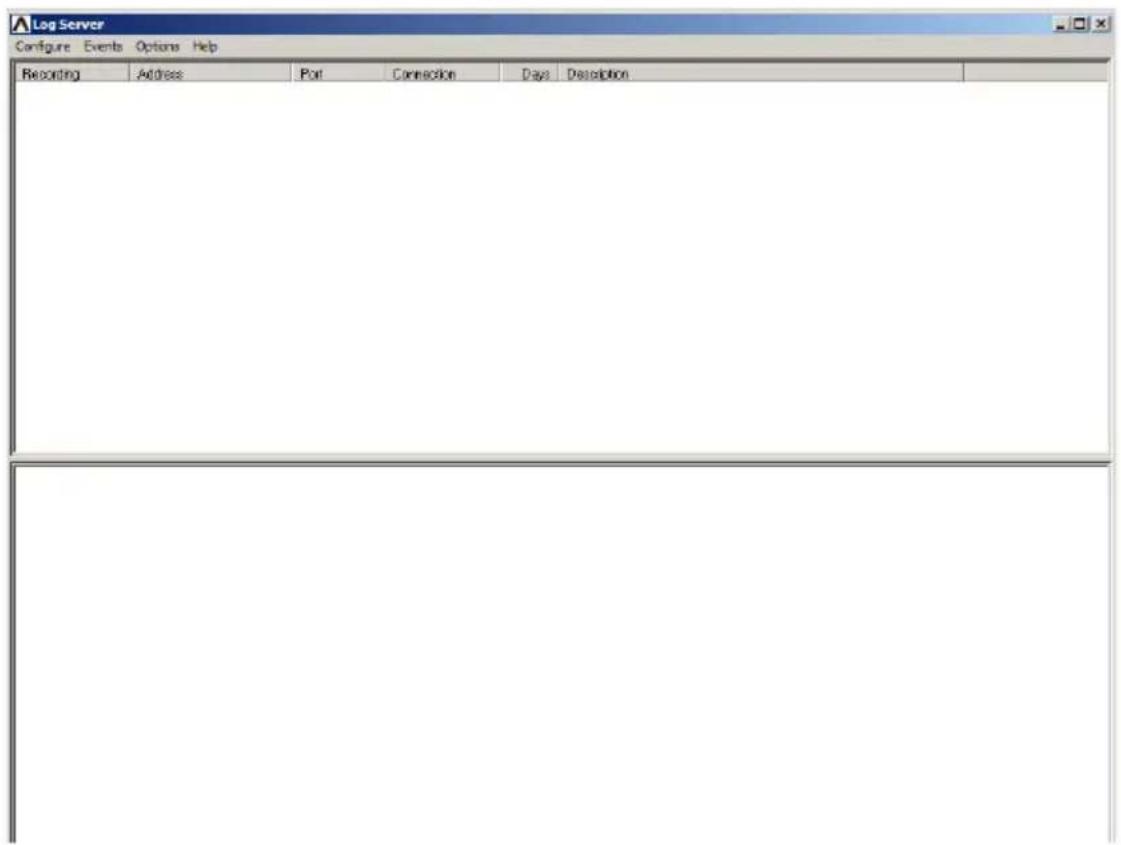
text_image
Log Server Configure Events Options Help Recording Address Port Connection Days DescriptionNote: 1. The MAC address of the Log Server computer must be specified under the ANMS settings – see Log Server, page 66 for details.
- The Log Server requires the Microsoft Jet OLEDB 4.0 driver. See The Log Server program does not run., page 132 if the program doesn't start.
The screen is divided into three components:
◆ A Menu Bar at the top
A panel that will contain a list of Power Over the NET™ units in the middle (see The Log Server Main Screen, page 103).
◆ A panel that will contain an Events List at the bottom
Each of the components is explained in the sections that follow.
The Menu Bar
The Menu bar consists of four items:
Configure
Events
Options
◆ Help
These are discussed in the sections that follow.
Note: If the Menu Bar appears to be disabled, click in the List window to enable it.
Configure
The Configure menu contains three items: Add; Edit; and Delete. They are used to add new units to the List; edit the information for units already on the list; or delete units from the list.
◆ To add a unit to the list, click Add.
- To edit or delete a listed unit, first select the target in the List window, then open this menu and click Edit or Delete.
When you choose Add or Edit, a dialog box, similar to the one below, appears:

text_image
Add a Server Address: Server Address Port: 9001 Description: Server Description Limit: 100 Days OK CancelA description of the fields is given in the table, below:
| Field Explanation | |
| Address This can either be the IP address of the unit or its DNS name (if the network administrator has assigned it a DNS name). | |
| Port The port number that was assigned to the Log Server (see Log Server, page 66). | |
| Description This field is provided so that you can put in a descriptive reference for the unit to help identify it. | |
| Limit This specifies the number of days that an event should be kept in the Log Server's database. Events that exceed the amount of time specified here can be removed with the Maintenance function (see Maintenance:, page 101). |
Fill in or modify the fields, then click OK to finish.
Events
The Events Menu has two items: Search and Maintenance.
Search:
Search allows you to search for events containing specific words or strings. When you access this function, a screen, similar to the one below, appears:
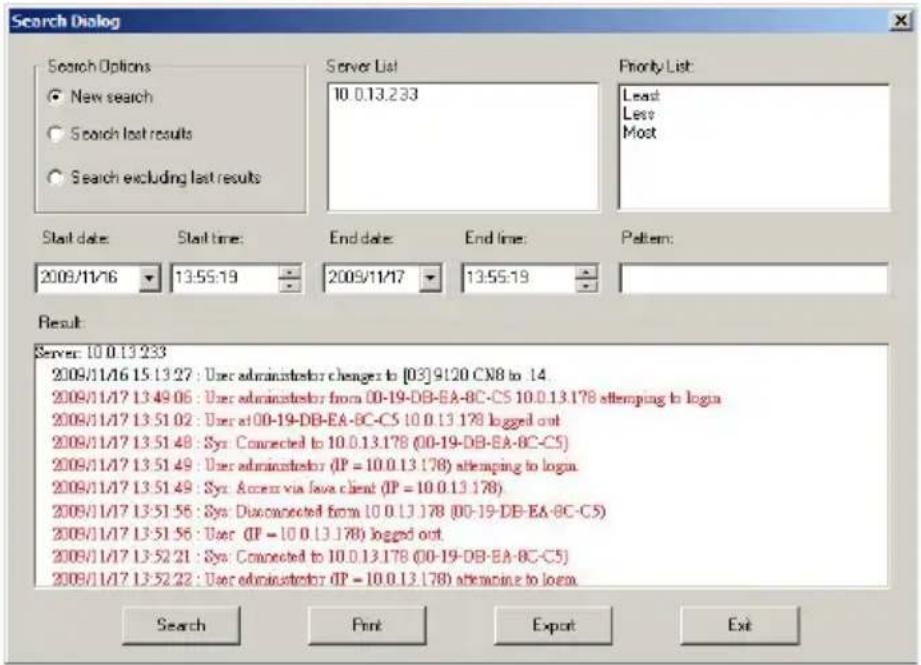
text_image
Search Dialog Search Options New search Search lost results Search excluding last results Server List 10.0.13.233 Priority List: Least Less Most Start date: Start time: End date: End line: Pattern: 2009/11/16 13:55:19 2009/11/17 13:55:19 Result: Server: 10.0.13.233 2009/11/16 15:13:27 : User administrator changes to [03]9120 CX8 to .14. 2009/11/17 13:49:06 : User administrator from 00-19-DB-EA-BC-C5 10.0.13.178 attempting to login 2009/11/17 13:51:02 : User at 00-19-DB-EA-BC-C5 10.0.13.178 logged out 2009/11/17 13:51:48 : Sys: Connected to 10.0.13.178 (00-19-DB-EA-BC-C5) 2009/11/17 13:51:49 : User administrator (IP = 10.0.13.178) attempting to login 2009/11/17 13:51:49 : Sys: Access via Java client (IP = 10.0.13.178) 2009/11/17 13:51:56 : Sys: Disconnected from 10.0.13.178 (00-19-DB-EA-BC-C5) 2009/11/17 13:51:56 : User (IP = 10.0.13.178) logged out 2009/11/17 13:52:21 : Sys: Connected to 10.0.13.178 (00-19-DB-EA-BC-C5) 2009/11/17 13:52:22 : User administrator (IP = 10.0.13.178) attempting to login Search Print Export ExitA description of the items is given in the table, below:
| Item Description | |
| New search This is one | of three radio buttons that define the scope of the search. If it is selected, the search is performed on all the events in the database for the selected unit. |
| Search last results This | is a secondary search performed on the events that resulted from the previous search. |
| Search excluding last results | This is a secondary search performed on all the events in the database for the selected unit excluding the events that resulted from the previous search. |
| Server List | Power Over the NETTM units are listed according to their IP address. Select the unit that you want to perform the search on from this list. You can select more than one unit for the search. If no units are selected, the search is performed on all of them. |
| Priority Sets the level for how detailed the search results display should be. Least is the most general; Most is the most specific. Least results appear in black; Less results appear in blue; Most results appear in red. | |
| Start Date Select the date that you want the search to start from. The format follows the YYYY/MM/DD convention, as follows: 2009/11/04 | |
| Start Time Select the time that you want the search to start from. The format follows the HH:MM:SS convention. | |
| End Date Select the date that you want the search to end at. | |
| End Time Select the time that you want the search to end at. | |
| Pattern Key in the pattern that you are searching for here. The multiple character wildcard (%) is supported. E.g., h%ds would match hands and hoods. | |
| Results Lists the events that contained matches for the search. | |
| Search Click this button to start the search. | |
| Print Click this button to print the search results. | |
| Export Click this button to save the search results to file. | |
| Exit | Click this button to exit the Log Server. |
Maintenance:
This function allows the administrator to perform manual maintenance of the database, such as erasing specified records before their expiration time is up.
Options
Network Retry allows you to set the number of seconds that the Log Server should wait before attempting to connect if its previous attempt to connect failed. When you click this item, a dialog box, similar to the one below, appears:
text_image
Retry Interval 30 seconds OK CancelKey in the number of seconds, then click OK to finish.
Help
From the Help menu, click Contents to access the online Windows Help file. The help file contains instructions about how to setup, operation and troubleshoot the Log Server.
The Log Server Main Screen
Overview
The Log Server Main Screen is divided into two main panels.
- The upper (List) panel lists all of the units that have been selected for the Log Server to track (see Configure, page 99).
- The lower (Event) panel displays the tick information for the currently selected unit. (If there are more than one unit, the selected unit is the one that is highlighted).
◆ To select a unit in the list, simply click on it.

text_image
Log Server Configure Events Options Help Recording Address Poll Connection Days Description Recording 10.0.13.54 9001 Connected 100 Server Description 03/15/2008(12:01:34): Loading system setting 03/15/2008(12:01:34): DHCP: Discovering.. 03/15/2008(12:01:34): DHCP: Requesting.. 03/15/2008(12:01:34): DHCP: Requesting.. 03/15/2008(12:01:34): DNS server 1 - 10.0.1.23 03/15/2008(12:01:34): Accept new IP : 10.0.13.54 03/15/2008(12:07:48) User from 09-01-29-5C-13-96 16.0.8.15D scanning port = 445 03/15/2008(12:07:52) User from 09-01-29-5C-13-94 16.0.8.15D scanning port = 445 03/15/2008(12:07:59) User from 09-01-29-5C-13-94 16.0.8.15D scanning port = 445 03/15/2008(12:15:12) Log server start - 10.0.13.229 03/15/2008(12:19:29) User store from 09-14-85-03-3F-BE 10.0.13.229 attempting to login 03/15/2008(12:19:05) Sys: Connected with 76.0.13.229 (00-14-85-03-3F-BE) 03/15/2008(12:19:05) Sys: Access via windows client (IP = 16.0.13.229 MAC = 00-14-85-03-3F-BE) 03/15/2008(12:19:07) User frosty (IP = 16.0.13.229 MAC = 00-14-85-03-3F-BE) attempting to login 03/15/2008(12:20:35) Video Step 03/15/2008(12:20:35) Sys: Disconnected with 76.0.13.229 (00-14-85-03-3F-BE) 03/15/2008(12:20:44) User from 09-14-85-03-3F-BE 16.0.13.229 logged out 03/15/2008(12:21:30) User administrator from 09-14-85-03-3F-BE 16.0.13.229 attempting to login 03/15/2008(12:22:37) Sys: Connected with 76.0.13.229 (00-14-85-03-3F-BE) 03/15/2008(12:22:38) User administrator IP = 76.0.13.229 attempting to loginThe List Panel
The List panel contains six fields:
| Field Explanation | |
| Recording Determines | whether the Log Server records the ticks for this unit, or not. If the Recording checkbox is checked, the field displays Recording, and the ticks are recorded. If the Recording checkbox is not checked, the field displays Paused , and the ticks are not recorded.Note: Even though a unit is not the currently selected one, if its Recording checkbox is checked, the Log Server will still record its ticks. |
| Address This is the IP | Address or DNS name that was given to the unit when it was added to the Log Server (see Configure, page 99). |
| Port This is the Access | Port number assigned to the unit (see Configure, page 99). |
| Connection | ◆ If the Log Server is connected to the unit, this field displays Connected.◆ If the Log Server is not connected, this field displays Waiting. This means that the Log Server's MAC address has not been set properly. It needs to be set on the Device Management Date/Time page (see page 82). |
| Days This field displays | the number of days that the unit's log events are to be kept in the Log Server's database before expiration (see Configure, page 99). |
| Description This field dis | plays the descriptive information given for the unit when it was added to the Log Server (see Configure, page 99). |
The Event Panel
The lower panel displays log events for the currently selected unit. Note that if the installation contains more than one unit, even though a unit isn't currently selected, if its Recording checkbox is checked, the Log Server records its log events and keeps them in its database.
Overview
In case the LAN that the PN5212 / PN5320 resides on goes down, or the PN5212 / PN5320 cannot be accessed with the usual browser based method for some other reason, the PN5212 / PN5320 can be accessed via an Out of Band method utilizing the PN5212 / PN5320's Console port in the following way:
For a console terminal session, connect the PN5212 / PN5320's Console port (see PON In / Console Port, page 8), to the COM port of a local computer. You can then operate the PN5212 / PN5320 from the local computer's console terminal (HyperTerminal, GTKTerminal, etc.).
Console Terminal Session
This section describes how to establish a console terminal session using HyperTerminal as an example, as follows:
- Use Cat 5e cable to connect the PN5212 / PN5320's PON IN/Console port to the SA0151 (DTE) adapter supplied with your package. Connect the adapter to the COM port of the computer you will use for the console terminal.

text_image
Cat 5e Cable SA0151 (DTE)- On your local computer, run the HyperTerminal program:
- When a dialog box, similar to the one below appears, key in a name to describe the connection in the Name field, select an icon to represent the connection; then click OK.
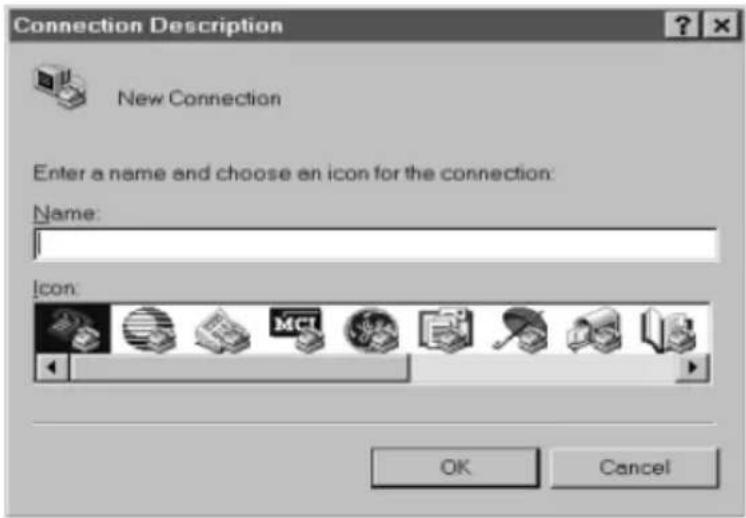
text_image
Connection Description New Connection Enter a name and choose an icon for the connection: Name: Icon: OK CancelNote: In the examples we used Com1Test for the Name, and COM1 for the computer's COM port. If you use a different COM port, change the settings accordingly.
The following dialog box comes up:
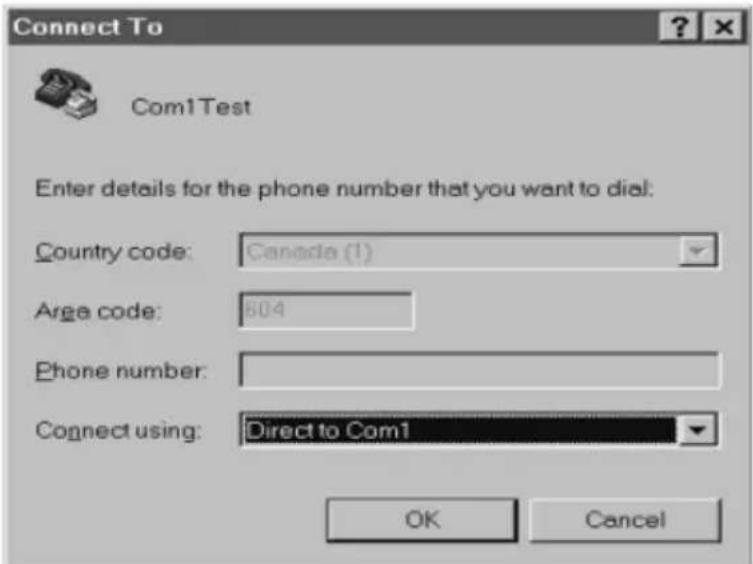
text_image
Connect To Com1Test Enter details for the phone number that you want to dial: Country code: Canada (1) Area code: 504 Phone number: Connect using: Direct to Com1 OK Cancel- For the Connect using: field, select Direct to COM1 (assuming you are using COM1 on your computer), then click OK. A Port Setting dialog box similar to the one below comes up:

text_image
COM1 Properties Port Settings Bits per second: 9600 Data bits: 8 Parity: None Stop bits: 1 Flow control: None Advanced... Restore Defaults OK Cancel Apply- Fill in the settings so that the match the ones you specified for the PN5212 / PN5320's console port settings on the OOBC page (see Console Port Settings, page 75), then click OK.
- When the HyperTerminal screen appears, open its File menu and select: Properties → Settings. A dialog box, similar to the one below, displays:

text_image
Com1 Test Properties Connect To Settings Function, arrow, and ctrl keys act as Terminal keys Windows keys Backspace key sends Ctrl+H Del Ctrl+H Space, Ctrl+H Emulation: VT100 Terminal Setup... Telnet terminal ID: VT100 Backscroll buffer lines: 500 Beep three times when connecting or disconnecting ASCII Setup... OK Cancel-
Change your settings (if necessary), so that they match the settings shown in the diagram, then click ASCII Setup...
-
In the ASCII Setup dialog box that comes up, change the settings (if necessary), so that they match the settings shown in the diagram below, then click OK.

text_image
ASCII Setup ASCII Sending Send line ends with line feeds Echo typed characters locally Line delay: 0 milliseconds. Character delay: 0 milliseconds. ASCII Receiving Append line feeds to incoming line ends Force incoming data to 7-bit ASCII Wrap lines that exceed terminal width OK Cancel- Close the HyperTerminal window. When Windows asks if you want to disconnect, click Yes. When Windows asks if you want to save the session, click Yes.
This completes the HyperTerminal setup. For Windows NT, 2000, XP and Windows Server 2003 systems, a HyperTerminal icon that connects you to the PN5212 / PN5320 is created on the desktop. For Windows 98 and ME, you must access HyperTerminal from the Windows Start Menu.
Logging In
-
Double click the HyperTerminal icon on your desktop.
-
In the VT100 terminal window, key in:
???
A login prompt appears.
- Key in your Username and Password to bring up the PN5212 / PN5320's text-based configuration menu. The text-based configuration menu is discussed on page 110.
Overview
The PN5212 / PN5320 can be accessed via a remote terminal session using several methods, including Telnet, SSH, or PuTTY, as described in the sections that follow.
Telnet
Logging In
To log in to the PN5212 / PN5320 by means of a Telnet session, do the following:
- On your computer, open a terminal (command line) session.
- At the prompt, key in the PN5212 / PN5320's IP Address in the following way:
telnet [IP Address]
- Press Enter.
The login screen appears:
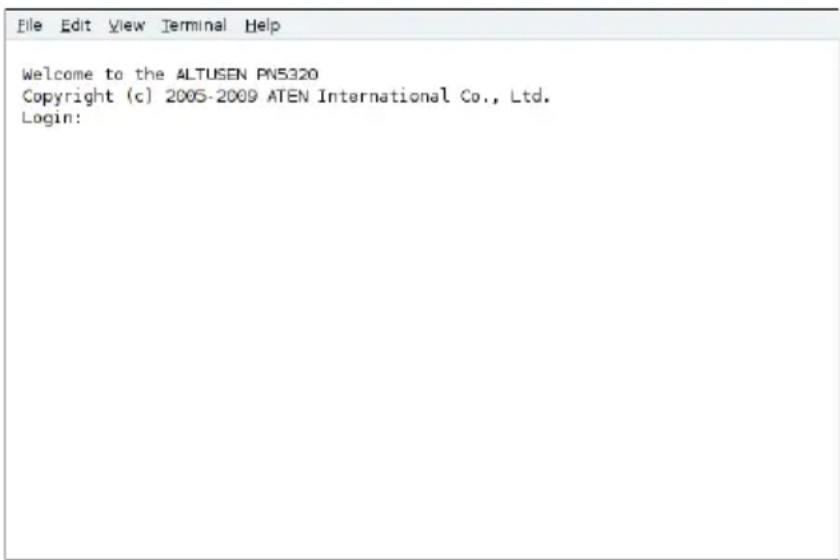
text_image
File Edit View Terminal Help Welcome to the ALTUSEN PN5320 Copyright (c) 2005-2009 ATEN International Co., Ltd. Login:- At the login prompt, provide your Username and Password.
Once a Telnet connection to the device is established, the PN5212 / PN5320's text-based Configuration Menu comes up:

text_image
File Edit View Terminal Help ************************** * Welcome to ALTUSEN -- PMS320 Configuration Setup Menu. * ************************** 1. Outlet Access 2. User Management 3. Device Management 4. Device Log 5. Power Console X. Exit Select one to configure:The text-based Configuration Menu provides text-based equivalents for the functions found under the web-based tabs and menus. You can reference the information provided for the browser version as you work your way through the submenus.
Note: As with the browser version, access to many of these submenus are restricted to the administrator or users with administration permission. If you select a submenu that you are not authorized for, nothing will happen.
When you have finished with your session, bring up the Main Menu and press X to log out. After you are offline, you can simply close the terminal (command line) window.
SSH
Terminal Session (Linux):
To log in to the PN5212 / PN5320 by means of a secure SSH session, do the following:
- Open a terminal (command line) on your computer.
- At the prompt, key in your PN5212 / PN5320 Username and the PN5212 / PN5320's IP Address in the following way:
ssh [username@IP Address]
-
Press Enter
-
When you are prompted for a password, use your PN5212 / PN5320 password.
Once an SSH connection to the device is established, the PN5212 / PN5320's text-based Configuration Menu comes up:
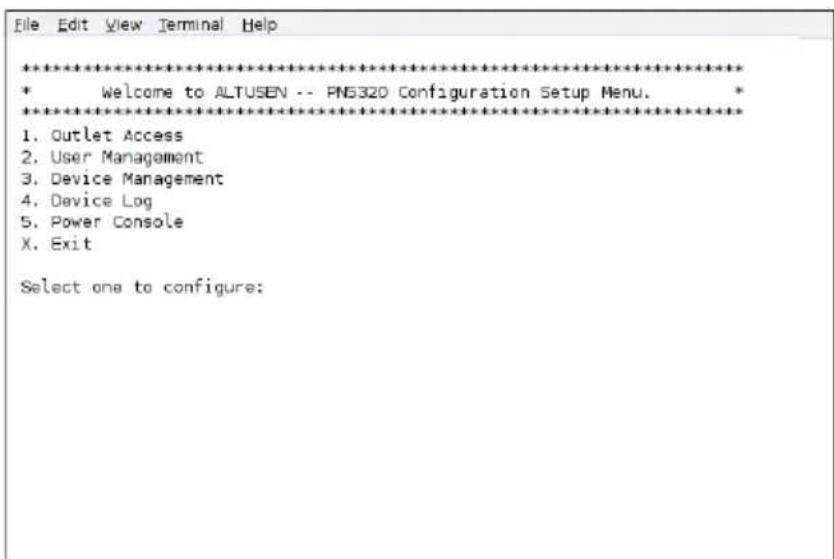
text_image
File Edit View Terminal Help ************************** * Welcome to ALTUSEN -- PNS320 Configuration Setup Menu. * ************************** 1. Outlet Access 2. User Management 3. Device Management 4. Device Log 5. Power Console X. Exit Select one to configure:This menu is the same as the configuration menu that appears with Telnet sessions (see page 110). It provides text-based equivalents for the functions found under the web-based tabs and menus. You can reference the information provided for the browser version as you work your way through the submenus.
Third Party Utility (Windows):
SSH sessions can be implemented under Windows with the use of third party utility software, such as PuTTY, a free implementation of Telnet and SSH for the Win32 and Unix platforms. To make an SSH connection with PuTTY, do the following:
- In the Host Name box, enter the Internet host name or IP Address of the server you want to connect to.
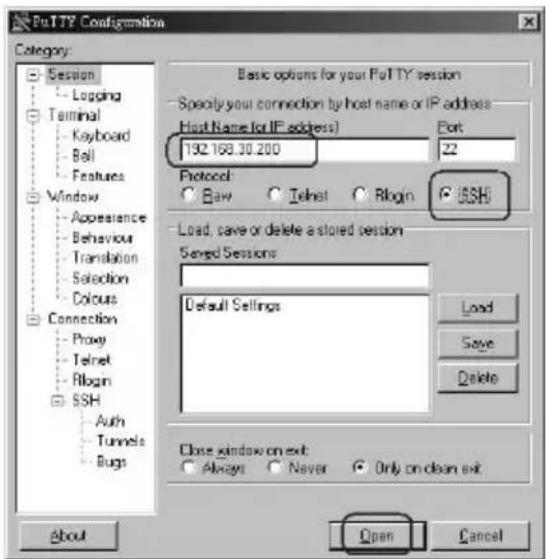
text_image
PuTTY Configuration Category: Session Logging Terminal Keyboard Bell Features Window Appearance Behaviour Translation Selection Colours Connection Proxy Telnet Rlogin SSH Auth Tunnels Bugs Basic options for your PuTTY session Specify your connection by host name or IP address Host Name (or IP address) Port 192.168.30.200 22 Protocol: Raw Telnet Rlogin SSH Load, save or delete a stored session Saved Sessions: Default Settings Load Save Delete Close window on exit: Always Never Only on clean exit Open Cancel-
Select SSH from the Protocol buttons.
-
Click Open (at the bottom of the dialog box)
-
After you have connected, provide your PN5212 / PN5320 username and password at the login prompts.
Note: If you make a mistake keying in the username, the SSH protocol doesn't allow you to try again. You must close PuTTY and start over.
Once an SSH connection to the device is established, the PN5212 / PN5320's text-based Configuration Menu comes up. This menu is the same as the configuration menu that appears with Telnet sessions (see page 110).
Safety Instructions
General
- This product is for indoor use only.
- Read all of these instructions. Save them for future reference.
◆ Follow all warnings and instructions marked on the device. - Do not place the device on any unstable surface (cart, stand, table, etc.). If the device falls, serious damage will result.
- Do not use the device near water.
- Do not place the device near, or over, radiators or heat registers.
- The device cabinet is provided with slots and openings to allow for adequate ventilation. To ensure reliable operation, and to protect against overheating, these openings must never be blocked or covered.
- The device should never be placed on a soft surface (bed, sofa, rug, etc.) as this will block its ventilation openings. Likewise, the device should not be placed in a built-in enclosure unless adequate ventilation has been provided.
- Never spill liquid of any kind on the device.
- Unplug the device from the wall outlet before cleaning. Do not use liquid or aerosol cleaners. Use a damp cloth for cleaning.
- The device should be operated from the type of power source indicated on the marking label. If you are not sure of the type of power available, consult your dealer or local power company.
- To prevent damage to your installation it is important that all devices are properly grounded.
- The device is equipped with a 3-wire grounding type plug. This is a safety feature. If you are unable to insert the plug into the outlet, contact your electrician to replace your obsolete outlet. Do not attempt to defeat the purpose of the grounding-type plug. Always follow your local/national wiring codes.
- The socket-outlet should be installed near the equipment and should be easily accessible.
-
Do not allow anything to rest on the power cord or cables. Route the power cord and cables so that they cannot be stepped on or tripped over.
-
To help protect your system from sudden, transient increases and decreases in electrical power, use a surge suppressor, line conditioner, or uninterruptible power supply (UPS).
- Position system cables and power cables carefully; Be sure that nothing rests on any cables.
-
When connecting or disconnecting power to hot pluggable power supplies, observe the following guidelines:
-
Install the power supply before connecting the power cable to the power supply.
- Unplug the power cable before removing the power supply.
-
If the system has multiple sources of power, disconnect power from the system by unplugging all power cables from the power supplies.
-
Never push objects of any kind into or through cabinet slots. They may touch dangerous voltage points or short out parts resulting in a risk of fire or electrical shock.
- Do not attempt to service the device yourself. Refer all servicing to qualified service personnel.
-
If the following conditions occur, unplug the device from the wall outlet and bring it to qualified service personnel for repair.
-
The power cord or plug has become damaged or frayed.
♦ Liquid has been spilled into the device. - The device has been exposed to rain or water.
- The device has been dropped, or the cabinet has been damaged.
- The device exhibits a distinct change in performance, indicating a need for service.
- The device does not operate normally when the operating instructions are followed.
- Only adjust those controls that are covered in the operating instructions. Improper adjustment of other controls may result in damage that will require extensive work by a qualified technician to repair.
Before working on the rack, make sure that the stabilizers are secured to the rack, extended to the floor, and that the full weight of the rack rests on the floor. Install front and side stabilizers on a single rack or front stabilizers for joined multiple racks before working on the rack.
- Always load the rack from the bottom up, and load the heaviest item in the rack first.
- Make sure that the rack is level and stable before extending a device from the rack.
- Use caution when pressing the device rail release latches and sliding a device into or out of a rack; the slide rails can pinch your fingers.
- After a device is inserted into the rack, carefully extend the rail into a locking position, and then slide the device into the rack.
- Do not overload the AC supply branch circuit that provides power to the rack. The total rack load should not exceed 80 percent of the branch circuit rating.
- Make sure that all equipment used on the rack – including power strips and other electrical connectors – is properly grounded.
- Ensure that proper airflow is provided to devices in the rack.
- Ensure that the operating ambient temperature of the rack environment does not exceed the maximum ambient temperature specified for the equipment by the manufacturer
- Do not step on or stand on any device when servicing other devices in a rack.
The eco PDU's Main Power Cord
Use the power cord supplied with this package. If it becomes necessary to replace the cord supplied with this package, be sure to use a cord of at least the same standard as the one provided.
Securing the Power Cables

To secure the cables in the eco PDU's power outlets, use only the ATEN Lock-Your-Plug cable holders that have been specifically designed to work with the eco PDU. Using any other kind of cable securing device could be highly dangerous. Please contact your ATEN dealer for information about ATEN Lock-Your-Plugs.
Montage sur bâti
- For online technical support – including troubleshooting, documentation, and software updates: http://eservice.aten.com
- For telephone support, see Telephone Support, page iii
North America
| Email Support support@aten-usa.com | ||
| Online Technical Support | Troubleshooting Documentation Software Updates | http://www.aten-usa.com/support |
| Telephone Support 1-888-999-ATEN | ext 4988 | |
When you contact us, please have the following information ready beforehand:
Product model number, serial number, and date of purchase.
- Your computer configuration, including operating system, revision level, expansion cards, and software.
◆ Any error messages displayed at the time the error occurred.
◆ The sequence of operations that led up to the error.
◆ Any other information you feel may be of help.
IP Address Determination
If you are an administrator logging in for the first time, you need to access the PN5212 / PN5320 in order to give it an IP address that users can connect to. There are two methods to choose from. In each case, your client computer must be on the same network segment as the PN5212 / PN5320. After you have connected and logged in you can give the device its fixed network address. (See Network, page 61.)
Method 1:
For computers running Windows, an IP address can be determined and/or assigned with the IP Installer utility. The utility can be obtained from the Download area of our web site. Look under Driver/SW, and the model of your device. After downloading the utility to your computer, do the following:
- Unzip the contents of IPInstaller.zip to a directory on your hard drive.
- Go to the directory that you unzipped the IPInstaller program to and run IPInstaller.exe. A dialog box similar to the one below appears:

text_image
Network Device IP Installer Device List: Model Name MAC Address IP Address PN7230 00-10-74-61-00-02 10.0.100.80 Obtain an IP address automatically (DHCP) Specify an IP address IP Address: 10 . 0 . 100 . 80 Subnet Mask: 255 . 255 . 255 . 0 Gateway: 10 . 0 . 100 . 1 Enumerate Set IP- Select the device in the Device List.
Note: 1. If the list is empty, or your device doesn't appear, click Enumerate to refresh the Device List.
-
If there is more than one device in the list, use the MAC address to pick the one you want. The PN5212 / PN5320's MAC address is located on its bottom panel.
-
Select either Obtain an IP address automatically (DHCP), or Specify an IP address. If you chose the latter, fill the IP Address, Subnet Mask, and Gateway fields with the information appropriate to your network.
- Click Set IP.
- After the IP address shows up in the Device List, click Exit to end the program.
Method 2:
- Set your computer's IP address to 192.168.0.XXX Where XXX represents any number or numbers except 60. (192.168.0.60) is the default address of the PN5212 / PN5320.)
- Specify the device's default IP address (192.168.0.60) in your browser, and you will be able to connect.
- Assign a fixed IP address for the device (see Network, page 61), that is suitable for the network segment that it resides on.
- After you log out, reset your computer's IP address to its original value.
- Once you have logged in, go to Network Settings to set up the permanent IP environment (see page 61).
Trusted Certificates
Overview
When you try to log in to the device from your browser, a Security Alert message appears to inform you that the device's certificate is not trusted, and asks if you want to proceed.
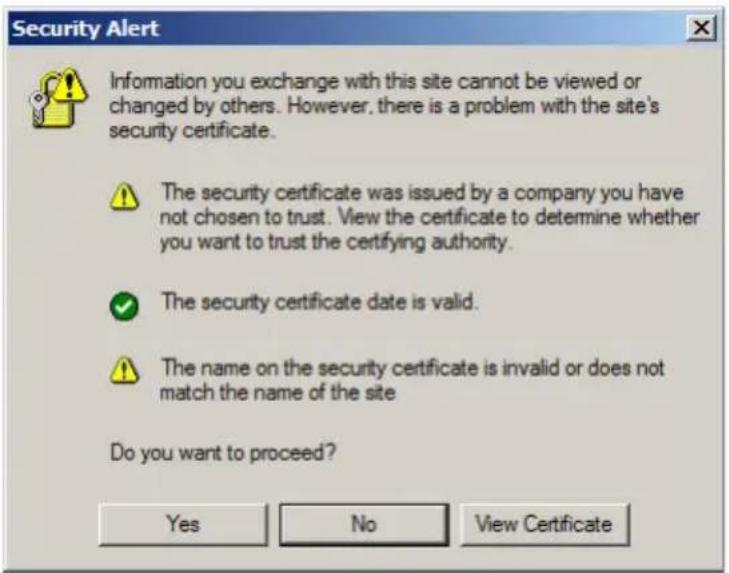
text_image
Security Alert Information you exchange with this site cannot be viewed or changed by others. However, there is a problem with the site's security certificate. The security certificate was issued by a company you have not chosen to trust. View the certificate to determine whether you want to trust the certifying authority. The security certificate date is valid. The name on the security certificate is invalid or does not match the name of the site Do you want to proceed? Yes No View CertificateThe certificate can be trusted, but the alert is triggered because the certificate's name is not found on Microsoft list of Trusted Authorities. You have two options: 1) you can ignore the warning and click Yes to go on; or 2) you can install the certificate and have it be recognized as trusted.
If you are working on a computer at another location, accept the certificate for just this session by clicking Yes.
If you are working at your own computer, install the certificate on your computer (see below for details). After the certificate is installed, it will be recognized as trusted.
Note: The security alert message will appear even after installing the certificate, but now the icon related to the first paragraph will be a check mark (indicating no alert) instead of the exclamation mark icon.
Installing the Certificate
To install the certificate, do the following:
- In the Security Alert dialog box, click View Certificate. The Certificate Information dialog box appears:

text_image
Certificate General Details Certification Path Certificate Information This CA Root certificate is not trusted. To enable trust, install this certificate in the Trusted Root Certification Authorities store. Issued to: Aten Issued by: Aten Valid from 2003-11-26 to 2013-11-23 Install Certificate..."Issue Statement... OKNote: There is a red and white X logo over the certificate to indicate that it is not trusted.
- Click Install Certificate.
- Follow the Installation Wizard to complete the installation. Unless you have a specific reason to choose otherwise, accept the default options.
- When the Wizard presents a caution screen:

text_image
Security Warning You are about to install a certificate from a certification authority (CA) claiming to represent: Aten Windows cannot validate that the certificate is actually from "Aten". You should confirm its origin by contacting "Aten". The following number will assist you in this process: Thumbprint (she1): F3B66988 A134DD25 1E6F0SBC 895F6DCD B30FB7AF Warning: If you install this root certificate, Windows will automatically trust any certificate issued by this CA. Installing a certificate with an unconfirmed thumbprint is a security risk. If you click "Yes" you acknowledge this risk. Do you want to install this certificate? Yes NoClick Yes.
- Next, click Finish to complete the installation; then click OK to close the dialog box.
Certificate Trusted
The certificate is now trusted:
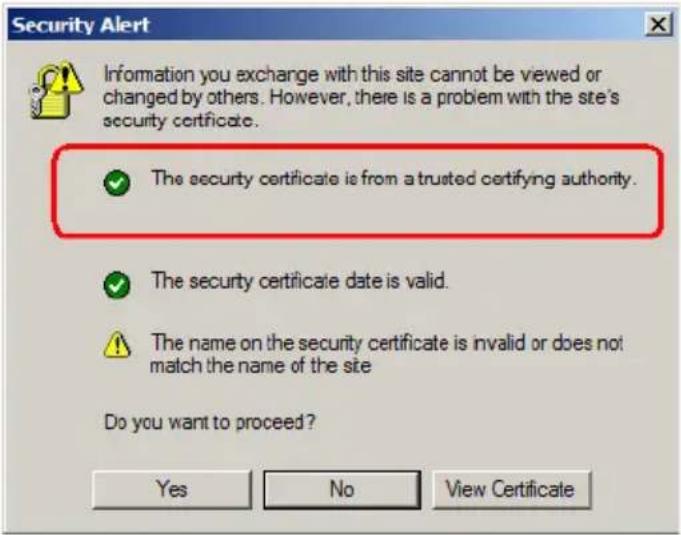
text_image
Security Alert Information you exchange with this site cannot be viewed or changed by others. However, there is a problem with the site's security certificate. ✓ The security certificate is from a trusted certifying authority. ✓ The security certificate date is valid. ✓ The name on the security certificate is invalid or does not match the name of the site Do you want to proceed? Yes No View CertificateWhen you click View Certificate, you can see that the red and white X logo is no longer present – further indication that the certificate is trusted:

text_image
Certificate General Details Certification Path Certificate Information This certificate is intended for the following purpose(s): • Ensures the identity of a remote computer Issued to: Alen Issued by: Alen Valid from 2003-11-26 to 2013-11-23 Install Certificate..."Issue Statement... OKMismatch Considerations
If the site name or IP address used for generating the certificate no longer matches the current address of the switch a mismatch warning occurs:
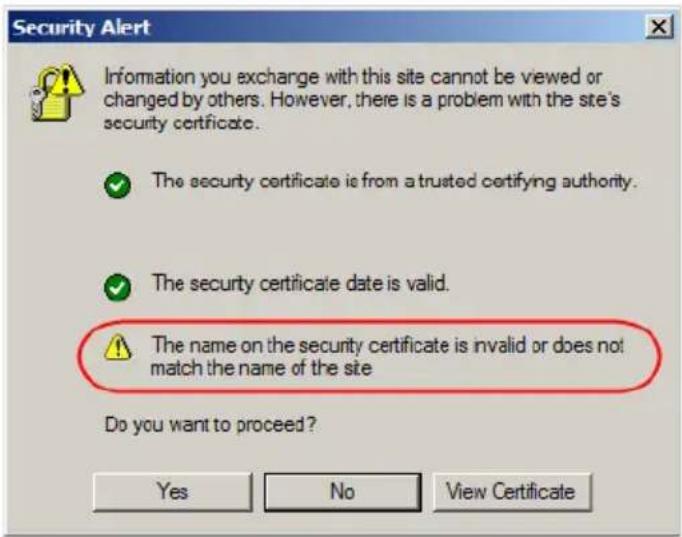
text_image
Security Alert Information you exchange with this site cannot be viewed or changed by others. However, there is a problem with the site's security certificate. ✓ The security certificate is from a trusted certifying authority. ✓ The security certificate date is valid. ✓ The name on the security certificate is invalid or does not match the name of the site Do you want to proceed? Yes No View CertificateYou can click Yes to go on, or you can disable mismatch checking.
To disable mismatch checking, do the following:
- After the page you are logging in to comes up open the browser's Tools menu; Select Internet Options → Advanced.
- Scroll to the bottom of the list and uncheck Warn about trusted certificates:
text_image
Internet Options General | Security | Privacy | Content | Connections | Programs | Advanced Settings: Allow active content from CDs to run on My Computer Allow active content to run in files on My Computer Allow software to run or install even if the signature is invalid Check for publisher's certificate revocation Check for server certificate revocation (requires restart) Check for signatures on downloaded programs Do not save encrypted pages to disk Empty Temporary Internet Files folder when browser is closed Enable Integrated Windows Authentication (requires restart) Enable Profile Assistant Use SSL 2.0 Use SSL 3.0 Use TLS 1.0 Wam about invalid site certificates Wam if changing between secure and not secure mode Wam if forms submittal is being redirected Restore Defaults OK Cancel Apply- Click OK. The next time you run the browser the change will be in effect.
Self-Signed Private Certificates
If you wish to create your own self-signed encryption key and certificate, a free utility – openssl.exe – is available for download over the web at www.openssl.org. To create your private key and certificate do the following:
- Go to the directory where you downloaded and extracted openssl.exe to.
- Run openssl.exe with the following parameters:
openssl req -new -newkey rsa:1024 -days 3653 -nodes -x509 -keyout CA.key -out CA.cer -config openssl.cnf
Note: 1. The command should be entered all on one line (i.e., do not press [Enter] until all the parameters have been keyed in).
- If there are spaces in the input, surround the entry in quotes (e.g., "ATEN International").
To avoid having to input information during key generation the following additional parameters can be used:
/C /ST /L /O /OU /CN /emailAddress.
Examples
openssl req -new -newkey rsa:1024 -days 3653 -nodes -x509 -keyout CA.key -out CA.cer -config openssl.cnf -subj /C=yourcountry/ST=yourstateorprovince/L=yourlocationor city/O=yourorganization/OU=yourorganizationalunit/CN=yourcommonname/emailAddress=name@yourcompany.com
openssl req -new -newkey rsa:1024 -days 3653 -nodes -x509 -keyout CA.key -out CA.cer -config openssl.cnf -subj /C=CA/ST=BC/L=Richmond/O="ATEN International"/OU=ATEN/CN=ATEN/emailAddress=eservice@aten.com.tw
Importing the Files
After the openssl.exe program completes, two files – CA.key (the private key) and CA.cer (the self-signed SSL certificate) – are created in the directory that you ran the program from. These are the files that you upload in the Private Certificate panel of the Security page (see page 80).
Troubleshooting
Overview
Operation problems can be due to a variety of causes. The first step in solving them is to make sure that all cables are securely attached and seated completely in their sockets.
In addition, updating the product's firmware may solve problems that have been discovered and resolved since the prior version was released. If your product is not running the latest firmware version, we strongly recommend that you upgrade. See Firmware Upgrade, page 91, for upgrade details.
Problem 1:
On a safe shutdown and reboot operation, when rebooting, the computer stops at the logon screen and waits for a Username and Password instead of automatically logging on.
Solution:
The Autologon function hasn't been configured. Set it up as follows:
-
For Win NT, run regedit.exe; for Win 2000 or XP, run regedt32
-
Select the following:
HKEY_LOCAL_MACHINE\SOFTWARE\Microsoft\Windows NT\Current Version\Winlogon
-
Under the Edit menu, select Add Value.
-
Add the variables and values as shown in the table below:
| Name Value | |
| DefaultDomainName [domain name for this computer] | |
| DefaultUserName [user name for this computer] | |
| DefaultPassword [user password for this computer] | |
| AutoAdminLogon 1 | |
Note: Remove the brackets and replace the text inside the brackets with suitable values for yourself on this computer.
- Close the Registry Editor.
Note: Make sure you have a real password (not blank) configured for logging on to your system.
Problem 2:
The computer has an older mainboard that doesn't support APM in the BIOS. What can I do to get Safe Shutdown and Reboot working?
Solution:
If you are running Windows 2000, XP, or Server 2003, you can do the following:
- Open Control Panel → Power Options.
- Open Properties → APM.
- Enable Advanced Power Management support.

text_image
Power Options Properties Power Schemes Advanced Hibernate APM UPS Your computer reports that it can support Advanced Power Management (APM). Using APM, you can reduce the power consumption of your system. If you have battery power on your computer.APM also provides battery status information For more information about APM, see the Windows Release Notes on the Windows CD. Advanced Power Management ✓ Enable Advanced Power Management support. OK Cancel ApplyProblem 3:
I have enabled Synchronize with NTP Server in the Date / Time dialog box, but I am unable to obtain the date and time from an NTP server on the internet.
Solution:
Contact your MIS department and have them enable a port for the NTP server.
Problem 4:
Although my computers have been configured for a Safe Shutdown, some of them don't shut down.
Solution:
This may be due to the applications running on them putting up a dialog box asking if you want to save the information running on them before they close. Since you haven't provided an answer, the shutdown procedure doesn't continue to completion.
You can either change their shutdown behavior to Kill the Power - which is not a Safe Shutdown option, or use a product such as KVM over the NET ^TM to access them remotely and answer the dialog box questions.
Problem 5:
When I log in, the browser generates a CA Root certificate is not trusted, or a Certificate Error response.
Solution:
The certificate's name is not found on Microsoft's list of Trusted Authorities. The certificate can be trusted, however. See Trusted Certificates, page 124, for details.
Problem 6:
System after AC Back doesn't work.
Solution:
Make sure System after AC Back is set to On (not Last State) in your computer's BIOS.
Problem 7:
After I rack mount my PN5212 / PN5320, the cables often come unplugged from the back of the unit.
Solution:
The connectors used on this device all conform to industry standard specifications. Nevertheless, if this problem occurs, we recommend using cable ties and cable bars to safely and securely route the cables. Contact your rack dealer for the cable routing hardware appropriate for your rack.
Problem 8:
The Log Server program does not run.
Solution:
The Log Server requires the Microsoft Jet OLEDB 4.0 driver in order to access the database.
This driver is automatically installed with Windows ME, 2000, and XP.
For Windows 98 and NT you will have to go to the Microsoft download site:
http://www.microsoft.com/data/download.htm
to retrieve the driver file:
MDAC 2.7 RTM Refresh (2.70.9001.0)
Since this driver is used in Windows Office Suite, an alternate method of obtaining it is to install Windows Office Suite. Once the driver file or Suite has been installed, the Log Server will run.
Administrator Login Failure
If you are unable to perform an Administrator login (because the Username and Password information has become corrupted, or you have forgotten it, for example), you can clear the login information with the following procedure:
- Power off the PN5212 / PN5320 and remove its housing.
- Short the jumper labeled J5.

text_image
J4 DEFAULT PASSWORD J5 ATEN- Power on the switch.
- When the Link and 10/100Mbps LEDs flash, power off the switch.
- Remove the jumper cap from J6.
- Close the housing and start the PN5212 / PN5320 back up.
After you start back up, you can use the default Username and Password (see First Time Setup, page 15) to log in.
Specifications
| Function PN5212 PN5320 | ||||
| Power Outlets | Direct 12 20 | |||
| Max 192 (via Daisy Chain) 320 | (via Daisy Chain) | |||
| Connectors Power Inlets | NEMA 1 x NEMA L | 5-20P 1 x NEMA L5-30P | ||
| IEC 1 x IEC 60309 | 1 x IEC 60309 | |||
| NEMA 12 x NEMA | 5-15R 3 x NEMA 5-20R | 17 x NEMA 5-15R | ||
| IEC 12 x IEC320 C | 13 3 x IEC320 C19 | 17 x IEC320 C13 | ||
| PON In / Console 1 x RJ-45 (F) | ||||
| PON Out 1 x RJ-45 (F) | ||||
| LAN | 1 x RJ-45 (F) | |||
| LEDs ID | 1 x 2-digit 7-segment | |||
| Station | 1 x Green | |||
| Readout | 1 x 3-digit 7-segment | |||
| Current | 1 x Green | |||
| Voltage | 1 x Green | |||
| Power | 1 x Green | |||
| I/P Rating (Total Input) | NEMA (UL) | 100-120V; 50/60Hz; 16A | 100-120V; 50/60Hz; 24A | |
| NEMA (PSE) | 100-120V; 50/60Hz; 16A | 100-120V; 50/60Hz; 24A | ||
| IEC | 200-240V; 50/60Hz; 16A | 200-240V; 50/60Hz; 32A | ||
| Load Capacity | NEMA (UL) | 120V; 50/60Hz; 1920W | 120V; 50/60Hz; 2880W | |
| NEMA (PSE) | 120V; 50/60Hz; 1920W | 120V; 50/60Hz; 2880W | ||
| IEC | 230V; 50/60Hz; 3680W | 230V; 50/60Hz; 7360W | ||
| O/P Rating | Per Port | NEMA (UL) | 100-120V; 50/60Hz; 12A | 100-120V; 50/60Hz; 16A (x3) / 12A (x17) |
| NEMA (PSE) | 100-120V; 50/60Hz; 12A | 100-120V; 50/60Hz; 16A (x3) / 12A (x17) | ||
| IEC | 200-240V; 50/60Hz; 10A | 200-240V; 50/60Hz; 16A (x3) / 10A (x17) | ||
| Total | NEMA (UL) | 100-120V; 50/60Hz; 15A | 100-120V; 50/60Hz; 23A | |
| NEMA (PSE) | 100-120V; 50/60Hz; 15A | 100-120V; 50/60Hz; 23A | ||
| IEC | 200-240V; 50/60Hz; 15A | 200-240V; 50/60Hz; 31A | ||
| Power Consumption | NEMA (UL / PSE) | 120V; 50/60Hz; 16W | 120V; 50/60Hz; 22W | |
| IEC | 230V; 50/60Hz; 18W | 230V; 50/60Hz; 26W | ||
| Environment | Operating Temperature | 0-50°C | ||
| Storage Temperature | -20-60°C | |||
| Humidity | 0 ~ 80% RH Non-condensing | |||
| Physical Properties | Housing | Metal | ||
| Weight | 4.49 kg | 5.68 kg | ||
| Dimensions (L x W x H) | 6.42 x 5.46 x 134 cm | 6.42 x 5.46 x 167.64 cm | ||
Limited Warranty
ATEN warrants this product against defects in material or workmanship for a period of one (1) year from the date of purchase. If this product proves to be defective, contact ATEN's support department for repair or replacement of your unit. ATEN will not issue a refund. Return requests can not be processed without the original proof of purchase.
When returning the product, you must ship the product in its original packaging or packaging that gives an equal degree of protection. Include your proof of purchase in the packaging and the RMA number clearly marked on the outside of the package.
This warranty becomes invalid if the factory-supplied serial number has been removed or altered on the product.
This warranty does not cover cosmetic damage or damage due to acts of God, accident, misuse, abuse, negligence or modification of any part of the product. This warranty does not cover damage due to improper operation or maintenance, connection to improper equipment, or attempted repair by anyone other than ATEN. This warranty does not cover products sold AS IS or WITH FAULTS.
IN NO EVENT SHALL ATEN'S LIABILITY EXCEED THE PRICE PAID FOR THE PRODUCT. FURTHER, ATEN SHALL NOT BE RESPONSIBLE FOR DIRECT, INDIRECT, SPECIAL, INCIDENTAL OR CONSEQUENTIAL DAMAGES RESULTING FROM THE USE OF THE PRODUCT, ITS ACCOMPANYING SOFTWARE, OR ITS DOCUMENTATION. ATEN SHALL NOT IN ANY WAY BE RESPONSIBLE FOR, WITHOUT LIMITATION, LOSS OF DATA, LOSS OF PROFITS, DOWNTIME, GOODWILL, DAMAGE OR REPLACEMENT OF EQUIPMENT OR PROPERTY, AND ANY EXPENSES FROM RECOVERY, PROGRAMMING, AND REPRODUCTION OF ANY PROGRAM OR DATA.
ATEN makes no warranty or representation, expressed, implied, or statutory with respect to its products, contents or use of this documentation and all accompanying software, and specifically disclaims its quality, performance, merchantability, or fitness for any particular purpose.
ATEN reserves the right to revise or update its product, software or documentation without obligation to notify any individual or entity of such revisions, or update.
For details about extended warranties, please contact one of our dedicated value added resellers.
This Page Intentionally Left Blank
Index
A
Access
Outlet Level, 36
Station Level, 35
Access Ports, 61
Adding Users, 46
Administrator Login Failure, 133
ANMS, 65
B
Backup, 94
Browser login, 19
C
Configuration, 37
Outlet Level, 41
Station Level, 37
Console Terminal Session, 105
Corrupt Password, 133
Creating Groups, 50
Customization, 81
D
Daisy Chaining, 13
Date/Time, 82
Date/Time Settings, 82
Deleting groups, 52
Deleting user accounts, 49
Device Assignment, 57
Device Information, 59
Device Management, 59
Network, 61
Device Permissions
assigning, 57, 58
Download, 95
E
End Session, 35
Event Panel, 104
F
Features, 2
Filtering
IP, 77
MAC, 77
Firmware Upgrade, 91
Firmware upgrade recovery, 93
Forgotten Password, 133
G
Groups, 29, 31
assigning users, 53, 55
creating, 50
Deleting, 52
Managing, 50
Modifying, 52
removing users, 54, 56
H
Hardware Setup, 9
HyperTerminal, 105
|
Installation
Daisy Chaining, 13
Single stage, 11
IP address determination, 122
IP Filtering, 77
IP Installer, 62
IPv4 Configuration, 63
IPv6 Configuration, 64
L
List Panel, 104
Log, 85
Log Event List, 86
Notification Settings, 89
Save, 88
Search, 87
System Log, 85
Log Server
Configure, 99
Event Panel, 104
Events, 100
Installation, 97
List Panel, 104
Main Screen, 103
Menu Bar, 99
Options, 102
Starting Up, 98
Log server, 97
Logging in
Browser, 19
Login Failures, 81
Login String, 77
M
MAC Filtering, 77
Main Page, 20
Managing Groups, 50
Managing Users, 46
Manual Power Management, 25
Modifying groups, 52
Modifying user accounts, 49
Mounting, 9
N
Network, 61
Network Configuration, 16
Network Time, 83
0
Online
Registration, iii
OOB
Console Terminal Session, 105
OOBC, 75
Operation, 19
Out of Band, 75
Out Of Band Operation, 105, 109
Outlet groups, 29, 31, 39
Outlets, 27
P
Port Selection
Sidebar, 24
Power management
manual, 25
scheduled, 43
Private Certificate, 80
Private Certificates, 128
PuTTY, 112
R
Rack Mounting, 9
Remote Terminal Operation, 109
Requirements, 4
Restore, 94
RoHS, ii
S
Safety Instructions
General, 113
Rack Mounting, 118
Schedule, 43
Scheduled Power Management, 43
Security, 76
Login string, 77
Self-signed certificates, 128
Sessions, 35
Settings
Web refresh rate, 62
Setup
network configuration, 16
Sidebar, 24
Single stage installation, 11
SJ/T 11364-2006, ii
Specifications, 134
SSH
terminal session (Linux), 111
third party utility (Windows), 112
System after AC Back, 131
System Log, 85
T
Technical Support, 121
Telephone support, iii
Telnet, 109
Time settings, 82
Troubleshooting, 129
Trusted Certificates, 124
U
User interface
Page components, 21
User Management, 45
User Notice, iii
Users
Adding, 46
assigning to groups, 53, 55
Deleting, 49
Managing, 46
Modifying, 49
removing from groups, 54, 56
Users and Groups, 53
W
Web refresh rate, 62
Working Mode, 81