Advantage E201 - Monitor HP - Free user manual and instructions
Find the device manual for free Advantage E201 HP in PDF.


User questions about Advantage E201 HP
0 question about this device. Answer the ones you know or ask your own.
Ask a new question about this device
Download the instructions for your Monitor in PDF format for free! Find your manual Advantage E201 - HP and take your electronic device back in hand. On this page are published all the documents necessary for the use of your device. Advantage E201 by HP.
USER MANUAL Advantage E201 HP
HP EliteDisplay LED Backlit Monitors
User Guide
© 2012, Hewlett-Packard Development Company, L.P.
Microsoft® and Windows® are U.S. registered trademarks of Microsoft Corporation.
The only warranties for HP products and services are set forth in the express warranty statements accompanying such products and services. Nothing herein should be construed as constituting an additional warranty. HP shall not be liable for technical or editorial errors or omissions contained herein.
This document contains proprietary information that is protected by copyright. No part of this document may be photocopied, reproduced, or translated to another language without the prior written consent of Hewlett-Packard Company.
First Edition (November 2012)
Document Part Number: 714157-001
About This Guide
This guide provides information on monitor features, setting up the monitor, and technical specifications.
WARNING! Text set off in this manner indicates that failure to follow directions could result in bodily harm or loss of life.
CAUTION: Text set off in this manner indicates that failure to follow directions could result in damage to equipment or loss of information.
NOTE: Text set off in this manner provides important supplemental information.
Table of contents
1 Product Features .... 1
HP LCD Monitors 1
2 Setting Up the Monitor .... 3
Unfolding the Monitor 3
Rear Components 4
Connecting the Cables 5
Front Panel Controls 9
Adjusting the Monitor 10
Turning on the Monitor 13
Connecting USB Devices 14
Removing the Monitor Stand 15
Mounting the Monitor 16
Locating the Rating Labels 17
Installing a Cable Lock 17
3 Finding More Information 18
Reference Guides 18
Product Support 18
Appendix A Technical Specifications 19
E201 Model 19
E221 Model 20
E231 Model 21
Recognizing Preset Display Resolutions 23
E201 Model 23
E221 Model 23
E231 Model 24
Entering User Modes 24
Energy Saver Feature 25
1 Product Features
HP LCD Monitors
The LCD (liquid crystal display) monitors have an active matrix, thin-film transistor (TFT) panel. The monitor models and features include:
E201 model, 50.8 cm (20-inch) diagonal viewable area display with 1600 x 900 resolution, plus full-screen support for lower resolutions: includes custom scaling for maximum image size
E221 model, 54.6 cm (21.5-inch) diagonal viewable area display with 1920 x 1080 resolution, plus full-screen support for lower resolutions; includes custom scaling for maximum image size while preserving original aspect ratio
E231 model, 58.4 cm (23-inch) diagonal viewable area display with 1920 x 1080 resolution, plus full-screen support for lower resolutions; includes custom scaling for maximum image size while preserving original aspect ratio
• Non-glare panel with an LED backlight
- Wide viewing angle to allow viewing from a sitting or standing position, or moving side-to-side
- Tilt capability
- Pivot capability to rotate display to portrait mode
• Swivel and height adjustment capabilities
- Removable stand for flexible monitor panel mounting solutions
• Video signal input to support VGA analog (cables are provided with select models)
• Video signal input to support DVI digital (cables are provided with select models)
• Video signal input to support DisplayPort digital (cables are provided with select models)
- USB 2.0 hub with one upstream port (connects to the computer) and two downstream ports (connects to USB devices)
• USB cable provided to connect the monitor's USB hub to the USB connector on the computer
• Supports an optional HP speaker bar
- Plug and play capability if supported by the computer system
• Privacy filter slots to insert filters (purchased separately) to block side screen viewing
• Security slot provision on rear of monitor for optional cable lock
- Cable management feature for placement of cables and cords
- On-Screen Display (OSD) adjustments in several languages for easy setup and screen optimization
HP Display Assistant for adjusting monitor settings and enabling theft deterrence features
• HDCP copy protection on DVI and DisplayPort inputs
• Software and documentation CD that includes monitor drivers and product documentation
• Energy saver feature to meet requirements for reduced power consumption
• Energy Star® qualified
• Intelligent Management AssetControl
- Compliant with the following regulated specifications (for additional certifications and agency notices, refer to the HP LCD Monitors Reference Guide on the CD included with this monitor):
European Union CE Directives
Swedish TCO Requirements
2 Setting Up the Monitor
To set up the monitor, ensure that the power is turned off to the monitor, computer system, and other attached devices, then follow the instructions below.
Unfolding the Monitor
-
Lift the monitor from its box and place it face down on a flat surface.
-
Hold down the monitor stand with one hand (1) then grasp the top of the display with the other hand and unfold the display head 90 degrees (2).

CAUTION: Do not touch the surface of the LCD panel. Pressure on the panel may cause non-uniformity of color or disorientation of the liquid crystals. If this occurs the screen will not recover to its normal condition.

text_image
Diagram showing a HP monitor with labeled parts and directional arrows indicating motion or assembly.
NOTE: When the monitor is unfolded for the first time, the display head is locked from adjusting to a full-height position. To adjust the display head to full height, press down on the display head to unlock it then pull up on the display head to raise it to the full-height position. Refer to step 3 in Adjusting the Monitor on page 10.
Rear Components

text_image
Diagram of a computer monitor with labeled ports and connectors, showing front panel and back panel views.Component Function
| 1 USB 2.0 Downstream Connectors (2) | Connects optional USB devices to the monitor. |
| 2 AC Power Connector Connects the AC power cord to the monitor. | |
| 3 DisplayPort Connects the DisplayPort cable to the monitor. | |
| 4 VGA Connects the VGA cable to the monitor. | |
| 5 DVI-D Connects the DVI-D cable to the monitor. | |
| 6 USB 2.0 Upstream Connector | Connects the USB hub cable to the monitor's USB hub connector and to a host USB port/hub. |
Connecting the Cables
- Place the monitor in a convenient, well-ventilated location near the computer.
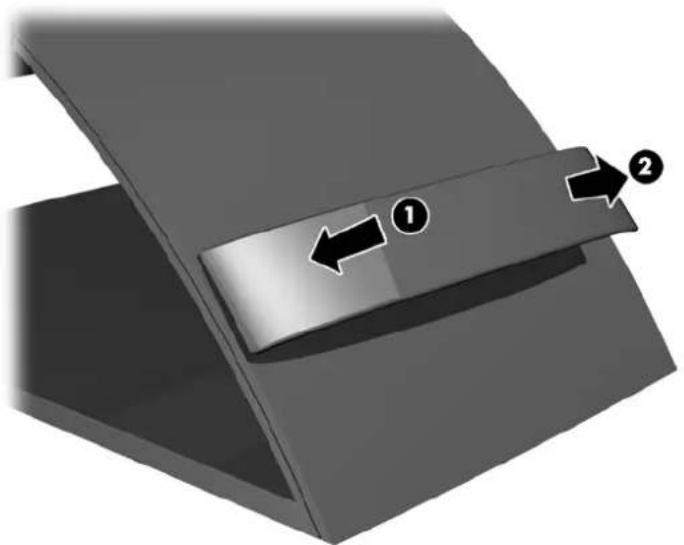
- Remove the cable management clip from the back of the stand by pressing inward on one side of the clip (1) and pulling outward on the other side of the clip (2)
natural_image
3D diagram of a mechanical component with two directional arrows labeled ① and ②, showing internal structure (no text or symbols beyond labels)- Depending on your configuration, connect either the DisplayPort, DVI, or VGA video cable between the PC and the monitor.

NOTE: The monitor is capable of supporting either analog or digital input. The video mode is determined by the video cable used. The monitor will automatically determine which inputs have valid video signals. The inputs can be selected by pressing the Input button on the front panel or through the On-Screen Display (OSD) feature by pressing the Menu button.
- For analog operation, connect the VGA signal cable to the VGA connector on the rear of the monitor and the other end to the VGA connector on the computer (cable provided with select models).

text_image
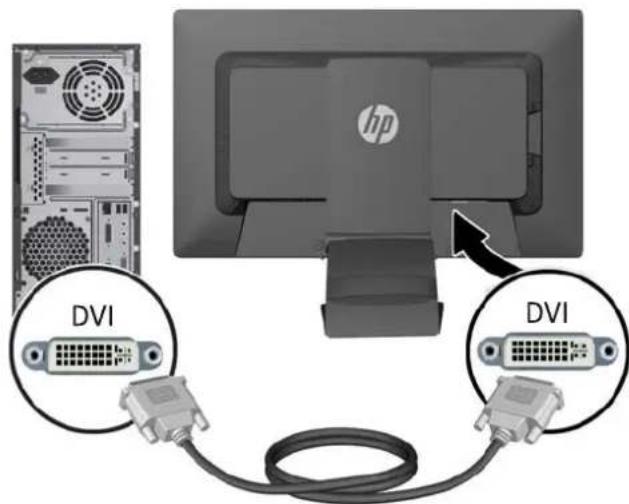
Diagram showing computer monitor connected to two I/O port connectors with HP logo, illustrating network topology or connection setup.- For DVI digital operation, connect the DVI-D signal cable to the DVI connector on the rear of the monitor and the other end to the DVI connector on the computer (cable provided with select models).
text_image
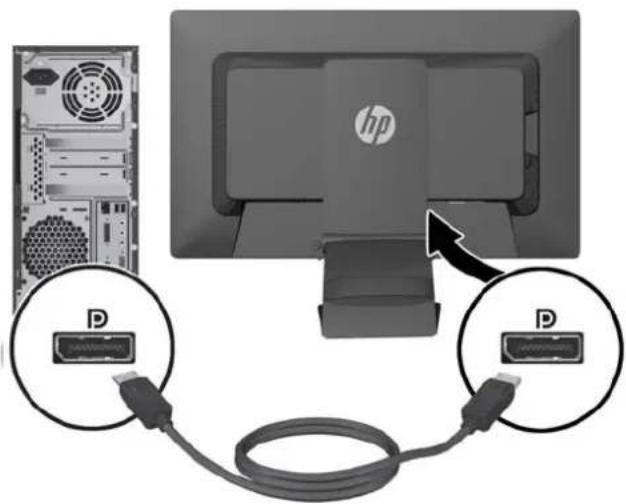
DVI DVI- For DisplayPort digital operation, connect the DisplayPort signal cable to the DisplayPort connector on the rear of the monitor and the other end to the DisplayPort connector on the computer (cable provided with select models).
text_image
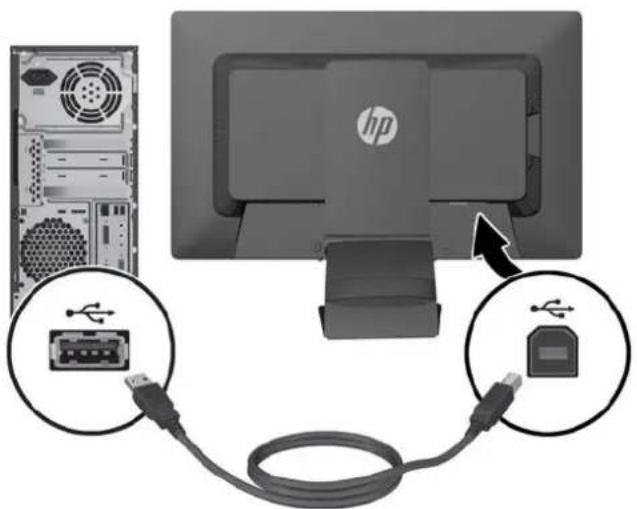
Diagram showing connection between a computer monitor and two USB cable connectors labeled 'D', with HP logo visible.- Connect one end of the provided USB cable to the USB hub connector on the rear panel of the computer, and the other end to the upstream USB connector on the monitor.
text_image
Diagram showing a computer monitor connected to a USB port, with labeled connectors and an HP logo on the screen.- Connect one end of the power cord to the AC power connector on the back of the monitor, and the other end to an electrical wall outlet.
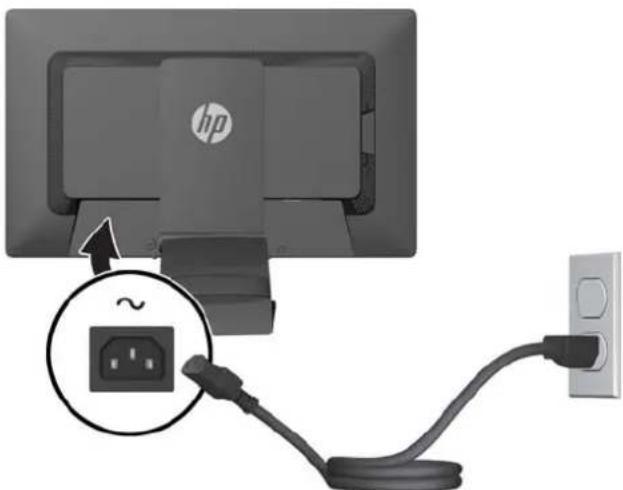
text_image
hp ~
WARNING! To reduce the risk of electric shock or damage to the equipment:
Do not disable the power cord grounding plug. The grounding plug is an important safety feature.
Plug the power cord into a grounded (earthed) electrical outlet that is easily accessible at all times.
Disconnect power from the equipment by unplugging the power cord from the electrical outlet.
For your safety, do not place anything on power cords or cables. Arrange them so that no one may accidentally step on or trip over them. Do not pull on a cord or cable. When unplugging from the electrical outlet, grasp the cord by the plug.
- Secure the cables in place with the cable management clip. Press the clip straight down into the slots on the back of the stand ensuring that the tabs on the sides of the clip snap into the slots on the stand.

natural_image
Close-up of a mechanical component with coiled wires and a directional arrow indicator (no text or symbols)Front Panel Controls

text_image
Diagram of a computer monitor with labeled buttons and status indicators, showing navigation and control buttons.| Control Function | ||
| 1 | Menu Opens, selects or exits the OSD menu. | |
| 2 | Minus If the OSD menu is on, press to navigate backward through the OSD menu and decrease adjustment levels. | |
| 3 | Plus/Input If the OSD menu is on, press to navigate forward through the OSD menu and increase adjustment levels.If the OSD menu is inactive, press to activate the input button that chooses the video signal input (VGA, DVI, or DisplayPort) | |
| 4 | OK | OK/Auto Adjust If the OSD menu is on, press to select the highlighted menu item.If the OSD menu is inactive, press to activate the auto adjustment feature to optimize the screen image. |
| 5 | Power Turns the monitor on or off. | |

NOTE: To view an OSD menu simulator, visit the HP Customer Self Repair Services Media Library at http://www.hp.com/go/sml.
Adjusting the Monitor

NOTE: Your monitor model may look different than the model in the following illustrations.
- Tilt the monitor's panel forward or backward to set it to a comfortable eye level.

natural_image
Illustration of a computer monitor with a black ribbon and stand (no text or symbols)- Swivel the monitor to the left or right for the best viewing angle.
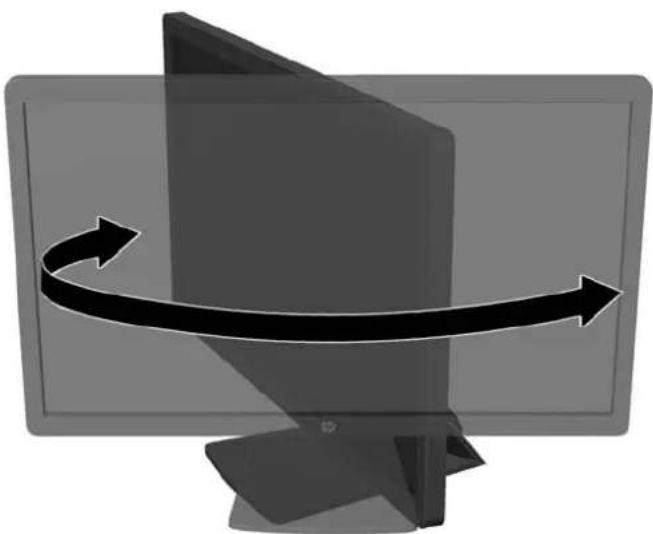
natural_image
Computer monitor with curved arrows indicating rotation or refresh (no text or symbols)- Adjust the monitor's height to a comfortable position for your individual workstation. The monitor's top bezel edge should not exceed a height that is parallel to your eye height. A monitor that is positioned low and reclined may be more comfortable for users with corrective lenses. The monitor should be repositioned as you adjust your working posture throughout the work day.

NOTE: When the monitor is unfolded for the first time, the display head is locked from adjusting to a full-height position. To adjust the display head to full height, press down on the display head to unlock it then pull up on the display head to raise it to the full-height position.
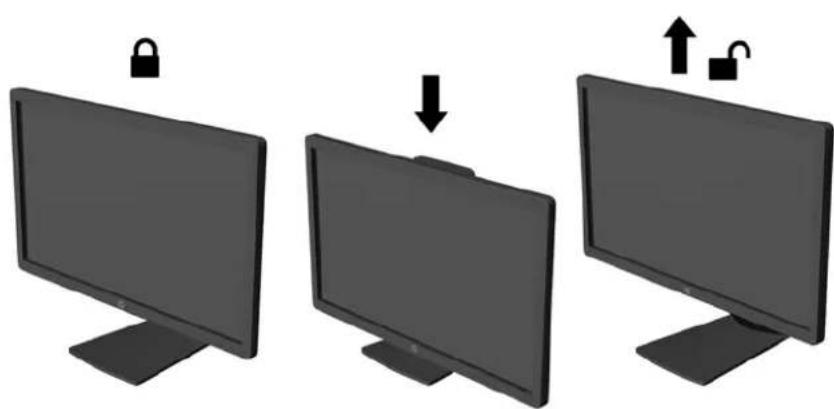
text_image
Diagram showing three states of a lock on computer monitors, with an arrow indicating lock position change.- You can pivot the monitor from landscape to portrait orientation viewing to adapt to your application.
a. Adjust the monitor to full height position and tilt the monitor back to full tilt position (1).
b. Pivot the monitor clockwise 90° from landscape to portrait orientation (2).

CAUTION: If the monitor is not in full height and full tilt position when pivoting, the bottom right corner of the monitor panel will come in contact with the base and potentially cause damage to the monitor.
If you are adding an optional speaker bar to the monitor, install it after pivoting the monitor. The speaker bar will come in contact with the base when pivoting and potentially cause damage to the monitor or speaker bar.
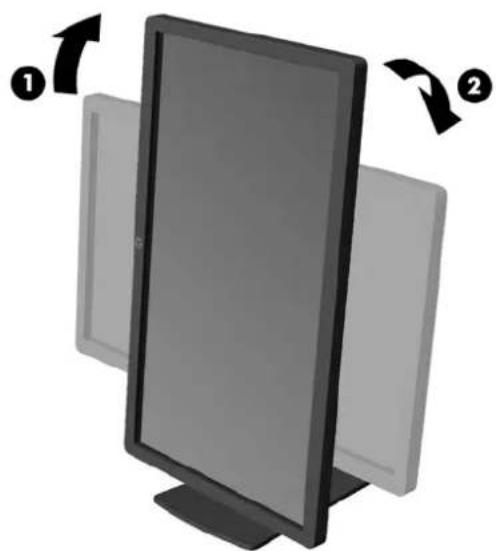
natural_image
Illustration of a computer monitor with two directional arrows indicating rotation (no text or symbols)NOTE: To view information on the screen in portrait mode, you can install the HP Display Assistant software included on the software and documentation CD. The position of the OSD menu can also be rotated to portrait mode. To rotate the OSD menu, access the OSD menu by pressing the Menu button on the front panel, select OSD Control from the menu, then select Rotate OSD.
Turning on the Monitor
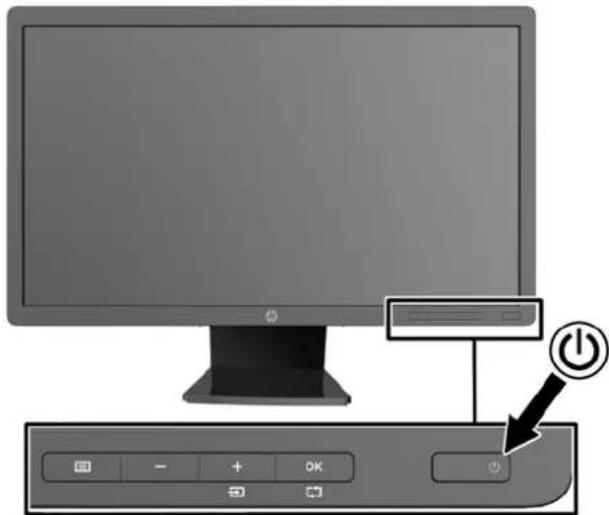
- Press the power button on the computer to turn it on.
- Press the power button on the front of the monitor to turn it on.
natural_image
Computer monitor setup with power button and control panel (no text or symbols visible)CAUTION: Burn-in image damage may occur on monitors that display the same static image on screen for a prolonged period of time.* To avoid burn-in image damage on the monitor screen, you should always activate a screen saver application or turn off the monitor when it is not in use for a prolonged period of time. Image retention is a condition that may occur on all LCD screens. Monitors with a "burned-in image" are not covered under the HP warranty.
* A prolonged period of time is 12 consecutive hours of a static image.
NOTE: If pressing the power button has no effect, the Power Button Lockout feature may be enabled. To disable this feature, press and hold the monitor power button for 10 seconds.
NOTE: You can disable the power LED in the OSD menu. Press the Menu button on the front of the monitor, then select Management > Bezel Power LED > Off.
When the monitor is powered on, a Monitor Status message is displayed for five seconds. The message shows which input (DisplayPort, DVI, or VGA) is the current active signal, the status of the auto-switch source setting (On or Off; factory default is On), the default source signal (factory default is DisplayPort), the current preset display resolution, and the recommended preset display resolution.
The monitor automatically scans the signal inputs for an active input and uses that input for the display. If two or more inputs are active, the monitor will display the default input source. If the default source is not one of the active inputs, then the monitor will display the highest ranking priority input in the following order: DisplayPort, DVI, then VGA. You can change the default source in the OSD by pressing the front panel Menu button and selecting Source Control > Default Source.
Connecting USB Devices
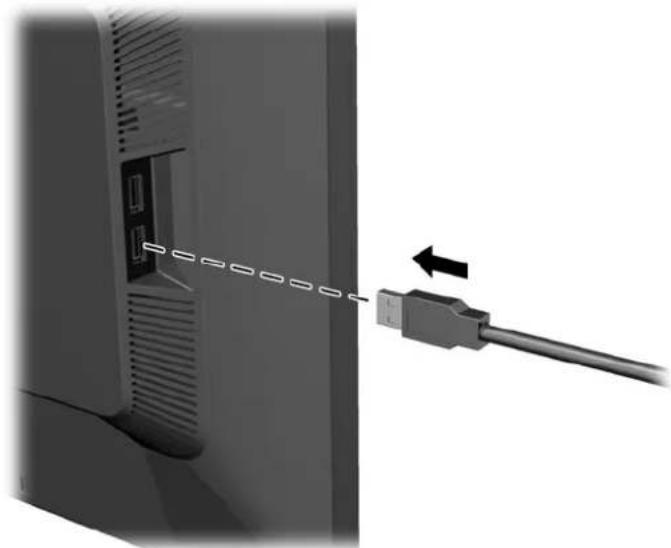
USB connectors are used to connect devices such as a digital camera, USB keyboard, or USB mouse. Two USB connectors are located on the side panel of the monitor.

NOTE: You must connect the USB hub cable from the monitor to the computer to enable the USB 2.0 ports on the monitor. Refer to Step 4 in Connecting the Cables on page 5.
natural_image
Close-up of a computer monitor with a USB cable inserted, showing port and cable connection (no text or symbols)Removing the Monitor Stand
You can remove the monitor panel from the stand to install the panel on a wall, a swing arm, or other mounting fixture.

CAUTION: Before beginning to disassemble the monitor, be sure the monitor is turned off and the power and signal cables are both disconnected. Also disconnect all USB cables connected to the monitor.
- Disconnect and remove the signal, power, and USB cables from the monitor.
- Lay the monitor face down on a flat surface covered by a clean, dry cloth.
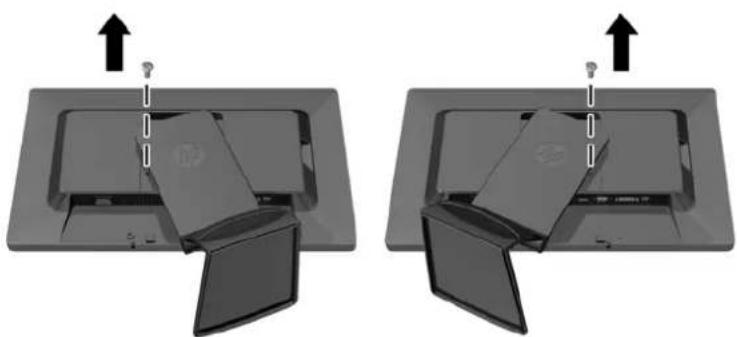
- Pivot the stand 45 degrees clockwise and remove the lower right mounting screw from the back of the monitor, then pivot the stand 45 degrees counter-clockwise and remove the lower left mounting screw from the back of the monitor.
natural_image
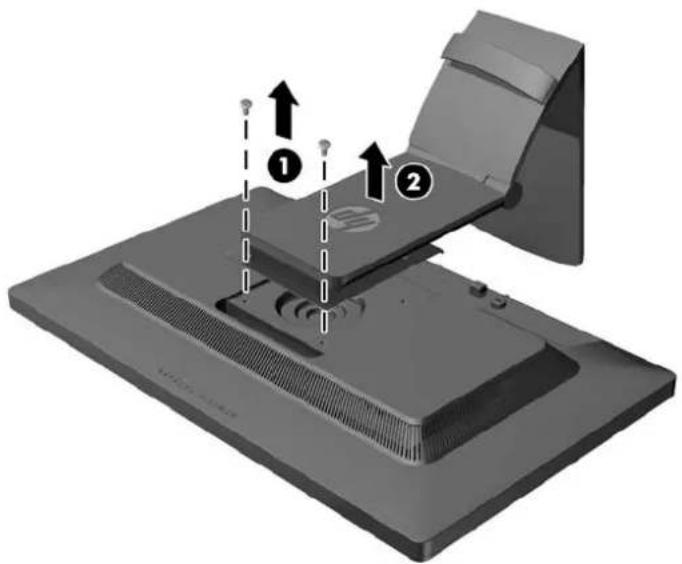
Two identical diagrams showing a device with open doors and arrows indicating upward motion (no text or symbols)- Remove the two upper mounting screws (1) then lift the stand off the monitor (2).
text_image
Diagram of a computer monitor with labeled parts and directional arrows indicating assembly or movementMounting the Monitor
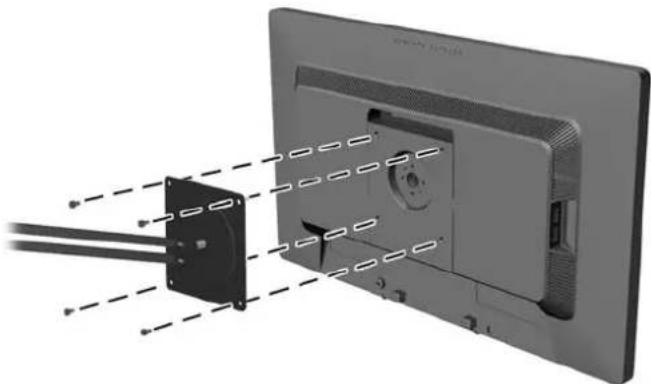
The monitor panel can be attached to a wall, swing arm, or other mounting fixture.

NOTE: This apparatus is intended to be supported by UL or CSA Listed wall mount bracket.
- Remove the monitor panel from the stand. Refer to Removing the Monitor Stand on page 15.
CAUTION: This monitor supports the VESA industry standard 100 mm mounting holes. To attach a third-party mounting solution to the monitor, four 4 mm, 0.7 pitch, and 10 mm long screws are required. Longer screws must not be used because they may damage the monitor. It is important to verify that the manufacturer's mounting solution is compliant with the VESA standard and is rated to support the weight of the monitor display panel. For best performance, it is important to use the power and video cables provided with the monitor.
- To attach the monitor to a swing arm, insert four 10mm screws through the holes on the swing arm plate and into the mounting holes on the monitor.
natural_image
Diagram showing cable routing from a device to a monitor (no text or symbols present)To attach the monitor to other mounting fixtures, follow the instructions included with the mounting fixture to ensure that the monitor is safely attached.
- Reconnect the cables to the monitor panel.
Locating the Rating Labels
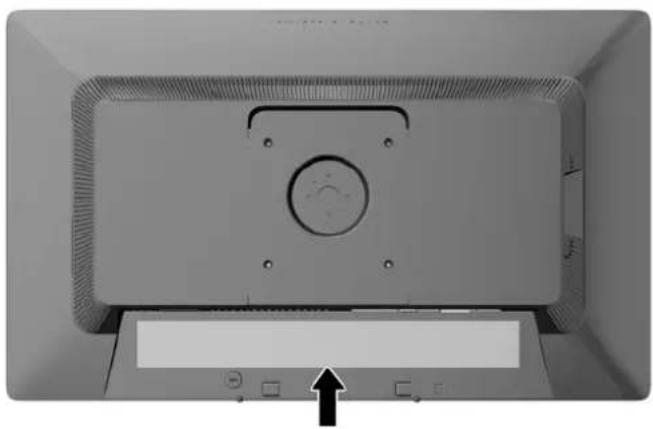
The rating labels on the monitor provide the spare part number, product number, and serial number. You may need these numbers when contacting HP about the monitor model. The rating labels are located on the rear panel of the monitor display head.
natural_image
Top-down view of a computer monitor with a circular vent and control buttons, no visible text or symbolsInstalling a Cable Lock
You can secure the monitor to a fixed object with an optional cable lock available from HP.

natural_image
Close-up of a cable being inserted into a socket, with an arrow indicating the insertion direction (no text or symbols present)3 Finding More Information
Reference Guides
Refer to the HP LCD Monitors Reference Guide included on the CD with your monitor for additional information on:
• Optimizing monitor performance
• Safety and maintenance guidelines
• Installing software from the CD
• Using the OSD menu
• Downloading software from the Web
• Agency regulatory information
- Troubleshooting and recommended solutions to common problems
For information on theft deterrence, refer to the HP Display Assistant User Guide included on the CD with your monitor.
Product Support
For additional information on using and adjusting your monitor, go to http://www.hp.com/support. Select your country or region, select Product Support & Troubleshooting, and then enter your monitor model in the SEARCH window.

NOTE: The monitor user guide, reference guide, and drivers are available at http://www.hp.com/support.
If the information provided in the guide or in the HP LCD Monitors Reference Guide do not address your questions, you can contact support. For U.S. support, go to http://www.hp.com/go/contactHP. For worldwide support, go to http://welcome.hp.com/country/us/en/wwcontact_us.html.
Here you can:
• Chat online with an HP technician

NOTE: When support chat is not available in a particular language, it is available in English.
E-mail support
• Find support telephone numbers
- Locate an HP service center
A Technical Specifications

NOTE: All specifications represent the typical specifications provided by HP's component manufacturers; actual performance may vary either higher or lower.
E201 Model
| Display | 50.8 cm wide screen | 20 inches wide screen |
| Type | TFT LCD | |
| Viewable Image Size 50.8 cm diagonal 20-inch diagonal | ||
| Tilt -5 to 30° | ||
| Swivel 360° | ||
| Maximum Weight (Unpacked) 5.00±0.25 kg 11.01±0.55 lbs | ||
| Dimensions (include base) | ||
| Height (highest position) | 43.47 cm | 17.11 inches |
| Height (lowest position) | 31.87 cm | 12.54 inches |
| Depth | 22.89 cm | 9.01 inches |
| Width | 47.28 cm | 18.61 inches |
| Maximum Graphic Resolution 1600 x 900 (60 Hz) analog input | ||
| 1600 x 900 (60 Hz) digital input | ||
| Optimum Graphic Resolution 1600 x 900 (60 Hz) analog input | ||
| 1600 x 900 (60 Hz) digital input | ||
| Text Mode 720 x 400 | ||
| Horizontal Frequency 24 to 83 kHz | ||
| Vertical Refresh Rate 50 to 76 Hz | ||
| Environmental Requirements Temperature | ||
| Operating Temperature | 5 to 35°C | 41 to 95°F |
| Storage Temperature | -20 to 60°C | -4 to 140°F |
| Relative Humidity 20 to 80% | ||
| Power Source | 100 – 240 VAC 50/60 Hz | |
| Altitude: | ||
| Operating | 0 to 5000 m | 0 to 16,400 feet |
| Storage | 0 to 12192 m | 0 to 40,000 feet |
| Measured Power Consumption: | |
| Full Power | 30 watts |
| Typical Settings | 25 watts |
| Sleep | 0.5 watts |
| Switch Off | 0.5 watts |
| Input Terminal One VGA connector; one DVI connector;one DisplayPort connector (cable inclusion varies by region) | |
E221 Model
| Display | 54.61 cm wide screen | 21.5 inches wide screen |
| Type | TFT LCD | |
| Viewable Image Size 54.61 cm diagonal 21.5-inch diagonal | ||
| Tilt -5 to 30° | ||
| Swivel 360° | ||
| Maximum Weight (Unpacked) 5.30±0.25 kg 11.67±0.55 lbs | ||
| Dimensions (include base) | ||
| Height (highest position) | 46.00 cm | 18.11 inches |
| Height (lowest position) | 33.37 cm | 13.13 inches |
| Depth | 23.65 cm | 9.31 inches |
| Width | 50.88 cm | 20.03 inches |
| Maximum Graphic Resolution 1920 x 1080 (60 Hz) analog input | ||
| 1920 x 1080 (60 Hz) digital input | ||
| Optimum Graphic Resolution 1920 x 1080 (60 Hz) analog input | ||
| 1920 x 1080 (60 Hz) digital input | ||
| Text Mode 720 x 400 | ||
| Horizontal Frequency 24 to 94 kHz | ||
| Vertical Refresh Rate 50 to 76 Hz | ||
| Environmental Requirements Temperature | ||
| Operating Temperature | 5 to 35°C | 41 to 95°F |
| Storage Temperature | -20 to 60°C | -4 to 140°F |
| Relative Humidity 20 to 80% | ||
| Power Source 100 – 240 VAC 50/60 Hz | ||
| Altitude: | ||
| Operating | 0 to 5000 m | 0 to 16,400 feet |
| Storage | 0 to 12192 m | 0 to 40,000 feet |
| Measured Power Consumption: | |
| Full Power | 33 watts |
| Typical Settings | 29 watts |
| Sleep | 0.5 watts |
| Switch Off | 0.5 watts |
| Input Terminal One VGA connector; one DVI connector;one DisplayPort connector (cable inclusion varies by region) | |
E231 Model
| Display | 58.42 cm wide screen | 23 inches wide screen |
| Type | TFT LCD | |
| Viewable Image Size 58.42 cm diagonal 23-inch diagonal | ||
| Tilt -5 to 30° | ||
| Swivel 360° | ||
| Maximum Weight (Unpacked) 5.90±0.25 kg 13.00±0.55 lbs | ||
| Dimensions (include base) | ||
| Height (highest position) | 47.00 cm | 18.50 inches |
| Height (lowest position) | 34.33 cm | 13.51 inches |
| Depth | 24.24 cm | 9.54 inches |
| Width | 54.40 cm | 21.41 inches |
| Maximum Graphic Resolution 1920 x 1080 (60 Hz) analog input | ||
| 1920 x 1080 (60 Hz) digital input | ||
| Optimum Graphic Resolution 1920 x 1080 (60 Hz) analog input | ||
| 1920 x 1080 (60 Hz) digital input | ||
| Text Mode 720 x 400 | ||
| Horizontal Frequency 24 to 94 kHz | ||
| Vertical Refresh Rate 50 to 76 Hz | ||
| Environmental Requirements Temperature | ||
| Operating Temperature | 5 to 35°C | 41 to 95°F |
| Storage Temperature | -20 to 60°C | -4 to 140°F |
| Relative Humidity 20 to 80% | ||
| Power Source 100 – 240 VAC 50/60 Hz | ||
| Altitude: | ||
| Operating | 0 to 5000 m | 0 to 16,400 feet |
| Storage | 0 to 12192 m | 0 to 40,000 feet |
| Measured Power Consumption: | |
| Full Power | 36 watts |
| Typical Settings | 33 watts |
| Sleep | 0.5 watts |
| Switch Off | 0.5 watts |
Input Terminal One VGA connector; one DVI connector;
one DisplayPort connector (cable inclusion varies by region)
Recognizing Preset Display Resolutions
The display resolutions listed below are the most commonly used modes and are set as factory defaults. This monitor automatically recognizes these preset modes and they will appear properly sized and centered on the screen.
E201 Model
| Preset Pixel Format Horz Freq (kHz) Vert Freq (Hz) |
| 1 640 × 480 31.469 59.94 |
| 2 720 × 400 31.469 70.087 |
| 3 800 × 600 37.879 60.317 |
| 4 1024 × 768 48.363 60.004 |
| 5 1280 × 720 45.0 60.0 |
| 6 1280 × 1024 63.981 60.02 |
| 7 1440 × 900 55.935 59.887 |
| 8 1600 × 900 60.0 60.0 |
| Preset Timing Name Pixel Format Horz Freq (kHz) Vert Freq (Hz) |
| 1 480p 720 × 480 31.469 60 |
| 2 576p 720 × 576 31.25 50 |
| 3 720p50 1280 × 720 37.5 50 |
| 4 720p60 1280 × 720 45 60 |
E221 Model
| Preset Pixel Format Horz Freq (kHz) Vert Freq (Hz) |
| 1 640 × 480 31.469 59.940 |
| 2 720 × 400 31.469 70.087 |
| 3 800 × 600 37.879 60.317 |
| 4 1024 × 768 48.363 60.004 |
| 5 1280 × 720 45.00 59.94 |
| 6 1280 × 1024 63.981 60.02 |
| 7 1440 × 900 55.935 59.887 |
| 8 1600 × 900 60.00 60.00 |
| 9 1680 × 1050 65.29 59.954 |
| 10 1920 × 1080 67.50 60.00 |
| Preset Timing Name Pixel Format Horz Freq (kHz) Vert Freq (Hz) |
| 1 480p 720 × 480 31.469 60 |
| 2 576p 720 × 576 31.25 50 |
| 3 720p50 1280 × 720 37.5 50 |
| 4 720p60 1280 × 720 45 60 |
| 5 1080p50 1920 × 1080 56.25 50 |
| 6 1080p60 1920 × 1080 67.5 60 |
E231 Model
| Preset Pixel Format Horz Freq (kHz) Vert Freq (Hz) |
| 1 640 × 480 31.469 59.940 |
| 2 720 × 400 31.469 70.087 |
| 3 800 × 600 37.879 60.317 |
| 4 1024 × 768 48.363 60.004 |
| 5 1280 × 720 45.00 60.00 |
| 6 1280 × 1024 63.981 60.02 |
| 7 1440 × 900 55.935 59.887 |
| 8 1600 × 900 60.00 60.00 |
| 9 1680 × 1050 65.29 59.954 |
| 10 1920 × 1080 67.5 60.00 |
| Preset Timing Name Pixel Format Horz Freq (kHz) Vert Freq (Hz) |
| 1 480p 720 × 480 31.469 60 |
| 2 576p 720 × 576 31.25 50 |
| 3 720p50 1280 × 720 37.5 50 |
| 4 720p60 1280 × 720 45 60 |
| 5 1080p50 1920 × 1080 56.25 50 |
| 6 1080p60 1920 × 1080 67.5 60 |
Entering User Modes
The video controller signal may occasionally call for a mode that is not preset if:
• You are not using a standard graphics adapter.
• You are not using a preset mode.
It this occurs, you may need to readjust the parameters of the monitor screen by using the on-screen display. Your changes can be made to any or all of these modes and saved in memory. The monitor automatically stores the new setting, then recognizes the new mode just as it does a preset mode. In addition to the factory preset modes, there are at least 10 user modes that can be entered and stored.
Energy Saver Feature
The monitors support a reduced power state. The reduced power state will be entered into if the monitor detects the absence of either the horizontal sync signal and/or the vertical sync signal. Upon detecting the absence of these signals, the monitor screen is blanked, the backlight is turned off, and the power light is turned amber. When the monitor is in the reduced power state, the monitor will utilize .5 watts of power. There is a brief warm up period before the monitor will return to its normal operating mode.
Refer to the computer manual for instructions on setting energy saver features (sometimes called power management features).

NOTE: The above power saver feature only works when connected to computers that have energy saver features.
By selecting the settings in the monitor's Energy Saver utility, you can also program the monitor to enter into the reduced power state at a predetermined time. When the monitor's Energy Saver utility causes the monitor to enter the reduced power state, the power light blinks amber.