PowerLite 1771W - Video projector D-LINK - Free user manual and instructions
Find the device manual for free PowerLite 1771W D-LINK in PDF.


User questions about PowerLite 1771W D-LINK
0 question about this device. Answer the ones you know or ask your own.
Ask a new question about this device
Download the instructions for your Video projector in PDF format for free! Find your manual PowerLite 1771W - D-LINK and take your electronic device back in hand. On this page are published all the documents necessary for the use of your device. PowerLite 1771W by D-LINK.
USER MANUAL PowerLite 1771W D-LINK
PowerLite® 1751/1761W/1771W/1776W User'sGuide
Contents
Introduction to Your Projector 9
Projector Features....9
Product Box Contents.... 10
Additional Components 12
Optional Equipment and Replacement Parts 12
Warranty and Registration Information.... 14
Notations Used in the Documentation.... 14
Where to Go for Additional Information 14
Projector Part Locations 15
Projector Parts - Front/Top 16
Projector Parts - Rear 17
Projector Parts - Base 18
Projector Parts - Control Panel 19
Projector Parts - Remote Control 20
Setting Up the Projector 23
Projector Placement 23
Projector Setup and Installation Options 23
Projection Distance 25
Projector Connections 26
Connecting to Computer Sources.... 27
ConnectingtoaComputerforUSBVideoandAudio....27
Connecting to a Computer for VGA Video 28
ConnectingtoaComputerforHDMIVideoandAudio....28
ConnectingtoaComputerforUSBMouseControl....29
Connecting to a Computer for Sound.... 30
Connecting to Video Sources 30
Connecting to an HDMI Video Source 30
ConnectingtoaComponent-to-VGAVideoSource....31
Connecting to a Composite Video Source 31
Connecting to a Video Source for Sound 32
Connecting to External USB Devices 32
USB Device Projection.... 32
ConnectingaUSBDeviceorCameratotheProjector....33
Selecting the Connected USB Source 34
DisconnectingaUSBDeviceorCameraFromtheProjector....34
Connecting to a Document Camera 34
Installing Batteries in the Remote Control 35
Opening the Lens Cover 36
Using the Projector on a Network 37
Wireless Network Projection 37
Installing the Wireless LAN Module 38
UsingQuickWirelessConnection(WindowsOnly)....40
Selecting Wireless Network Settings Manually.... 41
Wireless LAN Menu Settings 44
Selecting Wireless Network Settings in Windows 45
Selecting Wireless Network Settings in Mac OS X 45
Setting Up Wireless Network Security 46
Wireless Security Menu Settings 47
Setting Up Projector Network E-Mail Alerts 48
Network Projector E-mail Alert Messages 49
Setting Up Monitoring Using SNMP 49
Controlling a Networked Projector Using a Web Browser 50
Using Basic Projector Features 53
Turning On the Projector 53
Turning Off the Projector 55
Selecting the Language for the Projector Menus.... 57
Adjusting the Image Height 57
Image Shape 59
AutomaticallyCorrectingImageShapeWithScreenFit....59
Correcting Image Shape with Quick Corner 61
CorrectingImageShapeWiththeKeystoneButtons....62
Resizing the Image With the Zoom Ring 64
Focusing the Image 64
Remote Control Operation 65
Using the Remote Control as a Wireless Mouse 66
Using the Remote Control as a Presentation Pointer 67
Selecting an Image Source 68
Projection Modes 70
ChangingtheProjectionModeUsingtheRemoteControl....70
Changing the Projection Mode Using the Menus.... 71
Image Aspect Ratio 71
Changing the Image Aspect Ratio 72
Available Image Aspect Ratios 72
Color Mode....73
Changing the Color Mode.... 74
Available Color Modes....74
Turning On Auto Iris....75
Controlling the Volume with the Volume Buttons.... 76
Projecting a Slide Show 77
Slideshow Presentations 77
Supported Slideshow File Types 78
Starting a Slide Show or Presentation 79
Slideshow Display Options 81
Adjusting Projector Features 83
Shutting Off the Picture and Sound Temporarily 83
Stopping Video Action Temporarily 84
Zooming Into and Out of Images 84
Projector Security Features 85
Password Security Types 85
Setting a Password 86
Selecting Password Security Types....87
Entering a Password to Use the Projector 88
Saving a User's Logo Image to Display.... 90
Locking the Projector's Buttons 92
Unlocking the Projector's Buttons 92
Installing a Security Cable 93
Projector Identification System for Multiple Projector Control.... 93
Setting the Projector ID....94
Setting the Remote Control ID 94
Matching Multiple-Projector Display Quality 95
Projecting Two Images Simultaneously 97
Adjusting the Menu Settings 99
Using the Projector's Menus.... 99
Image Quality Settings - Image Menu 100
Input Signal Settings - Signal Menu 102
Projector Feature Settings - Settings Menu.... 105
Projector Setup Settings - Extended Menu 108
Projector Network Settings - Network Menu.... 111
Projector Information Display - Info Menu 112
Event ID Code List.... 114
Projector Reset Options - Reset Menu 115
Maintaining and Transporting the Projector 117
Projector Maintenance 117
Cleaning the Lens.... 117
Cleaning the Projector Case.... 118
Air Filter and Vent Maintenance 118
Cleaning the Air Filter and Vents.... 118
Replacing the Air Filter.... 119
Projector Lamp Maintenance.... 121
Replacing the Lamp 121
Resetting the Lamp Timer 125
Replacing the Remote Control Batteries 126
Transporting the Projector.... 128
Solving Problems 129
Projection Problem Tips 129
Projector Light Status 129
Using the Projector Help Displays.... 132
Solving Image or Sound Problems 132
Solutions When No Image Appears.... 133
SolutionsWhenImageisIncorrectUsingtheUSBDisplayFunction....134
Solutions When "No Signal" Message Appears.... 134
Displaying From a PC Laptop 135
Displaying From a Mac Laptop 135
Solutions When "Not Supported" Message Appears 135
Solutions When Only a Partial Image Appears 136
Solutions When the Image is Not Rectangular 136
Solutions When the Image Contains Noise or Static 137
Solutions When the Image is Fuzzy or Blurry 137
SolutionsWhentheImageBrightnessorColorsareIncorrect....138
SolutionsWhenThereisNoSoundorLowVolume....139
Solving Projector or Remote Control Operation Problems 139
Solutions to Projector Power or Shut-Off Problems 140
Solutions to Problems with the Remote Control 140
Solutions to Password Problems.... 141
Solutions When Network Alert E-Mails are Not Received 141
Where to Get Help.... 142
Technical Specifications 143
General Projector Specifications 143
Projector Lamp Specifications.... 145
Remote Control Specifications.... 146
Projector Dimension Specifications.... 146
Projector Electrical Specifications 147
Projector Environmental Specifications.... 148
Projector Safety and Approvals Specifications.... 148
Supported Video Display Formats.... 148
USB Display System Requirements.... 151
Notices 152
Recycling.... 152
Important Safety Information 152
Important Safety Instructions.... 153
Restriction of Use 155
FCC Compliance Statement.... 156
Trademarks 156
Software Copyright.... 157
Copyright Notice.... 184
ANoteConcerningResponsibleUseofCopyrightedMaterials....185
Copyright Attribution.... 185
IntroductiontoYourProjector
Refertothesesectionstolearnmoreaboutyourprojectorandthismanual.
ProjectorFeatures
NotationsUsedintheDocumentation
WheretoGoforAdditionalInformation
ProjectorPartLocations
ProjectorFeatures
ThePowerLite1751,1761W,1771W,and1776Wprojectorsincludethesespecialfeatures:
Bright, high-resolution projectionsystem
•PowerLite1751/1761W:Upto2600lumensofbrightness(whitelightoutputandcolorlightoutput) PowerLite1771W/1776W:Upto3000lumensofbrightness(whitelightoutputandcolorlightoutput)
•PowerLite1751:Nativeresolutionof1024×768pixels(XGA) PowerLite1761W/1771W/1776W:Nativeresolutionof1280×800pixels(WXGA)
Flexibleconnectivity
•Plug-and-playUSBprojection
•Wirelessnetworksupport(PowerLite1761W/1771W/1776W),includingvideoandaudiotransfer
•WirelessLANmoduleincluded(PowerLite1761W/1771W/1776W)
•PCFreepresentationsviaconnectedUSBmemorydevices
•HDMIportforvideodevices
•PortforoptionalEPSONdocumentcamera
Innovativedisplayandoperationfeatures
•ScreenFitfeatureautomaticallyresizesimagesforyourprojectionscreen(PowerLite1776W)
•2000:1contrastratioandAutolriscontrolforcrisplydetailedimages
•Poweredfocusviatheprojectororremotecontrol(PowerLite1776W)
- Epson'sInstantOffandDirectPowerOnfeaturesforquicksetupandshutdown
- Networkmessagebroadcastsystemtoprojecttimelymessagestoallnetworkedprojectors(Windows only;PowerLite1761W/1771W/1776W)
ProductBoxContents
AdditionalComponents
OptionalEquipmentandReplacementParts
Warranty and Registration Information
Parenttopic: Introduction to Your Projector
Relatedconcepts
ProjectorPartLocations
ProductBoxContents
Saveallthepackagingincaseyouneedtoshiptheprojector.Alwaysusetheoriginalpackaging(or equivalent)whenshipping.
Makesureyourprojectorboxincludedalloftheseparts:
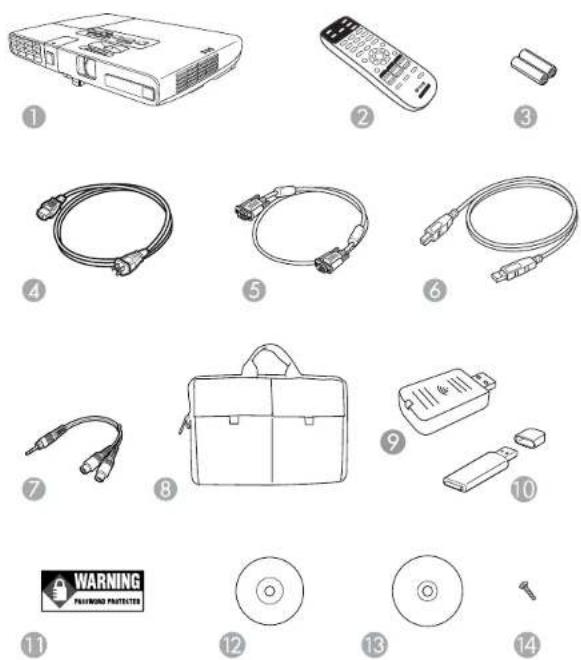
1Projector
2Remotecontrol
3Remotecontrolbatteries(twoAAalkaline)
4Powercord
5VGAcomputercable
6USBcable
7Audioadaptercable(PowerLite1776W)
8Carryingcase
9WirelessLANmodule(PowerLite1761W/1771W/1776W)
10EPSONQuickWirelessUSBConnectionKey(PowerLite1776W)
11 PasswordProtectedsticker
12ProjectordocumentationCD
13ProjectorsoftwareCD
14WirelessLANmodulecoverscrew
Parenttopic:ProjectorFeatures
Relatedconcepts
ProjectorConnections
AdditionalComponents
Dependingonhowyouplantousetheprojector,youmayneedtoobtainthefollowingadditional components:
- Toreceiveacomponentvideosignal,youneedad-sub,15-pin,component-to-VGAvideocable.You canpurchaseonefromEpsonoranauthorizedEPSONreseller.
• ToreceiveanHDMIsignal, youneedacompatibleHDMIcable. - Toprojectwithaudiofromcertainports,youmayneedacommerciallyavailableaudiocable compatiblewithyourdevice.Seeyourlocalcomputerorelectronicsdealerforpurchaseinformation.
Parenttopic:ProjectorFeatures
OptionalEquipmentandReplacementParts
Youcanpurchasescreens,otheroptionalaccessories,andreplacementpartsfromanEPSON authorizedreseller.Tofindthenarestreseller,call800-GO-EPSON(800-463-7766).Oryoucan purchase online at www.epsonstore.com (U.S. sales) or www.epson.ca (Canadian sales).
Epsonoffersthefollowingoptionalaccessoriesandreplacementpartsforyourprojector:
| OptionorpartPartnumber | |
| GenuineEPSONreplacementlamp(ELPLP65)V13H010L65 | |
| Airfilterreplacementset(2filters)(ELPAF31)V13H134A31 | |
| WirelessLANmodule(ELPAP07)V12H418P12 | |
| QuickWirelessConnectionUSBkey(ELPAP08)V12H005M08 | |
| EPSONDC-11documentcamera(ELPDC11)V12H377020 | |
| EPSONDC-06documentcamera(ELPDC06)V12H321005 | |
| BrightLinkSolointeractivemodule(IU-01)V12H415020 | |
| KensingtonsecuritylockELPSL01 | |
| AccoladeDuetportableprojectorscreenELPSC80 | |
| ES3000UltraPortableProjectionscreenV12H002S3Y | |
| ES1000UltraPortableTabletopProjectionscreenV12H002S4Y | |
| Component-to-VGAvideocable(ELPKC19)V12H005C19 | |
| 25ft(20m)VGAComputercable(ELPKC10)F3H982-25 | |
| 12ft(4m)VGAComputercableELPKC09 | |
| 4ft(1m)VGAComputercableELPKC02 | |
| 1-YearExtendedDepotRepairServicePlanEPPFTPA1 | |
| 1-YearExtendedExchangeWarrantyEPPEXPA1 | |
| 2-YearExtendedDepotRepairServicePlanEPPFTPA2 |
Parenttopic:ProjectorFeatures
Relatedconcepts
WirelessNetworkProjection
ProjectorLampMaintenance
ProjectorIdentificationSystemforMultipleProjectorControl
Relatedreferences
ProjectorInformationDisplay-InfoMenu
ProjectorLampSpecifications
SolutionstoProblemswiththeRemoteControl
ProjectorFeatureSettings-SettingsMenu
RemoteControlOperation
Warranty and Registration Information
Yourprojectorcomeswithabasicwarrantythatletsyouprojectwithconfidence.Fordetails,seethe warrantybrochurethatcamewithyourprojector.
Inaddition, EpsonoffersfreeExtraCareRoadService. Intheunlikelyeventofanequipmentfailure, you won't havetowaitforyourunittoberepaired. Instead, Epsonwillshipyouareplacementunitanywhere intheUnitedStates, Canada, or Puerto Rico. SeetheExtraCareRoadServicebrochurefordetails.
RegistryourproductonlineusingtheprojectorCDoratthissite:www.epson.com/webreg
Registeringalsoletsyoureceivespecialupdatesonnewaccessories,products,andservices.
Parenttopic:ProjectorFeatures
NotationsUsedintheDocumentation
Followtheguidelinesinthesenotationsasyoureadyourdocumentation:
- Warningsmustbefollowedcarefullytoavoidbodilyinjury .
- Cautionsmustbeobservedtoavoiddamagetoyourequirement.
- Notes contain important information about your projector.
- Tipscontainadditionalprojectioninformation.
Parenttopic: Introduction to Your Projector
WheretoGoforAdditionallInformation
Needquickhelponusingyourprojectorduringapresentation?Here'swheretolookforhelp:
•Built-inhelpsystem
Press the Help button on the remote control or projector to get quick solutions to common problems.
- www.epson.com/support(U.S)orwww.epson.ca/support(Canada)
ViewFAQs(frequentlyaskedquestions)ande-mailyourquestionstoEpsontechnicalsupport24 hoursaday.
- Fordetailedinstructionsonusingyourprojectorinanetworkenvironment(PowerLite 1761W/1771W/1776W),seetheEasyMPNetworkProjectionOperationGuide.
- FordetailedinstructionsonconvertingPowerPointfilesintoaslideshowfileformatthatyoucan displayfromaUSBdeviceconnectedtoyourprojector(Windowsonly),seetheEasyMPSlide ConverterOperationGuide.
- If you still need help after checking this manual and the sources listed above, you can use the EPSON Private Line Support services to get help fast. Ford details, see "Where to Get Help".
Parenttopic: Introduction to Your Projector
Relatedreferences
WheretoGetHelp
ProjectorPartLocations
Check the projector part illustration to learn about the part on your projector.
ProjectorParts-Front/Top
ProjectorParts-Rear
ProjectorParts-Base
ProjectorParts-ControlPanel
ProjectorParts-RemoteControl
Parenttopic: Introduction to Your Projector
ProjectorParts-Front/Top

text_image
Diagram of a projector with numbered parts labeled for identification1 Exhaustvent
2WirelessLANmoduleindicatorlight(PowerLite1761W/1771W/1776W)
3WirelessLANmodulecover(PowerLite1761W/1771W/1776W)
4A/VMuteslidelever
5Footreleaselever
6Frontadjustablefoot
7A/VMuteslide(lenscover)
8Remotereceiver
9Projectiondistance/shapesensor(PowerLite1776W)
10Airintakevent(airfilter)
11Speaker
12Projectorstatuslights
13Zoomring
14 Focusring(PowerLite1751/1761W/1771W)
15Controlpanel
16Lampcover
Parenttopic:ProjectorPartLocations
ProjectorParts-Rear
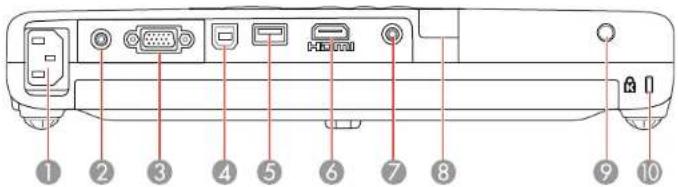
text_image
Diagram of a rear panel with labeled ports and connectors, numbered 1 to 10 pointing to specific components.1ACinputport
2Videoport
3Computerport
4USBTypeBport
5USBTypeAport
6HDMIport
7Audioport
8Remotereceiver
9Lampcoverscrew
10Securitylockport
Parenttopic:ProjectorPartLocations
ProjectorParts-Base

text_image
Technical diagram of a device rear panel with numbered components and red alignment lines indicating assembly or connection points.1Mountingbracketholes
2Rearfeet
3Frontadjustablefoot
4WirelessLANmodulescrew(PowerLite1761W/1771W/1776W)
Parenttopic:ProjectorPartLocations
ProjectorParts-ControlPanel
flowchart
graph TD
    A["1"] --> B["Focus"]
    C["2"] --> D["Screen Fit"]
    E["3"] --> F["Source Search"]
    G["4"] --> H["Menu"]
    I["5"] --> J["Enter"]
    K["6"] --> L["Help ?"]
    M["7"] --> N["Esc"]
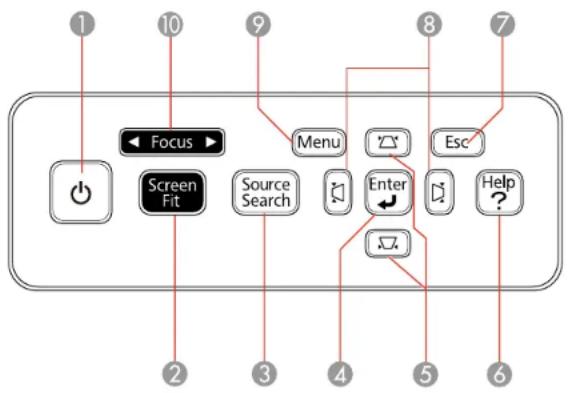
1 Powerbuttonandlight
2ScreenFitbutton(PowerLite1776W;adjustsprojectedimages)
3SourceSearchbutton(searchesforconnectedvideosources)
4Enterbutton(selectsoptions)
5Verticalkeystoneadjustmentbuttons(adjustscreenshape)andarrowbuttons
6Helpbutton(accessesprojectorhelpinformation)
7Escbutton(cancels/exitsfunctions)
8Horizontalkeystoneadjustmentbuttons(adjustscreenshape)andarrowbuttons
9Menubutton(accessesprojectormenusystem)
10Focusbutton(PowerLite1776W)
Parenttopic:ProjectorPartLocations
Relatedreferences
ProjectorLightStatus
ProjectorParts-RemoteControl
text_image
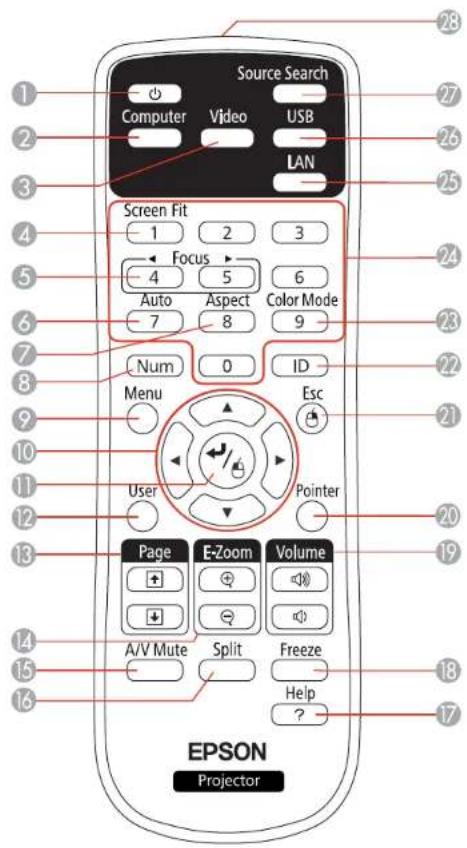
Source Search Computer Video USB LAN Screen Fit 1 2 3 Focus 4 5 6 Auto Aspect Color Mode 7 8 9 Num ID Menu Esc User Pointer Page E-Zoom Volume A/V Mute Split Freeze Help EPSON Projector1Powerbutton
2Computerbutton(cyclesthroughconnectedcomputersources)
3Videobutton(cyclesthroughconnectedvideosources)
4ScreenFitbutton(adjustsimageshape;functionsonlyonPowerLite1776Wandwhennotprojectingfromceiling)
5Focusbuttons(adjuststheimagefocus;functionsonlyonPowerLite1776W)
6 Autobutton(automaticallyadjustsposition,tracking,andsyncsettings)
7Aspectbutton(selectstheimageaspectratio)
8Numbutton(whenhelddown, switchesnumericbuttonstonumberfunction)
9Menubutton(accessesprojectormenusystem)
10Arrowbuttons(movethroughon-screenoptionsandcontrolwirelessmousefunctions)
11 Enterbutton(selectsoptionsandcontrolswirelessmousefunctions)
12Userbutton(customizablefordifferentfunctions)
13Pageup/downbuttons(controlpresentationslides)
14E-Zoom+/-buttons(zoomintoandoutoftheimage)
15A/VMutebutton(turnsoffpictureandsound)
16 Split button (splits screen to project two images simultaneously; functions only on PowerLite 1761W/1771W/1776W)
17Helpbutton(accessesprojectorhelpinformation)
18Freezebutton(stopsvideoaction)
19Volumeup/downbuttons(adjustspeakervolume)
20Pointerbutton(activateson-screenpointer)
21Escbutton(cancels/exitsfunctionsandcontrolswirelessmousefunctions)
22IDbutton(specifieswhich|Disusingtheremotecontrol)
23ColorModebutton(selectsdisplaymodes)
24Numericbuttons(enternumbers)
25LANbutton(switchestoavailablenetworksource;functionsonlyonPowerLite 1761W/1771W/1776W)
26USBbutton(cyclesthroughconnectedUSBsources)
27SourceSearchbutton(searchesforconnectedsources)
28Remotecontrollight(outputsremotecontrolsignals)
Parenttopic:ProjectorPartLocations
Relatedtasks
ConnectingtoaComputerforUSBMouseControl
SettingUptheProjector
Followtheinstructionsinthesesectionstosetupyourprojectorforuse.
ProjectorPlacement
ProjectorConnections
Installing Batteries in the Remote Control
OpeningtheLensCover
ProjectorPlacement
Youcanplacetheprojectoralmostanyflatsurfacetoprojectyourpresentation.
Youcanalsoinstalltheprojectorinaceilingmountifyouwanttouseitinafixedlocation.
Keeptheseconsiderationsinmindasyouselectaprojectorlocation:
- Placetheprojectoronasturdy, levelsurfaceorinstallitusingacompatiblemount.
- Leaveplentyofspacearoundandundertheprojectorforventilation, anddonotplaceitontopofor nexttoanythingthatcouldblockthevents.
- Position the projector within reach of foreground electrical outlet to extension cord.
ProjectorSetupandInstallationOptions
ProjectionDistance
Parenttopic: SettingUptheProjector
ProjectorSetupandInstallationOptions
Youcansetuporinstallyourprojectortoviewpresentationsinthefollowingways:
Front

Rear

natural_image
Illustration of people watching a presentation on a large screen (no text or symbols visible)FrontCeiling

RearCeiling

Whereveryousetuptheprojector, makesuretopositionitsquarelyinfrontofthecenterofthescreen, notatanangle, if possible.
If you project from the ceiling or from the rear, be sure to select the correct Projection option in the projector's menusystem.
Parenttopic:ProjectorPlacement
Relatedreferences
ProjectorSetupSettings-ExtendedMenu
ProjectionDistance
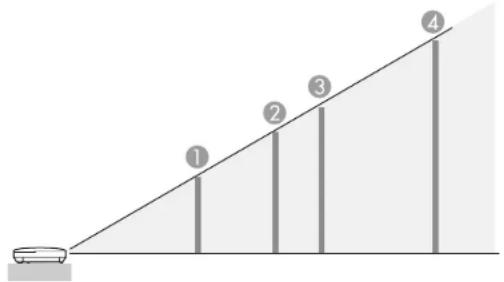
The distance at which you place the projector from the screen, but can vary depending on the zoom factor, aspect ratio, and other settings.
Usethetablesheretodetermineapproximatelyhowfartoplacetheprojectorfromthescreenbasedon thesizeoftheprojectedimage.(Conversionfiguresmayhavebeenroundedupordown.)
text_image
Diagram showing a car on a slope with four numbered vertical bars, likely illustrating a physics or engineering concept.PowerLite1751
4:3AspectRatio
| ScreenorProjectionimagesize | ondistanceWidetoTele | |
| 150inches | 47to57inches | (120to145cm) |
| 280inches | 76to92inches | (194to233cm) |
| 3100inches | 95to115inches | (242to291cm) |
| 4150inches | 143to172inches | (364to438cm) |
PowerLite1761W/1771W/1776W
16:10AspectRatio
| ScreenorProjectionimagesize | ondistanceWidetoTele | |
| 150 | inches44to53inches | (112to135cm) |
| 280 | inches71to85inches | (181to217cm) |
| 3100 | inches89to107inches | (226to271cm) |
| 4150 | inches134to161inches | (340to408cm) |
Parenttopic:ProjectorPlacement
Relatedreferences
SolutionsWhentheImageisFuzzyorBlurry
InputSignalSettings-SignalMenu
ImageQualitySettings-ImageMenu
Relatedtasks
AutomaticallyCorrectingImageShapeWithScreenFit
FocusingtheImage
CleaningtheLens
ProjectorConnections
Youcanconnecttheprojectortovarietyofcomputer,video,andaudiosourcestodisplay presentations,movies,orotherimages,withorwithoutsound.
- ConnectanytypeofcomputerthathasaUSBport,standardvideooutput(monitor)port,orHDMIport.
•Forvideoprojection,connectdevicessuchasDVDplayers,gamingconsoles,digitalcameras,and cameraphoneswithcompatiblevideooutputports. - If your presentation or video inclusion, you can connect audio input cables, if necessary.
- Forslideshowswithoutacomputer,youcanconnectUSBdevices(suchasaflashdriveorcamera) oranoptionalEPSONdocumentcamera.
Caution: If you will use the projector at altitudes above 4921 feet (1500 m), turn on High Altitude Mode to ensure the projector's internal temperature is regulated properly.
ConnectingtoComputerSources
ConnectingtoVideoSources
ConnectingtoExternalUSBDevices
ConnectingtoaDocumentCamera
Parenttopic:SettingUptheProjector
Relatedreferences
ProjectorSetupSettings-ExtendedMenu
ProductBoxContents
ConnectingtoComputerSources
Followtheinstructionsinthesesectionstoconnectacomputertotheprojector.
ConnectingtoaComputerforUSBVideoandAudio
ConnectingtoaComputerforVGAVideo
ConnectingtoaComputerforHDMIVideoandAudio
ConnectingtoaComputerforUSBMouseControl
ConnectingtoaComputerforSound
Parenttopic:ProjectorConnections
ConnectingtoaComputerforUSBVideoandAudio
If your computer meet the system requirements, you can send video and audio output to the projector through the computer's USB port (preferably USB2.0). Connect the project to your computer using a USB cable.
- In the projector's Extended menu, set the USB Type B setting to USB Display.
- Turnonyourcomputer.
- Connect the cable to your projector's USB Type Bport.

text_image
Diagram showing connection between a device and a laptop via USB cable, with labeled ports and arrows indicating data flow.- Connect the other end to any available USB port on your computer.
5.Dooneofthefollowing:
- Windows 7/Windows Vista: Select Run EMP_UDSe.exe in the dialog box that appears to install the EPSONUSBDisplaysoftware.
- WindowsXP:Waitasmessagesappearonyourcomputerscreenandtheprojectorinstallsthe EPSONUSBDisplaysoftwareonyourcomputer.
- Windows 2000: Select Computer, EPSON_PJ_UD, and EMP_UDSe.EXE to install the EPSON USBDisplaysoftware.
- Mac OS X: The USB Display setup folder appears on your screen. Select USB Display Installer and followtheon-screen instruction to install the EPSONUSBDisplay software.
Followanyon-screeninstructions.Youneedtoinstallthissoftwareonlythefirsttimeyouconnect theprojectortothecomputer.
Theprojectordisplaystheimagefromyourcomputer'sdesktopandoutputssound,ifyourpresentation containsaudio.
Parenttopic: ConnectingtoComputerSources
Relatedreferences
ProjectorSetupSettings-ExtendedMenu
ConnectingtoaComputerforVGAVideo
YoucanconnecttheprojectortoyourcomputerusingaVGAcomputercable.
Note: To connect a Mac that includes only a Mini DisplayPort or Mini-DVI port for video output, you need to obtain an adapter that allows you to connect the projector's VGA videoport. ContactApple for compatible adapter options.
- If necessary, disconnect your computer's monitorable.
- ConnecttheVGAcomputercabletoyourcomputer'smonitorport.
- ConnecttheotherendtoaComputerportontheprojector.

flowchart
graph LR
    A["Monitor"] --> B["USB Port"]
    B --> C["USB Cable"]
    C --> D["USB Cable"]
    D --> E["Laptop"]
- TightenthescrewsontheVGAconnectors.
Parenttopic: ConnectingtoComputerSources
ConnectingtoaComputerforHDMIVideoandAudio
If your computer has an HDMI port, you can connect the projector using an optional HDMI cable.
Note: To connect a Mac that includes only a Mini DisplayPort or Mini-DVI port for video output, you need to obtain an adapter that allows you to connect to the projector's HDMI port. Contact Apple for compatibleadapteroptions.OlderMaccomputers(2009andearlier)maynotsupportaudiothroughthe HDMIport.
- ConnecttheHDMIcabletoyourcomputer'sHDMIoutputport.
- Connecttheotherendtotheprojector'sHDMIport.

text_image
Diagram showing connection between a server and a laptop via USB cable, with labeled ports and arrows indicating data flow.Parenttopic: ConnectingtoComputerSources
ConnectingtoaComputerforUSBMouseControl
If you connected your computer to a Computer, USB TypeB, or HDMI port on the projector, you can set uptheremotecontroltoactasawirelessmouse. This lets you control computer presentations at distance from your computer. Todo this, connect the project to your computer using a USB cable, if it is not connected already.
- ConnecttheUSBcabletoyourprojector'sUSBTypeBport.

text_image
Diagram showing connection between a device and a laptop via cable, with labeled ports and arrows indicating data flow.- ConnecttheotherendtoanyavailableUSBportonyourcomputer.
- If necessary, configure your computer to work with an external USB mouse. See your computer documentation for details.
Parenttopic: ConnectingtoComputerSources
Relatedreferences
ProjectorSetupSettings-ExtendedMenu
ProjectorParts-RemoteControl
ConnectingtoaComputerforSound
If your computer presentation includes sound and you did not connect using the projector's USB
TypeB or HDMI port, you can still play sound through the projector's speaker system. Just connect an optional3.5mmstereomini-jackaudiocableasdescribedhere.
- Connect the audiocable to your laptop's headphone or audio-out jack, or your desktop's speaker or audio-out port.
- Connecttheotherendtotheprojector's Audioport.

text_image
Diagram showing connection between a device interface and a laptop via USB cable, with labeled ports and arrows indicating data flow.Parenttopic: ConnectingtoComputerSources
ConnectingtoVideoSources
Followtheinstructionsinthesesectionstoconnectvideovicestotheprojector.
ConnectingtoanHDMIVideoSource
ConnectingtoaComponent-to-VGAVideoSource
ConnectingtoaCompositeVideoSource
ConnectingtoaVideoSourceforSound
Parenttopic:ProjectorConnections
ConnectingtoanHDMIVideoSource
If your videosourcehasan HDMI port, you can connect it to the projector using an optional HDMI cable.
TheHDMIconnectionprovidesthebestimagequality.
- ConnecttheHDMIcabletoyourvideosource'sHDMIoutputport.
- Connecttheotherendtotheprojector'sHDMIport.

text_image
Diagram showing connection between a device via USB cable and a printer, with labeled ports and cable links.Parenttopic: ConnectingtoVideoSources
ConnectingtoaComponent-to-VGAVideoSource
If your videosourcehas component videoports, you can connect it to the projector using a component-to-VGA videocable. Depending on your component ports, you may need to use an adapter cable along with a component videocable.
-
Connect the component connector to your video source's color-coded component video output ports, usually labeled Y, Pb, Pr or Y, Cb, Cr. If you are using an adapter, connect these connectors to your component videocable.
-
ConnecttheVGAconnectortotheprojector'sComputerport.

text_image
Diagram showing connection between a device via USB cable and a printer, with labeled ports and connectors.If your image colors appear incorrect, you may need to change the Input Signal setting in the projector's Signalmenu.
Parenttopic: ConnectingtoVideoSources
Relatedreferences
InputSignalSettings-SignalMenu
ConnectingtoaCompositeVideoSource
If your videosource has a composite video port, you can connect it to the projector using an optional RCA-style video or A/V cable.
-
Connect the cable with they yellow connector to your video source's yellow video output port.
-
Connecttheotherendtotheprojector'sVideoport.

text_image
Diagram showing connection between a device with ports and cable, including a connector and printer.Parenttopic: ConnectingtoVideoSources
ConnectingtoaVideoSourceforSound
Youcanplaysoundthroughtheprojector'sspeakersystemifyourvideosourcehasaudiooutputports. Connecttheprojectortothevideosourceusingastereomini-jackadaptercable(withone3.5mmmini-plugandtwoRCAplugs).
Note: You can also use an RCA cable connected to the audio adapter cable that camewith your projector.

- Connect the audiocable to your videosource's audio-outports.
- Connecttheotherendofthecabletotheprojector's Audiports.

text_image
Diagram showing connection between a device via cable and cable connector, with labeled ports and connectorsParenttopic: ConnectingtoVideoSources
ConnectingtoExternalUSBDevices
FollowtheinstructionsinthesesectionstoconnectexternalUSBdevicestotheprojector.
USBDeviceProjection
ConnectingaUSBDeviceorCameratotheProjector
SelectingtheConnectedUSBSource
DisconnectingaUSBDeviceorCameraFromtheProjector
Parenttopic:ProjectorConnections
USBDeviceProjection
Youcanprojectimagesandothercontentwithoutusingacomputerorvideovidebyconnectinganyofthesedevicestoyourprojector:
•USBflashdrive
•Digitalcameraorcameraphone
•USBharddrive
•Multimediastorageviewer
•USBmemorycardreader
Note: Digital cameras or camera phones must be USB-mounted devices, not TWAIN-compliant devices.
YoucanalsousetheEasyMPPCFreefeaturetocreateyourownslideshowscontainingconverted PowerPointfilesandimagefiles,andprojectthemfromaconconnectedUSBdeviceormemorycard reader.
Parenttopic: ConnectingtoExternalUSBDevices
Relatedtopics
ProjectingaSlideShow
ConnectingaUSBDeviceorCameratotheProjector
You can connect your USB device or camera to the projector's USB TypeA port and use it to project imagesandothercontent.
- If your USB device camewith a power adapter, plug the device into an electrical outlet.
- ConnecttheUSBcable(orUSBflashdriveorUSBmemorycardreader)intotheprojector'sUSBTypeAportshownhere.

text_image
Diagram showing connection between a device and a system with labeled components including a sink, printer, and camera.Note: DonotconnectaUSBhuboraUSBcablelongerthan10feet(3m), orthedevicemaynot operatecorrectly.
- Connect the other end of the cable (if applicable) to your device.
Parenttopic: ConnectingtoExternalUSBDevices
Relatedtopics
ProjectingaSlideShow
SelectingtheConnectedUSBSource
Youcanswitchtheprojector'sdisplaytothesourceyouconnectedtoaUSBTypeAport.
- MakesuretheconnectedUSBsourceisturnedon, if necessary.
- PresstheUSBbuttonontheremotecontrol.
- PressthebuttonagaintocyclethroughotherUSBsources, if available.
Parenttopic: ConnectingtoExternalUSBDevices
DisconnectingaUSBDeviceorCameraFromtheProjector
When you finish presenting with a connected USB device or camera, you must prepare to disconnect the device from the projector.
- If the device has a power button, turn off and un plug the device.
- Disconnect the USB device or camera from the projector.
Parenttopic: ConnectingtoExternalUSBDevices
ConnectingtoaDocumentCamera
You can connect the EPSON DC-06 document camera to your projector's USB TypeA port to project imagesviewedbythecamera.
Note: For additional feature support by software, connect the EPSONDC-06 document camerato your computer instead of the projector. You maybe able to connect different EPSON document camera models to your projector's Computer port. See the document camera's manual for instructions.
- LocatetheUSBcablethatcamewiththedocumentcamera.
- ConnecttheUSBcabletotheprojector'sUSBTypeAport.

natural_image
Diagram showing connection between a device panel and cable, with no visible text or symbols- Connecttheotherendofthecabletothedocumentcamera'sUSBTypeBport.
Parenttopic:ProjectorConnections
Installing Batteries in the Remote Control
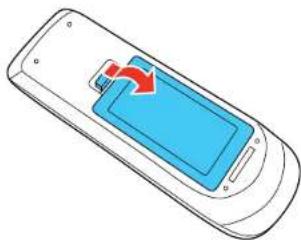
TheremotecontrolusesthettwoAAbatteriesthatcamewiththeprojector.
Caution: Use only the type of batteries specified in this manual. Do not install batteries of different types, ormixnewandoldbatteries.
- Openthebatterycoverasshown.
natural_image
Illustration of a mobile phone with a blue screen and red arrow indicating a download or update function (no text or symbols present)- Insert the batteries with the + and - ends facing as shown.

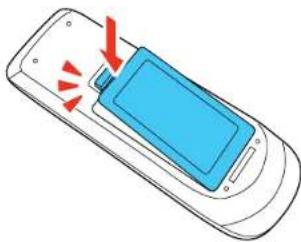
text_image
Diagram showing battery charging mechanism with labeled components and red arrows indicating charging direction3.Closethebatterycoverandpressitdownuntilclicksintoplace.
natural_image
Illustration of a mobile phone with a blue screen and red arrows indicating action or notification (no text or symbols)Warning: Dispose of used batteries according to local regulations. Do not expose batteries to heat or flame. Keep batteries out of thereachofchildren; they are choking hazards and are every dangerous if swallowed.
Parenttopic:SettingUptheProjector
OpeningtheLensCover
- Toopentheprojector'slenscover, slidetheA/VMuteslidelever.

natural_image
Diagram of a vehicle's side profile showing a hand pressing down on the dashboard with red arrows indicating motion (no text or symbols)- To cover the lens or temporarily turn off the projected picture and sound, slide the A/V Mute slide covered.
Parenttopic:SettingUptheProjector
UsingtheProjectoronaNetwork
Followtheinstructionsinthesesectionstosetupyourprojectorforuseonanetwork.
WirelessNetworkProjection
SettingUpProjectorNetworkE-MailAlerts
SettingUpMonitoringUsingSNMP
ControllingaNetworkedProjectorUsingaWebBrowser
WirelessNetworkProjection
YoucansendimagestoyourprojectorthroughawirelessnetworkPowerLite1761W/1771W/1776W. Todothis,youmustinstalltheEPSON802.11b/g/nwirelessLANmodule,andthensetupyourprojector andcomputerforwirelessprojection.
Therearetwowaystoconnecttheprojectortoyourwirelessnetwork:
- UsingtheoptionalEPSONQuickWirelessConnectionUSBkey(Windowsonly;includedwiththePowerLite1776W)
- Configuring the connection manually using the projector's Network menus
After installing the module and setting up the projector, install the network software from the Epson ProjectorSoftwareCDonyourcomputer. Use the following software and documentation to setup, control, and monitor wireless projection:
- EasyMP Network Projection software sets up your computer for wireless network projection. See the EasyMPNetworkProjectionOperationGuide.
- EasyMP Monitor software (Windows only) lets you monitor and control your projector through the network. YoucandownloadthelatestsoftwareanddocumentationfromtheEpsonwebsite.Goto www.epson.com/support (U.S.) or www.epson.ca/support (Canada) and select your projector.
InstallingtheWirelessLANModule
UsingQuickWirelessConnection(WindowsOnly)
SelectingWirelessNetworkSettingsManually
SelectingWirelessNetworkSettingsinWindows
SelectingWirelessNetworkSettingsinMacOSX
SettingUpWirelessNetworkSecurity
Parenttopic: Using the Projectorona Network
Relatedreferences
OptionalEquipmentandReplacementParts
ProjectorNetworkSettings-NetworkMenu
SolutionsWhenNetworkAlertE-MailsareNotReceived
ProjectorSetupSettings-ExtendedMenu
ProjectorNetworkSettings-NetworkMenu
InstallingtheWirelessLANModule
TousethePowerLite1761W/1771W/1776Woverawirelessnetwork,installtheEPSON802.11b/g/n wirelessmoduleintheprojector.Donotinstallanyothertypeofwirelessmodule.
Caution: Never remove the module while its indicator light is green or flashing, or while you are projectingwirelessly. You may damage themoduleorlosedata.
- Turnoff the projector and unplug the power cord.
- TurntheprojectoroverandremovethescrewsecuringtheLANmodulecover.

natural_image
Line drawing of a car interior with a screwdriver inserted, showing a close-up of the engine compartment (no text or symbols present)- Removethewireless LAN module cover.

natural_image
Line drawing of a projector with blue and red arrows indicating ports (no text or symbols)- Insert the wireless LAN module into the port.
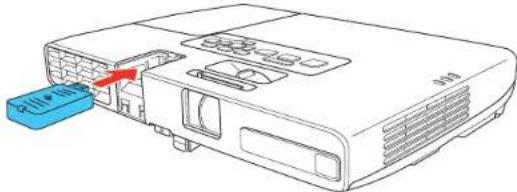
natural_image
Diagram of a projector with a blue label pointing to its internal components (no text or symbols present)- Replacethewireless LAN module cover, and then turnover the projector.
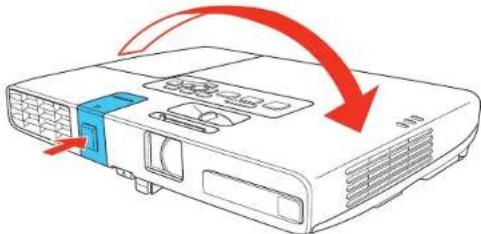
natural_image
Diagram of a projector with a blue internal component and red arrows indicating motion (no text or symbols)- Secure the wireless LAN module cover using the screw you removed.
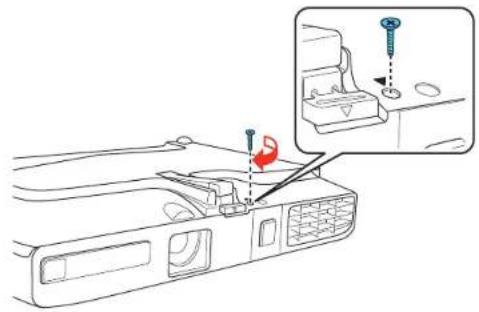
natural_image
Diagram of a car interior with screwdriver and tool, showing mechanical components and a close-up inset (no text or symbols)- Pluginandturnontheprojector.
Parenttopic: Wireless Network Projection
UsingQuickWirelessConnection(WindowsOnly)
YoucanusetheoptionalEPSONQuickWirelessConnectionUSBkeytoquicklyconnecttheprojector toaWindowscomputerwirelessly(PowerLite1761W/1771W/1776W;USBkeyincludedwiththe PowerLite1776W).Thenyoucanprojectyourpresentationandremovethekeywhenyouaredone.
- Turnon the projector.
- ConnecttheUSBkeytotheprojector'sUSBTypeAport.

natural_image
Diagram showing connection between a computer interface and cable, with connectors and components (no text or symbols)Youseeaprojectedmessagethatthenetworkinformationupdateiscomplete.
- RemovetheUSBkey.
4.NowconnecttheUSBkeytoaUSBportonyourcomputerornotebook.
Note: In Windows Vista, if you see the AutoPlay window, select Run LaunchU3.exe, then select Allowonthenextscreen.
- Followtheon-screen instruction to install the Quick Wireless Connection driver.
Note: If you see a Windows Firewall message, click Yes to disable the firewall.
Afterafewminutes, yourcomputerimage is displayed by the projector. If it does not appear, press the LAN button on your projector remote control or restart your computer.
-
Run your presentation as necessary.
-
When you finish projecting wirelessly, remove the USB key from your computer.
Note: You may need to start your computer to reactivate your wireless LAN connection.
Parenttopic: Wireless Network Projection
SelectingWirelessNetworkSettingsManually
Before you can project from your wireless network, you must select then network settings for the projector using its menusystem.
- Turnon the projector.
2.PresstheMenubutton.
- SelecttheNetworkmenuandpressEnter.
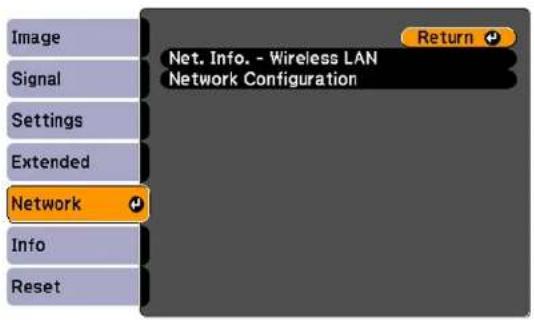
text_image
Image Signal Settings Extended Network Info Reset Net. Info. - Wireless LAN Network Configuration Return- SelectNetworkConfigurationandpressEnter.
- SelecttheBasicmenuandpressEnter.

text_image
Basic Wireless LAN Security Mail Others Reset Complete Projector Name PJLink Password Web Control Password Projector Keyword Off Return- Select the following basic options as necessary:
-ProjectorNameletsyouenteranameupto16alphanumericcharacterslongtoidentifytheprojectoverthenetwork.
- PJLinkPasswordletyouenterapasswordupto32alphanumericcharacterslongforusingthe PJLinkprotocolforprojectorcontrol.
- WebControlPasswordletsoyouenterapasswordupto8alphanumericcharacterslongfor accessingtheprojectorovertheweb.
-ProjectorKeywordletsyouturnonasecuritypasswordtopreventaccesstotheprojectorby anyenotintheroomwithit.Youumustenteradisplayed,randomizedkeywordfromacomputer usingtheEasyMPNetworkProjectionsoftwaretoaccesstheprojector.
Note: Usethedisplayedkeyboardtoenterthename, passwordsandkeyword. Pressthearrow buttonsontheremotecontroltohighlightcharactersandpressEntertoselectthem.
7. SelecttheWirelessLANmenuandpressEnter.
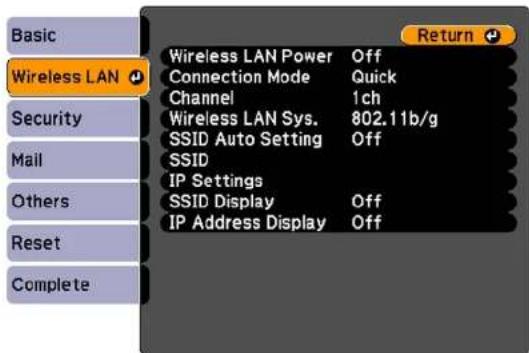
text_image
Basic Wireless LAN Security Mail Others Reset Complete Wireless LAN Power Off Connection Mode Quick Channel 1ch Wireless LAN Sys. 802.11b/g SSID Auto Setting Off SSID IP Settings SSID Display Off IP Address Display Off Return- Select these settings on the Wireless LAN menu as necessary for your network.
- When you finish selecting settings, select Complete and follow the on-screen instructions to save yoursettingsandexithemenus.
Afteryoucompletethewirelesssettingsforyourprojector,youneedtoselectthewirelessnetworkon yourcomputer.
WirelessLANMenuSettings
Parenttopic: Wireless Network Projection
WirelessLANMenuSettings
Note: See your projector's EasyMP Network Projection Operation Guide for details on selecting these settings.
| SettingOptionsDescription | ||
| WirelessLANPowerOnTurnsonwirelessLANsupportOff | ||
| ConnectionModeQuickSelectsthetypeofwirelessAdvanced | connection:Quick:letsyouquicklyconnecttoonecomputerorusetheoptionalEPSONQuickWirelessConnectionUSBkeytoconnectAdvanced:letsyouconnecttomultiplecomputersviaawirelessnetworkaccesspoint | |
| Channel1chInQuickconnectionmode,6ch11ch | selectsthefrequencyband(channel)usedbythewirelessLAN | |
| WirelessLANSys.802.11b/gSetshetypeofwirelessLAN802.11b/g/n | systemtheprojectorisconnectingto | |
| SSIDAutoSettingOnTurnsonautomaticSSIDOff | searchinginQuickconnectionmode;settoOffwhenconnectingtomultipleprojectorsatthesametime | |
| SSIDUp32alphanumericcharactersSetstheSSID(networkname)of | thewirelessLANsystemtheprojectorisconnectingto | |
| IP Settings | DHCP (On or Off)IPAddressSubnetMaskGatewayAddress | Selects DHCP if your network assignsaddressesautomatically, orturnsoffDHCPsoyoucan enterthenetwork'sIPaddress, subnetmask,andgateway addressasneeded |
| SSIDDisplayOnSelectswhethertodisplaytheOff | SSIDonthenetworkstandby screen | |
| IPAddressDisplayOnSelectswhethertodisplaytheIPOff | addressonthenetworkstandby screen | |
Parenttopic: Selecting Wireless Network Settings Manually
SelectingWirelessNetworkSettingsinWindows
Beforeconnectingtotheprojector, select the correct wireless network on your computer.
-
To access your wireless utility software, double-click then network icon on the Window stask bar.
2.Dooneofthefollowing: -
If your projector is set upon an existing network (Advanced mode), select thenetworkname (SSID).
- IfyourprojectorisconfiguredforQuickmode,selecttheSSIDyouassignedtotheprojector.
3.ClickConnect.
Parenttopic: Wireless Network Projection
SelectingWirelessNetworkSettingsinMacOSX
Beforeconnectingtotheprojector, select the correct wireless network in MacOSX.
- ClicktheAirPorticononthemenubaratthetopofthescreen.
- MakesureAirPortisturnedon, thendooneofthefollowing:
- If your projector is set upon an existing network (Advanced mode), select thenetworkname (SSID).
- If your projector is configured for Quickmode, select the SSID you assigned to the projector.
Parenttopic: Wireless Network Projection
SettingUpWirelessNetworkSecurity
Youcansetupsecurityforyourprojectortouseonthewirelessnetwork(PowerLite
1761W/1771W/1776W).Setuponeofthefollowingsecurityoptionstomatchthesettingsusedonyour network:
•WEPencryption
•WPAsecurity
Note: Checkwithyournetworkadministratorforguidanceonenteringthecorrectinformation.
- PresstheMenubutton.
- SelecttheNetworkmenuandpressEnter.
- SelectNetworkConfigurationandpressEnter.
- SelecttheSecuritymenuandpressEnter.
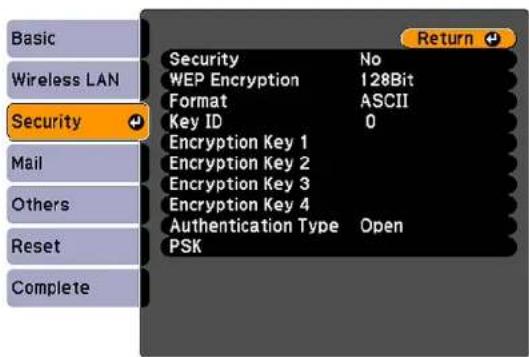
text_image
Basic Wireless LAN Security Mail Others Reset Complete Security No WEP Encryption 128Bit Format ASCII Key ID 0 Encryption Key 1 Encryption Key 2 Encryption Key 3 Encryption Key 4 Authentication Type Open PSK Return- Select these security settings as necessary to match your network settings.
- When you finish selecting settings, select Complete and follow the on-screen instructions to save yoursettingsandexithemenus.
WirelessSecurityMenuSettings
Parenttopic: Wireless Network Projection
WirelessSecurityMenuSettings
SettingstheSecuritymenuletyouselectthetypeofsecurityandsecuritysettingsthatmatchthe networkyouareconnectingtheprojectorto.
| SettingOptionsDescription | ||
| SecurityWEPandWPAtypesavailable | ableSelectsthetypeofsecurityused | onthewirelessnetwork |
| WEPEncryption128BitForWEPsecurity,selectsthe64Bit | typeofencryptioncoding | |
| FormatASCIIForWEPsecurity,selectstheHEX | encryptioninputmethod:ASCII:enablestextinputHEX:enableshexadecimalinput | |
| KeyID1to4ForWEPsecurity,selectsthe | WEPencryptionkeyID | |
| EncryptionKey1toVariouscharacter | ersdependingonFortheselectedWE | EPKeyID |
| EncryptionKey4 | selectedWEPEncryptionandsettingFormatsettingsWEPencryption: | ing,enterthekeyusedfor128bitASCII:13alphanumericcharacters128bitHEX:26characters(0to9andAtoF)64bitASCII:5alphanumericcharacters64bitHEX:10characters(0to9andAtoF) |
| AuthenticationTypeOpenForWE | Psecurity,selectstheShared | typeofWEPauthenticationused |
| PSK | Various keys from 8 to 32 characters | For WPA-PSK or WPA-2-PSK security,selectsthepre-shared keyusedonthenetwork |
Parenttopic:SettingUpWirelessNetworkSecurity
SettingUpProjectorNetworkE-MailAlerts
Youcansetuptheprojectortosendyouane-mailalertoverthenetworkifthereisaproblemwiththe projector.
1.PresstheMenubutton.
2. SelecttheNetworkmenuandpressEnter.
3. SelectNetworkConfigurationandpressEnter.
4. SelecttheMailmenuandpressEnter.

text_image
Basic Wireless LAN Security Mail Others Reset Complete Mail Notification Off SMTP Server 0. 0. 0. 0 Port Number 0 Address 1 Setting Address 2 Setting Address 3 Setting Return5.TurnonMailNotification.
6.EntertheIPaddressfortheSMTPServeroption.
Note: Donotusetheseaddresses: 127.x.x.xor224.0.0.0 through 255.255.255.255 (whereexisa number from 0 to 255).
-
SelectanumberfortheSMTPserverPortNumber, from1 to65535 (defaultis25).
-
Choose an Address field, enter the e-mail address, and select the alerts you want to receive there. Repeatforuptothreeaddresses.
Note: Youre-mailaddresscanbeupto32alphanumericcharacterslong.
- When you finish selecting settings, select Complete and follow the on-screen instructions to save yoursettingsandexithemenus.
Note: If a critical problem causes a projector to shut down, you may not receive an e-mail alert.
NetworkProjectorE-mailAlertMessages
Parenttopic: Using the Projectorona Network
NetworkProjectorE-mailAlertMessages
When a problem occurs with an networked projector, and you selected to receive email alerts, you receive an email containing the following information:
•EPSONProjectoronthesubjectline
- Thenameoftheprojectorexperiencingaproblem
•TheIPaddressoftheaffectedprojector
•Detailedinformationabouttheproblem
Note: If a critical problem causes a projector to shut down, you may not receive an e-mail alert.
Parenttopic: SettingUpProjectorNetworkE-MailAlerts
SettingUpMonitoringUsingSNMP
NetworkadministratorscaninstallSNMP(SimpleNetworkManagementProtocol)softwareonnetworkcomputerssotheycanmonitorprojectors.Ifyournetworkusesthissoftware,youcansetuptheprojectorforSNMPmonitoring.
-
PresstheMenubutton.
-
SelecttheNetworkmenuandpressEnter.
-
SelectNetworkConfigurationandpressEnter.
-
SelecttheOthersmenuandpressEnter.
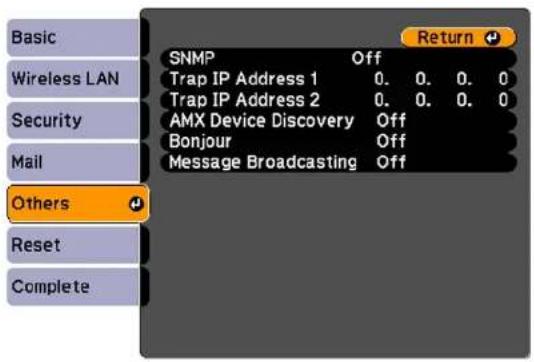
text_image
Basic Wireless LAN Security Mail Others Reset Complete SNMP Off Trap IP Address 1 0. 0. 0. 0 Trap IP Address 2 0. 0. 0. 0 AMX Device Discovery Off Bonjour Off Message Broadcasting Off Return5.EnteruptotwoIPaddressestoreceiveSNMPnotifications,using0to255foreachaddressfield.
Note: Donotusetheseaddresses: 127.x.x.xor224.0.0.0 through 255.255.255.255 (wherexisa number from 0 to 255).
- If your network environment uses an AMX controller, turn on the AMX Device Discovery setting to allow the projectortobedetected.
- If you are connecting to an network using Bonjour, turn on the Bonjour setting.
- If you want this projector to receive broadcasted messages over the network, turn on the Message Broadcasting setting. Administrators can broadcast messages over thenetwork using the Message Broadcasting plug-inforEasyMPMonitor(Windowsonly).
- When you finish selecting settings, select Complete and follow the on-screen instructions to save yoursettingsandexithemenus.
Parenttopic: UsingtheProjectoronaNetwork
ControllingaNetworkedProjectorUsingaWebBrowser
Once you have connected your project to your own network, you can select projector settings and control projection using a compatible web browser. This lets you access the projector remotely.
Note: The web setup and control features support Microsoft Internet Explorer 6.0 or later, and Safari on networksthatdonotuseaproxyserverforconnection.Youcannotselectalloftheprojectormenu settingsorcontrolallprojectorfunctionsusingawebbrowser.
Note: If you set Standby Mode to Communication On, you can use a web browser to select settings and control projection even if the projector is in stand by mode. You cannot select all of the projector menus or control all projector functions using a web browser.
- Makesuretheprojectoristurnedon.
2.Startyourwebbrowseronacomputerconnectedtothenetwork.
-
Type the projector's IP address into the browser's address box and press the computer's Enter key. YouseetheWebControlscreen.
-
Toselectprojectormenusettings, selectthenameofthemenuandfollowtheon-screeninstructions toselectsettings.
-
To control projection remotely, select the Web Remote option.
Youseethisscreen:
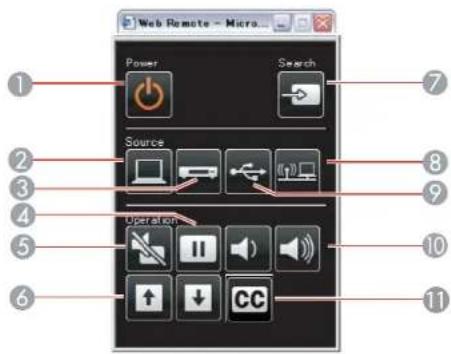
text_image
Web Remote - Micro... Power Search Source Operation ↑ ↓ CC1 Powerbuttoncontrol
2SelectsComputerportsource
3SelectsVideoandHDMIportsources
4Freezebuttoncontrol
5A/VMutebuttoncontrol
6PageUpandPageDownbuttoncontrols
7Searchesforsources
8Selectsthenetworksource
9SelectstheUSBDisplayorUSBdevicesource
10Volumebuttoncontrols
11 ClosedCaptioncontrol
- Select the icon corresponding to the projector function you want to control.
Parenttopic: Using the Projectorona Network
Relatedconcepts
WirelessNetworkProjection
UsingBasicProjectorFeatures
Followtheinstructionsinthesesectionstouseyourprojector'sbasicfeatures.
TurningOntheProjector
TurningOfftheProjector
SelectingtheLanguagefortheProjectorMenus
AdjustingtheImageHeight
ImageShape
ResizingtheImageWiththeZoomRing
FocusingtheImage
RemoteControlOperation
SelectinganImageSource
ProjectionModes
ImageAspectRatio
ColorMode
ControllingtheVolumewiththeVolumeButtons
ProjectingaSlideShow
TurningOntheProjector
Turnonthecomputerorvideoequipmentyouwanttousebeforeyouturnontheprojectorsoitcan displaytheimagesource.
- Opentheprojector'slenscover.
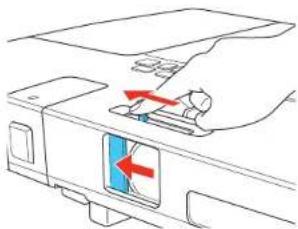
natural_image
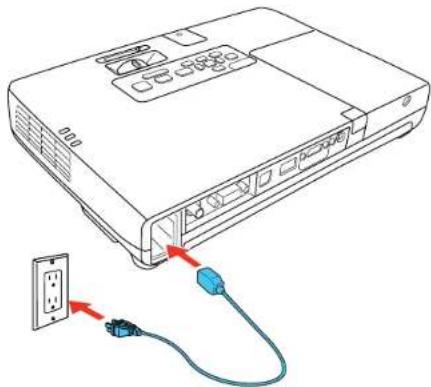
Diagram of a vehicle's front compartment with red arrows indicating movement or force (no text or symbols)- Connect the power cord to the projector's power inlet.
natural_image
Line drawing of a projector with cable and plug, showing internal components and connection (no text or symbols)3.Plugthepowercordintoanelectricaloutlet.
Theprojector'spowerlightturnsorange. This indicates that the projector is receiving power, but is not yet turned on (itisinstandbymode).
Note: With Direct Power On turned on, the projector turns on as soon as you plug it in.
- Pressthepowerbuttonontheprojectorotheremotecontroltoturnontheprojector.
The projector beeps and the power light flashes green as the projector warms up. After about five seconds, the power light stops flashing and turnsgreen.
Warning: Never look into the projector lens when the lamp is on. This can damage your eyes and is especially dangerous for children.
If you donot see a projected imagerightaway, try the following:
- Verifythelenscoverisopenalltheway.
•Turnontheconnectedcomputerorvideodevice.
- InsertaDVDorothervideomedia, and presstheplaybutton (if necessary).
- PresstheSourceSearchbuttonontheprojectororremotecontroltodetectthevideosource.
Parenttopic: UsingBasicProjectorFeatures
Relatedreferences
ProjectorSetupSettings-ExtendedMenu
TurningOfftheProjector
Before turning off the projector, shutdown any computer connected to it so you can see the computer display during shutdown.
Note: Turn off this product when not in use to prolong the life of the projector. Lamp life will vary depending upon modeselected, environmental conditions, and usage. Brightness decreases over time.
- Pressthepowerbuttonontheprojectorotheremotecontrol.
Theprojectordisplaysashutdownconfirmationscreen.
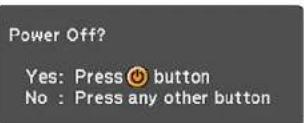
- Pressthepowerbuttonagain.(Toleaveiton, pressanyotherbutton.)
Theprojectorbeepstwice,thelampturnsoff,andthepowerlightturnsorange.
Note: With Epson's Instant Off technology, there is no cool-down period so you can pack up the projector for transport right away (if necessary).
- Totransportorstoretheprojector, makesurethepowerlightisorange(butnotflashing), then unplugthepowercord.
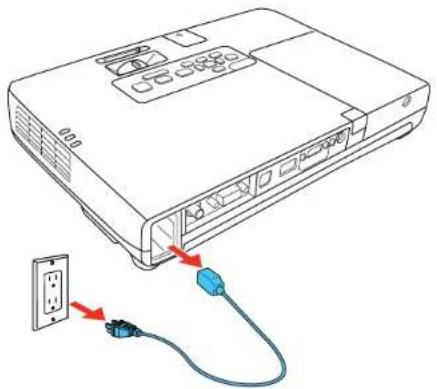
natural_image
Line drawing of a projector with attached cable and socket, showing connection to a wall socket (no text or symbols)Caution: To avoid damaging the projector lamp, never unplug the power cord when the power light is green or flashing orange.
- Closetheprojector'slenscover.

natural_image
Diagram of a vehicle's front compartment with red arrows indicating movement or force (no text or symbols)Parenttopic: UsingBasicProjectorFeatures
SelectingtheLanguagefortheProjectorMenus
If you want to view the projector's menus and messages in another language, you can change the Languagesetting.
- Turnontheprojector.
2.PresstheMenubutton. - SelecttheExtendedmenuandpressEnter.

text_image
Image Signal Settings Extended Network Info Reset Display Closed Caption Off User's Logo Projection Front Operation Standby Mode Communication Off USB Type B USB Display Projector ID Off Multi-screen Language English ResetNote: The Network menudoes not appear on non-network projectormodels.
- SelecttheLanguagesettingandpressEnter.
- SelectthelanguageyouwanttouseandpressEnter.
- PressMenuorEsctoexitthemenus.
Parenttopic: UsingBasicProjectorFeatures
AdjustingthelmageHeight
If you are projecting from a table or other flats surface, and the image is too high or low, you can adjust the image height using the projector's adjustable feet.
-
Turnon the projector and display an image.
-
To adjust the front foot, pull up on the foot release lever and lift the front of the projector.

text_image
Diagram illustrating a device's light path and adjustment mechanism, with red arrows indicating direction of light reflection.Thefootextendsfromtheprojector.
- Releasethevertolockthefoot.
- If the image is tilted, rotate there near feet to adjust their height.

flowchart
graph LR
    A[" "] --> B[" "]
    B --> C[" "]
    C --> D[" "]
    D --> E[" "]
    E --> F[" "]
    style A fill:#ccc
    style B fill:#ccc
    style C fill:#ccc
    style D fill:#ccc
    style E fill:#ccc
    style F fill:#ccc
If the projected image is unevenly rectangular, you need to adjust the imageshape.
Parenttopic: UsingBasicProjectorFeatures
Relatedconcepts
ImageShape
Relatedreferences
ProjectorFeatureSettings-SettingsMenu
ImageShape
Youcanprojectanevenlyrectangularimagebyplacingtheprojectordirectlyinfrontofthecenterofthe screenandkeepingitlevel. Ifyouplacetheprojectoratanangletothescreen,ortiltedupordown,oroff totheside,youmayneedtocorrecttheimageshapeforthebestdisplayquality.
Whenyouturnonautamickeystonecorrectioninyourprojector'sSettingsmenu,yourprojector automaticallycorrectskeystoneeffectswhenyourepositiontheprojector.(ThePowerLite 1751/1761W/1771WautomaticallycorrectverticalkeystoningandthePowerLite1776Wautomatically correctshorizontalandverticalkeystoning.)
AutomaticallyCorrectingImageShapeWithScreenFit
CorrectingImageShapewithQuickCorner
CorrectingImageShapeWiththeKeystoneButtons
Parenttopic: UsingBasicProjectorFeatures
Relatedreferences
ProjectorFeatureSettings-SettingsMenu
Relatedtasks
AdjustingtheImageHeight
AutomaticallyCorrectingImageShapeWithScreenFit
Youcanusetheprojector'sScreenFitfeaturetoautomaticallycorrecttheshapeandpositionofimages tofitonyourscreen(PowerLite1776W).
Theprojector'ssensorcandetectthescreensizeandshapeintheseconditions:
•Projectorisnotmountedontheceiling
• Screensizeis100inches(254cm)orless
•Projectiondistanceisabout3feet(1m)to8feet(2.5m)
- Projectionangleisabout20°rightorleft,or30°upordown
•Theroomisnottoodark
- Projectionsurfaceisnotpatternedanddoesnotdeflectthesensorinsomeway
- PresstheScreenFitbuttonontheprojectororremotecontrol.
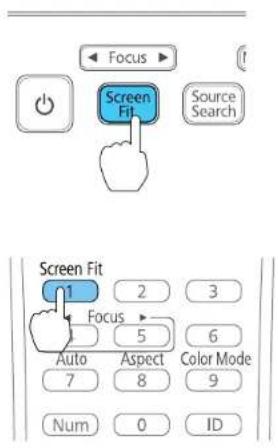
text_image
Focus Screen Fit Source Search Screen Fit 1 Focus 2 3 5 6 Auto Aspect Color Mode 7 8 9 Num 0 IDYouseeamessageonthescreen.
2.Movetheprojectorasnecessarytodisplaythemessageinthemiddleofthescreen.
3. Zoom into the image until its yellow frame extends beyond the edges of the screen.
4. PresstheScreenFitbuttonagain.
Twodisplaysflashbriefly, thenthismessageappears:
The revision result can be adjusted by on the main control panel.
5.Fine-tunetheimageshapeasnecessaryusingthearrowbuttonsonthecontrolpanel.
6. When you are finished, press Esc.
Now, if necessary, you can correct the image corners individually using QuickCorner by pressing the arrow button on the control panel.
Parenttopic:ImageShape
CorrectingImageShapewithQuickCorner
Youcanusetheprojector'sQuickCornersettingtocorrecttheshapeandsizeofanimagethatis unevenlyrectangularonallsides.
- Turnon the projector and display an image.
Note: You can display a pattern to aid in adjusting the projected image using the Settings menu.
2.PresstheMenubutton.
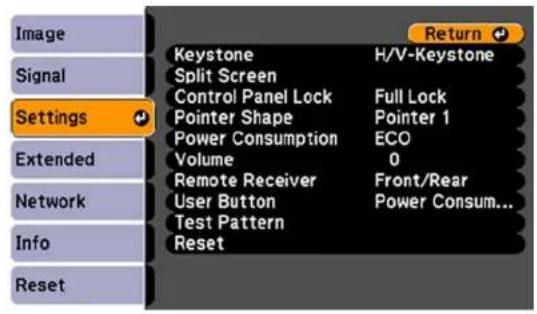
3. SelecttheSettingsmenuandpressEnter.
text_image
Image Signal Settings Extended Network Info Reset Keystone H/V-Keystone Split Screen Control Panel Lock Full Lock Pointer Shape Pointer 1 Power Consumption ECO Volume 0 Remote Receiver Front/Rear User Button Power Consum... Test Pattern Reset- SelecttheKeystonesettingandpressEnter.
- Select the Quick Corner setting and press Enter. Then press Enter again. YouseetheQuickCorneradjustmentscreen.
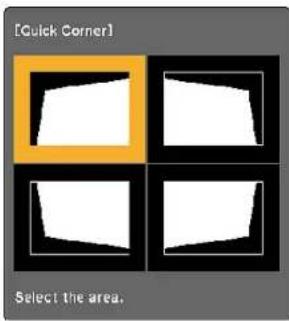
text_image
[Quick Corner] Select the area,- Usethearrowbuttonsontheprojectorotheremotecontroltoselectthecorneroftheimageyou wanttoadjust.ThenpressEnter.
- Pressthearrowbuttonstoadjusttheimageshapeasnecessary.
- When you are finished, press Esc.
Parenttopic:ImageShape
CorrectingImageShapeWiththeKeystoneButtons
Youcanusetheprojector'skeystonecorrectionbuttonstocorrecttheshapeofanimagethatis unevenlyrectangularonthesides.
- Turnon the projector and display an image.
Note: You can display a pattern to aid in adjusting the projected image using the Settings menu.
- Pressakeystonebuttonontheprojector'scontrolpanel.

flowchart
graph TD
    A["Input: nu, Enter"] --> B["Process Block"]
    B --> C["Output: nu, Enter, Es"]
    style A fill:#f9f,stroke:#333
    style C fill:#bbf,stroke:#333
Aftercorrection, your image is slightly smaller.
Note: If the projector is installed out of reach, you can also correct the image shape using the Keystonesettingsintheprojectormenus.
Parenttopic:ImageShape
Relatedreferences
ProjectorFeatureSettings-SettingsMenu
ResizingthelmageWiththeZoomRing
- Turnon the projector and display an image.
Note: You can display a pattern to aid in adjusting the projected image using the Settings menu.
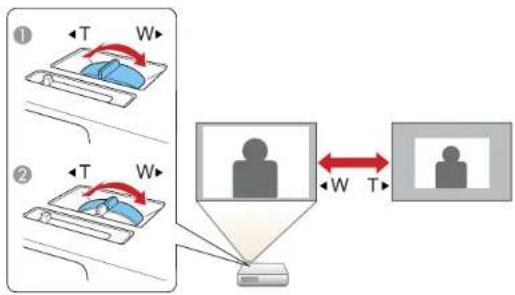
- Toenlargeorreducetheimagesize, rotatetheprojector'szoomring.
flowchart
graph TD
    A["①"] --> B["Device 1: Temperature T, Width W"]
    C["②"] --> D["Device 2: Temperature T, Width W"]
    B <--> D
    style A fill:#f9f,stroke:#333
    style C fill:#f9f,stroke:#333
    style B fill:#ccf,stroke:#333
    style D fill:#ccf,stroke:#333
1PowerLite1776W
2PowerLite1751/1761W/1771W
Parenttopic: UsingBasicProjectorFeatures
Focusingthelmage
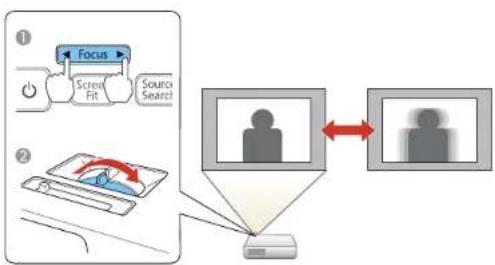
Beforeyousharpenthefocus,turnontheprojectoranddisplayanimation.
•PowerLite1776W:PresstheFocusbuttonsontheprojectororremotecontrol.
•PowerLite1751/1761W/1771W:Rotatetheprojector'sfocusing.
Parenttopic: UsingBasicProjectorFeatures
RemoteControlOperation
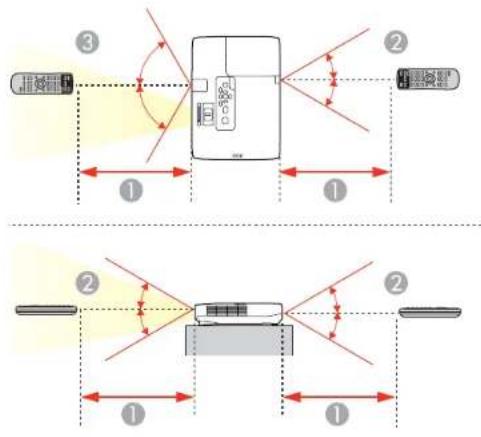
Theremotecontrolletsyoucontroltheprojectorfromalmostanywhereintheroom,upto19.7feet(6m) away.Youcanpointitatthescreen,orthefrontorbackoftheprojector.
Makesurethatyouaimtheremotecontrolattheprojector'sreceiverswithintheangleslistedhere.
text_image
Diagram illustrating light path and distance measurement between a device and two control panels, labeled with numbered components.119.7 feet(6m)
2 ± 30^
3 ± 60^
Note: Avoid using the remote control in conditions with bright fluorescent lights or in direct sunlight, or theprojectormaynotrespondtocommands. If you will not use theremote control for alongtime, removethebatteries.
UsingtheRemoteControlasaWirelessMouse
UsingtheRemoteControlasaPresentationPointer
Parenttopic: UsingBasicProjectorFeatures
Relatedtasks
ReplacingtheRemoteControlBatteries
UsingtheRemoteControlasaWirelessMouse
Youcanusetheprojector'sremotecontrolasawirelessmousesoyoucancontrolyourcomputer presentationfromadistance.
- Connect the projector to a computer using the projector's USB TypeB, Computer, or HDMI port to displayvideo.
- If you connected your computer to the Computer or HDMI port, also connect a USB cable to the projector's USB TypeB port and to a USB port on your computer (for wireless mouse support).
3.Startyourpresentation. - Usethefollowingbuttonsontheremotecontroltocontrolyourpresentation:
- Tomovethroughslidesorpages, presstheupordownPagebuttons.
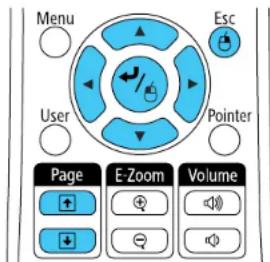
text_image
Menu Esc User Pointer Page E-Zoom Volume- Tomovethecursoronthescreen, usethearrowbuttons.
- Toleft-click, pressthebuttononce(pressittwicetodouble-click).
•Toright-click,presstheEscbutton - Todrag-and-drop, hold the button, has you mov the cursor with the arrow buttons, then release at the destination.
Parenttopic: RemoteControlOperation
Relatedreferences
ProjectorSetupSettings-ExtendedMenu
UsingtheRemoteControlasaPresentationPointer
Youcanusetheprojector'sremotecontrolasapointertohelpyoucalloutimportantinformationduring apresentation. Thedefaultpointershapeisanarrow, butyoucanselectanalternativeshapeusingthe Settingsmenu.
- PressthePointerbuttonontheremotecontrol.
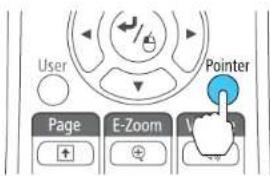
text_image
User Page E-Zoom Pointer- Usethearrowbuttonsontheremotecontroltomovethepointeronthescreen.
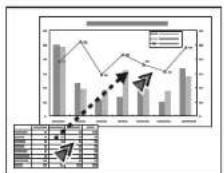
- PressEsctoclearthepointerfromthescreen.
Parenttopic: RemoteControlOperation
Relatedreferences
ProjectorFeatureSettings-SettingsMenu
SelectinganImageSource
If you connected multiple images our cestotheprojector, such as a computer and DVD player, you may want to switch from one images our ceto the other.
-
Makesuretheconnectedimagesourceyouwanttouseisturnedon.
-
For video images sources, insert a DVD or other video media and press its play button (if necessary).
3.Dooneofthefollowing:
- Press the Source Search button on the projector or remote control until you see the image from the source you want.

text_image
Source Search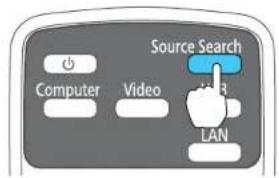
text_image
Source Search Computer Video LAN- Pressthebuttonforthesourceyouwantontheremotecontrol.Ifthereismorethanoneportforthatsource,pressthebuttonagaintcyclethroughthesources.

text_image
Source Search Computer Video USB LAN ① ② ③ ④1 Computerportsources
2VideoandHDMIsources
3USBportsources(computerdisplayandexternaldevices)
4Networksource(PowerLite1761W/1771W/1776W)
Parenttopic: UsingBasicProjectorFeatures
ProjectionModes
Dependingonhowyoupositionedtheprojector,youmayneedtochangetheprojectionmodesoyour imagesprojectcorrectly.
- Front(defaultsetting)letsyouprojectfromatableinfrontofthescreen.
- Front/Ceiling flips the image over top-to-bottom to project upside-down from a ceiling or wall mount.
- Rearflipstheimagehorizontallytoprojectfrombehindatransluentscreen.
- Rear/Ceiling flips the image over top-to-bottom and horizontally to project from the ceiling and behind atranslucentscreen.
Youcanchangetheprojectionmodeusingtheremotecontrolorbychangingamenusetting.
ChangingtheProjectionModeUsingtheRemoteControl
ChangingtheProjectionModeUsingtheMenus
Parenttopic: UsingBasicProjectorFeatures
ChangingtheProjectionModeUsingtheRemoteControl
Youcanchangetheprojectionmodetofliptheimageovertop-to-bottom.
- Turnon the projector and display an image.
2.HolddowntheA/VMutebuttonontheremotecontrolforfiveseconds.

text_image
Page E-Zoom Volume A/V Mute Split Freeze Help ?Theimagedisappearsbrieflyandreappearsflippedtop-to-bottom.
- To change projection back to the original mode, hold down the A/V Mute button for five seconds again.
Parenttopic: ProjectionModes
ChangingtheProjectionModeUsingtheMenus
Youcanchangetheprojectionmodetofliptheimageovertop-to-bottomand/orleft-to-rightusingtheprojectormenus.
- Turnon the projector and display an image.
2.PresstheMenubutton. - SelecttheExtendedmenuandpressEnter.
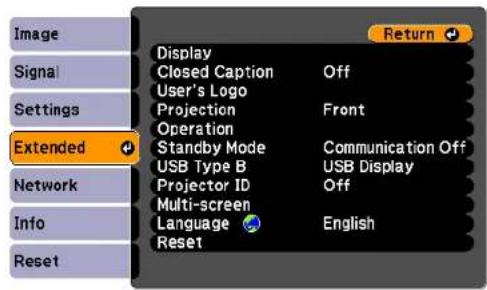
text_image
Image Signal Settings Extended Network Info Reset Display Closed Caption Off User's Logo Projection Front Operation Standby Mode Communication Off USB Type B USB Display Projector ID Off Multi-screen Language English Reset- Select the Projection setting and press Enter.
- SelectaprojectionmodeandpressEnter.
- PressMenuorEsctoexitthemenus.
Parenttopic:ProjectionModes
ImageAspectRatio
Theprojectorcandisplayimagesindifferentwidth-to-heighttratioscalledaspectratios.Normallythe inputsignalfromyourvideosourcedeterminestheimage'saspectratio.However,forcertainimages youcanchangetheaspectratiotofityourscreenbypassingabuttonontheremotecontrol.
If you always want to use a particular aspect ratio for acertain video inputs from your can select it using the projector's menus.
ChangingtheImageAspectRatio
AvailableImageAspectRatio
Parenttopic: UsingBasicProjectorFeatures
Relatedreferences
ImageQualitySettings-ImageMenu
ChangingthelmageAspectRatio
Youcanchangetheaspectratioofthedisplayedimagetoresizeit.
- Turnon the projector and switch to the images source you want to use.
- PresstheAspectbuttonontheremotecontrol.
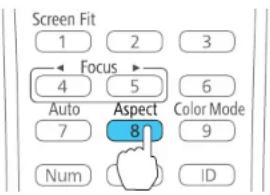
text_image
Screen Fit 1 2 3 Focus 4 5 6 Auto Aspect Color Mode 7 8 9 Num IDTheshapeandsizeofthedisplayedimagechanges, and thenameoftheaspectratioappears brieflyonthescreen.
- Tocyclethroughtheavailableaspectratiosforyourinputsignal, presstheAspectbutton repeatedly.
Parenttopic:ImageAspectRatio
AvailableImageAspectRatio
You can select the following image aspectratios, depending on the input signal from your images source.
Note: Black bands and cropped images may project in certain aspect ratios, depending on the aspect ratio and resolution of your input signal.
PowerLite1751
| AspectratiosettingDescription | |
| AutoAutomaticallysetstheaspectratioaccordingtotheinputsignal. | |
| NormalDisplaysimagesusingthefull projectionareaandmaintainsthe aspectratiooftheimage. | |
| 4:3Displaysimagesusingthefullproj ectionareaat4:3aspectratio. | |
| 16:9Convertstheaspectratiooftheimageto16:9. | |
PowerLite1761W/1771W/1776W
| AspectratiosettingDescription | |
| AutoAutomaticallysetstheaspectratio | ioaccordingtotheinputsignal. |
| NormalDisplaysimagesusingthefull | projectionareaandmaintainstheaspectratiooftheimage. |
| 16:9Convertstheaspectratiooftheim | ageto16:9. |
| FullDisplaysimagesusingthefullwid | thoftheprojectionarea,butdoesnotmaintaintheaspectratio. |
| ZoomDisplaysimagesusingthefullw | idthoftheprojectionareaandmaintainstheaspectratiooftheimage. |
| NativeDisplaysimagesasis(aspectr | ratioandresolutionaremaintained). |
Note: The Auto aspect ratio setting is available only for HDMI image sources.
Parenttopic:ImageAspectRatio
ColorMode
TheprojectoroffersdifferentColorModestoprovideoptimumbrightness,contrast,andcolorfora varietyofviewingenvironmentsandimagetypes.Youcanselectamodedesignedtomatchyourimage andenvironment,orexperimentwiththeavailablemodes.
If you always want to use a particular color mode for certain video inputs, you can select it using the projectormenus.
ChangingtheColorMode
AvailableColorModes
TurningOnAutolris
Parenttopic: UsingBasicProjectorFeatures
Relatedreferences
ImageQualitySettings-ImageMenu
ChangingtheColorMode
Youcanchangetheprojector'sColorModeusingtheremotecontroltooptimizetheimageforyourviewingenvironment.
- Turnon the projector and switch to the images source you want to use.
- If you are projecting from a DVD player or other videos source, insert ad disc or other video media and press the play button, if necessary.
- PresstheColorModebuttonontheremotecontroltochangetheColorMode.
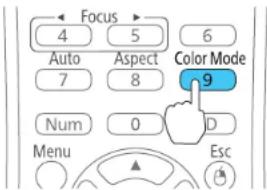
text_image
Focus 4 5 6 Auto Aspect Color Mode 7 8 Num 0 D Menu EscThe image appearance changes and then a name of the Color Mode appears briefly on the screen.
- To cycle through all the available Color Modes for your input signal, press the Color Mode button repeatedly.
Parenttopic:ColorMode
AvailableColorModes
YoucansettheprojectortousetheseColorModes,dependingontheinputsourceyouareusing:
| ColorModeDescription | |
| DynamicBestforvideogamesinabrightroom | |
| PresentationBestforcolorpresentationsinabrightroom | |
| TheatreBestformoviesprojectedinadarkroom | |
| PhotoBestforstillimagesprojectedina | abrightroom |
| SportsBestfortelevisionimagesinab | rightroom(videoorcomposite videoinputonly) |
| sRGBBestforstandardsRGBcomputerdisplays | |
| BlackboardBestforpresentationsontoagreenchalkboard(adjuststhecolors accordingly) | |
| WhiteboardBestforpresentationsontoawhiteboard(adjuststhecolors accordingly) | |
| CustomizedBestforcustomizingacolormodeusingmanualColorAdjustmentsettingsinthelmagemenu | |
| DICOMSIMBestforprojectingX-rayphotographsandothermedicalimages.ThismodeproducesimagequalitythatapproachestheDICOM standard.* | |
*Theprojectorisnotamedicaldeviceandcannotbeusedformedicaldiagnosis.
Parenttopic:ColorMode
Relatedreferences
ImageQualitySettings-ImageMenu
TurningOnAutolris
Incertaincolormodes,youcanturnontheAutoIrissettingtoautomaticallyoptimizetheimagebasedon thebrightnessofthecontentyouproject.
- Turnon the projector and switch to the images source you want to use.
2.PresstheMenubutton.
- SelectthelmagemenuandpressEnter.
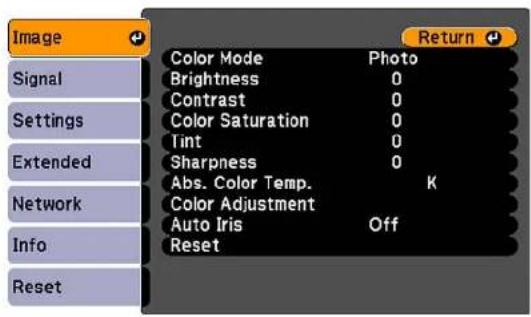
text_image
Image Signal Settings Extended Network Info Reset Color Mode Photo Brightness 0 Contrast 0 Color Saturation 0 Tint 0 Sharpness 0 Abs. Color Temp. K Color Adjustment Auto Iris Off Reset Return- SelecttheAutolrissettigandselectOn.
Note: You can turn Auto Iris on or off for each Color Mode that supports the feature. You cannot change the Auto Iris setting when you are using a Closed Caption setting.
- PressMenuorEsctoexitthemenus.
Parenttopic:ColorMode
ControllingtheVolumewiththeVolumeButtons
YoucanusetheVolumebuttonsontheremotecontroltoadjustthevolumeasyouprojecta presentationwithaudio.Thevolumebuttonscontroltheprojector'sinternalspeakersystem.
You must adjust the volumes separately for each connected input source.
-
Turnon the projector and start apresentation that includes audio.
-
PresstheVolumebuttonsasnecessarytolowerorraisethevolume.
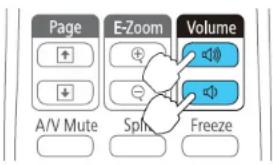
text_image
Page E-Zoom Volume A/V Mute Spin FreezeAvolumegaugeappearsonthescreen.
- Tosetthevolumetoaspecificlevelforaninputsource,youcansetthevolumeusingtheprojector's menus.
Parenttopic: UsingBasicProjectorFeatures
Relatedreferences
ProjectorFeatureSettings-SettingsMenu
ProjectingaSlideShow
You can use your projector's Slideshow feature whenever you connect a USB device that contains compatible imagefiles. This lets you quickly and easily display as slideshow or presentation, and control it using the projector's remote control.
SlideshowPresentations
SupportedSlideshowFileTypes
StartingaSlideShoworPresentation
Parenttopic: UsingBasicProjectorFeatures
Relatedconcepts
USBDeviceProjection
Relatedtasks
ConnectingaUSBDeviceorCameratotheProjector
SlideshowPresentations
Yourprojector's Slideshowfeatureletsyoudothefollowing:
•Displayindividualimages
• Presentaslideshowofallimagesinafolder
- Projectmovies
- ProjectPowerPointpresentationsconvertedto"scenario"filesusingtheEasyMPSlideConverter programincludedwithyourprojector
- Project.pdffiles(PowerLite1761W/1771W/1776Wonly)
Note: For instructions on converting PowerPoint files to the necessary scenario file format, see the EasyMPSlideConverterOperationGuideonyourprojectorCD.
Parenttopic: ProjectingaSlideShow
SupportedSlideshowFileTypes
Youcanprojectthesetypesoffilesusingtheprojector'sSlideshowfeature.
Note: For best results, place your files on mediathatis formatted in FAT16/32.
| FilecontentsFiletypeDetails(extension) | |
| Image.jpgMakesurethefileisnot: | •CMYKformat•Progressiveformat•Highlycompressed•Above8192×8192resolution |
| .bmpMakesurethefileresolutionisnotabove1280×800 | |
| .gifMakesurethefileisnot: | •Above1280×800resolution•Animated |
| .pngMakesurethefileresolutionisnotabove1280×800 | |
| Scenario.fseMainformatforfilesconvertedfromPowerPointusingEasyMPSlideConverter | |
| PDF.pdfMakesurethefileisnot:(PowerLite•SavedinPDFversion1.8orlaterformat1761W/1771W/1776W) | |
| Movie.aviMakesurethefileisnot: | •Encrypted•SavedwithanaudiocodeotherthanPCMorADPCM•Above1280×720resolution |
Parenttopic: ProjectingaSlideShow
StartingaSlideShoworPresentation
AfterconnectingaUSBdevicetotheprojector,youcanswitchtotheUSBinputsourceandstartyour slideshoworpresentation.
Note: You can change the Slideshow operation options or add special effects by highlighting Option at thebottomofthescreenandpressingEnter.
- PresstheUSBbuttonontheprojectorremotecontrol.
The Slideshow screen appears.

text_image
Slideshow Back to Top Previous image By 2001 Page Select Image TSS In-Next In-Next In-Next Break1 Break2 Break3 Break4 Break5 Break6 Break7 Break8 Break9 Break10 OKONOM OKONOM OKONOM Option Next image Slideshow Select View Image Submers-
Dothefollowingasnecessarytolocateyourfiles:
-
If you need to display files inside as subfolder your device, press the arrow button to highlight the folder and press the Enter button.
- To move back up a folder level on your device, highlight Back to Top and press Enter.
-
To view additional images in a folder, highlight Next page or Previous page and press Enter.
-
Dooneofthefollowingtostartyourslideshoworpresentation:
-
To display an individual image, press the arrow buttons to highlight the image and press Enter. (PresstheEscbuttontoreturntothefilelistscreen.)
- Todisplayaslideshowofalltheimagesinafolder, press the arrow button to highlight the Slideshow option at the bottom of the screen and press Enter.
- Todisplayapresentationfromascenariofile, press the arrow button to select the scenario file and press Enter.
Note: If any file names are longer than 8 characters or include unsupported symbols, the file names may beshortenedorchangedonlyinthescreendisplay.
-
While projecting, use the following command to control the display as necessary:
-
Torotateadisplayedimage, presstheupordownarrowbutton.
- Tomovetothenextorpreviousimage, presstheleftorrightarrowbutton.
- Toswitchscreensinapresentationfromascenariofile(.fsefiletype),pressoneofthesebuttons ontheremotecontrol.

text_image
Menu Esc User Pointer Page E-Zoom Volume 1 2 3 4 51 Nextslide
| 2Previousslide |
| 3Nextslideoranimation |
| 4Nextslideoranimation(animationeffectsarenotplayed) |
| 5Previousslideoranimation(animationeffectsarenotplayed) |
- Tostopthedisplay, followtheon-screeninstructionsorpresstheEscbutton.
SlideshowDisplayOptions
Parenttopic: ProjectingaSlideShow
Relatedtasks
DisconnectingaUSBDeviceorCameraFromtheProjector
SlideshowDisplayOptions
Youcanselectthesedisplayoptionswhenusingtheprojector'sSlideshowfeature.
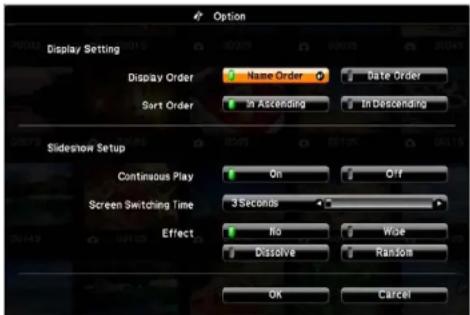
text_image
Option Display Setting Display Order Name Order Date Order Sort Order In Ascending In Descending Slideshow Setup Continuous Play On Off Screen Switching Time 3 Seconds Effect No Wide Dissolve Random OK Cancel| SettingOptionsDescription | ||
| DisplayOrderNameOrder | erDisplaysfilesinnameorder | |
| DateOrderDisplaysfilesindateorder | ||
| SortOrderInAscending | Sortsfilesinfirst-to-lastorder | |
| InDescendingSortsfilesinlast-to-firstorder | ||
| ContinuousPlayOnDisplaysaslideshowcontinuously | ||
| ScreenSwitchingNoDoesnotdisplaythenextfileautomatically | ||
| Time | 1Secondto60SecondsDisplaysfilesfortheselectedtimeandswitchestothenextfileautomatically | |
| EffectWipeTransitionsbetweenimageswithawipeeffect | ||
Parenttopic: StartingaSlideShoworPresentation
AdjustingProjectorFeatures
Followtheinstructionsinthesesectionstouseyourprojector'sfeatureadjustments.
ShuttingOffthePictureandSoundTemporarily
StoppingVideoActionTemporarily
ZoomingIntoandOutofImages
ProjectorSecurityFeatures
ProjectorIdentificationSystemforMultipleProjectorControl
ProjectingTwoImagesSimultaneously
ShuttingOffthePictureandSoundTemporarily
Youcantemporarilyturnofftheprojectedpictureandsoundifyouwanttoredirectyouraudience's attentionduringapresentation.Anysoundorvideoactioncontinuestorun,however,soyoucannot resumeprojectionatthepointthatyoustoppededit.
If you want to display images such as a company logo or picture when the presentation is stopped, you can setup this feature using the projector's menus.
- Press the A/V Mute button on the remote control to temporarily stop projection and mute any sound.
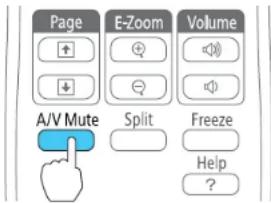
text_image
Page E-Zoom Volume A/V Mute Split Freeze Help ?- Toturnthepictureandsoundbackon, press A/VMuteagain.
Note: You can also stop projection using the A/V Mute slide lever on the projector.
Parenttopic: AdjustingProjectorFeatures
Relatedreferences
ProjectorSetupSettings-ExtendedMenu
StoppingVideoActionTemporarily
Youcantemporarilystoptheactioninavideoorcomputerpresentationandkeepthecurrentimageon thescreen.Anysoundorvideoactioncontinuestorun,however,soyoucannotresumeprojectionatthe pointthatyoustoppedit.
- PresstheFreezebuttonontheremotecontroltostopthevideoaction.
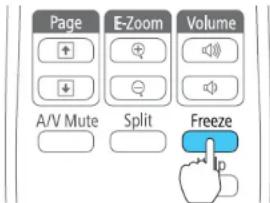
text_image
Page E-Zoom Volume A/V Mute Split Freeze- Torestartthevideoactioninprogress, pressFreezeagain.
Parenttopic: Adjusting Projector Features
ZoomingIntoandOutofImages
Youcandrawattentiontopartsofapresentationbyzoomingintoapportionoftheimageandenlargingit onthescreen.
- PresstheE-Zoom+buttonontheremotecontrol.
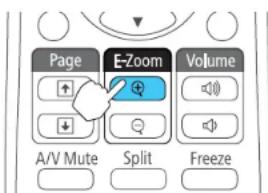
text_image
Page E-Zoom Volume A/V Mute Split FreezeYouseeacrosshaironthescreenindicatingthecenterofthezoomarea.
-
Usethefollowingbuttonsontheremotecontroltoadjustthezoomedimage:
-
Usethearrowbuttonstopositionthecrosshairintheimageareayouwanttozoominto.
- PresstheE-Zoom+buttonrepeatedlytozoomintotheimagearea,enlargingitasnecessary.
- Toparoundthezoomedimagearea, usethearrowbuttons.
- Tozoomoutoftheimage, presstheE-Zoom-buttonasnecessary.
•Toreturntotheoriginalimagesize,pressEsc.
Parenttopic: Adjusting Projector Features
ProjectorSecurityFeatures
You can secure your project to do better theft or prevent unintended use by setting up the following security features:
- Passwordsecuritytopreventtheprojectorfrombeingturnedon,andpreventchangestothestartup screenandothersettings.
- Buttonlocksecuritytoblockoperationoftheprojectorusingthebuttonsonthecontrolpanel.
•Securitycablingtophysicallycabletheprojectorinplace.
PasswordSecurityTypes
LockingtheProjector'sButtons
InstallingaSecurityCable
Parenttopic: AdjustingProjectorFeatures
PasswordSecurityTypes
Youcansetupthesetypesofpasswordsecurityusingonesharedpassword:
- PowerOnProtectpasswordpreventsanyonefromusingtheprojectorwithoutfirstenteringa password.
- User's Logo Protect password prevents anyone from changing the custom screen the projector can displaywhenitturnsonorwhenyouusetheA/VMutefeature. Thepresenceofthecustomscreen discouragestheftbyidentifyingtheprojector'sowner.
- NetworkProtectpasswordpreventsanyonefromchangingthenetworksettingsintheprojectormenus(PowerLite1761W/1771W/1776W).
SettingaPassword
SelectingPasswordSecurityTypes
EnteringaPasswordtoUsetheProjector
SavingaUser'sLogoImagetoDisplay
Parenttopic:ProjectorSecurityFeatures
SettingaPassword
Tousepasswordsecurity,youmustsetapassword.
- Hold down the Freeze button on the remote control until you see the Password Protect menu. This takes about five seconds.
PowerLite1751
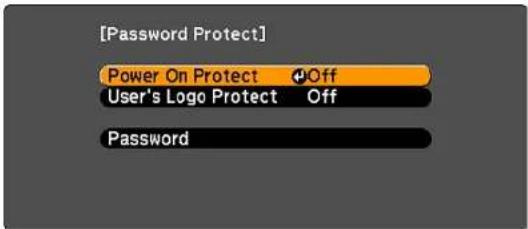
text_image
[Password Protect] Power On Protect Off User's Logo Protect Off PasswordPowerLite1761W/1771W/1776W

text_image
[Password Protect] Power On Protect Off User's Logo Protect Off Network Protect Off Password2.PressthedownarrowtoselectPasswordandpressEnter.
Youseetheprompt"Changethepassword?".
-
SelectYesandpressEnter.
-
Hold down the Num button on the remote control and use the numeric buttons to set a four-digit password.

flowchart
graph TD
    A["Screen Fit"] --> B["1"]
    A --> C["2"]
    A --> D["3"]
    B --> E["4"]
    C --> F["5"]
    D --> G["6"]
    E --> H["Auto"]
    F --> I["Aspect"]
    G --> J["Color Mode"]
    H --> K["7"]
    I --> L["8"]
    J --> M["9"]
    K --> N["Num"]
    L --> N
    M --> N
    N --> O["0"]
Thepassworddisplaysas****asyouenterit. Thenyouseetheconfirmationprompt.
5.Enterthepasswordagain.
Youseethemessage"Passwordaccepted."
- PressEsctoreturntothePasswordProtectmenu.
7.Makeanoteofthepasswordandkeepitinasafeplaceincaseyouforgetit.
Parenttopic:PasswordSecurityTypes
SelectingPasswordSecurityTypes
Aftersettingapassword,youseethePasswordProtectmenu.Selectthepasswordsecuritytypesyou wanttouse.
PowerLite1751

text_image
[Password Protect] Power On Protect Off User's Logo Protect Off PasswordPowerLite1761W/1771W/1776W
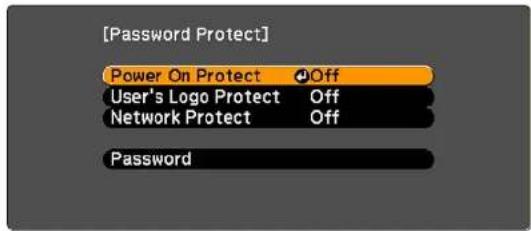
text_image
[Password Protect] Power On Protect Off User's Logo Protect Off Network Protect Off PasswordIf you do not see this menu, hold down the Freeze button on the remote control for five seconds until the menuappears.
- To prevent unauthorized use of the projector, select Power On Protect, press Enter, select On, pressEnteragain,andpressEsc.
- To prevent changes to the User's Logo screen or related display settings, select User's Logo Protect, press Enter, select On, press Enter again, and press Esc.
- To prevent changes to network settings, select Network Protect, press Enter, select On, press Enteragain, and press Esc (PowerLite1761W/1771W/1776W).
YoucanattachthePasswordProtectstickertotheprojectorasanadditionaltheftdeterrent.
Note: Be sure to keep the remote control in a safe place; if you lose it, you will not be able to enter the passwordrequiredtousetheprojector.
Parenttopic:PasswordSecurityTypes
EnteringaPasswordtoUsetheProjector
IfapasswordissetupandaPowerOnProtectpassworddisenabled,youseeaprompttoentera passwordwheneveryouturnontheprojector.
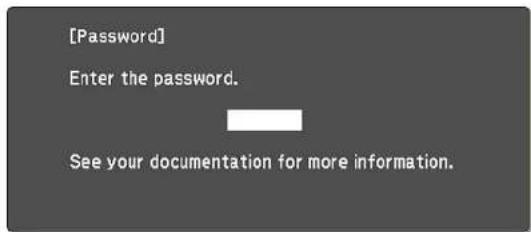
text_image
[Password] Enter the password. See your documentation for more information.Youmustenterthecorrectpasswordtousetheprojector.
- Hold down the Num button on the remote control while you enter the password using the numeric buttons.
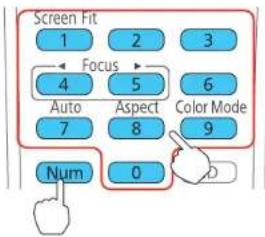
flowchart
graph TD
    A["1 Screen Fit"] --> B["2 Focus"]
    B --> C["3"]
    D["4 Auto"] --> E["5 Aspect"]
    E --> F["6 Color Mode"]
    G["7 Num"] --> H["8"]
    I["0"] --> J["9"]
Thepasswordscreencloses.
-
If the password is incorrect, the following may happen:
-
Youseea"wrongpassword"messageandaprompttotryagain.Enterthecorrectpasswordto proceed.
- If you enter an incorrect password several times in succession, the projector displays are request code and messages a contact EPSONSupport. When you contact EPSONSupport, provide the displayed request code and proof of ownership for assistance in unlocking the projector.
Parenttopic:PasswordSecurityTypes
Relatedreferences
WheretoGetHelp
SavingaUser'sLogolmagetoDisplay
Youcantransferanimagetotheprojectorandthendisplayitwhenevertheprojectorturnson. Youcan alsodisplaytheimagewhentheprojectorisnotreceivinganinputsignalorwhenyoutemporarilystop projection(usingtheA/VMutefeature). ThistransferredimageiscalledtheUser'sLogoscreen.
TheimageyouselectastheUser'sLogocanbeaphoto,graphic,orcompanylogo,whichisusefulin identifyingtheprojector'sownertohelpdetertheft.YoucanpreventchangestotheUser'sLogoby settinguppasswordprotectionforit.
-
DisplaytheimageyouwanttoprojectastheUser'sLogo.
-
Press the Menu button, select the Extended menu, and press Enter.
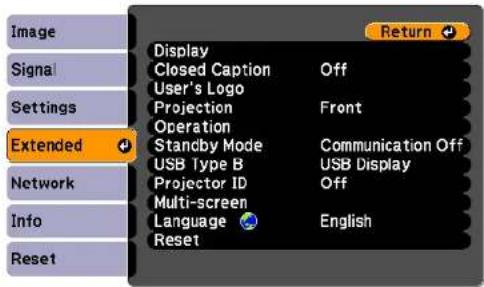
text_image
Image Signal Settings Extended Network Info Reset Display Closed Caption Off User's Logo Projection Front Operation Standby Mode Communication Off USB Type B USB Display Projector ID Off Multi-screen Language English Reset- SelecttheUser'sLogosettingandpressEnter.
Youseeapromptaskingifyouwanttousethedisplayedimageasauser'slogo.
- SelectYesandpressEnter.
Youseeaselectionboxoverlayingyourimage.
- Usethearbuttonsontheremotecontroltosurroundtheimageareayouwanttouseasthe User'sLogoandpressEnter.
Youseeapromptaskingifyouwanttoselectthisimagearea.
- Select Yes and press Enter. (If you want to change the selected area, select No, press Enter, and repeatthelaststep.)
YouseetheUser'sLogozoomfactormenu.
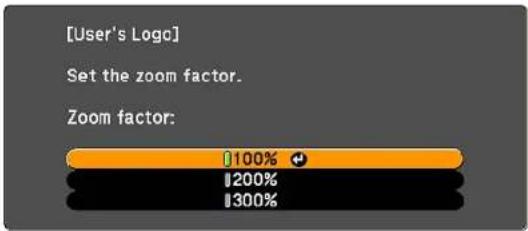
text_image
[User's Logo] Set the zoom factor. Zoom factor: 100% 200% 300%- SelectazoompercentageandpressEnter.
YouseeapromptaskingifyuwanttosavetheimageastheUser'sLogo.
- SelectYesandpressEnter.
Note: It takes a few moments for the projector to save the image; do not use the projector, its remote control, oranyconnectedequipmentuntilitisfinished.
Youseeacompletionmessage.
- PressEsctoexitthemessagescreen.
- SelecttheExtendedmenuandpressEnter.
- SelectDisplayandpressEnter.
- SelectwhenyouwanttodisplaytheUser'sLogoscreen:
• To display it whenever there is no input signal, select Display Background and set it to Logo.
• To display it whenever you turn the projector on, select Startup Screen and set it to On.
• To display it whenever you press the A/V Mute button, select A/V Mute and set it to Logo.
TopreventanyonefromchangingtheUser'sLogosettingswithoutfirstenteringapassword,seta passwordandenableUser'sLogosecurity.
Parenttopic:PasswordSecurityTypes
LockingtheProjector'sButtons
Youcanlockthebuttonsontheprojector'scontrolpaneltopreventanyonefromusingtheprojector. You canlockallthebuttonsonallthebuttonsexcepthepowerbutton.
1.PresstheMenubutton.
2. SelecttheSettingsmenuandpressEnter.
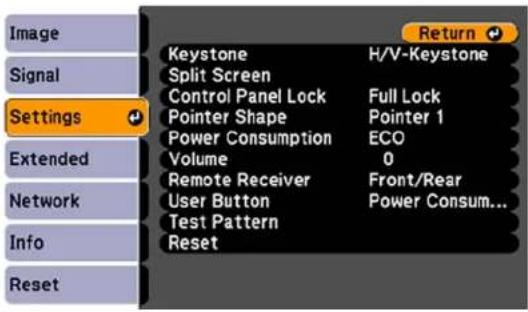
text_image
Image Signal Settings Extended Network Info Reset Keystone H/V-Keystone Split Screen Control Panel Lock Full Lock Pointer Shape Pointer 1 Power Consumption ECO Volume 0 Remote Receiver Front/Rear User Button Power Consum... Test Pattern ResetNote: The Split Screen option does not appear on PowerLite 1751 models.
- SelecttheControlPanelLocksettingandpressEnter.
-
SelectoneoftheselocktypesandpressEnter:
-
Tolockalloftheprojector'sbuttons,selectFullLock.
-
Tolockallbuttonsexceptthepowerbutton,selectPartialLock.
Youseeaconfirmationprompt. -
SelectYesandpressEnter.
UnlockingtheProjector'sButtons
Parenttopic:ProjectorSecurityFeatures
UnlockingtheProjector'sButtons
If the projector's buttons have been locked, hold the Enter button on the projector's control panel for sevensecondstounlockthem.
Parenttopic:LockingtheProjector'sButtons
InstallingaSecurityCable
YoucanusethesecurityslotonthebackoftheprojectortoattachaKensingtonMicrosaverSecurity system,availablefromEpson.

natural_image
Line drawing of a projector rear panel with ports and connectors (no text or symbols)1 Security slot
Parenttopic: ProjectorSecurityFeatures
ProjectorIdentificationSystemforMultipleProjectorControl
Youcanoperatemultipleprojectorsusingoneremotecontrolformoreelaboratepresentations. Todo this, youassignanidentificationnumbertoeachprojectorandtotheremotecontrol. Thenyoucan operatealltheprojectorsatonceorindividually.
Youcanalsomatchthecolorsdisplayedbyanyprojectorsyouplantouseneareachother.
Caution: Leaveatleasttwo feet (60cm) of space between the projector to prevent them from overheating.
SettingtheProjectorID
SettingtheRemoteControlID
MatchingMultiple-ProjectorDisplayQuality
Parenttopic: AdjustingProjectorFeatures
SettingtheProjectorID
If you want to control multiple projectors from a remote control, give each projector a unique ID.
- PresstheMenubutton.
- SelecttheExtendedmenuandpressEnter.
- SelectProjectorIDandpressEnter.
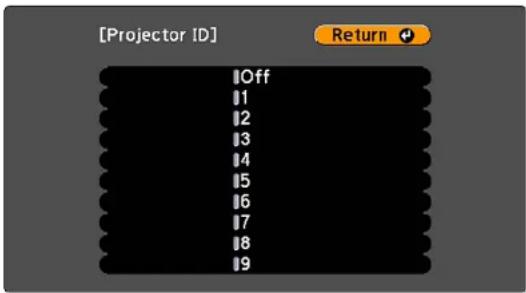
text_image
[Projector ID] Off 1 2 3 4 5 6 7 8 9 Return- Usethearowbuttonsontheremotecontroltoselecttheidentificationnumberyouwanttousefor theprojector.ThenpressEnter.
Repeat the seven steps for all the other projectors you want to operate from one remote control.
Parenttopic: ProjectorIdentificationSystem for Multiple Projector Control
SettingtheRemoteControlID
Theremotecontrol'sIDissettozerobydefaultsoitcanoperateanycompatibleproject.Ifyouwantto settheremotecontroltooperateonlyaparticularproject,youneedtosettheremotecontrol'sIDto matchtheprojector'sID.
- Turnon theprojectoryouwanttheremotecontroltooperatewithexclusively.
-
Make sure you know the projector's ID number as set in the Extended menu Projector ID setting.
3.Aimtheremotecontrolatthatprojector. -
Hold down the ID button on the remote control while you press the numeric button that matches the projector'sID.Thenreleasethebuttons.

text_image
Auto Aspect Color Mode 7 8 9 Num 0 ID Menu5.PresstheIDbuttonontheremotecontroltocheckiftheID-settingprocessworked.
Youseeamessagedisplayedbytheprojector.
- If the remote control is listed as On, the remote control ID is set to operate only the listed projector.
- If the remote control is listed as Off, the remote control ID is not set properly. Repeat the steps abovetosethelDtomatchtheprojectoryouwanttocontrol.
Note: You must set the remote control ID to match the projector ID each time you turn on the project or you have a test to control.
Parenttopic: ProjectorIdentificationSystem for Multiple Projector Control
MatchingMultiple-ProjectorDisplayQuality
You can match the display quality of multiple projector that will project next to each other.
- Turnonalltheprojectorsonwhichyouwanttomatchthedisplayquality.
- SetIDnumbersoneachprojector.
- MakesurealltheprojectorsareusingthesameColorModesetting.
-
Itisbesttomatchtwoprojectorsatatime, sosettheremotecontrolDtomatchthefirstprojector.
-
Press the Menu button, select the Extended menu, and press Enter.
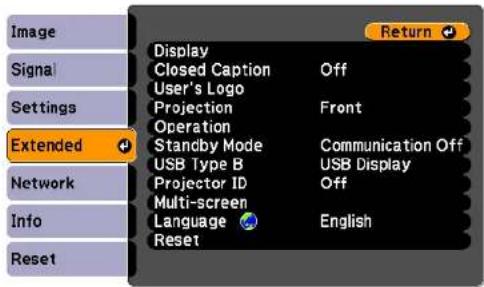
text_image
Image Signal Settings Extended Network Info Reset Display Closed Caption Off User's Logo Projection Front Operation Standby Mode Communication Off USB Type B USB Display Projector ID Off Multi-screen Language English Reset- SelecttheMulti-screensettingandpressEnter.
- Set the Adjustment Level setting to 1 and press Enter.
- SettheremotecontrolIDtomatchthesecondprojector.
- Access the Extended menu Multi-screen setting on the second projector and set the Adjustment Levelsettingto1.
- Adjust the Brightness Correct. setting on the projector with the darkest display so it matches the lighter display, and press Enter. (You may need to switch the remote control ID back and forth to makeadjustmentstoeachprojectorinallofthesesteps.)
- Change the Adjustment Level setting to 5 on each projector, but this time match the lighter display tothedarkerone.
- Adjust the Brightness Correct. setting on Adjustment Level 2, 3, and 4 in the same way.
- Adjust the Color Correct. settings for green-to-red (G/R) and blue-to-yellow (B/Y) balance for all the levelsonbothprojectorsinthesameway.
- If you need to match more projectors, repeat these steps matching projector 3 to projector 2, 4 to 3, and soon.
Parenttopic: ProjectorIdentificationSystem for Multiple ProjectorControl
ProjectingTwolmagesSimultaneously
Youcanusethesplitscreenfeaturetosimultaneouslyprojecttwoimagesfromdifferentimagesourcesnexttoeachother.Youcancontrolthesplitscreenfeatureusingtheremotecontrolortheprojectormenus(PowerLite1761W/1771W/1776W).
Note: While you use the split screen feature, other projector features may not be available and some settingsmaybeautomaticallyappliedtobothimages.
- PresstheSplitbuttonontheremotecontrol.

text_image
Page E-Zoom Volume A/V Mute Split Freeze Help ?Thecurrentlyselectedinputsourcemovestotheleftsideofthescreen.
2.PresstheMenubutton.
Youseethisscreen:
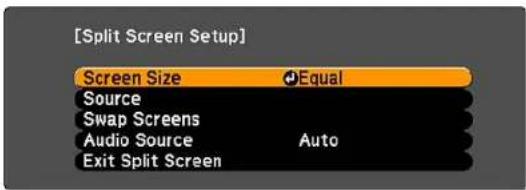
text_image
[Split Screen Setup] Screen Size Equal Source Swap Screens Audio Source Auto Exit Split Screen-
To select an input source for the other image, select the Source setting, press Enter, select the input source, select Execute, and press Enter. (You can also change image sources, if necessary.)
-
To switch the images, select the Swap Screens setting and press Enter.
-
To change the image sizes, select the Screen Size setting, press Enter, select a sizing option, pressEnter,andpressMenutoexit.
Note: Depending on the video input signals, the images may not appear at the same size even if you choose the Equal setting.
- To choose the audio you want to hear, select the Audio Source setting, press Enter, select an audiooption, press Enter, and press Menutoexit.
Note: Select Auto to hear audio from the largest screen or the left screen.
- Toexitthesplitscreenfeature, presstheSplitorEscbutton.
Parenttopic: AdjustingProjectorFeatures
AdjustingtheMenuSettings
Followtheinstructionsinthesesectionstoaccesstheprojectormenusystemandchangeprojector settings.
UsingtheProjector'sMenus
ImageQualitySettings-ImageMenu
InputSignalSettings-SignalMenu
ProjectorFeatureSettings-SettingsMenu
ProjectorSetupSettings-ExtendedMenu
ProjectorNetworkSettings-NetworkMenu
ProjectorInformationDisplay-InfoMenu
ProjectorResetOptions-ResetMenu
UsingtheProjector'sMenus
Youcanusetheprojector'smenustoadjustthesettingsthatcontrolhowyourprojectorworks. The projectordisplaysthemenusonthescreen.
- Pressthe Menubutton on the control panel or remote control.
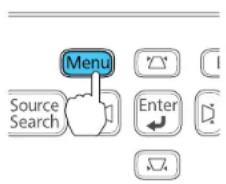
text_image
Menu Source Search Enter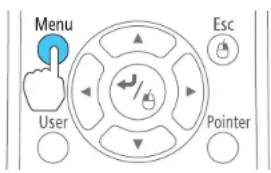
text_image
Menu User Esc PointerYouseethemenuscreendisplayingthelmagemenusettings.
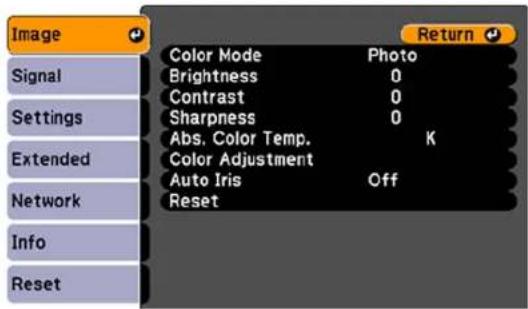
text_image
Image Signal Settings Extended Network Info Reset Color Mode Photo Brightness 0 Contrast 0 Sharpness 0 Abs. Color Temp. K Color Adjustment Auto Iris Off Reset Return- Presstheupordownarrowbuttonstomovethroughthemenuslistedontheleft. Thesettingsfor eachmenuaredisplayedontheright.
Note: The available settings depend on the current input source.
- Tochangesettingsinthedisplayedmenu, pressEnter.
- Presstheupordownarrowbuttontomovethroughthesettings.
- Changethesettings using the buttons listed on the bottom of themenuscreens.
- Toreturnallthemenusettingstotheirdefaultvalues, selectReset.
- When you finish changing settings on an amino, press Esc.
- PressMenuorEsctoexitthemenus.
Parenttopic:AdjustingtheMenuSettings
ImageQualitySettings-ImageMenu
Settings the Imagemenuletyou adjust the equality of your image for the input source you are currently using. The available settings depend on the currently selected input source.
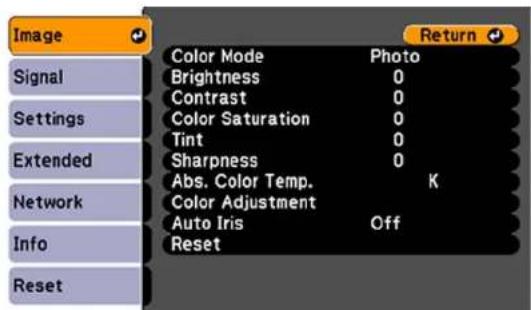
text_image
Image Signal Settings Extended Network Info Reset Color Mode Photo Brightness 0 Contrast 0 Color Saturation 0 Tint 0 Sharpness 0 Abs. Color Temp. K Color Adjustment Auto Iris Off Reset ReturnTochangesettingsforaninputsource,makesurethesourceisconnectedandselectthatsource.
| SettingOptionsDescription | ||
| ColorModeSeethelistofavailableColorAdjuststhevividnessofimage Modescolorsforvariousimagetypes andenvironments | ||
| BrightnessVaryinglevelsavailableLightensordarkenstheoverall image | ||
| ContrastVaryinglevelsavailableAdjuststhedifferencebetween lightanddarkareasoftheimage | ||
| ColorSaturationVaryinglevelsavailableAdjuststheintensityoftheimage colors | ||
| TintVaryinglevelsavailableAdjuststhebalanceofgreento magentatonesintheimage | ||
| SharpnessVaryinglevelsavailableAdjuststhesharpnessor softnessofimagedetails | ||
| Abs.ColorTemp.(absolute5000to10000°K(Kelvin)Setsthecolortonebasedon colortemperature)colortemperature | ||
| AutolrisOnAdjuststheprojectedluminanceOff | basedontheimagebrightnesswhencertainColorModesareselected | |
Note: The Brightness setting does not affect lamp brightness. To change the lamp brightness mode, usethePowerConsumptionsetting.
Parenttopic:AdjustingtheMenuSettings
Relatedreferences
AvailableColorModes
InputSignalSettings-SignalMenu
Normally the project or detects and optimizes the input signal settings automatically. If you need to customize these settings, you can use the Signal menu. The available settings depend on the currently selected inputs source.
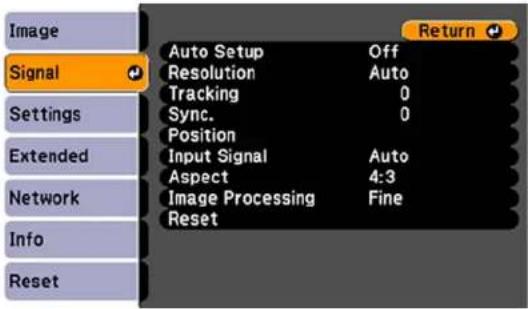
text_image
Image Signal Settings Extended Network Info Reset Auto Setup Off Resolution Auto Tracking 0 Sync. 0 Position Input Signal Auto Aspect 4:3 Image Processing Fine Reset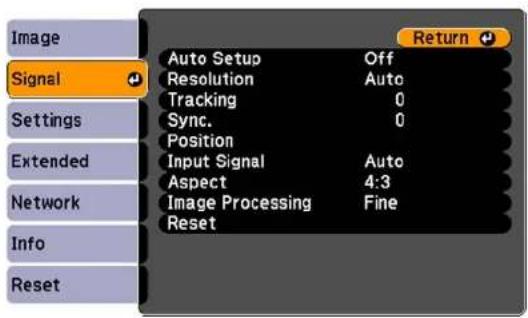
text_image
Image Signal Settings Extended Network Info Reset Auto Setup Off Resolution Auto Tracking 0 Sync. 0 Position Input Signal Auto Aspect 4:3 Image Processing Fine Reset ReturnNote: You can restore the default settings of the Position, Tracking, and Sync settings by pressing the Autobuttonontheremotecontrol.
Tochangesettingsforaninputsource,makesurethesourceisconnectedandselectthatsource.
| SettingOptionsDescription | ||
| AutoSetupOnAutomaticallyoptim | zesOff | computerimagequality(when On) |
| ResolutionAutoSetstheinputsign | alresolutionifNormalWide | notdetectedautomaticallyusing theAutooption |
| TrackingVaryinglevelsavailableAdjust | djustssignaltoeliminate | verticalstripesincomputer images |
| Sync.VaryinglevelsavailableAdjust | tssignaltoeliminate | fuzzinessorflickeringin computerimages |
| PositionUp,down,left,rightAdjustst | theimagelocationonthe | screen |
| ProgressiveOffSetswhethertoconvertVideoFilm/Auto | interlaced-to-progressivesignals forcertainvideoimagetypesOff:forfast-movingvideoimagesVideo:formostvideoimagesFilm/Auto:formovies,computer graphics,andanimation | |
| NoiseReductionOffReducesflickeringinanalogNR1NR2 | imagesintwolevels | |
| HDMIVideoRangeNormalSetsthevideorangetomatchExpandedAuto | thesettingofthedevice connectedtotheHDMIinputport | |
| InputSignalAutoSpecifiesthesignaltypefromRGBComponent | inputsourcesconnectedto computerportsAuto:detectssignals automaticallyRGB:correctscolorfor computer/RGBvideoinputsComponent:correctscolorfor componentvideoinputs | |
| VideoSignalAutoSpecifiesthesignaltypefromtheVariousvideostandards | inputsourcesconnectedtothe videosportsAuto:detectssignals automatically | |
| AspectSeethelistofavailableaspectSetstheaspectratio(width-to-ratiosheightratio)fortheselectedinputsource | ||
| OverscanAutoChangestheprojectedimage | Off4%8% | ratiotomaketheedgesvisibleby aselectablepercentageor automatically |
Parenttopic:AdjustingtheMenuSettings
Relatedreferences
AvailableImageAspectRatio
ProjectorFeatureSettings-SettingsMenu
OptionsontheSettingsmenuletyoucustomizevariousprojectorfeatures.

text_image
Image Signal Settings Extended Network Info Reset Keystone H/V-Keystone Split Screen Control Panel Lock Full Lock Pointer Shape Pointer 1 Power Consumption ECO Volume 0 Remote Receiver Front/Rear User Button Power Consum... Test Pattern Reset| SettingOptionsDescription | ||
| KeystoneH/VKeystoneAdjustsim | ageshapetoQuickCorner | rectangular(horizontallyand vertically)H/VKeystone:letsoumanually correcthorizontalandvertical sides,orturnautomatic correction(PowerLite1776W)on oroffQuickCorner:selecttocorrect imageshapeandalignment usinganon-screendisplay |
| SplitScreenScreenSizeDividesthe(PowerLiteSource 1761W/1771W/1776W) | reviewingareaSwapScreensAudioSource | horizontallyanddisplaytwo imagesside-by-side(pressEsc tocancelsplitscreendisplay) |
| ControlPanelLockFullLockCont | olsprojectorbuttonlockingPartialLockOff | tosecuretheprojectorFullLock:locksallbuttonsPartialLock:locksallbuttons exceptthepowerbuttonOff:nobuttonslocked |
| PointerShapeThreeshapesavailable | bleChangestheshapeoftheremote | controlpointerfeature |
| PowerConsumptionNormalSelectsthebrightnessmodeofECO | theprojectorlampNormal:setmaximumlamp brightnessECO:reduceslampbrightness andfannoise,and savespower andlamplife | |
| VolumeVaryinglevelsavailableAdjuststhevolumeofprojector's | speakersystemorexternalspeakers | |
| RemoteReceiverFrontLimitsreceptionofremotecontrolRearFront/RearOff | signalsbytheselectedreceiver;Offturnsoffallreceivers | |
| UserButtonPowerConsumption | AssignsamenuoptiontotheInfoProgressiveClosedCaptionTestPatternMulti-screenResolution | Userbuttonontheremotecontrolforone-touchaccess |
| TestPatternOnDisplaysatestpattemntoassistinOff | focusingandzoomingtheimageandcorrectingimageshape(pressEsctocancelpatterndisplay) | |
Parenttopic:AdjustingtheMenuSettings
Relatedconcepts
ImageShape
ProjectorLampMaintenance
ProjectorIdentificationSystemforMultipleProjectorControl
Relatedreferences
SolutionsWhenNoImageAppears
ProjectorSetupSettings-ExtendedMenu
ImageQualitySettings-ImageMenu
InputSignalSettings-SignalMenu
SolutionsWhentheImageisNotRectangular SolutionsWhentheImageBrightnessorColorsareIncorrect ImageQualitySettings-ImageMenu InputSignalSettings-SignalMenu SolutionstoProjectorPowerorShut-OffProblems ProjectorLightStatus SolutionstoProblemswiththeRemoteControl OptionalEquipmentandReplacementParts RemoteControlOperation
Relatedtasks
AdjustingtheImageHeight CorrectingImageShapeWiththeKeystoneButtons UsingtheRemoteControlasaPresentationPointer ControllingtheVolumewiththeVolumeButtons CorrectingImageShapewithQuickCorner UnlockingtheProjector'sButtons AutomaticallyCorrectingImageShapeWithScreenFit CorrectingImageShapewithQuickCorner UnlockingtheProjector'sButtons
ProjectorSetupSettings-ExtendedMenu
SettingstheExtendedmenuletyoucustomizevariousprojectorsetupfeaturesthatcontrolits operation.

text_image
Image Signal Settings Extended Network Info Reset Display Closed Caption Off User's Logo Projection Front Operation Standby Mode Communication Off USB Type B USB Display Projector ID Off Multi-screen Language English Reset| SettingOptionsDescription | ||
| DisplayMessagesSelectsvarious | displayoptionsDisplayBackgroundMessages: StartupScreenA/VMute | controlswhether messagesaredisplayedonthescreenDisplayBackground:selectsthescreencolororlogotodisplaywhennosignalisreceivedStartupScreen:controls whetheraspecialscreen appearswhentheprojectorstartsupA/VMute:selectsthescreen colororlogotodisplaywhenA/VMuteisturnedon |
| ClosedCaptionOffControlsuseof | closedcaptionsCC1CC2 | andselectstheclosedcaption channel |
| User'sLogo–Createsacreenthat | the | projectordisplaystoidentifyitself andenhancesecurity |
| ProjectionFrontSelectsthewaythe | projectorFront/CeilingRearRearCeiling | facesthescreensotheimageis orientedcorrectly |
| OperationDirectPowerOnSelects | variousoperationoptionsSleepModeDirectPowerOn:letsy | puturnontheprojectorwithoutpressing thepowerbuttonSleepMode:automaticallyturns offtheprojectorafteraninterval ofinactivitySleepModeTimer:setsthe intervalforSleepModeLensCoverTimer:automatically turnsofftheprojectorafter30 minutesifthelenscoveris closedHighAltitudeMode:regulates theprojector'soperating temperaturealtitudesabove 4921feet(1500m) |
| SleepModeTimerLensCoverTimerHighAltitudeMode | ||
| StandbyModeCommunicationOn | Selectswhethertheprojectorcan CommunicationOff | bemonitoredoveranetwork whenitisinstandbymode(on) ornot(off)(PowerLite 1761W/1771W/1776W) |
| USBTypeBUSBDisplaySelectsthe | useoftheprojector's | USBTypeBportUSBDisplay:selectwhenyou connectacomputertothe projector'sUSBTypeBporto displayimages |
| ProjectorIDOffAssignsanIDforthe | projector1through9 | whenyouusemultipleprojectors |
| Multi-screen | Adjustment Level (1 to 9) BrightnessCorrect. ColorCorrect. | Matches display qualities and colorsofmultipleprojectors |
| LanguageVariouslanguagesavailable | Selectsthelanguagefor | projectormenuandmessage displays(notchangedbyReset option) |
Parenttopic:AdjustingtheMenuSettings
ProjectorNetworkSettings-NetworkMenu
SettingstheNetworkmenuletyouviewnetworkinformationandsetuptheprojectorformonitoring andcontroloveranetwork(PowerLite1761W/1771W/1776W).
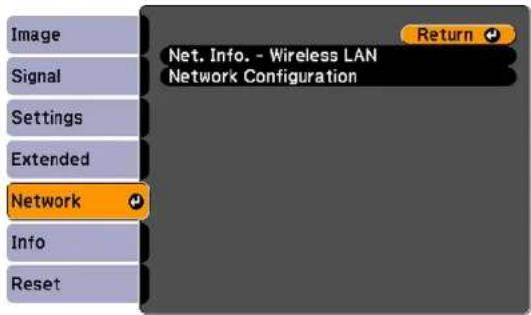
text_image
Image Signal Settings Extended Network Info Reset Net. Info. - Wireless LAN Network Configuration Return| SettingOptionsDescription | ||
| Net.Info-WirelessLANConnection | nmodeDisplayswirelessnetworkstatus | |
| Antennalevel | anddetails | |
| ProjectorName | ||
| SSID | ||
| DHCP | ||
| IPAddress | ||
| SubnetMask | ||
| GatewayAddress | ||
| MACAddress | ||
| RegionCode | ||
| NetworkConfigurationAccesses | additionalnetworkConfiguresyournetworksettings | |
| menus | ||
Parenttopic:AdjustingtheMenuSettings
Relatedconcepts
WirelessNetworkProjection
ProjectorInformationDisplay-InfoMenu
YoucandisplayinformationabouttheprojectorandinputsourcesbyviewingtheInfomenu.However, youcannotchangeanysettingsinthemenu.
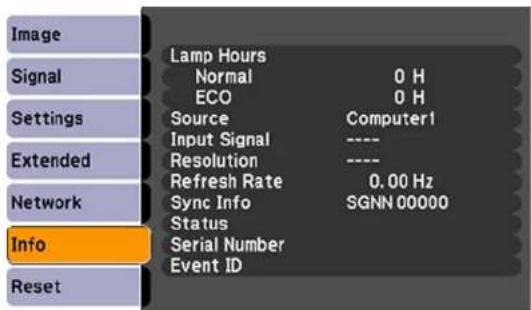
text_image
Image Signal Settings Extended Network Info Reset Lamp Hours Normal 0 H ECO 0 H Source Computer1 Input Signal ---- Resolution ---- Refresh Rate 0.00 Hz Sync Info SGNN 00000 Status Serial Number Event IDNote: Available settings depend on the current input source. The lamp usage timer does not register any hours until you have used the lamp for at least 10 hours.
| InformationitemDescription | |
| LampHoursDisplaysthenumberofh | hours(H)thelamphasbeenusedinNormalandECOPowerConsumptionmodes;iftheinformationisdisplayedinyellow,obtainagenuineEpsonreplacementlampsoon |
| SourceDisplaysthenameoftheport | lowwhichthecurrentinputsourceisconnected |
| InputSignalDisplaystheinputsigna | settingofthecurrentinputsource |
| ResolutionDisplaystheresolutionof | thecurrentinputsource |
| VideoSignalDisplaysthevideosigna | alformatofthecurrentinputsource |
| RefreshRateDisplaystherefreshrate | ofthecurrentinputsource |
| SyncInfoDisplaysinformationthatm | maybeneededbyaservicetechnician |
| StatusDisplaysinformationaboutproj | jectorproblemsthatmaybeneededbyaservicetechnician |
| SerialNumberDisplaystheprojector | 'sserialnumber |
| EventIDDisplaystheEventIDnumber(PowerLite1761W/1771W/1776W) | correspondingtoaspecificprojectorproblem;seethelistofEventIDcodes |
EventIDCodeList
Parenttopic: Adjusting theMenu Settings
Relatedreferences
OptionalEquipmentandReplacementParts
ProjectorLampSpecifications
EventIDCodeList
If the Event ID option on the Info menu displays a code number, check this list of Event ID codes for the solution to the projector problem associated with the code (PowerLite1761W/1771W/1776W).
| EventIDcodeCause | seandsolution |
| 0432TheEasyMP | NetworkProjectionprogramdidnotstart.Turntheprojectoroffand thenonagain. |
| 0435 | |
| 0434Unstablenetw | workcommunication.Checkthenetworkcommunicationstatus,waita fewmoments,andtryconnectingtothenetworkagain. |
| 0481 | |
| 0482 | |
| 0485 | |
| 0433Cannotdisplay | ythetransferredimages.RestarttheEasyMPNetworkProjection program. |
| 0484Communicat | onwithcomputerwasdisconnected.RestarttheEasyMPNetwork Projectionprogram. |
| 0483TheEasyMP | NetworkProjectionprogramquitunexpectedly.Checkthenetwork communicationstatus,thenturntheprojectoroffandthenonagain. |
| 04FE | |
| 0479Aprojectorsyst | stemerrorhasoccurred.Turntheprojectoroffandthenonagain. |
| 04FF | |
| 0891Cannotfindan | accesspointwiththesameSSID.Setyourcomputer,accesspoint,andprojectortothesameSSID. |
| 0892TheWPA/WP | A2authenticationtypedoesnotmatch.Makesurethewirelessnetworksecuritysettingsarecorrect. |
| 0893TheWEP/TK | P/AESencryptiontypedoesnotmatch.Makesurethewirelessnetworksecuritysettingsarecorrect. |
| 0894Communicat | onwithunauthorizedaccesspointwasdisconnected.Contactyournetworkadministrator. |
| 0898FailedtoacquireDHCP.MakesuretheDHCPserverisoperatingcorrectly.IfyouarenotusingDHCP,turnofftheDHCPsettingintheNetworkmenus. | |
| 0899Acommunicationerrorhasoccurred.TryrestartingtheEasyMPNetworkProjectionprogramandrestartingyourprojector.Ifthatdoesnotsolvetheproblem,contactEpsonforhelp. | |
Parenttopic:ProjectorInformationDisplay-InfoMenu
ProjectorResetOptions-ResetMenu
You can reset most of the projector settings to their default values using the Reset All option on the Resetmenu.
You can also reset the projector's lamp usage timer to zero when you replace the lamp using the Reset LampHoursoption.
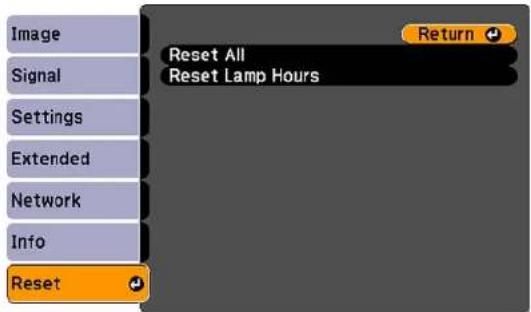
text_image
Image Signal Settings Extended Network Info Reset Return Reset All Reset Lamp HoursYou cannot reset the following settings using the ResetAlloption:
- InputSignal
-User'sLogo
•Language
•Networkmenuitems(ifavailable)
•LampHours
•Language
- Password
-UserButton
- Multi-screen
Parenttopic:AdjustingtheMenuSettings
MaintainingandTransportingtheProjector
Followtheinstructionsinthesesectionstomaintainyourprojectorandtransportitfromplacetoplace.
ProjectorMaintenance
TransportingtheProjector
ProjectorMaintenance
Yourprojectorneedslittlemaintenancetokeepworkingatitsbest.
Youmayneedtocleanthelensperiodically, andcleantheairfilterandairventstoppreventtheprojector fromoverheatingduetoblockedventilation.
Theonlypartsyoushouldreplacearethelamp,airfilter,andremotecontrolbatteries.Ifanyotherpart needsreplacing,contactEpsonoranauthorizedEPSONservicer.
Warning: Before cleaning any part of the projector, turn it off and unplug the power cord. Never open any cover on the projector, except a specifically explained in this manual. Dangerous electrical voltages in the projector can injure you severely.
Warning: Do not try to service this product yourself, except as specifically explained in this manual. Referallotherservicingtoqualifiedservicers.
CleaningtheLens
CleaningtheProjectorCase
AirFilterandVentMaintenance
ProjectorLampMaintenance
ReplacingtheRemoteControlBatteries
Parenttopic: Maintaining and Transporting the Projector
CleaningtheLens
Cleantheprojector'slensperiodically,orwheneveryounoticedustorsmudgesonthesurface.
• Toremovedustorsmudges, gentlywipethelenswithlens-cleaningpaper.
- Toremovestubbornsmudges, moistenasoft, lint-freeclothwithlenscleanerandgentlywipethelens. Donotsprayanyliquiddirectlyonthelens.
Warning: Donotusealenscleaner that contains flammable gas. The high heat generated by the projector lamp may cause a fire.
Caution: Do not use glass cleaner to clean the lens, or you may damage it. Do not use canned air, or thegasesmaybearesidue.Avoidtouchingthelenswithyourbarehandstoppreventfingerprintson ordamagetothelenssurface.
Parenttopic: Projector Maintenance
CleaningtheProjectorCase
Beforecleaningtheprojectorcase,turnofftheprojectorandunplugthepowercord.
• Toremovedustordirt, useasoft, dry, lint-freecloth.
- Toremovestubborndirt, use asoftclothmoistened with water and mild soap. Donotspray liquid directly on the projector.
Caution: Do not use wax, alcohol, benzene, paint thinner, or other chemicals to clean the projector case. Thesecandamagethecase. Donotusecannedair, orthegasesmayleavearesidue.
Parenttopic: Projector Maintenance
AirFilterandVentMaintenance
Theprojector'sairfilterkeepstheintakeairclean.lfdustcollectsontheairfilterorvents,cleanthemas describedinthismanual.Dustclogsmaycausetheprojectortooverheatduetoimproperventilation.
Besuretocleantheairfilterandventsifyouseeamessagetellingyoutodoso.Alsomakesurenothing blocksthevents.
CleaningtheAirFilterandVents
ReplacingtheAirFilter
Parenttopic: Projector Maintenance
CleaningtheAirFilterandVents
Cleantheprojector'sairfilterorventsiftheygetdusty,orifyouseeamessagetellingyoutocleanthem.
-
Turnoff the projector and unplug the power cord.
-
Gentlyremovethedustusingasmallvacuumdesignedforcomputersoraverysoftbrush(suchas apaintbrush).
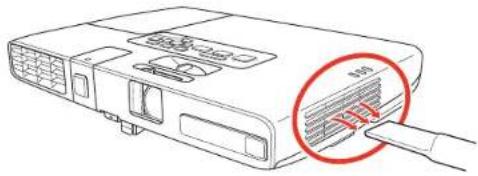
text_image
Diagram showing a device with labeled ports and a magnified view of internal structure, highlighting a red circle with arrows pointing to a component.Note: You can remove the air filter so you can clean both sides of it. Do not rinse the air filter in water, or use any detergent or solvent to clean it.
Caution: Donotusecannedair, orthegases may leave a residue.
- If dust is difficult to remove the air filter is damaged, replace the air filter.
Parenttopic: AirFilterandVentMaintenance
ReplacingtheAirFilter
Youneedtoreplacetheairfilterinthefollowingsituations:
• Aftercleaningtheairfilter, youseeamessagetellingyoutocleanorreplaceit
•Theairfilteristornordamaged
Youcanreplacetheairfilterwhiletheprojectorismountedtotheceiling,ifnecessary.
-
Turnoff the projector and unplug the power cord.
-
Grasphetabatthecenteroftheairfilterandpullitoutoftheprojector.
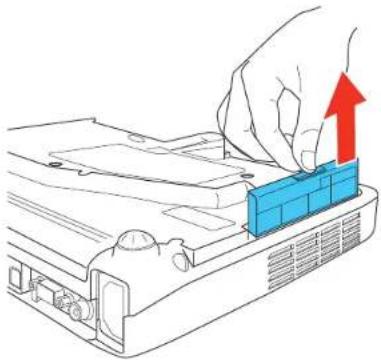
natural_image
Illustration of a hand placing a blue component into a device with an upward arrow (no text or symbols)Note: Air filters contain polycarbonate, ABS resin, and polyurethane foam. Dispose of used air filters according to local regulations.
- Placethenewairfilterintheprojectorasshownandpushgentlyuntilitclicksintoplace.
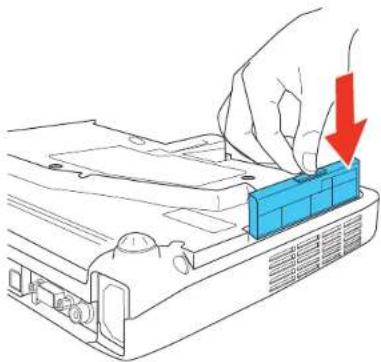
natural_image
Illustration of a hand pressing down on a blue component labeled 'CPU' with a red downward arrow (no text or symbols present)Parenttopic: AirFilterandVentMaintenance
ProjectorLampMaintenance
The projector keep a stack of the number of hours the lamp is used and displayed this information in the projector's menusystem.
Replacethelampassoonaspossiblewhenthefollowingoccurs:
• The projected image gets darker or start stodeteriorate
- Amessageappearswhenyouturnontheprojectortellingyoutoreplacethelamp
• The projector's lamplightis flashing orange
ReplacingtheLamp
ResettingtheLampTimer
Parenttopic: Projector Maintenance
Relatedreferences
ProjectorInformationDisplay-InfoMenu
ProjectorLampSpecifications
OptionalEquipmentandReplacementParts
ReplacingtheLamp
Beforeyoureplacethelamp,lettheprojectorcooldownforatleastonehoursothelampwillnotbehot.
Warning: Letthelampfullycoolbeforereplacingittoavoidinjury.
Youcanreplacethelampwhiletheprojectorismountedtotheceiling,ifnecessary.
-
Turnoff the projector and unplug the power cord.
-
Allow the projector lamptocooldown for at least one hour.
-
Use the crew driver included with the replacement lamptoloosenthescrewsecuring the lamp cover.

natural_image
Diagram of a computer monitor with a blue cover and a red arrow indicating rotation (no text or symbols)Warning: If the lamp is broken, glass fragments may be loose inside the lamp chamber. Be careful removing any brokenglassto avoid injury.
4.Slidethelampcoveroutandliftitoff.
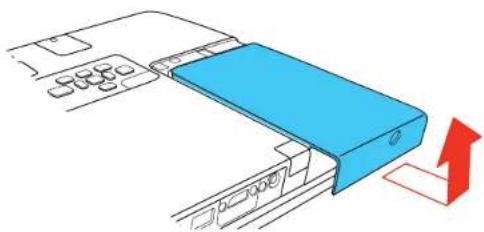
natural_image
Diagram of a blue plastic device with a red arrow indicating direction (no text or symbols)- Liftupthemetalbarsecuringthelamp.
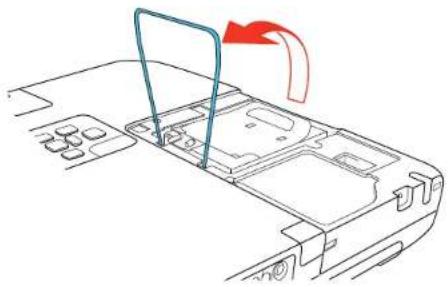
natural_image
Line drawing of a device interior with a blue bracket and red arrow indicating rotation (no text or symbols)- Liftupthelamphandleandgentlypullthelampoutoftheprojector.
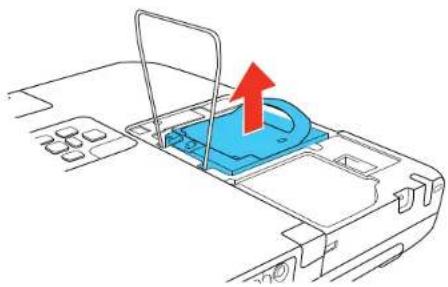
natural_image
Diagram of a device interior with a blue component and a red upward arrow indicating motion (no text or symbols)Caution:Liftthelamphandlecarefullytoavoiddamagingthehandleasyoupulloutthelamp.
Note: The lamp(s) in this product contain mercury. Please consult your state and local regulations regarding disposal or recycling. Donotputin the trash.
- Gently insert the new lamp into the projector. If it does not fit easily, makes sure it is facing the right way. Pressdown on the area as how to secure the lamp in place.

natural_image
Diagram of a device interior with a blue plastic tray and red arrow indicating a downward motion (no text or symbols)Caution: Donottouchanyglassonthelampassemblytoavoidprematurelampfailure.
- Pressthemetalbardownoverthelampuntilitclicksintoplaceonbothsides.
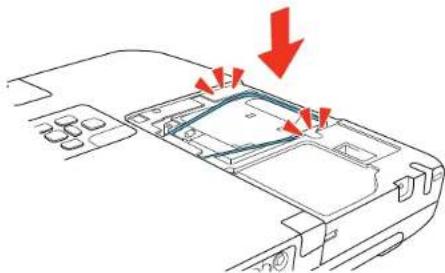
natural_image
Diagram of a device interior with arrows indicating directional flow or movement, no text or symbols present- Replacethelampcoverandtightenthescrewtosecureit.

text_image
Diagram illustrating a mechanical assembly or cleaning process with labeled parts and directional arrows indicating movement.Note: Besurethelampcoverissecurelyinstalledorthelampwillnotcomeon.
Resetthelamptimertozerotokeeptrackofthenewlamp'susage.
Parenttopic: Projector Lamp Maintenance
ResettingtheLampTimer
Youmustresetthelamptimerafterreplacingtheprojector'slamptoclearthelampreplacement messageandtokeeptrackoflampusagecorrectly.
Note: Do not reset the lamp timer if you have not replaced the lamp to avoid inaccurate lamp usage information.
-
Turnon the projector.
2.PresstheMenubutton. -
SelecttheResetmenuandpressEnter.

text_image
Image Signal Settings Extended Network Info Reset Reset All Reset Lamp Hours Return- SelectResetLampHoursandpressEnter.
Youseeapromptaskingifyuwanttoresetthelamphours.
-
SelectYesandpressEnter.
-
PressMenuorEsctoexitthemenus.
Parenttopic:ProjectorLampMaintenance
ReplacingtheRemoteControlBatteries
TheremotecontrolusestwoAAmanganeseoralkalinebatteries. Replacethebatteriesassoonasthey runout.
Caution: Use only the type of batteries specified in this manual. Do not install batteries of different types, ormixnewandoldbatteries.
- Openthebatterycoverasshown.
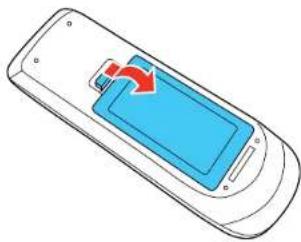
natural_image
Illustration of a mobile phone with a blue screen and red arrow indicating a process (no text or symbols)- Removetheoldbatteries.
Warning: If the battery fluid has leaked, wipe it away with a soft cloth and avoid getting the fluid on yourhands. Ifitgetsonyourhands, washthemimmediately to avoid injury.
- Insert the batteries with the + and - ends facing as shown.
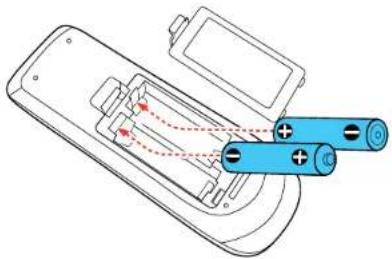
natural_image
Diagram of a remote control panel with battery and charging rod (no text or symbols)- Closethebatterycoverandpressitdownuntilclicksintoplace.

natural_image
Illustration of a mobile phone with a blue screen and red arrows indicating action or notification (no text or symbols)Warning: Dispose of used batteries according to local regulations. Do not expose batteries to heat or flame. Keep batteries out of thereachofchildren; they are choking hazards and are very dangerous if swallowed.
Parenttopic:ProjectorMaintenance
Relatedreferences
RemoteControlOperation
TransportingtheProjector
The projector contains precision parts, some of which are glass. Follow these guidelines to transport ship the projectors safely:
•Closethelenscovertoprotectthelens.
- Removeanyequipmentconnectedtotheprojector.
- Useacarryingcasetohand-carrytheprojector.
- Whentransportingtheprojectoralongdistanceorascheckedluggage,placeitinacarryingcase. Thenpackthecaseinafirmboxwithcushioningarounditandmarkthebox"Fragile."
- Whenshippingtheprojectorforrepairs,placeitinitisoriginalpackingmaterials,ifpossible,oruse equivalentmaterialswithcushioningaroundtheprojector.Markthebox"Fragile."
Note: Epson shall not believe for any damages incurred during transportation.
Parenttopic: Maintaining and Transporting the Projector
SolvingProblems
Checkthesolutionsinthesesectionsifyouhaveanyproblemsusingtheprojector.
ProjectionProblemTips
ProjectorLightStatus
UsingtheProjectorHelpDisplays
SolvingImageorSoundProblems
SolvingProjectororRemoteControlOperationProblems
SolutionsWhenNetworkAlertE-MailsareNotReceived
WheretoGetHelp
ProjectionProblemTips
If the projector is not working properly, try turning it off and unplugging it. Then plug it back in and turn it on.
If this does not solv the problem, check the following:
• Thelightsontheprojectormayindicatewhattheproblemis.
- Theprojector's Helpsystemcandisplayinformationaboutcommonproblems,iftheprojectoris operating.
- Thesolutionsinthismanualcanhelpyousolvemanyproblems.
If noneofthesesolutionshelp, you can contact Epsonfortechnical support.
Parenttopic: Solving Problems
ProjectorLightStatus
Thelights the projector's control panel indicate the projector status and let you know when a problem occurs. Check the status and color of the lights and look for a solution in the table here.

text_image
Technical diagram of an electronic device with labeled ports and internal components, including a zoomed-in section view.1Powerlight
2Lamplight
3Temperaturelight
| PowerlightLamplight | lightTemperature | Statusandsolutionlight | tion |
| GreenOffOffNormaloperation. | |||
| FlashinggreenOff | OffWarmingup. | Waitforanimagetoappear. | |
| OrangeOffOffStandbyorsleepmode. | |||
| FlashingorangeOff | OffPreparingnetworkmonitoring | shuttingdown.(Waitforthelighttoremainorangebeforeunpluggingtheprojector.) | |
| FlashingredOffFl | fashingorangeProjectoristoohot. | •Makesurethattheventsandairfilterarenotcloggedwithdustorobstructedbynearbyobjects.•Makesuretheenvironmentaltemperatureisnottoohot.•Ifoverheatingcontinues,replacetheairfilter. | |
| RedOffRedProjector | hasoverheated | andturnedoff.Leaveit | turnedofftocooldownforfiveminutes.Makesurethattheventsandairfilterarenotcloggedwithdustorobstructedbynearbyobjects.Ifoperatingtheprojectorathighaltitude,turnonHighAltitudeMode.Ifoverheatingcontinues,replacetheairfilter.Iftheproblempersists,unplugtheprojectorandcontactEpsonforhelp. |
| RedFlashingredOff | Lamphasaproblem. | Checktoseeifthelampisburnedout,broken,orinstalledincorrectly.Reseatorreplacethelampasnecessary.Makesurethattheventsandairfilterarenotcloggedwithdustorobstructedbynearbyobjects.Ifoperatingtheprojectorathighaltitude,turnonHighAltitudeMode.Iftheproblempersists,unplugtheprojectorandcontactEpsonforhelp. | |
| OnFlashingOffRe | placethelampso | ontoavoiddamageorangecontinueusingtheprojector. | Donot |
| RedOffFlashingred | Afanorsensor | hasaproblem.Turntheprojectoroff,unplugit,andcontactEpsonforhelp. | |
| RedorflashingFlashingred | Flashingred | gredInternalprojectredunplugit,andcontactEpsonforhelp. | orerror.Turntheprojectoroff, |
Note: If the lights display a pattern not listed in the table above, turn the projector off, unplug it, and contactEpsonforhelp.
Parenttopic: Solving Problems
Relatedreferences
ProjectorSetupSettings-ExtendedMenu
WheretoGetHelp
Relatedtasks
ReplacingtheLamp
ReplacingtheAirFilter
CleaningtheAirFilterandVents
UsingtheProjectorHelpDisplays
Youcandisplayinformationtohelpyousolvecommonproblemsusingtheprojector'sHelpsystem.
-
Turnon the projector.
-
PresstheHelpbuttonontheprojectorotheremotecontrol.
YouseetheHelpmenu.
-
Usetheupanddownarrowbuttonstohighlighttheproblemyouwanttosolve.
-
PressEntertoviewthesolutions.
-
When you are finished, do one of the following:
• Toselectanotherproblemtosolve, pressEsc.
• Toexitthehelpsystem, pressHelp.
Parenttopic: Solving Problems
SolvingImageorSoundProblems
Checkthesolutionsinthesesectionsifyouhaveanyproblemswithprojectedimagesorsound.
SolutionsWhenNoImageAppears
SolutionsWhenImageisIncorrectUsingtheUSBDisplayFunction
SolutionsWhen"NoSignal"MessageAppears
SolutionsWhen"NotSupported"MessageAppears
SolutionsWhenOnlyaPartialImageAppears
SolutionsWhenthelmageisNotRectangular
SolutionsWhentheImageContainsNoiseorStatic
SolutionsWhentheImageisFuzzyorBlurry
SolutionsWhentheImageBrightnessorColorsareIncorrect
SolutionsWhenThereisNoSoundorLowVolume
Parenttopic: Solving Problems
SolutionsWhenNoImageAppears
Ifnoimageappears, try the following solutions:
• Makesurethelenscoverisopenoroff.
- Press the A/V Mute button on the remote control to see if the image was temporarily turned off.
- Makesureallnecessarycablesaresecurelyconnectedandthepowerisonfortheprojectorand connectedvideosources.
- Presstheprojector'spowerbuttontowakeitfromstandbyorsleepmode. Alsoseeifyourconnected computerisinsleepmodeordisplayingablankscreensaver.
- CheckthesettingsontheSignalmenutomakesuretheyarecorrectforthecurrentvideosource.
- Adjust the Brightness setting or select the Normal Power Consumption setting.
- Check the Display setting to make sure Messages is set to On.
- If the projectordoesnotrespondwhenyoupressthecontrolpanelbuttons, the buttonsmaybe locked. Unlock the buttons.
- If the projectordoesnotrespondwhenyoupressbuttonsontheremotecontrol, makesuretheremote receiversareturnedon.
- ForimagesprojectedwithWindowsMediaCenter,reducethescreensizefromfullscreenmode.
- ForimagesprojectedfromapplicationsusingWindowsDirectX,turnoffDirectXfunctions.
Parenttopic: SolvingImageorSoundProblems
Relatedreferences
ProjectorSetupSettings-ExtendedMenu
ImageQualitySettings-ImageMenu
ProjectorFeatureSettings-SettingsMenu
InputSignalSettings-SignalMenu
Relatedtasks
UnlockingtheProjector'sButtons
SolutionsWhenImageisIncorrectUsingtheUSBDisplayFunction
IfnoimageappearsoriftheimageappearsincorrectlyusingtheUSBDisplayfunction,trythefollowing solutions:
- PresstheUSBbuttonontheremotecontrol.
- MakesuretheUSBDisplaysoftwarehasinstalledcorrectly.Installitmanuallyifnecessary.
- Make sure the USB Type B setting in the Extended menu is set to USB Display, if available.
- With Mac OS X, select the USB Display icon in the Dock or from the Applications folder.
- WithWindowsMediaCenter, reducethescreensizefromfullscreenmode.
- WithWindowsDirectX,turnoffDirectXfunctions.
- Ifthemousecursorflickers, select Makethemovementofthemousepointersmoothinthe EPSONUSBDisplaySettingsprogramonyourcomputer.
- Turn off the Transfer layered window setting in the EPSON USB Display Settings program on your computer.
Parenttopic: Solving Imageor Sound Problems
Relatedreferences
ProjectorSetupSettings-ExtendedMenu
SolutionsWhen"NoSignal"MessageAppears
If the "NoSignal" message appears, try the following solutions:
- PresstheSourceSearchbuttonandwaitafewsecondsforanimagetoappear.
- Turnontheconnectedcomputerorvideosource,andpressitsplaybuttontobeginyourpresentation, ifnecessary.
- Checktheconnectionfromtheprojectortoyourvideosources.
- If you are projecting from alaptop computer, makes sure it setup to display on an external monitor.
- If necessary, turn the projector and the connected computer or video source off and then on again.
DisplayingFromaPCLaptop
DisplayingFromaMacLaptop
Parenttopic: SolvingImageorSoundProblems
DisplayingFromaPCLaptop
If you see the "No Signal" message when you display from a PC laptop, you need to setup the laptop to display on an external monitor.
- Hold down the laptop's Fn key and press the key labelled with a monitor icon or CRT/LCD. (See yourlaptopmanualfordetails.) Waitafewsecondsforanimagetoappear.
- Todisplayonboththelaptop'smonitorandtheprojector, trypressingthesamekeysagain.
- If the same image is not displayed by the laptop and projector, check the Windows Display utility to make sure the external monitor port is enabled. (SeeyourcomputerorWindowsmanualfor instructions.)
- If necessary, check your video card settings and set them multiple display option to Clone.
Parenttopic: SolutionsWhen"NoSignal"MessageAppears
DisplayingFromaMacLaptop
If you se the "No Signal" message when you display from a Mac laptop, you need to setup the laptop form mirrored display. (Se your laptop manual for details.)
- OpentheSystemPreferencesutilityandselectDisplays.
- SelecttheVGADisplayorColorLCDoption, if necessary.
- ClicktheArrangeorArrangementtab.
- Select the Mirror Displays checkbox.
Parenttopic: SolutionsWhen"NoSignal"MessageAppears
SolutionsWhen"NotSupported"MessageAppears
If the "Not Supported" message appears, try the following solutions:
- MakesurethecorrectinputsignalisselectedontheSignalmenu.
- Makesurethecomputer'sdisplayresolutiondoesnotexceedtheprojector'sresolutionandfrequency limit.Ifnecessary,selectadifferentdisplayresolutionforyourcomputer.(Seeyourcomputermanual fordetails.)
Parenttopic: SolvingImageorSoundProblems
Relatedreferences
InputSignalSettings-SignalMenu
SupportedVideoDisplayFormats
SolutionsWhenOnlyaPartialImageAppears
Ifonlyapartialcomputerimageappears,trythefollowingsolutions:
- PresstheAutobuttonontheremotecontroltooptimizetheimagesignal.
- TryadjustingtheimagepositionusingthePositionmenusetting.
- PresstheAspectbuttonontheremotecontroltoselectadifferentimageaspectratio.
- If you zoomed into or out of the image using the E-Zoom buttons, press the Esc button twice to return toafulldisplay.
- Checkyourcomputerdisplaysettingstodisabledualdisplayandsettheresolutionwithinthe projector'slimits.(Seeyourcomputermanualfordetails.)
- Checktheresolutionassignedtoyourpresentationfilestoreeiftheyarecreatedforadifferentresolutionthanyouareprojectingin.(Seeyoursoftwarehelpfordetails.)
Parenttopic: Solving Imageor Sound Problems
Relatedreferences
InputSignalSettings-SignalMenu
SupportedVideoDisplayFormats
SolutionsWhenthelmageisNotRectangular
If the projected image is not evenly rectangular, try the following solutions:
- Placetheprojectordirectlyinfrontofthecenterofthescreen, facingitsquarely, if possible.
- If you adjusted the projector height using the projector feet, press the keystone button on the project to adjust the imageshape.
- Turnonautomatickeystoneadjustmentsusingtheprojector'smenus(PowerLite1776W).
- PresstheScreenFitbutton(PowerLite1776W)andadjusttheimageshapeusingtheon-screen display.
- AdjusttheQuickCornersettingtocorrecttheimageshape.
Parenttopic: Solving Imageor Sound Problems
Relatedreferences
ProjectorFeatureSettings-SettingsMenu
Relatedtasks
AutomaticallyCorrectingImageShapeWithScreenFit
CorrectingImageShapewithQuickCorner
SolutionsWhentheImageContainsNoiseorStatic
If the projected images seem to contain electronic interference (noise) or static, try the following solutions:
- Checkthecablesconnectingyourcomputerorvideosourcetotheprojector. Theyshouldbe:
• Separated from the powercord to prevent interference
- Securelyconnectedatbothends
• Notconnectedtoanextensioncable
- Checkthesettingsontheprojector'sSignalmenutomakesuretheymatchthevideosource.
- Selectacomputervideoresolutionthatiscompatiblewiththeprojector.
- If you are projecting from a computer, press the Auto button on the remote control to automatically adjusttheTrackingandSyncsettings.
- If you adjusted the image shape using the projector controls, try decreasing the Sharpness setting to improve image equality.
- If you connected an extension powerable, try projecting without it to see if it caused interference in the signal.
Parenttopic: SolvingImageorSoundProblems
Relatedreferences
InputSignalSettings-SignalMenu
SupportedVideoDisplayFormats
Relatedtasks
DisplayingFromaMacLaptop
DisplayingFromaPCLaptop
SolutionsWhenthelmageisFuzzyorBlurry
If the projected image is fuzzy or blurry, try the following solutions:
- Adjusttheimagefocus.
- Cleantheprojectorlens.
Note: To avoid condensation on the lens after bringing the projector in from a cold environment, let the projectorwarmuptoroomtemperaturebeforeusingit.
- Position the projector closeenoughtothescreen.
- Position the projector so the keystone adjustment angle is not sowidethat it distortsthe image.
- When using the Screen Fit feature (PowerLite 1776W), position the projector at a compatible distance from the screen or adjust the imageshapemanually.
- Turnonautomatickeystoneadjustmentintheprojector'smenus.
- AdjusttheSharpnesssettingtoimproveimagequality.
- If you are projecting from a computer, press the Auto button on the remote control to automatically adjust the tracking and sync. If any bands or overall blurriness remains, display a uniformly patterned image on the screen and manually adjust the Tracking and Sync settings.
Parenttopic: SolvingImageorSoundProblems
Relatedreferences
InputSignalSettings-SignalMenu
ImageQualitySettings-ImageMenu
ProjectionDistance
Relatedtasks
AutomaticallyCorrectingImageShapeWithScreenFit
FocusingtheImage
CleaningtheLens
SolutionsWhenthelmageBrightnessorColorsareIncorrect
If the projected image is stood dark or light, or the colors are incorrect, try the following solutions:
- Press the Color Mode button on the remote control to try different color modes for the image and environment.
- Adjust the available settings on the Image menu for the current input source, such as Brightness, Contrast, Tint, Color Adjustment, and/or Color Saturation.
- Make sure you selected the correct Input Signal or Video Signal setting on the Signal menu, if available for your imagesource.
- Makesureallthecablesaresecurelyconnectedtotheprojectorandyourvideodevice.Ifyou connectedlongcables,tryconnectingshortercables.
- If you are using the ECO Power Consumption setting, try selecting Normal in the Settings menu.
- If the image has been progressively darkening, you may need to replace the projector lamp soon.
Parenttopic: SolvingImageorSoundProblems
Relatedconcepts
ProjectorLampMaintenance
Relatedreferences
ImageQualitySettings-ImageMenu
InputSignalSettings-SignalMenu
ProjectorFeatureSettings-SettingsMenu
SolutionsWhenThereisNoSoundorLowVolume
If there is nosound when you expect it the volume is too low, try the following solutions:
- Adjust the projector's volumesettings.
- Press the A/V Mute button on the remote control to resume video and audio if they were temporarily stopped.
- PresstheSourceSearchbuttontoswitchtothecorrectinputsource,ifnecessary.
- Checkyourcomputerorvideosourcetomakesurethevolumeisturnedupandtheaudiooutputisset forthecorrectsource.
- Checktheaudiocableconnectionsbetween the projector and your videosource.
- If you dono the earsound from an HDMI source, set the connected device to PCM output.
- Makesureanyconnectedaudiocablesarelabeled"NoResistance".
- If you are using the USB Display function, turn on the Output audio from the projector setting in the EPSONUSBDisplaySettingsprogramonyourcomputer.
- If you are using a Mac and you don't have sound from an HDMI source, makes sure your Mac supports audio through the HDMI port. If not, you need to connect an audioable.
Parenttopic: Solving Imageor Sound Problems
SolvingProjectororRemoteControlOperationProblems
Checkthesolutionsinthesesectionsifyouhaveproblemsoperatingtheprojectororremotecontrol.
SolutionstoProjectorPowerorShut-OffProblems
SolutionstoProblemswiththeRemoteControl
SolutionstoPasswordProblems
Parenttopic: Solving Problems
SolutionstoProjectorPowerorShut-OffProblems
If the project orders not come on when you press the power button or it should you expectedly, try the followingsolutions:
- Makesurethepowercordissecurelyconnectedtotheprojectorandtoaworkingelectricaloutlet.
- Theprojector'sbuttonsmaybelockedforsecurity.Unlockthebuttonsorusetheremotecontrolto turnontheprojector.
- Thepowercordmaybedefective.DisconnectthecordandcontactEpson.
- If the projector's lampshut soffun unexpectedly, it may have entered sleep mode after a period of inactivity. Begin apresentation to wakethe projector.
- If the projector's lamp shuts off and the power and Temp lights are red, the projector has overheated andshutoff.Checkthesolutionsforthislightstatus.
- If the power button on theremote control does not turn on the projector, checks batteries and make sure the Remote Receivers setting is turned on the projector's menus, if available.
Parenttopic: SolvingProjector or RemoteControlOperationProblems
Relatedreferences
ProjectorFeatureSettings-SettingsMenu
ProjectorLightStatus
Relatedtasks
UnlockingtheProjector'sButtons
SolutionstoProblemswiththeRemoteControl
If the project orders not respond to remote control commands, try the following solutions:
- Check that theremote control batteries are installed correctly and have power. If necessary, replace the batteries.
- Makesureyouareoperatingtheremotecontrolwithinthereceptionangleandrangeoftheprojector.
-
Checktoseeifabuttonontheremotecontrolisstuckdown,causingittoentersleepmode.Release thebuttontowaketheremotecontrolup.
• Strongfluorescentlighting, directsunlight, or infrared devices signals may be interfering with the projector's remotereceivers. Dimthelightsormovetheprojectorawayfromthesunorinterfering equipment.
• If available, turnoffone of theremotereceivers in the projector's menusystem, or check if all the remotereceivers wereturned off. -
If you assigned an Dnumbertotheremote control to operatemultiple projectors, you may need to check or change the D setting (feature not available with all projectors).
- If you lose theremote control, you can order another one from Epson.
Parenttopic: Solving Projector or Remote Control Operation Problems
Relatedconcepts
ProjectorIdentificationSystemforMultipleProjectorControl
Relatedreferences
ProjectorFeatureSettings-SettingsMenu
OptionalEquipmentandReplacementParts
RemoteControlOperation
SolutionstoPasswordProblems
If you cannot enter or remember a password, try the following solutions:
- You may have turned on password protection without first setting a password. Try entering 0000 using theremotecontrol.
- If you have entered an incorrect password to many times and see a message displaying a request code, writed down the code and contact Epson.
- Ifyoulosetheremotecontrolyoucannotenterapassword.OrderanewonefromEpson.
Parenttopic: Solving Projector or Remote Control Operation Problems
SolutionsWhenNetworkAlertE-MailsareNotReceived
If you donot receive an e-mail alerting y out o problems with a projector over then network (PowerLite 1761W/1771W/1776W), try the followings solutions:
- Makesuretheprojectoristurnedonandconnectedtothenetworkcorrectly.(Ifanerrorshutdownthe projector, itcannotsendane-mail.)
- Makesureyousetuptheprojectore-mailalertsettingscorrectlyontheprojector'snetworkMailmenu orinthenetworksoftware.
- Set the Standby Mode setting to Communication On so the network software can monitor the projectorinstandbymode.
Parenttopic: Solving Problems
Relatedconcepts
WirelessNetworkProjection
Relatedreferences
ProjectorSetupSettings-ExtendedMenu
ProjectorNetworkSettings-NetworkMenu
WheretoGetHelp
If you need to contact Epson for technical supports services, use the following support options.
InternetSupport
Visit Epson's support website at www.epson.com/support (U.S.) or www.epson.ca/support (Canada) for solutionstocommonproblemswithyourprojector.Youcandownloadutilitiesanddocumentation,get FAQsandtroubleshootingadvice,ore-mailEpsonwithyourquestions.
SpeaktoaSupportRepresentative
TousetheEPSONPrivateLineSupportservice, call(800)637-7661. This service is available for the duration of your warranty period. You may also speak with projectorsupport specialist by dialing(562) 276-4394(U.S.) or (905)709-3839(Canada).
Supporthoursare6AMto8PM, PacificTime, MondaythroughFridayand7AMto4PM, PacificTime, Saturday.
Daysandhoursofsupportaresubjecttochangewithoutnotice. Tollerlongdistancechargesmay apply.
Beforeyoucall,havethefollowinginformationready:
- Productname
•Productserialnumber(locatedonthebottomorrearoftheprojector, orinmenusystem)
•Proofofpurchase(suchasastorereceipt)anddateofpurchase
•Computerorvideoconfiguration
•Descriptionoftheproblem
PurchaseSuppliesandAccessories
Youcanpurchasescreens,otheroptionalaccessories,andreplacementpartsfromanEPSON authorizedreseller.Tofindthenarestreseller,call800-GO-EPSON(800-463-7766).Oryoucan purchase online at www.epsonstore.com (U.S. sales) or www.epson.ca (Canadian sales).
Topurchaseareplacementremotecontrol, call(562)276-4394(U.S.) or (905)709-3839(fordealerreferralinCanada).
Parenttopic: Solving Problems
TechnicalSpecifications
Thesesectionslistthetechnicalspecificationsofyourprojector.
GeneralProjectorSpecifications
ProjectorLampSpecifications
RemoteControlSpecifications
ProjectorDimensionSpecifications
ProjectorElectricalSpecifications
ProjectorEnvironmentalSpecifications
ProjectorSafetyandApprovalsSpecifications
SupportedVideoDisplayFormats
USBDisplaySystemRequirements
GeneralProjectorSpecifications
TypeofdisplayPoly-siliconTFTactivematrix
ResolutionPowerLite1751:
1024×768pixels(XGA)
PowerLite1761W/1771W/1776W:
1280×800pixels(WXGA)
LensF=1.58to1.7
Focallength:13.5to16.2mm
ColorreproductionFullcolor,16.8millioncolors
BrightnessPowerLite1751:
NormalPowerConsumptionmode:
Whitelightoutput2600lumens(ISO21118standard)
Colorlightoutput2600lumens
ECOPowerConsumptionmode:
Whitelightoutput1400lumens(ISO21118standard)
PowerLite1761W/1771W:
NormalPowerConsumptionmode:
Whitelightoutput2600lumens(ISO21118standard)
Colorlightoutput2600lumens
ECOPowerConsumptionmode:
Whitelightoutput1700lumens(ISO21118standard)
PowerLite1776W:
NormalPowerConsumptionmode:
Whitelightoutput3000lumens(ISO21118standard)
Colorlightoutput3000lumens
ECOPowerConsumptionmode:
Whitelightoutput1700lumens(ISO21118standard)
Contrastratio2000:1withAutoIrisonandNormalPowerConsumptionmode
Imagesize30inches(0.8m)to300inches(7.6m)
ProjectiondistancePowerLite1751:
28.3 inches (0.7m) to 345.3 inches (8.8m)
PowerLite1761W/1771W/1776W:
26.4 inches (0.7m) to 322.0 inches (8.2m)
ProjectionmethodsFront, rear, ceiling-mounted
OpticalaspectratioPowerLite1751:
(width-to-height)4:3
PowerLite1761W/1771W/1776:
16:10
FocusadjustmentPowerLite1751/1761W/1771W:
Manual
PowerLite1776W:
Powered
ZoomadjustmentManual
Zoomratio1:1.2
(Tele-to-Wide)
Internalsoundsystem1Wmonaural
NoiselevelPowerLite1751/1771W/1776W:
40dB(NormalPowerConsumptionmode)
30dB(ECOPowerConsumptionmode)
PowerLite1761W:
37dB(NormalPowerConsumptionmode)
30dB(ECOPowerConsumptionmode)
KeystonecorrectionanglePowerLite1750/1761W/1771W:
Vertical:±45°(manual);±30°(usingAutoKeystone)
Horizontal:±30°(manualonly)
PowerLite1776W:
Vertical:±45°(manual);±30°(usingAutoKeystoneorScreenFit)
Horizontal:±30°(manual);±20°(usingAutoKeystoneorScreen Fit)
USBTypeBportcompatibilityUSB1.1 and 2.0 compliant for USB displayorexternalmouse
USBTypeAportcompatibilityOneUSB1.1and2.0compliantportforUSBdeviceinputoEPSON documentcameradisplay
Parenttopic: Technical Specifications
ProjectorLampSpecifications
TypeUHE(UltraHighEfficiency)
PowerconsumptionPowerLite1751/1771W/1776W:
230W
PowerLite1761W:
205W
LamplifeUptoabout4000hours
Note: Turn off this product when not in use to prolong the life of the projector. Lamp life will vary depending upon modes selected, environmental conditions, and usage. Brightness decreases over time.
Parenttopic: Technical Specifications
Relatedconcepts
ProjectorLampMaintenance
Relatedreferences
ProjectorInformationDisplay-InfoMenu
OptionalEquipmentandReplacementParts
RemoteControlSpecifications
Receptionrange19.7feet(6m)
Batteries TwoalkalineormanganeseAA
Parenttopic: Technical Specifications
ProjectorDimensionSpecifications
Height(excludingfeet)1.7inches(44mm)
Width11.5inches(292mm)
Depth8.3inches(210mm)
WeightPowerLite1751:
3.66lb(1.66kg)
PowerLite1761W/1771W:
3.7lb(1.68kg)
PowerLite1776W:
3.77lb(1.71kg)
Parenttopic: Technical Specifications
ProjectorElectricalSpecifications
Ratedfrequency50/60Hz
Powersupply100to240VAC±10%
PowerLite1751/1771W/1776W:
3.3to1.5A
PowerLite1761W:
3to1.4A
PowerconsumptionOperating:
(110to120V)PowerLite1751W/1771W/1776W:
NormalPowerConsumptionmode:322W
ECOPowerConsumptionmode:212W
PowerLite1761:
NormalPowerConsumptionmode:293W
ECOPowerConsumptionmode:212W
Standby:
0.38W(CommunicationOff), 7.4W(CommunicationOn)
PowerconsumptionOperating:
(220to240V)PowerLite1751/1771W/1776W:
NormalPowerConsumptionmode:304W
ECOPowerConsumptionmode:203W
PowerLite1761W:
NormalPowerConsumptionmode:278W
ECOPowerConsumptionmode:203W
Standby:
0.44W(CommunicationOff), 7.7W(CommunicationOn)
Parenttopic: Technical Specifications
ProjectorEnvironmentalSpecifications
TemperatureOperating:41 to 95°F (5 to 35°C)
Storage:14to140°F(-10to60°C)
Humidity(relative,non-Operating:20to80%
condensing)
Storage:10to90%
OperatingaltitudeUpto4921feet(1500m)
Upto7500feet(2286m)withHighAltitudeModeenabled
Parenttopic: Technical Specifications
ProjectorSafetyandApprovalsSpecifications
UnitedStatesFCCPart15ClassB(DoC)
UL60950-1
CanadaICES-003ClassB
CSAC22.2No.60950-1
Parenttopic: Technical Specifications
SupportedVideoDisplayFormats
Forbestresults, your computer monitor or video card resolutions should be set to display in the projector's nativer resolution. However, your projector includes Epson's Size Wise chip that supports other computer display resolutions, so your image will be sized to automatically.
Yourcomputer'smonitororvideocardrefreshrate(verticalfrequency)mustbecompatiblewiththe projector.(Seeyourcomputerorvideocardmanualfordetails.)
Thetablebelowliststhecompatiblerefreshrateandresolutionforeachcompatiblevideodisplayformat.
| DisplayformatRefreshrate(inHz) | Resolution(inpixels) | |
| Computersignals(analogRGB) | ||
| VGA60/72/75/85640×480 | ||
| SVGA56/60/72/75/85800×600 | ||
| XGA60/70/75/851024×768 | ||
| WXGA601280×768 | ||
| WXGA601360×768 | ||
| WXGA60/75/851280×800 | ||
| SXGA70/75/851152×864 | ||
| SXGA60/75/851280×960 | ||
| SXGA60/75/851280×1024 | ||
| SXGA+60/751400×1050 | ||
| WXGA+60/75/851440×900 | ||
| WXGA++601600×1600 | ||
| UXGA601600×1200 | ||
| WSXGA+*. **601680×1050 | ||
| MAC13"67640×480 | ||
| MAC16"75832×624 | ||
| MAC19"751024×768 | ||
| MAC19"591024×768 | ||
| MAC21"751152×870 | ||
| Compositevideo | ||
| TV(NTSC) | 60720×480 | |
| TV(PAL) | 50/60720×576 | |
| TV(SECAM) | 50720×576 | |
| Componentvideo | ||
| SDTV(480i) | 60720×480 | |
| SDTV(576i) | 50720×576 | |
| SDTV(480p) | 60720×480 | |
| SDTV(576p) | 50720×576 | |
| HDTV(720p)50/601280×720 | ||
| HDTV(1080i)50/601920×1080 | ||
| HDTV(1080p)24/30/50/601920×1080 | ||
| HDMinputsignals | ||
| VGA60640×480 | ||
| SVGA60800×600 | ||
| XGA601024×768 | ||
| WXGA601280×800 | ||
| WXGA++601600×900 | ||
| SXGA601280×960 | ||
| SXGA601280×1024 | ||
| SXGA+601400×1050 | ||
| UXGA601600×1200 | ||
| SDTV(480i/480p)60720×480 | ||
| SDTV(576i/576p)50720×576 | ||
| HDTV(720p)50/601280×720 | ||
| HDTV(1080i)50/601920×1080 | ||
| HDTV(1080p)24/30/50/601920×1080 | ||
*PowerLite1761W/1771W/1776Wonly
**Wideresolutiononly
Parenttopic: Technical Specifications
Relatedreferences
SolutionsWhen"NotSupported"MessageAppears
InputSignalSettings-SignalMenu
SolutionsWhenOnlyaPartialImageAppears
InputSignalSettings-SignalMenu
SolutionsWhentheImageContainsNoiseorStatic
InputSignalSettings-SignalMenu
Relatedtasks
DisplayingFromaMacLaptop
DisplayingFromaPCLaptop
USBDisplaySystemRequirements
Yourcomputersystemmustmeetthesystemrequirementsheretousetheprojector'sUSBDisplay software.
| RequirementWindows | Mac | |
| OperatingsystemWindows | 2000(ServicePack4only)MacOSX10.5.1 | later, 10.6.x, or 10.7.x |
| WindowsXPProfessional,Home Edition,andTabletPCEdition(32-bit); exceptforServicePack1 | ||
| WindowsVistaUltimate,Enterprise, Business,HomePremium,andHome Basic(32-bit) | ||
| Windows7Ultimate,Enterprise, Professional,andHomePremium(32-and64-bit);HomeBasicandStarter(32-bit) | ||
| USBversionUSB1.1 and above(USB2.0 recommended) | ||
| CPUMobilPentiumIII1.2 | GHzorfasterPowerPCG41GHzorfaster(Core (1.6GHzorfasterrecommended))Duo1.83GHzorfaster recommended) | |
| Memory256MBormore | 512MBormore512MBormore recommended) | |
| Harddiskspace20MBormore | ||
| DisplayResolutionbetween640×480and1600×1200,16-bitcolororgreater | ||
Parenttopic: Technical Specifications
Notices
Checkthesesectionsforimportantnoticesaboutyourprojector.
Recycling
ImportantSafetyInformation
ImportantSafetyInstructions
FCCComplianceStatement
Trademarks
SoftwareCopyright
CopyrightNotice
Recycling
Epson offers a recycling program for end of life products. Please go to www.epson.com/recycle for informationonhowtoreturnyourproductsforproperdisposal.
Parenttopic:Notices
ImportantSafetyInformation
Caution: Never look into the projector lens when the lamp is turned on; the bright light can damage your eyes. Neverletchildrenlookintothelenswhenitison. Neveropenanycoverontheprojector, except thelampandfiltercovers. Dangerousselectricalvoltagesinsidetheprojectorcanseverelyinjureyou. Except as specifically explained in this User's Guide, do not attempt to service this product yourself. Referallservicingtoqualifiedservicepersonnel.
Warning: The projector and its accessories come packaged in plastic bags. Keep plastic bags away from small childrento avoid any risk of suffocation.
Caution: When you replace the lamp, never touch the new lamp with your bare hands; the invisible residue left by the oil on your handsmay short enthe lamplife. Use cloth glovet to handle thenew lamp.
Parenttopic:Notices
ImportantSafetyInstructions
Followthesesafetyinstructionswhensettingupandusingtheprojector:
- Donotlookintothelenswhentheprojectorison. Thebrightlightcandamageyoureyes.
- Donotplacetheprojectoronanunstablecart,stand,ortable.
- Donotoperatetheprojectoronitsside,orwhiletiltedtooneside.Donottilttheprojectormorethan 30^ forwardorback.
• If the projector is mounted on aceiling or wall, it should be installed by qualified technicians using mounting hardware designed for use with this projector.
- Wheninstallingoradjustingaceilingorwallmount,donotuseadhesivestopreventthescrewsfrom looseninganddonotuseoilsorlubricants.Thismaycausetheprojectorcasetocrackandthe projectortofallfromitsceilingmount.Thiscouldcauseseriousinjurytoanyoneunderthemountand coulddamagetheprojector.
- Donotusetheprojectornearwaterorsourcesofheat.
- Usethetypeofpowersourceindicatedontheprojector. Useofadifferentpowersourcemayresultin fireorelectricshock. If you are not sure of the power available, consult your dealer or power company.
- Placetheprojectornearawalloutletwheretheplugcanbeeasilyunplugged.
• Takethefollowing precautions when handling the plug: Donothold the plug with wethands. Donot insert the plug into an outlet with dust present. Insert the plug firmly into the outlet. Donot pull the power cord when disconnecting the plug: always besure to hold the plug when disconnecting it. Failure to comply with these precautions could result in fire electric shock.
- Donotoverloadwalloutlets,extensioncords,orpowerstrips.Donotinserttheplugintoadusty outlet.Thiscancausefireorelectricshock.
- Donotplacetheprojectorwherethecordcanbewalkedon. This may result in infraying ordamageto the plug.
- Unplugtheprojectorfromthewalloutletbeforecleaning.Useadrycloth(or,forstubborndirtor stains,amoistcloththathasbeenwrungdry)forcleaning.Donotuseliquidoraerosolcleaners.
- Donotblocktheslotsandopeningsintheprojectorcase. Theyprovideventilationandpreventthe projectorfromoverheating. Donotoperatetheprojectoronasofa,rug,orothersoftsurface,orsetit ontopofloosepapers,whichcouldblockventsunderneatheprojector. Ifyouaresettingupthe projectornearawall,leaveatleast7.9inches(20cm)ofspacebetweenthewallandtheairexhaust vent.
- Donotoperatetheprojectorinaclosed-incabinetunlessproperventilationisprovided.
- Neverpushobjectsofanykindthroughthecabinetslots.Neverspillliquidofanykindintothe projector.
- If you are using two or more projector sides-by-side, leave at least 2 feet (60 cm) of space between the projector to allow for proper ventilation.
- Youmayneedtocleantheairfilterandvent.Acloggedairfilterorventcanblockventilationneeded tocooltheprojector.Donotusecannedair,orthegasesmaybeare residue.
- Donotstoretheprojectoroutdoorsforanextendedlengthoftime.
- Exceptasspecificallyexplainedinthismanual,donotattempttoservicethisproductyourself.Refer allservicingtoqualifiedpersonnel.Openingorremovingcoversmayexposeyoutodangerous voltagesandotherhazards.
- Neveropenany covers on the projectore except a specifically explained in this manual. Never attempt to disassemble or modify the projector. Refer all repair to qualified service personnel.
- Unplugtheprojectorfromthewalloutletandreferservicingtoqualifiedservicepersonnelunderthe followingconditions:ifitdoesnotoperatenormallywhenyoufollowtheoperatinginstructions,or exhibitsadistinctchangeinperformance;ifsmoke,strangeodors,orstrangenoisescomefromthe projector;ifthepowercordorplugisdamagedorfrayed;ifliquidorforeignobjectsgetinsidethe projector,orifithasbeenexposedtorainorwater;ifithasbeendroppedorthehousinghasbeen damaged.
- Donottouchtheplugduringanelectricalstorm. Otherwise, you may receive an electric shock.
- Unplugtheprojectorwhenitwillnotbeusedforextendedperiods.
- Donotusetheprojectorwhereitmaybeexposedtorain,water,orexcessivehumidity.
- Donotusetheprojectorwhereitmaybeexposedtosmoke,corrosivegases,orexcessivedust.
- Donotuseorstoretheprojectororremotecontrolinahotlocation,suchasnearaheater,indirect sunlight,orinaclosedvehicle.
- If you use the projector in a country other than where you purchase it, use the correct power cord for that country.
- Donotstandontheprojectororplaceheavyobjectsonit.
- Donotusetheprojectoroutsideoftherequiredtemperaturerangeof41to95°F(5to35°C).Doing somaycauseanunstabledisplayandcouldleadtoprojectordamage.
- Donotstoretheprojectoroutsideoftherequiredtemperaturerangeof14to140°F(-10to60°C)or indirectsunlightforlongperiodsoftime.Doingsomaycausedamagetothecase.
- Donotplaceanythingthatcanbecomewarpedordamagedbyheatneartheexhaustvents.Donot bringyourhandsorfaceclosetotheventswhileprojectionisinprogress.
- Beforeyoumovetheprojector, makesureitspoweristurnedoff, theplugisdisconnectedfromthe outlet, andallcablesaredisconnected.
- Nevertrytoremovethelampimmediatelyafterusebecauseitwillbeextremelyhot.Beforeeremoving thelamp,turnoffthepowerandwaitatleastanhourtoallowthelamptocoolcompletely.
- Donotdisassemblethelamporsubjectittoimpacts.
- Donotplacethesourceofanopenflame, such as alitcandle, on near the projector.
- Donotblockthelensduringprojectionusingabookoranyobjectotherthanthelenscover. Use the lenscovertotemporarilystopprojection, but avoid projecting with the lenscoverclosedforalong period. This could damage the projector or cause a fire.
- Donotmodifythepowercord. Donotplaceheavyobjectsontopofthepowercordorbend,twist,or pullitexcessively. Keepthepowercordawayfromhotelectricalappliances.
- Ifthelampbreaks, ventilatetheroomtopreventgasescontainedinthelampfrombeinginhaledor comingincontactwithyoueyesormouth. If youdoinhalegasesorgasescomeincontactwithyour eyesormouth, seekmedicaladviceimmediately.
- If the projector is mounted over overhead and the lamp breaks, be careful to prevent pieces of glass from falling into you are when you open the lamp cover.
Note: Hg The lamp(s) in this product contain mercury. Please consult your state and local regulations regarding disposolorrecycling.Donotputinthetrash.
WARNING: The cords included with this product contain chemicals, including lead, known to the State of California to cause birth defects or other reproductive harm. Wash hands after handling. (This notice is provided in accordance with Proposition 65 in Cal. Health & Safety Code § 25249.5 and following.)
RestrictionofUse
Parenttopic:Notices
RestrictionofUse
Whenthisproductisusedforapplicationsrequiringhighreliability/safetysuchastransportationdevices relatedtoaviation,rail,marine,automotive;disasterpreventiondevices;varioussafetydevices;or functional/precisiondevices,youshouldusethisproductonlyaftergivingconsiderationoincludingfail-safesandredundanciesintoyourdesigntomaintainsafetyandtotalsystemreliability.
Because this product was not intended for use in applications requiring extremely high reliability/safety such as aerospace equipment, main communication equipment, nuclear power control equipment, or medicalequipment related to direct medical care, please make your own judgment on this product's suitability after a full evaluation.
Parenttopic: Important Safety Instructions
FCCComplianceStatement
ForUnitedStatesUsers
This equipment has been tested and found to comply with the limits for a Class B digital device, pursuant to Part 15 of the FCC Rules. These limits are designed to provide reasonable protection against harmful interference in a residential installation. This equipment generates, uses, and can radiater radio frequency energy and, if not installed and used in accordance with the instructions, may cause harmful interference or radio television reception. However, there is no guarantee that interference will not occur in particular installation. If this equipment does cause interference or radio and television reception, which can be determined by turning the equipment off and, the user is encouraged to try to correct the interference by one or more of the following measures:
•Reorientorrelocatethereceivingantenna.
- Increase these separation between the equipment and receiver.
- Connecttheequipmentintoanoutletonacircuitdifferentfromthattowhichthereceiverisconnected.
- Consultthedealeroranexperiencedradio/TVtechnicianforhelp.
WARNING
The connection of an on-shielded equipment interface cable to this equipment will invalid at the FCC Certification or Declaration of this device and may cause interference levels which exceed the limits established by the FCC forthisequipment. It is the responsibility of the userto obtain and use a shielded equipment interface cable with this device. If this equipment has more than one interface connector, do not leave cables connected to unused interfaces. Changes or modifications not expressly approved by the manufacturer could void the user's authority to operate the equipment.
ForCanadianUsers
ThisClassBdigitalapparatusmeetsallrequirementsoftheCanadianInterference-CausingEquipment Regulations.
HDMI and High-Definition Multimedial Interface are the trademarks or registered trademark of HDMI Licensing LLC.
GeneralNotice: Other product names used herein are for identification purposes only and maybe trademark of their respective owners. Epson disclaims any and all rights in those marks.
EPSON®
EXCEED YOUR VISION
Parenttopic:Notices
SoftwareCopyright
Thisproductusesfreesoftwareaswellassoftwaretowhichthiscompanyholdstherights.
The following is information on the freesoftware used by this product.
GNUGPL
This projector product includes the open source software programs which apply the GNU General Public License Version 2 or laterversion ("GPL Programs").
WeprovidethesourcecodeoftheGPLProgramsuntilfive(5)yearsafterthediscontinuationofsame modelofthisprojectorproduct.
If you desire to receive the source code of the GPL Programs, please see the "EPSON Projector Contact List" in the User's Guide, and contact the customers support your region.
TheseGPLProgramsareWITHOUTANYWARRANTY;withouteventheimpliedwarrantyof MERCHANTABILITYANDFITNESSFORAPARTICULARPURPOSE.SeetheGNUGeneralPublic Licenseformoredetails.
ThelistofGPLProgramsisasfollowsandthenamesofauthoraredescribedinthesourcecodeofthe GPLPrograms
ThelistofGPLPrograms
busybox-1.13.4
iptables-1.4.2
libgcc1/gcc-4.3.3)
linux-2.6.27
patches
udhcp0.9.8
uvcrev.219
wireless_tools29
EPSONoriginaldrivers
The GNUGeneralPublicLicenseVersion2isasfollows. YoualsocanseetheGNUGeneralPublicLicenseVersion2athttp://www.gnu.org/licenses/.
GNUGENERALPUBLICLICENSE
LICENSEVersion2, June 1991
Copyright©1989, 1991 Free Software Foundation, Inc., 51 Franklin Street, Fifth Floor, Boston, MA 02110-1301 USA Everyone is permitted to copy and distribute overbatim copies of this licensed document, but changing it is not allowed.
Preamble
The licenses form most software are designed to take away your freedom to share and change it. By contrast, the GNU General Public License is intended to guarantee your freedom to share and change free software—tomakesure the software is free for all its users. This General Public License applies to most of the Free Software Foundation's software and to any other program whose authors commit to using it. (Some other Free Software Foundation software is covered by the GNU Lesser General Public License instead.) You can apply it to your programs, too.
Whenwespeakoffreesoftware, wearereferringtofreedom, notprice. OurGeneralPublicLicensesare designedtomakesurethatyouhavethefreedomtodistributecopiesoffreesoftware(andchargefor thisserviceifyouwish), thatyoureceivesourcecodeorcangetitifyouwantit, thatyoucanchangethe softwareorusepiecesofitinnewfreeprograms; andthatyouknowyoucandothesethings.
Toprotectyourrights,weneedtomakerestrictionsthatforbidanyonetodenyyoutheserightsortoask youtsurrendertherights.Theserestrictionstranslatetocertainresponsibilitiesforyouifyoudistribute copiesofthesoftware,orifyoumodifyit.
Forexample, if youdistributecopiesofsuchaprogram, whethergratisorforafee, youmustgivethe recipientsalltherightsthatyouhave. Youmustmakesurethatthey, too, receiveorcangetthesource code. Andyoumustshowthemthesetermssotheyknowtheirrights.
Weprotectyourrightswithtwosteps:(1)copyrightthesoftware,and(2)offeryouthislicensewhich givesyoulegalpermissiontocopy,distributeand/ormodifythesoftware.
Also,foreachauthor'sprotectionandours,wewanttomakecertainthateveryoneunderstandsthat thereisnowarrantyforthisfreesoftware.Ifthesoftwareismodifiedbysomeoneelseandpassedon, wewantitsrecipientstoknowthatwhattheyhaveisnottheoriginal,sothatanyproblemsintroducedby otherswillnotreflectontheoriginalauthors'reputations.
Finally, anyfreeprogramisthreatenedconstantlybysoftwarepatents. Wewishtoavoidthedangerthat redistributorsofafreeprogramwillindividuallyobtainpatentlicenses, ineffectmakingtheprogram proprietary. Topreventthis, wehavemadeitclearthatanypatentmustbelicensedforeveryone'sfree useornotlicensedatall.
Theprecisetermsandconditionsforcopying,distributionandmodificationfollow.
GNUGENERALPUBLICLICENSETERMSANDCONDITIONSFORCOPYING,DISTRIBUTIONAND MODIFICATION
- This License applies any program or other work which contains an notice placed by the copyright holders saying it may be distributed under the terms of this General Public License. The "Program", below, refer to any such program or work, and a "work based on the Program" means either the Program or any derivative work under copyright law: that is so say, a work containing the Program or portion of it, either by batimor with modifications and/or translated into another language. (Hereinafter, translation is included without limitation in the term "modification".) Each licensee is addressed as "you".
Activitiesotherthancopying,distributionandmodificationarenotcoveredbythisLicense;theyare outsideitsscope. TheactofrunningtheProgramisnotrestricted,andtheoutputfromtheProgramis coveredonlyifitscontentsconstituteaworkbasedontheProgram(independentofhavingbeenmade byrunningtheProgram).WhetherthatistruedependsonwhattheProgramdoes.
- You may copy and distribute overbatim copies of the Program's source code easy to receive it, in any medium, provided that you conspicuously and appropriately publish one each copy an appropriate copyright notice and disclaimer of warranty; keep intact all then notice that referto this License and to the absence of any warranty; and give any other recipients of the Program's copy of this License along with the Program.
Youmaychargeafeeforthephysicalactoftransferringacopy, andyoumayatyouroptionoffer warrantyprotectioninexchangeforafee.
- You may modify your copy or copies of the Program or any portion of it, thus forming a work based on the Program, and copy and distributes such modifications or work under the terms of Section 1 above, provided that you also meet all of these conditions:
a) You must cause the modified file to carry prominent notices stating that you changed the files and the date of any change.
b) You must cause any work that you distribute or publish, that in whole or in part contains or is derived from the Program or any part thereof, to be licensed as a whole at no charge to all third parties under the terms of this License.
c) If themodifiedprogramnormallyreadscommandsinteractivelywhenrun,youmustcauseit,when startedrunningforsuchinteractiveuseinthemostordinaryway,toprintordisplayananannouncement includinganappropriatecopyrightnoticeandanoticethatthereisnowarranty(orelse,sayingthatyou provideawarranty)andthatusersmayredistributetheprogramundertheseconditions,andtellingthe userhowtoviewacopyofthisLicense.(Exception:iftheProgramitselfisinteractivebutdoesnot normallyprintsuchanannouncement,yourworkbasedontheProgramisnotrequiredtoprintan announcement.)
Theserequirementsapplytothemodifiedworkasawhole.Ifidentifiablesectionsofthatworkarenot derivedfromtheProgram,andcanbereasonablyconsideredindependentandseparateworksin themselves,thenthisLicense,anditsterms,donotapplytothosesectionswhenyoudistributethemas separateworks.Butwhenyoudistributethesamesectionsaspartofawholewhichisaworkbasedon theProgram,thedistributionofthewholemustbeonthetermsofthisLicense,whosepermissionsfor otherlicenseeeseextendtotheentirewhole,andthustoeachandeverypartregardlessofwhowroteit.
Thus, it is not the intent of this section to claim rights or contest your right to work written entirely by you; rather, the intent to exercise the right to control the distribution of derivative or collectiveworks based on the Program.
In addition, mere aggregation of another work not based on the Program with the Program (or with a work based on the Program) on a volume of fast storage or distribution medium does not bring the other work under the scope of this License.
- You may copy and distribute the Program (or a work based on it, under Section 2) in object code or executable form under the terms of Sections 1 and 2 above provided that you also do one of the following:
a) Accompanyitwiththecompletecorrespondingmachine-readablesourcecode, which must be distributedunderthetermsofSections1 and2 aboveonamediumcustomarilyusedforsoftware interchange; or,
b) Accompanyitwithawrittenoffer, validforatleastthreeyears, togiveanythirdparty, forachargeno morethanyourcostofphysicallyperformingsourcedistribution, acompletemachine-readablecopy of thecorrespondingsourcecode, tobedistributedunderthetermsofSections1 and2 aboveona mediumcustomarilyusedforsoftwareinterchange; or,
c) Accompanyitwiththeinformationyoureceivedastotheoffertodistributecorrespondingsource code. (Thisalternativeisallowedonlyfornoncommercialdistributionandonlyifyoureceivedthe programinobjectcodeoreexecutableformwithsuchanoffer,inaccordwithSubsectionabove.)
Thesourcecodeforaworkmeansthepreferredformoftheworkformakingmodificationstoit. Foran executablework, completesourcecodemeansallthesourcecodeforallmodulesitcontains, plusany associatedinterfacedefinitionfiles, plusthescriptsusedtocontrolcompilationandinstallationofthe executable. However, asaspecialexception, thesourcecodedistributedneednotincludeanythingthat isnormallydistributed(ineithersourceordinaryform)withthemajorcomponents(compiler, kernel, and
soon)oftheoperatingsystemonwhichtheexecutableruns,unlessthatcomponentitselfaccompanies theexecutable.
If distribution of executable or object code is made by offering access to copy from a designated place, then offering equivalent access to copy the source code from the same place counts as distribution of the source code, even though third parties are not compelled to copy the source along with the object code.
-
You may not copy, modify, sublicense, ordistributethe Program except as expressly provided under this License. Any attempt other wisetocopy, modify, sublicense or distribute the Program is void, and will automatically terminate your rights under this License. However, parties who have received copies, or rights, from you under this License will no have their license terminated so long such parties remain infull compliance.
-
You are not required to accept this License, since you haven't signed. However, nothing else grants your permission to modify the Program or its derivative works. These actions are prohibited by law if you don't accept this License. Therefore, by modifying the distribution the Program (or any work based on the Program), you indicate your acceptance of this License, and all its terms and conditions for copying, distributing or modifying the Program or works based on it.
-
Each time you are distributed the Program (or any work based on the Program), there is a automatically receives a license from the original licensor to copy, distribute or modify the Program subject to these terms and conditions. You may not impose any further restrictions on their recipients' exercise of their rights granted herein. You are not responsible for enforcing compliance by third parties this License.
-
If, as a consequence of court judgment or allegation of patent infringement for any other reason (not limited to patent issues), conditions are imposed by you (whether by court order, agreement or otherwise) that contradict the condition of this License, they don't excuse you from the condition of this License. If you cannot distribute soastosatisfysimultaneously your obligations under this License and any other pertinent obligations, then as a consequence you may not distribute the Program at all. For example, if a patent license would not permit royalty - freer distribution of the Program by all those who receive copies directly or indirectly through you, then the only way you could satisfy both it and this License would before refrain entirely from distribution of the Program.
If any portion of this section is held invalid or unenforceable under any particular circumstance, the balance of these section is intended to apply and these section as a whole is intended to apply in other circumstances.
Itisnotthepurposeofthissectiontoinduceyoutoinfringeanypatentsorotherpropertyrightclaimsortocontestvalidityofanysuchclaims;thissectionhasthesolepurposeofprotectingtheintegrityofthefreesoftwaredistributionsystem,whichisimplementedbypubliclicensepractices.Manypeoplehavemadegenerouscontributionstothewiderangeofsoftwaredistributedthroughthatsysteminrelianceonconsistentapplicationofthatsystem;itisuptotheauthor/donortodecideifheorsheiswillingtodistributesoftwarethroughanyothersystemandalicenseecannotimposethatchoice.
This section is intended to make through clearly what is believed to be a consequence of the rest of this License.
-
If the distribution and/or use of the Program is restricted in certain countries either by patents or by copyrighted interfaces, the original copyright holder who places the Program under this License may add an explicit geographical distribution limitation excluding those countries, so that distribution is permitted only in our countries not thus excluded. In such case, this License incorporates the limitation as if written in the body of this License.
-
The Free Software Foundation may publish revised and/or new version of the General Public License from timetotime. Such new versions will be similar to spirit to the present version, but may differ in detail to address new problems or concerns.
Eachversionisgivenadistinguishingversionnumber. If the Programs specifies a version number of this License which appliestoit and "anylaterversion", you have the option off following the terms and condition either of that version or any laterversion published by the Free Software Foundation. If the Program does not specify a version number of this License, you may choose any version ever published by the Free Software Foundation.
- If you wish to incorporate part of the Program into other free programs, whose distribution conditions are different, writeto the author to ask for permission. For software which is copyrighted by the Free Software Foundation, writeto the Free Software Foundation; wesometimes make exceptions for this. Our decision will be guided by the two goals of preserving the freestatus of all derivatives of four free software and of promoting the sharing and reuse of software generally.
NOWARRANTY
11.BECAUSETHEPROGRAMISLICENSEDFREEOFCHARGE, THEREISNOWARRANTYFOR THEPROGRAM, TOTHEEXTENTPERMITTED BY APPLICABLE LAW. EXCEPT WHEN OTHERWISE ESTATED IN WRITING THE COPYRIGHT RIGHTHOLDERS AND/OR OTHER PARTIES PROVIDETHEPROGRAM "ASIS" WITHOUT WARRANTY OF ANY KIND, EITHER EXPRESSED OR IMPLIED, INCLUDING, BUT NOT LIMITED TO, THE IMPLIED WARRANTY OF MERCHANTABILITY AND FITNESS FOR APARTICULAR PURPOSE. THE ENTIRERISKASTO THE EQUALITY AND PERFORMANCE OF THE PROGRAM IS WITH YOU SHOULD THE PROGRAM PROVE DEFECTIVE, YOU ASSUMETHECOSTOFALL NECESSARY SERVICING, REPAIROR CORRECTION.
- INNOEVENTUNLESSREQUIRED BYAPPLICABLELAWORAGREEDTOINWRITINGWILL ANYCOPYRIGHTHOLDER, ORANYOTHERPARTYWHOMAYMODIFYAND/ORREDISTRIBUTE THEPROGRAMASPERMITTEDABOVE, BELIABLETOYOUFORDAMAGES, INCLUDINGANY GENERAL, SPECIAL, INCIDENTALORCONSEQUENTIALDAMAGESARISINGOUTOFTHEUSE ORINABILITYTOUSETHEPROGRAM(INCLUDINGBUTNOTLIMITEDTOLOSSOFDATAOR DATABASEINGRENDEREDINACCURATEORLOSSESSUSTAINEDBYYOUORTHIRDPARTIES ORAFAILUREOFTHEPROGRAMTOOPERATEWITHANYOTHERPROGRAMS), EVENIFSUCH HOLDEROROTHERPARTYHASBEENADVISEDOFTHEPOSSIBILITY OFSUCHDAMAGES.
ENDOFTERMSANDCONDITIONS
HowtoApplyTheseTermstoYourNewPrograms
If you develop an new program, and you want to be of the greatest possible us to the public, the best way to achieve this is a make it free software which everyone can redistribute and change under these terms.
Todos, attach the following notice to the program. It is a fast to attach them to the start of each source file to most effectively convey the exclusion of warranty; and each files should have at least the "copyright" line and a point to where the full notice is found.
Copyright©)
Thisprogramisfreesoftware;youcanredistributeitand/ormodifyitunderthetermsoftheGNU GeneralPublicLicenseaspublishedbytheFreeSoftwareFoundation;eitherversion2oftheLicense,or (atyouroption)anylaterversion.
Thisprogramisdistributedinthehopethatitwillbeuseful,butWITHOUTANYWARRANTY;without eventheimpliedwarrantyofMERCHANTABILITYorFITNESSFORAPARTICULARPURPOSE.See theGNUGeneralPublicLicenseformoredetails.
You should have received a copy of the GNU General Public License along with this program; if not, writeto the Free Software Foundation, Inc., 51 Franklin Street, Fifth Floor, Boston, MA02110-1301 USA.
Alsoaddinformationonhowtocontactyoubyelectronicandpapermail.
If the program is interactive, make it output a short notice like this when it starts in an interactive mode:
Gnomovisionversion69, Copyright©)yearnameofauthorGnomovisioncomeswithABSOLUTELYNO WARRANTY;fordetailstype `showw`.Thisisfreesoftware, andyouarewelcometoredistributeit undercertainconditions;type`showc`fordetails.
The hypothetical commands `showw' and `showc' should show the appropriate part of the General Public License. Of course, the commands you use may be called something other than `showw' and `showc'; they could even be mouse click or menu items—whatever suits your program.
Youshouldalsogetyouremployer(ifyouworkasaprogrammer)oryourschool,ifany,tosigna "copyrightdisclaimer"fortheprogram,ifnecessary.Hereisasample;alterthenames:
Yoyodyne, Inc., hereby disclaims all copyright interest in the program `Gnomovision' (which makes passes at compilers) written by James Hacker.
TyCoon, PresidentofVice
ThisGeneralPublicLicenseddoesnotpermitincorporatingyourprogramintoproprietaryprograms.If yourprogramisasubroutinelibrary,youmayconsideritmoreusefultopermitlinkingproprietary applicationswiththelibrary.Ifthisiswhatyouwanttodo,usetheGNULesserGeneralPublicLicense insteadofthisLicense.
GNULGPL
This projector product includes the open source software programs which apply the GNU Lesser General Public License Version 2 or later version ("LGPL Programs").
WeprovidethesourcecodeoftheLGPLProgramsuntilfive(5)yearsafterthediscontinuationofsame modelofthisprojectorproduct.
If you desiretoreceivethesourcecodeoftheLGPLPrograms, please seethe "EPSONProjector ContactList" in the User's Guide, and contact the customers support of your region.
TheseLGPLProgramsareWITHOUTANYWARRANTY;withouteventheimpliedwarrantyof MERCHANTABILITYANDFITNESSFORAPARTICULARPURPOSE.SeetheGNUGeneralPublic Licenseformoredetails.
ThelistofLGPLProgramsisasfollowsandthenamesofauthoraredescribedinthesourcecodeoftheLGPLPrograms.
LGPLPrograms
glibc-2.10
SDL-1.2.13
SDL-Image
The GNU Lesser General Public License Version 2 is as follows. You also can see the GNU Lesser General Public License Version 2 at http://www.gnu.org/licenses/.
GNULESSERGENERALPUBLICLICENSE
Version2.1, February 1999
Copyright©)1991,1999FreeSoftwareFoundation,Inc.51FranklinStreet,FifthFloor,Boston,MA 02110-1301USAEveryoneispermittedtocopyanddistributeverbatimcopiesofthislicensedocument, butchangingitisnotallowed.
[ThisisthefirstreleasedversionoftheLesserGPL.ItalsocountsasthesuccessoroftheGNULibraryPublicLicense,version2,hencetheversionnumber2.1.]
Preamble
The licenses from most software are designed to take away your freedom to share and change it. By contrast, the GNU General Public Licenses are intended to guarantee your freedom to share and changefreesoftware—tomakesure the software is free for all its users.
Thislicense,theLesserGeneralPublicLicense,appliestosomespeciallydesignatedsoftware packages—typicallylibraries—oftheFreeSoftwareFoundationandotherauthorswhodecidetouseit.Youcanuseittoo,butwesuggestyoufirstthinkcarefullyaboutwhetherthislicenseortheordinary GeneralPublicLicenseisthebetterstrategytouseinanyparticularcase,basedontheexplanations below.
Whenwespeakoffreesoftware, wearereferringtofreedomofuse, notprice. Our General Public Licenses are designed to make sure that you have the freedom to distribute copies offreesoftware (and charge forth this service if you wish); that you receive source code or can get it you want it; that you can chan the software and use pieces of it in new free programs; and that you are informed that you can do the settings.
Toprotectyourrights,weneedtomakerestrictionsthatforbiddistributorstodenyyoutheserightsorto askyoutsurrendertheserights.Theserestrictionstranslatetocertainresponsibilitiesforyouifyou distributecopiesofthelibraryorifyoumodifyit.
Forexample, if youdistributecopiesofthelibrary, whethergratisorforafee, youmustgivethe recipientsalltherightsthatwegaveyou. Youmustmakesurethatthey, too, receiveorcangetthe sourcecode. If youlinkothercodewiththelibrary, youmustprovidecompleteobjectfilestothe recipients, sothattheycanrelinkthemwiththelibraryaftermakingchangestothelibraryand recompilingit. Andyoumustshowthemthesetermssotheyknowtheirrights.
Weprotectyourrightswithatwo-stepmethod:(1)wecopyrightthelibrary, and(2)weofferyouthis license, whichgivesyoulegalpermissiontocopy,distributeand/ormodifythelibrary.
Toprotecteachdistributor,wewanttomakeitveryclearthatthereisnowarrantyforthefreelibrary. Also,ifthelibraryismodifiedbysomeoneelseandpassedon,therecipientsshouldknowthatwhatthey haveisnottheoriginalversion,sothattheoriginalauthor'sreputationwillnotbeaffectedbyproblems thatmightbeintroducedbyothers.
Finally, software patents pose a constant threat to the existence of any free program. Wewishtomake sure that a company cannot effectively restrict the users of a free program by obtaining a restrictive license from apatentholder. Therefore, we insist that anypatent license obtained for aversion of the library must be consistent with the full freedom of us specified in this license.
MostGNUsoftware,includingsomelibraries,iscoveredbytheordinaryGNUGeneralPublicLicense. Thislicense,theGNULesserGeneralPublicLicense,appliestocertaindesignatedlibraries,andisquite differentfromtheordinaryGeneralPublicLicense.Weusethislicenseforcertainlibrariesinorderto permitlinkingthoselibrariesintonon-freeprograms.
When a program is linked with a library, whether statically or using ashared library, the combination of the two is legally speaking a combined work, a derivative of the original library. The ordinary General
PublicLicensethereforepermitssuchlinkingonlyiftheentirecombinationfitsitscriteriaoffreedom.The LesserGeneralPublicLicensepermitsmorelaxcriteriaforlinkingothercodewiththelibrary.
Wecallthislicensethe"Lesser"GeneralPublicLicensebecauseitdoesLesstoprotecttheuser's freedomthantheordinaryGeneralPublicLicense.ItalsoprovidesotherfreesoftwaredevelopersLess ofanadvantageovercompetingnon-freeprograms.Thesedisadvantagesarethereasonweusethe ordinaryGeneralPublicLicenseformanylibraries.However,theLesserlicenseprovidesadvantagesin certainspecialcircumstances.
Forexample, onrareoccasions, theremaybeaspecialneedtoencouragethewidestpossibleuseofacertainlibrary, sothatitbecomesade-factostandard. Toachievethis, non-freeprogramsmustbe allowedtousethelibrary. Amorefrequentcaseisthatafreelibrarydoesthesamejobaswidelyused non-freelibraries. Inthiscase, thereislittletogainbylimitingthefreelibrarytofreesoftwareonly, sowe usetheLesserGeneralPublicLicense.
Inothercases, permissionouseaparticularlibraryinnon-freeprogramsenablesagreaternumberof peopletousealargebodyoffreesoftware. Forexample, permissionousetheGNUCLibraryinnon-freeprogramsenablesmanymorepeopletousethewholeGNUoperatingsystem, aswellasitsvariant, theGNU/Linuxoperatingsystem.
Although the Lesser General Public License is less protective of the users' freedom, it does ensure that the user of a program that is linked with the Library has the freedom and the where with altorun that program using a modified version of the Library.
Theprecisetermsandconditionsforcopying,distributionandmodificationfollow.Paycloseattentionto thedifferencebetweena"workbasedonthelibrary"anda"workthatusesthelibrary".Theformer containscodederivedfromthelibrary,whereasthelattermustbecombinedwiththelibraryinorderto run.
GNULESSERGENERALPUBLICLICENSETERMSANDCONDITIONSFORCOPYING, DISTRIBUTIONANDMODIFICATION
- This License Agreement applies to any software library or other program which contains an notice placed by the copyright holder or other authorized part(s) saying it may be distributed under the terms of this Lesser General Public License (also called "this License"). Each licensee is addressed as "you".
A"library"meansacollectionofsoftwarefunctionsand/ordatapreparedsoastobeconvenientlylinked withapplicationprograms(whichusesomeofthosefunctionsanddata)toformexecutables.
The "Library", below, refer to any such software library or work which has been distributed under these terms. A "work based on the Library" mean either the Library or any derivative work under copyright law: that is also, a work containing the Library or portion of it, either verbatim or with modifications and/or translated straightforwardly into another language. (Hereinafter, translation is included without limitation in the term "modification".)
"Sourcecode"foraworkmeansthepreferredformoftheworkformakingmodificationstoit. Fora library, completesourcecodemeansallthesourcecodeforallmodulesitcontains, plusanyassociated interfacedefinitionfiles, plusthescriptsusedtocontrolcompilationandinstallationofthelibrary.
Activitiesotherthancopying,distributionandmodificationarenotcoveredbythisLicense;theyare outsideitsscope.TheactofrunningaprogramusingtheLibraryisnotrestricted,andoutputfromsucha programiscoveredonlyifitscontentsconstituteaworkbasedontheLibrary(independentoftheuseof theLibraryinatoolforwritingit).WhetherthatistruedependsonwhattheLibrarydoesandwhatthe programthatusesetheLibrarydoes.
- You may copy and distribute overbatim copies of the Library's completes source code as you receive it, in an medium, provided that you conspicuously and appropriately publish one each copy an appropriate copyright notice and disclaimer of warranty; keep intact all then notice that referto this License and to the absence of any warranty; and distribute a copy of this License along with the Library.
Youmaychargeafeeforthephysicalactoftransferringacopy, andyoumayatyouroptionoffer warrantyprotectioninexchangeforafee.
- You may modify your copy or copies of the Library or any portion of fit, thus forming a work based on the Library, and copy and distributes such modifications or work under the terms of Section 1 above, provided that you also meet all of these conditions:
a) Themodifiedworkmustitselfbeasoftwarelibrary.
b) Youmustcausethefilesmodifiedtocarryprominentnoticesstatingthatyouchangedthefilesandthe dateofanychange.
c) You must cause the whole of the work to be licensed at no charge to all third parties under the terms of this License.
d) If a facility in them modified Library refer to a function or a table of data to be supplied by an application program that uses the facility, other than as an argument passed when the facility is invoked, then you must make a good faith effort to ensure that, in the event an application does not supply such function or table, the facility still operates, and performs whatever part of its purpose remains meaningful.
(Forexample, afunctioninalibrarytocomputesquarerootshasapurposethatisentirelywell-defined independentoftheapplication.Therefore, Subsection2drequiresthatanyapplication-suppliedfunction ortableusedbythisfunctionmustbeoptional:iftheapplicationdoesnotsupplyit,thesquareroot functionmuststillcomputesquareroots.)
Theserequirementsapplytothemodifiedworkasawhole.Ifidentifiablesectionsofthatworkarenot derivedfromtheLibrary,andcanbereasonablyconsideredindependentandseparateworksin themselves,thenthisLicense,anditsterms,donotapplytothosesectionswhenyoudistributethemas separateworks.Butwhenyoudistributethesamesectionsaspartofawholewhichisaworkbasedon theLibrary,thedistributionofthewholemustbeonthetermsofthisLicense,whosepermissionsfor otherlicenseesextendtotheentirewhole,andthustoeachandeverypartregardlessofwhowroteit.
Thus, it is not the intent of this section to claim rights or contest your right to work written entirely by you; rather, the intent to exercise the right to control the distribution of derivative or collectiveworks based on the Library.
In addition, mere aggregation of another work not based on the Library with the Library (or with a work based on the Library) on a volume of fast storage or distribution medium does not bring the other work under the scope of this License.
- You may opt to apply the terms of the ordinary GNU General Public License instead of this License to agivency of the Library. Todo this, you must alter all thenoticest that referto this License, so that they referto the ordinary GNU General Public License, version 2, instead of this License. (If an ewer version than version 2 of the ordinary GNU General Public License has appeared, then you can specify that version instead if you wish.) Donot make any other change in these notices.
Oncethischangeismadeinagivency,itisirreversibleforthatcopy,sotheordinaryGNUGeneral PublicLicenseappliestoallsubsequentcopiesandderivativeworksmadefromthatcopy.
ThisoptionisusefulwhenyouwishtocopypartofthecodeoftheLibraryintoaprogramthatisnota library.
- You may copy and distribute the Library (or portion order derivative of fit, under Section 2) in object code to execute a form under the terms of Sections 1 and 2 above provided that you accompany it with the complete corresponding machine-readable source code, which must be distributed under the terms of Sections 1 and 2 above on a medium customarily used for software interchange.
If distribution of object code is made by offering access to copy from designated place, then offering equivalent access to copy the source code from the same places satisfied there requirement to distribute the source code, even though third parties are not compelled to copy the source along with the object code.
- A program that contains n oderivative of any portion of the Library, but is designed to work with the Library by being compiled or linked with it, is called a "work that uses the Library". Such a work, in isolation, is not a derivative of the library, and therefore falls outside the scope of this License.
However, linkinga "workthatusestheLibrary" with the Library creates an executable that is a derivative of the Library (because it contains portion of the Library), rather than a "workthatusesthe library". The executable is therefore recovered by this License. Section 6 state terms for distribution of such executables.
Whena"workthatusestheLibrary"usesmaterialfromaheaderfilethatispartoftheLibrary,theobject codefortheworkmaybeaderivativeworkoftheLibraryeventhoughthesourcecodeisnot.Whether thisistrueisespeciallysignificantiftheworkcanbelinkedwithouttheLibrary,oriftheworkisitselfa library.Thethresholdforthistobetrueisnotpreciselydefinedbylaw.
If such an object file uses only numerical parameters, data structure layouts and accessors, and small macros and small inline functions (ten lines or less in length), then the use of the object file is
unrestricted, regardless of whether it is legally a derivative work. (Executables containing this object code plus portion of the Library will still fall under Section 6.)
Otherwise, iftheworkisaderivativeoftheLibrary, youmaydistributetheobjectcodefortheworkunder thetermsofSection6. AnyexecutablescontainingthatworkalsofallunderSection6, whetherornot theyarelinkeddirectlywiththeLibraryitself.
- AsanexceptiontotheSectionsabove,youmayalsocombineorlinka"workthatusestheLibrary" withtheLibrarytoproduceaworkcontainingportionsoftheLibrary,anddistributethatworkunderterms ofyourchoice,providedthatthetermspermitmodificationoftheworkforthecustomer'sownuseand reverseengineeringfordebuggingsuchmodifications.
YoumustgiveprominentnoticewitheachcopyoftheworkthattheLibraryisusedinitandthatthe LibraryanditsusearecoveredbythisLicense. YoumustsupplyacopyofthisLicense. Ifthework duringexecutiondisplayscopyrightnotices, youmustincludethecopyrightnoticefortheLibraryamong them, aswellasareferencedirectingtheusertothecopyofthisLicense. Also, youmustdooneof thesethings:
a)Accompanytheworkwiththecompletecorrespondingmachine-readablesourcecodefortheLibrary includingwhateverchangeswereusedinthework(whichmustbedistributedunderSections1 and2 above);and,iftheworkisanexecutablelinkedwiththeLibrary,withthecompletemachine-readable "workthatusestheLibrary",asobjectcodeand/orsourcecode,sothattheusercanmodifytheLibrary and thenrelinktoproduceamodifiedexecutablecontainingthemodifiedLibrary.(Itisunderstood that theuserwhochangesthecontentsofdefinitionsfilesintheLibrarywillnotnecessarilybeableto recompiletheapplicationousethemodifieddefinitions.)
b) UseasuitablesharedlibrarymechanismforlinkingwiththeLibrary.Asuitablemechanismisonethat (1) usesatruntimeacopyofthelibraryalreadypresentontheuser'scomputersystem, rather than copyinglibraryfunctionsintotheexecutable,and(2) willoperateproperlywithamodifiedversionofthe library,iftheuserinstallsone,aslongasthemodifiedversionisinterface-compatiblewiththeversion thattheworkwasmadewith.
c) Accompanythewworkwithawrittenoffer,validforatleastthreeyears,togivethesameuserthe materialsspecifiedinSubsection6a,above,forachargenomorethanthecostofperformingthis distribution.
d) If distribution of the work is made by offering access to copy from a designated place, offer equivalent access to copy the above specified materials from the same place.
e) Verify that the user has already received a copy of these materials that you have already sent this user acopy.
Foranexecutable, therequiredformofthe"workthatusestheLibrary"mustincludeanydataandutility programsneededforreproducingtheexecutablefromit. However, asaspecialexception, thematerials tobedistributedneednotincludeanythingthatisnormallydistributed(ineithersourceorbinaryform)
withthemajorcomponents(compiler, kernel, andsoon) of the operating system on which the executableruns, unless that component itself accompanies the executable.
Itmayhappenthatthisrequirementcontradictsthelicenserestrictionsofotherproprietarylibrariesthat donotnormallyaccompanytheoperatingsystem.Suchacontradictionmeansyoucannotuseboth themandtheLibrarytogetherinanexecutablethatyoudistribute.
- You may placelibraryfacilities that are a work based on the Library side-by-side in single library together with other library facilities not covered by this License, and distributes such as combined library, provided that these separated distribution of the work based on the Library and of the other library facilities is otherwise permitted, and provided that you do the set two things:
a) Accompany the combined library with a copy of the same work based on the Library, uncombined with any other library facilities. This must be distributed under the terms of the Sections above.
b) Give prominent notice with the combined library of the fact that part of it is a work based on the Library, and explaining what to find the accompanying uncombined form of the homework.
-
Youmaynotcopy, modify, sublicense, linkwith, ordistributetheLibraryexceptasexpresslyprovided underthisLicense.Anyattemptotherwisetocopy, modify, sublicense, linkwith, ordistributetheLibrary isvoid, and will automatically terminate your rights under this License. However, parties who have received copies, or rights, from you under this License will not have their licenses terminated as long as such parties remain infull compliance.
-
You are not required to accept this License, since you haven't signed. However, nothing else grants your permission to modify the library or its derivative frameworks. These actions are prohibited by law if you don't accept this License. Therefore, by modifying the distribution the Library (or any work based on the Library), you indicate your acceptance of this License to do so, and all its terms and conditions for copying, distributing or modifying the Library or works based on it.
-
Each time you're distributed the Library (or any work based on the Library), there is a automatically receives a license from the original licensortocopy, distribute, link with or modify the Library subject to the terms and conditions. You may not impose any further restrictions on the recipients' exercise of the rights granted herein. You are not responsible for enforcing compliance by third parties with this License.
-
If, as a consequence of court judgment or allegation of patent infringement for any other reason (not limited to patent issues), conditions are imposed by you (whether by court order, agreement or otherwise) that contradict the condition of this License, they don't excuse you from the conditions of this License. If you cannot distribute soastosatisfysimultaneously you obligations under this License and any other pertinent obligations, then a consequence you may not distribute the Library at all. For example, if a patent license would not permit royalty - freeredistribution of the Library by all those who receive copies directly or indirectly through you, then the only way you could satisfy both it and this License would be therefore from distribution of the Library.
If any portion of this section is held invalid or unenforceable under any particular circumstance, the balance of these section is intended to apply, and these section as a whole is intended to apply in other circumstances.
Itisnotthepurposeofthissectiontoinduceyoutoinfringeanypatentsorotherpropertyrightclaimsortocontestvalidityofanysuchclaims;thissectionhasthesolepurposeofprotectingtheintegrityofthefreesoftwaredistributionsystemwhichisimplementedbypubliclicensepractices. Manypeoplehavemadegenerouscontributionstothewiderangeofsoftwaredistributedthroughthatsysteminrelianceonconsistentapplicationofthatsystem;itisuptotheauthor/donortodecideifheorsheiswillingtodistributesoftwarethroughanyothersystemandalicenseecannotimposethatchoice.
This section is intended to make through clearly what is believed to be a consequence of the rest of this License.
-
If the distribution and/or use of the Library is restricted in certain countries either by patents or by copyrighted interfaces, the original copyright holder who places the Library under this License may add an explicit geographical distribution limitation excluding those countries, so that distribution is permitted only in our countries not thus excluded. In such case, this License incorporates the limitation as if written in the body of this License.
-
The Free Software Foundation may publish revised and/or new version so the Lesser General Public License from timetotime. Such new versions will be similar to the present version, but may differ in detail to address new problems or concerns.
Eachversionisgivenadistinguishingversionnumber.IftheLibraryspecifiesaversionnumberofthisLicensewhichappliestoitand"anylaterversion",youhavetheoptionoffollowingthetermsandconditionseitherofthatversionorofanylaterversionpublishedbytheFreeSoftwareFoundation.IftheLibrarydoesnotspecifyalicenseversionnumber,youmaychooseanyversioneverpublishedbytheFreeSoftwareFoundation.
- If you wish to incorporate part of the Library into other free programs whose distribution conditions are incompatible with these, writeto the author to ask for permission. For software which is copyrighted by the Free Software Foundation, writeto the Free Software Foundation; was sometimes make exceptions for this. Our decision will be guided by the two goals of preserving the freestatus of all derivatives of four free software and of promoting the sharing and reuse of software generally.
NOWARRANTY
15.BECAUSETHELIBRARYISLICENSEDFREEOFCHARGE, THEREISNOWARRANTYFOR THELIBRARY,TOTHEEXTENTPERMITTEDBYAPPLICABLELAW.EXCEPTWHENOTHERWISE STATEDINWRITINGTHECOPYRIGHTHOLDERSAND/OROTHERPARTIESPROVIDETHE LIBRARY"ASIS"WITHOUTWARRANTYOFANYKIND,EITHEREXPRESSEDORIMPLIED, INCLUDING,BUTNOTLIMITEDTO,THEIMPLIEDWARRANTIESOFMERCHANTABILITYAND FITNESSFORAPARTICULARPURPOSE.THEENTIRERISKASTOTHEQUALITYAND
PERFORMANCE OF THE LIBRARY IS WITH YOU SHOULD THE LIBRARY PROVE DEFECTIVE, YOU ASSUMETHECOST OF FALL NECESSARY SERVICING, REPAIRORCORRECTION.
- INNOEVENTUNLESSREQUIRED BYAPPLICABLELAWORAGREEDTOINWRITINGWILL ANYCOPYRIGHTHOLDER, ORANYOTHERPARTYWHOMAYMODIFYAND/ORREDISTRIBUTE THELIBRARYASPERMITTEDABOVE, BELIABLETOYOUFORDAMAGES, INCLUDING ANY GENERAL, SPECIAL, INCIDENTALORCONSEQUENTIALDAMAGESARISINGOUTOFTHEUSE ORINABILITYTOUSETHELIBRARY (INCLUDINGBUTNOTLIMITEDTOLOSSOFDATAORDATA BEINGRENDEREDINACCURATEORLOSSESSUSTAINEDBYYOUORTHIRDPARTIESORA FAILUREOFTHELIBRARYTOOPERATEWITHANYOTHERSOFTWARE), EVENIFSUCH HOLDEROROTHERPARTYHASBEENADVISEDOFTHEPOSSIBILITYOFSUCHDAMAGES.
ENDOFTERMSANDCONDITIONS
HowtoApplyTheseTermstoYourNewLibraries
If you develop anewlibrary, and you want it to be of the greatest possible us to the public, we recommend making it free software that everyone can redistribute and change. You can do so by permitting redistribution under these terms (or, alternatively, under the term so for the ordinary General Public License).
Toapplytheseterms, attach the following notice to the library. It's a fest to attach them to the start of each source file to most effectively convey the exclusion of warranty; and each file should have at least the "copyright" line and a point to where the full notice is found.
Copyright©)
Thislibraryisfreesoftware:youcanredistributeitand/ormodifyitunderthetermsoftheGNULesser GeneralPublicLicenseaspublishedbytheFreeSoftwareFoundation;eitherversion2.1oftheLicense, or(atyouroption)anylaterversion.
Thislibraryisdistributedinthehopethatitwillbeuseful,butWITHOUTANYWARRANTY;withouteven theimpliedwarrantyofMERCHANTABILITYorFITNESSFORAPARTICULARPURPOSE.Seethe GNULesserGeneralPublicLicenseformoredetails.
YoushouldhavereceivedacopyoftheGNULesserGeneralPublicLicensealongwiththislibrary;if not,writetotheFreeSoftwareFoundation,Inc.,51FranklinStreet,FifthFloor,Boston,MA02110-1301 USA
Alsoaddinformationonhowtocontactyoubyelectronicandpapermail.
Youshouldalsogetyouemployer(ifyouworkasaprogrammer)oryourschool,ifany,tosigna "copyrightdisclaimer"forthelibrary,ifnecessary.Hereisasample;alterthenames:
Yoyodyne, Inc., hereby disclaims all copyright interest in the library 'Frob' (alibrary fort weakening knobs) written by James Random Hacker.
TyCoon, PresidentofVice
This projector product include the open source software program "University of California, Berkeley License (Berkeley Software Distribution License)" which applies the terms and conditions provided by owner of the copyright to the BSDLicense.
The "BSDLicense" are WITHOUT ANY WARRANTY; without event the implied warranty of MERCHANTABILITY AND FITNESS FOR APARTICULAR PURPOSE.
ListofBSDLicenseprograms
busybox-1.13.4
Licensetermsofconditionsofeachprogramwhichareprovidedbyownerofthecopyrighttothe"BSD License"areasfollows.
Copyright©)TheRegentsoftheUniversityofCalifornia.Allrightsreserved.
ThiscodeisderivedfromsoftwarecontributedtoBerkeleybyKennethAlmquist.
Redistributionanduseinsourceandbinaryforms,withorwithoutmodification,arepermittedprovided thatthefollowingconditionsaremet:
- Redistributionsofsourcecodemustretaintheabovecopyrightnotice,thislistofconditionsandthe followingdisclaimer.
- Redistributions in binary form must reproduce the above copyright notice, this list of conditions and the following disclaimer in the documentation and or other materials provided with the distribution.
- Neither the name of the University nor then names of its contributors maybe used to endorse or promote products derived from this software without specific prior written permission.
THISSOFTWAREISPROVIDEDBYTHEREGENTSANDCONTRIBUTORS"ASIS"ANDANY EXPRESSORIMPLIEDWARRANTIES,INCLUDING,BUTNOTLIMITEDTO,THEIMPLIED WARRANTIESOFMERCHANTABILITYANDFITNESSFORAPARTICULARPURPOSEARE DISCLAIMED.INNOEVENTSHALLTHEREGENTSORCONTRIBUTORSBELIABLEFORANY DIRECT,INDIRECT,INCIDENTAL,SPECIAL,EXEMPLARY,ORCONSEQUENTIALDAMAGES (INCLUDING,BUTNOTLIMITEDTO,PROCUREMENTOFSUBSTITUTEGOODSORSERVICES; LOSSOFUSE,DATA,ORPROFITS;ORBUSINESSINTERRUPTION)HOWEVERCAUSEDANDON ANYTHEORYOFLIABILITY,WHETHERINCONTRACT,STRICTLIABILITY,ORTORT(INCLUDING
NEGLIGENCEOROTHERWISE)ARISINGINANYWAYOUTOFTHEUSEOFTHISSOFTWARE, EVENIFADVISEDOFTHEPOSSIBILITYOFSUCHDAMAGE.
libjpeg
This projector product includes the open source software program "libjpeg" which applies the terms and conditions provided by owner of the copyright to the "libjpeg".
The "libjpeg" are WITHOUT ANY WARRANTY; without event the implied warranty of MERCHANTABILITY AND FITNESS FOR APARTICULAR PURPOSE.
Listoflibjpegprograms
libjpeg-6b
Licensetermsofconditionsofeachprogramwhichareprovidedbyownerofthecopyrighttothe"libjpeg"areasfollows.
Copyright©)1994-1997, ThomasG. Lane. ThisfileispartoftheIndependentJPEGGroup'ssoftware.Forconditionsofdistributionanduse,seetheaccompanyingREADMEfile.
This distribution contains the sixth public release of the Independent JPEG Group's free JPEG software. You are welcomed to distribute this software and to use it for any purpose, subject to the conditions under LEGAL ISSUES, below.
LEGALISSUES
InplainEnglish:
-
Wedon't promisethat this software works. (Butify you find any bugs, please let us know!)
-
Youcanusethissoftwareforwhateveryouwant. Youdon'thavetopayus.
-
You may not pretend that you wrote this software. If you use it in a program, you must acknowledge somewhere in your documentation that you've used the JGcode.
Inlegalese:
TheauthorsmakeNOWARRANTYorrepresentation,eitherexpressorimplied,withrespecttothis software,itsquality,accuracy,merchantability,orfitnessforaparticularpurpose.Thissoftwareis provided"ASIS",andyou,itsuser,assumetheentireriskastoitsqualityandaccuracy.
Thissoftwareiscopyright©)1991-1998, ThomasG.Lane.AllRightsReservedexceptasspecified below.
Permissionisherebygrantedtouse,copy,modify,anddistributethissoftware(orportionsthereof)for anypurpose,withoutfee,subjecttotheseconditions:
(1) If any part of the source code for this software is distributed, then this README file must be included, with this copyright and no-warrant notice unaltered; and any additions, deletions, or changesto the original files must be clearly indicated in accompanying documentation.
(2) If only executable code is distributed, then the accompanying documentation must state that "this software is based in part on the work of the Independent JPEG Group".
(3) Permission for use of this software is granted only if the user accepts full responsibility for any undesirable consequences; the authors accept NOLIABILITY for damages of any kind.
TheseconditionsapplytoanysoftwarederivedfromorbasedonthelJGcode,notjusttotheunmodified library.Ifyouuseourwork,yououghttoacknowledgeus.
PermissionisNOTgrantedfortheuseofanylJGauthor'snameorcompanynameinadvertisingor publicityrelatingtothissoftwareorproductsderivedfromit. Thissoftwaremaybereferredtoonlyas "theIndependentJPEGGroup'ssoftware".
Wespecificallypermitandencouragetheuseofthissoftwareasthebasisofcommercialproducts, providedthatallwarrantyorliabilityclaimsareassumedbytheproductvendor.
ansi2knr.cisincludedinthisdistributionbypermissionofL.PeterDeutsch,soleproprietorofits copyrightholder,AladdinEnterprisesofMenloPark,CA.ansi2knr.cisNOTcoveredbytheabove copyrightandconditions,butinsteadbytheusualdistributiontermsoftheFreeSoftwareFoundation; principally,thatyoumustincludesourcecodeifyouredistributeit.(Seethefileansi2knr.cforfulldetails.) However,sinceansi2knr.cisnotneededaspartofanyprogramgeneratedfromthelJGcode,thisdoes notlimityoumorethantheforegoingparagraphsdo.
TheUnixconfigurationscript"configure"wasproducedwithGNUAutoconf.ItiscopyrightbytheFree SoftwareFoundationbutisfreelydistributable.Thesameholdsforitssupportingscripts(config.guess, config.sub,ltconfig,ltmain.sh).Anothersupportscript,install-sh,iscopyrightbyM.I.T.butisalsofreely distributable.
ItappearsthatthearithmeticcodingoptionoftheJPEGspeciscoveredbypatentsownedbyIBM, AT&T,andMitsubishi.Hencearithmeticodingcannotlegallybeusedwithoutobtainingoneormore licenses.Forthisreason,supportforarithmeticcodinghasbeenremovedfromthefreeJPEGsoftware. (SincearithmeticodingprovidesonlyamarginalgainovertheunpatentedHuffmanmode,itisunlikely thatverymanyimplementationswillsupportit.)Sofarasweareaware,therearenopatentrestrictions ontheremainingcode.
The IJG distribution formerly included codetoread and write GIF files. To avoidentanglement with the UnisysLZWpatent, GIF readings support has been removed altogether, and the GIF writer has been simplified to produce "uncompressed GIFs". This techniquedoes not us the LZW algorithm; the resulting GIF files are larger than usual, butarereadable by all standard GIF decoders.
Wearerequiredtostatethat
"TheGraphicsInterchangeFormat©istheCopyrightpropertyofCompuServeIncorporated.GIF(sm)is aServiceMarkpropertyofCompuServeIncorporated."
libpng
This projector product includes the open source software program "libpng" which applies the terms and conditions provided by owner of the copyright to the "libpng".
The "libpng" are WITHOUT ANY WARRANTY; without event the implied warranty of MERCHANTABILITY AND FITNESS FOR APARTICULAR PURPOSE.
Listoflibpngprograms
libpng-1.2.7
Licensetermsofconditionsofeachprogramwhichareprovidedbyownerofthecopyrighttothe"libpng" areasfollows.
Forconditionsofdistributionanduse,seecopyrightnoticeinpng.hCopyright©)1998-2004Glenn Randers-Pehrson(Version0.96Copyright©)1996,1997AndreasDilger)(Version0.88Copyright©)1995,1996GuyEricSchalnat,Group42,Inc.)
Thiscopyofthelibpngnoticesisprovidedforyourconvenience.Incaseofanydiscrepancybetween thiscopyandthenoticesinthefilepng.hthatisincludedinthelibpngdistribution,thelattershallprevail.
COPYRIGHTNOTICE,DISCLAIMER,andLICENSE:
If you modify libpngyou may insert additional notices immediately following this sentence.
libpngversion1.2.6, September 12, 2004, isCopyright©)2004GlennRanders-Pehrson, andis distributed according to the same disclaimer and license as libpng-1.2.5 with the following individual added to the list of Contributing Authors
CosminTruta
libpngversions1.0.7,July1,2000,through1.2.5-October3,2002,areCopyright©2000-2002Glenn Randers-Pehrson,andaredistributedaccordingtothesamedisclaimerandlicenseaslibpng-1.0.6with thefollowingindividualsaddedtothelistofContributingAuthors
Simon-PierreCadieux
EricS.Raymond
GillesVollant
andwiththefollowingadditionstothedisclaimer:
Thereisnowarrantyagainstinterferencewithyourenjoymentofthelibraryoragainstinfringement. Thereisnowarrantythatourefforsorthelibrarywillfulfillanyofyourparticularpurposesorneeds.This
libraryisprovidedwithallfaults,andtheentireriskofsatisfactoryquality,performance,accuracy,andeffortiswiththeuser.
libpngversions0.97, January 1998, through 1.0.6, March 20, 2000, are Copyright ©) 1998, 1999 Glenn Randers-Pehrson, and a red distributed according to the same disclaimer and license as libpng-0.96, with the following individuals added to the list of Contributing Authors:
TomLane
GlennRanders-Pehrson
WillemvanSchaik
libpngversions0.89, June 1996, through 0.96, May 1997, are Copyright ©) 1996, 1997 Andreas Dilger Distributed according to the same disclaimer and license as libpng - 0.88, with the following individuals added to the list of Contributing Authors:
JohnBowler
KevinBracey
SamBushell
MagnusHolmgren
GregRoelofs
TomTanner
libpngversions0.5, May 1995, through 0.88, January 1996, are Copyright ©) 1995, 1996 Guy Eric Schalnat, Group 42, Inc.
Forthepurposesofthiscopyrightandlicense,"ContributingAuthors"isdefinedasthefollowingsetof individuals:
AndreasDilger
DaveMartindale
GuyEricSchalnat
PaulSchmidt
TimWegner
ThePNGReferenceLibraryissupplied"ASIS".TheContributingAuthorsandGroup42,Inc.disclaimall warranties,expressedorimplied,including,withoutlimitation,thewarrantiesofmerchantabilityandof fitnessforanypurpose.TheContributingAuthorsandGroup42,Inc.assumenoliabilityfordirect, indirect,incidental,special,exemplary,orconsequentialdamages,whichmayresultfromtheuseofthe PNGReferenceLibrary,evenifadvisedofthepossibilityofsuchdamage.
Permissionisherebygrantedtouse,copy,modify,anddistributethissourcecode,orportionshereof,for anypurpose,withoutfee,subjecttothefollowingrestrictions:
- The origin of this source codemust not bemis represented.
- Altered versions must be plainly marked such and must not be represented as being the original source.
- This Copyrightnoticemaynotberemovedoralteredfromanysourceoralteredsourcedistribution.
The Contributing Authors and Group 42, Inc. specifically permit, without fee, and encourage the use of this source code as a component to supporting the PNG file format in commercial products. If you use this source code in a product, acknowledgment is not required but would be appreciated.
A"png_get_copyright"functionisavailable,forconvenientusein"about"boxesandthelike: printf("%s",png_get_copyright(NULL));
Also, the PNGlogo(inPNGformat, ofcourse) is supplied in the files "pngbar.png" and "pngbar.jpg (88x31) and "pngnow.png" (98x31).
LibpngisOSICertifiedOpenSourceSoftware.OSICertifiedOpenSourceisacertificationmarkofthe OpenSourceInitiative.
GlennRanders-Pehrson
glennrp@users.sourceforge.net
September12,2004
zlib
This projector product includes the open source software program "zlib" which applies the terms and conditions provided by owner of the copyright to the "zlib".
The"zlib"areWITHOUTANYWARRANTY;withouteventheimpliedwarrantyofMERCHANTABILITY ANDFITNESSFORAPARTICULARPURPOSE.
Listofzlibprograms
zlib-1.1.4
Licensetermsofconditionsofeachprogramwhichareprovidedbyownerofthecopyrighttothe"zlib" areasfollows.
Copyrightnotice:
©)1995-1998Jean-loupGaillyandMarkAdler
Thissoftwareisprovided'as-is',withoutanyexpressorimpliedwarranty.Innoeventwilltheauthorsbe heldliableforanydamagesarisingfromtheuseofthissoftware.
Permissionisgrantedtoanyonetousethissoftwareforanypurpose,includingcommercialapplications, andtoalteritandredistributeitfreely,subjecttothefollowingrestrictions:
-
The origin of this software must not be represented; you must not claim that you would the original software. If you use this software in a product, an acknowledgment in the product documentation would be appreciated but is not required.
-
Altered source versions must be plainly marked as such, and must not be represented as being the original software.
-
This noticemay not beremoved or altered from any sourced distribution.
Jean-loupGailly
jloup@gzip.org
MarkAdler
madler@alumni.caltech.edu
If you us thezlibr ary in a product, wewouldappreciate * not* receiving lengthylegaldocumentsto sign. Thesources are provided for free but without warranty of any kind. Thelibrary has been entirely written by Jean-loup Gailly and Mark Adler; it does not includethird-partycode.
If you are distributed from modified sources, we would appreciate that you include in the file Change Log history information documenting your changes.
libmd5-rfc
This projector product includes the open source software program "libmd5-rfc" which applies the terms and conditions provided by owner of the copyright to the libmd5-rfc.
The "libmd5-rfc" are WITHOUT ANY WARRANTY; without event the implied warranty of MERCHANTABILITY AND FITNESS FOR APARTICULAR PURPOSE.
Listoflibmd5-rfcprograms
libmd5-rfc
Licensetermsofconditionsofeachprogramwhichareprovidedbyownerofthecopyrighttothe "libmd5-rfc"areasfollows.
Copyright©)1999,2002AladdinEnterprises.Allrightsreserved.
Thissoftwareisprovided'as-is',withoutanyexpressorimpliedwarranty.Innoeventwilltheauthorsbe heldliableforanydamagesarisingfromtheuseofthissoftware.
Permissionisgrantedtoanyonetousethissoftwareforanypurpose,includingcommercialapplications,andtoalteritandredistributeitfreely,subjecttothefollowingrestrictions:
- The origin of this software must not be represented; you must not claim that you would the original software. If you use this software in a product, an acknowledgment in the product documentation would be appreciated but is not required.
- Altered source versions must be plainly marked as such, and must not be represented as being the original software.
- This noticemay not beremoved or altered from any sourced distribution.
L.PeterDeutschghost@aladdin.com
IndependentimplementationofMD5(RFC1321).
ThiscodeimplementstheMD5AlgorithmdefinedinRFC1321,whosetextisavailableat
http://www.ietf.org/rfc/rfc1321.txt
ThecodeisderivedfromthetextoftheRFC,includingthetestsuite(sectionA.5)butexcludingtherest ofAppendixA.ItdoesnotincludeanycodeordocumentationthatisidentifiedintheRFCasbeing copyrighted.
Theoriginalandprincipalauthorofmd5.hisL.PeterDeutschghost@aladdin.com.Otherauthorsare notedinthechangehistorythatfollows(inreversechronologicalorder):
2002-04-13lpdRemovedsupportfornon-ANSIcompilers;removedreferencestoGhostscript;clarified derivationfromRFC1321;nowhandlesbyteordereitherstaticallyordynamically.
1999-11-04lpdEditedcommentsslightlyforautomaticTOCextraction.
1999-10-18 lpd Fixedtypoinheadercomment(ansi2knrratherthanmd5); addedconditionalization for C++compilation from Martin Purschke purschke@bnl.gov.
1999-05-03lpdOriginalversion.
mDNSResponder
This projector product include the open source software program "mDNS Responder" which applies the following license terms "Apache License Version 2.0, January 2004".
Listof"mDNSResponder"
mDNSResponder-107.6(onlymDNSResponderPosixisused)
Licenseterms"ApacheLicenseVersion2.0,January2004"areasfollows.
ApacheLicense
Version2.0, January 2004
http://www.apache.org/licenses/
TERMSANDCONDITIONSFORUSE, REPRODUCTION, AND DISTRIBUTION
- Definitions.
"License" shall mean the terms and conditions for use, reproduction, and distribution as defined by Sections 1 through 9 of this document.
"Licensor" shall mean the copyright owner entity authorized by the copyright owner that is granting the License.
"LegalEntity" shall mean the union of the acting entity and all other entities that control, are controlled by, or are under common control with that entity. For the purposes of this definition, "control" means (I) the power, director indirect, to cause the direction or management of such entity, whether by contractor otherwise, or (ii) ownership of fifty percent (50%;) or more of the outstanding shares, or (iii) beneficial ownership of such entity.
"You" (or "Your") shall mean an individual or Legal Entity exercising permissions granted by this License.
"Source"formshallmeanthepreferredformformingmodifications,includingbutnotlimitedto softwaresourcecode,documentationsource,andconfigurationfiles.
"Object"formshallmeananyformresultingfrommechanicaltransformationortranslationofaSource form,includingbutnotlimitedtocompiledobjectcode,generateddocumentation,andconversionsto othermediatypes.
"Work" shall mean the work of authorship, whether in Source or Object form, made available under the License, as indicated by copyright notice that is included in or attached to the work (an example is provided in the Appendix below).
"DerivativeWorks" shall mean any work, whether in SourceObject form, that is based on (ordered from) the Work and for which the editorial revisions, annotations, elaborations, or other modifications represent, as a whole, an original work authorship. For the purposes of this License, Derivative Works shall not include work that remain separable from, or merely link (or bind by name) to the interfaces of, the Work and Derivative Work thereof.
"Contribution" shall mean any work of authorship, including the original version of the Work and any modifications or addition of that Work or Derivative Work thereof, that is intentionally submitted to Licensor for inclusion in the Work by the copyright owner or by an individual or Legal Entity authorized to submit on behalf of the copyright owner. For the purposes of this definition, "submitted" means any form of electronic, verbal, or written communications sent to the Licensor or its representatives, including but not limited to communication one electronic mailing lists, source code control systems, and dissuet tracking system that are managed by, or on behalf of the Licensor for the purpose of discussing and improving the Work, but excluding communication that is conspicuously marked or otherwise designated in writing by the copyright owner as "Not a Contribution." "Contributor" shall mean Licensor and any individual or Legal Entity on behalf of whom a Contribution has been received by Licensor and subsequently incorporated within the Work.
"Contributor" shall mean Licensor and any individual legal entity on behalf of whom a Contribution has been received by Licensor and subsequently incorporated within the Work.
- GrantofCopyrightLicense. SubjecttothetermsandconditionsofthisLicense, eachContributor herebygrantstoYouaperpetual, worldwide, non-exclusive, no-charge, royalty-free, irrevocable copyrightlicensetoreproduce, prepareDerivativeWorksof, publiclydisplay, publiclyperform, sublicense, anddistributetheWorkandsuchDerivativeWorksinSourceorObjectform.
- GrantofPatentLicense. SubjecttothetermsandconditionsofthisLicense, eachContributorhereby grantstoYouaperpetual,worldwide,non-exclusive,no-charge,royalty-free,irrevocable(exceptas statedinthissection)patentlicensetomake,havemade,use,offertosell,sell,import,andotherwise transfertheWork,wheresuchlicenseappliesonlytothosepatentclaimslicensablebysuchContributor thatarenecessarilyinfringedbytheirContribution(s)aloneorbycombinationoftheirContribution(s)with theWorktowhichsuchContribution(s)wassubmitted.IfYouinstitutepatentlitigationagainstanyentity (includingacross-claimorcounterclaiminalawsuit)allegingthattheWorkoraContribution incorporatedwithintheWorkconstitutesdirectorcontributorypatentinfringement,thenanypatent licensesgrantedtoYouunderthisLicenseforthatWorkshallterminateasofthedatesuchlitigationis filed.
- Redistribution. You may reproduce and distribute copies of the Work or Derivative Work thereof in any medium, with or without modifications, and in Source Object form, provided that You meet the following conditions:
(a) You must give any other recipients of the Work or Derivative Works as copy of this License; and
(b) You must cause an unmodified file to store a copy of the file that you change the files and
(c) Youmustretain, in the Sourceformofany Derivative Work that You distribute, all copyright, patent, trademark, and attribution notices from the Sourceformofthe Work, excluding those notices that donot pertainto any part of the Derivative Works; and
(d) If the Work includes a NOTICE text file as part of its distribution, then any Derivative Work that You distribute must include readable copy of the attribution notices contained with insuch NOTICE file, excluding those notices that do not pertain to any part of the Derivative Works, in at least one of the following places: within a NOTICE text file distributed as part of the Derivative Works; within the Source form documentation, if provided along with the Derivative Works; or, within a display generated by the Derivative Works, if and where versus third-part notices normally appear. The contents of the NOTICE file are for informational purposes only and donot modify the License. You may add Your own attribution notices within Derivative Work that You distribute, alongside or as an addendum to the NOTICE text from the Work, provided that such additional attribution notices cannot be construed as modifying the License.
YoumayaddYourowncopyrightstatementtoYourmodificationsandmayprovideadditionalordifferentlicensetermsandconditionsforuse,reproduction,ordistributionofYourmodifications,orforanysuch
DerivativeWorksasawhole, provided Youruse, reproduction, and distribution of the Work otherwise complies with the conditions stated in this License
- Submission of Contributions. Unless You explicitly state otherwise, any Contribution intentionally submitted for inclusion in the Work by Youtube the Licensor shall be under the terms and conditions of this License, without any additional terms or conditions.
Notwithstandingtheabove.nothinghereinshallsupersedeormodifythetermsofanyseparatelicense agreementyoumayhaveexecutedwithLicensorregardingsuchContributions.
-
Trademarks. This Licensed does not grant permission to set the tradenames, trademarks, service marks, or product names of the Licensor, except as required for reasonable and customary use in describing the origin of the Work and reproducing the content of the NOTICE file.
-
DisclaimerofWarranty.Unlessrequiredbyapplicablelaworagreedtoinwriting,Licensorprovides theWork(andeachContributorprovidesitsContributions)onan"ASIS"BASIS,WITHOUT WARRANTIESORCONDITIONSOFANYKIND,eitherexpressorimplied,including,withoutlimitation, anywarrantiesorconditionsofTITLE,NON-INFRINGEMENT,MERCHANTABILITY,orFITNESSFOR APARTICULARPURPOSE.Youaresolelyresponsiblefordeterminingtheappropriatenessofusingor redistributingtheWorkandassumeanyrisksassociatedwithYoureexerciseofpermissionsunderthis License.
-
LimitationofLiability. Innoeventandundernolegaltheory, whetherintort(includingnegligence), contract, orotherwise, unlessrequiredbyapplicablelaw(suchasdeliberateandgrosslynegligentacts) oragreedtoinwriting, shallanyContributorbeliabletoYoufordamages, includinganydirect, indirect, special, incidental, orconsequentialdamagesofanycharacterarisingasaresultofthisLicenseoroutof theuseorinabilitytousetheWork(includingbutnotlimitedtodamagesforlossofgoodwill,work stoppage,computerfailureormalfunction, oranyandallothercommercialdamagesorlosses), evenif suchContributorhasbeenadvisedofthepossibilityofsuchdamages.
-
Accepting Warranty or Additional Liability. Whiler distributing the Work or Derivative Work thereof, You may choose to offer, and charge a fee for, acceptance of support, warranty, indemnity, or other liability obligations and/or rights consistent with this License. However, in accepting such obligations, You may action only on your own behalf and on your responsibility, not on behalf of any other Contributor, and only if you agree to indemnify, defend, and hold each Contributor harmless for any liability incurred by, or claims asserted against, such Contributor by reason of your accepting any such warranty or additional liability.
ENDOFTERMSANDCONDITIONS
HowtoapplytheApacheLicensetoyourwork.
ToapplytheApacheLicensetoyourwork,attachthefollowingboilerplatenotice,withthefields enclosedbybrackets["replacedwithourownidentifyinginformation.(Don'tincludethebrackets! Thetextshouldbeenclosedintheappropriatecommentsyntaxforthefileformat.Wealsorecommend
thatafileorclassnameanddescriptionofpurposebeincludedonthesame"printedpage"asthe copyrightnoticeforeasieridentificationwithinthird-partyarchives.
Copyright[yyyy][nameofcopyrightowner]
LicensedundertheApacheLicense, Version2.0(the"License");youmaynotusethisfileexceptin compliancewiththeLicense.
YoumayobtainacopyoftheLicenseat
http://www.apache.org/licenses/LICENSE-2.0
Unlessrequiredbyapplicablelaworagreedtoinwriting,softwaredistributedundertheLicenseis distributedonan"ASIS"BASIS,WITHOUTWARRANTIESORCONDITIONSOFANYKIND,either expressorimplied.
SeetheLicenseforthespecificlanguagegoverningpermissionsandlimitationsundertheLicense.
Parenttopic:Notices
CopyrightNotice
Allrightsreserved.Nopartofthispublicationmaybereproduced,storedinaretrievalsystem,or transmittedinanyformorbyanymeans,electronic,mechanical,photocopying,recording,orotherwise, withoutthepriorwrittenpermissionofSeikoEpsonCorporation.Theinformationcontainedhereinis designedonlyforusewiththisEPSONproduct.Epsonisnotresponsibleforanyuseofthisinformation asappliedtootherproducts.
Neither Seiko Epson Corporation nor its affiliates shall be liable to the purchaser of this product or third parties for damages, losses, costs, or expenses incurred by purchaser third parties as a result of: accident, misuse, or abuse of this product or unauthorized modifications, repairs, or alteration to this product, or (excluding the U.S.) failure to strictly comply with Seiko Epson Corporation's operating and maintenance instructions.
SeikoEpsonCorporationshallnotbeliableforanydamagesorproblemsarisingfromtheuseofany optionsoranyconsumableproductsotherthanthosedesignatedasOriginalEPSONProductsorEPSONApprovedProductsbySeikoEpsonCorporation.
Thisinformationissubjecttochangewithoutnotice.
ANoteConcerningResponsibleUseofCopyrightedMaterials
CopyrightAttribution
Parenttopic:Notices
ANoteConcerningResponsibleUseofCopyrightedMaterials
Epsonencourageseachusertoberesponsibleandrespectfulofthecopyrightlawswhenusingany EPSONproduct.Whilesomecountries'lawspermitlimitedcopyingorreuseofcopyrightedmaterialin certaincircumstances,thosecircumstancesmaynotbeasbroadassomepeopleassume.Contactyour legaladvisorforanyquestionsregardingcopyrightlaw.
Parenttopic: CopyrightNotice
CopyrightAttribution
Thisinformationissubjecttochangewithoutnotice.
©2012EpsonAmerica,Inc.
3/12
CPD-36701
Parenttopic: CopyrightNotice