DELV-2LCD7-3GHD - Pregnant Delvcam - Free user manual and instructions
Find the device manual for free DELV-2LCD7-3GHD Delvcam in PDF.


User questions about DELV-2LCD7-3GHD Delvcam
0 question about this device. Answer the ones you know or ask your own.
Ask a new question about this device
Download the instructions for your Pregnant in PDF format for free! Find your manual DELV-2LCD7-3GHD - Delvcam and take your electronic device back in hand. On this page are published all the documents necessary for the use of your device. DELV-2LCD7-3GHD by Delvcam.
USER MANUAL DELV-2LCD7-3GHD Delvcam
IMPORTANT SAFETY INSTRUCTIONS:
- Please read User Guide before using this product.
- Please keep User Guide for future reference.
- Please read the cautions to prevent possible danger and loss of property.
FEATURES:
➢ 178° Wide viewing angles.
▶ High resolution: 1280×800.
➢ High brightness: 400cd/m ^2 .
▶ High contrast: 800:1.
▶ Faster response time.
▶ TALLY interface with indicating light.
Firm & thin design.
CAUTIONS:
- Please do not place the display screen towards the ground.
- Please avoid heavy impact or drop onto the ground.
- Please do NOT use chemical solutions to clean this product. Please wipe with a clean soft cloth to maintain the brightness of the surface.
- Please do not block any vent hole.
- Please follow the instructions and trouble-shootings to adjust the product. Other improper adjustment may result in damage. Any further adjustment must be performed or conducted by a qualified technician.
- Please unplug the power if long-term no-use, or thunder weather.
Contents
- PRODUCT DESCRIPTION ....2
- MENU SETTING....3
- Software application ....7
- ACCESSORIES......8
- PARAMETERS......8
- TROUBLE SHOOTING ....8
1. PRODUCT DESCRIPTION

text_image
① INPUT ② MENU ③ < > ④ > ? ⑤ ENTER ⑥ " o Monitor : 1 Monitor : 2 o INPUT o MENU o < o > o OUT o %- INPUT: circularly switch among of HDMI, YPbPr, Video and SDI.
- MENU: To activate OSD (on-screen display) menu. Press to switch among the brightness, sharpness, contrast, saturation, Tint, MENU and Exit.
- Left selection button: to select item on OSD menu and adjust its value; Press to decrease the value of brightness, sharpness, contrast, saturation and Tint.
- ▶ Right selection button: to select item on OSD menu, adjust its value and confirm it; Press to increase the value of brightness, sharpness, contrast, saturation and Tint.
- ENTER.
- FN: Function button; to launch function menu quickly.
text_image
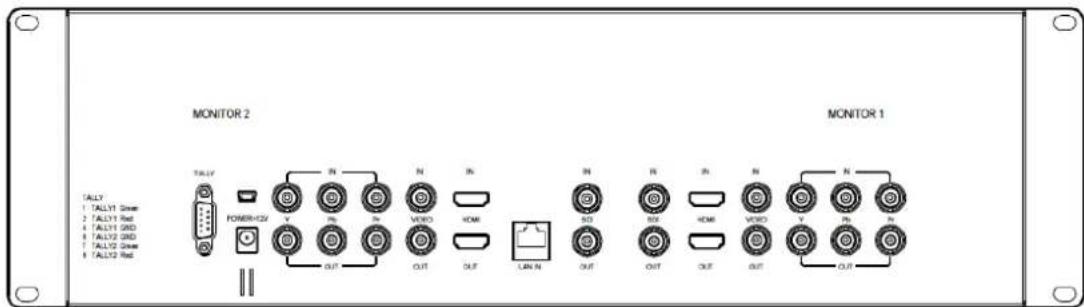
MONITOR 2 TALLY TALLY1 Drive TALLY1 Red TALLY1 GND TALLY2 GND TALLY2 Drive TALLY2 Red POWER-H2V OUT N N N VDD VDD VDD VDD VDD VDD VDD VDD VDD VDD VDD VDD VDD VDD VDD VDD VDD VDD VDD VDD VDD VDD VDD VDD VDD VDD VDD VDD VDD VDD VDD VDD VDD VDDNote: The interfaces within Monitor 1 provide signal source for monitor 1. The interfaces within Monitor 2 provide signal source for monitor 2. TALLY interface, Mini USB interface, power supply interface and LAN port are common interfaces.

-
TALLY interface and interface definition.
-
Mini USB input (Only used for program upgrades, do NOT use if non-professionals).
POWER+12V

- 12V DC power input.
text_image
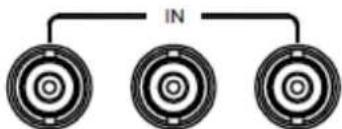
IN- YPbPr input.

text_image
Y Pb Pr YPbPr output.T
- VIDEO Video input.
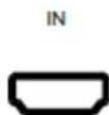
- HDMI HDMI input.
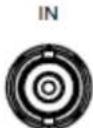
- SDI SDI input.


- OUT Video output.
- OUT HDMI output.

-
OUT SDI output.
-
LAN IN The LAN port. (Connected to PC network interface for function adjustment.)
2. MENU SETTING
Before setting the functions, please make sure the device is connected correctly.
2-1. Shortcut buttons:
2-1-1. the image menu
Power on, press “◀ / ▶” buttons on the device, brightness display bar will appear at the bottom of the screen, then press the MENU button to switch among brightness, sharpness, contrast, saturation, tint, MENU and Exit. User can adjust the parameters of the selected item with “◀ / ▶” buttons to meet their needs.
2-1-2. FN user-definable function button
Press FN button to pop up the default options, Use “◀ / ▶” buttons to adjust the value of selected item.
Long press FN button for 3-5 seconds to pop up shortcut menu
directly. As shown in right Figure (default menu is displayed in white font).
Use “◀ / ▶” buttons to select the desired item.
Finally, use the "ENTER" button to confirm the selected item as default.
Functions of FN button can be customized: Center Marker, Safety Marker, Check Field, Color Bar, Aspect Ratio, Camera, PIP, Image Flip, Zoom, Pixel-to-Pixel, Freeze Input, Underscan, H/V delay.
| Center Marker |
| Safety Marker |
| Check Field |
| Color Bar |
| Aspect Ratio |
| Camera |
| PIP |
| Image Flip |
| Zoom |
| Pixel-to-Pixel |
| Freeze Input |
| Underscan |
| H/V delay |
2-2. MENU Operation
Press "MENU" button on the device after power on. The menu used for setting function will display on the screen.
Press ◀/▶ buttons to select the sub-menu; then press ENTER to confirm it; after that, press MENU to return to main menu.
2-2-1. Picture
| PICTURE | ||
 | Brightness | 50 |
 | Contrast | 50 |
| Saturation | 50 | |
 | Tint | 50 |
| Sharpness | 50 | |
 | Color Temp | |
 | ||
| ITEMS | OPTIONS | |
| Brightness | 0 - 100 | |
| Contrast | 0 - 100 | |
| Saturation | 0 – 100 | |
| Tint | 0 – 100 | |
| Sharpness | 0 – 100 | |
| Color Temp | 6500°K, 7500 °K, 9300 °K, User | |
| Red | Note: Available only in “User” mode to choose the color value you need. | |
| Green | ||
| Blue | ||
2-2-2. Marker
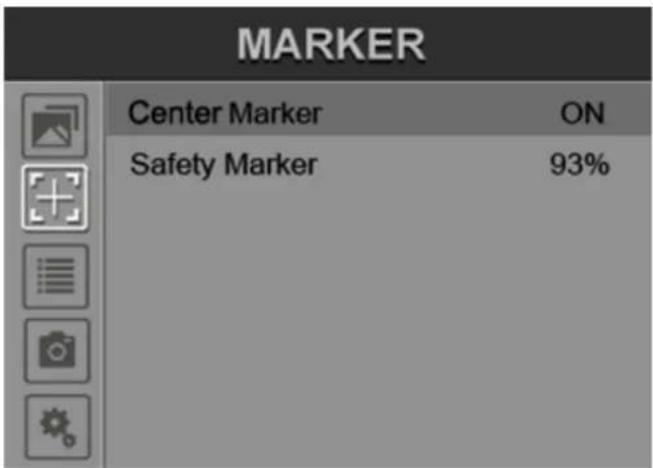
text_image
MARKER Center Marker ON Safety Marker 93%| ITEMS | OPTIONS |
| Center Marker | ON, OFF |
| Safety Marker | OFF, 95%, 93%, 90%, 88%, 85%, 80% |
2-2-3. Display
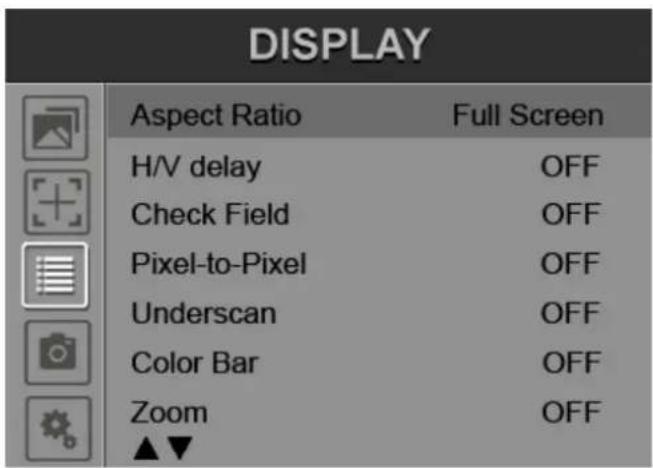
text_image
DISPLAY Aspect Ratio Full Screen H/V delay OFF Check Field OFF Pixel-to-Pixel OFF Underscan OFF Color Bar OFF Zoom OFF ▲▼| ITEMS | OPTIONS |
| Aspect Ratio | Full Screen, 16:9, 4:3, 1.85:1, 2.35:1 |
| H / V delay | OFF, H&V Delay, V Delay, H Delay |
| Check Field | OFF, Mono, Red, Green, Blue |
| Pixel-to-Pixel | OFF, ON |
| Underscan | OFF, ON |
| Color Bar | OFF, ON |
| Zoom | OFF, ×2, ×4, ×6, ×8 |
| Image Flip | OFF, ON |
| Freeze Input | OFF, Freeze |
| PIP | Small, Medium, Large, PBP, POP |
| ITEMS | OPTIONS |
| Camera | 480P (5D-II Mode), 1080I (5D-□ Mode) |
| Volume | 0 – 100 |
2-2-5. System
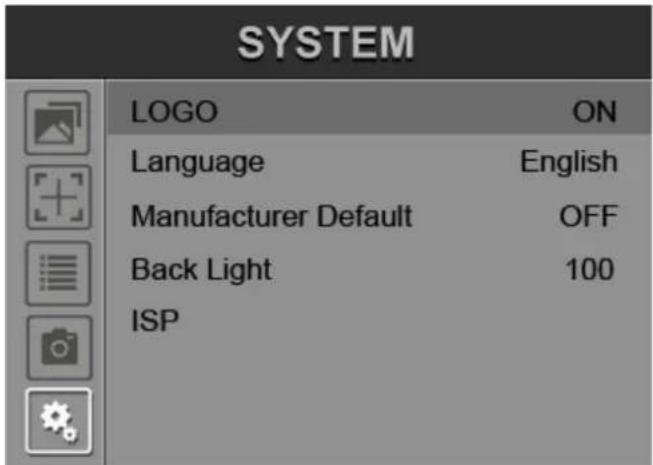
text_image
SYSTEM LOGO ON Language English Manufacturer Default OFF Back Light 100 ISP| ITEMS | OPTIONS |
| LOGO | OFF, ON |
| Language | English, Chinese |
| Manufacturer Default | OFF, ON |
| Back Light | 0 – 100 |
| ISP | For program upgrades |
3. Software application
1. Cross-connection network cable
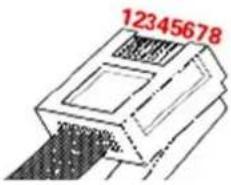
text_image
12345678T568A

text_image
1 2 3 4 5 6 7 8 W G W BI W O W Br G O BI BrT568B
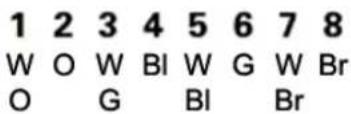
text_image
1 2 3 4 5 6 7 8 W O W BI W G W Br O G BI BrNote: W: white, G: green, O: orange, Bl: blue, Br: brown
2. Software settings

text_image
Diagram of a network device showing front panel with switches and ports, connected to a laptop via an Ethernet cable.①. Connect the LAN port with PC.
②. Set the PC IP to 192.168.1.XXX network segment(XXX is a user-definable parameter).
③. Open the application program, then select the monitor which is needed to be adjusted (Monitor1 or Monitor2).
④. Set the parameter values according to user's individual requirements.
First, click the "read" button to read the corresponding parameter value of the device to the software, secondly, modify the parameter value on the software, then, the instruction can be realized on the device.

text_image
Monitor1 Monitor2 Functions Picture Brightness Read Input VIDEO Read TALLY OFF Read Safety Marker OFF Read Screen Marker OFF Read Aspect Ratio Full Screen Read Check Field OFF Read Color Temp 6500k Read Other WaveformOFF Read Exit4. ACCESSORIES

1

2
3
- DC 12V Power adapter
- TALLY connector
- Manual
1 piece
1 piece
1 piece
5. PARAMETERS
| Panel | 7" LED IPS |
| Physical Resolution | 1280×800 |
| Brightness | 400 cd/m2 |
| Contrast | 800: 1 |
| Viewing Angle | 178°/ 178°(H/V) |
| Input Voltage | DC 12V |
| Input Signal | HDMI, YPbPr, SDI, Video |
| Power Consumption | ≤18W |
| Operating Temperature | -20~60 |
| Storage Temperature | -30~70 |
| Dimension (LWD) | 482.5×133.5×25.3mm |
| Weight | 2885g |
6. TROUBLE SHOOTING
1. Only black-and-white display:
Check whether the color saturation is properly set up or not.
2. Power on but no pictures:
Check whether the cables of HDM, YPbPr, SDI and V I DEO are correctly connected or not. Please use the standard power adapter equipped with the product package. Improper power input may cause damage.
3. Wrong or abnormal colors:
Check whether the cables are correctly and tightly connected or not. Broken or loose pins of the cables may cause a bad connection.
4. When power on, the picture shows size error:
Press “MENU → DISPLAY → Underscan” to zoom in/out pictures automatically when receiving HDMI signals.
5. Other problems:
Please press "MENU" button and choose "SYSTEM→ Manufacturer Default →ON", then press "ENTER" button to confirm it.
- According to the ISP, the machine can not function properly:
ISP is used for program upgrades, non-professionals do not use. The device will reboot if selected accidentally!
Note: due to constant effort to improve products and product features, specifications may change without prior notice.