TWIN-BANK - Karaoke Vocopro - Free user manual and instructions
Find the device manual for free TWIN-BANK Vocopro in PDF.


User questions about TWIN-BANK Vocopro
0 question about this device. Answer the ones you know or ask your own.
Ask a new question about this device
Download the instructions for your Karaoke in PDF format for free! Find your manual TWIN-BANK - Vocopro and take your electronic device back in hand. On this page are published all the documents necessary for the use of your device. TWIN-BANK by Vocopro.
USER MANUAL TWIN-BANK Vocopro
text_image
VOCOPro TWIN-BANK DRIVE A +12% -12% PITCH CONTROL DRIVE B +12% -12% PITCH CONTROL DRIVE B VOCOPro TWIN-BANK DRIVE A DRIVE B COPY USB COPY USB DRIVE B Professional Multi-Format Dual Hard Drive PlayerTWIN-BANK
Professional Multi-Format Dual Hard Drive Player
OWNER'S MANUAL
Table of Contents
FCC Information 3
Listening for a Lifetime 4
Safety Instructions 5
Welcome 6
TWIN-BANK Feature Overview 7
Getting Started 8
Getting Connected 11
Descriptions and Features 16
Operations 22
Troubleshooting 28
FCC INFORMATION (U.S.A.)
1. IMPORTANT NOTICE: DO NOT MODIFY THIS
UNIT!: This product, when installed as indicated in the instructions contained in this manual, meets FCC requirements. Modifications not expressly approved by Vocopro may void your authority, granted by the FCC, to use this product.
-
IMPORTANT: When connecting this product to accessories and/or another product use only high quality shielded cables. Cable(s) supplied with this product MUST be used. Follow all installation instructions. Failure to follow instructions could void your FCC authorization to use this product in the U.S.A.
-
NOTE: This product has been tested and found to comply with the requirements listed in FCC Regulations, Part 15 for Class "B" digital devices. Compliance with these requirements provides a reasonable level of assurances that your use of this product in a residential environment will not result in harmful interference with other electronic devices. This equipment generates/uses radio frequencies and, if not installed and used according to the instructions found in the owner's manual, may cause interference harmful to the operation of other electronic devices. Compliance with FCC regulations does not guarantee that interference will not occur in all installations. If this product is found to be the source of interference, which can be determined by turning the unit "Off" and "On", please try to eliminate the problem by using one of the following measures:
Relocate either this product or the device that is being affected by the interference.
Use power outlets that are on different branch (circuit breaker or fuse) circuits or install AC line filter(s).
In the case of radio or TV interference, relocate/reorient the antenna. If the antenna lead-in is 300-ohm ribbon lead, change the lead-in to coaxial type cable.
If these corrective measures do not produce satisfactory results, please contact your local retailer authorized to distribute Vocopro products. If you can not locate the appropriate retailer, please contact Vocopro, 1728 Curtiss Court, La Verne, CA 91750.
CAUTION
The apparatus is not disconnected from the AC power source so long as it is connected to the wall outlet, even if the apparatus itself is turned off. To fully ensure that the apparatus is indeed fully void of residual power, leave unit disconnected from the AC outlet for at least fifteen seconds.
CAUTION:
READ THIS BEFORE OPERATING YOUR UNIT
-
To ensure the finest performance, please read this manual carefully. Keep it in a safe place for future reference.
-
Install your unit in a cool, dry, clean place - away from windows, heat sources, and too much vibration, dust, moisture or cold. Avoid sources of hum (transformers, v motors). To prevent fire or electrical shock, do not expose to rain and water.
-
Do not operate the unit upside-down.
-
Never open the cabinet. If a foreign object drops into the set, contact your dealer.
-
Place the unit in a location with adequate air circulation. Do not interfere with its proper ventilation; this will cause the internal temperature to rise and may result in a failure.
-
Do not use force on switches, knobs or cords. When moving the unit, first turn the unit off. Then gently disconnect the power plug and the cords connecting to other equipment. Never pull the cord itself.
-
Do not attempt to clean the unit with chemical solvents: this might damage the finish. Use a clean, dry cloth.
-
Be sure to read the "Troubleshooting" section on common operating errors before concluding that your unit is faulty.
-
This unit consumes a fair amount of power even when the power switch is turned off. We recommend that you unplug the power cord from the wall outlet if the unit is not going to be used for a long time. This will save electricity and help prevent fire hazards. To disconnect the cord, pull it out by grasping the plug. Never pull the cord itself.
-
To prevent lightning damage, pull out the power cord and remove the antenna cable during an electrical storm.
-
The general digital signals may interfere with other equipment such as tuners or receivers. Move the system farther away from such equipment if interference is observed.
NOTE:
Please check the copyright laws in your country before recording from records, compact discs, radio, etc. Recording of copyrighted material may infringe copyright laws.
Voltage Selector (General Model Only)
Be sure to position the voltage selector to match the voltage of your local power lines before installing the unit.

Listening for a lifetime
Selecting fine audio equipment such as the unit you've just purchased is only the start of your musical enjoyment. Now it's time to consider how you can maximize the fun and excitement your equipment offers. VocoPro and the Electronic Industries Association's Consumer Electronics Group want you to get the most out of your equipment by playing it at a safe level. One that lets the sound come through loud and clear without annoying blaring or distortion and, most importantly, without affecting your sensitive hearing.
Sound can be deceiving. Over time your hearing “comfort level” adapts to a higher volume of sound. So what sounds “normal” can actually be loud and harmful to your hearing. Guard against this by setting your equipment at a safe level BEFORE your hearing adapts.
To establish a safe level:
- Start your volume control at a low setting.
- Slowly increase the sound until you can hear it comfortably and clearly, and without distortion.
Once you have established a comfortable sound level:
- Set the dial and leave it there.
- Pay attention to the different levels in various recordings.
Taking a minute to do this now will help to prevent hearing damage or loss in the future. After all, we want you listening for a lifetime.
Used wisely, your new sound equipment will provide a lifetime of fun and enjoyment. Since hearing damage from loud noise is often undetectable until it is too late, this manufacturer and the Electronic Industries Association's Consumer Electronics Group recommend you avoid prolonged exposure to excessive noise. This list of sound levels is included for your protection.
Some common decibel ranges:
| Level | Example |
| 30 | Quiet library, Soft whispers |
| 40 | Living room, Refrigerator, Bedroom away from traffic |
| 50 | Light traffic, Normal Conversation |
| 60 | Air Conditioner at 20 ft., Sewing machine |
| 70 | Vacuum cleaner, Hair dryer, Noisy Restaurant |
| 80 | Average city traffic, Garbage disposals, Alarm clock at 2 ft. |
The following noises can be dangerous under constant exposure:
| Level | Example |
| 90 | Subway, Motorcycle, Truck traffic, Lawn Mower |
| 100 | Garbage truck, Chainsaw, Pneumatics drill |
| 120 | Rock band concert in front of speakers |
| 140 | Gunshot blast, Jet plane |
| 180 | Rocket launching pad |
-Information courtesy of the Deafness Research Foundation
Safety Instructions

CAUTION
RISK OF SHOCK

CAUTION: To reduce the risk of electric shock, do not remove cover (or back). No user-serviceable parts inside. Only refer servicing to qualified service personnel.
Explanation of Graphical Symbols

The lightning flash & arrowhead symbol, within an equilateral triangle, is intended to alert you to the presence of danger.

The exclamation point within an equilateral triangle is intended to alert you to the presence of important operating and servicing instructions.
WARNING
To reduce the risk of fire or electric shock, do not expose this unit to rain or moisture.
- Read Instructions - All the safety and operating instructions should be read before the appliance is operated.
- Retain Instructions - The safety and operating instructions should be retained for future reference.
- Heed Warnings - All warnings on the appliance and in the operating instructions should be adhered to.
- Follow Instructions - All operating and use instructions should be followed.
- Attachments - Only use attachments/accessories specified or provided by the manufacturer (such as the exclusive supply adapter, battery etc.)
- Water and Moisture - Do not use this unit near water. For example, near a bathtub or in a wet basement and the like.
- Carts and Stands - Use only with the cart, stand, tripod, bracket, or table specified by the manufacturer, or sold with the apparatus. When a cart or rack is used, use caution when moving the cart/apparatus combination to avoid injury from tip-over.
7 A. An appliance and cart combination should be moved with care. Quick stops, excessive force, and uneven surfaces may cause an overturn.

-
Ventilation - The appliance should be situated so its location does not interfere with its proper ventilation. For example, the appliance should not be situated on a bed, sofa, rug, or similar surface that may block the ventilation slots.
-
Heat - The appliance should be situated away from heat sources such as radiators, heat registers, stoves, or other appliances (including amplifiers) that produce heat.
-
Power Sources - The appliance should be connected to a power supply only of the type described in the operating instructions or as marked on the appliance.
-
Grounding or Polarization - Precautions should be taken so that the grounding or polarization means of an appliance is not defeated. A polarized plug has two blades with one wider than the other. A grounding plug has two blades and and third grounding prong. The wide blade or the third prong is provided for your safety. If the provided plug does not fit into your outlet, consult an electrician for replacement of the obsolete outlet.
-
Power-Cord Protection - Power-supply cords should be routed so that they are not likely to be walked on or pinched by items placed upon or against them, paying particular attention to cords at plugs, convenience receptacles, and the point where they exit from the appliance.
-
Cleaning - Unplug this unit from the wall outlet before cleaning. Do not use liquid cleaners or aerosol cleaners. Use a dry cloth for cleaning.
-
Power lines - An outdoor antenna should be located away from power lines.
-
Nonuse Periods - The power cord of the appliance should be unplugged from the outlet when left unused for a long period of time.
-
Object and Liquid Entry - Care should be taken so that objects do not fall and liquids are not spilled into the enclosure through openings.
-
Damage Requiring Service - The appliance should be serviced by qualified service personnel when:
A. The power supply cord or plug has been damaged; or
B. Objects have fallen into the appliance; or
C. The appliance has been exposed to rain; or
D. The appliance does not appear to operate normally or exhibits a marked change in performance; or
E. The appliance has been dropped, or the enclosure damaged.
18. Servicing - The user should not attempt to service the appliance beyond that described in the operating instructions. All other servicing should be referred to qualified service personnel.
Note:
To CATV system installer's (U.S.A.): This reminder is provided to call the CATV system installer's attention to Article 820-40 of the NEC that provides guidelines for proper grounding and, in particular, specifies that the cable ground shall be connected as close to the point of cable entry as practical.
Welcome
Thank you for purchasing the TWIN-BANK from VocoPro, your ultimate choice in Karaoke entertainment! With years of experience in the music entertainment business, VocoPro is a leading manufacturer of Karaoke equipment, and has been providing patrons of bars, churches, schools, clubs and individual consumers the opportunity to sound like a star with full-scale club models, in-home systems and mobile units. All our products offer solid performance and sound reliability, and to further strengthen our commitment to customer satisfaction, we have customer service and technical support professionals ready to assist you with your needs. We have provided some contact information for you below.
VocoPro
1728 Curtiss Court
La Verne, CA 91750
Toll Free: 800-678-5348
TEL: 909-593-8893
FAX: 909-593-8890
VocoPro Company E-mail Directory
Customer Service & General Information
info@vocopro.com
Tech Support
techsupport@vocopro.com
Remember Our Website
Be sure to visit the VocoPro Website www.vocopro.com for the latest information on new products, packages and promos. And while you're there don't forget to check out our Club VocoPro for Karaoke news and events, chat rooms, club directories and even a Service directory!
We look forward to hearing you sound like a PRO, with VocoPro, the singer's ultimate choice.
FOR YOUR RECORDS
Please record the model number and serial number below, for easy reference, in case of loss or theft. These numbers are located on the rear panel of the unit. Space is also provided for other relevant information.
Model Number
Serial Number
Date of Purchase
Place of Purchase
TWIN-BANK Feature Overview
• Supports AVI, VOB, MP3+G, MP3, and JPG Formats
- Dual 500GB* Hard Drives Can Store Thousands of Files
- ±12% Pitch Control with Key-Lock Works on Both Audio and Video
• ±7 Step Digital Key Control
- Dual USB Thumb Drive and SD Card Ports on the Front Panel for Easy Access to Additional Media
- Rear Panel USB Ports for Data Transfers to and From a Computer
• Full Function Remote Control
• 120V/240V and NTSC/PAL Compatible for Worldwide Use
- *1TB hard drives available. Contact your retailer for details.
Getting Started
Unpacking
Thank you for purchasing the TWIN-BANK. Take a few moments to look through this manual. Before setting up, please make sure the following items are included.
Box Contents
• TWIN-BANK Main Unit
• TWIN-BANK Remote Unit
- COM Cable
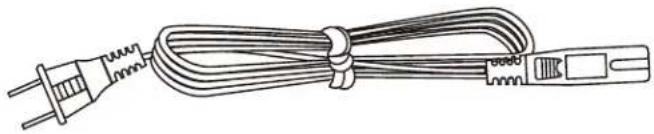
- Power Cable
- Remote Control
natural_image
Line drawing of a cable with a power plug and connector (no text or symbols)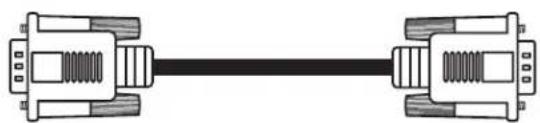
natural_image
Pure electrical circuit lines without any symbols
text_image
VocoPro TWIN-BANK DRIVE A DRIVE B DRIVE C DRIVE D DRIVE E DRIVE F DRIVE G DRIVE H DRIVE I DRIVE J DRIVE K DRIVE L DRIVE M DRIVE N DRIVE O DRIVE P DRIVE Q DRIVE R DRIVE S DRIVE T DRIVE U DRIVE V DRIVE W DRIVE X DRIVE Y DRIVE Z DRIVE A DRIVE B DRIVE C DRIVE D DRIVE E DRIVE F DRIVE G DRIVE H DRIVE I DRIVE J DRIVE K DRIVE L DRIVE M DRIVE N DRIVE O DRIVE P DRIVE Q DRIVE R DRIVE S DRIVE T DRIVE U DRIVE V DRIVE W DRIVE X DRIVE R DRIVE S DRIVE T DRIVE U DRIVE V DRIVE W DRIVE X DRIVE R DRIVE S DRIVE T DRIVE U DRIVE V DRIVE W DRIVE X DRIVE R DRIVE S DRIVE T DRIVE U DRIVE V DRIVE W DRIVE X DRIVE R DRIVE S DRIVE T DRIVEU TWIN-BANK CPY1 100 100 100 100 100 100 100 100 100 100 100 100 100 100 100 100 100 100 100 100 100 100 100 100 100 10Getting Started
Returns and Warranty
In the unlikely event that the TWIN-BANK would need to be shipped for repair, it is recommended that you keep all the product packaging and receipt. For detailed warranty information, please visit www.vocopro.com/warranty_extended.html. To find a VocoPro Authorized Service Center near you, please visit www.vocopro.com/servicecenter.html
Features
• Supports AVI, VOB, MP3+G, MP3, and JPG Formats
- Dual 500GB* Hard Drives Can Store Thousands of Files
- ±12% Pitch Control with Key-Lock Works on Both Audio and Video
• ±7 Step Digital Key Control
- Dual USB Thumb Drive and SD Card Ports on the Front Panel for Easy Access to Additional Media
- Rear Panel USB Ports for Data Transfers to and From a Computer
• Full Function Remote Control
• 120V/240V and NTSC/PAL Compatible for Worldwide Use
*1TB hard drives available. Contact your retailer for details.
Getting Started
Installing the TWIN-BANK
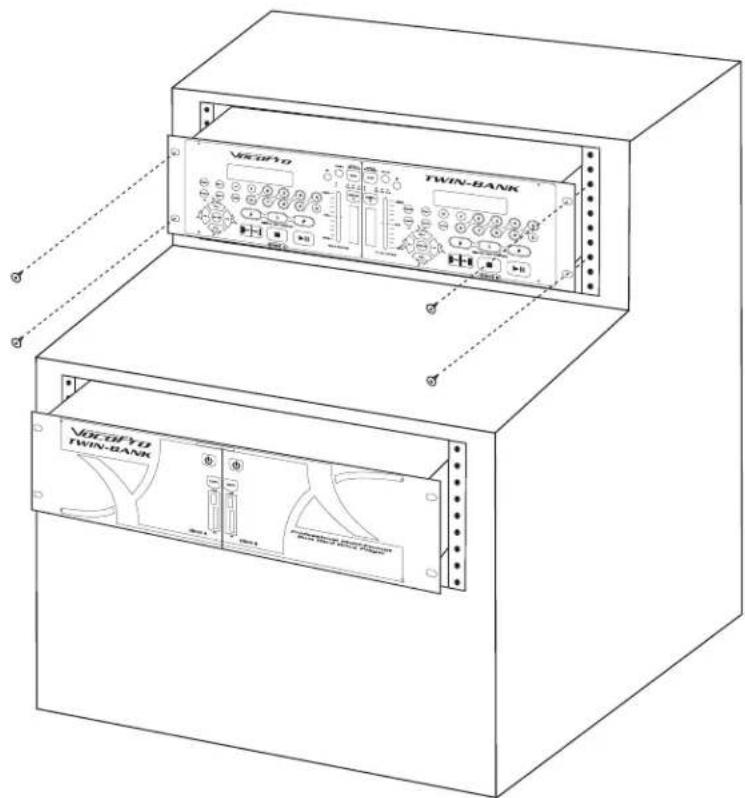
The TWIN-BANK can be installed to standard 19" equipment rack or case. The TWIN-BANK requires a total of six units of rack space. Follow the steps below for installation.
The main unit requires three rack units.* Place the main unit into the rack or case so that the holes are aligned evenly. Using four rack case screws (not included) fasten the main unit to the rack case using an alternating "X" rotation to ensure even tension and alignment.
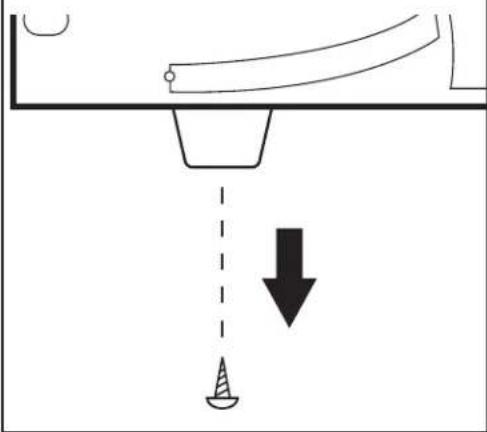
*You will need to remove the four rubber feet on the bottom of the main unit for an exact three rack unit fit.
Using the same "X" rotation, fasten the remote unit to the rack case using an alternating "X" rotation to ensure even tension and alignment.
text_image
VDC-0FY0 TWIN-BANK VDC-0FY0 TWIN-BANKRemoving the Rubber Feet from the Main Unit
On the bottom of the main unit, using a Phillips-head screwdriver, unscrew each rubber foot and store in a safe place.
natural_image
Diagram showing a mechanical setup with a beam and a downward arrow, no text or symbols presentGetting Connected
Connecting the Main Unit to the Remote Unit
The remote unit must be connected to the main unit to operate the TWIN-BANK.
Cables required
COM cable
Using the supplied COM cable, connect one end to the communication port on the remote unit and tighten the two tension screws to secure. Connect the other end to the communication port on the main unit and tighten the tension screws to secure.

flowchart
graph TD
    A["TWIN-BANK controller boxB BoxA/BoxB"] --> B["Device 1"]
    A --> C["Device 2"]
    D["TWIN-BANK controller boxA"] --> E["Device 1"]
    D --> F["Device 2"]
    G["TWIN-BANK WWW.900078.com VACOFTO LA VEINE-CAUIFONA 13.5.0"] --> H[Professional Equipment no user servicable parts inside MAXI MAXIMETER MAXI MAXIMETER MAXIMETER MAXIMETER MAXIMETER MAXIMETER MAXIMETER MAXIMETER MAXIMETER MAXIMETER MAXIMETER MAXIMETER MAXIMETER MAXIMETER MAXIMETER MAXIMETER MAXIMETER MAXIMETER MAXIMETER MAXIMETER MAXIMETER MAXIMETER MAXIMETER MAXIMETER MAXIMETER MAXIMETER MAXIMETER MAXIMETER MAXIMETER MAXIMETER MAXIMETER MAXIMETER MAXIMETER MAXIMETER MAXIMETER MINI MINI MINI MINI MINI MINI MINI MINI MINI MINI MINI MINI MINI MINI MINI MINI MINI MINI MINI MINI MINI MINI MINI MINI MINI MINI MINI MINI MINI MINI MINI MINI MINI MINI MINI MINI MINI MINI MINI MINI MINI MINI MINI MINI MINI MINI MINI MINI MINI MINI MINM<fcel>TWIN-BANK controller boxB BoxA/BoxB
TWIN-BANK controller boxA
TWIN-BANK controller boxA
TWIN-BANK controller boxB
TWIN-BANK controller boxA
TWIN-BANK controller boxB
TWIN-BANK controller boxA
TWIN-BANK controller boxB
TWIN-BANK controller boxA
TWIN-BANK controller boxB
TWIN-BANK controller boxA
TWIN-BANK controller boxB
TWIN-BANK controller boxA
TWIN-BANK controller boxB
TWIN-BANK controller boxA
TWIN-BANK controller boxB
TWIN - TWIN - TWIN - TWIN - TWIN - TWIN - TWIN - TWIN - TWIN - TWIN - TWIN - TWIN - TWIN - TWIN - TWIN - TWIN - TWIN - TWIN - TWIN - TWIN - TWIN - TWIN - TWIN - TWIN - TWIN - TWIN - TWIN - TWIN - TWIN - TWIN - TWIN - TWIN - TWIN - TWIN - TOWN
TWIN-BANK controller boxB
TWIN-BANK controller boxA
TWIN-BANK controller boxA
TWIN-BANK controller boxA
TWIN-BANK controller boxA
TWIN-BANK controller boxA
TWIN-BANK controller boxA
TWIN-BANK controller boxA
TWIN-BANK controller boxA
TWIN-BANK controller boxA
TWIN-BANK controller boxA
TWIN-BANK controller boxA
TWIN-BANK controller boxA
TWIN-BANK controller boxA
TWIN - TWIN - TWIN - TWIN - TWIN - TWIN - TWIN - TWIN - TWIN - TWIN - TWIN - TWIN - TWIN - TWIN - TWIN - TWIN - TWIN - TWIN - TWIN - TWIN - TWIN - TWIN - TWIN - TWIN - TWIN - TWIN - TWIN - TWIN - TWIN - TWIN - TWIN - TWIN - TWIN
TWIN-BANK controller boxB
TWIN-BANK controller boxA
TWIN-BANK controller boxA
TWIN-BANK controller boxA
TWIN-BANK controller boxA
TWIN-BANK controller boxA
TWIN-BANK controller boxA
TWIN-BANK controller boxA
TWIN-BANK controller boxA
TWIN-BANK controller boxA
TWIN-BANK controller boxA
TWIN-BANK controller boxA
TWIN-CNTC 控制器 控制器 控制器 控制器 控制器 控制器 控制器 控制器 控制器 控制器 控制器 控制器 控制器 控制器 控制器 控制器 控制器 控制器 控制器 控制器 控制器 控制器 控制器 控制器 控制器 控制器 控制器 控制器 控制器 控制器 控制器 控制器 控制器 控制器
PROFESSIONAL EQUIPMENT NO USER SERVICABLE PARTS INTEGRATED CONTROL TO PRESENT ELECTRIC BLOCK, DELETT PRINCIPAL CHAND SCREEN NO LOWER/SHR/DUCTABLE POINT RING, LOWER SHR/DUCTABLE POINT RING, LOWER SHR/DUCTABLE POINT RING, LOWER SHR/DUCTABLE POINT RING, LOWER SHR/DUCTABLE POINT RING, LOWER SHR/DUCTABLE POINT RING, LOWER SHR/DUCTABLE POINT RING, LOWER SHR/DUCTABLE POINT RING, LOWER SHR/DUCTABLE POINT RING, LOWER SHR/DUCTABLE POINT RING, LOWER SHR/DUCTABLE POINT RING, LOWER SLTR PINIC PAINIC PAINIC PINIC PINIC PINIC PINIC PINIC PINIC PINIC PINIC PINIC PINIC PINIC PINIC PINIC PINIC PINIC PINIC PINIC PINIC PINIC PINIC PINIC PINIC PINIC PINIC PINIC PINIC PINIC PINIC PINIC PINIC PINIC PINIC PINIC PINIC PINIC PINIC PINIC PINIC PINIC PINIC PINIC PINIC PINIC PINIC PINIC PINIC PINIC PINIC PINIC PINIC<nl>
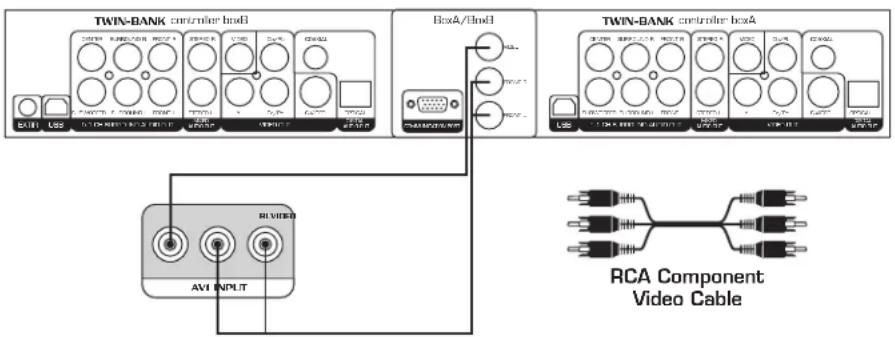
Connecting the TWIN-BANK using Mixed Output
The easiest way to connect the TWIN-BANK audio and video is to use the mixed outputs. Connecting in this way will send the audio and video output of both Drive A & B through one set of RCA A/V cables. Use this connection method if you only have (or want to use) one A/V channel on your external system.
Cables required
RCA-type A/V cable (red, white, yellow)
Using an A/V cable, connect one end to the BOX A/B audio/video jacks (red/white/yellow) on the TWIN-BANK. Connect the other end to an A/V input on your external system.
text_image
TWIN-BANK controller boxB BoxA/BoxB TWIN-BANK controller boxA AVI INPUT RCA Component Video CableGetting Connected
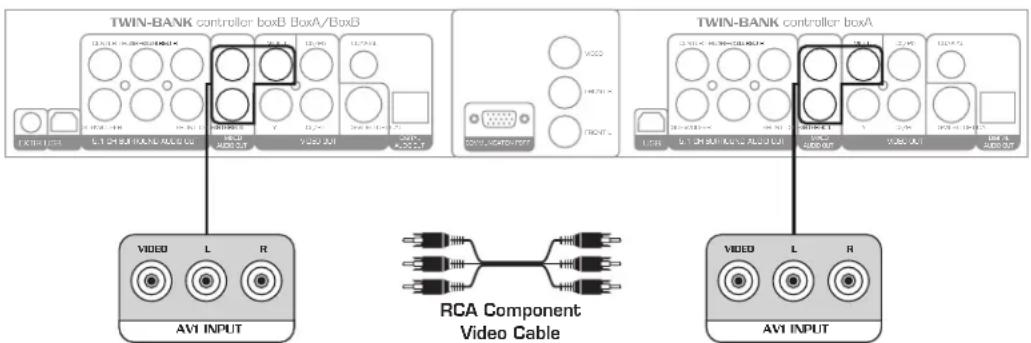
Connecting the TWIN-BANK using Separate Output
This connection method will send the output of Drive A and Drive B separately. Use this connection method for DJ/KJ style setups where a mixer is used to toggle output (usually with a crossfader).
Cables required
RCA-type A/V cable (red, white, yellow) x 2
Using an A/V cable, connect one end to the MIXED AUDIO OUTPUT (red and white) and VIDEO OUTPUT (yellow) jacks for Drive A on the TWIN-BANK. Connect the other end to an A/V input on your external system.
Repeat for Drive B and second A/V input on your external system.
text_image
TWIN-BANK controller boxB BoxA/BoxB EXTRA I/O 5.1 OR 8.0 OR 9.0 OR 10.0 OR 11.0 OR 12.0 OR 13.0 VIDEO L R AVI INPUT TWIN-BANK controller boxA EXTRA I/O 5.1 OR 8.0 OR 9.0 OR 10.0 OR 11.0 OR 12.0 OR 13.0 VIDEO L R AVI INPUT RCA Component Video Cable TWIN-BANK controller boxA EXTRA I/O 5.1 OR 8.0 OR 9.0 OR 10.0 OR 11.0 OR 12.0 OR 13.0 VIDEO L R AVI INPUTConnecting 5.1 CH Output to a 5.1 CH Receiver/Amplifier
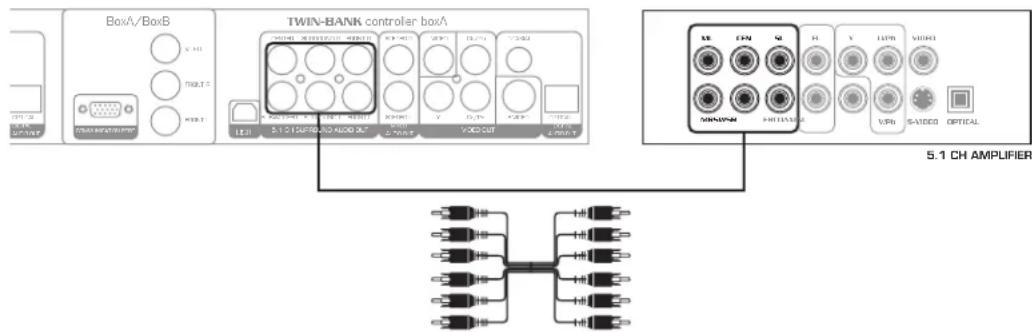
When playing audio in Dolby Pro Logic mode or from VOB files with 5.1 CH audio encoding, you connect the 5.1 CH outputs to a 5.1 CH Receiver/Amplifier. (See Setup Menu section for 5.1 CH settings.)
Cables required
RCA-type 5.1 CH audio cable*
Connect one end of the 5.1 CH audio cables to the 5.1 CH Surround Audio Out jacks on Drive A/B. Connect the other end to the 5.1 CH inputs on your receiver/amplifier.
* 5.1 CH audio cables are labeled making them easier to connect. If you do not have 5.1 CH cables, you can use RCA-type cables as well. You just need to keep track of which cable is which.
text_image
BoxA/BoxB TWIN-BANK controller boxA 5.1 CH AMPLIFIER 5.1 CH AMPLIFIER5.1 CH Audio Cable
Getting Connected
Connecting Component Video Output
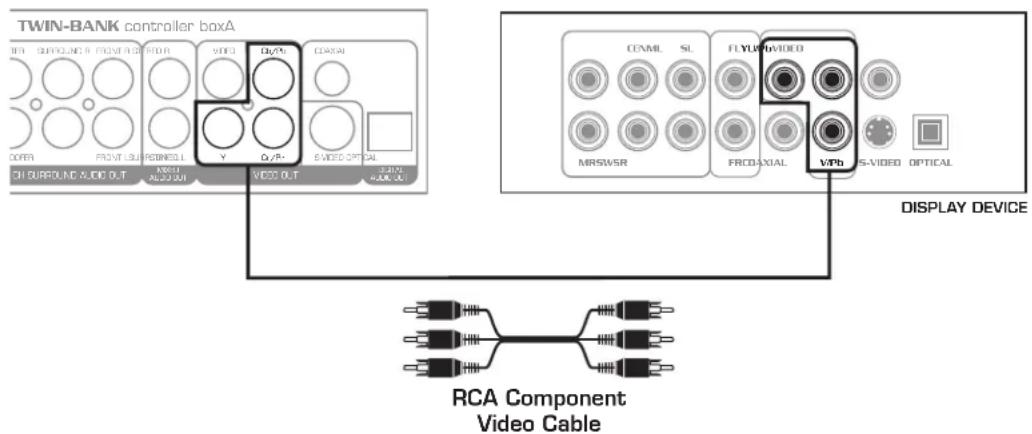
Use the component video jacks for Y/Pb/Pr and Y/Cb/Cr video output. Both video modes use the same connection. Use Y/Pb/Pr for progressive scan mode and Y/Cb/Cr for analog mode. (See the Setup Menu for setting video output).
Cable required
Component video cable*
Connect one end of the component video cable to the Y/Pb/Pr jacks on the TWIN-BANK, and connect the other end to a Y/Pb/Pr or Y/Cb/Cr input on your TV or display device.
* Component video cables are labeled making them easier to connect. If you do not have component video cables, you can use RCA-type cables as well. You just need to keep track of which cable is which.
text_image
TWIN-BANK controller boxA OFF SURROUND A FRONT B RIO R VIO G Q/Q/P C OAXAI COPER FRONT LUI PONED L Y Q/Q-P S VIDEO OPTICAL CH SURROUND ALIC D U T X/R/U K/S/0 U U VIOO D U T S/A/K U U CEANML SL FLYU/P/DVIDEO MRSWSR FRCDAXIAL V/Pb IS-VIDEO OPTICAL DISPLAY DEVICE RCA Component Video CableConnecting S-video Output
S-VIDEO provides better color separation and better resolution by separating the color and picture signals of a composite video signal. (See Setup Menu section for setting video output.)
Cable required
S-video cable
Connect one end of the S-video cable to the S-video jack on Drive A/B of the TWIN-BANK, and connect the other end to an S-video input on your TV or display device.
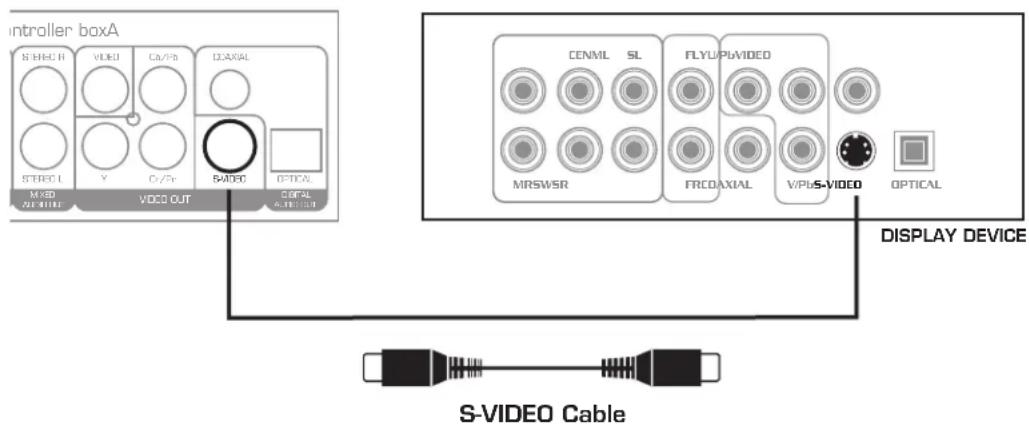
text_image
introller boxA STRECH VIDEO Ca/Fb DAXIAL STRECL Y C/S F B/DO OPTICAL MIXO VIDEO VIDEO OUT CORAL DISPLAY DEVICE S-VIDEO Cable CENML SL FLYUP/LVIDED MRSWSR FRCOAXIAL VPLS-VIDEO OPTICALGetting Connected
Connecting Optical Digital Audio Output
You can use the optical output to send a digital audio signal to a digital amplifier or other audio device.
Cable required
Optical cable (TOSLINK)
On the TWIN-BANK, remove the protective cover from Drive A/B's optical output. Connect one end of the optical cable and connect the other end to an optical input on your external device. (See Setup Menu for digital audio settings.)
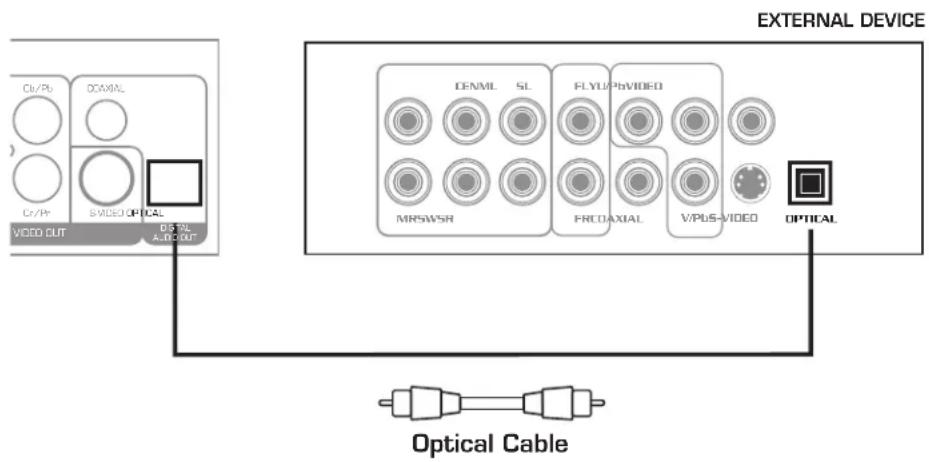
text_image
EXTERNAL DEVICE Cr/Pr OCAMAL Cr/Pr SVIDE OPTICAL VDD OUT DSTR A-DC OUT DFNML SL FLYUP PbVIDEO MRSWSR FRCOAXIAL V/PUS-VIDEO OPTICAL Optical CableConnecting Coaxial Digital Audio Output
You can use the coaxial output to send a digital audio signal to a digital amplifier or other audio device.
Cable required
RCA-type cable
On the TWIN-BANK, connect one end of the RCA cable to the coaxial output, and connect the other end to a coaxial digital input on your external device. (See Setup Menu for digital audio settings.)
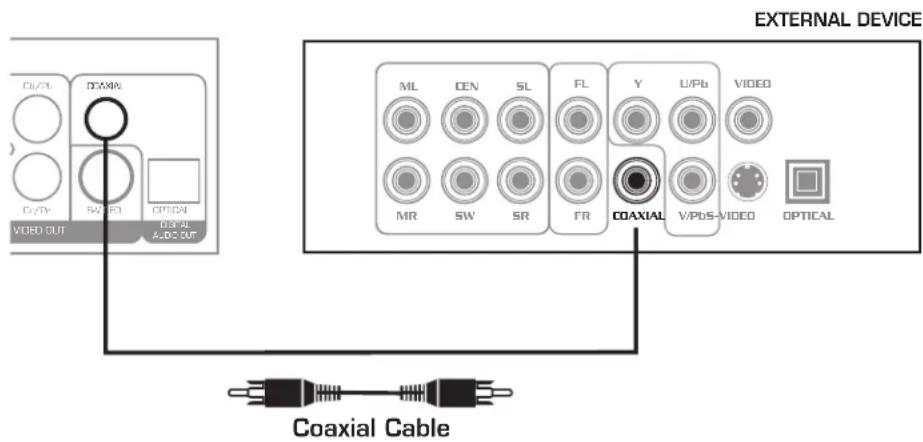
text_image
EXTERNAL DEVICE COXIAL COXIAL VIDEO OUT OPTION AUDIO AUDIO OUT ML DEN SL FL Y U/Pb VIDEO MR SW SR FR COAXIAL V/PbS-VIDEO OPTICAL Coaxial CableGetting Connected
Connecting an External IR Sensor (optional accessory)
Use an external IR sensor (sold separately) to extend the range of operation of the handheld remote control.
One IR sensor works for Box A/B.
Connect the 1/8" plug from the IR sensor into the 1/8" jack labeled IR Sensor.
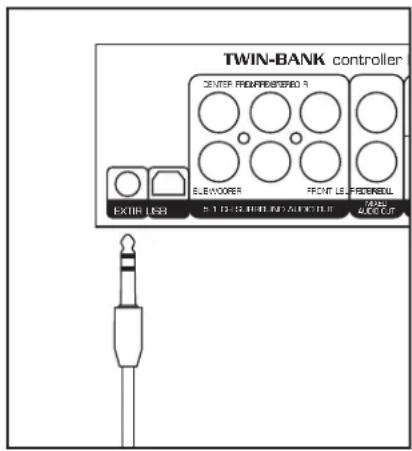
text_image
TWIN-BANK controller CENTER FROM PROSPERIOR A BLUEWOPER FRONT LE PROSPERIOR EXTR USB FULL RED OUT ALL RED CUTConnecting to a Computer with USB
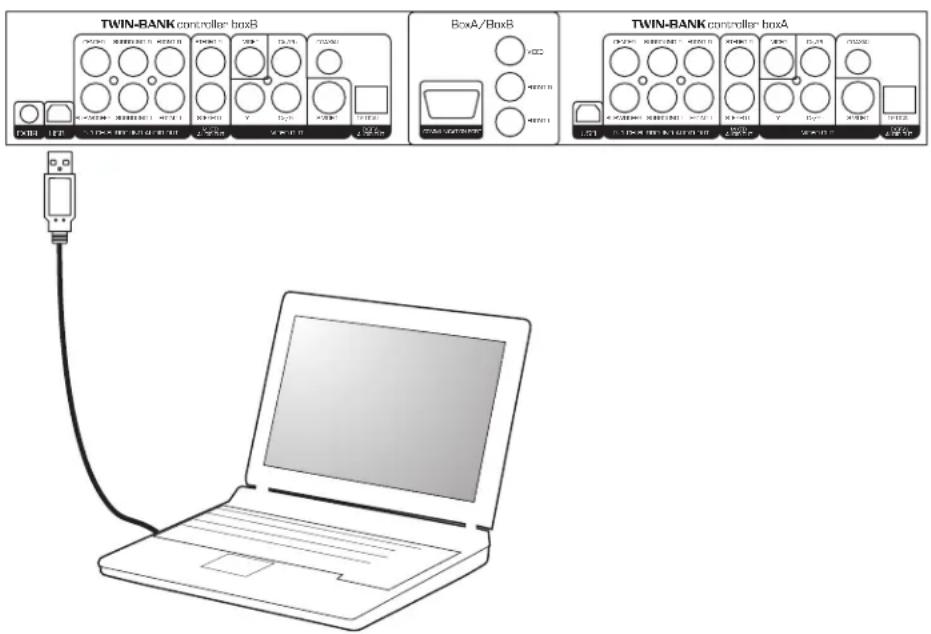
In order to transfer files to the TWIN-BANK's internal hard drives, you need to connect to a computer with a USB cable (supplied). Each hard drive has its own USB port. If you want to connect both drives at the same time, you will need two USB cables.
Cable required
USB Cable (type A to type B)
Using the supplied USB cable, connect the type B plug into the USB port on either Box A or B on the TWIN-BANK. Connect the type A plug into an available USB port on your computer.
text_image
TWIN-BANK controller boxB BoxA/BoxB TWIN-BANK controller boxADescriptions and Features
Remote Unit (Front):

text_image
VocoPro 1 2 3 4 DEVICE PRO MODE NAV A HD0 SD USB DRIVE A PITCH CONTROL 16 15 14 17 18 19 VOL+ LUNI/AN LEB ENTER VOL- 20101312119 21 22 23 24 25 26 27 28 29 30 31 32 33 34 35 36 37 38 39 40 41 42 43 44 45 46 47 48 49 50 51 52 53 54 55 56 57 58 59 60 61 62 63 64 65 66 67 68 69 70 71 72 73 74 75 76 77 78 79 80 81 82 83 84 85 86 87 88 89 90- DISPLAY SCREEN — Displays graphical information about playback settings and song time.
- DIRECT SELECT BUTTONS — Use these buttons to enter a track number.
- IR SENSOR — Receives signals from the remote control. Make sure there is a clear line of sight between the IR sensors and the remote control.
- DEVICE SELECT BUTTON — Use this button to switch between hard drive, USB and SD card playback.
- MENU/PRO MODE BUTTON - Use this button to toggle between pro mode and menu mode. (See operations section for more information.)
- DEVICE INDICATOR LEDs — Indicates which device is selected for playback using the device select buttons.
- DRIVE SELECT BUTTON — This button will select which drive will be sent through the mixed output on the back panel.
- DRIVE INDICATOR LED — Indicates the drive (box) is selected for playback (using the drive select button) when using a mixed output connection. When using a separate output connection, this LED has no function.
- PITCH SLIDER — Use the slider to adjust the pitch. Slide up to increase the pitch or down to decrease the pitch. This allows up to ±12% pitch adjustment.
- KEY CONTROL BUTTONS — Use these buttons to adjust the key of the music. There are a total of 7 steps in either direction.
Sharp [ ] #Raises the key one step every time the button is pressed.
Natural ( ) -Returns the music to its normal key.
Flat ( ) + Lowers the key one step every time the button is pressed.
Descriptions and Features
- PLAY/PAUSE BUTTON — This button will play or pause the current track.
- STOP BUTTON — This button stops playback.
- PREV/NEXT BUTTONS — Use these buttons to skip to the next or previous track.
- INSERT BUTTON — While playing from the hard drive in Pro Mode, this button will allow tracks to be inserted and moved in a playlist. (See the Operations section for more information.)
- CLEAR BUTTON — Use this button to clear numbers when selecting a song file in pro mode. Also, during playback in pro mode, this button will delete tracks from a playlist. See the operations section for more information.
- OSD BUTTON — Use this button to toggle the on screen display between: single elapsed, single remain, total elapsed, total remain, and off. NOTE: OSD settings also display on the remote unit display.
- LANGUAGE-L/R BUTTON — When playing a track with a stereo audio track, this button will toggle between: left vocal, right vocal, left mono, and right mono audio modes. Use this button to remove the vocals from a multiplexed track by selecting left vocal or right vocal mode.
NOTE: Not all audio tracks are recorded in multiplex.
When playing a VOB file with multiple audio languages available, this button will toggle between the different languages.
NOTE: Not all VOB files have multiple audio languages available.
- SETUP BUTTON – Use this button to enter the setup menu for system adjustments.
- REPEAT BUTTON — In pro mode, this button will cause a track to restart from the beginning. In menu mode, pressing this button will cycle through REP-ONE, FOLDER REPEAT, SINGLE, and FOLDER repeat modes. (See Menu Mode Operations for more information).
- NAVIGATION/VOLUME/FWD-REV BUTTONS — While in a menu mode, use the ARROW buttons to navigate the menu. Use the ENTER button to make selections. While in playback mode, use the UP/DOWN ARROW buttons to adjust volume, and the LEFT/RIGHT ARROW buttons to fast-forward and rewind through a track.
Descriptions and Features
Remote Unit (Rear):
text_image
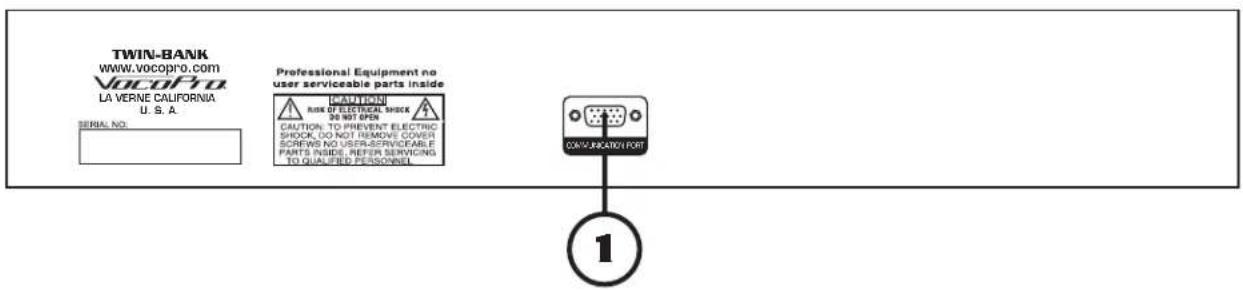
TWIN-BANK WWW.VOCOPRO.COM VocoPro LA VERNE CALIFORNIA U. S. A. SERIAL NO. Professional Equipment no user serviceable parts inside CAUTION: RISK OF ELECTRICAL SHOCK 30 NOT OPEN CAUTION: TO PREVENT ELECTRIC SHOCK, DO NOT REMOVE COVER SCREWS NO USER/SERVICEABLE PARTS INSIDE, REFER SERVICING TO QUALIFIED PERSONNEL CAXY-INDICATOR ①- COMMUNICATION PORT – This port is used to connect to the main unit.
Main Unit (Front):
text_image
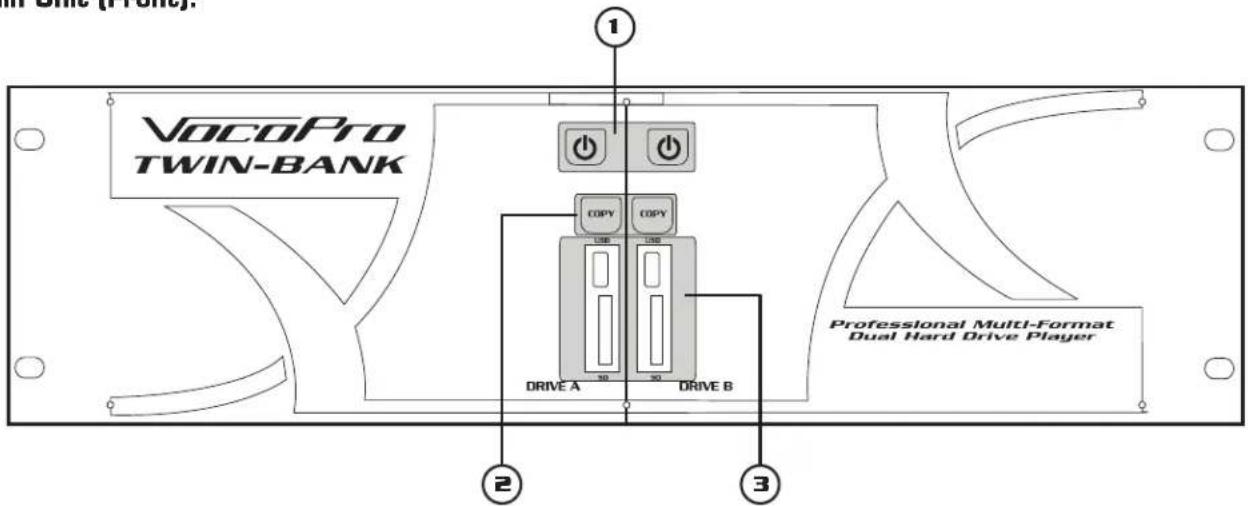
VOCOPro TWIN-BANK 1 COPY COPY 1/8 1/8 DRIVE A 30 30 DRIVE B Professional Multi-Format Dual Hard Drive Player 2 3- POWER BUTTON - Use this button to turn the TWIN-BANK ON/OFF. NOTE: Each drive has its own power button and operates independently.
- DEVICE BUTTONS — This button will select which drive will be output through the mixed output on the back panel.
- USB DRIVE AND SD CARD PORTS — Insert USB drives or SD cards here.
NOTE: USB drives must be formatted with FAT or FAT32 file system.
Descriptions and Features
Main Unit (Rear):
text_image
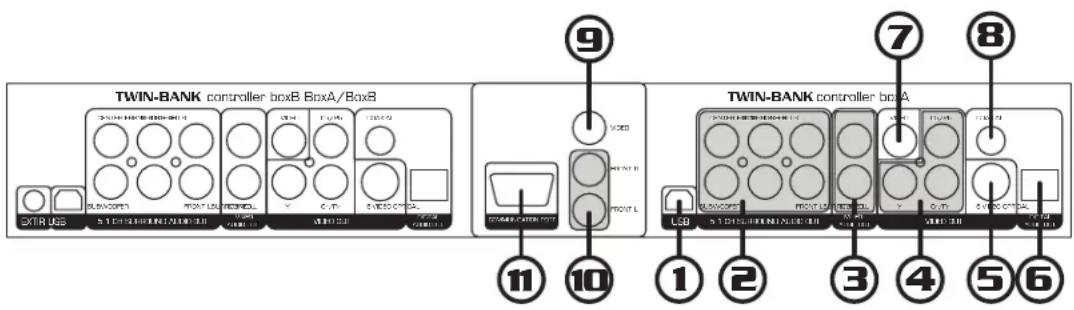
TWIN-BANK controller boxB BoxA/BoxB ⑨ ⑦ ⑧ ⑪ ⑩ ⑪ ⑪ ① ② ③ ④ ⑤ ⑥- USB PORT — Use this port for direct access to the hard drive using a computer. Note that the V-BANK must be powered on to access the hard drives using a computer.
- 5.1 CHANNEL RCA JACKS — These jacks are for connecting to 5.1 channel ready amplifiers/receivers.
- L/R STEREO RCA JACKS — These jacks output left/right stereo audio.
- Y/PB/PR (COMPONENT) VIDEO JACKS — These jacks output VIDEO to a TV or monitor via COMPONENT VIDEO cables. COMPONENT VIDEO outputs the different color signals (Pr/Pb) and luminance signal (Y) separately in order to achieve high fi delity in reproducing colors. The description of the component video output connectors may differ depending on the TV set or monitor (e.g. Pr/Pb Y, Cr/Cb/Y, R-Y/B-Y/Y, etc.). Please refer to the operating instructions of the TV set or monitor for details.
- S-VIDEO JACK — This jack outputs VIDEO to a display device (TV, monitor, etc.) via an S-VIDEO cable. S-VIDEO provides better color separation and better resolution by separating the color and picture signals of a composite video signal.
- DIGITAL OPTICAL AUDIO JACK — This digital out is for connecting devices with an OPTICAL cable. Please make sure to remove the protective cover from this jack prior to connecting an OPTICAL cable. When not using this input, keep the protective cover on to protect it from dust and foreign material.
- RCA (COMPOSITE) VIDEO JACK — This jack outputs VIDEO to TVs or monitors.
- DIGITAL COAXIAL AUDIO JACK — This digital output is for connecting devices with a COAXIAL audio cable.
- SWITCHED RCA VIDEO JACK — This jack outputs video from either drive A or B. Use the Drive A and Drive B buttons on the front panel to select the output.
- SWITCHED RCA L/R STEREO AUDIO JACKS — These jacks output stereo audio from either side A or side B. Use the Drive A and Drive B buttons on the front panel to select the output.
- COMMUNICATION PORT – This port is used to connect to the remote unit.
Descriptions and Features
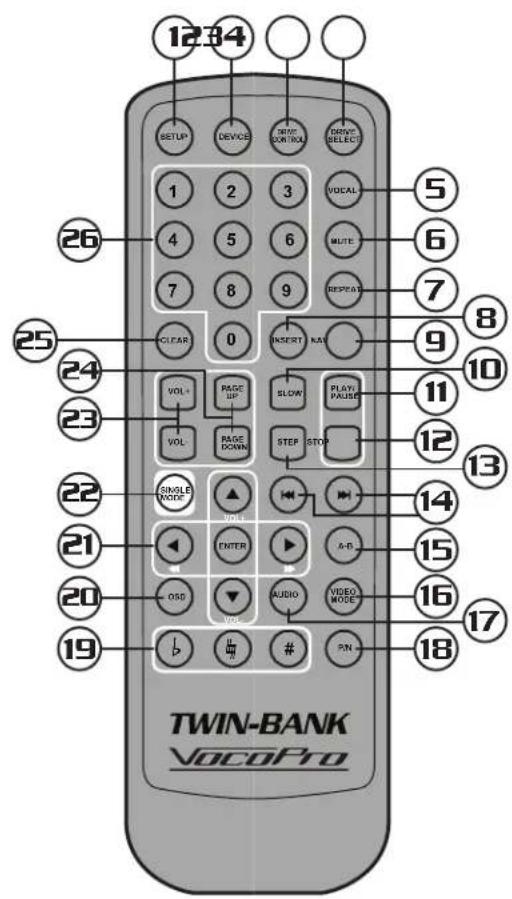
Remote Control
text_image
1234 SETUP DEVICE STOP/CONTROL DRIVE/SELECT 1 2 3 VOCAL 5 4 5 6 MUTE 6 7 8 9 RESET 7 CLEAR 0 INSERT KAI 8 9 10 VOL+ PAGE UP SLOW PLAY PAUSE 11 VOL- PAGE DOWN STEP STOP 12 13 SINGLE MODE ▲ 14 21 ENTER A+B 15 20 OSD AUDIO VIDEO MODE 16 17 19 PPN
TWIN-BANK VocoPro-
SETUP BUTTON — Use this button to enter the setup menu for system adjustments.
-
DEVICE SELECT BUTTON — Use this button to switch between hard drive, USB and SD card playback.
-
DRIVE CONTROL BUTTON — Use this button to select which drive the remote control operates. Since the remote control can only operate one drive at a time, use this button to select.
-
DRIVE SELECT BUTTON — Switches between the two sides. Also controls the switched output on the rear panel.
-
VOCAL BUTTON — When playing a track with a stereo audio track, this button will toggle between: left vocal, right vocal, left mono, and right mono audio modes. Use this button to remove the vocals from a multiplexed track by selecting left vocal or right vocal mode. NOTE: Not all audio tracks are recorded in multiplex.
-
MUTE BUTTON — Press to silence audio playback. Video playback is not affected while using the mute feature.
-
REPEAT BUTTON — This button toggles between repeat one, repeat all, and repeat off when playing CDs and CD+Gs. When playing DVDs, this button toggles between chapter repeat and title repeat. NOTE: While in PRO-MODE this button will cause a track to restart.
-
INSERT BUTTON — While playing from the hard drive in Pro Mode, this button will allow tracks to be inserted and moved in a playlist. (See the Operations section for more information.)
Descriptions and Features
- NAV BUTTON — Use this button to toggle between pro mode and menu mode.
- SLOW BUTTON — Toggles between the slow playback: 2X, 4X, 8X, OFF.
- PLAY/PAUSE BUTTON — Use this button to play or pause the currently selected track.
- STOP BUTTON — This button will stop a device that is currently playing.
- STEP BUTTON — Use this button to advance a video one frame at a time. Press play to continue playback.
- PREVIOUS/NEXT BUTTONS — Use these buttons to skip to the next track or previous track.
- A-B BUTTON – Use this button to create a loop. This is handy when you want to practice a particular part of a song. To create a loop, press A-B once to create the loop start point. Press A-B a second time to create the loop end point (and start the loop playback). Press A-B a third time to clear the loop.
- VIDEO MODE — Use this button to change the video mode between YPBPR, YCBCR, and S-Video.
- AUDIO BUTTON – When playing a track with a stereo audio track, this button will toggle between: left vocal, right vocal, left mono, and right mono audio modes. Use this button to remove the vocals from a multiplexed track by selecting left vocal or right vocal mode. NOTE: Not all audio tracks are recorded in multiplex.
When playing a VOB file with multiple audio languages available, this button will toggle between the different languages. NOTE: Not all VOB files have multiple audio languages available. - P/N BUTTON — Use this button to switch between NTSC and PAL mode. Select NTSC for North America and PAL for Europe.
- KEY CONTROL BUTTONS — Use these buttons to adjust the key of the music.
Sharp ( # ) - Raises the key one step every time the button is pressed.
Natural (4) - Returns the music to its normal key.
Flat (b) - Lowers the key one step every time the button is pressed. - OSD BUTTON — Use this button to toggle the on screen display between: single elapsed, single remain, total elapsed, total remain, and off. NOTE: OSD settings also display on the remote unit display.
- NAVIGATION/VOLUME/FWD-REV BUTTONS — While in a menu mode, use the ARROW buttons to navigate the menu. Use the ENTER button to make selections. While in playback mode, use the UP/DOWN ARROW buttons to adjust volume, and the LEFT/RIGHT ARROW buttons to fast-forward and rewind through a track.
- SINGLE MODE BUTTON — Use this button to toggle single mode on /off. In single mode, when you have a queue (more than one song set to play in pro mode) set up, playback will stop after each song. Single mode requires you to press play for each song. This is useful to help prevent a song from starting when you are not ready.
- VOL+/- BUTTONS — Use these buttons to increase or decrease the volume. In pro mode and the setup menu they are used for navigation.
- PAGE UP/PAGE DOWN BUTTONS — Use these buttons to navigate through long lists of files on the onboard hard drives or USB thumb drives or SD cards.
- CLEAR BUTTON — Use this button to clear numbers when selecting a song file in pro mode. Also, during playback in pro mode, this button will delete tracks from a playlist. See the operations section for more information.
- DIRECT TRACK ACCESS BUTTONS — Use these buttons to enter a track number.
Operations
Re/Naming Files
If you plan to operate the TWIN-BANK in Pro Mode, you need to make sure your tracks are named with a 5 digit prefix .i.e. 00001.avi. Even if you don't 'plan' on operating in Pro Mode, it is still a good habit to form as it will make creating a song list easier. Remember, MP3+G files can only be accessed in Pro Mode!
MP3+G renaming requires some special attention here. MP3+G tracks are composed of two files: .MP3 and .CGD. These two files need to have the same file name to play properly. When renaming a MP3+G track, remember to rename both files so that their names are the same. Below is an example:
05849.mp3
05849.cdg
When renaming the files, all that is required is a 5 digit prefix. Refer the examples below:
00001.avi
00234-Can-Paperhouse.mp3 <<CORRECT
09783-01-145.mp3 <<CORRECT (note that the an MP3+G track had two files with the same name)
09783-01-145.cdg
01-06743.avi << INCORRECT (doesn't start with 5 digit prefix)
0948.mp3 << INCORRECT (has a 4 digit prefix instead of a 5 digit prefix)
This will need to be done on your computer. Refer to your computer's help section for information on renaming files. There is also third-party file renaming software available for renaming hundreds of files at a time.
Transferring Files to/from a Computer
Follow the instructions for connecting to a computer in the 'Getting Connected' section. Turn on the TWIN-BANK drive that is going to be used in the transfer. When your computer recognizes the TWIN-BANK drive it will appear on as a drive (this will differ depending on you computer platform and operating system).
The easiest way to transfer files is to drag and drop from one folder to another. Again, this will differ depending on the computer. Please refer to your computers help section for details.
Operations
Using Pro Mode
Pro Mode allows you to instantly access a track by entering its 5 digit number (See Re/Naming section). This is a must for KJs who take song requests and need quick access to their songs.
To use Pro Mode, press the MENU/PRO MODE button on the remote unit. In Pro Mode, you will see a VocoPro splash with 'SELECT YOUR SONG FILE' displayed.
- Enter the five digit number of the track. (ex: 00042) The screen will display FIND. Press Enter to insert the song in the playlist.
- If the number is invalid (a track number that does not exist on the drive), the screen will display INVALID NUMBER. Press the clear button to clear the invalid number and try again.
- Repeat the process to build the playlist.
- The first track in the playlist will begin playback as soon as it is entered.
A track can be inserted into the playlist.
To insert a track:
-
Use the arrow buttons to highlight the track you want to insert the new track before.
-
Enter the five digit number of the song you want, then press insert. The new track will be inserted before the highlighted track.
A track can be moved to another space in the playlist.
To move a track:
- Use the arrow buttons to highlight the track you want to move.
- Press the insert button to select the track, the number will turn red.
- Use the arrow buttons to highlight the track you want the selected track to be inserted before.
- Press the insert button again, and the selected track will be placed before the highlighted track.
A track can be removed from the playlist.
To remove a track:
- Use the arrow buttons to highlight the track you want to remove.
- Use the clear button to remove the track.
Operations
Using Menu Mode
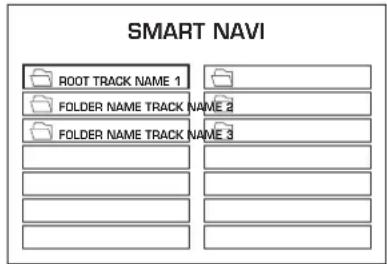
In Menu Mode, files are arranged in a folder tree structure similar to a computer. To use Menu Mode, press the MENU/PRO MODE button on the remote unit. In Menu Mode, you will see a paned window with 'SMART NAVI' displayed at the top.
The window is displayed with the folder tree on the left pane and folder contents on the right pane. When you highlight and select a folder on the left pane, its folder contents are displayed in the right pane.
text_image
SMART NAVI ROOT TRACK NAME 1 FOLDER NAME TRACK NAME 2 FOLDER NAME TRACK NAME 3Use the navigation buttons to 'navigation' menu selections and use the 'enter' button make a selection.
Repeat can be used in Menu Mode
Pressing the repeat button will cycle through the repeat modes: REP-ONE, FOLDER REPEAT, SINGLE, and FOLDER repeat modes.
REP-ONE will repeat the currently playing track
FOLDER REPEAT will repeat all the tracks in the current folder
SINGLE will play the current track then stop
FOLDER will play all the tracks in the current folder then stop
Tracks can be selected by their track number
On the far right of each track name, you will see a default number. Enter that number either with the remote control or remote unit to begin playback
Removing Vocals from a Multiplexed Track
On specially recorded audio tracks you can remove the demo vocals so you can sing to the instrumental track. The thing to remember is the track must be recorded with music on one channel and vocals on the other (called multiplex).
To remove vocals:
Press the VOCAL button on the remote control or the LANGUAGE L/R button on the remote unit until the vocals are removed. Remember, the track must be multiplexed.
Using Digital Key Control
Use the digital key controller to change the key of the music. This is handy when the natural key of a track is out of the singer's vocal range. There are a total of 7 steps up or down.
To use key control:
Press the # button to raise the natural key one step.
Press the b button to lower the natural key one step.
Press the 4 button to return to the original musical key.
NOTE: Karaoke Mode must be enabled in the Setup Menu in order to use digital key control.
Operations
Using Pitch Control
Pitch control is used to adjust the playback speed of a track. You can increase/decrease the playback speed a maximum of 12 %. Pitch control on the TWIN-BANK is key locked, meaning that adjusting the pitch does not affect the natural key of the track.
To use pitch control:
Slide the pitch control slider up to increase the pitch or down to decrease the pitch.
Adjusting the pitch control set point:
You can change the 0% pitch control position to match the slider location.
To set the 0% pitch control point:
Set the pitch control slider to where you want the 0% pitch control point to be.
In the Setup Menu, go to GENERAL>PITCH CONTROL
Select SET ZERO.
Setup Menu
Use the Setup Menu to make all the necessary system setting changes. To enter the Setup Menu, press the SETUP button on the remote control or remote unit.
GENERAL SETUP PAGE
PIC MODE:
AUTO: Sets the screen resolution automatically. (Recommended)
FILM: Sets the resolution for film.
VIDEO: Sets the resolution for karaoke video.
SMART: Sets the resolution for progressive video.
SUPERSMART: Sets the resolution for hi-res progressive video.
ANGLE MARK:
ON: The angle mark will appear on screen when multiple angles are available for viewing (VOB Only).
OFF: The angle mark will not appear.
OSD LANG: Selects the language for the OSD menu. (English language only)
CAPTIONS:
ON: Subtitles will appear onscreen when DVD subtitles are available and selected.
OFF: Subtitles will not be displayed.
SCREEN SAVER:
ON: The screen saver will appear after a period of screen/function inactivity.
OFF: The screen saver is off, and will not appear.
SINGLE MODE:
ON: While in Pro Mode, playback will stop after a song has finished playing.
OFF: While in Pro Mode, the next song will begin playing after the previous song has finished.
PITCH CONTROL
SET ZERO: Sets the current slider pitch slider position to 0% pitch control.
Operations
SPEAKER SETUP PAGE
(KARAOKE MODE MUST BE SET TO OFF TO ACCESS CENTER, REAR, SUBWOOFER, CENTER DELAY, REAR DELAY, AND TEST TONE SETTINGS.)
DOWNMIX:
LT/RT: Select when connecting to a Dolby Digital amplifier.
STEREO: Select when connecting to a 2-channel stereo amplifier/mixer.
OFF: Select when using the 5.1 channel outputs on the rear panel.
CENTER:
ON: Select if you have a center speaker connected.
OFF: Select if you do have a center speaker connected. (If set to off, center channel audio will be routed to the front speakers.)
REAR:
ON: Select if you have a center speaker connected.
OFF: Select if you do not have rear speakers connected.
SUBWOOFER:
ON: Select if you have a subwoofer connected.
OFF: Select if you do not have a subwoofer connected.
CENTER DELAY:
Select from Oms to 5ms the amount of time delay for the center speaker.
REAR DELAY:
Select from Oms to 15ms the amount of time delay for the rear speakers.
TEST TONE:
ON: When set to on, the unit will generate a test tone to all 5.1 channels for speaker connectivity troubleshooting.
OFF: Disables the test tone.
AUDIO SETUP PAGE
SPDIF OUTPUT: Used with digital audio output (coaxial and optical)
SPDIF OFF: Select to disable SPDIF output.
SPDIF/RAW: Select when connecting to a 5.1 channel digital amplifier (DTS/Dolby Movie).
SPDIF/PCM: Select when connecting to a 2-channel digital amplifier (Audio CD).
OP MODE:
LINE OUT: Normal audio output level.
RF REMOD: Boosts the audio output level.
DUAL MONO:
STEREO: Normal Stereo mode.
L MONO: Outputs the left channel to the left and right outputs.
R MONO: Outputs the right channel to the left and right outputs.
MIX MONO: Outputs both the left and right channel to the left and right outputs.
COMPRESSION: Select level of dynamic range compression to be used (Off for no compression; Full for maximum compression).
PRO LOGIC: Creates a simulated surround sound environment with Pro Logic-encoded audio. KARAOKE MODE NEEDS TO BE SET TO OFF TO ENABLE PRO LOGIC
OFF: Disables Pro Logic audio mode.
ON: Enables Pro Logic mode.
AUTO: Select to have the unit auto-detect and enable Pro-Logic when disc media is Pro-Logic encoded.
LPCM OUT: 48K - 96K Select the sampling rate that matches your disc media and amplifier.
Operations
KARAOKE SETUP PAGE
KARAOKE MODE: Karaoke mode enables use of digital key control and pitch control. You cannot use Pro Logic or 5.1 channel output while in karaoke mode.
OFF: Disables the pitch and key control functions. Enables the 5.1 menu.
KARAOKE: Enables key control and pitch control. Disables the 5.1 menu.
PREFERENCES PAGE
NOTE: PLAYBACK MUST BE STOPPED TO ACCESS THIS MENU. PRESS STOP TO ENTER THE PREFERENCES PAGE
TV DISPLAY:
NORMAL/PS: Select to view the standard 4:3 picture or the cut standard 4:3 picture.
NORMAL/LB: Select to view 4:3 standard with letterbox for a full wide-screen mode.
WIDE: Select to view widescreen picture with a widescreen capable TV.
TV TYPE: This setting switches between NTSC, PAL and AUTO (Multi. System). Set to NTSC for the United States and Asia, and PAL for Europe. If you are uncertain what TV type you have, set to AUTO (Multi.
System].
VIDEO OUT: Set to S-VIDEO if you will be connecting to a TV via the S-VIDEO output. Select YPBPR for progressive scan output using component video output. Select YCBCR for non-progressive scan output using component video output. See your TV user's manual to determine which setting to use.
AUDIO: Switches the language of the audio of a VOB. Note that not all VOB's have all languages available.
SUBTITLE: Switches the language of the subtitles of a VOB. Note that not all VOB's have all languages available.
PARENTAL: Set the parental rating.
PASSWORD: To change the password, enter the old password, enter the new password, and confirm the new password. Then press enter. THE FACTORY DEFAULT PASSWORD IS: 3308
DEFAULTS: Restores all of the default factory presets.
Troubleshooting
No picture
- Make sure everything is connected firmly and properly.
- Make sure there are no defective cables.
- Make sure all of your components are turned on.
- Make sure all of the components (amp, mixer, TV, etc.) are set to the proper inputs.
- Make sure the TV or monitor is working correctly.
- Make sure the correct drive is selected for output (DRIVE A/B).
Remote control does not work
- Make sure the batteries are inserted, inserted correctly, and not out of power.
- Point the remote control directly at the remote sensor on the machine or IR sensor (if using)
- Move closer to the machine.
- Ensure the remote is set to control the drive you are attempting to control.
There is no power
- Make sure the power cord is firmly connected to the power outlet.
- If using a power strip/surge-protector, make sure that it is plugged in and switched on.
There is no sound
- Make sure everything is connected firmly and properly.
- Make sure there are no defective cables.
- Make sure all of your components are turned on.
- Make sure all of the components (amp, mixer, TV, etc.) are set to the proper inputs.
The picture is unclear
- Make sure that the TV TYPE (N/P button on the remote) is set correctly:
NTSC: In North America, Japan and many other Asian countries
PAL: In Europe - Try restarting the TWIN-BANK.
USB thumb drive is not recognized
- Make sure the USB thumb drive is formatted to FAT or FAT32 file system. Other file systems such as NTFS are not supported.