DELV-SDI-IP - Surveillance Delvcam - Free user manual and instructions
Find the device manual for free DELV-SDI-IP Delvcam in PDF.


User questions about DELV-SDI-IP Delvcam
0 question about this device. Answer the ones you know or ask your own.
Ask a new question about this device
Download the instructions for your Surveillance in PDF format for free! Find your manual DELV-SDI-IP - Delvcam and take your electronic device back in hand. On this page are published all the documents necessary for the use of your device. DELV-SDI-IP by Delvcam.
USER MANUAL DELV-SDI-IP Delvcam
natural_image
Digital camera on a monitor displaying a scenic mountain road through forest, no text or symbols visible.IMPORTANT SAFETY INSTRUCTIONS:
- Please read User Guide before using this product.
- Please keep User Guide for future reference.
- Please read the cautions to prevent possible danger and loss of property.
FEATURES:
➢ High resolution: 1280×800;
▶ Wide voltage: DC 7-24V;
▶ High contrast: 800:1;
➢ 170° 170°(H/V) wide viewing angles, to provide better viewing effect;
▶ Lux Auto Backlight (Optional).
CAUTIONS:
- Please do not place the display screen towards the ground.
- Please avoid heavy impact or drop onto the ground.
- Please do NOT use chemical solutions to clean this product. Please wipe with a clean soft cloth to maintain the brightness of the surface.
- Please do not block any vent hole.
- Please follow the instructions and trouble-shootings to adjust the product. Other improper adjustment may result in damage. Any further adjustment must be performed or conducted by a qualified technician.
- Please unplug the power and remove the battery if long-term no-use, or thunder weather.
Contents
- PRODUCT DESCRIPTION ....2
- REMOTE CONTROL....5
- DV BATTERY MOUNT PLATE ....5
- WIRING INSTRUCTIONS....7
- MENU SETTING....8
- ACCESSORIES....12
- PARAMETERS....13
- TROUBLE SHOOTING ....13
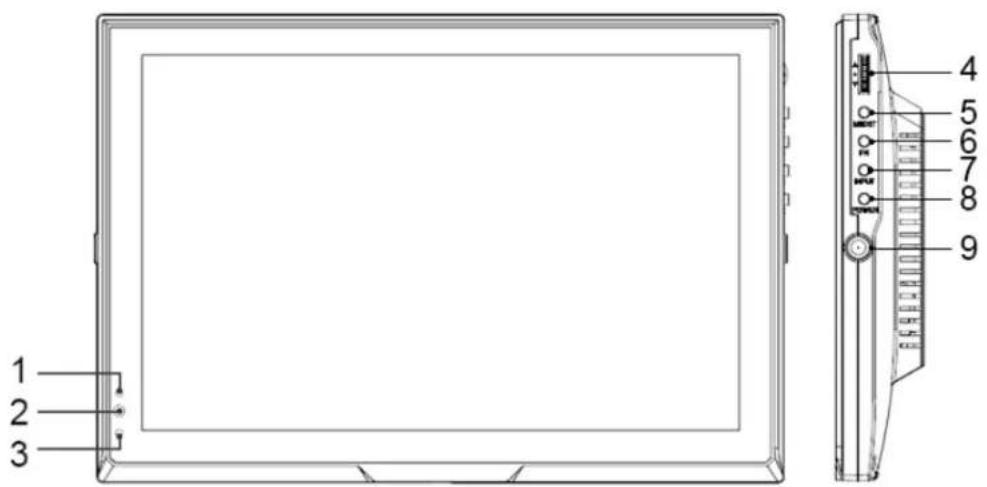
1. PRODUCT DESCRIPTION
text_image
1 2 3 4 5 6 7 8 9- Auto backlight receiving window (Optional).
- Infrared signal receiver (work with remote control).
- Power indicator light (red while standby; green while working).
- Dial: Turn the dial to adjust volume;
Turn the dial to select menu option and adjust the option value;
Press the dial to confirm.
- M/EXIT: To activate or exit OSD menu.
- FN: Image auto capture function under VGA mode;
Underscan function under HDMI mode.
- INPUT: circularly switch among of AV1, AV2, PC, HDMI, DVI or SDI.
- POWER: ON/OFF.
- Mounting socket.
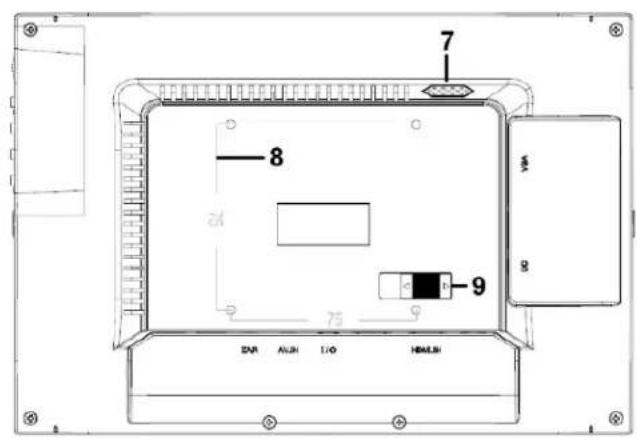
Without SDI:
text_image
7 8 9 24 75 9 EVR AUR I/O HAMLH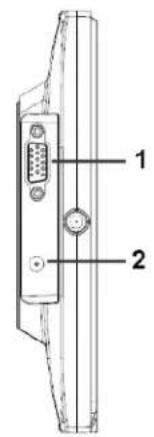
text_image
1 2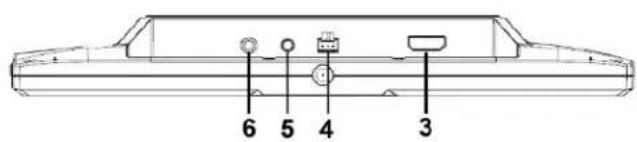
text_image
6 5 4 3- VGA interface.
- DC 12V power input.
- HDMI / DVI input interface.
- I/O control interface.
- A/V input interface.
- Earphone jack
- Speaker
- VESA Mounting interface.
- Slide to left to connect power cable (Connecting with the battery plate).
With SDI:
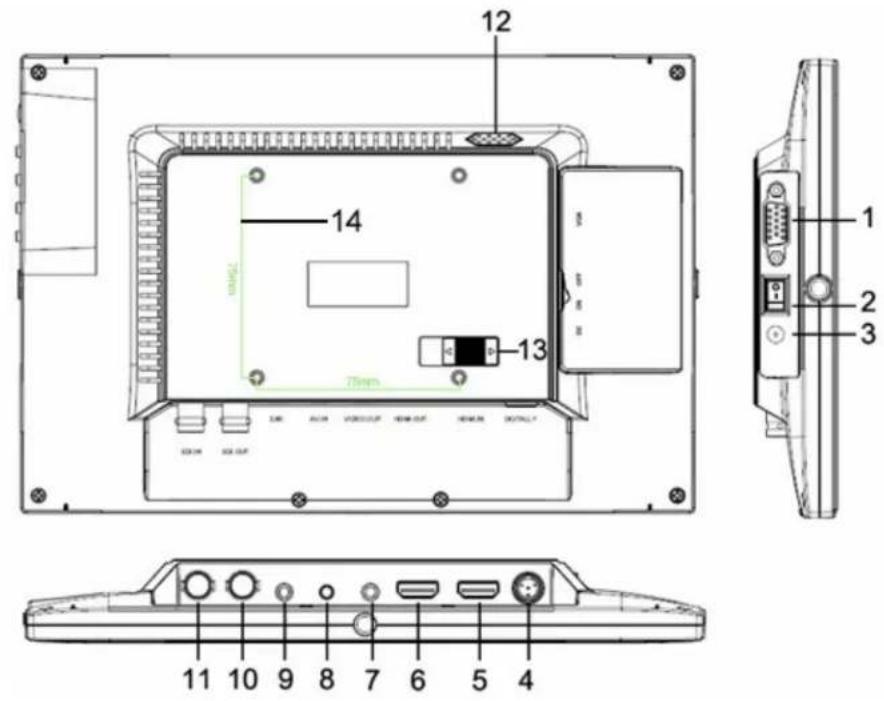
- VGA interface.
- Battery power on/off switch: "O" is power off; "|" is power on.
- DC 12V power input.
- DC / TALLY connector.
- HDMI / DVI input interfaces.
- HDMI output interface.
- Video output interface.
- A / V input interface.
- Earphone jack.
- SDI output interface.
- SDI input interface.
- Speaker.
- Slide to left to connect power cable (connecting with the battery plate).
- VESA Mounting interface
2. REMOTE CONTROL
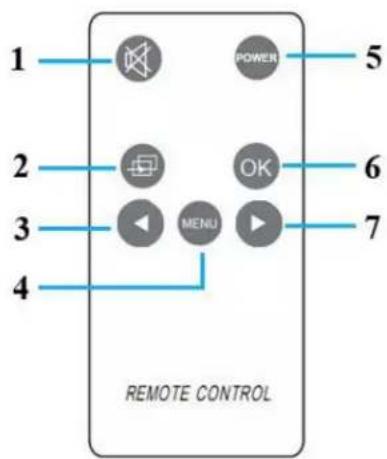
text_image
1 2 3 4 REMOTE CONTROL POWER OK MENU 5 6 7- MUTE
- Circularly switch among of AV1, AV2, PC, HDMI, DVI or SDI.
- ⏻: Left move Volume down or to adjust the value of setting function.
- MENU: To activate OSD (on-screen display) menu.
- POWER: ON/OFF.
- OK: Enter.
- Right move, Volume up or to adjust the value of setting function.
3. DV BATTERY MOUNT PLATE
Standard mounts process

natural_image
Technical line drawing of a device casing with internal components and mounting holes (no text or symbols)Following three types of battery plates are suitable for this device, model F970, QM91D, DU21 & LP-E6 (choose 2 out of 4).
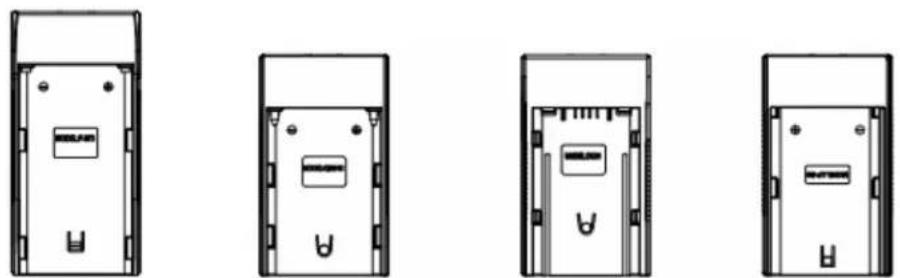
MODEL: F-970 MODEL: QM91D MODEL: DU21 MODEL: LP-E6
DV Battery Mount Plate:
DV Battery Mount Plate Specification:
Model DU21 for battery of Panasonic DV:
NV-GS/PV-GS/DZ-MV/GS/H28/H258/H288GK series, comply with
Panasonic battery DU06/VBD140/SANYO DZhs301sw/Hitachi
DZ-HS303SW/BZ-BP14S/DZ3200/BP07W.
Model QM91D for battery of SONY DV:
DSCR1/F/S/MVCCD/E/HC15E/HC1E/AE1u/DCRTRV828/E/CCD-TRV
116/DCR-DVD/PS105K/300K/10P/1E series.
Model F970 for battery of SONY DV:
DCR-TRV series, DCR-TRV E series, VX2100E PD P series, GV-A700,
GV-D800 FD/CCD-SC/TR3/FX1E/HVR-AIC, HDR-FX1000E, HVR-Z1C,
HVR-V1C, FX7E F330.
Model LP-E6 for battery of Canon DSLR:
5D Mark II/5D Mark III/EOS7D/EOS60D;
V-mount battery plate (optional): Please refer to GP-L130AB type battery specifications.

text_image
Plate Bracket V-mount Battery Plate GP-L130ABAnton Bauer mount battery plate (optional): Please refer to
GP-L130B type battery specifications.
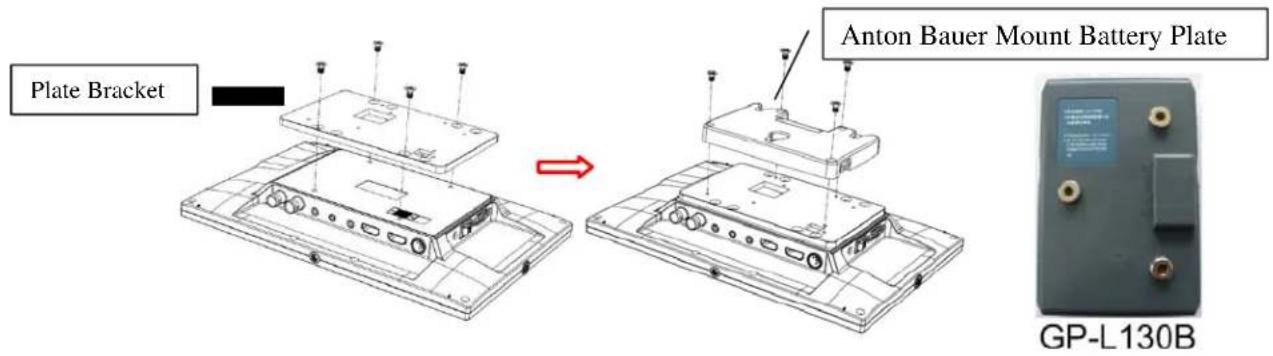
text_image
Plate Bracket Anton Bauer Mount Battery Plate GP-L130B4. WIRING INSTRUCTIONS
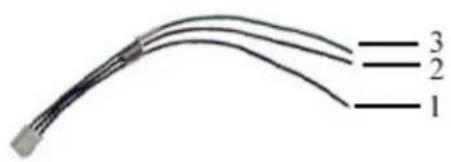
I/O control line
text_image
3 2 1- Blue: Video trigger 1
- Back: GND
- Green: Video trigger 2
Composite cable

text_image
White: audio Yellow: video 1 Yellow: video 2 A/V signal inputHDMI to HDMI cable

natural_image
Black cable with three connectors labeled 1, 2, and 3 (no text or symbols on the cable itself)- HDMI signal input end
- HDMI signal input connect device with HDMI signal
- USB port connect computer for touch function (optional)
HDMI to DVI cable (optional):

natural_image
Black cable with three labeled connectors (1, 2, 3) showing different connection points (no text or symbols on the cable itself)- HDMI signal input end.
- DVI signal input connect with device with DVI signal.
- USB connect with the USB port of computer for touch function (optional).
5. MENU SETTING
Before setting the functions, please make sure the device is connected correctly.
5-1. Shortcut keys:
5-1-1. the image menu
When power on, Sliding the slider on the device, brightness will appear at the bottom of the screen, then press the slider to select brightness sharpness, contrast, saturation, volume, tint. User can adjust the parameters of the selected item with Slide up and down to meet their needs.
5-1-2. FN user-definable function button:
Hold the FN key for 3-5 seconds to pop-up shortcut menu directly. As shown in Figure (default menu button in white font).
Slide up and down to select the desired option.
Finally, press the slider to confirm the selected item as default.
Functions of FN button can also be customized: Center Marker, Safety Marker, Check Field, Color Bar, Aspect Ratio, Zoom, Pixel-to-Pixel, Freeze Input, Underscan, H/V delay.
FN : User-definable function button.
Default function:
Aspect Ratio
| Center Marker |
| Safety Marker |
| Check Field |
| Color Bar |
| Aspect Ratio |
| Camera |
| Image Flip |
| Zoom |
| Pixel-to-Pixel |
| Freeze Input |
| Underscan |
| H/V delay |
5-2. MENU Operation
When power on, press "M/EXIT" on the device. The menu of function setting will display on the screen.
With slide up and down the slider to choose menu; then rotate the slider up to confirm; after that, press M/EXIT to return to main menu.
5-2-1. Picture
| PICTURE | ||
 | Brightness | 50 |
| —— | Contrast | 50 |
 | Saturation | 50 |
| —— | Tint | 50 |
 | Sharpness | 50 |
| —— | Volume | 50 |
 | Color Temp | |
| ITEMS OPTIONS | |||
| Brightness | 0 | - | 100 |
| Contrast | 0 | - | 100 |
| Saturation | 0 | - | 100 |
| Tint | 0 | - | 100 |
| Sharpness | 0 | - | 100 |
| Volume | 0 | - | 100 |
| Color Temp 6500 | K/7300 K/9300 K/User | ||
| R Gain 0 | -255 Note: Available only under “User” mode to choose the color value you need. | ||
| G Gain 0 | -255 | ||
| B Gain | 0 - 255 | ||
| R Offset | 0 - 999 | ||
| G Offset | 0 - 999 | ||
| B Offset 0 | -999 | ||
5-2-2. Marker

text_image
MARKER Center Marker ON Safety Marker 93%ITEMS OPTIONS
Center Marker ON, OFF Safety Marker OFF, 95%, 93%, 90%, 88%, 85%, 80%
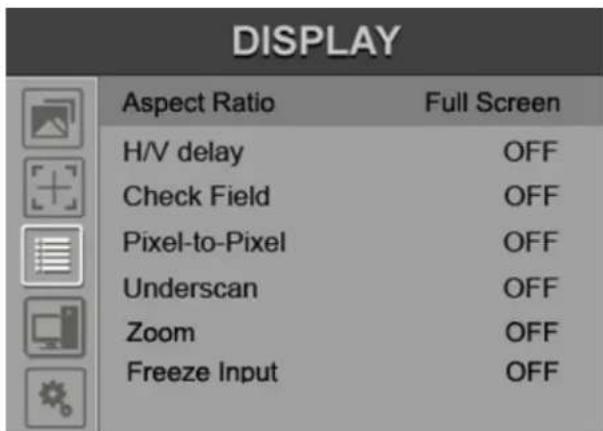
5-2-3. Display
text_image
DISPLAY Aspect Ratio Full Screen H/V delay OFF Check Field OFF Pixel-to-Pixel OFF Underscan OFF Zoom OFF Freeze Input OFFITEMS OPTIONS
| Aspect Ratio Full Screen, 16:9, 4:3, 1.85:1, 2.35:1 | |
| H/V Delay OFF, H&V, V, H | |
| Check Field OFF, Mono, Red, Green, Blue | |
| Pixel-to-Pixel | OFF, ON |
| Underscan | OFF, ON |
| Zoom | OFF, ×2, ×4, ×6,×8 |
| Freeze Input OFF, ON | |
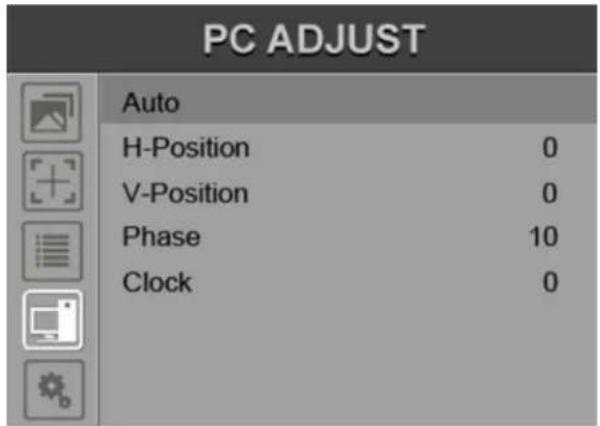
5-2-4. PC Adjust
text_image
PC ADJUST Auto H-Position 0 V-Position 0 Phase 10 Clock 0| ITEMS OPTIONS | |||
| Auto | ON | ||
| H-Position | 0 | - | 100 |
| V-Position | 0 | - | 100 |
| Phase | 0 | - | 63 |
| Clock | 0 | - | 100 |
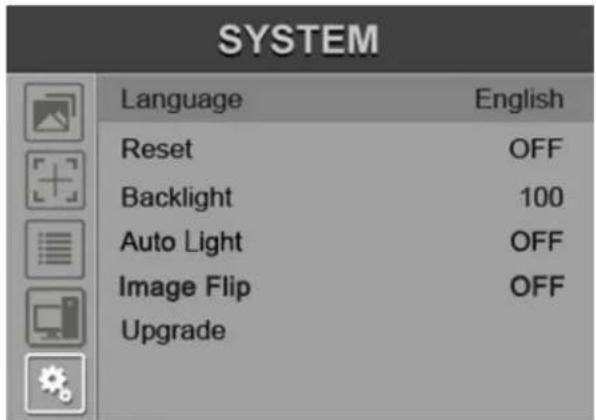
5-2-5. System
text_image
SYSTEM Language English Reset OFF Backlight 100 Auto Light OFF Image Flip OFF Upgrade| ITEMS OPTIONS | ||
| Language | English, Chinese | |
| Reset | OFF, ON | |
| Backlight | 0 - 100 | |
| Auto Light OFF, ON | ||
| Image Flip H&V, V, H | ||
| Upgrade | For program upgrades | |
6. ACCESSORIES
Standard Accessories:
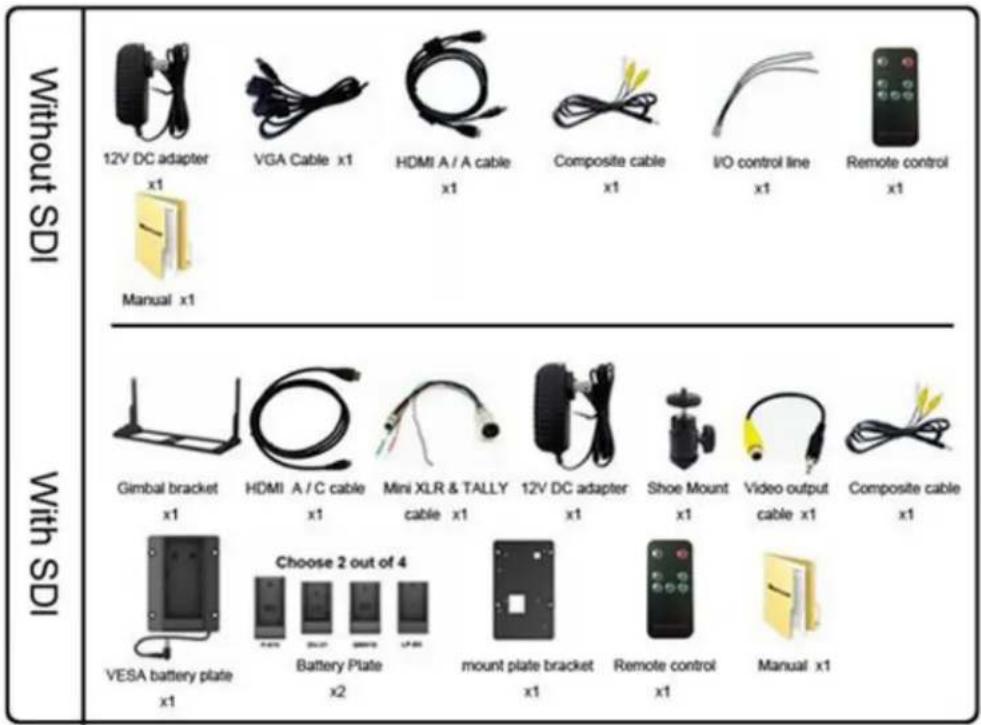
text_image
Without SDI x1 12V DC adapter VGA Cable x1 HDMI A / A cable x1 Composite cable x1 I/O control line x1 Remote control x1 Manual x1 With SDI Gimbal bracket x1 HDMI A / C cable x1 Mini XLR & TALLY cable x1 12V DC adapter x1 Shoe Mount x1 Video output cable x1 Composite cable x1 Choose 2 out of 4 VESA battery plate x1 Battery Plate x2 mount plate bracket x1 Remote control x1 Manual x1Optional Accessories:

text_image
Without SDI HDMI to DVI cable x1 VESA folding bracket x1 Gimbal bracket x1 Car power x1 VESA battery plate x1 Battery Plate x2 VESA 75mm rail slot mounts x1 With SDI HDMI to DVI cable x1 VESA folding bracket x1 VGA cable x1 V-mount Battery Plate x1 Anton Bauer Mount Battery Platev x1 Li-ion Battery x17. PARAMETERS
| Without SDI With SDI | ||
| Panel | 10.1" LED Backlight 10.1" LED Backlight | |
| Physical Resolution | 1280×800 | 1280×800 |
| Brightness | 350cd/m2 | 350cd/m2 |
| Contrast | 800: 1 800: 1 | |
| Viewing Angle | 170° 170°(H/V) | 170° 170°(H/V) |
| Input Voltage | DC 7-24V DC 7-24V | |
| Input Signal | AV, HDMI, PC or DVI | AV, HMDI, PC, SDI or DVI |
| Power Consumption | ≤ 10W ≤ 12W | |
| Operating Temperature | 0°C~50°C | 0°C~50°C |
| Storage Temperature | -20°C~60°C | -20°C~60°C |
| Dimension (LWD) | 250×170×32.3mm | 250×170×32.3mm |
| Weight | 560g | 660g |
8. TROUBLE SHOOTING
1. Only black-and-white display:
Check whether the color saturation is properly setup or not.
2. Power on but no pictures:
Check whether the cables of AV, HDMI, PC and SDI are correctly connected or not. Please use the standard power adapter coming with the product package. Improper power input may cause damage.
3. Wrong or abnormal colors:
Check whether the cables are correctly and properly connected or not. Broken or loose pins of the cables may cause a bad connection.
4. When on the picture shows size error:
Press “MENU → DISPLAY → Underscan” to zoom in/out pictures automatically when receiving HDMI signals
5. Other problems:
Please press “☐” button and choose “M/EXIT→SYSTEM→Reset→ON”
6. According to the ISP, the machine cannot function properly:
ISP for program upgrades, non-professionals do not use. Please reboot your device if press accidentally!
-It is normal to see some bright lines appear on the screen when turn off the device.
Note: due to constant effort to improve products and product features, specifications may change without notice.