DDX630WBTM - Unspecified JVC - Free user manual and instructions
Find the device manual for free DDX630WBTM JVC in PDF.


User questions about DDX630WBTM JVC
0 question about this device. Answer the ones you know or ask your own.
Ask a new question about this device
Download the instructions for your Unspecified in PDF format for free! Find your manual DDX630WBTM - JVC and take your electronic device back in hand. On this page are published all the documents necessary for the use of your device. DDX630WBTM by JVC.
USER MANUAL DDX630WBTM JVC
DDX630WBT DDX630WBTM DDX630W DDX630WM
MONITOR WITH DVD RECEIVER INSTRUCTION MANUAL
JVC KENWOOD Corporation
This instruction manual is used to describe models listed below. Model availability and features (functions) may differ depending on the country and sales area.
• Region 2 (DVD Region Code 2 area)
• Region 3 (DVD Region Code 3 area)
• Region 4 (DVD Region Code 4 area)



text_image
Made for iPod iPhone



Contents
Before use ....3
How to reset your unit ....3
INTRODUCTIONS
Initial Settings ....5
Initial setup 5
Adjusting the panel angle ....5
Updating the system 6
Setting the security function ....7
Component names and functions....8
Setting the clock ......9
Common operations ......10
Turning on the power 10
Turning off the power 10
Adjusting the volume 10
Putting the unit in standby 10
Switching screens ......11
AV SOURCE OPERATIONS
Selecting the playback source....12
Displaying the source control screen .....12
Disc operations ......13
Playing a disc 13
playable disc types....14
Playback operations 15
Settings for disc playback 19
USB operations ......20
Playing a USB device 20
Listening to the iPod/iPhone device 22
iPod/iPhone playback operations .....23
Selecting a track/video from menu on the
iPod/iPhone 24
Operating in iPod/iPhone control mode ...24
Listening to the radio ......25
Using other external components....30
AV-IN....30
Using the external navigation unit ....31
Sound adjustment ......32
Using the sound equalization ....32
Adjusting the cross over frequency .....33
Changing the display design .....34
Setting for video playback ......36
Picture adjustment 36
Changing the aspect ratio 37
Zooming picture 37
Using a rear view camera ......38
Using the steering remote controller ....39
Setting menu items ......40
Memorizing/recalling the settings .....44
Locking the settings 44
Adjusting the touch position ....44
BLUETOOTH OPERATIONS
(Only for DDX630WBT/DDX630WBTM)
Information for using Bluetooth ^® devices ....45
Bluetooth operations ......45
Connecting Bluetooth devices .....46
Using the Bluetooth mobile phone .....48
Using the Bluetooth audio player .....53
Bluetooth device settings ....53
Operations from the remote controller ....56
REFERENCE
Maintenance....60
More about this unit ......61
Troubleshooting......63
Accessories/Installation Procedure....67
Connecting Wires to Terminals ...69
Connecting a USB device/iPod/ iPhone ....70
Connecting Other Products .....71
Installing the Unit ......72
Specifications ....73
KS-UBT1 (USB Bluetooth Adapter)....76
⚠️ WARNINGS:
(To prevent accidents and damage)
- DO NOT install any unit or wire any cable in a location where;
- it may obstruct the steering wheel and gearshift lever operations.
- it may obstruct the operation of safety devices such as air bags.
- it may obstruct visibility.
- DO NOT operate the unit while driving. If you need to operate the unit while driving, be sure to look around carefully.
- The driver must not watch the monitor while driving.
⚠️ Cautions on the monitor:
- The monitor built in this unit has been produced with high precision, but it may have some ineffective dots. This is inevitable and is not considered defective.
- Do not expose the monitor to direct sunlight.
- Do not operate the touch panel using a ball-point pen or similar tool with the sharp tip.
Press the buttons on the touch panel with your finger directly (if you are wearing a glove, take it off).
- When the temperature is very cold or very hot...
- Chemical changes occur inside, causing malfunction.
- Pictures may not appear clearly or may move slowly. Pictures may not be synchronized with the sound or picture quality may decline in such environments.
For safety...
- Do not raise the volume level too much, as this will make driving dangerous by blocking outside sounds, and may cause hearing loss.
- Stop the car before performing any complicated operations.
Temperature inside the car...
If you have parked the car for a long time in hot or cold weather, wait until the temperature in the car becomes normal before operating the unit.
How to reset your unit

text_image
MONITOR WITH DVD RECOVER Reset buttonIf the unit fails to operate properly, press the Reset button. The unit returns to factory settings when the Reset button is pressed (except the registered Bluetooth devices).
How to read this manual:
- This manual mainly explains operations using the buttons on the monitor panel and touch panel. For operations using the remote controller (RC-DV340), page 55.
- < > indicates the variable screens/menus/operations/settings that appear on the touch panel.
- [] indicates the buttons on the touch panel.
- Indication language: English indications are used for the purpose of explanation. You can select the indication language from the
menu. ( page 43)
The displays and panels shown in this manual are examples used to provide clear explanations of the operations. For this reason, they may be different from the actual displays or panels.
The marking of products using lasers
CLASS 1 LASER PRODUCT
The label is attached to the chassis/case and says that the component uses laser beams that have been classified as Class 1. It means that the unit is utilizing laser beams that are of a weaker class. There is no danger of hazardous radiation outside the unit.
DDX630WBTM/DDX630WM:

Declaration of Conformity with regard to the EMC Directive 2004/108/EC
Manufacturer:
JVC KENWOOD Corporation
3-12 Moriya-cho, Kanagawa-ku, Yokohama-
shi, Kanagawa, 221-0022, Japan
EU Representative's:
Kenwood Electronics Europe BV
Amsterdamseweg 37, 1422 AC UITHOORN,
The Netherlands
For Turkey
This product complies with Directive,
Number 26891 regarding "REGULATION ON THE RESTRICTION OF THE USE OF CERTAIN HAZARDOUS SUBSTANCES IN ELECTRICAL AND ELECTRONIC EQUIPMENT".
INTRODUCTIONS
InitialSettings
Initial setup
When you power on the unit for the first time or reset the unit, the initial setting screen appears.
- You can also change the settings on the
1

text_image
Initial Setup 10:28 Language English Angle Enter AV Input AV-IND Pod R-CAM Interrupt ON OFF Panel Color Finish| Language Select the text language used for on-screen information. ( page43) | |
| AngleAdjustthepanel angle. ( the right column) | |
| AV Input Select an external component to play —or. ( page 42 ) | |
| R-CAM Interrupt | Selectwhen connecting the rear view camera. ( page 42 ) |
| Panel Color Select the color of the buttons on the monitor panel. ( page 34) | |
2 Finish the procedure.

text_image
Panel Color FinishAdjusting the panel angle
Youcanchangethepanelangle.
1 Select an angle (0 - 6).
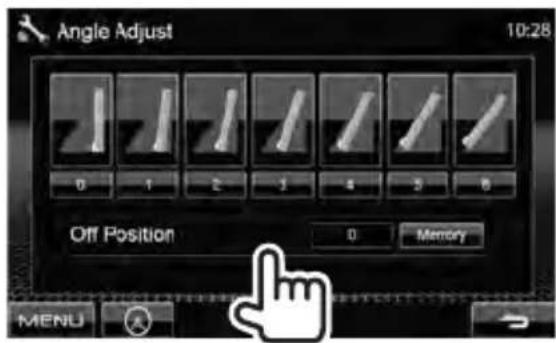
text_image
Angle Adjust 10:28 Off Position 0 1 2 3 4 5 6 Memory MENUTo set the current position as the power off position, select
Updating the system
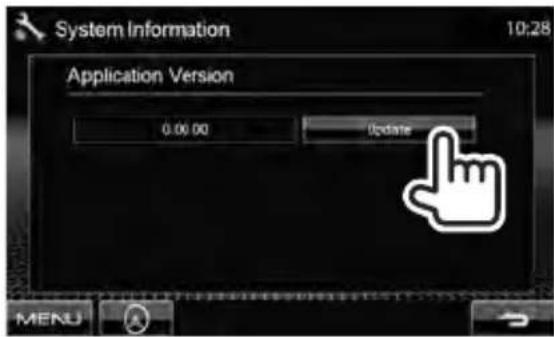
You can update the system by connecting a USB device containing the update file.
1 Create an update file, copy it to a USB device, and connect it to the unit.
To connect a USB device, page70.
2 On :
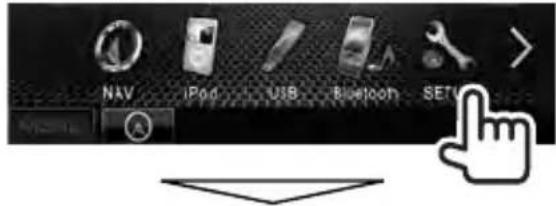
text_image
NAV iPod USB Bluetooth SETU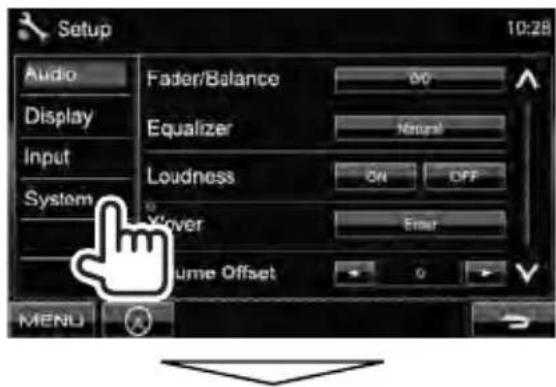
text_image
Setup Audio Display Input System Fader/Balance Equalizer Loudness Vover Volume Offset MENU 10:28 OK Timeout ON OFF Enter 0 V
text_image
SETUP Memory MENU Enter3

text_image
Setup Audio Display Input System Steering Remote Controller SET Window System Information Enter MENU4
text_image
System Information 10:28 Application Version 0.00.00 Update MENUIt may take a while.
If the update has been complete successfully, "Update Completed" appears. Reset the unit.
* If the update has failed, turn the power off and then on, and retry the update.
* Even if you have turned off the power during update, you can restart the update after the power is turned on. The update will be performed from the beginning.
Setting the security function
You can set a security code to protect your receiver system against theft.
■ Registering the security code
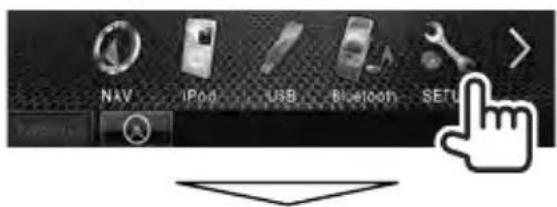
1 Display the security code setting screen.
On
text_image
NAV iPod USB Bluetooth SETU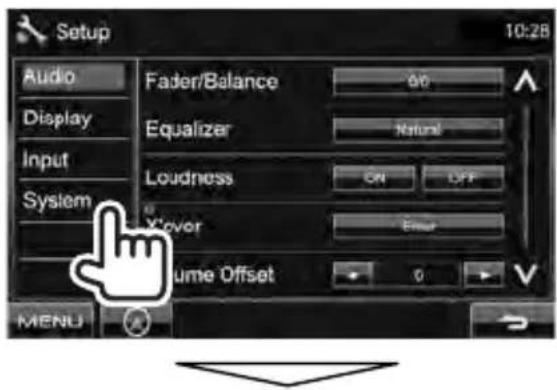
text_image
Setup Audio Display Input System Fader/Balance Equalizer Loudness X'cover Volume Offset 90 Natural ON OFF Error 0 MENU
text_image
SETUP Memory Enter MENU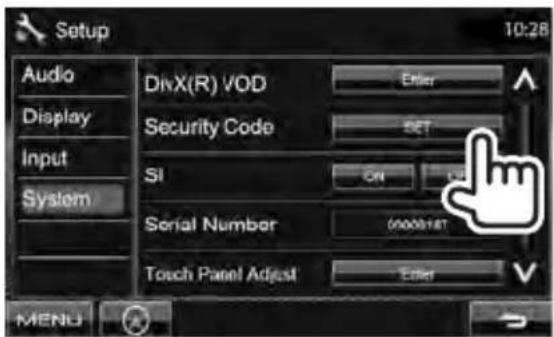
text_image
Setup Audio Display Input System DivX(R) VOD Security Code SI Serial Number Touch Panel Adjust Enter Enter 10:28 0000HST MENU- To clear the registered security code, perform step 1 and press [CLR] in
2 Enter a four-digit number (①), then confirm the entry (②).

text_image
Deletes the last entry Security Code Set 10:28 1st **** Clear 1 2 3 4 5 6 7 8 9 0 Enter Cancel ① ② Cancels the setting3 Repeat step 2 to confirm your security code.
Now, your security code is registered.
- When the unit is being reset or disconnected from battery, you are required to enter the security code. Enter the correct security code, then press [Enter].
■ Activating the security function
You can activate the security indicator to protect your receiver system against theft.
On

text_image
Setup Audio Display Input System DivX(R) VOD Security Code SI Serial Number Touch Panel Adjust Enter SET ON OFF MENUThe security indicator on the monitor panel flashes when the vehicle ignition is off.
To cancel, select
Component names and functions
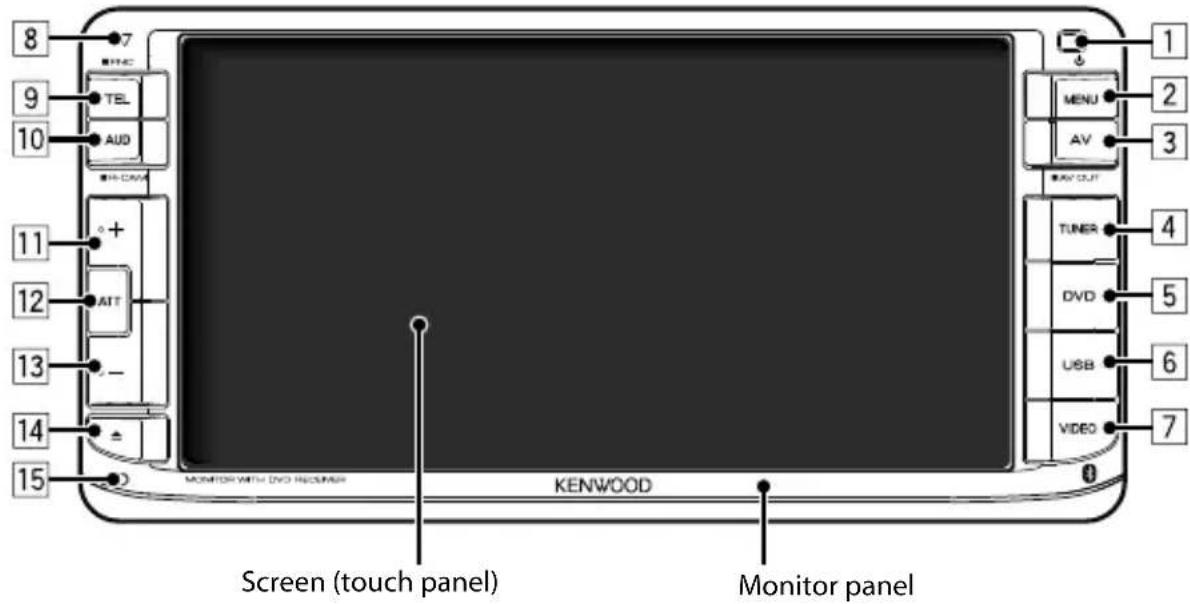
text_image
8 9 10 TEL AUD + - 11 12 ATT - 13 14 15 MONITOR WITH DVD RECUMBER KENWOOD Screen (touch panel) Monitor panel MENU AV AV OUT TUNER DVD USB VIDEO 1 2 3 4 5 6 71 Remote sensor
2 MENU/◎button
- Turns off the power. (Hold)
- Turns on the power. (Press)
- Displays the
screen. (Press) (page 11)
3 AV/AV OUT button
• Displays the current source screen. (Press)
- Selects the AV source for external monitor or amplifier. (Hold)
4 TUNER button
• Displays the TUNER screen. ( page 25)
5 DVD button
• Displays the DVD screen. ( page 15)
6 USB button
• Displays the USB screen. ( page 20)
7 VIDEO button
• Displays the VIDEO screen. ( page 30)
8 Power indicator/Security indicator
- Lights up while the unit is turned on.
- Flashes when the security function is activated. ( page 7)
Caution on volume setting:
Digital devices (CD/USB) produce very little noise compared with other sources. Lower the volume before playing these digital sources to avoid damaging the speakers by sudden increase of the output level.
9 For DDX630WBT/DDX630WBTM:
TEL/FNC button
- Displays the
screen. (Press) (page 46) - Displays the source control screen. (Hold) ( page 11)
For DDX630W/DDX630WM:
FNC button (press)
- Displays the source control screen. ( page 11)
10 AUD/R-CAM button
- Displays the
screen. (Press) (page 32) - Displays the picture from the rear view camera. (Hold)
11 Volume + button
• Increases the volume.
12 ATT button
- Attenuates the sound.
13 Volume – button
• Decreases the volume.
14 ▲ (Eject) button
- Ejects the disc (Tilts the monitor panel fully).
- Opens/Closes the monitor panel.
15 Reset button
- Resets the unit. ( page 3)
You can change the color of the buttons on the monitor panel. ( page 34)
Setting the clock
1 Display screen.
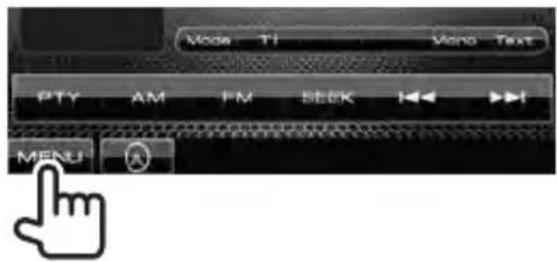
text_image
Mode T1 Mono Text PTY AM FM BOOK MENU2 Display screen.
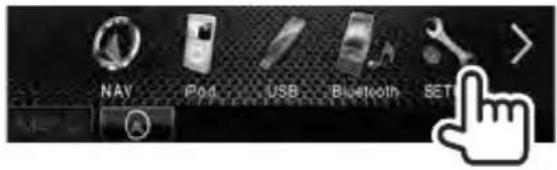
text_image
NAV Pod USB Bluetooth SET3
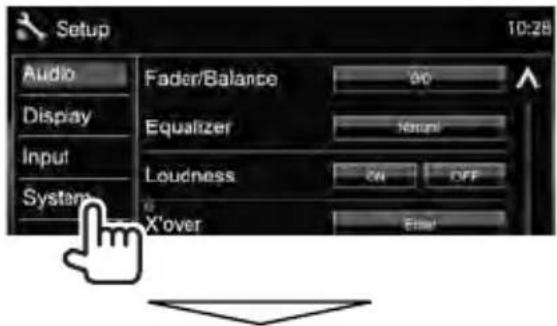
text_image
Setup Audio Display Input System Fader/Balance Equalizer Loudness X'over 90 100 ON OFF Error 10:28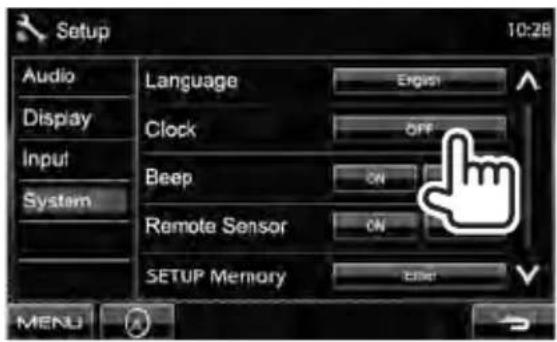
text_image
Setup 10:28 Audio Display Input System Language English Clock OFF Beep ON Remote Sensor ON SETUP Memory Edit MENU4 Set the clock time.
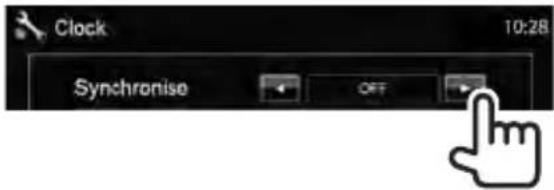
text_image
Clock 10:28 Synchronise OFF| ^*1 | Synchronizes the clock time with the connected navigation unit. |
| ^*2 | Synchronizes the clock time with FM Radio Data System . |
| Sets the clock manually.(below) | |

text_image
Clock 10:28 Synchronise OFF 10 28 ① ② MENU① Adjust the hour
② Adjust the minute
[Reset]: Sets the minute to "00."
Example:
$$ 3: 0 0 - 3: 2 9 \rightarrow 3: 0 0 $$
$$ 3: 3 0 - 3: 5 9 \rightarrow 4: 0 0 $$
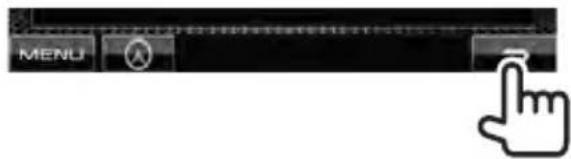
5 Finish the procedure.
text_image
MENU- The time format of the clock display differs as follows:
24 hours: Region 2/3 models
12 hours: Region 4 models
*1 Appears only when the navigation unit is connected.
*2 Not selectable for Region 4 models.
Common operations
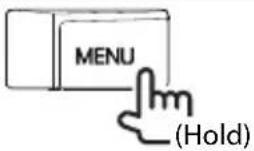
Turning on the power

Turning off the power
Adjusting the volume
To adjust the volume (00 to 35)

text_image
Increase DecreaseTo attenuate the sound

The ATT indicator lights up.
To cancel the attenuation, press the ATT buttonagain.
Putting the unit in standby
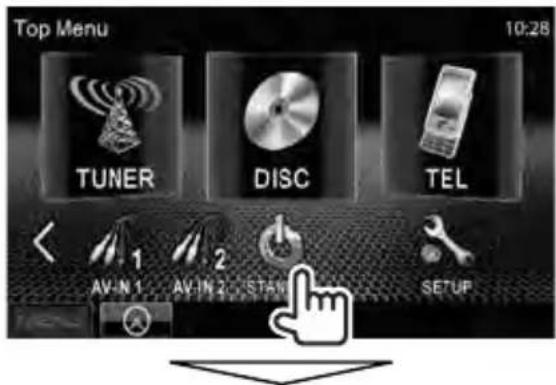
text_image
Top Menu 10:28 TUNER DISC TEL AV-IN 1 AV-IN 2 STAW SETUP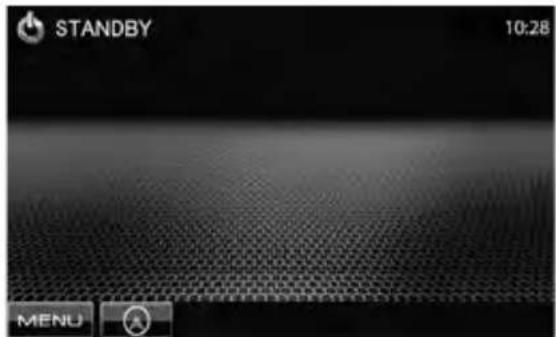
text_image
STANDBY 10:28 MENUSwitchingscreens
Source control screen
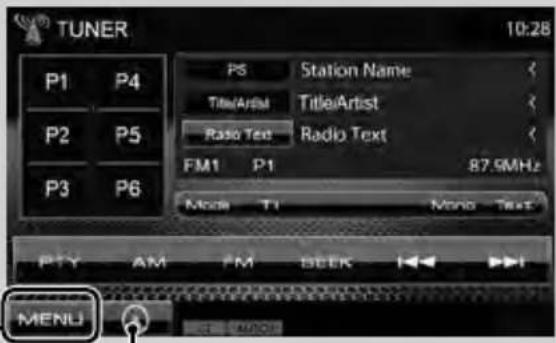
text_image
TUNER 10:28 P1 P4 P2 P5 P3 P6 PS Station Name TitleArtist TitleArtist Radio Text Radio Text FM1 P1 87.9MHz Mode T1 Mono Text P1Y AM FM SEEK MENUDisplays the navigation screen. *
( page 31)
* Appears only when a navigation unit is connected.
• Changes the AV source.
- Displays the
You can select 3 items to be displayed in this area. ( page 12)
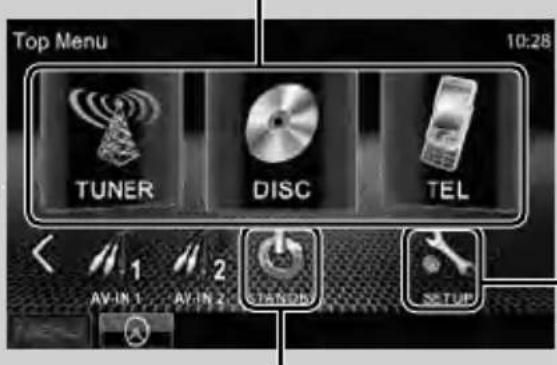
text_image
Top Menu 10:28 TUNER DISC TEL AV-IN 1 AV-IN 2 STARTOR SETUPpage 10
Changes the detailed settings.
Changes the page

text_image
Setup Audio Display Input System Fader/Balance Equalizer Loudness X'over Volume Offset 90 Normal ON OFF 0 Volume Offset MENUPress [] to return to the previous screen.
Touchscreenoperation

flowchart
graph TD
    A["Displays the video control menu while playing a video."] --> B["Goes to the previous chapter/track.*"]
    B --> C["Hand icon pointing to top of key"]
    C --> D["Hand icon pointing right of key"]
    D --> E["Hand icon pointing down right of key"]
    E --> F["Hand icon pointing down left of key"]
    F --> G["Hand icon pointing down right of key"]
    G --> H["Hand icon pointing down left of key"]
    H --> I["Hand icon pointing down right of key"]
    I --> J["Hand icon pointing down right of key"]
    J --> K["Hand icon pointing down left of key"]
    K --> L["Hand icon pointing down right of key"]
    L --> M["Hand icon pointing down left of key"]
    M --> N["Hand icon pointing down right of key"]
    N --> O["Hand icon pointing down right of key"]
    O --> P["Hand icon pointing down left of key"]
    P --> Q["Hand icon pointing down right of key"]
    Q --> R["Hand icon pointing down right of key"]
    R --> S["Hand icon pointing down left of key"]
    S --> T["Hand icon pointing down right of key"]
    T --> U["Hand icon pointing down right of key"]
    U --> V["Hand icon pointing down left of key"]
    V --> W["Hand icon pointing down right of key"]
    W --> X["Hand icon pointing down right of key"]
    X --> Y["Hand icon pointing down left of key"]
    Y --> Z["Hand icon pointing down right of key"]
    Z --> AA["Hand icon pointing down right of key"]
    AA --> AB["Hand icon pointing down left of key"]
    AB --> AC["Hand icon pointing down right of key"]
    AC --> AD["Hand icon pointing down right of key"]
    AD --> AE["Hand icon pointing down left of key"]
    AE --> AF["Hand icon pointing down right of key"]
    AF --> AG["Hand icon pointing down right of key"]
    AG --> AH["Hand icon pointing down left of key"]
    AH --> AI["Hand icon pointing down right of key"]
    AI --> AJ["Hand icon pointing down right of key"]
    AJ --> AK["Hand icon pointing down left of key"]
    AK --> AL["Hand icon pointing down right of key"]
    AL --> AM["Hand icon pointing down right of key"]
    AM --> AN["Hand icon pointing down left of key"]
    AN --> AO["Hand icon pointing down right of key"]
    AO --> AP["Hand icon pointing down right of key"]
    AP --> AQ["Hand icon pointing down left of key"]
    AQ --> AR["Hand icon pointing down right of key"]
    AR --> AS["Hand icon pointing down right of key"]
    AS --> AT["Hand icon pointing down left of key"]
    AT --> AU["Hand icon pointing down right of key"]
    AU --> AV["Hand icon pointing down right of key"]
    AV --> AW["Hand icon pointing down left of key"]
    AW --> AX["Hand icon pointing down right of key"]
    AX --> AY["Hand icon pointing down right of key"]
    AY --> AZ["Hand icon pointing down left of key"]
    AZ --> BA["Hand icon pointing down right of key"]
    BA --> BB["Hand icon pointing down right of key"]
    BB --> BC["Hand icon pointing down left of key"]
    BC --> BD["Hand icon pointing down right of key"]
    BD --> BE["Hand icon pointing down right of key"]
    BE --> BF["Hand icon pointing down left of key"]
    BF --> BG["Hand icon pointing down right of key"]
    BG --> BH["Hand icon pointing down right of key"]
    BH --> BI["Hand icon pointing down left of key"]
    BI --> BJ["Hand icon pointing down right of key"]
    BJ --> BK["Hand icon pointing down right of key"]
    BK --> BL["Hand icon pointing down left of key"]
    BL --> BM["Hand icon pointing down right of key"]
    BM --> BN["Hand icon pointing down right of key"]
    BN --> BO["Hand icon pointing down left of key"]
    BO --> BP["Hand icon pointing down right of key"]
    BP --> BQ["Hand icon pointing down right of key"]
    BQ --> BR["Hand icon pointing down left of key"]
    BR --> BS["Hand icon pointing down right of key"]
    BS --> BT["Hand icon pointing down right of key"]
    BT --> BU["Hand icon pointing down left of key"]
    BU --> BV["Hand icon pointing down right of key"]
    BV --> BW["Hand icon pointing down right of key"]
    BW --> BX["Hand icon pointing down left of key"]
    BX --> BY["Hand icon pointing down right of key"]
    BY --> BZ["Hand icon pointing down right of key"]
Displays the source control screen while playing a video.
- The operation buttons disappear by touching the screen or when no operation is done for about 5 seconds.
* Not available for video from an external component and rear view camera.
AV SOURCE OPERATIONS
Selecting the playback source

text_image
Top Menu 10:28 TUNER DISC TEL NAY P2G USB Bluetooth SETUP *1 *2 Top Menu 10:28 TUNER DISC TEL AV-N 1 AV-IN 2 STANDBY SETUP| NAV^*3 ( page 31) | Displays the navigation screen when a navigation unit is connected. |
| DISC ( page 13) | Plays a disc. |
| TEL^*4 ( page 49) | Displays the Bluetooth mobile phone setting screen. |
| USB ( page 20) | Plays files on a USB device. |
| iPod^*5 ( page 22) | Plays an iPod/iPhone. |
| TUNER ( page 25) | Switches to the radio broadcast. |
| AV-IN 1/AV-IN 2^*5 ( page 30) | Switches to an external component connected to AV-IN input terminal. |
| Bluetooth^*4 ( page 53) | Plays a Bluetooth audio player. |
*1 You can select 3 items to be displayed in this area. ( page 41)
*2 Switches between the previous and next pages.
*3 When no navigation unit is connected, "No Navigation" appears.
*4 Only for DDX630WBT/DDX630WBTM.
*5 Select an appropriate input setting on
Displaying the source control screen
On each playback screen, perform the following:
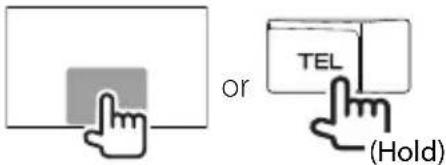
text_image
or TEL (Hold)- PressingTEL/FNChidestheoperationbuttons.
- The operation buttons disappear by touching the screen or when no operation is done for about 5 seconds.
Discoperations
Playing a disc
- If a disc does not have a disc menu, all tracks on it will be played repeatedly until you change the source or eject the disc.
- Inserting a disc
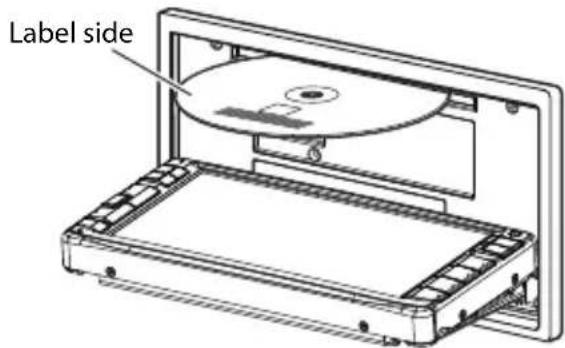
text_image
Label sideThe source changes to "DISC" and playback starts.
- The IN indicator lights up while a disc is inserted.
- If Ⓧ" appears on the screen, the unit cannot accept the operation you have tried to do.
- In some cases, without showing “☑,” operations will not be accepted.
- When playing back a multi-channel encoded disc, the multi-channel signals are downmixed to stereo.
■ To eject a disc
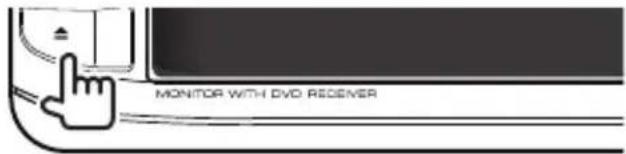
text_image
MONITOR WITH DVD REDEMER- You can eject a disc when playing another AV source.
- If the ejected disc is not removed within 15 seconds, the disc is automatically inserted again into the loading slot to protect it from dust.
When removing a disc, pull it horizontally.
Closing the monitor panel
After removing the disc, press the eject button again. The monitor panel closes.
playable disc types
| Disc type Recording format, file type, etc. Playable | ||
| DVD DVD-Video * | 1Region Code:ForDDX630WBT/DDX630W:3/4ForDDX630WBTM/DDX630WM:2 | √OK |
| DVD-Audio/DVD-ROM | ✕NO | |
| DVD Recordable/Rewritable(DVD-R/-RW*2,+R/+RW*3)DVD Video: UDF bridgeDVD-VRDivX/MPEG1/MPEG2/JPEG/MP3/WMA/WAV/AAC: ISO 9660 level 1,level 2, Romeo, Joliet | DVD-Video | √OK |
| DVD-VR*4 | ||
| DivX/MPEG1/MPEG2 | ||
| JPEG | ||
| MP3/WMA/WAV/AAC | ||
| MPEG4/DVD+VR/DVD-RAM | ✕NO | |
| Dual Disc DVD side | √OK | |
| Non-DVD side | ✕NO | |
| CD/VCD DTS-CD/Audio CD/CD Text (CD-DA) | √OK | |
| VCD (Video CD) | ||
| SVCD (Super Video CD)/CD-ROM/CD-I (CD-I Ready) | ✕NO | |
| CD Recordable/Rewritable(CD-R/-RW)ISO 9660 level 1, level 2,Romeo, Joliet | CD-DA | √OK |
| VCD (Video CD) | ||
| DivX/MPEG1/MPEG2 | ||
| JPEG | ||
| MP3/WMA/WAV/AAC | ||
| MPEG4 | ✕NO | |
*1 If you insert a DVD Video disc of an incorrect Region Code, "Region code error" appears on the screen.
*2 DVD-R recorded in multi-border format is also playable (except for dual layer discs). DVD-RW dual layer discs are not playable.
*3 It is possible to play back finalized +R/+RW (Video format only) discs. "DVD" is selected as its disc type when a +R/+RW disc is loaded. +RW double layer discs are not playable.
*4 This unit cannot play back contents protected with CPRM (Content Protection for Recordable Media).
Caution for DualDisc playback
The Non-DVD side of a "DualDisc" does not comply with the "Compact Disc Digital Audio" standard. Therefore, the use of Non-DVD side of a DualDisc on this product may not be recommended.
Playbackoperations
To display the source control screen, page 12.
ForDVD/DVD-VR/VCD/DivX/MPEG1/MPEG2/JPEG

text_image
Playing time Media type DVD VIDEO 10:28 Model 101 C01 00:10:25 File no./Chapter m no. (or oter no.*1 PEG2: Folder *File no. MENU page 31 File type (for DivX/MPEG1/MPEG2/JPEG) Playback mode| [○][×]*2 | Selects playback mode.( page 18) |
| [▶ II] | Starts/Pauses playback. |
| [■]*3 | Stops playback. |
| [I◀◀] [▶▶I] | • Selects chapter/track.(Press)• Reverse/forwardsearch.*4 (Hold) |
| [◀◀] [▶▶] | Reverse/forward search during playback.*4Plays back in slow-motion during pause. |
| [Mode]*5 | Changes the settings for disc playback. ( page 19) |
| [MENU] | Displaysscreen. |
- For DivX/MPEG1/MPEG2/JPEG, the following buttons also appear:
| [ ] Selects folder. |
| [Q] | Displays folder/track list. ( page 16) |
*1 To display the Original Program/Playlist screen, page 17.
*2 Does not appear for DVD/DVD-VR/JPEG.
*3 Appears only for DVD/DVD-VR/VCD.
*4 Search speed varies depending on the type of disc or file.
*5 Does not appear for VCD.
For CD/MP3/WMA/WAV/AAC
Track/file information
- Pressing [<] scrolls the text if not all of the text is shown.
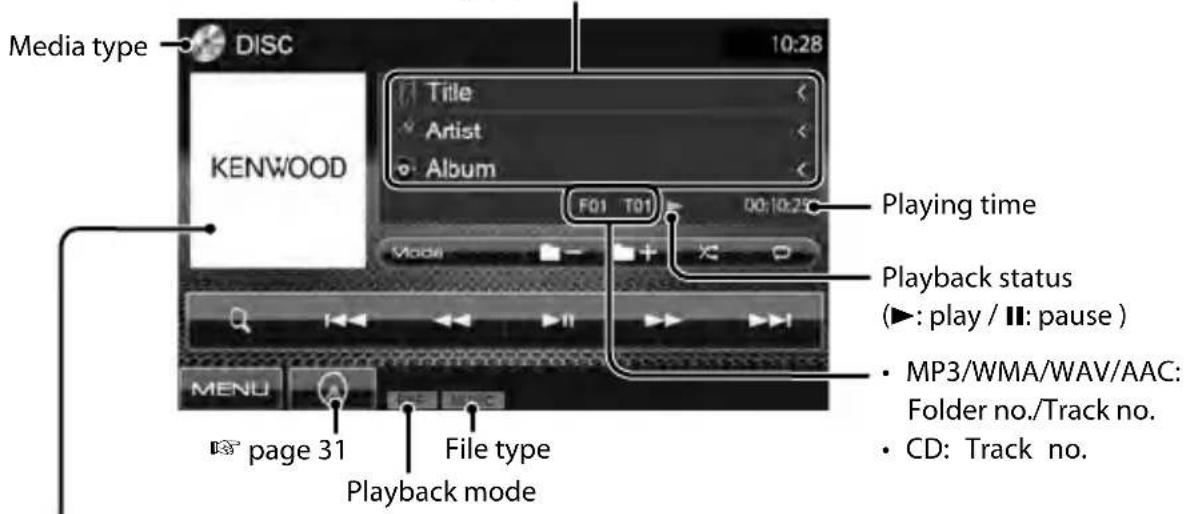
text_image
Media type DISC 10:28 KENWOOD Title Artist Album F01 T01 00:10:25 Playing time Playback status (►: play / II: pause ) • MP3/WMA/WAV/AAC: Folder no./Track no. • CD: Track no. MENU page 31 File type Playback modeWhile playing, the jacket picture is shown if the file has the tag data including the jacket picture.
| [∅] ✗ | Selects playback mode. ( page 18) |
| [Q] *1 | Displays folder/track list. ( below) |
| [▶ II] Starts/Pauses playback. | |
| [ ] + ][ ] - 1 | Selects folder. |
| [◀◀] [▶▶] Selects track. | |
| [◀◀] [▶▶] Reverse/forward search.* 2 | |
| [Mode]*1 | Changes the settings for disc playback.(L33> page 19) |
| [MENU] | Displays |
| screen. | |
*1 Does not appear for CD.
*2 Search speed varies depending on the type of disc or file.
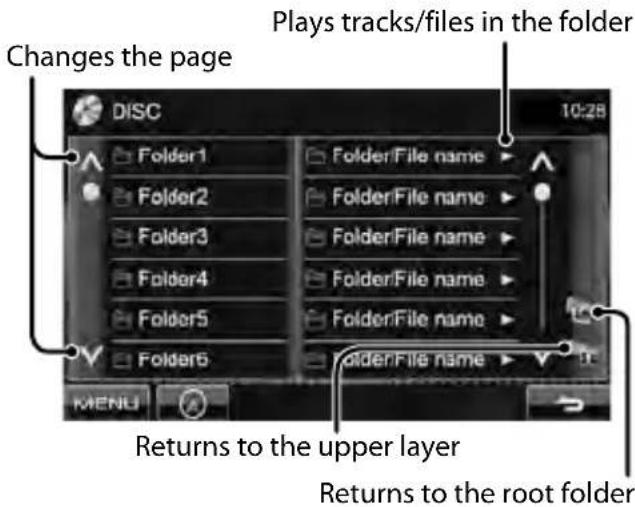
Selecting folder/track on the list
text_image
Changes the page Plays tracks/files in the folder DISC 10:28 Folder1 Folder2 Folder3 Folder4 Folder5 Folder6 FolderFile name FolderFile name FolderFile name FolderFile name FolderFile name FolderFile name FolderFile name 10:28 KMENU Returns to the upper layer Returns to the root folderPlaying Recordable/Rewritable discs
- This unit can recognize a total of 5000 files and 250 folders (a maximum of 999 files per folder).
- Use only "finalized" discs.
- This unit can play back multi-session discs; however, unclosed sessions will be skipped while playing.
- Some discs or files may not be played back due to their characteristics or recording conditions.
■ Video menu operations
You can display the video menu screen while watching the playback pictures on the screen.
• Available items on the screen differ depending on the types of the loaded disc and playback files.
- The operation buttons disappear by touching the screen or when no operation is done for about 5 seconds.

text_image
Menu Control MENU T MENG Audio Subtotal Angle CUR Highlight PictureAdjust Aspect ZOOM- The screen for MPEG1/MPEG2 differs from the above.
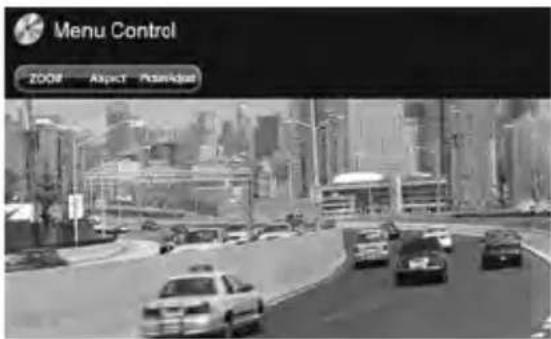
text_image
Menu Control ZOOM! Aspect Pcsrvkdal| [Audio] Selects the audio type. • For DVD-VR: Selects the audio channel (ST: stereo, L: left, R: right). | |
| [Subtitle] Selects the subtitle type. | |
| [Angle] Selects view angle. | |
| [MENU] Displays the disc menu (DVD)/playlist (DVD-VR). | |
| [T MENU] Displays the disc menu (DVD)/original program (DVD-VR). | |
| [CUR] Displays the menu/playlist/ original program item selecting screen. • [▲] [▼] [◀] [▶]: Selects an item. - For DivX only [◀] [▶]: Skips back or forward by about 5 minutes. • [ENTER]: Confirms the selection. • [RETURN]: Returns to the previous screen. | |
| [Highlight] Switches to the direct menu selection mode. Press the target item to select. | |
| [Picture Adjust] | Displays picture adjustment screen. ( page 36) |
| [Aspect] | Selects aspect ratio. ( page 37) |
| [ZOOM] Displays the picture size selecting screen. ( page 37) | |
Only for VCD
1
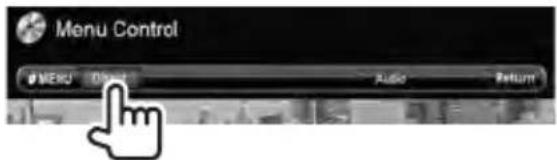
text_image
Menu ControlMENU Open Audio Return
2
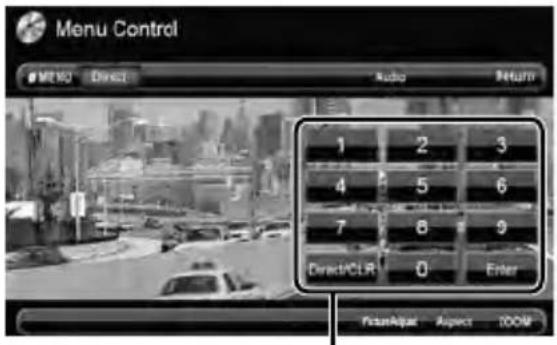
text_image
Menu Control MENU Direct Audio Return 1 2 3 4 5 6 7 8 9 Direct/CLR 0 Enter ReturnAdjust Aspect 100%Direct selecting buttons (below)
| [Audio] Selects the audio channel (ST: stereo, L: left, R: right). | |
| [Return] Displays the previous screen or the menu. | |
| [MENU] Displays the disc menu. | |
| [Picture Adjust] | Displays picture adjustment screen. ( page 36) |
| [Aspect] | Selects aspect ratio. ( page 37) |
| [ZOOM] Displays the picture size selecting screen. ( page 37) | |
| [Direct] Displays/hides the direct selecting buttons. ( below) | |
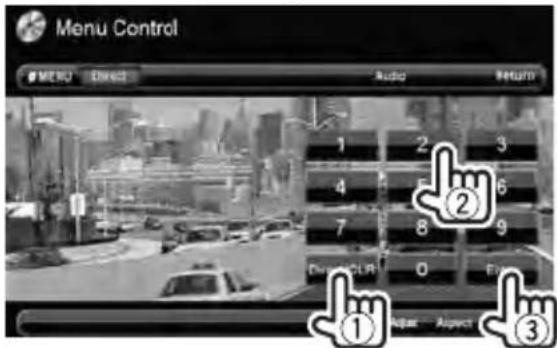
• To select a track directly
text_image
Menu Control MENU Divers Audio Return 1 2 3 4 6 7 8 9 Dur: 0 End ① Aspect Aspect ② ③- To switch between chapter/track entry and title/folder entry, press [Direct/CLR].
- When you enter a wrong number, press [Direct/CLR] to delete the last entry.
- To deactivate the PBC function, press [■] then the direct selecting buttons to select a track number.

Selecting playback mode
For DVD/DVD-VR

text_image
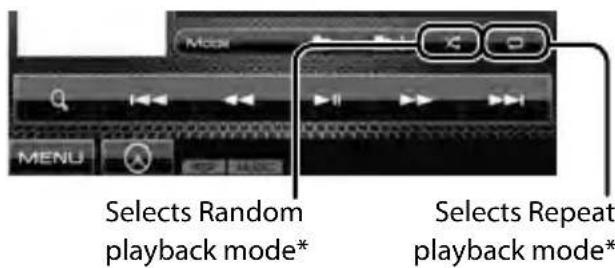
DVD VIDEO 10:28 Movie T01 C01 00:10:25 Selects Repeat playback modeFor VCD (without PBC)/CD/DivX/MPEG1/MPEG2/MP3/WMA/WAV/AAC
text_image
Selects Random playback mode* Selects Repeat playback mode** You cannot activate the repeat mode and the random mode at the same time.
• Each time you press the button, the playback mode changes. (The corresponding indicator lights up.)
- Available items differ depending on the types of loaded disc and playback file.
| Indicator Playback mode | |
| C-REP Repeats current chapter. | |
| T-REP Repeats current title/program. | |
| REP Repeats current track. | |
| FO-REP | Repeats all tracks of the current folder. |
| RDM | Randomly plays all tracks. |
| FO-RDM | Randomly plays all tracks of current folder, then tracks of next folders. |
To cancel, press the button repeatedly until the indicator disappears.
Settings for disc playback
| Disc Setup items | Selectable setting/item Initial: Underlined | |
| For DVD/DVD-VR | MenuLanguage | Select the initial disc menu language; Initial English ( page 62). |
| SubtitleLanguage | Select the initial subtitle language or erase the subtitle (OFF); Initial English ( page 62). | |
| AudioLanguage | Select the initial audio language; Initial English ( page 62). | |
| Down Mix When | playing back a multi-channel disc, this setting affects the signals reproduced through the front and/or rear speakers.♦ Dolby : Select this to enjoy multi-channel surround Surround audio with Dolby Surround.♦ Stereo : Normally select this. | |
| DynamicRange Control | You can change the dynamic range while playing Dolby Digital software.♦ Wide : Select this to enjoy a powerful sound at a low volume level with its full dynamic range.♦ Normal : Select this to reduce the dynamic range a little.♦ Dialog : Select this to reproduce the movie dialog more clearly. | |
| For discsexcept VCD/CD | ScreenRatioSelect the monitor type to watch a wide screen picture on the external monitor.♦ 16:9 ◆ 4:3 LB (Letterbox) ◆ 4:3 PS (PanScan)   | |
| For disccontainingaudio/video/picture files | File Type | Select the playback file type when a disc contains different types of files.♦ Audio : Plays back audio files.♦ Still Image : Plays back JPEG files.♦ Video : Plays back DivX/MPEG1/MPEG2 files.♦ Audio&Video : Plays back audio files and DivX/MPEG1/MPEG2 files.· For playable file types, page 14.· If the disc contains no files of the selected type, the existing files are played in the following order: audio, video, then still image. |
Playing a USB device
- This unit can play JPEG/DivX/MPEG1/MPEG2/MP3/WMA/WAV/AAC files stored in a USB mass storage class device.
- This unit can recognize a total of 5 000 files and 250 folders (a maximum of 999 files per folder).
- Make sure all important data has been backed up to avoid losing the data.
■ Connecting a USB device
You can connect a USB mass storage class device such as a USB memory, Digital Audio Player etc. to the unit.
- You cannot connect a computer or portable HDD to the USB input terminal.
- To connect a USB device, page70.
When a USB device is connected...
The source changes to "USB" and playback starts.
- All tracks in the USB device will be played repeatedly until you change the source.
To disconnect the USB device safely
Press [▲], then disconnect the USB device after "No Device" appears.
Cautions:
- This unit may not play back files in a USB device properly when using a USB extension cord.
- USB devices equipped with special functions such as data security functions cannot be used with the unit.
- Do not use a USB device with 2 or more partitions.
- Depending on the shape of the USB devices and connection ports, some USB devices may not be attached properly or the connection might be loose.
- This unit may not recognize a memory card inserted into the USB card reader.
- When connecting with a USB cable, use the USB 2.0 cable.
- The maximum number of characters for:
- Folder names : 50 characters
- File names : 50 characters
- Avoid using the USB device if it might effect driving safety.
- Do not pull out and connect the USB device repeatedly while "Reading..." is shown on the screen.
- Electrostatic shock at connecting a USB device may cause abnormal playback of the device. In this case, disconnect the USB device then reset this unit and the USB device.
• Operation and power supply may not work as intended for some USB devices. - Do not leave a USB device in the car, or expose to direct sunlight or high temperature to avoid deformation or damage to the device.
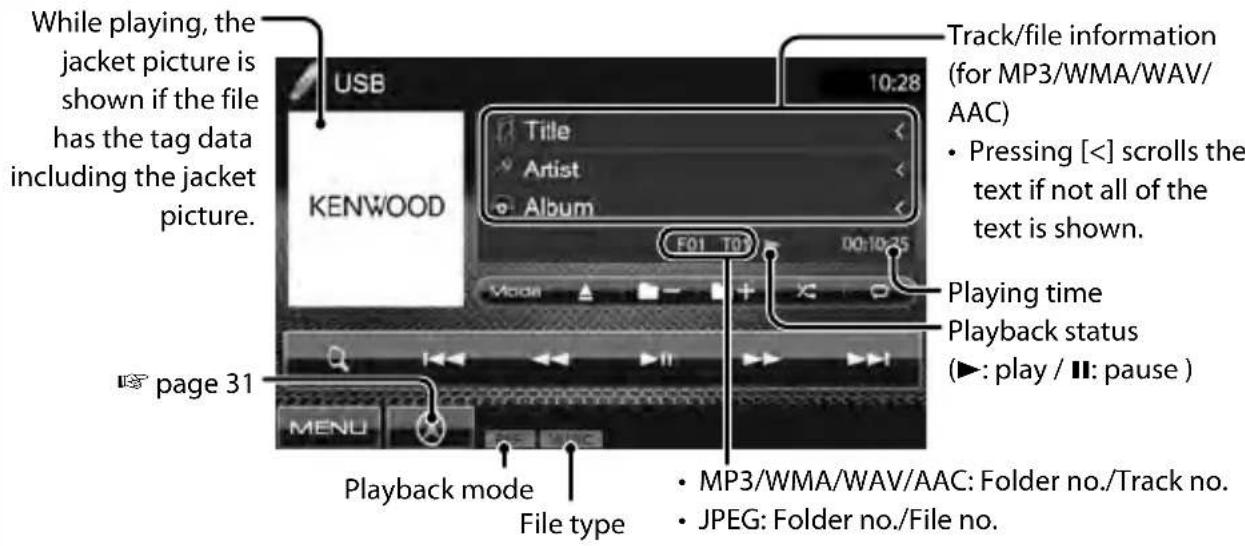
To display the source control screen, page 12.
text_image
While playing, the jacket picture is shown if the file has the tag data including the jacket picture. USB 10:28 KENWOOD Title Artist Album F01 T01 00:10:25 Page 31 MENU Playback mode File type Track/file information (for MP3/WMA/WAV/AAC) Pressing [<] scrolls the text if not all of the text is shown. Playing time Playback status (►: play / II: pause ) • MP3/WMA/WAV/AAC: Folder no./Track no. • JPEG: Folder no./File no.| [IMAGE] | Selects repeat playback mode. *1 *2REP: Repeats current track.FO-REP: Repeats all tracks of the current folder. |
| [IMAGE] | Selects random playback mode. *1 *2RDM: Randomly plays all tracks.FO-RDM: Randomly plays all tracks of the folder. |
| [▲] Press this button before disconnecting. ( page 20) | |
| [Q] | Displays folder/track list. ( page 16) |
| [▶ II] | Starts/Pauses playback. |
| [◀◀] [▶▶I] | Selects track. |
| [◀◀] [▶▶] | Reverse/forward search.*3 |
| [▶ +] [▶ -] | Selects folder. |
| [Mode] | Changes the settings for file playback. ( below) |
| [MENU] | Displaysscreen. |
• Available items differ depending on the types of playback file.
*1 To cancel random or repeat mode, press the button repeatedly until the indicator disappears.
*2 You cannot activate the repeat mode and the random mode at the same time.
*3 Search speed varies depending on the type of disc or file.
Setting
Select the monitor type to watch a wide screen picture on the external monitor.
16:9

4:3 LB
(Letterbox)
4:3 PS
(PanScan)
Setting
Audio Plays back audio files.
Still Image Plays back JPEG files.
Video Plays back DivX/MPEG1/MPEG2 files.
Audio&Video Plays back audio files and DivX/MPEG1/MPEG2 files.
- If the USB device contains no files of the selected type, the existing files are played in the following order: audio, video, then still image.
Setting
Press [Next]. Switches between the internal and external memory source of the connected device (such as mobile phone).
Listening to the iPod/iPhone device
■ Preparation
- Connect iPod/iPhone. (page70)
- Use the following cables:
- To watch the video and to listen to the music (analog): USB Audio and Video cable for iPod/iPhone—KCA-iP202 (optional accessory)
- To listen to the music (digital): USB Audio cable for iPod/iPhone—KCA-iP102 (optional accessory)
- Do not use extension cables.
iPod/iPhone that can be connected to this unit:
Made for
- iPod with video
- iPod classic
- iPod nano (6th Generation)
- iPod nano (5th Generation)
- iPod nano (4th Generation)
- iPod nano (3rd Generation)
- iPod nano (2nd Generation)
- iPod nano (1st Generation)
- iPod touch (4th Generation)
- iPod touch (3rd Generation)
- iPod touch (2nd Generation)
- iPod touch (1st Generation)
- iPhone 4
- iPhone 3GS
- iPhone 3G
- iPhone
Settings for iPod playback
When the source is "iPod"...

text_image
1 236/10:29 18:10:25 Music APP MENU
text_image
iPod Mode 10:25 Audiobooks Name Faster Stream Artwork ON OFFAudiobooks Selects the speed of audio books.
Artwork Shows/hides the iPod artwork.
Setting
You can change the setting only when the unit is in standby.
1 On

text_image
NAV iPod USB Bluetooth SETUP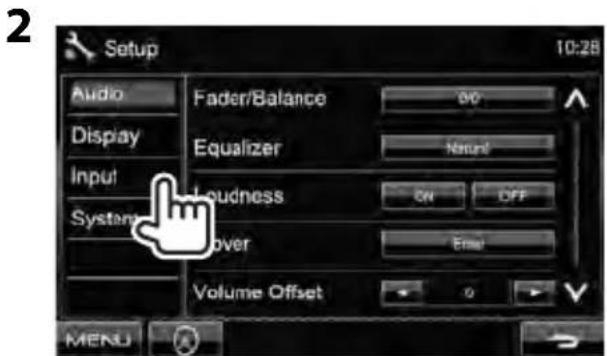
text_image
Setup Audio Display Input System Fader/Balance Equalizer Loudness Over Volume Offset 0 Normal ON OFF Error MENU
text_image
Setup 10:28 Audio Display Input System AV Input AV IN2 Print R-CAM Interrupt ON Navigation Enter MENUiPod/iPhone playback operations
To display the source control screen, page 12.
- Select iPod as the source. ( page 12)
- The operations explained in this manual are under the condition when the unit is selected for controlling playback. (below)
While playing, Artwork (the picture displayed on the screen of iPod/iPhone) is shown if the song contains the Artwork.*1

text_image
iPod 10:28 KENWOOD Title Artist Album 256/1024 00:10:25 Mode APP MENUpage 31 Playback mode
Song/video information
- Pressing [<] scrolls the text if not all of the text is shown.
Playing time
Playback status
(▶: play / Ⅲ: pause )
| [MENU] | Displaysscreen. |
| [Mode] | Changes the settings for iPod playback.( page 22) |
| [▶II] | Starts/Pauses playback. |
| [○] | Selects Repeat playback mode.* ^2 REP: Functions the same as "Repeat One." |
| [×] | Selects Random playback mode.* ^2 RDM: Functions the same as "Shuffle Songs."A-RDM: Functions the same as "Shuffle Albums." |
| Displays the Music/Video menu on the iPod/iPhone. ( page 24) | |
| Selects a track/video.*3 | |
| Reverse/forward search. | |
| [APP] | Select iPod to play back using iPod/iPhone—iPod control mode.*4 ( page 24) |
*1 For changing the Artwork display setting, page 22.
*2 To cancel random or repeat mode, press the button repeatedly until the indicator disappears. Not available in iPod control mode. ( page 24)
*3 You cannot resume playback for video sources.
*4 When using iPod nano (1st Generation) or iPod with video, you can control playback only from the unit.
- When you turn on this unit, the iPod/iPhone is charged through the unit.
- The text information may not be displayed correctly.
- For some iPod/iPhone models, the performance may be abnormal or unstable during operation. In this case, disconnect the iPod/iPhone device, then check its condition. If the performance is not improved or is slow, reset your iPod/iPhone.
- For the latest compatible list and software version of iPod/iPhone, see: www.kenwood.com/cs/ce/ipod
Selecting a track/video from menu on the iPod/iPhone
1

text_image
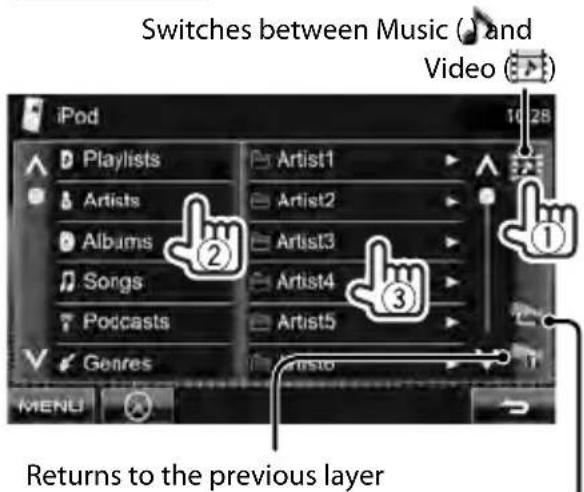
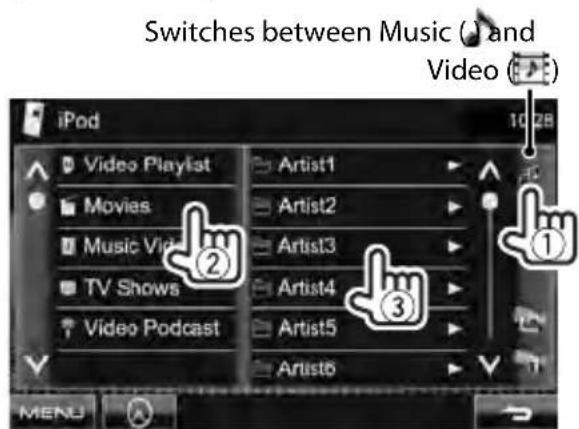
iPod 10:28 KENWOOD Title Artist Album 256/10/24 09:10:25 MEN2 Select the menu (Music or Video) (①), a category (②), then a desired item (③).
- Select the item in the selected layer until a desired track starts playing.
Music menu:
text_image
Switches between Music ( ) and Video ( ) iPod 10 28 Playlists Artist1 Albums Artist2 Songs Artist3 Podcasts Artist4 Artist5 Genres 17 MENU Returns to the previous layerReturns to the top layer
Video menu:
text_image
Switches between Music ( ) and Video ( ) iPod 10 GB Video Playlist Artist1 Movies Artist2 Music Vid Artist3 TV Shows Artist4 Video Podcast Artist5 Artist6 ① ② ③• Available categories differ depending on the type of your iPod/iPhone.
Operating in iPod/iPhone control mode
You can play back the audio/video using iPod/iPhone itself instead of the unit.

text_image
APP MENUAudio:

text_image
iPod 10:28 iPhone App & iPod Control Mode IIP APP MENUVideo:

text_image
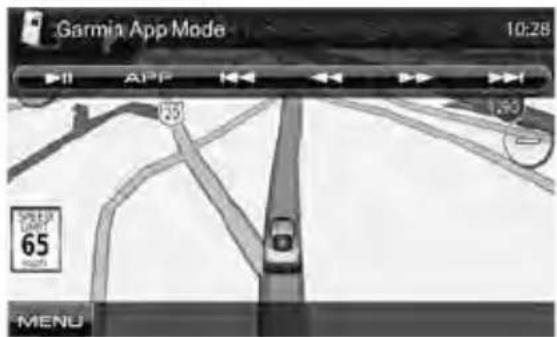
iPhone App & Control Mode 10:28 APP MENU- When you are using Garmin StreetPilot® Onboard, the screen appears. For Garmin StreetPilot® Onboard for iPhone, visit the Garmin web site: www.garmin.com
Garmin App:
text_image
Garmin App Mode 10:28 ▶ II APP 1,90 65 MENU- The current position of your vehicle appears on the map. When the vehicle runs, the map scrolls. - The screens of the iPhone and unit are not the same.
• To return to the normal mode, press [APP].
Listening to the radio

text_image
Text information TUNER 10:28 P1 P4 PS Station Name Title/Artist Title/Artist Radio Text Radio Text FM1 P1 87.9MHz P3 P6 Mode TI Mono Text Standy reception indicators ( page 28 ) RDS indicator EON indicator: LIGHTS UP when a Radio Data System station is sending EON signals. ST indicator AF indicator ( page 29 ) LO.S indicator ( page 26 ) Seek mode indicator page 31- The ST indicator lights up when receiving an FM stereo broadcast with sufficient signal strength.
| [P1] - [P6] | Turns in the preset station. (Press) Presets the currently tuned station. (Hold) |
| [Mode] Displays tuner setting screen. ( page 26) | |
| [TI]* ^1 | Activates/deactivates TI standby reception mode. ( page 28) |
| [Mono]* ^2 | Activates/deactivates monaural mode for better FM reception. (Stereo effect will be lost.) The MONO indicator lights up while monaural mode is activated. |
| [Text]* ^1 | Displays/hides the information of the current station ( page 26). |
| [PTY]*1*2 | Enters FM Radio Data System program search mode.( page 27) |
| [AM] Selects AM band. | |
| [FM] Selects FM band.→FM1→FM2→FM3 | |
| [SEEK] Changes the seek mode.· AUTO1: Auto Search· AUTO2: Tunes in stations in memory one after another.· MANU: Manual Search | |
| [◀◀][▶▶] | Searches for a station.· The search method differs according to the selected seek mode ( above) |
| [MENU] | Displaysscreen. |
*1 Appears only for Region 2/3 models.
^*2 Appears only when FM is selected as the source.
Displaying the information of the current station
- This feature is available only for Region 2/3 models.

text_image
P3 P6 Mode T1 Mono Text PTY AM FM SEEK MENU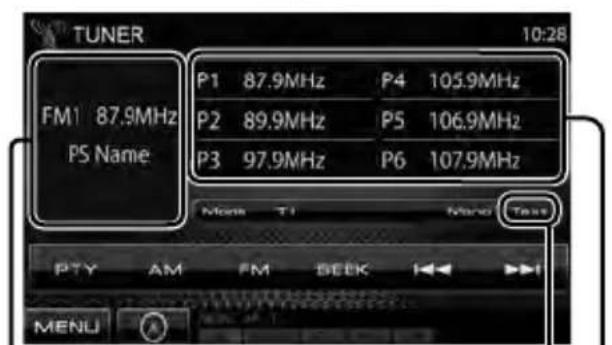
text_image
TUNER 10:28 FM1 87.9MHz P5 Name P1 87.9MHz P4 105.9MHz P2 89.9MHz P5 106.9MHz P3 97.9MHz P6 107.9MHz Month T1 Month Text PTY AM FM SEEK MENUThe station frequency currently tuned in/PS (station name) for FM Radio Data System when PS signal is coming in (only for Region 2/3 models)
Displays the text information
Preset list
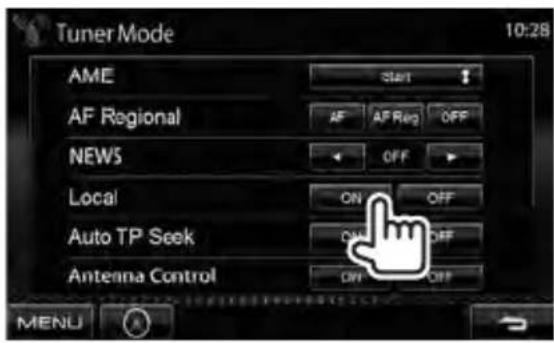
To tune in FM stations only with strong signals—LocalSeek
- This feature is available only for Region 2/3 models.
1

text_image
Mono T1 Mono Text PTY AM BEEK I I I MENU2
text_image
Tuner Mode 10:28 AME START AF Regional AF AF Reg OFF NEWS OFF Local ON OFF Auto TP Seek ON OFF Antenna Control ON OFF MENUON Select this to tune in only to stations with sufficient signal strength. The LO.S indicator lights up.
OFF Deactivate the function.
■ Setting the antenna control
- This feature is available only for Region 2/3 models.
You can store the antenna automatically when the source is changed from the tuner to another.
- The antenna is extended regardless of the setting when the source is the tuner.
1

text_image
Multi TI Mono Text PTY AM BEEK MENU2

text_image
Auto TP Seek ON OFF Antenna Control OFF OFF MENUON Select this to keep the antenna extended even when the source is not the tuner.
OFF Select this to store the antenna automatically.
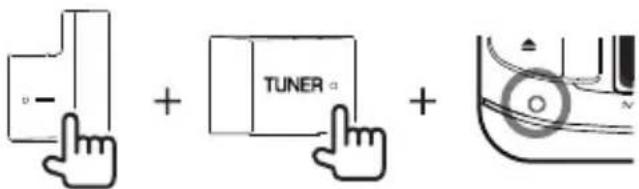
■ Changing the tuner channel interval
- This feature is available only for Region 4 models.
Press the Reset button while holding the following buttons.
- Release them after the message appears.
text_image
Diagram showing three-step UI operation: pointing, adding a TUNER button, and adding a circular component.• Each time you perform the procedure, the tuner channel interval switches between 50 kHz/9 kHz and 200 kHz/10 kHz.
■ Storing stations in memory
You can preset six stations for each band.
Automaticpresetting—AME(Auto Memory)
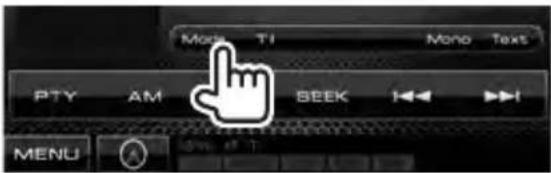
1
text_image
Mono T1 Mono Text PTY AM BEEK I H MENU2

text_image
Tuner Mode 10:28 AME AF Regional NEWS Local Auto TP Seek Antenna Control Start AF OFF (Hold) ON OFF ON OFF ON OFF MENULocal stations with the strongest signals are searched and stored automatically.
Manualpresetting
1 Tune in to a station you want to preset. ( page 25)
2 Select a preset number.

text_image
TUNER 10:28 P4 87.9MHz P4 105.9MHz FM1 87.9MHz P2 89.9MHz P5 106.9MHz PS Name P3 97.9MHz P6 107.9MHz (Hold) Monk T1 and Test PTY AM FM BEEK MENUThe station selected in step 1 is stored.
The image contains no text or characters.
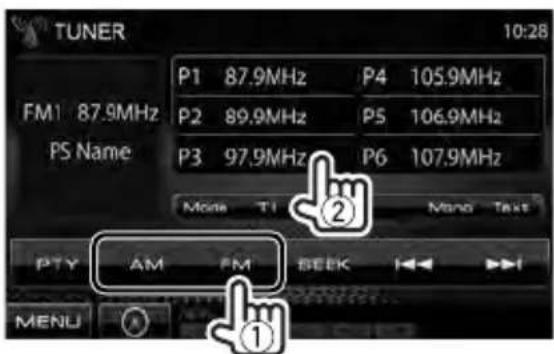
Selecting a preset station
text_image
TUNER 10:28 P1 87.9MHz P4 105.9MHz FM1 87.9MHz P2 89.9MHz P5 106.9MHz PS Name P3 97.9MHz P6 107.9MHz Mono T1 Mono Text PTY AM FM BEEK MENUThe following features are available only for FM Radio Data System stations.
The image contains no text or characters.
Searching for FM Radio Data System program—PTY Search
- This feature is available only for Region 2/3 models.
You can search for your favorite programs being broadcast by selecting the PTY code.
1

text_image
TUNER 10:28 P1 87.9MHz P4 105.9MHz FM1 87.9MHz P2 89.9MHz PS 106.9MHz PS Name P3 97.9MHz P6 107.9MHz Mono Ti Mono Text PTY AM FM BEEK ME2 Select a PTY code.
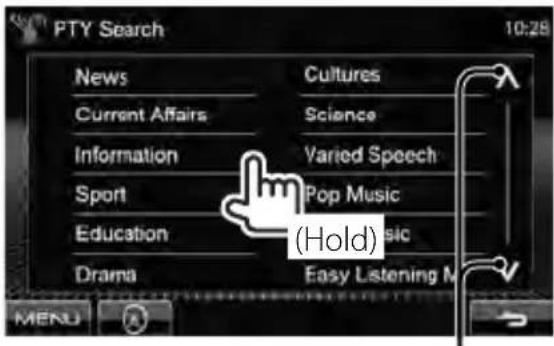
text_image
PTY Search 10:28 News Cultures Current Affairs Science Information Varied Speech Sport Pop Music Education Music Drama Easy Listening M (Hold) MENUChanges the page
PTY Search starts.
If there is a station broadcasting a program of the same PTY code as you have selected, that station is tuned in.
- Only English/Spanish/French/German/Dutch/Portuguese are available for the text language here. If another language has been selected in
■ Activating/deactivating TI/News Standby Reception
- This feature is available only for Region 2/3 models.
TI Standby Reception
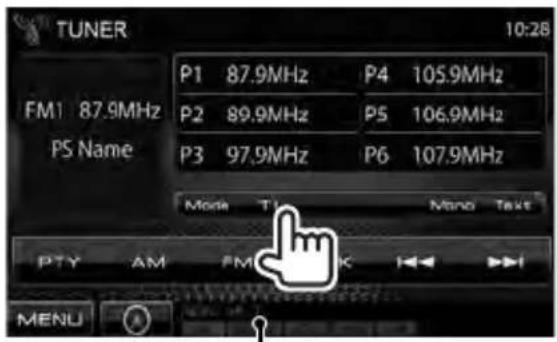
text_image
TUNER 10:28 P1 87.9MHz P4 105.9MHz FM1 87.9MHz P2 89.9MHz P5 106.9MHz PS Name P3 97.9MHz P6 107.9MHz Mono T Mono Text PTY AM FM K MENUTI indicator
| TI indicator TI | Standby Reception |
| Lights in white | The unit will temporarily switch to Traffic Information (TI) if available. |
| Lights in orange | Not yet activated. Tune in to another station providing the Radio Data System signals. |
| Goes off Deactivated. | |
- The volume adjustment for Traffic Information is automatically memorized. The next time the unit switches to Traffic Information, the volume is set to the previous level.
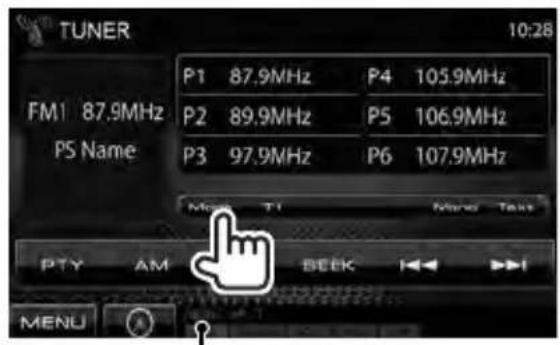
News Standby Reception
1
text_image
TUNER 10:28 P1 87.9MHz P4 105.9MHz FM1 87.9MHz P2 89.9MHz P5 106.9MHz PS Name P3 97.9MHz P6 107.9MHz Mio T1 Mio Tait PTY AM BEEK MENUNEWS indicator
2

text_image
Tuner Mode 10:28 AME Start AF Regional AF AF Reg OFF NEWS OFF Local ON OFF Auto TP Seek ON OFF Antenna Control ON OFF MENU| 00min – 90min | Activates News Standby Reception (the NEWS indicator lights up).Select the period of time to disable interruption. |
| OFF Deactivates News Standby Reception. | |
- The volume adjustment while receiving News is automatically memorized. The next time the unit switches to News, the volume is set to the previous level.
■ Tracing the same program—Network-Tracking Reception
- This feature is available only for Region 2/3 models.
When driving in an area where FM reception is not sufficient enough, this unit automatically tunes in to another FM Radio Data System station of the same network, possibly broadcasting the same program with stronger signals.
When shipped from the factory, Network-Tracking Reception is activated.
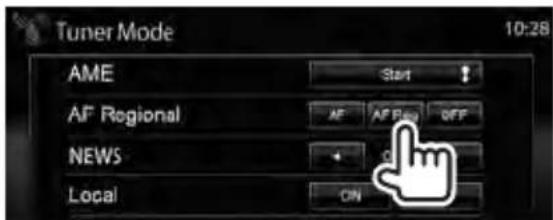
To change the Network-Tracking Reception setting
1

text_image
TUNER 10:28 P1 87.9MHz P4 105.9MHz FM1 87.9MHz P2 89.9MHz P5 106.9MHz P5 Name P3 97.9MHz P6 107.9MHz Mode T1 Mode Text PTY AM WEEK MENU2
text_image
Tuner Mode 10:28 AME Start AF Regional AF AF Rev OFF NEWS ON LocalAF Switches to another station.
The program may differ from the one currently received (the AF indicator lights up).
AF Reg Switches to another station broadcasting the same program (the AF indicator lights up).
OFF Cancels.
- The RDS indicator lights up when the Network-Tracking Reception is activated and an FM Radio Data System station is found.
■ Automatic TI station seek—Auto TP Seek
- This feature is available only for Region 2/3 models.
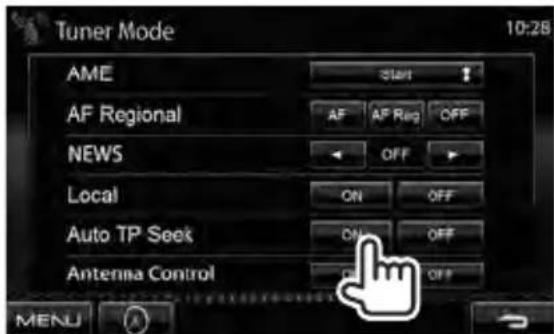
When traffic information station reception is poor, the unit automatically searches for another station that can be received better.
To activate Auto TP Seek
1

text_image
TUNER 10:28 P1 87.9MHz P4 105.9MHz FM1 87.9MHz P2 89.9MHz P5 106.9MHz PS Name P3 97.9MHz P6 107.9MHz Mono T1 Mono Test PTY AM BEEK MENU2
text_image
Tuner Mode 10:28 AME Start AF Regional AF AF Reg OFF NEWS OFF Local ON OFF Auto TP Seek ON OFF Antenna Control OFF MENUTo deactivate, select
Using other external components
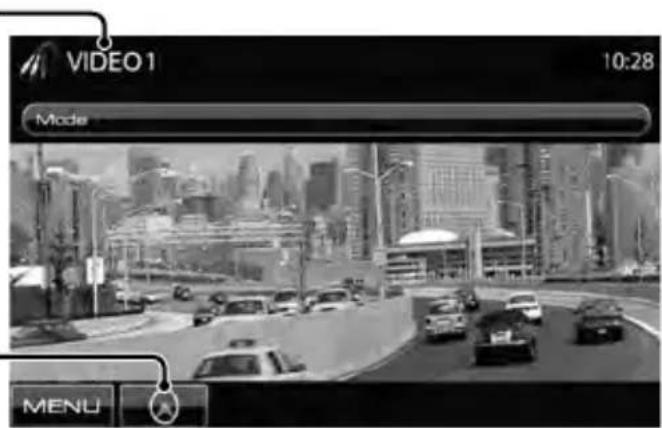
To display the source control screen, page 12.
AV-IN name (below)
text_image
VIDEO 1 10:28 Mode MENUpage 31
[Mode] Changes the AV-IN name.
- Press [◀] or [▶] to select an AV-IN name.
- This setting does not affect the source name "AV-IN 1"/ "AV-IN 2" displayed on
.
[MENU]
Displays
AV-IN
You can connect an external component to the AV-IN terminal.
Preparation:
If you want to use AV-IN2, select
for
1 Connect an external component.
To connect it, page70,71.
2 Select "AV-IN 1" or "AV-IN 2" as the source. ( page 12)
3 Turn on the connected component and start playing the source.
Using the external navigation unit
You can connect a navigation unit ( KNA-G630 : optional accessory) to the navigation input terminal so that you can view the navigation screen. ( page 71)
The navigation guidance comes out through the front speakers even when you listen to an audio source.
■ To view the navigation screen
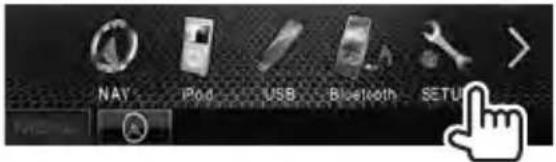
On

text_image
TUNER DISC TEL N iPod USB Bluetooth SETUPor
On any screen:
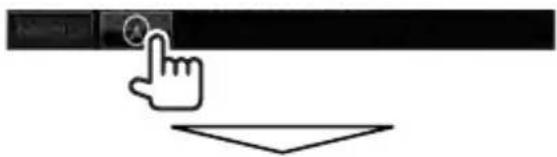
natural_image
Simple line drawing of a hand cursor clicking a button and pointing at a triangle (no text or symbols)The navigation screen is activated.
- While the navigation screen is displayed, the touch panel operations are available only for using navigation function.
- The aspect ratio of the navigation screen is fixed to
regardless of the setting (page 37).
To cancel the navigation screen

■ Settings for navigation unit
1 On

text_image
NAV iPod USB Bluetooth SETUP2
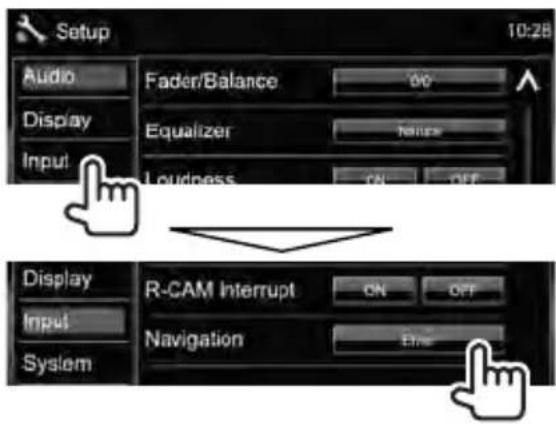
text_image
Setup Audio Display Input Fader/Balance Equalizer Loudness ON OFF Display Input System R-CAM Interrupt Navigation ON OFF OK3
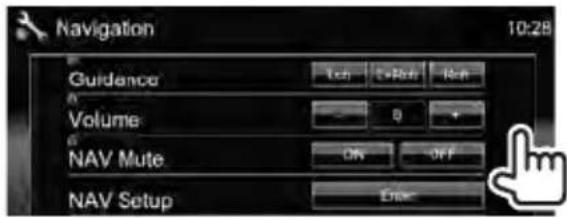
text_image
Navigation 10:28 Guidance a Volume a NAV Mute ON OFF NAV Setup Enter| Guidance Select front speakers used for the navigation guidance. |
| Volume Adjust the volume of the navigation guidance. (0 to 35) |
| NAV Mute Selectto attenuate the sound coming through speakers other than the front speakers during navigation guidance. |
| NAV Setup Press [Enter] to display the setup screen for the navigation unit.See the instruction manual supplied for the navigation unit. |
Sound adjustment
Using the sound equalization
- The adjustment is memorized for each source until you adjust the sound again. If the source is a disc, the adjustment is stored for each of the following categories.
- DVD/DVD-VR
- VCD/CD
- DivX/MPEG1/MPEG2/MP3/WMA/WAV/AAC
- You cannot adjust the sound when the unit is in standby.
■ Selecting a preset sound mode
1 On
text_image
NAY iPod USB Bluetooth SETU2
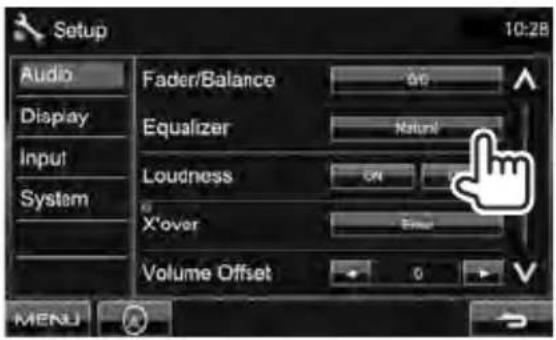
text_image
Setup Audio Display Input System Fader/Balance Equalizer Loudness X'over Volume Offset 0 10:28 ON Natural OK Finish MENU3 Select a sound mode.
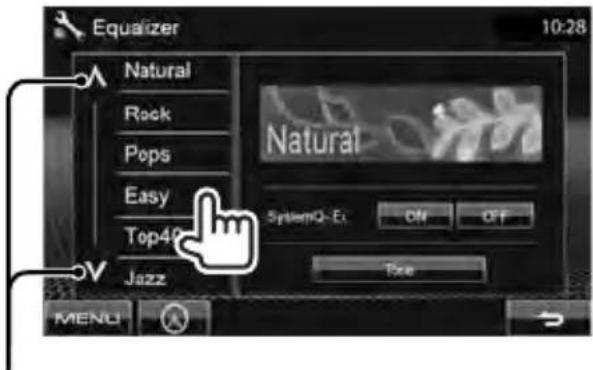
text_image
Equalizer 10:28 Natural Rock Pops Easy Top40 Jazz SystemQ-Ex ON OFF Free MENUChanges the page
■ Storing your own adjustment
Customizing preset sound mode
1 Select a sound mode. (☑ "Selecting a preset sound mode")
2 Set
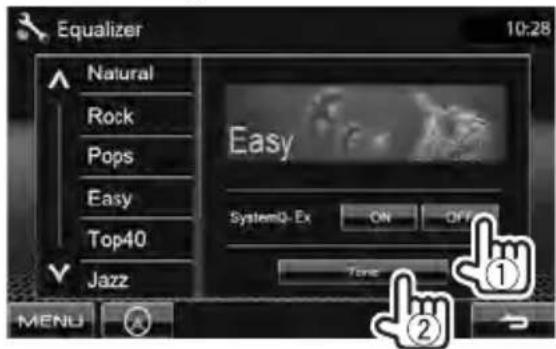
text_image
Equalizer 10:28 Natural Rock Pops Easy Top40 Jazz Easy SystemQ- Ex ON OFF Tone MENU ① ②3 Adjust the level of each band (①), then select the subwoofer level* (②).

text_image
Tone 10:28 Bass Middle Treble Frequency Level 0 Q Factor 1.00 Basis EXT SW Level 0 MENUThe adjustments are stored and
* Adjustable only when the subwoofer is activated. ( page 40)
Adjusting the sound precisely
1 Perform steps 1 and 2 of "Selecting a preset sound mode," then...

text_image
Easy Top40 Jazz SystemQ-Ex ON OFF Top MENU2
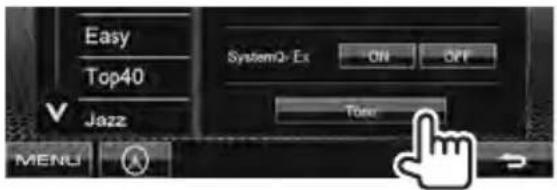
text_image
Easy Top40 SystemQ-Ex ON OFF V Jazz Touch MENU3 Adjust the sound of each band.
text_image
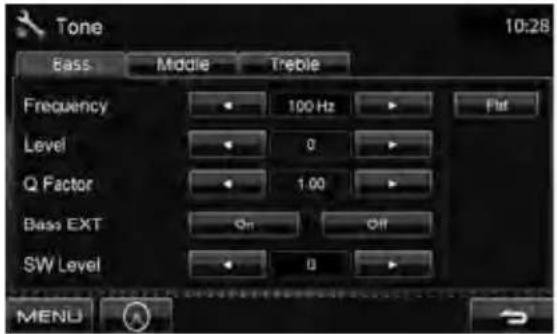
Tone 10:28 Bass Middle Treble Frequency 100 Hz Flat Level 0 Q Factor 1.00 Bass EXT On Off SW Level 0 MENUFlat Changes level of Bass/Middle/Treble to 0.
Frequency Selects frequency.
Level Adjusts level.
Q Factor Adjusts the width of the frequency.
Bass EXT Activates/deactivates bass.
SW Level Adjusts subwoofer level.*
The adjustments are stored and
* Adjustable only when the subwoofer is activated. ( page 40)
Adjusting the cross over frequency
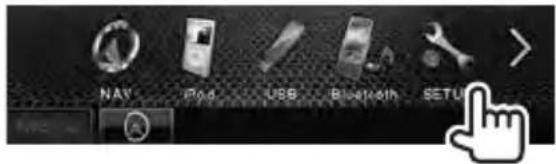
1 On :
text_image
NAV iPad USB Bluetooth SETU2
text_image
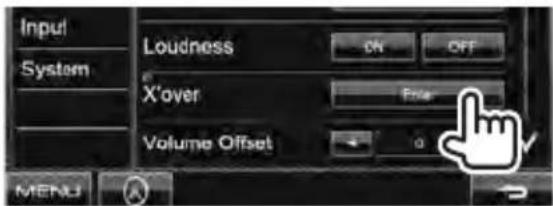
Input System Loudness ON OFF X'over Enter Volume Offset 0 MENU3 Select the item to adjust, then make adjustment.
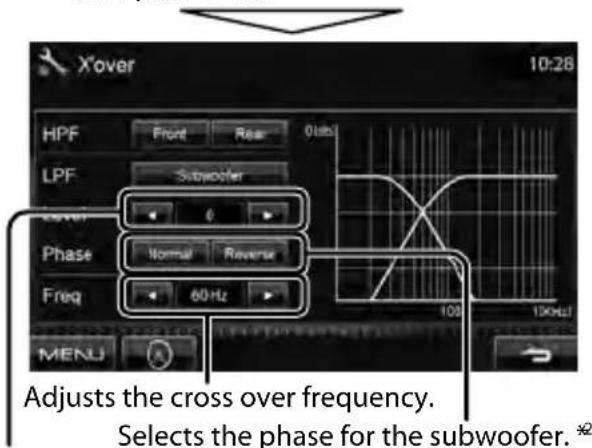
Adjusts the cross over for front or rear speakers (high pass filter).

text_image
X'over HPF Front Rear LPF Subcooler Level 0 Phase Normal Reverse Freq 60 Hz 100Hz 100kHz MENJAdjusts the cross over for subwoofer (low pass filter).*1
text_image
Xover 10:28 HPF Front Reset LPF Subwoofer Level Normal Reverse Phase Freq 60Hz MENU Adjusts the cross over frequency. Selects the phase for the subwoofer. *2Adjusts the subwoofer level.
*1 Adjustable only when the subwoofer is activated. ( page 40)
*2 Not selectable when
Changing the display design
You can change the background and panel color.
1 On :
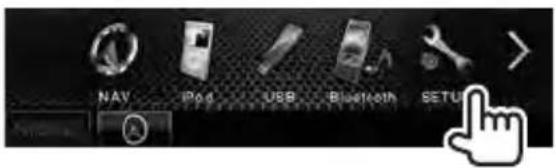
text_image
NAV iPod USB Bluetooth SETUP2

text_image
Setup Audio Fader/Balance 90 Display Equalizer house Input ordness CN OFF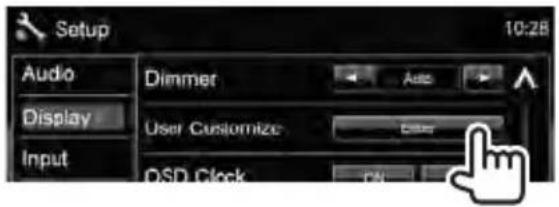
text_image
Setup Audio Display Input Dimmer User Customize: OSD Clock 10:283 Select an item to change ( or ).
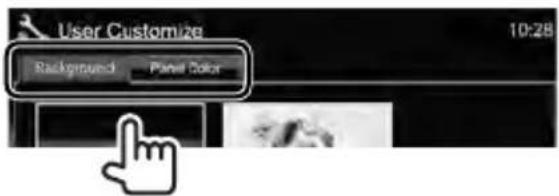
text_image
User Customize Background Panel Color 10:284 Select a background/panel color.
To select a background
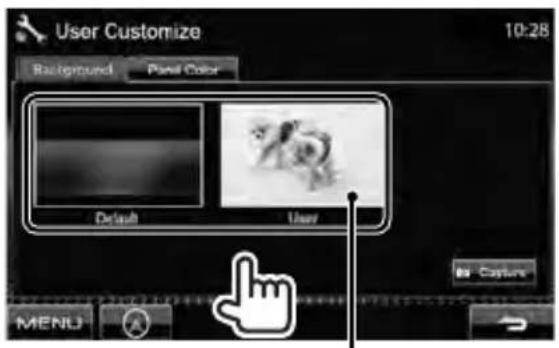
text_image
User Customize 10:28 Background Pixel Color Default User Capture MENUFor setting your favorite scene as the background, 📋 page 35
To select a panel color
Variable color illumination
- Illumination color changes gradually.

text_image
User Customize 10:28 Background Pages Color User MenuFor making your own color adjustment, 📋 below
Making your own color adjustment
- You can make your own color adjustment only when
1
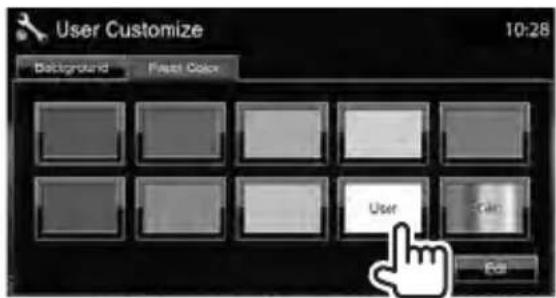
text_image
User Customize 10:28 Background Reset Color User Scan Edit2
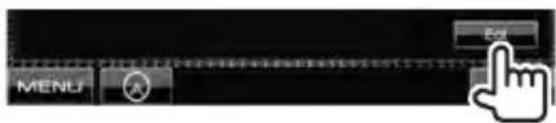
text_image
MENU Edit3
User color adjuster: You can make your own color adjustment stored in
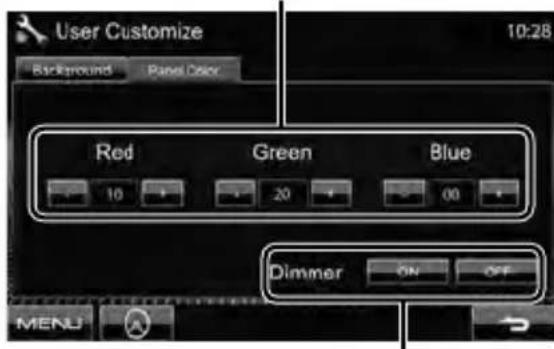
text_image
User Customize Background Panels Color Red Green Blue 10 20 00 Dimmer ON OFF MENUDimmer setting: You can make the color adjustment for each dimmer setting
Using your favorite scene as the background
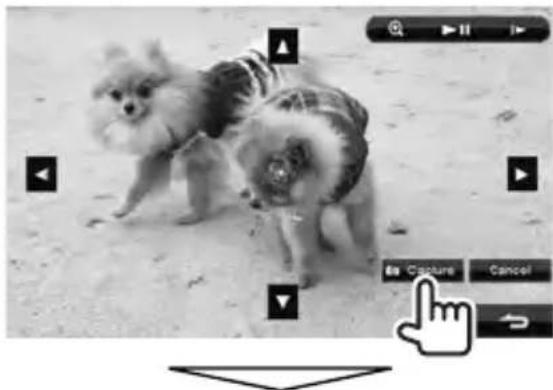
While playing a video or JPEG, you can capture an image and use the captured image as a background.
- You cannot capture copyrighted content and images from iPod/iPhone.
- When using a JPEG file as the background, make sure that the resolution is 800 x 600 pixels.
• The color of the captured image may look different from that of the actual scene.
1 Play back a video or JPEG.
text_image
User Customize 10:28 Randomized Panel Color Default User by Capture MENU4 Adjust the image.
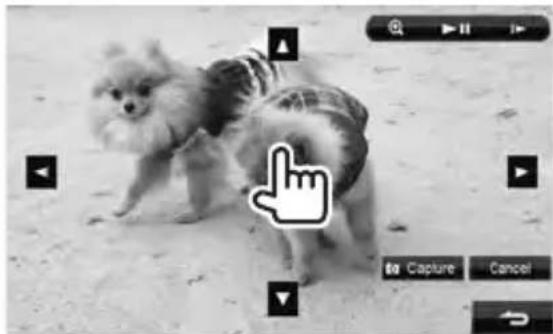
natural_image
Black-and-white photo of a small dog walking on a sandy beach, with a hand cursor icon overlay (no text or symbols on the dog or background)[▶Ⅱ]* Starts/Pauses playback.
[1▶]* Advances scenes frame-by-frame.
[+] Magnifies the scene. (
[▲] [▼] Moves the zooming frame. [◀] [▶]
• To cancel the capture screen, press [Cancel].
* Not displayed when playing an external component connected to AV-IN input terminal.
5 Capture the image displayed on the screen.
natural_image
Black-and-white photo of two small dogs on a sandy beach, with a cursor clicking the button (no text or symbols visible)A confirmation message appears. Press [Yes] to store the newly captured image. (The existing image is replaced with the new one.)
- Press [No] to return to the previous screen.
Setting for video playback
You can change the setting for video playback.
Pictureadjustment
You can adjust the picture quality.
1 Display the adjustment menu.

text_image
Computer screen interface with a pointing hand icon and a navigation bar showing 'CUR', 'Highlights', 'Plan/Site', 'Aspect', 'ZOOM'2 Select dimmer on () or off ().
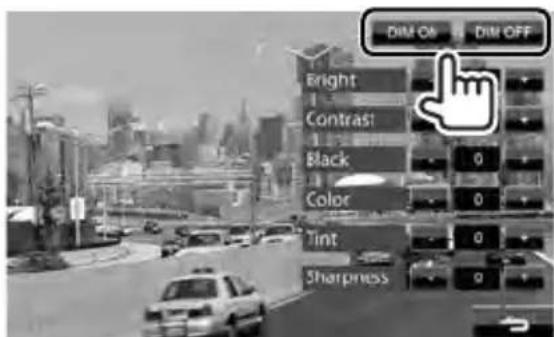
text_image
DIM Off DIM OFF Bright Contrast Black Color Tint Sharpness3 Adjust the picture (-15 to +15).

text_image
Adjusts the brightness Adjusts the contrast Adjusts the black Adjusts the color Adjusts the tint* Adjusts the sharpness Bright Contrast Black Color Tint Sharpness* Adjustable only when the incoming signal is NTSC.
Changing the aspect ratio
You can change the aspect ratio for video playback.
1

text_image
CUR Highlight MainAdjacent Asper 200M2
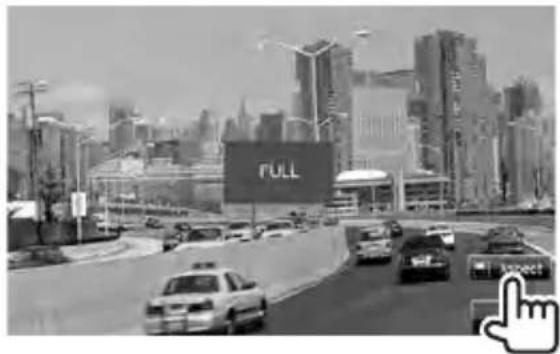
text_image
FULL| 4:3 signal 1 | 6:9 signal | |
| FULL*:For 16:9originalpictures |  | 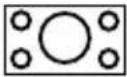 |
| JUST:For 4:3LBoriginalpictures | 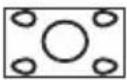 | 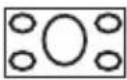 |
| Normal*:For 4:3 originalpictures | 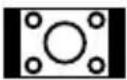 |  |
| Auto:· For “ | DISC”/“USB”only: Aspect ratio is automatically selected to match to the incoming signals. | |
* While DivX is played back with
Zoomingpicture
You can zoom the picture (
- When
1

text_image
CUR Highlight PainApgar Aspect Import2
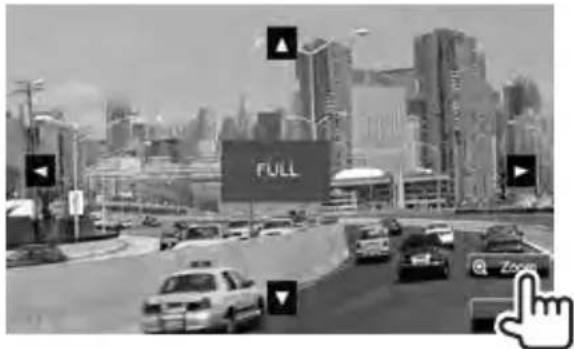
text_image
FULL Zoom[▲] [▼] [◀] [▶]: Moves the zooming frame.
Using a rear view camera
- To use a rear view camera, the REVERSE lead connection is required. For connecting a rear view camera, page71.
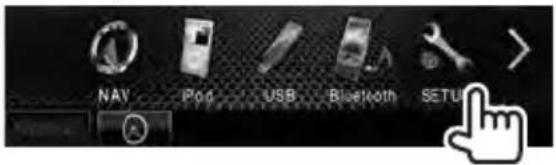
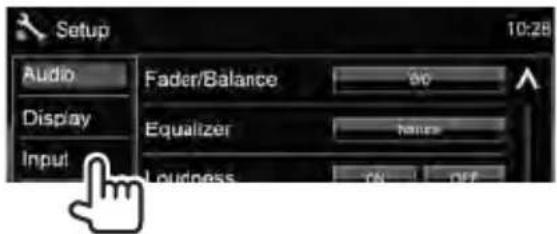
■ Activating the rear view camera
1 On
text_image
NAV iPod USB Bluetooth SETUP2
text_image
Setup Audio Display Input Fader/Balance Equalizer Loudness 90 Name OK OFF 10:283

text_image
Setup 10:28 Audio Display Input AV Input AV-RC Pod R-CAM Interrupt OK Off NavigationTo deactivate, select
■ Displaying the picture from the rear view camera
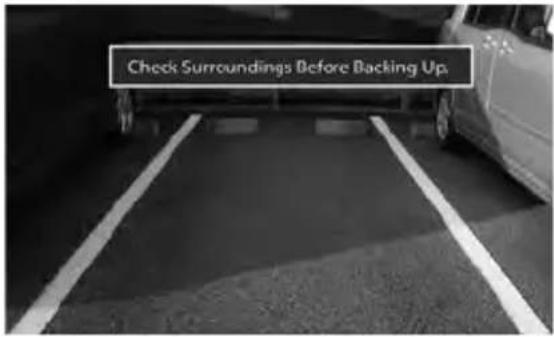
The rear view screen is displayed when you shift the gear to the reverse (R) position.
text_image
Check Surroundings Before Backing Up.• To erase the caution message, touch the screen.
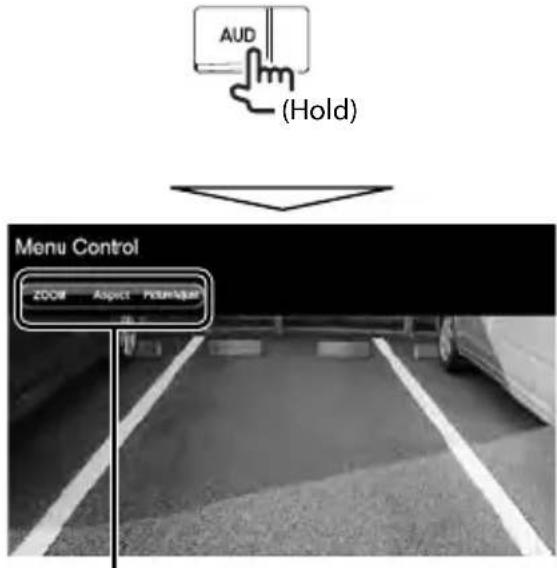
To display the picture from the rear view camera manually
text_image
AUD (Hold) Menu Control ZOOM Aspect Please/AgarWhen displaying the picture from the rear view camera manually, you can change the setting of the picture. ( page 36)
To cancel the rear view screen, press and hold the same button again.
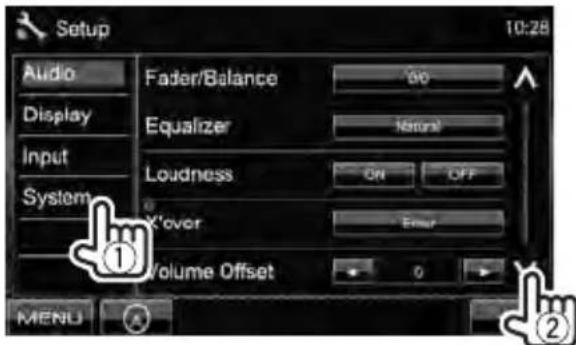
Using the steering remote controller
You can assign the functions to the keys of the remote controller on the steering wheel.
- This function is available only when your vehicle is equipped with the electrical steering remote controller.
- You can only register/change the functions while you are parked.
- If your steering remote controller is not compliant, learning may not be completed and an error massage may appear.
■ Registering/Changing the functions
1 On :

text_image
NAV iPod USB Bluetooth SETUP2
text_image
Setup Audio Display Input System Fader/Balance Equalizer Loudness K'over Volume Offset 90 Natural On OFF Error 1 MENU A ②3
text_image
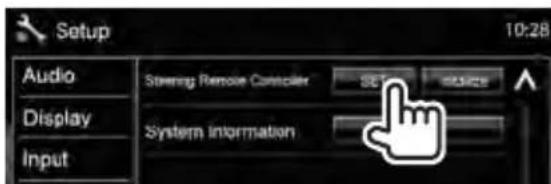
Setup 10:28 Audio Display Input Sterling: Remote Controller SET System Information4 Press a steering remote controller button to register/change.
5 Select a function to assign.

text_image
Steering Remote Control Setting 10:28 Please select the function to assign to this button. - VOL▲ VOL▼ ATT Done MENU6 Repeat steps 4 and 5 as necessary.
7 Press [Done].
- You can have the unit learned all buttons at a time. In that case, press the all buttons one at a time and after pressing all of them, touch [Done] in Steering Remote Control Setting screen. However, new functions cannot be learned after this operation.
- When changing the function already learned, touch the button you want to change in step 4 and then touch to select the changed function from the function list.
- Confirm the contents of the settable function on the function list. You cannot edit the function list.
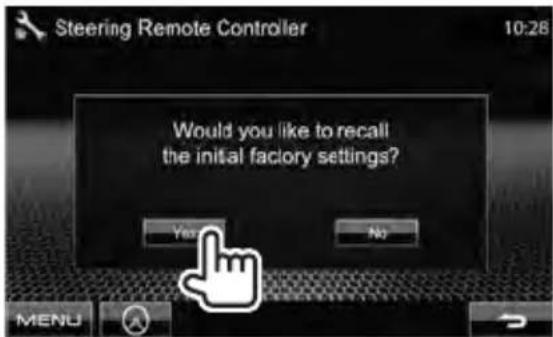
■ Initializing the settings
1 In step 2 in the left column:

text_image
Setup 10:28 Audio Display Input Steering Remote Controller SET Interface System Information Enter2
text_image
Steering Remote Controller 10:28 Would you like to recall the initial factory settings? Yes No MENU
text_image
NAV iPod USB Bluetooth SETUP- You cannot change
| Menu item Selectable setting | Item Initial: Underlined | |
| Audio | Fader/Balance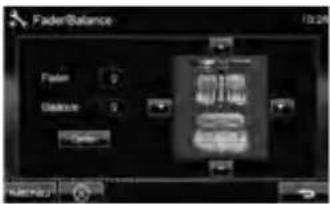 | Fader: Adjust the front and rear speaker output balance.F6 to R6; Initial0When using a two-speaker system, set the fader to the center (0).Balance: Adjust the left and right speaker output balance.L6 to R6; Initial0Press [▲/▼/◄/►] or drag [⊕] to adjust.To clear the adjustment, press [Center]. |
| Equalizer | Change the sound mode or adjust and store the equalization for each source. (page 32)Natural/Rock/Pops/Easy/Top40/Jazz/User | |
| Loudness You can activate/deactivate the loudness function.OFF : Cancels.ON : Boost low and high frequencies to produce a well-balanced sound at a low volume level. The LOUD indicator lights up. | ||
| X'over | Adjust the cross over frequency. (page 33) | |
| Volume Offset | Adjust and store the auto-adjustment volume level for each source. (For discs, the adjustment is stored for each of the following categories: DVD/DVD-VR, VCD/CD, and DivX/MPEG1/MPEG2/MP3/WMA/WAV/AAC.) The volume level will automatically increase or decrease when you change the source.-15 to +6; Initial0 | |
| Subwoofer | ON : Activates the subwoofer.OFF : Cancels. | |
| Speaker Select | Select the size of the connected speaker.Standard/Narrow/Middle/Wide | |
| Menu item Selectable setting | g/item Initial: Underlined | |
| Display | Dimmer | ◆Auto : Dims the screen and button illumination when you turn on the headlights. · The ILLUMI lead connection is required. (page69)◆ON: Activates dimmer.◆OFF: Cancels.◆NAV: Activates or deactivates dimmer according to the day/night display setting of the connected navigation unit. |
| UserCustomize | Change the display design (background and panel color). (page 34) | |
| OSD Clock | ◆ON : Displays the clock while a video source is played back.◆OFF: Cancels. | |
| Scroll | ◆ON: Repeats scrolling.◆Once : Scrolls the displayed information once.◆OFF: Cancels.·Pressing [<] scrolls the text regardless of this setting. | |
| Menu Customize | Select the large buttons to be displayed on thescreen.Press [Enter] to display the setting screen. Select the icon you want to show as large button by pressing [<] or [>], then press the target icon to confirm. | |
| Screen Adjust | Adjust the brightness and black color of the screen.Select the dimmer mode (or+) for adjustment, then change the following settings:◆Bright : Adjusts brightness (-15 to +15; Initial +15).◆Black : Adjusts black (-15 to +15; Initial 0). | |
| Video Output* | Select the color system of the external monitor.◆NTSC/PAL | |
| Angle | Adjust the panel angle. (page 5) | |
* "Please power off" appears when the setting is changed. Turn off the power, then turn on to enable the change.
| Menu item Selectable setting/item Initial: Underlined | ||
| Input | AVInputYou can determine the use of AV-IN input terminal.◆ AV-IN2 : Select to play an AV component connected to the AV-IN input terminal.◆ iPod: Select when connecting the iPod/iPhone using the USB Audio and Video cable for iPod/iPhone. (page 22) | |
| R-CAM Interrupt | ◆ ON : Displays the picture from the rear view camera when you shift the gear to the reverse (R) position.◆ OFF: Cancels. | |
| Navigation | Change the navigation settings. (page 31) | |
| System | Language* | Select the text language used for on-screen information.♦English/Spanish/French/German/Italian/Dutch/Russian/Portuguese/Chinese-Simplified/Chinese-Traditional/Thai/Turkish/Arabic/Persian/Hebrew/Greece/IndonesiaFor external monitors, only English/Spanish/French/German/Italian/Dutch/Russian/Portuguese are available. If another language has been selected, the text language for external monitors will be set to English.♦GUI : Select a language (or:the language selected above) used for displaying operation buttons and menu items. |
| Clock | Adjust the clock time. (page 9) | |
| Beep | ♦ON : Activates the key-touch tone.♦OFF : Cancels. | |
| Remote Sensor | ♦ON : Activates the remote sensor.♦OFF : Cancels. | |
| SETUP Memory You can memorize, recall, clear, or lock the settings you have made. (page 44) | ||
| DivX(R) VOD This unit has its own Registration Code. Once you have played back a file with which the Registration Code recorded, this unit's Registration Code is overwritten for copyright protection.• Press [Enter] to display the information.• To return to the previous screen, press [OK]. | ||
| Security Code | Register the security code for the unit. (page 7) | |
| SI | Activate or deactivate the security function. (page 7) | |
| Serial Number Displays the serial number. | ||
| Touch Panel Adjust | Adjust the touch position of the buttons on screen. (page 44) | |
| Steering Remote Controller | Assign the functions to the keys on the remote controller of the steering wheel. (page 39) | |
| System Information Displays the version information on the software. You can update the software. (page 6) | ||
* "Please power off" appears when the setting is changed. Turn off the power, then turn on to enable the change.
Memorizing/recallingthe settings
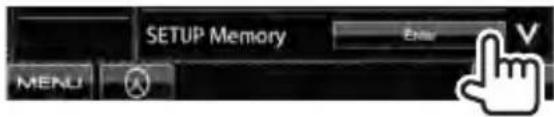
You can memorize the settings changed in the
- The memorized settings are kept even when the unit is reset.
1 On
text_image
SETUP Memory MENU Enter V2
text_image
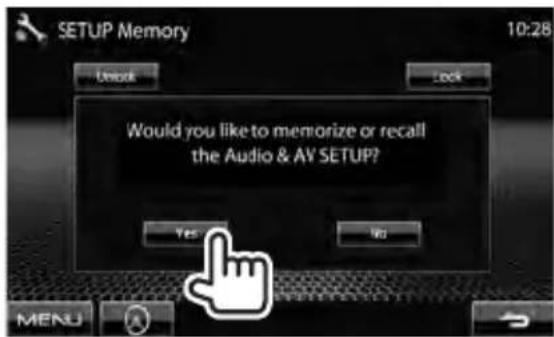
SETUP Memory 10:28 Unlock Lock Would you like to memorize or recall the Audio & AV SETUP? Yes No MENU- To cancel, press [No].
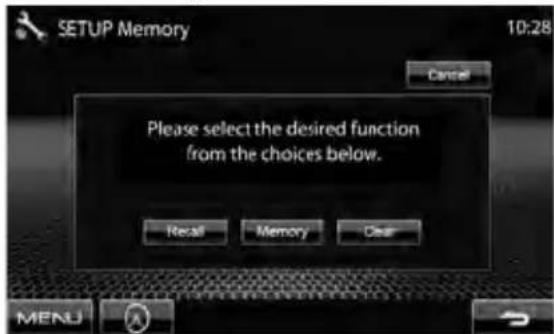
3 Select an operation.
text_image
SETUP Memory 10:28 Cancel Please select the desired function from the choices below. Recall Memory Clear MENU[Recall]: Recalls the memorized settings.
[Memory]: Memorizes the current settings.
[Clear]: Clears the currently memorized settings.
- To cancel, press [Cancel].

Confirmation message appears. Press [Yes].
Locking the settings
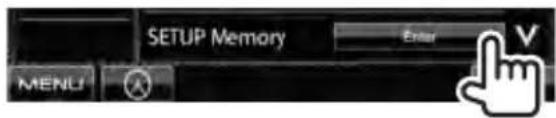
You can lock the settings to prevent them from being changed.
- is shown beside the settings that can be locked.
1 On
text_image
SETUP Memory MENU Enter V2
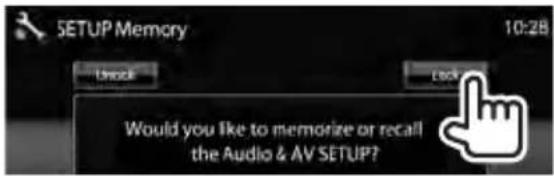
text_image
SETUP Memory 10:28 Unlock Lock Would you like to memorize or recall the Audio & AV SETUP?To unlock the setting, press [Unlock].
Adjusting the touch position
You can adjust the touch position on the touch panel if the position touched and the operation performed do not match.
1 On
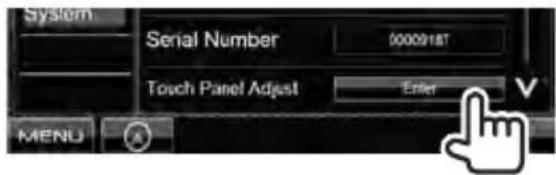
text_image
System Serial Number 0000918T Touch Panel Adjust Enter MENU2 Touch the center of the marks at the lower left and at the upper right as instructed.
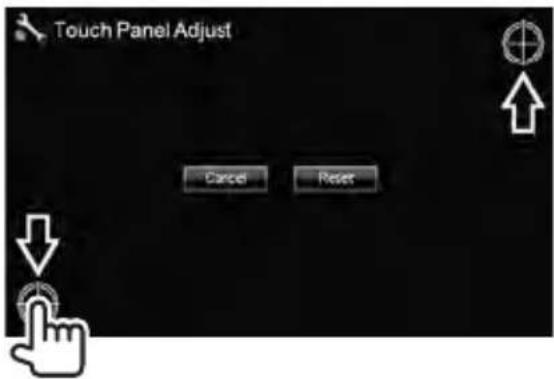
text_image
Touch Panel Adjust Cancel Reset- To cancel the current operation, press [Cancel].
- To reset to the initial setting, press [Reset].
BLUETOOTH OPERATIONS
(OnlyforDDX630WBT/DDX630WBTM)
Information for using Bluetooth® devices
- While driving, do not perform complicated operations such as dialing the numbers, using phonebook, etc. When you perform these operations, stop your car in a safe place.
- Some Bluetooth devices may not be connected to this unit depending on the Bluetooth version of the device.
• This unit may not work for some Bluetooth devices. - Connecting condition may vary depending on circumstances around you.
- When the unit is turned off, the device is disconnected.
Bluetoothoperations

Bluetooth®
Bluetooth is a short-range wireless radio communication technology for the mobile device such as mobile phones, portable PCs, and other devices. The Bluetooth devices can be connected without cables and communicate with each other.
Preparation:
Be sure to connect Bluetooth adapter KS-UBT1 (supplied) and microphone (supplied) beforehand. ( page69)
Bluetooth adaptor (KS-UBT1)
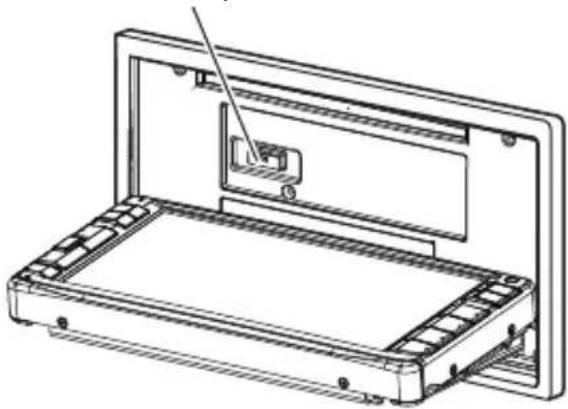
natural_image
Technical line drawing of a mechanical device with a handle and internal components (no text or symbols)Connecting Bluetooth devices
■ Connecting a new Bluetooth device for the first time
When you connect a Bluetooth device to the unit for the first time, make pairing between the unit and the device. Pairing allows Bluetooth devices to communicate each other.
To make pairing, you may need to enter the PIN (Personal Identification Number) code of your Bluetooth device you want to connect.
- Once the connection is established, it is registered in the unit even if you reset the unit. Up to 5 devices can be registered in total.
- Only one device for Bluetooth phone and one for Bluetooth audio can be connected at a time.
- To use the Bluetooth function, you need to turn on Bluetooth function of the device.
- The maximum digit of the PIN code that can be set is 16.
1 Display the Bluetooth setting screen.

text_image
OnFor connecting a Bluetooth mobile phone

text_image
Phonebook Mode MENU Voice No Preset No Preset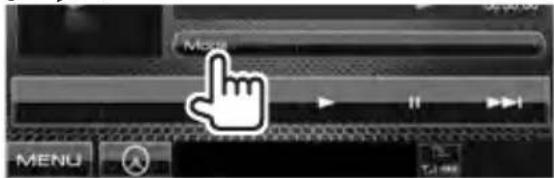
text_image
Menu2 Change the PIN code.
- If you skip changing the PIN code, go to step 3.
On :

text_image
Handsfree Mode 10:28 TEL Connection Direct Connect Outgoing PIN Code Incoming Device Name RINANCED BYPIN code (initial: 0000)
On :

text_image
Bluetooth Mode 10:28 Connection Connect Disconnect PIN Code 12300000 Device NamePIN code (initial: 0000)

text_image
PIN Code Set 10:28 0000 1 2 3 4 6 7 9 5 0 Enter Clear MENUDeletes last character
3

text_image
Bluetooth Mode 10:28 Connection Connect Connect PIN Code Device Name IEMAVISION ET MM-NUJ4

text_image
Connect Device 10:28 New Device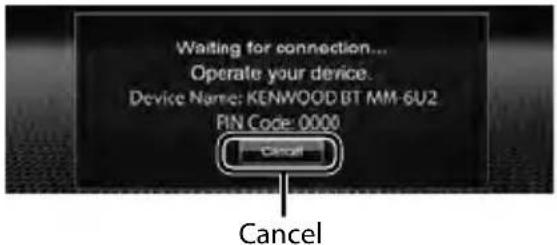
text_image
Waiting for connection... Operate your device. Device Name: KENWOOD BT MM-6U2 PIN Code: 0000 Cancel5 Operate the Bluetooth device to connect.
"Connected" appears. Press [OK] to confirm the operation.
Now connection is established and you can use the Bluetooth device through the unit.

Connecting/disconnectinga registered Bluetooth device
1 Display the Bluetooth setting
screen. (page 46)
• For Bluetooth mobile phone:
• For Bluetooth audio player:
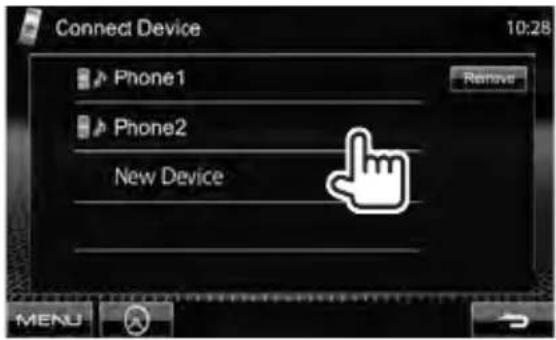
2 To connect

text_image
Bluetooth Mode 10:28 Connection Connect Connect PIN Code Device Name GENWUX345 MM-4U2Select the device you want to connect.
text_image
Connect Device 10:28 Phone1 Phone2 New Device Remove MENU• All registered devices (mobile phone and audio player) are listed on
- Selectable items depend on the device you are operating.
To disconnect

text_image
Bluetooth Mode 10:25 Connection CORRECT DISCONNECT PIN Code 113.1XXXXV Device Name KEYWSD BT MN 602A confirmation message appears. Press [Yes].
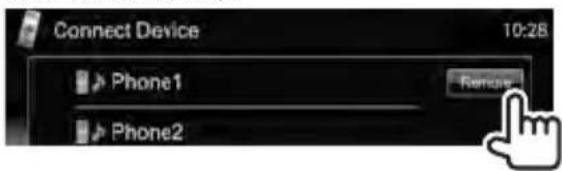
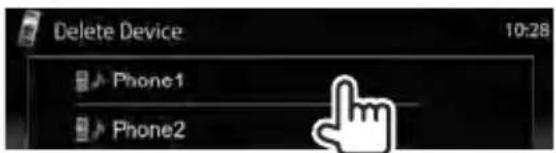
■ Deleting a registered Bluetooth device
1 On
text_image
Connect Device 10:28 Phone1 Phone2 Remove2 Select a device to delete the registration.
text_image
Delete Device Phone1 Phone2 10:28Confirmation message appears. Press [Yes].
Using the Bluetooth mobile phone

Receiving a call
When a call comes in...

text_image
Rejects the call Call information (if acquired) Calling Incoming Call Name 1234XXXXXX MENUStatus of the device/Battery reminder (only when the information comes from the device)
- Phone operation is not available while the picture from the rear view camera is displayed. ( page 38)
When is set to
The unit answers the incoming call automatically. ( page 54)

Ending a call
While talking...

text_image
Connected 10:28 Talking... Name 1234XXXXXX C VOL + 1 MENU
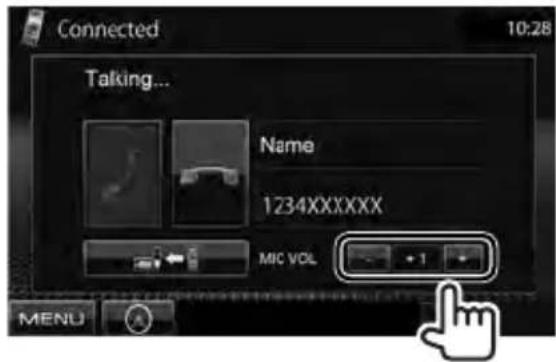
Adjusting the volume of microphone
While talking...
text_image
Connected 10:28 Talking... Name 1234XXXXXX MIC VOL MENU- This adjustment does not affect the volume level of the other sources.
- To adjust the volume of calls/earpiece, use the volume knob on the monitor panel.

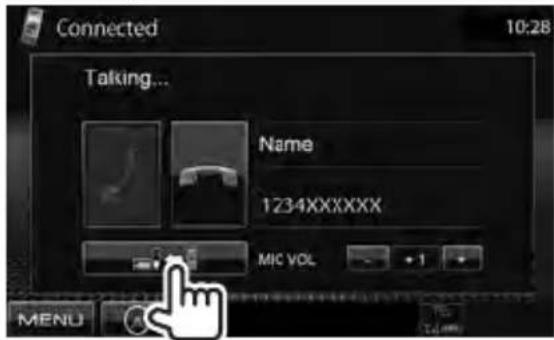
Switching between handsfree mode and phone mode
While talking...
text_image
Connected 10:28 Talking... Name 1234XXXXXX MIC VOL MENU AEach time you press the button, the talking method is switched ( [←] : handsfree mode / [→] : phone mode).

Checking SMS reception
If the mobile phone is compatible with SMS (Short Message Service), the unit tells you a message has been received.
To read a received message, operate the mobile phone after stopping the car in a safe place.
- You cannot read, edit, or send a message through the unit.
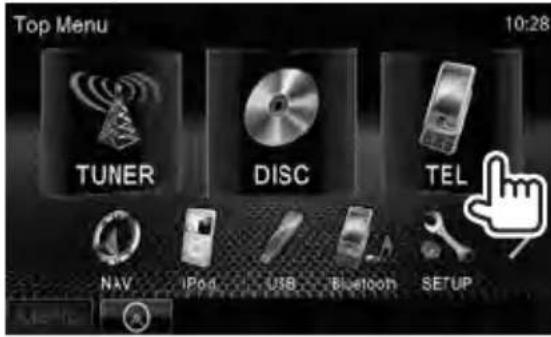
Making a call
1 On :
text_image
Top Menu 10:28 TUNER DISC TEL NAV IPoD USB Bluetooth SETUP2 Select a method to make a call.
Phonebook/Call lists ( page 50)

text_image
Direct number entry ( the right column ) Handsfree 10:28 TE Outgoing Incoming Missed Phonebook Mode MENU Direct Number 1234XXXXXX 2345XXXXXX 3456XXXXXX No Preset No Preset No Preset Preset list (For presetting, page 51)Voice dialing (the right column)
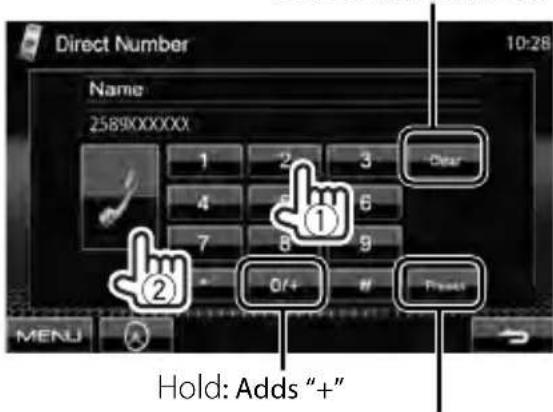
Direct number entry
Deletes last character
text_image
Direct Number Name 2589XXXXXX 1 2 3 Clear 4 5 6 7 8 9 ① ② 0/+ # Press MENU Hold: Adds "+"Presets the entered phone number on the preset list ( page 51)
• You can enter up to 32 numbers.
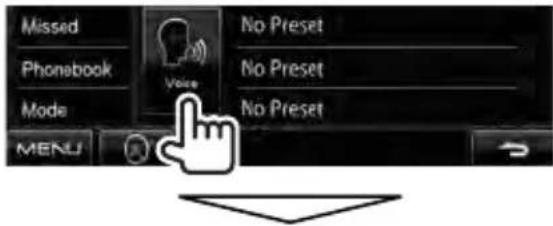
VoiceDialing
• Available only when the connected mobile phone has the voice recognition system.
text_image
Missed Phonebook Mode MENJ Voice No Preset No Preset No PresetSpeak the name you want to call.
To cancel, press [Cancel].
Using the phonebook/call lists
1

text_image
Handfree 10:28 TEL Outgoing Incoming Missed Phonebook Mode MENU 1234XXXXXX 2345XXXXXX 3456XXXXXX No Preset No Preset No Preset| Outgoing | From dialled call list. |
| Incoming From received call list. | |
| Missed From missed call list. | |
| Phonebook From phonebook.• For copying the phonebook, page 51. | |

text_image
Phonebook 10:28 TEL Name1 1111111111 > Phone Outgoing Name2 2222 > Incoming Name3 3333 > Missed Name4 4444444444 > Phonebook Name5 5555555555 > Mode Name6 6666666666 >2

text_image
2589XXXXXX 1 2 3 Clear 4 5 6 7 8 9 0/+ # Reset MENUTo use the A-Z search on the phonebook
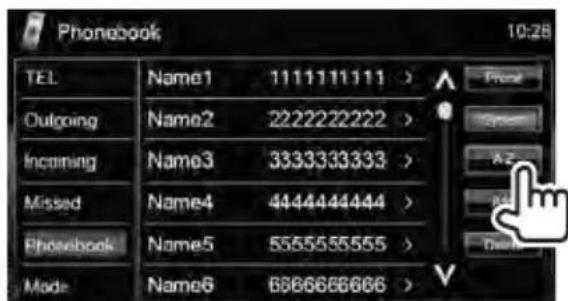
When
1
text_image
Phonebook 10:28 TEL Name1 1111111111 > Phone Outgoing Name2 2222222222 > Incoming Name3 3333333333 > Missed Name4 4444444444 > Phonebook Name5 5555555555 > Mode Name6 6866666666 >2 Select the initial. If the initial is not a letter or number, press [Others].

text_image
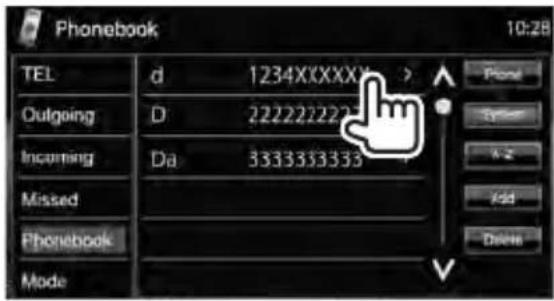
A - Z Search 10:28 A B C D E F G H I J K L Q O P Q R S T U V W X Y Z 1 2 3 4 5 6 7 8 9 0 Others3 Select a phone number from the list.
text_image
Phonebook 10:28 TEL d 1234XXXXX Outgoing D 222222222 Incoming Da 3333333333 Missed Phonebook ModeTo display the details of an entry
When
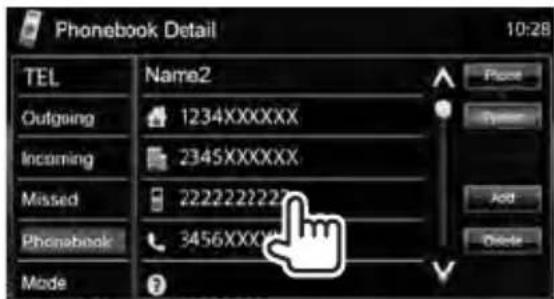
1 Press the right arrow icon of an entry.

text_image
Phonebook 10:28 TEL Name1 111111111 > Phone Outgoing Name2 222222222 > Open Incoming Name3 3333333333 > Add Missed Name4 4444444444 > Add Phonebook Name5 5555555555 > Delete Mode Name6 6666666666 >2 To make a call, select a phone number.
text_image
Phonebook Detail 10:28 TEL Name2 Outgoing 1234XXXXXX Incoming 2345XXXXXX Missed 222222222 Phonebook 3456XXXXX Mode ?■ Presetting the phone numbers
You can preset up to 6 phone numbers.
1 On
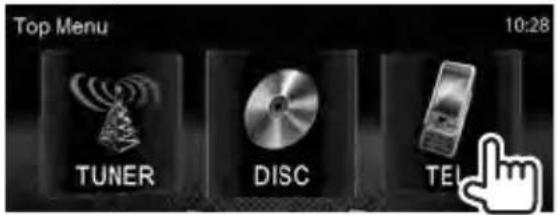
text_image
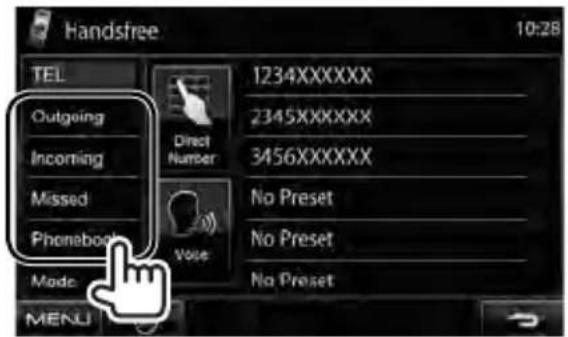
Top Menu 10:28 TUNER DISC TEL2 Select an item from phonebook/call lists.
text_image
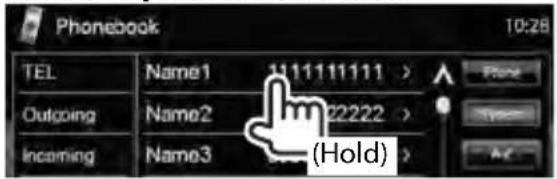
Handfree 10:28 TEL Outgoing Incoming Missed Phonebook Mode 1234XXXXXX 2345XXXXXX 3456XXXXXX No Preset No Preset No Preset MENU3 Select a phone number.
text_image
Phonebook 10:28 TEL Name1 1111111111 > Outgoing Name2 22222 > Incoming Name3 (Hold)4 Select a preset number to store.

text_image
Preset Memory 10:28 Tel Outgoing Incoming Name1 No Preset No Preset- You can also preset the phone number entered on
To delete the preset phone numbers, initialize the settings from
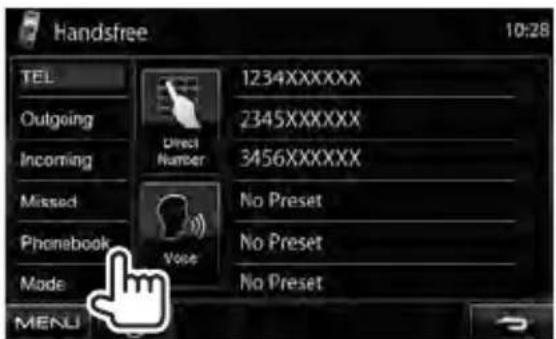
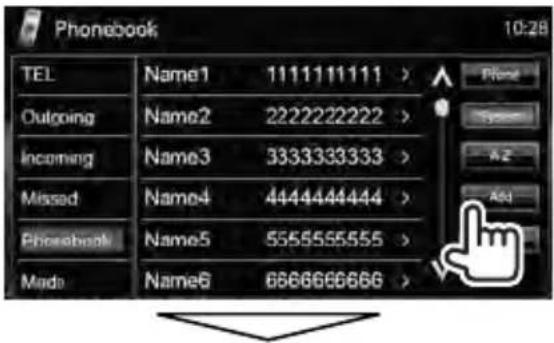
■ Copying the phonebook
You can copy the phonebook memory of a mobile phone into the unit (up to 400 entries).
1 On

text_image
Top Menu 10:28 TUNER DISC TEL2
text_image
Handsfree 10:28 TEL Outgoing Incoming Missed Phonebook Made MENU 1234XXXXXX 2345XXXXXX 3456XXXXXX No Preset No Preset No Preset3
text_image
Phonebook 10:28 TEL Name1 1111111111 > Outgoing Name2 2222222222 > Incoming Name3 3333333333 > Missed Name4 4444444444 > Phonebook Name5 5555555555 > Made Name6 6666666666 >PIN code (initial: 0000)
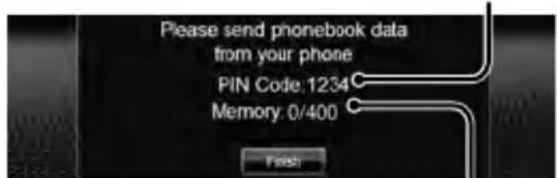
text_image
Please send phonebook data from your phone PIN Code: 1234 Memory: 0/400 FinishNumbers of the phonebook entries copied
4 Operate the target mobile phone.
• Refer to the instruction manual supplied with your mobile phone.
• To cancel the transfer, press [Finish].
5 Finish the procedure.

text_image
FreeThe phonebook memory is copied from the mobile phone.
■ Deleting the phone number entries in the unit
1 Display the phonebook/call list you want to delete. ( page 50)
2
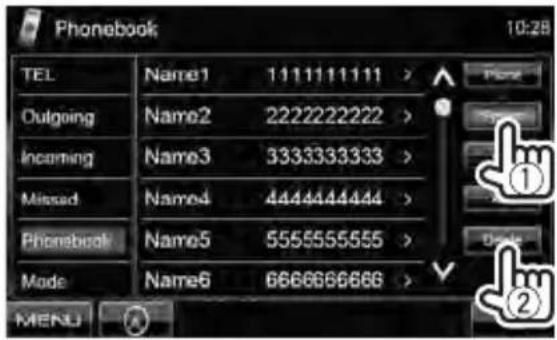
text_image
Phonebook 10:28 TEL Name1 1111111111 > Outgoing Name2 2222222222 > Incoming Name3 3333333333 > Missed Name4 4444444444 > Phonebook Name5 5555555555 > Made Name6 6666666666 > MENU ① ②- You cannot delete data when
3 Select the item you want to delete.
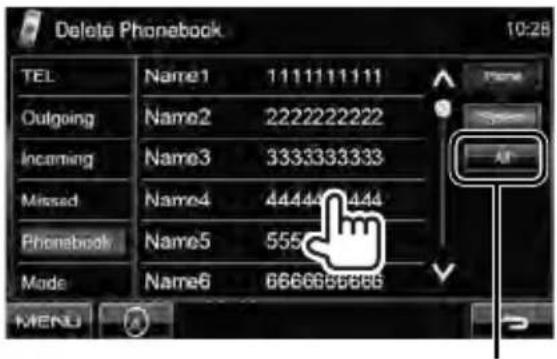
text_image
Delete Phonebook 10:28 TEL Name1 1111111111 Outgoing Name2 2222222222 Incoming Name3 3333333333 Missed Name4 44444 444 Phonebook Name5 555 Made Name6 6666666666 MENI AllDelete all the numbers/ names in the selected item
A confirmation message appears. Press [Yes].
■ About mobile phones compatible with Phone Book Access Profile (PBAP)
If your mobile phone supports PBAP, the phonebook and call lists are automatically copied to the unit when the mobile phone is connected.
• Phonebook: up to 5 000 entries
• Dialled calls, received calls, and missed calls: up to 50 entries each
To display the phonebook/call lists of the mobile phone or the unit
Connected mobile phone

text_image
Phonebook TEL Name1 1111111111 > Phone Outgoing Name2 2222222222 > System Incoming Name3 3333333333 > Missed Name4 4444444444 > Phonebook Name5 5555555555 > Mode Name6 6666666666 > MENU UnitUsing the Bluetooth audio player
• To register a new device, page 46.
• To connect/disconnect a device, page 47.

text_image
Tag data (current track artist name/album t • Pressing [<] scrolls not all of the text Playing time * Playback status * (►: play / ||: pause) Battery reminder (only when the inform comes from the device) Page 31 MENU 00:00:00 Title Artist Album- The operation buttons, indications and information displayed on the screen differ depending on the connected device.
| [▶] Starts playback. | |
| [■] Pauses. | |
| [◀◀][▶▶I] • Selects track. (Press) • Reverse/forward search* (Hold) |
| [Mode] Displays the Bluetooth setting screen. (below) | |
| [MENU] | Displaysscreen. |
* Available only for the devices compatible with AVRCP 1.3.
Bluetooth device settings
For Bluetooth mobile phone:
1 On
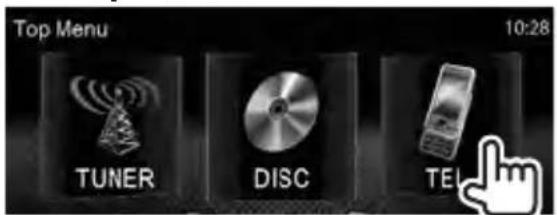
text_image
Top Menu 10:28 TUNER DISC TELFor Bluetooth audio player:
1 On
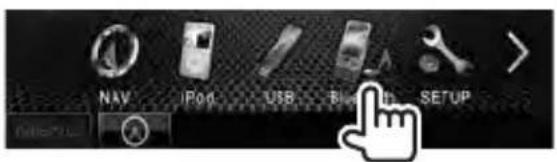
text_image
NAV IP04 USB Blu3.0 SETUP2
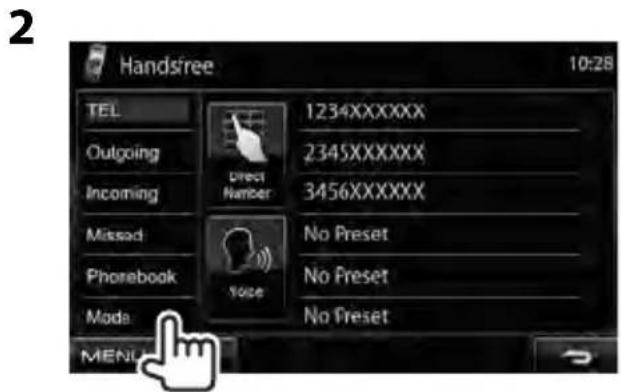
text_image
2 Handsfree 10:28 TEL Outgoing Incoming Missed Phonebook Mode 1234XXXXXX 2345XXXXXX 3456XXXXXX Direct Number No Preset No Preset No Preset MENU
text_image
Bluetooth 10:28 Title Artist Album 00:00:00 MENU| Menu items Selectable setting/item Initial: Underlined | |
| Connection ◆ | Connect : page 47♦ Disconnect : page 47 |
| PIN Code Changes the PIN code of the unit.• Enter a new PIN code, then press [Enter]. | |
| Device Name Shows the device name to be shown on the Bluetooth device — “KENWOOD BT MM-6U2.” | |
| Device Address | Shows the device address of the unit. |
| Phone Device*1 | Shows the connected phone device name. |
| Audio Device*2 | Shows the connected audio device name. |
| Auto Connect | ♦ OFF : Cancels.♦ ON : The connection is automatically established with the last connected Bluetooth device when the unit is turned on. |
| Bluetooth HF/Audio | Select the speakers used for Bluetooth (both phone use and audio player).♦ Front Only : From front speakers only.♦ All : From all speakers. |
| Initialize | Hold [Enter] to initialize all settings you have made for using Bluetooth mobile phone and Bluetooth audio player. |
| Auto Response*1 | ♦ OFF : The unit does not answer the calls automatically. Answer the calls manually.♦ ON : The unit answers the incoming calls automatically within 5 seconds. |
| SMS Notify*1 | ♦ OFF : The unit does not inform you of the arrival of a message.♦ ON : The unit informs you of the arrival of a message by ringing and displaying “Receiving Message.” |
| Ring Mode*1 | ♦ System : Selects the ring tone set on the unit.♦ Phone : Selects the ring tone set on the mobile phone. (This function may not work depending on the mobile phone.) |
| Ring Tone Change*1 | Whenis set to, press [Enter], then select the ring tone for received calls and SMS from,,.♦ Call Tone : Selects the ring tone for phone calls.♦ Message : Selects the ring tone for SMS. Tone |
*1 Appears only for
*2 Appears only for
DDX630WBT (Region 3)/DDX630WBTM/DDX630W (Region 3)/DDX630WM:
This unit can be operated using the Remote Controller (RC-DV340) supplied with this unit. DDX630WBT (Region 4)/DDX630W (Region 4):
Optional Remote Controller KNA-RCDV331 is designed for controlling this unit. Refer to the instruction manual that comes with the remote controller.
CAUTION
- Put the Remote Controller in a place where it will not move during braking or other operations. A dangerous situation could result, if the Remote Controller falls down and gets wedged under the pedals while driving.
- Do not leave the battery near fire or under direct sunlight. A fire, explosion or excessive heat generation may result.
- Do not recharge, short, break up or heat the battery or place it in an open fire. Such actions may cause the battery to leak fluid. If spilled fluid comes in contact with your eyes or on clothing, immediately rinse with water and consult a physician.
- Place the battery out of reach of children. In the unlikely event that a child swallows the battery, immediately consult a physician.
Battery installation
Use two "AAA"/"R03"-size batteries.
Insert the batteries with the + and - poles aligned properly, following the illustration inside the case.
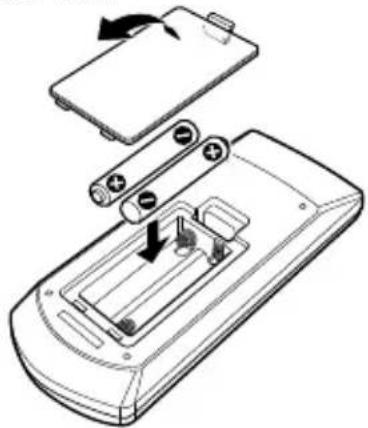
natural_image
Technical line drawing of a battery pack with internal components and arrows indicating rotation (no text or symbols)- If the Remote Controller operates only over shorter distances or does not operate at all, it is possible that the batteries are depleted. In such instances, replace the both batteries with new ones.
Remote Controller mode switch
The functions operated from the remote controller differ depending on the position of the mode switch.
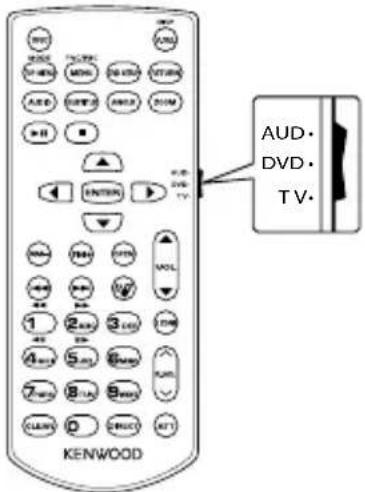
text_image
AUD DVD TV KENWOODAUD mode: Switch to this mode when controlling a selected source or tuner source, etc.
DVD mode: Switch to this mode when playing DVDs or CDs etc. with the player integrated in this unit.
TV mode: Not used.
- The position of the remote control mode switch is indicated in the title of each mode, e.g., "(AUD mode)".
- When controlling a player that is not integrated in the unit, select "AUD" mode.
Operations from the remote controller
Common operations (AUD mode)
Source switching
Switches to the source to be played. Hangs up the incoming/current call.

Volume control
Adjusts the volume.
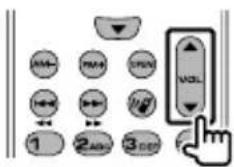
text_image
1 2 3 4 5 6 7 8 9 10 11 12 13 14 15 16 17 18 19 20 21 22 23 24 25 26 27 28 29 30 31 32 33 34 35 36 37 38 39 40 41 42 43 44 45 46 47 48 49 50 51 52 53 54 55 56 57 58 59 60 61 62 63 64 65 66 67 68 69 70 71 72 73 74 75 76 77 78 79 80Volume attenuating
Press the key once to lower the volume. Press again to restore the previous volume.

NAV/V.SEL
Switches to the navigation screen.
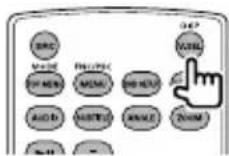
Cursor key
Moves the cursor when displaying menu.
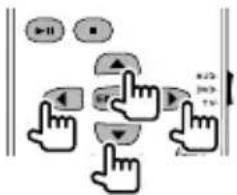
text_image
Diagram showing finger pressing buttons with labels like 'B-11', 'B', and directional arrowsENTER
Enters options.

Hands-free communication
When a call comes in, it answers the call.

Function
Switches the function screen.

MODE
Switches the screen mode. Screen mode changes each time you press this key.
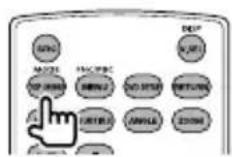
OPEN
Adjuststhepanelangle.
The panel angle changes each time you press this key.

DVD/VCD (DVD mode)
Track search and file search
Selects the track or file to be played.

Play/Pause
Pauses the track.
Press again to resume playing.

Stop
Memorizes the last point where the disc stopped.
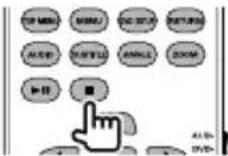
Direct search
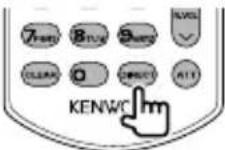
Pressing this key switches the features that can be searched directly.
DVD-VIDEO
| Chapter number |
| Title number |
| Cancel |
DVD-VR
| Chapter number |
| Program/Playlist |
| Cancel |
VCD 1.X, VCD 2.X (PBC OFF)
| Track number |
| Cancel |
VCD 2.X (PBC ON)
| Track number |
| Cancel |
Once you have switched to the direct search feature, specify the search number from the numeric keypad, and then press [ENTER] key.
Numeric keypad
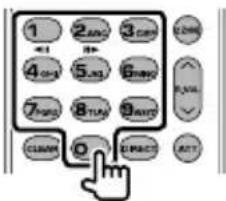
text_image
1 2 AND 3 CAN ←1 ↑ 4 OR 5 AS 6 HWG 7 INS 8 TUN 9 NAVT CLEAN 0 EXACT ATT- Specify the number to search in direct search.
- Press 1 2ABC to fast forward/backward. Switches the fast forward/backward speed each time you press this key.
- Press 1 2 ABC to slow forward/backward during pause.
DVD Top Menu
Returns to the DVD top menu.

DVD Menu
Displays the DVD menu.
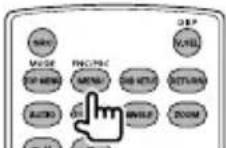
SUBTITLE
Switches the subtitle language.
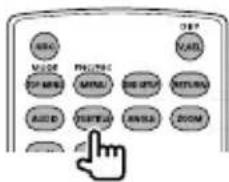
text_image
MASC MASC PHYSIC MINI MINI MINI MINI MINI MINI MINI MINI MINI MINI MINI MINI MINI MINI MINI MINI MINI MINI MINI MINI MINI MINI MINI MINI MINI MINI MINI MINI MINI MINI MINI MINI MINI MINIZOOM
Switches the zoom ratio each time you press this key.
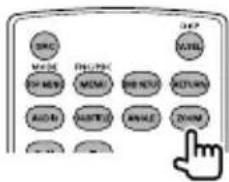
text_image
DRC MCM ON/OFF ON/OFF ON/OFF ON/OFF ON/OFF ON/OFF ON/OFF ON/OFF ON/OFF ON/OFF ON/OFF ON/OFF ON/OFF ON/OFF ON/OFF ON/OFF ON/OFF ON/OFF ON/OFF ON/OFF ON/OFF ON/OFF ON/OFF ON/OFF ON/OFF ON/OFP ON/OFP ON/OFP ON/OFP ON/OFP ON/OFP ON/OFP ON/OFP ON/OFP ON/OFP ON/OFP ON/OFP ON/OFP ON/OFP ON/OFP ON/OFP ON/OFP ON/OFP ON/OFP ON/OFP ON/OFP ON/OFP ON/OFP ON/OFP ON/OFP ON/OFO ON/OFO ON/OFO ON/OFO ON/OFO ON/OFO ON/OFO ON/OFO ON/OFO ON/OFO ON/OFO ON/OFO ON/OFO ON/OFO ON/OFO ON/OFO ON/OFO ON/OFO ON/OFO ON/OFO ON/OFO ON/OFO ON/OFO ON/OFO ON/OFO ON/OOPOPicture Angle
Switches the picture angle each time you press this key.
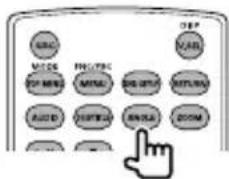
text_image
ABC MADS OFF STOP MINI MINI MINI MINI MINI MINI MINI MINI MINI MINI MINI MINI MINI MINI MINI MINI MINI MINI MINI MINI MINI MINI MINI MINI MINI MINI MINI MINI MINI MINI MINI MINI MINI MINIAUDIO
Switches Voice Language.
Switches the voice language each time you press this key.
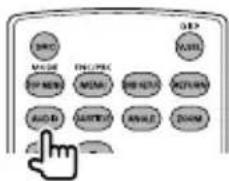
text_image
OK MAKE EXP EXP ADD EXP ADD ADD ADD ADD ADD ADD ADD ADD ADD ADD ADD ADD ADD ADD ADD ADD ADD ADD ADD ADD ADD ADD ADD ADD ADD ADD ADD ADD ADD ADD ADD ADD ADD ADD ADD ADD ADD ADD ADD ADD ADD ADD ADD ADD ADD ADD ADD ADD ADD ADD Add Add Add Add Add Add Add Add Add Add Add Add Add Add Add Add Add Add Add Add Add Add Add Add Add Add Add Add Add Add Add AddMusic Disc/Audio file/Video file/Picture file (AUD mode)
Folder search
Selects the folder to be played.

Track search and file search
Selects the track or file to be played.

Play/Pause
Pauses the track.
Press again to resume playing.

Direct search
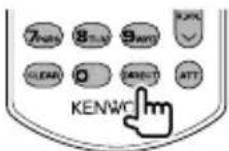
Pressing this key switches the features that can be searched directly.
Music Disc
Track number
Cancel
Audio files in DVD/CD disc
Folder number
File number
Cancel
Once you have switched to the direct search feature, specify the search number from the numeric keypad, and then press [ENTER] key.
Numeric keypad
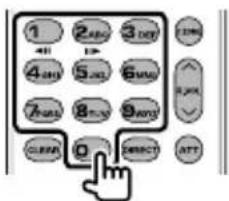
text_image
1 2 ABC 3 DAY 4 AM 5 AM 6 AM 7 AM 8 AM 9 AM CLEAR 0 DIRECT ATT- Specify the number to search in direct search.
Radio (AUD mode)
Band switching
Switches to bands received by the unit.
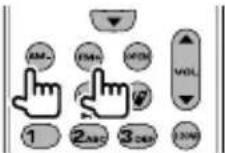
Station selection
Switches to broadcast stations received by the unit.
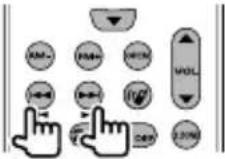
Seek mode switching
Switches the Seek mode (AUTO1, AUTO2, MANU).
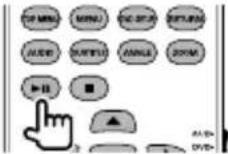
Direct tuning
After pressing this key, use the keypad to specify the broadcast station you wish to receive.

Example: 92.1MHz (FM)
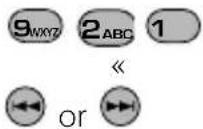
Example: 810kHz (AM)
Numeric keypad

text_image
1 2 ABC 3 4 5 AC 6 7 8 FUT 9 0 DIRECTLY ATT- To use preset tuning, press the number of a programmed broadcast station. (1) - 6 MNO
- Press the direct tuning key first, then specify the frequency of the station to receive.
iPod (AUD mode)
Music/Video search
Selects the music/video to be played.
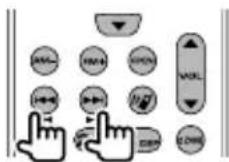
Play/Pause
Pauses the music/video. Press again to resume playing.
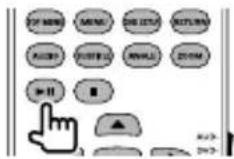
USB (AUD mode)
Folder search
Selects the folder to be played.

File search
Selects the file to be played.
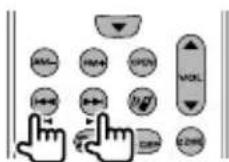
Play/Pause
Pauses the file. Press again to resume playing.
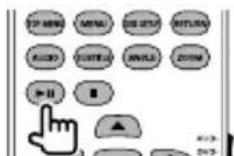
REFERENCE
Maintenance
■ Caution on cleaning the unit
Do not use any solvent (for example, thinner, benzine, etc.), detergent, or insecticide. This may damage the monitor or the unit.

natural_image
Illustration of a hand spraying a spray bottle next to a tablet device (no text or symbols visible)Recommended cleaning method:
Gently wipe the panel with a soft, dry cloth.
■ Moisture condensation
Moisture may condense on the lens inside the unit in the following cases:
• After starting the heater in the car.
• If it becomes very humid inside the car.
Should this occur, the unit may malfunction. In this case, eject the disc and leave the unit turned on for a few hours until the moisture evaporates.
■ How to handle discs
When removing a disc
from its case, press down the center holder of the case and lift the disc out, holding it by the edges.
Center holder

• Always hold the disc by the edges. Do not touch its recording surface.
When storing a disc in its case, gently insert the disc around the center holder (with the printed surface facing up).
• Make sure to store discs in their cases after use.
■ To keep discs clean
A dirty disc may not play correctly. If a disc does become dirty, wipe it with a soft cloth in a straight line from center to edge.

- Do not use any solvents (for example, conventional record cleaner, spray, thinner, benzine, etc.) to clean discs.
■ To play new discs
New discs may have some rough spots around the inner and outer edges. If such a disc is used, this unit may reject the disc.

To remove these rough spots, rub the edges with a pencil or ball-point pen, etc.
Do not use the following discs:
8 cm CD Warped disc


Sticker and sticker residue Stick-on label

Unusual shape
C-thru Disc (semi-transparent disc)

Transparent or semi-transparent parts on its recording area

■ File playback
Playing DivX files
- This unit can play back DivX files with the extension code <.divx> , <.div> , or <.avi> (regardless of the letter case—upper/lower).
- Audio stream should conform to MP3 or Dolby Digital.
- The file encoded in the interlaced scanning mode may not be played back correctly.
Playing MPEG1/MPEG2 files
- This unit can play back MPEG1/MPEG2 files with the extension code <.mpg>, <.mpeg>, or <.mod>.
- The stream format should conform to MPEG system/program stream. The file format should be MP@ML (Main Profile at Main Level)/SP@ML (Simple Profile at Main Level)/MP@LL (Main Profile at Low Level).
- Audio streams should conform to MPEG1 Audio Layer-2 or Dolby Digital.
Playing JPEG files
- This unit can play back JPEG files with the extension code <.jpg>, or <.jpeg>.
- This unit can play back JPEG files that are at 32 x 32 to 8 192 x 7 680 resolution. It may take time to display the file depending on its resolution.
- This unit can play back baseline JPEG files. Progressive JPEG files or lossless JPEG files cannot be played.
We bear no responsibility for any loss of data in an iPod/iPhone and USB mass storage class device while using this unit.
Playing MP3/WMA/WAV/AAC files
- This unit can play back files with the extension code <.mp3> , <.wma> , <.wav> , or
(regardless of the letter case—upper/lower). - This unit can play back the files meeting the conditions below:
- Bit rate: MP3/WMA: 32 kbps — 320 kbps AAC: 16 kbps — 320 kbps
- Sampling frequency: 48 kHz, 44.1 kHz, 32 kHz (for MPEG1) 24 kHz, 22.05 kHz, 16 kHz (for MPEG2) 48 kHz, 44.1 kHz, 32 kHz, 22.05 kHz (for WMA) 44.1 kHz (for WAV) 48 kHz, 44.1 kHz (for AAC)
- This unit can show ID3 Tag Version 1.0/1.1/2.2/2.3/2.4 (for MP3).
- This unit can also show WAV/WMA Tag.
- This unit can play back files recorded in VBR (variable bit rate).
- Files recorded in VBR have a discrepancy in elapsed time indication.
- This unit cannot play back the following files:
- MP3 files encoded with MP3i and MP3 PRO format.
- MP3 files encoded with Layer 1/2.
- WMA files encoded with lossless, professional, and voice format.
- WMA files which are not based upon Windows Media® Audio.
- WMA/AAC files copy-protected with DRM.
– AAC files encoded by using any other application than iTunes.
– AAC files copy-protected with FairPlay (except those stored on an iPod). - Files which have the data such as AIFF, ATRAC3, etc.
■ Sound signals emitted through the rear terminals
Through the analog terminals (Speaker out/Front Preout/Rear Preout)
2-channel signal is emitted. When playing multi-channel encoded disc, multi-channel signals are downmixed.
■ Language codes (for DVD/DivX language selection)
| Code | Language Code | Language Code Language | Code Language | ||||
| AA Afar | GL Galician MI | Maori SO Somali | |||||
| AB Abkhazian GN Guarani MK Macedonian SQ Albanian | |||||||
| AF Afrikaans GU Gujarati ML Malayalam SR Serbian | |||||||
| AM | Ameharic | HA | Hausa | MN | Mongolian | SS | Siswati |
| AR | Arabic | HI | Hindi | MO | Moldavian | ST | Sesotho |
| AS | Assamese | HR | Croatian | MR | Marathi | SU | Sundanese |
| AY | Aymara | HU | Hungarian | MS | Malay (MAY) | SW | Swahili |
| AZ | Azerbaijani | HY | Armenian | MT | Maltese | TA | Tamil |
| BA | Bashkir | IA | Interlingua | MY | Burmese | TE | Telugu |
| BE | Byelorussian | IE | Interlingue | NA | Nauru | TG | Tajik |
| BG | Bulgarian | IK | Inupiak | NE | Nepali | TH | Thai |
| BH | Bihari | IN | Indonesian | NO | Norwegian | TI | Tigrinya |
| BI | Bislama | IS | Icelandic | OC | Occitan | TK | Turkmen |
| BN | Bengali, Bangla | IW | Hebrew | OM | (Afan) Oromo | TL | Tagalog |
| BO | Tibetan | JA | Japanese | OR | Oriya | TN | Setswana |
| BR | Breton | JI | Yiddish | PA | Panjabi | TO | Tonga |
| CA | Catalan | JW | Javanese | PL | Polish | TR | Turkish |
| CO | Corsican | KA | Georgian | PS | Pashto, Pushto | TS | Tsonga |
| CS | Czech | KK | Kazakh | QU | Quechua | TT | Tatar |
| CY Welsh KL Greenlandic RM Rhaeto-Romance TW Twi | |||||||
| DZ | Bhutani | KM | Cambodian | RN | Kirundi | UK | Ukrainian |
| EL | Greek | KN | Kannada | RO | Rumanian | UR | Urdu |
| EO | Esperanto | KO | Korean (KOR) | RW | Kinyarwanda | UZ | Uzbek |
| ET | Estonian | KS | Kashmiri | SA | Sanskrit | VI | Vietnamese |
| EU | Basque | KU | Kurdish | SD | Sindhi | VO | Volapuk |
| FA | Persian | KY | Kirghiz | SG | Sangho | WO | Wolof |
| FI | Finnish | LA | Latin | SH | Serbo-Croatian | XH | Xhosa |
| FJ | Fiji | LN | Lingala | SI | Singhalese | YO | Yoruba |
| FO | Faroese | LO | Laothian | SK | Slovak | ZU | Zulu |
| FY | Frisian | LT | Lithuanian | SL | Slovenian | ||
| GA | Irish | LV | Latvian, Lettish | SM | Samoan | ||
| GD Scots Gaelic MG Malagasy SN Shona | |||||||
Troubleshooting
What appears to be trouble is not always serious. Check the following points before calling a service center.
- For operations with the external components, refer also to the instructions supplied with the adapters used for the connections (as well as the instructions supplied with the external components).
■ If the following messages appear
| Message Remedy/Cause | |
| “No Signal” • Start the playback on the external component connected to AV-IN input terminal.• Check the cords and connections.• Signal input is too weak. | |
| • “Miswiring DC Offset Error”• “Warning DC Offset Error” | A speaker cord has shorted or it has come in to contact with the car chassis. Wire or insulate the speaker cord as appropriate, then reset the unit ( page 3, 69). |
| “Parking off” | No playback picture is shown when the parking brake is not engaged. |
| “Authorization Error” Check whether the connected iPod/iPhone is compatible with this unit. ( page 22) | |
| “USB Device Error” • The USB power voltage is abnormal.• Turn off and turn on the unit.• Connect another USB device. | |
| “No BT Dongle” Bluetooth adapter (KS-UBT1) is removed. | |
| “Connection Error” The device is registered but the connection has failed. Connect the registered device. ( page 47) | |
| “Please Wait...” The unit is preparing to use the Bluetooth function. If the message does not disappear, turn off and turn on the unit, then connect the device again (or reset the unit). | |
| “NO Voice Device” | The connected mobile phone does not have the voice recognition system. |
| “NO Data” | No phonebook data is contained in the connected Bluetooth phone. |
| “Initialize Error” | The unit has failed to initialize the Bluetooth module. Try the operation again. |
| “Dial Error” | Dialing has failed. Try the operation again. |
| “Hung Up Error” | The call has not ended yet. Park your car, and use the connected mobile phone to end the call. |
| “Pick Up Error” | The unit has failed to receive a call. |
| “Pairing Mode Error” | Pairing between the unit and Bluetooth device has failed. Register the device again. ( page 46) |
| “Panel Mecha Error” | The panel does not work properly. Reset the unit. |
| “No Navigation” | No navigation unit is connected. |
■ If there seems to be a problem
| Symptom Remedy/Cause | ||
| General | No sound comes out of the speakers. | Adjust the volume to the optimum level.Check the cords and connections. |
| The unit does not work at all. | Reset the unit. (page 3) | |
| The remote controller does not work. | Replace the battery. | |
| TUNER | AME automatic presetting does not work. | Store stations manually. (page 27) |
| Static noise while listening to the radio. | Connect the antenna firmly. | |
| Disc in general | Recordable/Rewritable discs cannot be played back.Tracks on the Recordable/Rewritable discs cannot be skipped. | Insert a finalized disc.Finalize the discs with the component which you used for recording. |
| Playback does not start. The format of files is not supported by the unit. | ||
| No picture appears on the external monitor. | Connect the video cord correctly.Select the correct input on the external monitor. | |
| DivX/MPEG1/MPEG2/JPEG/MP3/WMA/WAV/AAC | Disc cannot be played back. Record the tracks using a compliant application on the appropriate discs. (page 14)Add appropriate extension codes to the file names. | |
| Tracks are not played back as you have intended them to play. | Playback order may differ from the one played back using other players. | |
| AV-IN | No picture appears on the screen. | Turn on the video component if it is not on.Connect the video component correctly. |
| iPod/iPhone | No sound comes out of the speakers. | · Disconnect the iPod, then connect it again.· Select another source and then reselect "iPod". |
| The iPod/iPhone does not turn on or does not work. | · Check the connecting cable and its connection.· Update the firmware version.· Charge the battery.· Check whether the iPod control mode is correctly selected. ( page 24)· Reset the iPod/iPhone. | |
| Sound is distorted. Deactivate the | equalizer either on this unit or the iPod/iPhone. | |
| A lot of noise is generated. Turn off (uncheck) the "VoiceOver" feature of the iPod. For details, visit. | ||
| No operations are available when playing back a track containing Artwork. | Operate the unit after the Artwork is loaded. ( page 22) | |
| Sound does not synchronize with the video. | Select for ( page 42) | |
| · Videos cannot be played.· No sound of videos comes out. | · Connect USB Audio and Video cable KCA-iP202. Other cables cannot be used.· Select for ( page 42) | |
| USB | "Reading..." keeps flashing on the screen. | Turn off the power and on again. |
| While playing a track, sound is sometimes interrupted. | The tracks are not properly copied into the USB device. Copy tracks again, and try again. | |
| Bluetooth(onlyforDDX630WBT/DDX630WBTM) | Phone sound quality is poor. · Reduce the distance between the unit and the Bluetooth mobile phone. · Move the car to place where you can get a better signal reception. | |
| The sound is interrupted or skipped while using a Bluetooth audio player. | · Reduce the distance between the unit and the Bluetooth audio player. · Disconnect the device connected for Bluetooth phone. · Turn off, then turn on the unit. · (When the sound is not yet restored) connect the player again. | |
| The connected audio player cannot be controlled. | Check whether the connected audio player supports AVRCP (Audio Video Remote Control Profile). | |
| Bluetooth device does not detect the unit. | · Check whether the Bluetooth adapter (KS-UBT1) is inserted correctly. · Search from the Bluetooth device again. | |
| The unit does not make pairing with the Bluetooth device. | Enter the same PIN code for both the unit and target device. If the PIN code of the device is not indicated on its instructions, try "0000" or "1234." | |
| Echo or noise occurs. Adjust the microphone unit position. | ||
| The unit does not respond when you try to copy the phonebook to the unit. | You may have tried to copy the same entries (as stored) to the unit. | |
Accessories/InstallationProcedure
Accessories
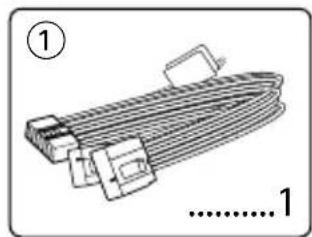
natural_image
Illustration of a coiled cable or spring with connectors, no text or symbols present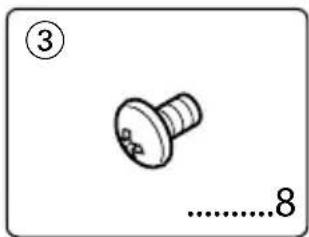
natural_image
Simple line drawing of a screw with no text or symbols
natural_image
Coiled cable or wire with measurement annotation (2m) and figure number 2, no readable text or symbols beyond the label.
natural_image
Illustration of a knitted cable with a loop, labeled with number 4 and measurement annotation (no text or symbols on the cable itself)*1 DDX630WBT/ DDX630WBTM only.
Installation Procedure
1 To prevent a short circuit, remove the key from the ignition and disconnect the ⊖ battery.
2 Make the proper input and output wire connections for each unit.
3 Connect the speaker wires of the wiring harness.
4 Connect the wiring harness wires in the following order: ground, battery, ignition.
5 Connect the wiring harness connector to the unit.
6 Install the unit in your car.
7 Reconnect the ⊖ battery.
8 Press the reset button.
9 Perform the Initial Setup.
WARNING
- If you connect the ignition wire (red) and the battery wire (yellow) to the car chassis (ground), you may cause a short circuit, that in turn may start a fire. Always connect those wires to the power source running through the fuse box.
- Do not cut out the fuse from the ignition wire (red) and the battery wire (yellow). The power supply must be connected to the wires via the fuse.
After the Installation
After the installation, perform the Initial Setup by referring to the instruction manual.
!
- Mounting and wiring this product requires skills and experience. For best safety, leave the mounting and wiring work to professionals.
- Make sure to ground the unit to a negative 12V DC power supply.
- Do not install the unit in a spot exposed to direct sunlight or excessive heat or humidity. Also avoid places with too much dust or the possibility of water splashing.
- Do not use your own screws. Use only the screws provided. If you use the wrong screws, you could damage the unit.
- If the power is not turned ON ("Miswiring DC Offset Error", "Warning DC Offset Error" is displayed), the speaker wire may have a short-circuit or touched the chassis of the vehicle and the protection function may have been activated. Therefore, the speaker wire should be checked.
- If your car's ignition does not have an ACC position, connect the ignition wires to a power source that can be turned on and off with the ignition key. If you connect the ignition wire to a power source with a constant voltage supply, such as with battery wires, the battery may be drained.
- If the console has a lid, make sure to install the unit so that the faceplate will not hit the lid when closing and opening.
- If the fuse blows, first make sure the wires aren't touching to cause a short circuit, then replace the old fuse with one with the same rating.
• Insulate unconnected wires with vinyl tape or other similar material. To prevent a short circuit, do not remove the caps on the ends of the unconnected wires or the terminals. - Never cut away cable insulation to make the proper connections may result in fire or product damage.
-
Connect the speaker wires correctly to the terminals to which they correspond. The unit may be damaged or fail to work if you share the ⏻ wires or ground them to any metal part in the car.
-
When only two speakers are being connected to the system, connect the connectors either to both the front output terminals or to both the rear output terminals (do not mix front and rear). For example, if you connect the ⊕ connector of the left speaker to a front output terminal, do not connect the ⊖ connector to a rear output terminal.
• After the unit is installed, check whether the brake lamps, blinkers, wipers, etc. on the car are working properly. - Mount the unit so that the mounting angle is 30^ or less.
- Do not press hard on the panel surface when installing the unit to the vehicle. Otherwise scars, damage, or failure may result.
- This unit has the cooling fan to decrease the internal temperature. Do not mount the unit in a place where the cooling fan of the unit are blocked. Blocking these openings will inhibit the cooling of the internal temperature and result in malfunction.

Before installation, remove the screws Use these screws when installing the unit (Same as Accessory ③).
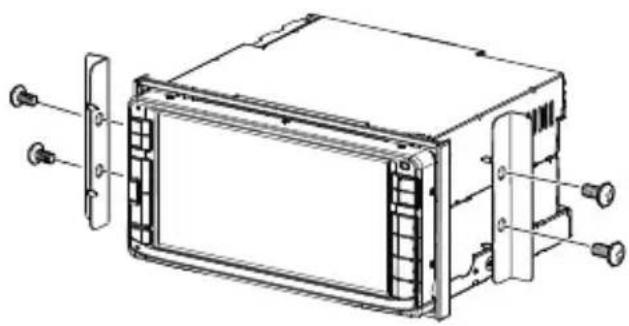
natural_image
Technical line drawing of a device chassis with mounting brackets and connectors (no text or symbols)CAUTION
Install this unit in the console of your vehicle. Do not touch the metal part of this unit during and shortly after the use of the unit. Metal part such as the heat sink and enclosure become hot.
ConnectingWirestoTerminals

flowchart
graph TD
    A["Bluetooth Microphone (Accessory ④) DDX630WBT/DDX630WBTM only."] --> B["Antenna Cord"]
    B --> C["FM/AM antenna input"]
    C --> D["FXSE (10A)"]
    D --> E["Steering Remote (Steering remote control wire)"]
    E --> F["Subwoofer Preout (monaural)"]
    F --> G["Purple/White (Reverse sensor wire)"]
    G --> H["REVERSE"]
    H --> I["Light Green"]
    I --> J["PRK SW (Parking sensor wire)"]
    J --> K["Extension cable (Accessory ②)"]
    K --> L["Switch"]
    M["Accessory ①"] --> N["Blue/White (Power control wire)"]
    N --> O["P.CONT"]
    O --> P["When using the optional power amplifier, connect to its power control terminal."]
    P --> Q["MUTE"]
    Q --> R["To the terminal that is grounded when either the telephone rings or during conversation. (To connect the Kenwood navigation system, consult your navigation manual.)"]
    R --> S["Connect to vehicle's harness."]
    T["If no connections are made, do not let the cable come out from the tab."] --> U["B2 B6 B1 B5"]
    V["Connect to vehicle's steering wheel remote control harness."] --> W["C8C7C6"]
    X["Connect to vehicle's parking brake detection switch harness."] --> Y["A2 A4 A8 A10 A1 A5 A6 A7 A9"]
| Pin Colour and functions | ||
| A1 Orange/White Dimmer | ||
| A2 Yellow Battery | ||
| A4 Red Ignition (ACC) | ||
| A5 Blue Antenna Control | ||
| A6 Black Earth (Ground) Connection | ||
| A8/A7 | White⊕ / White/Black⊖ | Front Speaker (Left) |
| Pin Colour and functions | ||
| A10/A9 | Gray⊕ / Gray/Black⊖ | Front Speaker (Right) |
| B2/B1 | Green⊕ / Green/Black⊖ | Rear Speaker (Left) |
| B6/B5 | Purple⊕ / Purple/Black⊖ | Rear Speaker (Right) |
| C6 | Gray/Red | Ground |
| C7 | Light Green/Red | Input 1 |
| C8 | Purple/Red | Input 2 |
Connecting a USB device/iPod/iPhone
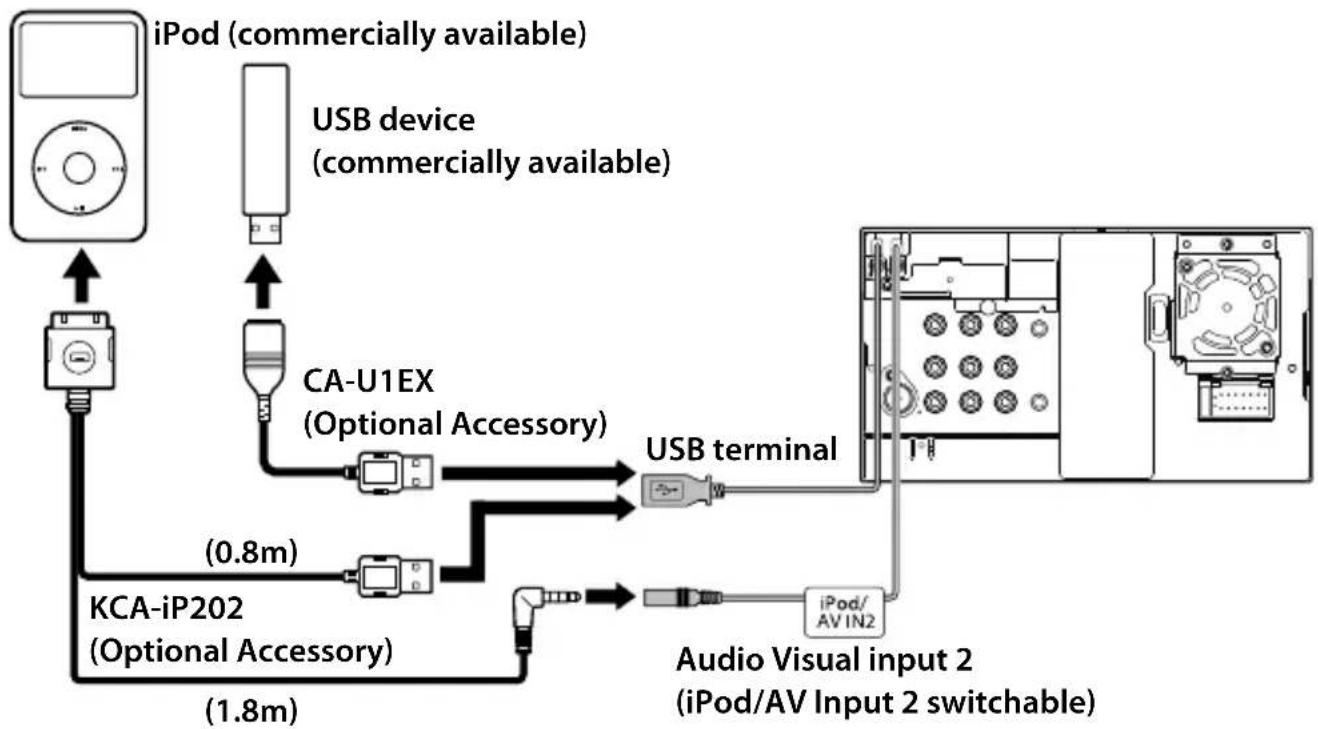
flowchart
graph TD
    A["iPod (commercially available)"] --> B["USB device (commercially available)"]
    B --> C["CA-U1EX (Optional Accessory)"]
    C --> D["USB terminal"]
    D --> E["Audio Visual input 2 (iPod/AV Input 2 switchable)"]
    E --> F["iPod/AV IN2"]
    F --> G["KCA-iP202 (Optional Accessory)"]
    G --> H["(0.8m)"]
    H --> I["(1.8m)"]
Navigation System (Optional Accessory)
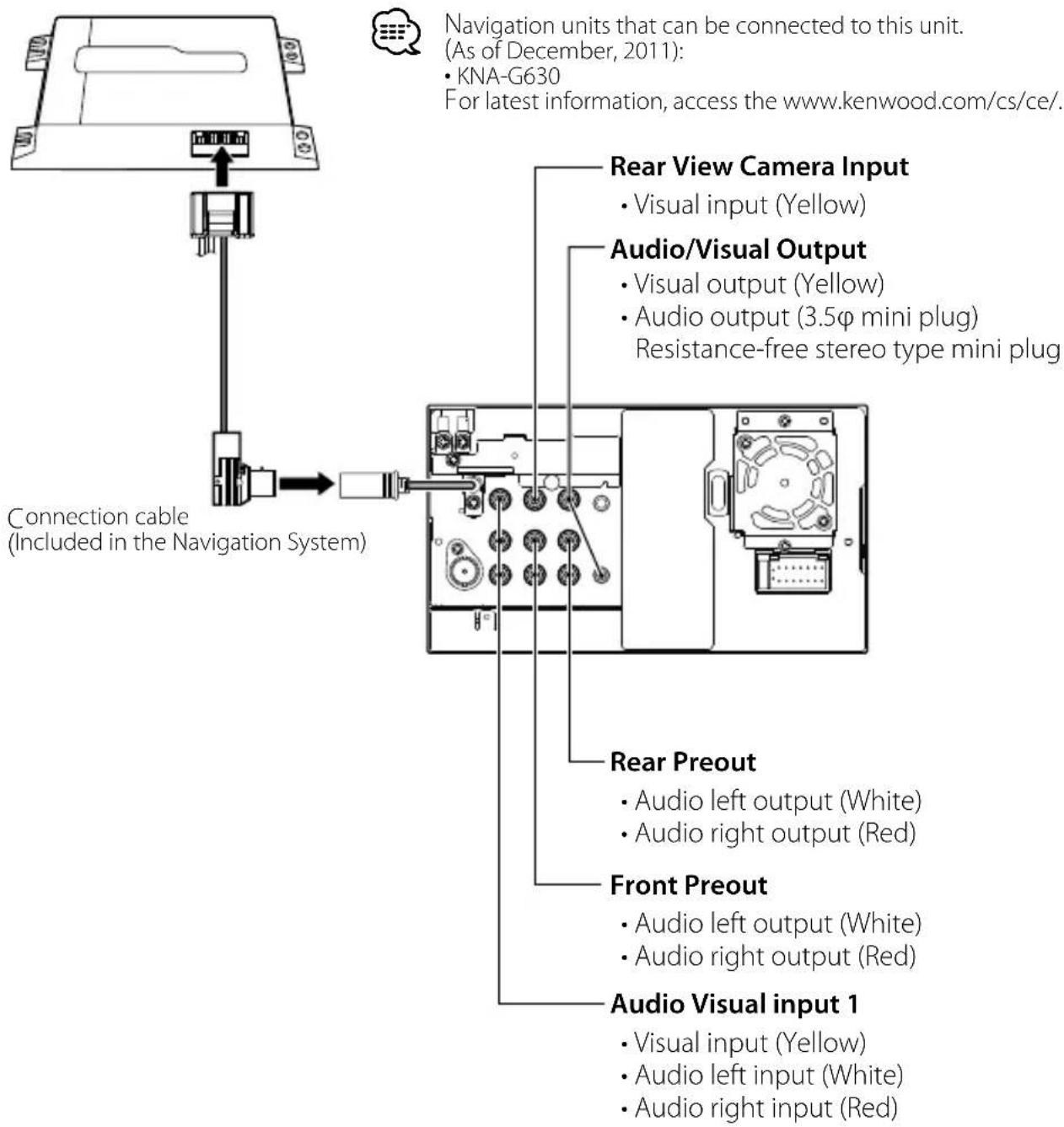
text_image
Navigation units that can be connected to this unit. (As of December, 2011): • KNA-G630 For latest information, access the www.kenwood.com/cs/ce/. Rear View Camera Input • Visual input (Yellow) Audio/Visual Output • Visual output (Yellow) • Audio output (3.5φ mini plug) Resistance-free stereo type mini plug Connection cable (Included in the Navigation System) Rear Preout • Audio left output (White) • Audio right output (Red) Front Preout • Audio left output (White) • Audio right output (Red) Audio Visual input 1 • Visual input (Yellow) • Audio left input (White) • Audio right input (Red)Installation on Toyota Car using Brackets
A cccessory ③ (M5x6mm)
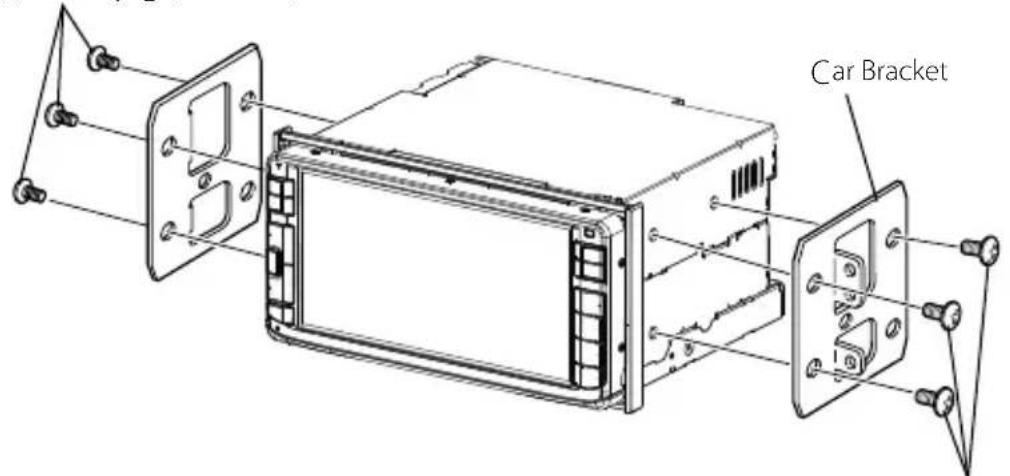
text_image
Car BracketAccessory ③ (M5x6mm)
Installing the Microphone Unit (DDX630WBT/ DDX630WBTM only)
1 Check the installation position of the microphone (accessory ④).
2 Remove oil and other dirt from the installation surface.
3 Install the microphone.
4 Wire the microphone cable up to the unit with it secured at several positions using tape or the like.

• Install the microphone as far as possible from the cell-phone.
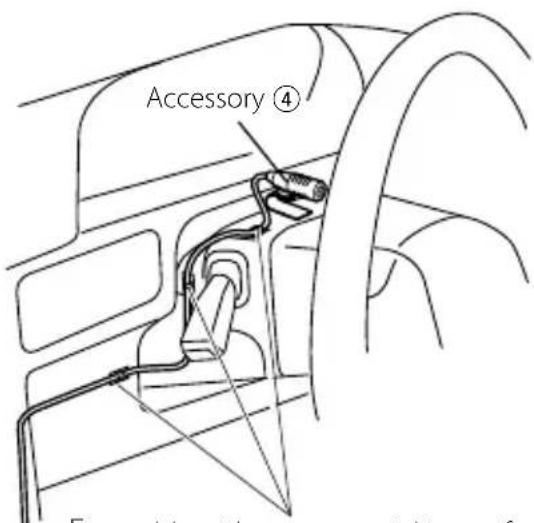
text_image
Accessory ④ Figure 1: the car's side panel ofFix a cable with a commercial item of tape.

natural_image
Diagram of a handheld device with a cable and connector, showing a downward arrow and a dashed square outline (no text or symbols)Peel the release coated paper of double-face adhesive tape to fix on the place shown above.

natural_image
Diagram of a cable being inserted into a socket with directional arrows indicating motion (no text or symbols)Adjust the direction of the microphone to the driver.
Monitor section
Picture Size
: 6.95 inches (diagonal) wide
156.6 mm (W) × 81.6 mm (H)
DisplaySystem
: Transparent TN LCD panel
Drive System
: TFT active matrix system
Number of Pixels
: 1,152,000 (800H × 480V × RGB)
Effective Pixels
: 99.99%
Pixel Arrangement
: RGB striped arrangement
Back Lighting
: LED
DVD player section
D/A Converter
: 24 bit
Audio Decoder
: Linear PCM/Dolby Digital/dts/MP3/WMA/AAC/WAV
Video Decoder
: MPEG1/MPEG2/ DivX
Wow & Flutter
: Below Measurable Limit
Frequency Response
Sampling frequency;
96 kHz: 20 – 22,000 Hz
48 kHz: 20 - 22,000 Hz
44.1 kHz: 20 – 20,000 Hz
Total Harmonic Distortion
: 0.010% (1 kHz)
S/N Ratio (dB)
: 99 dB (DVD-Video 96 kHz)
Dynamic Range
: 98 dB (DVD-Video 96 kHz)
DiscFormat
: DVD-Video/VIDEO-CD/CD-DA
Samplingfrequency
: 44.1/48/96 kHz
Quantifying Bit Number
: 16/20/24 bit
USB interface section
USB Standard
: USB 2.0 Full Speed
File System
: FAT 16/32
Maximum Power Supply Current
: DC 5 = 1 A
D/A Converter
: 24 Bit
Video Decoder
: MPEG1/MPEG2/ DivX
Audio Decoder
: MP3/WMA/AAC/WAV (Linear PCM)
Bluetooth section
(DDX630WBT/DDX630WBTM)
Technology
: Bluetooth 2.0 Certified
Frequency
: 2.402 - 2.480 GHz
Output Power
: +4dBm (MAX), 0dBm (AVE), Power Class2
Maximum Communication range
: Line of sight approx. 10m (32.8 ft)
Profile
HFP (Hands Free Profile),
OPP (Object Push Profile),
PBAP (Phonebook Access Profile),
A2DP (Advanced Audio Distribution Profile),
AVRCP (Audio/Video Remote Control Profile)
FM tuner section
Frequency Range
200 kHz: 87.9 MHz – 107.9 MHz
(Region 4 models only)
50 kHz: 87.5 MHz – 108.0 MHz
Usable Sensitivity (S/N: dB)
: 9.3 dBf (0.8 μV/75 Ω)
Quieting Sensitivity (S/N: dB)
: 15.2 dBf (1.6 μV/75 Ω)
Frequency Response ( ± 3.0 dB)
: 30 Hz - 15 kHz
S/N Ratio (dB)
: 70 dB (MONO)
Selectivity ( ± 400 kHz)
: ≥ 65 dB
Stereo Separation
: 40 dB (1 kHz)
AM tuner section
Frequency Range
AM (10 kHz): 530 kHz - 1700 kHz
(Region 4 models only)
LW (9 kHz): 153 kHz – 279 kHz
MW (9 kHz) : 531 kHz - 1611 kHz
Usable Sensitivity
AM:28 dBμ
LW: 45 μV
MW:25 μV
Video section
Color System of External Video Input
: NTSC/PAL
External Video Input Level (RCA/mini jack)
: 1 Vp-p/75 Ω
External Audio Max Input Level (RCA/
mini jack)
: 2 V/ 25 kΩ
Video Output Level (RCA jack)
: 1 Vp-p/75 Ω
Audio Output Level (mini jack)
: 1.2 V/ 10 kΩ
Analog RGB input
: 0.7 Vp-p/ 75 Ω
Audio section
Maximum Power (Front & Rear)
: 50 W × 4
Full Bandwidth Power (Front & Rear)
:22W×4
Preout Level (V)
: 4 V/10 kΩ
Preout Impedance
: ≤ 600 Ω
Speaker Impedance
: 4 - 8 Ω
Tone
Bass: 100 Hz ± 8 dB
Middle: 1 kHz ± 8 dB
Treble: 12.5 kHz ± 8 dB
General
Operating Voltage
: 14.4 V (10.5 - 16 V allowable)
Maximum Current Consumption
: 10 A
Dimensions (W × H × D)
:178×100×160mm
206 x 104 x 160 mm (Including the sub panel part)
Operational Temperature Range
: -10^ - +60^
Storage Temperature Range
: -20^ - +85^
Weight
2g
- Although the effective pixels for the liquid crystal panel is given as 99.99% or more, 0.01% of pixels may not light or may light incorrectly.
-
Specifications are subject to change without notice.
-
"DVD Logo" is a trademark of DVD Format/Logo Licensing Corporation registered in the US, Japan and other countries.
- The "AAC" logo is a trademark of Dolby Laboratories.
- Microsoft and Windows Media are either registered trademarks or trademarks of Microsoft Corporation in the United States and/or other countries.
- Manufactured under license from Dolby Laboratories. Dolby and the double-D symbol are trademarks of Dolby Laboratories.
- Manufactured under license under U.S. Patent Nos: 5,956,674; 5,974,380; 6,487,535 & other U.S. and worldwide patents issued & pending. DTS, the Symbol, & DTS and the Symbol together are registered trademarks & DTS 2.0 Channel is a trademark of DTS, Inc. Product includes software. © DTS, Inc. All Rights Reserved.
- "Made for iPod," and "Made for iPhone" mean that an electronic accessory has been designed to connect specifically to iPod, or iPhone, respectively, and has been certified by the developer to meet Apple performance standards. Apple is not responsible for the operation of this device or its compliance with safety and regulatory standards. Please note that the use of this accessory with iPod or iPhone may affect wireless performance.
iPhone, iPod, iPod classic, iPod nano, and iPod touch are trademarks of Apple Inc., registered in the U.S. and other countries.
• iTunes is a trademark of Apple Inc.
- DivX ^ , DivX Certified ^ and associated logos are trademarks of Rovi Corporation or its subsidiaries and are used under license.
ABOUT DIVX VIDEO: DivX® is a digital video format created by DivX, LLC, a subsidiary of Rovi Corporation. This is an official DivX Certified® device that plays DivX video. Visit divx.com for more information and software tools to convert your files into DivX videos.
ABOUT DIVX VIDEO-ON-DEMAND: This DivX Certified® device must be registered in order to play purchased DivX Video-on-Demand (VOD) movies. To obtain your registration code, locate the DivX VOD section in your device setup menu. Go to vod.divx.com for more information on how to complete your registration.
- This item incorporates copy protection technology that is protected by U.S. patents and other intellectual property rights of Rovi Corporation. Reverse engineering and disassembly are prohibited.
KS-UBT1 (USB Bluetooth Adapter)
Instruction Manual
CAUTION
Changes or modifications not approved by us could void the user's authority to operate the equipment.
- This adapter has been designed exclusively for use with Kenwood car receivers. Do not use this adapter with any other car receiver. For details, see also the Instructions supplied with your receiver.
- The Bluetooth word mark and logos are owned by the Bluetooth SIG, Inc. and any use of such marks by JVC KENWOOD Corporation is under license. Other trademarks and trade names are those of their respective owners.
Specifications
Bluetooth Version: Bluetooth 2.0 Certified
Power Class: Class2 Radio
Service Area: 10 m (10.9 yd)
USB Standards: USB V1.1 (Full Speed)
Power Consumption: 54.3 mA/5 V (max.)
Dimensions (L × W × H):
15 mm × 19 mm × 5.6 mm
(5/8 " × 3/4 " × 1/4 ")
Keep the Bluetooth adapter inserted when using the Bluetooth function.
When the adapter is removed, store it in a safe place.

TA-2008/1187
APPROVED

NTC
Type Accepted
No.: ESD-CPE-0903971C

인증반호:JVC-KSUBT1
CNPJ of distributor: JVC KENWOOD DO BRASIL COMERCIO
DE ELETRONICOS LTDA
Manufacturer: JVC KENWOOD Corporation
Model no.: KS-UBT1
Brand: JVC

0178-11-6733

text_image
Black and white barcode image with vertical lines and a central pattern(01)07898929117502
Complies with IDA Standards DB102150
"This telecommunication equipment conforms to NTC technical requirement"
13973/POSTEL/2010 2366
TEC/WR/I/MOD-08/02/135.APR 08
URSEC 365/FR/2010
CNC 16-9371
CE
Declaration of Conformity with regard to the R&TTE Directive 1999/5/EC
Manufacturer:
JVC KENWOOD Corporation
3-12 Moriya-cho, Kanagawa-ku, Yokohama-shi, Kanagawa, 221-0022, Japan
EU Representative's:
Kenwood Electronics Europe BV
Amsterdamseweg 37, 1422 AC UITHOORN, The Netherlands
English
Hereby, Kenwood declares that this unit KS-UBT1 is in compliance with the essential requirements and other relevant provisions of Directive 1999/5/EC.