42661 - Power strip Lindy - Free user manual and instructions
Find the device manual for free 42661 Lindy in PDF.


User questions about 42661 Lindy
0 question about this device. Answer the ones you know or ask your own.
Ask a new question about this device
Download the instructions for your Power strip in PDF format for free! Find your manual 42661 - Lindy and take your electronic device back in hand. On this page are published all the documents necessary for the use of your device. 42661 by Lindy.
USER MANUAL 42661 Lindy
natural_image
Black LINDY Connection Perfection device with visible logo and ports (no text beyond branding)No. 42661
www.LINDY.com
CE FC
Introduction
Thank you for purchasing the LINDY LAN Client MultiPoint Workstation. The MultiPoint Workstation is designed specifically for Windows MultiPoint Server.
Windows MultiPoint Server is a Windows-based solution that is specifically designed to enable educational institutions giving each of their students' access to PCs. By allowing multiple users to simultaneously share one computer/server – each with his/her own Windows experience – it is a cost-effective way to facilitate the use of more technology in classrooms, computer labs and libraries.
Simply connect it to an available RJ-45 Ethernet port on the network switch, which is connected to the server and attach a monitor, keyboard and mouse to add a new workstation. The LAN Client MultiPoint Workstation features three powered high-speed USB 2.0 ports, audio and microphone ports and a VGA port that supports resolutions up to 1600 x 1200.
The LAN Client MultiPoint Workstation provides an inexpensive and reliable way to expand your Windows MultiPoint Server, as up to 14* workstations can be used with a single server. By sharing a single server with multiple users through LINDY LAN workstations, organizations can reduce costs on hardware, software licensing, power and administration costs.
The LAN Client MultiPoint Workstation leverages the latest Microsoft Windows Server technology, providing GIGA-LAN solutions that transform a single computer/server into multi-user workstations with nearly no limitation regarding the potential distance between each workstation and the server.
Features
• Specifically designed Microsoft Windows MultiPoint Server
- Up to 14* workstations per server
- Cost effective, highly reliable solution
- Ethernet connection to the host server with almost no distance limitation
• Resolutions up to 1600 x 1200 (16 / 32 Bit)
- 3 USB 2.0 ports
- Stereo Audio Output (Speaker / Headphone) and Mono audio input (Mic)
• Average of 90% power reduction compared to a conventional PC
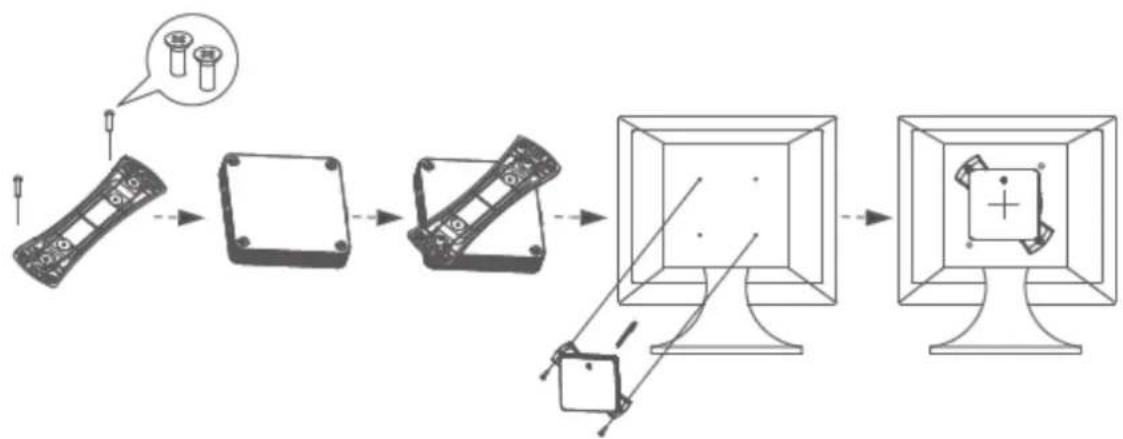
- Low profile design which can be placed flat, stood vertically using the supplied stand or fixed to the VESA mounting points on the back of a monitor
- Ideal for educational institutions, call centres and computer labs as well as home offices
*Requires MultiPoint Server 2011 Premium. MultiPoint Server 2011 Standard/2010 can support up to 10 client workstations.
Package Contents
• LAN Client MultiPoint Workstation
- Desk/VESA stand
- Ethernet Cable, 2m
• Multi-country AC Adapter
- Driver CD
- User Manual
Minimum System Requirements
| Number of Users/Clients | ||||
| 4 | 6 | 10 | 14 | |
| CPU Type* | Quad Core | |||
| Recommended | Intel Core i5 | Intel Core i5 | Intel Core i7 | Intel Core i7 |
| Motherboard Chipset | Intel Sandybridge | |||
| RAM | 3GB | 4GB | 8GB | 8GB |
| Minimum Disk Space | 32GB | |||
| *Please Note:Compatible with x64-Based Intel Pentium, Intel Quad Core (i3, i5, i7), XEON &Intel Dual Core (MultiPoint Server supports 2, 4, 8 core processors on a single server)Dual Core processors may only support 2-3 User/ClientsAMD Opteron/Athlon and AMD Embedded Chipset are not supportedIntel Itanium Processor is not supportedA mixture of USB Workstations (LINDY No. 42660) and LAN Workstations (LINDY No. 42661) can be used in conjunction with one another | ||||
Device Software Installation
Installing the device driver enables Windows MultiPoint Server 2011 to recognize the LAN Client MultiPoint Workstation. Please make sure the LAN Client MultiPoint Workstation is unplugged from your server before executing the setup program.
Step 1
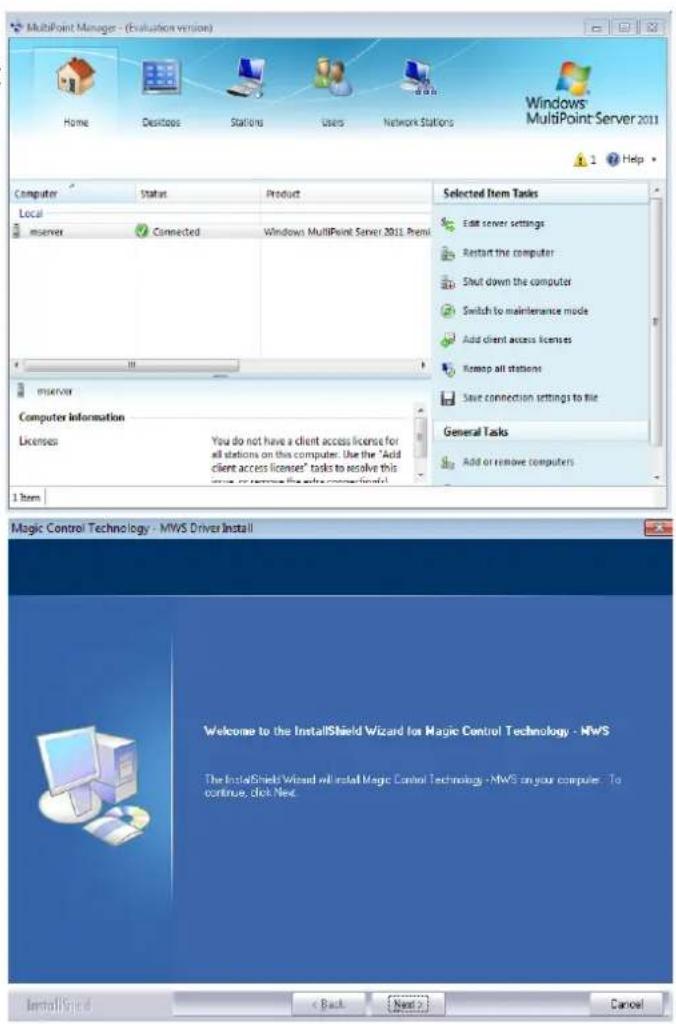
Open the MultiPoint Server application and boot the computer into Maintenance Mode by choosing Switch to maintenance mode under the Home tab.
Step 2
Insert the Driver installation CD into the CD-ROM drive. The installer should start automatically. If it does not, double click Setup.exe to start the Installation Wizard.
Step 3
Driver Installation Wizard: Click Next to continue.
text_image
MultiPoint Manager - (Evaluation version) Home Desktops Stations Uses Network Stations Windows MultiPoint Server 2011 Help Computer Status Product Local mserver Connected Windows MultiPoint Server 2011 Press mserver Computer Information Licenses You do not have a client access license for all stations on this computer. Use the "Add client access licenses" tasks to resolve this issue, or remove the extra computers. Selected Item Tasks Edit server settings Restart the computer Shut down the computer Switch to maintenance mode Add client access licenses Remop all stations Save connection settings to file General Tasks Add or remove computers 1 item Magic Control Technology - MWS Driver Install Welcome to the InstallShield Wizard for Magic Control Technology - MWS The InstallShield Wizard will install Magic Control Technology - MWS on your computer. To continue, click Next InstallSpeed Back Next CancelStep 4
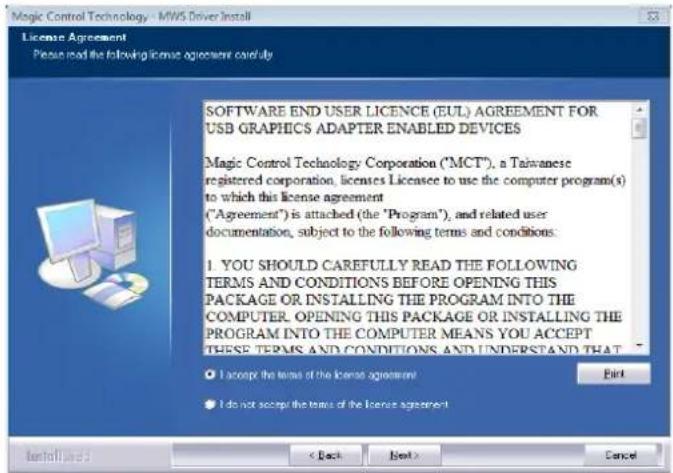
License Agreement: review it and check I accept the terms of the license agreement. Click Next to accept the License Agreement.
text_image
Magic Control Technology - MWS Driver Install License Agreement Please read the following license agreements carefully SOFTWARE END USER LICENCE (EUL) AGREEMENT FOR USB GRAPHICS ADAPTER ENABLED DEVICES Magic Control Technology Corporation ("MCT"), a Taiwanese registered corporation, licenses Licensee to use the computer program(s) to which this license agreement ("Agreement") is attached (the "Program"), and related user documentation, subject to the following terms and conditions: 1. YOU SHOULD CAREFULLY READ THE FOLLOWING TERMS AND CONDITIONS BEFORE OPENING THIS PACKAGE OR INSTALLING THE PROGRAM INTO THE COMPUTER. OPENING THIS PACKAGE OR INSTALLING THE PROGRAM INTO THE COMPUTER MEANS YOU ACCEPT THESE TERMS AND CONDITIONS AND UNDERSTAND THAT ● I accept the terms of the license agreement! ● I do not accept the terms of the license agreement Install Use 3 < Back Next > CancelStep 5
Setup is searching for installed features. You may notice the screen flashes during hardware installation. It is part of the normal process.

Setup is searching for installed features...
Step 6
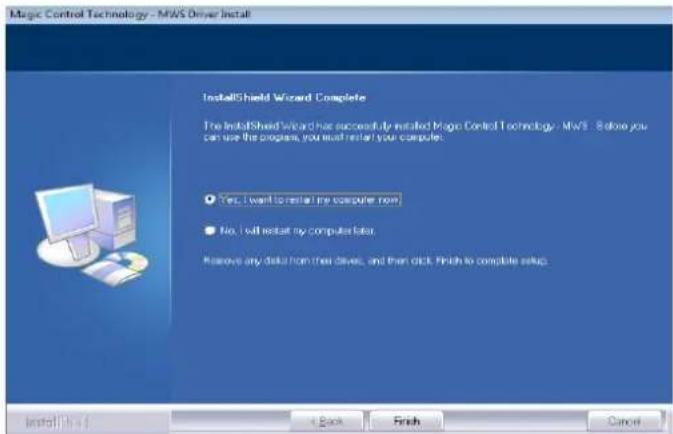
Driver Installation Wizard: click Finish to continue and restart the computer.
text_image
Magic Control Technology - MWS Driver Install InstallShield Wizard Complete The InstallShield Wizard has successfully installed Magic Control Technology - MWS. Before you can use the program, you will enter your computer. Yes, I want to install my computer now No, I will install my computer data. Remove any data from their drivers, and then click Finish to complete setup.Device Installation
Step 1
Connect the monitor to the VGA connector of the LAN Client MultiPoint Workstation and ensure the display device is on. Connect the power adapter, keyboard, and mouse to the LAN Client MultiPoint Workstation.
Step 2
Connect one end of the Ethernet cable to the LAN Client MultiPoint Workstation and the other to an available RJ-45 port of your network, which must be connected to the host server

text_image
MultiPoint Manager - (Evaluation version) Home Desktops Stations Users Network Stations Windows® MultiPoint Server 2011 1 Help Computer Status Product Local Microsoft Connected Windows MultiPoint Server 2011 Press Selected Item Tasks Edit server settings Restart the computer Shut down the computer Switch to maintenance mode Add client access licenses Remap all stations Save connection settings to file General Tasks Add or remove computers Computer information Licensee You do not have a client access license for all stations on this computer. Use the "Add client access licenses" tasks to resolve this 1 itemStep 3
Repeat steps 1 & 2 for the remaining LAN Client MultiPoint Workstation.
Verifying the Device connection & Assign to the server
Step 1
Open the MultiPoint Manager application and click on the Network Stations button.
Step 2
Any newly connected LAN Client MultiPoint Workstations will appear under the Clients section. Select the tick box to the left of the Client and click on Assign to this Server and then click Yes to assign it to the Server you are working from. The LAN Client MultiPoint Workstation will then appear in the list of assigned stations as shown in the screenshot.

text_image
MultiPoint Manager - (Evaluation version) Home Desktops Stations Users Network Stations Windows MultiPoint Server 2011 Help Clients Client Name Status Assignment Local There are no items in this view Assigned Clients: server Client Name Status Assignment Local Network Zone Client Connected reserve N/A 1. Item General Task Item Start scan Select all Unselect allStep 3
Repeat step 2 for each connected Workstation. Alternatively you may select multiple workstations by selecting the check boxes to the left of each workstations and then clicking on Assign to this Server, followed by Yes.
Step 4
When you have connected and assigned all workstations to the server you will see them displayed in the Status Column with Connected and a green tick next to each workstation.

text_image
MultiPoint Manager Home Business Systems Sales Network Systems Windows MultiPoint Server 3.0.1 New sites New > Next Start Start Date Start Time Client Name Status Assignment MNC IP address Model Resource Version Current Task info Client Name Status MNC IP address Model Resource Version Client Name Status MNC IP address Model Resource Version Client Name Status MNC IP address Trigger 0 Box 300-50 Client Name Status MNC IP address Trigger 0 Box 300-50 Client Name Status MNC IP address Trigger 0 Box 300-50Adjusting the screen resolution
By default, Windows MultiPoint Server will select the recommended resolution for each connected display. However, if you would like to choose a different resolution, follow these steps:
Step 1
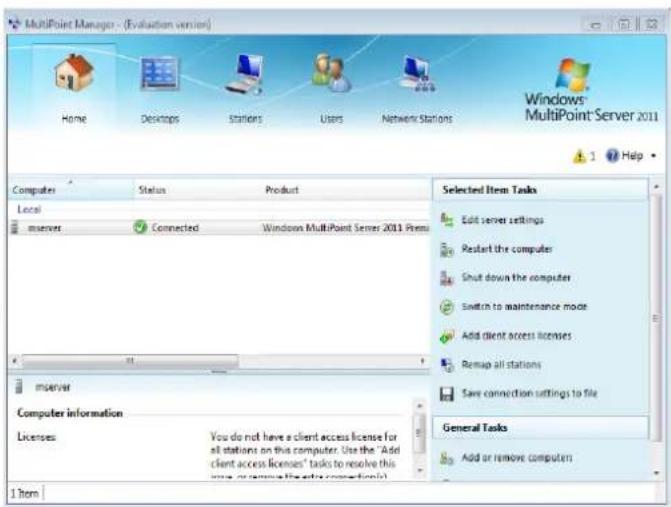
Boot the computer into Maintenance Mode by choosing "Switch to maintenance mode" on the right side of the Home tab.
Step 2
Right click on the desktop and choose Screen Resolution from the contextual menu.
text_image
MultiPoint Manager - (Evaluation version) Home Desktops Stations Users Network Stations Windows® MultiPoint Server 2011 A 1 Help Computer Status Product Local mserver Connected Windows MultiPoint Server 2011 Press mserver Computer information Licenses You do not have a client access license for all stations on this computer. Use the "Add client access licenses" tasks to resolve this user or remove the extra connection(s) 1 item Selected Item Tasks Edit server settings Restart the computer Shut down the computer Switch to maintenance mode Add client access licenses Remap all stations Save connection settings to file General Tasks Add or remove computersStep 3
Click Identify to identify each display. Then click on the display to be adjusted and choose the desired resolution from the Resolution dropdown menu.
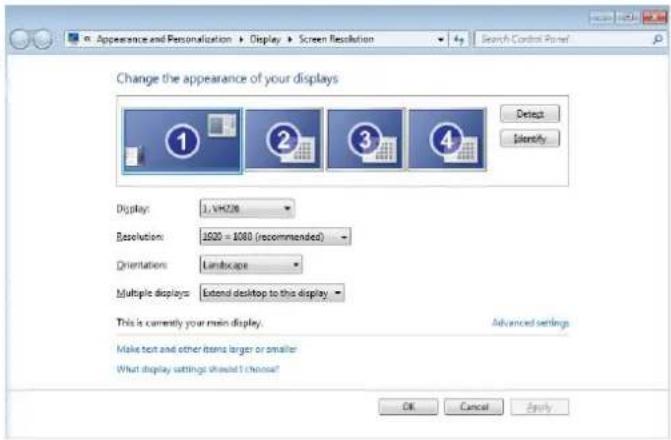
text_image
Appearance and Personalization ▶ Display ▶ Screen Resolution Change the appearance of your displays Display: 1, VH236 Resolution: 1920 x 1080 (recommended) Orientation: Landscape Multiple displays: Extend desktop to this display. This is currently your main display. Advanced settings Make text and other items larger or smaller What display settings should I choose? OK Cancel ApplyDevice Driver Un-Installation
The following procedure allows you to uninstall the LAN Client MultiPoint Workstation device driver. Please make sure all LAN Client MultiPoint Workstation are unplugged from your network before executing the device driver un-installation program.
Step 1
Select the "Magic Control Technology – MWS xx.xx.xxxx.xxxx" item. Click Uninstall button.
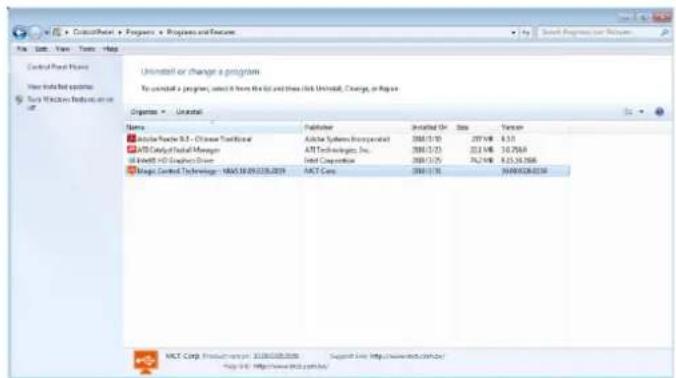
text_image
Control Panel Name User installed options Sany Wireless Recommendation or Uninstall or change a program To construct a program, select it from the list and then click Uninstall, Change, or Report Organize - Uninstall Name Aetna Software 9.3 - Chinese Traditional AT&T Analytical Manager BASF HD Graphics Driver Analog Control Technology - MAX 10.05.2018/2019 AET Corp Annotified Dr. Date Version Aetna Systems Incorporated 2006/1/18 2017/08 4:31 AT&T Technologies Inc. 2006/1/20 2017/08 30:30 Joint Corporation 2006/1/29 2017/08 4:35-33:504 AET Corp 2006/1/16 2018/02.02.2018 AET Corp Product Manager: 2018@103.com Support Line: http://www.rscb.com/ http://www.rscb.com/ © 2018 http://www.rscb.com/Step 2
Click OK to continue
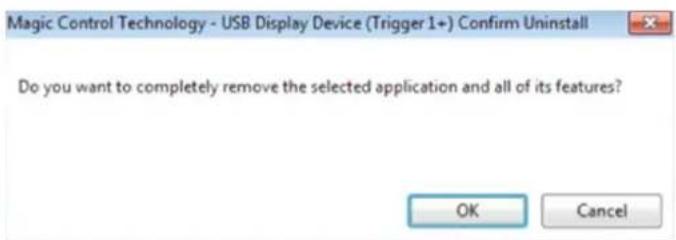
text_image
Magic Control Technology - USB Display Device (Trigger 1+) Confirm Uninstall Do you want to completely remove the selected application and all of its features? OK CancelStep 3
Select Yes, I want to restart my computer now and click Finish to reboot. The driver is now uninstalled.
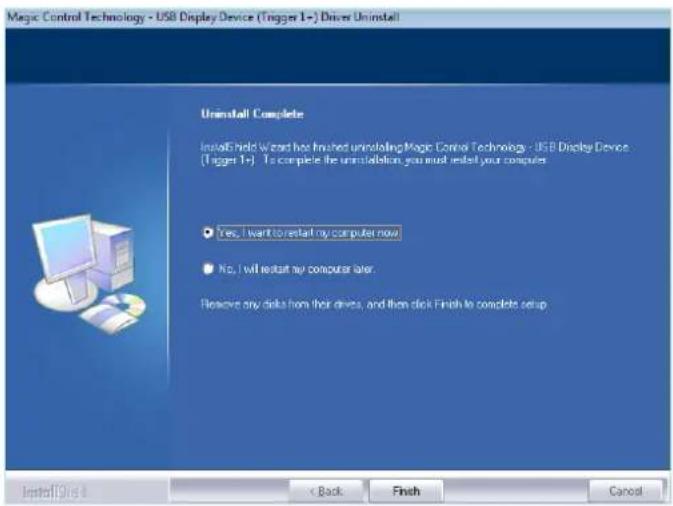
text_image
Magic Control Technology - USB Display Device (Trigger 1+) Drives Uninstall Uninstall Complete InstallHold Wizard has finished uninstalling Magic Control Technology - USB Display Device (Trigger 1+) To complete the uninstallation you must restart your computer. Yes, I want to restart my computer now. No, I will restart my computer later. Remove any disks from their devices, and then click Finish to complete setup Install Print × Back Finish CancelSETUP 1

text_image
Technical diagram showing assembly of a device component with labeled parts and directional arrows indicating assembly steps.SETUP 2
flowchart
graph LR
    A["Device Setup"] --> B["Assembly"]
    B --> C["Computer Display"]
    C --> D["Computer Monitor"]
Troubleshooting Tips
The following troubleshooting tips may help if you are experiencing any difficulties using our device.
- Check to make sure that all connectors are plugged in correctly.
- Make sure that the Ethernet cable is connected to a RJ-45 port.
- Check to see that the monitor is connected correctly and the power is ON.
- Make sure to restart the server after the driver installation.
- Unplug the adapter, wait a few seconds, then re-insert it.
- Check the website to make sure you have the latest drivers.
- Reset/refresh/resynchronize your monitor.
System Requirements:
| Number of Users/Clients | ||||
| 4 | 6 | 10 | 14 | |
| CPU Type* | Quad Core | |||
| Recommended | Intel Core i5 | Intel Core i5 | Intel Core i7 | Intel Core i7 |
| Motherboard Chipset | Intel Sandybridge | |||
| RAM | 3GB | 4GB | 8GB | 8GB |
| Minimum Disk Space | 32GB | |||
| *Please Note:Compatible with x64-Based Intel Pentium, Intel Quad Core (i3, i5, i7), XEON &Intel Dual Core (MultiPoint Server supports 2, 4, 8 core processors on a single server)Dual Core processors may only support 2-3 User/ClientsAMD Opteron/Athlon and AMD Embedded Chipset are not supportedIntel Itanium Processor is not supportedA mixture of USB Workstations (LINDY No. 42660) and LAN Workstations (LINDY No. 42661) can be used in conjunction with one another. | ||||
Current Supported Video card and driver:
- Intel® G45 Express Chipset Intel® Graphics Media Accelerator X4500HD
- Intel® G43/G41/Q45/Q43 Express Chipset / Intel® Graphics Media Accelerator X4500
• Intel Driver: 15.16.5.64.2021 (8.15.10.2021)
• ATI Radeon™ HD 4770
• ATI Radeon™ HD 4600
• ATI Driver: 10.1(8.69.0.0)
Device not supported:
- AMD processors are not supported at this time.
- Do not use Keyboard with integrated USB Hub as it will affect power operation
Known Issues & Notes:
- Important! Please ensure that all Windows Update files have been installed to the latest version on Windows Multipoint Server OS
- Disconnecting a LAN Workstation while videos are playing may cause stability issues. Do not disconnect LAN Workstations during video playback.
-
Using different display resolutions on workstations may cause display issues if a station is disconnected. Set all workstations to the same resolution for the best performance.
-
When setting resolutions in Maintenance mode, a workstation display may not display correctly. Either choose to revert to the original setting in the dialog window that appears or, if the changes have been accepted, temporarily change the resolution to a different resolution and then change it back to the desired resolution.
- When all connected clients need to perform video playback simultaneously, it is recommended to use the smallest window size or playback resolution.
eg. If all 10 clients are playing video from "YouTube", keep each video at original or smallest size/resolution. For better performance, upgrade to a higher speed CPU and increase the amount of memory available. - Multi-Video Playback at each workstation is not recommended, it occupies CPU's loading and lower each task performance, it could cause operation freeze when CPU consumption is over its limit.
- Prior to installing the driver, the computer should be running the most current build of Windows MultiPoint Server 2011 and have the appropriate graphics card driver from the list shown on the previous page.
- Occasionally, when multiple video playing across many monitors and the CPU load is above 90 percent, there might be pauses in the video playback.
- Warning: Incompatibilities will exist when using other manufacturer's video over USB/LAN devices on a single system. Please ensure that all other manufacturer's video over USB/LAN drivers are uninstalled before continuing install the LAN Client Workstation driver.
CE Certification
This equipment complies with the requirements relating to Electromagnetic Compatibility Standards EN55022/EN55024 and the further standards cited therein. It must be used with shielded cables only. It has been manufactured under the scope of RoHS compliance.
This equipment has been tested and found to comply with the limits for a Class B digital device, pursuant to part 15 of the FCC Rules. These limits are designed to provide reasonable protection against harmful interference in a residential installation.
You are cautioned that changes or modification not expressly approved by the party responsible for compliance could void your authority to operate the equipment.
This device complies with part 15 of the FCC Rules.
Operation is subject to the following two conditions:
-
This device may not cause harmful interference, and
-
This device must accept any interference received, including interference that may cause undesired operation.

WEEE (Waste of Electrical and Electronic Equipment), Recycling of Electronic Products
In 2006 the European Union introduced regulations (WEEE) for the collection and recycling of all waste electrical and electronic equipment. It is no longer allowable to simply throw away electrical and electronic equipment. Instead, these products must enter the recycling process.
Each individual EU member state has implemented the WEEE regulations into national law in slightly different ways. Please follow your national law when you want to dispose of any electrical or electronic products. More details can be obtained from your national WEEE recycling agency.
1 ^st Edition, September 2012
www.lindy.com