QZ1D2P3BN24Z1 - Cable organizer Panduit - Free user manual and instructions
Find the device manual for free QZ1D2P3BN24Z1 Panduit in PDF.


User questions about QZ1D2P3BN24Z1 Panduit
0 question about this device. Answer the ones you know or ask your own.
Ask a new question about this device
Download the instructions for your Cable organizer in PDF format for free! Find your manual QZ1D2P3BN24Z1 - Panduit and take your electronic device back in hand. On this page are published all the documents necessary for the use of your device. QZ1D2P3BN24Z1 by Panduit.
USER MANUAL QZ1D2P3BN24Z1 Panduit
Unified Physical Infrastructure



Panduit
PViQ Networked POU
Series 1
User Manual
PANDUIT®
MN023 Version 1.0
Copyright © 2010 PANDUIT Corp. All rights reserved. No part of this book shall be reproduced, stored in a retrieval system, or transmitted by any means, electronic, mechanical, photocopying, recording or otherwise, without written permission from PANDUIT. No patent liability is assumed with respect to the use of the information contained herein.
Although every precaution has been taken in the preparation of this book, PANDUIT assumes no responsibility for errors or omissions. Neither is any liability assumed for damages resulting from the use of the information contained herein.
Contents
SPECIFICATIONS 4
Overview 4
Environmental 4
Temperature 4
Humidity....4
Elevation 4
Electrical....4
Receptacle Ratings 4
Networking 4
Protocols 4
Ethernet Link Speed 4
Data Formats 5
EMC Verification ....5
INSTALLATION....6
Instructions....6
Guidelines 6
MOUNTING....7
"L" Bracket 7
Toolless Mounting Hardware 8
NETWORKED MONITORING 10
PViQ Local Meter Overview.... 10
PViQ Networked Monitoring Instructions 10
Setting an IP Address 10
Accessing the POU Web GUI.... 12
Current Monitoring tab 12
Display tab 13
Alarms tab....14
Configuration tab 15
LED Display 16
Viewing the IP Address/Resetting to Default IP 16
Rebooting the Meter 17
Web Page 17
SNMP/XML 17
Sample Usage 18
SERVICE AND TECHNICAL SUPPORT 19
Service 19
Technical Support.... 19
Specifications
Overview
The POUs are designed to be powered by either a single phase or a three phase AC input circuit. Three phase units are available for either a Delta or WYE input connection.
Environmental
Temperature
| Operating: | 10^ ( 50^ ) min | 45^ ( 113^ ) max |
| Storage: | -25^ ( -13^ ) min | 65^ ( 149^ ) max |
Humidity
| Operating: | 5% min | 95% max | (non-condensing) |
| Storage: | 5% min | 95% max | (non-condensing) |
Elevation
| Operating: | 0 m (0 ft) min | 2000 m (6561 ft) max |
| Storage: | 0 m (0 ft) min | 15240 m (50000 ft) max |
Electrical
See nameplate for unit ratings.
Receptacle Ratings
NEMA 5-15R or L5-15R 125 Volts, 15 Amp
NEMA 5-20R or L5-20R 125 Volts, 20 Amp
NEMA 6-20R or L6-20R 250 Volts, 20 Amp
IEC-320 C13 125/250 Volt, 15 Amp (per Receptacle Bank)
IEC-320 C19 125/250 Volt, 20 Amp
Networking
Protocols
HTTP, ICMP, DHCP, TCP/IP, FTP
Ethernet Link Speed
10 Mbit; half-duplex
Data Formats
HTML, SNMP, XML
EMC Verification
This Class A device complies with part 15 of the FCC Rules. Operation is subject to the following two conditions: (1) This device may not cause harmful interference, and (2) this device must accept any interference received, including interference that may cause undesired operation.
This Class A digital apparatus complies with Canadian ICES-003.
Warning: Changes or modifications to this unit not expressly approved by the party responsible for compliance could void the user's authority to operate this equipment.
FCC and Canadian ICES-003 requirements for units with Current Monitoring (EM) Meter: The ferrite core shipped with the unit must be placed around the Ethernet cable close to the POU.
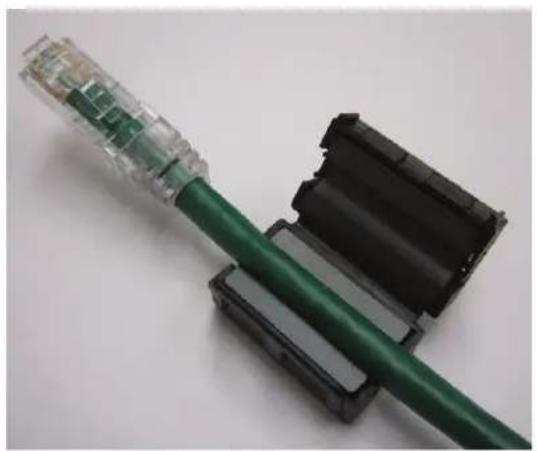
natural_image
Close-up of a green Ethernet cable connector with transparent plastic cover, partially open and lying on a white surface (no text or symbols visible)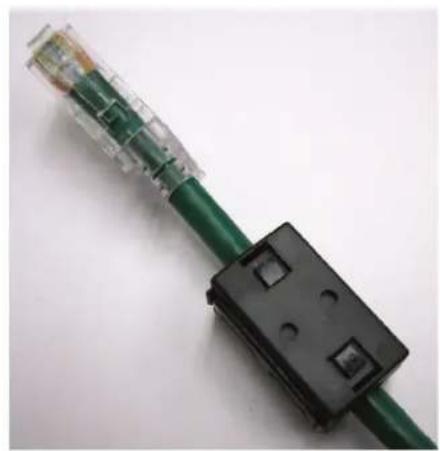
natural_image
Close-up of a green cable with black plastic connector and two mounting holes (no text or symbols visible)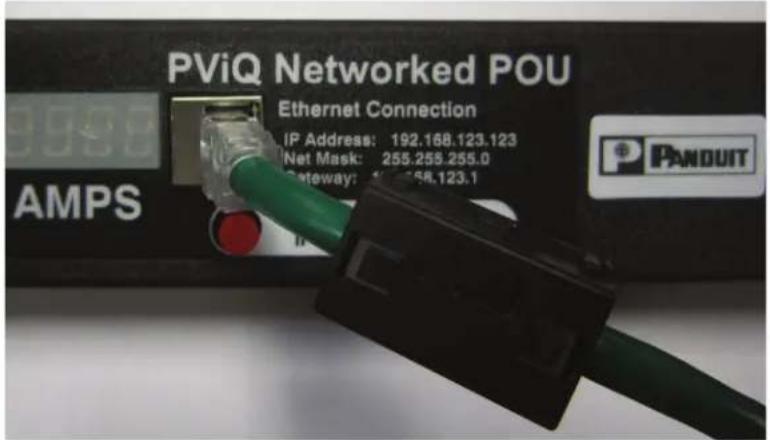
text_image
PViQ Networked POU Ethernet Connection IP Address: 192.168.123.123 Net Mask: 255.255.255.0 Gateway: 158.123.1 AMPS PANDUITInstallation
Instructions
- Using appropriate hardware, mount POU to rack.
- Plug POU into de-energized receptacle ^1 .
- Connect devices into POU's output receptacles. Panduit recommends that the devices are turned off until all devices are connected to POU.
- Turn on branch circuit to energize POU.
- Power on devices. Sequential power up is recommended to avoid high inrush current.
Guidelines
- If the POU is installed in a cabinet the ambient temperature of the rack should be no greater than 45^ C.
- Install the POU such that the amount of airflow required for safe operation of equipment is not compromised.
- Mount the POU so that a hazardous condition is not achieved due to uneven mechanical loading.
- Follow nameplate ratings when connecting equipment to the branch circuit. Take into consideration the effect that overloading of the circuits might have on over-current protection and supply wiring.
- The POU relies on the building installation for protection from over-current conditions. A certified overcurrent protection device is required in the building installation. The overcurrent protection device should be sized according to the POU's nameplate ratings and local/national electrical codes.
- Reliable earthing of rack-mount equipment should be maintained. Particular attention should be given to supply connections other than direct connections to the branch circuit. The POU must be connected to an earthed socket-outlet.
- The POU is intended for Restricted Access Locations only and only qualified service personnel should install and access the POU.
- For pluggable equipment, install the POU so that the input plug or appliance coupler may be disconnected for service.
- Sequential power-up of devices powered by the POU is recommended to avoid high inrush current.
- Caution: Disconnect all power cords before servicing.
• The POU is intended for use with TN, TT, or IT power supply systems
Mounting
"L" Bracket
Affix Power Strip Mounting mounting brackets using #12-24 screws provided into tapped holes in the front or the sides of the post. Power Strip Mounting Brackets can also be mounted to the rear equipment rails.
To center the 66.25" vertical power strips:
• For 7 foot post racks - mount L-Bracket at RU spaces 03 and 43
• For 8 foot 4 post racks, mount L-Bracket at RU spaces 06 and 46 or spaces 07 and 47
• For 6.5 foot 4 post racks, flip bottom bracket 180° and mount L-bracket at RU spaces 02 and 40
Mount power strip between brackets.

natural_image
Technical line drawing of a mechanical bracket and a separate view of a door (no text or symbols)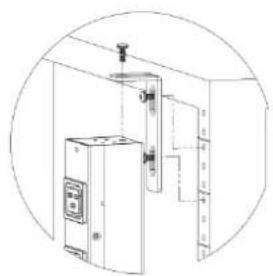
natural_image
Line drawing of a cabinet with pipes and control panel (no text or symbols)
text_image
Secure brackets using #12-24 Screws Secure POU to brackets Power Strip Side of post installation Front of post installation Flip bottom bracket 180° for 6.5ft. rackToolless Mounting Hardware
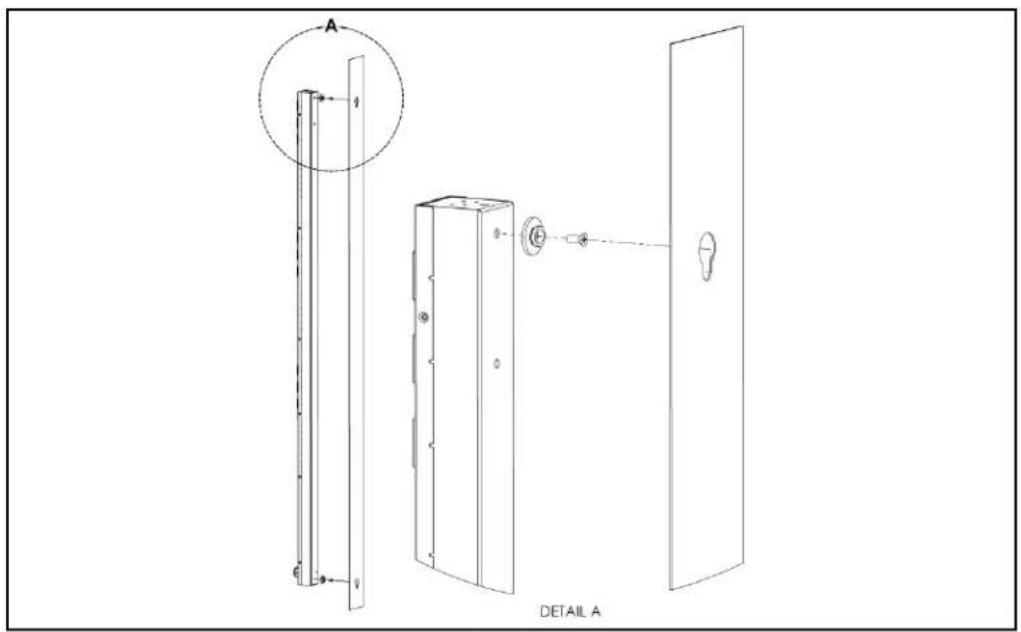
Use toolless buttons with key-holed slots built into cabinet or with optional key-holed brackets.
text_image
A DETAIL A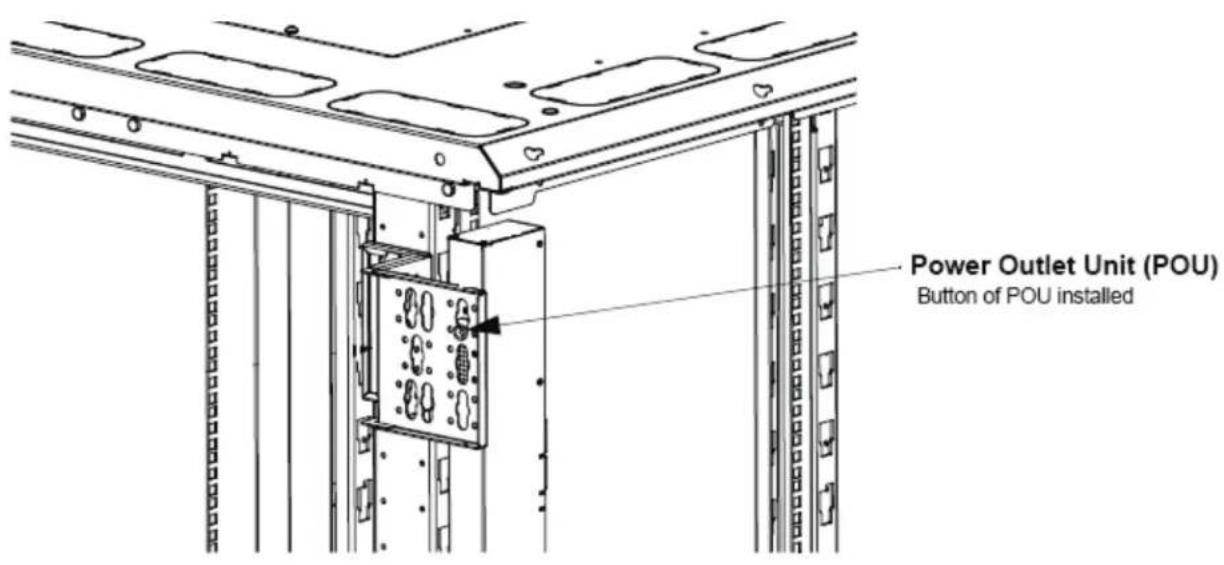
text_image
Power Outlet Unit (POU) Button of POU installed
text_image
Panduit Cabinet CS3Networked Monitoring
PViQ Local Meter Overview
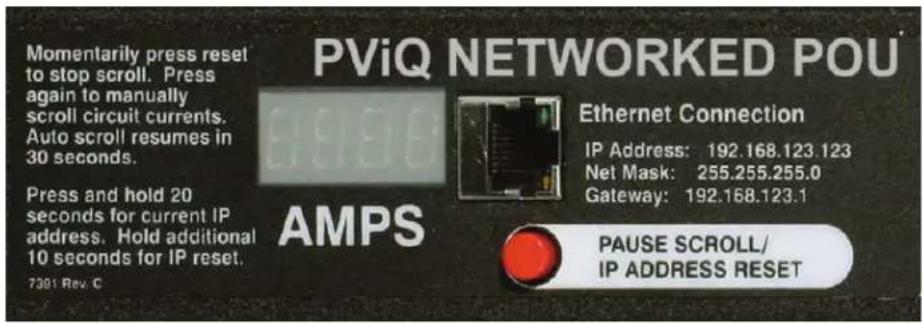
The PViQ Local Meter is a high precision meter capable of measuring true RMS current. The value of line current per input phase and output circuit current is shown on an easy to read, 4-digit LED Display. ^2 The display continuously scrolls through the different measured values. The Monitor also provides access to measurement data and control values through a web page, SNMP, or XML. The PViQ Networked Monitoring Instructions section of this document will give more detailed information on the network operation and functionality of the unit.
text_image
Momentarily press reset to stop scroll. Press again to manually scroll circuit currents. Auto scroll resumes in 30 seconds. Press and hold 20 seconds for current IP address. Hold additional 10 seconds for IP reset. 7391 Rev. C PVIQ NETWORKED POU AMPS Ethernet Connection IP Address: 192.168.123.123 Net Mask: 255.255.255.0 Gateway: 192.168.123.1 PAUSE SCROLL/ IP ADDRESS RESETPViQ Monitoring Meter
PViQ Networked Monitoring Instructions
Setting an IP Address
The POU comes preset with an IP address for initial setup and access to the unit. The 'Configuration' page contains the network properties. Access to the unit requires the IP address to be known, the IP address may be manually reset should the user-configured address be forgotten. The default address is:
IP Address: 192.168.123.123
Subnet Mask: 255.255.255.0
Gateway: 192.168.123.1
First time setup:
- Connect POU to your computer using a crossover cable.
- On your computer, go to "Start > Settings > Control Panel > Network and Dial Up Connections."
-
Right Click on "Local Area Connection" and select "Properties."
-
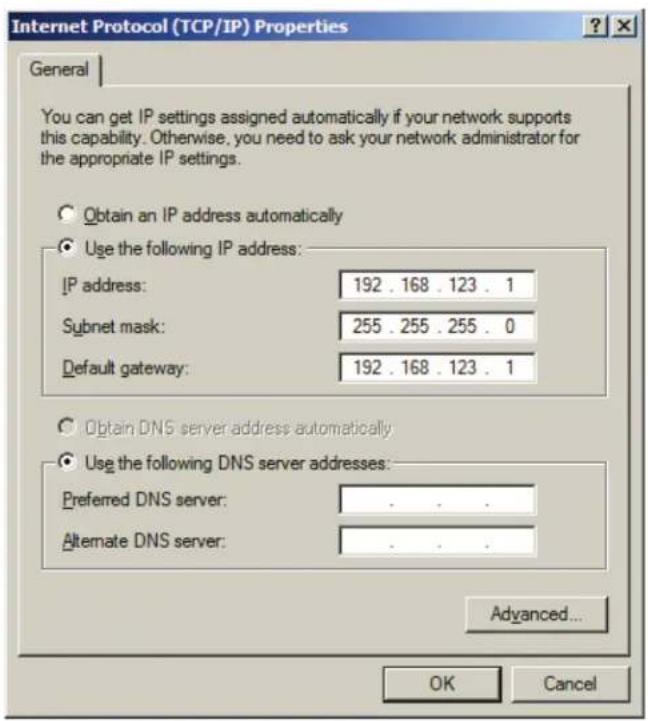
Select the option to "Use the following IP address" and enter:
IP address: 192.168.123.1
Subnet mask: 255.255.255.0
Default gateway: 192.168.123.1 ^4
Click "OK" twice.
You can now access the unit using your web browser at the permanent IP address of 192.168.123.1.
text_image
Internet Protocol (TCP/IP) Properties General You can get IP settings assigned automatically if your network supports this capability. Otherwise, you need to ask your network administrator for the appropriate IP settings. Obtain an IP address automatically Use the following IP address: IP address: 192 . 168 . 123 . 1 Subnet mask: 255 . 255 . 255 . 0 Default gateway: 192 . 168 . 123 . 1 Obtain DNS server address automatically Use the following DNS server addresses: Preferred DNS server: . Alternate DNS server: . Advanced... OK CancelTypical Network Card Settings for PC or Laptop to connect to default IP address
Accessing the POU Web GUI
Once you have properly set the IP Address for a unit, you can connect to the unit through a Web GUI. The Panduit POU Web GUI consists of five tabs:
- Current Monitoring
- Display
- Alarms
- Configuration
- XML | MIB
Current Monitoring tab
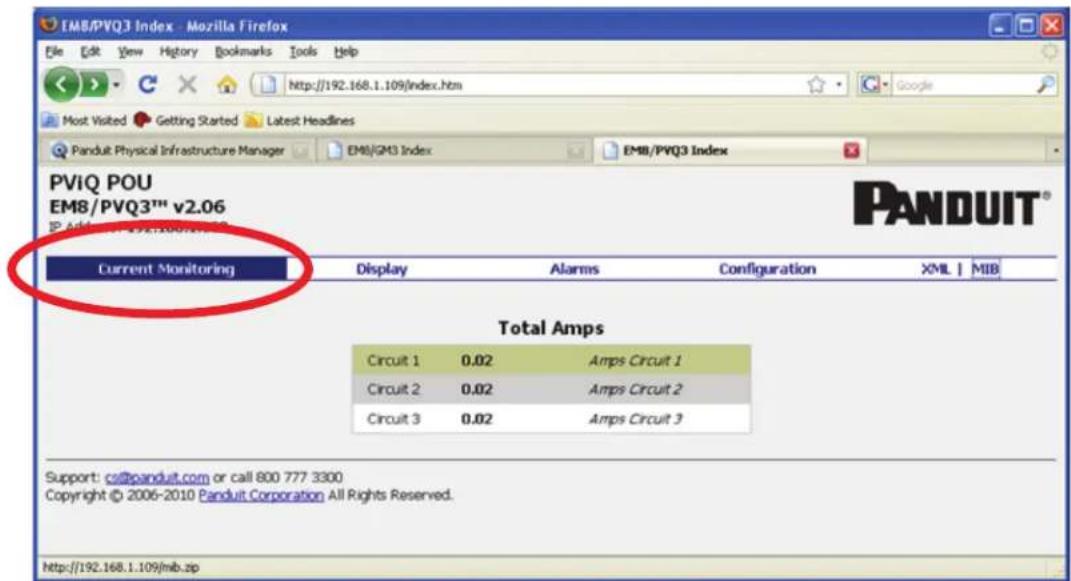
The Current Monitoring tab is the default tab. It displays the Total Amps usage for each circuit. A sample of the Current Monitoring tab is shown below.
text_image
EM8/PVQ3 Index - Mozilla Firefox File Edit View History Bookmarks Tools Help http://192.168.1.109/index.htm Most Visited Getting Started Latest Headlines Panduit Physical Infrastructure Manager EM8/GM3 Index EM8/PVQ3 Index PVIQ POU EM8/PVQ3™ v2.06 Current Monitoring Display Alarms Configuration XML | MIB Total Amps Circuit 1 0.02 Amps Circuit 1 Circuit 2 0.02 Amps Circuit 2 Circuit 3 0.02 Amps Circuit 3 Support: call@panduit.com or call 800 777 3300 Copyright © 2006-2010 Panduit Corporation All Rights Reserved. http://192.168.1.109/mb.zipCurrent Monitoring tab using the Web GUI
Display tab
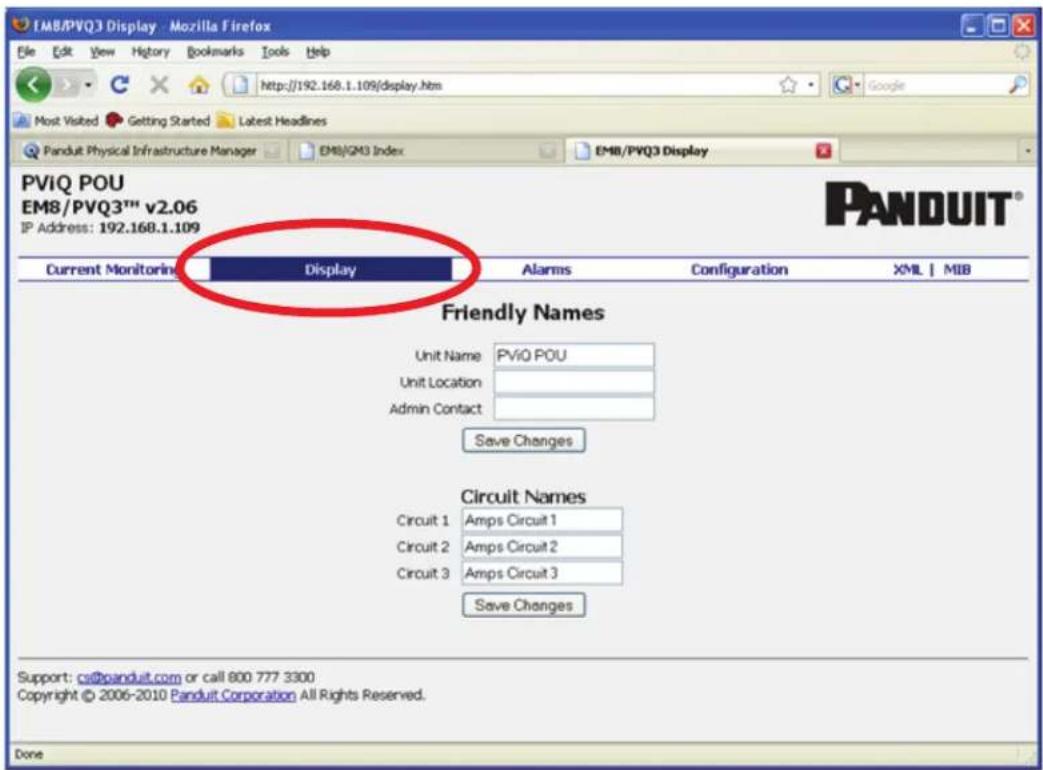
The Display tab allows you to enter user friendly names for the POU, the Unit Location, and an Admin Contact. You can also enter individual names for each circuit.
A sample of the Display tab screen is shown below.
text_image
PVIQ POU EM8/PVQ3™ v2.06 IP Address: 192.168.1.109 Current Monitoring Display Alarms Configuration XML | MIB Friendly Names Unit Name PVIQ POU Unit Location Admin Contact Save Changes Circuit Names Circuit 1 Amps Circuit 1 Circuit 2 Amps Circuit 2 Circuit 3 Amps Circuit 3 Save Changes Support: cs@panduit.com or call 800 777 3300 Copyright © 2006-2010 Panduit Corporation All Rights Reserved. DoneDisplay tab using the Web GUI
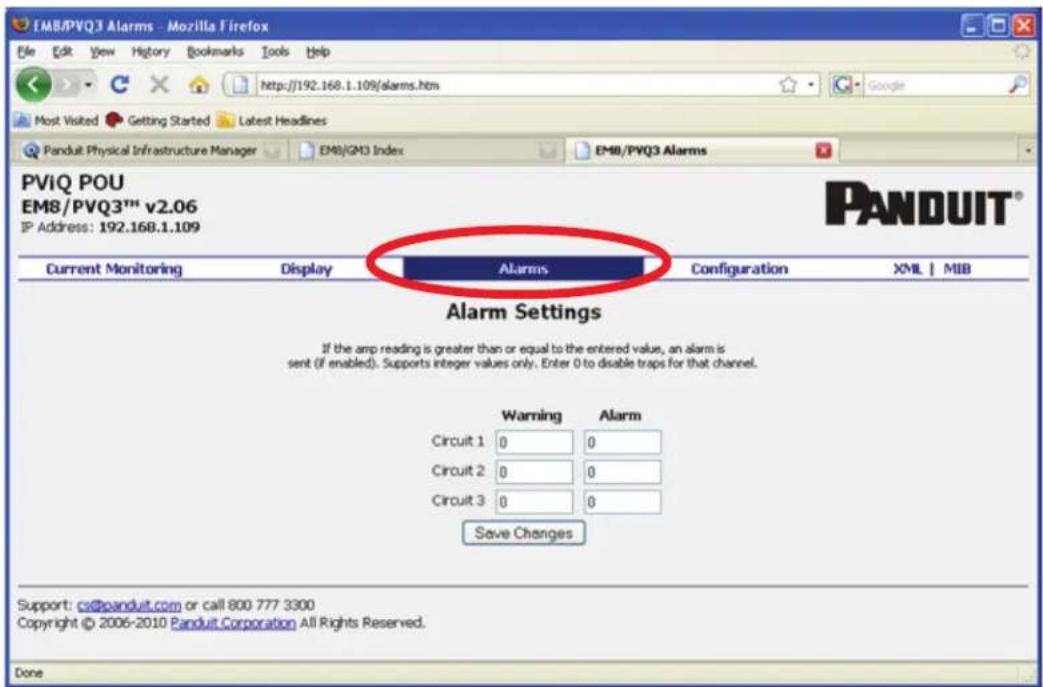
Alarms tab
The Alarms tab provides a current count of the number of warnings and alarms generated for the unit. Individual warning and alarm counts are displayed for each circuit.
A sample of the Alarms tab screen is shown below.
text_image
EMB/PVQ3 Alarms - Mozilla Firefox File Edit View History Bookmarks Tools Help http://192.168.1.109/alarms.htm Most Visited Getting Started Latest Headlines Panduit Physical Infrastructure Manager EM8/GM3 Index EMB/PVQ3 Alarms PVIQ POU EM8/PVQ3™ v2.06 IP Address: 192.168.1.109 Current Monitoring Display Alarms Configuration XML | MIB Alarm Settings If the amp reading is greater than or equal to the entered value, an alarm is sent (if enabled). Supports integer values only. Enter 0 to disable traps for that channel. Warning Alarm Circuit 1 0 0 Circuit 2 0 0 Circuit 3 0 0 Save Changes Support: cs@panduit.com or call 800 777 3300 Copyright © 2006-2010 Panduit Corporation All Rights Reserved. DoneAlarms tab using the Web GUI
Configuration tab
The Configuration tab provides access to various Network and SNMP settings for the unit.
A sample of the Configuration tab is shown below.

text_image
EM8/PVQ3 Config - Mozilla Firefox File Edit View History Bookmarks Tools Help Most Visited Setting Started Latest Headlines Panduit Physical Infrastructure Manager EM8/GM3 Index EM8/PVQ3 Config PViQ POU EM8/PVQ3™ v2.06 IP Address: 192.168.1.109 Current Monitoring Display Alarms Configuration XML MIB Configuration Network Settings DHCP Enabled: IP Address: 192.168.1.109 Subnet Mask: 255.255.252.0 Gateway: 192.168.0.2 MAC Address: 00.19.85.00.78 FE Save Changes SNMP Settings Read Community: public Trap IP Addresses: 0.0.0.0 0.0.0.0 Trap Community: public Write Community: private Note: Leave trap IP address blank to disable traps. Note: The MIB has changed from version 1.x.x. Download the latest MIB at the top of this page. Save Changes Restore Defaults Restore all non-network settings to defaults by clicking the button below. □ Check this box and click below to reset network settings Restore Defaults Support: cs@panduit.com or call 800 777 3300 Copyright © 2006-2010 Panduit Corporation All Rights Reserved. DoneConfiguration tab using a web browser
LED Display
Each POU has a built-in 4-digit LED display mounted midway down the chassis. The display scrolls through the most recent current measurement (in amps) for each circuit, one at a time. It displays a circuit name, pauses, and then displays the measurement. Momentarily press the "Pause Scroll/IP Address Reset" button on the front of the POU to pause the display on the current measurement. While paused, the display will cycle back and forth between circuit name and current reading every three seconds. Momentarily pressing the "Pause Scroll/IP Address Reset" button again will skip ahead to the next circuit. The display will begin to scroll again thirty seconds after the last button push.
√ During the first cycle after the display has been paused, the display may take up to six seconds to display a measurement.
√ Due to the time required to measure current accurately, the same reading may be shown twice while the display is paused.
| For reference: | Cr-1 = Circuit 1 | Ph-A = Phase A |
| Cr-2 = Circuit 2 | Ph-b = Phase B | |
| Cr-3 = Circuit 3 | Ph-C = Phase C | |
| Cr-4 = Circuit 4 | nEUt = Neutral | |
| Cr-5 = Circuit 5 | Fd-A = Feed A | |
| Cr-6 = Circuit 6 | Fd-B = Feed B |
Viewing the IP Address/Resetting to Default IP
In the event that the IP address of the POU is lost, it is possible to view the currently configured IP address on the unit's built-in LED display or reset the IP address to the default.
To view the IP address, press and hold the "Pause Scroll/IP Address Reset" button on the front of the POU for 20 seconds. The screen will stop displaying scrolling power data in order to display the currently configured IP address. The display will show the IP address using the following format:
$$ c - I P \rightarrow a a a \rightarrow . \rightarrow b b b \rightarrow . \rightarrow c c c \rightarrow . \rightarrow d d d $$
The ‘→’ indicates a pause and the aaa/bbb/ccc/ddd indicate a portion of the currently configured IP address. The IP address will be displayed twice before normal scrolling continues.
CAUTION: If the “Pause Scroll/IP Address Reset” button is being held while the second segment (bbb above) of the IP address is being displayed, the unit’s IP address will be reset. To prevent this, release the button as soon as “c-IP” shows up on the display.
To reset the IP address to the backup IP address, press and hold the "Pause Scroll/IP Address Reset" button on the front of the POU for 20 seconds, at which point the display will show the current IP address. Continue to hold the "Pause Scroll/IP Address Reset" button for 10 more seconds and the display will switch to scrolling d-IP→192→.→168→.→123→.→123. The IP address is then reset to 192.168.123.123. The display will resume its normal function after the display shows the IP address twice and the "Pause
Scroll/IP Address Reset" has been released. Once the IP address has been reset, the Setting an IP Address instructions should be followed to access the unit.
Rebooting the Meter
Should an Current Monitoring Meter with firmware version 1.36 or higher installed stop responding to network traffic, it is possible to restore functionality by rebooting the meter without removing power from the POU it is enclosed in.
To reboot the meter, press and hold the "Pause Scroll/IP Address Reset" button on the front on the POU for 20 seconds. The screen will stop displaying scrolling power data in order to display the currently configured IP address. The display will show the IP address using the following format:
$$ c - I P \rightarrow a a a \rightarrow . \rightarrow b b b \rightarrow . \rightarrow c c c \rightarrow . \rightarrow d d d $$
The ‘→’ indicates a pause and the aaa/bbb/ccc/ddd indicate a portion of the currently configured IP address. As soon as “c-IP” is displayed, release the “Pause Scroll/IP Address Reset” button. Press and release the “Pause Scroll/IP Address Reset” button twice while the IP address is being displayed. The screen will read “8.8.8.8.” for a few seconds and then resume scrolling normally, indicating a successful reboot.
Web Page
The main interface to the POU is its web page, accessible by typing the unit's IP address into a web browser. The web page is the source for the most up to date measurement of each circuit. All measurements are in Amps.
SNMP/XML
In addition to HTML based web pages, the POU presents its data via SNMP and an XML page.
To use the POU with SNMP Client software, download the MIB from the link on the unit's web page and import it into the SNMP software. Contact the client software manufacturer for instructions specific to their software. The POU's SNMP community comes preset to 'public'. To change this, go to the 'Configuration' page, enter a new name in the SNMP Community box and hit "Save Changes." In addition SNMP traps can be utilized to monitor a user set threshold for each circuit, alarm settings and SNMP server settings are located on the 'Configuration' page.
The XML page provides terse output that is easily parsed by both humans and computers and is useful for creating scripts to download and process information off the unit automatically. The XML page is available at http://
Sample uses of XML and SNMP data are provided in the Sample Usage section of this document.
Sample Usage
The simplest way to get data from a Current Monitoring Meter into a script is via the XML page. Simply performing an HTTP GET (as a web browser does) on http://
Perl Example:
using LWP::UserAgent;
my $ip = "192.168.123.123";
my $browser = LWP::UserAgent->new;
$browser->timeout(5);
my xmlFile =browser->get("http://" . $ip . "/data.xml")->content;
At this point, \$xmlFile will contain the text of data.xml, ready to be parsed however necessary.
Unix/Linux Command Line Example:
wget http://192.168.123.123/data.xml
This command will download data.xml into the current directory. At this point, the file is ready to be used by any local application or script.
Service and Technical Support
Service
No service or maintenance is required. Do not attempt to open the POU or you may void the warranty. No serviceable parts inside. Panduit recommends that power be removed from the unit before installing or removing any equipment.
Technical Support
For Technical Support on the PViQ POU please contact Panduit Technical Support using one of the following methods: