BR-6104WG - Router Edimax - Free user manual and instructions
Find the device manual for free BR-6104WG Edimax in PDF.


User questions about BR-6104WG Edimax
0 question about this device. Answer the ones you know or ask your own.
Ask a new question about this device
Download the instructions for your Router in PDF format for free! Find your manual BR-6104WG - Edimax and take your electronic device back in hand. On this page are published all the documents necessary for the use of your device. BR-6104WG by Edimax.
USER MANUAL BR-6104WG Edimax
Minimum Requirements 3
Package Content....3
Note....3
Get to know the Broadband Router....4
Back Panel 4
Front Panel 5
Setup Diagram....6
Getting started....7
Chapter 1....15
Quick Setup 15
Step 1) Time Zone .... 15
Step 2) Broadband Type .... 16
1.1 Cable Modem.... 18
1.2 Fixed-IP xDSL.... 19
1.3 PPPoE....20
1.4 PPTP....22
Chapter 2....25
General Settings 25
2.1 System 27
2.1.1 Time Zone 27
2.1.2 Password Settings.... 28
2.1.3 Remote Management 29
2.2 WAN....32
2.2.1 Dynamic IP 33
2.2.2 Static IP Address.... 33
2.2.3 PPPoE (PPP over Ethernet) 33
2.2.4 PPTP 33
2.2.5 L2TP 34
2.2.6 Telstra Big Pond.... 36
2.2.7 Bridge 37
2.2.8 DNS....39
2.2.9 DDNS....40
2.3 LAN....41
2.4 Wireless.... 43
2.4.1 Basic Settings 44
2.4.2 Advanced Settings 45
2.4.3 Encryption 47
2.5 NAT....51
2.5.1 Port Forwarding....53
2.5.2 Virtual Server.... 55
2.5.3 Special Applications 58
2.5.4 ALG Settings 61
2.6 Firewall 62
2.6.1 Access Control.... 63
2.6.2 URL Blocking 67
2.6.3 Hacker Prevention 69
2.6.4 DMZ 70
Chapter 3....72
Status 72
3.1 Status and Information....73
3.2 Internet Connection....74
3.3 Device Status....75
3.4 Security Log....76
3.5 Active DHCP Client Table 77
3.6 Statistics 78
Chapter 4....79
Tool....79
4.1 Configuration Tools 80
4.2 Firmware Upgrade....81
4.3 Reset....82
Appendix A....83
Glossary 84
Introduction
Congratulations on purchasing this Wireless Broadband Router. This Wireless Broadband Router is a cost-effective IP Sharing Router that enables multiple users to share the Internet through an ADSL or cable modem. Simply configure your Internet connection settings in the Wireless Broadband Router and plug your PC to the LAN port and you're ready to share files and access the Internet. As your network grows, you can connect another hub or switch to the router's LAN ports, allowing you to easily expand your network. The Wireless Broadband Router is embedded with a IEEE 802.11g/b access point that allows you to build up a wireless LAN. The Wireless Broadband Router provides a total solution for the Small and Medium-sized Business (SMB) and the Small Office/Home Office (SOHO) markets, giving you an instant network today, and the flexibility to handle tomorrow's expansion and speed.
Features
• High Internet Access throughput (50M)
- Allow multiple users to share a single Internet line
• Supports up to 253 users
• Internet Access via Cable or xDSL modem
• Access Private LAN Servers from the Public Network
• Equipped with four LAN ports (10/100M) and one WAN port (10/100M)
• Provides IEEE 802.11g/b wireless LAN access point
• Support DHCP (Server/Client) for easy setup
- Support advance features such as: Special Applications, DMZ, Virtual Servers, Access Control, Firewall, and Bridge mode.
- Allow you to monitor the router's status such as: DHCP Client Log, Security Log and Device/Connection Status
- Easy to use Web-based GUI for configuration and management purposes
- Remote Management allows configuration and upgrades from a remote site (over the Internet)
Minimum Requirements
• One External xDSL (ADSL) or Cable modem with an Ethernet port (RJ-45)
• Network Interface Card (NIC) for each Personal Computer (PC)
• PCs with a Web-Browser (Internet Explorer 4.0 or higher, or Netscape Navigator 4.7 or higher)
Package Content
• One 4-port Broadband router unit
• One Quick Installation Guide
• One User Manual CD
• One Power Adapter
- Accessories
Note
The WAN “idle timeout” auto-disconnect function may not work due to abnormal activities of some network application software, computer virus or hacker attacks from the Internet. For example, some software sends network packets to the Internet in the background, even when you are not using the Internet. So please turn off your computer when you are not using it. This function also may not work with some ISP. So please make sure this function can work properly when you use this function in the first time, especially your ISP charge you by time used.
Get to know the Broadband Router
Back Panel
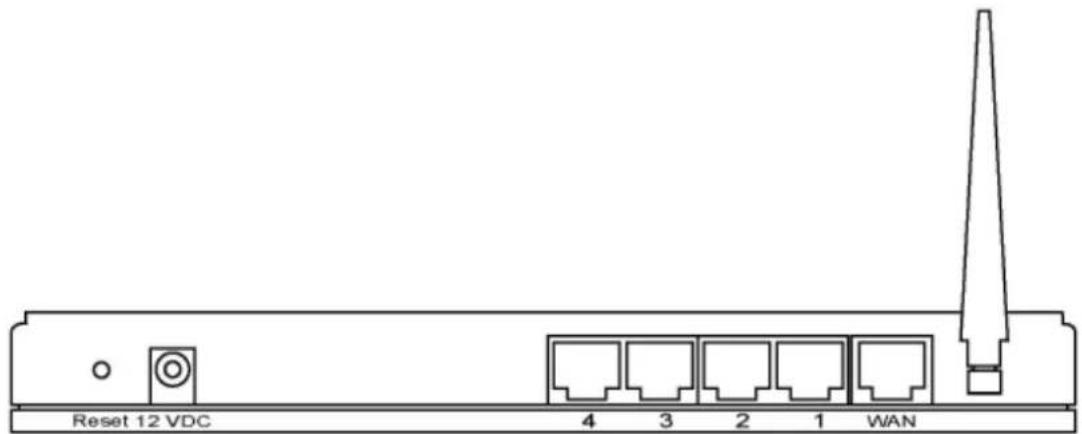
The diagram (fig1.0) below shows the broadband router's back panel. The router's back panel is divided into three sections, LAN, WAN and Reset:
text_image
Reset 12 VDC 4 3 2 1 WANFigure 1.0
1) Local Area Network (LAN)
The Broadband router's 4 LAN ports are where you connect your LAN's PCs, printer servers, hubs and switches etc.
2) Wide Area Network (WAN)
The WAN port is the segment connected to your xDSL or Cable modem and is linked to the Internet.
3) Reset
The Reset button allows you to do one of two things.
1) If problems occur with your router, press the router's reset button with a pencil tip (for less than 4 seconds) and the router will re-boot itself, keeping your original configurations.
2) If problems persist or you experience extreme problems or you forgot your password, press the reset button for longer than 4 seconds and the router will reset itself to the factory default settings (warning: your original configurations will be replaced with the factory default settings)
Front Panel
On the router's front panel there are LED lights that inform you of the router's current status. Below is an explanation of each LED and its description.
Wireless-G Broadband Router


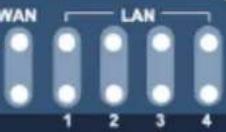
| LED | Light Status | Description |
| PWR | ON | Router's power supply is on |
| WAN 10/100M | ON | WAN port 100Mbps is connected |
| Off | WAN port 10Mbps is connected | |
| WAN LNK/ACT | ON | WAN is connected |
| Off | No WAN connection | |
| Flashing | WAN port has Activity (ACT), data being sent | |
| LAN 10/100M (Port 1-4) | ON | LAN port 100Mbps is connected |
| Off | LAN port 10Mbps is connected | |
| LAN LNK/ACT (Port 1-4) | ON | LAN is connected |
| Off | No LAN connection | |
| Flashing | LAN port has Activity (ACT), data being sent | |
| WLAN-G | ON | Wireless LAN has been activated |
| Off | Wireless LAN is disabled | |
| Flashing | Wireless LAN has Activity (ACT) data being sent |
Setup Diagram
Figure 1.2 below shows a typical setup for a Local Area Network (LAN).

flowchart
graph TD
    A["AC Power"] --> B["Reset 12 VDC"]
    B --> C["4"]
    B --> D["3"]
    B --> E["2"]
    B --> F["1"]
    B --> G["WAN"]
    B --> H["Switch/ Hub"]
    B --> I["ADSL or Cable Modem"]
    I --> J["Internet"]
Figure 1.2
Getting started
This is a step-by-step instruction on how to start using the router and get connected to the Internet.
1) Setup your network as shown in the setup diagram above (fig 1.2).
2) You then need to set your LAN PC clients so that it can obtain an IP address automatically. All LAN clients require an IP address. Just like an address, it allows LAN clients to find one another. (If you have already configured your PC to obtain an IP automatically then proceed to step 3, page 11)
Configure your PC to obtain an IP address automatically
By default the broadband router's DHCP is on, this means that you can obtain an IP address automatically once you've configured your PC to obtain an IP address automatically. This section will show you how to configure your PC's so that it can obtain an IP address automatically for either Windows 95/98/Me, 2000 or NT operating systems. For other operating systems (Macintosh, Sun, etc.), follow the manufacturer's instructions. The following is a step-by-step illustration on how to configure your PC to obtain an IP address automatically for 2a) Windows 95/98/Me, 2b) Windows XP, 2c) Windows 2000 and 2d) Windows NT.
1: Click the Start button and select Settings, then click Control Panel. The Control Panel window will appear.
2: Double-click Network icon. The Network window will appear.
3: Check your list of Network Components. If TCP/IP is not installed, click the Add button to install it now. If TCP/IP is installed, go to step 6.
4: In the Network Component Type dialog box, select Protocol and click Add button.
5: In the Select Network Protocol dialog box, select Microsoft and TCP/IP and then click the OK button to start installing the TCP/IP protocol. You may need your Windows CD to complete the installation.
6: After installing TCP/IP, go back to the Network dialog box. Select TCP/IP from the list of Network Components and then click the Properties button.
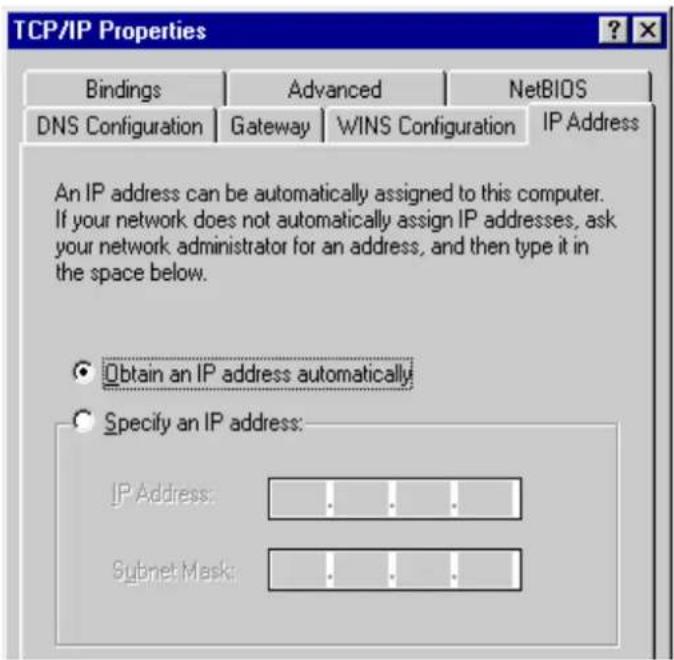
7: Check each of the tabs and verify the following settings:
- Bindings: Check Client for Microsoft Networks and File and printer sharing for Microsoft Networks.
• Gateway: All fields are blank.
• DNS Configuration: Select Disable DNS.
• WINS Configuration: Select Disable WINS Resolution.
• IP Address: Select Obtain IP address automatically.
text_image
TCP/IP Properties Bindings Advanced NetsBIOS DNS Configuration Gateway WINS Configuration IP Address An IP address can be automatically assigned to this computer. If your network does not automatically assign IP addresses, ask your network administrator for an address, and then type it in the space below. Obtain an IP address automatically Specify an IP address: IP Address: .... Subnet Mask: ....8: Reboot the PC. Your PC will now obtain an IP address automatically from your Broadband Router's DHCP server.
Note: Please make sure that the Broadband router's DHCP server is the only DHCP server available on your LAN.
Once you've configured your PC to obtain an IP address automatically, please proceed to Step 3
2b) Windows XP
1: Click the Start button and select Settings, then click Network Connections. The Network Connections window will appear.
2: Double-click Local Area Connection icon. The Local Area Connection window will appear.
3: Check your list of Network Components. You should see Internet Protocol [TCP/IP] on your list. Select it and click the Properties button.
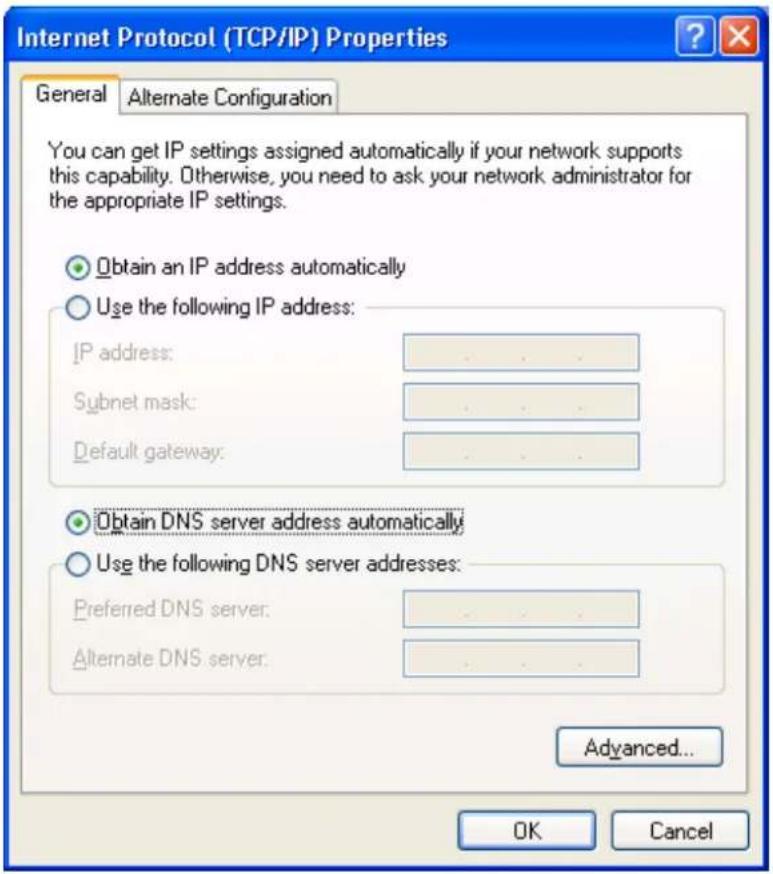
4: In the Internet Protocol (TCP/IP) Properties window, select Obtain an IP address automatically and Obtain DNS server address automatically as shown on the following screen.
text_image
Internet Protocol (TCP/IP) Properties General Alternate Configuration You can get IP settings assigned automatically if your network supports this capability. Otherwise, you need to ask your network administrator for the appropriate IP settings. Obtain an IP address automatically Use the following IP address: IP address: .... Subnet mask: .... Default gateway: .... Obtain DNS server address automatically Use the following DNS server addresses: Preferred DNS server: .... Alternate DNS server: .... Advanced... OK Cancel5: Click OK to confirm the setting. Your PC will now obtain an IP address automatically from your Broadband Router's DHCP server.
Note: Please make sure that the Broadband router's DHCP server is the only DHCP server available on your LAN.
Once you've configured your PC to obtain an IP address automatically, please proceed to Step 3.
2c) Windows 2000
1: Click the Start button and select Settings, then click Control Panel. The Control Panel window will appear.
2: Double-click Network and Dial-up Connections icon. In the Network and Dial-up Connection window, double-click Local Area Connection icon. The Local Area Connection window will appear.
3: In the Local Area Connection window, click the Properties button.
4: Check your list of Network Components. You should see Internet Protocol [TCP/IP] on your list. Select it and click the Properties button.
5: In the Internet Protocol (TCP/IP) Properties window, select Obtain an IP address
automatically and Obtain DNS server address automatically as shown on the following screen.

text_image
Internet Protocol (TCP/IP) Properties General You can get IP settings assigned automatically if your network supports this capability. Otherwise, you need to ask your network administrator for the appropriate IP settings. Obtain an IP address automatically Use the following IP address: IP address: Subnet mask: Default gateway: Obtain DNS server address automatically Use the following DNS server addresses: Preferred DNS server: Alternate DNS server: Advanced... OK Cancel6: Click OK to confirm the setting. Your PC will now obtain an IP address automatically from your Broadband Router's DHCP server.
Note: Please make sure that the Broadband router's DHCP server is the only DHCP server available on your LAN.
Once you've configured your PC to obtain an IP address automatically, please proceed to Step 3.
2d) Windows NT
1: Click the Start button and select Settings, then click Control Panel. The Control Panel window will appear.
2: Double-click Network icon. The Network window will appear. Select the Protocol tab from the Network window.
3: Check if the TCP/IP Protocol is on your list of Network Protocols. If TCP/IP is not installed, click the Add button to install it now. If TCP/IP is installed, go to step 5.
4: In the Select Network Protocol window, select the TCP/IP Protocol and click the Ok
button to start installing the TCP/IP protocol. You may need your Windows CD to complete the installation.
5: After you install TCP/IP, go back to the Network window. Select TCP/IP from the list of Network Protocols and then click the Properties button.
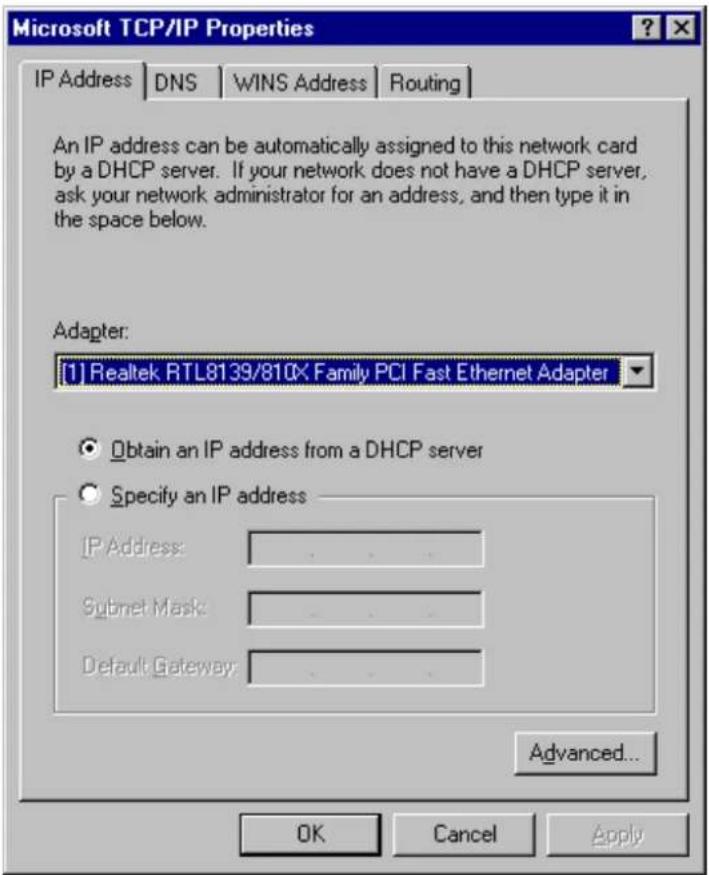
6: Check each of the tabs and verify the following settings:
• IP Address: Select Obtain an IP address from a DHCP server.
• DNS: Let all fields are blank.
• WINS: Let all fields are blank.
- Routing: Let all fields are blank.
text_image
Microsoft TCP/IP Properties IP Address DNS WINS Address Routing An IP address can be automatically assigned to this network card by a DHCP server. If your network does not have a DHCP server, ask your network administrator for an address, and then type it in the space below. Adapter: [1] Realtek RTL8139/810K Family PCI Fast Ethernet Adapter Obtain an IP address from a DHCP server Specify an IP address IP Address: . Subnet Mask: . Default Gateway: . Advanced... OK Cancel Apply7: Click OK to confirm the setting. Your PC will now obtain an IP address automatically from your Broadband Router's DHCP server.
Note: Please make sure that the Broadband router's DHCP server is the only DHCP server available on your LAN.
Once you've configured your PC to obtain an IP address automatically, please proceed to Step 3.
3) Once you have configured your PCs to obtain an IP address automatically, the router's DHCP server will automatically give your LAN clients an IP address. By default the Broadband Router's DHCP server is enabled so that you can obtain an IP address automatically. To see if you have obtained an IP address, see Appendix A.
Note: Please make sure that the Broadband router's DHCP server is the only DHCP server available on your LAN. If there is another DHCP on your network, then you'll need to switch one of the DHCP servers off. (To disable the Broadband router's DHCP server see chapter 2 LAN Port)
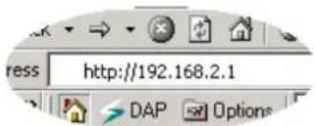
4) Once your PC has obtained an IP address from your router, enter the default IP address 192.168.2.1 (broadband router's IP address) into your PC's web browser and press
text_image
ress http://192.168.2.1 DAP Options5) The login screen below will appear. Enter the "User Name" and "Password" and then click
Note: By default the user name is "admin" and the password is "1234". For security reasons it is recommended that you change the password as soon as possible (in General setup/system/password, see chapter 2)

text_image
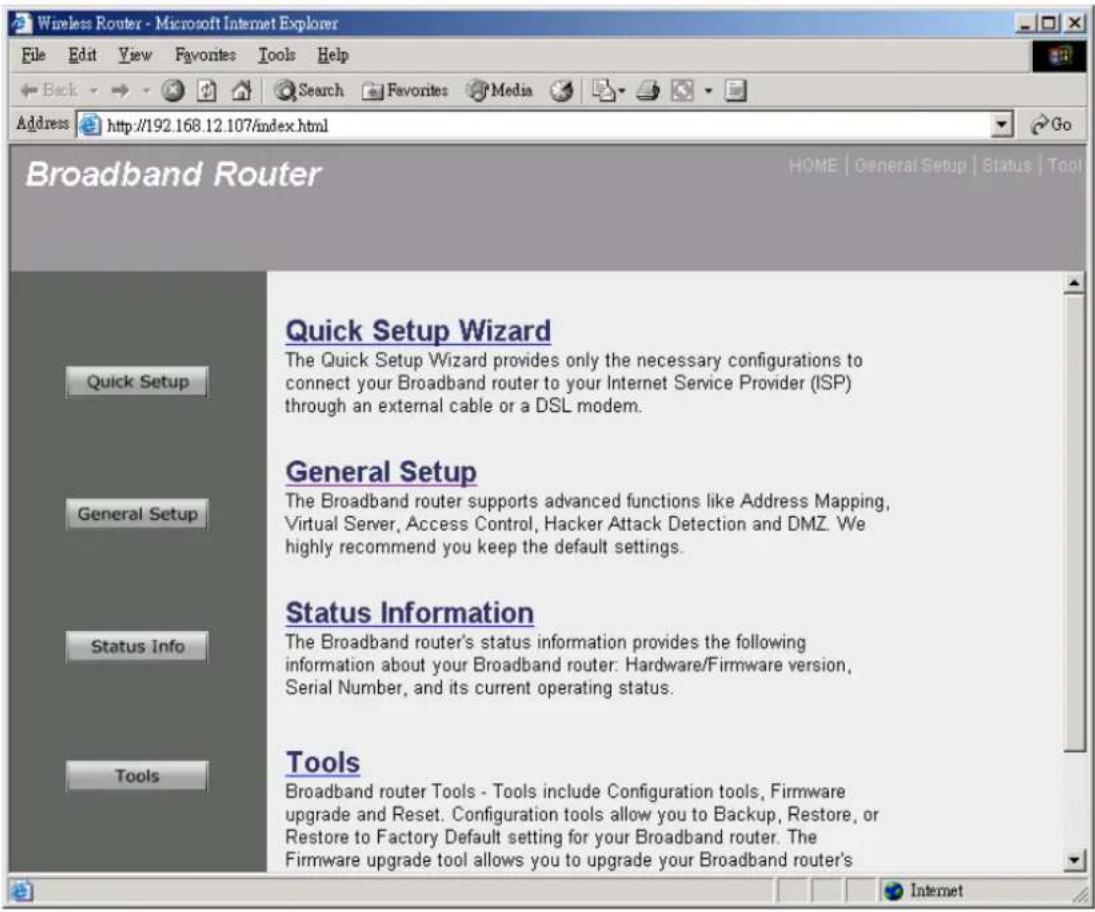
Enter Network Password Please type your user name and password. Site: 192.168.12.103 Realm Wireless Access Point User Name Password Save this password in your password list OK Cancel6) The HOME page screen below will appear. The Home Page is divided into four sections, Quick Setup Wizard, General Setup, Status Information and Tools.
Quick Setup Wizard (Chapter 1)
If you only want to start using the broadband router as an Internet Access device then you ONLY need to configure the screens in the Quick Setup Wizard section.
General Setup (Chapter 2)
If you want to use more advanced features that the broadband router has to offer, then you'll need to configure the Quick Setup Wizard and the General Setup section. Alternatively, you
can just configure the General Setup section, since the General Setup/WAN and the Quick Setup Wizard contain the same configurations.
Status Information (Chapter 3)
The Status Information section is for you to monitor the router's current status information only.
Tools (Chapter 4)
If you want to Reset the router (because of problems) or save your configurations or upgrade the firmware then the Tools section is the place to do this.
text_image
Wireless Router - Microsoft Internet Explorer File Edit View Favorites Tools Help Back Search Favorites Media Address http://192.168.12.107/index.html Broadband Router HOME | General Setup | Status | Tool Quick Setup Wizard The Quick Setup Wizard provides only the necessary configurations to connect your Broadband router to your Internet Service Provider (ISP) through an external cable or a DSL modem. General Setup The Broadband router supports advanced functions like Address Mapping, Virtual Server, Access Control, Hacker Attack Detection and DMZ. We highly recommend you keep the default settings. Status Information The Broadband router's status information provides the following information about your Broadband router: Hardware/Firmware version, Serial Number, and its current operating status. Tools Broadband router Tools - Tools include Configuration tools, Firmware upgrade and Reset. Configuration tools allow you to Backup, Restore, or Restore to Factory Default setting for your Broadband router. The Firmware upgrade tool allows you to upgrade your Broadband router's Internet| Menu | Description | |
| Quick Setup Wizard (Chapter 1) | Select your Internet connection type and then input the configurations needed to connect to your Internet Service Provider (ISP). | |
| General Setup (Chapter 2) | This section contains configurations for the Broadband router's advance functions such as: Bridge, Address Mapping, Virtual Server, | |
| Access Control, Hacker Attack Prevention, DMZ, Special applications and other functions to meet your LAN requirements. | ||
| Status Information (Chapter 3) | In this section you can see the Broadband router's system information, Internet Connection, Device Status, Security Log and DHCP client Log information. | |
| Tools (Chapter 4) | This section contains the broadband router's Tools - Tools include Configuration tools, Firmware upgrade and Reset. Configuration tools allow you to Backup (save), Restore, or Restore to Factory Default configuration for your Broadband router. The Firmware upgrade tool allows you to upgrade your Broadband router's firmware. The RESET tool allows you to reset your Broadband router. | |
| Logout | Selecting logout will return you to the LOGIN page | |
7) Click on Quick Setup Wizard (see chapter 1) to start configuring settings required by your ISP so that you can start accessing the Internet. The other sections (General Setup, Status Information and Tools) do not need to be configured unless you wish to implement/monitor more advance features/information.
Select the section (Quick Setup Wizard, General Setup, Status Information and Tools) you wish to configure and proceed to the corresponding chapter. Use the selections on the web management's top right hand page (see below) to navigate around the web-based management User Interface.
HOME | General Setup | STATUS | Tool ⚙ Logout
Chapter 1
Quick Setup
The Quick Setup section is designed to get you using the broadband router as quick as possible. In the Quick Setup you are required to fill in only the information necessary to access the Internet. Once you click on the Quick Setup Wizard in the HOME page, you should see the screen below.
Step 1) Time Zone
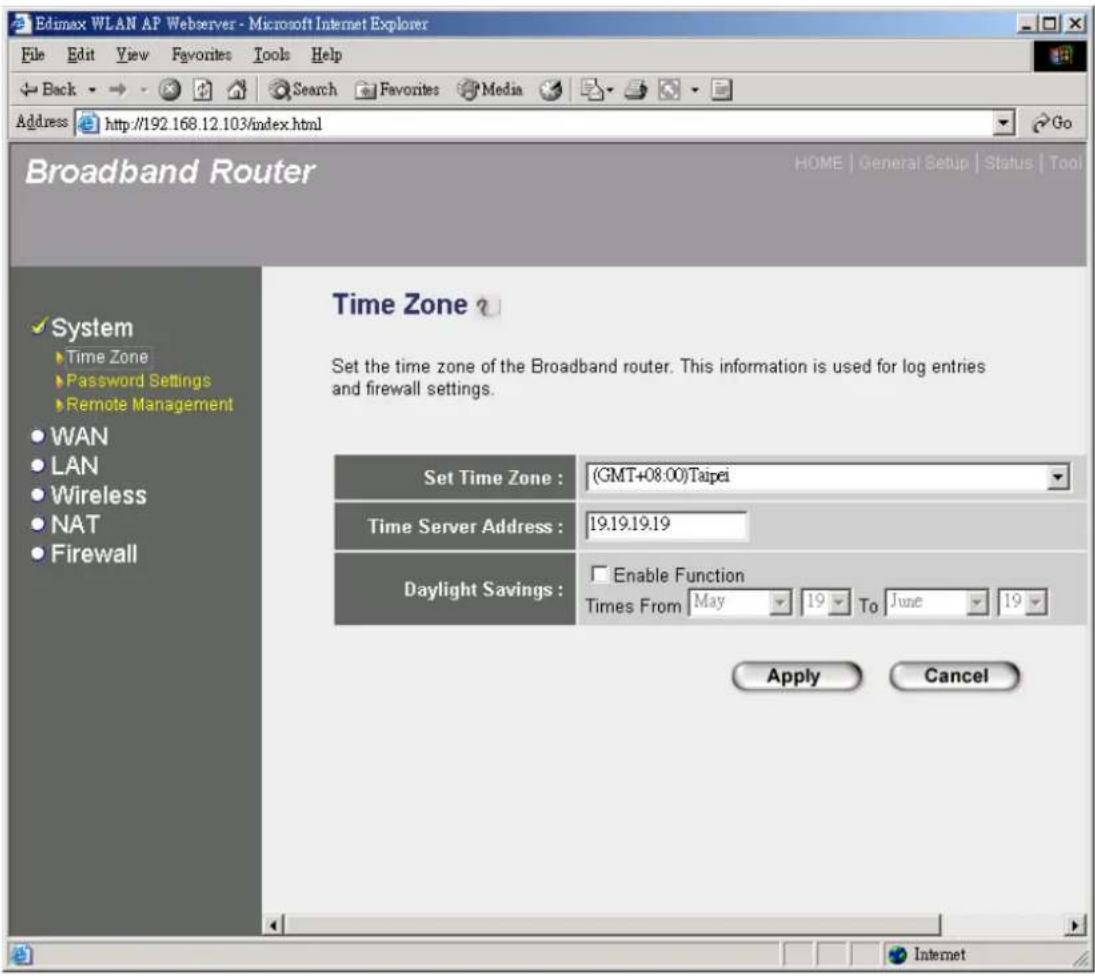
The Time Zone allows your router to base its time on the settings configured here, this will affect functions such as Log entries and Firewall settings.
text_image
Edimax WLAN AP Webserver - Microsoft Internet Explorer File Edit View Favorites Tools Help Back Search Favorites Media Address http://192.168.12.103/index.html Broadband Router HOME | General Setup | Status | Tool System Time Zone Password Settings Remote Management WAN LAN Wireless NAT Firewall Time Zone Set the time zone of the Broadband router. This information is used for log entries and firewall settings. Set Time Zone : (GMT+08.00)Taipei Time Server Address : 19.19.19.19 Daylight Savings : Enable Function Times From May 19 To June 19 Apply Cancel| Parameter | Description |
| Set Time Zone | Select the time zone of the country you are currently in. The router will set its time based on your selection. |
| Time Server Address | You can manually assign time server address if the default time server dose not work. |
| Enable Daylight Savings | The router can also take Daylight savings into account. If you wish to use this function, you must check/tick the enable box to enable your daylight saving configuration (below). |
| Start Daylight Savings Time | Select the period in which you wish to start daylight Savings Time |
| End Daylight Savings Time | Select the period in which you wish to end daylight Savings Time |
Click on NEXT to proceed to the next page (step 2) Broadband Type.
Step 2) Broadband Type
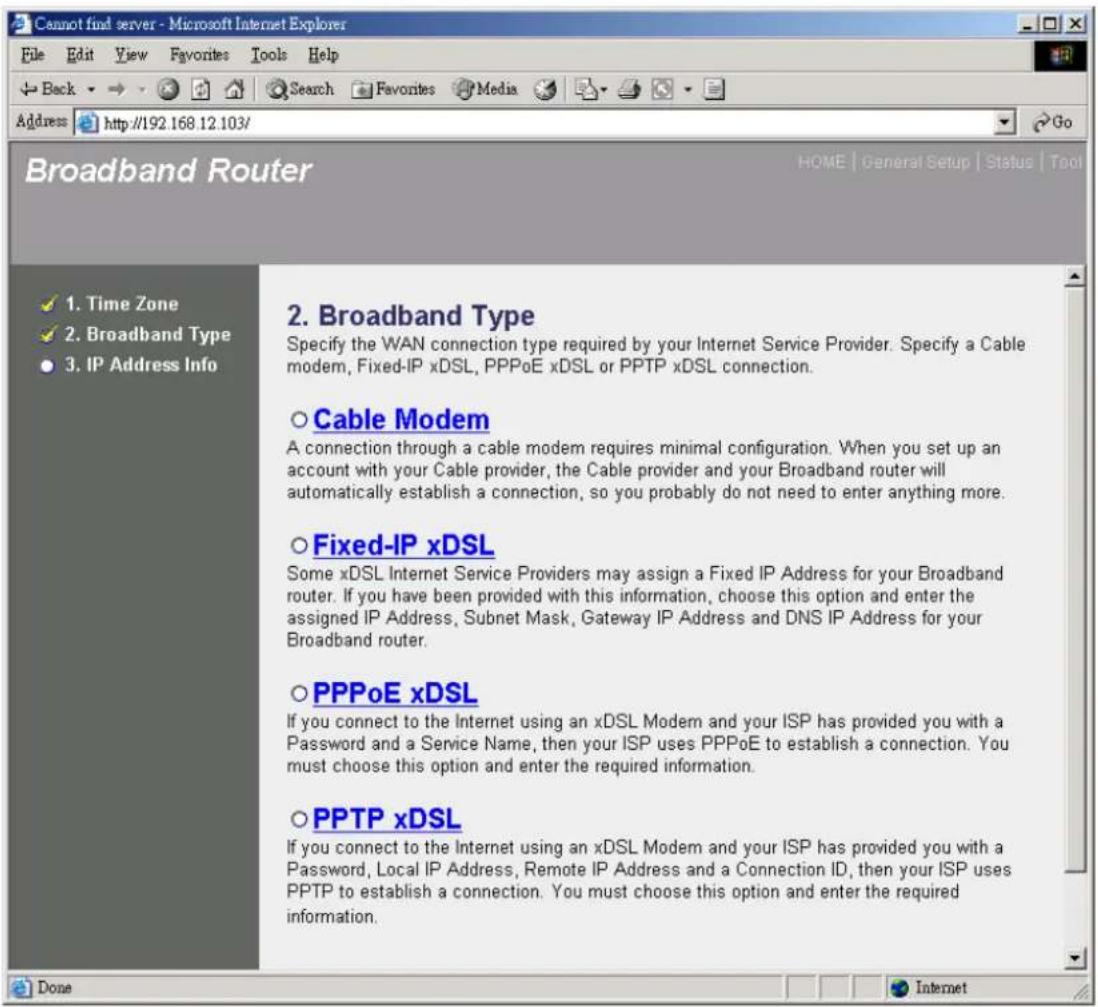
In this section you have to select one of four types of connections that you will be using to connect your broadband router's WAN port to your ISP (see screen below).
Note: Different ISP's require different methods of connecting to the Internet, please check with your ISP as to the type of connection it requires.
text_image
Cannot find server - Microsoft Internet Explorer File Edit View Favorites Tools Help Back Search Favorites Media Address http://192.168.12.103/ Broadband Router HOME | General Setup | Status | Tool ✓ 1. Time Zone ✓ 2. Broadband Type ● 3. IP Address Info 2. Broadband Type Specify the WAN connection type required by your Internet Service Provider. Specify a Cable modem, Fixed-IP xDSL, PPPoE xDSL or PPTP xDSL connection. ○ Cable Modem A connection through a cable modem requires minimal configuration. When you set up an account with your Cable provider, the Cable provider and your Broadband router will automatically establish a connection, so you probably do not need to enter anything more. ○ Fixed-IP xDSL Some xDSL Internet Service Providers may assign a Fixed IP Address for your Broadband router. If you have been provided with this information, choose this option and enter the assigned IP Address, Subnet Mask, Gateway IP Address and DNS IP Address for your Broadband router. ○ PPPoE xDSL If you connect to the Internet using an xDSL Modem and your ISP has provided you with a Password and a Service Name, then your ISP uses PPPoE to establish a connection. You must choose this option and enter the required information. ○ PPTP xDSL If you connect to the Internet using an xDSL Modem and your ISP has provided you with a Password, Local IP Address, Remote IP Address and a Connection ID, then your ISP uses PPTP to establish a connection. You must choose this option and enter the required information. Done InternetMenu Description
| 1.1 Cable Modem | Your ISP will automatically give you an IP address |
| 1.2 Fixed-IP xDSL | Your ISP has given you an IP address already |
| 1.3 PPPoE | Your ISP requires you to use a Point-to-Point Protocol over Ethernet (PPPoE) connection. |
| 1.4 PPTP | Your ISP requires you to use a Point-to-Point Tunneling Protocol (PPTP) connection. |
Click on one of the WAN type and then proceed to the manual's relevant sub-section (1.1, 1.2, 1.3 or 1.4). Click on Back to return to the previous screen.
1.1 Cable Modem
Choose Cable Modem if your ISP will automatically give you an IP address. Some ISP's may also require that you fill in additional information such as Host Name and MAC address (see screen below).
Note: The Host Name and MAC address section is optional and you can skip this section if your ISP does not require these settings for you to connect to the Internet.

text_image
Cannot find server - Microsoft Internet Explorer File Edit View Favorites Tools Help Back Search Favorites Media Address http://192.168.12.103/ Broadband Router HOME | General Setup | Status | Tool ✓ 1. Time Zone ✓ 2. Broadband Type ✓ 3. IP Address Info 3.IP Address Info Cable Modem Host Name : MAC Address : Clone Mac Address Back OK| Parameters | Description |
| Host Name | If your ISP requires a Host Name, type in the host name provided by your ISP, otherwise leave it blank if your ISP does not require a Host Name. |
| MAC Address | Your ISP may require a particular MAC address in order for you to connect to the Internet. This MAC address is the PC's MAC address that your ISP had originally connected your Internet connection to. Type in this MAC address in this section or use the “Clone MAC Address” button to replace the WAN MAC address with the MAC address of that PC (you have to be using that PC for the Clone MAC Address button to work). To find out the PC's MAC address see Appendix A. (see Glossary for an explanation on MAC address) |
Click
1.2 Fixed-IP xDSL
Select Fixed-IP xDSL if your ISP has given you a specific IP address for you to use. Your ISP should provide all the information required in this section.

text_image
Edimax WLAN AP Webserver - Microsoft Internet Explorer File Edit View Favorites Tools Help Back Search Favorites Media Go Address http://192.168.12.103/index.html Broadband Router HOME | General Setup | Status | Tool 1. Time Zone 2. Broadband Type 3. IP Address Info 3. IP Address Info Fixed-IP xDSL Enter the IP Address, Subnet Mask, Gateway IP Address and DNS IP Address provided to you by your ISP in the appropriate fields. IP address assigned by your Service Provider : 192.168.1.1 Subnet Mask : 255.255.0.0 DNS Address : Service Provider Gateway Address : 192.168.1.254 Back OK Done Internet| Parameters | Description |
| IP | This is the IP address that your ISP has given you. |
| Gateway IP | This is the ISP's IP address gateway |
| DNS | This is the ISP's DNS server IP address |
| Subnet Mask | Enter the Subnet Mask provided by your ISP (e.g. 255.255.255.0) |
Click
1.3 PPPoE
Select PPPoE if your ISP requires the PPPoE protocol to connect you to the Internet. Your ISP should provide all the information required in this section.

text_image
Wireless Router - Microsoft Internet Explorer File Edit View Favorites Tools Help Back Search Favorites Media Address http://192.168.12.107/index.html Broadband Router HOME | General Setup | Status | Tool ✓ 1. Time Zone ✓ 2. Broadband Type ✓ 3. IP Address Info 3.IP Address Info ? PPPoE Enter the User Name and Password required by your ISP in the appropriate fields. If your ISP has provided you with a "Service Name" enter it in the Service Name field, otherwise, leave it blank. Use PPPoE Authentication User Name : Password : Service Name : MTU : 0 (512<=MTU Value<=1492) Connection Type : Continuous Connect Disconnect Idle Time : 0 (1-1000 minutes) Back OK Done InternetParameter Description
| User Name | Enter the User Name provided by your ISP for the PPPoE connection |
| Password | Enter the Password provided by your ISP for the PPPoE connection |
| Service Name | This is optional. Enter the Service name should your ISP requires it, otherwise leave it blank. |
| MTU | This is optional. You can specify the maximum size of your transmission packet to the Internet. Leave it as it is if you to not wish to set a maximum packet size. |
Connection Type
If you select “Continuous”, the router will always connect to the ISP. If the WAN line breaks down and links again, the router will auto-reconnect to the ISP.
If you select “Connect On Demand”, the router will auto-connect to the ISP when someone want to use the Internet and keep connected until the WAN idle timeout. The router will close the WAN connection if the time period that no one is using the Internet exceeds the “Idle Time”.
If you select “Manual”, the router will connect to ISP only when you click “Connect” manually from the Web user interface. The WAN connection will not disconnected due to the idle timeout. If the WAN line breaks down and latter links again, the router will not auto-connect to the ISP.
Idle Time
You can specify an idle time threshold (minutes) for the WAN port. This means if no packets have been sent (no one using the Internet) during this specified period, the router will automatically disconnect the connection with your ISP.
Note: This "idle timeout" function may not work due to abnormal activities of some network application software, computer virus or hacker attacks from the Internet. For example, some software sends network packets to the Internet in the background, even when you are not using the Internet. So please turn off your computer when you are not using it. This function also may not work with some ISP. So please make sure this function can work properly when you use this function in the first time, especially your ISP charge you by time used.
Click
1.4 PPTP
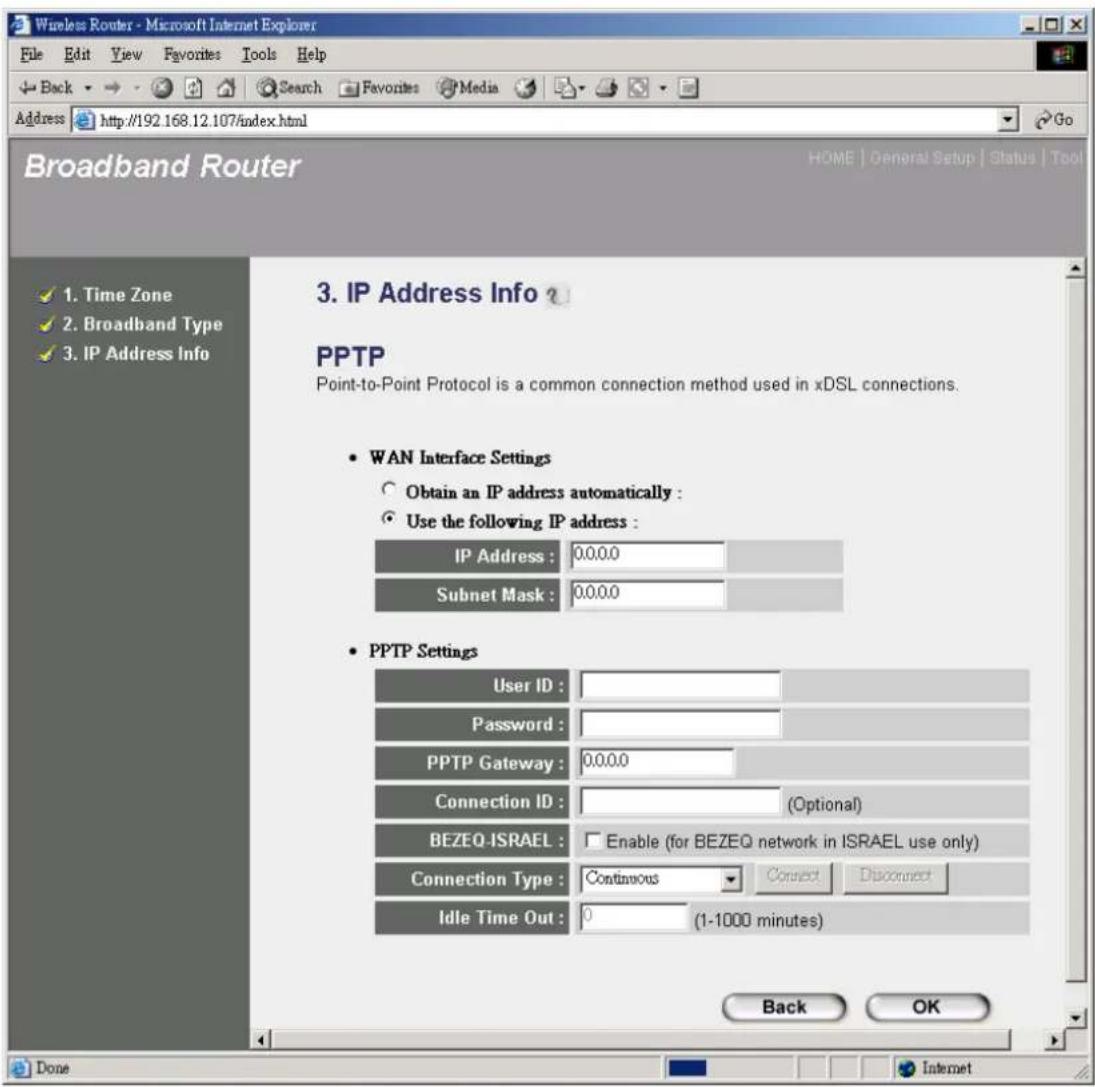
Select PPTP if your ISP requires the PPTP protocol to connect you to the Internet. Your ISP should provide all the information required in this section.
text_image
Wireless Router - Microsoft Internet Explorer File Edit View Favorites Tools Help Back Search Favorites Media Address http://192.168.12.107/index.html Broadband Router HOME | General Setup | Status | Tool 1. Time Zone 2. Broadband Type 3. IP Address Info 3. IP Address Info ? PPTP Point-to-Point Protocol is a common connection method used in xDSL connections. • WAN Interface Settings ○ Obtain an IP address automatically : ● Use the following IP address : IP Address : 0.0.0.0 Subnet Mask : 0.0.0.0 • PPTP Settings User ID : Password : PPTP Gateway : 0.0.0.0 Connection ID : (Optional) BEZEQ-ISRAEL : □ Enable (for BEZEQ network in ISRAEL use only) Connection Type : Continuous Connect Disconnect Idle Time Out : 0 (1-1000 minutes) Back OK Done| Parameter | Description |
| Obtain an IP address automatically | The ISP requires you to obtain an IP address by DHCP before connecting to the PPTP server. |
| Use the following IP address PPTP server. | The ISP give you a static IP to be used to connect to the |
| IP Address establish a PPTP connection. | This is the IP address that your ISP has given you to |
| Subnet Mask | Enter the Subnet Mask provided by your ISP (e.g. 255.255.255.0) |
| Gateway Enter the IP address of the ISP Gateway | |
| User ID | Enter the User Name provided by your ISP for the PPTP connection. Sometimes called a Connection ID |
| Password | Enter the Password provided by your ISP for the PPTP connection |
| PPTP Gateway | If your LAN has a PPTP gateway, then enter that PPTP gateway IP address here. If you do not have a PPTP gateway then enter the ISP's Gateway IP address above |
| Connection ID | This is the ID given by ISP. This is optional. |
| BEZEQ-ISRAEL | Select this item if you are using the service provided by BEZEQ in Israel. |
| Connection Type | If you select “Continuous”, the router will always connect to the ISP. If the WAN line breaks down and links again, the router will auto-reconnect to the ISP.If you select “Connect On Demand”, the router will auto-connect to the ISP when someone want to use the Internet and keep connected until the WAN idle timeout. The router will close the WAN connection if the time period that no one is using the Internet exceeds the “Idle Time”.If you select “Manual”, the router will connect to ISP only when you click “Connect” manually from the Web user interface. The WAN connection will not disconnected due to the idle timeout. If the WAN line breaks down and latter links again, the router will not auto-connect to the ISP. |
| Idle Time | You can specify an idle time threshold (minutes) for the WAN port. This means if no packets have been sent (no one using the Internet) throughout this specified period, then the router will automatically disconnect the connection with your ISP.Note: This “idle timeout” function may not work due to abnormal activities of some network application software, computer virus or hacker attacks from the Internet. For example, some software sends network packets to the Internet in the background, even when you are not using the Internet. So please turn off your computer when you are not using it. This function also may not work with some ISP. So please make sure this function can work properly when you use this function in the first time, especially your ISP charge you by time used. |
Click
Chapter 2
General Settings
Once you click on the General Setup button at the Home Page, you should see the screen below.
If you have already configured the Quick Setup Wizard you do NOT need to configure anything thing in the General Setup screen for you to start using the Internet.
The General Setup contain advanced features that allow you to configure the router to meet your network's needs such as: Wireless, Bridge, Address Mapping, Virtual Server, Access Control, Hacker Attack Prevention, Special Applications, DMZ and other functions.

text_image
Edimax WLAN AP Webserver - Microsoft Internet Explorer File Edit View Favorites Tools Help Back Search Favorites Media Address http://192.168.12.103/index.html Broadband Router System Settings This page includes the basic configuration tools for the Broadband router's remote management access function. System Time Zinc Password Settings Example Management WAN LAN Wireless NAT FirewallBelow is a general description of what advance functions are available for this broadband router.
| Menu | Description | |
| 2.1 | System | This section allows you to set the Broadband router's system Time Zone, Password and Remote Management Administrator. |
| 2.2 | WAN | This section allows you to select the connection method in order to establish a connection with your ISP (same as the Quick Setup Wizard section) |
| 2.3 | LAN | You can specify the LAN segment's IP address, subnet Mask, enable/disable DHCP and select an IP range for your LAN |
| 2.4 | Wireless | You can setup the wireless LAN's SSID, WEP key, MAC filtering. |
| 2.5 | NAT | You can configure the Address Mapping, Virtual Server and Special Applications functions in this section. This allows you to specify what user/packet can pass your router's NAT. |
| 2.6 | Firewall | The Firewall section allows you to configure Access Control, Hacker Prevention and DMZ. |
Select one of the above five General Setup selections and proceed to the manual's relevant subsection
2.1 System
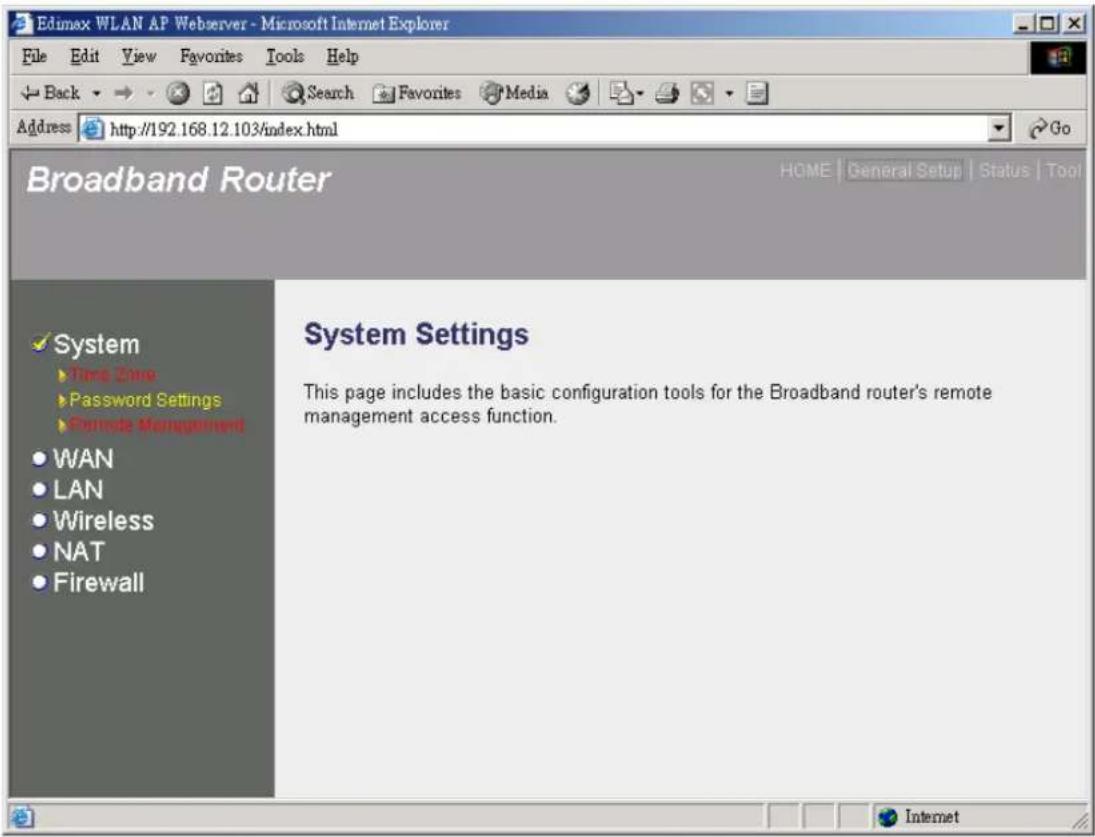
The system screen allows you to specify a time zone, to change the system password and to specify a remote management user for the broadband router.
text_image
Edimax WLAN AP Webserver - Microsoft Internet Explorer File Edit View Favorites Tools Help Back Search Favorites Media Address http://192.168.12.103/index.html Broadband Router GO System ▶ Time Zone ▶ Password Settings ▶ Remote Management ● WAN ● LAN ● Wireless ● NAT ● Firewall System Settings This page includes the basic configuration tools for the Broadband router's remote management access function. Internet| Parameters | Description |
| System Settings | |
| 2.1.1 Time Zone | Select the time zone of the country you are currently in.The router will set its time based on your selection. |
| 2.1.2 Password Settings | Allows you to select a password in order to access the web-based management website. |
| 2.1.3 Remote Management | You can specify a Host IP address that can perform remote management functions. |
Select one of the above three system settings selections and proceed to the manual's relevant sub-section
2.1.1 Time Zone
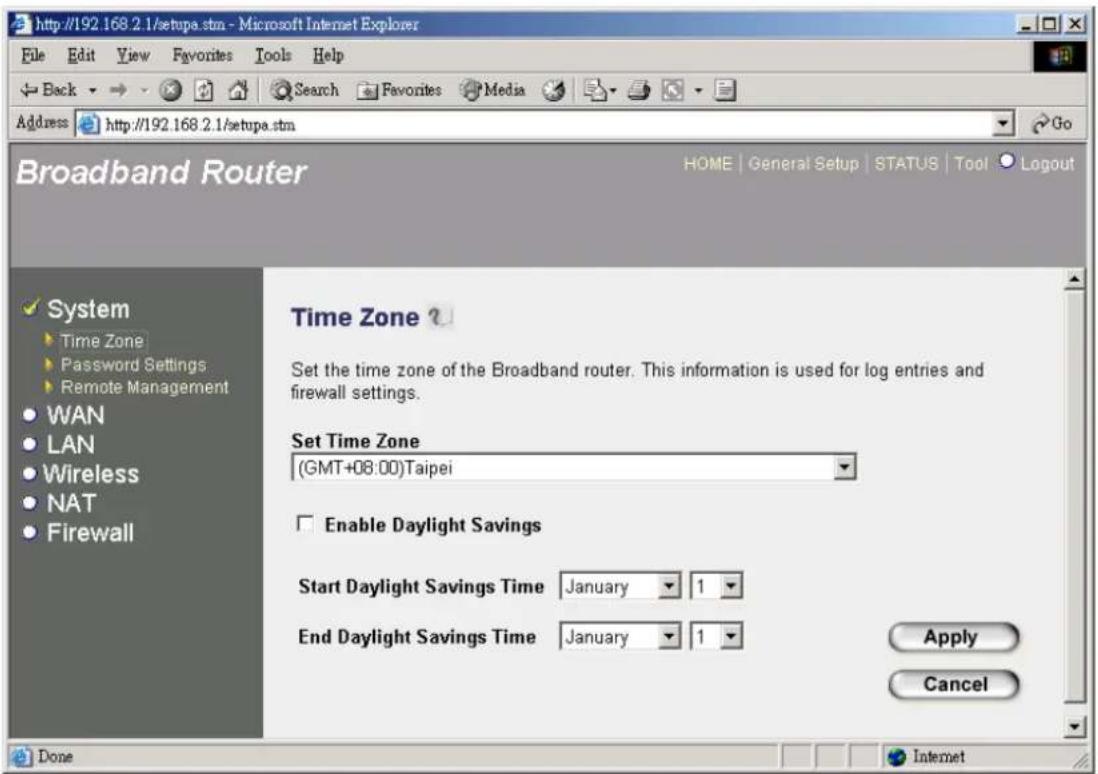
The Time Zone allows your router to reference or base its time on the settings configured here, which will affect functions such as Log entries and Firewall settings.
text_image
http://192.168.2.1/setupa.stm - Microsoft Internet Explorer File Edit View Favorites Tools Help Back Search Favorites Media Address http://192.168.2.1/setupa.stm Broadband Router HOME | General Setup | STATUS | Tool | Logout System Time Zone Password Settings Remote Management WAN LAN Wireless NAT Firewall Time Zone ? Set the time zone of the Broadband router. This information is used for log entries and firewall settings. Set Time Zone (GMT+08:00)Taipei Enable Daylight Savings Start Daylight Savings Time January 1 End Daylight Savings Time January 1 Apply Cancel Done Internet| Parameter | Description |
| Set Time Zone | Select the time zone of the country you are currently in. The router will set its time based on your selection. |
| Enable Daylight Savings | The router can also take Daylight savings into account. If you wish to use this function, you must check/tick the enable box to enable your daylight saving configuration (below). |
| Start Daylight Savings Time | Select the period in which you wish to start daylight Savings Time |
| End Daylight Savings Time | Select the period in which you wish to end daylight Savings Time |
Click
2.1.2 Password Settings
You can change the password required to log into the broadband router's system web-based management. By default, there is no password. So please assign a password to the Administrator as soon as possible, and store it in a safe place. Passwords can contain 0 to 12 alphanumeric characters, and are case sensitive.

text_image
Edimax WLAN AP Webserver - Microsoft Internet Explorer File Edit View Favorites Tools Help Back Search Favorites Media Address http://192.168.12.103/index.html Broadband Router HOME | General Setup | Status | Tool System Time Zone Password Settings Provide Management WAN LAN Wireless NAT Firewall Password Setup ? You can change the password required to log into the broadband router's system web-based management. By default, there is no password. So please assign a password to the Administrator as soon as possible, and store it in a safe place. Passwords can contain 0 to 12 alphanumeric characters, and are case sensitive. Current Password : New Password : Confirmed Password : Apply Cancel| Parameters | Description |
| Current Password | Enter your current password for the remote management administrator to login to your Broadband router. |
| Note: By default there is NO password | |
| New Password | Enter your new password |
| Re-Enter Password for Verification | Enter your new password again for verification purposes |
| Note: If you forget your password, you'll have to reset the router to the factory default (No password) with the reset button (see router's back panel) | |
Click
2.1.3 Remote Management
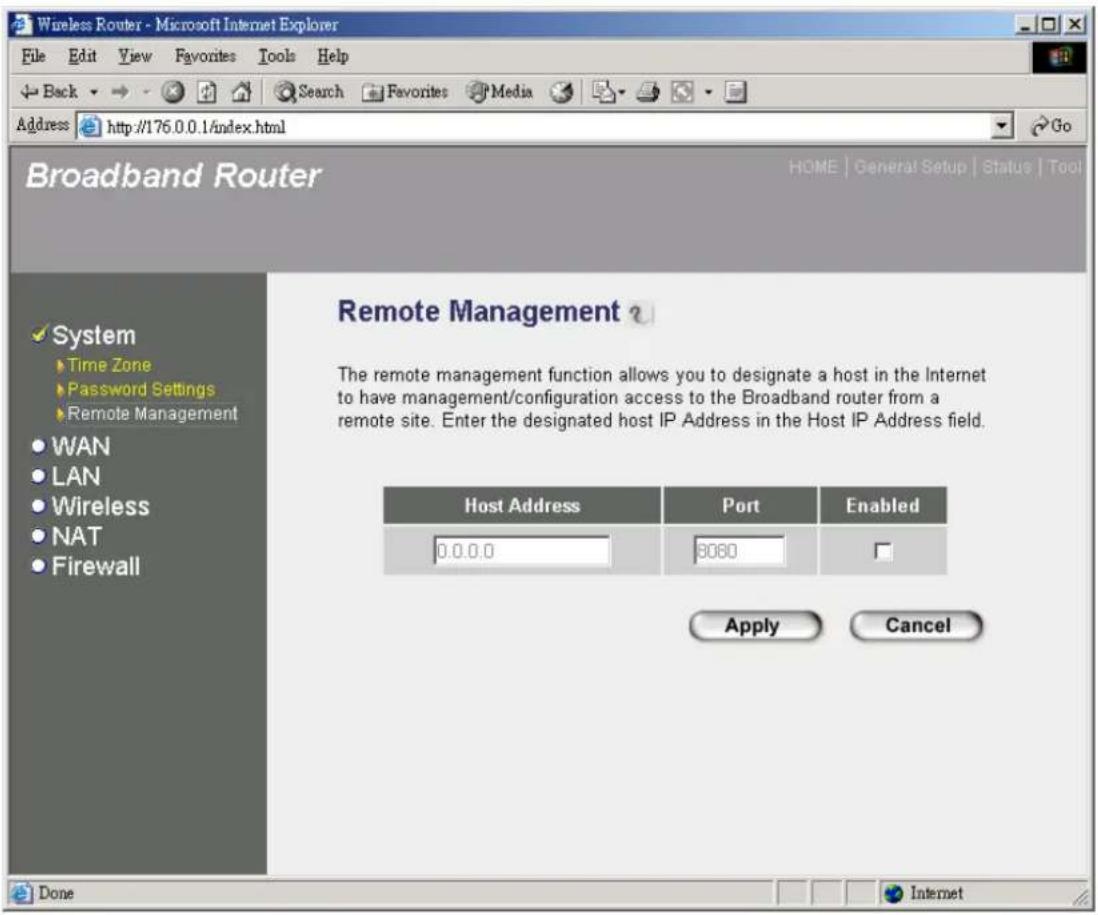
The remote management function allows you to designate a host in the Internet the ability to configure the Broadband router from a remote site. Enter the designated host IP Address in the Host IP Address field.
text_image
Wireless Router - Microsoft Internet Explorer File Edit View Favorites Tools Help Back Search Favorites Media Address http://176.0.0.1/index.html Broadband Router HOME | General Setup | Status | Tool System Time Zone Password Settings Remote Management WAN LAN Wireless NAT Firewall Remote Management ? The remote management function allows you to designate a host in the Internet to have management/configuration access to the Broadband router from a remote site. Enter the designated host IP Address in the Host IP Address field. Host Address Port Enabled 0.0.0.0 3080 Apply Cancel Done InternetParameters Description
Host Address
This is the IP address of the host in the Internet that will have management/configuration access to the Broadband router from a remote site. This means if you are at home and your home IP address has been designated the Remote Management host IP address for this router (located in your company office), then you are able to configure this router from your home. If the Host Address is left 0.0.0.0 this means anyone can access the router's web-based configuration from a remote location, providing they know the password.
Click the Enabled box to enable the Remote Management function.
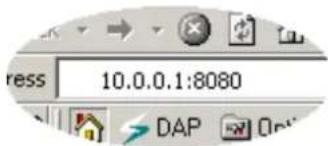
Note: When you want to access the web-based management from a remote site, you must enter the router's WAN IP address (e.g. 10.0.0.1) into your web-browser followed by port number 8080, e.g. 10.0.0.1:8080 (see below). You'll also need to know the password set in the Password Setting screen in order to access the router's web-based management.
text_image
ress 10.0.0.1:8080 DAP OpenPort The port number of remote management web interface.
Enabled
Select "Enabled" to enable the remote management function.
Click
2.2 WAN
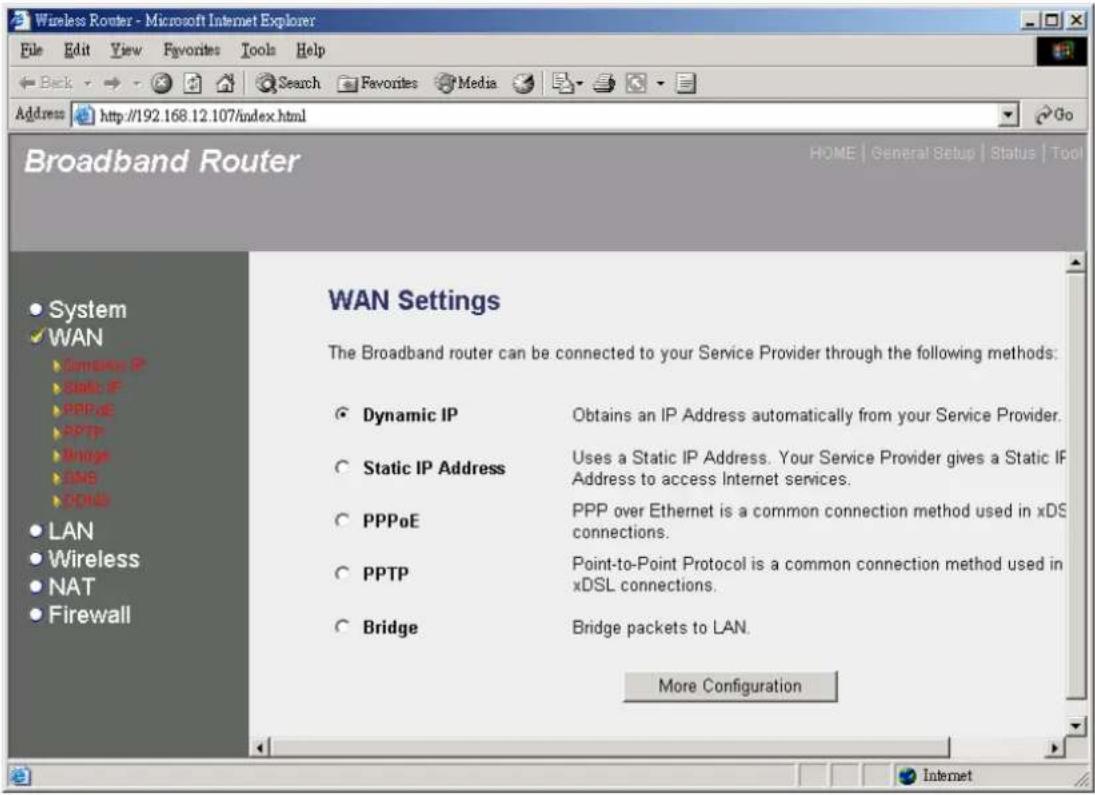
Use the WAN Settings screen if you have already configured the Quick Setup Wizard section and you would like to change your Internet connection type. The WAN Settings screen allows you to specify the type of WAN port connect you want to establish with your ISP. In the WAN Settings screen you can also specify the router to act as a Bridge. The WAN settings offer the following selections for the router's WAN port, Dynamic IP, PPPoE, PPTP, Static IP Address, Bridge, DNS and DDNS.
text_image
Wireless Router - Microsoft Internet Explorer File Edit View Favorites Tools Help Back Search Favorites Media Address http://192.168.12.107/index.html Broadband Router HOME | General Setup | Status | Tool System WAN Domains IP SMA IP PPPoE PPTP Bridge DNS BDS LAN Wireless NAT Firewall WAN Settings The Broadband router can be connected to your Service Provider through the following methods: Dynamic IP Obtains an IP Address automatically from your Service Provider. Static IP Address Uses a Static IP Address. Your Service Provider gives a Static IP Address to access Internet services. PPPoE PPP over Ethernet is a common connection method used in xDS connections. PPTP Point-to-Point Protocol is a common connection method used in xDSL connections. Bridge Bridge packets to LAN. More Configuration| Parameters | Description |
| 2.2.1 Dynamic IP address | |
| 2.2.2 Static IP address | |
| 2.2.3 PPPoE | |
| 2.2.4 PPTP | |
| 2.2.5 L2TP | |
| 2.2.6 Telstra Big Pond | |
| 2.2.7 Bridge | |
2.2.8 DNS
You can specify a DNS server that you wish to use
2.2.9 DDNS
You can specify a DDNS server that you wish to use and configure the user name and password provided by you DDNS service provider.
Once you have made a selection, click
2.2.1 Dynamic IP
Choose the Dynamic IP selection if your ISP will automatically give you an IP address. Some ISP's may also require that you fill in additional information such as Host Name, Domain Name and MAC address (see chapter 1 "Cable Modem" for more detail)
2.2.2 Static IP Address
Select Static IP address if your ISP has given you a specific IP address for you to use. Your ISP should provide all the information required in this section. (See chapter 1 “Fixed IP” for more detail)
2.2.3 PPPoE (PPP over Ethernet)
Select PPPoE if your ISP requires the PPPoE protocol to connect you to the Internet. Your ISP should provide all the information required in this section. (See chapter 1 "PPPoE" for more detail)
2.2.4 PPTP
Select PPTP if your ISP requires the PPTP protocol to connect you to the Internet. Your ISP should provide all the information required in this section. (See chapter 1 "PPTP" for more detail)
2.2.5 L2TP
Select L2TP if your ISP requires the L2TP protocol to connect you to the Internet. Your ISP should provide all the information required in this section.

text_image
Wireless Router - Microsoft Internet Explorer File Edit View Favorites Tools Help Back Search Favorites Media Address http://176.0.0.1/index.html Broadband Router HOME | General Setup | Status | Tool L2TP Layer Two Tunneling Protocol is a common connection method used in xDSL connections. • WAN Interface Settings • Obtain an IP address automatically : • Use the following IP address : IP Address : 0.0.0.0 Subnet Mask : 0.0.0.0 Default Gateway : 0.0.0.0 • L2TP Settings User ID : Password : L2TP Gateway : 0.0.0.0 Connection Type : Continuous Connect Disconnect Idle Time Out : 0 (1-1000 minutes) Apply Cancel • System • WAN • Dynamic IP • Static IP • WiFi EP • WiFTP • L2TP • Telstra Big Pond • Bridge • USB • ODSNS • LAN • Wireless • NAT • FirewallParameter Description
| Obtain an IP address automatically | The ISP requires you to obtain an IP address by DHCP before connecting to the L2TP server. |
| Use the following IP address L2TP server. | The ISP give you a static IP to be used to connect to the |
| IP Address | This is the IP address that your ISP has given you to establish a L2TP connection. |
| Subnet Mask | Enter the Subnet Mask provided by your ISP |
(e.g. 255.255.255.0)
Gateway Enter the IP address of the ISP Gateway
User ID Enter the User Name provided by your ISP for the PPTP connection. Sometimes called a Connection ID
Password Enter the Password provided by your ISP for the PPTP connection
L2TP Gateway If your LAN has a L2TP gateway, then enter that L2TP gateway IP address here. If you do not have a L2TP gateway then enter the ISP's Gateway IP address above
Connection Type If you select “Continuous”, the router will always connect to the ISP. If the WAN line breaks down and links again, the router will auto-reconnect to the ISP.
If you select “Connect On Demand”, the router will auto-connect to the ISP when someone want to use the Internet and keep connected until the WAN idle timeout. The router will close the WAN connection if the time period that no one is using the Internet exceeds the “Idle Time”.
If you select “Manual”, the router will connect to ISP only when you click “Connect” manually from the Web user interface. The WAN connection will not disconnected due to the idle timeout. If the WAN line breaks down and latter links again, the router will not auto-connect to the ISP.
Idle Time Out You can specify an idle time threshold (minutes) for the WAN port. This means if no packets have been sent (no one using the Internet) throughout this specified period, then the router will automatically disconnect the connection with your ISP.
Note: This “idle timeout” function may not work due to abnormal activities of some network application software, computer virus or hacker attacks from the Internet. For example, some software sends network packets to the Internet in the background, even when you are not using the Internet. So please turn off your computer when you are not using it. This function also may not work with some ISP. So please make sure this function can work properly when you use this function in the first time, especially your ISP charge you by time used.
Click
2.2.6 Telstra Big Pond
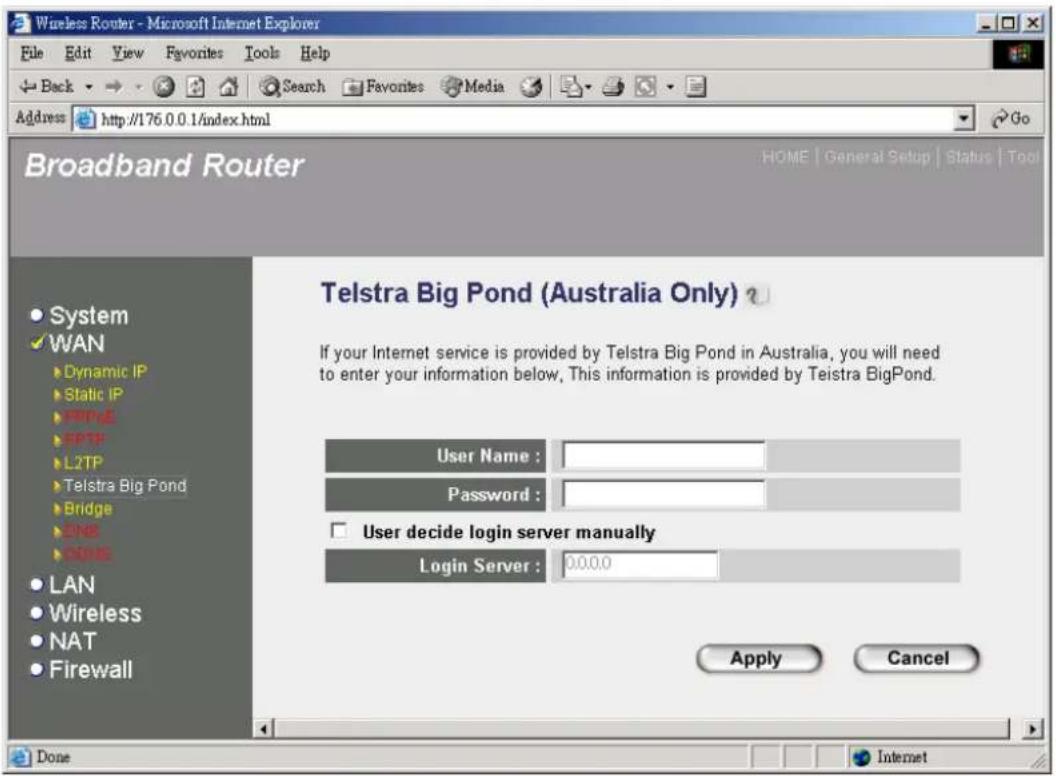
Select Telstra Big Pond if your ISP requires the Telstra Big Pond protocol to connect you to the Internet. Your ISP should provide all the information required in this section. Telstra Big Pond protocol is used by the ISP in Australia.
text_image
Wireless Router - Microsoft Internet Explorer File Edit View Favorites Tools Help Back Search Favorites Media Address http://176.0.0.1/index.html Broadband Router HOME | General Setup | Status | Tool System WAN Dynamic IP Static IP FTP/E FTP8 L2TP Telstra Big Pond Bridge ONE SPB5 LAN Wireless NAT Firewall Telstra Big Pond (Australia Only) If your Internet service is provided by Telstra Big Pond in Australia, you will need to enter your information below, This information is provided by Teistra BigPond. User Name : Password : User decide login server manually Login Server : 00.0.0 Apply Cancel Done InternetParameter Description
| User Name | Enter the User Name provided by your ISP for the Telstra Big Pond connection |
| Password | Enter the Password provided by your ISP for the Telstra Big Pond connection |
| User deside login server manually server manually. | Select if you want to assign the IP of Telstra Big Pond's login |
Login Server The IP of the Login Server.
Click
2.2.7 Bridge
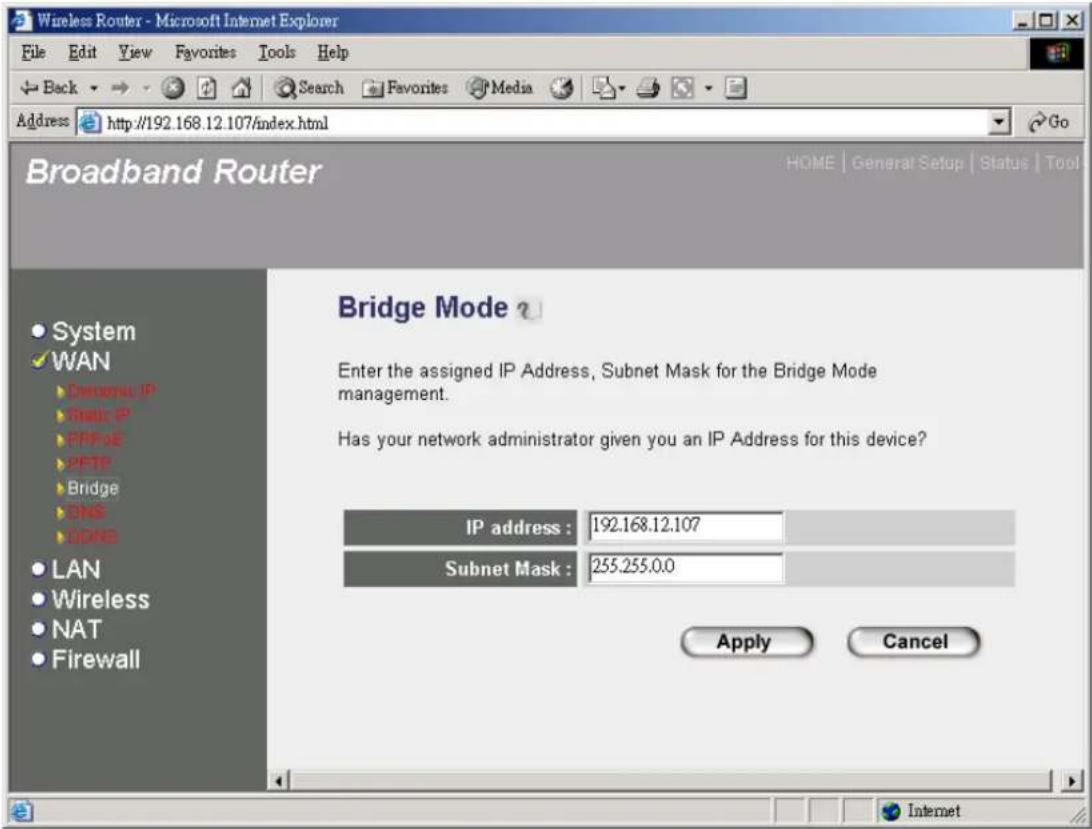
The bridge mode screen allows you to set your Broadband router to bridge mode and allows you to assign an IP address for management purposes. When the bridge mode is selected, the router in effect becomes a switch, transferring packets from the WAN port to the LAN port and vice versa without any NAT involvement. In bridge mode, the original WAN MAC is ignored, and the original LAN MAC address will be used as the MAC address. These values will be restored when you set the device to operating modes other than the bridge mode.
text_image
Wireless Router - Microsoft Internet Explorer File Edit View Favorites Tools Help Back Search Favorites Media Address http://192.168.12.107/index.html Broadband Router HOME | General Setup | Status | Tool System WAN Customs IP Snail IP PPF US PFTP Bridge DNS TCPB LAN Wireless NAT Firewall Bridge Mode ? Enter the assigned IP Address, Subnet Mask for the Bridge Mode management. Has your network administrator given you an IP Address for this device? IP address : 192.168.12.107 Subnet Mask : 255.255.0.0 Apply CancelParameters Description
IP address
Enter an IP Address for the Bridge Mode. This IP address allows you to access the web-based management should you decide to switch back to the router mode.
Subnet Mask
The Subnet Mask for the Bridge Mode management
Click
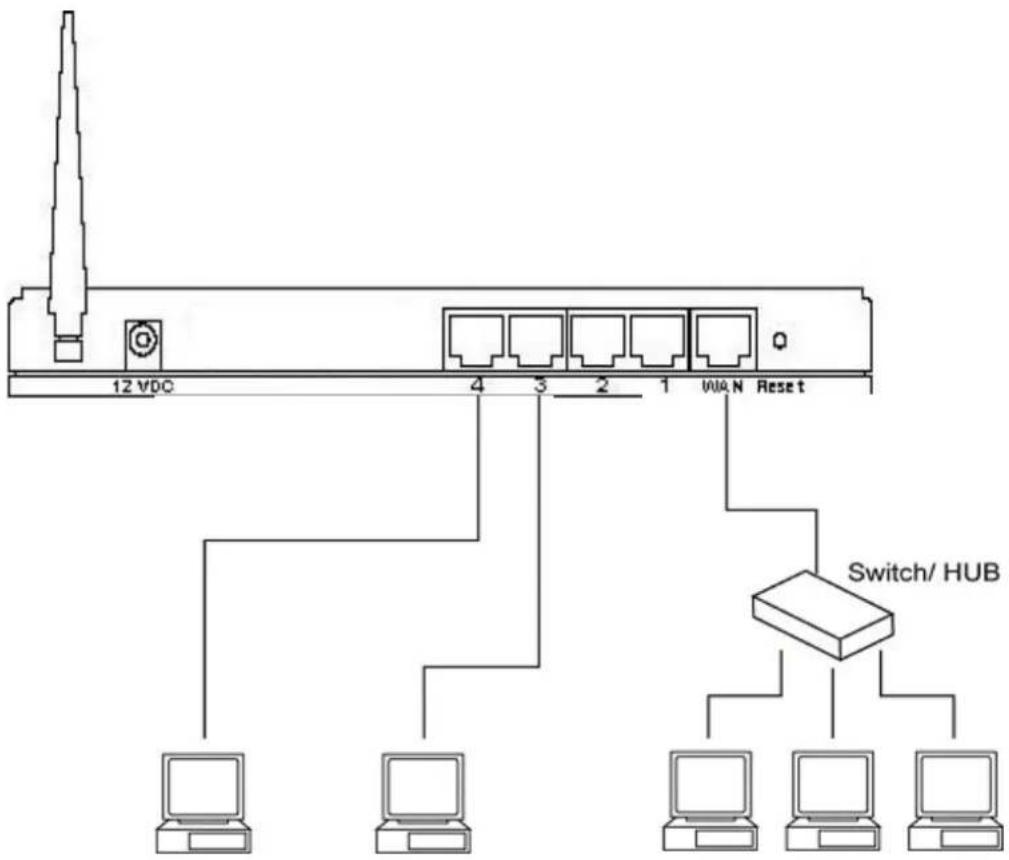
Example: Bridge Mode
The diagram below demonstrates how the Bridge mode can be used. The router basically becomes a hub/switch allowing you to connect LAN clients to your Local Area Network.
flowchart
graph TD
    A["12 VDC"] --> B["Switch/HUB"]
    B --> C["Computer 1"]
    B --> D["Computer 2"]
    B --> E["Computer 3"]
    B --> F["Computer 4"]
    B --> G["Computer 5"]
    B --> H["Computer 6"]
    B --> I["Computer 7"]
    B --> J["Computer 8"]
    B --> K["Computer 9"]
    B --> L["Computer 10"]
    B --> M["Computer 11"]
    B --> N["Computer 12"]
    B --> O["Computer 13"]
    B --> P["Computer 14"]
    B --> Q["Computer 15"]
    B --> R["Computer 16"]
    B --> S["Computer 17"]
    B --> T["Computer 18"]
    B --> U["Computer 19"]
    B --> V["Computer 20"]
    B --> W["Computer 21"]
    B --> X["Computer 22"]
    B --> Y["Computer 23"]
    B --> Z["Computer 24"]
    B --> AA["Computer 25"]
    B --> AB["Computer 26"]
    B --> AC["Computer 27"]
    B --> AD["Computer 28"]
    B --> AE["Computer 29"]
    B --> AF["Computer 30"]
2.2.8 DNS
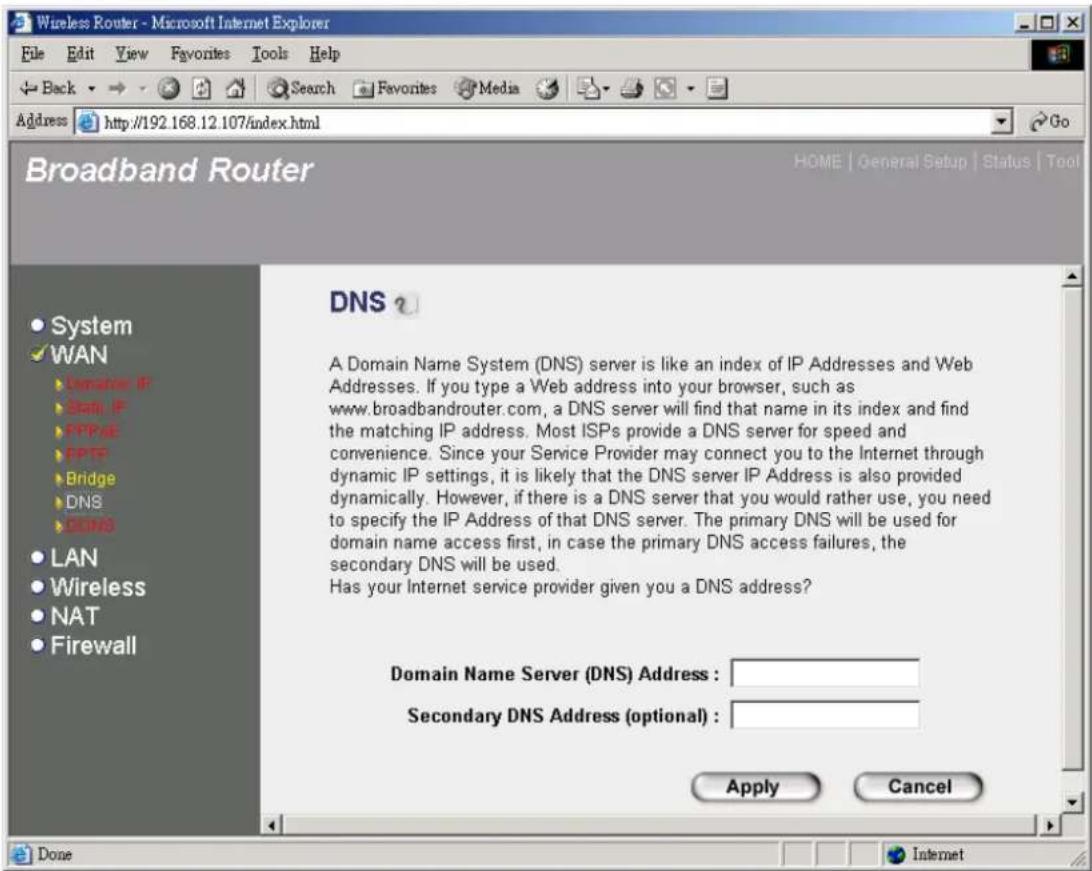
A Domain Name System (DNS) server is like an index of IP addresses and Web addresses. If you type a Web address into your browser, such as www.router.com, a DNS server will find that name in its index and the matching IP address. Most ISPs provide a DNS server for speed and convenience. If your Service Provider connects you to the Internet with dynamic IP settings, it is likely that the DNS server IP address is provided automatically. However, if there is a DNS server that you would rather use, you need to specify the IP address of that DNS server here.
text_image
Wireless Router - Microsoft Internet Explorer File Edit View Favorites Tools Help Back Search Favorites Media Address http://192.168.12.107/index.html Broadband Router HOME | General Setup | Status | Tool System WAN Localize IP Sall IP FTP/IE FPSI Bridge DNS ECPNS LAN Wireless NAT Firewall DNS ? A Domain Name System (DNS) server is like an index of IP Addresses and Web Addresses. If you type a Web address into your browser, such as www.broadbandrouter.com, a DNS server will find that name in its index and find the matching IP address. Most ISPs provide a DNS server for speed and convenience. Since your Service Provider may connect you to the Internet through dynamic IP settings, it is likely that the DNS server IP Address is also provided dynamically. However, if there is a DNS server that you would rather use, you need to specify the IP Address of that DNS server. The primary DNS will be used for domain name access first, in case the primary DNS access failures, the secondary DNS will be used. Has your Internet service provider given you a DNS address? Domain Name Server (DNS) Address : Secondary DNS Address (optional) : Apply Cancel Done InternetParameters Description
Domain Name Server (DNS) Server
This is the ISP's DNS server IP address that they gave you; or you can specify your own preferred DNS server IP address
Secondary DNS Address (optional)
This is optional. You can enter another DNS server's IP address as a backup. The secondary DNS will be used should the above DNS fail.
Click
2.2.9 DDNS
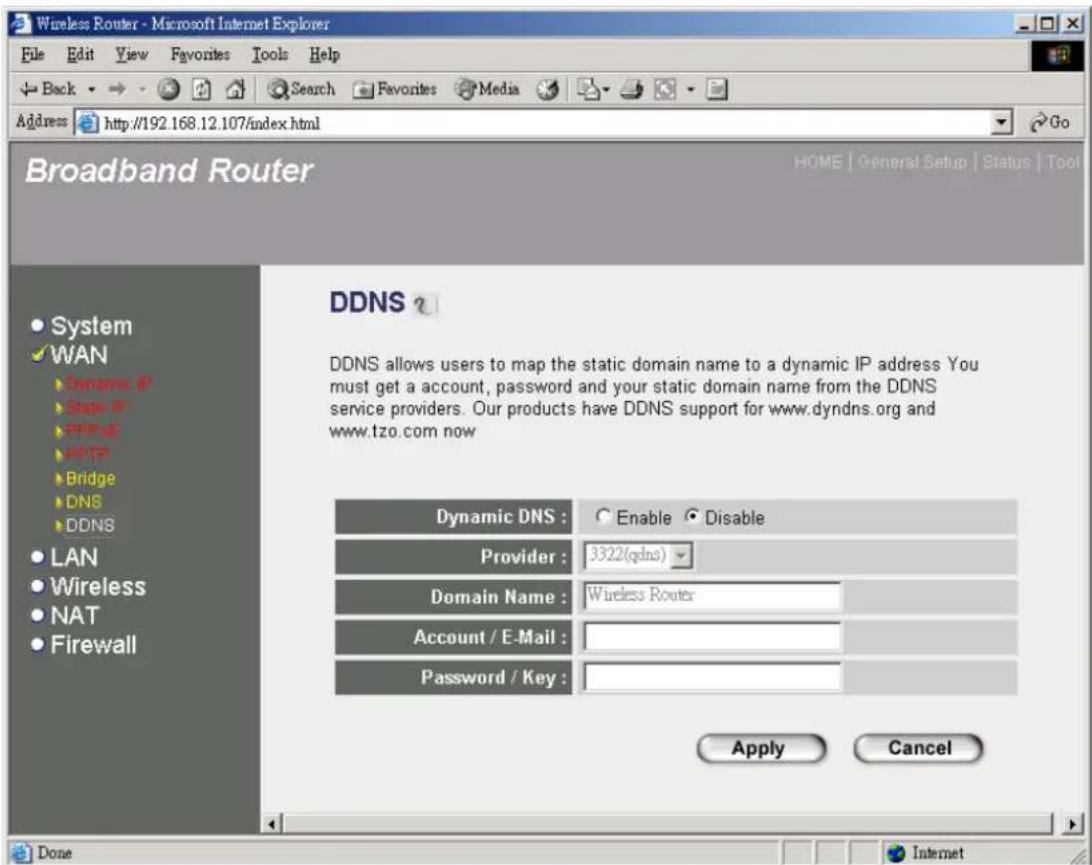
DDNS allows you to map the static domain name to a dynamic IP address. You must get an account, password and your static domain name from the DDNS service providers. This router supports DynDNS and TZO.
text_image
Wireless Router - Microsoft Internet Explorer File Edit View Favorites Tools Help Back Search Favorites Media Address http://192.168.12.107/index.html Broadband Router HOME | General Setup | Status | Tool DDNS DDNS allows users to map the static domain name to a dynamic IP address You must get a account, password and your static domain name from the DDNS service providers. Our products have DDNS support for www.dyndns.org and www.tzo.com now Dynamic DNS : Enable Disable Provider : 3322(qdns) Domain Name : Wireless Router Account / E-Mail : Password / Key : Apply Cancel Done Internet| Parameters | Default | Description |
| Enable/Disable | Disable | Enable/Disable the DDNS function of this router |
| Provider | Select a DDNS service provider | |
| Domain name | Your static domain name that use DDNS | |
| Account/E-mail | The account that your DDNS service provider assigned to you | |
| Password/Key | The password you set for the DDNS service account above |
Click
2.3 LAN
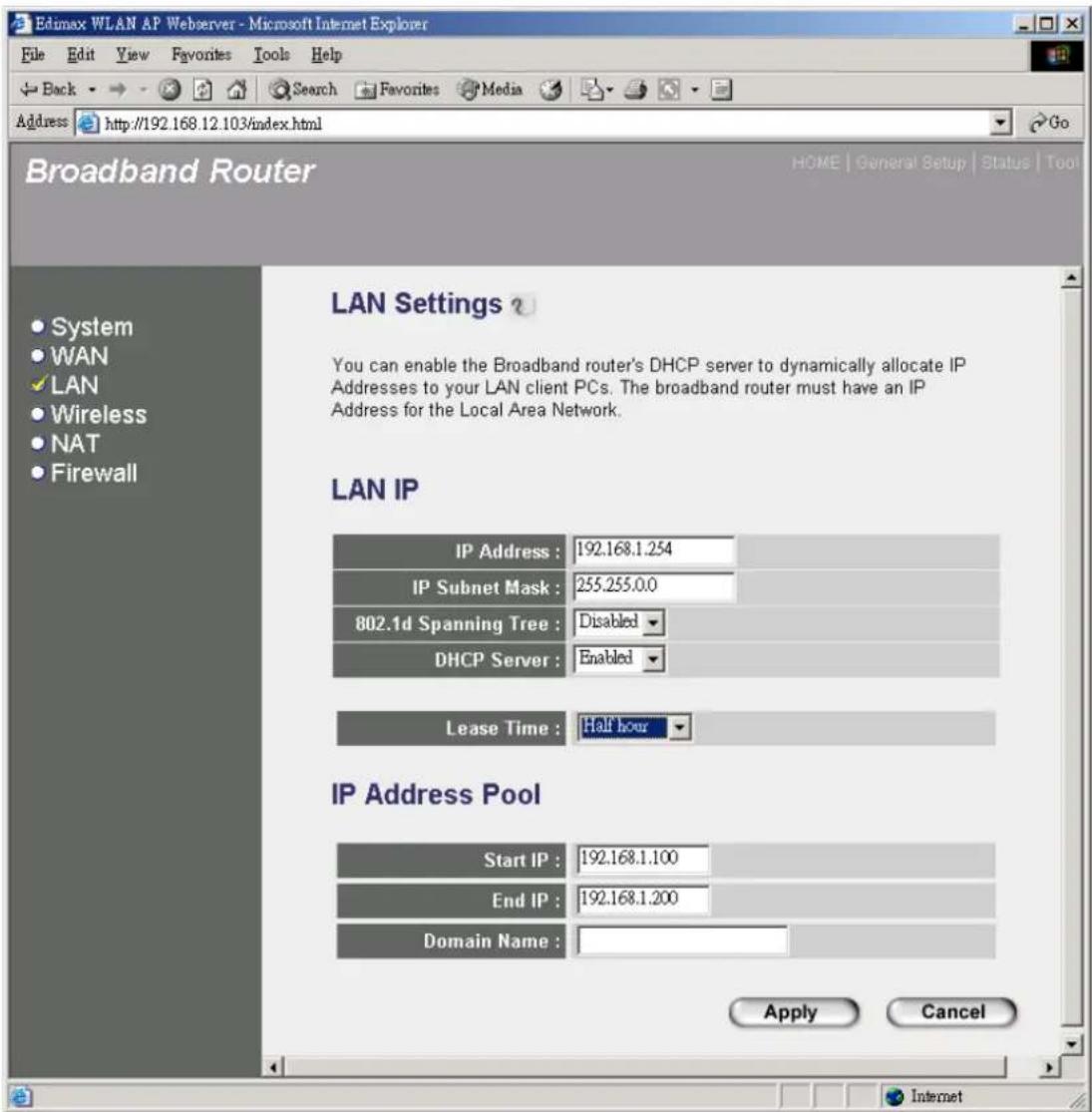
The LAN Port screen below allows you to specify a private IP address for your router's LAN ports as well as a subnet mask for your LAN segment.
text_image
Edimax WLAN AP Webserver - Microsoft Internet Explorer File Edit View Favorites Tools Help Back Search Favorites Media Go Address http://192.168.12.103/index.html Broadband Router HOME | General Setup | Status | Tool LAN Settings ? You can enable the Broadband router's DHCP server to dynamically allocate IP Addresses to your LAN client PCs. The broadband router must have an IP Address for the Local Area Network. LAN IP IP Address : 192.168.1.254 IP Subnet Mask : 255.255.0.0 802.1d Spanning Tree : Disabled DHCP Server : Enabled Lease Time : Half hour IP Address Pool Start IP : 192.168.1.100 End IP : 192.168.1.200 Domain Name : Apply Cancel| Parameters | Default | Description |
| LAN IP | ||
| IP address | 192.168.2.1 | This is the router's LAN port IP address (Your LAN clients default gateway IP address) |
| IP Subnet Mask | 255.255.255.0 | Specify a Subnet Mask for your LAN segment |
| 802.1d Spanning Tree | Disabled | If 802.1d Spanning Tree function is enabled, this router will use the spanning tree protocol to prevent from network loop happened in the LAN ports. |
| DHCP Server | Enabled | You can enable or disable the DHCP server. By enabling the DHCP server the router will automatically give your LAN clients an IP address. If the DHCP is not enabled then you'll have to manually set your LAN client's IP addresses; make sure the LAN Client is in the same subnet as this broadband router if you want the router to be your LAN client's default gateway |
| Lease Time | The DHCP when enabled will temporarily give your LAN clients an IP address. In the Lease Time setting you can specify the time period that the DHCP lends an IP address to your LAN clients. The DHCP will change your LAN client's IP address when this time threshold period is reached | |
| IP Address Pool | You can select a particular IP address range for your DHCP server to issue IP addresses to your LAN Clients. | |
| Note: By default the IP range is from: Start IP 192.168.2.100 to End IP 192.168.2.199. If you want your PC to have a static/fixed IP address then you'll have to choose an IP address outside this IP address Pool | ||
| Domain Name | You can specify a Domain Name for your LAN | |
Click
2.4 Wireless
Wireless Access Point builds a wireless LAN and can let all PCs equipped with IEEE 802.11b wireless network adaptor connect to your Intranet. It supports WEP encryption to enhance the security of your wireless network.

text_image
Wireless Router - Microsoft Internet Explorer File Edit View Favorites Tools Help Back Search Favorites Media Address http://176.0.0.1/index.html Broadband Router System WAN LAN Wireless Basic Settings Advanced Settings Encryption NAT Firewall Wireless Settings The gateway can be quickly configured as a wireless access point for roaming clients by setting the access identifier and channel number. It also supports data encryption and client filtering. Enable or disable Wireless module function : Enable Disable| Parameters | Default | Description |
| Enable or disable | Enable | You can select to enable or disable the wireless access point module of this router. |
| Wireless module |
Click
2.4.1 Basic Settings
You can set parameters that are used for the wireless stations to connect to this router. The parameters include Alias Name, ESSID and Channel.

text_image
Wireless Router - Microsoft Internet Explorer File Edit View Favorites Tools Help Back Search Favorites Media Address http://176.0.0.1/index.html Broadband Router HOME | General Setup | Status | Tool System WAN LAN Wireless Basic Settings Advanced Settings Encryption NAT Firewall Wireless Setting ? This page allows you to define Alias Name, ESSID, and Channel for the wireless connection. These parameters are used for the wireless stations to connect to the Broadband Router. Alias Name : Wireless Router ESSID : Adml1G Channel Number : Apply Cancel| Parameters | Default | Description |
| Alias Name | The alias name of this router. | |
| ESSID | default | This is the name of the wireless LAN. All the devices in the same wireless LAN should have the same ESSID. |
| Channel Number | 11 | The channel used by the wireless LAN. All devices in the same wireless LAN should use the same channel. |
Click
2.4.2 Advanced Settings
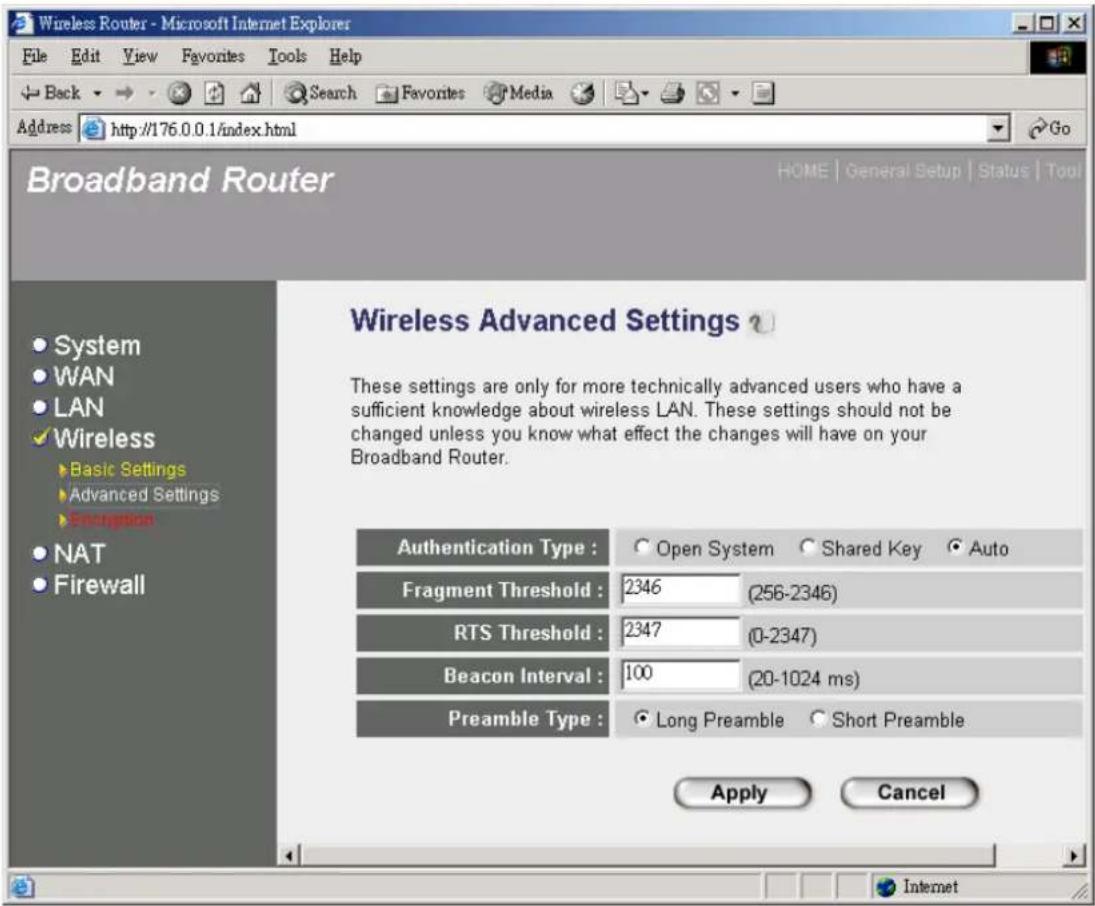
You can set advanced wireless LAN parameters of this router. The parameters include Authentication Type, Fragment Threshold, RTS Threshold, Beacon Interval, Preamble Type ... ... You should not change these parameters unless you know what effect the changes will have on this router.
text_image
Wireless Router - Microsoft Internet Explorer File Edit View Favorites Tools Help Back Search Favorites Media Go Address http://176.0.0.1/index.html Broadband Router HOME | General Setup | Status | Tool System WAN LAN Wireless Basic Settings Advanced Settings Extrangics NAT Firewall Wireless Advanced Settings ? These settings are only for more technically advanced users who have a sufficient knowledge about wireless LAN. These settings should not be changed unless you know what effect the changes will have on your Broadband Router. Authentication Type : Open System Shared Key Auto Fragment Threshold : 2346 (256-2346) RTS Threshold : 2347 (0-2347) Beacon Interval : 100 (20-1024 ms) Preamble Type : Long Preamble Short Preamble Apply Cancel InternetParameters
Default
Description
Authentication Type
There are two authentication types: "Open System" and "Shared Key". When you select "Open System", wireless stations can associate with this wireless router without WEP encryption. When you select "Shared Key", you should also setup WEP key in the "Encryption" page and wireless stations should use WEP encryption in the authentication phase to associate with this wireless router. If you select "Both", the wireless client can associate with this wireless router by using any one of these two authentication types.
| Fragment Threshold | "Fragment Threshold" specifies the maximum size of packet during the fragmentation of data to be transmitted. If you set this value too low, it will result in bad performance. |
| RTS Threshold | When the packet size is smaller the RTS threshold, the wireless router will not use the RTS/CTS mechanism to send this packet. |
| Beacon Interval | The interval of time that this wireless router broadcast a beacon. Beacon is used to synchronize the wireless network. |
| Preamble Type | Preamble type defines the length of CRC block in the frames during the wireless communication. "Short Preamble" is suitable for high traffic wireless network."Long Preamble" can provide more reliable communication. |
Click
2.4.3 Encryption
By using Encryption, the data will be transmitted securely over the wireless network. You have to setup the same encryption key both on your router and wireless client devices.

text_image
Wireless Router - Microsoft Internet Explorer File Edit View Favorites Tools Help Back Search Favorites Media Address http://176.0.0.1/index.html Broadband Router HOME | General Setup | Status | Tool System WAN LAN Wireless Basic Settings Advanced Settings Encryption NAT Firewall Encryption Encryption allows your data being transmitted over the wireless network securely. If this function is enabled, please make sure your wireless stations are using the same encryption keys as the Broadband Router. WEP Mode : Disable Apply Cancel| Parameters | Default | Description |
| WEP Mode | Disabled | You can select the WEP key length for encryption, 64-bit or 128-bit. Larger WEP key length will provide higher level of security, but the throughput will be lower. You also can select Disabled to transmit data without encryption. |
When you select 64-bit or 128-bit WEP key, you have to enter WEP keys to encrypt data. You can generate the key by yourself and enter it. You also can enter a passphrase and let the router generate WEP key for you. In the 64-bit WEP mode, you can enter four WEP keys and select one of them as default key. Then the router can receive any packets encrypted by one of the four keys

text_image
Wireless Router - Microsoft Internet Explorer File Edit View Favorites Tools Help Back Search Favorites Media Address http://176.0.0.1/index.html Broadband Router HOME | General Setup | Status | Tool System WAN LAN Wireless Basic Settings Advanced Settings Encryption NAT Firewall Encryption Encryption allows your data being transmitted over the wireless network securely. If this function is enabled, please make sure your wireless stations are using the same encryption keys as the Broadband Router. Key format : Hex (10 characters) Key Length : 64-bit Enter a key into the table. Default Key : Key 1 Key 1: ********** Key 2: ********** Key 3: ********** Key 4: ********** Apply Cancel Done Internet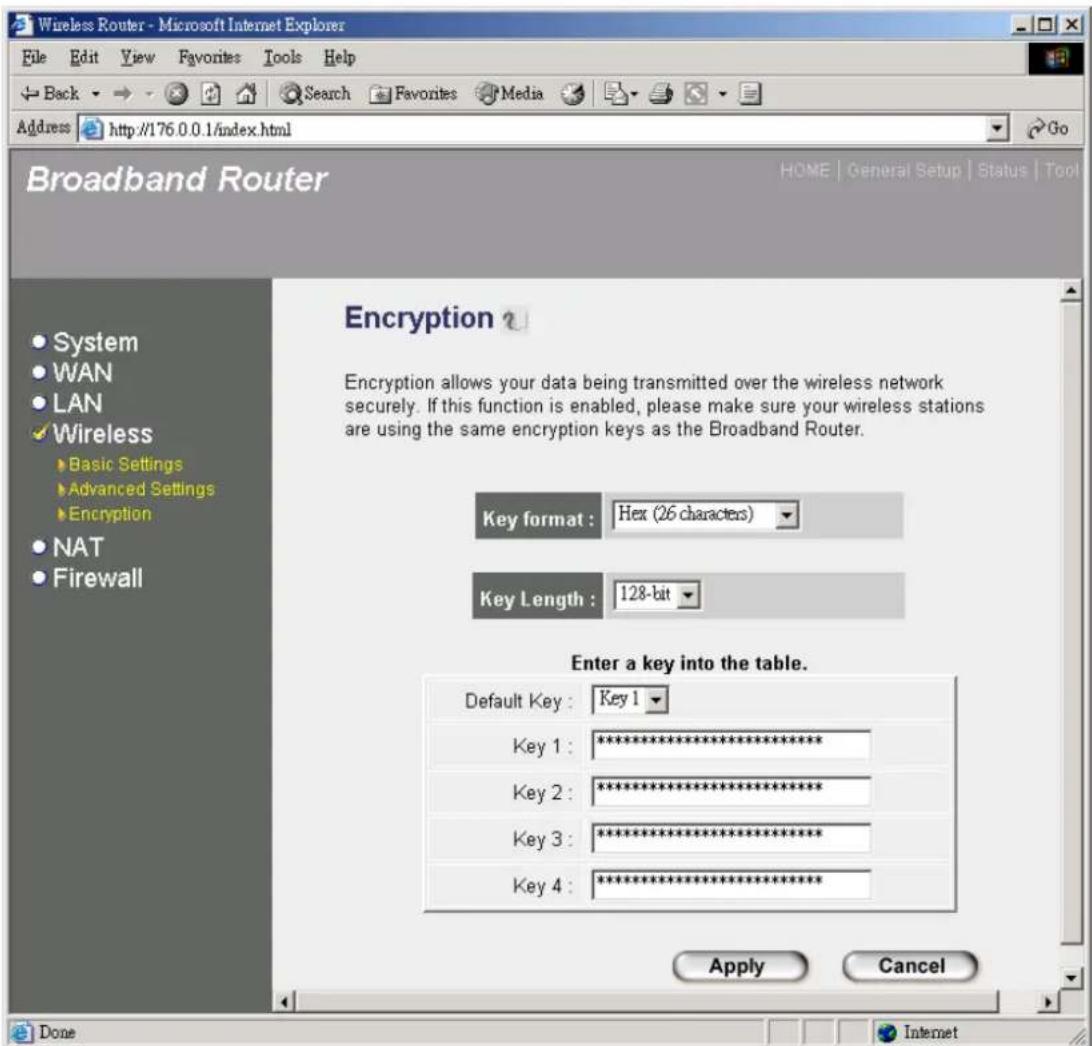
text_image
Wireless Router - Microsoft Internet Explorer File Edit View Favorites Tools Help Back Search Favorites Media Go Address http://176.0.0.1/index.html Broadband Router HOME | General Setup | Status | Tool Encryption Encryption allows your data being transmitted over the wireless network securely. If this function is enabled, please make sure your wireless stations are using the same encryption keys as the Broadband Router. Key format: Hex (26 characters) Key Length: 128-bit Enter a key into the table. Default Key: Key 1 Key 1: ********** Key 2: ********** Key 3: ********** Key 4: ********** Apply Cancel Done Internet| Parameters | Default | Description |
| Key Format | You may select to select ASCII Characters (alphanumeric format) or Hexadecimal Digits (in the "A-F", "a-f" and "0-9" range) to be the WEP Key.For example:ASCII Characters: guestHexadecimal Digits: 12345abcde | |
| Key Length | You may disable or enable the WEP function from the setting item. The selections in the setting item are changed based on the key format. | |
| Key 1 - Key 4 | The WEP keys are used to encrypt data transmitted in the wireless network. Fill the text box by following the rules below. |
| 64-bit WEP: input 10-digit Hex values (in the "A-F", "a-f" and "0-9" range) or 5-digit ASCII character as the encryption keys.128-bit WEP: input 26-digit Hex values (in the "A-F", "a-f" and "0-9" range) or 10-digit ASCII characters as the encryption keys. | |
| Default Key | Select one of the four keys to encrypt your data.Only the key you select it in the "Default key" will take effect. |
Click
2.5 NAT
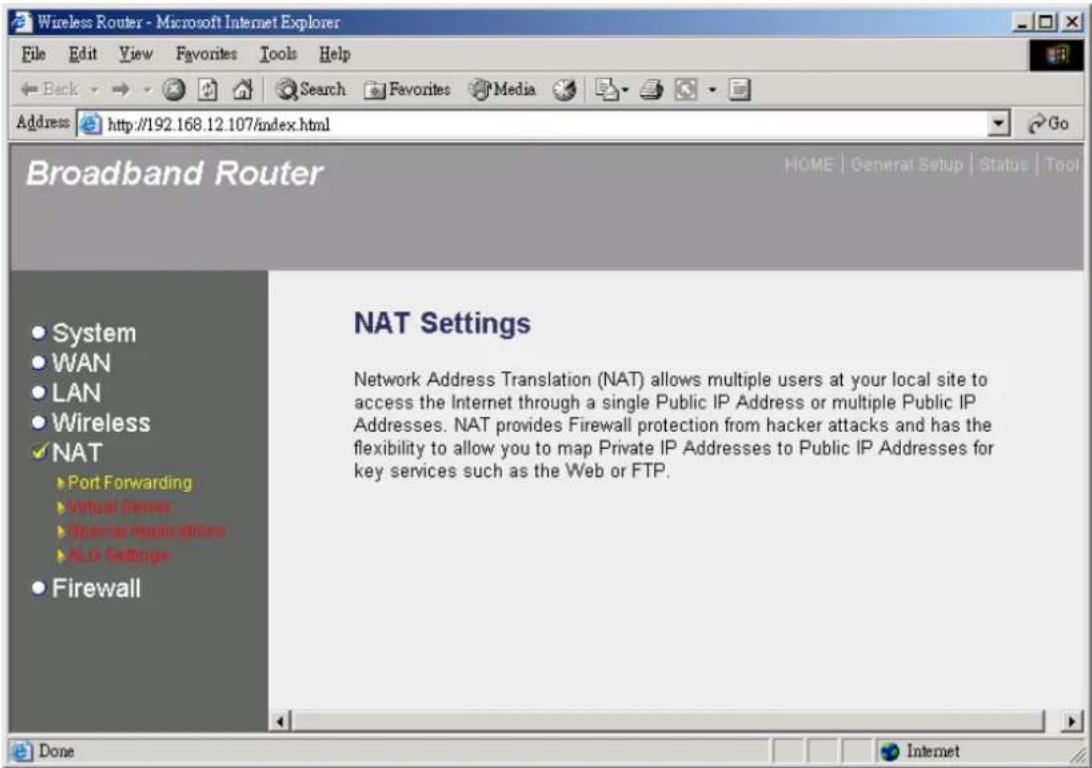
Network Address Translation (NAT) allows multiple users at your local site to access the Internet through a single Public IP Address or multiple Public IP Addresses. NAT provides Firewall protection from hacker attacks and has the flexibility to allow you to map Private IP Addresses to Public IP Addresses for key services such as Websites and FTP.
text_image
Wireless Router - Microsoft Internet Explorer File Edit View Favorites Tools Help Back Search Favorites Media Address http://192.168.12.107/index.html Broadband Router HOME | General Setup | Status | Tool System WAN LAN Wireless NAT Port Forwarding Virtual Server Special Applications ALL Settings Firewall NAT Settings Network Address Translation (NAT) allows multiple users at your local site to access the Internet through a single Public IP Address or multiple Public IP Addresses. NAT provides Firewall protection from hacker attacks and has the flexibility to allow you to map Private IP Addresses to Public IP Addresses for key services such as the Web or FTP. Done Internet| Parameter | Description |
| 2.5.1 Port Forwarding | You can have different services (e.g. email, FTP, Web etc.) going to different service servers/clients in your LAN. The Port Forwarding allows you to re-direct a particular range of service port numbers (from the Internet/WAN Ports) to a particular LAN IP address. |
| 2.5.2 Virtual Server | You can have different services (e.g. email, FTP, Web etc.) going to different service servers/clients in your LAN. The Virtual Server allows you to re-direct a particular service port number (from the Internet/WAN Port) to a particular LAN IP address and its service port number. |
| 2.5.3 Special Applications | Some applications require multiple connections, such as Internet games, video conferencing, Internet telephony and others. In this section you can configure the router to support these types of applications. |
| 2.5.4 ALG Setting | You can select special applications that need “Application Layer Gateway” to support here. |
Click on one of the three NAT selections and proceed to the manual's relevant subsection.
2.5.1 Port Forwarding
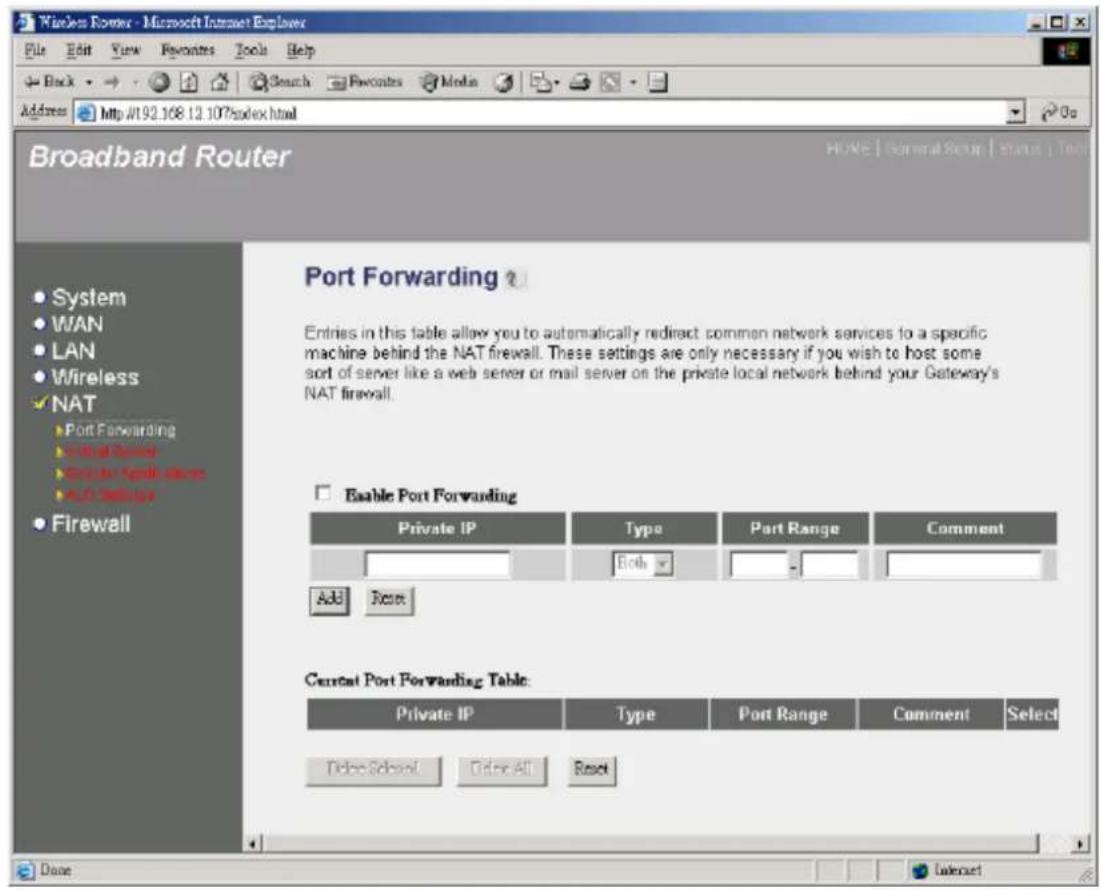
The Port Forwarding allows you to re-direct a particular range of service port numbers (from the Internet/WAN Ports) to a particular LAN IP address. It help you to host some servers behind the router NAT firewall.
text_image
Wireless Router - Microsoft Internet Explorer File Edit View Favorites Tools Help Back Search Favorites Media Address http://192.168.12.107/sindex.html Broadband Router HOME | General Setup | Status | Tool System WAN LAN Wireless NAT Port Forwarding Port Forwarding Port Forwarding Firewall Port Forwarding End Subway Send Mail Send Send Mail Send Enable Port Forwarding Private IP Type Port Range Comment Both - Add Reset Current Port Forwarding Table: Private IP Type Port Range Comment Select Delete School Online All Reset Done TakeoutParameter Description
Enable Port Forwarding
Enable Port Forwarding
Private IP This is the private IP of the server behind the
NAT firewall.
Note: You need to give your LAN PC clients a
fixed/static IP address for Port Forwarding to work properly.
Type This is the protocol type to be forwarded. You
can choose to forward "TCP" or "UDP" packets only or select "both" to forward both "TCP" and "UDP" packets.
Port Range
The range of ports to be forward to the private IP.
Comment The description of this setting.
Add Port Forwarding into the table
Fill in the "Private IP", "Type", "Port Range" and "Comment" of the setting to be added and then click "Add". Then this Port Forwarding setting will be added into the "Current Port Forwarding Table" below. If you find any typo before adding it and want to retype again, just click "Clear" and the fields will be cleared.
Remove Port Forwarding into the table
If you want to remove some Port Forwarding settings from the "Current Port Forwarding Table", select the Port Forwarding settings you want to remove in the table and then click "Delete Selected". If you want remove all Port Forwarding settings from the table, just click "Delete All" button. Click "Reset" will clear your current selections.
Click
2.5.2 Virtual Server
Use the Virtual Server function when you want different servers/clients in your LAN to handle different service/Internet application type (e.g. Email, FTP, Web server etc.) from the Internet. Computers use numbers called port numbers to recognize a particular service/Internet application type. The Virtual Server allows you to re-direct a particular service port number (from the Internet/WAN Port) to a particular LAN private IP address and its service port number. (See Glossary for an explanation on Port number)

text_image
Wireless Router - Microsoft Internet Explorer File Edit View Favorites Tools Help Back Search Favorites Media Address http://92.168.12.107/index.html Broadband Router HOME | Several Listup | Status | Yes System WAN LAN Wireless NAT Port Forwarding Virtual Server Access Local Server 3.0 Service Firewall Virtual Server You can configure the Broadband router as a Virtual Server so that remote users accessing services such as the Web or FTP at your local site via Public IP Addresses can be automatically redirected to local servers configured with Private IP Addresses. In other words, depending on the requested service (TCP/UDP) port number, the Broadband router redirects the external service request to the appropriate internal server (located at one of your LAN's Private IP Address). Enable Virtual Server Private IP Private Port Type Public Port Comment Add Reset Current Virtual Server Table: Private IP Private Port Type Public Port Comment Select Delete Select Delete All Reset Done Internet| Parameters | Description |
| Enable Virtual Server Enable Virtual Server. | |
| Private IP | This is the LAN client/host IP address that the Public Port number packet will be sent to.Note: You need to give your LAN PC clients a fixed/static IP address for Virtual Server to work properly. |
| Private Port | This is the port number (of the above Private IP host) that the below Public Port number will be changed to when the packet enters your LAN (to the LAN Server/Client IP) |
| Type | Select the port number protocol type (TCP, UDP or both). If you are unsure, then leave it to the default both protocol. |
| Public Port | Enter the service (service/Internet application) port number from the Internet that will be re-directed to the above Private IP address host in your LANNote: Virtual Server function will have priority over the DMZ function if there is a conflict between the Virtual Server and the DMZ settings. |
| Comment The description of this setting. | |
| Add Virtual Server | Fill in the "Private IP", "Private Port", "Type", "Public Port" and "Comment" of the setting to be added and then click "Add". Then this Virtual Server setting will be added into the "Current Virtual Server Table" below. If you find any typo before adding it and want to retype again, just click "Clear" and the fields will be cleared. |
| Remove Virtual Server | If you want to remove some Virtual Server settings from the " Current Virtual Server Table", select the Virtual Server settings you want to remove in the table and then click "Delete Selected". If you want remove all Virtual Server settings from the table, just click "Delete All" button. Click "Reset" will clear your current selections. |
Click
Example: Virtual Server
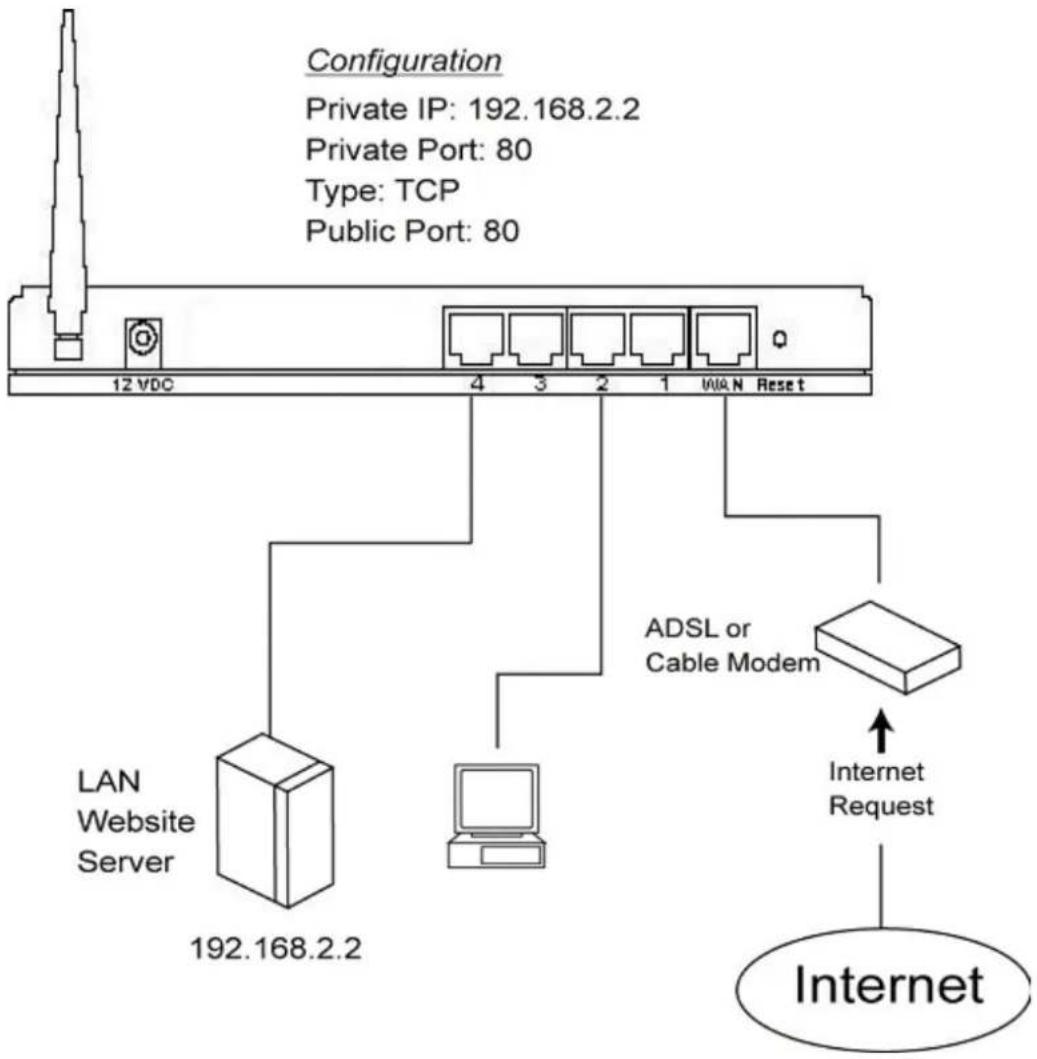
The diagram below demonstrates one of the ways you can use the Virtual Server function. Use the Virtual Server when you want the web server located in your private LAN to be accessible to Internet users. The configuration below means that any request coming from the Internet to access your web server will be translated to your LAN's web server (192.168.2.2). Note: For the virtual server to work properly Internet/remote users must know your global IP address. (For websites you will need to have a fixed/static global/public IP address)
flowchart
graph TD
    A["LAN Website Server"] -->|192.168.2.2| B["Internet Request"]
    C["Computer"] -->|4| D["ADSL or Cable Modem"]
    E["12 VDC"] --> F["Type: TCP"]
    G["0"] --> H["Public Port: 80"]
    I["Configuration"] --> J["Private IP: 192.168.2.2"]
    I --> K["Private Port: 80"]
    I --> L["Type: TCP"]
    I --> M["Public Port: 80"]
2.5.3 Special Applications
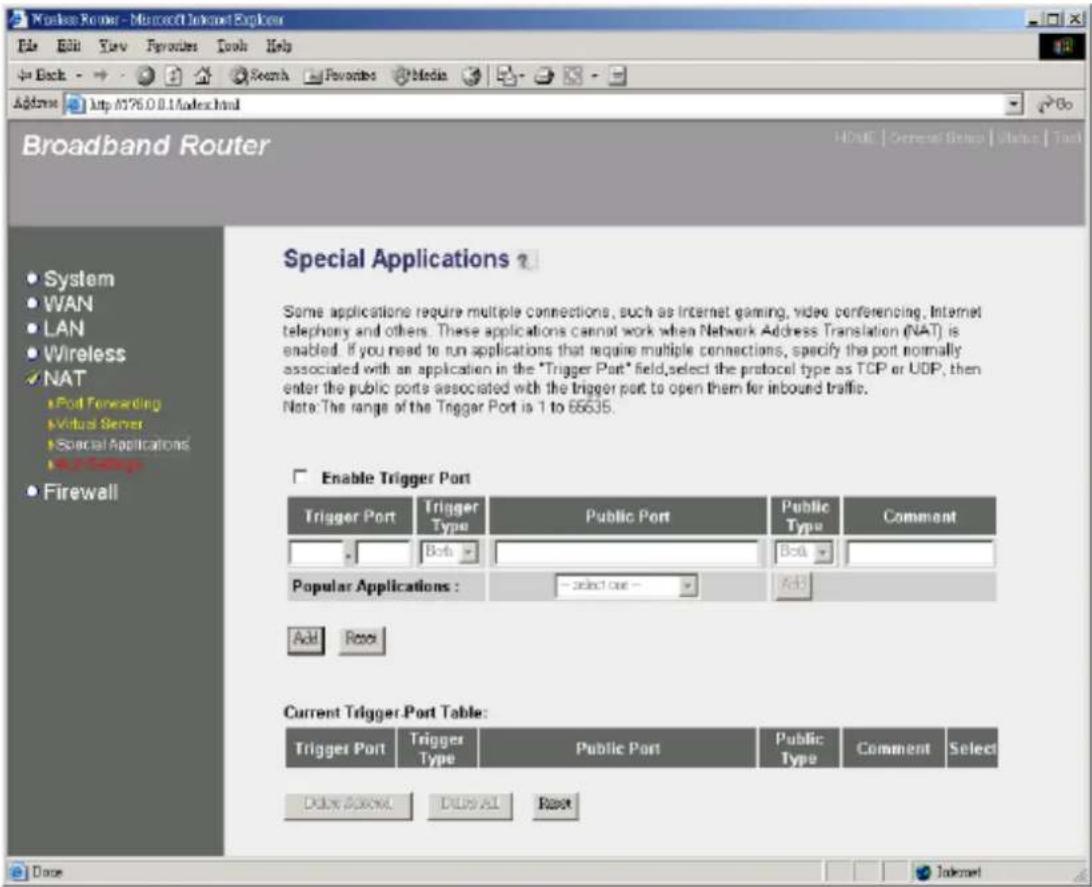
Some applications require multiple connections, such as Internet games, video conferencing, Internet telephony and others. In this section you can configure the router to support multiple connections for these types of applications.
text_image
Woolless Router - Microsoft Internet Explorer File Edit View Favorites Tools Help + Back - - Search Favorites Media Address http://76.0.1.aspx.html Broadband Router HDLE | General Status | Status | Tool System WAN LAN Wireless NAT Port Forwarding Virtual Server Special Applications Firewall Special Applications ? Some applications require multiple connections, such as Internet gaming, video conferencing, Internet telephony and others. These applications cannot work when Network Address Translation (NAT) is enabled. If you need to run applications that require multiple connections, specify the port normally associated with an application in the "Trigger Port" field, select the protocol type as TCP or UDP, then enter the public ports associated with the trigger port to open them for inbound traffic. Note: The range of the Trigger Port is 1 to 65535. Enable Trigger Port Trigger Port Trigger Type Public Port Public Type Comment Both Bcl Popular Applications : - select one - Add Reset Current Trigger Port Table: Trigger Port Trigger Type Public Port Public Type Comment Select Duke Account DUEAL Reset Done Internet| Parameters | Description |
| Enable Trigger Port | Enable the Special Application function. |
| Trigger Port | This is the out going (Outbound) range of port numbers for this particular application |
| Trigger Type | Select whether the outbound port protocol is “TCP”, “UDP” or both. |
| Public Port | Enter the In-coming (Inbound) port or port range for this type of application (e.g. 2300-2400, 47624)Note: Individual port numbers are separated by a comma (e.g. 47624, 5775, 6541 etc.). To input a port range use a “dash” to separate the two port number range (e.g. 2300-2400) |
Public Type
Select the Inbound port protocol type: "TCP", "UDP" or both
Comment The description of this setting.
Popular applications
This section lists the more popular applications that require multiple connections. Select an application from the Popular Applications selection. Once you have selected an application, select a location (1-10) in the Copy to selection box and then click the Copy to button. This will automatically list the Public Ports required for this popular application in the location (1-10) you'd specified.
Add Special Application
Fill in the "Trigger Port", "Trigger Type", "Public Port", "Public Type", "Public Port" and "Comment" of the setting to be added and then click "Add". Then this Special Application setting will be added into the "Current Trigger-Port Table" below. If you find any typo before adding it and want to retype again, just click "Clear" and the fields will be cleared.
If you want to add a popular application, select one
“Popular Application” and then click “Add”.
Remove Special Application
If you want to remove some Special Application settings from the "Current Trigger-Port Table", select the Special Application settings you want to remove in the table and then click "Delete Selected". If you want remove all Special Application settings from the table, just click "Delete All" button. Click "Reset" will clear your current selections.
Click
Example: Special Applications
If you need to run applications that require multiple connections, then specify the port (outbound) normally associated with that application in the "Trigger Port" field. Then select the protocol type (TCP or UDP) and enter the public ports associated with the trigger port to open them up for inbound traffic.
Example:
| ID | Trigger Port | Trigger Type | Public Port | Public Type | Comment |
| 1 | 28800 | UDP | 2300-2400, 47624 | TCP | MSN Game Zone |
| 2 | 6112 | UDP | 6112 | UDP | Battle.net |
In the example above, when a user trigger's port 28800 (outbound) for MSN Game Zone then the
router will allow incoming packets for ports 2300-2400 and 47624 to be directed to that user. Note: Only one LAN client can use a particular special application at a time.
2.5.4 ALG Settings
You can select applications that need "Application Layer Gateway" to support.

text_image
Wireless Router - Microsoft Internet Explorer File Edit View Favorites Tools Help Back Search Reports Media Address http://192.168.12.107/index.html Broadband Router HOME | General Group | Status | Tool Application Layer Gateway ? System WAN LAN Wireless NAT Port Forwarding Virtual Server Special Applications ALC Settings Firewall Enable Name Comment Amanda Support for Amanda backup tool protocol. Egg Support for eggdrop bot networks. FTP Support for FTP. H323 Support for H.323/netmeeting. RC Allows DCC to work though NAT and connection tracking. MMS Support for Microsoft Streaming Media Services protocol. Quake3 Support for Quake III Arena connection tracking and nat. Talk Allows netfilter to track talk connections. TFTP Support for TFTP. Starcraft Support for Starcraft game protocol. MSN Support for MSN file transfer Apply Cancel Done| Parameters | Default | Description |
| Enable | You can select to enable “Application Layer Gateway”, then the router will let that application correctly pass though the NAT gateway. |
Click
2.6 Firewall
The Broadband router provides extensive firewall protection by restricting connection parameters, thus limiting the risk of hacker attack, and defending against a wide array of common Internet attacks. However, for applications that require unrestricted access to the Internet, you can configure a specific client/server as a Demilitarized Zone (DMZ).
Note: To enable the Firewall settings select Enable and click Apply
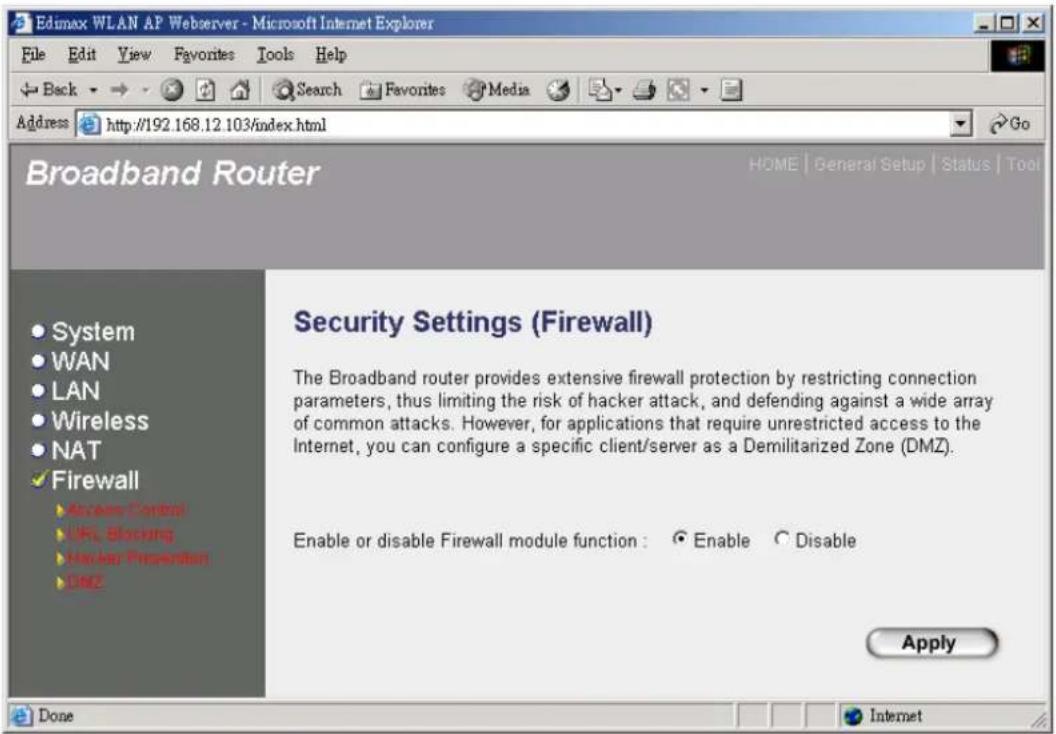
text_image
Edmax WLAN AP Webserver - Microsoft Internet Explorer File Edit View Favorites Tools Help Back Search Favorites Media Address http://192.168.12.103/index.html Broadband Router HOME | General Setup | Status | Tool System WAN LAN Wireless NAT Firewall Access Control File Blocking Web Lab Presentation Data Security Settings (Firewall) The Broadband router provides extensive firewall protection by restricting connection parameters, thus limiting the risk of hacker attack, and defending against a wide array of common attacks. However, for applications that require unrestricted access to the Internet, you can configure a specific client/server as a Demilitarized Zone (DMZ). Enable or disable Firewall module function : Enable Disable Apply Done InternetParameters Description
| 2.6.1 Access Control | Access Control allows you to specify which hosts users can or cannot have access to certain Internet applications |
| 2.6.2 URL Blocking accessed by users. | URL Blocking allow you to specify which URLs can not be |
| 2.6.3 Intrusion Detection | The Broadband router's firewall can block common hacker attacks and can log the attack activities. |
| 2.6.4 DMZ | The DMZ function allows you to re-direct all packets going to your WAN port IP address to a particular IP address in your LAN. |
Click on one of the firewall selections and proceed to the manual's relevant sub-section
2.6.1 Access Control
If you want to restrict users from accessing certain Internet applications/services (e.g. Internet websites, email, FTP etc.), then this is the place to set that configuration. Access Control allows users to define the traffic type permitted in your LAN. You can control which PC client can have access to these services.
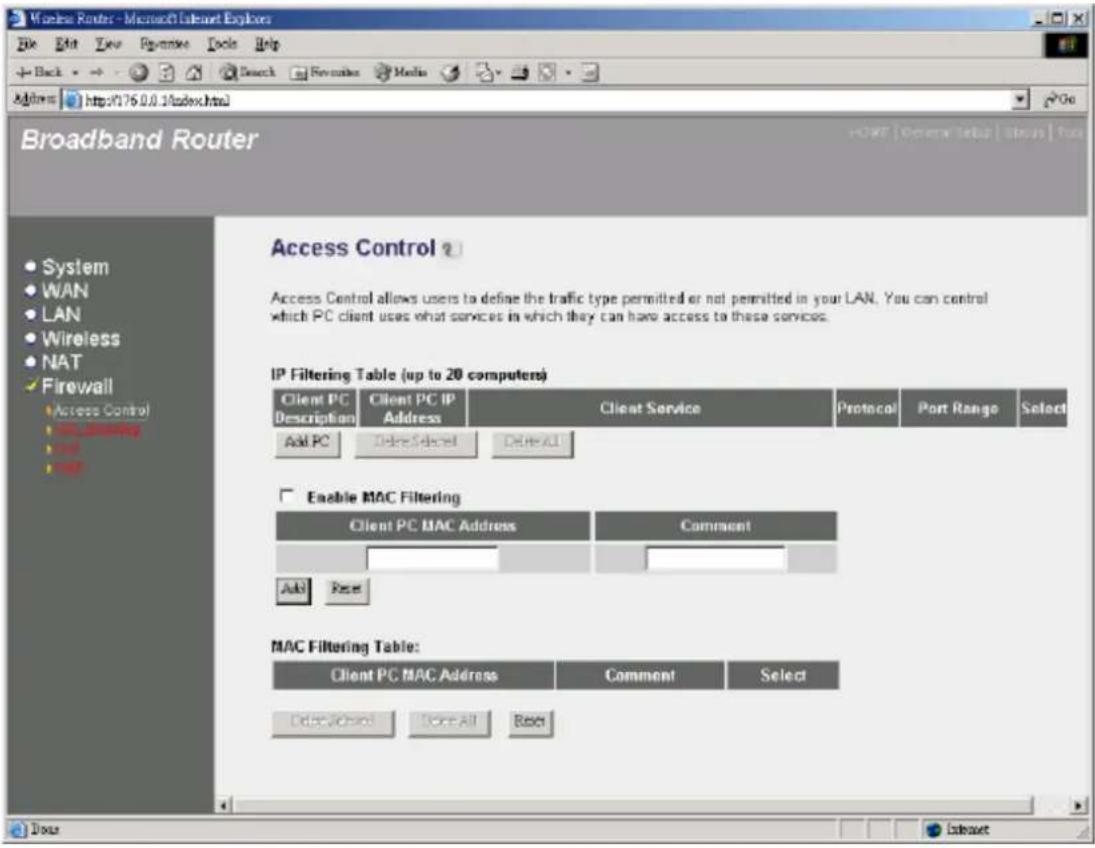
text_image
Broadband Router Access Control ? Access Control allows users to define the traffic type permitted or not permitted in your LAN. You can control which PC client uses what services in which they can have access to these services. IP Filtering Table (up to 20 computers) Client PC Description Client PC IP Address Client Service Protocol Port Range Select Add PC Delete Select Delete All Enable MAC Filtering Client PC MAC Address Comment Add Reset MAC Filtering Table: Client PC MAC Address Comment Select Delete Select Remove All ResetParameters Description
Filter client PCs by IP Fill "IP Filtering Table" to filter PC clients by IP.
Add PC You can click Add PC to add an access control rule for users by IP addresses.
Remove PC If you want to remove some PC from the "IP Filtering Table", select the PC you want to remove in the table and then click "Delete Selected". If you want remove all PCs from the table, just click "Delete All" button.
Filter client PC by MAC address Check "Enable MAC Filtering" to enable MAC Filtering.
Add PC
Fill in "Client PC MAC Address" and "Comment" of the PC that is allowed to access the Internet, and then click "Add". If you find any typo before adding it and want to retype again, just click "Reset" and the fields will be cleared.
Remove PC
If you want to remove some PC from the "MAC Filtering Table", select the PC you want to remove in the table and then click "Delete Selected". If you want remove all PCs from the table, just click "Delete All" button. If you want to clear the selection and re-select again, just click "Reset".
You can now configure other advance sections or start using the router (with the advance settings in place)

text_image
Broadband Router System WAN LAN Wireless NAT Firewall Access Control URL Security USB Table IP Filtering Client PC Description : Client PC IP Address : Client PC Service : Service Name Detail Description Blocking WWW HTTP, TCP Port 60, 3128, 8000, 8000, 8001 WWW with URL Blocking HTTP (Ref. URL Blocking Site Page) E-mail Sending SMTP, TCP Port 35 Newsp Forums NMTP, TCP Port 119 E-mail Receiving POPS, TCP Port 110 Secure HTTP HTTPS, TCP Port 443 File Transfer FTP, TCP Port 21 MSN Messenger TCP Port 1863 Toilet Service TCP Port 23 AIM ACL Instant Messenger, TCP Port 6100 NetModing HZZB, TCP Port 1728 DNS UDP Port 53 SNMP UDP Port 161, 182 VPR-PPTP TCP Port 1723 VPR-LTF UDP Port 1701 TCP All TCP Port UDP All UDP Port User Define Service Protocol : Back Port Range : Apply Change Base LoadAdd PC
Parameters Description
| Client PC Description | The description for this client PC rule. |
| Client PC IP Addresses | Enter the IP address range that you wish to apply this Access Control rule. This is the user's IP address(es) that you wish to setup an Access Control rule. You can select a range of users simply by inputting the starting users' IP address and the last user's IP address in the appropriate boxes. If you want to select only one user then input the user's IP address in both boxes. |
| Note: You need to give your LAN PC clients a fixed/static IP address for the Access Control rule to work properly. | |
| Client PC Service | You can block the clients from accessing some Internet services by checking the services you want to block. |
| Protocol This allows you to select UDP, TCP or both protocol type you want to block. | |
| Port Range | You can assign up to five port ranges. The router will block clients from accessing Internet services that use these ports. |
| Apply Changes | Click “Apply Changes” to save the setting. |
| Reset | Click “Reset” to clear all fields. |
Click
Example: Access Control
In the example below, LAN client A can only access websites that use Port 80. However, LAN client B is able to access websites and any other service that uses ports between 80 and 999.
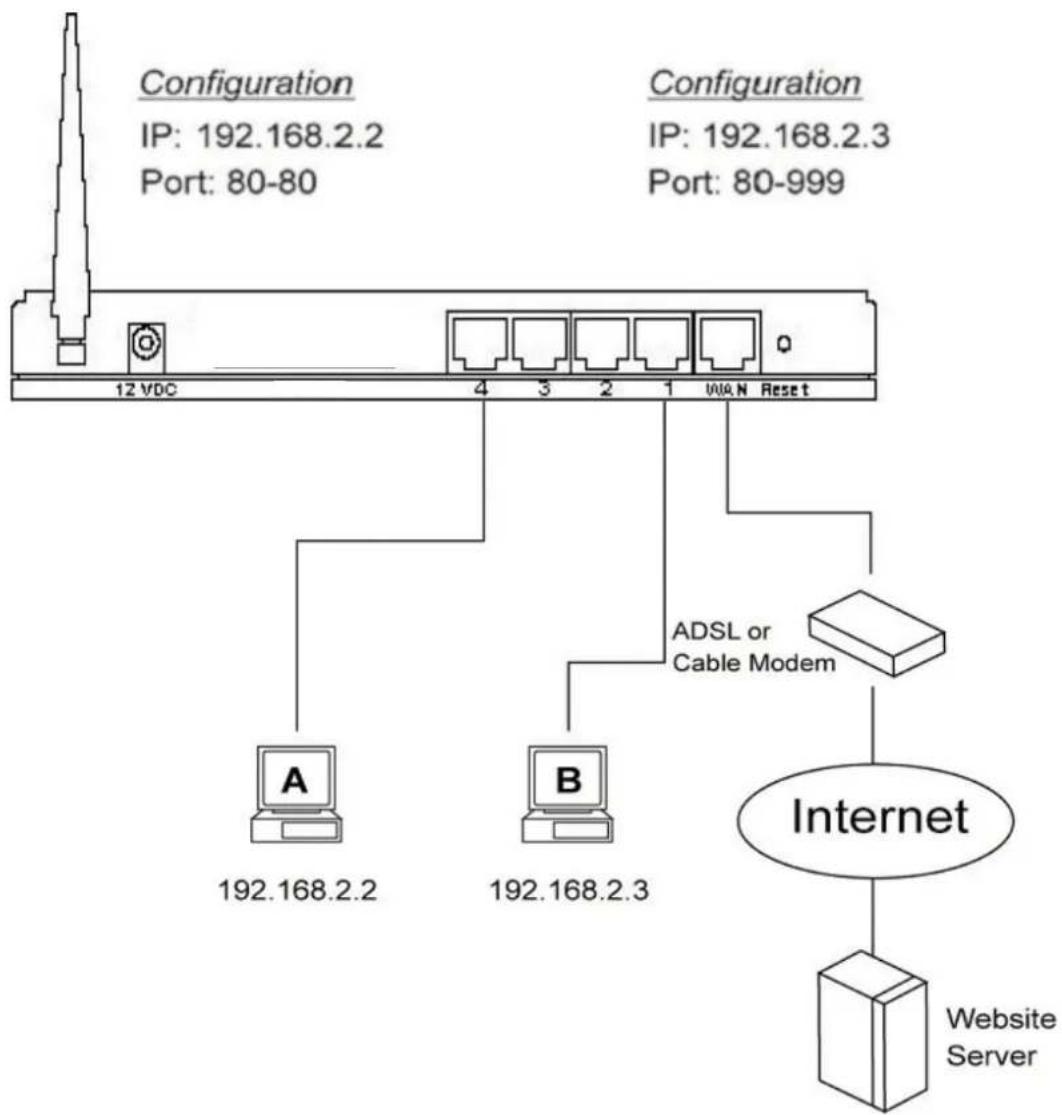
flowchart
graph TD
    A["12 VDC"] --> B["A"]
    A --> C["B"]
    B --> D["192.168.2.2"]
    C --> E["192.168.2.3"]
    F["AND"] --> G["ADSL or Cable Modem"]
    G --> H["Internet"]
    H --> I["Website Server"]
    style A fill:#f9f,stroke:#333
    style B fill:#ccf,stroke:#333
    style C fill:#ccf,stroke:#333
    style D fill:#cfc,stroke:#333
    style E fill:#cfc,stroke:#333
    style F fill:#fcc,stroke:#333
    style G fill:#cff,stroke:#333
    style H fill:#ffc,stroke:#333
    style I fill:#cfc,stroke:#333
2.6.2 URL Blocking
You can block access to some Web sites from particular PCs by entering a full URL address or just keyword of the Web site.

text_image
Wireless Router - Microsoft Internet Explorer File Edit View Favorites Tools Help Back Search Favorites Media Address http://192.168.12.107/index.html Broadband Router HOME | General Setup | Status | Tool System WAN LAN Wireless NAT Firewall Access Control URL Blocking USB HOME URL Blocking You can block access to certain Web sites from a particular PC by entering either a full URL address or just a keyword of the Web site. To specify the particular PC, go back to the "Access Control" page and check the box for "Http with URL Blocking" in the "Normal Filtering Table". Enable URL Blocking URL / Keyword Add Reset Current URL Blocking Table: URL/Keyword Select Delete Selected Delete All Reset InternetParameters Description
Enable URL Blocking Enable/disable URL Blocking
Add URL Keyword
Fill in "URL/Keyword" and then click "Add". You can enter the full URL address or the keyword of the web site you want to block. If you find any typo before adding it and want to retype again, just click "Reset" and the field will be cleared.
Remove URL Keyword
If you want to remove some URL keyword from the "Current URL Blocking Table", select the URL keyword you want to remove in the table and then click "Delete Selected". If you want remove all URL keyword from the table, just click "Delete All" button. If you want to clear the selection and re-select again, just click "Reset".
You can now configure other advance sections or start using the router (with the advance settings in place)
2.6.3 Hacker Prevention
The Broadband router's firewall can block common hacker attacks, including Denial of Service, Ping of Death, Port Scan and Sync Flood. If Internet attacks occur the router can log the events.

text_image
Wireless Router - Microsoft Internet Explorer File Edit View Favorites Tools Help Back Search Favorites Media Address http://176.0.0.1/index.html Broadband Router HOME | General Setup | Status | Tool Denial of Service ? The Broadband router's firewall can block common hacker attacks, including DoS, Discard Ping from WAN and Port Scan. Denial of Service Feature Ping of Death : Discard Ping From WAN : Port Scan : Sync Flood : Apply Cancel Done InternetParameters Description
Intrusion Detection Feature
| Ping of Death | Protections from Ping of Death attack |
| Discard Ping From WAN | The router’s WAN port will not respond to any Ping requests |
| Port Scan | Protection the router from Port Scan. |
| Sync Flood | Protection the router from Sync Flood attack. |
Click
2.6.4 DMZ
If you have a local client PC that cannot run an Internet application (e.g. Games) properly from behind the NAT firewall, then you can open the client up to unrestricted two-way Internet access by defining a DMZ Host. The DMZ function allows you to re-direct all packets going to your WAN port IP address to a particular IP address in your LAN. The difference between the virtual server and the DMZ function is that the virtual server re-directs a particular service/Internet application (e.g. FTP, websites) to a particular LAN client/server, whereas DMZ re-directs all packets (regardless of services) going to your WAN IP address to a particular LAN client/server.
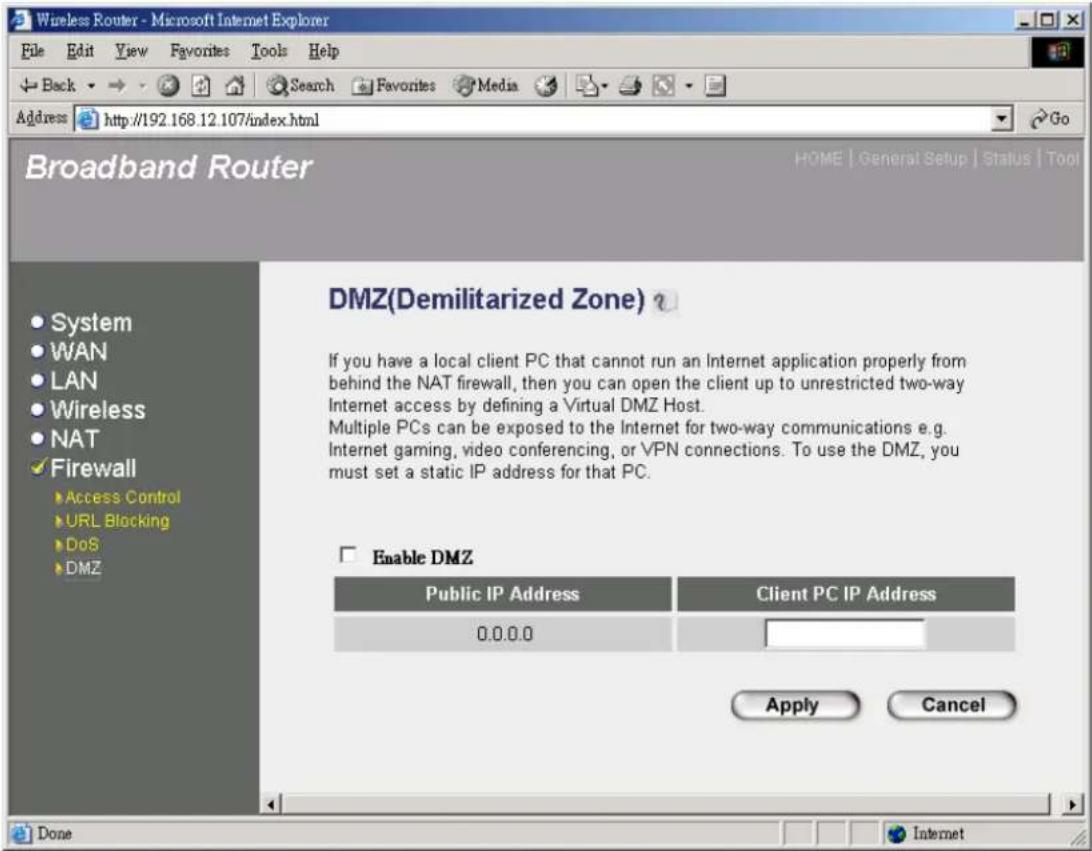
text_image
Wireless Router - Microsoft Internet Explorer File Edit View Favorites Tools Help Back Search Favorites Media Address http://192.168.12.107/index.html Broadband Router HOME | General Setup | Status | Tool DMZ(Demilitarized Zone) If you have a local client PC that cannot run an Internet application properly from behind the NAT firewall, then you can open the client up to unrestricted two-way Internet access by defining a Virtual DMZ Host. Multiple PCs can be exposed to the Internet for two-way communications e.g. Internet gaming, video conferencing, or VPN connections. To use the DMZ, you must set a static IP address for that PC. Enable DMZ Public IP Address Client PC IP Address 0.0.0.0 Apply Cancel Done InternetParameters Description
Enable DMZ Enable/disable DMZ
Note: If there is a conflict between the Virtual Server and the DMZ setting, then Virtual Server function will have priority over the DMZ function.
Public IP Address
The IP address of the WAN port or any other Public IP addresses given to you by your ISP
Client PC IP Address
Input the IP address of a particular host in your LAN that will receive all the packets originally going to the WAN port/Public IP address above
Note: You need to give your LAN PC clients a fixed/static IP address for DMZ to work properly.
You can now configure other advance sections or start using the router (with the advance settings in place)
Chapter 3
Status
The Status section allows you to monitor the current status of your router. You can use the Status page to monitor: the connection status of the Broadband router's WAN/LAN interfaces, the current firmware and hardware version numbers, any illegal attempts to access your network, and information on all DHCP client PCs currently connected to your network.
| Parameters | Description |
| 3.1 Status and Information | Shows the router's system information |
| 3.2 Internet Connection | View the Broadband router's current Internet connection status and other related information |
| 3.3 Device Status | View the Broadband router's current setting status |
| 3.4 Security Log | View any attempts that have been made to illegally gain access to your network. |
| 3.5 DHCP Client Table | View your LAN client's information that is currently linked to the Broadband router's DHCP server |
| 3.6 Statistics Shows the statistics | |
Select one of the above five Status selections and proceed to the manual's relevant sub-section
3.1 Status and Information
The Status and Information section allows you to view the router's system information
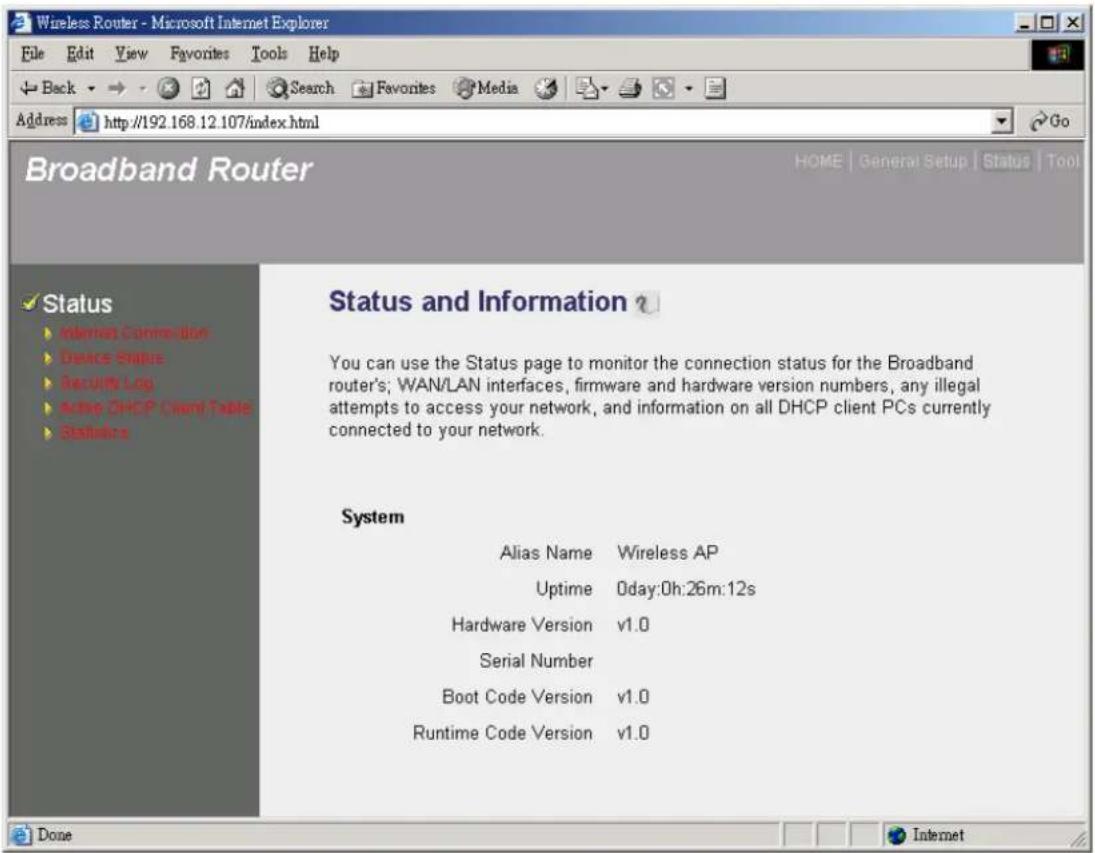
text_image
Wireless Router - Microsoft Internet Explorer File Edit View Favorites Tools Help Back Search Favorites Media Address http://192.168.12.107/index.html Broadband Router Status and Information ? You can use the Status page to monitor the connection status for the Broadband router's; WAN/LAN interfaces, firmware and hardware version numbers, any illegal attempts to access your network, and information on all DHCP client PCs currently connected to your network. System Alias Name Wireless AP Uptime 0day:0h:26m:12s Hardware Version v1.0 Serial Number Boot Code Version v1.0 Runtime Code Version v1.0 Done InternetParameters Description
Information
You can see the router's system information such as the router's: LAN MAC Address, WAN MAC Address, Hardware version, Serial Number, Boot code Version, Runtime code Version
3.2 Internet Connection
View the Broadband router's current Internet connection status and other related information
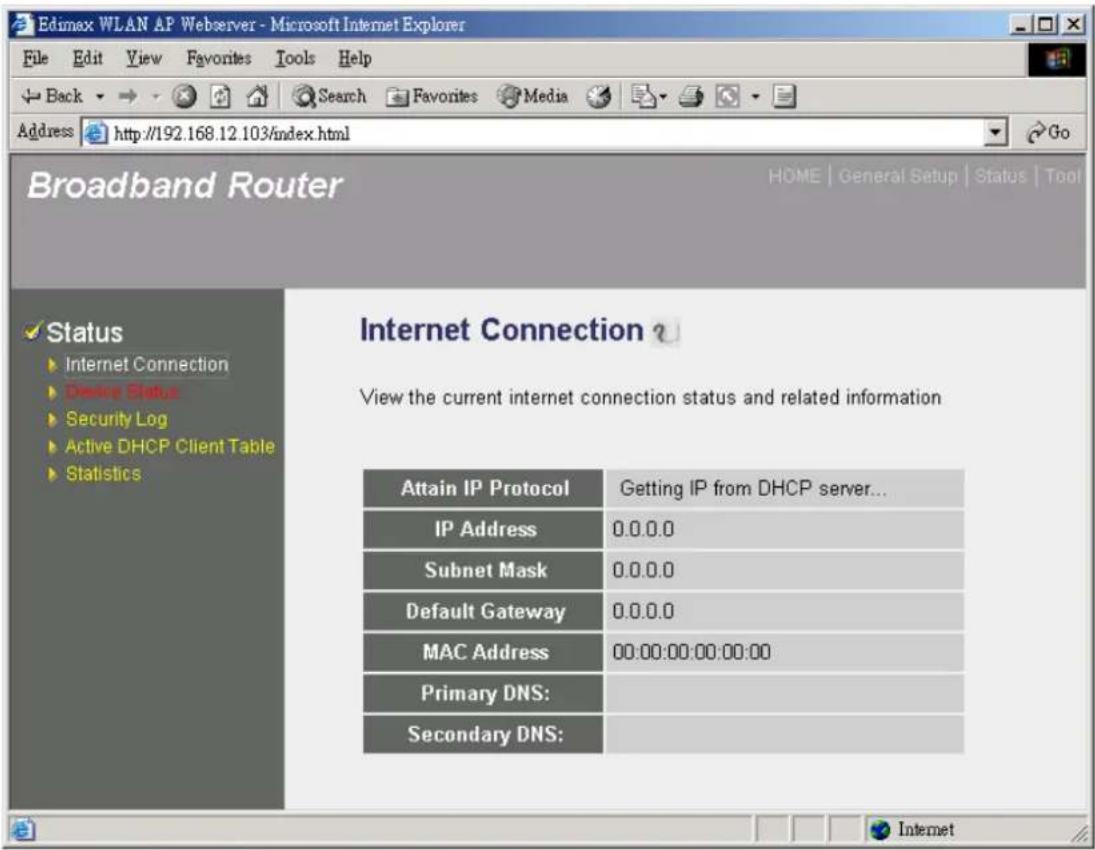
text_image
Edimax WLAN AP Webserver - Microsoft Internet Explorer File Edit View Favorites Tools Help Back Search Favorites Media Go Address http://192.168.12.103/index.html Broadband Router HOME | General Setup | Status | Tool Status Internet Connection Device Status Security Log Active DHCP Client Table Statistics Internet Connection ? View the current internet connection status and related information Attain IP Protocol Getting IP from DHCP server... IP Address 0.0.0.0 Subnet Mask 0.0.0.0 Default Gateway 0.0.0.0 MAC Address 00:00:00:00:00:00 Primary DNS: Secondary DNS:Parameters Description
Internet Connection
This page displays whether the WAN port is connected to a Cable/DSL connection. It also displays the router's WAN port: WAN IP address, Subnet Mask, and ISP Gateway as well as the Primary DNS and Secondary DNS being used.
Note: When the WAN port is a Dynamic IP connection, the
3.3 Device Status
View the Broadband router's current configuration settings. The Device Status displays the configuration settings you've configured in the Quick Setup Wizard/General Setup section.

text_image
Edimax WLAN AP Webserver - Microsoft Internet Explorer File Edit View Favorites Tools Help Back Search Favorites Media Go Address http://192.168.12.103/index.html Broadband Router HOME | General Setup | Status | Tool Status Internet Connection Device Status Security Log Active DHCP Client Table Statistics Device Status View the current setting status of this device. Wireless Configuration SSID 802.11b-SSID Channel Number 11 WEP Disabled Associated Clients 0 BSSID 00:00:00:00:00:00 LAN Configuration IP Address 0.0.0.0 Subnet Mask 0.0.0.0 Default Gateway 0.0.0.0 DHCP Server Enabled MAC Address 00:00:00:00:00:00Parameters Description
Device Status
This page shows the Broadband router's current device settings. This page displays the Broadband router LAN port's current LAN IP Address and Subnet Mask. It also shows whether the DHCP Server and Firewall functions are enabled/disabled. The firewall status is shown enabled if the firewall is enabled (regardless of whether you've configured any of the firewall features).
3.4 Security Log
View any attempts that have been made to illegally gain access to your network.
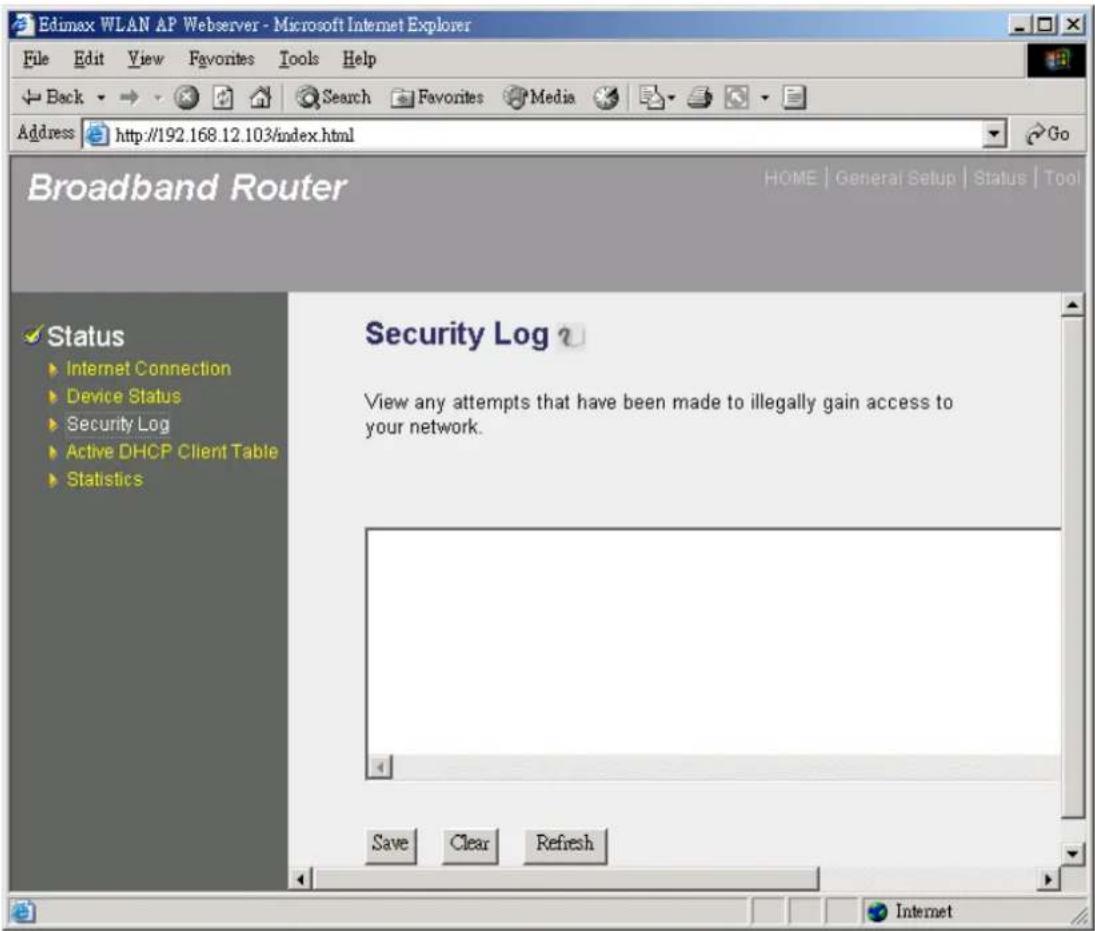
text_image
Edimax WLAN AP Webserver - Microsoft Internet Explorer File Edit View Favorites Tools Help Back Search Favorites Media Address http://192.168.12.103/index.html Broadband Router HOME | General Setup | Status | Tool Status ► Internet Connection ► Device Status ► Security Log ► Active DHCP Client Table ► Statistics Security Log View any attempts that have been made to illegally gain access to your network. Save Clear Refresh InternetParameters Description
Security Log
This page shows the current security log of the Broadband router. It displays any illegal attempts to access your network.
At the bottom of the page, the security log can be saved
3.5 Active DHCP Client Table
View your LAN client's information that is currently linked to the Broadband router's DHCP server
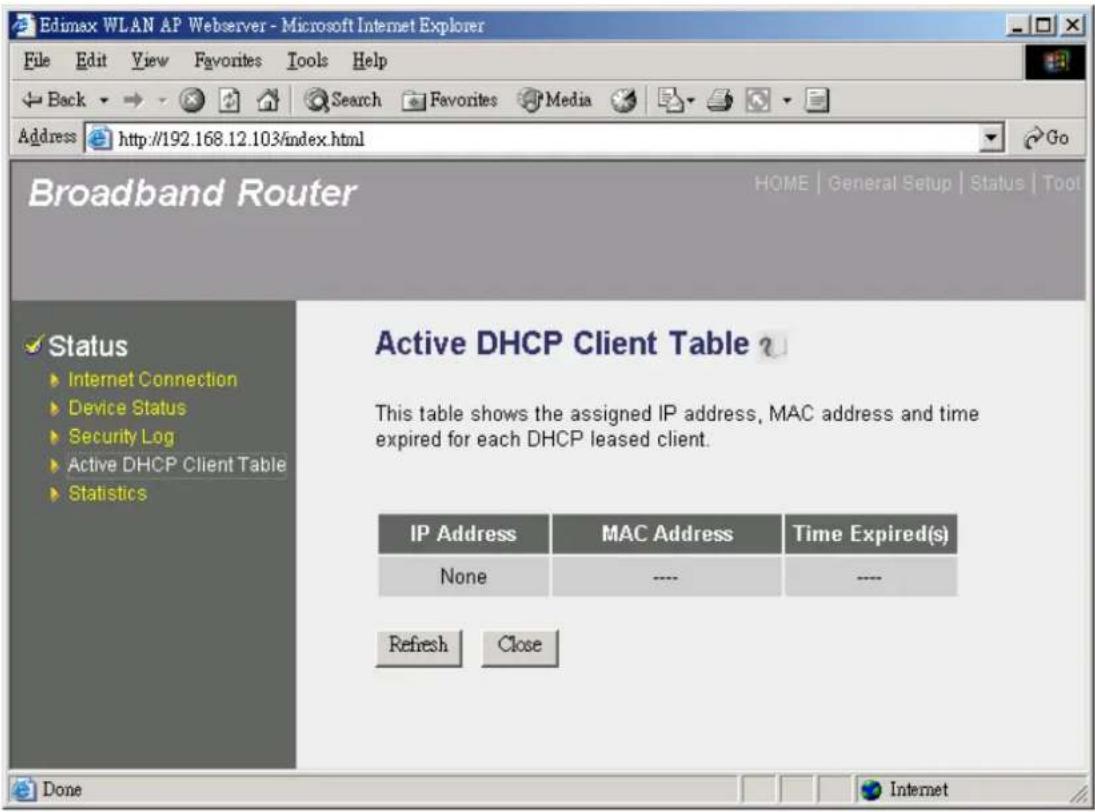
text_image
Edimax WLAN AP Webserver - Microsoft Internet Explorer File Edit View Favorites Tools Help Back Search Favorites Media Address http://192.168.12.103/index.html Broadband Router HOME | General Setup | Status | Tool Status Internet Connection Device Status Security Log Active DHCP Client Table Statistics Active DHCP Client Table This table shows the assigned IP address, MAC address and time expired for each DHCP leased client. IP Address MAC Address Time Expired(s) None ---- ---- Refresh Close Done InternetParameters Description
DHCP Client Log
This page shows all DHCP clients (LAN PCs) currently connected to your network. The "Active DHCP Client Table" displays the IP address and the MAC address and Time Expired of each LAN Client. Use the Refresh button to get the most updated situation
3.6 Statistics
View the statistics of packets sent and received on WAN, LAN and Wireless LAN.
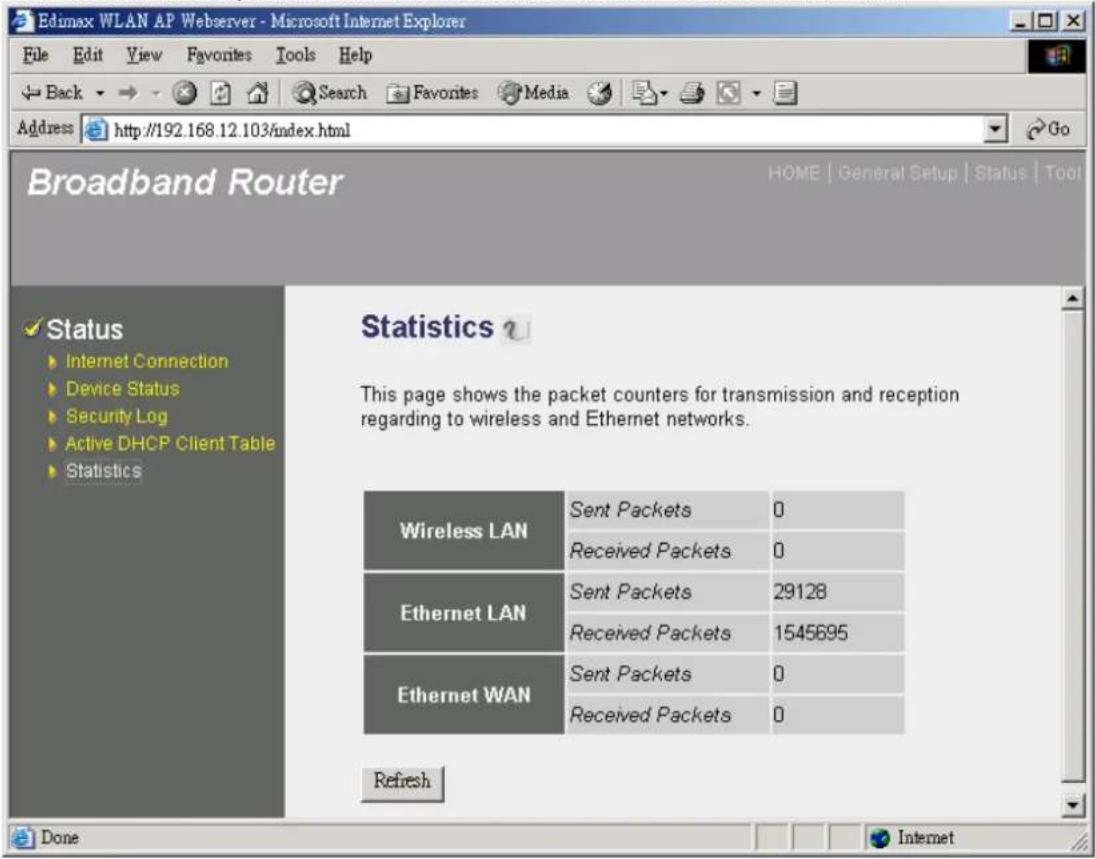
text_image
Edimax WLAN AP Webserver - Microsoft Internet Explorer File Edit View Favorites Tools Help Back Search Favorites Media Go Address http://192.168.12.103/index.html Broadband Router HOME | General Setup | Status | Tool Status Internet Connection Device Status Security Log Active DHCP Client Table Statistics Statistics This page shows the packet counters for transmission and reception regarding to wireless and Ethernet networks. Wireless LAN Sent Packets 0 Received Packets 0 Ethernet LAN Sent Packets 29128 Received Packets 1545695 Ethernet WAN Sent Packets 0 Received Packets 0 Refresh Done InternetParameters Description
Statistics
Shows the counters of packets sent and received on WAN, LAN and Wireless LAN.
Chapter 4
Tool
This page includes the basic configuration tools, such as Configuration Tools (save or restore configuration settings), Firmware Upgrade (upgrade system firmware) and Reset.

text_image
Edimax WLAN AP Webserver - Microsoft Internet Explorer File Edit View Favorites Tools Help Back Search Favorites Media Address http://192.168.12.103/index.html Broadband Router HOME | General Setup | Status | Tool Tools ► Configuration Tools ► Firmware Upgrade ► Reset Tools Settings The Tools Settings section includes the basic configuration tools, such as Save, Restore Configuration Settings, and Upgrade System Firmware. InternetParameters Description
4.1 Configuration Tools
You can save the router's current configuration, restore the router's saved configuration files and restore the router's factory default settings
4.2 Firmware Upgrade
This page allows you to upgrade the router's firmware
4.3 Reset
You can reset the router's system should any problem exist
Select one of the above three Tools Settings selection and proceed to the manual's relevant sub-section
4.1 Configuration Tools
The Configuration Tools screen allows you to save (Backup) the router's current configuration setting. Saving the configuration settings provides an added protection and convenience should problems occur with the router and you have to reset to factory default. When you save the configuration setting (Backup) you can re-load the saved configuration into the router through the Restore selection. If extreme problems occur you can use the Restore to Factory Defaults selection, this will set all configurations to its original default settings (e.g. when you first purchased the router).
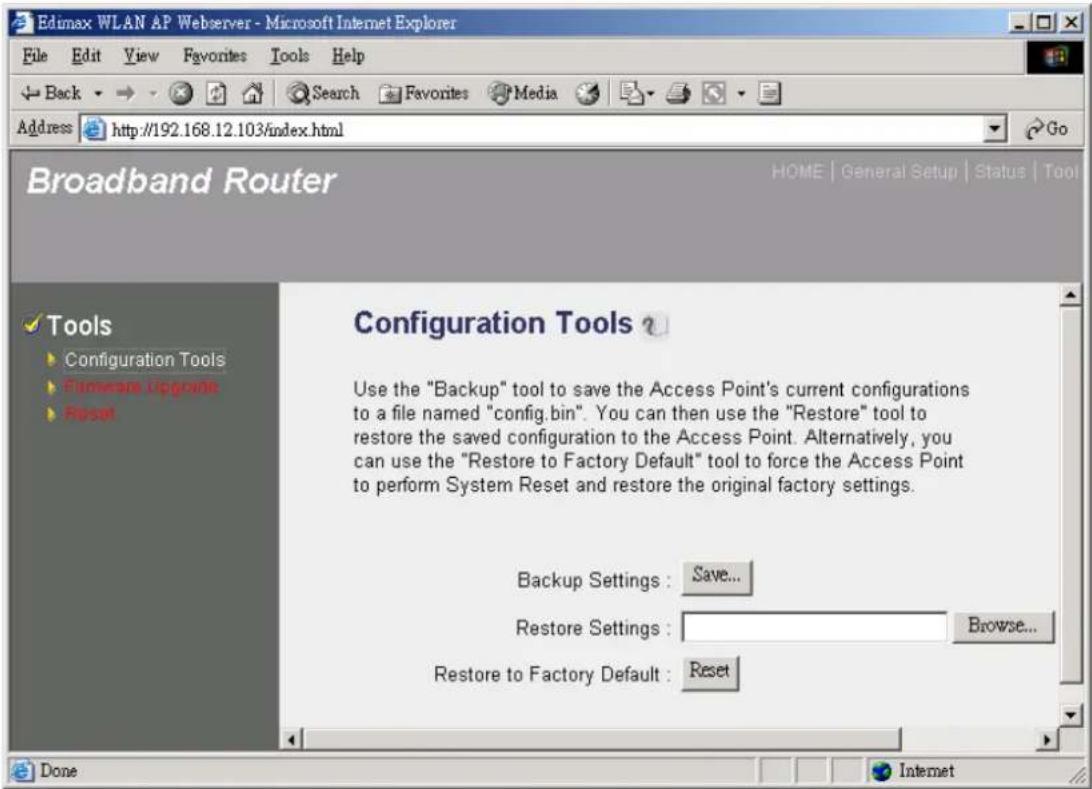
text_image
Edimax WLAN AP Webserver - Microsoft Internet Explorer File Edit View Favorites Tools Help Back Search Favorites Media Go Address http://192.168.12.103/index.html Broadband Router HOME | General Setup | Status | Tool Tools Configuration Tools Eltimeside Upgrade Reset Configuration Tools Use the "Backup" tool to save the Access Point's current configurations to a file named "config.bin". You can then use the "Restore" tool to restore the saved configuration to the Access Point. Alternatively, you can use the "Restore to Factory Default" tool to force the Access Point to perform System Reset and restore the original factory settings. Backup Settings : Save... Restore Settings : Browse... Restore to Factory Default : Reset Done InternetParameters
Description
Configuration Tools
Use the "Backup" tool to save the Broadband router current configuration to a file named "config.bin" on your PC. You can then use the "Restore" tool to restore the saved configuration to the Broadband router. Alternatively, you can use the "Restore to Factory Defaults" tool to force the Broadband router to perform a power reset and restore the original factory settings.
4.2 Firmware Upgrade
This page allows you to upgrade the router's firmware
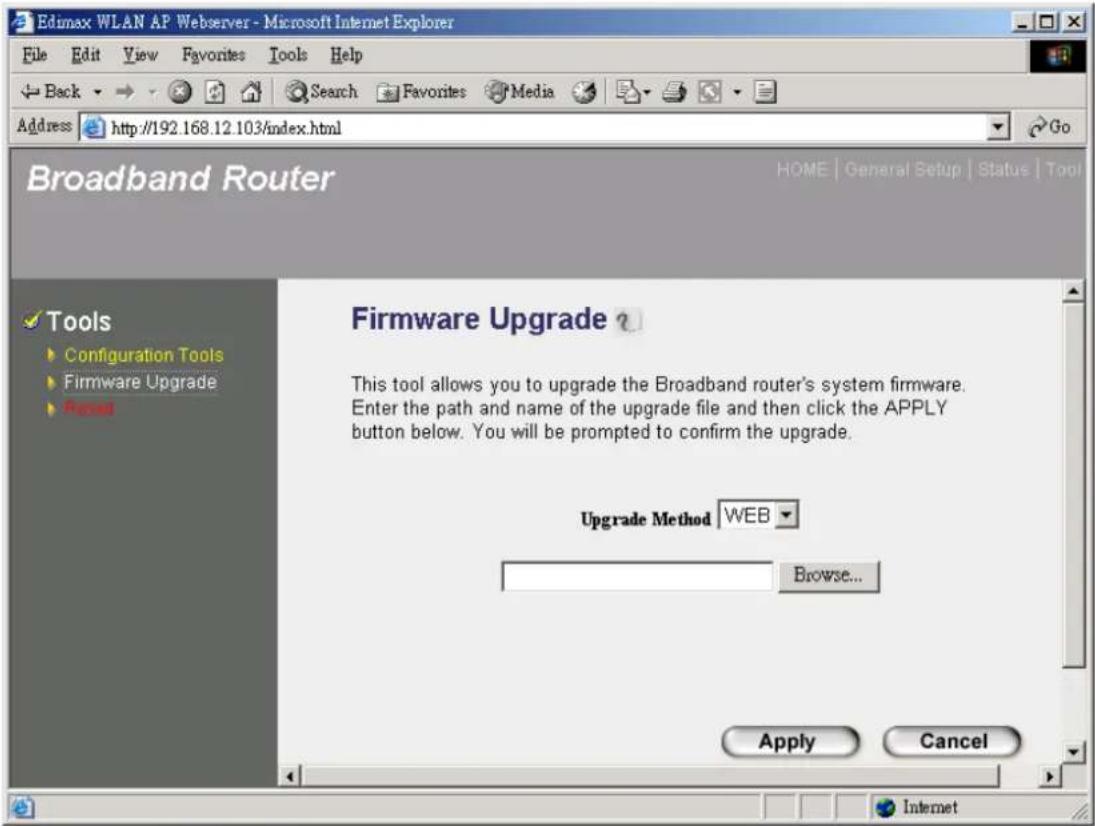
text_image
Edimax WLAN AP Webserver - Microsoft Internet Explorer File Edit View Favorites Tools Help Back Search Favorites Media Address http://192.168.12.103/index.html Broadband Router HOME | General Setup | Status | Tool Tools Configuration Tools Firmware Upgrade Firmware Upgrade This tool allows you to upgrade the Broadband router's system firmware. Enter the path and name of the upgrade file and then click the APPLY button below. You will be prompted to confirm the upgrade. Upgrade Method WEB Browse... Apply Cancel| Parameters | Description |
| Firmware Upgrade | This tool allows you to upgrade the Broadband router's system firmware. To upgrade the firmware of your Broadband router, you need to download the firmware file to your local hard disk, and enter that file name and path in the appropriate field on this page. You can also use the Browse button to find the firmware file on your PC. |
Once you've selected the new firmware file, click
4.3 Reset
You can reset the router's system should any problem exist. The reset function essentially Re-boots your router's system

text_image
Edmax WLAN AP Webserver - Microsoft Internet Explorer File Edit View Favorites Tools Help Back Search Favorites Media Address http://192.168.12.103/index.html Broadband Router HOME | General Setup | Status | Tool Tools Configuration Tools Firmware Upgrade Reset Reset In the event that the system stops responding correctly or stops functioning, you can perform a Reset. Your settings will not be changed. To perform the reset, click on the APPLY button below. You will be asked to confirm your decision. The Reset will be complete when the LED Power light stops blinking. Apply Cancel Done Internet| Parameters | Description |
| Reset | In the event that the system stops responding correctly or in some way stops functioning, you can perform a reset. Your settings will not be changed. To perform the reset, click on thebutton. You will be asked to confirm your decision.The reset will be complete when the power light stops blinking.Once the reset process is complete you may start using the router again. |
Appendix A
How to Manually find your PC's IP and MAC address
1) In Window's open the Command Prompt program

text_image
Microsoft Windows 2000 [Version 5.00.2195] (C) Copyright 1985-1999 Microsoft Corp. C:\>2) Type Ipconfig /all and
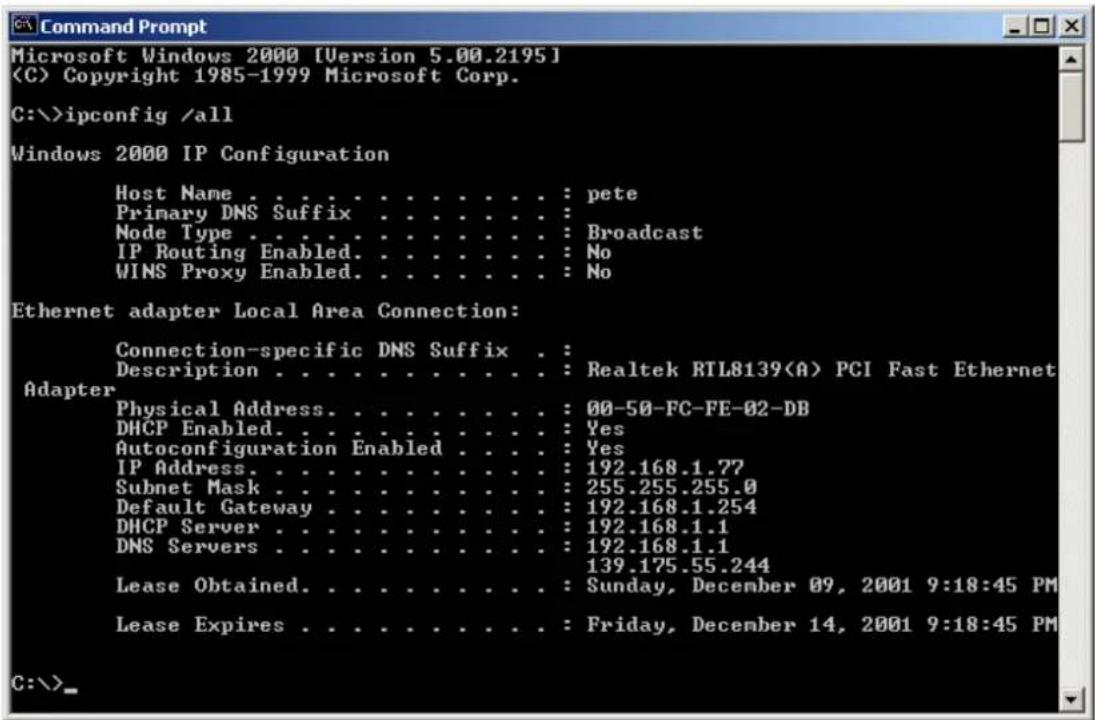
text_image
Microsoft Windows 2000 [Version 5.00.2195] (C) Copyright 1985-1999 Microsoft Corp. C:\>ipconfig /all Windows 2000 IP Configuration Host Name . . . . . . . . . . . . . : pete Primary DNS Suffix . . . . . . . . . : Node Type . . . . . . . . . . . . . : Broadcast IP Routing Enabled. . . . . . . . . : No WINS Proxy Enabled. . . . . . . . . : No Ethernet adapter Local Area Connection: Connection-specific DNS Suffix . : Description . . . . . . . . . . . . : Realtek RTL8139(A) PCI Fast Ethernet Adapter Physical Address. . . . . . . . . . : 00-50-FC-FE-02-DB DHCP Enabled. . . . . . . . . : Yes Autoconfiguration Enabled. . . . : Yes IP Address. . . . . . . . . . : 192.168.1.77 Subnet Mask. . . . . . . . . : 255.255.255.0 Default Gateway. . . . . . . . : 192.168.1.254 DHCP Server. . . . . . . . : 192.168.1.1 DNS Servers. . . . . . . : 192.168.1.1 Lease Obtained. . . . . . . : Sunday, December 09, 2001 9:18:45 PM Lease Expires. . . . . . : Friday, December 14, 2001 9:18:45 PM C:\>- Your PC's IP address is the one entitled IP address (192.168.1.77)
• The router's IP address is the one entitled Default Gateway (192.168.1.254) - Your PC's MAC Address is the one entitled Physical Address (00-50-FC-FE-02-DB)
Glossary
Bridge: A bridge is an intelligent, internetworking device that forwards or filters packets between different networks based on data link layer (MAC) address information.
Default Gateway (Router): Every non-router IP device needs to configure a default gateway's IP address. When the device sends out an IP packet, if the destination is not on the same network, the device has to send the packet to its default gateway, which will then send it out towards the destination.
DHCP: Dynamic Host Configuration Protocol. This protocol automatically gives every computer on your home network an IP address.
DNS Server IP Address: DNS stands for Domain Name System, which allows Internet servers to have a domain name (such as www.Broadbandrouter.com) and one or more IP addresses (such as 192.34.45.8). A DNS server keeps a database of Internet servers and their respective domain names and IP addresses, so that when a domain name is requested (as in typing "Broadbandrouter.com" into your Internet browser), the user is sent to the proper IP address. The DNS server IP address used by the computers on your home network is the location of the DNS server your ISP has assigned to you.
DSL Modem: DSL stands for Digital Subscriber Line. A DSL modem uses your existing phone lines to transmit data at high speeds.
Ethernet: A standard for computer networks. Ethernet networks are connected by special cables and hubs, and move data around at up to 10/100 million bits per second (Mbps).
Idle Timeout: Idle Timeout is designed so that after there is no traffic to the Internet for a pre-configured amount of time, the connection will automatically be disconnected.
IP Address and Network (Subnet) Mask: IP stands for Internet Protocol. An IP address consists of a series of four numbers separated by periods, that identifies a single, unique Internet computer host in an IP network. Example: 192.168.2.1. It consists of 2 portions: the IP network address, and the host identifier.
The IP address is a 32-bit binary pattern, which can be represented as four cascaded decimal numbers separated by “.”: aaa.aaa.aaa.aaa, where each “aaa” can be anything from 000 to 255, or as four cascaded binary numbers separated by “.”: bbbbbbbb.bbbbbbbb.bbbbbbbb.bbbbbbbb, where each “b” can either be 0 or 1.
A network mask is also a 32-bit binary pattern, and consists of consecutive leading 1's followed by consecutive trailing 0's, such as
11111111.11111111.11111111.00000000. Therefore sometimes a network mask can also be described simply as "x" number of leading 1's.
When both are represented side by side in their binary forms, all bits in the IP address that correspond to 1's in the network mask become part of the IP network address, and the remaining bits correspond to the host ID.
For example, if the IP address for a device is, in its binary form,
11011001.10110000.10010000.00000111, and if its network mask is,
11111111.11111111.11110000.00000000
It means the device's network address is
11011001.10110000.10010000.00000000, and its host ID is,
00000000.00000000.00000000.00000111. This is a convenient and efficient method for routers to route IP packets to their destination.
ISP Gateway Address: (see ISP for definition). The ISP Gateway Address is an IP address for the Internet router located at the ISP's office.
ISP: Internet Service Provider. An ISP is a business that provides connectivity to the Internet for individuals and other businesses or organizations.
LAN: Local Area Network. A LAN is a group of computers and devices connected together in a relatively small area (such as a house or an office). Your home network is considered a LAN.
MAC Address: MAC stands for Media Access Control. A MAC address is the hardware address of a device connected to a network. The MAC address is a unique identifier for a device with an Ethernet interface. It is comprised of two parts: 3 bytes of data that corresponds to the Manufacturer ID (unique for each manufacturer), plus 3 bytes that are often used as the product's serial number.
NAT: Network Address Translation. This process allows all of the computers on your home network to use one IP address. Using the broadband router's NAT capability, you can access the Internet from any computer on your home network without having to purchase more IP addresses from your ISP.
Port: Network Clients (LAN PC) uses port numbers to distinguish one network application/protocol over another. Below is a list of common applications and protocol/port numbers:
| Application Protocol | Port Number | |
| Telnet | TCP | 23 |
| FTP | TCP | 21 |
| SMTP | TCP | 25 |
| POP3 | TCP | 110 |
| H.323 | TCP | 1720 |
| SNMP | UCP | 161 |
| SNMP Trap UDP 162 | ||
| HTTP | TCP | 80 |
| PPTP | TCP | 1723 |
| PC Anywhere | TCP 5631 | |
| PC Anywhere | UDP 5632 | |
PPPoE: Point-to-Point Protocol over Ethernet. Point-to-Point Protocol is a secure data transmission method originally created for dial-up connections; PPPoE is for Ethernet connections. PPPoE relies on two widely accepted standards, Ethernet and the Point-to-Point Protocol. It is a communications protocol for transmitting information over Ethernet between different manufacturers
Protocol: A protocol is a set of rules for interaction agreed upon between multiple parties so that when they interface with each other based on such a protocol, the interpretation of their behavior is well defined and can be made objectively, without confusion or misunderstanding.
Router: A router is an intelligent network device that forwards packets between different networks based on network layer address information such as IP addresses.
Subnet Mask: A subnet mask, which may be a part of the TCP/IP information provided by your ISP, is a set of four numbers (e.g. 255.255.255.0) configured like an IP address. It is used to create IP address numbers used only within a particular network (as opposed to valid IP address numbers recognized by the Internet, which must be assigned by InterNIC).
TCP/IP, UDP: Transmission Control Protocol/Internet Protocol (TCP/IP) and Unreliable Datagram Protocol (UDP). TCP/IP is the standard protocol for data transmission over the Internet. Both TCP and UDP are transport layer protocol. TCP performs proper error detection and error recovery, and thus is reliable. UDP on the other hand is not reliable. They both run on top of the IP (Internet Protocol), a network layer protocol.
WAN: Wide Area Network. A network that connects computers located in geographically separate areas (e.g. different buildings, cities, countries). The Internet is a wide area network.
Web-based management Graphical User Interface (GUI): Many devices support a graphical user interface that is based on the web browser. This means the user can use the familiar Netscape or Microsoft Internet Explorer to Control/configure or monitor the device being managed.