Venue 3000 3840 - Tablet DELL - Free user manual and instructions
Find the device manual for free Venue 3000 3840 DELL in PDF.


User questions about Venue 3000 3840 DELL
0 question about this device. Answer the ones you know or ask your own.
Ask a new question about this device
Download the instructions for your Tablet in PDF format for free! Find your manual Venue 3000 3840 - DELL and take your electronic device back in hand. On this page are published all the documents necessary for the use of your device. Venue 3000 3840 by DELL.
USER MANUAL Venue 3000 3840 DELL
Marketing model: Venue 7 3740, Venue 7 3740 HSPA+,
Venue 8 3840, Venue 8 3840 HSPA+
Regulatory model: T01C/T02D
Regulatory type: T01C003, T01C004/T02D003, T02D004
NOTE: A NOTE indicates important information that helps you make better use of your tablet.
△ CAUTION: A CAUTION indicates potential damage to hardware or loss of data if instructions are not followed.
WARNING: A WARNING indicates a potential for property damage, personal injury, or death.
Copyright © 2014 Dell Inc. All rights reserved.
This product is protected by U.S. and international copyright and intellectual property laws. Dell™ and the Dell logo are trademarks of Dell Inc. in the United States and/or other jurisdictions. All other marks and names mentioned herein may be trademarks of their respective companies.
Contents
Features......5
Charging the Battery....7
Inserting the MicroSD Card and
Micro-SIM Card (optional)......8
Getting Started....9
Turning on/off the tablet....9
Finishing Android setup....9
Customizing the screen....10
Locking and unlocking your tablet....11
Touch tips....11
Status bar....12
Screen orientation....12
Keys and functions....13
Apps and widgets....13
Using Your Tablet....14
Contacts....14
Text entry....15
Managing your tablet's storage....15
Internet....17
Connecting to the Internet using Wi-Fi....17
Connecting to the Internet using mobile broadband......18
Using the airplane mode....18
Browsing the Internet....18
Email....19
Cusmonizing Your Tablet....20
Display settings....20
Sound settings....21
Date, time, and time zone....21
Protecting Your Tablet....21
Screen-unlock pattern....21
PIN....22
Password....22
Protecting your SIM card with the SIM lock password (LTE/HSPA+ models only)....23
Apps....24
Camera....24
Copy files to and from the tablet....24
Bluetooth....25
Gallery....26
Calendar....27
Clock....27
Troubleshooting....28
Specifications....30
Features
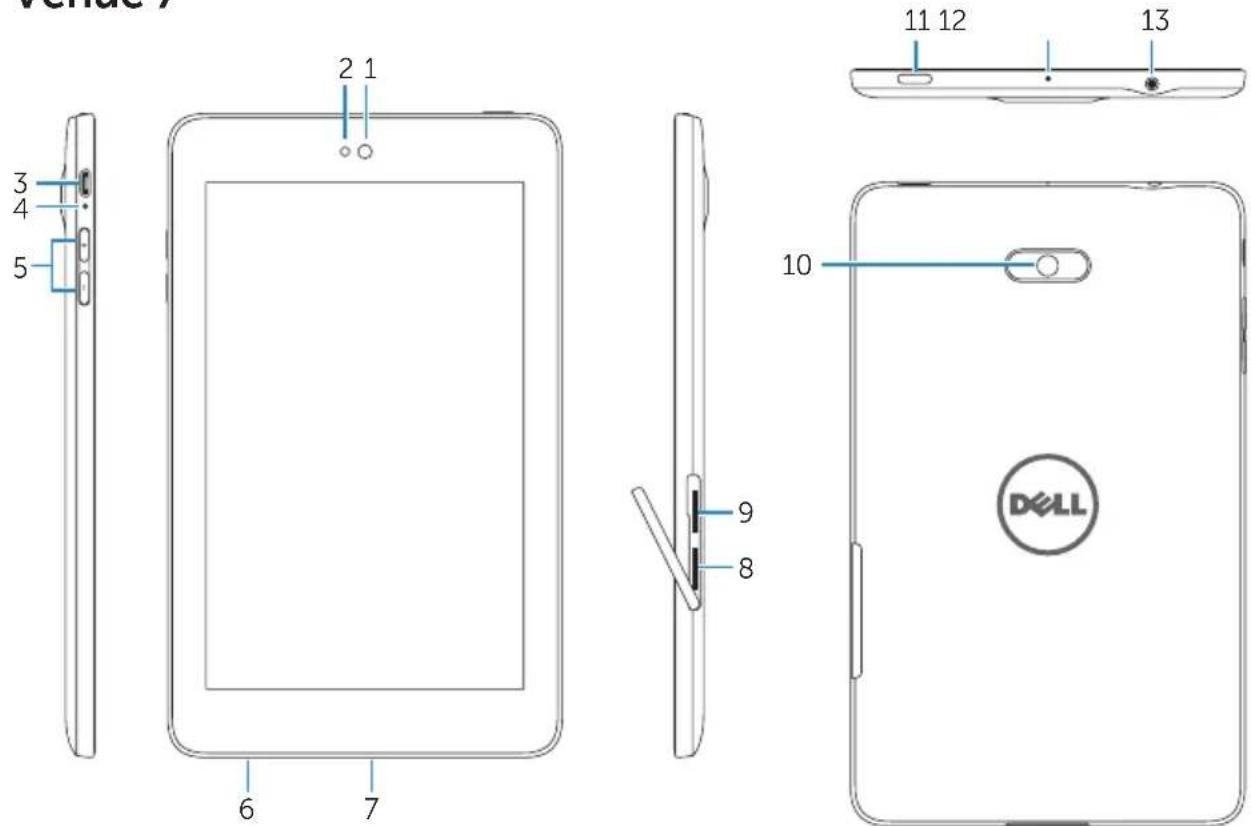
Venue 7
text_image
Venue 2 1 3 4 5 6 7 11 12 13 10 9 8 DELL| Part | Functionality | |
| 1. | Front camera | Use to make video calls or to capture front photos and videos. |
| 2. | Light sensor | Detects the ambient light to allow screen-brightness to be adjusted automatically. |
| 3. | Micro-USB port | Connect a shielded USB cable to charge your tablet or to connect to your computer. |
| 4. | Battery-charging status light | Flashes while the tablet is charging and stays on when the tablet. is fully charged. |
| 5. | Volume buttons | • Press to increase or decrease the volume by one level.• Press and hold to continuously increase or decrease the volume. |
| 6. | Service Tag label | Provide the Service Tag when contacting Dell for support. |
| 7. | Speaker | Outputs sound. |
| 8. | MicroSD-card slot | Insert a microSD card to expand the storage on your tablet. |
| 9. | Micro-SIM card slot (LTE/HSPA+ models) | Insert a micro-SIM card to access mobile broadband. |
| 10. | Rear camera | Capture pictures and videos. |
| 11. | Power button | • Press and hold to turn on your tablet.• Press and release to lock or unlock the screen.• While the tablet is turned on, press and hold to open the options menu. |
| 12. | Microphone | Use for recording sound or to input voice in other voice-based apps. |
| 13. | Headset port | Connect headphones or headset. |
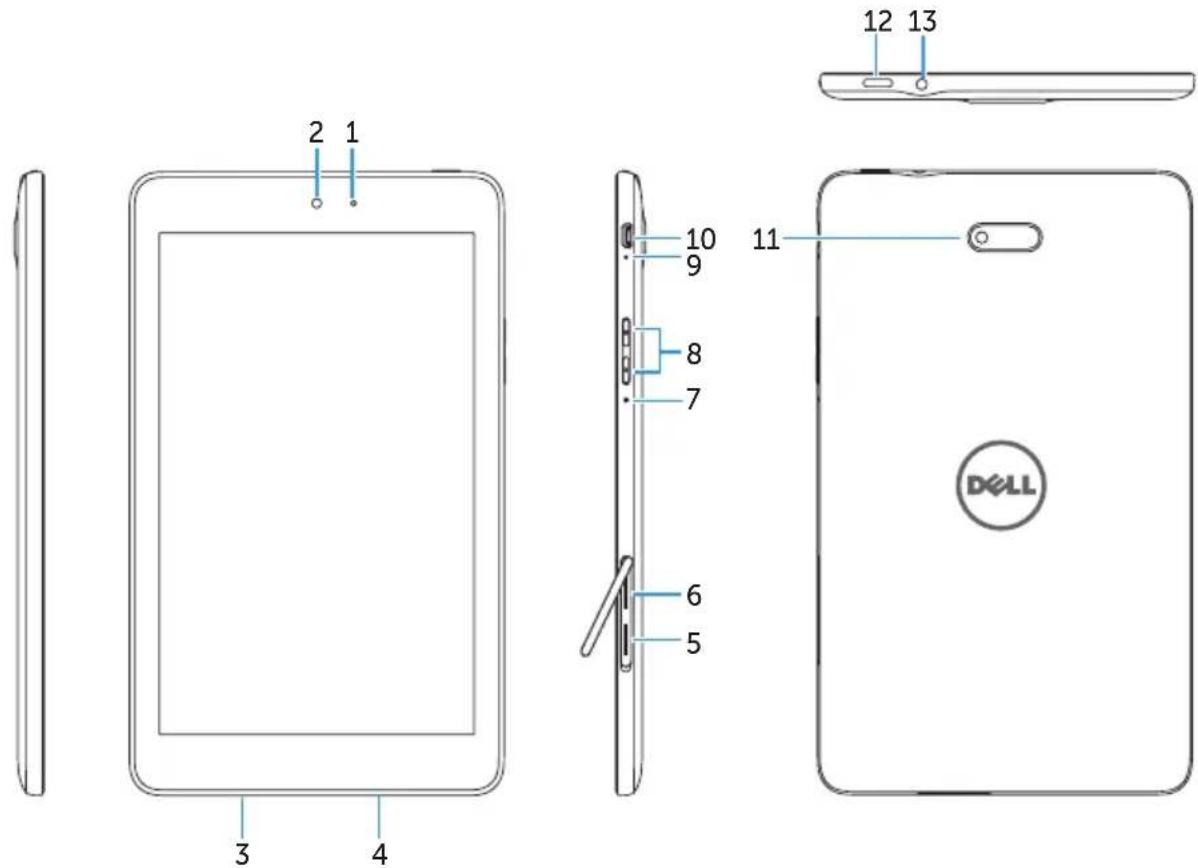
Venue 8
text_image
2 1 3 4 10 9 8 7 6 5 11 12 13 DELL| Part | Functionality | |
| 1. | Light sensor | Detects the ambient light to allow screen-brightness to be adjusted automatically. |
| 2. | Front camera | Use to make video calls or to capture front photos and videos. |
| 3. | Service Tag label | Provide the Service Tag when contacting Dell for support. |
| 4. | Speaker | Outputs sound. |
| 5. | MicroSD-card slot | Insert a microSD card to expand the storage on your tablet. |
| 6. | Micro-SIM card slot (LTE/HSPA+ models) | Insert a micro-SIM card to access mobile broadband. |
| 7. | Microphone | Use for recording sound or to input voice in other voice-based apps. |
| 8. | Volume buttons | • Press to increase or decrease the volume by one level.• Press and hold to continuously increase or decrease the volume. |
| 9. | Battery-charging status light | Flashes when the tablet is charging and stays on when the tablet is fully charged. |
| 10. | Micro-USB port | Connect a shielded USB cable to charge your tablet or to connect to your computer. |
| 11. | Rear camera | Capture pictures and videos. |
| 12. | Power button | • Press and hold to turn on your tablet.• Press and release to lock or unlock the screen.• While the tablet is turned on, press and hold to open the options menu. |
| 13. | Headset port | Connect headphones or headset. |
Charging the Battery

NOTE: Your tablet may not be fully charged when you receive it. It is recommend to charge the tablet for 4 hours for the first time.

CAUTION: Use only the adapter and/or cable shipped with the tablet.
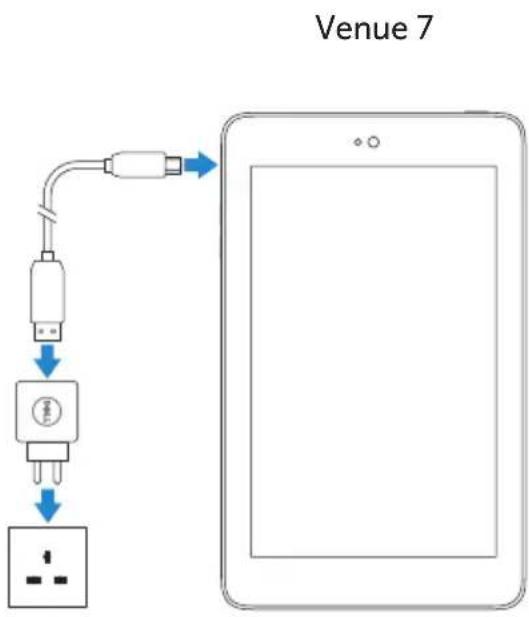
- Connect the micro-USB end of the USB cable to the USB port of the tablet.
- Connect the other end of the USB cable to the adapter.
- Connect the power adapter to an electrical outlet.
An animated icon 📄 appears on the screen while the battery is being charged. When the battery is fully charged, the icon is static.
text_image
Venue 7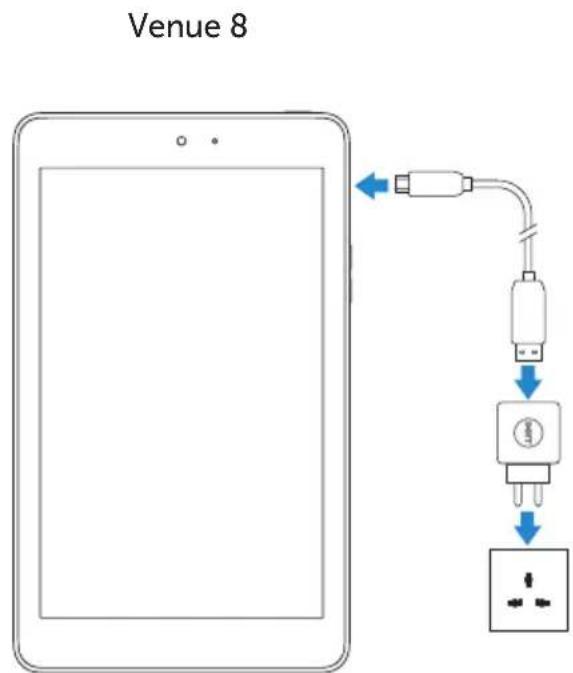
text_image
Venue 8
NOTE: When disconnecting the tablet from the adapter, disconnect the power adapter from the power outlet and then disconnect the cable from your tablet.
Inserting the MicroSD Card and Micro-SIM Card (optional)
Venue 7

text_image
Diagram illustrating SIM and SD editing operations on a tablet device, with directional arrows indicating movement.Insert the cards into the respective slots and push the cards in until they click in place
text_image
Diagram illustrating SIM and SD operation on a tablet device, showing directional arrows for mechanical or electrical states.Insert the cards into the respective slots and push the cards in until they click in place
NOTE: Make sure the cards are correctly aligned and are inserted all the way.
Getting Started
Turning on/off the tablet
To turn on your tablet, press and hold the power button for 3\~5 seconds.
To turn off your tablet, press the power button to open the options menu, and then select Power off→OK.
Finishing Android setup
After you turn on your tablet for the first time, follow the prompts on the screen to finish Android setup.
You can configure settings such as language, date and time, Wi-Fi, sign-in to your Google account, Google location services, and so on.

text_image
DELL Welcome English (United States) Next Setup complete Your device is setup and ready to use. FinishCustomizing the screen
After finishing Android setup, follow the instructions on the screen to customize the home screen.

Locking and unlocking your tablet
Press the power button to turn off the screen and lock your tablet.
You can also configure your tablet to automatically lock after a certain period of inactivity.
Tap → Settings→ Display→ Sleep to set the time after which you want the tablet to enter sleep state and lock itself.
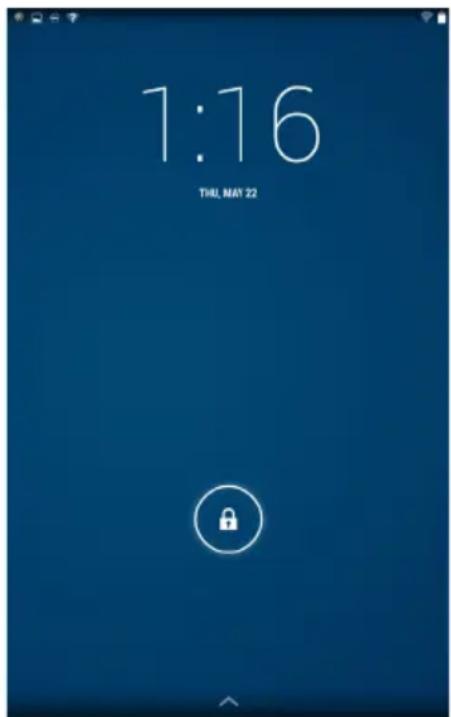
To unlock the screen, press the power button and then slide the lock icon in any direction.
text_image
1:16 THE MAY 22
NOTE: The procedure to unlock your tablet varies depending on the security method you choose.
Touch tips
Your tablet supports multi-touch. You can use the touch screen as follows:
Tap Touch the screen once to access a menu or select an item.
Tap and hold Touch and hold your finger in place.
Slide Switch between different home screens.
Drag Tap and hold an icon and then move the icon to the target position.
Two-finger zoom Place two fingers on the screen and move the fingers apart to zoom-in or bring the fingers close to zoom out. You can use zoom-in and zoom-out in maps, photos, web pages, and so on.
Status bar
The status bar at the top of the screen displays notifications from apps, time, status of various devices such as battery, SIM card, Bluetooth, and so on.

text_image
1 2 上午8:05- Notification panel displays notification icons to inform you of new emails, messages, and so on. Slide the panel down to view the notifications and then tap a notification icon to view more details. Tap 📁 to clear all the notifications.
text_image
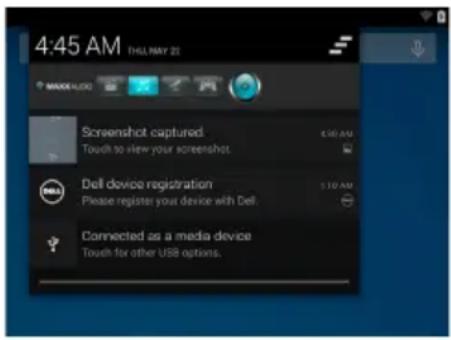
4:45 AM THU MAY 21 Screenshot captured Touch to view your screenshot. Dell device registration Please register your device with Dell. Connected as a media device Touch for other USB options.- Status panel displays the status icons for battery status, alarms, Bluetooth, network connection, and so on. Slide the panel down to access more settings and configuration options.

text_image
Google VIVIAN JIN BRIGHTNESS SETTING WiFi AUTO ROTATE DHARDED AIRFLAME MODE BLUTTOOTH OFF LOCATIONScreen orientation
For optimal viewing experience, the screen orientation changes automatically depending on how you hold the tablet.
To toggle auto-rotate, slide down the status panel and tap the AUTO ROTATE icon
Keys and functions

text_image
1 2 3- Back Tap to return to the previous screen or to exit the current app.
- In text input mode, tap to close the on-screen keyboard.
- Home • Tap to return to the main screen.
- Tap and hold to open Search.
- Menu Tap to open a list of recently-used apps.
Apps and widgets
- Apps: Software that allows you to perform a specific task. Your tablet is preloaded with a variety of apps, and additional apps can be downloaded from the Play Store.
- Widgets: A small app that resides on the home screen and provides quick and easy access to information.
Using Your Tablet
Contacts
To view and manage your contacts, tap ➔ People.
Creating a contact
- Tap People→Create a new contact.
- Sign in to an existing Google account or create a new Google account to back up your contacts online.
- Enter the contact information using the on-screen keyboard and then tap Done to save the contact.

text_image
TABLET-only, unsynced contact Name Add organization PHONE Phone MOBILE EMAIL Email HOME ADDRESS Address HOME Add another fieldSearching for a contact
To locate a contact:
- Slide the contact list until you find the desired contact.
- Tap to open the search bar, and then type either the contact's full or partial name in the Find contacts box. A list of matching contacts is displayed.
After you locate the desired contact, tap the contact's entry to view the contact's details.
Text entry
You can type text using the on-screen keyboard. To open the on-screen keyboard, tap a text box. To close the keyboard, tap the back key 🏠️.

text_image
1 Q W E R T Y U I O P A S D F G H J K L Next Z X C V B N M ! ? ?123 / English (US) , . 😊 5 4- • Tap to type letters.
- Tap and hold to type numbers.
- Tap to delete a character, symbol, or a space to the left of the cursor.
- Tap and hold to delete text to the left of the cursor.
- Tap once to show the uppercase keyboard for typing a capital letter.
- Tap twice to enable the Caps Lock mode and tap once to change back to the lowercase mode.
- Tap to use voice input. The tablet enters the words that it can recognize.

NOTE: It is recommended to speak near the microphone and use this feature in a quiet environment to improve speech-recognition accuracy.
- Tap to display the keys for typing numbers and punctuation marks.
Managing your tablet's storage
Checking storage space
Tap → Settings→ Storage. The used, unused, and total space on the tablet's internal storage and microSD card is displayed.
Erasing app data and cache
-
Tap → Settings→ Apps→ DOWNLOADED/RUNNING/All.
-
From the Apps list, tap the app whose cache or data you want to remove.
-
In the app screen, tap Clear cache or Clear data.
Un-mounting the SD card
- Tap → Settings→ Storage.
- Tap Unmount → OK to remove the SD card.
CAUTION: It is recommended that you unmount the SD card before removing it. Removing the SD card while it is in use may cause data loss or result in app errors.
Erasing all data from your tablet
CAUTION: Performing these steps erases all data, including your personal information and downloaded apps from your tablet. Make sure that you back up all the required data before you proceed.
- Tap → Settings→ Backup & reset→ Factory data reset.
- Tap Reset tablet.
- Read the warning and tap Erase everything.
Internet
You can connect your tablet to Wi-Fi networks to access the Internet. If you purchase a LTE/HSPA+ model, you can also connect to the Internet using various mobile broadband standards such as GPRS, EDGE, 3G, LTE, HSPA+, and so on.
Connecting to the Internet using Wi-Fi

NOTE: The range and quality of the Wi-Fi signal is affected by the distance between the tablet and the wireless router, the number of connected devices, infrastructure, and objects through which the signal is transmitted.
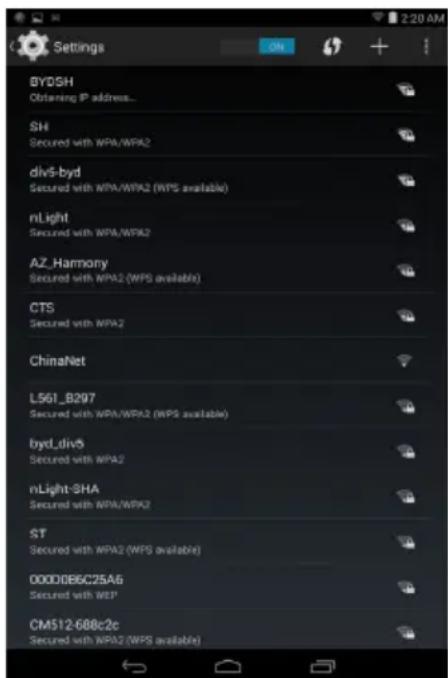
- Tap → Settings→ Wi-Fi.
- Enable Wi-Fi by moving the slider to On position. The tablet scans for Wi-Fi networks in range.
- Tap the network you want to connect to.
- Type a password (if connecting to a secure network) and tap Connect.
text_image
Settings BYDSH Obtaining IP address... SH Secured with WPA/WPA2 div5-byd Secured with WPA/WPA2 (WPS available) nLight Secured with WPA/WPA2 AZ_Harmony Secured with WPA2 (WPS available) CTS Secured with WPA2 ChinaNet L561_B297 Secured with WPA/WPA2 (WPS available) byd_div5 Secured with WPA2 nLight-SHA Secured with WPA/WPA2 ST Secured with WPA2 (WPS available) 00000B6C25A6 Secured with WIP CMS12-688c2e Secured with WPA2 (WPS available)
NOTE: To connect to a secured Wi-Fi network, you must type the security key. If you do not have the security key, contact the person who manages your Wi-Fi network or contact the router manufacturer.

NOTE: To start a new search for available Wi-Fi networks, tap → Scan on the Wi-Fi screen.
Connecting to the Internet using mobile broadband
- Tap → Settings→ Wi-Fi, then touch Wi-Fi to disable it.
- The tablet automatically searches for the signal and connects to the network. When the tablet is connected to a mobile-broadband network, the network type appears in the status bar.

NOTE: On LTE/HSPA+ models, if both Wi-Fi and mobile broadband networks are available, the tablet gives priority to Wi-Fi connection.
Using the airplane mode
Putting the tablet in airplane mode disables all mobile and Wi-Fi connections. This feature is useful when wireless connectivity is strictly prohibited, such as on an airplane.
To enable airplane mode, tap → Settings→ More→ Airplane mode.
Browsing the Internet
Opening the browser
Tap → Browser to open the browser app.
Using the browser controls bar

text_image
Enter the webpage address View, edit or delete bookmarksSetting up your home page
- On the browser screen, tap → Settings→ General→ Set homepage→ Other.
- Enter the address of the website you want to use as your homepage and then tap OK.
Viewing web pages
Slide your finger horizontally or vertically on the screen to scroll and view desired areas of a web page.
Zoom-in or zoom-out using the two-finger zoom.
Double-tap the desired area of a web page to switch between the magnified or normal views of the area.
You can create POP3, IMAP, and exchange email accounts from web-based email services on your tablet.
Opening the email app
Tap Email .
Setting up an email account
- On the email screen, type the email address and password of the email account (the same as the account on your computer).
- Tap Next to display the account options screen to configure your email options.
- After configuring the account options, tap Next to access your email.

text_image
Account setup Email account You can set up your account in just a few steps. Email address: Password: Manual setup Next Account settings Account options Inbox checking frequency Every 15 minutes Notify me when email arrives Sync email from this account Automatically download attachments when connected to Wi-Fi Previous NextAdding other email accounts
In an email screen, tap → Settings→ ADD ACCOUNT to set up another email account.
Deleting an email account on your tablet
- In an email account screen, tap → Settings and then select the account you want to delete.
- Tap Remove account and tap OK.
Creating and sending emails
- Tap → Email.
- Select an email account to use, if you have more than one account on your tablet.
- Tap 📋 to compose a new mail.
- Type the recipient's email address in the To field. If you are sending the email to multiple recipients, separate their email addresses with a comma.
- Type the subject in the Subject field.
- Compose your email content.
- Tap ▶ to send the1il.
Customizing Your Tablet
You can configure settings such as display, sound, network, security and so on, using the Settings screen.
Display settings
Tap → Settings→ Display and then select the desired item under Display settings.
Brightness Drag the slider to the right to increase brightness. Drag the slider to the left to decrease brightness. Tap OK to confirm the adjustment. NOTE: If automatic brightness is enabled, your tablet adjusts the screen brightness automatically based on the surrounding light conditions.
Wallpaper Select a picture from the gallery, live wallpapers, photos or wallpapers, and then tap SET WALLPAPER to set it as the wallpaper.
Sleep Select the time after which the tablet automatically goes into sleep mode.
Daydream Select the pictures or animation to show while the tablet is docked or being charged.
Font size Set your tablet's font size from Small, Normal, Large, and Huge.
Sound settings
To change the sound and ringtone settings:
Tap → Settings→ Sound and then select the desired item under Sound settings.
Volumes
Adjust the volume for music, videos, games, notification, and alarms.
Default notification sound
Select a default ringtone for notifications.
Touch sounds
Configure whether a sound is played every time you touch the screen.
Screen lock sound
Configure whether a sound is played when the screen is locked.
Date, time, and time zone
Your tablet automatically uses the network-provided date, time, and time zone by default.
To manually set the date, time, and time zone:
-
Tap → Settings→ Date & time, and disable the automatic date, time, and time zone.
-
Configure options such as the date, time, time zone, time format, and date format.
Protecting Your Tablet
You can protect your tablet against unauthorized access by setting a pattern, a PIN, a password, or with a face unlock. After you configure any of these security options, your tablet prompts for the respective unlocking information before you can use the tablet.
Screen-unlock pattern
This security method requires you to create a pattern that you need to draw every time to unlock the tablet.
If incorrect unlock patterns are drawn for five consecutive times, the tablet forces a 30-second delay before you try again.
Creating a screen unlock pattern
-
Tap → Settings→ Security→ Screen lock→ Pattern.
-
Drag your finger to draw the unlock pattern by connecting at least four dots in a vertical, horizontal and/or diagonal direction. Take your finger off the screen when a pattern is drawn.
The tablet records the pattern if it is correctly drawn.
- Tap Continue.
- Draw the pattern again and then tap Confirm.
Disabling or changing the screen unlock pattern
- Tap → Settings→ Security→ Screen lock→ Pattern.
- Draw your existing pattern.
- Select None to disable screen unlock security or select Pattern to draw a new unlock pattern.
PIN
This security method requires you to type a PIN that you need to enter every time to unlock the tablet.
If incorrect unlock PINs are entered for five consecutive times, the tablet forces a 30-second delay before you can try again.
Creating a PIN
- Tap → Settings→ Security→ Screen lock→ PIN.
-
On the Choose your PIN page, type a PIN in the text box.
NOTE: Your PIN must be at least 4 characters. -
Tap Continue to proceed.
-
Type the PIN again to confirm.
-
Tap OK.
Disabling or changing PIN
- Tap → Settings→ Security→ Screen lock→ PIN.
- Type your existing PIN.
- Select None to disable the PIN or select PIN to change the PIN.
Password
This security method requires you to enter a password that you need to enter every time to unlock the tablet.
If incorrect unlock passwords are entered for five consecutive times, the tablet forces a 30-second delay before you can try again.
Creating a password
- Tap → Settings→ Security→ Screen lock→ Password.
-
On the Choose your password page, type a password in the text box.
NOTE: Your password must be at least 4 characters long and must contain an alphabet/letter. -
Tap Continue to proceed.
-
Type the password again to confirm.
-
Tap OK.
Disabling or changing the password
-
Tap → Settings→ Security→ Screen lock→ Password.
-
Type the password you have enabled.
-
Select None to disable the password or select Password to change password.
Protecting your SIM card with the SIM lock password (LTE/HSPA+ models only)
You can protect your SIM card against unauthorized use with a PIN. After a PIN is enabled to lock your SIM, you will need to enter the PIN each time you turn on the tablet in order to unlock your SIM.

CAUTION: The SIM card will be permanently locked if you enter the incorrect PIN for three consecutive times. You must then enter the Personal Unblocking Key (PUK) to unlock the SIM card. Contact your service provider to obtain the PUK.
Apps
Camera
Your tablet has a camera with auto-focus feature that allows you to capture and share high-quality pictures and videos.
Using the camera app
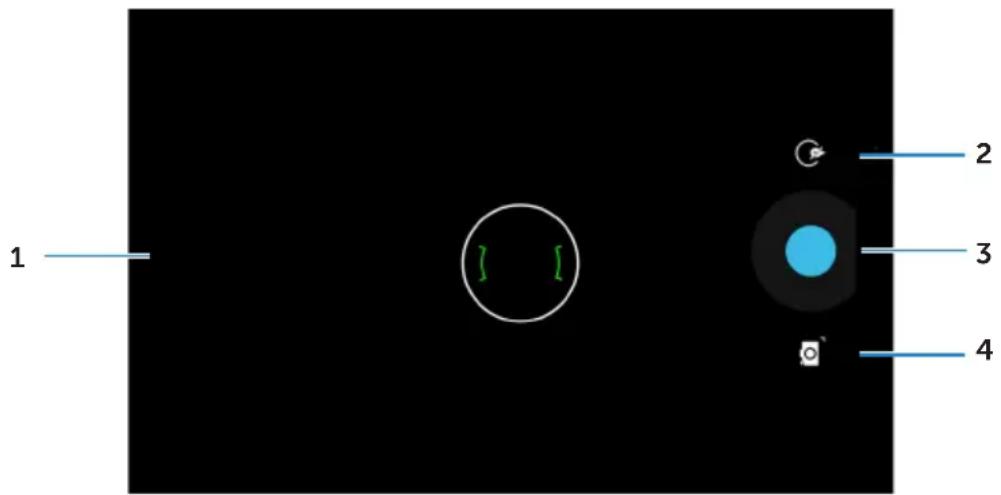
Tap → Camera to open the app.
text_image
1 2 3 4- Viewfinder screen.
- Tap to open or close the camera setting options.
Tap 📄 and then tap 📋 to switch between front and rear camera. - Tap to capture a picture or to record videos when the camera is in video mode.
- Tap to switch between the camera mode for capturing pictures and the video mode for shooting videos.
Copying files to and from the tablet
You can transfer files between your tablet and computer using the tablet's internal storage or the optional microSD card. To transfer files, connect the tablet to your computer using the micro-USB cable.
Setting the SD card or the internal device storage as a USB drive
- Connect the tablet to the computer by connecting the micro-USB end to the tablet and the bigger end to your computer.
- The USB notification icon 🚙️ appears in the status bar's notification area when your tablet is connected to the computer.
-
Select Media device if you want to transfer files between your computer and the tablet.
-
Open My Computer on your computer to locate the removable drive, which represents the SD card installed in your tablet and the internal device storage.
-
Copy the desired files such as music or pictures from your tablet to the computer, or vice versa.

NOTE: The steps above are applicable to Microsoft Windows.
Bluetooth
Bluetooth is a short-range wireless communications technology that lets your device connect to other Bluetooth devices such as headsets, computers, other mobile devices, and so on.
Turning on Bluetooth allows your tablet to detect nearby Bluetooth devices and automatically connect to devices that are already paired.
When Bluetooth is turned on, you can also set the following:
• Visible: Other Bluetooth devices can detect your tablet.
- Invisible: Other Bluetooth devices cannot detect your tablet. However, devices that are already paired can connect to your tablet.
Turning on Bluetooth and making the tablet discoverable
-
Tap → Settings→ Bluetooth.
-
Tap ON to turn on Bluetooth.
-
Tap Visible to all nearby Bluetooth devices to make the tablet discoverable by other nearby Bluetooth devices.
Pairing and connecting a Bluetooth device
-
Turn on Bluetooth.
-
In the AVAILABLE DEVICES list, tap the device that you want to connect to.

NOTE: To search for devices again, tap SEARCH FOR DEVICES.
-
To initiate a connection with a device, tap the name of the device.
-
When the pairing is successful, the paired device can be automatically connected. If more than two devices are paired, you have to tap one of the paired device so that it can be connected.
Ending a Bluetooth connection
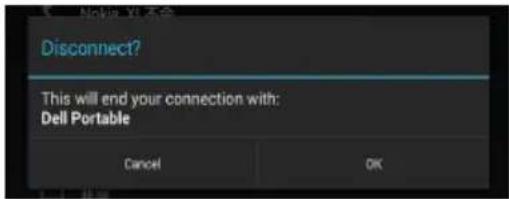
On the Bluetooth connection page, tap → Disconnect to end the Bluetooth connection.

NOTE: If you are ending a Bluetooth connection from a headset or keypad, a pop-up screen will alert you. Tap OK to continue to end the Bluetooth connection.
text_image
Disconnect? This will end your connection with: Dell Portable Cancel OKTerminating a pairing partnership
On the Bluetooth connection page, tap Unpair to erase all pairing information with that device.
Gallery
To view and manage the pictures and videos stored on your tablet, tap → Gallery
Sharing or deleting albums
All pictures and videos are grouped in separate albums according to their dates, sources, or folders in which they are stored. For example, pictures taken using the tablet camera are grouped as Camera, and downloaded pictures are grouped as Download.
- Tap and hold an album until the options appear.
-
Tap and hold more albums if you want to do the same task for these albums.
-
To share the selected albums using Bluetooth, Google+, Email, Picasa and so on, tap <.
• To delete the albums, tap
Browsing picture and video
-
Tap an album to display the thumbnails of all pictures and videos in the folder.
-
To browse the pictures or videos, scroll through the thumbnails until the desired thumbnail is located.
-
To select a thumbnail, tap and hold it until the options appear.
-
Tap and hold more thumbnails as you need.
• To share the selected pictures or videos using Bluetooth, Google+, Email, or Picasa, tap.
- To delete the selected pictures or videos, tap Delete.
- To set a picture as the wallpaper, tap and hold the picture until the options appear and then select → Set picture as → Wallpaper.
- To set a picture as the contact photo, tap and hold the picture until the options appear and then select → Set picture as → Contact photo.
Displaying a full picture
Tap a desired picture to display the picture in full screen.
- Slide left or right to view the previous or next picture.
- To open the picture viewing controls, tap anywhere on the picture.
Calendar
Use the calendar to schedule and manage your events, meetings, and appointments.
Opening the calendar
Tap 🎨 Calendar to open the app.
Adding a new event
-
On the Calendar screen, tap to open the new event details screen.
-
Type the event name, location, description and configure options such as time period, repetition, reminders and so on.
-
Tap DONE to save the event.
Clock
Use the clock to set alarms, countdown, stopwatch, and so on.
Opening the clock
Tap Clock.
Setting an alarm
-
On the Clock main screen, tap enter the alarm main screen.
-
On the alarms screen, tap + to add an alarm.
-
Tap DONE.
-
Tap Settings to configure settings such as the alarm volume, snooze length, and so on.
Troubleshooting
| Security Problems Possible causes Possible solutions | ||
| The SIM card's PIN code is blocked. | You have entered an incorrect PIN code three consecutive times. | Contact your service provider to get the PUK code. |
| System problems | ||
| Battery does not charge. | The battery or battery charger is damaged. | Contact the sales corporation. |
| The ambient temperature is below 0°C or higher than 40°C. | Adjust the battery charging environment to avoid extreme temperatures. | |
| Poor contact between the battery and charger. | Check all connectors to ensure that all connections have been properly made. | |
| Unable to turn the tablet on. | The battery has no charge. | Charge the tablet. |
| Shortened standby time. | The duration of standby time is affected by your service provider's system configuration. The same tablet used with different service providers' systems does not have the same duration of standby time (LTE/HSPA+ only). | If you are located in an area where the network signal is weak, move your location to the area where the network signal is strong or temporarily turn off your tablet if needed. |
| If you are not able to connect to the network, the tablet continues to send out signals as it attempts to locate a base station. Doing this consumes battery charge and consequently shortens standby time. | Change your location to one where the network is accessible, or temporary turn off your tablet or set it to airplane mode. | |
| Messaging problem | ||
| Unable to send or receive text messages. | Your tablet is in airplane mode with no wireless connectivity. | Slide the status panel down and then disable AIRPLANE MODE. |
| The network signal strength is not strong enough. | Try moving to a different location for better signal reception. | |
| Unable to send or receive email. | The Internet connection or the email setting is not configured properly. | Check your network connection, and confirm with your email service provider if your email setting has been configured correctly. |
| Internet problems | ||
| Unable to connect to the mobile broadband networks. | Invalid SIM card. Contact your service provider. | |
| You are not within the network's service area. | Check the service area with your service provider. | |
| Poor signal. | Move to an open space or if you are inside a building, move closer to a window. | |
| Your tablet is in airplane mode with no wireless connectivity. | Slide the status panel down and then disable AIRPLANE MODE. | |
Specifications
Venue 7
| Marketing model | Venue 7 3740, Venue 7 HSPA+ |
| Regulatory model | T01C |
| Regulatory type T01C003, T01C004 | |
| Temperature range 0°C - 40°C (30°F -104°F) | |
| Battery 4550 mAh | |
| Weight | 295 g (0.65 lb) |
| Dimensions: | |
| Height 193 mm (7.60 inches) | |
| Width 118.20 mm (4.65 inches) | |
| Depth 8.95 mm (0.35 inches) | |
| Display: | |
| Type | 7.0 inches IPS panel |
| Resolution 800 x 1280 | |
| Pixels per inch (PPI) | 216 |
| Camera: | |
| Rear camera 5 megapixel with auto-focus | |
| Front camera 0.9 megapixel with face-detection | |
| Processor Merrifield dual-core 1.6GHz | |
| Wi-Fi 802.11 a/b/g/n/ac | |
| Ports: | |
| USB One micro-USB 2.0 port | |
| Audio One 3.5 mm audio port | |
| Memory: | |
| RAM | 1GB LPDDR3 |
| Storage | 16GB EMMC |
| Memory card | MicroSD card up to 64GB |
| Bluetooth | 4.0 |
| GPS | LTE version only |
| Wi-Fi Direct | Yes |
| Operating system | Android 4.4.2 Kit Kat |
Venue 8
| Marketing model Venue 8 3840, Venue 8 HSPA+ | |
| Regulatory model | T02D |
| Regulatory type | T02D003, T02D004 |
| Temperature range 0°C - 40°C (30°F -104°F) | |
| Battery 4550 mAh | |
| Weight: | |
| LTE 355 g | (0.78 lb) |
| Wi-Fi 340 g | (0.75 lb) |
| Dimensions: | |
| Height | 216.22 mm (8.51 inches) |
| Width | 130 mm (5.12 inches) |
| Depth 8.95 mm (0.35 inches) | |
| Display: | |
| Type | 8.0 inches IPS panel |
| Resolution 1920 x 1200 | |
| Pixels per inch (PPI) | 320 |
| Camera: | |
| Rear camera 5 megapixel with auto-focus | |
| Front camera 2 megapixel with face-detection | |
| Processor Merrifield dual-core 2.13 GHz | |
| Wi-Fi 802.11 a/b/g/n/ac | |
| Ports: | |
| USB One micro-USB 2.0 port | |
| Audio | One 3.5 mm audio port |
| Memory: | |
| RAM | 1GB LPDDR3 |
| Storage | 16GB EMMC |
| Memory card | MicroSD card up to 64GB |
| Bluetooth | 4.0 |
| GPS | LTE version only |
| Wi-Fi Direct | Yes |
| Operating system | Android 4.4.2 Kit Kat |